
How to Extract and Export the Profile Report Spreadsheet from Prime RX
Step-by-step guide on extracting the profile report spreadsheet from Prime RX, including how to generate, export, and organize the Daily Rx Report in Excel format.
In this guide, we'll learn how to extract a daily prescription report from Prime RX and transfer the data to a profile report spreadsheet. This process helps you organize and manage pharmacy records for a specific date.
You'll see how to generate the report, export it to Excel, sort the data, and move it to your spreadsheet. This ensures all relevant information is available and easy to access.
Let's get started
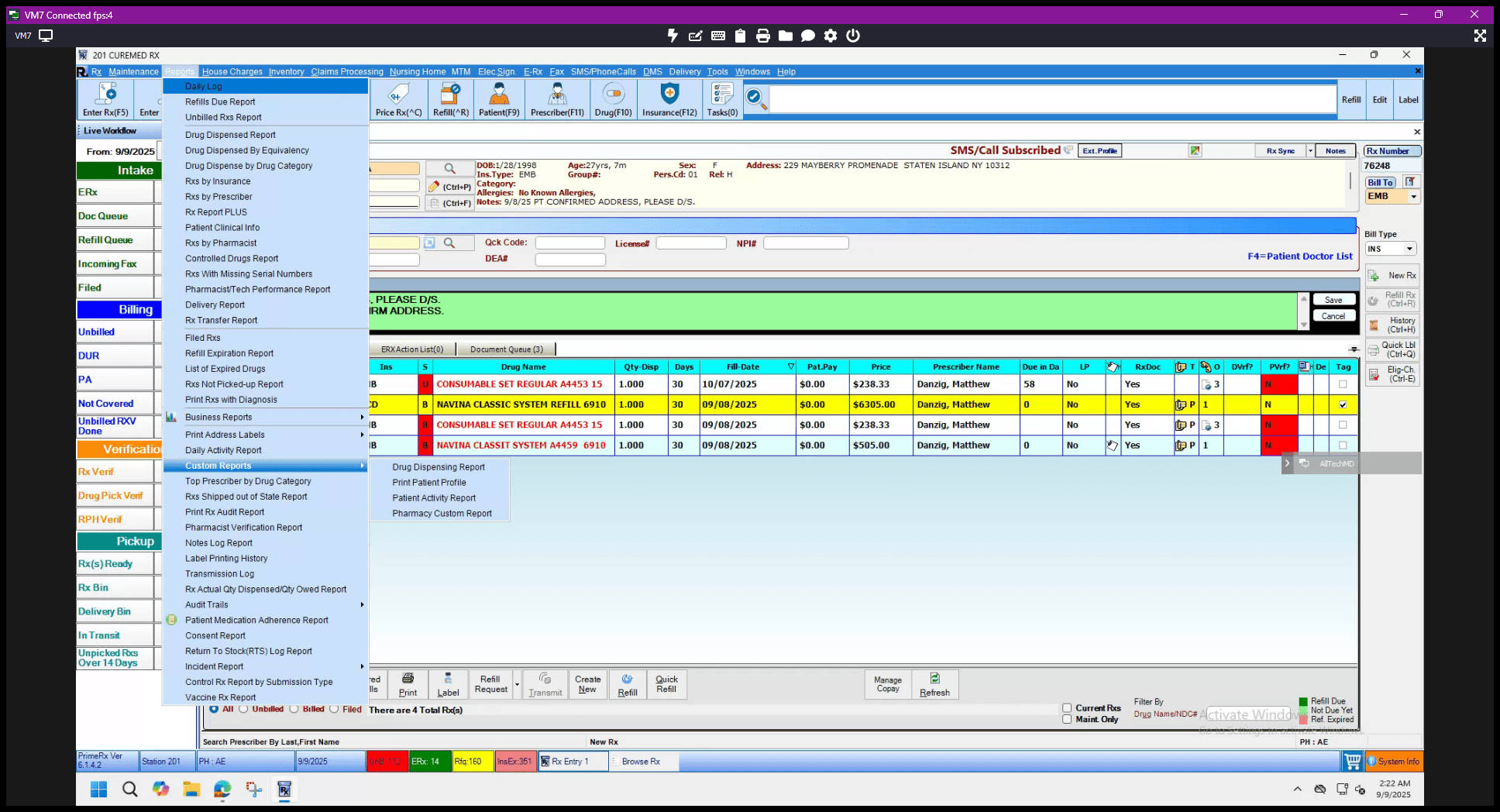
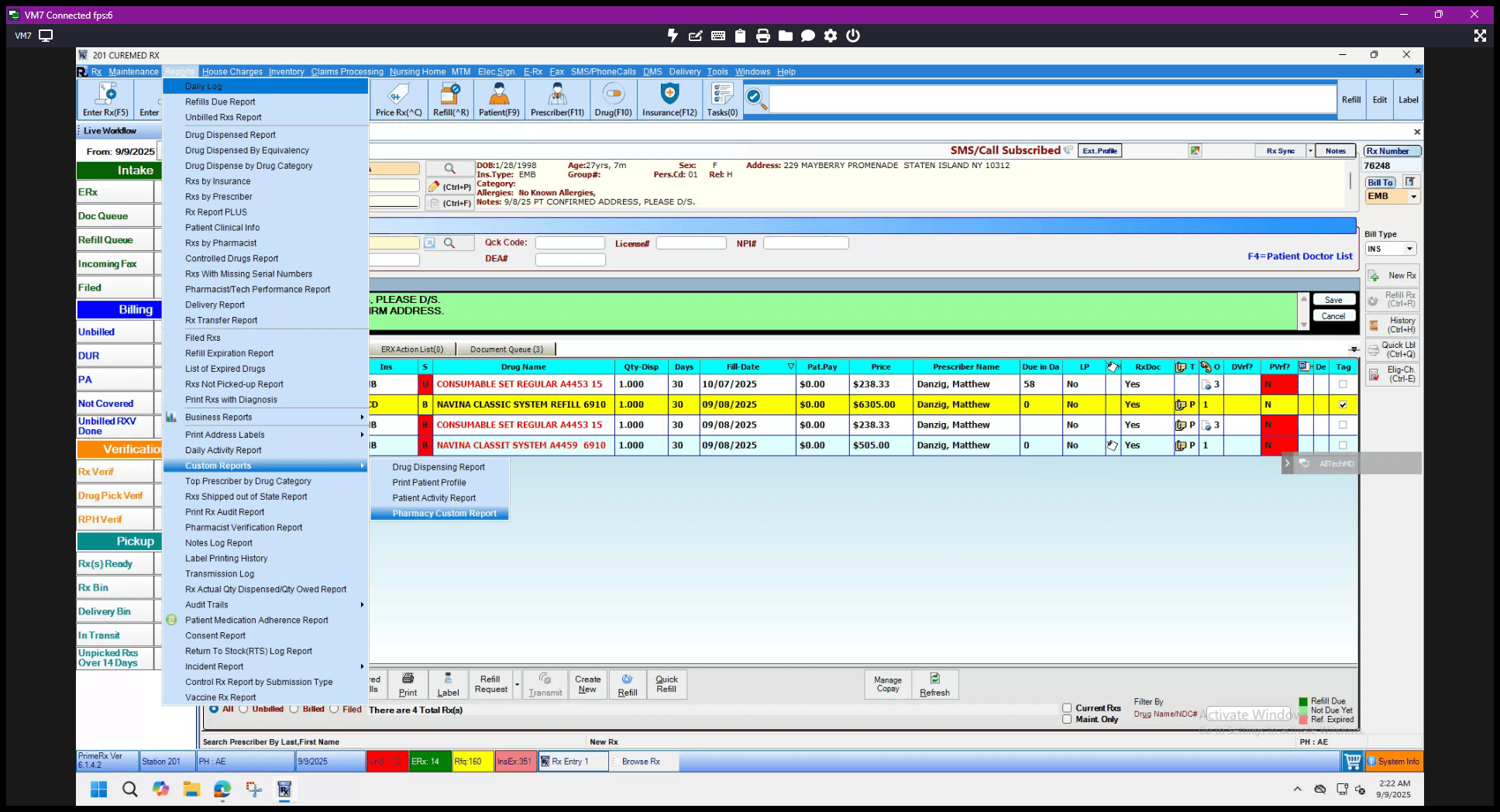
Here are the steps to extract the profile report spreadsheet. Open Prime RX. Go to Reports. Click on Custom Reports. Then select Pharmacy Custom Report.
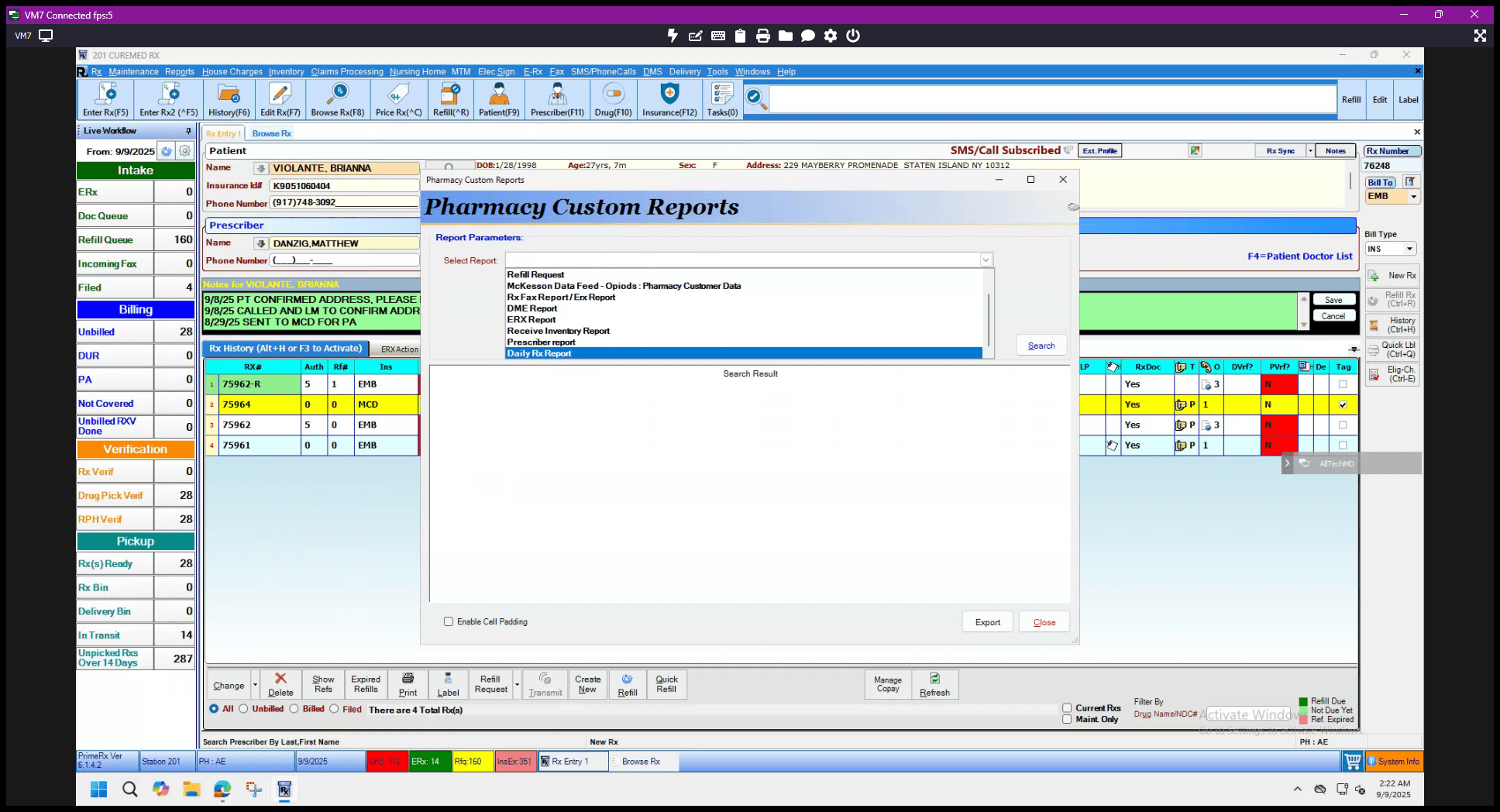
In the dropdown menu, scroll to the bottom and select Daily Rx Report.
Your "from" and "to" dates should match the date you are working on. For example, September 8, 2025.
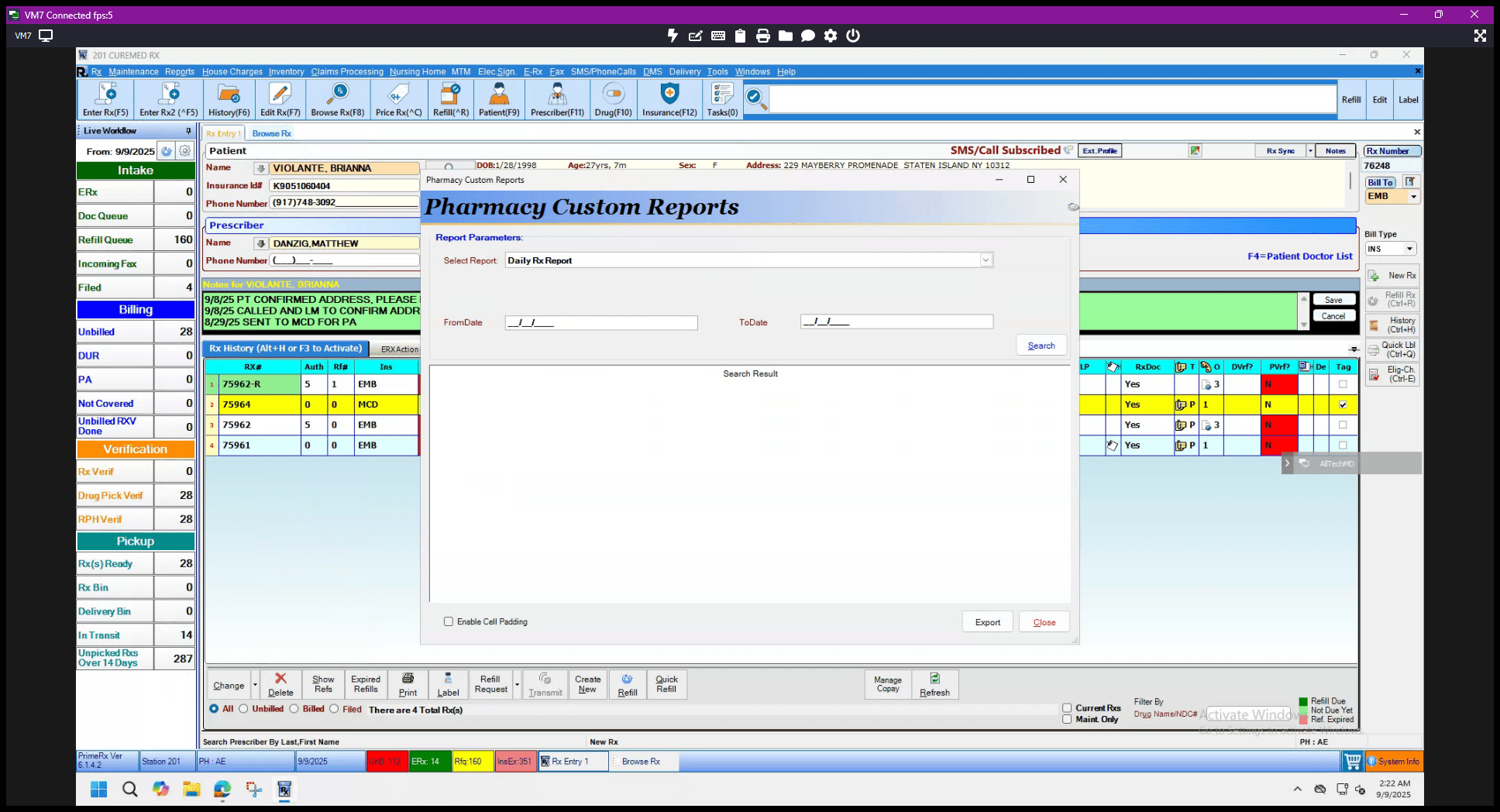
The format should be month, date, then year. 09-08-2025, tab, 09-08-2025. Click on search, then export. For the file name, save the Excel file using the date you are working on.
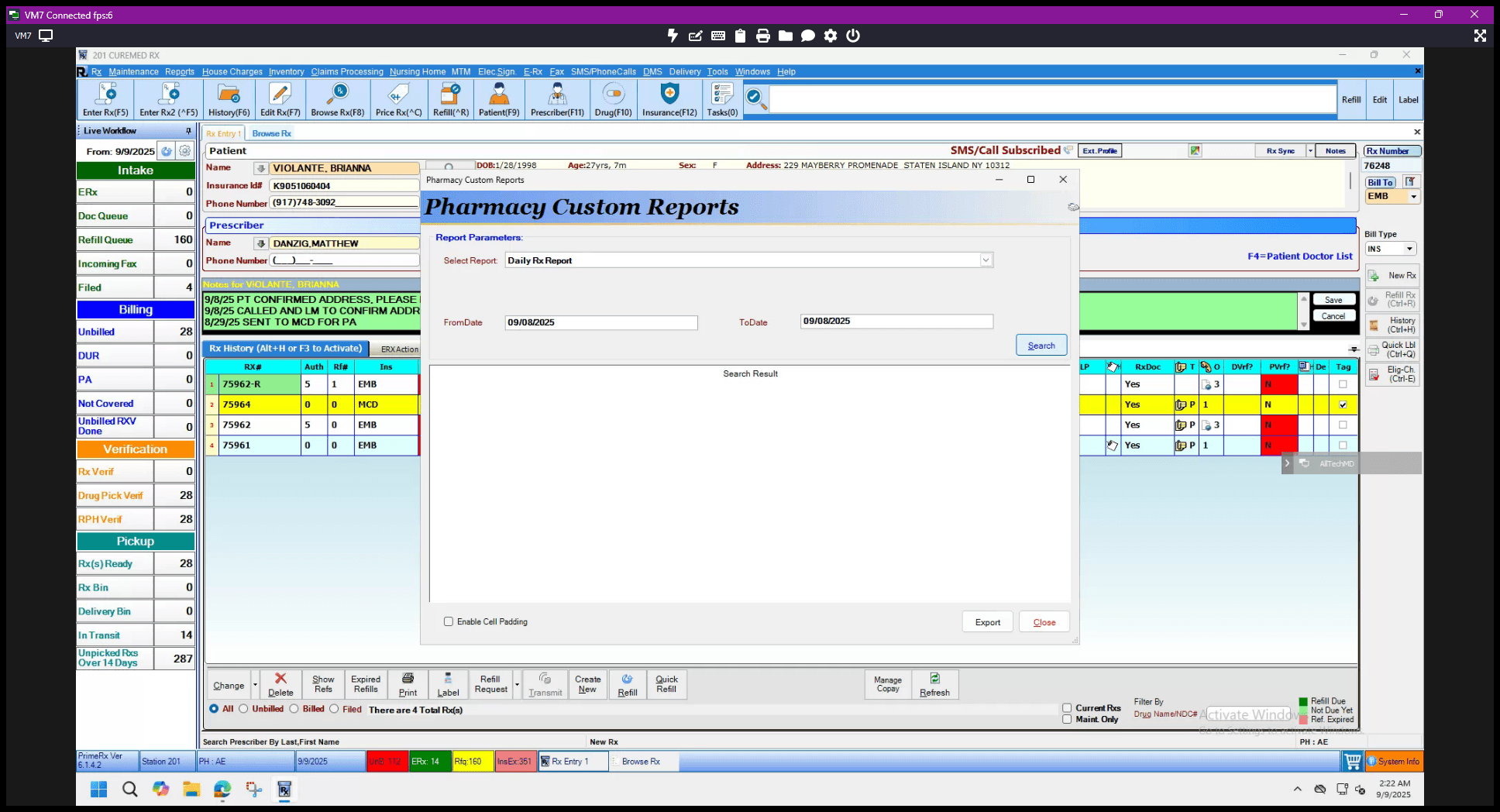
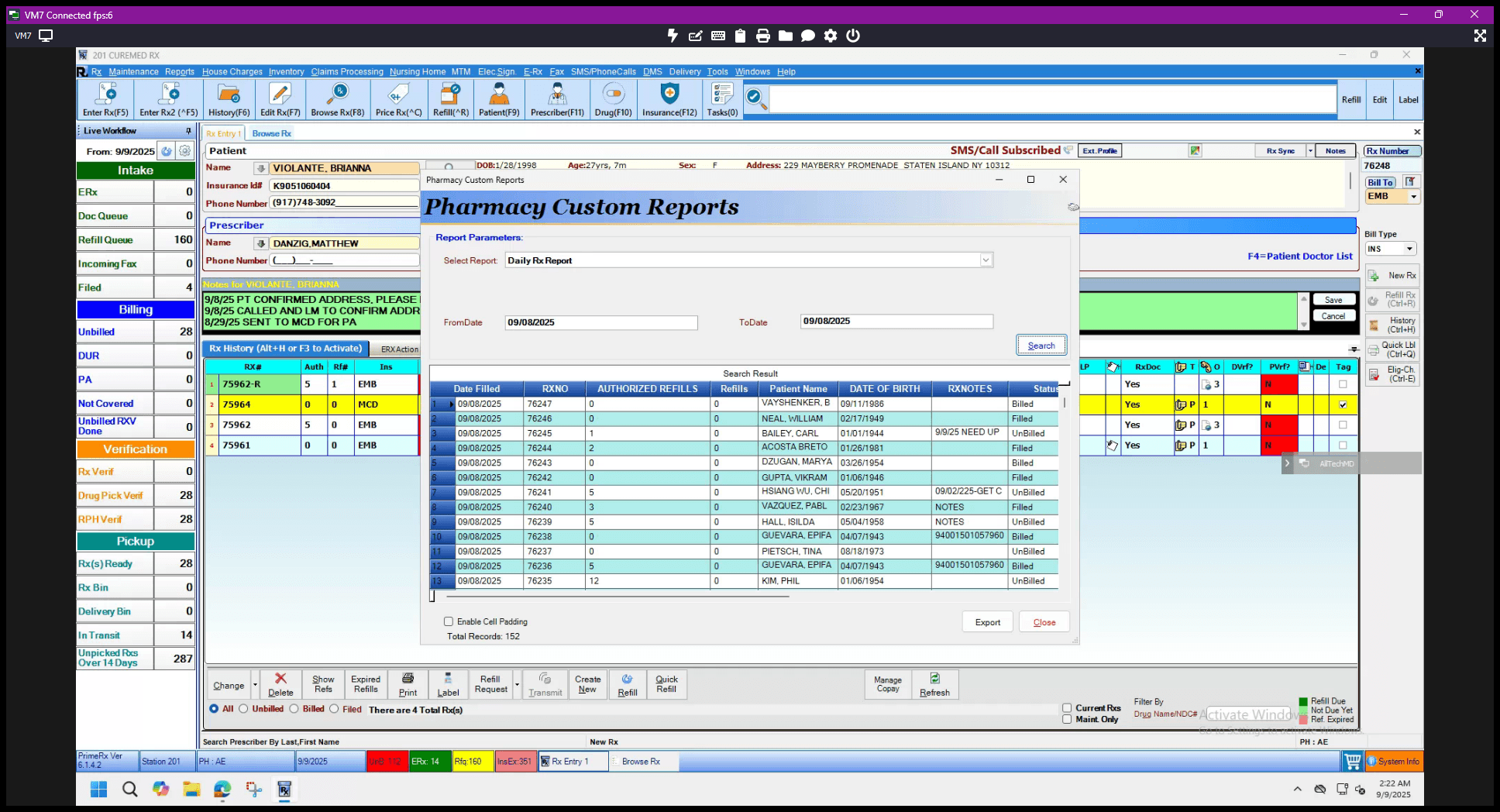
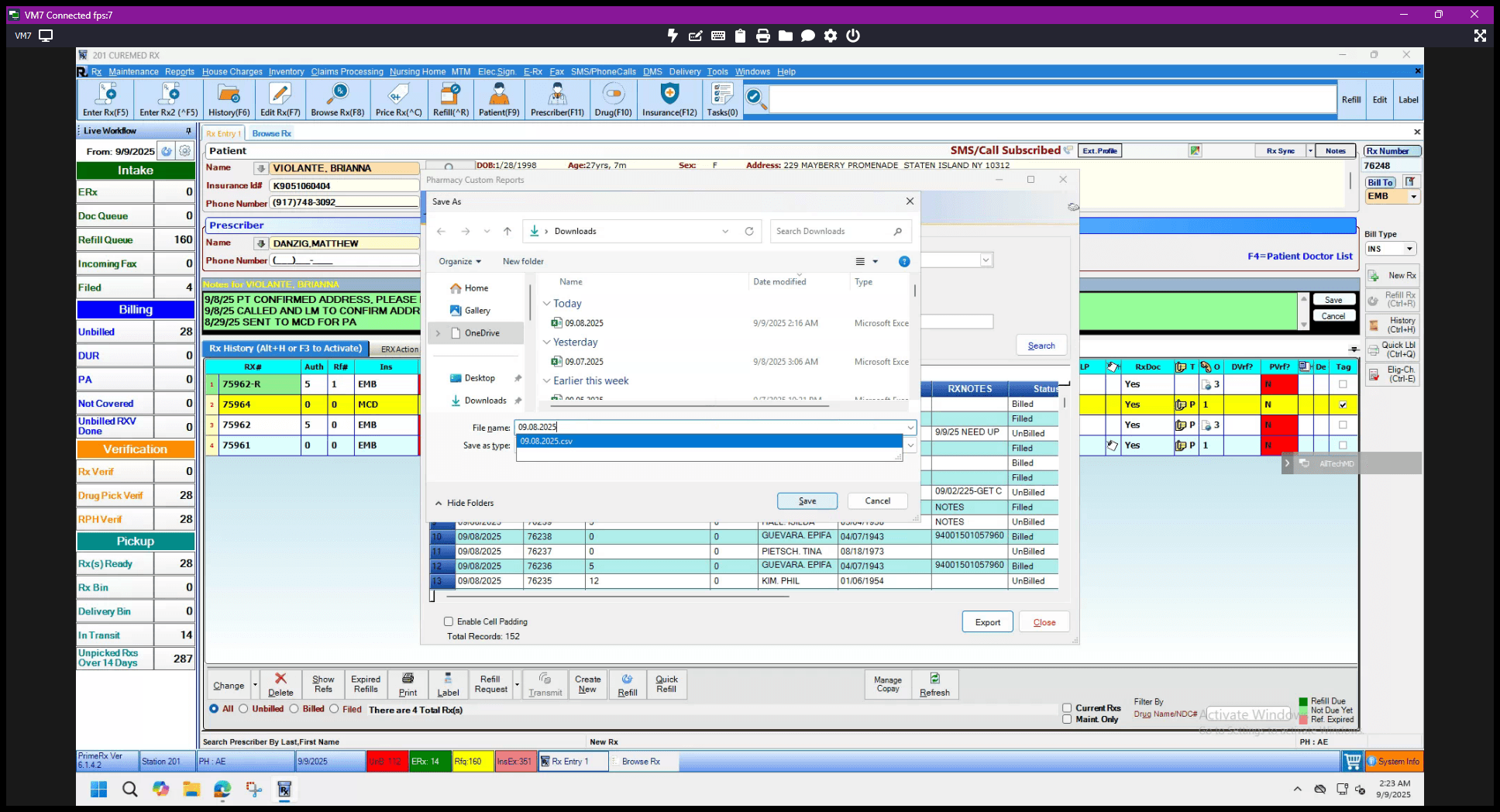
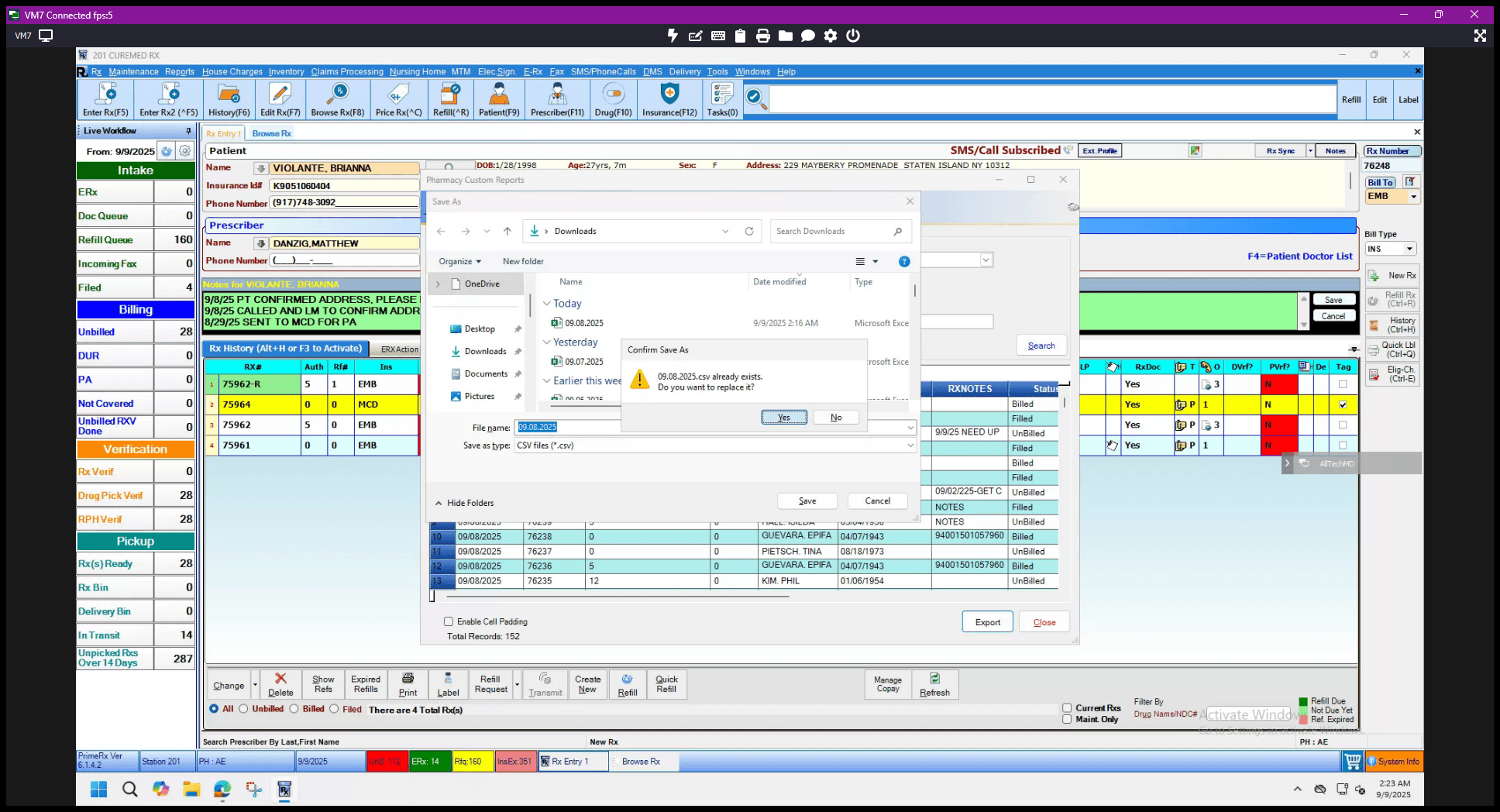
Since I already extracted the report earlier, we see this error message. However, if it's your first time, there should be no error message. Just click "Yes."
The Excel file will then appear. For this error message, click X, press Control-A to select all, then go to Data and select Sort. Always sort by name.
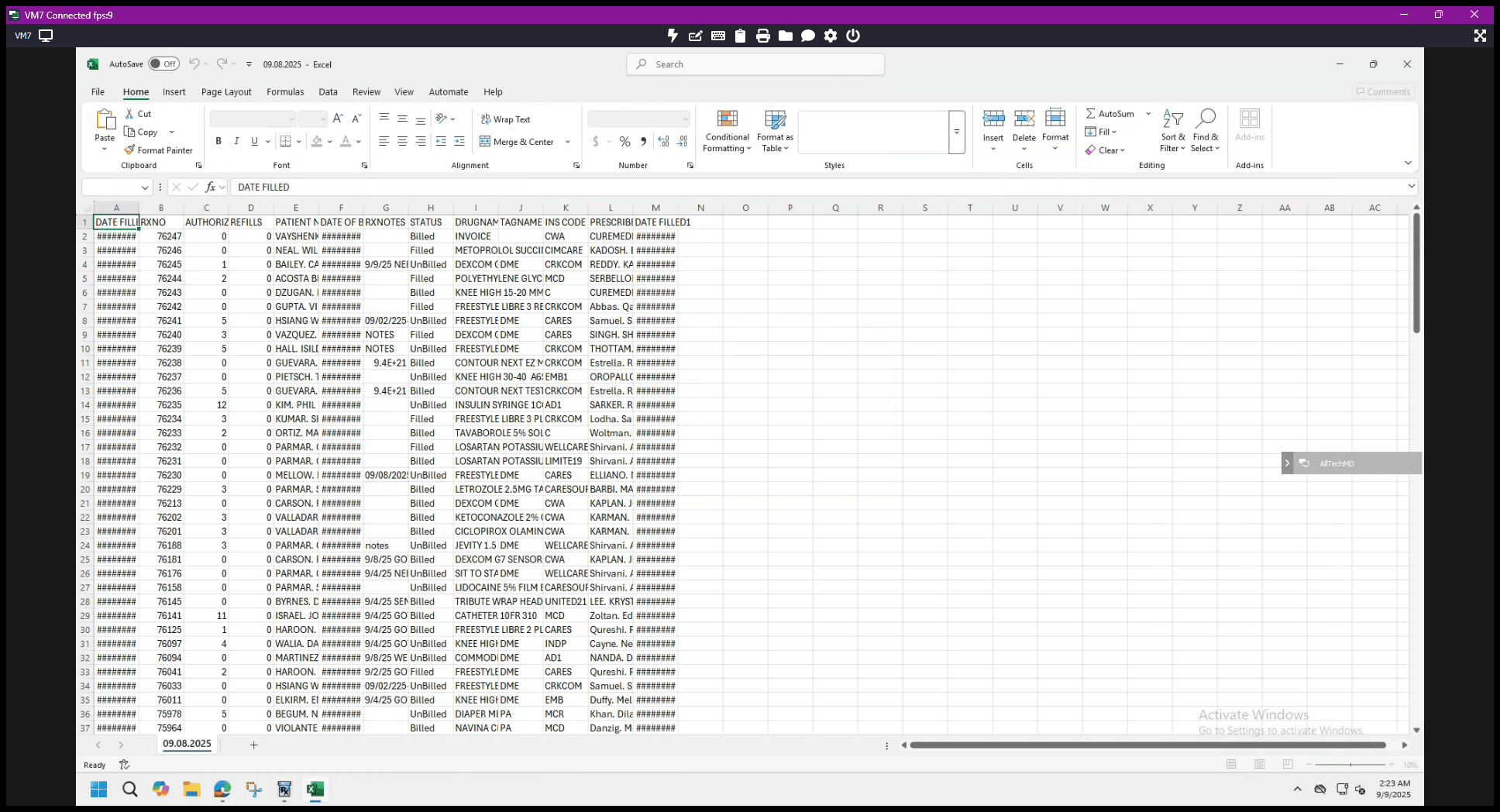
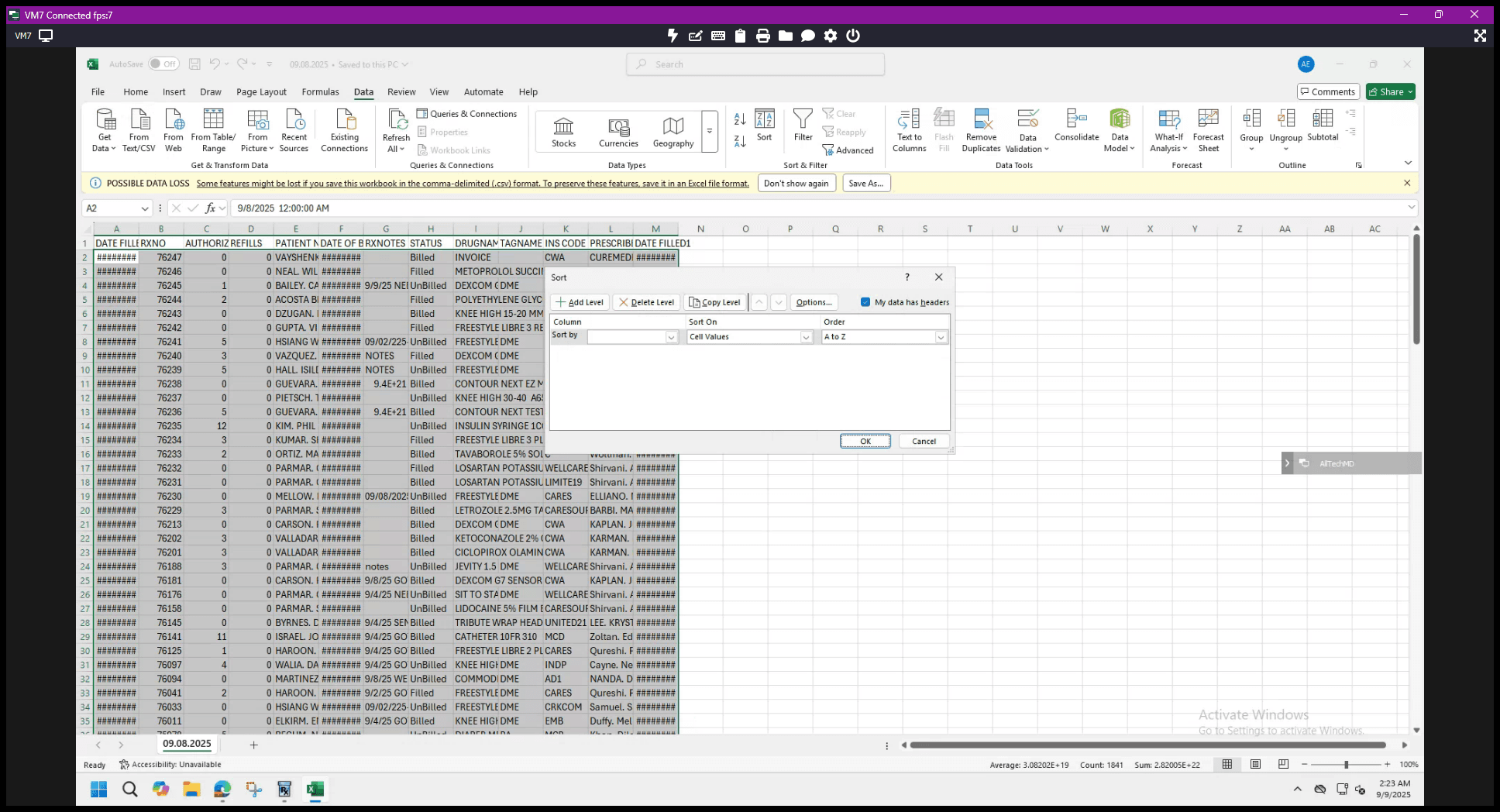
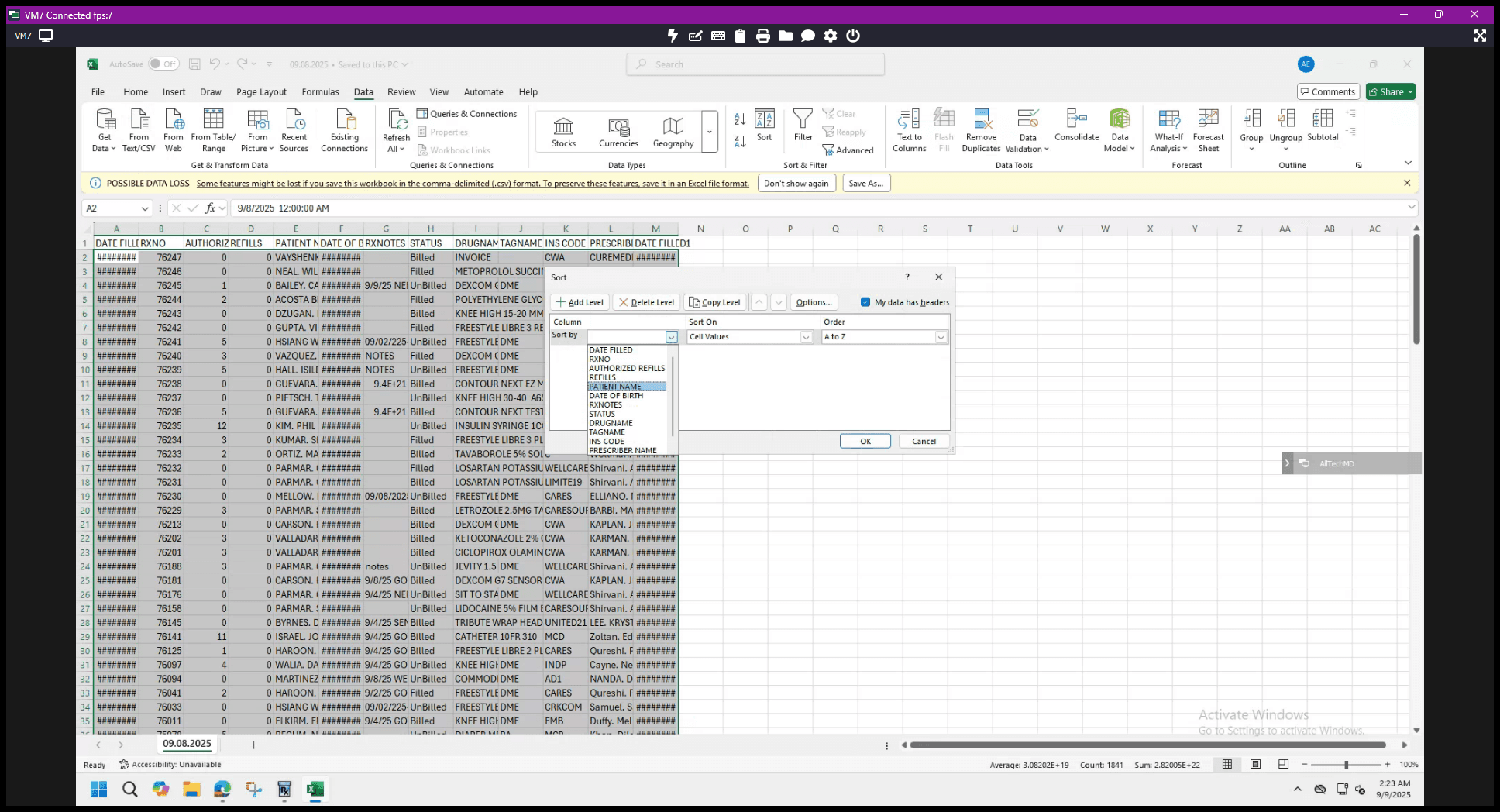
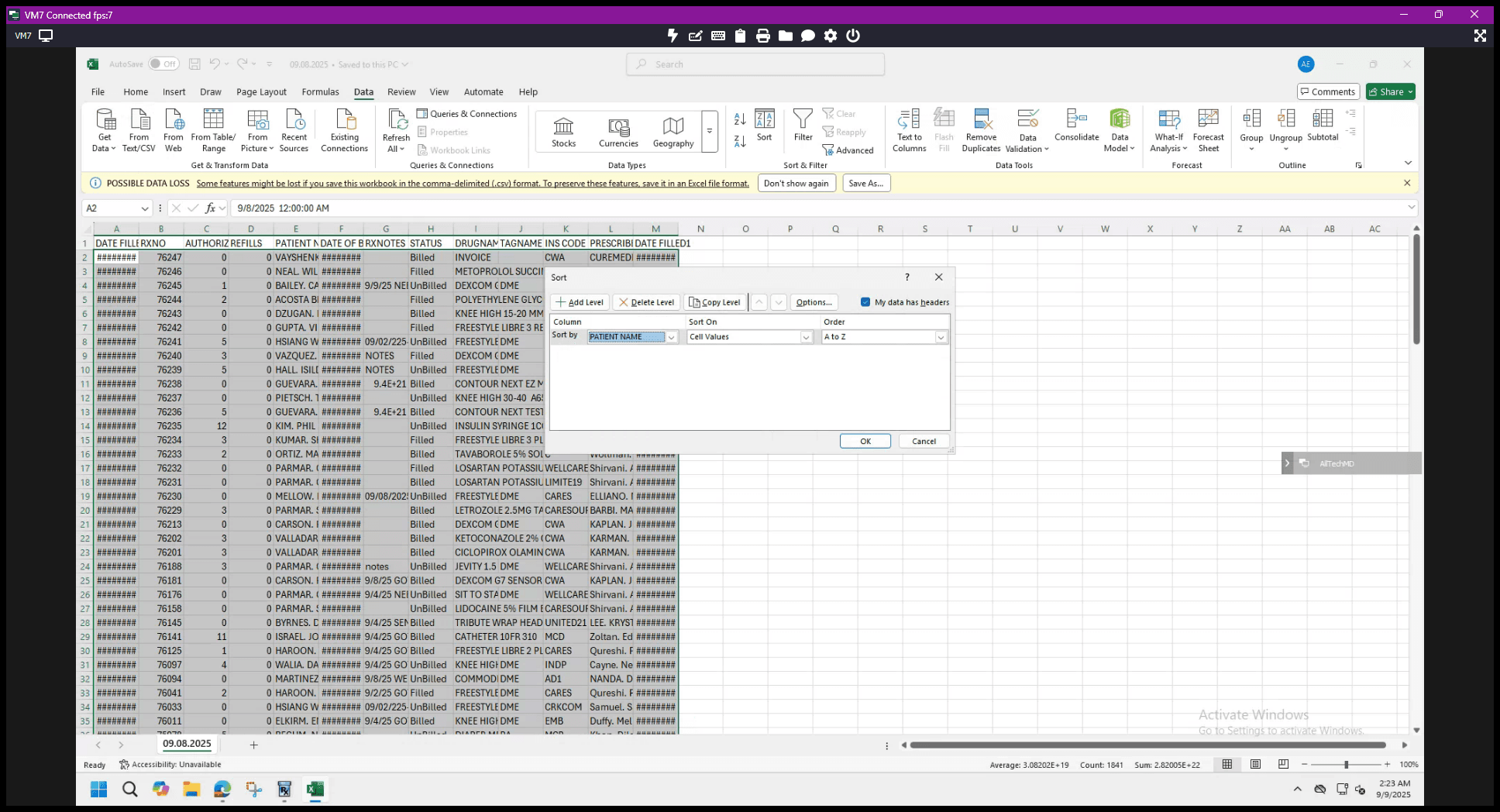
Once it has been sorted, open the profile report spreadsheet.
You need to transfer all the information from this Excel sheet to that spreadsheet. You can start with the first name.
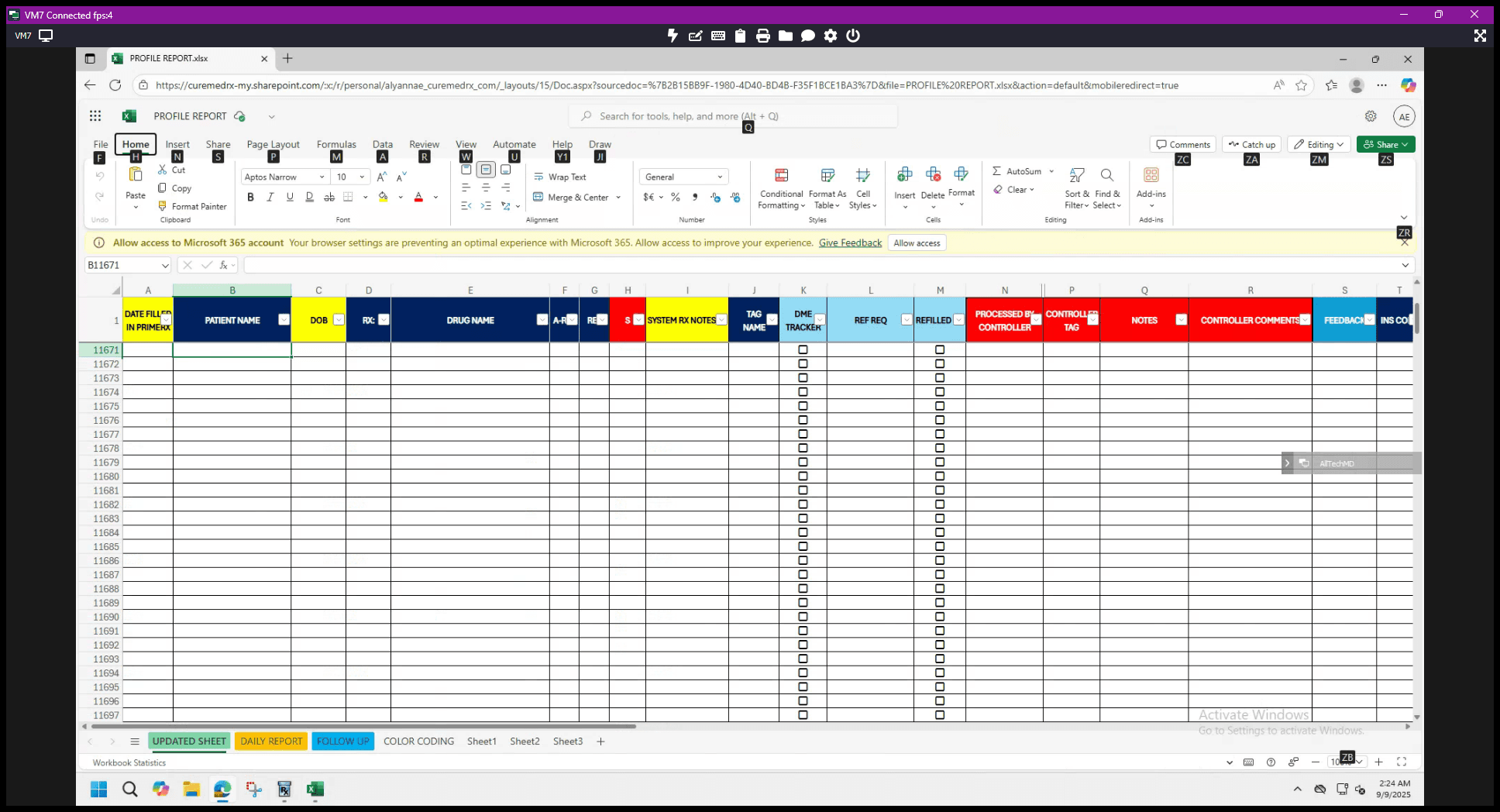
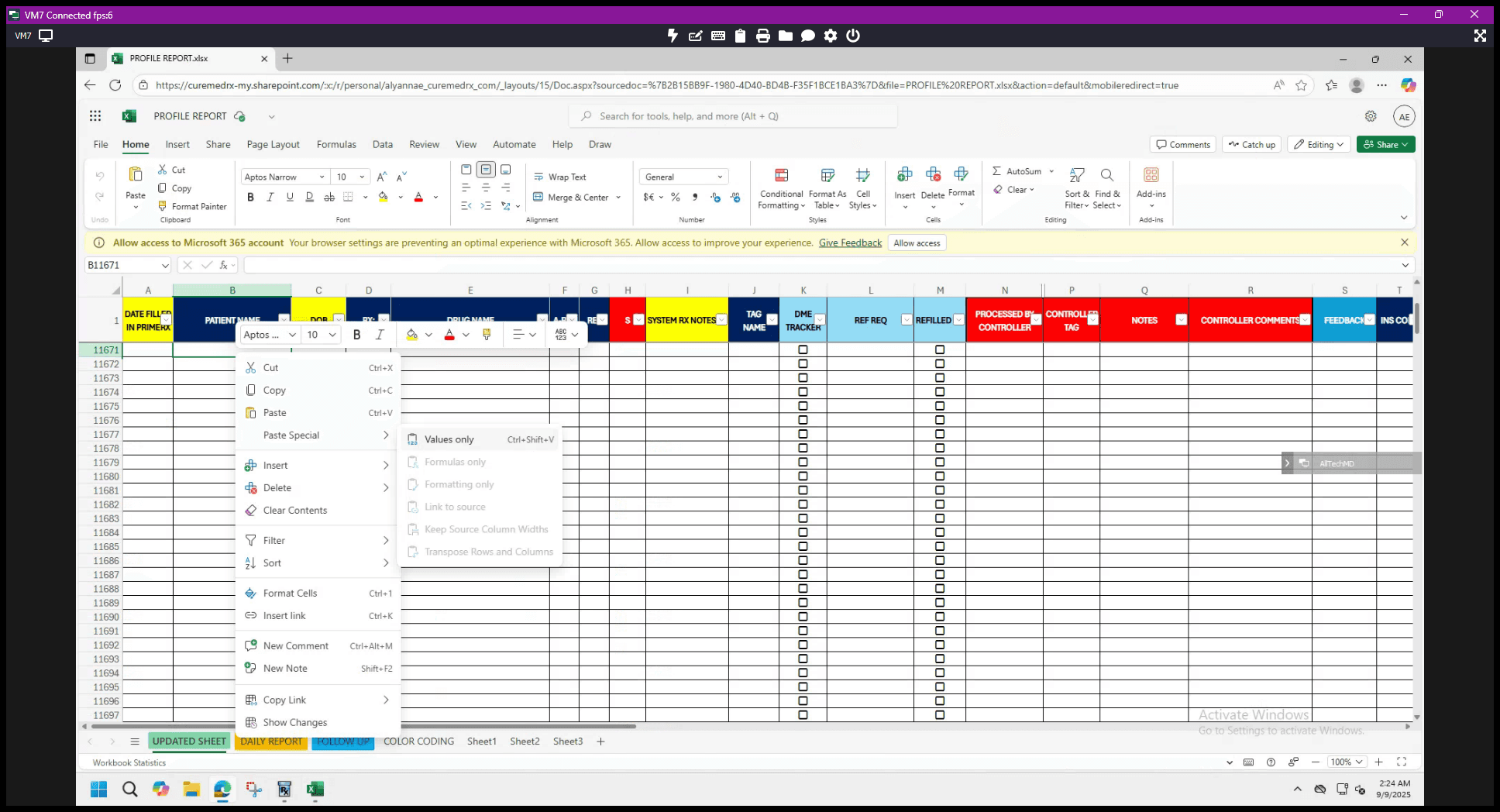
Click "Paste Special," then select "Paste as Values."
Then, it's up to you to decide the order in which you will transfer the data.
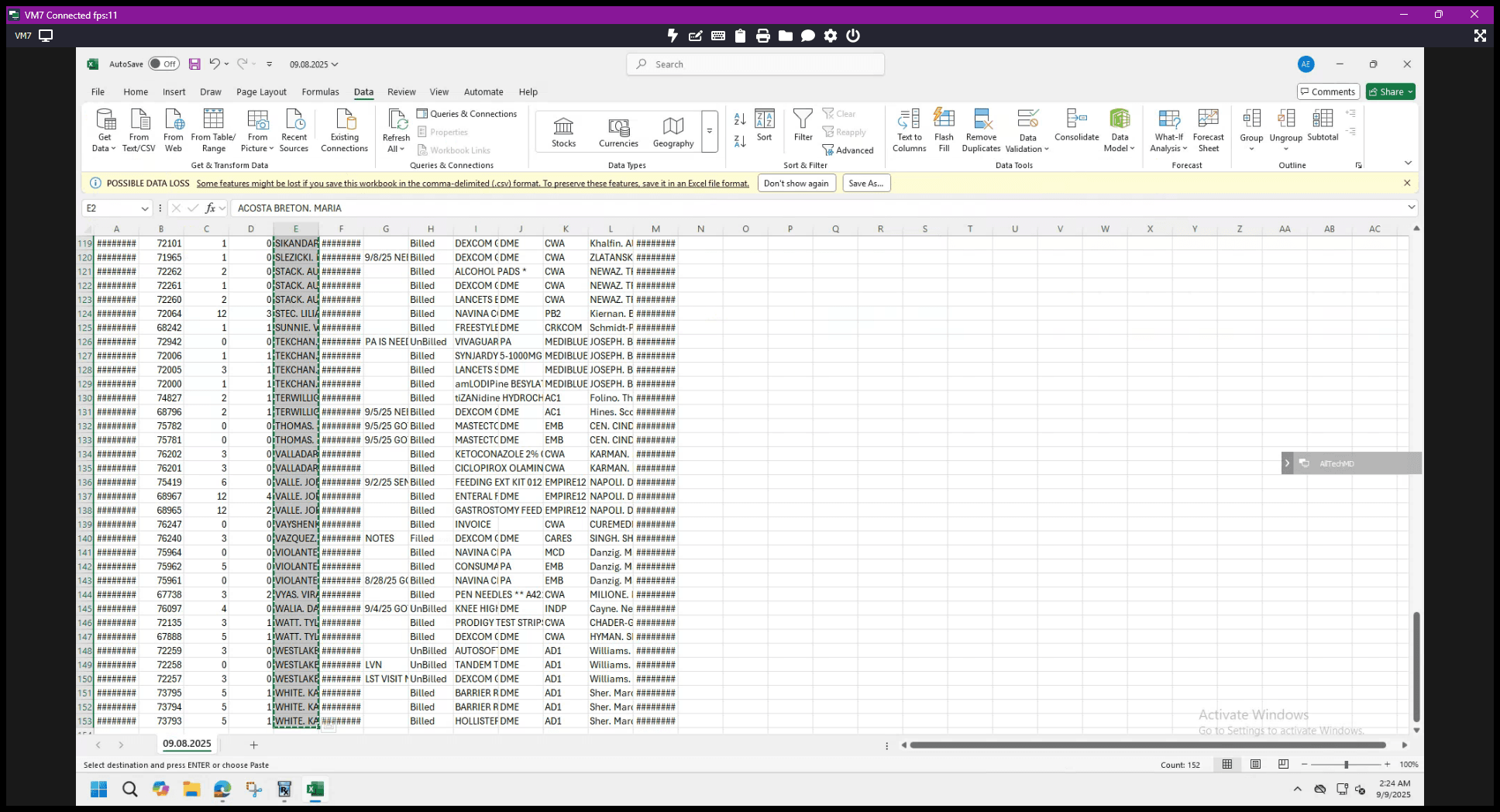
All data visible in the Excel sheet should also appear in the Profile Sheet Spreadsheet. That's all done with extracting the data. Thank you.