How to Fill Out a Controls Material Request Form: Step-by-Step Guide
Learn how to complete a material request form, including entering the requester's name, selecting need-by dates, choosing request types, and submitting your request efficiently.
In this guide, we'll learn how to complete a material request form. You'll see how to enter the requester's name, select a need-by date, and choose the type of request and specific items needed. This process helps ensure your material needs are communicated clearly to the material manager.
Let's get started
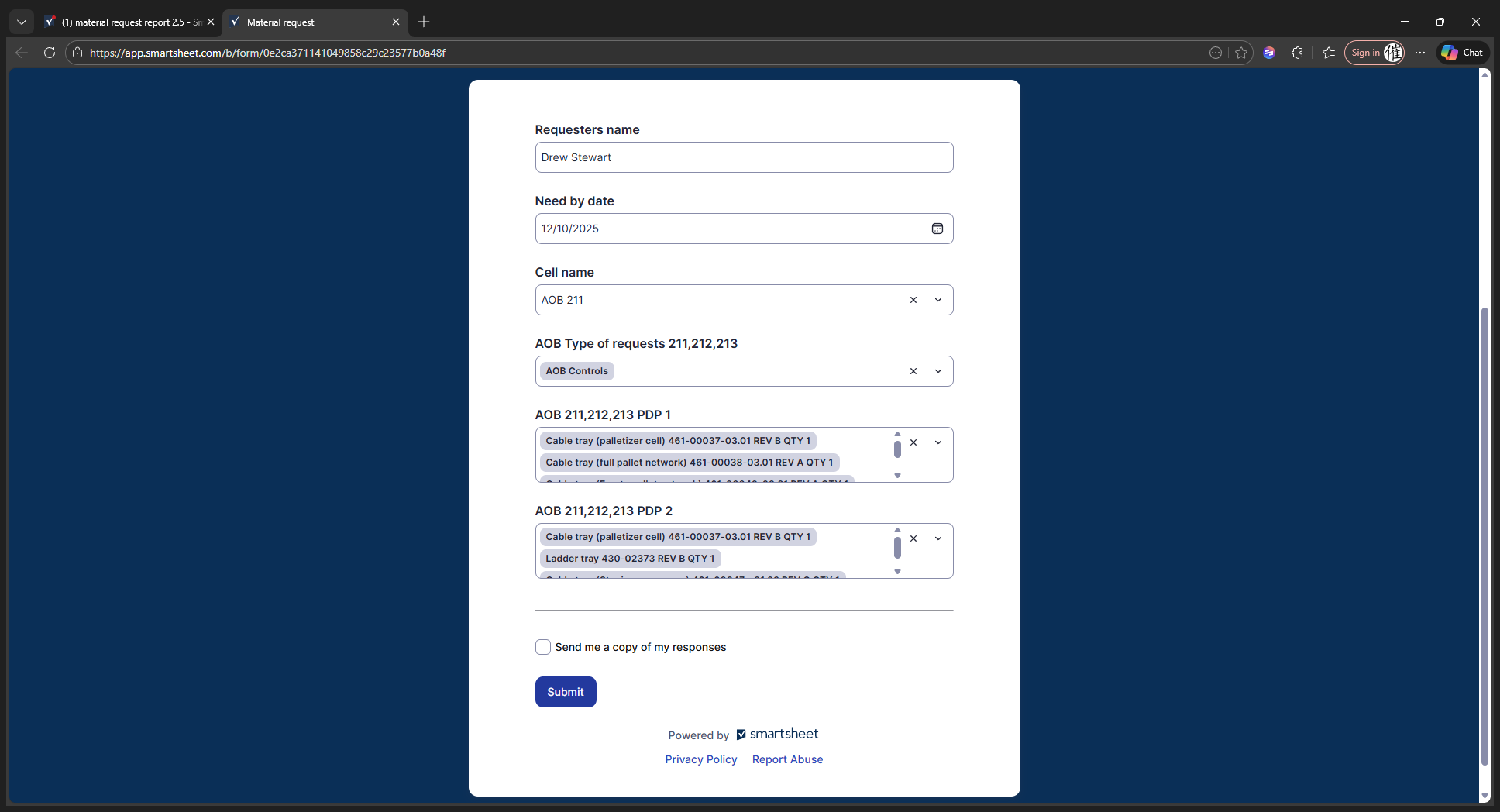
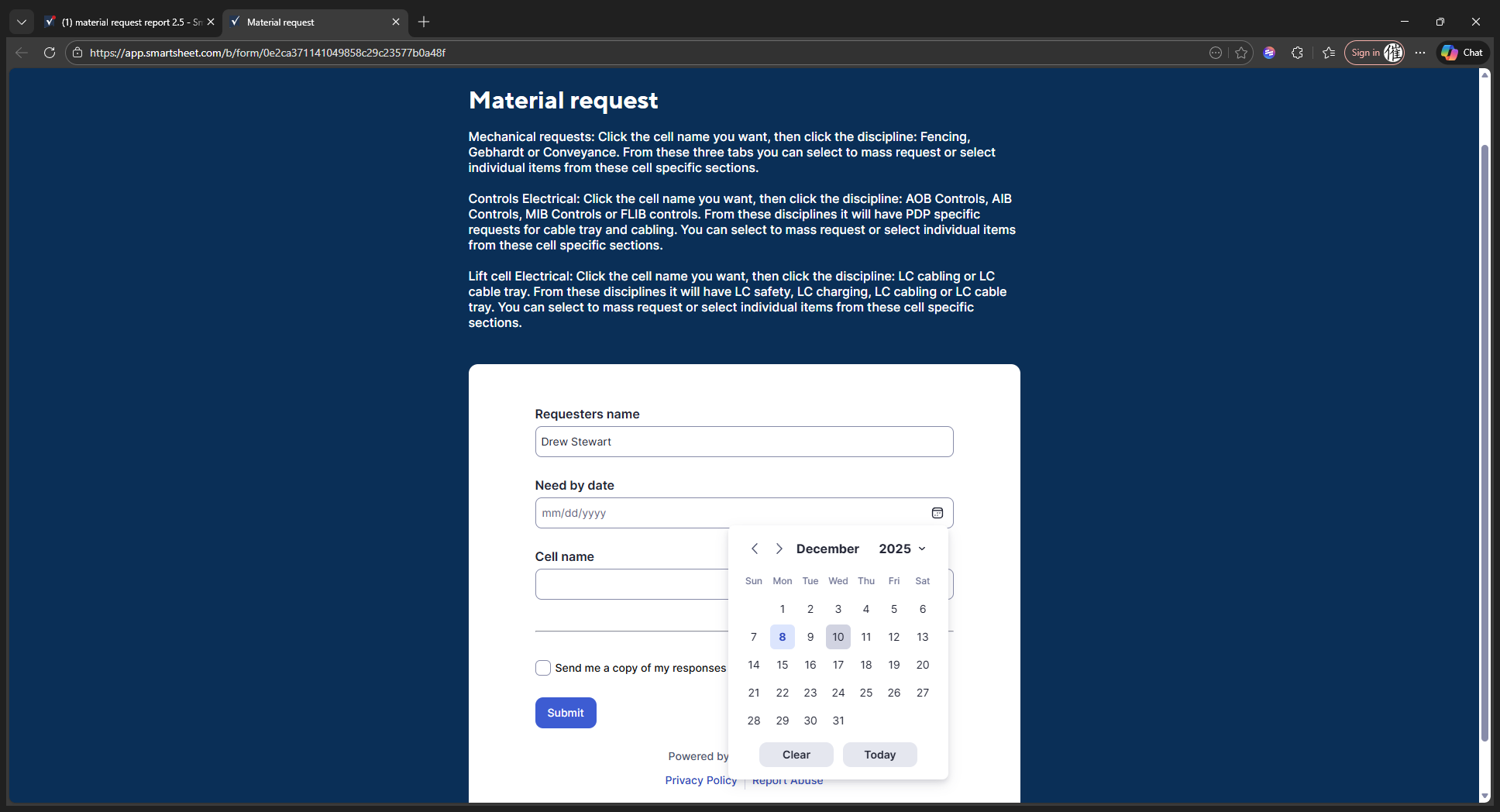
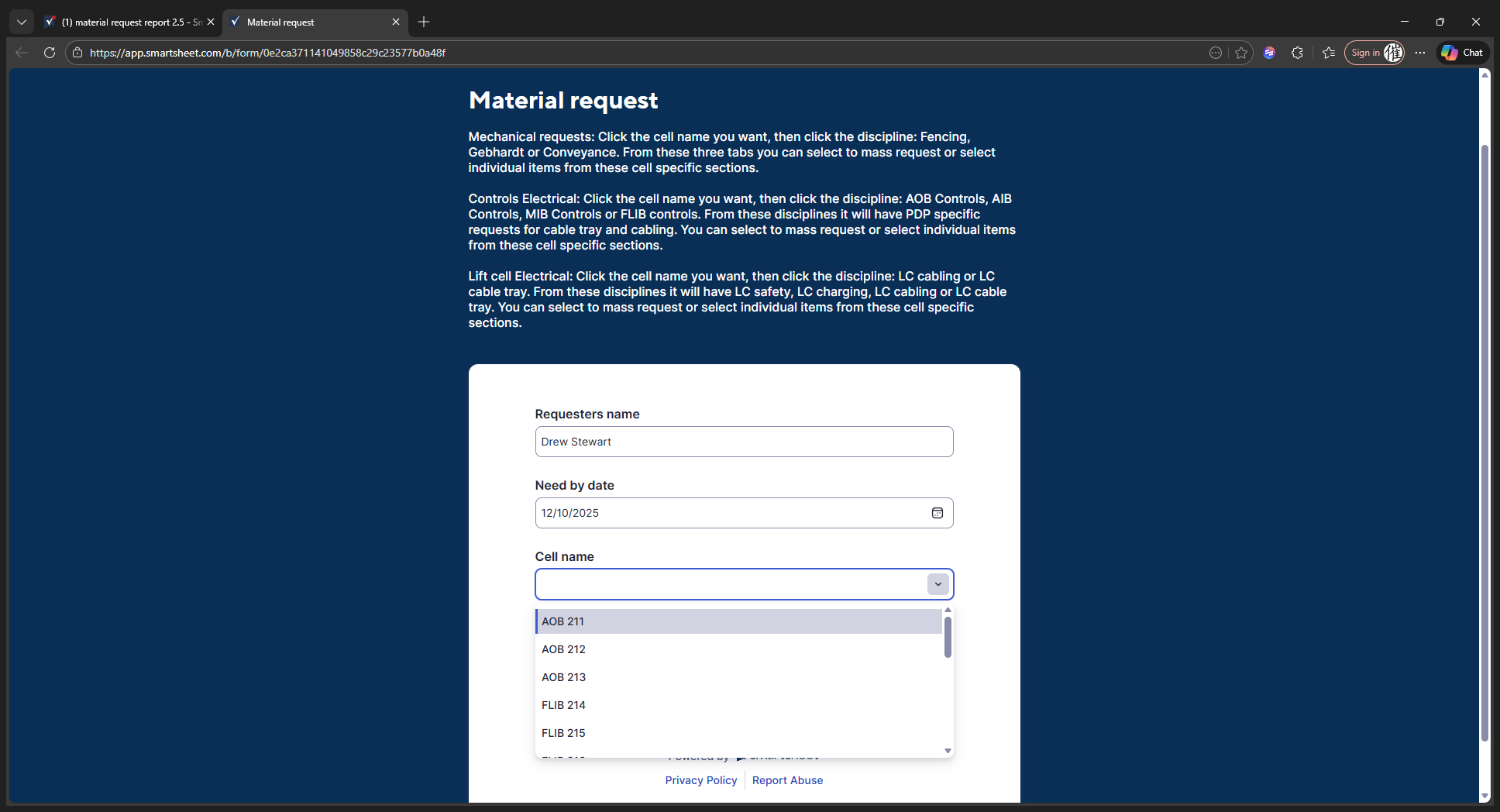
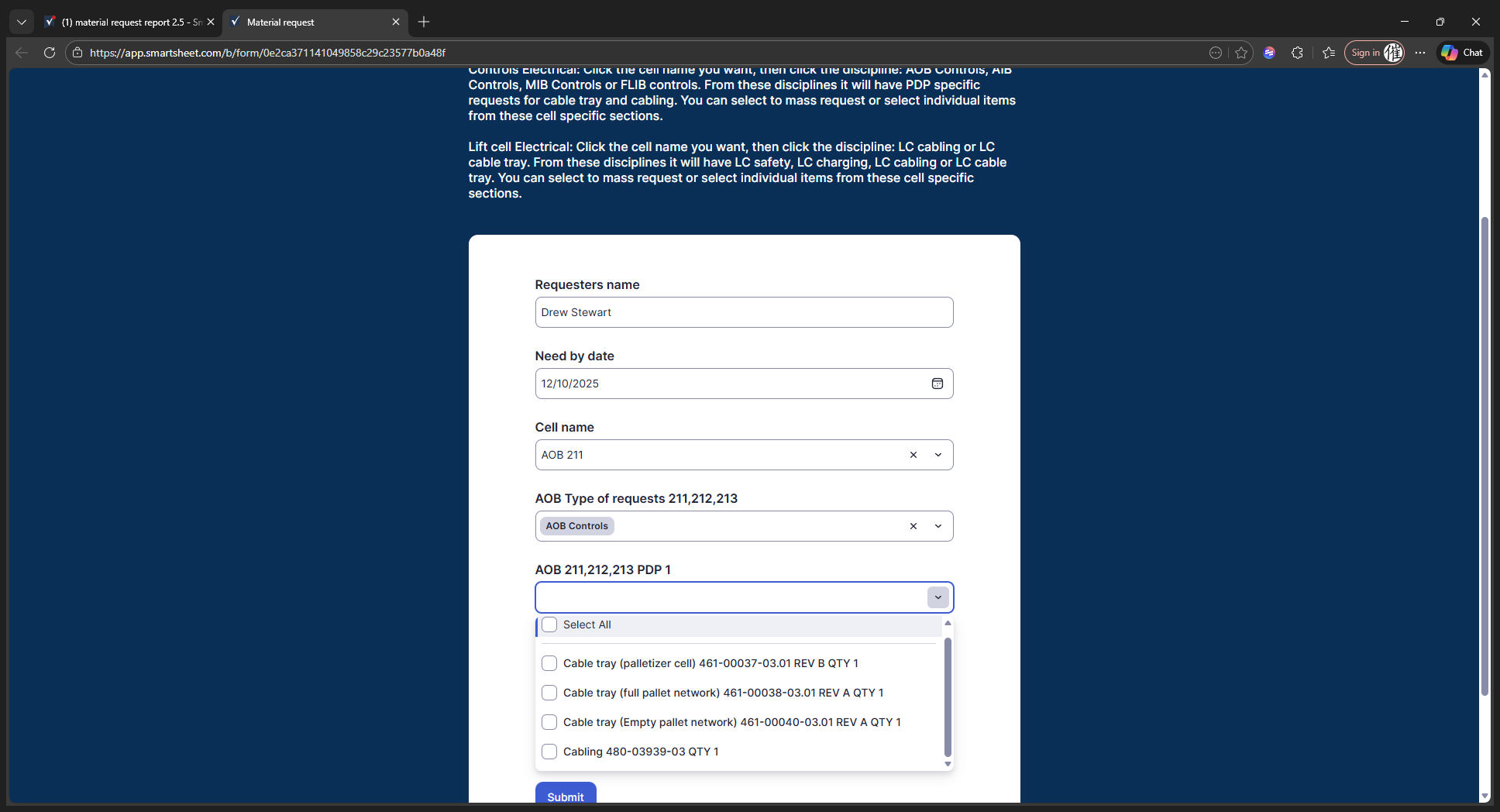
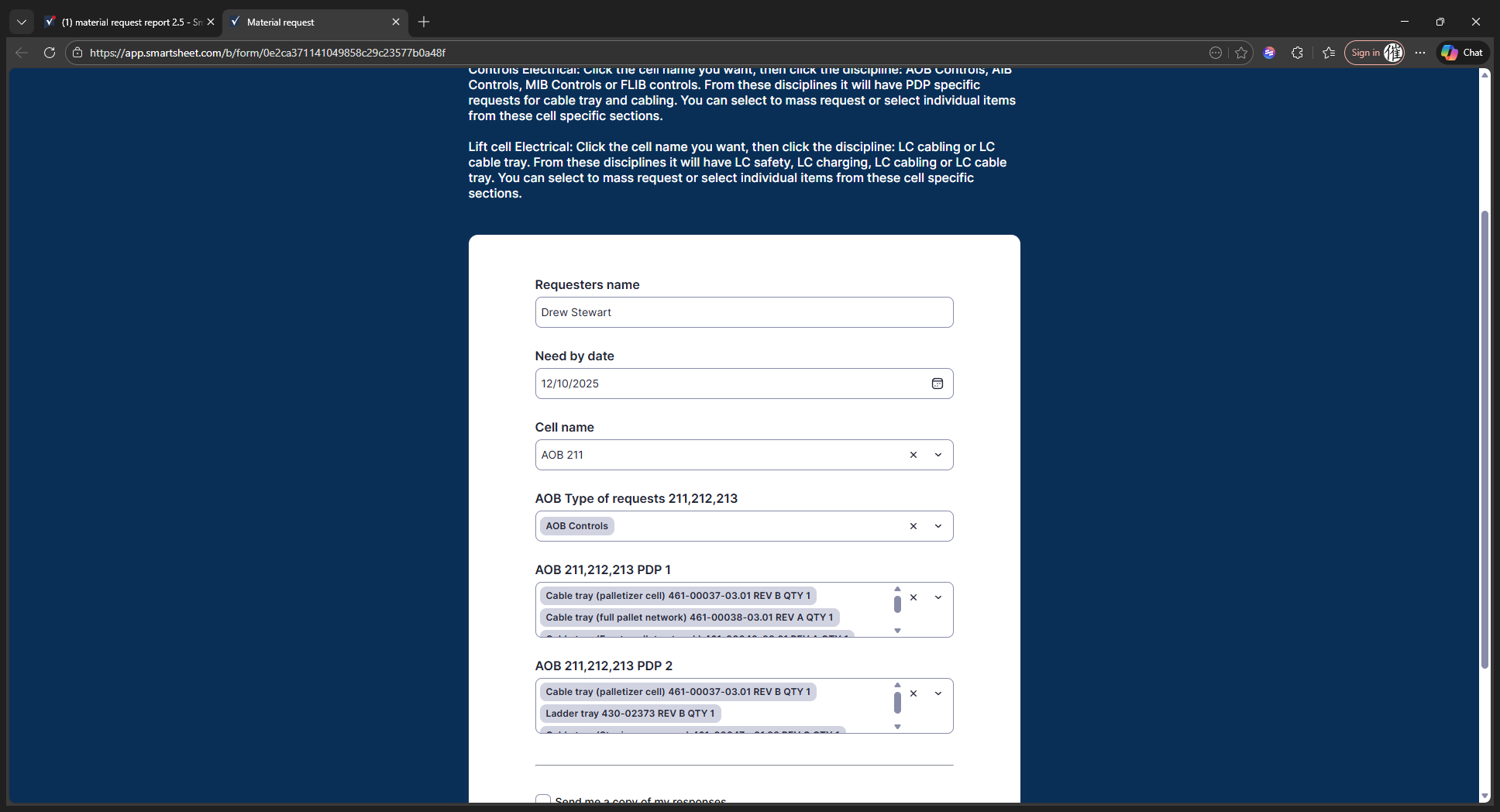
On the material request form, start by entering the requester's name. Mine is Drew Stuart, so we'll type that in. We will use the need-by date. Today is 12/8/25. You can enter the date in the need-by section or click the calendar icon.
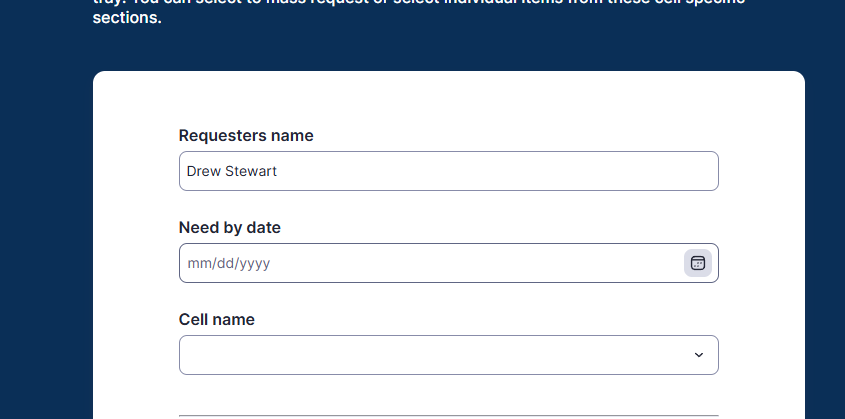
We don't need it until Wednesday the 10th. For this one, we'll do controls, so click the cell you want.
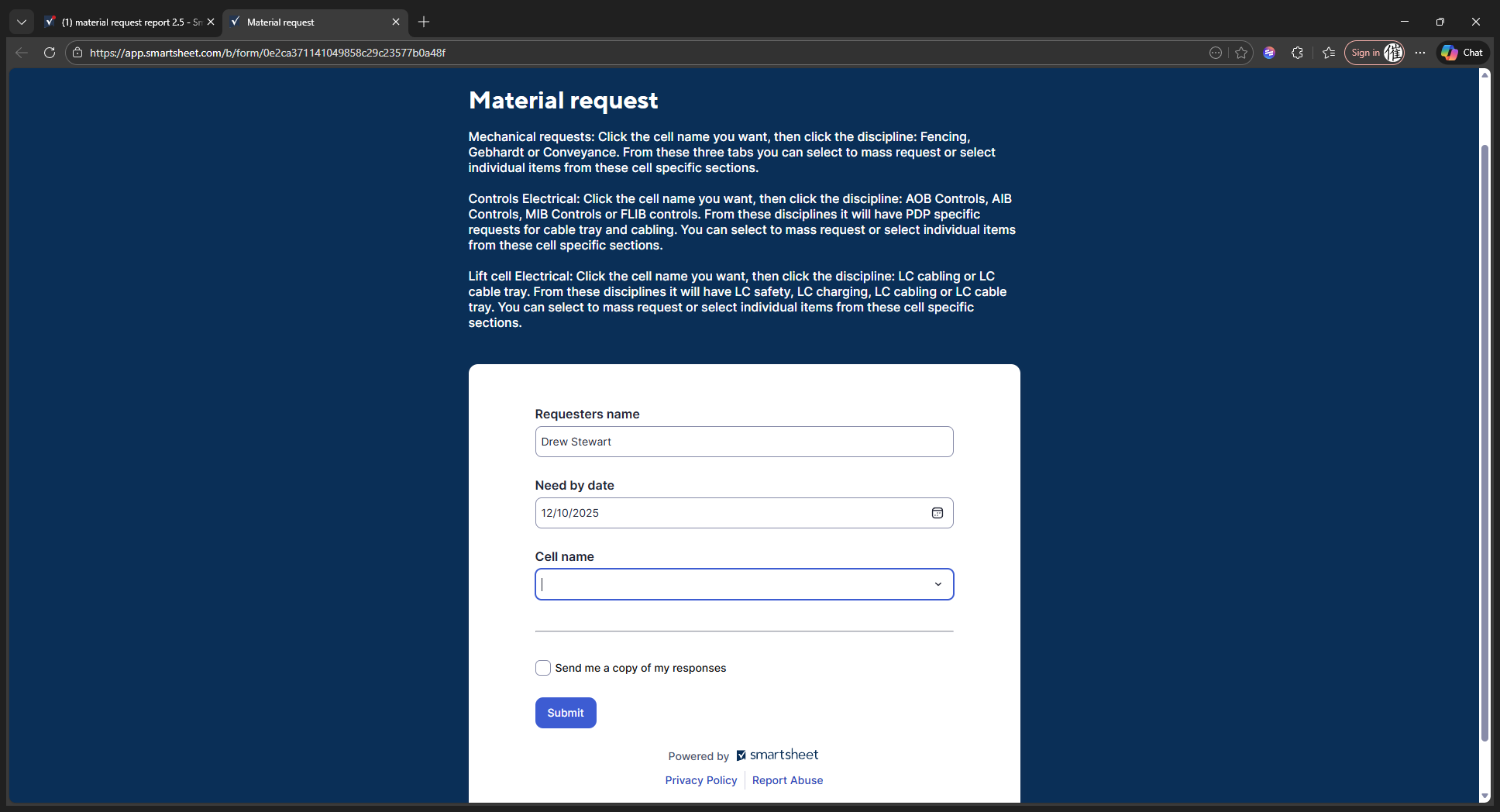
Let's say 211.
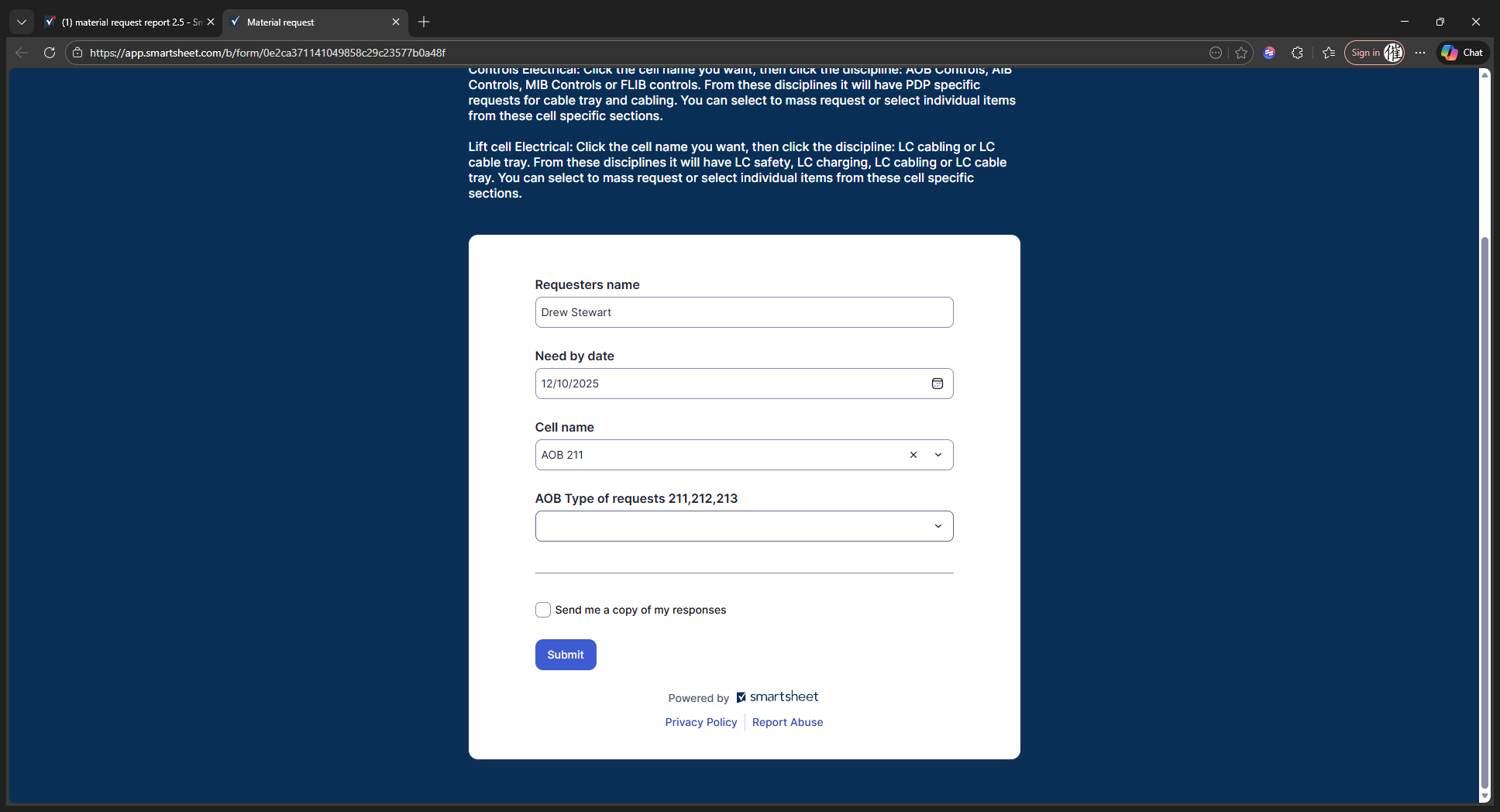
Types of requests: select "AOB Controls" and click it.
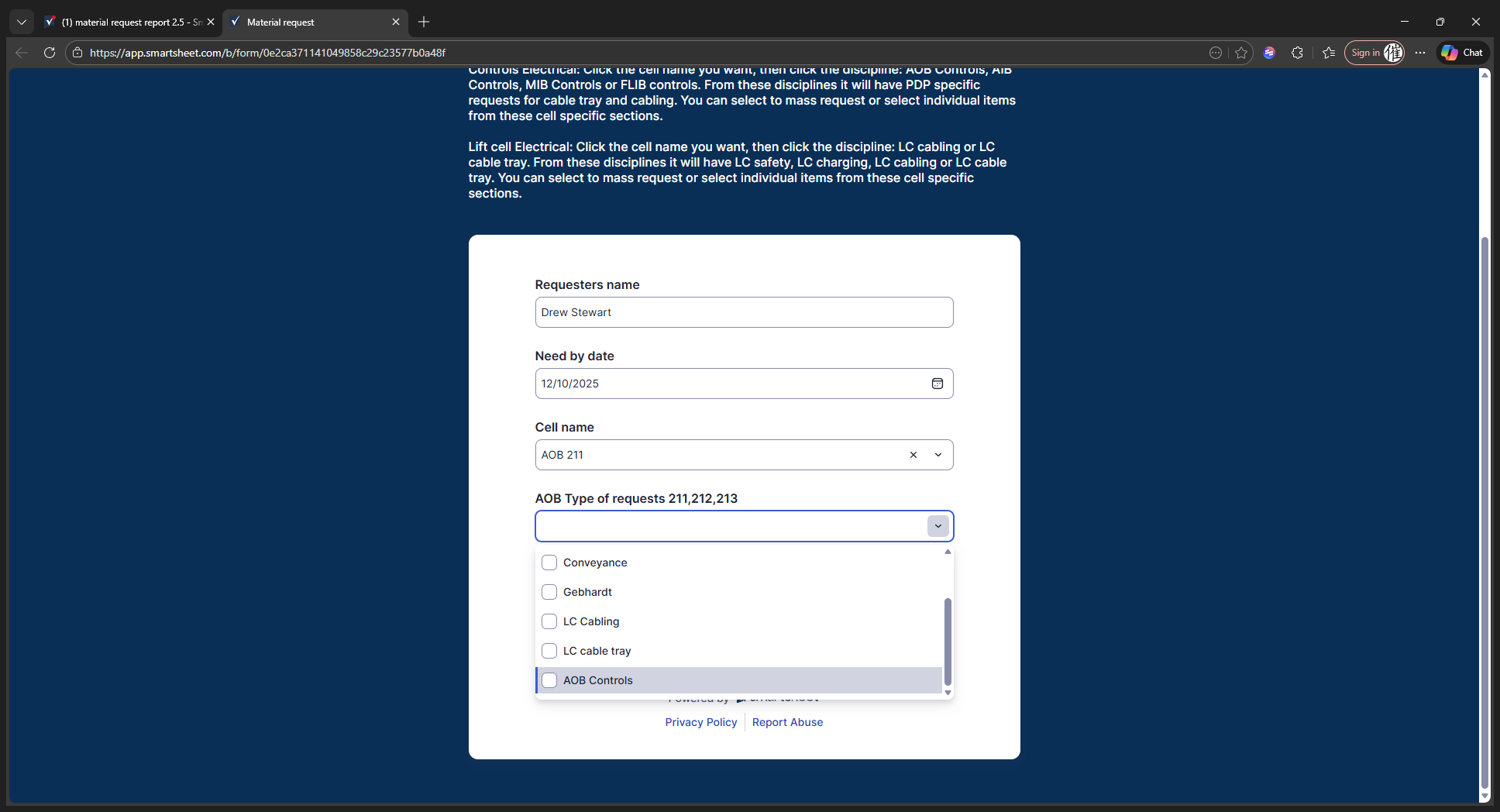
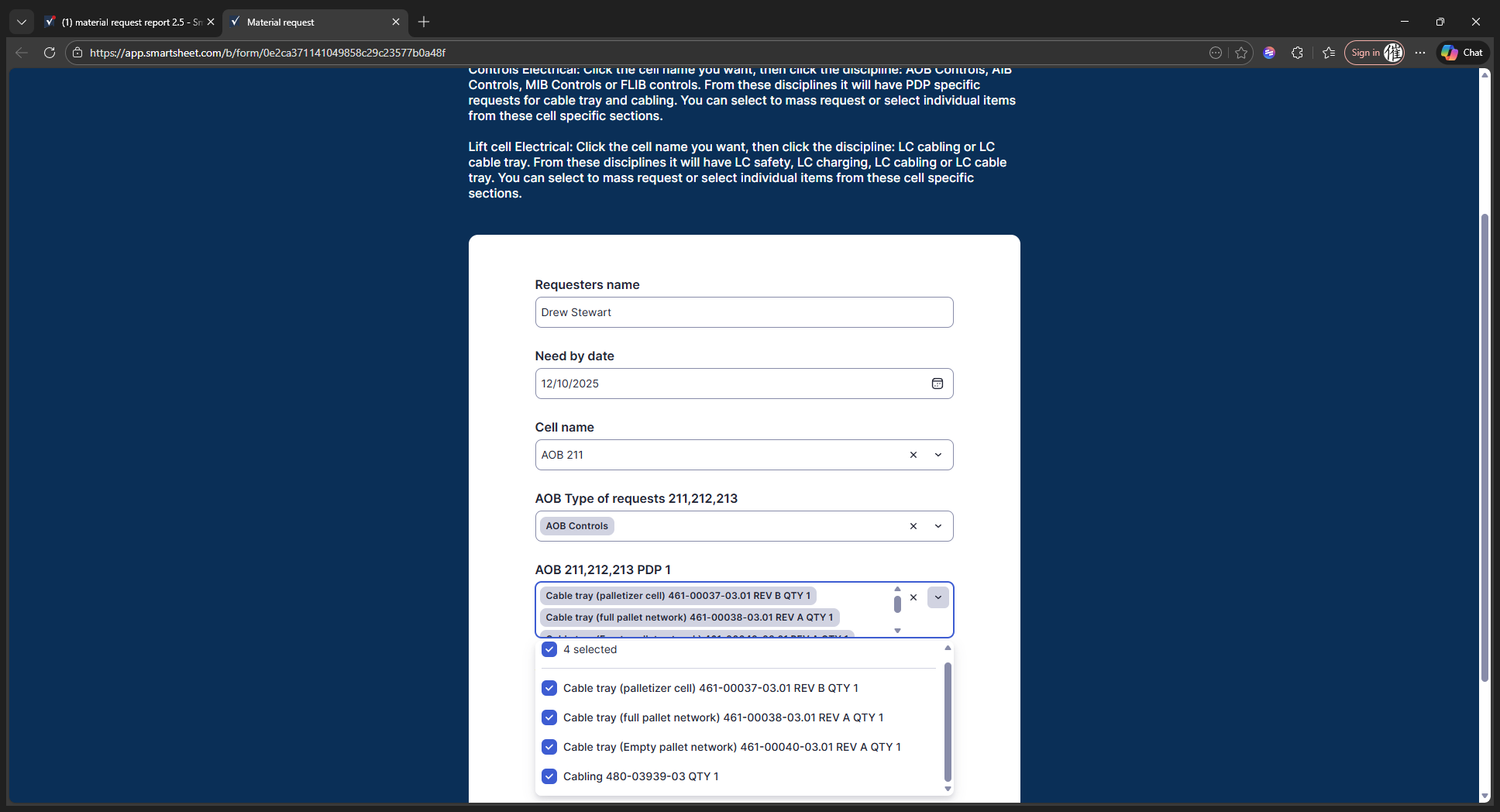
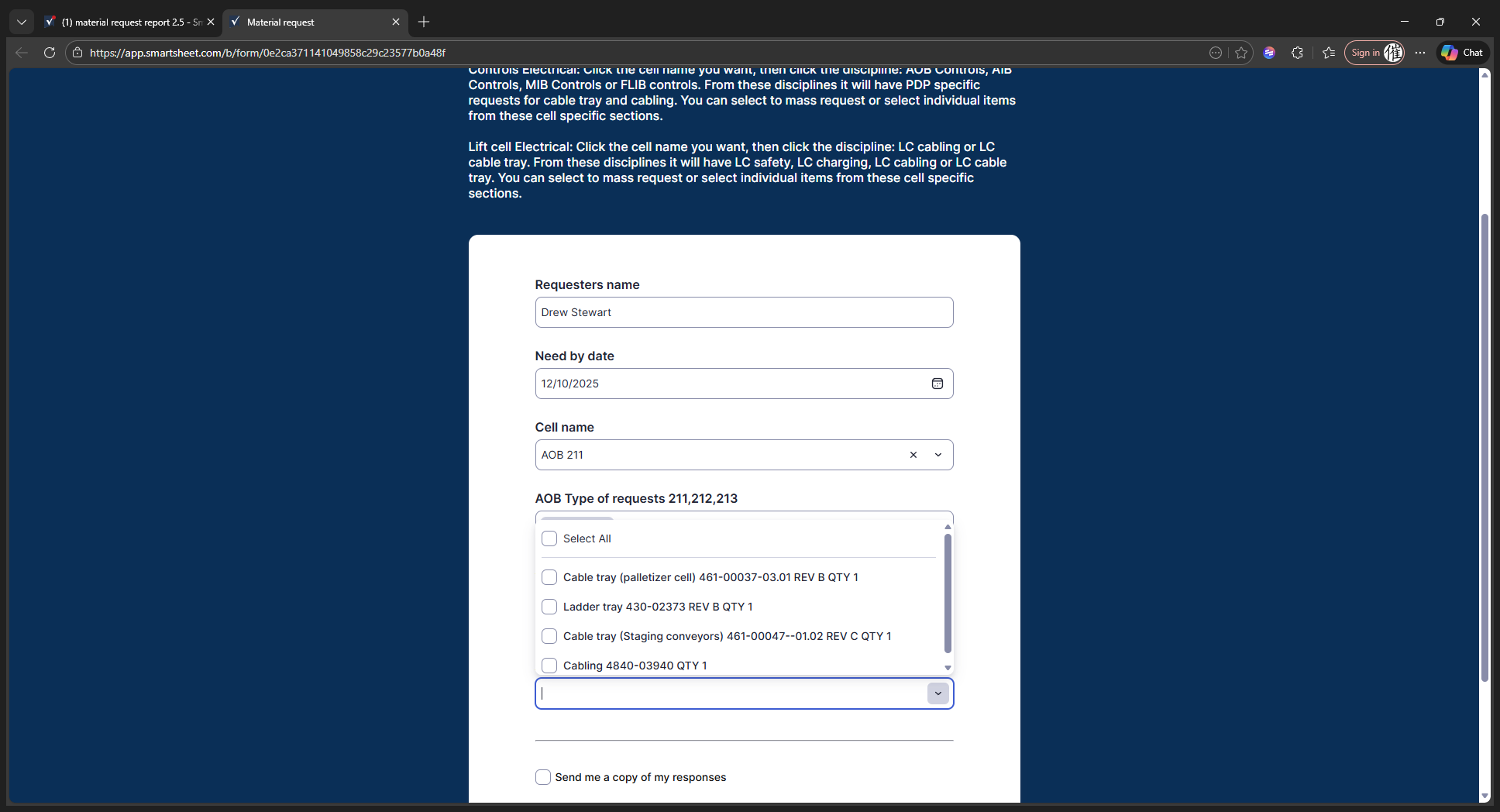
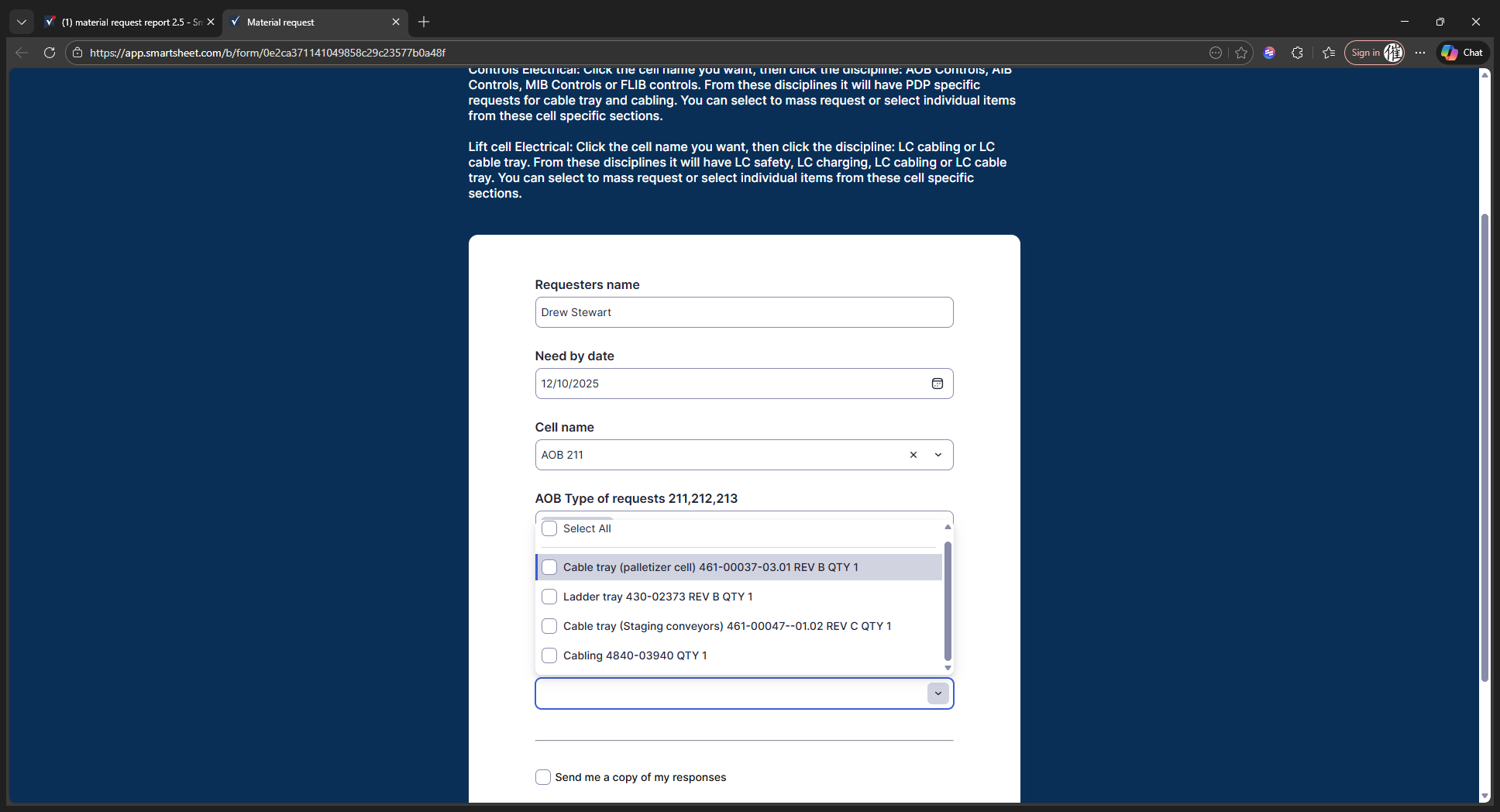
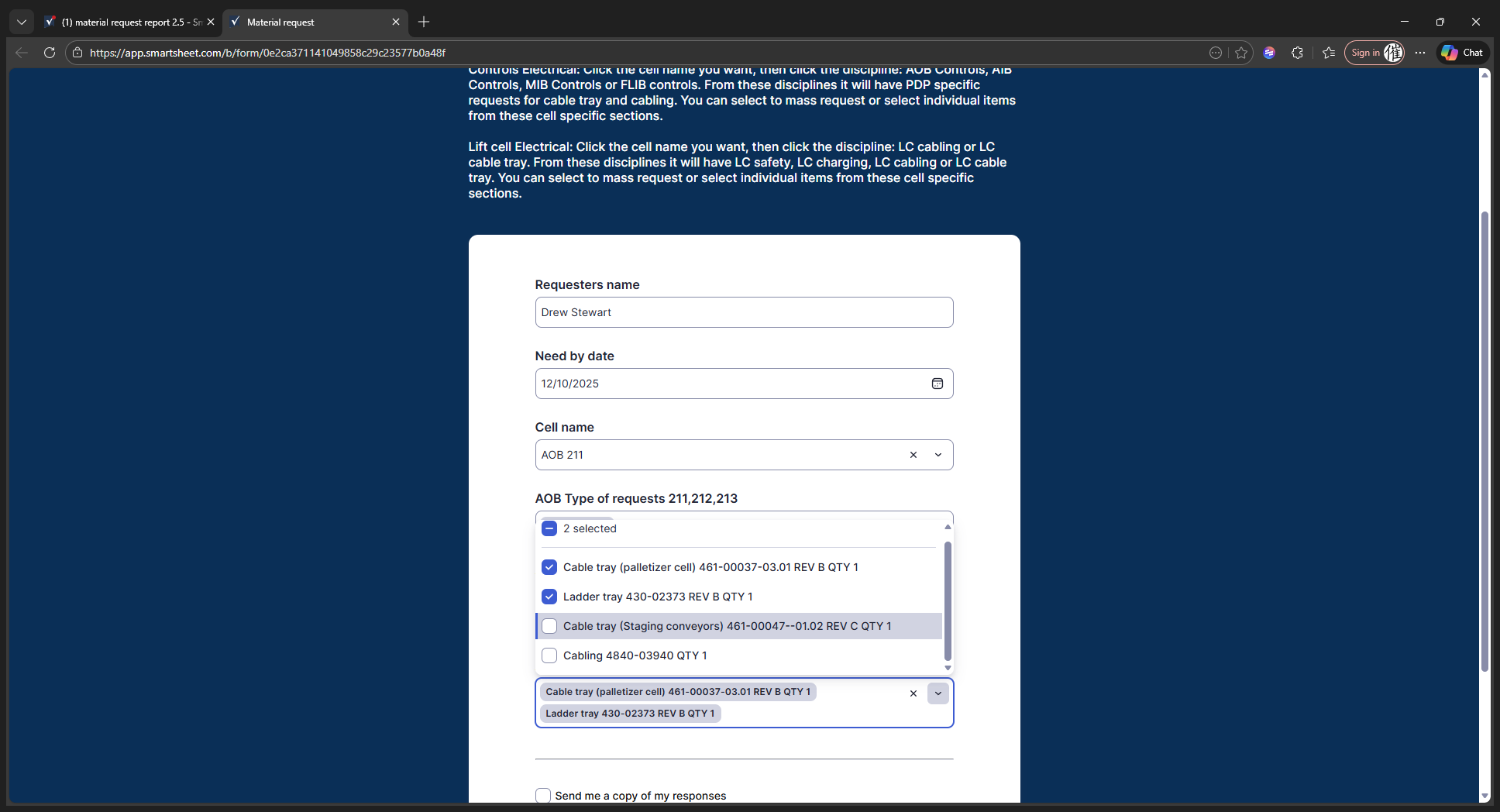
Then we have PDP1 and PDP2 to choose from.
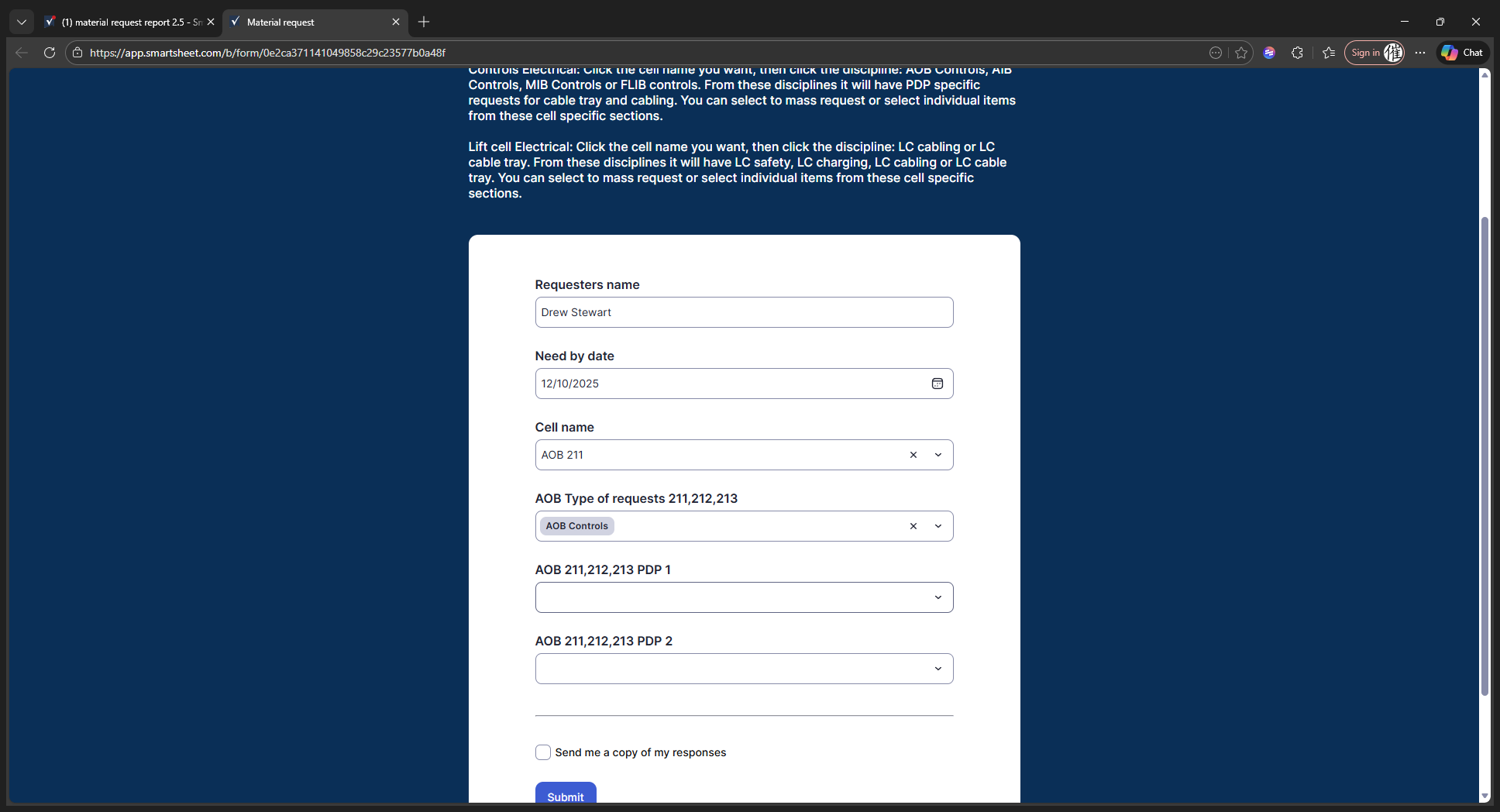
You can either select everything to get all the cable trays and PDP kits, or choose only the cable trays by clicking on them and save the cabling for later.
When you finish, click Submit. This will send an email to the material manager and notify them of your request time. That's it.