
How to Fill Out the TE Weekly Timesheet: Step-by-Step Guide
Learn how to accurately complete and submit your TE weekly timesheet with this simple, step-by-step guide. Includes tips for entering hours, excused days, and finalizing your submission.
In this guide, we'll learn how to fill out the the weekly timesheet. This process includes entering your name, case number, and recording your hours for each day. You will also see how to sign and submit your timesheet to complete the process.
Let's get started
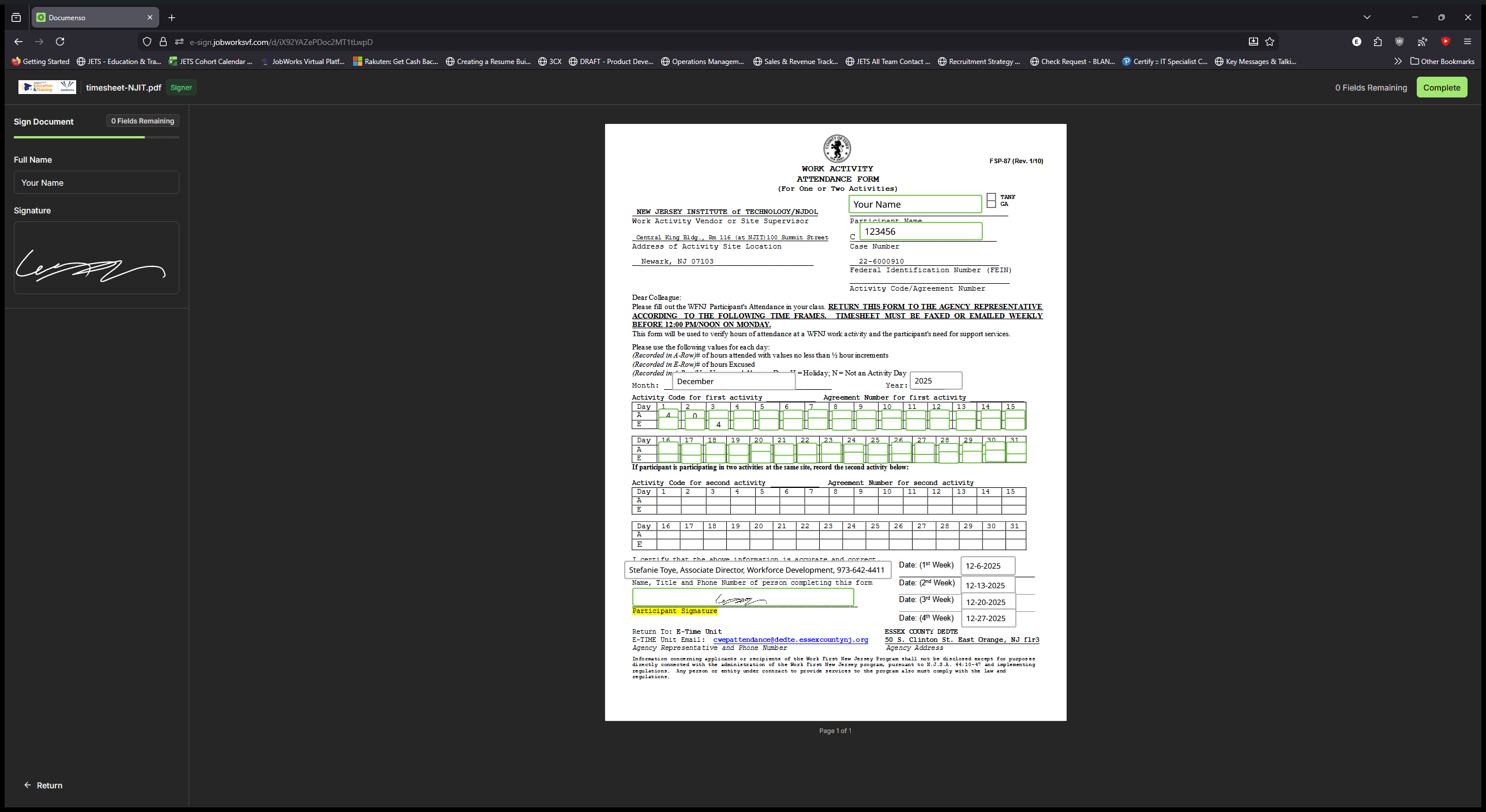
Filling out the the weekly timesheet is very simple. First, enter your name in the corner. Then, type your case number.
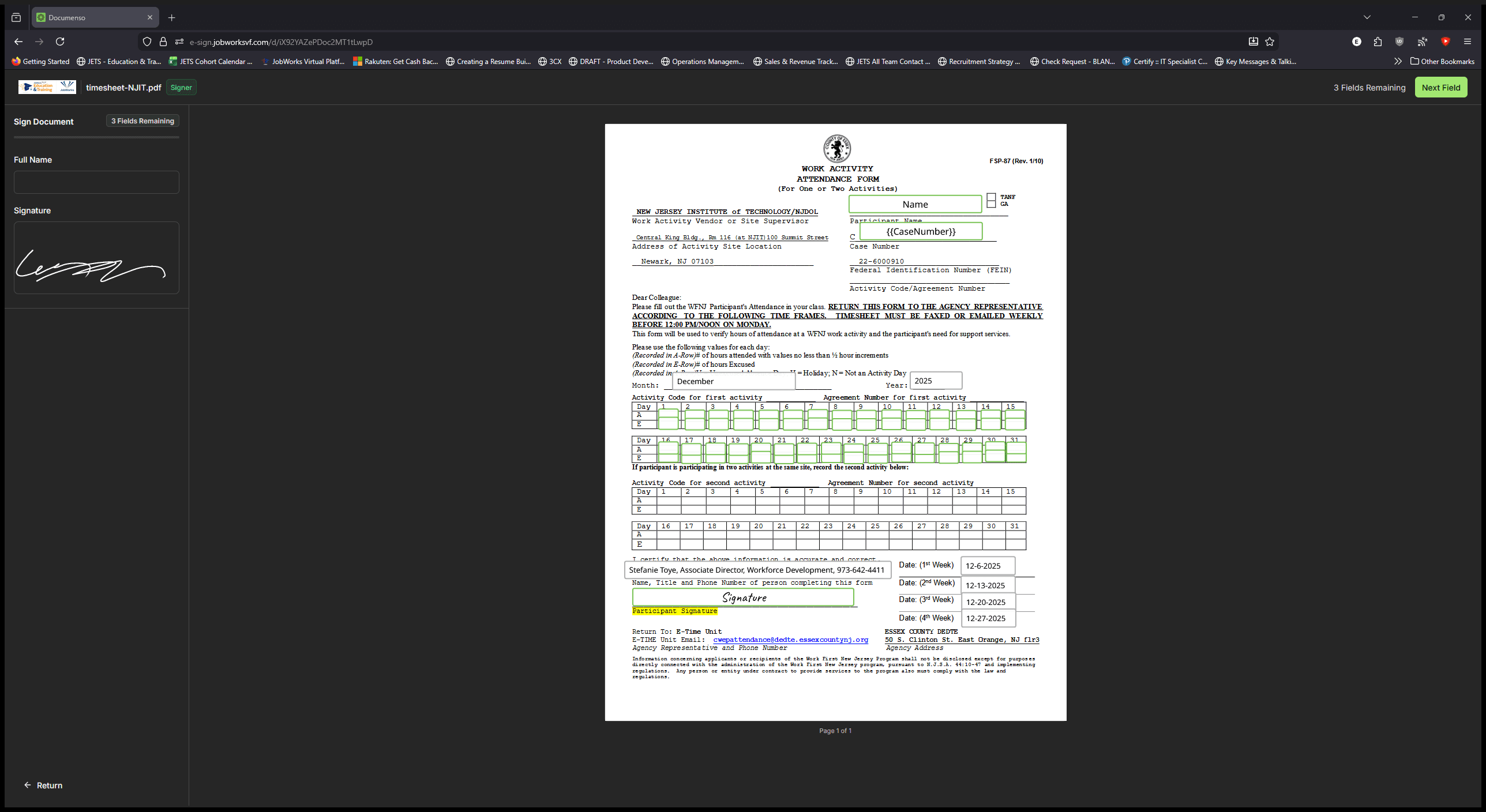
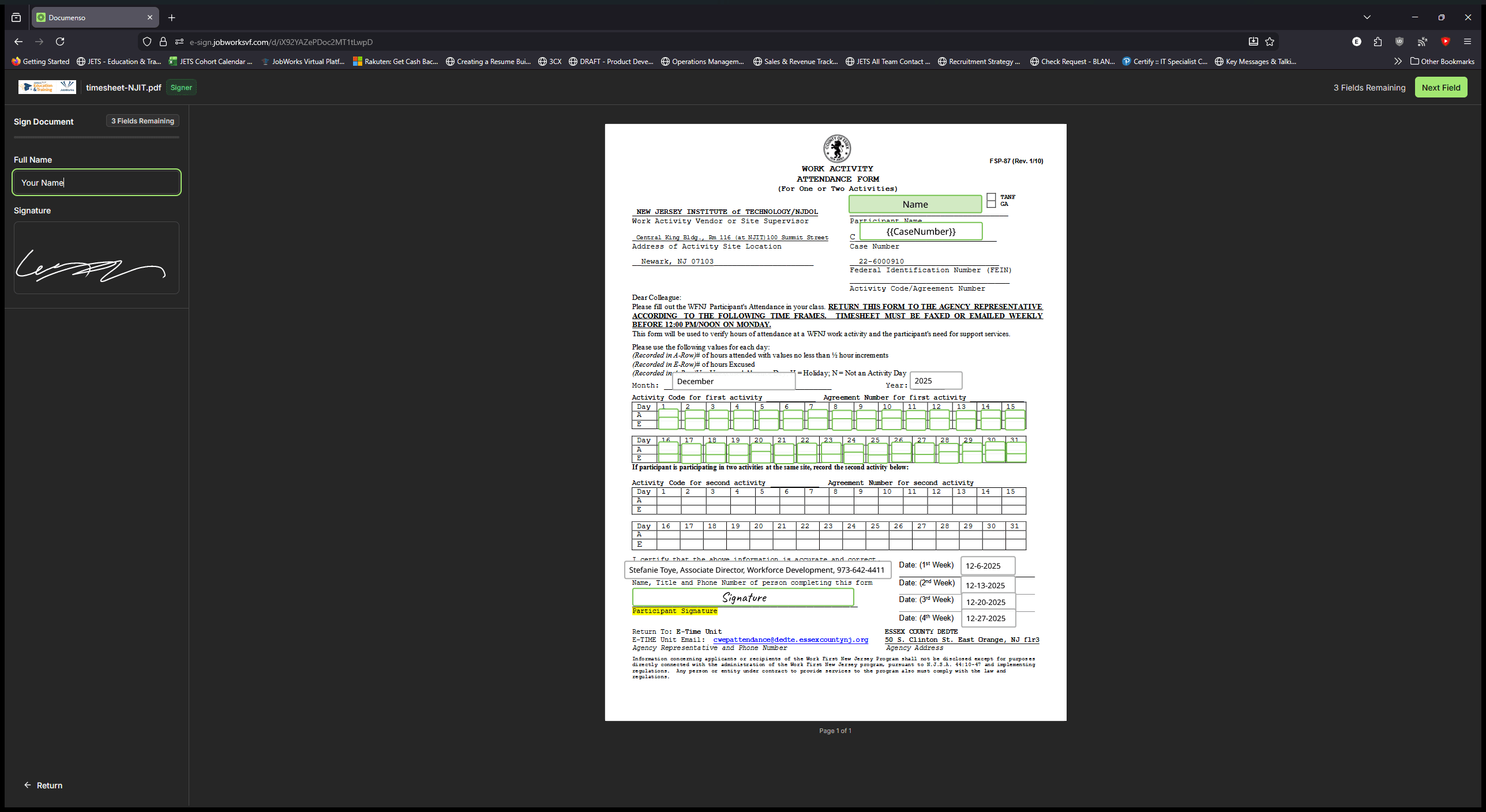
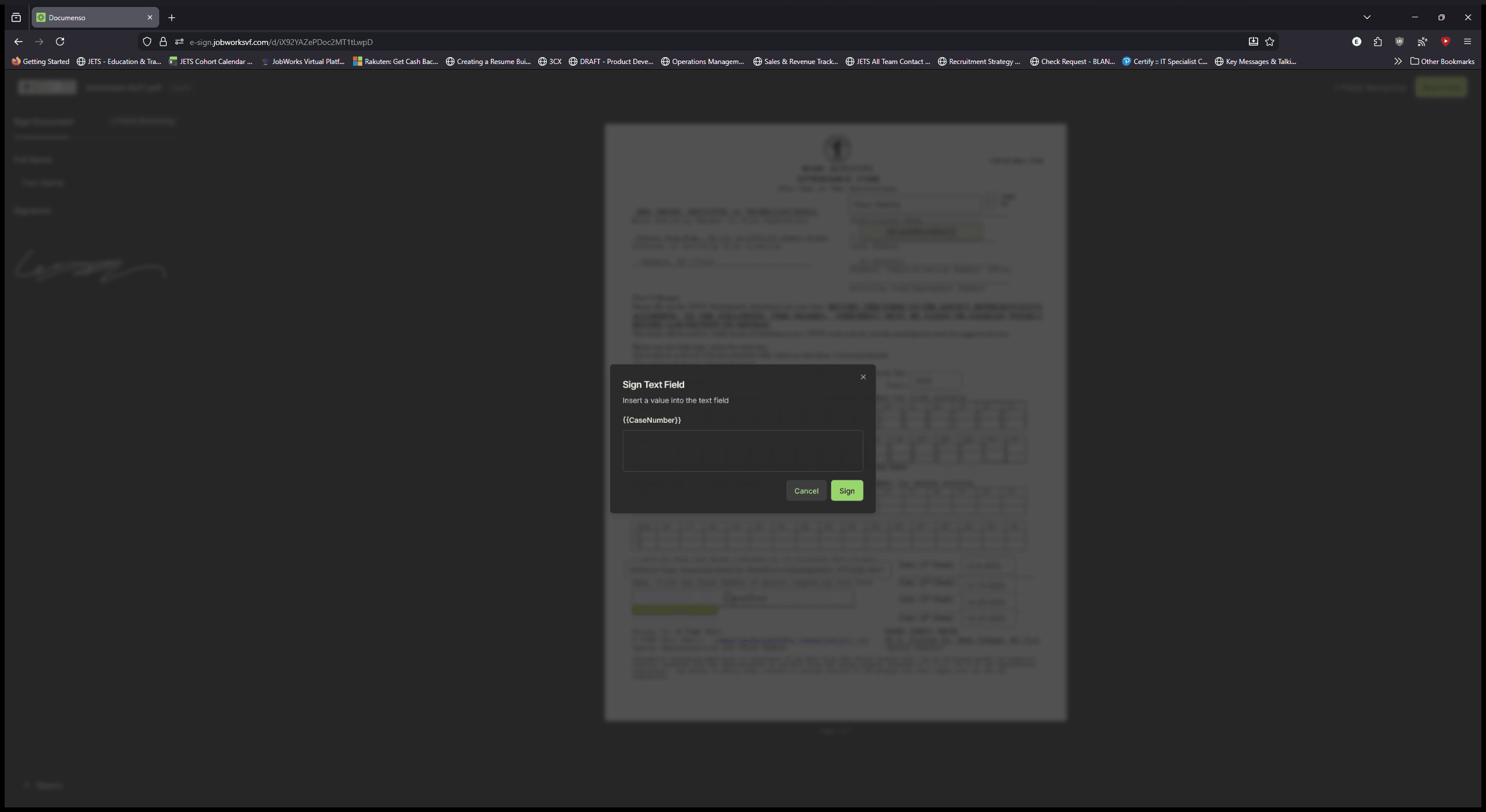
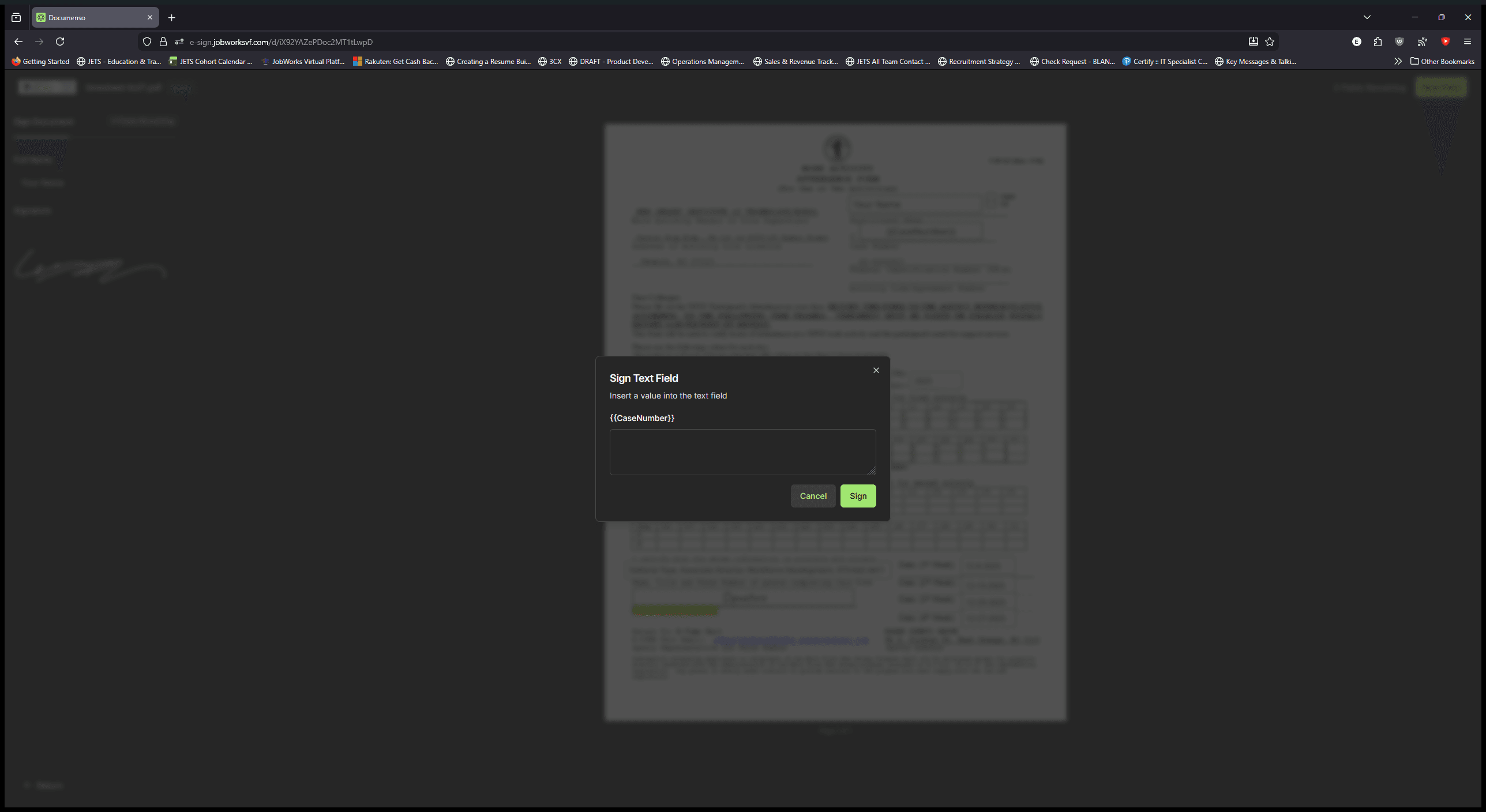
Go ahead and enter your case number.
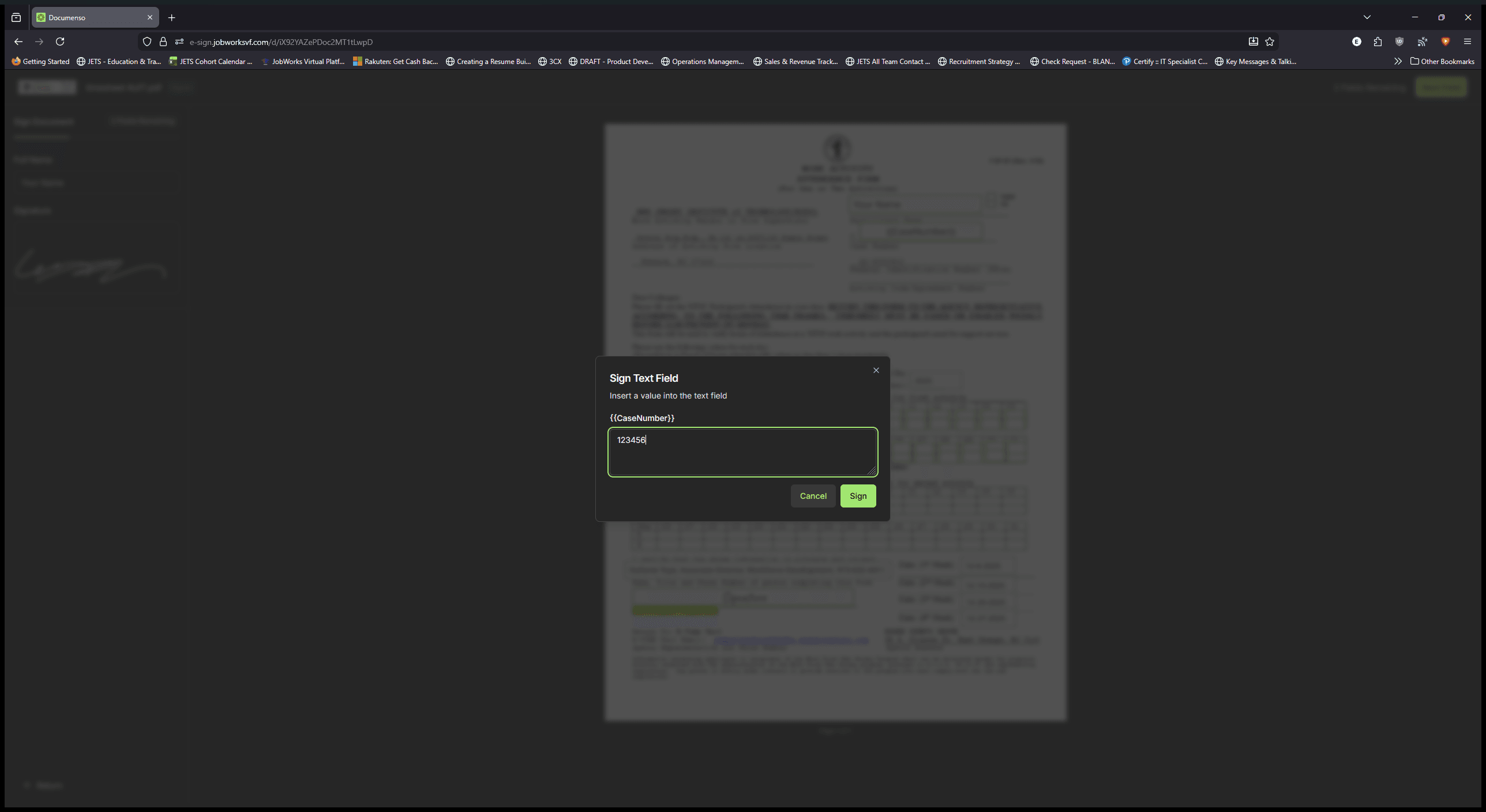
Click Sign. Click the green boxes to enter your time.
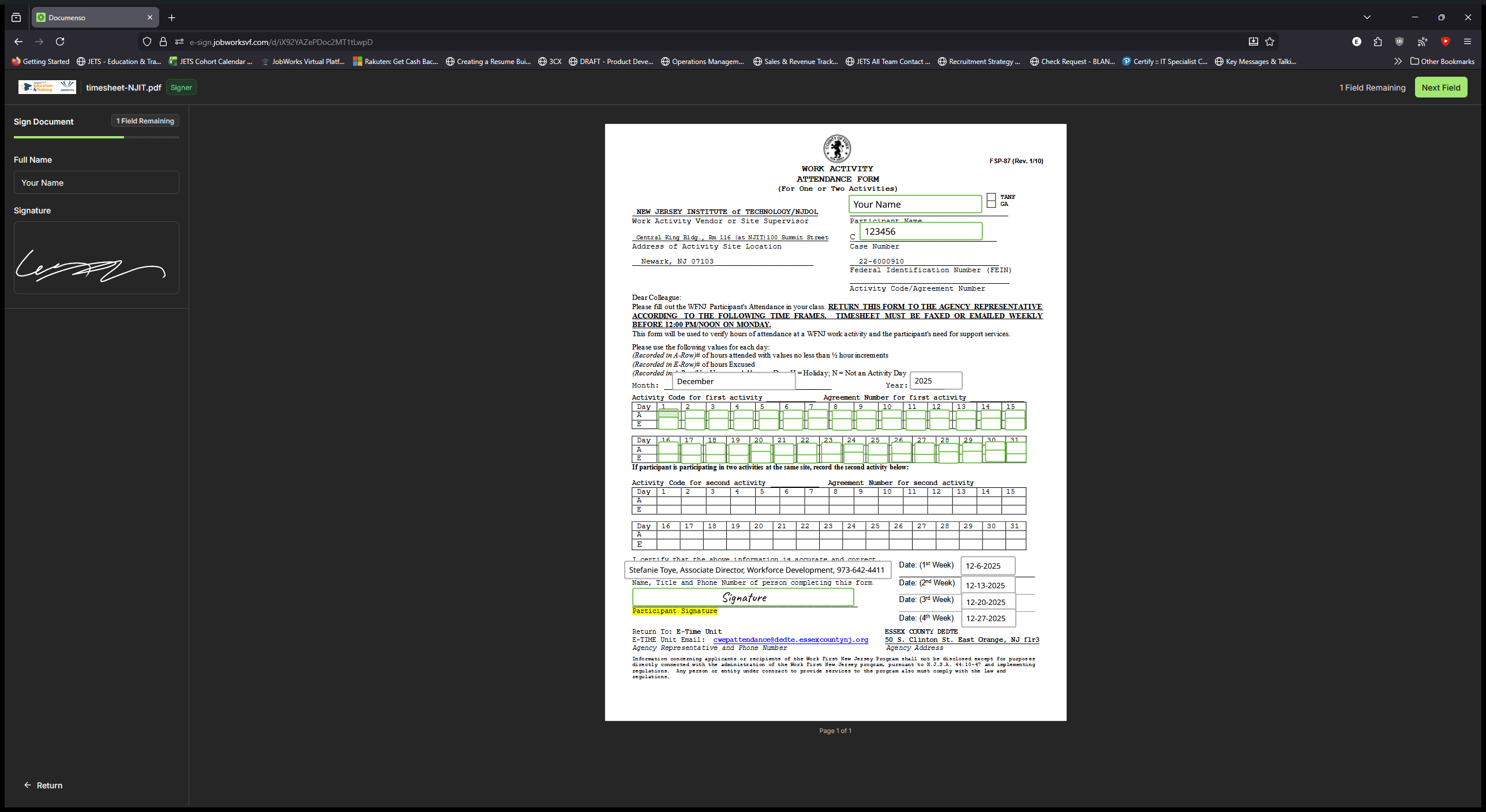
For example, on December 1st, I can enter four hours in the A section, which stands for Attended. You can enter the hours you attended this week.

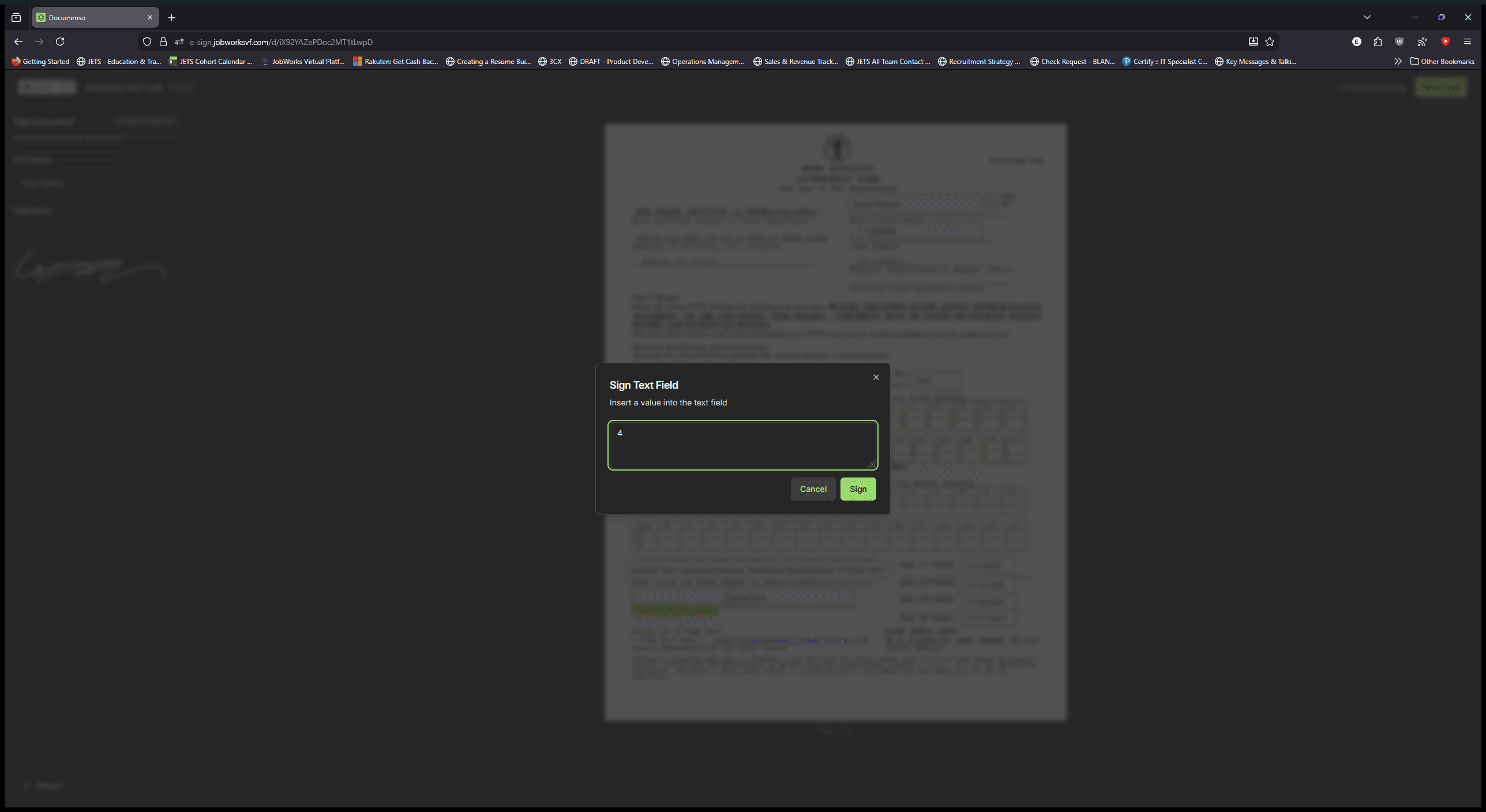
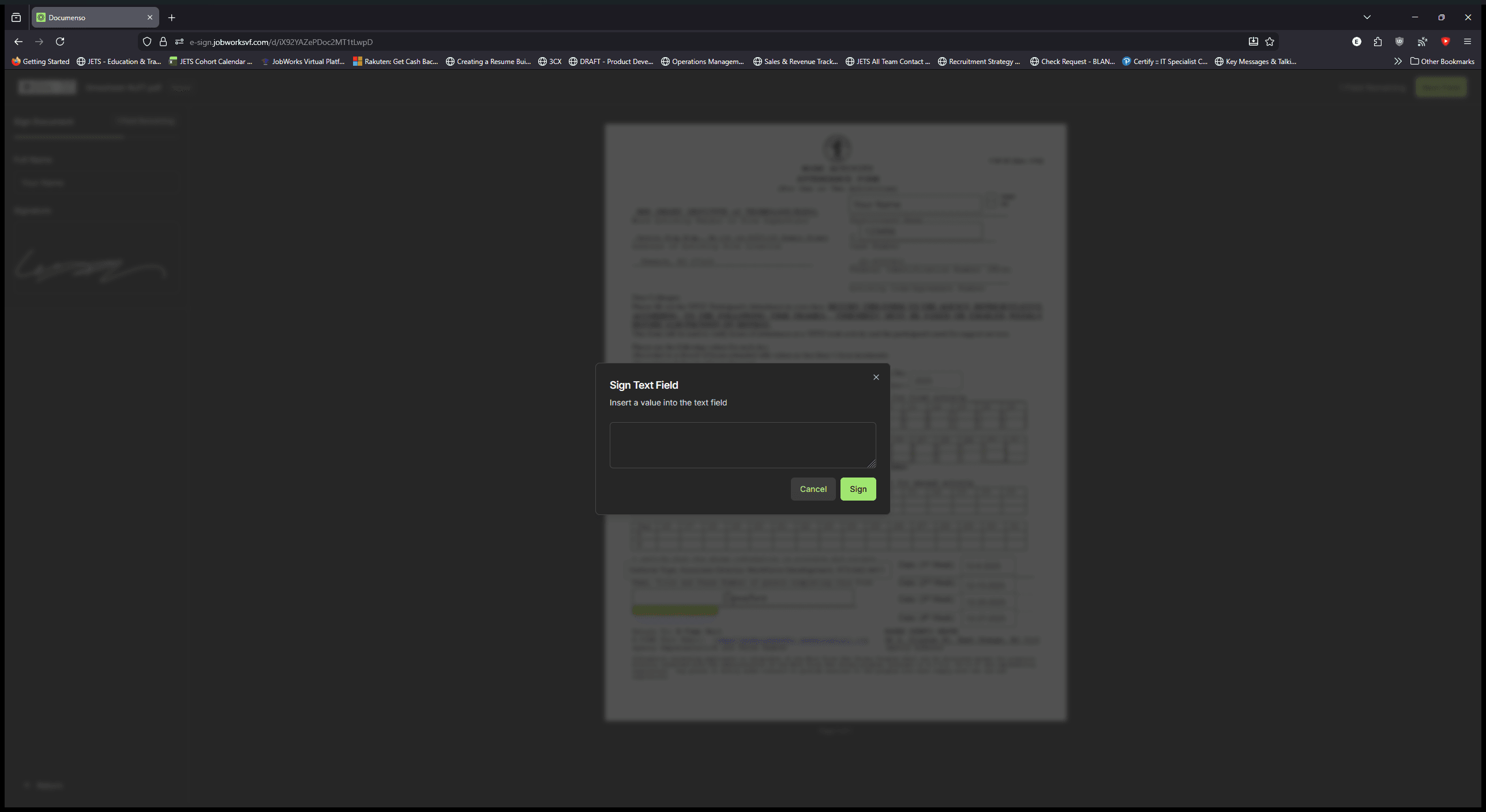
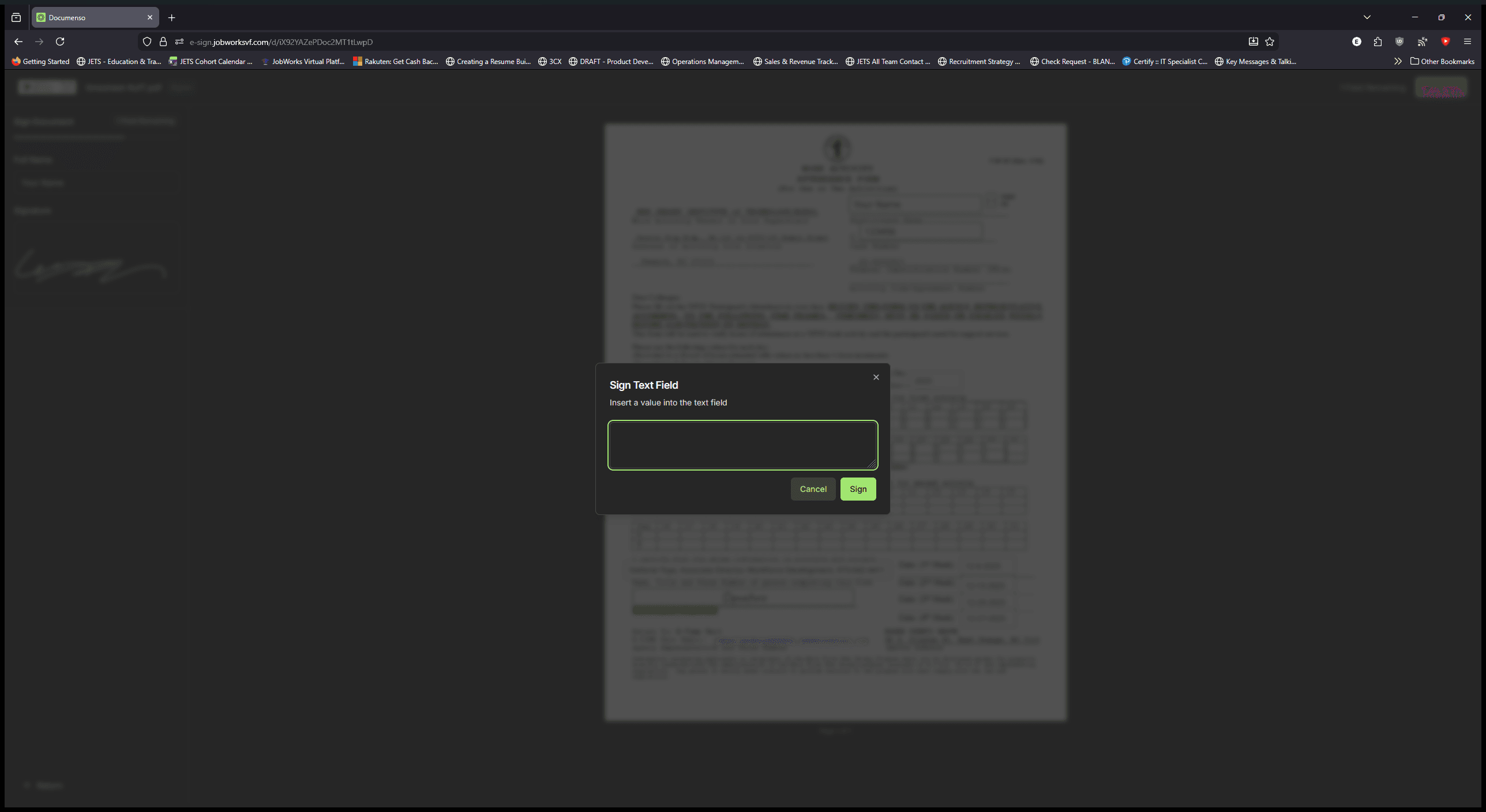
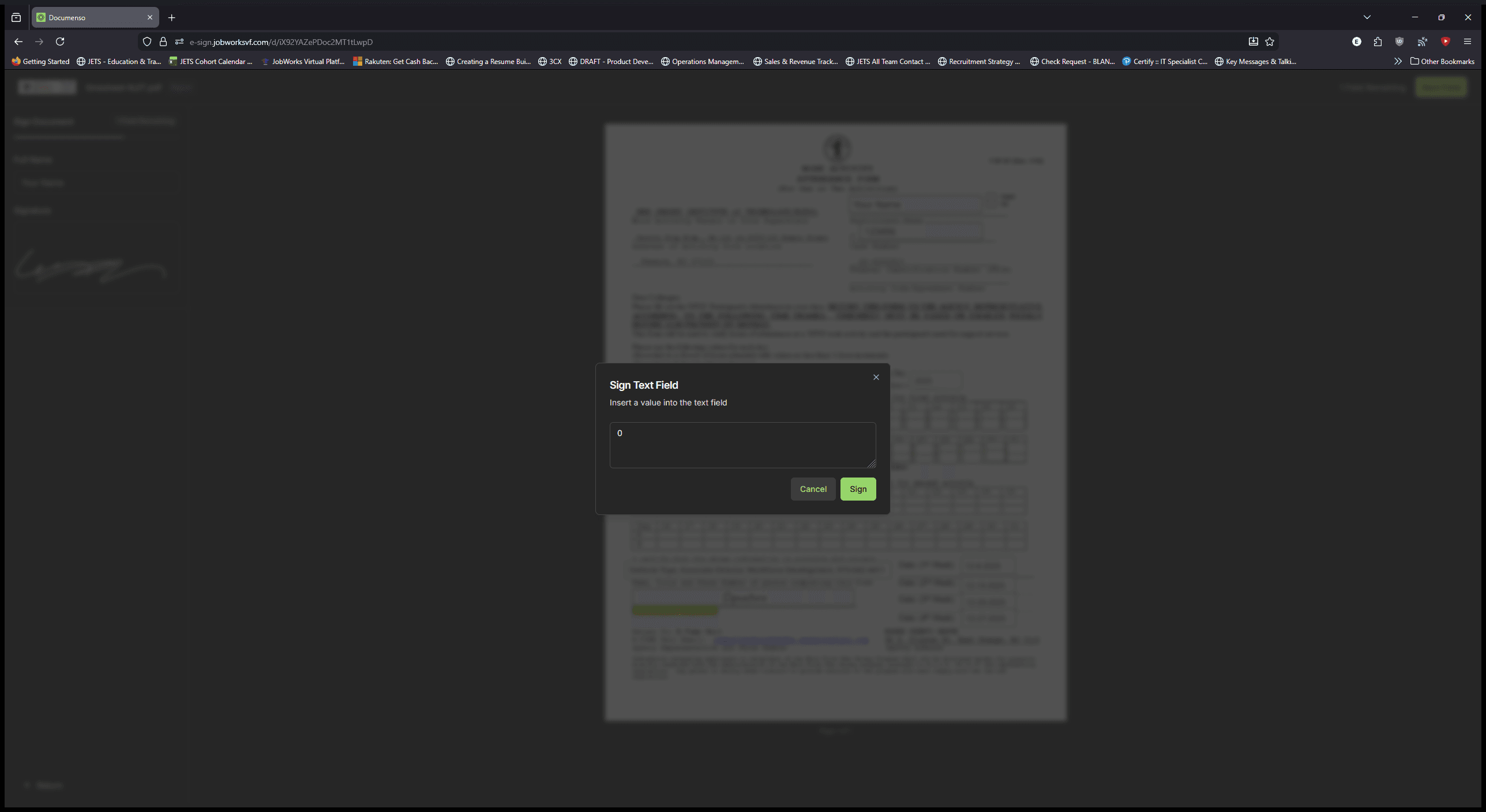
If there was an excused day, click on the lower area and enter the excused hours.
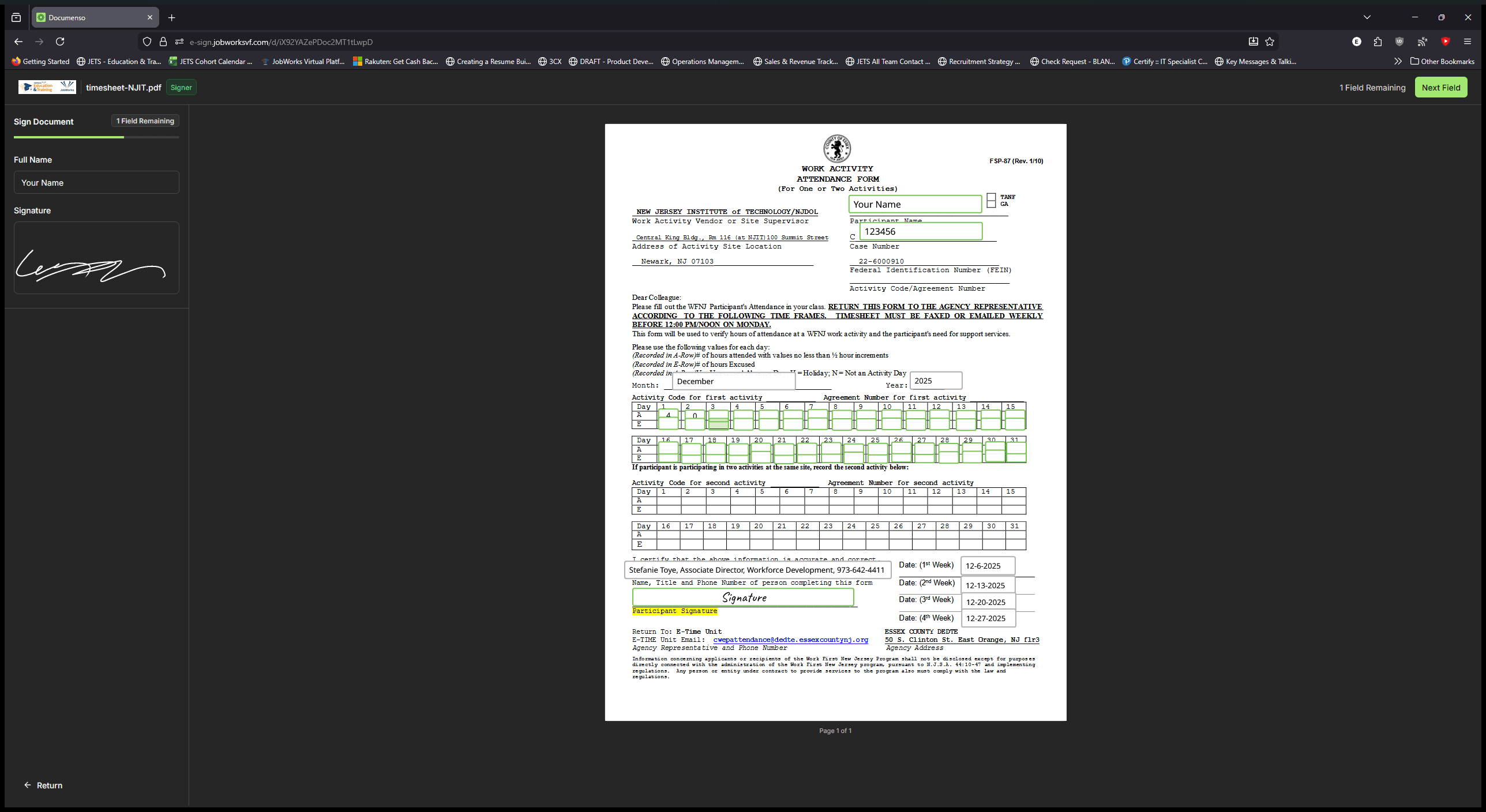
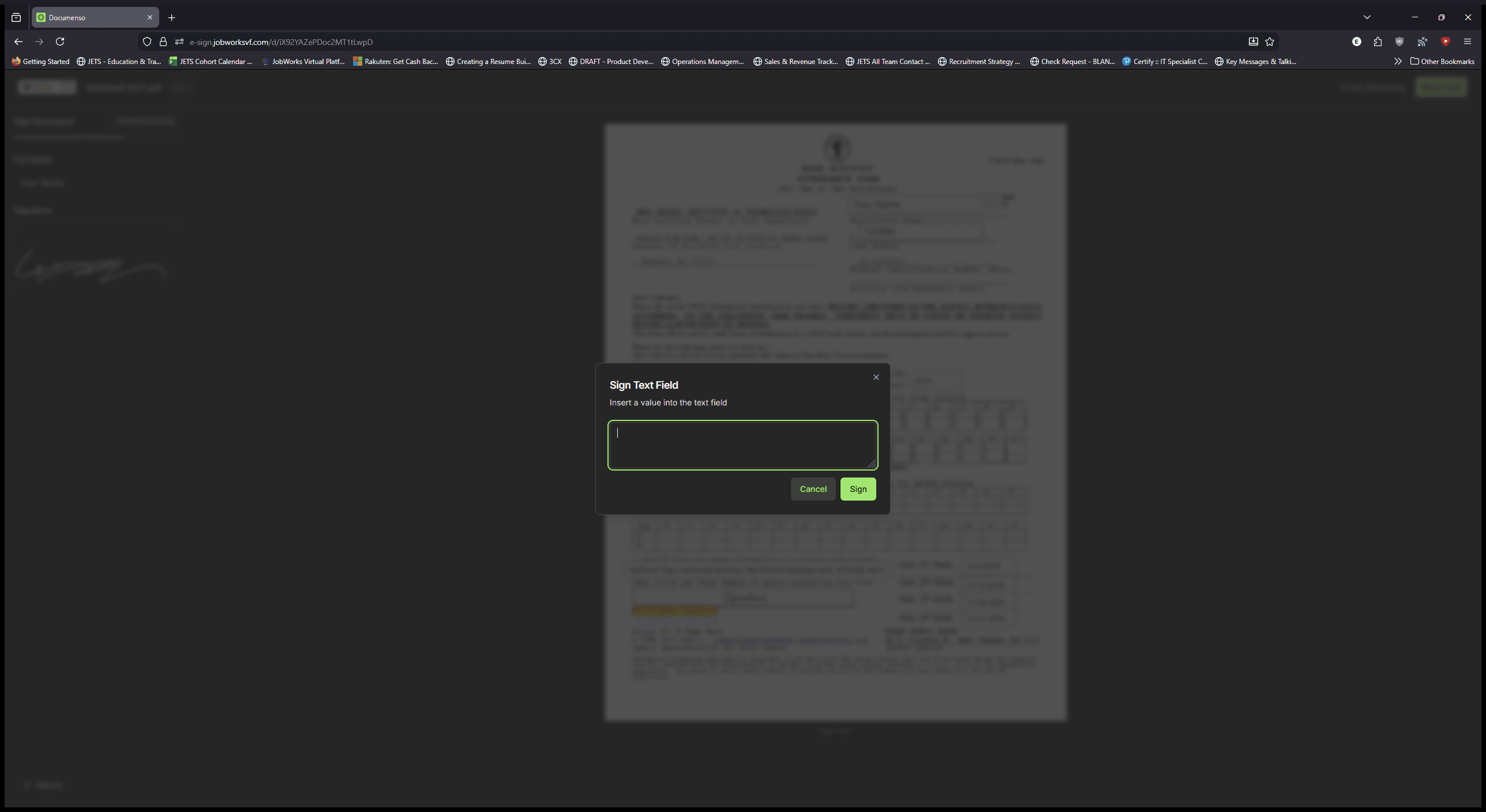
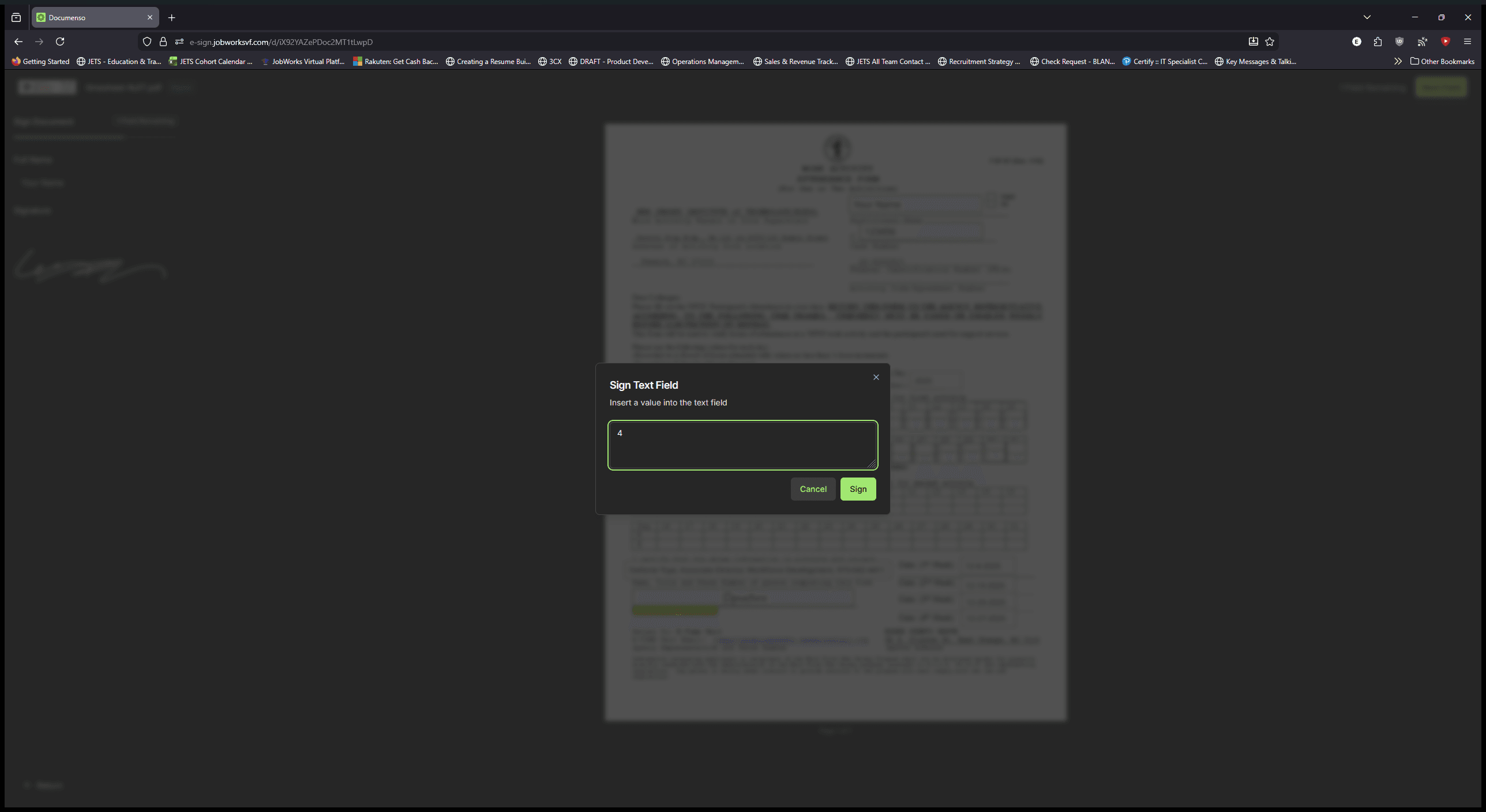
Go through the current week and ensure you enter the data accurately. Click on the signature, then select Complete in the upper right corner.
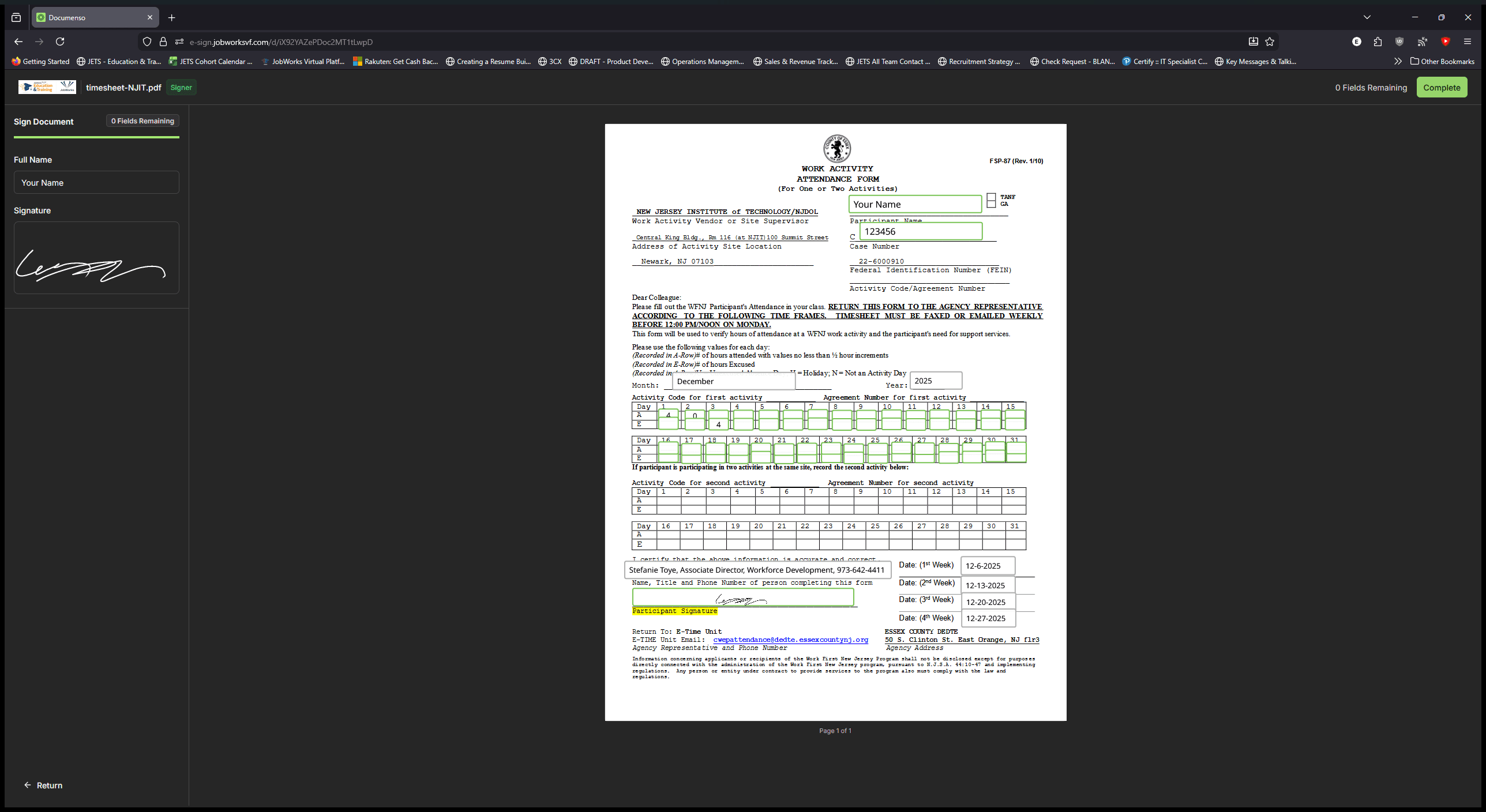
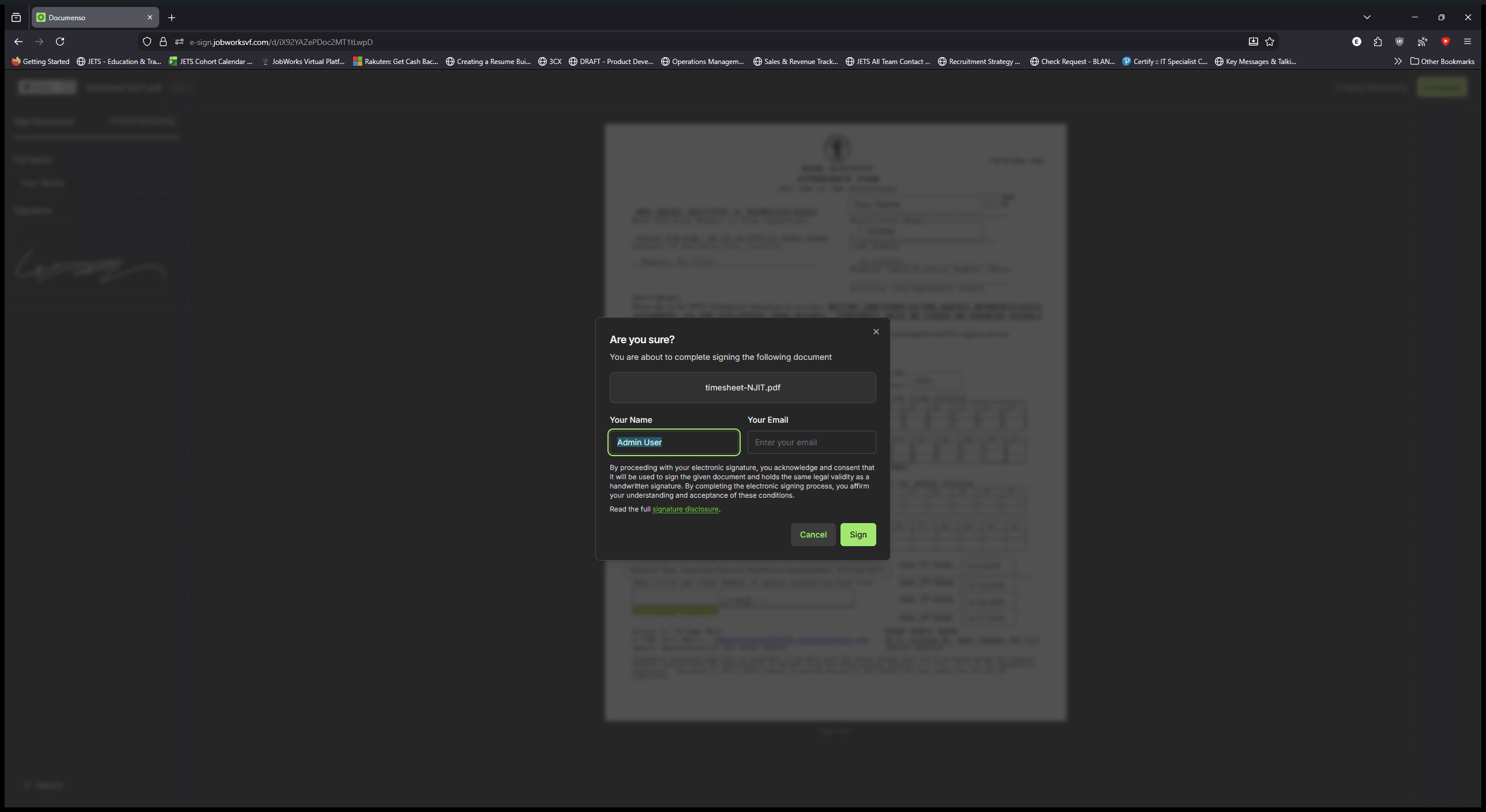
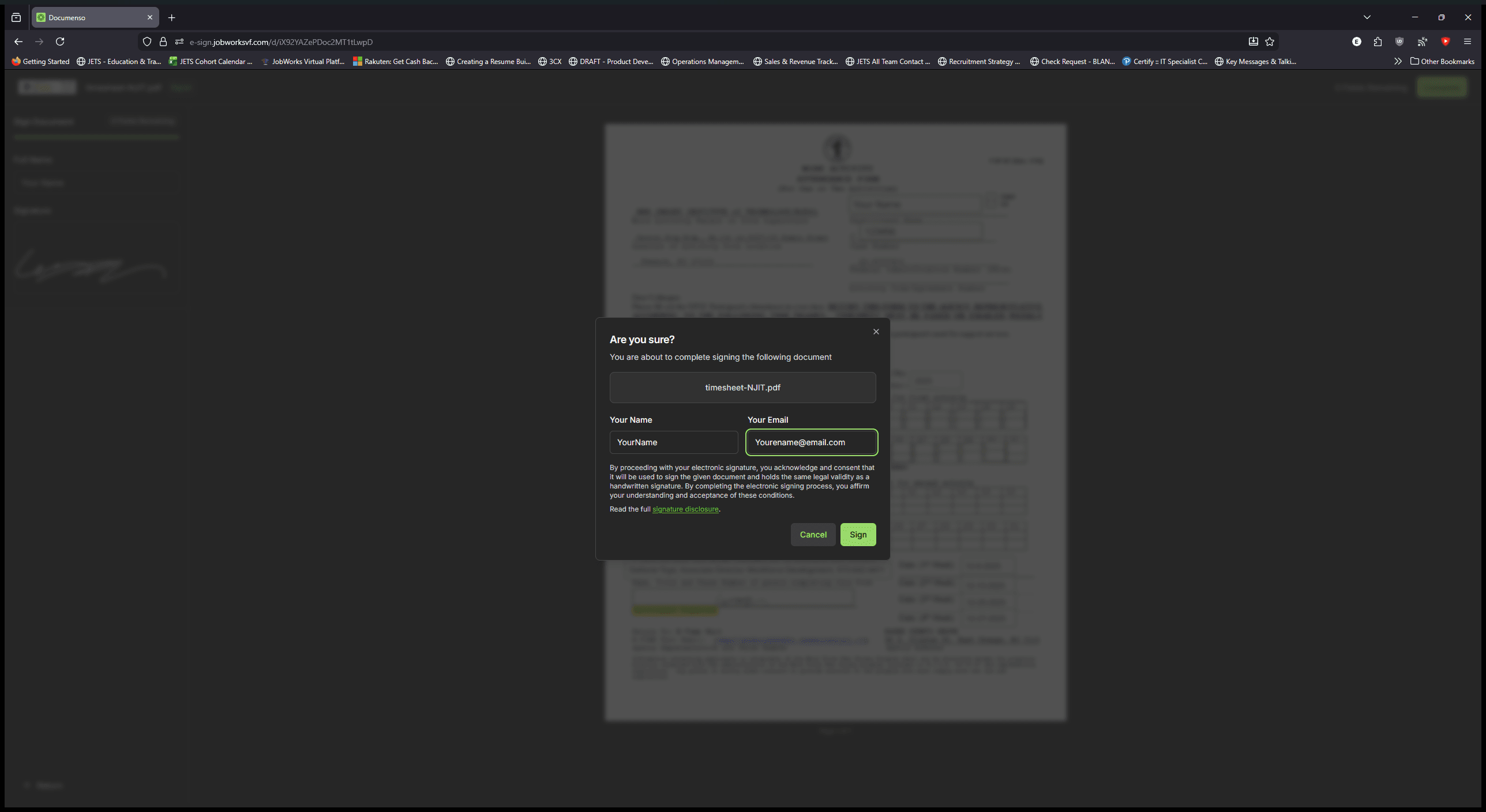
Enter your name and email address, then click Sign. You’re done.
The timesheet is now submitted and completed. You will see a message on the screen that says, "Processing document." Once this appears, you are finished. Now you can see that everyone has signed. Thank you.