How to Filter Transactions by Bank
Learn how to filter transactions by selecting a specific connected bank account.
By Aasma Technology Solutions
This guide explains how to use the Bank Selection filter to view transactions associated with a specific bank account. Filtering transactions by bank helps users quickly narrow down transaction records and review financial activity for the selected account.
1
In the Review Transactions section of the Transactions tab, bank accounts displayed in green are connected to QuickBooks.
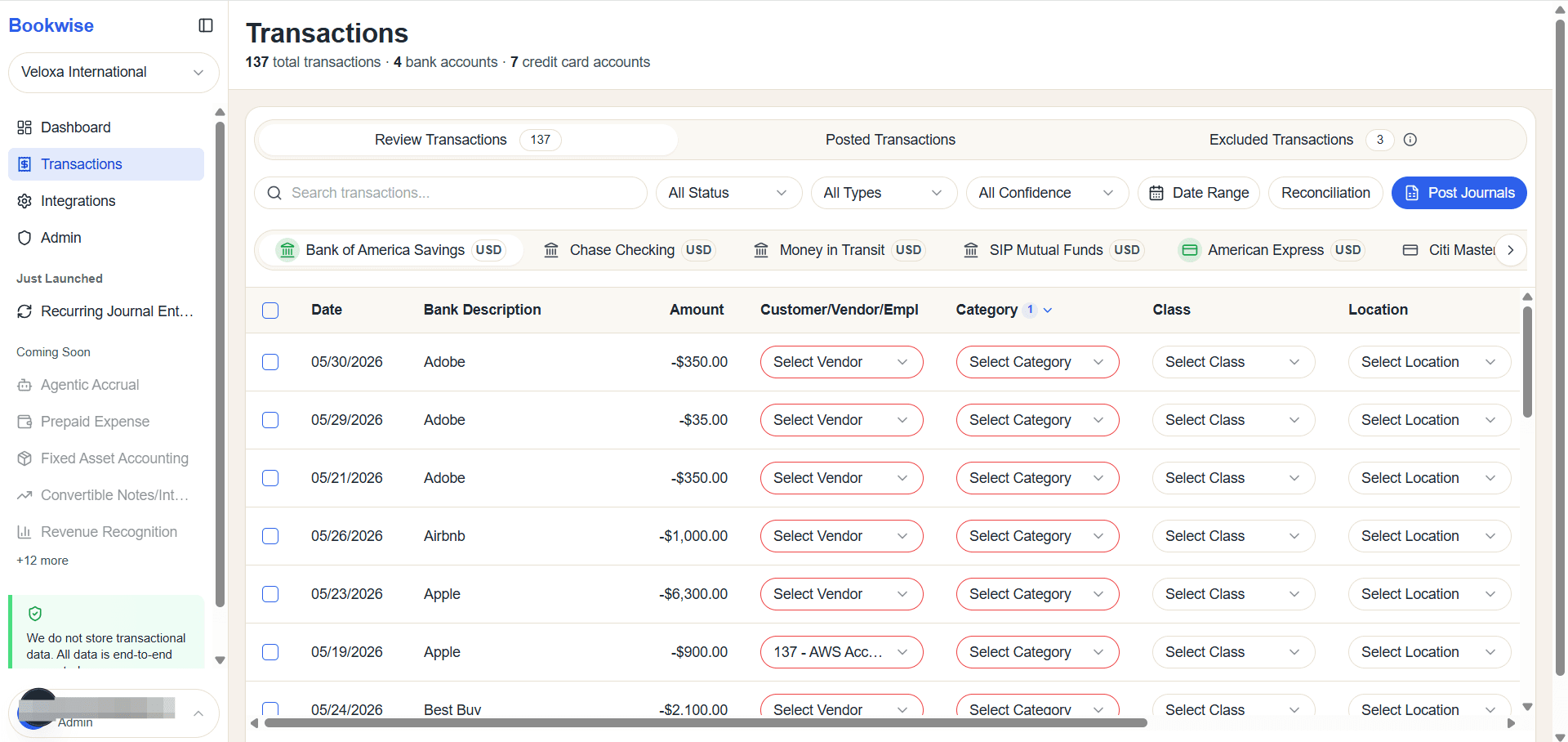
Users can perform available operations on transactions associated with these connected bank accounts.
2
Bank accounts displayed in grey are not connected to QuickBooks. Therefore, users cannot perform any operations on transactions associated with these bank accounts.
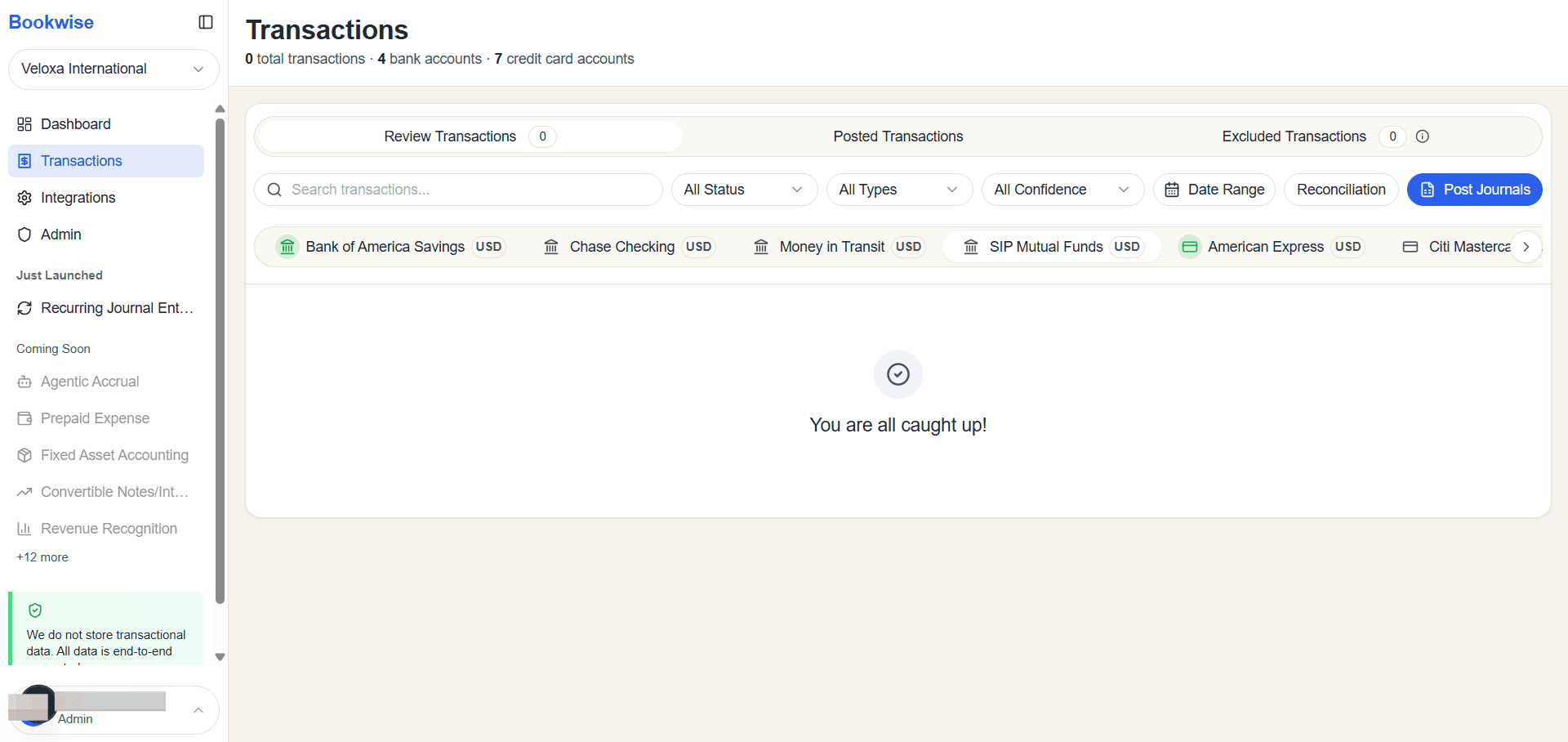
The Bank Selection filter provides a quick and convenient way to narrow down transaction records and review transactions associated with a specific connected bank account.
We can select Multiple banks accounts on Transactions page via a scroller. The Green bank accounts are connected and Grey are not connected yet.