How to Filter Transactions by Status
Learn how to filter transactions based on their current status.
By Aasma Technology Solutions
This guide explains how to use the Status filter in the Review Transactions section. The Status filter allows users to quickly view transactions that match a selected status, making it easier to review and manage transactions based on their current stage.
1
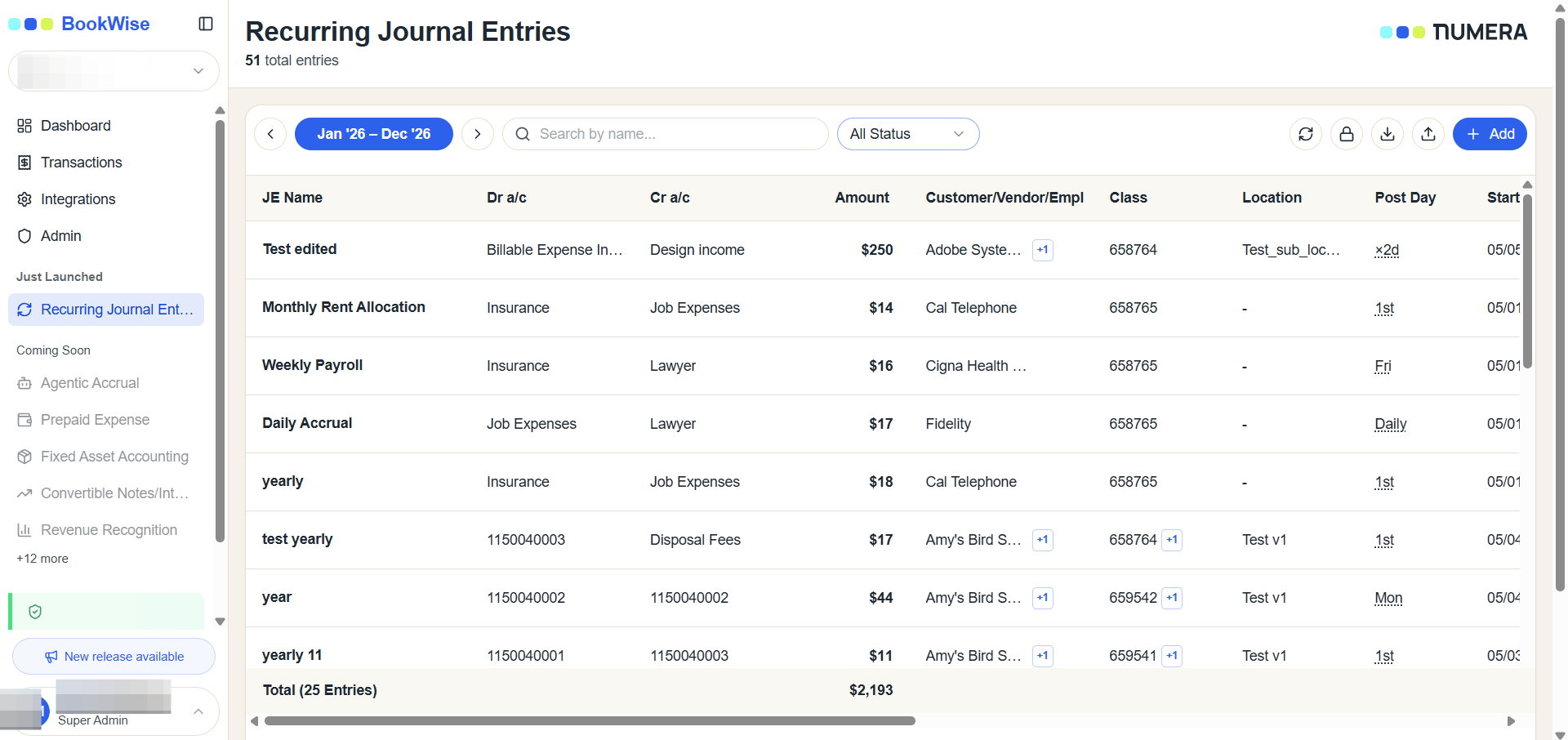
Go to Recurring Journal Entries tab and Click the All Status dropdown menu at the top of the Recurring Journal Entries table to view the filtering options.
2
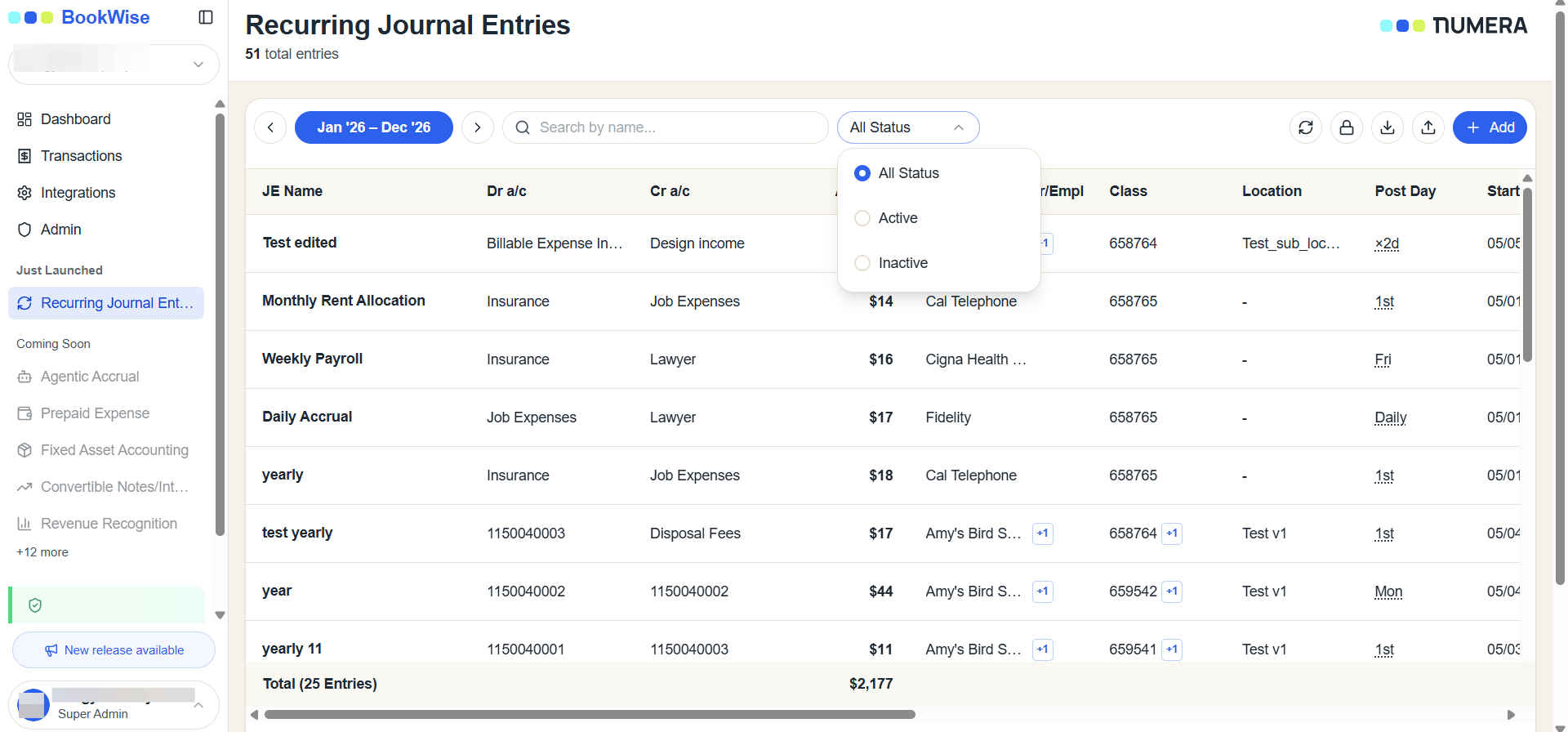
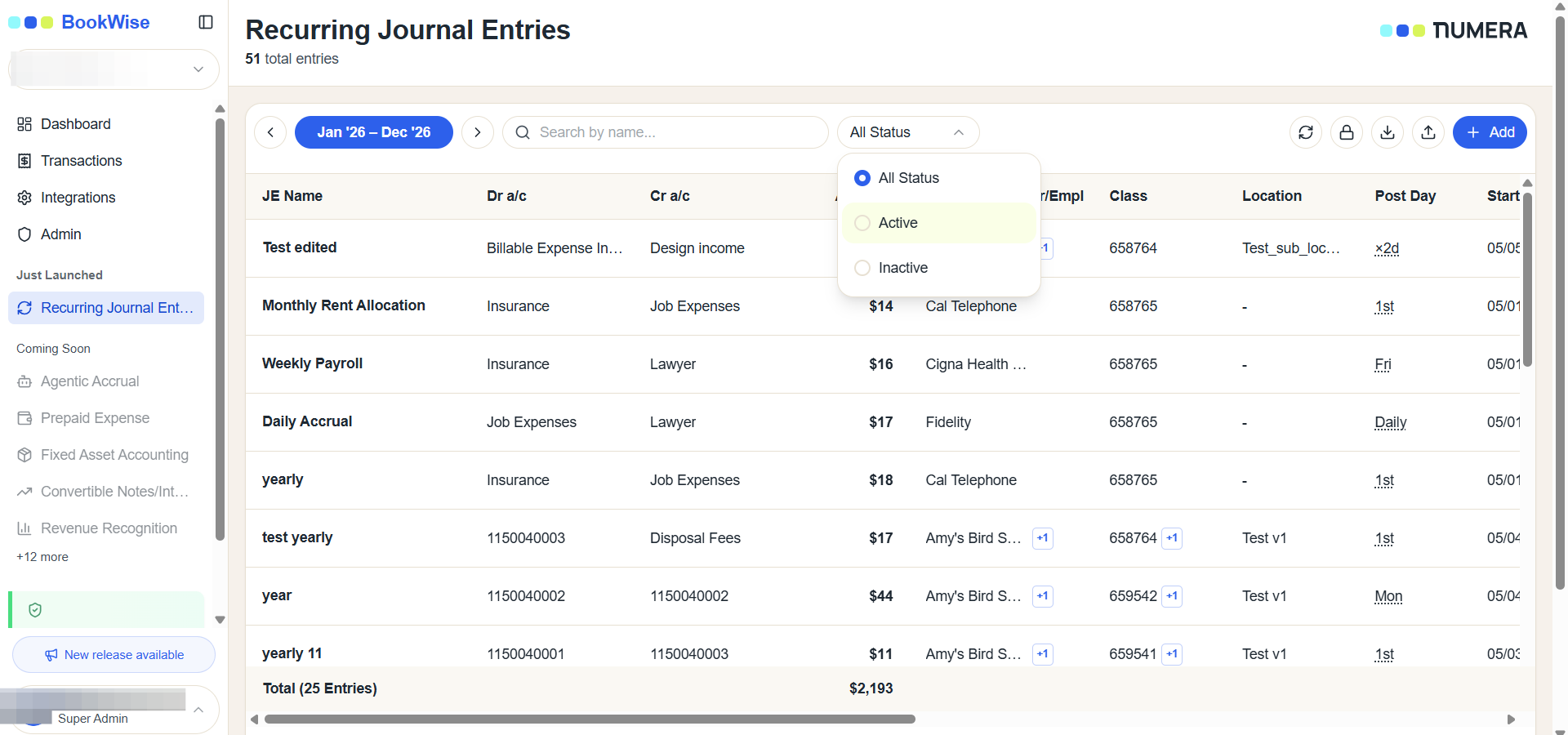
Select Active from the list to filter the dashboard so it only displays currently active ledger entries.
3
]The transaction list will update to display only the transactions that match the Active status.
![Step #3: ]The transaction list will update to display only the transactions that match the Active status.](https://di8mn0rali2ic.cloudfront.net/uploads/42ceb128-fc5c-4466-9abf-5372177567c4/7d3eb48d-4f39-4e0b-ae9e-5b3e385b9762.png)
4
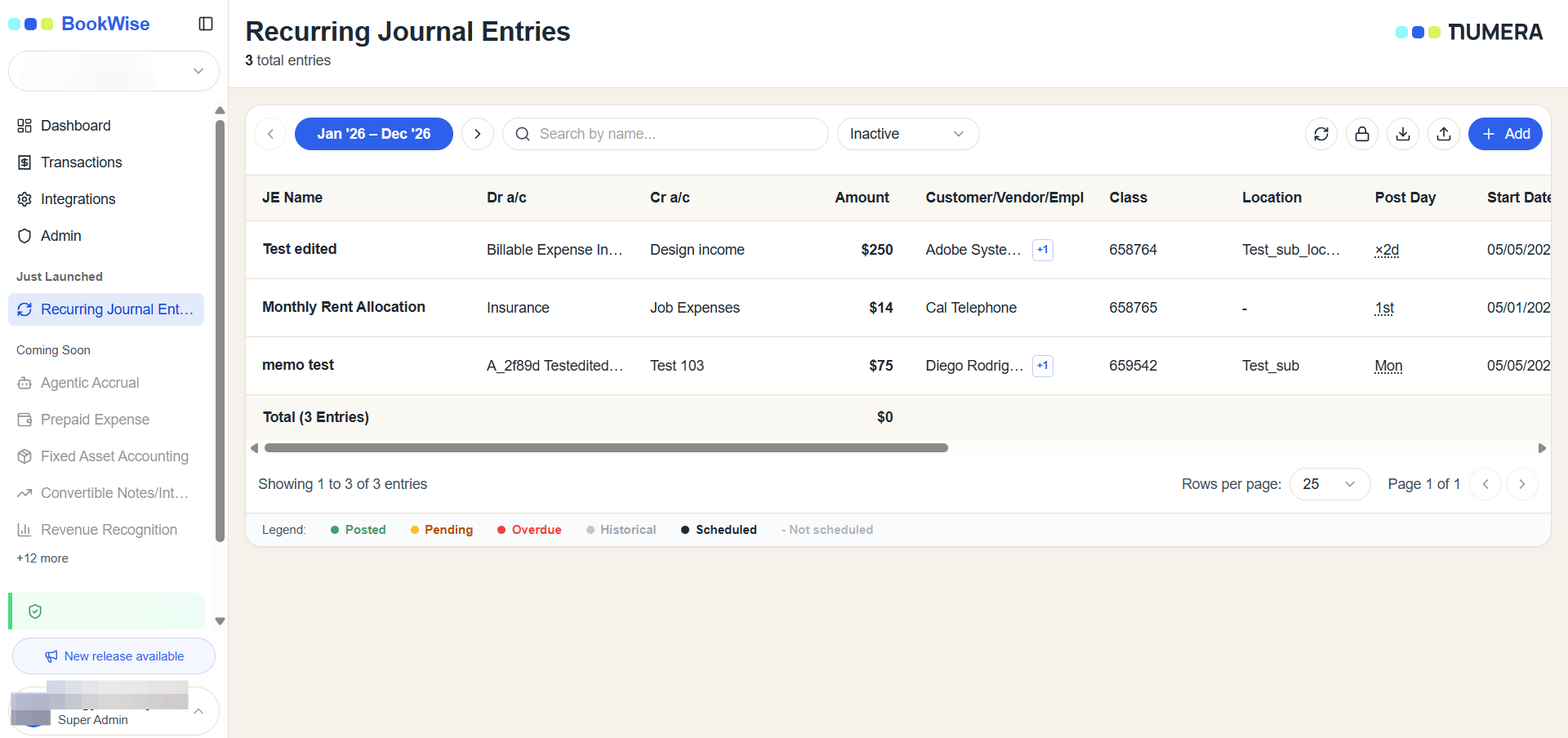
Select Inactive from the dropdown menu to immediately update the entry's status.
5
The transaction list will update to display only the transactions that match the Inactive status.
The Status filter helps users quickly narrow down the transaction list and efficiently review transactions based on their current status.