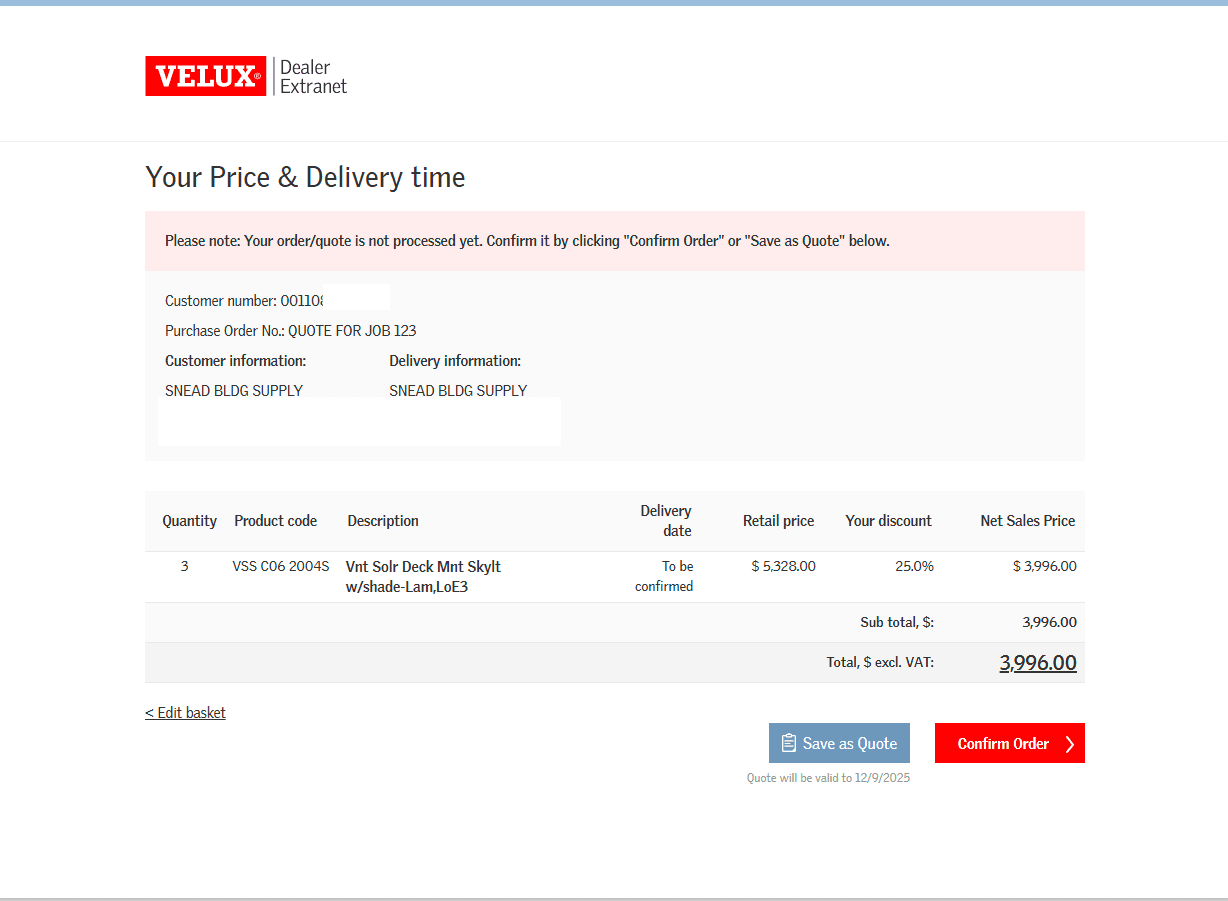
OLD How to Generate a Quote on the VELUX Dealer Extranet: Step-by-Step Guide
Learn how to generate a quote on the VELUX dealer extranet. Follow our step-by-step instructions to add products, configure options, select shipping, and save your quote efficiently.
By Michelle
In this guide, we'll learn how to generate a quote on the VELUX dealer extranet. You will see how to select products, configure their details, and adjust quantities. We will also cover how to review your basket, enter quote information, choose shipping options, and save your quote.
Let's get started
To generate a quote on the VELUX dealer extranet, add products by selecting them from the product offerings tabs.
1
Select from the product offering tabs.
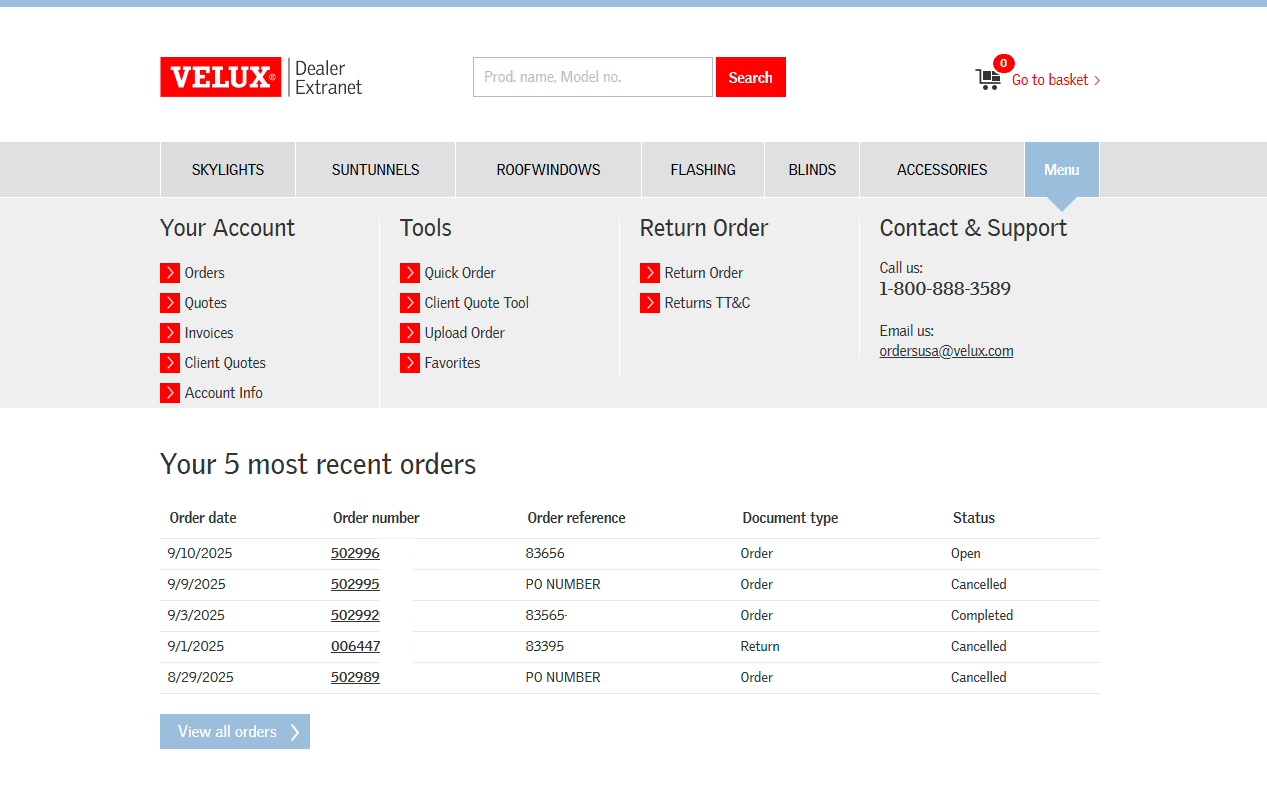
2
Choose your product type.
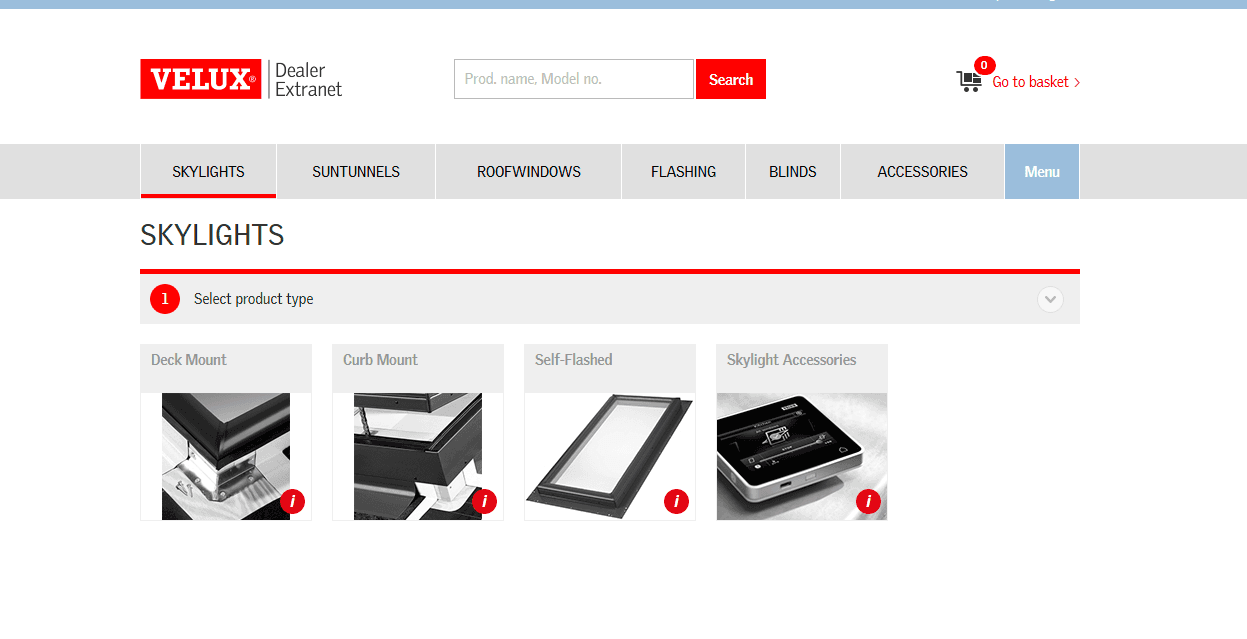
3
Select your product model.
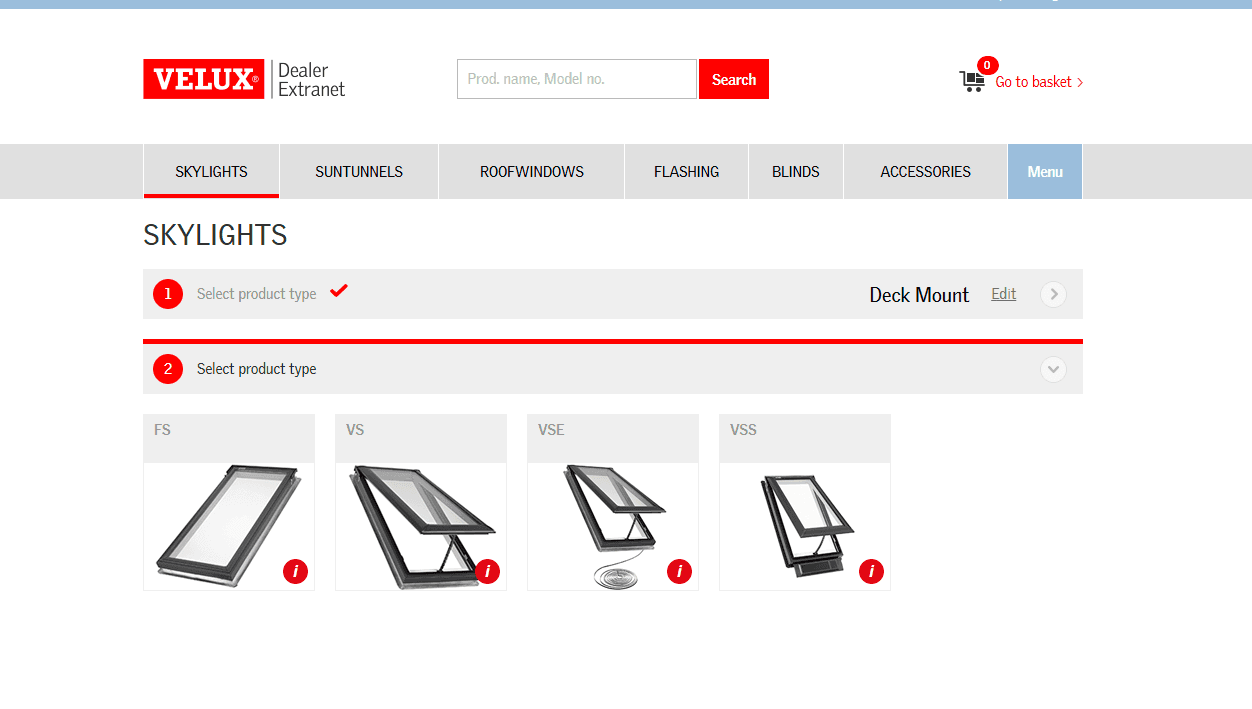
4
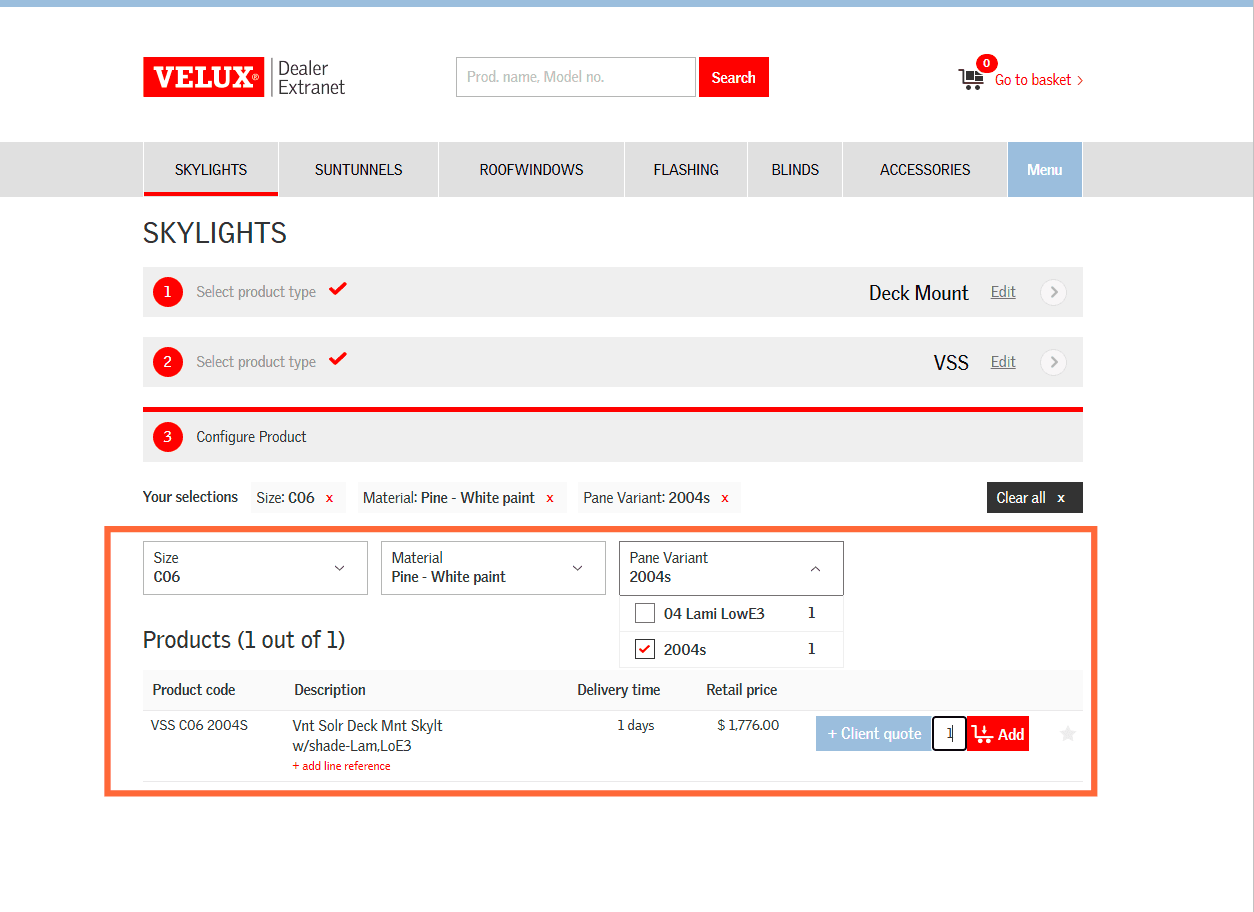
Configure your selection by choosing the Size, Material (interior finish), and Pane Variant (glass type) from the dropdowns.
5
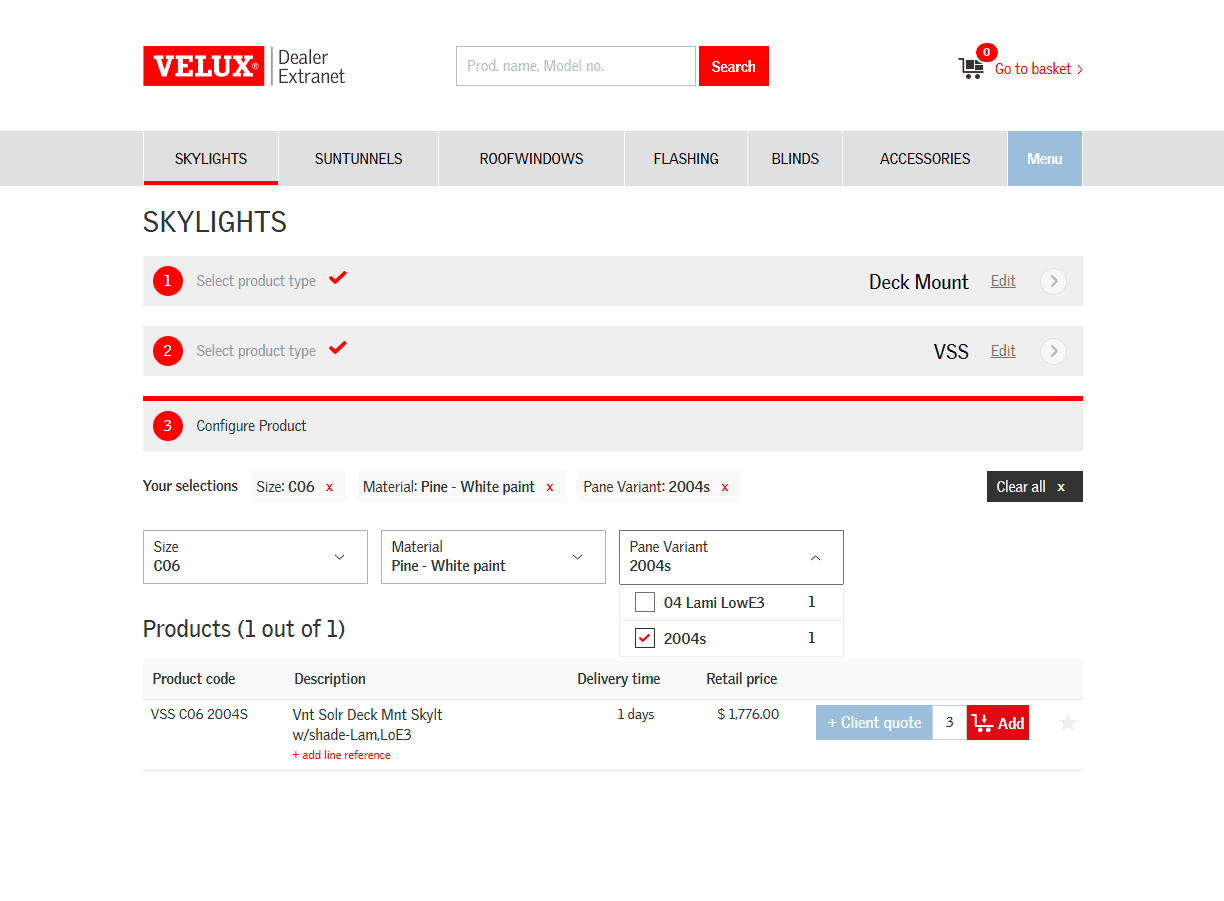
Once configured you can adjust the quantity if needed and then select Add.
6
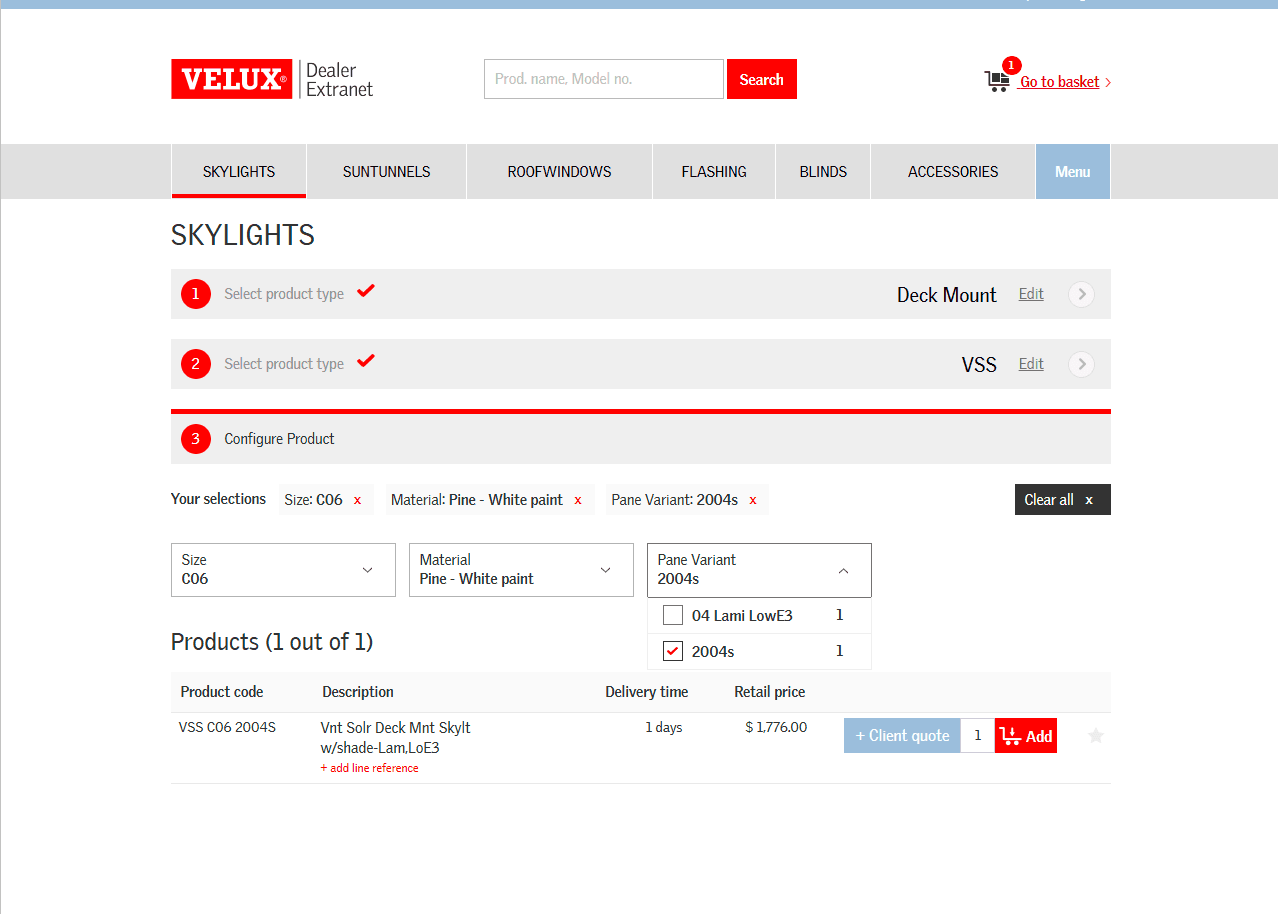
Click Go to basket.
7
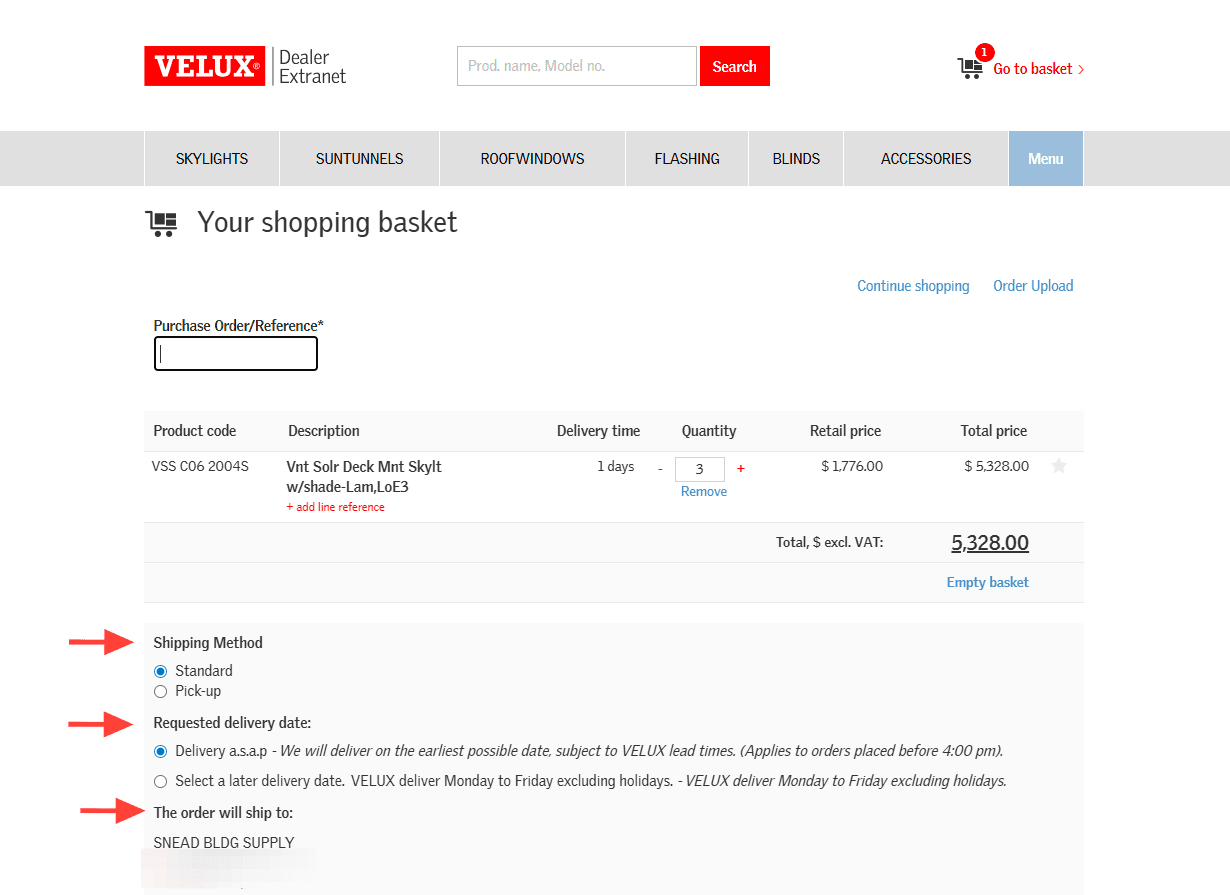
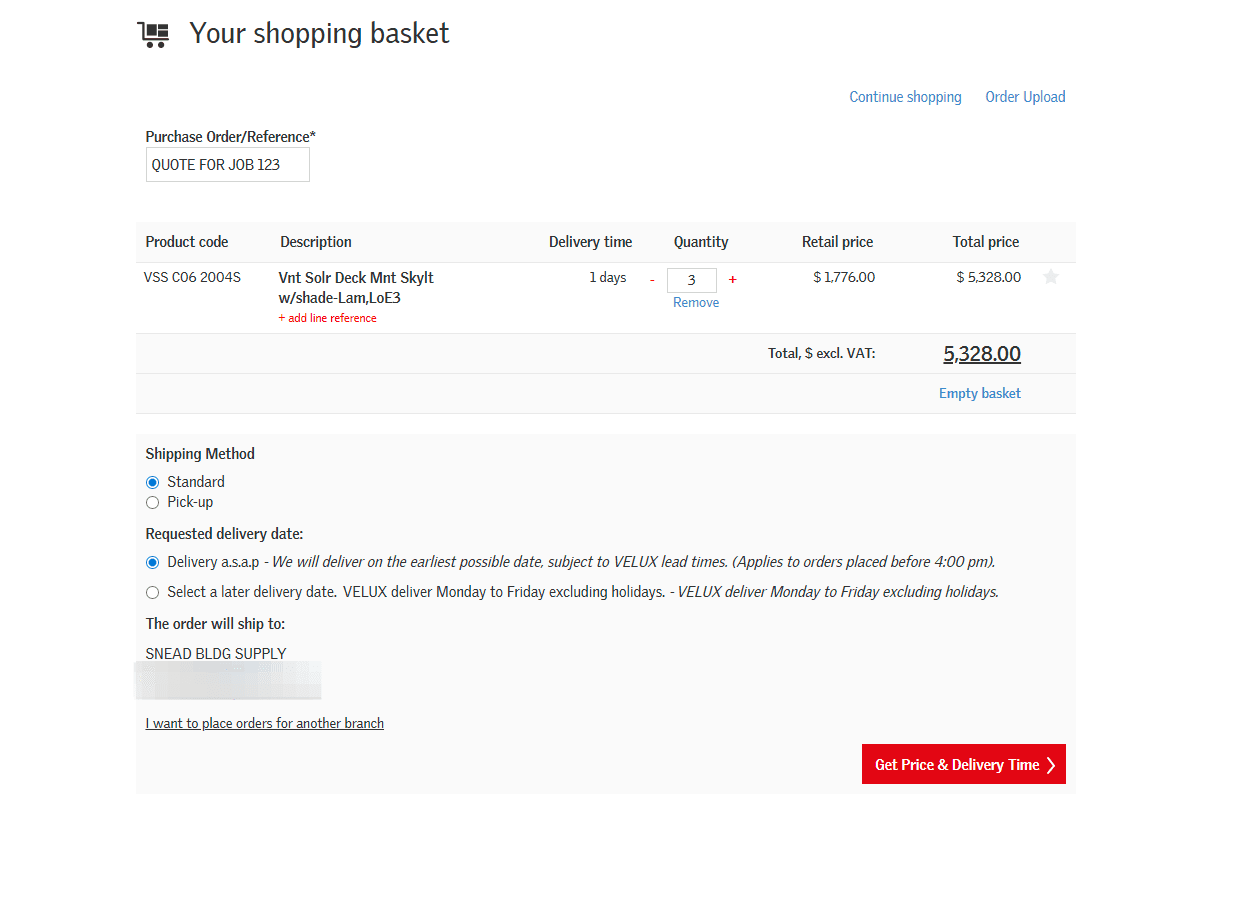
Enter a Purchase Order or Job Name in the Purchase Order/Reference field.
8
Click Price & Delivery Time
9
Lastly, select Save as Quote. One processed your quote number will display as a clickable link.