How to Generate Calibration or Activation Codes on the Fasep Dealer Portal
Learn the step-by-step process to generate calibration or activation codes using the Fasep Dealer Portal
By David Pesavento
This guide will show you how to generate calibration codes on the Fasep Dealer Portal
1
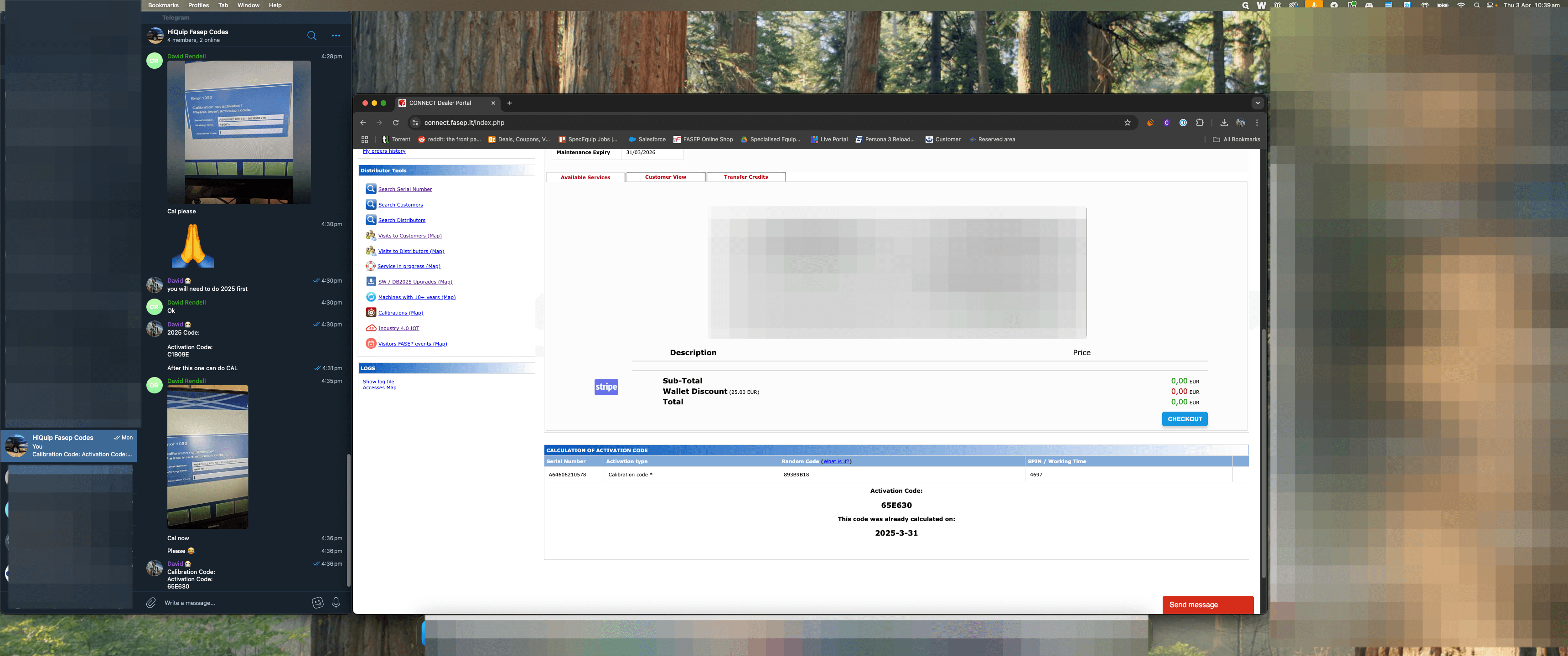
Open the photo in the telegram group and confirm the code type they have requested
2
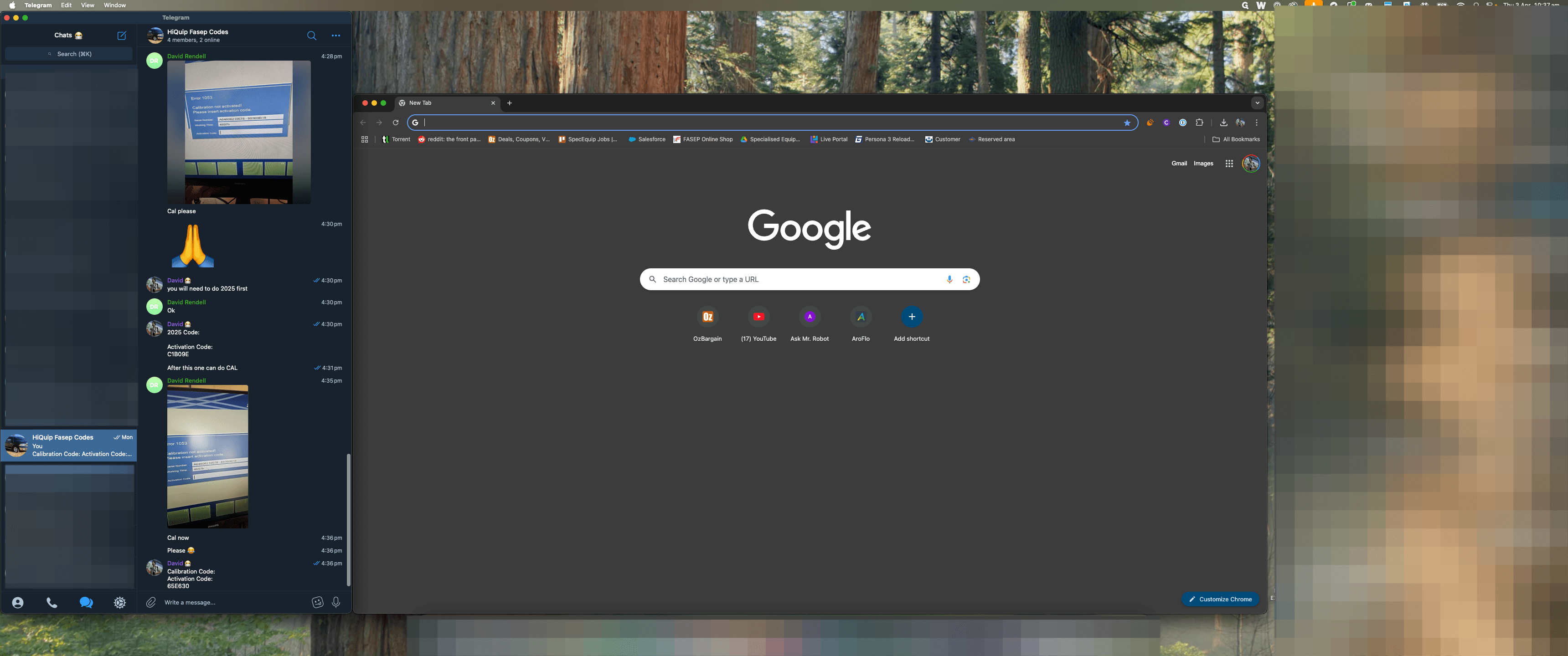
See information in the photo below:
RED underline is the "Serial Number"
GREEN underline is the "Random Code"
YELLOW underline is the "Working Time"
RED underline is the "Serial Number"
GREEN underline is the "Random Code"
YELLOW underline is the "Working Time"
3
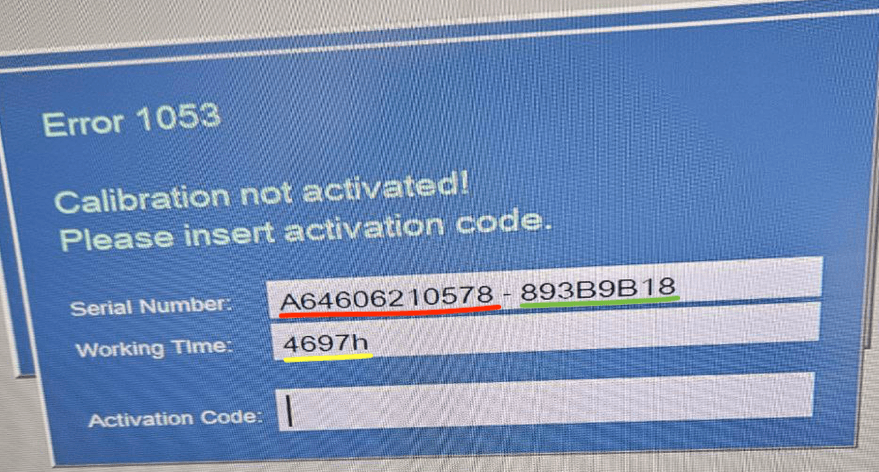
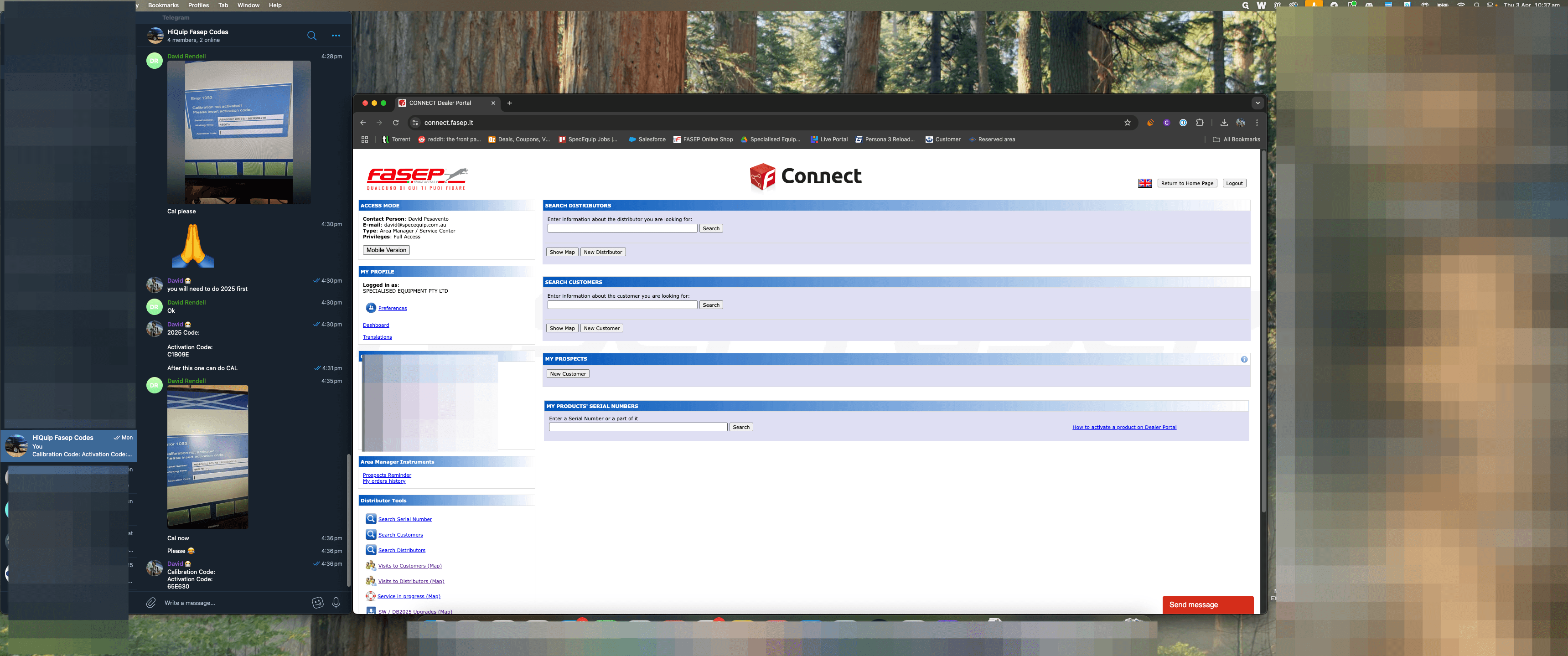
Open Chrome and navigate to connect.fasep.it
Login with your information.
Login with your information.
4
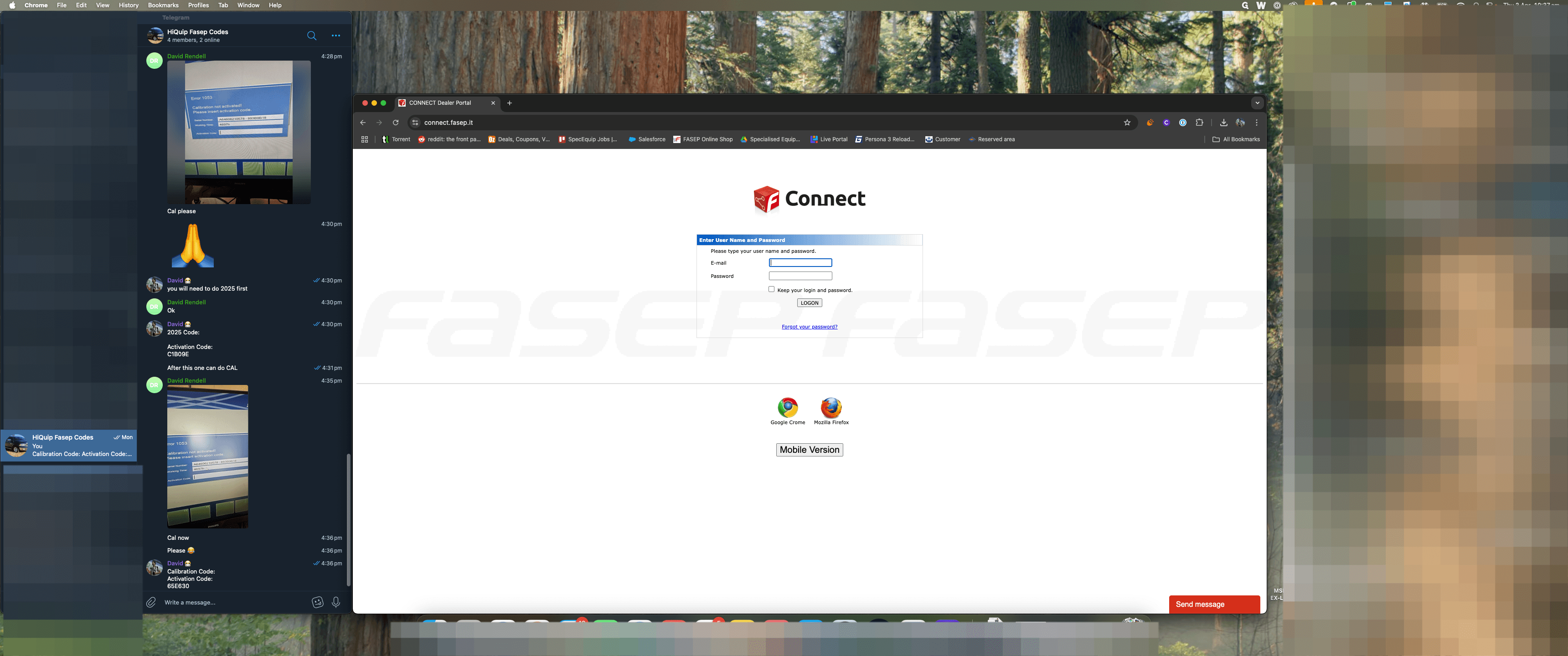
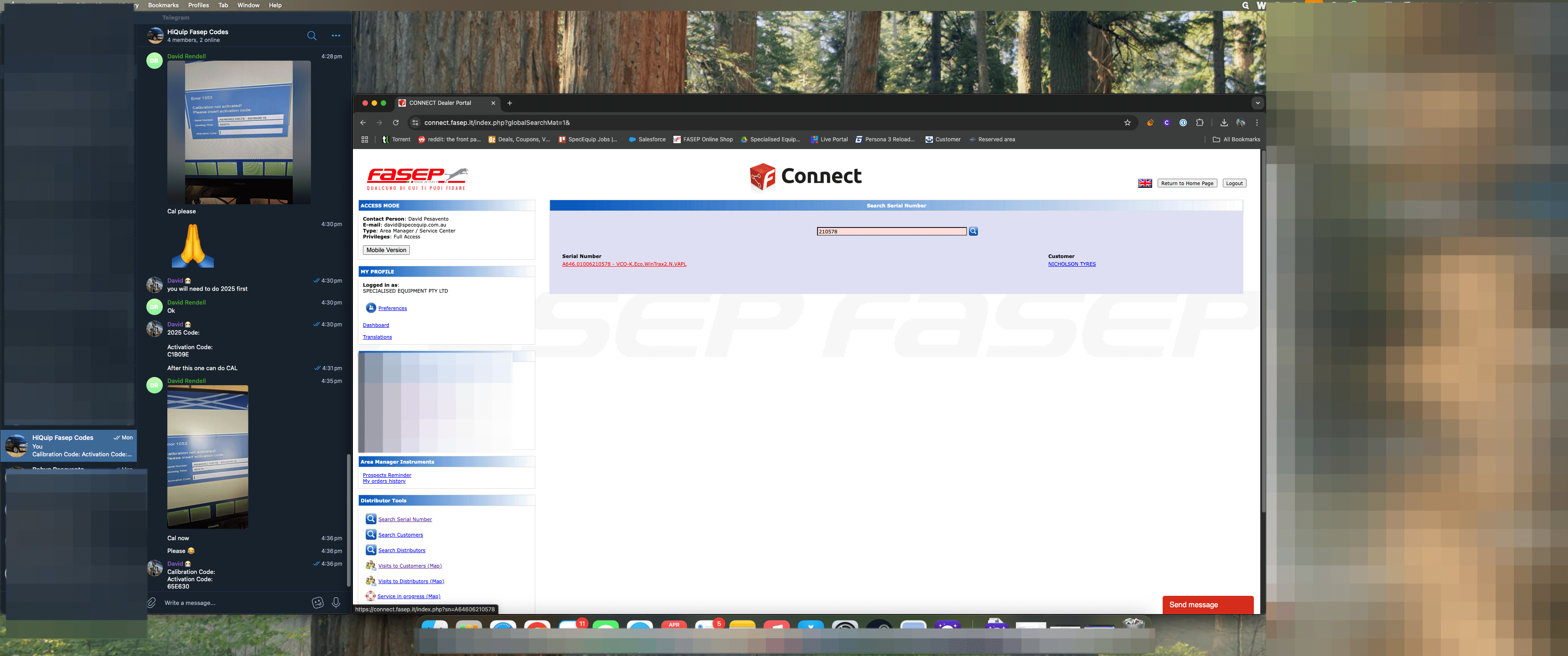
Using the last 5 digits or so of the serial number from the image - search for the machine
5
I.E 210578 - Click search
6
Confirm the serial number and click on it "A646.01006210578 - VCO-K.Eco"
7
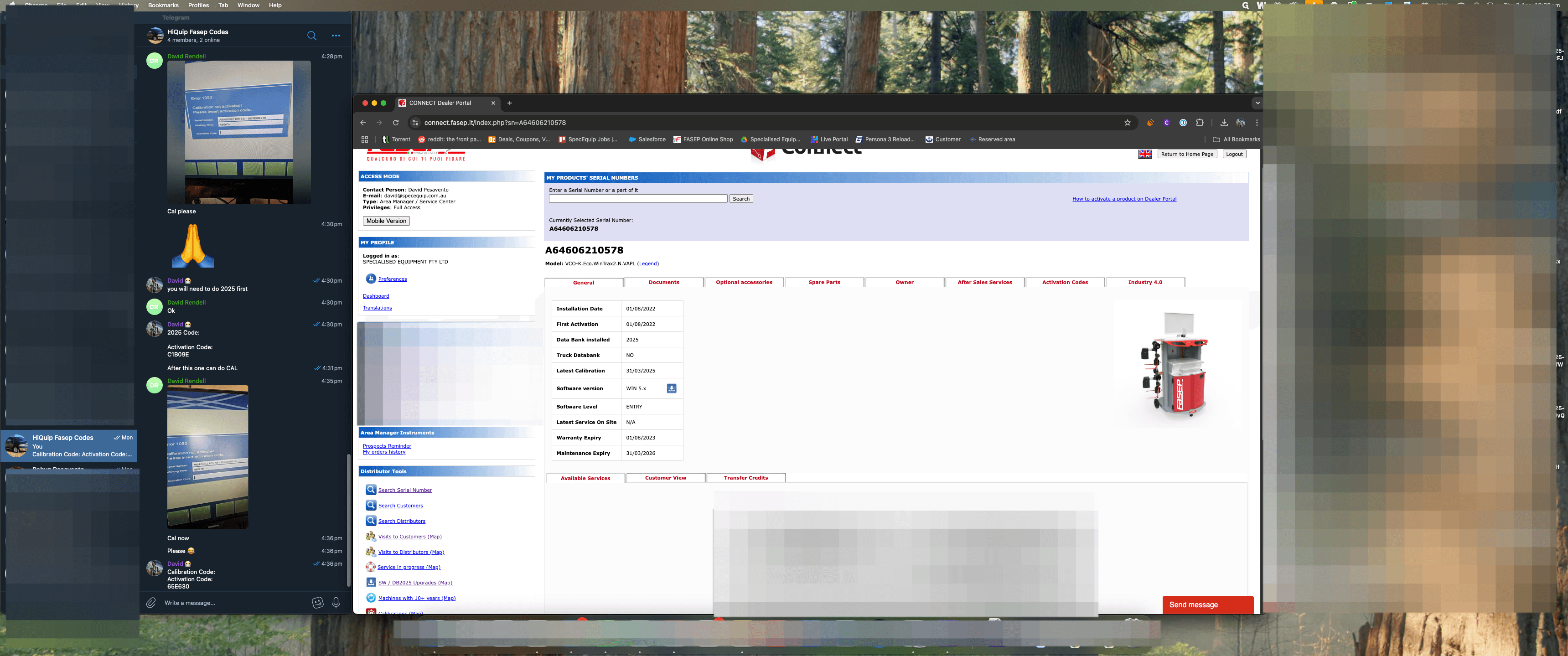
From here you can see all the machines information
Ensure the machines "Maintenance Expiry" is current -- If not we will be charged a calibration code
Ensure the machines "Maintenance Expiry" is current -- If not we will be charged a calibration code
8
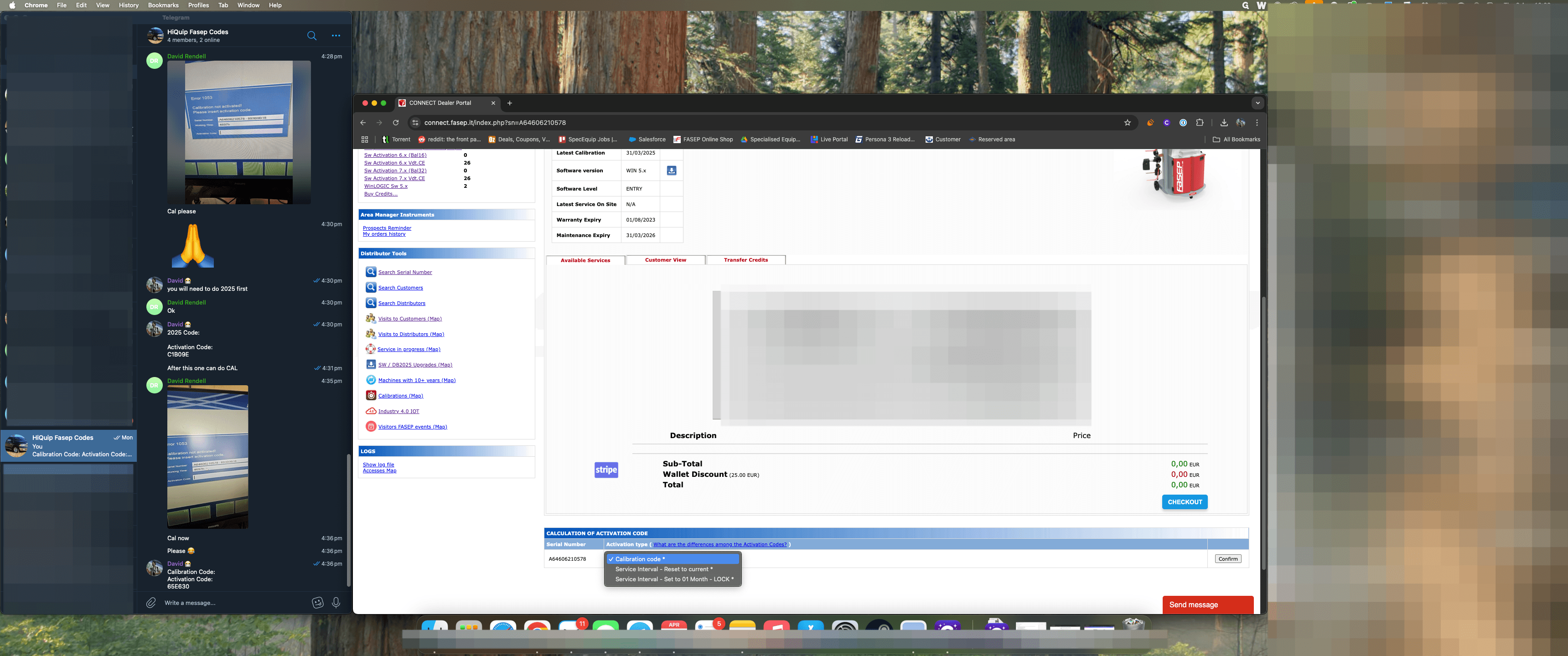
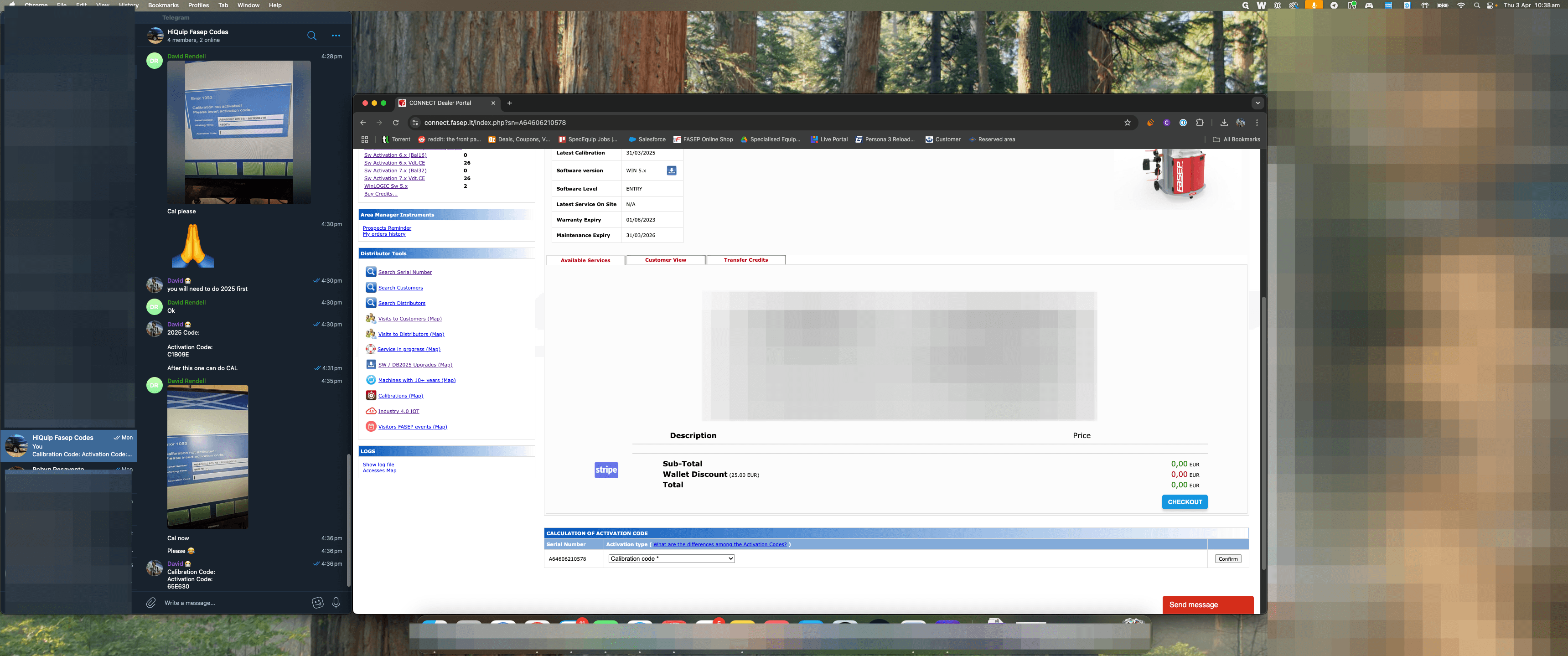
Scroll down to activation codes - and select calibration code
9
Click on "Confirm"
10
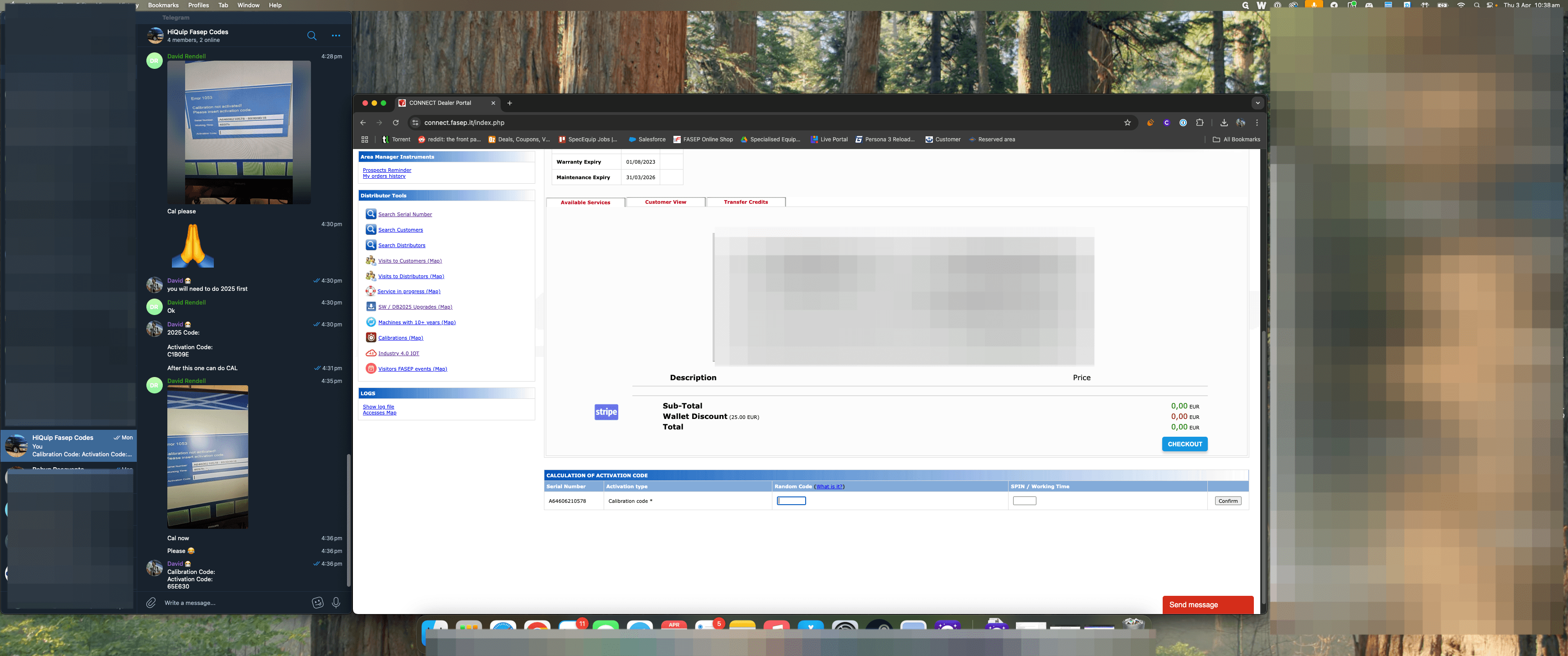
Click here - Type in the Random Code from the previous image
I.E - "893B9B18"
I.E - "893B9B18"
11
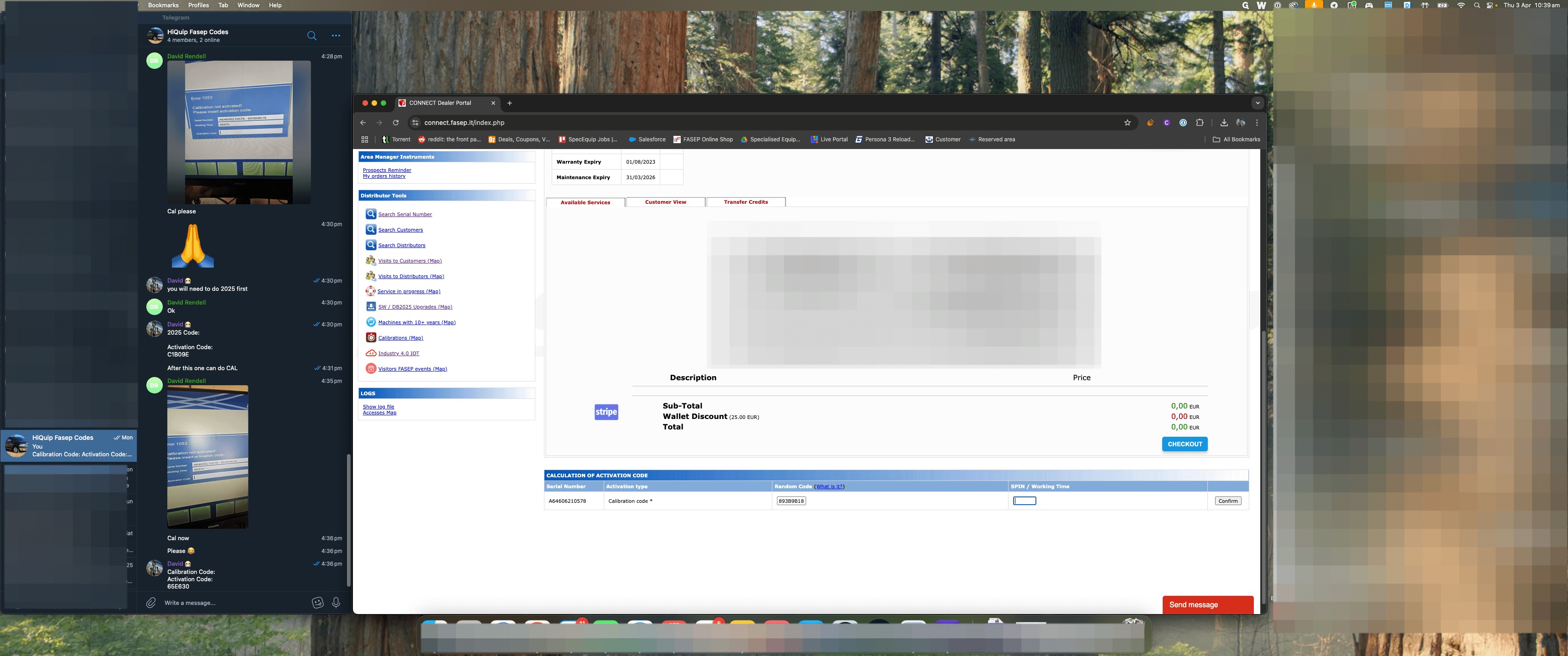
Click here - Type in the Working time from the previous image
I.E - "4697"
I.E - "4697"
12
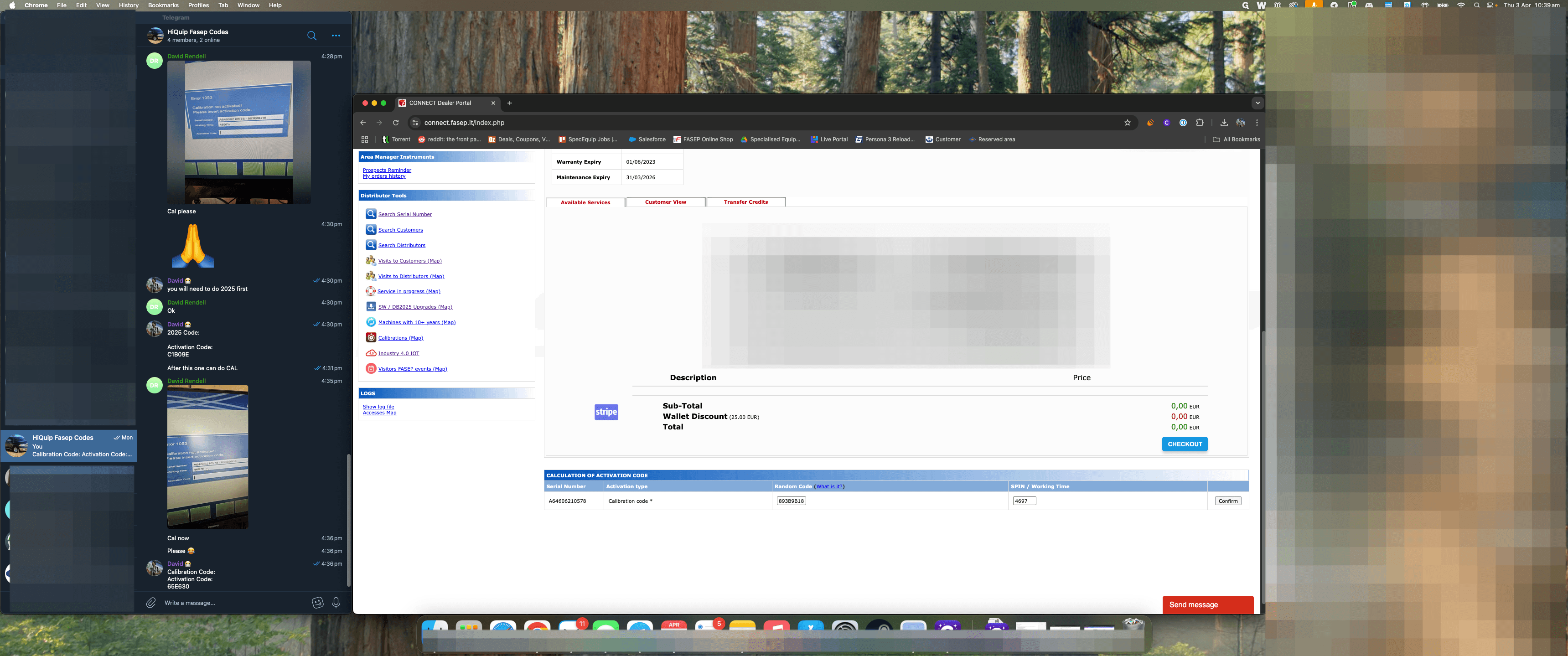
Double check your information is correct and Click on "Confirm"
13
The activation code will be generated - you can copy and paste this back to the dealer that requested it