
How to Guide a New Project Through Handover to the Design Team: Spires Stage 16B Example
Learn the step-by-step process for handing over a new project to the design team, using Spires Stage 16B as an example. Includes tips on verifying project details, organizing folders, and cross-referencing contracts and drawings.
In this guide, we'll learn how to hand over a new project to the design team. We will use the Spires Stage 16B project as an example to show how to gather project details, check contract documents, and confirm that all information matches between emails, purchase orders, and design notes.
We will also cover how to find and review the latest drawings and ensure all project requirements are clear before the design process begins.
Let's get started
Okay. We want to guide a new project through to handover to the design team.
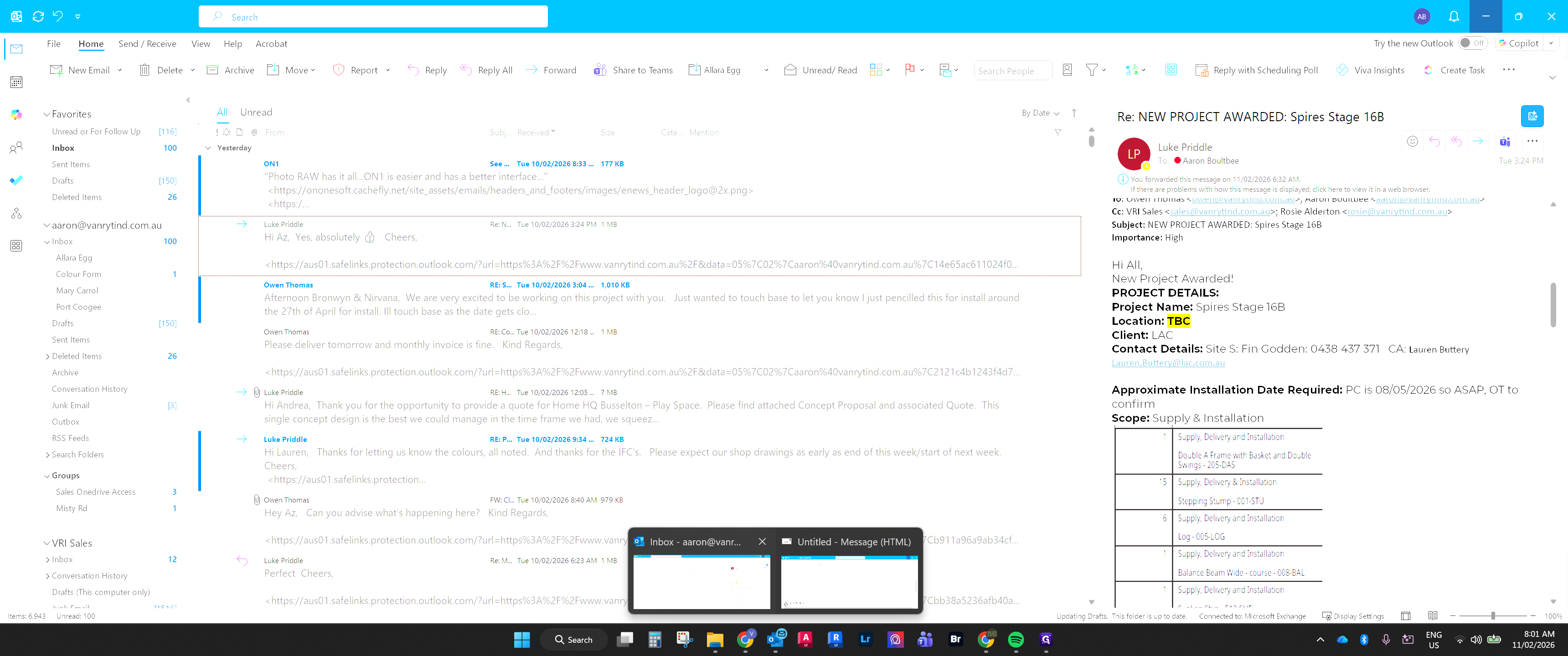
To do that, I would format... I would send an email to the design team member. We will use an example project.
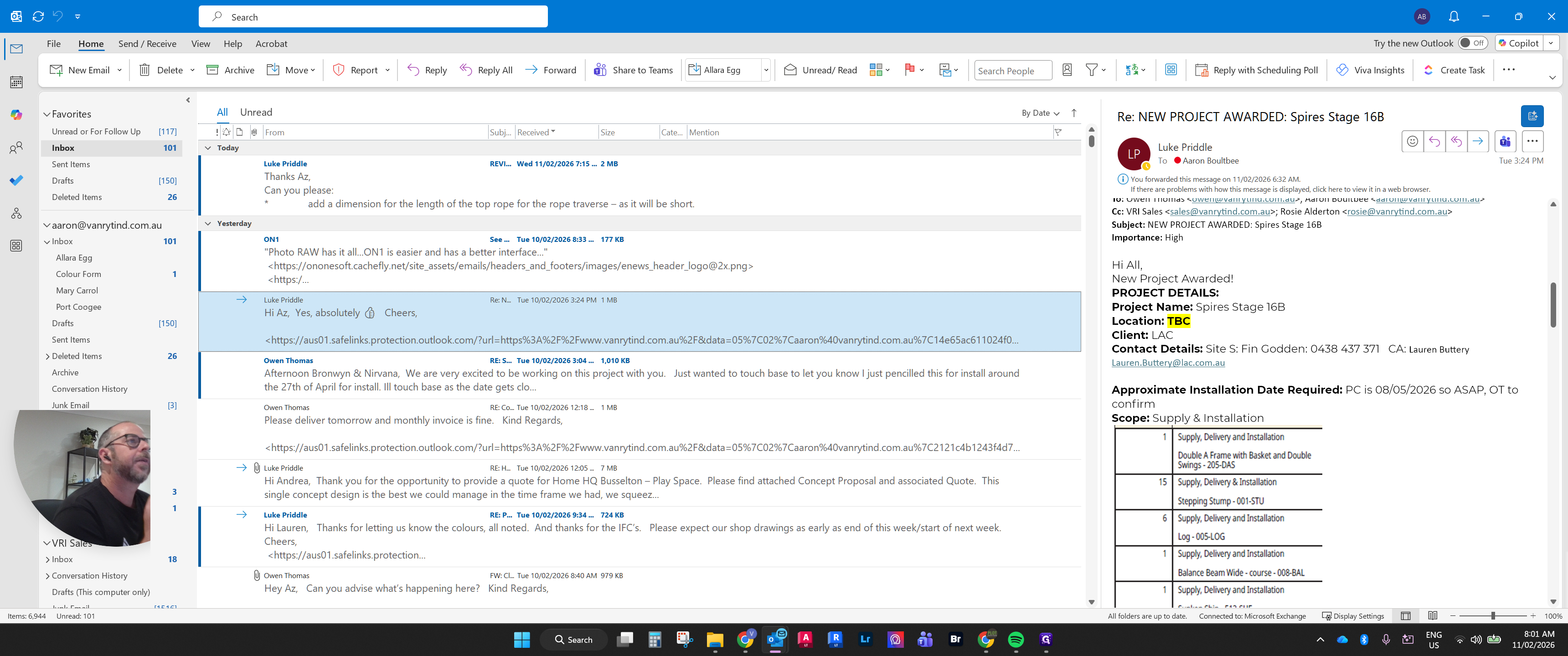
This is Spires Stage 16B.
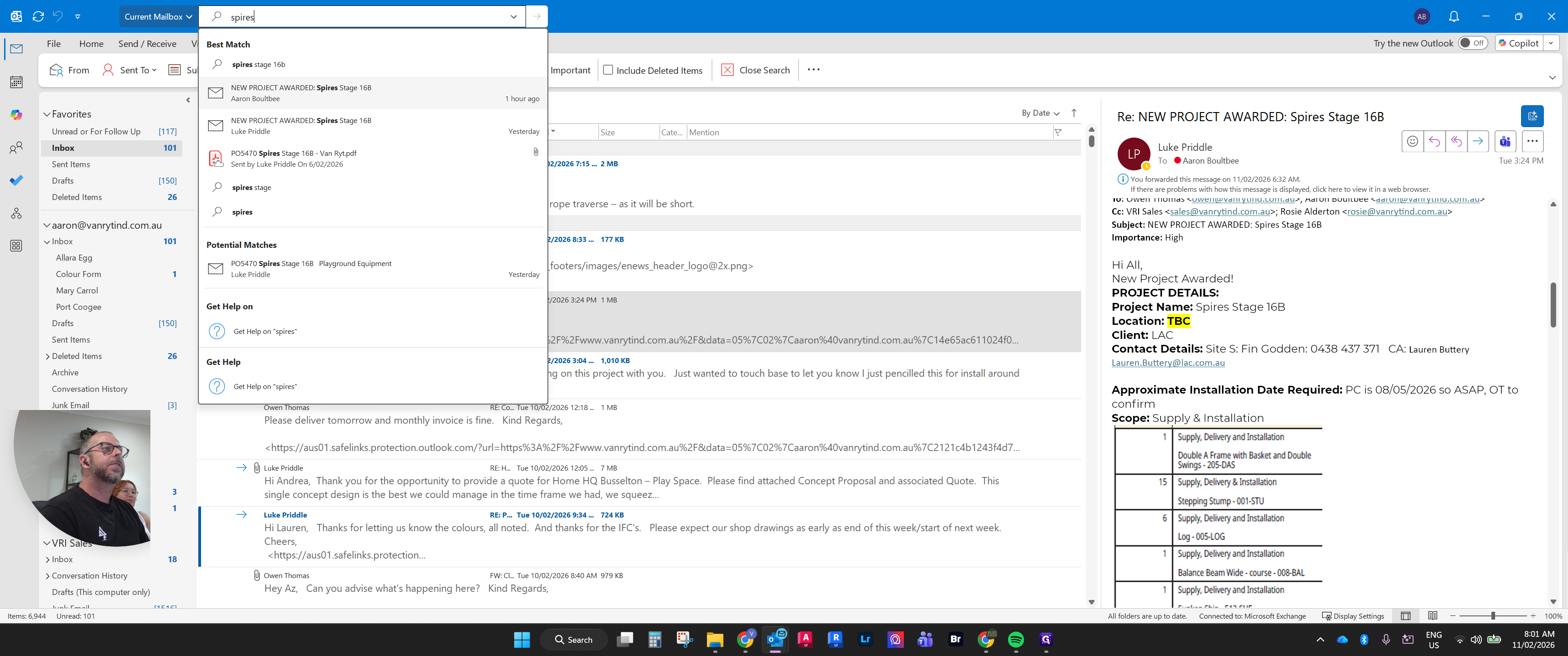
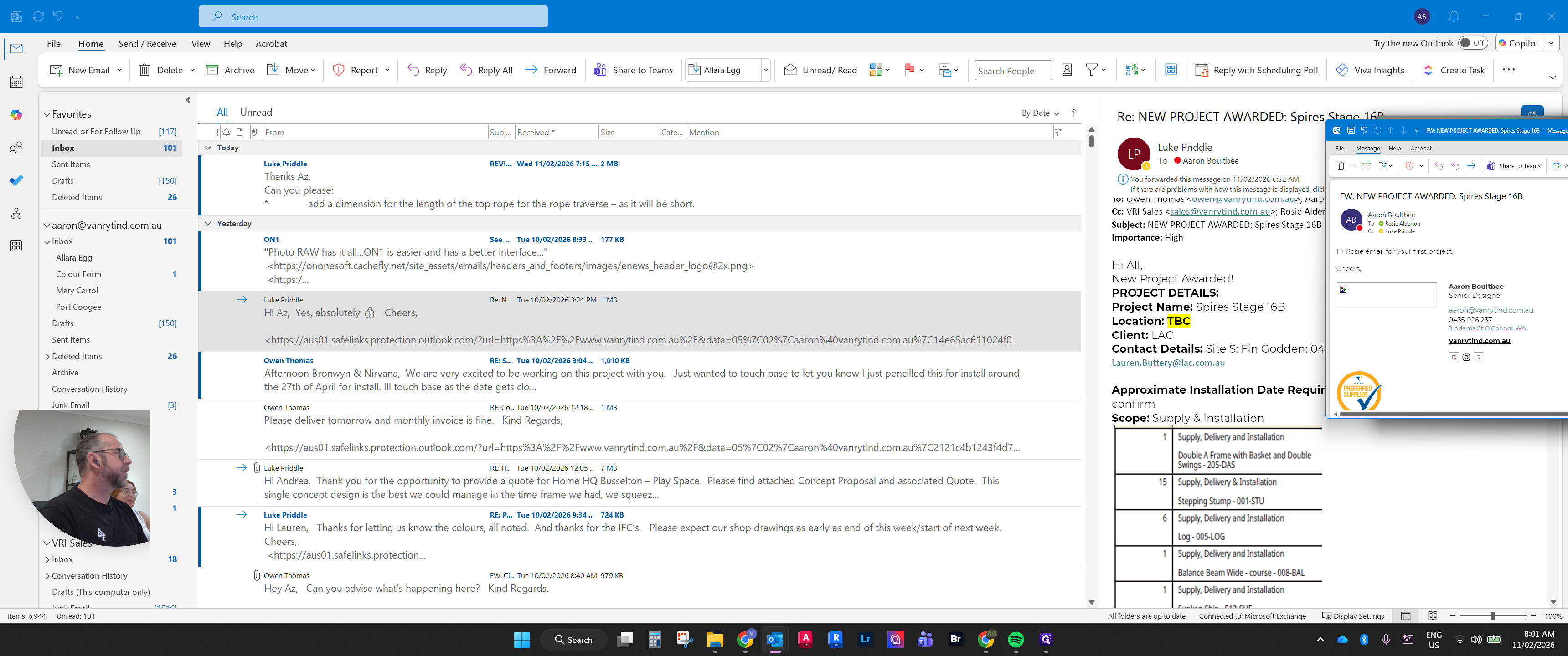
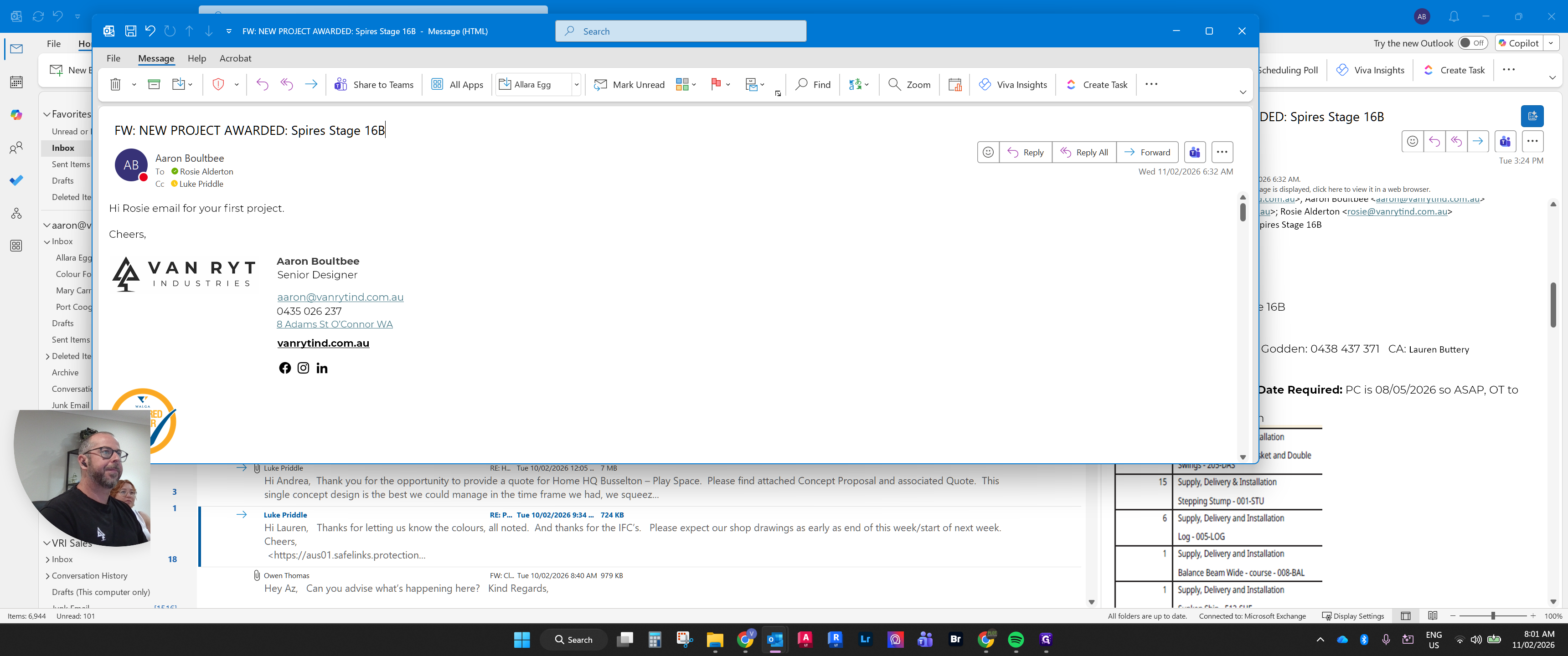
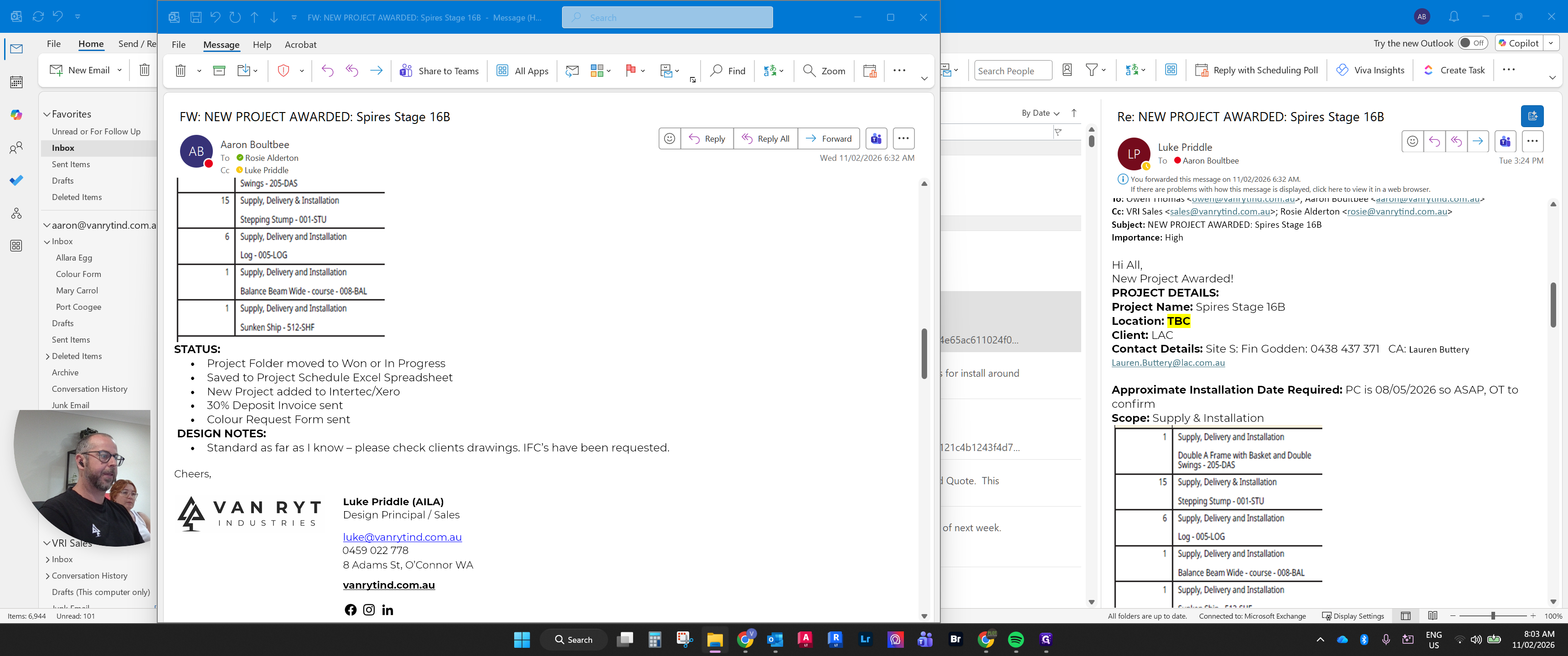
When a project is awarded, Luke will email us all the project details.
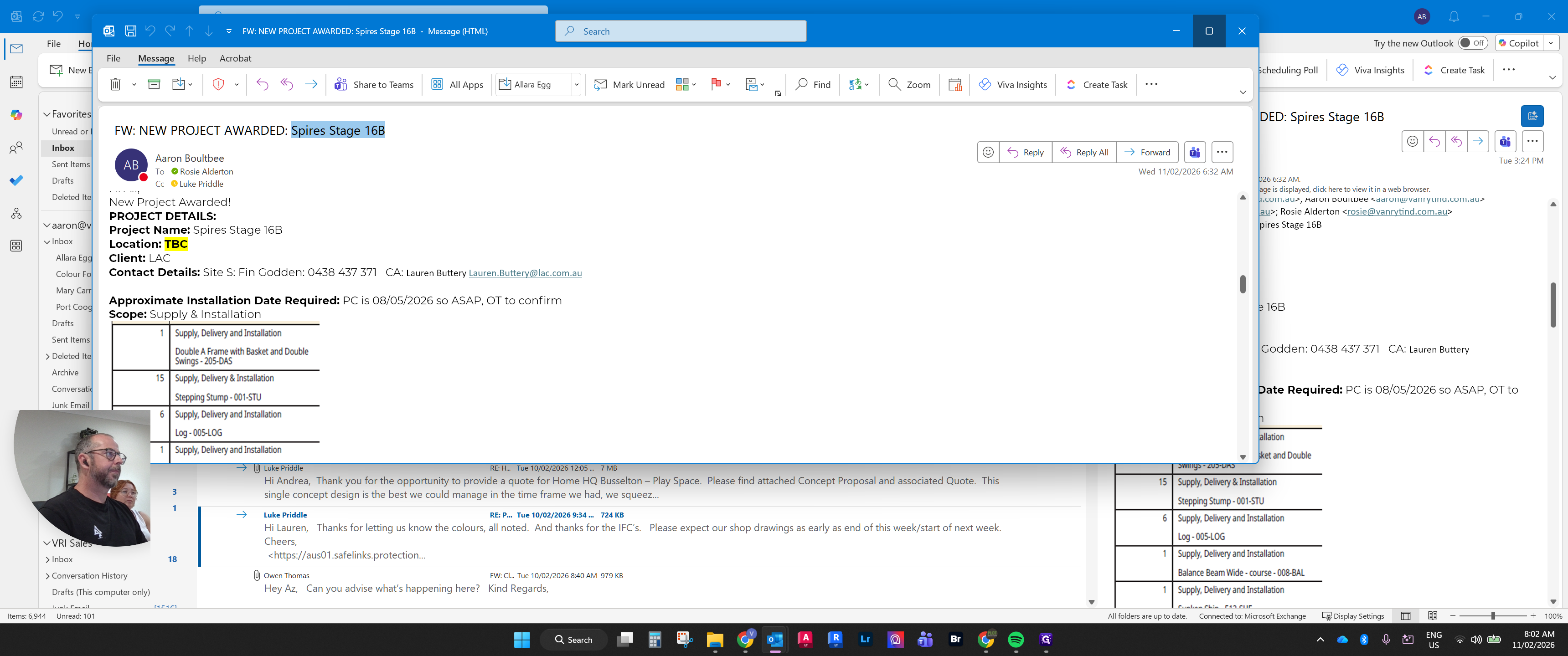
This project will include the client's contact details, location, client information, and the items awarded in the contract.
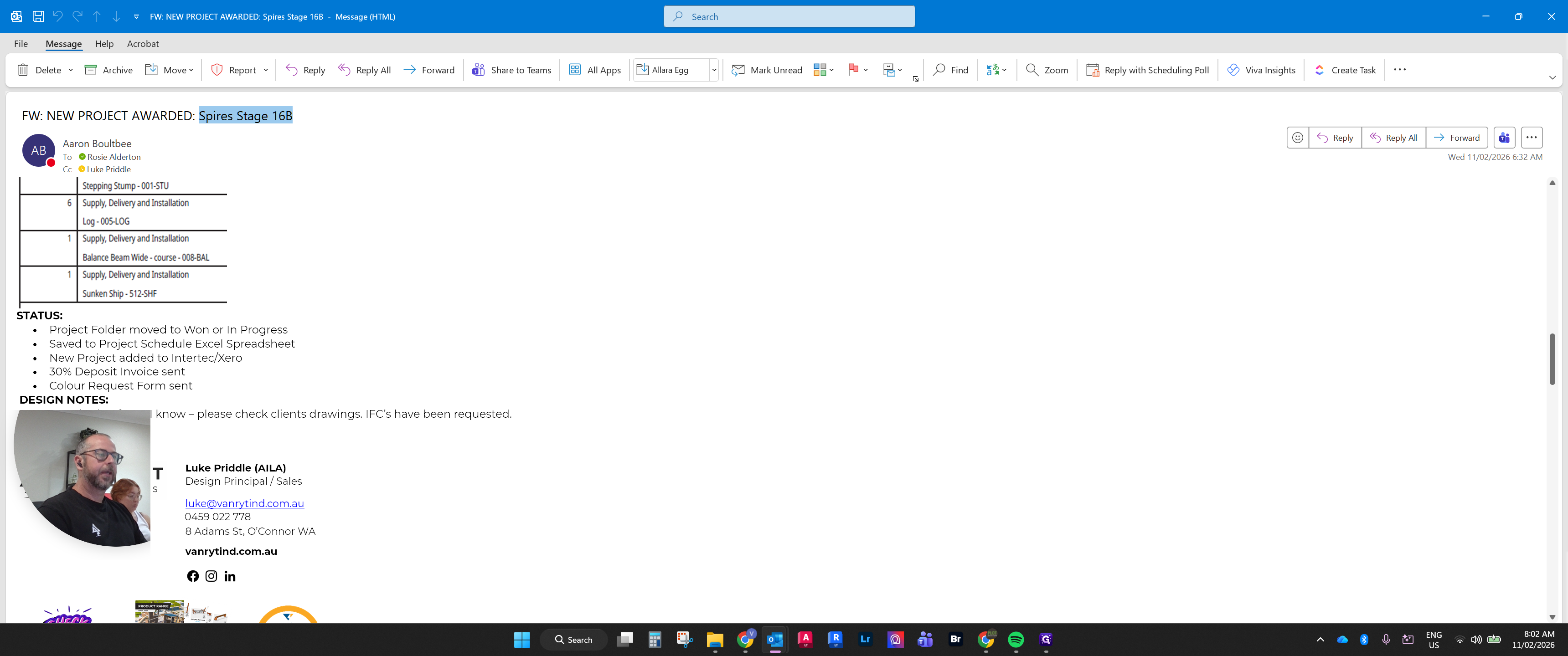
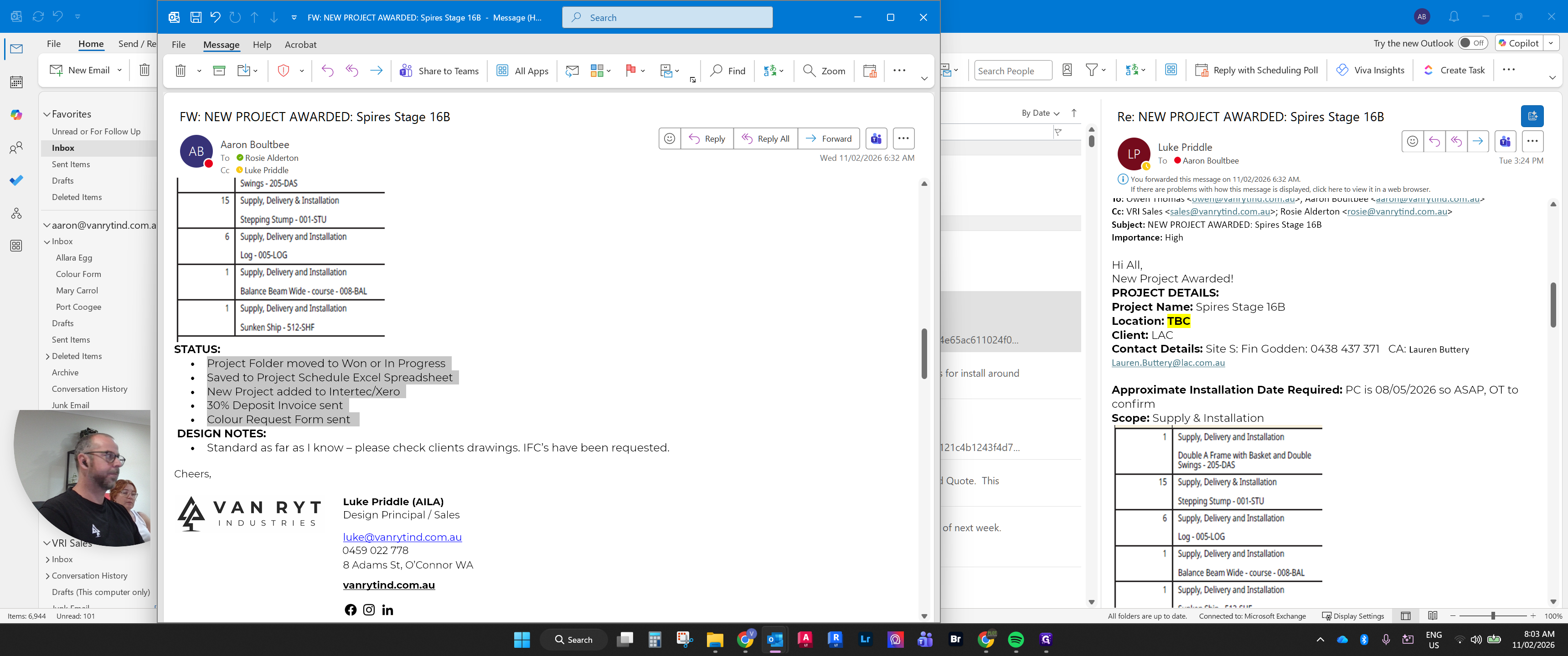
He will also make specific notes about the status of certain items we need to resolve, along with the...
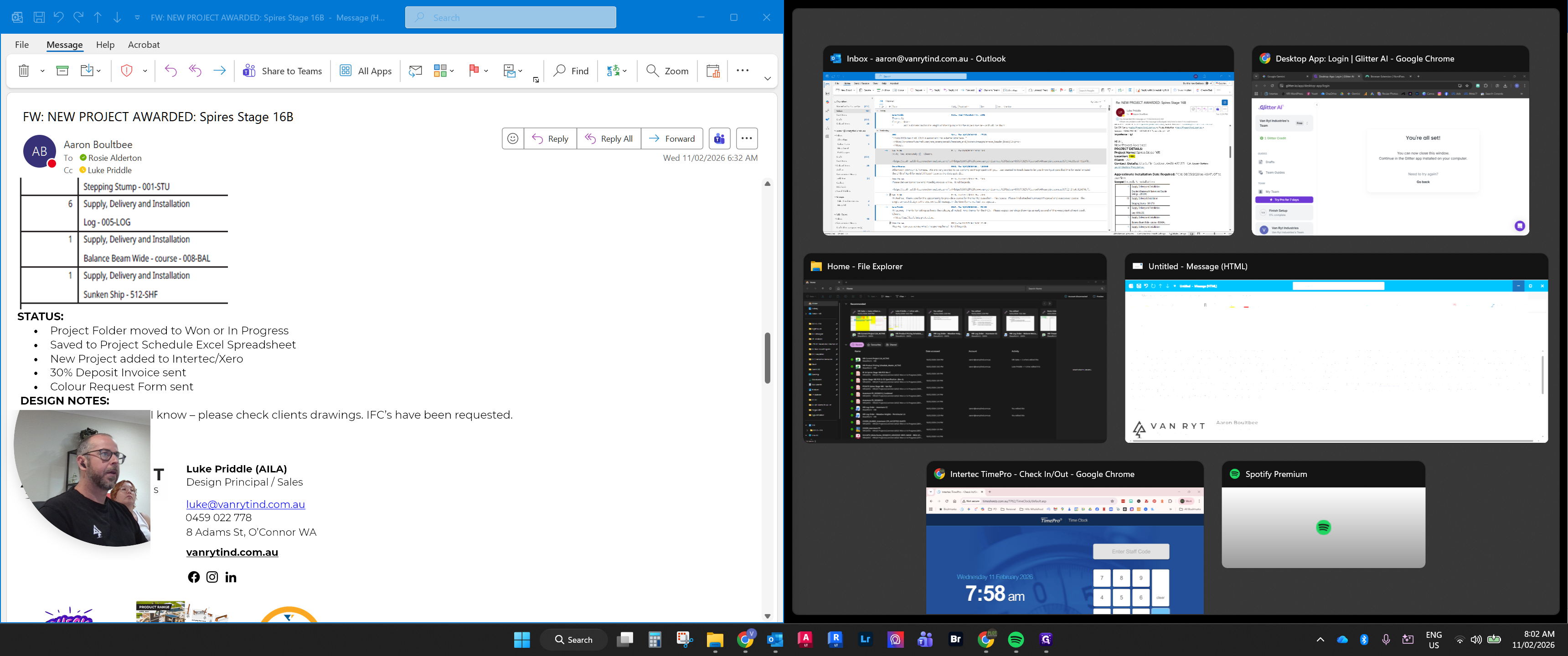
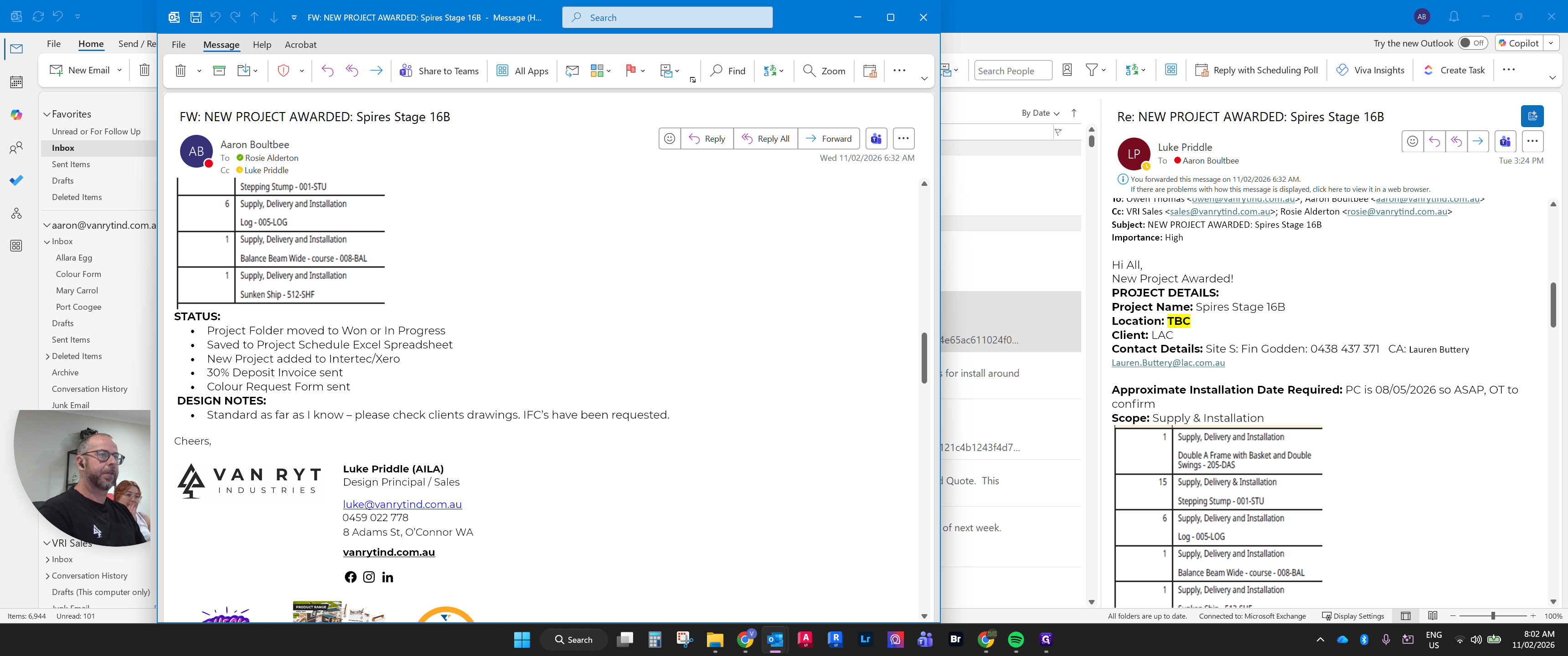
in the design team. Include any specific notes under design notes that provide extra context about the project.
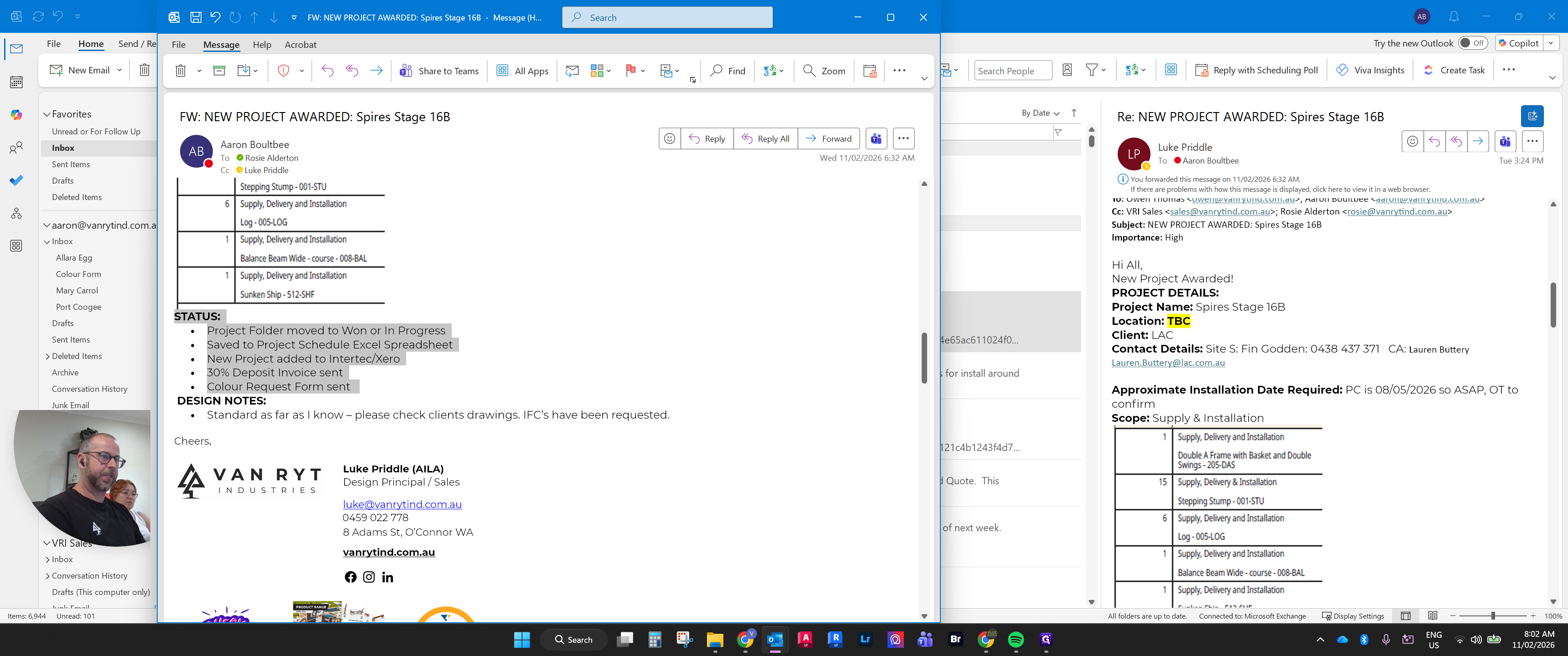
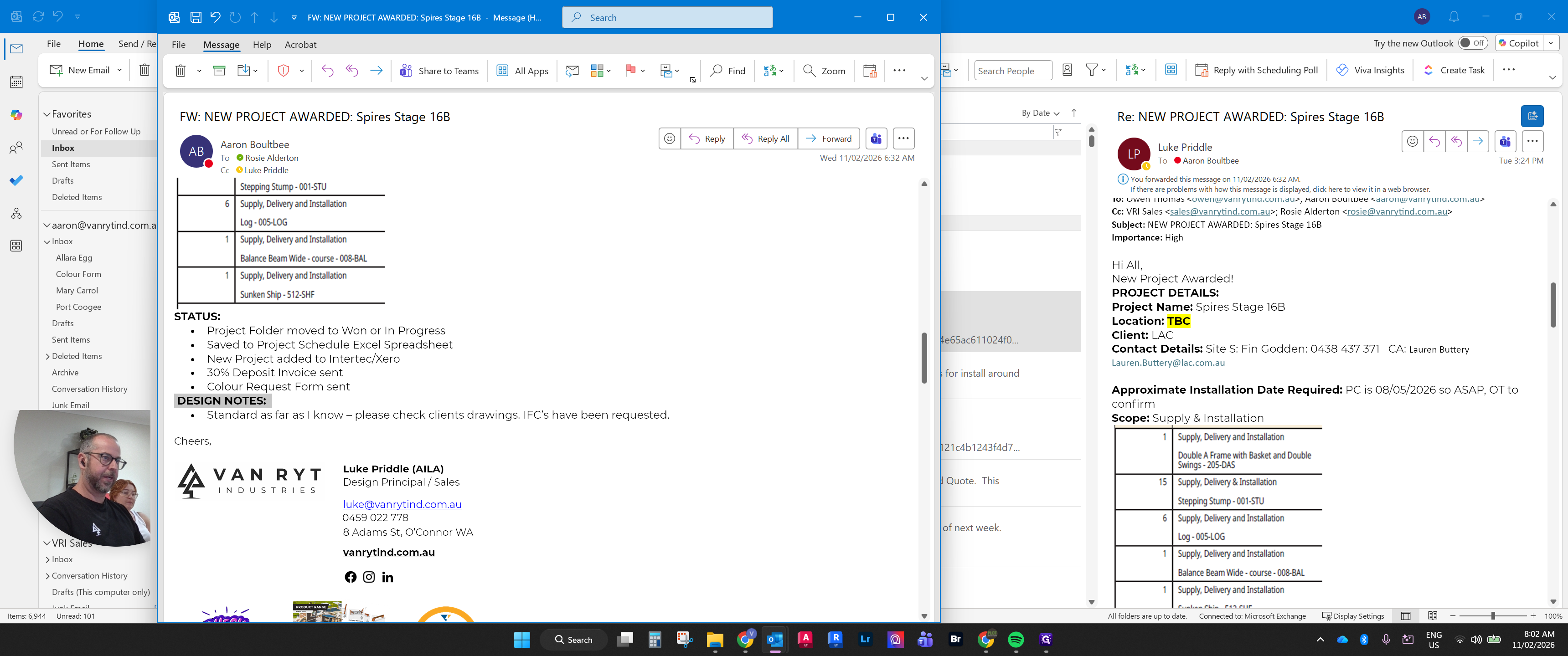
Once we understand the project's supply, design notes, and the status of these items, we open the project folder in the system.
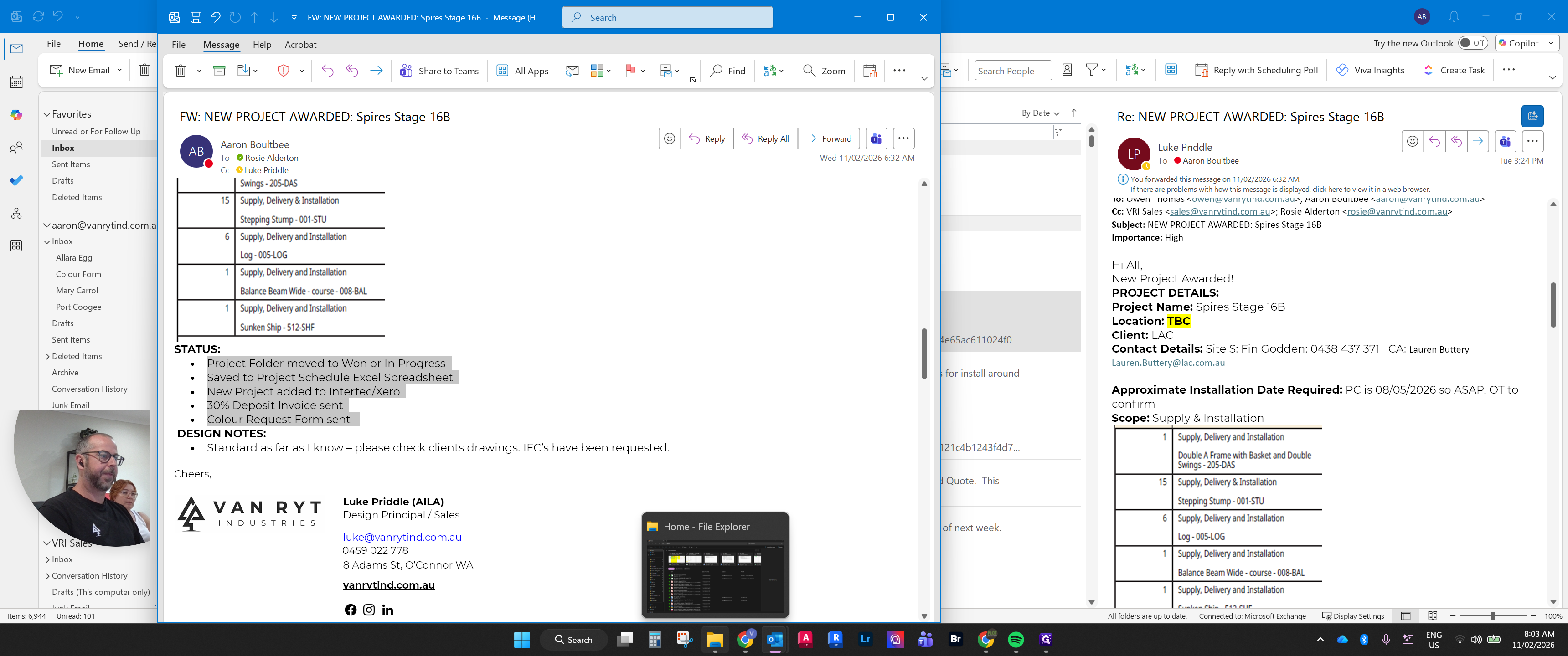
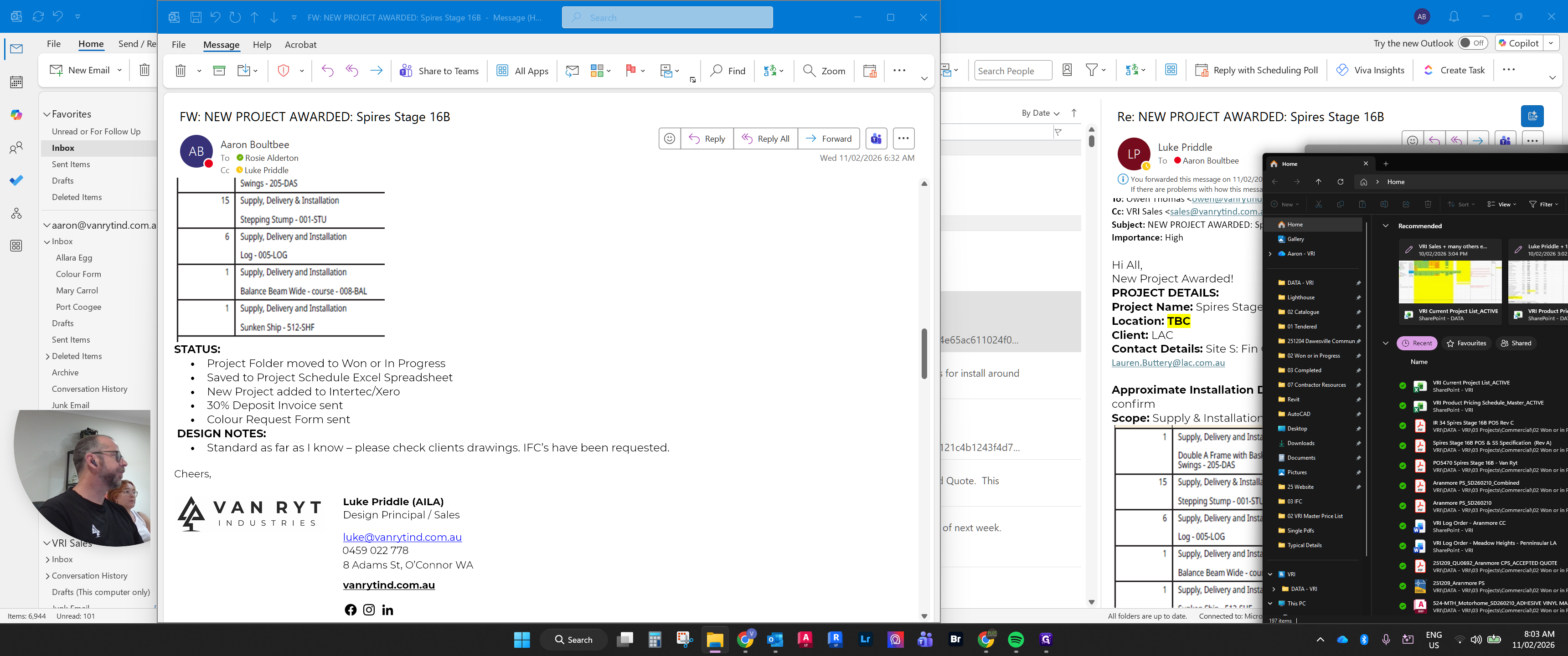
To navigate to that location, move the Scribe banners up. Then, go to the folder system.
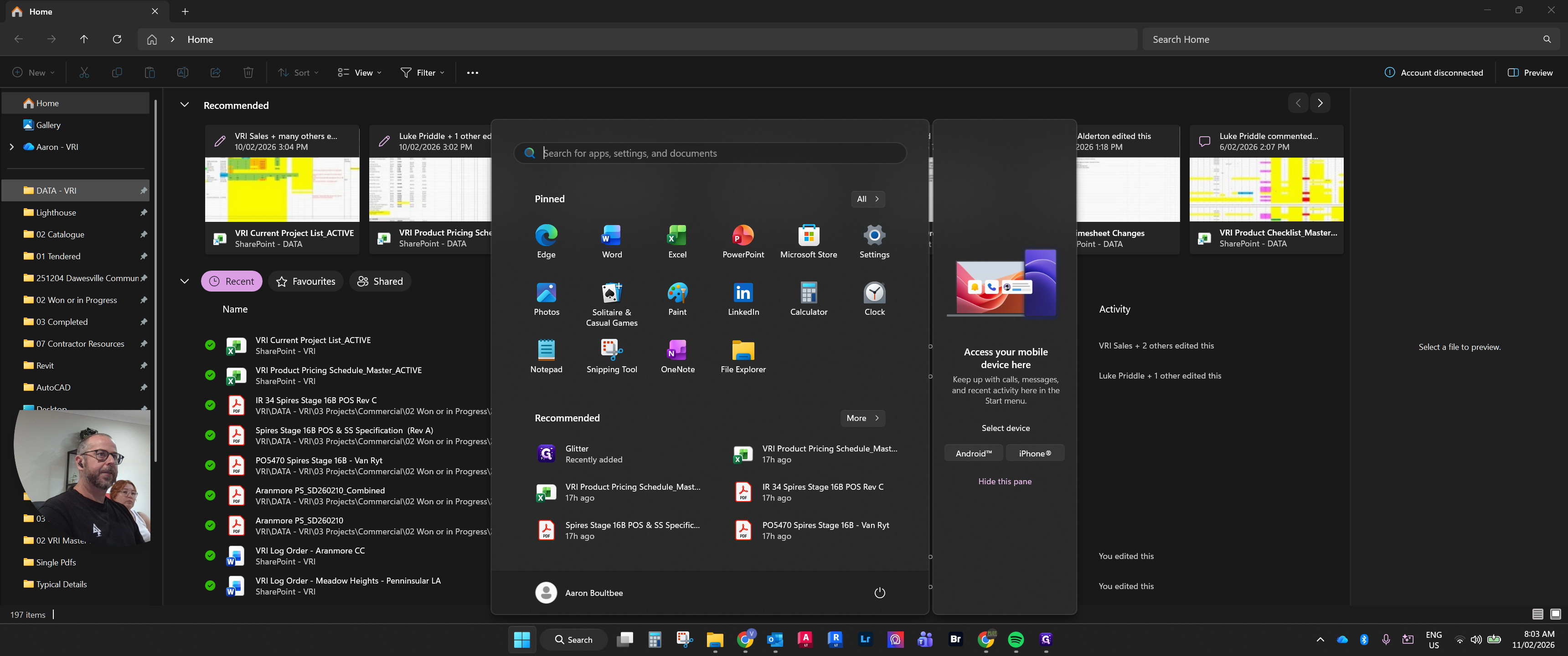
We want to go to Projects, then select Commercial.
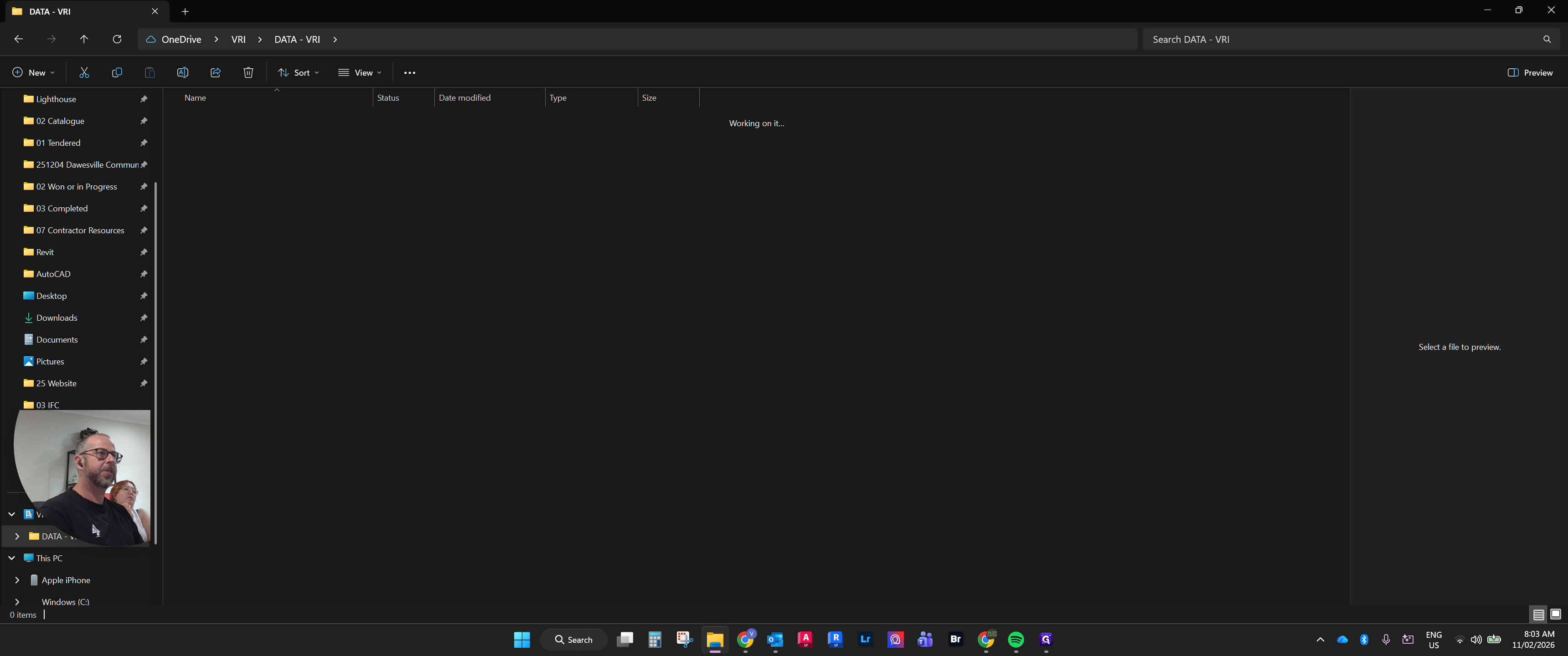
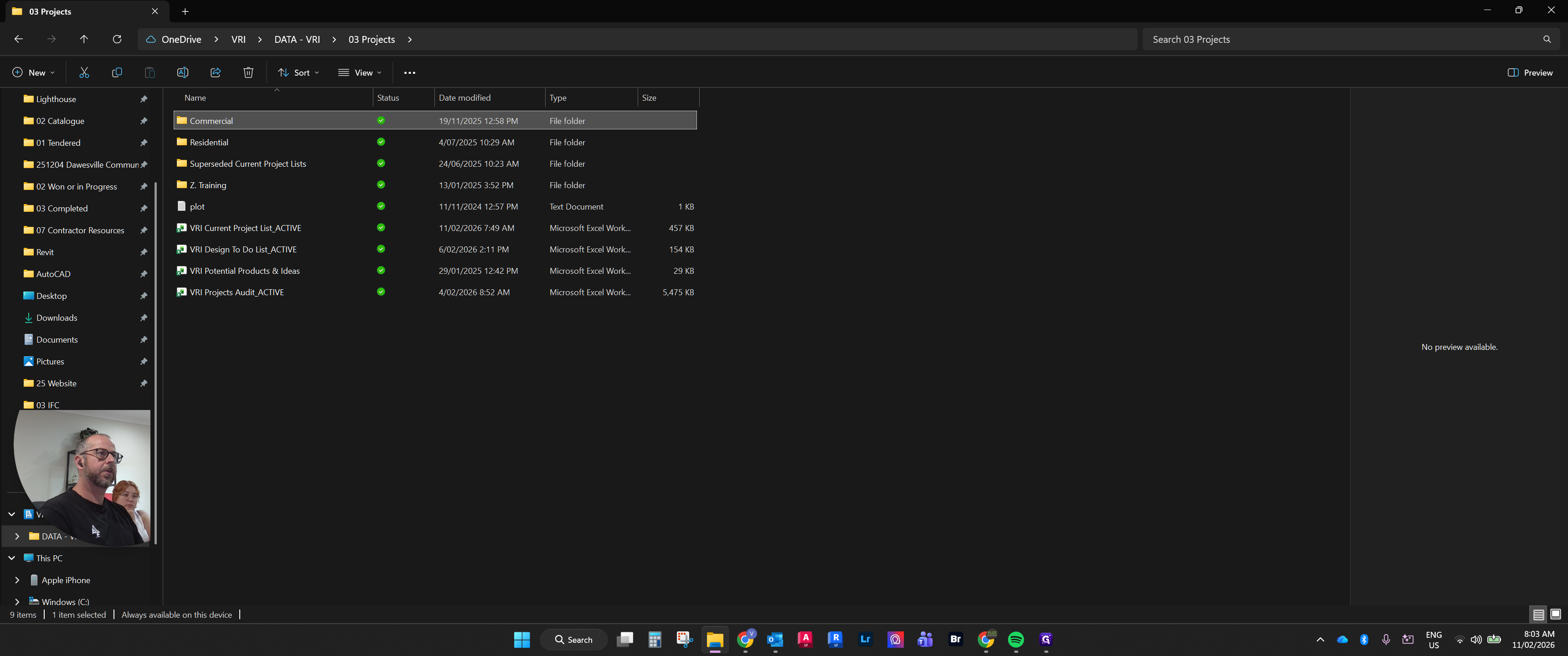
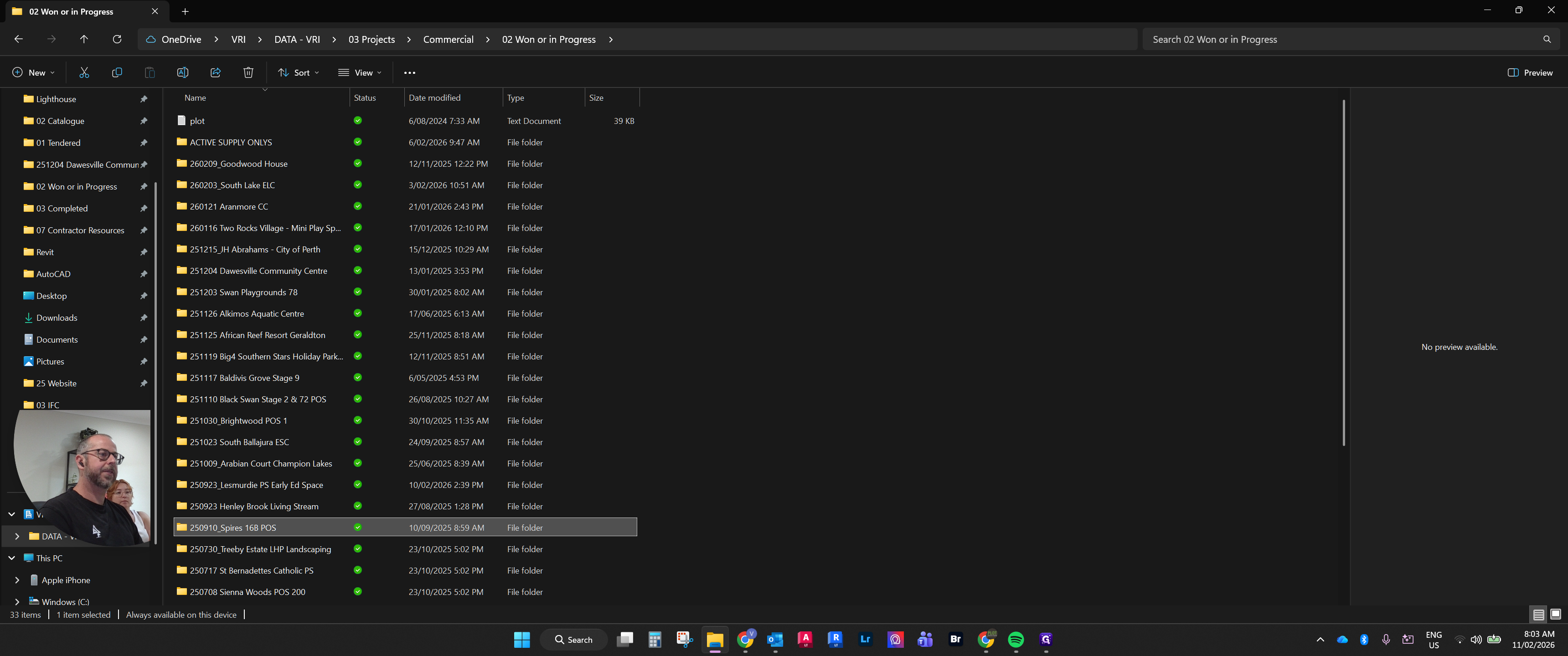
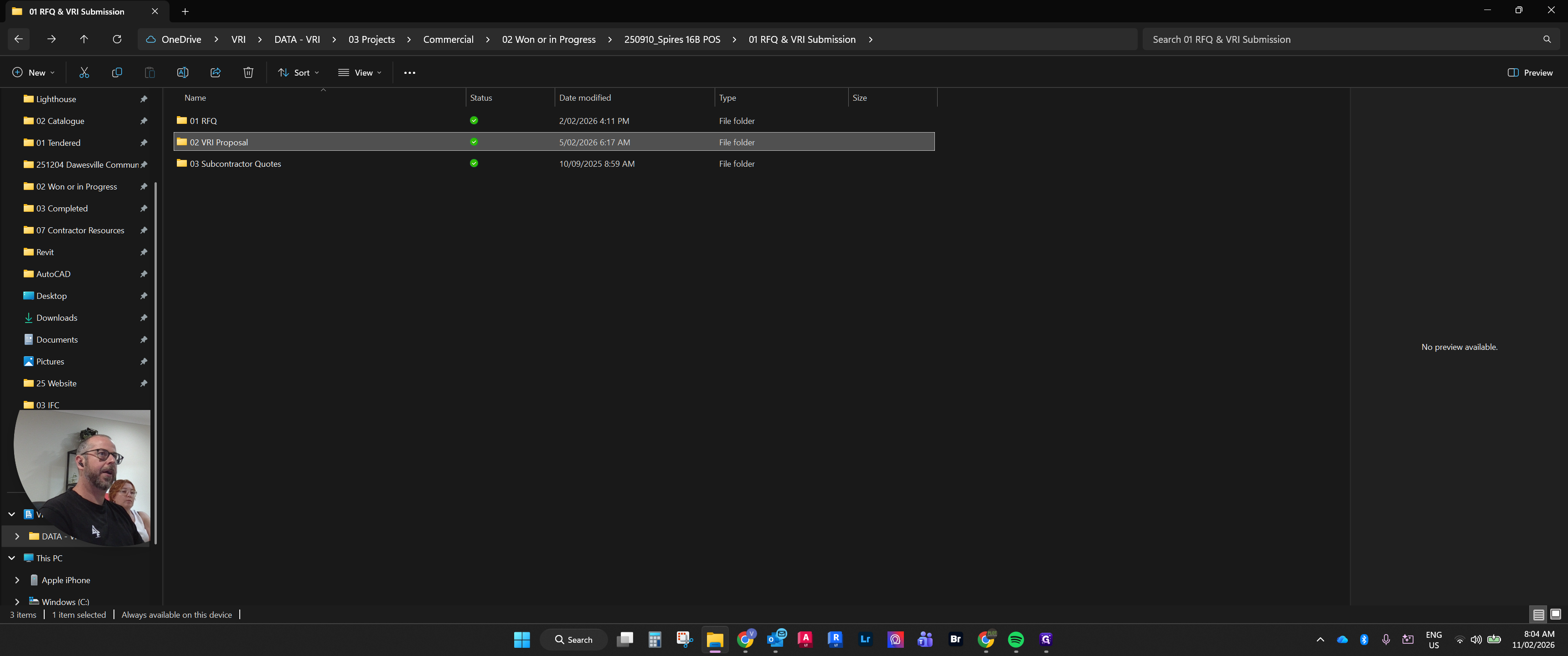
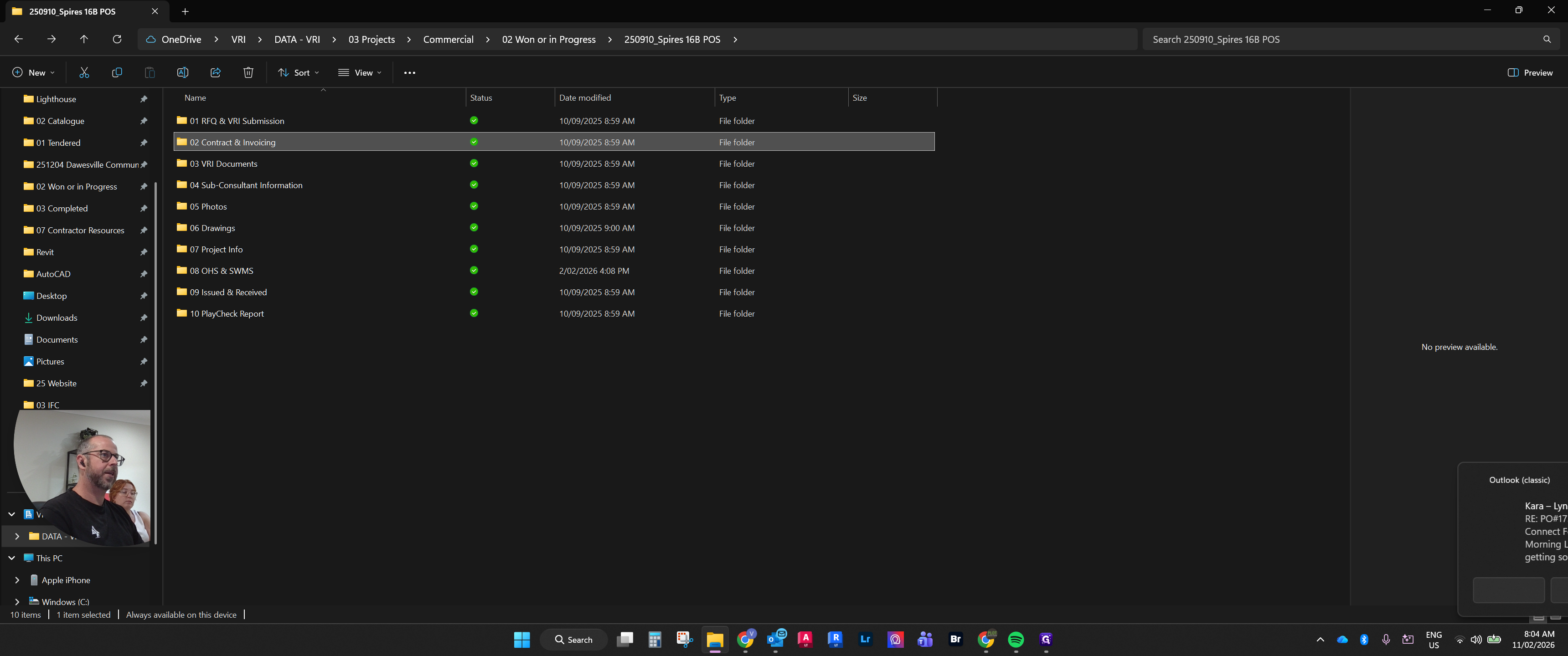
New projects will appear in the Won or In Progress folder.
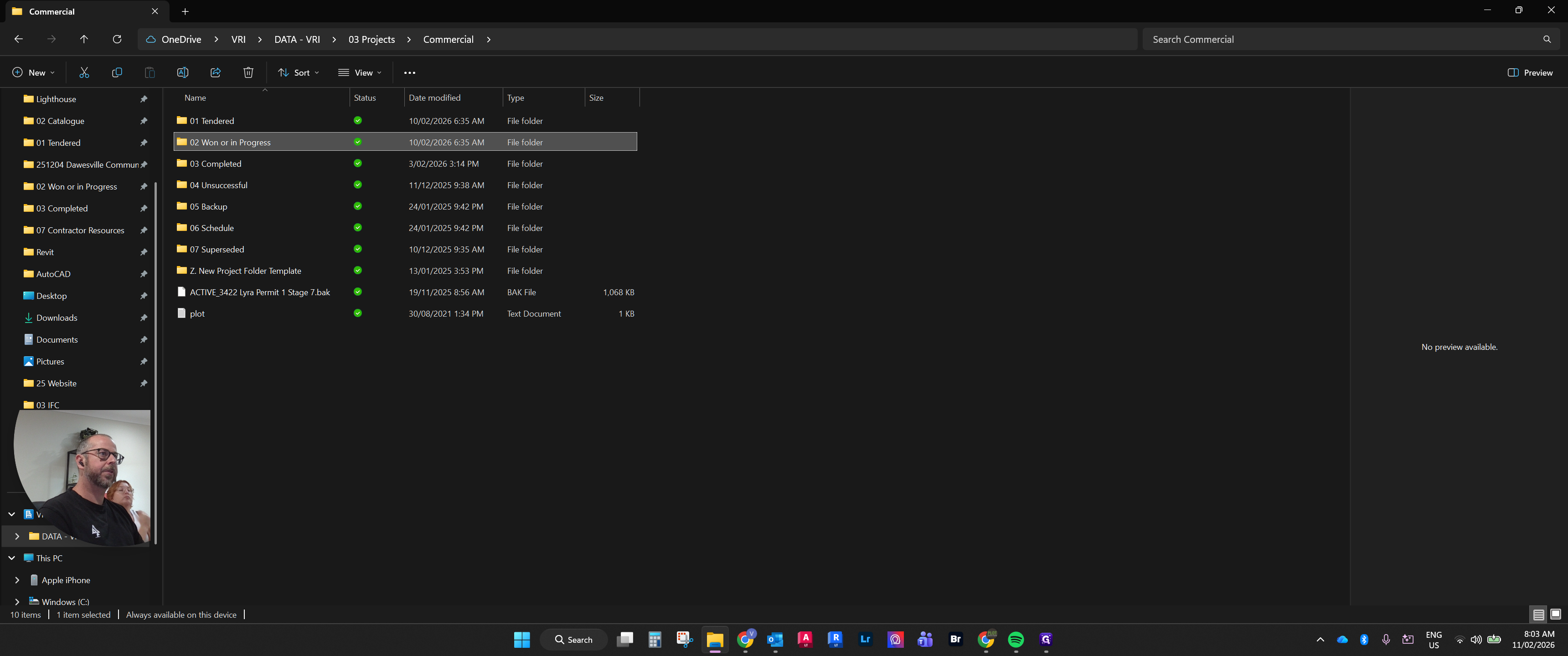
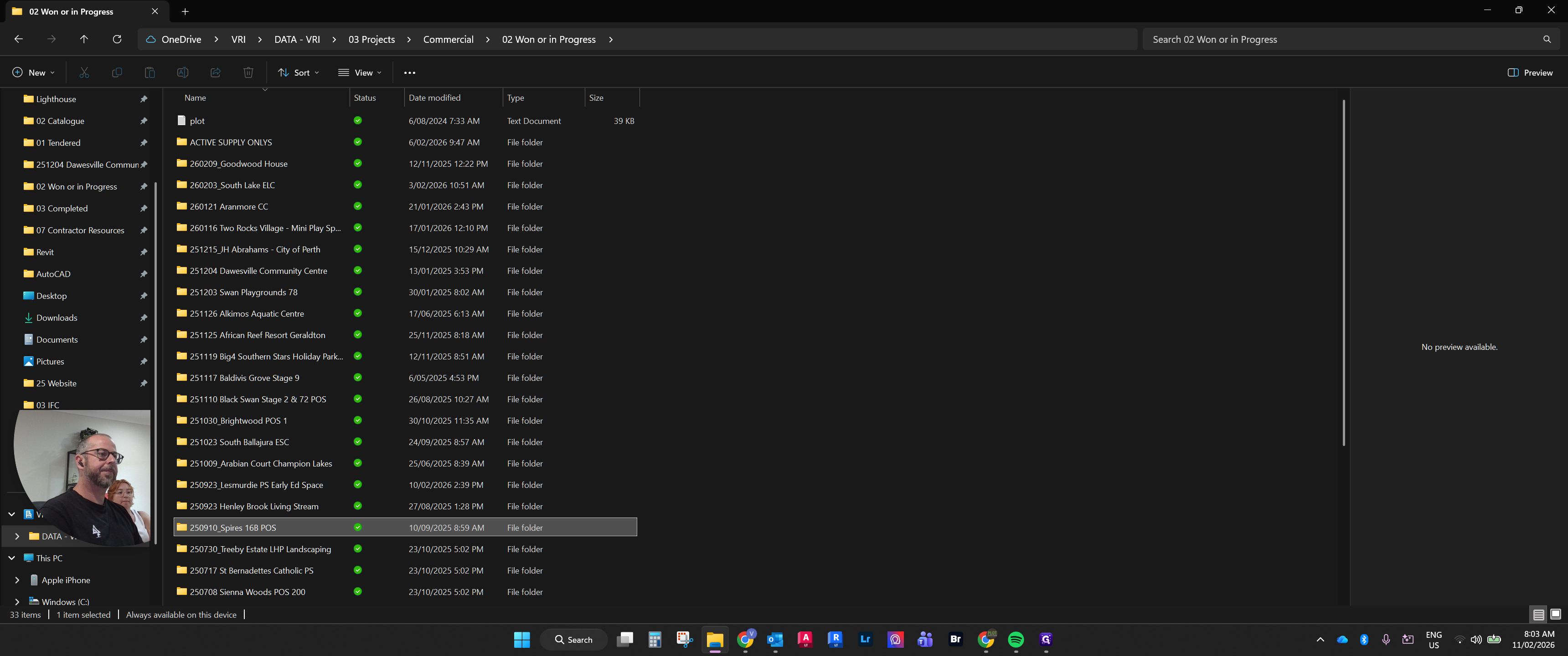
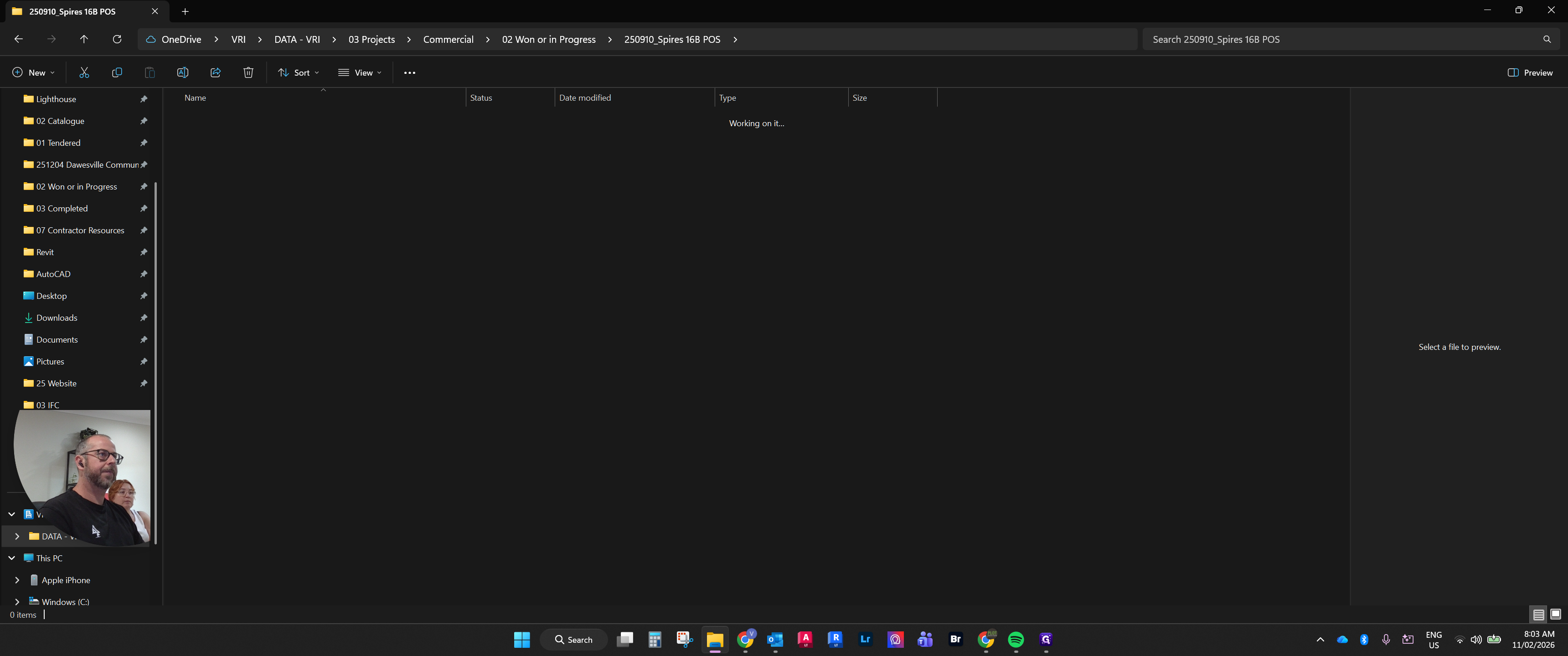
We are looking for Spires. We will look for Spires. This is a Spires project.
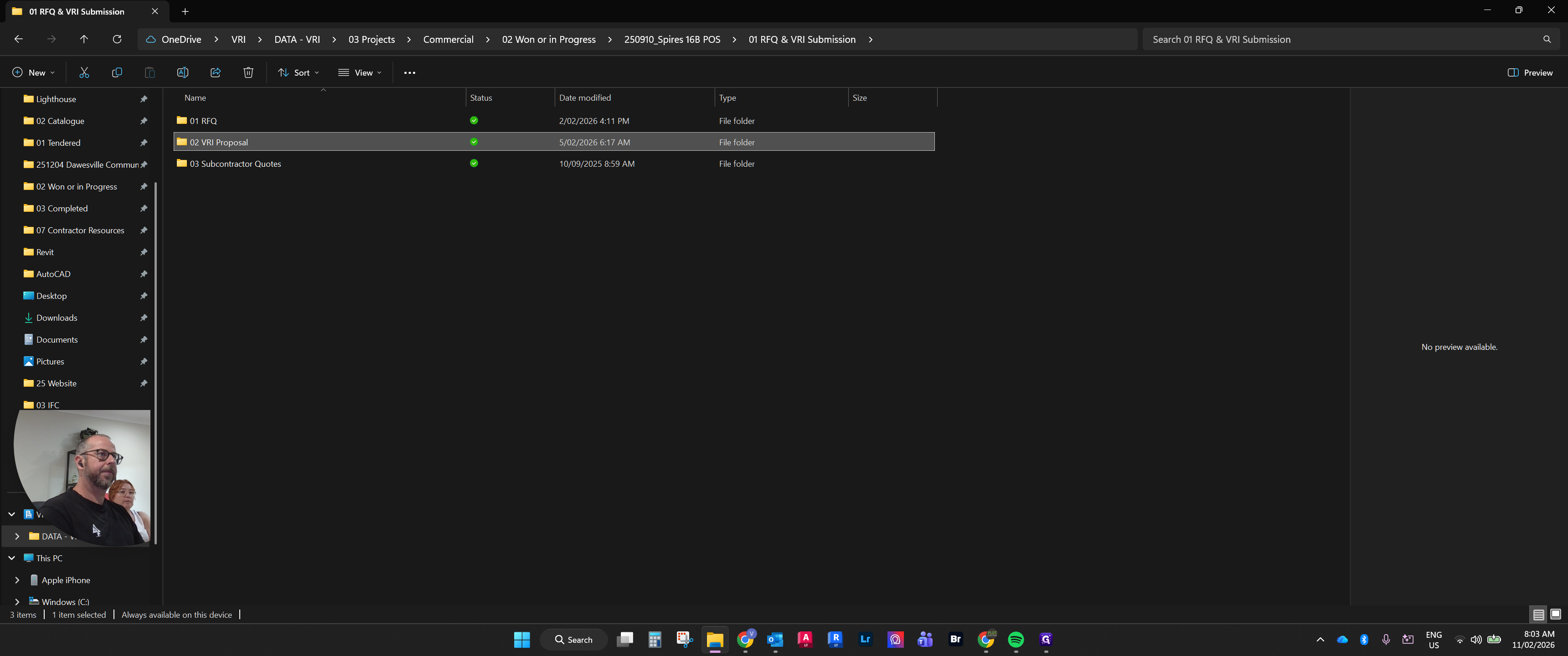
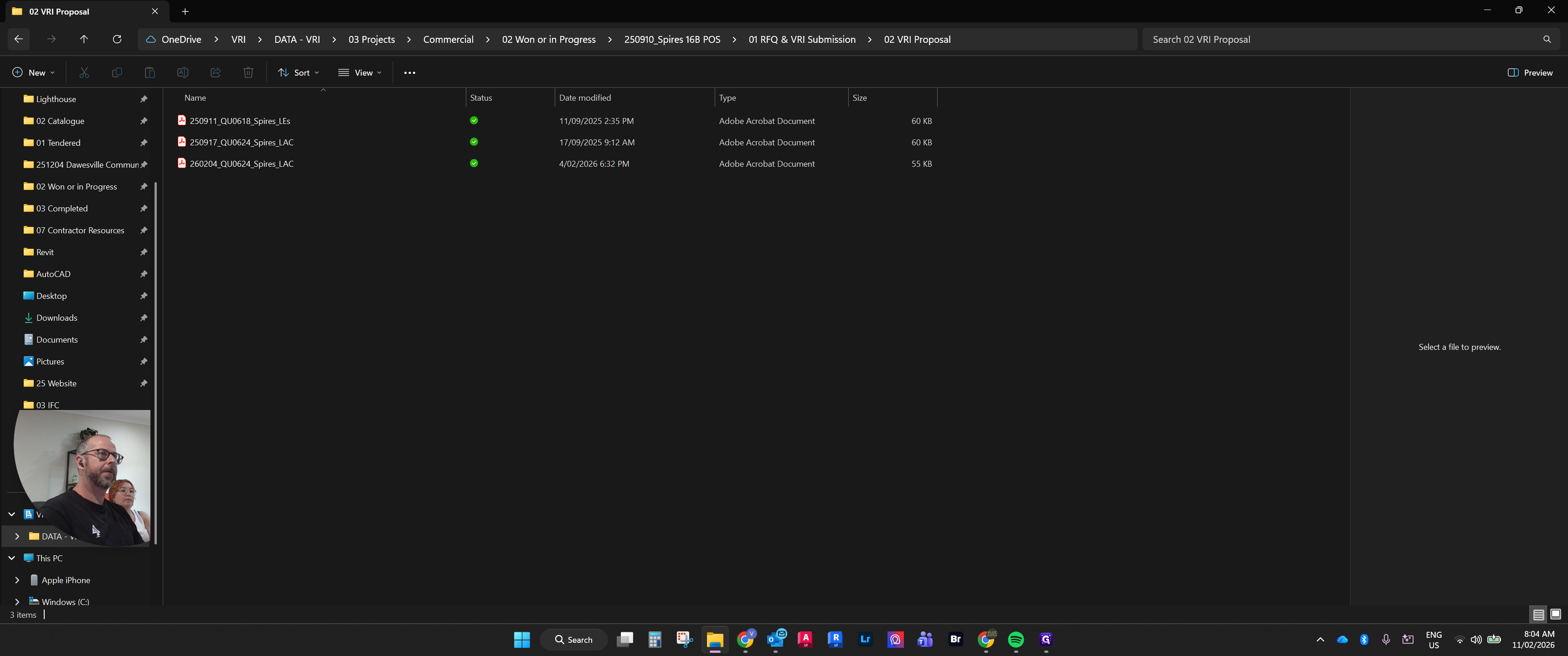
First, make sure the information in Outlook matches the details in the actual purchase order for the project. Often, the RFQ and VRI submissions folder will contain VRI proposals. Sometimes, there will be proposals from multiple landscape architects.
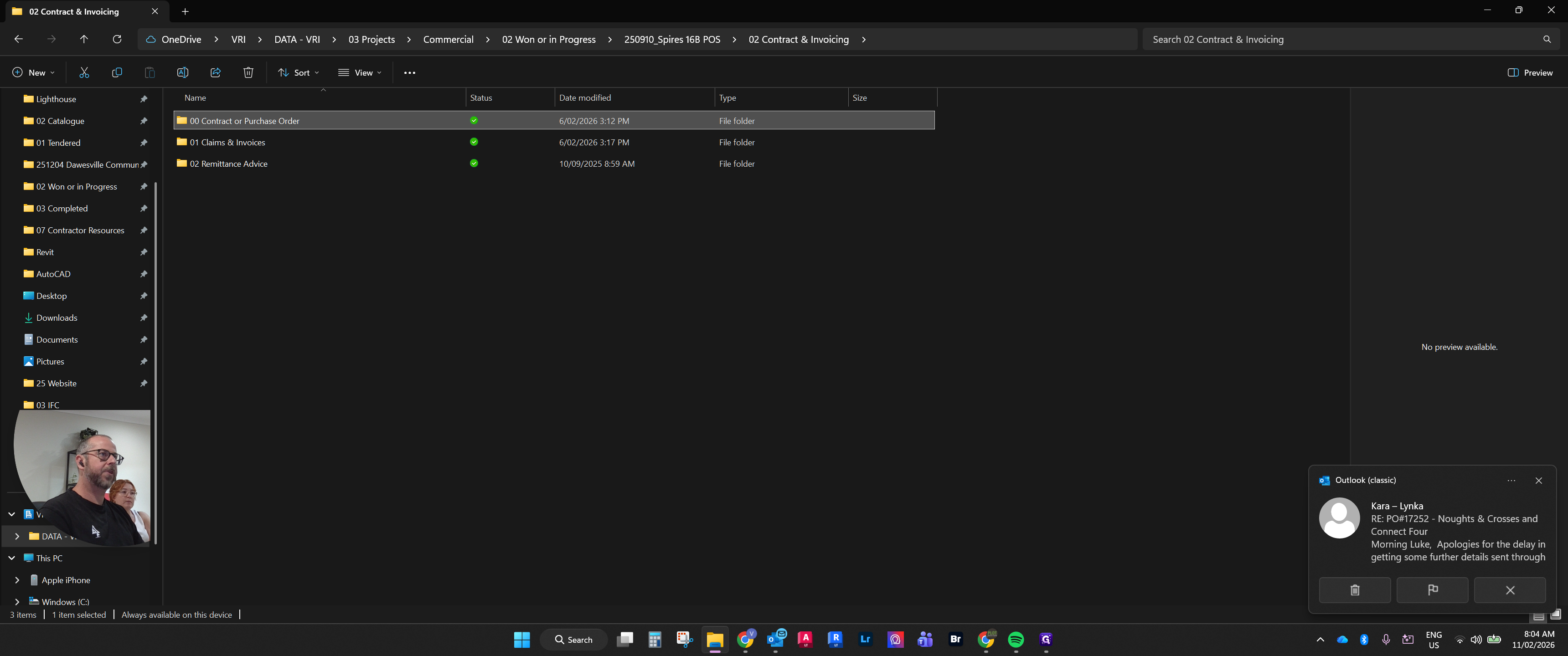
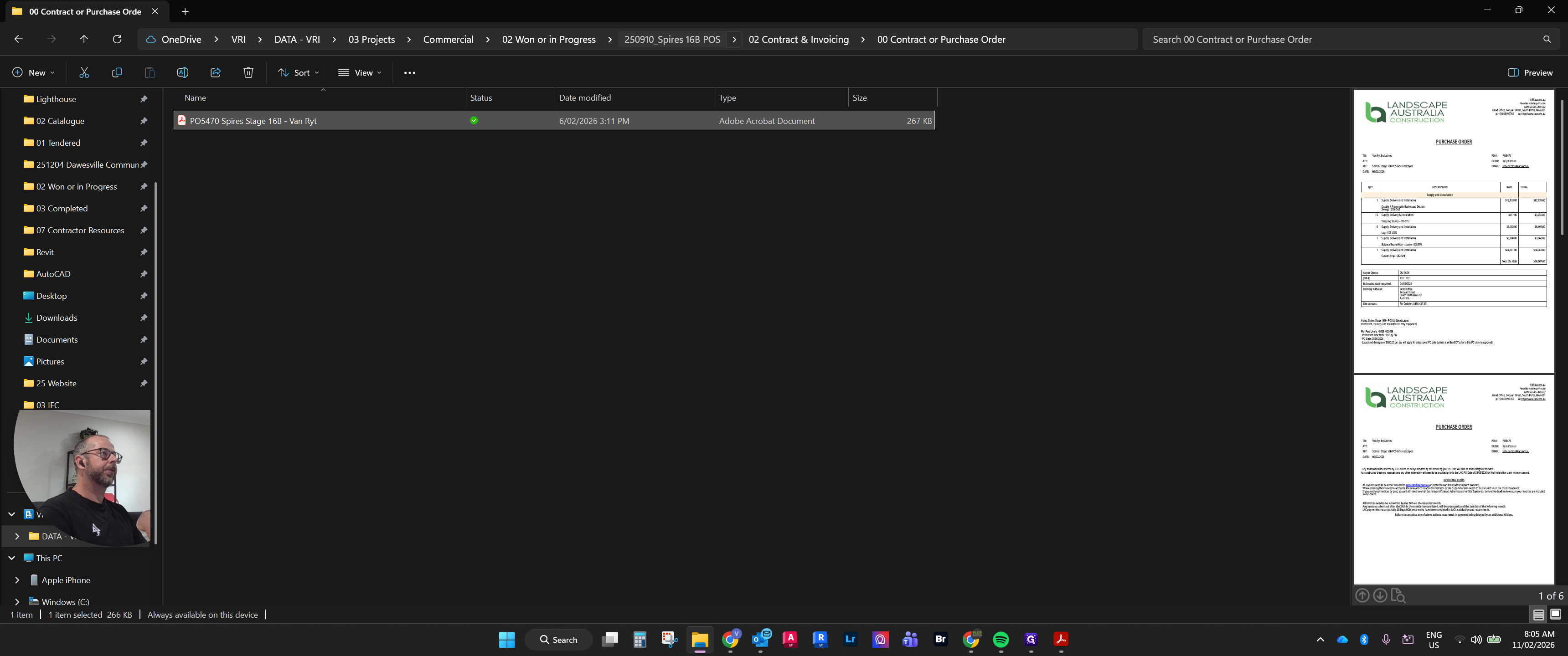
For clarity and to ensure we have exactly what was contracted, we refer to the contractor purchase order, Spire Stage 16B.
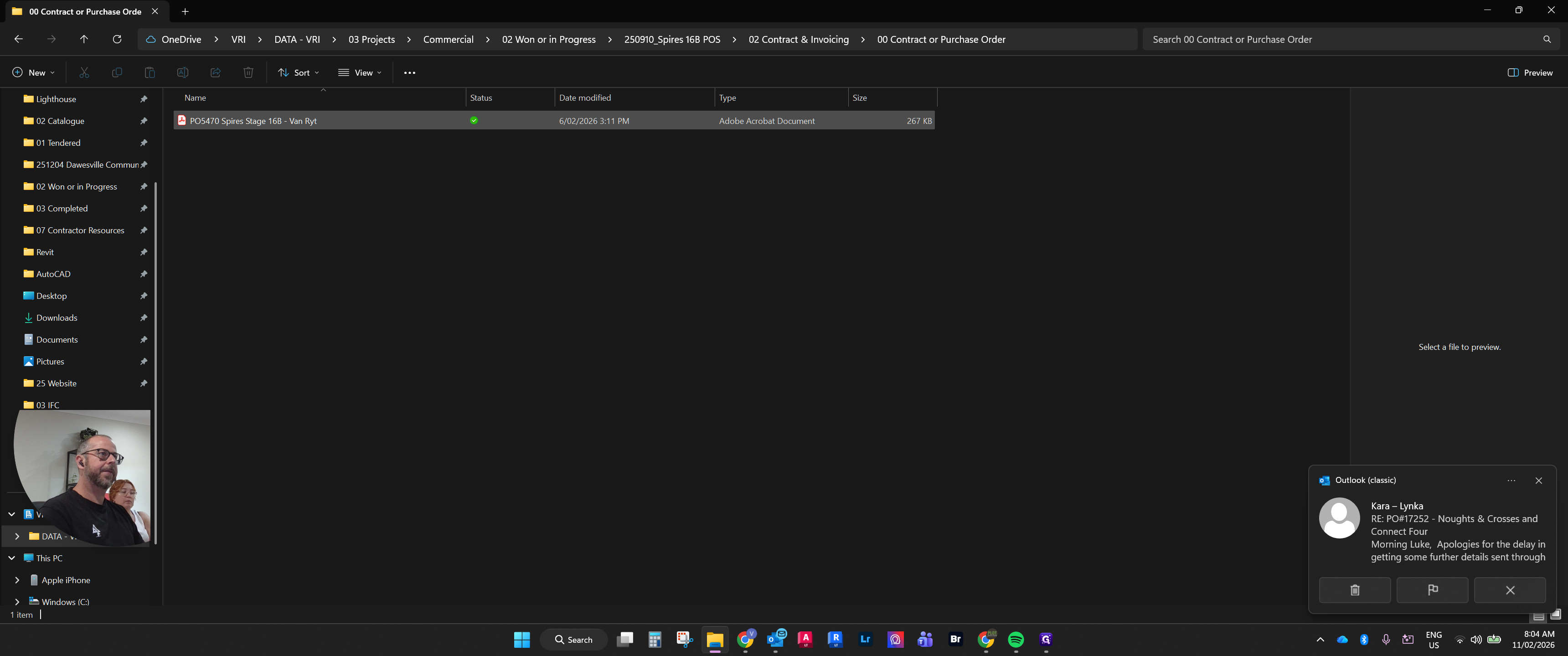
That's correct. If we open this, it should confirm...
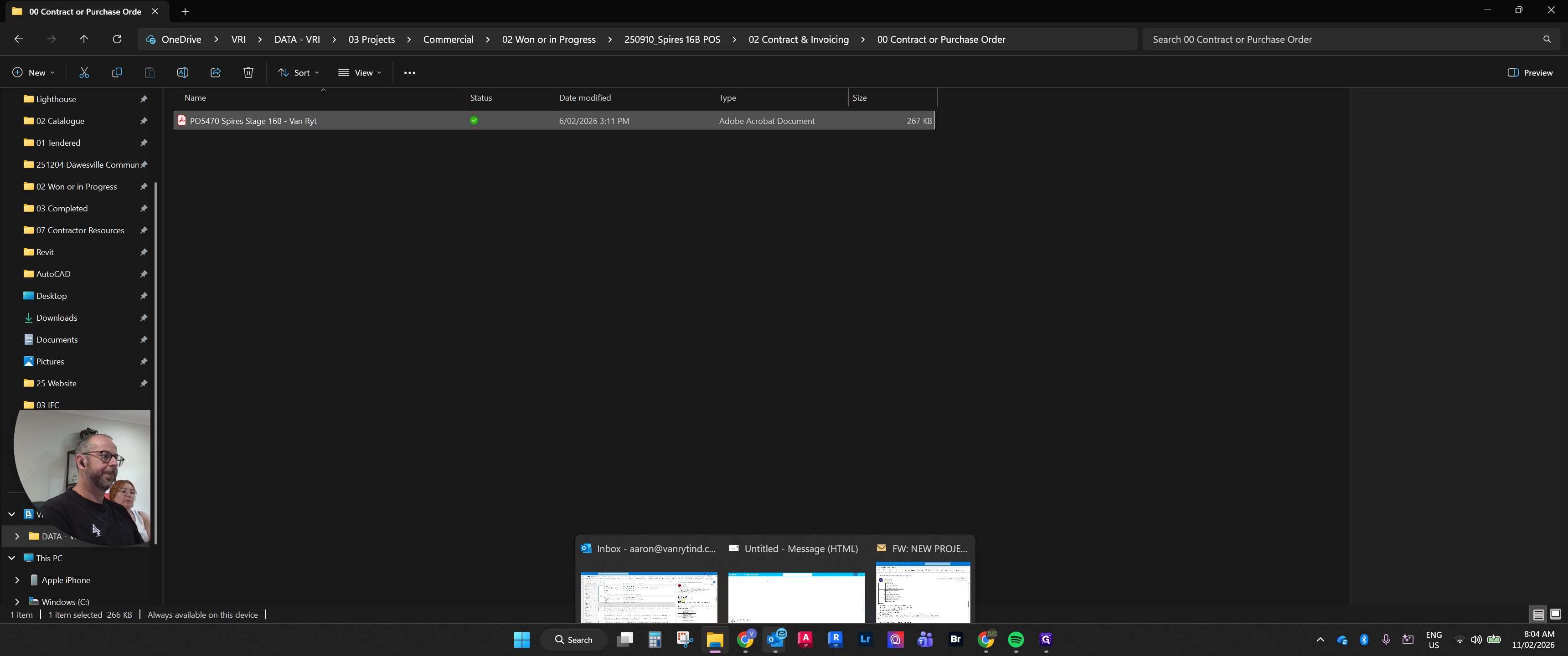
We will cross-reference all of these.
Accuracy.
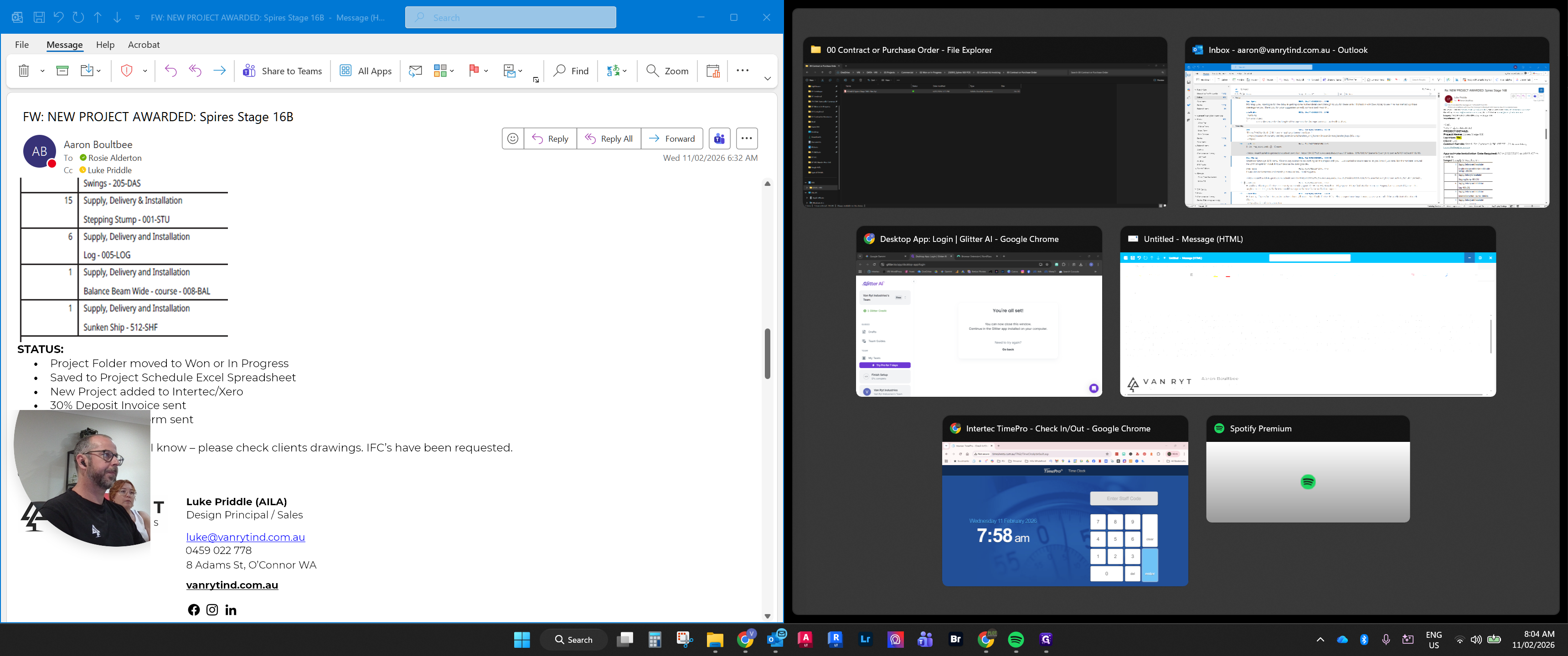
That didn't open, so I'll try again.
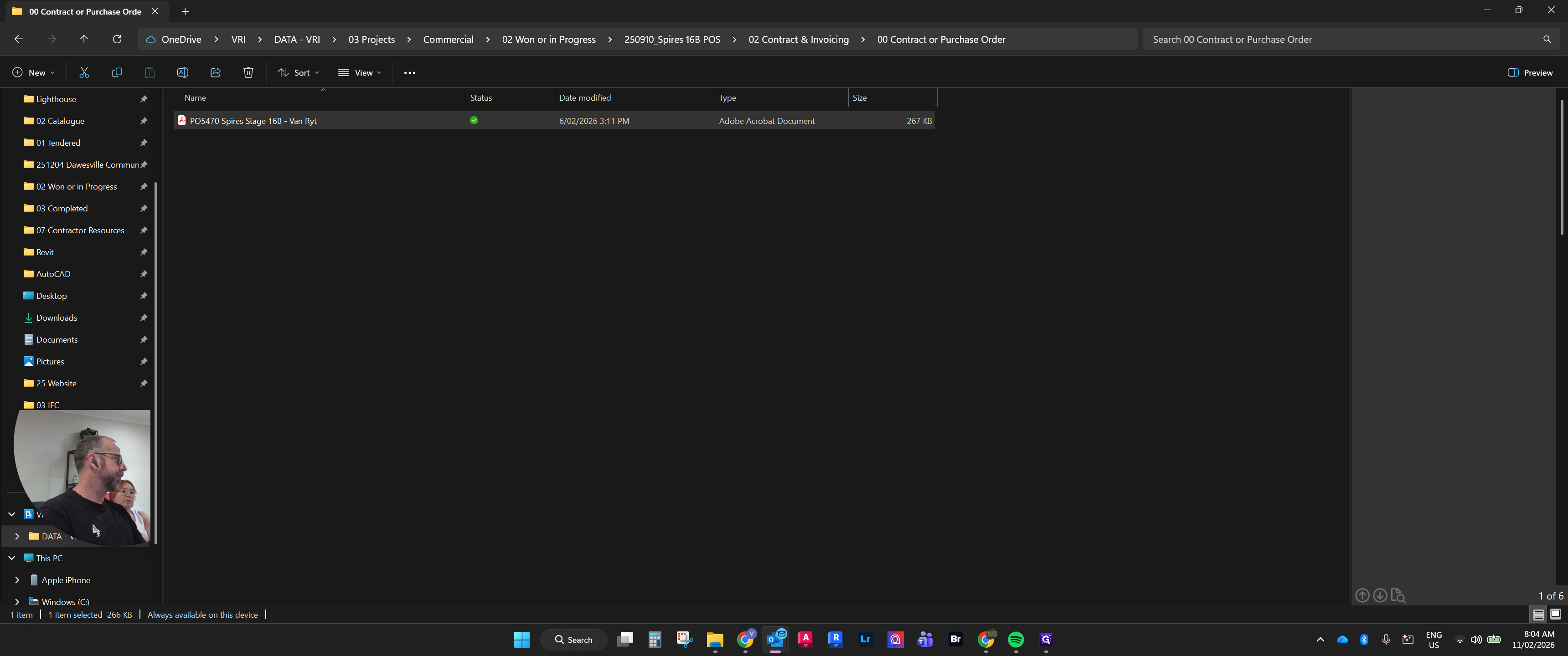
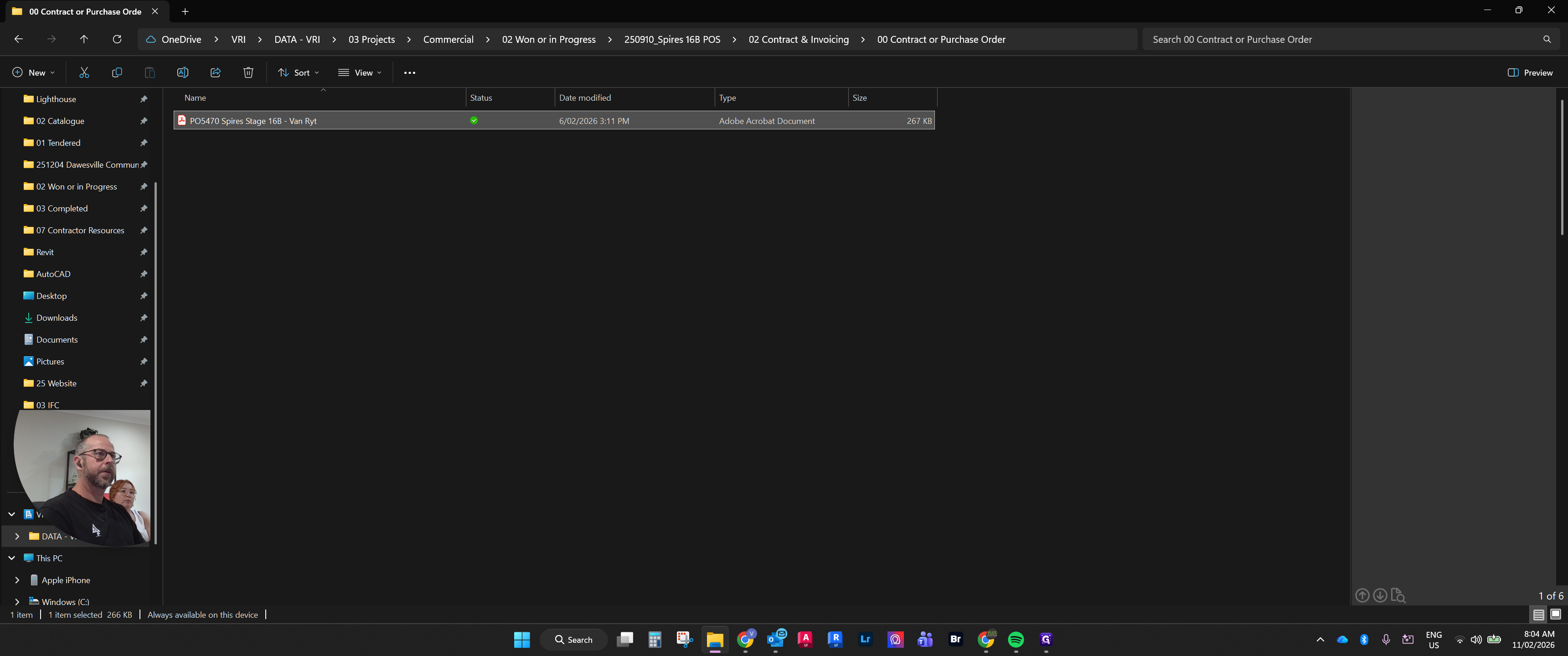
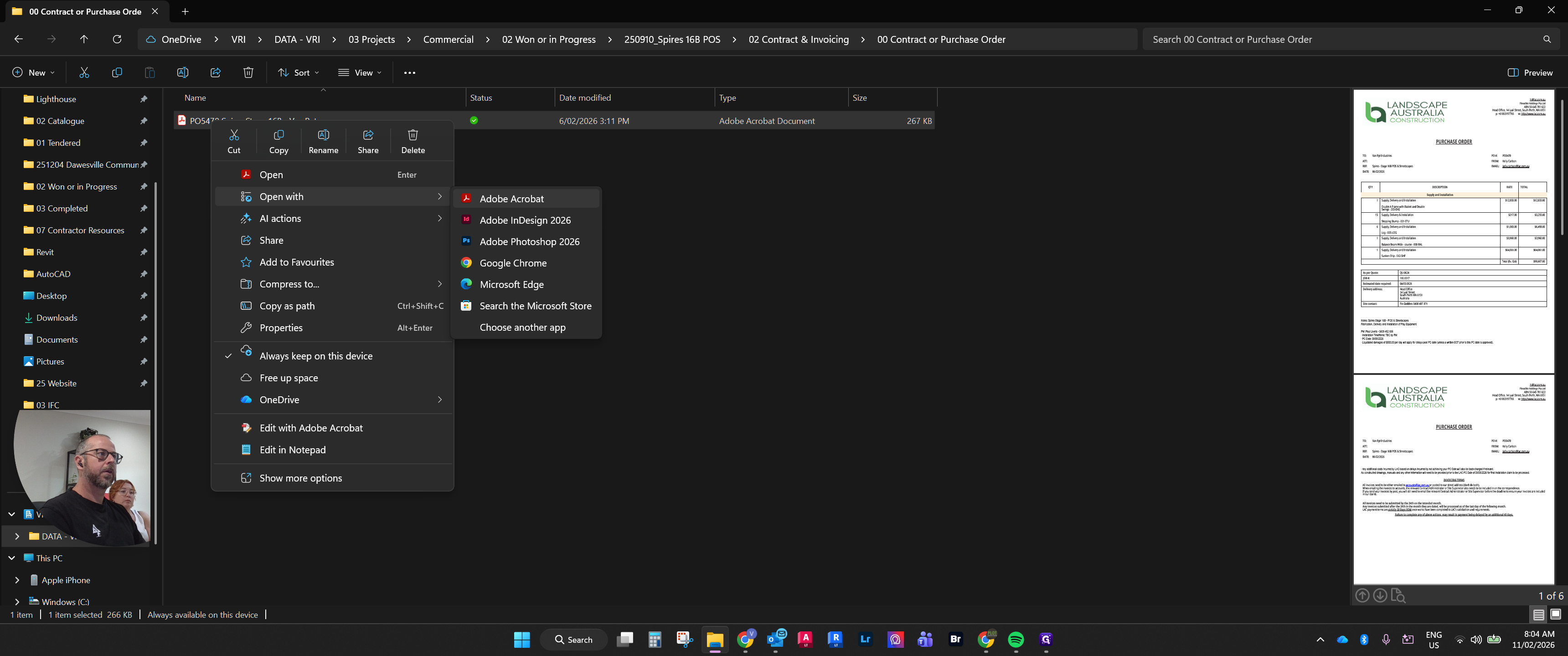
Open it with Acrobat.
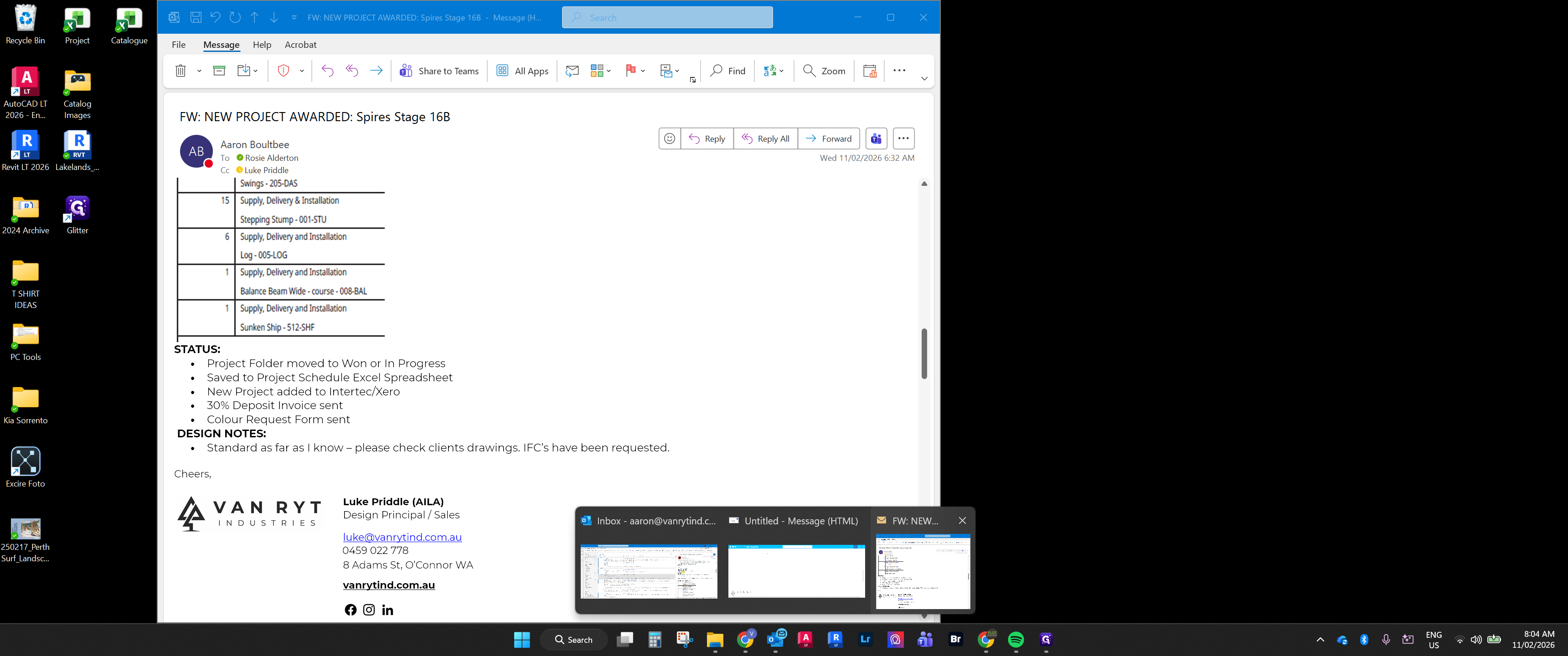
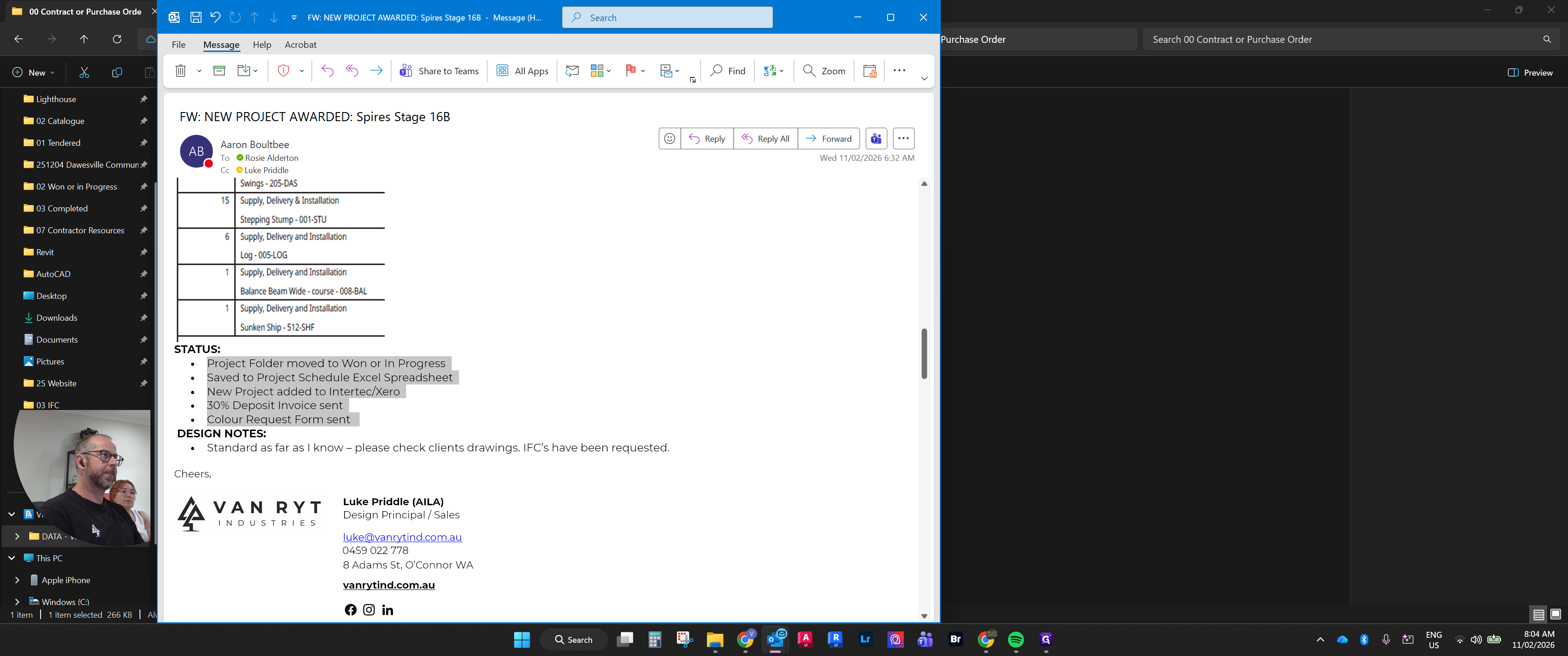
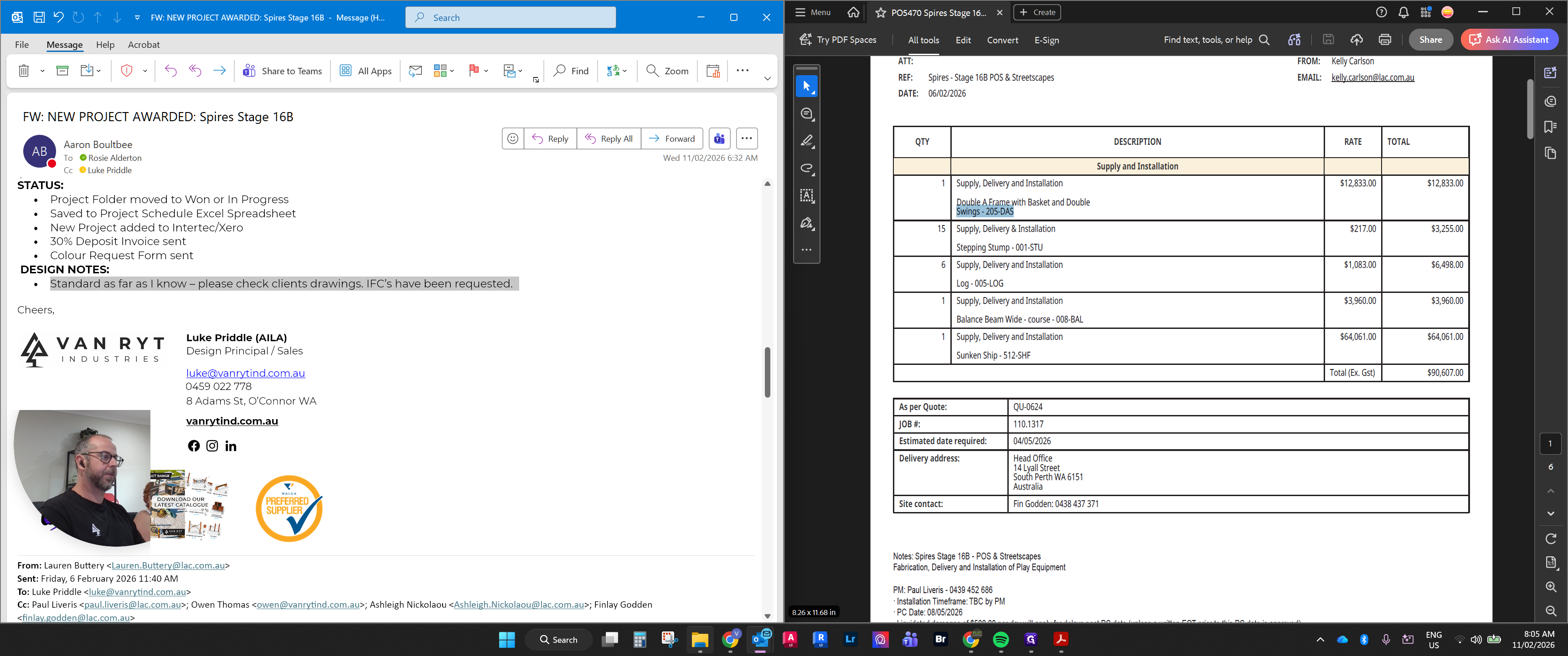
We want to ensure that the information in the email matches the actual purchase order.
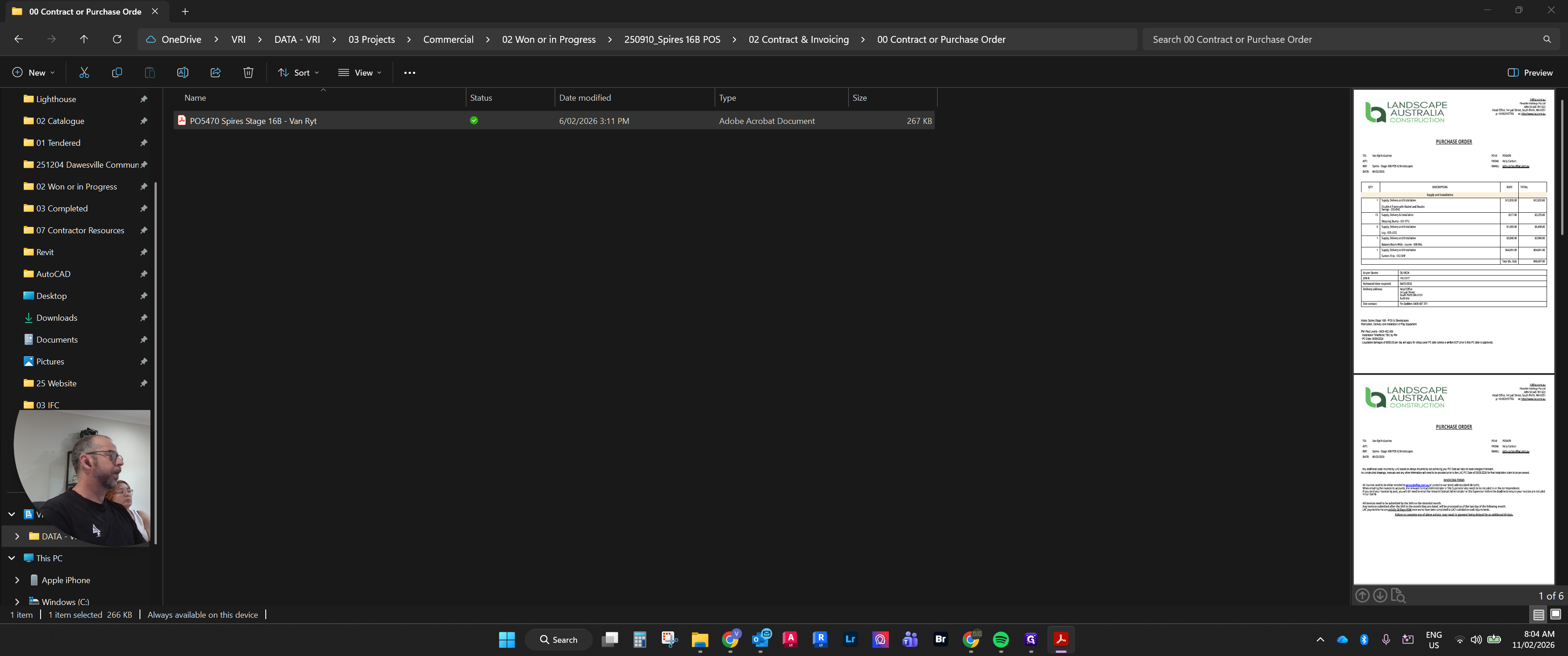
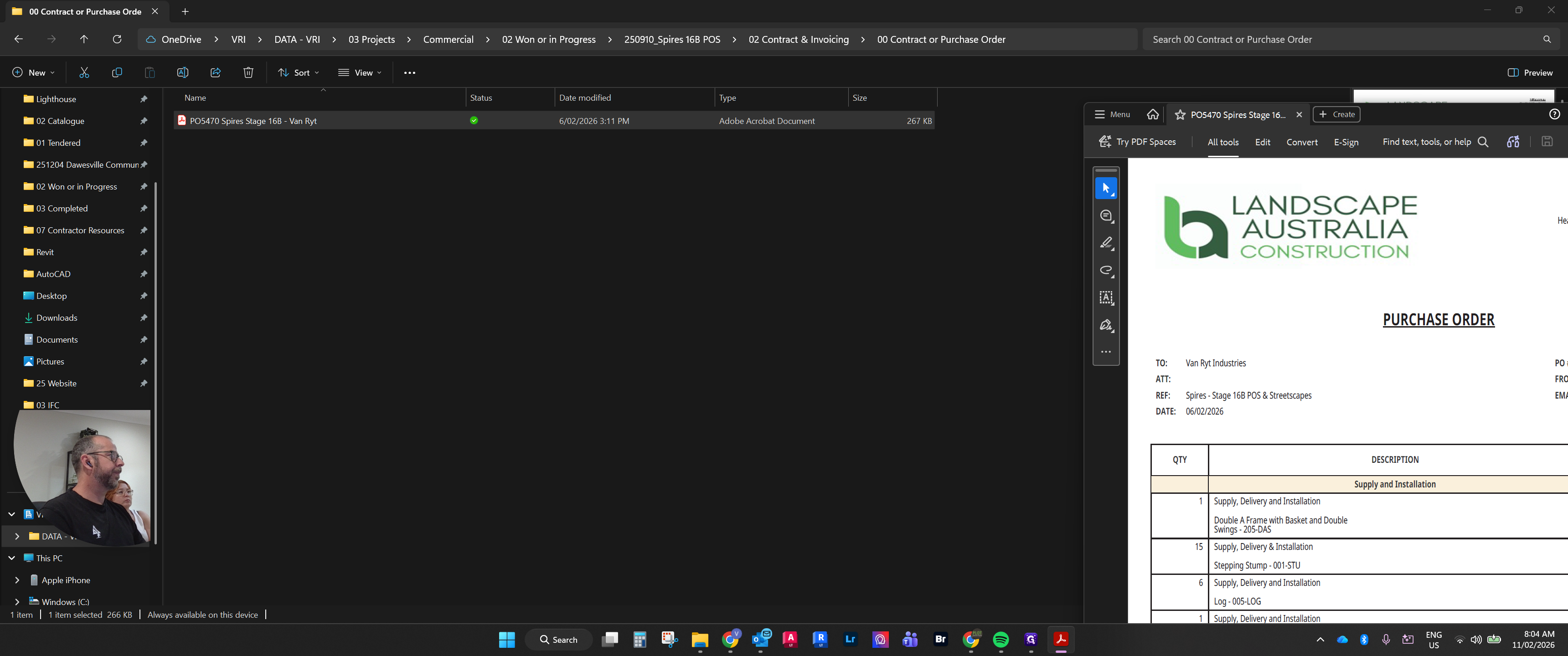
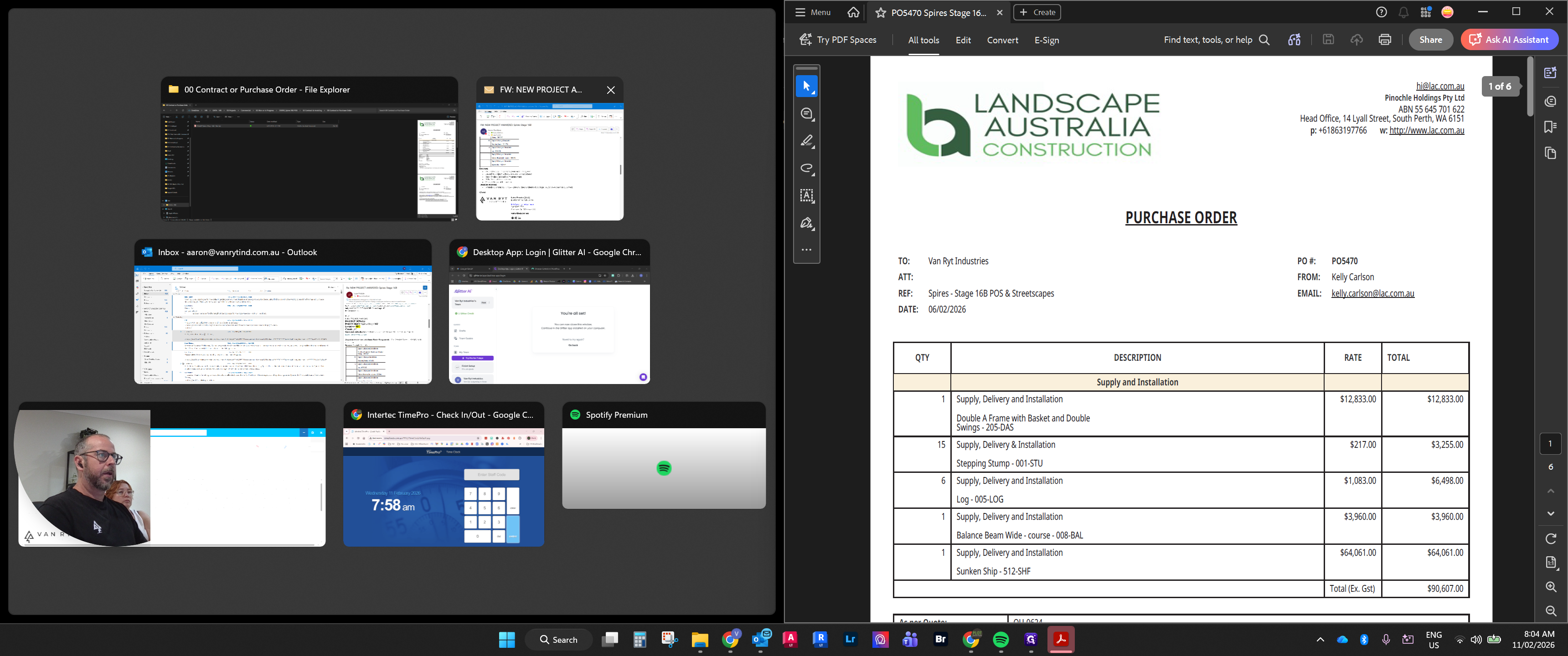
We can see that this includes the same items. Stepping stumps—I can confirm they are the same.
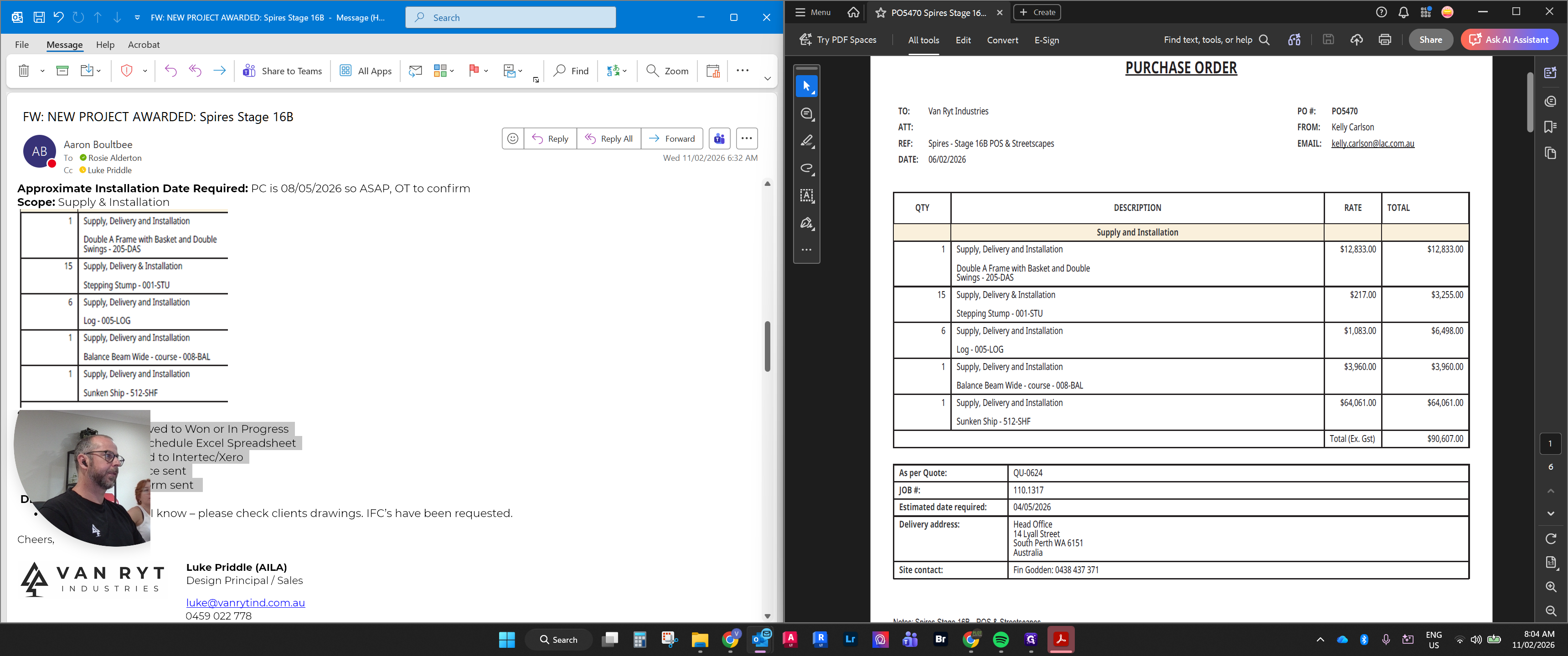
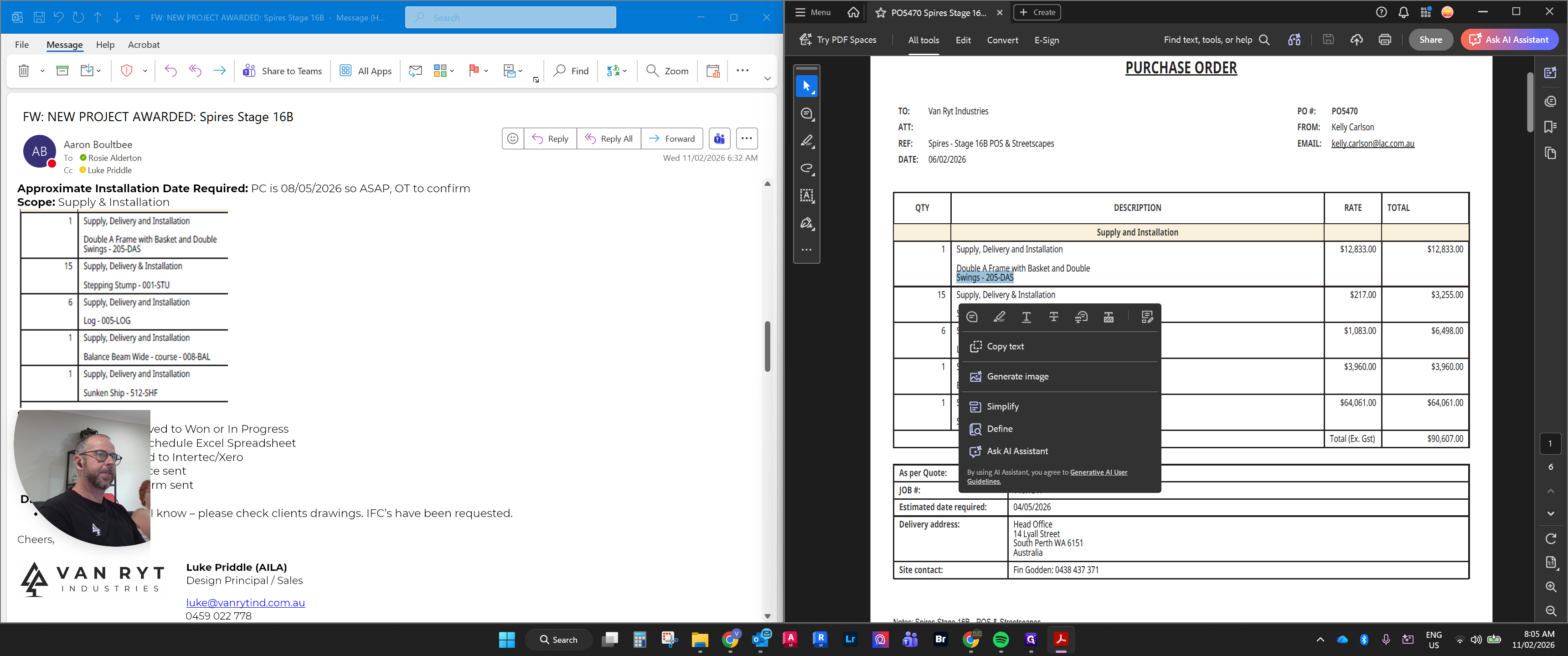
The logs are the same. The width of the balance beam is the same as that of the sunken ship. Okay. Now that we know this, I see a note in the design notes.
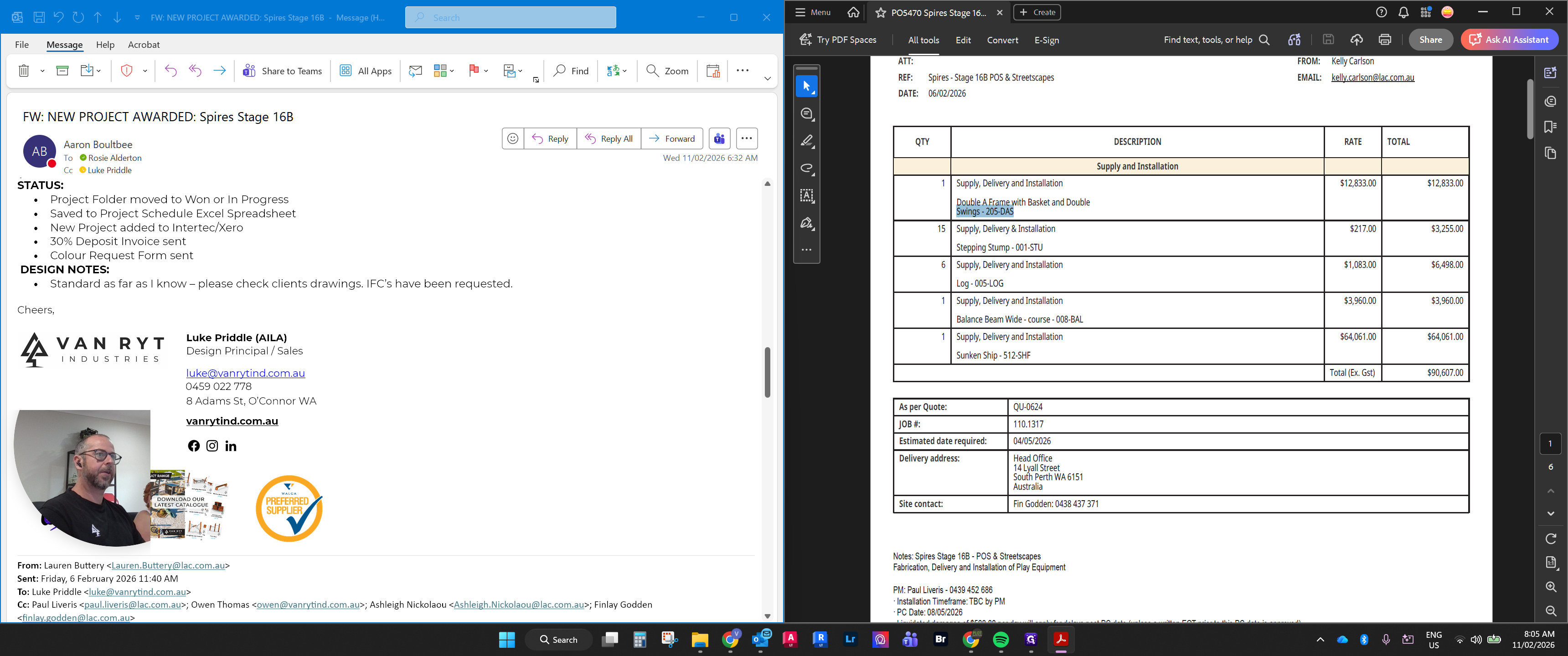
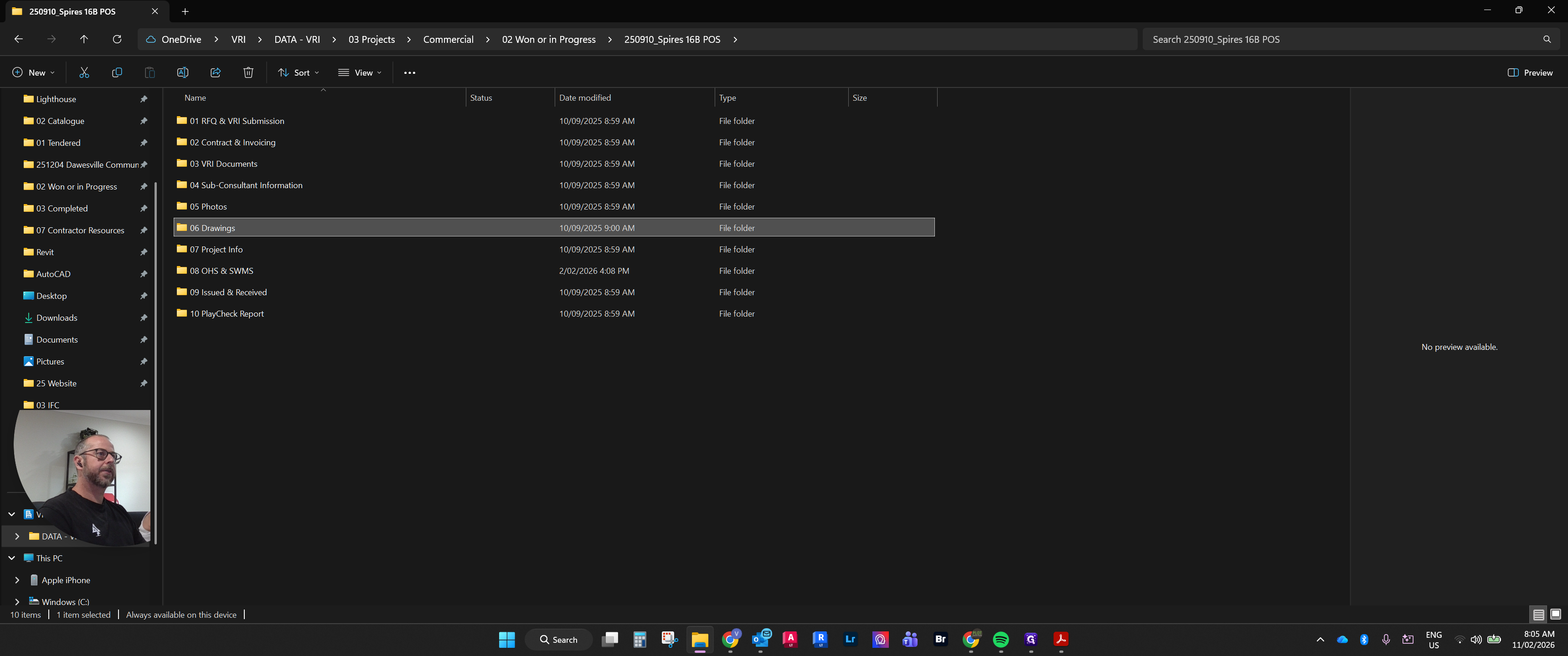
Check the client's IFC folders. To navigate to those folders, go to the Spires Drawings IFC folder.
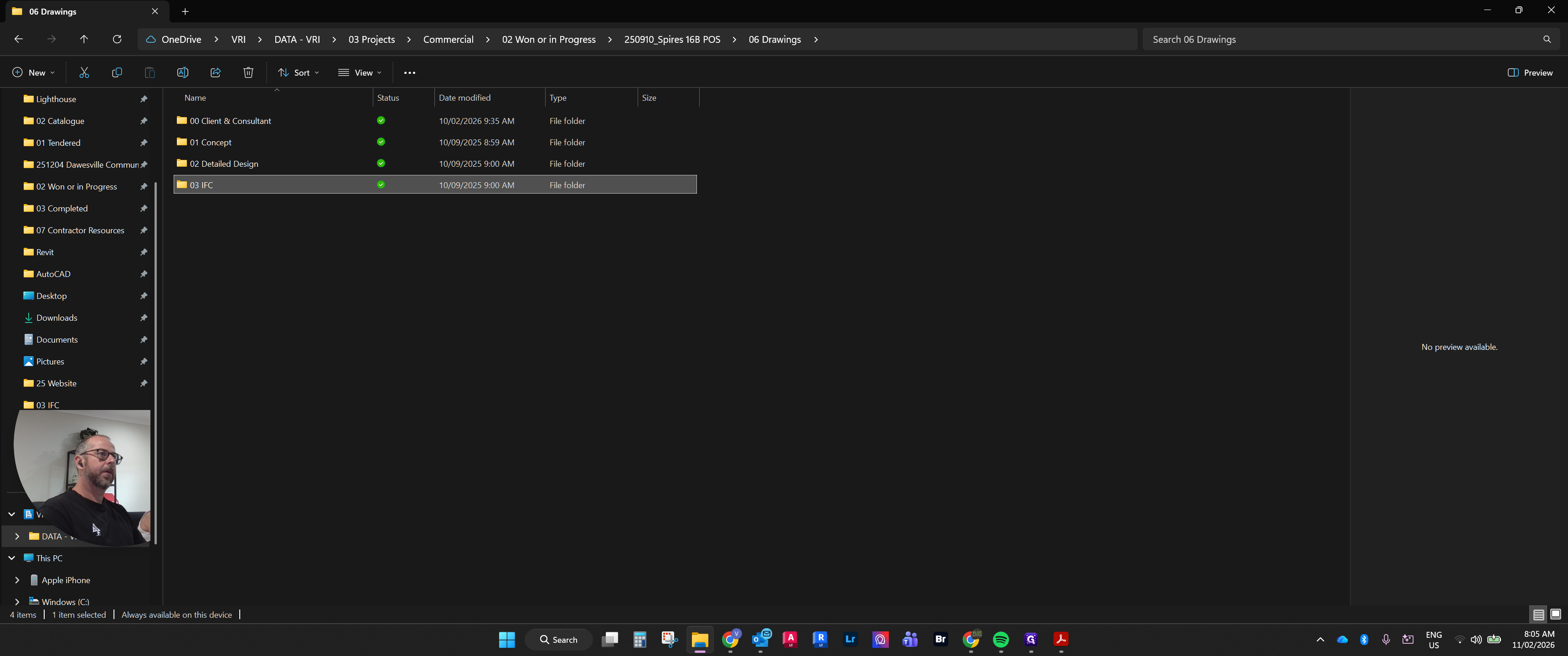
Oh, sorry.
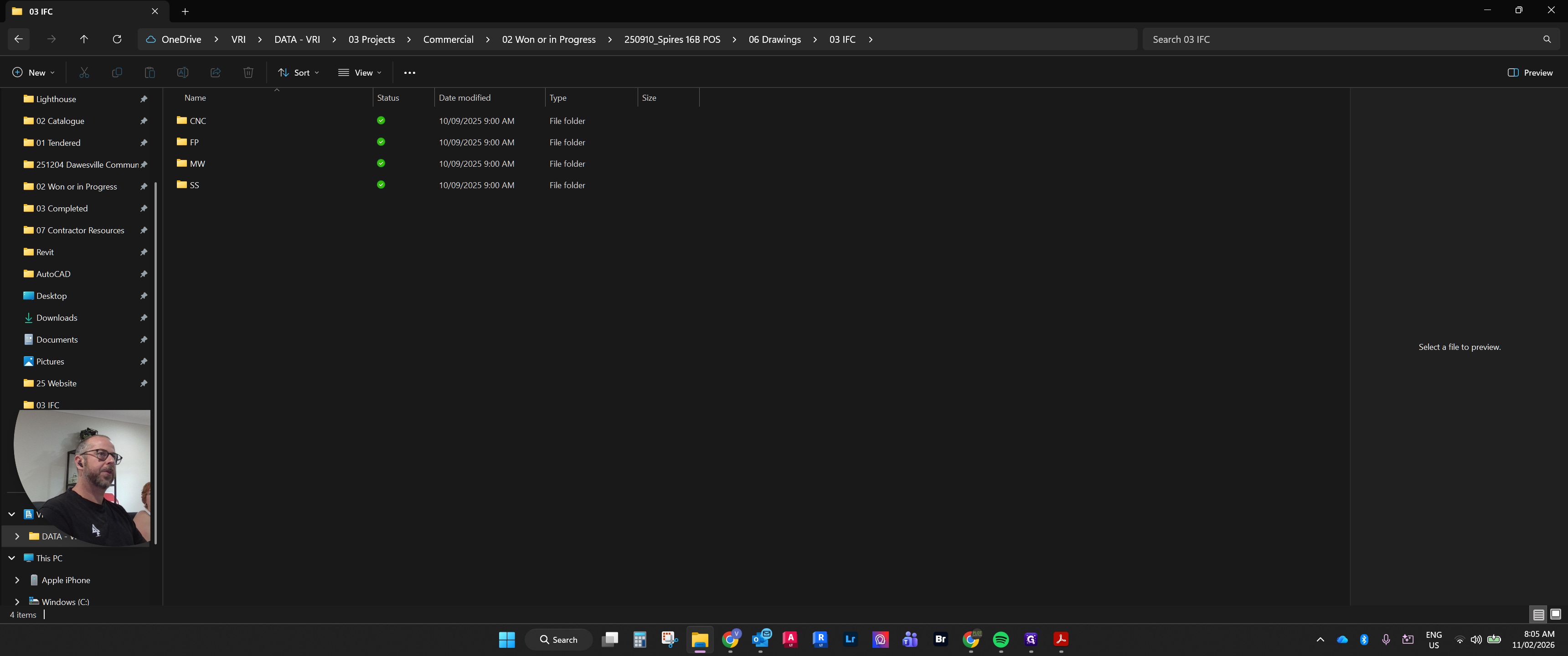
Yeah. Go back.
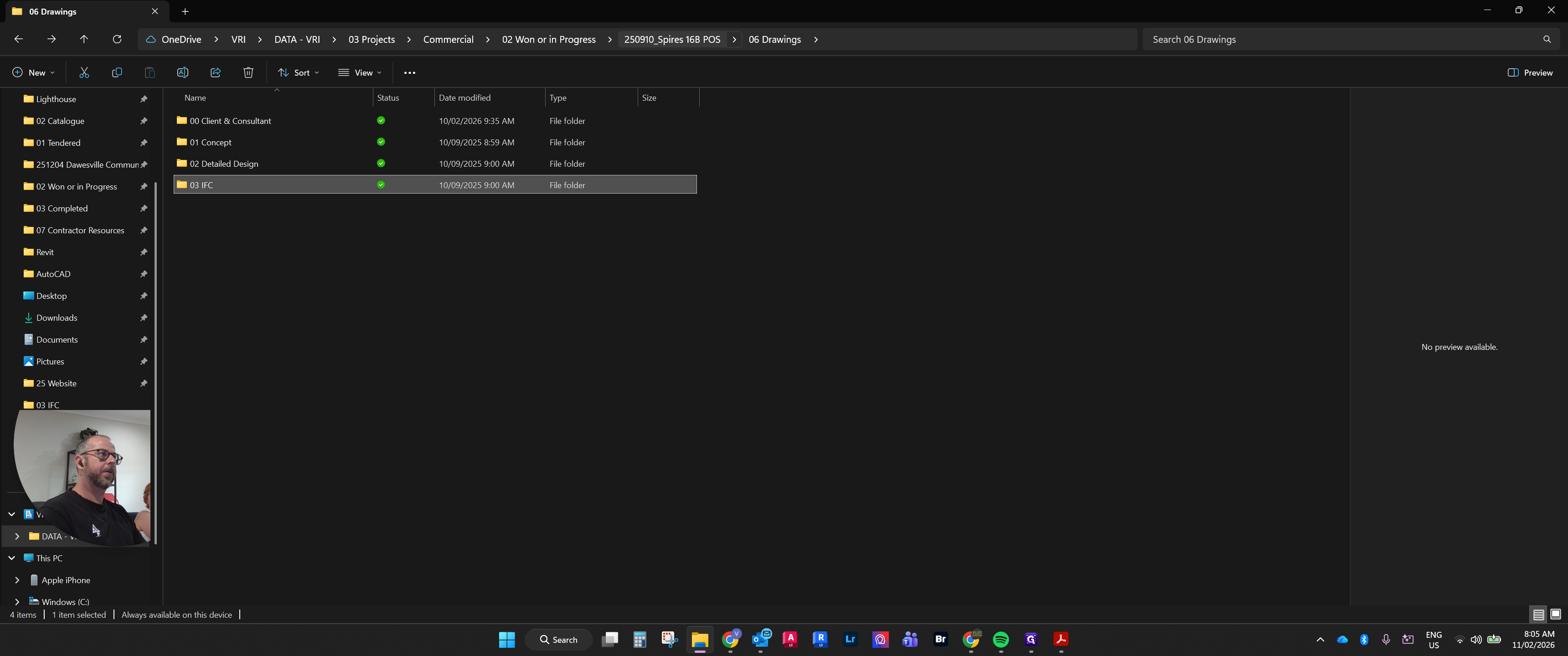
Sorry. Would you like to access Drawings, Client, and Consultants?
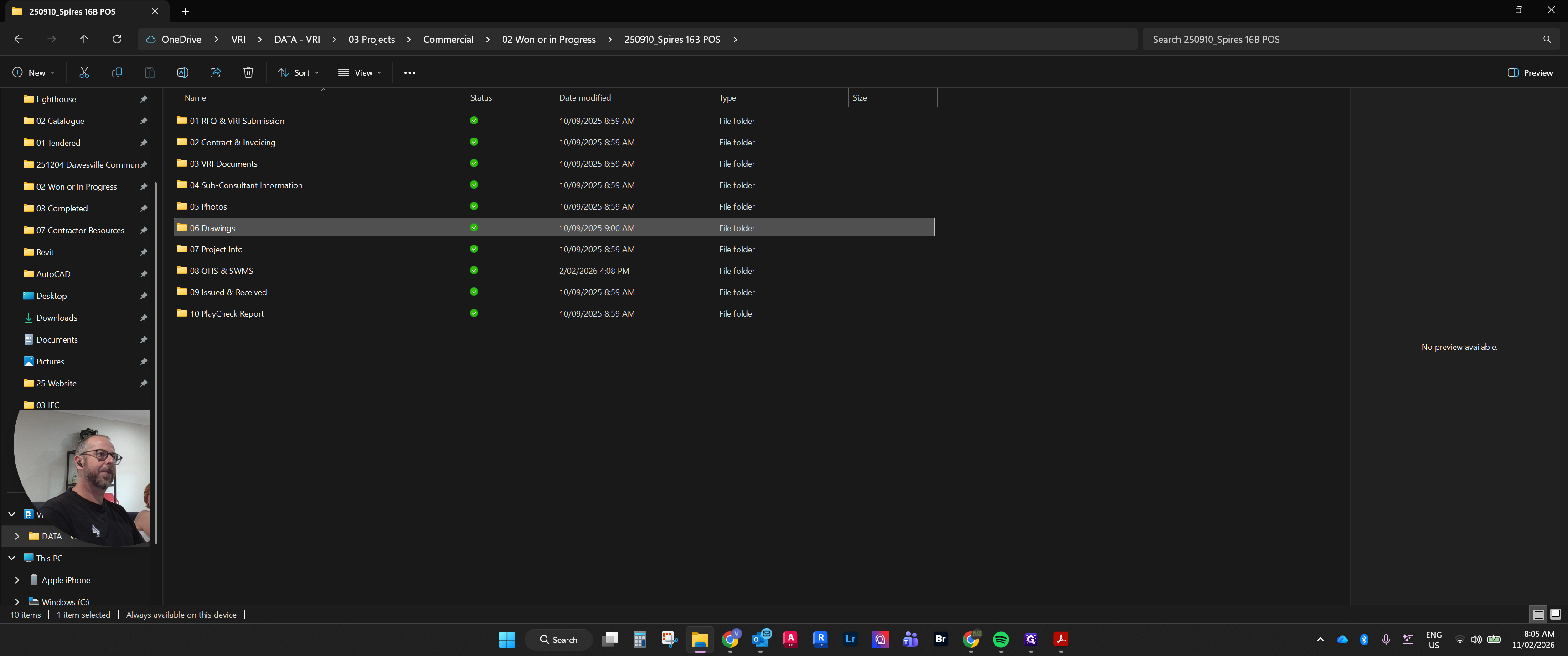
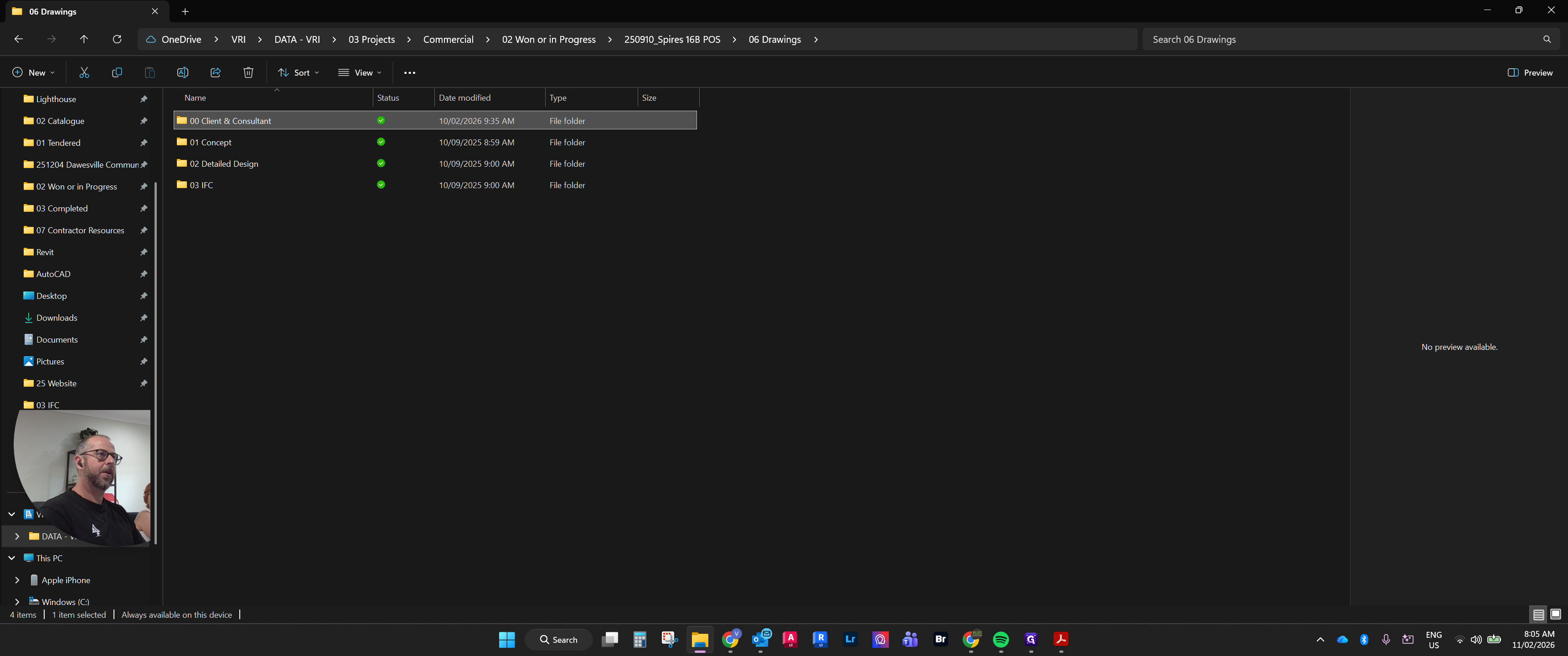
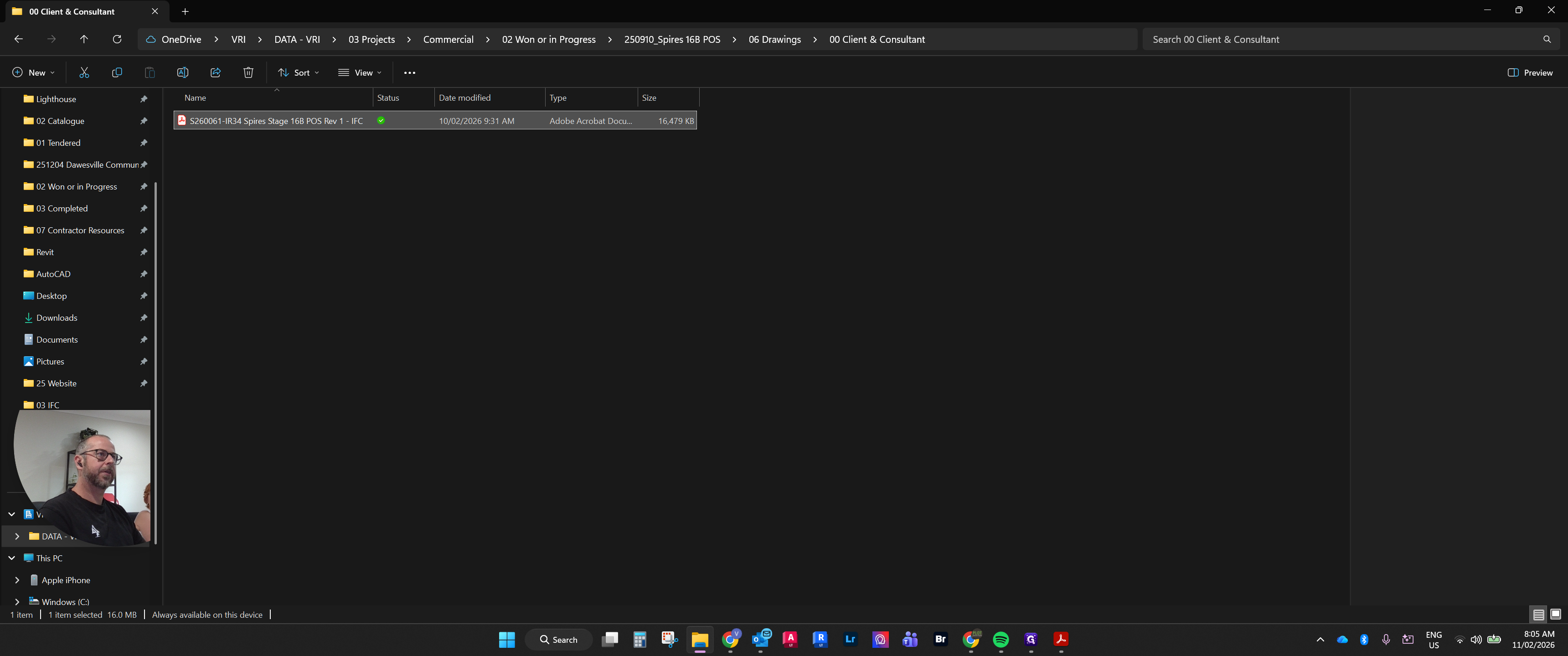
Here are the latest landscape drawings we have on file for the project.
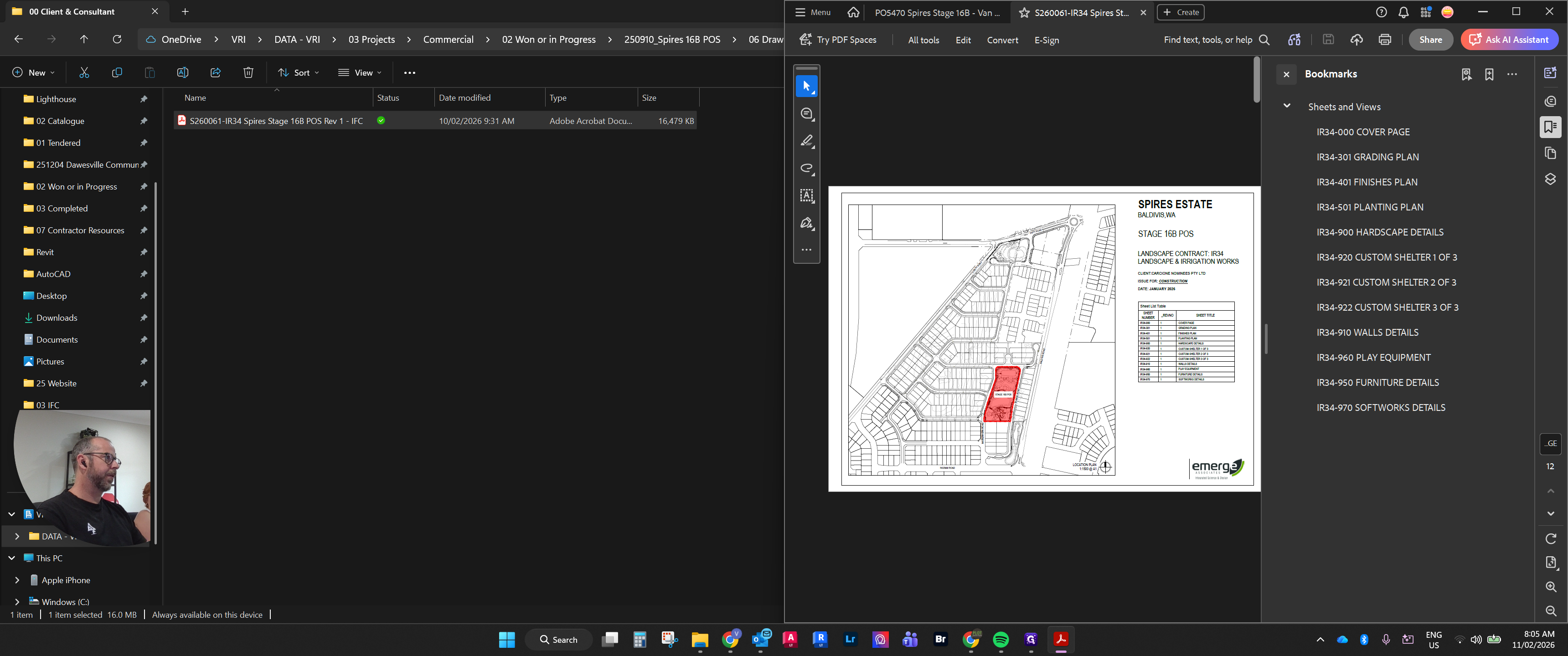
Our job is to cross-reference this information with the project contract.
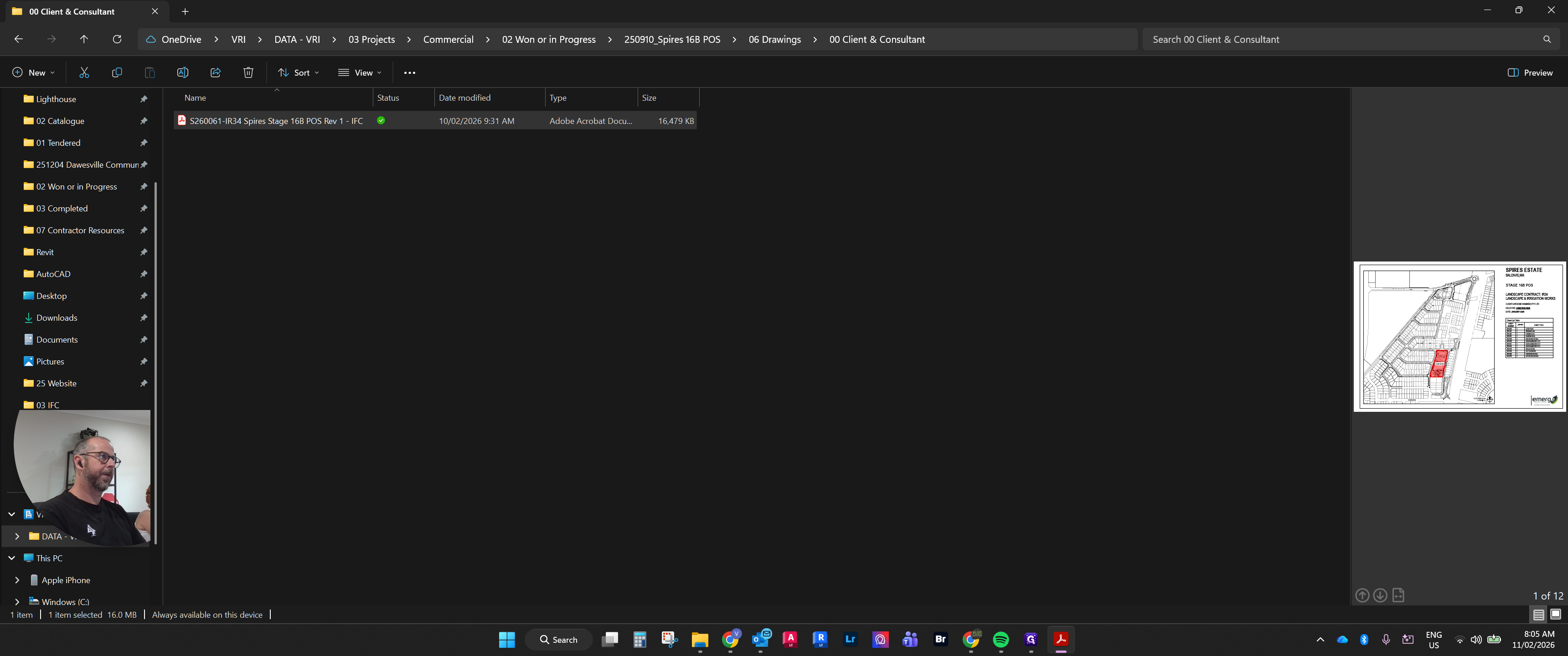
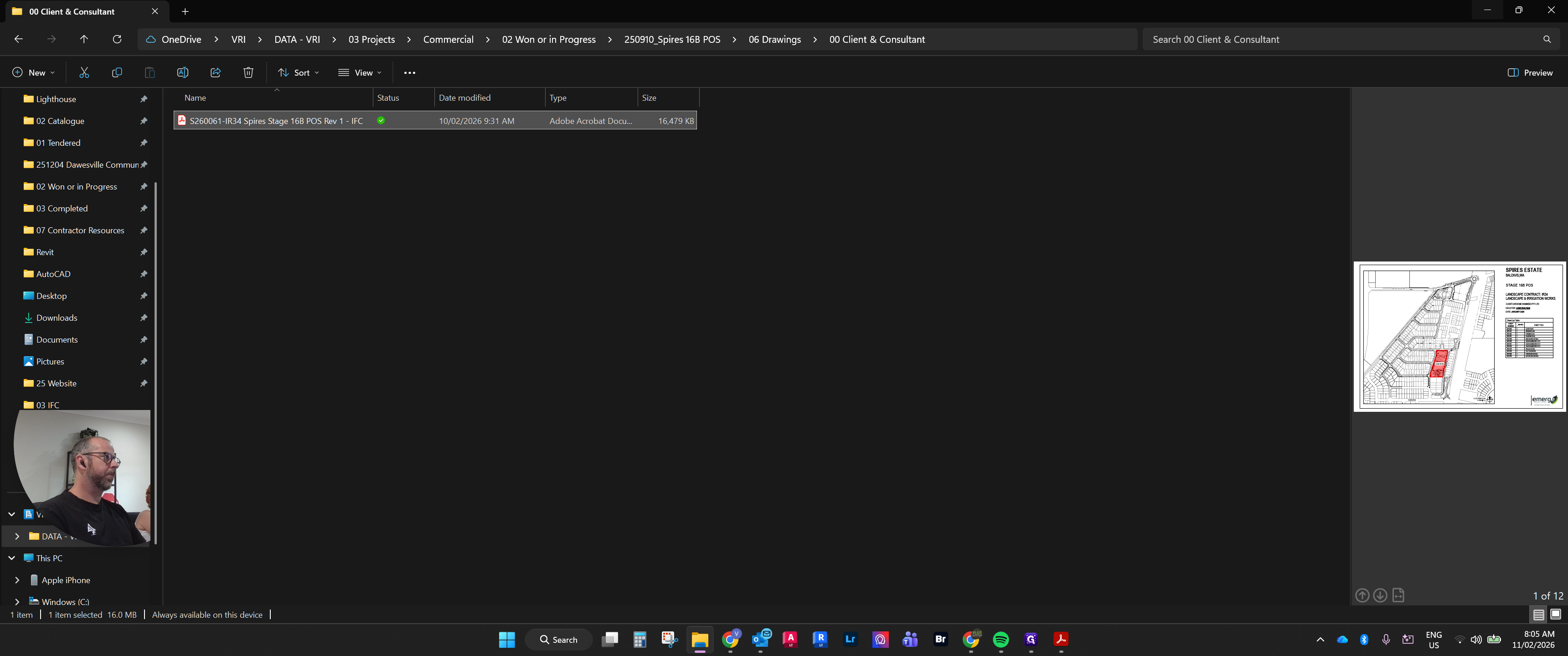
I'll leave this up so we can see it. There are several different sheets in here. We need to find the one that has...