Icon

How to Import and Set Up The Techibbie YouTube Promote Action in StreamingBot

By Libbie-Rose

In this guide is to show you how to import and set up the Techibbie, YouTube Promote action for streamer.bot. This action will help you automate YouTube video and shorts announcements in your twitch chat.

We'll cover how to import the file, handle custom code warnings, find and set your YouTube channel ID, and enable automated alerts. By the end, you'll be able to customise and automate your YouTube notifications.

Let's get started

After downloading the YouTube Promote TechibbieSBA, which is the Streamer.Bot import file, proceed to the next step.
1
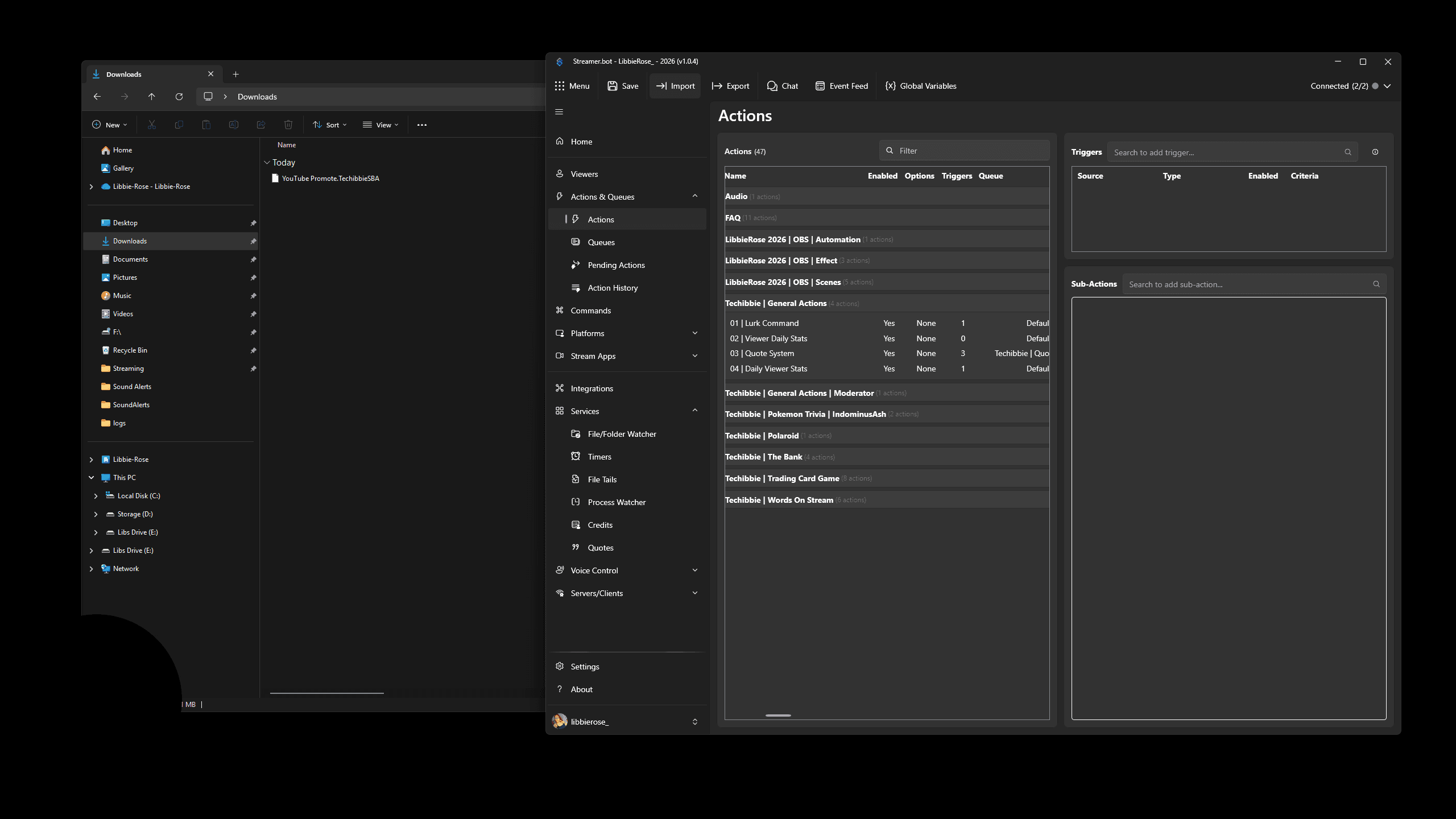
In Streamer.bot Click on "→ Import"
Step #1: In Streamer.bot Click on "→ Import"

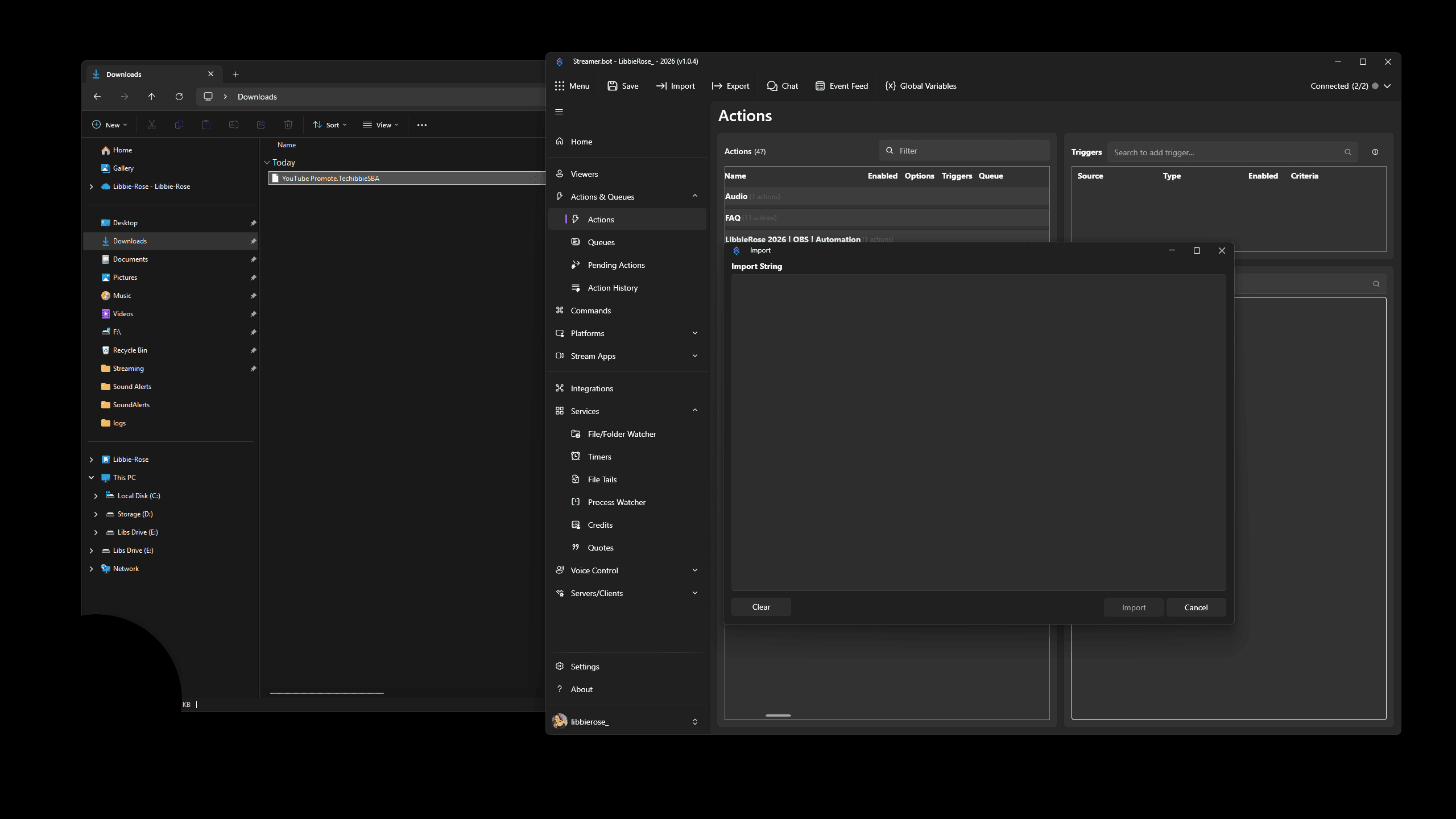
Click on Import, then drag the file into the import window.
2
Drag "YouTube Promote.TechibbieSBA" into the import window
Step #2: Drag "YouTube Promote.TechibbieSBA" into the import window

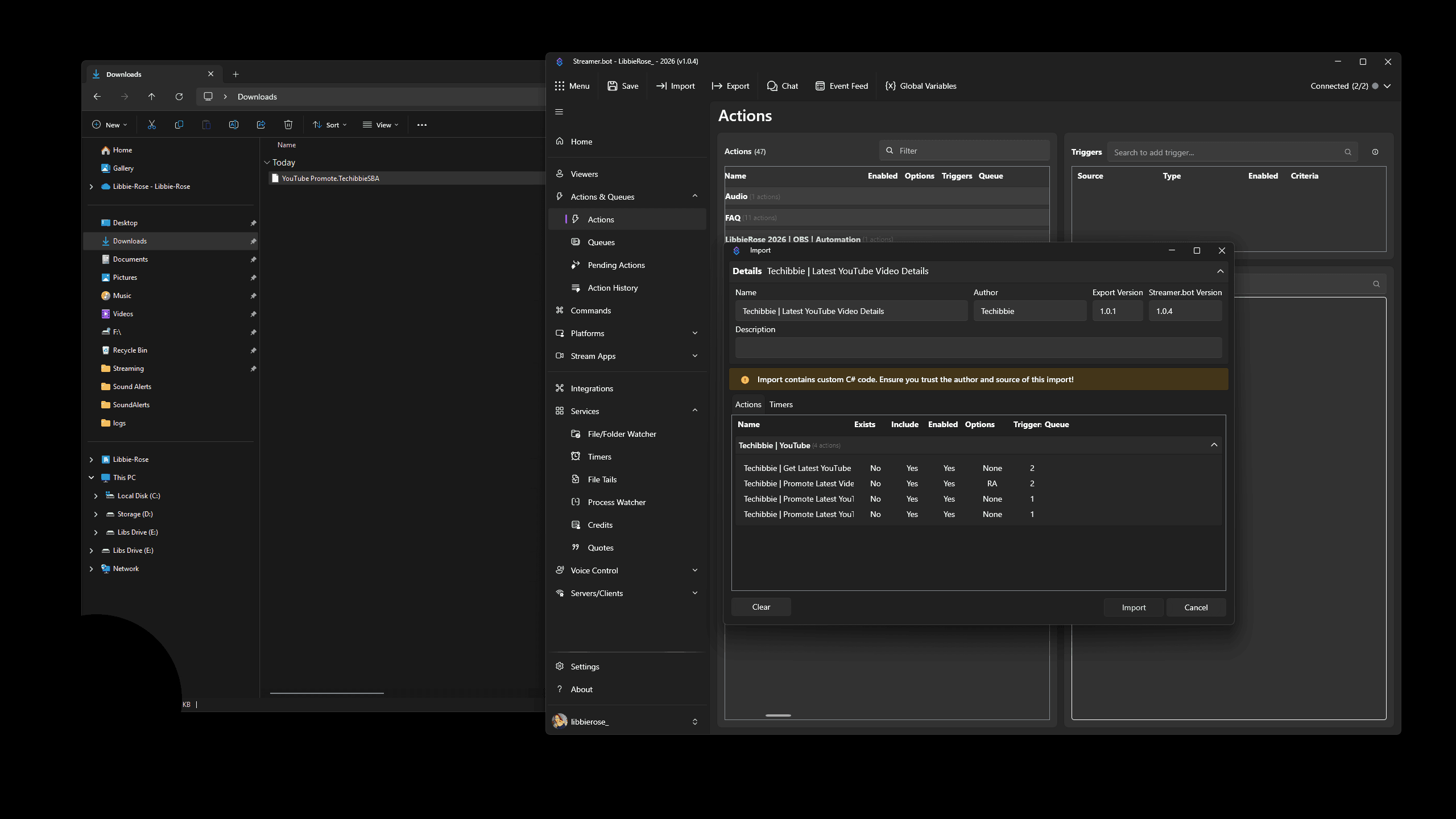
It will show you what it's importing: four actions and a timer.
3
Click on "Import"
Step #3: Click on "Import"

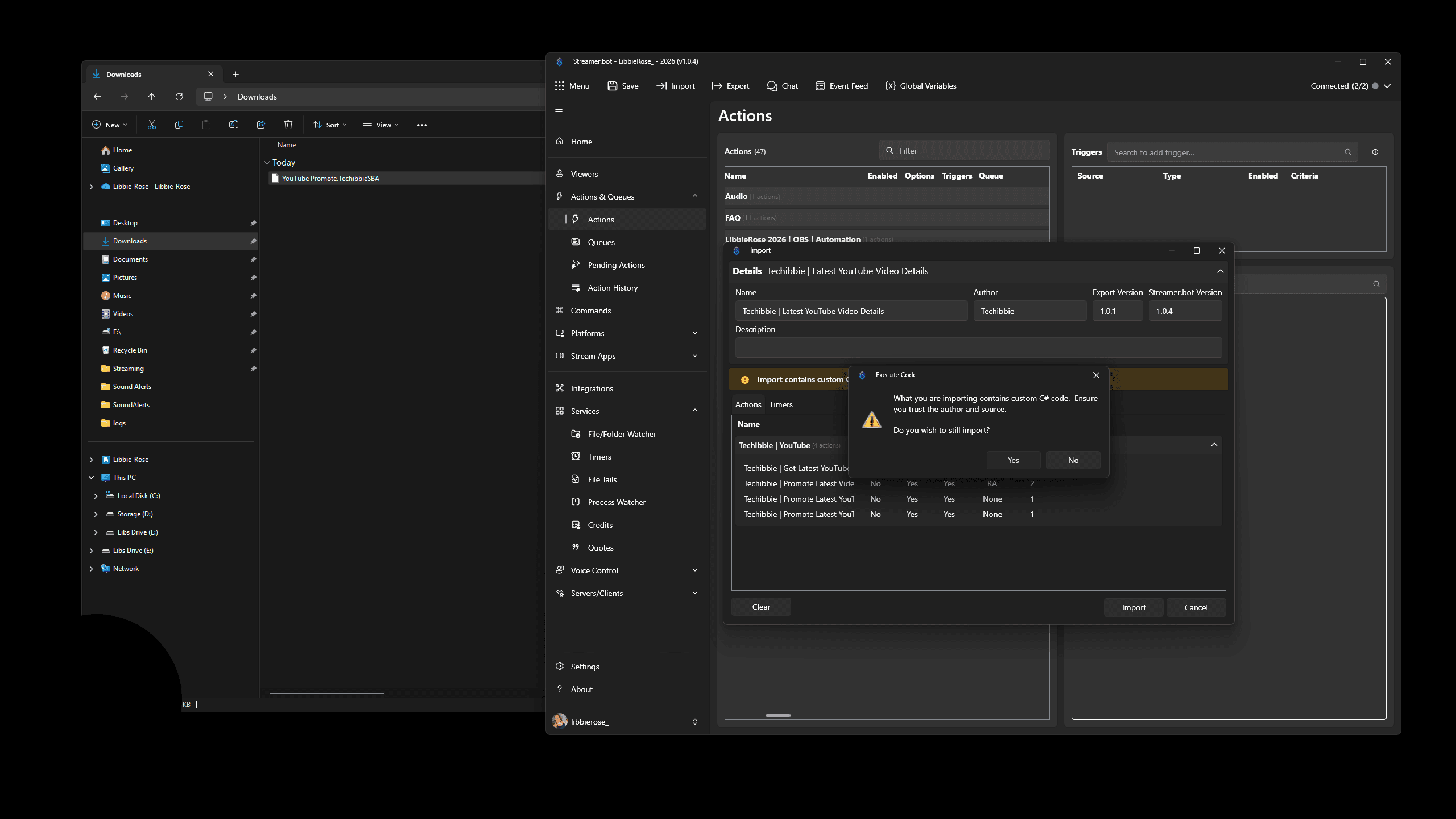
A warning will appear because there is custom C# code. Click "Yes" to import your actions.
4
Click on "Yes"
Step #4: Click on "Yes"

Next, set your channel ID.

5
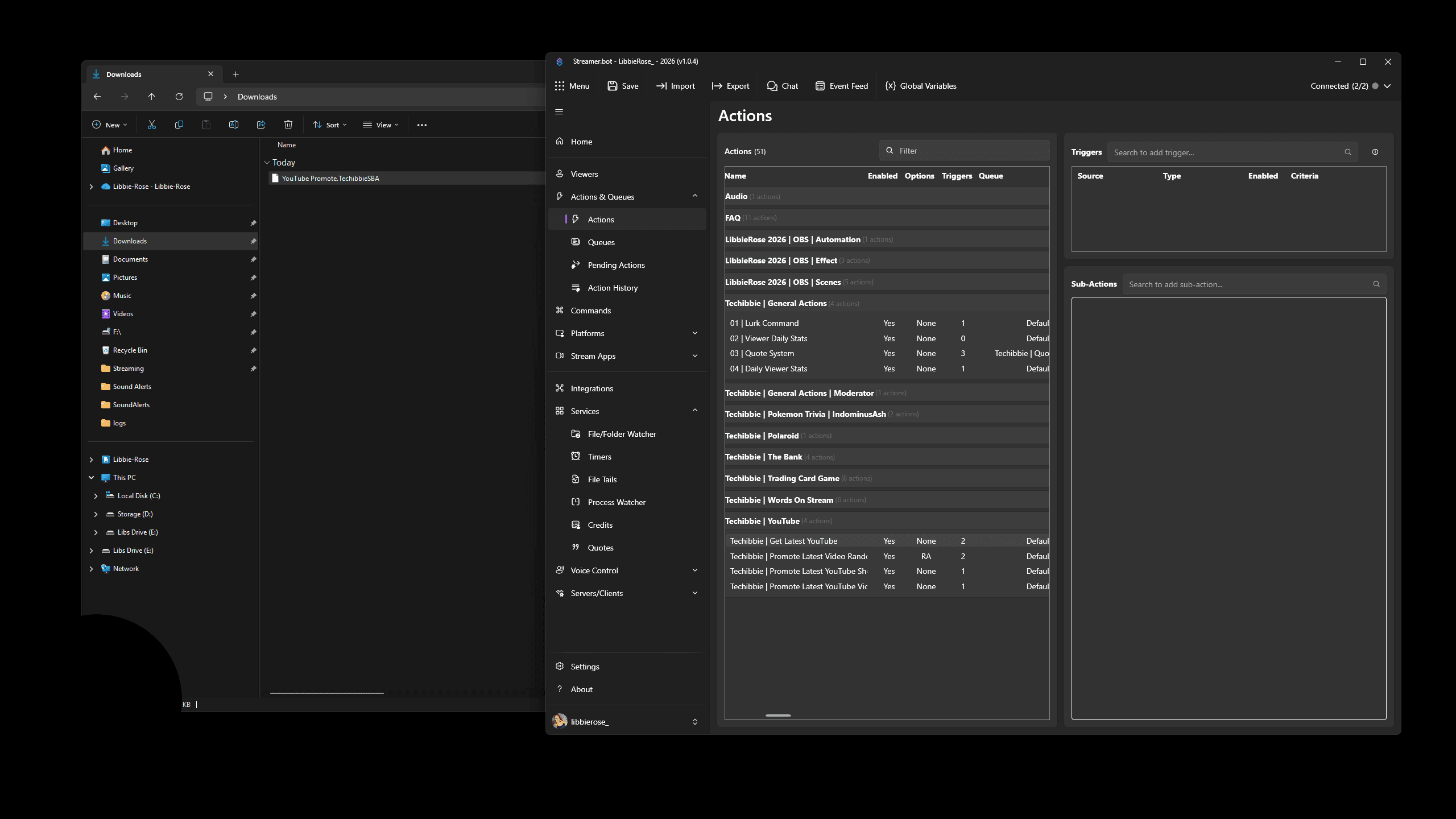
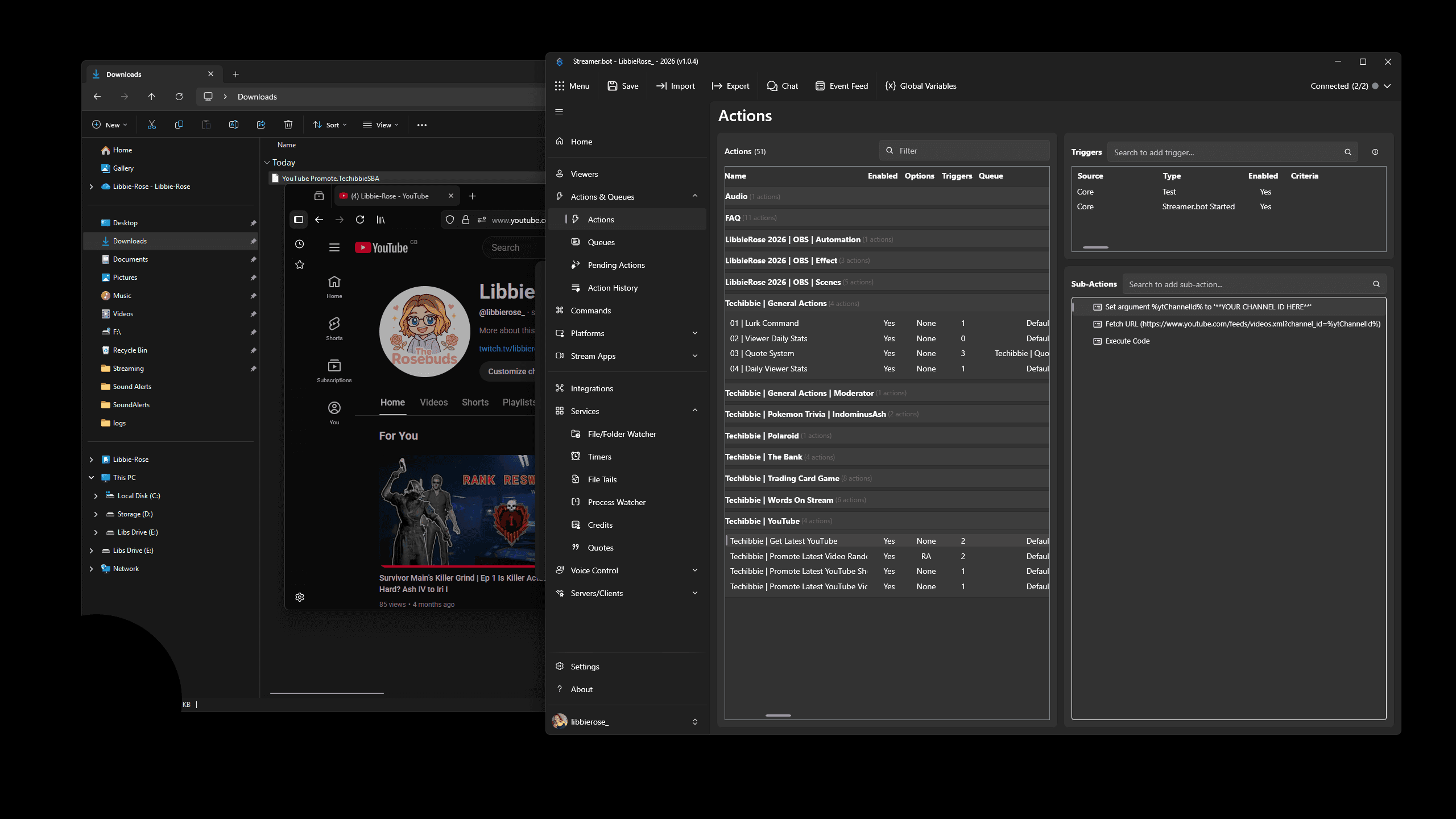
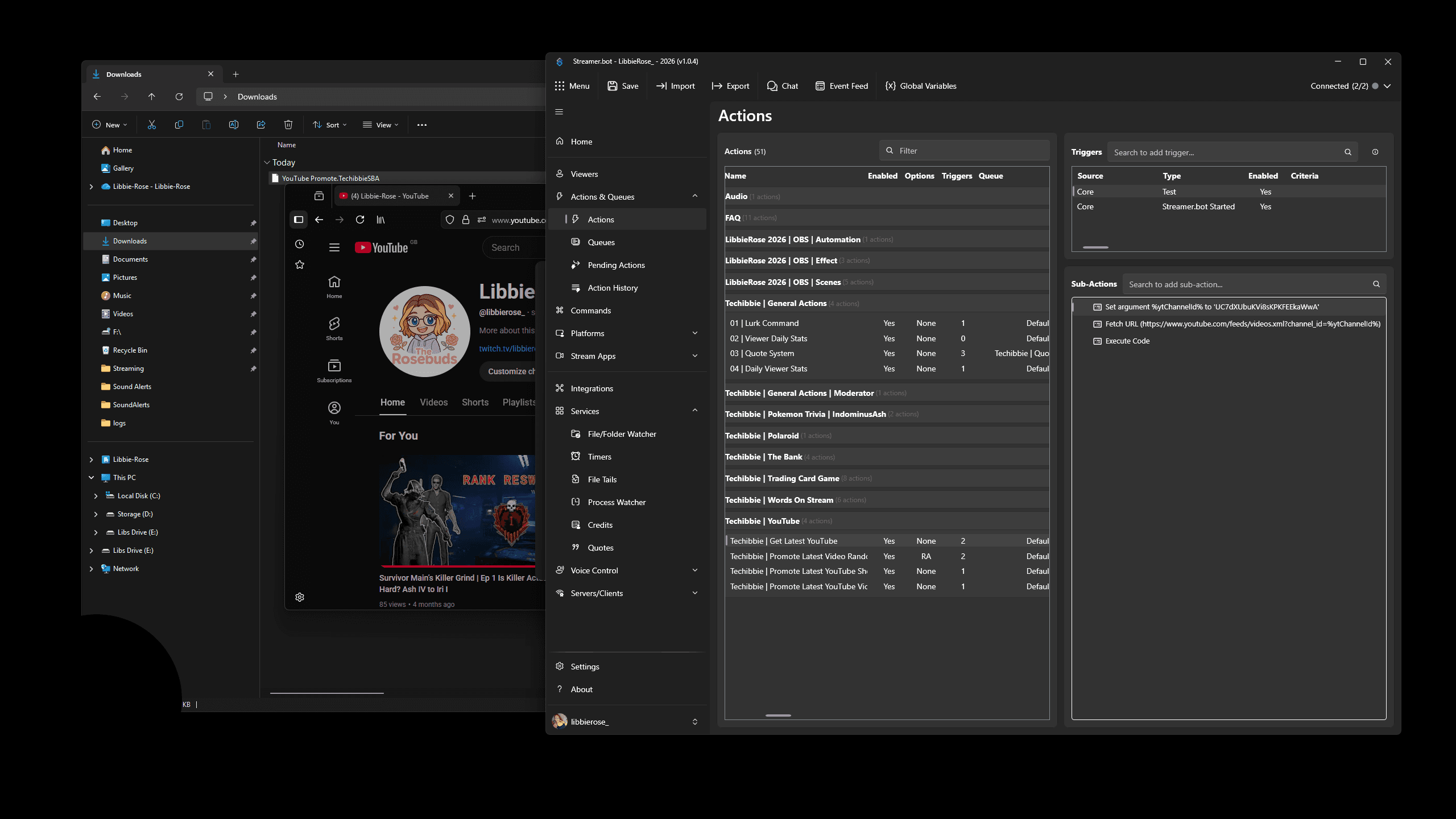
Click on "Techibbie | Get Latest YouTube"
Step #5: Click on "Techibbie | Get Latest YouTube"

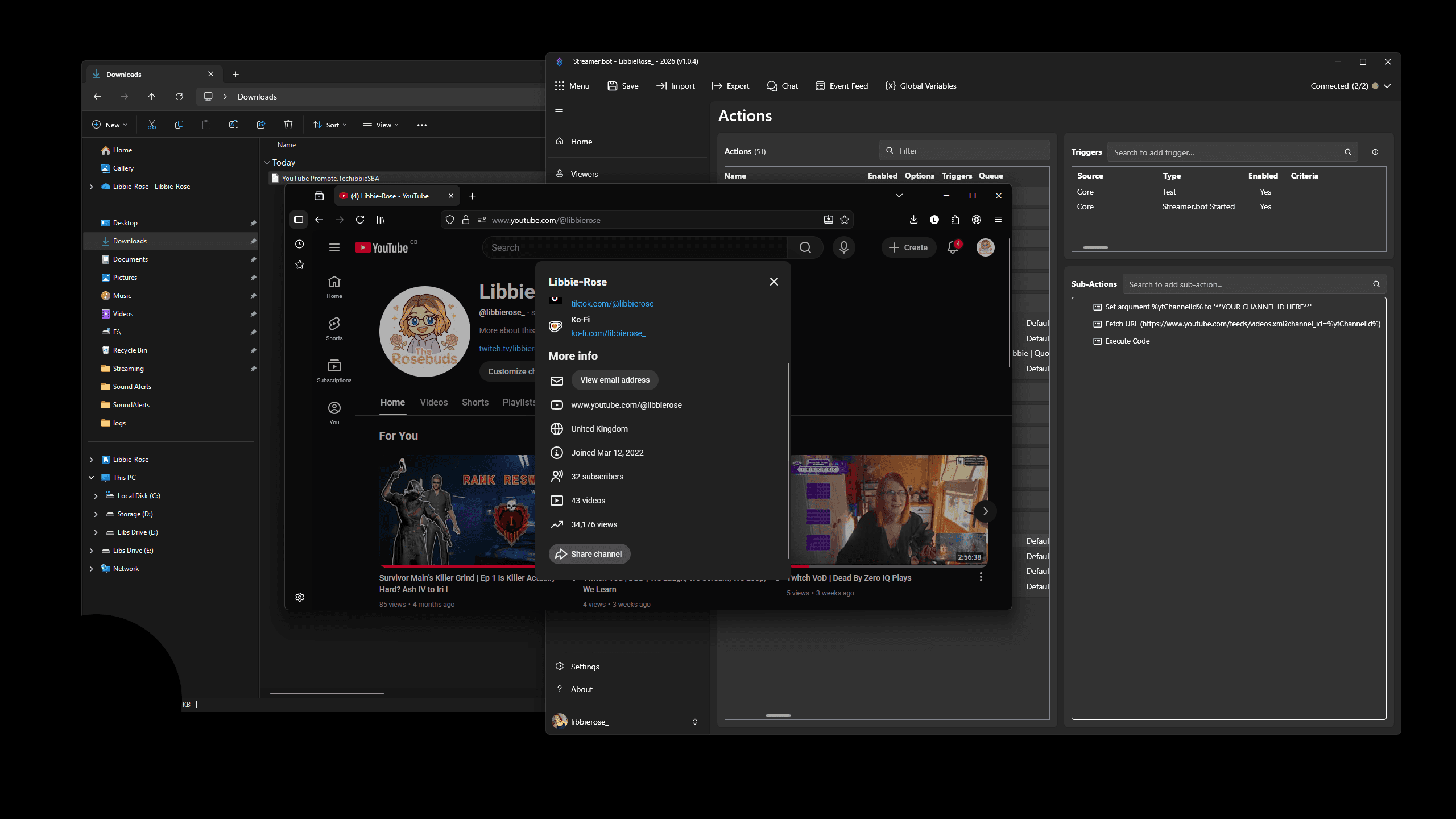
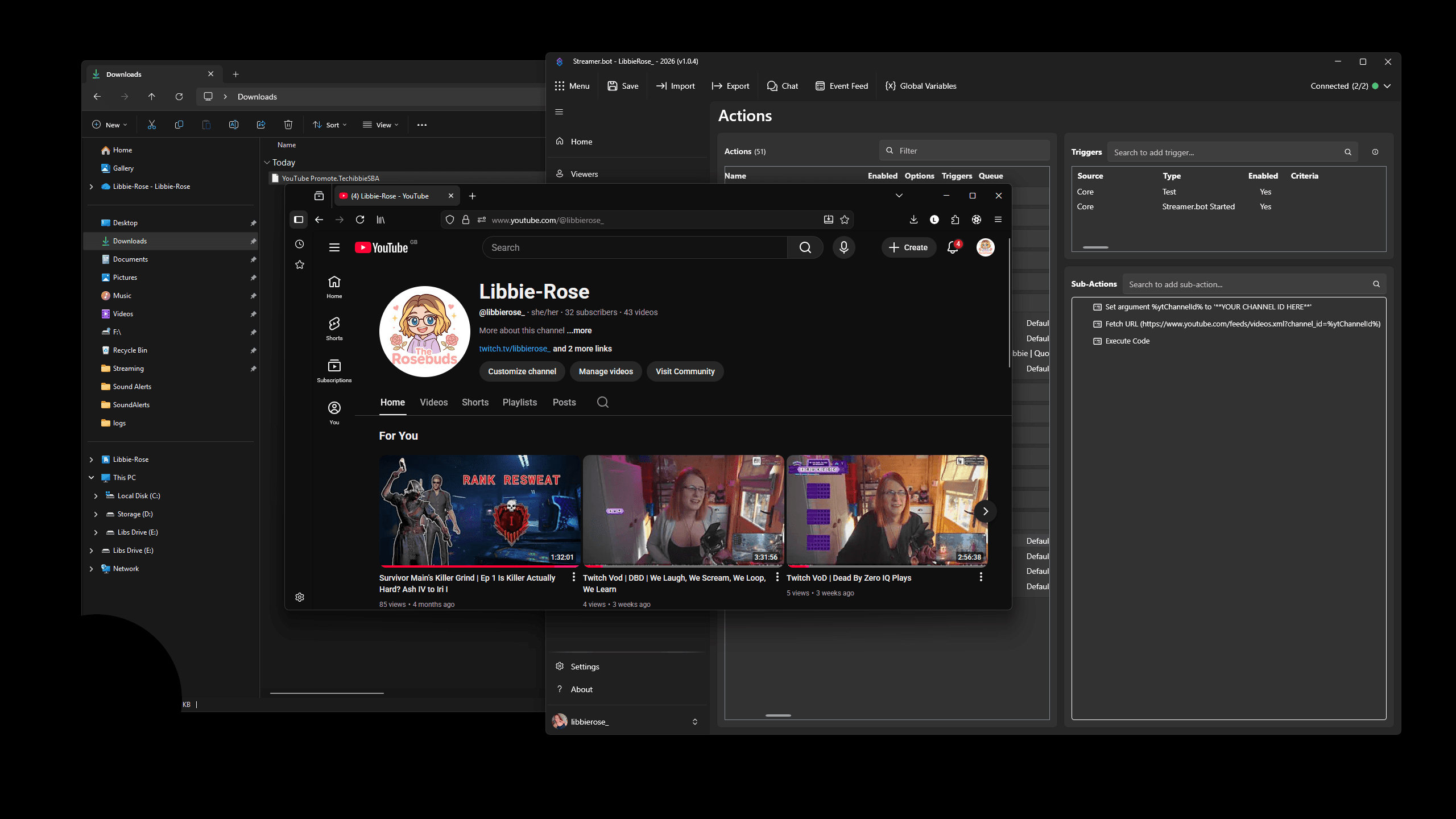
To get your channel ID, open web browser and go to your YouTube channel.

Once your channel loads, click "More" and scroll to the bottom.
6
Click on "More about this channel ... more"
Step #6: Click on "More about this channel ... more"
7
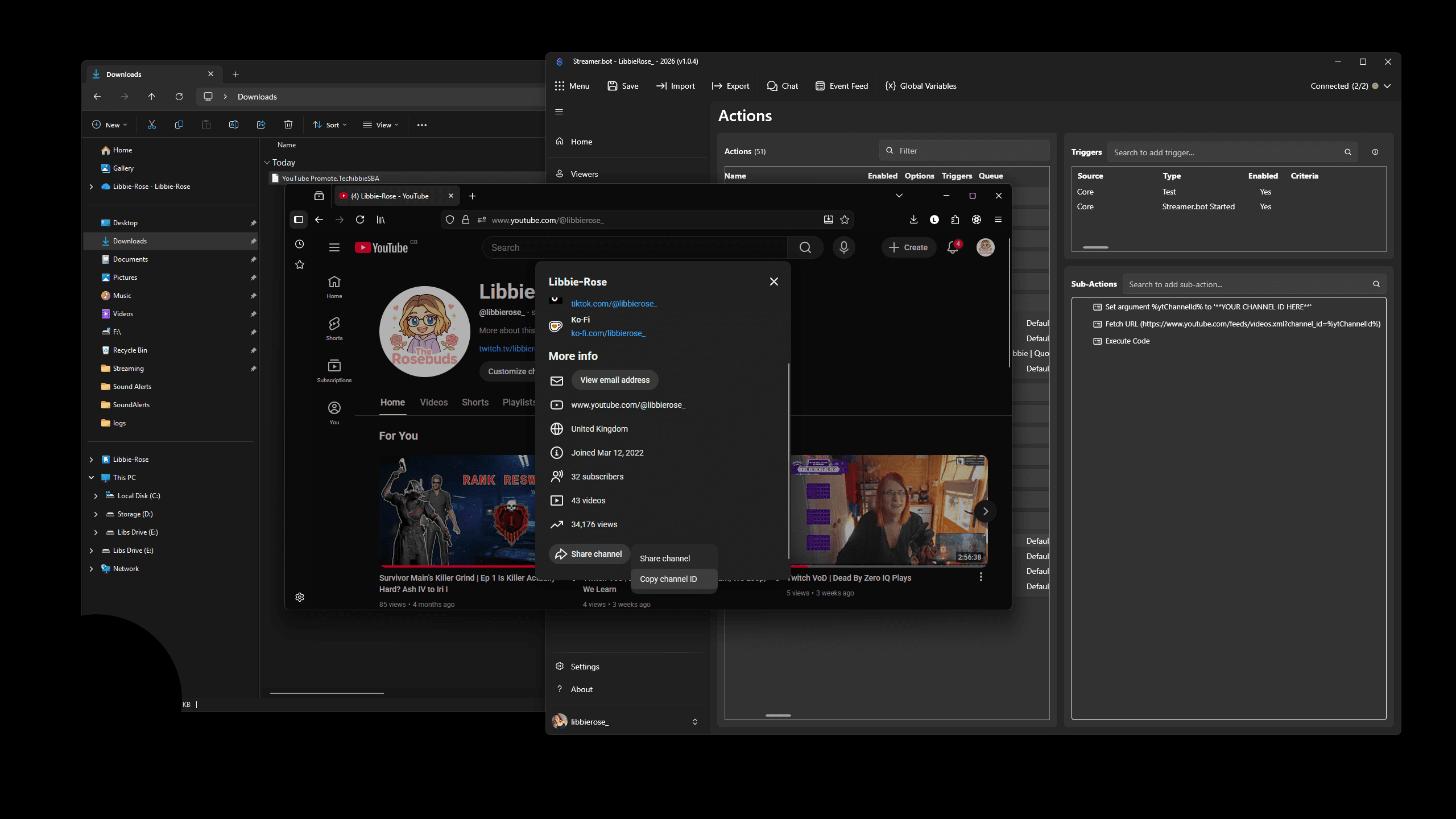
Select "Share Channel"
Step #7: Select "Share Channel"
8
Click on "Copy channel ID"
Step #8: Click on "Copy channel ID"

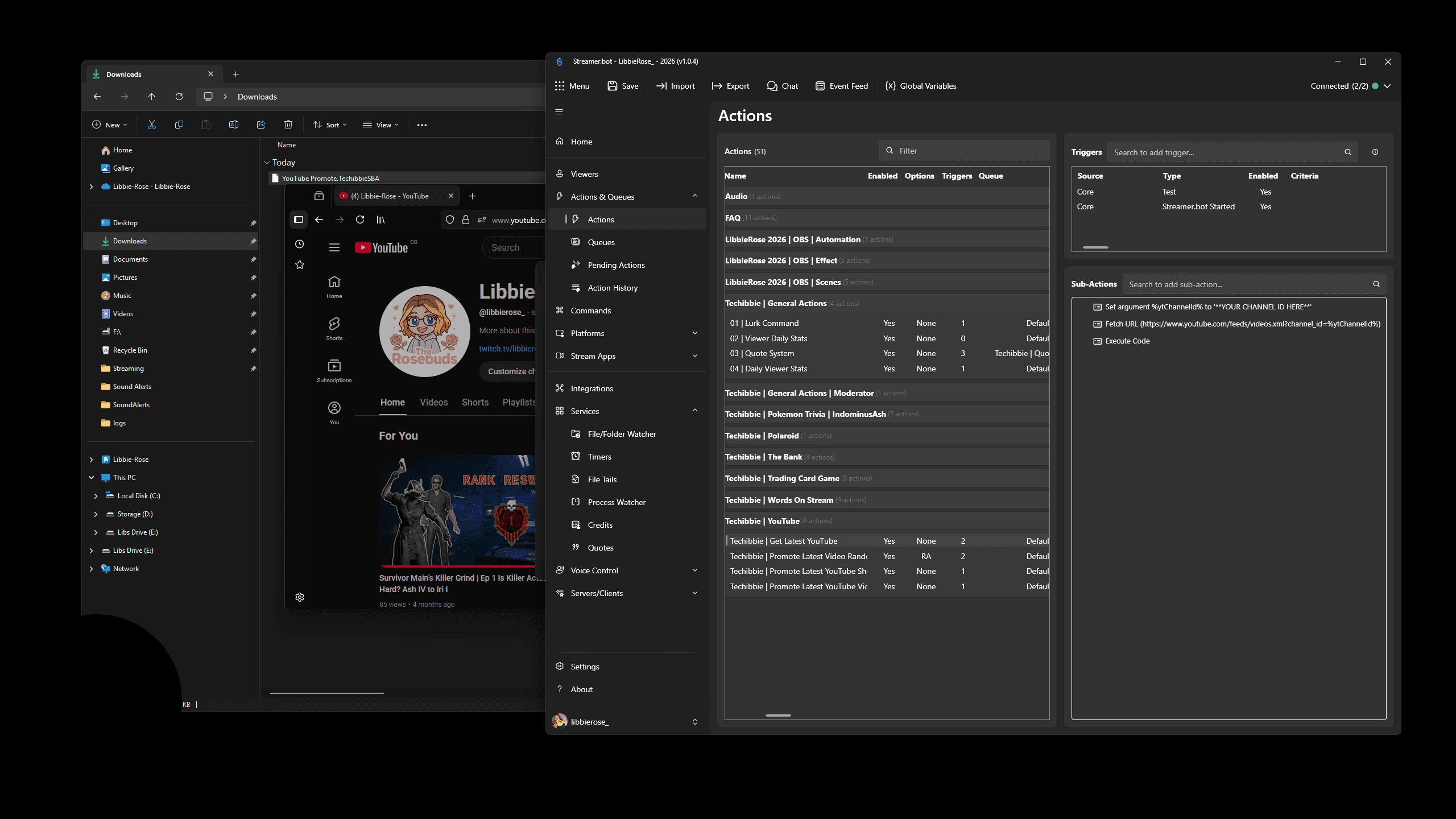
We then return to Streamer.Bot.

9
Click on " Techibbie | Get Latest YouTube"
Step #9: Click on " Techibbie | Get Latest YouTube"

10
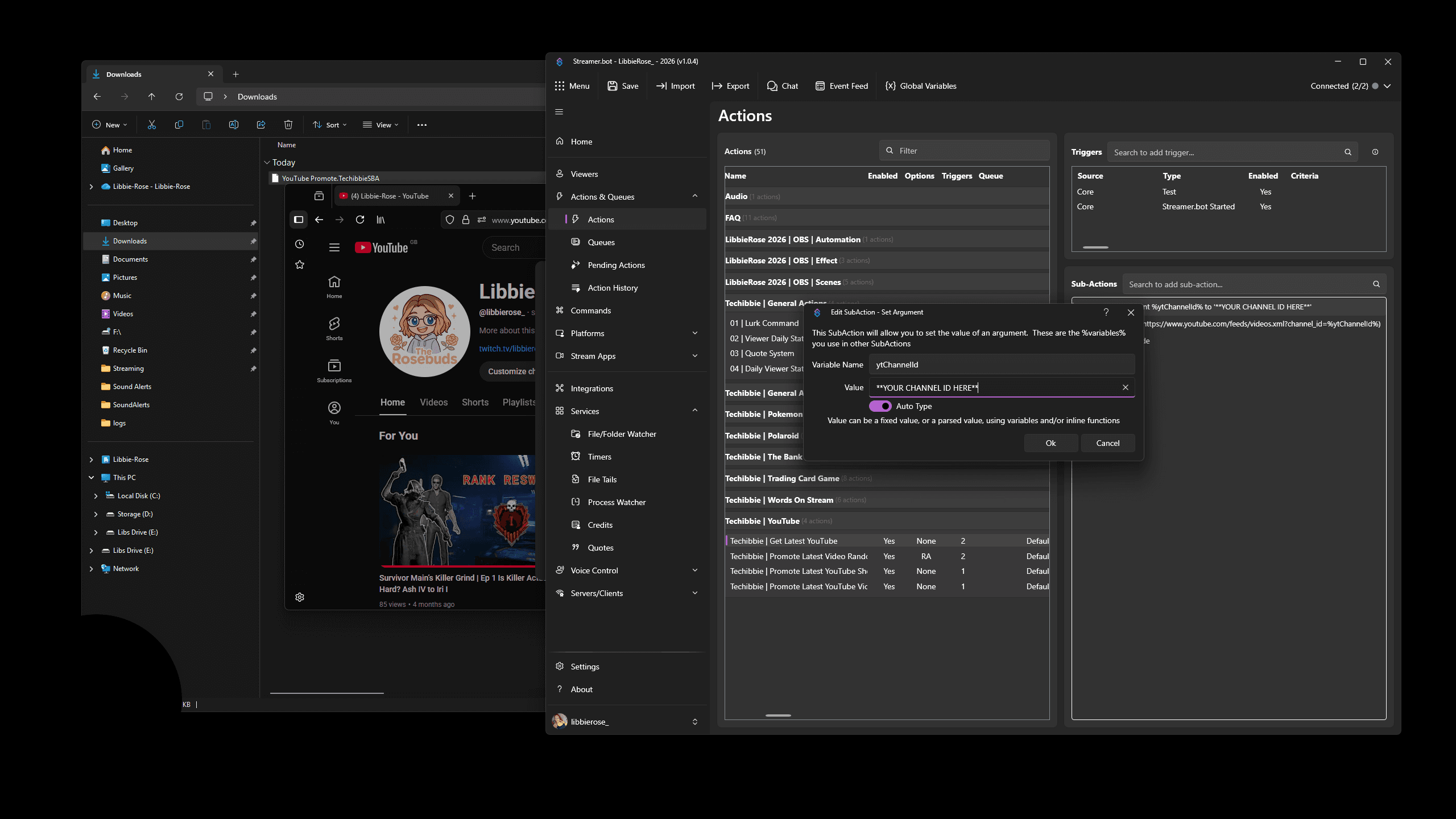
Double-click on "Set argument % ytChannelld % to"
Step #10: Double-click on "Set argument % ytChannelld % to"
11
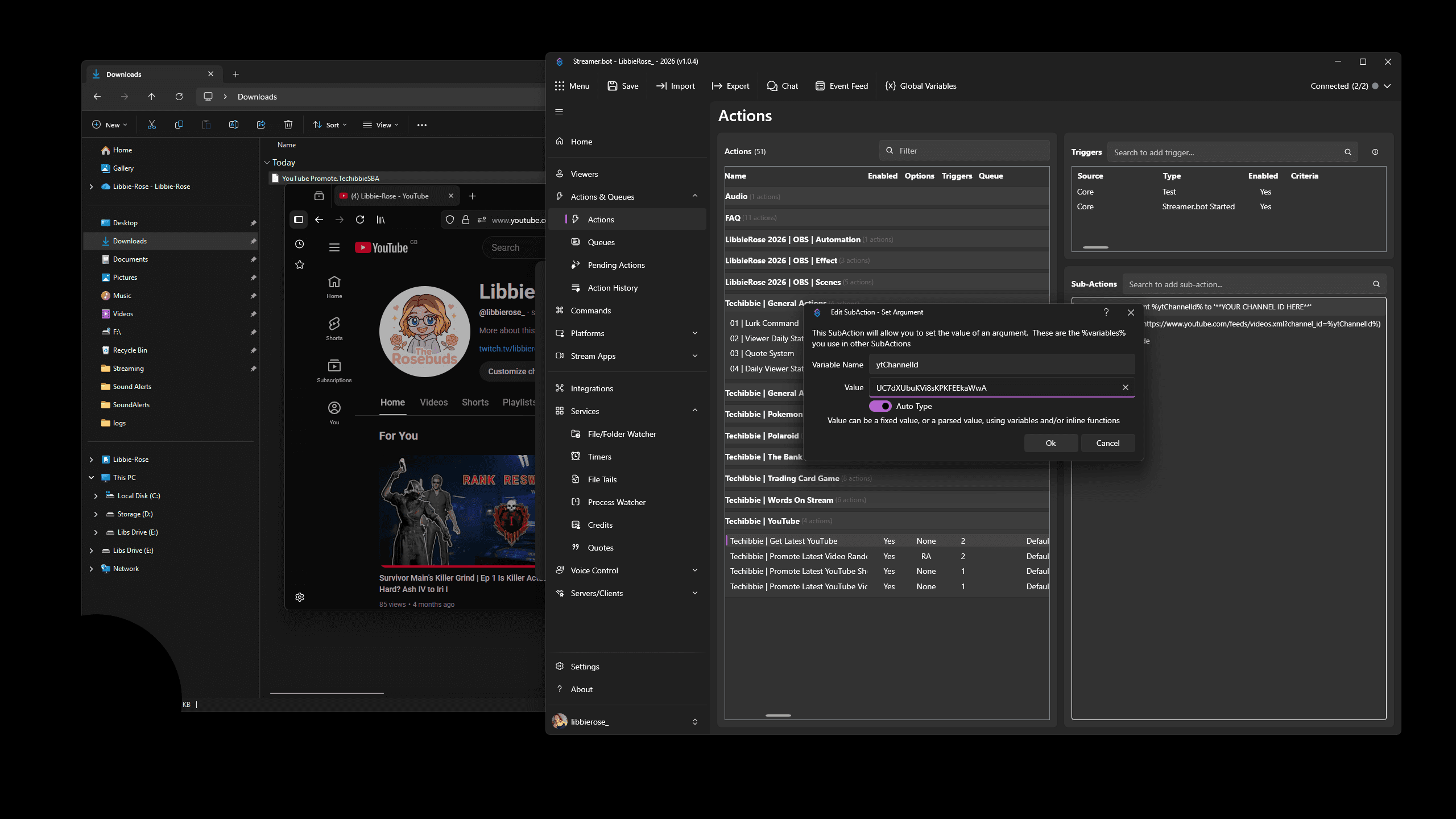
Where it says **your channel ID here**, highlight that text and paste your channel ID.
Step #11: Where it says **your channel ID here**, highlight that text and paste your channel ID.
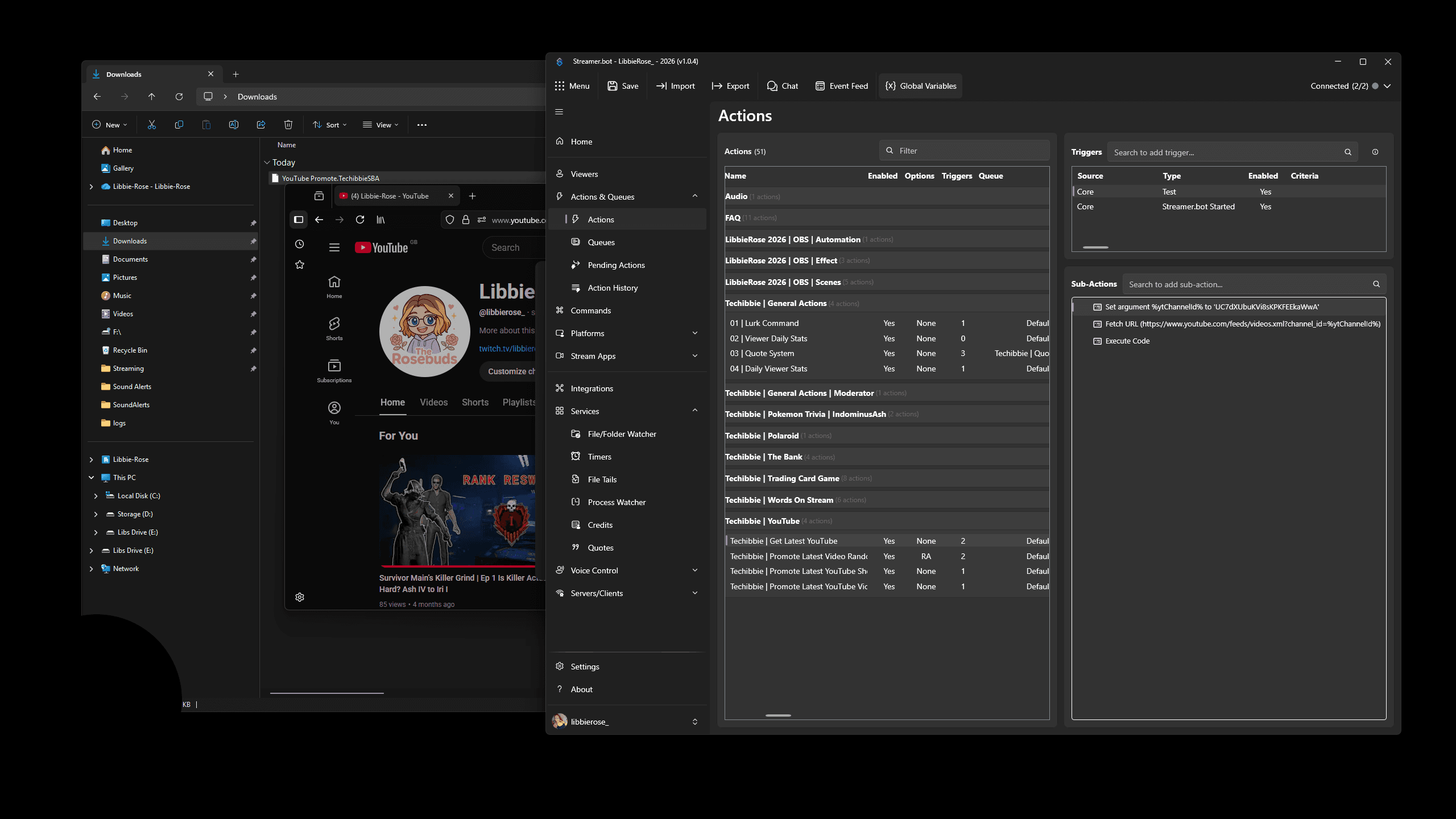
12
Click on "OK"
Step #12: Click on "OK"

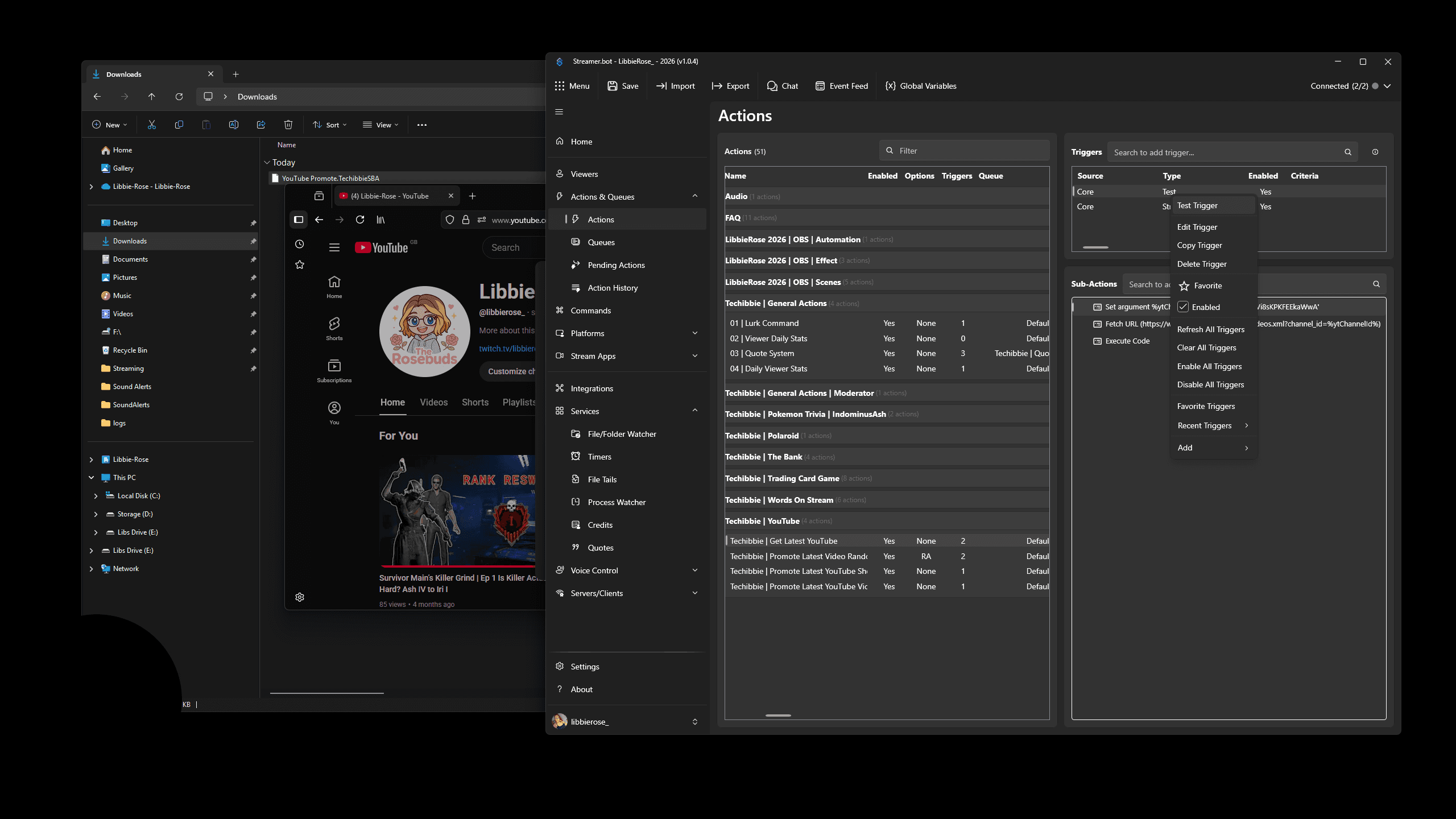
If you don't restart Streamer.Bot, you can right-click on "test" and select "test trigger." Then, under your global variables, you should see it has populated.
13
Right-click on "Test"
Step #13: Right-click on "Test"
14
Click on "Test Trigger"
Step #14: Click on "Test Trigger"
15
Click on "Variables"
Step #15: Click on "Variables"

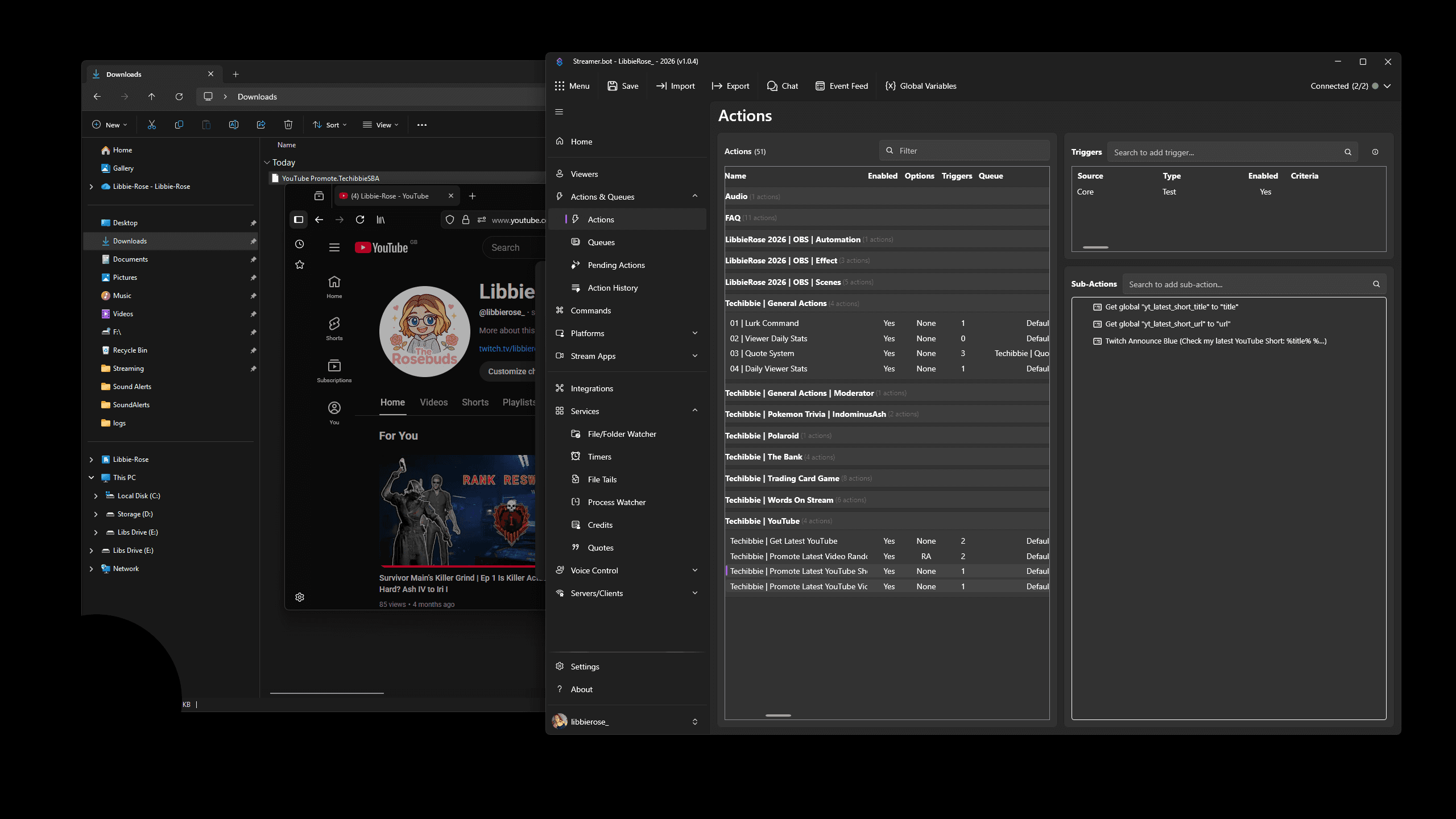
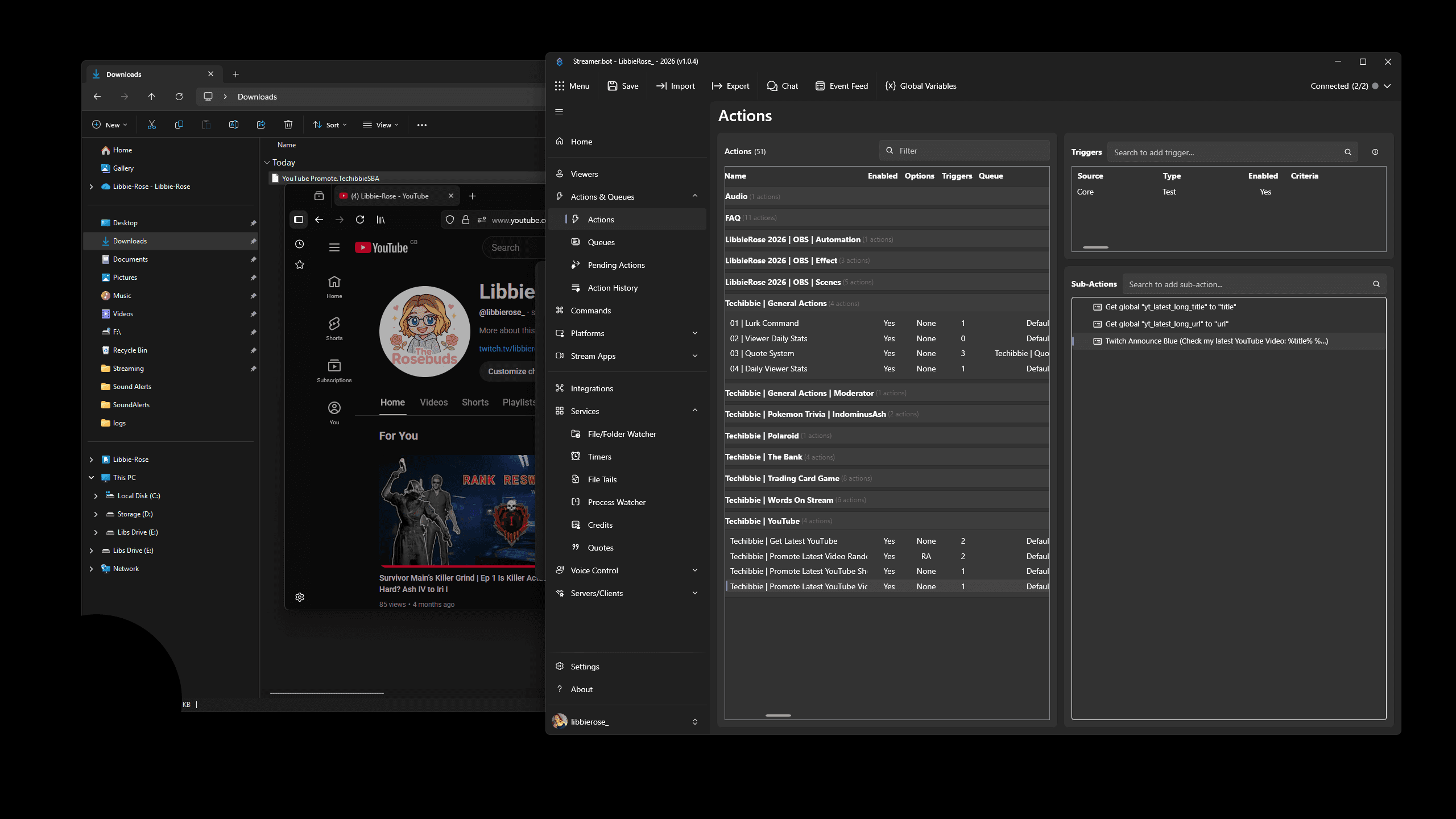
It's your latest YouTube video title and URL, as well as the same information for your Shorts. You can customise your alert messages for both short and long forms by changing the Twitch announcement blue message to suit your preferences.
16
Click on "Techibbie | Promote Latest YouTube Video"
Step #16: Click on "Techibbie | Promote Latest YouTube Video"
17
Double-click on "(Check my latest YouTube Video :"
Step #17: Double-click on "(Check my latest YouTube Video :"
18
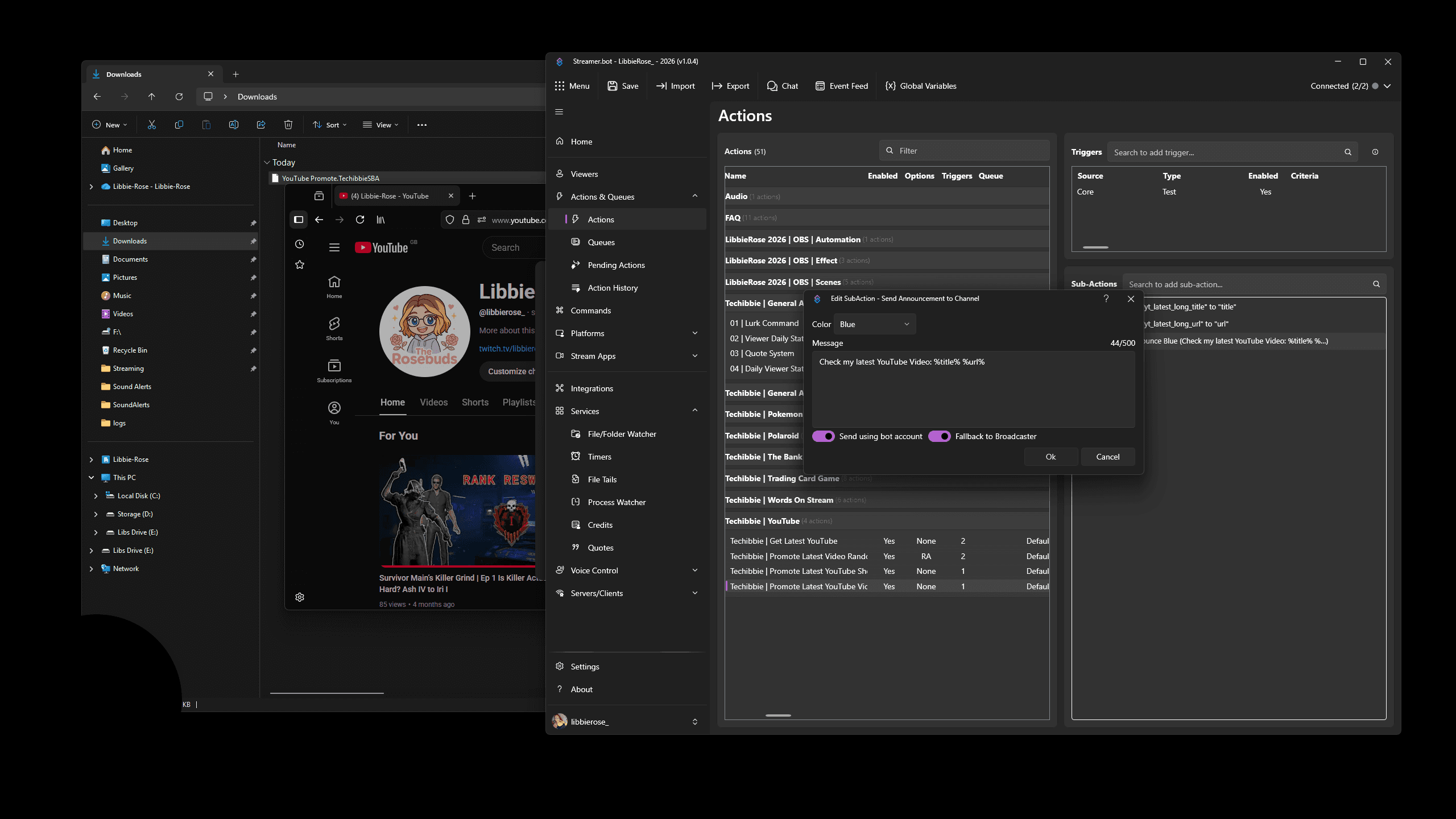
Edit the message to what you would like. %title% is your video title the action got from YouTube and %url% is the link to that same video. Once you have set your message, click on "OK"
Step #18: Edit the message to what you would like. %title% is your video title the action got from YouTube and %url% is the link to that same video. Once you have set your message, click on "OK"

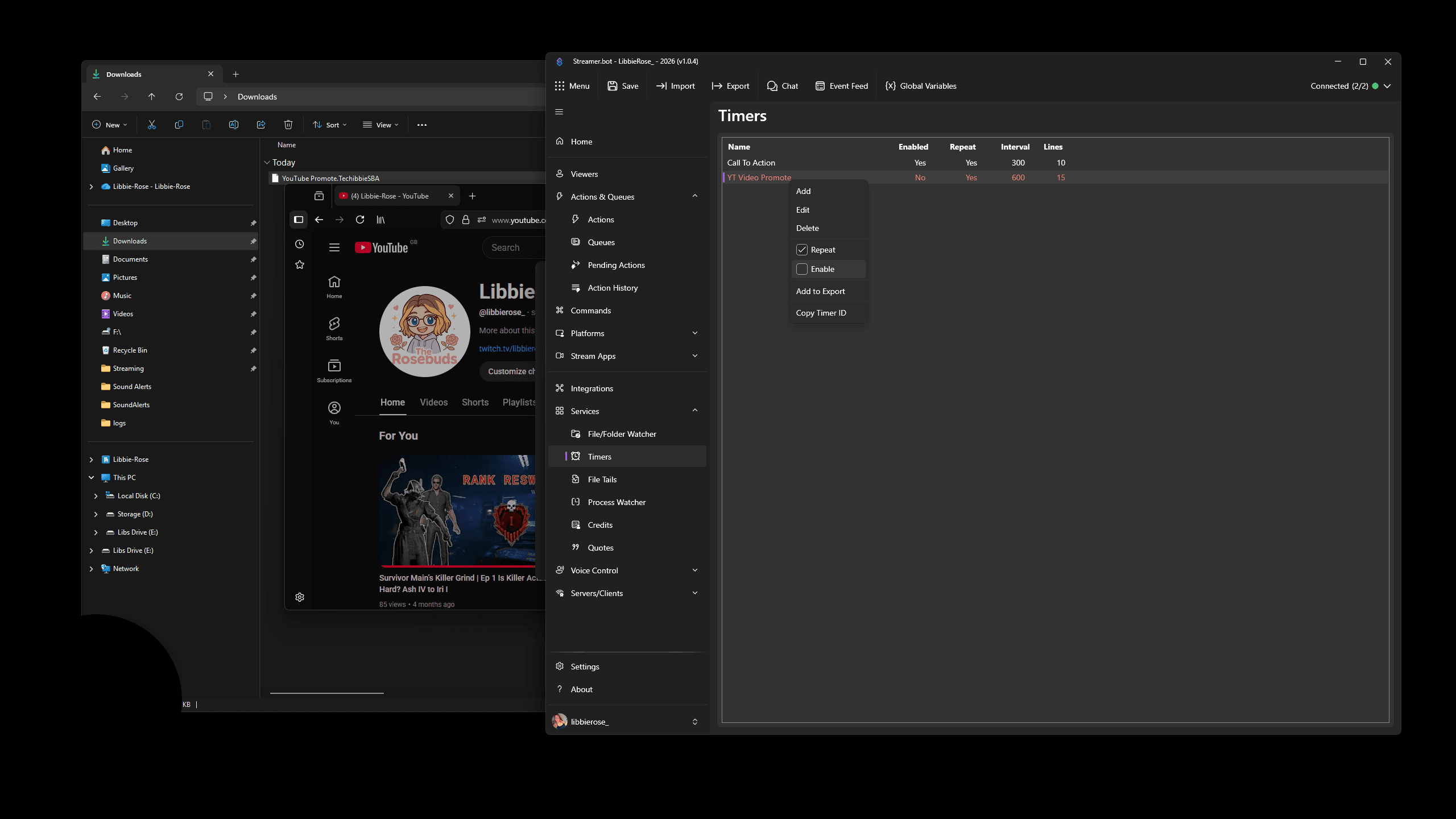
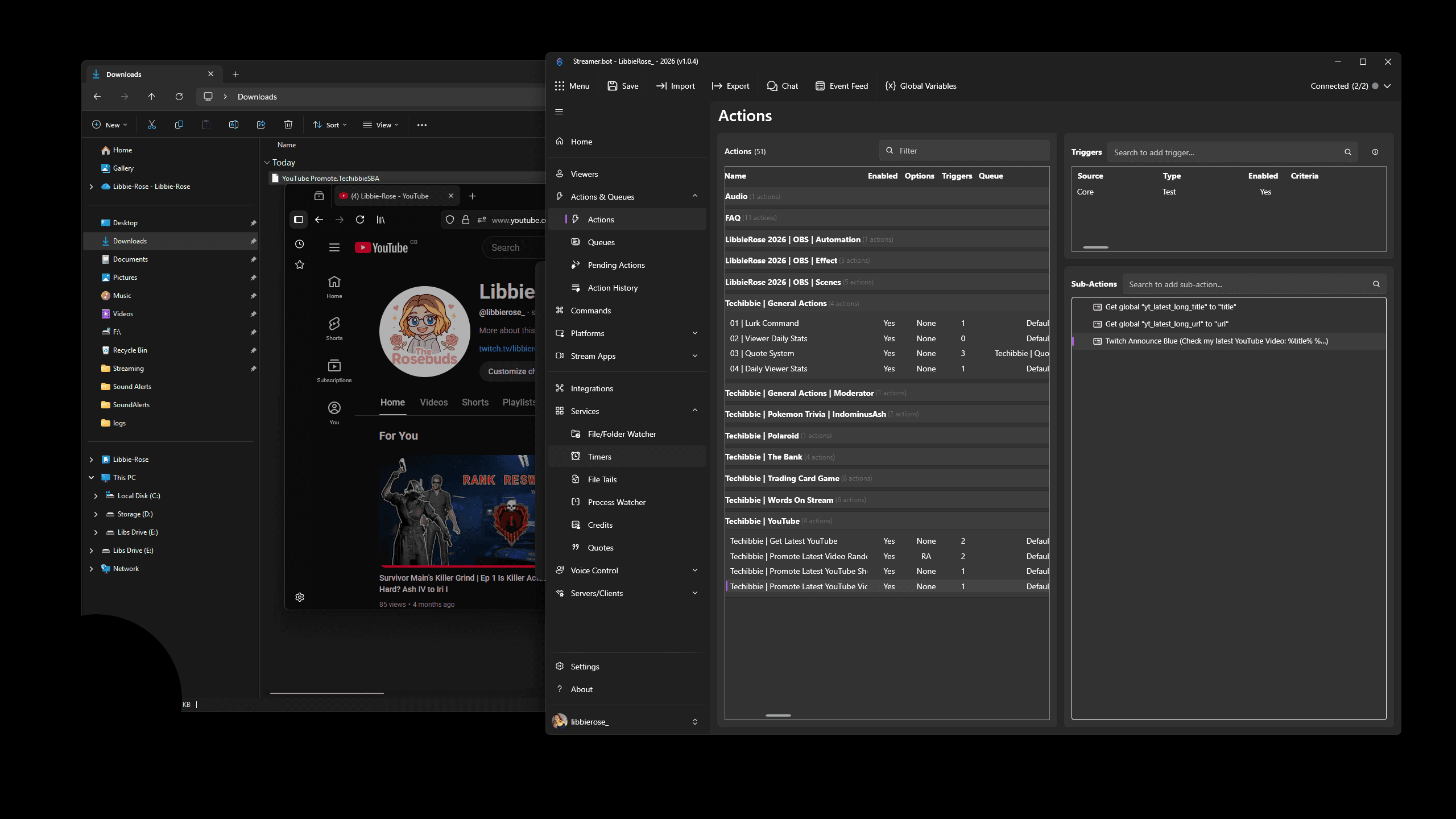
If you want the timer to trigger automatically, you need to enable the timers. Click on Timers. Right-click on YouTube Video Promote and select Enable. You are now ready to go.
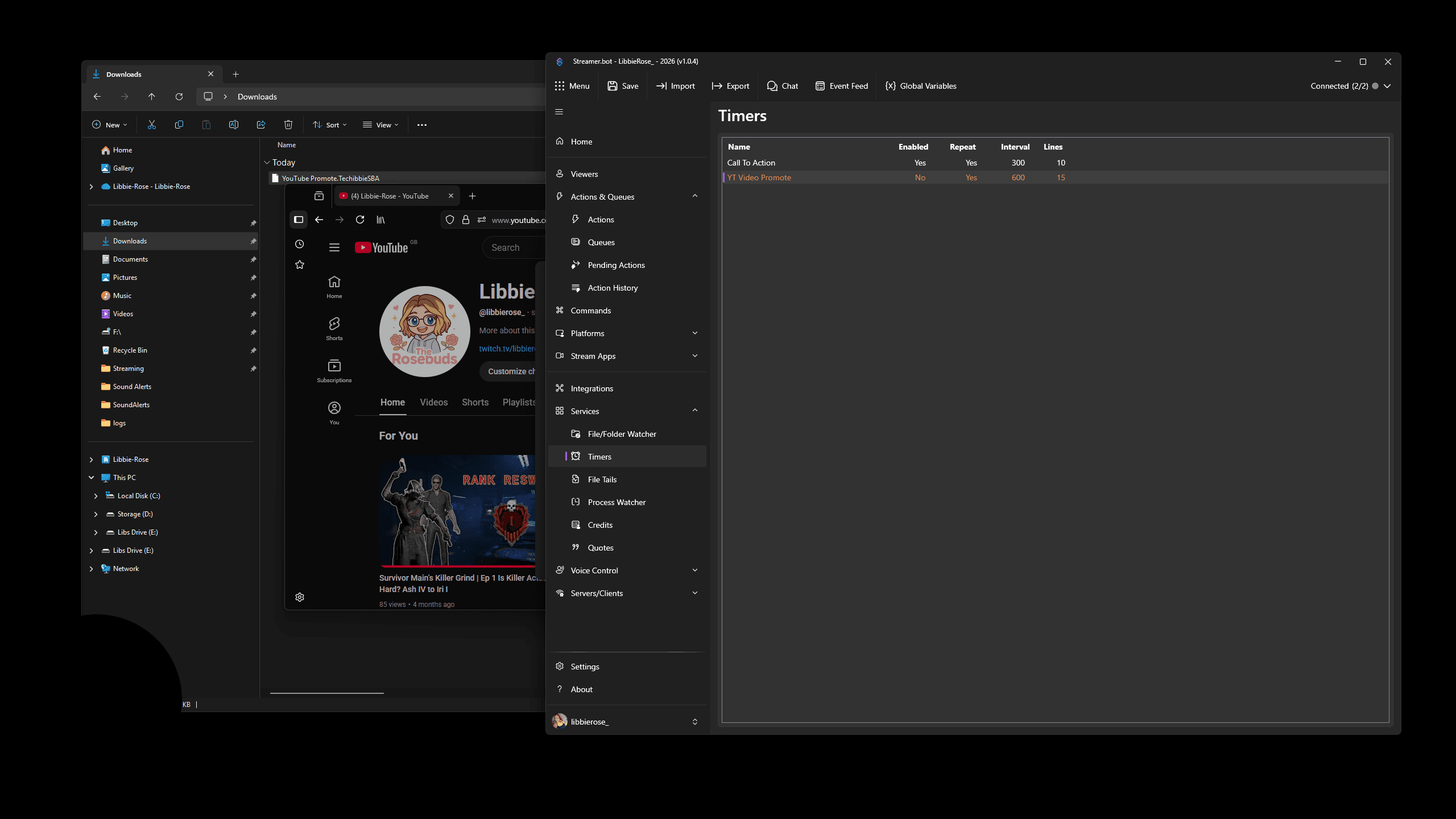
19
Click here
Step #19: Click here
20
Right-click on "YT Video Promote"
Step #20: Right-click on "YT Video Promote"
21
Click here
Step #21: Click here