How to Install an App on Your Seatbox: Step-by-Step Guide
Learn how to easily install applications on your Seatbox. Follow our step-by-step instructions to add, manage, and control apps like Sonar on your Seatbox device.
In this guide, we'll learn how to install an application on your seatbox. We will cover how to log in to the website, access the client area, and select the seatbox where you want to add the app.
You will see which applications are already installed and which are available. We will also look at how to search for a new application, install it, and manage it after installation.
Let's get started
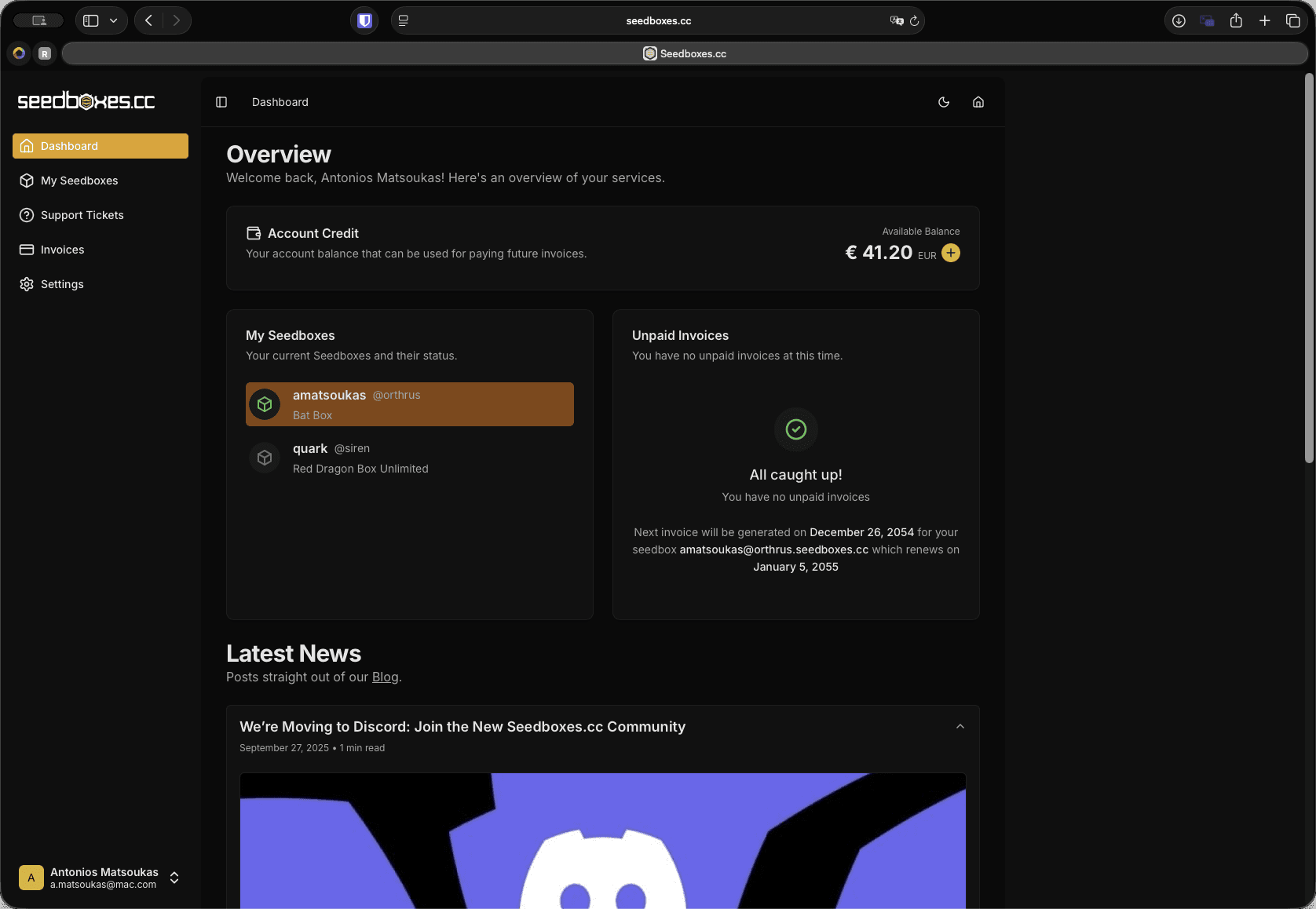
Now I will show you how to install an app on your seatbox. To do this, we need to be logged in to the website. Next, we will click to go to the client area.

From here, we will select the seatbox where we want to install the app.
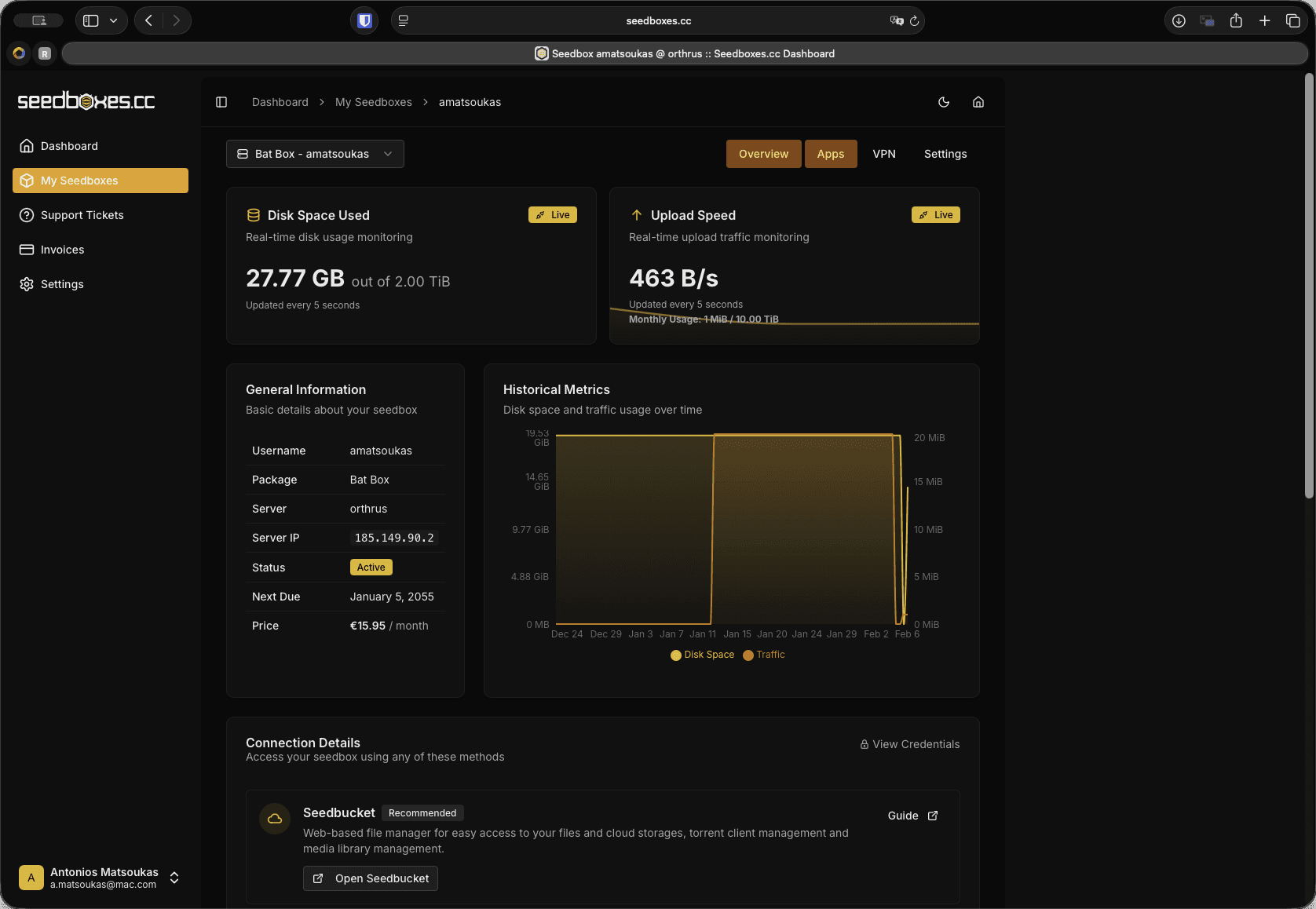
Here we see the information for the specific seatbox we selected. We go to the apps tab.
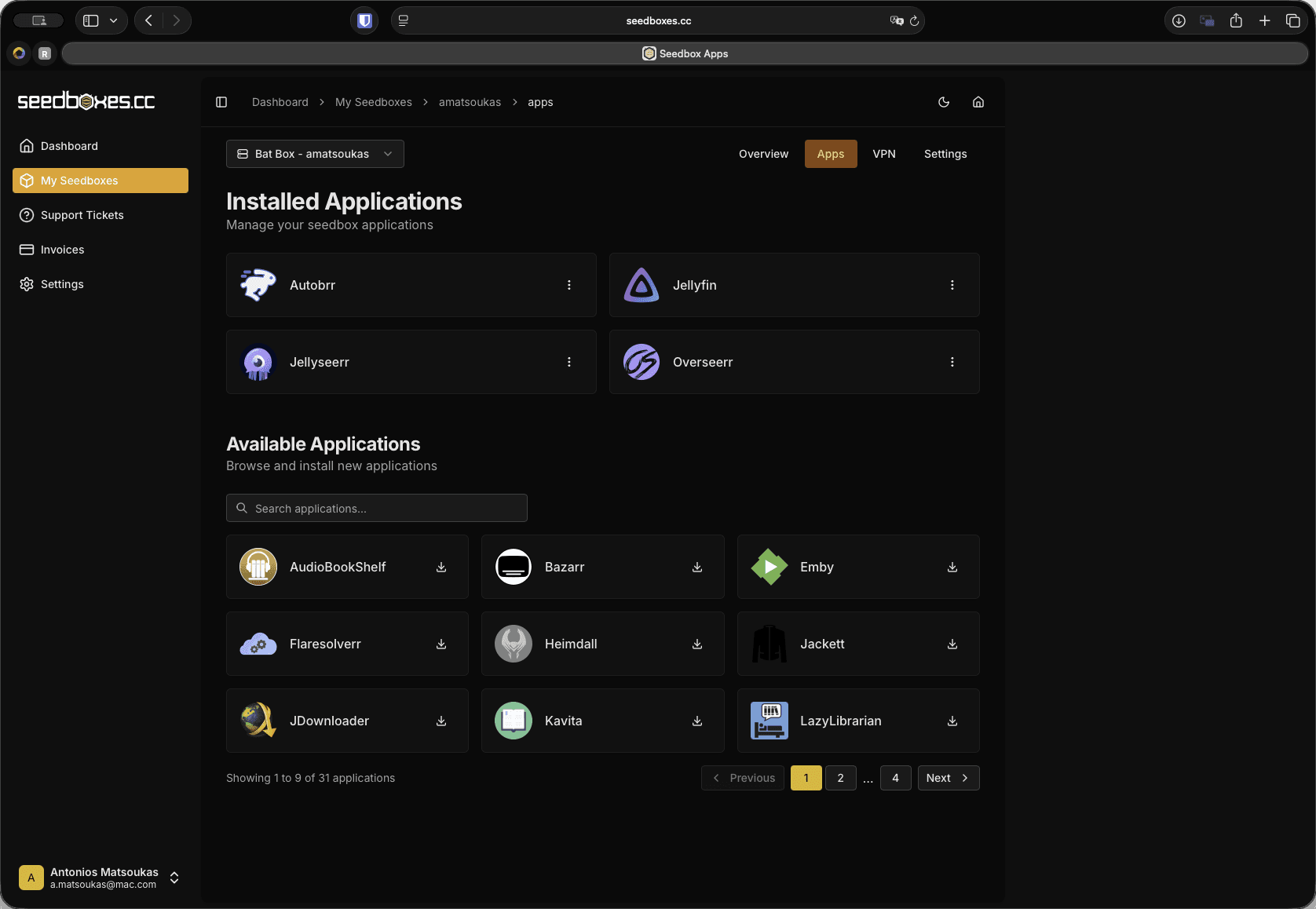
Here we see the installed applications that are already on our seatbox. Here we see the available ones.
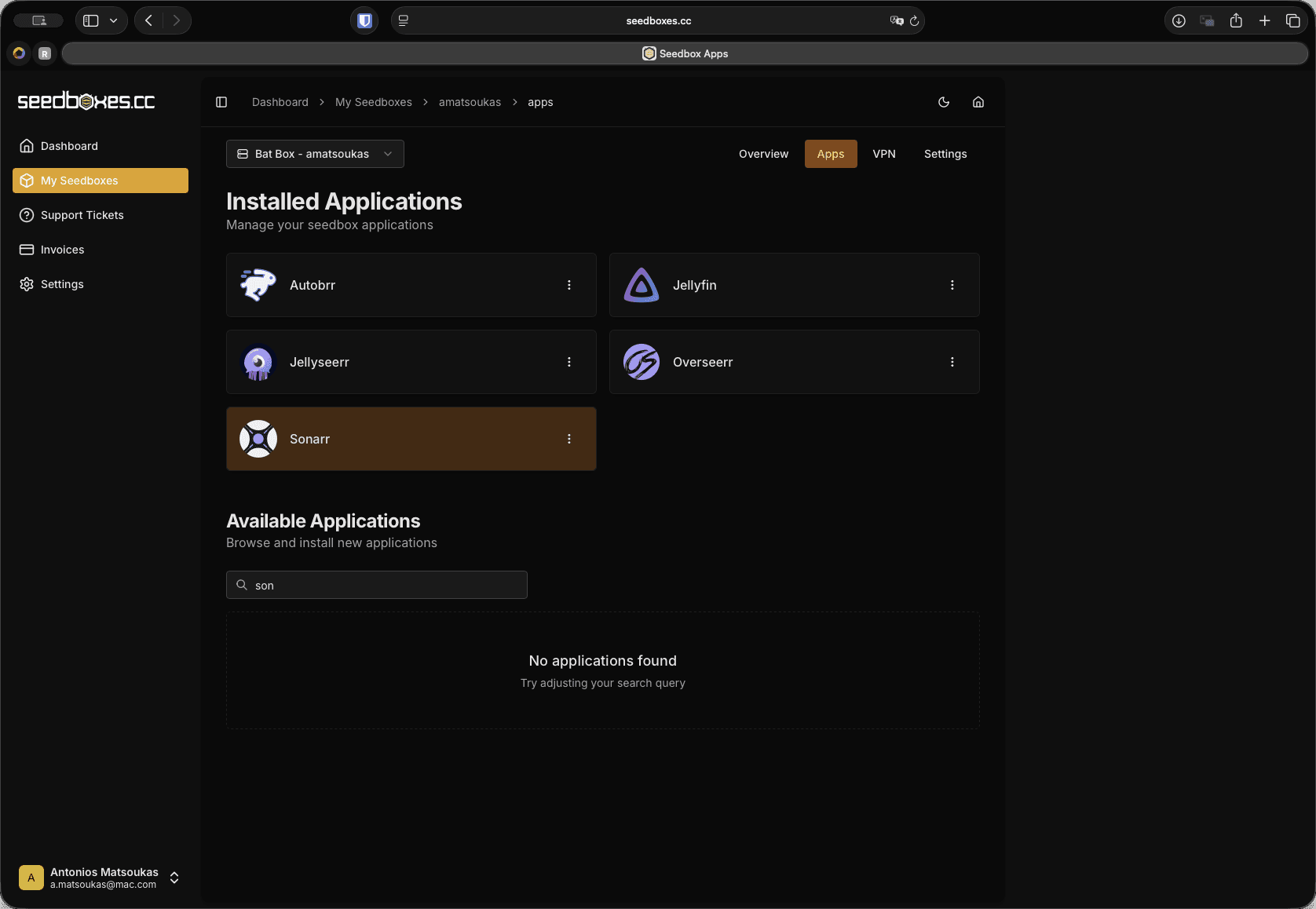
From here, we can search for an application we want that we have not yet installed. For example, I will search for Sonar.
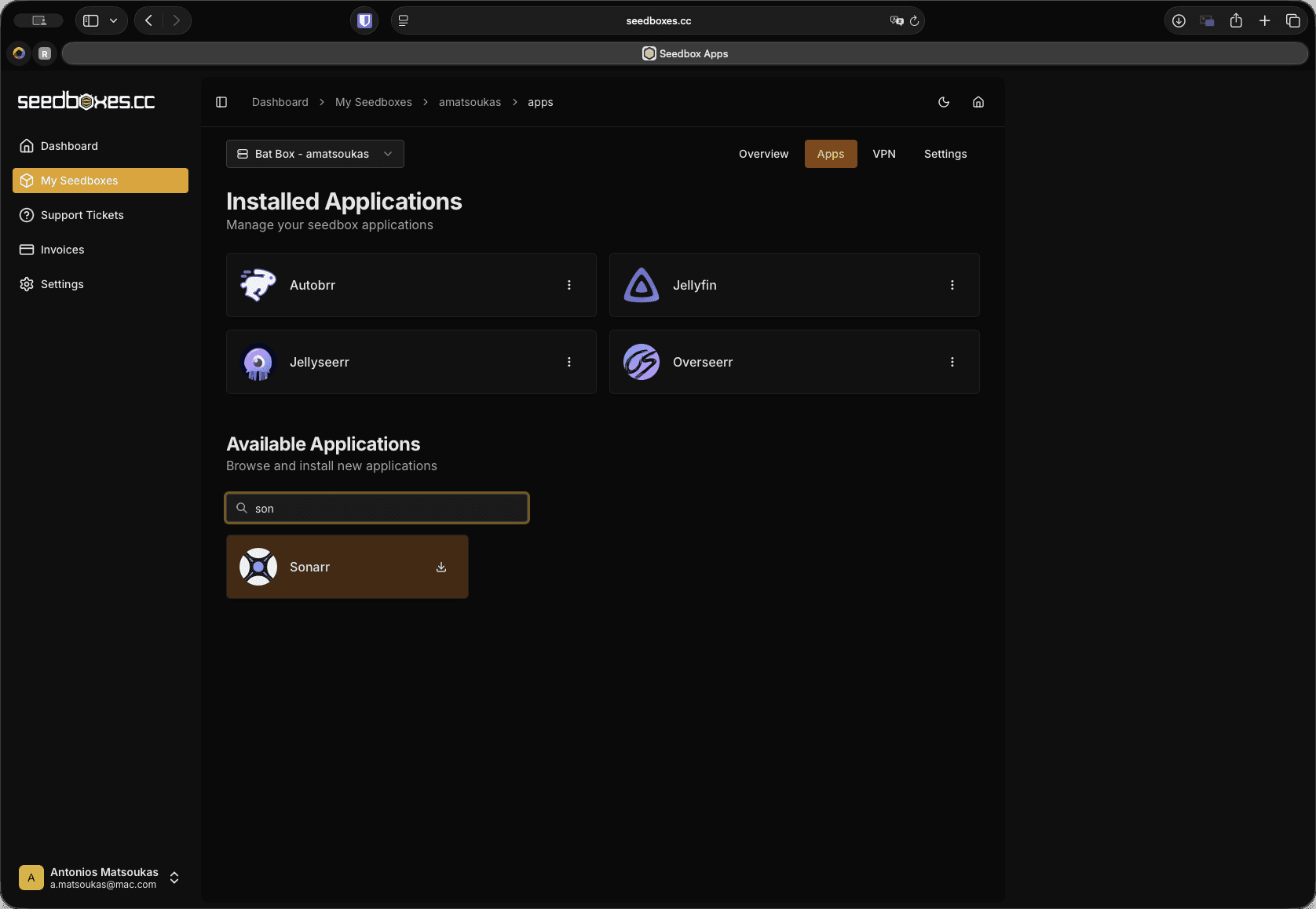
By clicking the install button, we can install it.
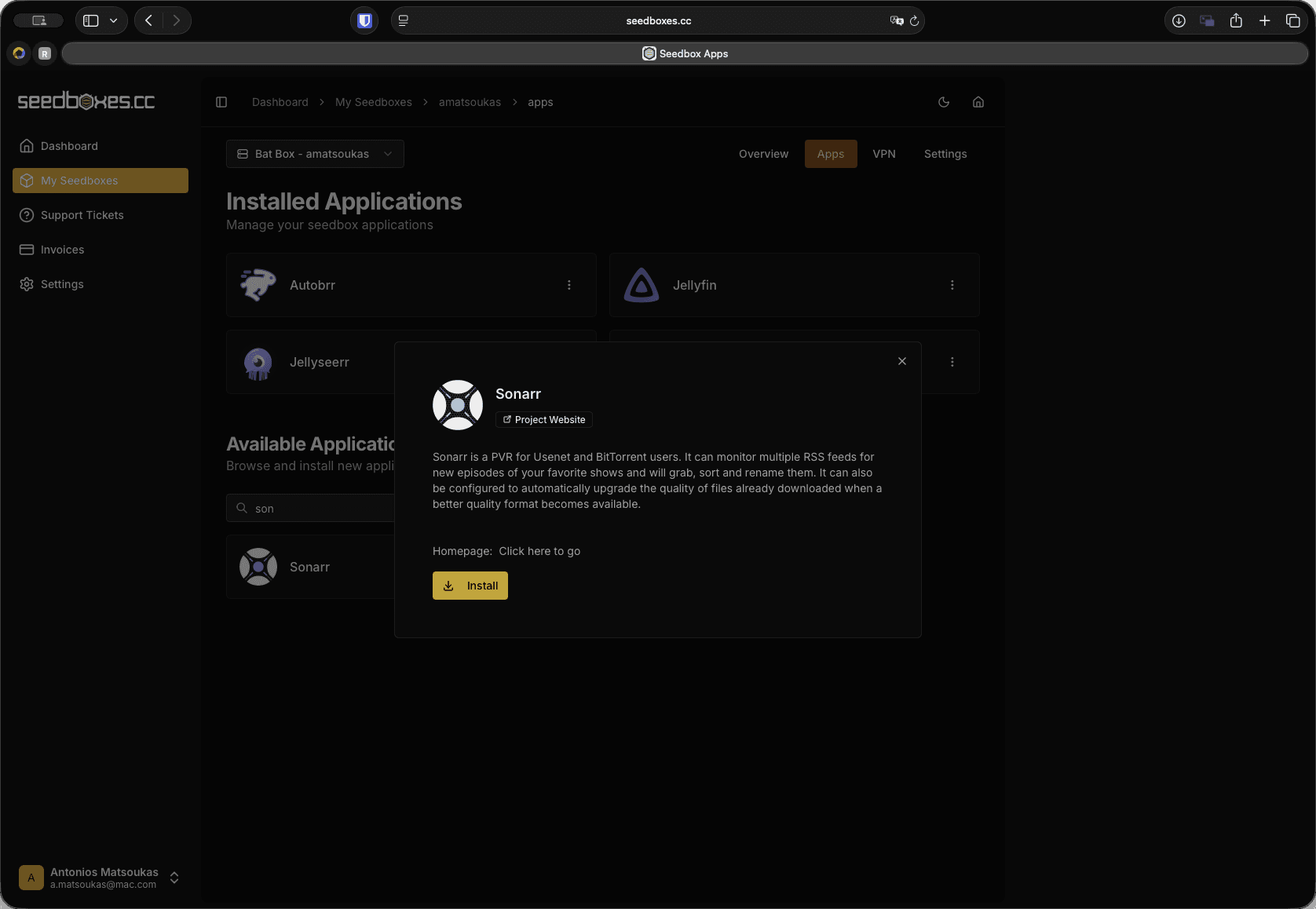
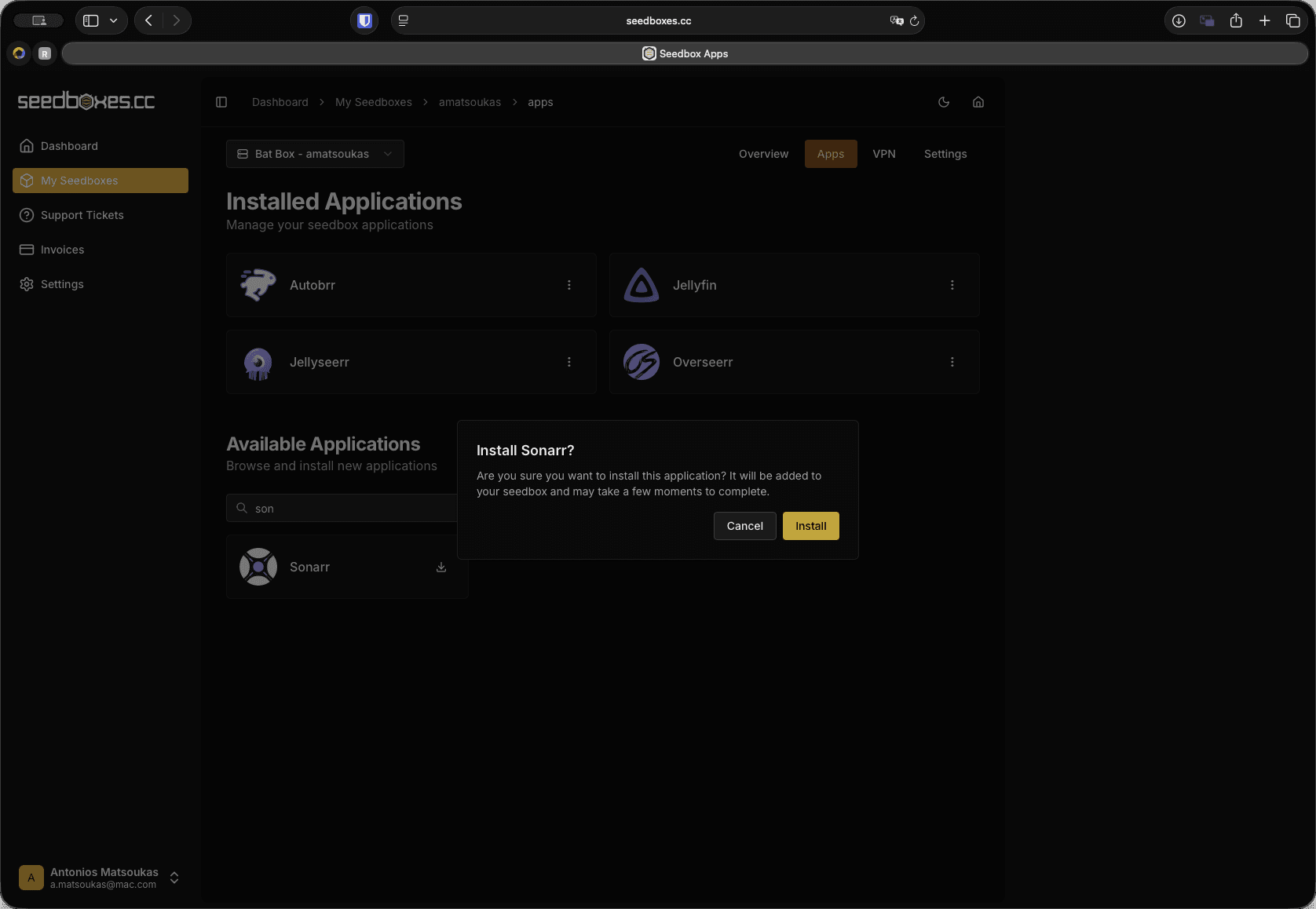
It will take a few seconds. And once it is ready, it will also appear in the list. If we click on one of the already installed applications, we have options to go directly to the application's web UI, restart it, stop it, or uninstall it.