How to Integrate Twilio with Your Rental Website
Learn how to connect Twilio with your rental website to automate SMS notifications, booking confirmations, and customer reminders on Reservety.
By Reservety
Twilio is a cloud-based communication platform that enables businesses to send and receive text messages, phone calls, and emails. By integrating Twilio with your Reservety rental website, you can automate customer communications. Send SMS notifications for booking confirmations, reminders about upcoming rentals, and overdue returns.
Let's walk through how to create a Twilio account and connect it to your Reservety dashboard.
Step 1: Create a Twilio Account
1
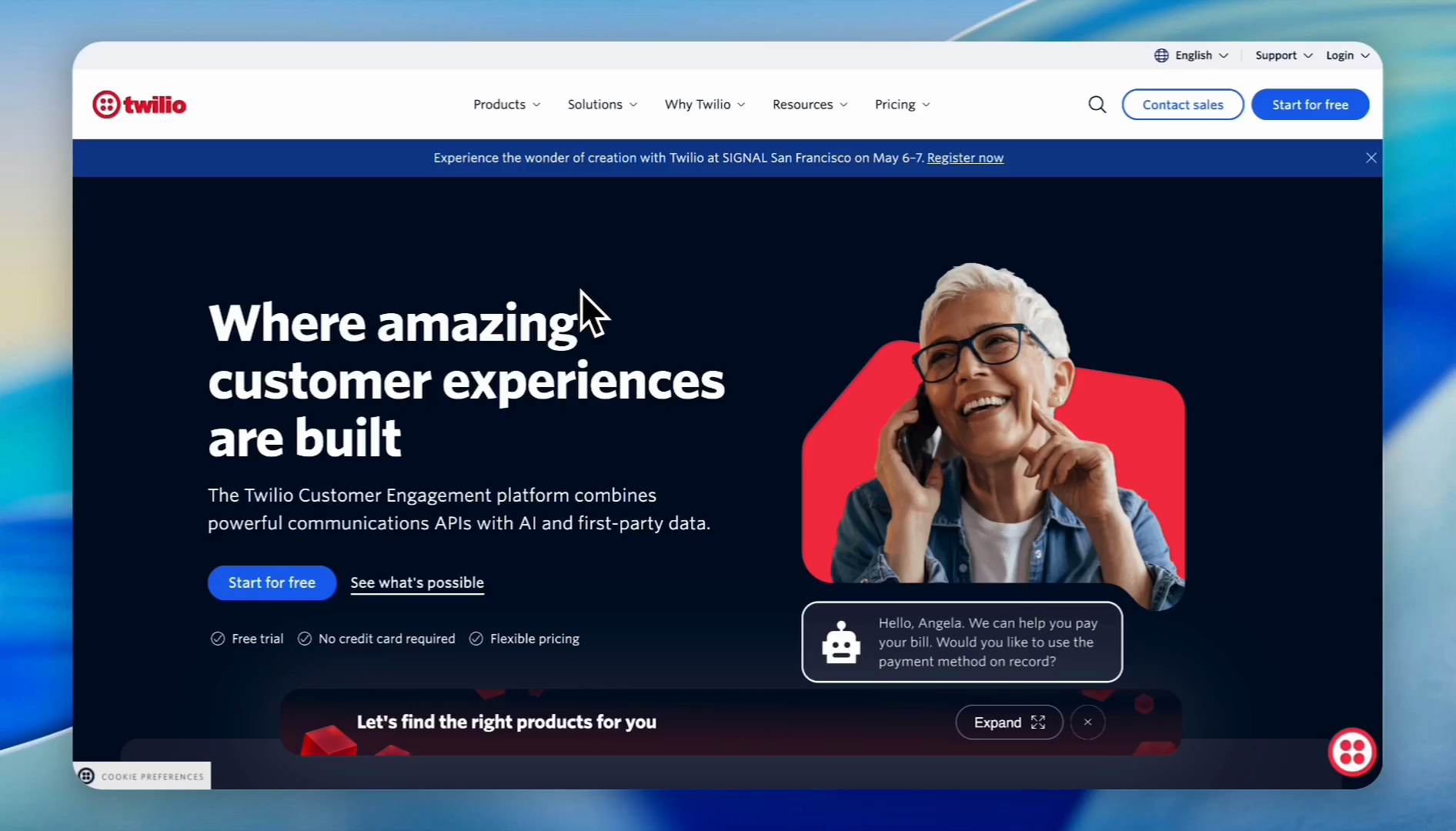
Go to the Twilio website and click Start for free.
2
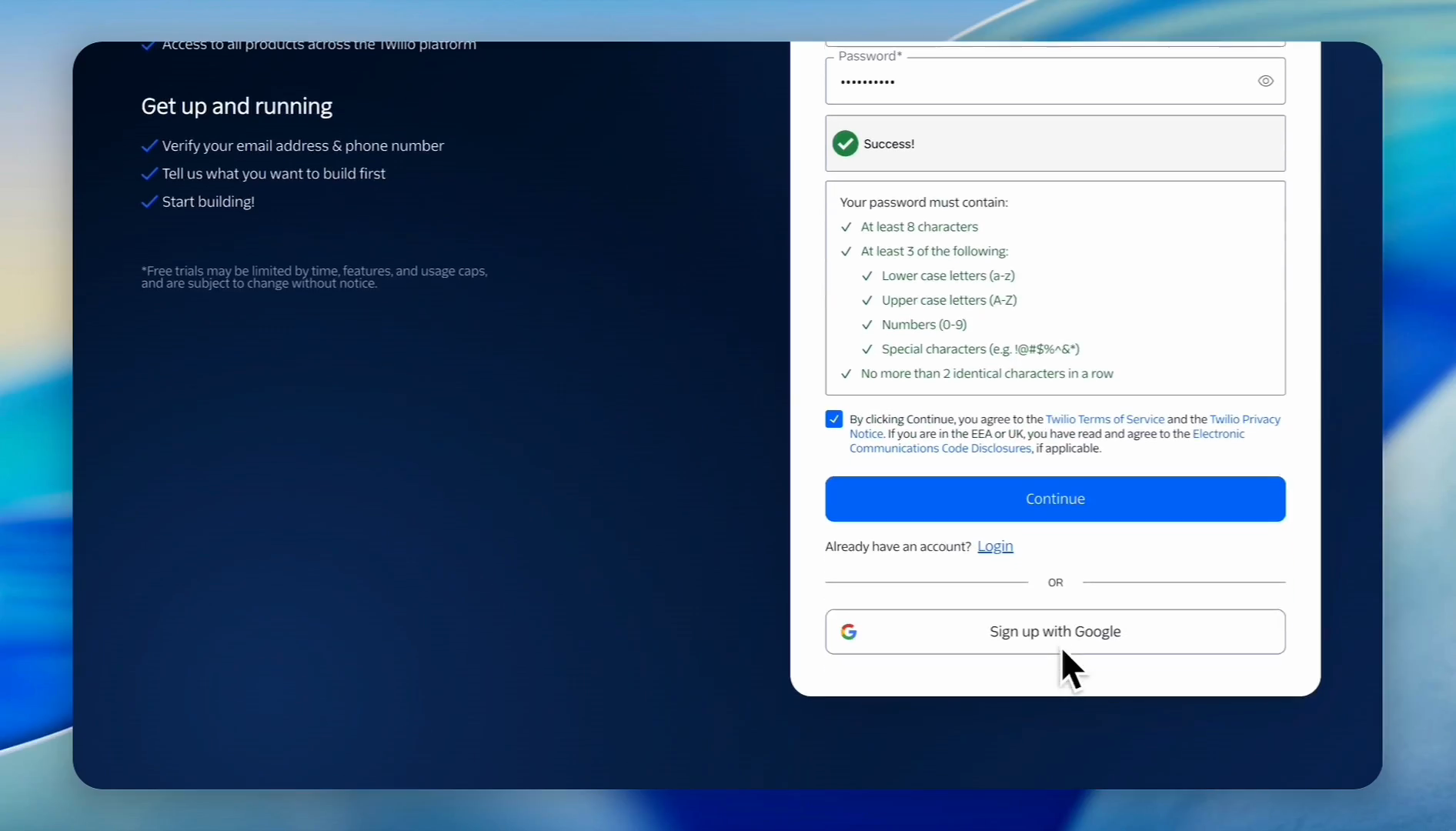
Fill out the sign-up form, check the terms and conditions box, and click Continue.
3
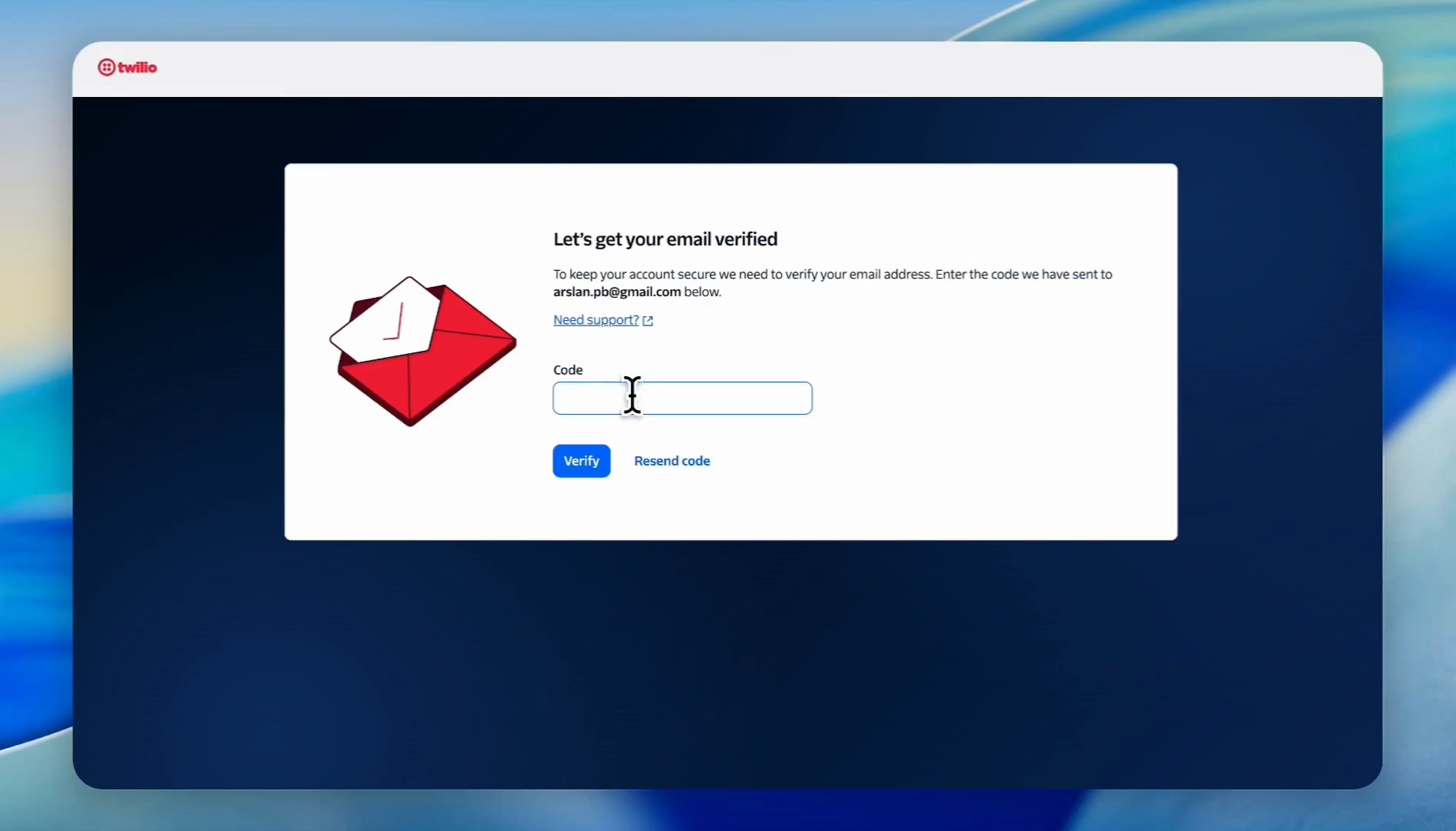
Enter the verification code sent to your email and click Verify.
4
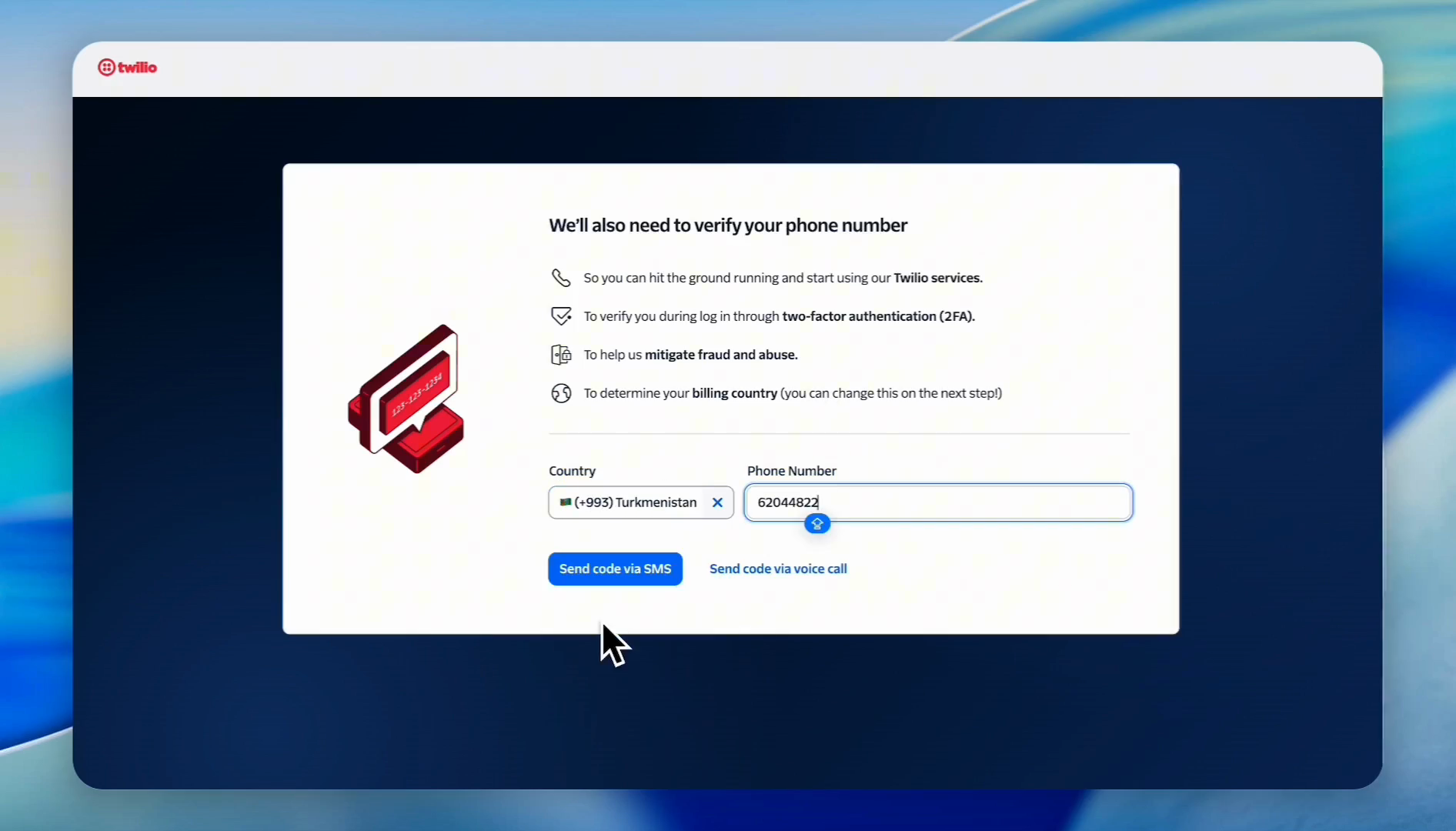
Select your country, enter your phone number, and click Send code via SMS.
5
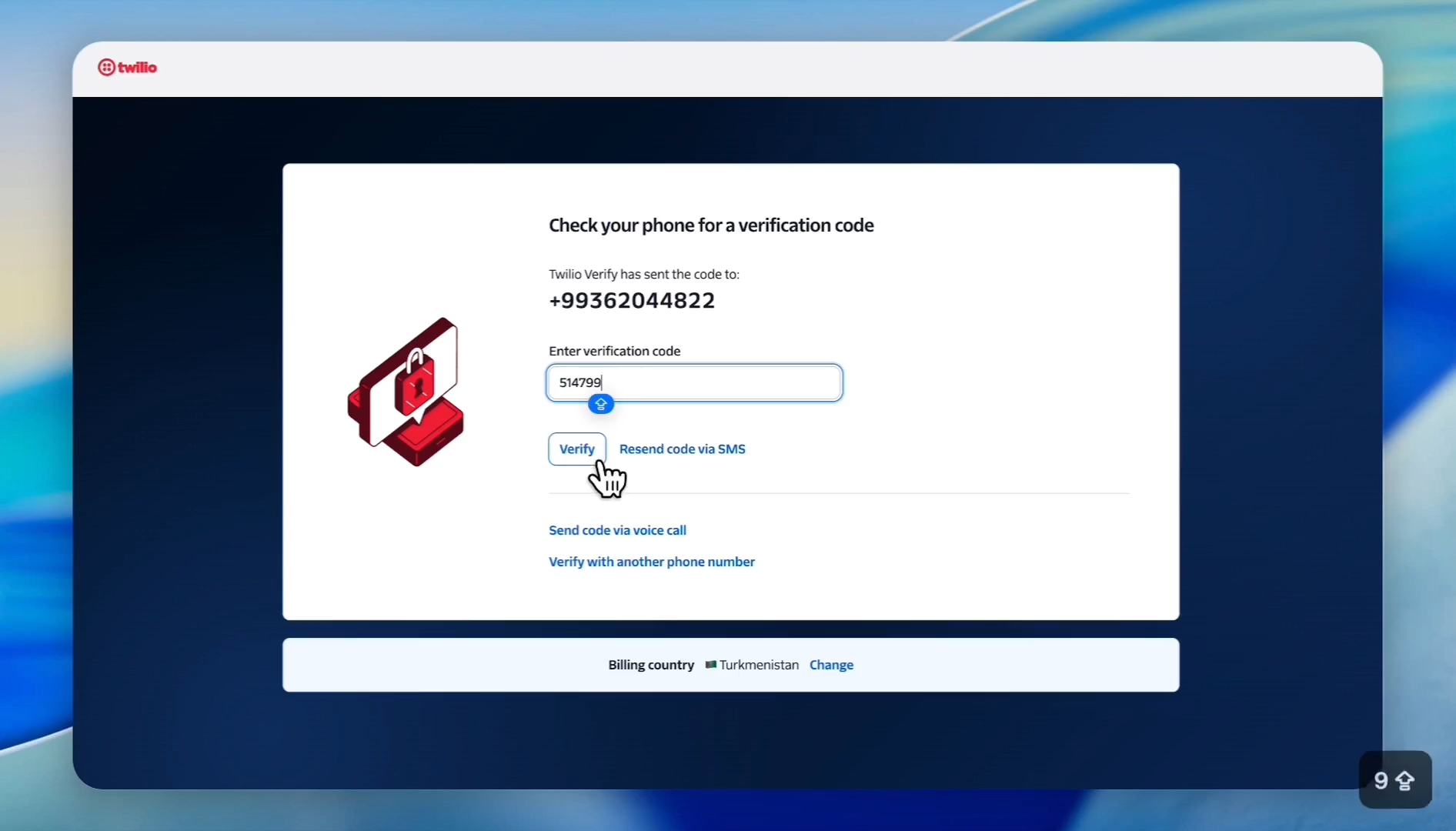
Enter the code you received via SMS, then click Verify.
6
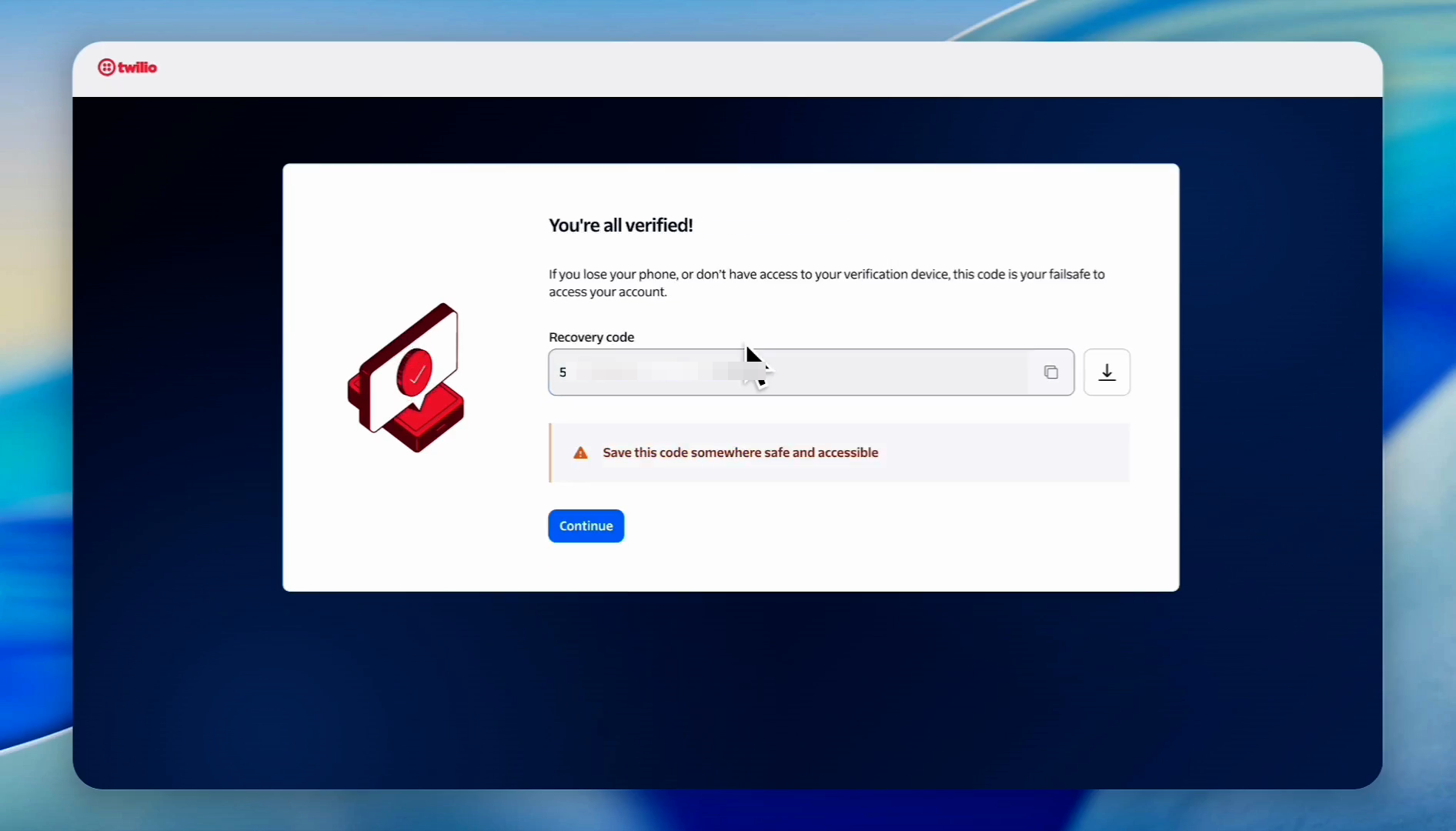
Copy your recovery code and keep it somewhere safe.
Step 2: Set Up Your Twilio Dashboard
7
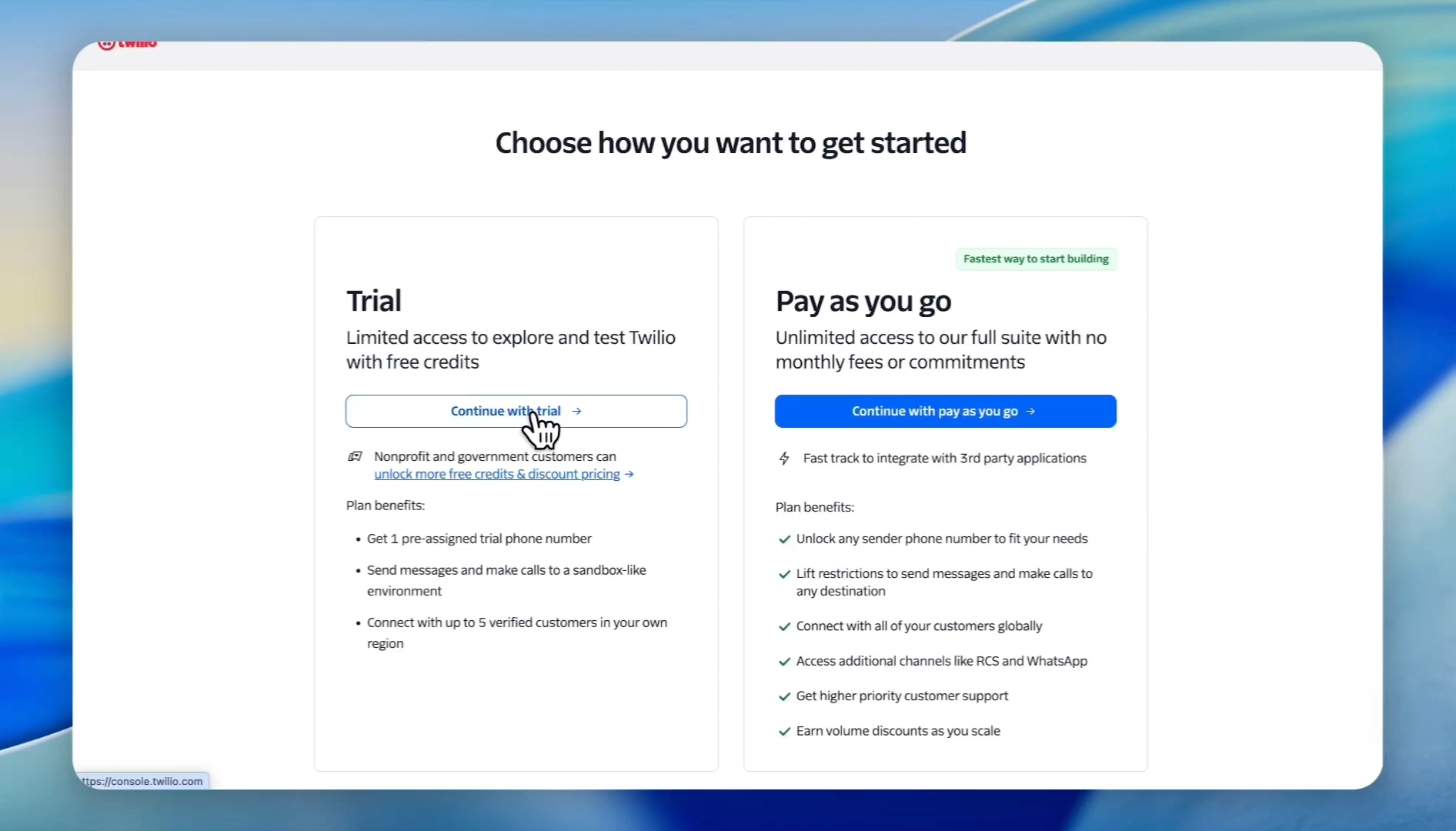
Choose the trial setup option and click Continue with trial.
8
From the Twilio dashboard, click Get a trial phone number to generate a phone number for your account.
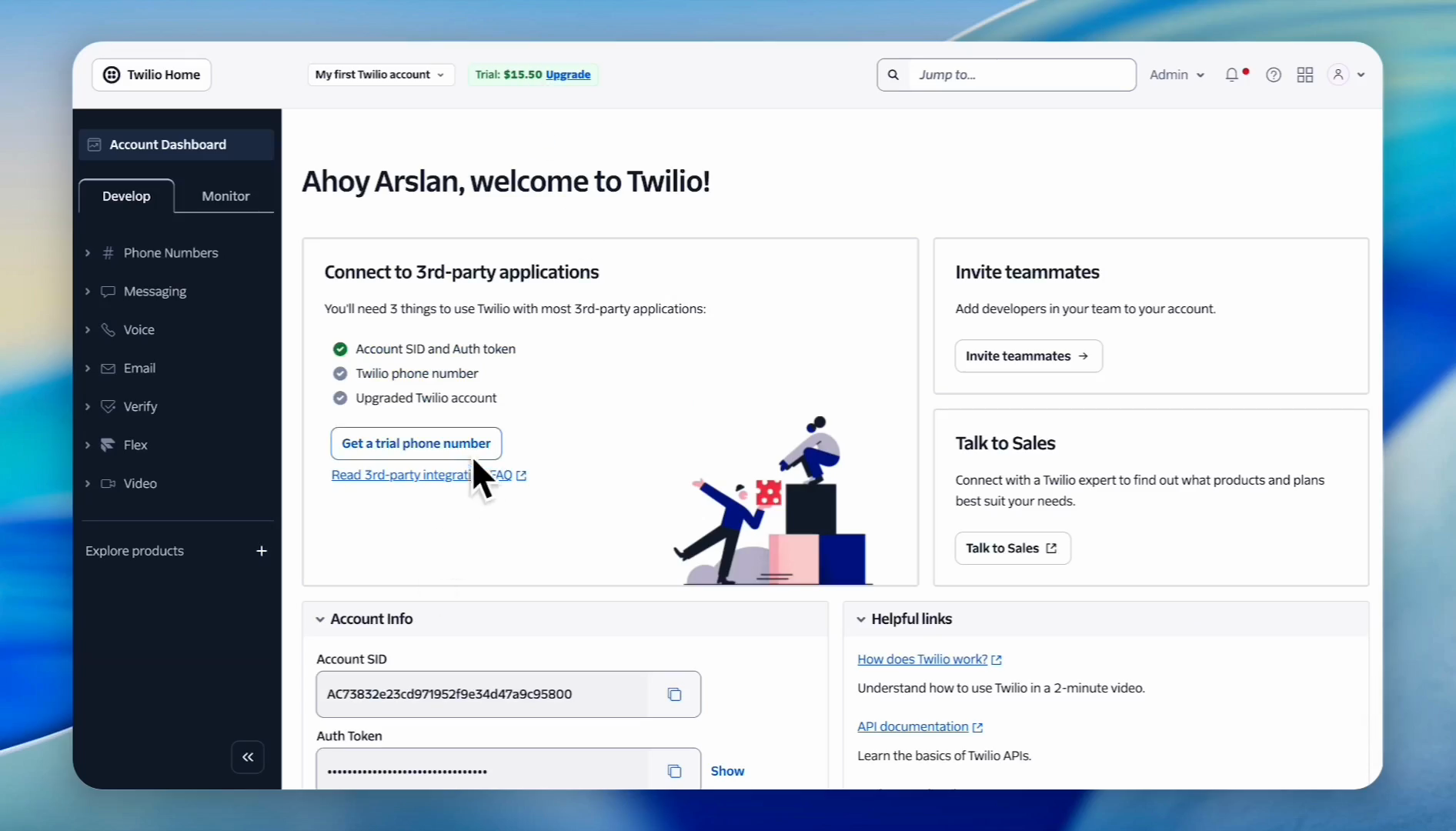
Keep your Twilio dashboard open in a separate tab, as you will need to copy credentials from it in the next step.
Step 3: Connect Twilio to Reservety
9
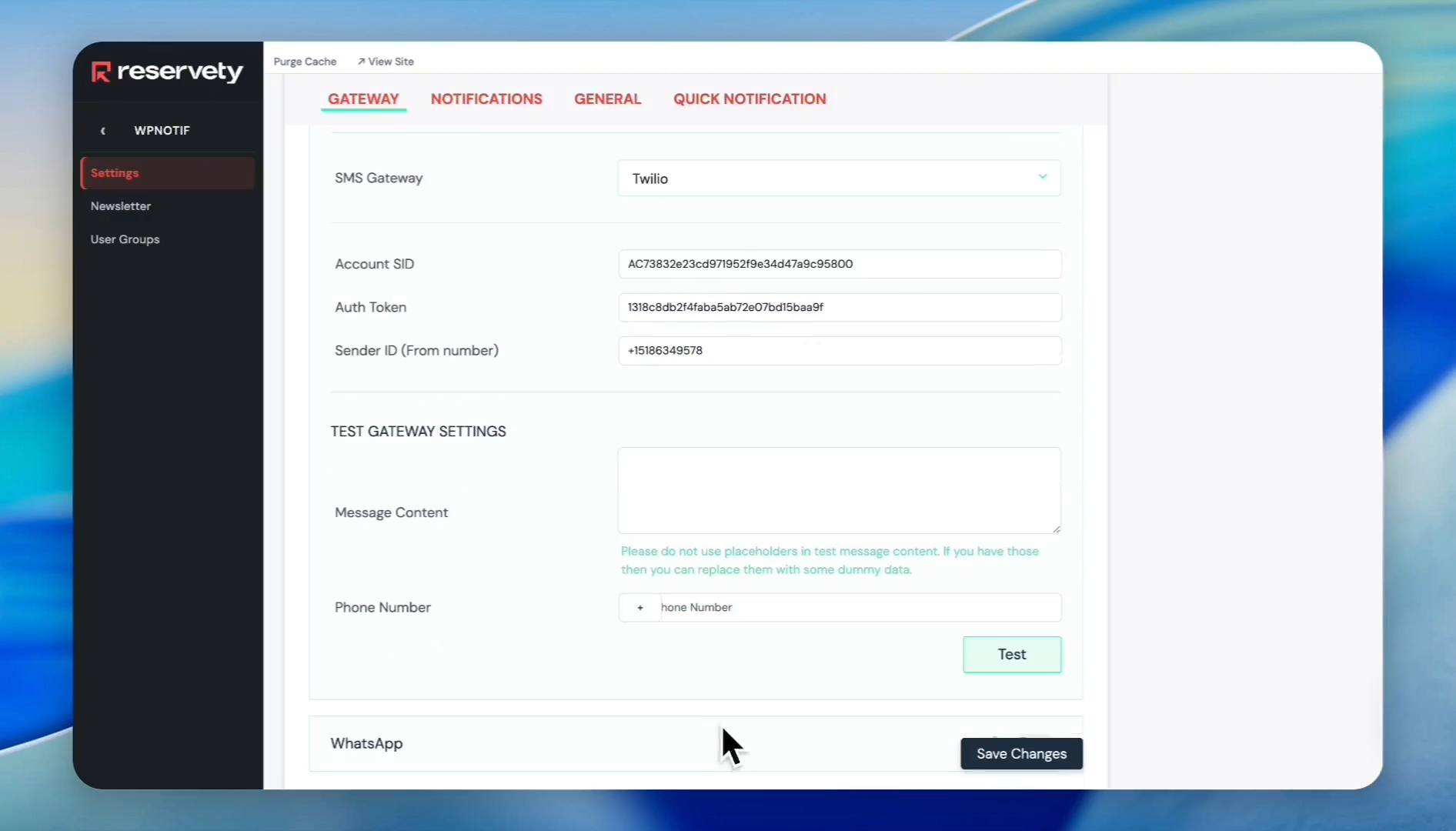
Switch to your Reservety dashboard, click WPNotif in the sidebar, and open the settings.
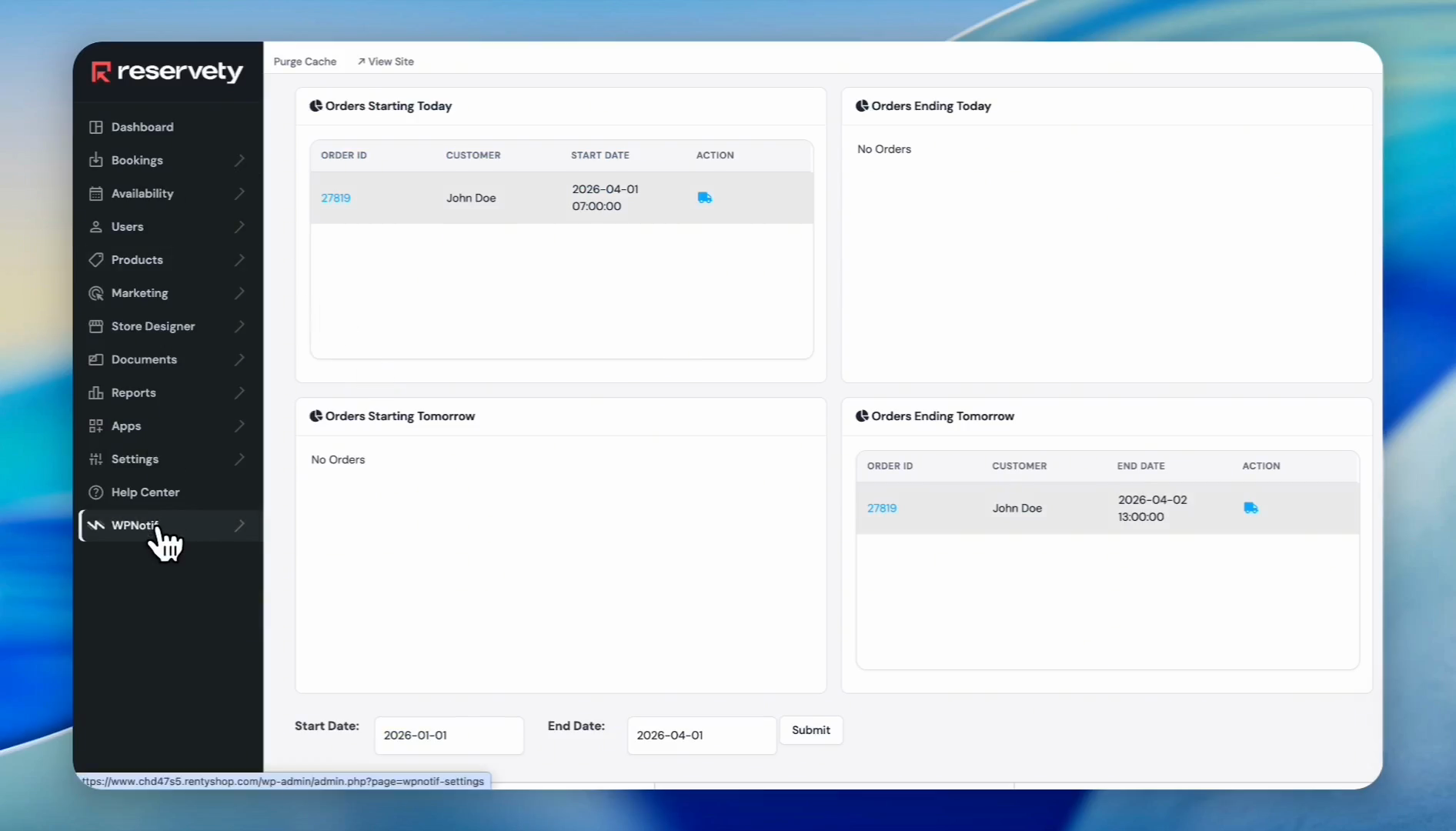
Under the SMS Gateway section, ensure that you select Twilio as your provider.
10
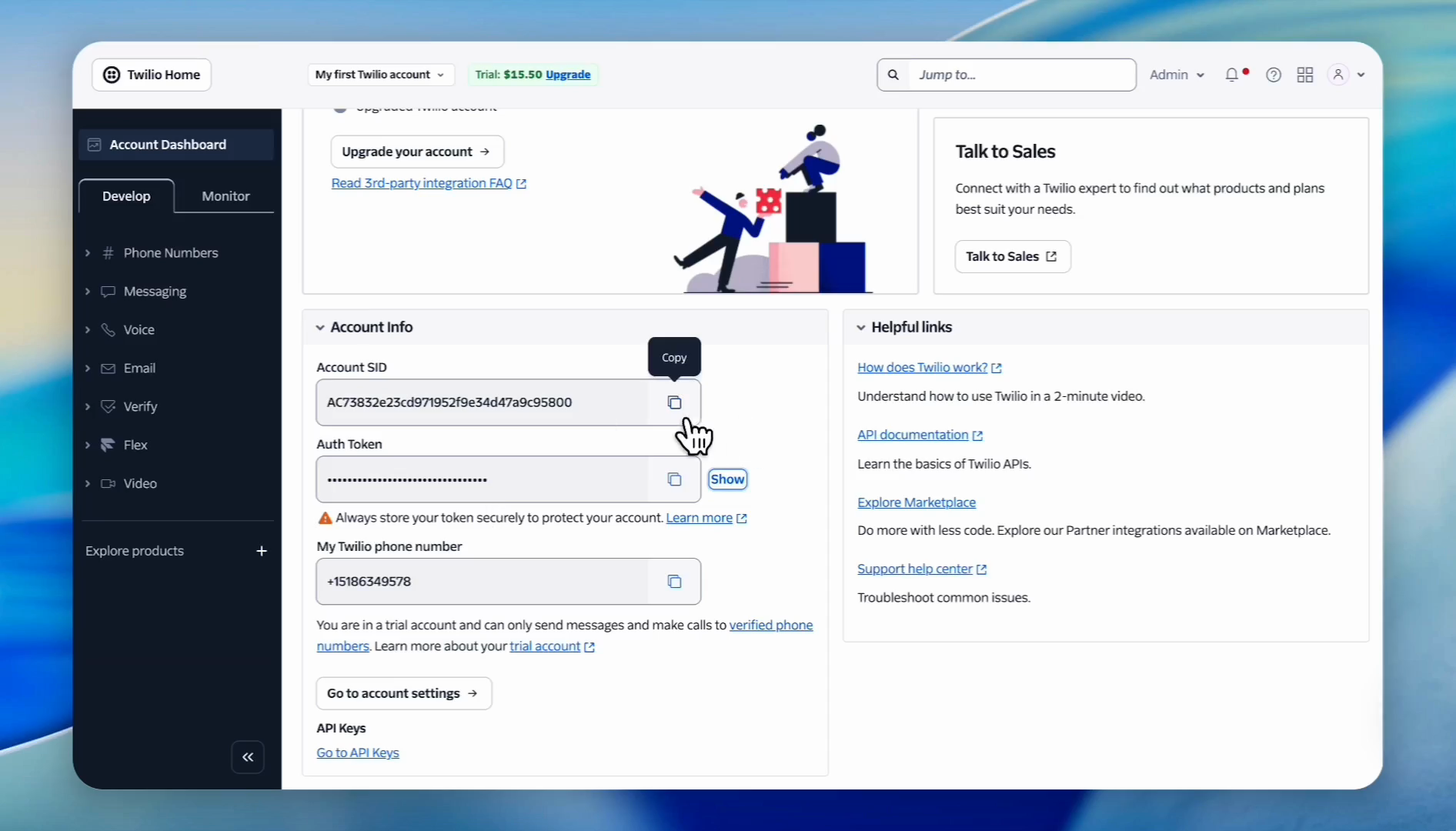
Switch back to Twilio, copy your Account SID, and paste it into the corresponding field in the WPNotif settings.
11
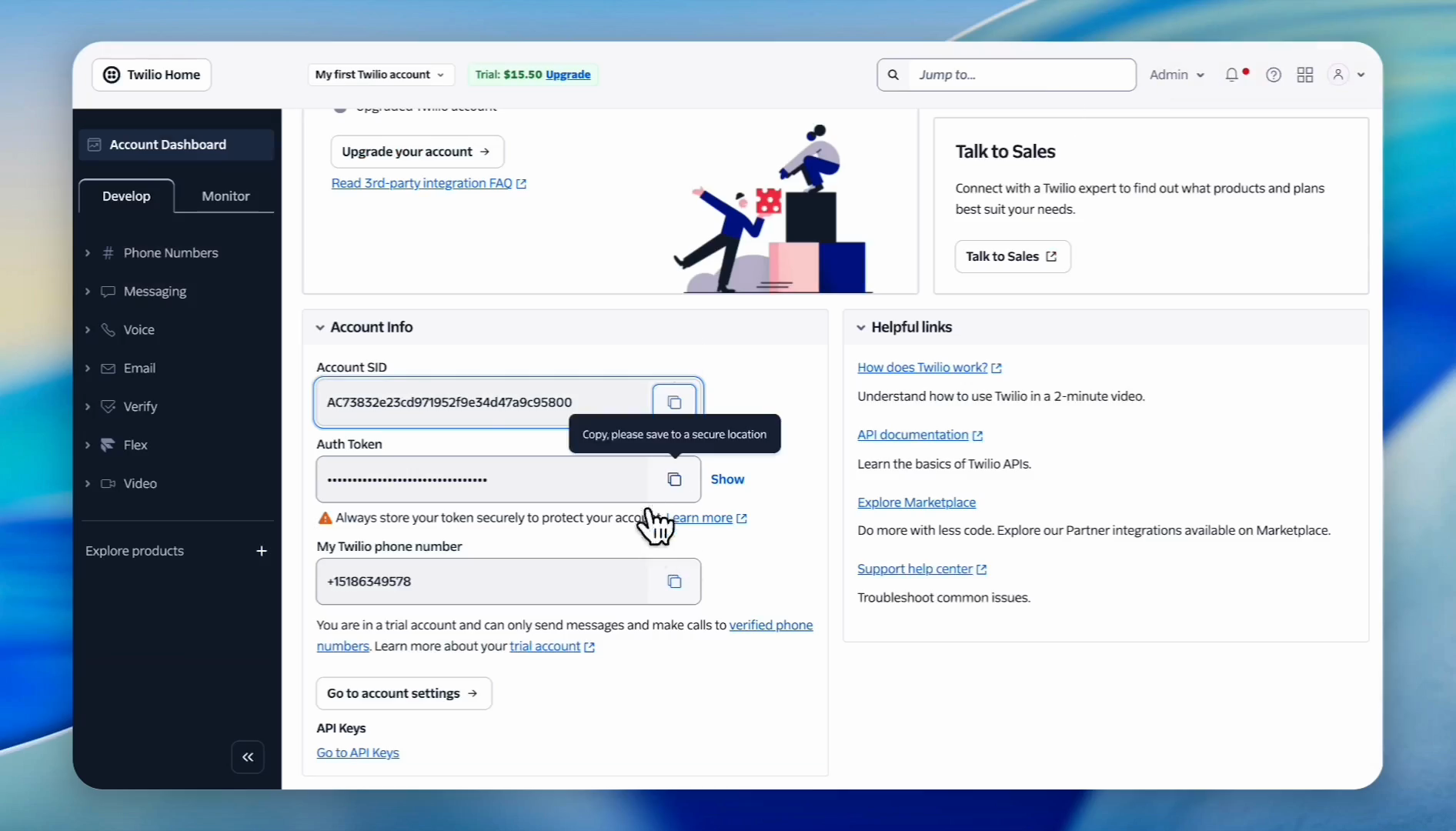
Copy your Auth Token from Twilio and paste it into Reservety.
12
Copy your newly generated Twilio trial phone number and paste it into the Sender ID field in Reservety.
Step 4: Test and Save Your Settings
13
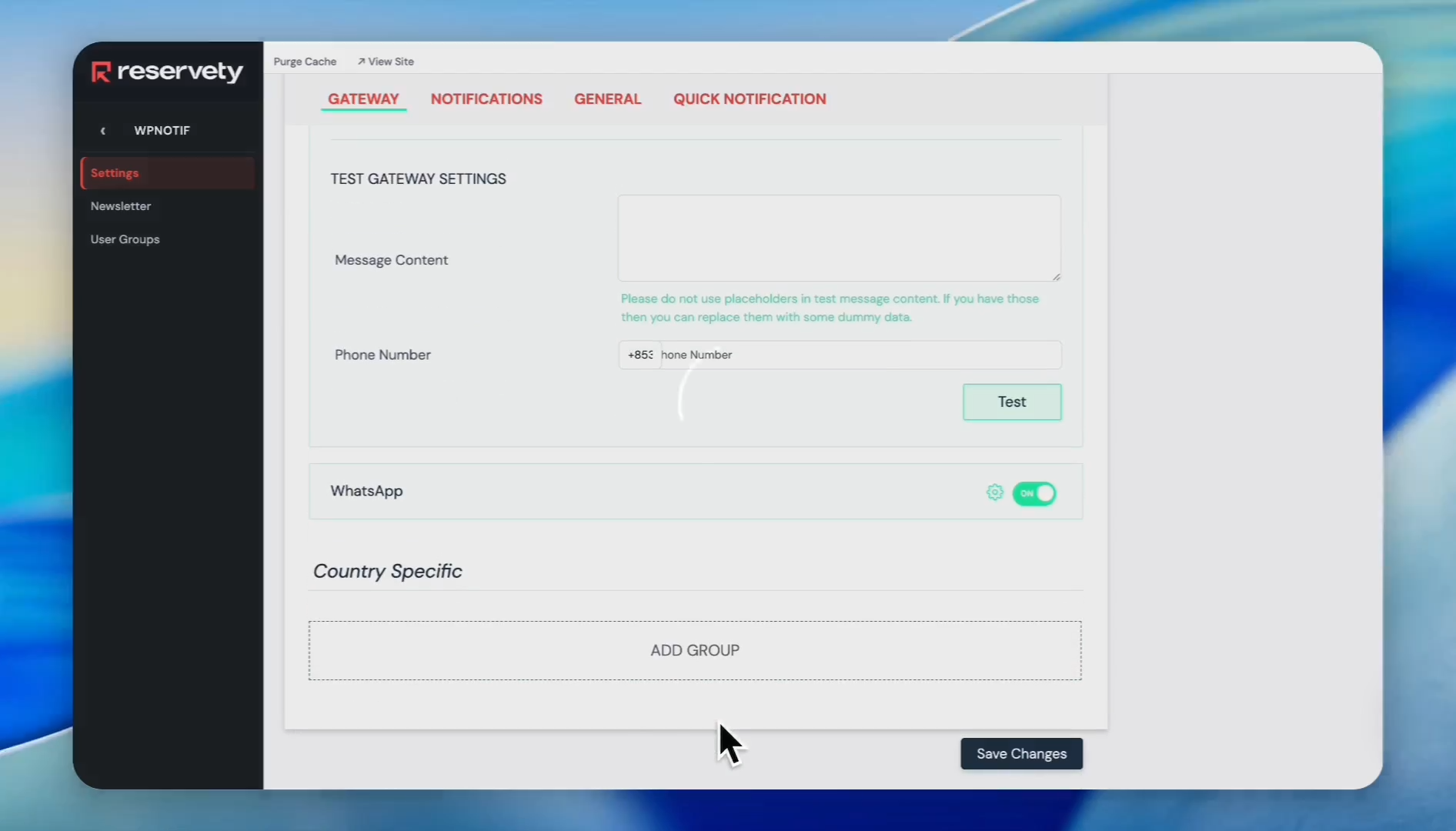
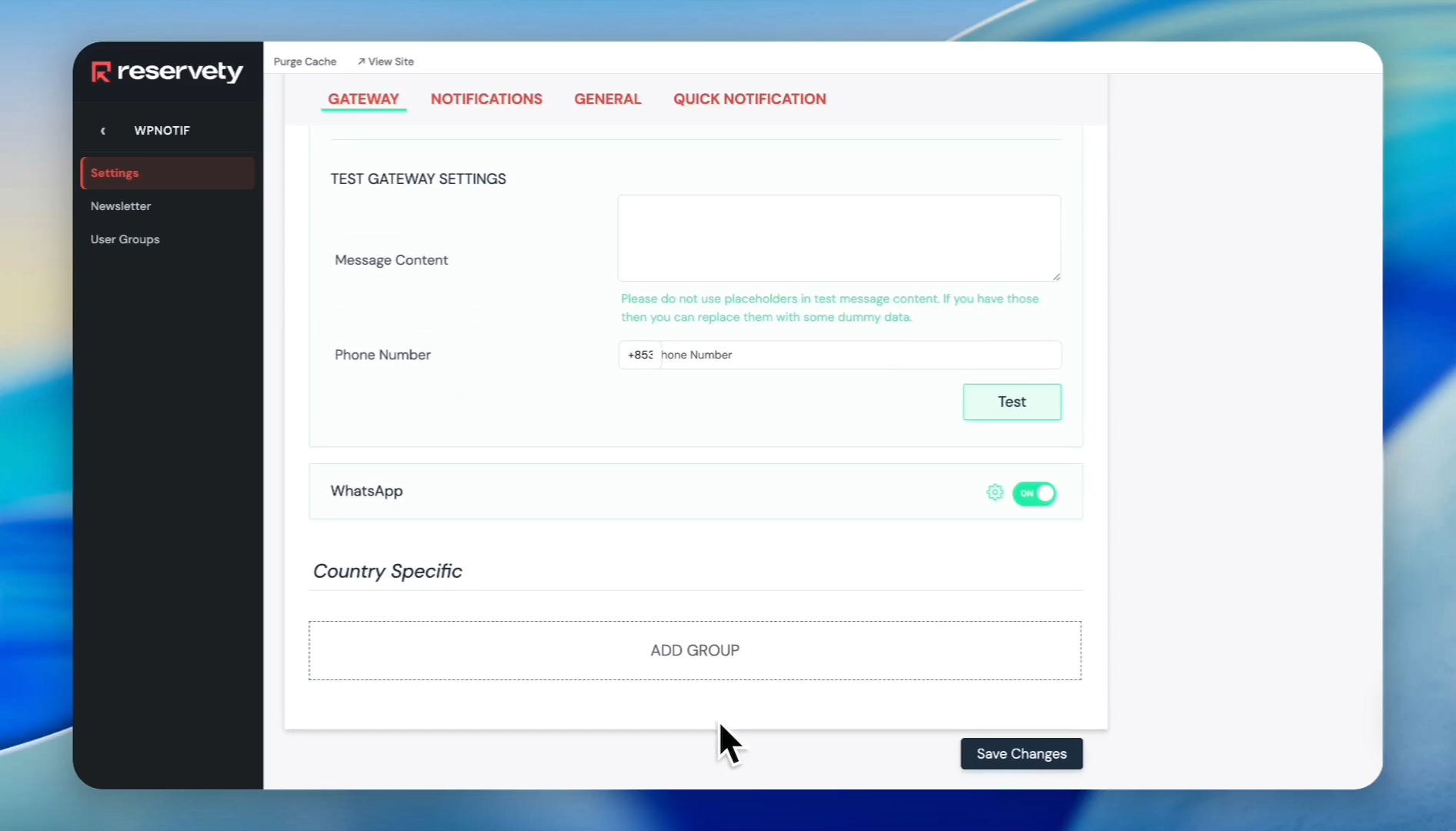
Type a test message in the gateway settings and click Test to verify the connection.
14
Once the test is successful, click Save Changes.