How to Integrate Your Rental Business with Google Calendar
Step-by-step guide to syncing your rental business reservations with Google Calendar using an ICS link. Learn how to make your calendar publicly accessible and manage bookings efficiently.
By Reservety
In this guide, we'll learn how to integrate your rental business schedule with Google Calendar. This process helps you keep track of reservations and availability in one place.
By connecting your rental system to Google Calendar, you can view bookings and manage your schedule more efficiently.
Let's get started
Log in to your rental website dashboard.
1
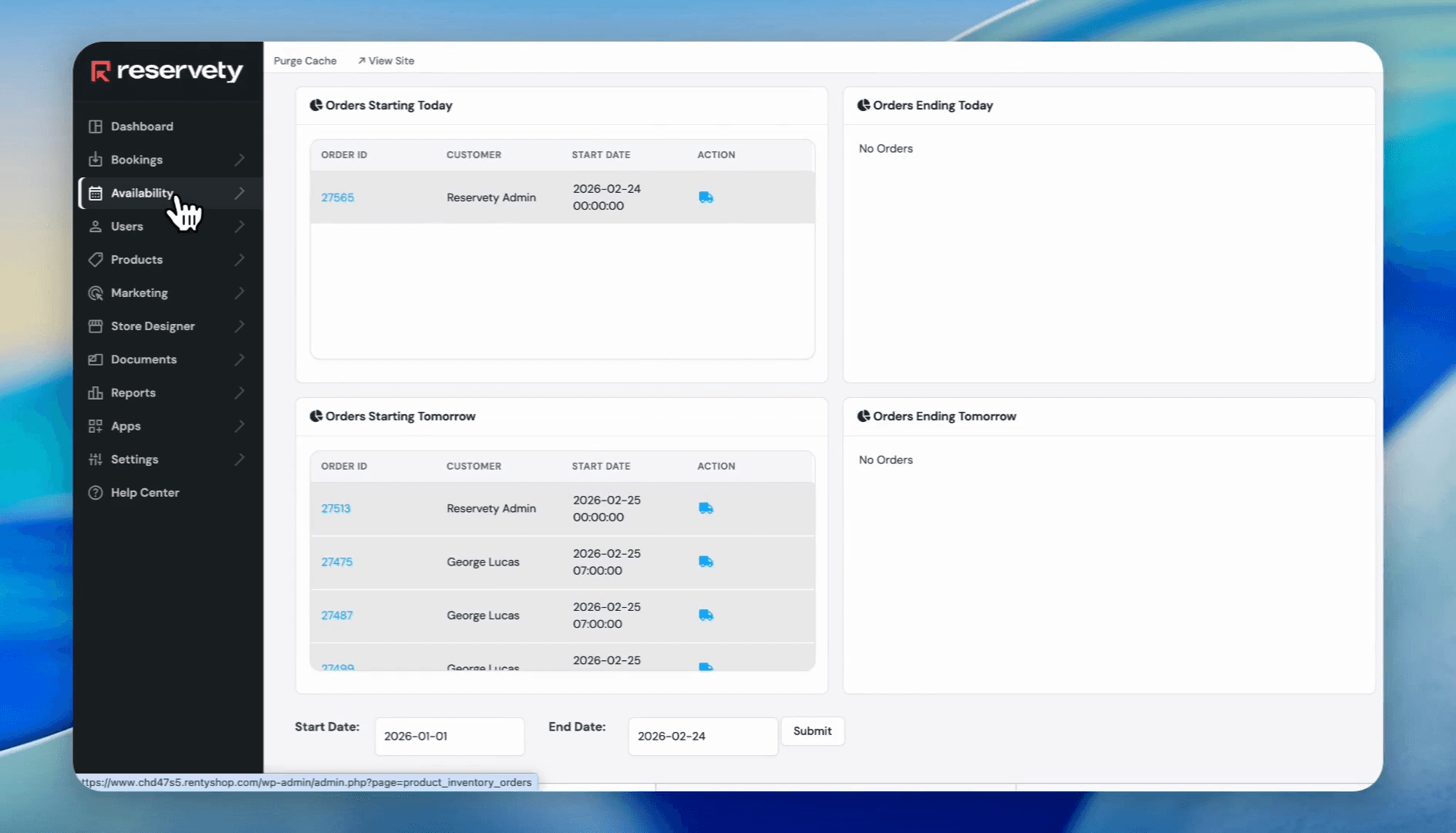
Click Availability.
2
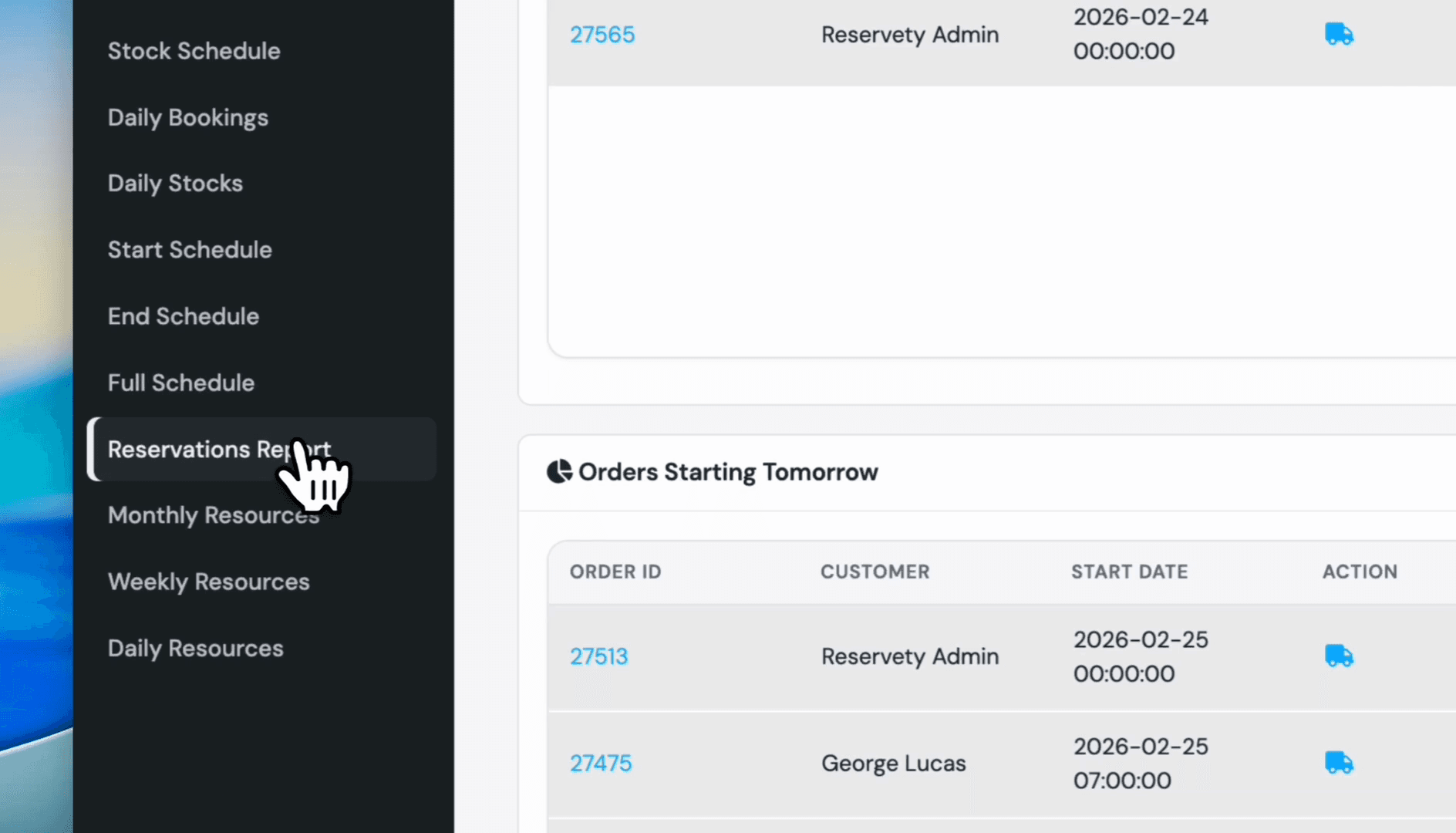
Click on Reservations Report.
3
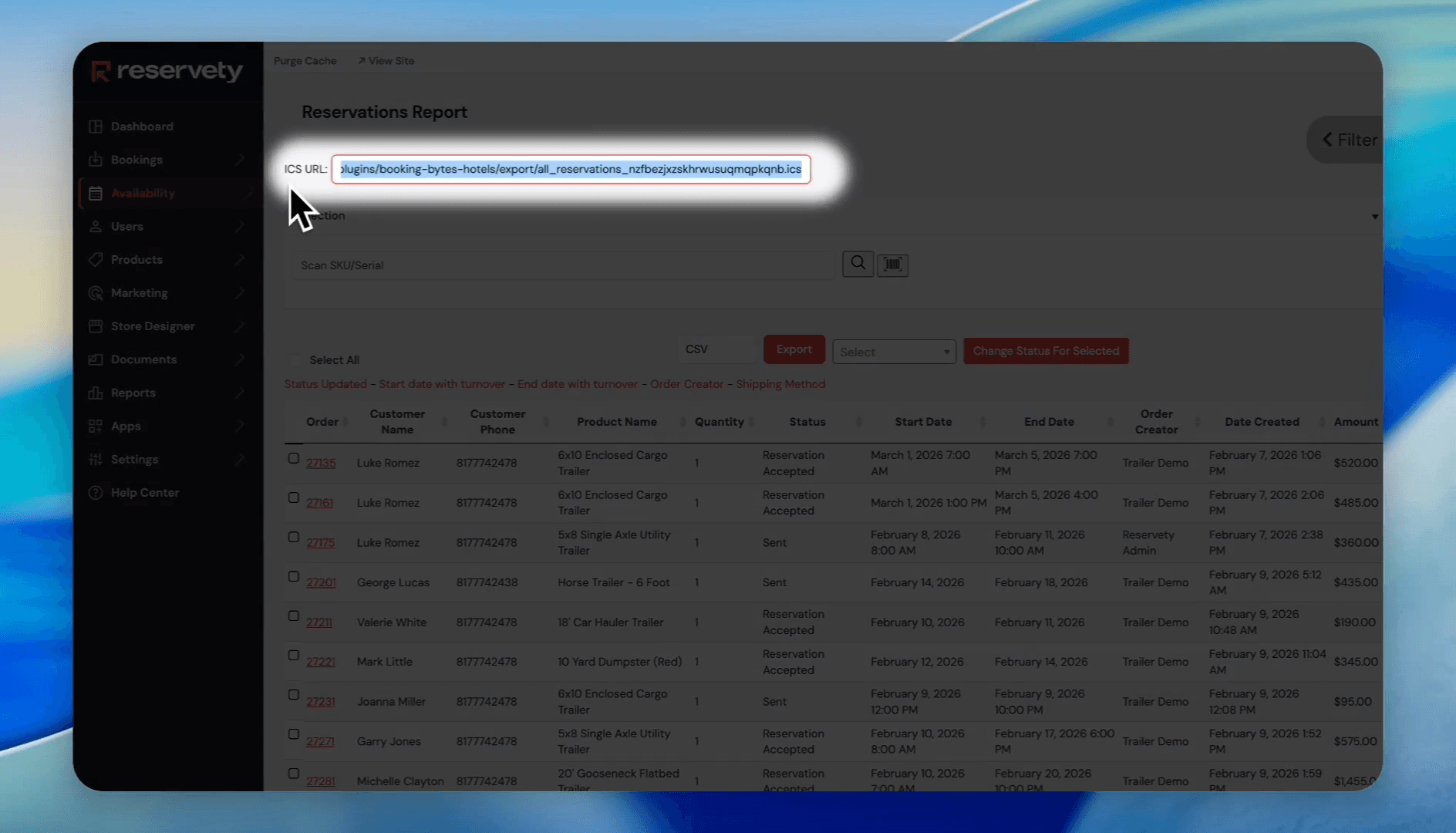
Copy the ICS URL.
4
After copying the ICS link, go to Google Calendar.
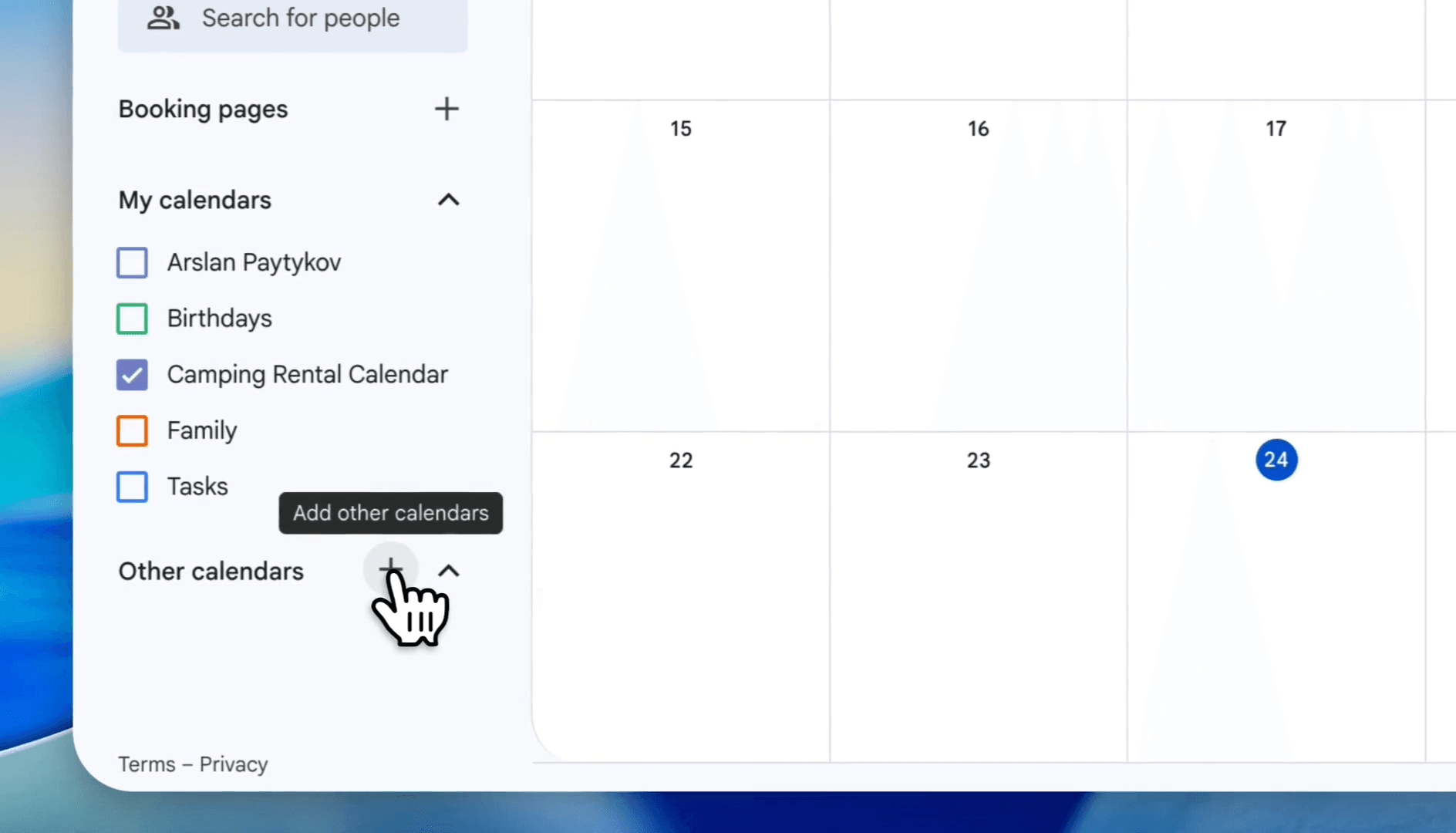
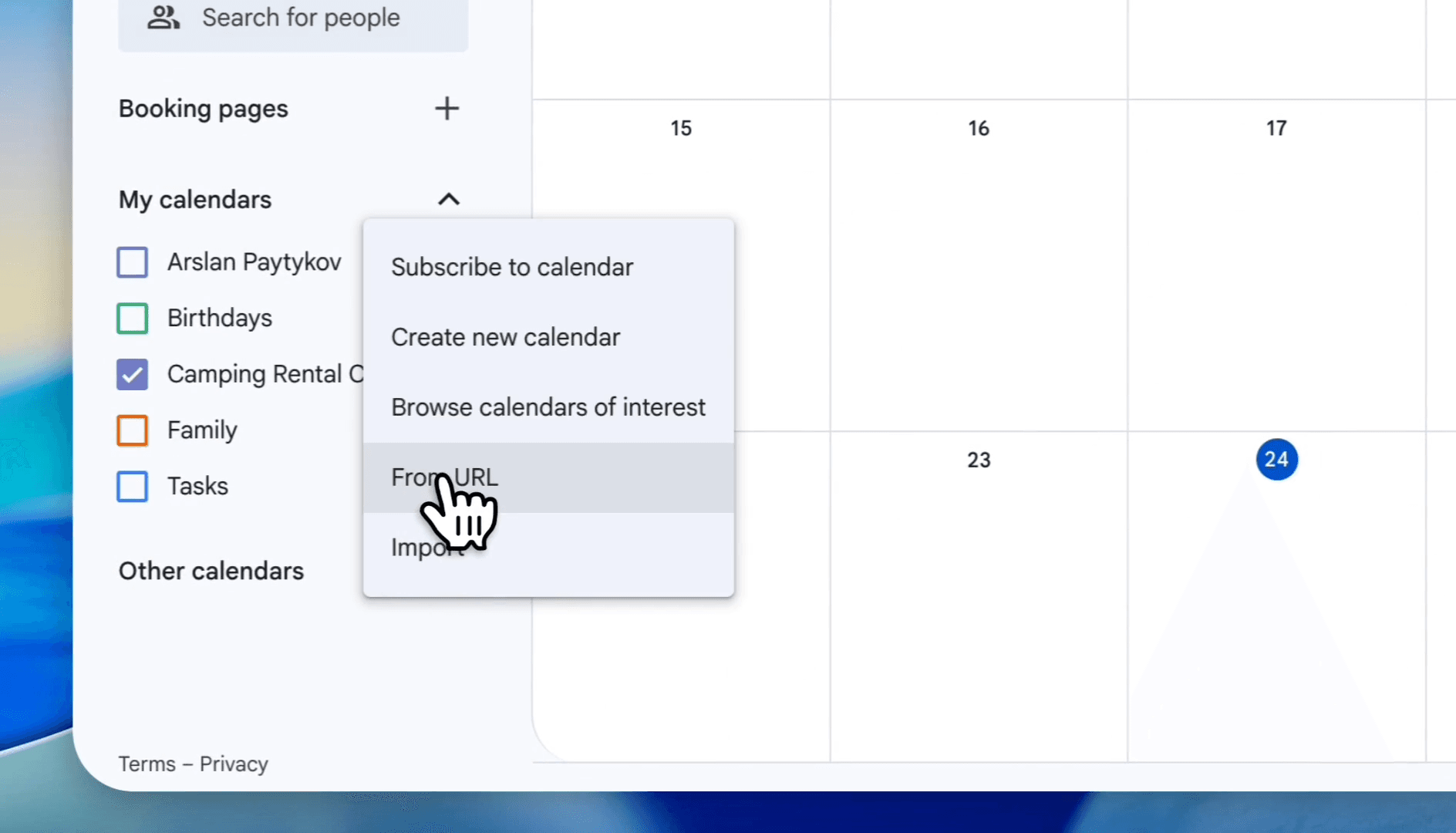
On Google Calendar, look at the sidebar and find the section labeled "Other calendars." Click the plus icon, select "From URL," and paste the URL you copied from your rental website.
5
Click on the plus icon next to Other calendars.
6
Click on From URL.
7
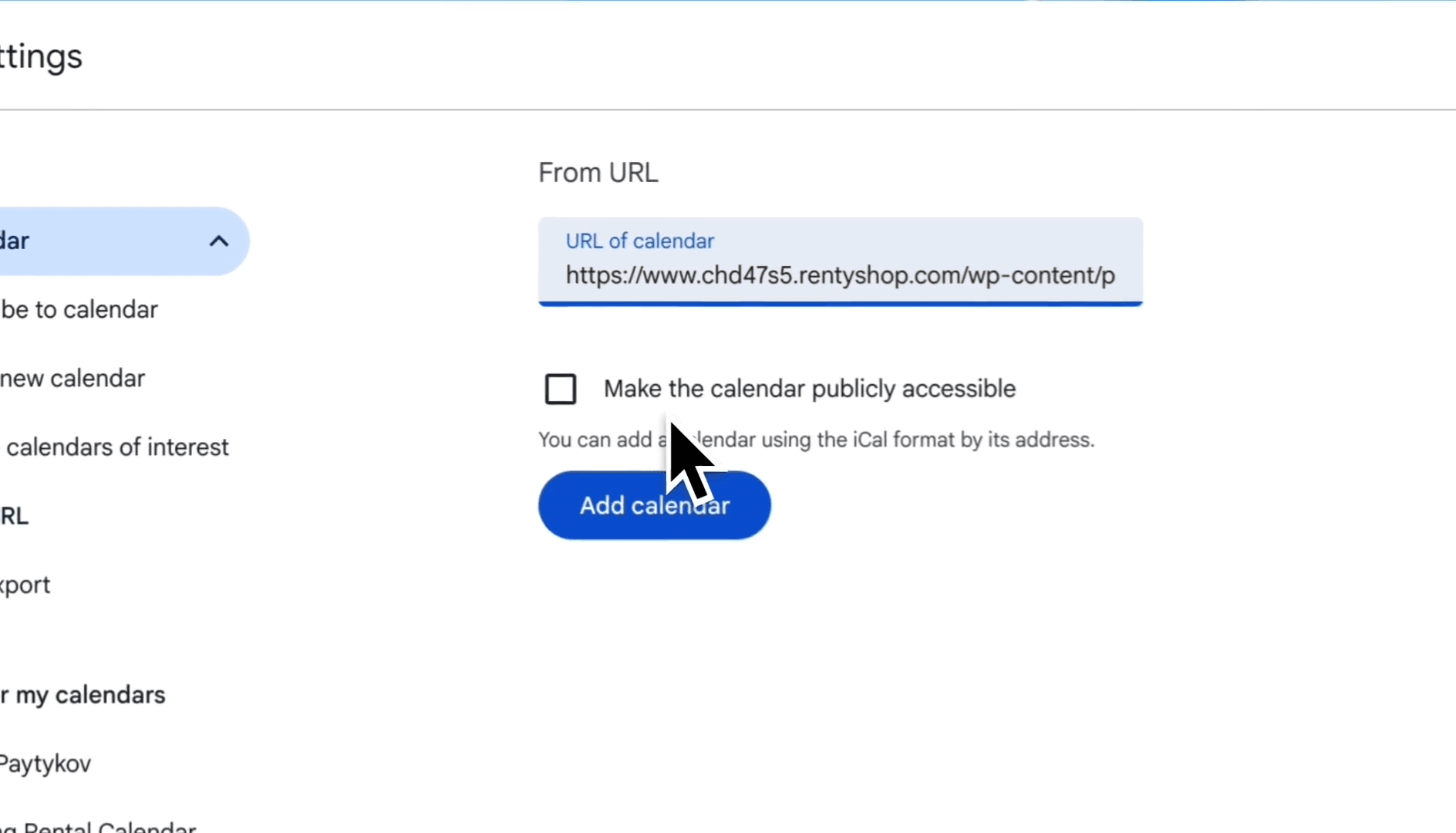
Paste the URL into the "URL of the calendar" field.
8
Click the 'Add calendar' button.
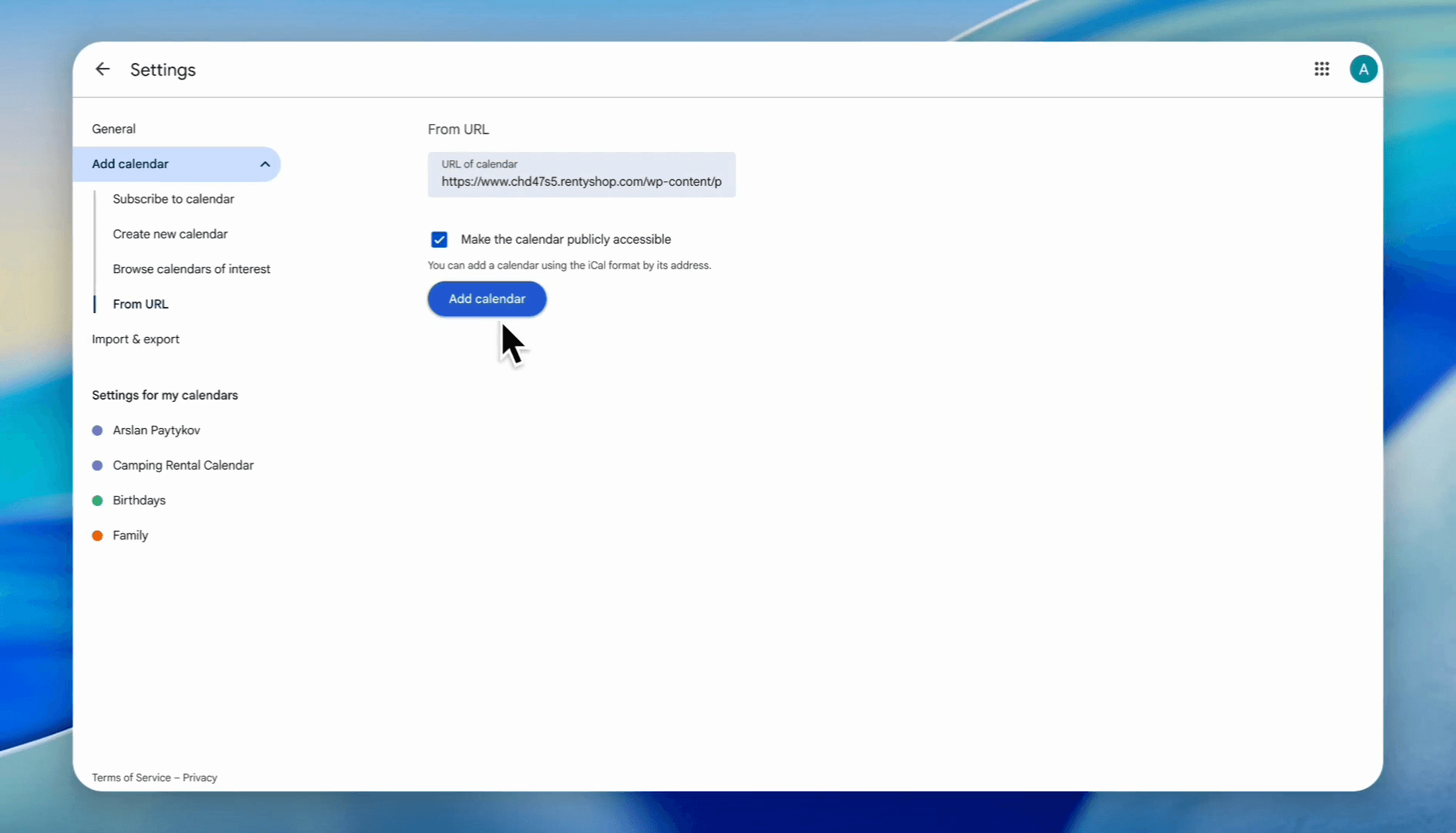
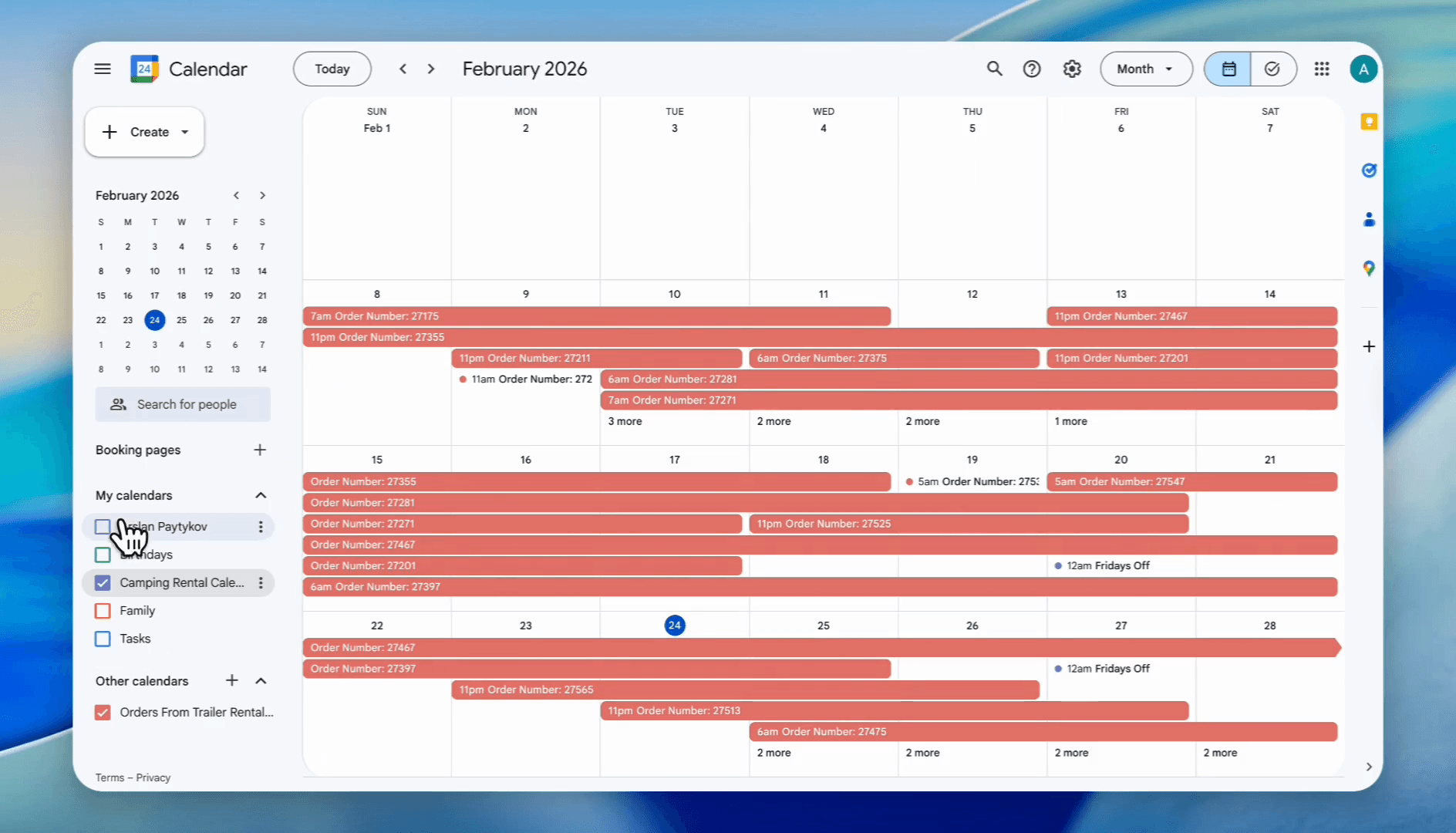
Now, our rental business is fully integrated with Google Calendar.
9
Under 'My calendars', uncheck the boxes for other calendars to isolate the rental calendar view.