
How to Link or Attach Bookings in eviivo: Workarounds for Multiple Reservations
Learn how to link or attach multiple bookings in eviivo, handle discounts for combined reservations, and avoid common pitfalls when managing guest reservations. Step-by-step guide with practical workarounds. This is the rambling intro to solving a situation in which there are two pre-existing NON-attached bookings that should ideally become attached before the SCI goes out.
This is intended to be watched as a video - no editing to the text or guide below has been performed at all, FYI. This will give context, then there are short guides actually performing the fix required in this situation.
In this guide, we'll learn how to address issues with separate reservations in eviivo when a guest has booked multiple cabins at a discounted rate. We'll look at why it's important to link bookings and apply discounts so that eviivo matches your records and guests receive accurate information. This process helps prevent confusion before automated messages are sent to guests.
Let's get started
In eviivo, it's helpful to attach bookings. For example, if someone has two different cabins. It's ideal if they are linked or attached in eviivo. There are a couple of ways to handle this, but unfortunately, there is no way to merge two separate reservations on eviivo. However, I will show you a workaround. I'll show you exactly why it's cool and why it's worth doing. This might be a bit long and rambling, but I think it's worth it. If you watch, you'll likely benefit.
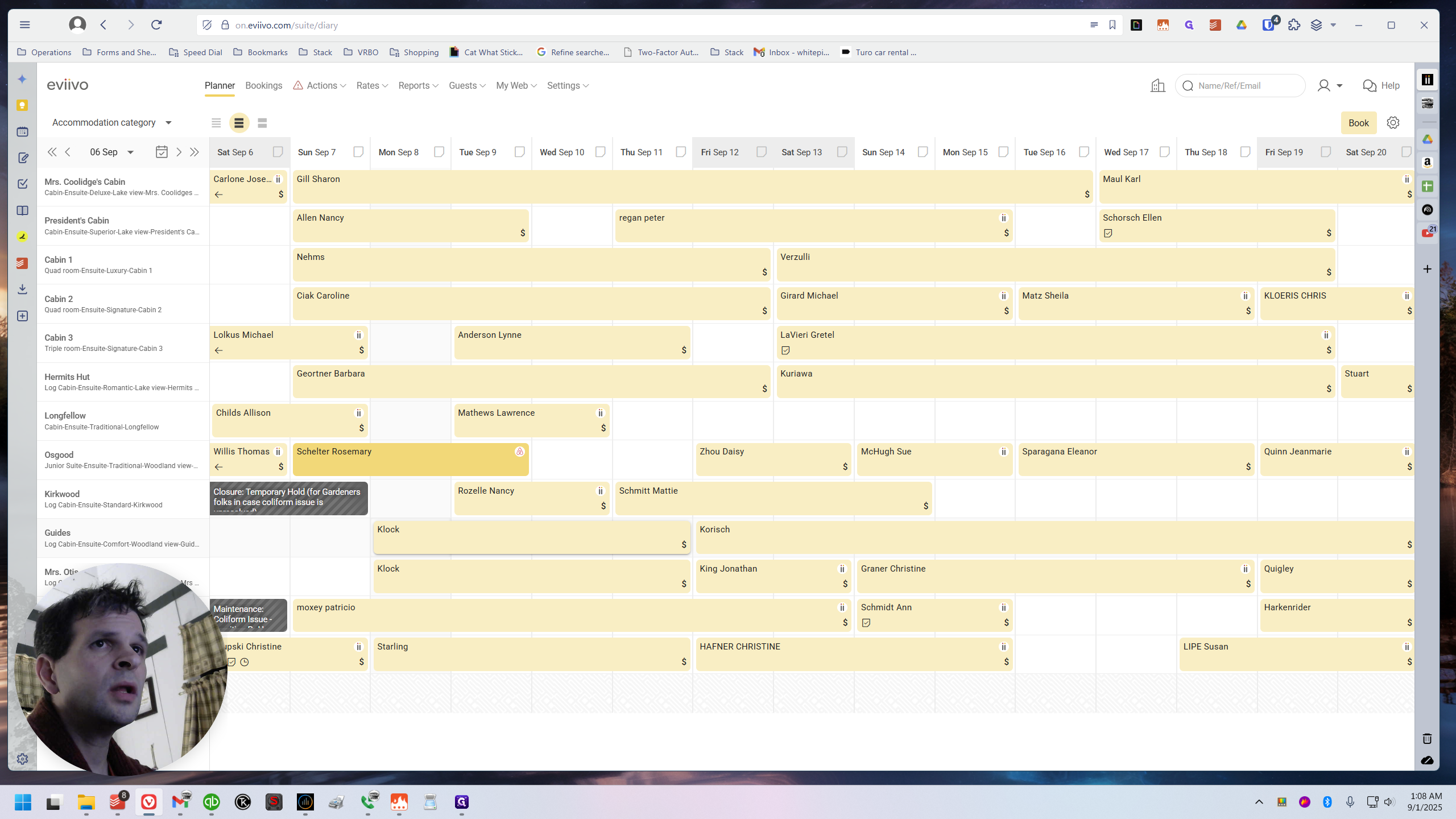
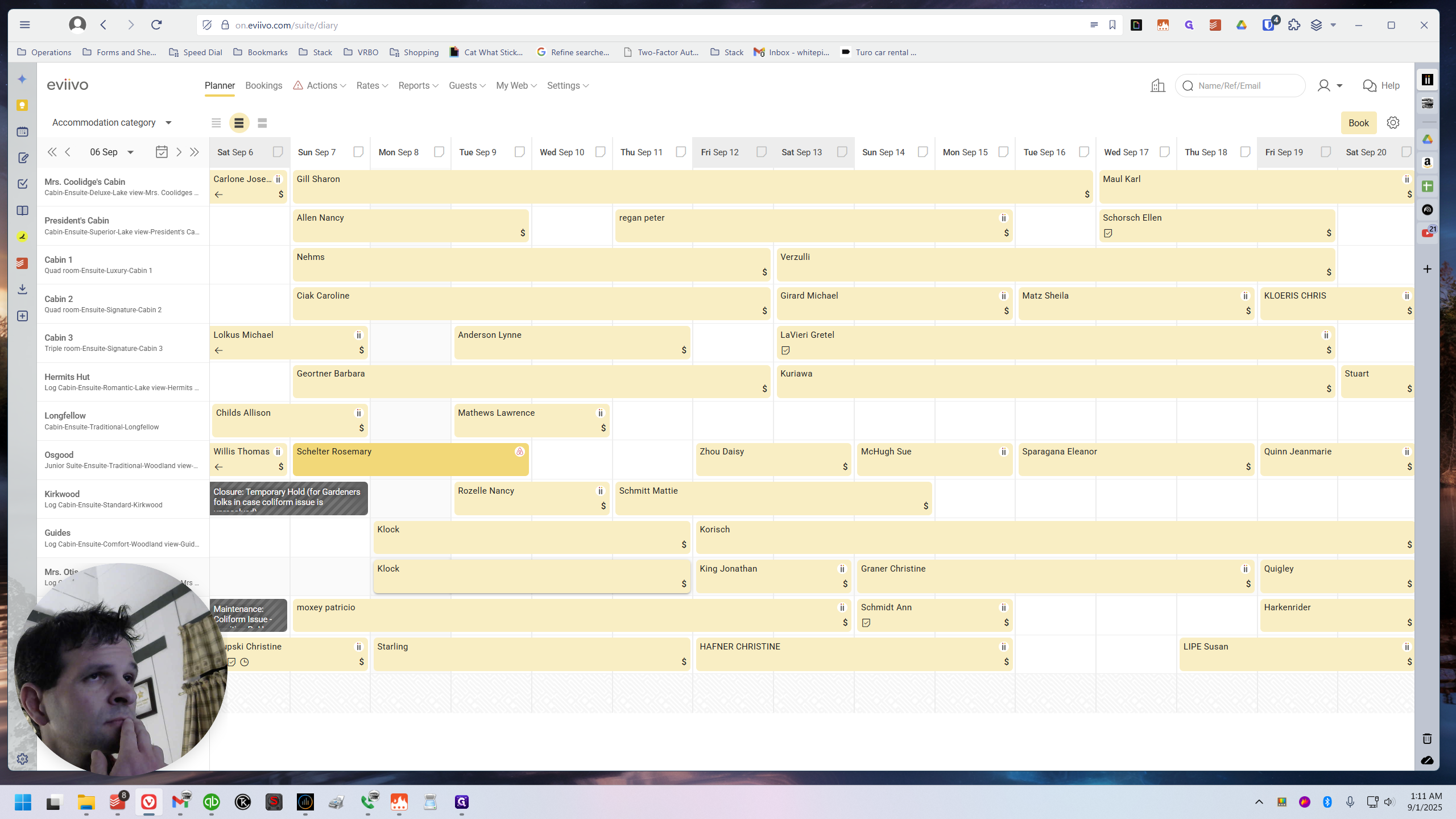
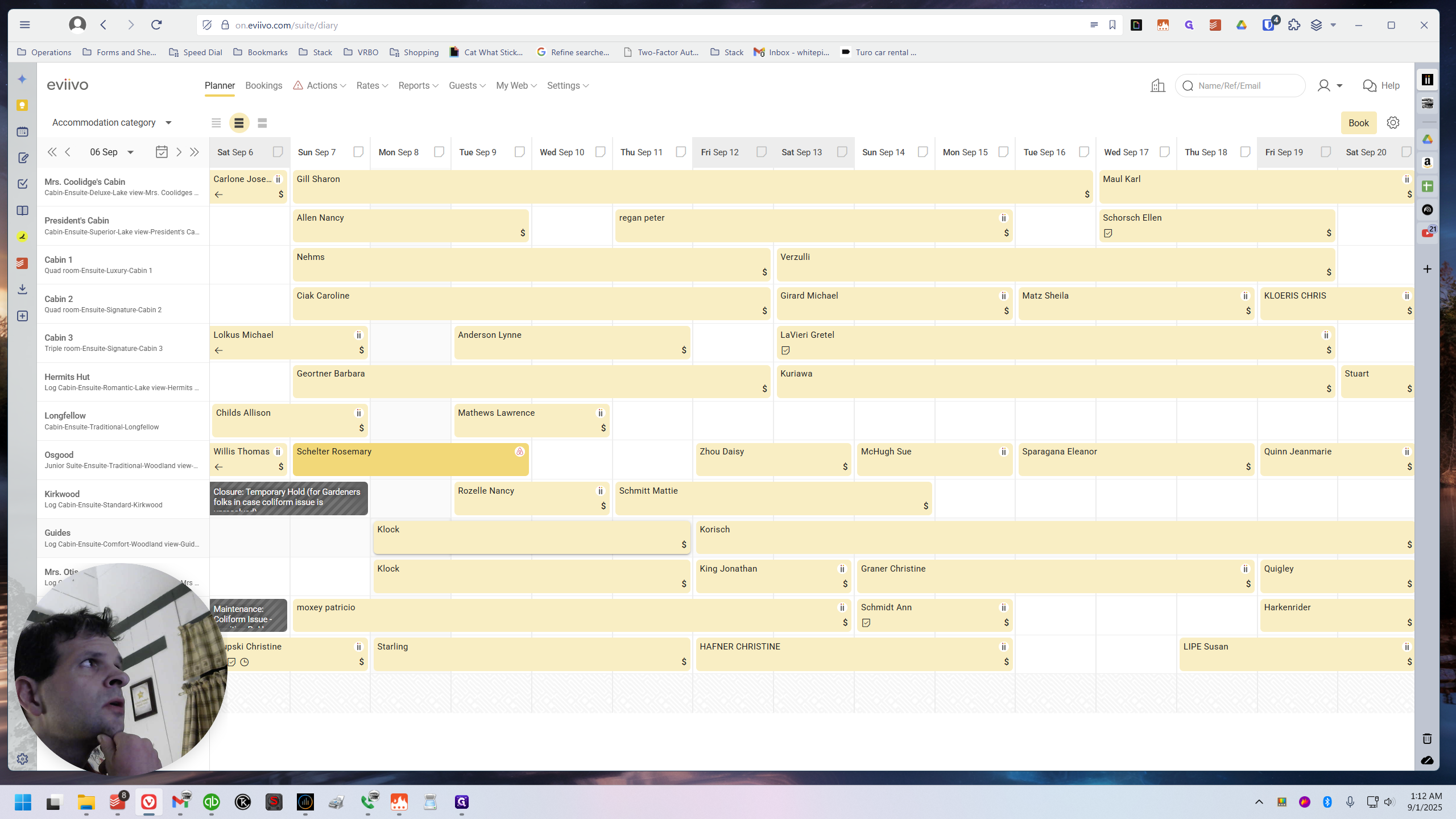
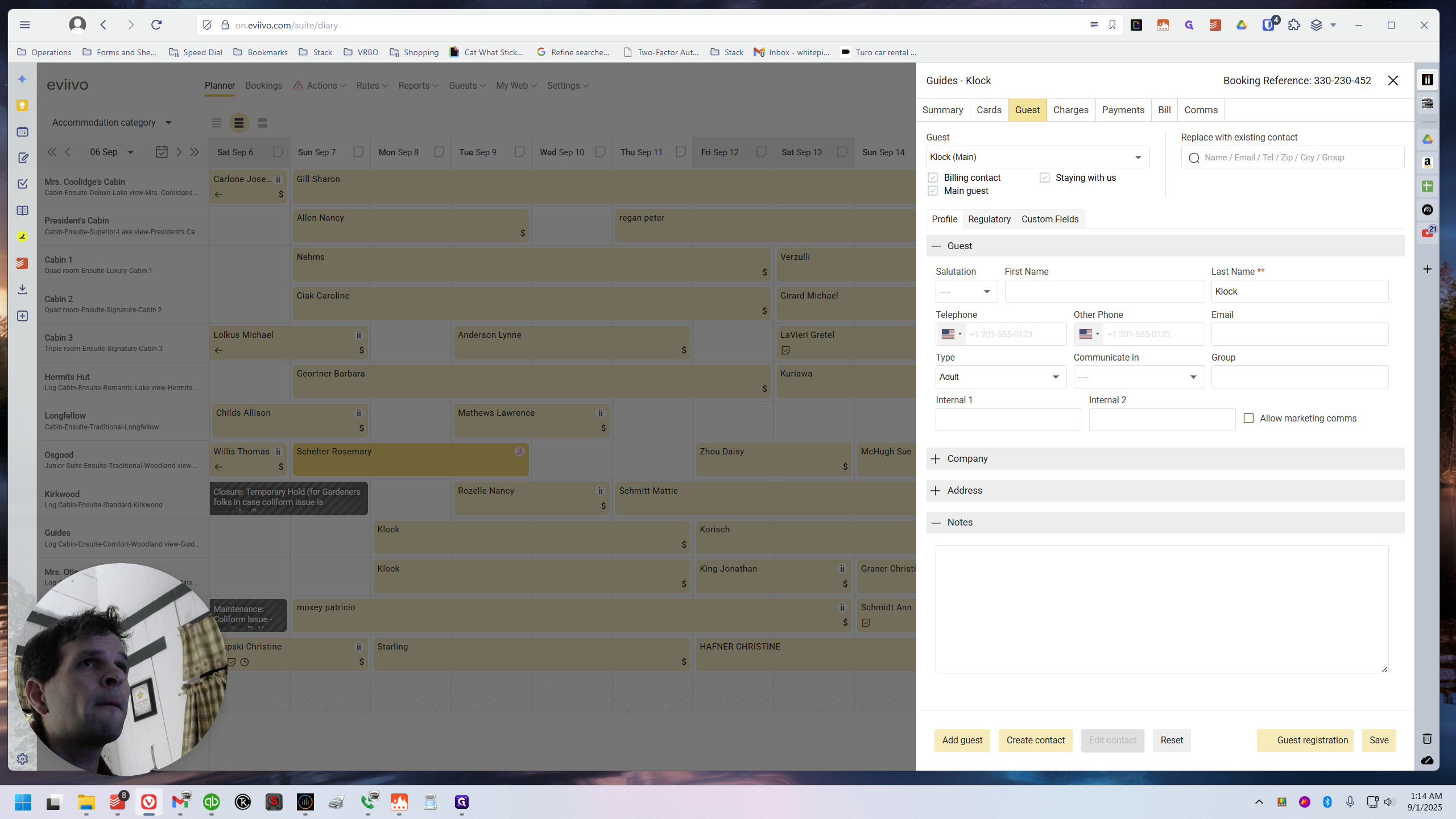
While cross-checking QuickBooks and eviivo, I found a guest with the last name Clock. They are checking in on Monday, September 8. They have both guides and Mrs. Otis, okay? In other words, they have a discount, right?
Because Guides and Mrs. Otis, they rent together at a discounted rate. We need to give that to them. That does not exist on the website. It mentions it, but they need to call us to get it.
We need to come in right away and add a discount in eviivo to match QuickBooks. As a side note, the guest also has the option to link their bookings. I wasn't sure how to do it since I had never made a reservation myself. However, I noticed that some reservations were linked, which made me realize there must be a way to do it. That's when I learned how. Here, these two reservations are not linked, but they should be.
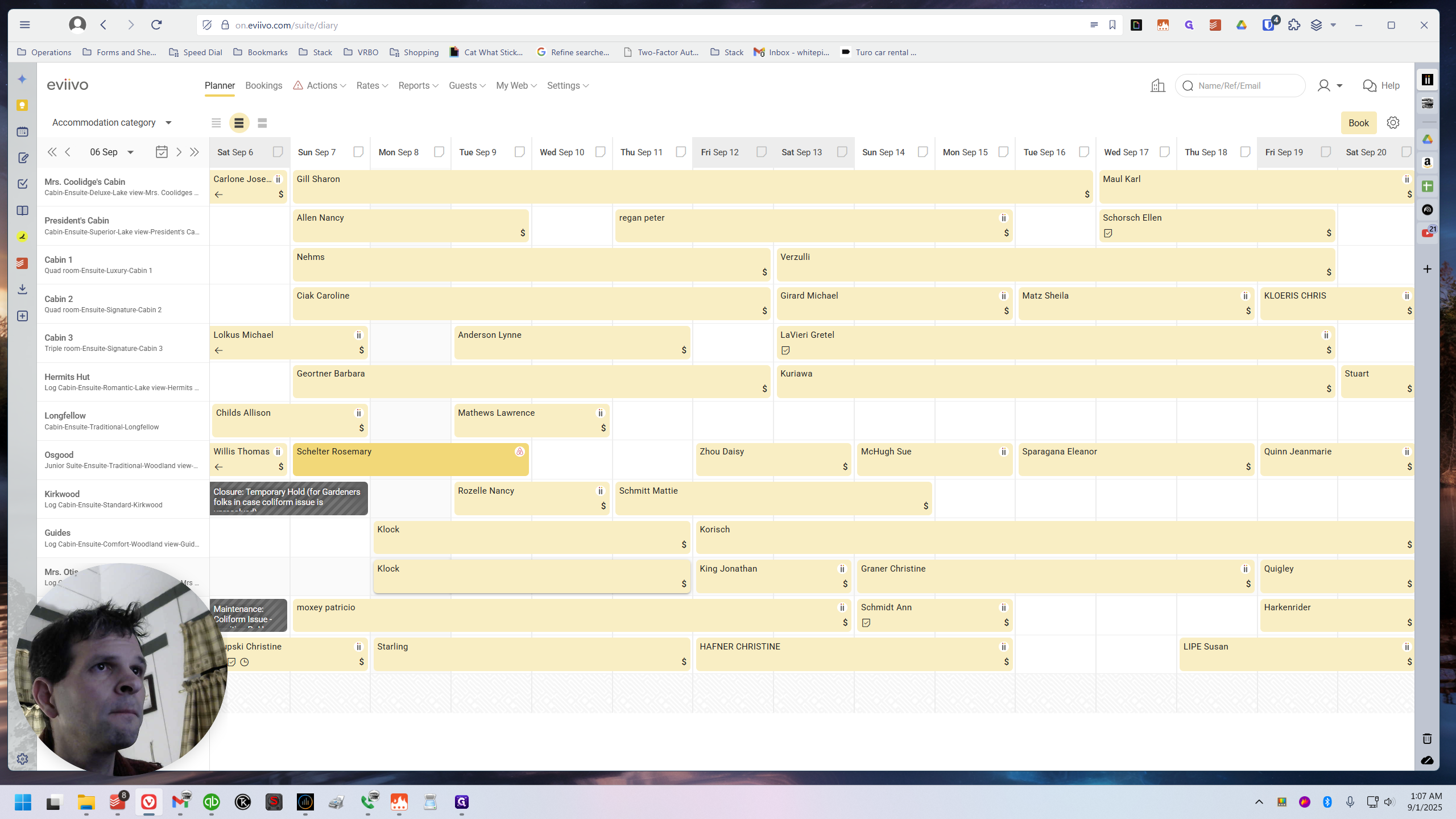
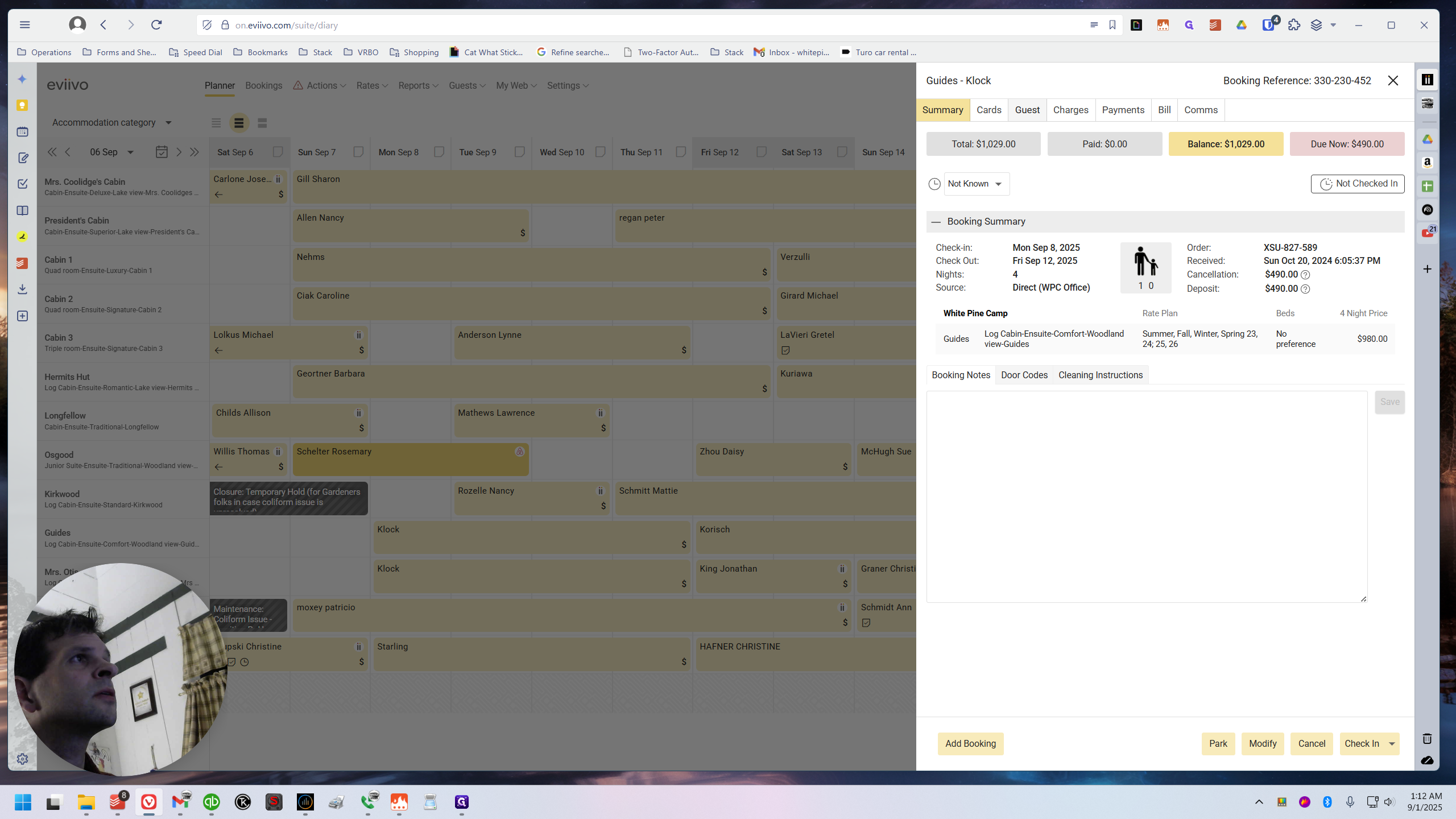
If I click on it, I know it's not linked for a few reasons. There’s supposed to be an option in the top right corner that lets you switch between the linked reservations for that person. Since there are no linked reservations, the field I mentioned does not appear.
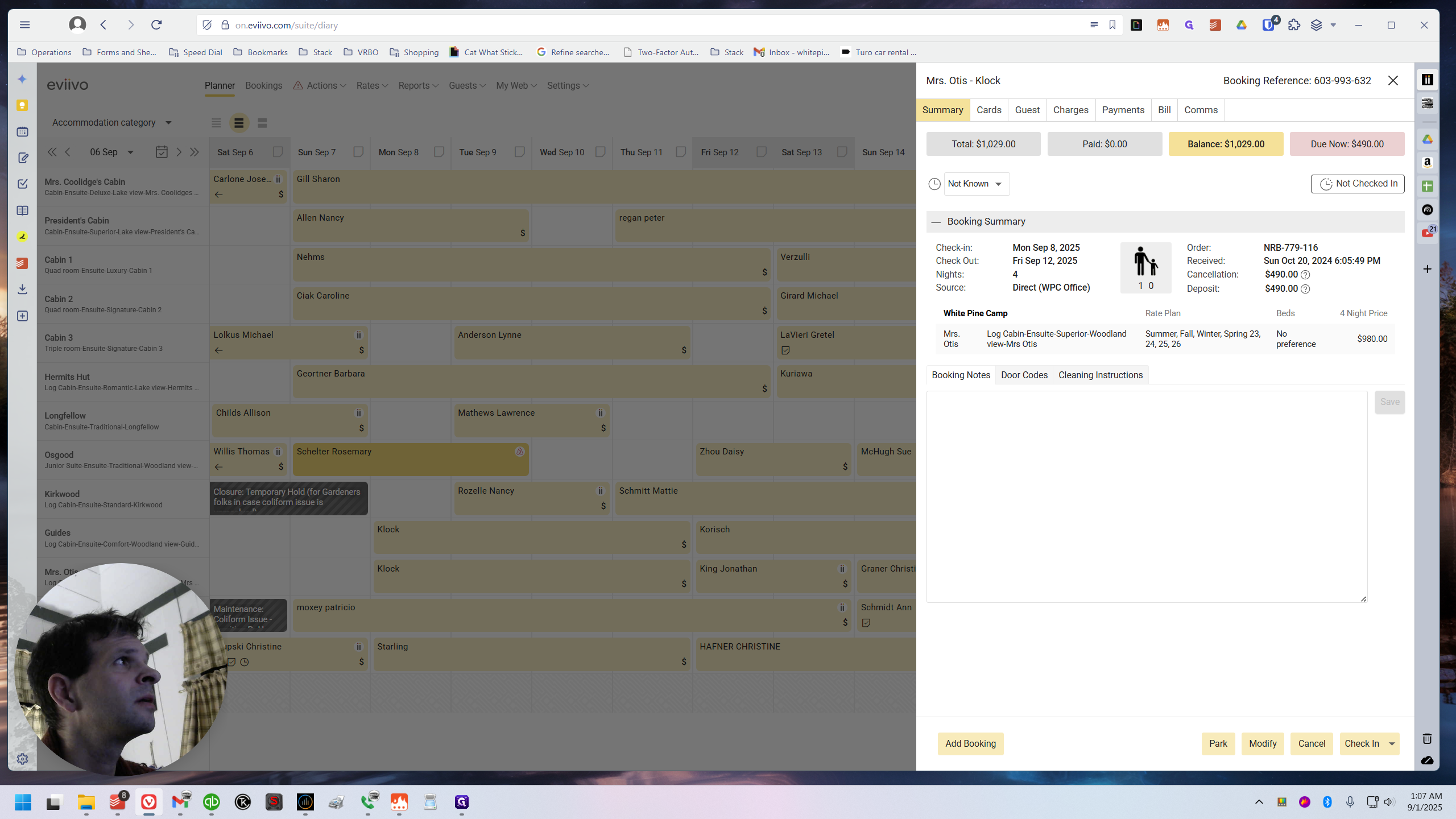
The same thing happens if I click on the other one.
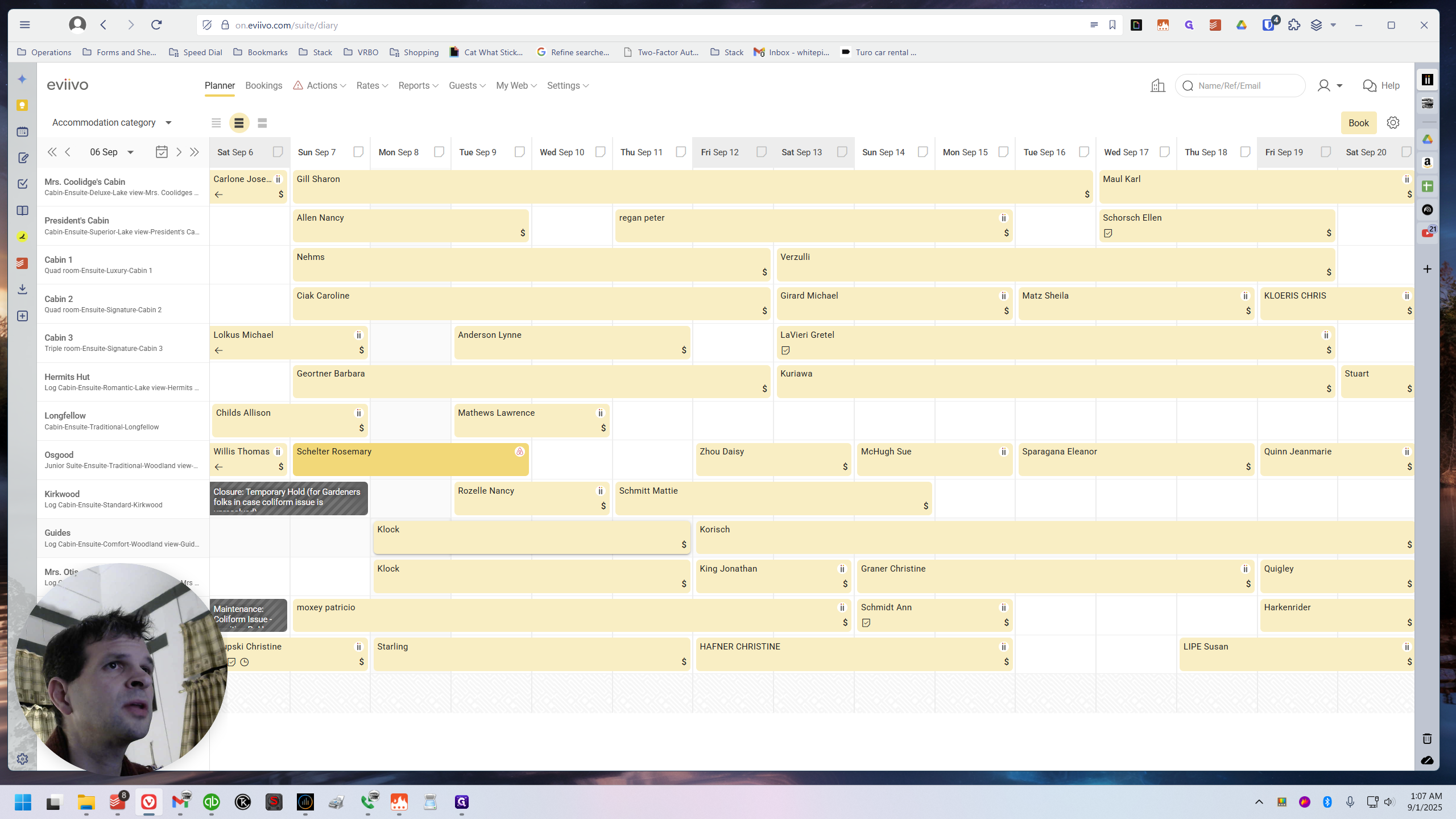
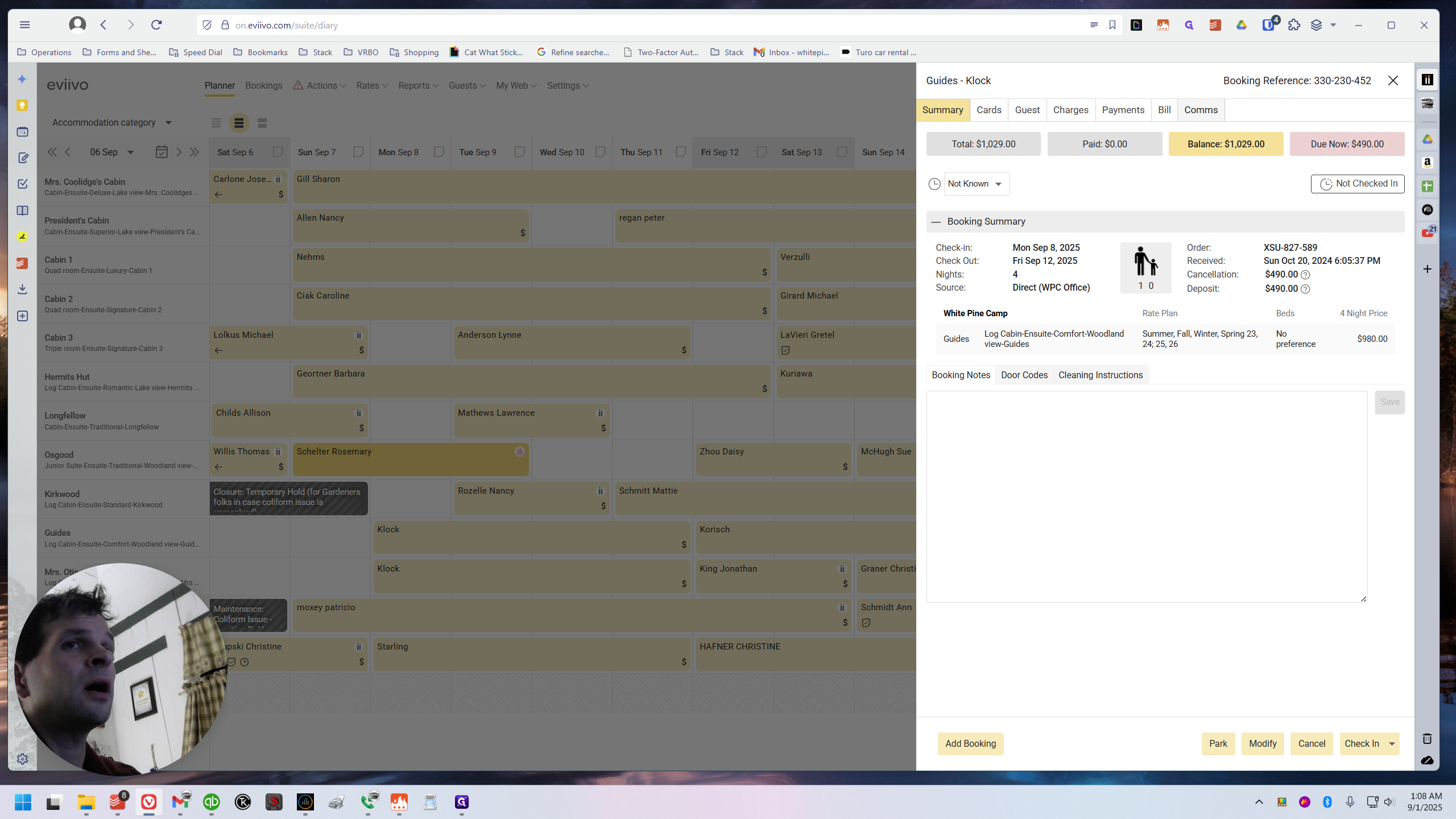
Same thing. You can tell this came from us because they booked by phone. The source is listed as direct from the WPC office.
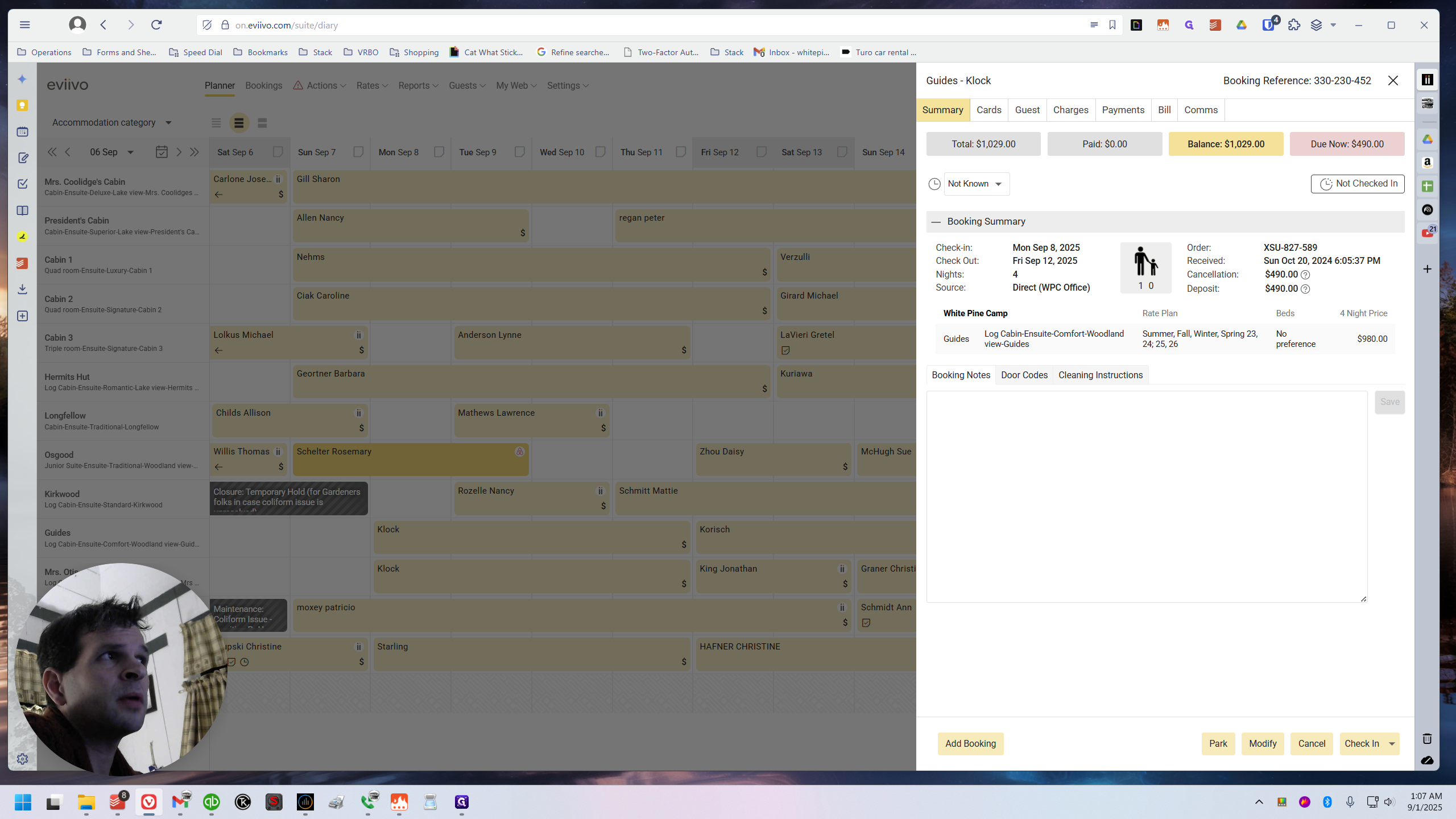
It says "Due now: $490, Paid: $0."
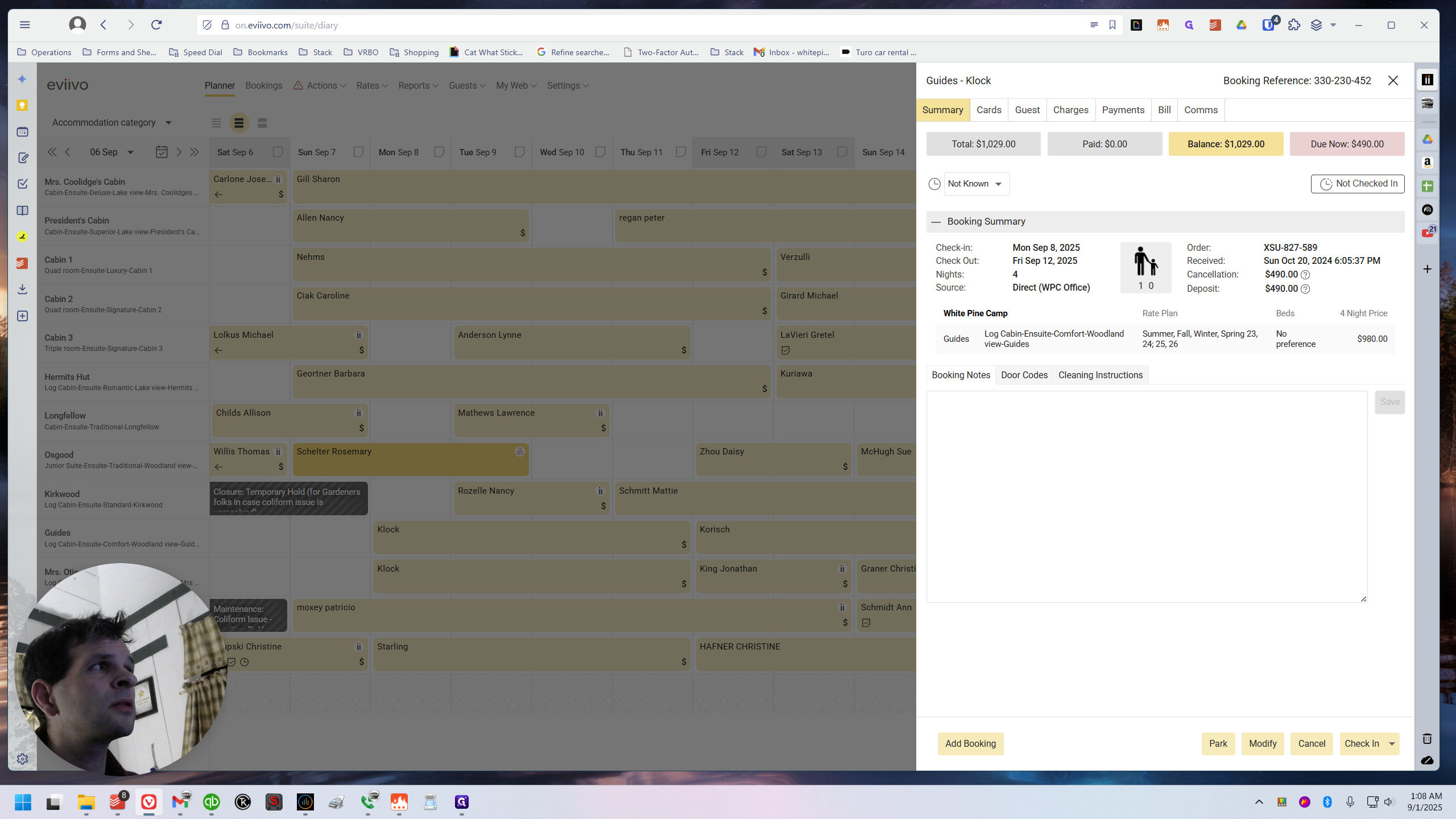
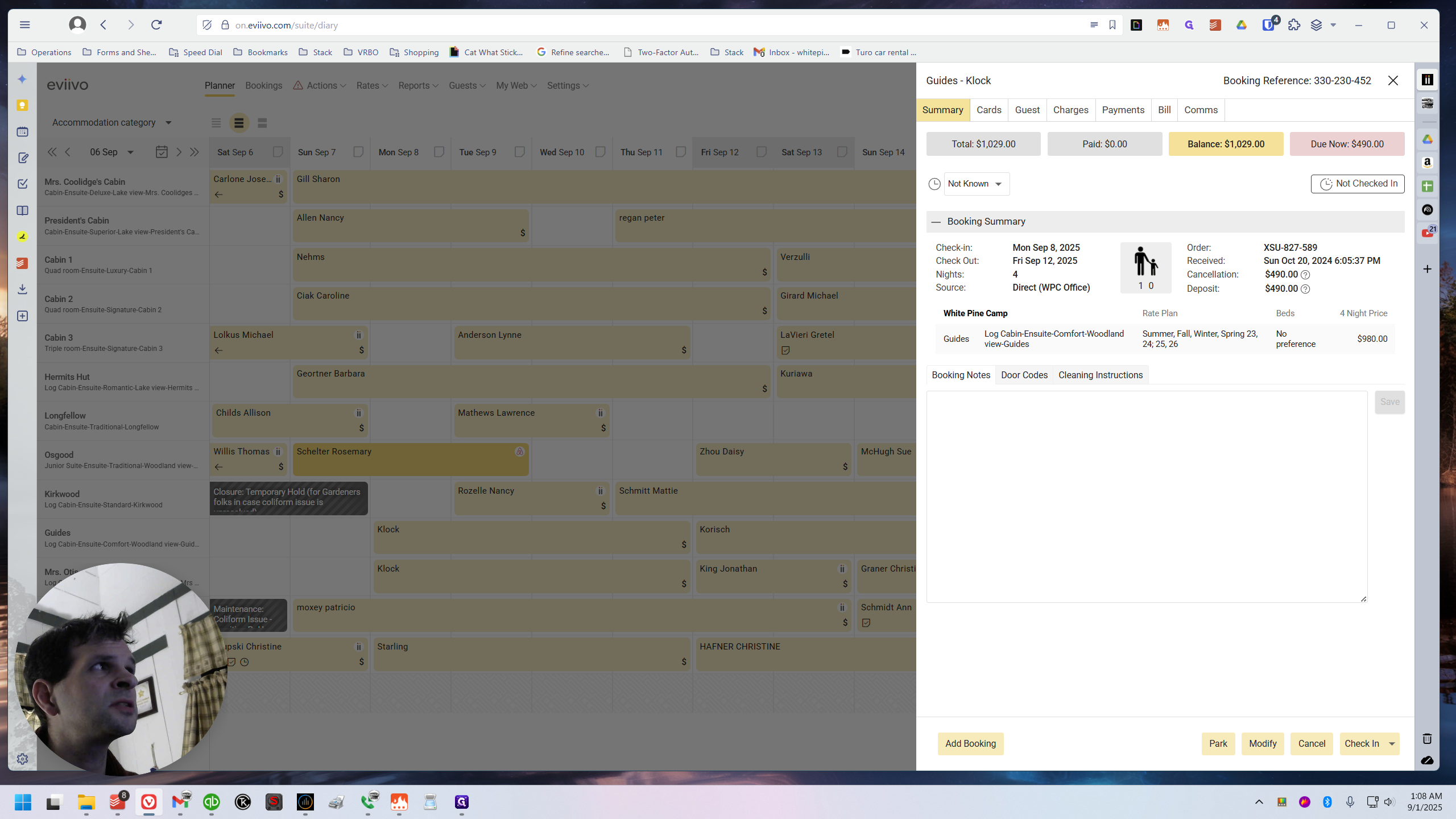
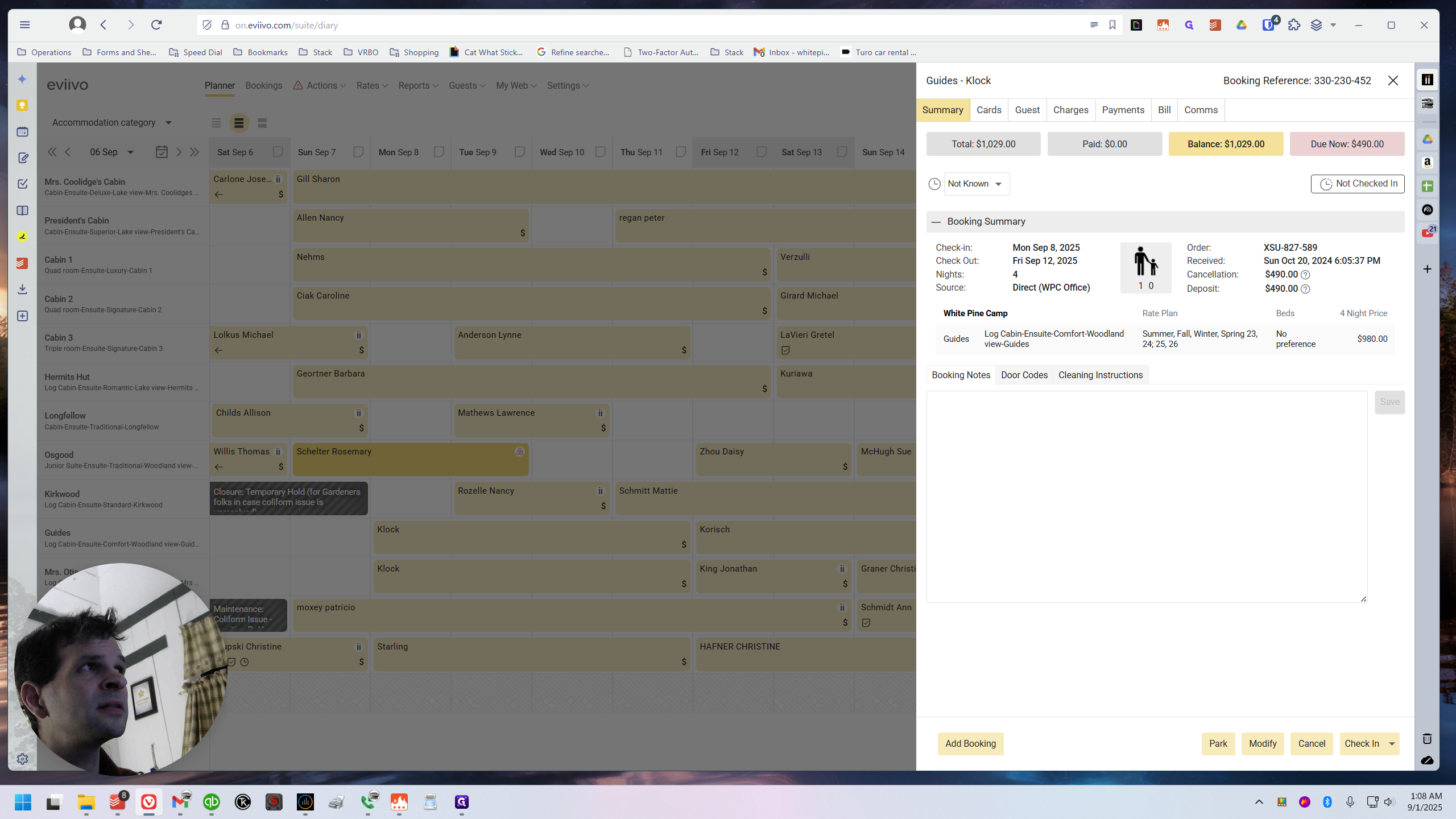
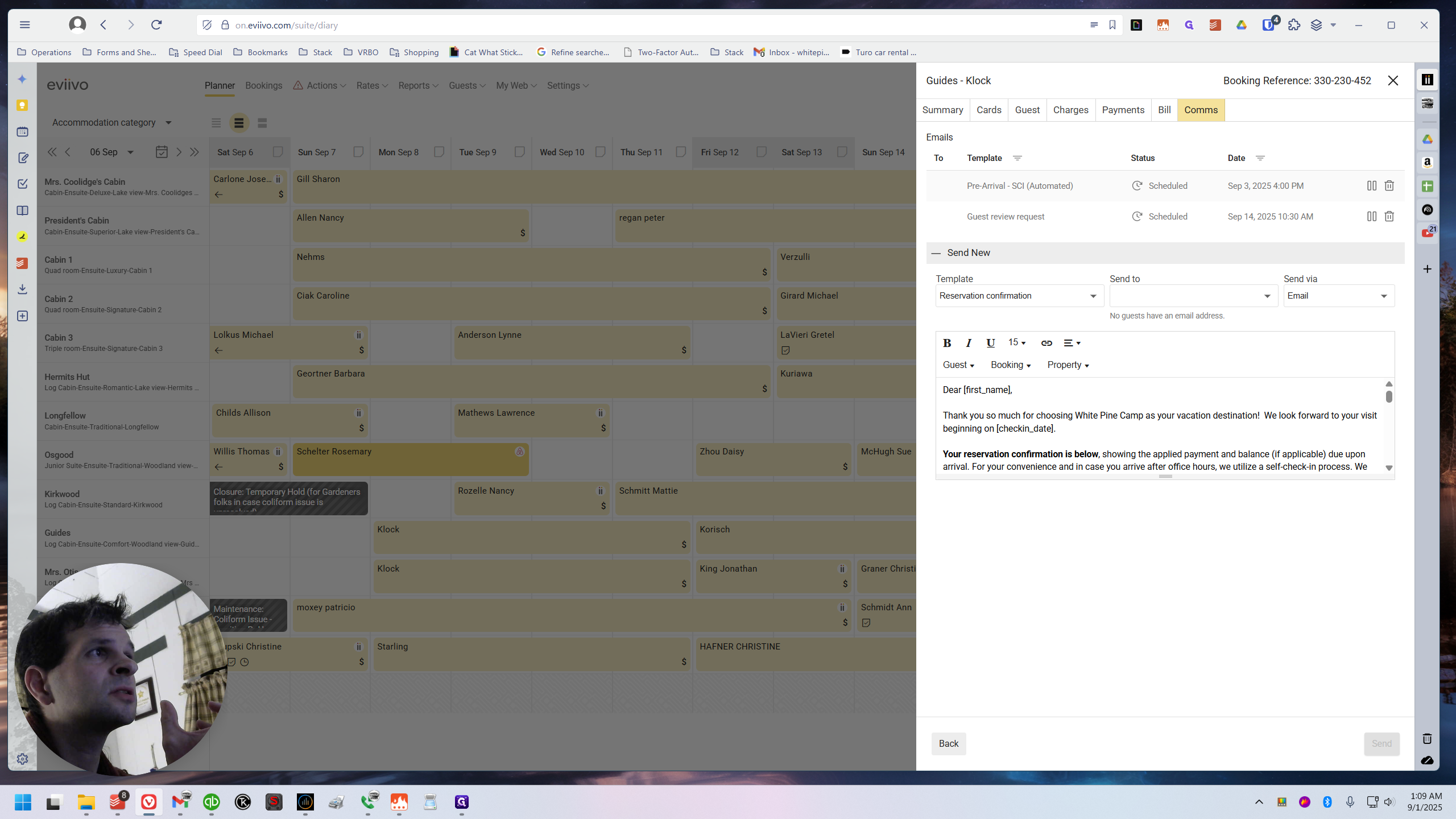
That’s not true. There is a lot that needs to be fixed before the automated SCI can be sent out. If they are checking in on the 8th, the SCI is sent five days in advance, so it will go out on the 3rd.
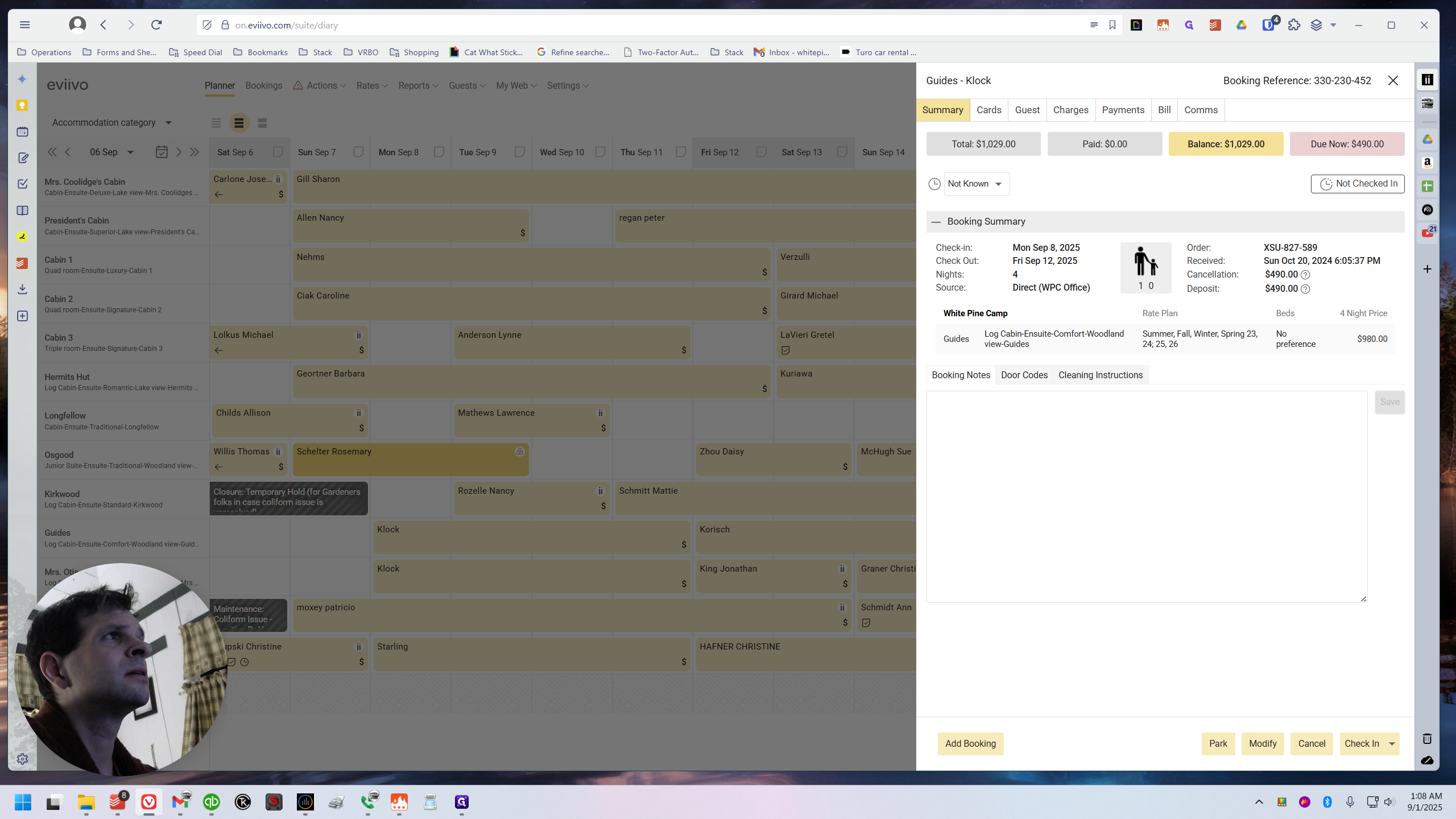
We can check that. Let me show you. If I open a reservation and go to Comms, you can see that the pre-arrival is scheduled to be sent on September 3rd at 4:00 PM.
We need to fix this before it goes out. That's essentially it. If it goes out now, or on the 3rd without being fixed first, the problem is that it will show no payment applied.
That could confuse them, and it will also show a higher total than the invoice we gave them. This is because the discount for booking two cabins is not included on eviivo. We need to implement it ourselves. We have to add that discount manually. Here's the thing. If you look at the invoice—pull it up on the computer.
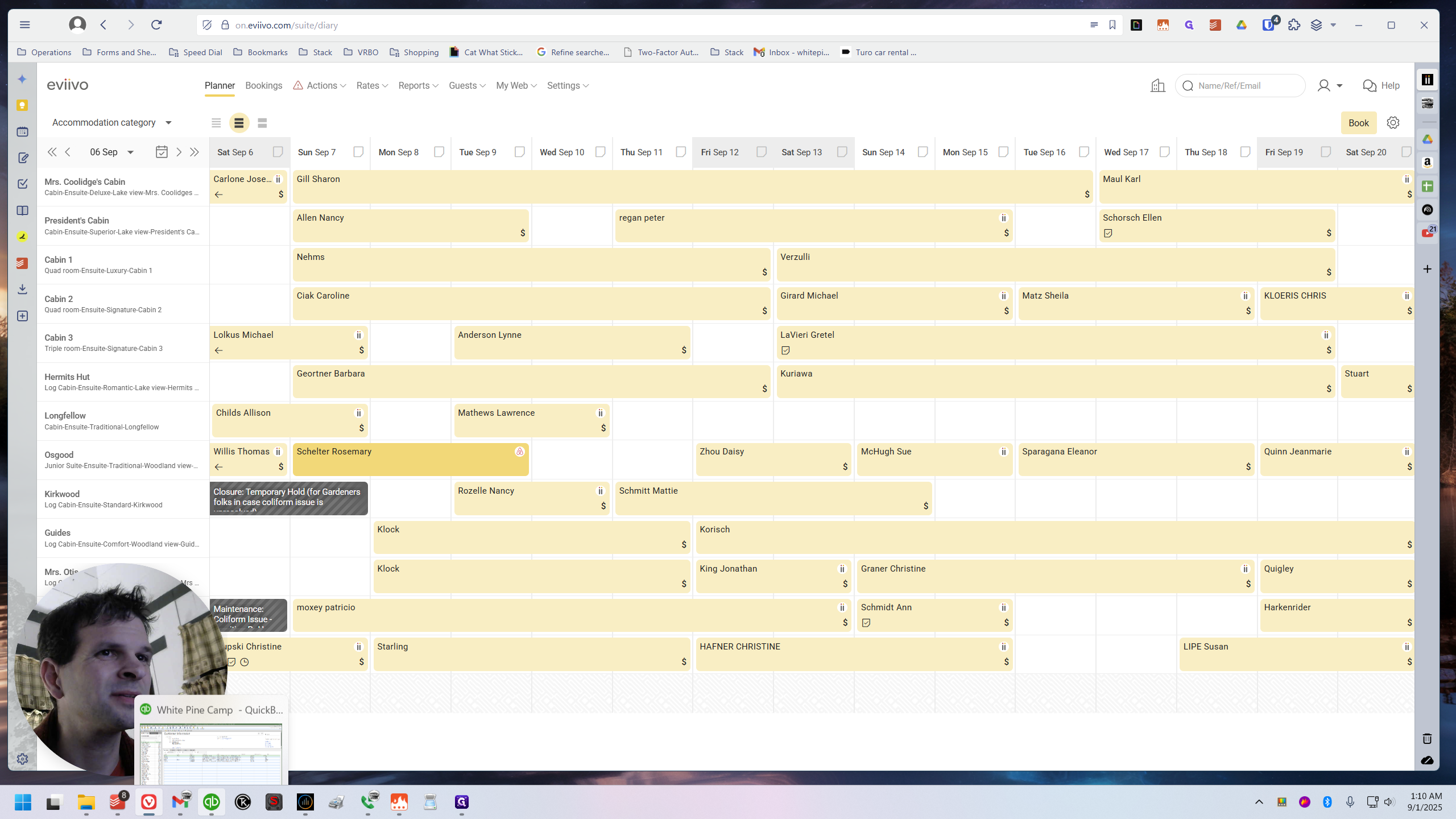
If you look at the invoice, it's clearly for both cabins, right?
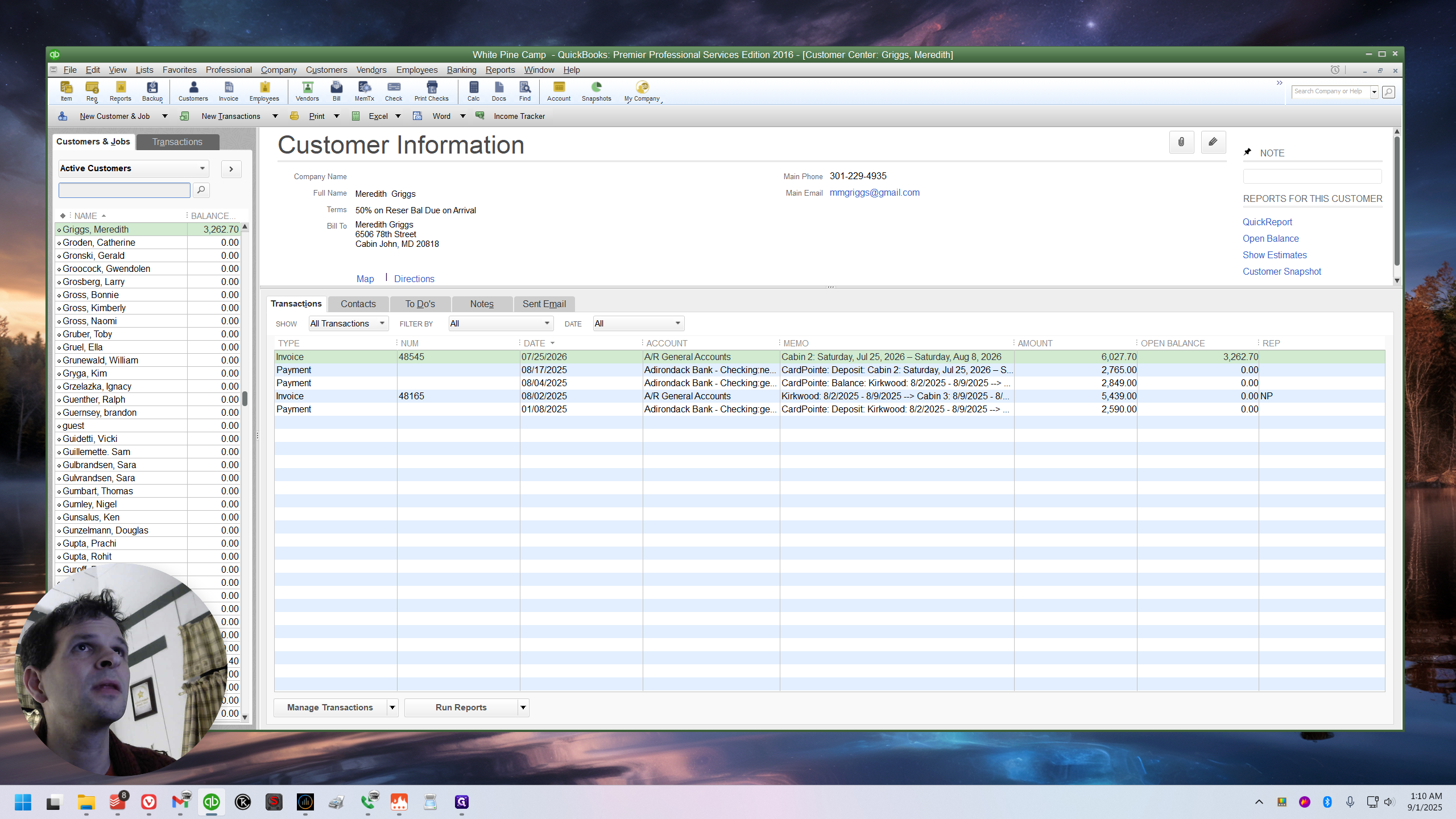
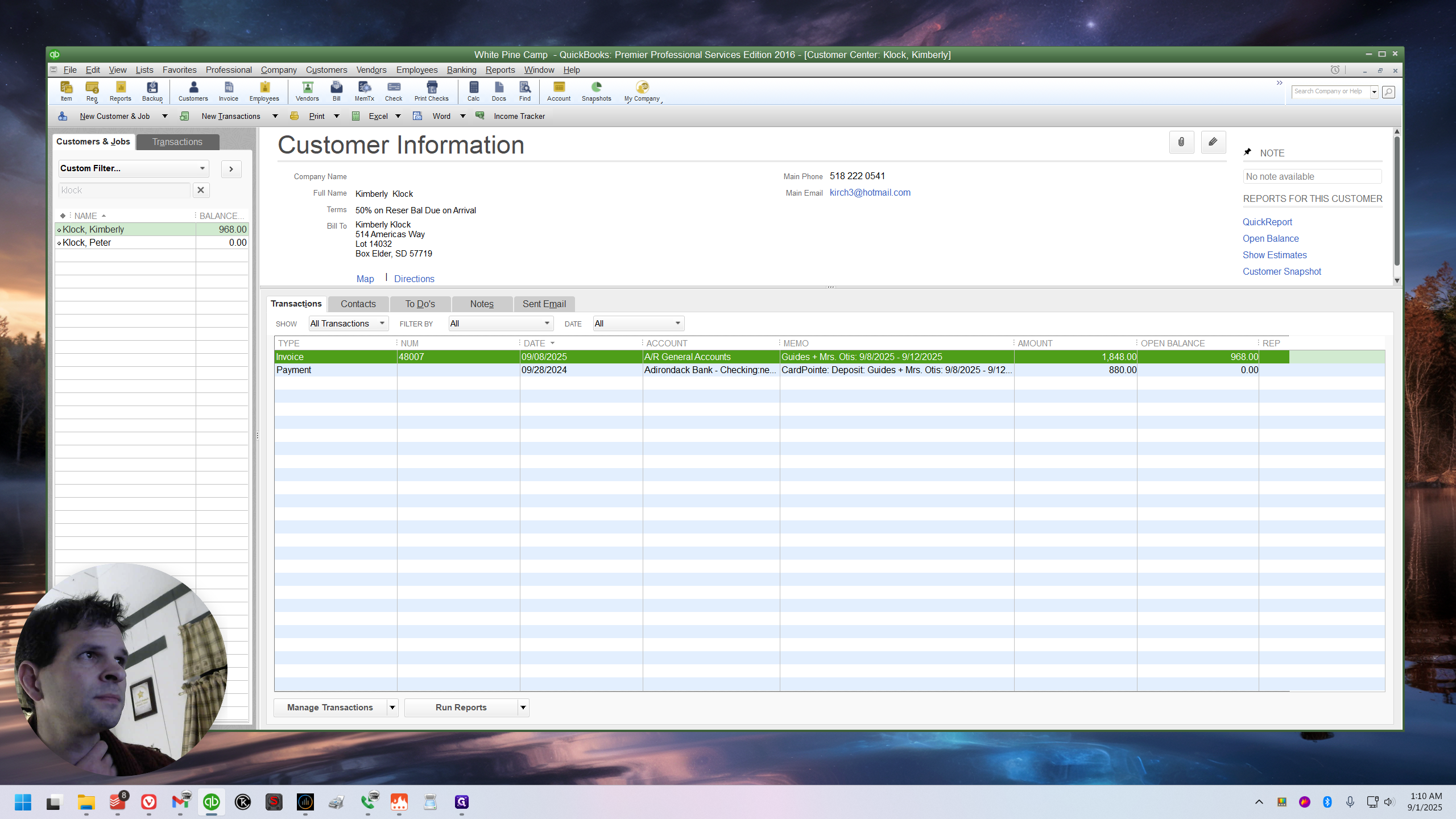
At the combo rate, each night costs $440. This is presented in a specific way. The total is less than eviivo because eviivo is not doing any of this. eviivo is presenting it as two completely separate reservations, without a discount.
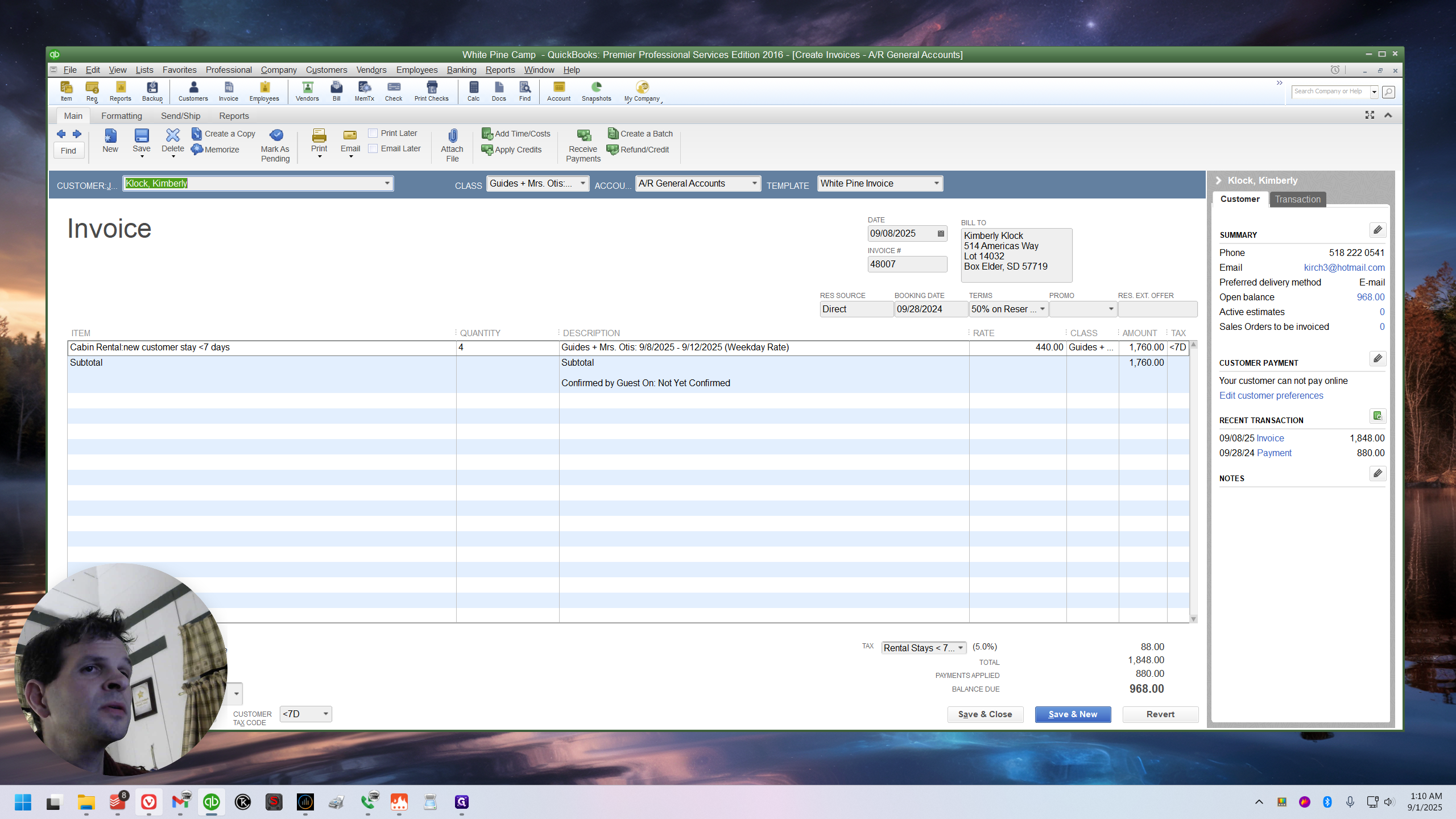
There is no way to merge them. But there is a workaround. I will show you the workaround. You need to be very careful if you do this, for several reasons. There is so much that could potentially go wrong here.
But it really depends. We booked this ourselves.
They were probably on the phone with us. I know that because the source says "direct."
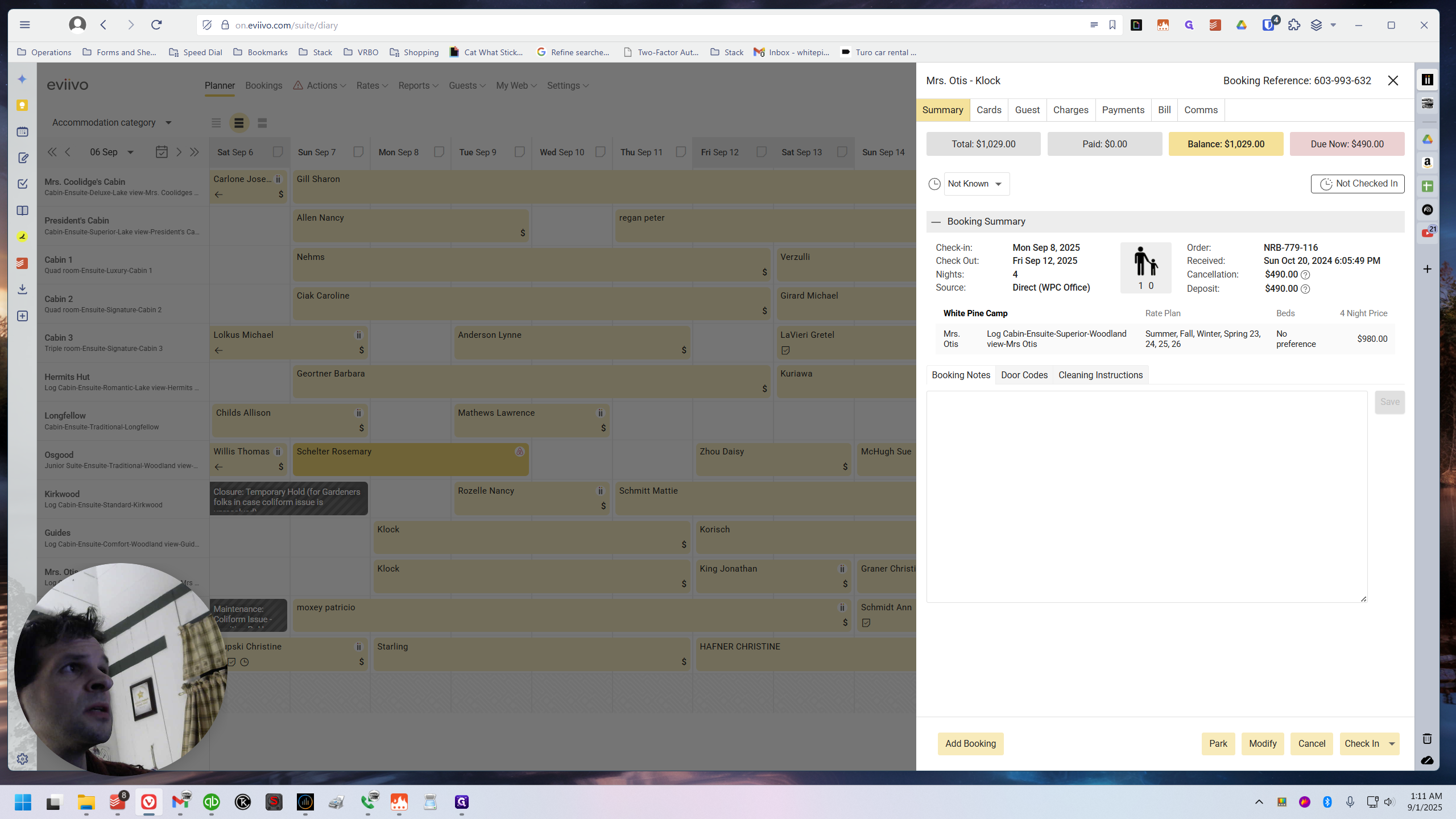
I also know that if they booked online in any way, they would have paid something.
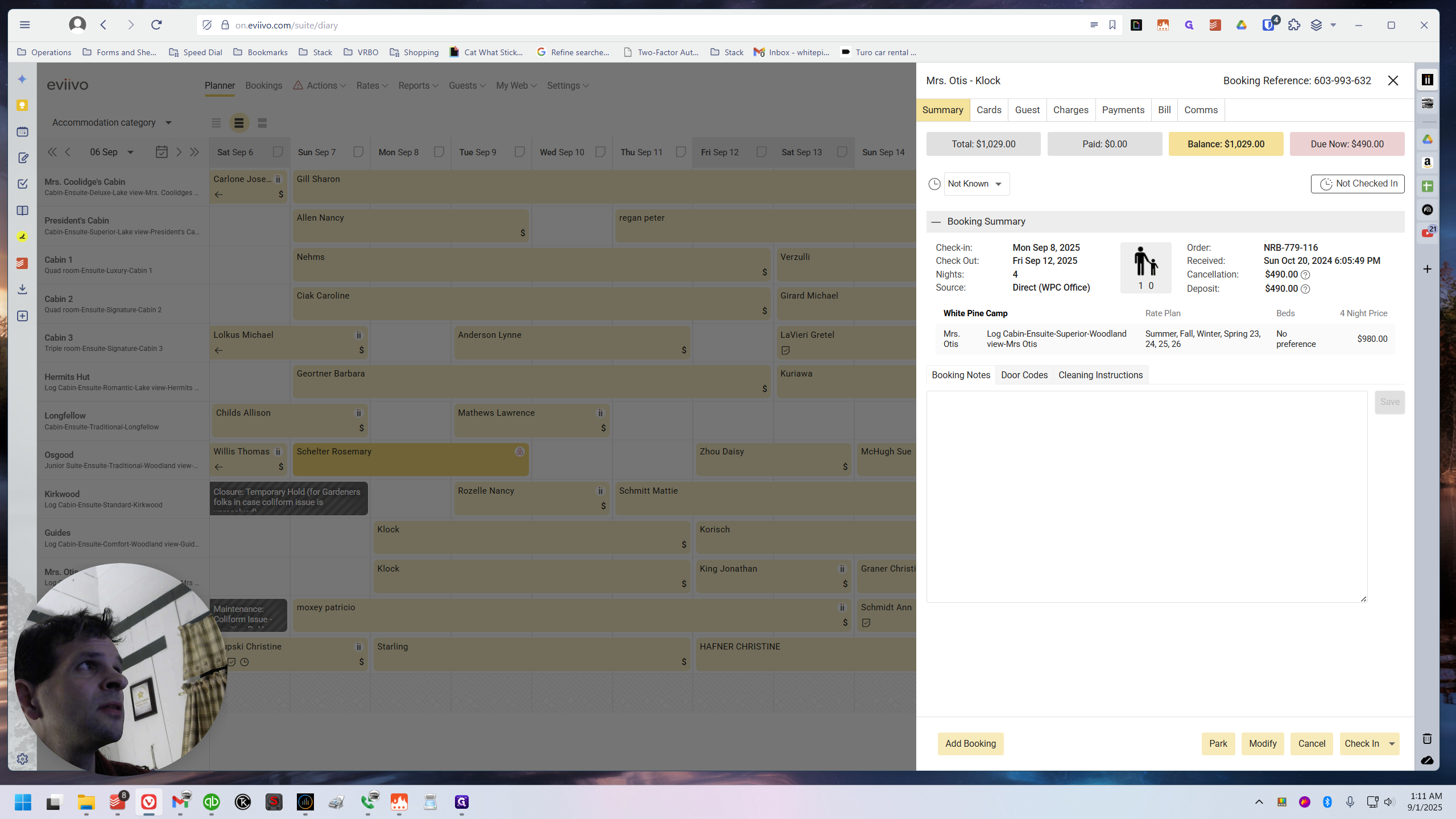
Of course, they have paid something when they book directly.
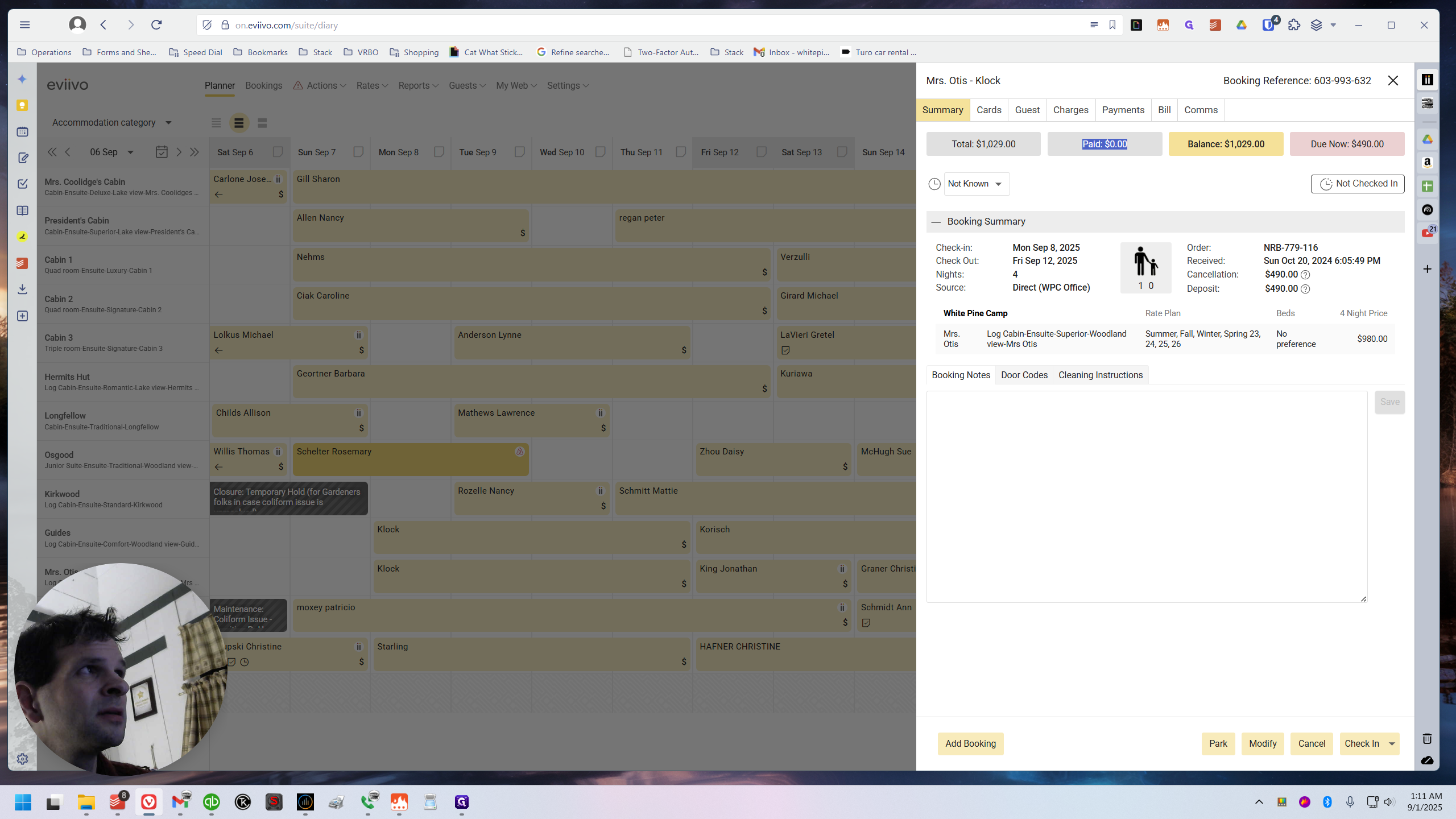
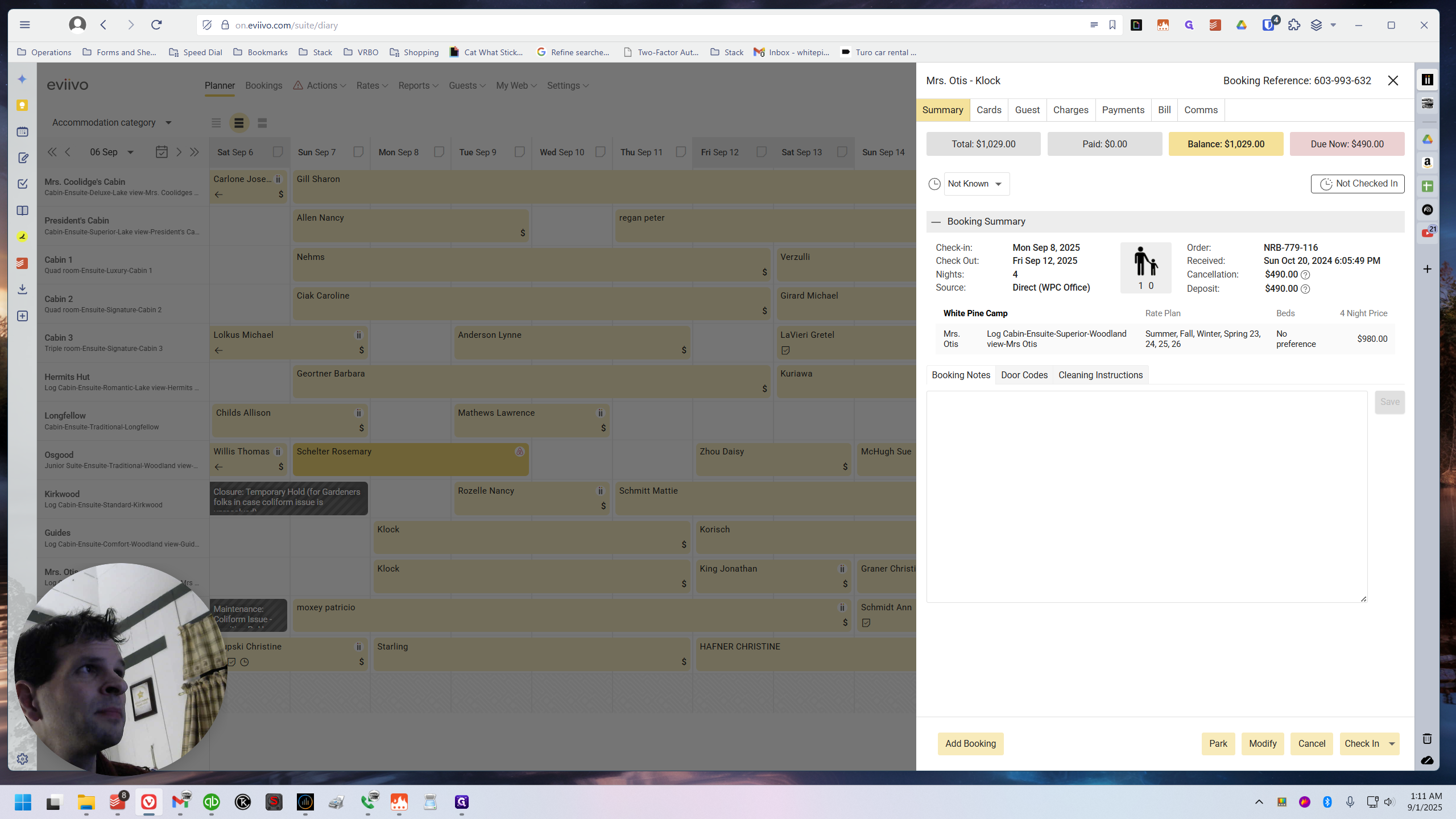
In the past, we wouldn't have entered eviivo and recorded whatever they paid. We simply didn't care. Now we do this because they will receive it just before they check in. They will receive a copy showing what eviivo believes they have paid and what eviivo believes they still owe. That's why we care about this now. That's why we need to make sure it's taken care of.
This is a perfect example because it's actually easy to fix and demonstrates a few different things.
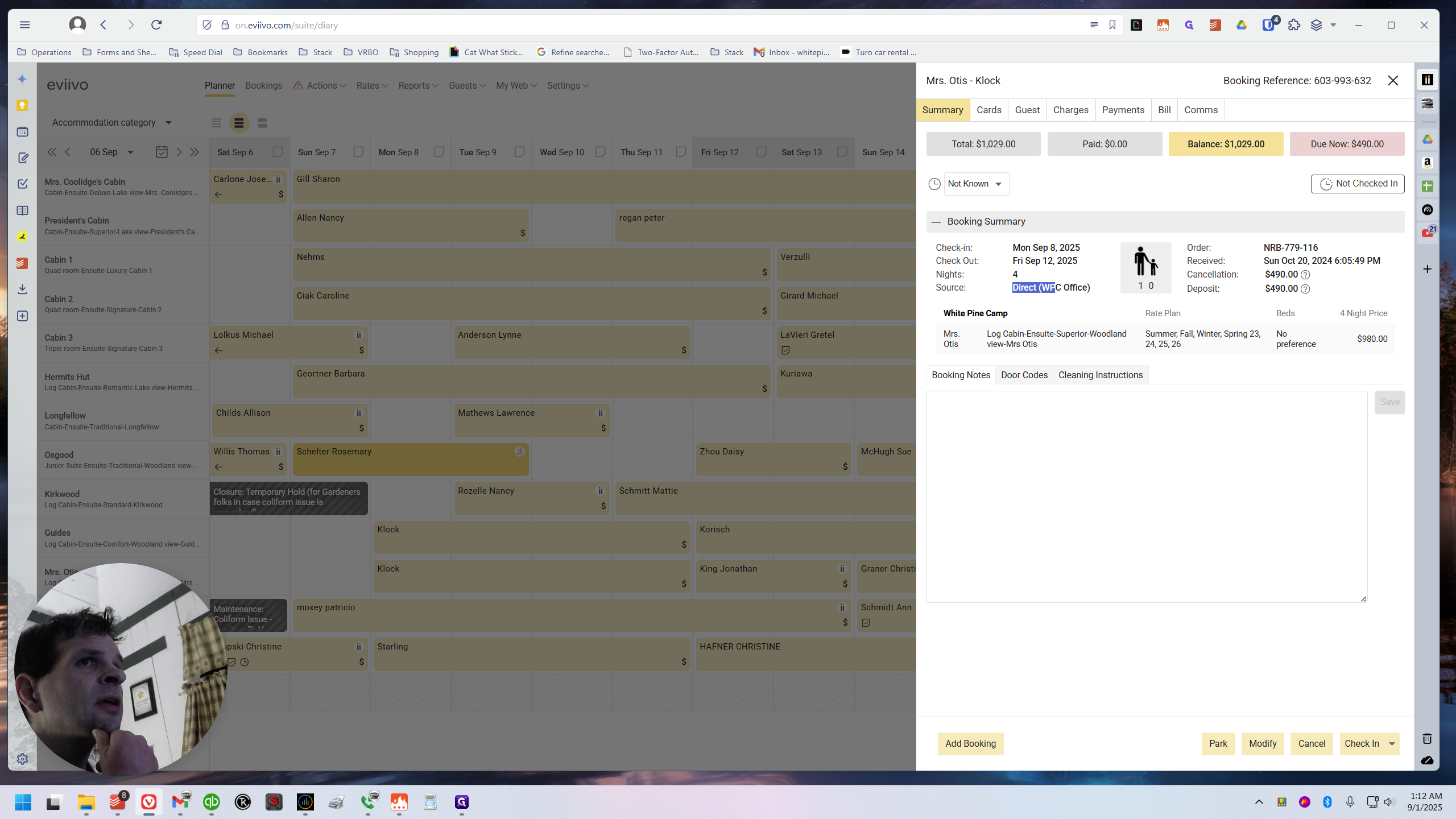
When we accepted this booking, the person likely clicked on Guides, entered four nights, and added the last name.
If I check the guest column, I can see that's all they entered.
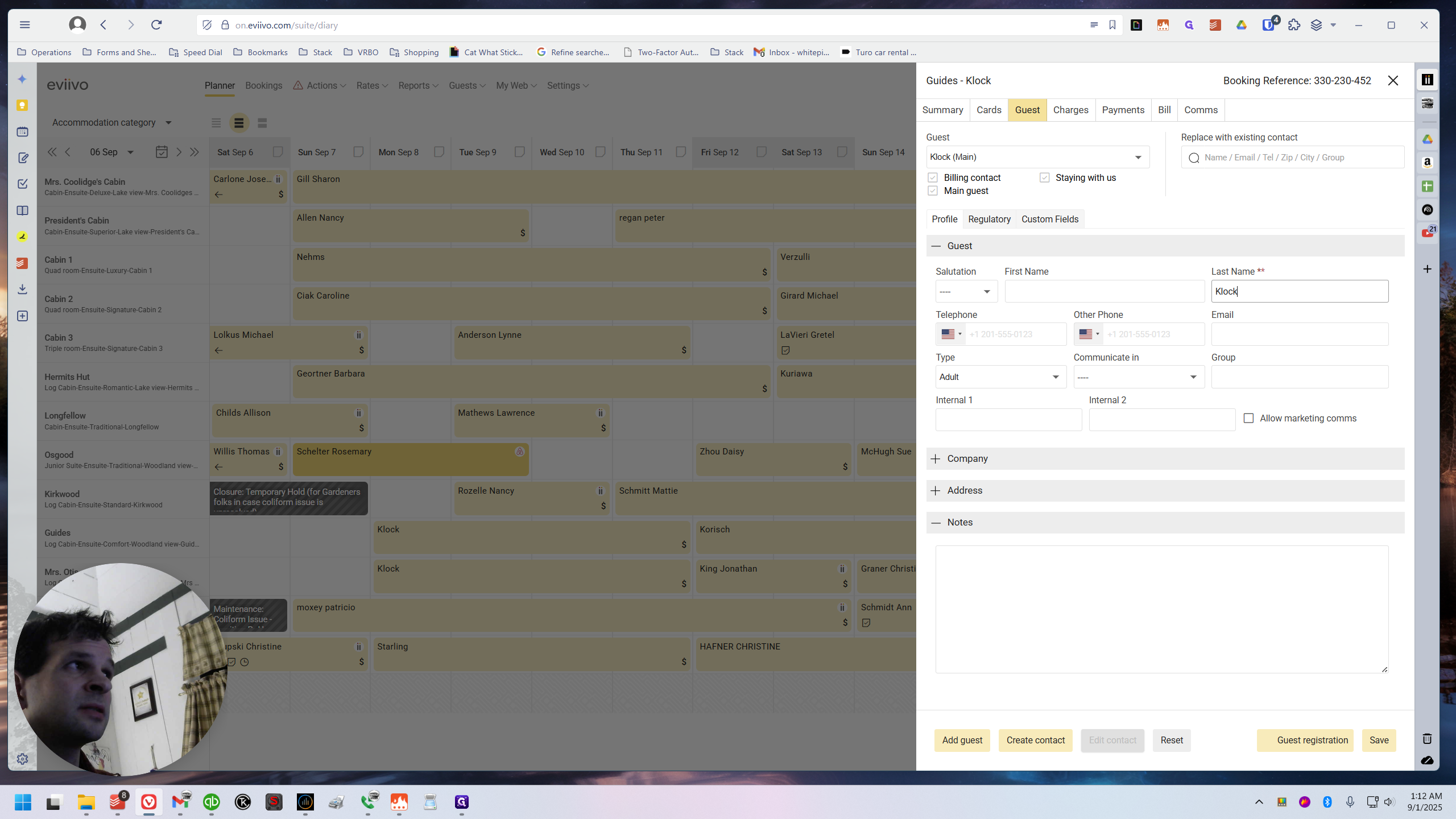
Because back then, that's all we used to do. That's all we cared about. At that time, eviivo was mainly used to track reservations with the calendar. Having the last name was helpful. It was also a way to earn money. Now, it's different.
It's a way to communicate. It's a way to automate. This is a great example because it needs to be completely redone. Everything that could be wrong with it is wrong with it. I think what I'll do is make this the long-form, rambling video.
I think I've set the scenario. If you've made it this far, you understand the situation. I will create a few short, concise guides and then combine them into a collection. You can watch this for context, but quickly find the information you need. This is my first time trying it, or recording it with that in mind.
With that intention, we'll see how it goes. But I'll stop here. Return to the collections page you were on before this video or guide.
This was intended to be viewed as a video. The others will be more either/or. You can watch a video or read the guide. Go back one page. Next, we'll look at how to fix this situation.