
How to Locate and Reconcile Zelle Payments Using Clover and Invoiss Platforms
Learn step-by-step how to locate Zelle payments that require further research and reconcile them using the Clover dashboard and Invoice platform. Follow best practices for matching payments to invoices and ensuring accurate accounting.
In this guide, we'll learn how to locate Zelle payments that require further research because they cannot be reconciled right away.
We will use the link provided by accounting team, and check the Zelle section for the relevant orders in question. We will also use the Clover dashboard and the Invoiss platform to search for matching transactions by amount and date.
This process helps ensure that all Zelle payments are properly identified and matched to the correct invoices.
Let's get started
First, make sure to use the link provided by accounting to access the spreadsheet with Zelle payments in question.
https://docs.google.com/spreadsheets/d/1-YvvDyVtgC_dAf-MdXah4rPmPFX2yLHF/edit?gid=1964165995#gid=1964165995
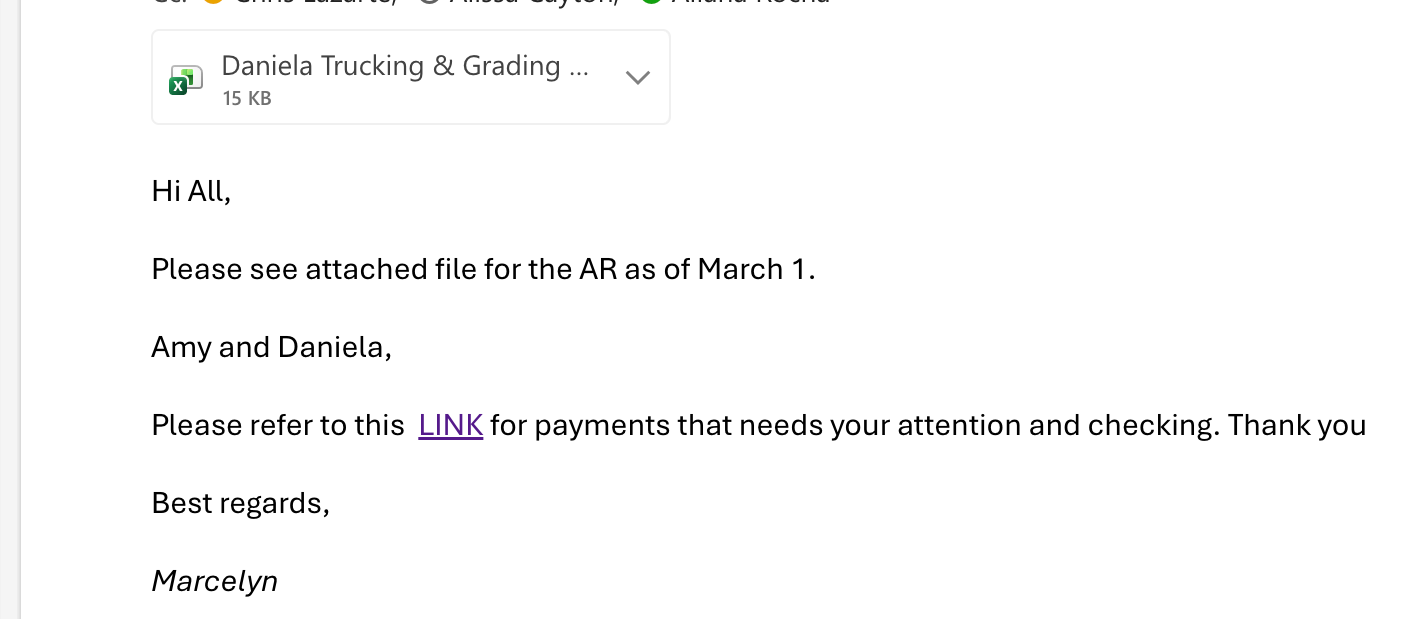
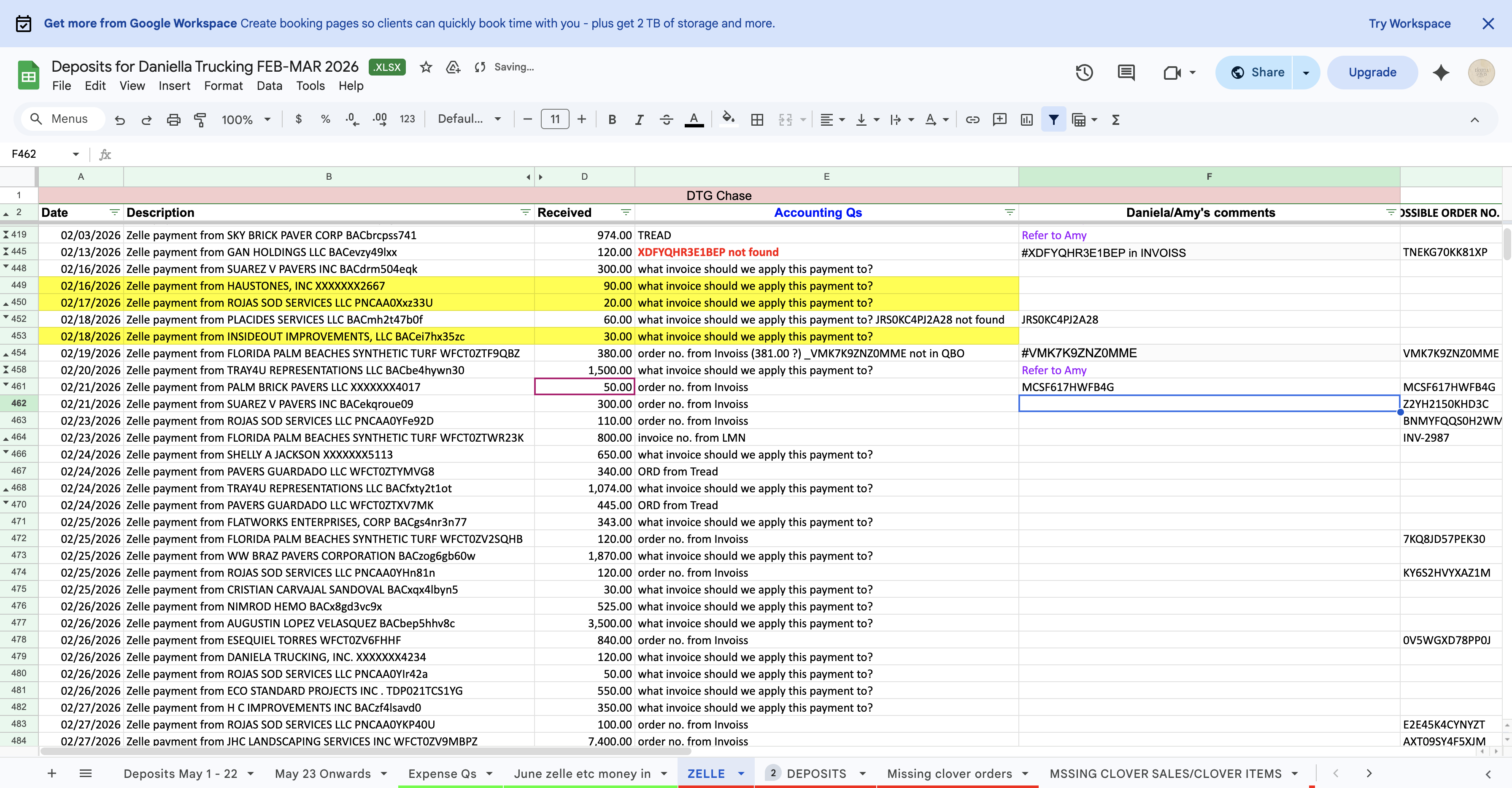
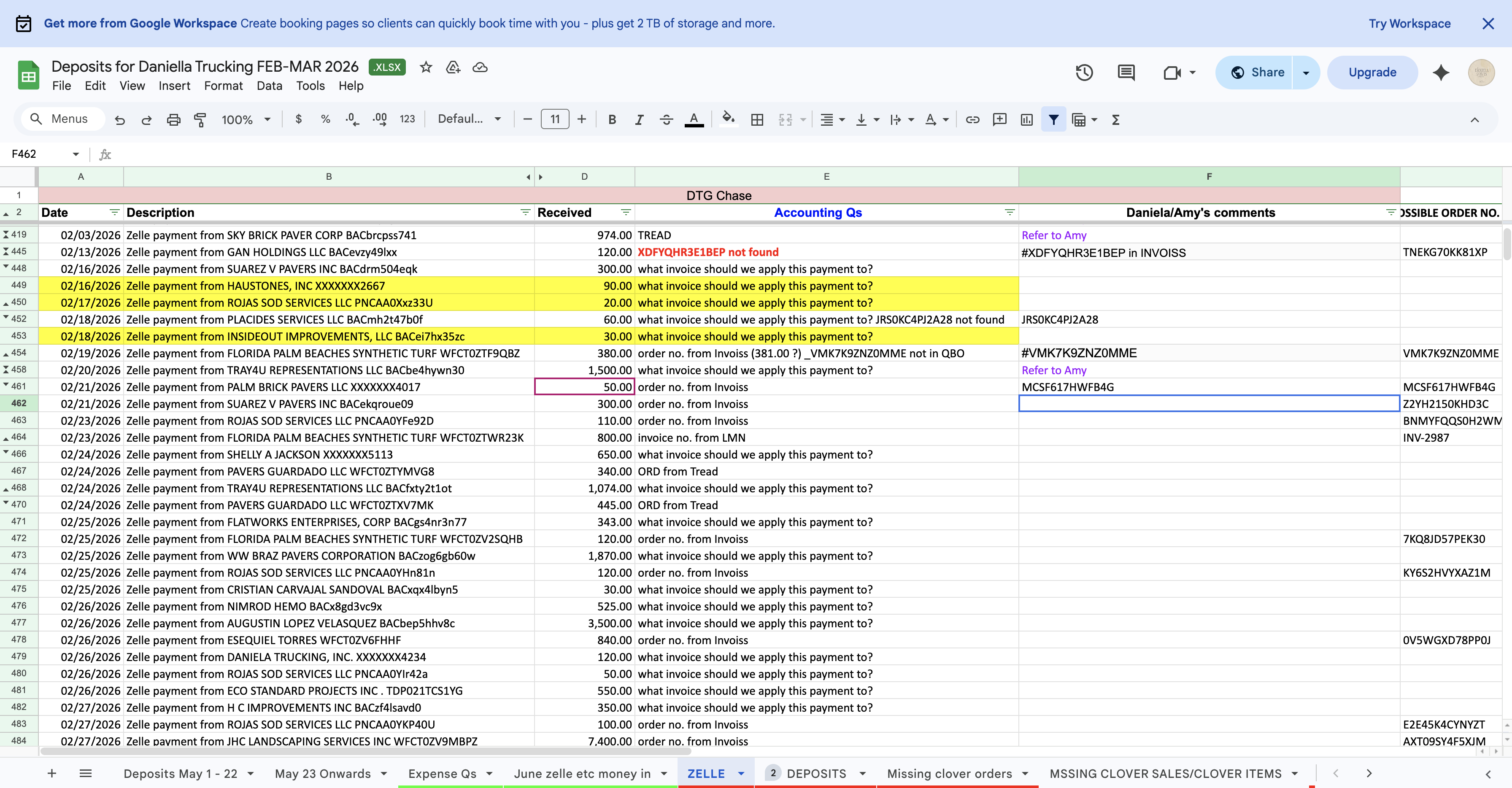
After you click the link, this is what appears.
You need to make sure you are in the correct area, make sure you are under the ZELLE TAB.
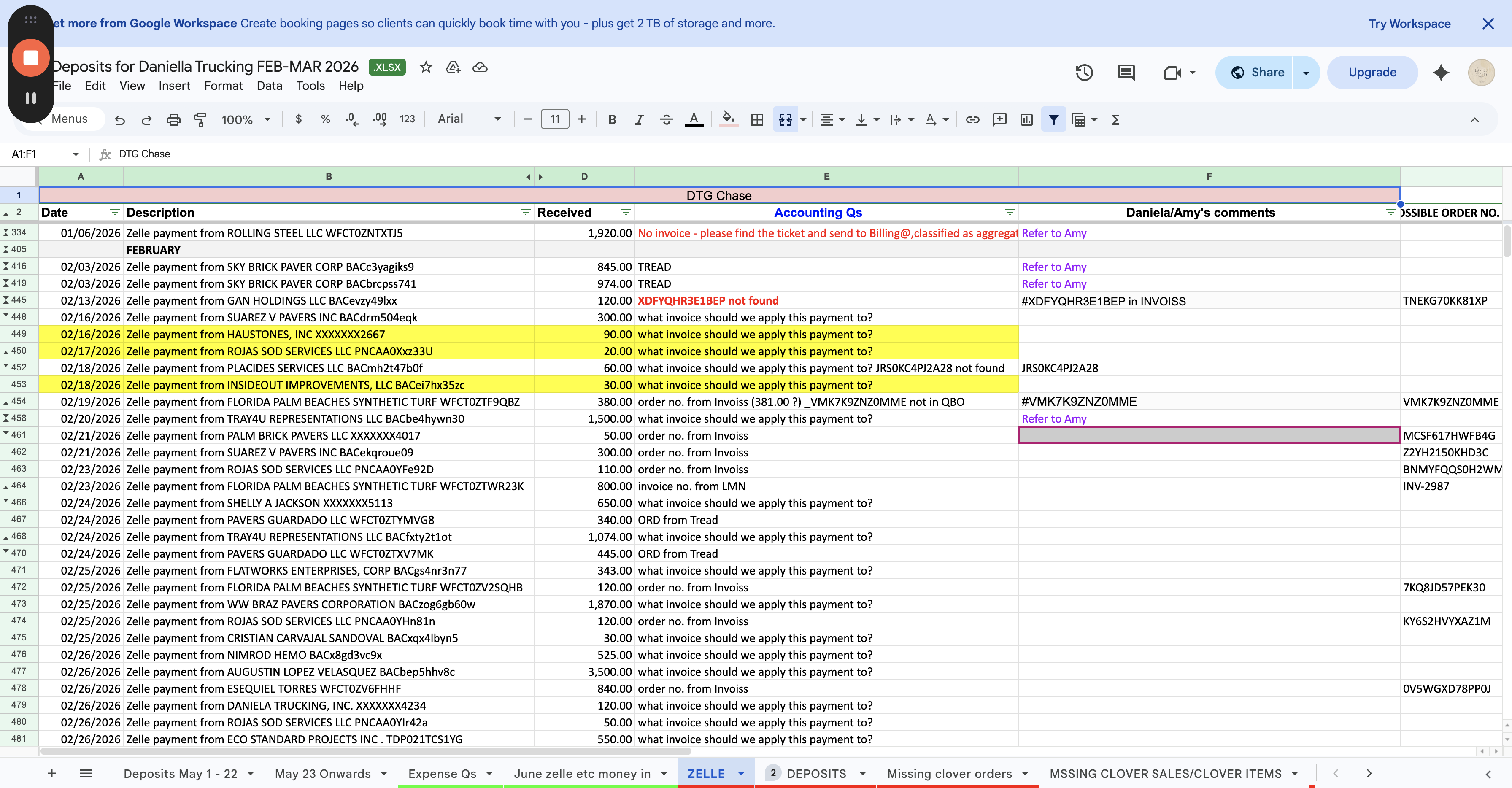
These are the Zelle Payments we're reviewing that need to be matched.
First, identify the one you want to start with on the list.
Please keep in mind there will be Zelle Payments which belong to YARD SALES (Invoiss platform + Clover) and Zelle Payments which belong to DELIVERIES/ORDERS/EXCAVATIONS (QBO Invoices).
In the case of Admin role/Yard Management Role- you will be in charge of reviewing the Yard Sales specifically.
In the case of Dispatch role- you will be in charge of reviewing Deliveries/Orders/Excavations Specifically.
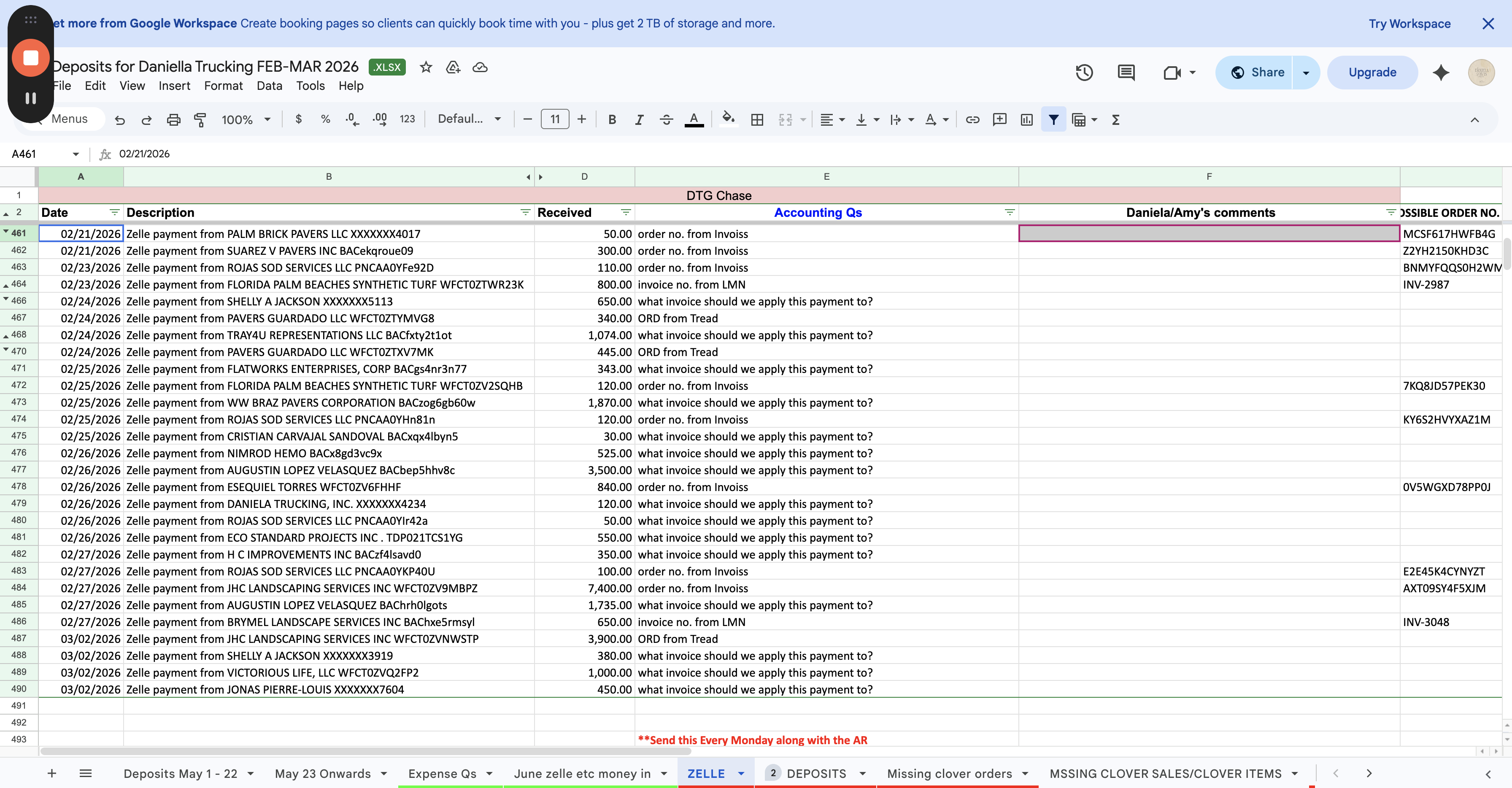
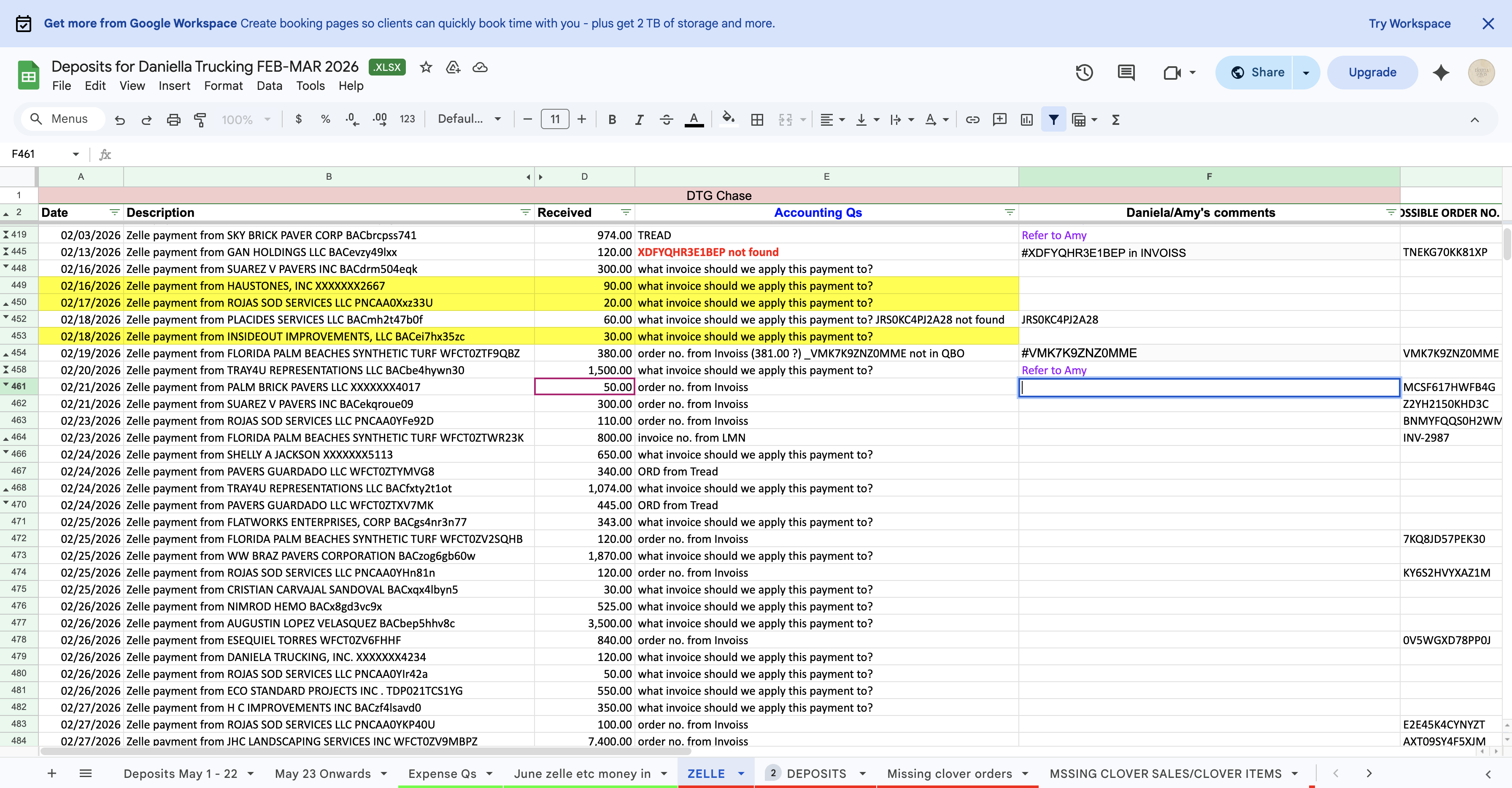
This one says $50 was received on February 21st via Zelle.
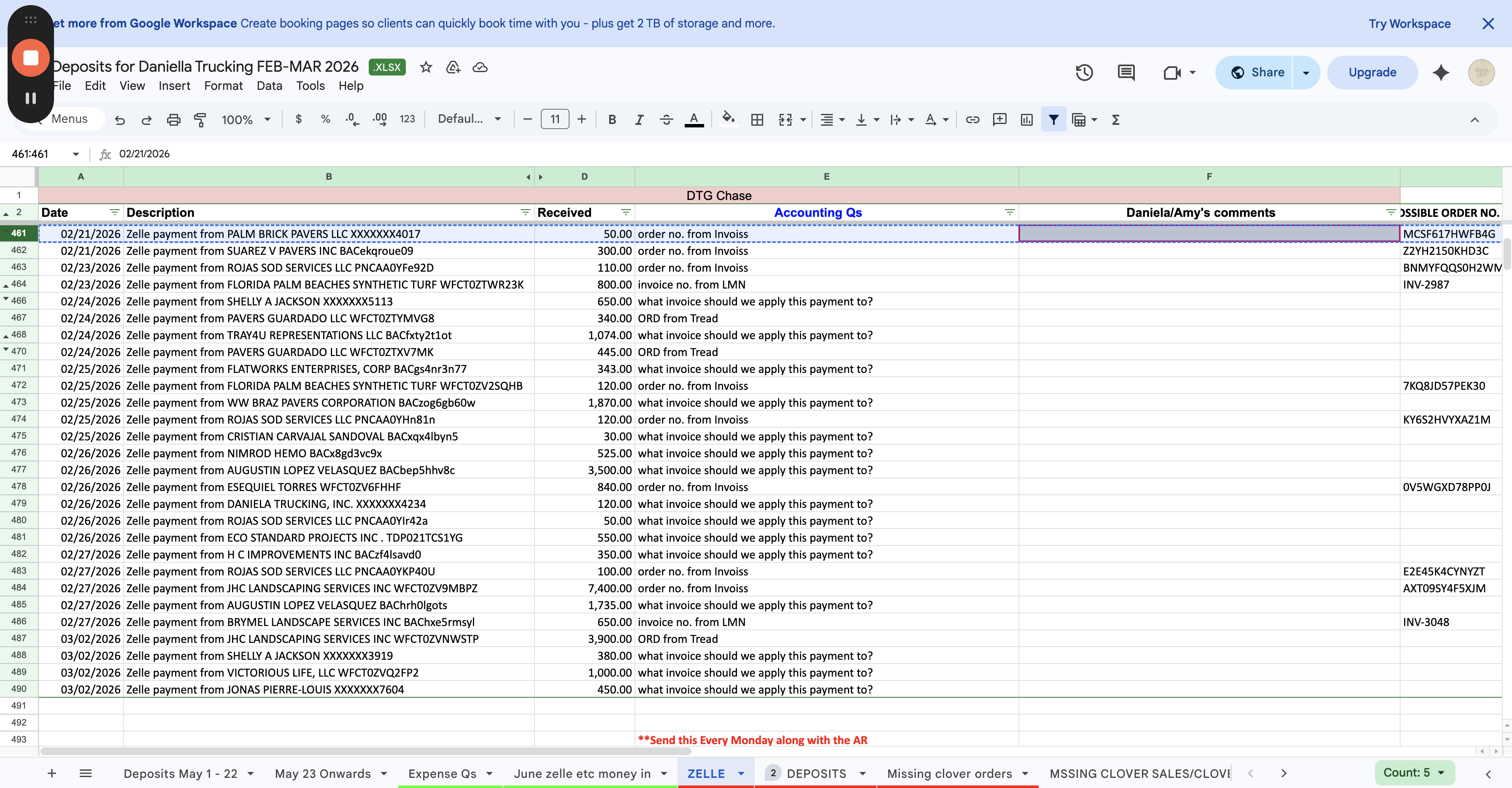
When we locate the Invoice/Order #, we will fill in input that # here under Dispatch/Admin's Comments section.
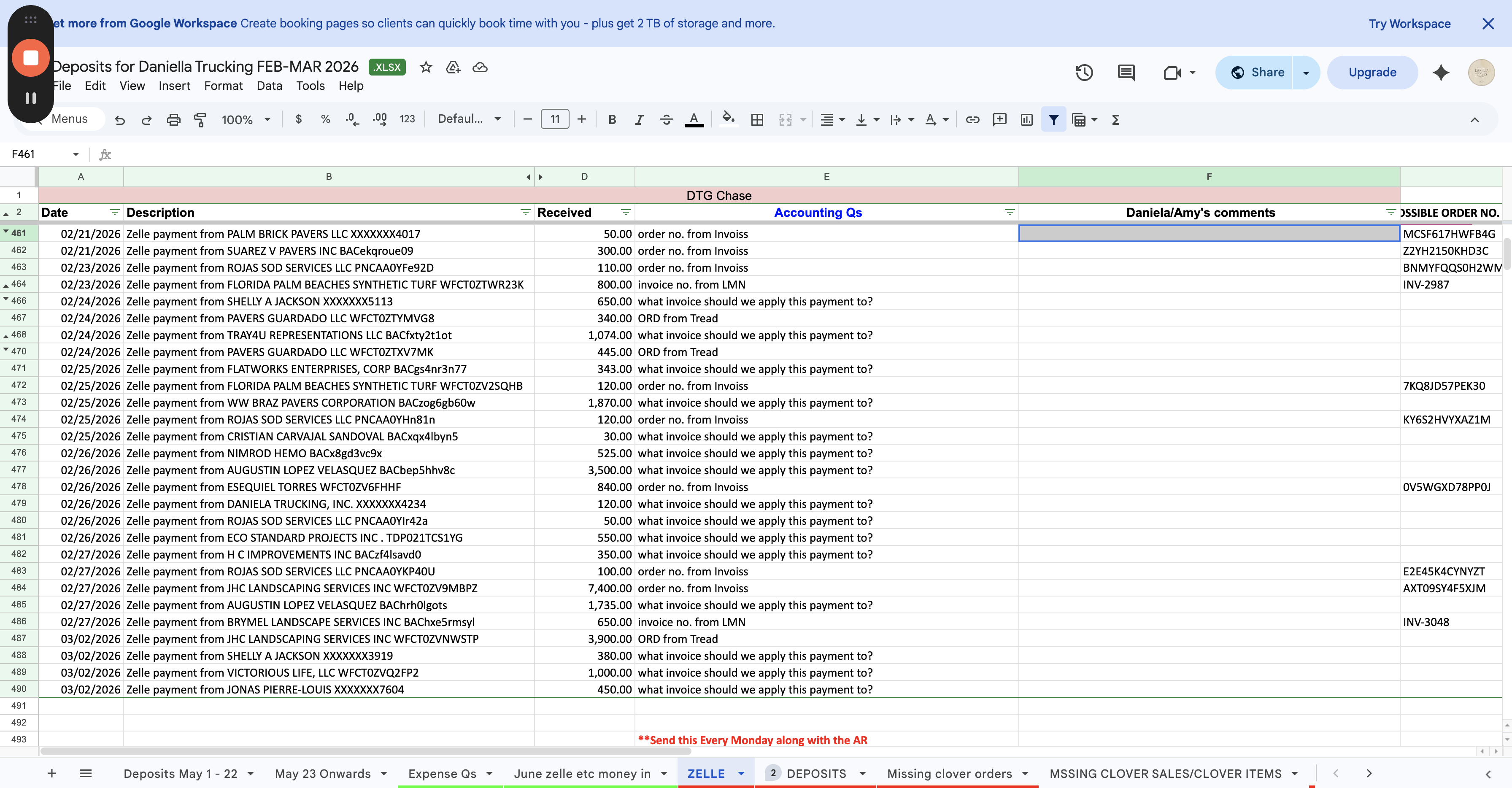
Accounting will add a few details here in this section for us to review under Accounting Q's dropdown.
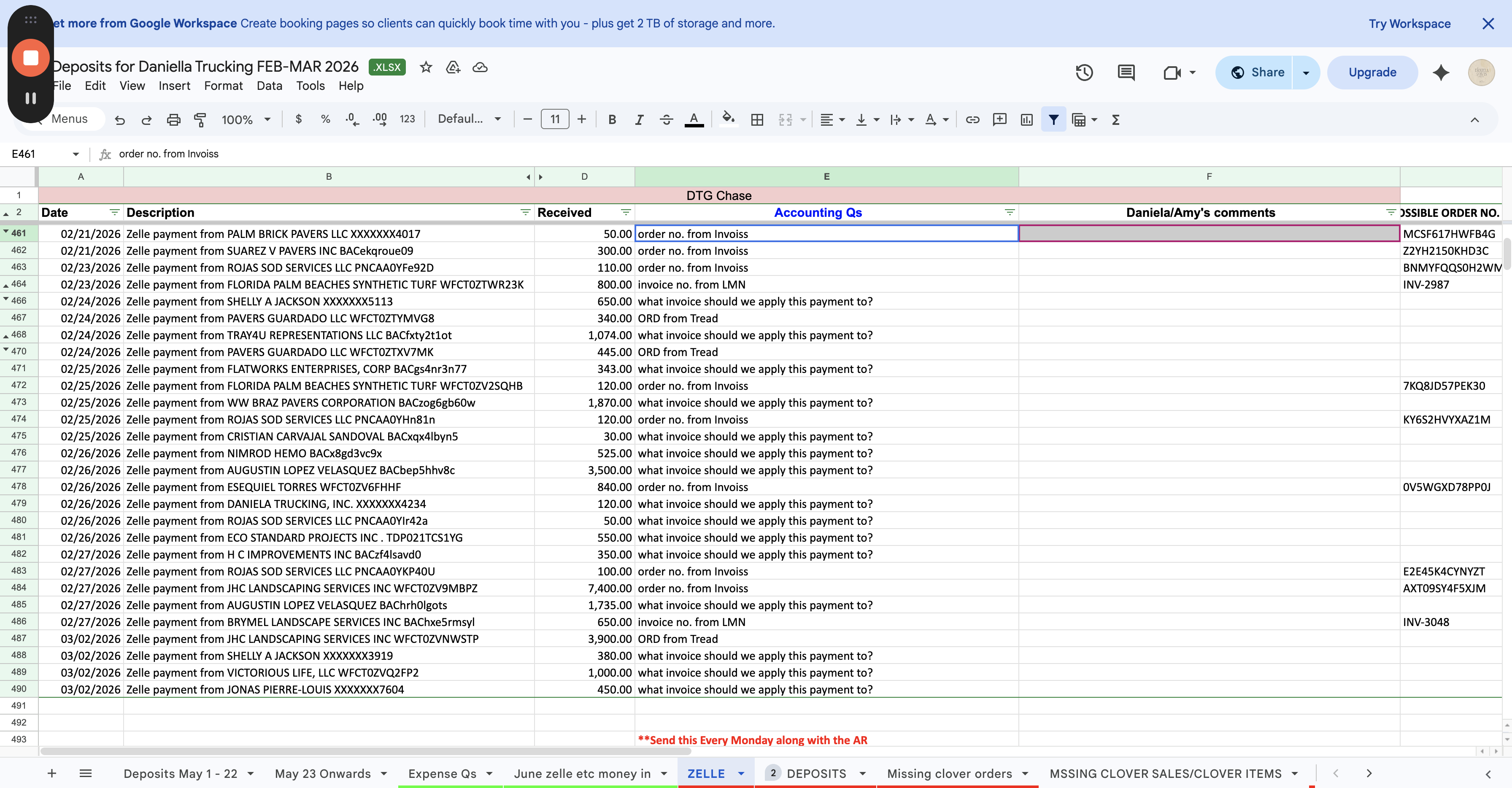
In this case, their comment under the transaction we are looking at, they believe this is a Payment which belongs to Invoiss, which means it would be a yard sale.
Now lets try to locate what Invoiss/order this Zelle Payment belongs to...
To locate it, we take a few steps: Make sure you are logged into Clover. This is the Clover dashboard, make sure you are under the HOOPER YARD.
Once you are in Clover under HOOPER, go to the sales activity.
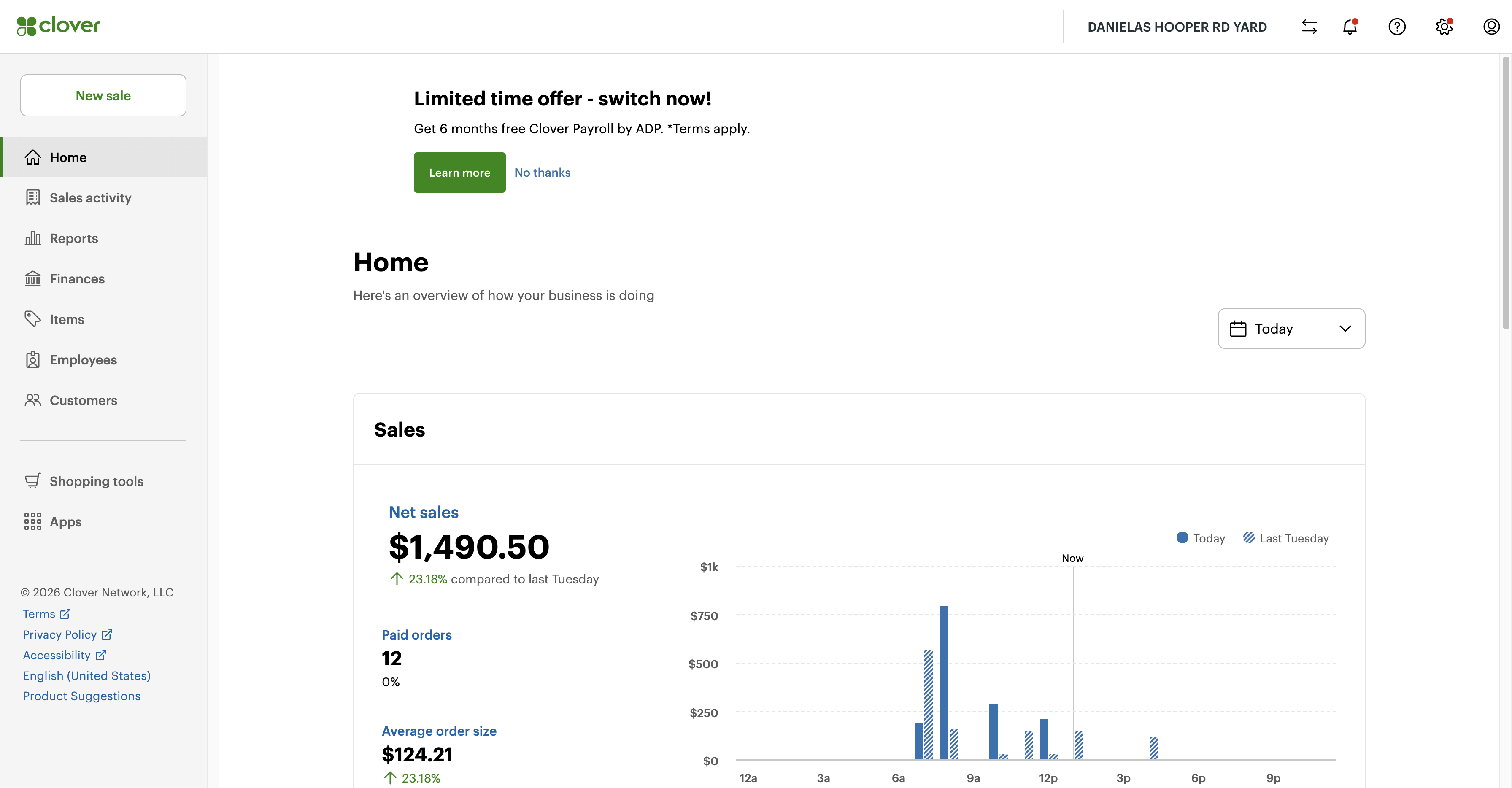
Here is where you can filter to locate a transaction.
You will need to click ORDERS.
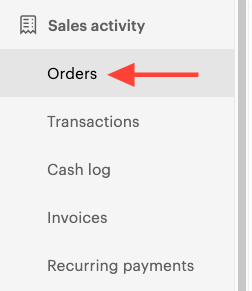
Now we need to filter the transactions so we can locate the transaction easier.
It was for February 21st, so set it to "last 30 days" to include the correct time frame.
And update the amount we are looking for.
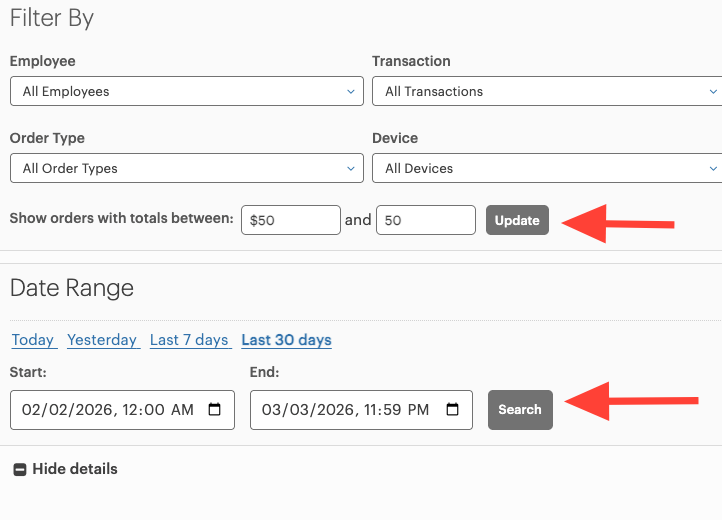
Then click update and search to apply the filter.
All transactions for $50 for the date range we inputted will appear here.
Remember, this was a Zelle payment for January 21st that we are looking for- there is nothing for January 21st on the Clover dashboard for Hooper.
The next step to locate this transaction is to check the INVOISS Platform. (Okeechobee Yard)
Log into INVOISS and then click on ORDERS on the left hand side.
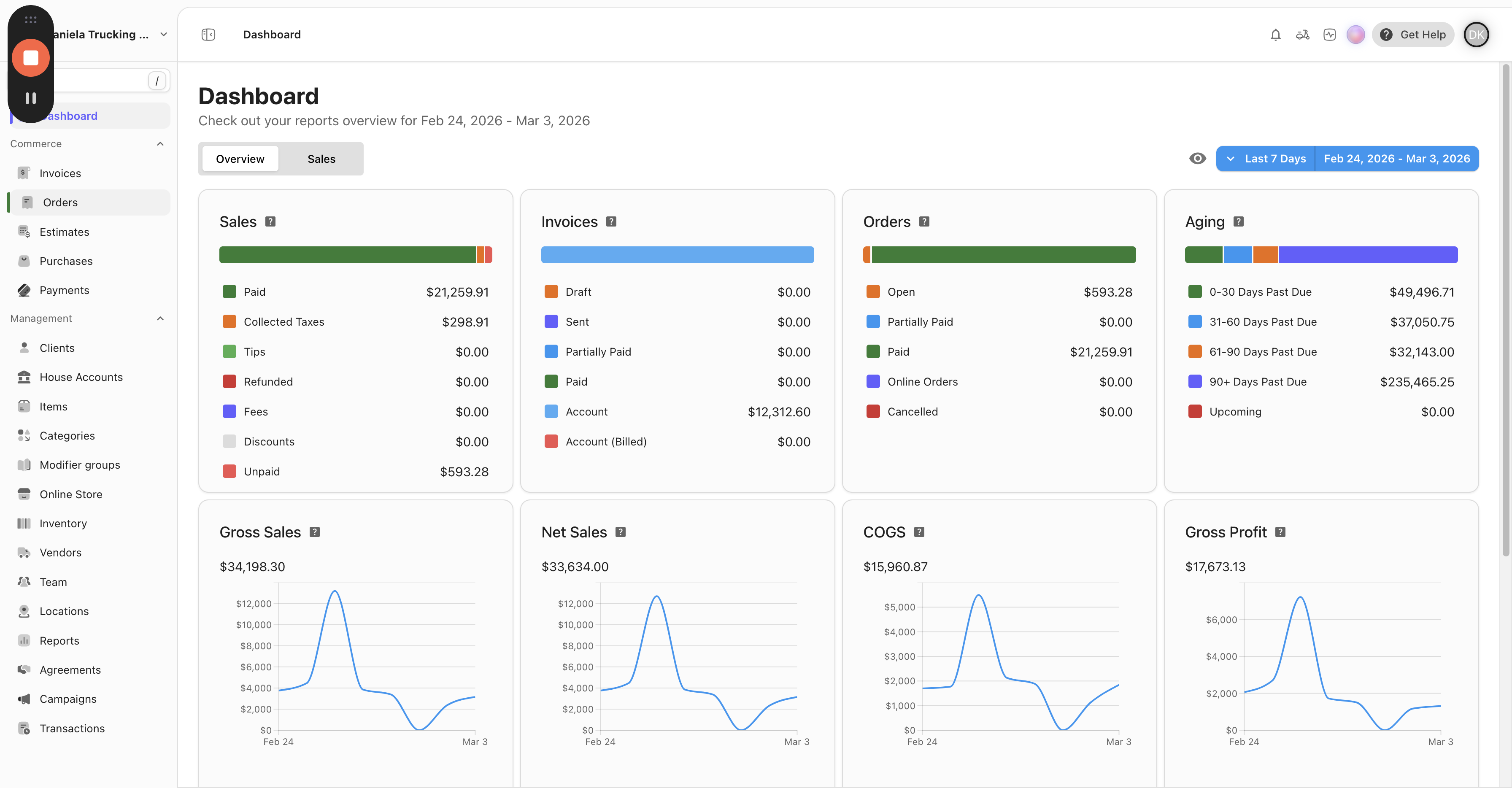
After clicking on the Orders section. Here, we will also apply a filter.
On the right hand side- click on filter
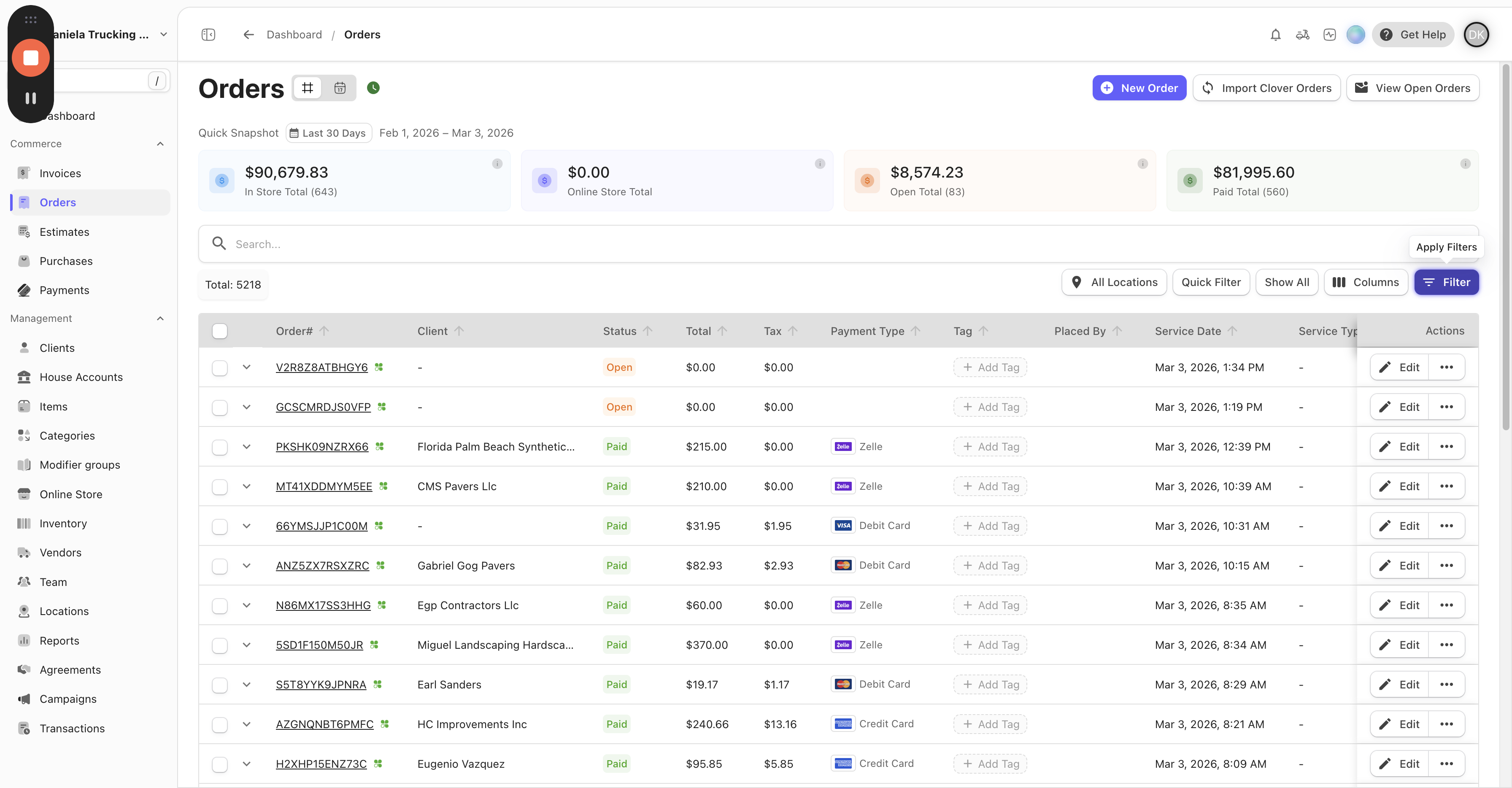
Click "Total,"
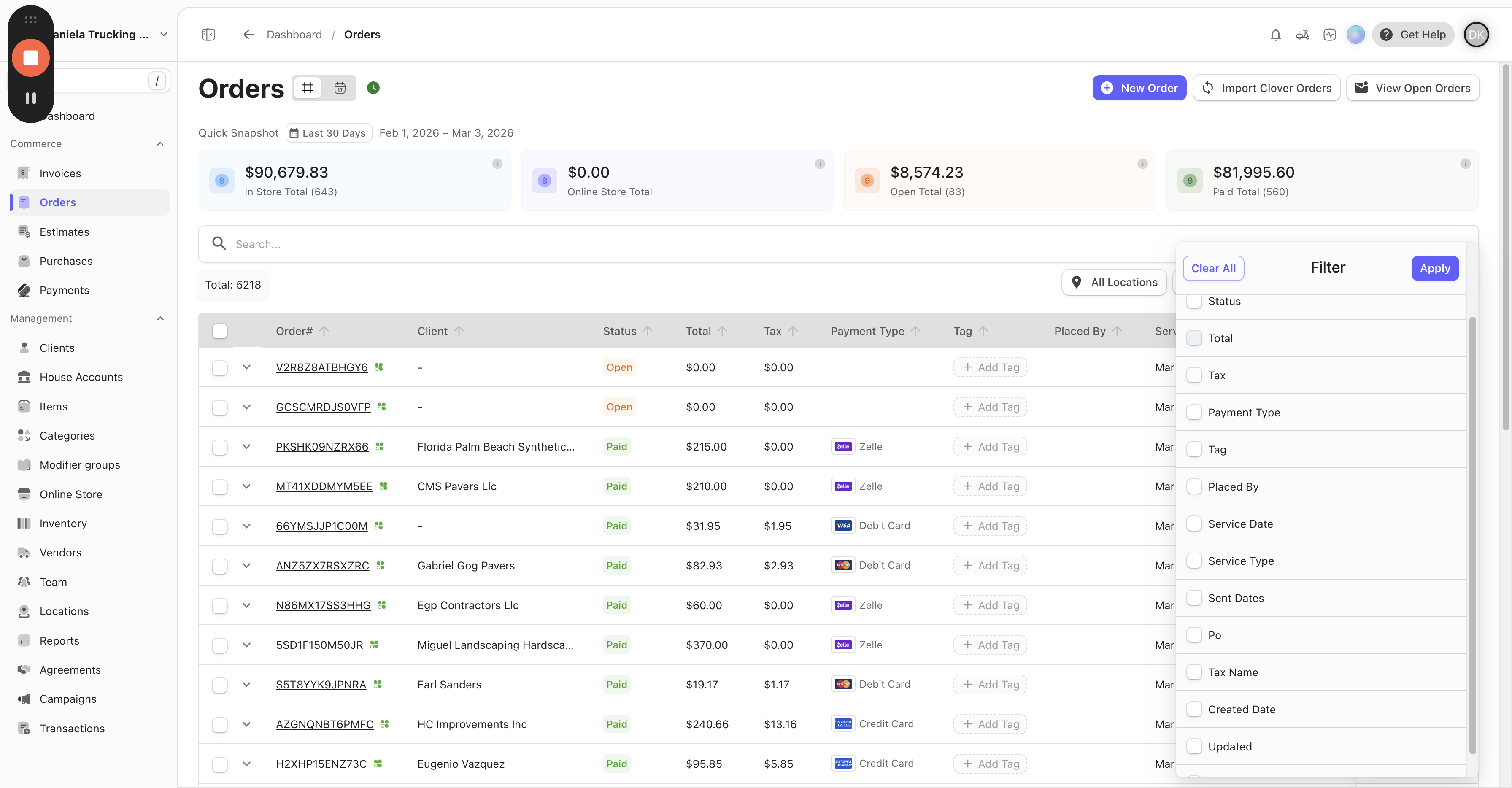
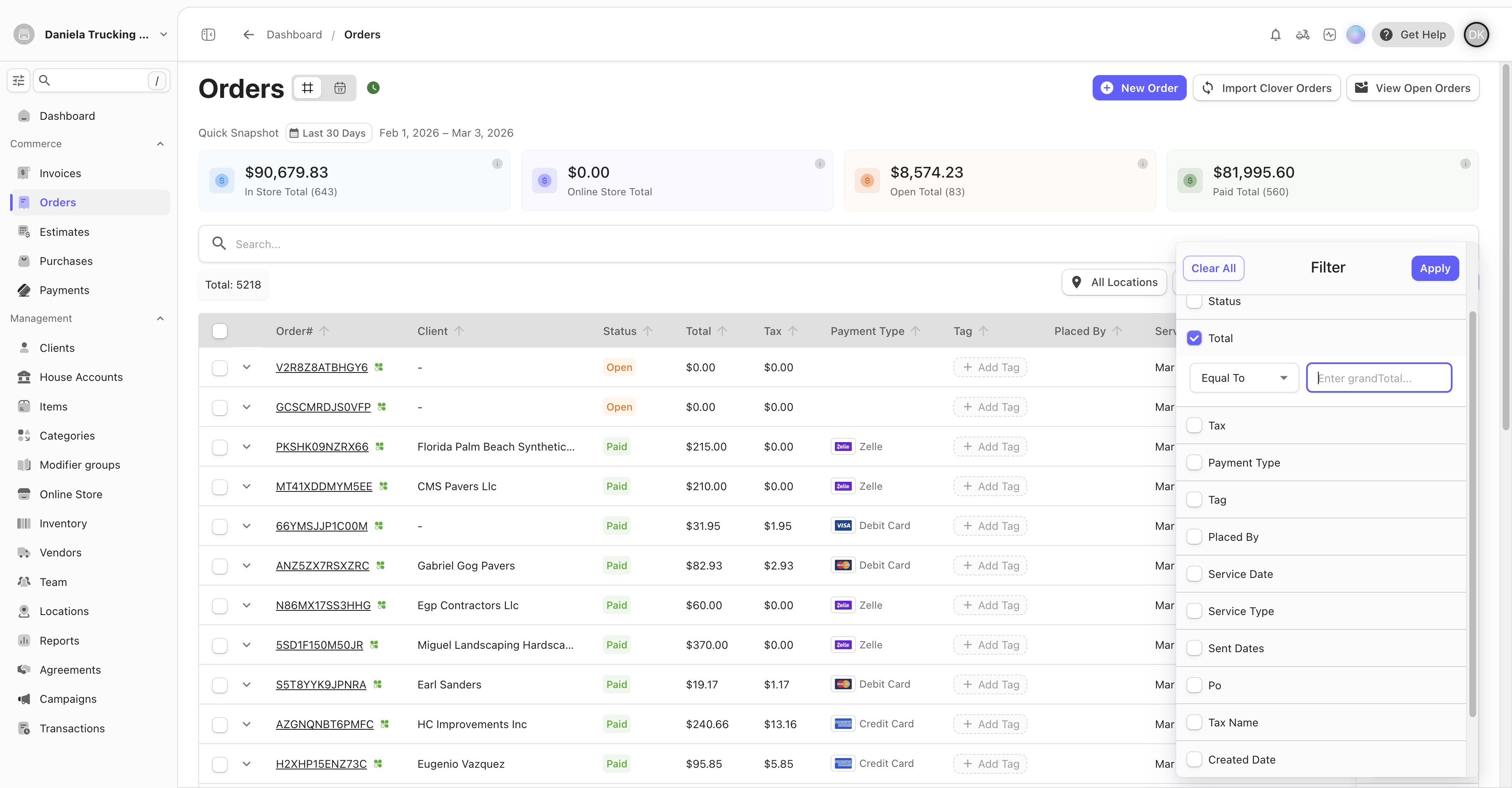
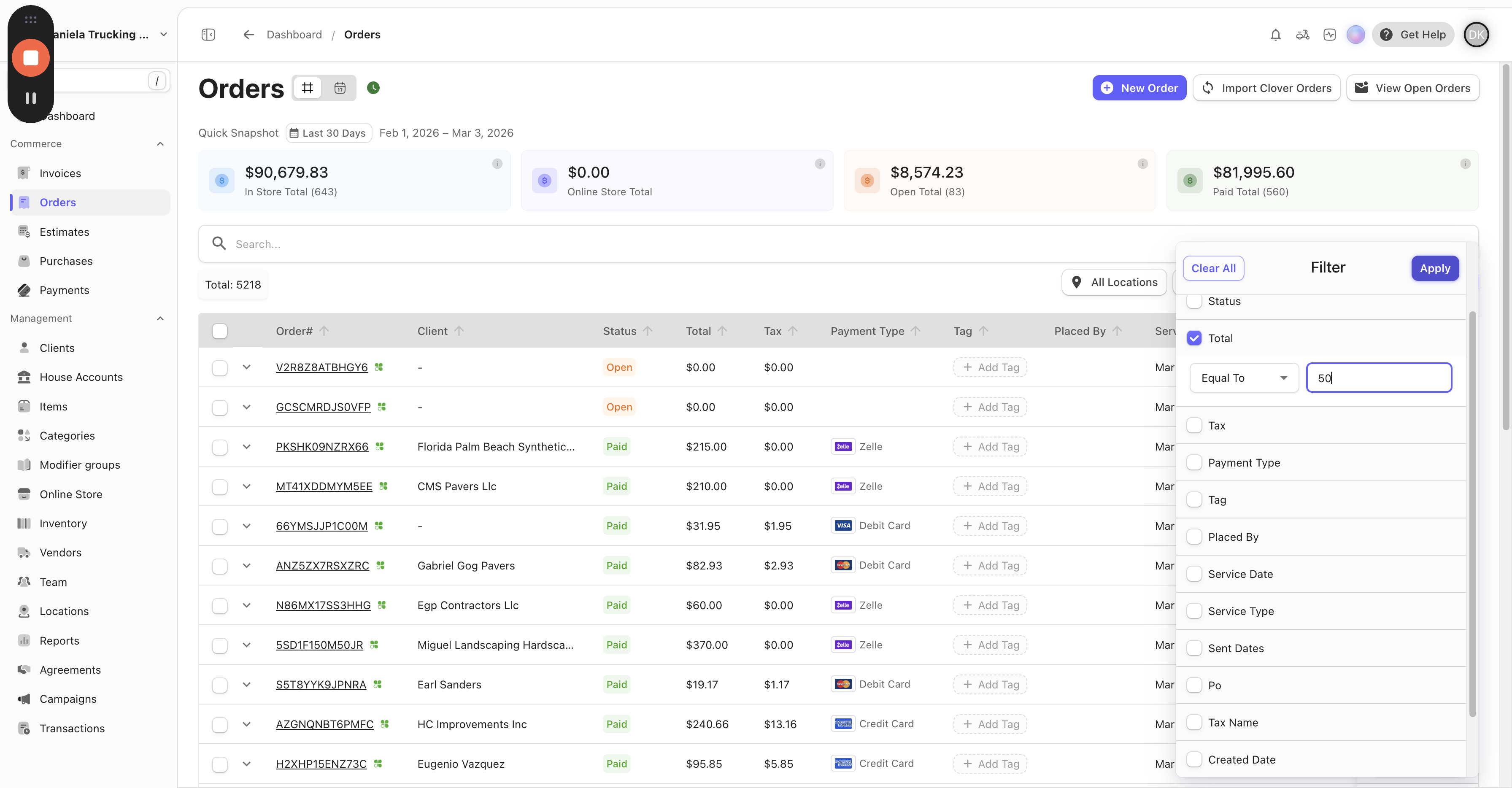
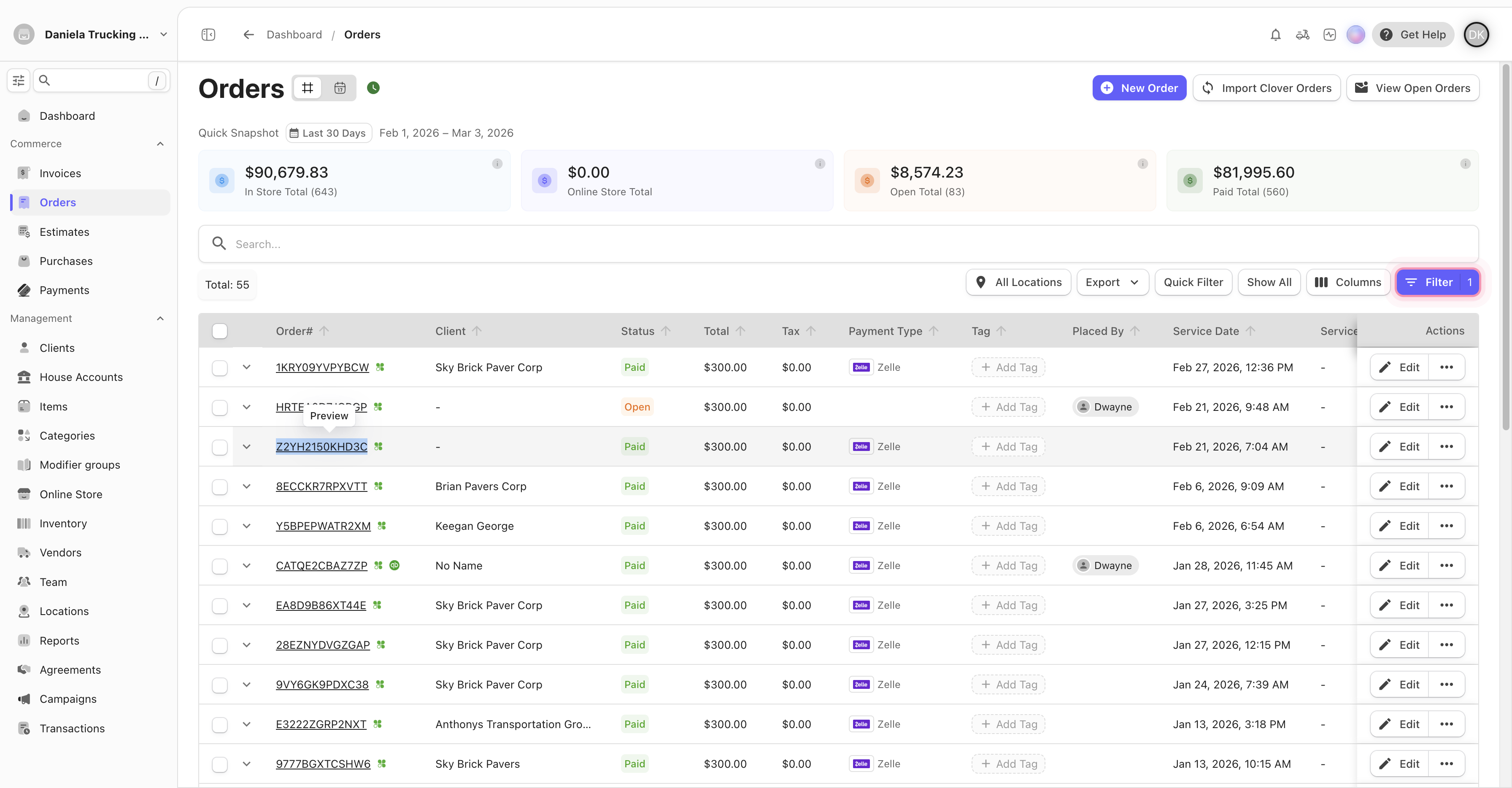
The filtered transactions will appear here.
Look for the date in question. (In this case we are looking for February 21st)
Here you see we have one for February 21st, for our Zelle payment of $50. This suggest this is the possible in-question transaction.
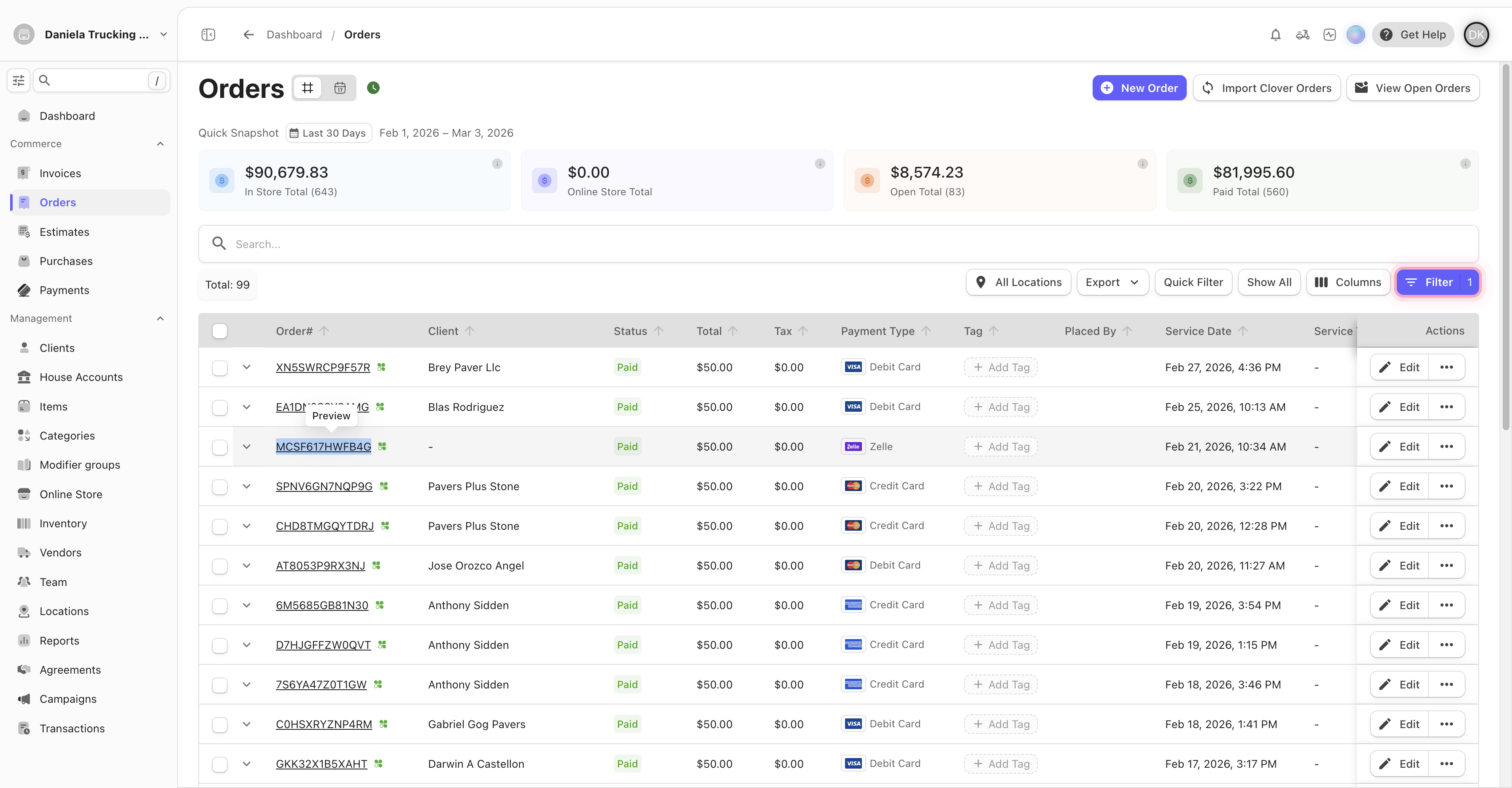
Next, go back to the spreadsheet and paste it here under "Dispatcher/Admin's comments" for accounting to review and check that it is a match.
Okay. Let's try another. Let's do the one for 300.
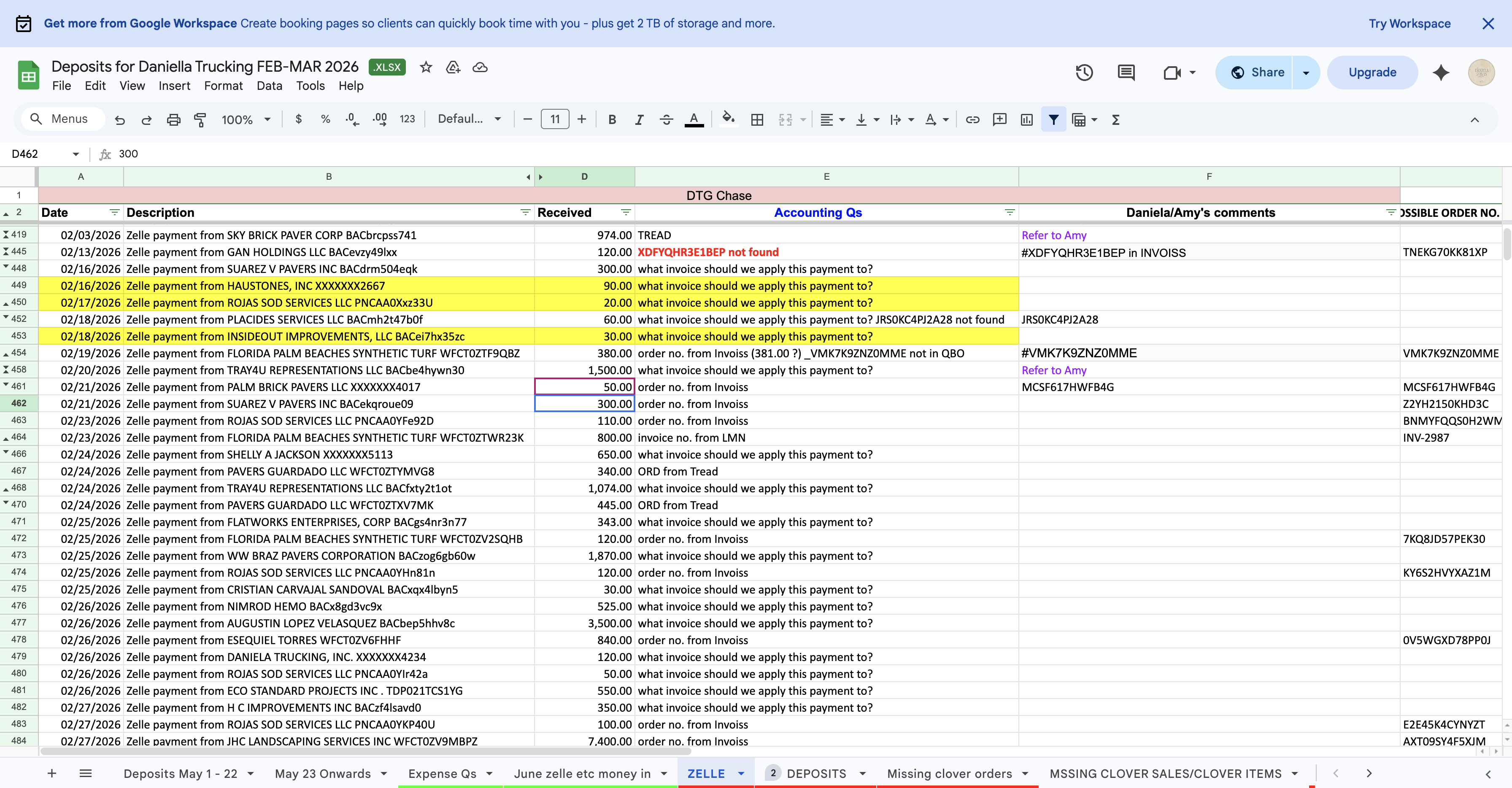
Since our INVOISS tab is still open, we will start and check with INVOISS.
Follow the same steps previously mentioned in the guide.
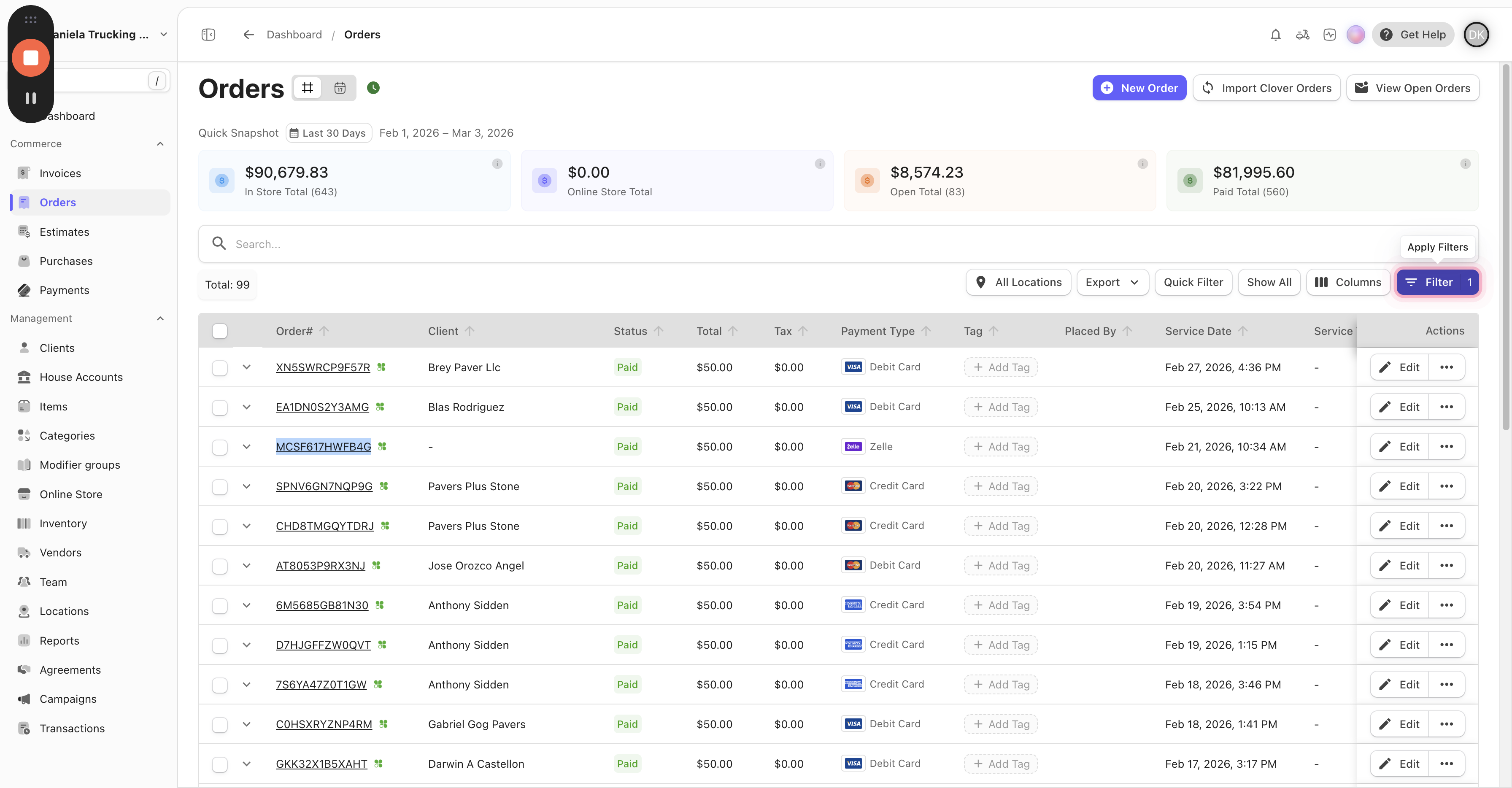
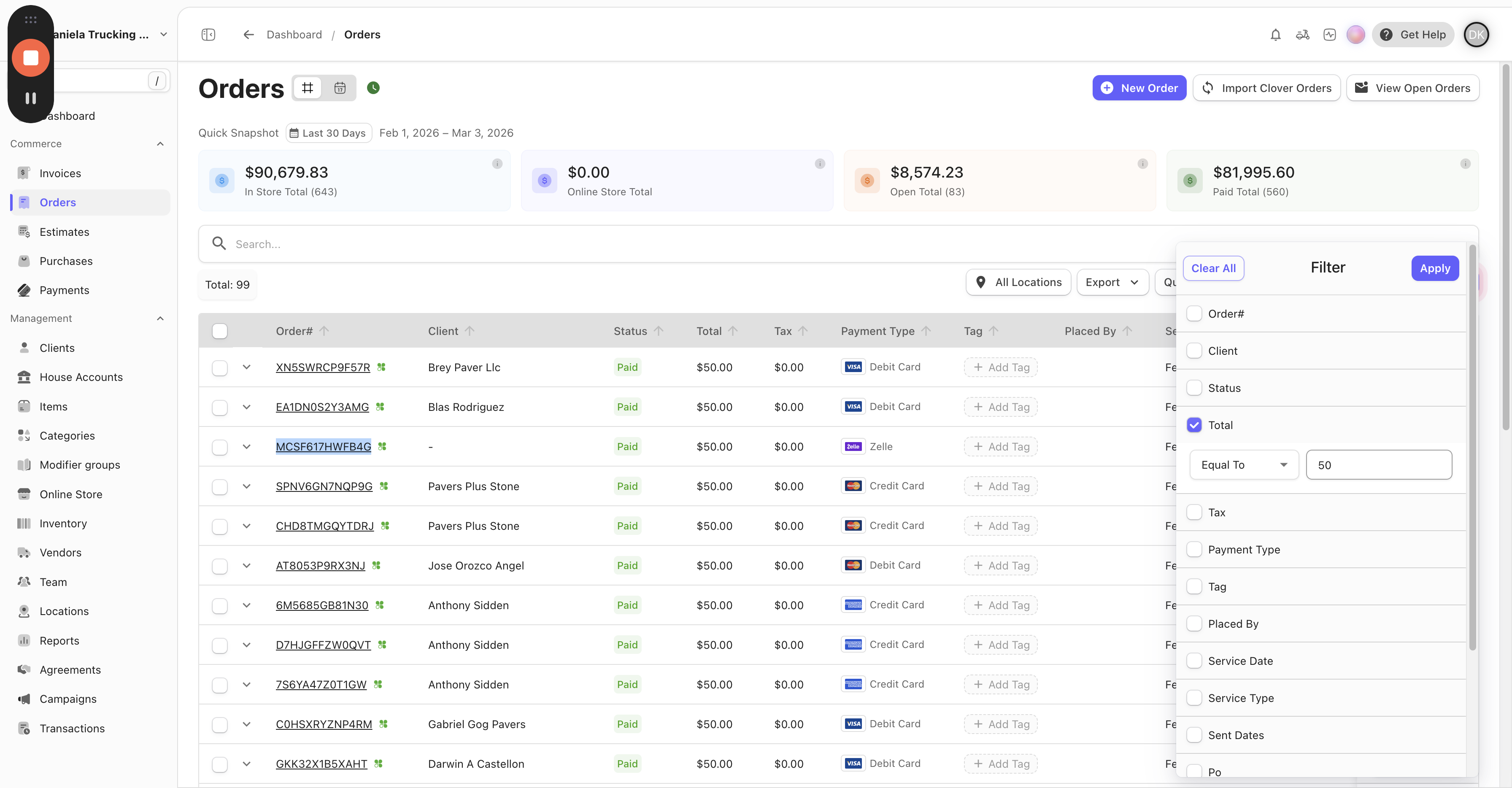
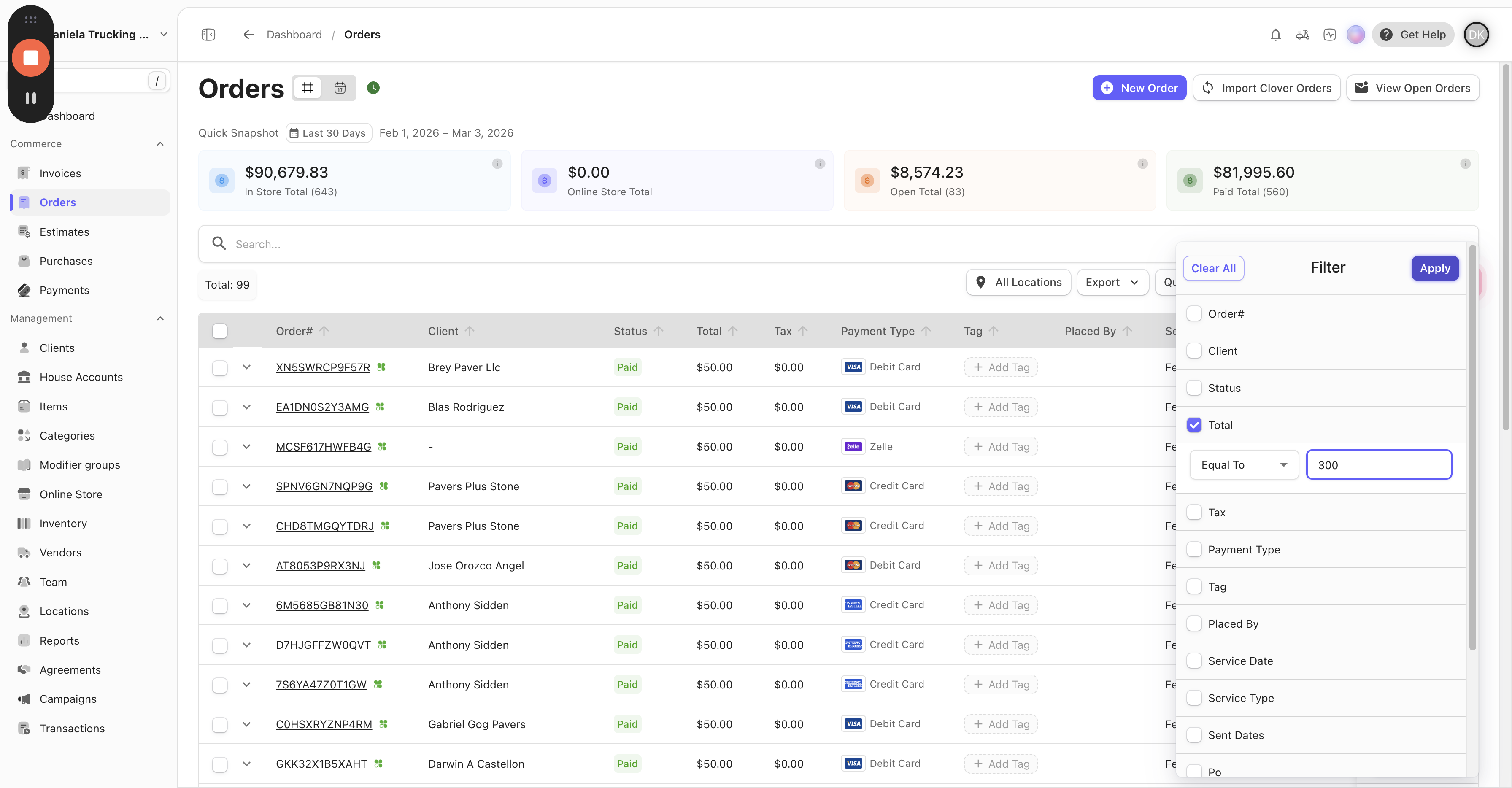
Perfect. This transaction here says February 21st for $300. Copy this number, return to the spreadsheet, and paste it here.
Remember to think outside of the box, if you get stuck you can also try to use other tools to your advantage. Depending on your access level.
You can check the Zelle Email for the memo of the payment just in case you cannot locate it in either clover or Invoiss.
Check the Bank Feed (Higher level access)
Check the Paper Receipts turned in by the yards in order to cross reference.