How to Log In and Cancel a Class on Momence.com 360 Restore
Learn step-by-step how to log in to the Momence.com platform, check for upcoming classes in your 360 Restore account, and cancel a class. Follow our easy guide to manage your bookings and understand the cancellation process.
Let's get started
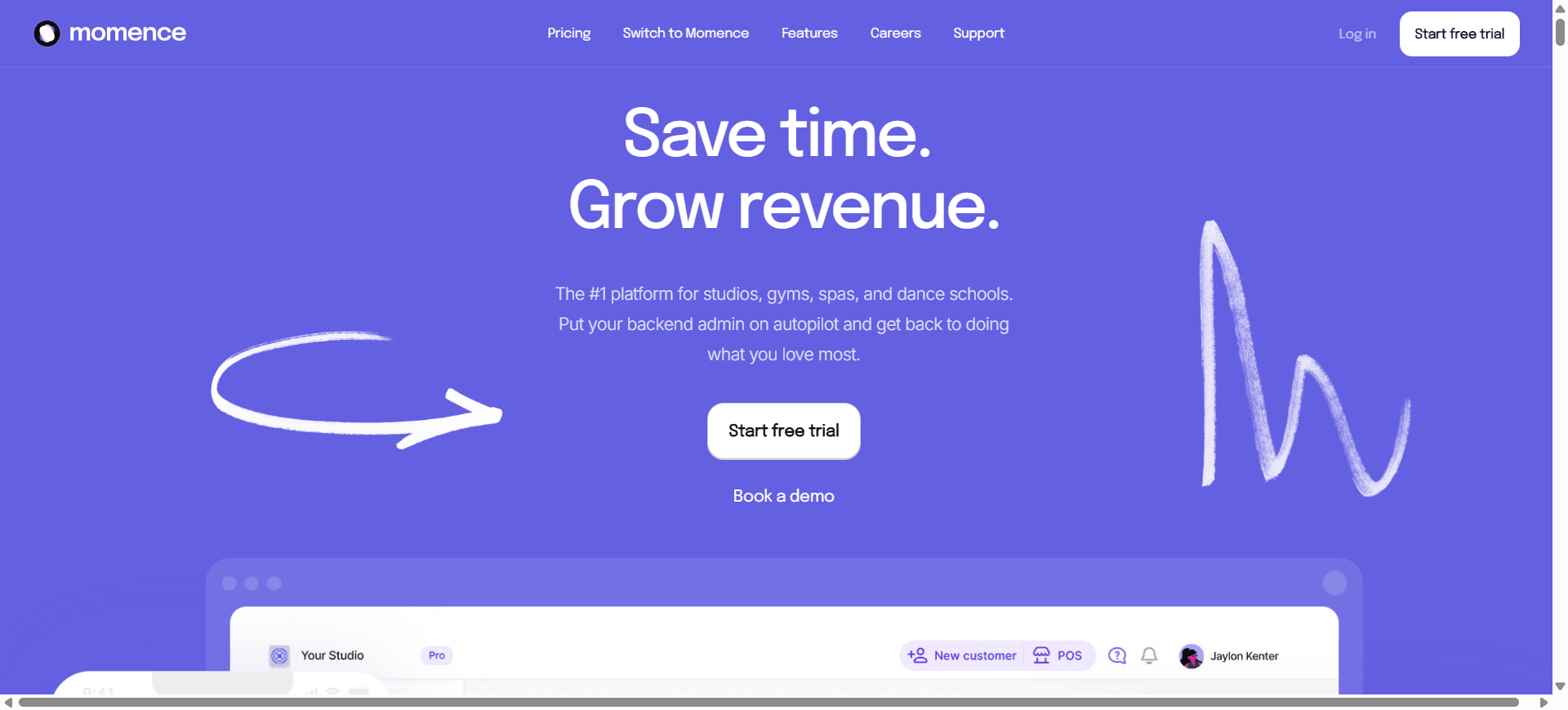
Hello. Here we will learn how to log in to the Momence.com platform, check for an upcoming class in your 360 Restore account, and cancel it. First, we will log in to the Momence.com platform.
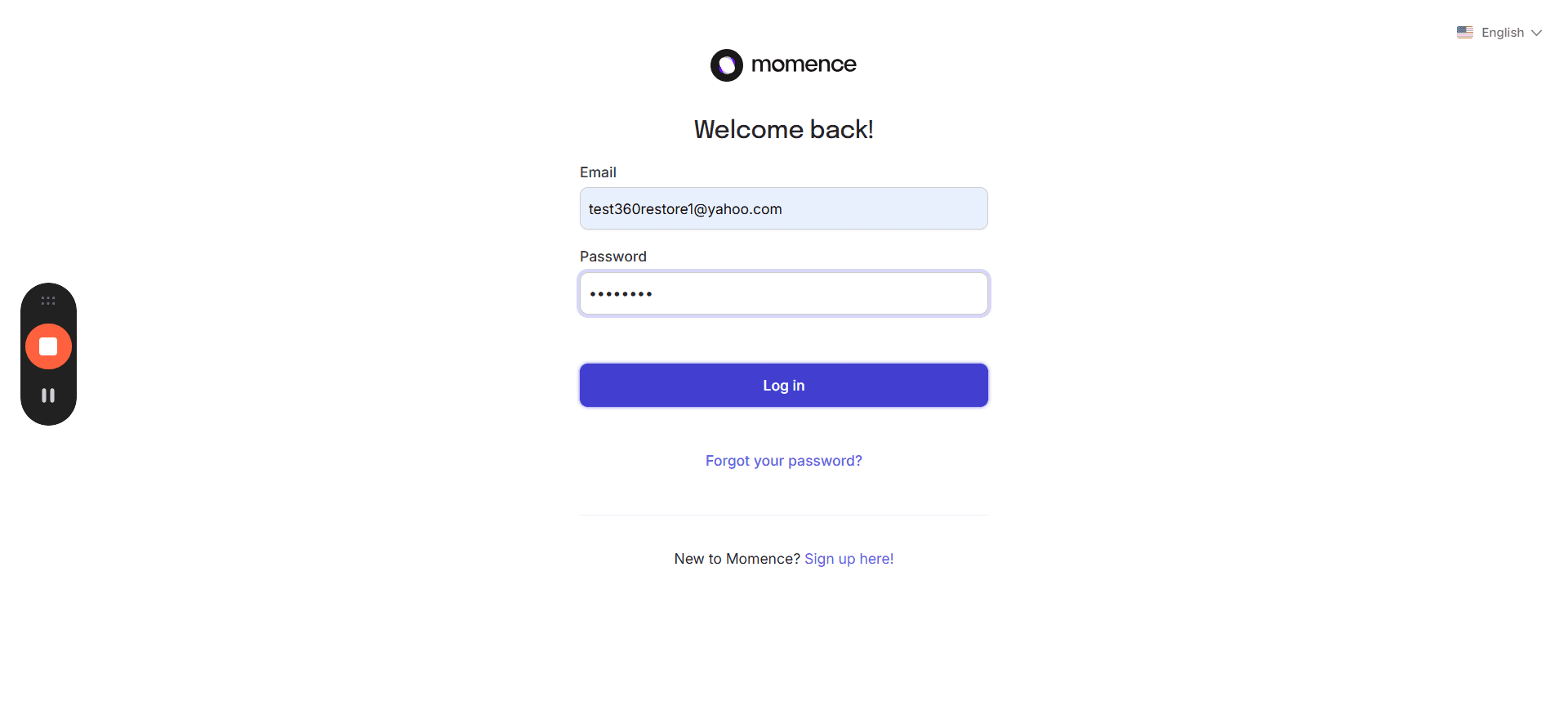
Enter your email and password.
This should be the same email you used when you first signed up. This will take us to our dashboard.
Make sure your name appears in the top right corner to confirm you are logged in. In the example, we are using a test account that is already logged in.
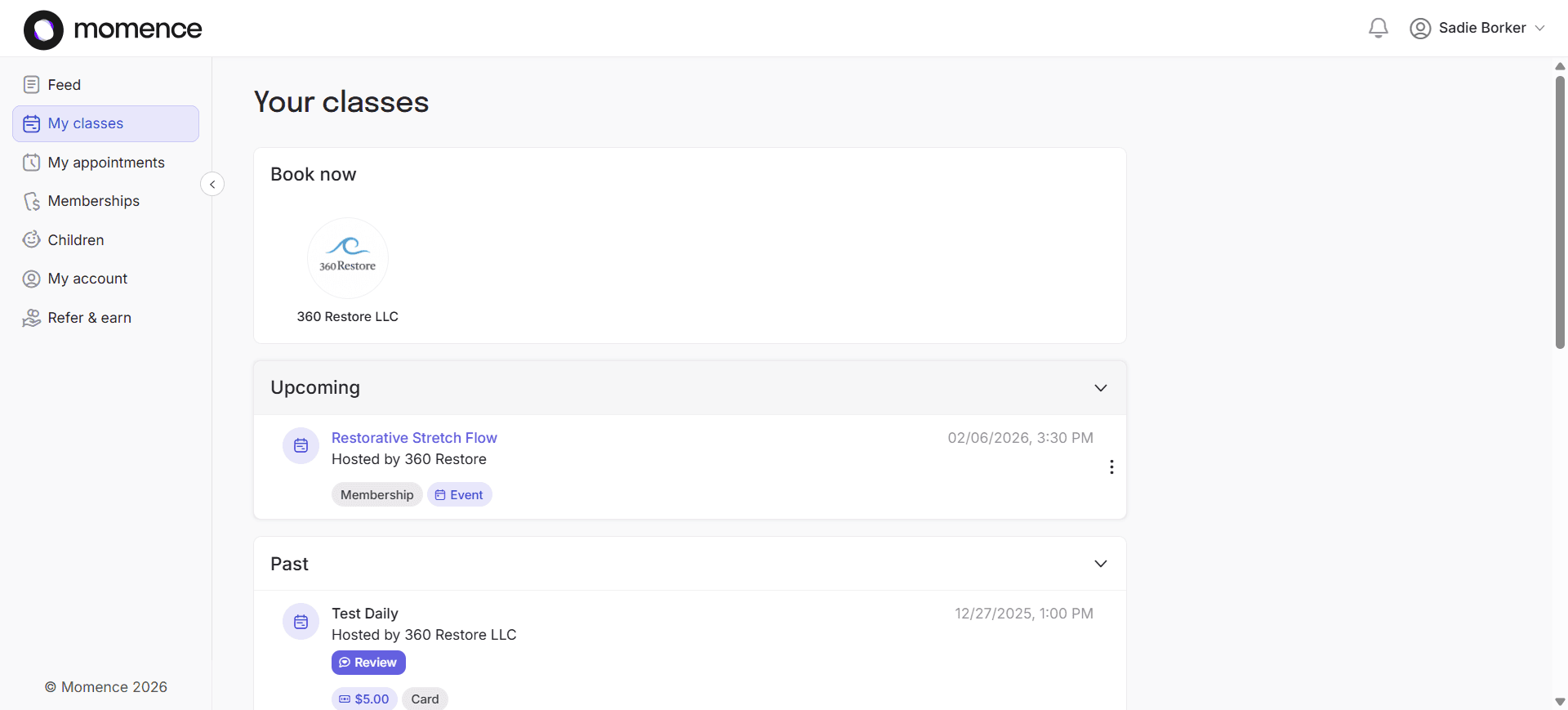
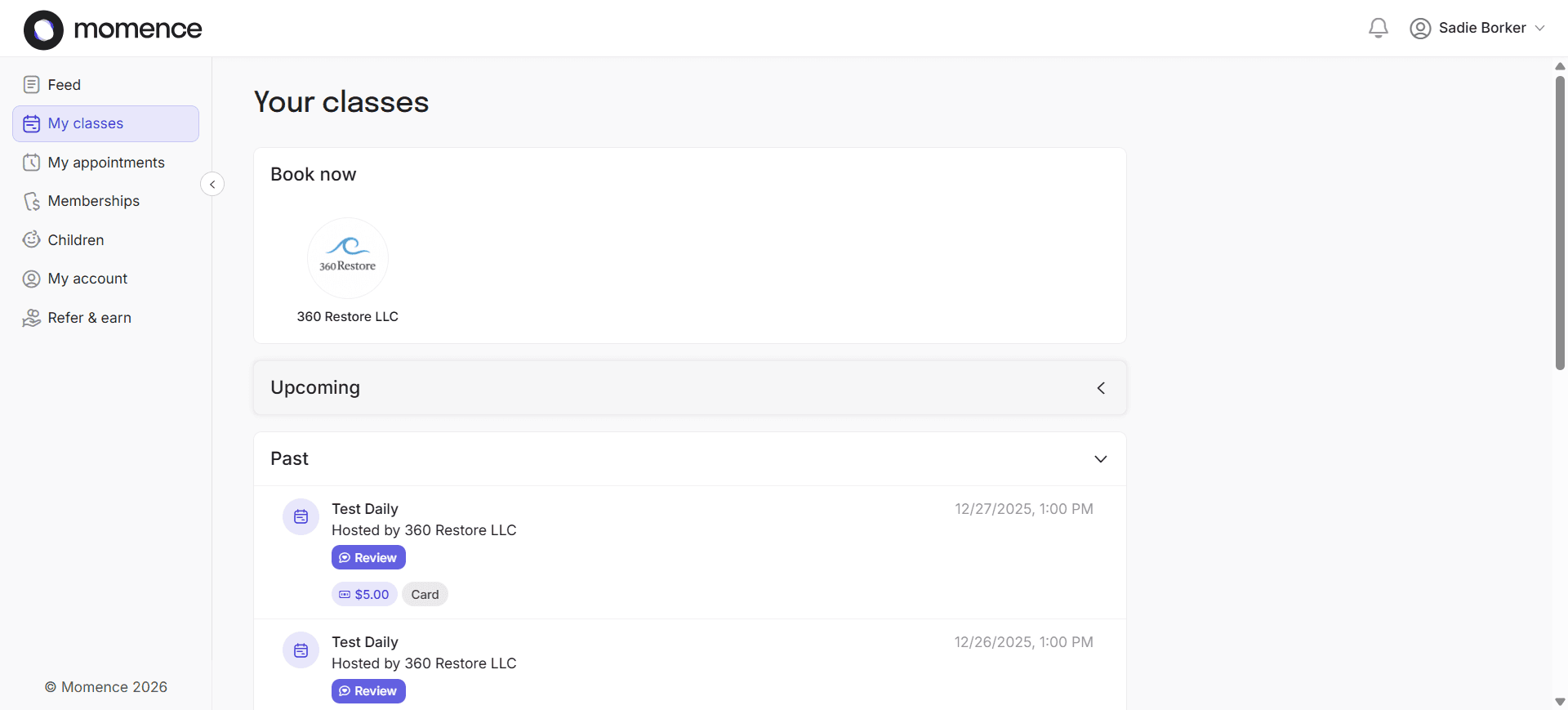
Click the three dots here.
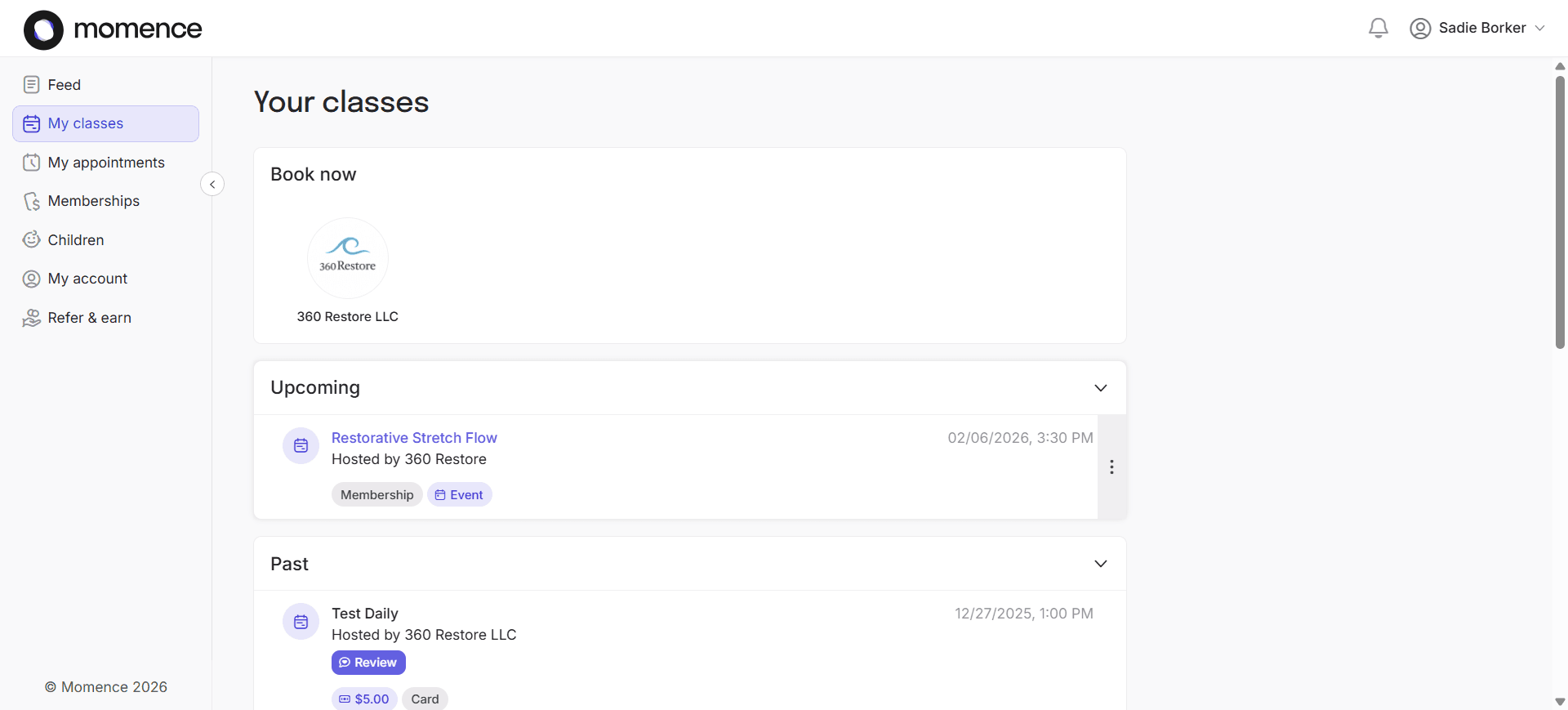
It will display "Cancel Yourself." Click on it.
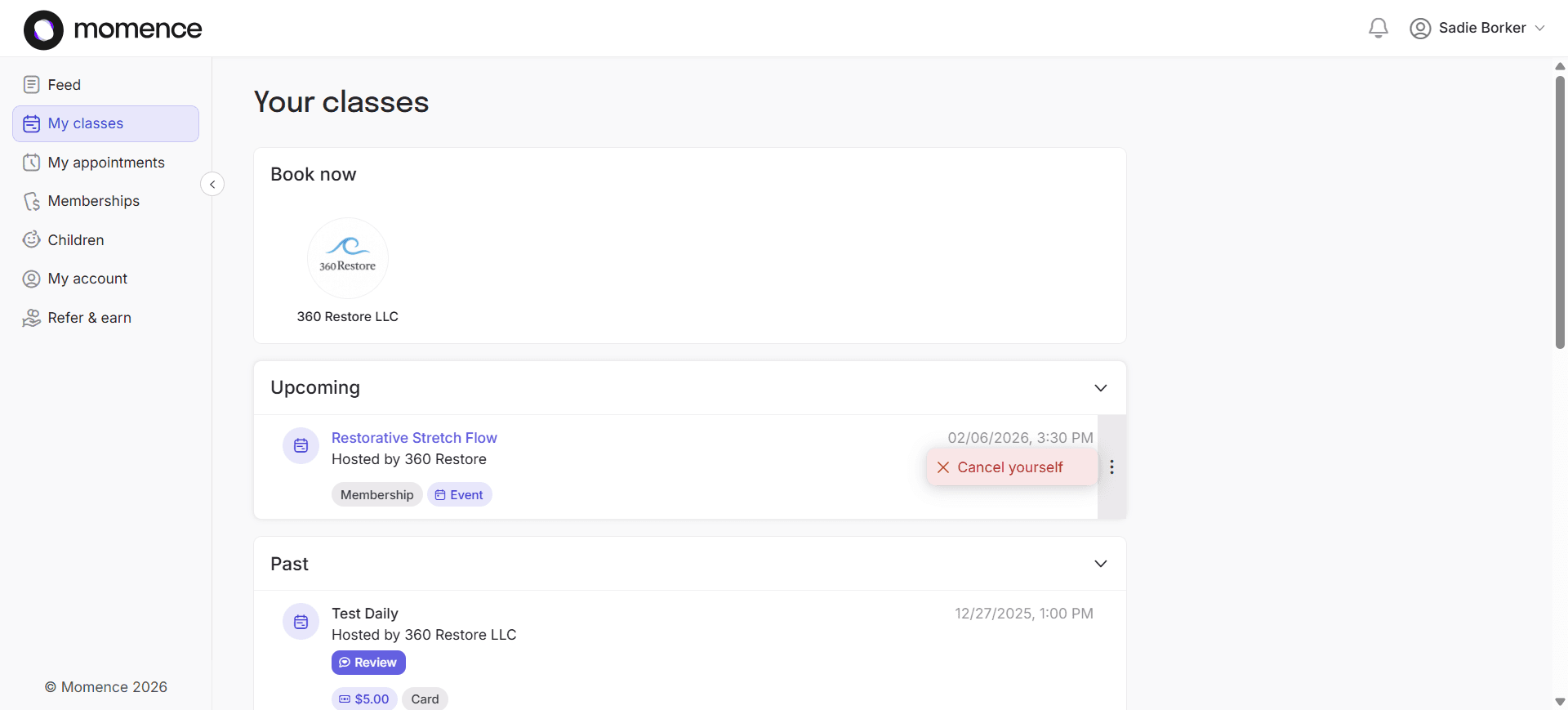
A confirmation box will pop up. Click Yes.
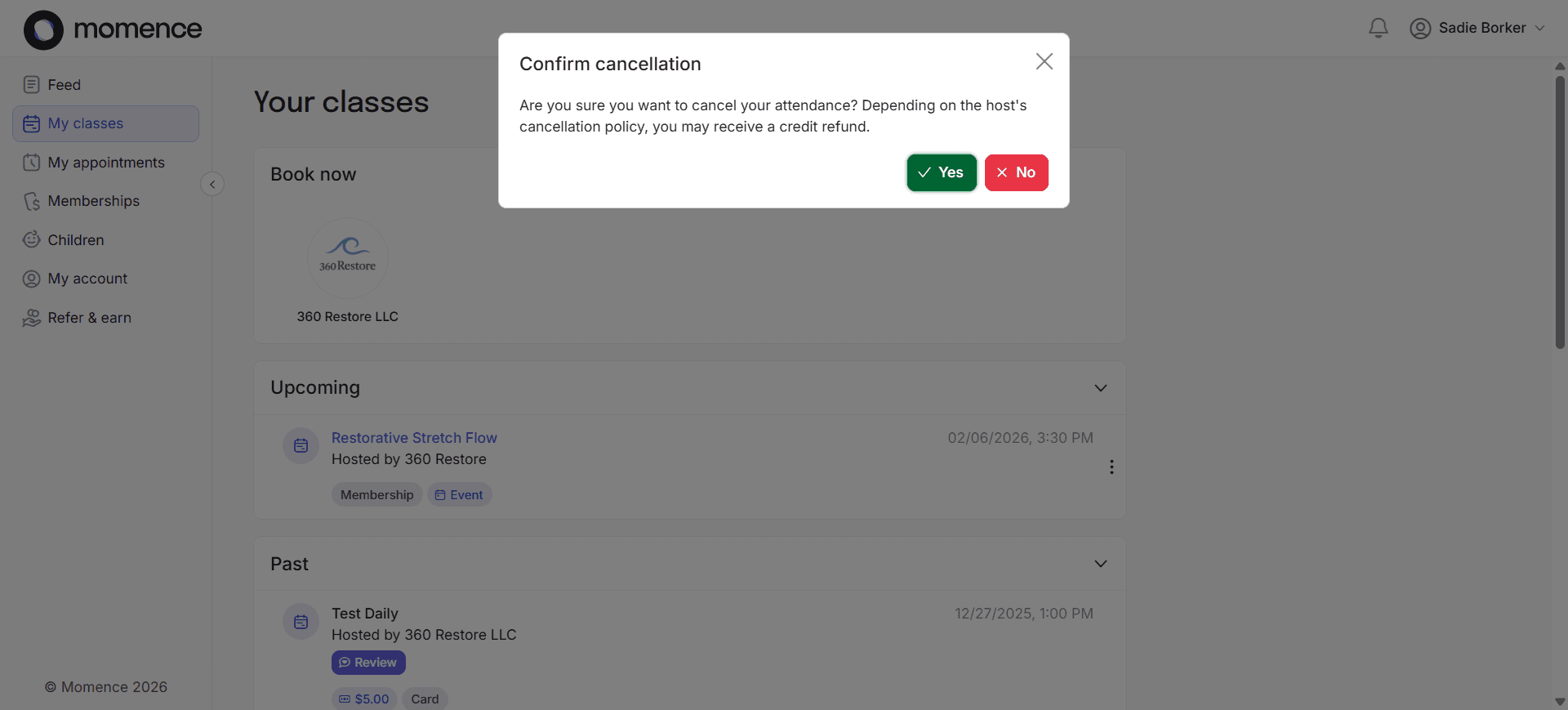
Notice at the bottom left, it will indicate that the class was canceled successfully.
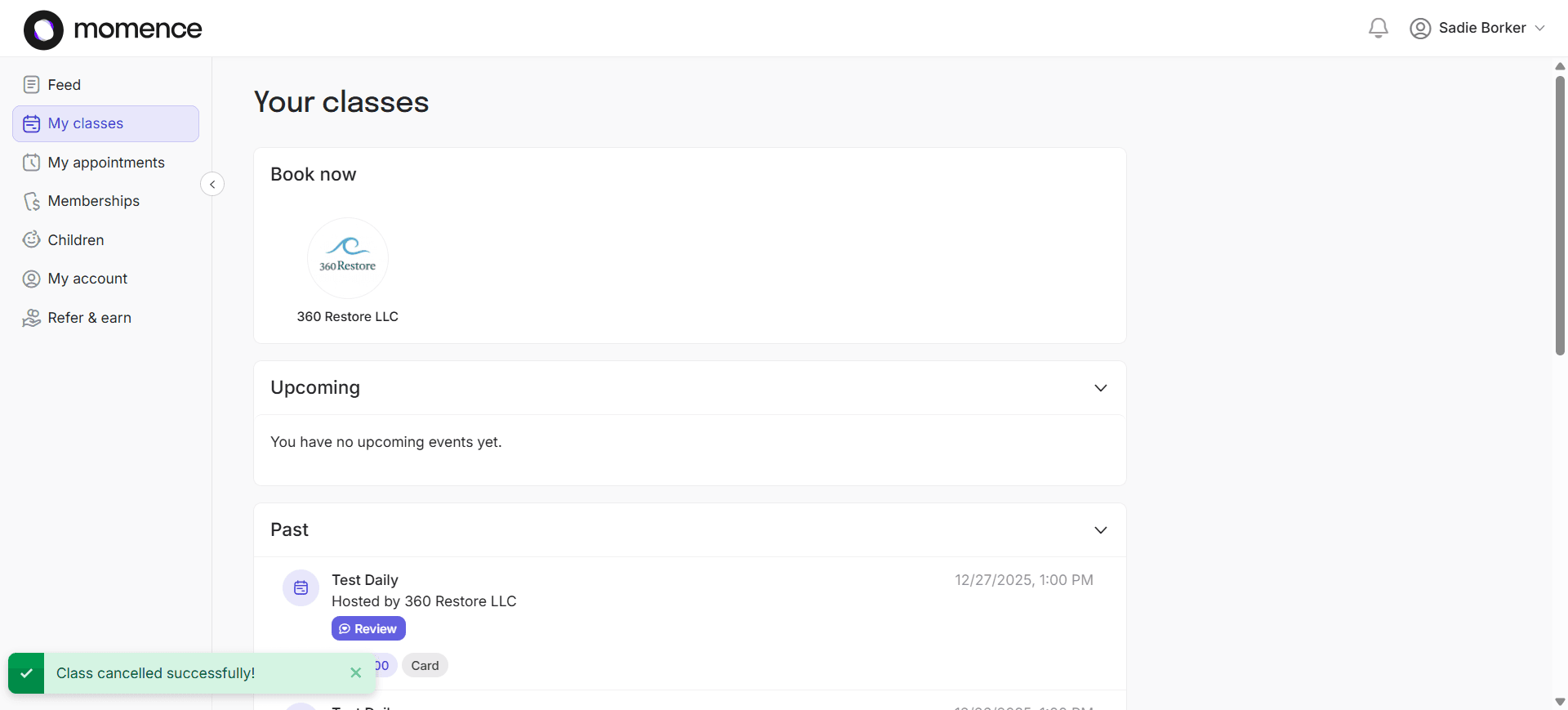
Keep in mind 360 Restore's cancellation policy when canceling your class. This concludes this How-to. Check out our other How-to articles to learn how to use additional features. Thank you.