How to Log In and Purchase a Pack on Momence.com for 360Restore Classes
Learn step-by-step how to log in to the Momence platform and purchase a pack for 360Restore classes. This guide covers account access, payment options, and confirming your membership.
Let's get started
Hello. Here we will learn how to log in to the Momence platform and purchase a pack for use in classes at 360Restore. First, go to Momence and sign in.
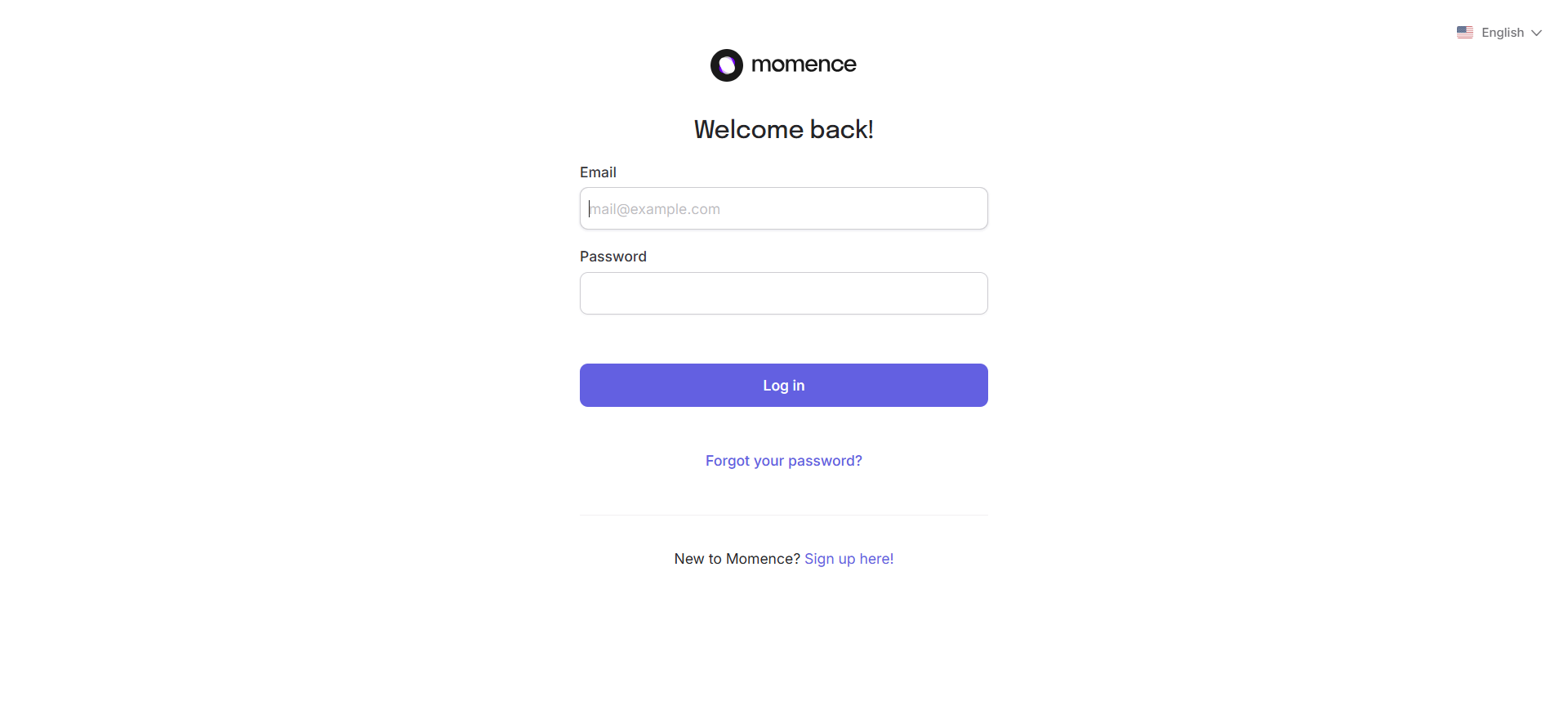
If you need help logging into Momence, there is another guide available that explains the process. This guide assumes you already know how to log onto the platform. We will enter our account information.
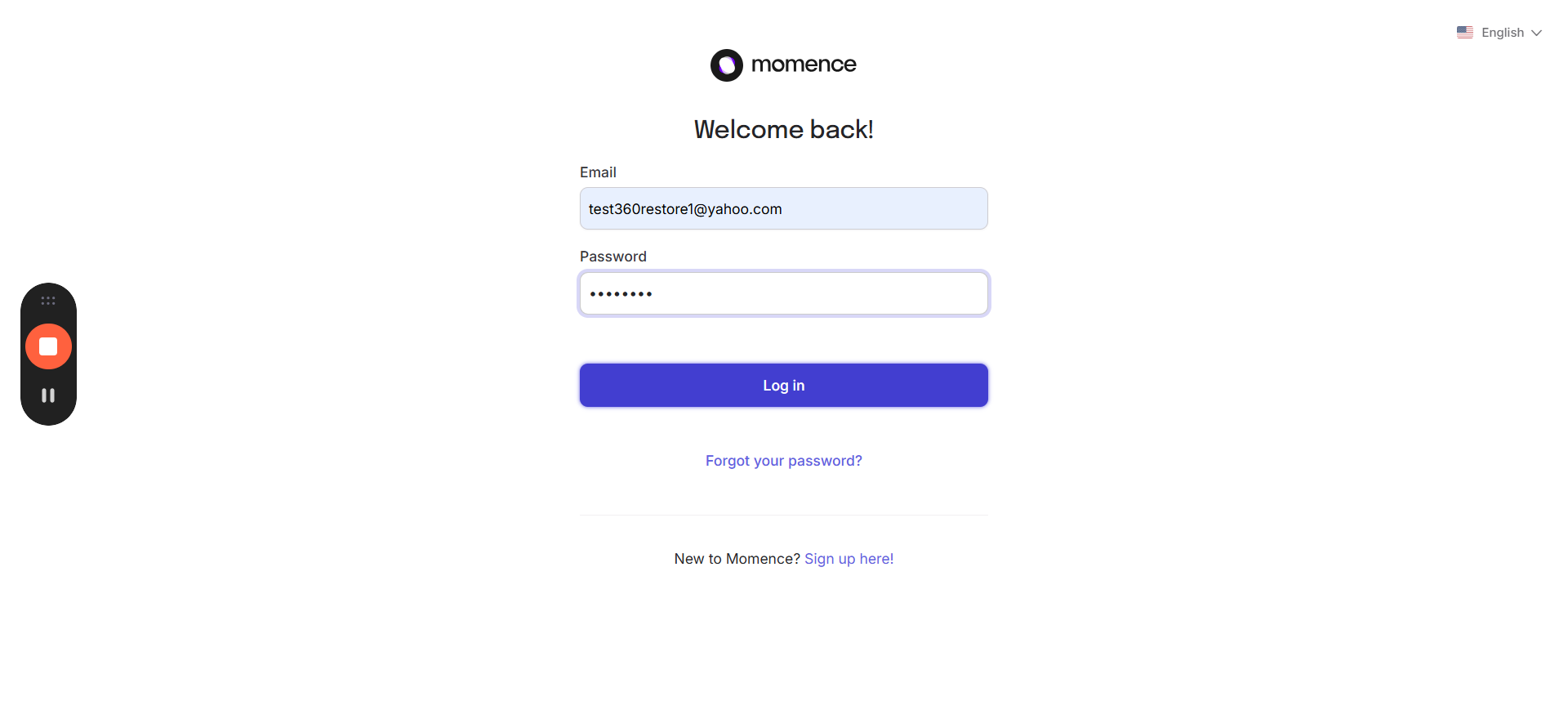
This should be the email you used when you first signed up. Enter your password. Click Login.
Check that you are logged in by looking for your name on the right.
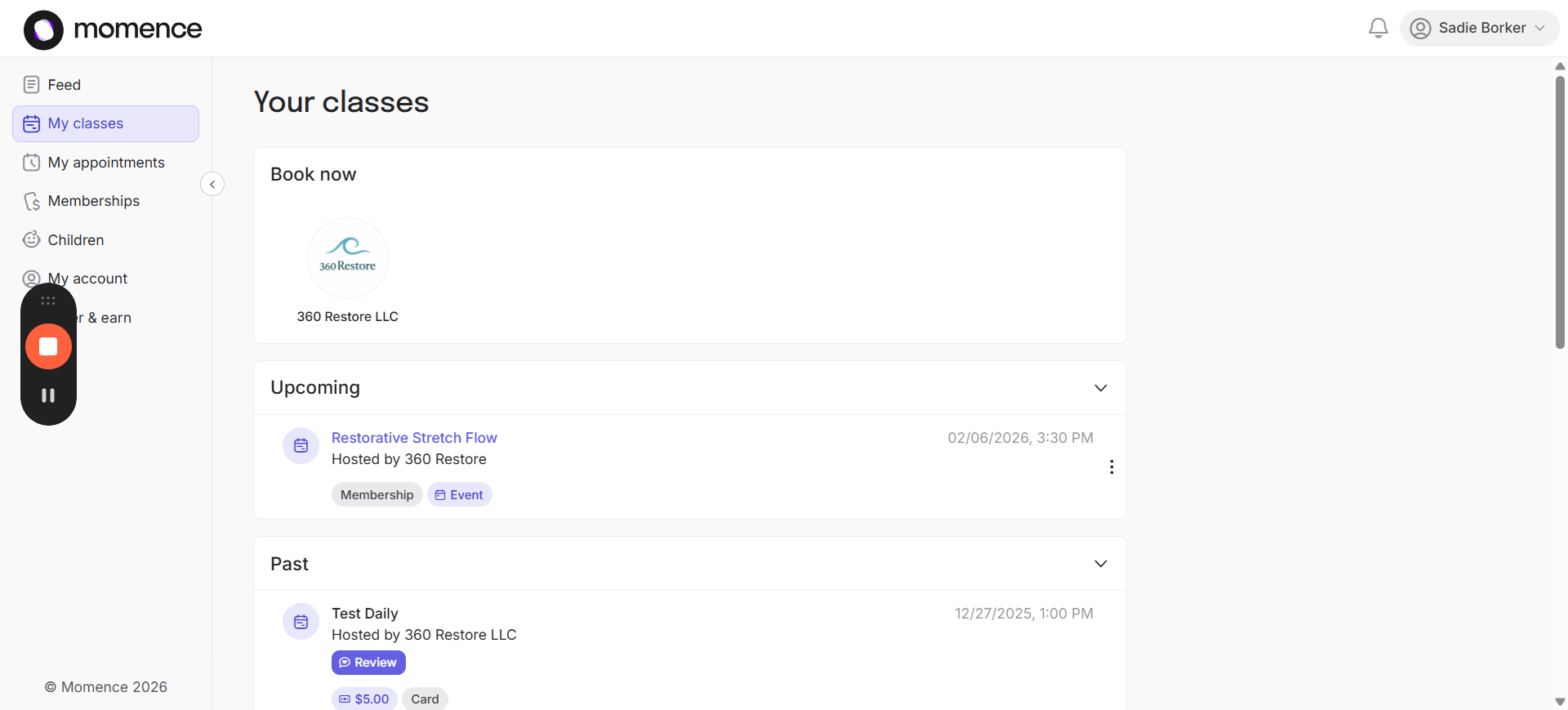
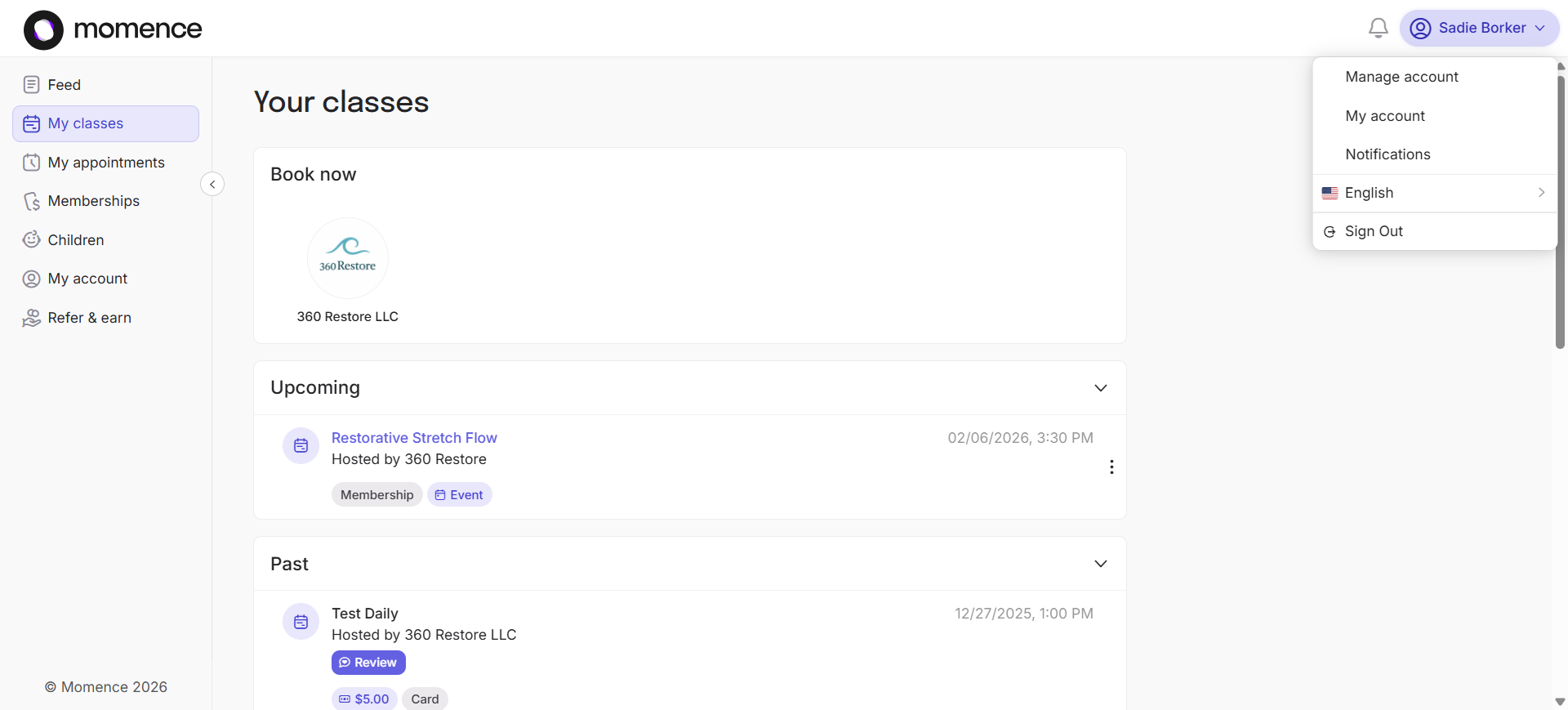
Go to "Book Now" and click on the 360Restore image.
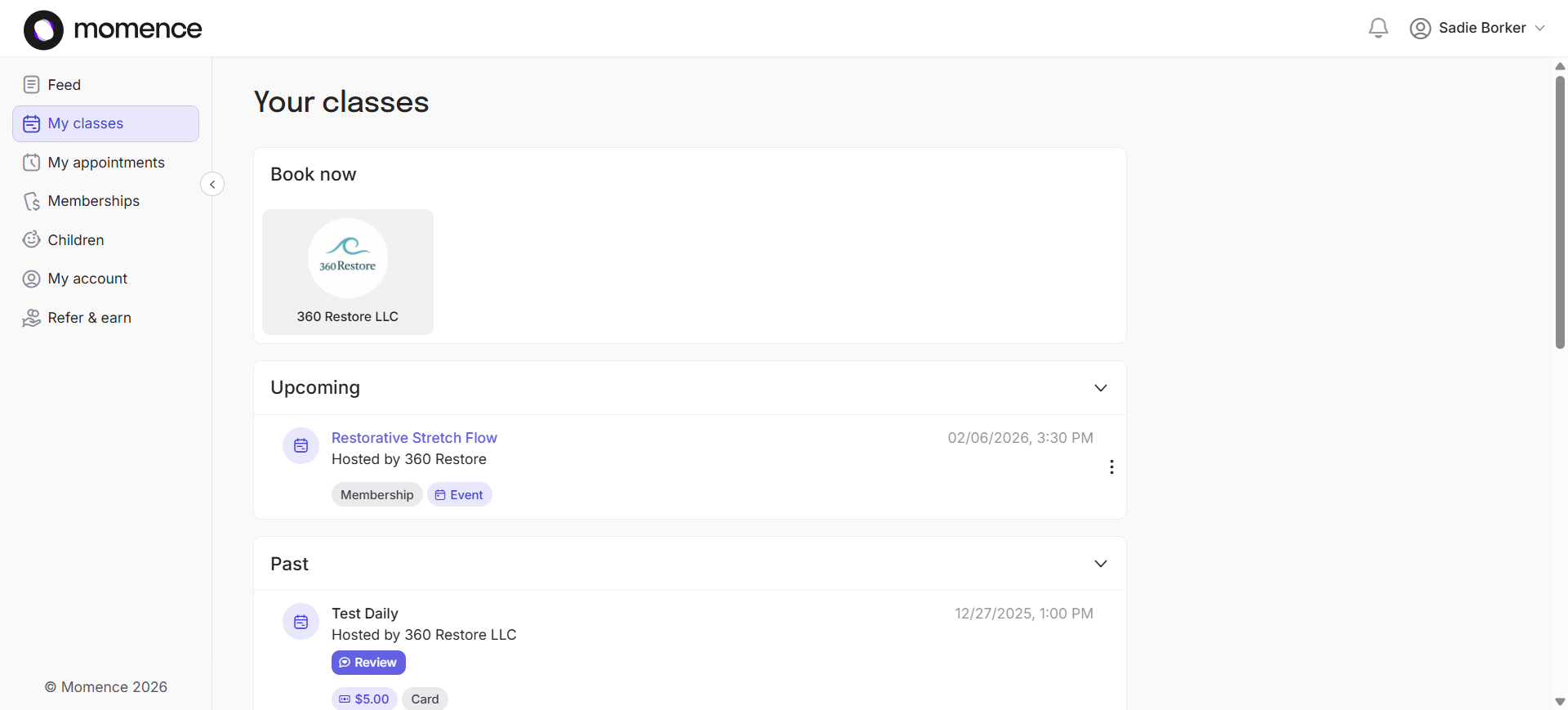
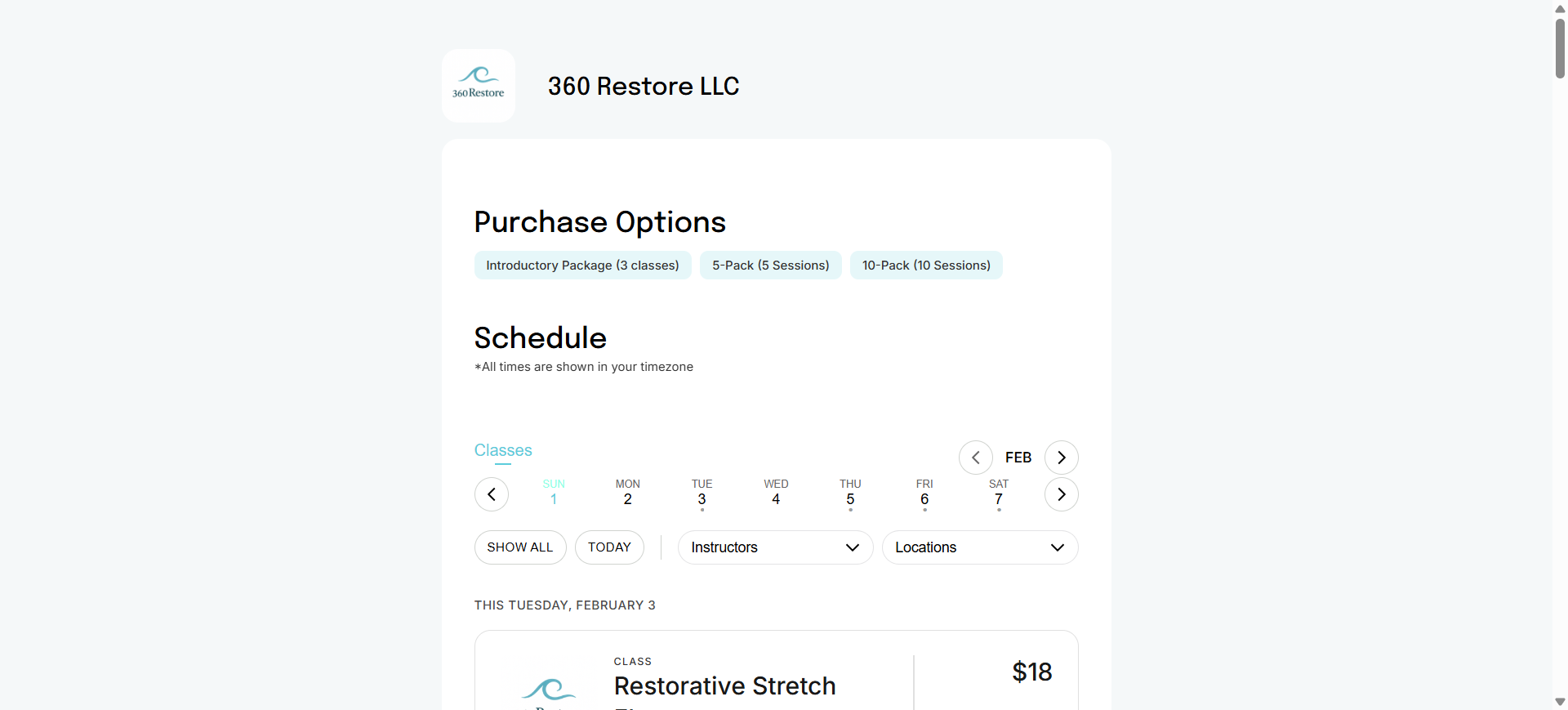
The next screen will display your purchase options.
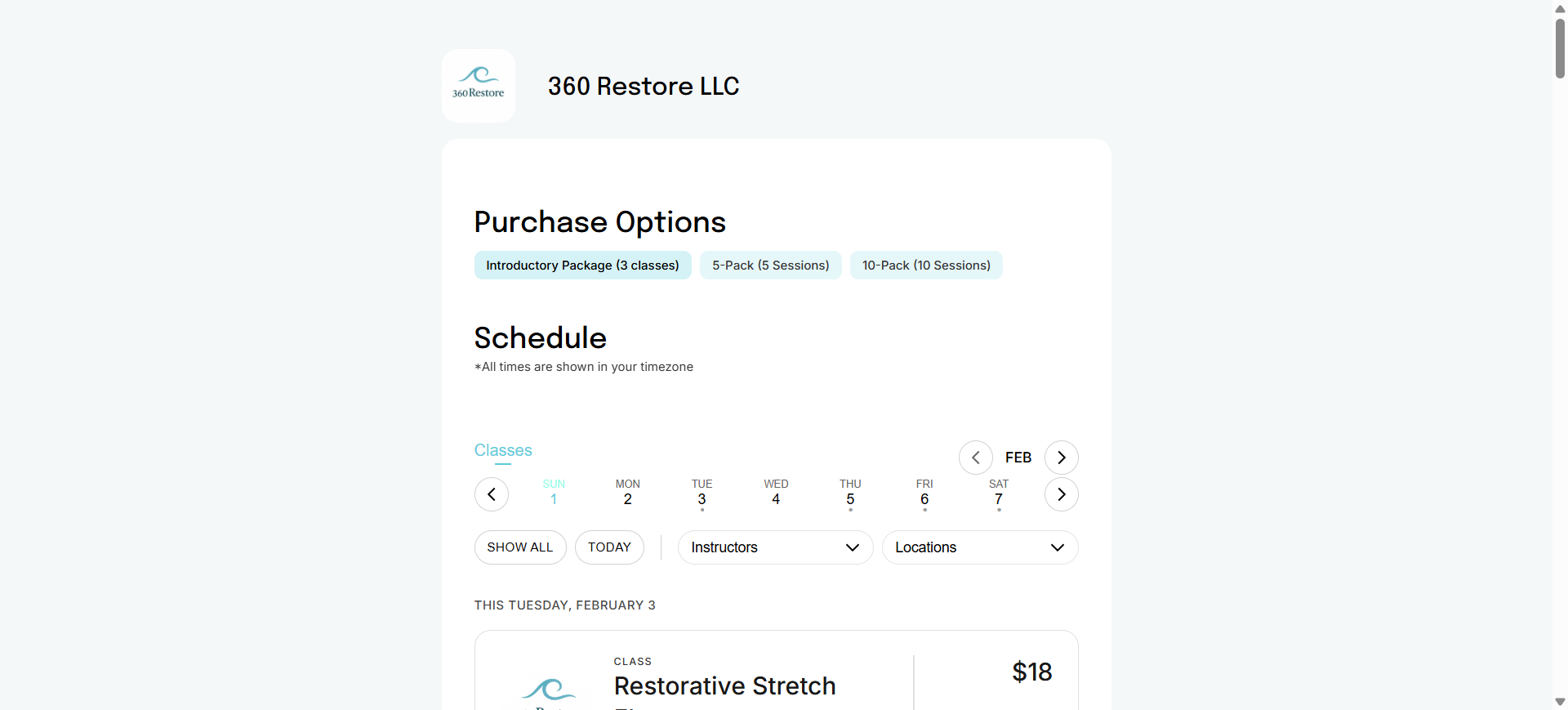
In this example, we will buy an introductory package.
You will see this screen and several payment options.
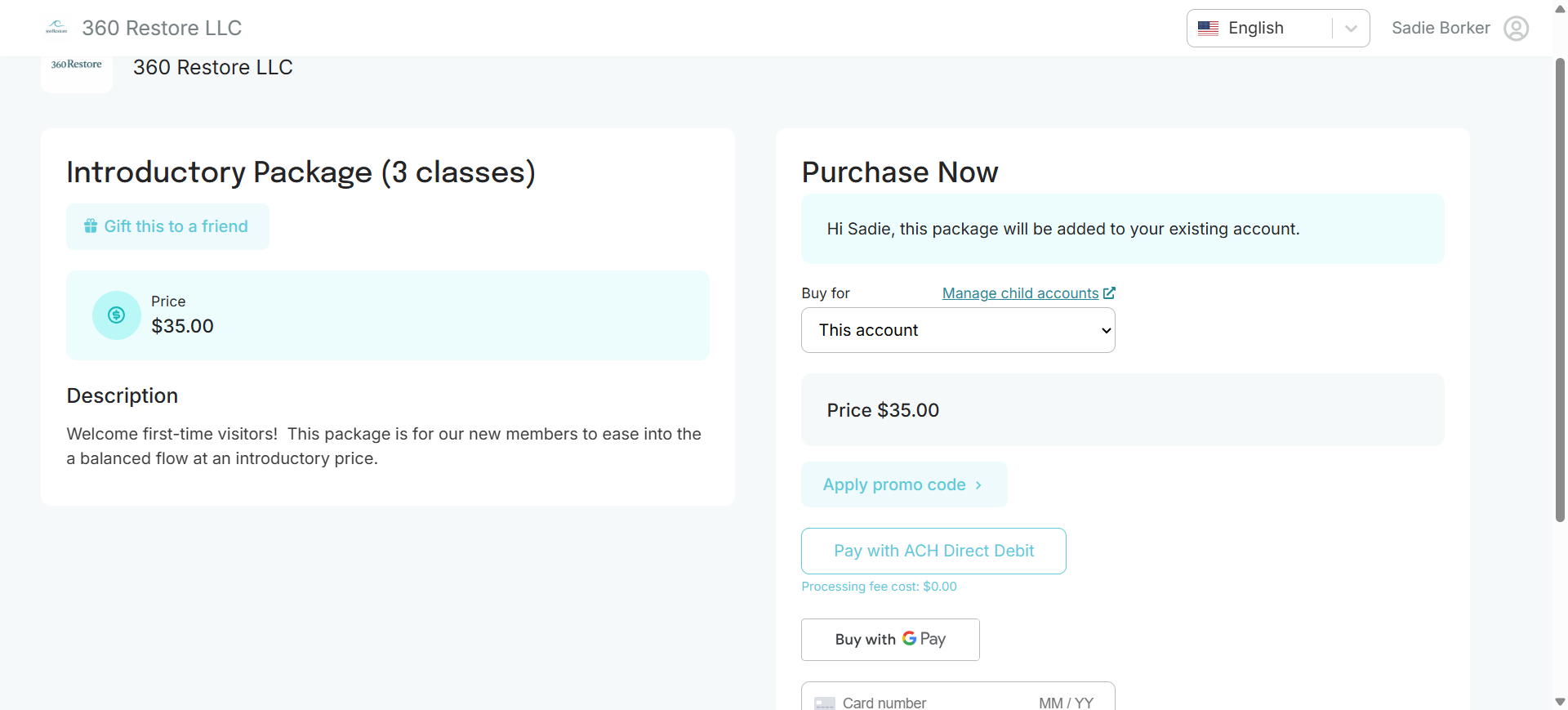
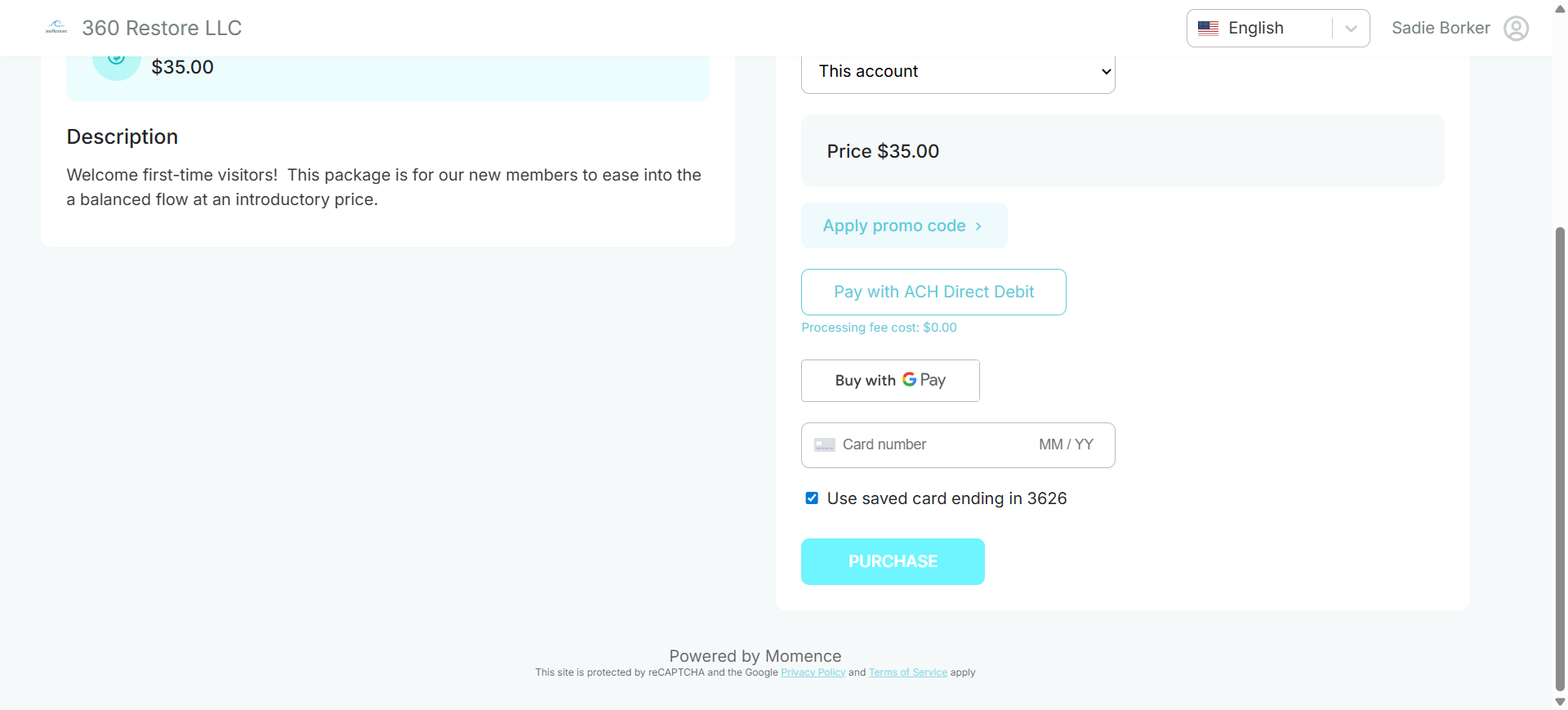
Your account may already has a saved card, so you can use the existing card if desired
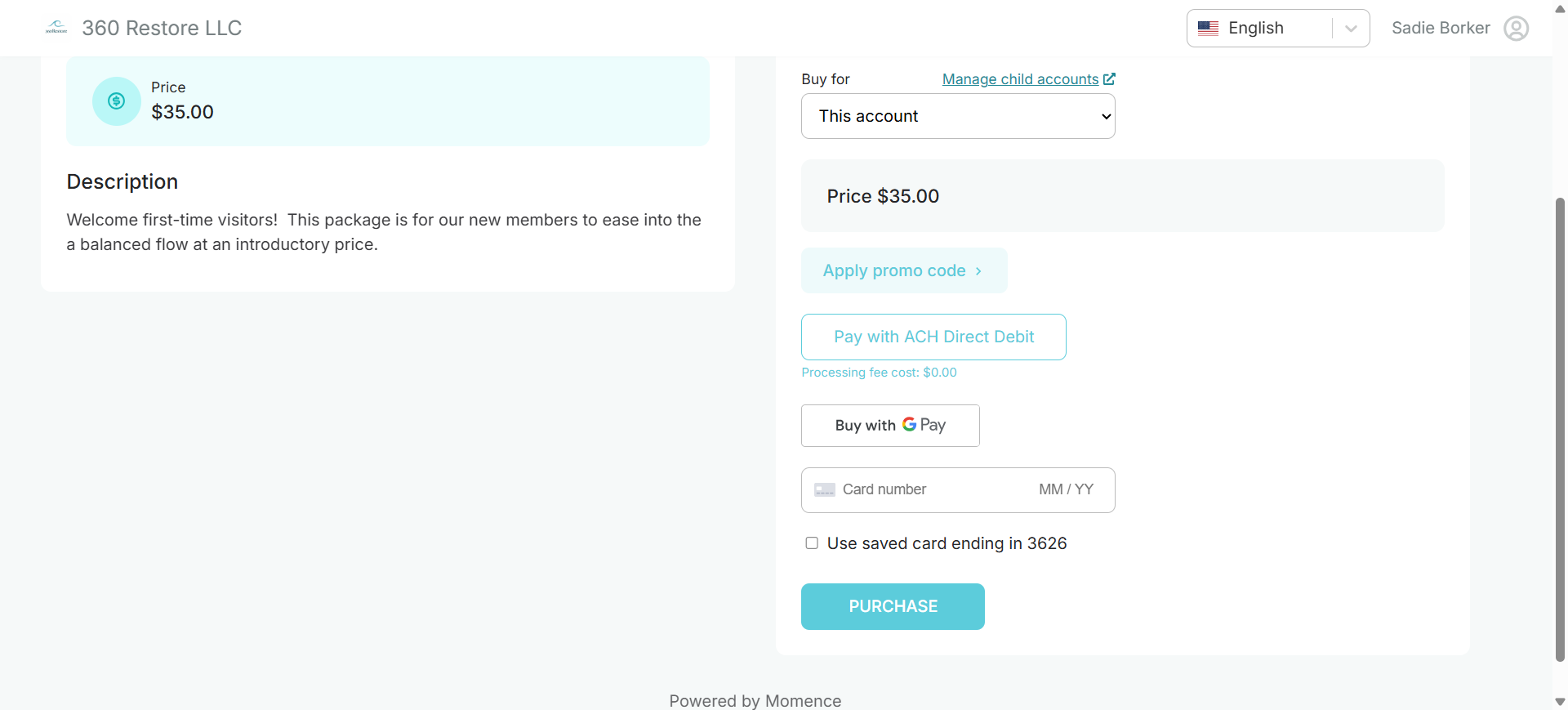
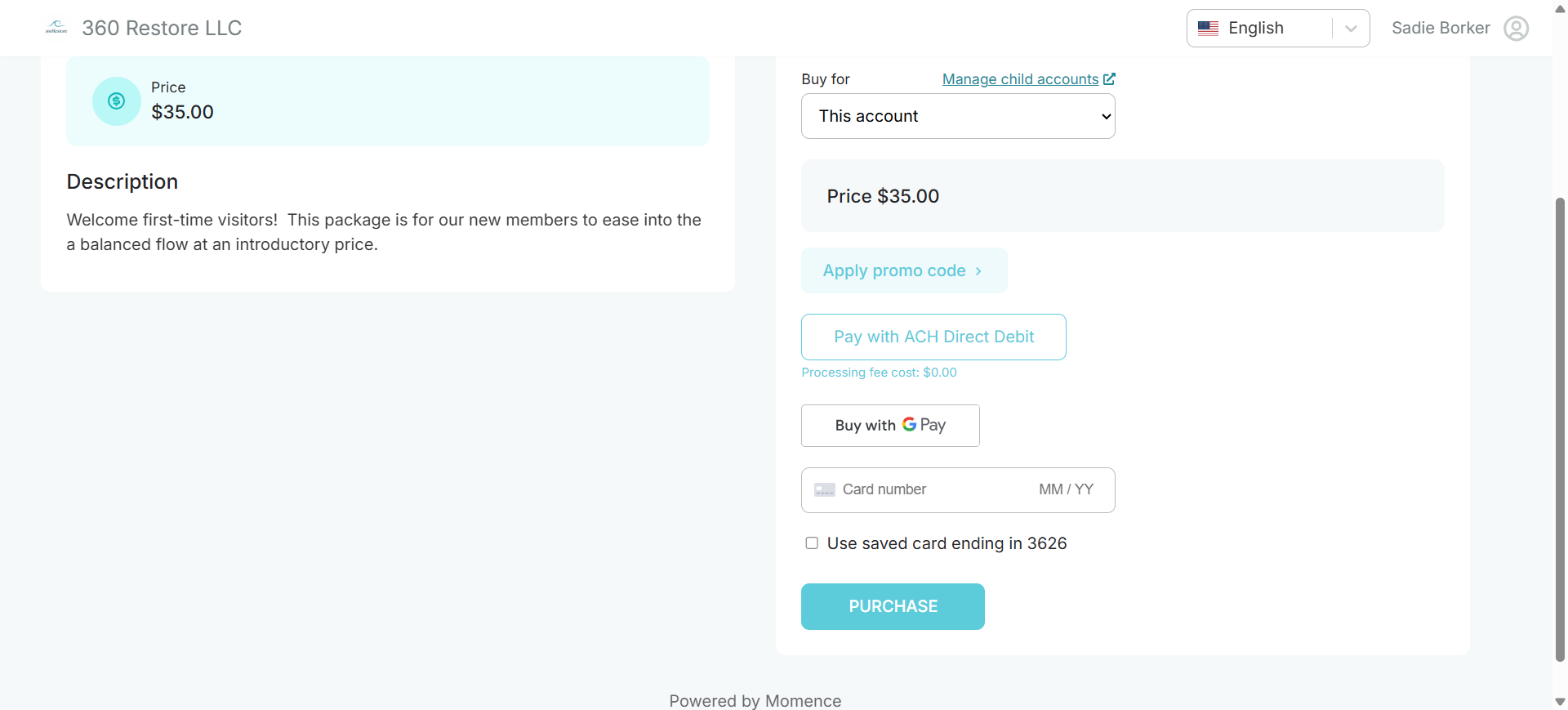
You can also use a new card, or if you have GPay set up, you can use GPay. In this example, we will use the saved card.
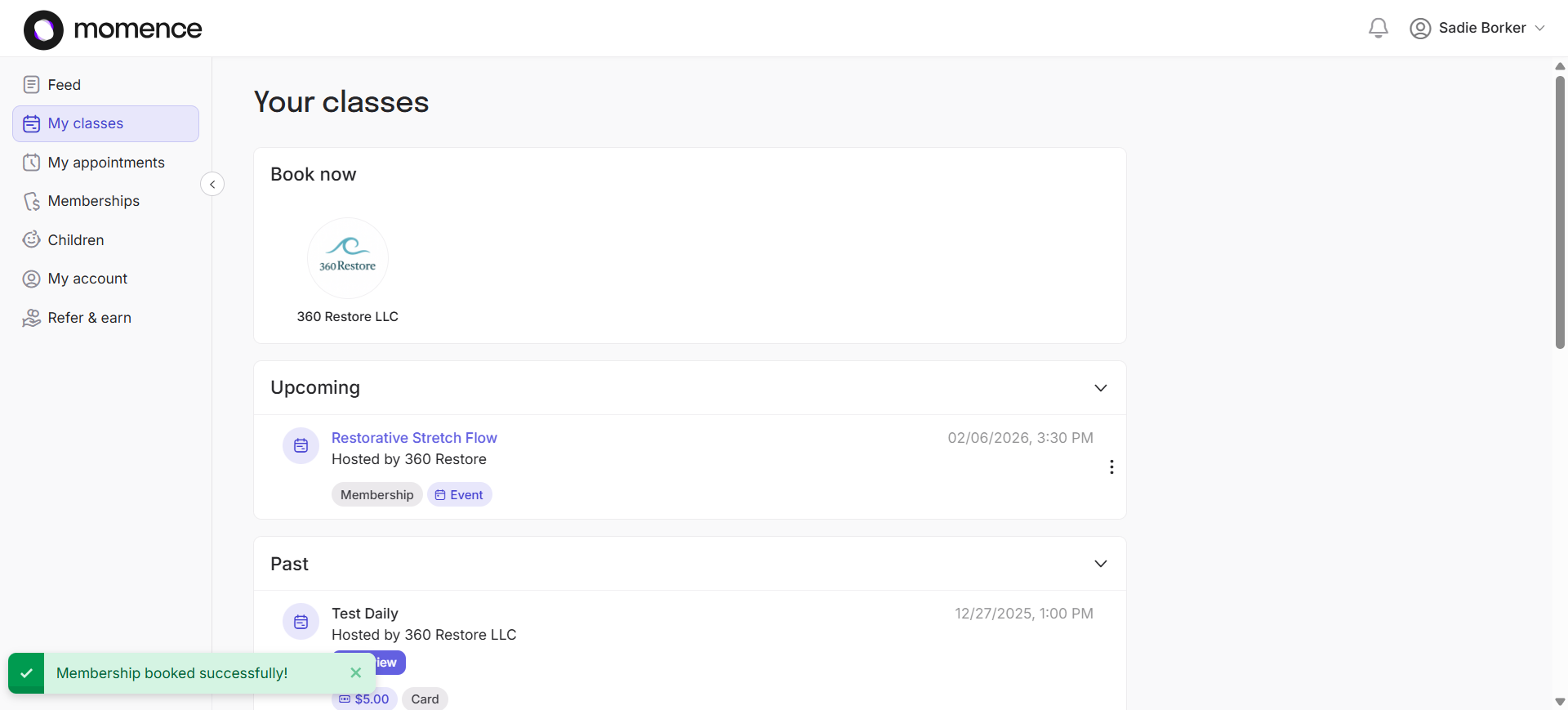
We will see a screen confirming that my membership was booked successfully. You will also be emailed a receipt.
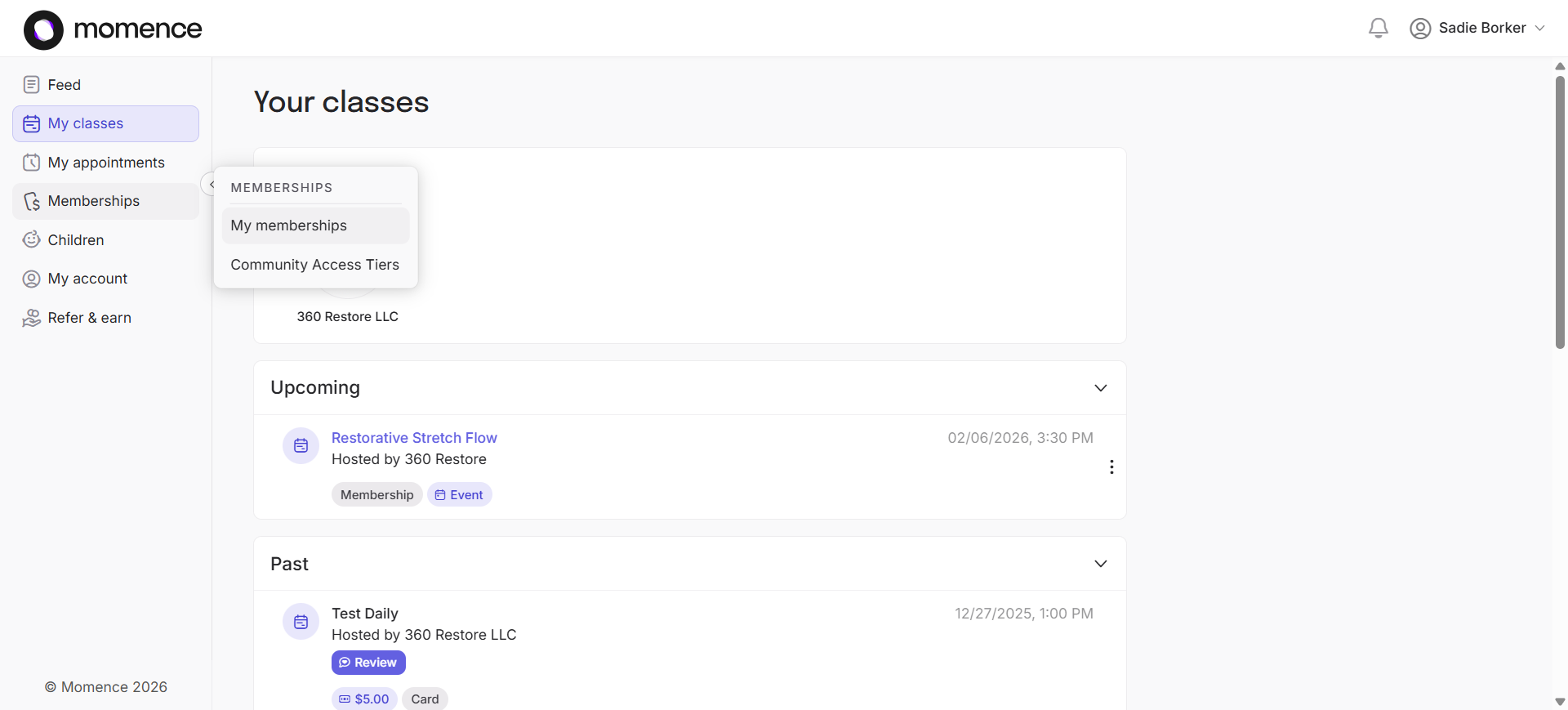
BONUS: To check if the credits appear, Hover over Memberships and click on My Membership.
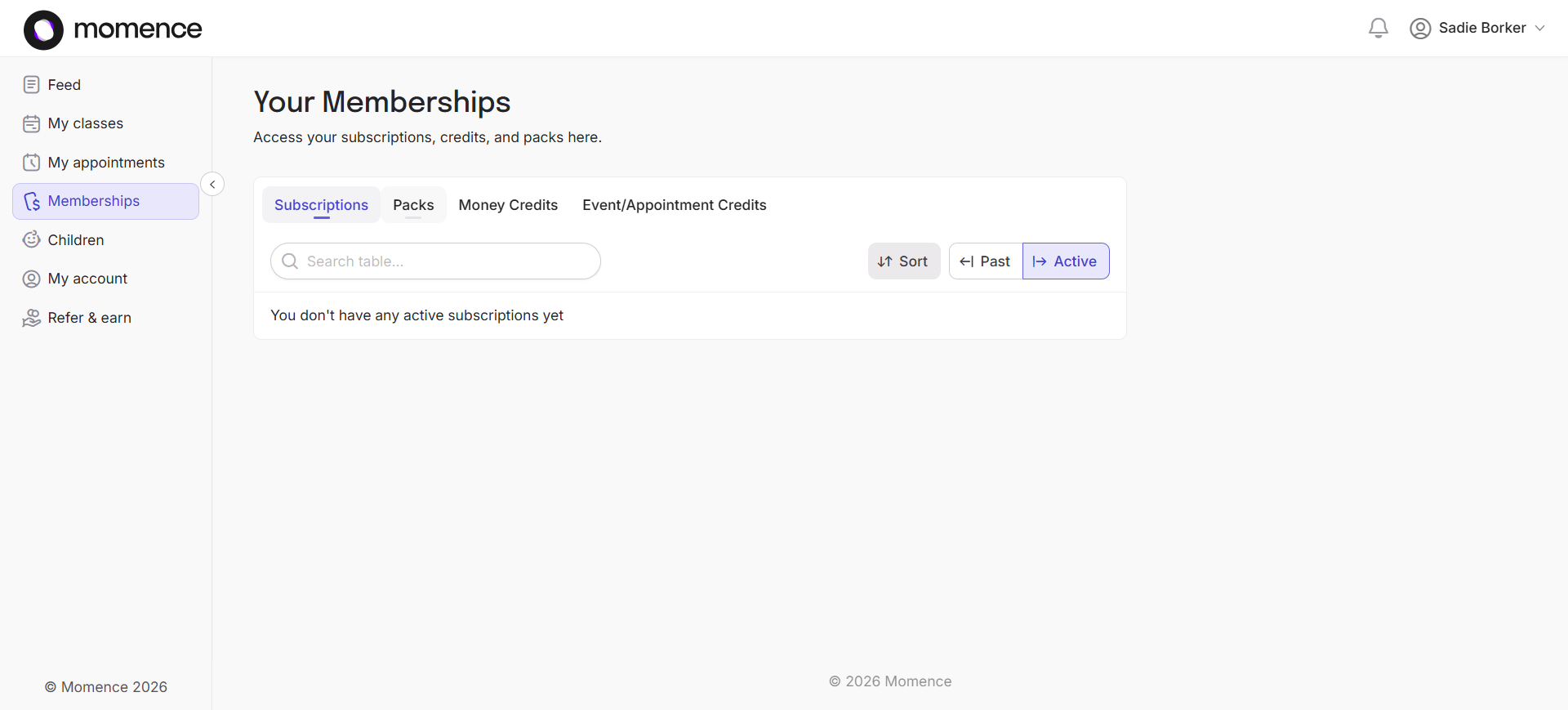
You'll notice that my pack now appears. This concludes this how-to. Check out our other how-to guides to learn more about using the Momence platform. Thank you very much.