
How to Look Up Parts, Pricing, and Diagrams in Exmark Parts Hub
Learn how to use the Exmark Parts Hub to search for specific parts, view quick reference lists by serial number, and access exploded parts diagrams.
This guide demonstrates how to check part pricing, verify inventory availability, and look up exploded parts diagrams within the Exmark Parts Hub. Completing these tasks ensures you can efficiently quote parts, anticipate order lead times, and fulfill service orders with accurate information.
This guide is intended for parts department personnel, service technicians, and service managers. Use these workflows whenever you need to identify correct replacement components, quote repair costs to a customer, or check parts availability.
The Exmark Parts Hub offers three distinct methods for finding part information, depending on what details you have available:
Lookup Method | Best For | Required Information |
|---|---|---|
Direct Part Search | Checking exact stock availability, cost/list price, and historical cross-references. | Exact Part Number |
Quick Reference | Finding common maintenance parts (like throttle cables) quickly without browsing full diagrams. | Serial Number |
Parts Lookup (Diagrams) | Identifying unknown parts via exploded views and comprehensive machine breakdowns. | Model Number (Serial Number highly recommended) |
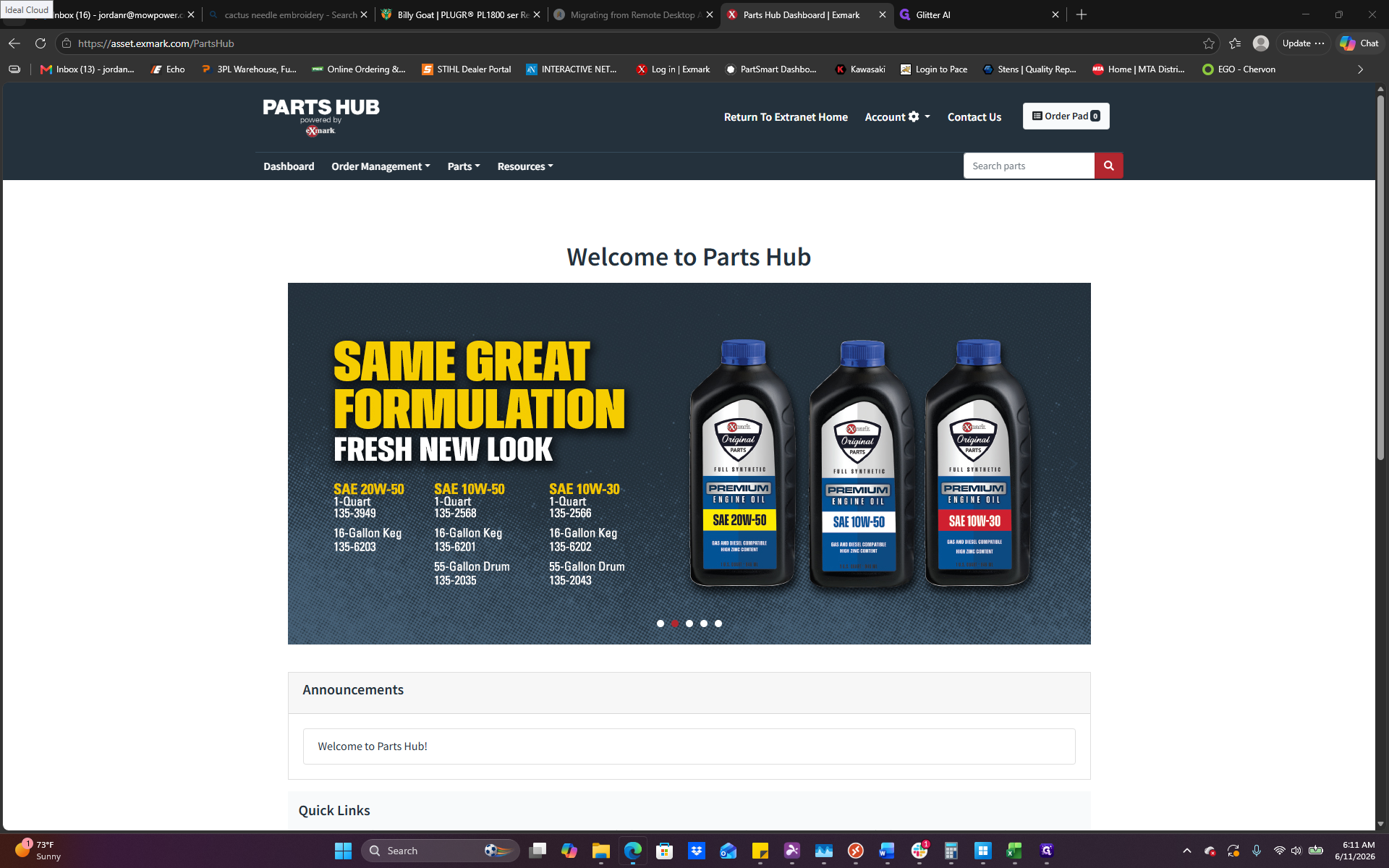
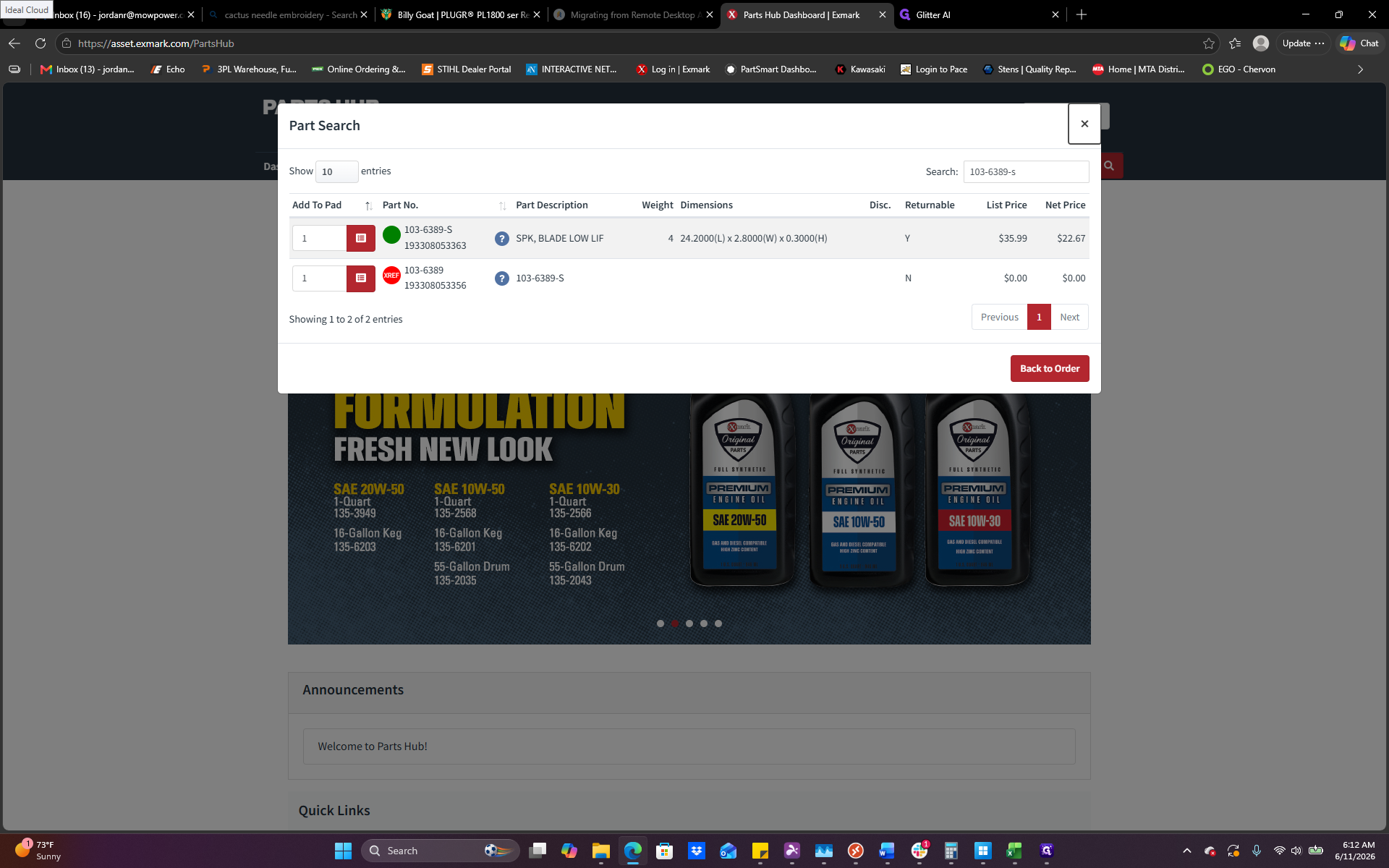
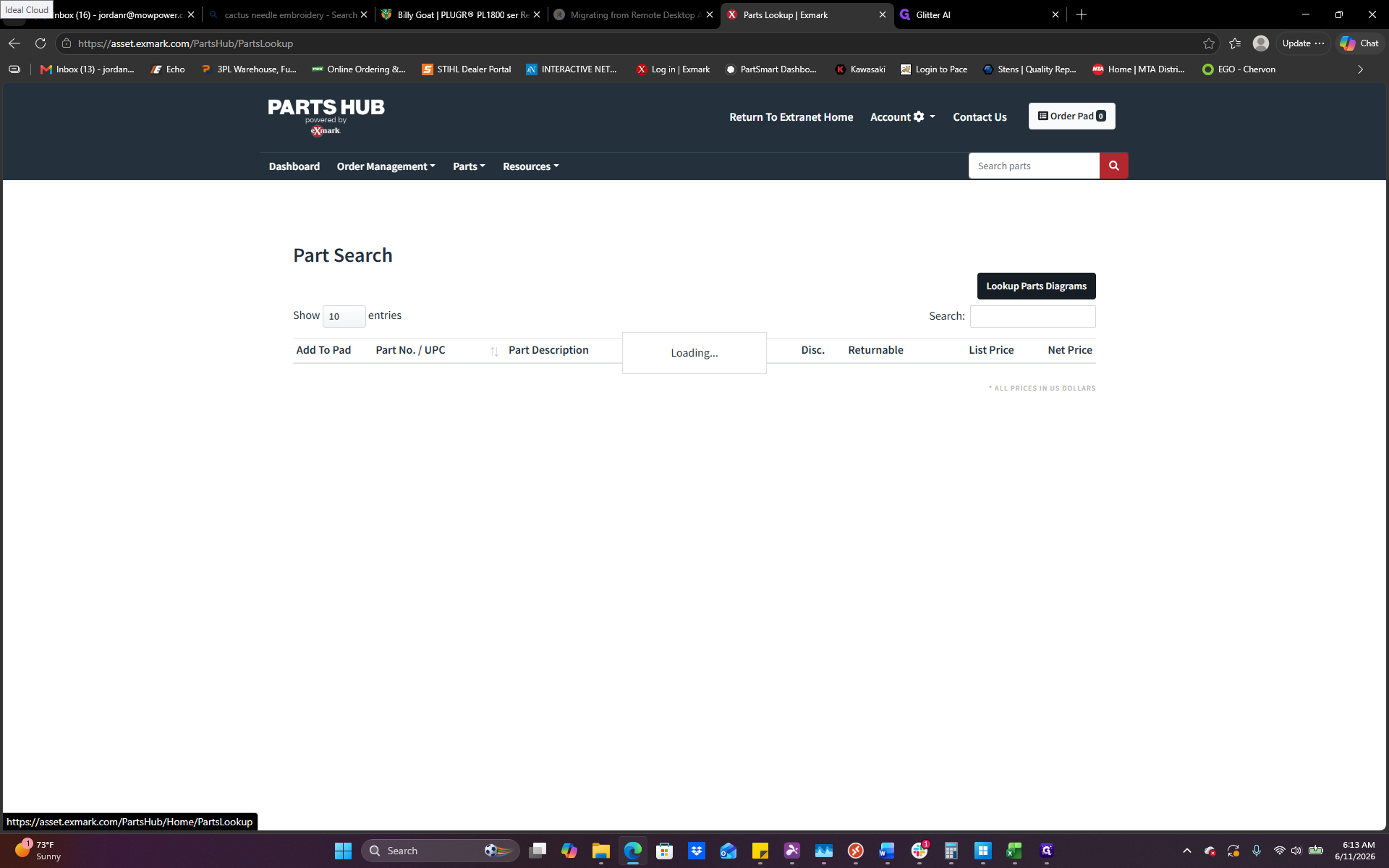
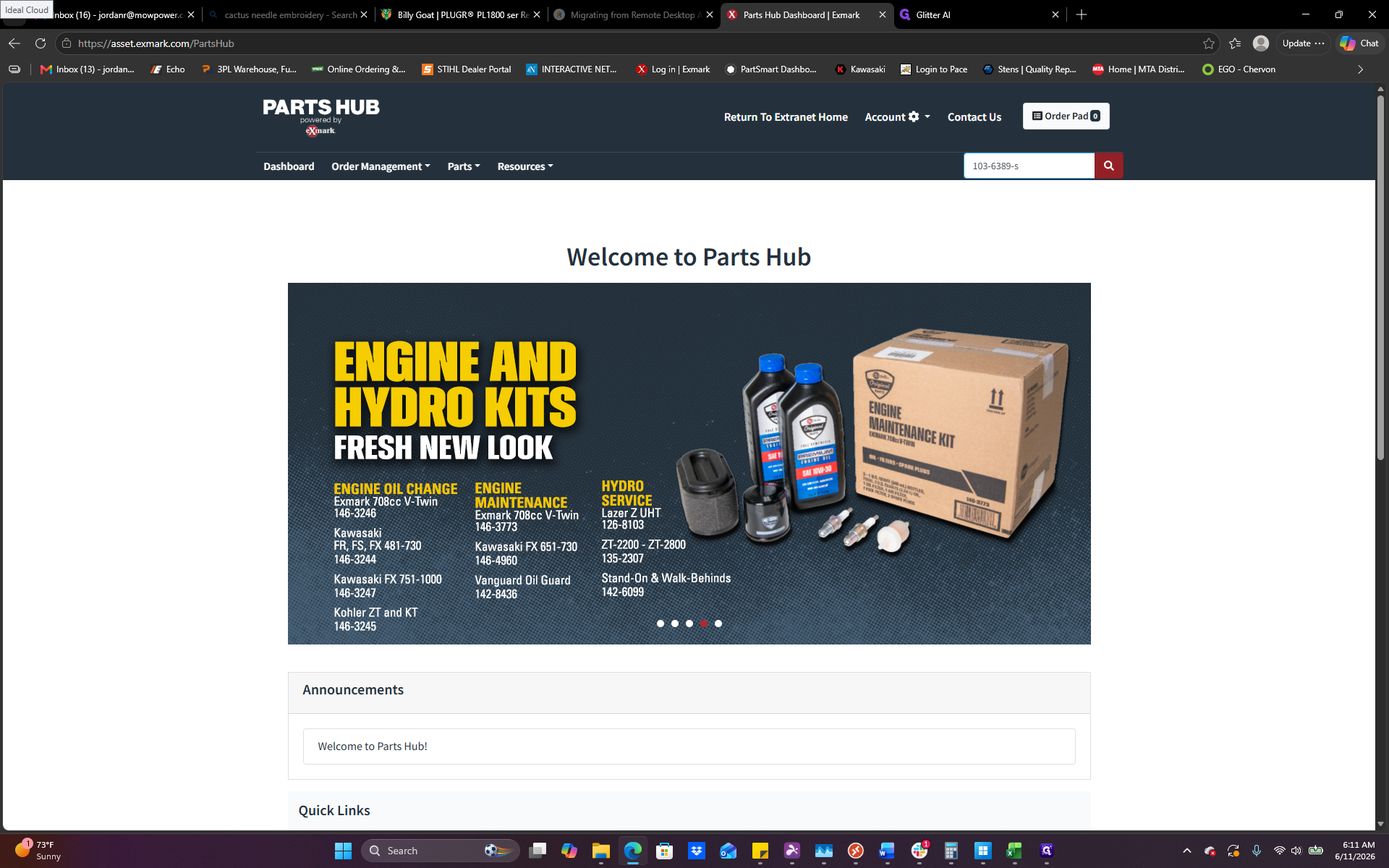
Search by Direct Part Number
Use this method when you already know the exact Exmark part number you need to order or check.
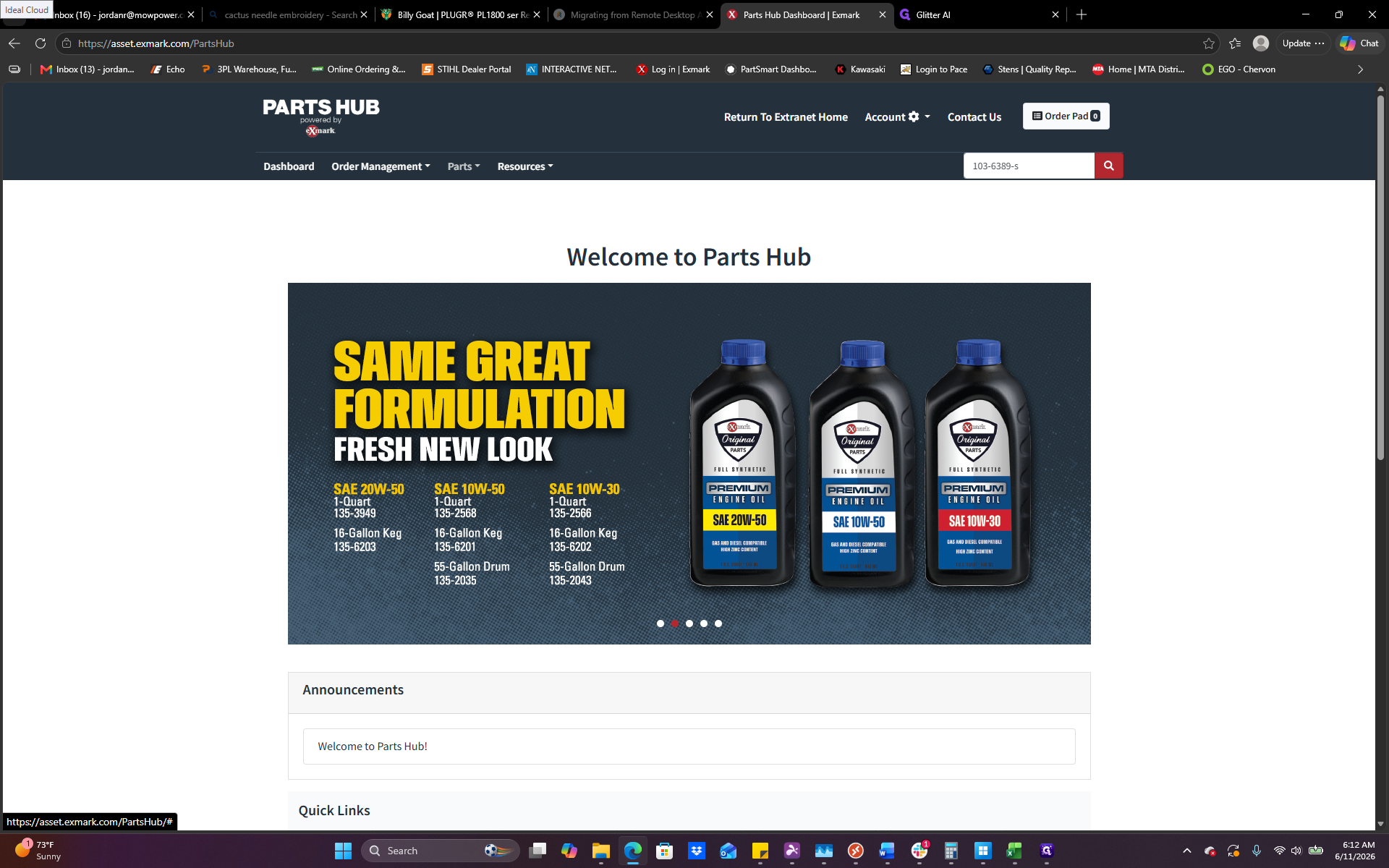
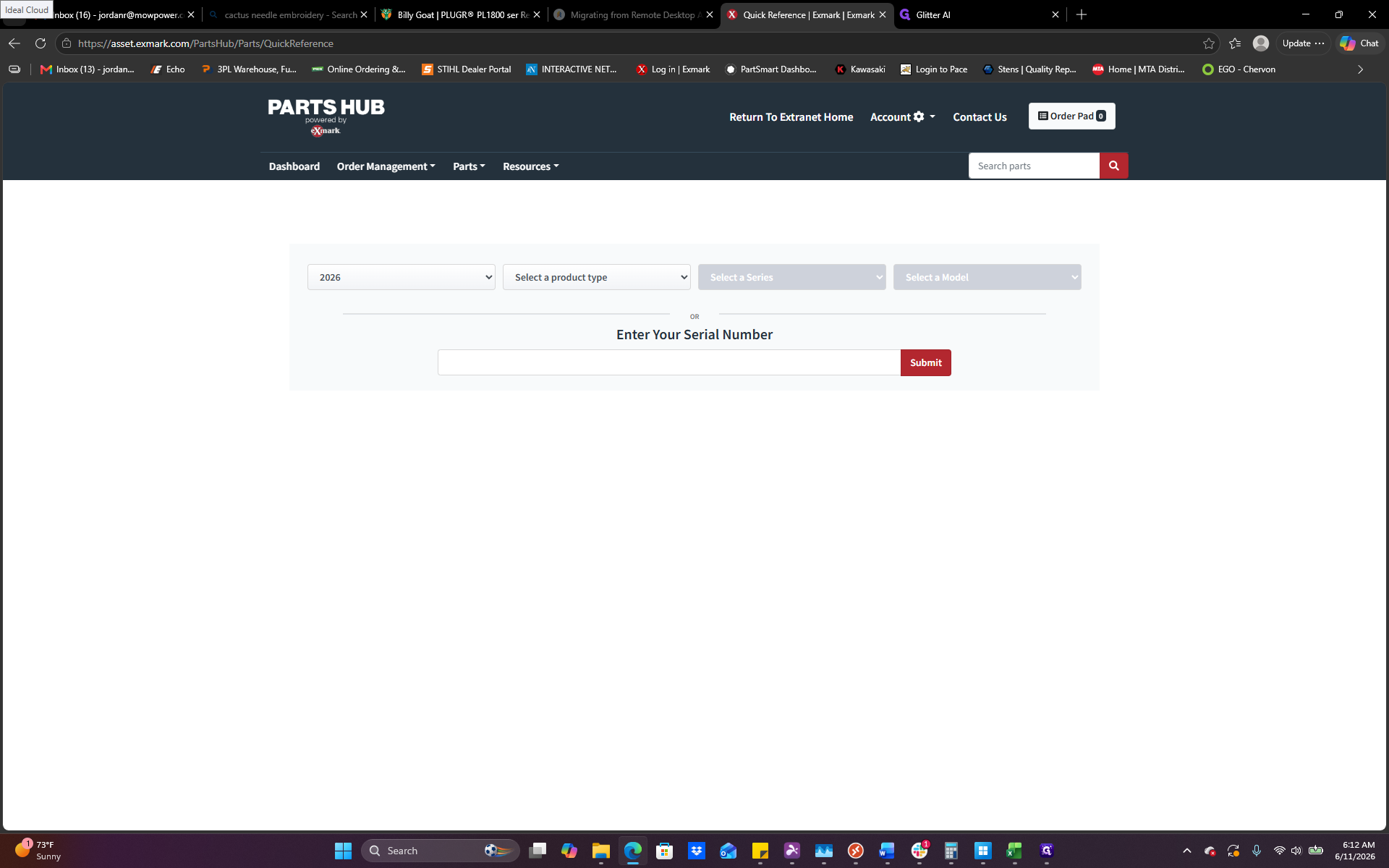
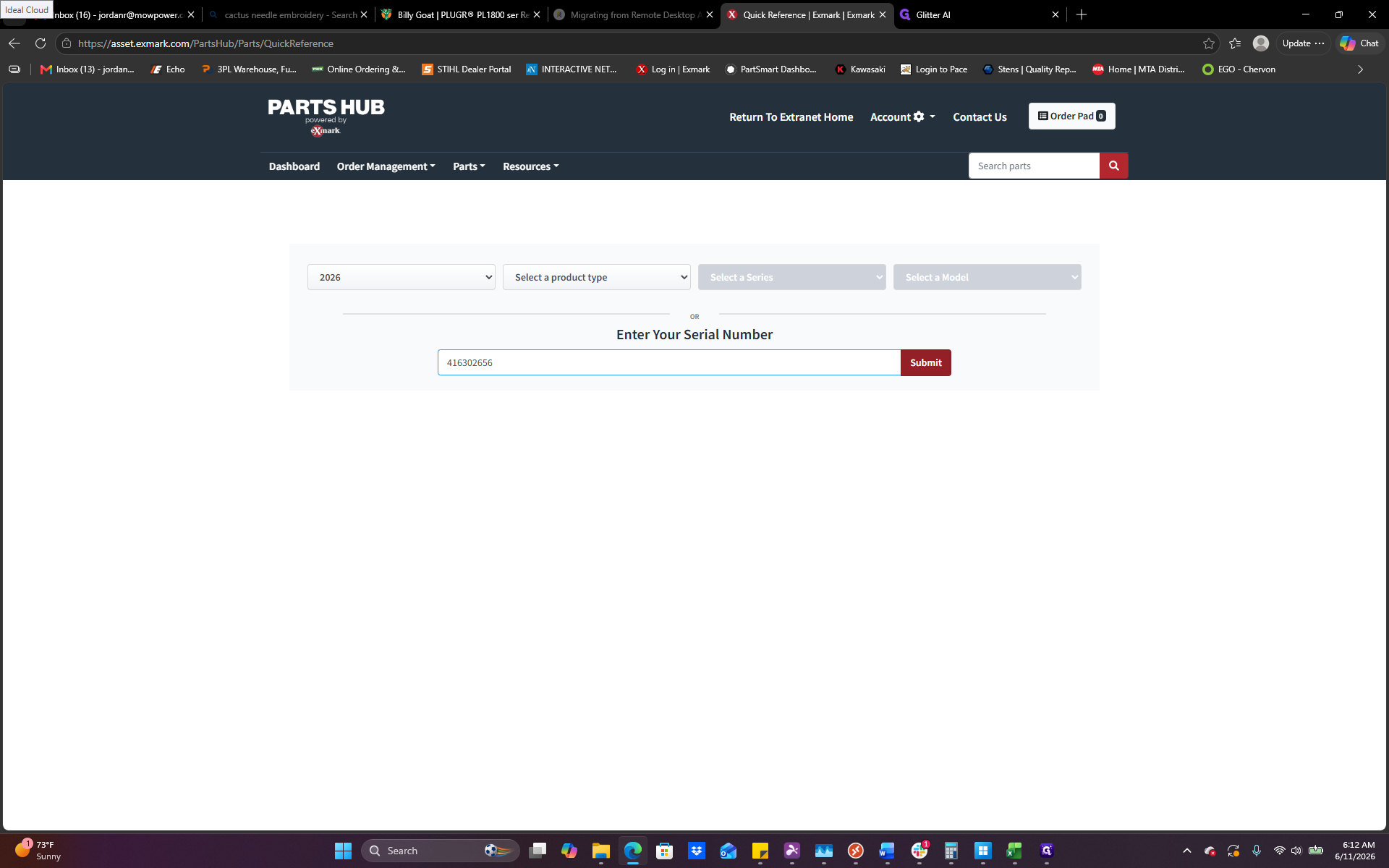
Quick Reference by Serial Number
Use this method when you need common replacement parts for a specific machine but do not know the exact part numbers.
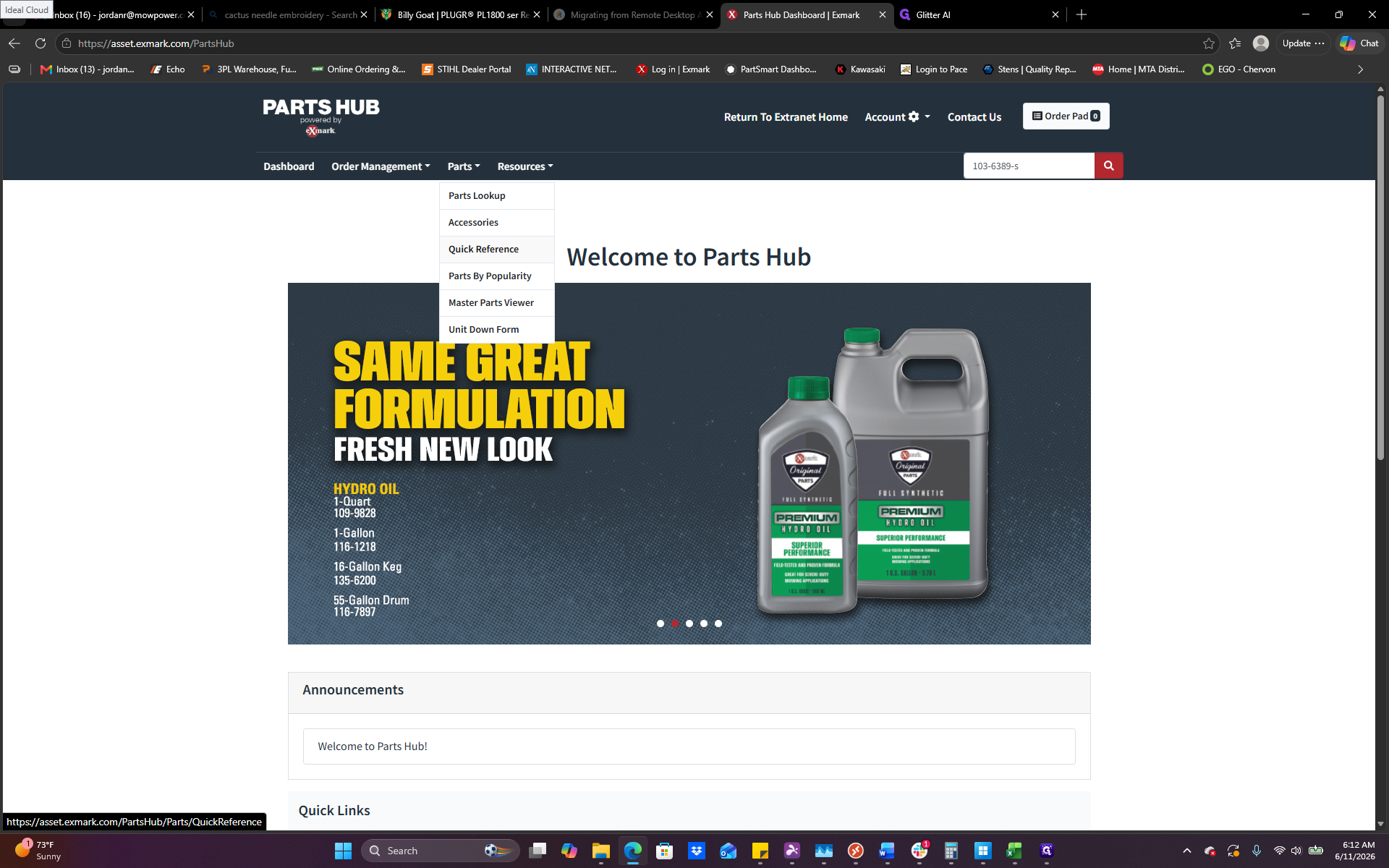
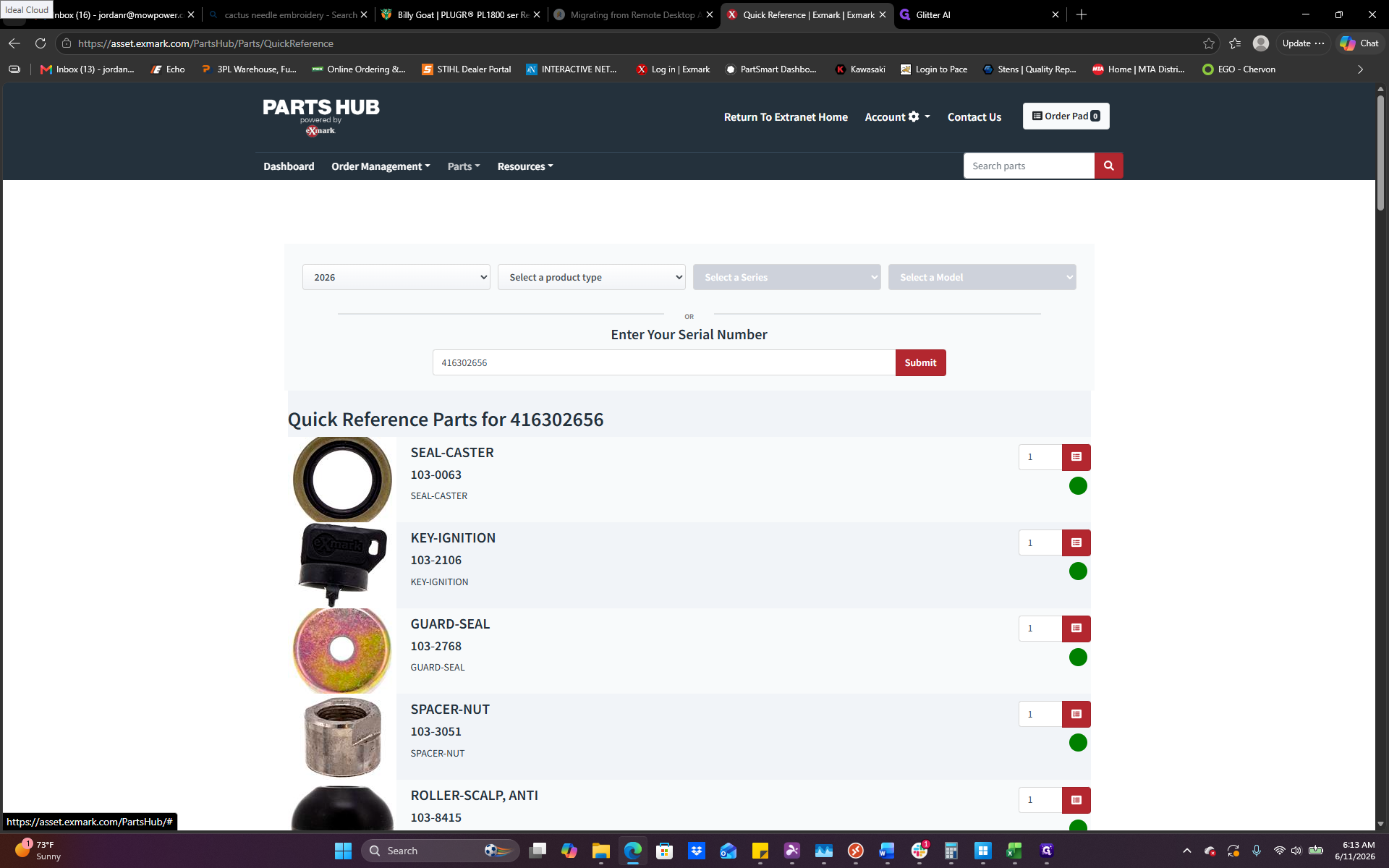
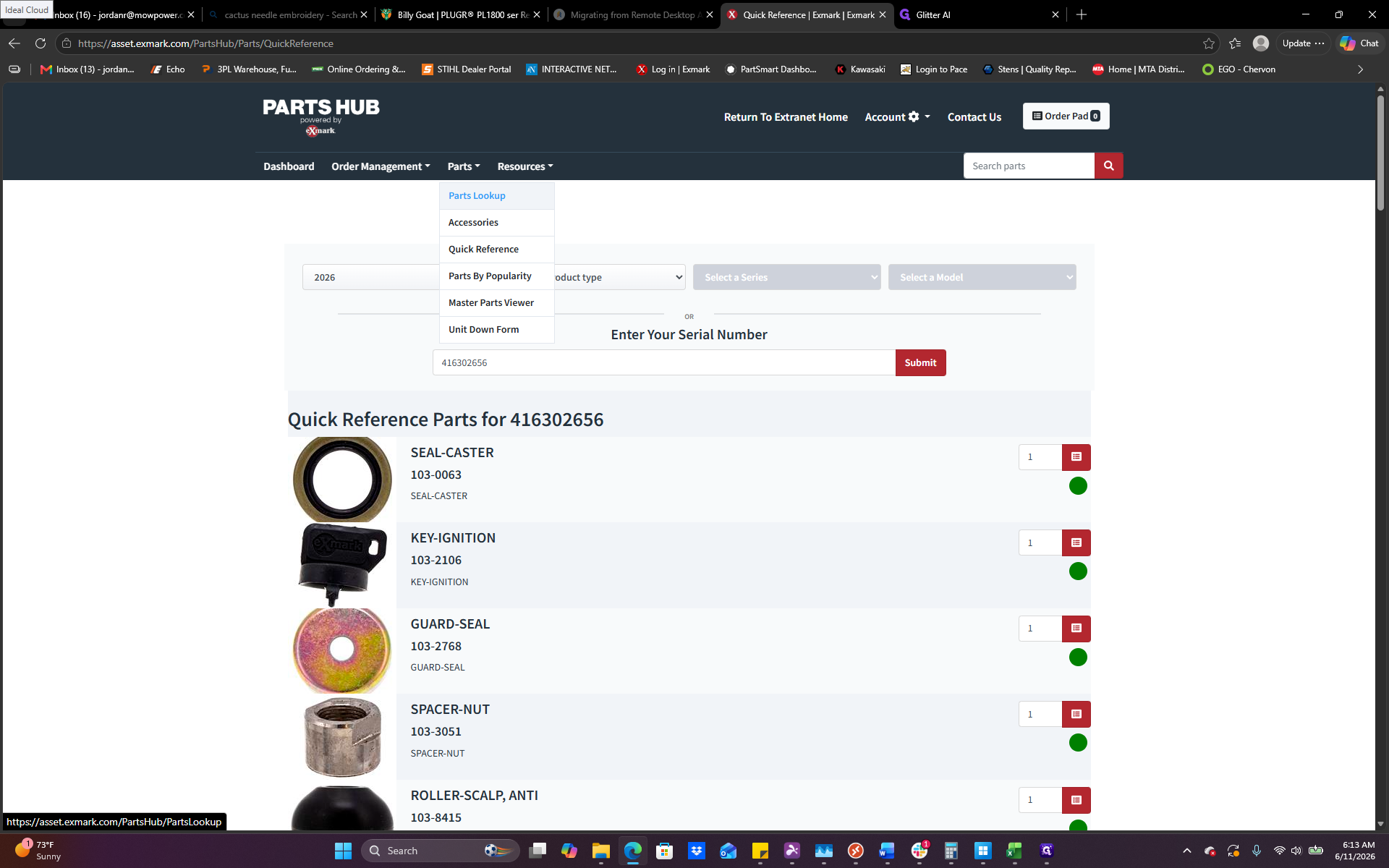
View Exploded Parts Diagrams
Use this method to access technical drawings and identify complex or obscure internal components.
Q: What do the green and red circles mean in the search results?
A: A green circle means the part is currently in stock and is generally expected to arrive within a week of ordering. A red circle indicates the part is currently on backorder.
Q: Do I need a serial number to look up parts diagrams?
A: A model number is strictly required to access the parts diagram portal. However, because Exmark parts are highly specific to production runs, providing both the model and the serial number ensures you view the exact breakdown for that specific machine.
Term | Definition |
|---|---|
Backorder | A status indicating that a specific part is currently out of stock and cannot be shipped immediately. |
Cross-reference number | A previous or alternative part number that corresponds to the identical physical component. |
Exploded parts breakdown | A technical schematic showing all individual components of an assembly separated by distance, illustrating how they fit together. |