How to Make a User's Calls Private by Default
Learn step-by-step how to set a user's calls to private by default in your team settings. Follow this easy guide to enhance call privacy for individual users.
By Emilie Peloquin
In this guide, we'll learn how to set all calls for a user to private by default. This process involves changing the user's call settings in the system. Making calls private can help protect user information and maintain confidentiality.
Let's get started
Here is how to make a user's calls private by default.
1
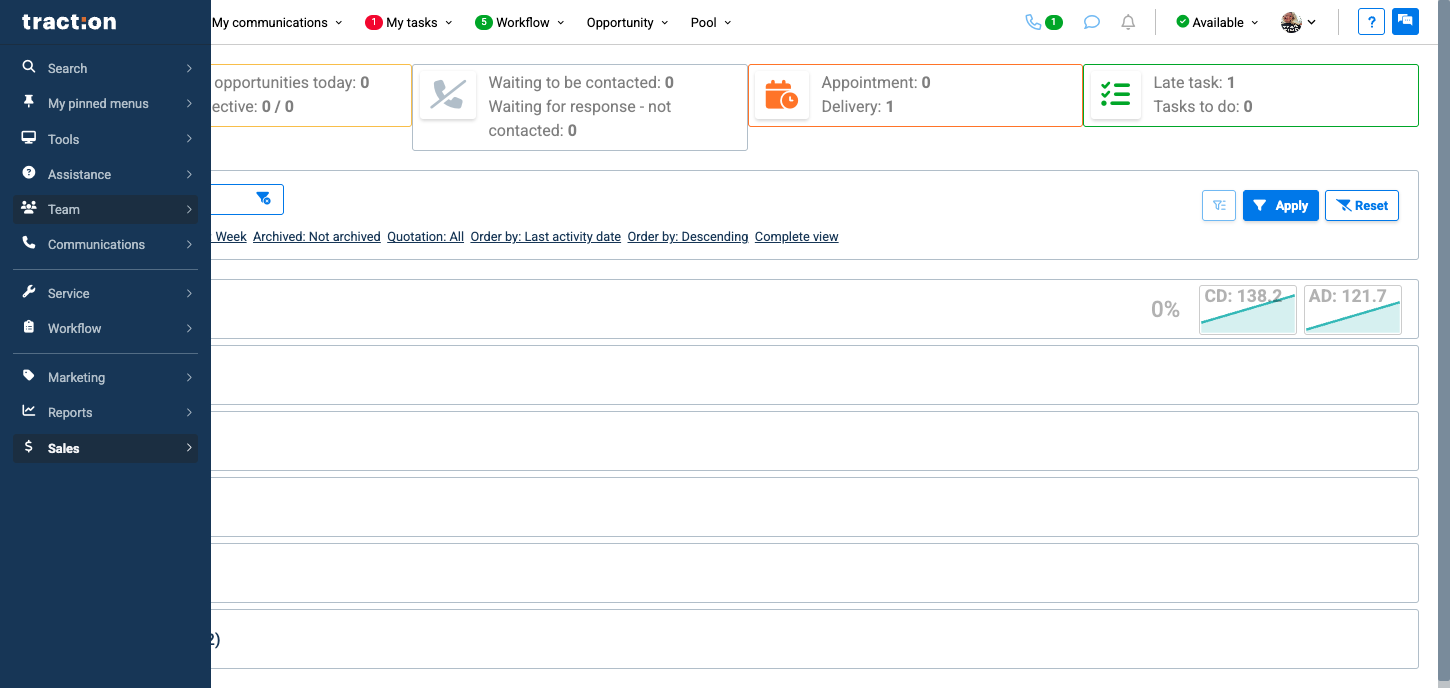
On the left menu, click on Team.
2
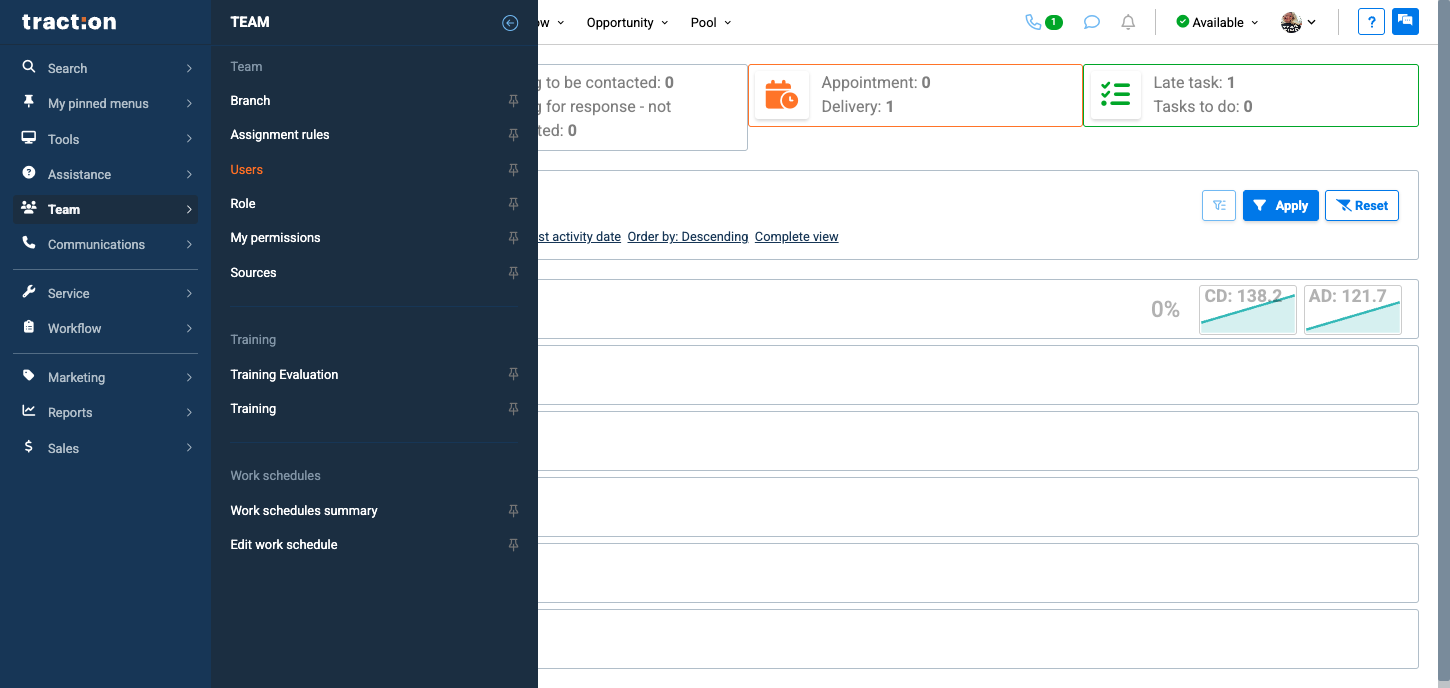
Then click on User.
3
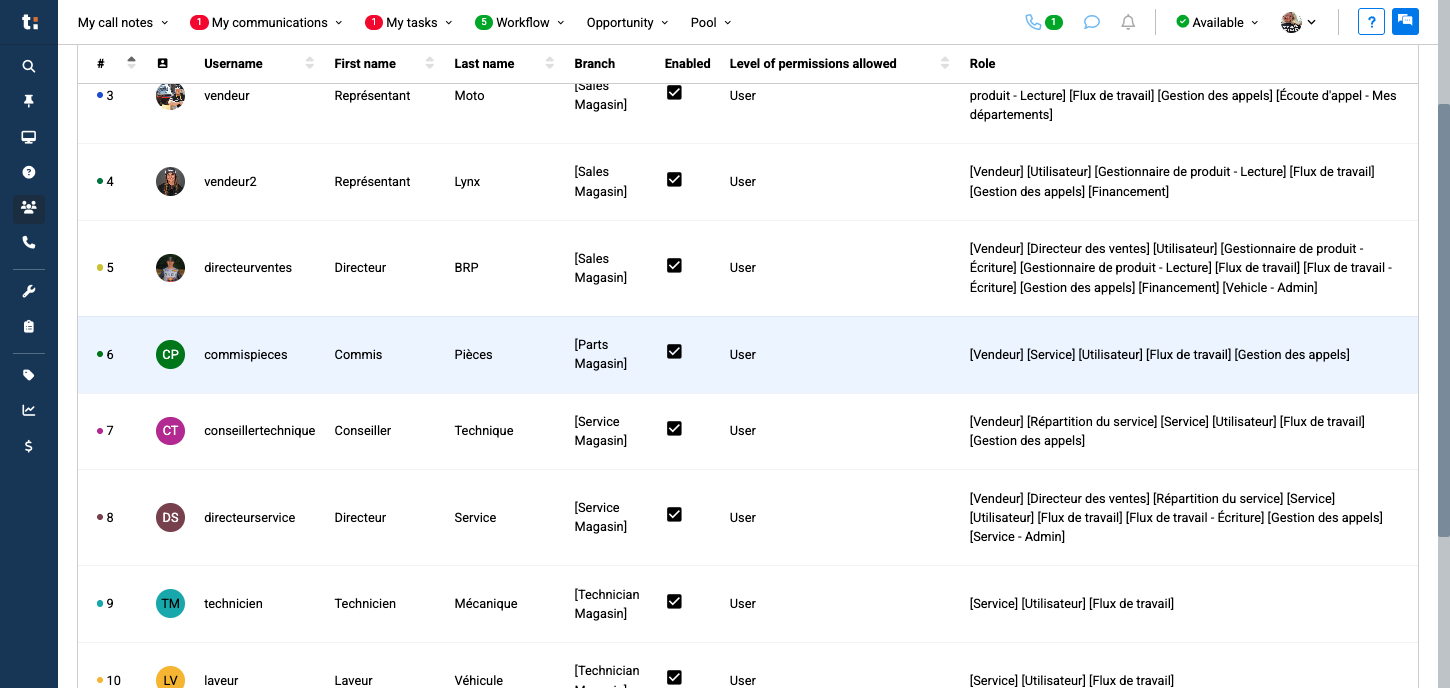
Next, select and click on the user.
4
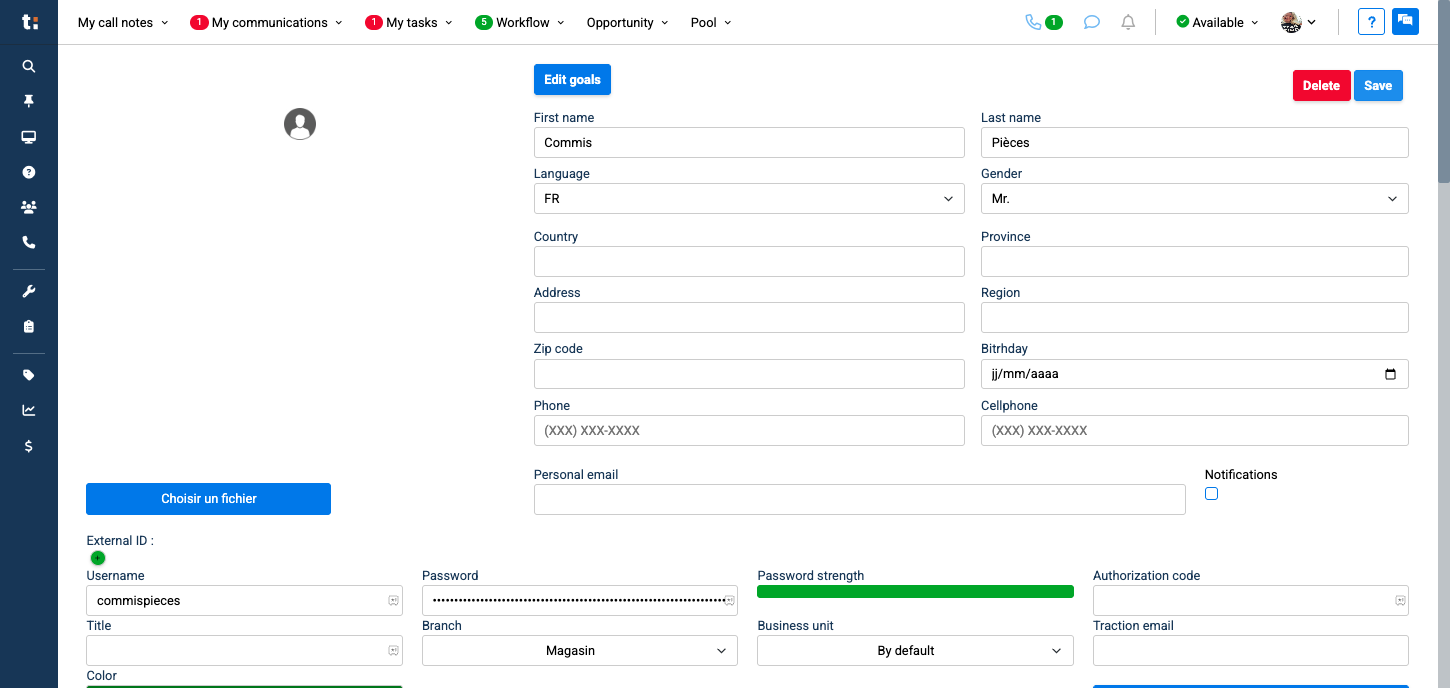
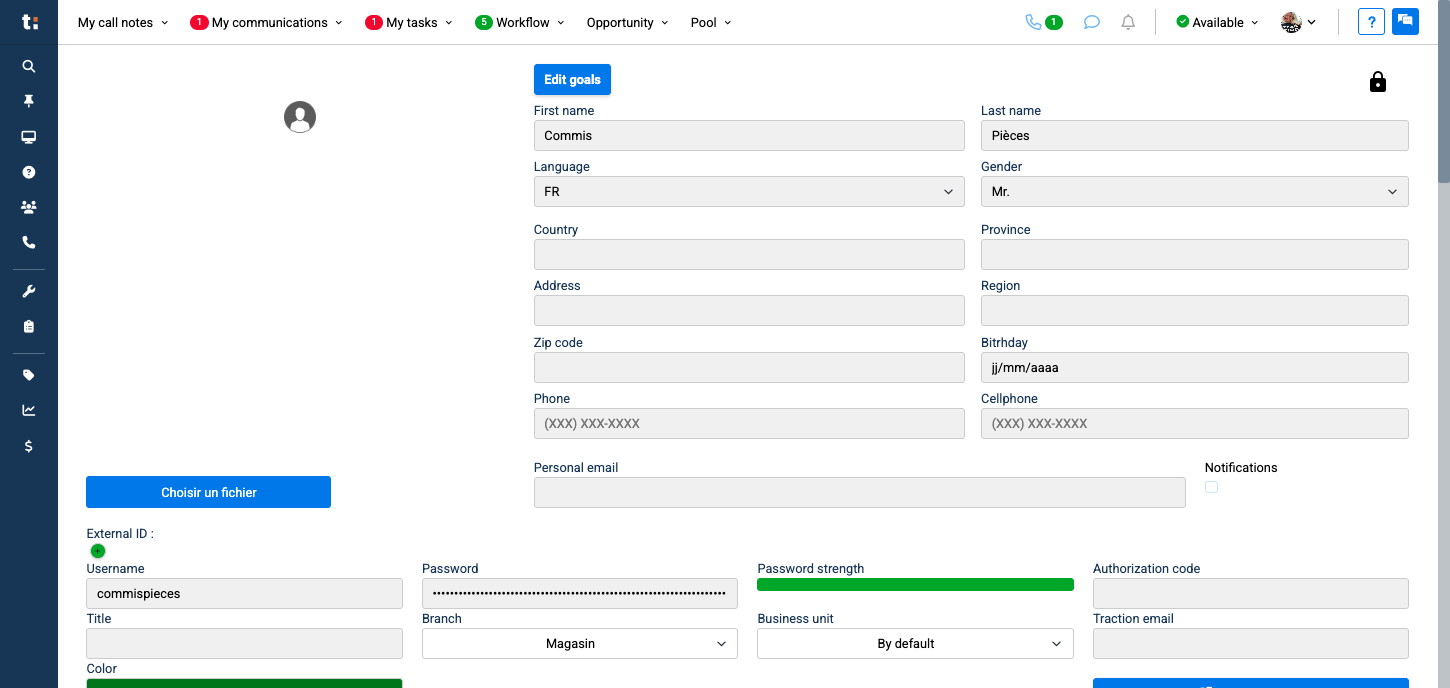
Click on the padlock at the top right to modifiy
5
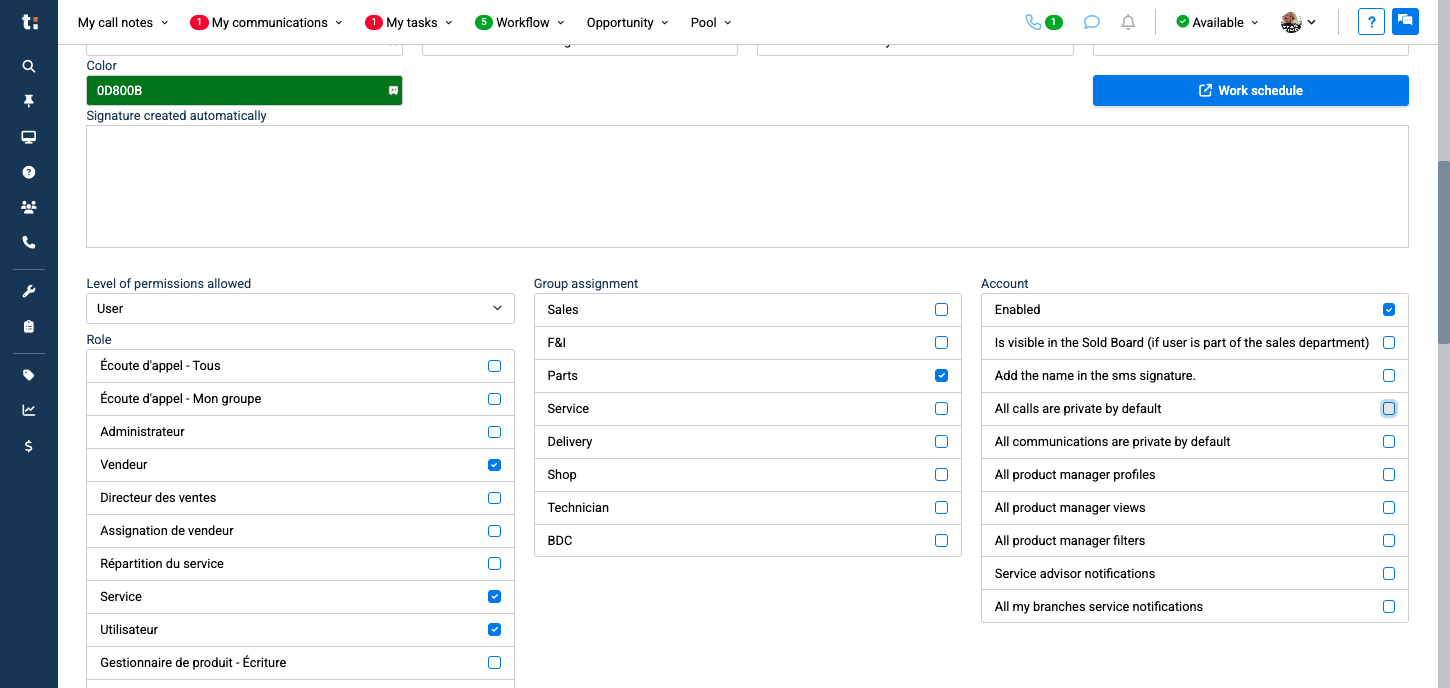
Then, click "All calls are private by default."
6
Once finished, click Save.