
How to Manage and Clone Email Templates for Essentials
Learn how to navigate the marketing dashboard to preview, edit, and clone existing email templates for different target audiences.
By Michael Wilkinson
Made with Glitter AI
Navigate to Email Templates
1
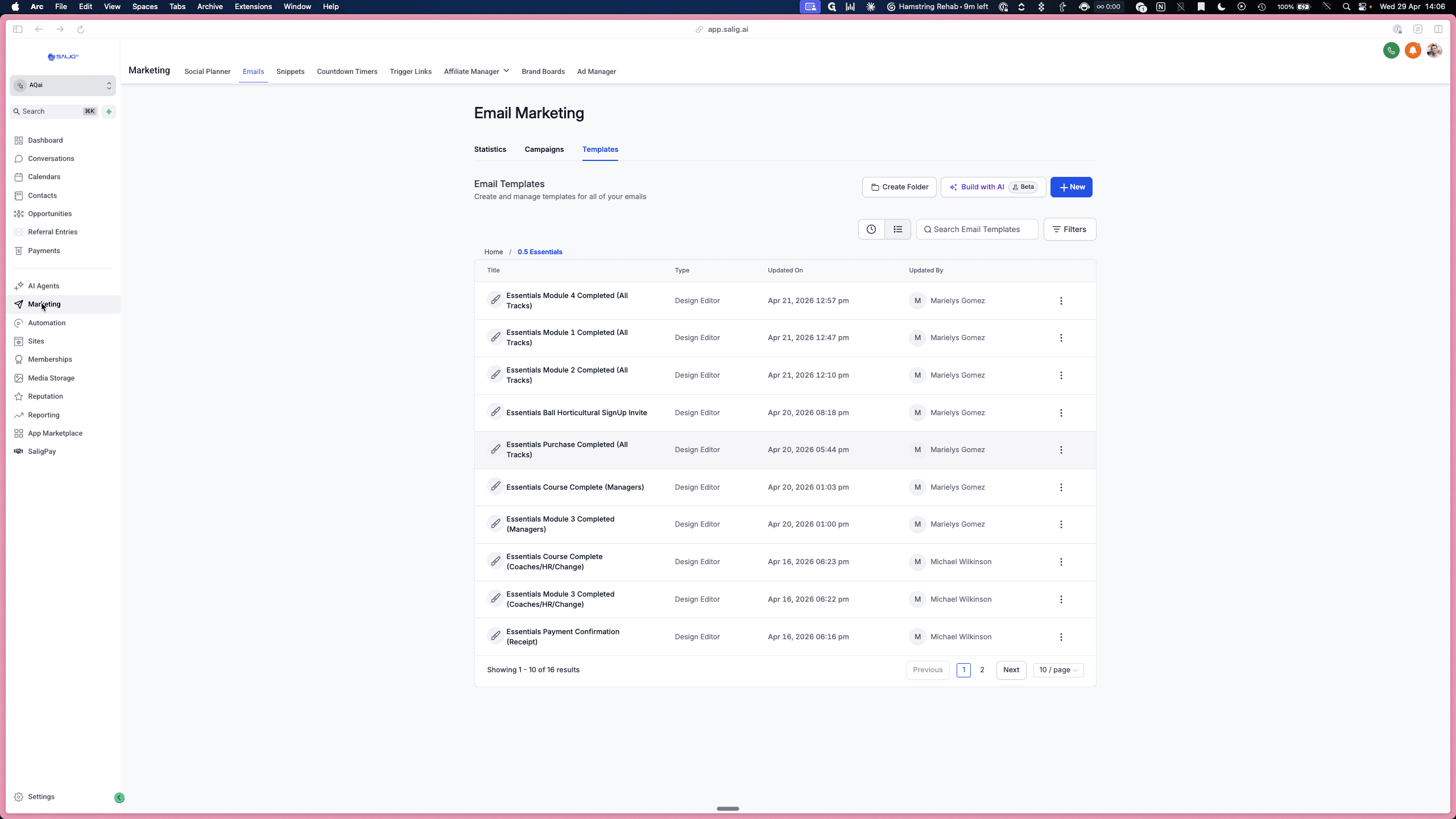
Click Marketing in the left-hand navigation sidebar.
2
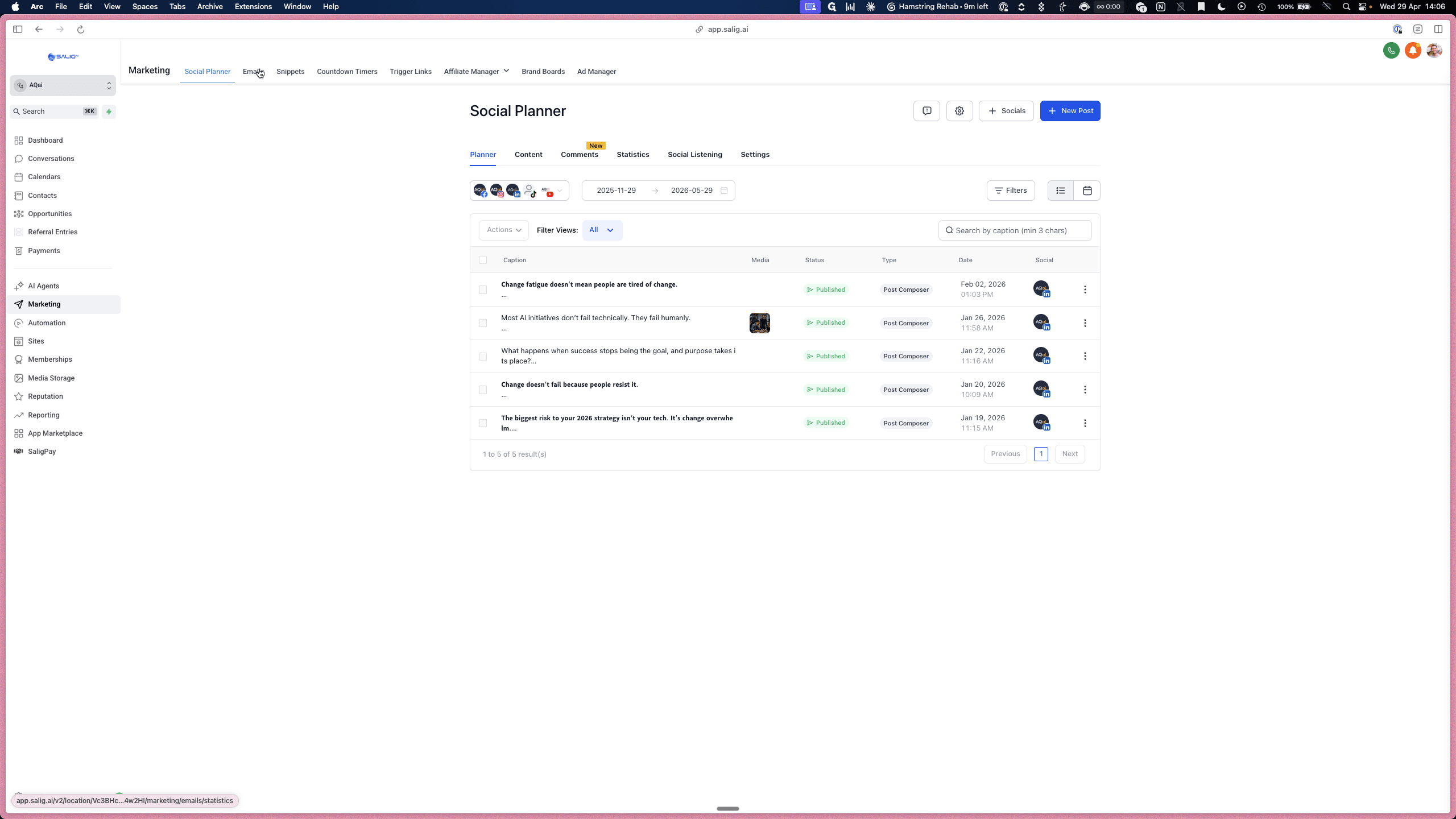
Click the Emails tab in the top navigation bar.
3
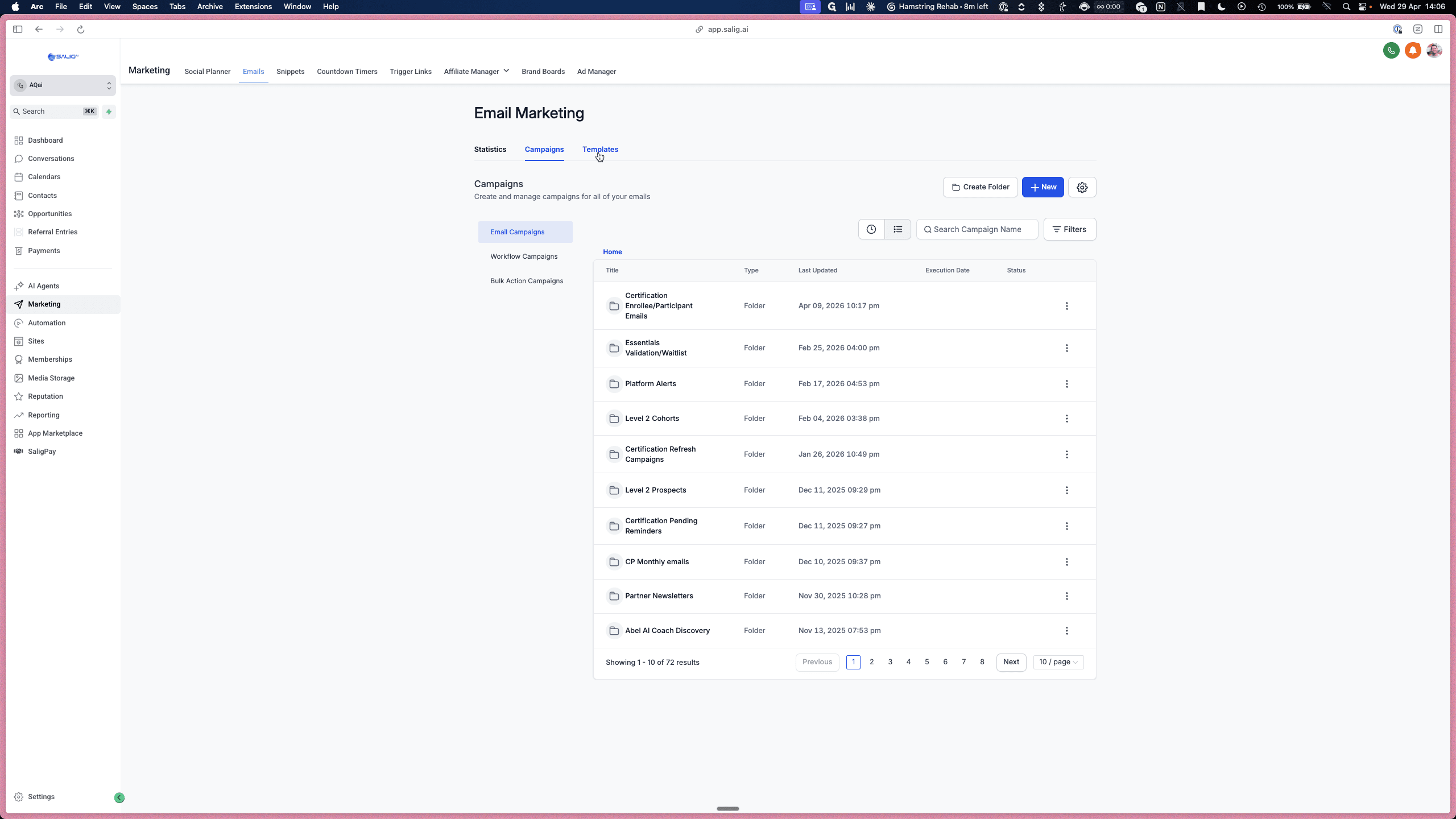
Select Templates to view all existing email designs.
Preview and Edit Templates
Workflow emails are typically titled by module and marked by track. For example, an "All Track" email is an evergreen message applicable to any Ideal Customer Profile (ICP), while other emails are explicitly named for workflows that deviate for a specific persona (like Managers or Executives).
4
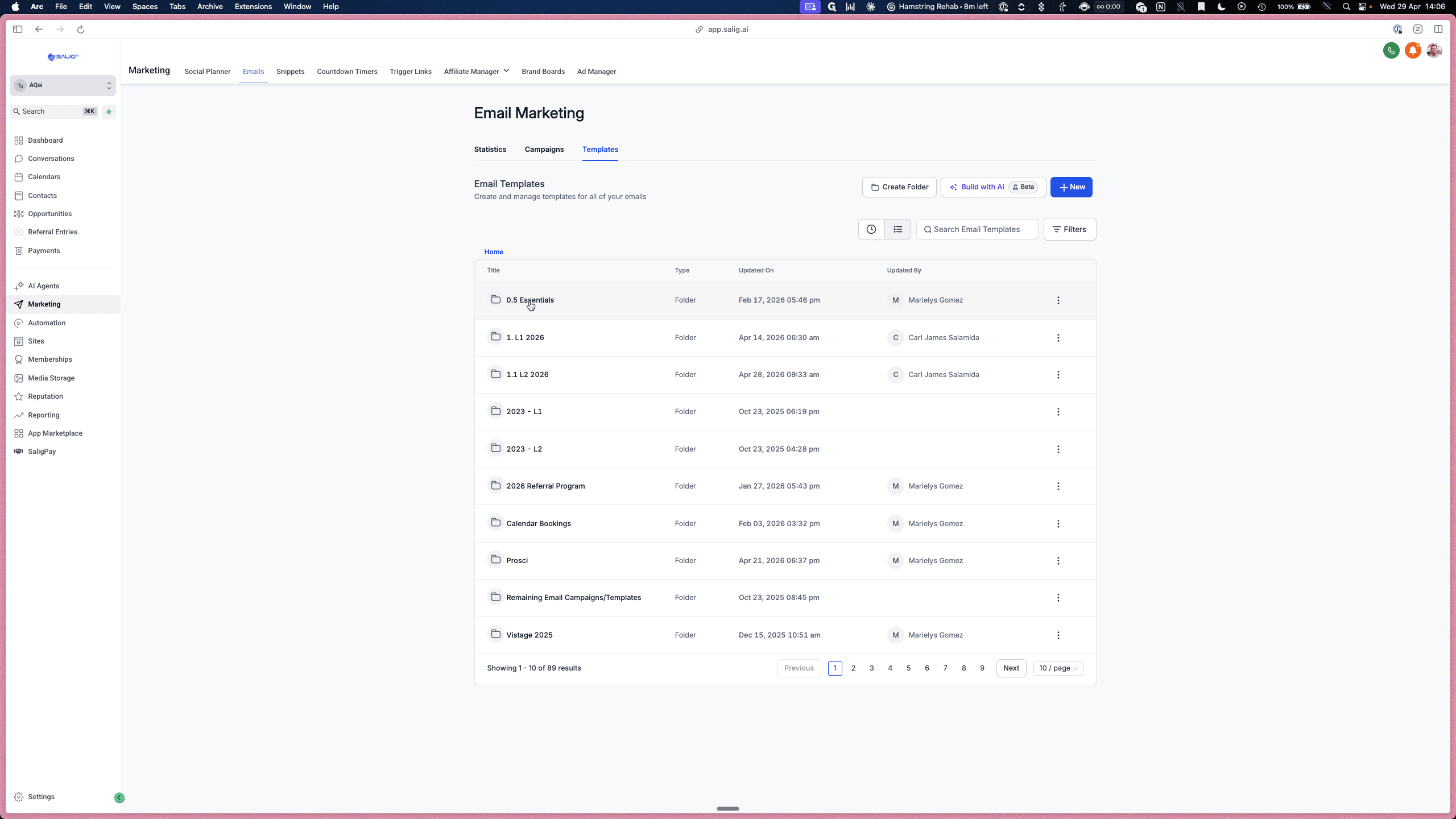
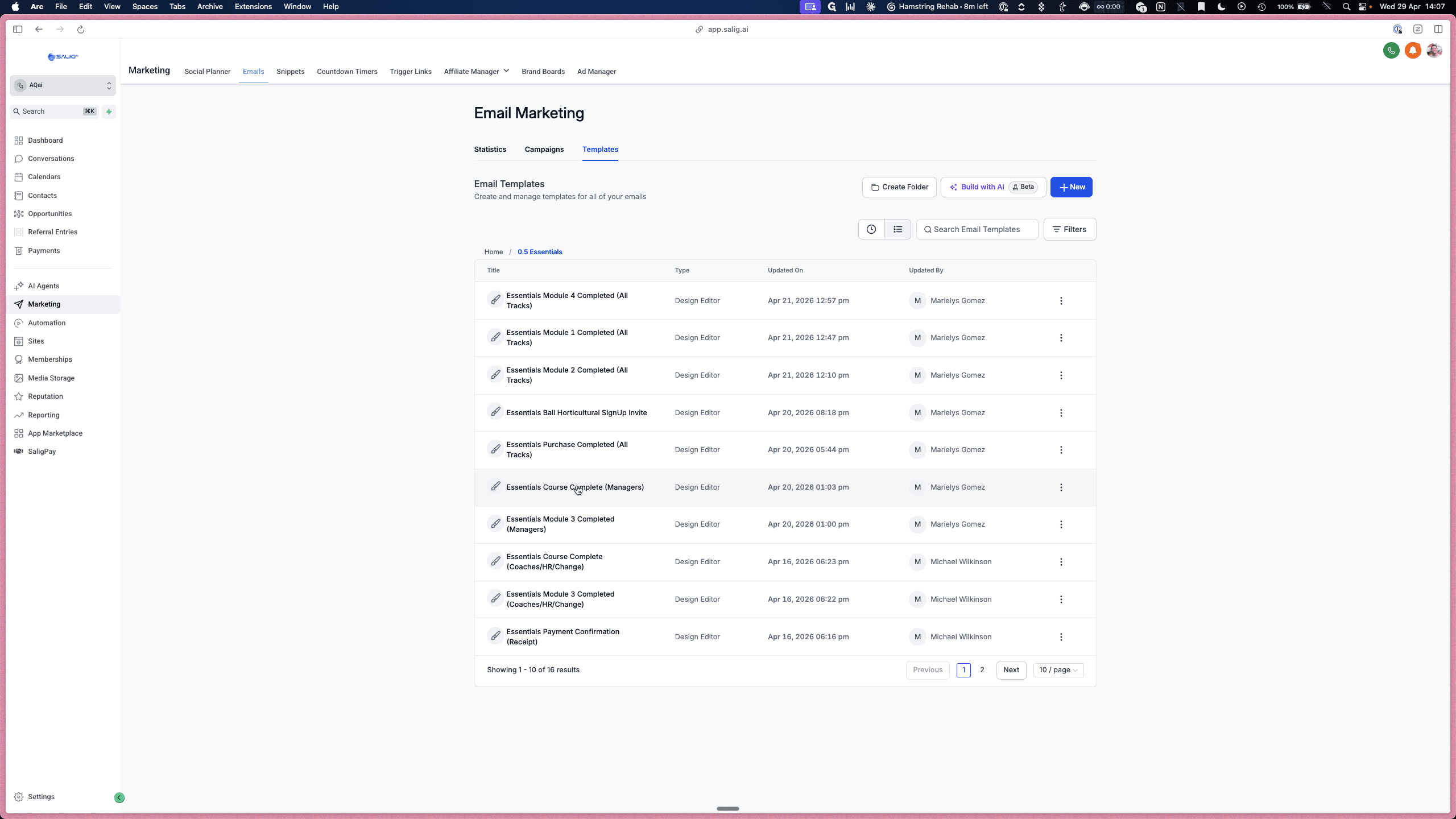
Click on a folder, such as 0.5 Essentials, to browse its contents.
5
Select an email template, like Essentials Course Complete (Managers), to open the editor.
6
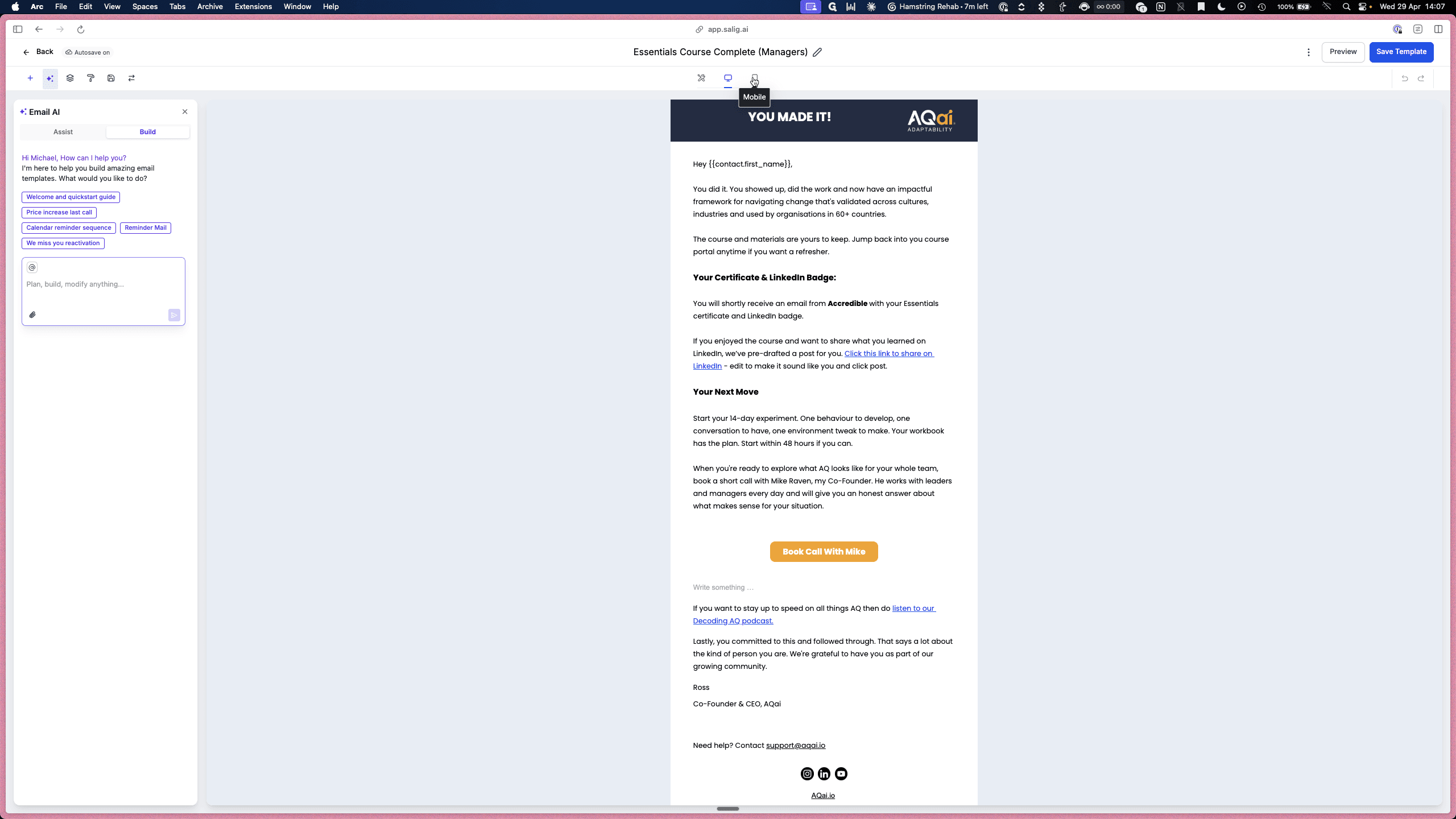
Toggle the Desktop and Mobile icons at the top of the editor to preview how the email renders on different devices.
7
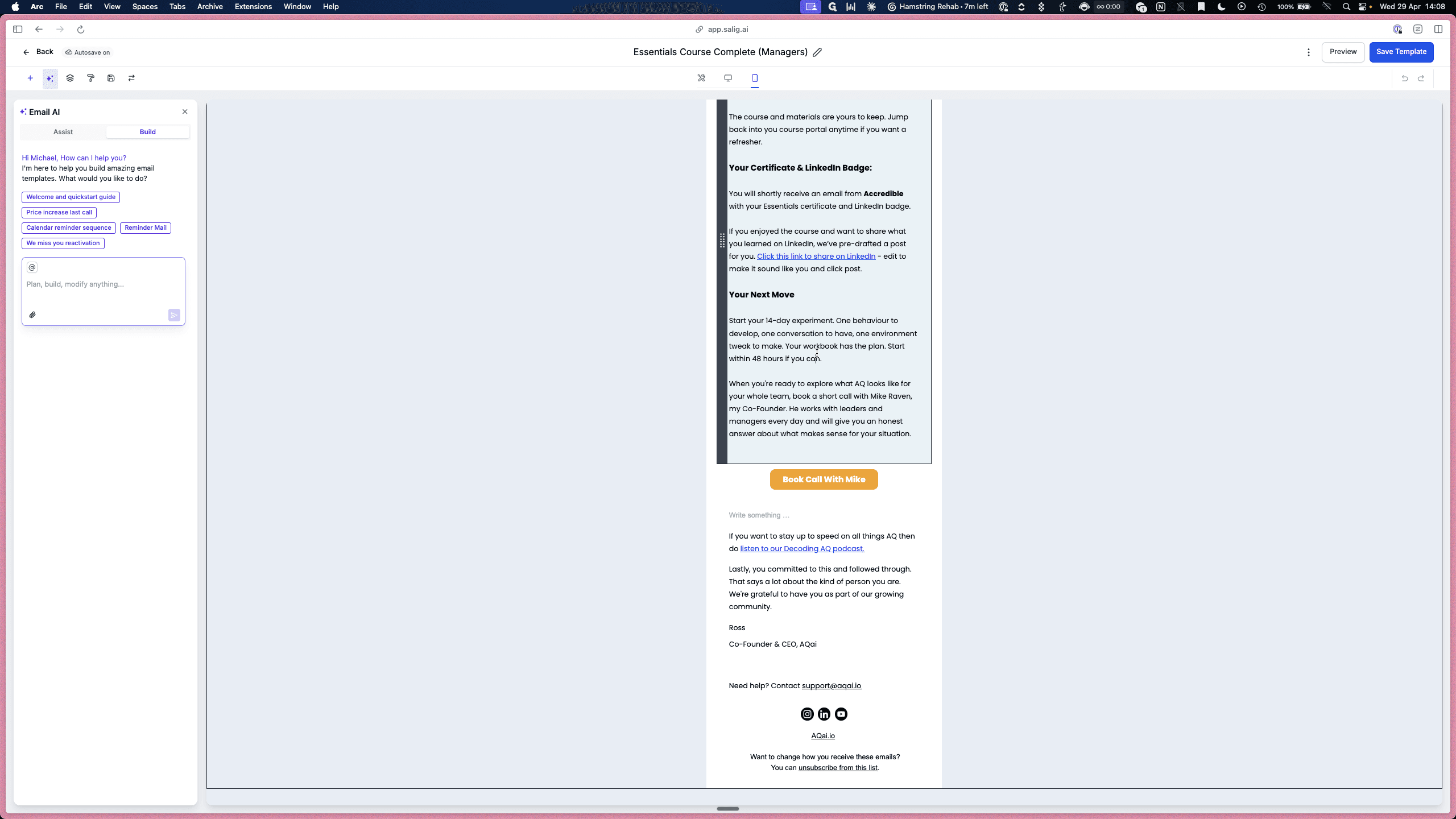
Click on any text block in the email body to open the Edit Text sidebar. From here, you can verify and adjust fonts, background colors, and padding.
Clone an Existing Template
When setting up emails for new tracks, you can clone existing templates instead of starting from scratch.
8
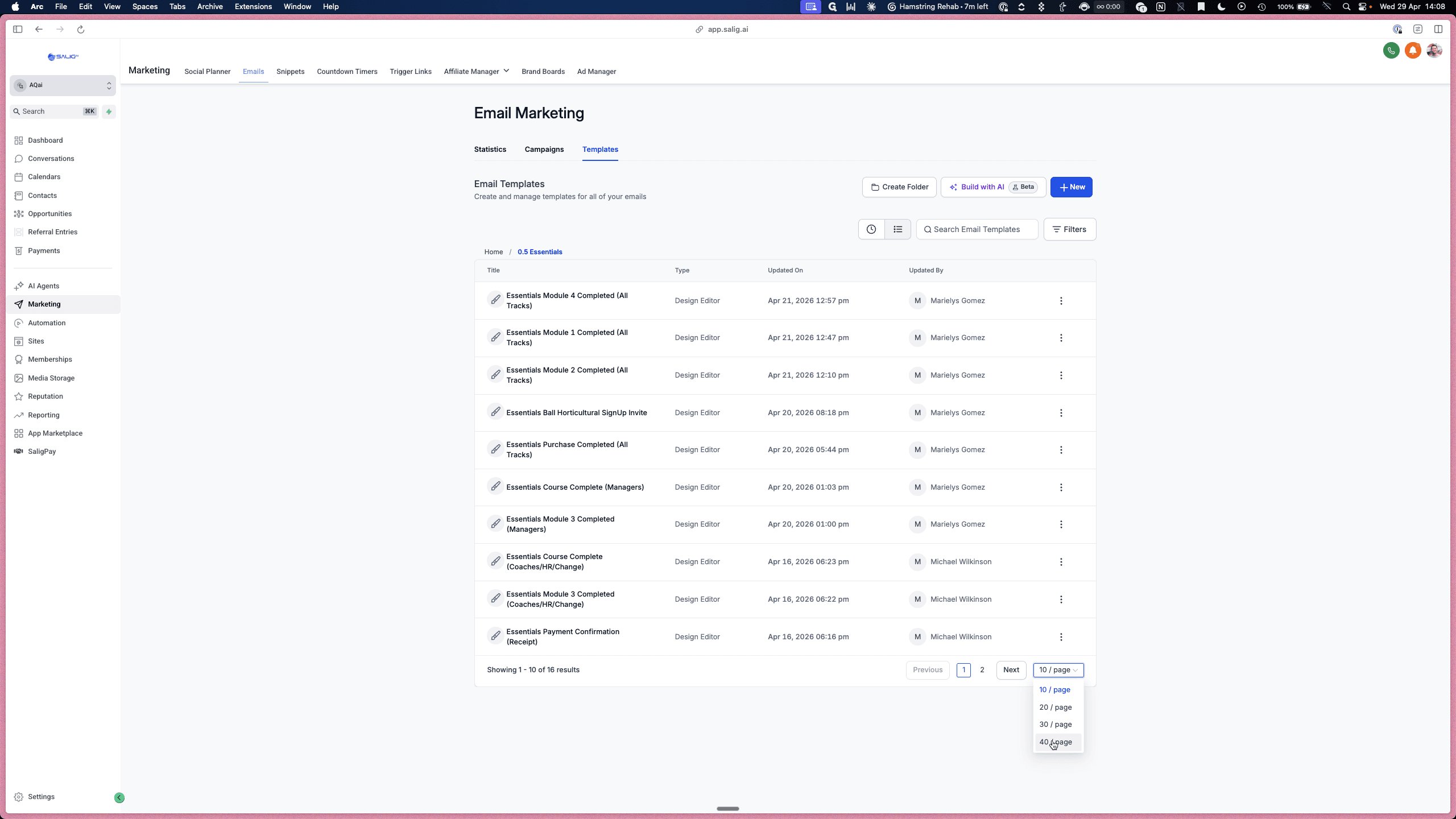
From the Templates dashboard, use the pagination dropdown at the bottom right to view more templates per page if needed.
9
Click the vertical ellipsis icon (three dots) next to the template you want to copy and select Clone.
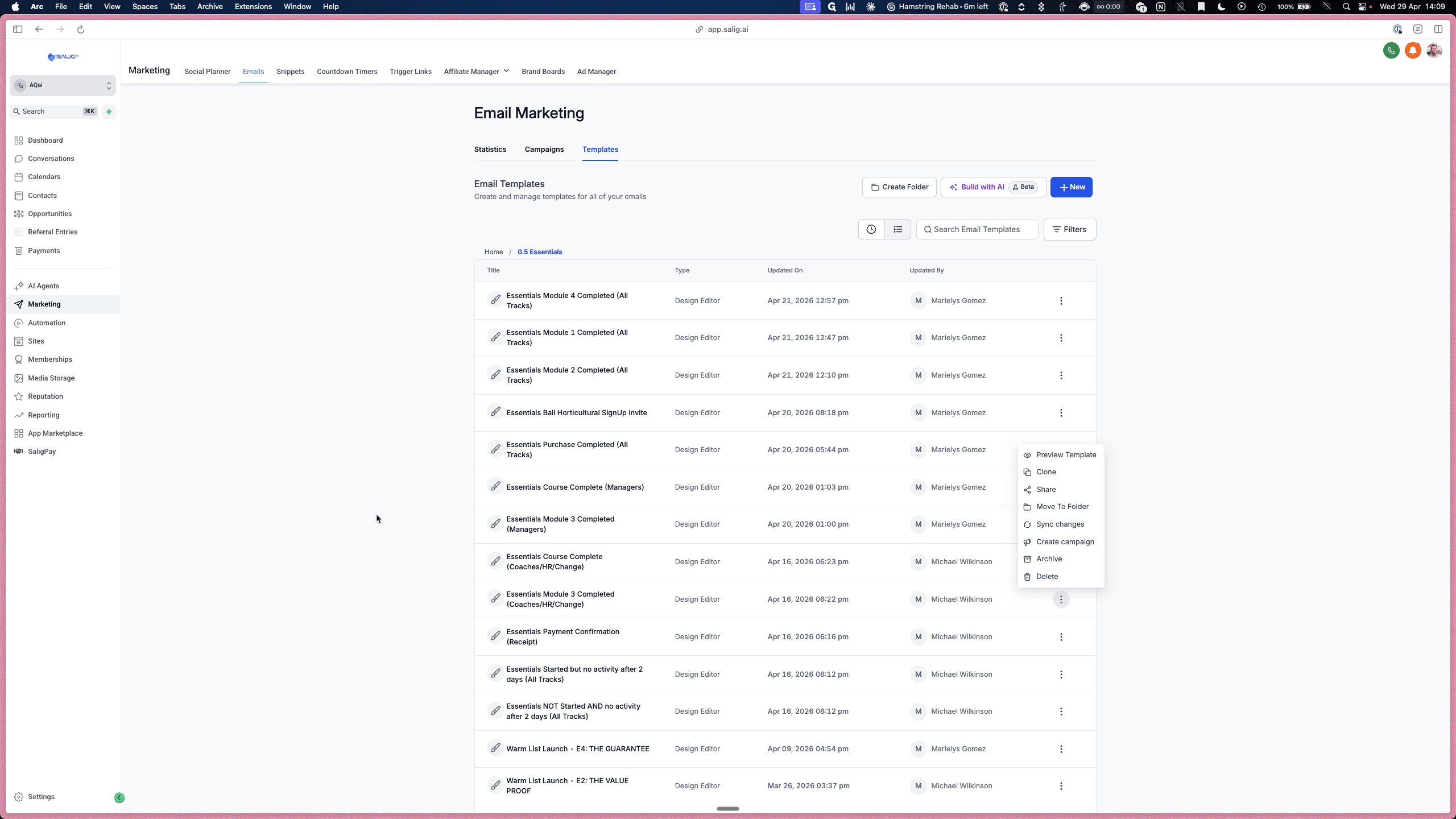
Rename the cloned template to reflect the new ICP or track (e.g., Essentials Module 3 Completed (Executives)) and make your required changes in the editor.