
How to Use 'My Work' in Monday.com
Learn how to efficiently manage, sort, and complete tasks using the employee board, including tips for customizing your view and tracking onboarding progress.
In this guide, we'll learn how to manage and track your tasks using the employee board and the My Work section. You will see how to sort tasks, customize your view, and mark items as done. This helps you focus on what still needs your attention and keep your workflow organized.
Let's get started
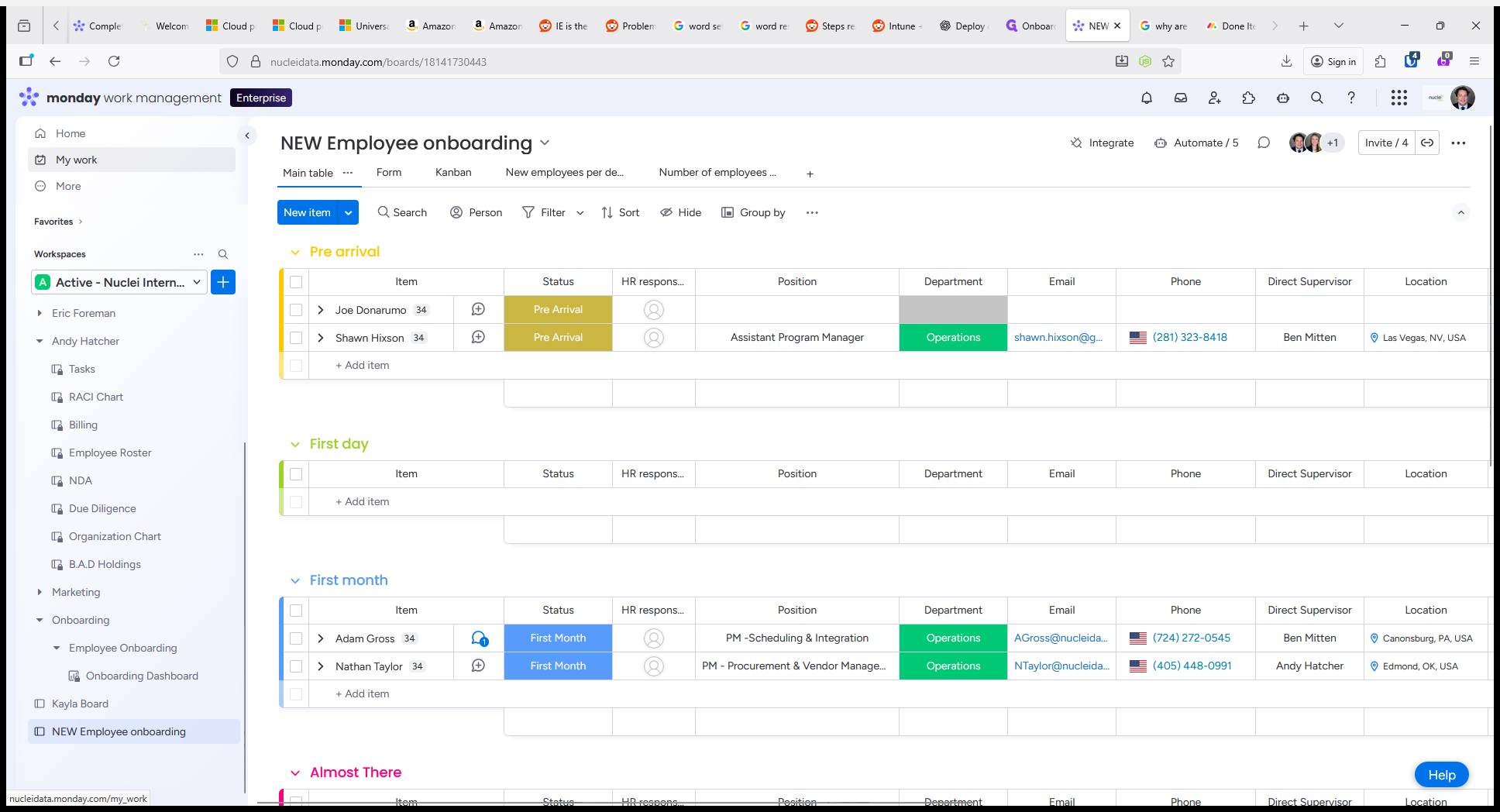
Start at the employee board. You can go to My Work to view an overview of all tasks.
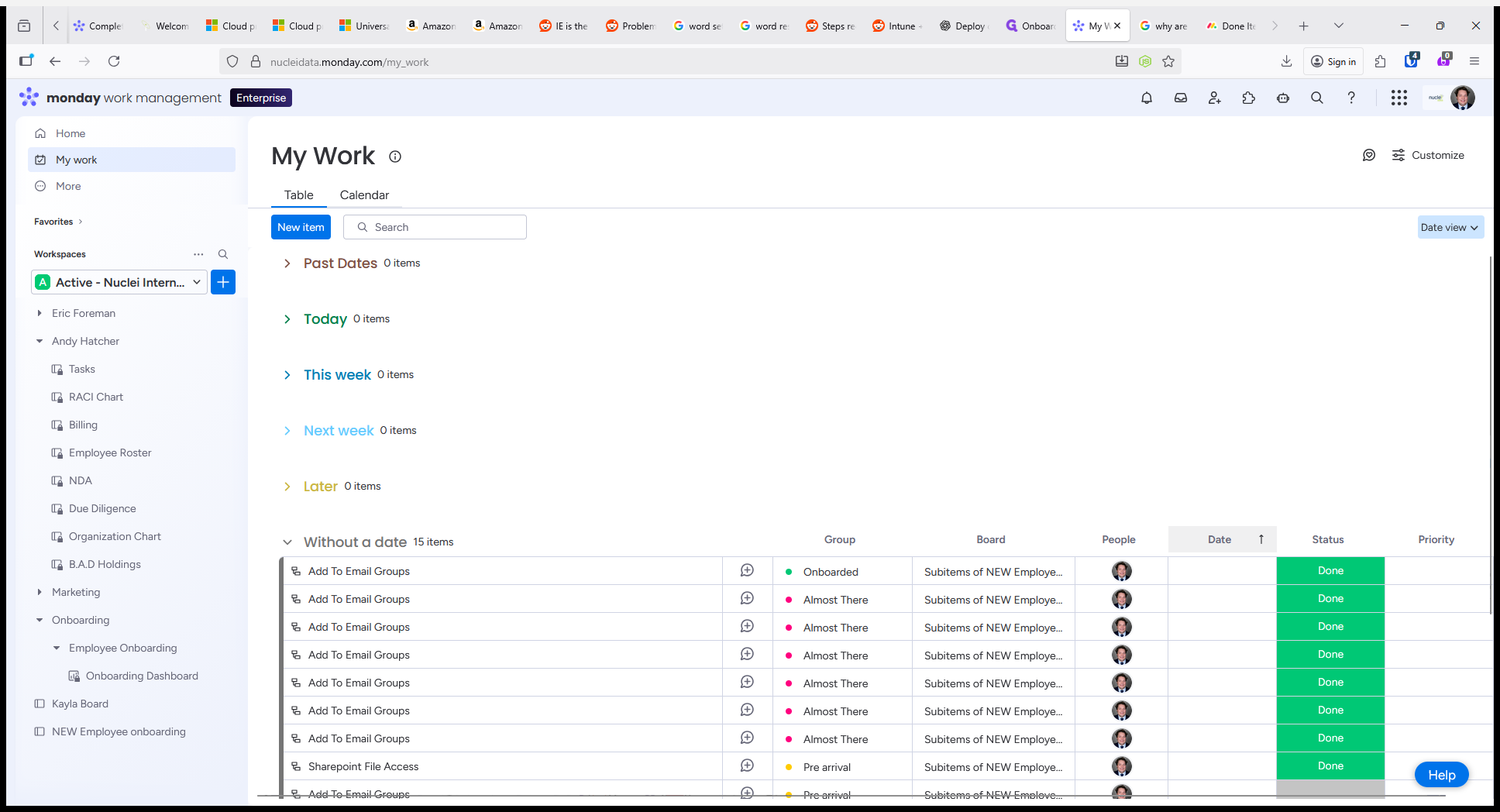
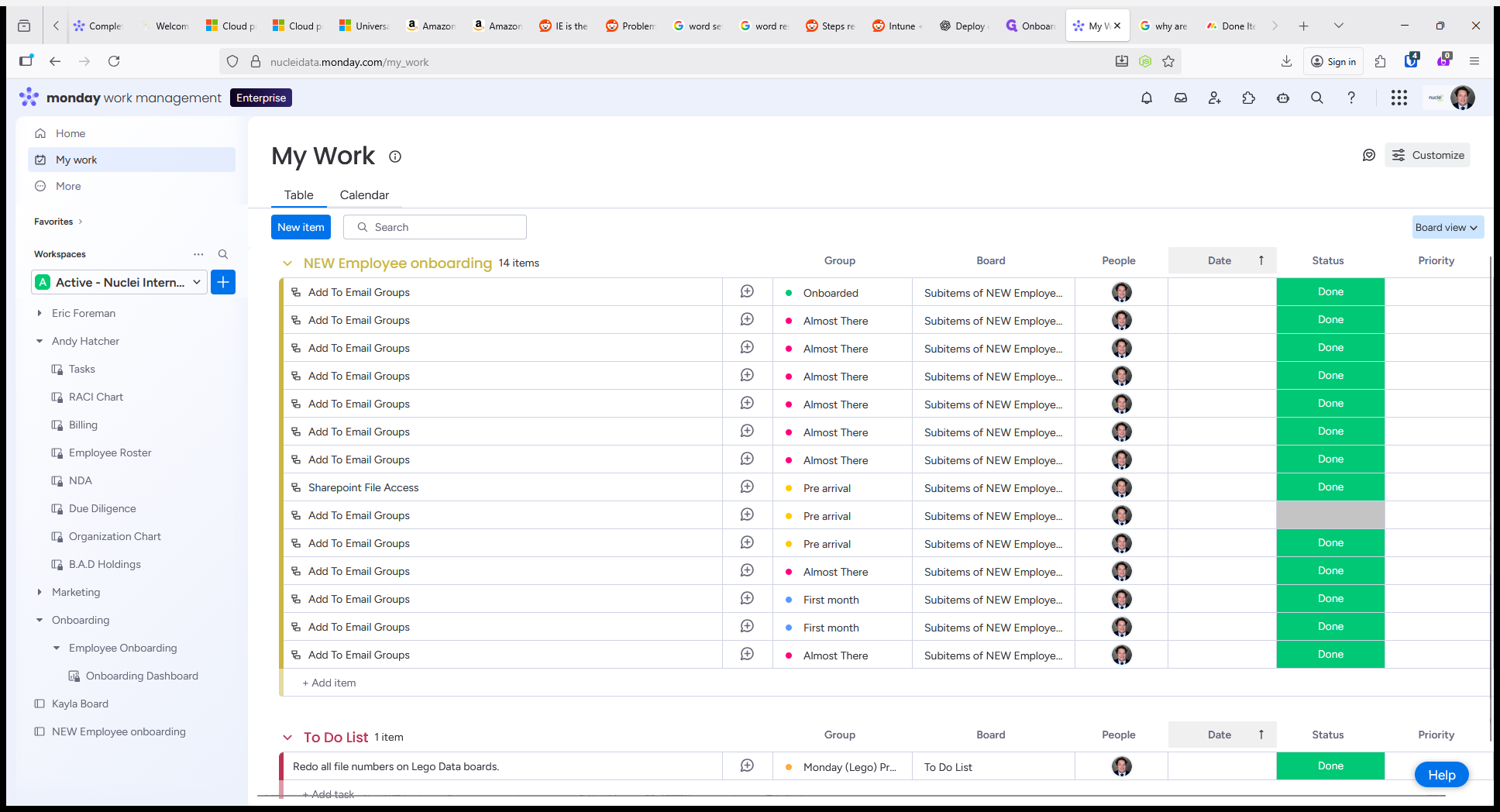
My Work is sorted by date by default.
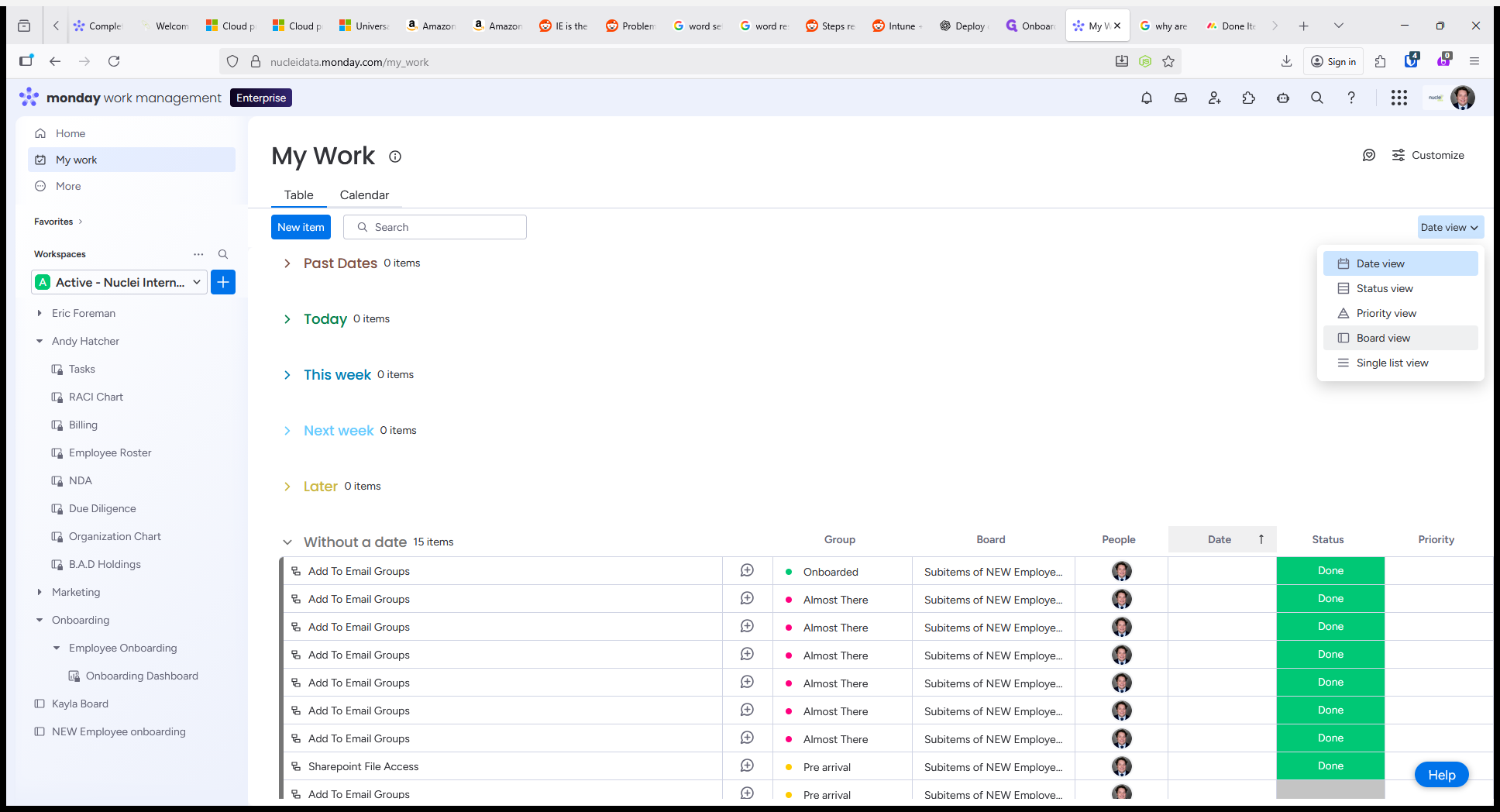
You can go to the Date View tab to sort by other dimensions, such as by board.
As you can see, you can view the new employee onboarding tasks as well as tasks from other boards.
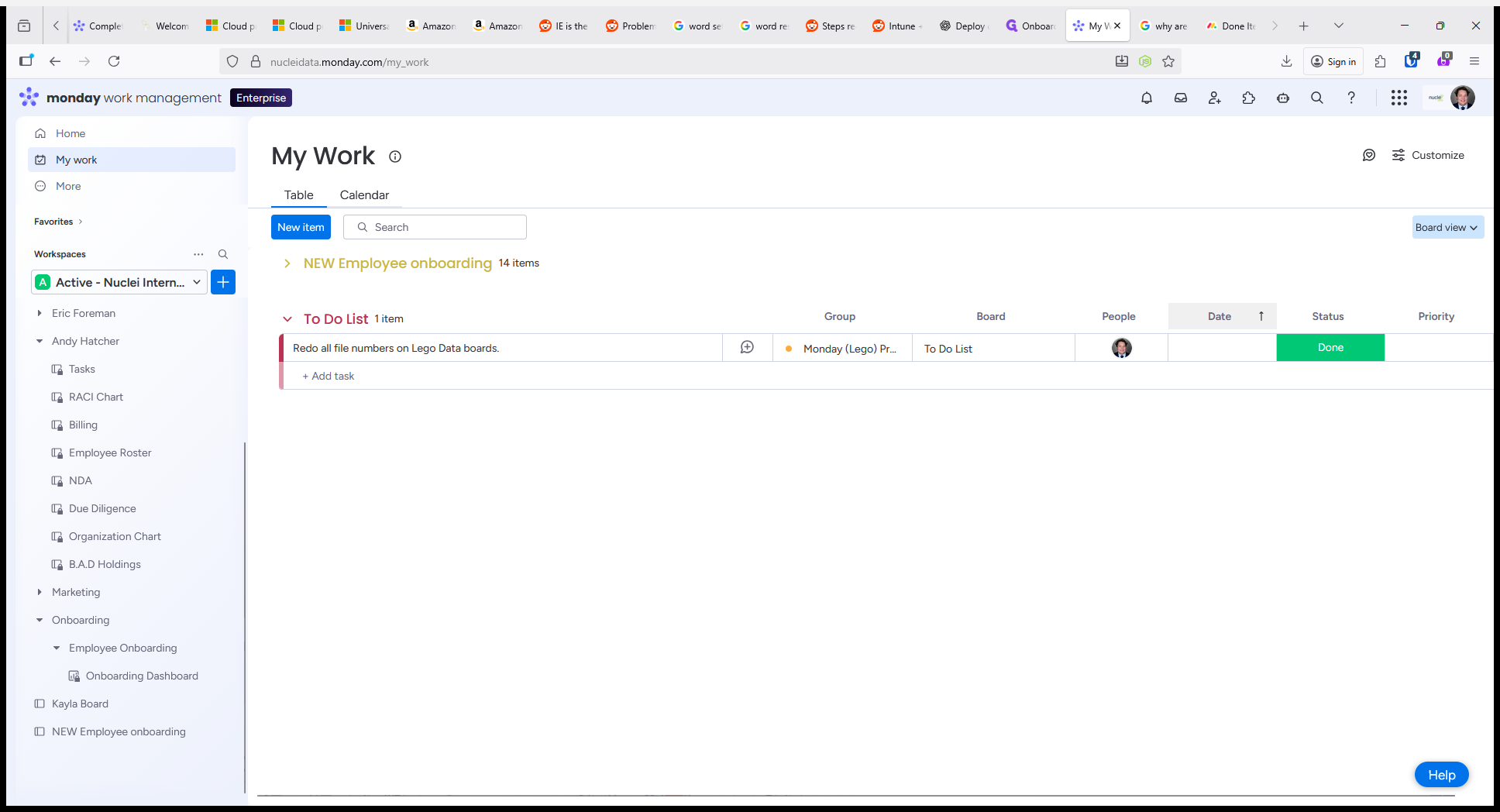
You'll notice that most of my tasks under the Employee Onboarding board are marked as Done. Let's refine our view to only show the ones that are incomplete.
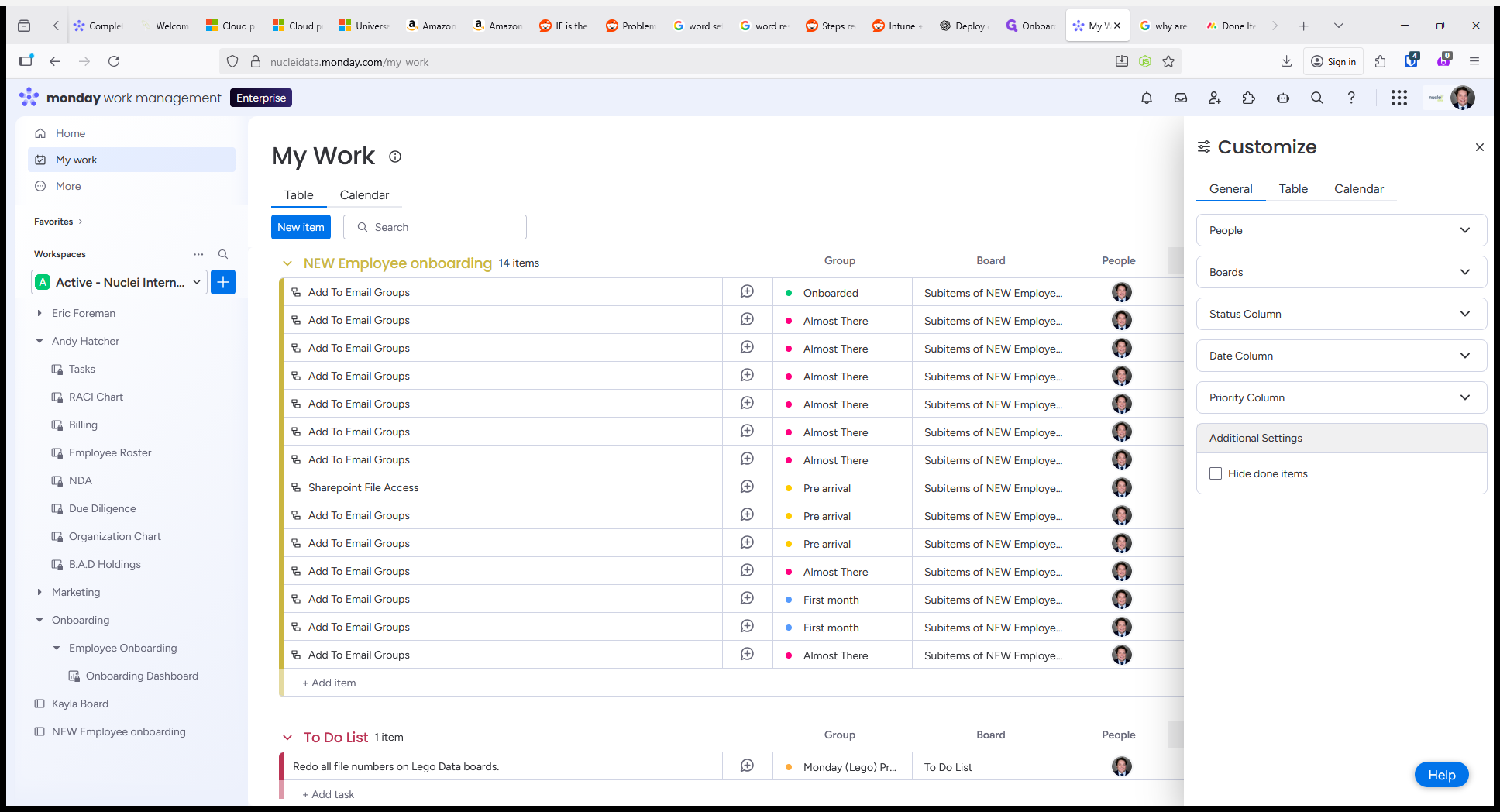
Now your My Work board only shows you the tasks that are incomplete. My Work becomes even more useful when dates are assigned to tasks, as you can sort based on how soon a task needs to be completed. I recommend looking around in the interface to get a feel for it.