How to Prepare Orders in Your Rental Dashboard
Learn step-by-step how to manage orders, process payments, add fees, update order details, and handle returns using your booking dashboard. This guide covers everything from preparing orders to capturing security deposits.
In this guide, we'll learn how to manage and process customer orders using a rental dashboard. We will cover steps such as preparing orders, collecting payments, adding fees, updating order details, tracking item status, and handling returns or security deposits.
This process helps ensure accurate order fulfillment and payment tracking from start to finish.
Let's get started
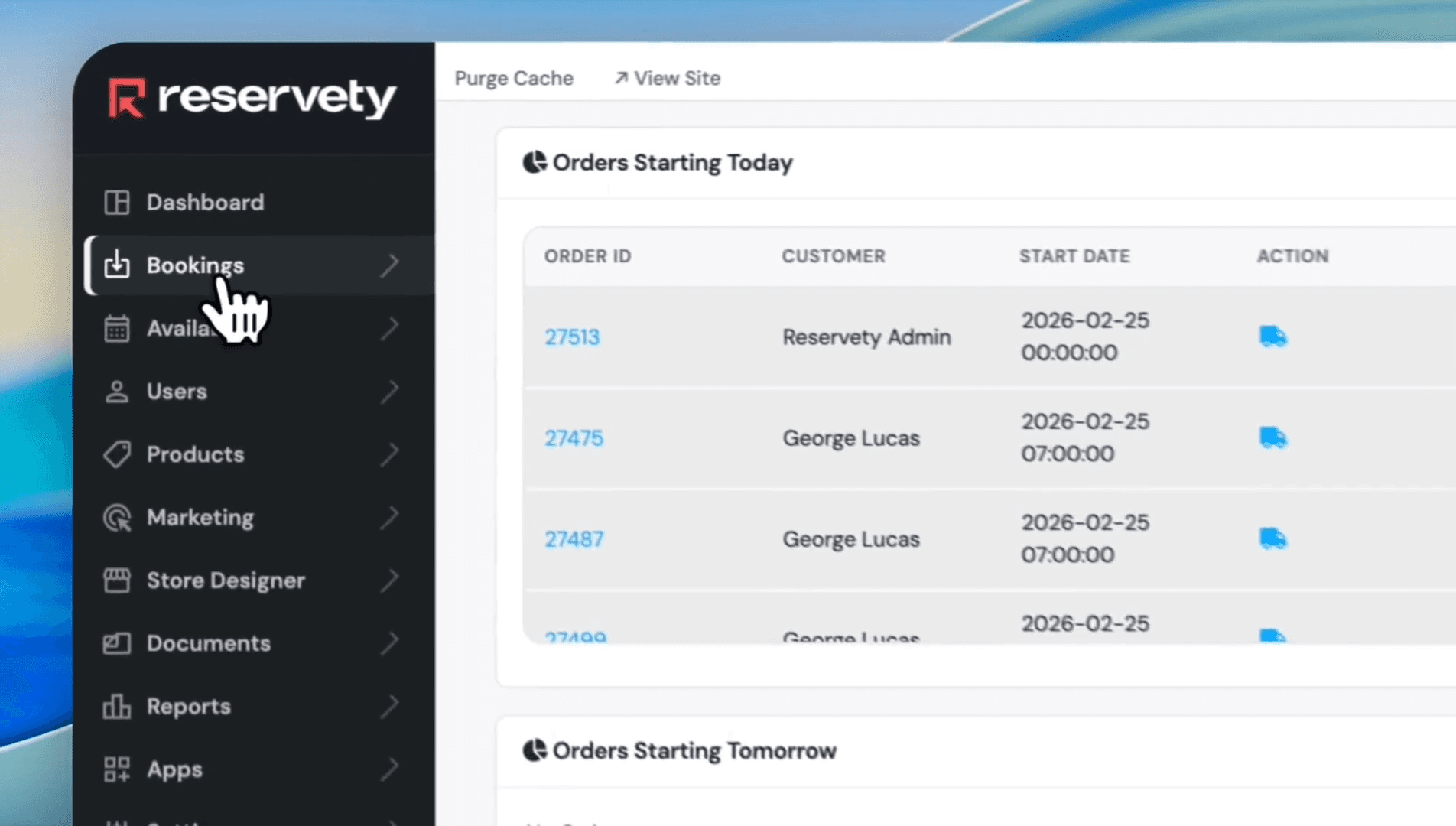
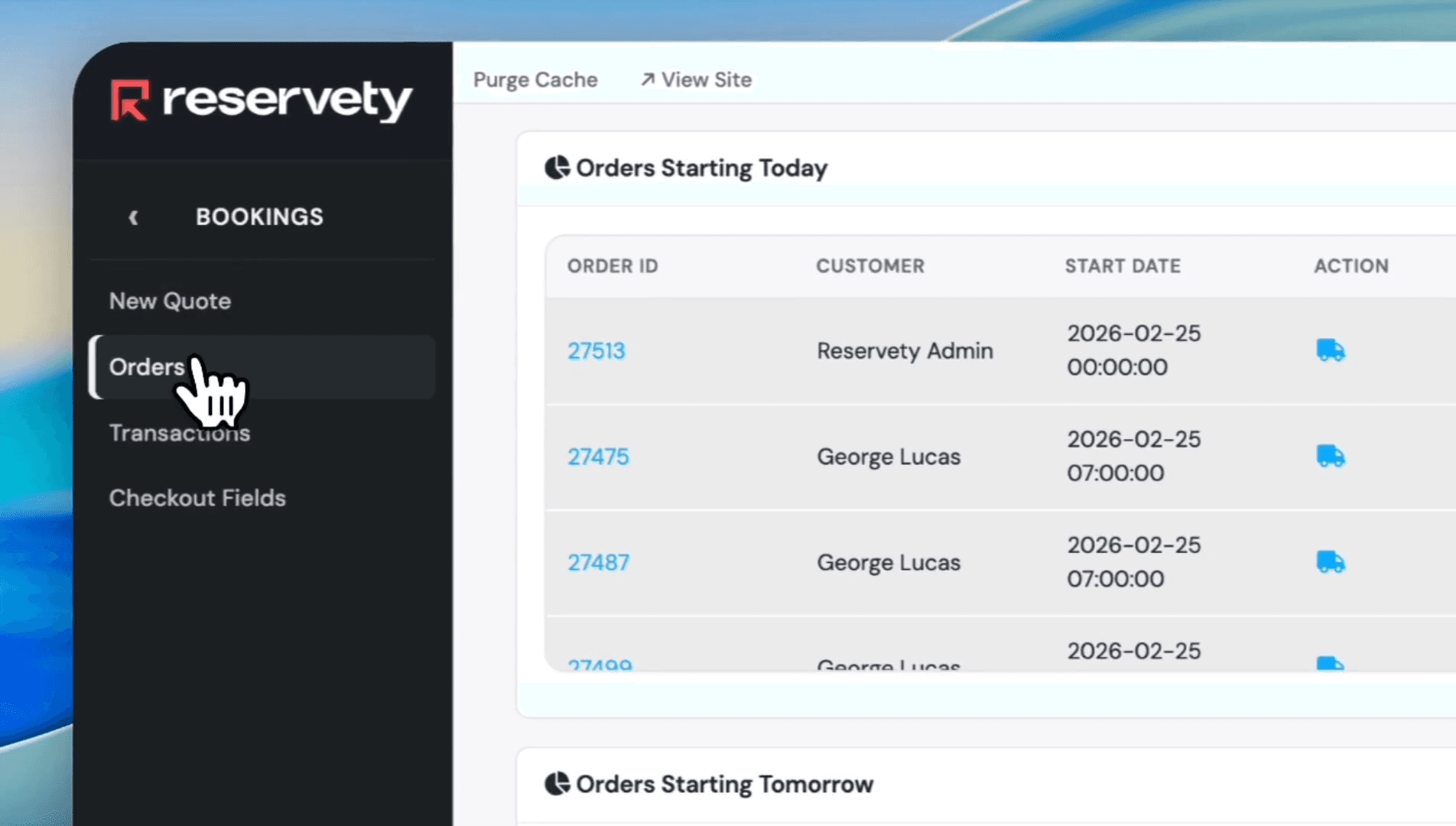
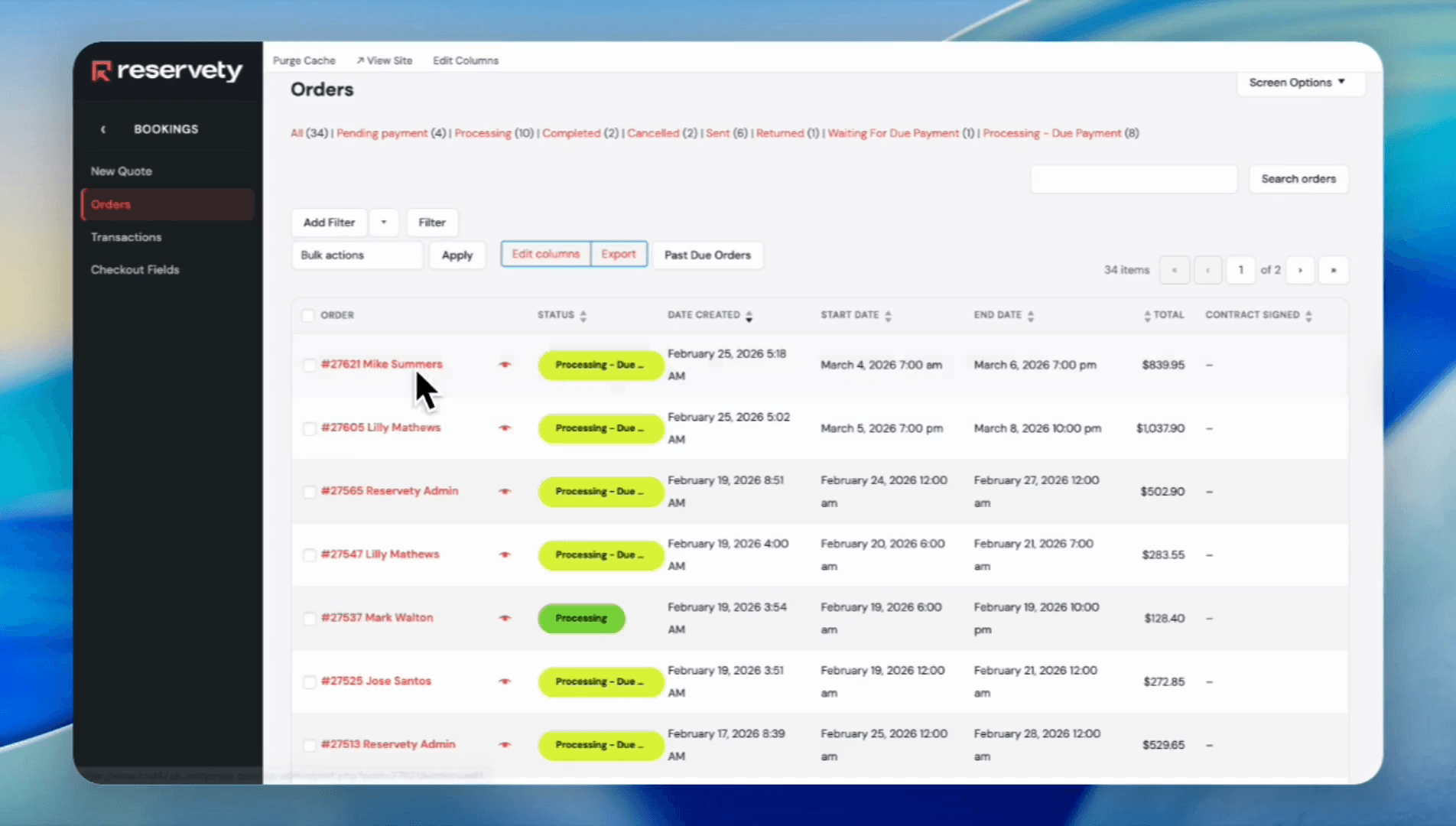
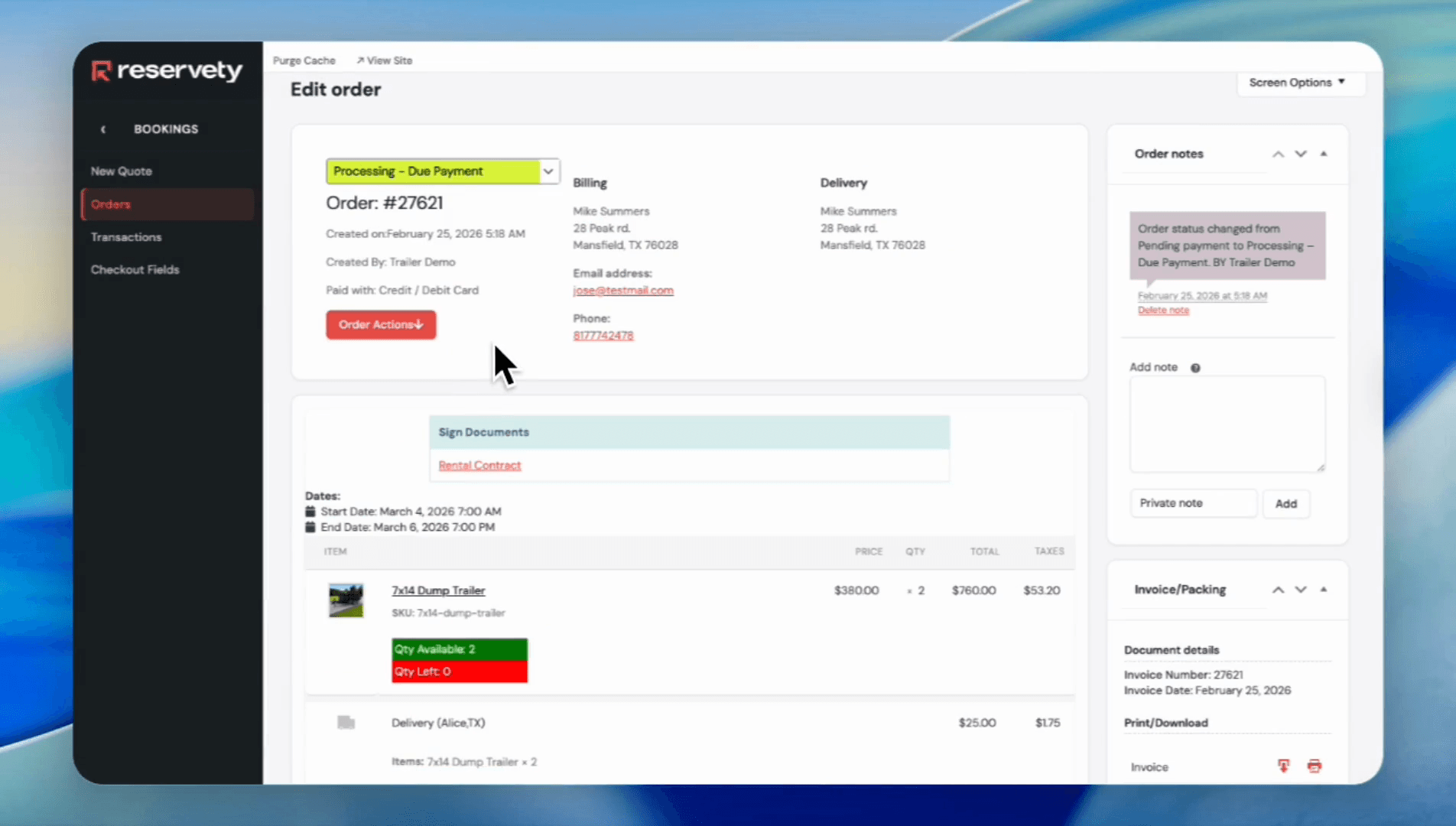
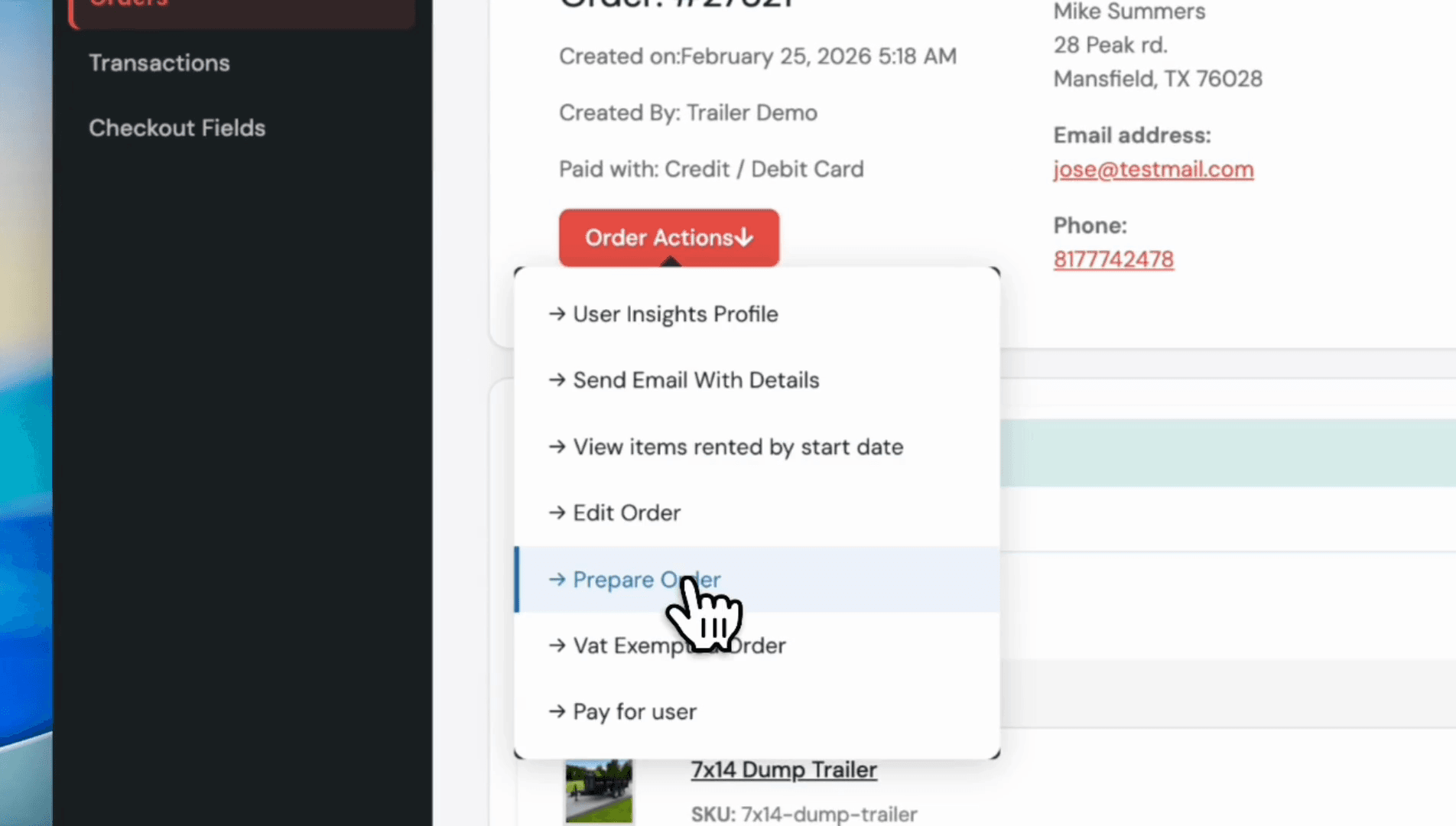
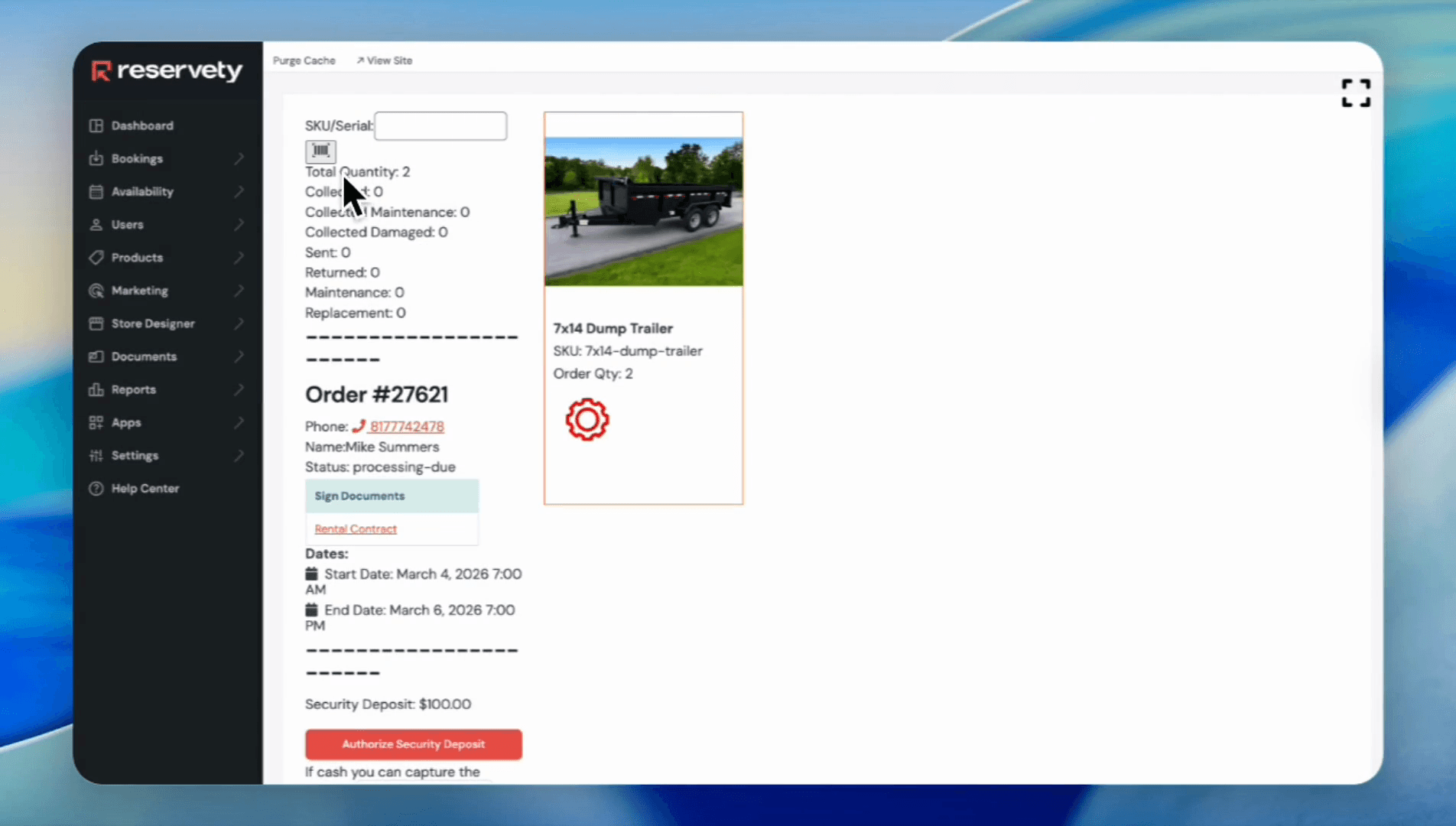
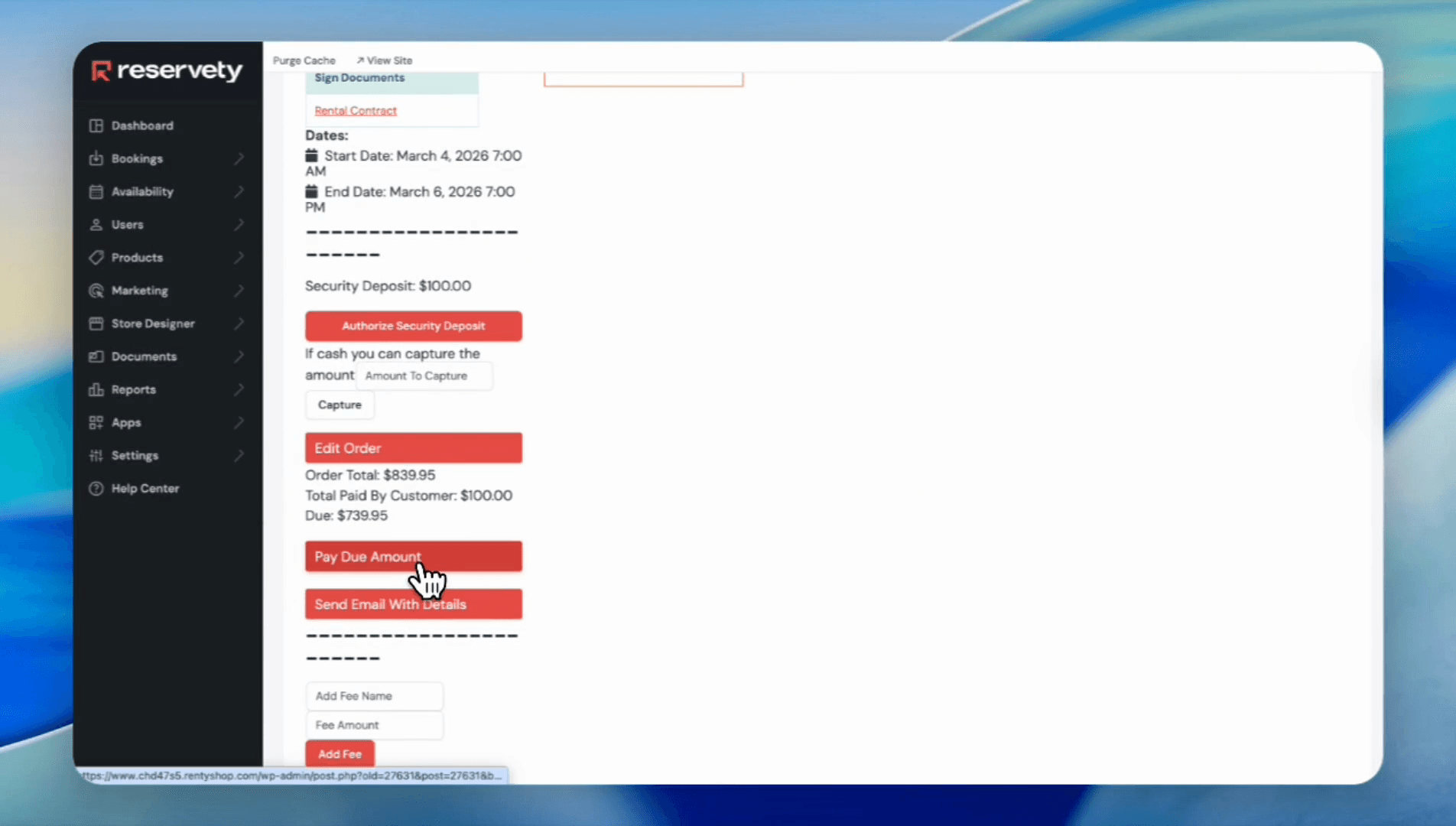
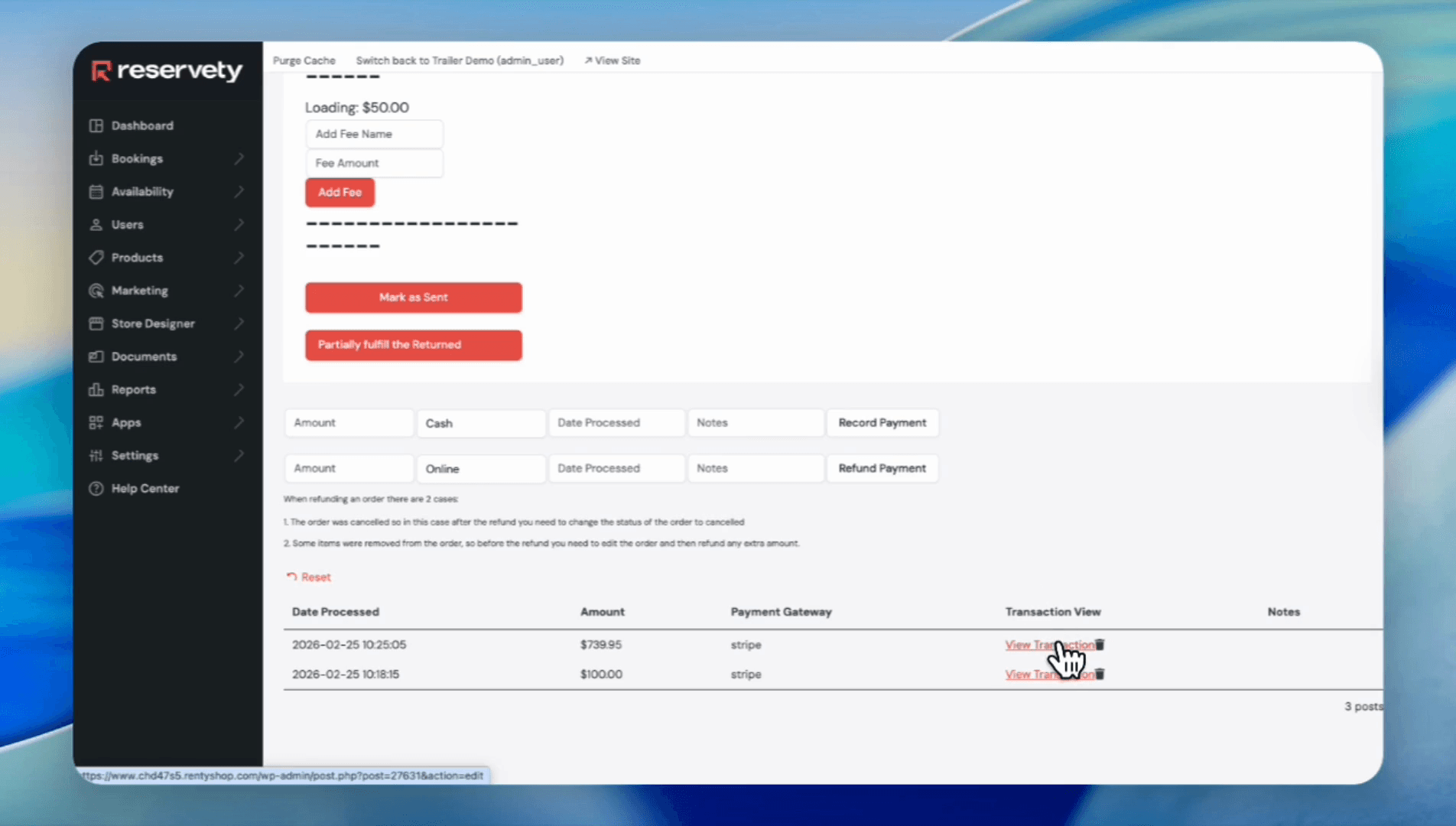
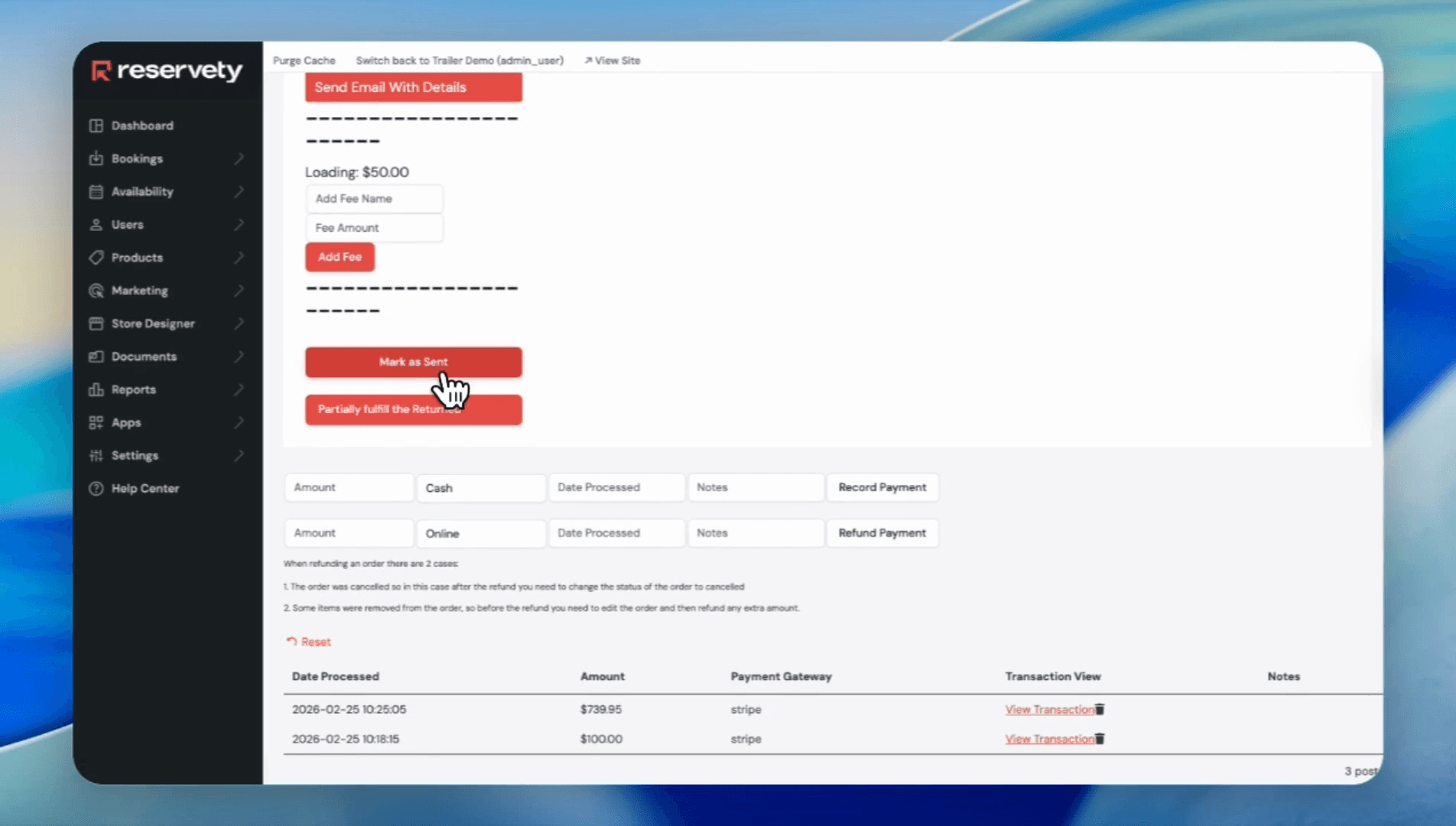
In this example, the customer paid only the deposit. Now we need to collect the full amount from the customer. Our amount due is $739.95. You can process the payment directly from the system, or send an email with the details so the customer can pay electronically. Let's proceed and make the payment through the system.
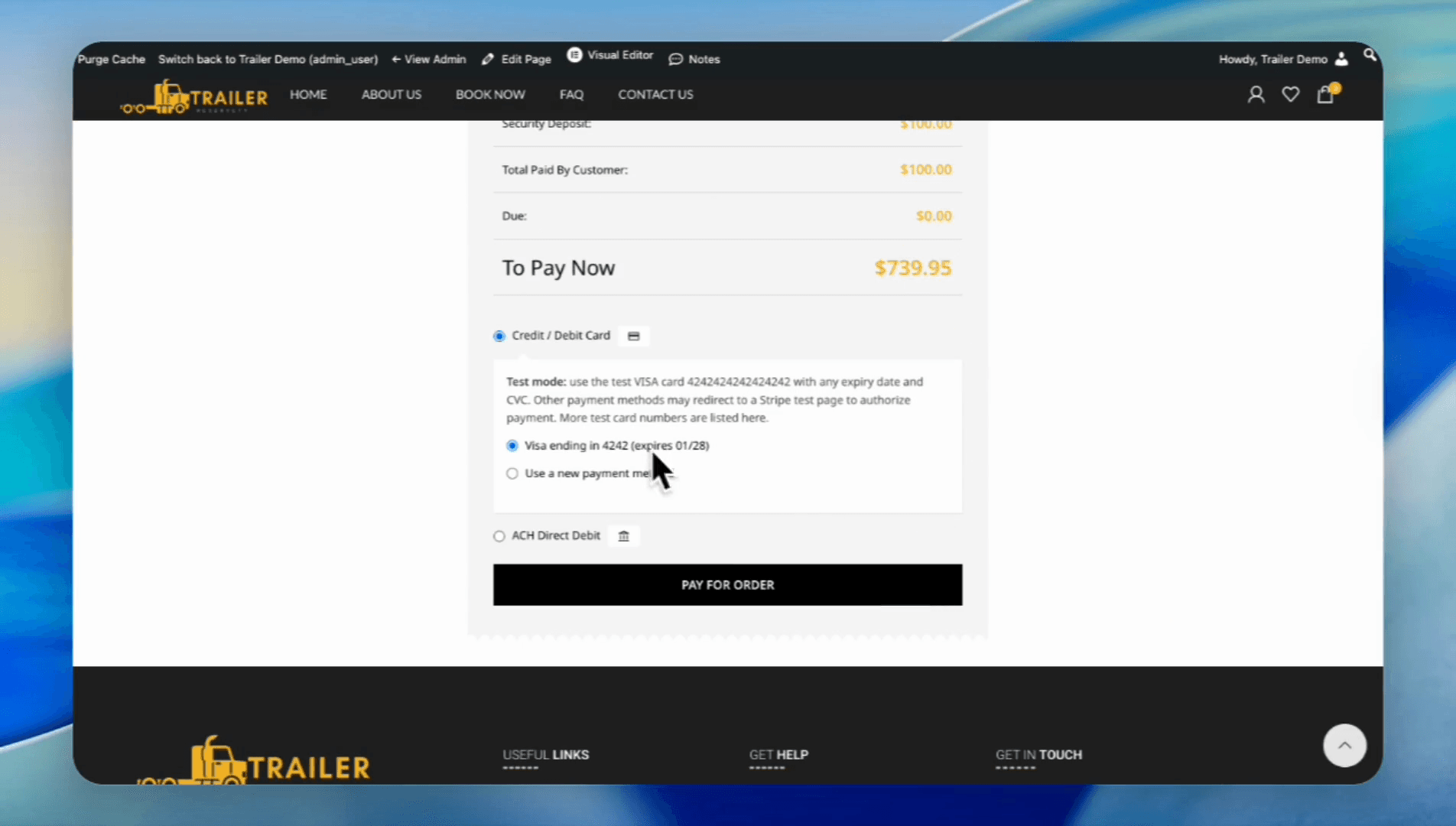
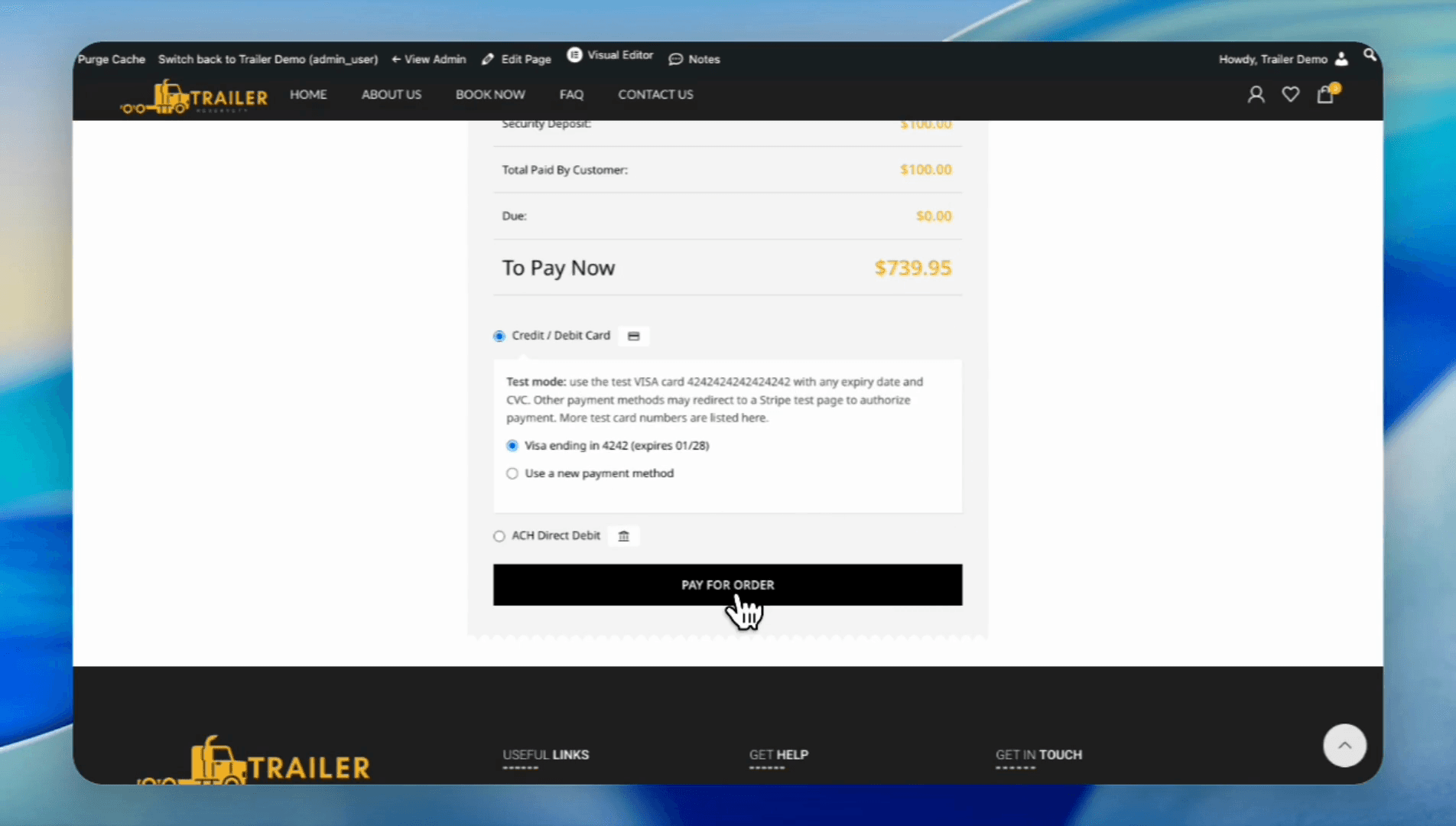
The customer has now paid in full.
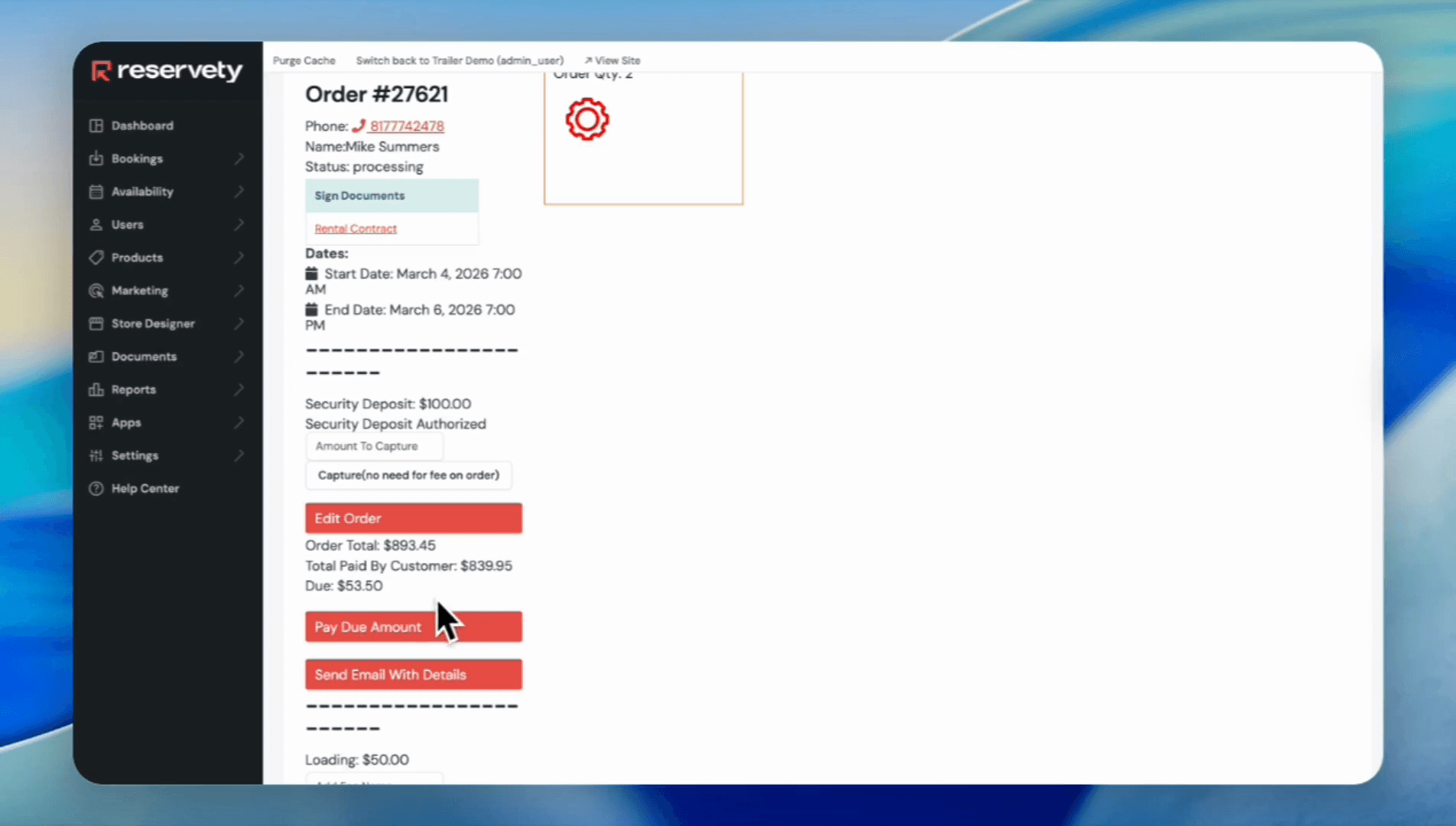
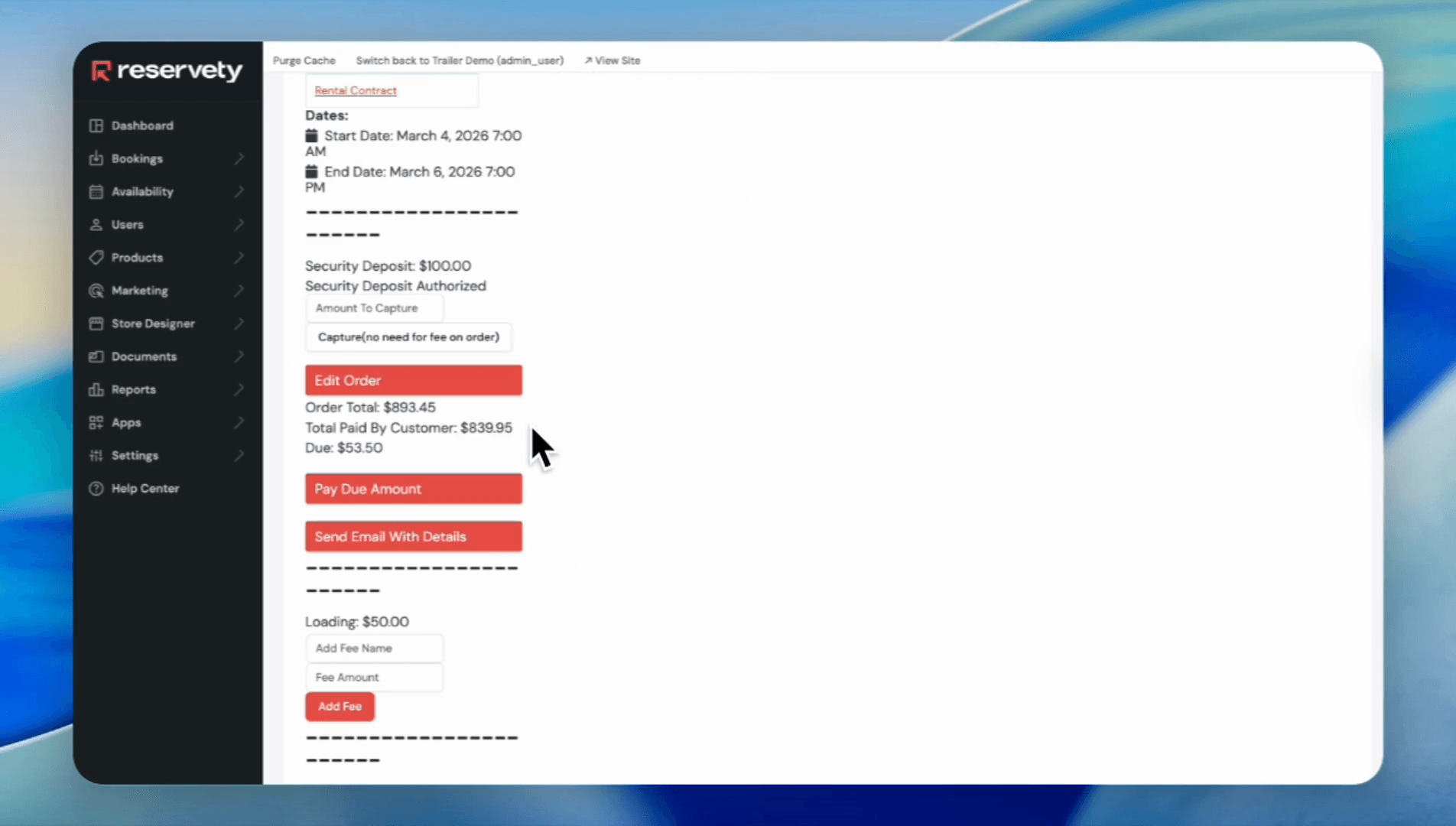
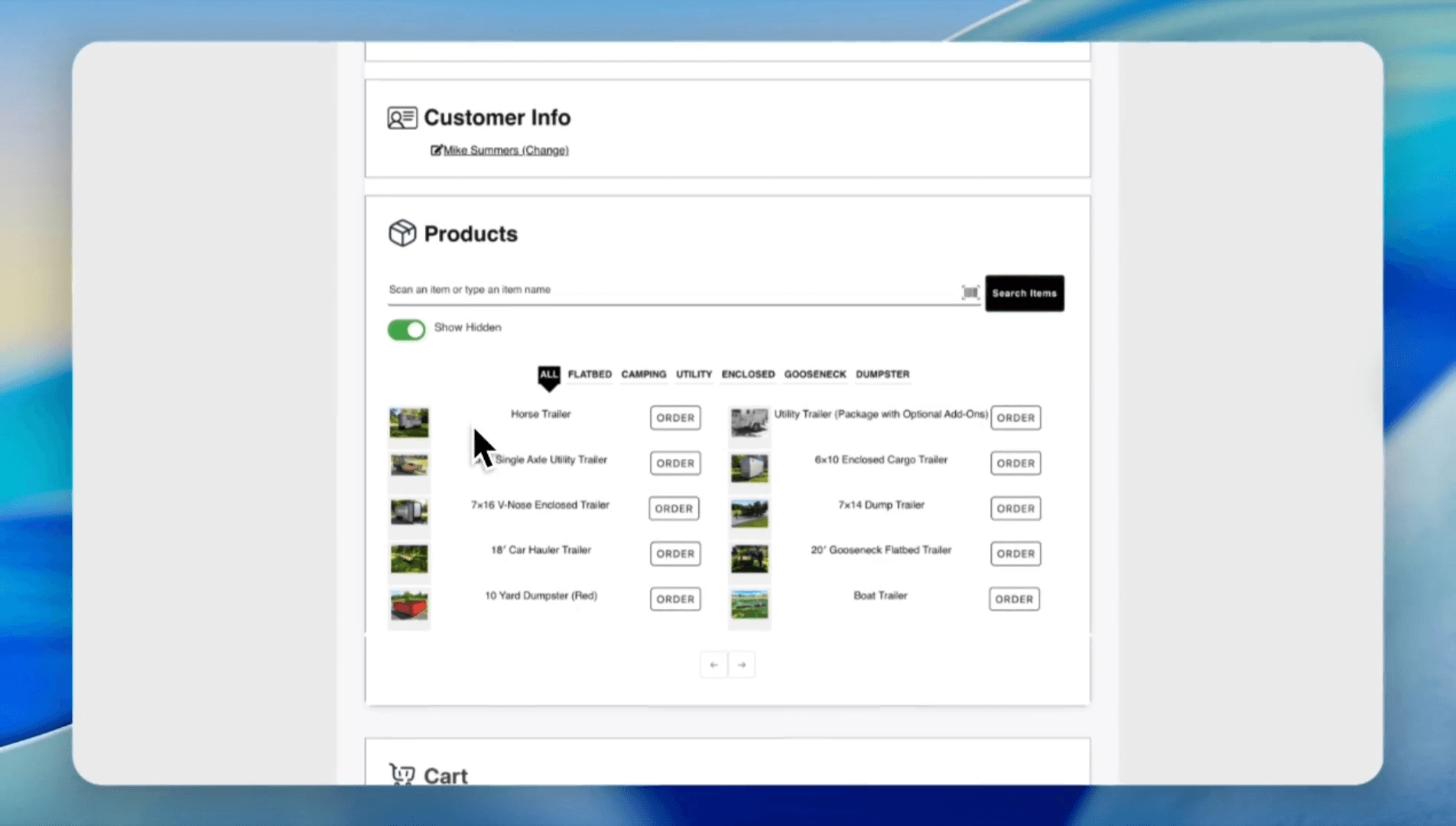
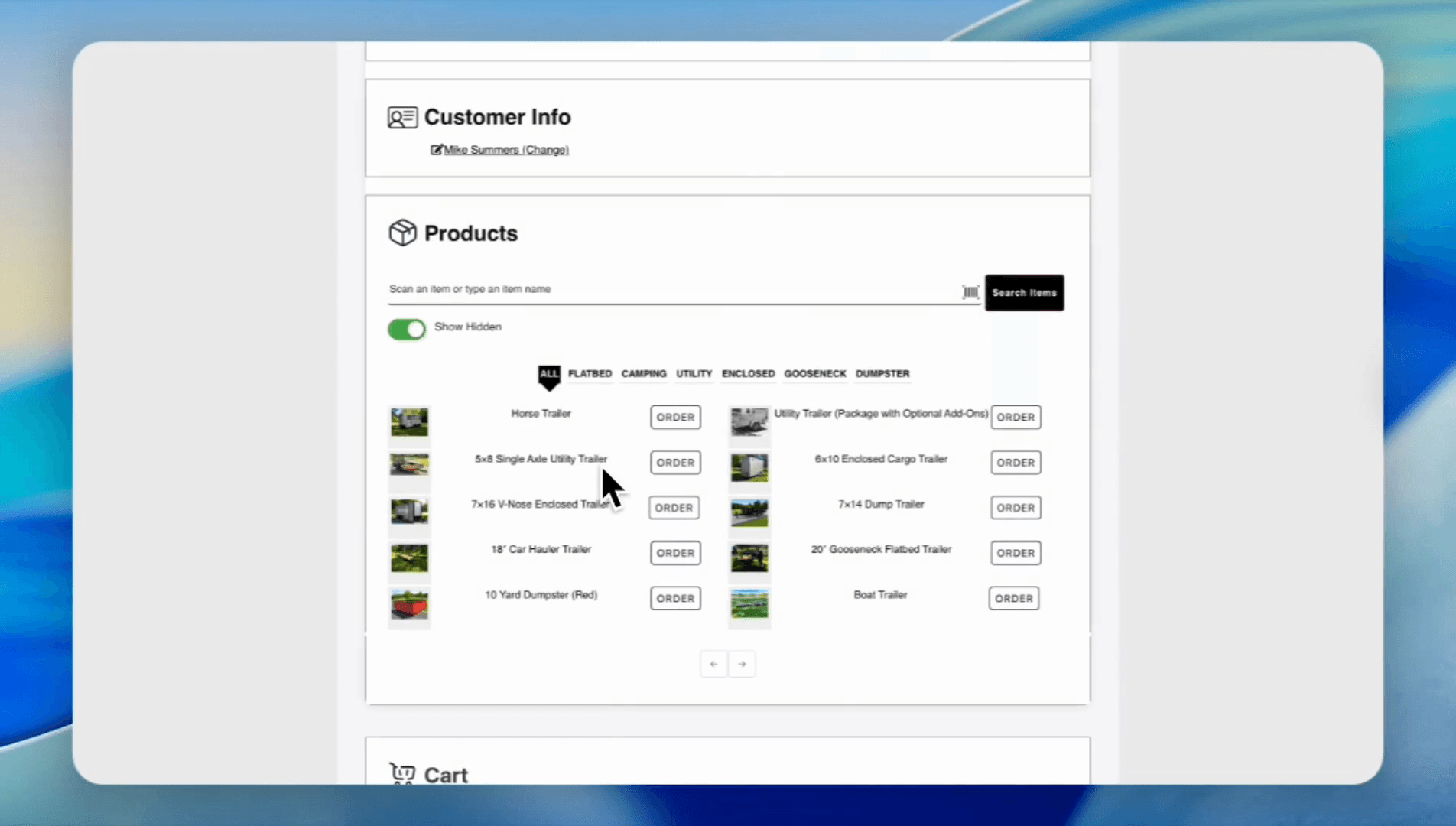
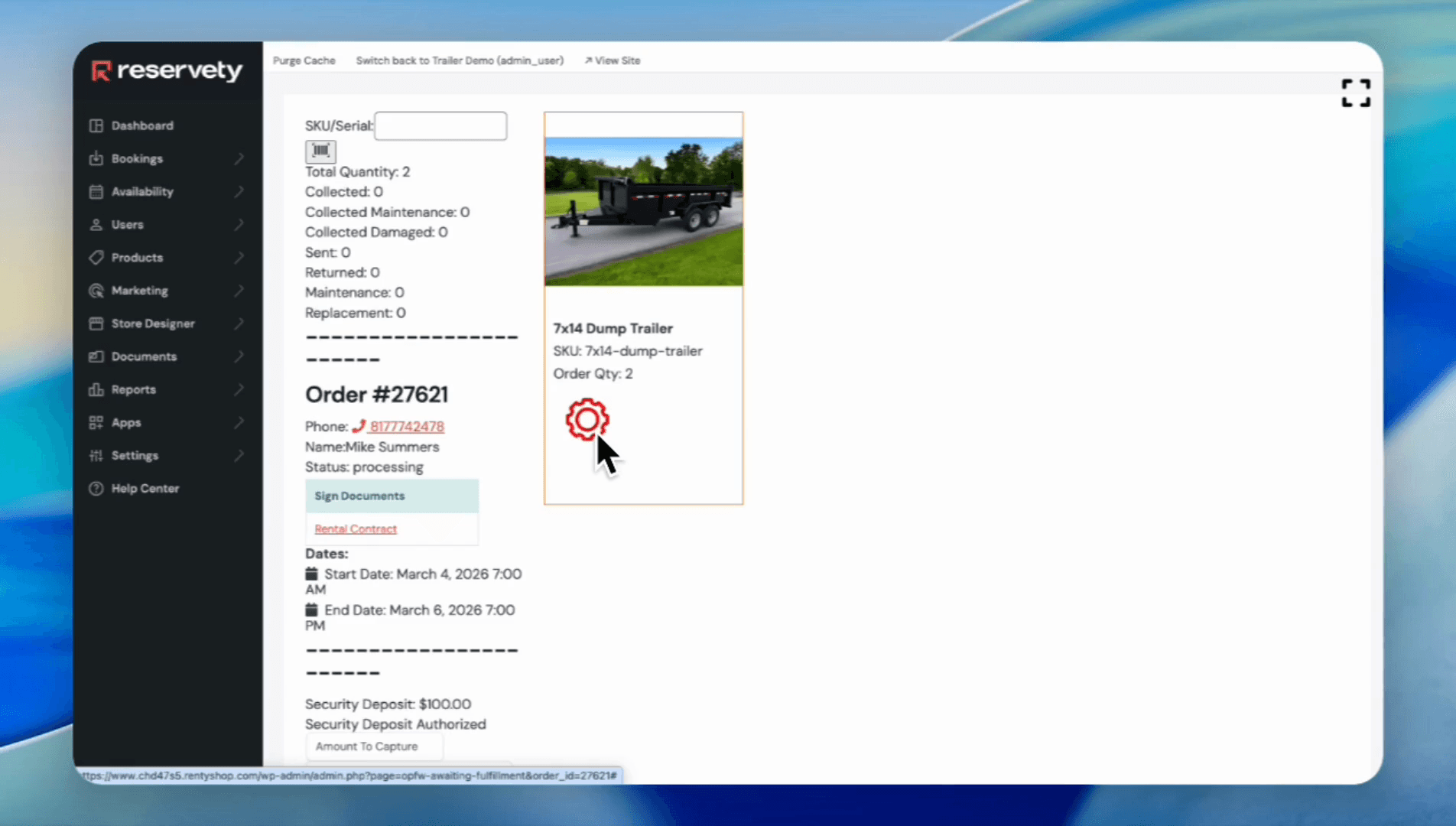
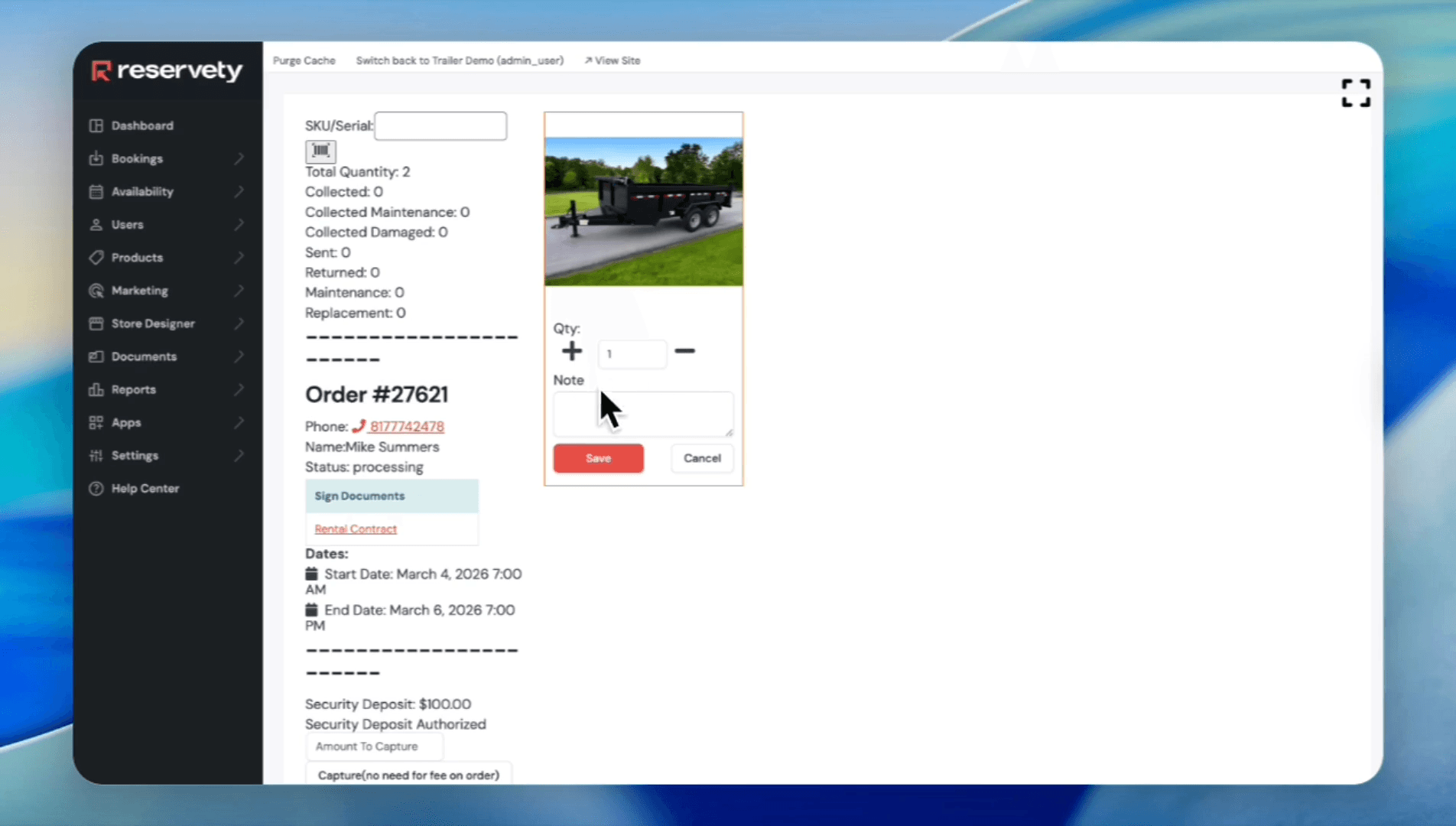
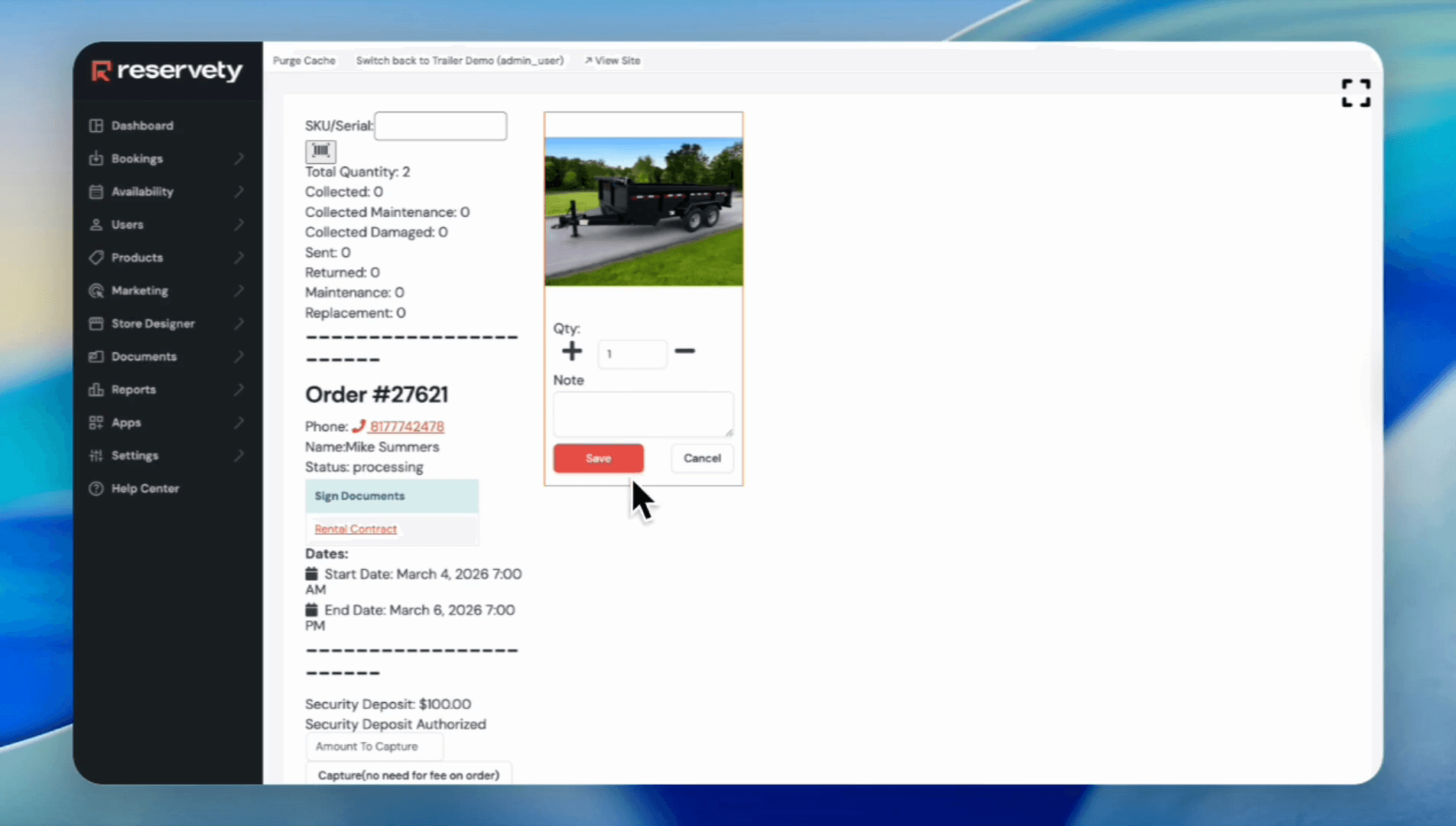
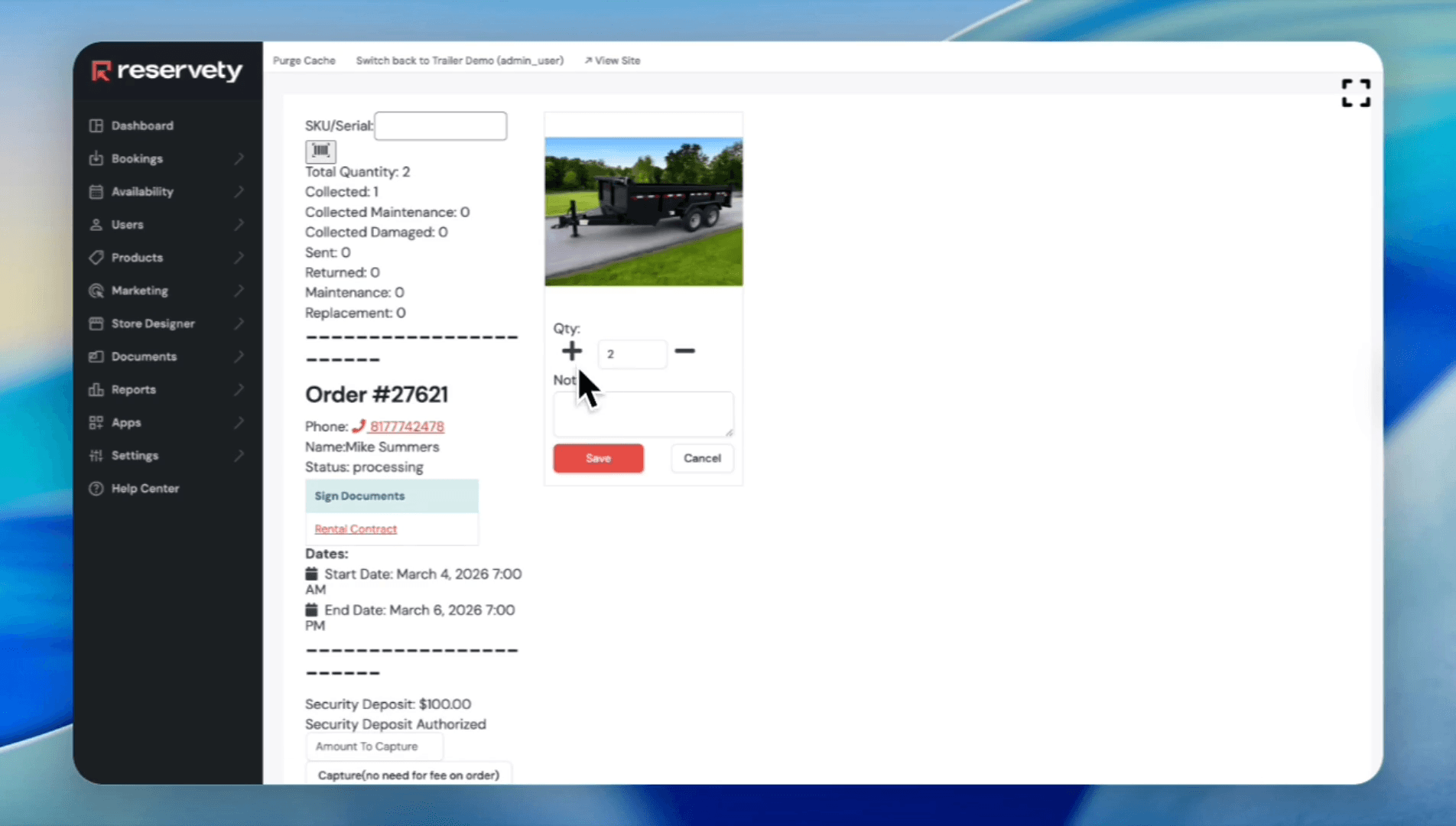
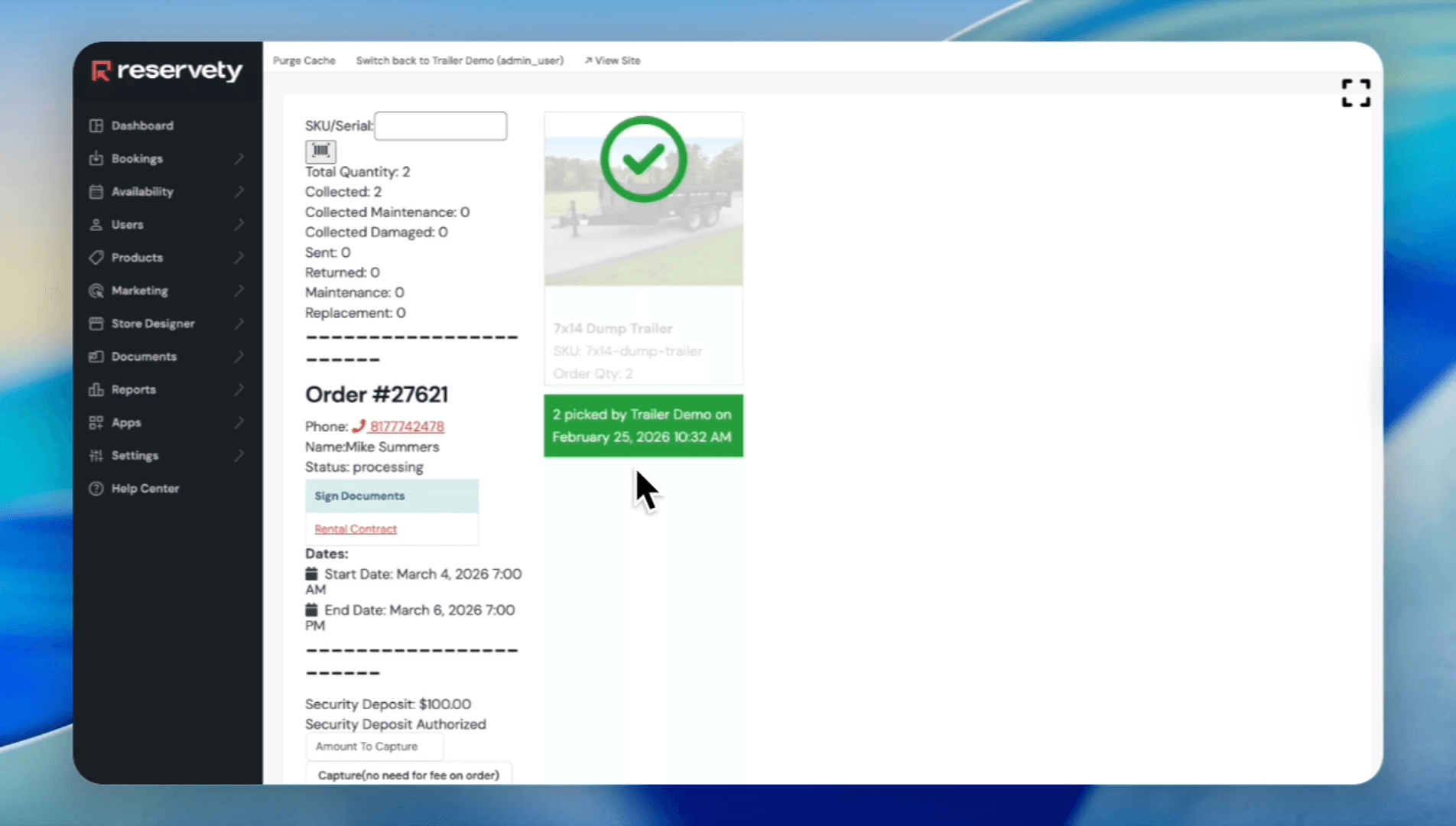
In this case, a proclamation mark indicates the order is not fully prepared. If we select two and save, it will turn green with a check mark, showing the trailers are ready for pickup or delivery.
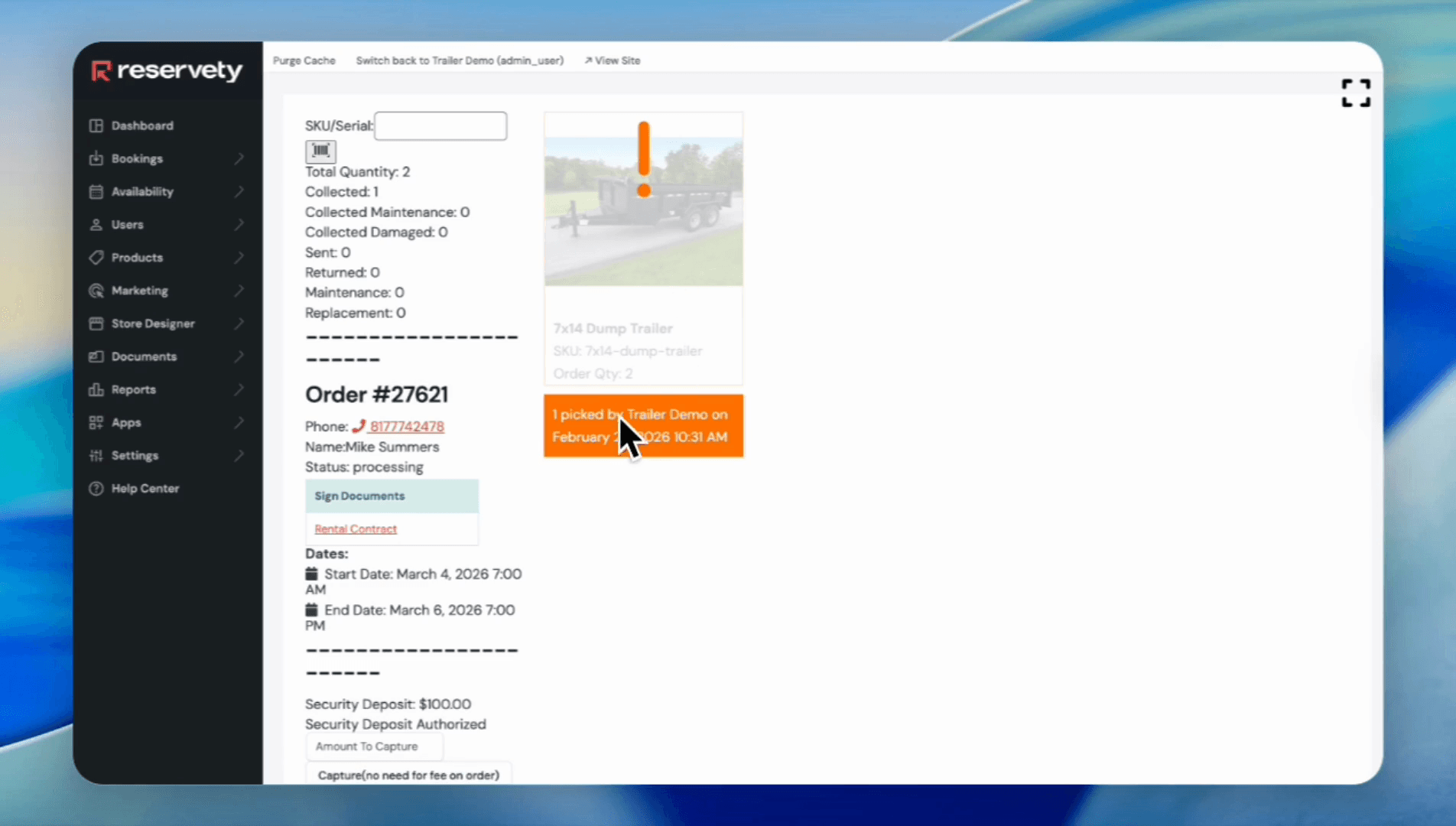
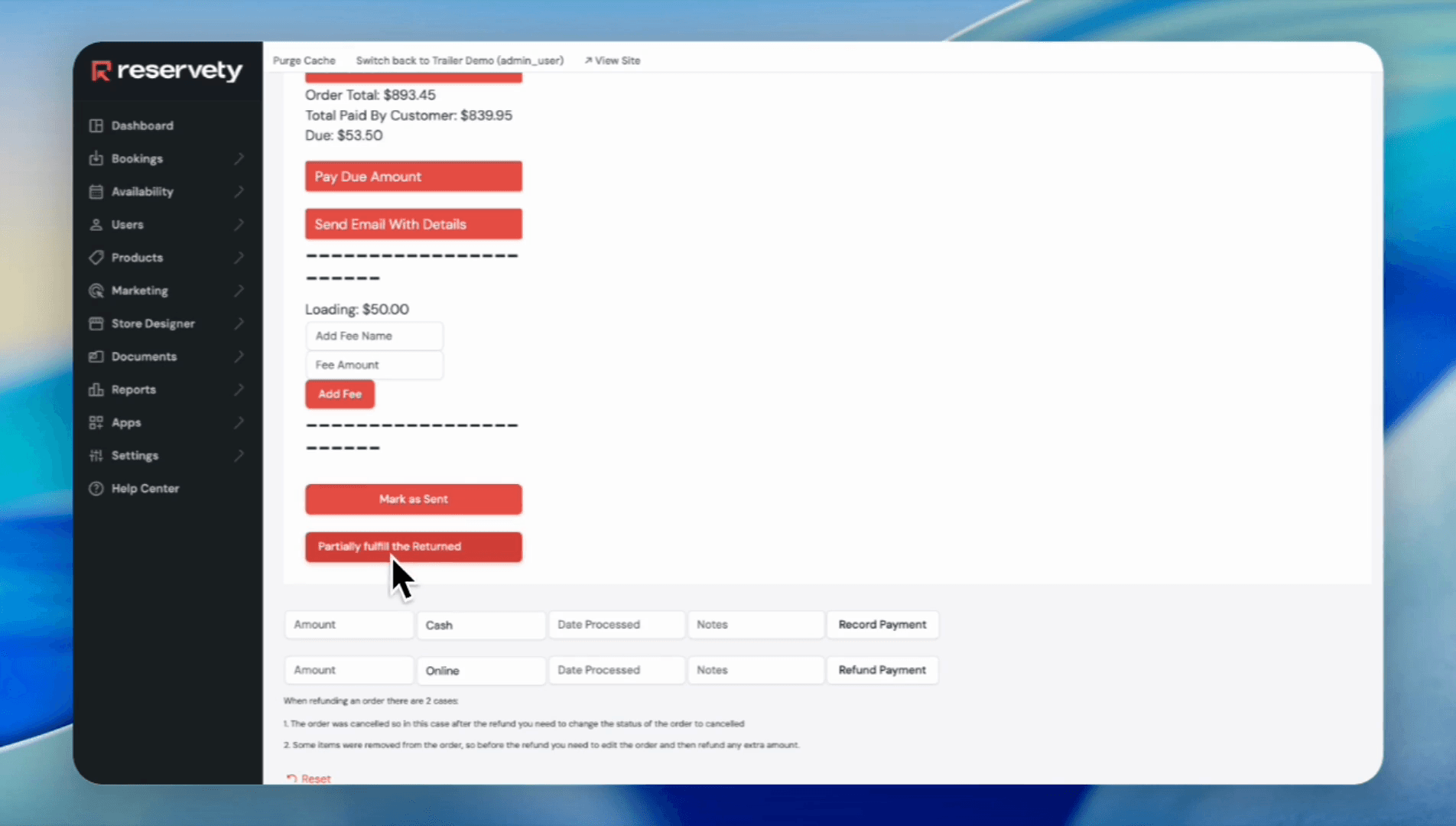
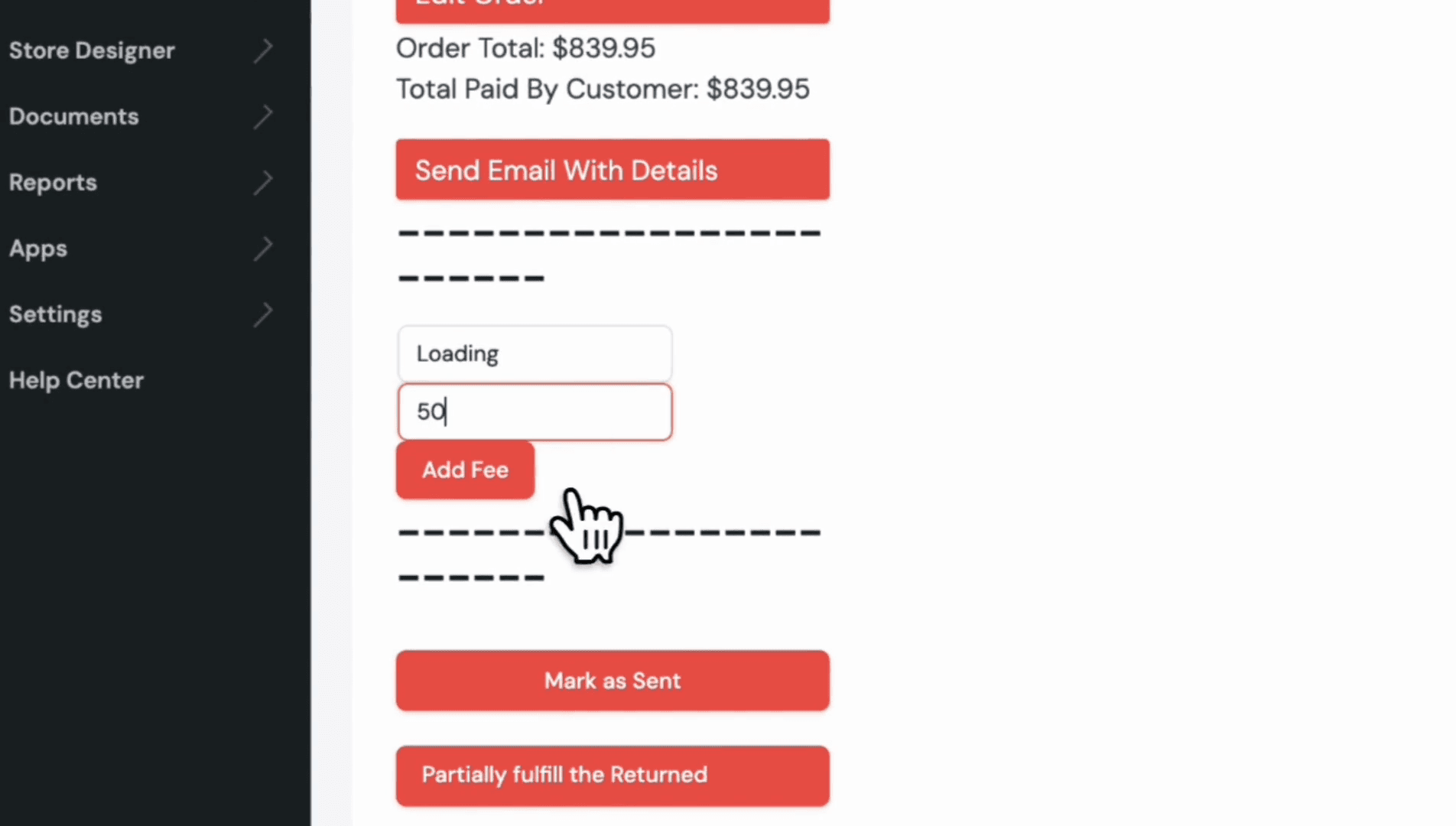
Now you can change the status to "Mark as Sent."
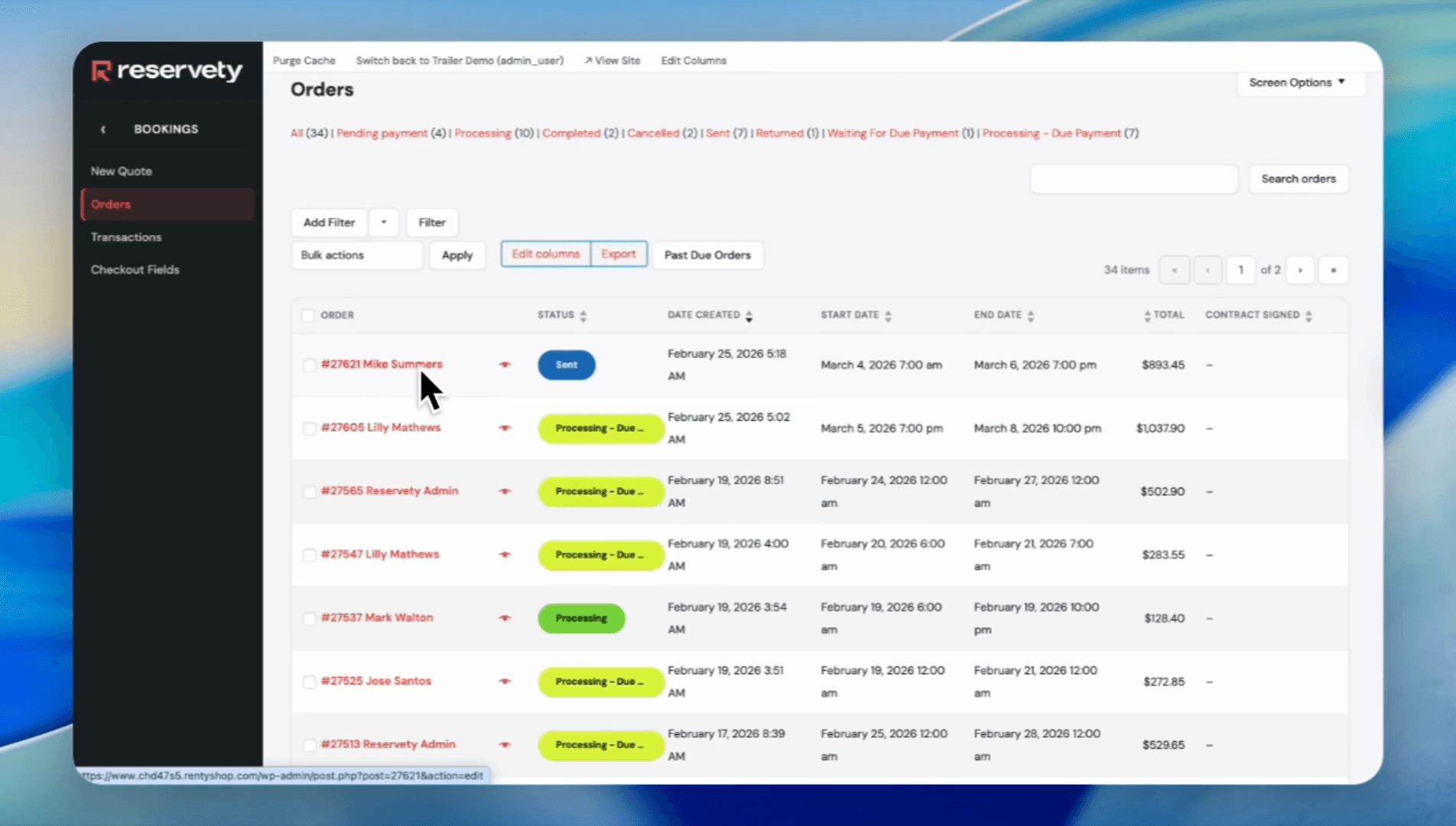
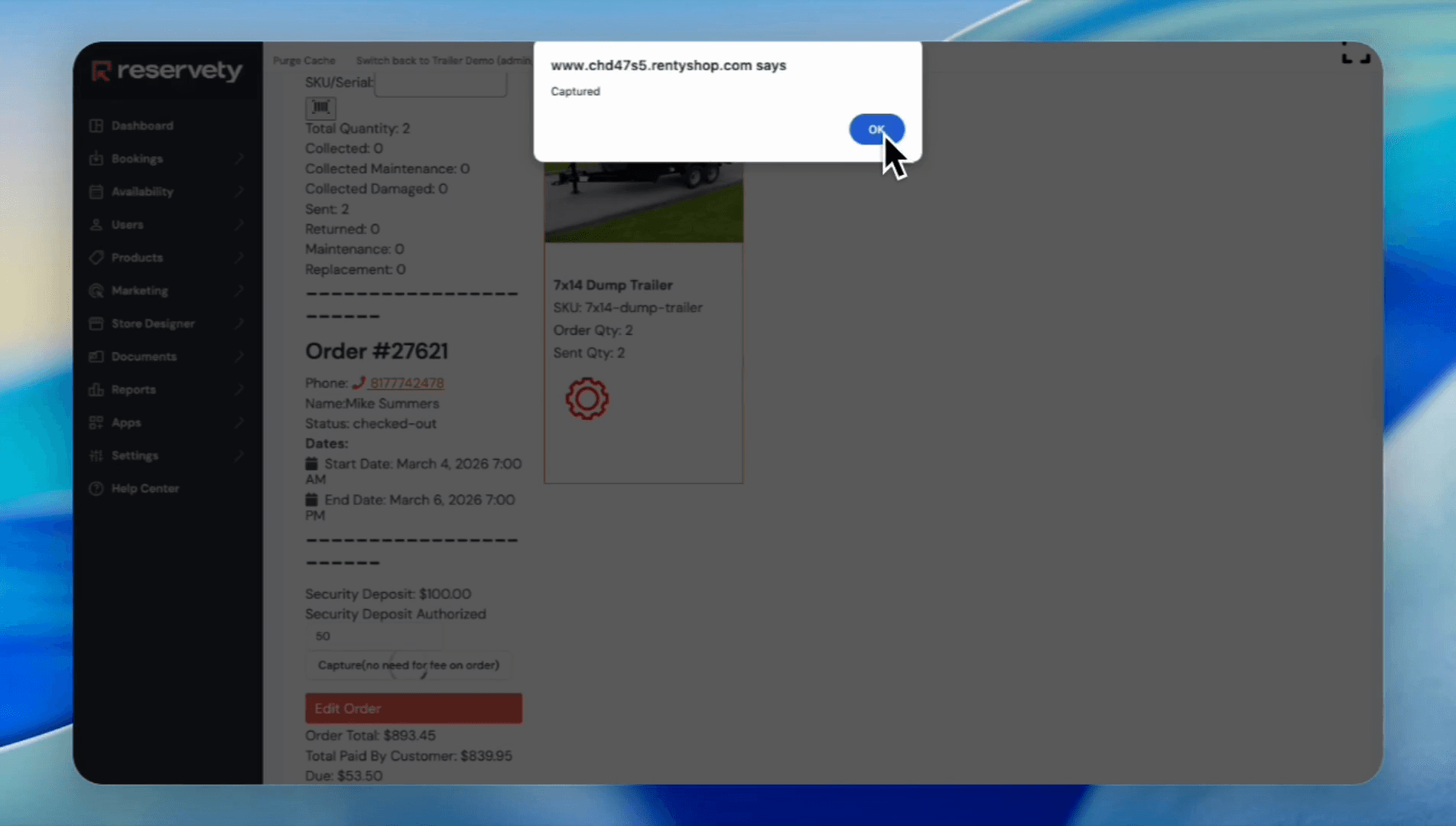
If the customer returned the trailers in good condition, click on "Mark as Returned." For example, if a customer returns the trailer with damage, you can go to the security deposit section and enter the amount you want to deduct from the $100 deposit. In this case, enter 50 and click Capture.