Icon

How to: Manage Sales Deals

Learn how to navigate deal views, update existing opportunities, log interactions, and create new sales deals in Toucan Sales Analytics.

By Josh

Introduction

Within the Deals portal you can track and manage your sales pipeline to keep opportunities up to date and maintain accurate sales forecasting data. This section can be used for both prospect opportunities and customer opportunities depending on how your processes are set up. It caters for both.

Navigating Deal Views

Toucan offers two ways to visualise and manage your sales pipeline data.

View Mode

Purpose

Grid View

Best for bulk data review, sorting records, and exporting to CSV or XLSX formats.

Kanban View

Ideal for visualising pipeline progression and identifying stage bottlenecks.

1
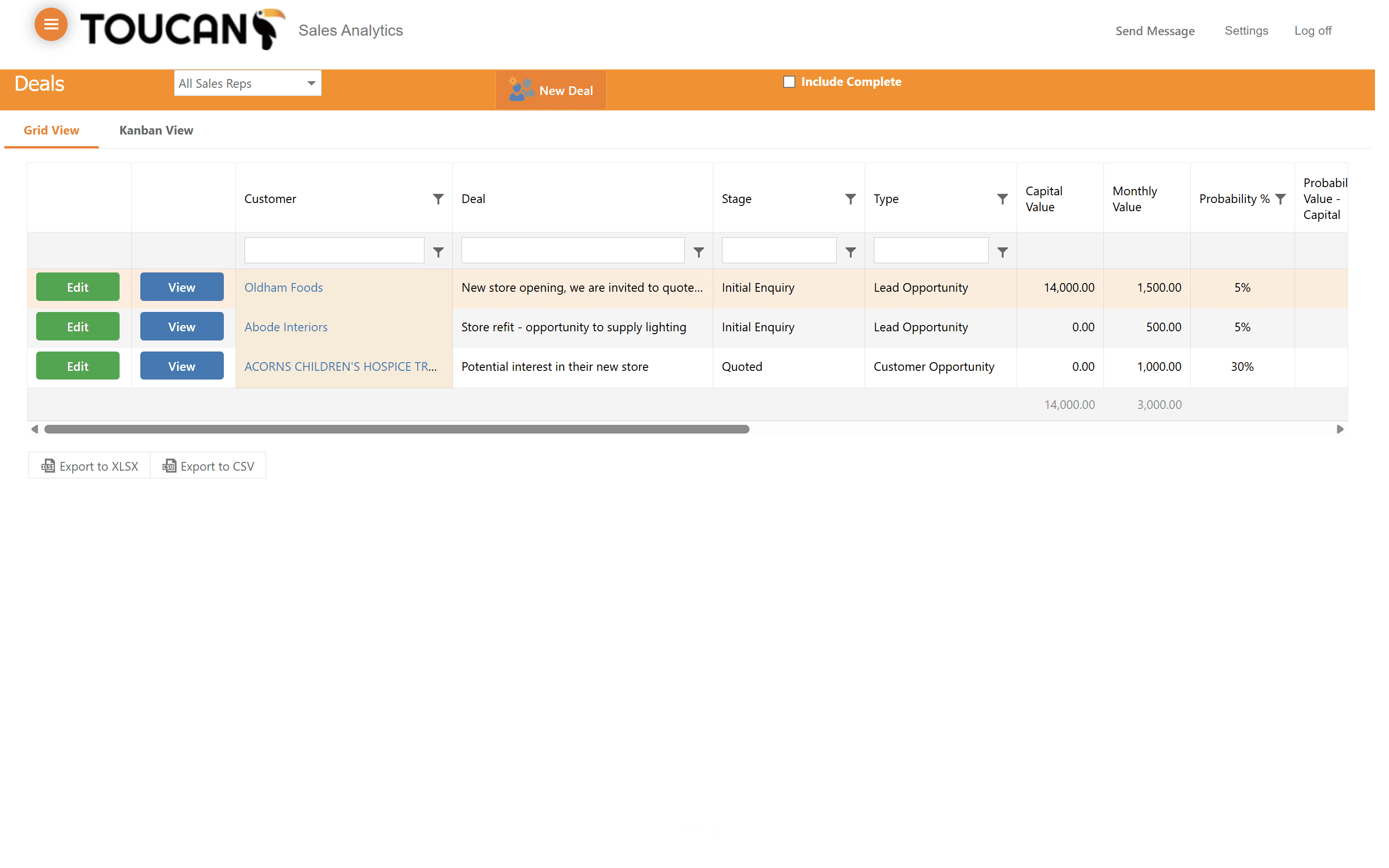
Click Grid View to display your pipeline as a sortable data table.
Step #1: Click Grid View to display your pipeline as a sortable data table.
2
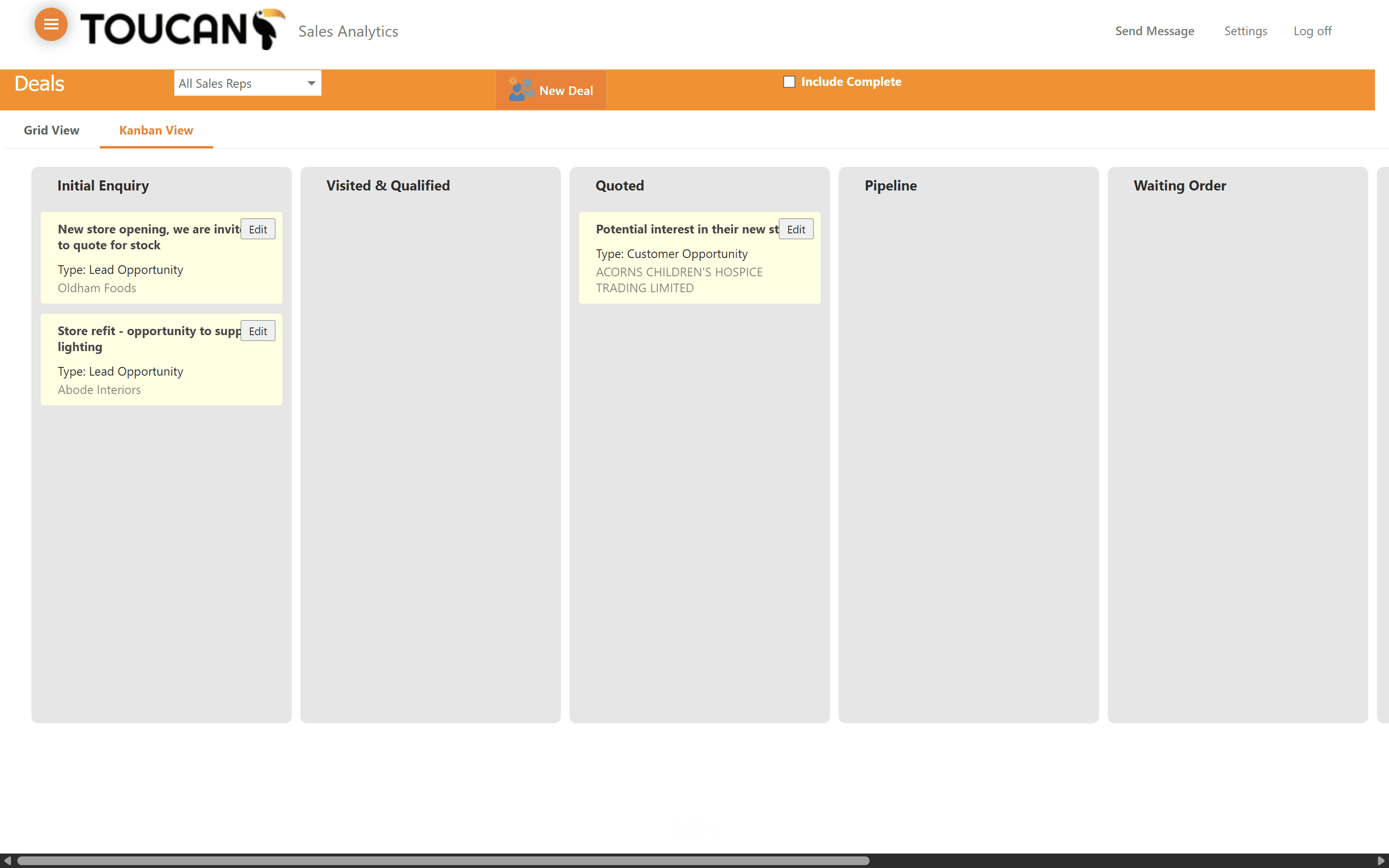
Click Kanban View to visualise and manage deals as cards across different stages. The title of the cards will become the Deal title so ensure it is short and descriptive.
Step #2: Click Kanban View to visualise and manage deals as cards across different stages. The title of the cards will become the Deal title so ensure it is short and descriptive.

Viewing and Editing Existing Deals

Keeping deal information accurate is essential for reliable reporting.
3
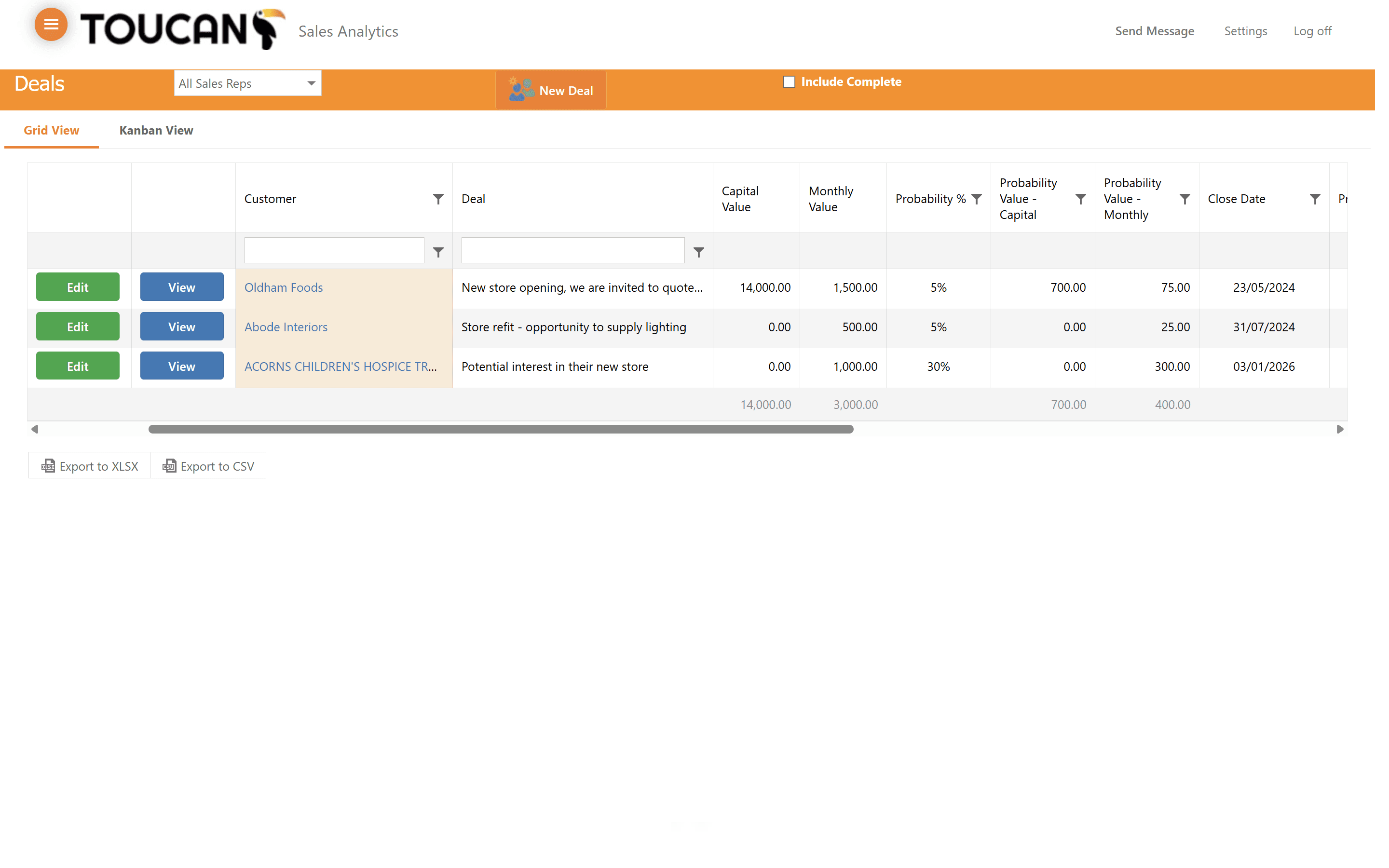
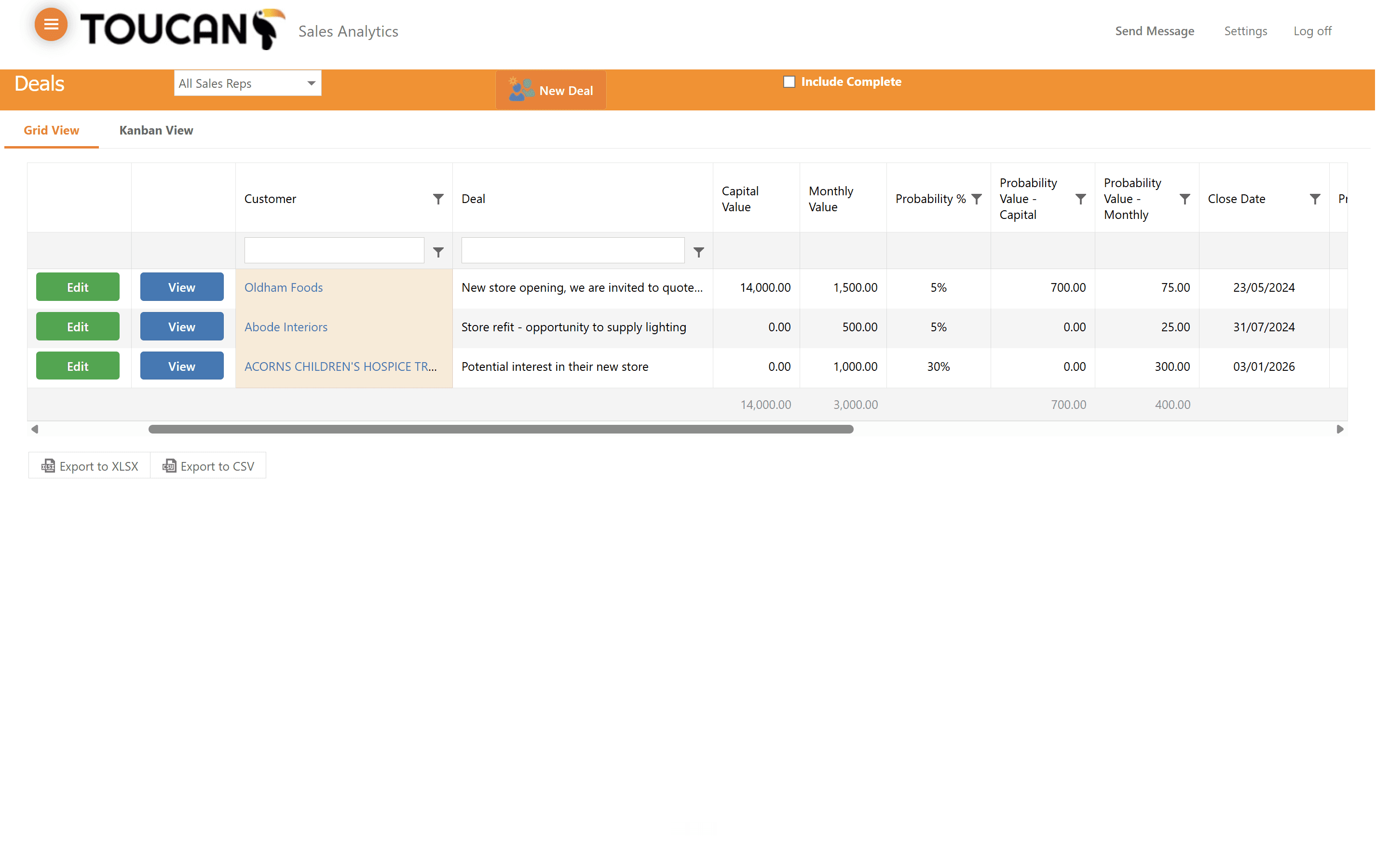
To change the configuration of your list view, use the column heading filters to sort and filter your deal lists.
Step #3: To change the configuration of your list view, use the column heading filters to sort and filter your deal lists.
4
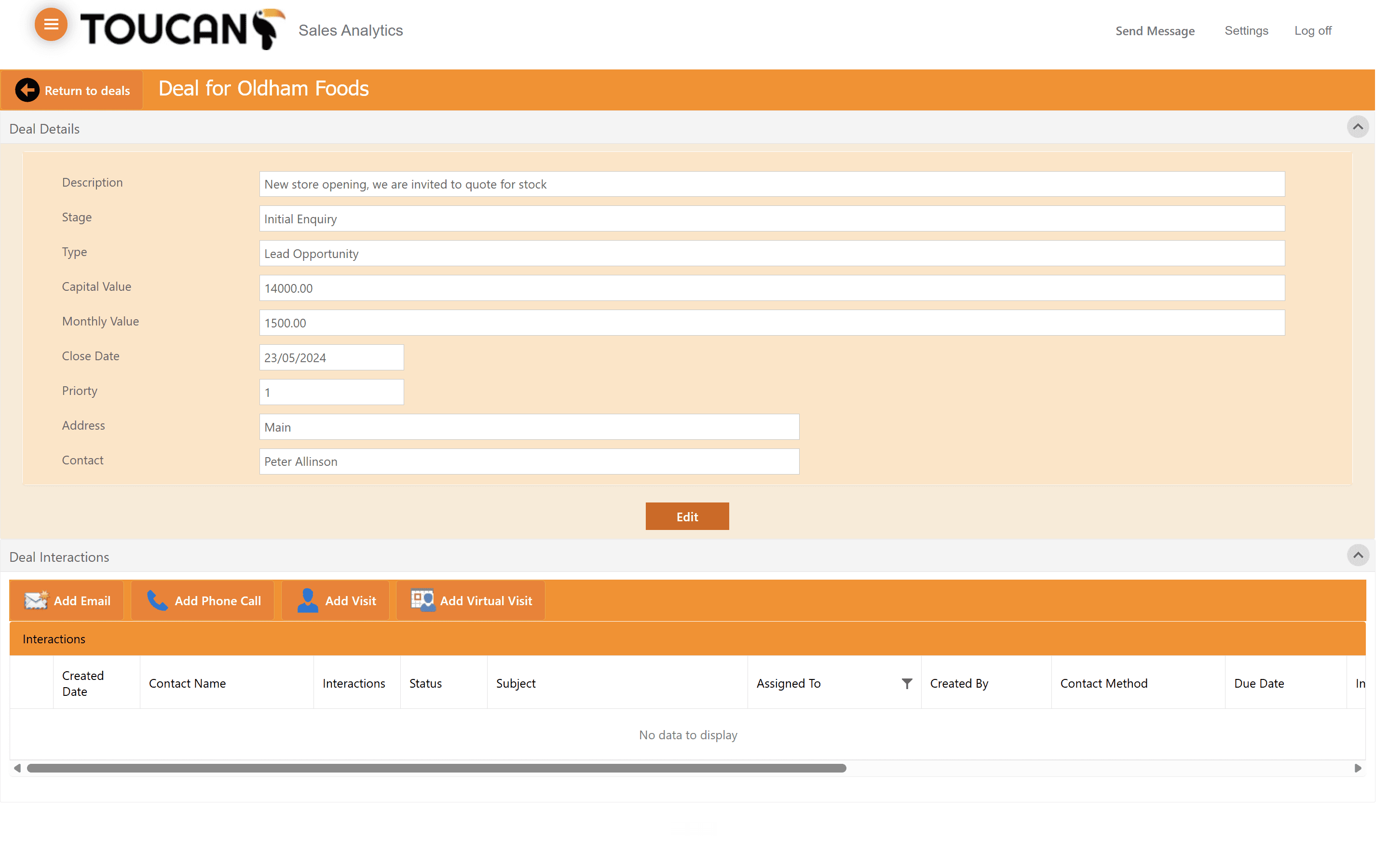
Click the View button next to a specific deal to open its full details page. If you wish to edit a deal directly from this page, click the Edit button.
Step #4: Click the View button next to a specific deal to open its full details page. If you wish to edit a deal directly from this page, click the Edit button.
5
Inside the Deal record, click Edit below the deal details form to modify the record.
Step #5: Inside the Deal record, click Edit below the deal details form to modify the record.
6
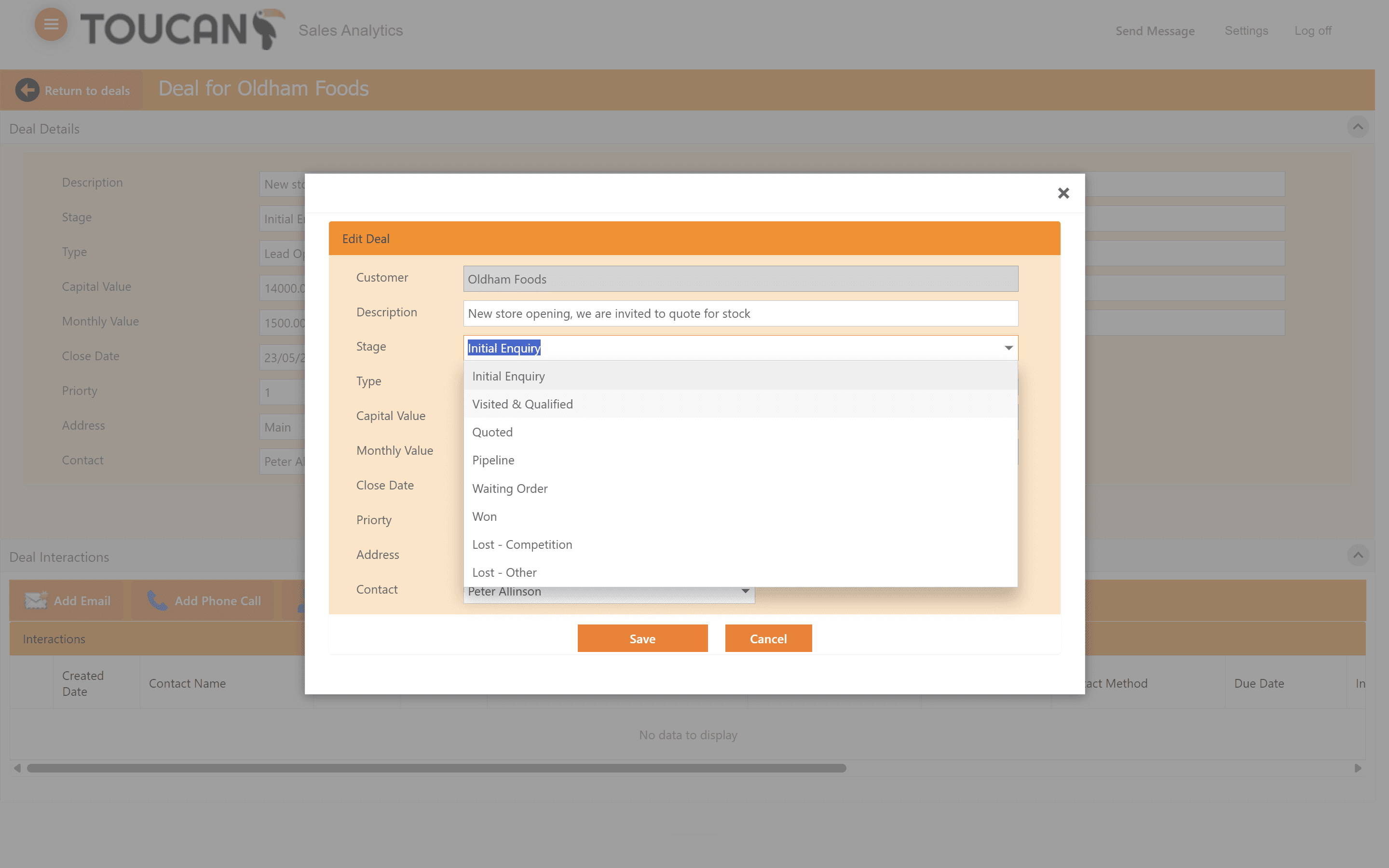
Click the Stage dropdown menu and select the updated pipeline stage.
Step #6: Click the Stage dropdown menu and select the updated pipeline stage.
7
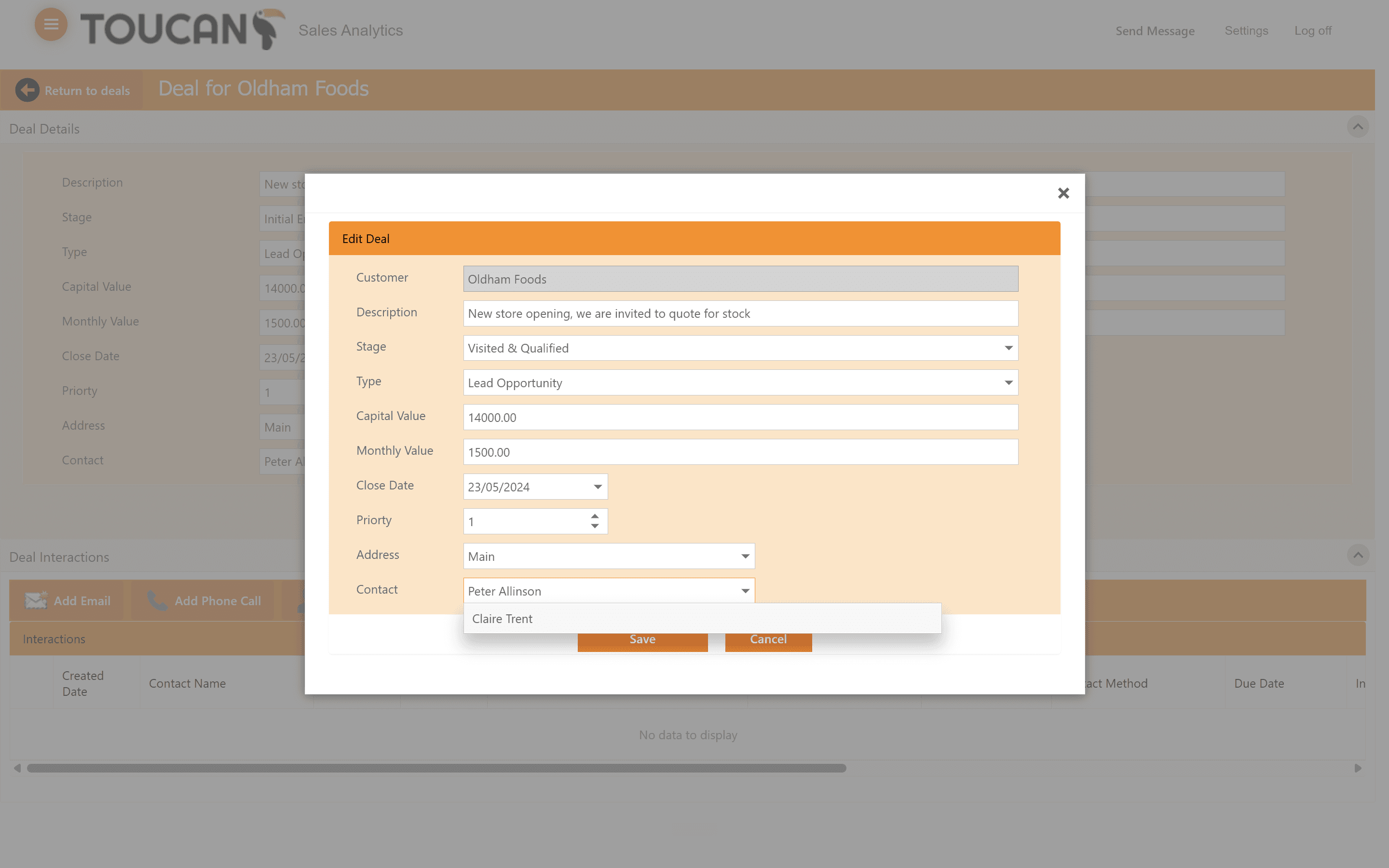
Click the Contact dropdown menu to assign a different team member to the deal.
Step #7: Click the Contact dropdown menu to assign a different team member to the deal.
8
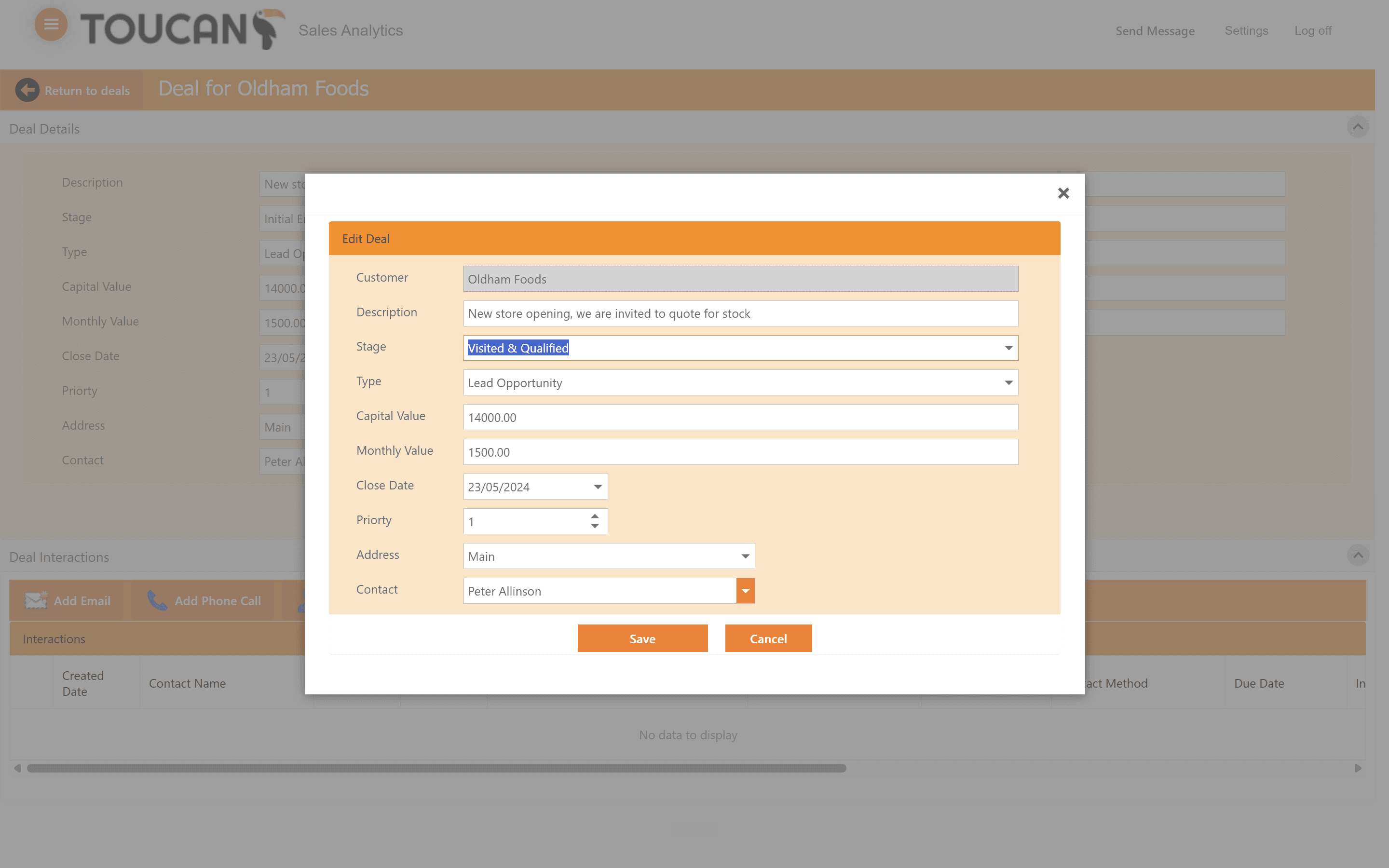
Click Save to apply your changes.
Step #8: Click Save to apply your changes.

Logging Deal Interactions

Record your communications to maintain a comprehensive history of the account.
9
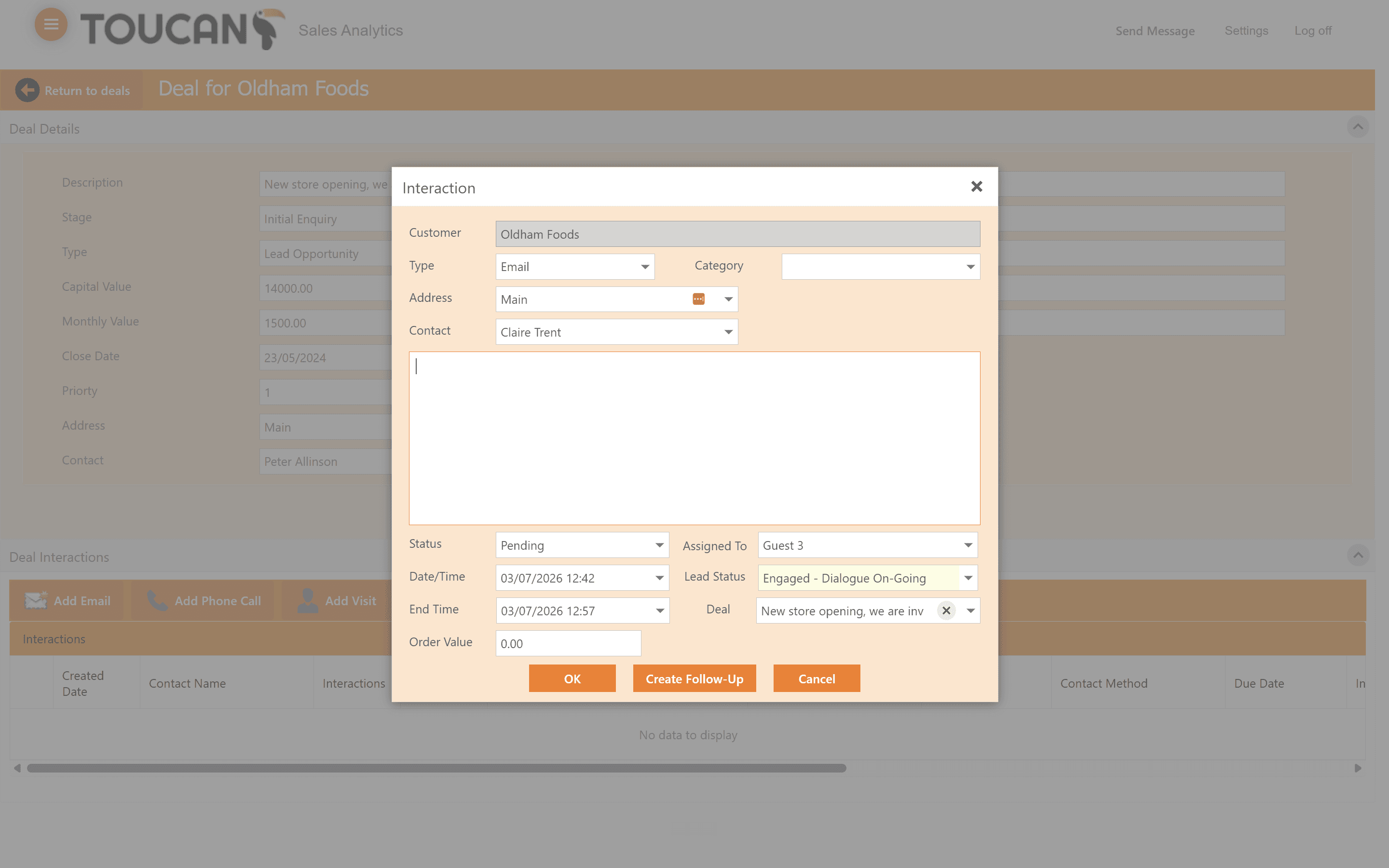
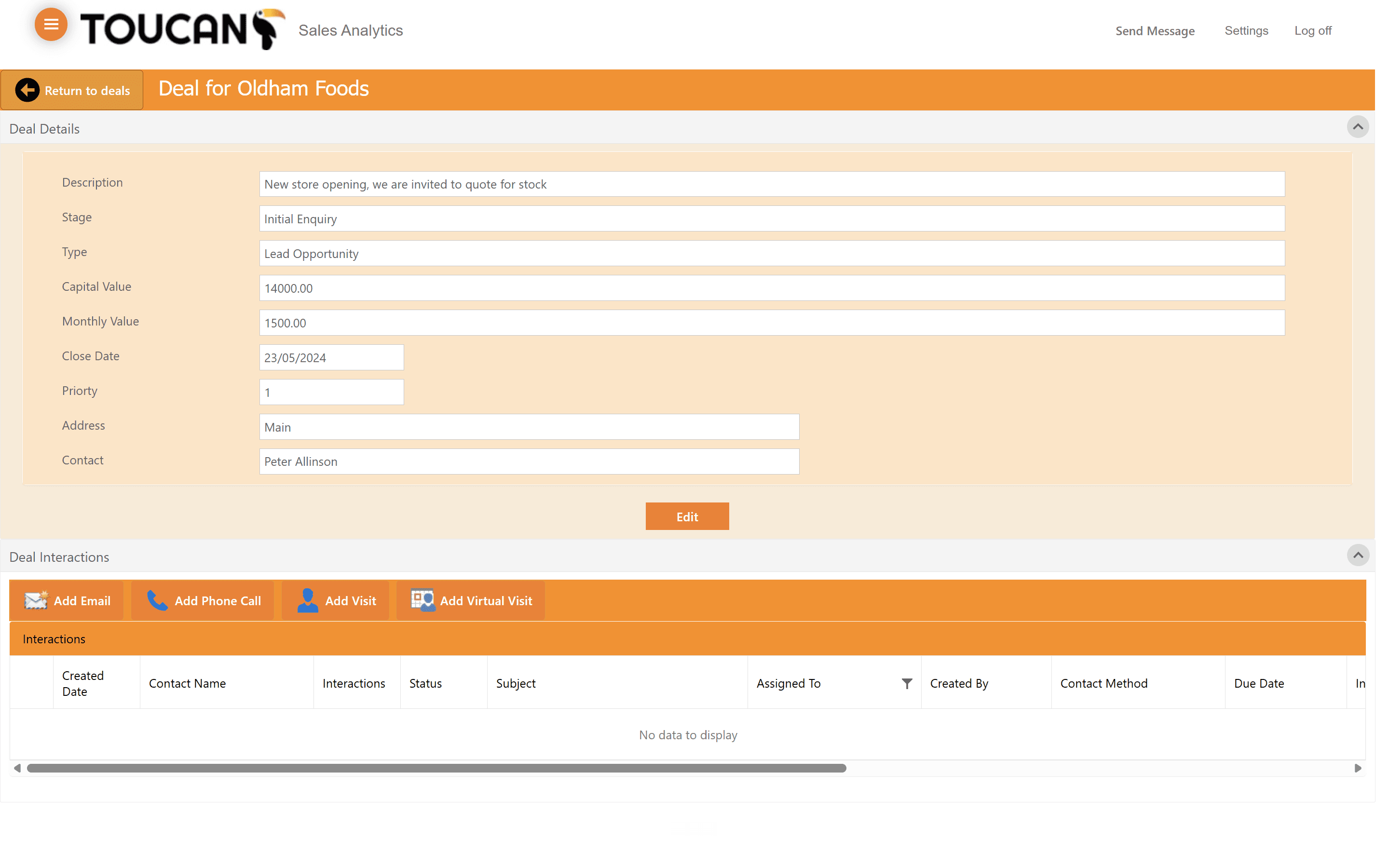
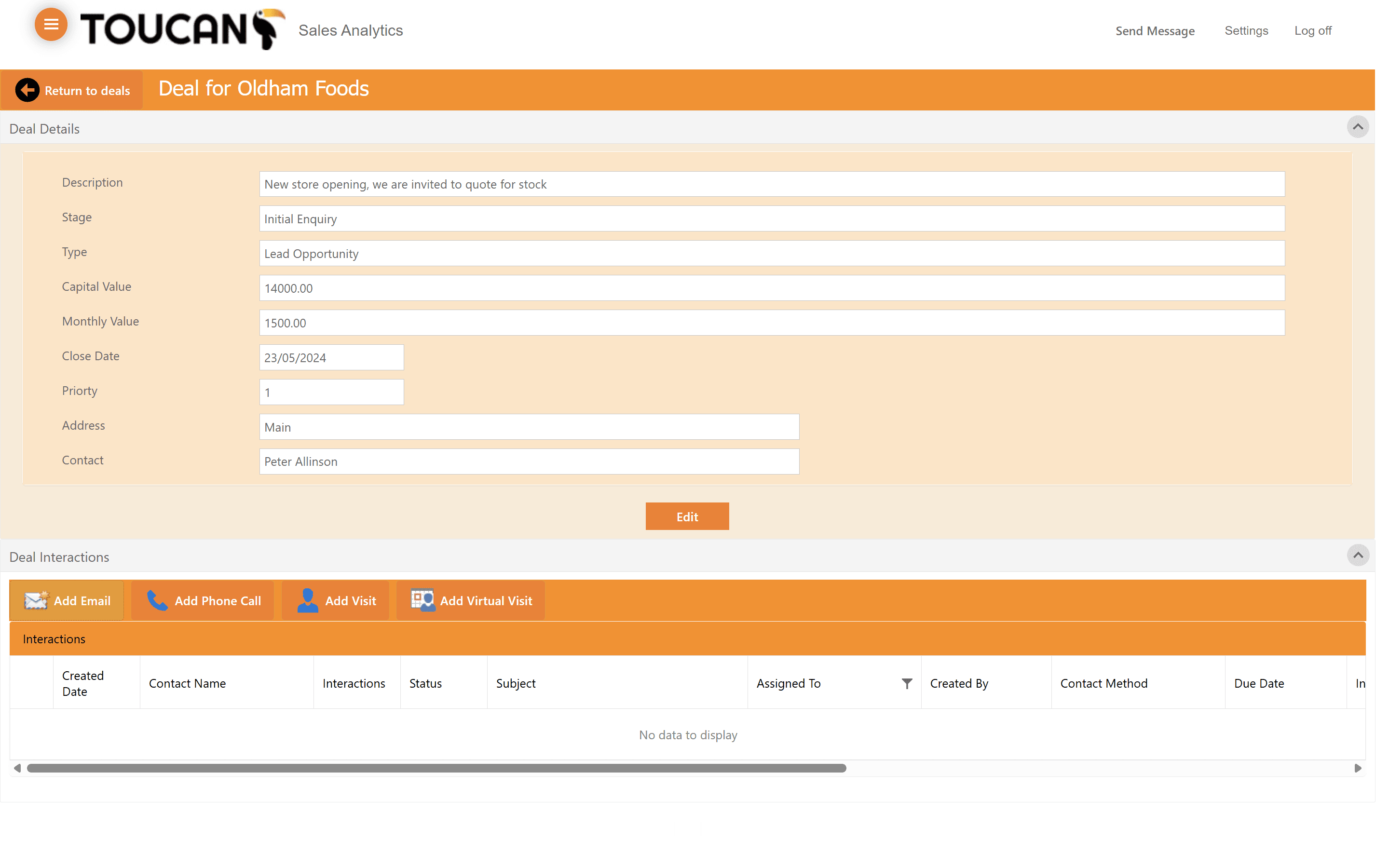
Click Add Email to log a new communication thread. This function is the same across the Toucan Sales Analytics platform.
Step #9: Click Add Email to log a new communication thread. This function is the same across the Toucan Sales Analytics platform.
10
Fill in the interaction details and click OK to save the record.
Step #10: Fill in the interaction details and click OK to save the record.
11
Click Return to deals to navigate back to the main dashboard.
Step #11: Click Return to deals to navigate back to the main dashboard.

Creating a New Deal

When identifying a new opportunity, enter it into the system immediately to track its progression.
12
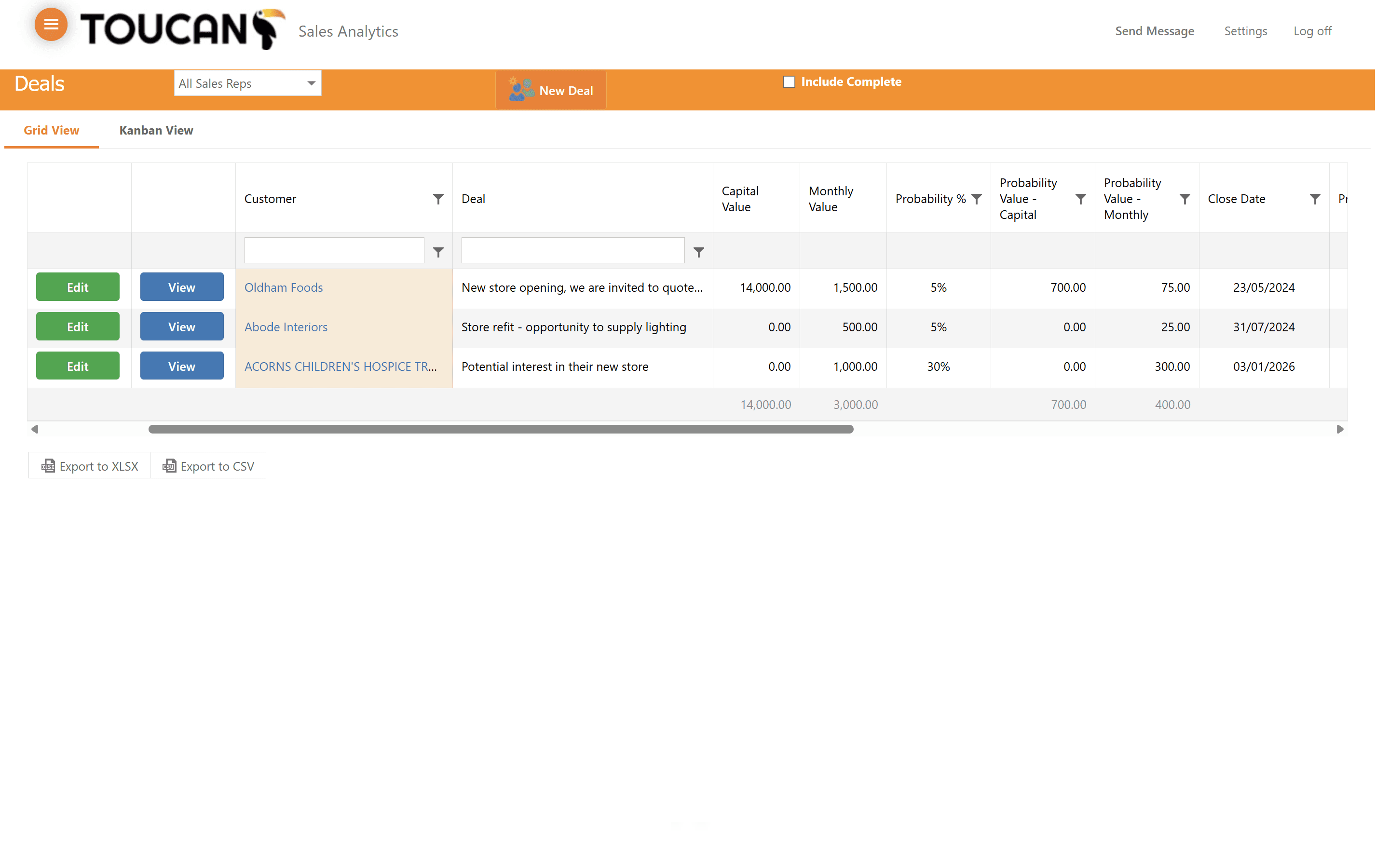
Click the New Deal button in the header to open the form to enter the customer/prospect details.
Step #12: Click the New Deal button in the header to open the form to enter the customer/prospect details.
13
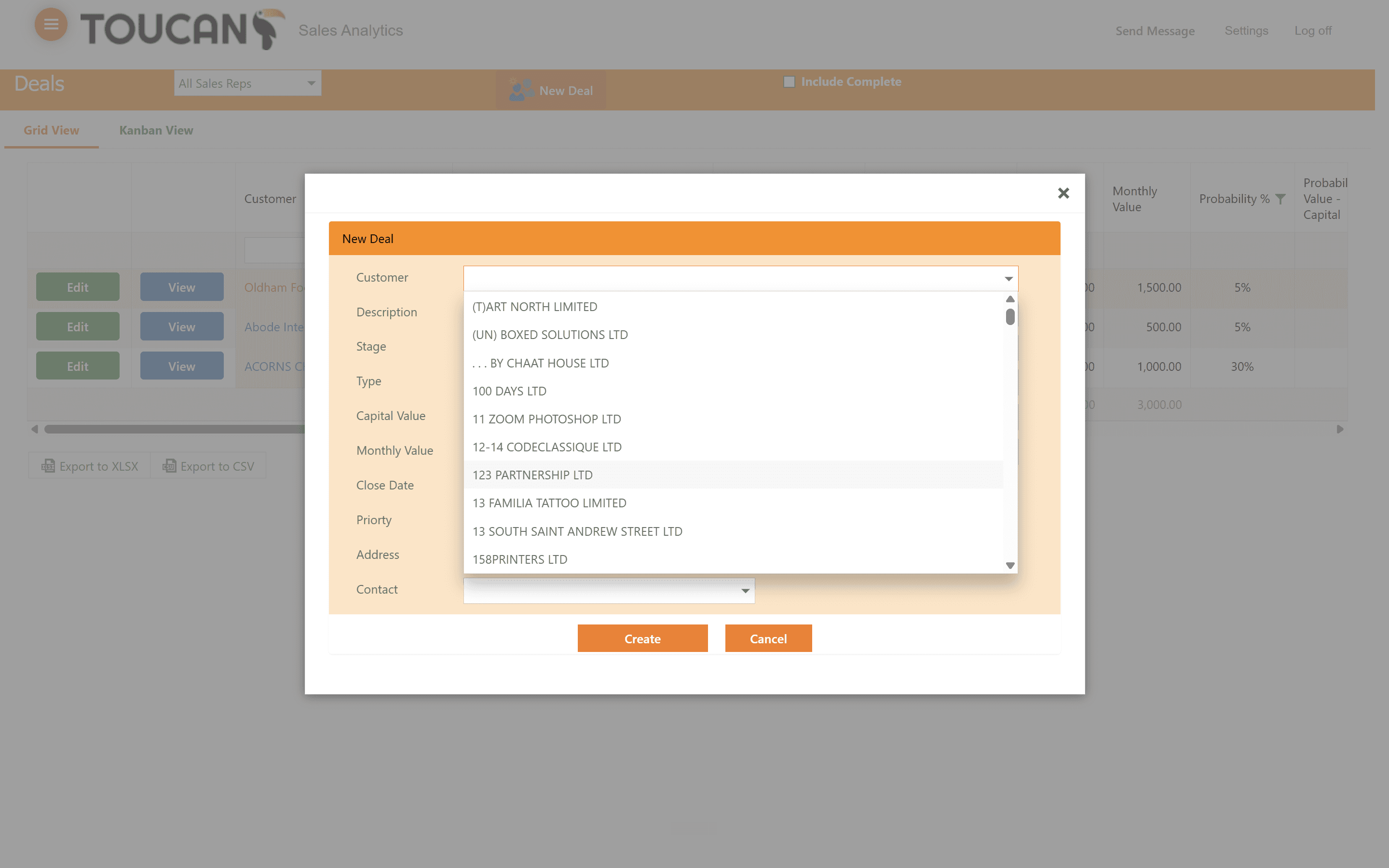
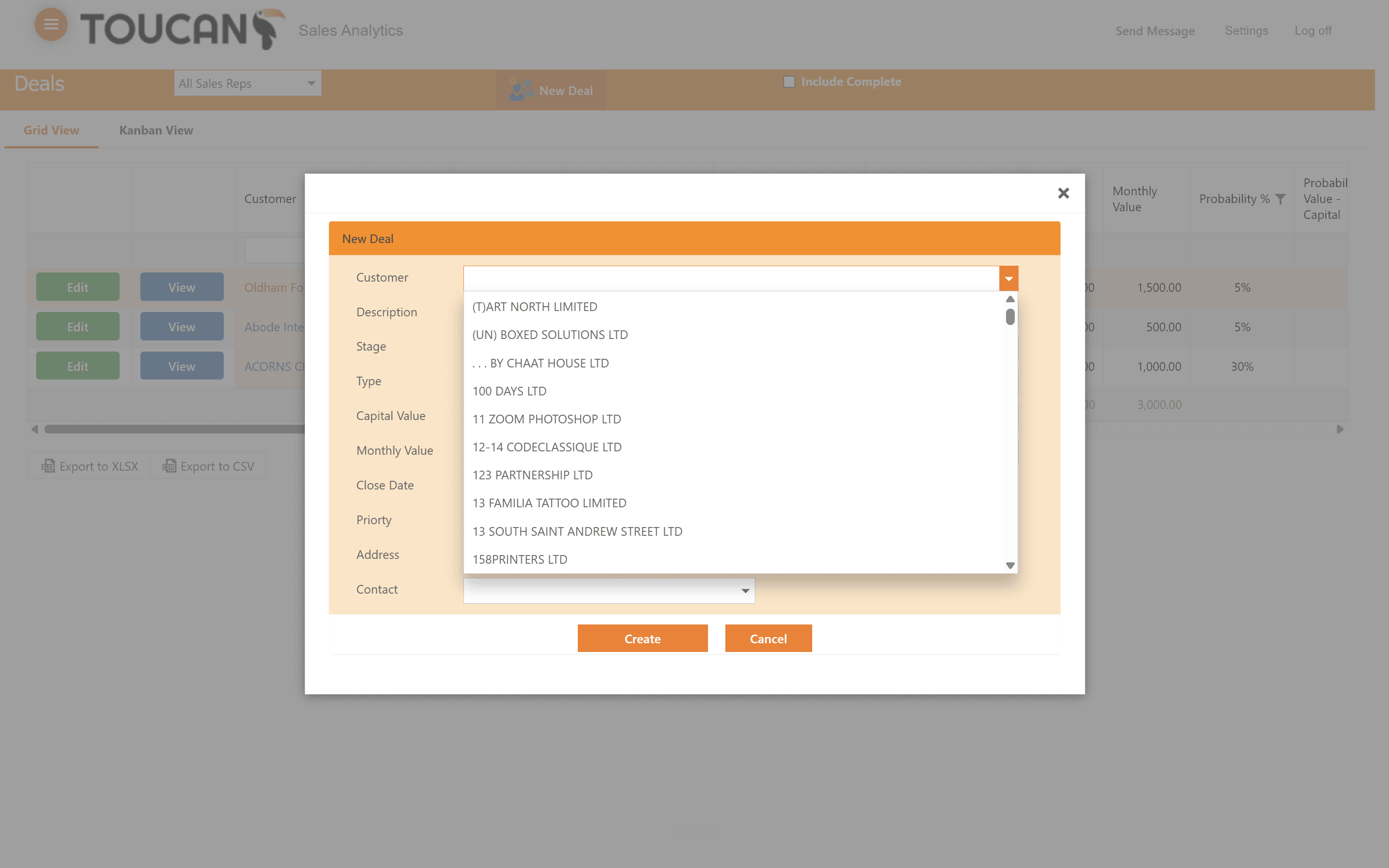
Open the new deal form and click the Customer dropdown menu. When creating a new deal there much be a customer in your Toucan system created to attach them to a deal.
Step #13: Open the new deal form and click the Customer dropdown menu. When creating a new deal there much be a customer in your Toucan system created to attach them to a deal.
14
Select the relevant company.
Step #14: Select the relevant company.
15
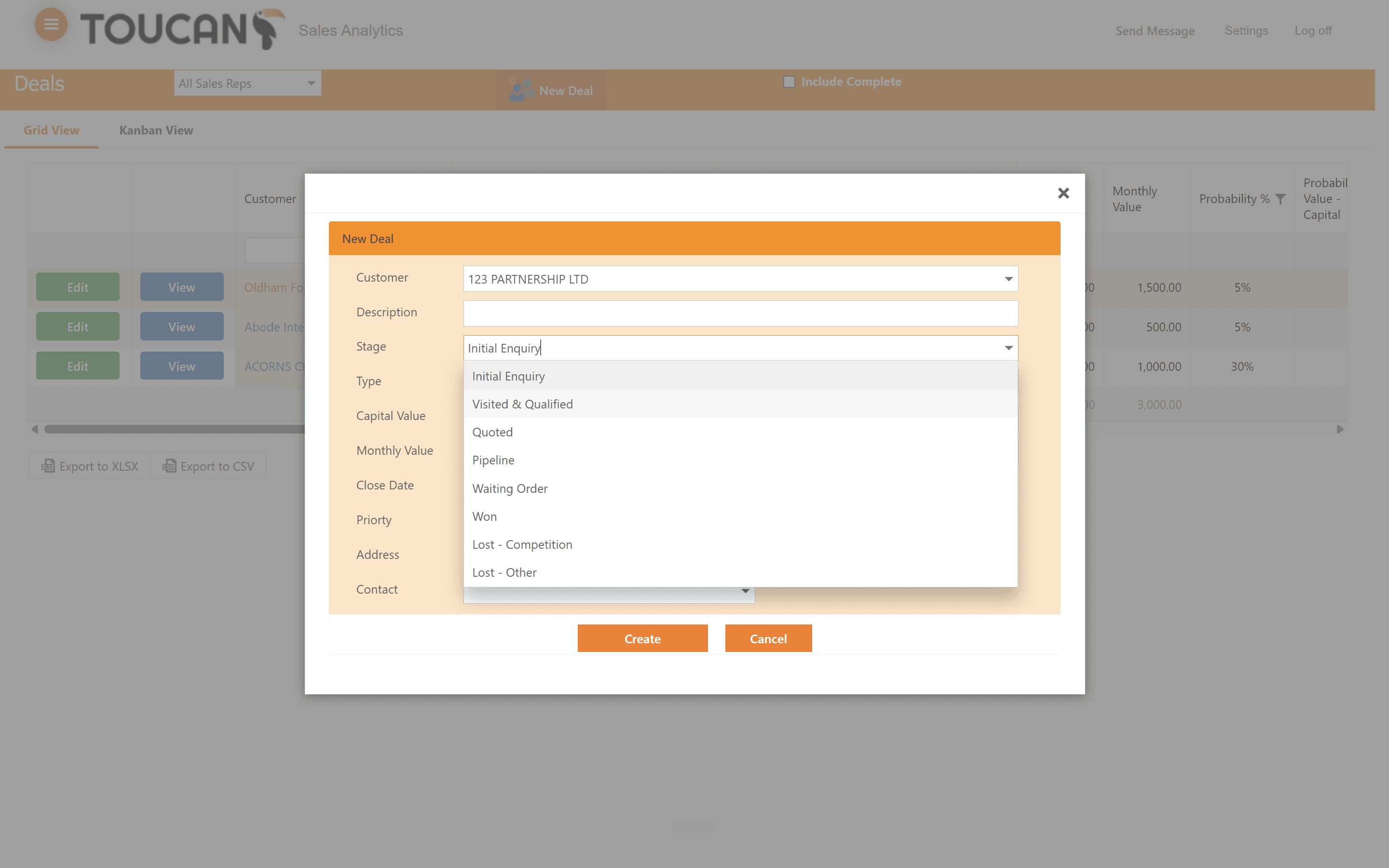
Click the Stage dropdown to define the initial pipeline status.
Step #15: Click the Stage dropdown to define the initial pipeline status.
16
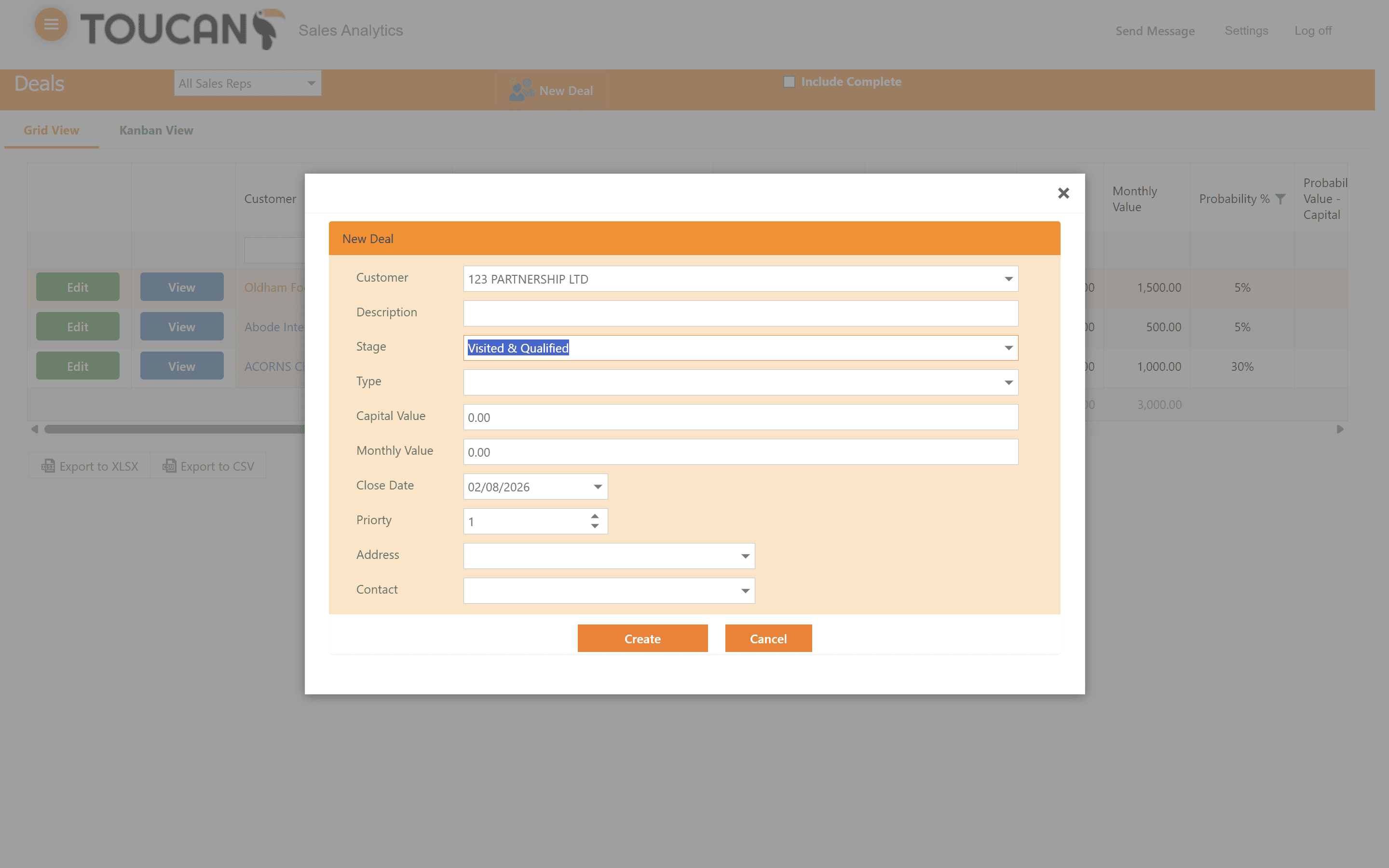
Select the applicable starting stage, such as Visited & Qualified.
Step #16: Select the applicable starting stage, such as Visited & Qualified.
17
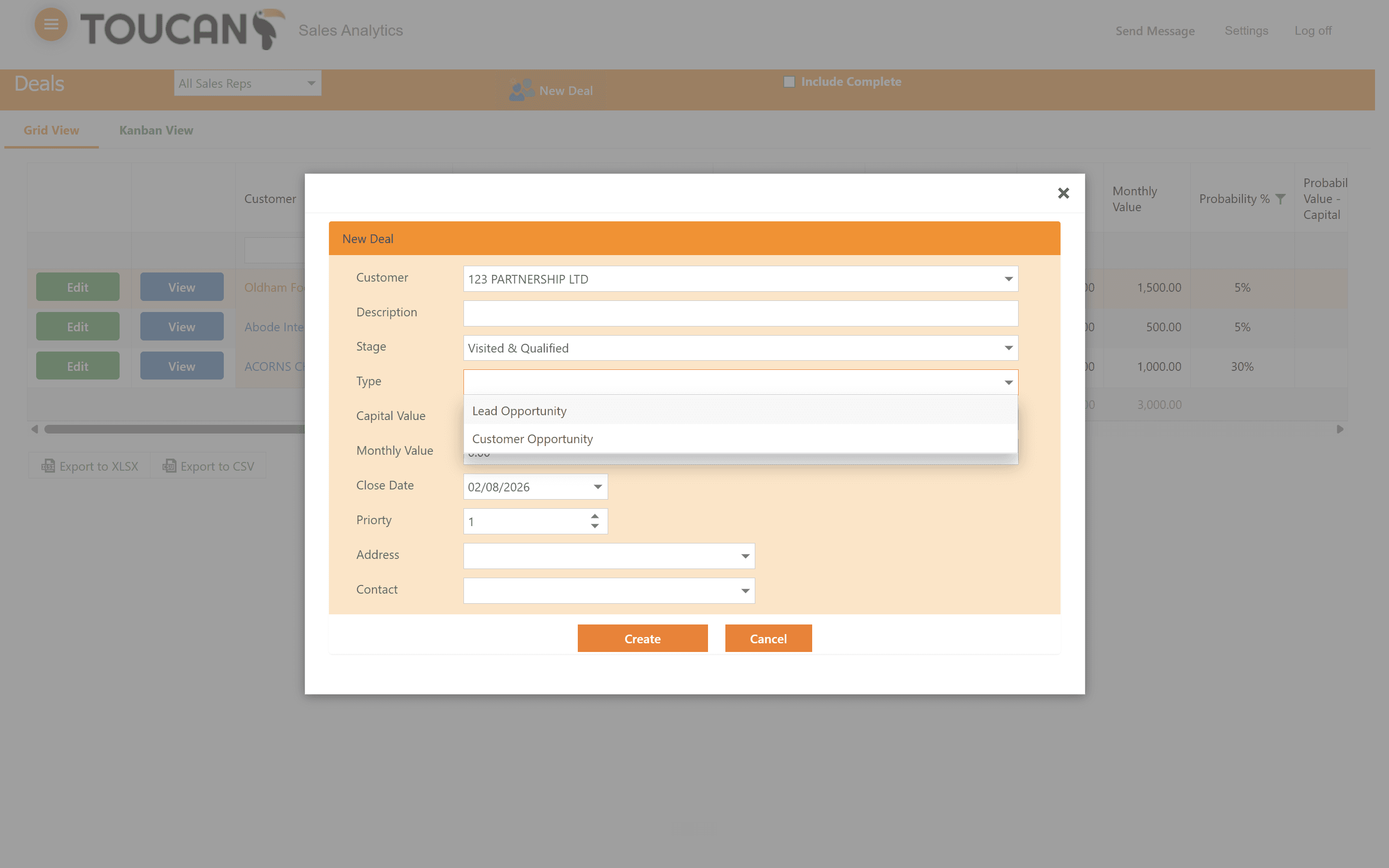
Click the Type dropdown menu to identify if their are either a Lead Opportunity or Customer Opportunity.
Step #17: Click the Type dropdown menu to identify if their are either a Lead Opportunity or Customer Opportunity.
18
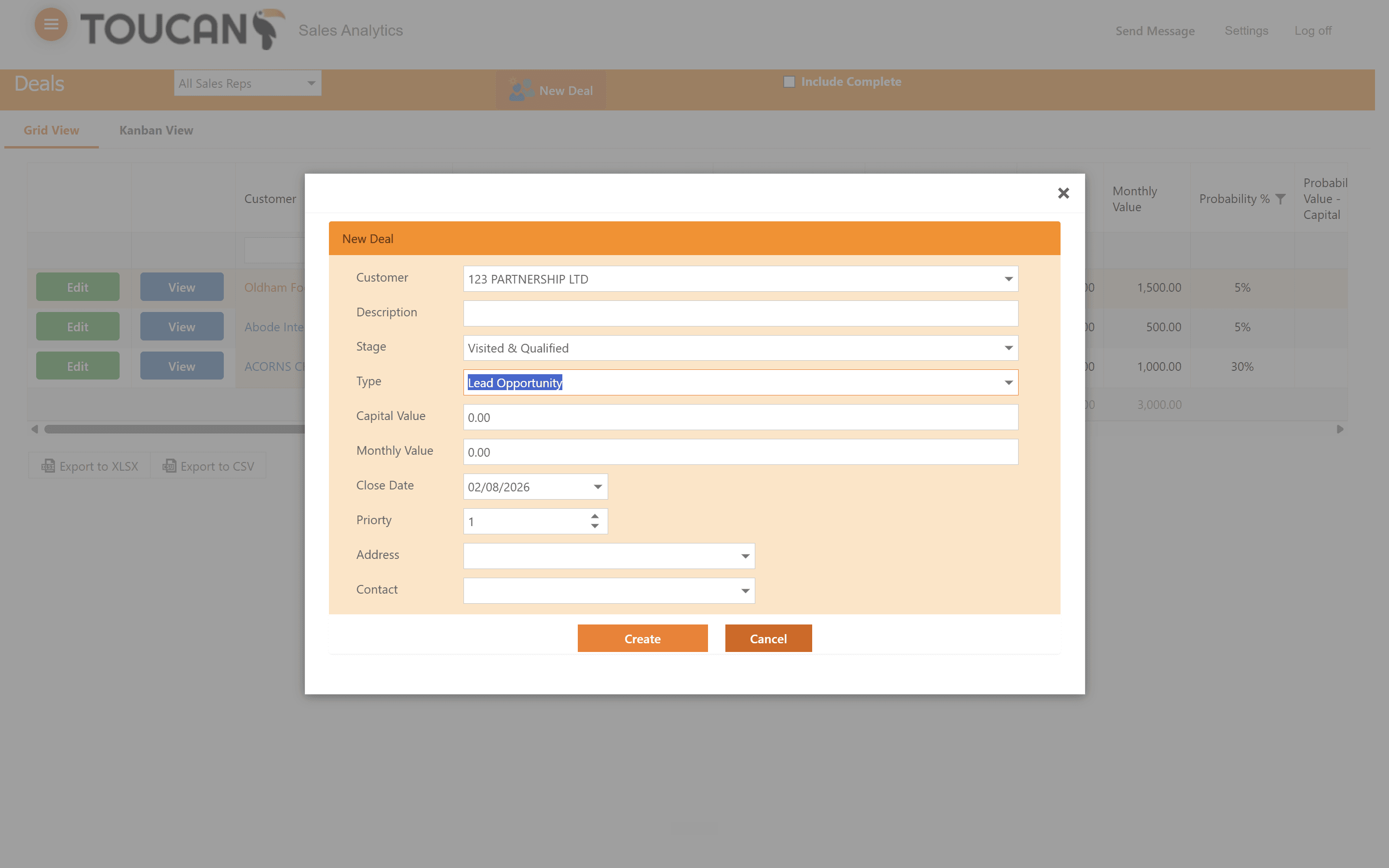
Once you have filled in your form, click Create.
Step #18: Once you have filled in your form, click Create.

Term

Definition

Grid View

A spreadsheet-like layout that displays deal data in sortable and filterable columns.

Kanban View

A visual pipeline layout where deals are represented as movable cards organized by stage.

Deal Stage

The current phase of a sales opportunity within the overall lifecycle, such as Initial Enquiry or Quoted.

Lead Opportunity

A deal classification representing potential new business from a prospective customer rather than an existing client.