Icon

How to: Manage Territories

Learn how to filter and generate a customer territory map, view customer details, and get driving directions using the Territory Territory Enquiry tool.

By Josh

Introduction

The Territory Enquiry portal is used to generate a geographic map of your customers and leads based on specific criteria. It's used to visualise sales territories, inspect individual customer records by location and plan travel routes directly from the map.

This workflow applies primarily to territory managers. Use this feature when you need to plan customer visits or analyse market penetration in a specific region.

Configure Territory Filters

With the enquiry form you can filter on highly detailed filters or opt for broad matching by using less filters.
1
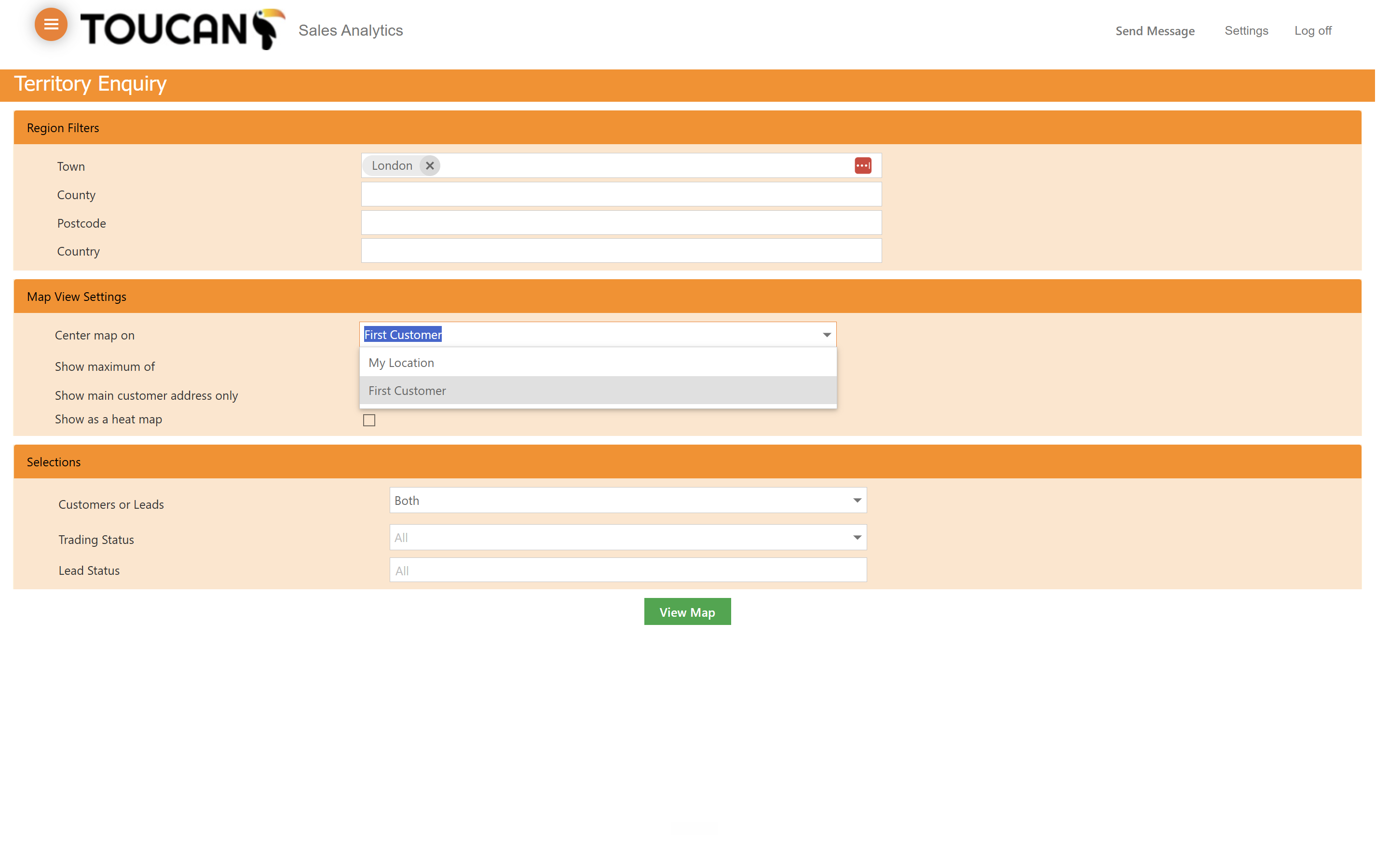
Enter your target location, such as London, in the location search field.
Step #1: Enter your target location, such as London, in the location search field.
2
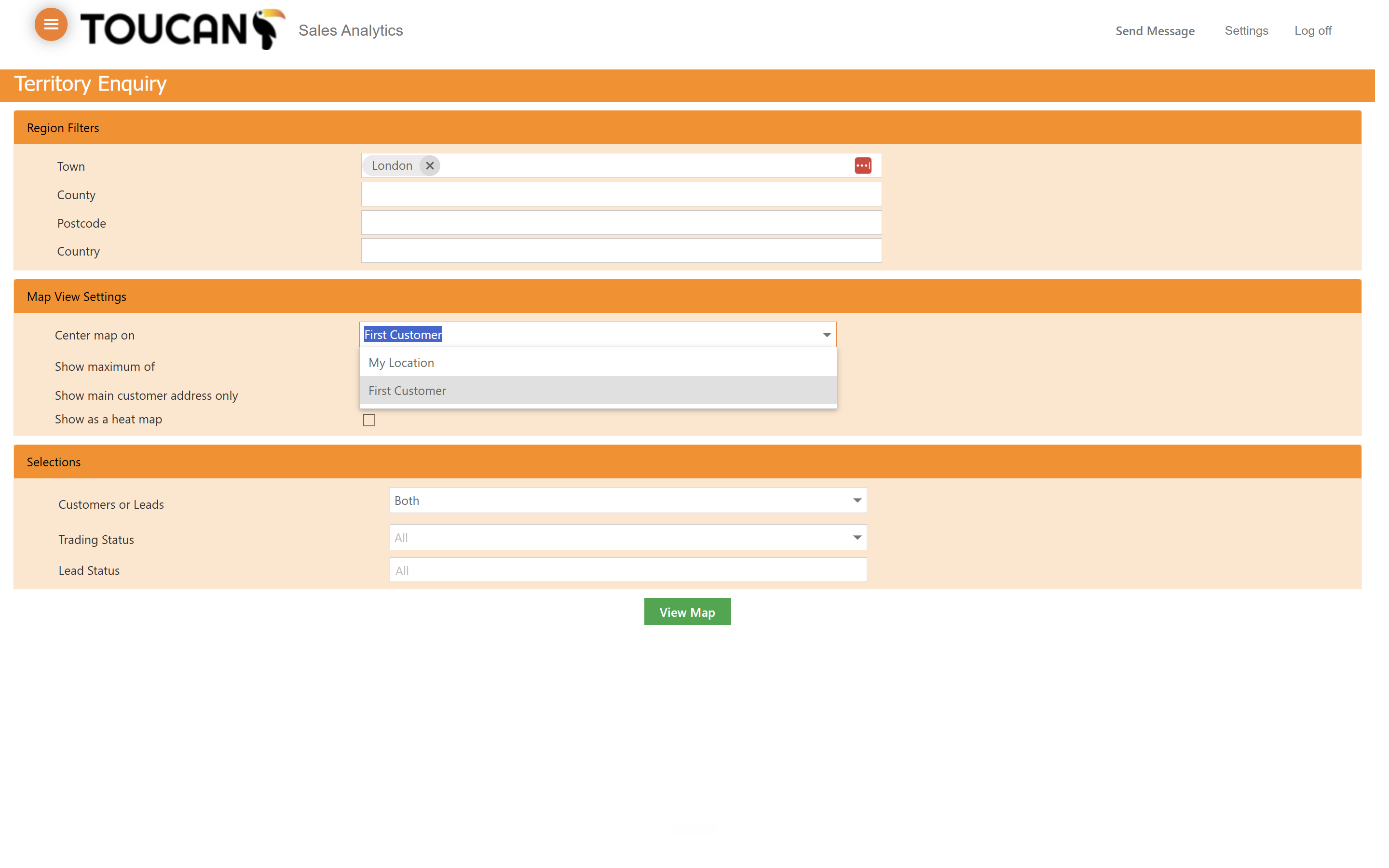
Select First Customer from the Center map on dropdown to center the map view. Use either option depending on your journey starting point, whether the office or your home/travel location.
Step #2: Select First Customer from the Center map on dropdown to center the map view. Use either option depending on your journey starting point, whether the office or your home/travel location.
3
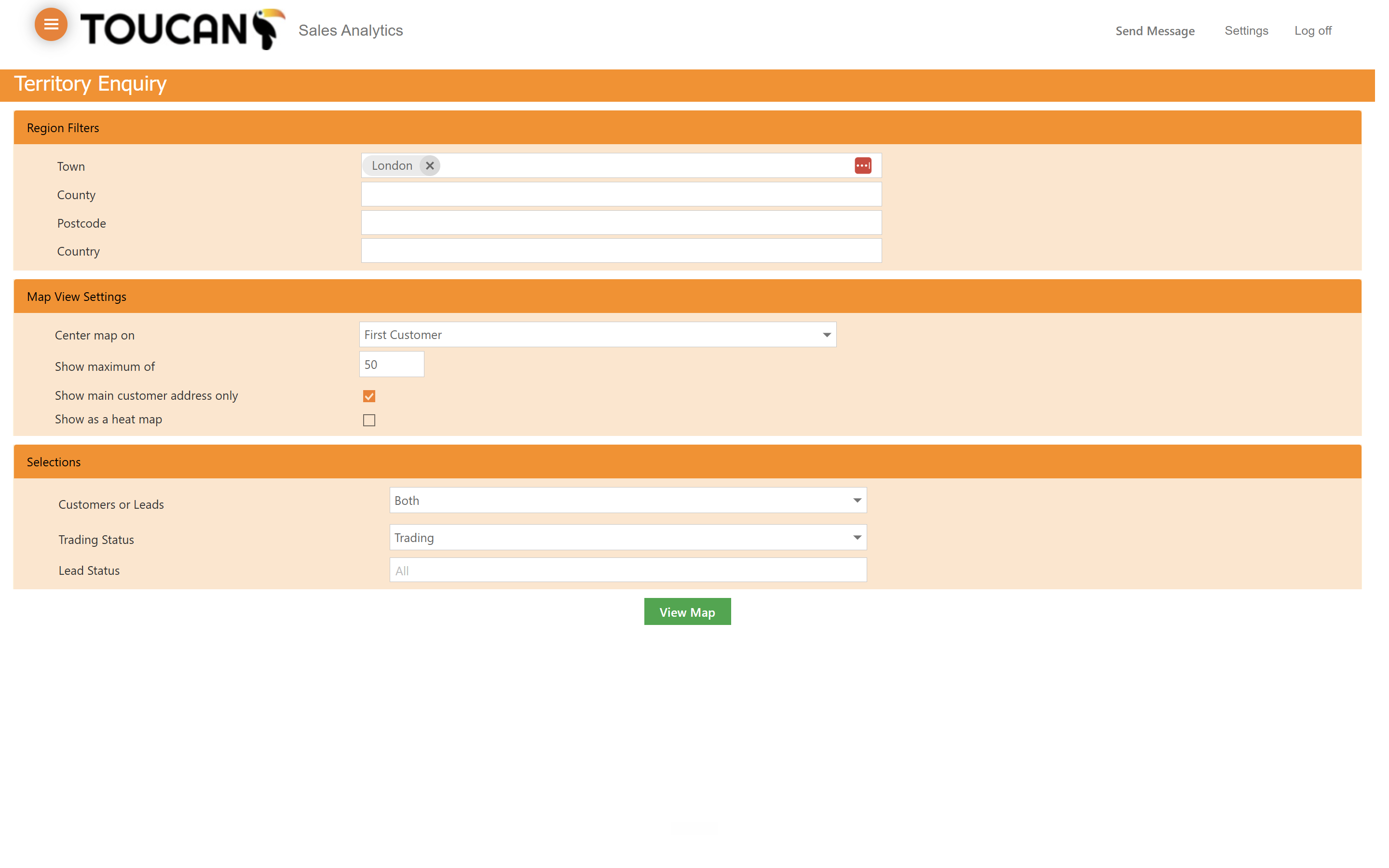
Enter a display limit or radius, for example 50, to restrict the number of results on the map.
4
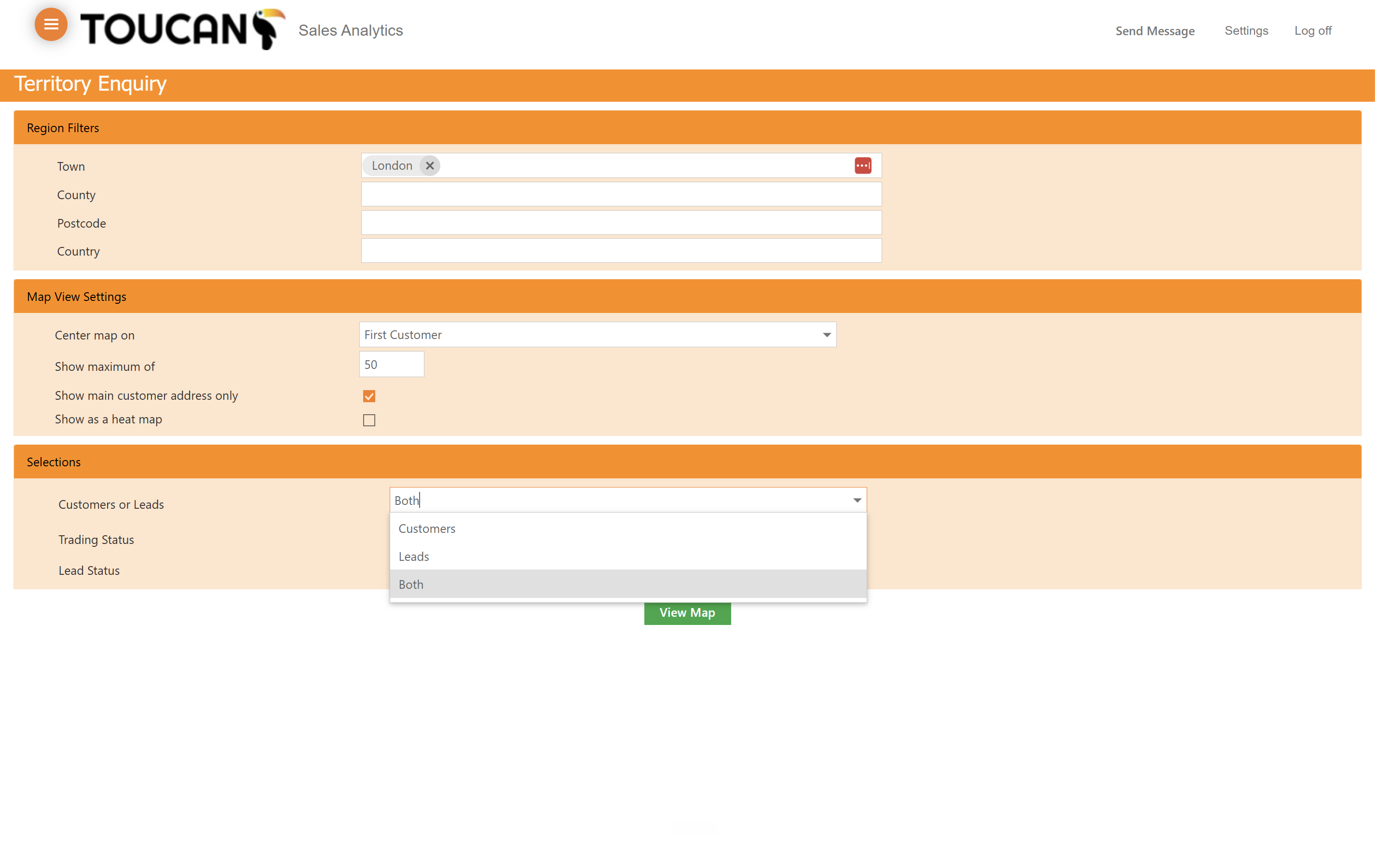
On the map you can show either Customers, Leads, or both depending on your requirements.
Step #4: On the map you can show either Customers, Leads, or both depending on your requirements.
5
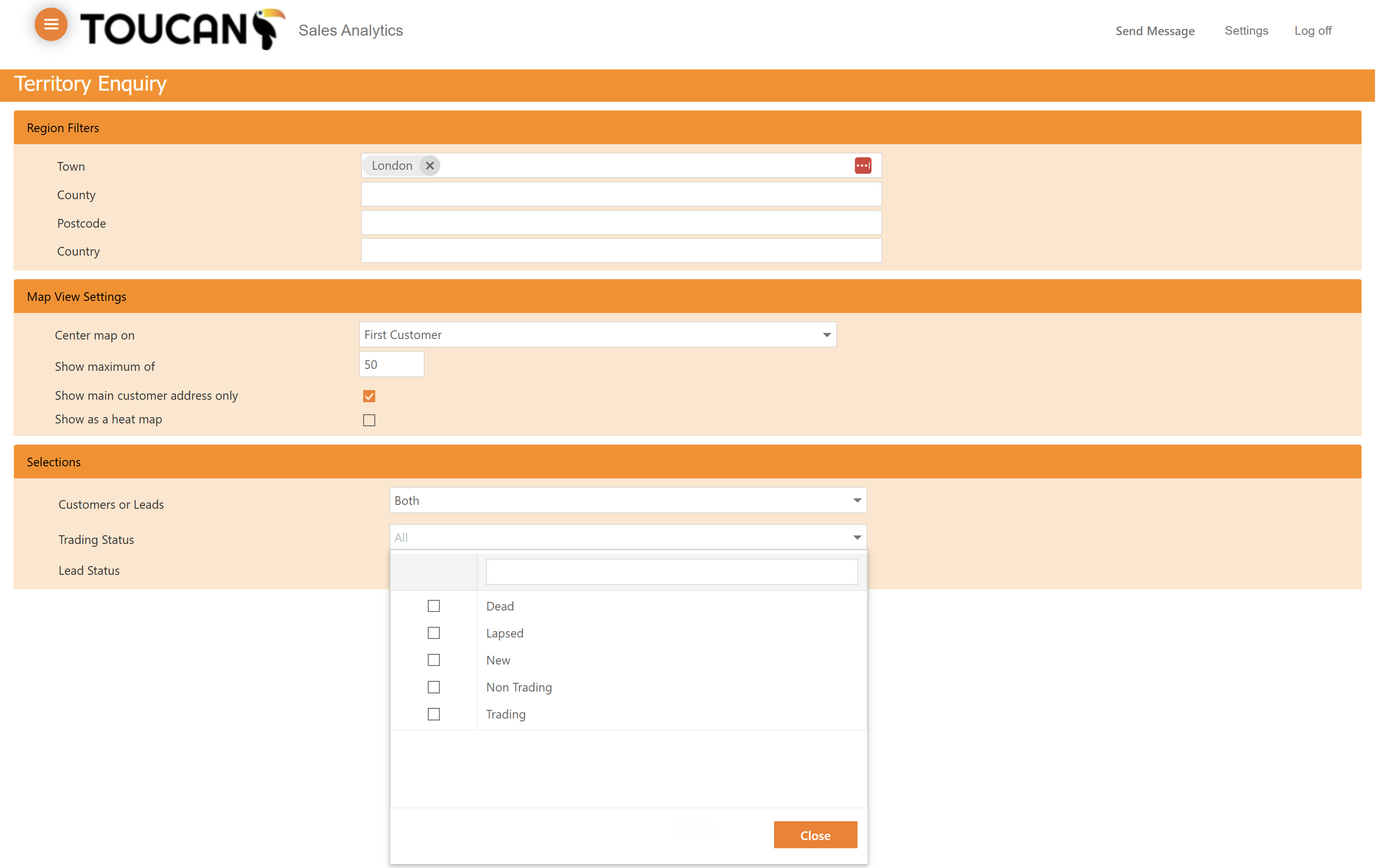
Click the Trading Status dropdown and select the account statuses you wish to view.
Step #5: Click the Trading Status dropdown and select the account statuses you wish to view.
6
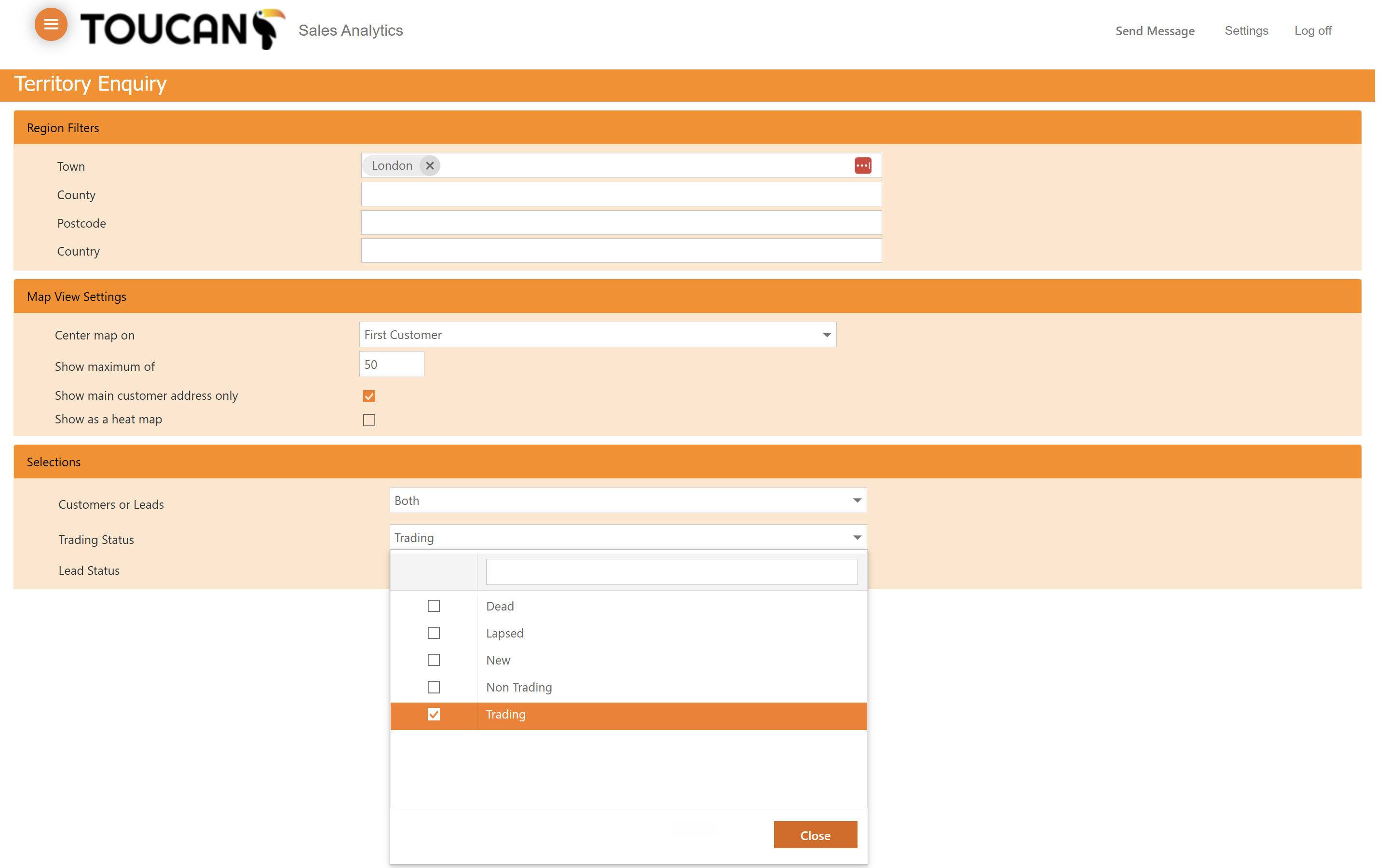
Click Close to collapse the Trading Status menu.
Step #6: Click Close to collapse the Trading Status menu.

Generate and Interact with the Map
7
Click View Map at the bottom of the page to generate your territory map based on the filters you set.
Step #7: Click View Map at the bottom of the page to generate your territory map based on the filters you set.
8
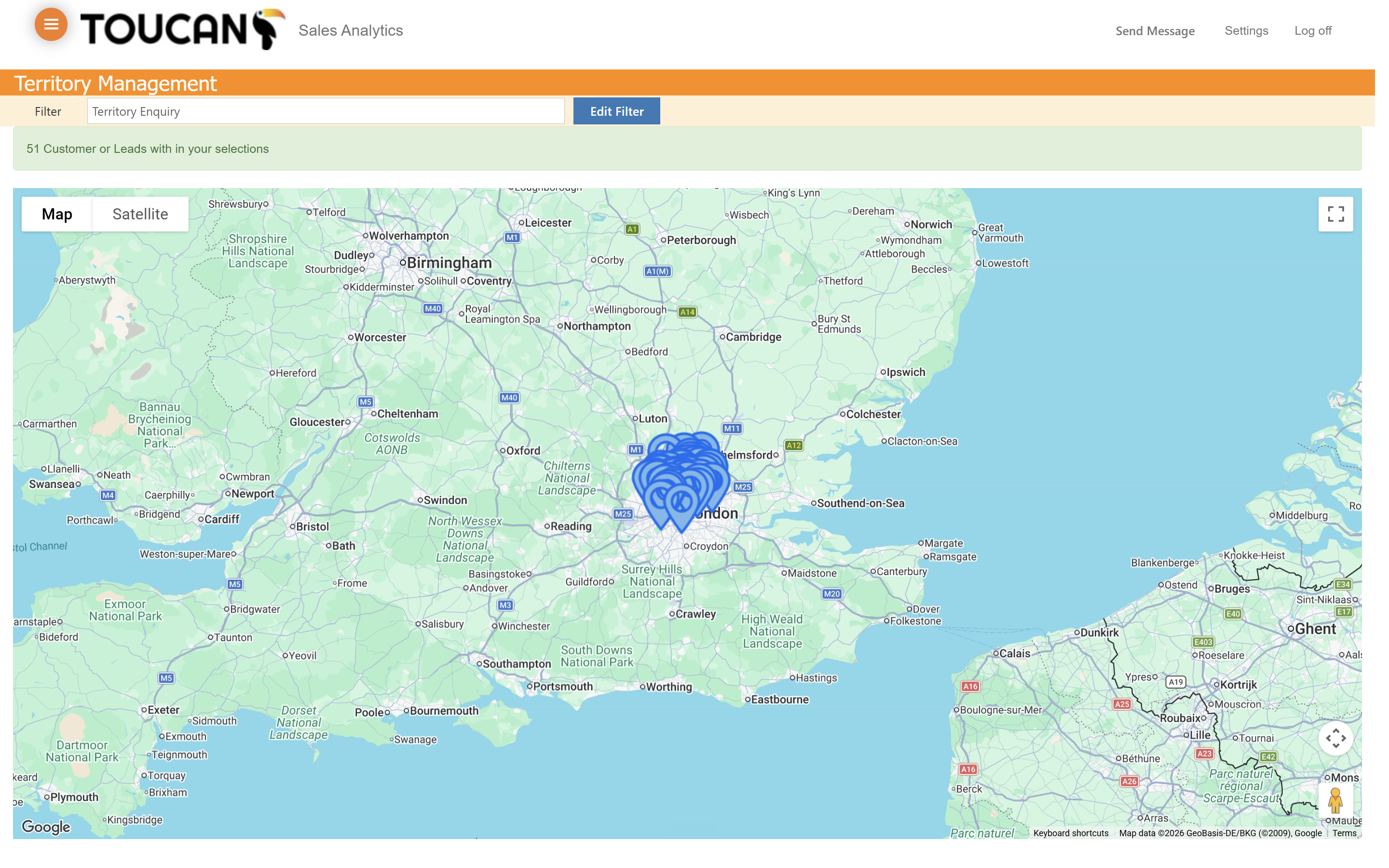
Your map will populate based on your search criteria. Use the mouse scroll or pin-zoom trackpad to zoom into the map.
Step #8: Your map will populate based on your search criteria. Use the mouse scroll or pin-zoom trackpad to zoom into the map.

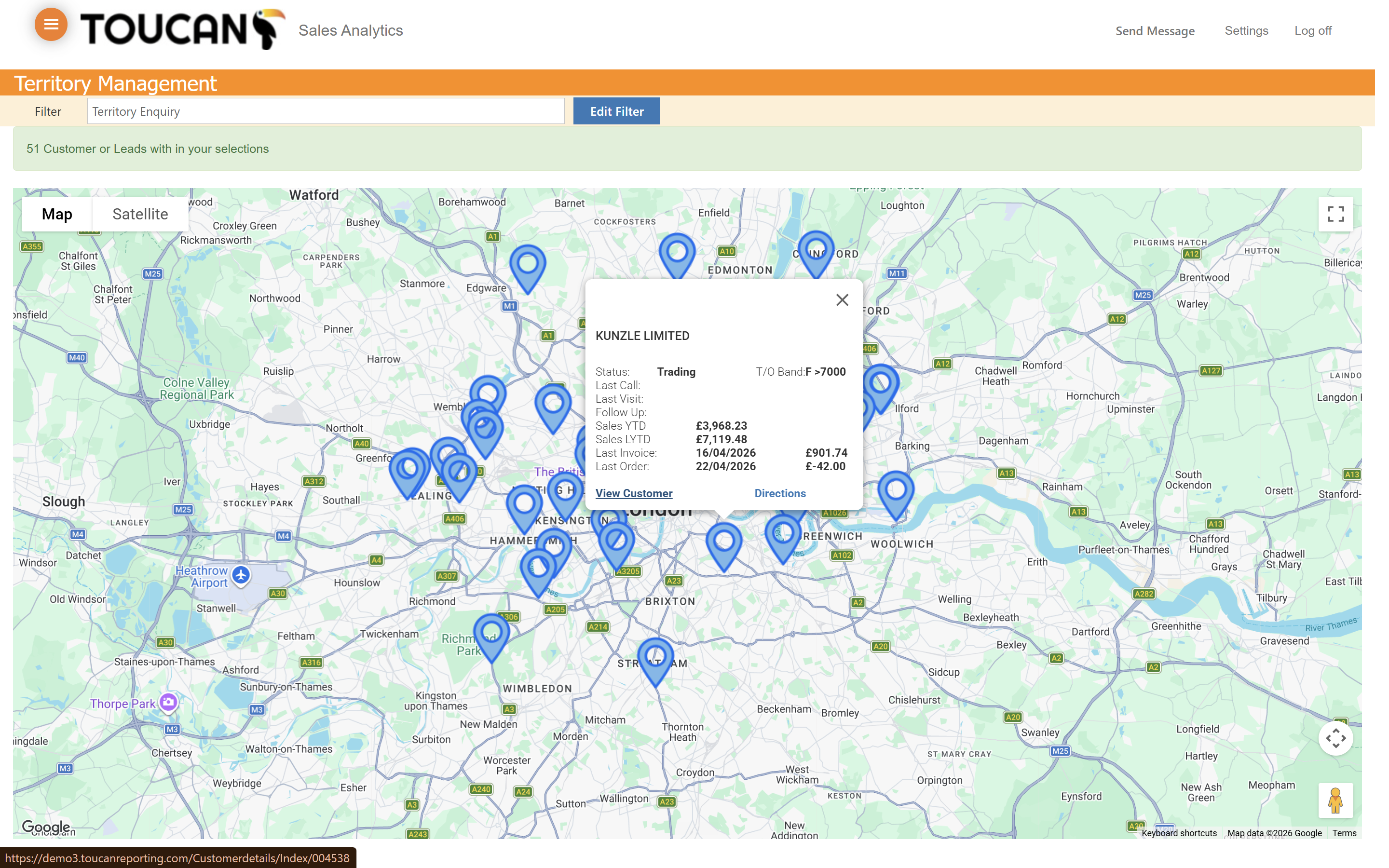
Specific customer information can be viewed inside a pop-up by clicking on the blue location icon. The pop-up will display:

Data

Data

Trading status

Last Call

Last Visit

Follow up date

Sales Year to Date

Sales Last Year to Date

Last Invoice

Last Order

9
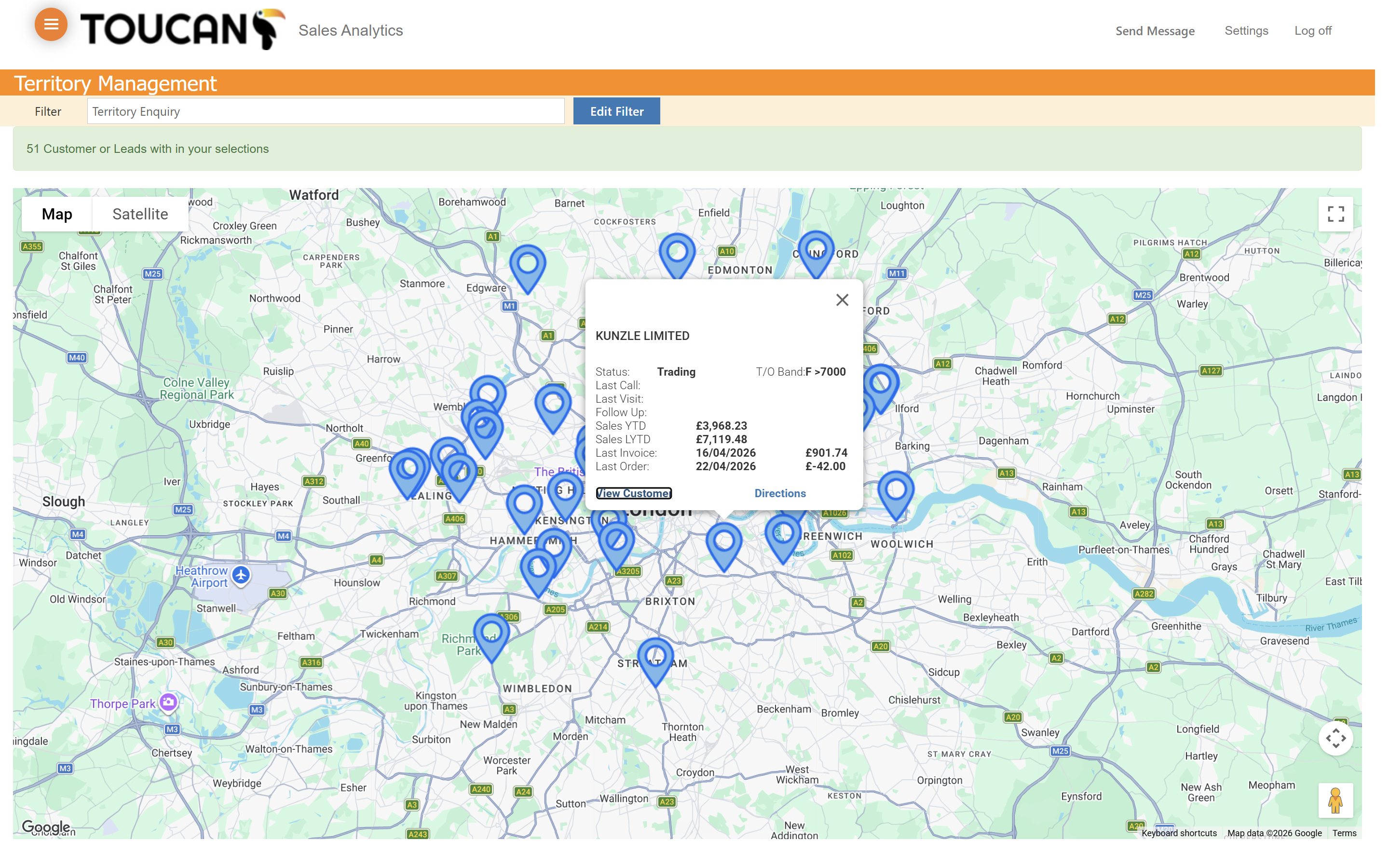
Click View Customer to review the account details, trading status, and recent sales figures.
Step #9: Click View Customer to review the account details, trading status, and recent sales figures.
10
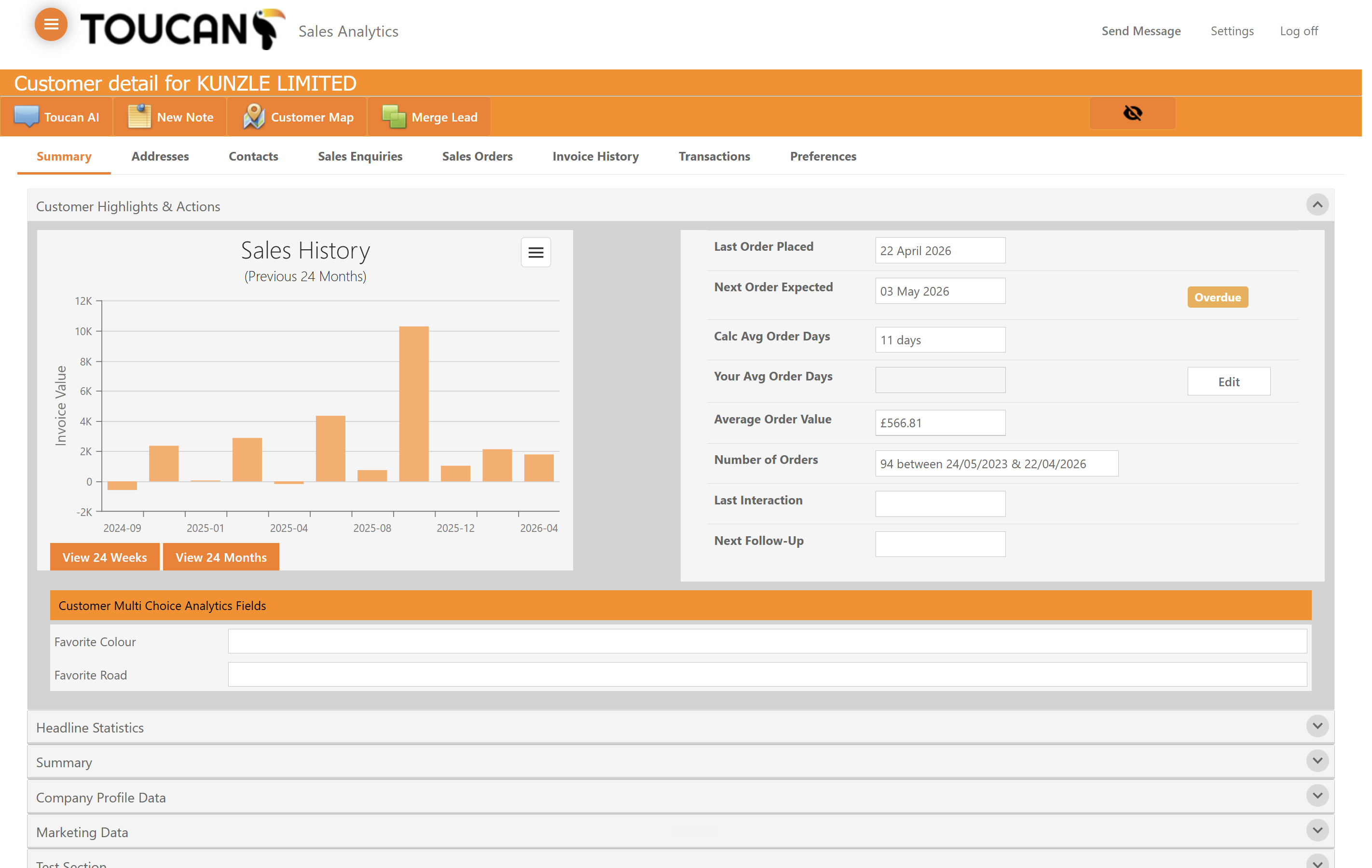
You will be brought to the customer profile to access further data.
Step #10: You will be brought to the customer profile to access further data.
11
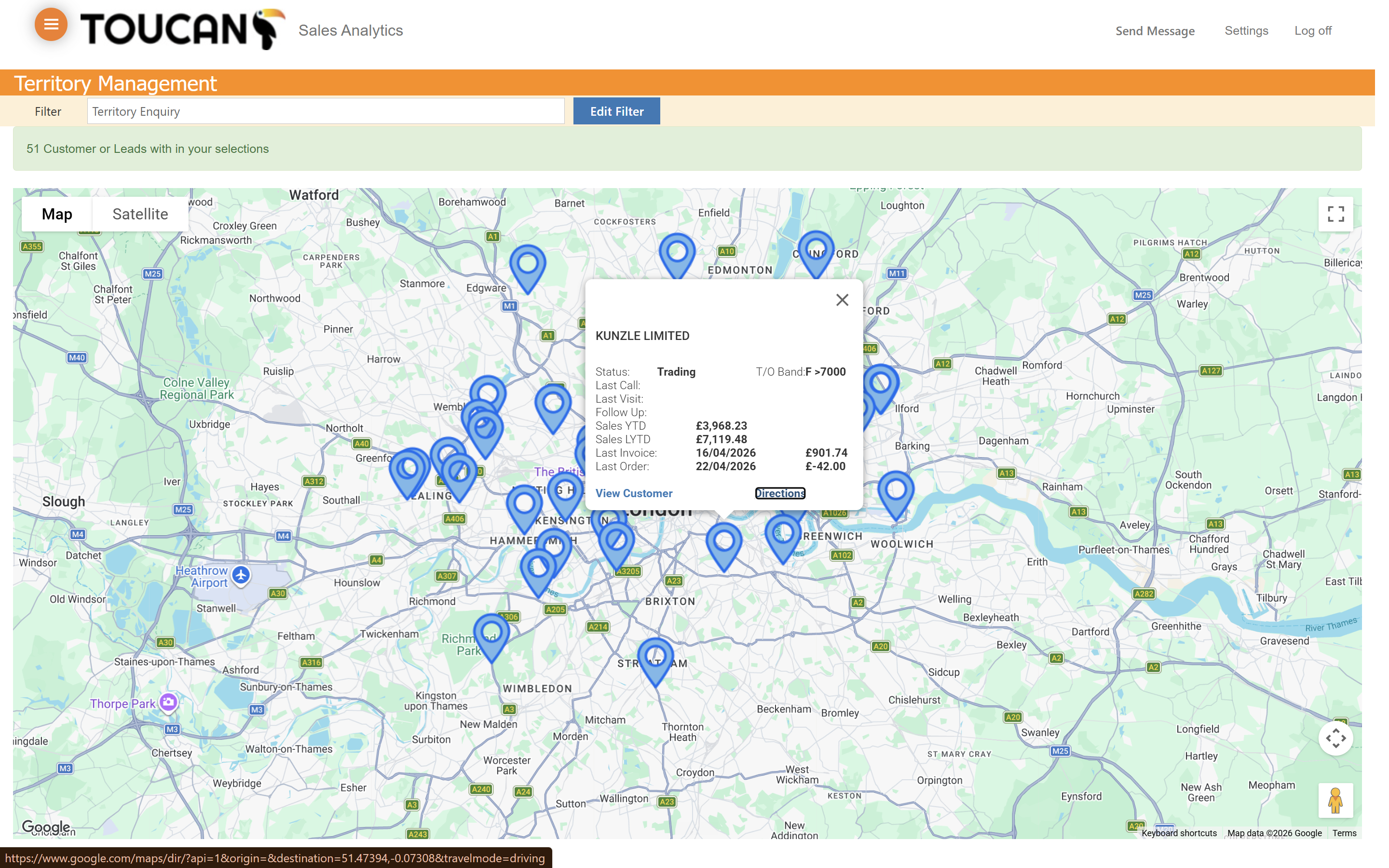
Click Directions to launch Google Maps and plan a driving route to the customer's location.
Step #11: Click Directions to launch Google Maps and plan a driving route to the customer's location.
12
Click Edit Filter on the map screen to return to the configuration screen and adjust your search parameters.
Step #12: Click Edit Filter on the map screen to return to the configuration screen and adjust your search parameters.

Term

Definition

Territory Enquiry

A configuration tool used to filter, search, and visualise customer and lead locations on a geographic map.

Trading Status

An account classification indicating whether a customer is currently active, such as Trading, Lapsed, or Dead.

Location Pin

A marker on the map interface that represents a specific customer or lead's physical address.

How to: Manage Territories