How to Manage Time Management Projects
Learn how to create, edit, and delete Time Projects in the DEXT internal management app to organize your team's tracked hours.
By Asad Adams
Manage your team's time tracking by creating, editing, and removing Time Projects. Setting up dedicated projects ensures that employees log their tracked hours against the correct internal initiatives.
This guide is for administrators and managers using the DEXT internal management platform who need to organize project availability and configure role-based access for time logs.
Navigate to Time Projects
1
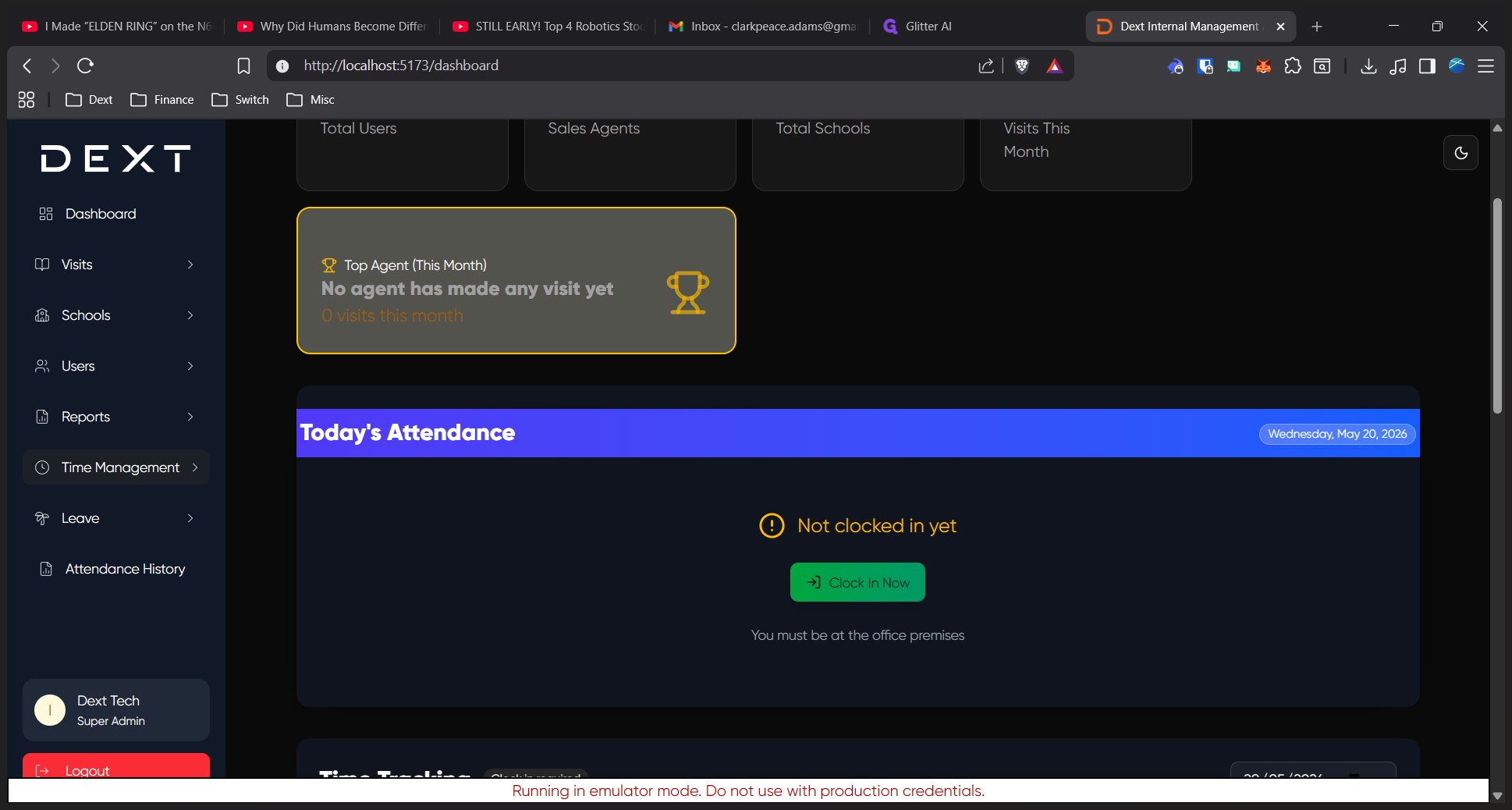
Click Time Management in the main sidebar to expand the menu.
2
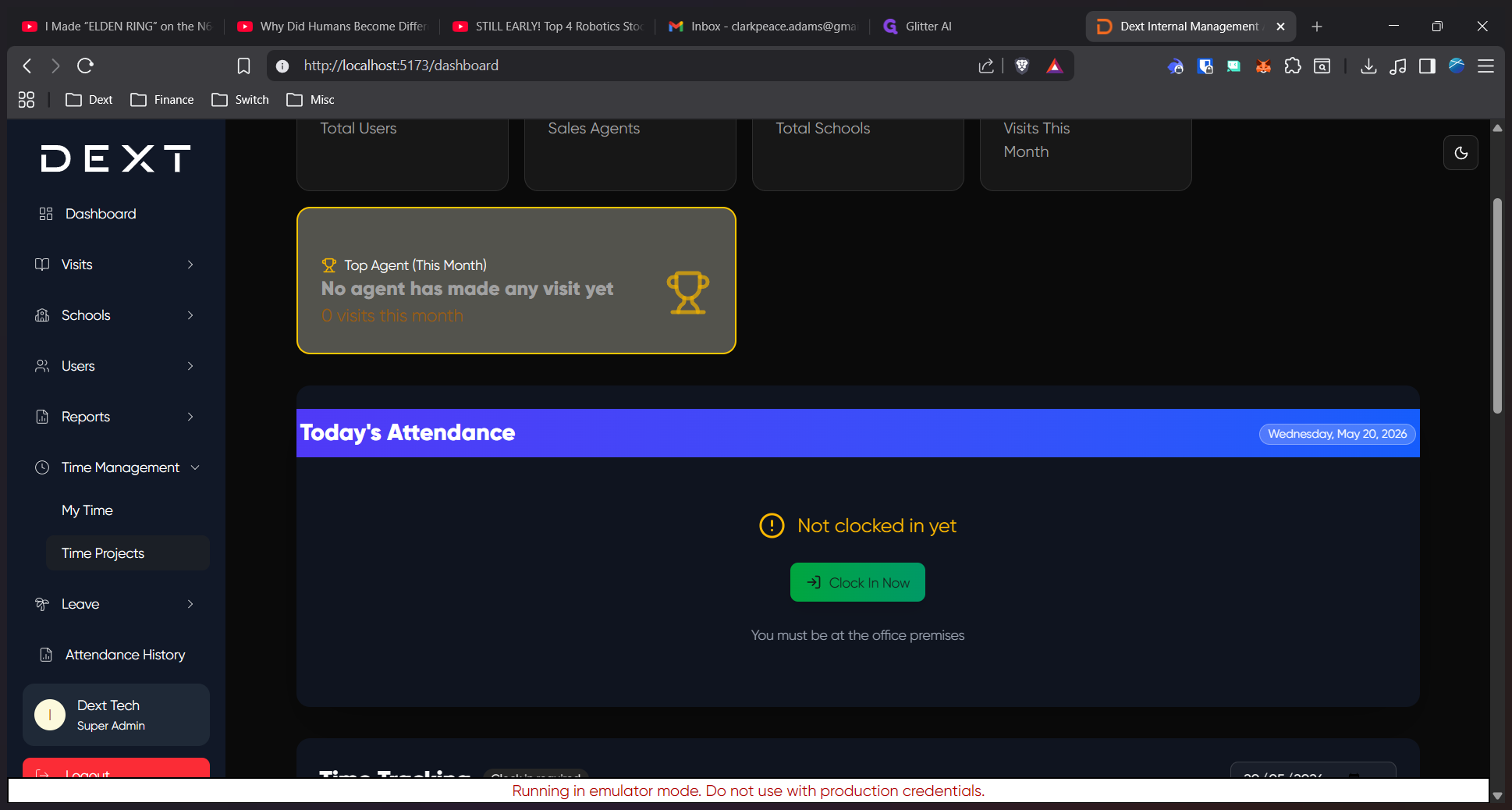
Select Time Projects from the dropdown options.
Create a New Project
3
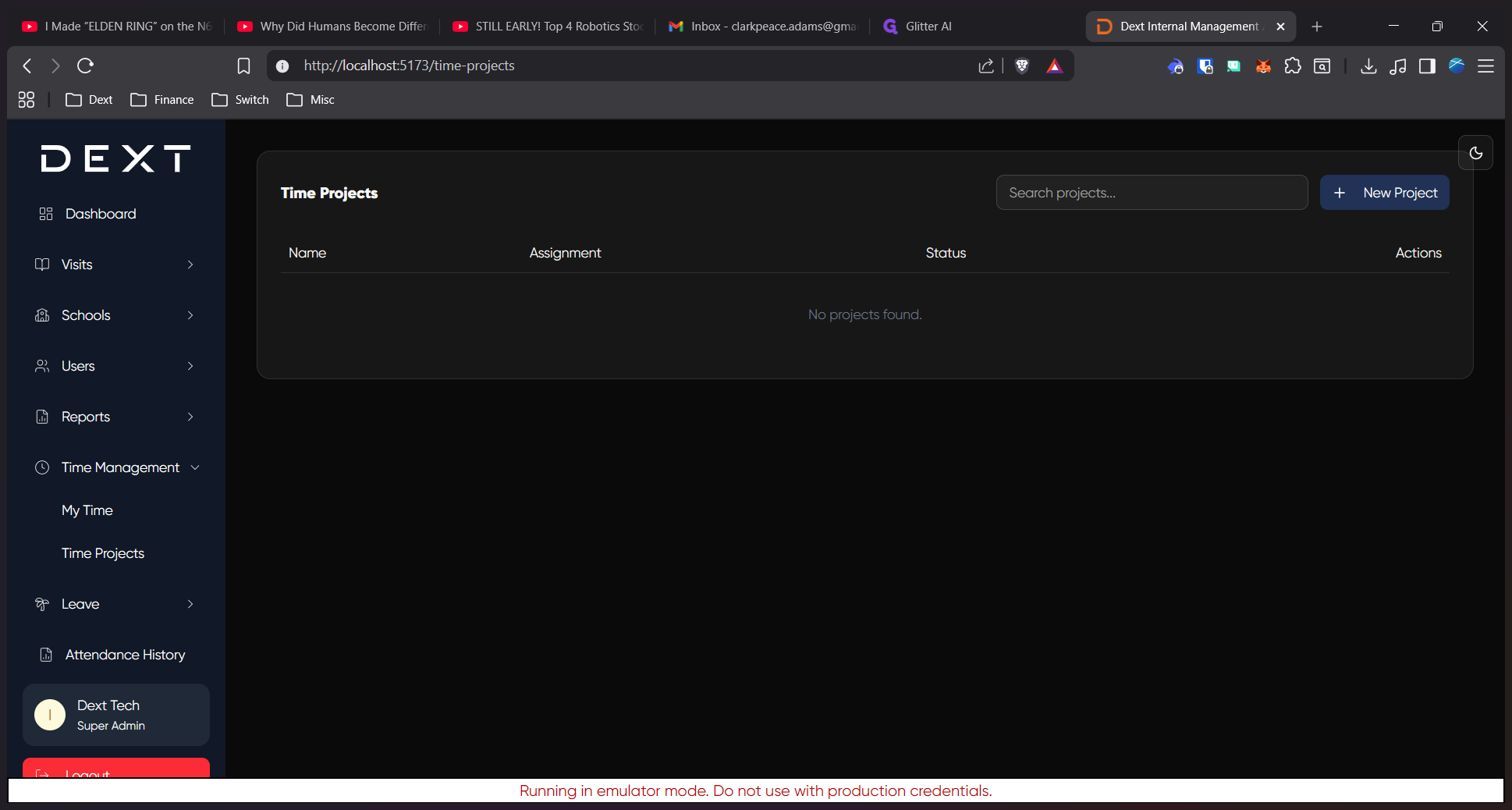
Click the New Project button in the top right corner of the dashboard.
4
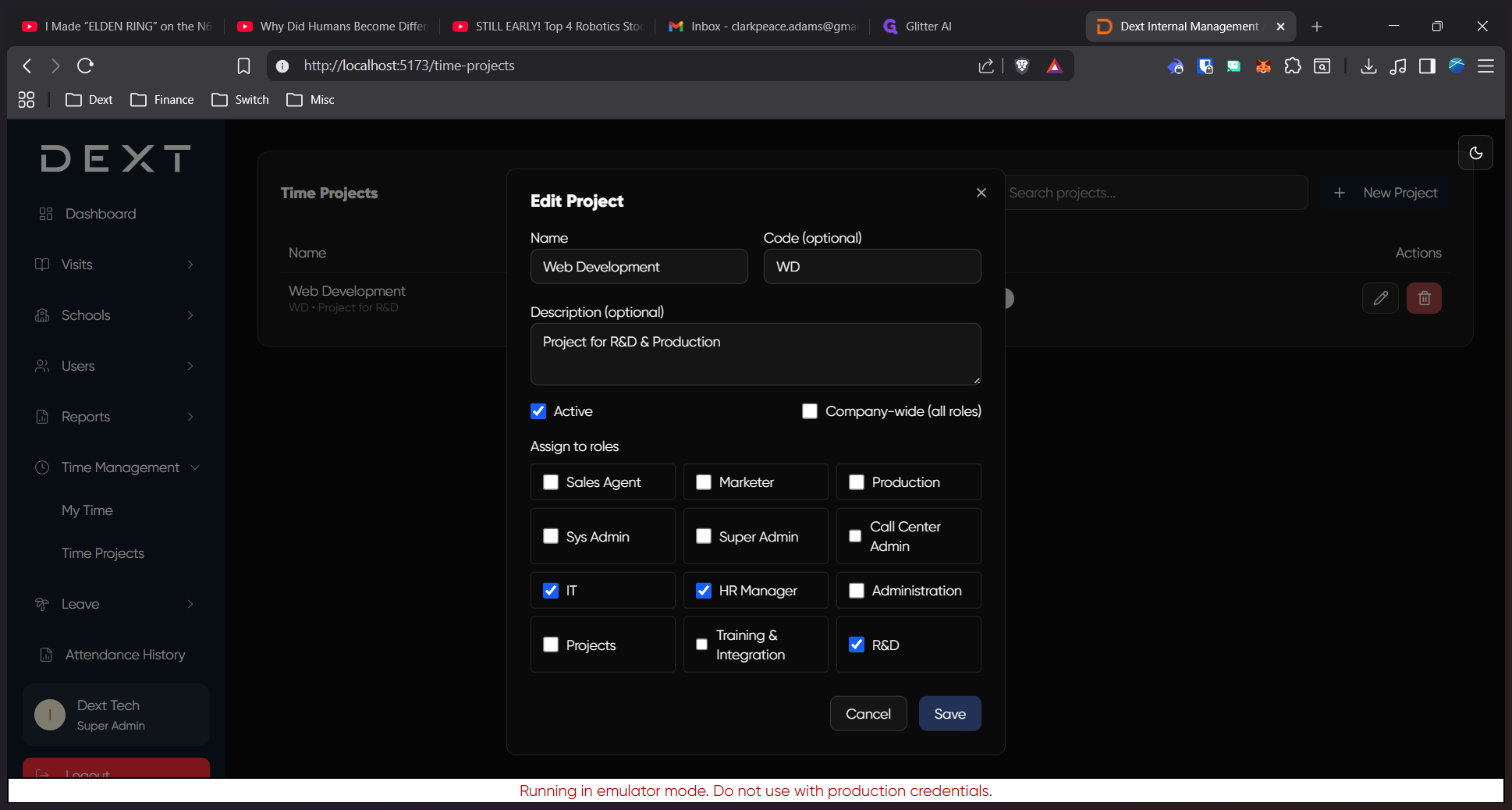
Fill in the project details, including the project name, optional code, and a brief description. Use the checkboxes to mark the project as active or available company-wide.
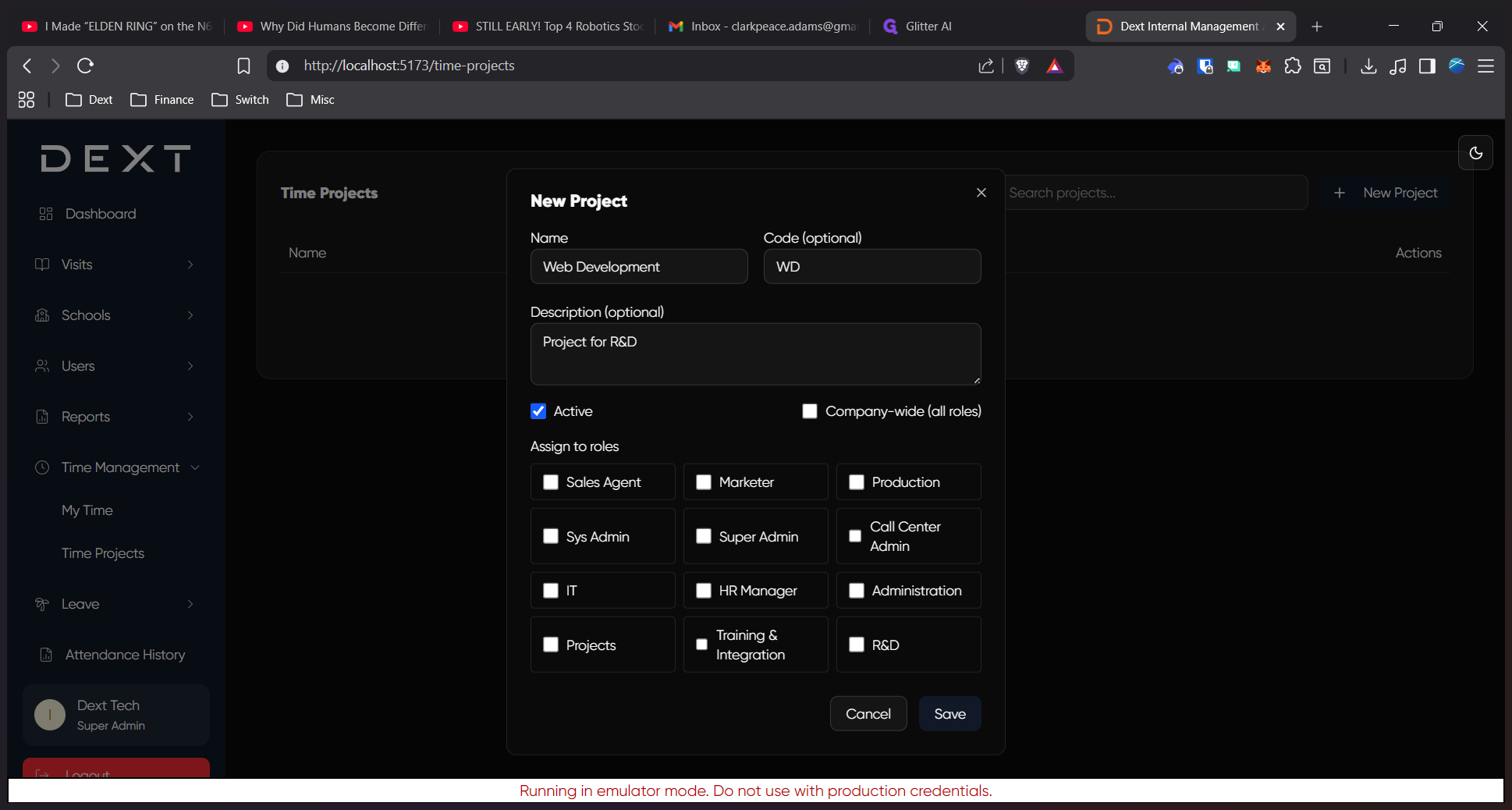
5
Select any required roles to assign the project to, then click Save.
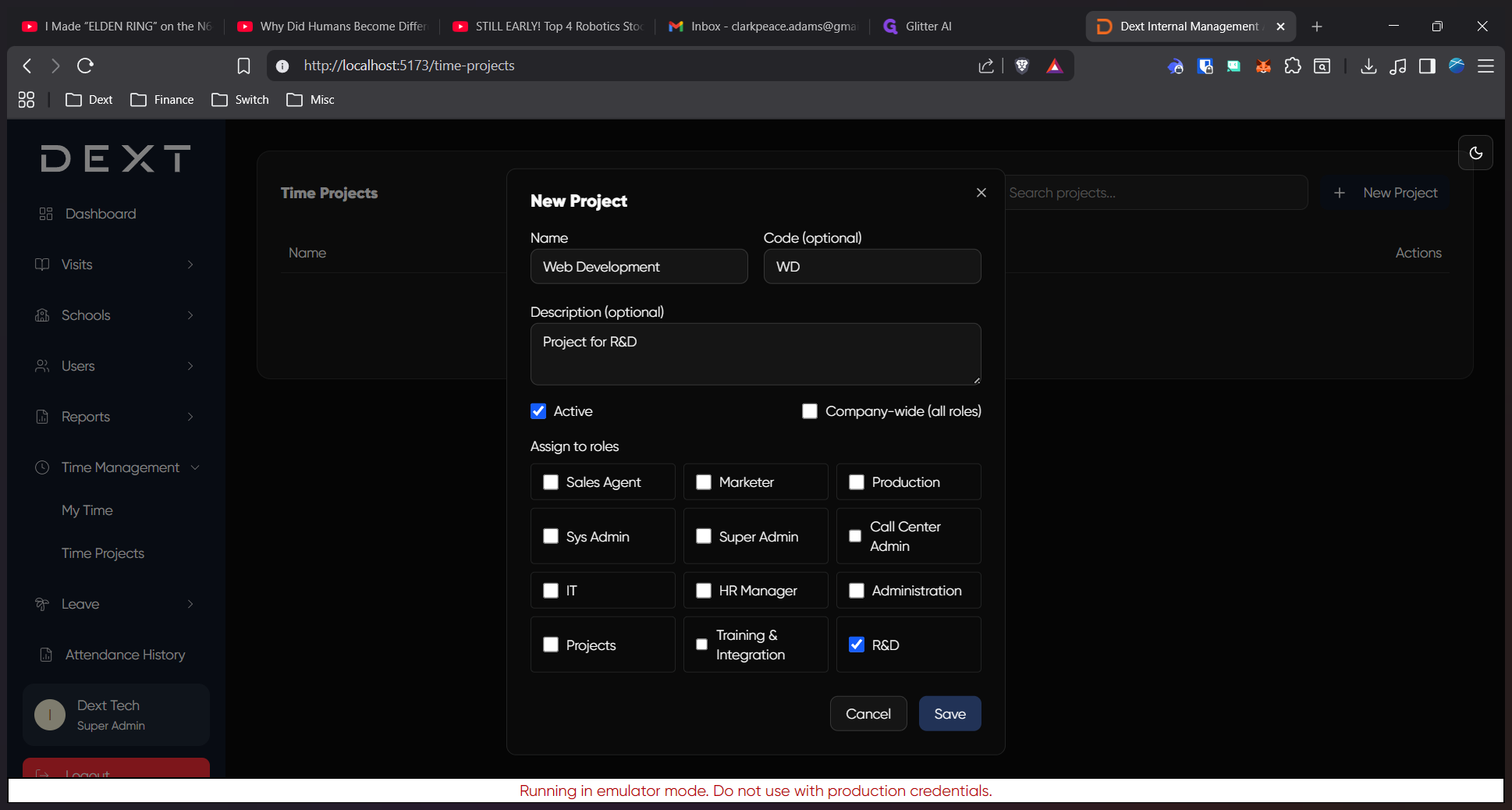
Edit an Existing Project
6
Locate the project you want to modify in the Time Projects list and click its Edit icon.
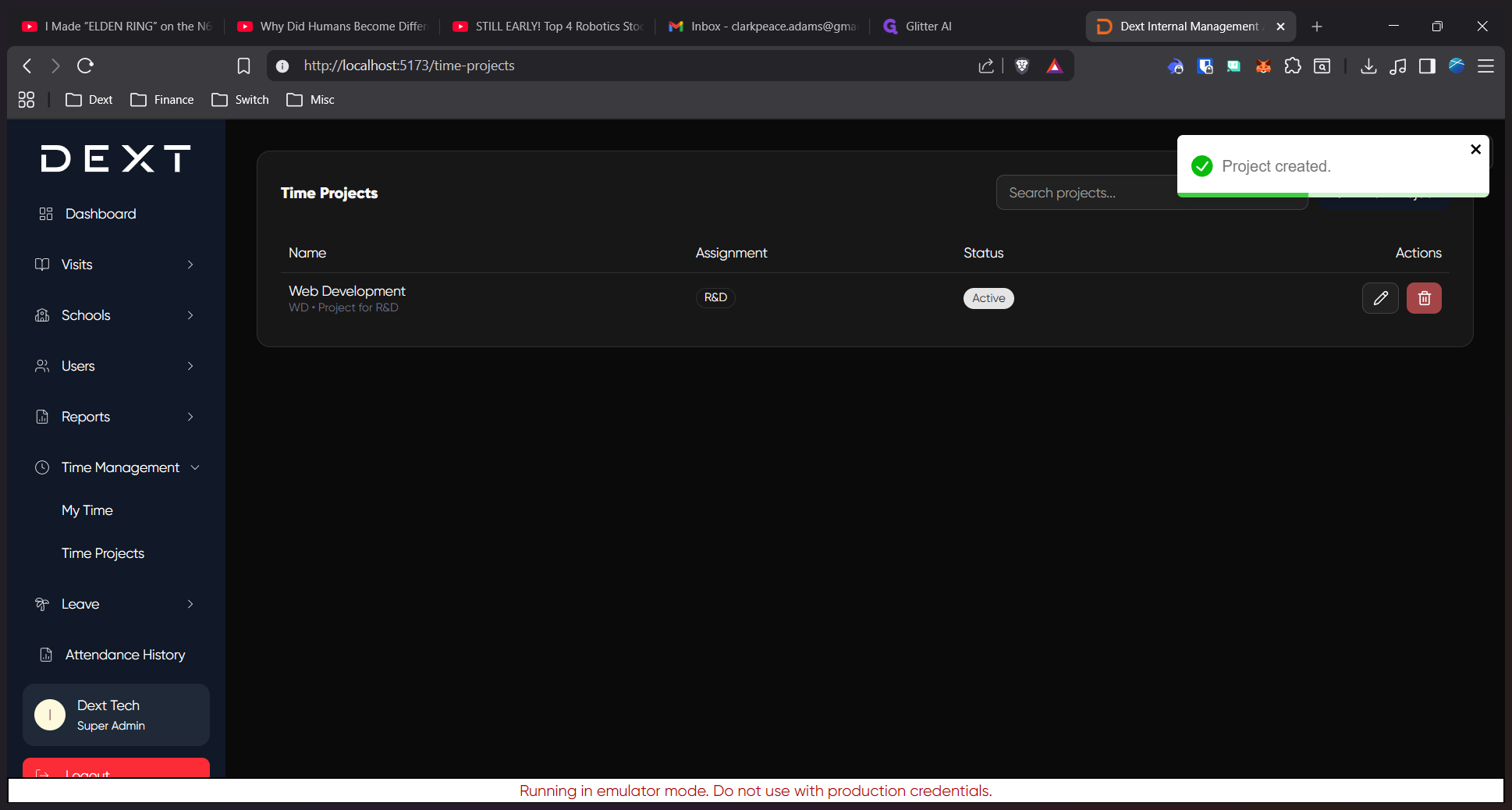
7
Update the project details, status, or role assignments in the modal window.
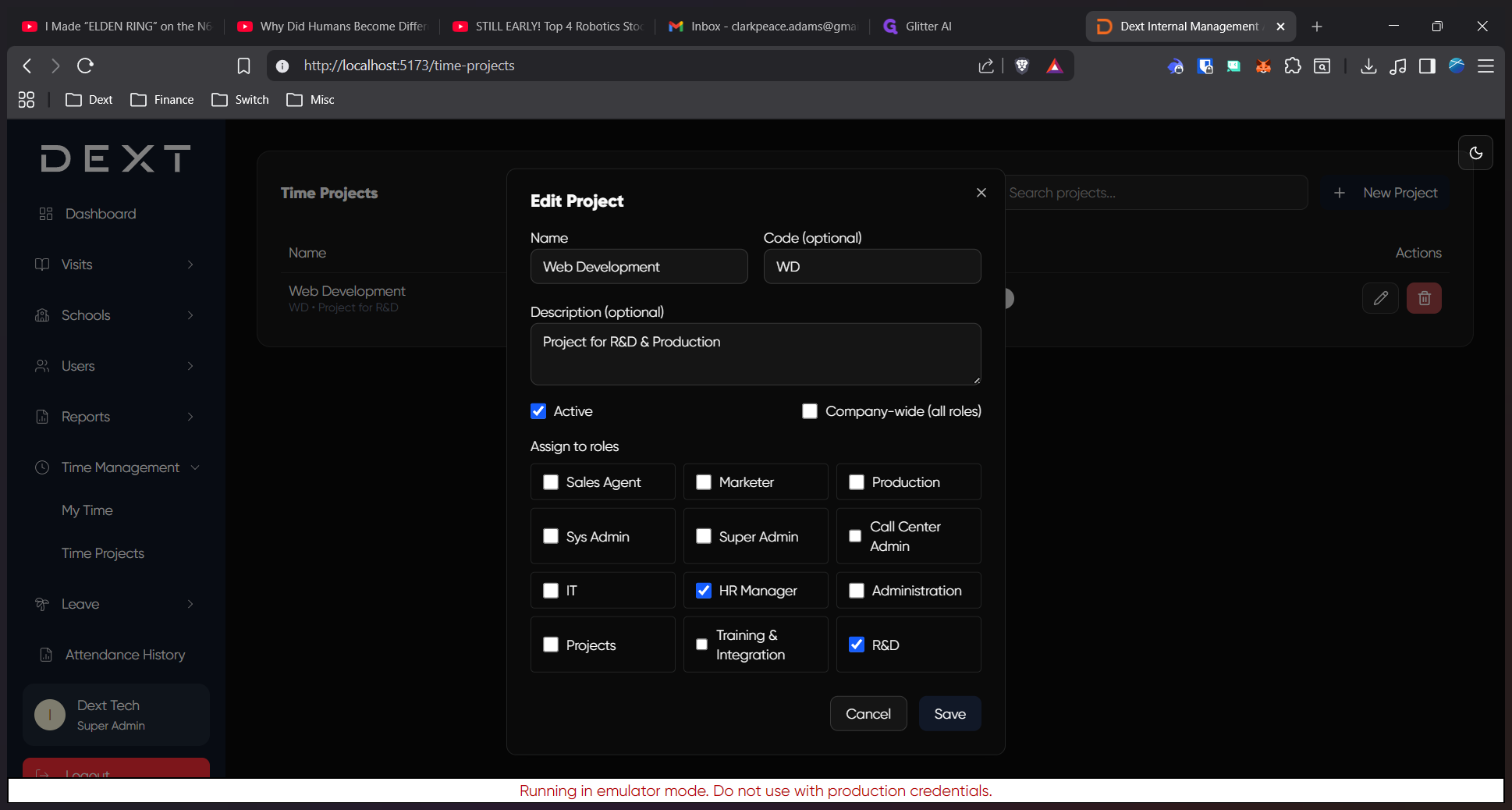
8
Click Save to apply your changes.
Delete a Project
9
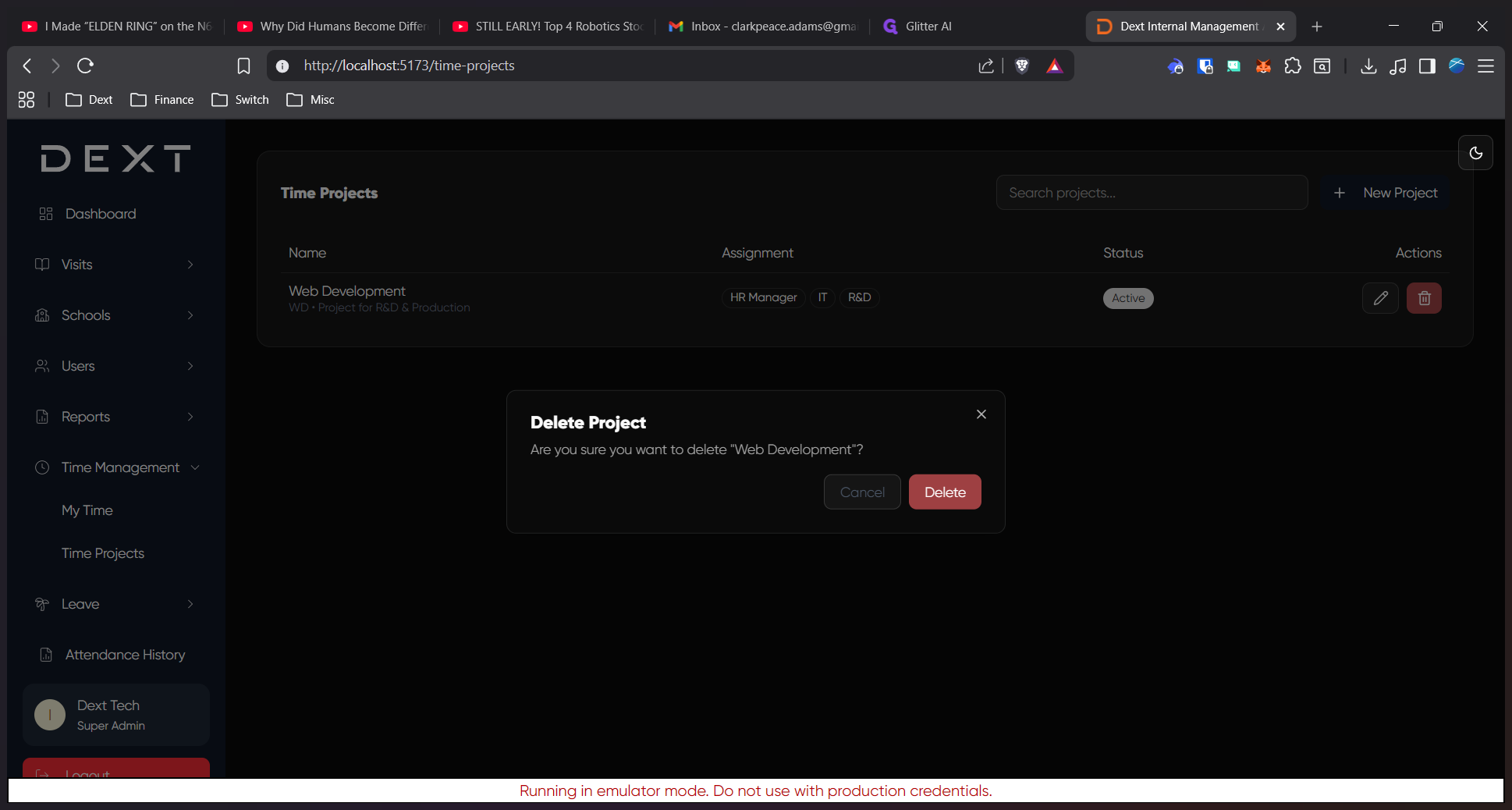
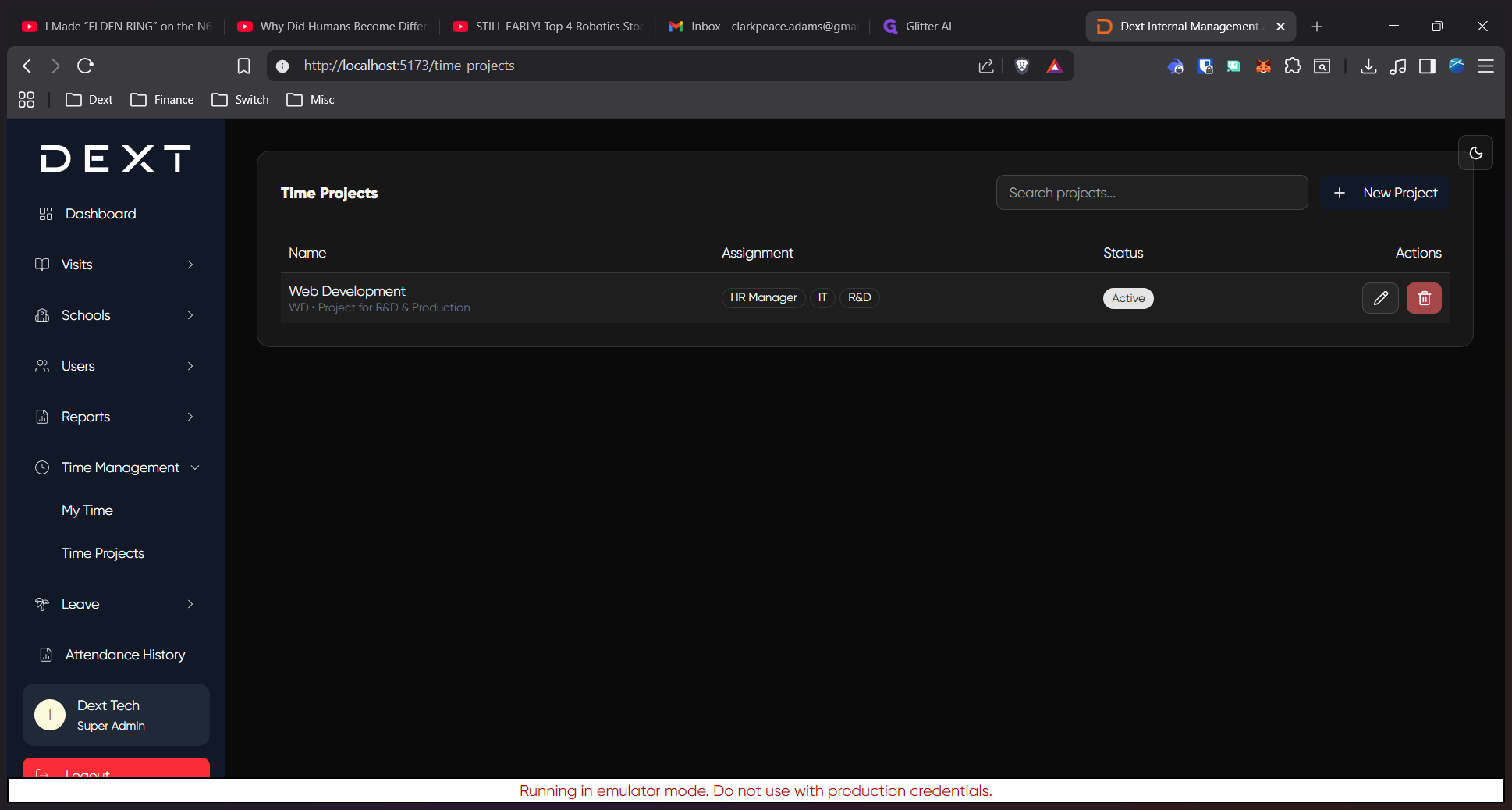
Click the Delete icon next to the project in the Time Projects table.
10
Click Delete in the confirmation prompt to permanently remove the project from the system.