
How to Manage Users in the ABOBweb Admin Panel
Learn how to add new members, assign proper roles, and reset user passwords in the https://members.abandofbrothers.org.uk/wp-admin/ administration portal.
This guide explains how to add new members and reset existing users' passwords within the ABOBweb WordPress admin panel. Completing this ensures members receive the correct access levels to the ABOBweb.
This process applies to WordPress users (Members) with administrator permissions responsible for managing member access. It is used during onboarding for new volunteer mentors or when assisting existing users who are locked out of their accounts.
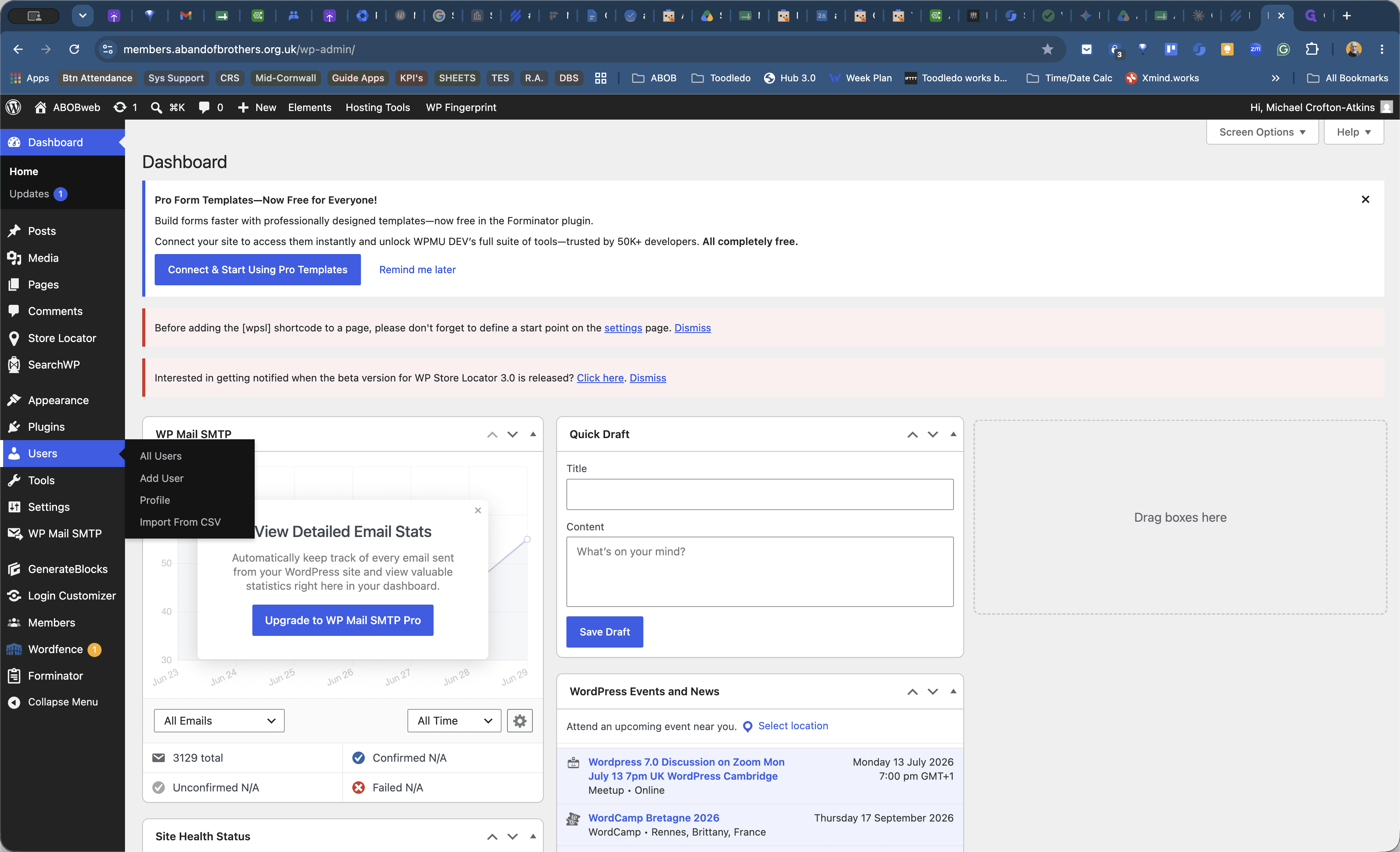
Access the WordPress administration panel by navigating to members.abandbrothers.org.uk/wp-admin/ or using ya saved browser bookmark to the page.
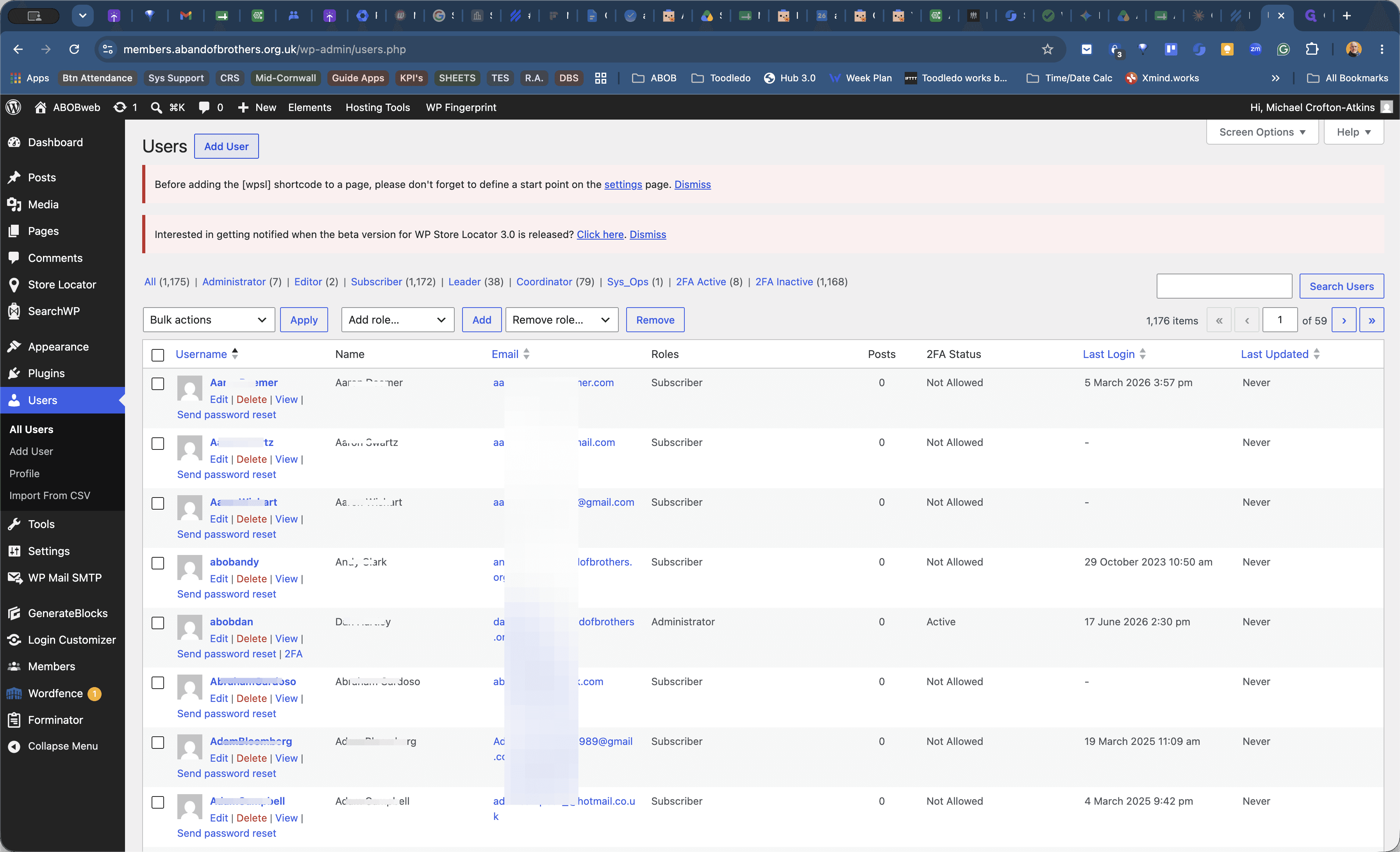
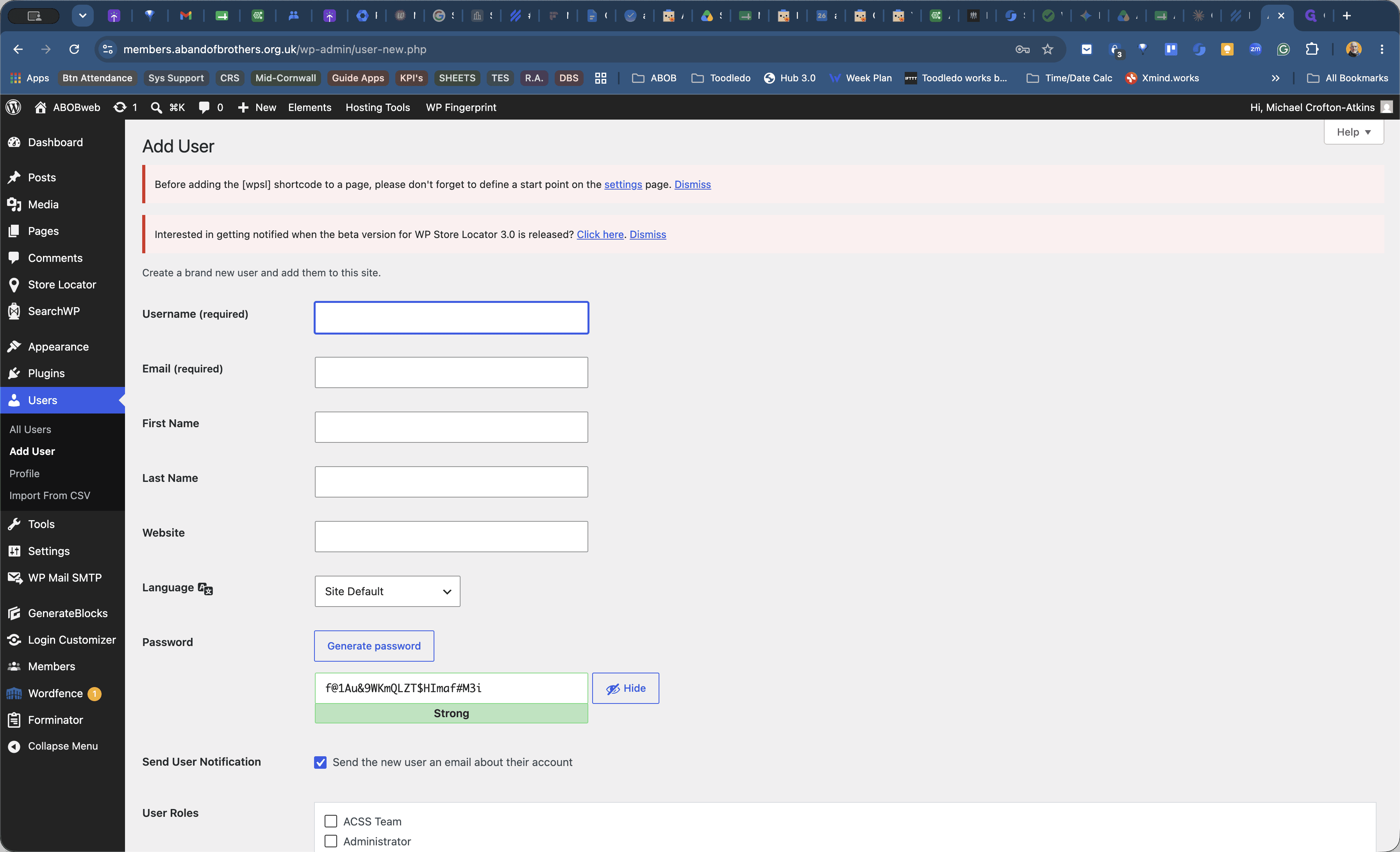
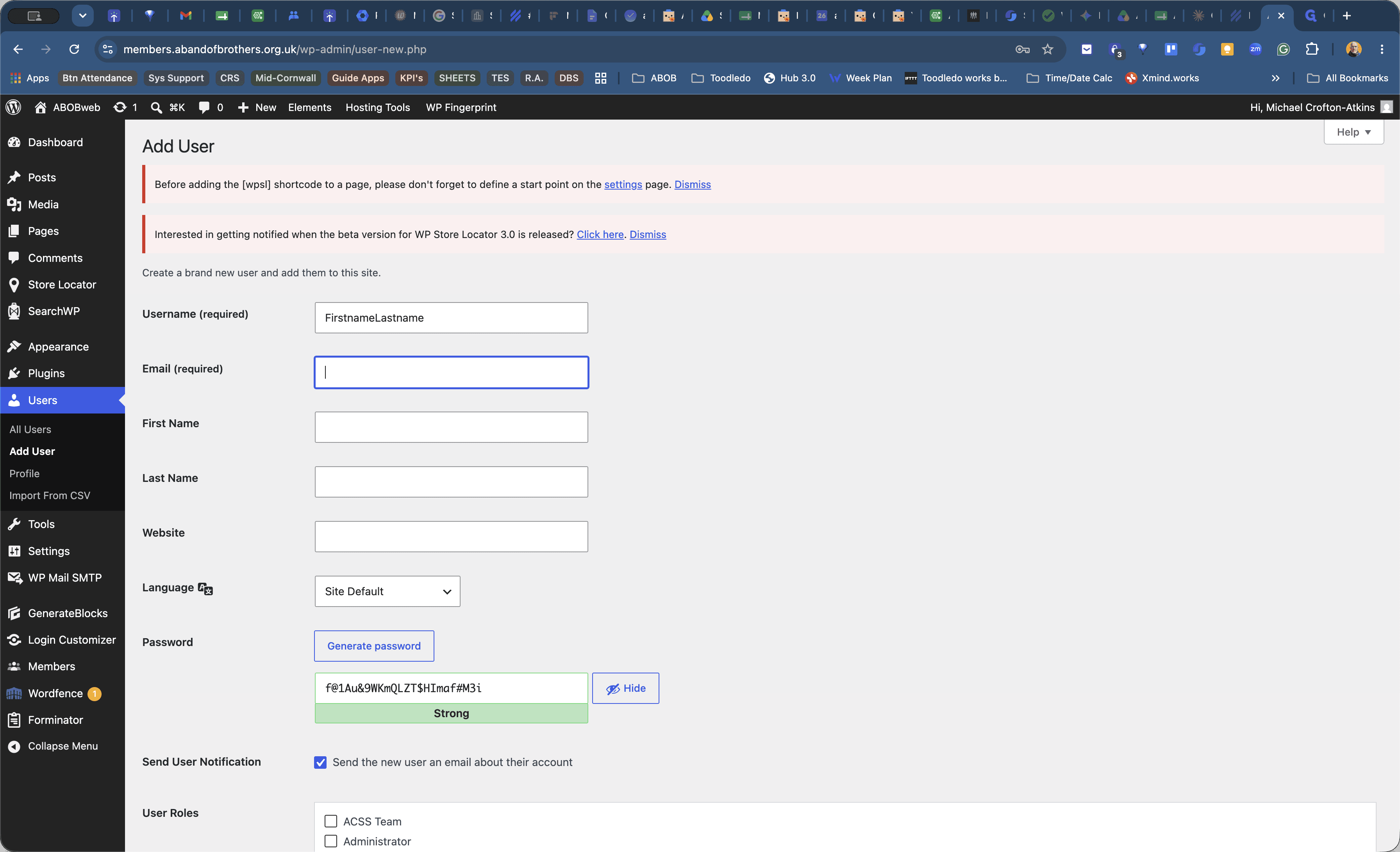
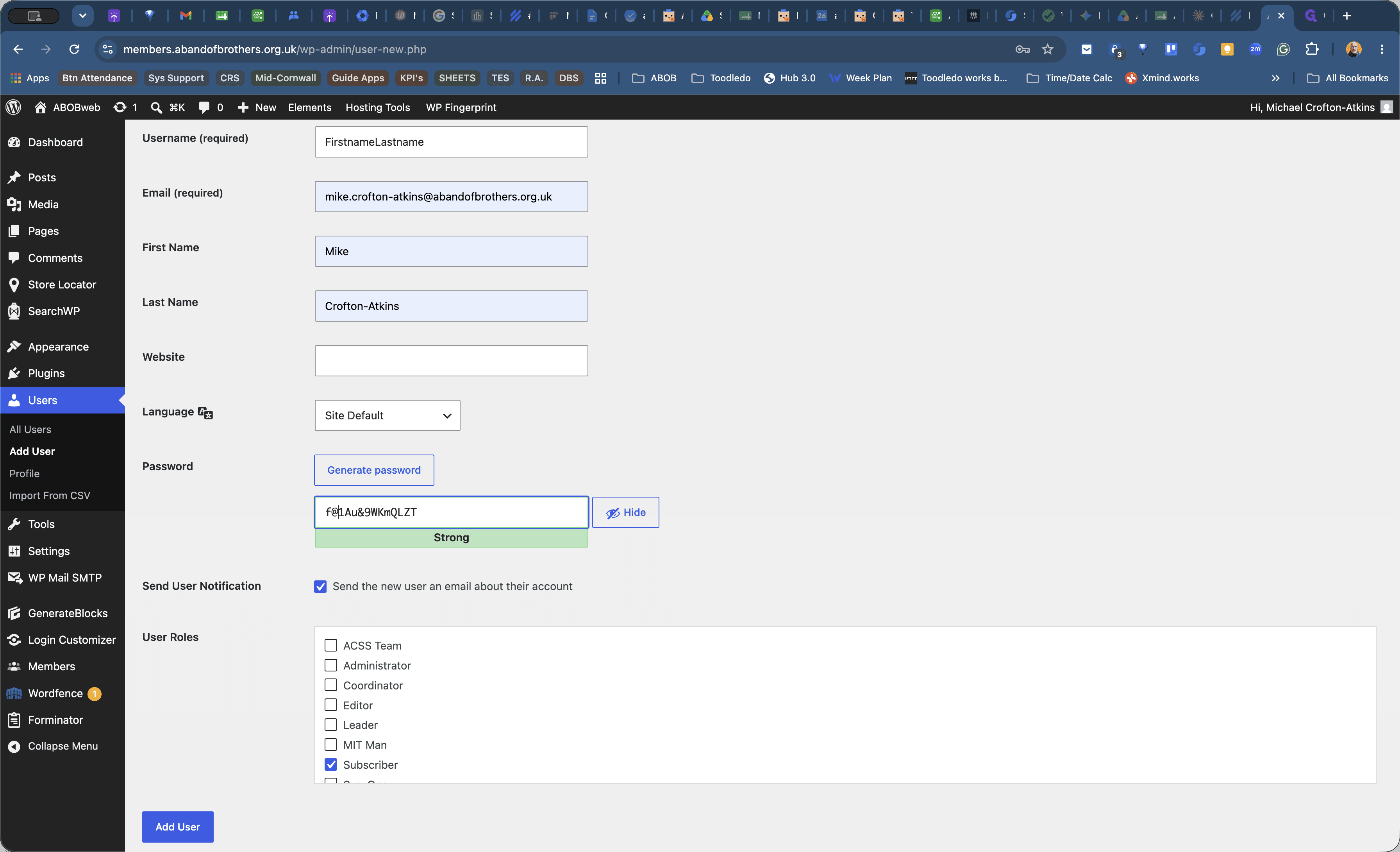
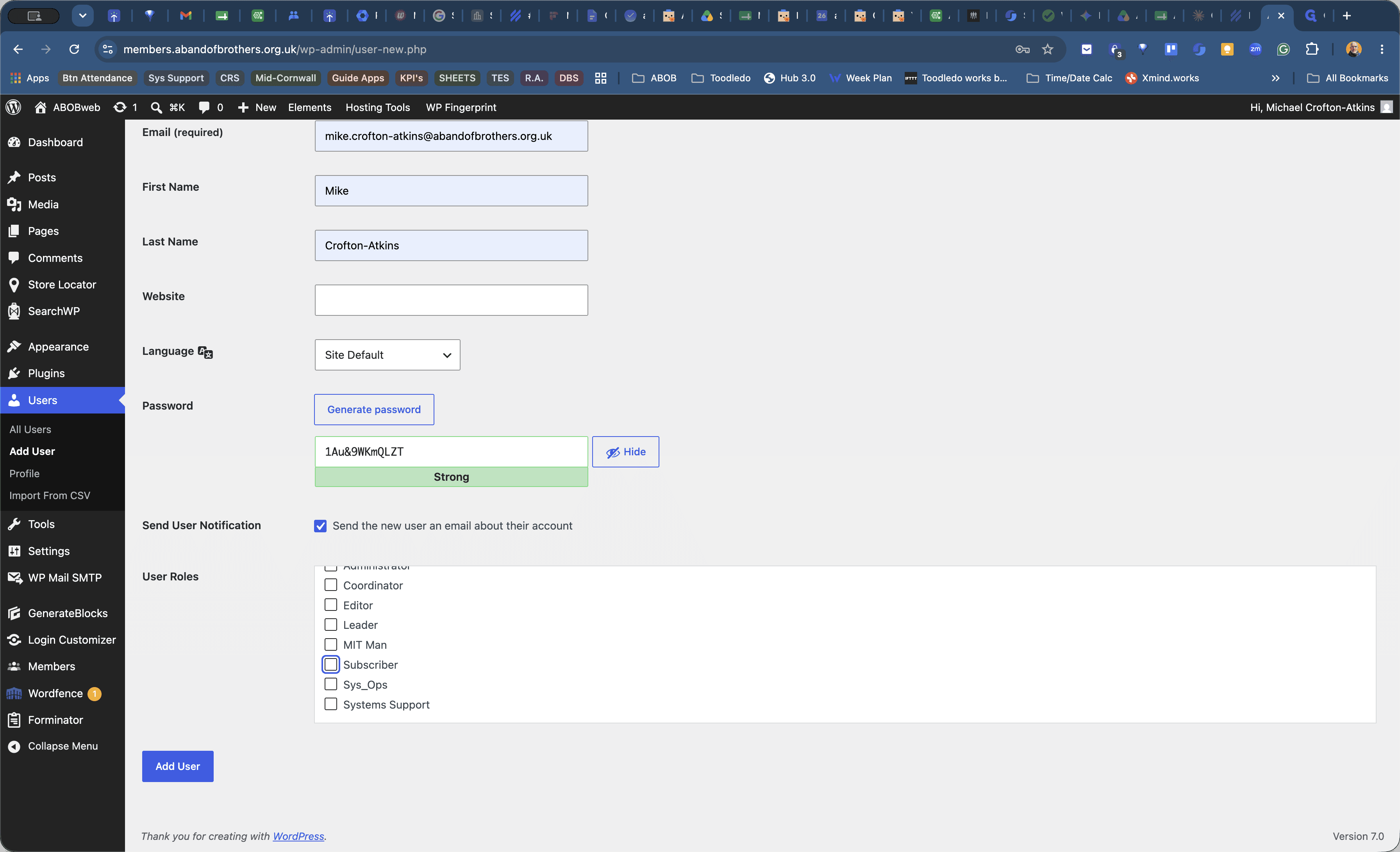
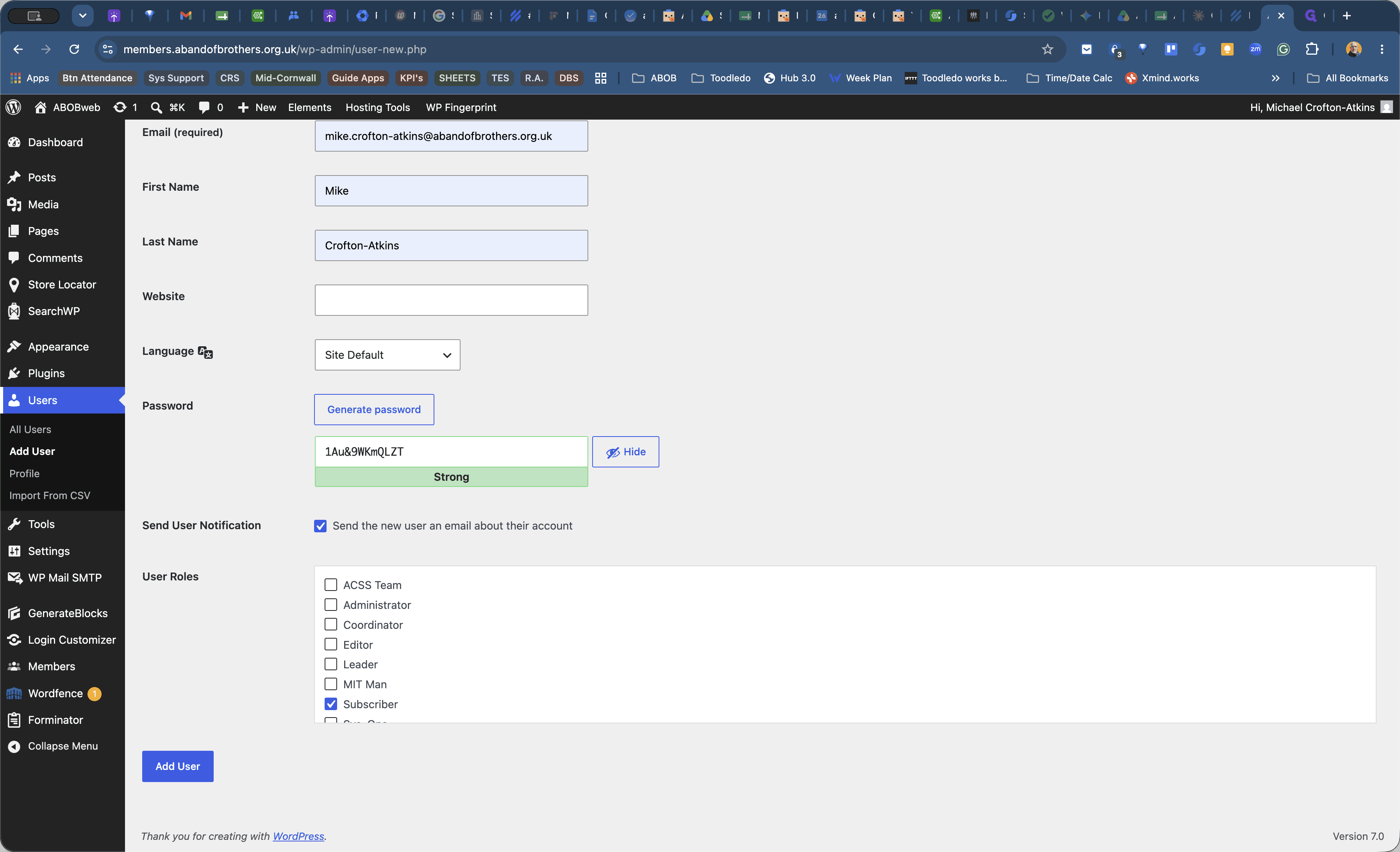
Add a New User
Reset a User's Password
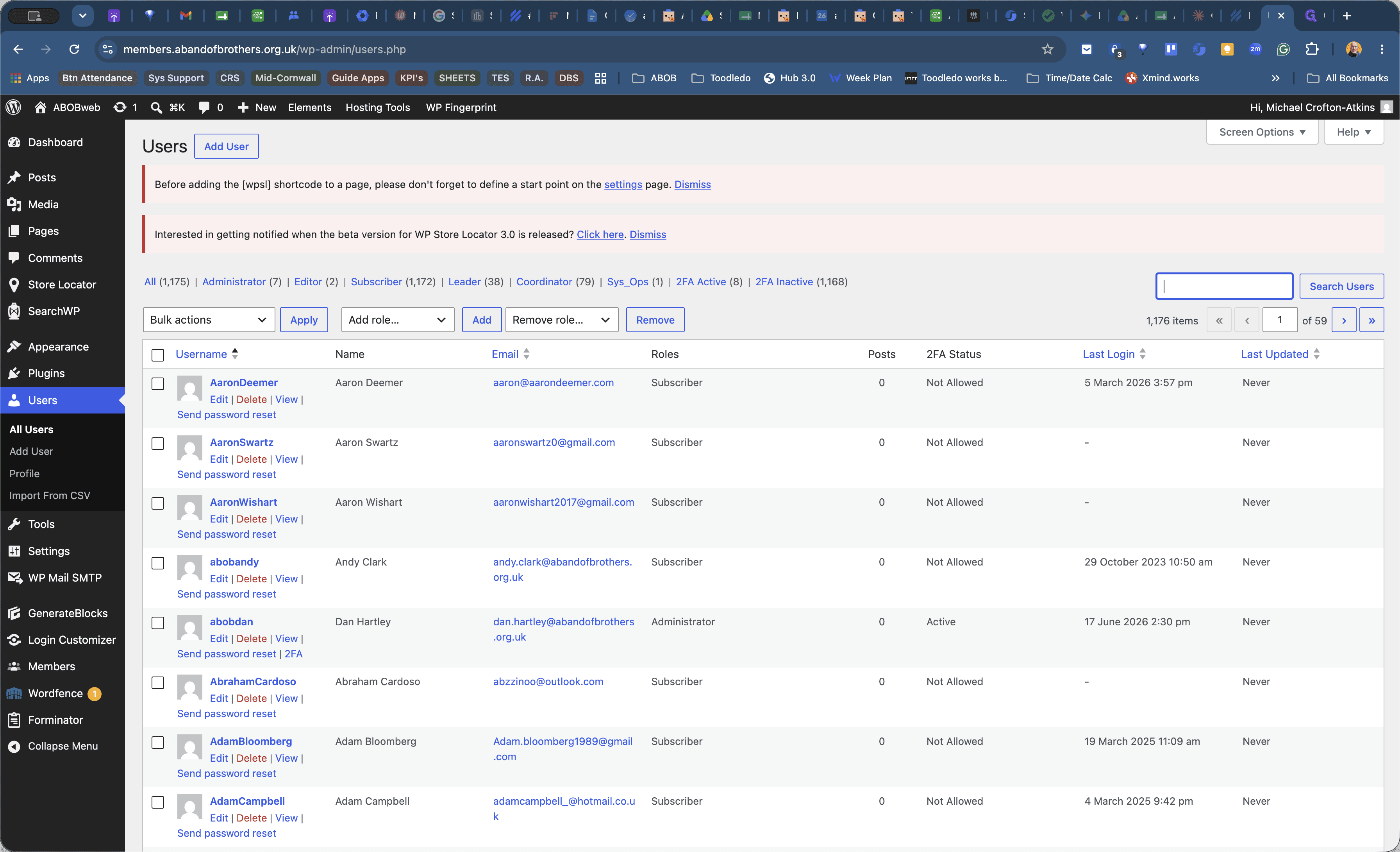
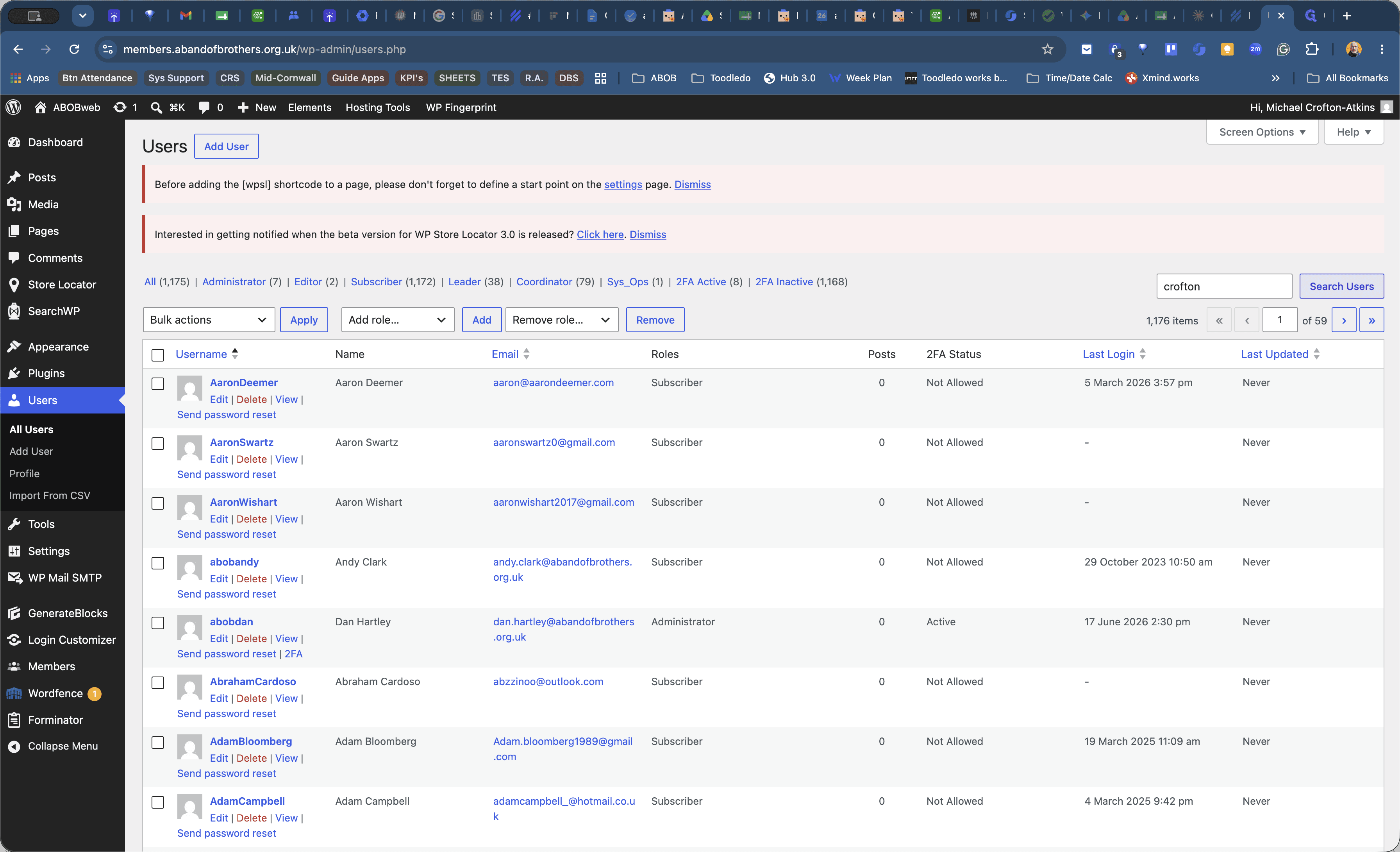
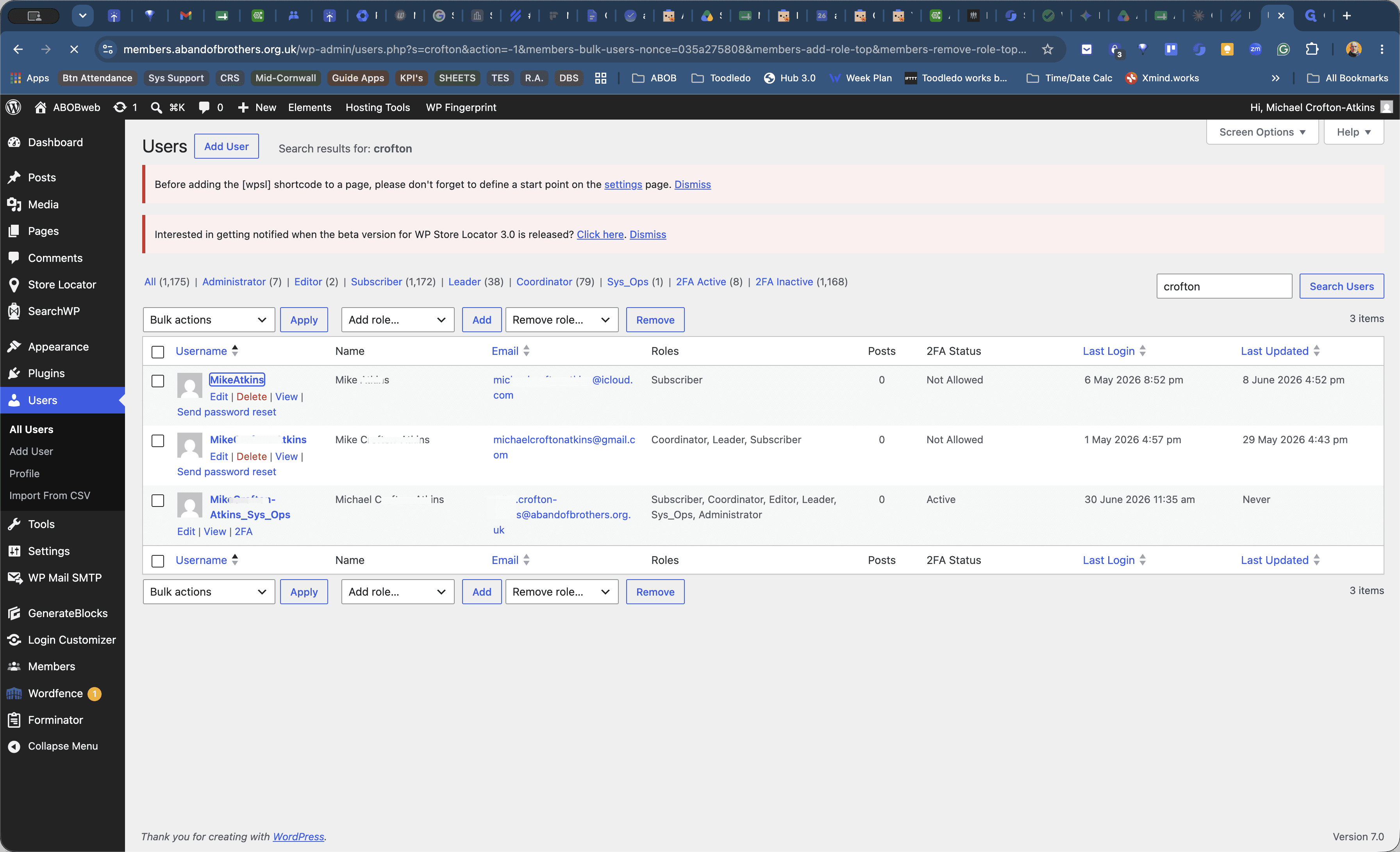
Once in the user's profile, you have two options for helping them regain access:
Method | Description | When to use |
|---|---|---|
Send Reset Link | Dispatches an automated email allowing the user to choose their own password. | Standard method for most users who forgot their password. |
Set New Password | Manually sets a new password directly on their profile. | Use only if the user is struggling to complete the automated reset process on their own. You will need to manually message them the new password via WhatsApp or text. |
To use the standard method, scroll to the account management section, click Send reset link, and then click Update User to apply the changes and dispatch the email.
Q: What role should I assign to new members or mentors?
A: Assign them the "Subscriber" role. This grants access to the standard member pages without exposing coordinator-level administrative features.
Q: Should I use the MIT Man role for new volunteers?
A: No, avoid using the MIT Man role right now. ABOB Web is currently undergoing edits, and this role needs further configuration to ensure users only access what they strictly need.
Q: How should I format new usernames?
A: Usernames should be the user's first and last name combined, with the first letter of each name capitalised (e.g., JohnSmith).
Term | Definition |
|---|---|
ABOB | A Band of Brothers, the organisation managing the membership portal. |
Subscriber | A basic user role granting access to standard membership pages without administrative privileges. |
MIT Man | A designation for a new volunteer who is mentoring but has not yet been initiated through a rites of passage weekend. |
WP Admin | The backend administration panel of a WordPress website. |