How to Manually Place an Order Using the Scheduler: Step-by-Step Guide
Learn how to manually place an order using the scheduler, including tips for booking, selecting options, and managing time slots for real estate services. Follow this step-by-step guide for a flexible and efficient booking process.
In this guide, we'll learn how to manually place an order using the scheduler. This process gives you flexibility to adjust booking details, such as time slots and property information, even though it may require more steps than automated options.
You will see how to create a new order, select services like a 3D tour, and update event details as needed. Sending a booking confirmation email is also part of the process.
Let's get started
Adriana, if you want an example of placing an order manually, the best place to start is to go into the scheduler. That's the simplest way to book.
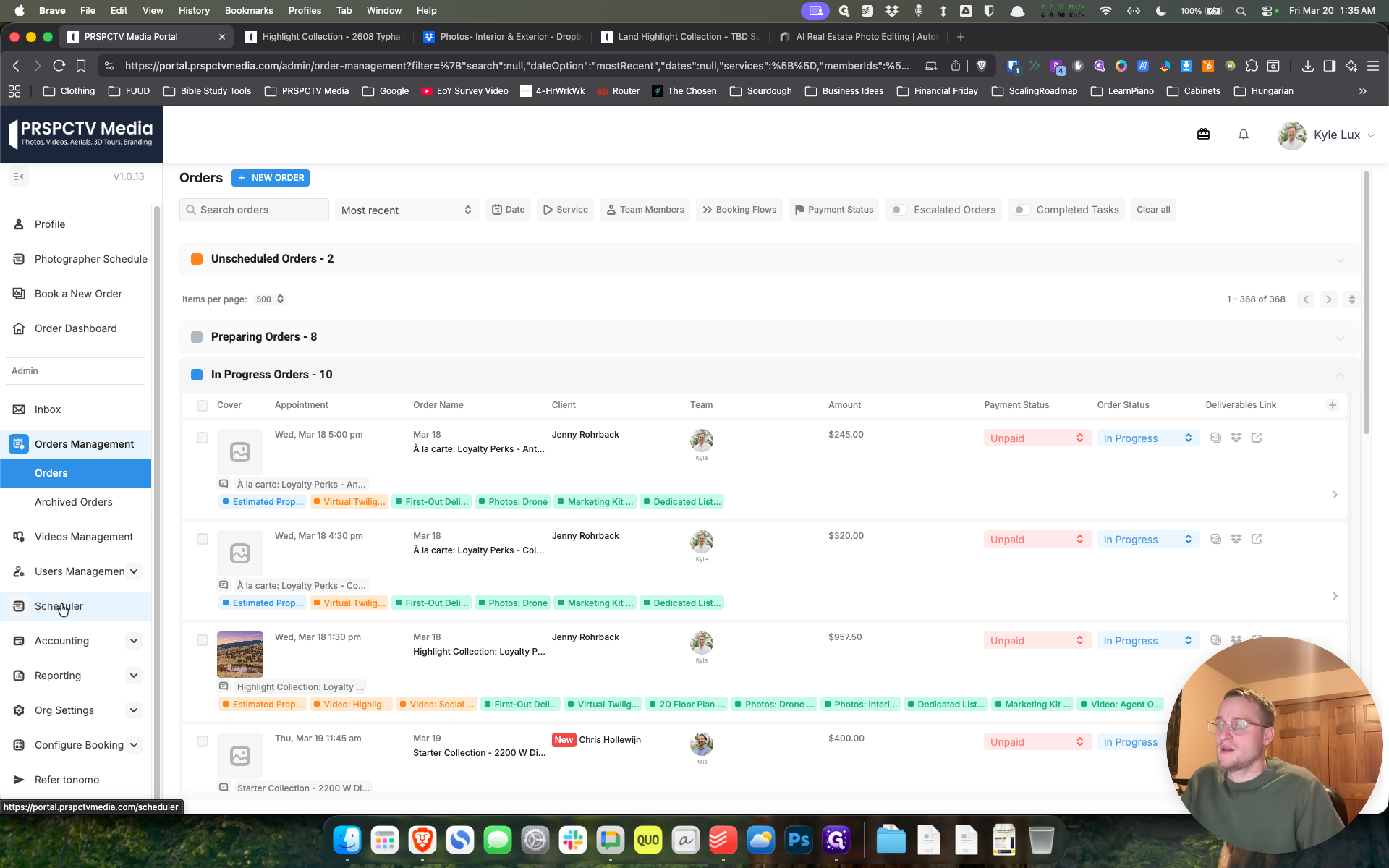
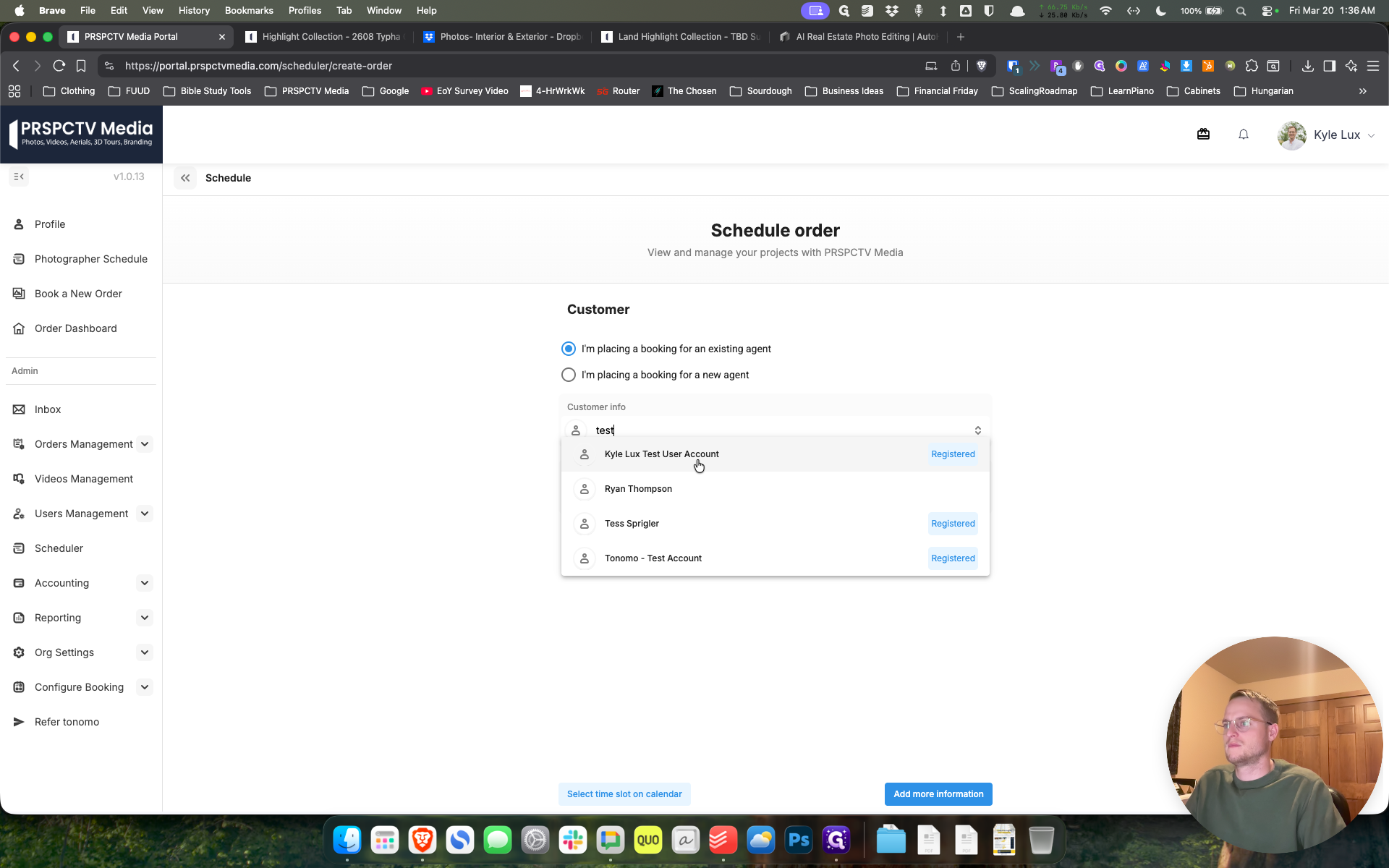
It's not as user-friendly when selecting different options in the booking flow. It's a bit grittier and more manual. Ultimately, because of the flexibility you have with manually moving things around, that's the best option. I am under Scheduler. I will click Create, then select Create a New Order.
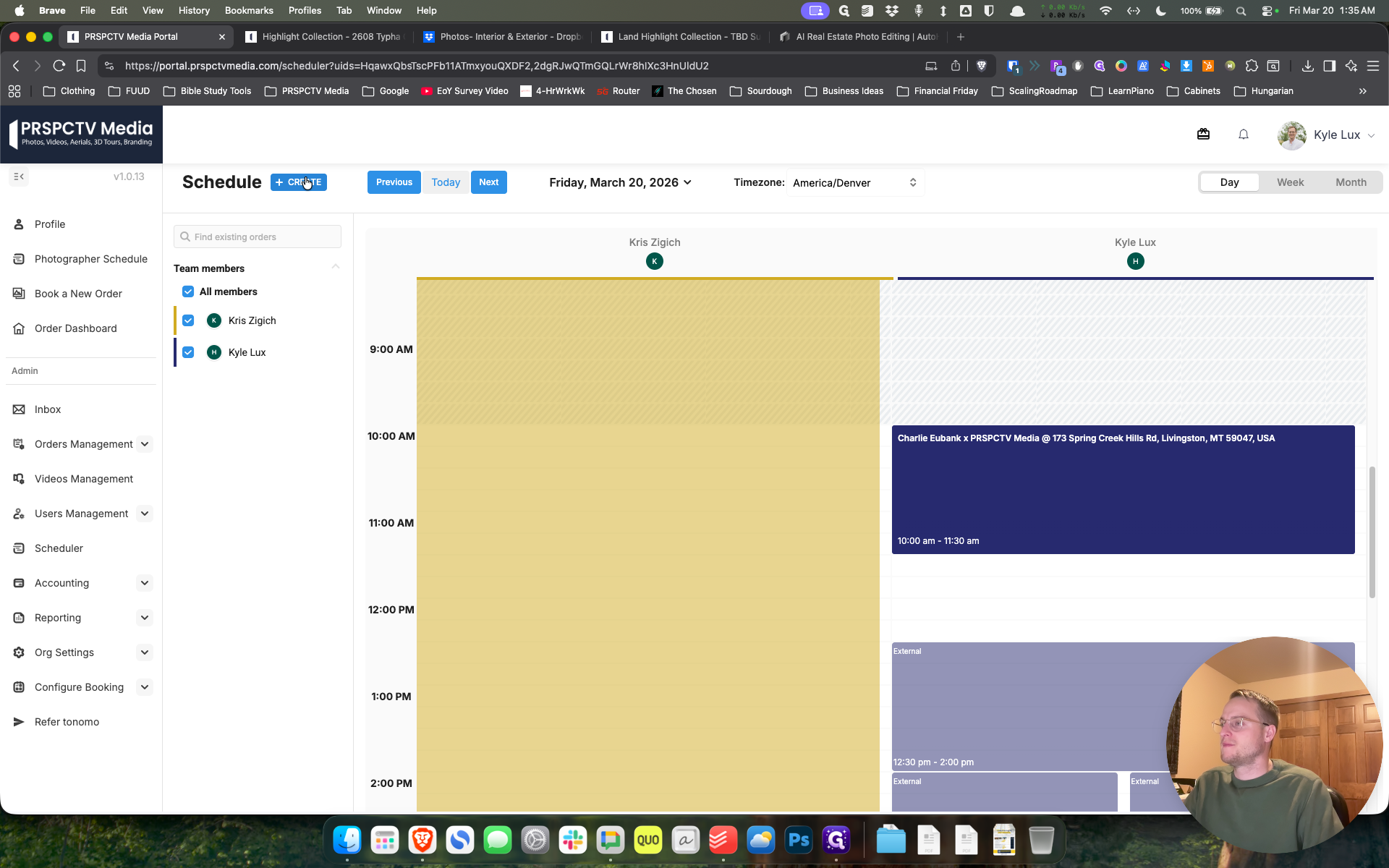
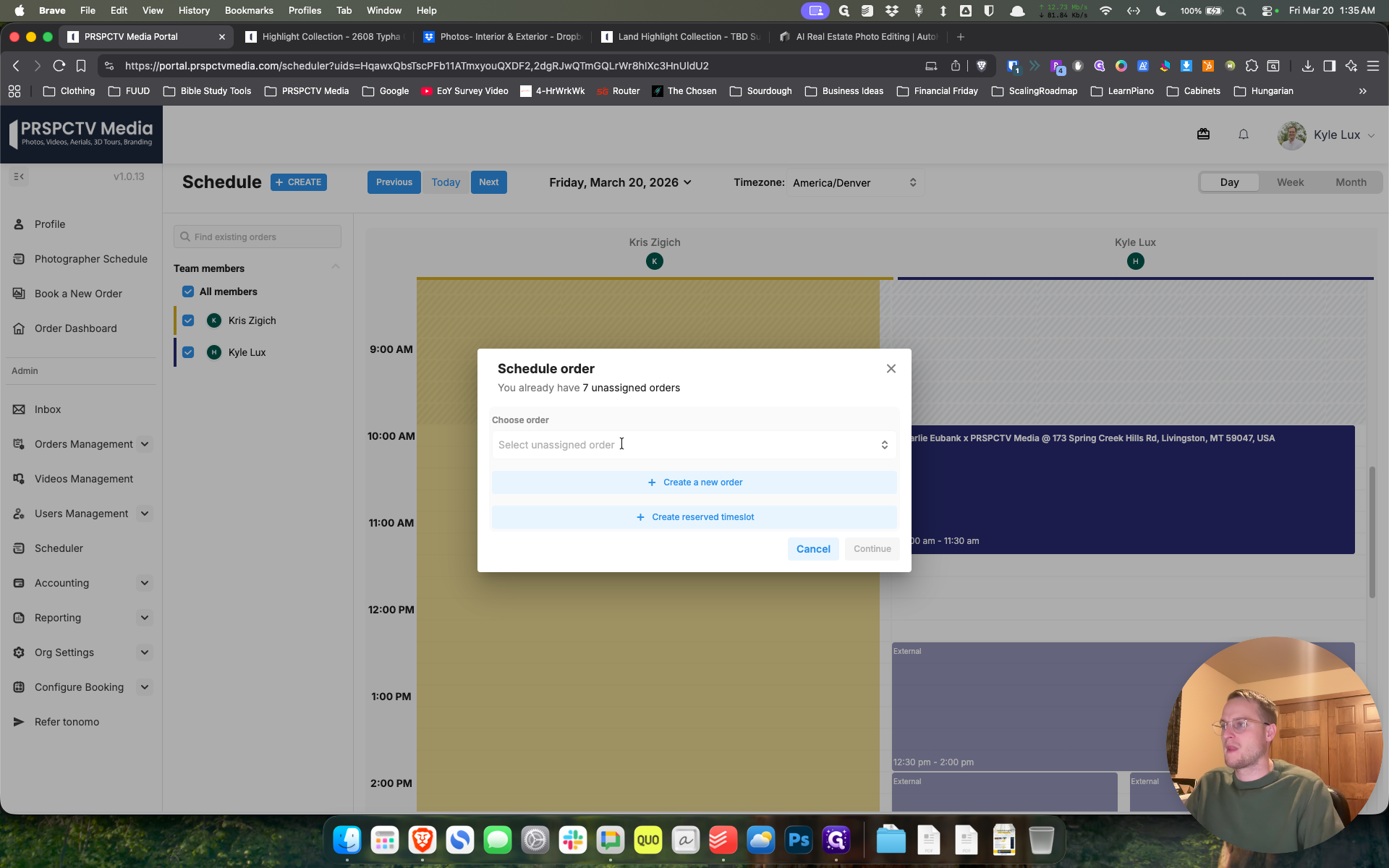
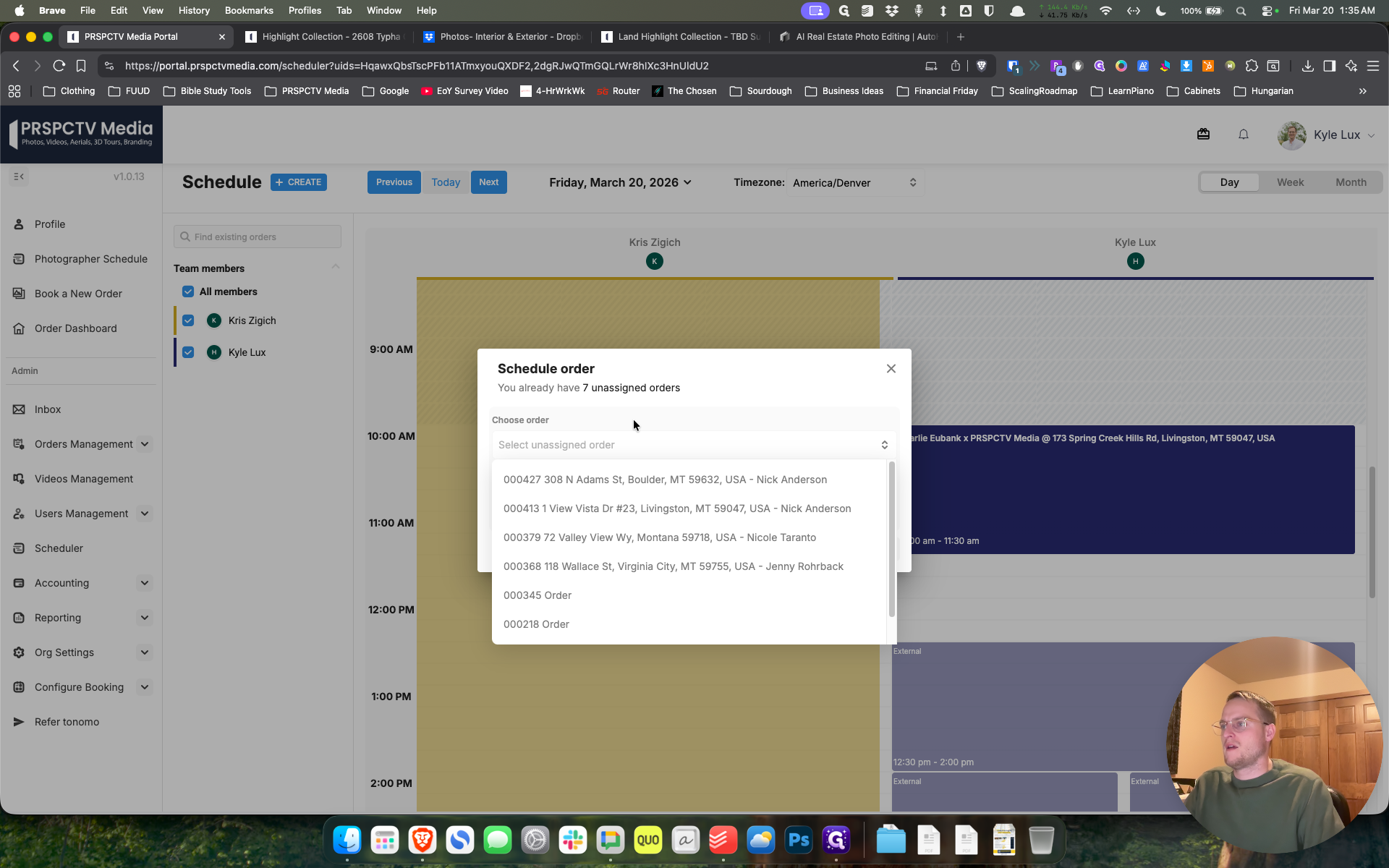
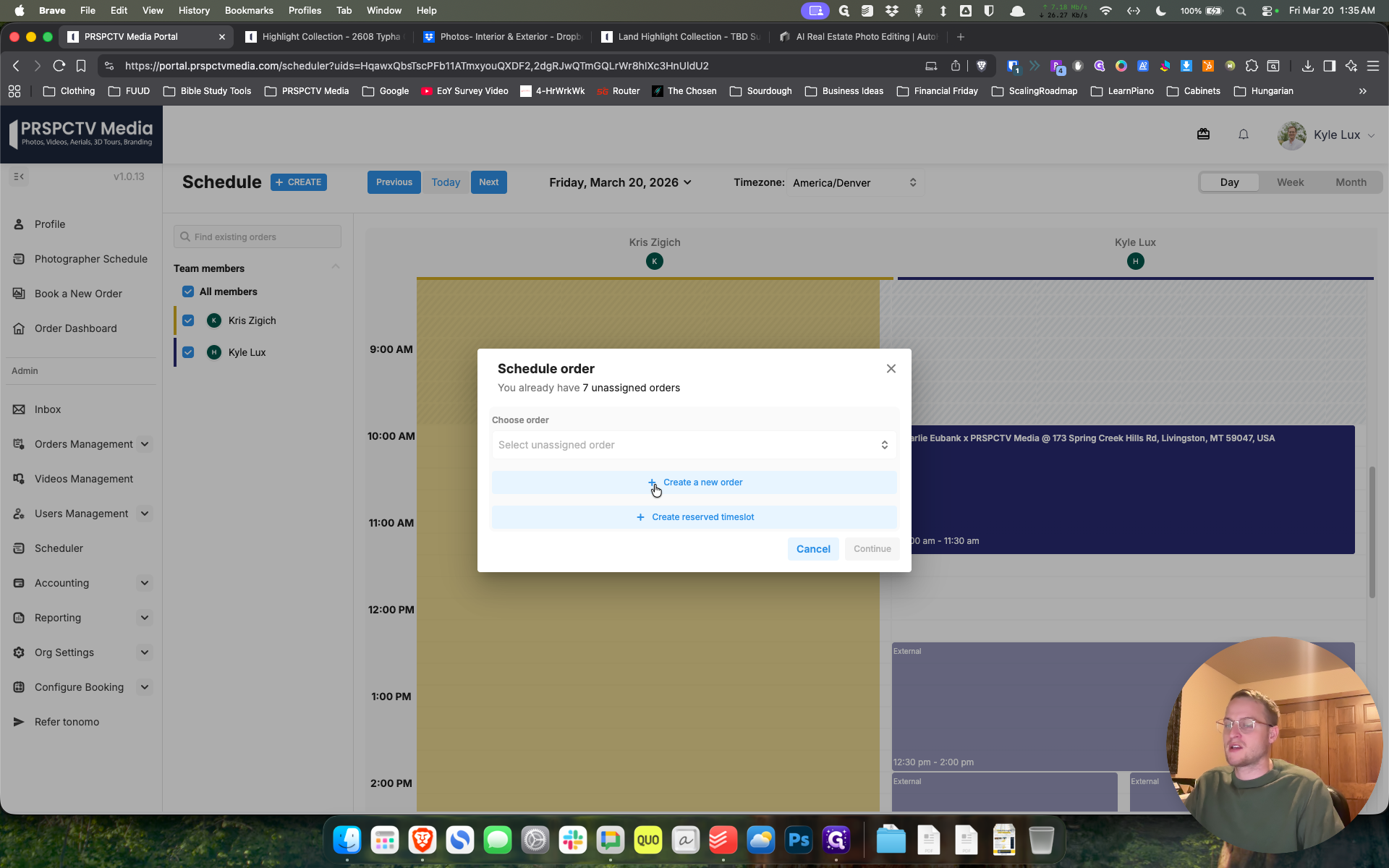
We can do this for the test user.
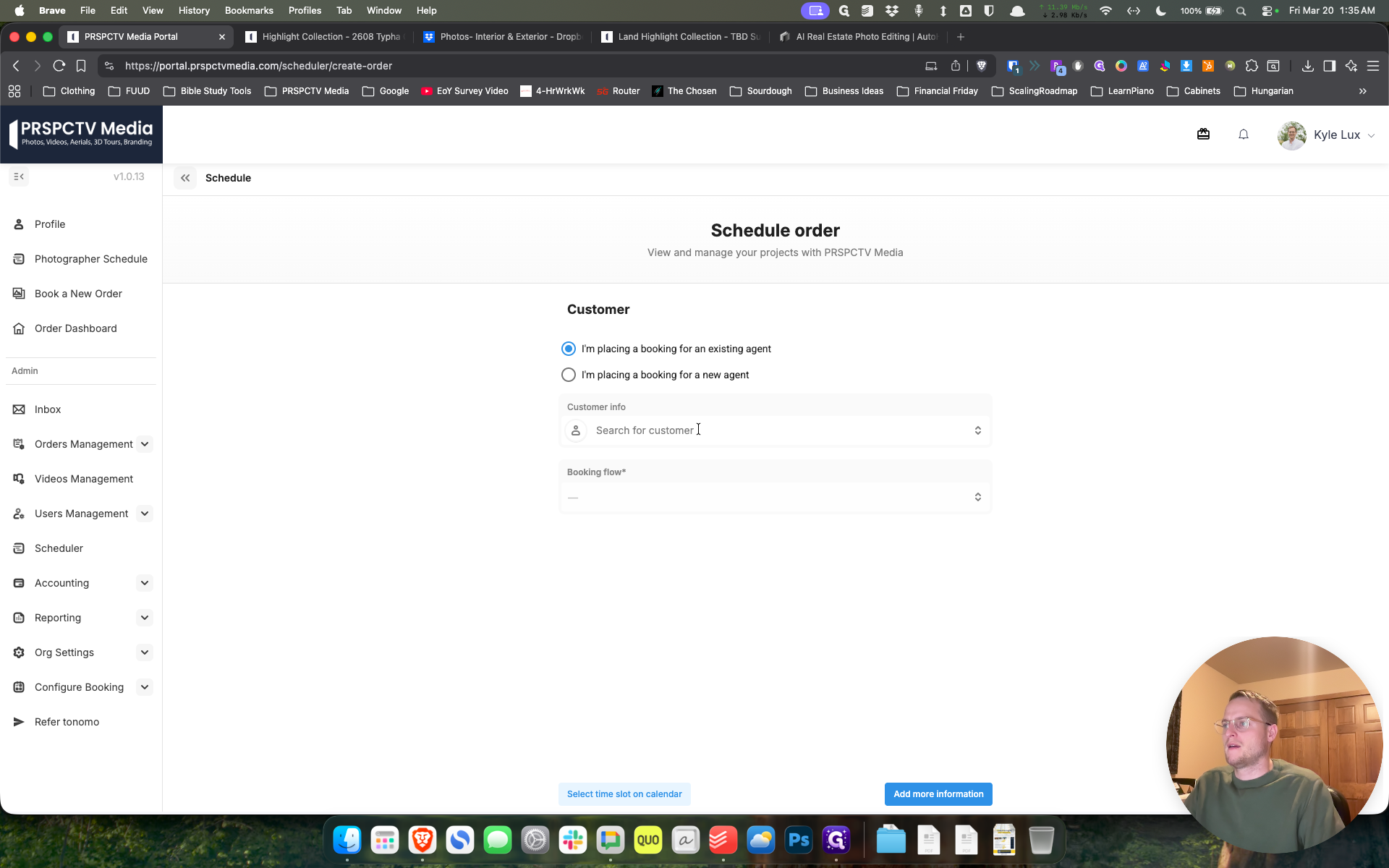
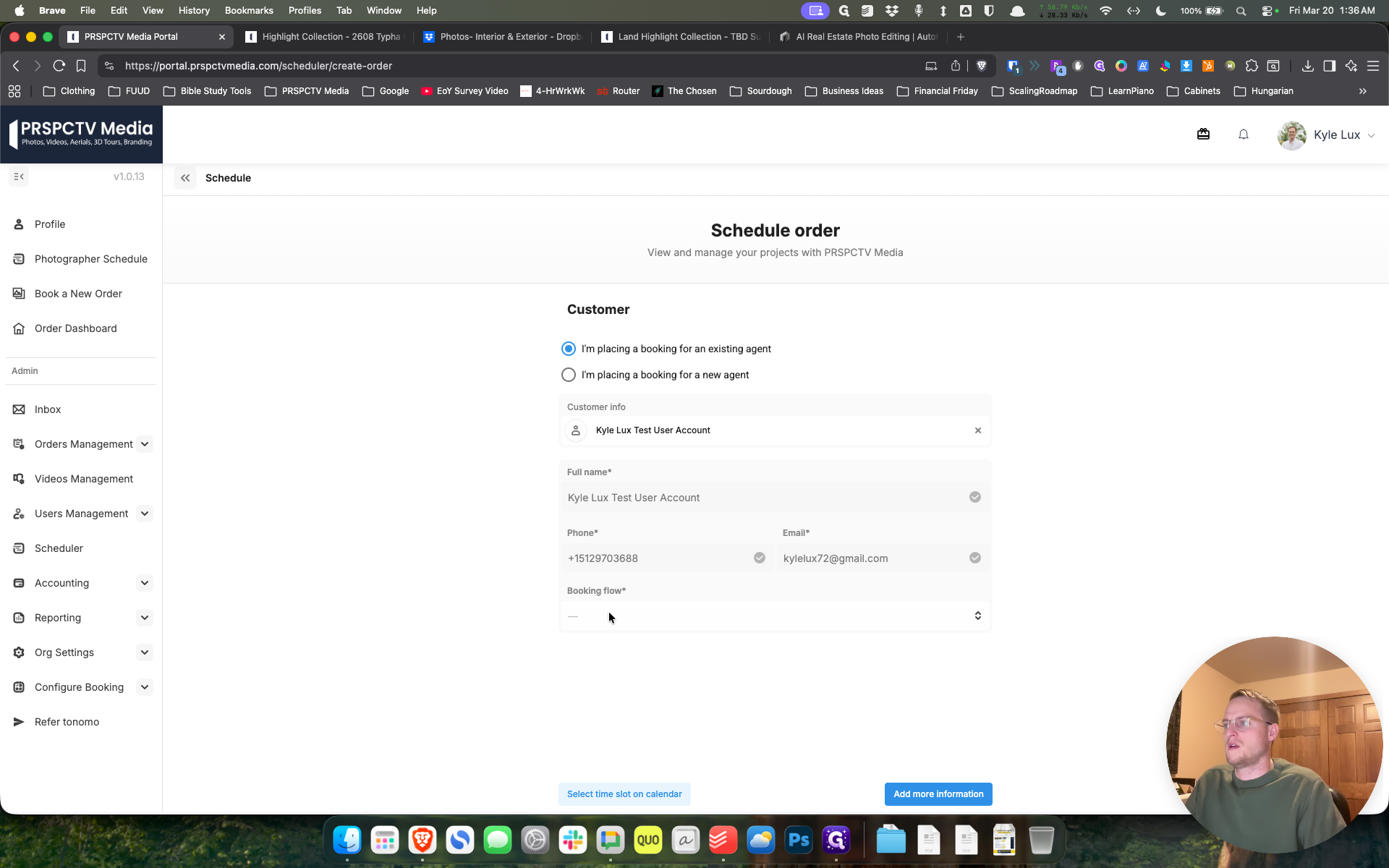
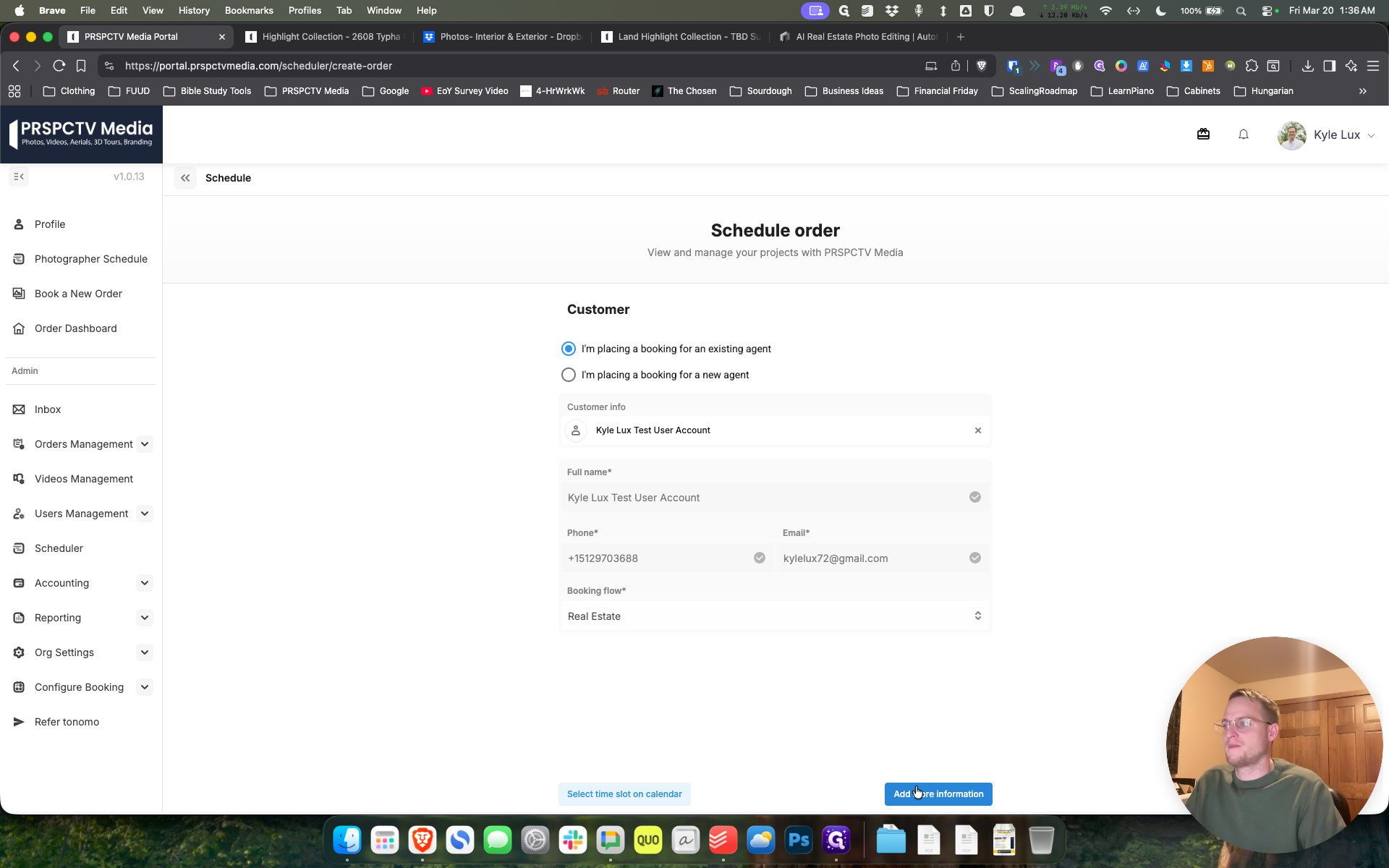
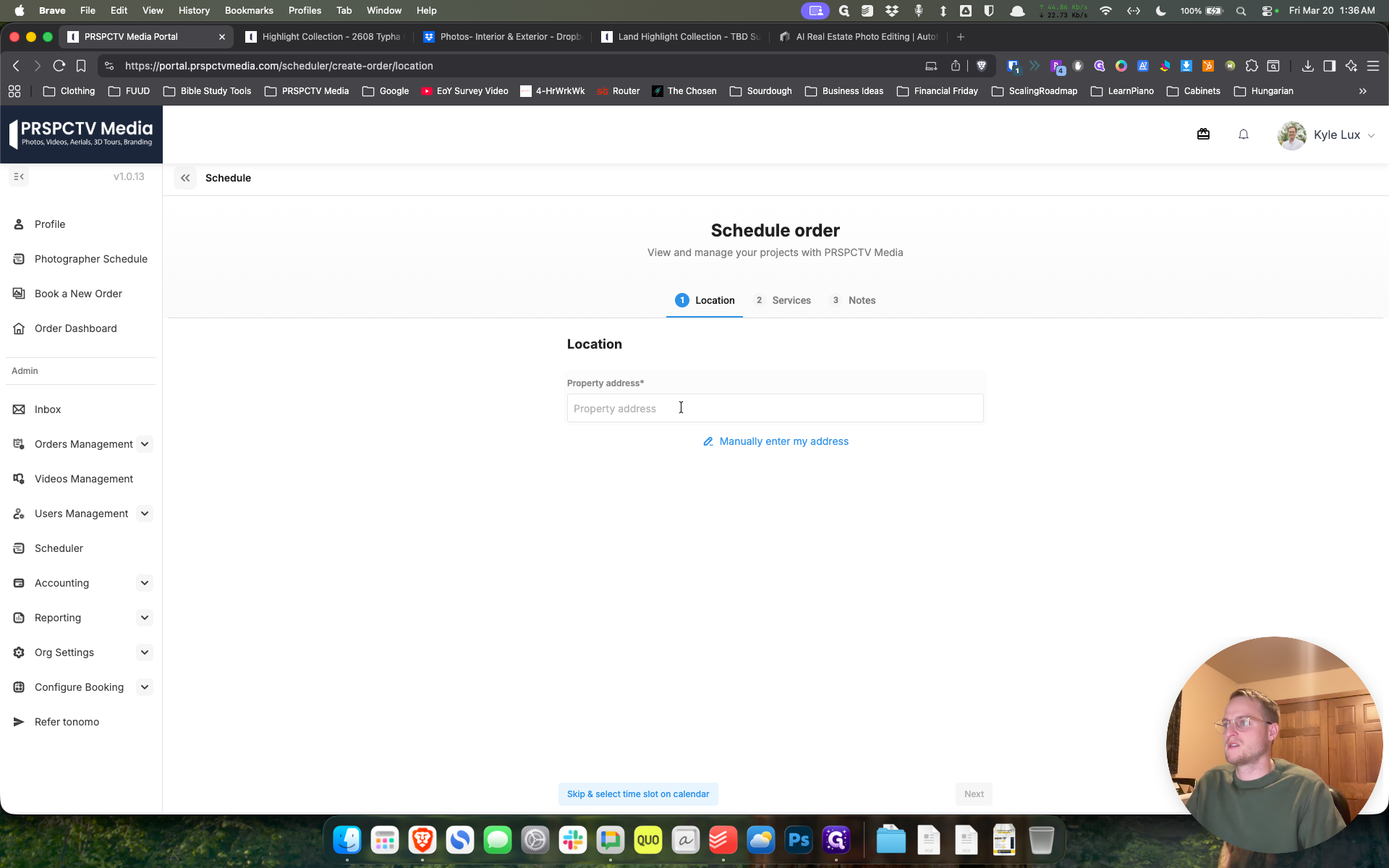
Let's work on our house.
Um ...
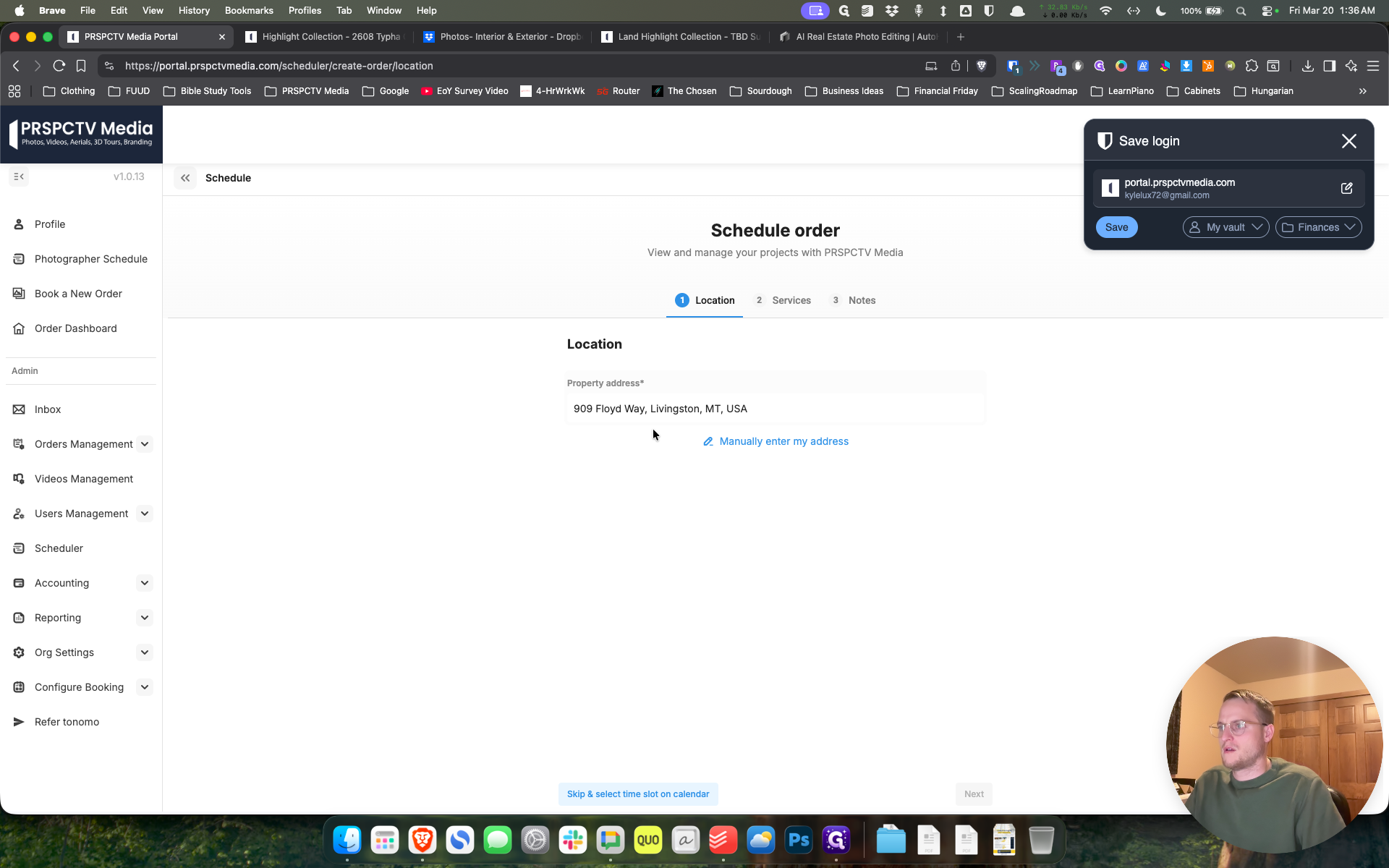
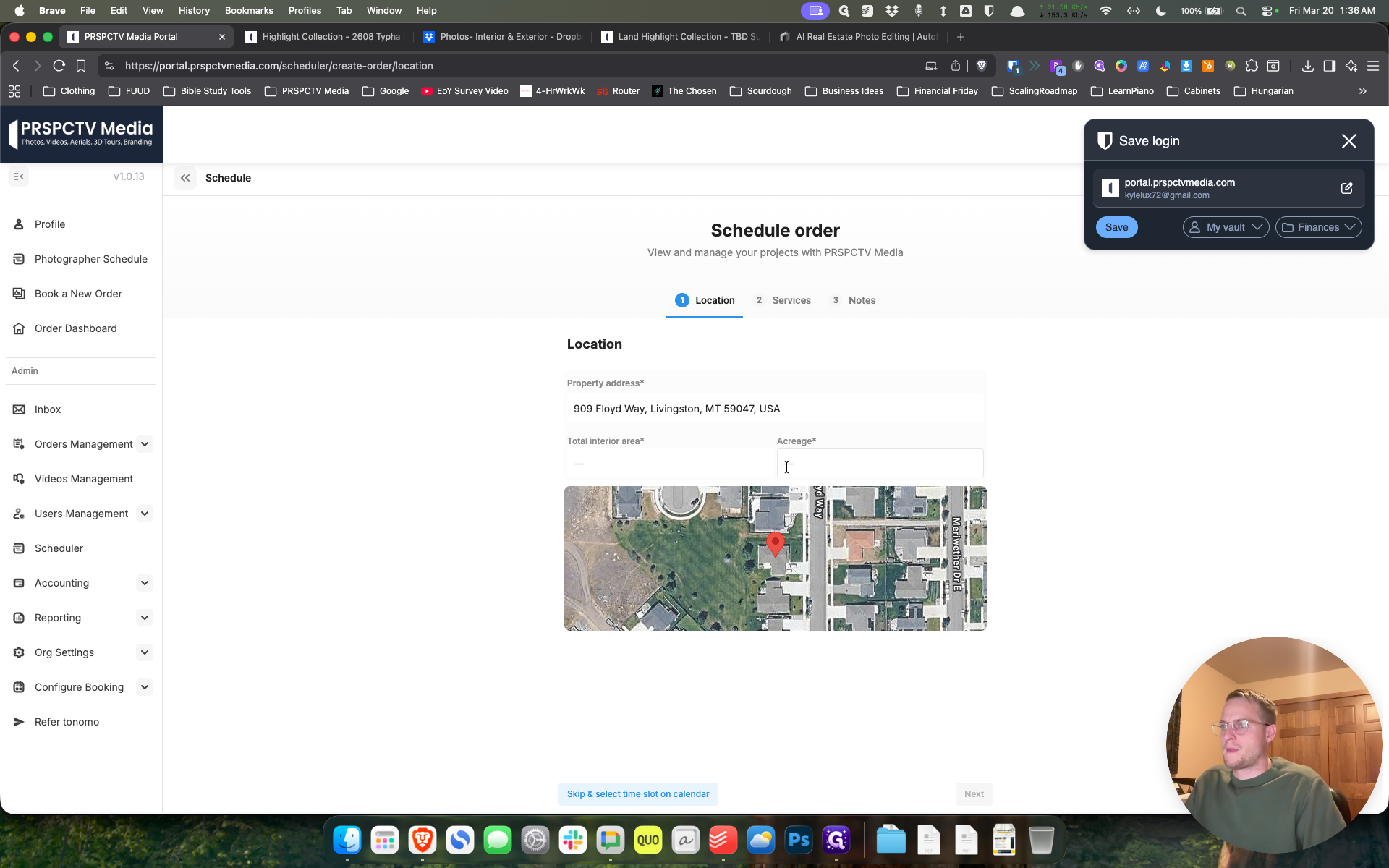
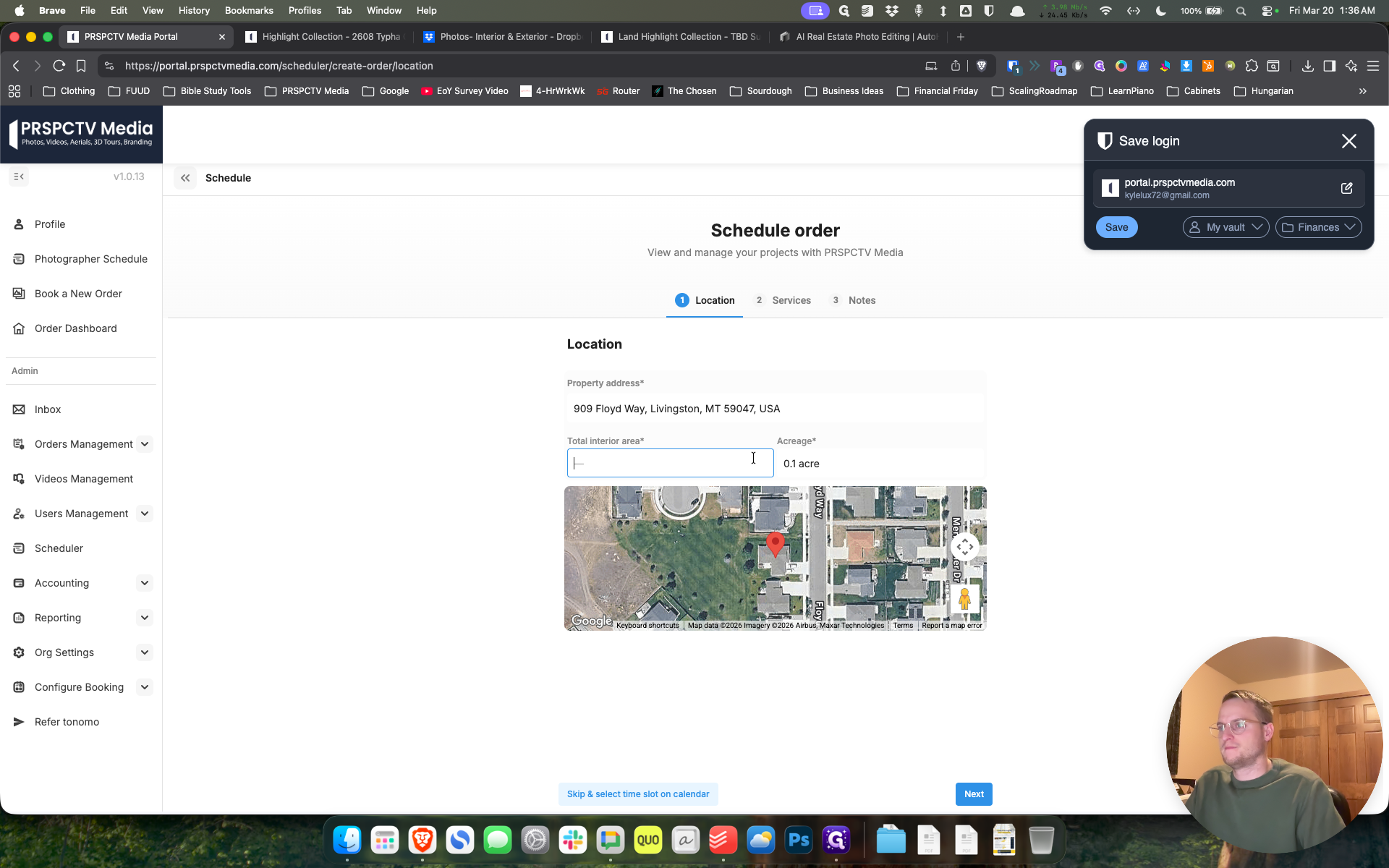
This is what I was talking about.
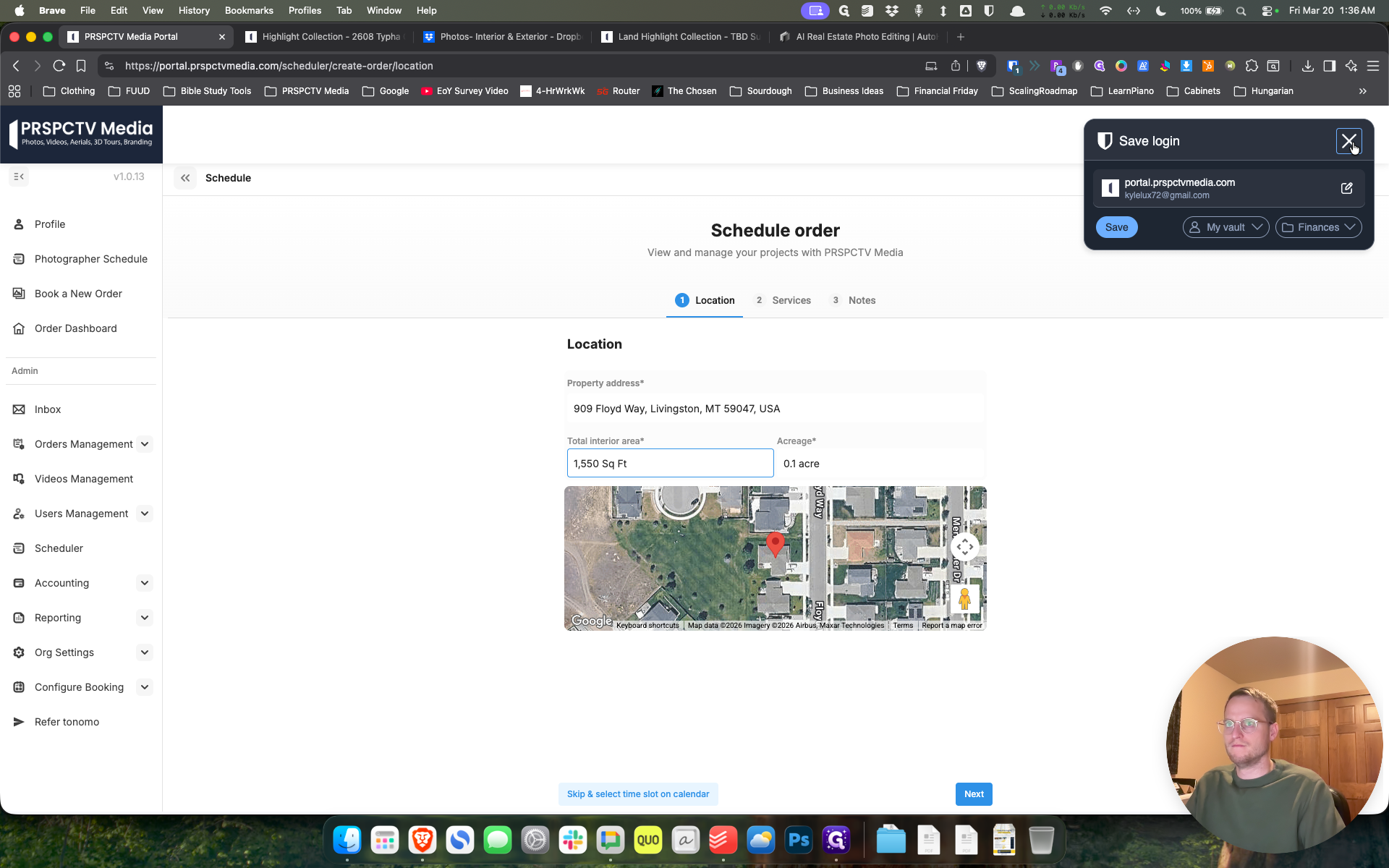
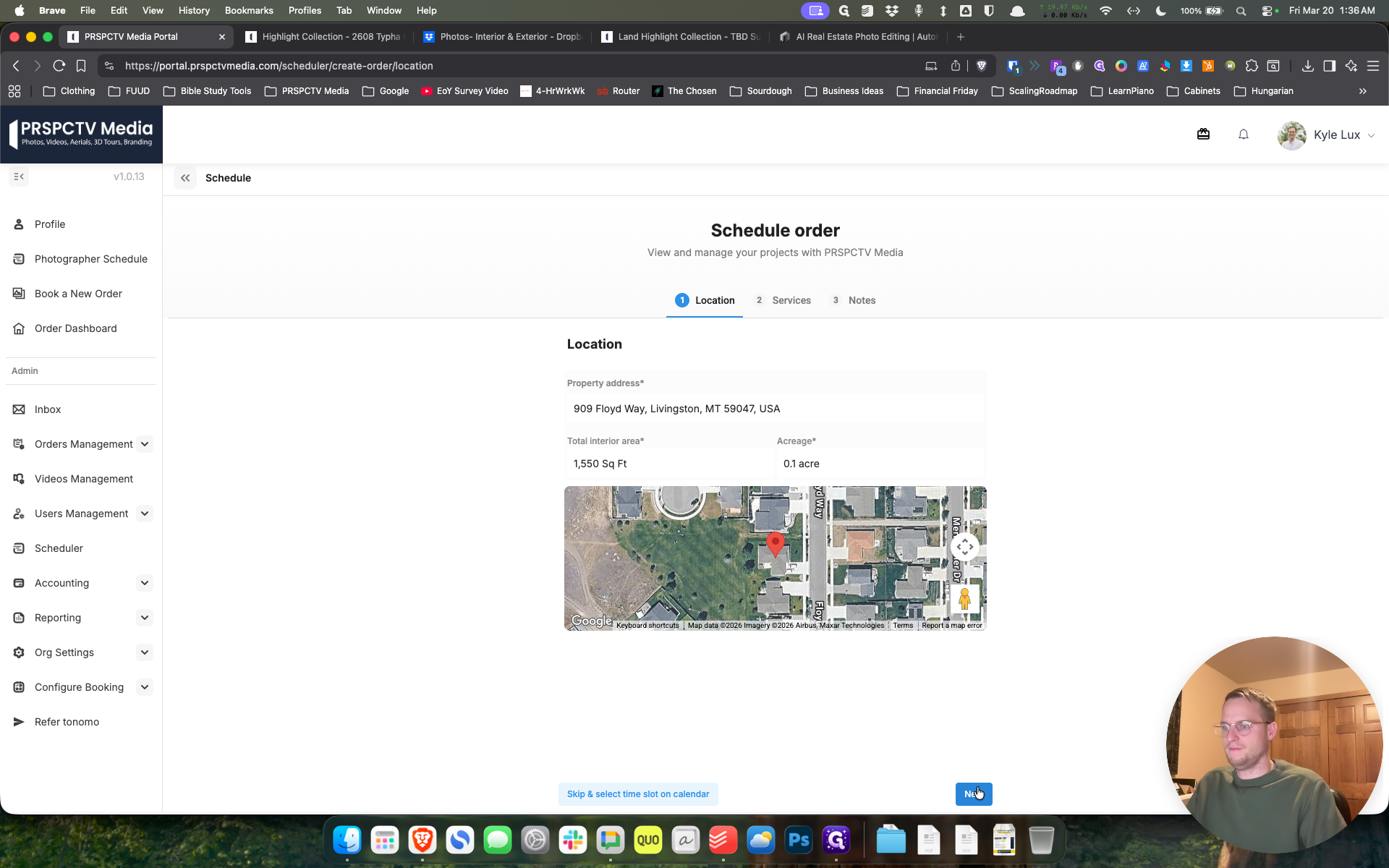
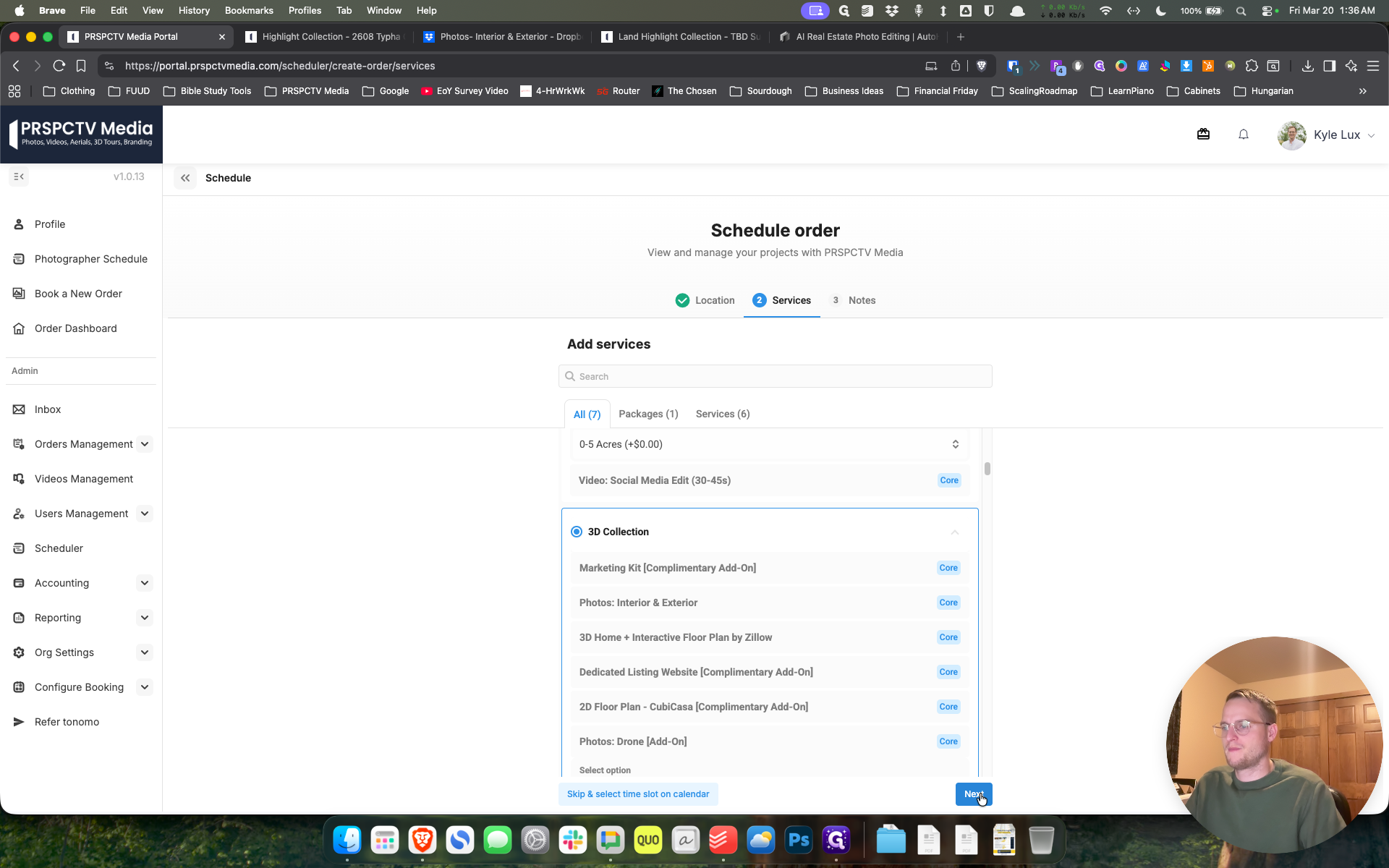
It's a bit more manual and not as visually exciting. Let's say we want a 3D tour.
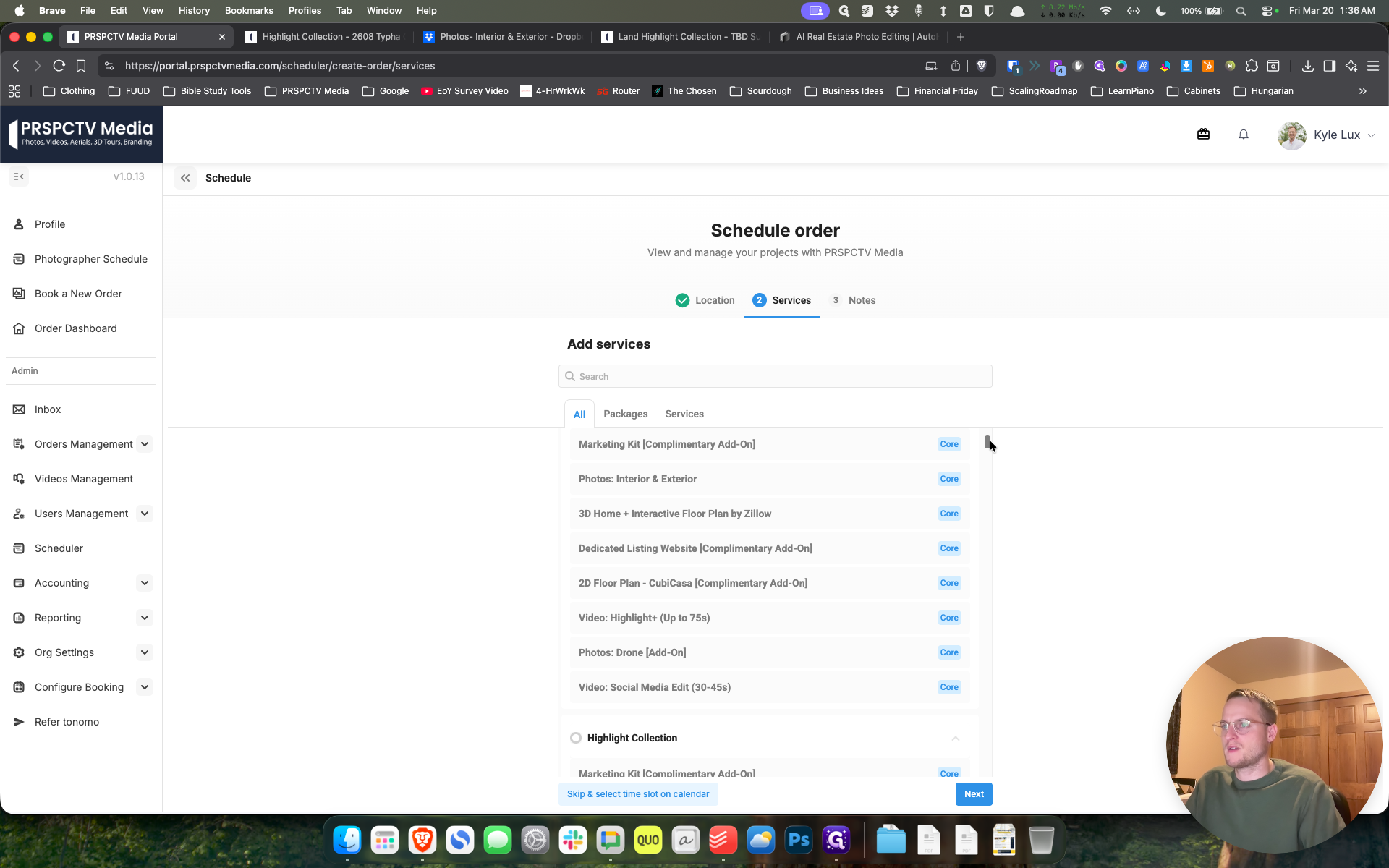
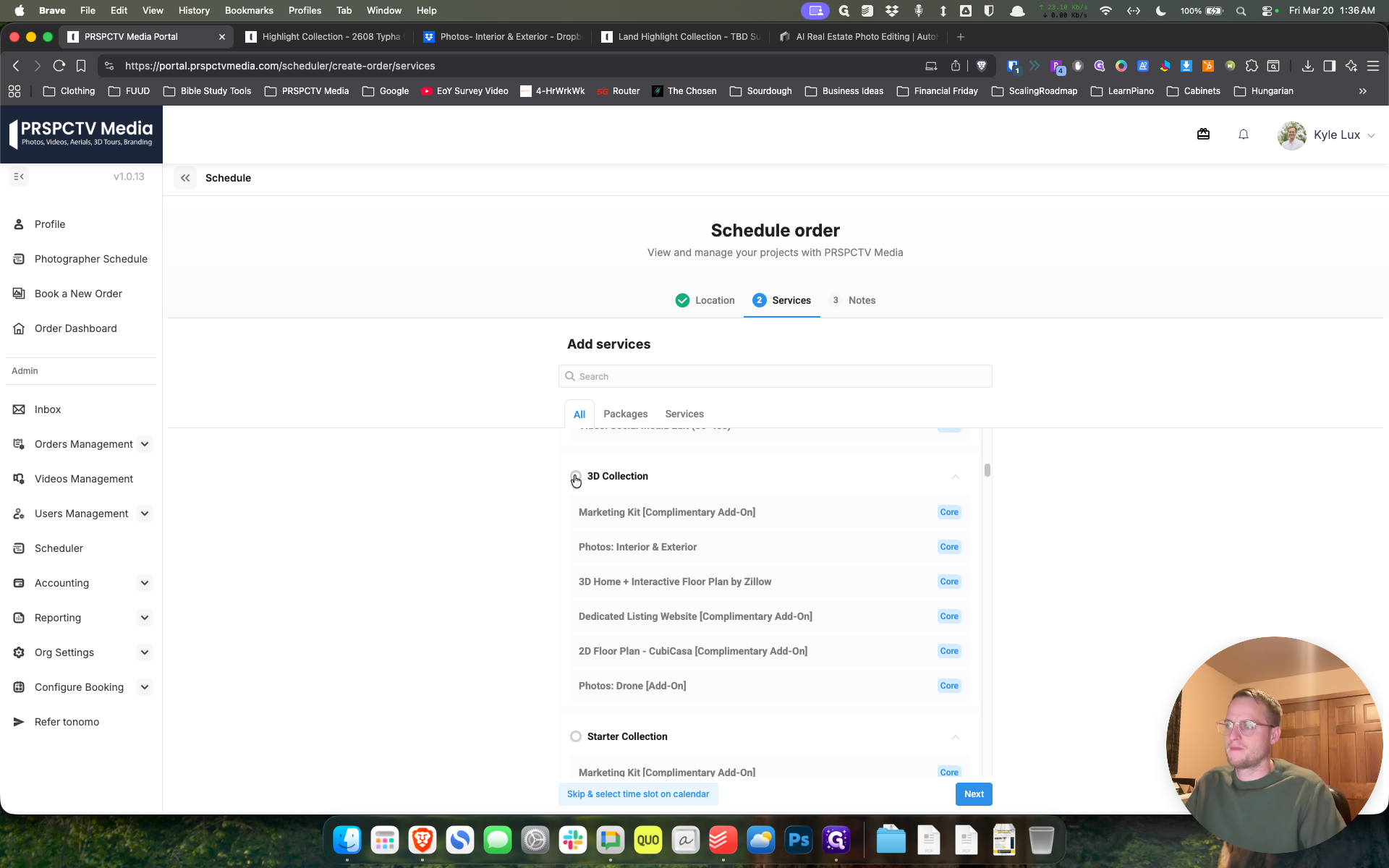
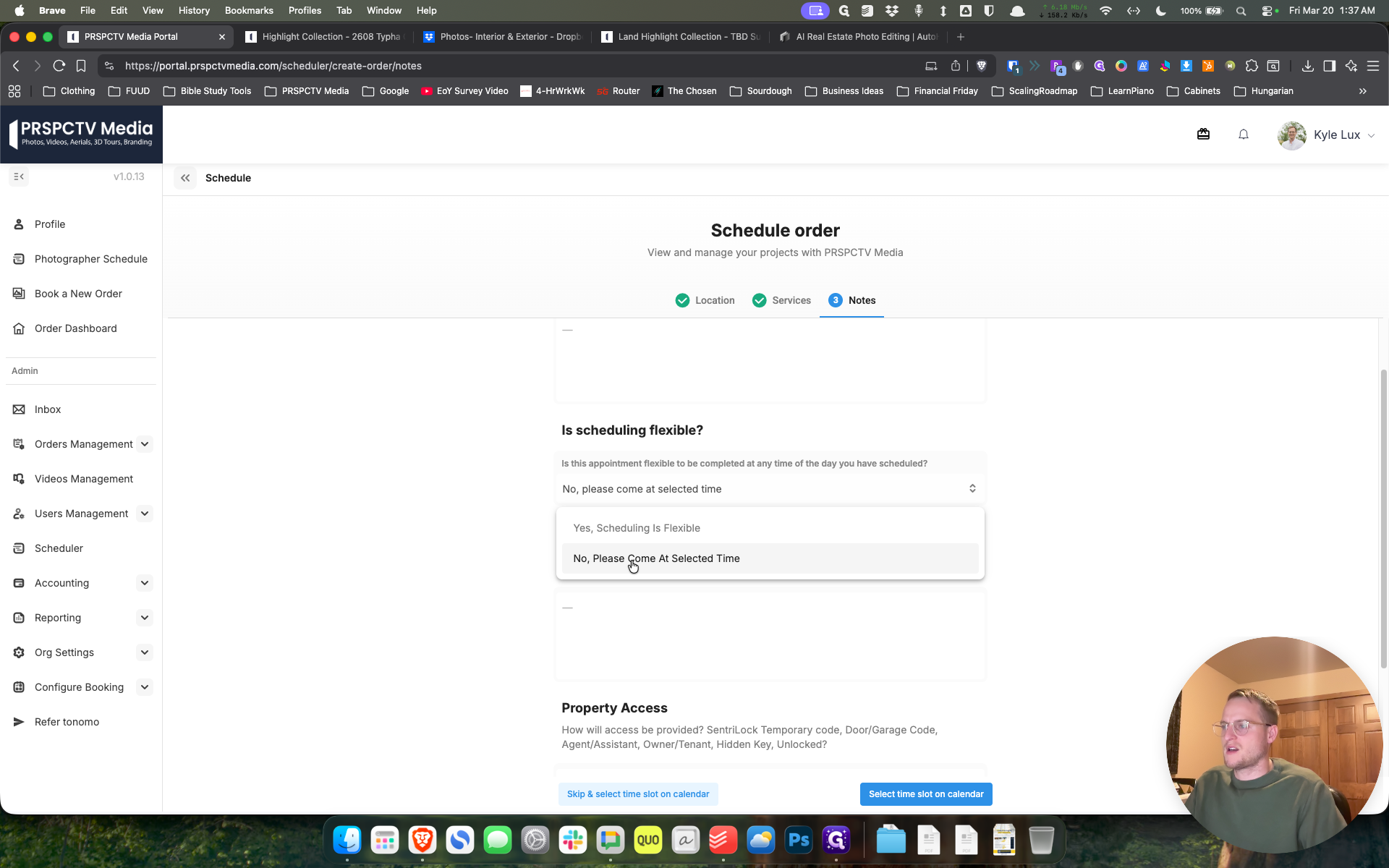
This one may take a little time. We will answer these questions.
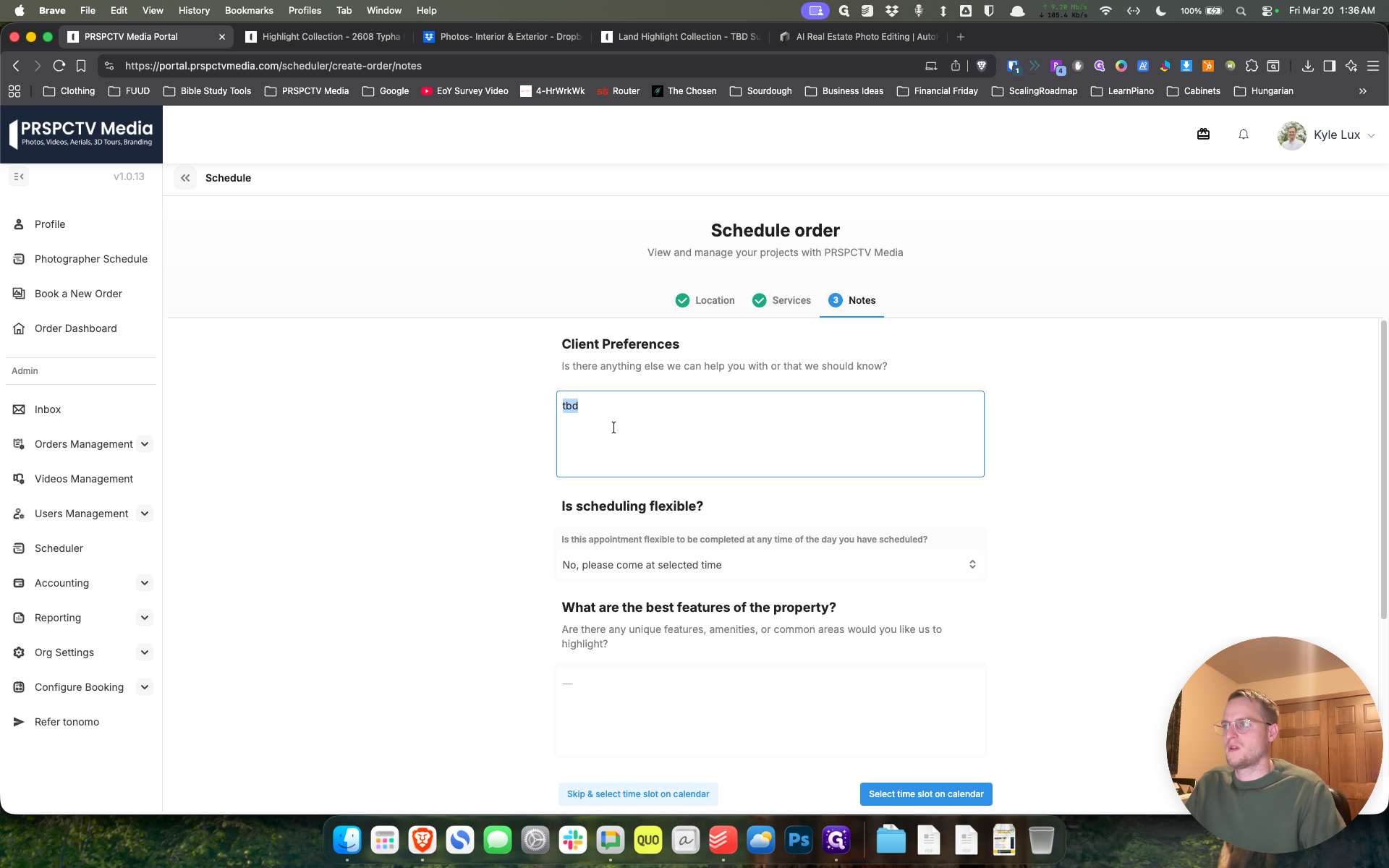
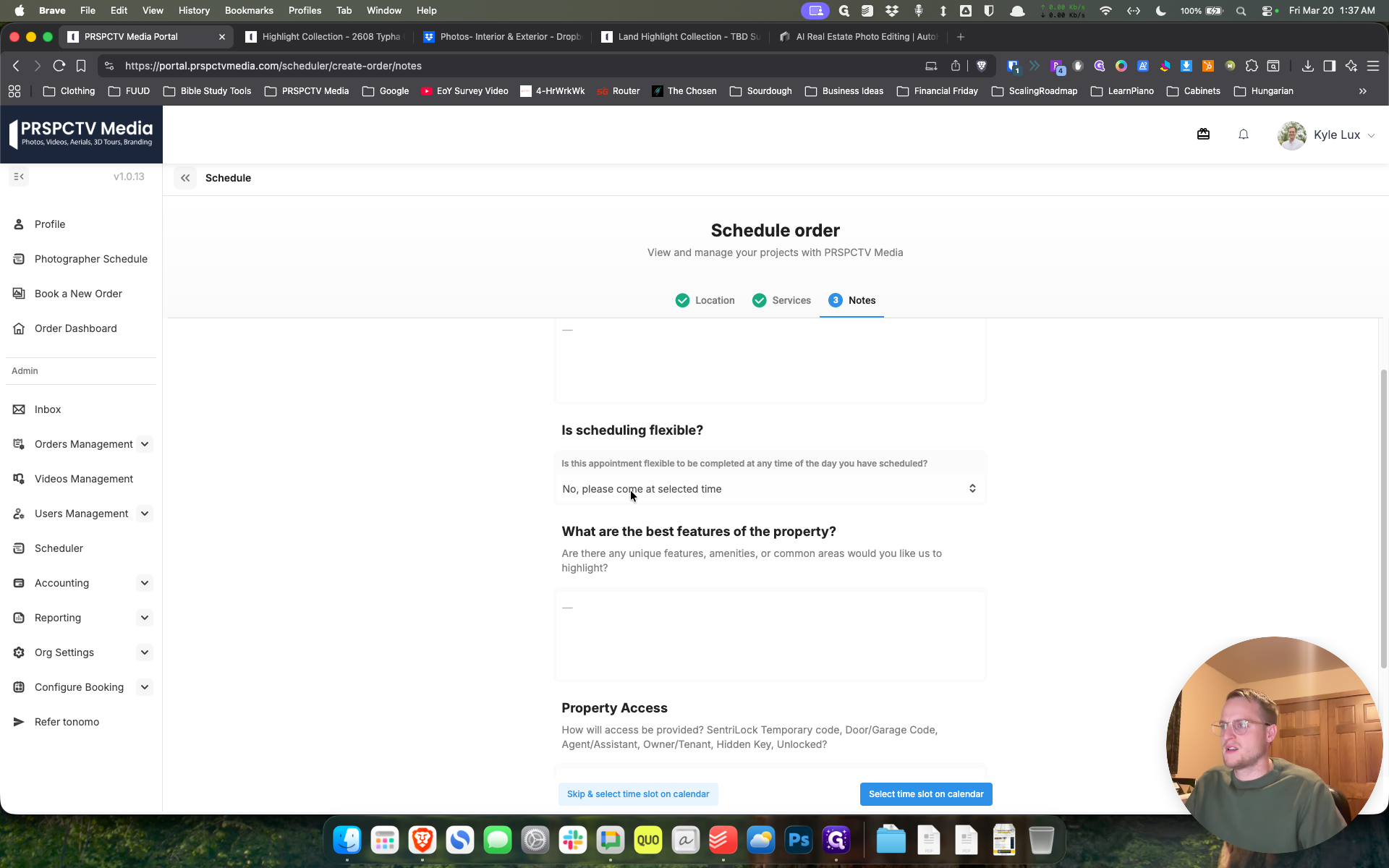
Come when we want.
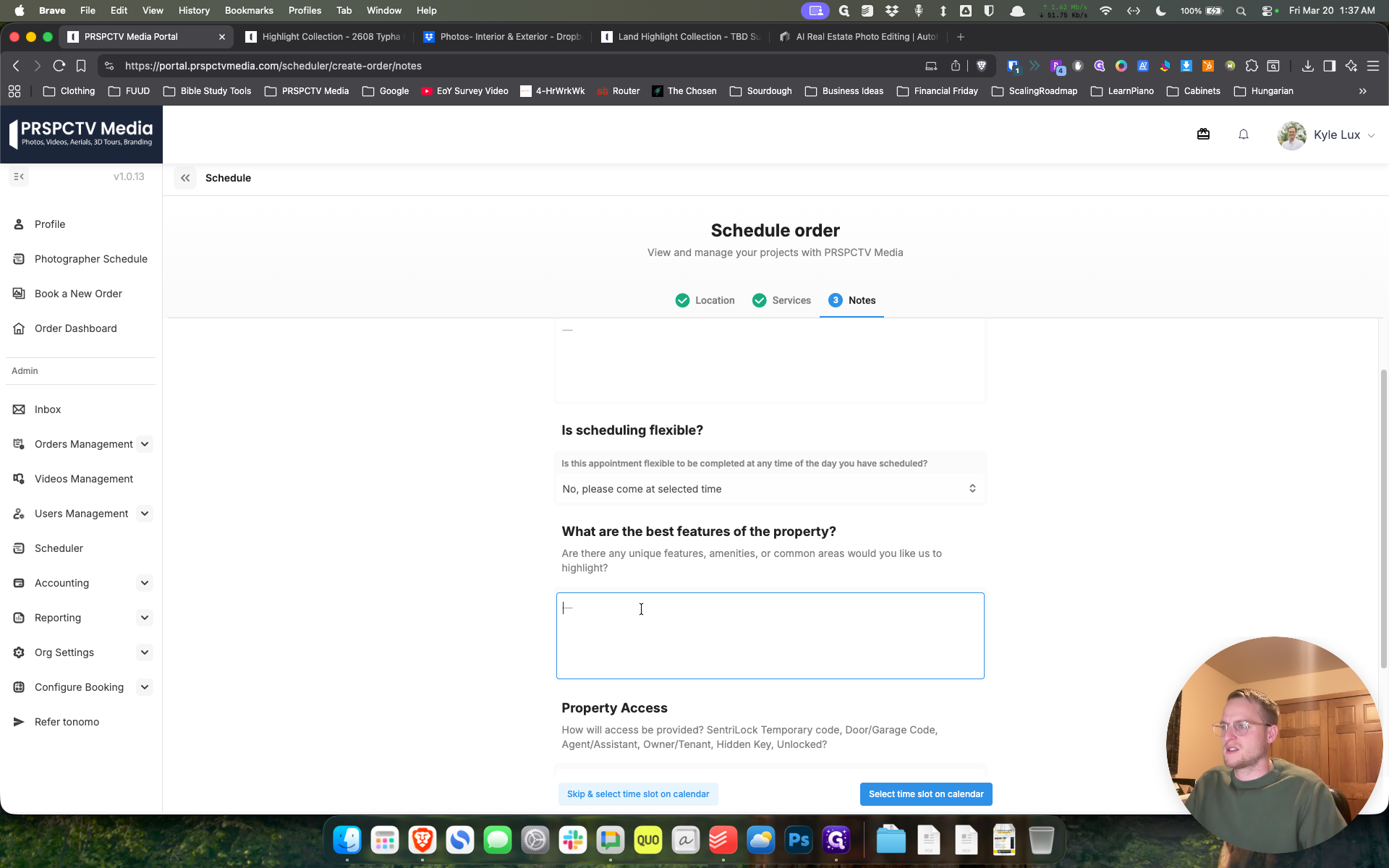
What are the best features of the property? We like our backyard, which borders the park.
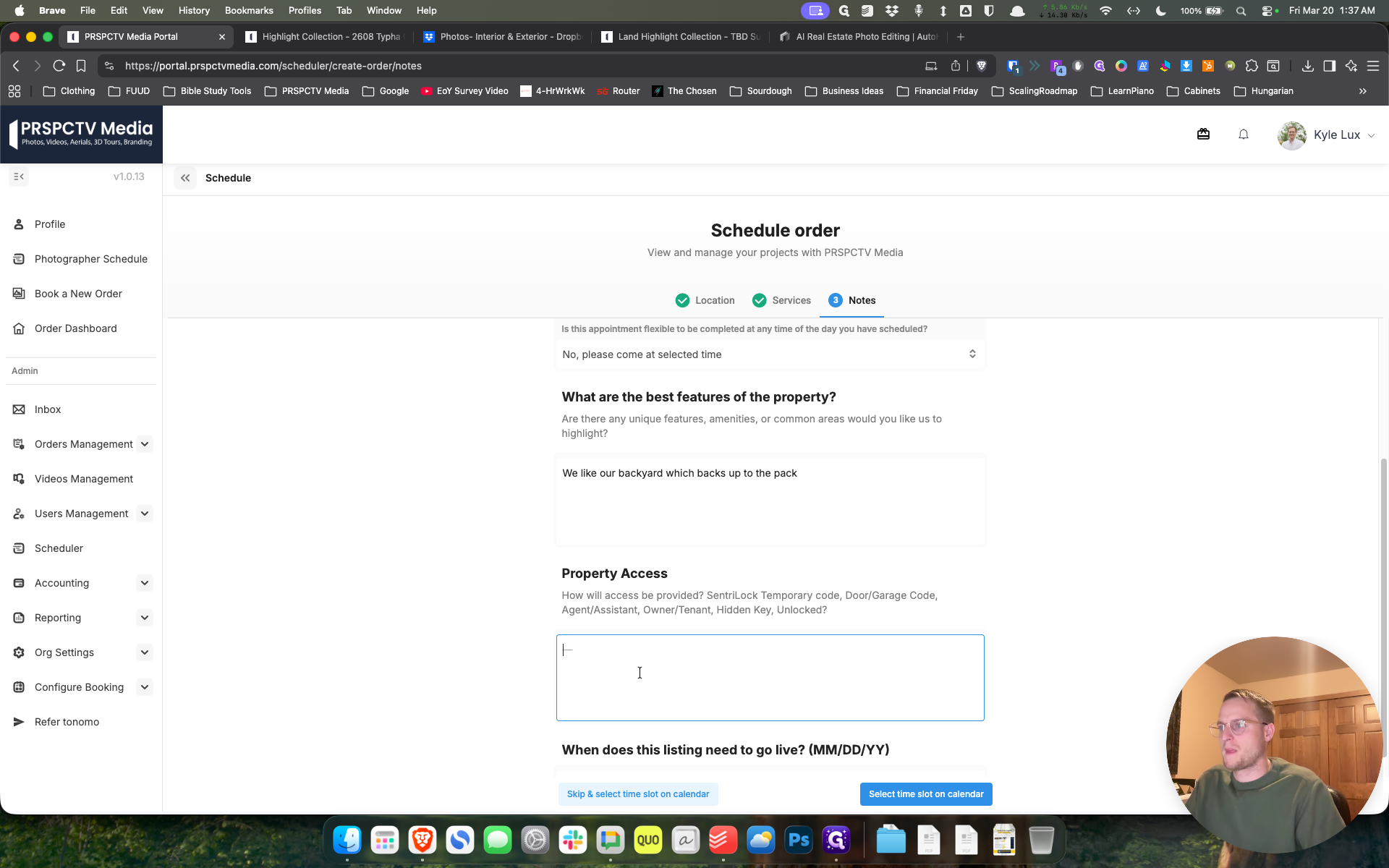
I don't know yet how to ... How access will be provided.
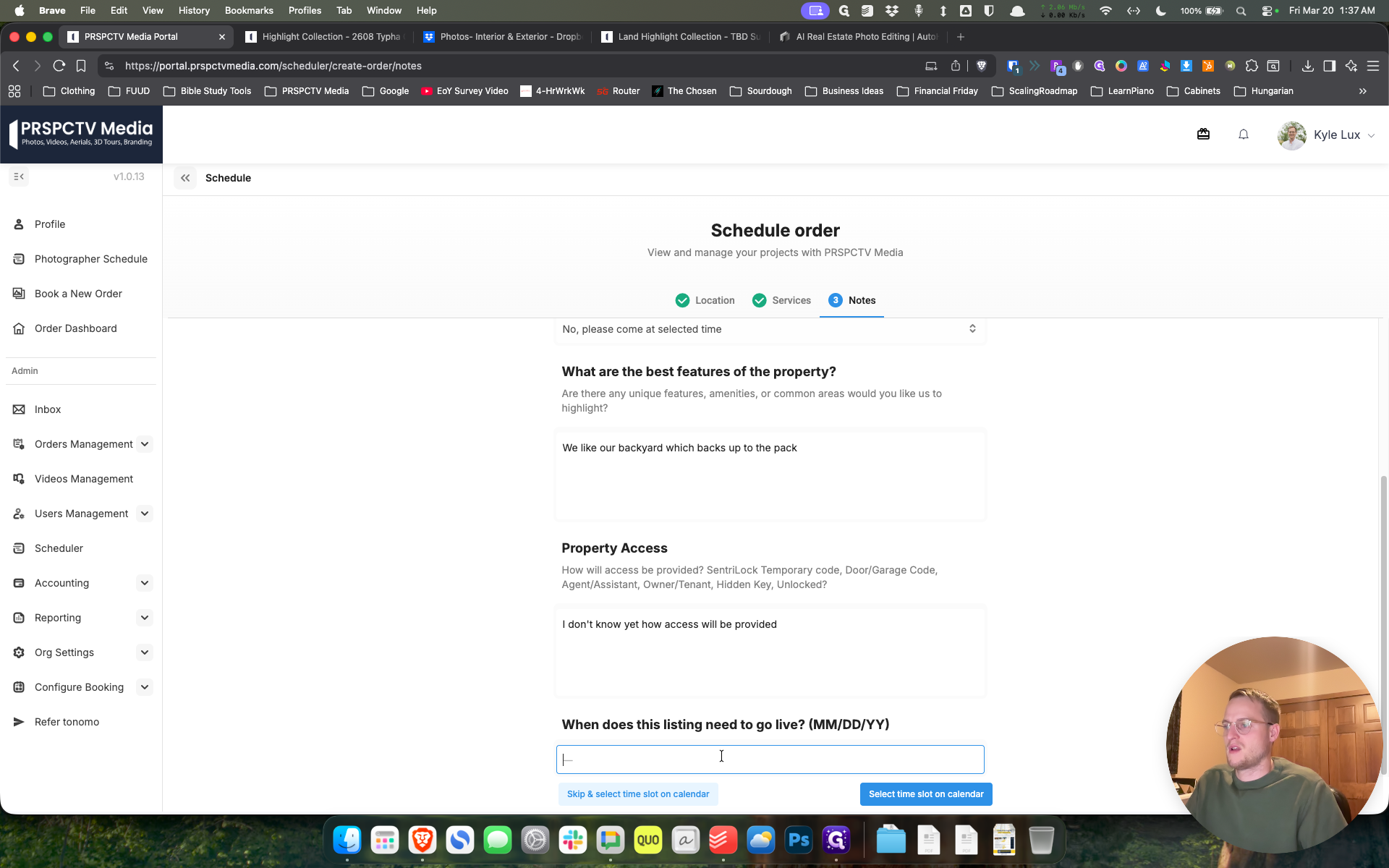
Let's change this date.
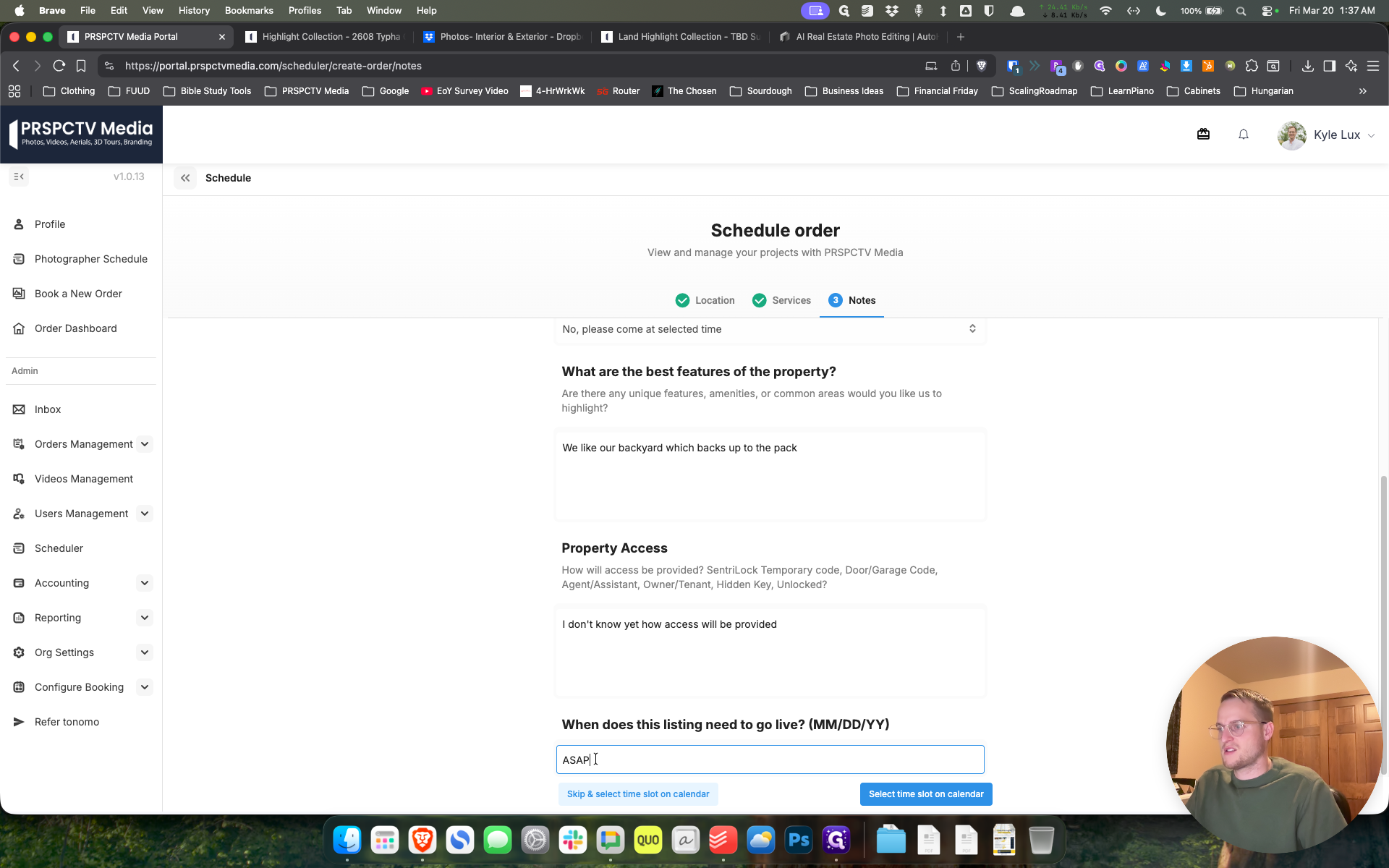
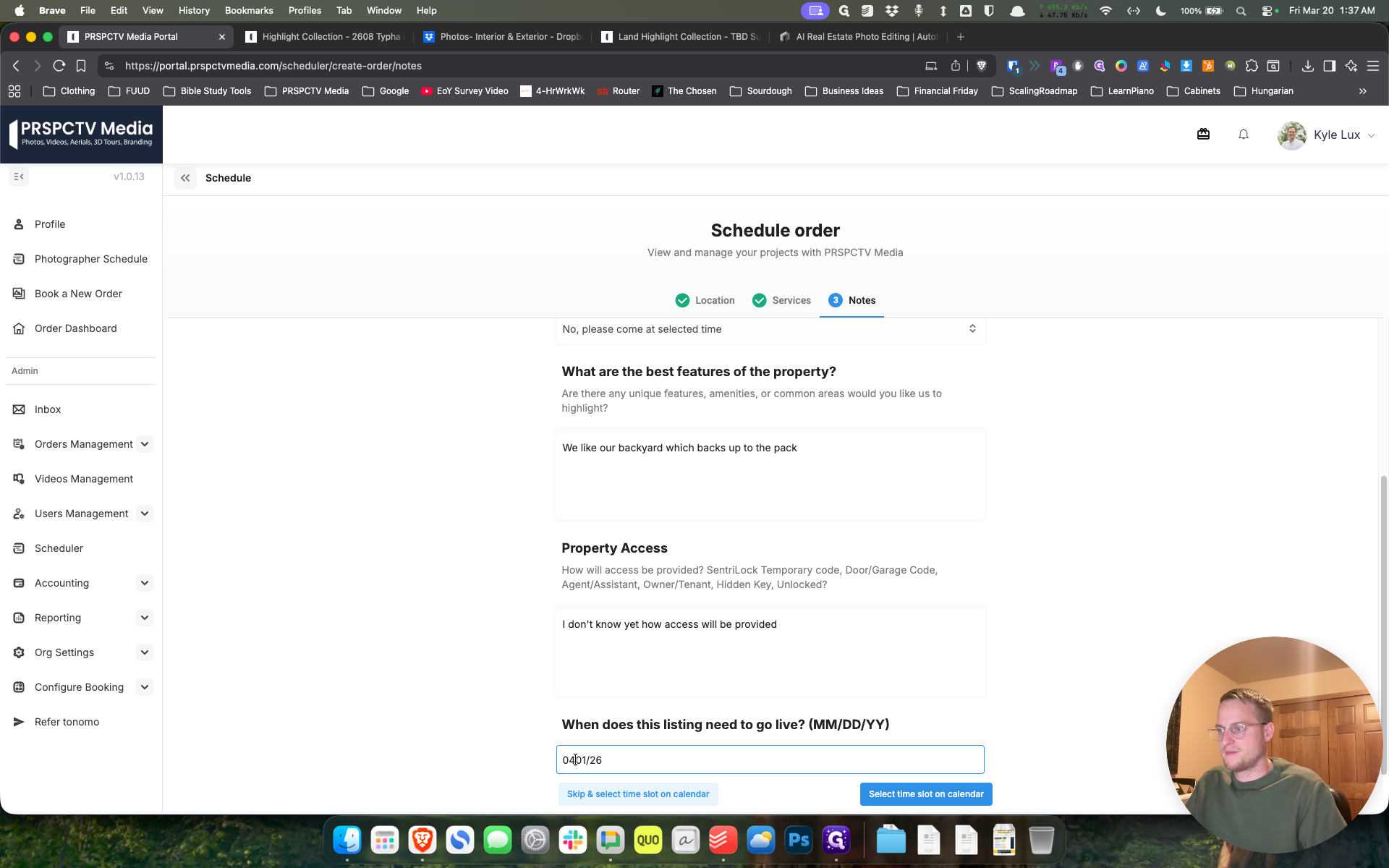
Let's go. It will go live on April 1st at 4.
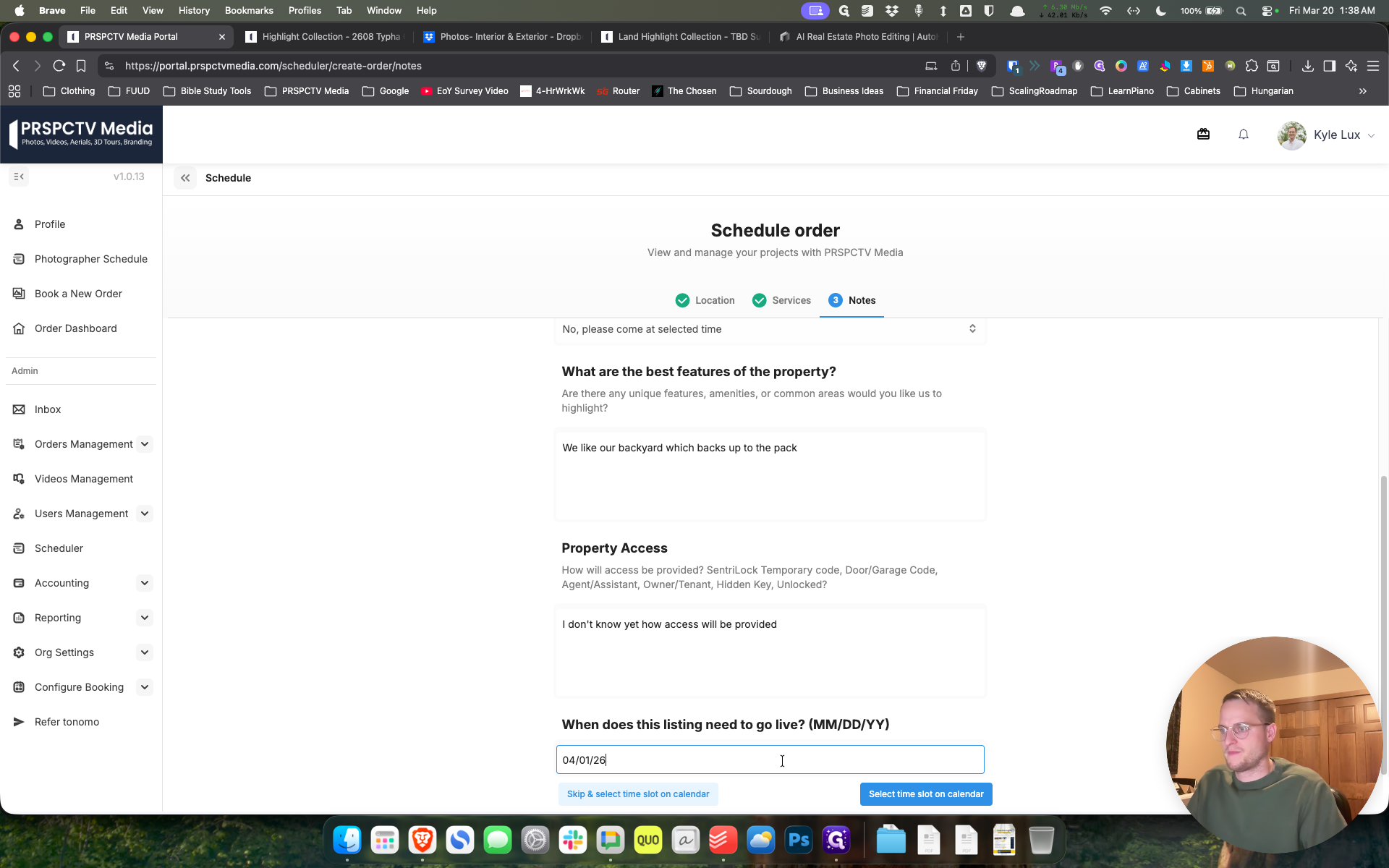
04/01/26.
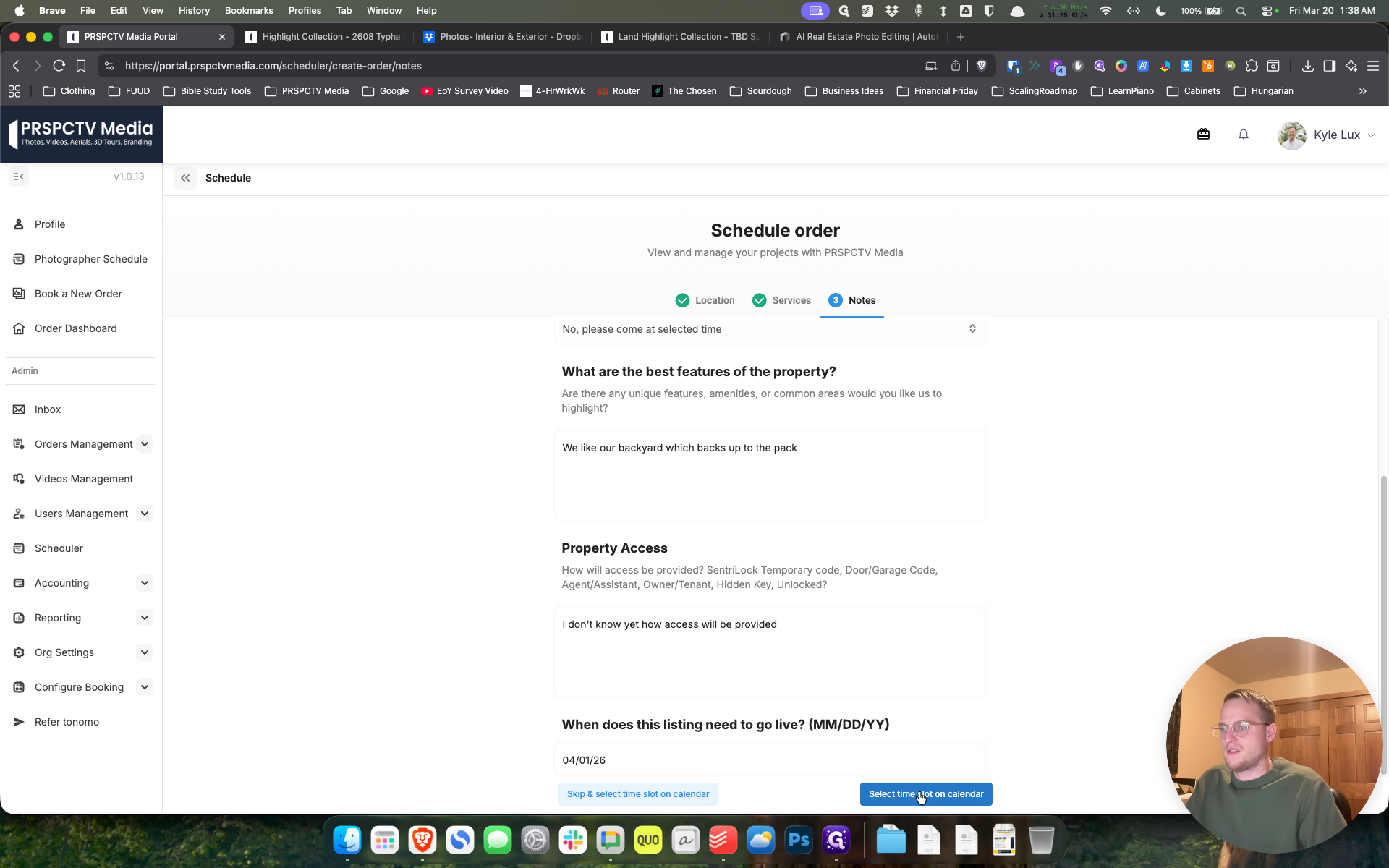
Then select a time slot on the calendar.
I'll try to fit it in tomorrow, on Friday. There's not enough time. I have a 25-minute travel buffer. For example, the 12:30 to 2:30 PM slot, which currently says "external," can be moved. Click here, and if you want to do it, hit Save Event.
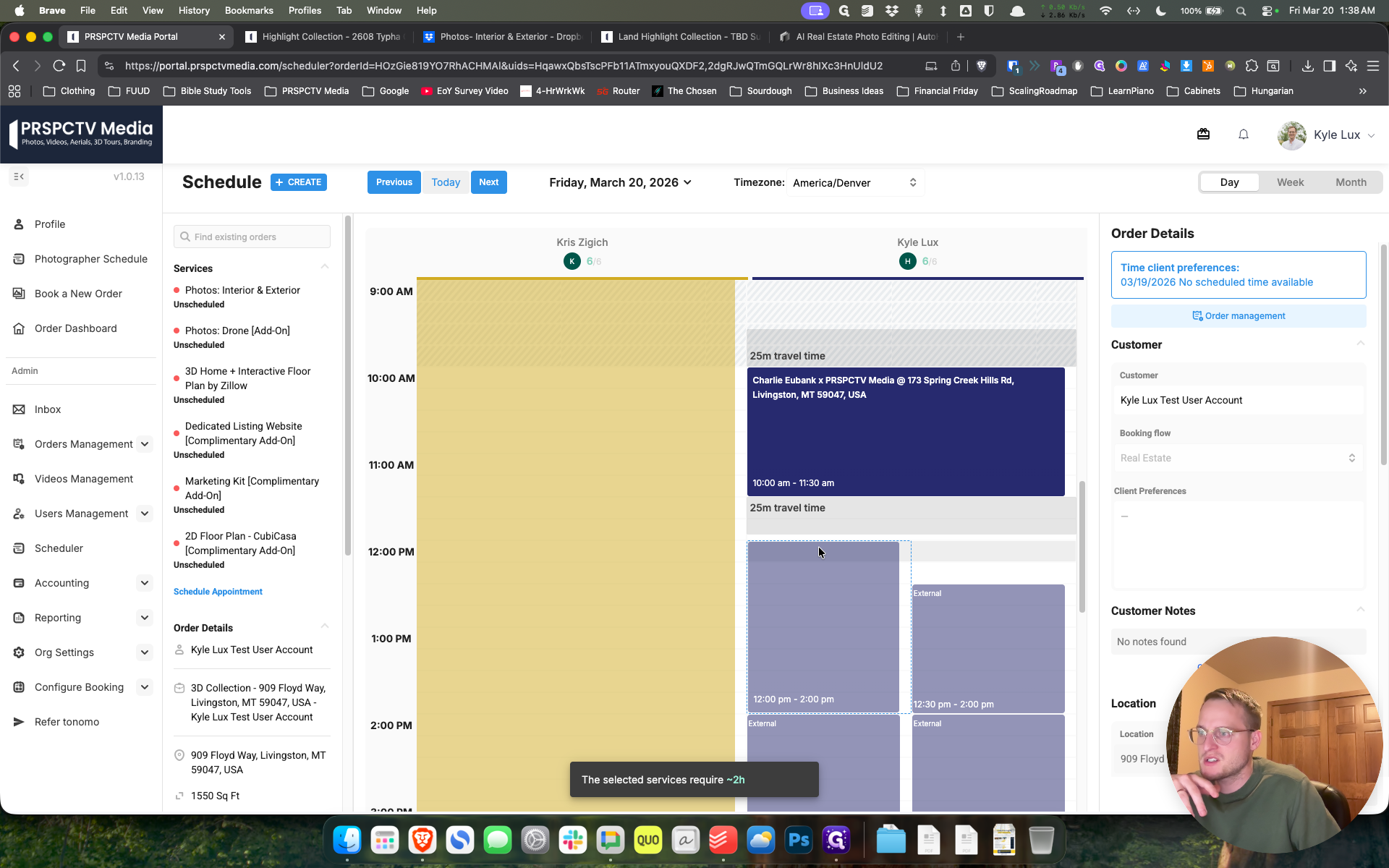
If I need to make any changes, for example, if it will take a little longer because of...
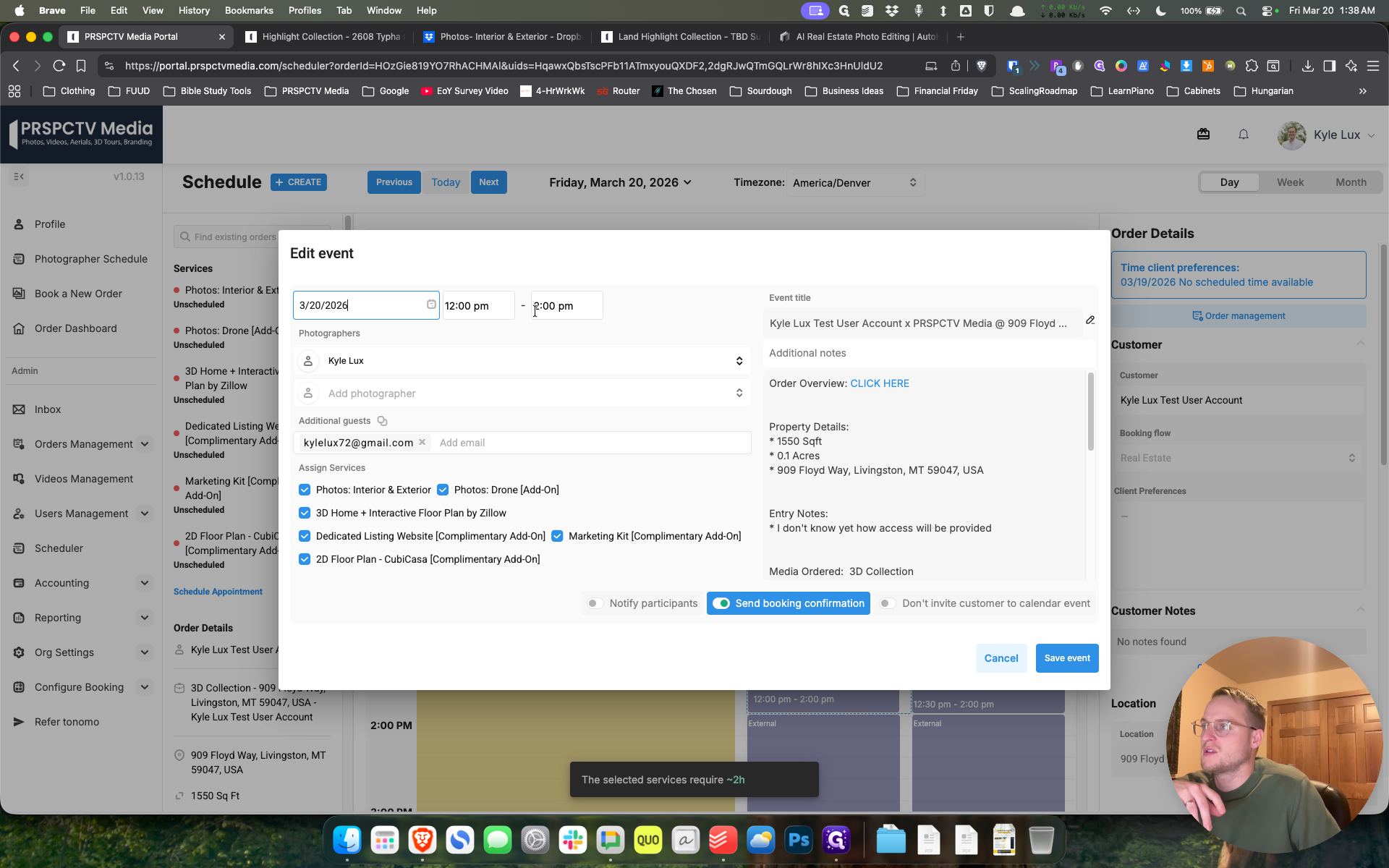
insert some note. I think it will be very fast because the home is empty, so we can go ahead and make changes. We change the start and end times.
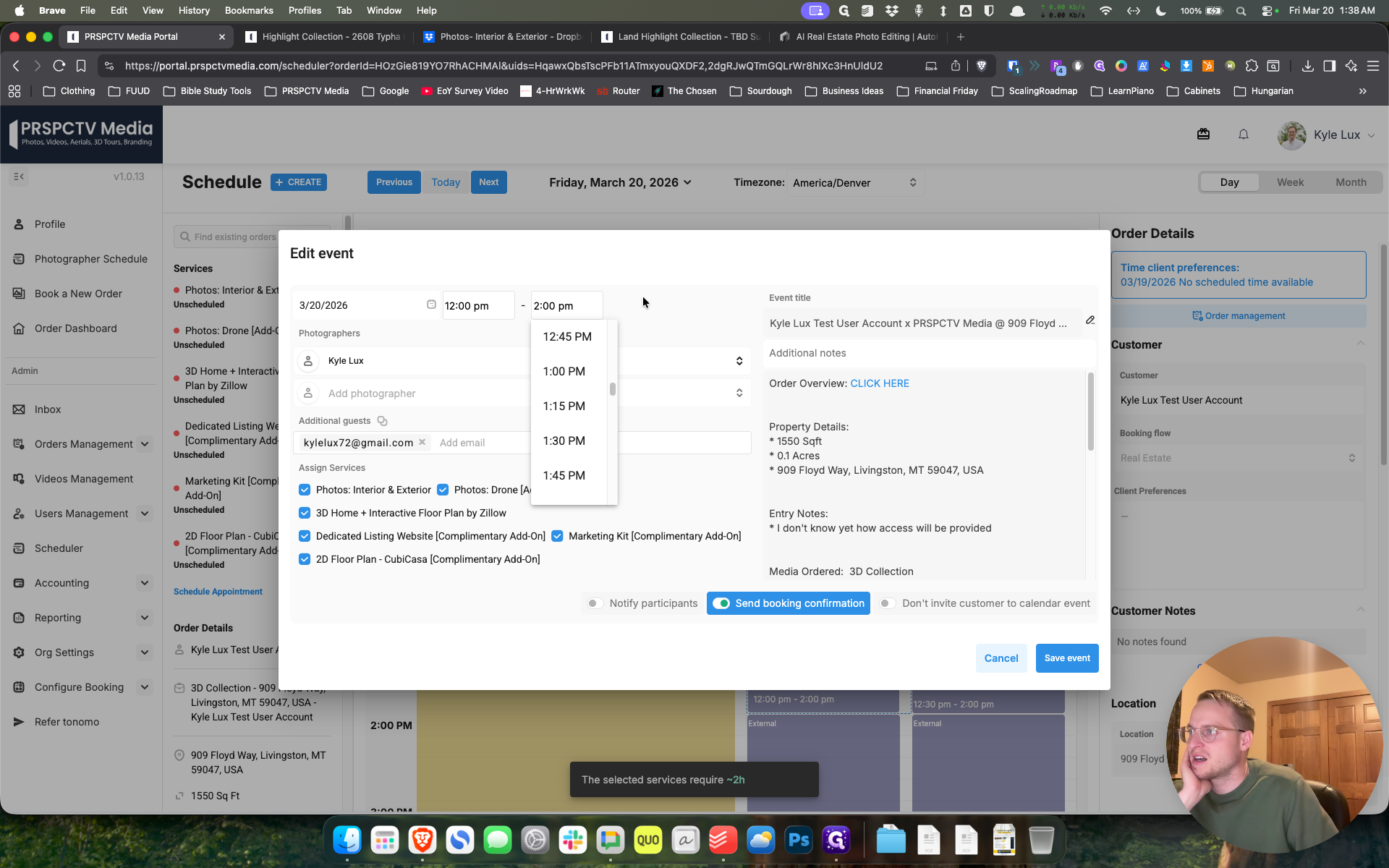
I generally recommend not changing the start and end times unless it is absolutely necessary for a specific reason. For the most part, it's very accurate. We're going to hit Save Event.
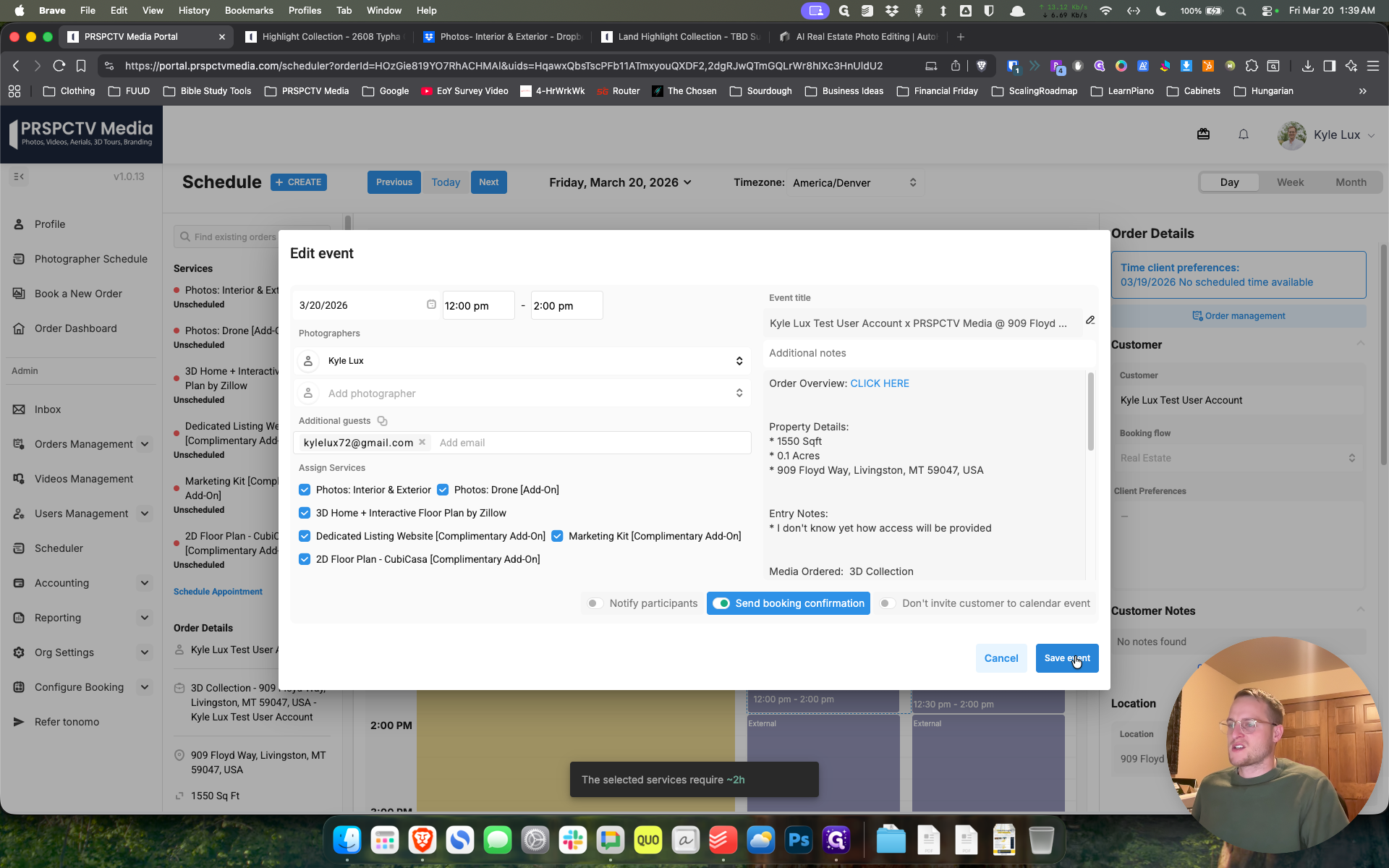
There we go. That's a good event. Yes, send the booking confirmation email to the customer. We always do that.
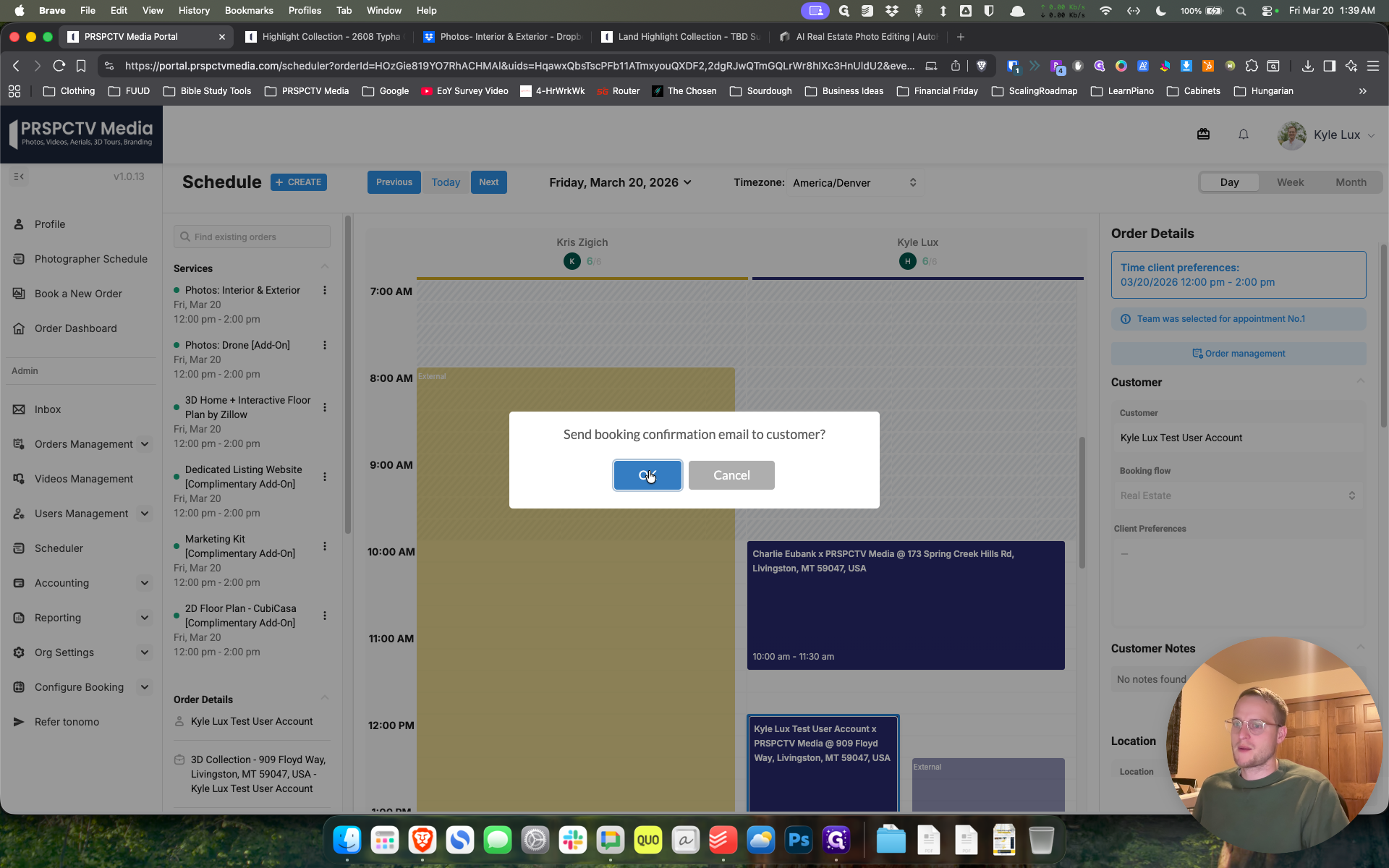
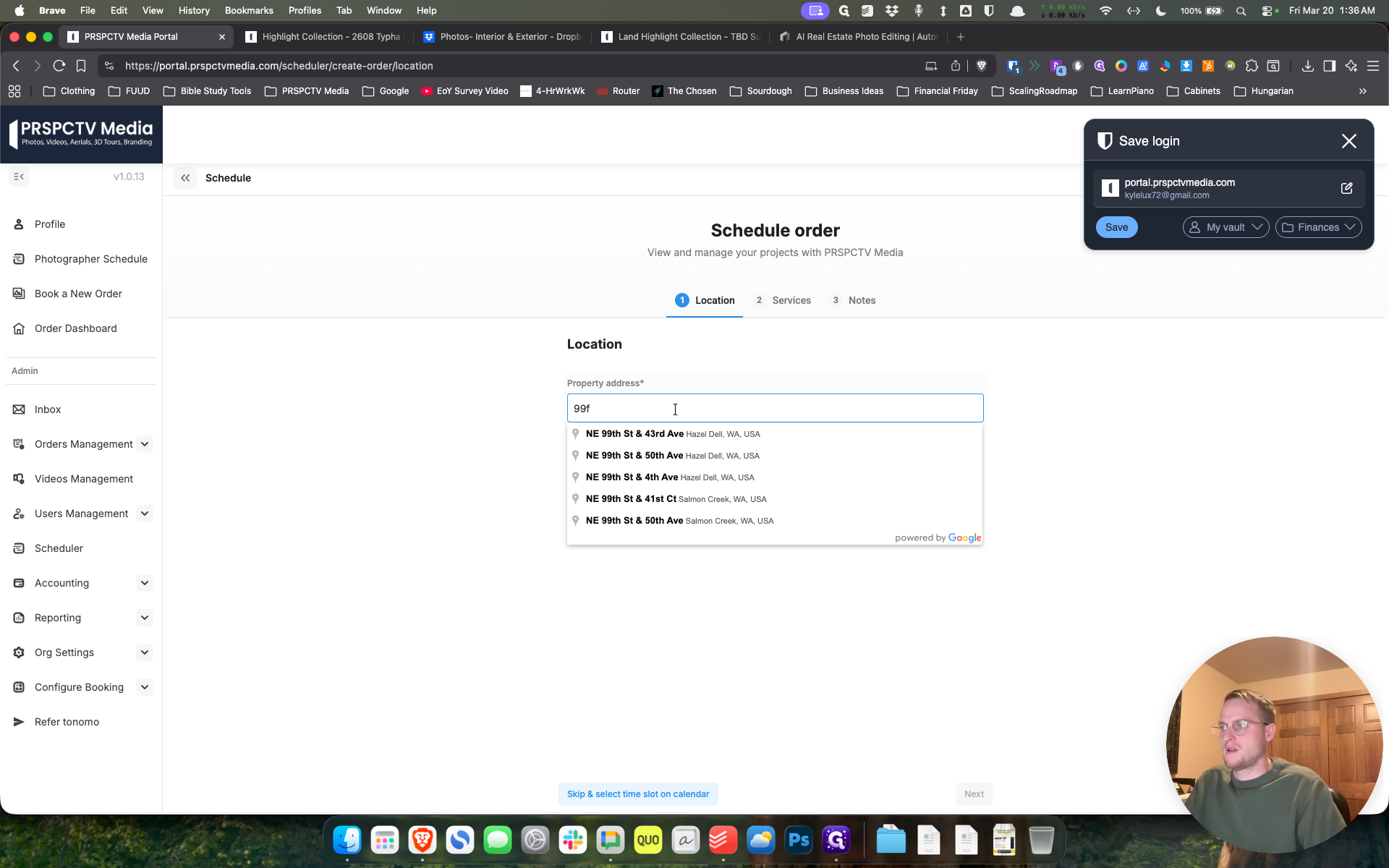
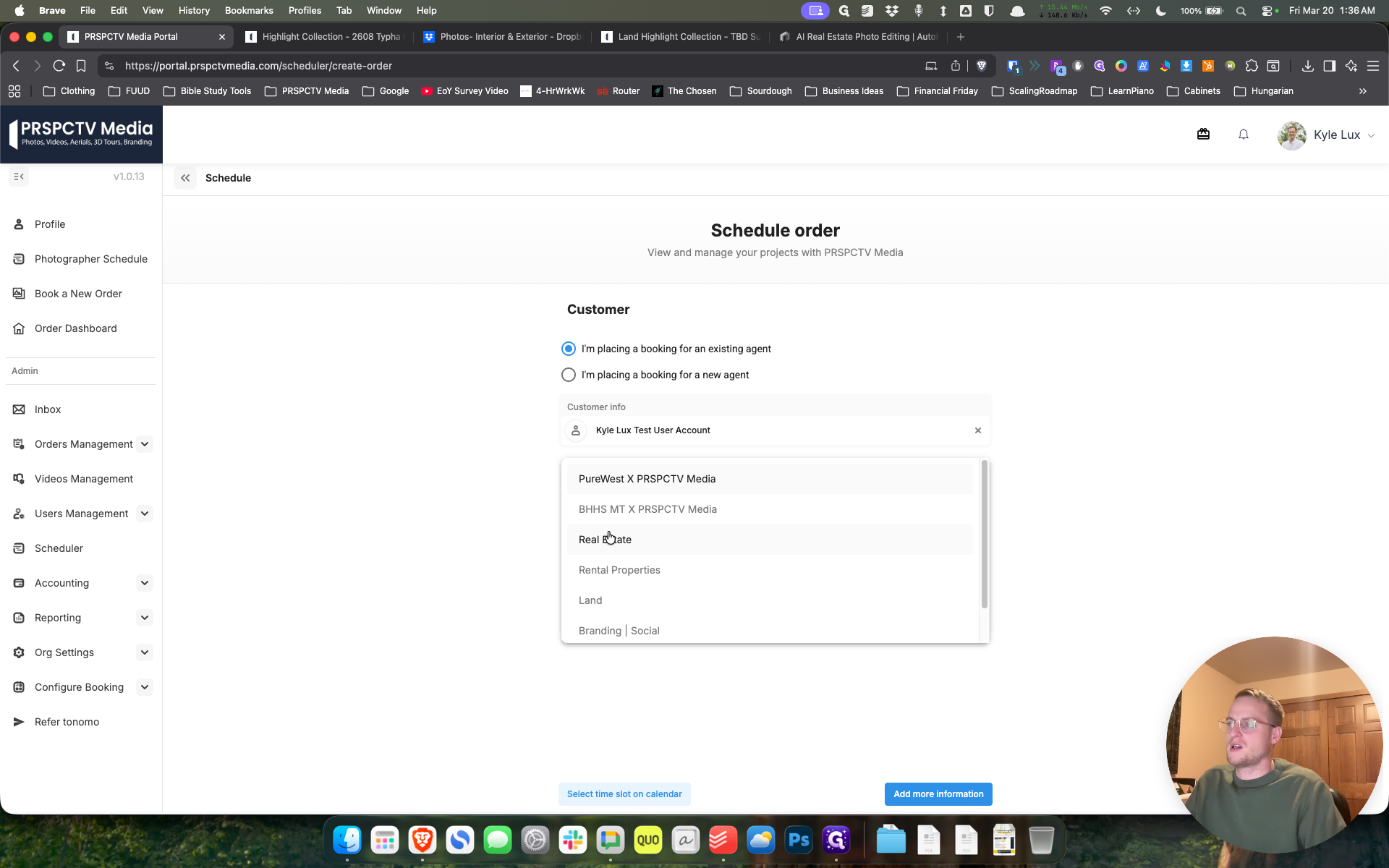
That's fine. Then, in the booking flow, select Real Estate and add more information.
It's ready to use.