How to Move a Transaction Between Job Phases in Spectrum
Learn step-by-step how to move a transaction, such as a Home Depot expense, from one phase to another within the same job in Spectrum. Includes instructions for using Job Cost History reports and data entry tips.
By Jennifer Clapper
Made with Glitter AI
In this guide, we'll learn how to move a transaction from one phase of a job to another within the same job. This process is often needed when expenses are recorded under the wrong phase and must be corrected for accurate job costing.
We will use the Job Cost History Report to identify the transaction and then reallocate it in Spectrum. This ensures that financial records reflect the correct phase allocation.
Let's get started
Sometimes, you may need to move a transaction from one job to another, or from one phase of a job to another phase.
1
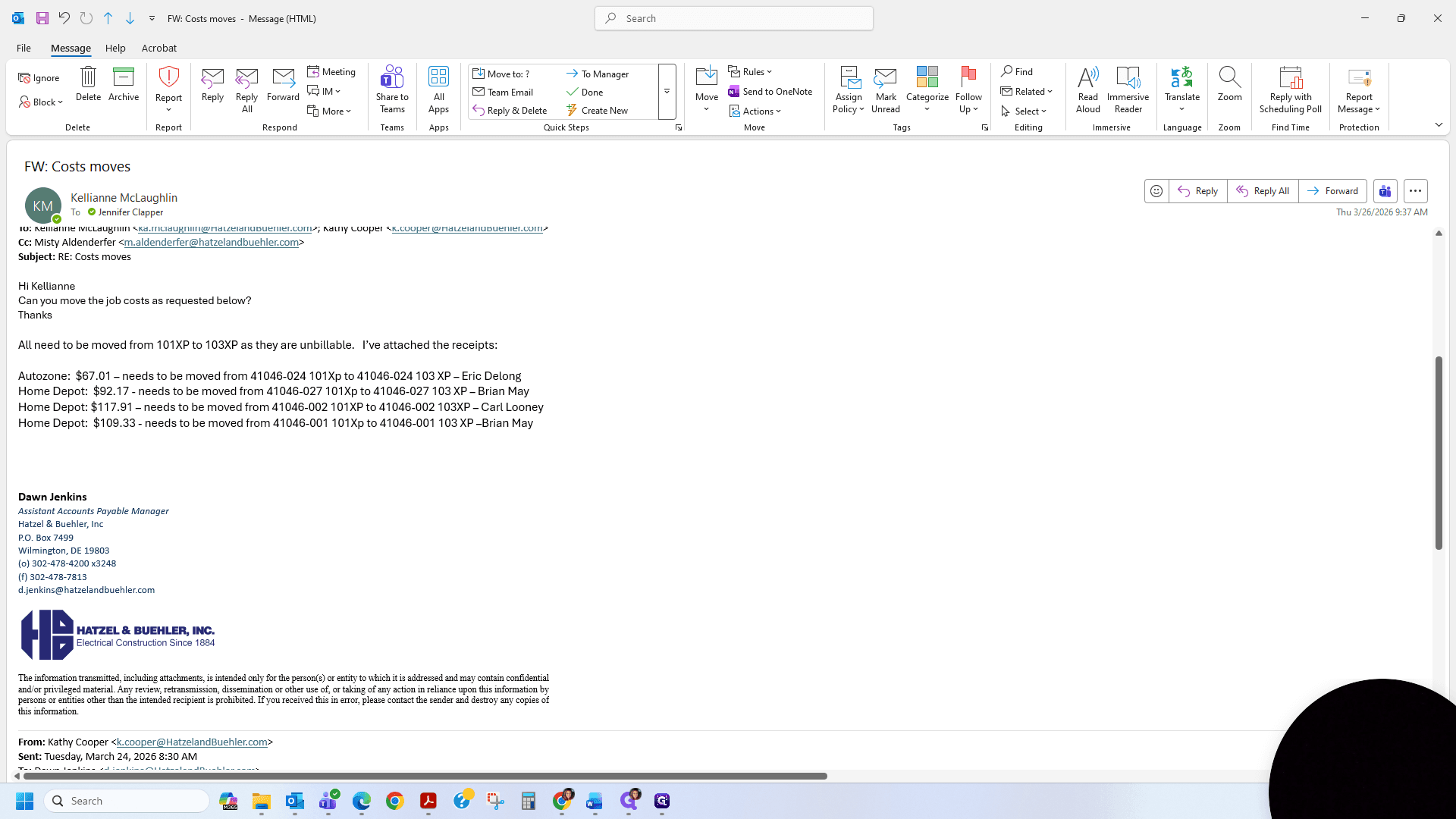
The first step is to locate the email that requests this move.
2
We will be moving $92.17 from Home Depot from Phase 101XP to Phase 103XP of the same job.
3
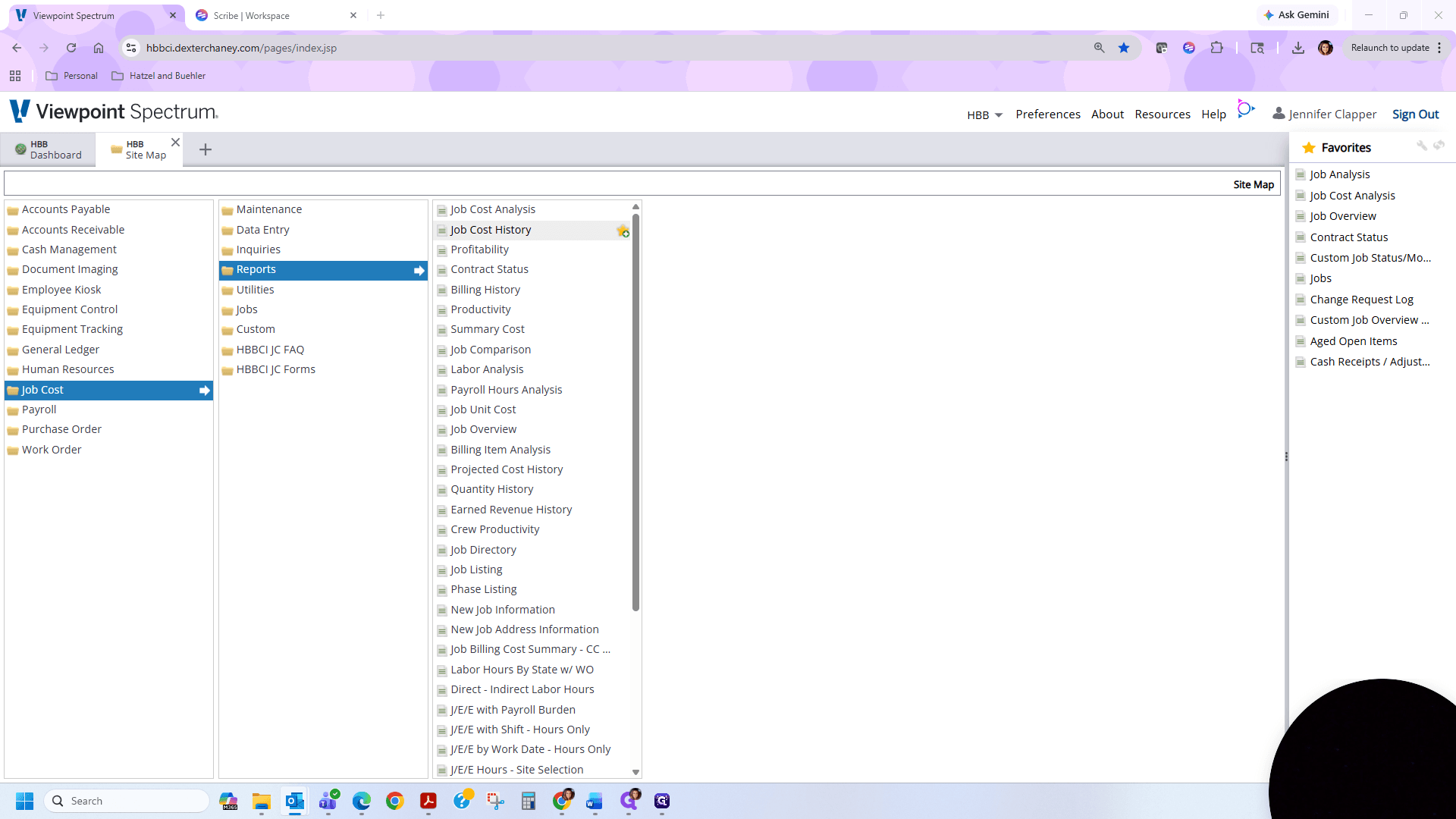
First, open the site map. Click on Job Cost, then Reports, and select Job Cost History.
4
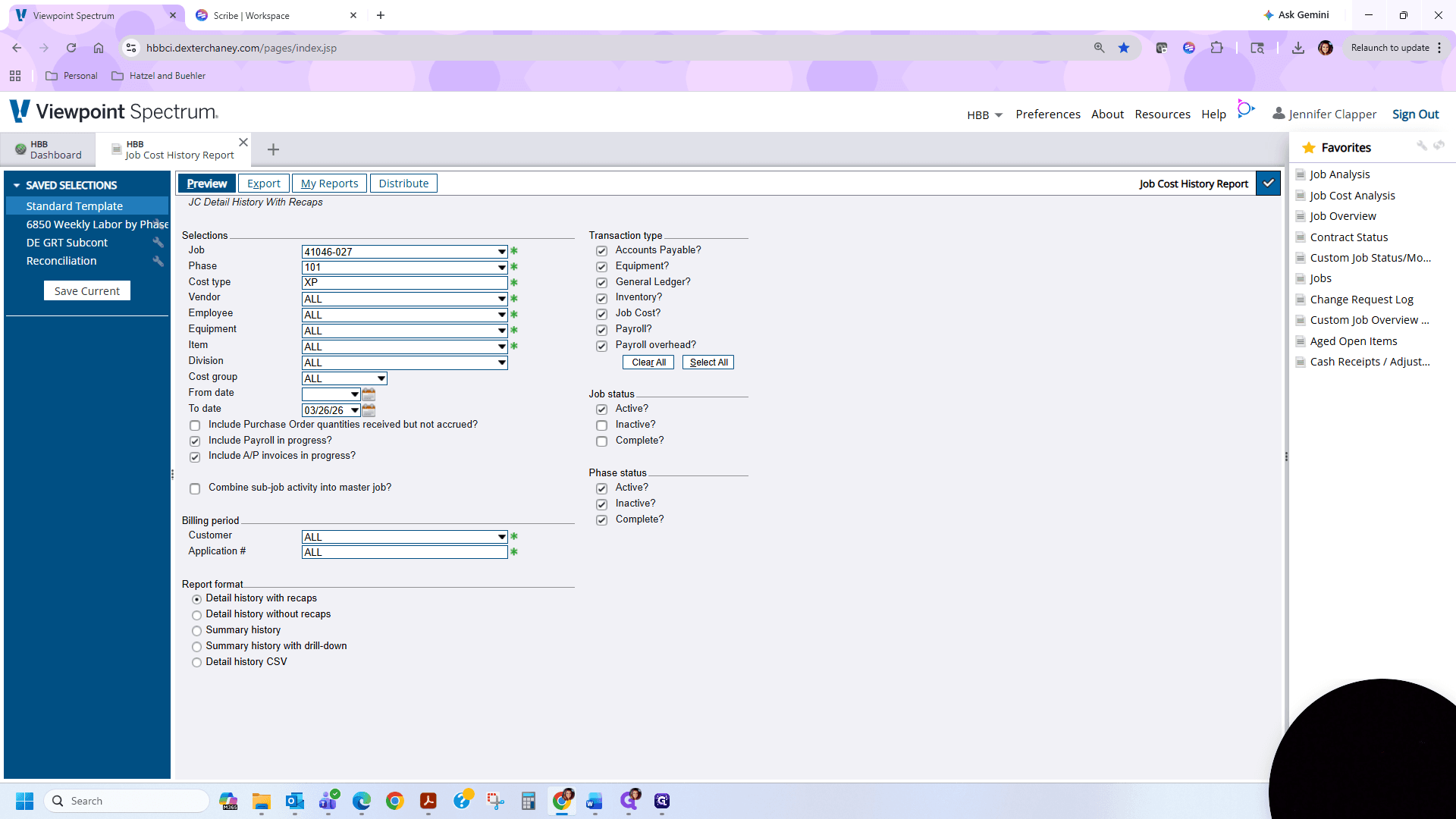
Here, enter the job number 4104627. The phase, as stated in the email, is 101. The cost type, as stated in the email, was XP.
5
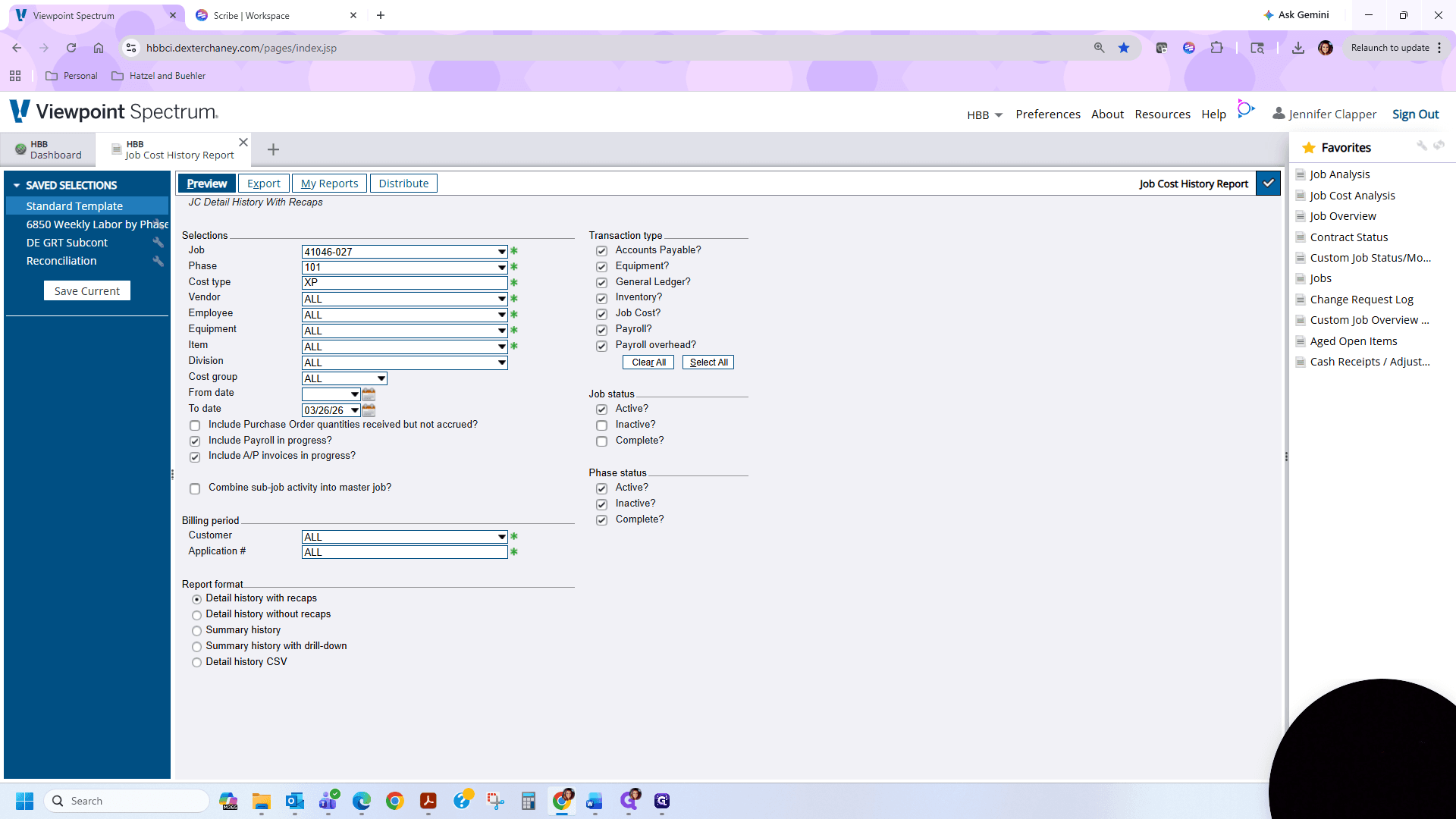
We will keep the date the same and uncheck these boxes.
6
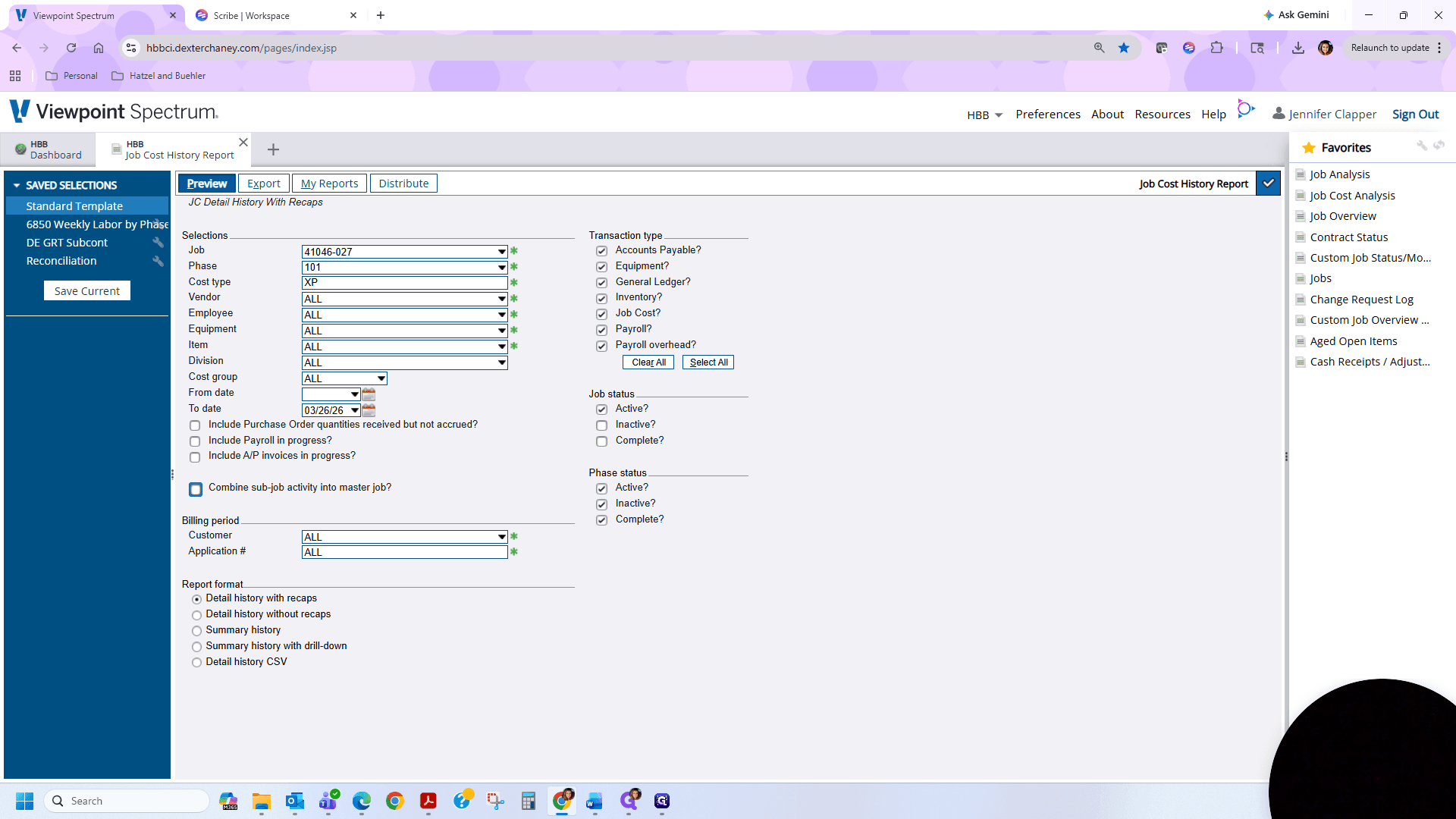
Click on "Preview"
7
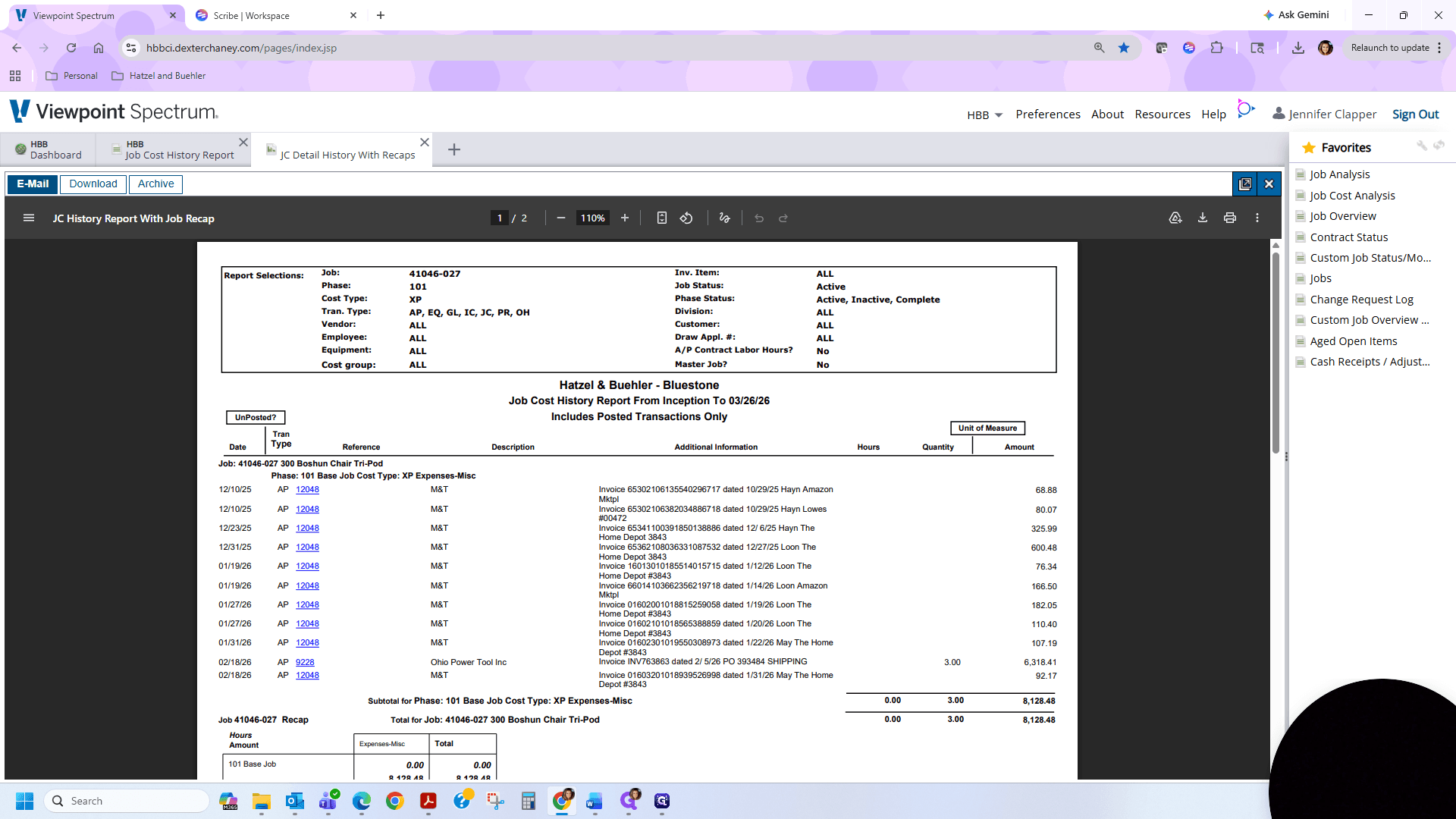
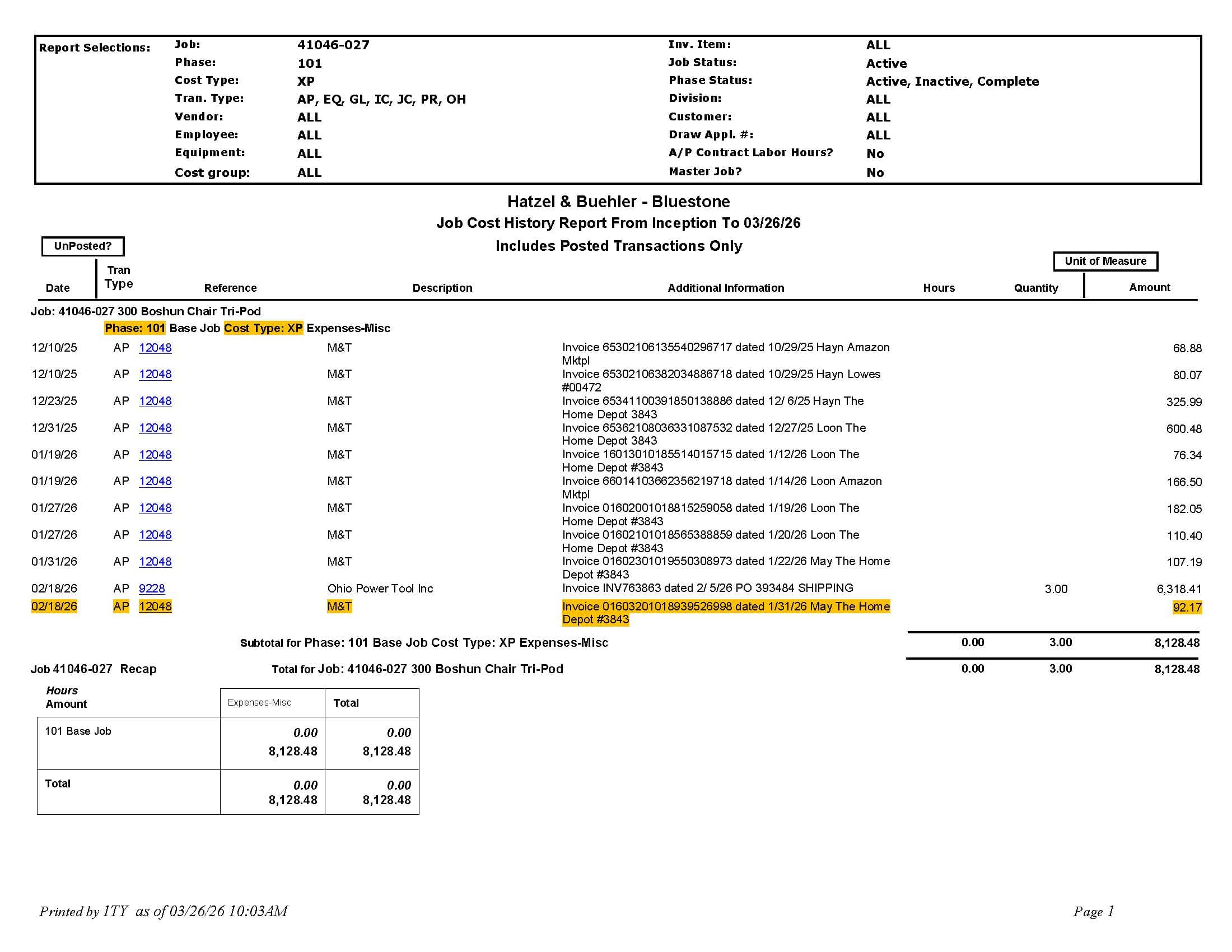
This report shows the job cost history of all expenses, including materials and other costs, for this phase of the job.
8
We will save this report as a PDF to keep it as a backup for the transaction move. I usually save it to a folder on my desktop. I will name this Home Depot 92.17 to make it easy to find.
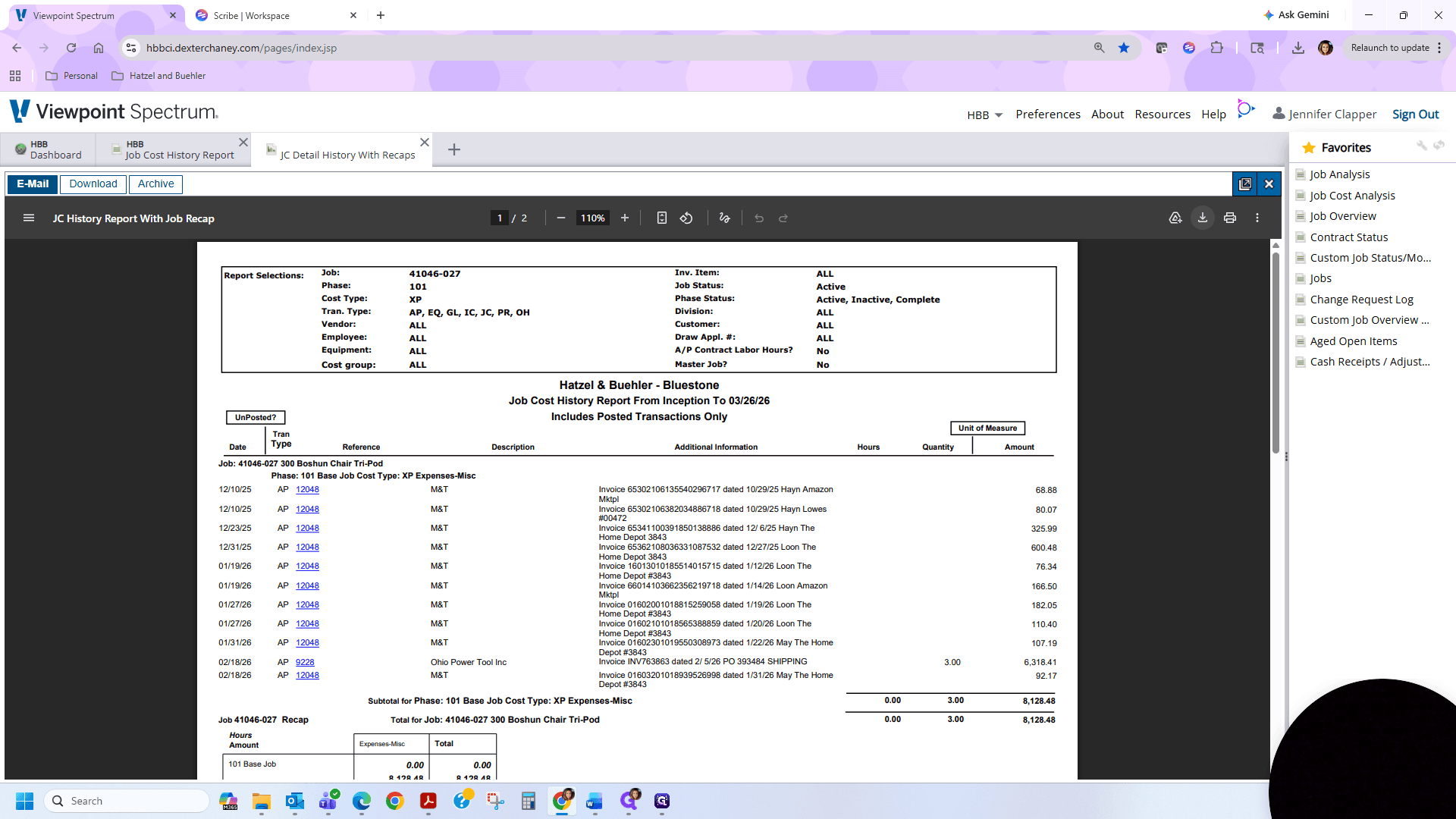
9
Open the pdf version of the Job Cost History report. We will highlight the transaction we are moving. We will override the original save, which now includes the highlight.
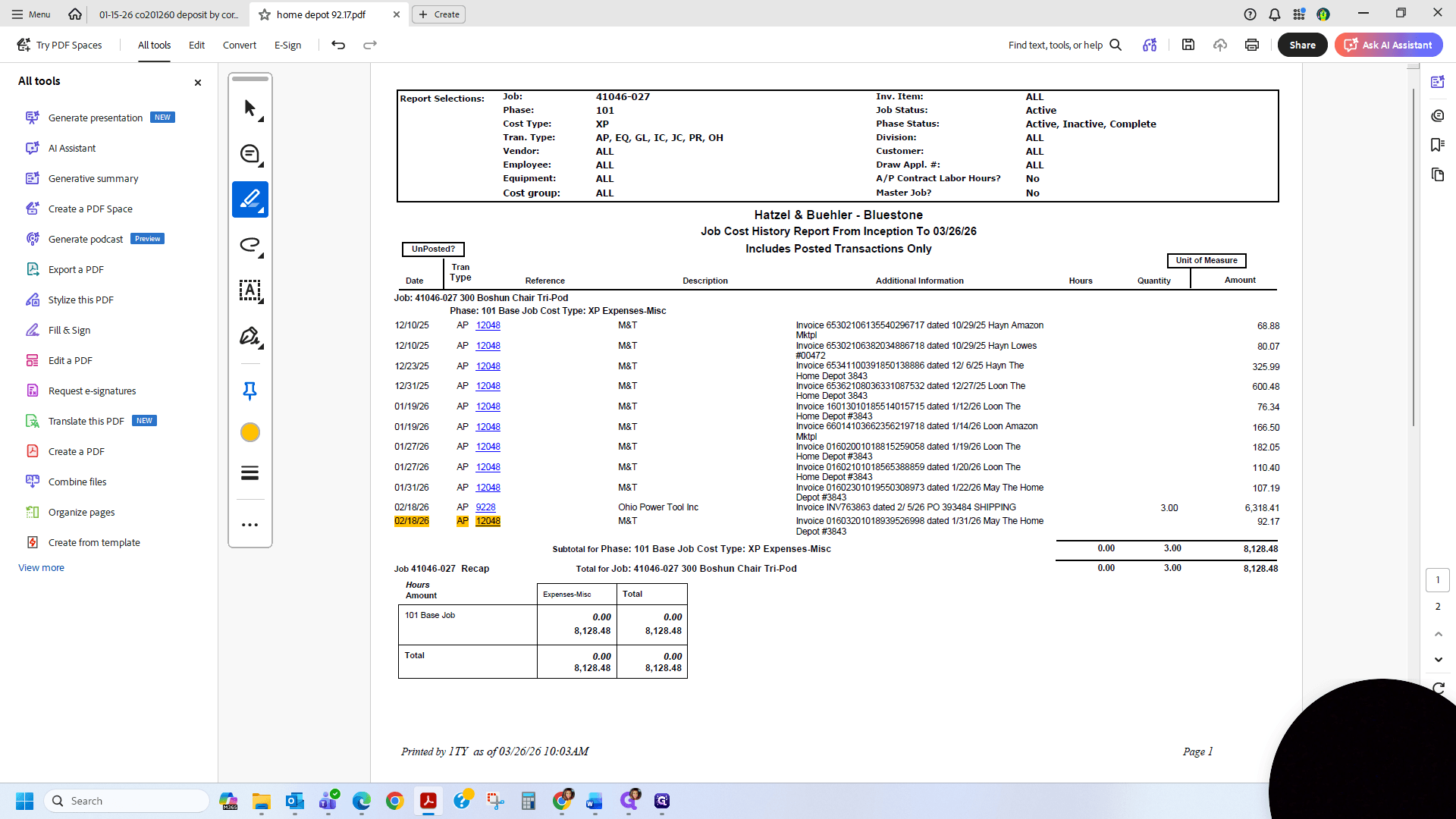
Now that we have the details of the job cost transaction to be reallocated, we will return to Spectrum.
10
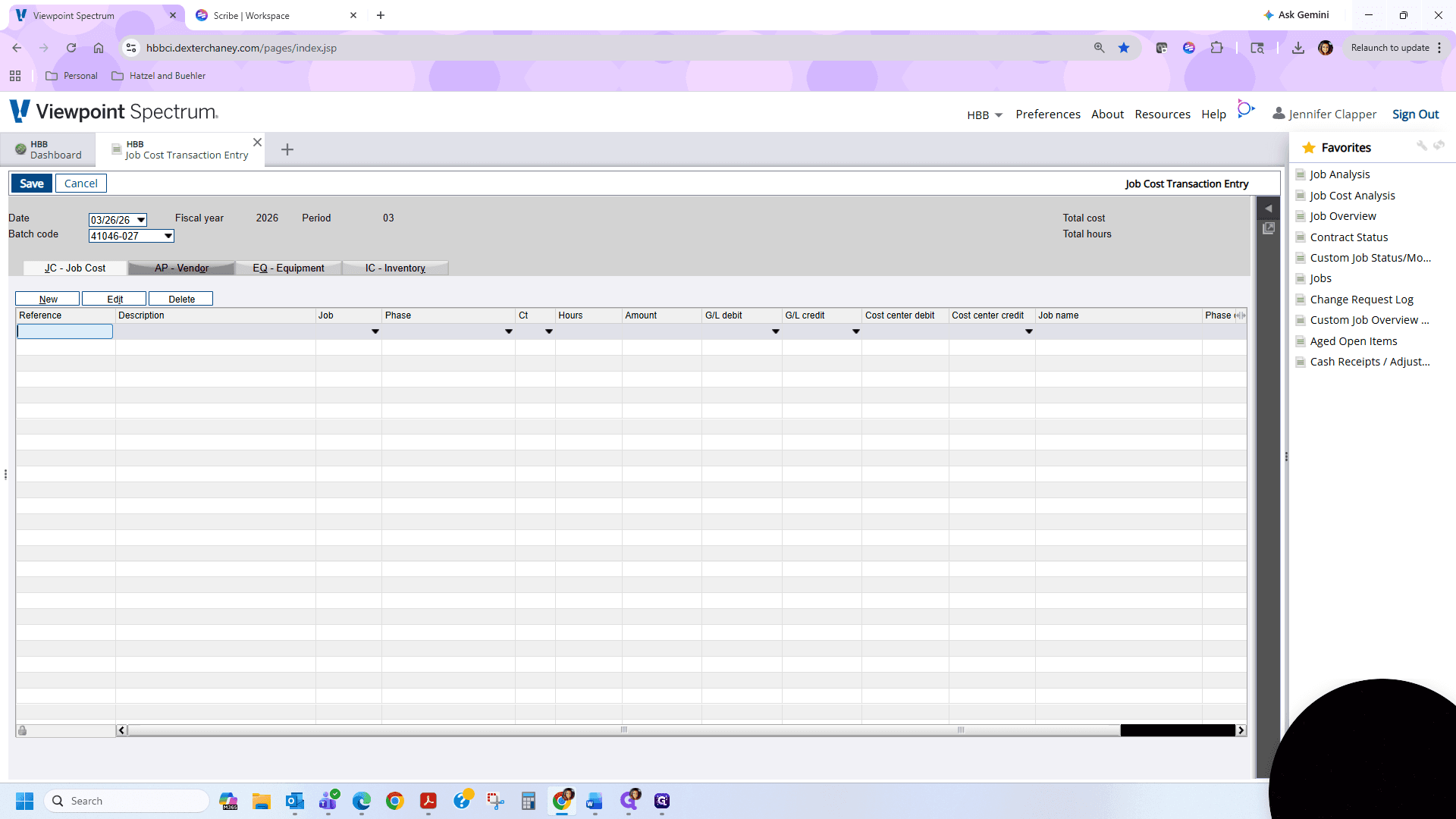
We are going to Job Cost, Data Entry, then Job Cost Transaction.
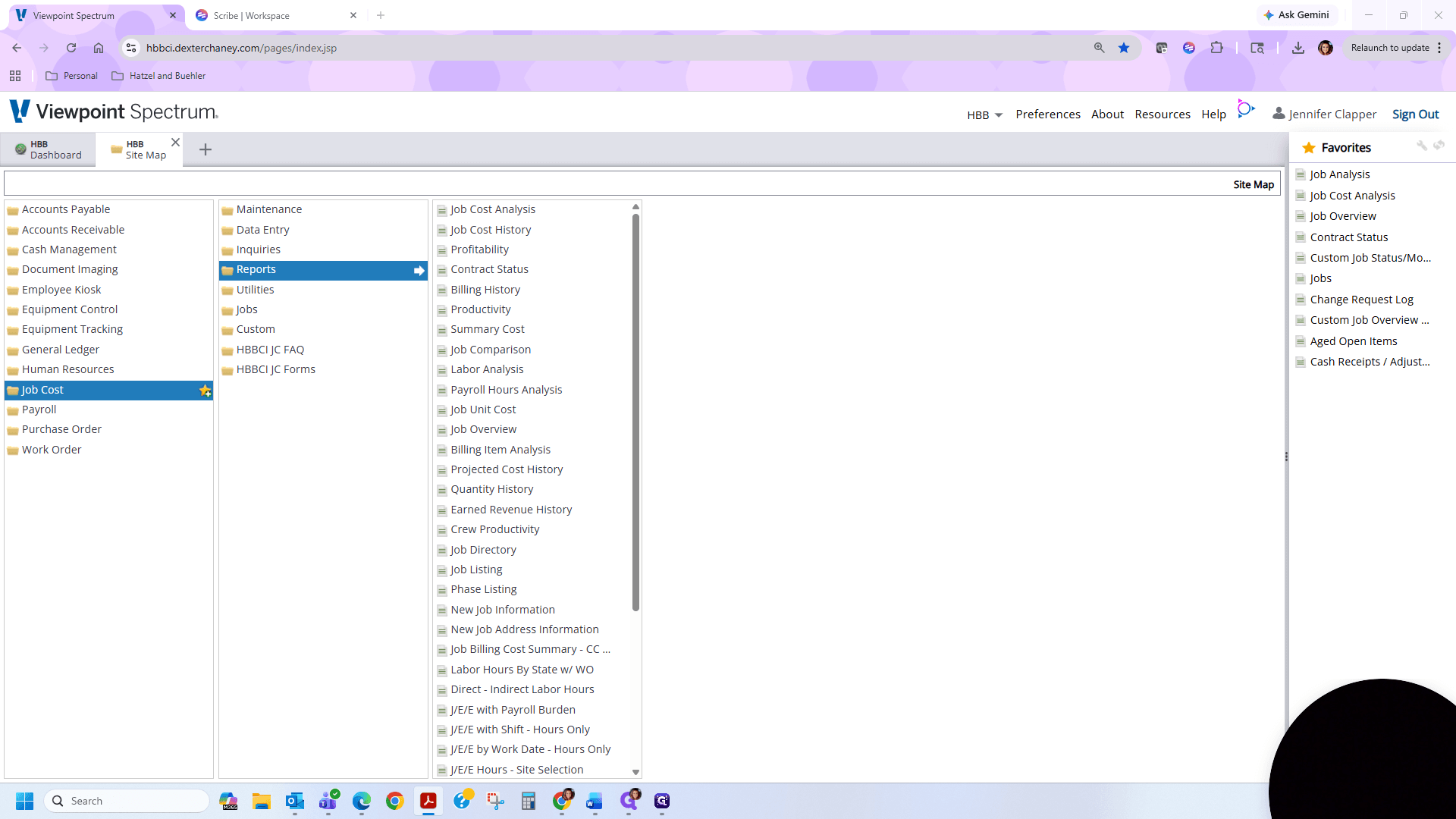
11
We will keep the date the same and ee have several options for the batch code. You can use your initials, keep the default pop-up, or name it after the job you are moving the transaction from. I will use the job number. Click Enter.
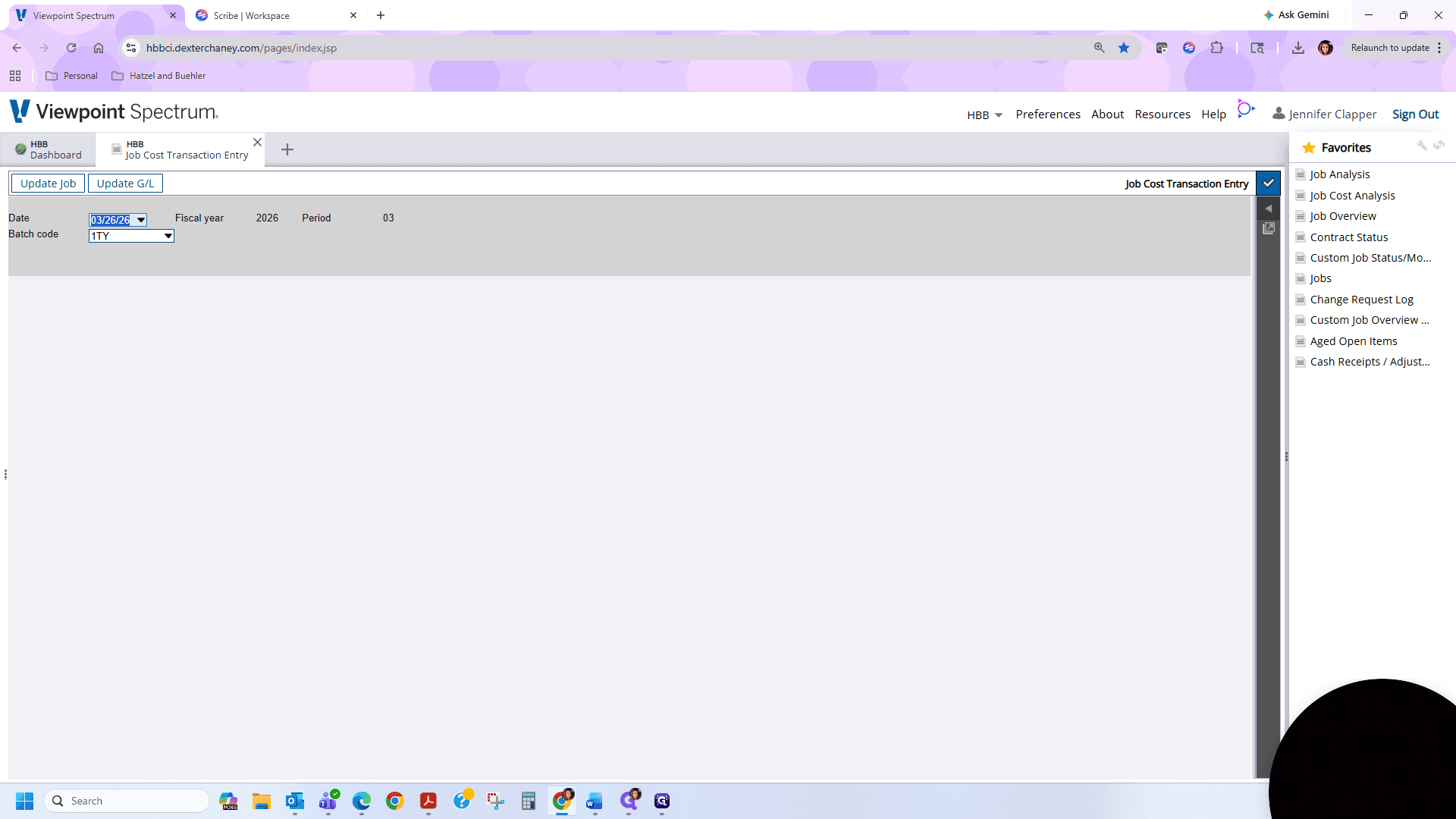
12
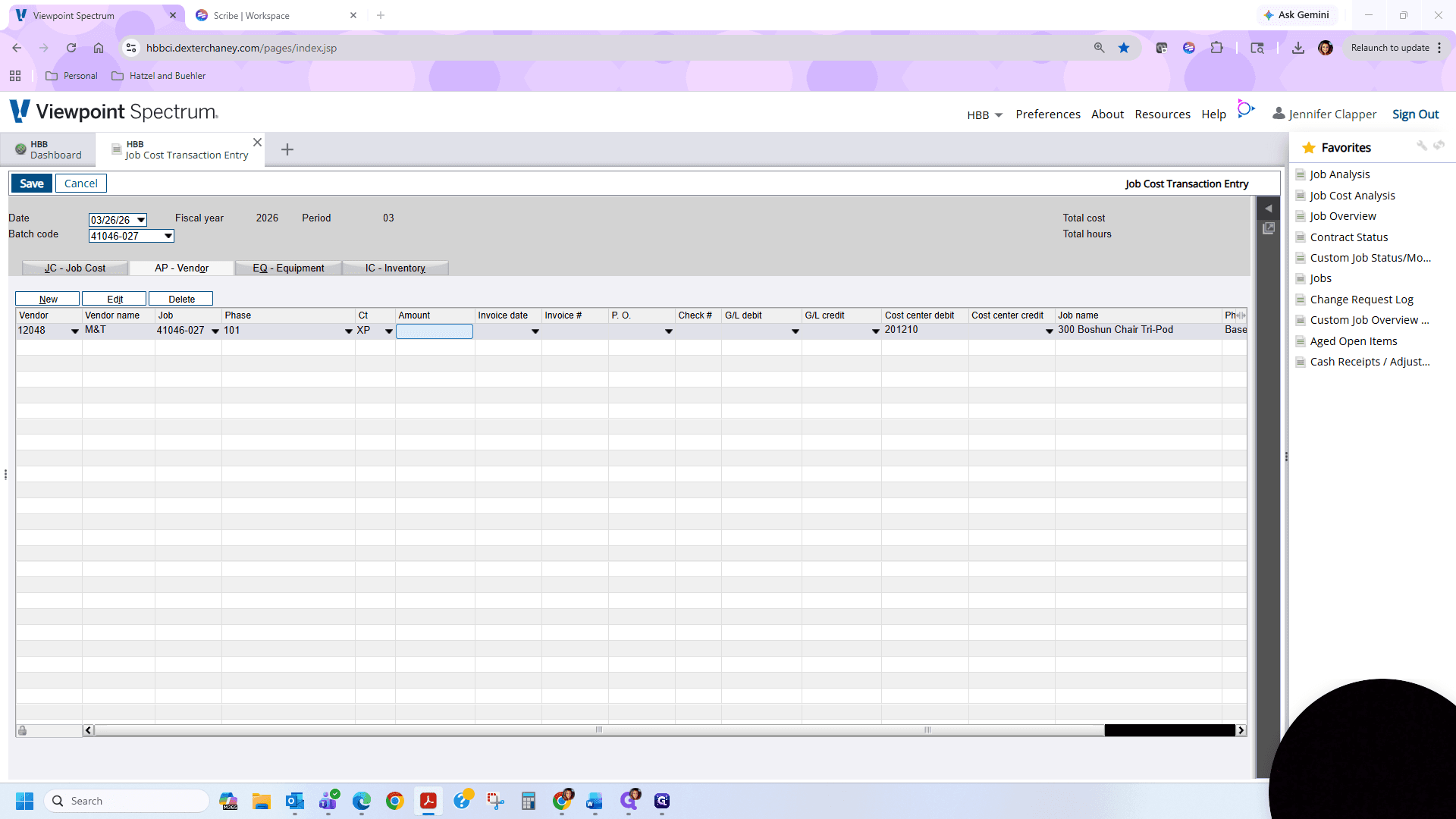
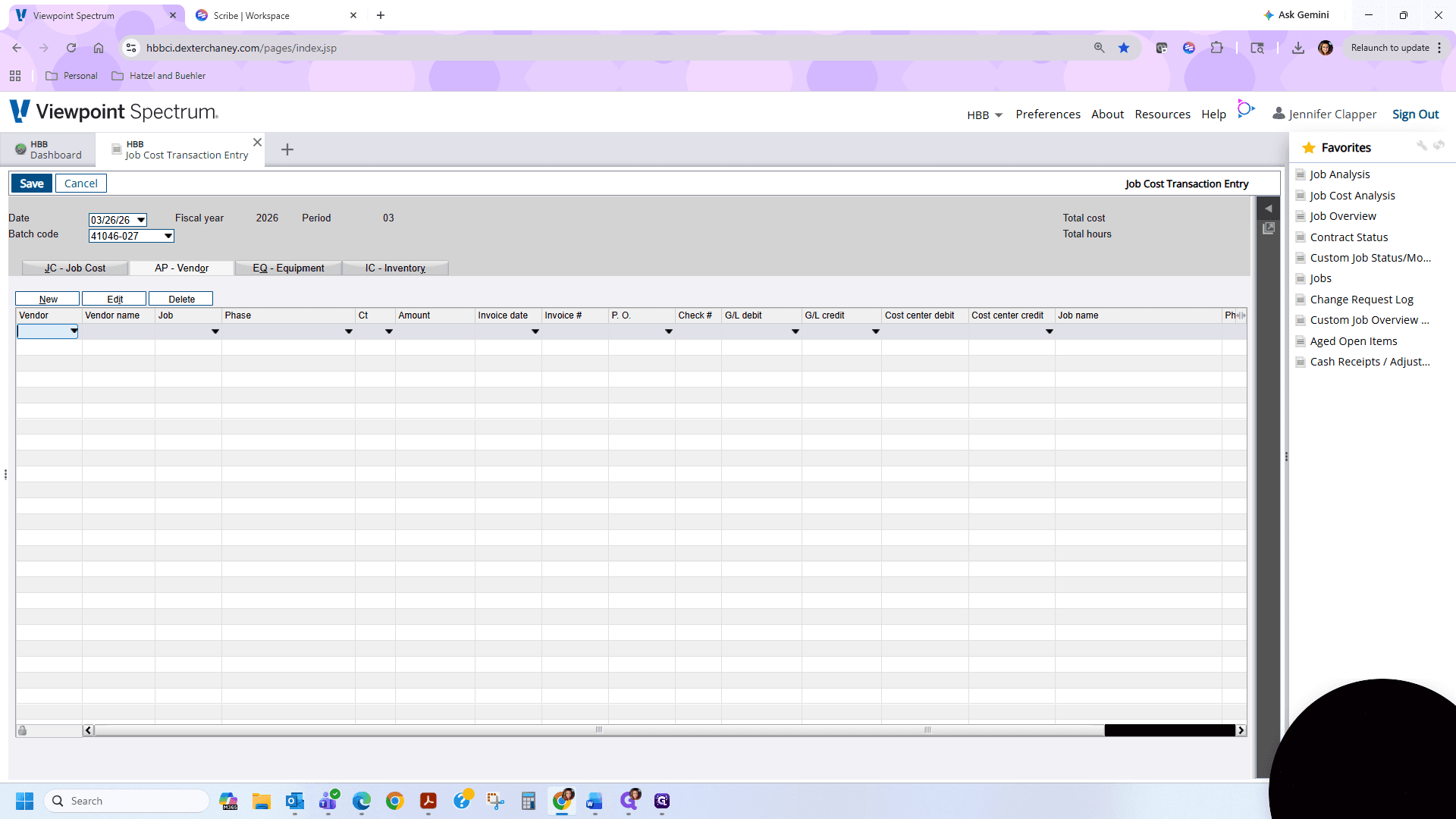
Click the AP Vendor tab.
13
You can find the vendor number on your report. The vendor number is this hyperlink number here, 12048.
14
Enter the number 12048 here. The vendor name should automatically populate.
15
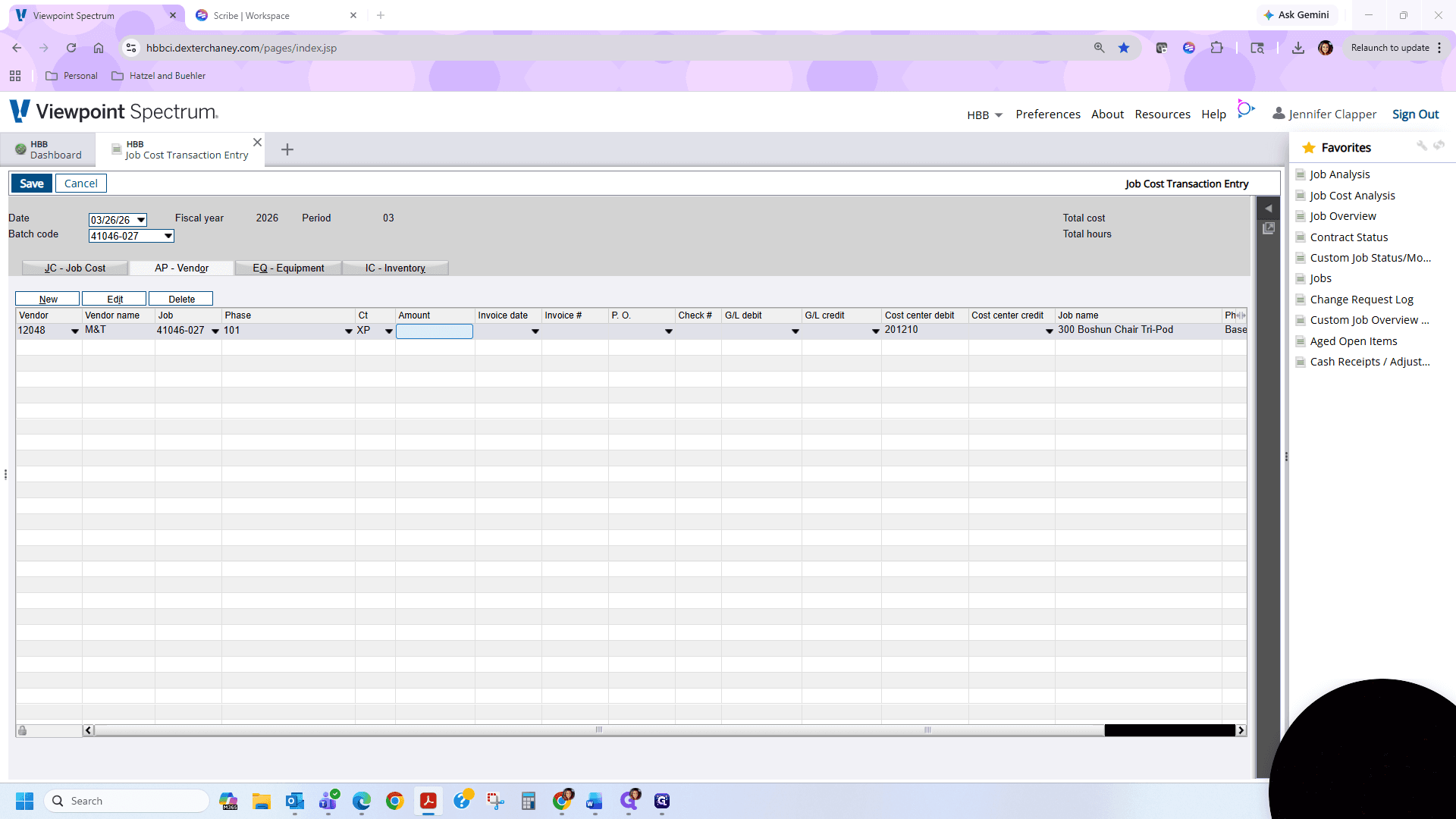
Next, enter the job number from which you are moving the cost. The phase is the 101. And then XP. All of this is available on the Job Cost History Report.
16
Enter the amount to be moved as a negative value, so -92.17. We will use the invoice date from the Job Cost Transaction Report or Job Cost History Report. In this case, there is no PO number or check number.