
How to Move Items Within a Hierarchy: Step-by-Step Tutorial
Learn how to move items, such as a wallet by Pierre Cardin, within a hierarchy using step-by-step instructions. This guide covers confirming the correct record, using the move feature, and relocating items even if they are not visible in the displayed levels.
In this guide, we'll learn how to move an item within a hierarchy to a new parent record. This process is useful when you need to move items within the hierarchy, such as moving a wallet by Pierre Cardin under a specific Small Individual Donation record. We will cover how to verify you are on the correct record, use the move function, and select the right location, even if it is not immediately visible in the hierarchy.
Let's get started
This tutorial explains how to move items within a hierarchy. We want to move this item, a wallet by Pierre Cardin, under Yvonne Engelmann's small individual donation. First, make sure you are on the correct record. We're not on the correct record right now, so I will click on the correct one and wait for it to load.
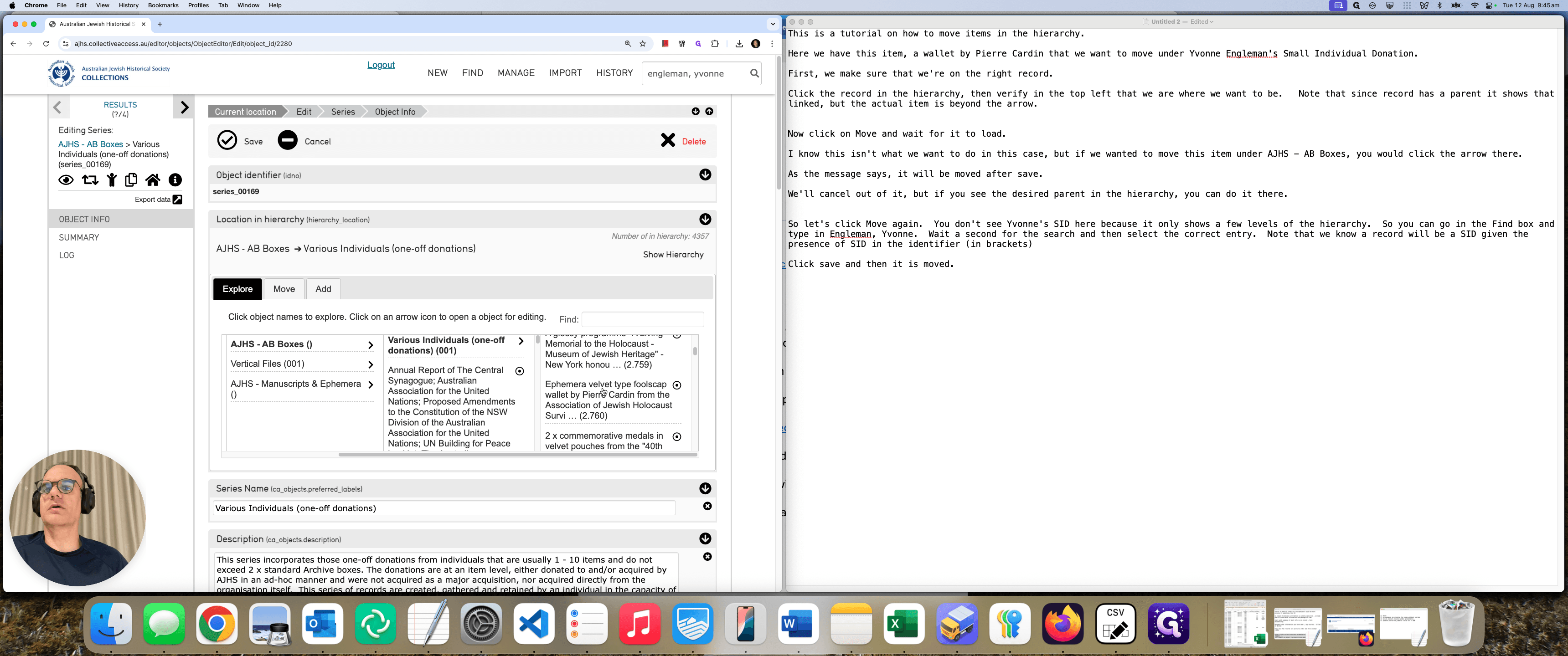
You can confirm you're on the correct record by checking the inspector in the top left. It should say "item," which is what you want.
We want to make sure it is not a series or anything similar. Since it's in a hierarchy, it has the parent linked. What is to the right of the arrow shows our current location.
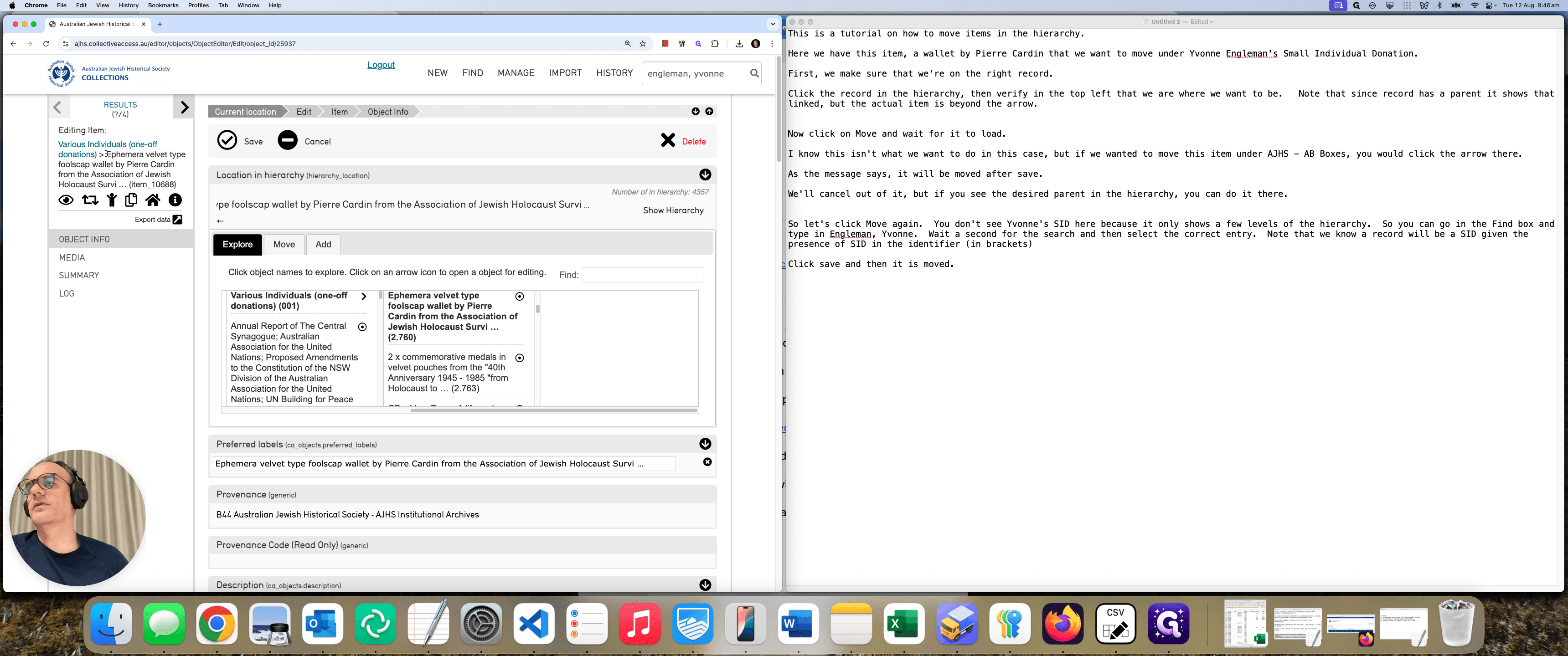
We know we are on the correct record now. Now, the hierarchy shows only the first few levels. This one is a bit different, but for hypothetical purposes... I'm not going to do anything, but if we wanted to move it under A.B. Boxes:
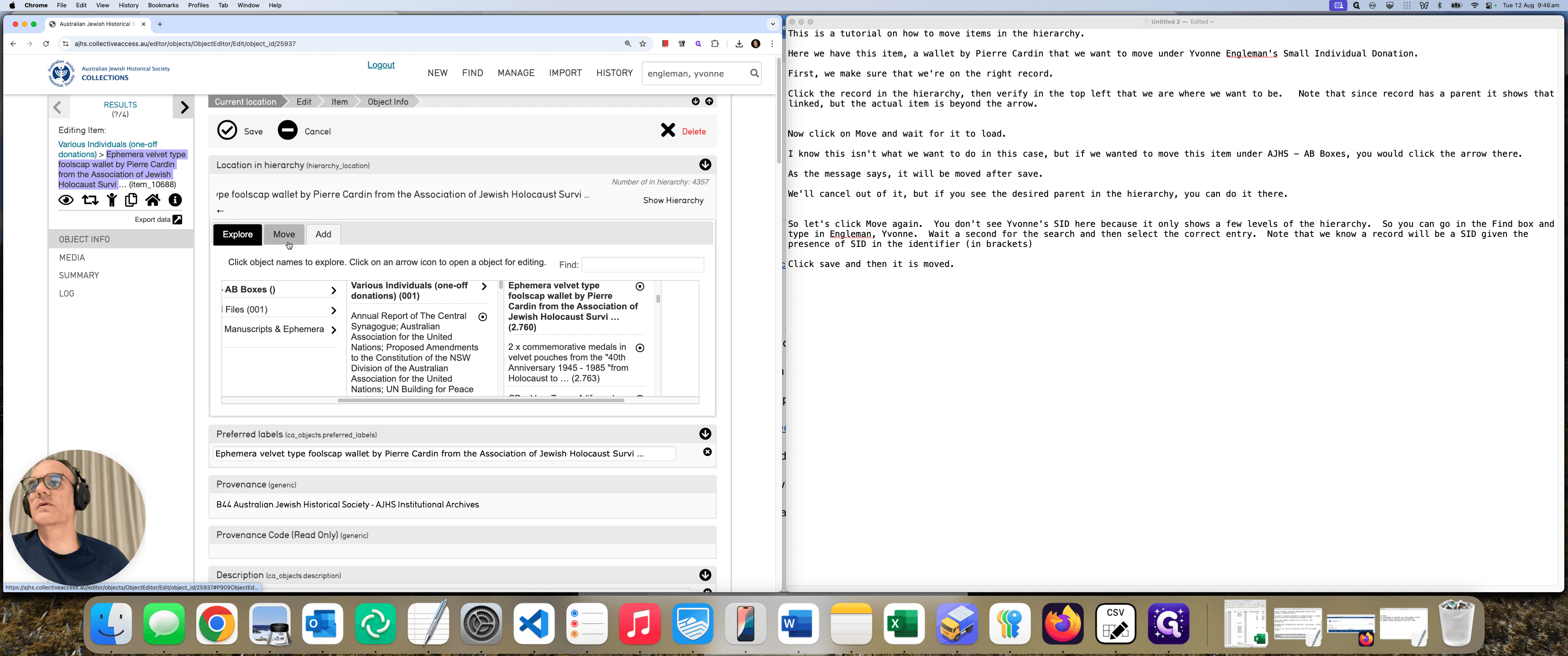
Click "Move" and wait for the hierarchy to load. Find the desired record to move to, and click its arrow to move. For example, to move it under AB Boxes, select arrow shown below
Click this arrow next to Boxes. It will say, "Will be moved under A.B."
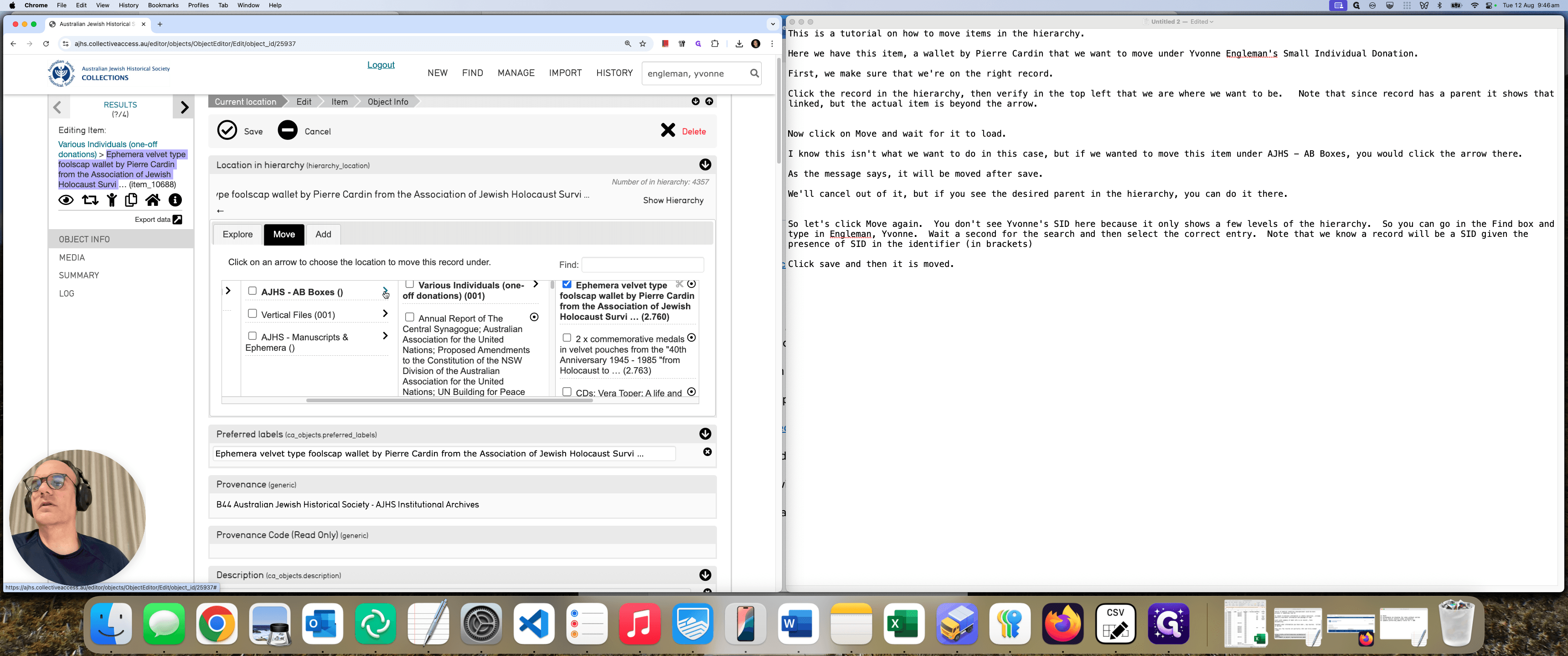
However, nothing has happened yet. It doesn't actually move it until you click Save. Since we don't want to do this right now, click Cancel.
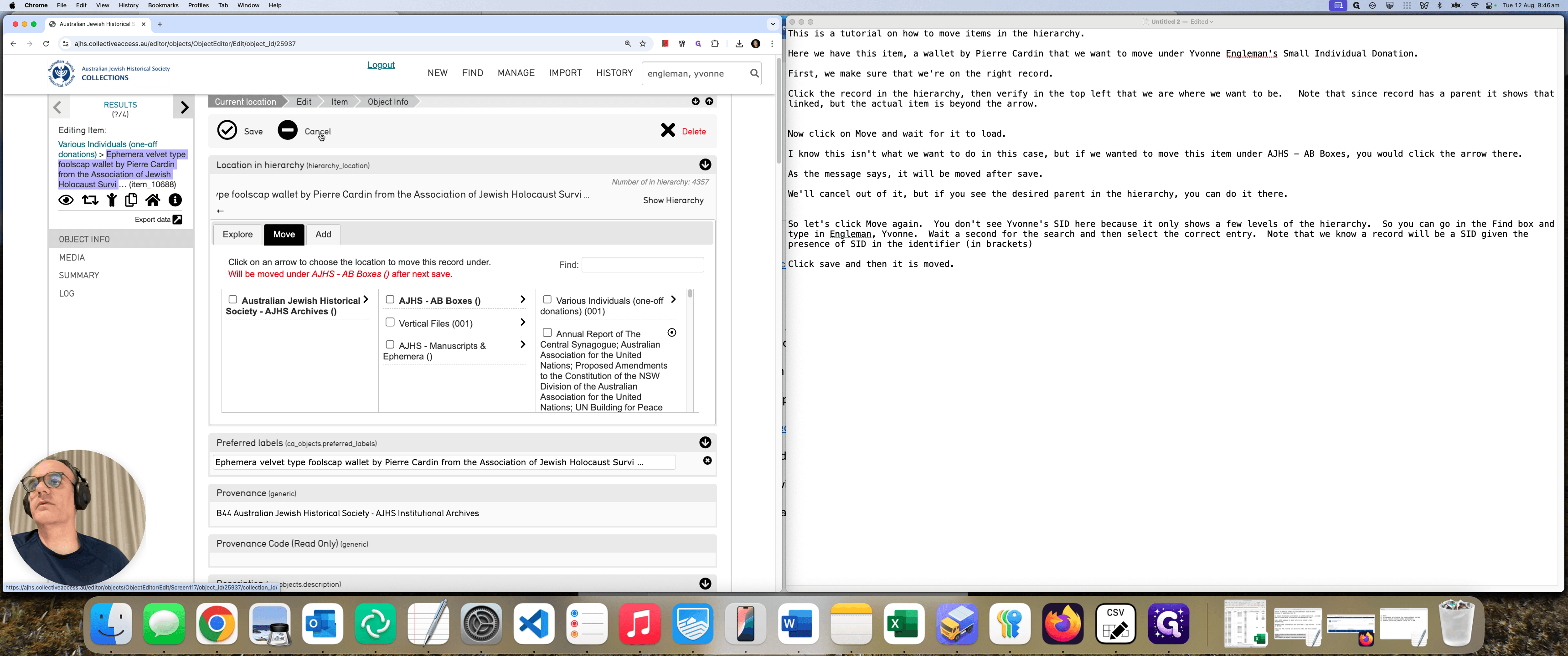
Click "Leave" and the page will reload.
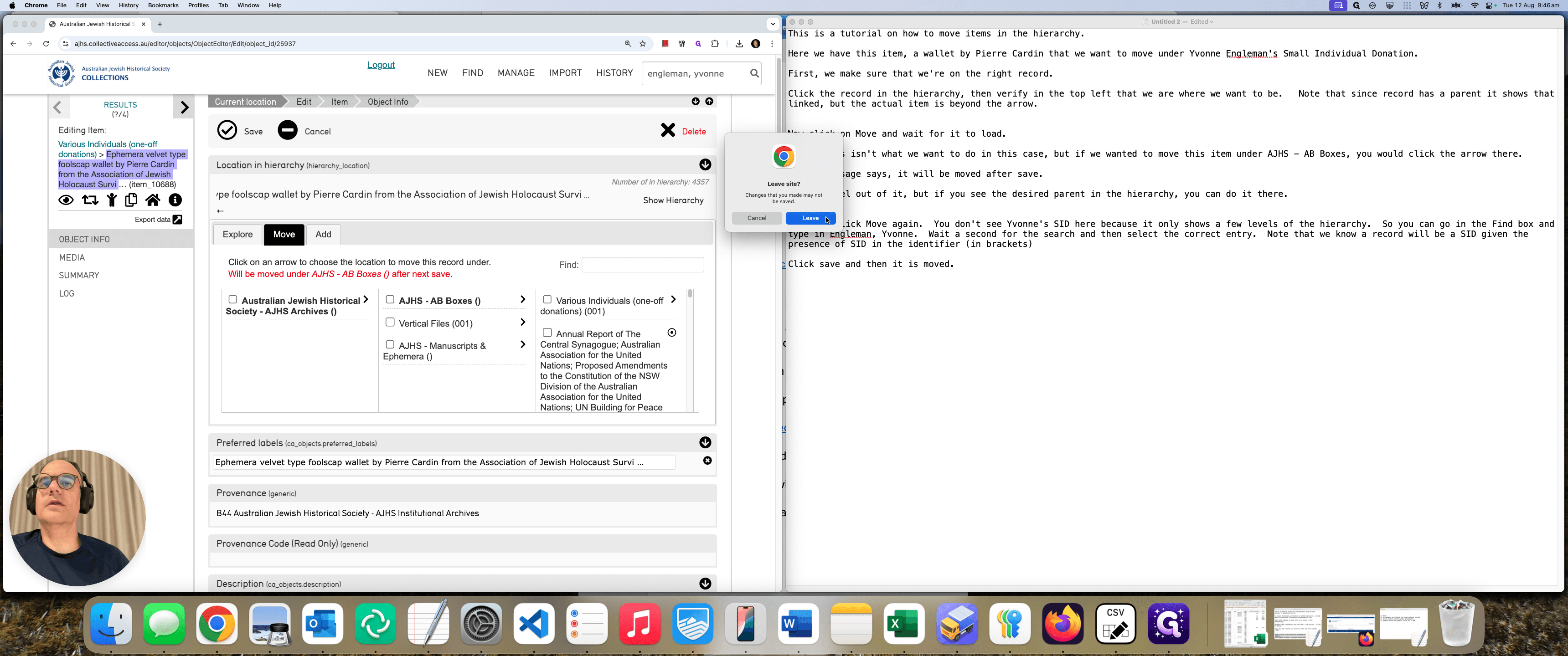
We can confirm we're in the right place because it says "item" and shows its description or title. Let's move it to where we want. Make sure to click Move first.
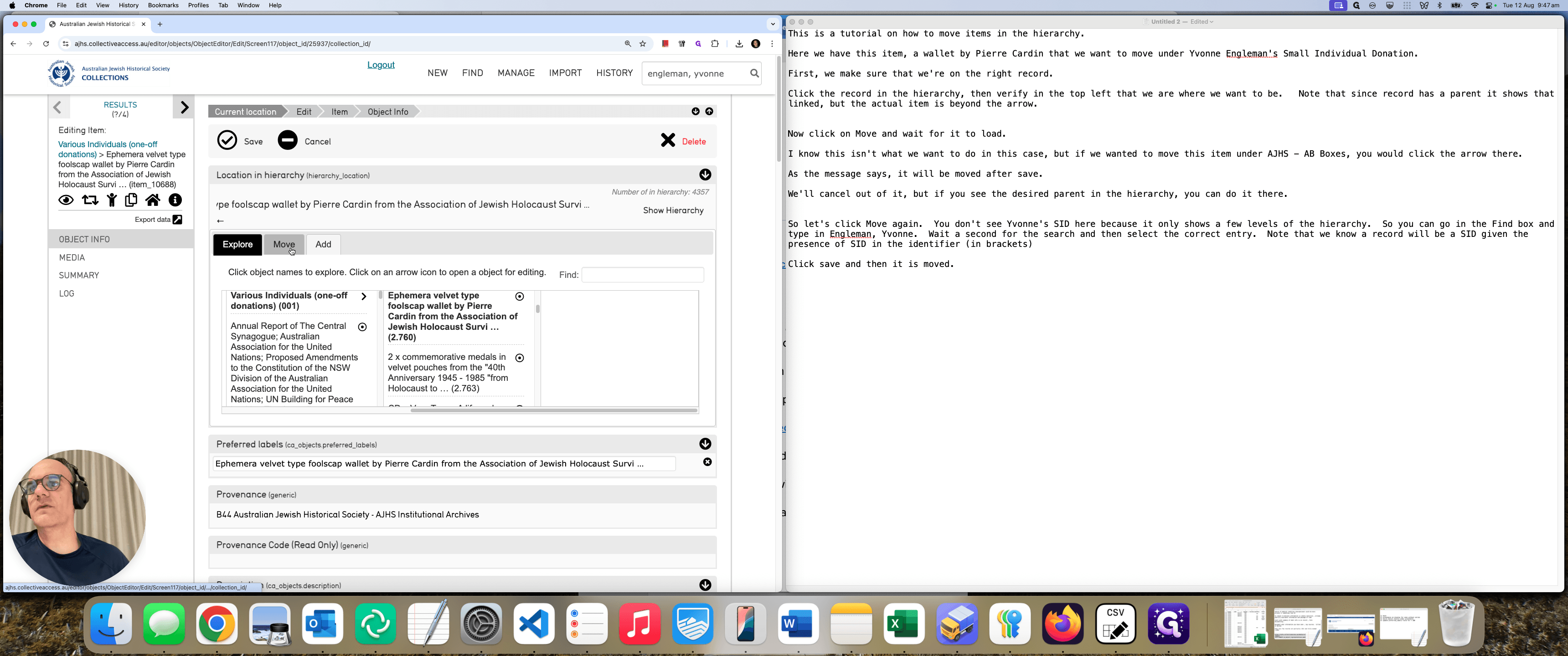
Since Yvonne Engelmann's SID is not present in the hierarchy, you can use the Find feature.
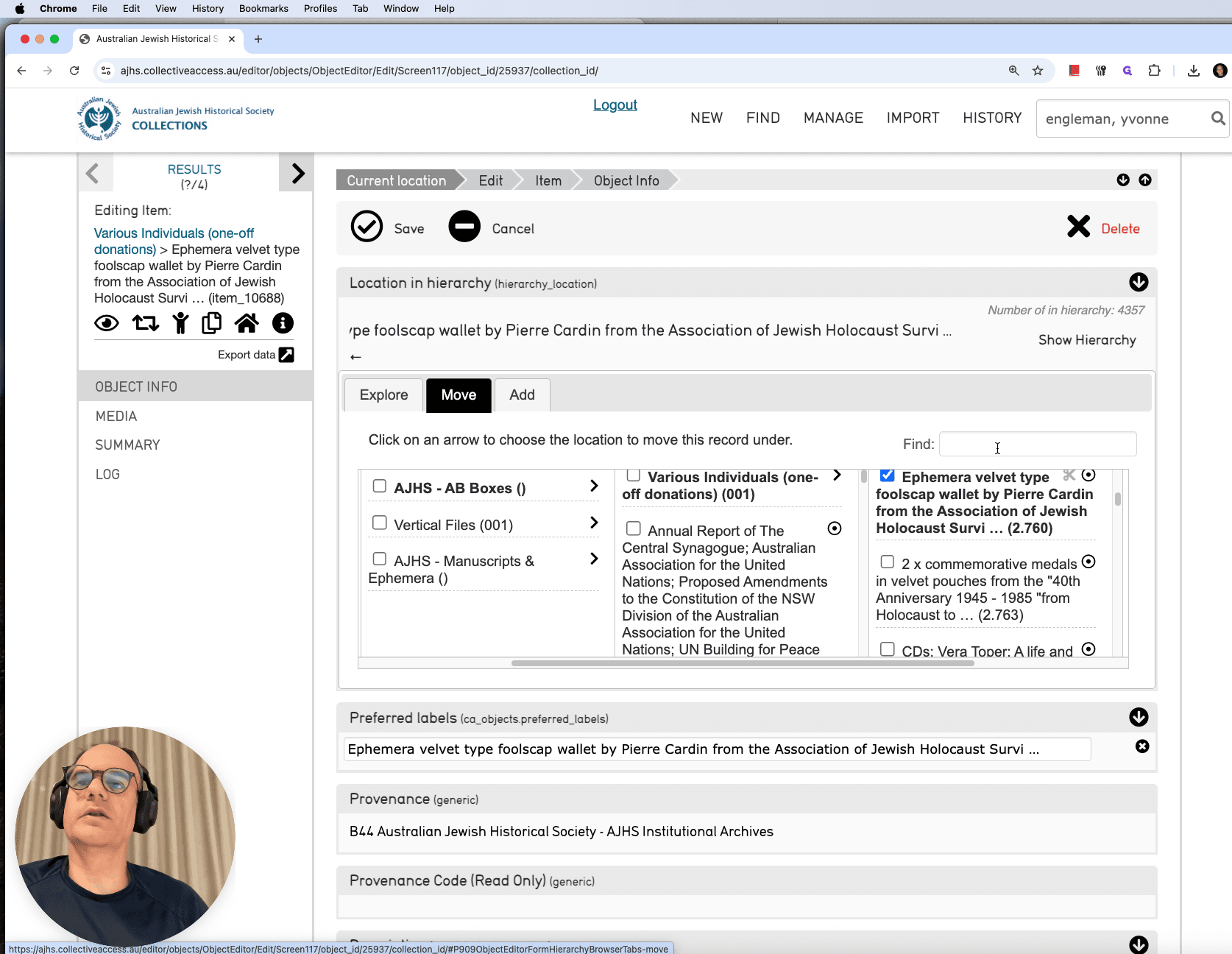
In the search box, type "Engelman, Yvonne," wait for the autosuggestions to appear, then select the Engleman, Yvonne that has "SID" in brackets
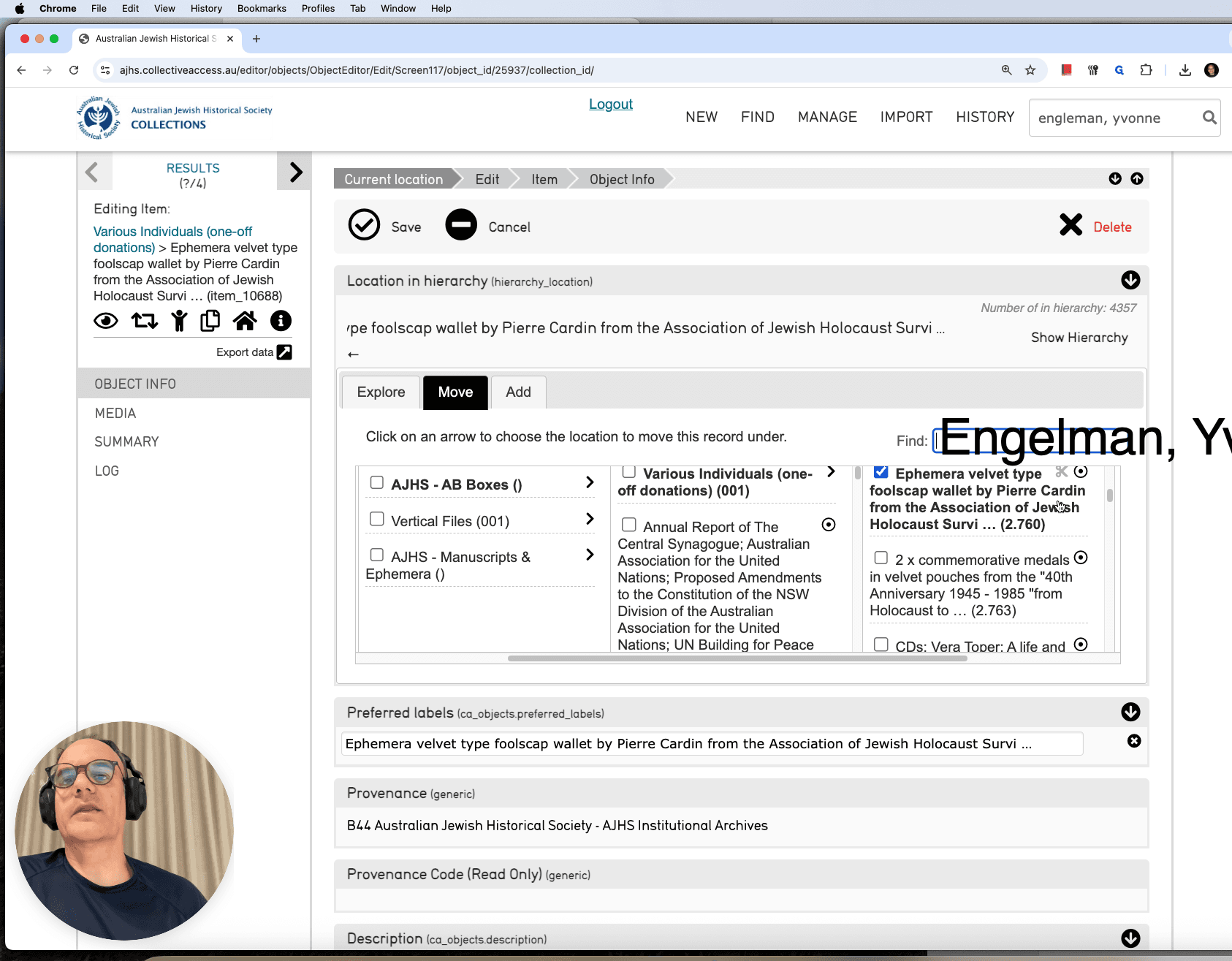
After selecting the SID, the message says, "Will be moved under Yvonne Engelmann after next save." I won't do it now; I'll let you do it.
If you click Save now, it will move it to your desired place in the hierarchy.
This guide shows you how to move items, whether they are visible in the displayed levels or not.
If you need to move an item outside the shown levels, type the record's title, select the right entry from the autosuggestions, and click Save. After you click Save, it will load the hierarchy. You can see that it has verified it is in the correct place.