How to Move Prospects Between Campaigns in Samplead
Learn step-by-step how to move prospects between campaigns in Samplead
In this guide, we'll learn how to move prospects between campaigns in Samplead. This process helps you organize your prospects and ensure they are assigned to the right campaigns. You will see how to select a prospect and transfer them to a different campaign.
Let's get started
This guide will show you how to move prospects between campaigns in Samplead.
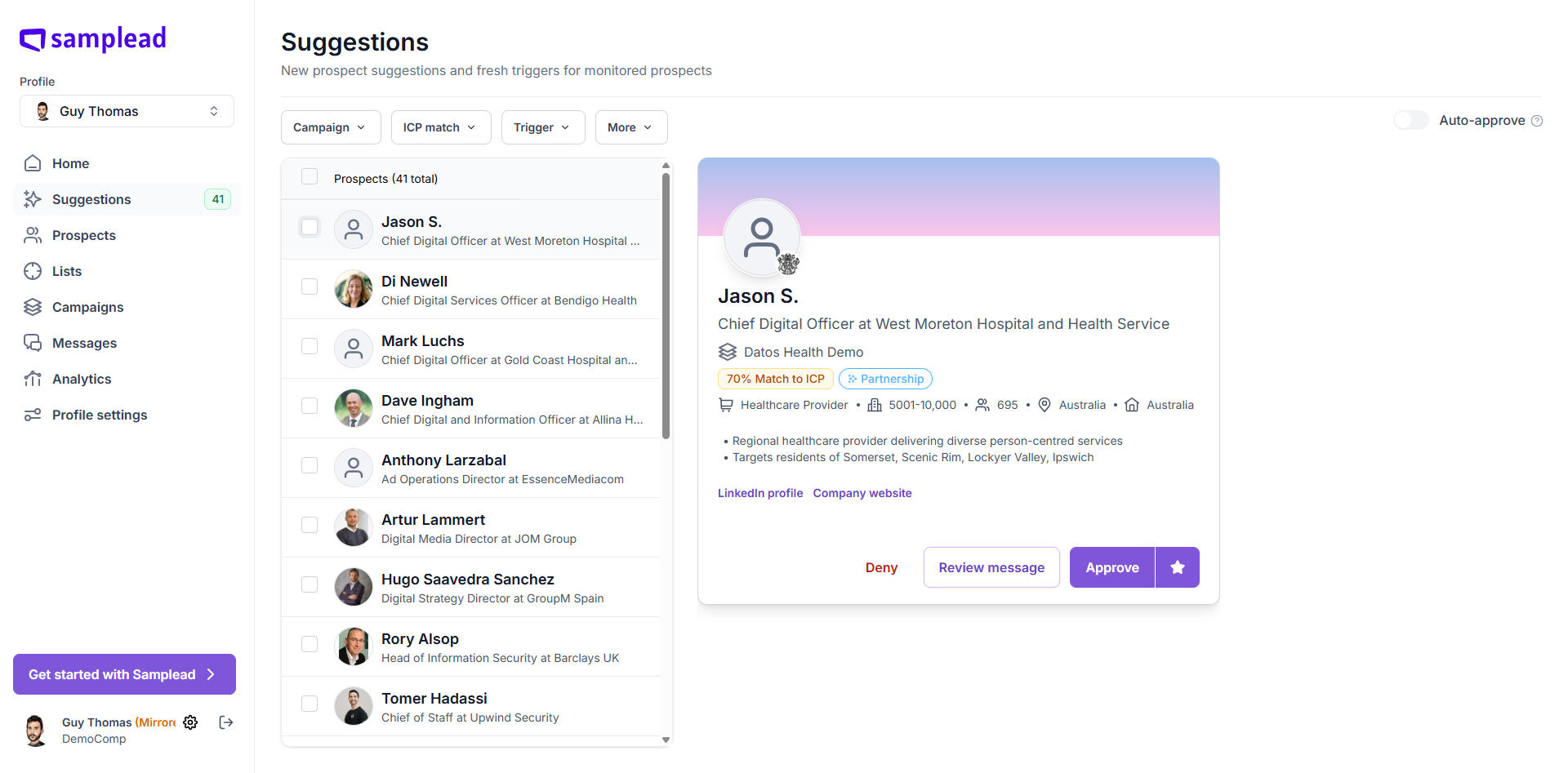
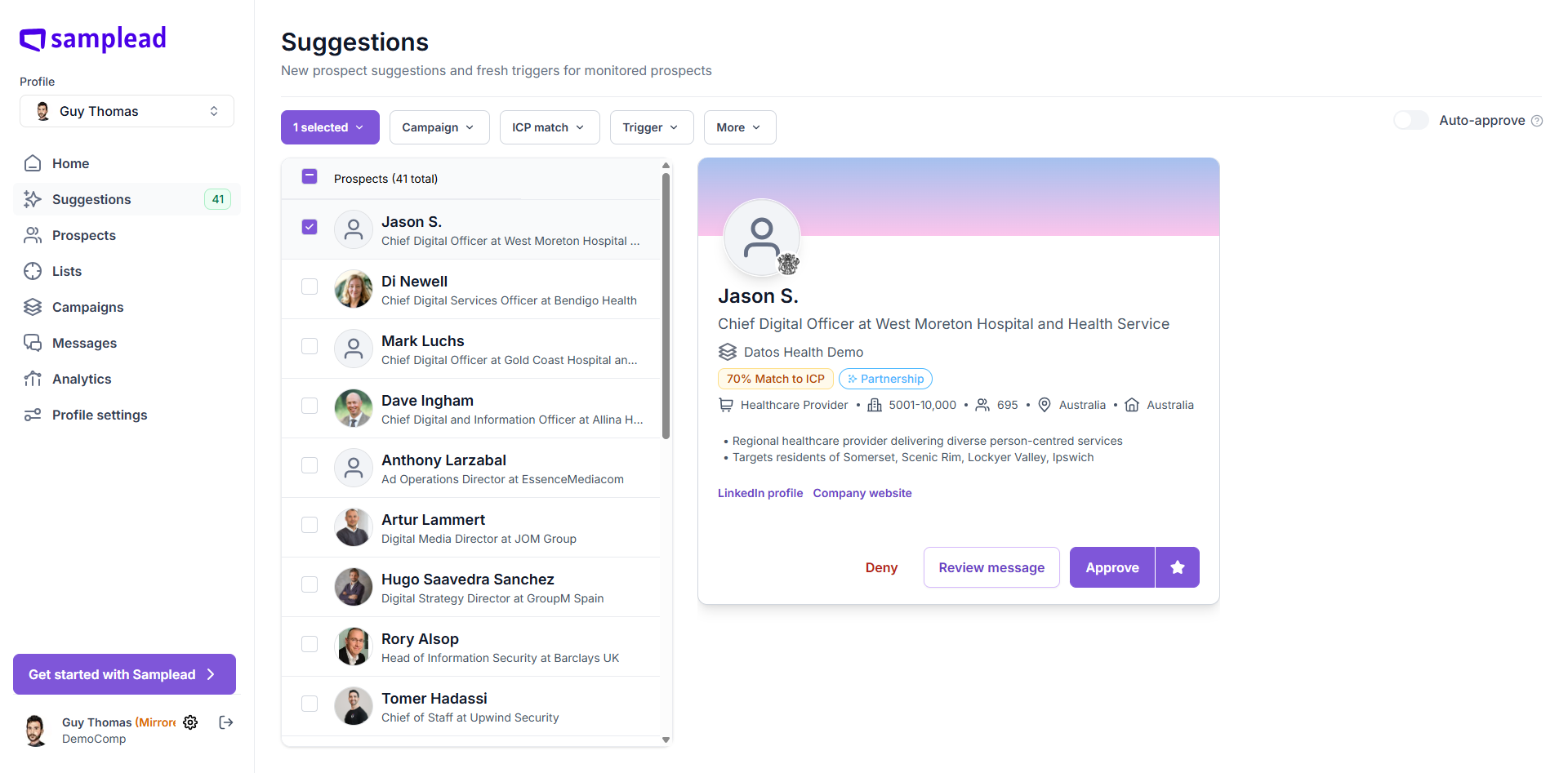
When you first receive your prospects, they have been randomly assigned to different campaigns unless you tell us otherwise. In the example we see Jason S. has been assigned to the Datos Health Demo campaign - it says this under his name and title.
If you want to move him to a different campaign, In 'Suggestions', start by ticking the box next to his name
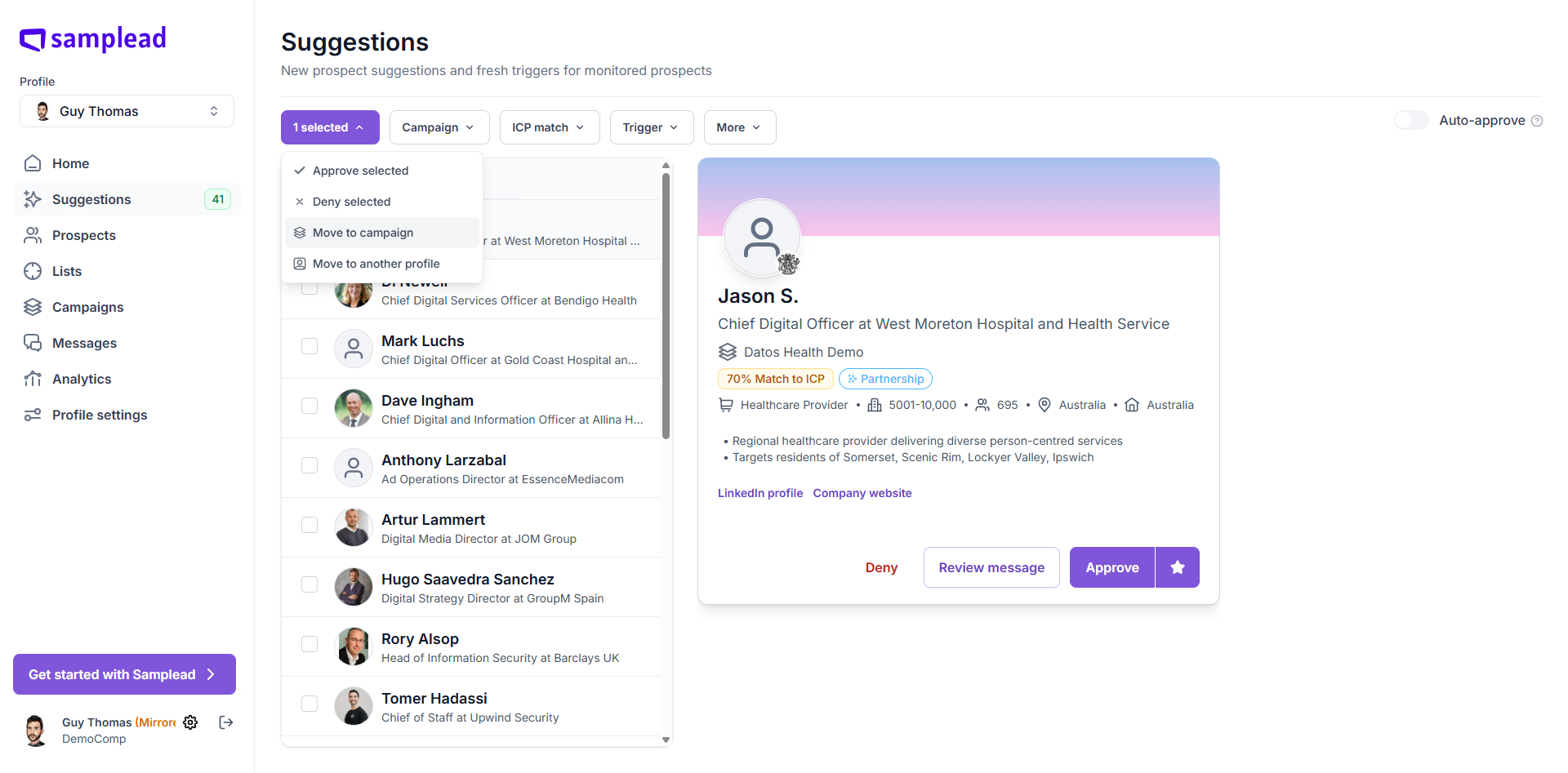
Then click on the "1 selected" button that has now appeared
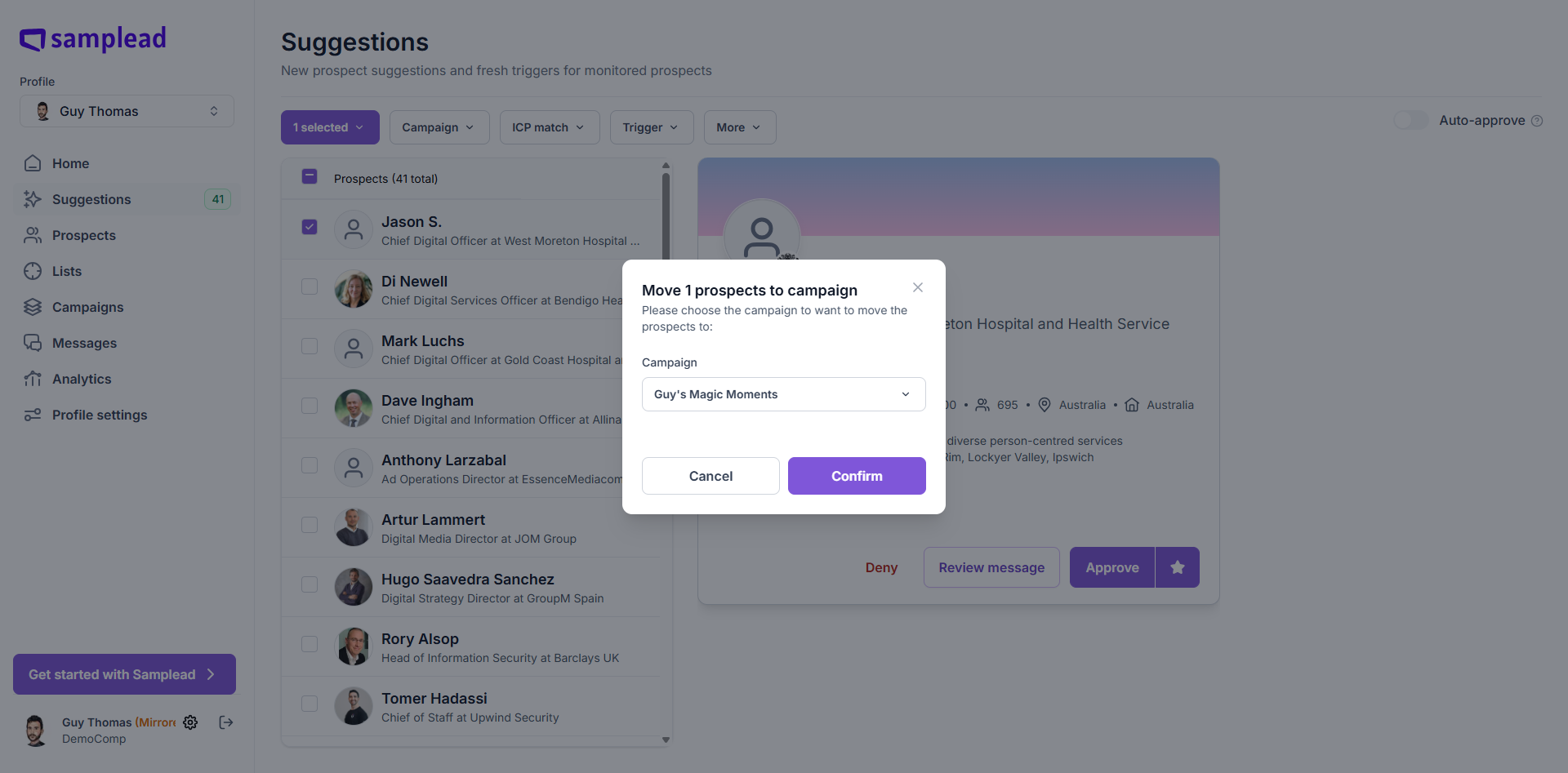
From the drop down choose "Move to Campaign."
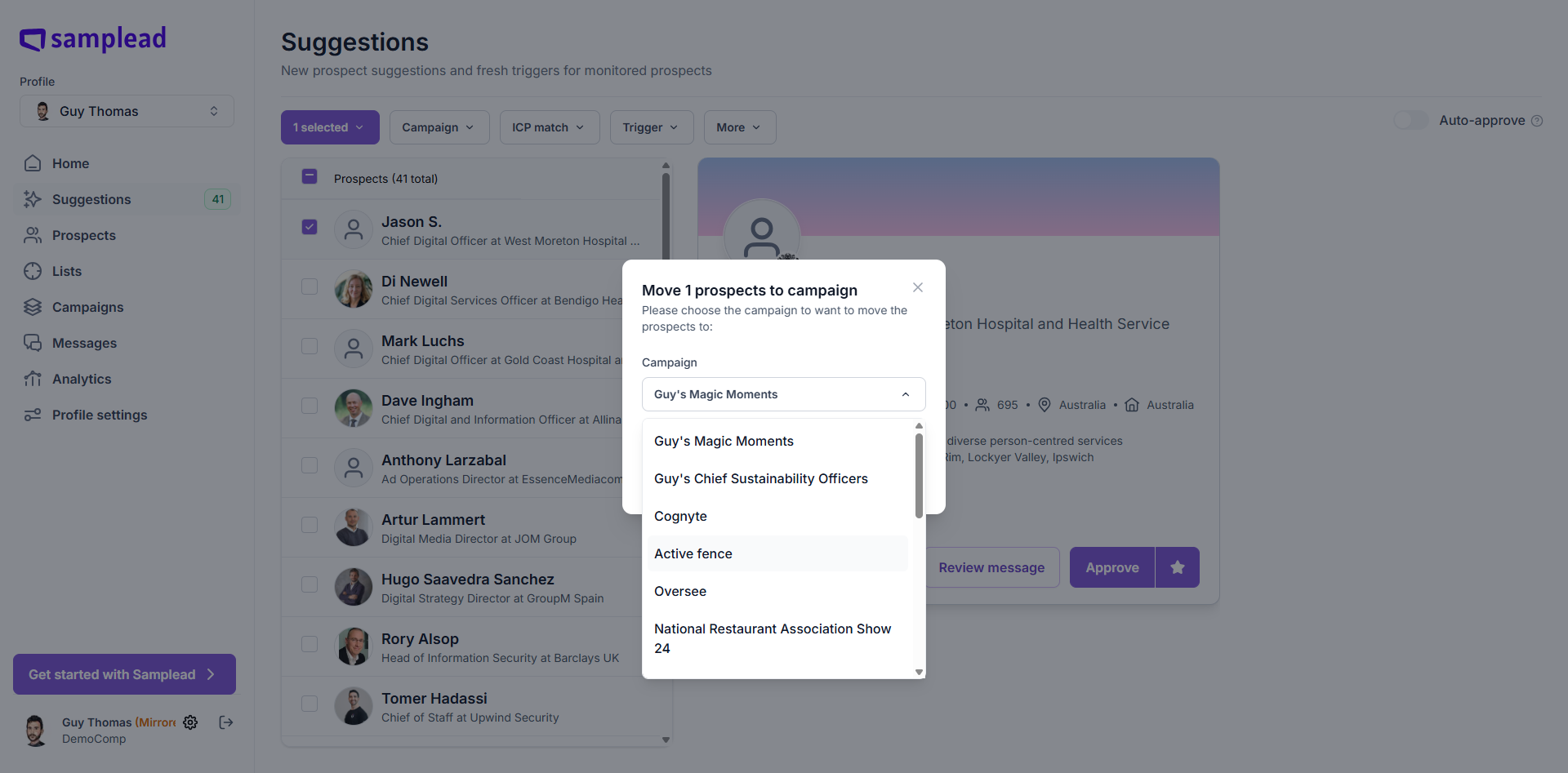
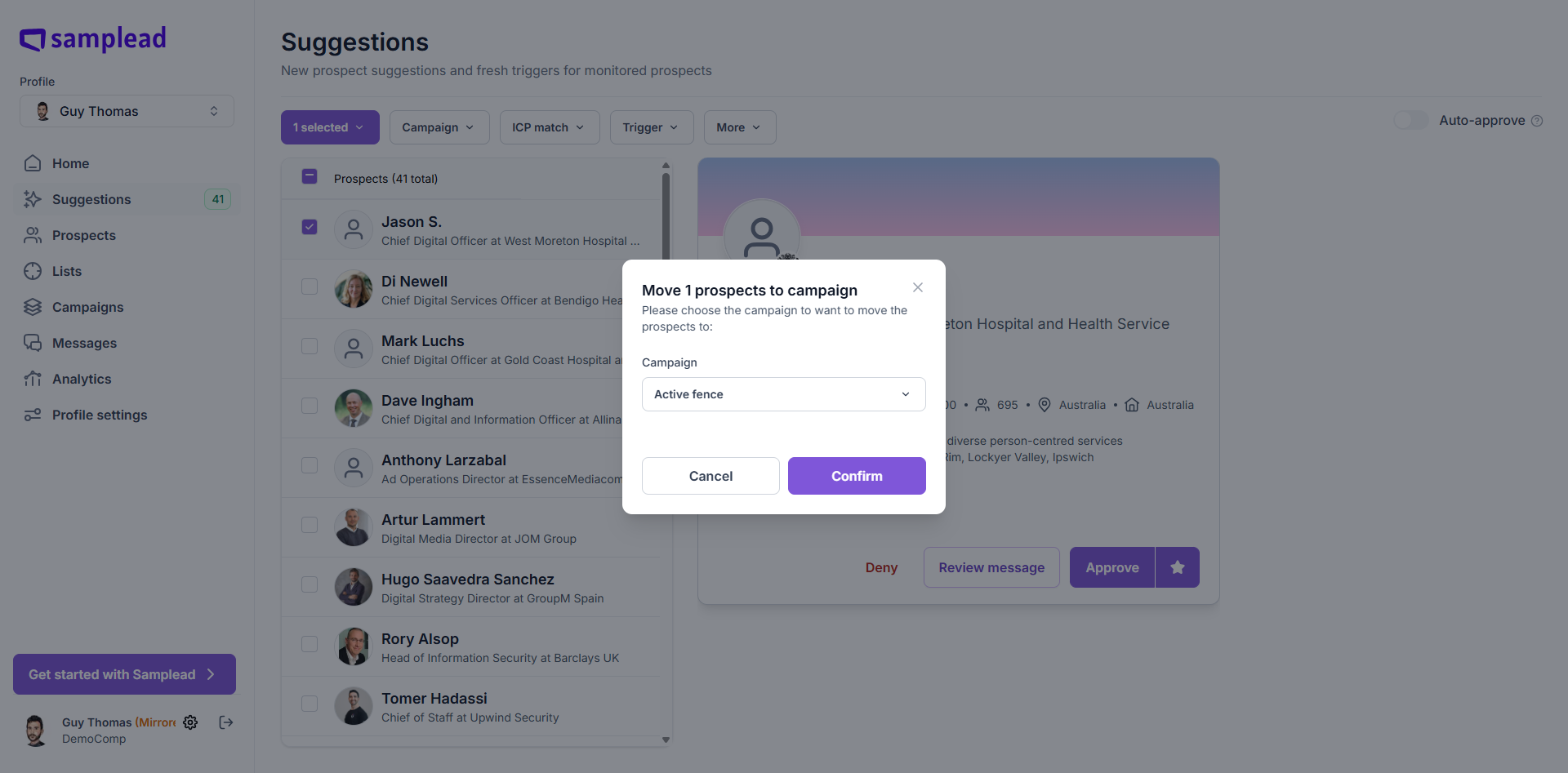
Select the campaign you want to move him to.
Click Confirm.
Now you will see where the campaign name is located- under the name and title - prospect Jason S has been moved to the Active Fence Campaign.