
1 - Navigating ReliaTrax
Learn how to use ReliaTrax to manage client files, update client information, track appointments, and handle insurance details. This comprehensive guide walks you through every step to efficiently navigate ReliaTrax.
In this guide, we'll learn how to navigate ReliaTrax to manage client files, update client information, and track important details such as appointments and insurance.
This guide will show you how to navigate ReliaTrax to manage client files, update client information, and track important details such as appointments and insurance. Let's begin. Log in to your ReliaTrax account.
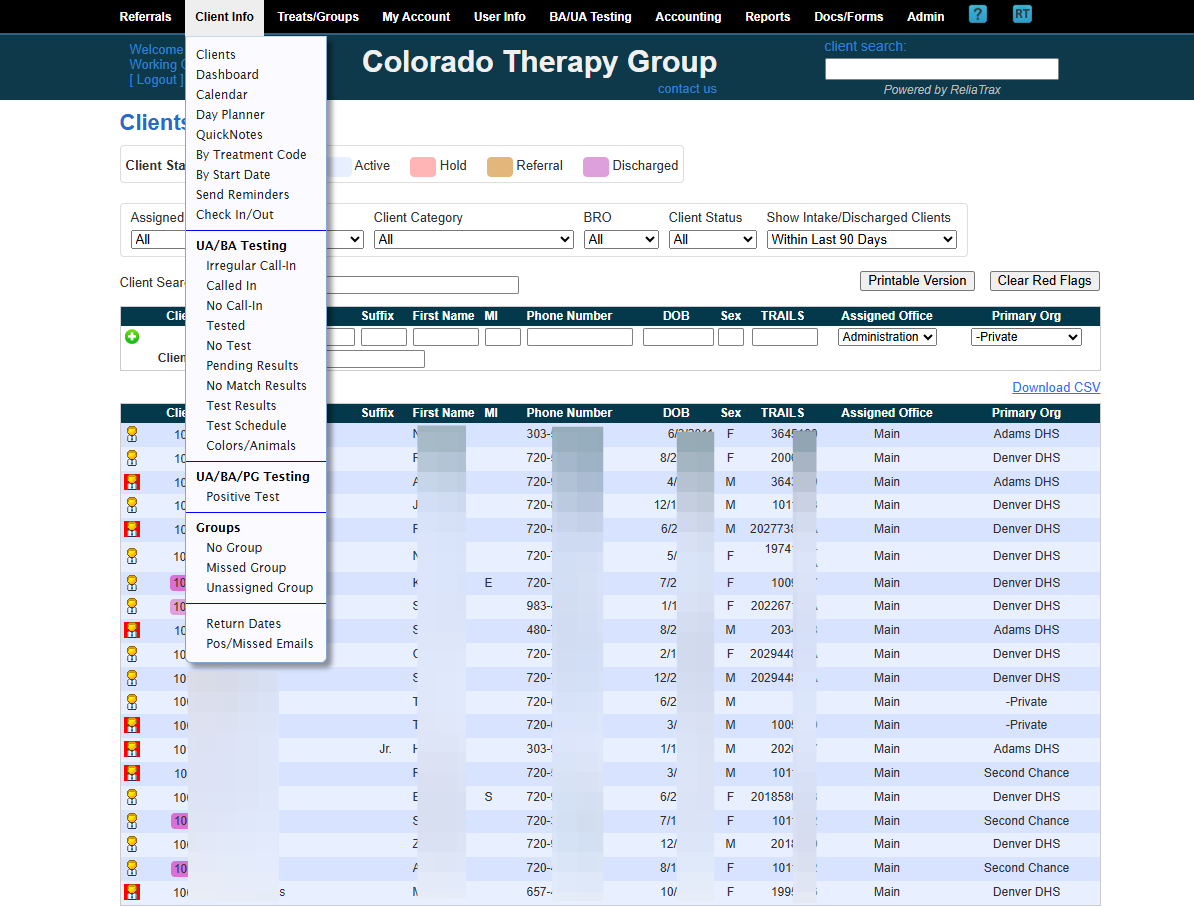
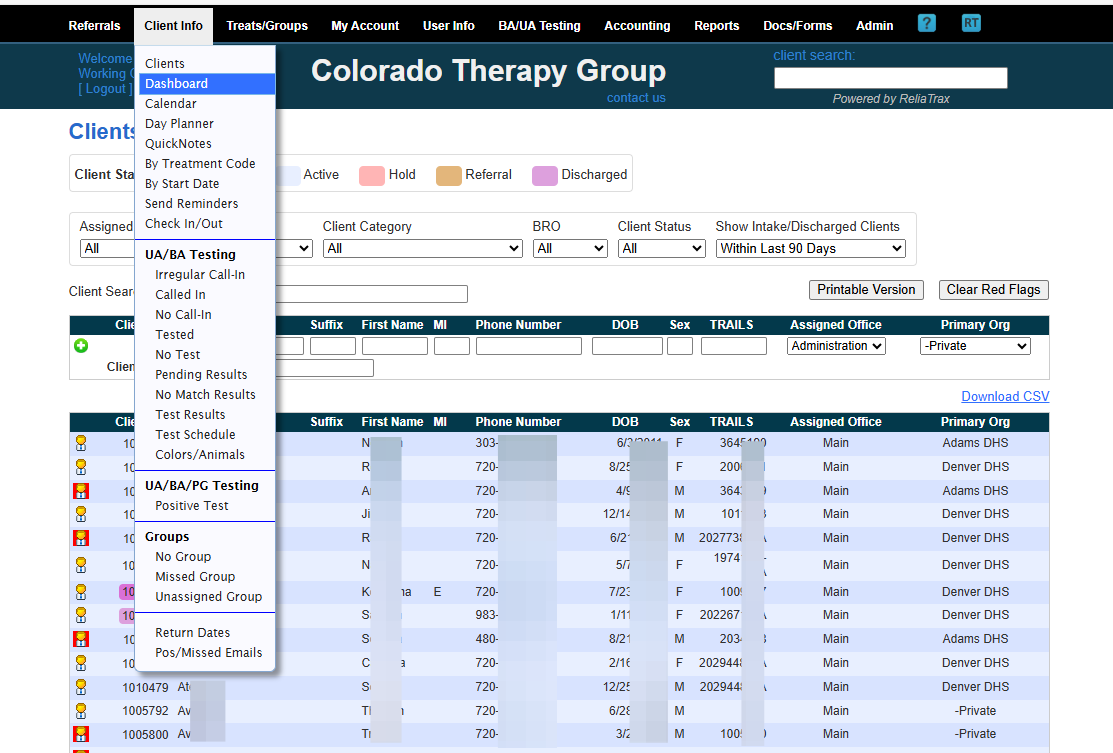
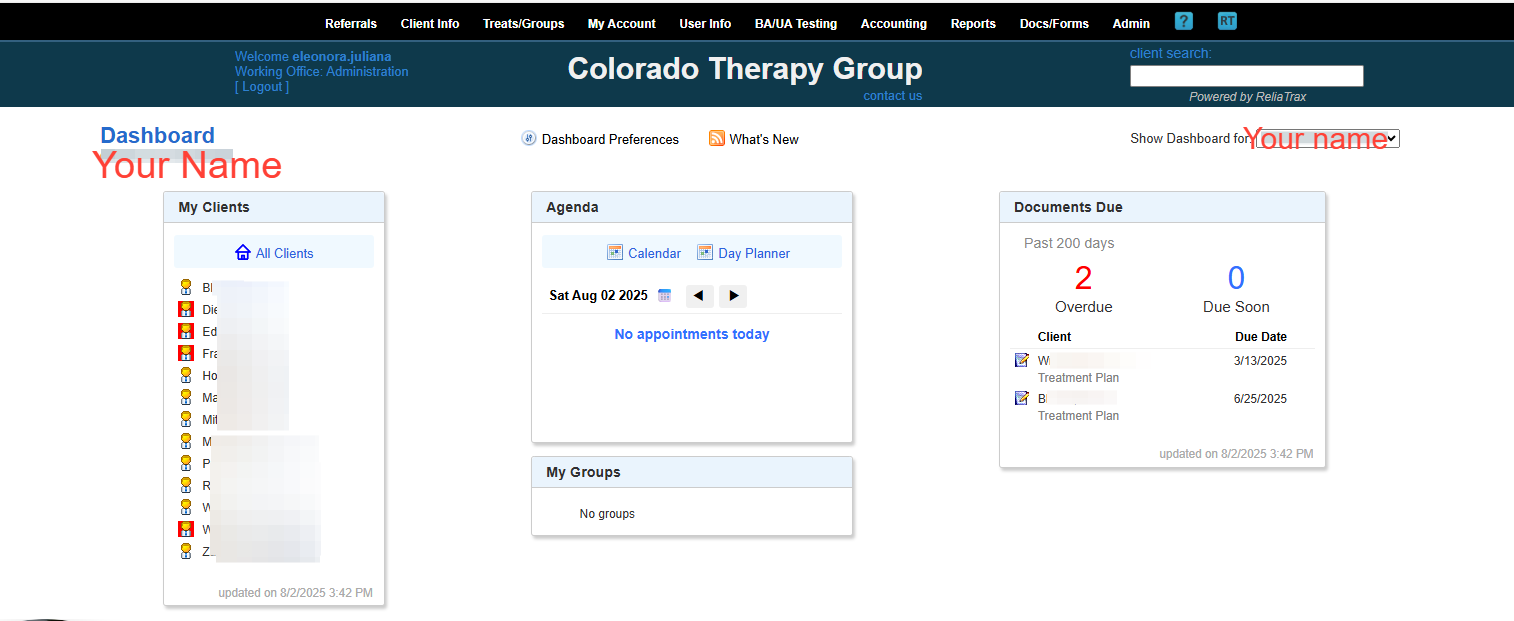
To get to your DASHBOARD, click Client Info, then...
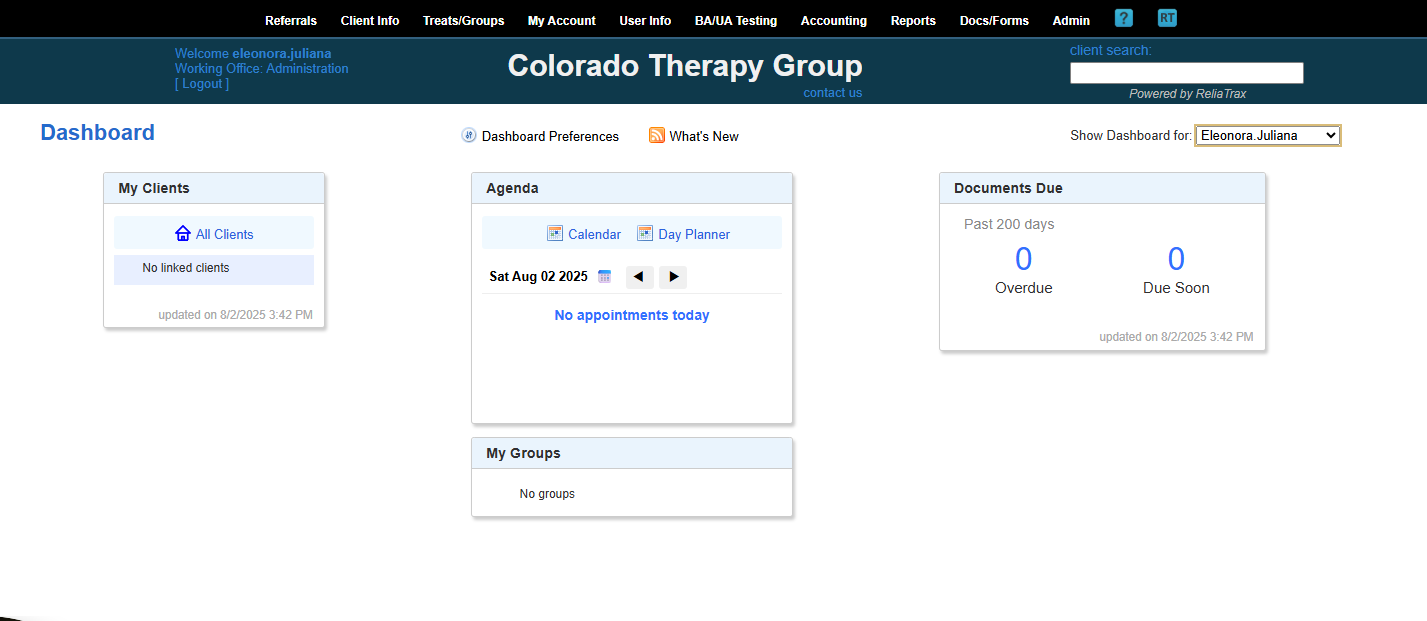
Under Show Dashboard for: select your name.
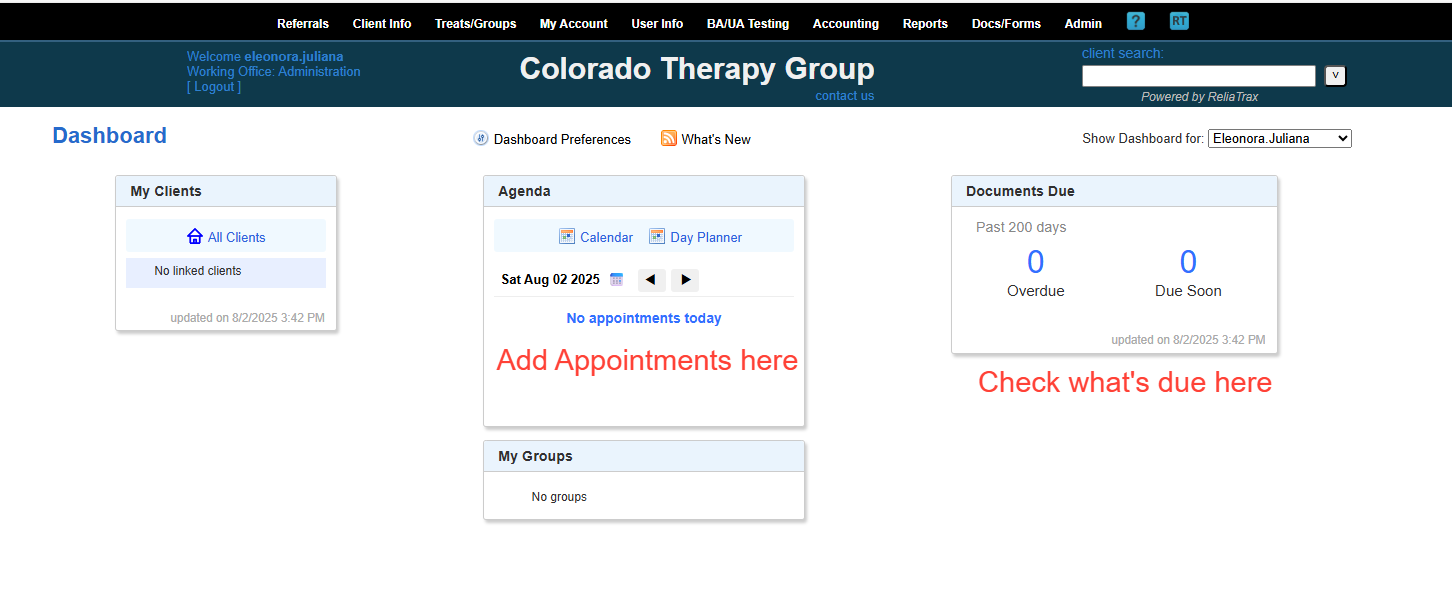
In your Dashboard, you can:
Manage your Clients
Manage your Calendar and set a client appointment
Manage your Tasks
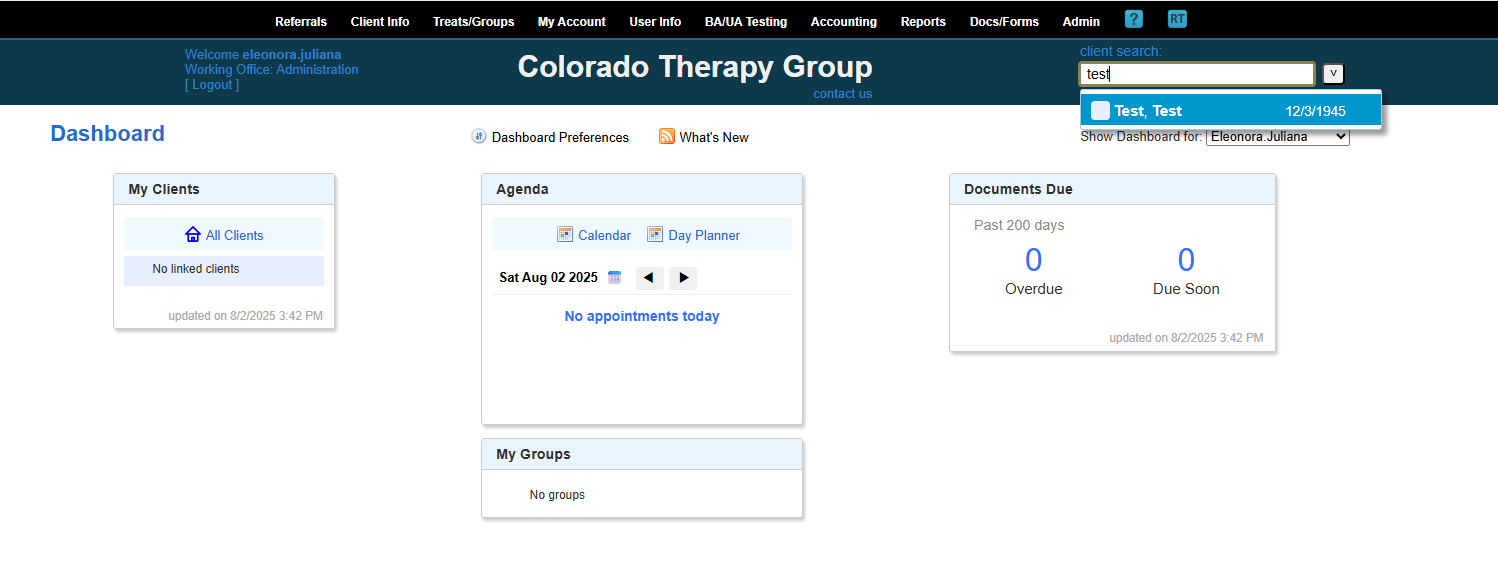
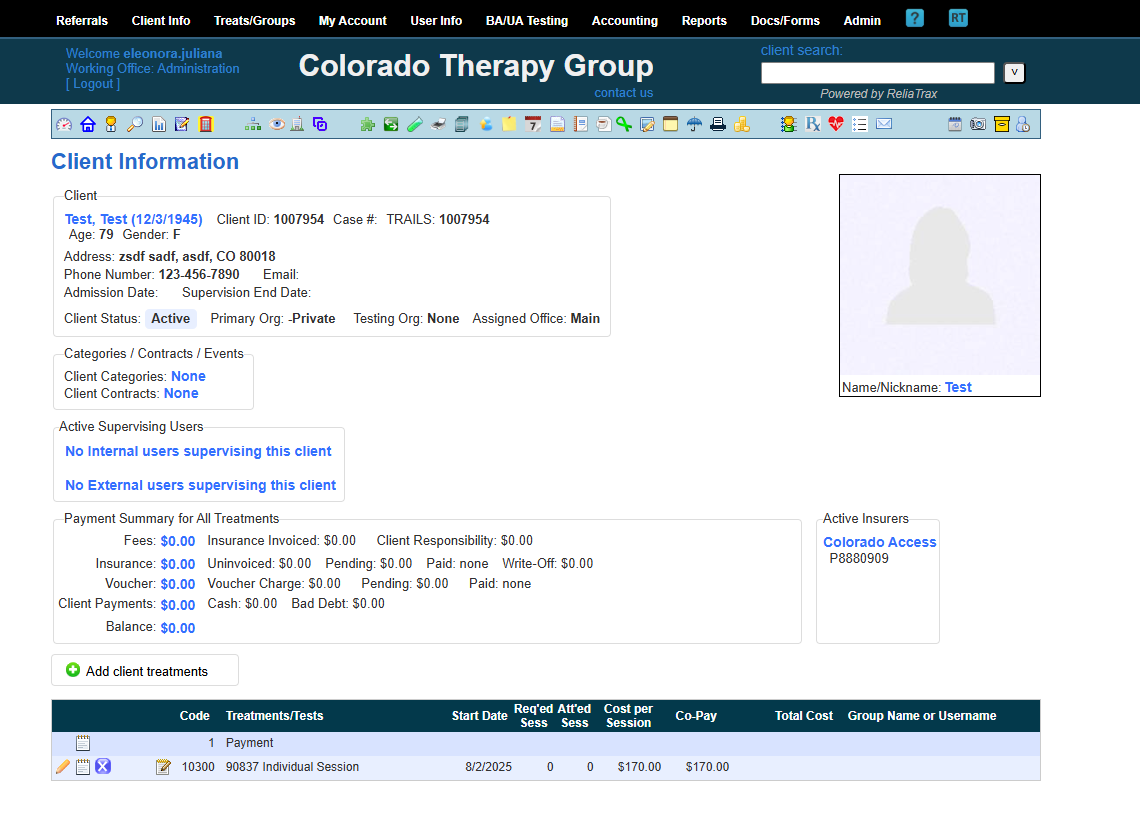
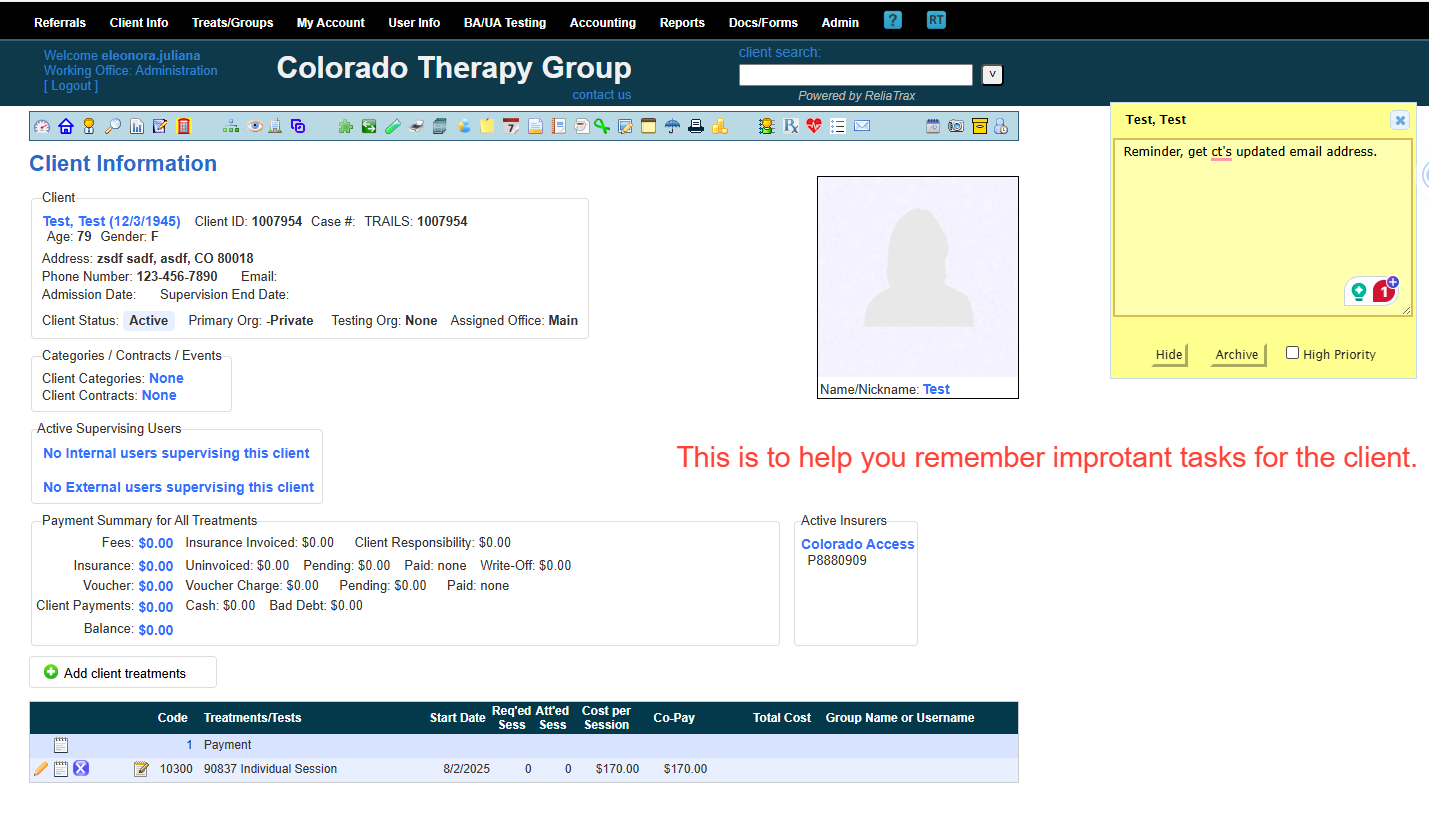
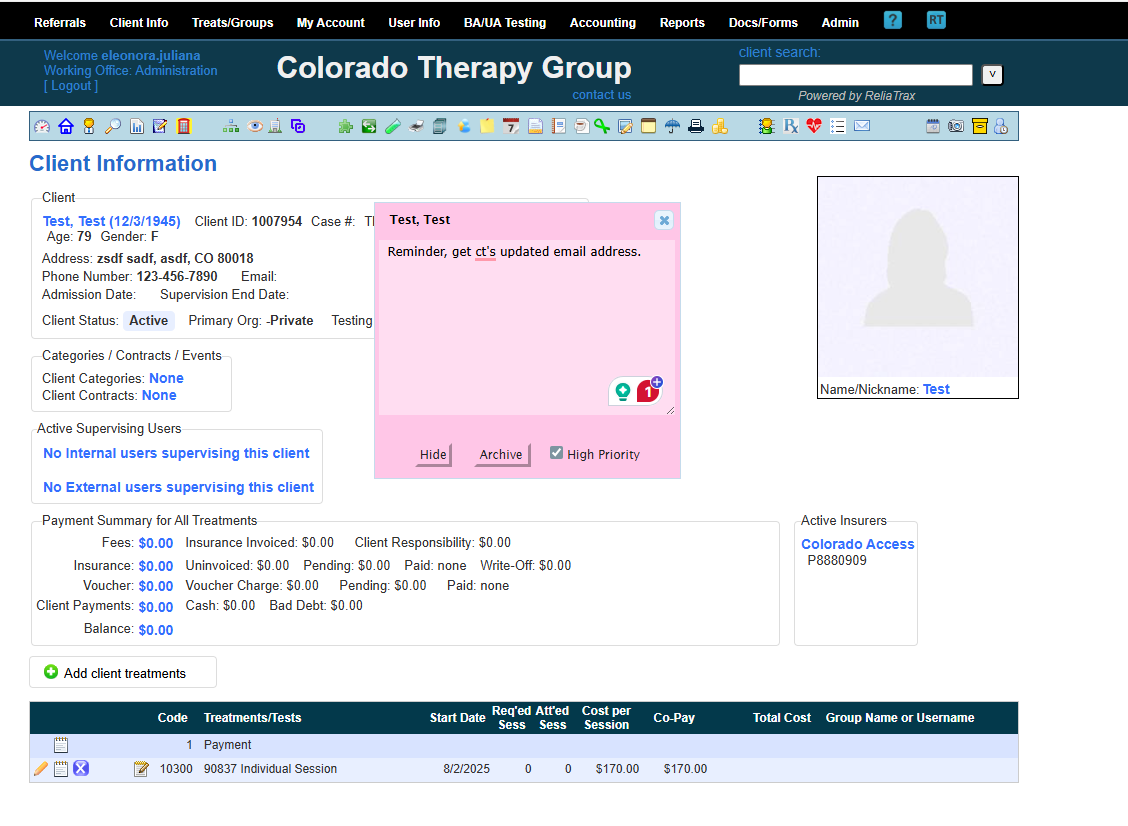
Select a client's name to go to their file, aka Client Information
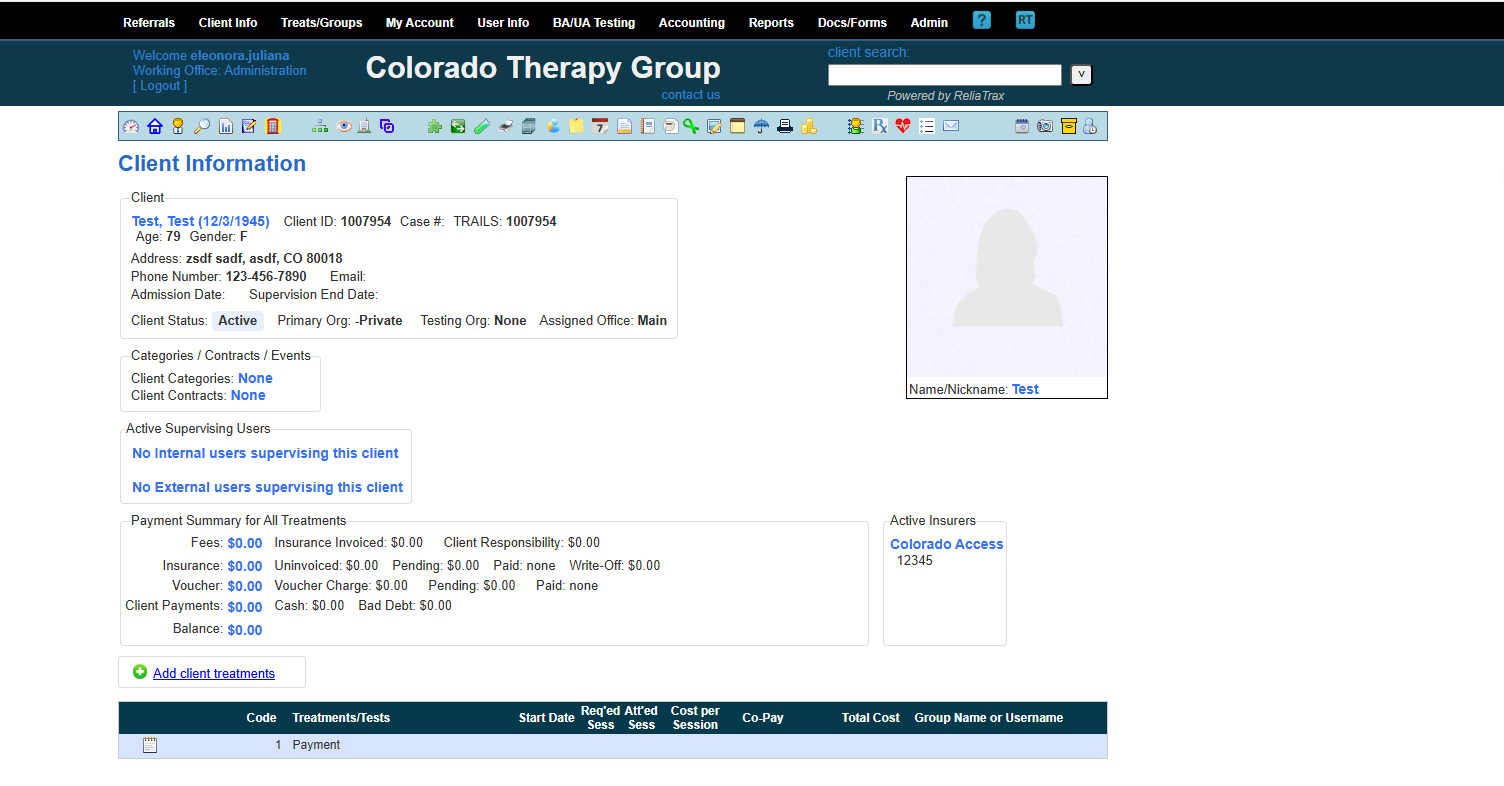
Treatment lines will be added to your account before you receive your client referral. Treatment lines include: Session note templates, treatment plan template, chart note template, etc..
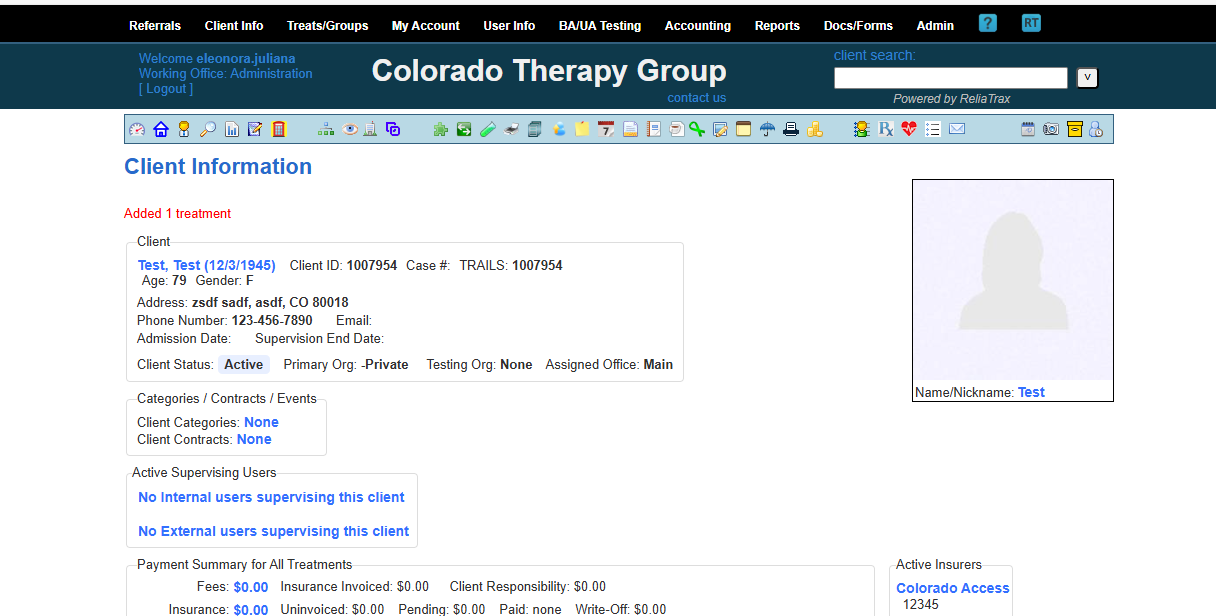
To access your client's file, click the "man icon" to go to Client Info, the main page of the client's file.
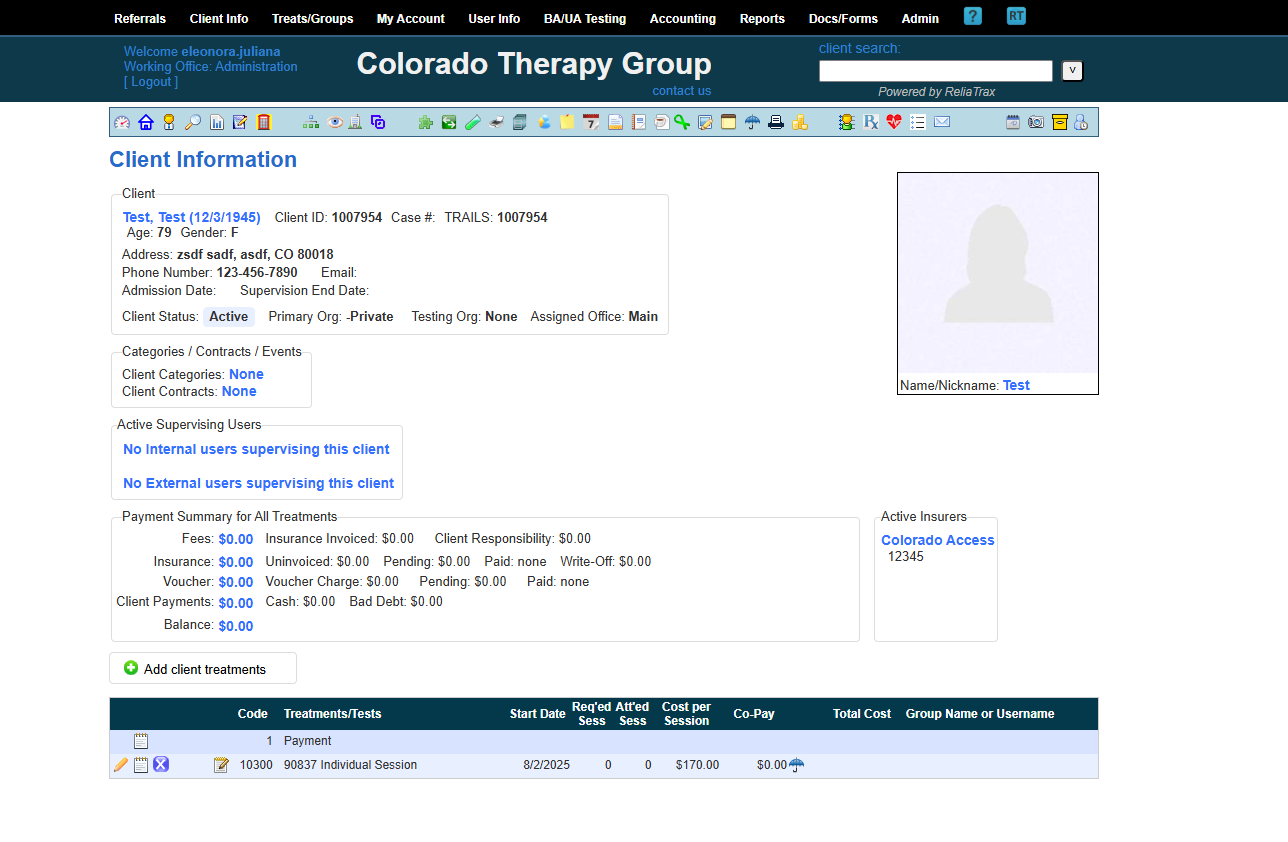
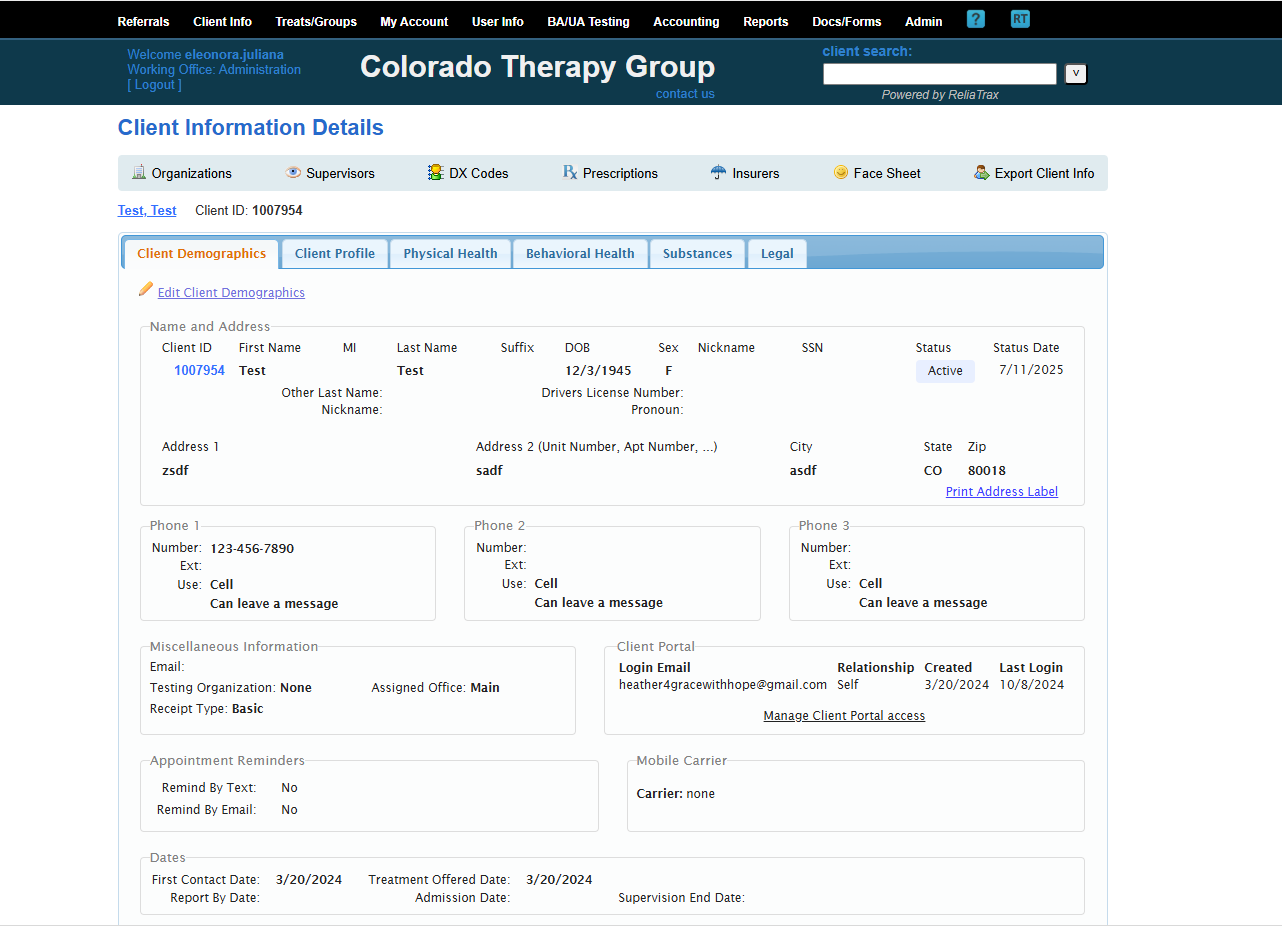
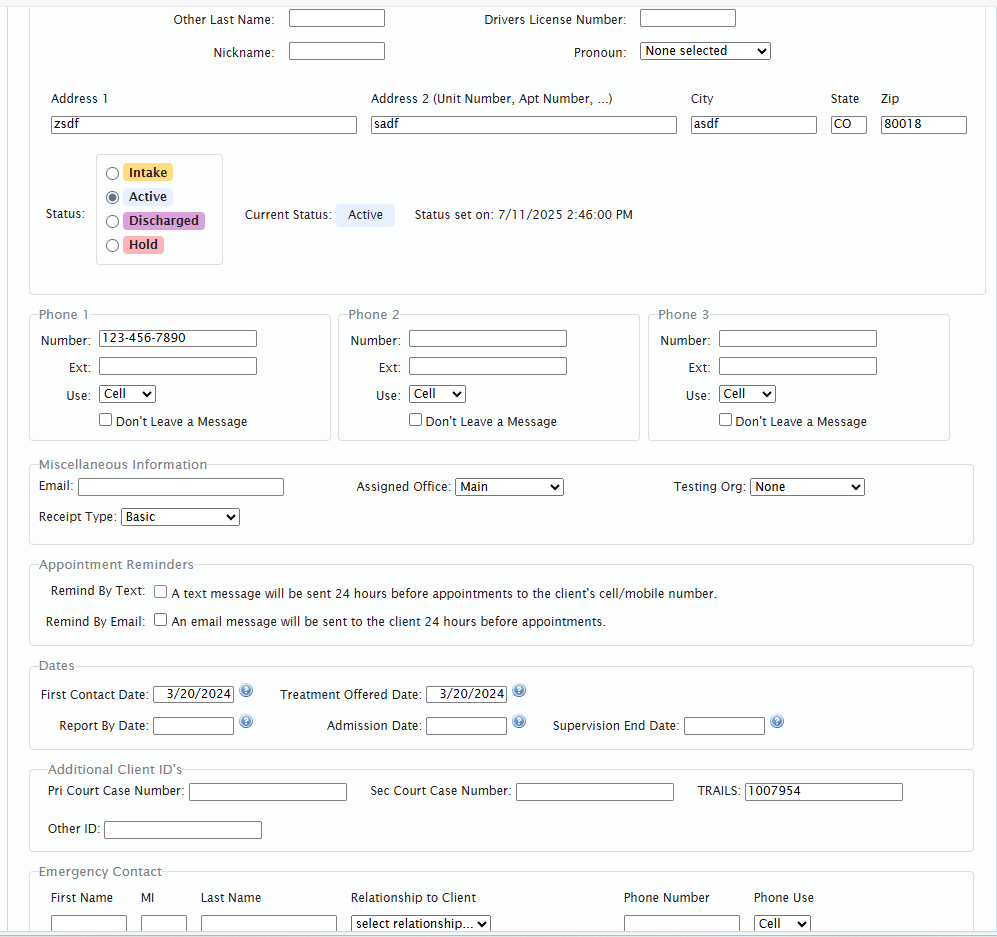
Add and update client information by clicking Edit Client Demographics.
Be sure all client's name, DOB, email, address, phone number, etc are accurate.
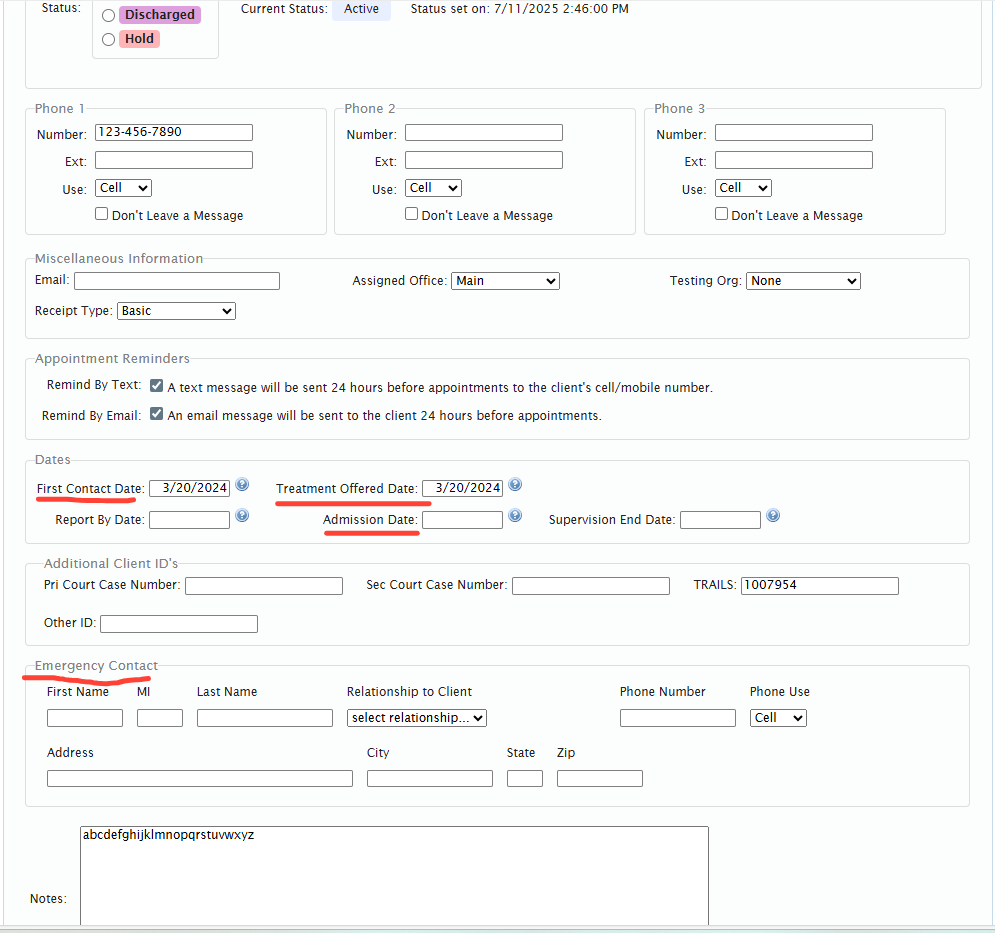
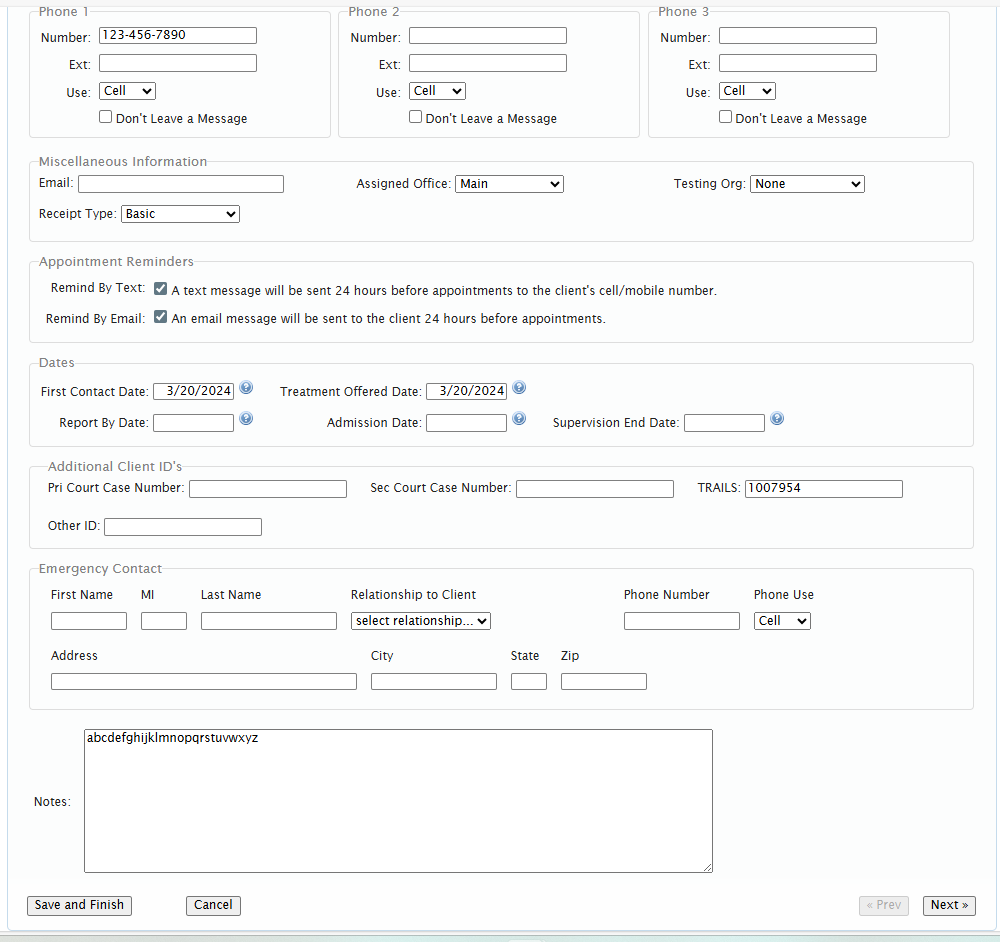
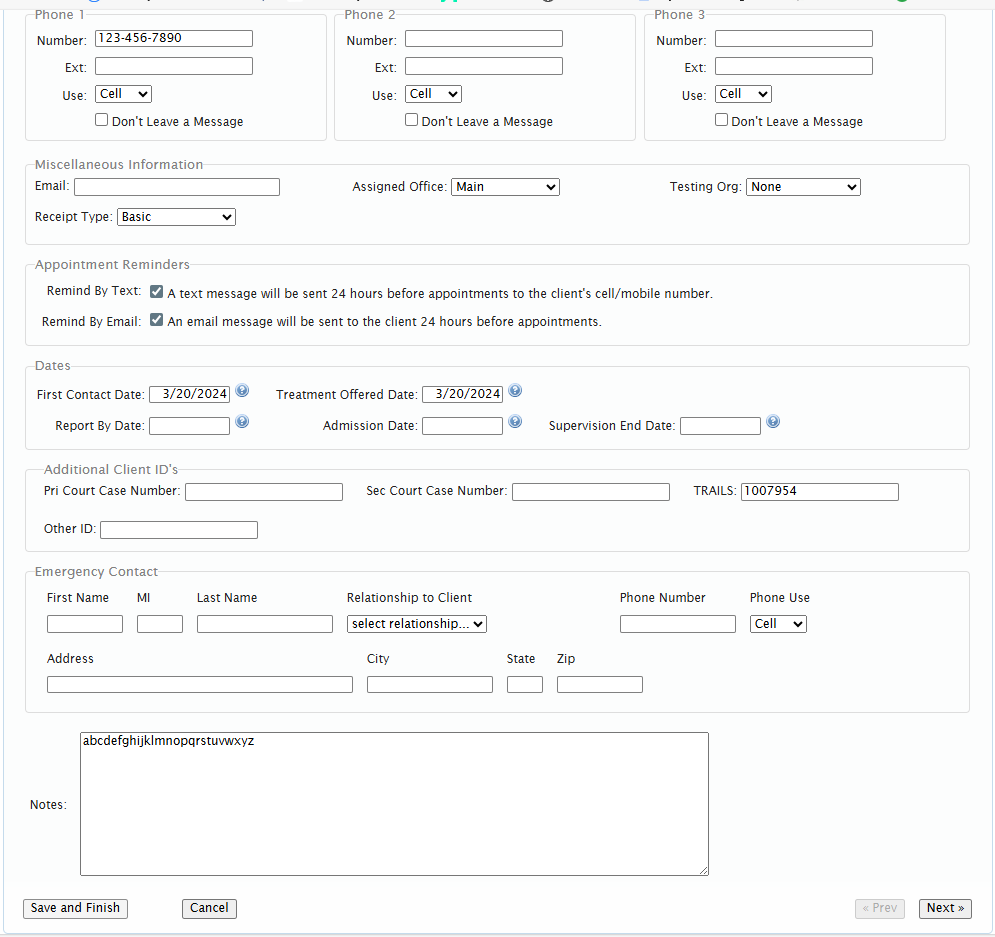
After updating client demographics, enter information in the remaining tabs: Client Profile, Physical Health, Behavioral Health, Substances, and Legal. Be sure to save your work each time you edit a tab.
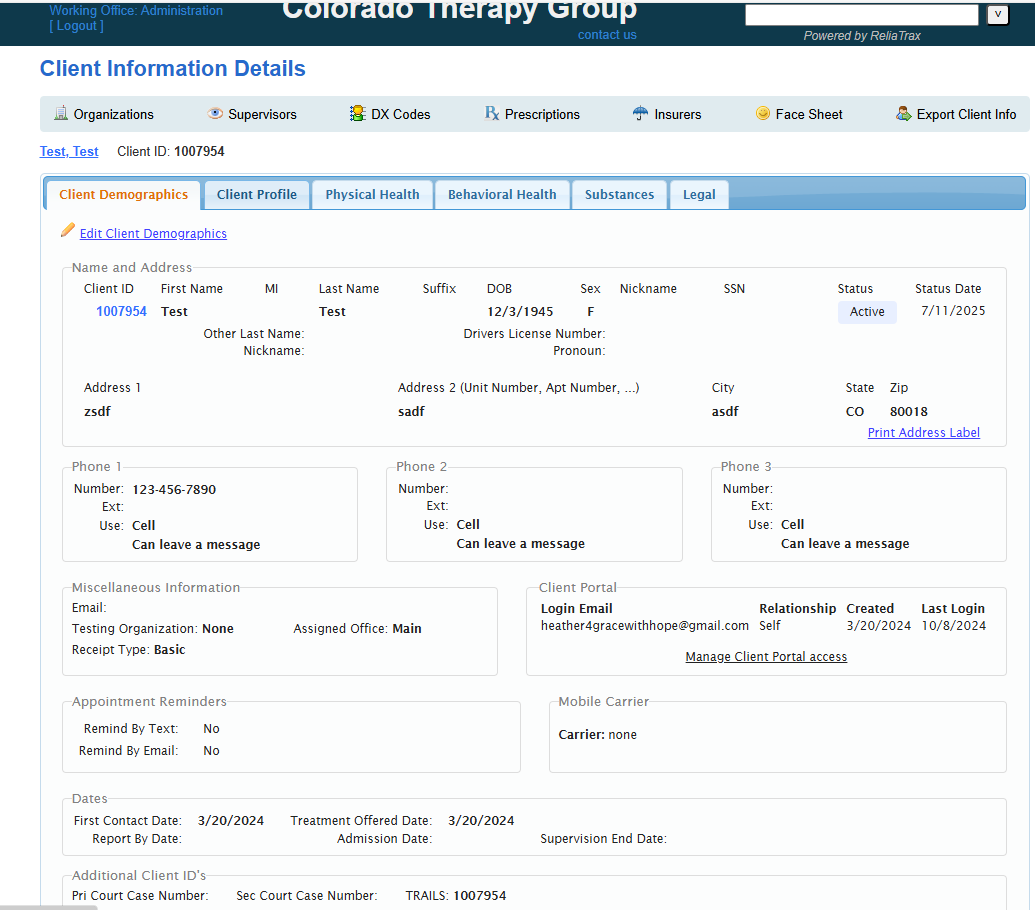
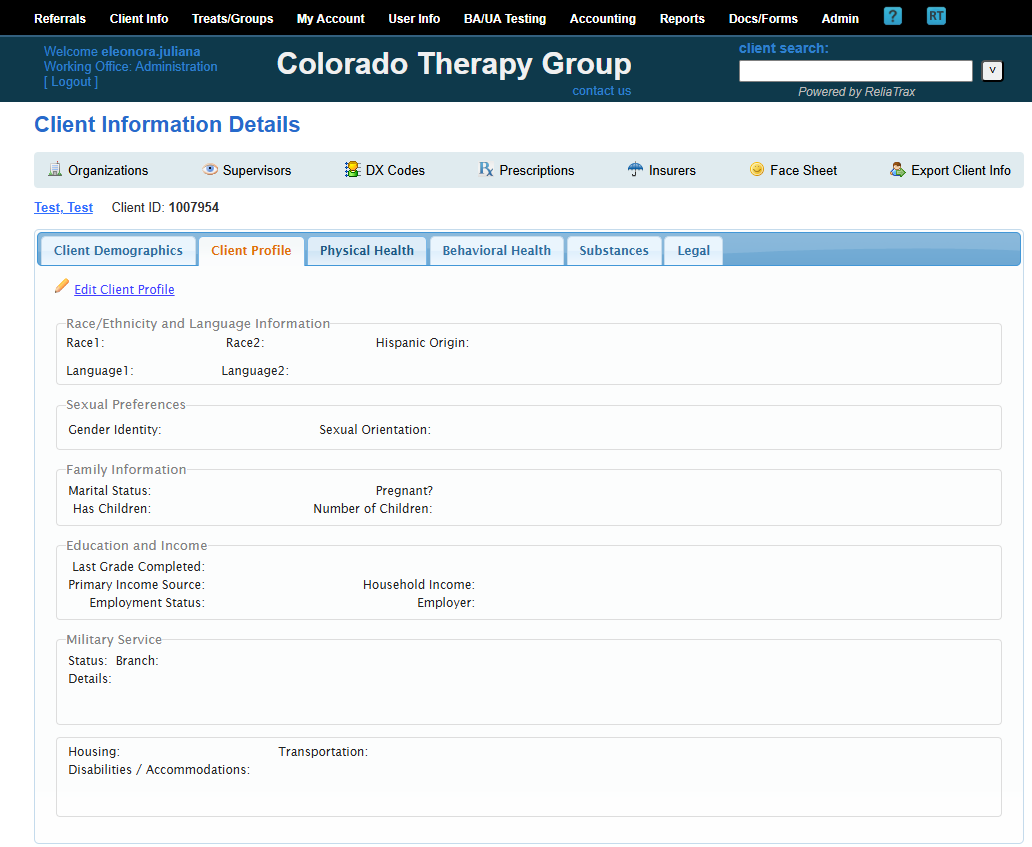
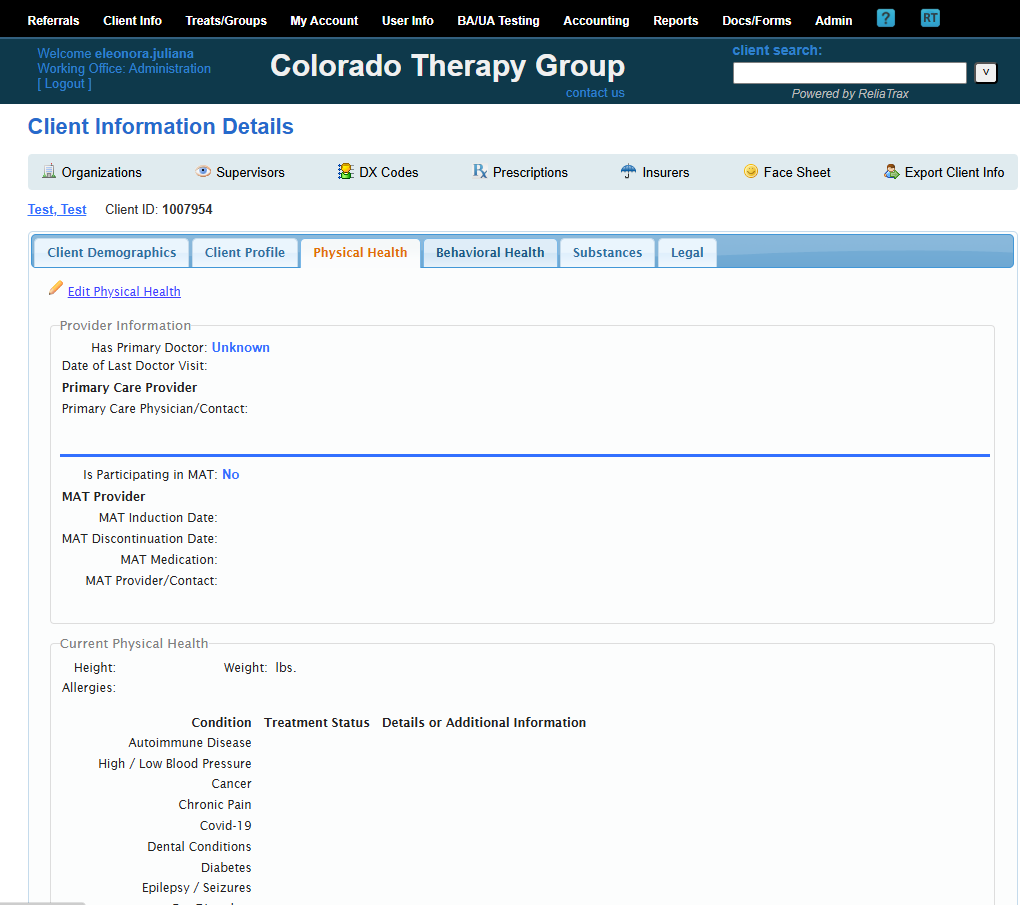
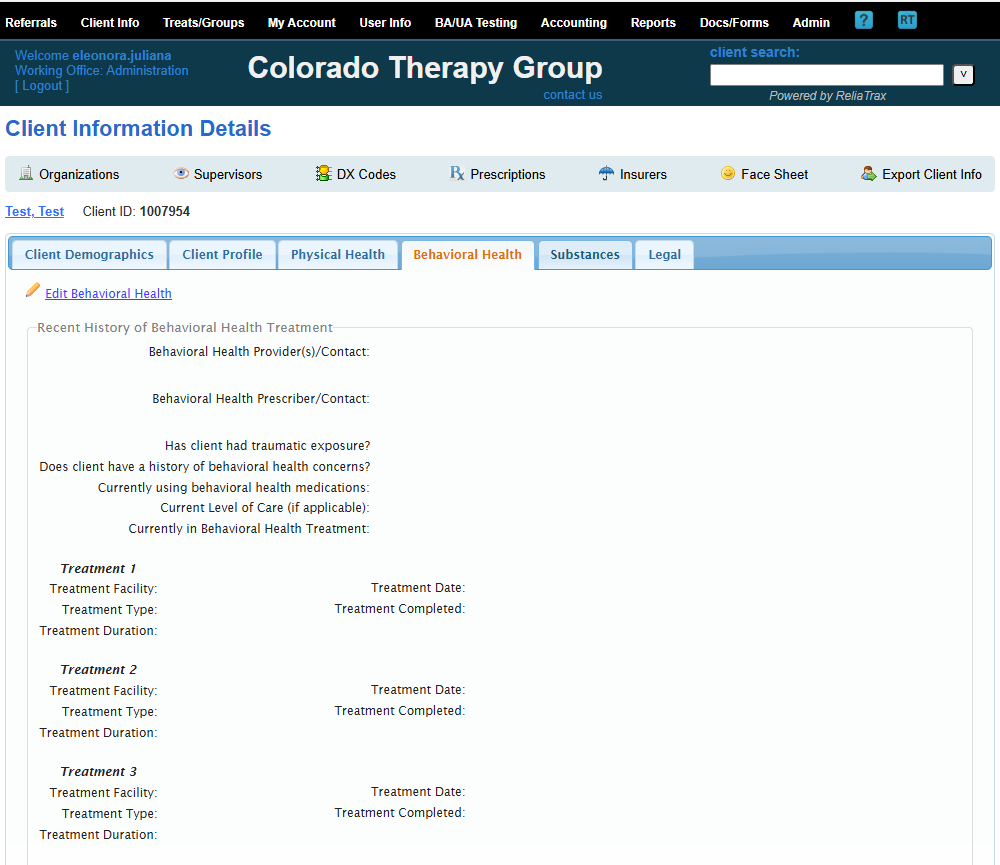
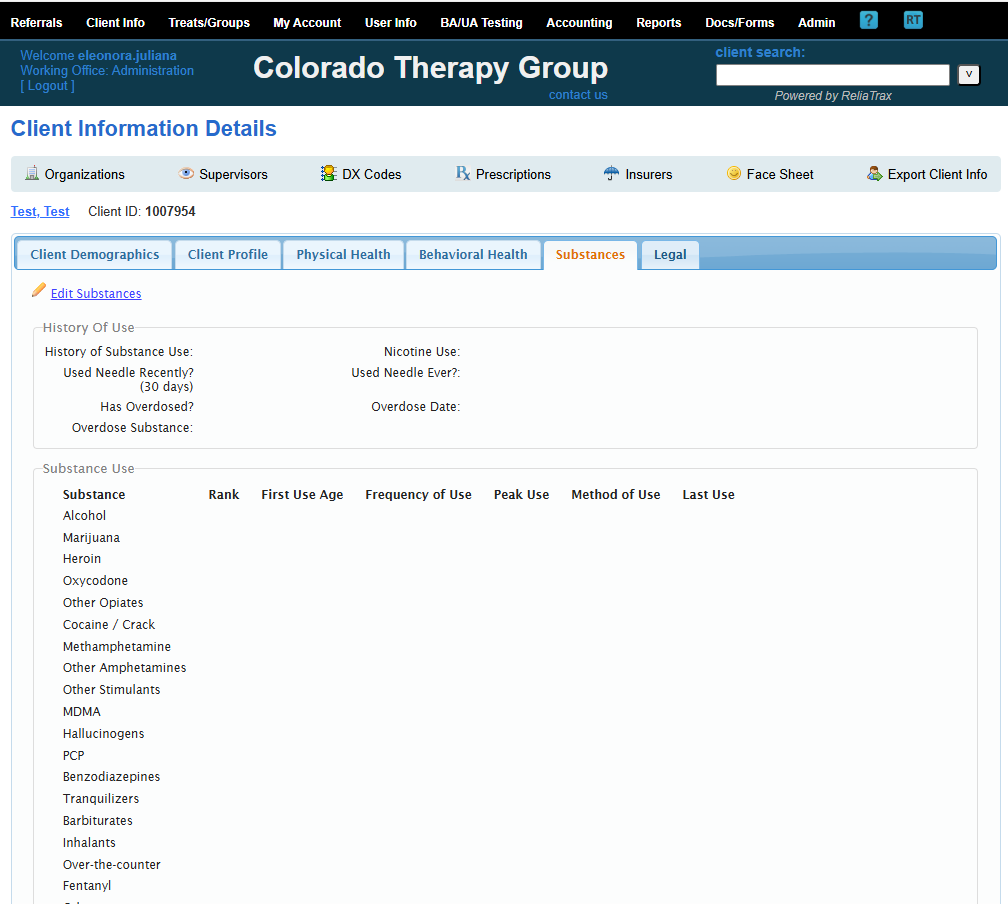
Make sure each tab is filled out with all required information. If information is not applicable, enter "N/A" in the fields instead of leaving them blank.
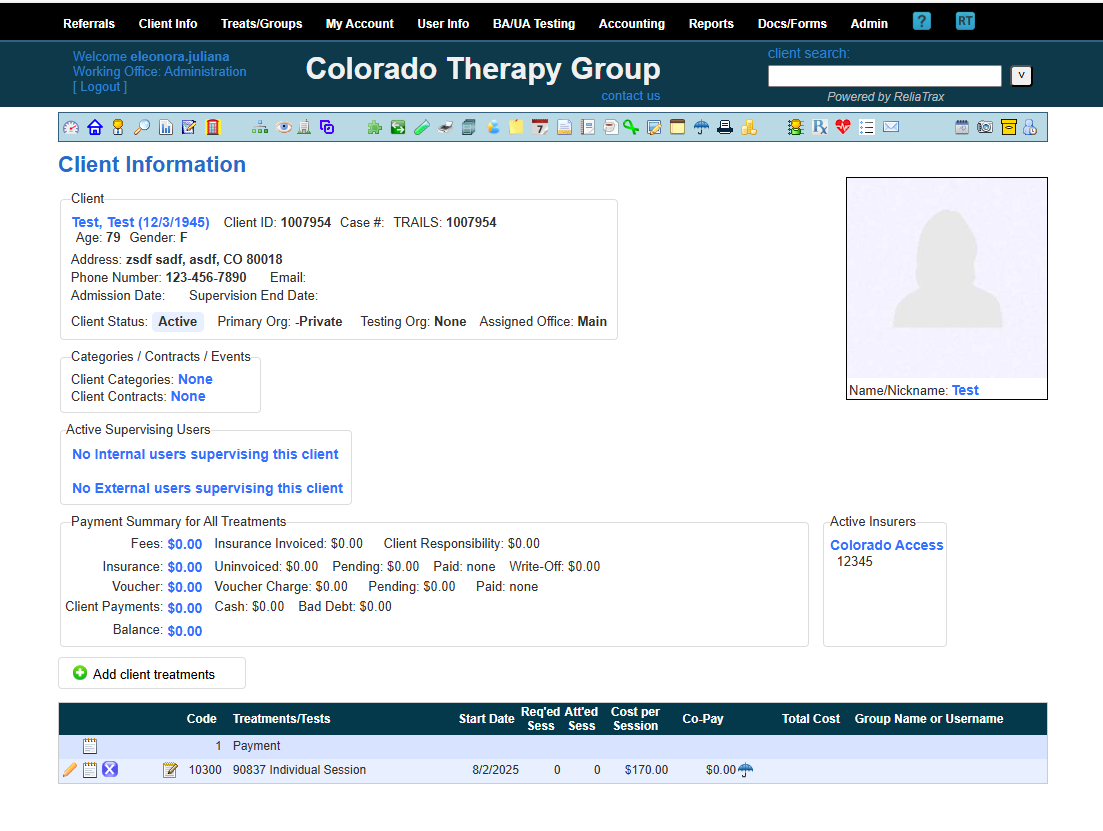
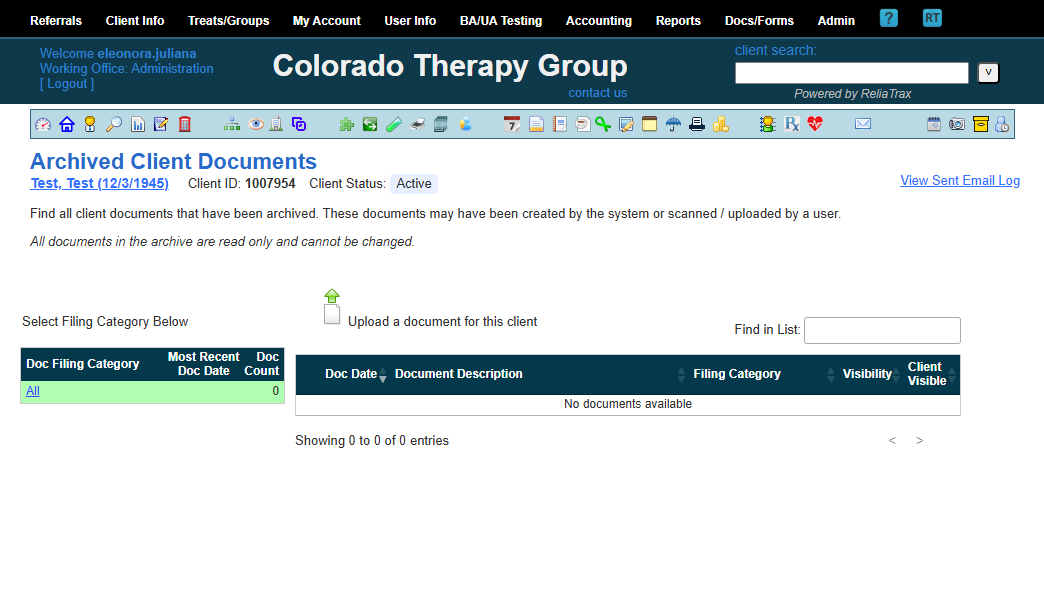
All completed session notes, treatment plans, chart notes, referrals, and uploaded documents will be found in the client's file cabinet.
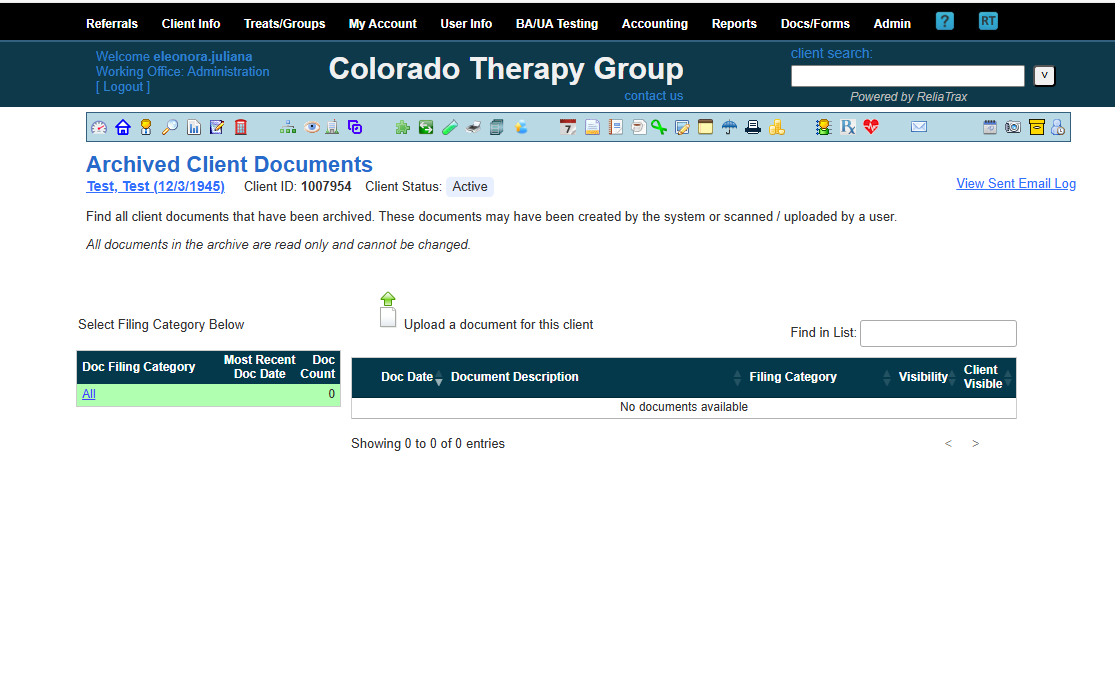
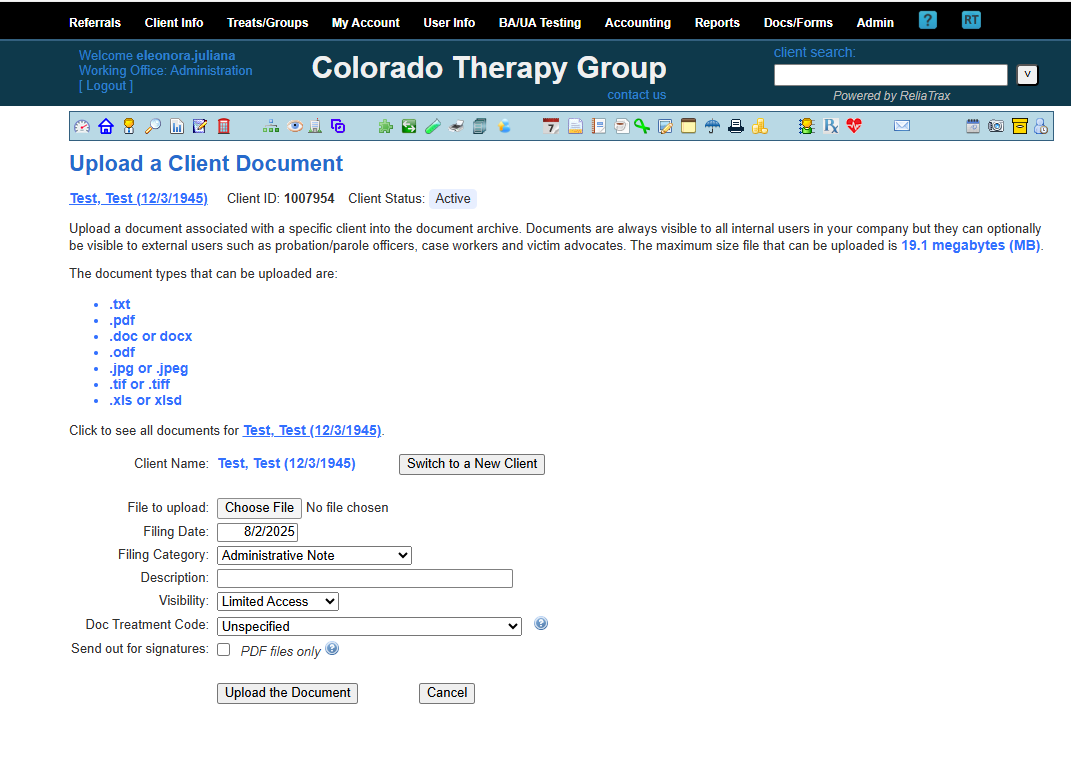
Upload documents to a client's file by clicking Upload a Document for this client. Select a file from your computer and add. Be sure to name the uploaded file appropriately on the Description line.
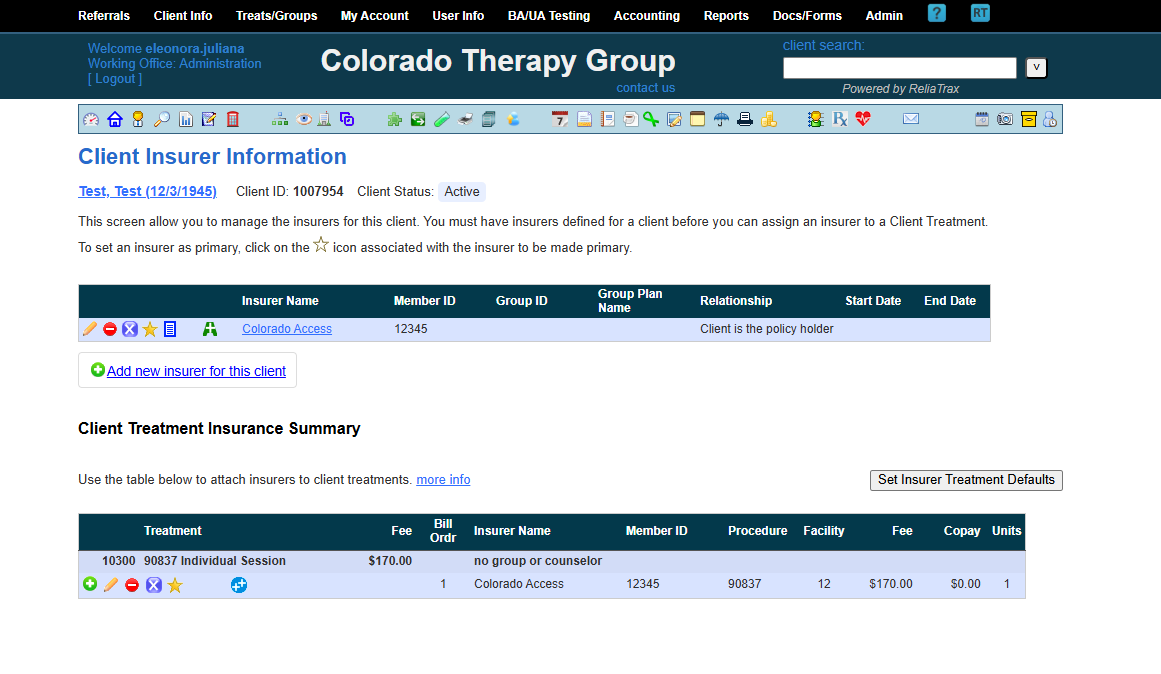
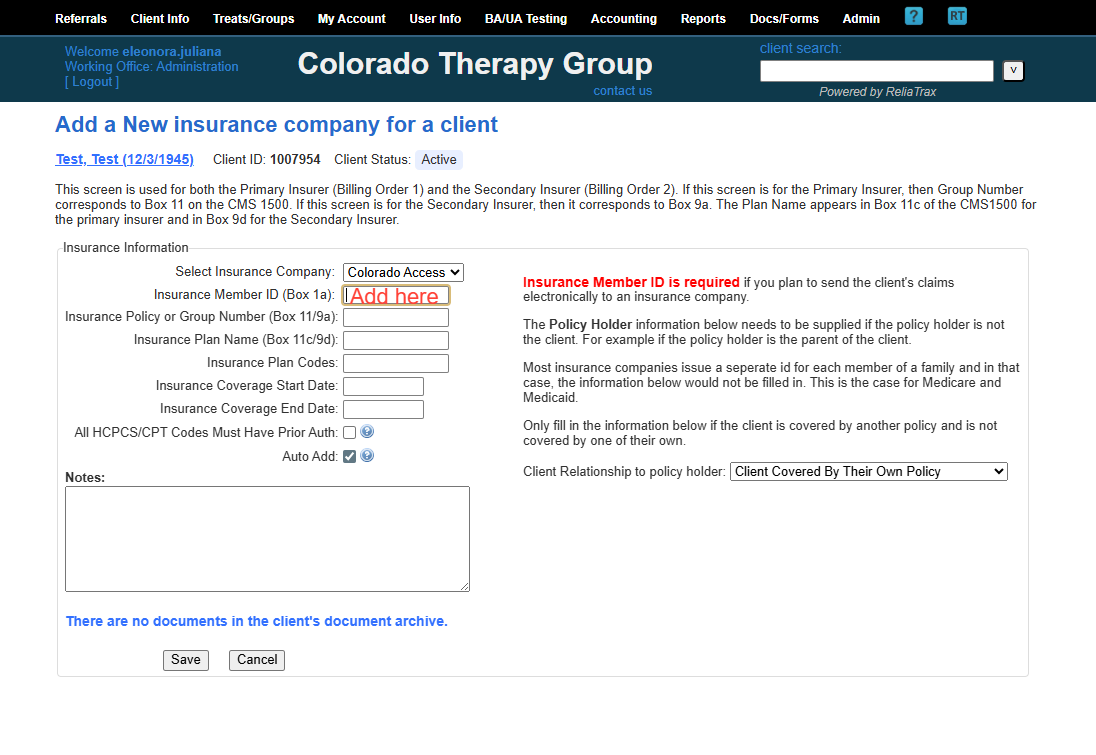
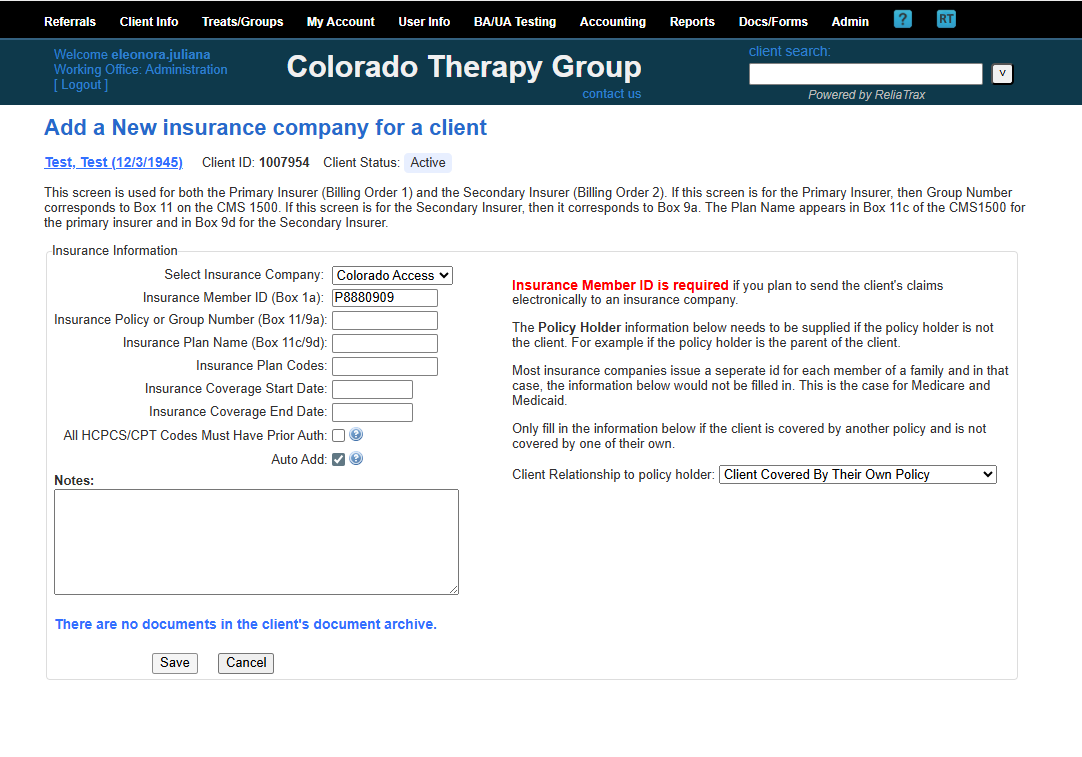
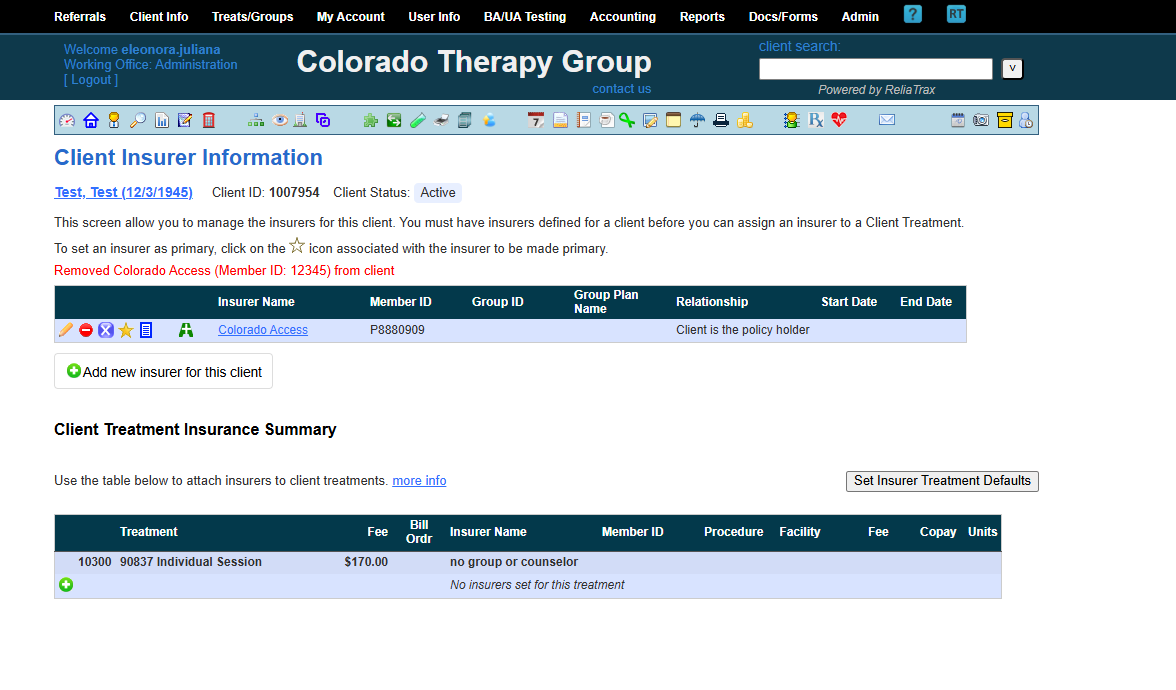
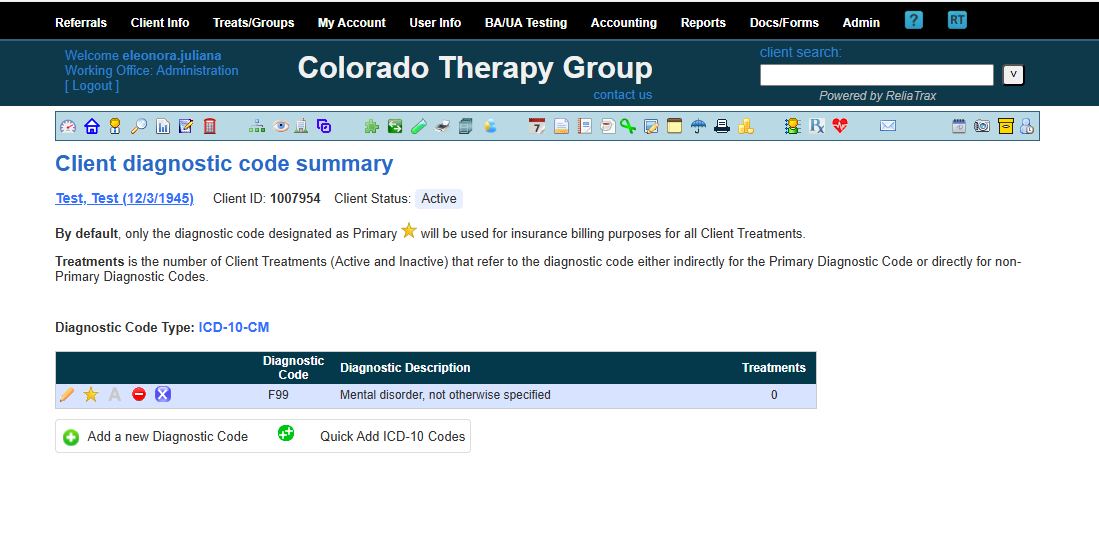
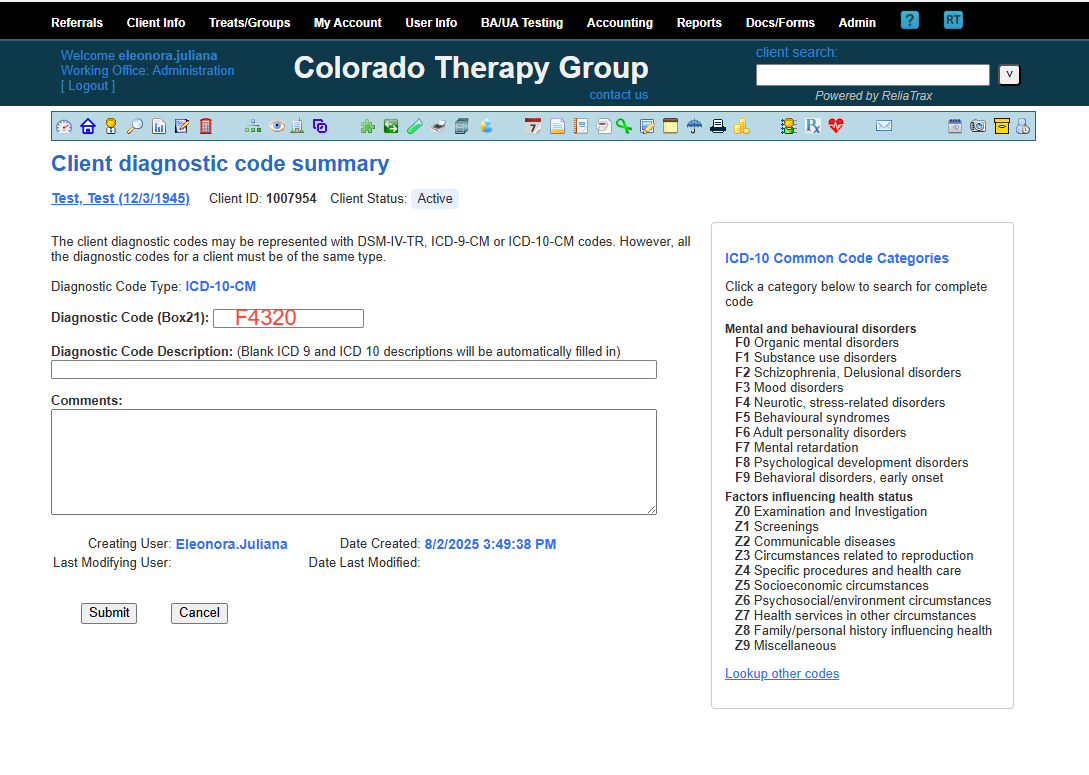
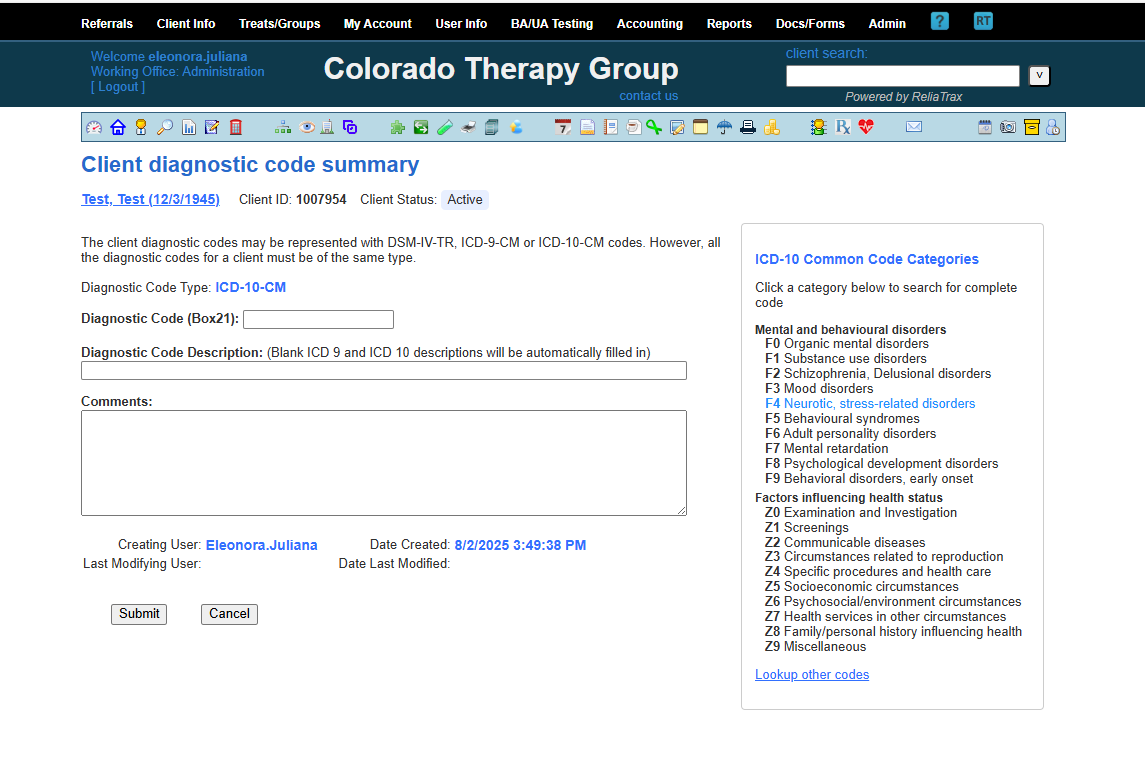
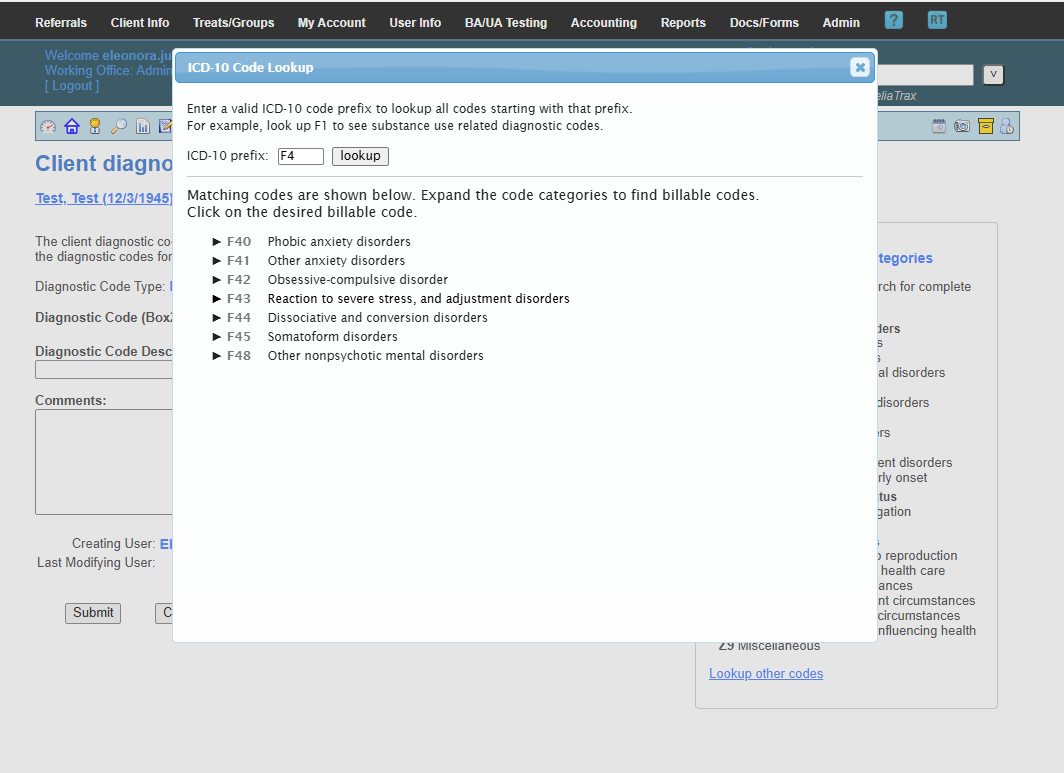
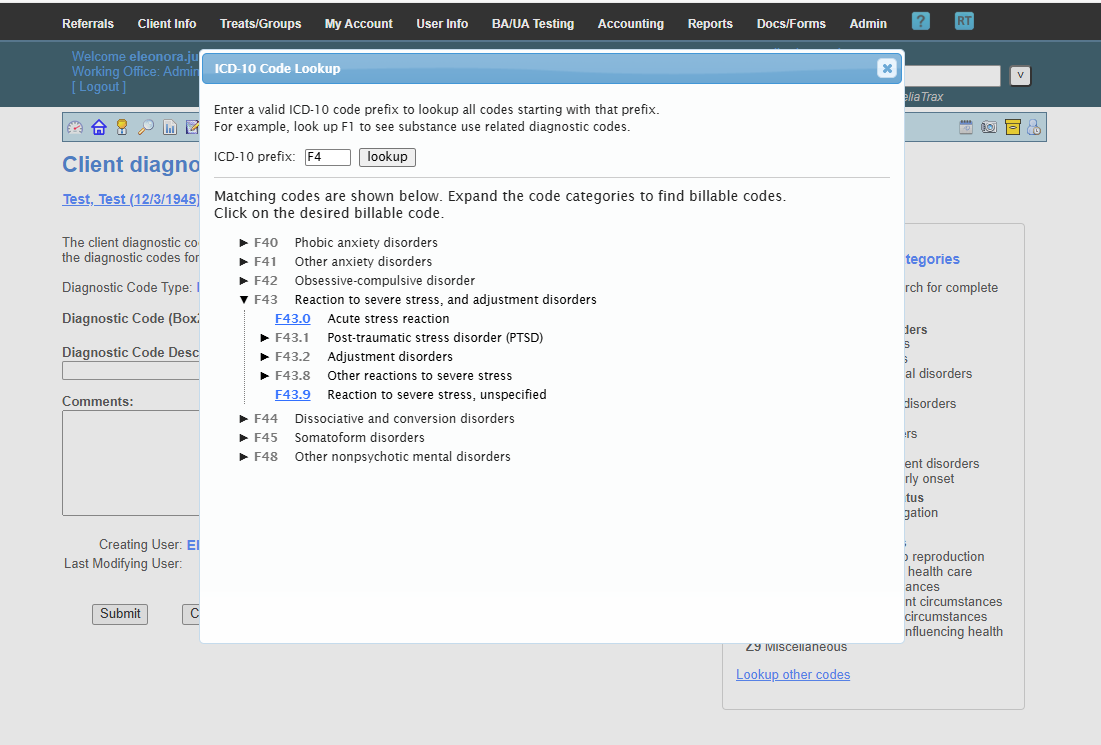
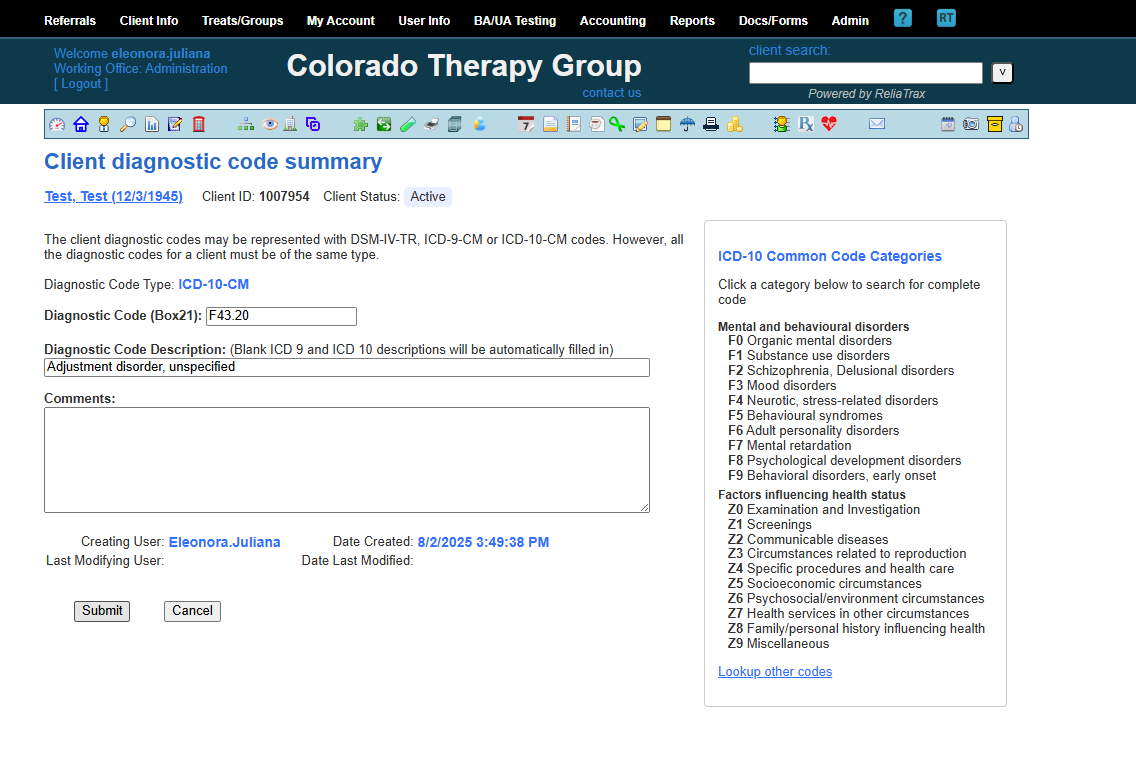
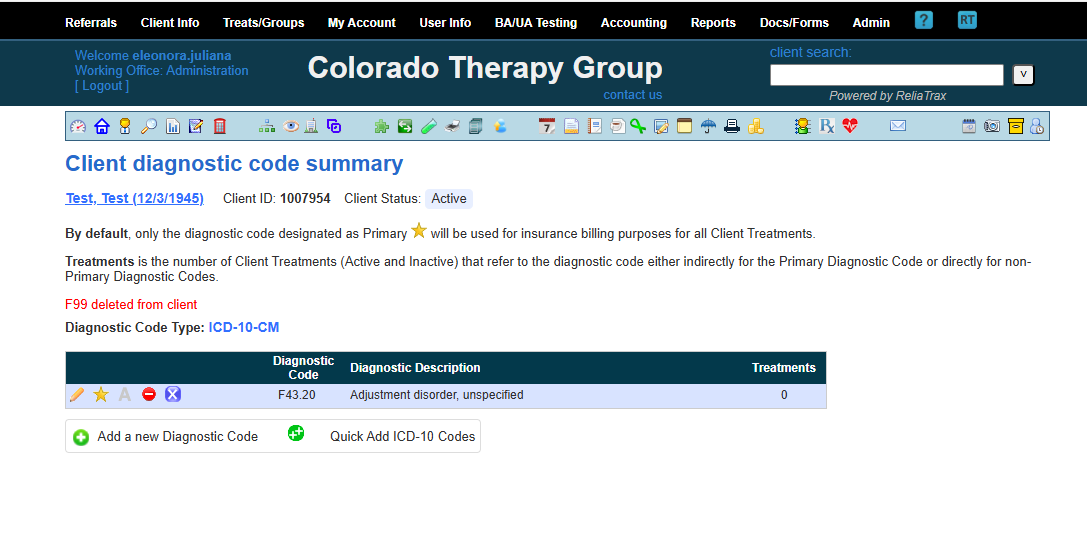
Here, you will add the diagnostic code appropriate for the client.
I hope this tutorial was helpful. If you have additional questions, please reach out to Eleonora for further support: eleonora.t@live.com.