R - Pitch Decks Interface: Getting Started
Learn how to quickly access the Pitch Decks interface by searching for 'Pitch Decks' and selecting the correct option. Follow these simple steps to enter the Pitch Decks interface efficiently.
By Brent del rosario
In this guide we'll learn:
What is Pitch Decks and what it's used for
Access the Pitch Decks Interface in Airtable after a deal moves into discovery or pitch phase.
Define the scope of work, organize, build, and track presentations for your deals.
Manage your presentations more effectively.
Let's get started!
What is the Pitch decks interface and what can we do here?
How to find it in Airtable.
1
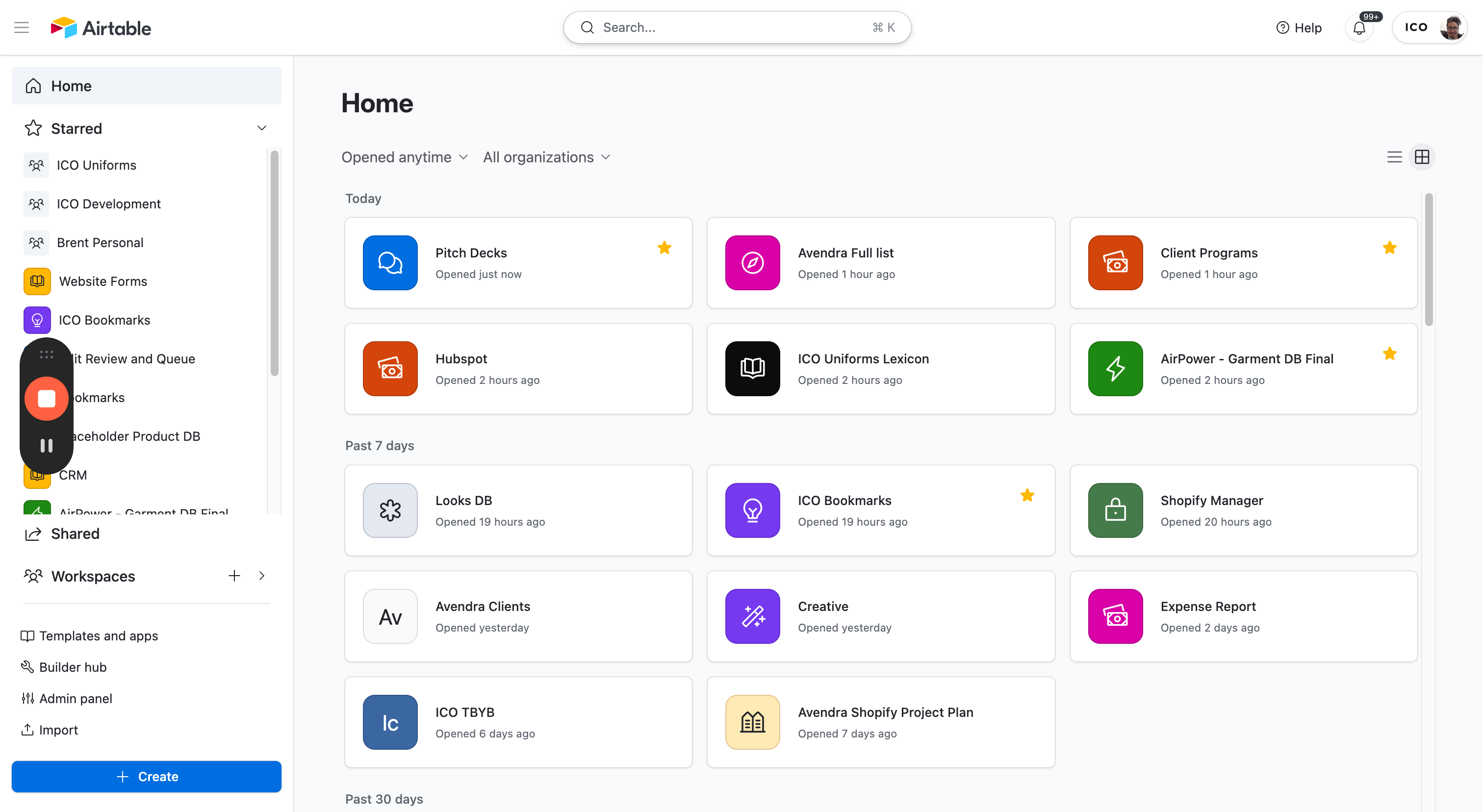
Click on the Search Bar
2
Type "Pitch deck" and you will see a drop down appear with multiple options.
3
Click on Pitch Decks Interface.
Understanding the interface
4
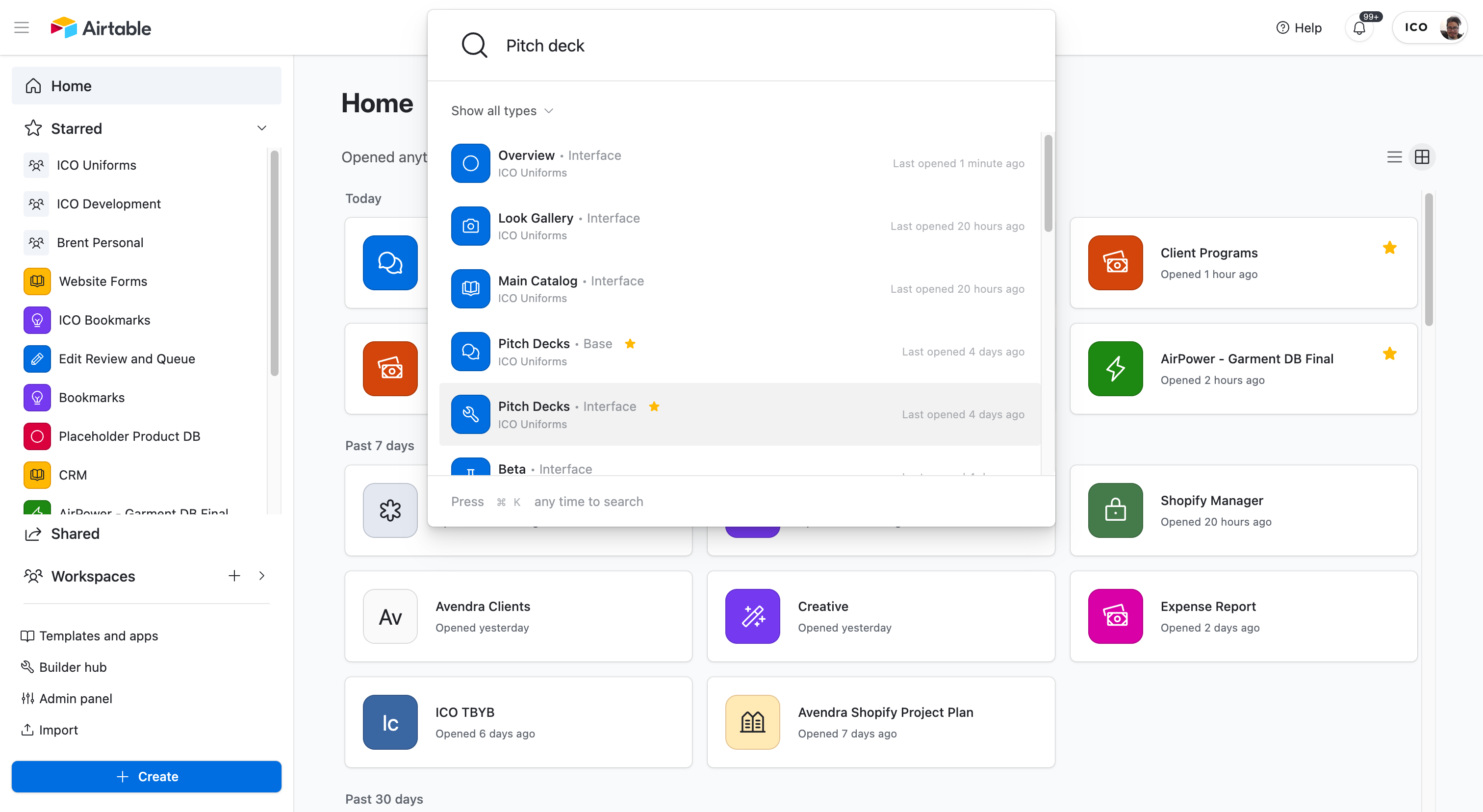
Once you enter the Pitch Decks interface, you will land on the Pitch Decks Overview page. To get back, simply click Overview.

5
Click on the Blue Arrow to navigate to the corresponding page

Access Tools (Navigation)
6
Click the arrows to Collapse or Expand
Pitch Decks Section (Wrench Tool)
7
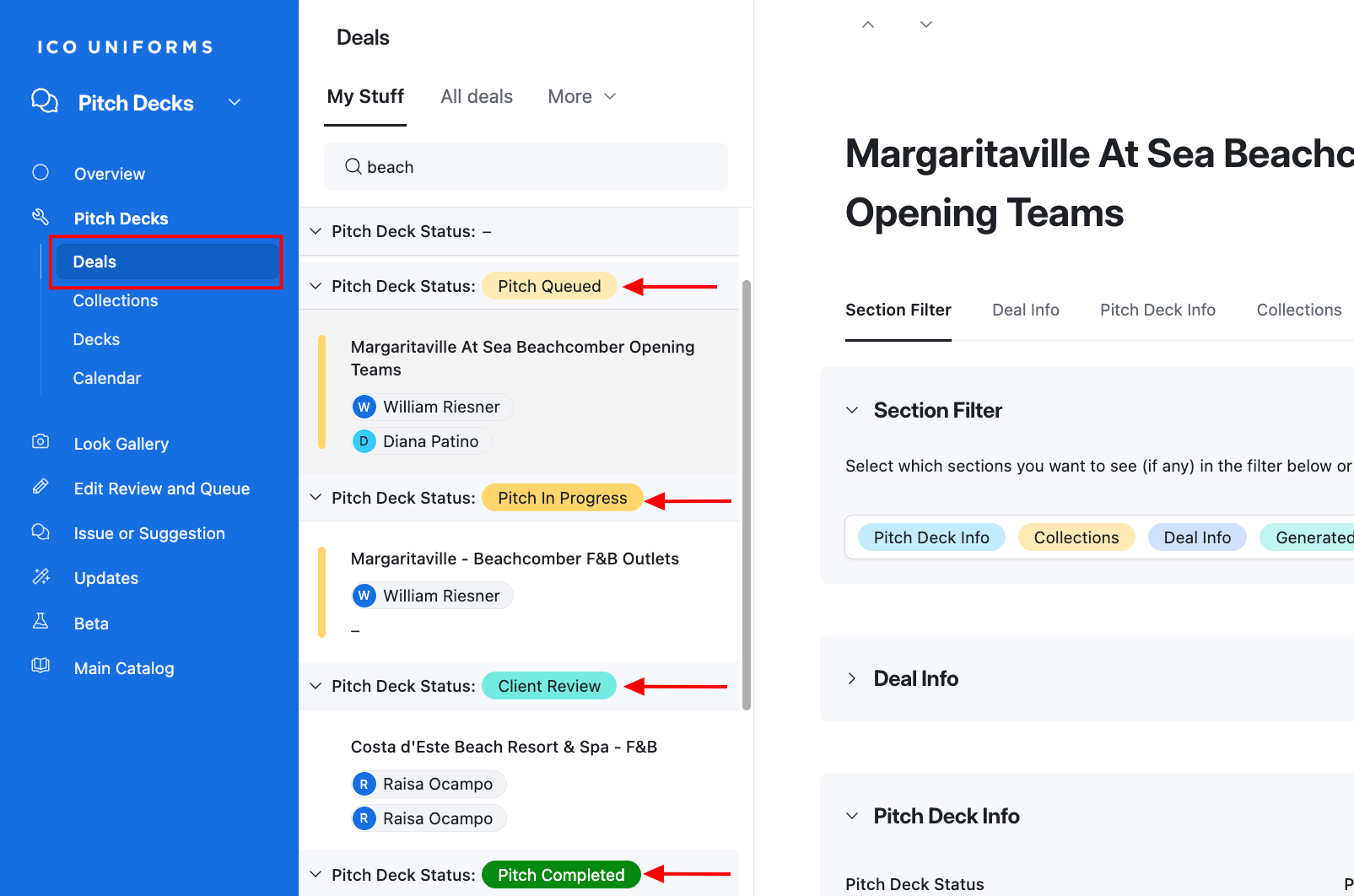
The Deals tab will show all HubSpot Deals (and deals previous to HubSpot) added to the Pitch Decks Interface and grouped by Status.
8
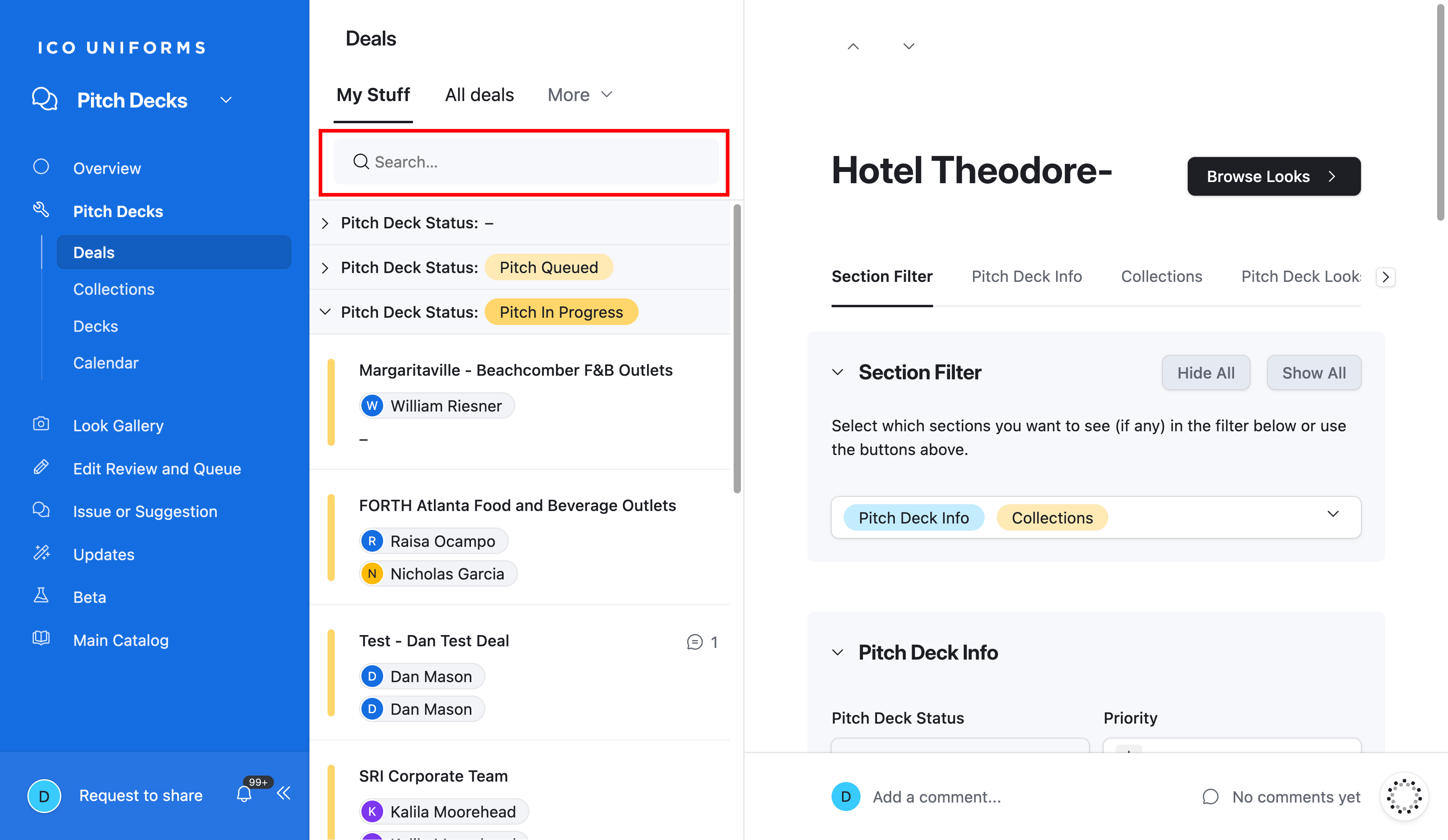
Click on either section and type the name of the deal you are looking for.
Deal Info
9
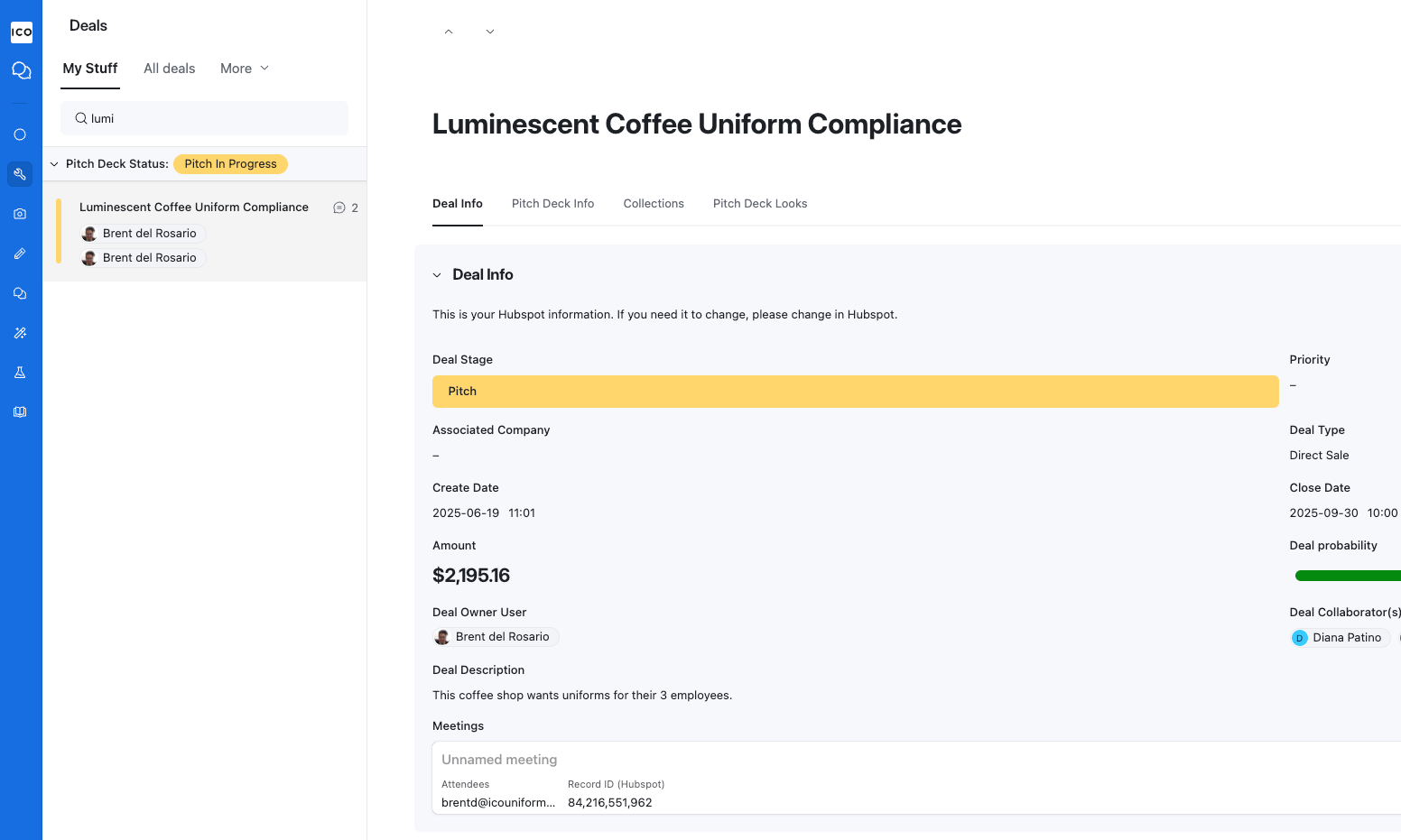
To view Deal Info, click on the tab at the top if it's not already showing. You will see Hubspot Deal details such as the Deal Stage, Deal Owner, Collaborators, any recorded meetings. etc
Pitch Deck info
The Pitch Deck info section contains all setup information needed to start building a presentation.
10
To view Pitch Deck Info, click on the tab at the top or scroll down to the section.
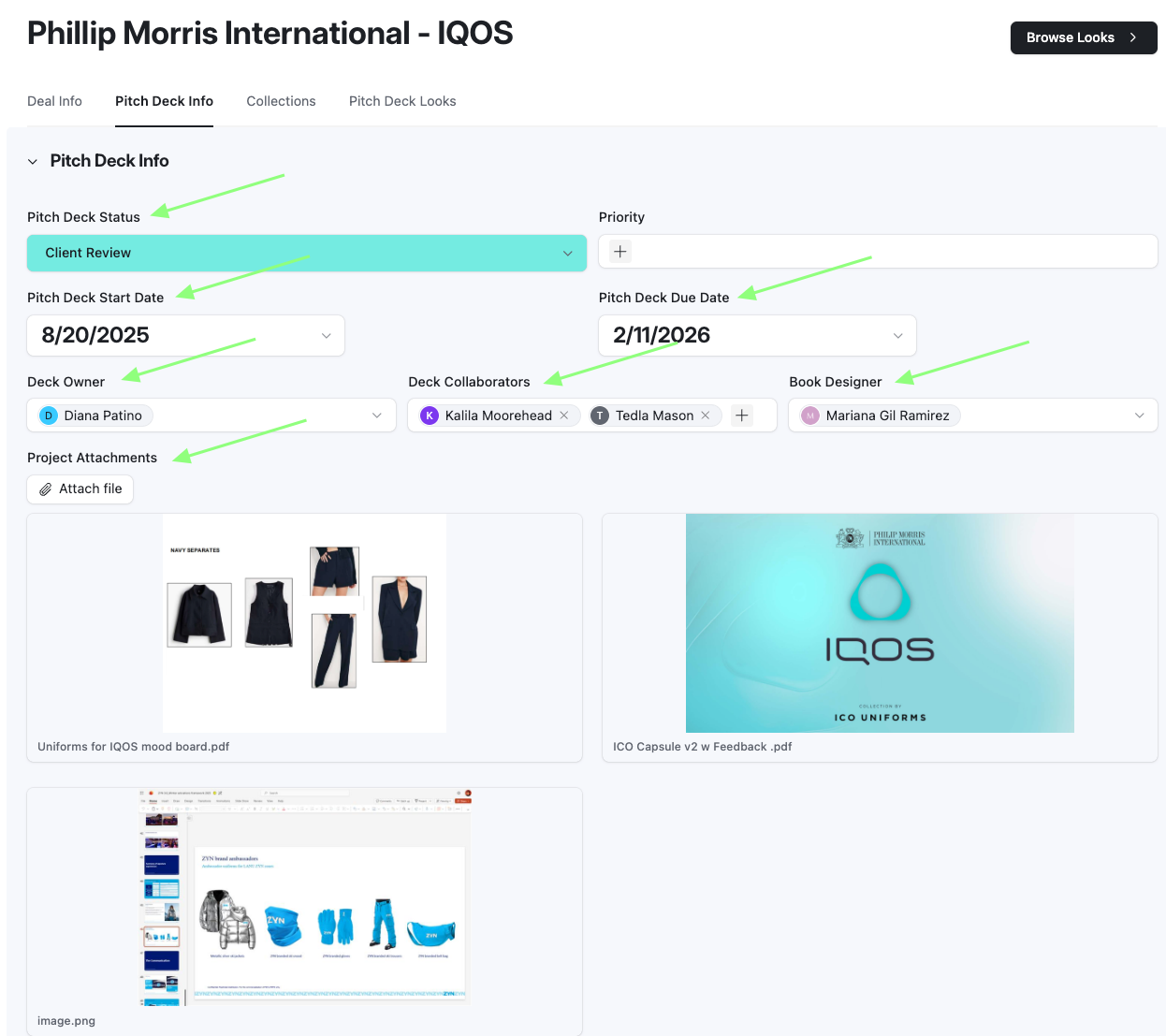
Below are some important definitions:
Different Ownership Scenarios
11
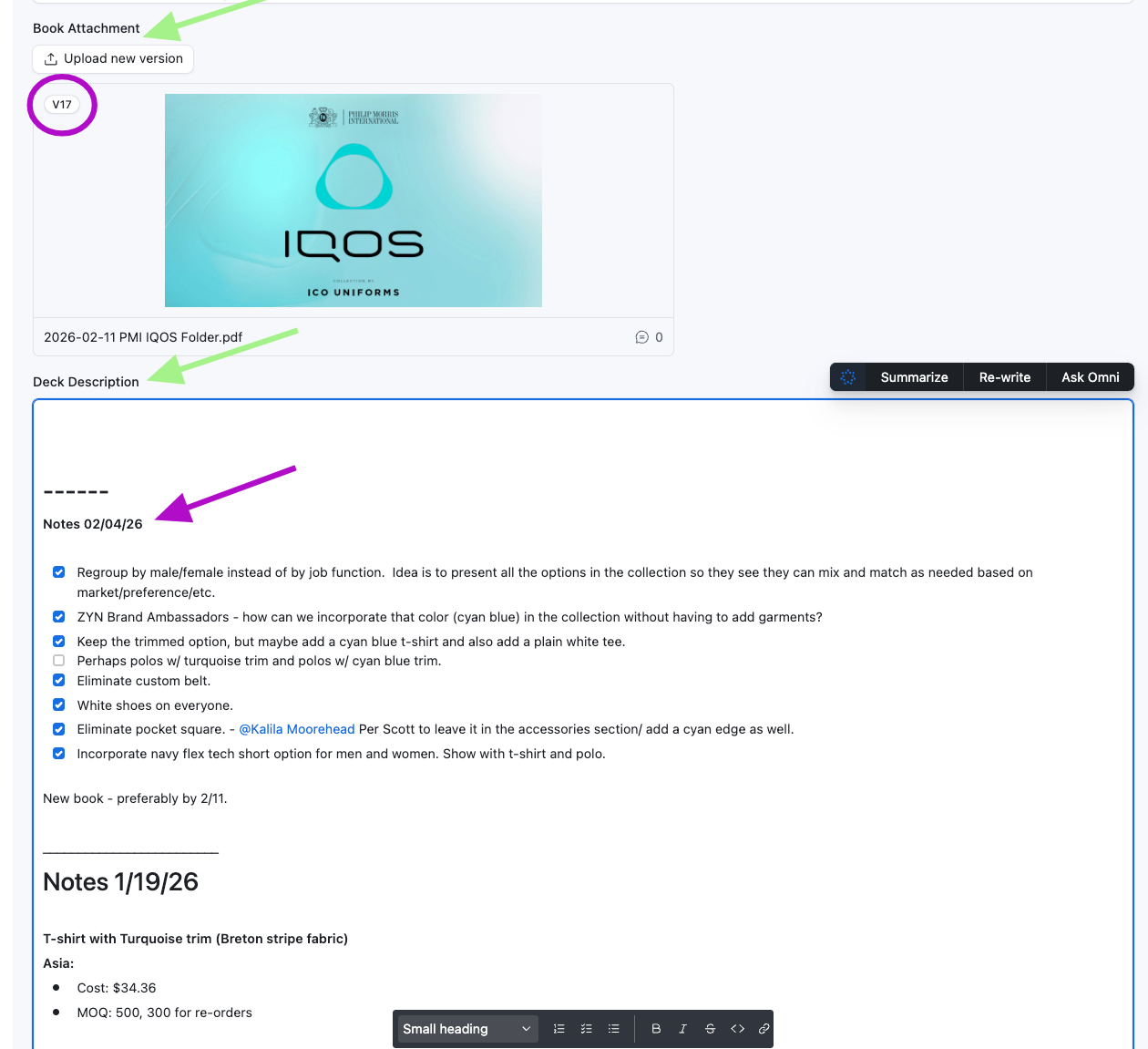
If any comments are made on the book, the designer will revise the book and upload as a new version.
12
Notes should be added as bullets or checklists. They should always have the date and must be added on top of any notes previously added.