
How to Organize Floor Plans for Property Websites
Learn best practices for organizing and displaying floor plans on property websites, including folder structure tips and file management for optimal presentation.
By Kyle Lux
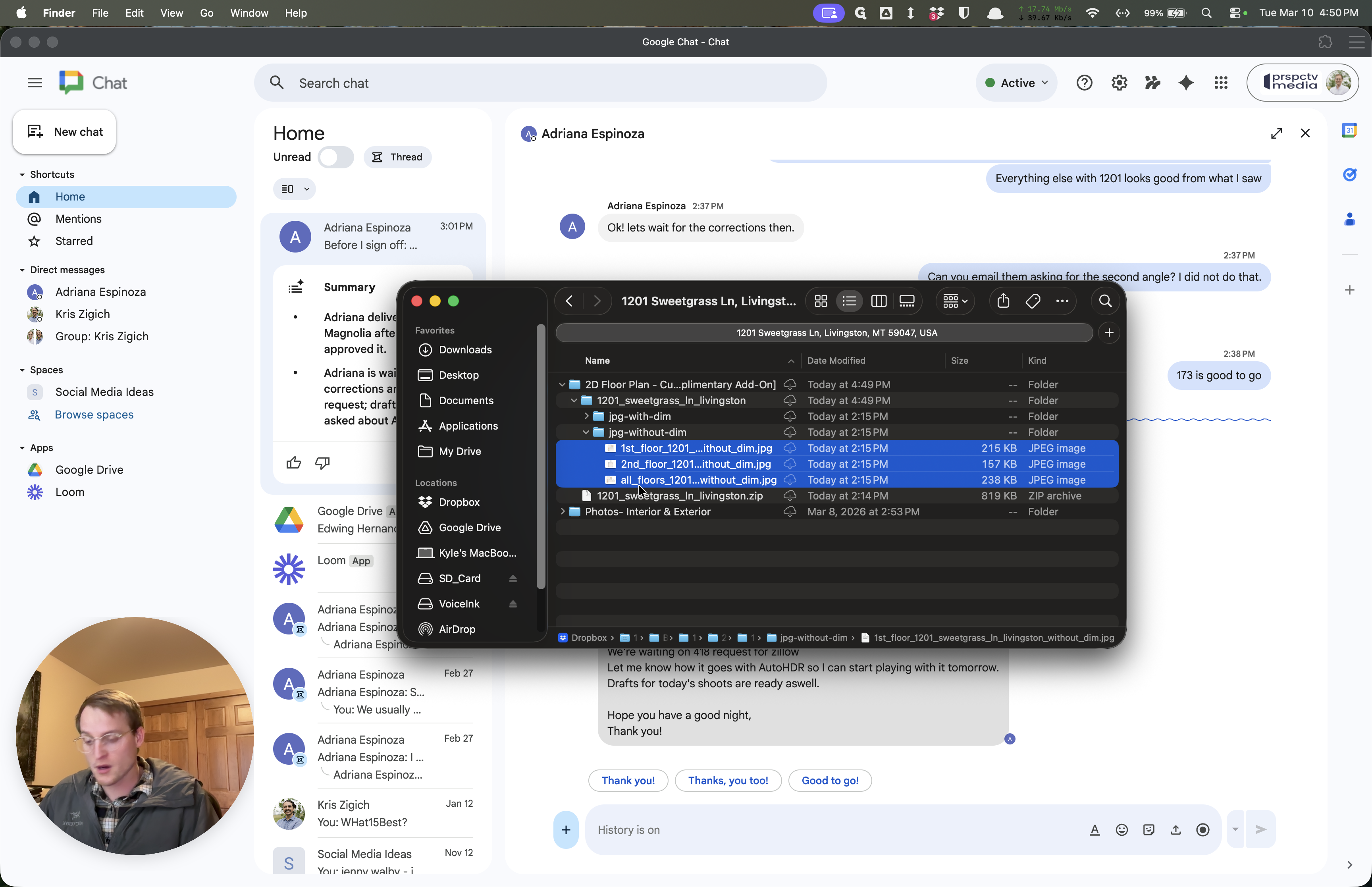
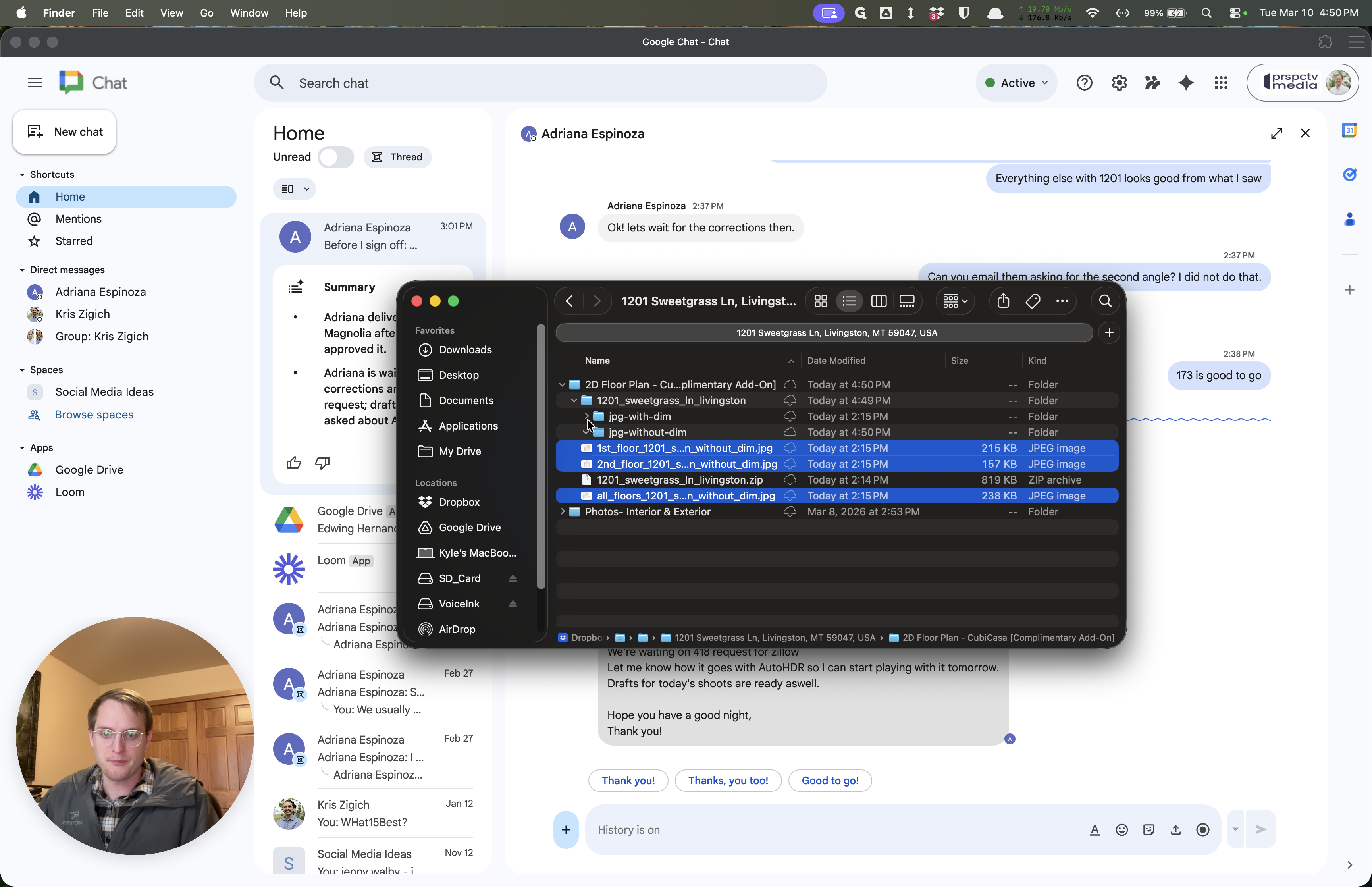
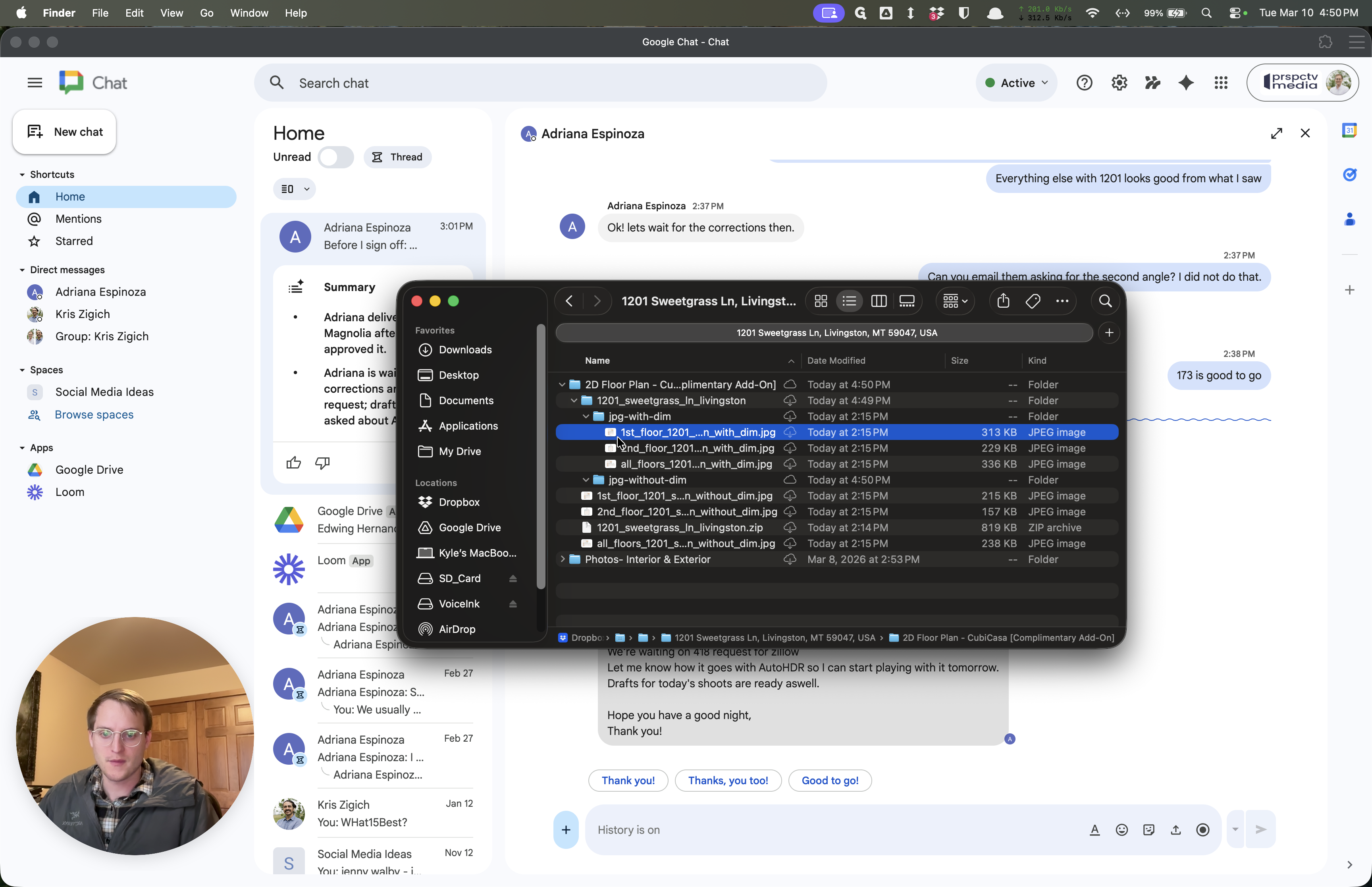
In this guide, we'll learn how to organize floor plan files so they appear correctly on a property website. We will focus on moving files to the top folder and removing unnecessary folders or zip files. This helps keep the file structure clear and ensures the website displays the floor plans as intended.
Let's get started
Thank you for getting everything done. I appreciate it.
1
Drag ","
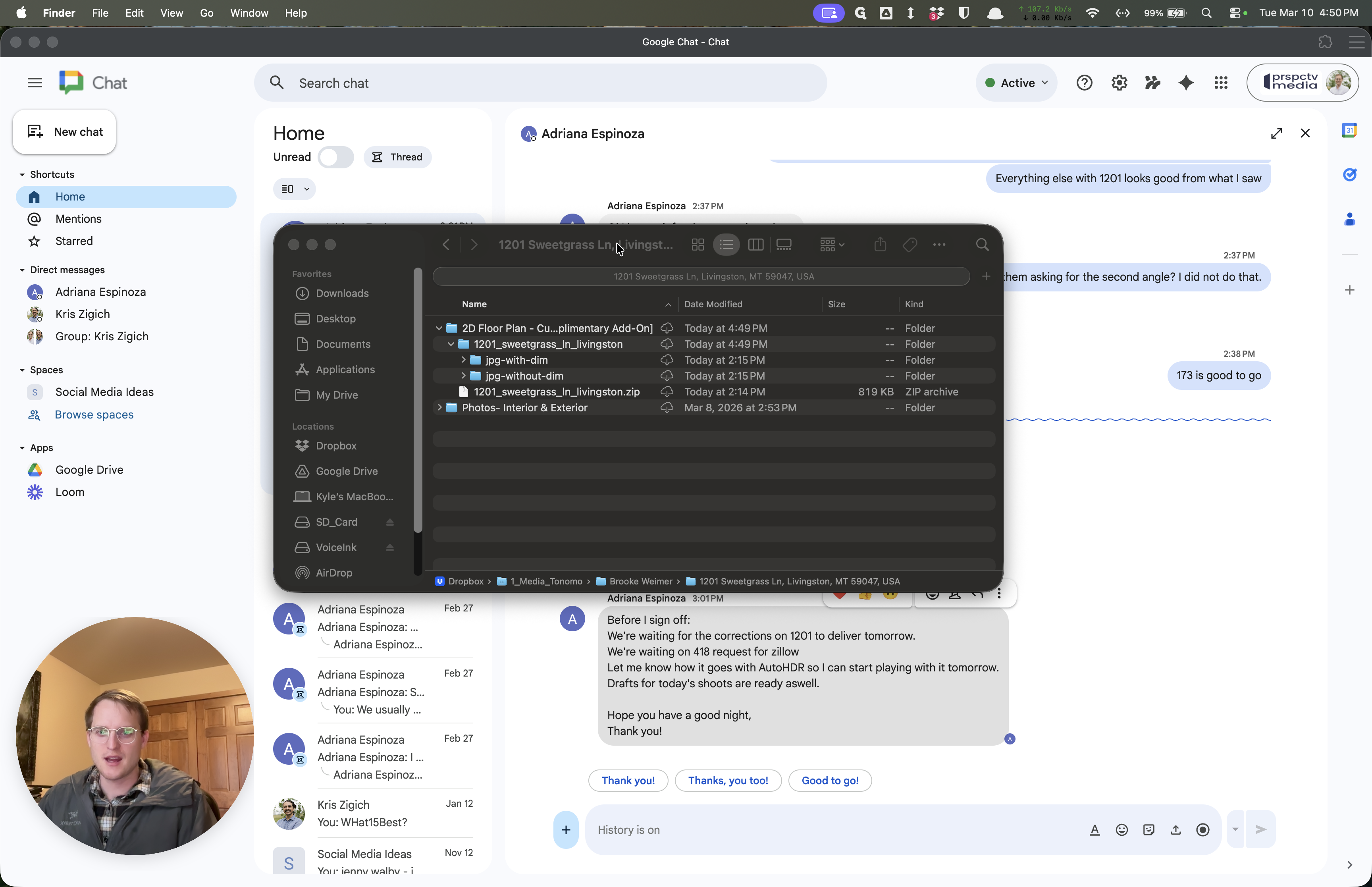
It's starting to get busy, and I'm beginning to feel it.
2
Click here
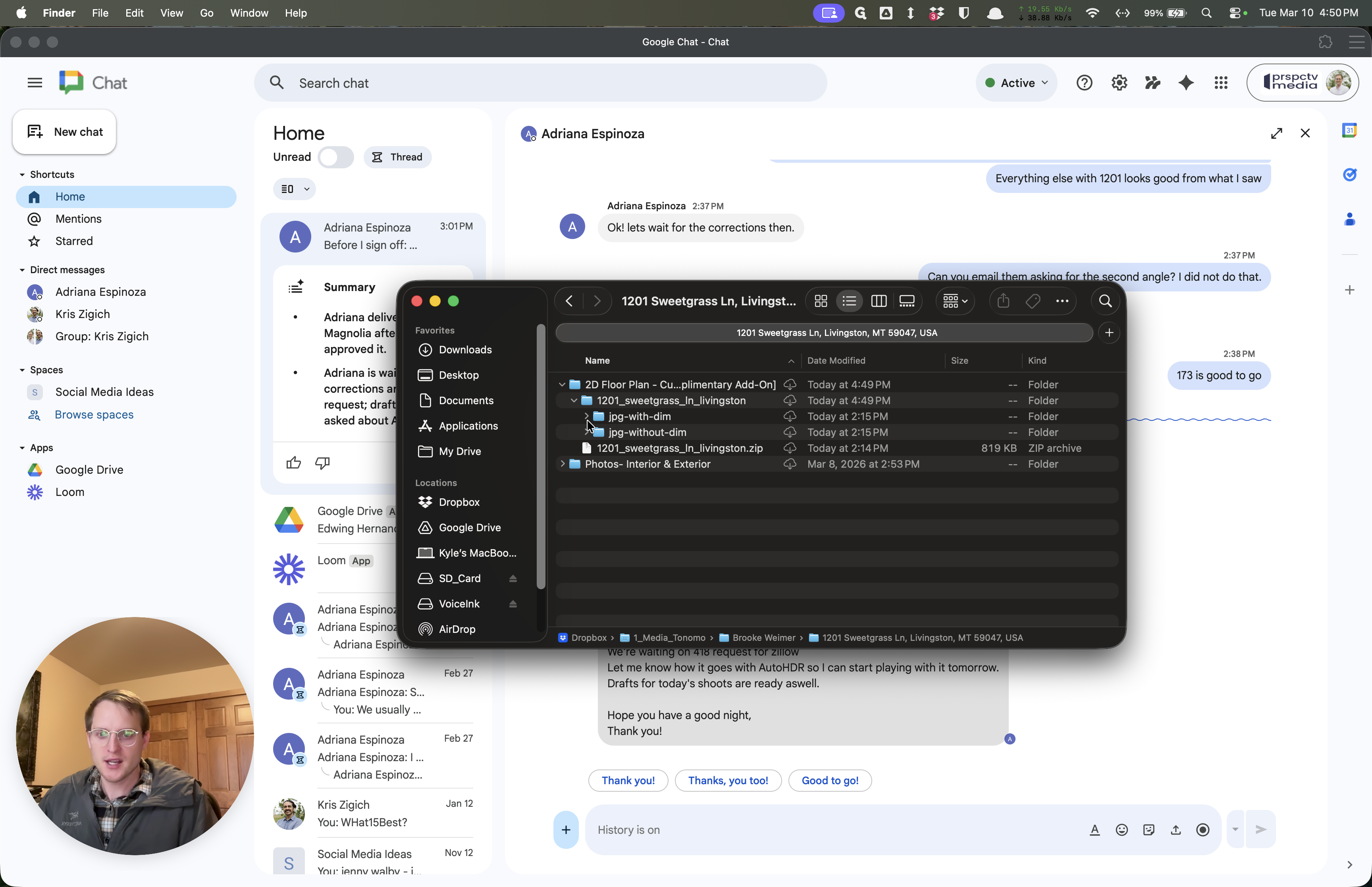
3
Click here
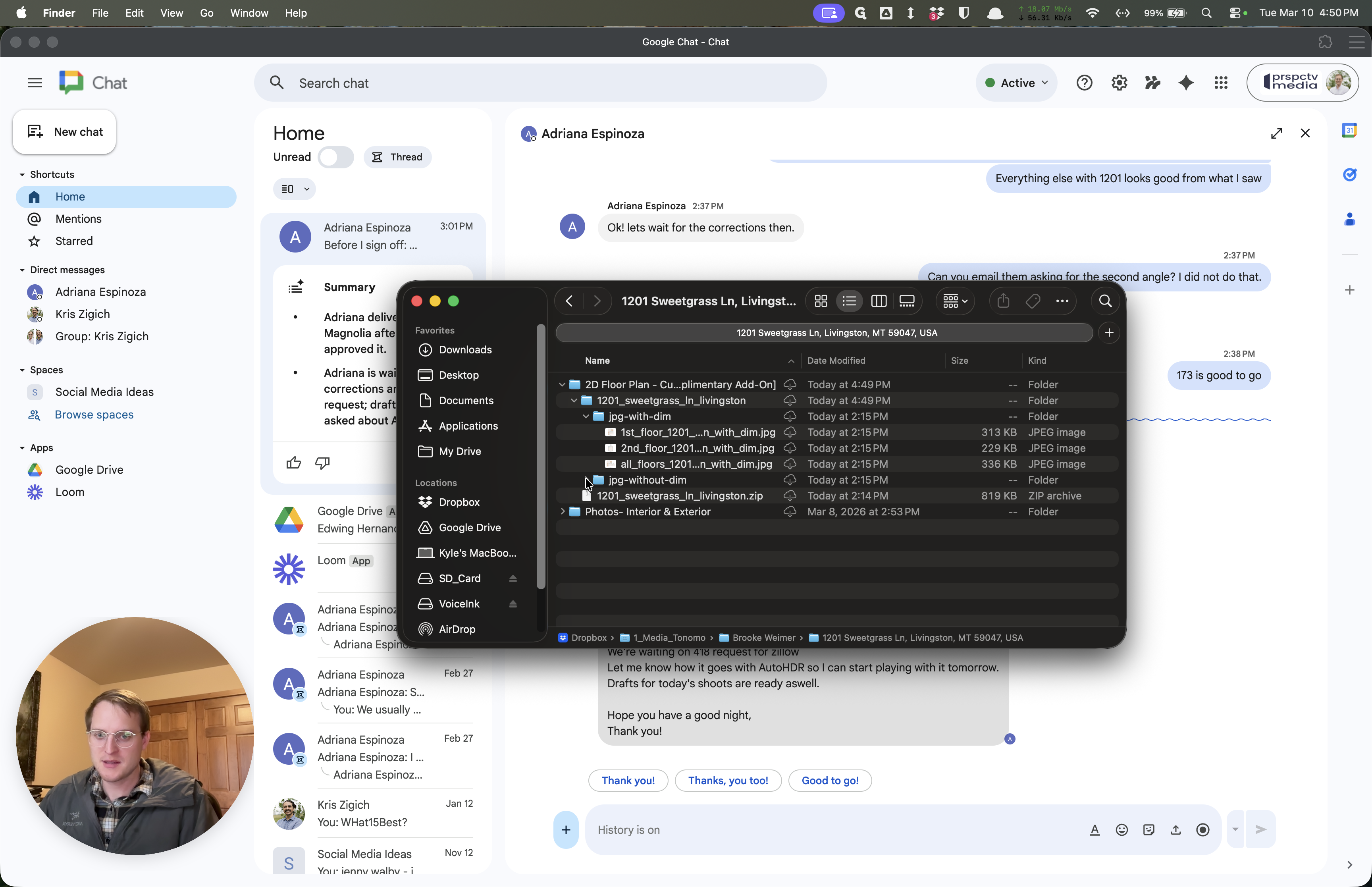
4
Click on "1st_floor_1201"
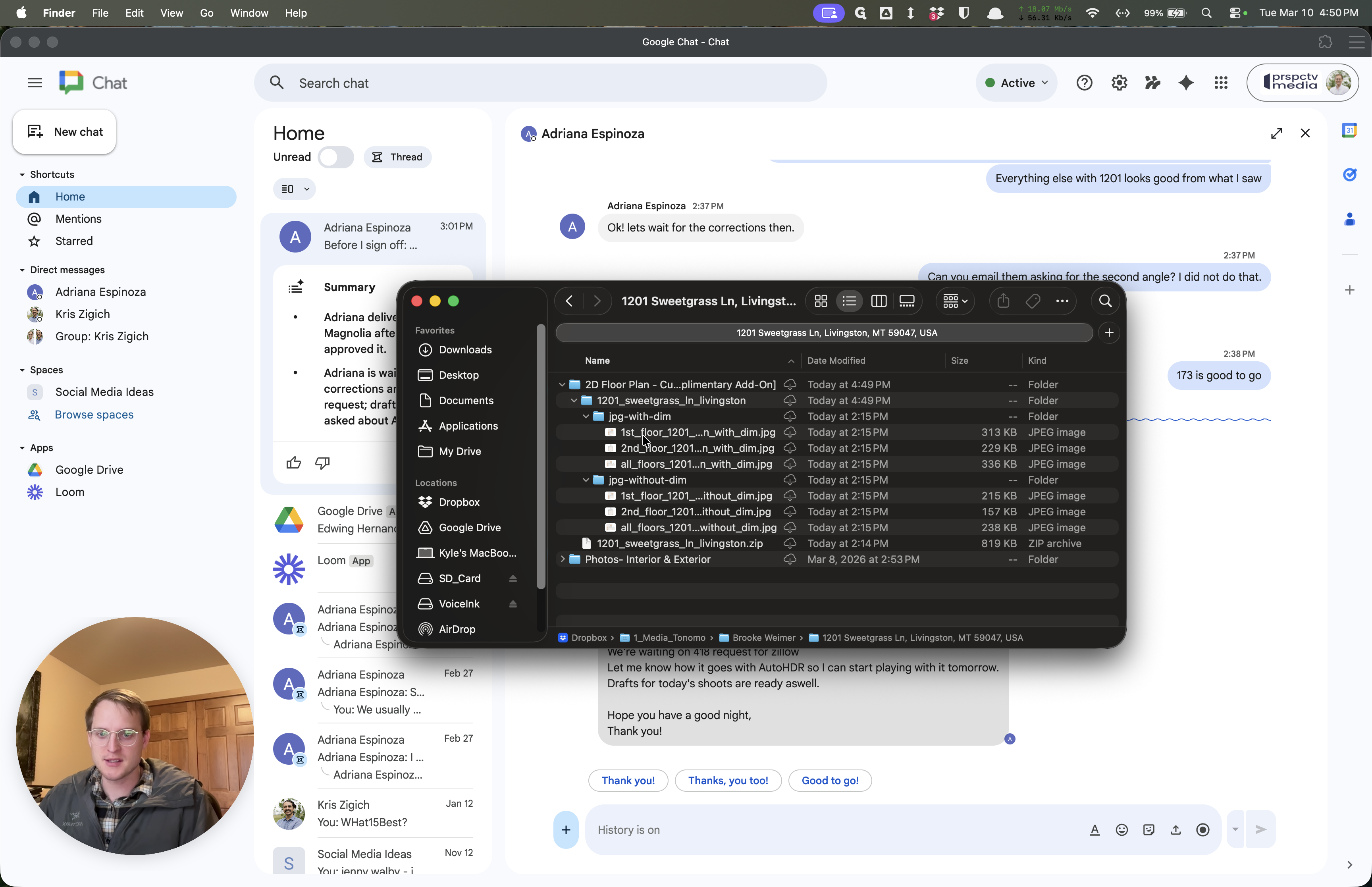
Please make sure the floor plans are in the top folder.
5
Click here
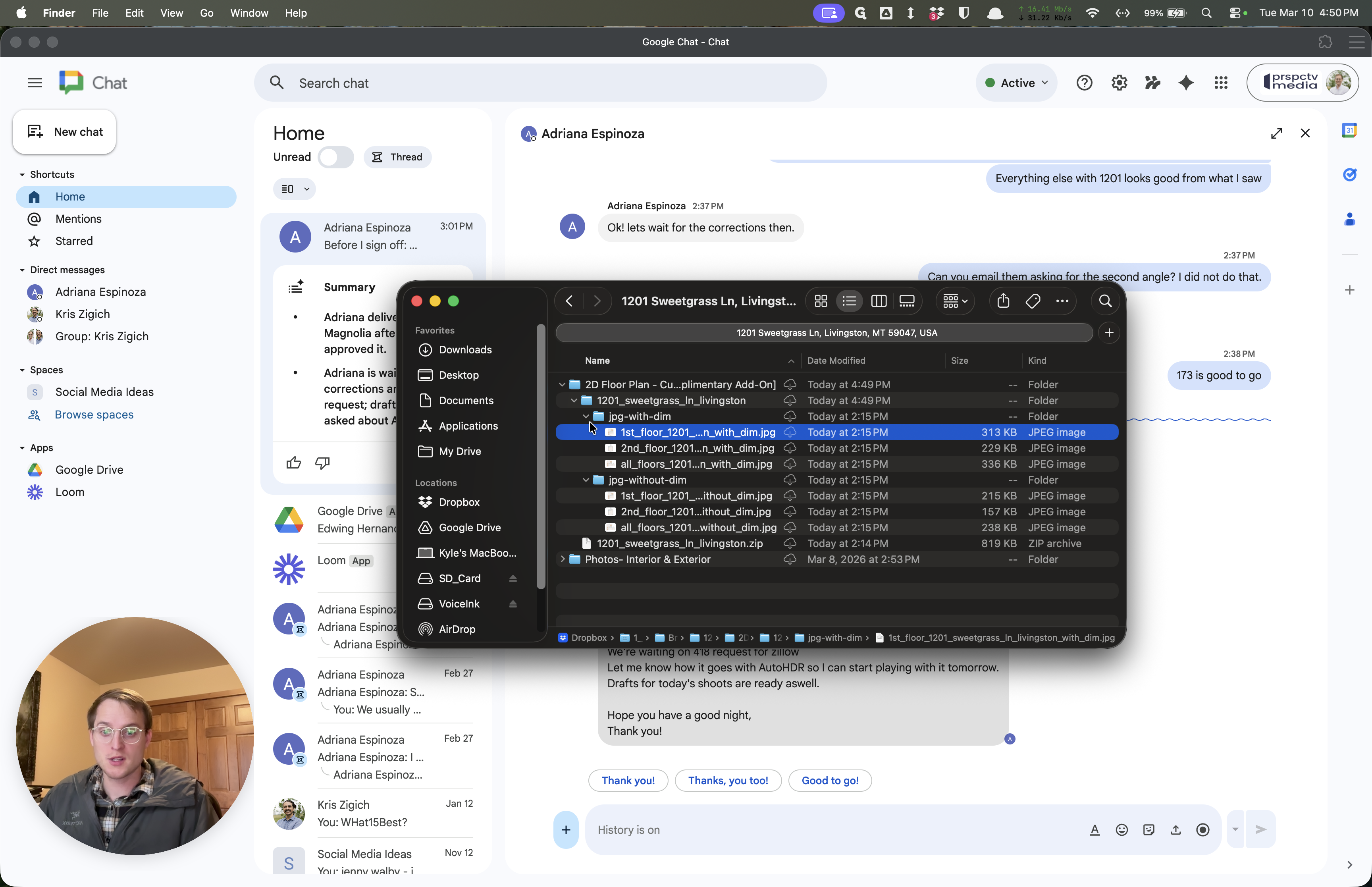
6
Click here
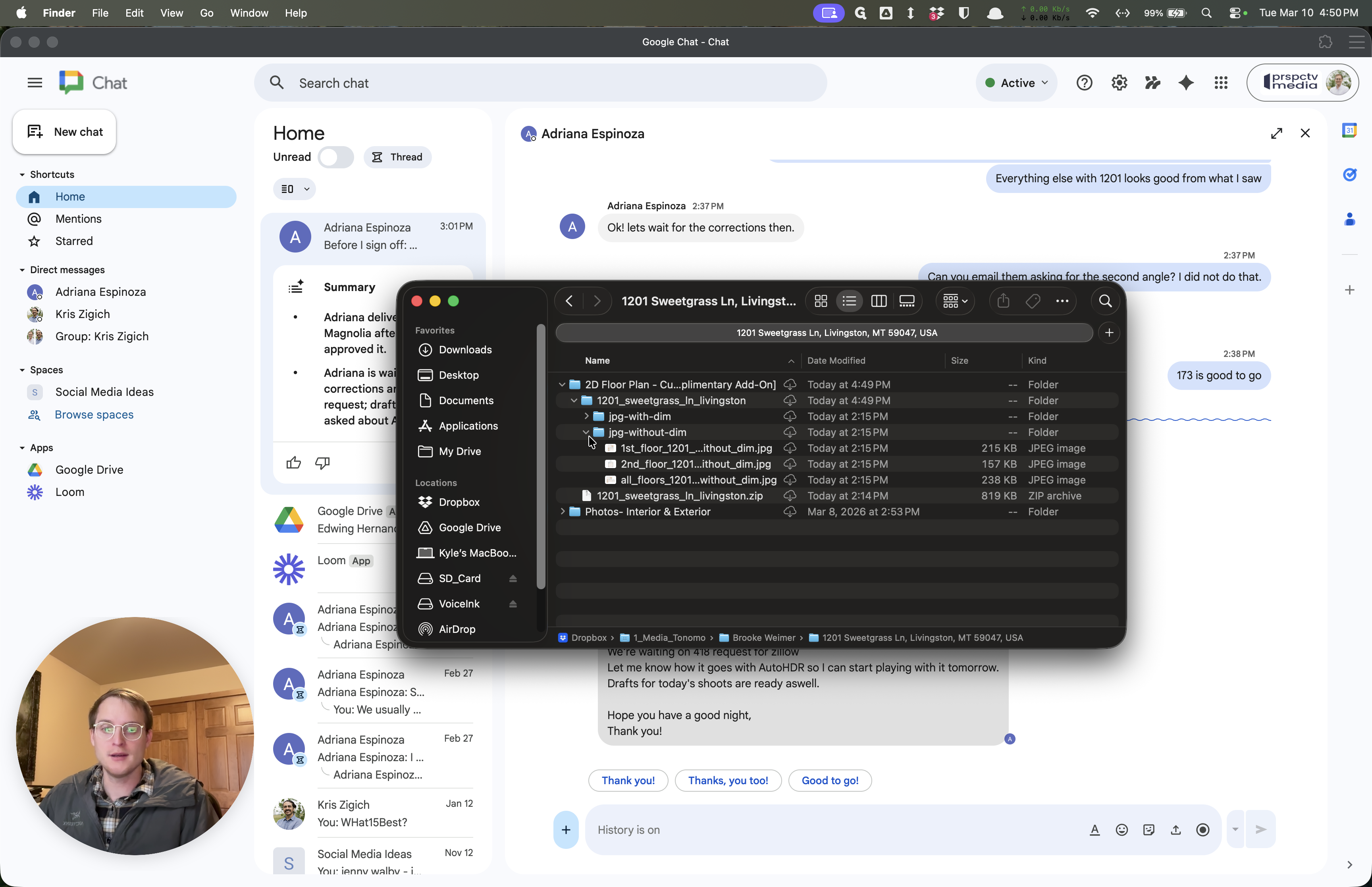
7
Click here
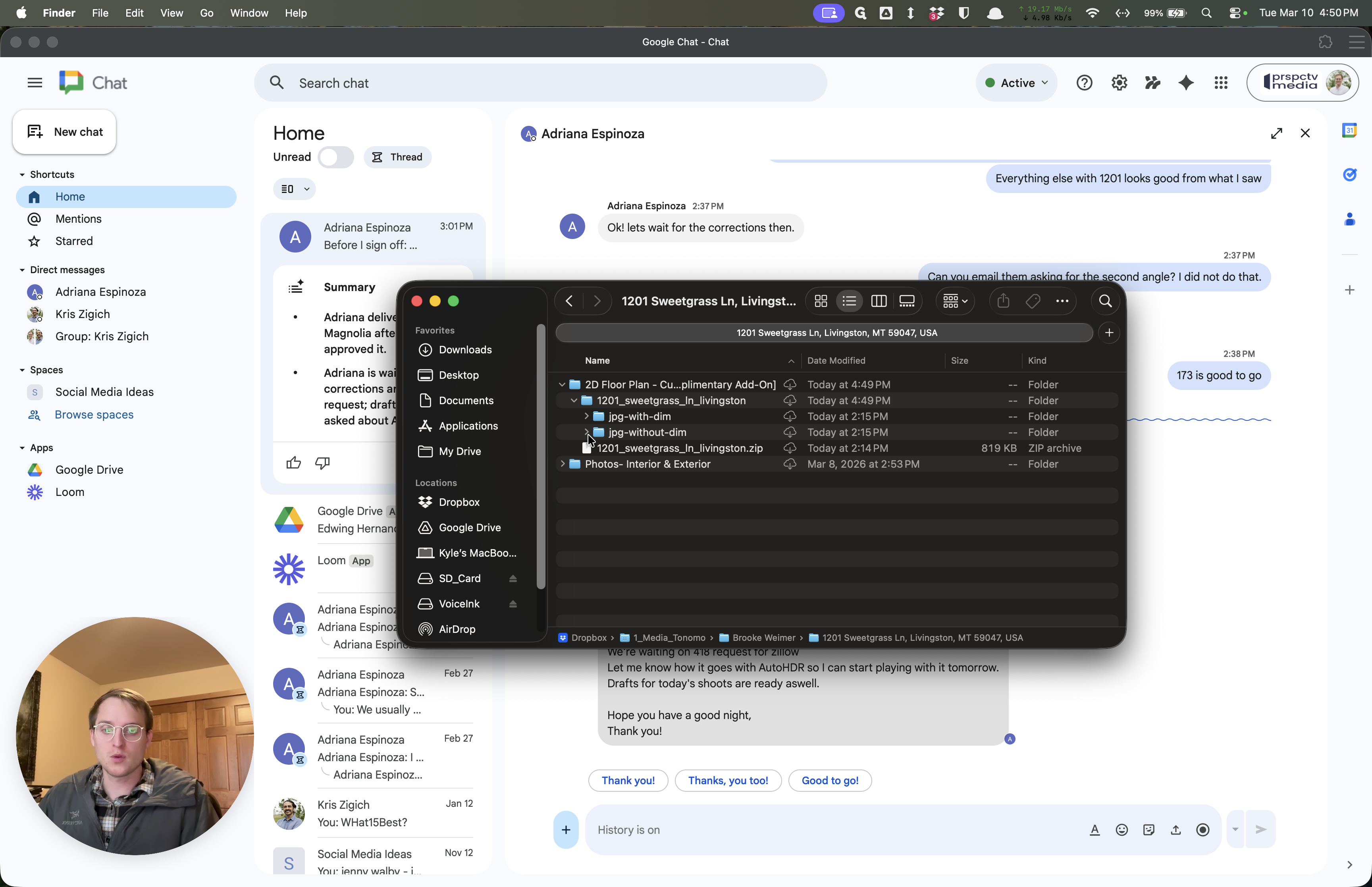
8
Click on "st_floor_1201"
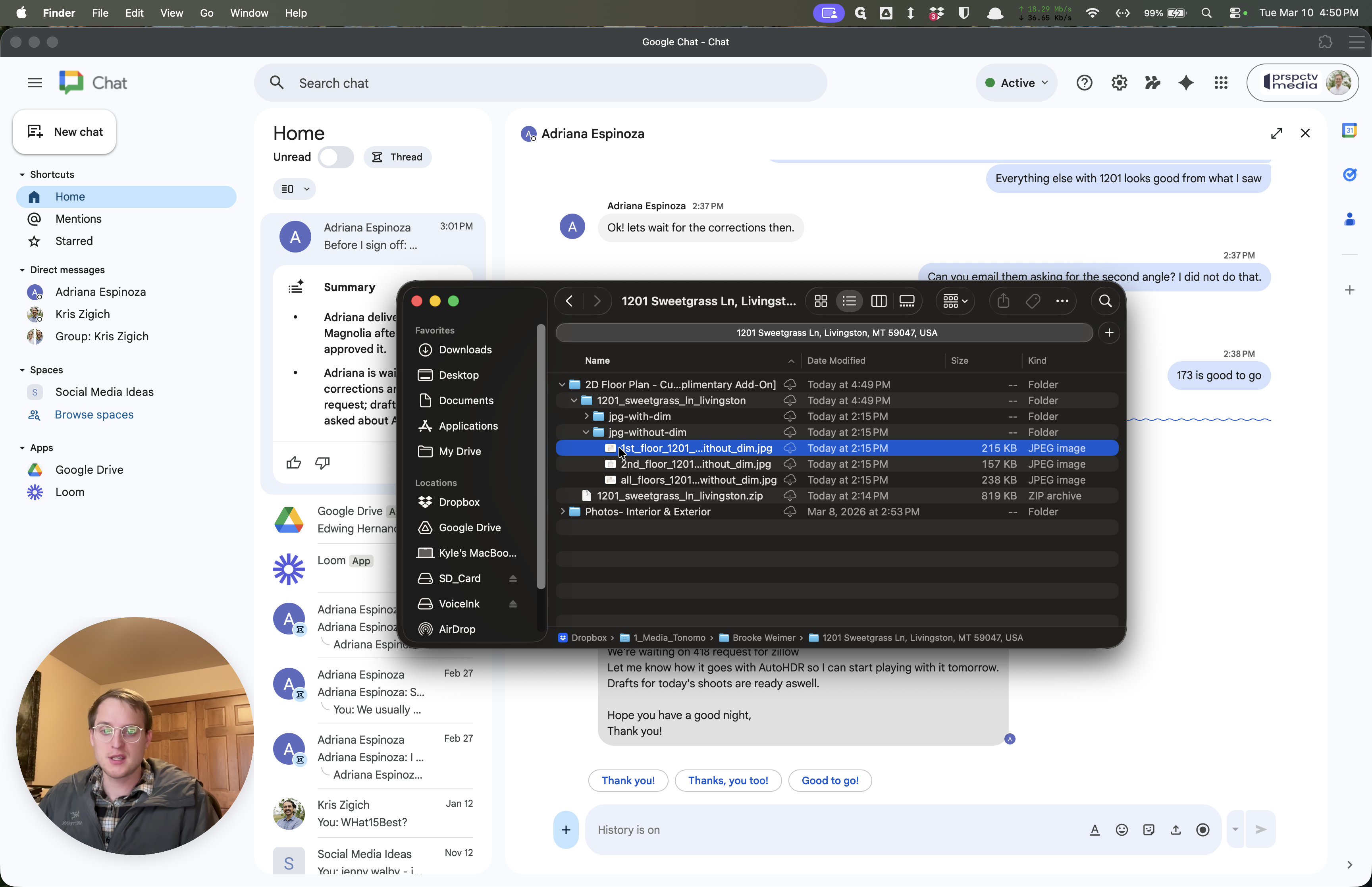
9
Click on "1201_sweetgrass_In_livingston.zip"
10
Drag "1st_floor_1201"
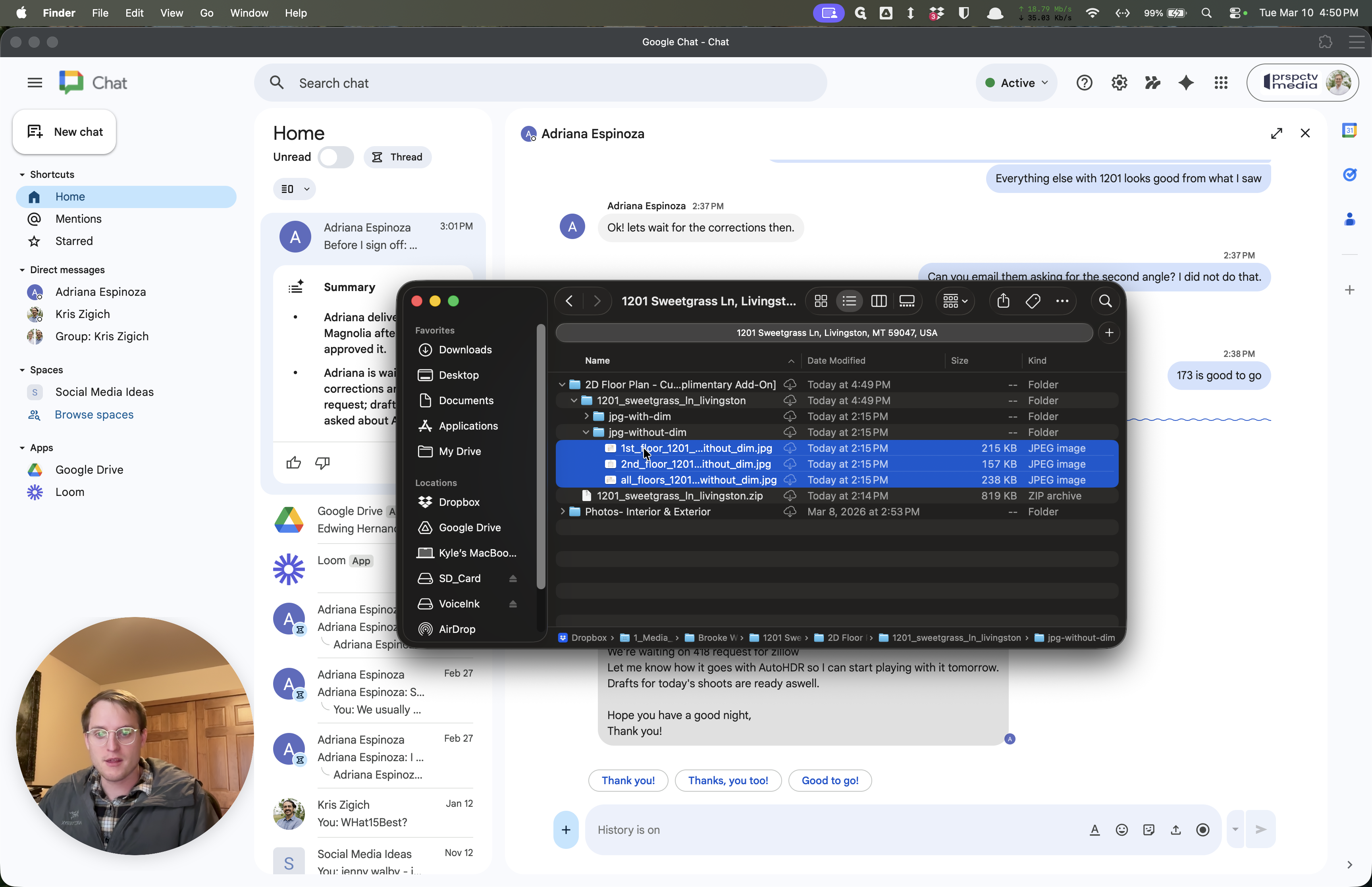
Just make sure it displays correctly on the property website.
11
Click here
12
Click on "1st_floor_1201"
13
Click on "2nd_floor_1201"
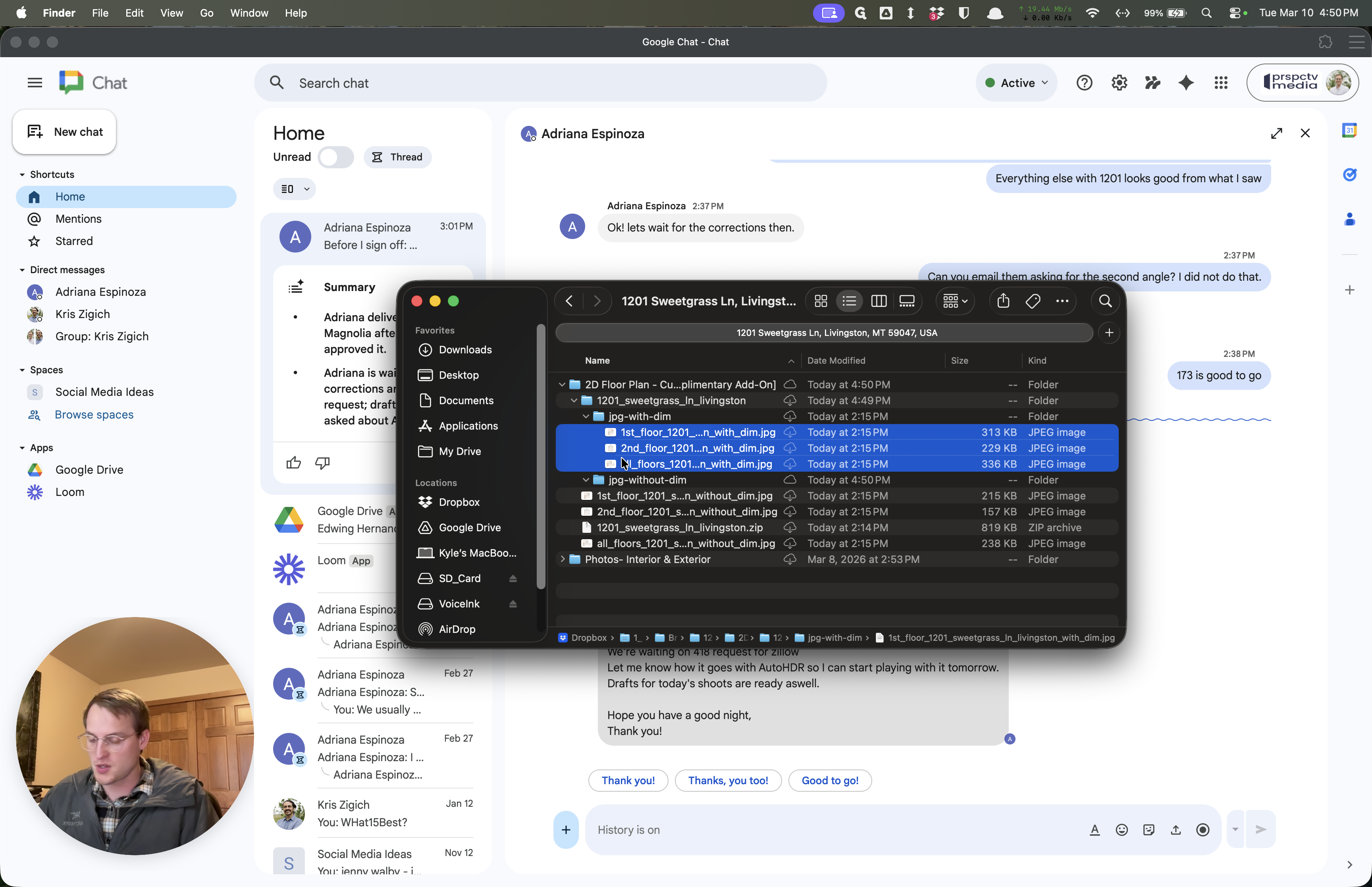
14
Drag "1st_floor_1201"
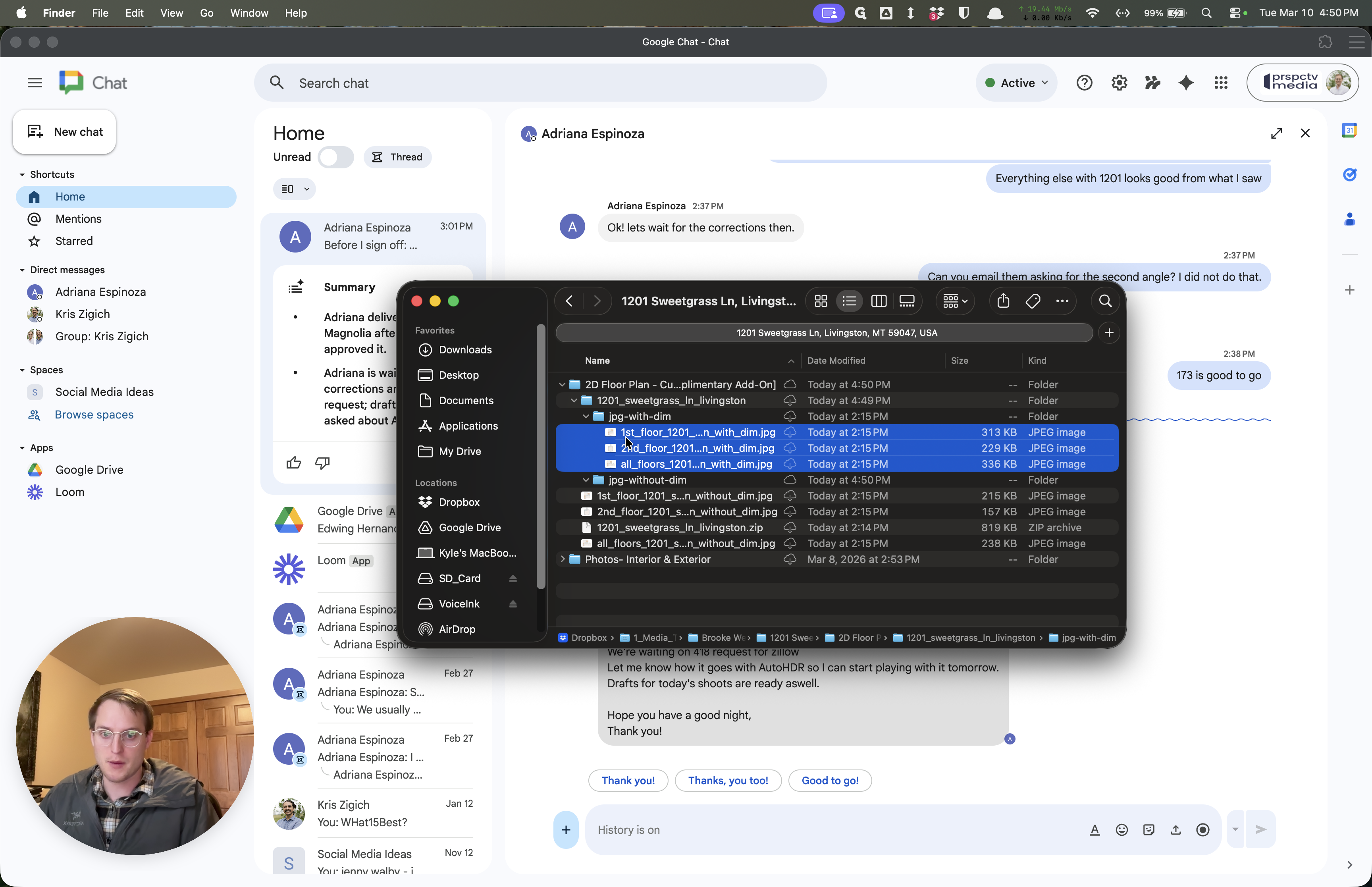
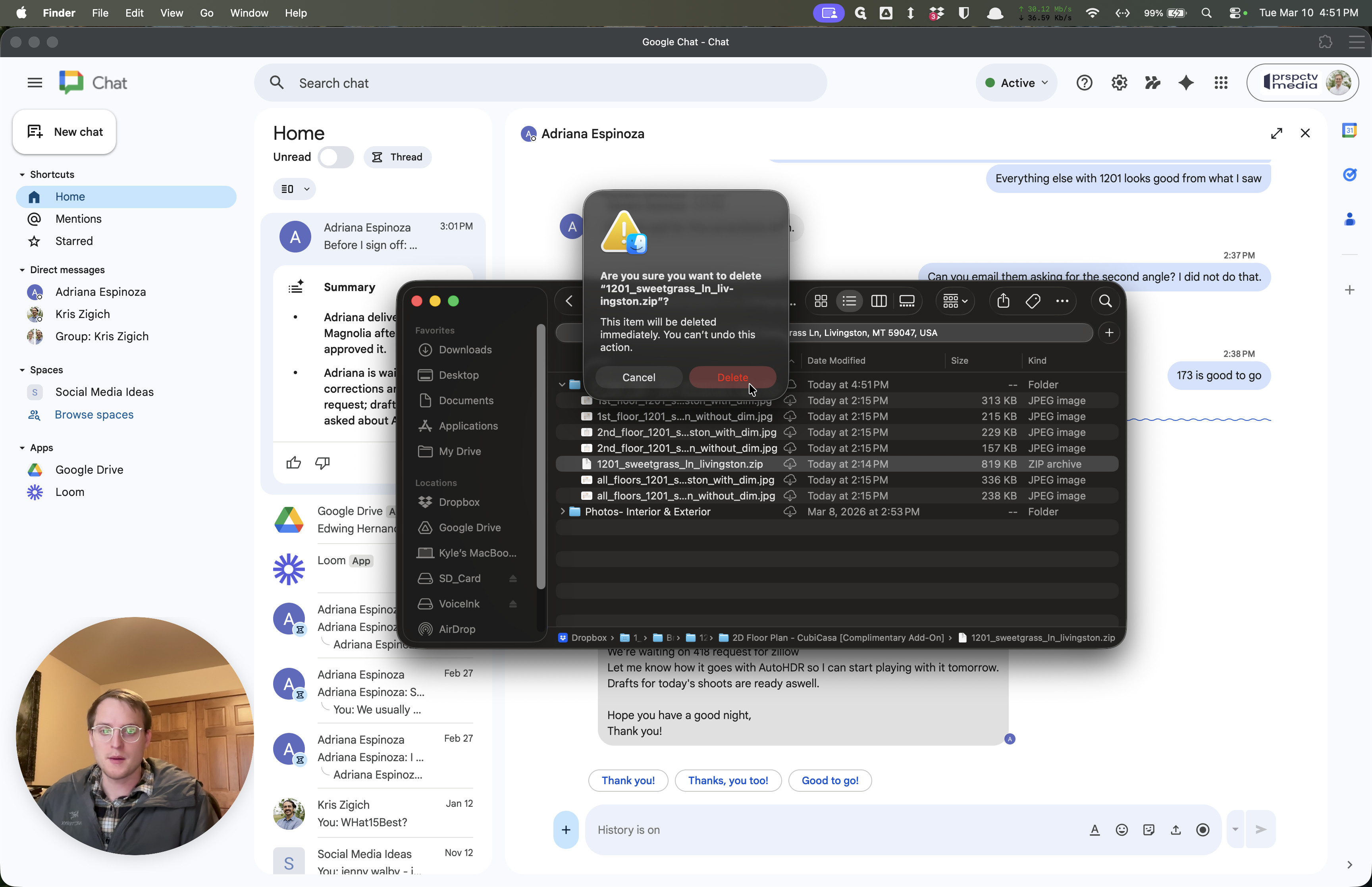
Then we can delete that, and then delete the zip file.
15
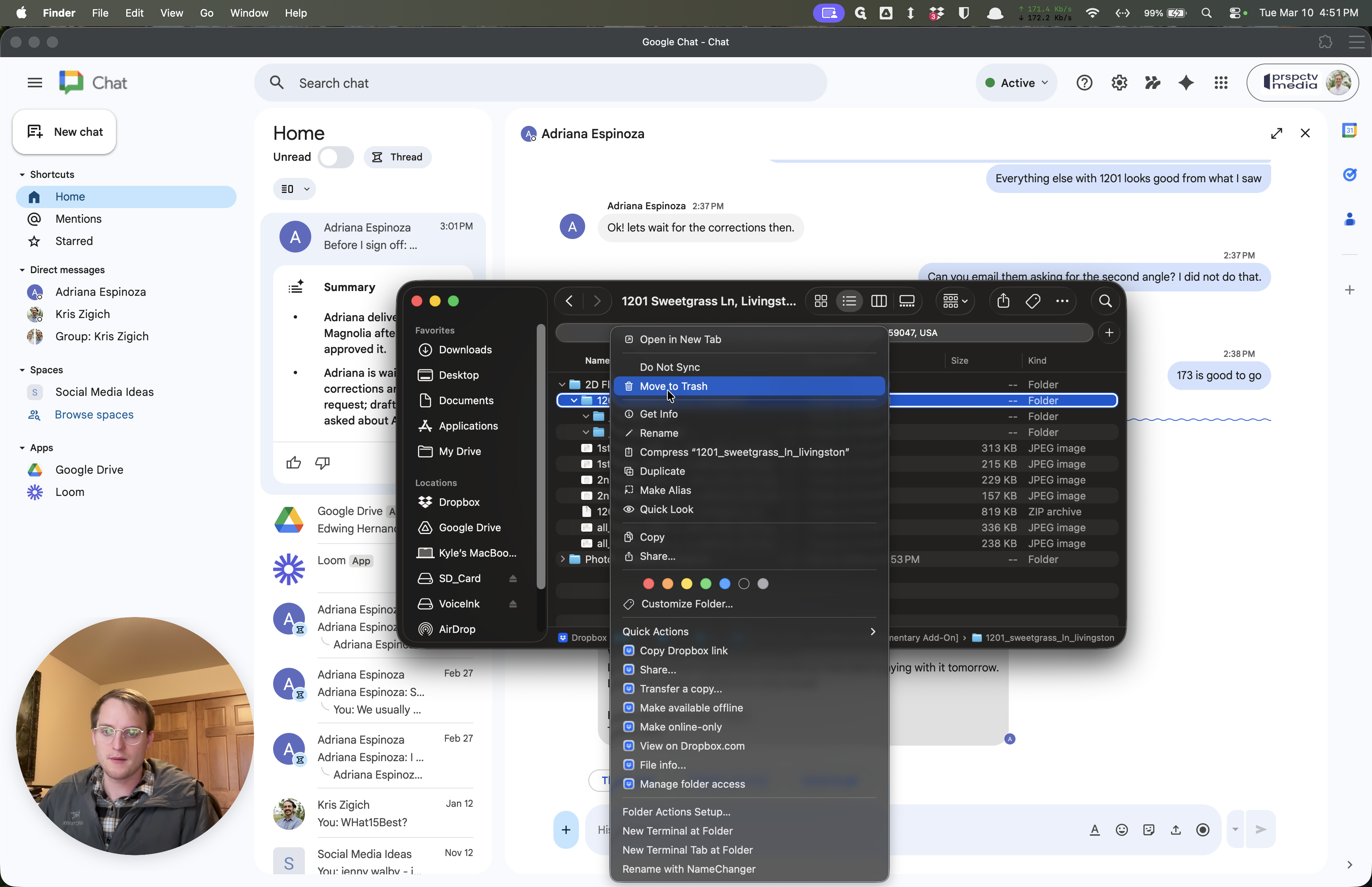
Right-click on "1201_sweetgrass_In_livingston"
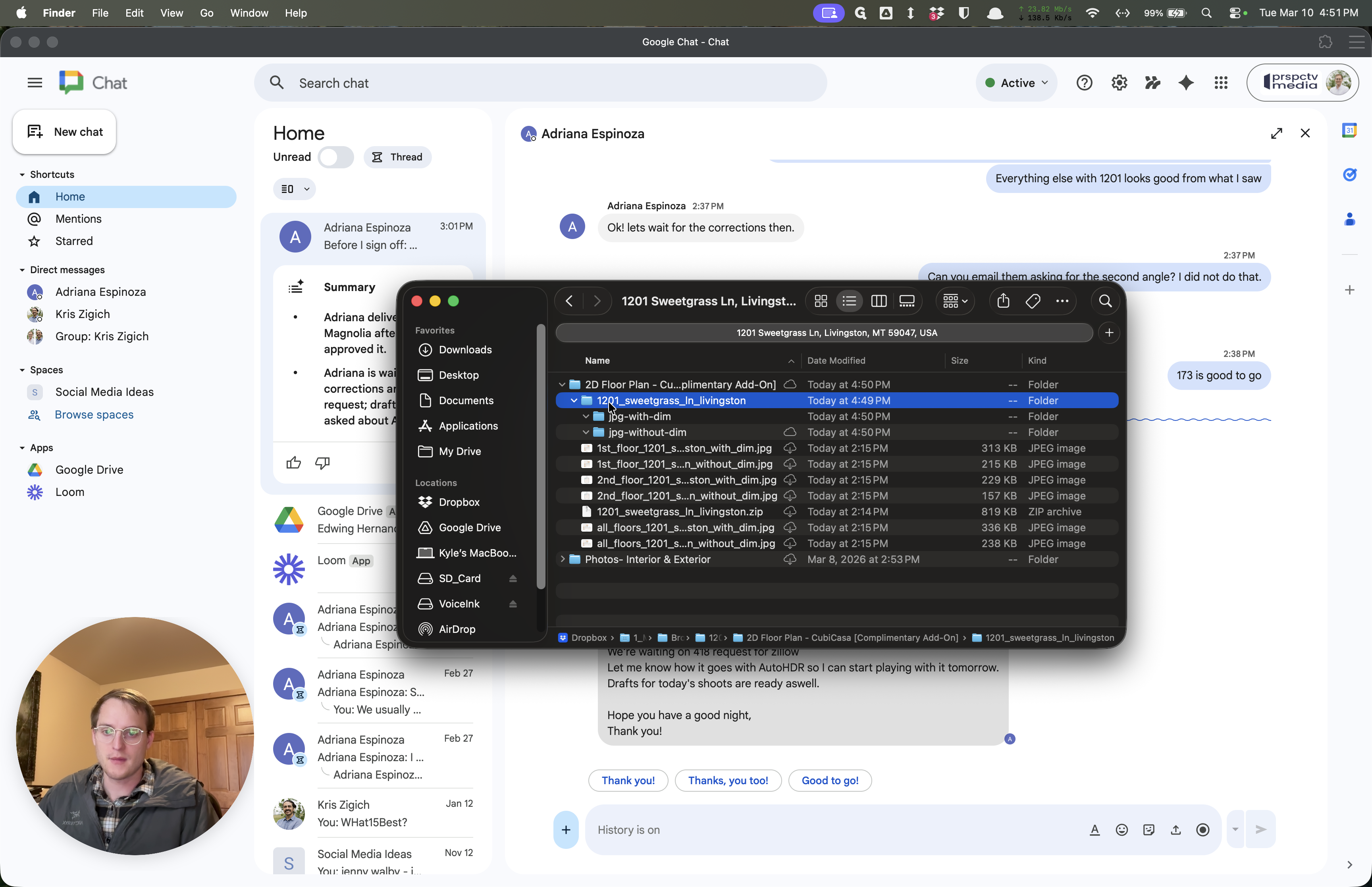
16
Click on "Move to Trash"
17
Right-click on "1201_sweetgrass_In_livingston.zip"
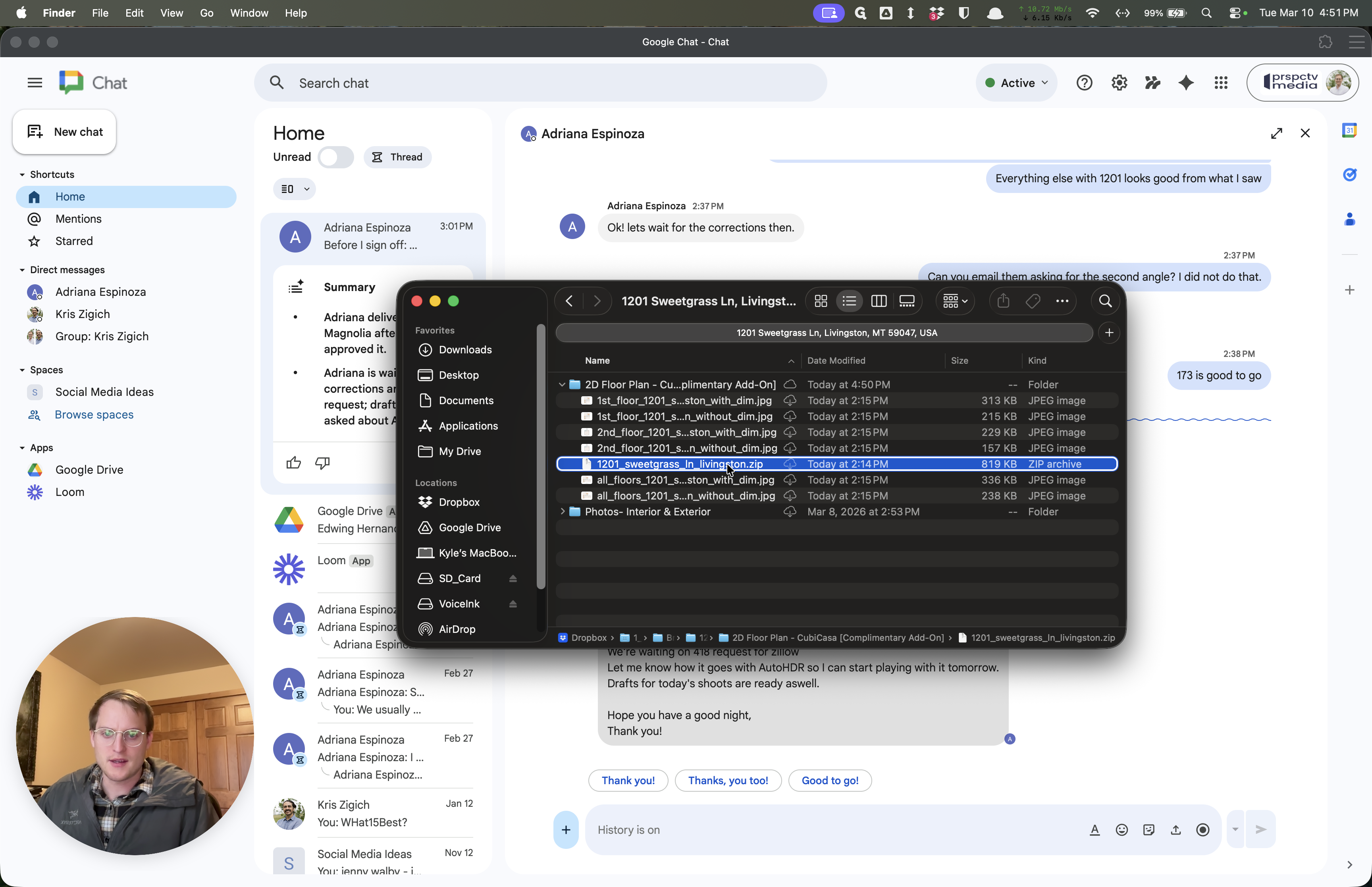
18
Click on "Move to Trash"
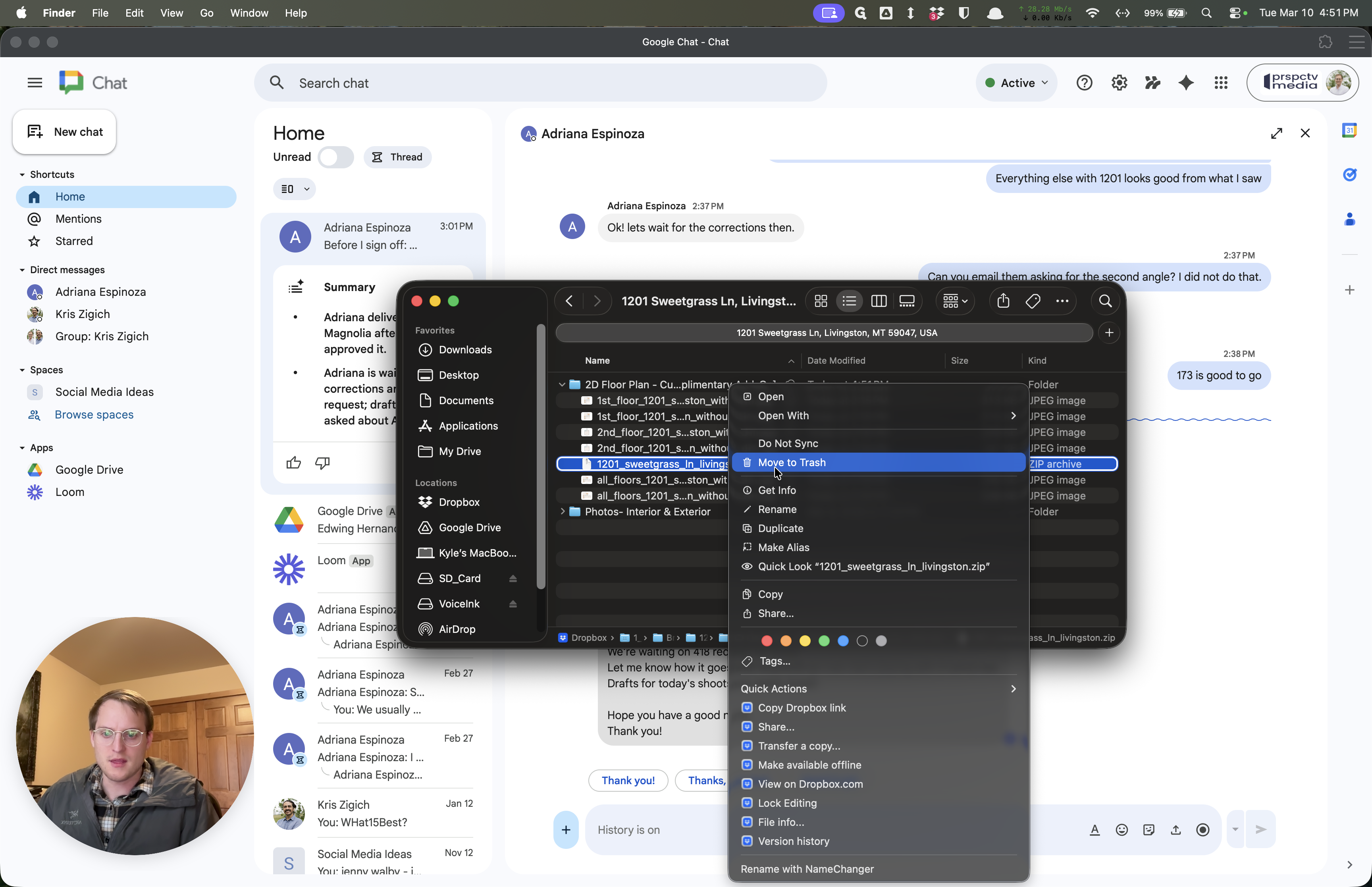
Please move those folders or files up so they are not nested in multiple folders.
19
Click on "Delete"
""