How to Perform Corporate Identification in Fintracker: Step-by-Step Guide
Learn how to perform corporate identification in FinTracker with this detailed step-by-step guide. Discover the process for verifying corporations, attaching property addresses, entering director information, and ensuring compliance for real estate transactions.
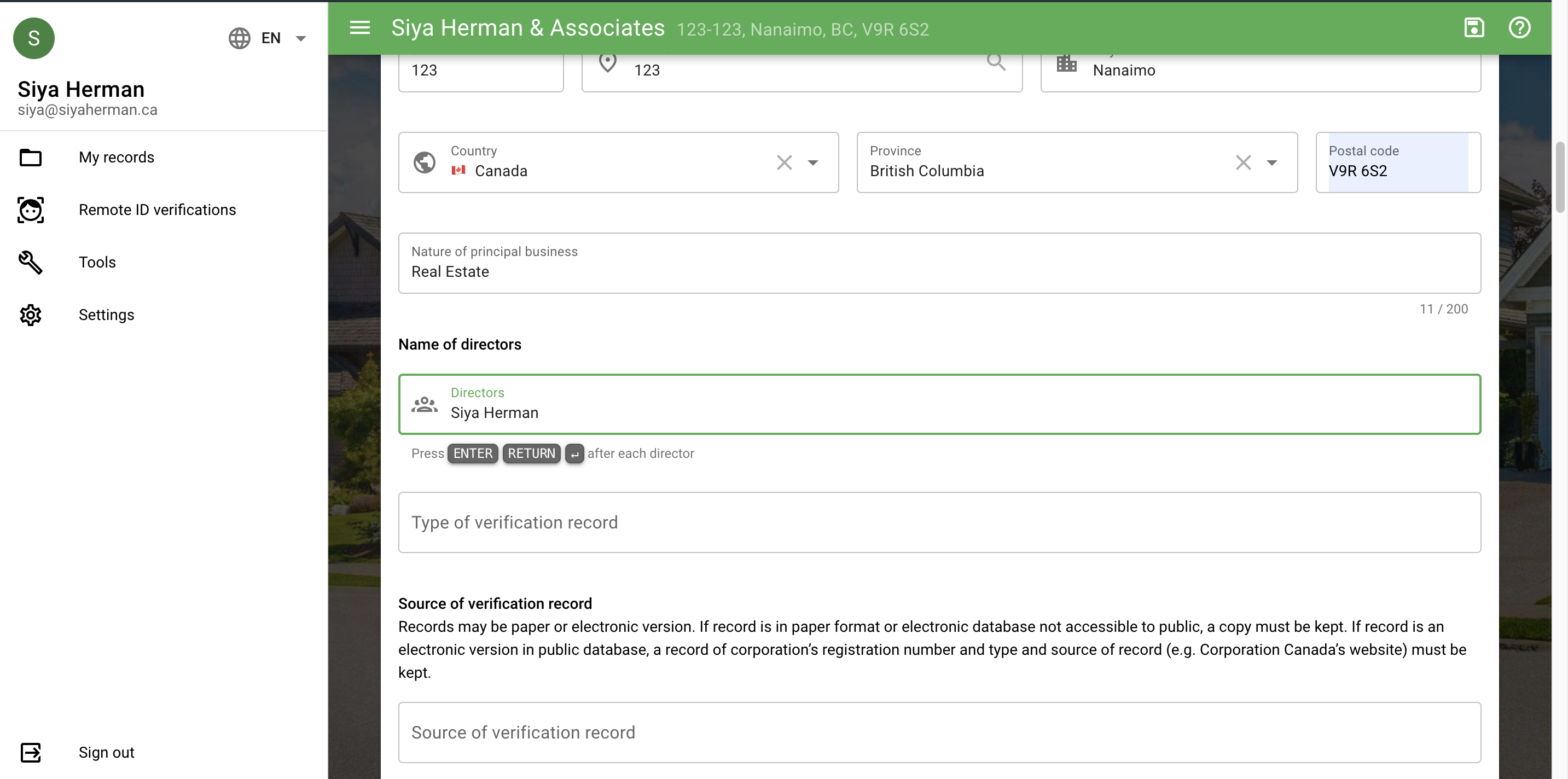
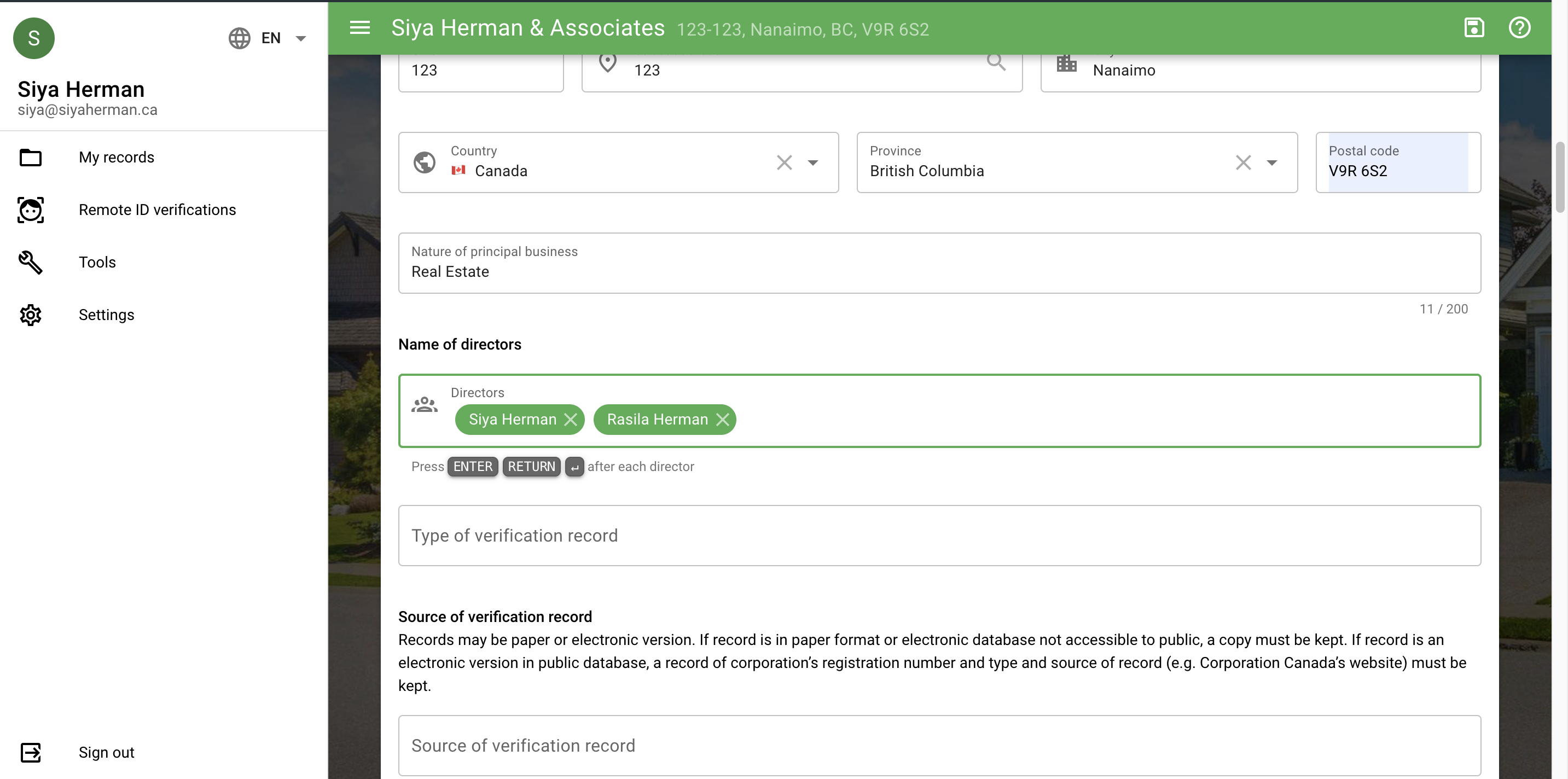
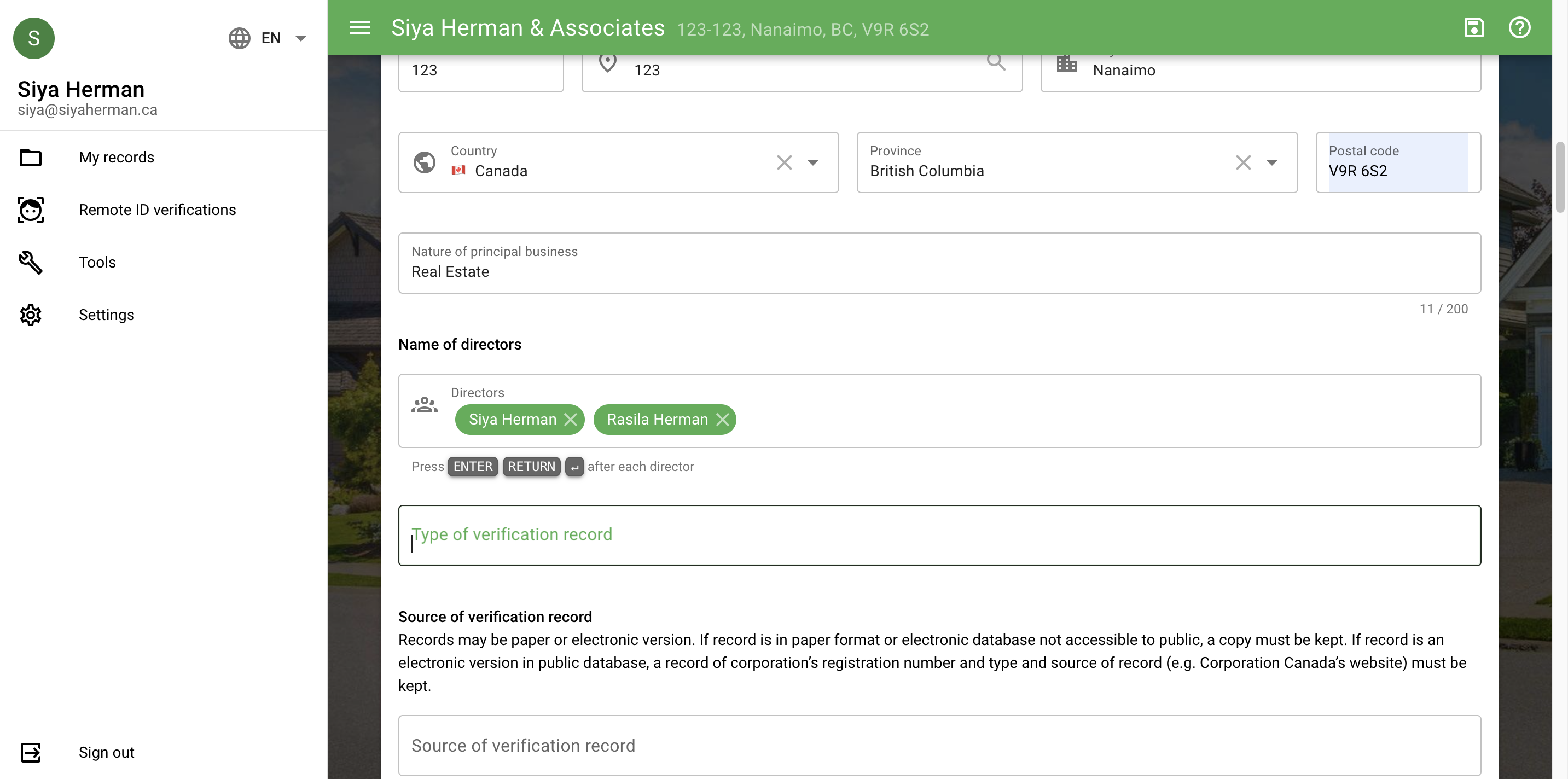
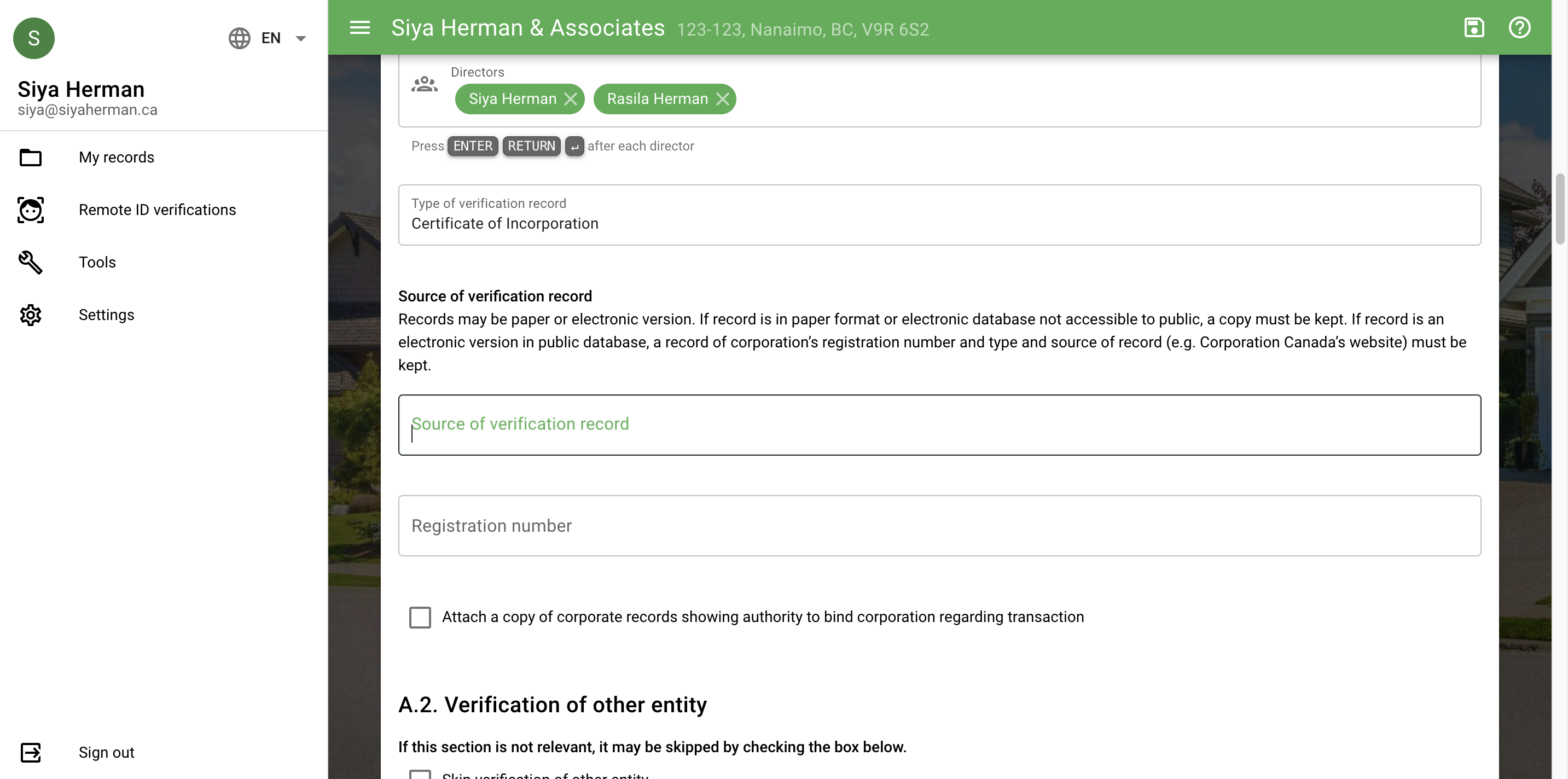
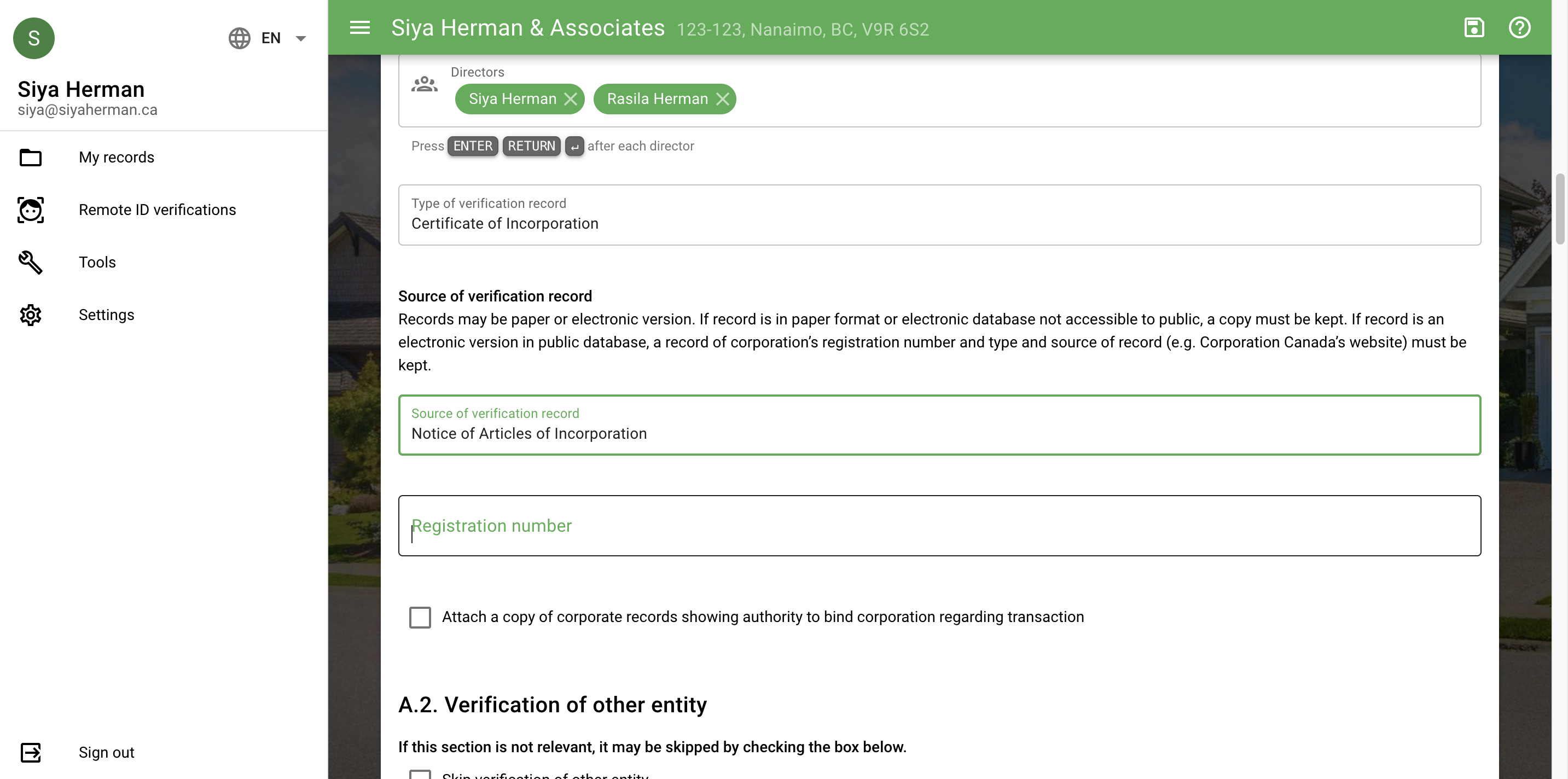
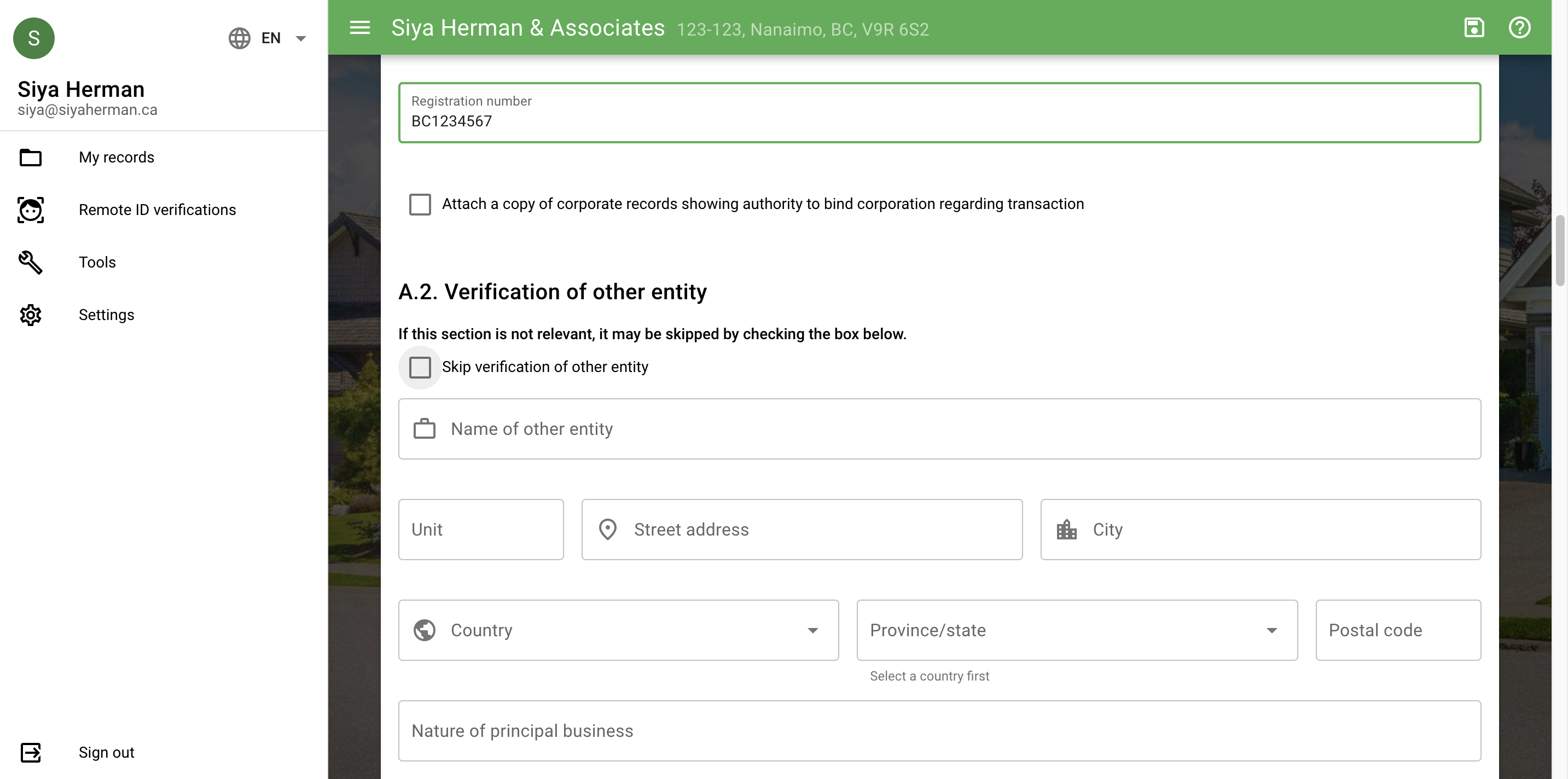
In this guide, we'll learn how to complete corporate identification in FinTracker. This process helps ensure that all required information about a corporation is collected and verified for compliance and record-keeping. You will enter details such as the corporation's address, directors, business nature, and verification documents.
Following these steps helps maintain accurate records and supports regulatory requirements.
Let's get started
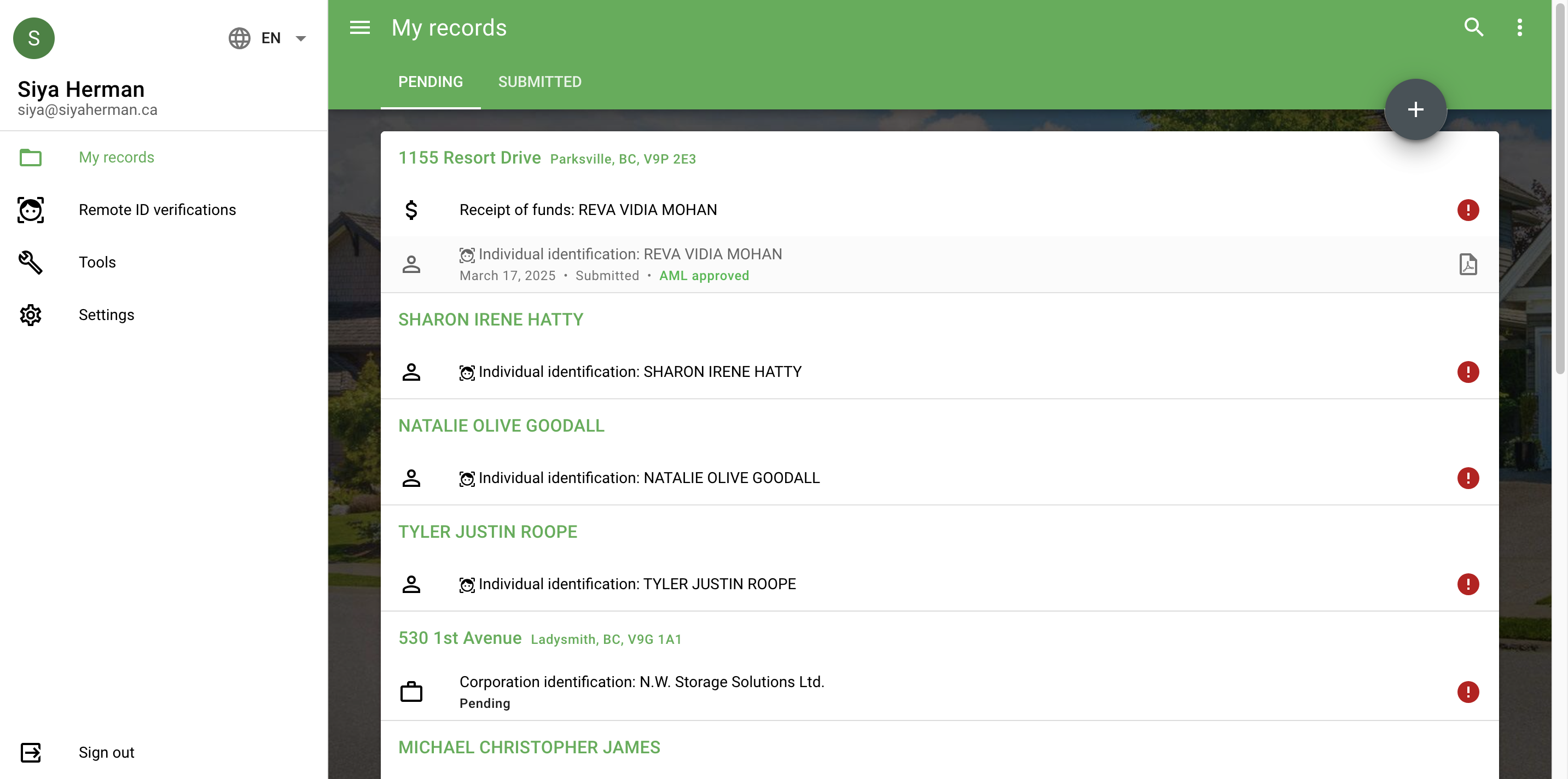
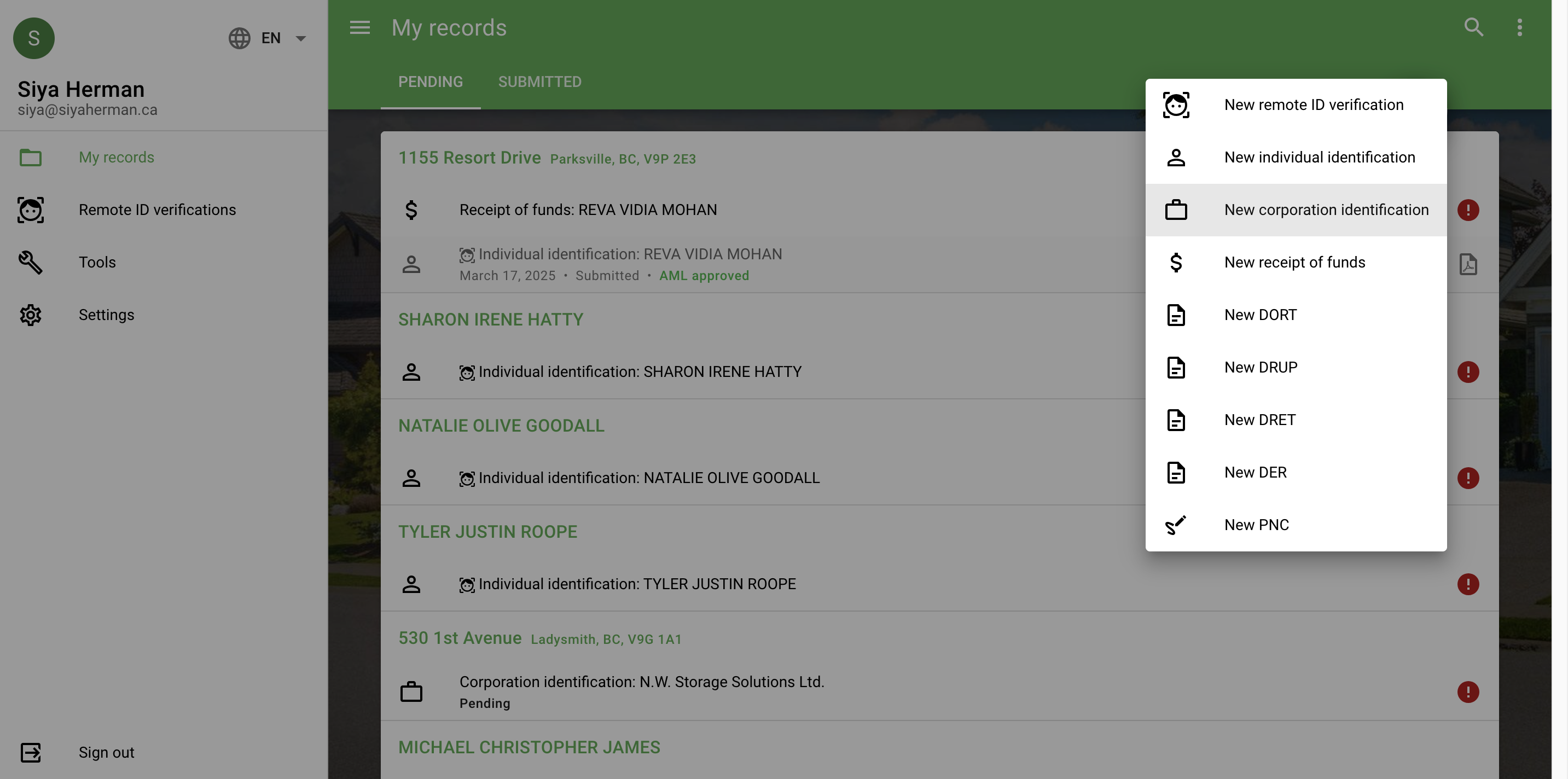
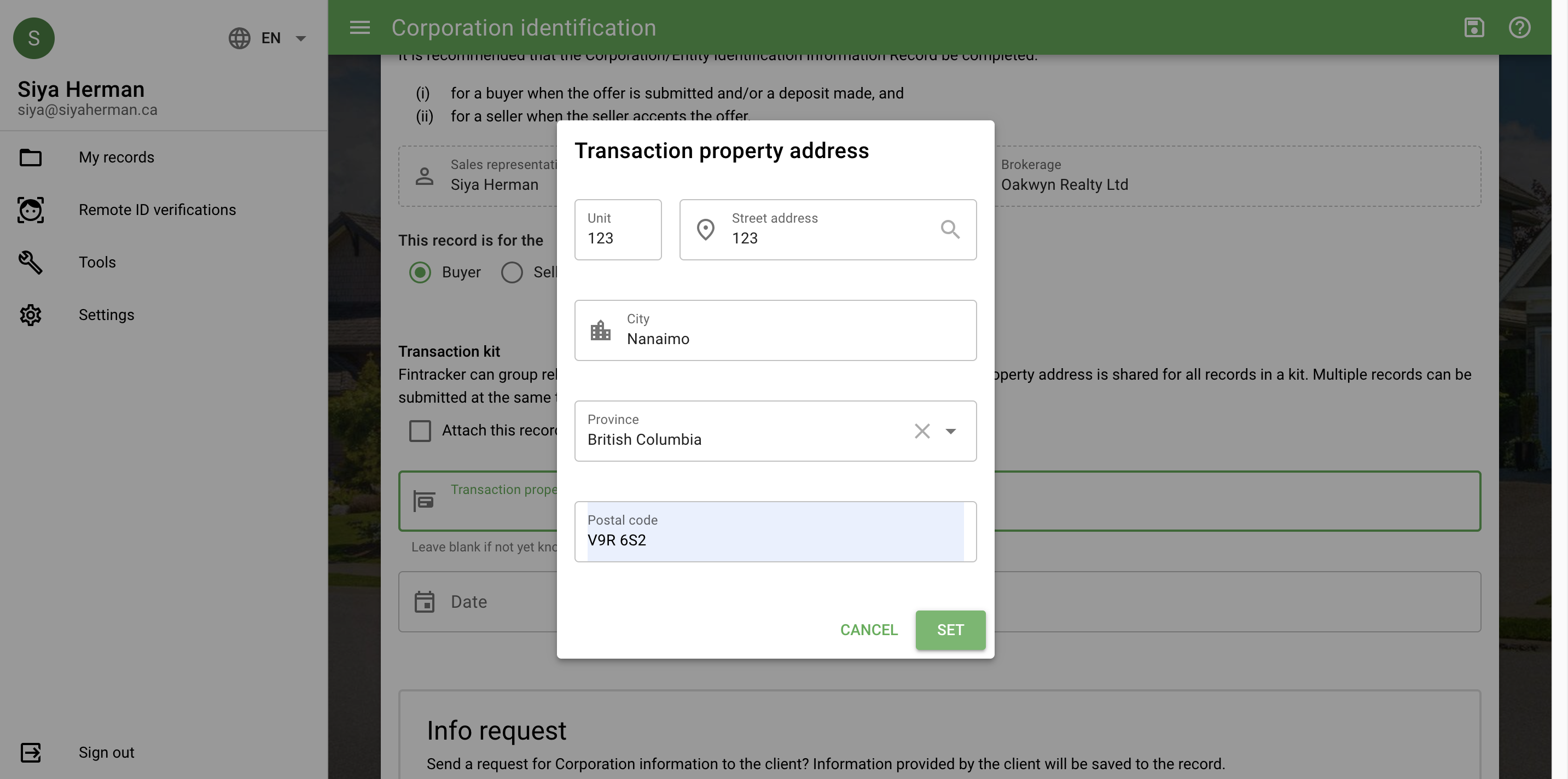
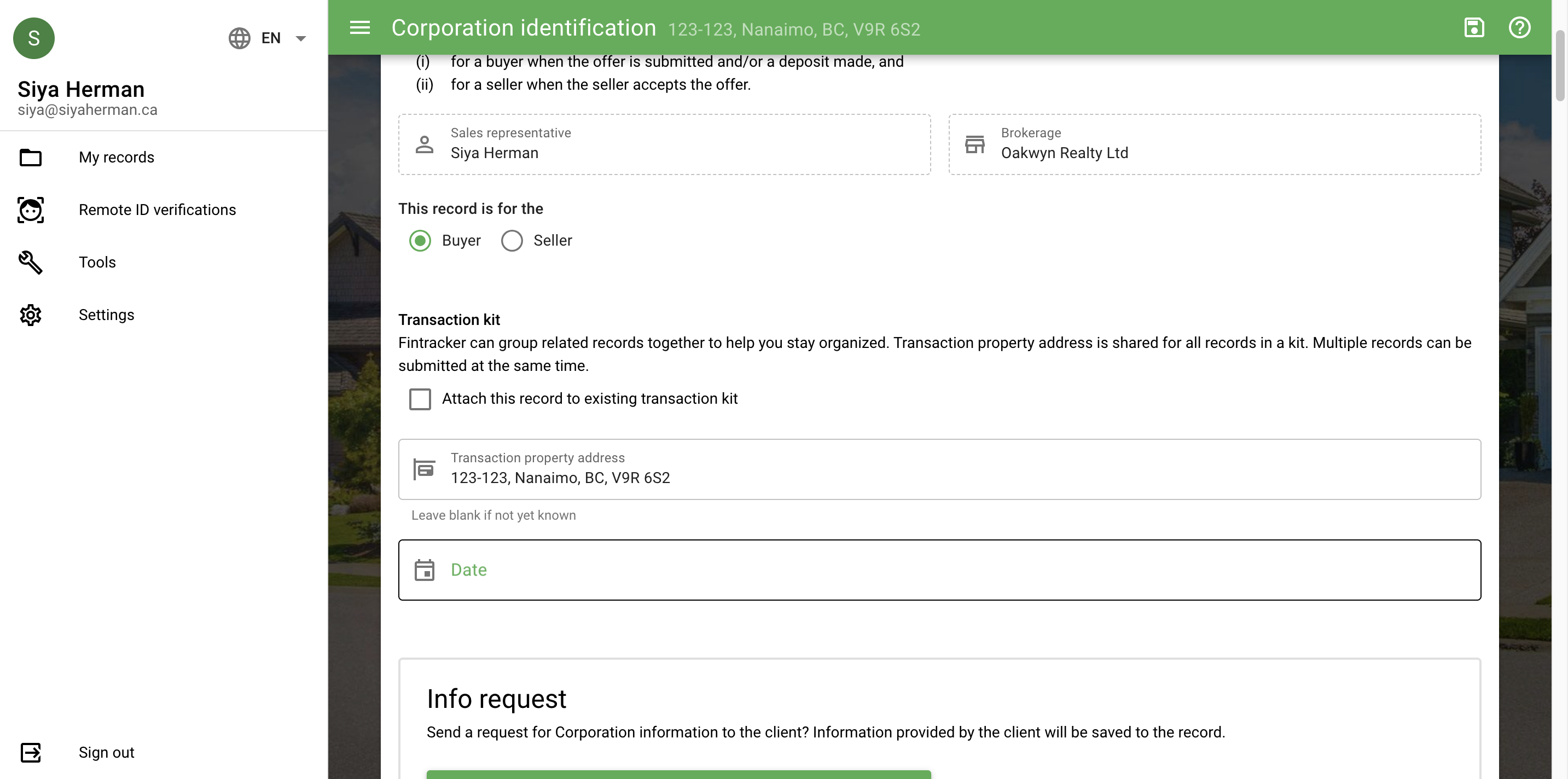
I will show you how to perform corporate identification in FinTracker. First, select the plus icon. Then, choose the new corporation identification.
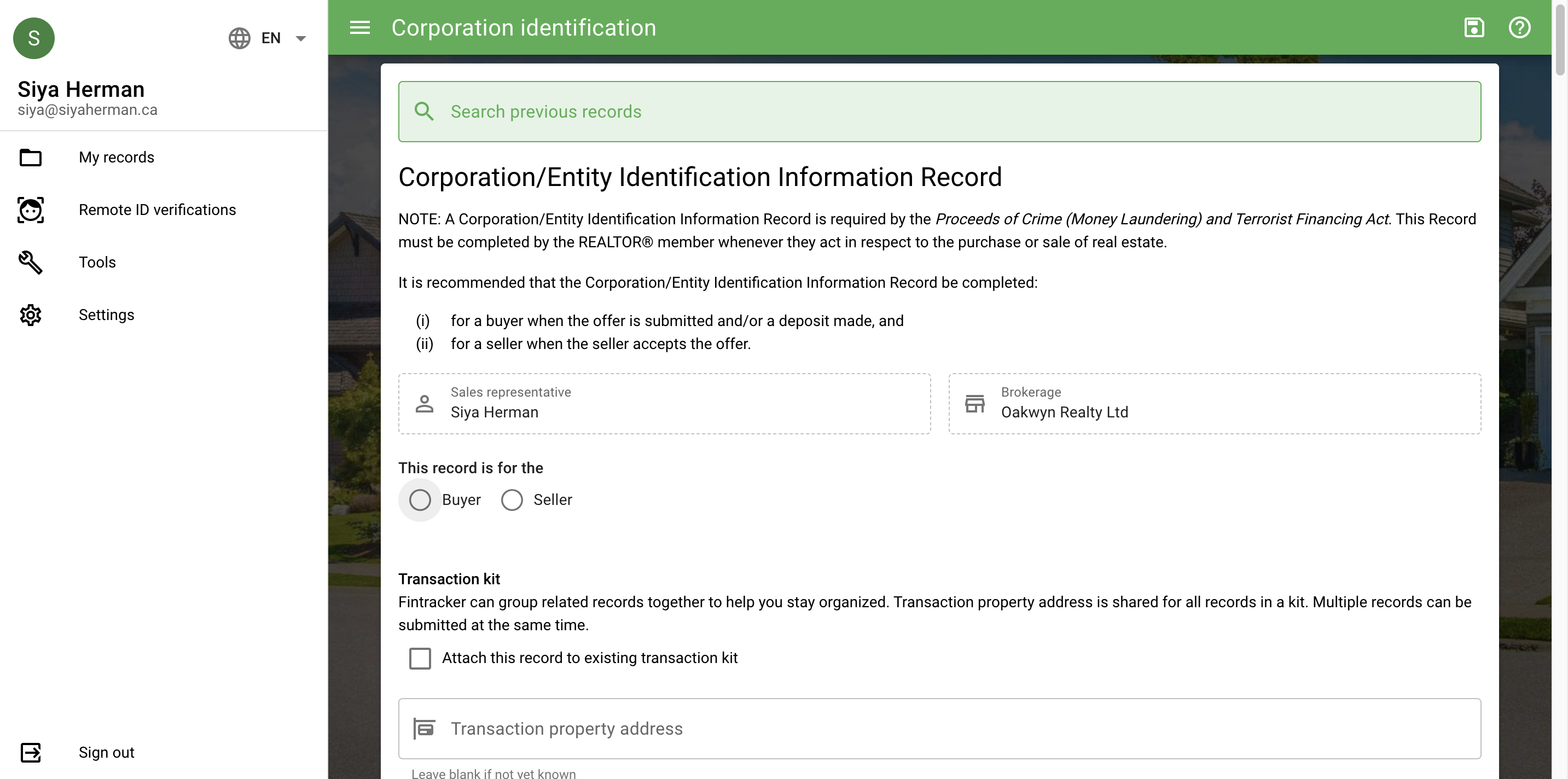
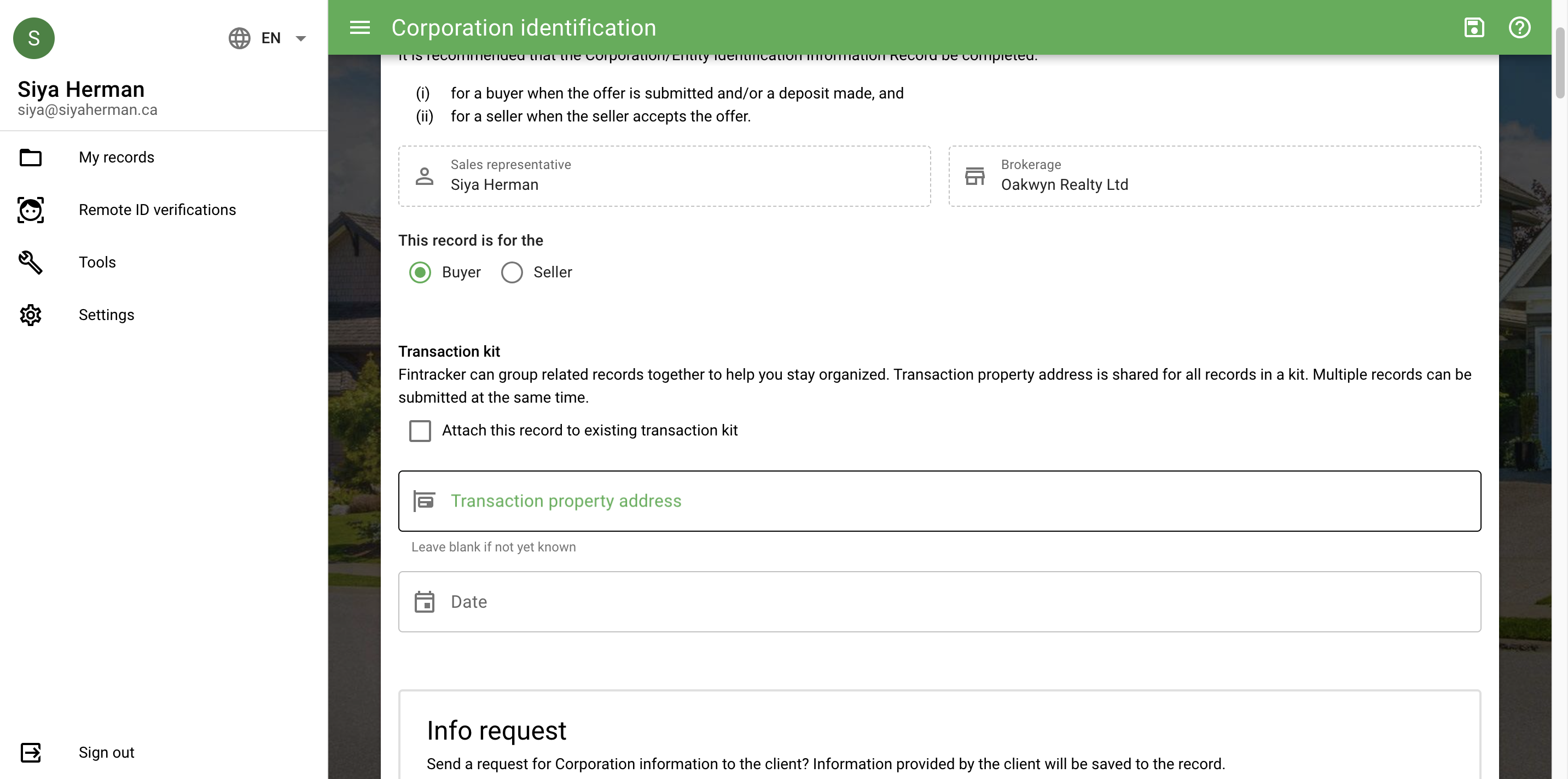
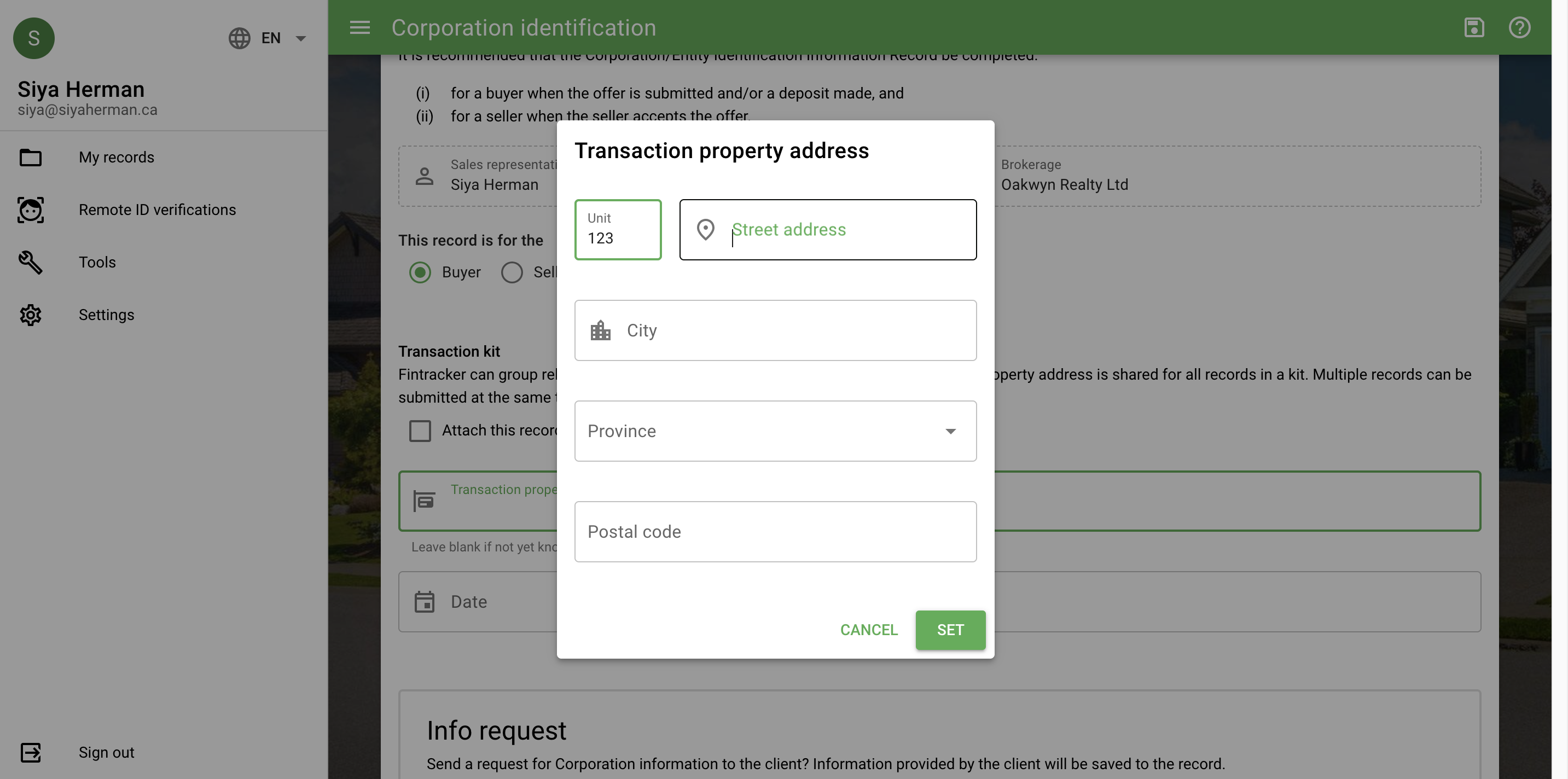
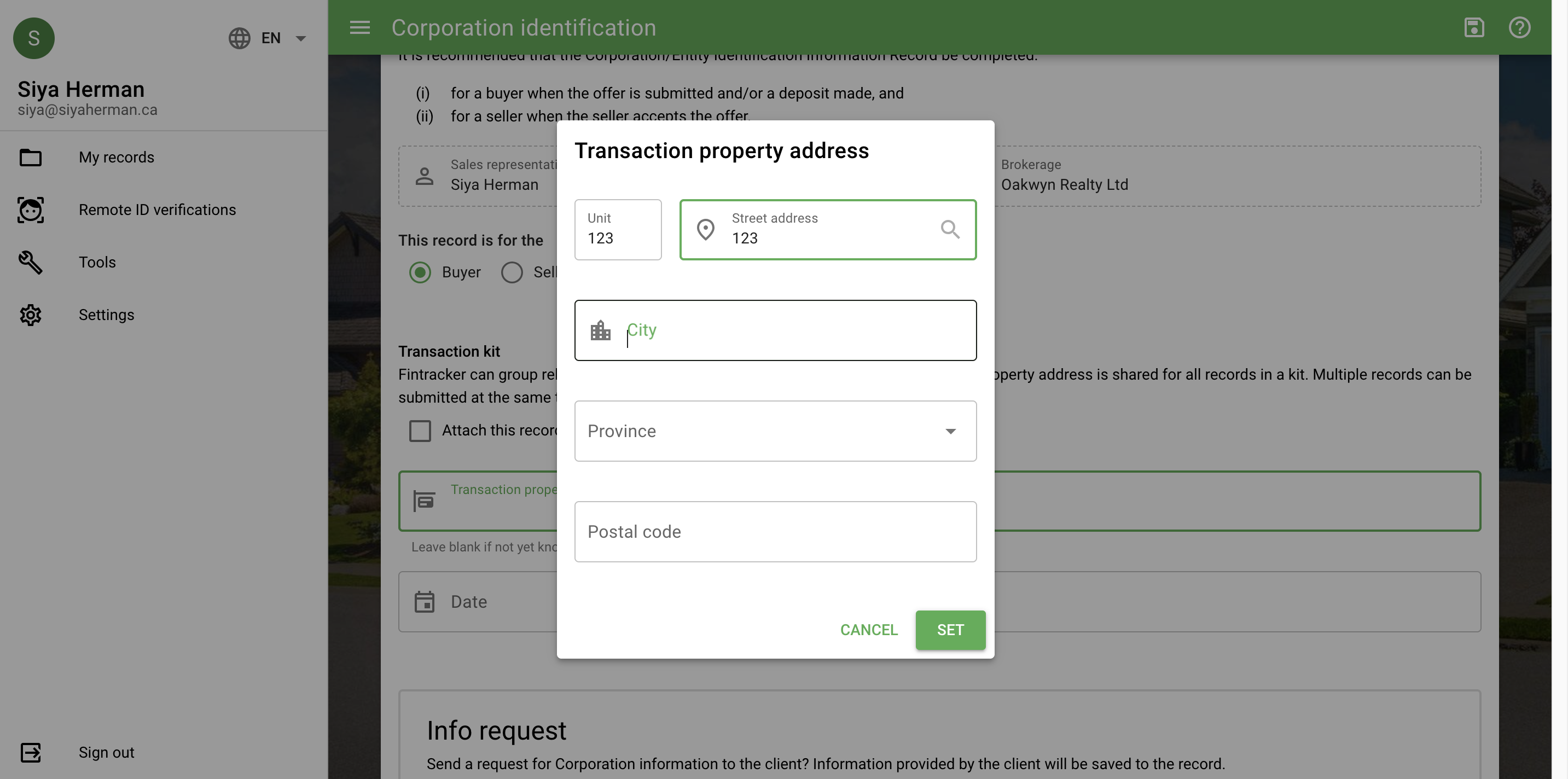
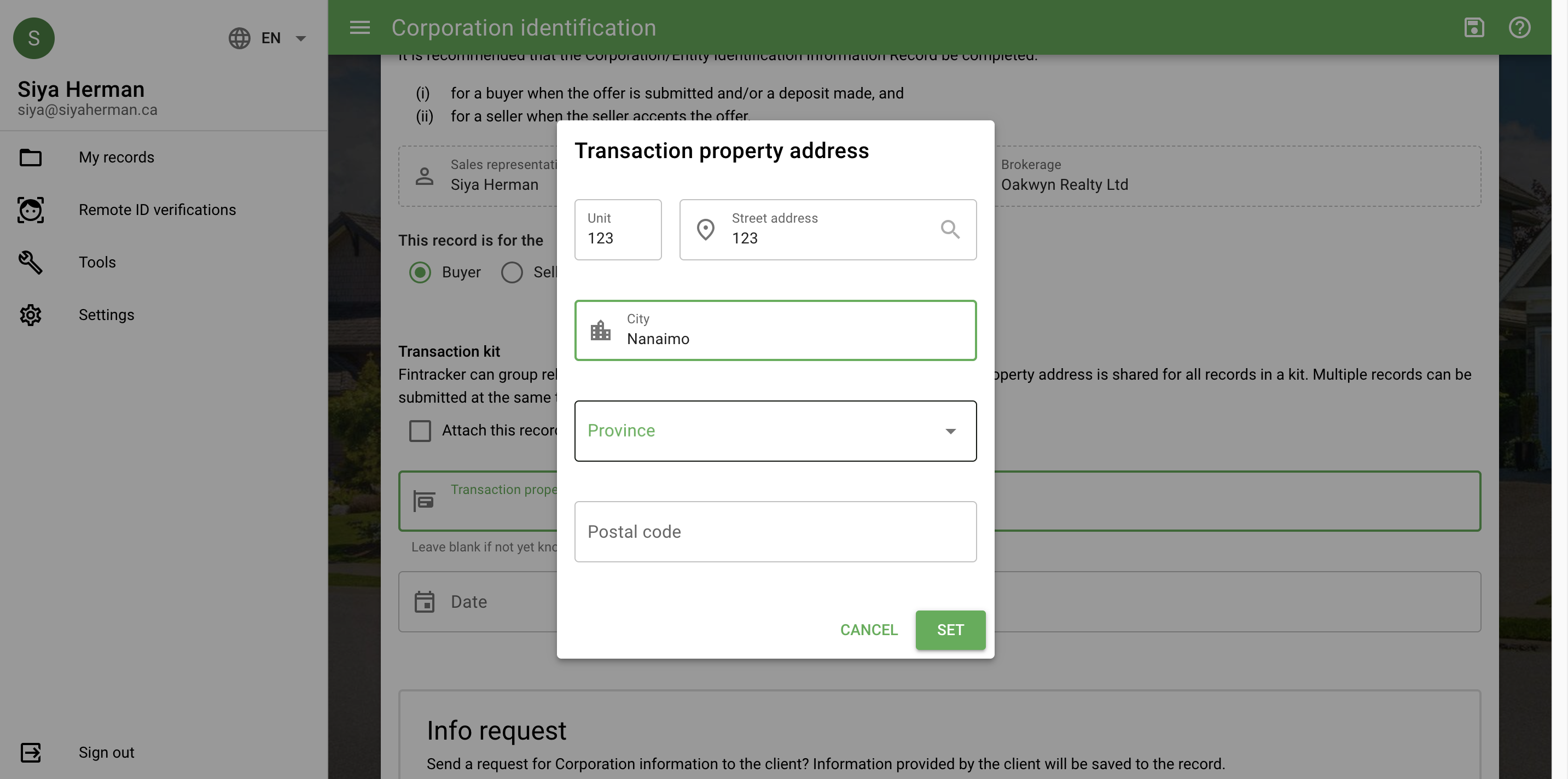
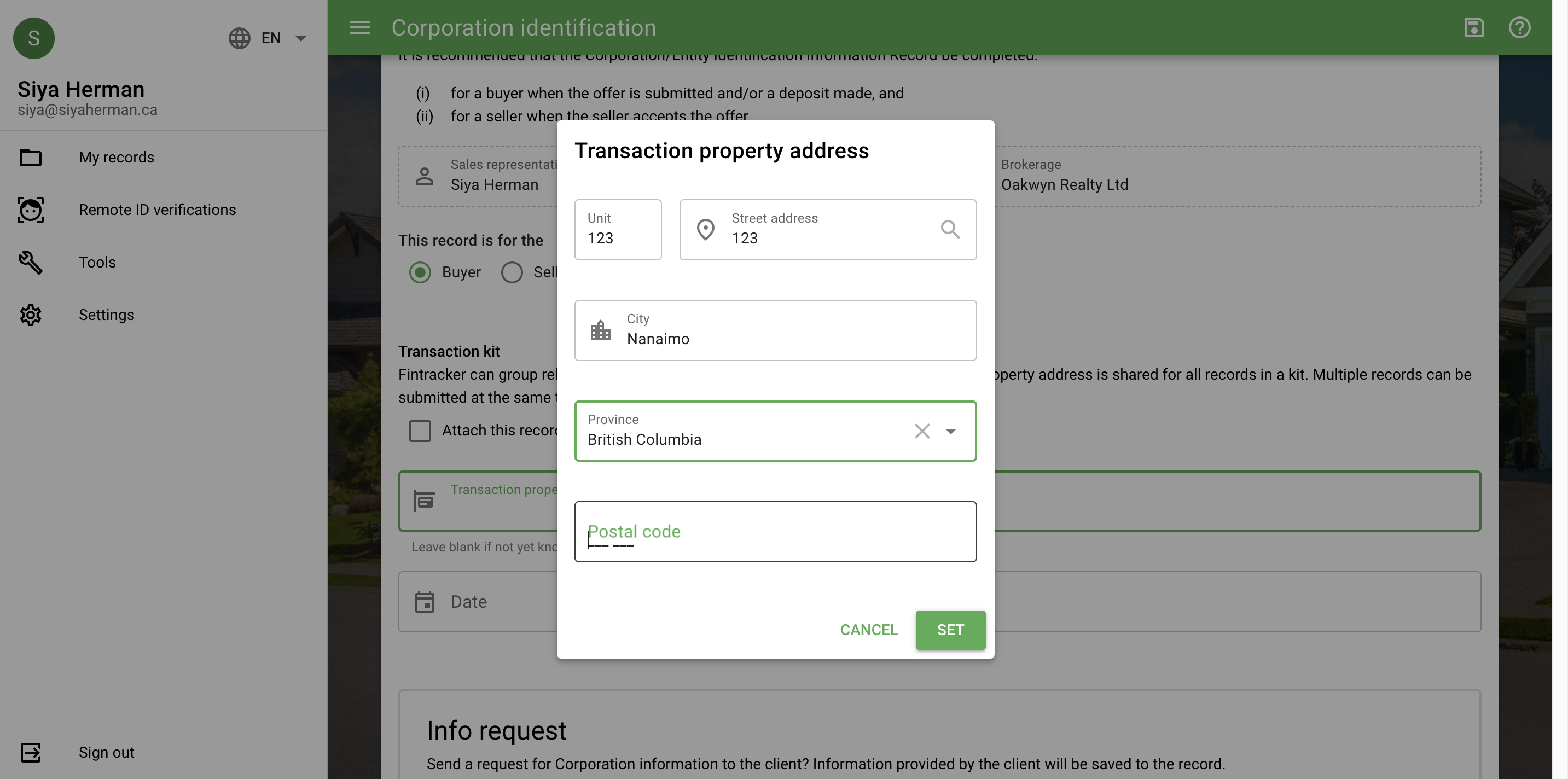
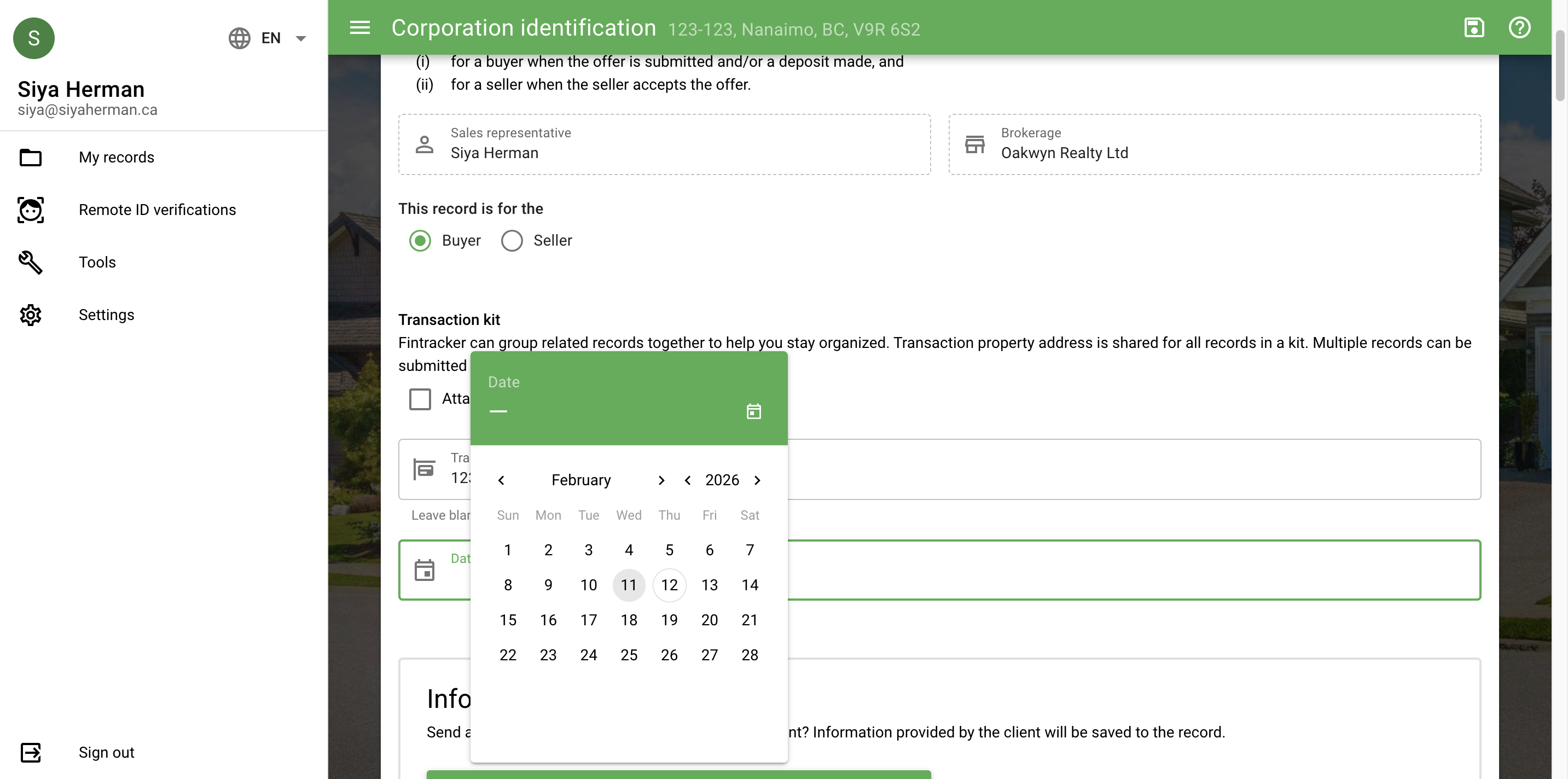
Date.
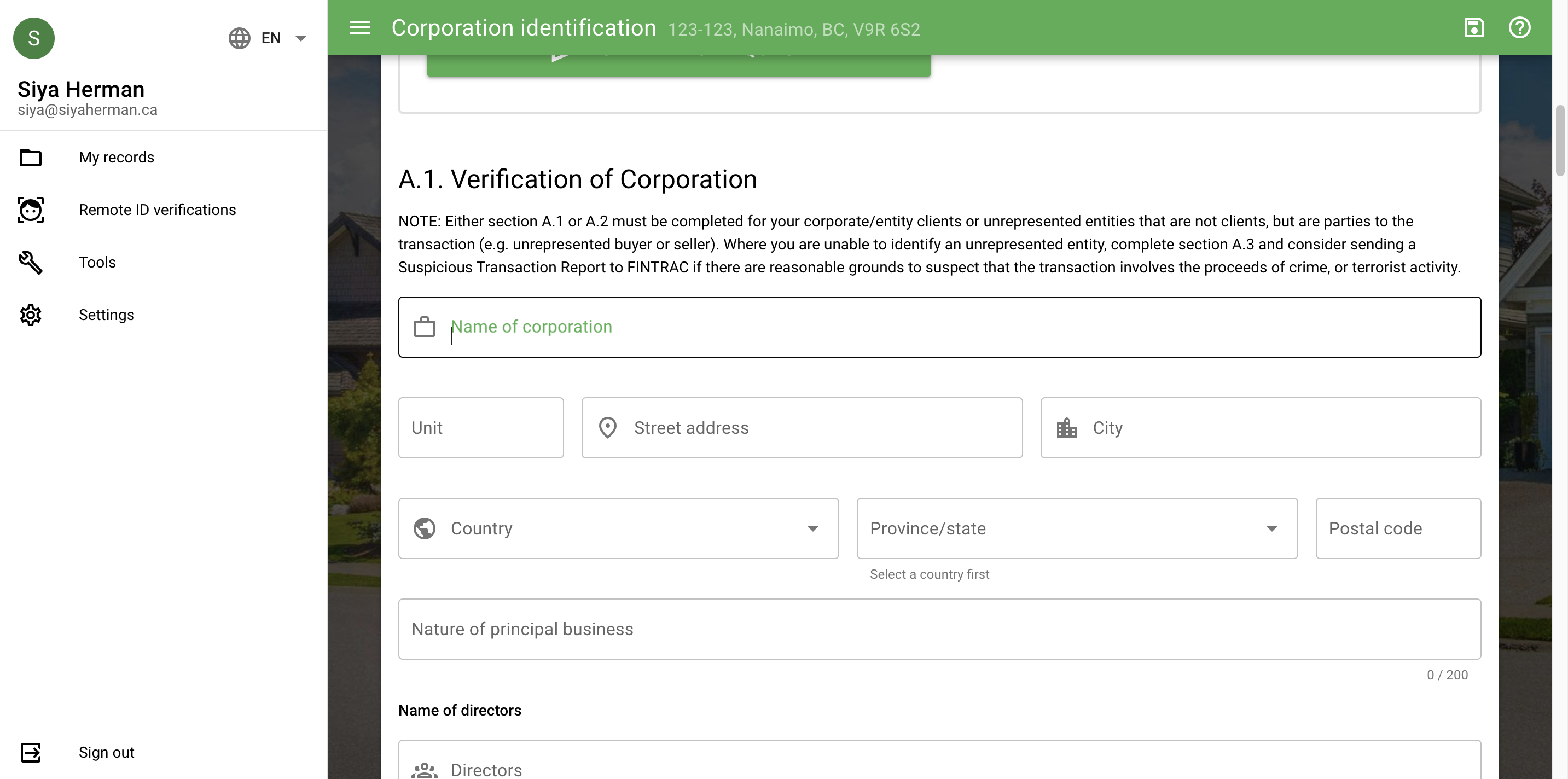
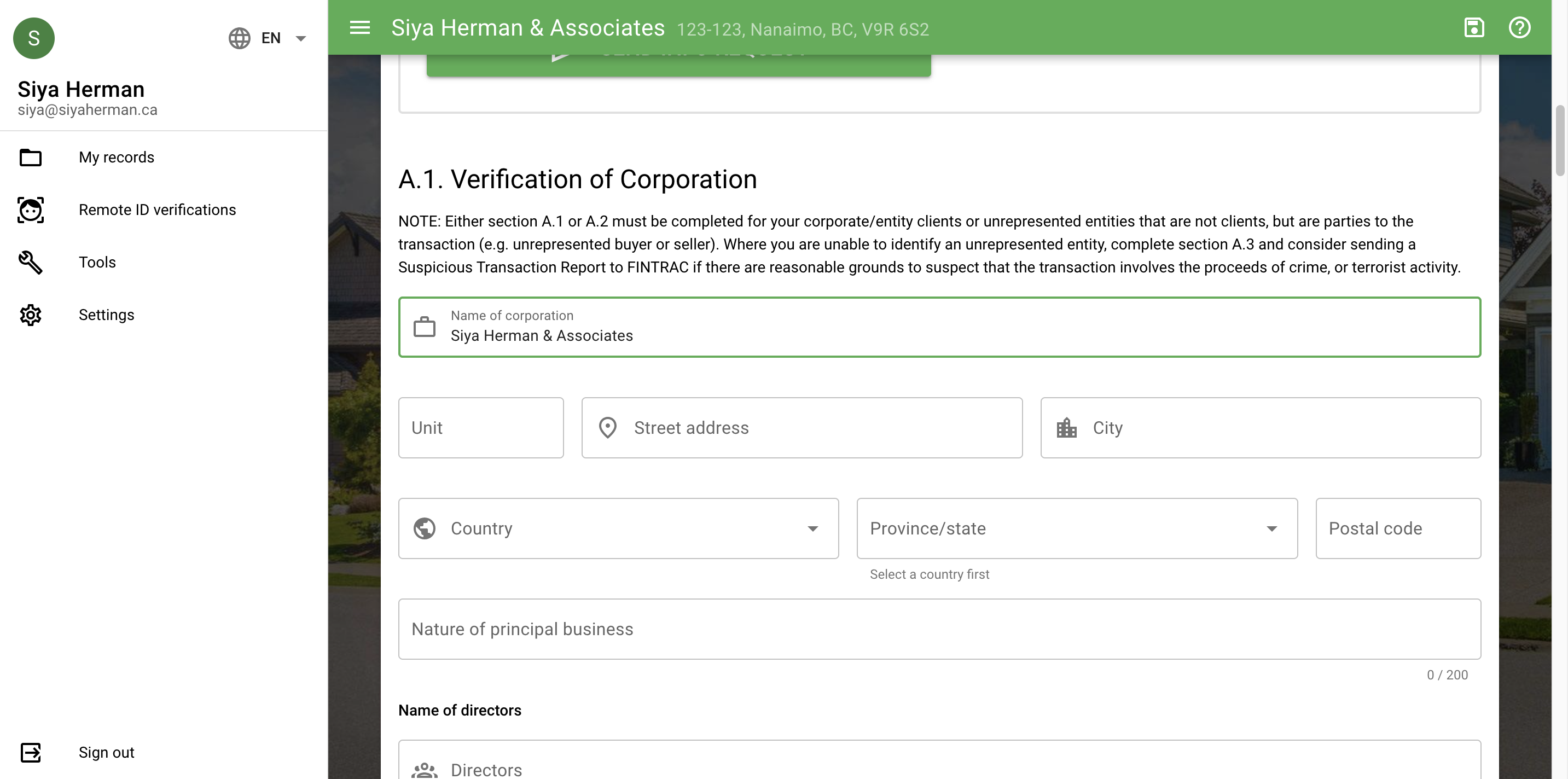
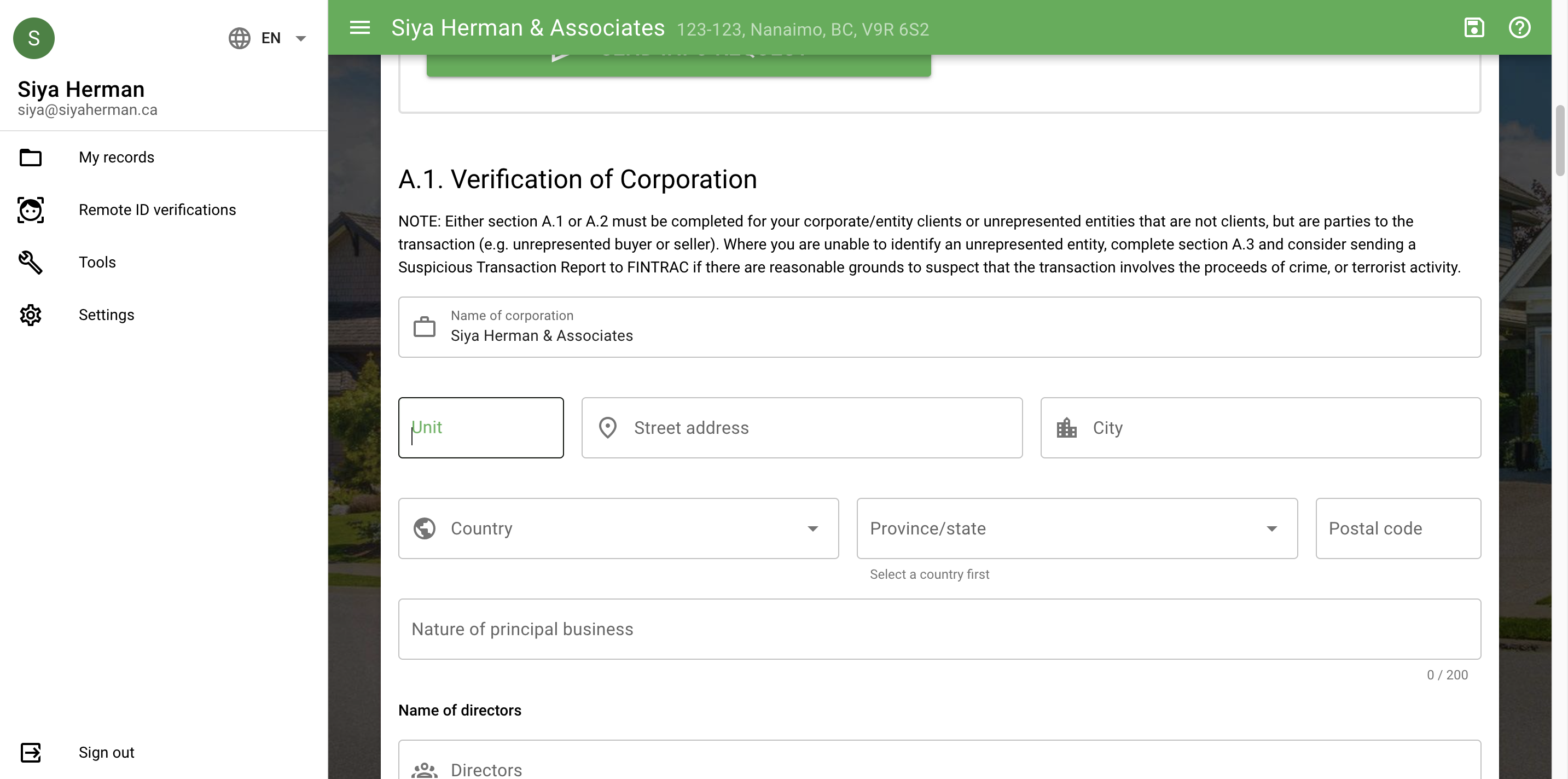
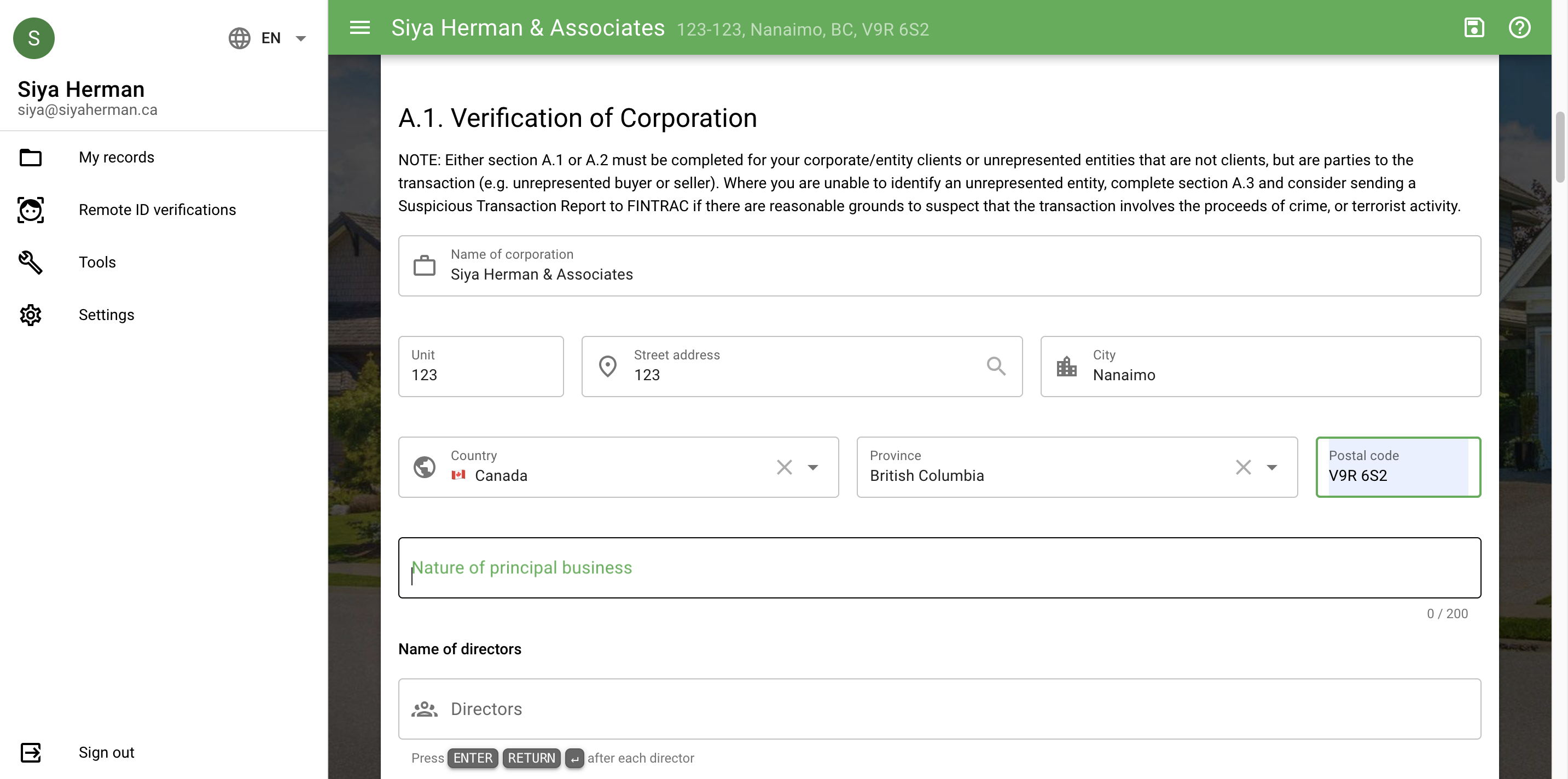
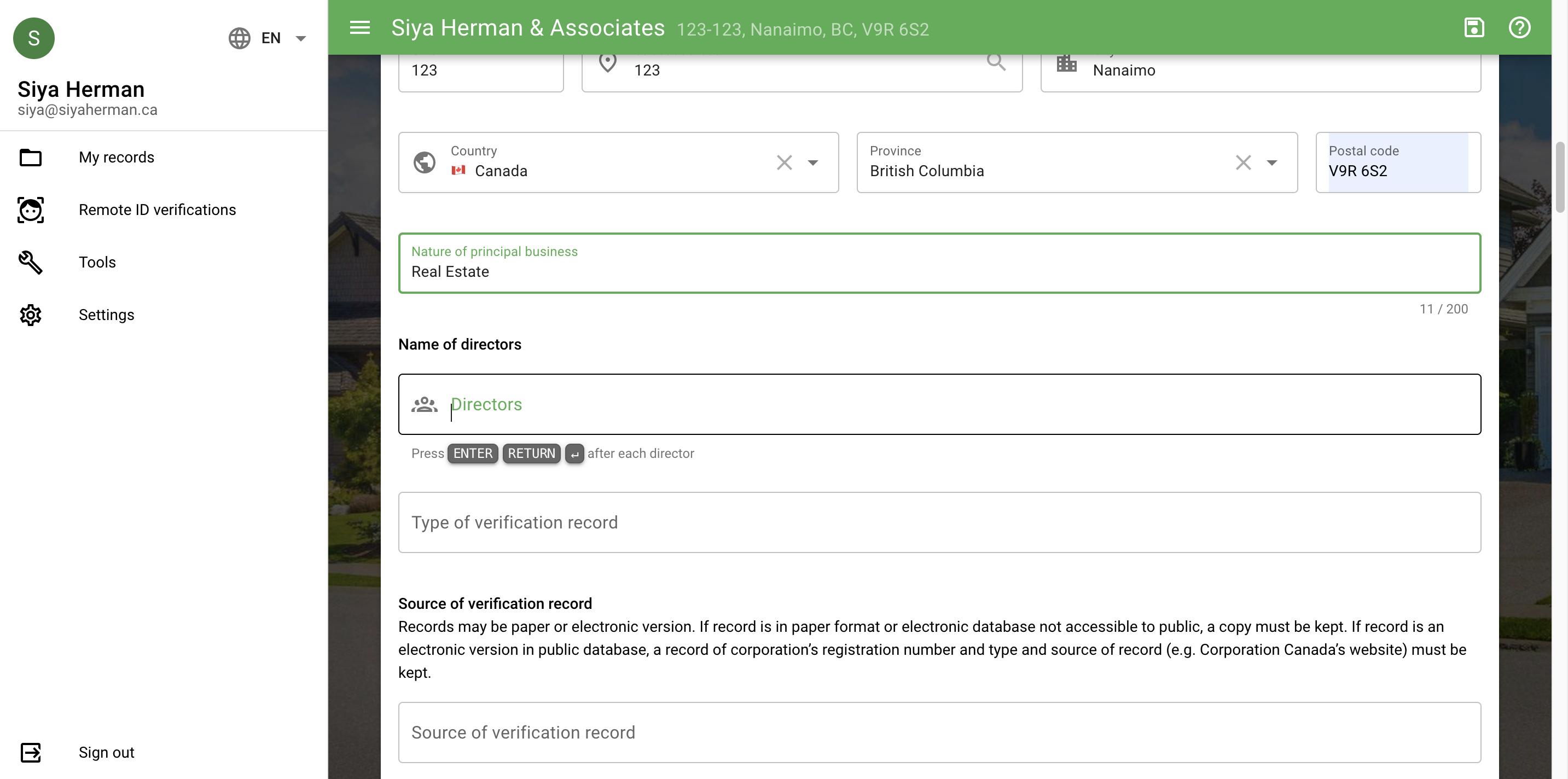
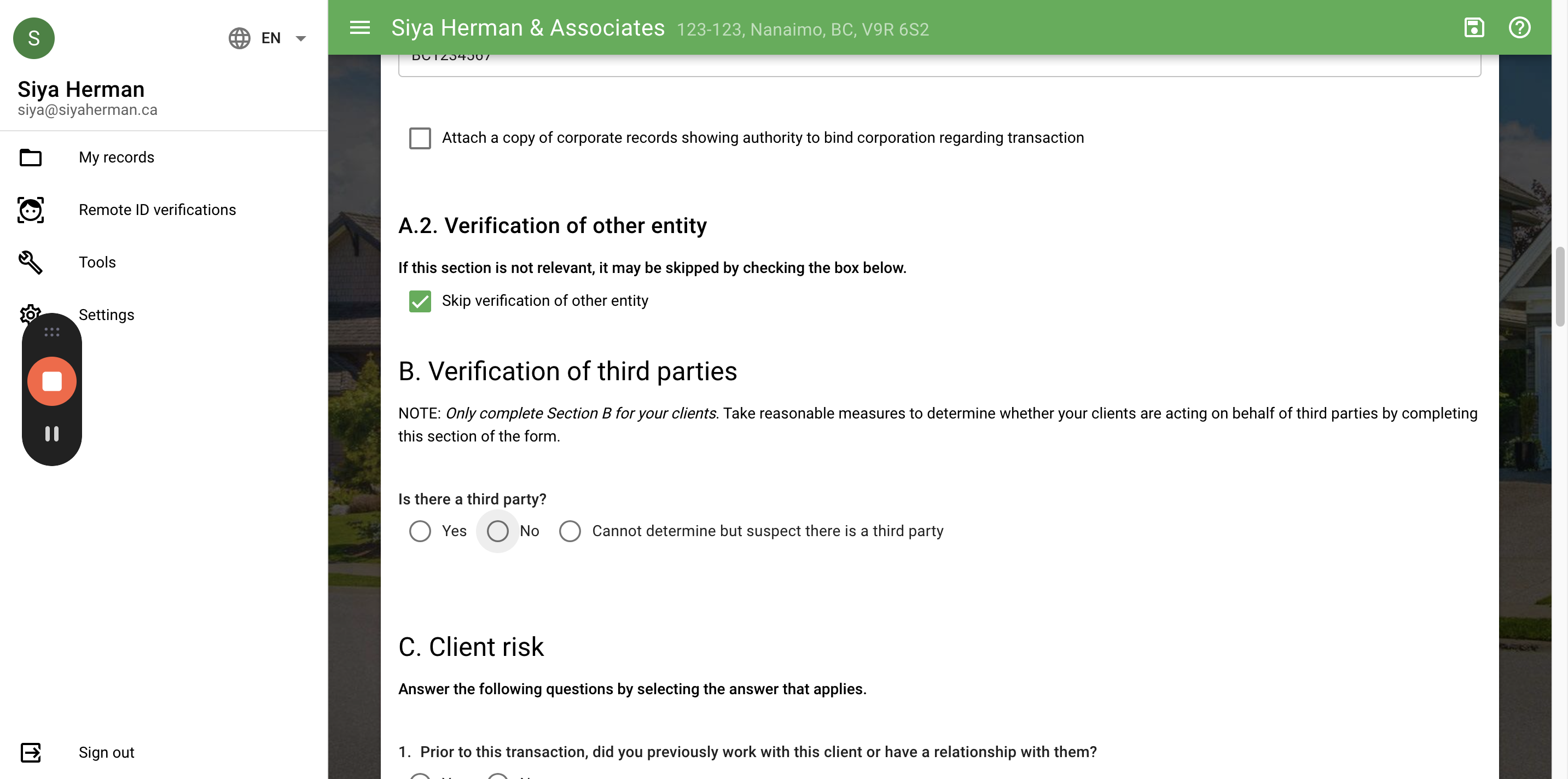
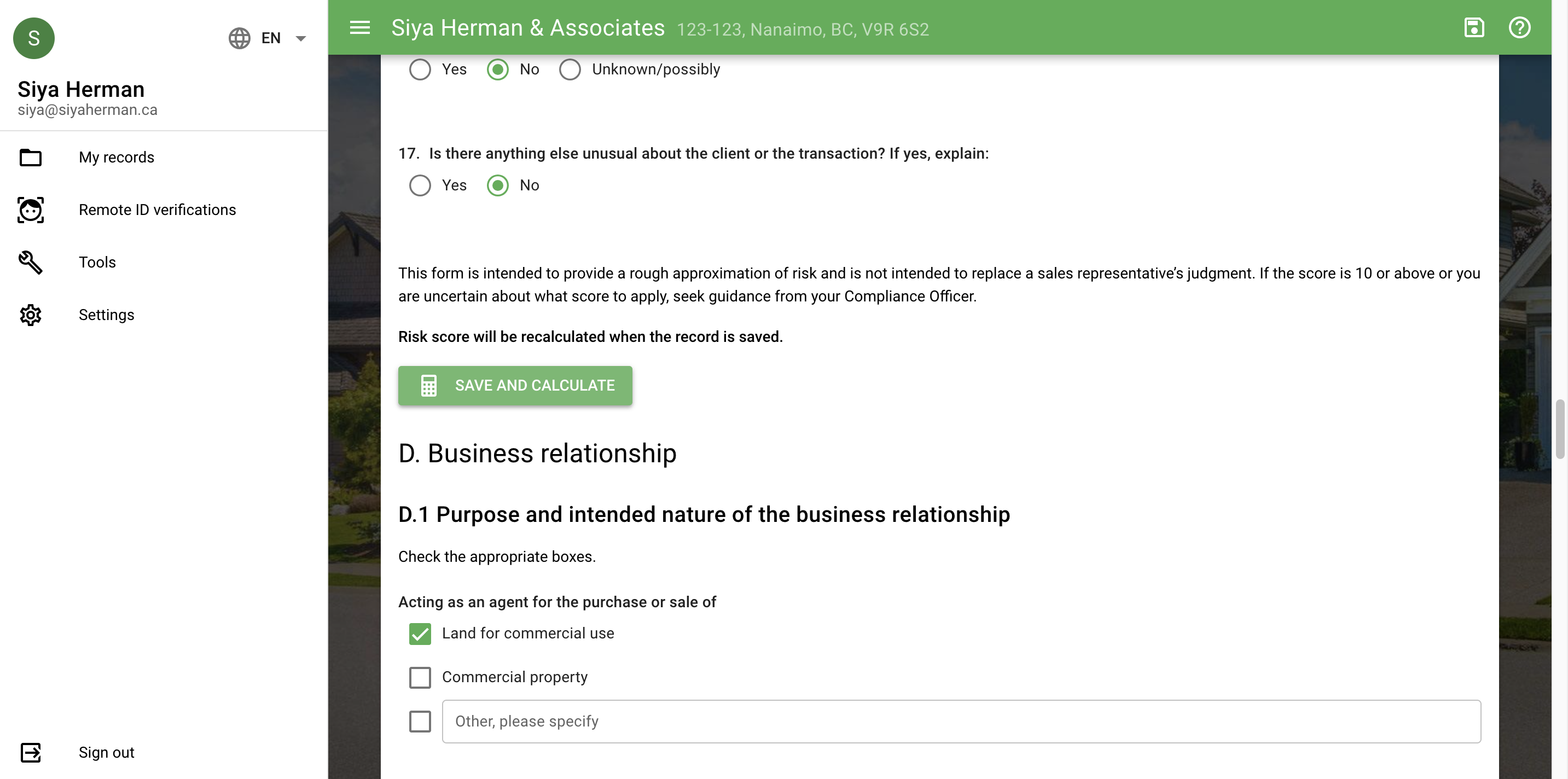
In this section, range from 1 to 4 select "No"
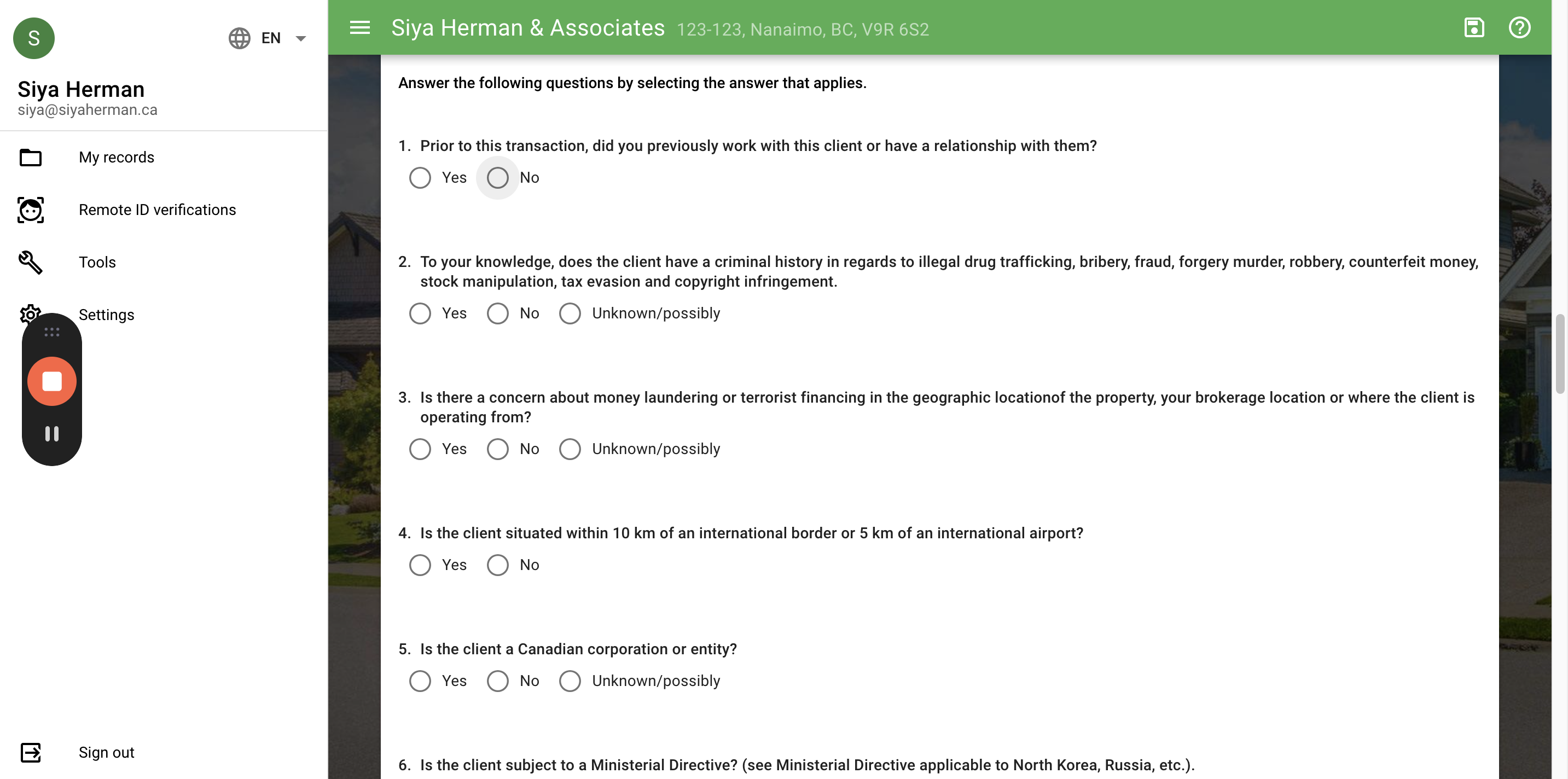
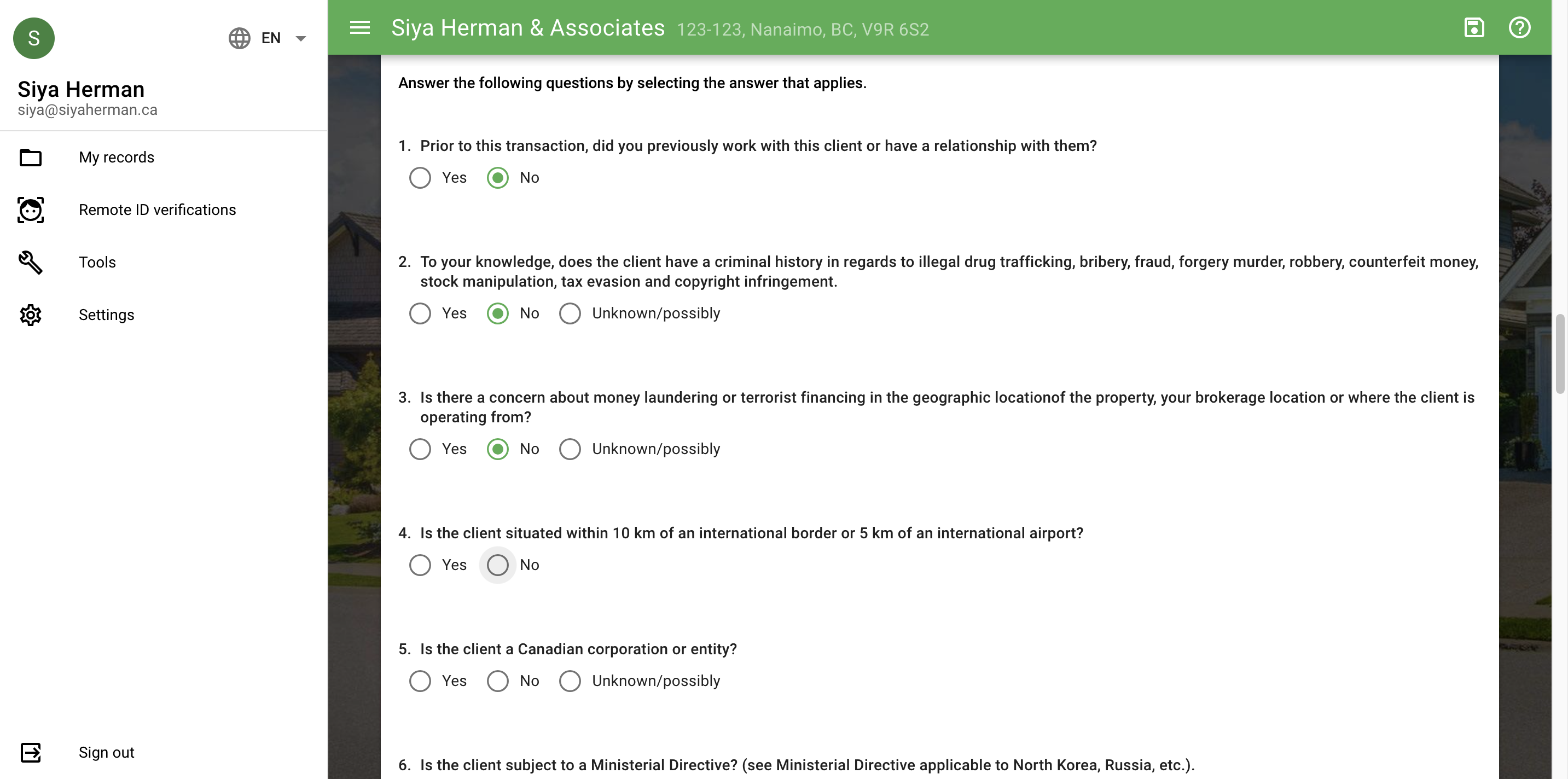
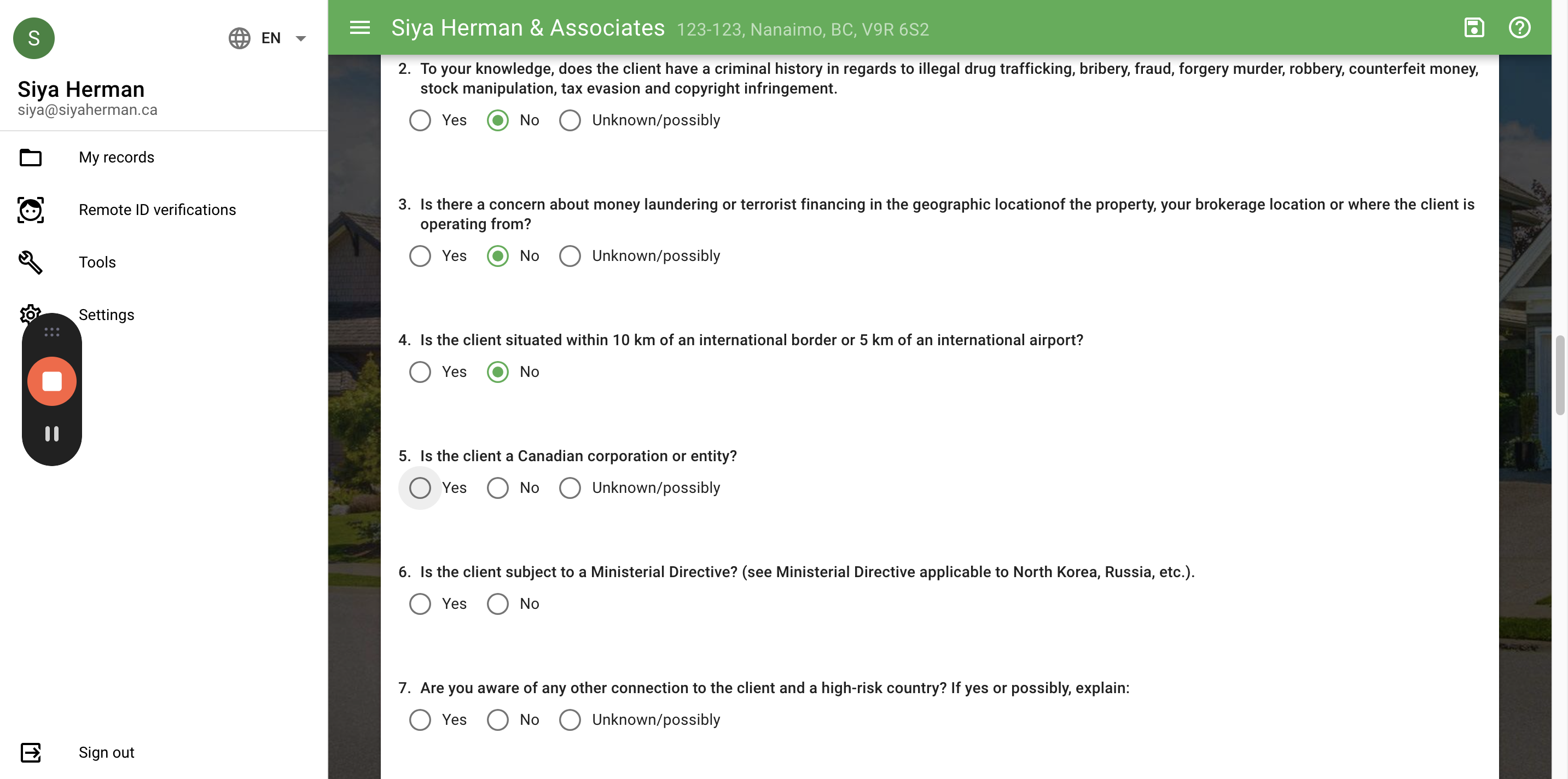
From 6 to 11, select "No"
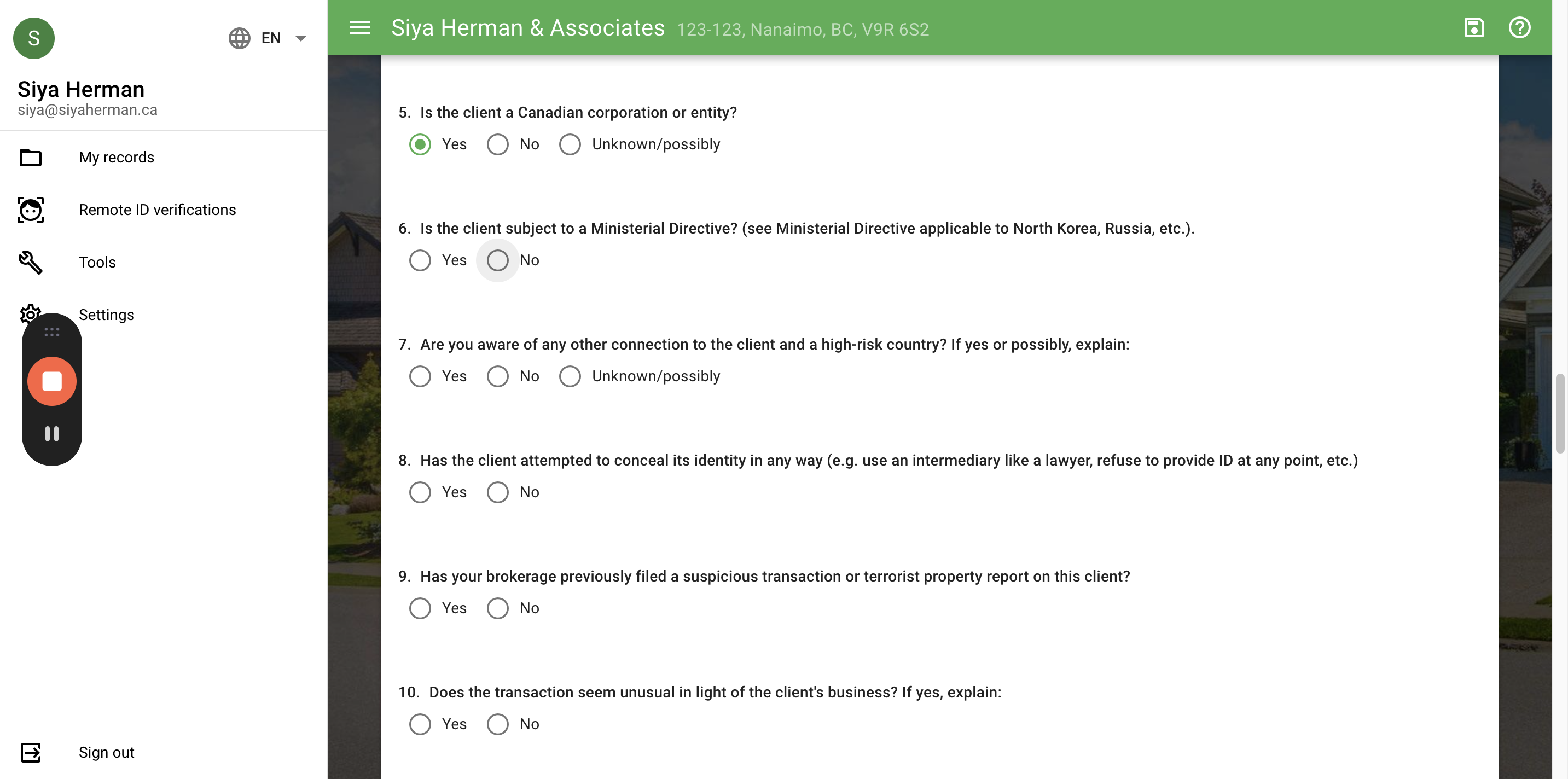
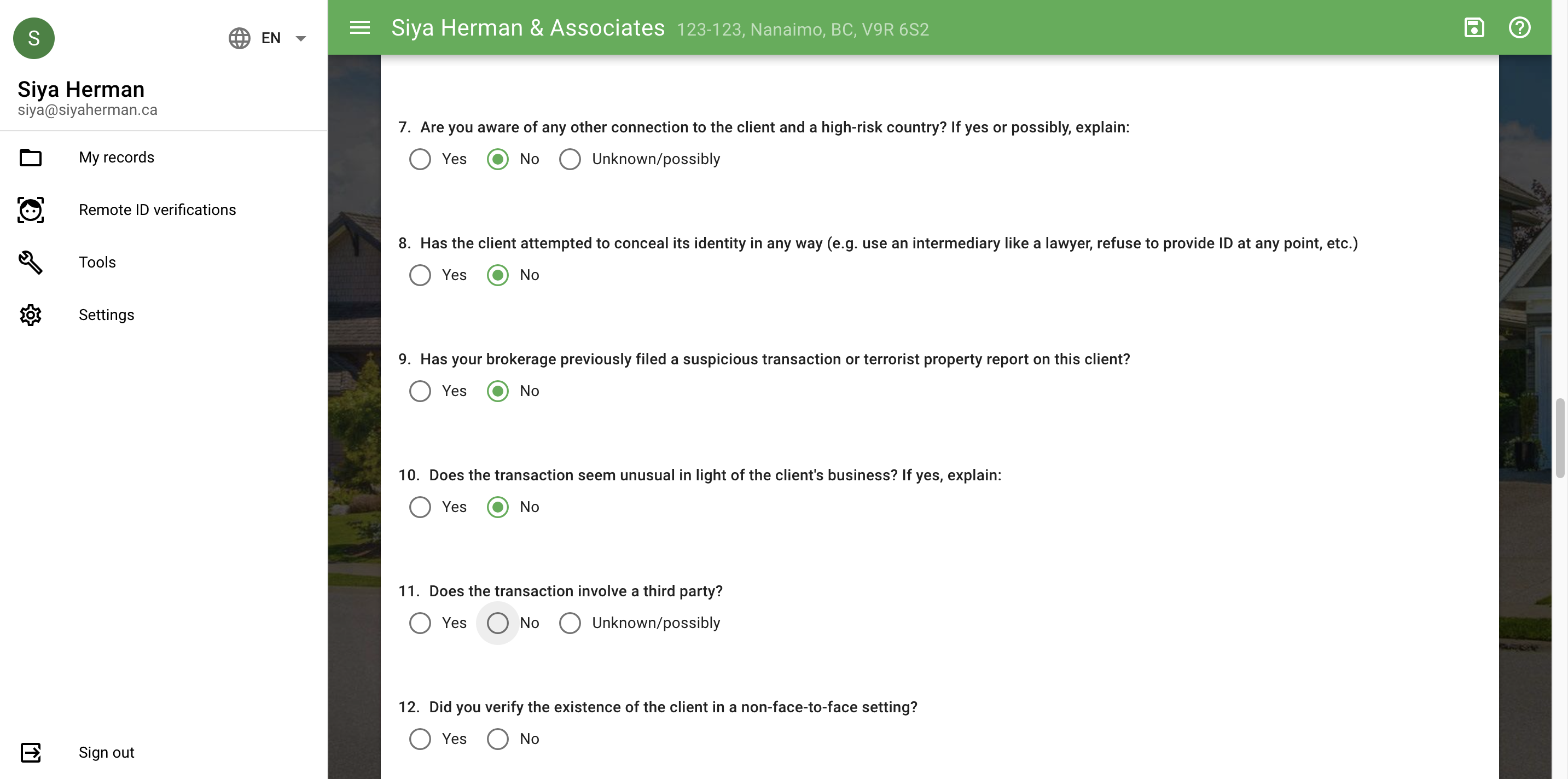
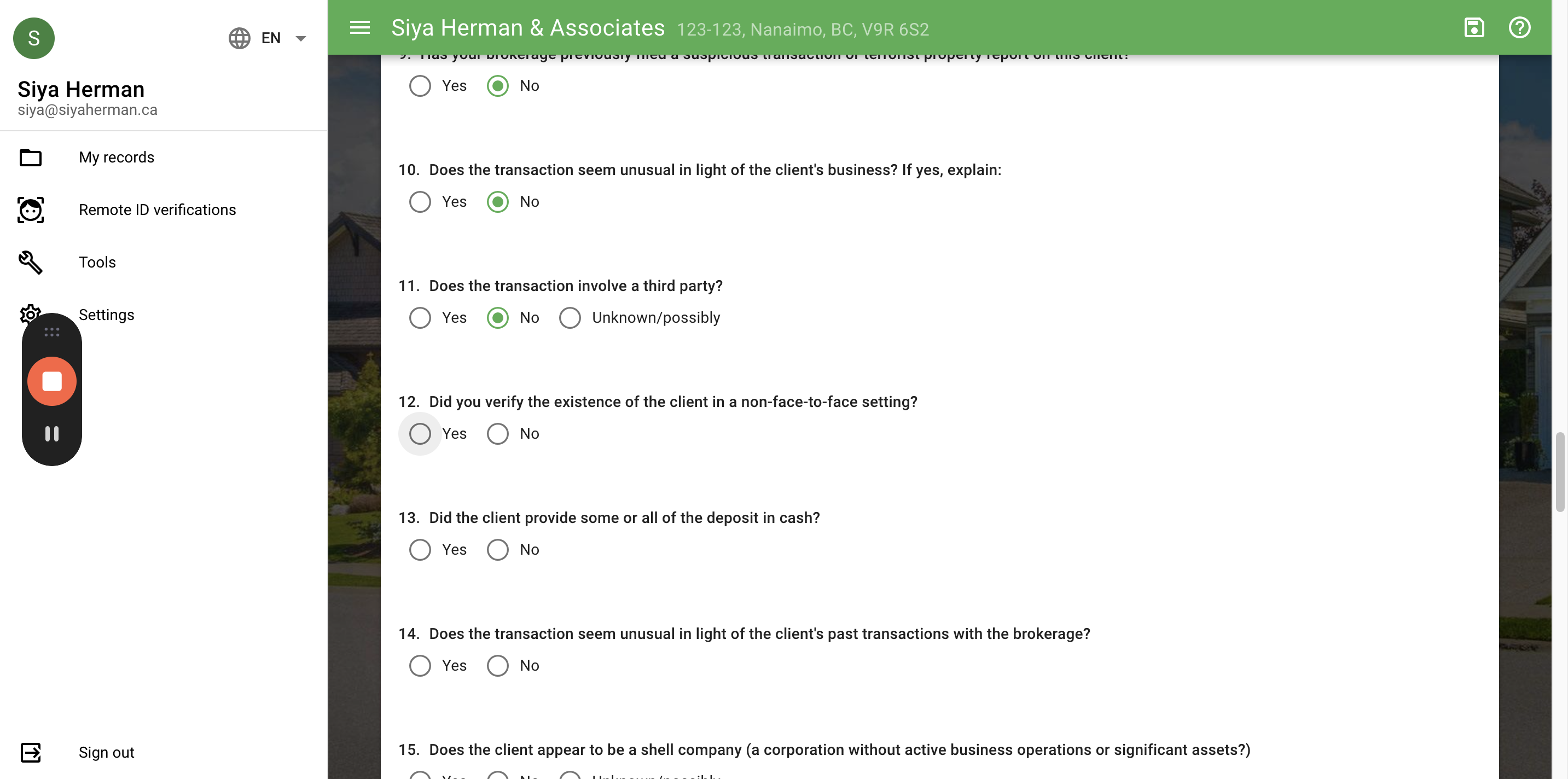
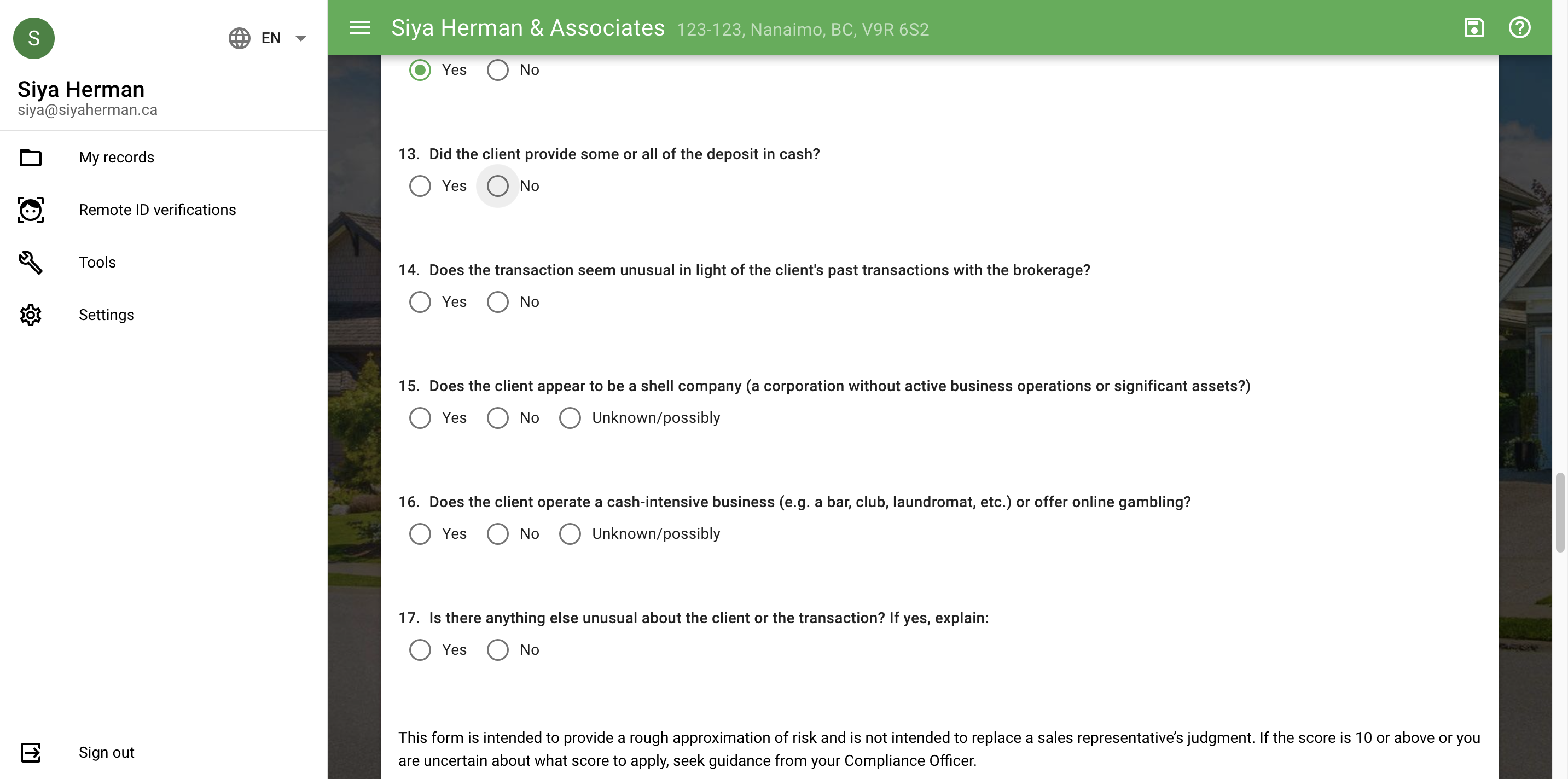
From 13 to 17, select "No"
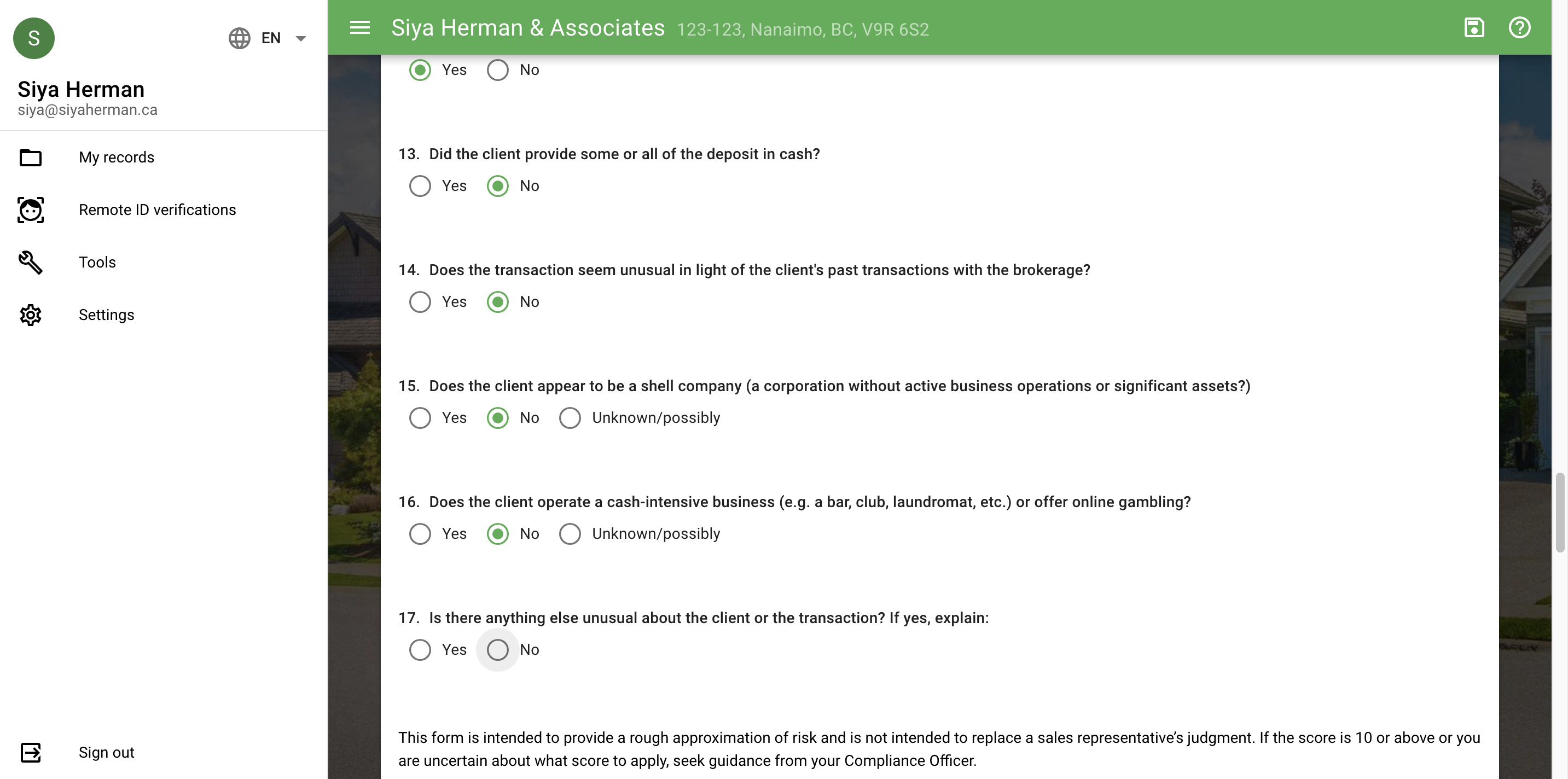
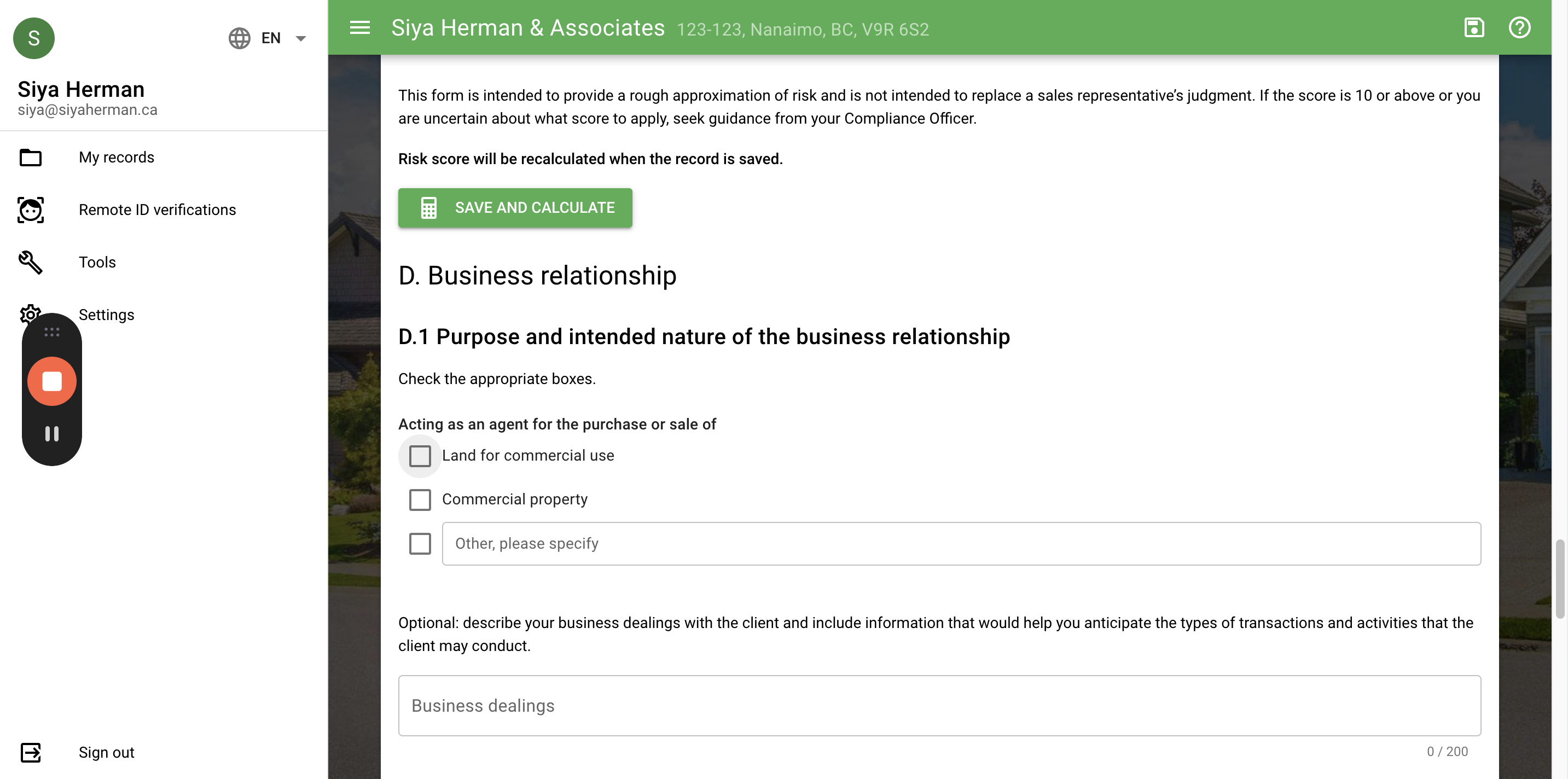
Purpose and intended nature of the business relationship: select whether land for commercial use or commercial property
To monitor business relationships and keep client information current, ask clients to provide identification each time they complete a real estate transaction with the brokerage. This ensures that the information on file is accurate and up-to-date.
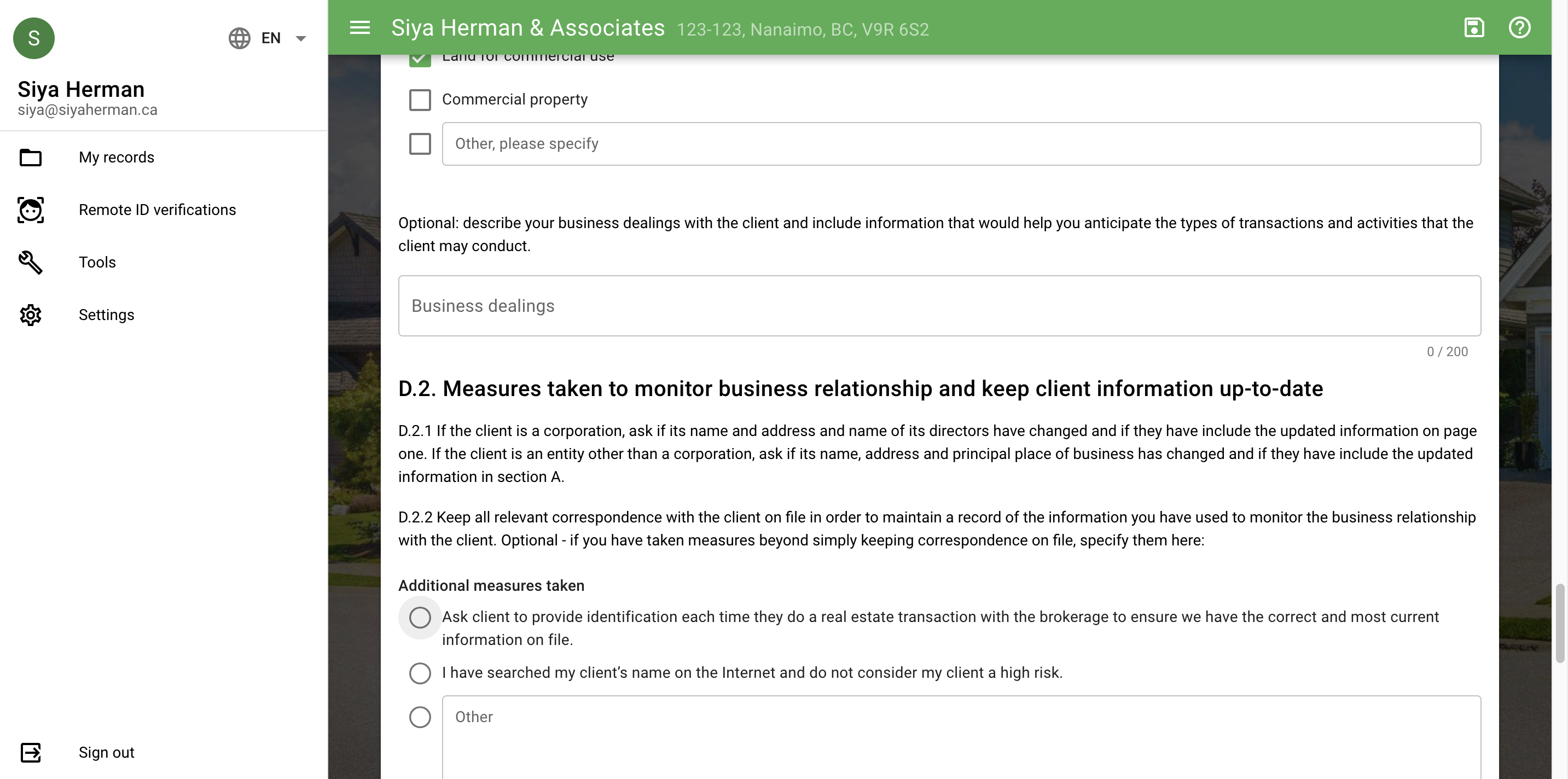
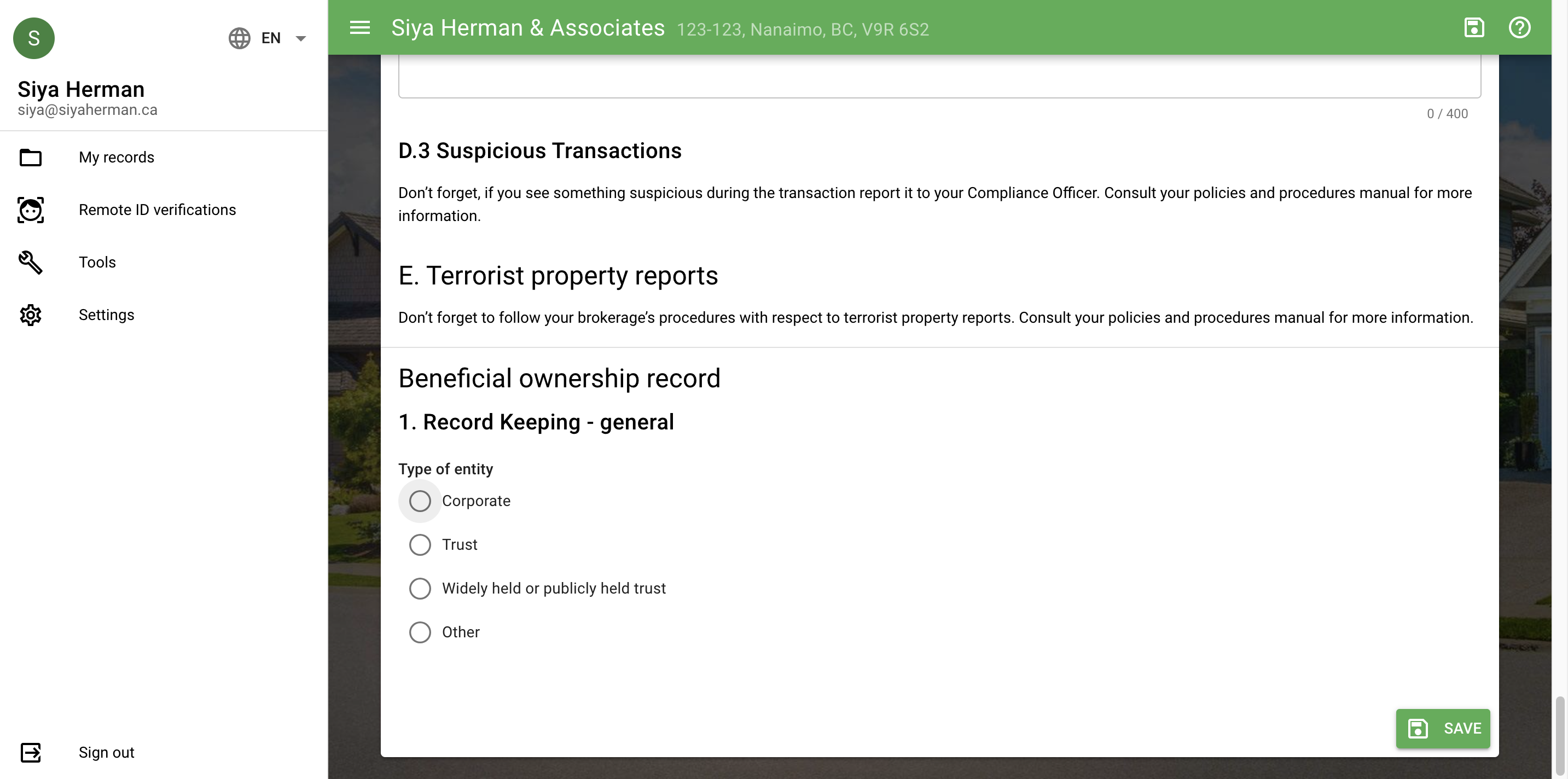
For beneficial ownership records, select whether "corporate/trust/widely held or publicly held trust"
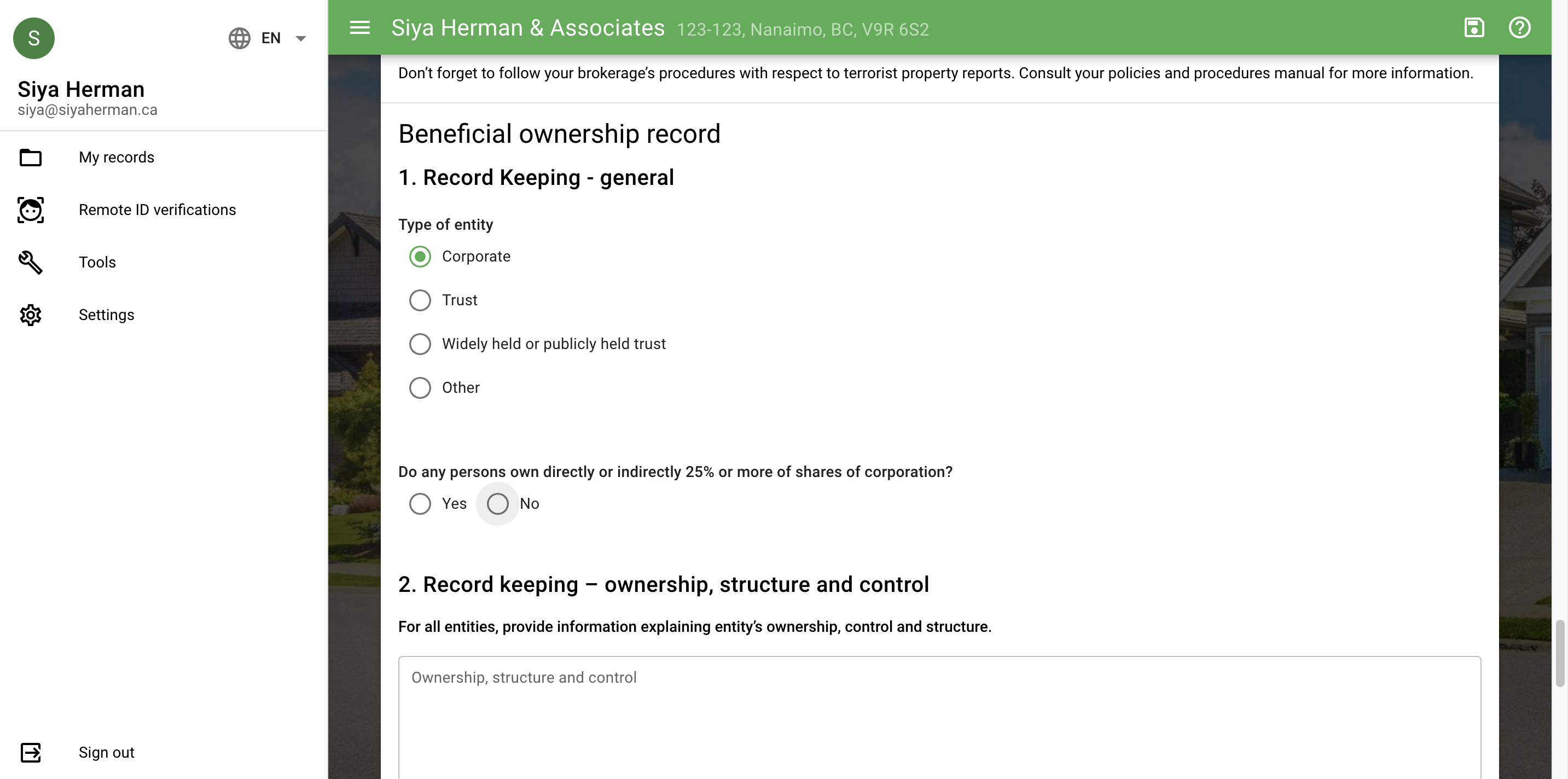
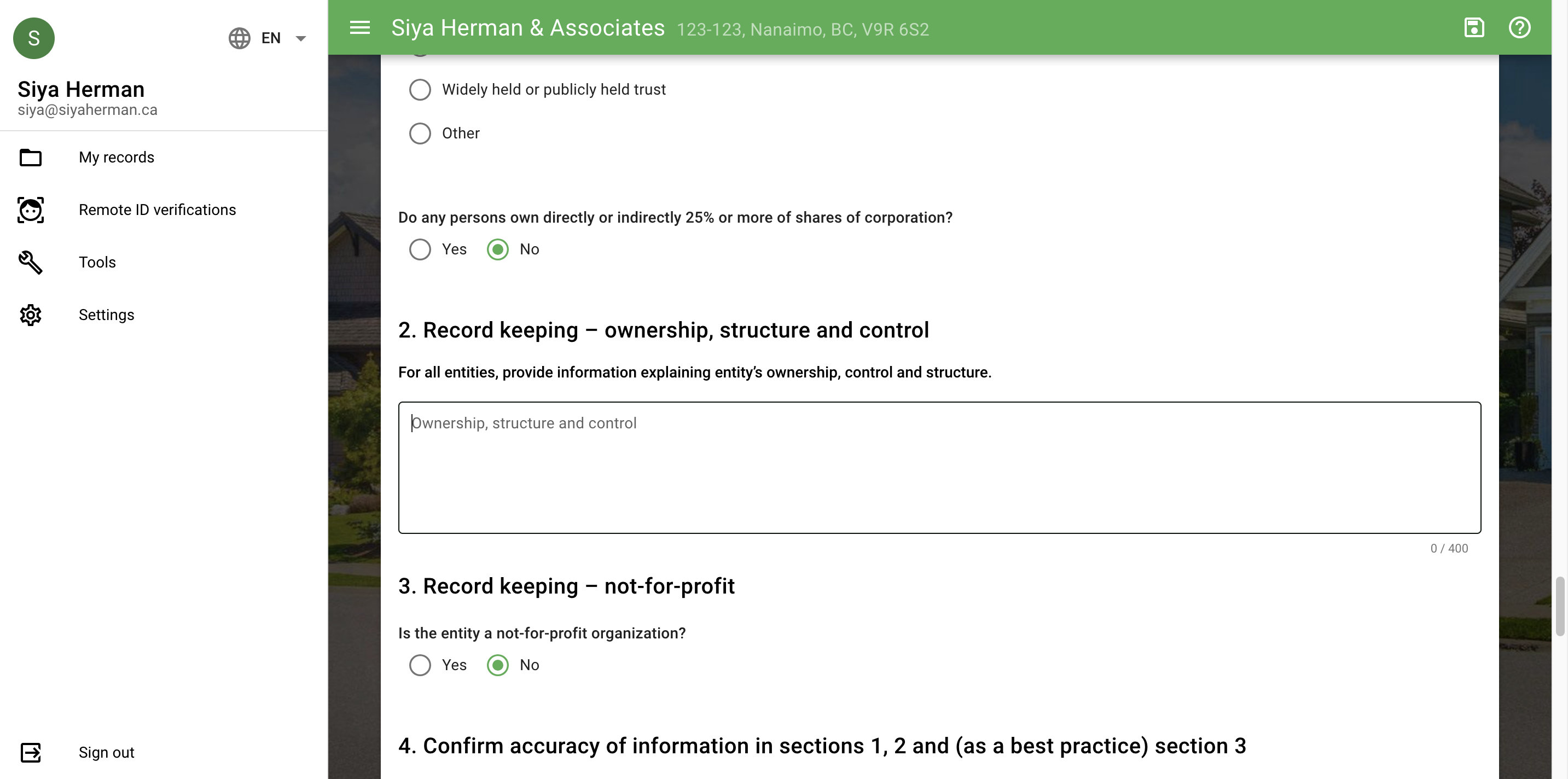
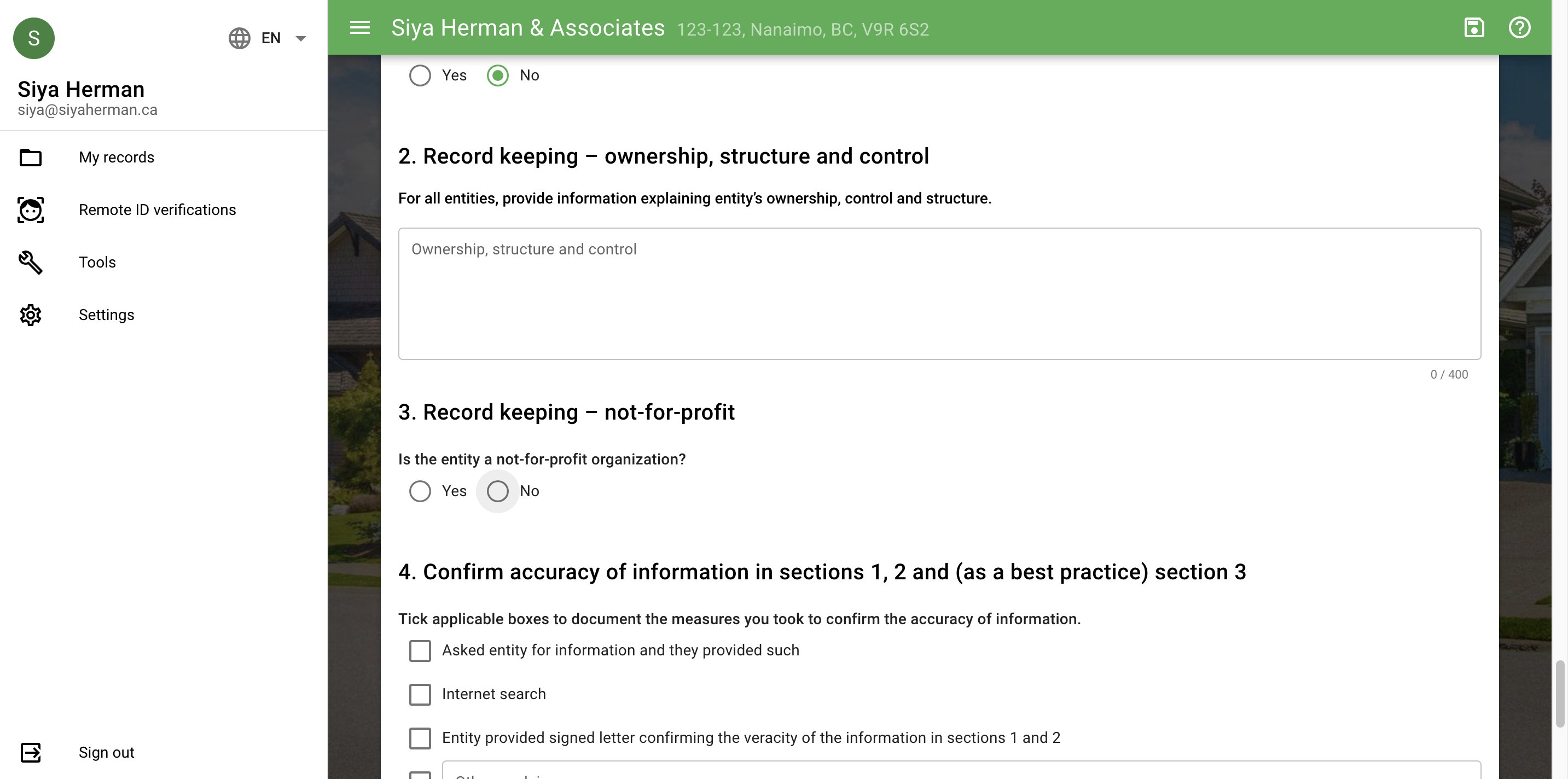
Confirm the accuracy of information in sections one, two, and three. Select the entity to ask for the information they provided.
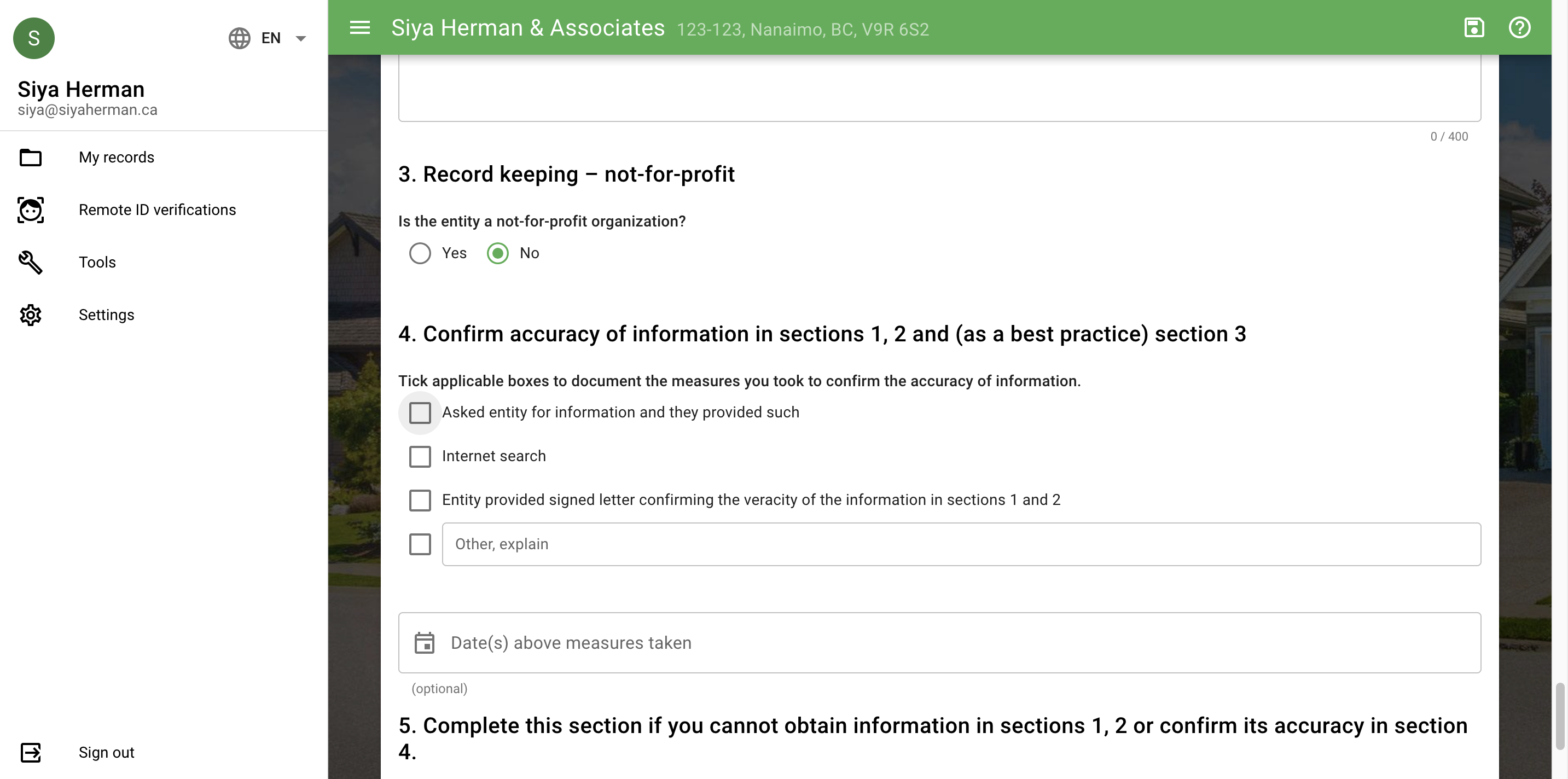
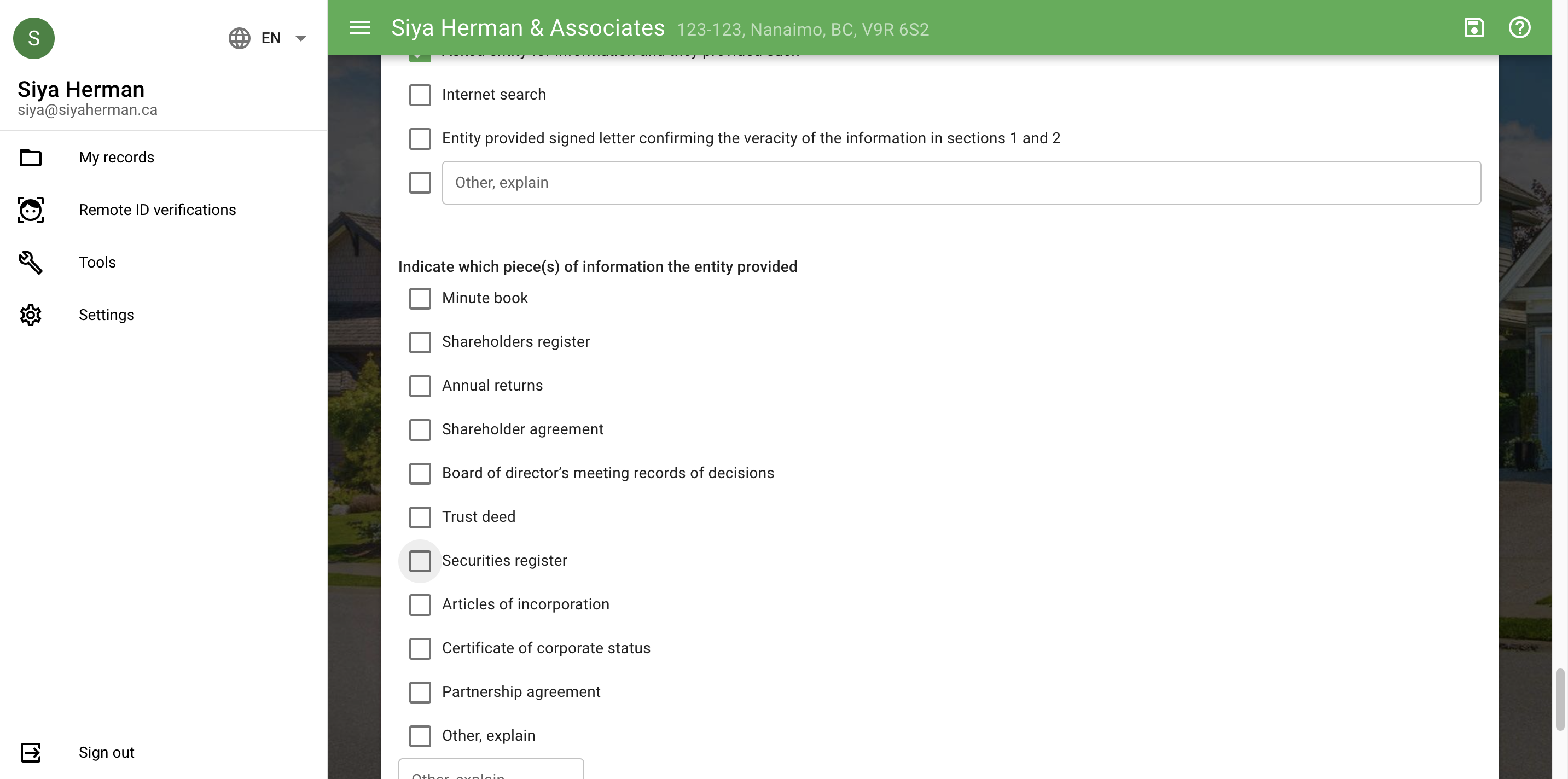
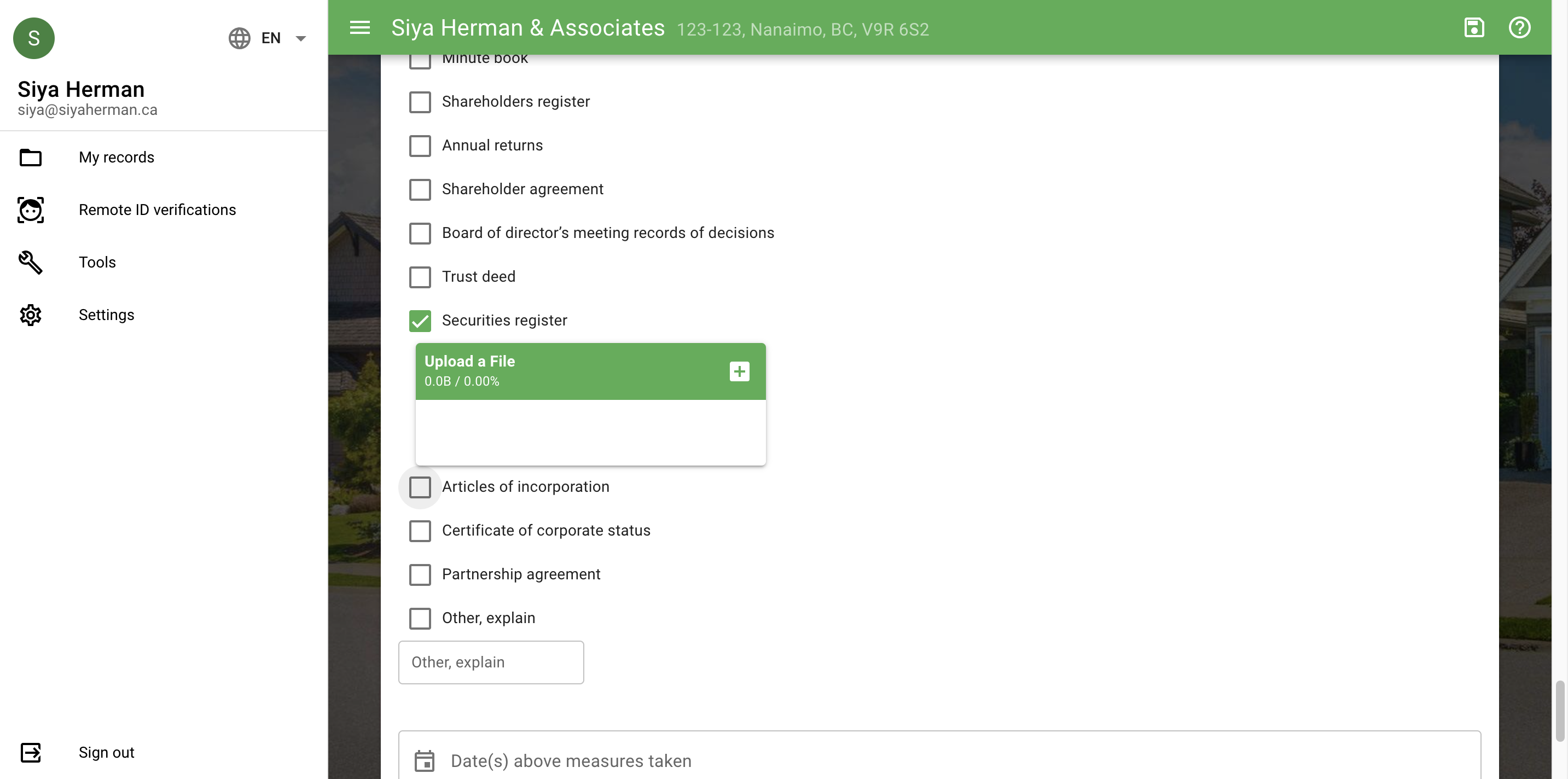
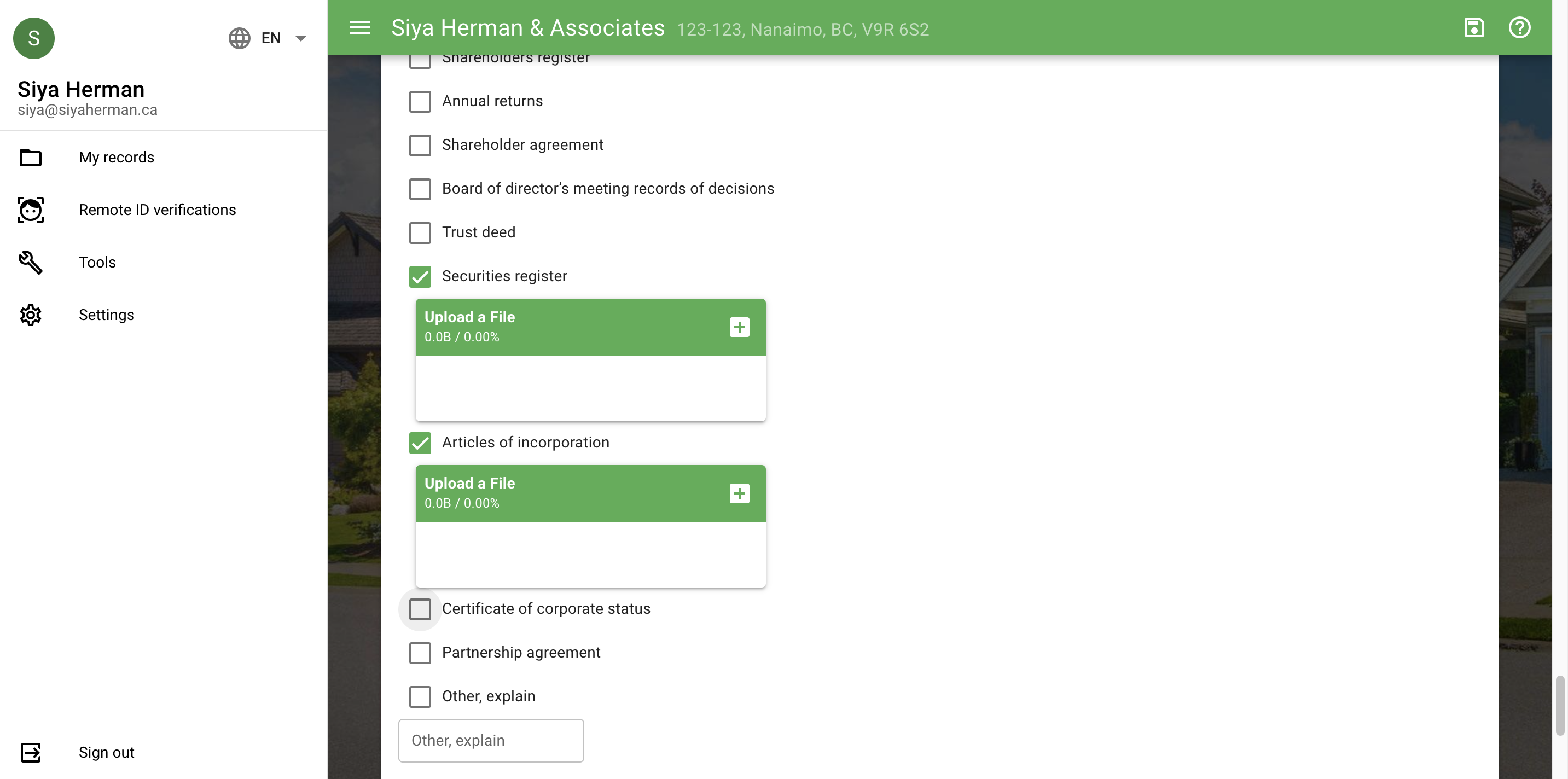
So, you will check the documents provided by the corporation. For example, they provide the securities register, articles of incorporation, and certificate of corporate status.
Complete this section only if you cannot obtain information from sections one or two, or confirm section four. Select took reasonable measures.
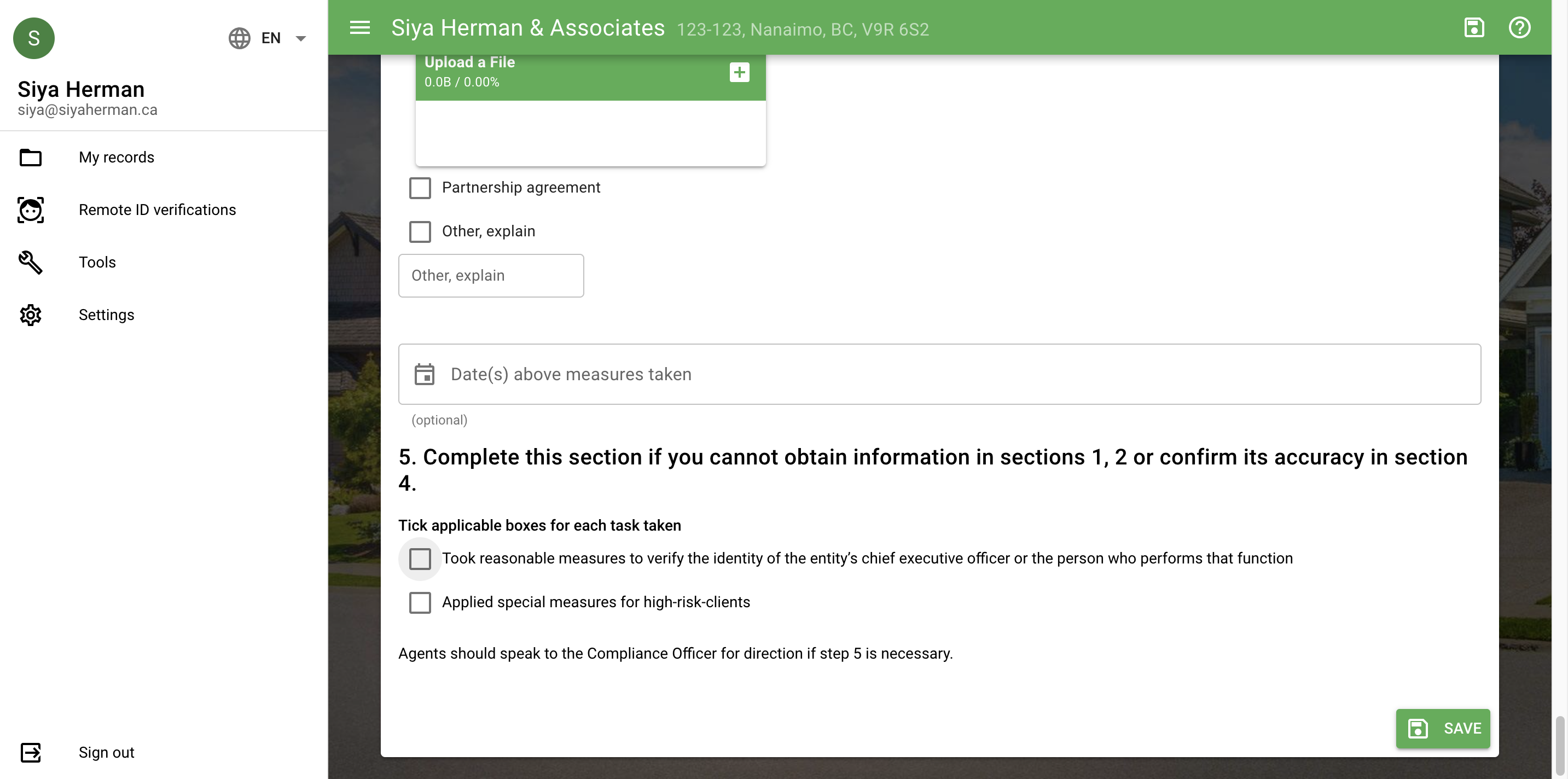
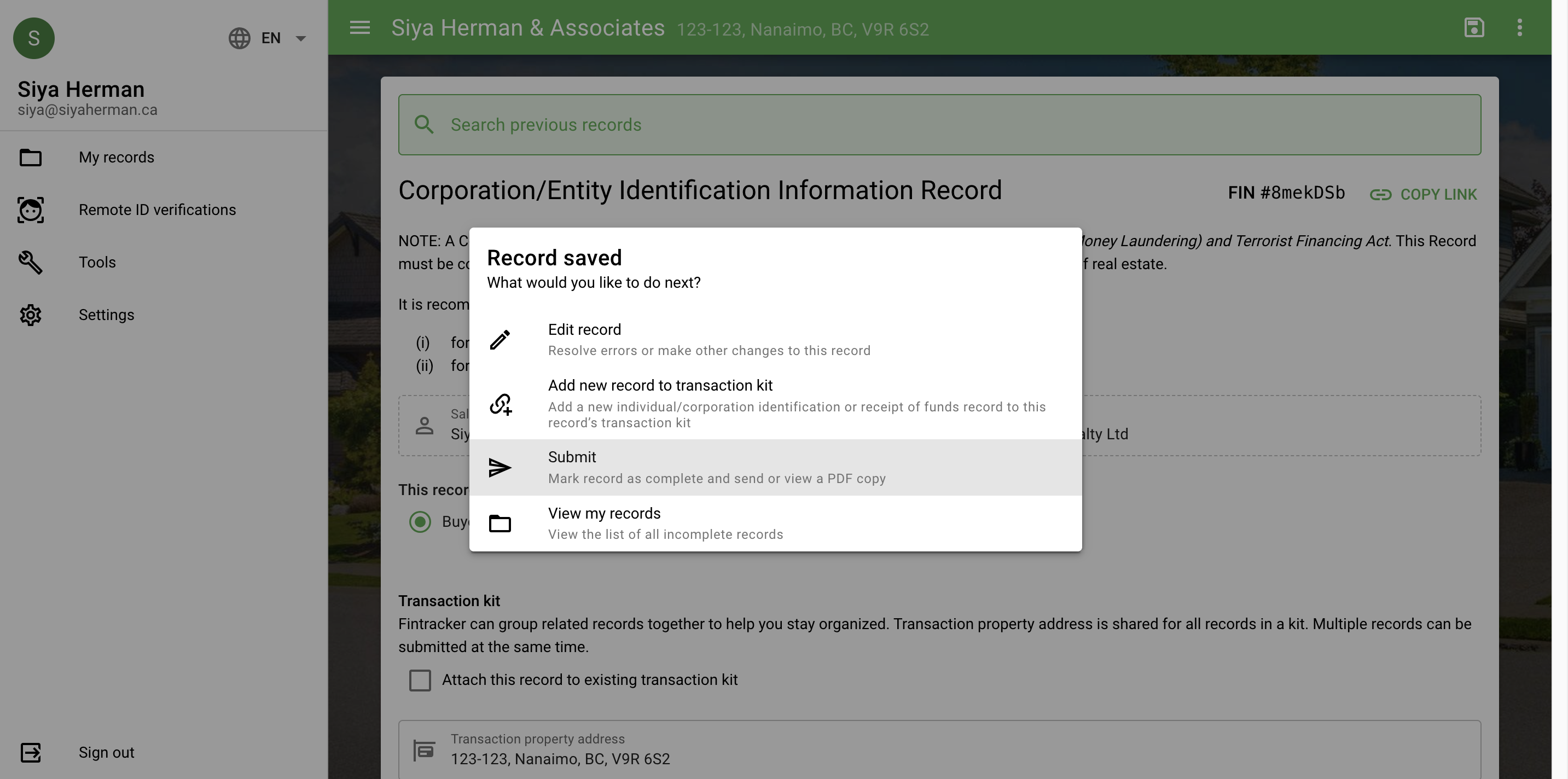
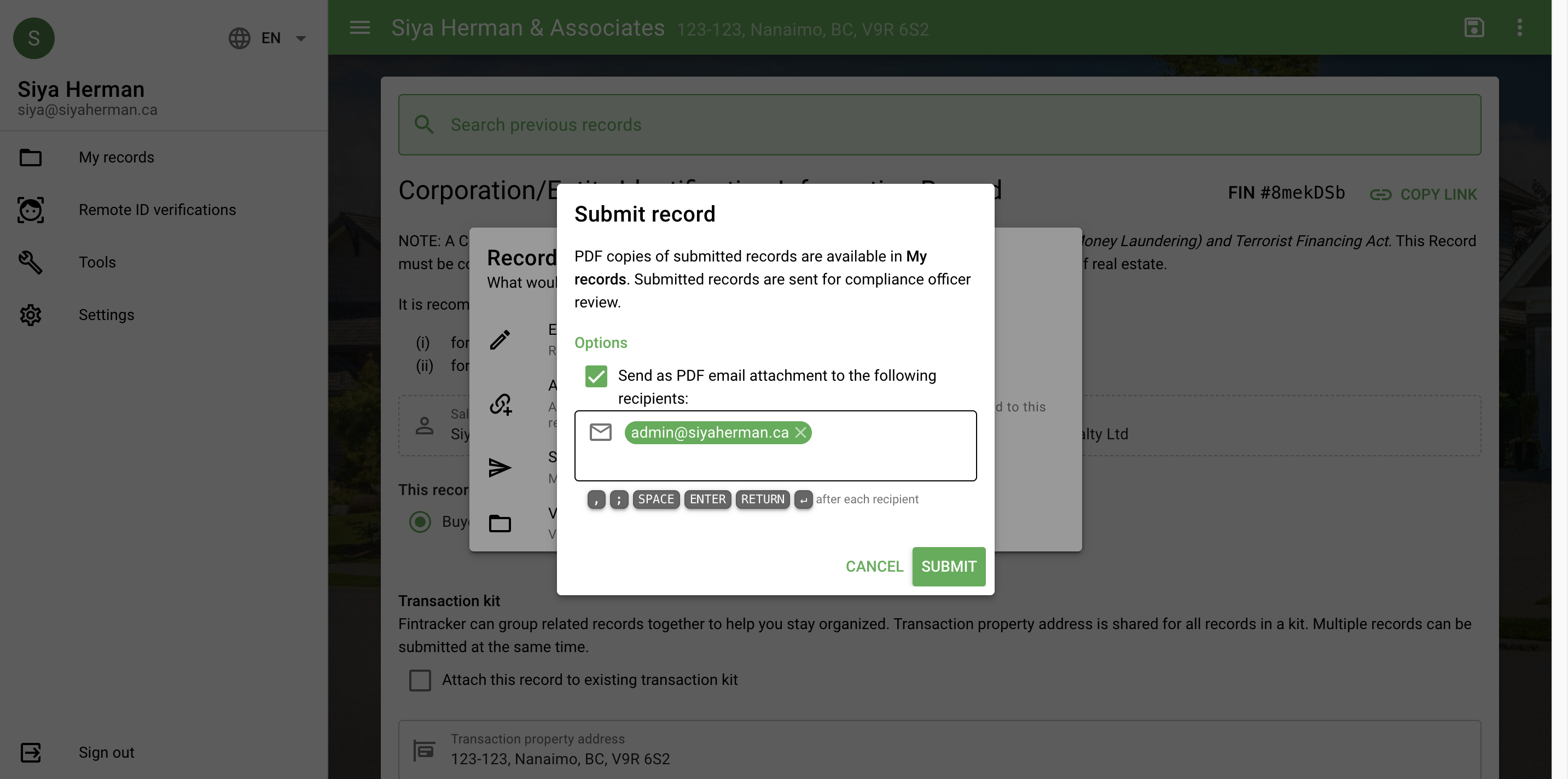
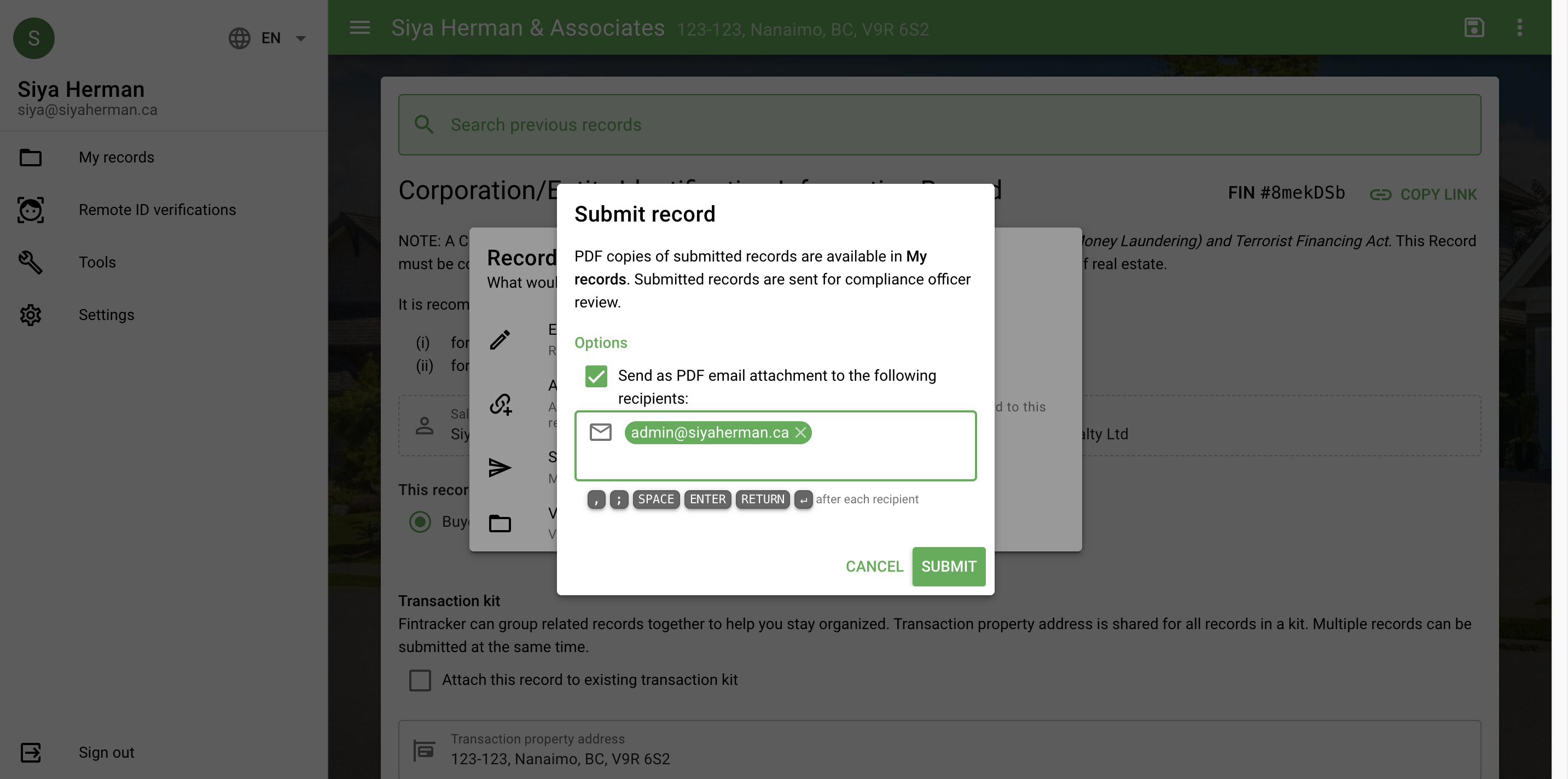
Then select "Save and Calculate."