How to Perform the Quality Control Process on Monday.com Products Board

Learn step-by-step how to conduct the quality control process using the Monday.com products board, including using checklists, updating product statuses, and utilizing the quality control dashboard for efficient product audits.

By Karina Klenchik

In this guide, we'll learn how to complete the quality control process for products using the Monday board. You will review each product, fill out the checklist, and update the status based on your findings. This process helps track product quality and ensures that any issues are documented and communicated.

Let's get started

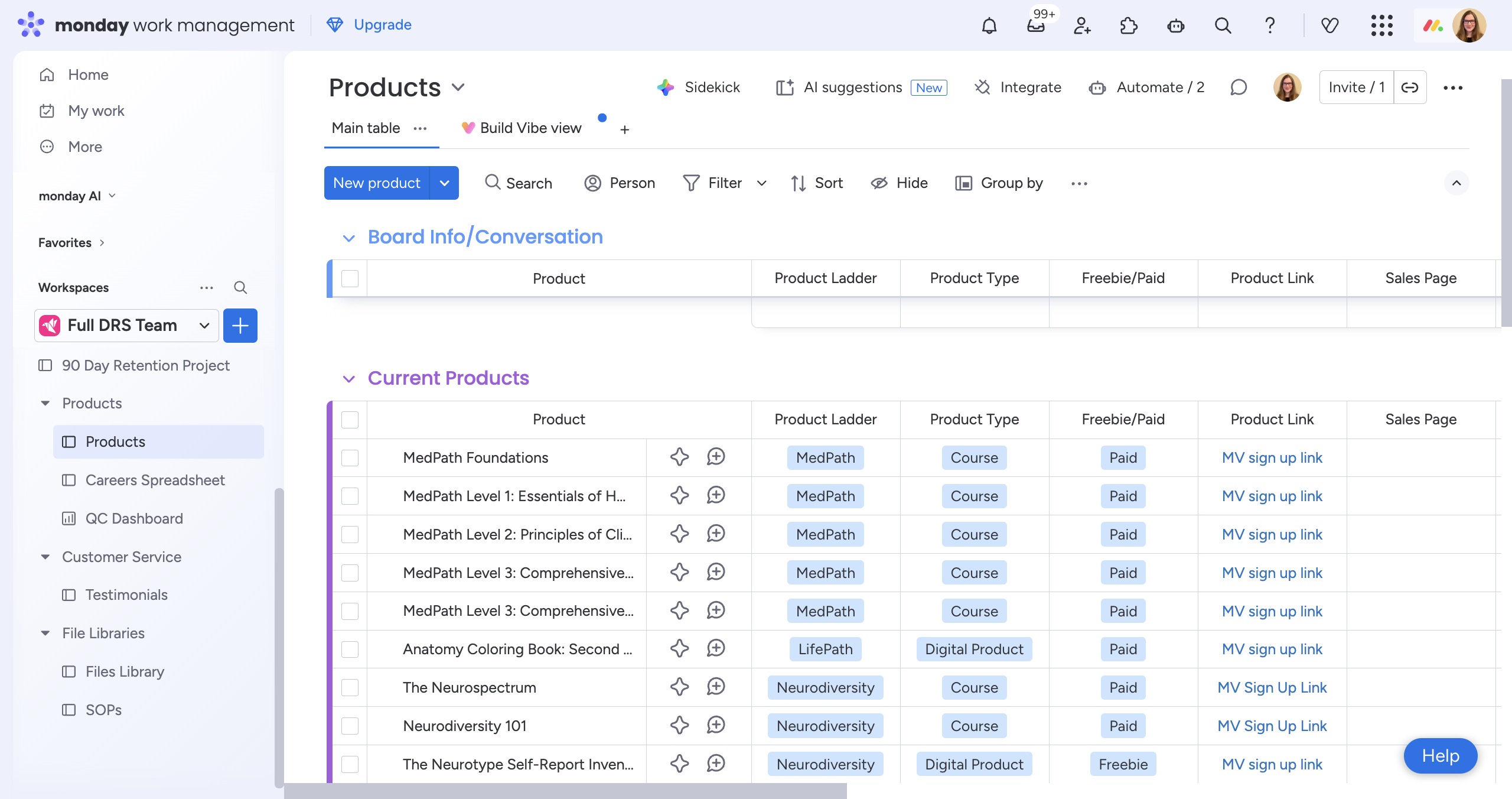
This is how to perform the quality control process. We are now on the Monday platform, specifically on the products board.
1
Click on the "Products" board - Here is a list of all our current products.
Step #1: Click on the "Products" board - Here is a list of all our current products.

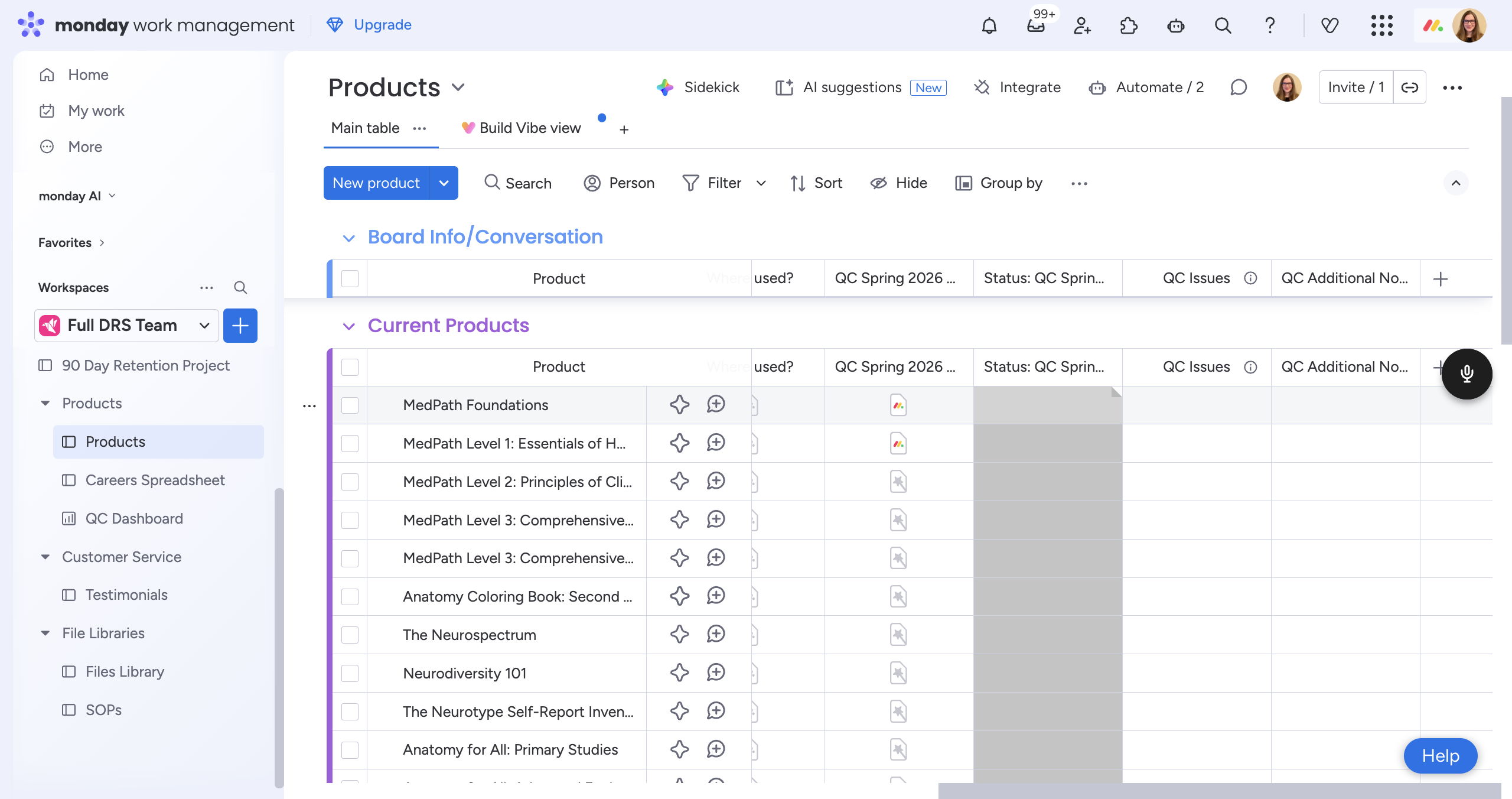
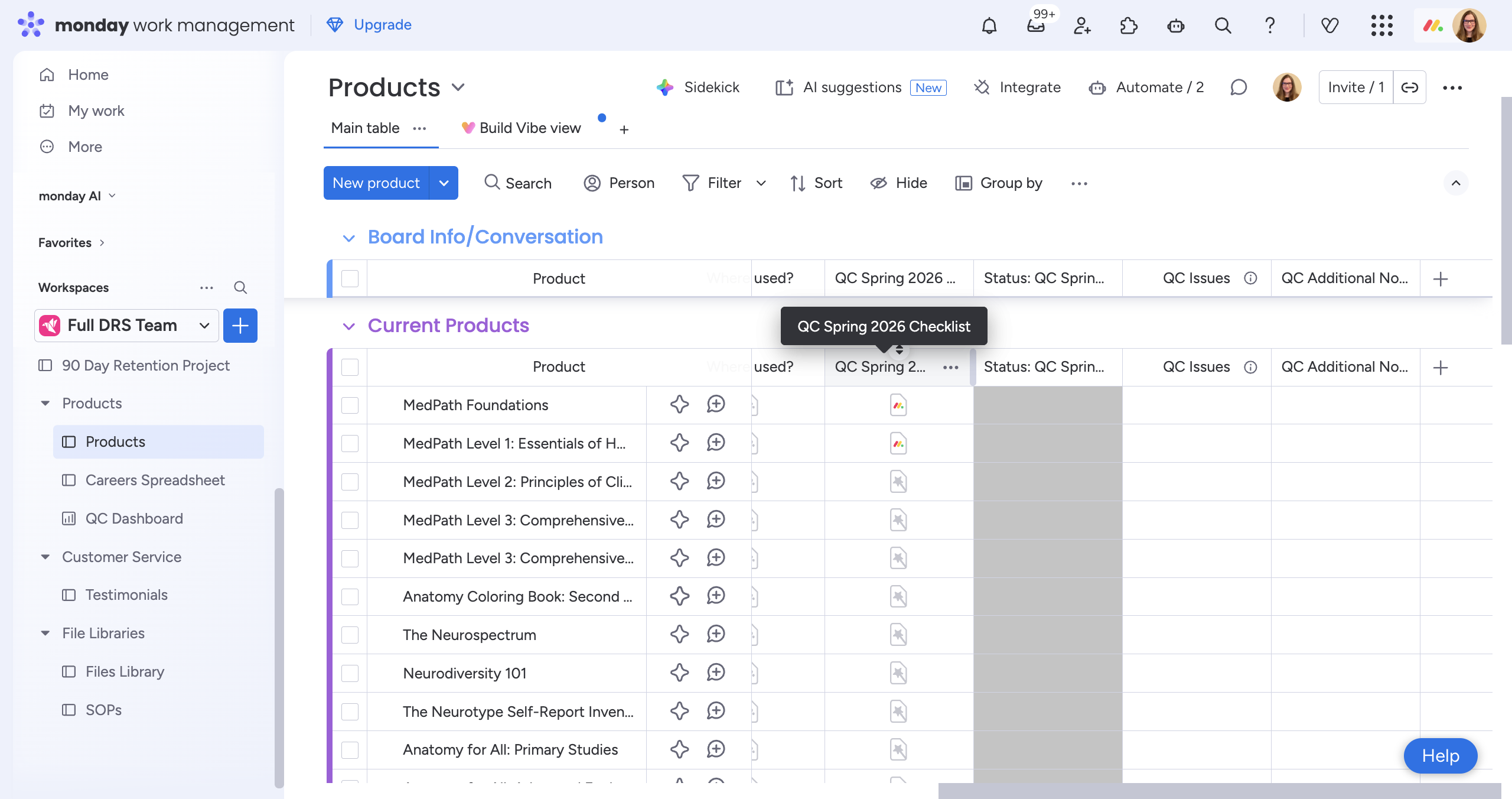
I started a new section here for quality control. You can scroll over to the QC Spring 2026 Checklist.
2
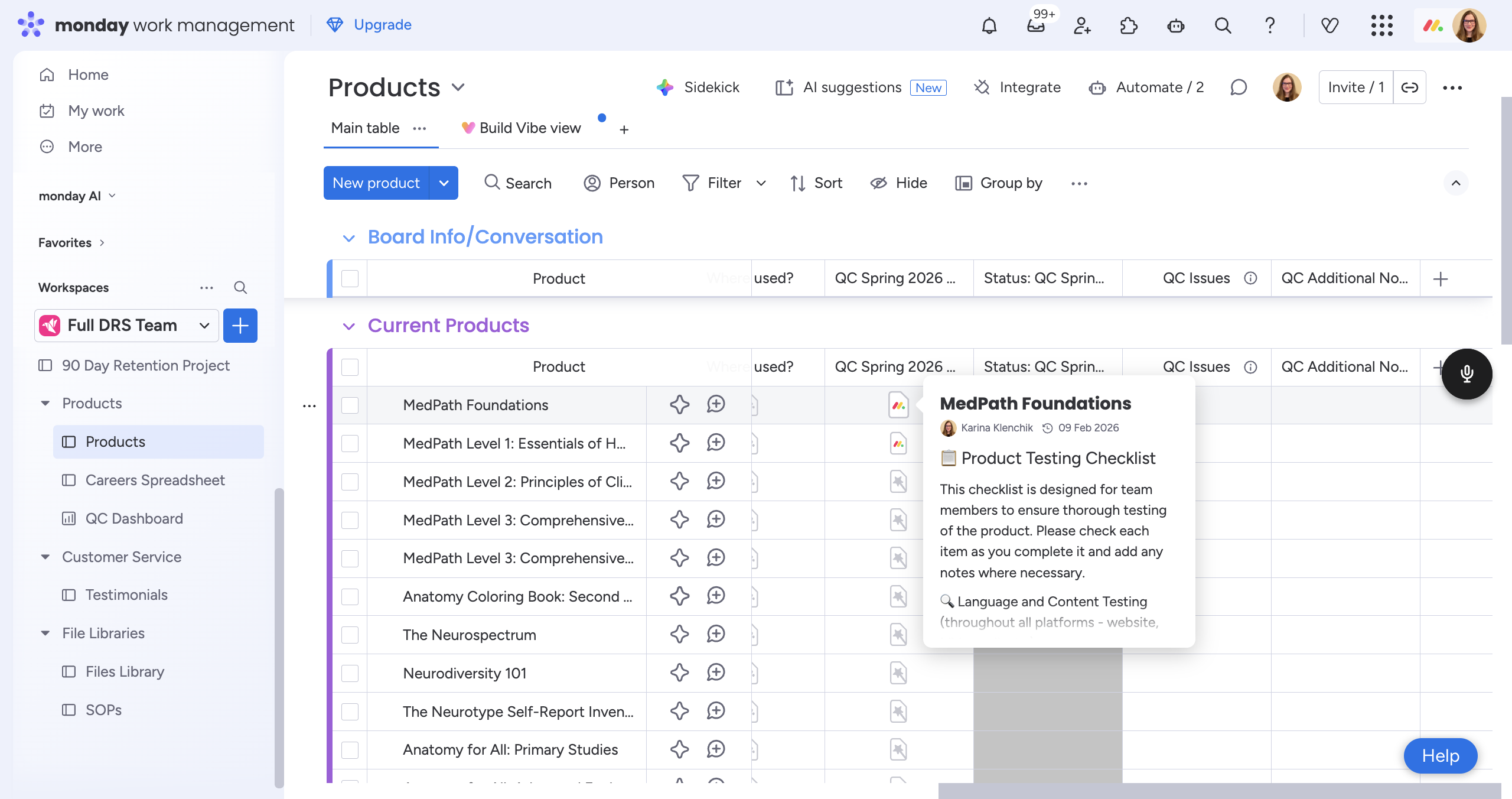
You will see a document for each product. Let's start with the MedPad Foundations. Click the document icon. Here, you'll find all the product testing checklist items.
Step #2: You will see a document for each product. Let's start with the MedPad Foundations. Click the document icon. Here, you'll find all the product testing checklist items.

3
Step #3:

4
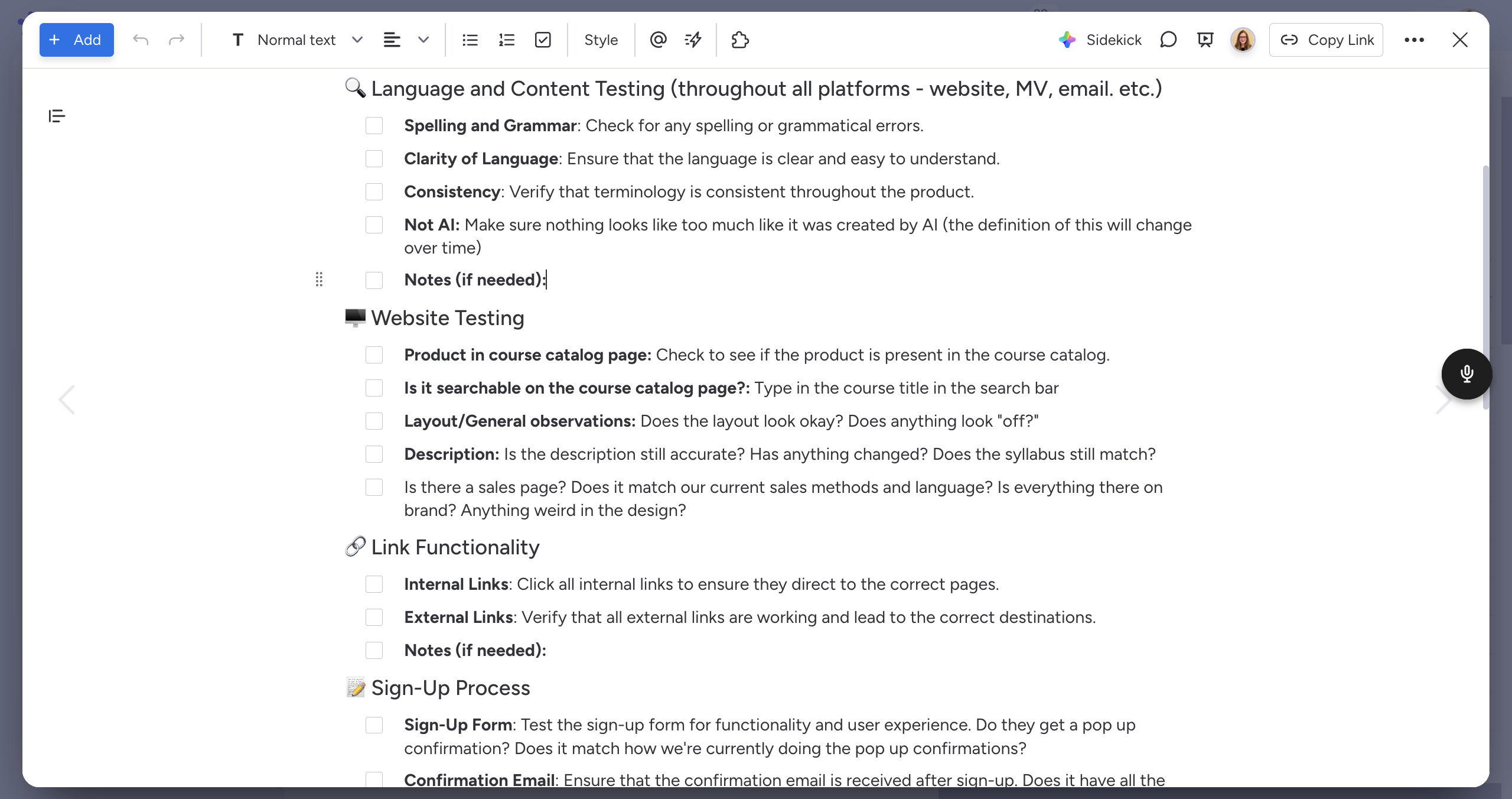
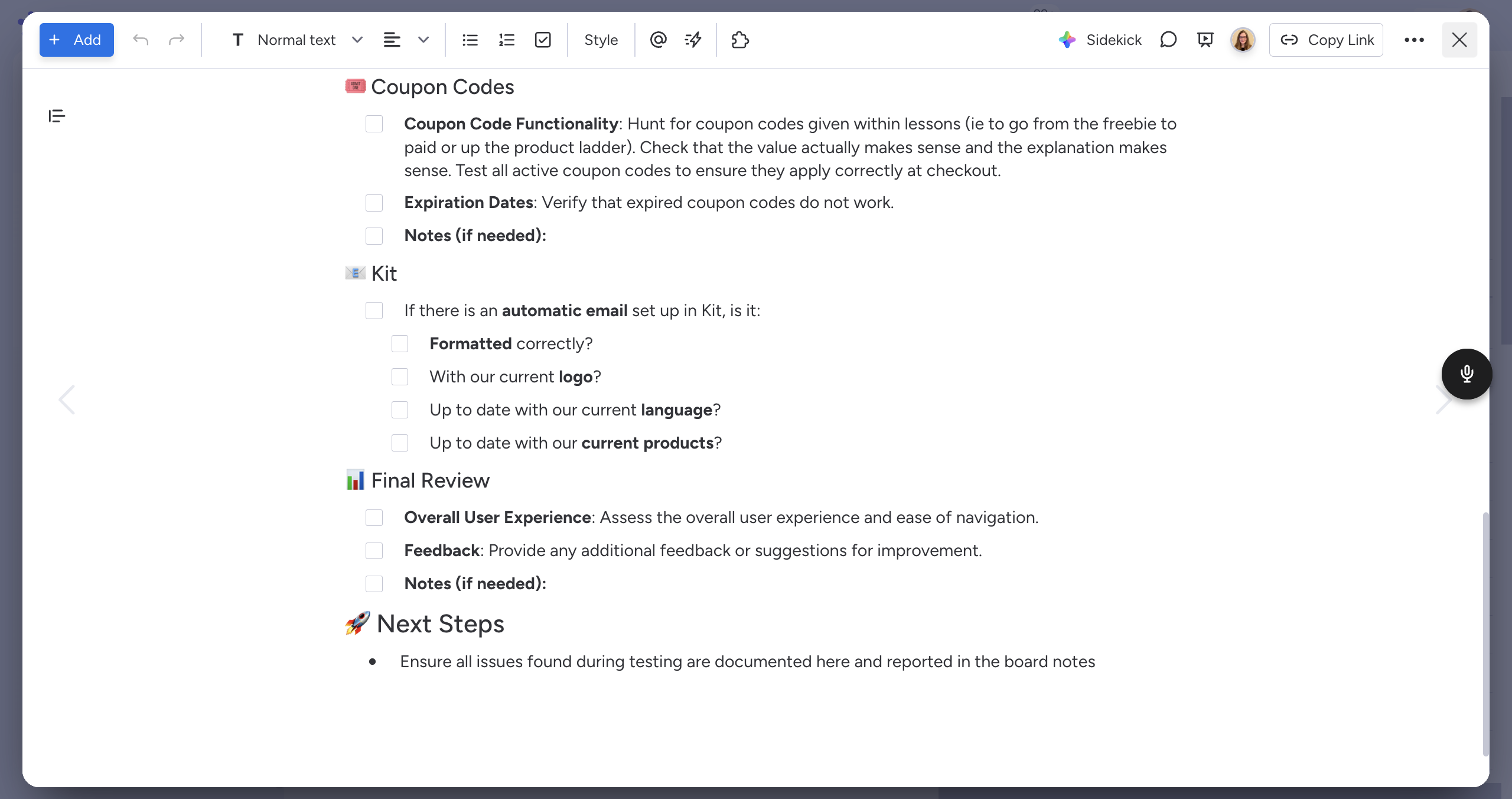
Go through each item. You can check it off as you go. You can add notes in the "Notes" section throughout, if needed.
Step #4: Go through each item. You can check it off as you go. You can add notes in the "Notes" section throughout, if needed.

5
When you finish filling out the checklist, you can close the window, it will save automatically.
Step #5: When you finish filling out the checklist, you can close the window, it will save automatically.

6
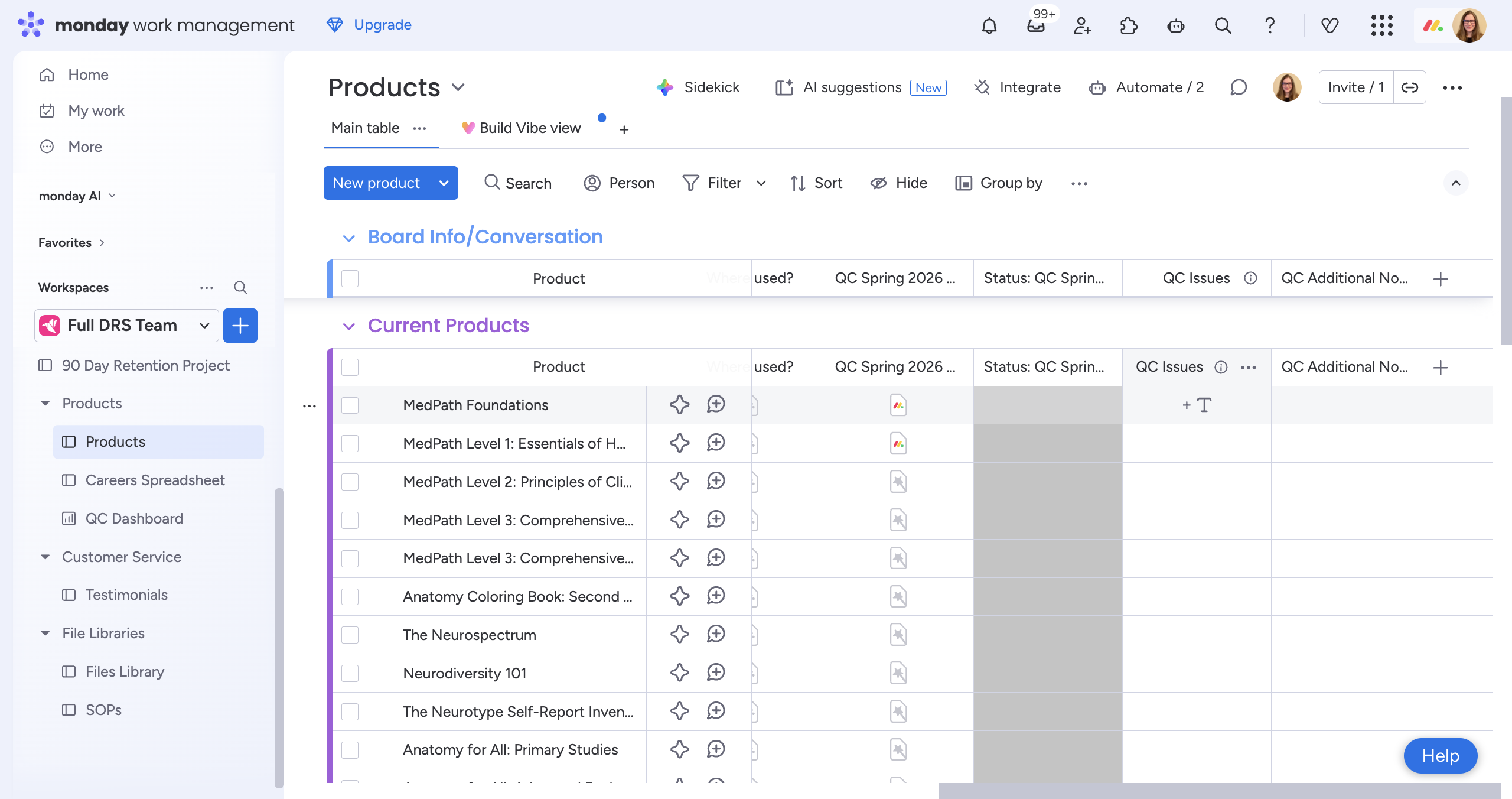
Then, you'll update here in the "Status" column. Choose one of the following options: "Passed" if everything is fine, "Minor issues" if there are some things to fix, or "Failed" if urgent attention is needed.
Step #6: Then, you'll update here in the "Status" column. Choose one of the following options: "Passed" if everything is fine, "Minor issues" if there are some things to fix, or "Failed" if urgent attention is needed.

If you select "minor issues" or "failed," both Robin and I will automatically receive a notification. There is no need to notify us separately.
7
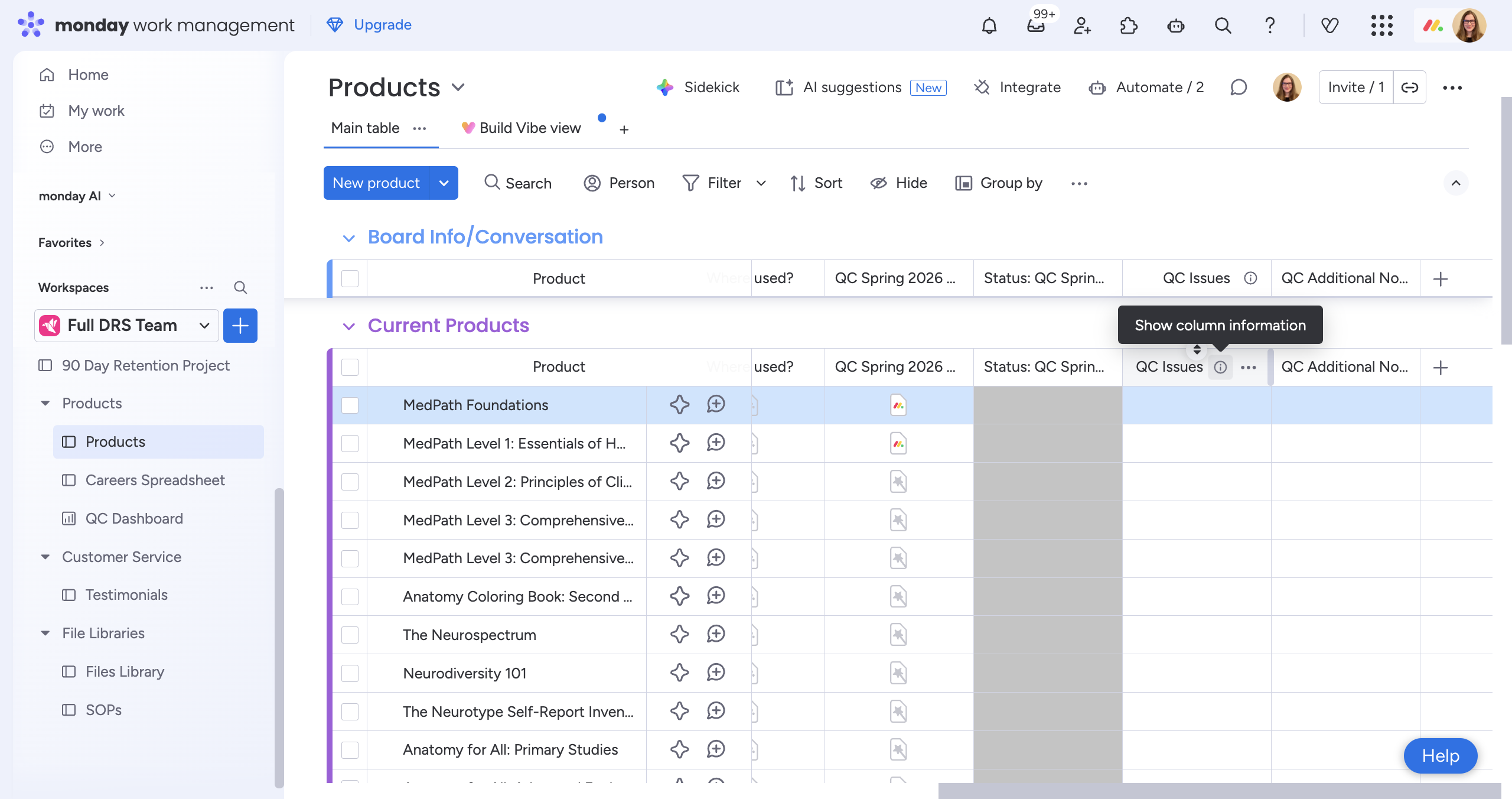
Next, you can go to "QC Issues" (you can click the "i" icon on columns for more info about the column)
Step #7: Next, you can go to "QC Issues" (you can click the "i" icon on columns for more info about the column)

8
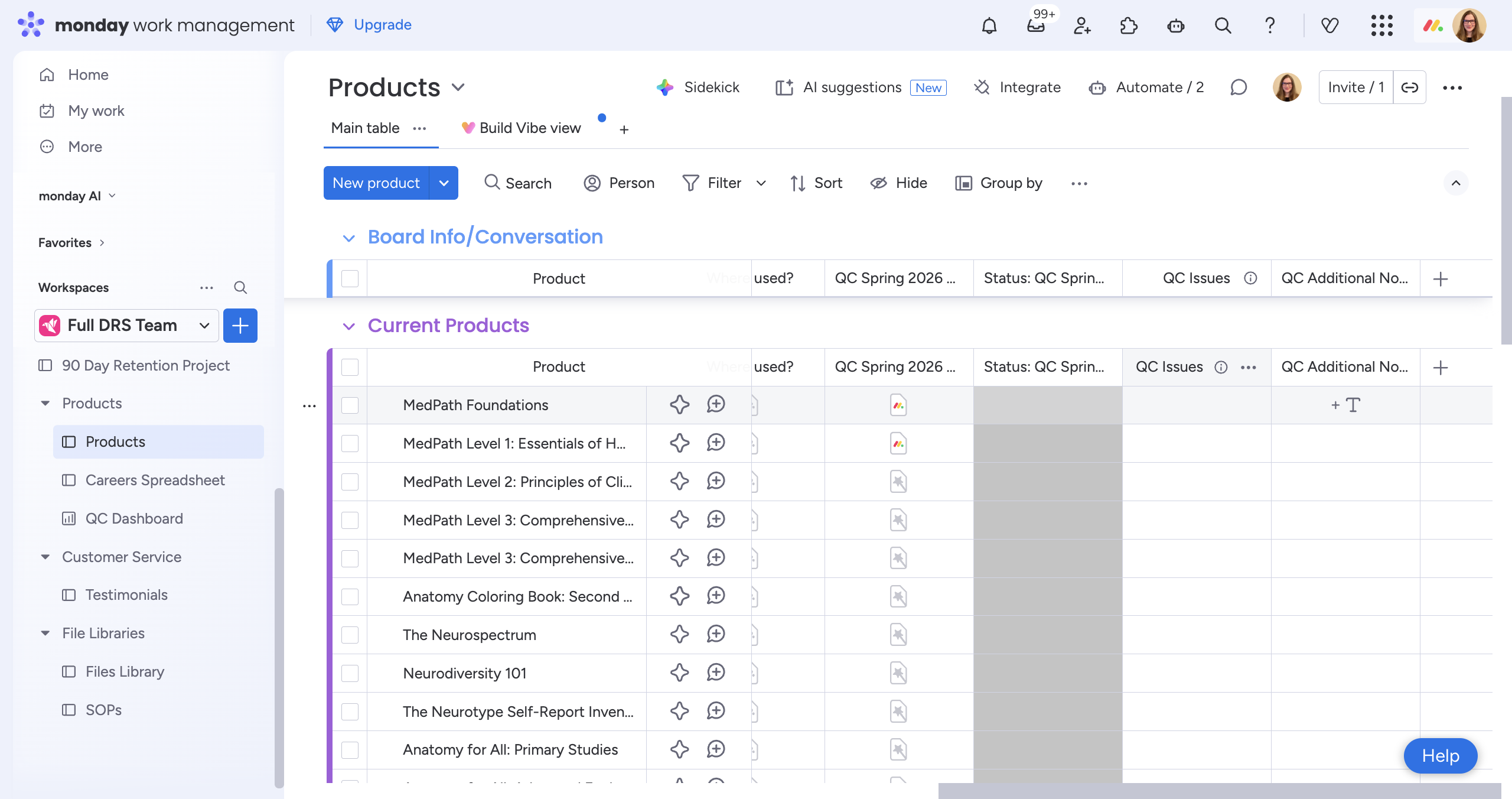
Type in the issues that need to be fixed.
Step #8: Type in the issues that need to be fixed.

9
You can add additional notes to the "QC Additional Notes" column if needed. This is not necessary, just a place to add notes if you need to.
Step #9: You can add additional notes to the "QC Additional Notes" column if needed. This is not necessary, just a place to add notes if you need to.

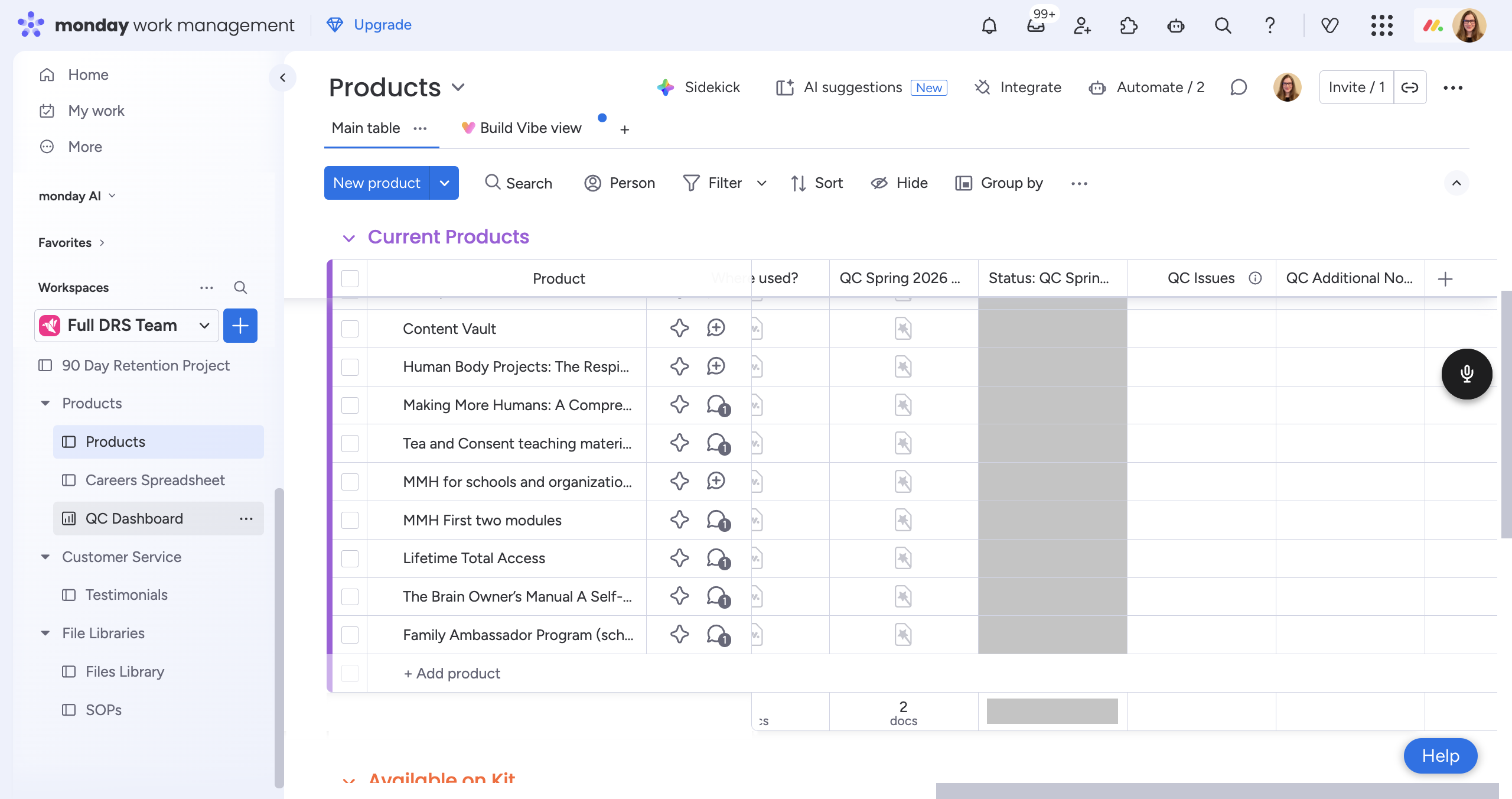
That's all you need to do for the QC. I also created a quality control dashboard. You don't have to use this, but I wanted to show you in case you're interested.
10
Click on "Workspaces"
Step #10: Click on "Workspaces"

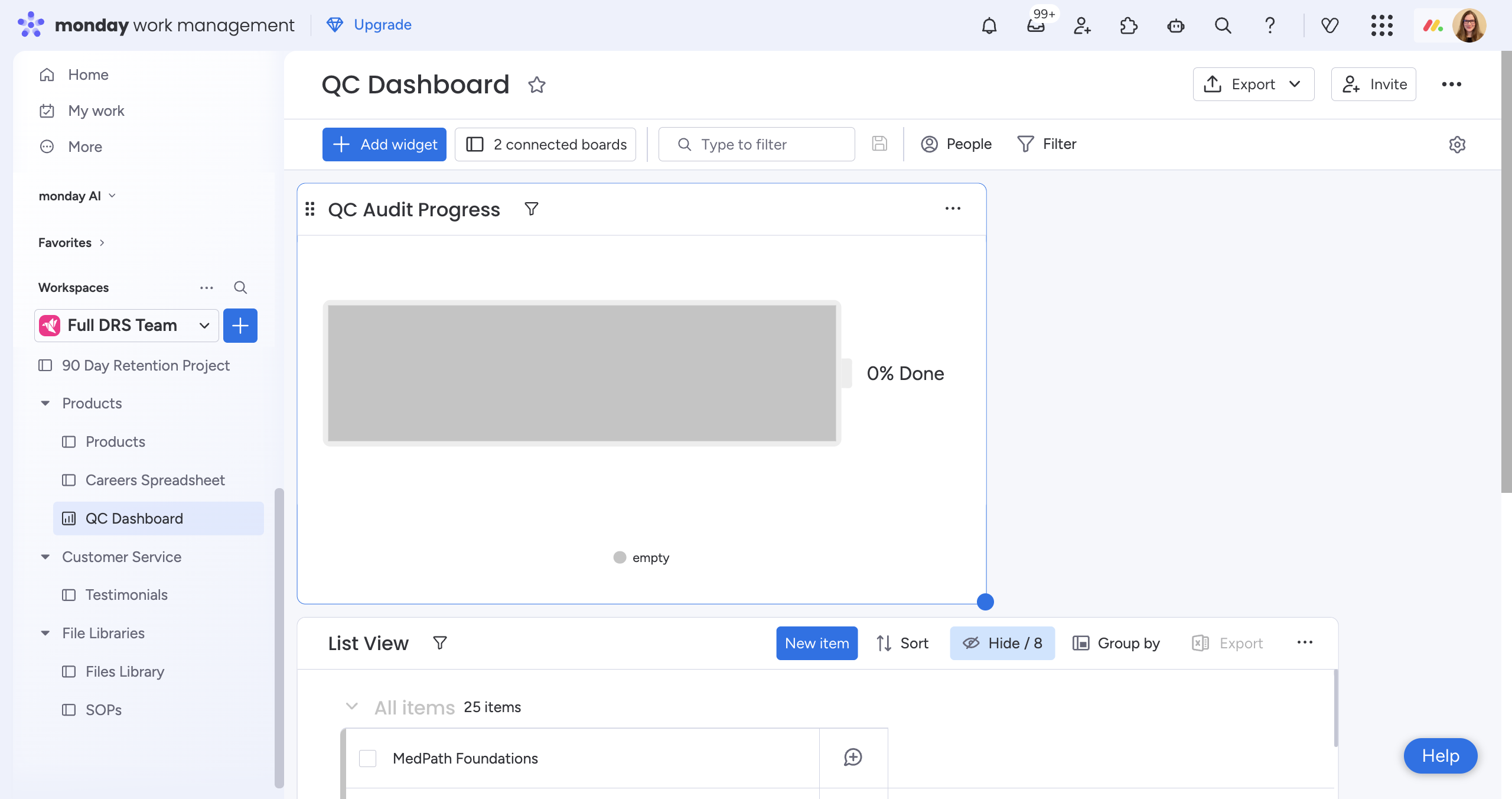
This is the audit progress. Each time you complete a product, the battery will display how much is finished.
11
Click here
Step #11: Click here

It's a nice way to see your progress if you prefer a visual display. I have a list view here. When you enter any major fixes, they will appear so Robin and I can work through the list if needed. There is nothing you need to do with the dashboard. This is mainly for your reference if you want to check it out.

Thank you!!

How to Perform the Quality Control Process on Monday.com Products Board