OLD How to Place a New Order on the VELUX Dealer Extranet: Step-by-Step Guide
Learn how to place a new order on the VELUX dealer extranet with this easy step-by-step guide. Discover two ordering methods, how to configure products, adjust quantities, select shipping options, and confirm your order efficiently.
By Michelle
In this guide, we'll learn how to place a new order on the VELUX dealer extranet. We will cover two different ways to find and select products, adjust quantities, and add items to your basket.
You will also see how to enter your purchase order number, choose a shipping method, and request a delivery date. Finally, we will review how to confirm your order and print a copy if needed.
Let's get started
1
Navigate to the URL: dealerextranet3.veluxusa.com
2
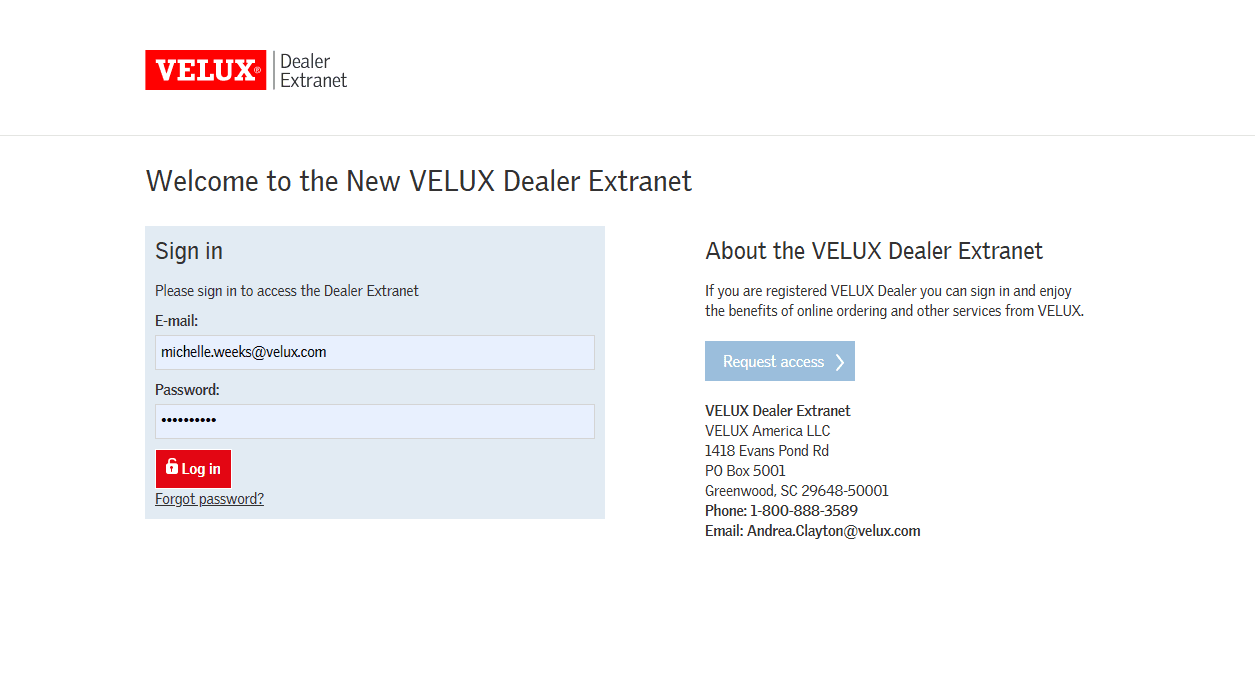
Enter your email address and password and click on "Log In." Note: new users must first Request access.
3
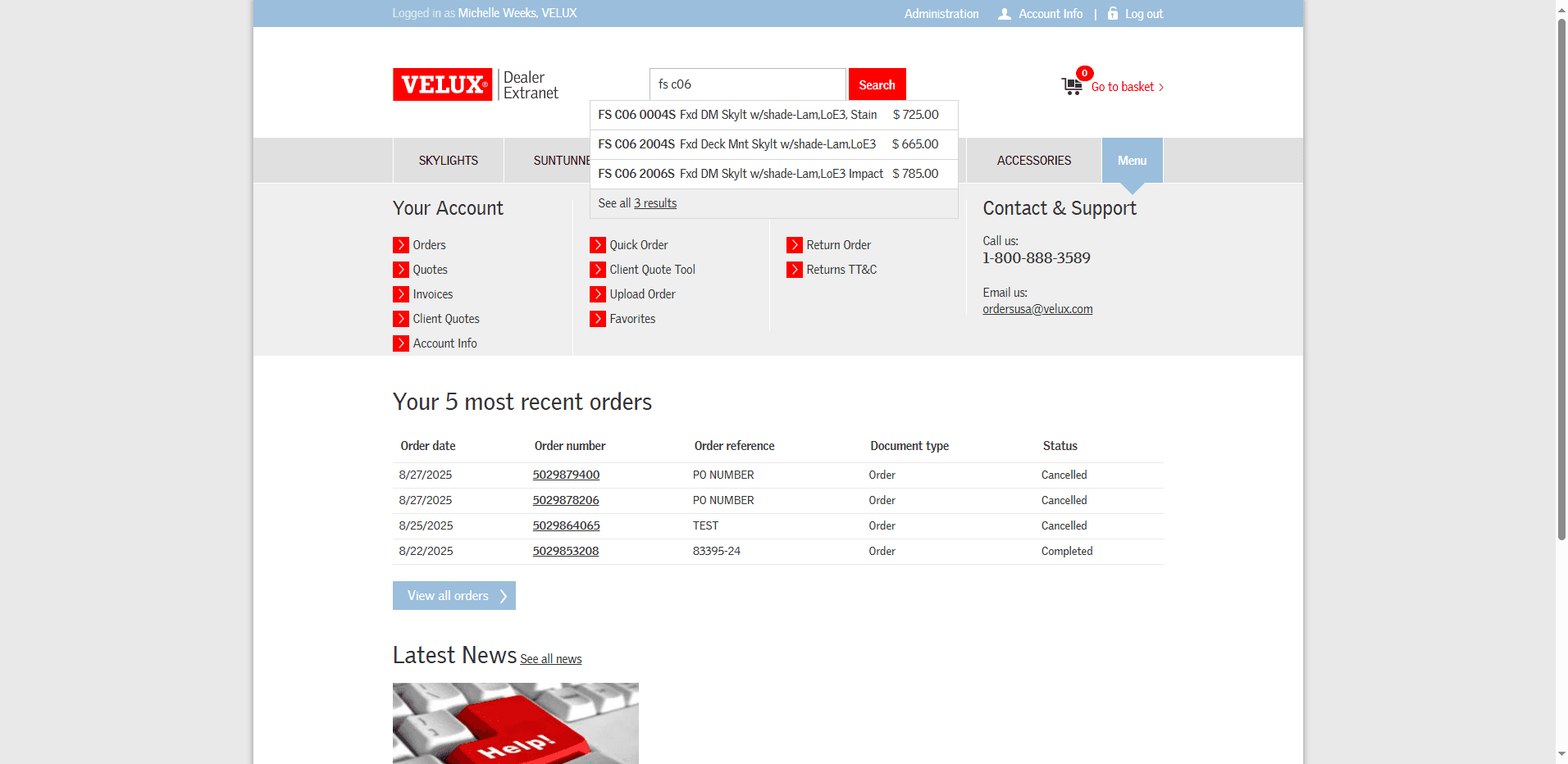
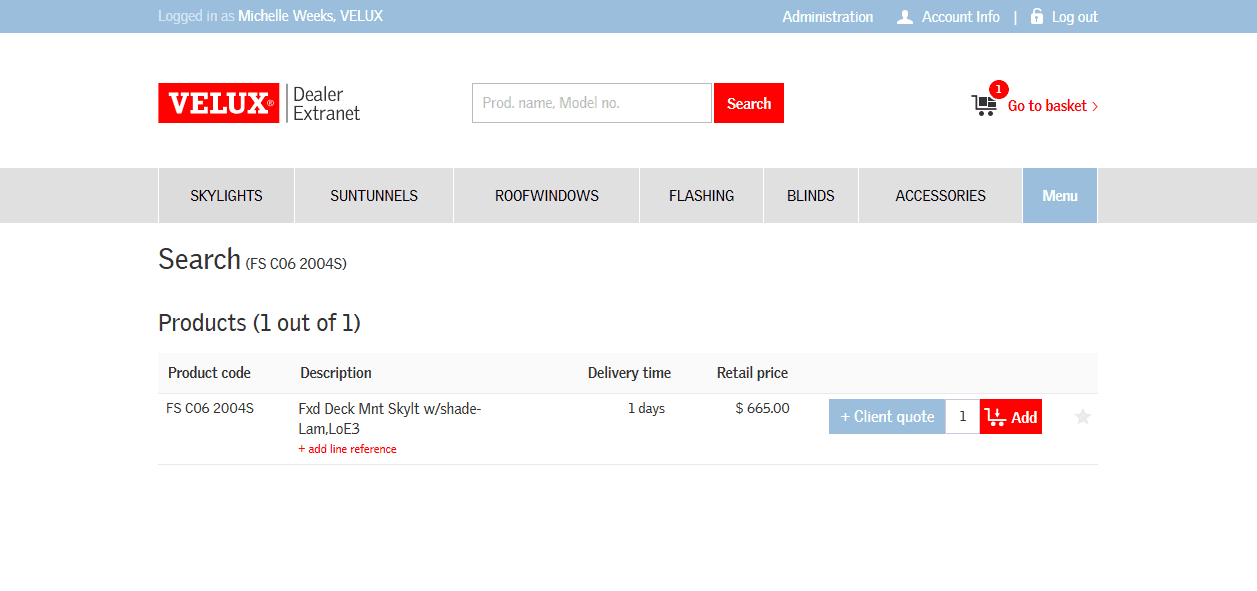
There are two ways to add products to an order. The first option is to type the product name in the search box. Once your item displays simply click it.
4
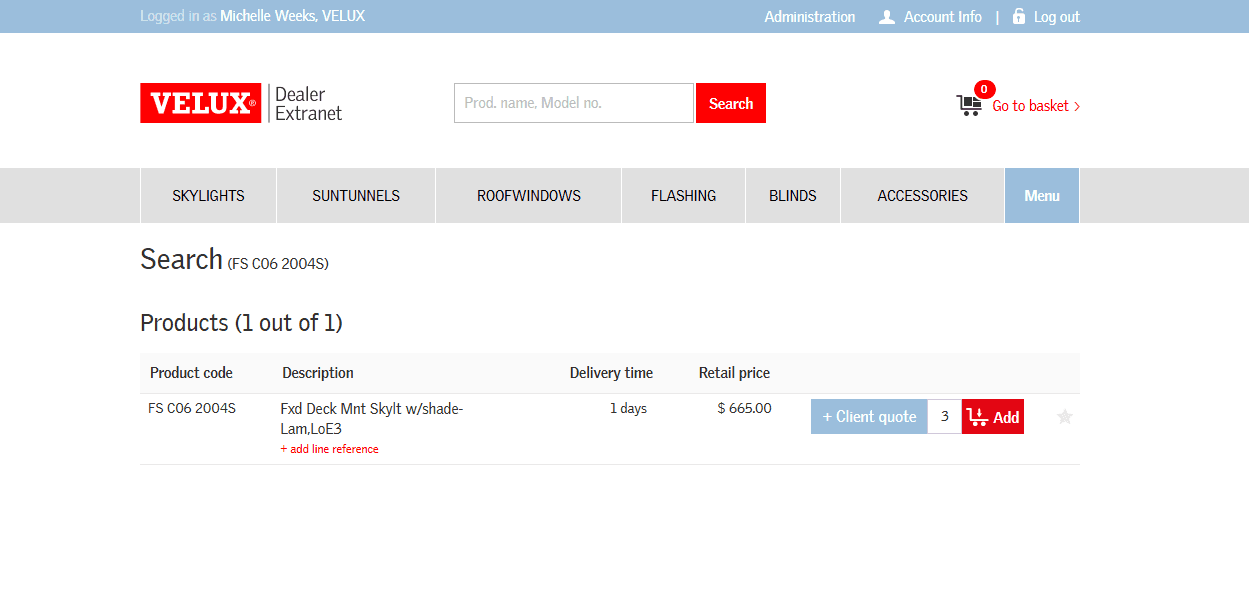
On this screen you can change the quantity if needed and then Add to the basket.
5
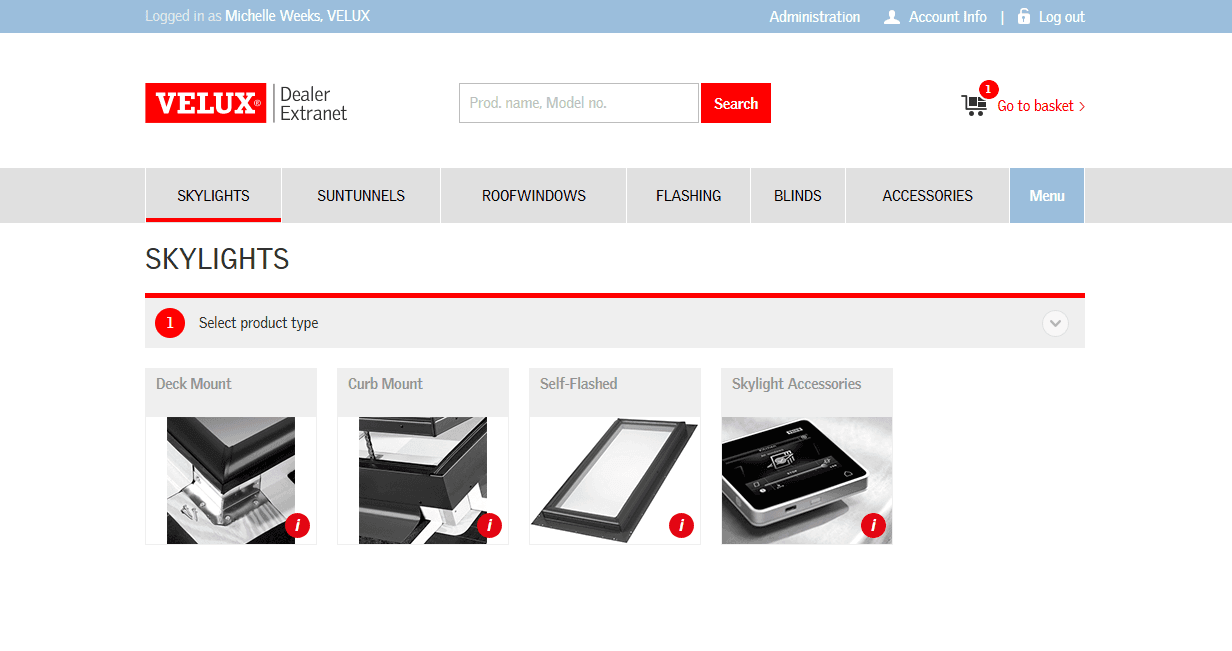
The second option is to choose from the product tabs at the top. In this example, to add (3) FS C06 2004S as above, start by selecting SKYLIGHTS.
6
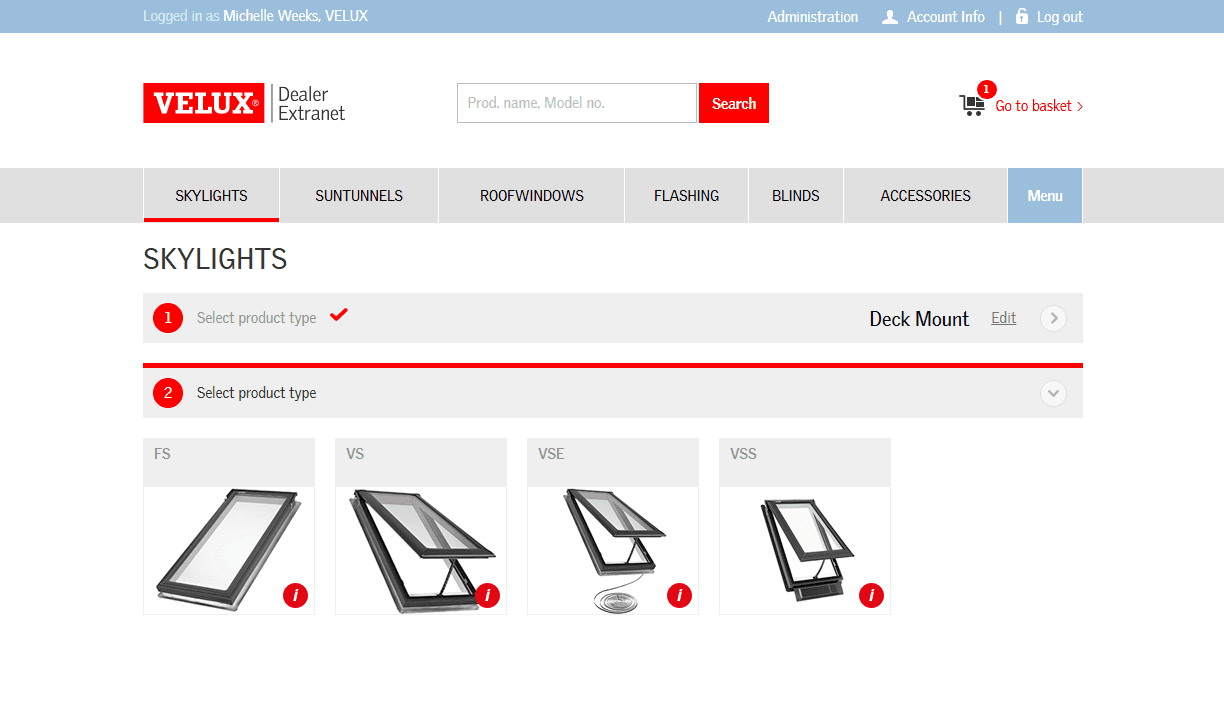
Select the product type Deck Mount.
7
Select the model FS.
8
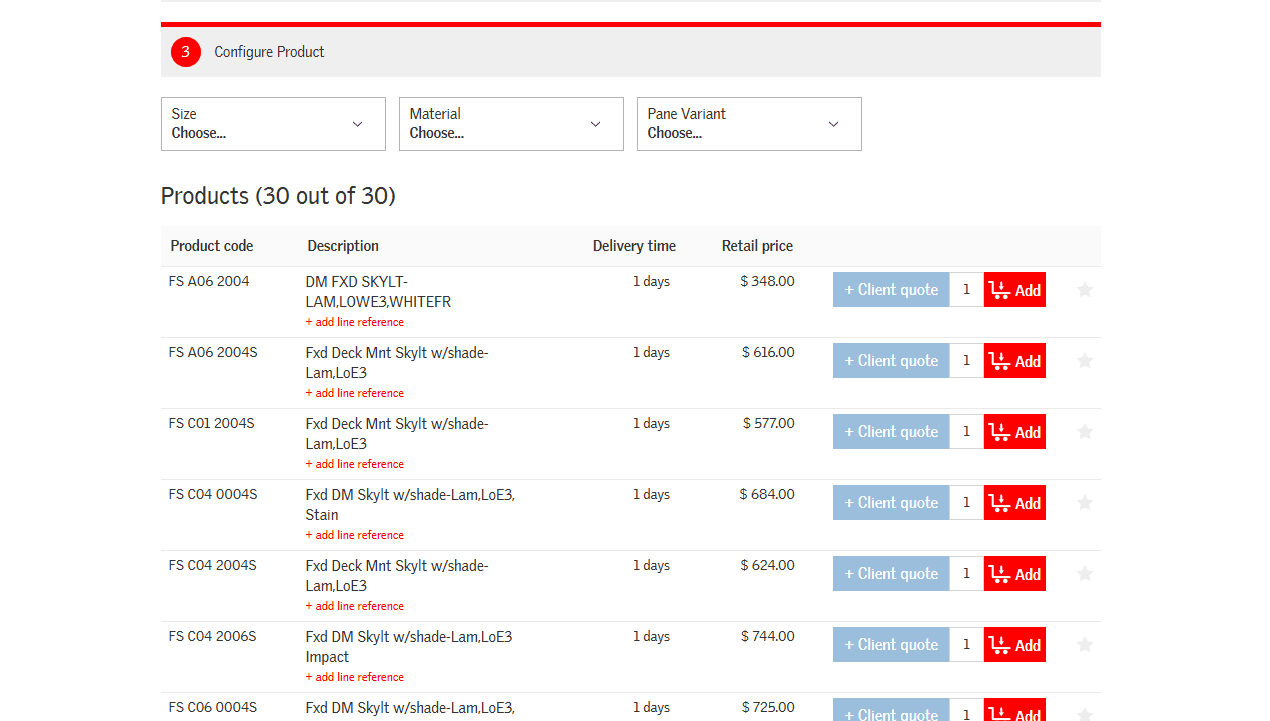
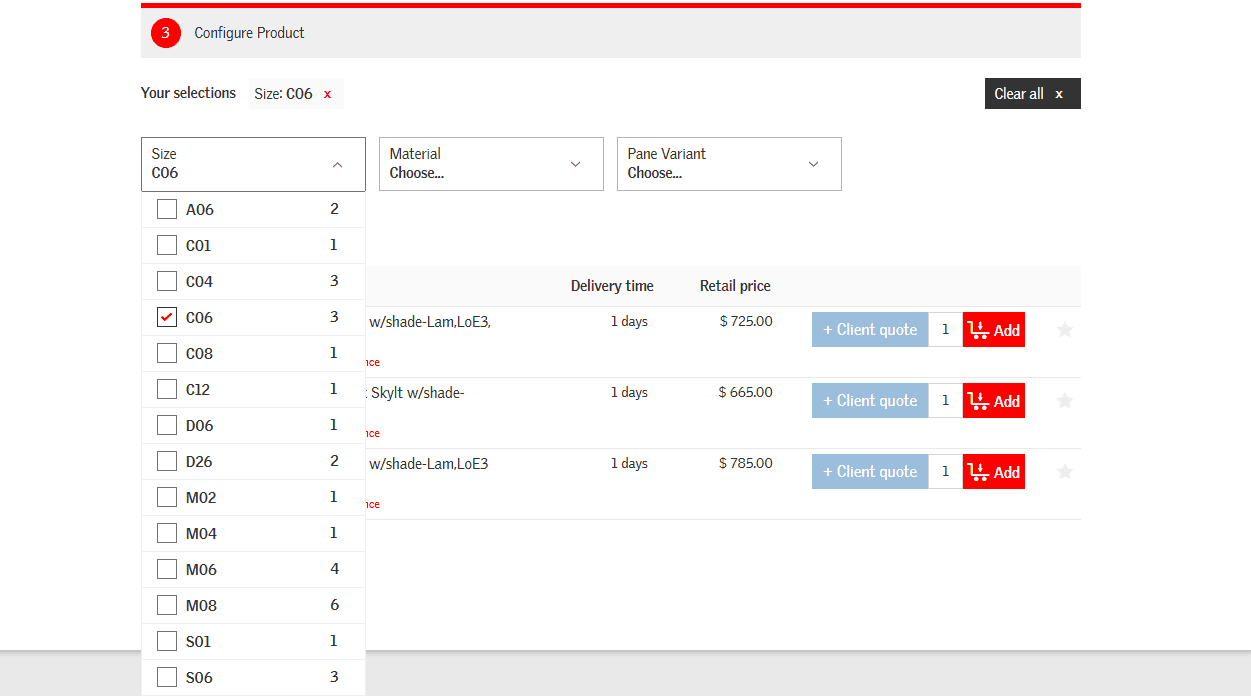
Next, configure the product by selecting the Size.
9
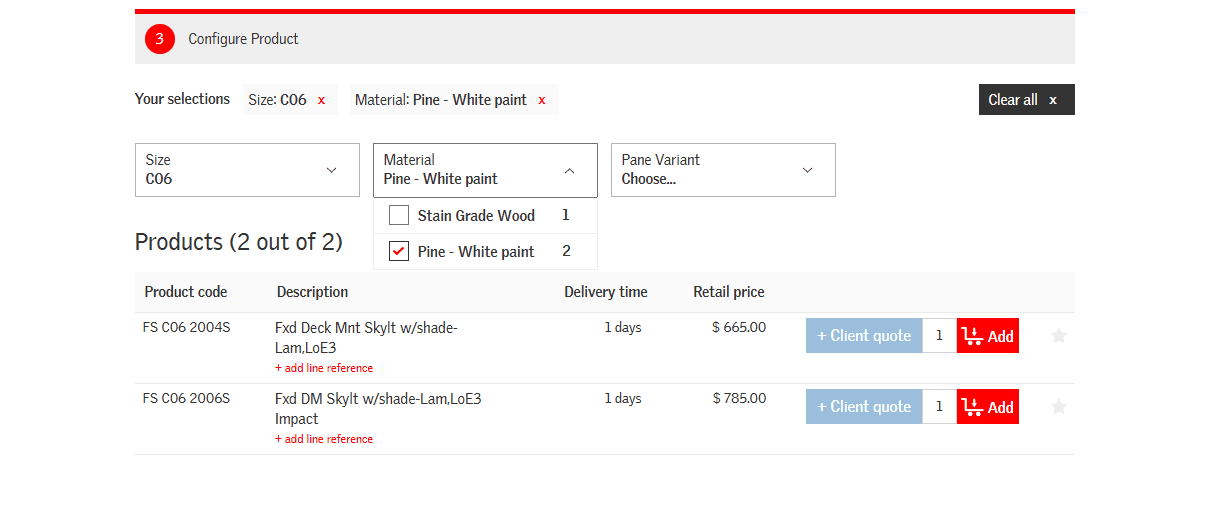
Continue configuration by selecting the interior finish Material.
10
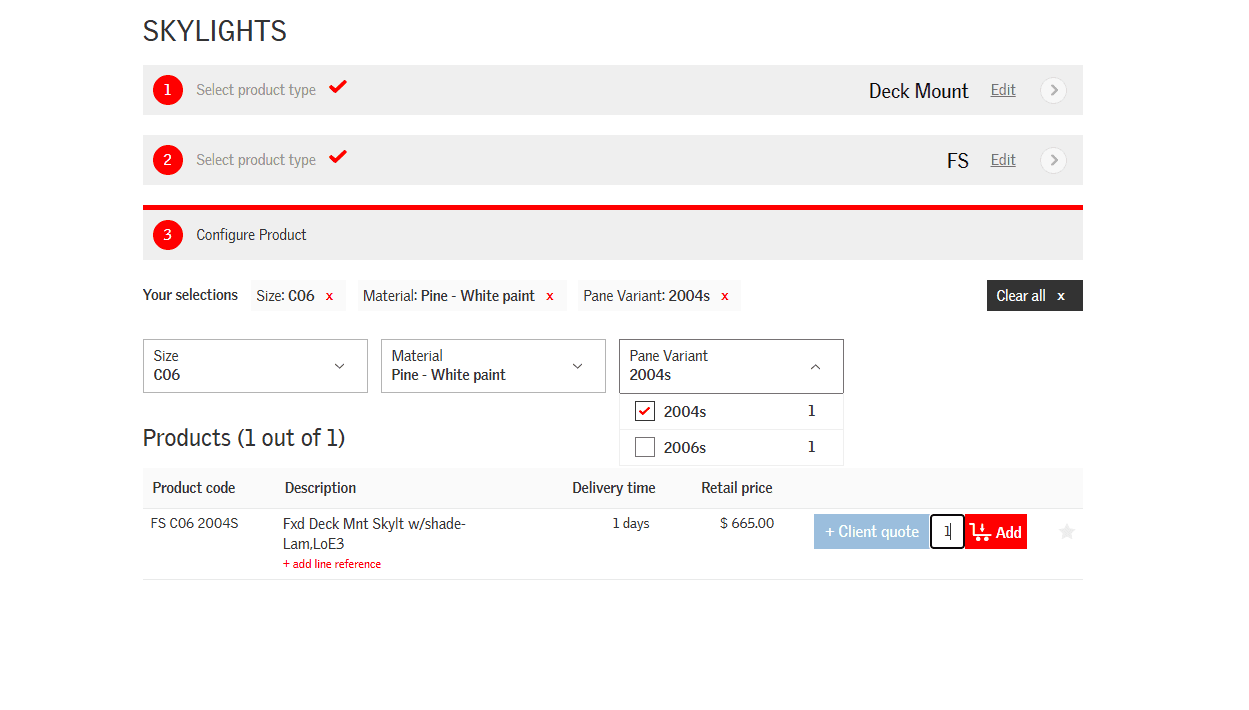
Finalize configuration by selecting the glass Pane Variant.
11
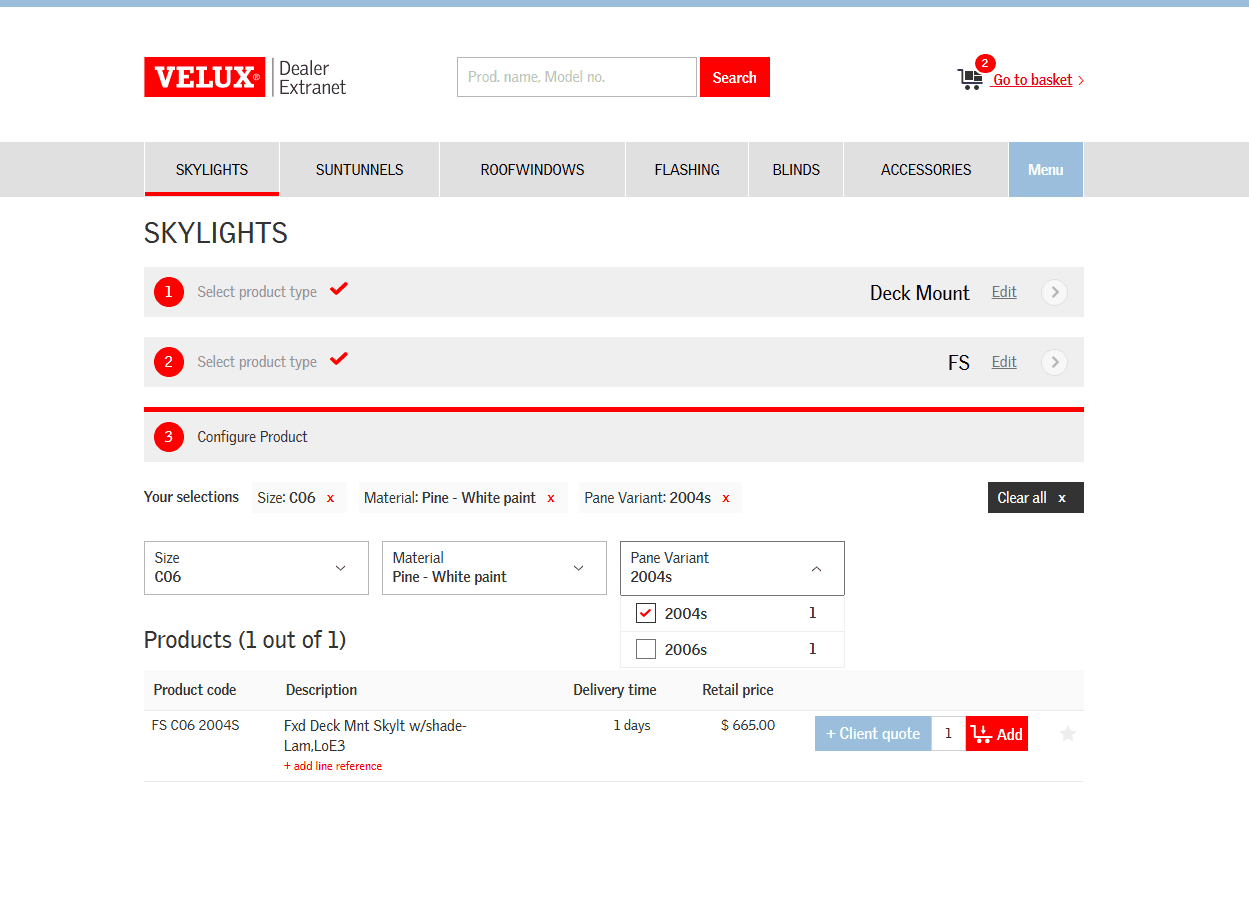
On this screen you can change the quantity if needed and then Add to the basket.
12
Once all items are added click Go to basket.
13
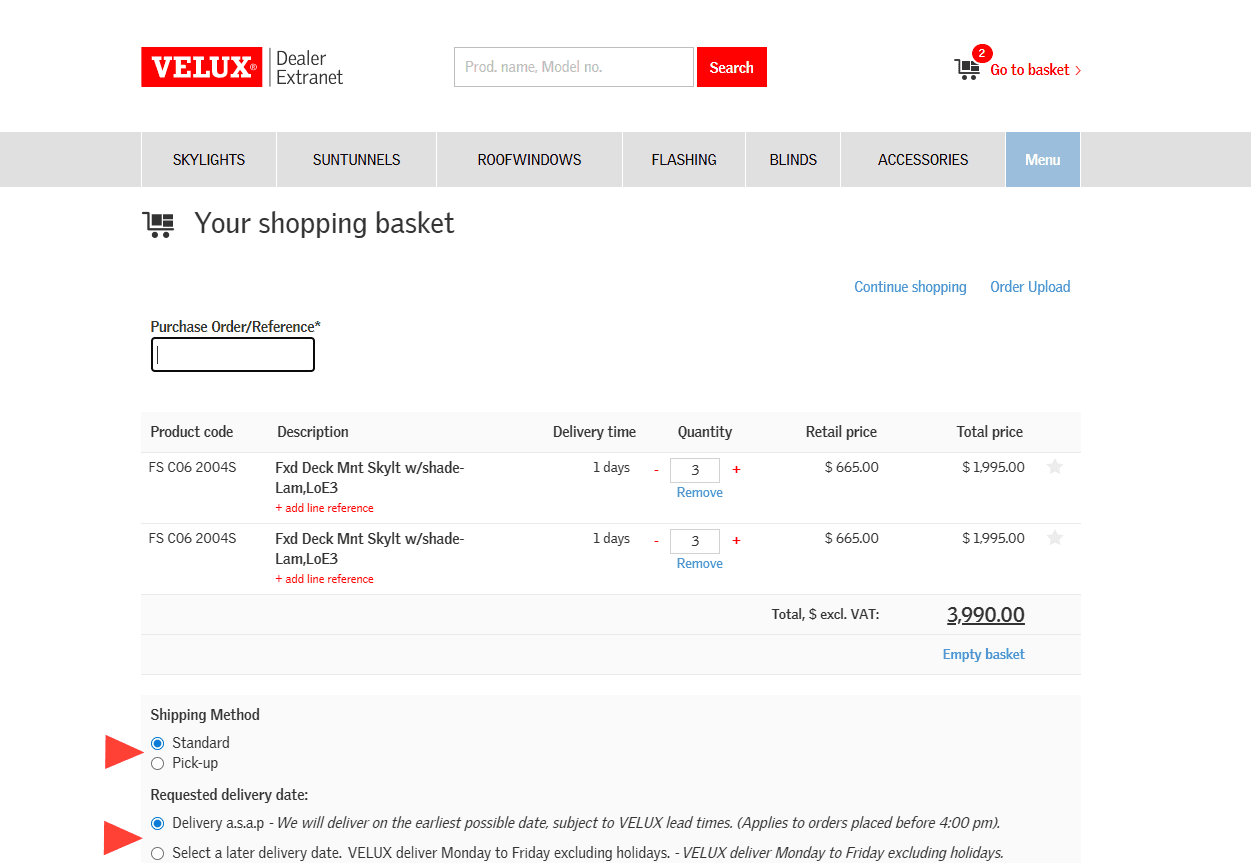
Enter your PO number in the Purchase Order/Reference field. The Shipping Method defaults to Standard shipping and the Requested delivery date defaults to Delivery a.s.a.p, but you can change this by simply clicking in the field you wish to adjust.
14
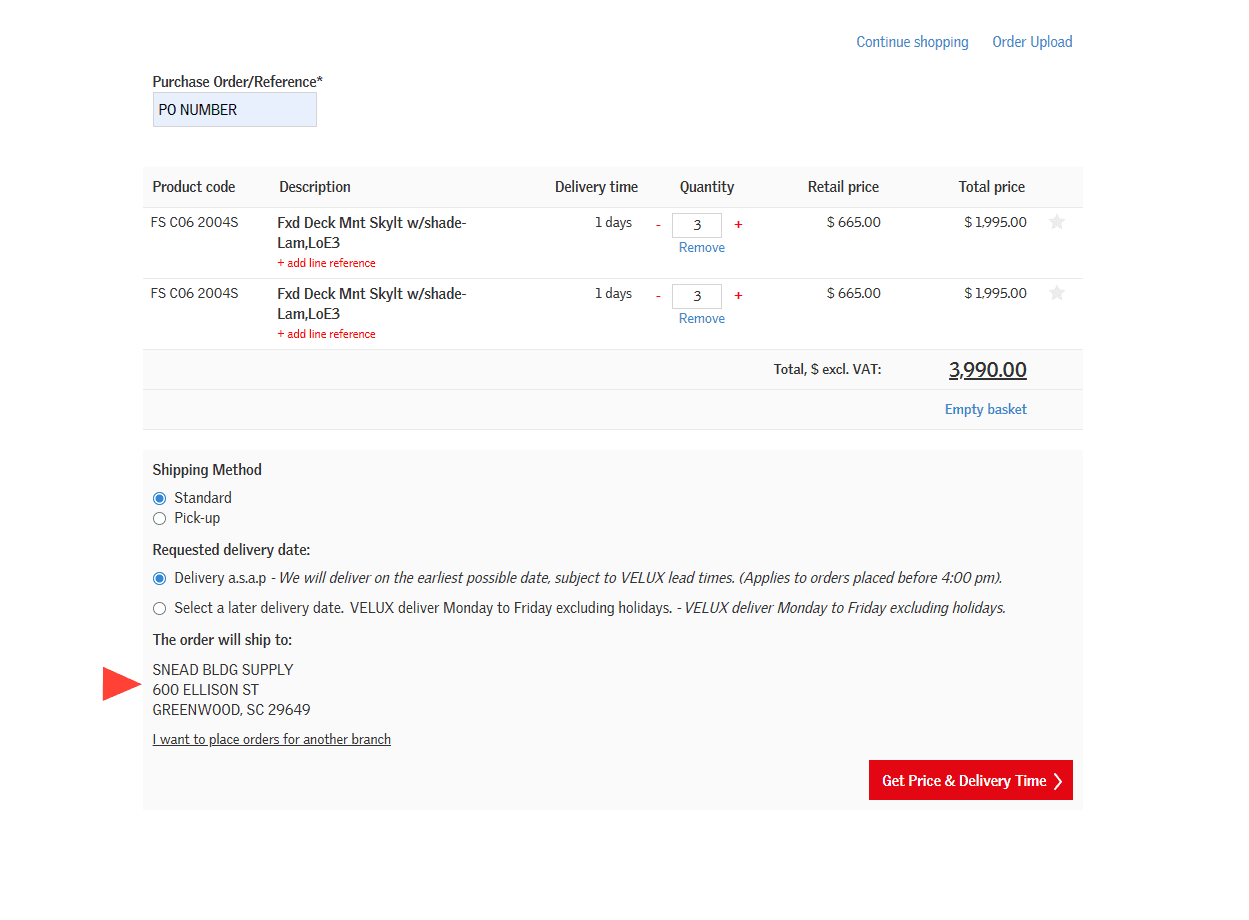
Verify the PO number, order quantity and materials, shipping method, requested delivery date, and ship to address are correct and click Get Price & Delivery Time.
15
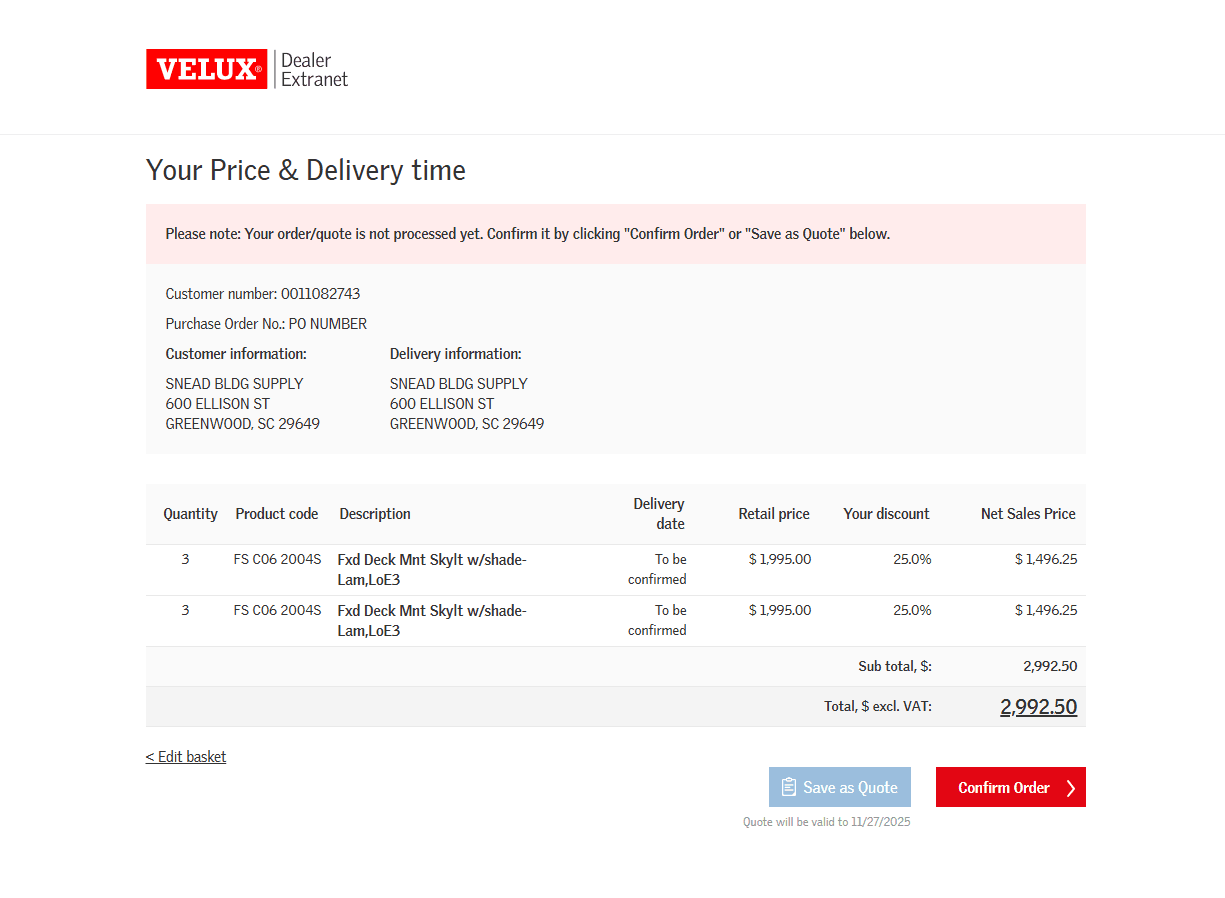
This screen displays all the sales order information including retail and discounted price, as well as anticipated Delivery date if available. The final step is to select Confirm Order.
16
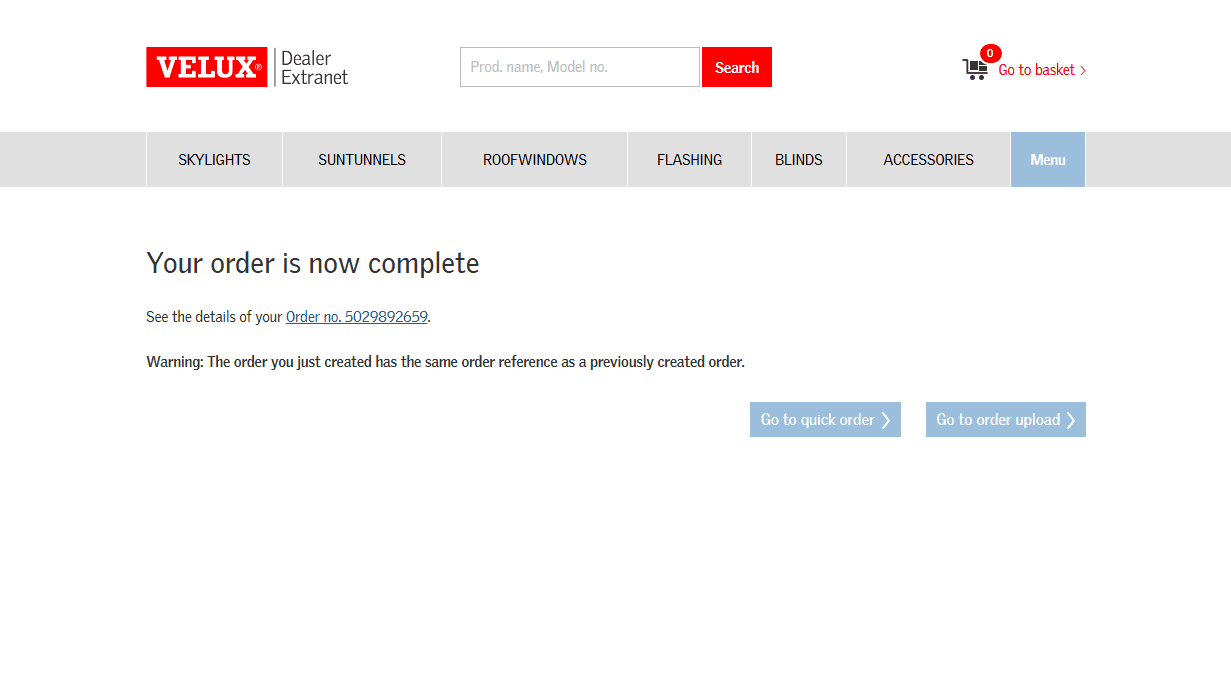
Congratulations! Your order is complete. You can click the Order no. hyperlink if you would like to print your order confirmation.