Icon

How to Place an Order in Kloudville: Step-by-Step Guide

Learn how to place an order in Kloudville with this detailed step-by-step guide. From logging in and selecting customers to updating addresses and checking out, follow these instructions for a smooth ordering process.

By CWI Lighting Inc

In this guide, we'll learn how to enter a new purchase order in the system using Kloudville. This process includes logging in, selecting the correct customer and contact, entering order details, updating the delivery address, and choosing the right shipping method. We will also review the order information before finalizing the order.

Let's get started

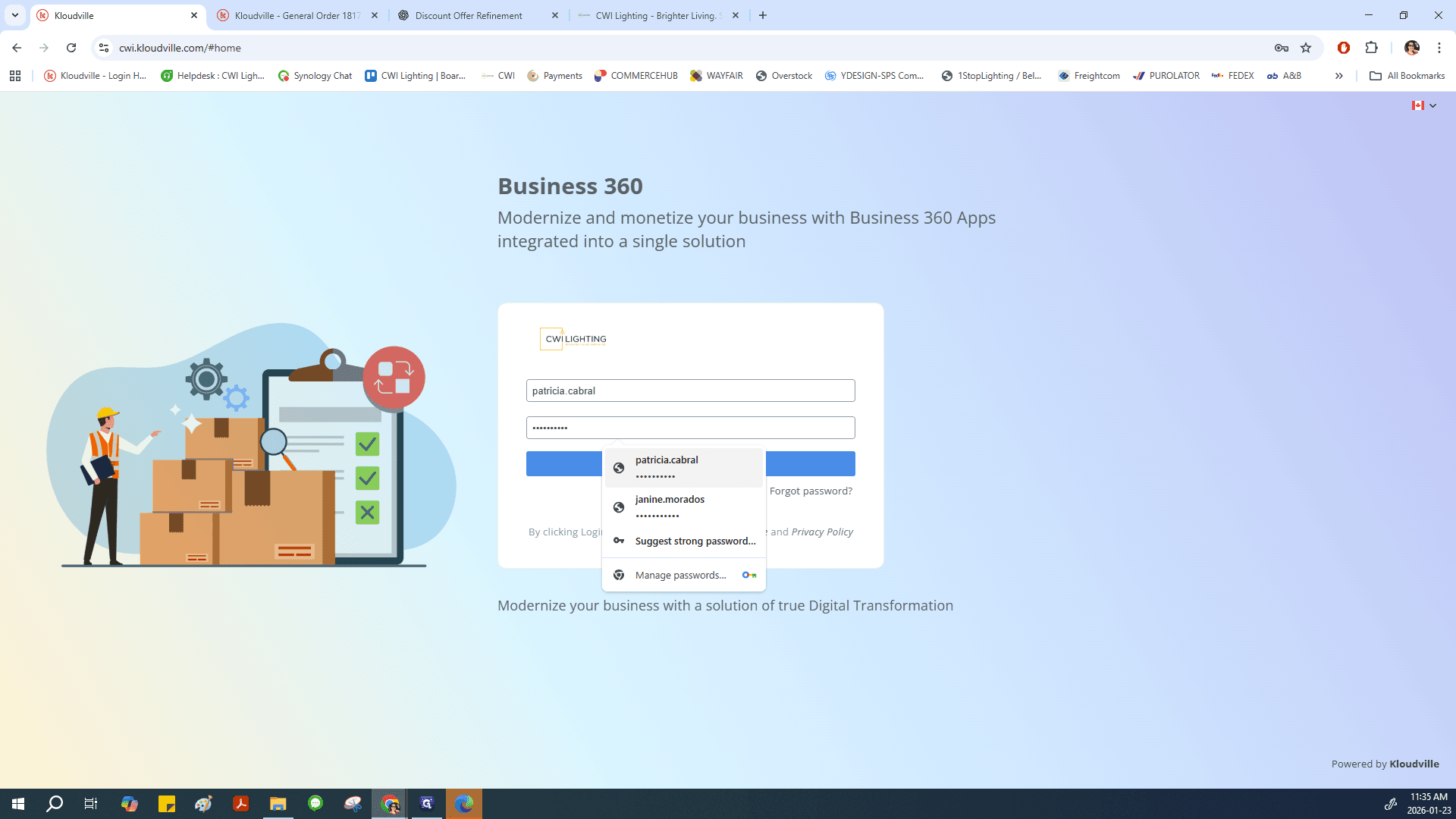
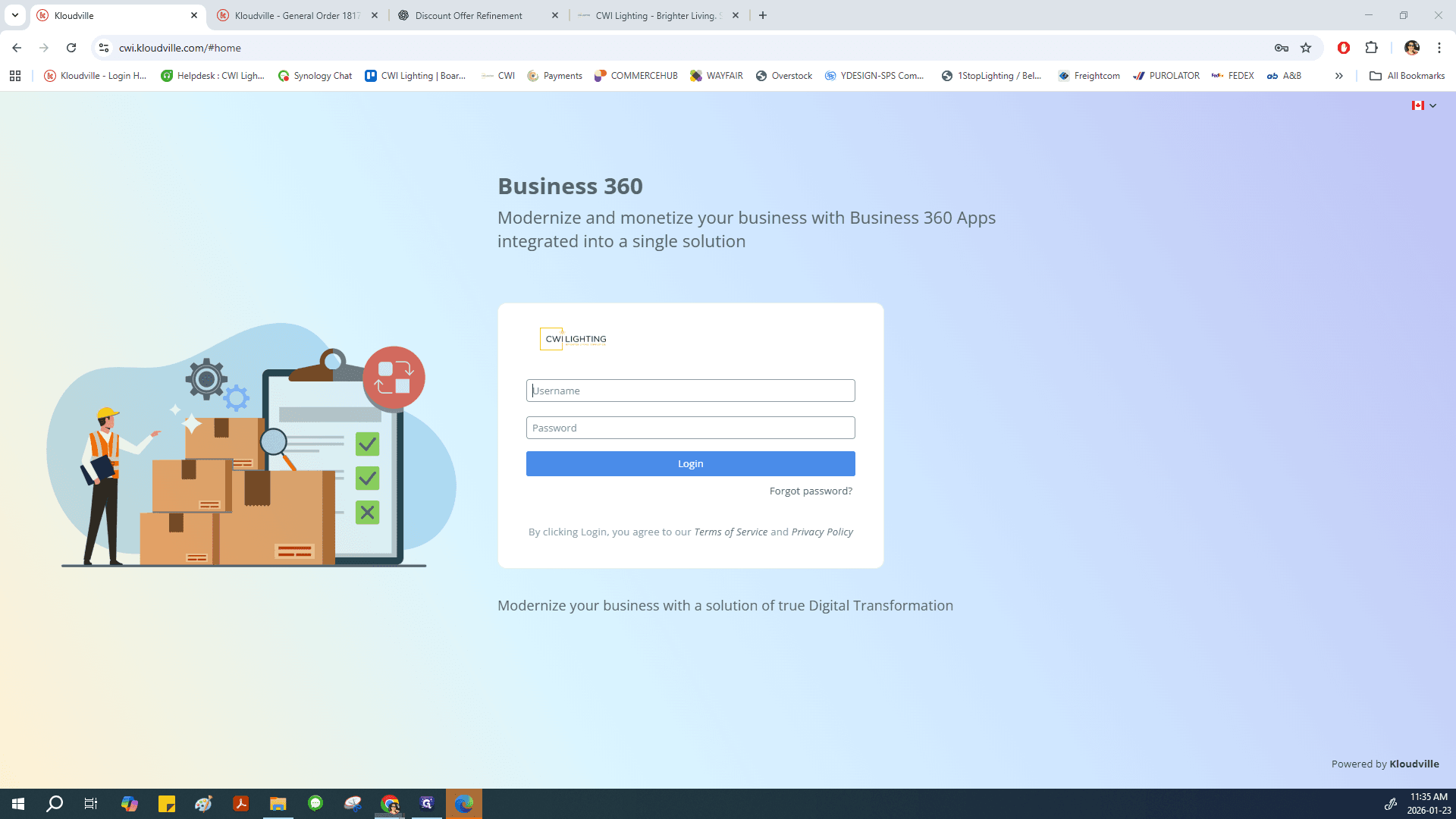
To place an order, go to Kloudville. Enter your login and password, then log in.
1
Click here
Step #1: Click here
2
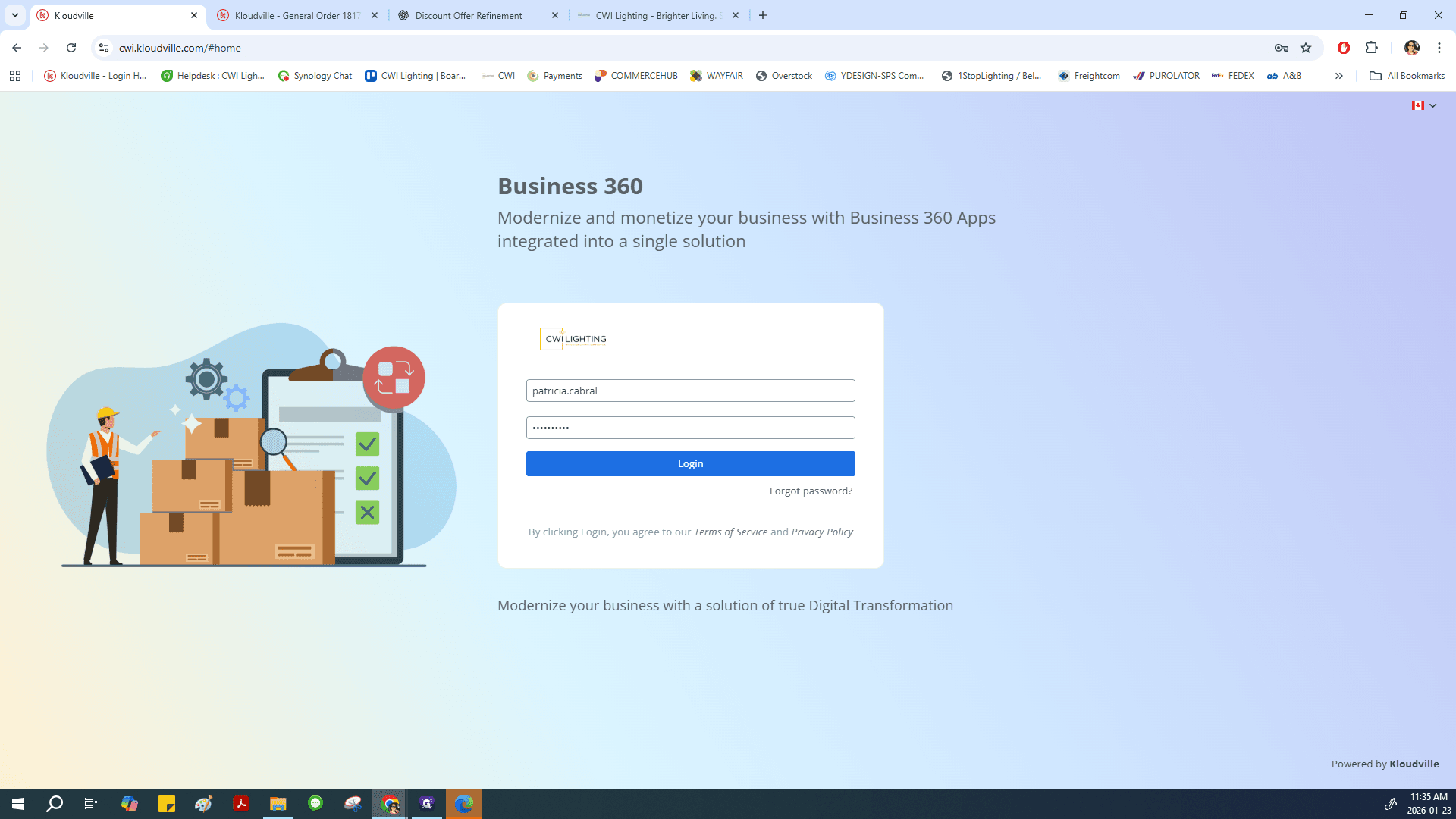
Select or Enter your login and password
Step #2: Select or Enter your login and password
3
Click in Login to enter the system
Step #3: Click in Login to enter the system

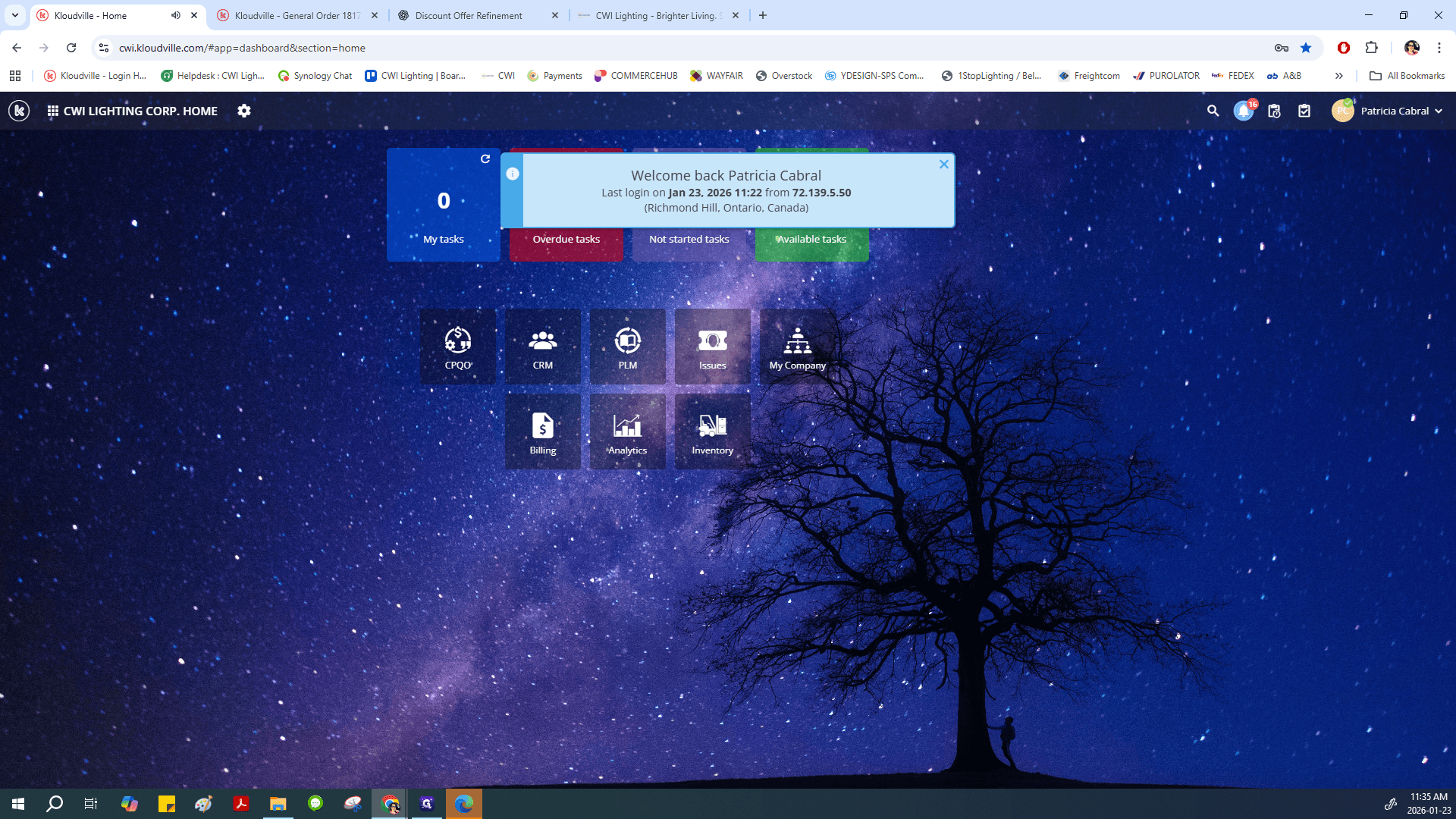
Select your order module, which is the first one here.
4
Click on "CPQO" your Order module
Step #4: Click on "CPQO" your Order module

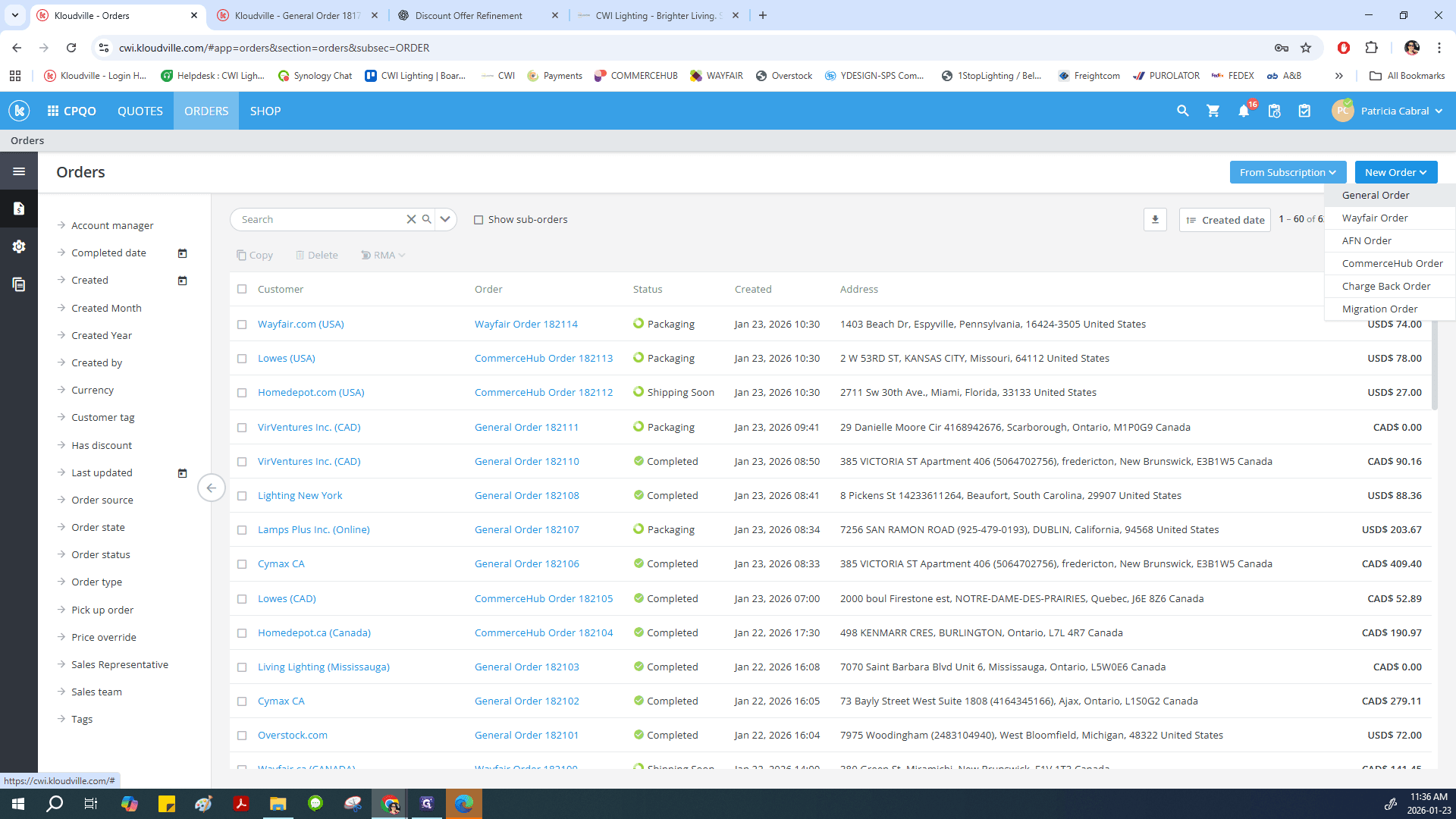
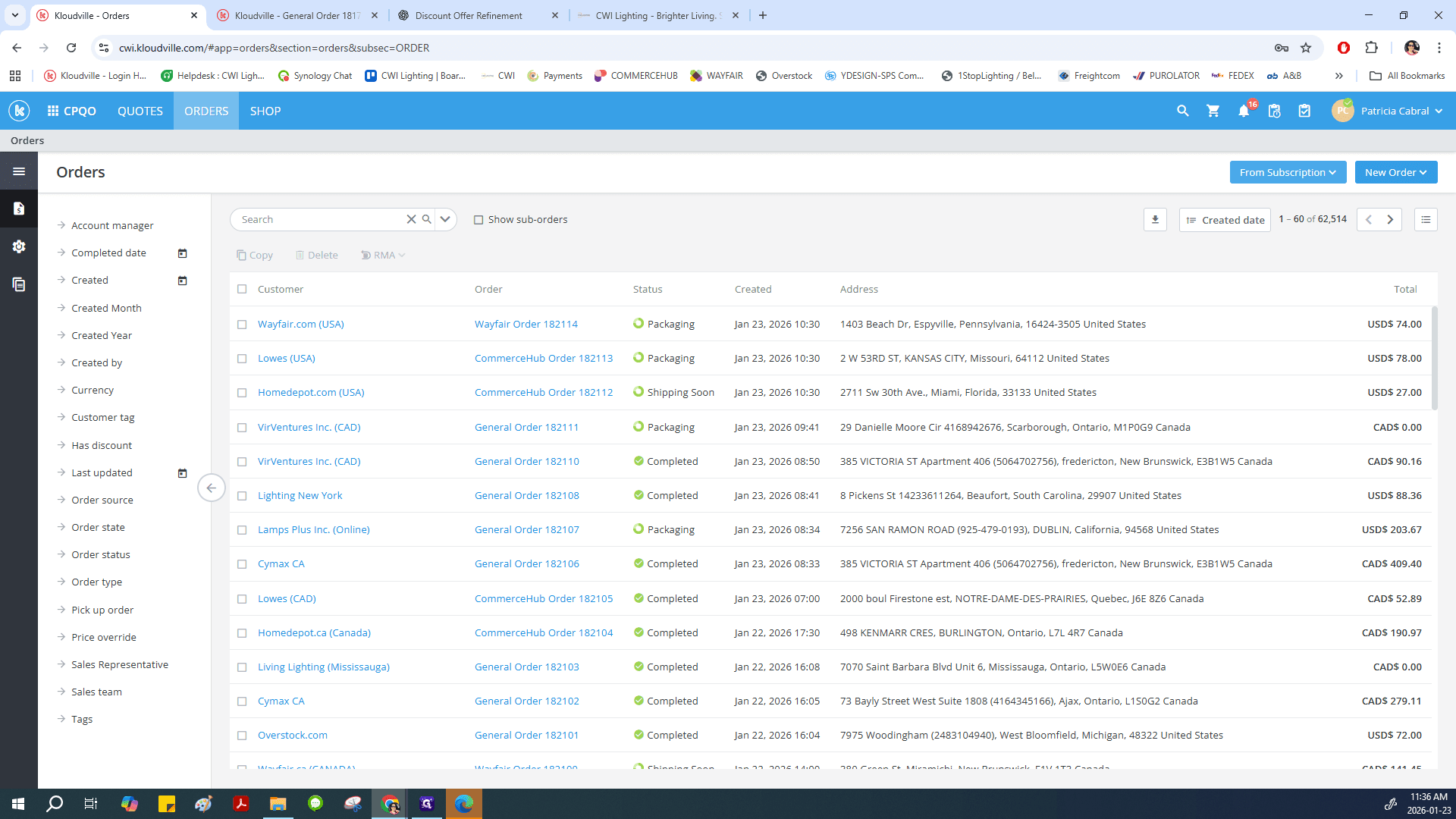
Once inside the order module, click on New Order, then select General Order.
5
Click on "New Order"
Step #5: Click on "New Order"
6
Click on "General Order"
Step #6: Click on "General Order"

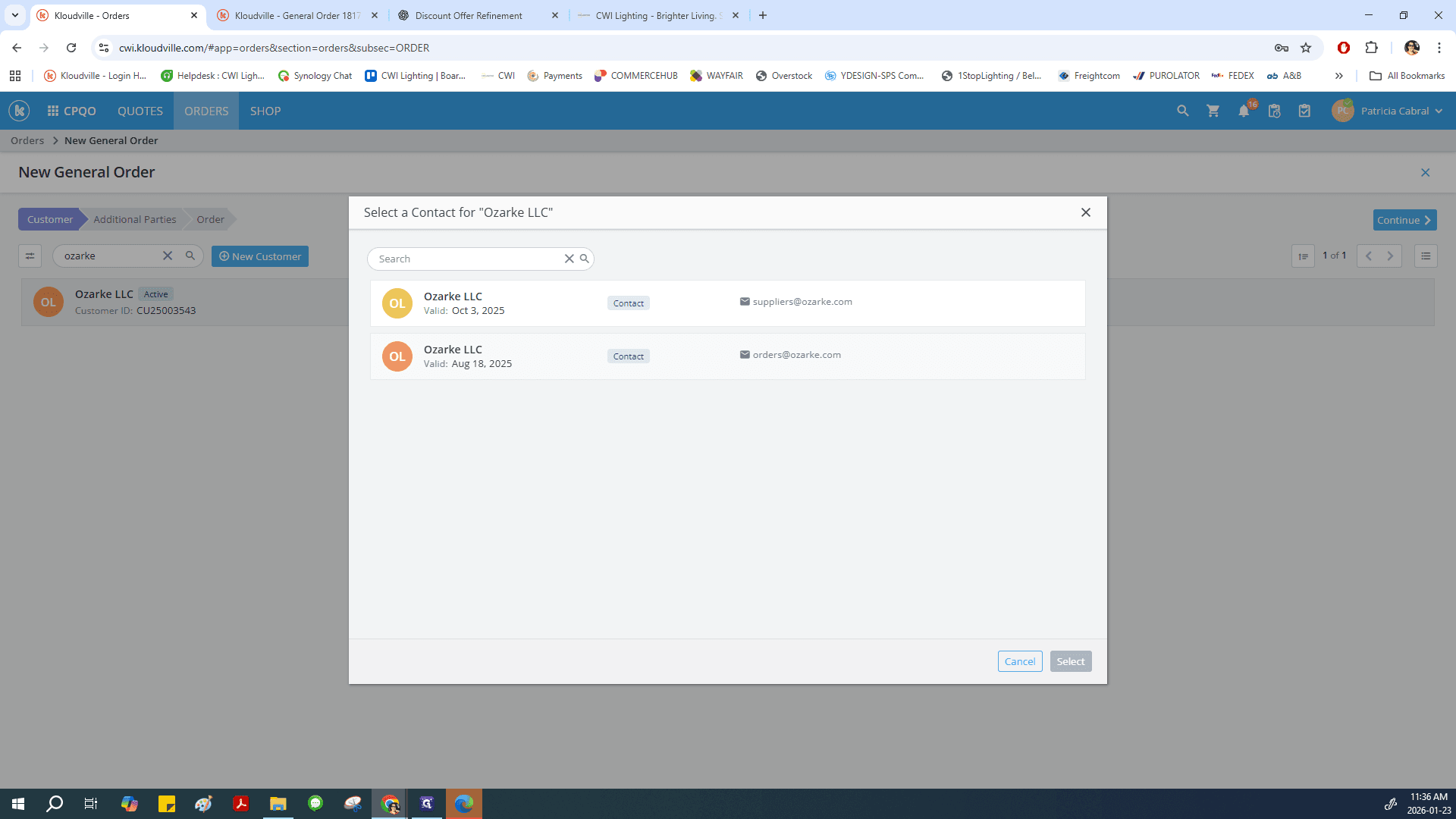
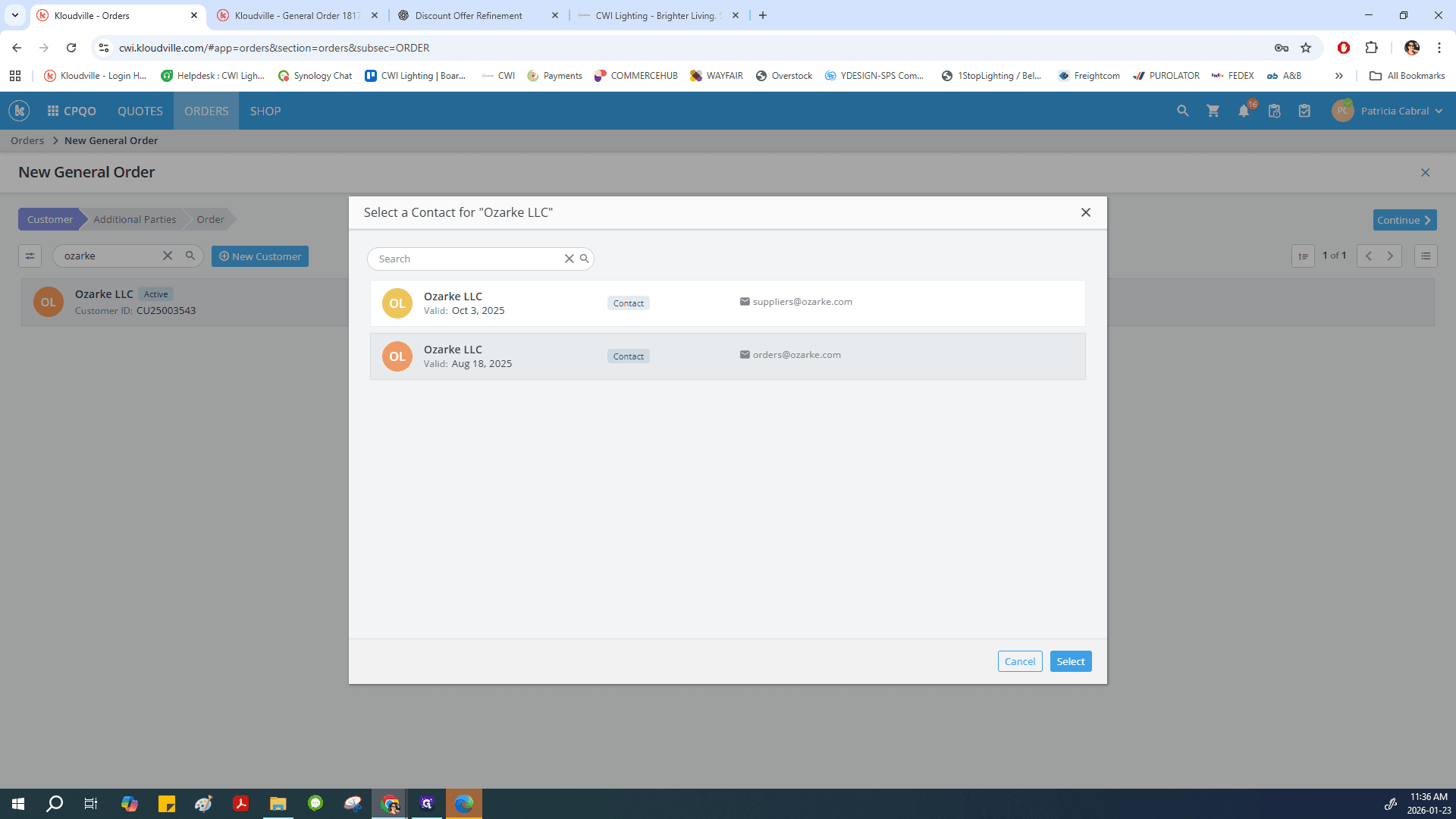
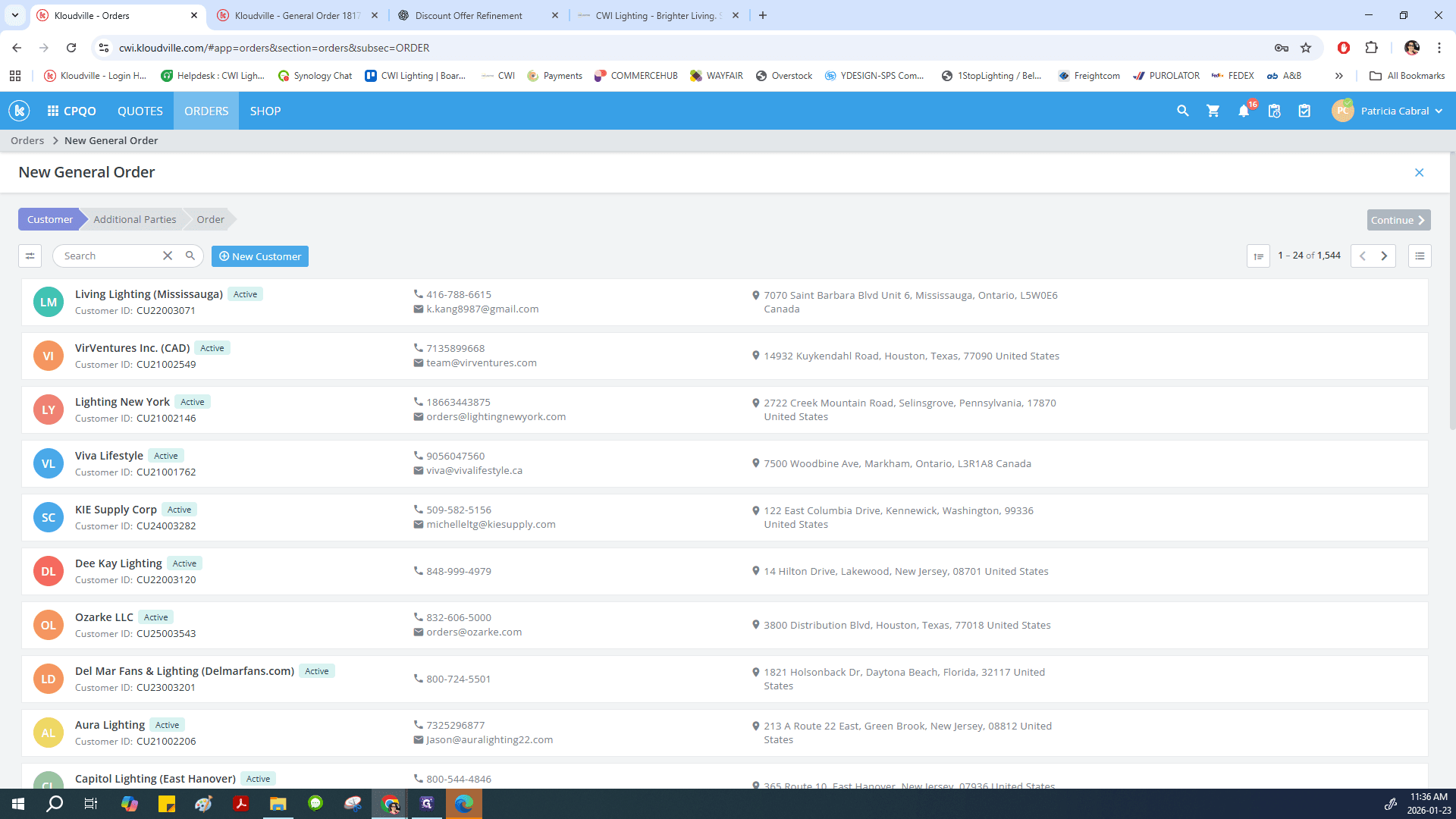
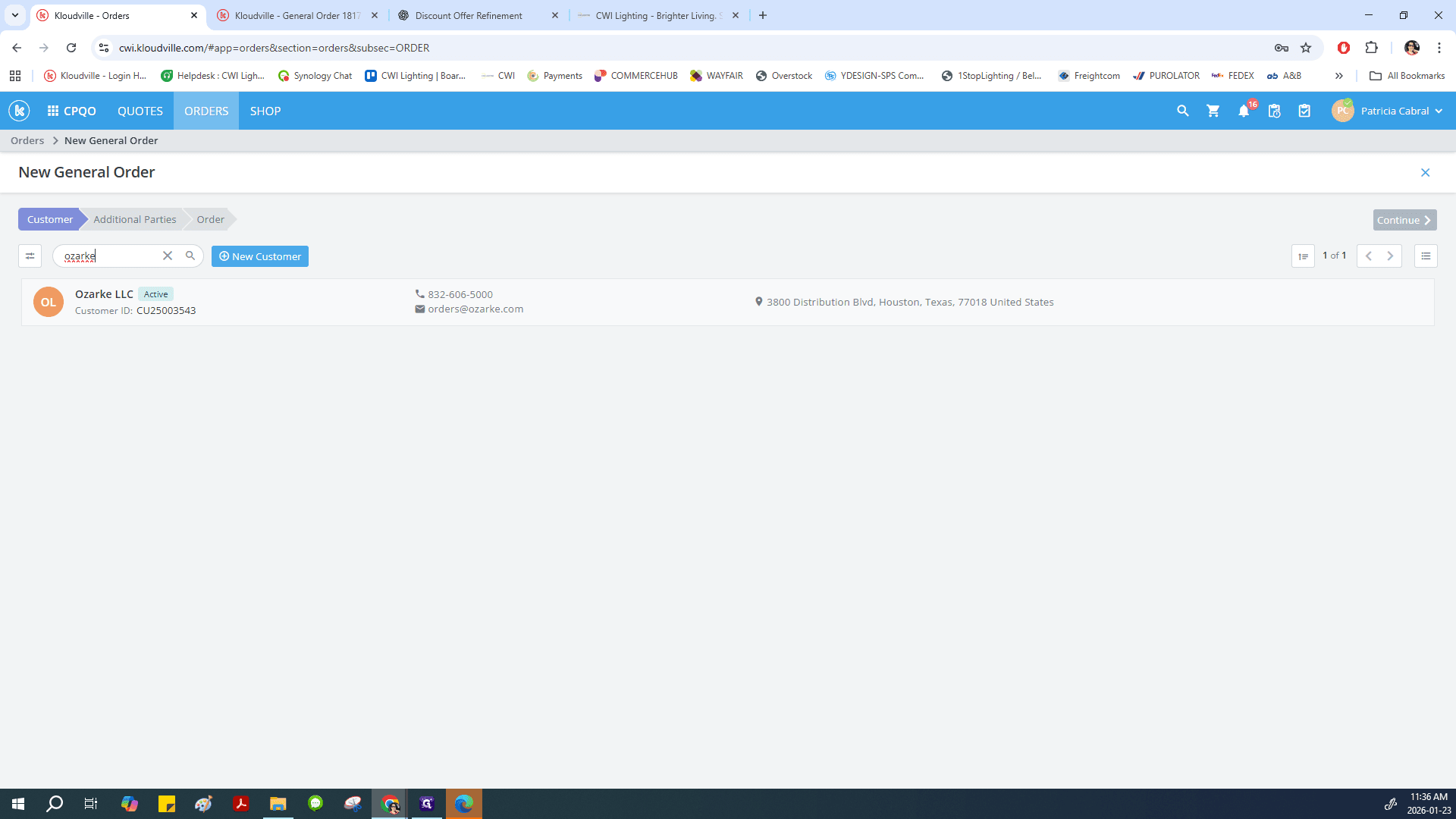
Go to the search engine and search for your customer. Press Enter. Select the customer name, then choose the contact, such as orders@orzark.com, and click Select.
7
Click on Search to enter the customer name
Step #7: Click on Search to enter the customer name
8
Type your customer name "ozarke" and press "Enter"
9
Select the correct customer "Ozarke LLC"
Step #9: Select the correct customer  "Ozarke LLC"
10
Select the proper contact email based on the PO information recieved
Step #10: Select the proper contact email based on the PO information recieved
11
Click on "Select"
Step #11: Click on "Select"

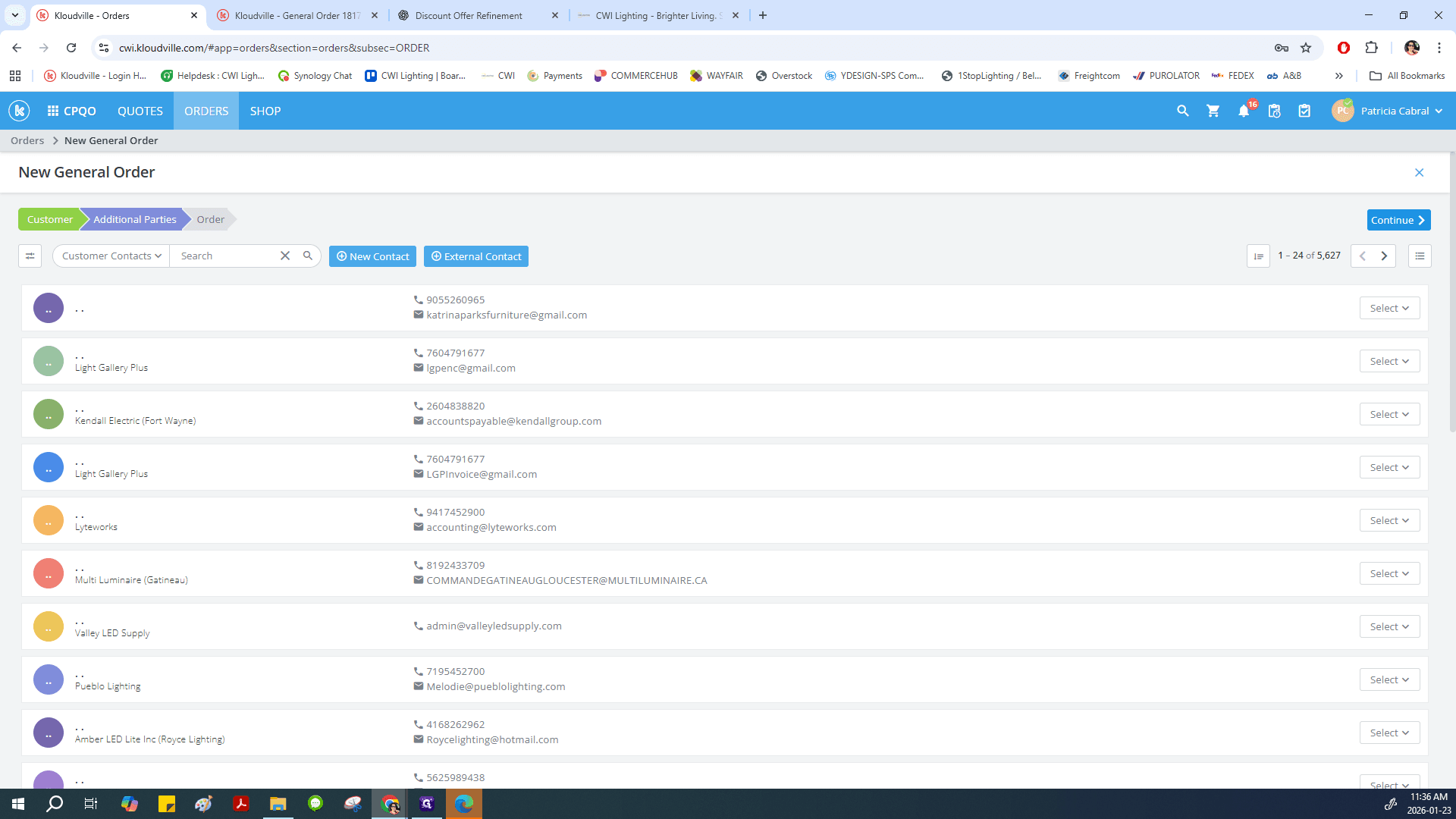
On the next screen, click Continue.
12
Click on "Continue >"
Step #12: Click on "Continue >"

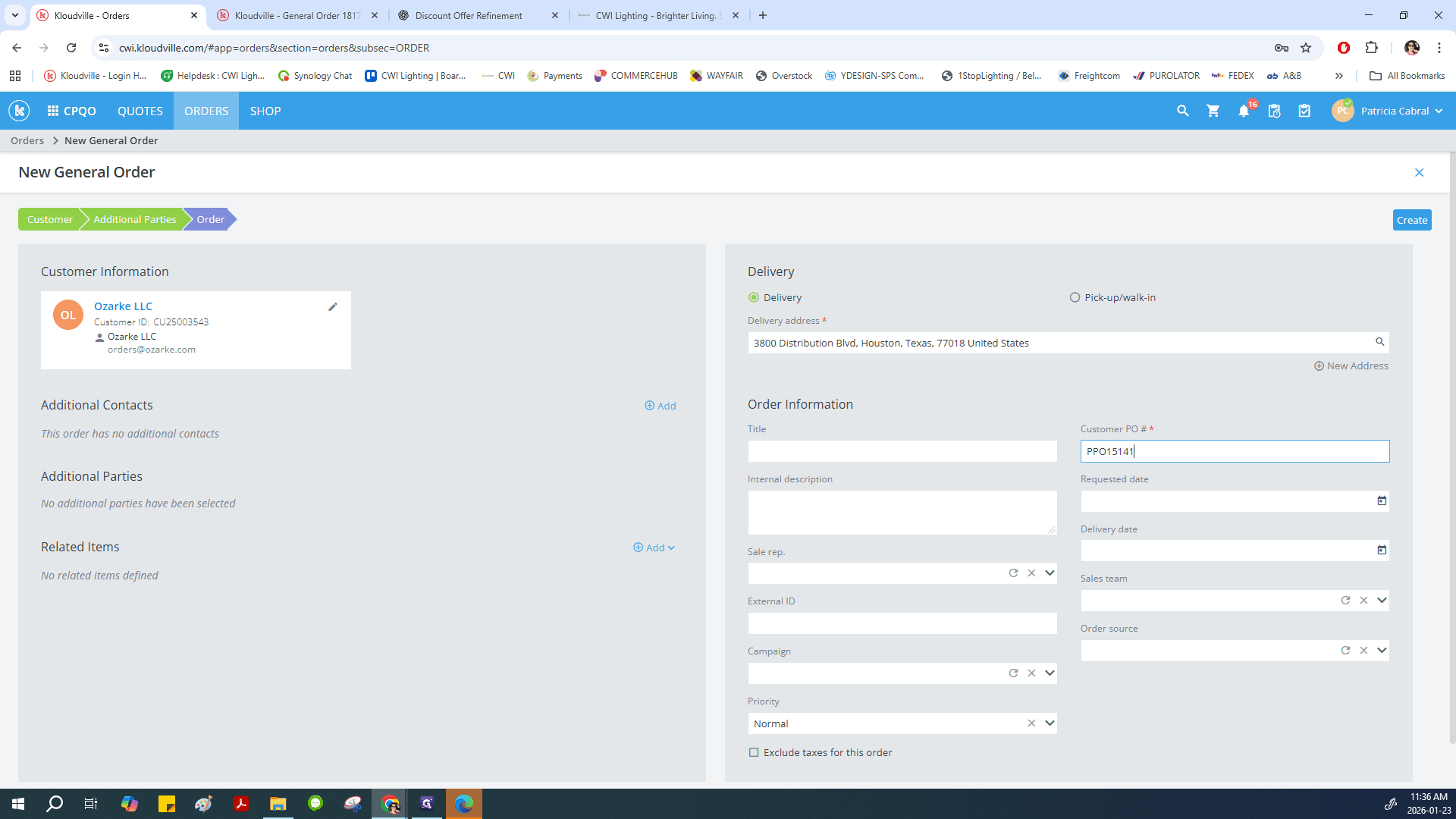
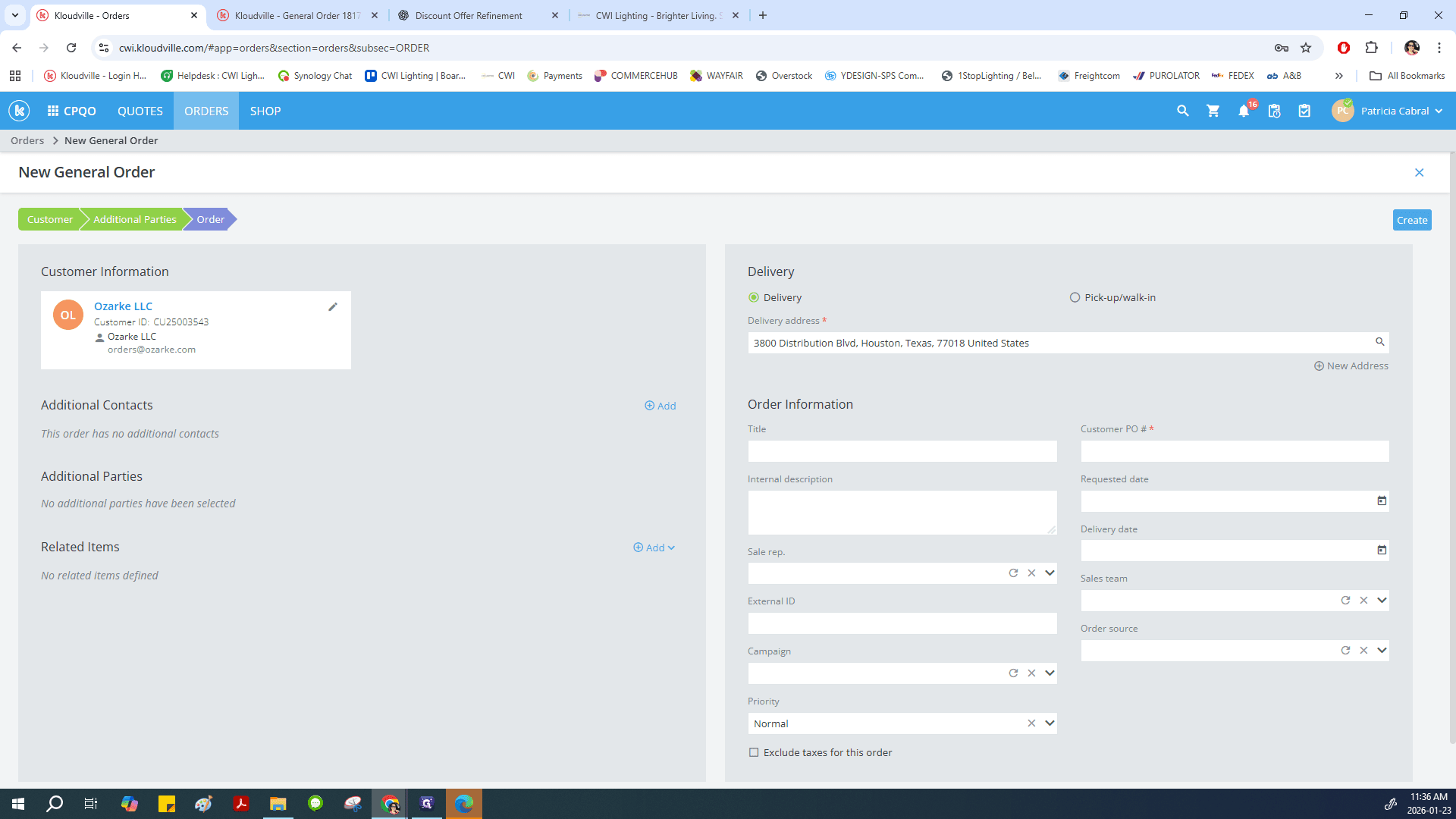
This will take yo the first page to start entering the PO details. Enter your PO number here.
13
Click here
Step #13: Click here

Enter the customer's PO number

14
Click on "Create"
Step #14: Click on "Create"

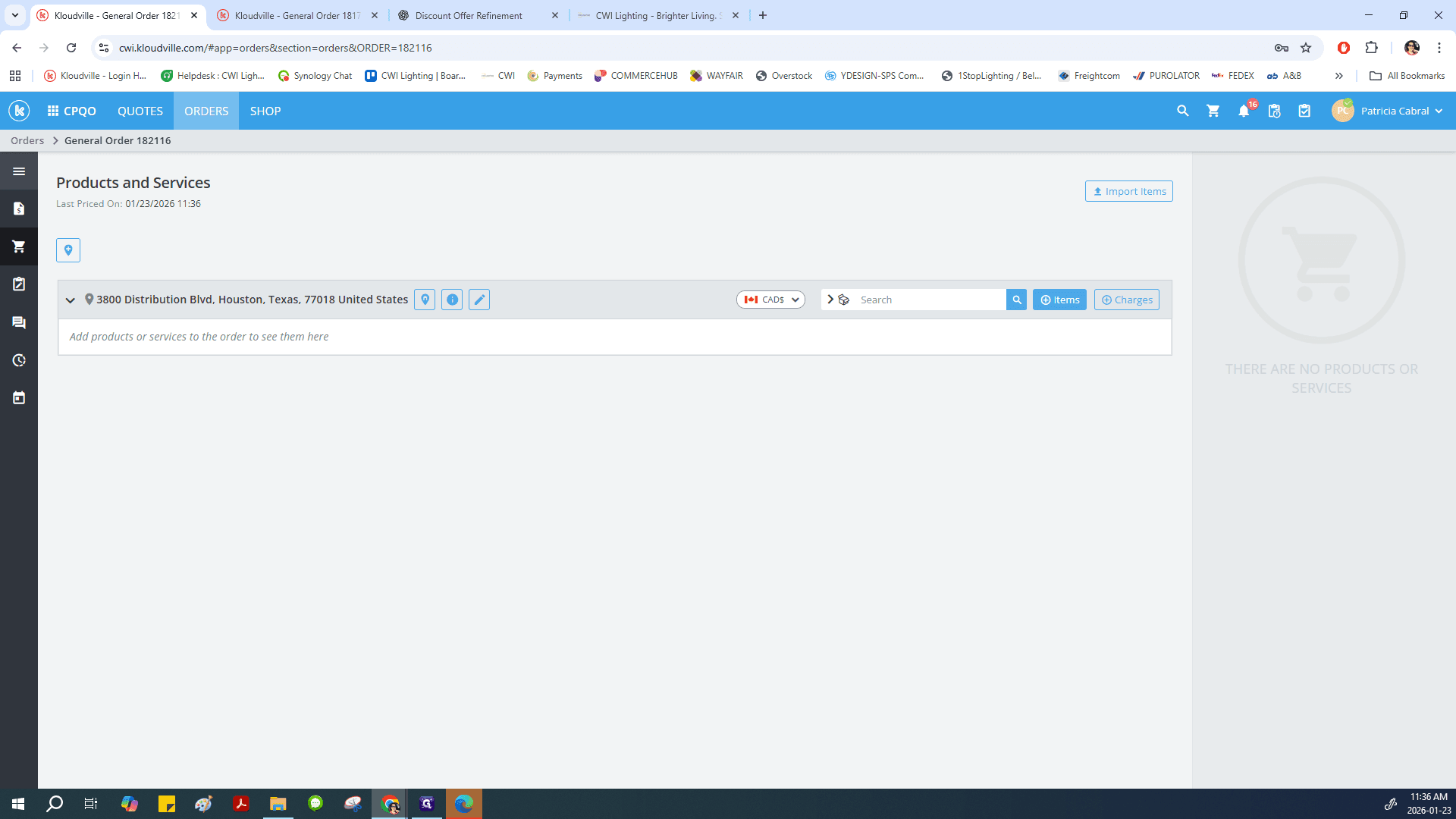
Match the currency to the destination country. For the United States, select USD.
15
Select the right Currency to match the PO
Step #15: Select the right Currency to match the PO
16
In this case "USD"
Step #16: In this  case "USD"

Once the correct currency is selected, enter your item number.
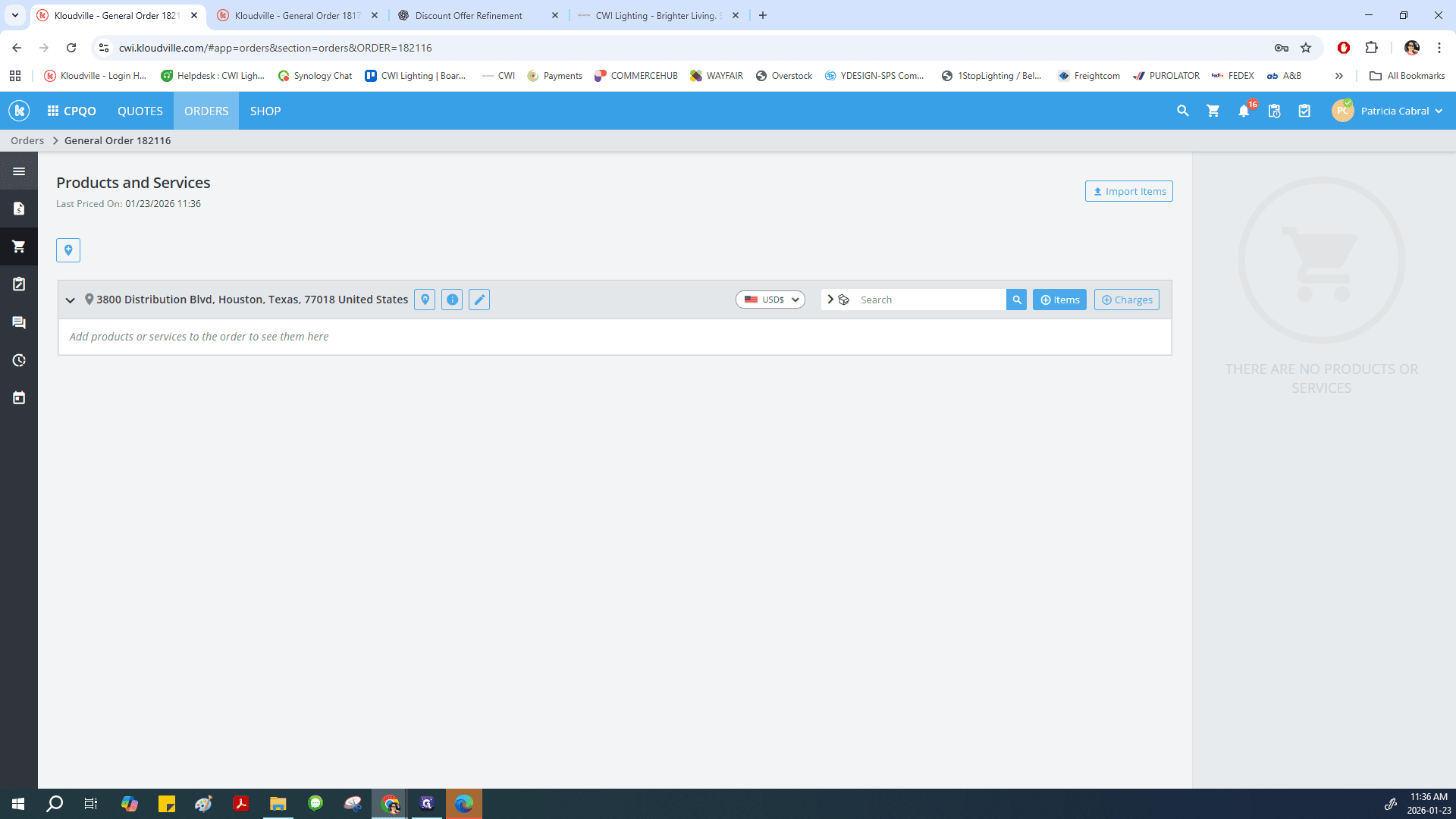
17
Click here
Step #17: Click here
18
Type in the product SKU number on the Search box

Select the right SKU from the dropdown.
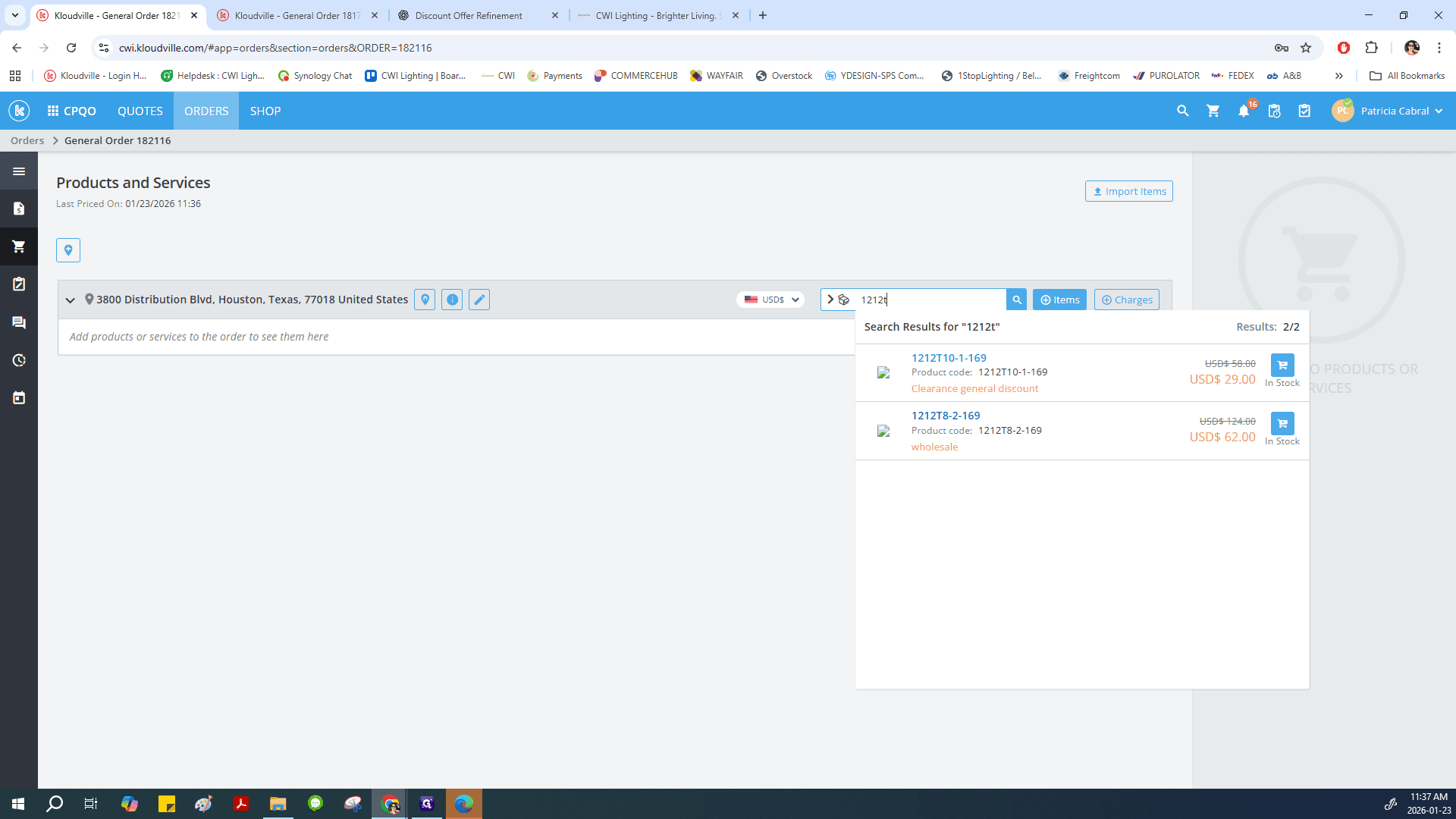
19
In this case Click on "1212T8-2-169"
Step #19: In this case Click on "1212T8-2-169"

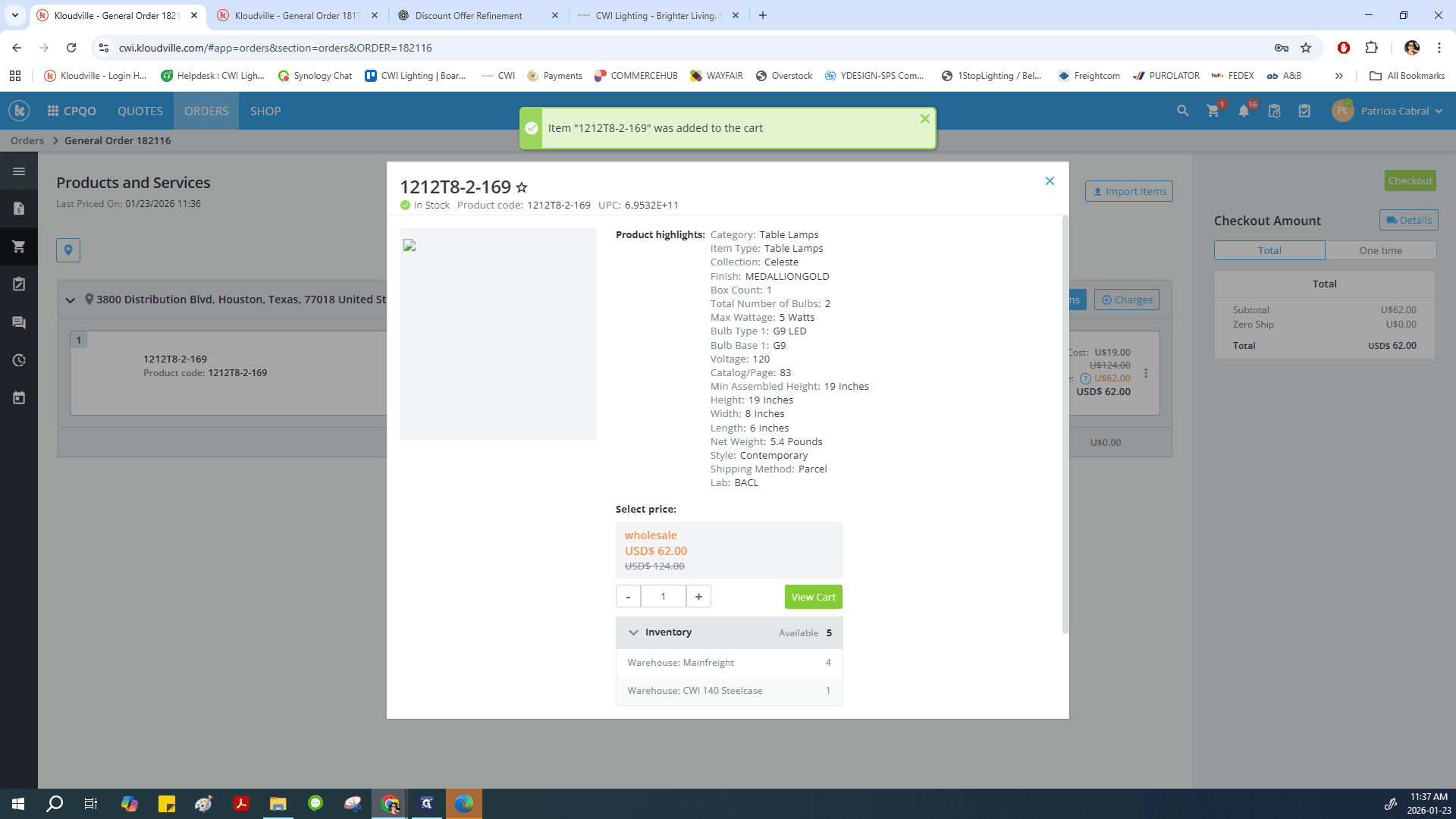
Double-check the inventory to ensure we have enough stock and identify which warehouses have it.

20
Click on "Inventory" to see all stock levels through the different warehouses.
Step #20: Click on "Inventory" to see all stock levels through the different warehouses.

In this case, the customer is ordering one, so everything is fine. Add to Cart. View Cart.
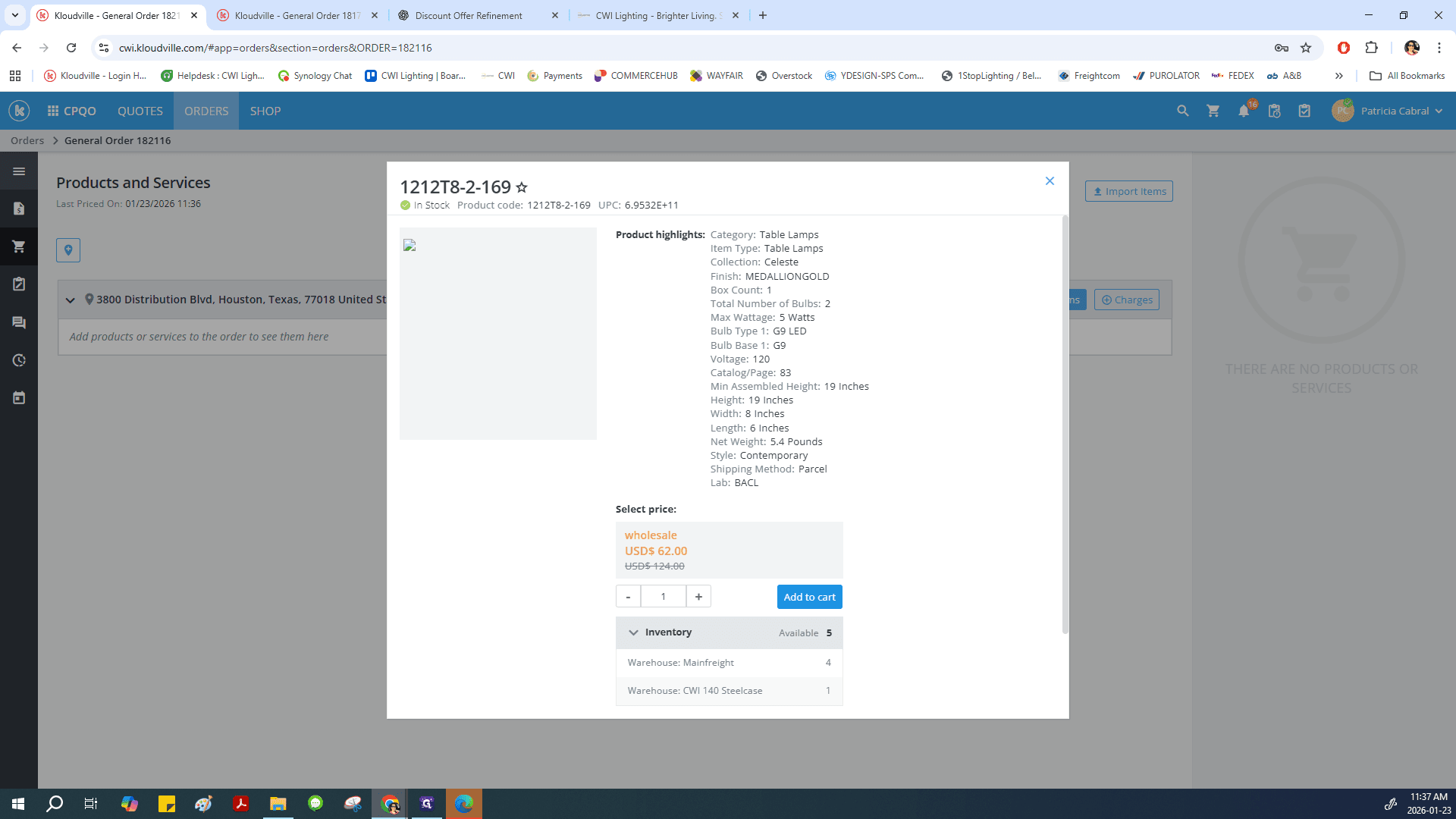
21
Click on "Add to cart"
Step #21: Click on "Add to cart"
22
Click on "View Cart" to take you back to the Cart
Step #22: Click on "View Cart" to take you back to the Cart

Once the item has been added, double-check your delivery address. For this order, we need to update the address. Click on "Change Address," then select "New Address."
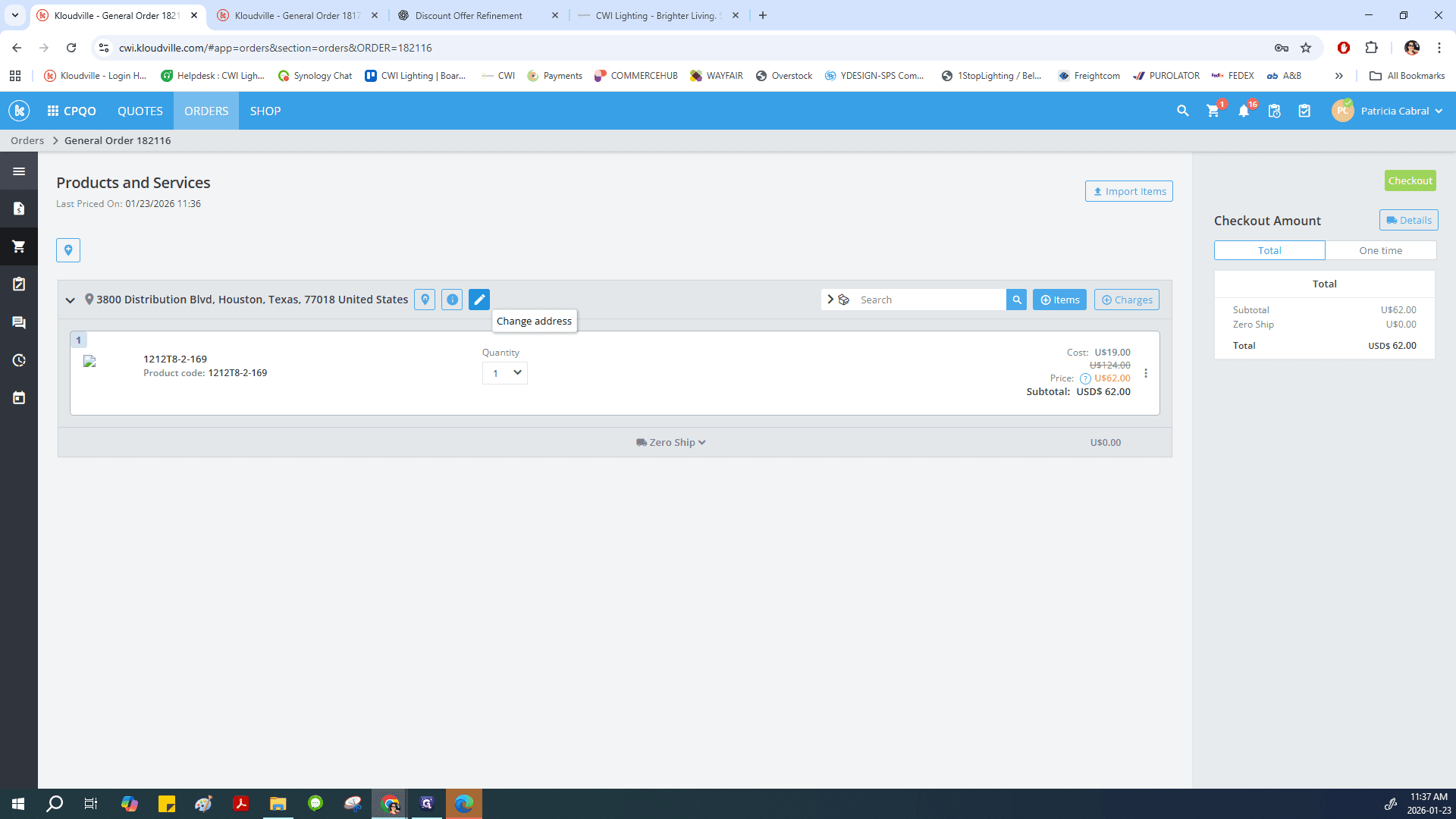
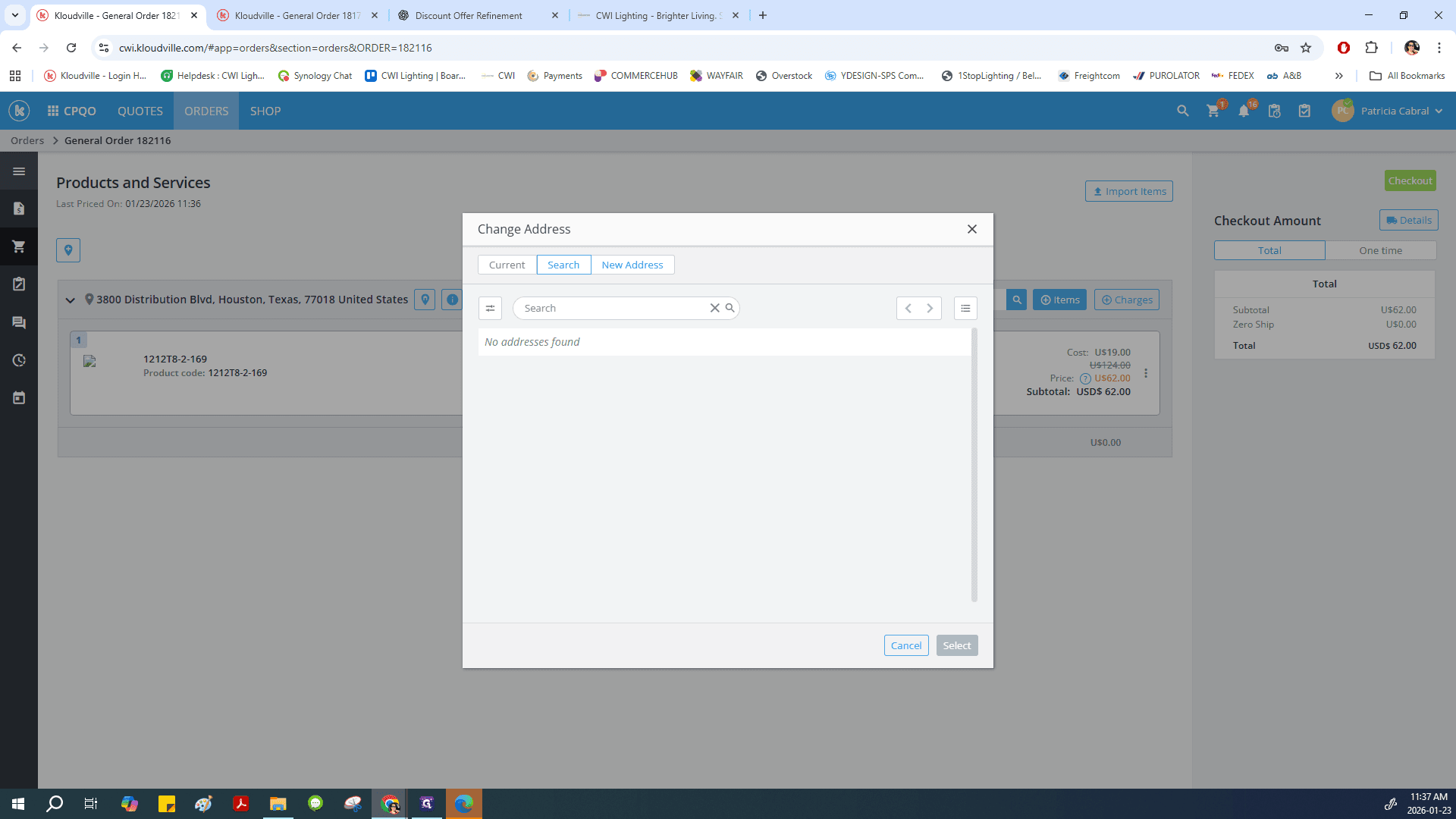
23
Click here
Step #23: Click here
24
Click on "New Address"
Step #24: Click on "New Address"

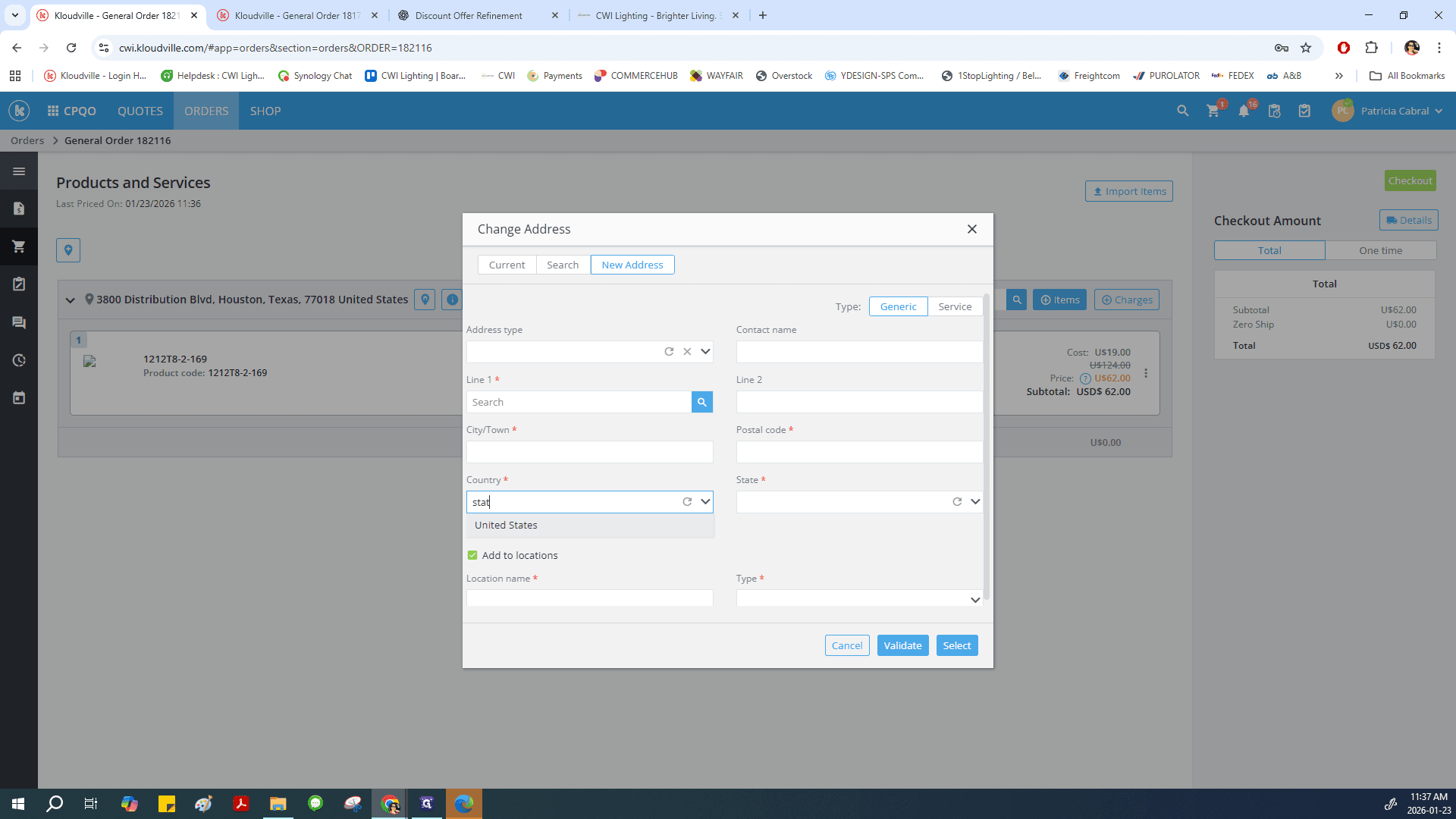
Change the country to the United States.
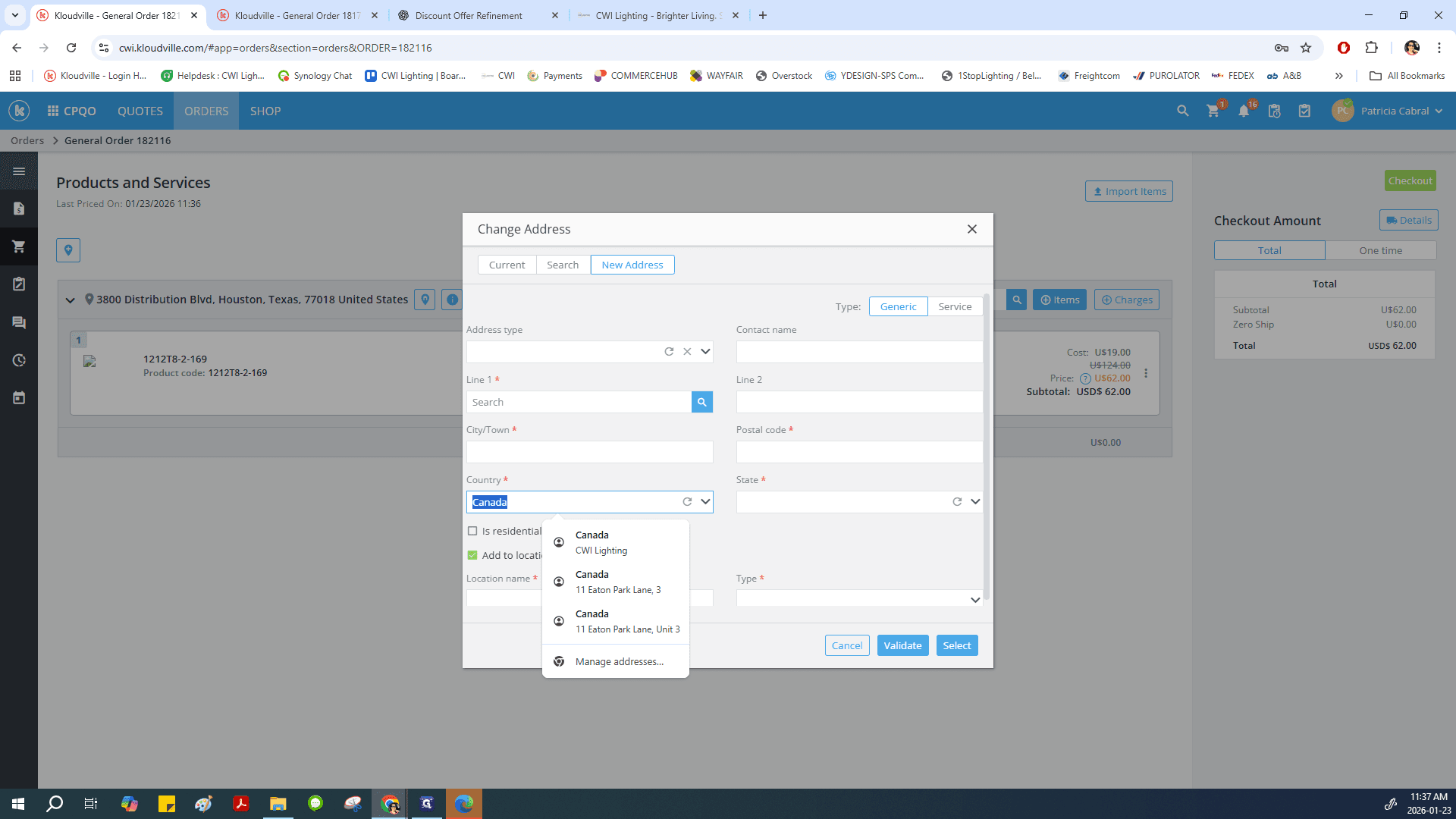
25
Double-click here
Step #25: Double-click here
26
Type & Select the correct country
Step #26: Type & Select the correct country

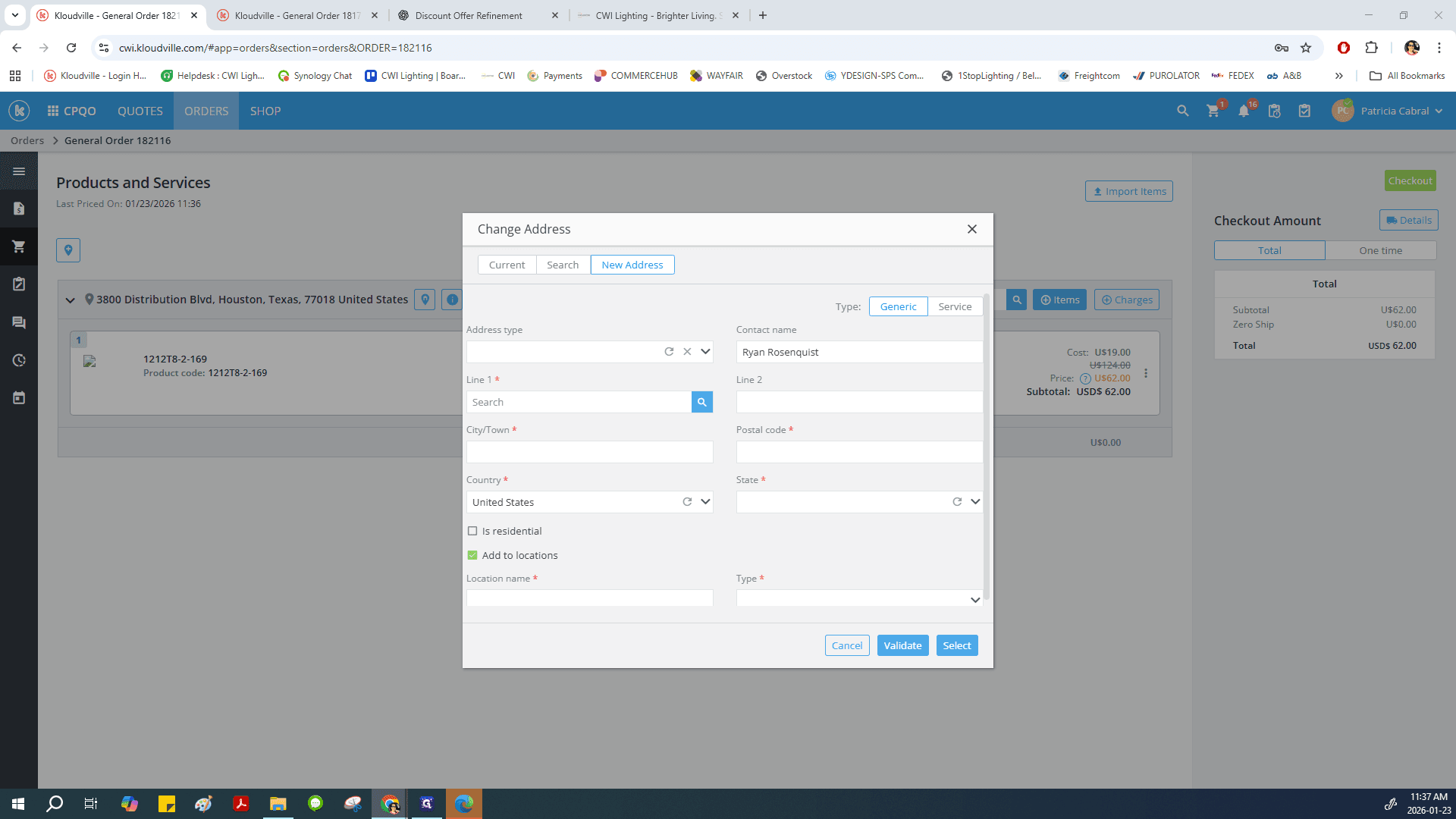
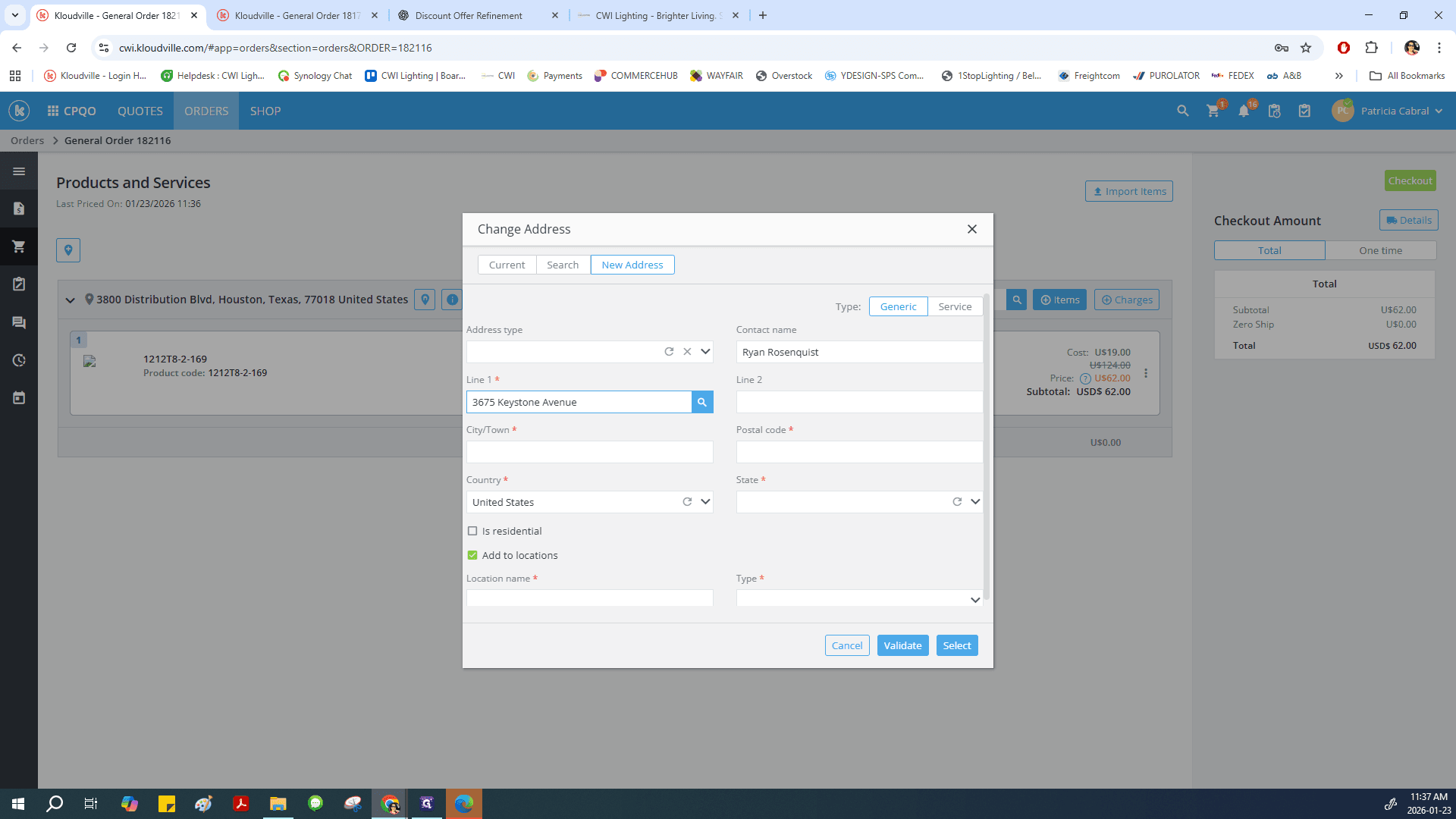
Add the customer name and street address.
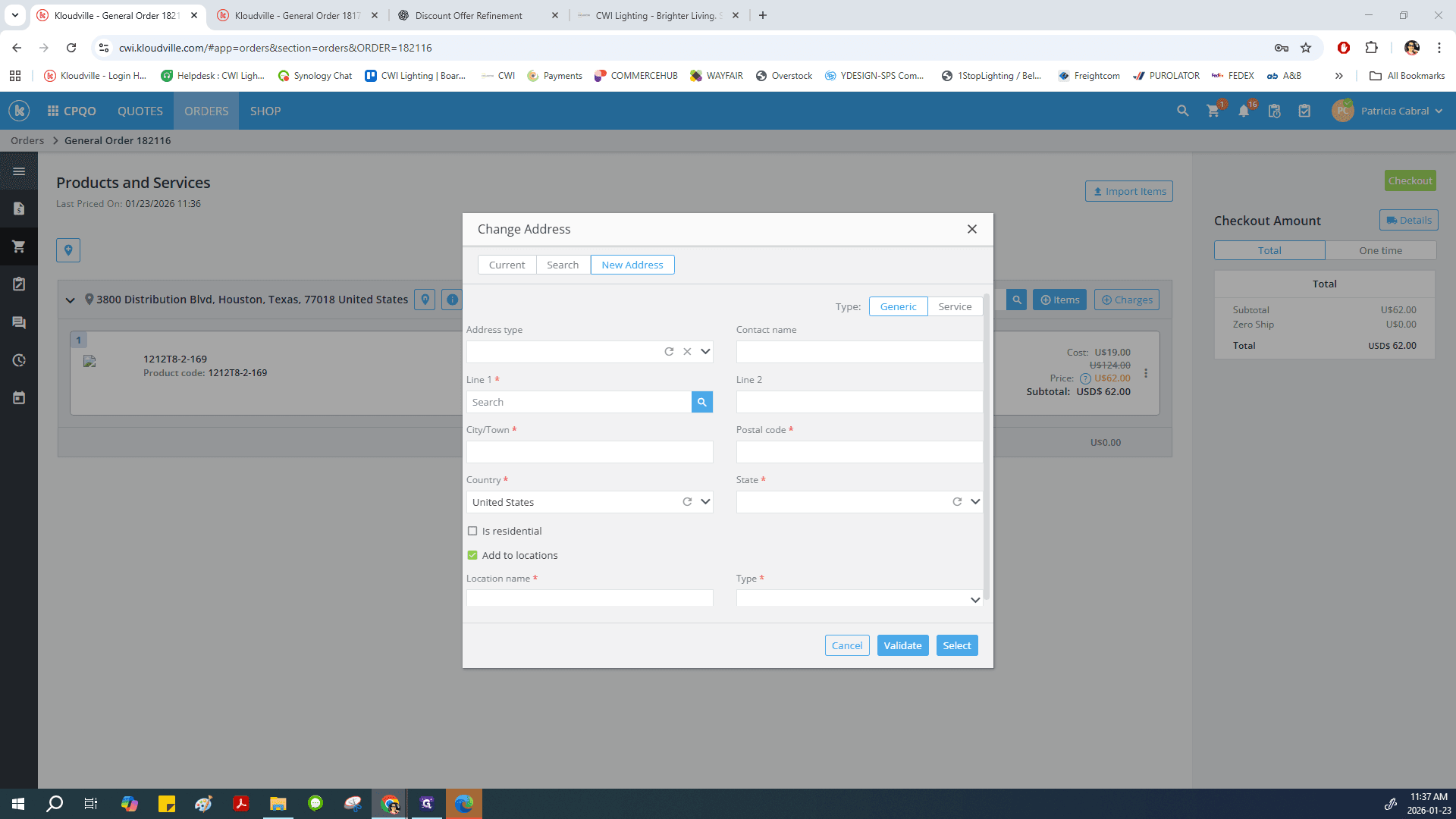
27
Click here
Step #27: Click here
28
Add Street name and number
Step #28: Add Street name and number
29
Click on "search"
Step #29: Click on "search"

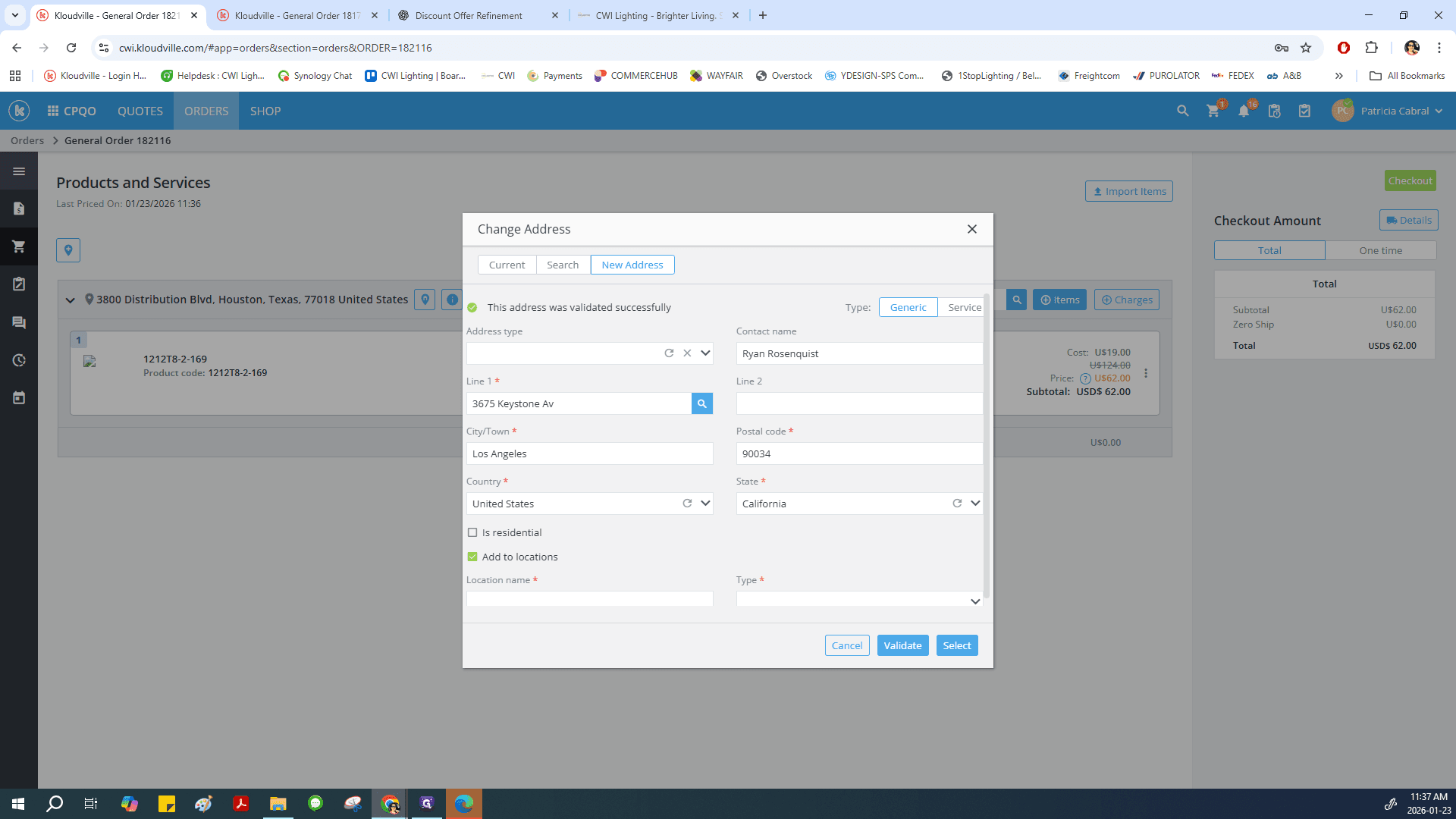
Make sure you select the correct one.
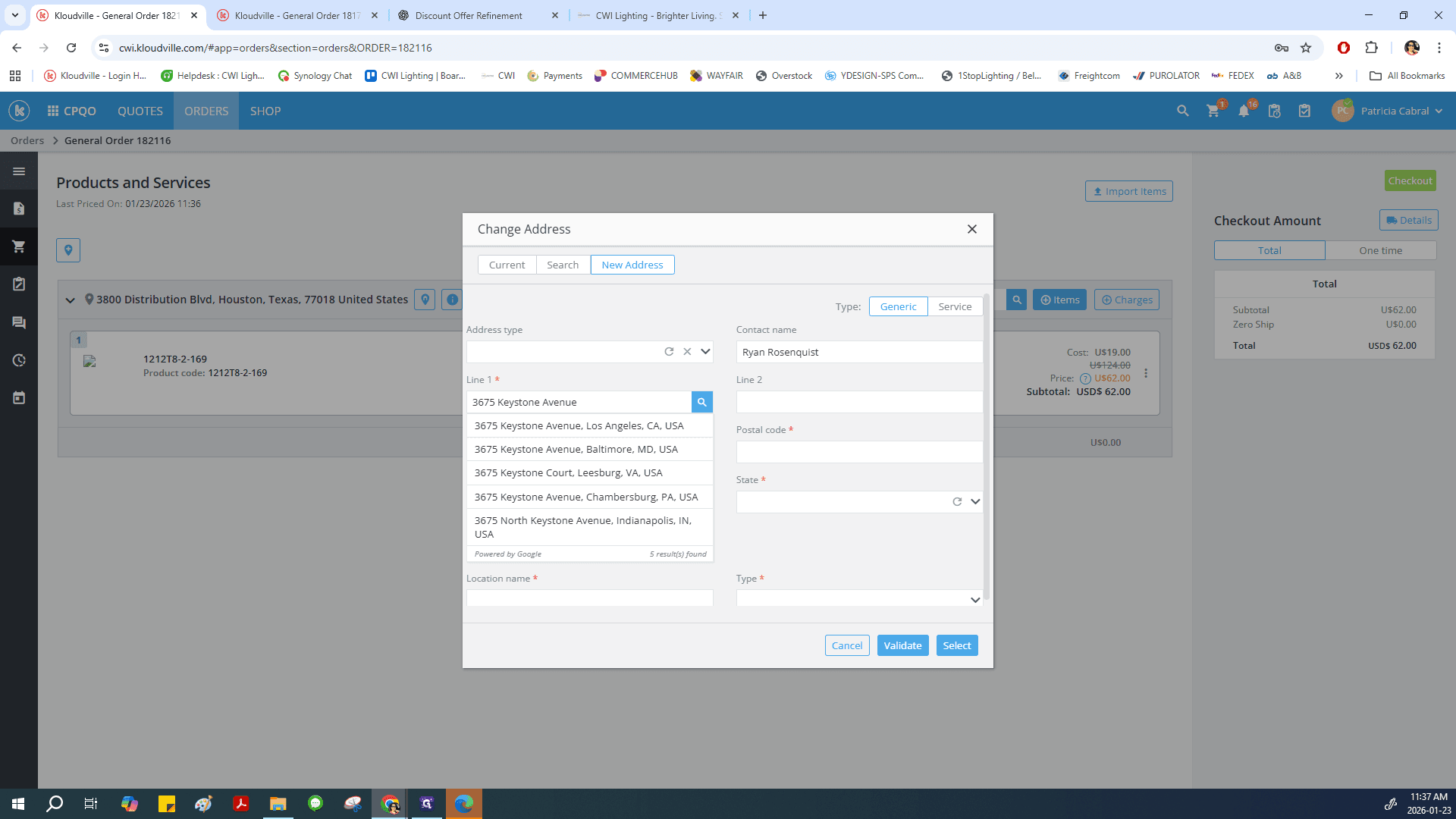
30
Click on "3675 Keystone Avenue , Los Angeles"
Step #30: Click on "3675 Keystone Avenue , Los Angeles"

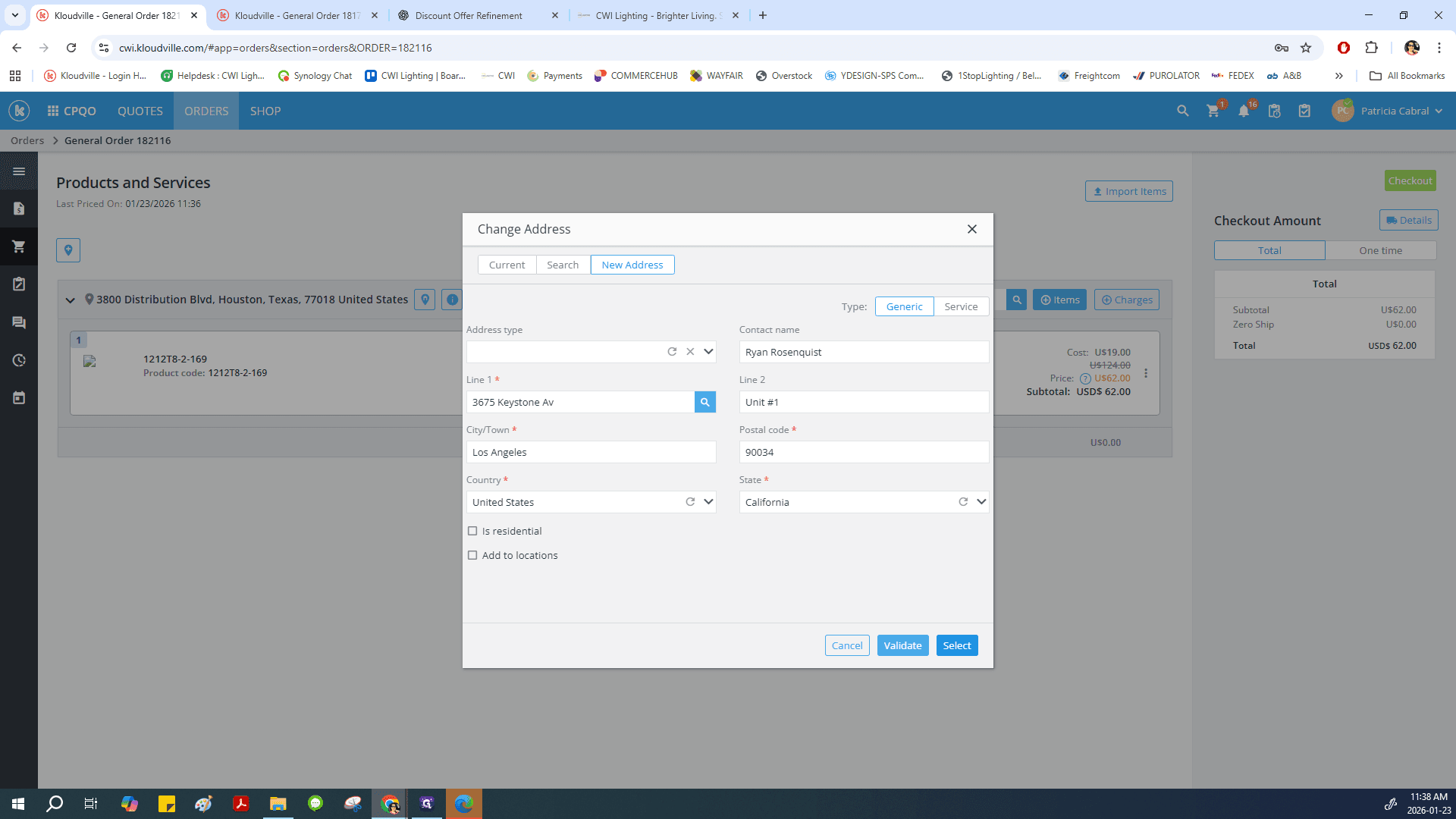
Add a unit if applicable.

31
Click on Line 2 to add Unit or phone number is it applies
Step #31: Click on Line 2 to add Unit or phone number is it applies

Uncheck "Add to location" since this is not a permanent address.
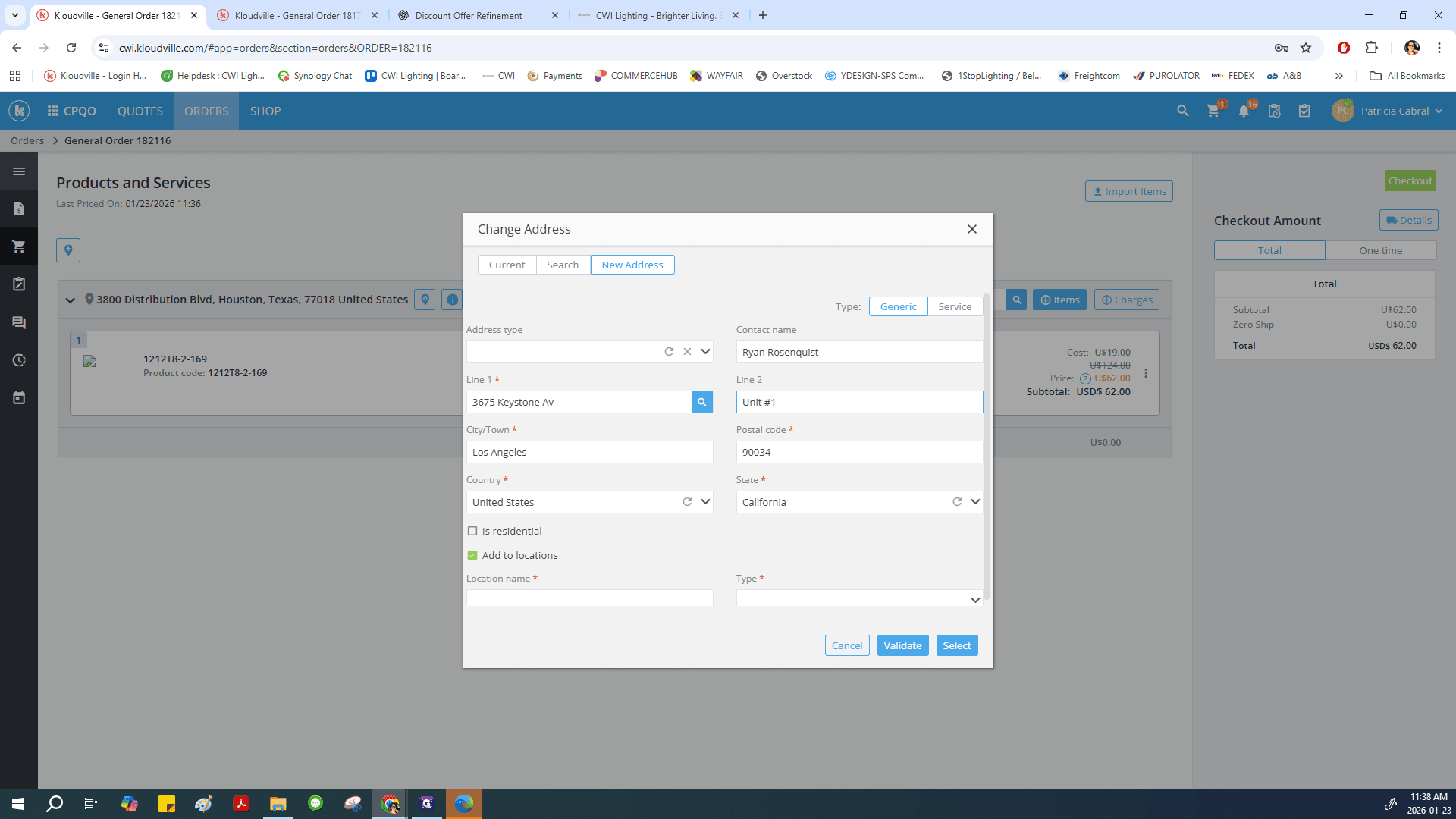
32
Uncheck the - Add to locations
Step #32: Uncheck the - Add to locations

Click Select.

33
Click on "Select"
Step #33: Click on "Select"

Your address has been updated.

Now select the appropriate shipping method.
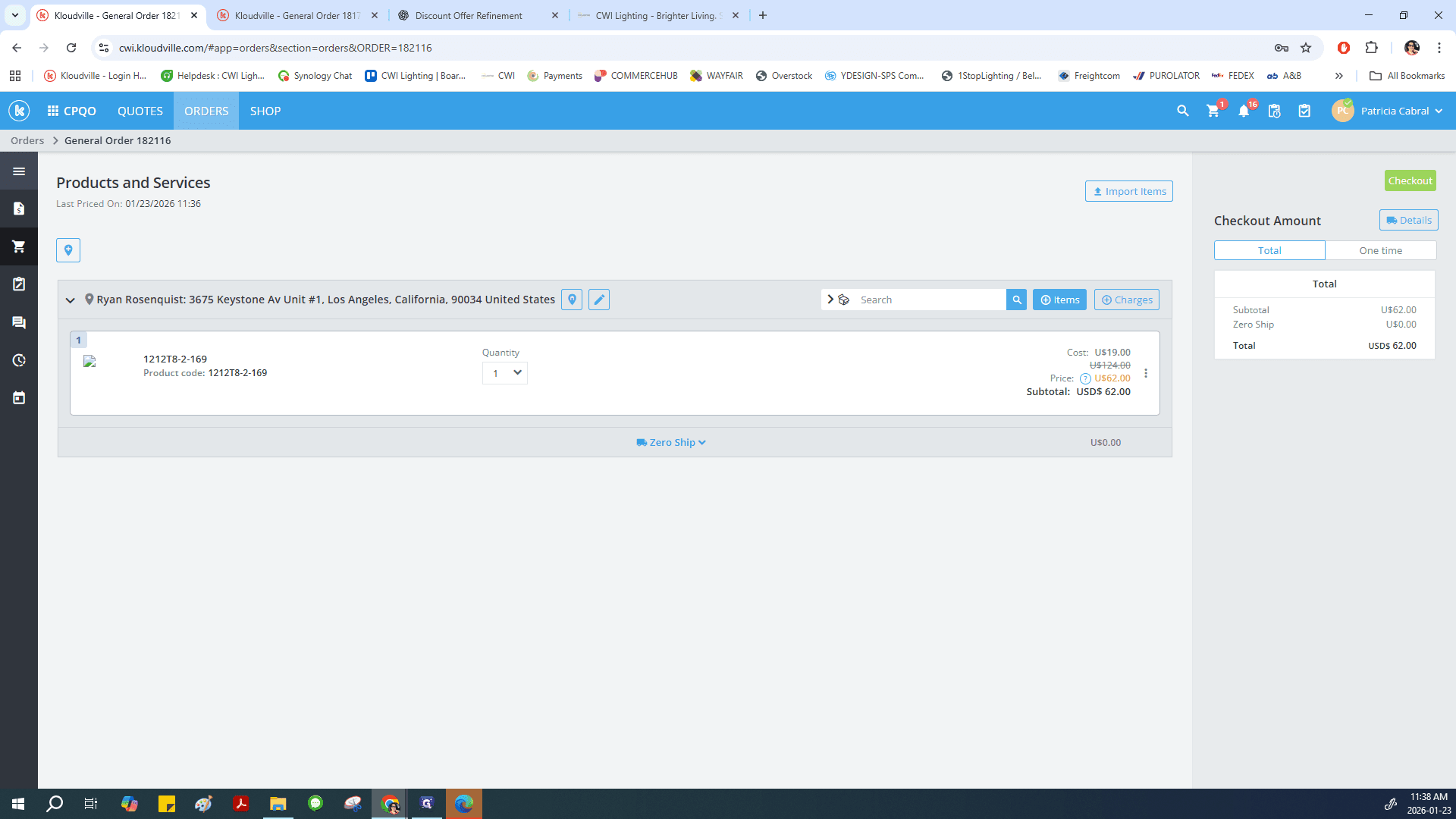
34
Click on "Zero Ship " to select the correct shipping method
Step #34: Click on "Zero Ship " to select the correct shipping method

Since this is an e-commerce account, check your shipping policy and select the correct option, "ECOMM SHIP"
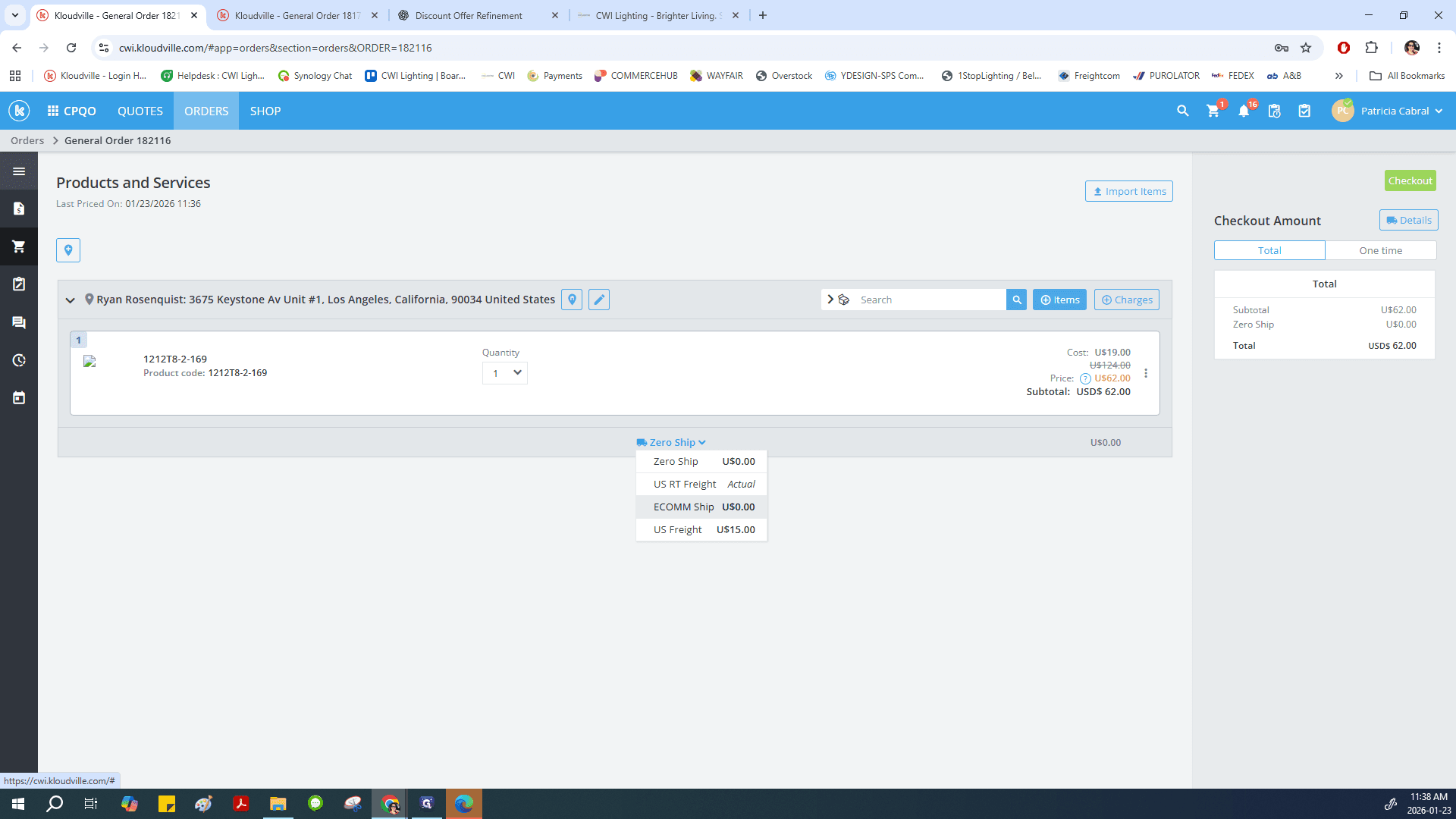
35
Click on "ECOMM Ship U $ 0.00"
Step #35: Click on "ECOMM Ship U $ 0.00"

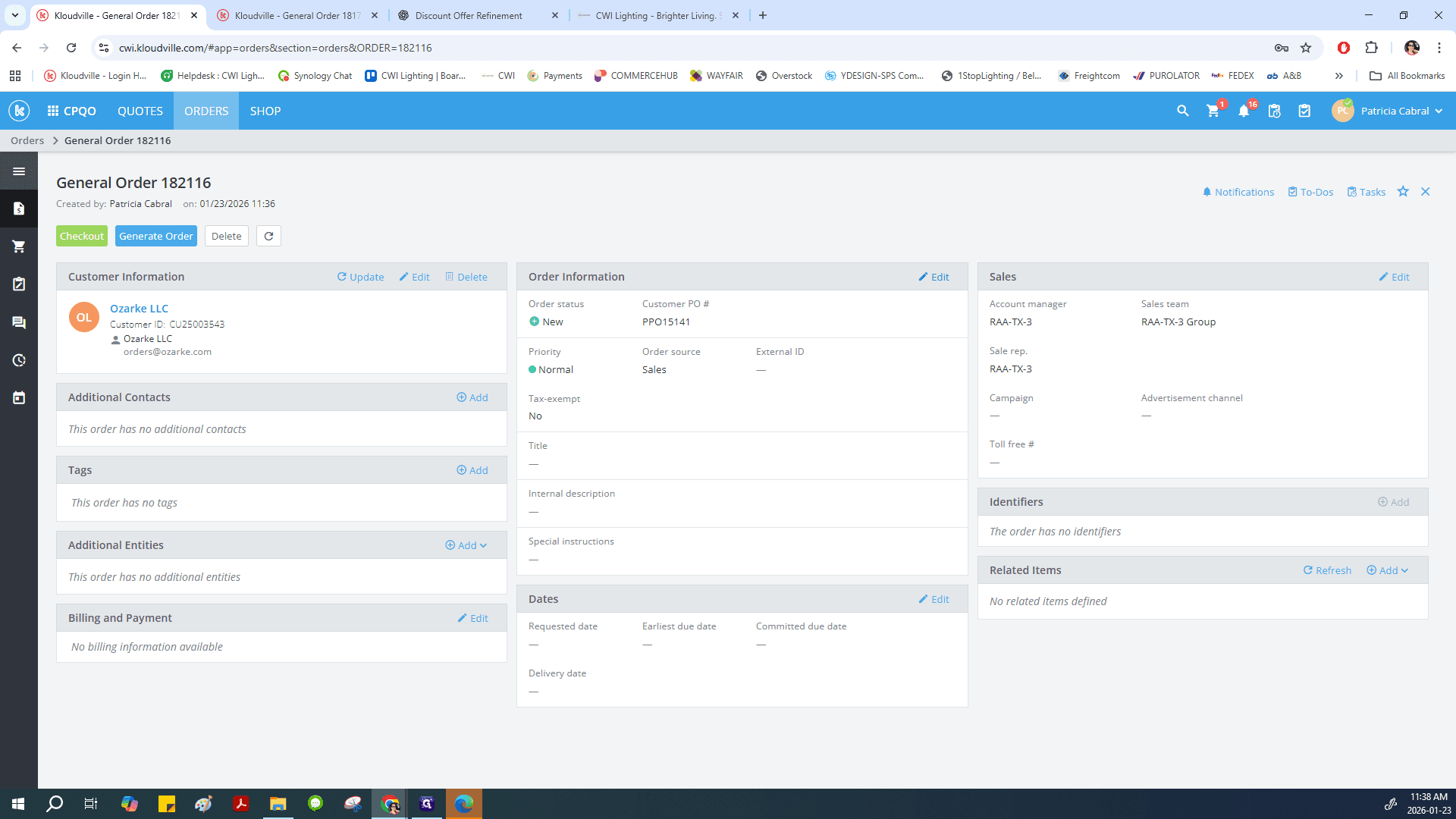
Return to the main order page and add instructions if necessary.
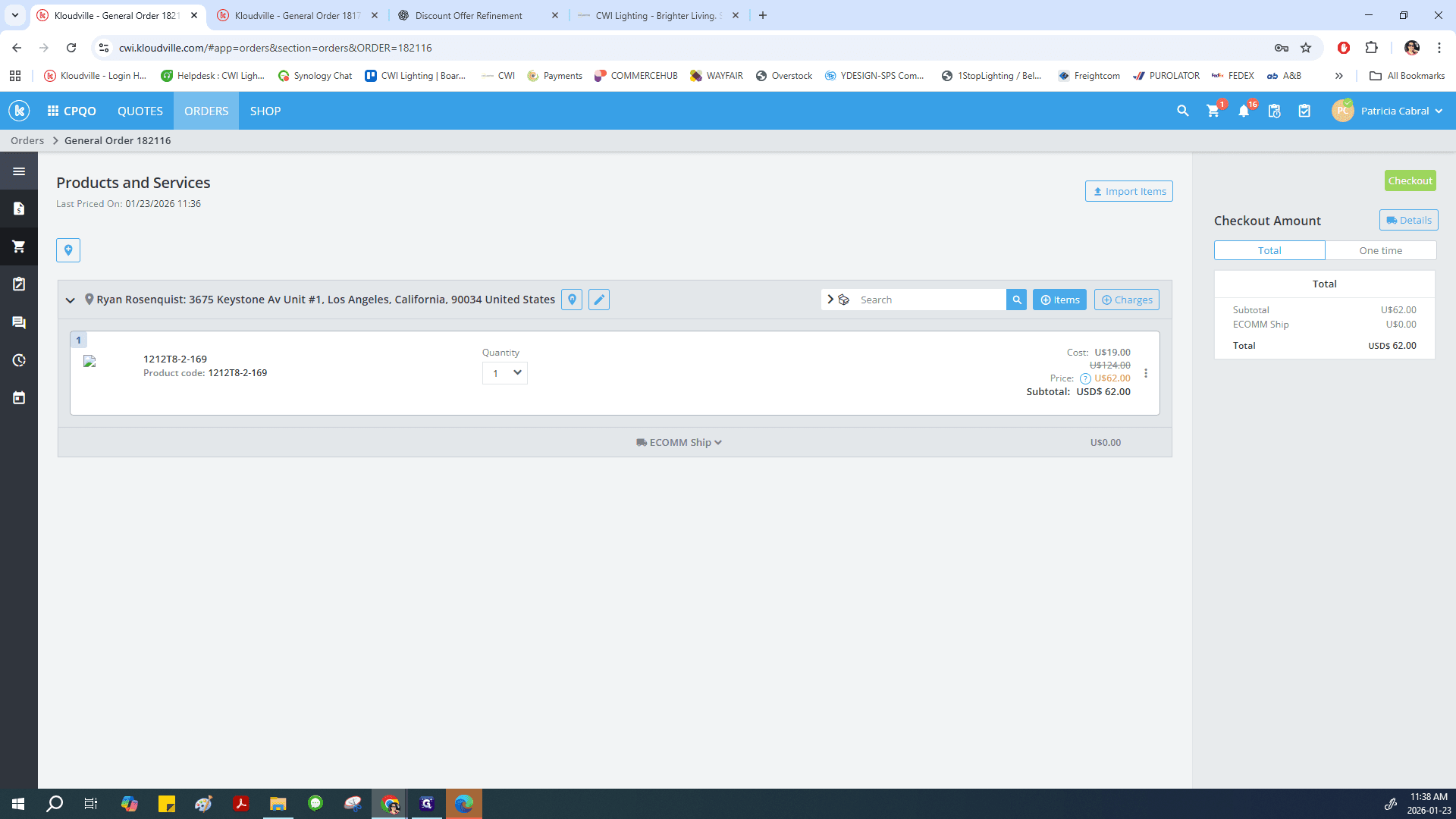
36
Click here
Step #36: Click here
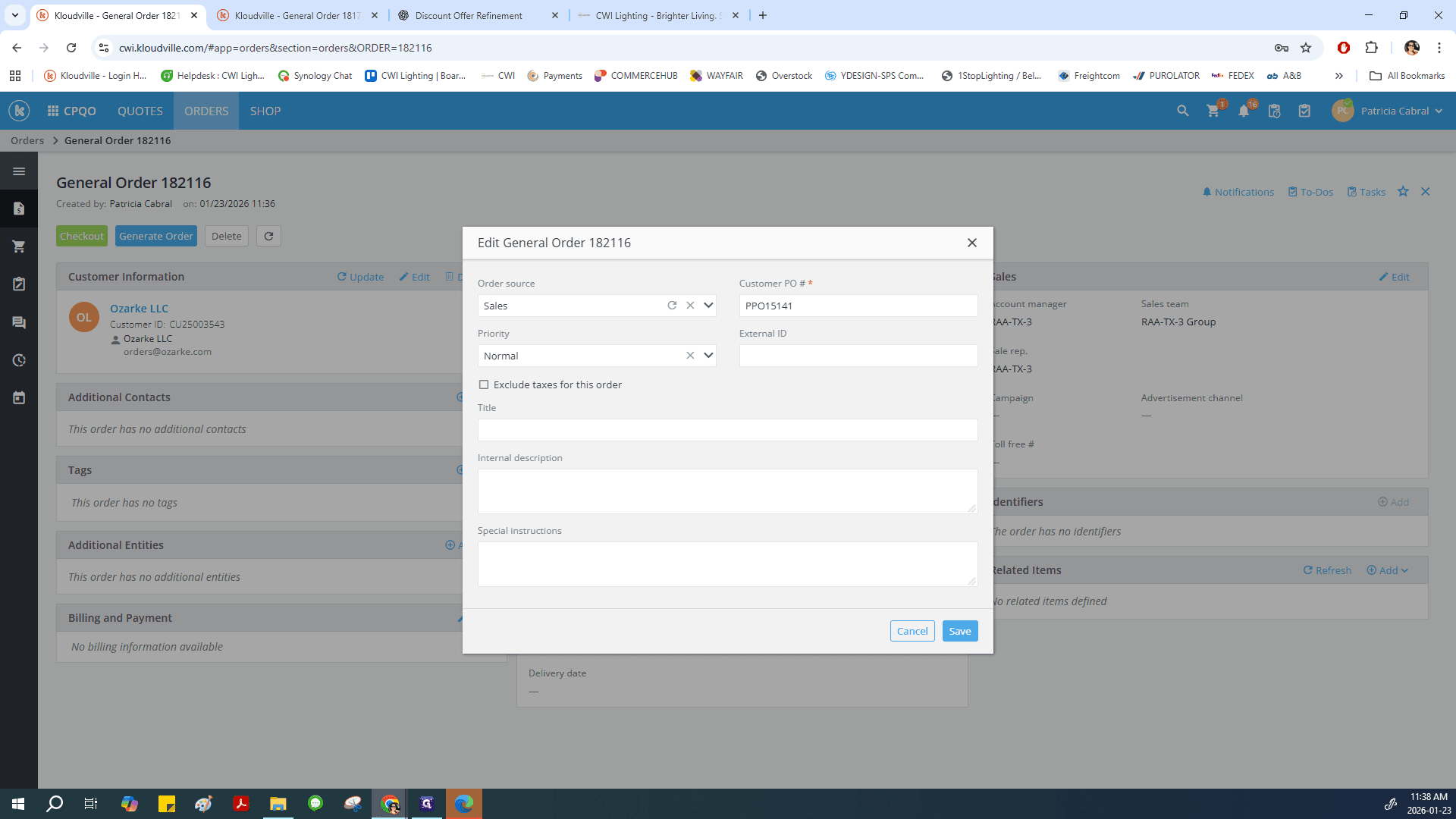
37
Click on "Edit"
Step #37: Click on "Edit"
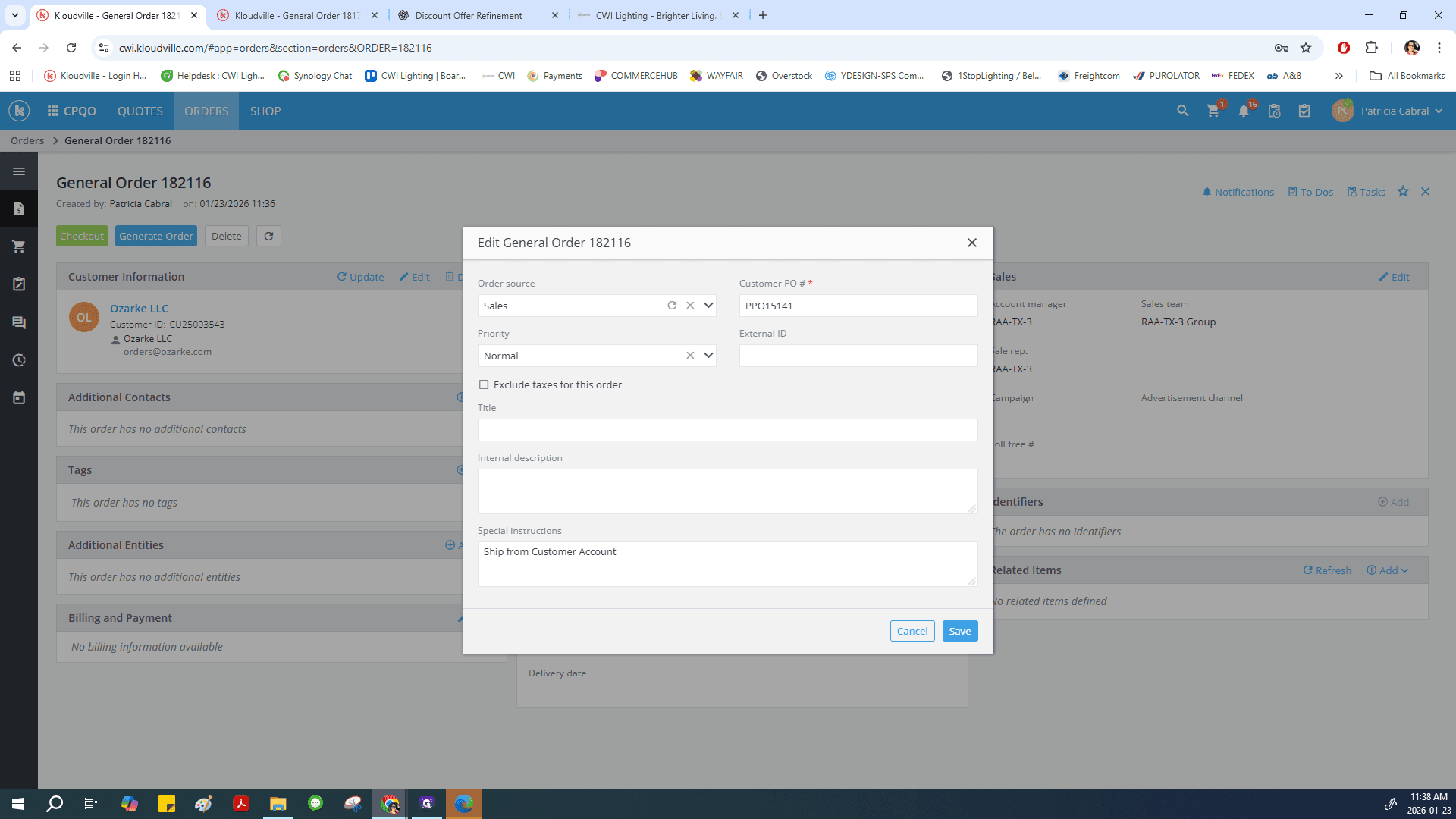
38
Add Internal and Special Instructions if it applies.
Step #38: Add Internal and Special Instructions if it applies.

Save.

39
Click on "Save"
Step #39: Click on "Save"

Click Checkout.

40
Click on "Checkout"
Step #40: Click on "Checkout"

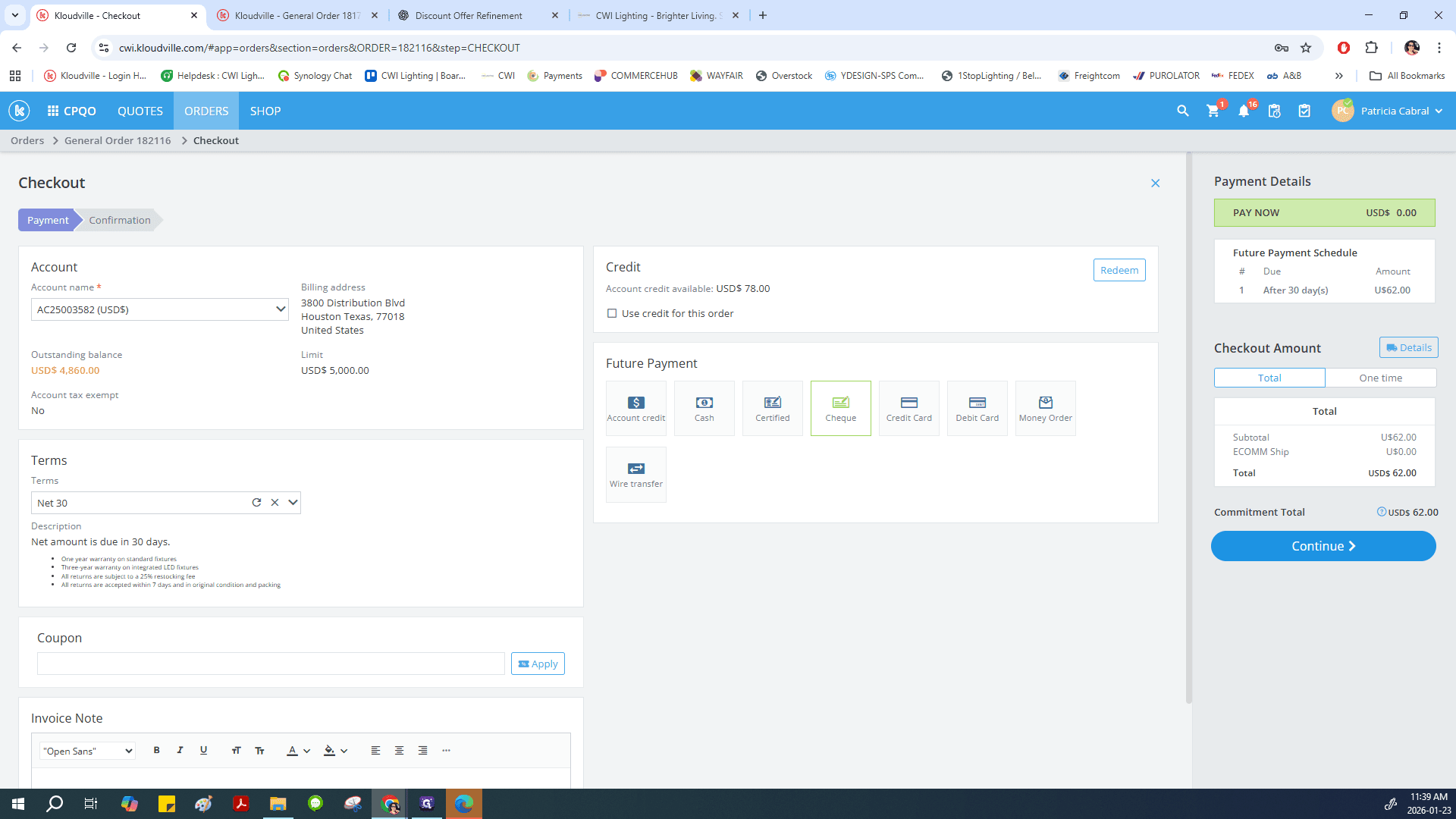
Check the Payment Terms and Account Balance before proceeding to ensure the account still enough balance available for the new order. If all clear proceed.
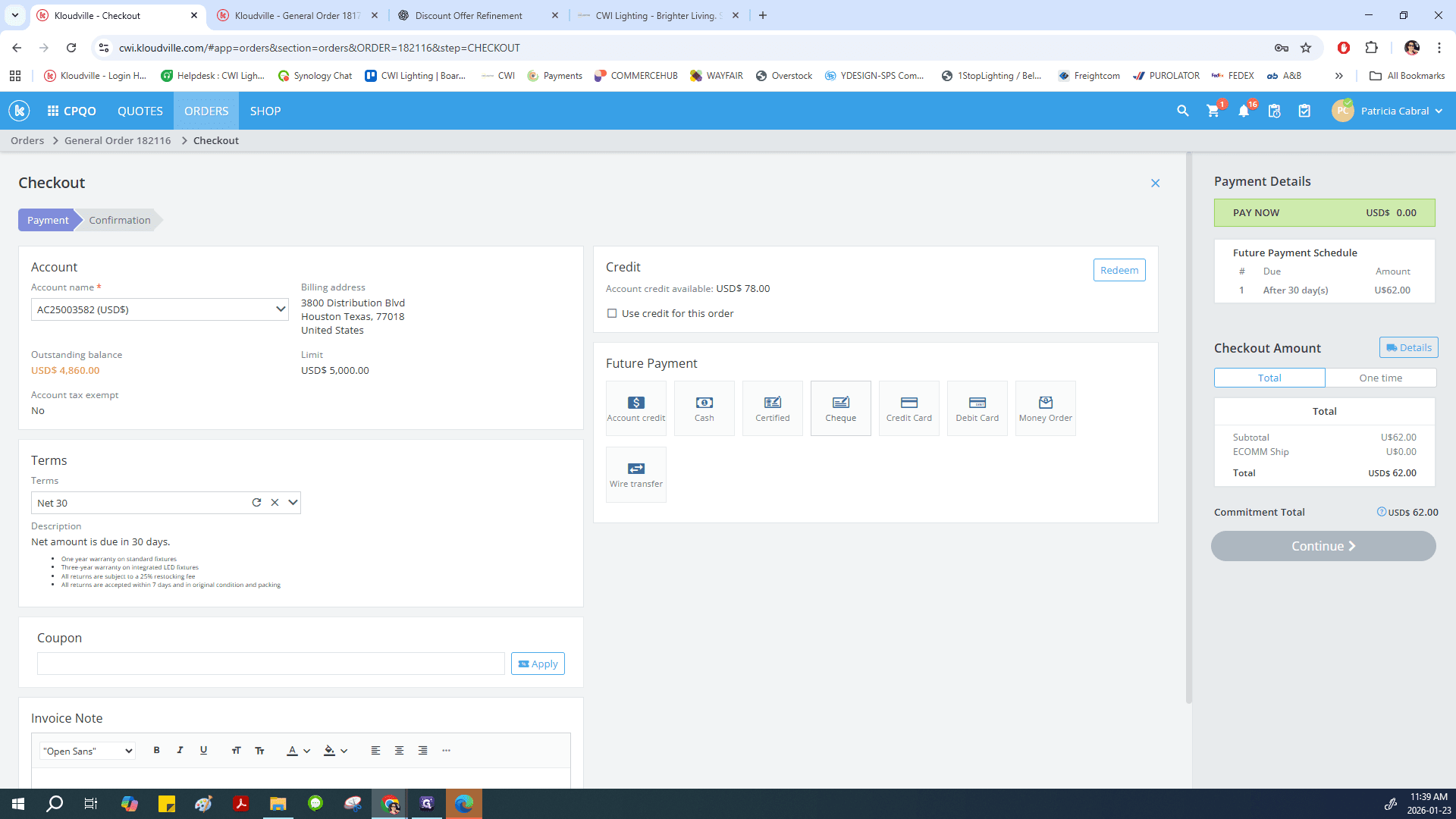
41
Click on "Cheque"
Step #41: Click on "Cheque"

Click Continue.

42
Click on "Continue >"
Step #42: Click on "Continue >"

Verify the information, PO number, item, delivery address, shipping method, and value to ensure everything matches. Then place the order.
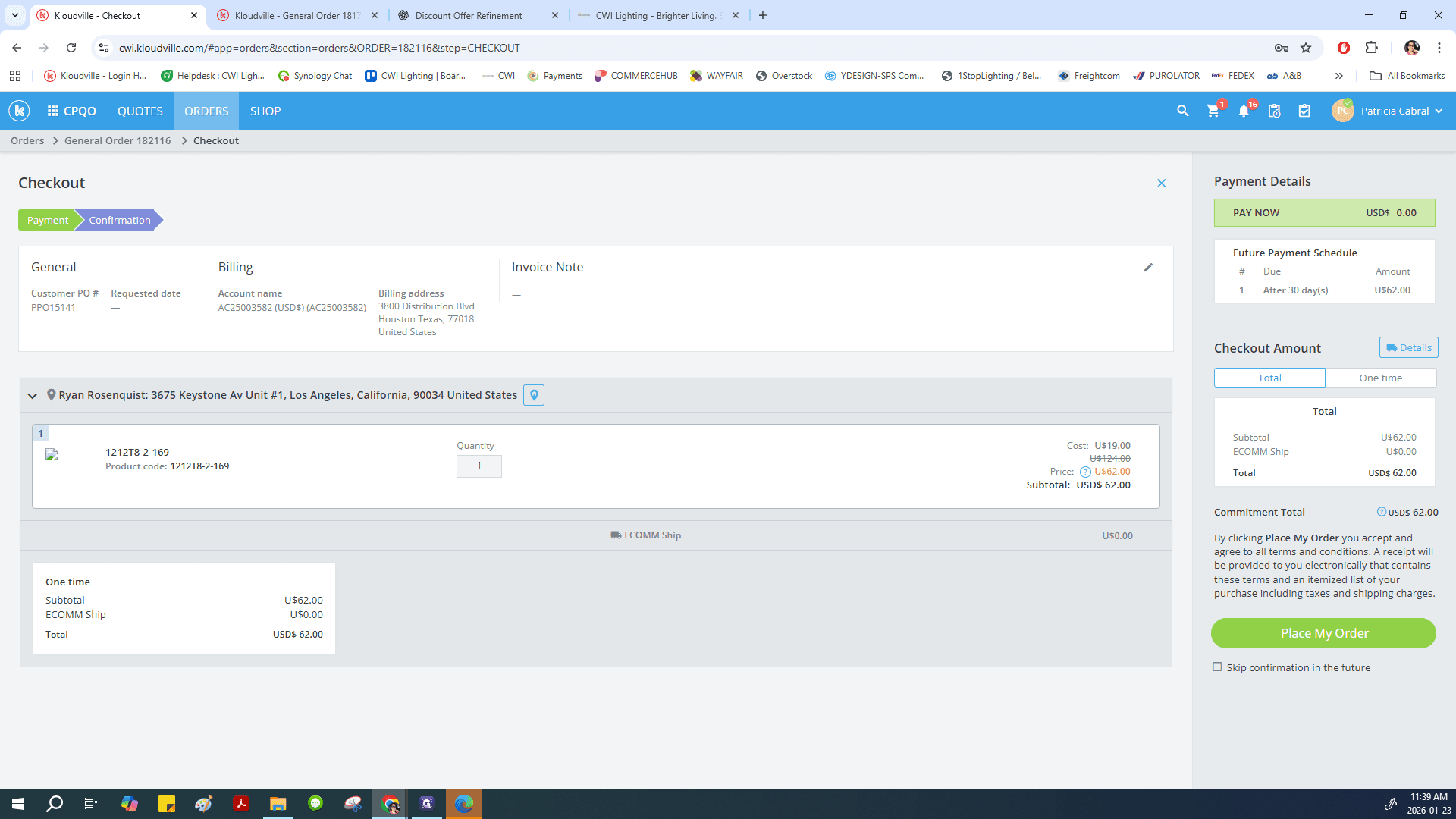
43
Click on "Place My Order"
Step #43: Click on "Place My Order"

You will return to the main ordering page, where you can see the order you just entered. To enter a new PO in the system, follow these steps.

How to Place an Order in Kloudville: Step-by-Step Guide