OLD How to Place an Order/Quote Using the VELUX Dealer Extranet: Step-by-Step Guide
Learn how to place an order/quote on the VELUX dealer extranet. Follow this step-by-step guide to select products, configure options, enter your PO, choose shipping, and confirm your order efficiently.
By Michelle
1
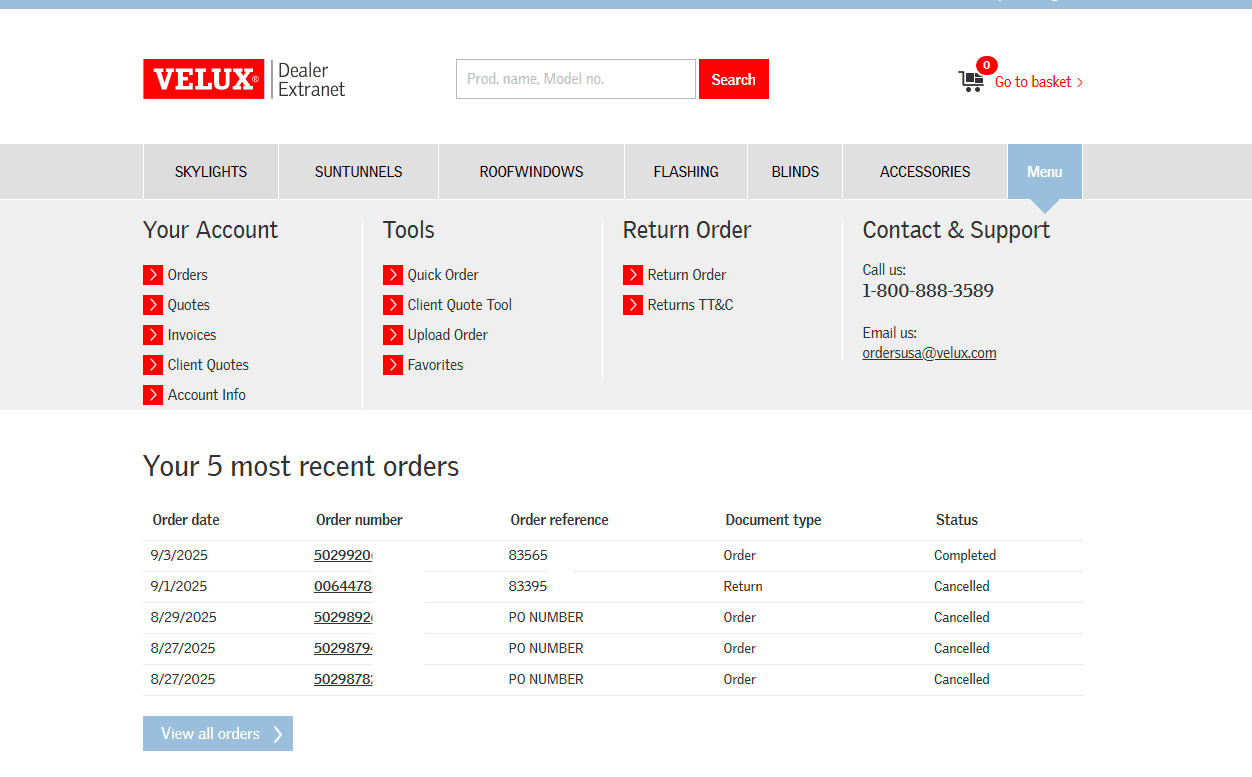
Select from the product offering tabs.
2
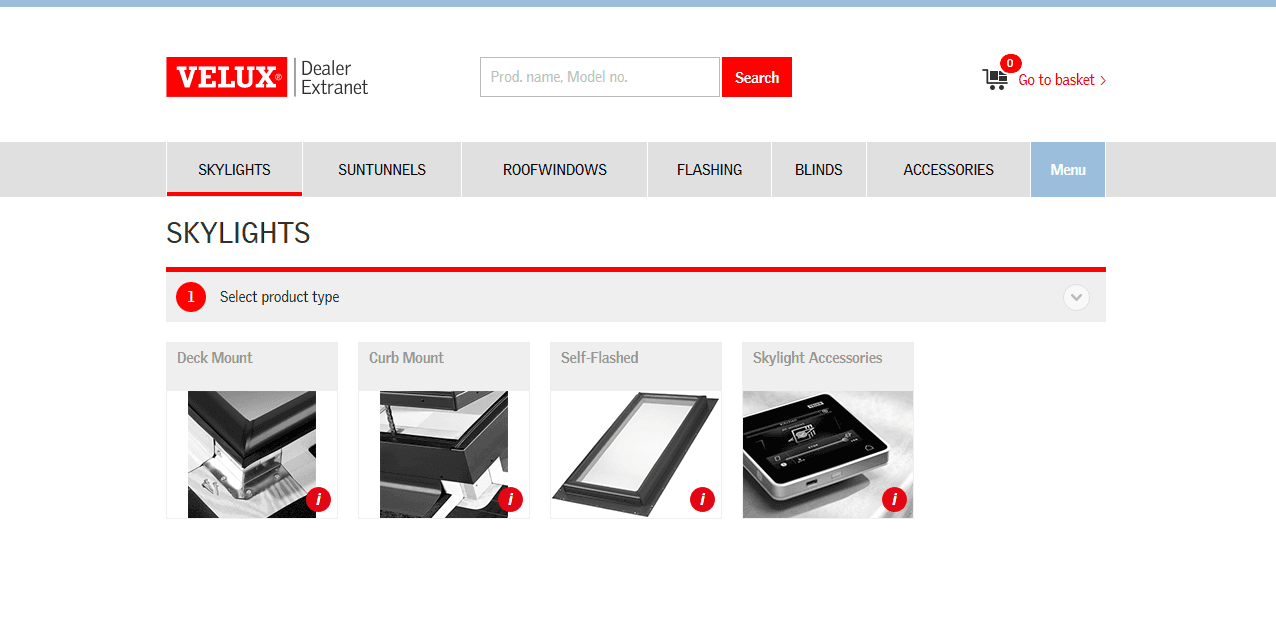
Choose your product type.
3
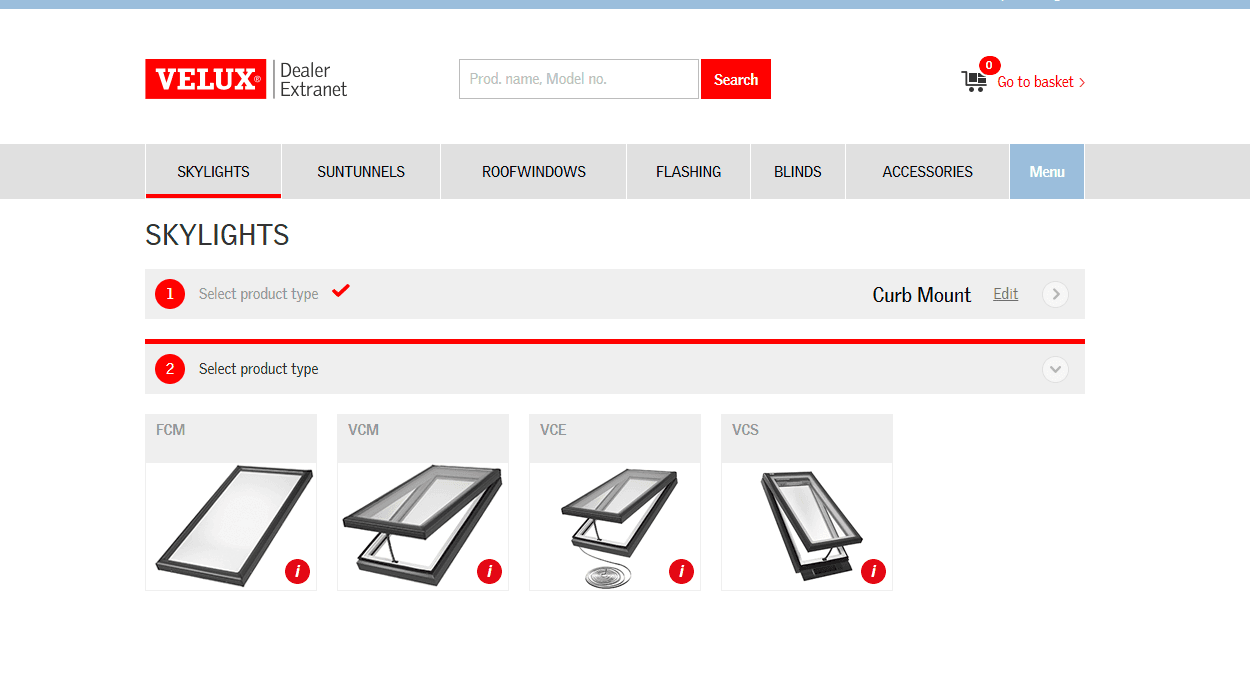
Select your product model.
4
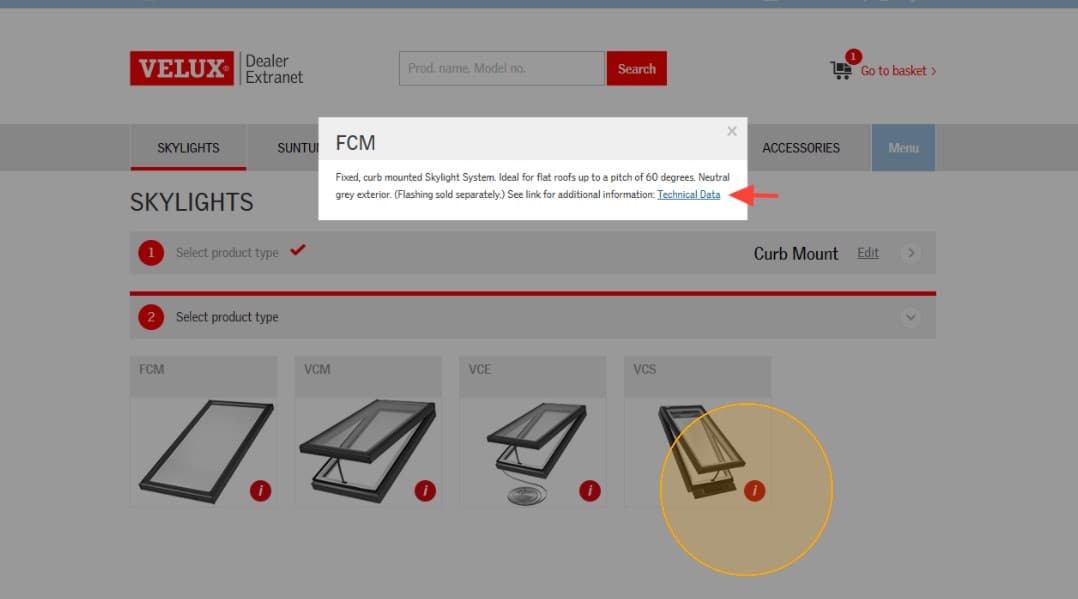
Clicking the red "i" in the lower right will display detailed information including a clickable Technical Data link which includes installation instructions, product testing data, measurement guides, and more.
5
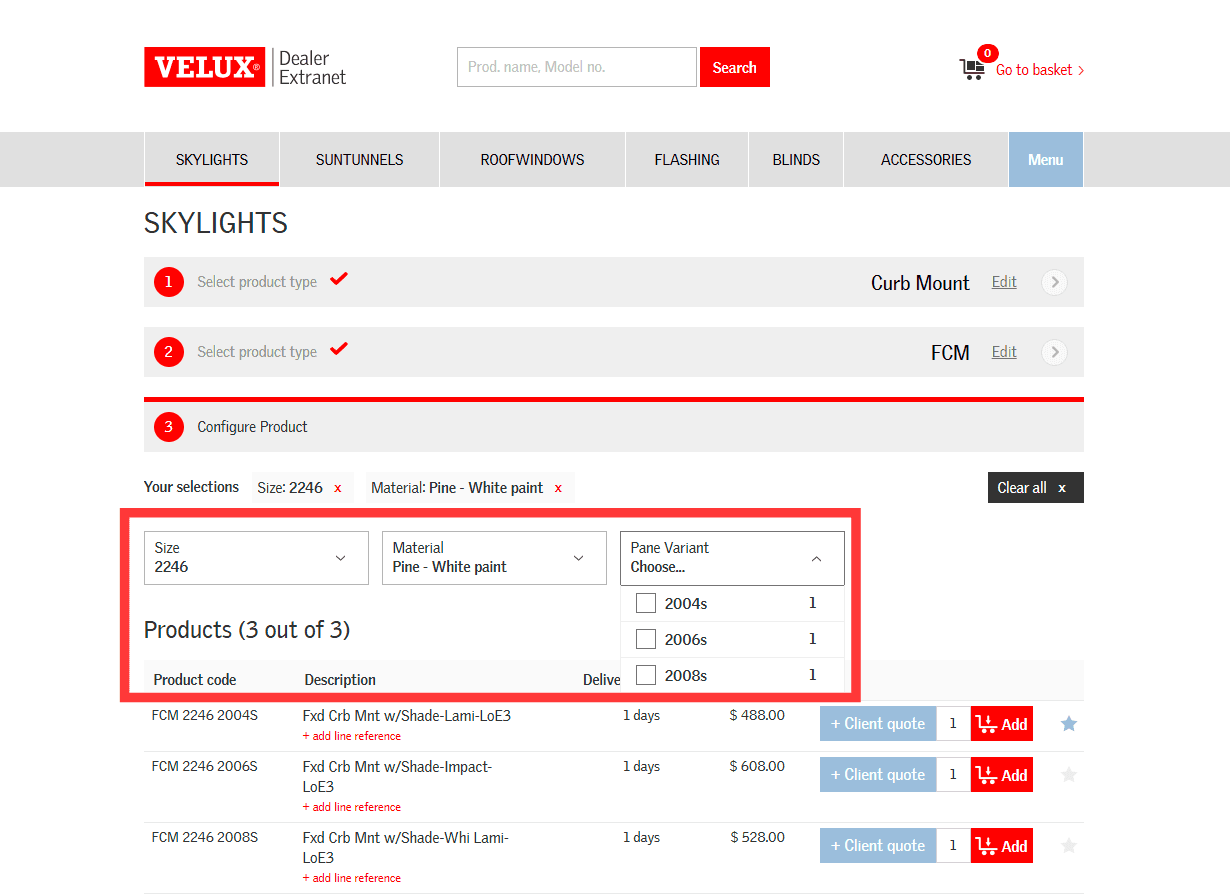
Configure your selection by choosing the Size, Material (interior finish), and Pane Variant (glass type) from the dropdowns.
6
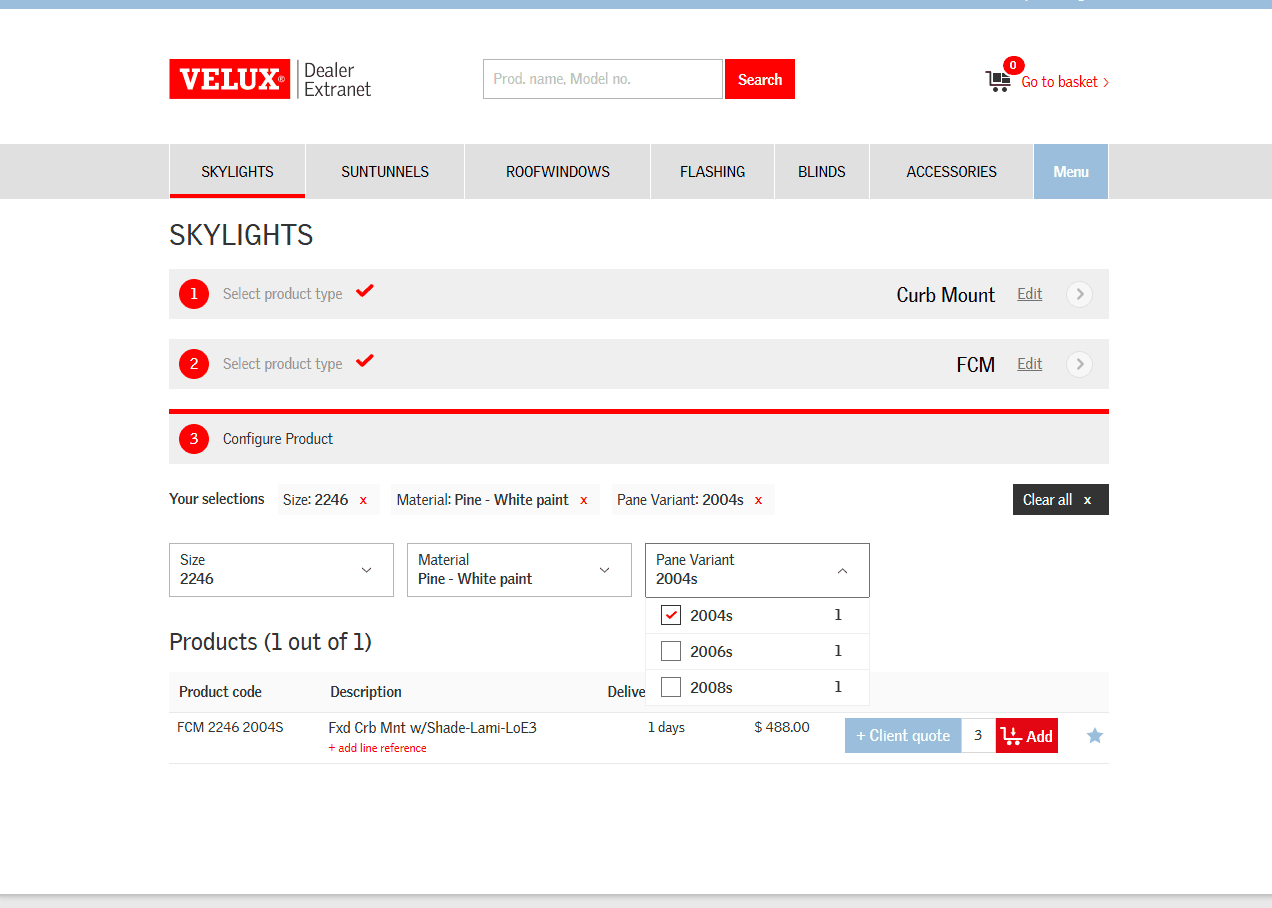
Once configured, you can adjust the quantity if needed and click the red Add icon.
7
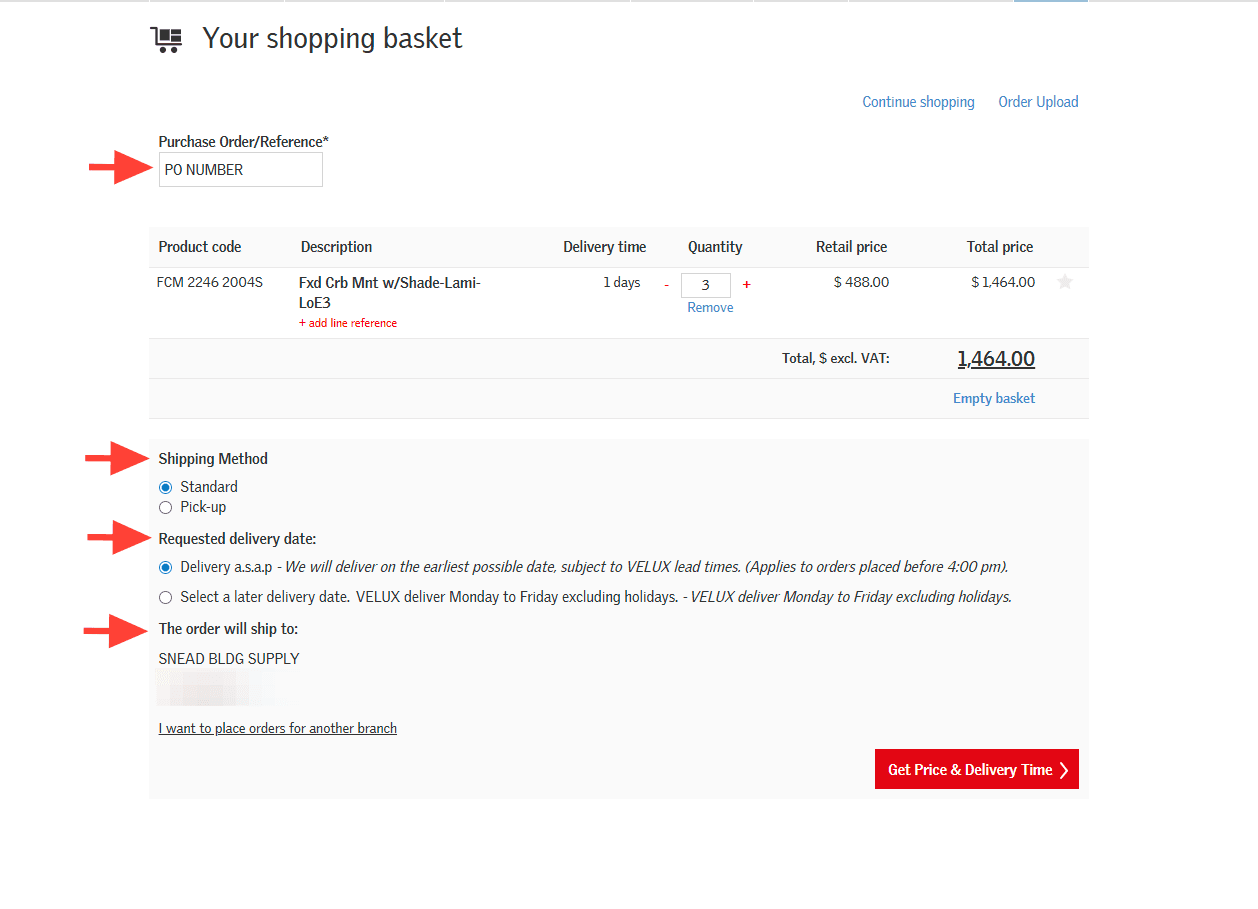
Enter your PO number or job name if for a quote in the Purchase Order/Reference field. Note the Shipping Method defaults to standard and the Requested delivery date defaults to Delivery a.s.a.p but these can be adjusted as needed. Verify all information and click Get Price & Delivery Time.
8
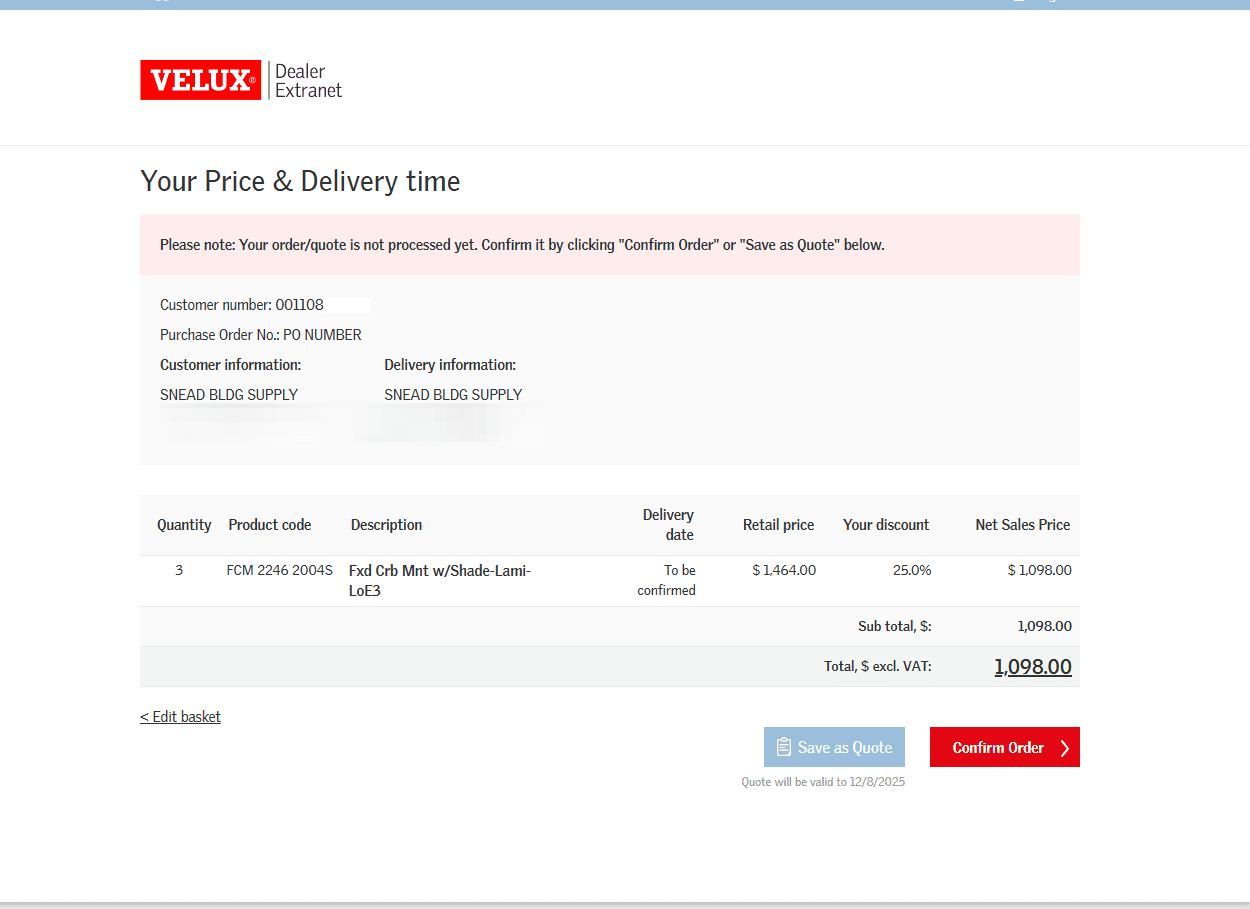
You can now click Confirm Order to process your order or click Save as Quote.
9
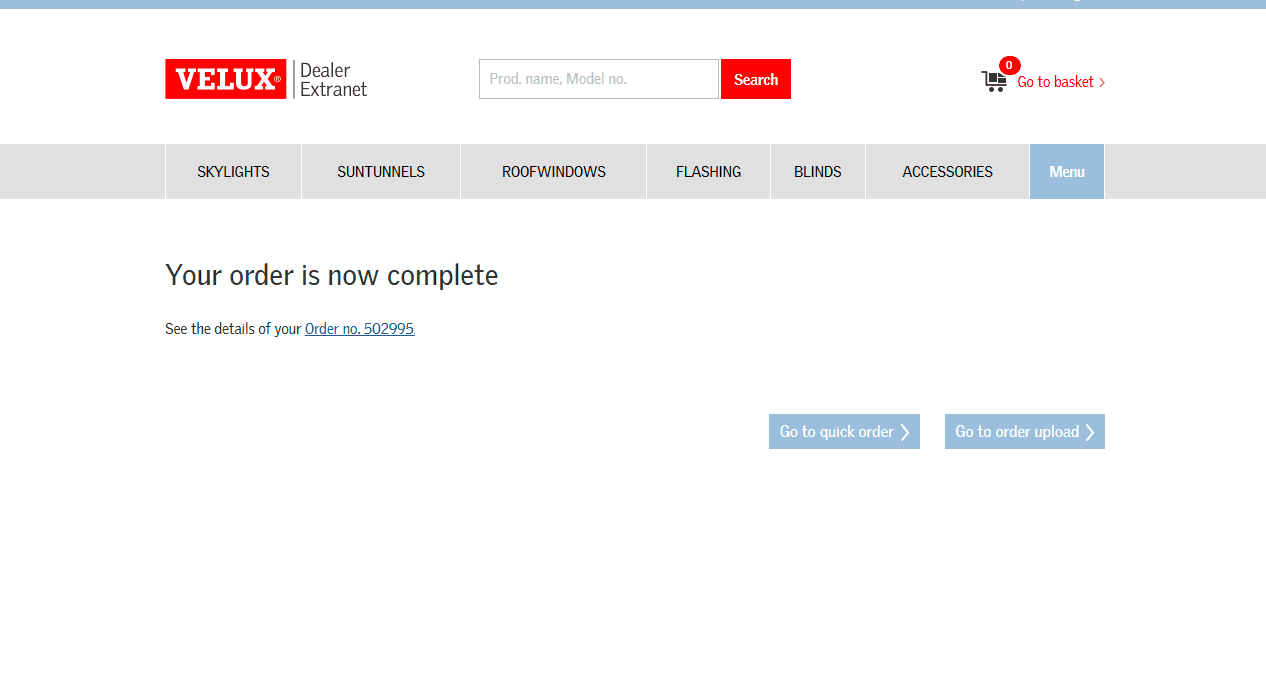
Once processed, a hyperlink with your order or quote number will appear. You can click the link to print the order confirmation/quote, but it will also be stored in Orders/Quotes under Your Account.