
Bill Aging Reports: Part 1/5
Learn how to efficiently prepare, organize, and manage bill aging reports with this detailed step-by-step guide. Includes tips on folder organization, file management, and data cleanup for accounting professionals.
In this guide, we'll learn how to organize and prepare bill aging reports for weekly review. We will cover how to save and manage files, process daily reports, and clean up data in Excel to ensure accurate records. This process helps keep accounting information up to date and ready for analysis.
Let's get started
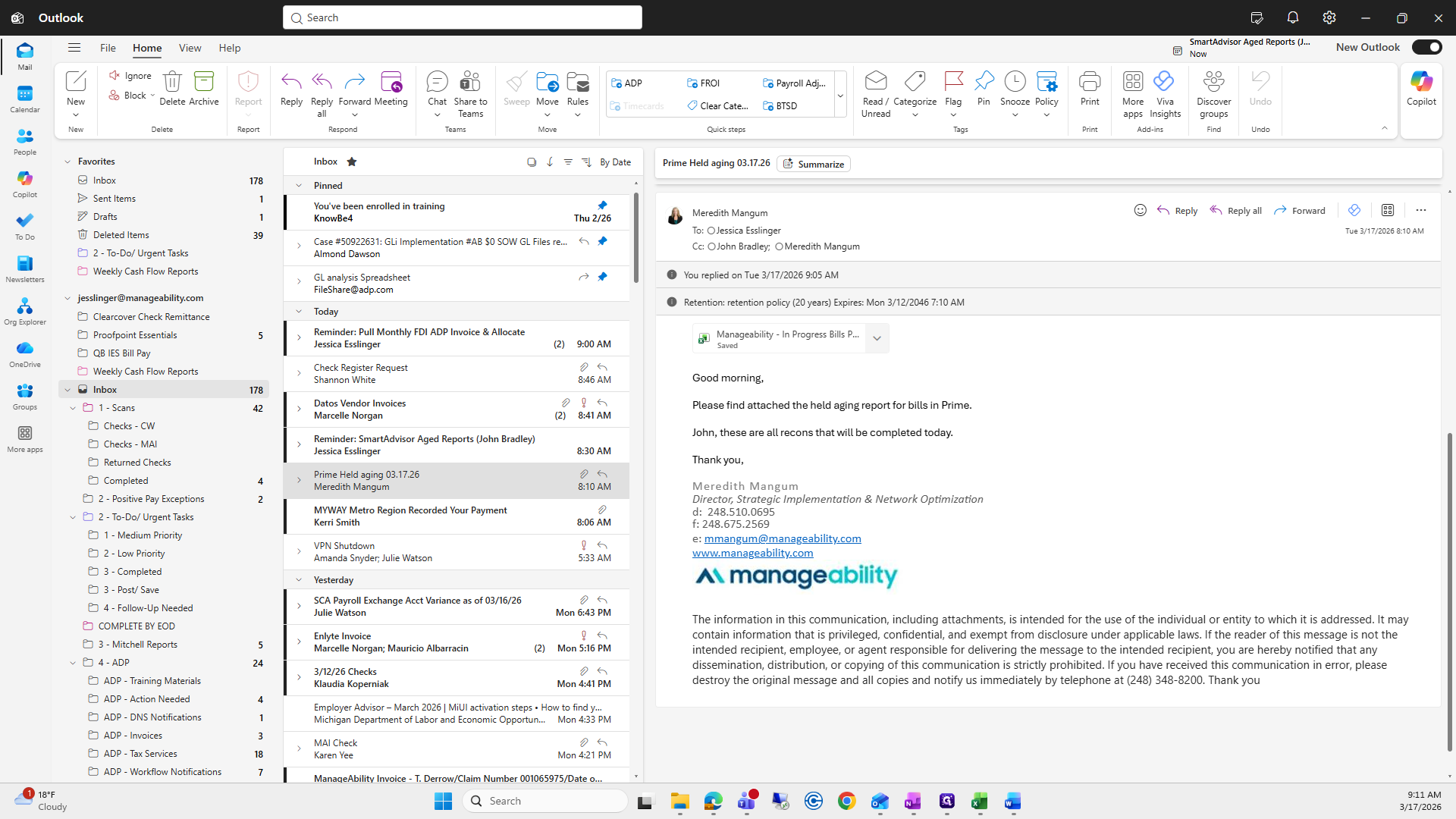
In this video, we will cover bill aging reports. Send these out every Tuesday before 10 o'clock. Meredith will send an email in the morning with prime bills to be included in the report. When you receive it, save it to your accounting folder. For manageability, I have a Bill Aging Report folder.
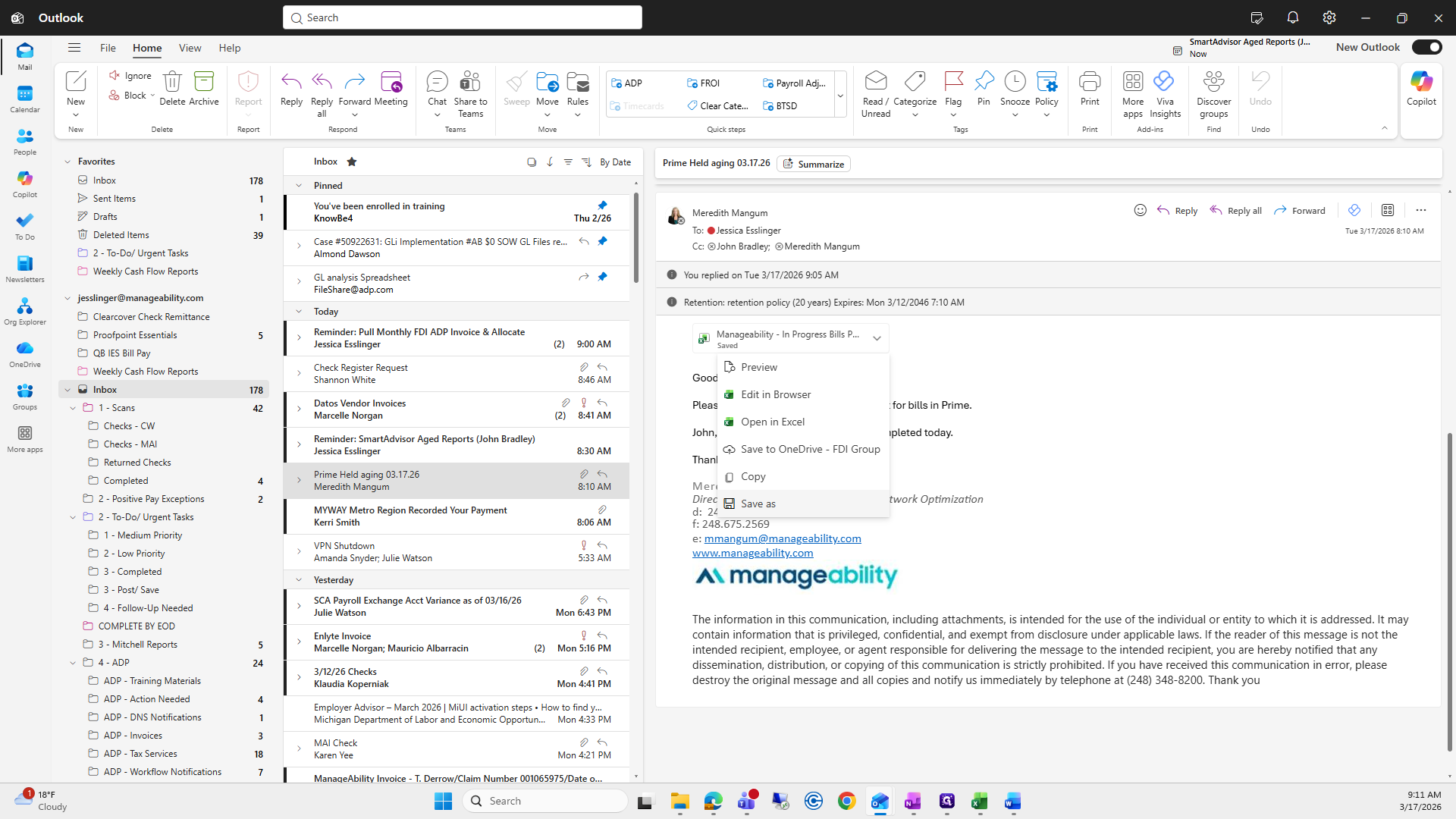
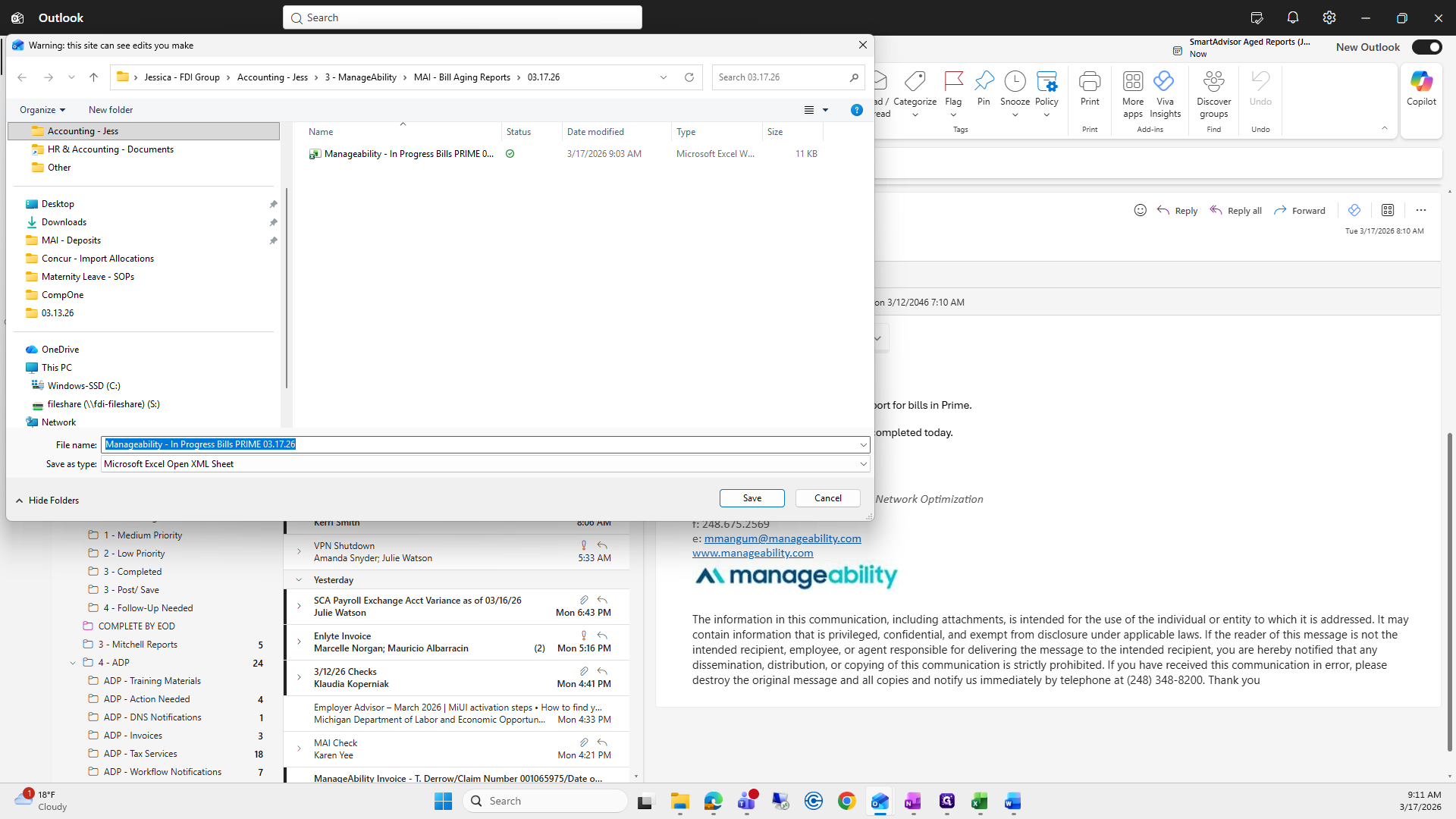
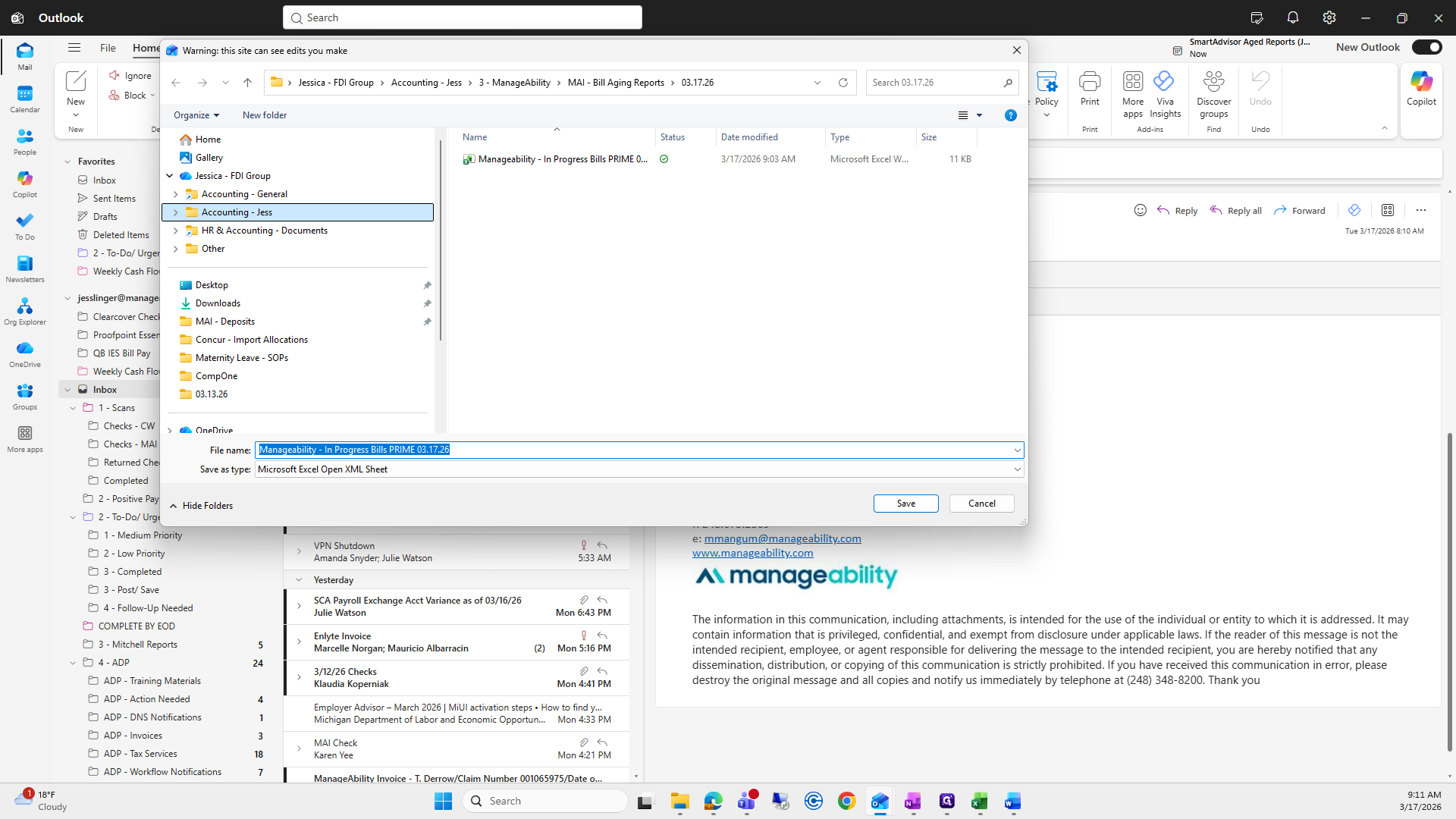
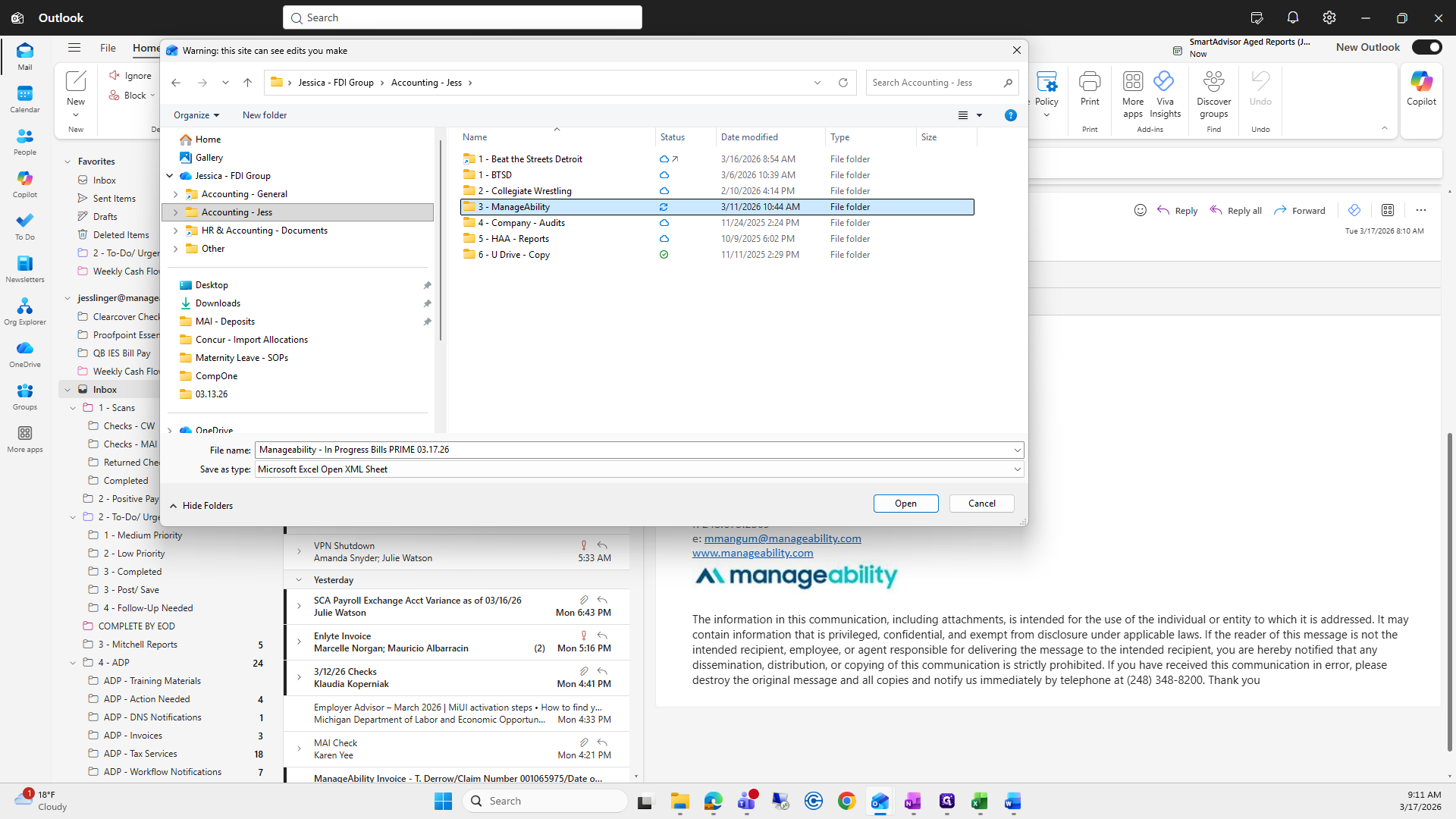
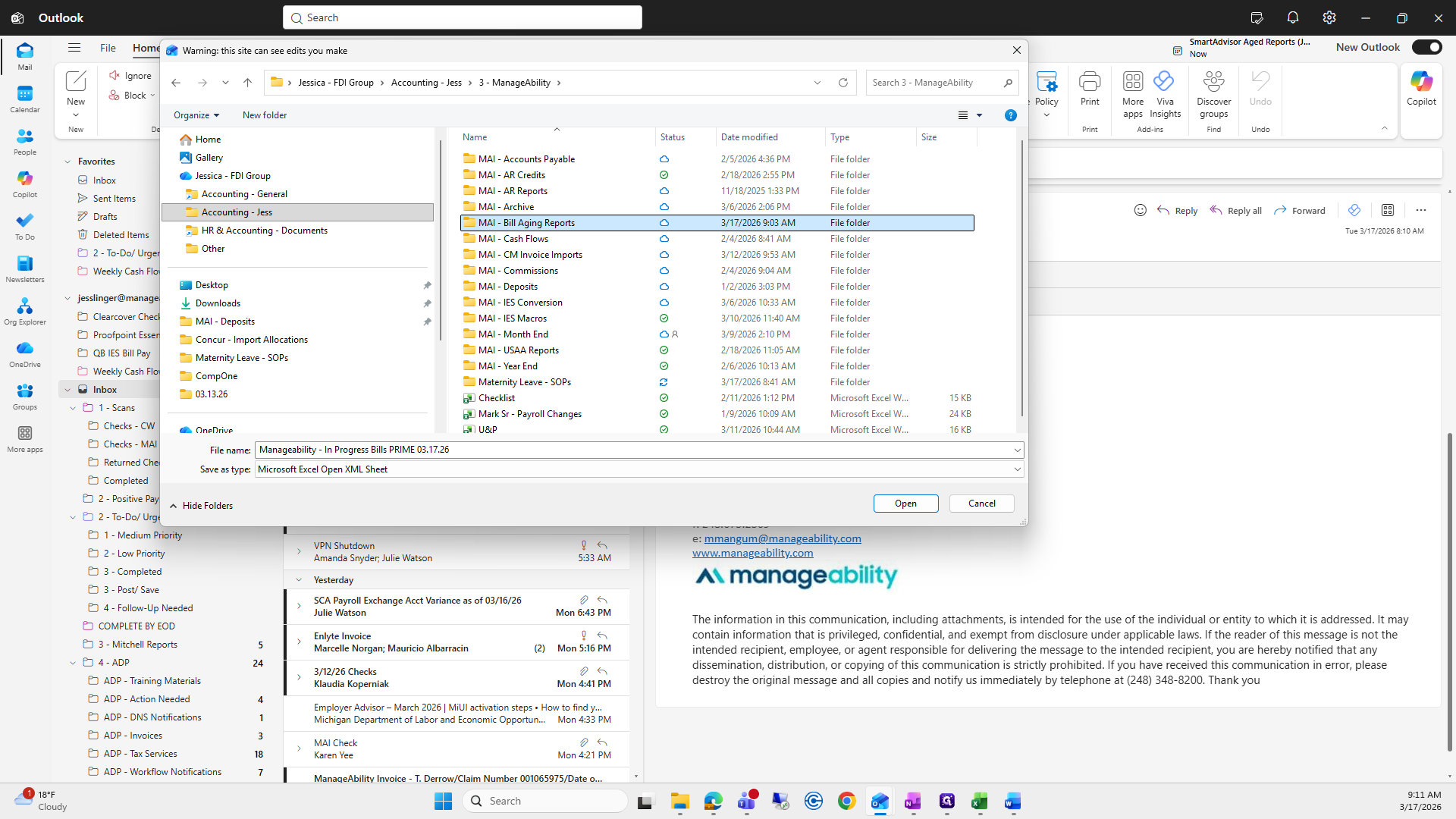
I created a new folder for Tuesday, which I already did today. We will save it in this folder.
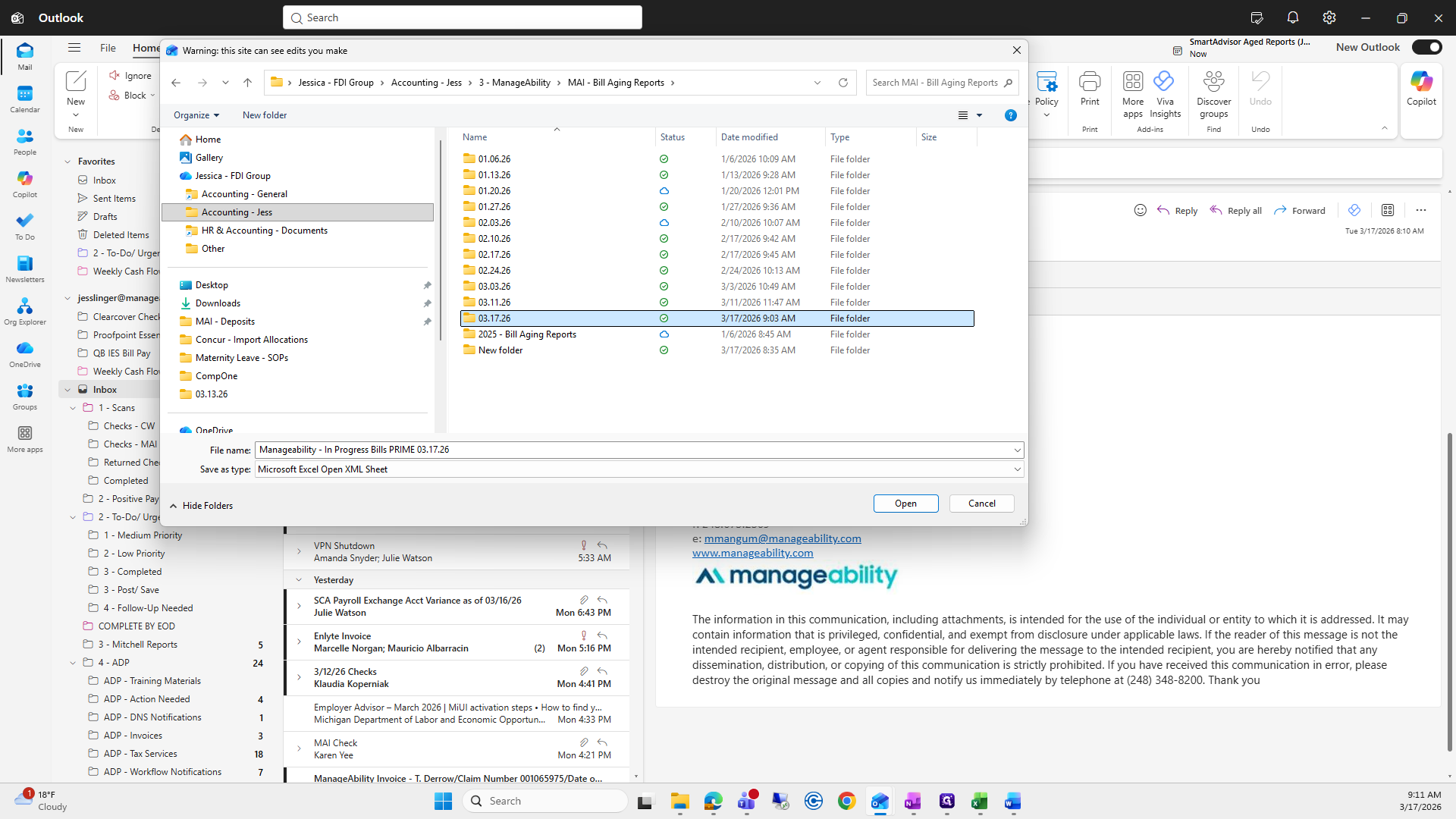
Click Save.
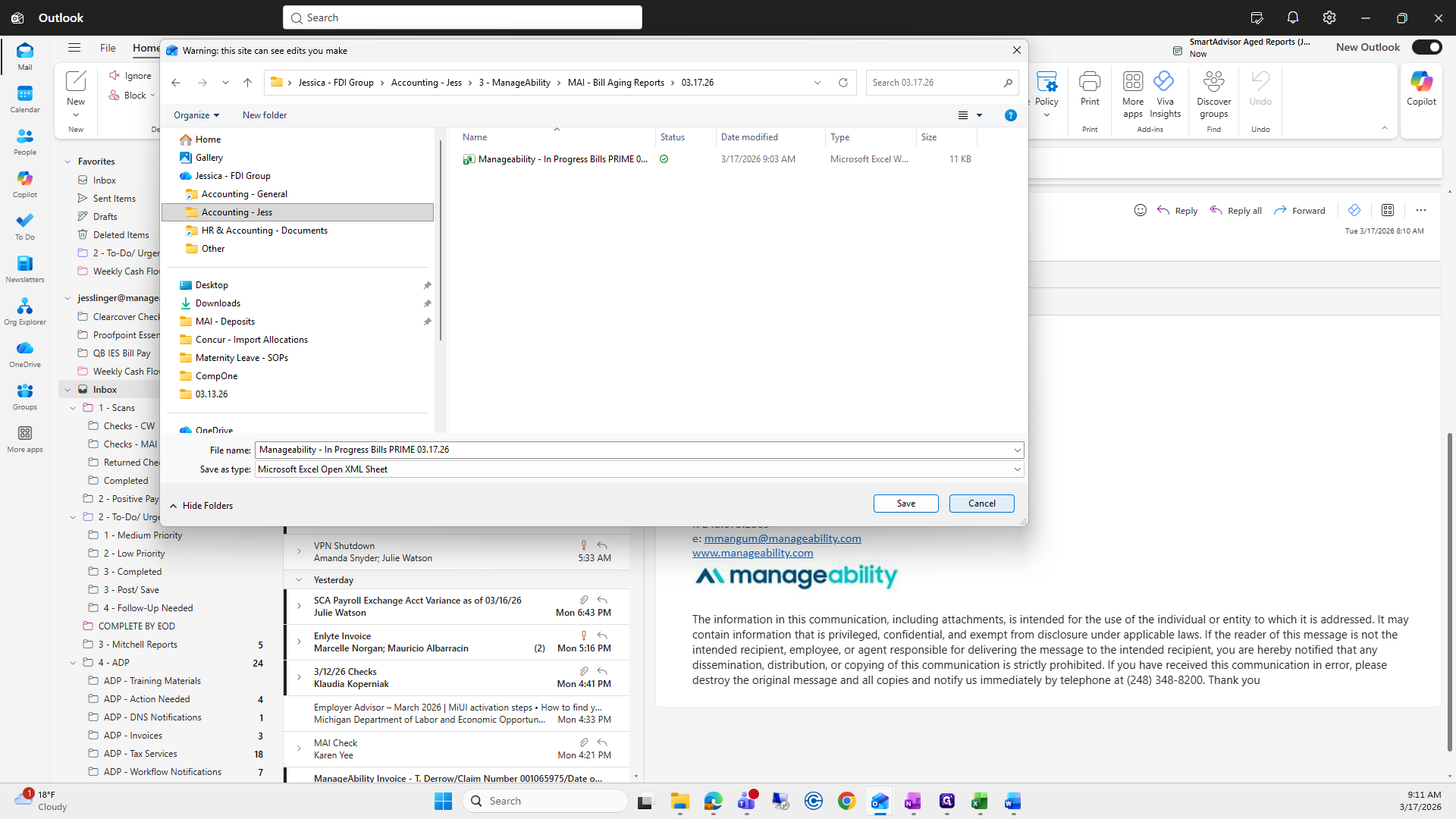
From there, daily Mitchell reports are sent to me.
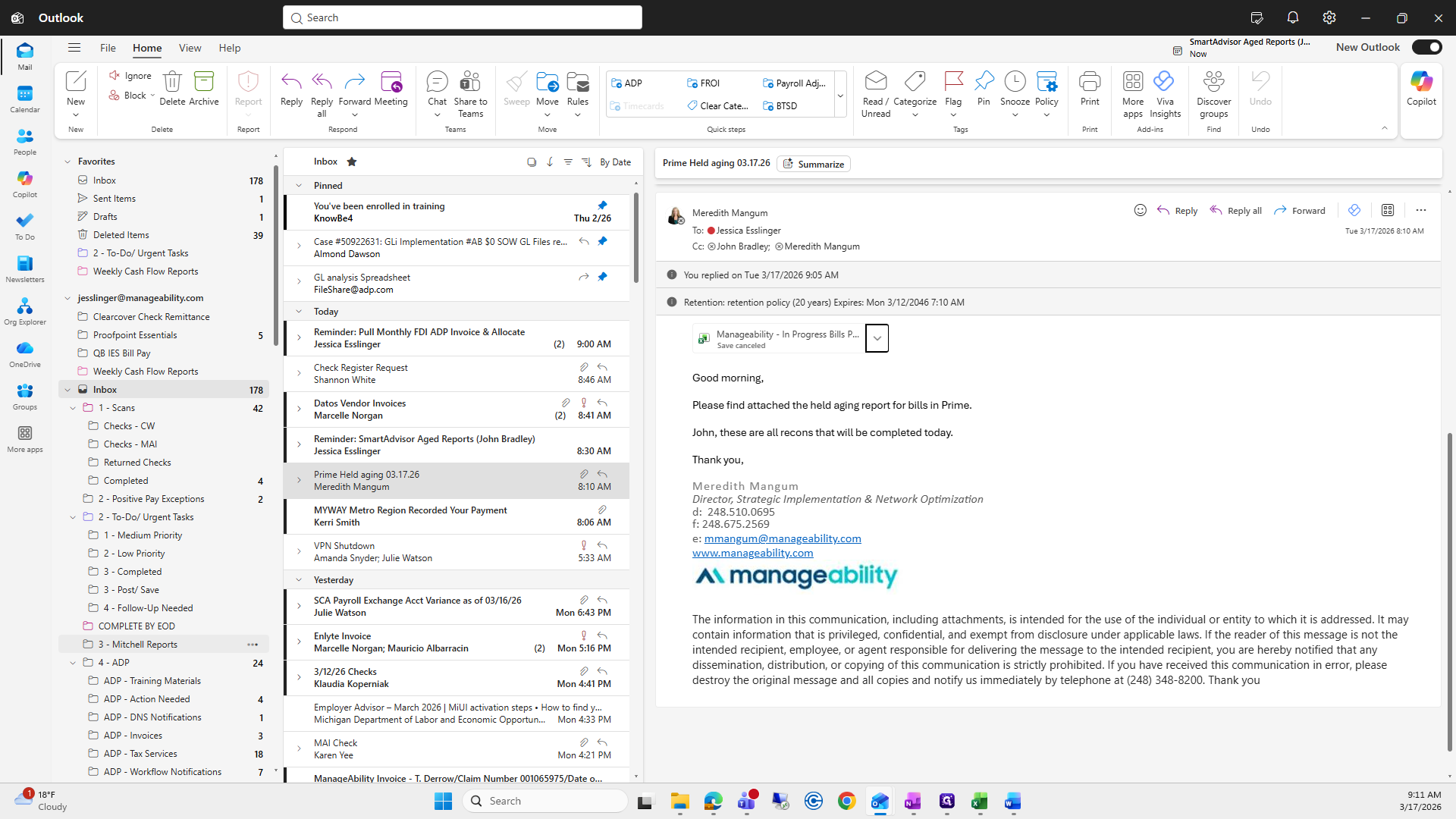
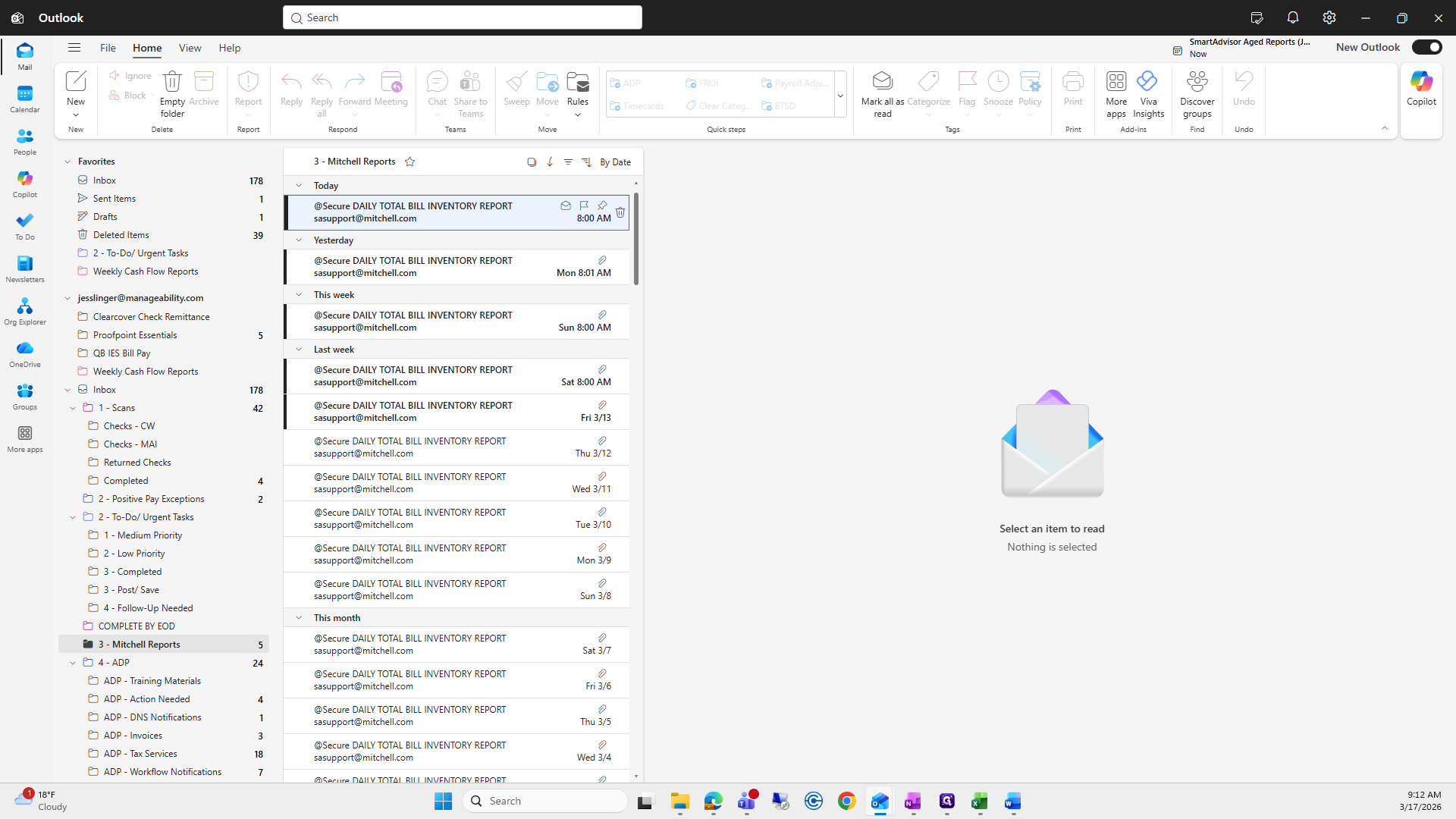
Next, click "Read the Message." A pop-out window will appear.
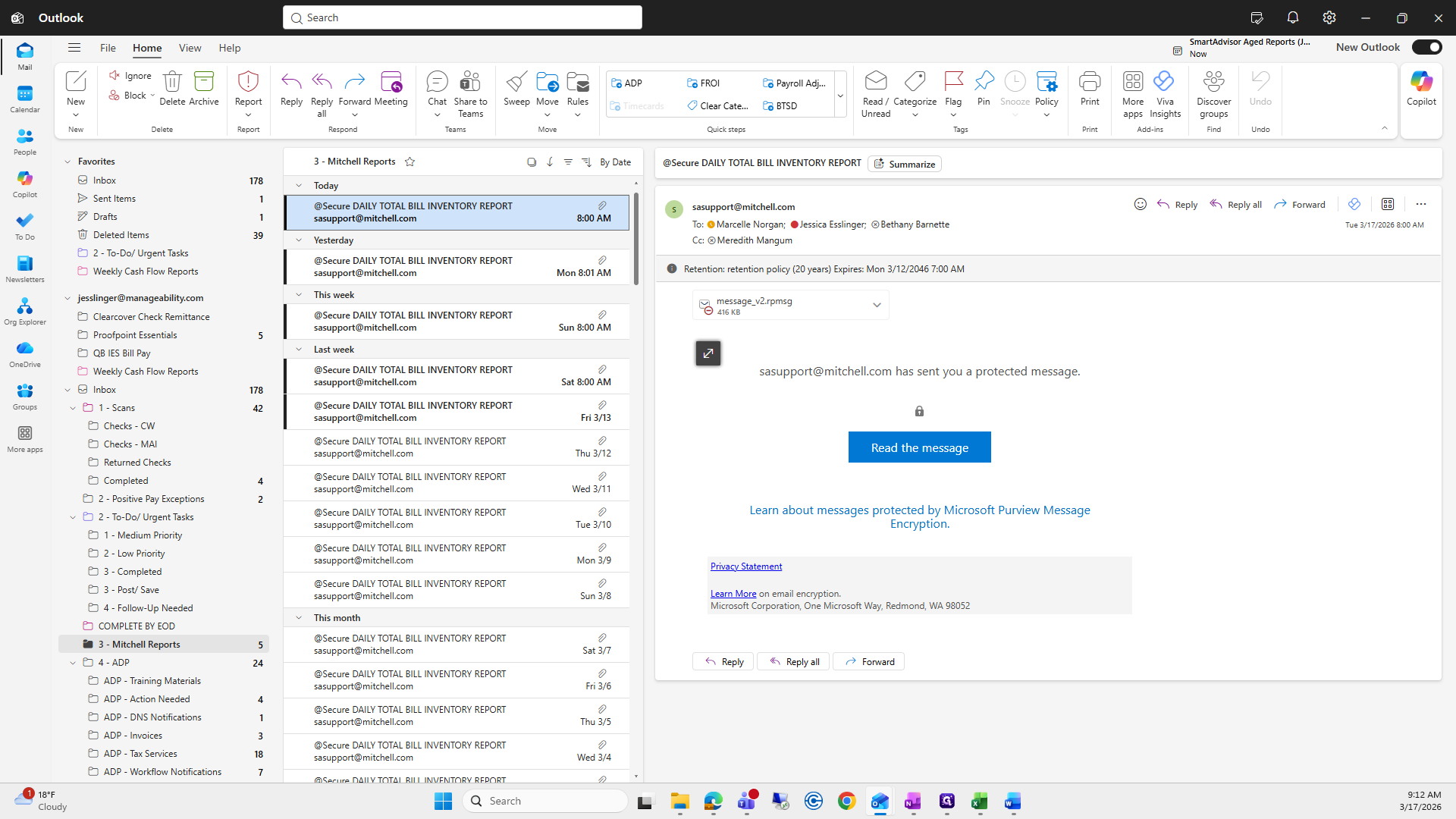
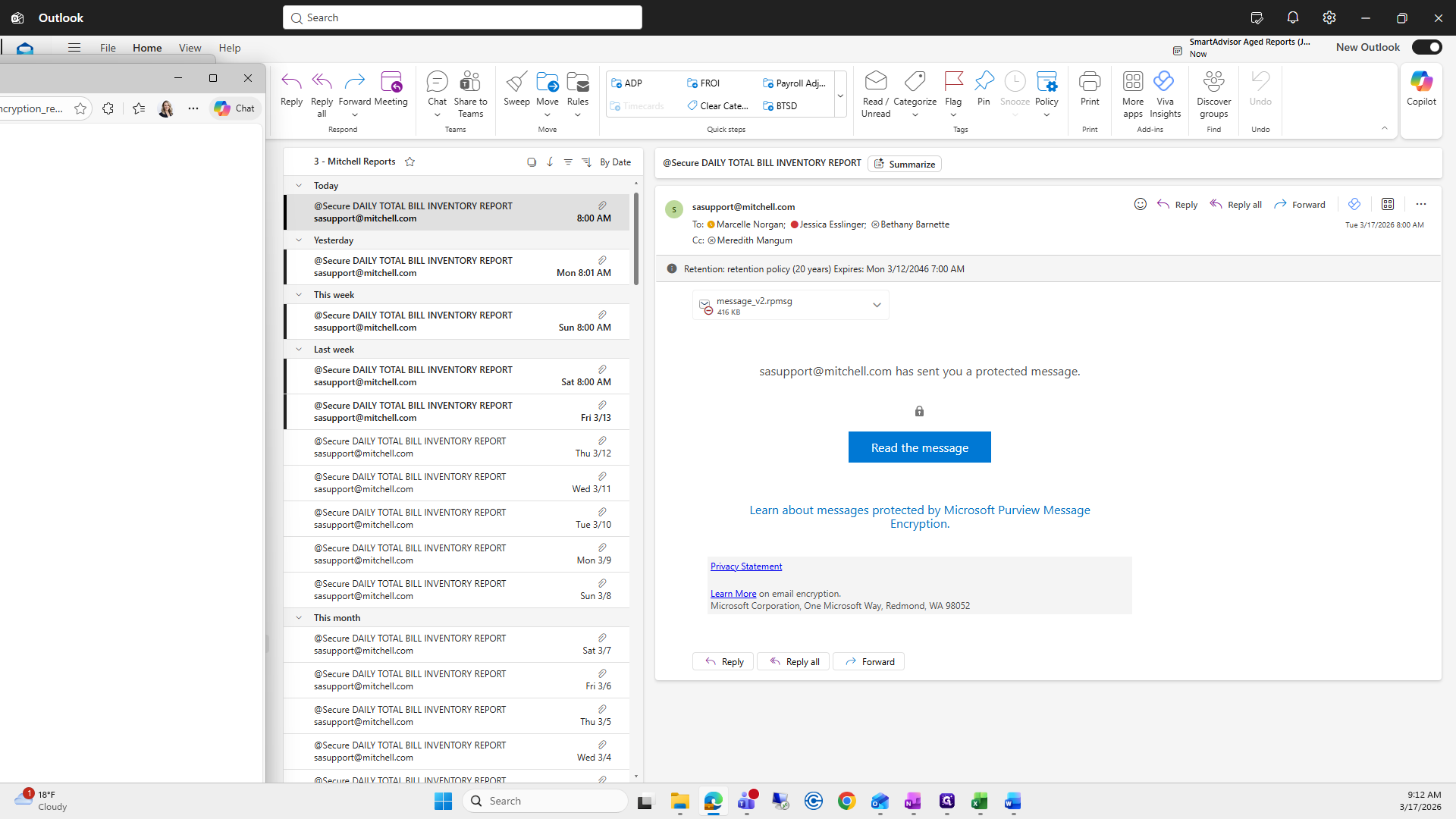
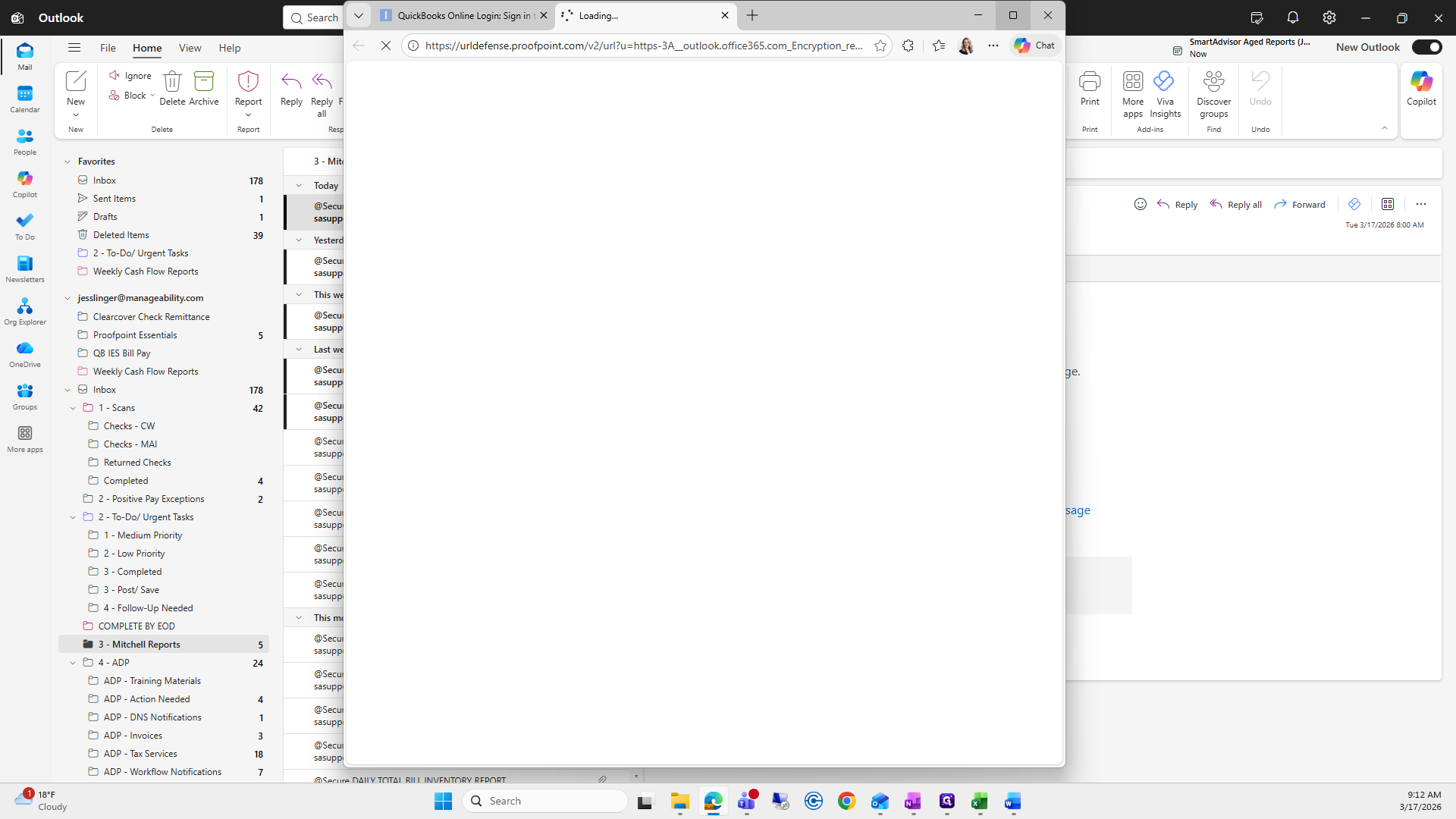
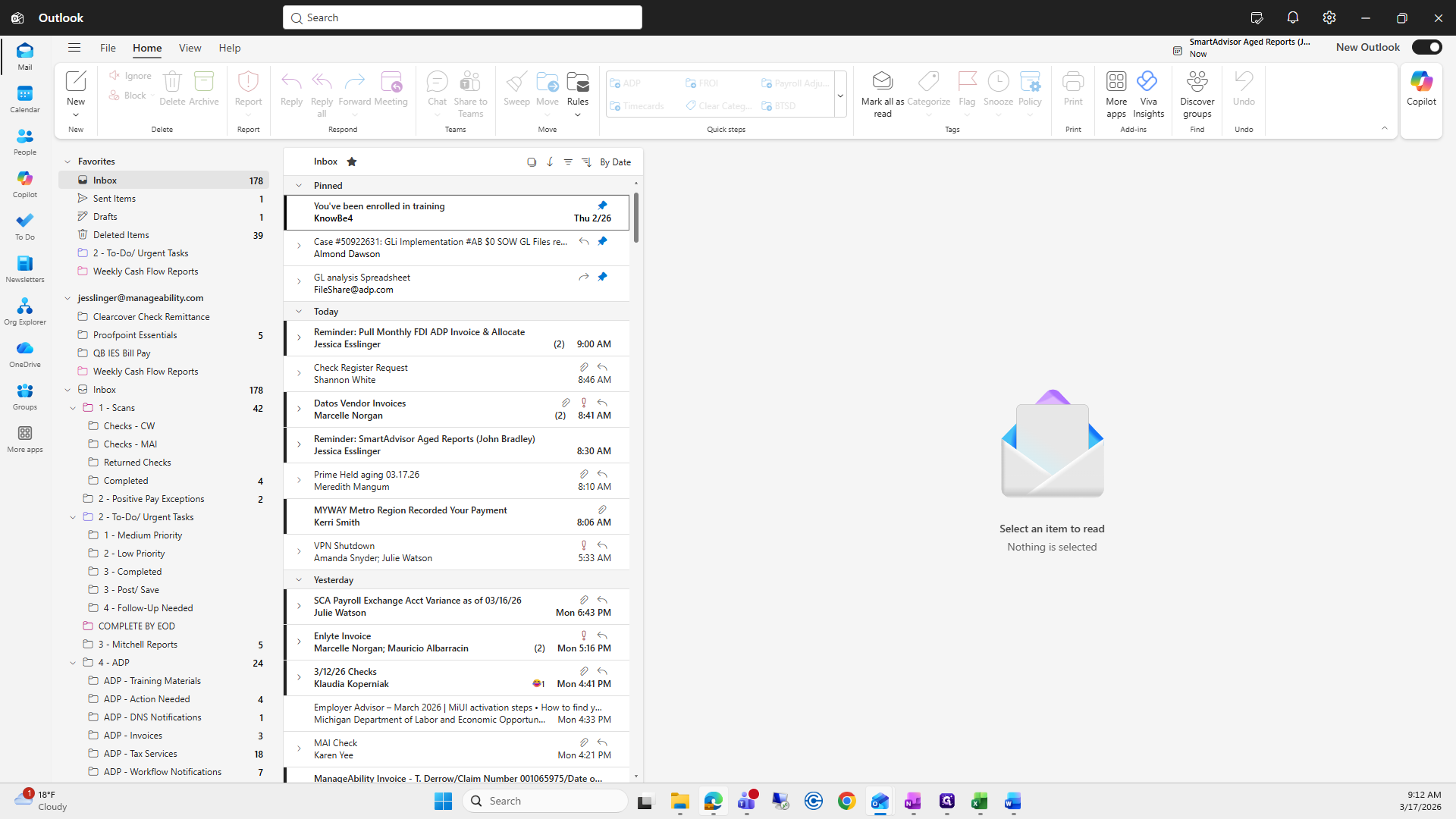
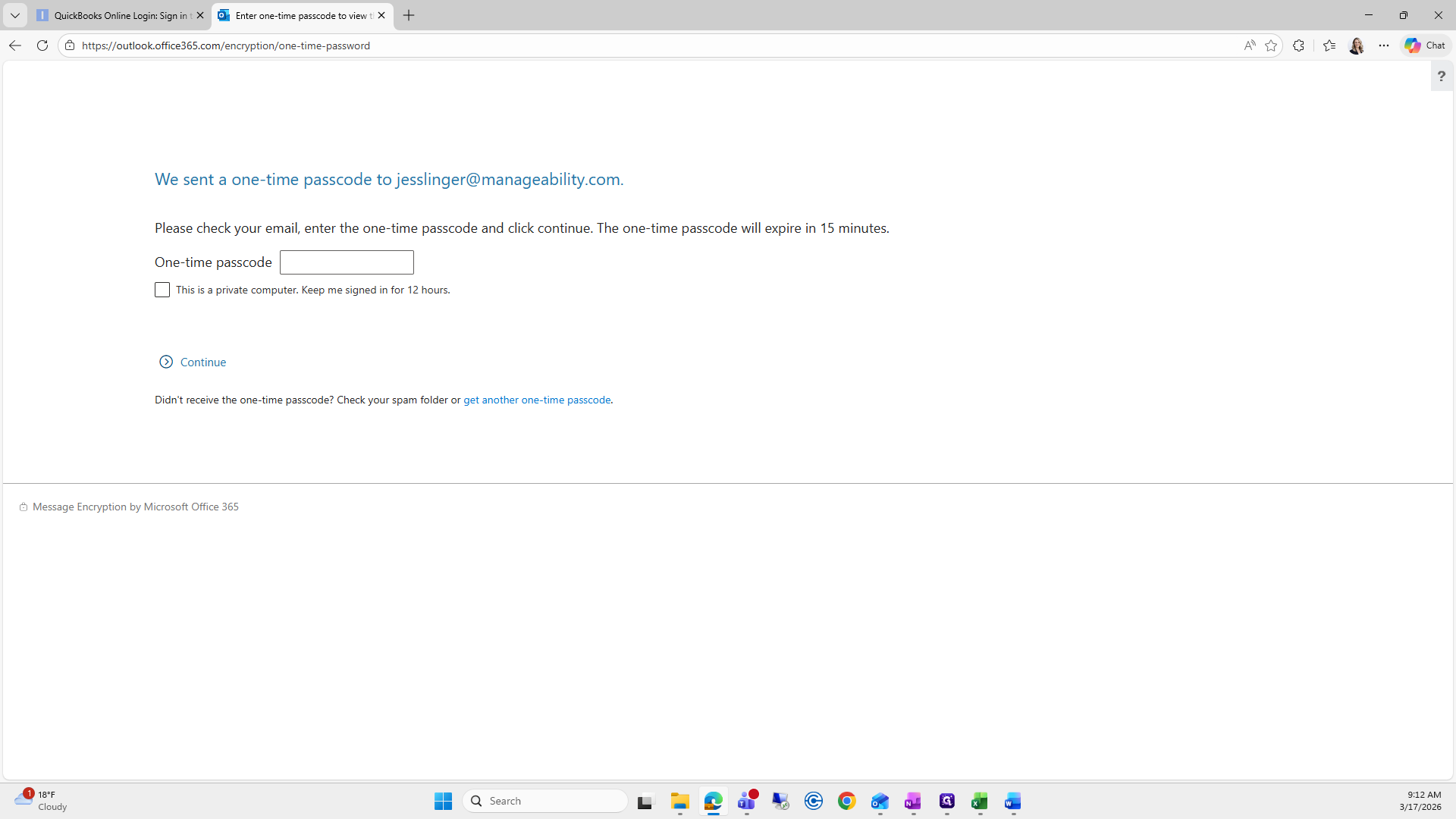
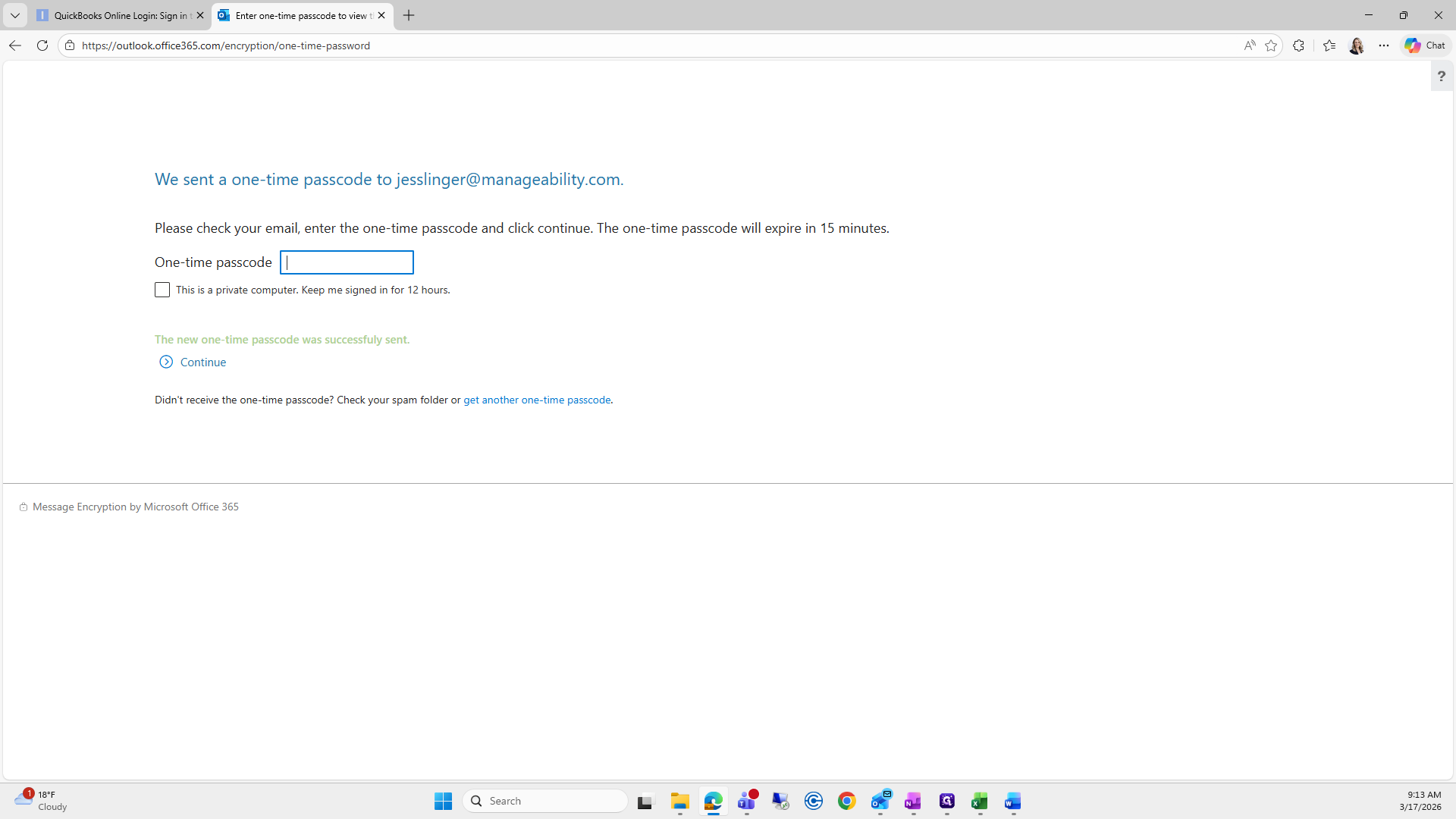
You’ll need to sign in with a passcode, which will be sent to your email.
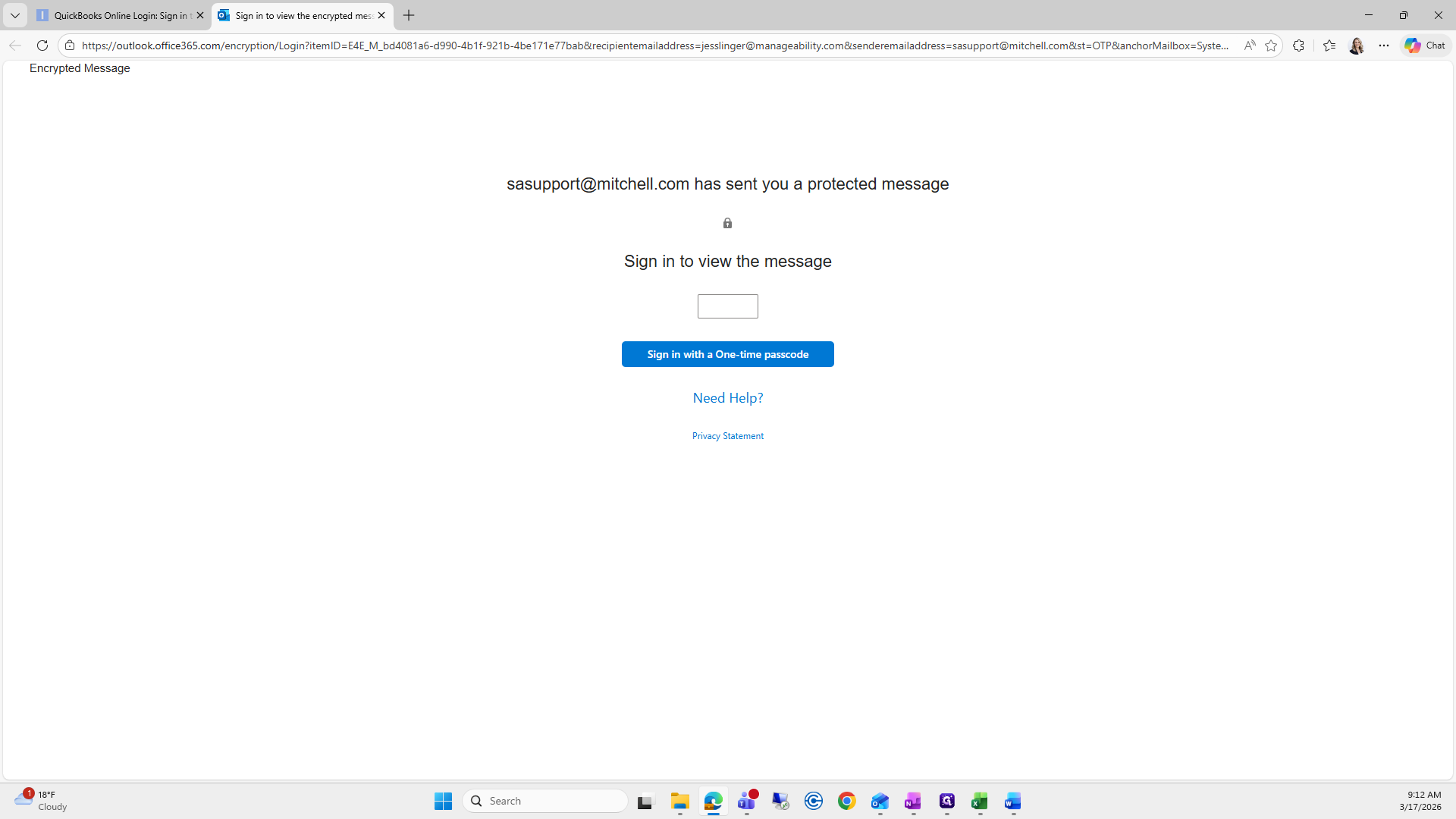
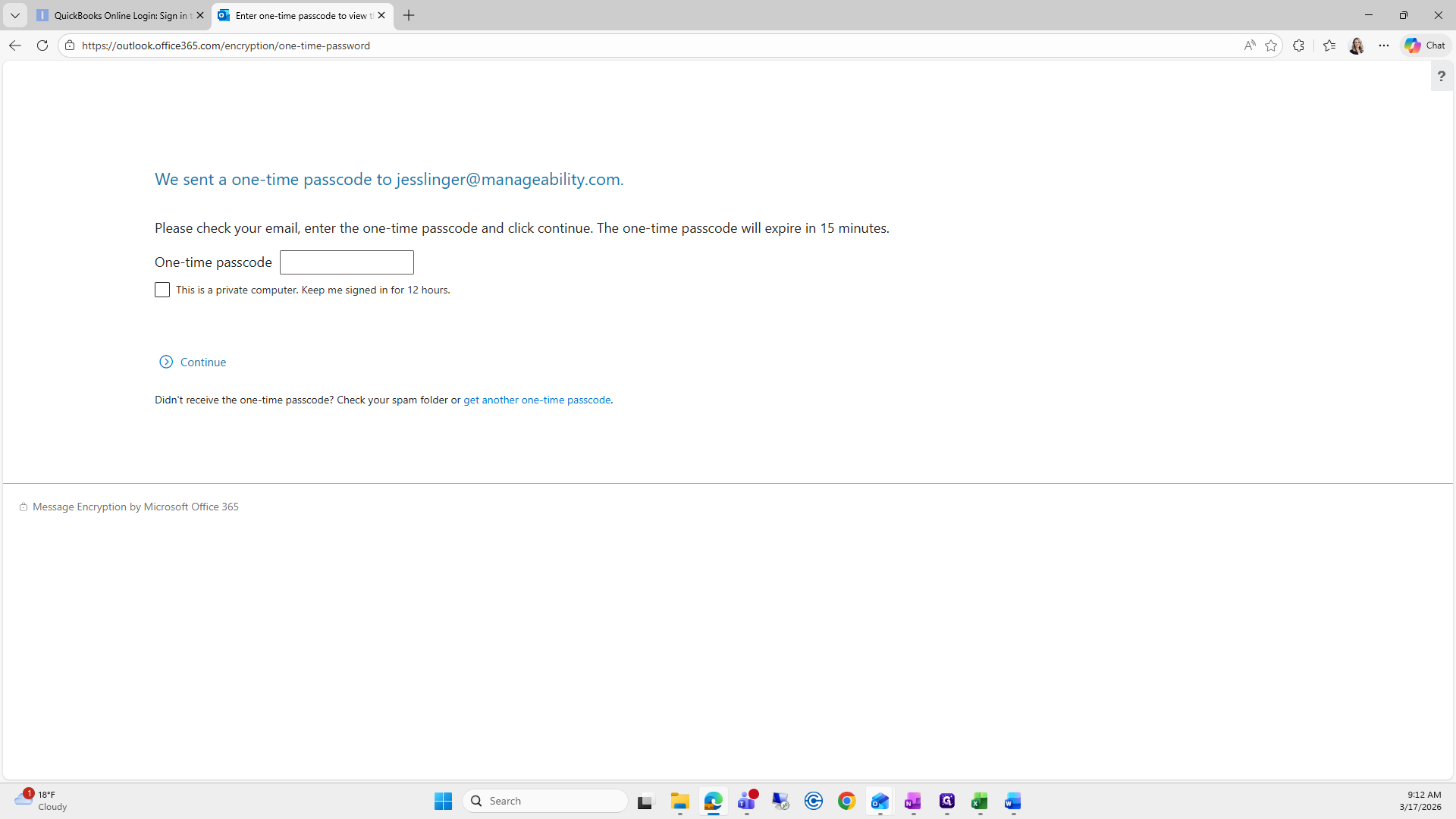
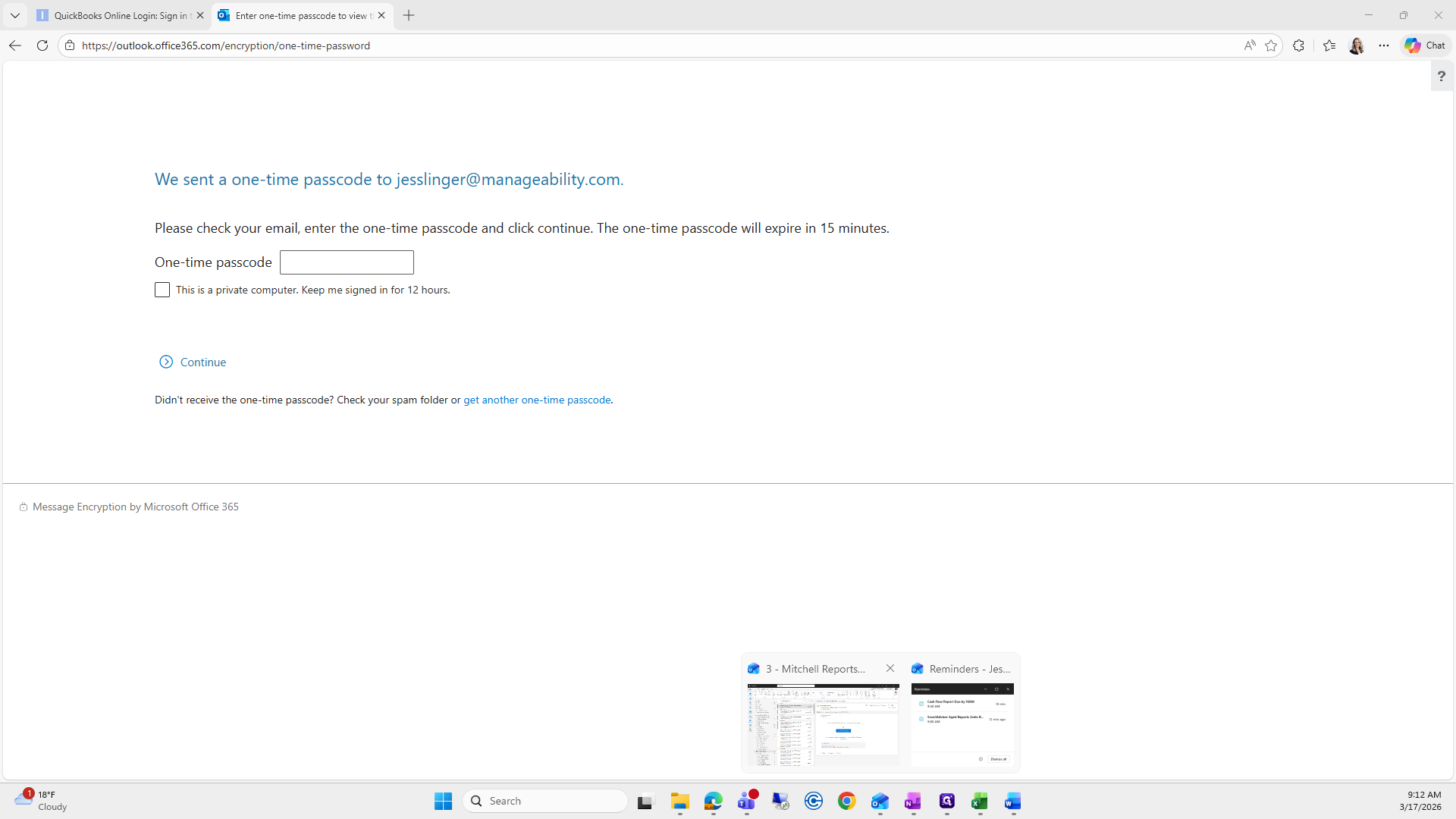
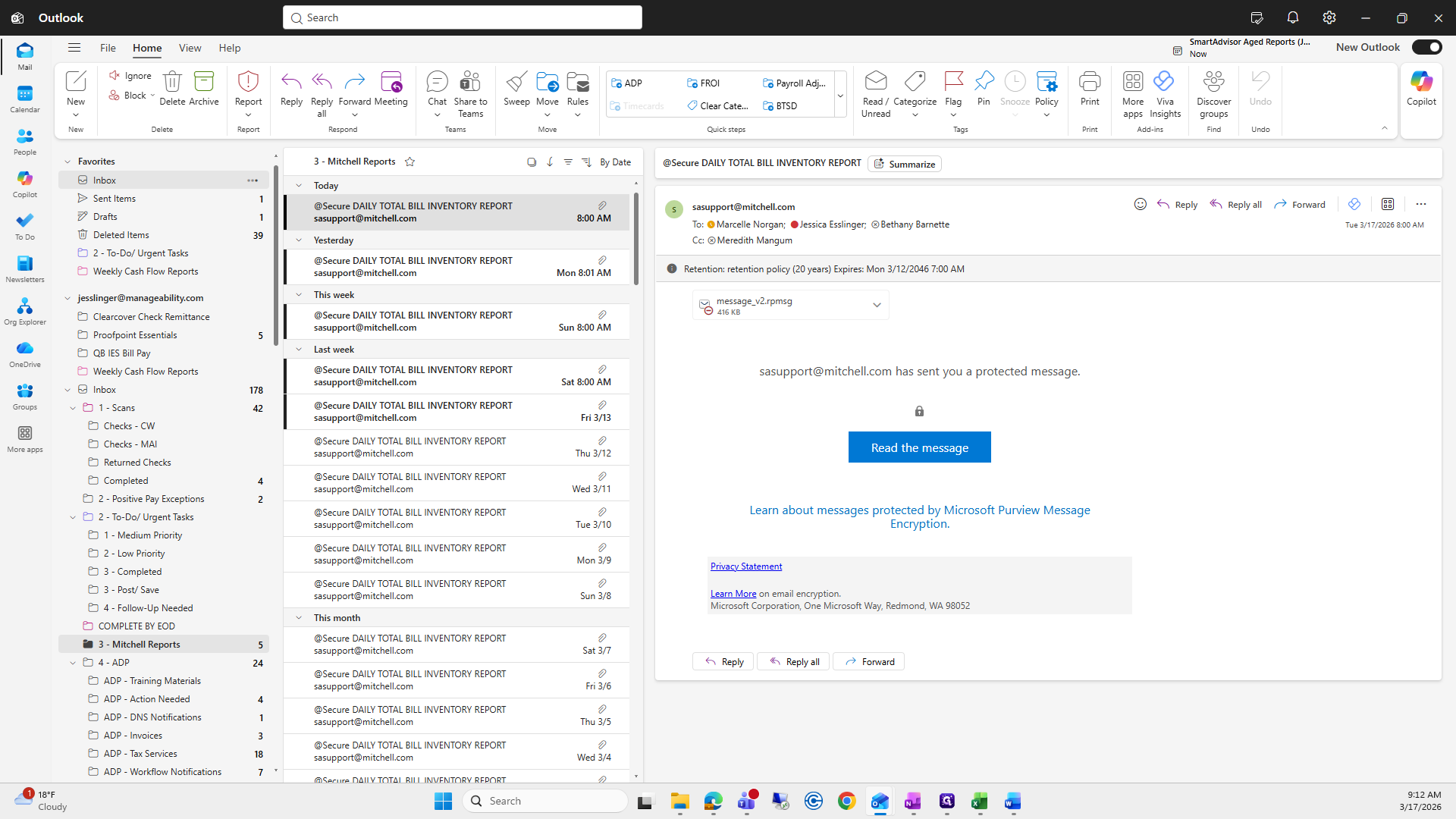
Waiting for the passcode. Maybe I did it wrong. Hold on.
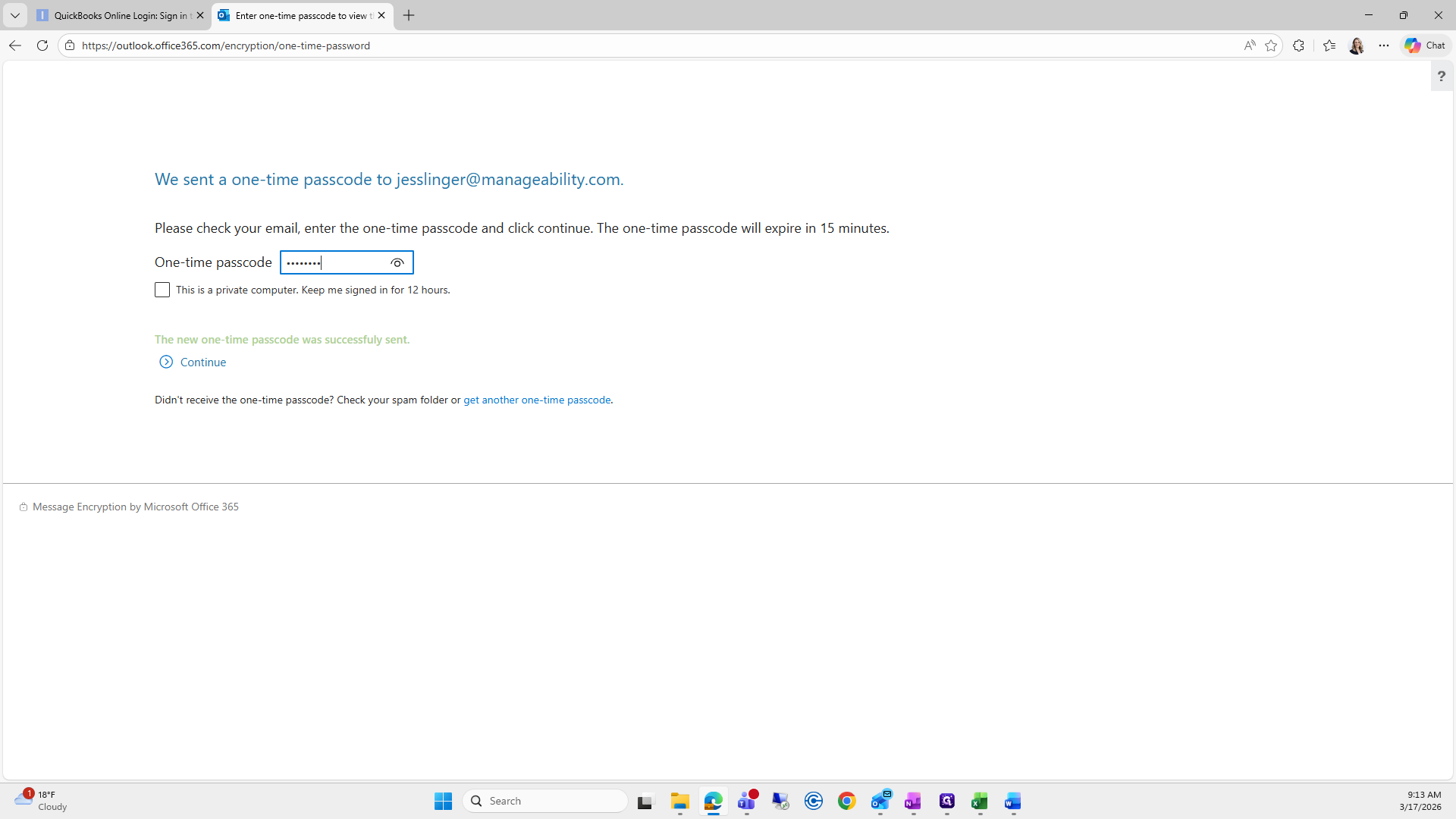
I have to press continue after I enter. Where is the passcode?
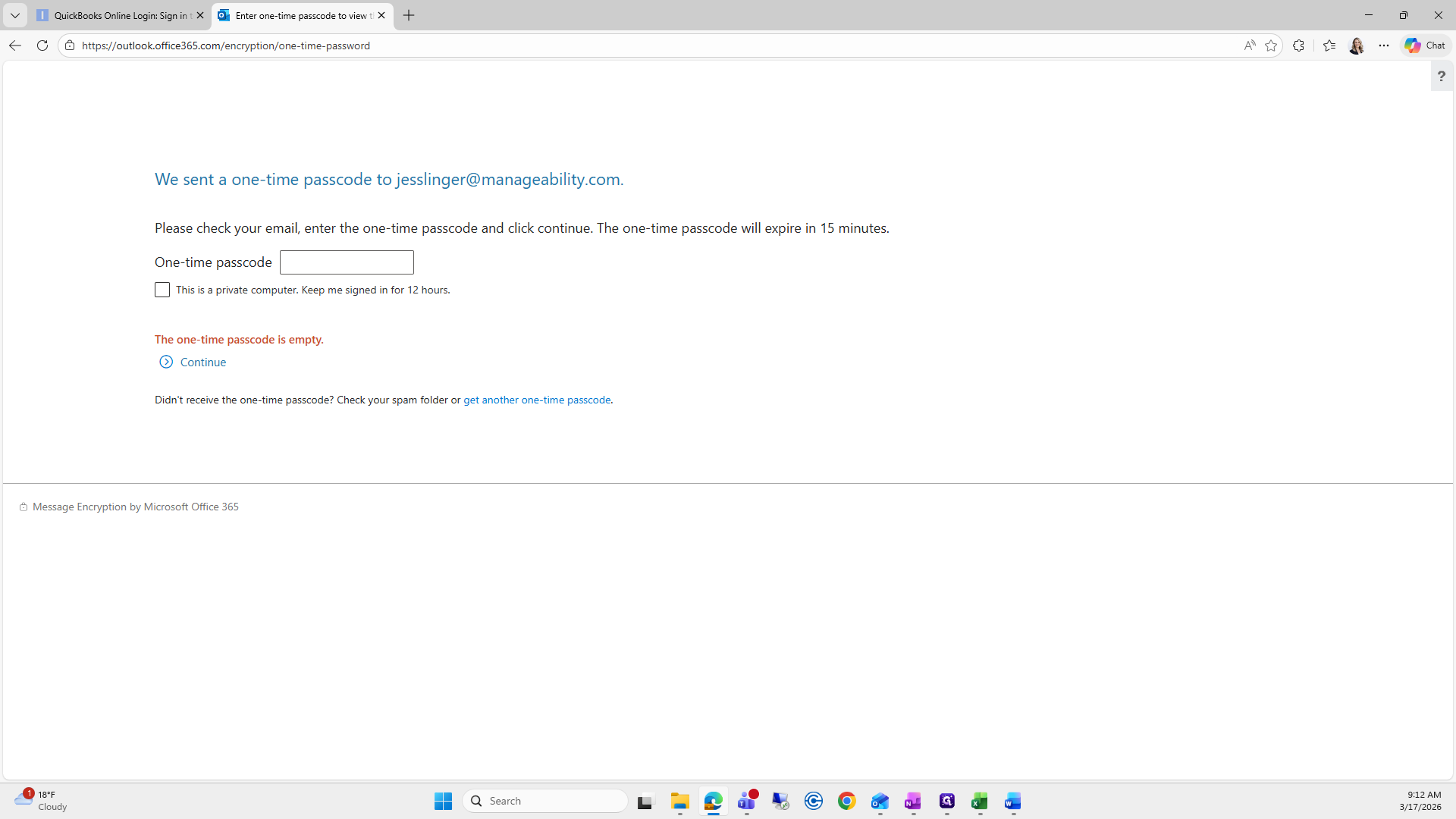
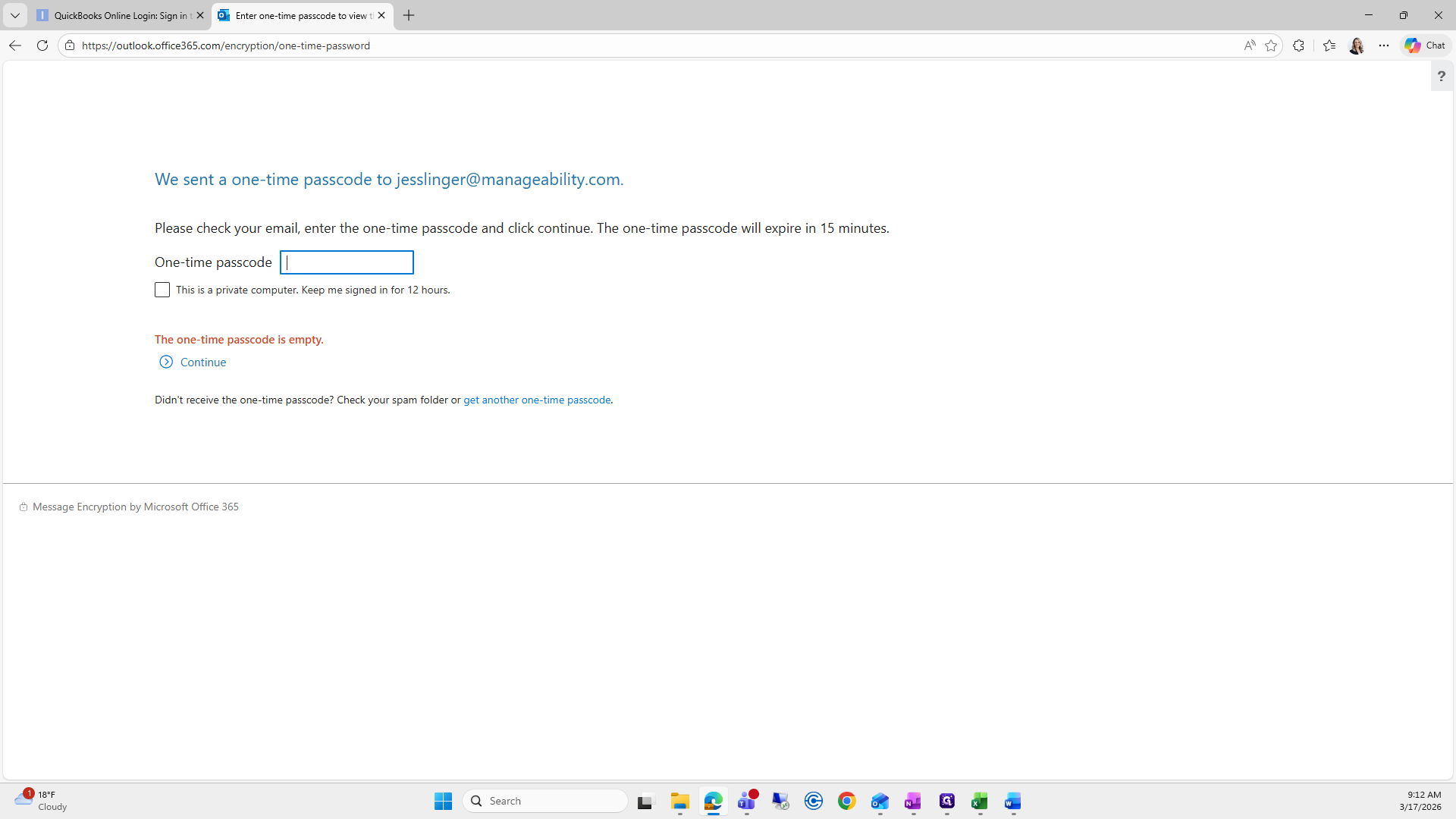
Taking a long time.
Well, this one.
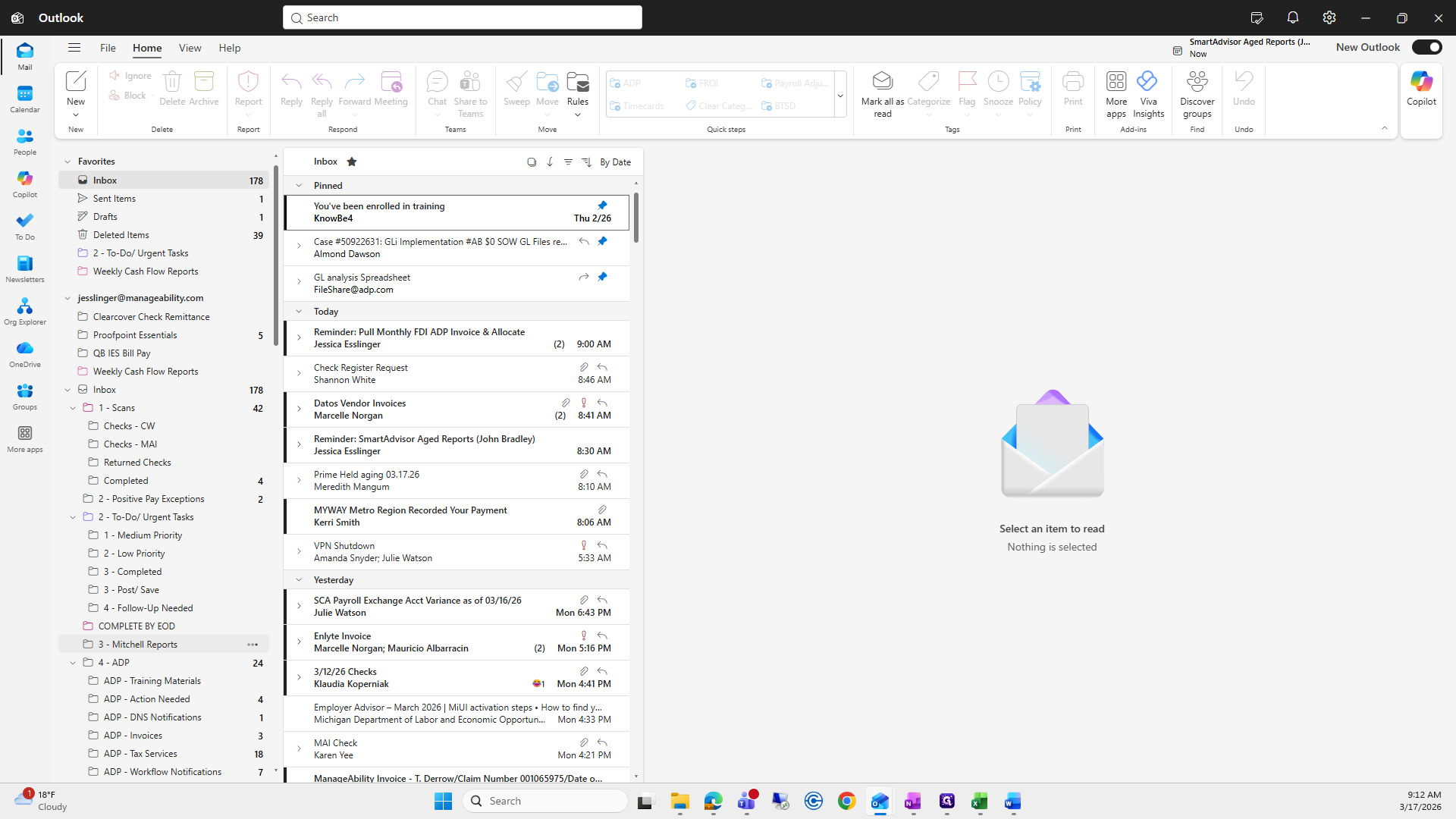
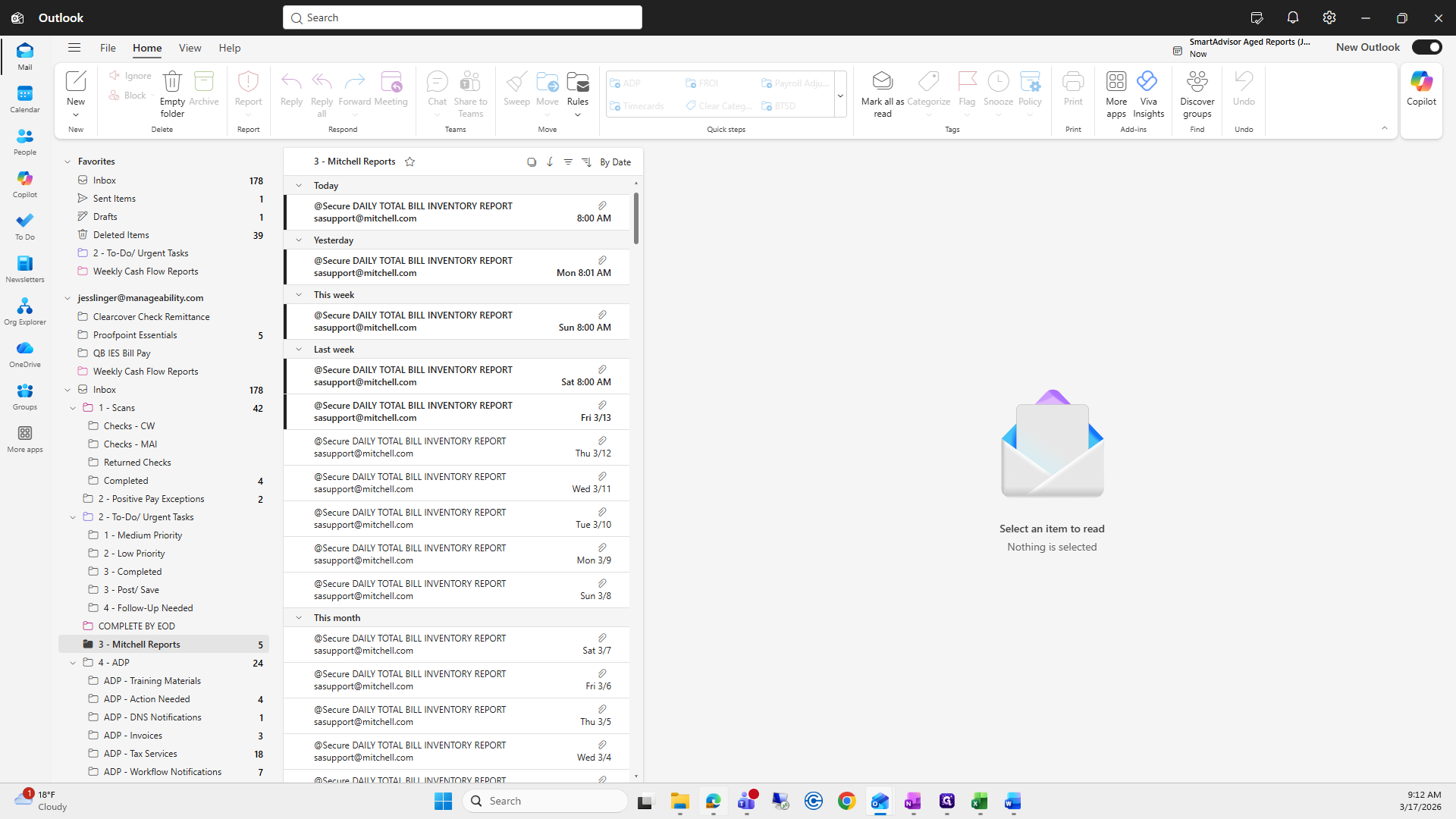
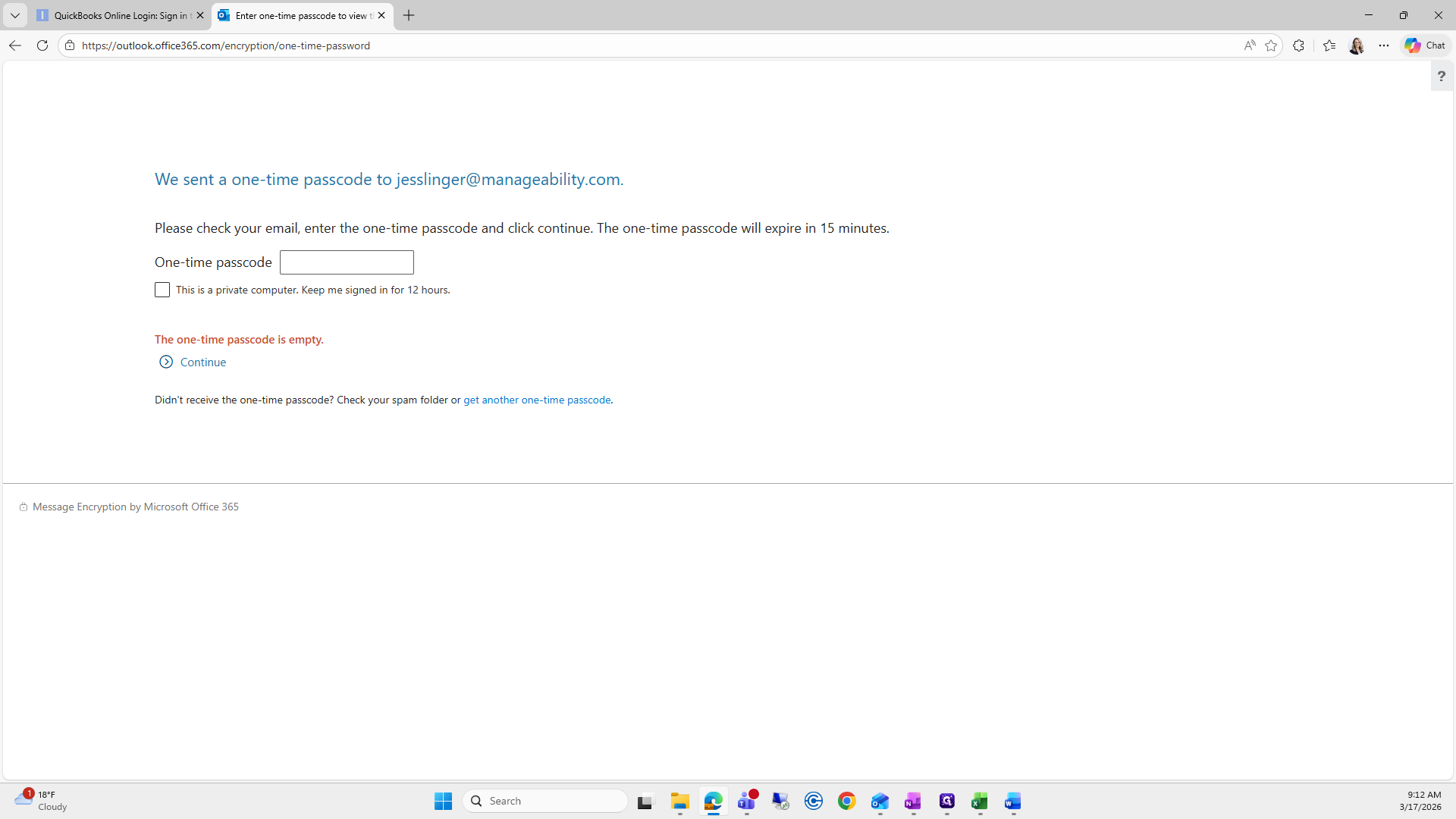
Try it again.
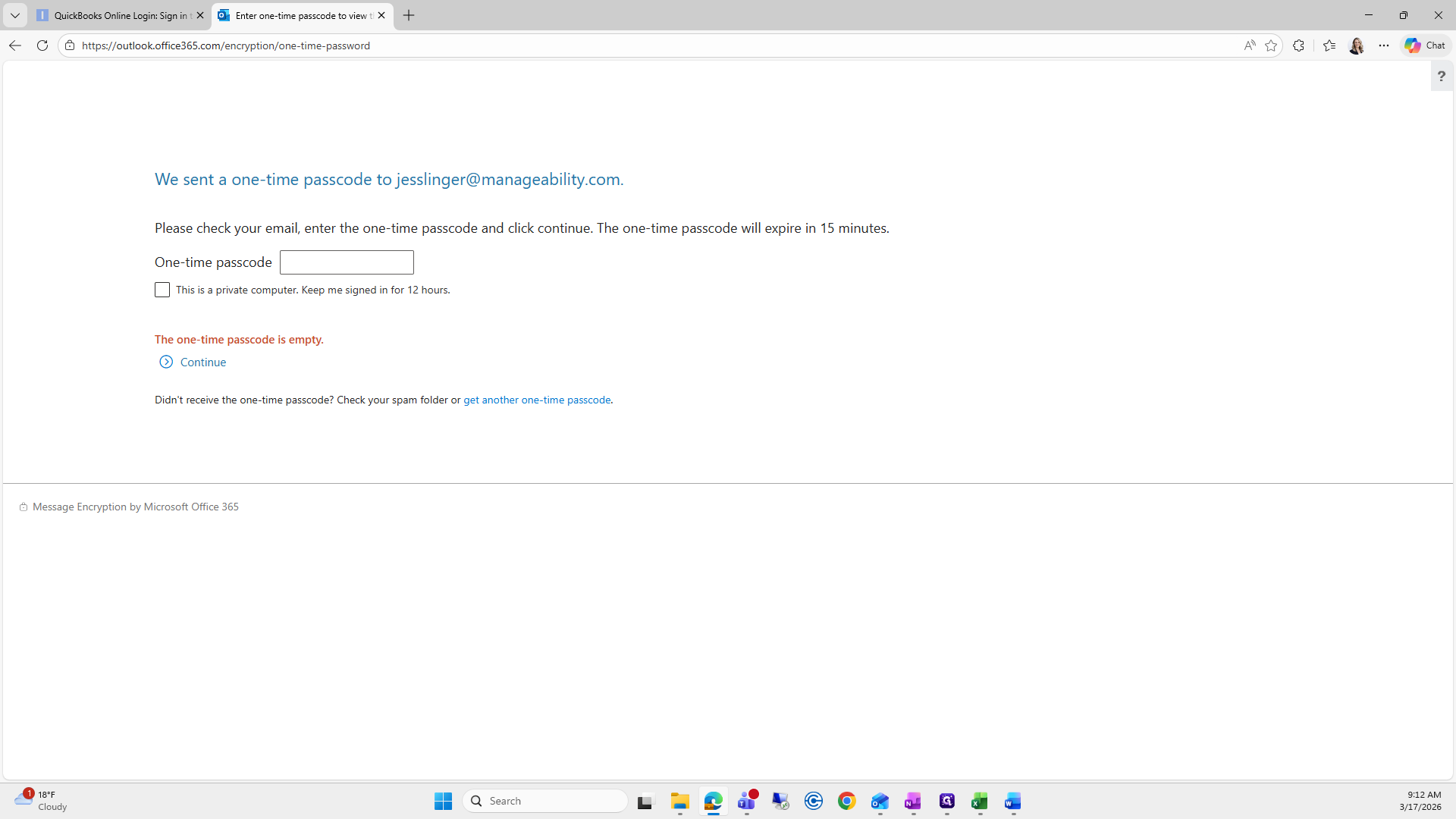
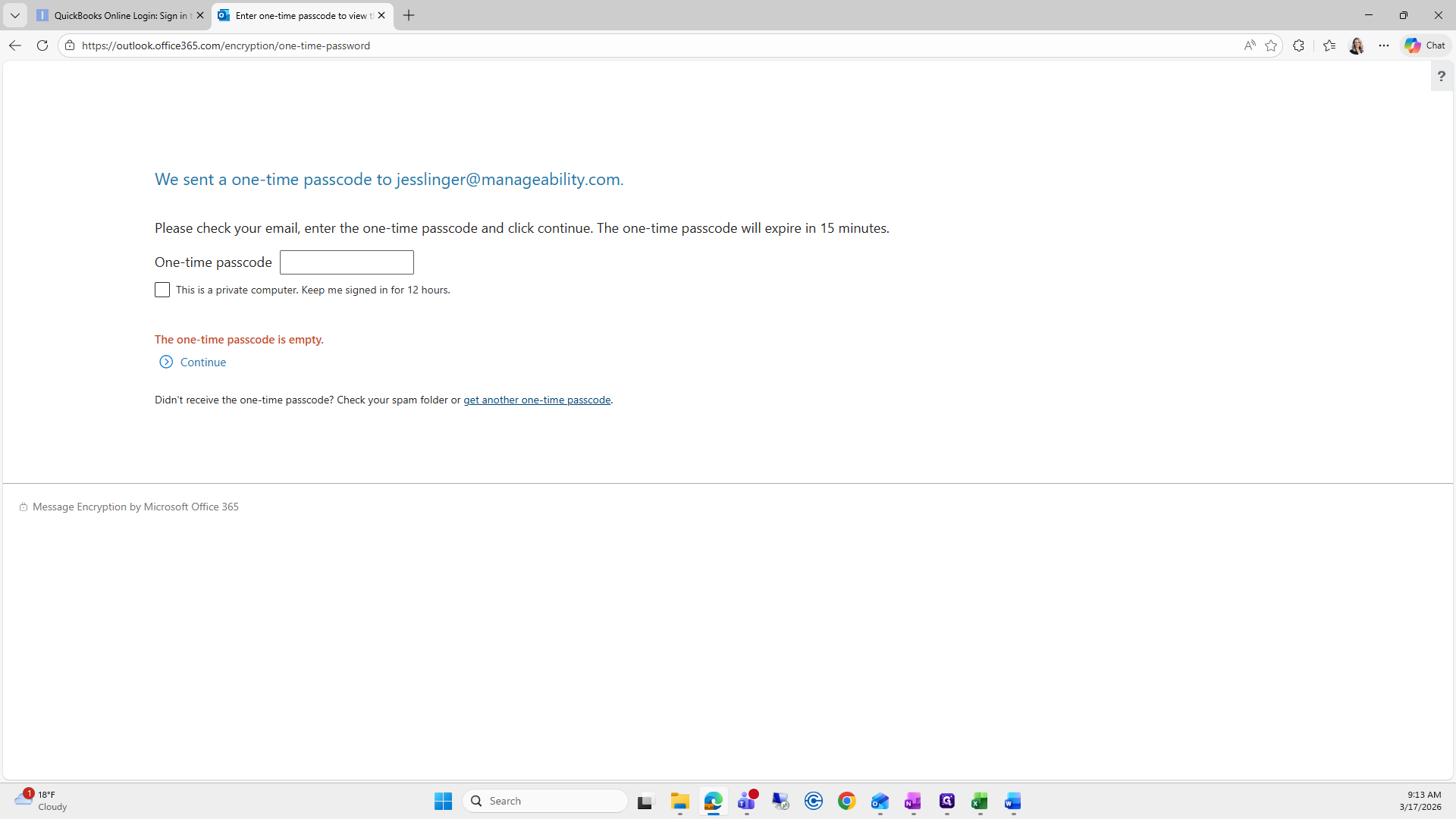
Usually, it appears immediately, but it won't this time because I'm recording.
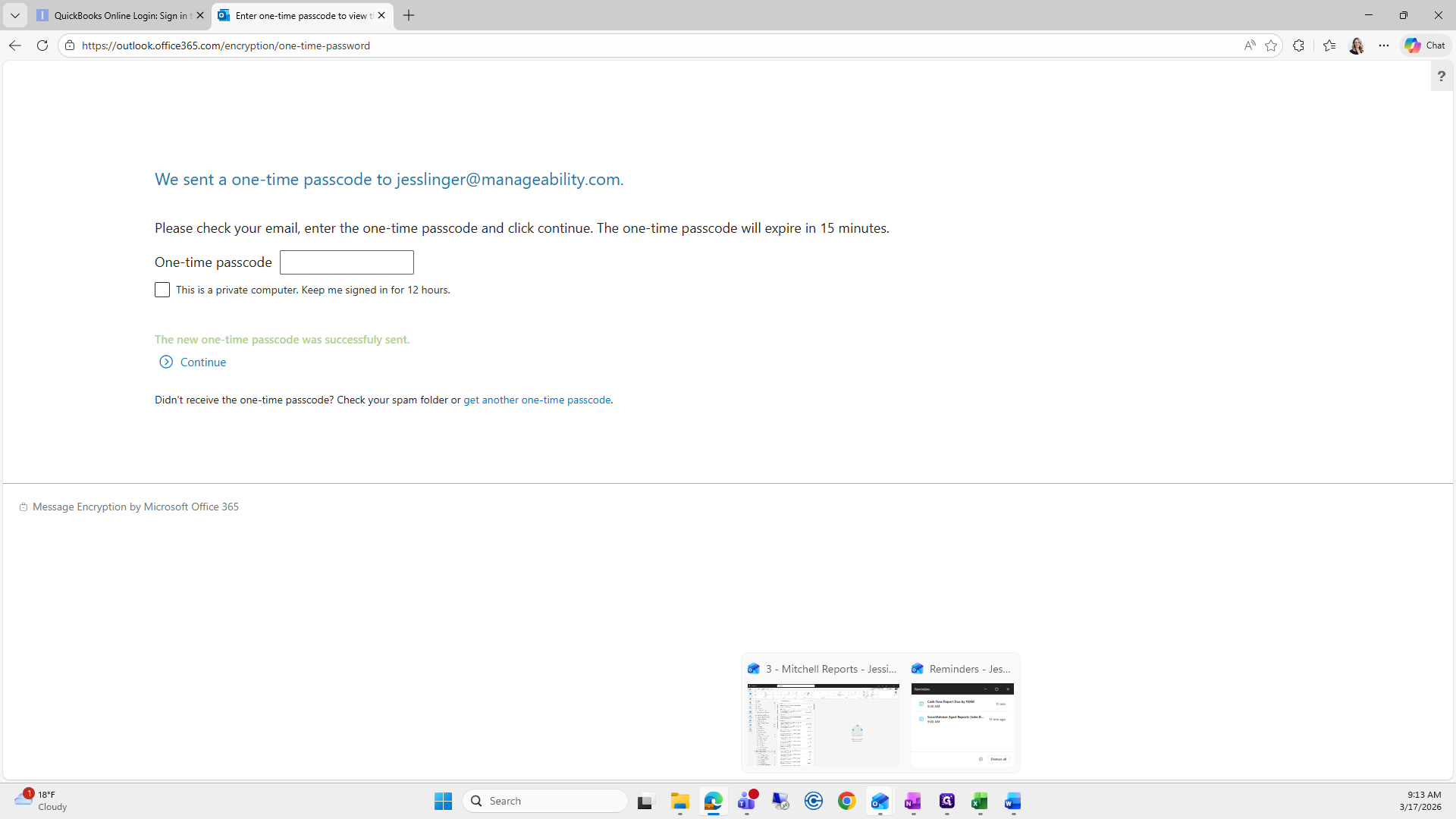
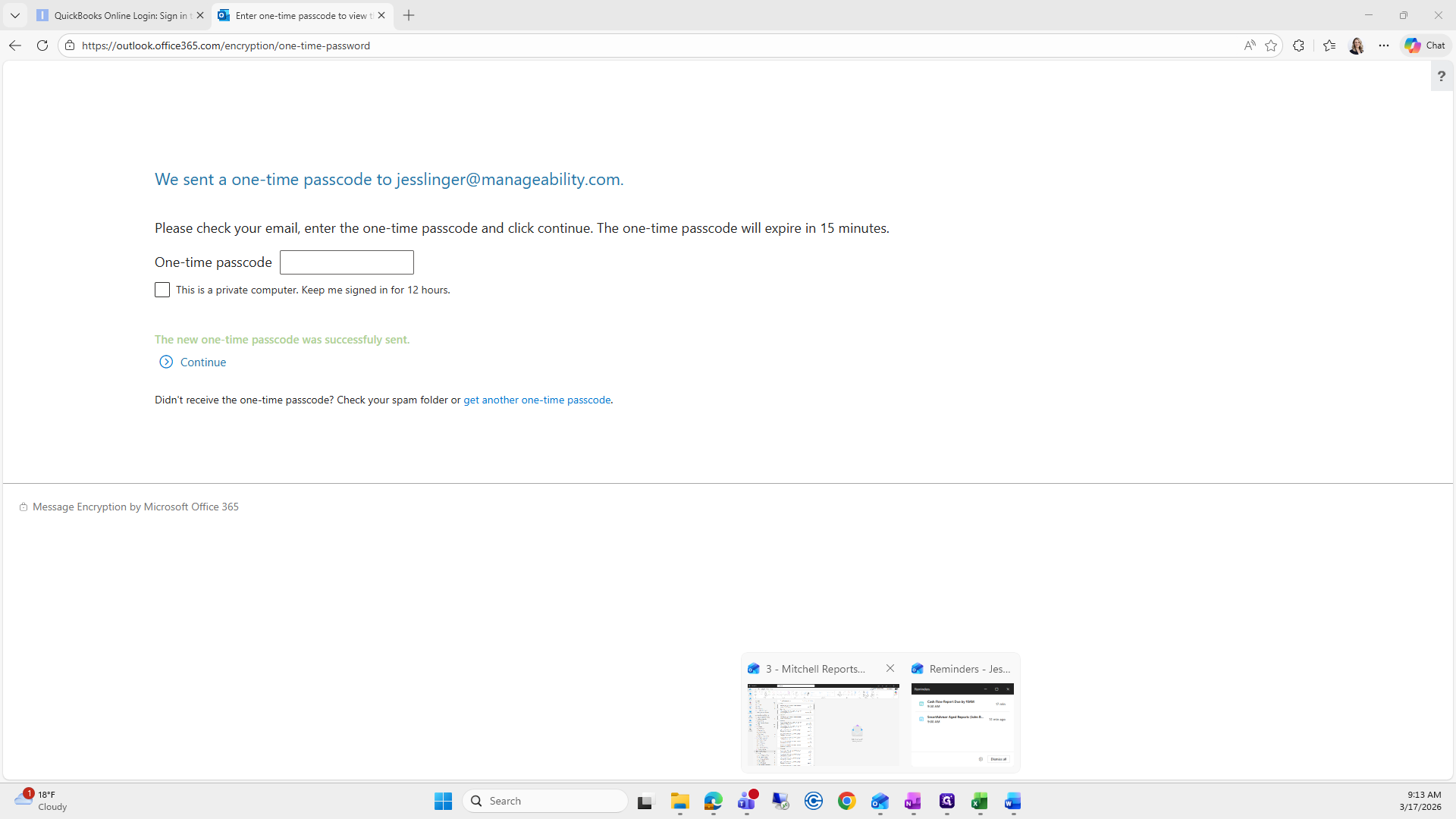
There it is. We found it.
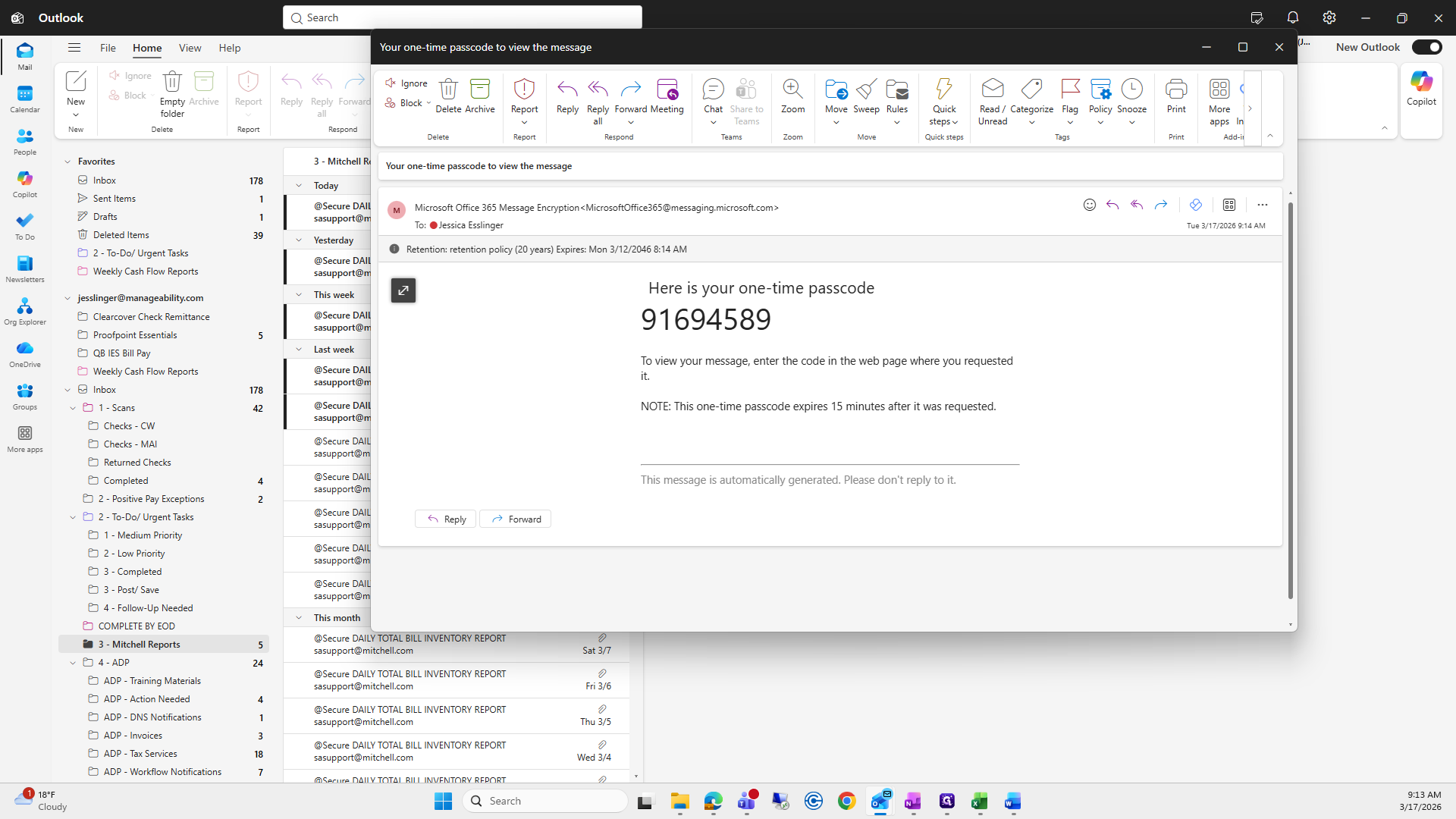
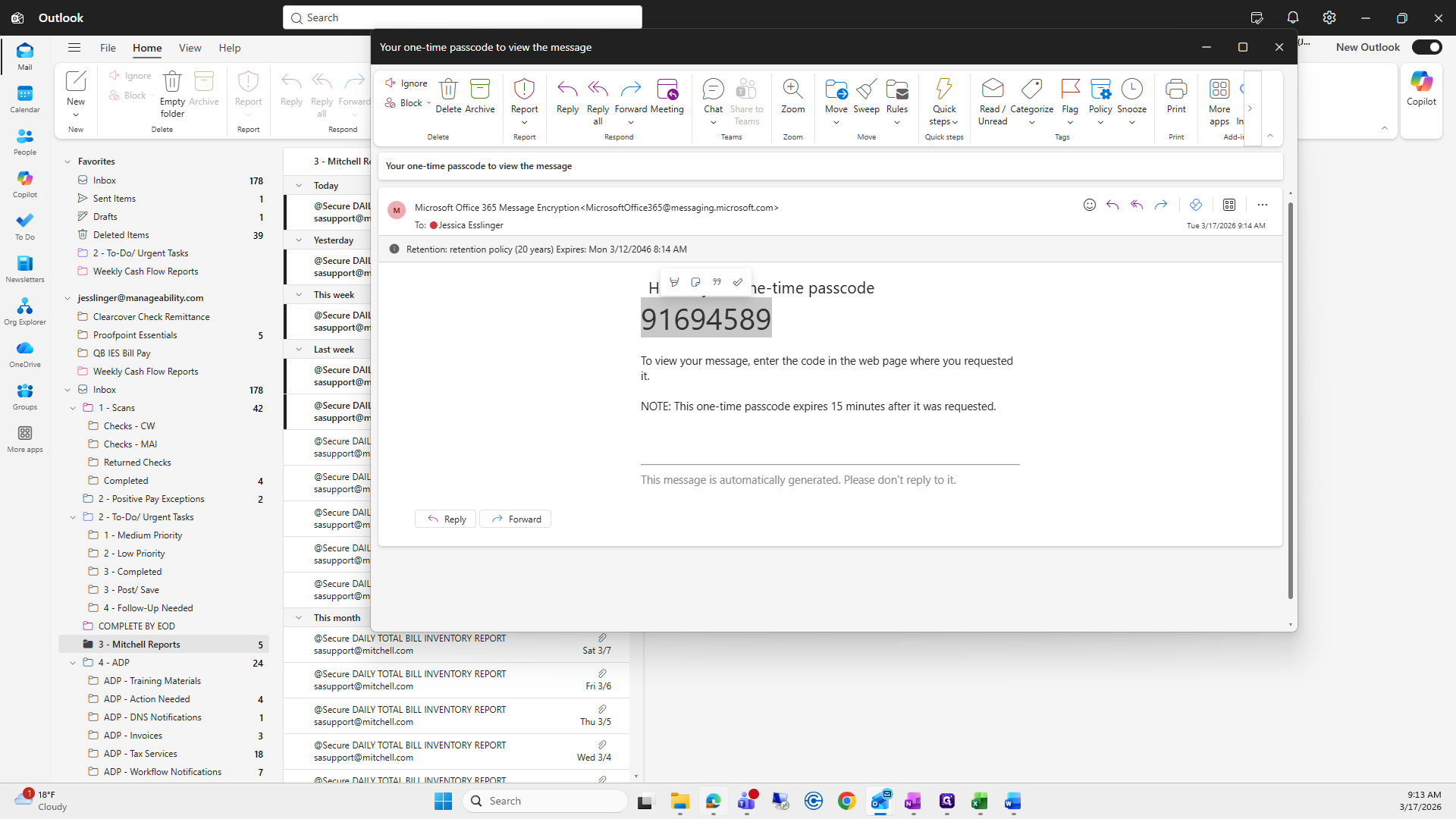
Enter your passcode and continue.
Then you'll have a file.
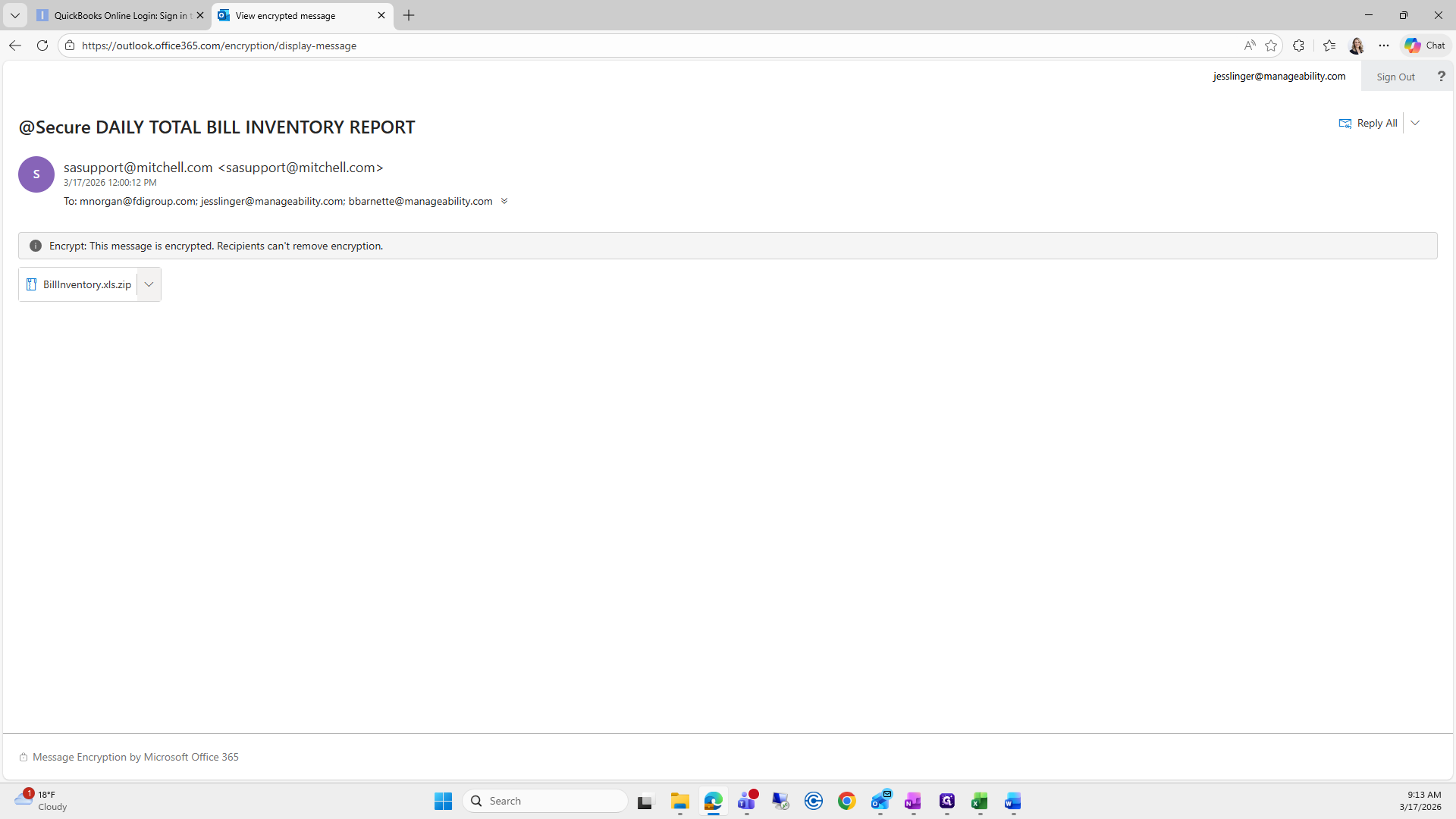
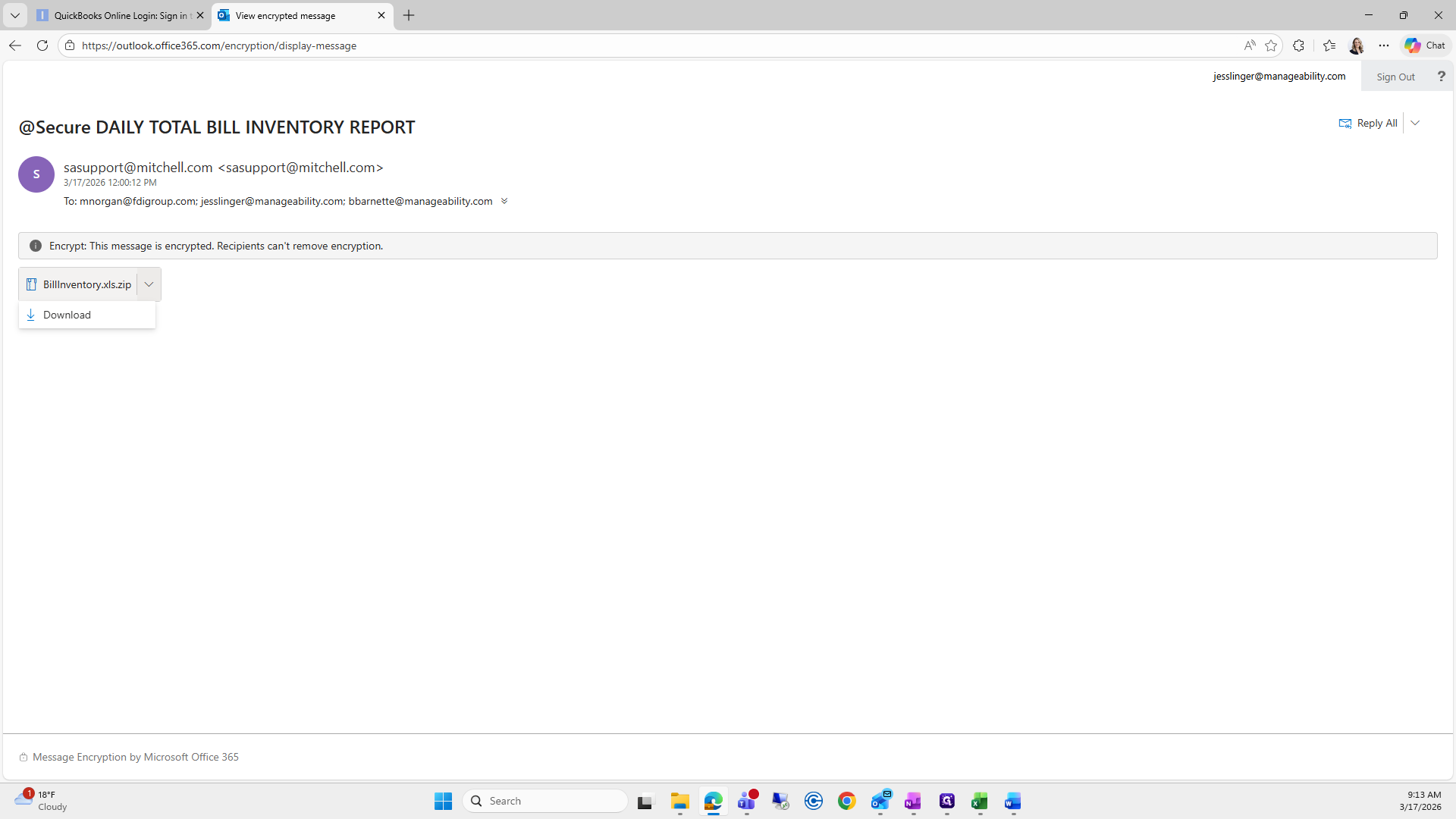
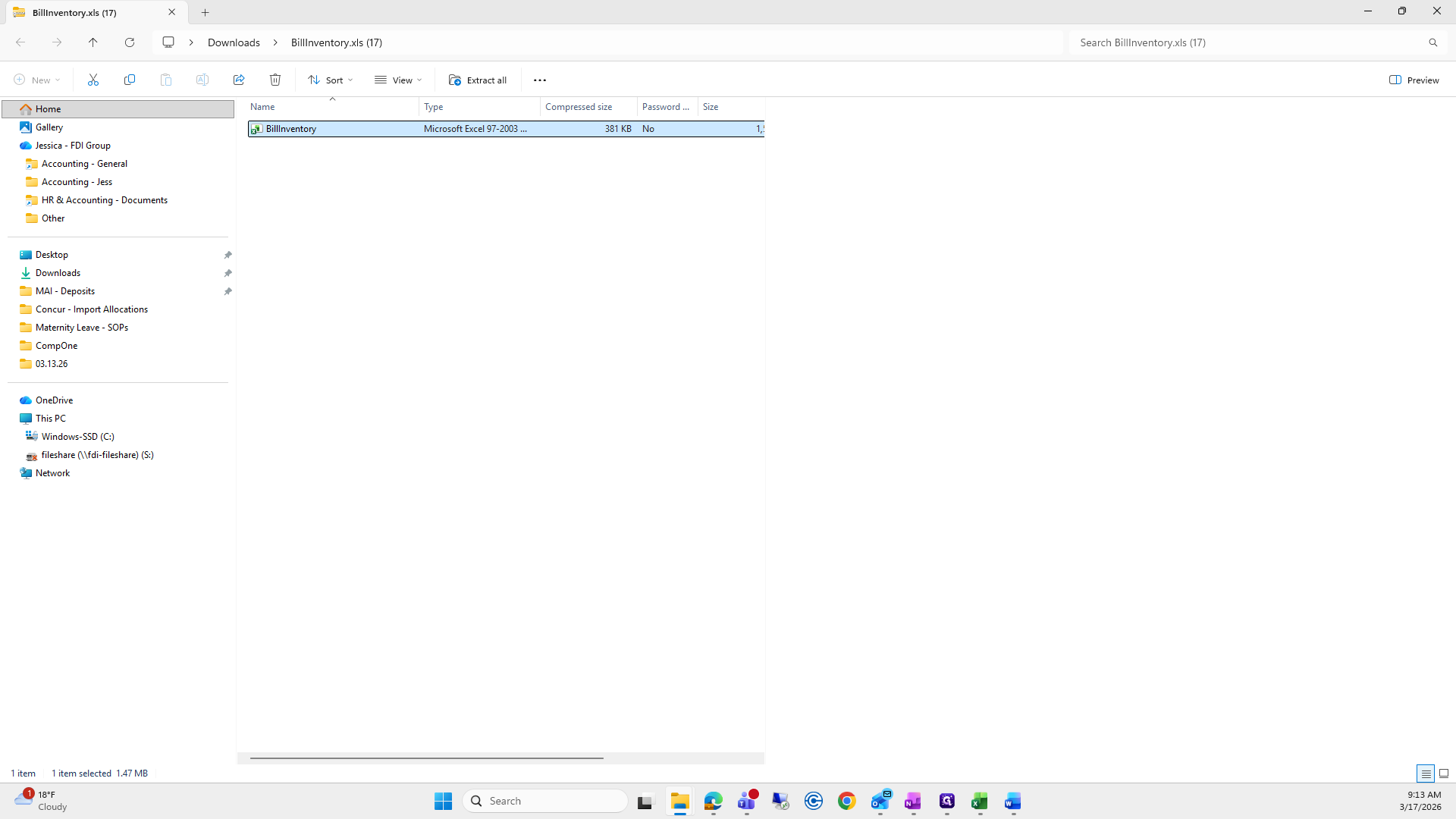
I usually open the zip file.
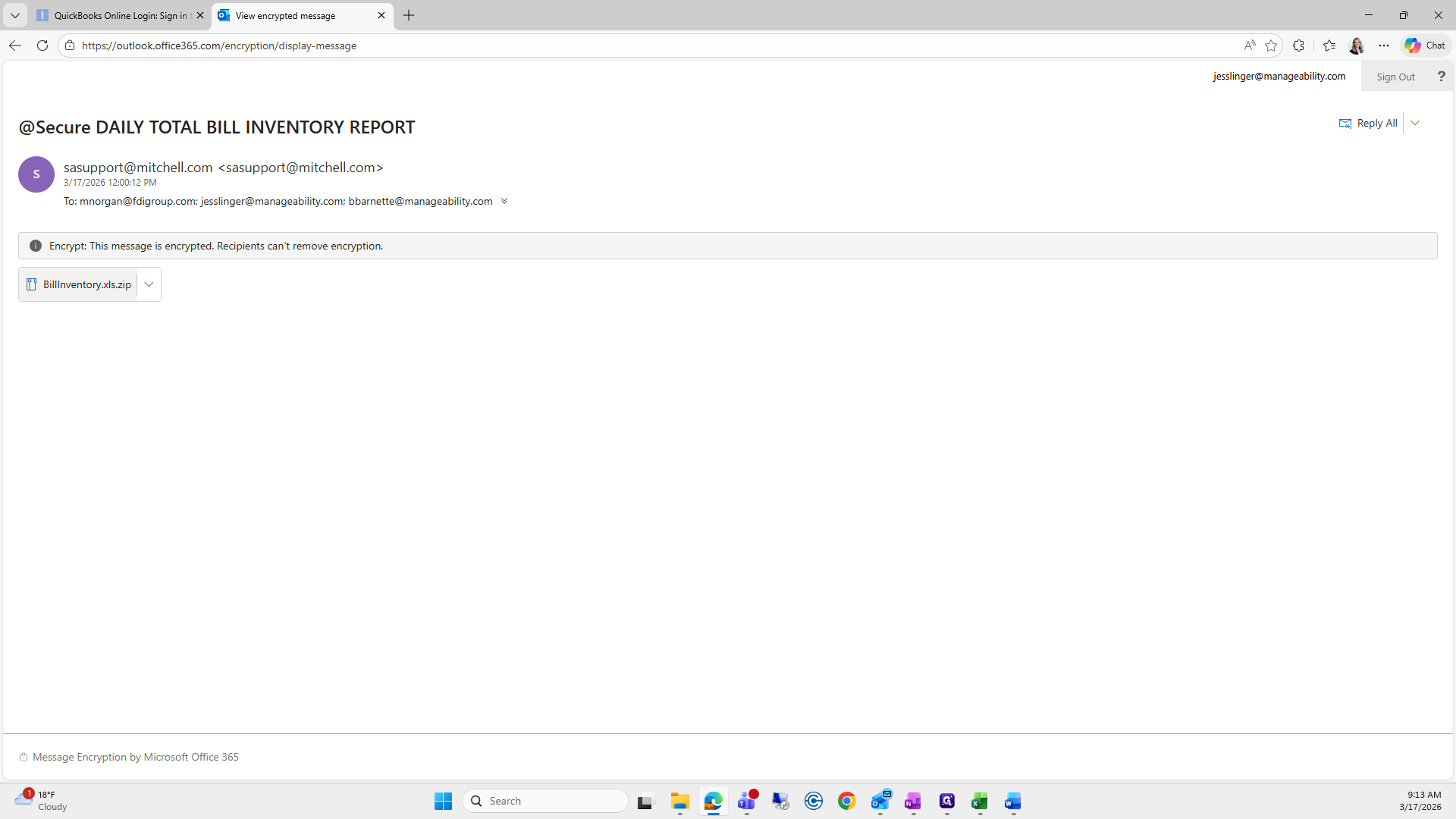
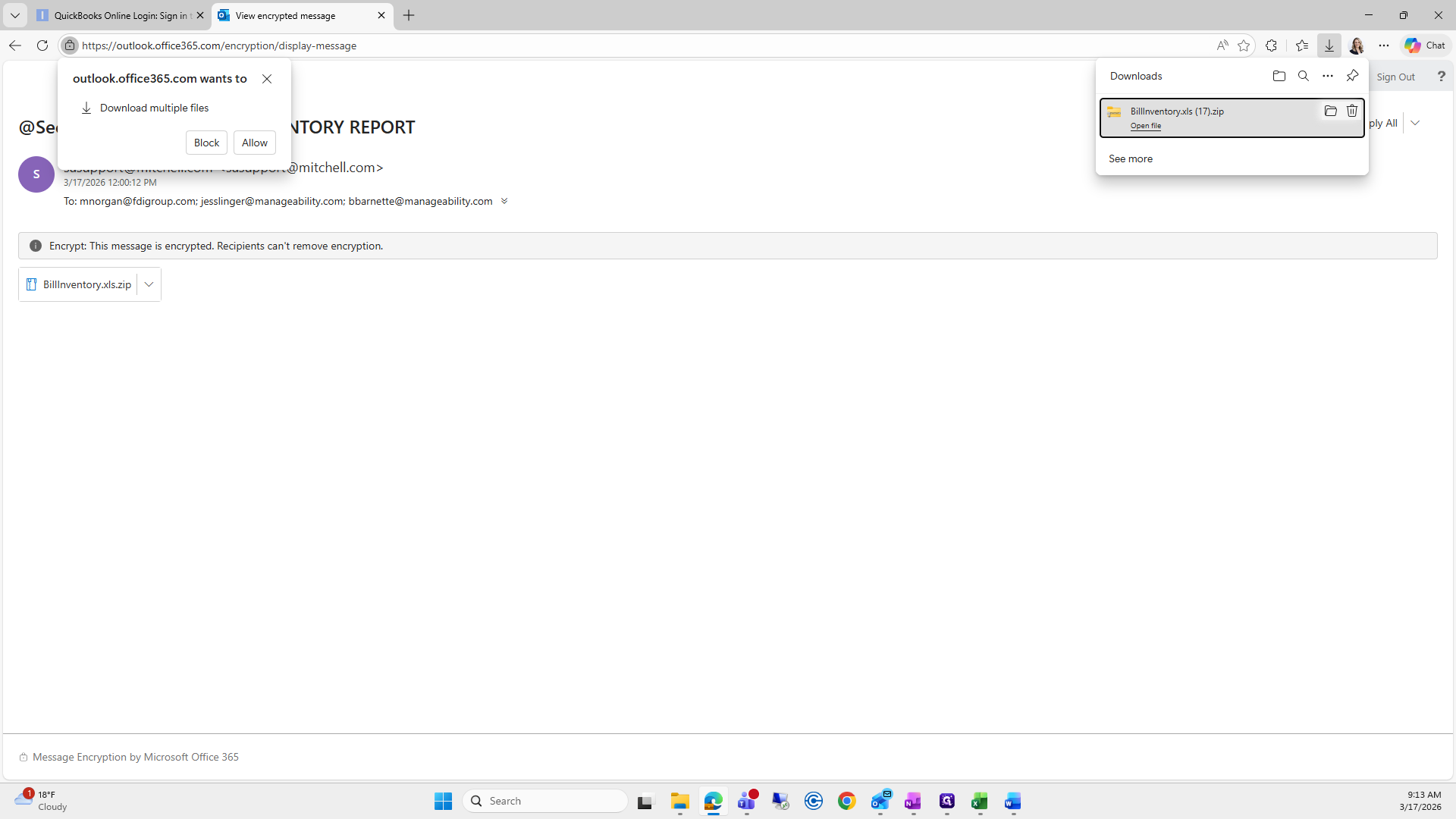
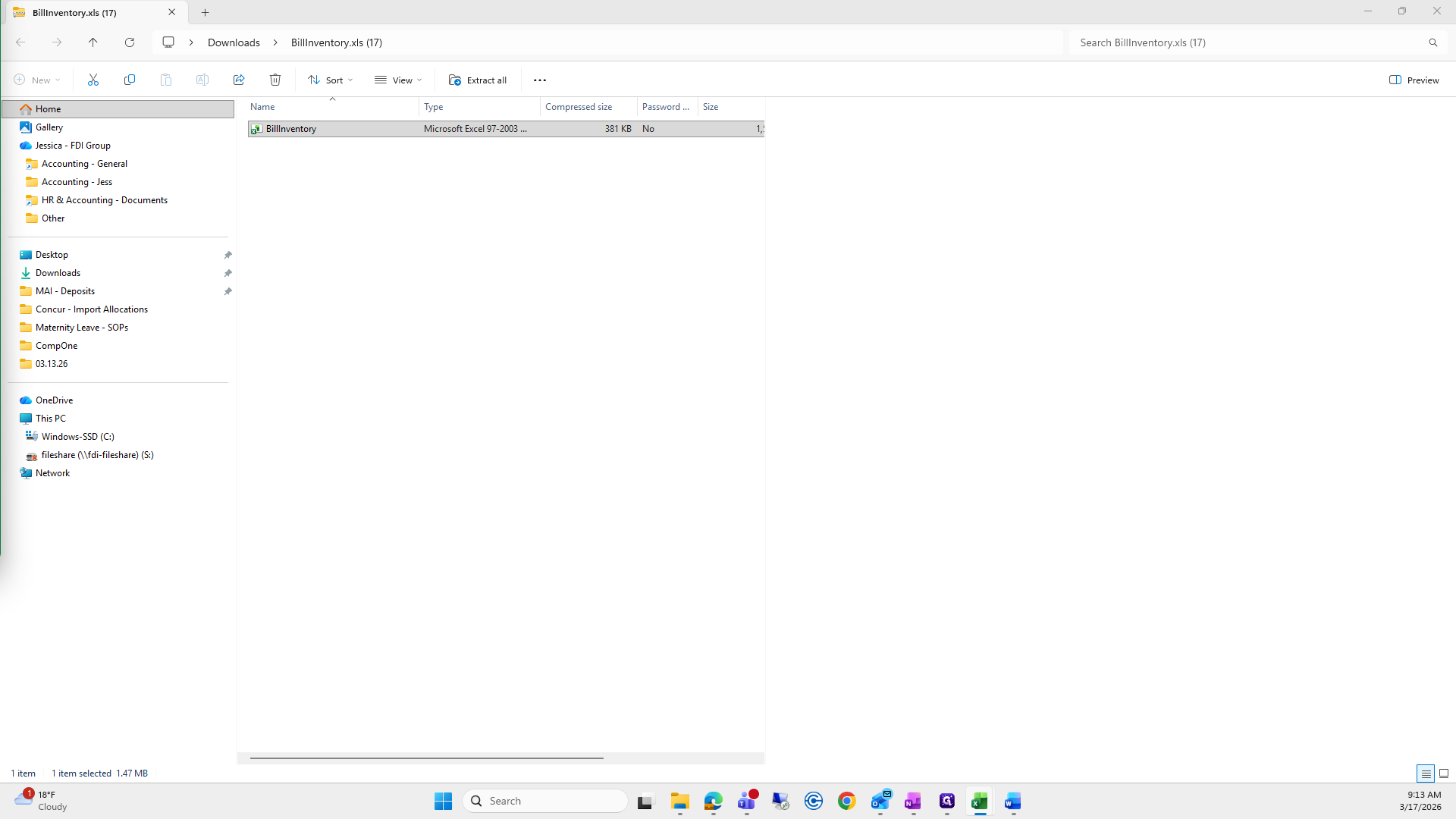
I open the file from the zip archive.
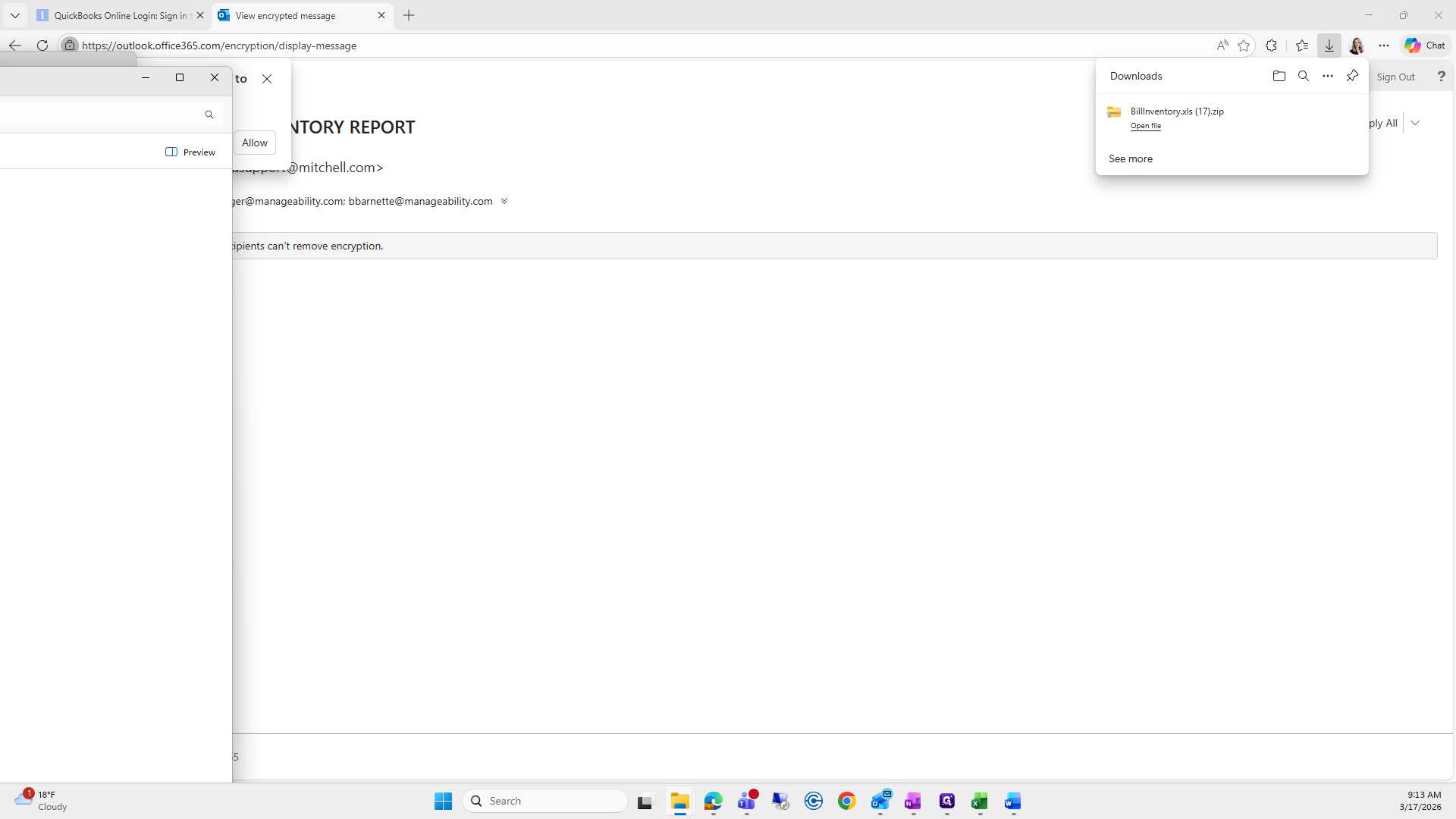
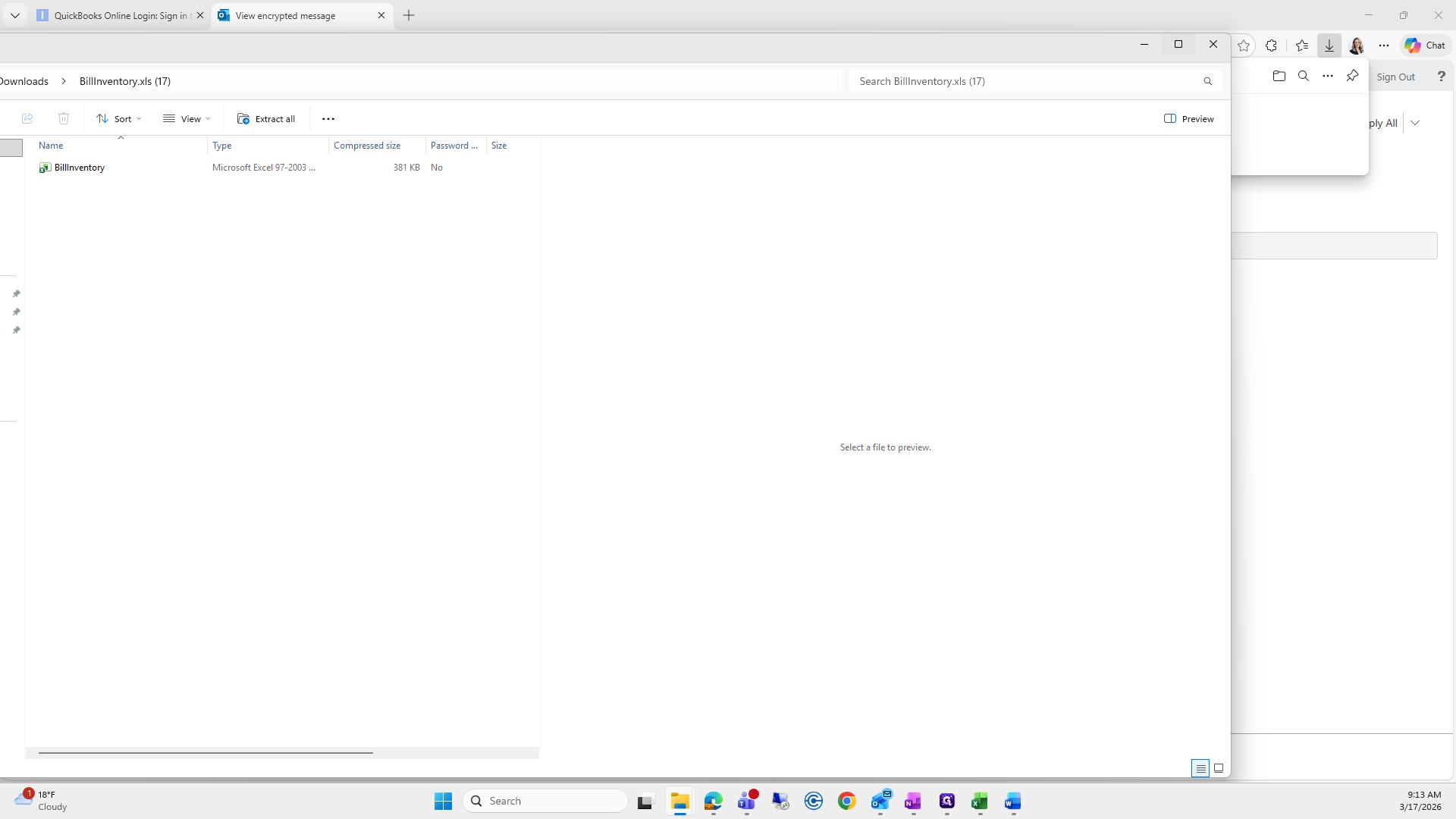
I click Enable Editing, then save the file to the same folder.
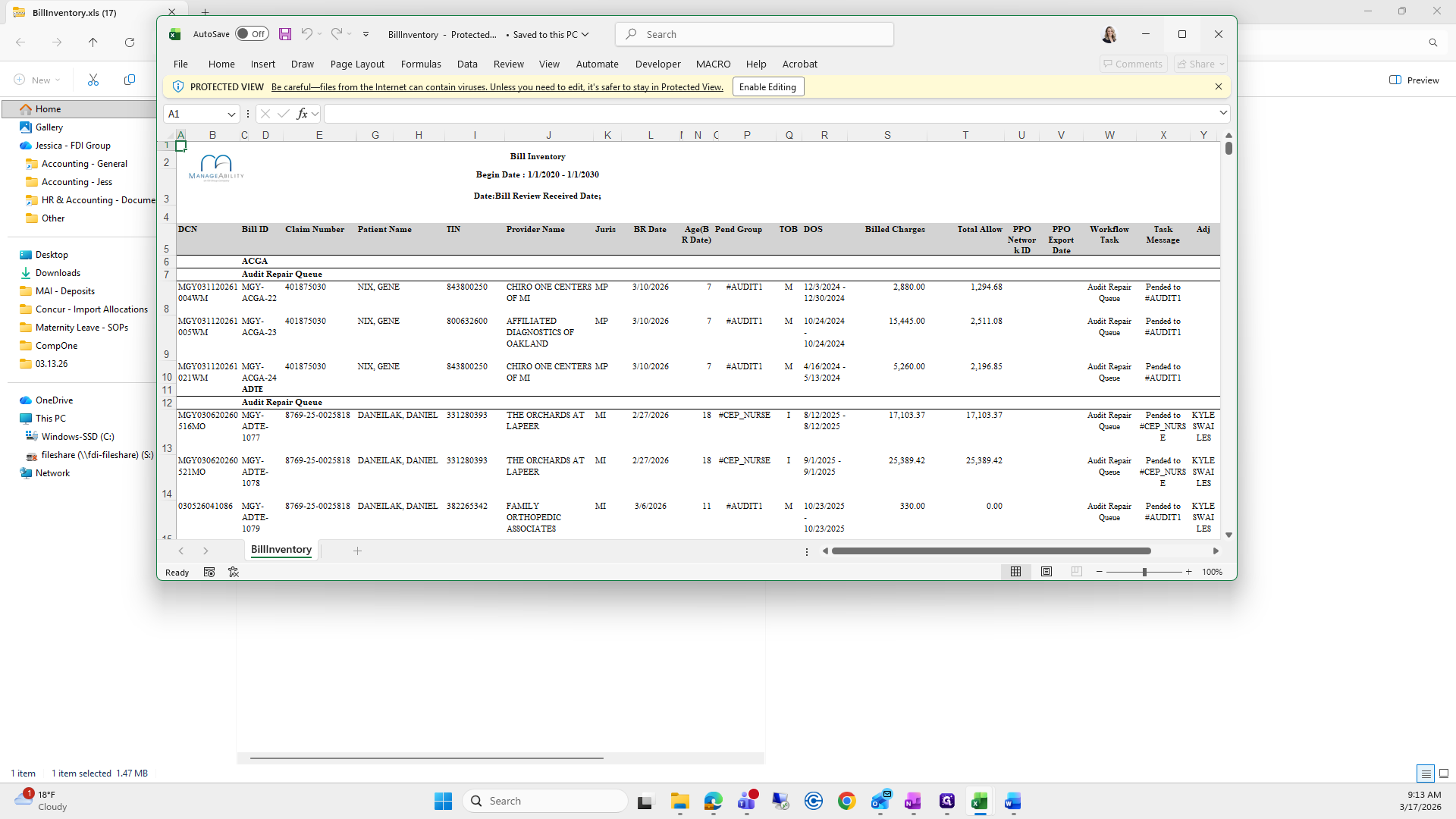
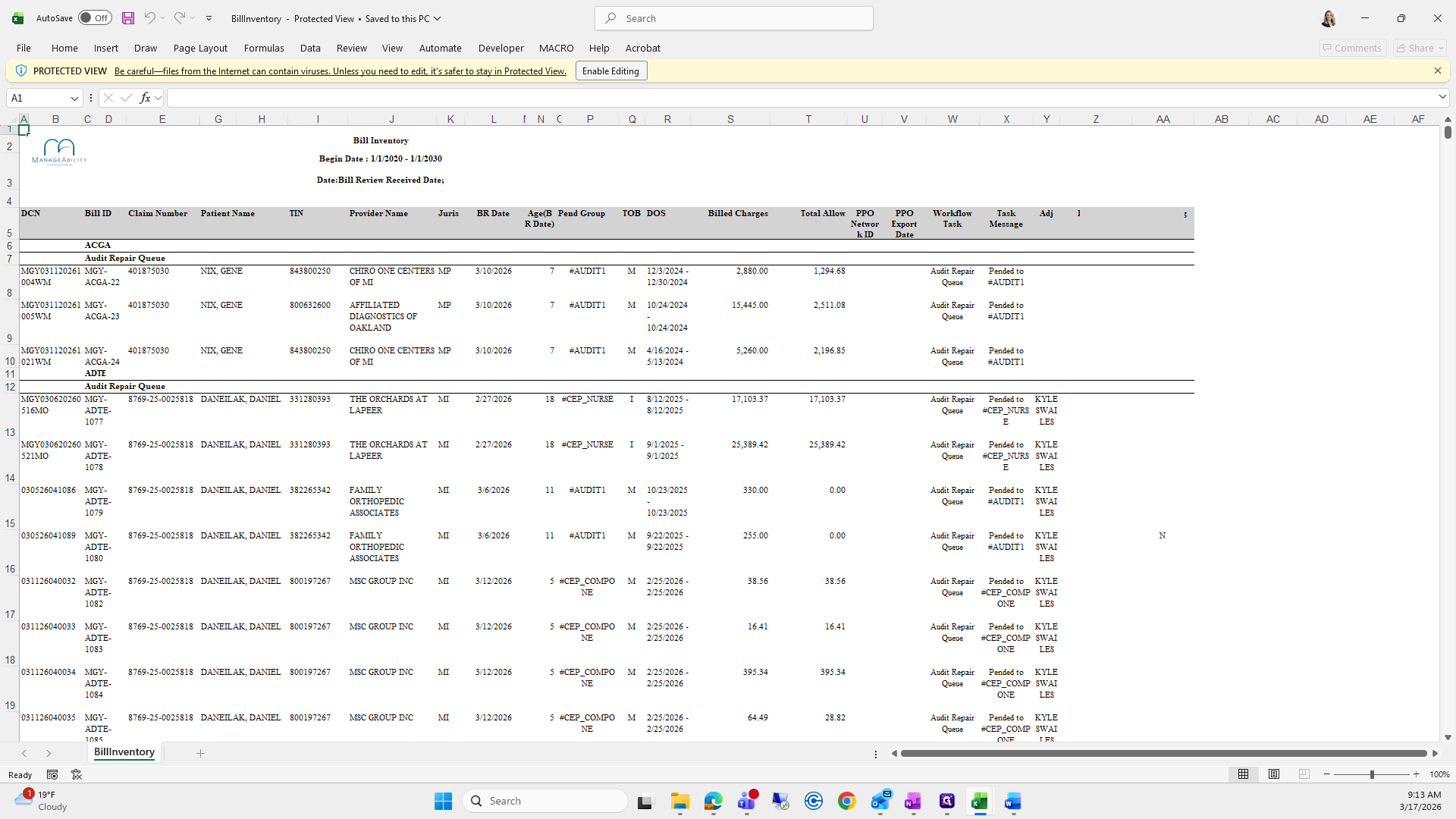
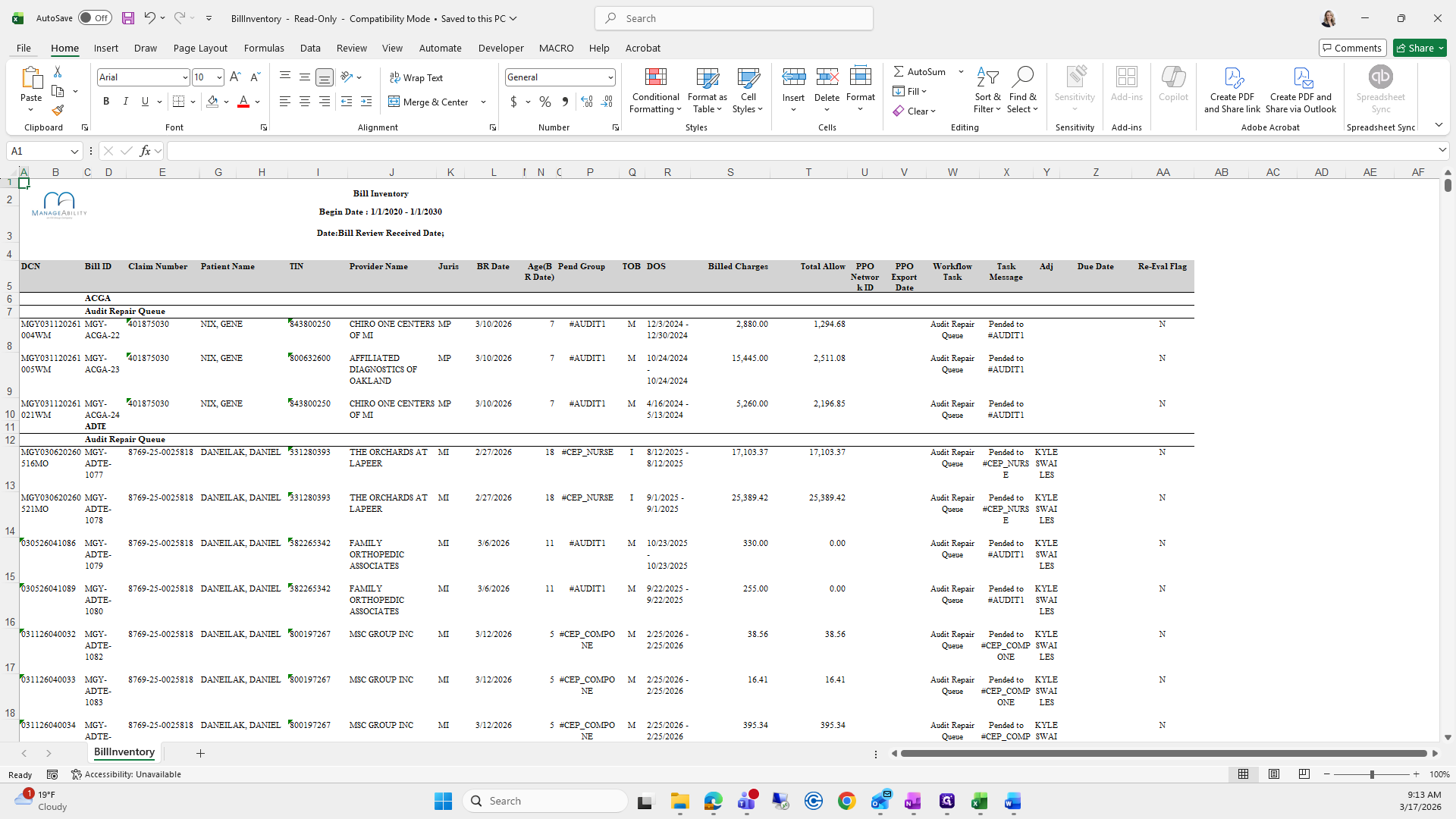
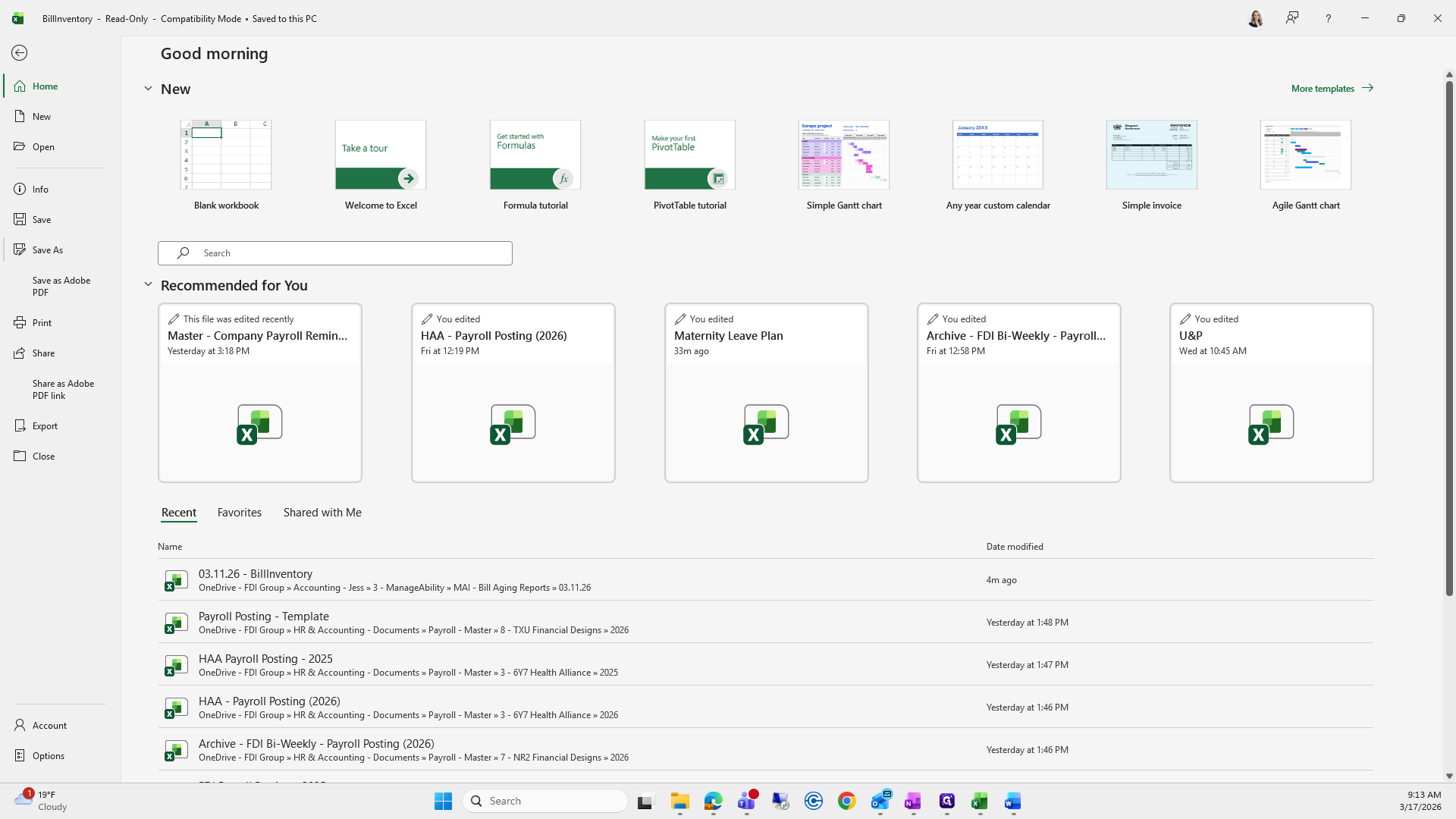
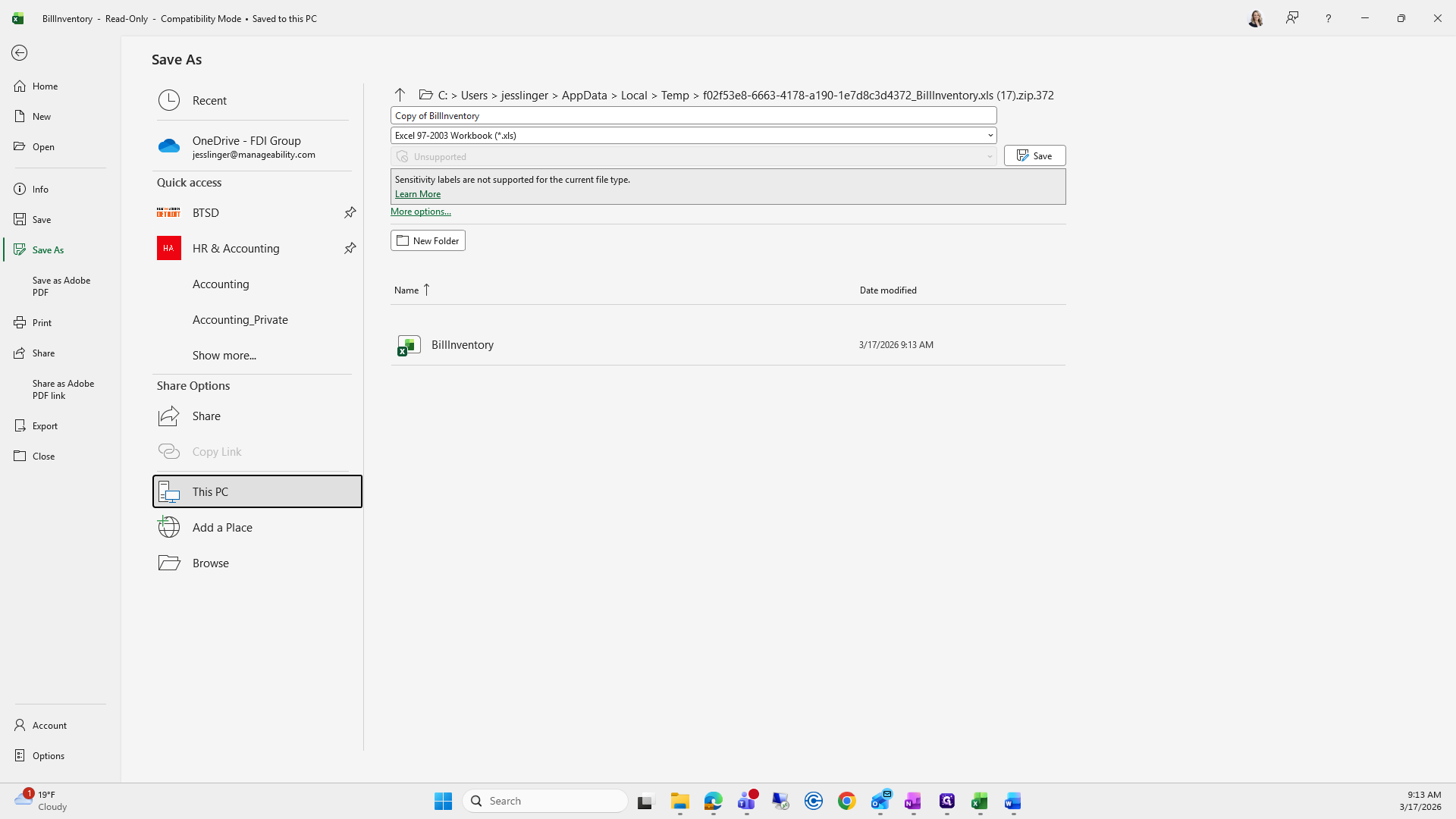
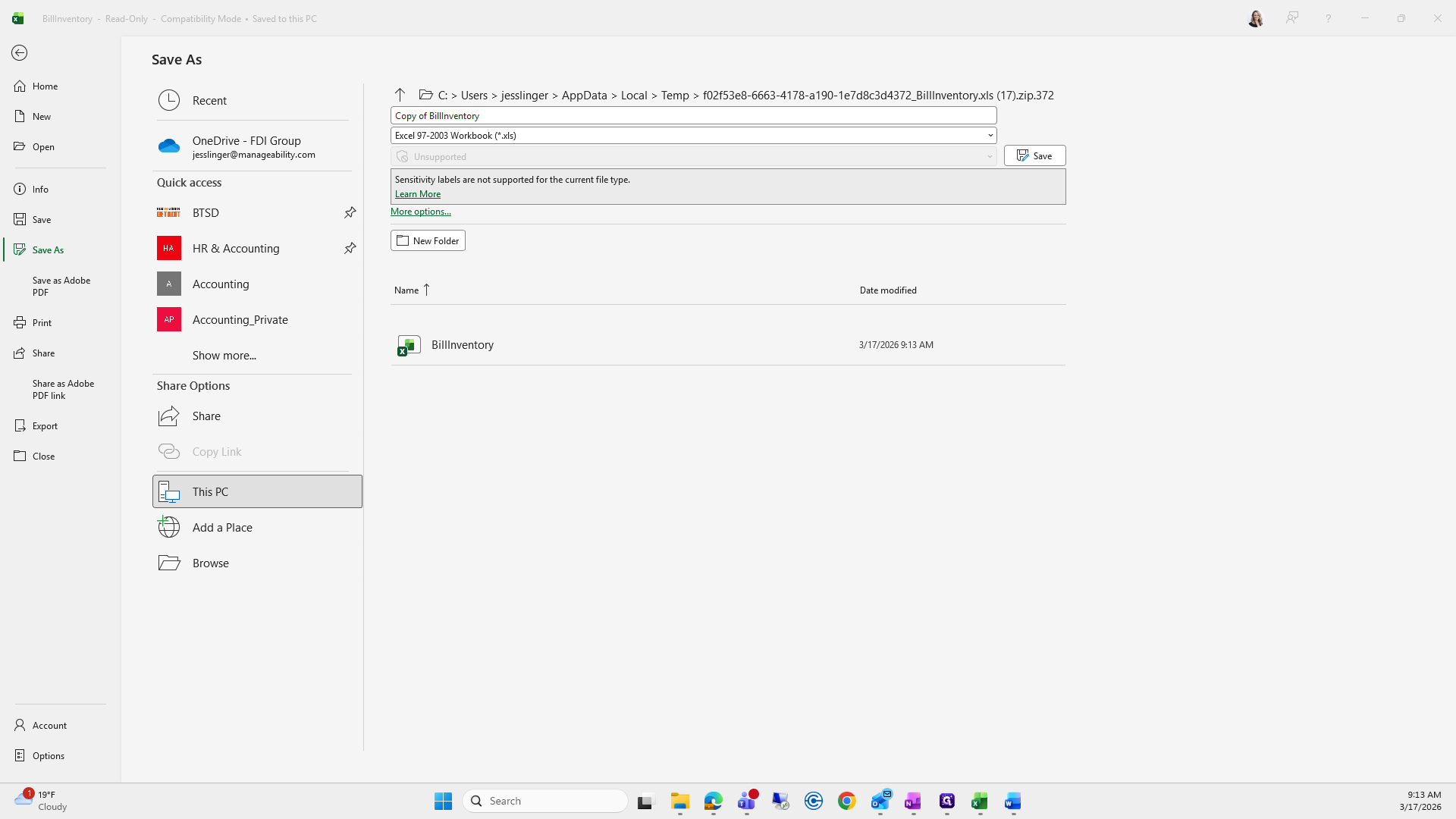
Go to Accounting, then Manageability, and open Bill Aging Reports 317. Save the report as an Excel workbook.
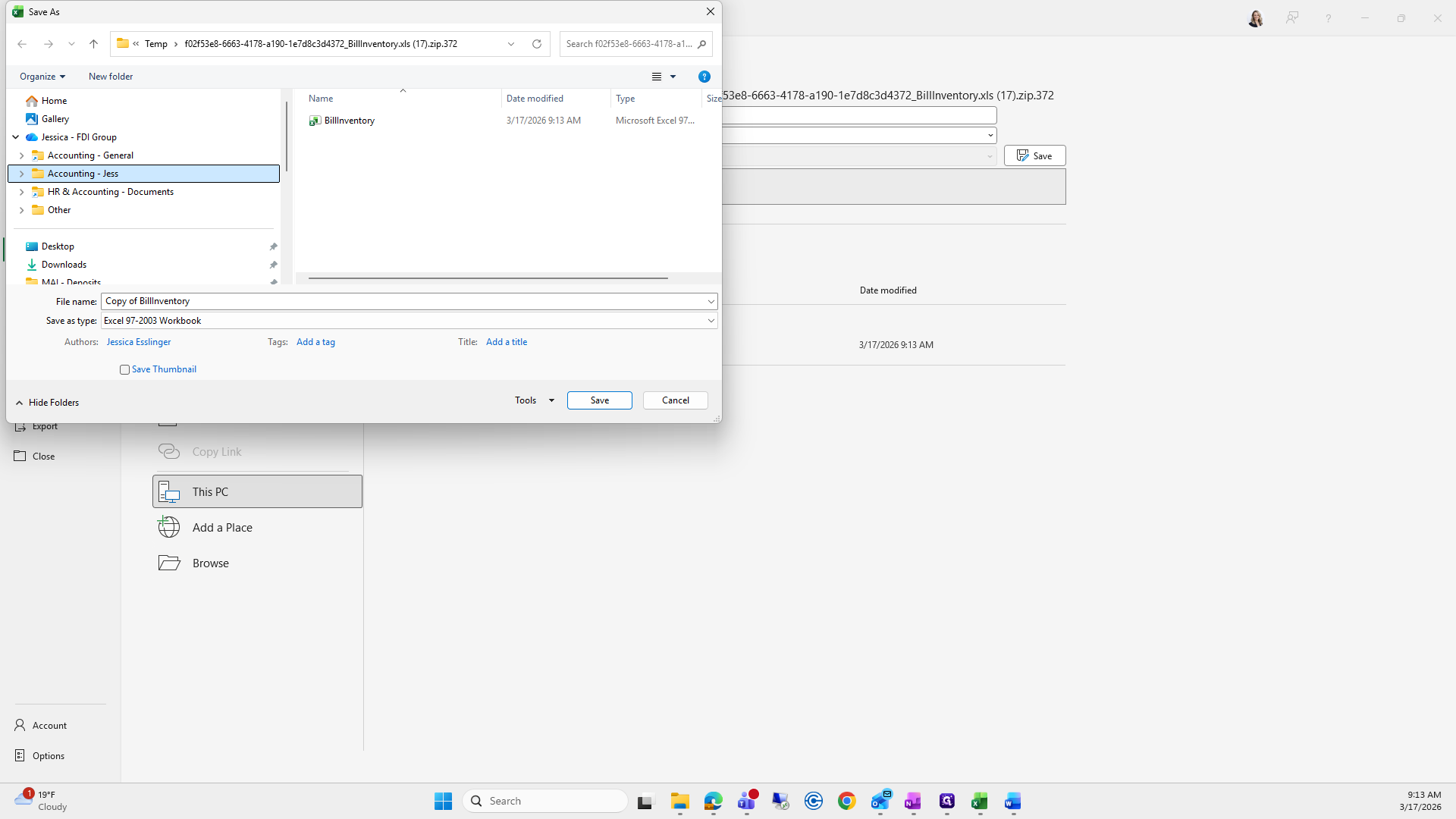
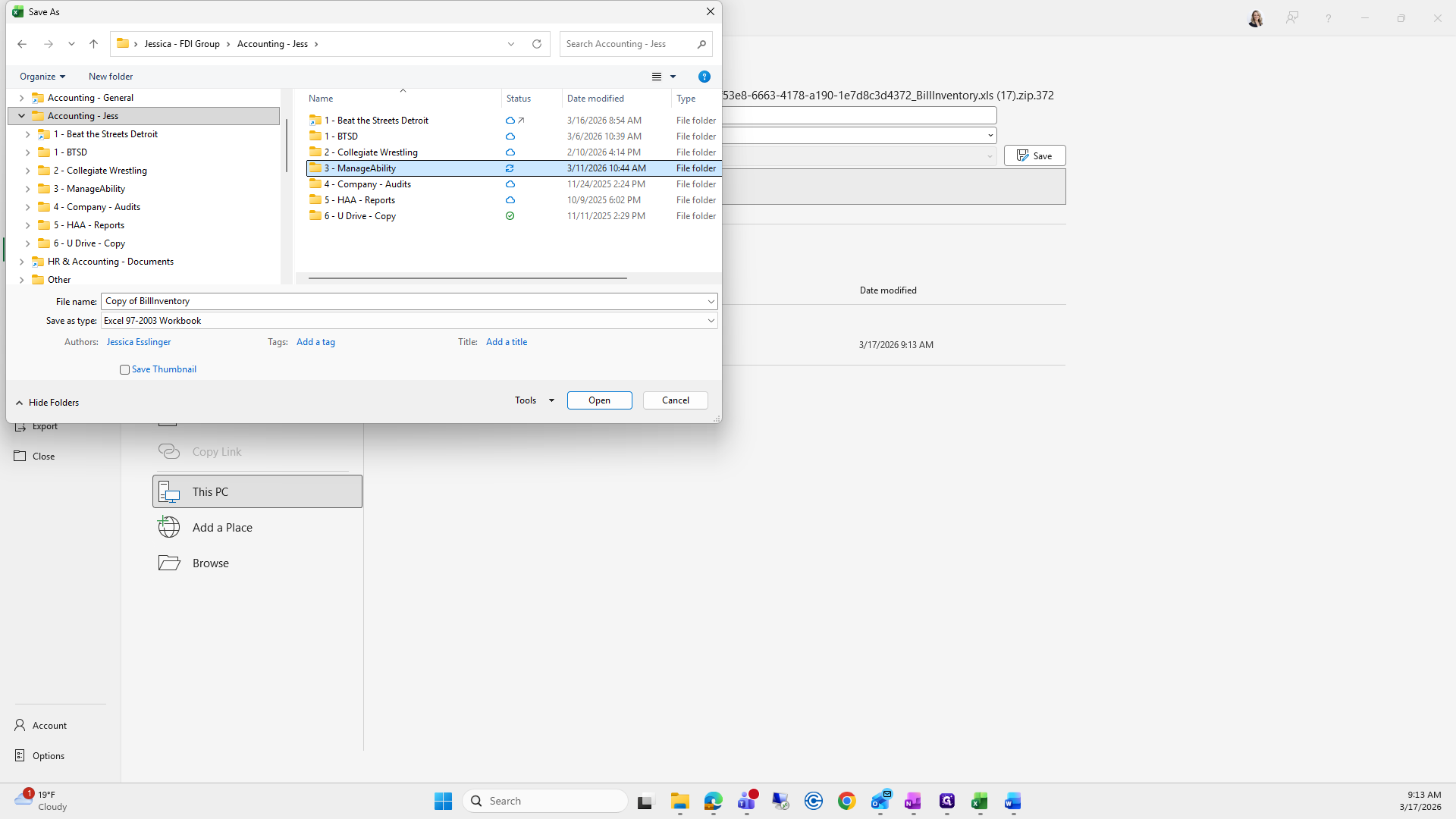
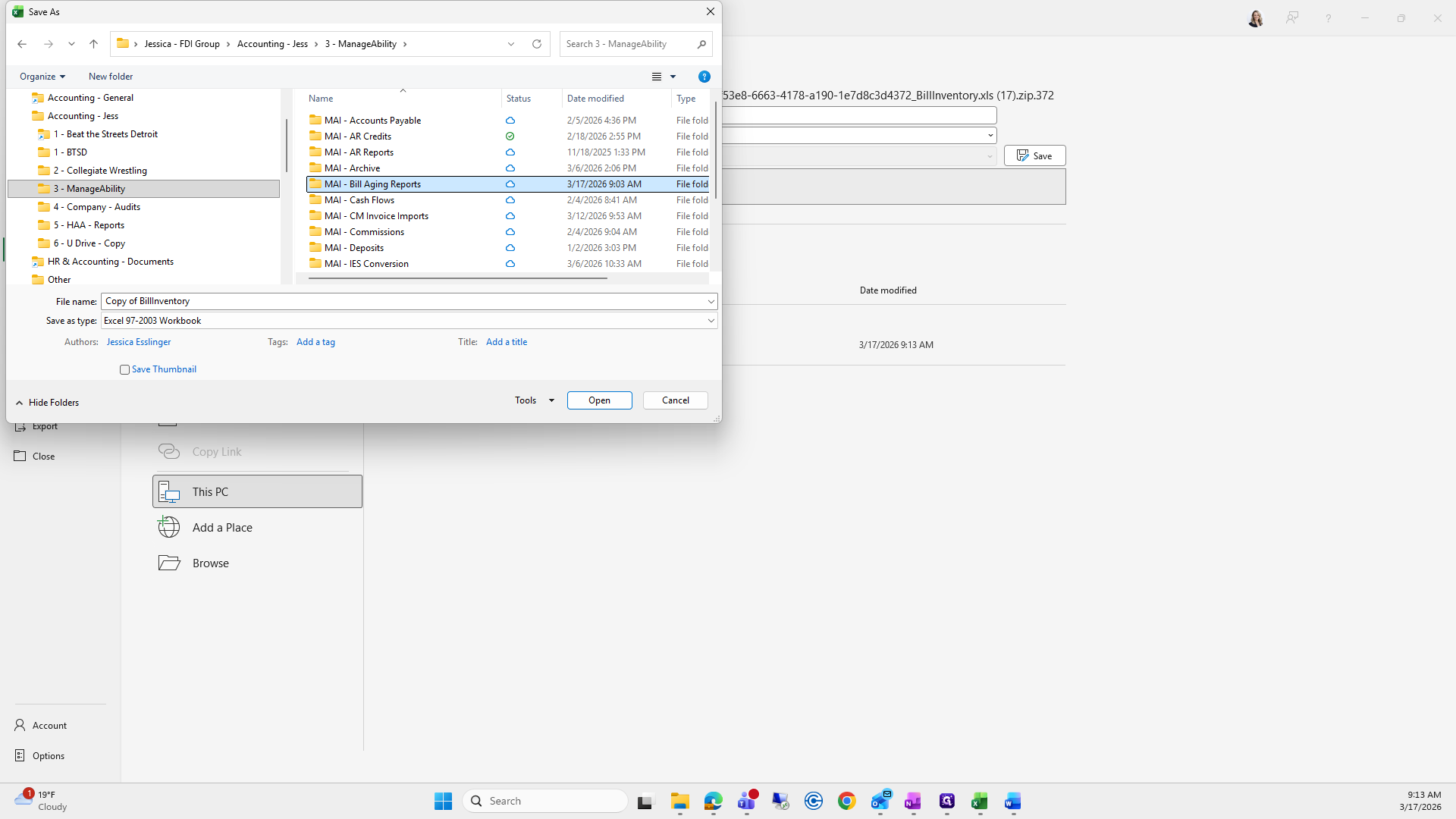
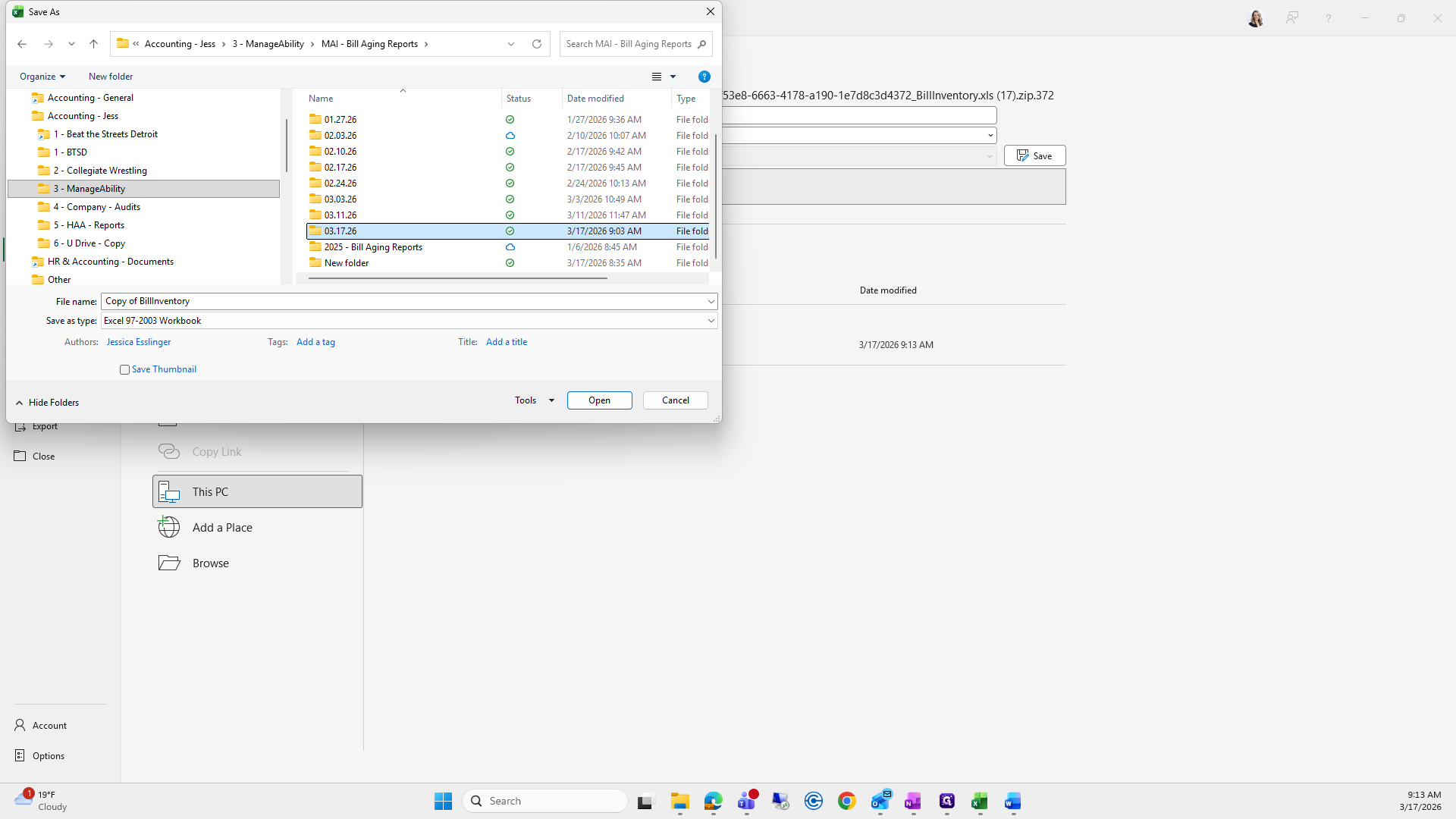
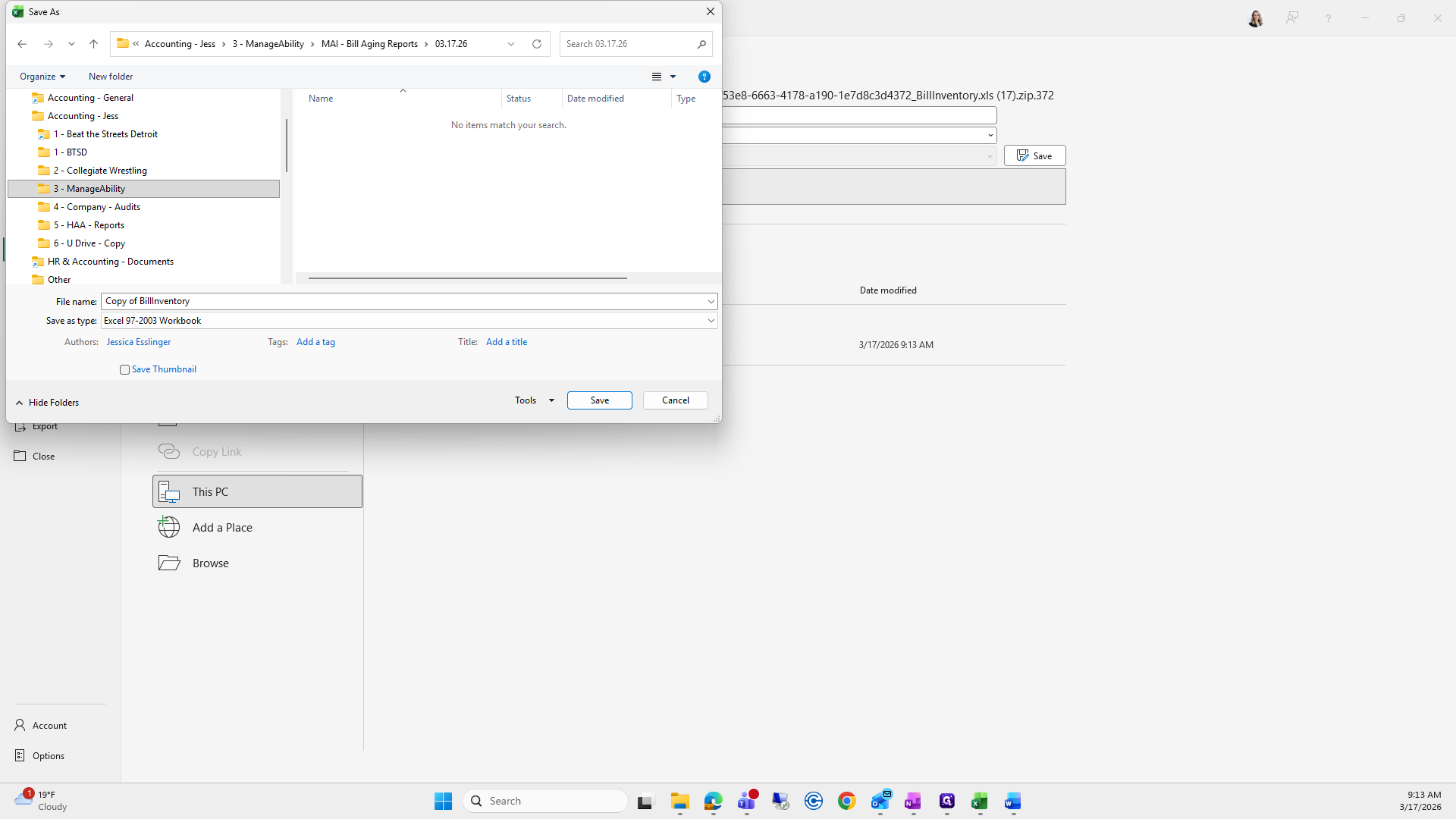
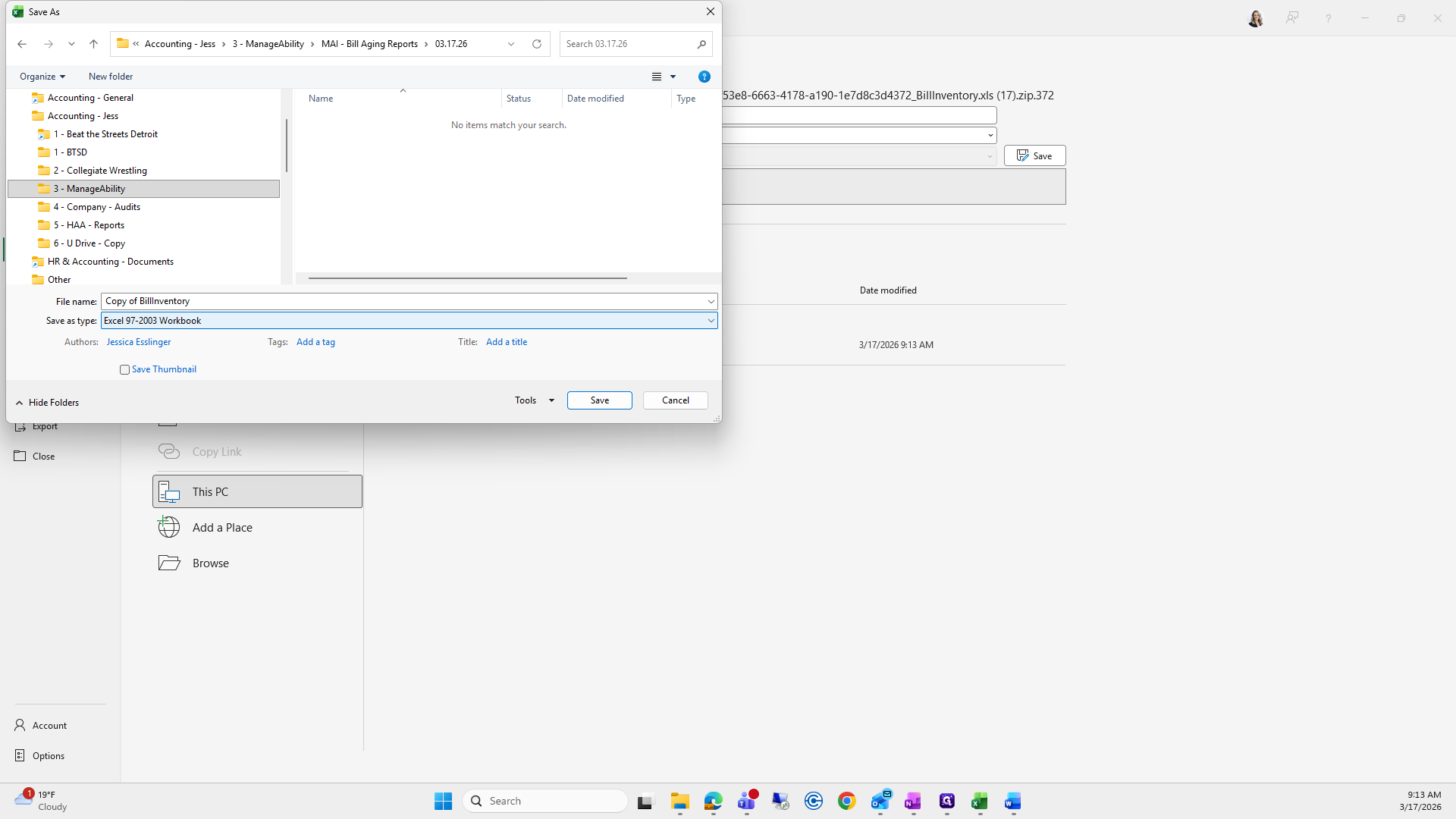
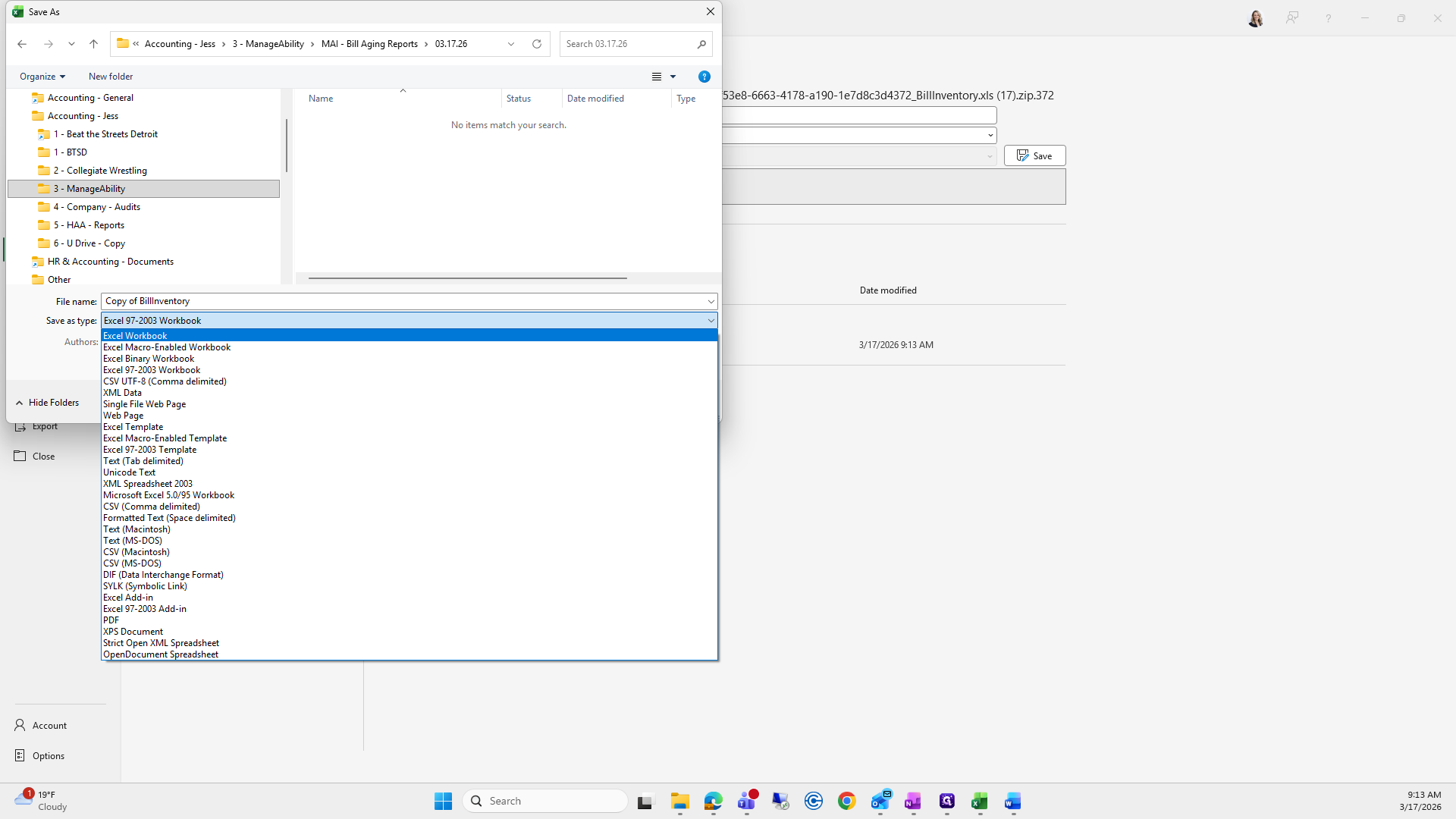
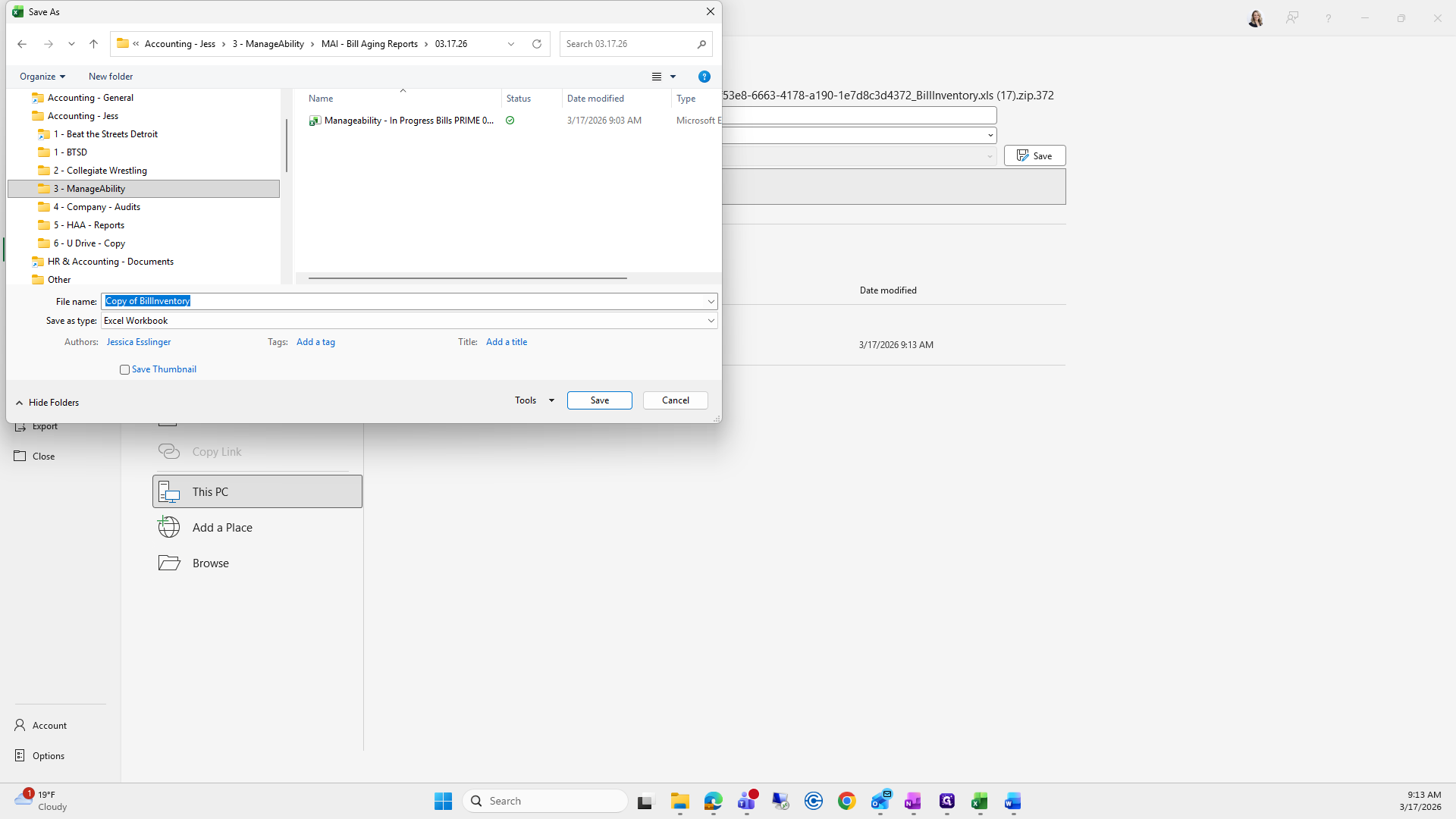
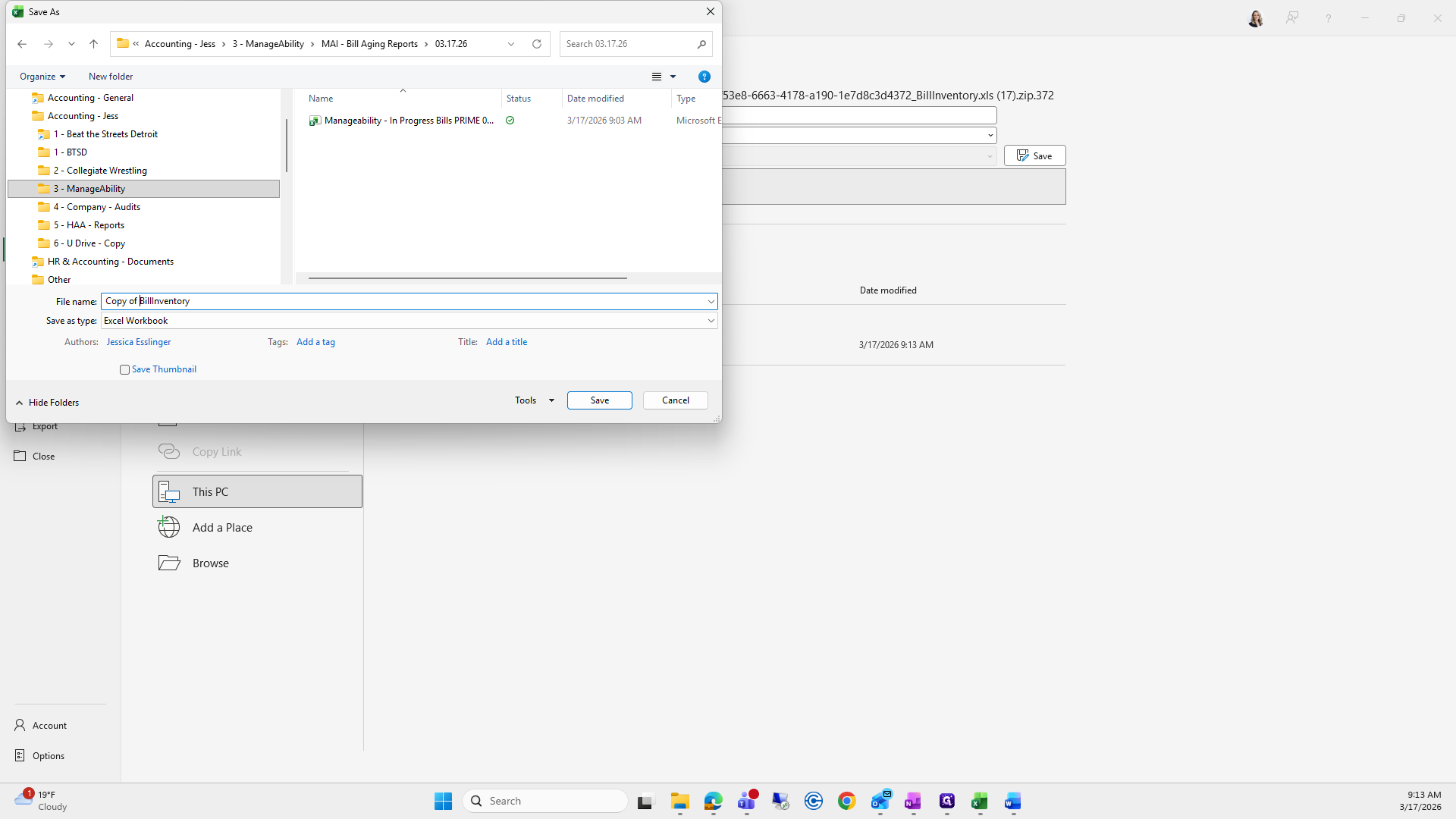
All I do is enter the date and save.
From here at the bottom, I'll make this the original.
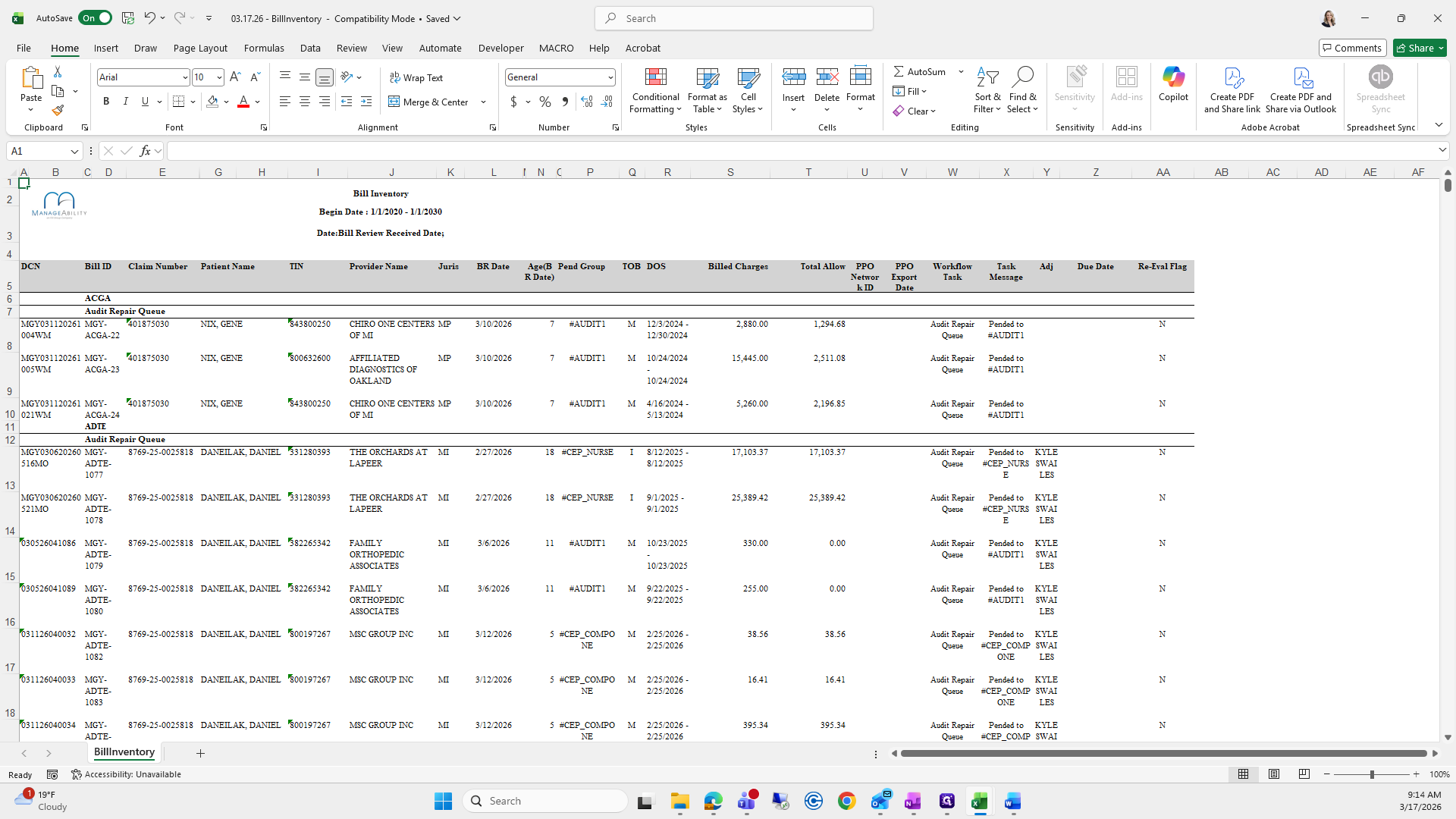
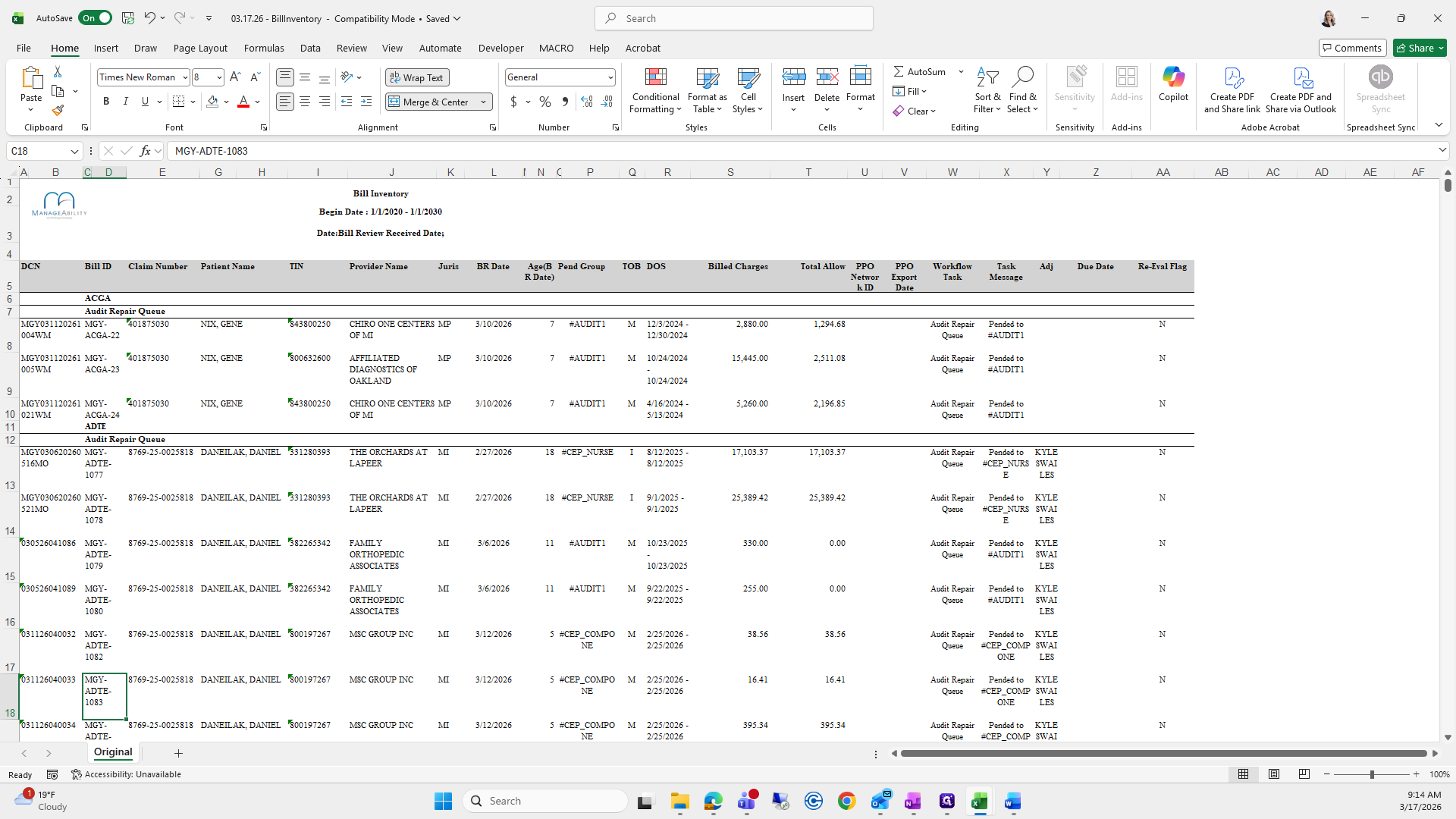
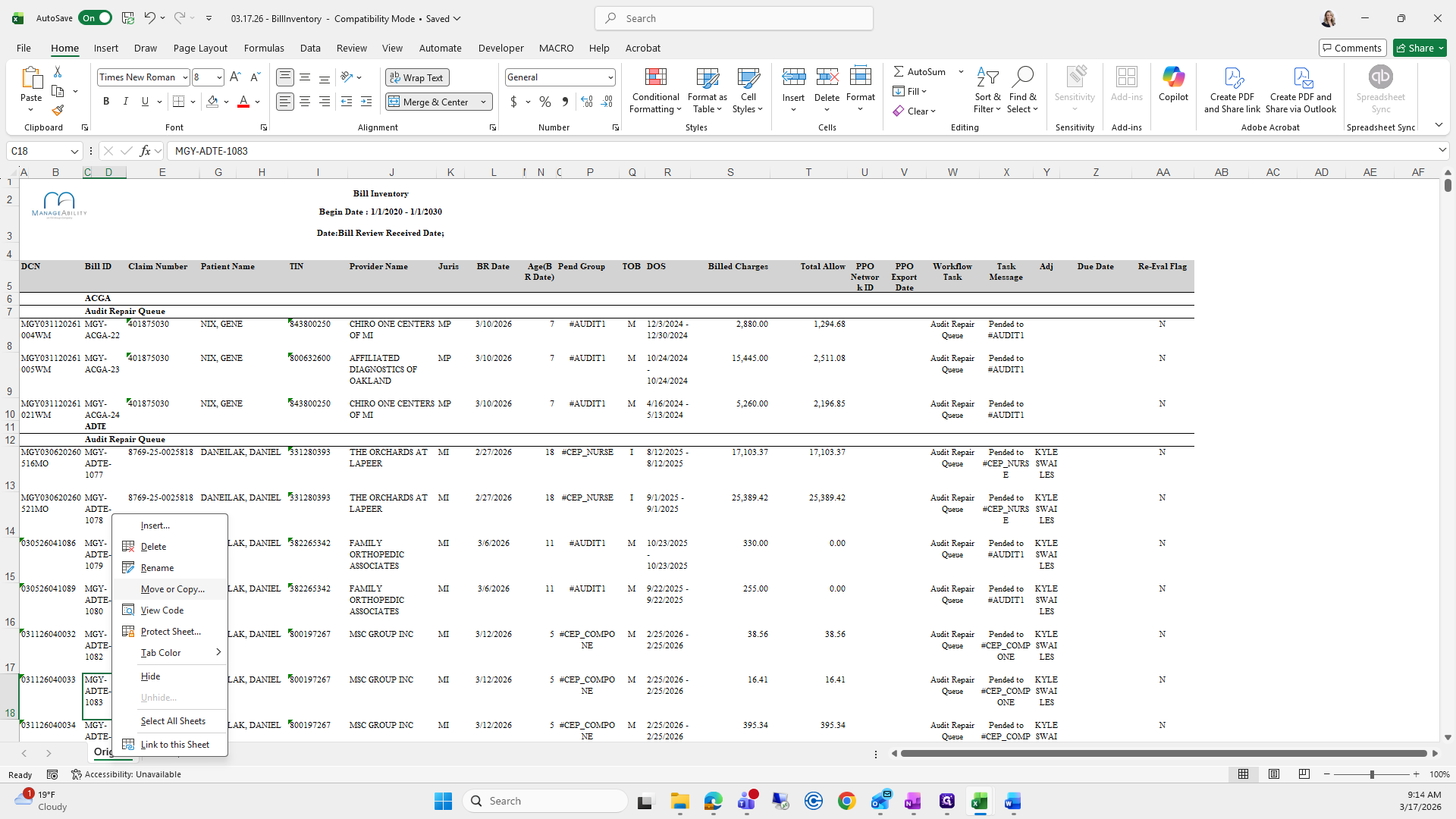
I'll copy the original, label it as raw data, and then select all.
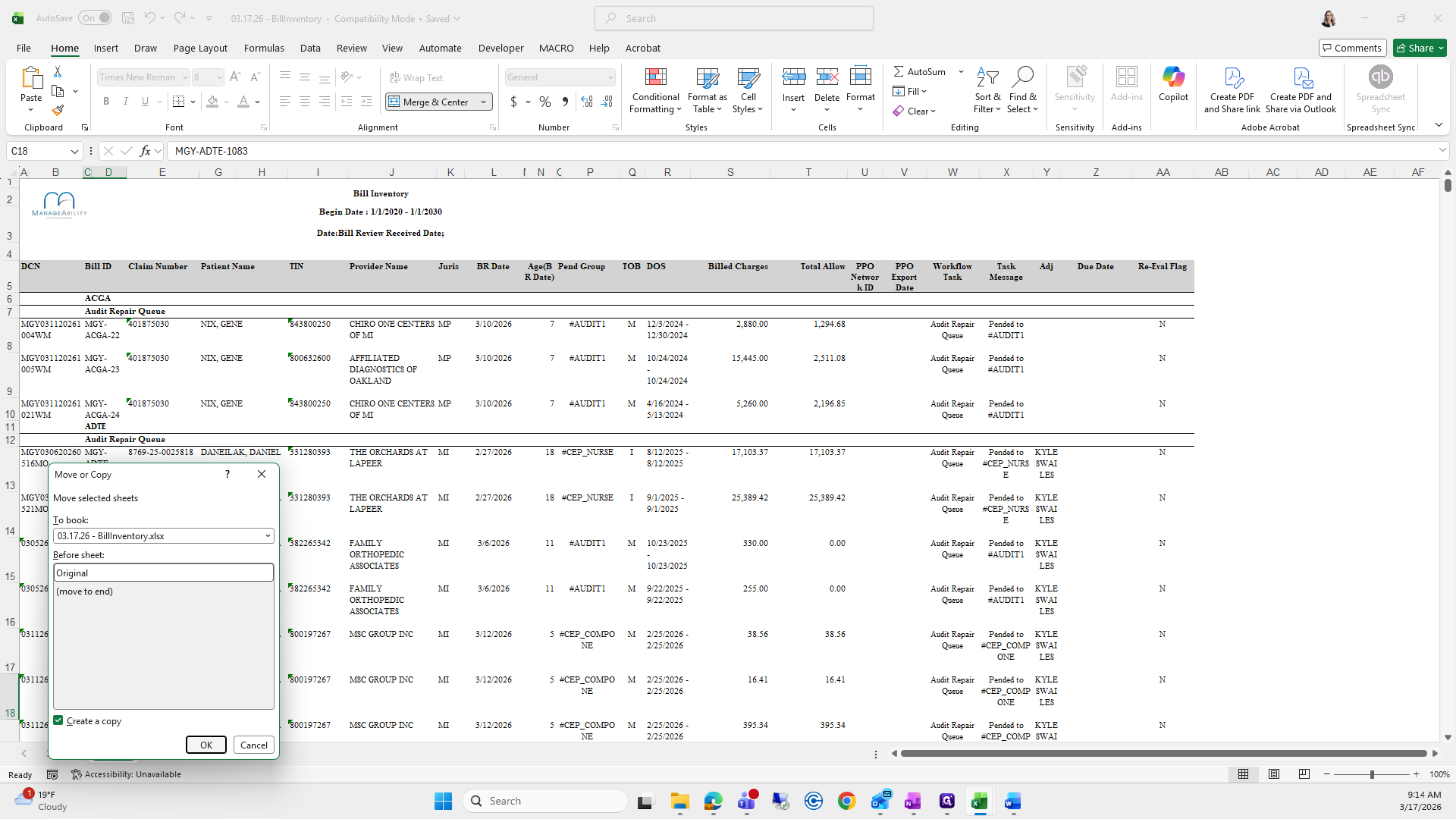
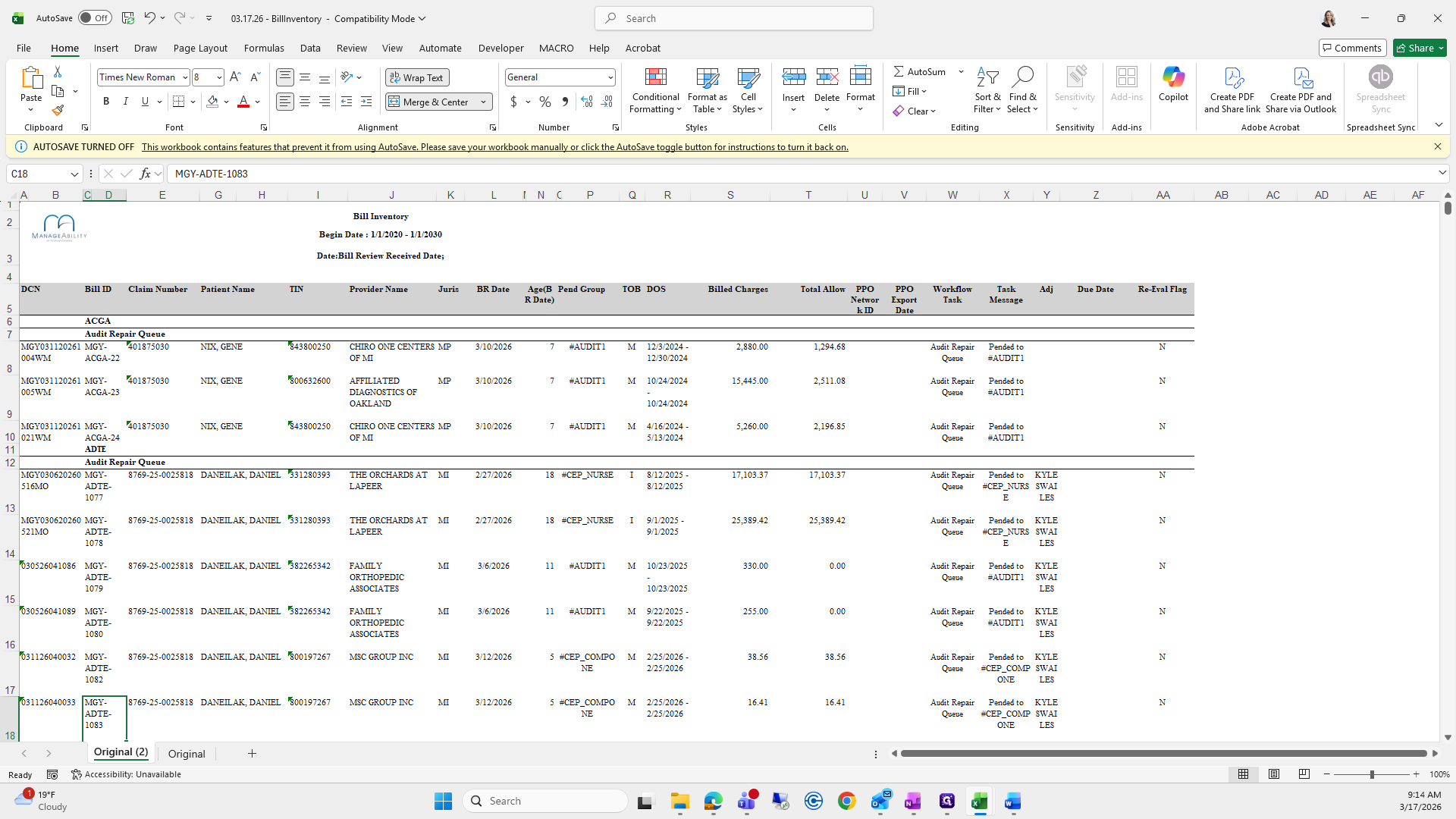
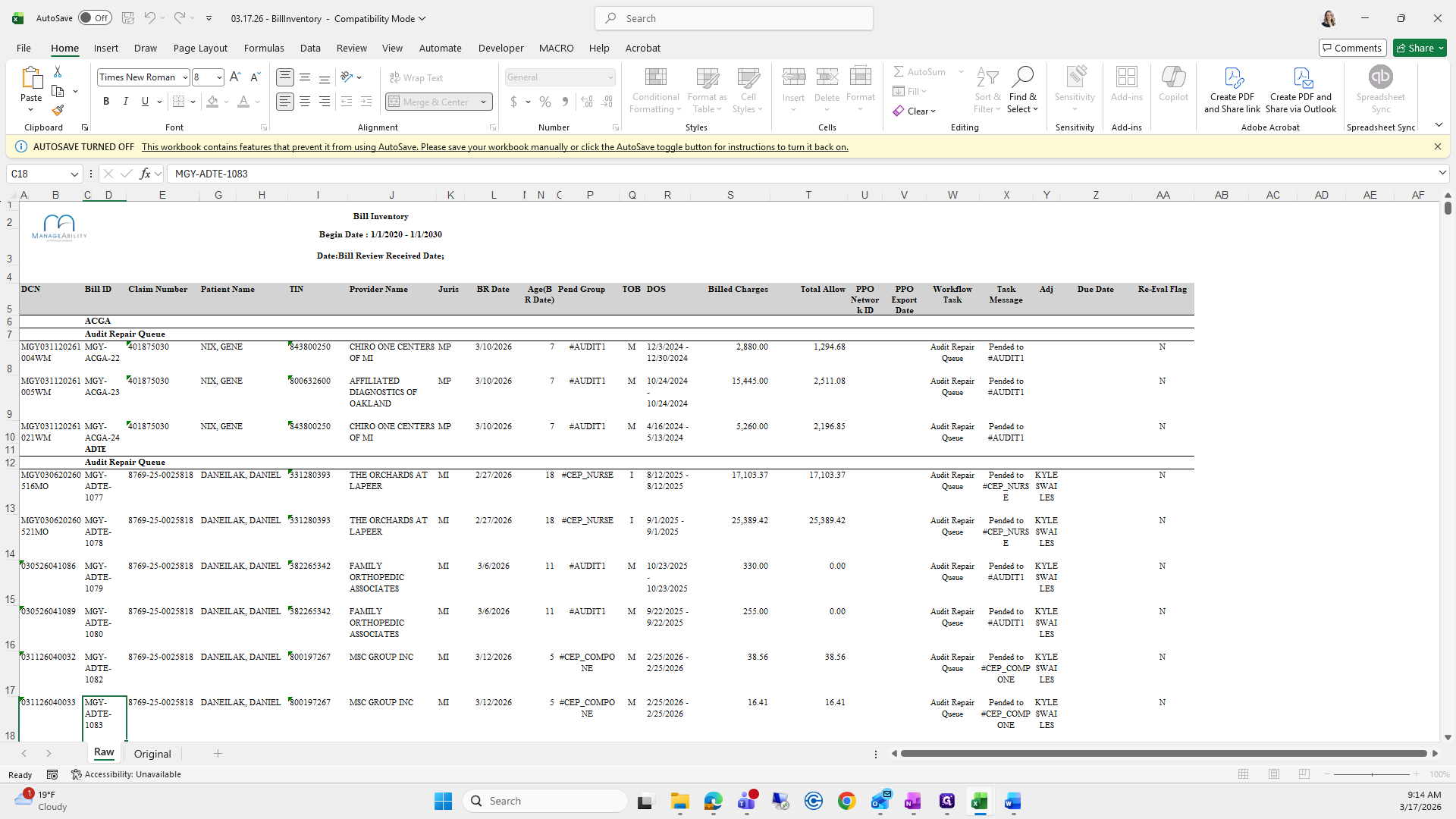
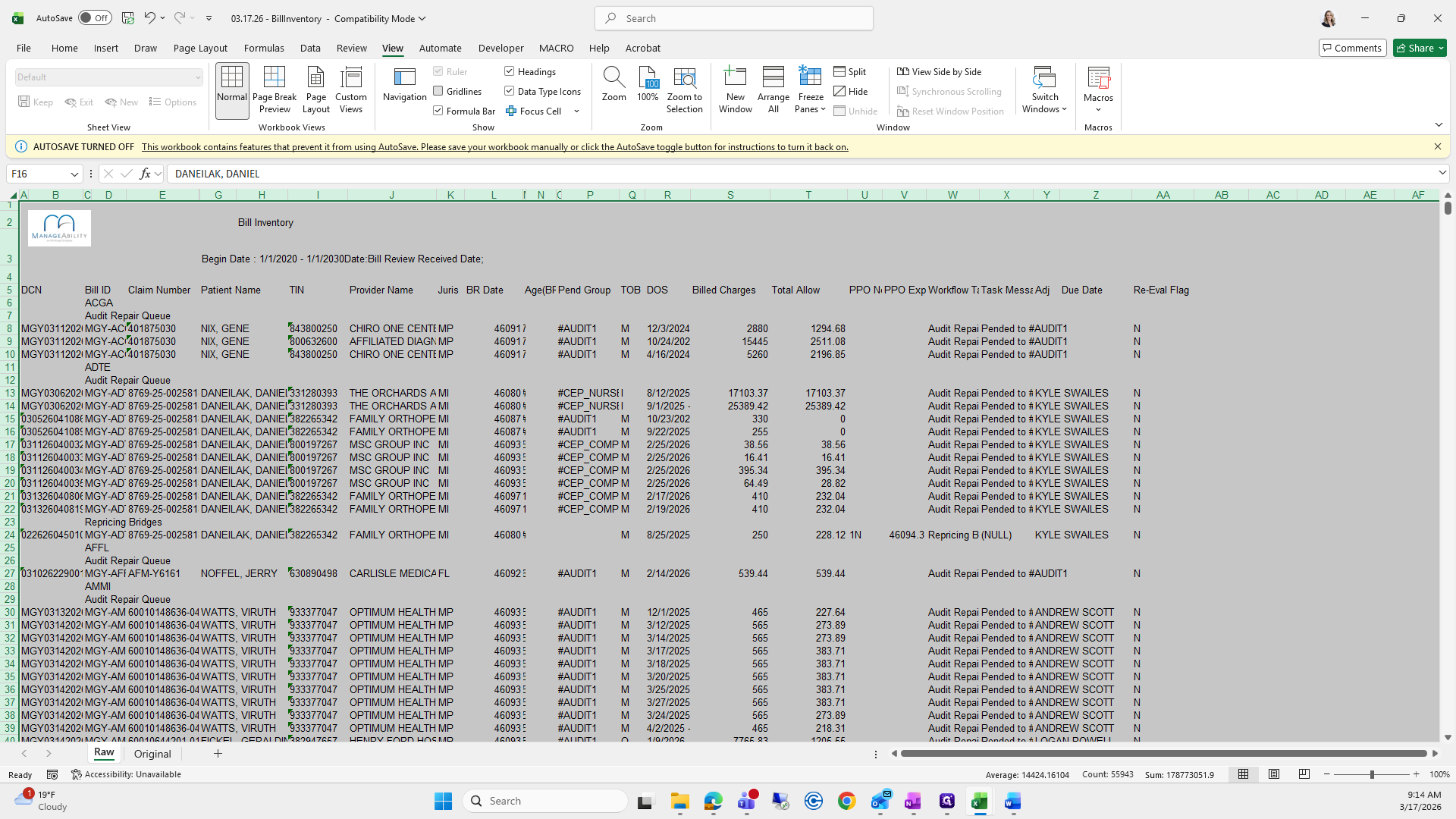
I will clear all the formats and then view it with the grid lines, as I prefer.
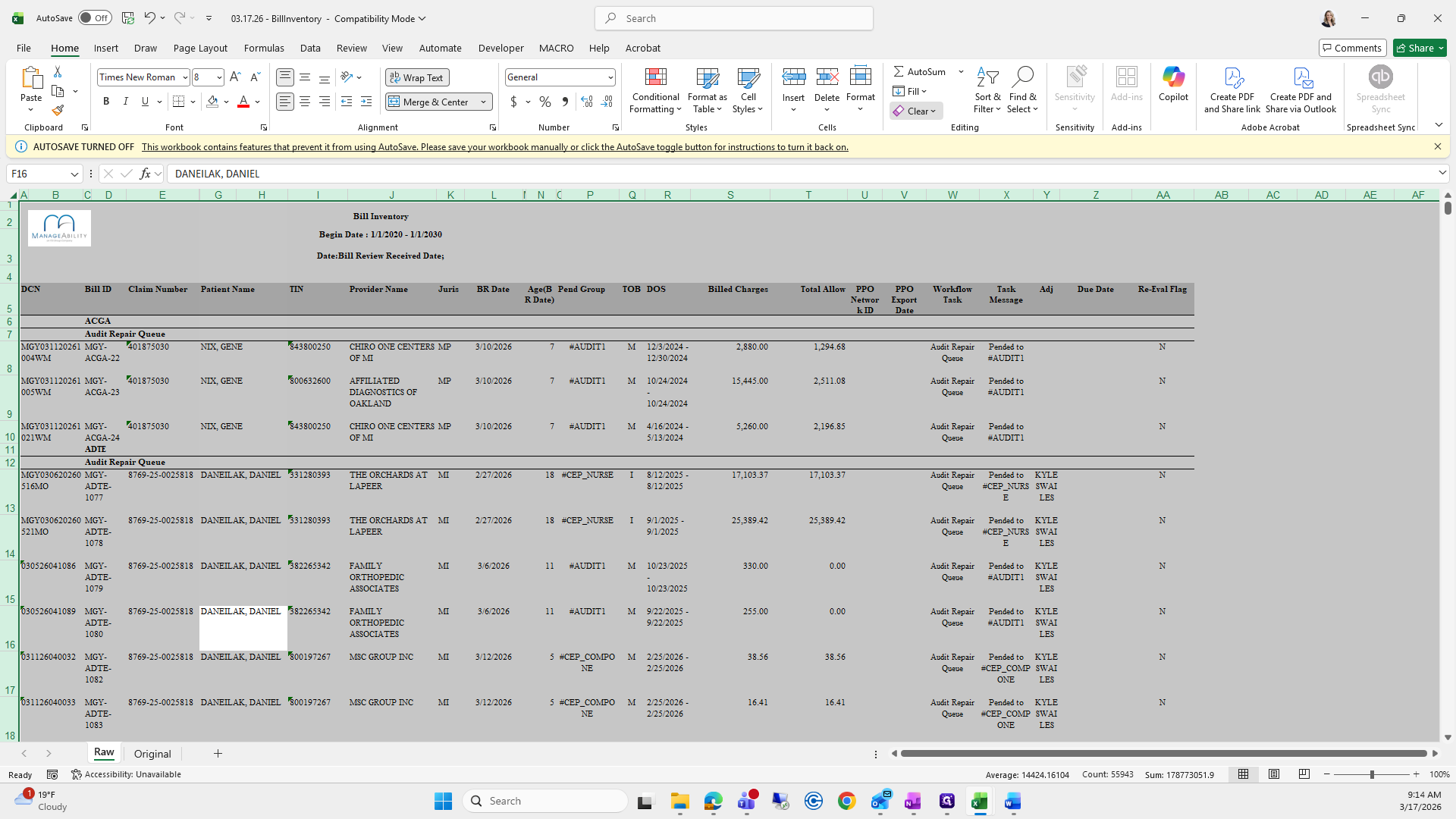
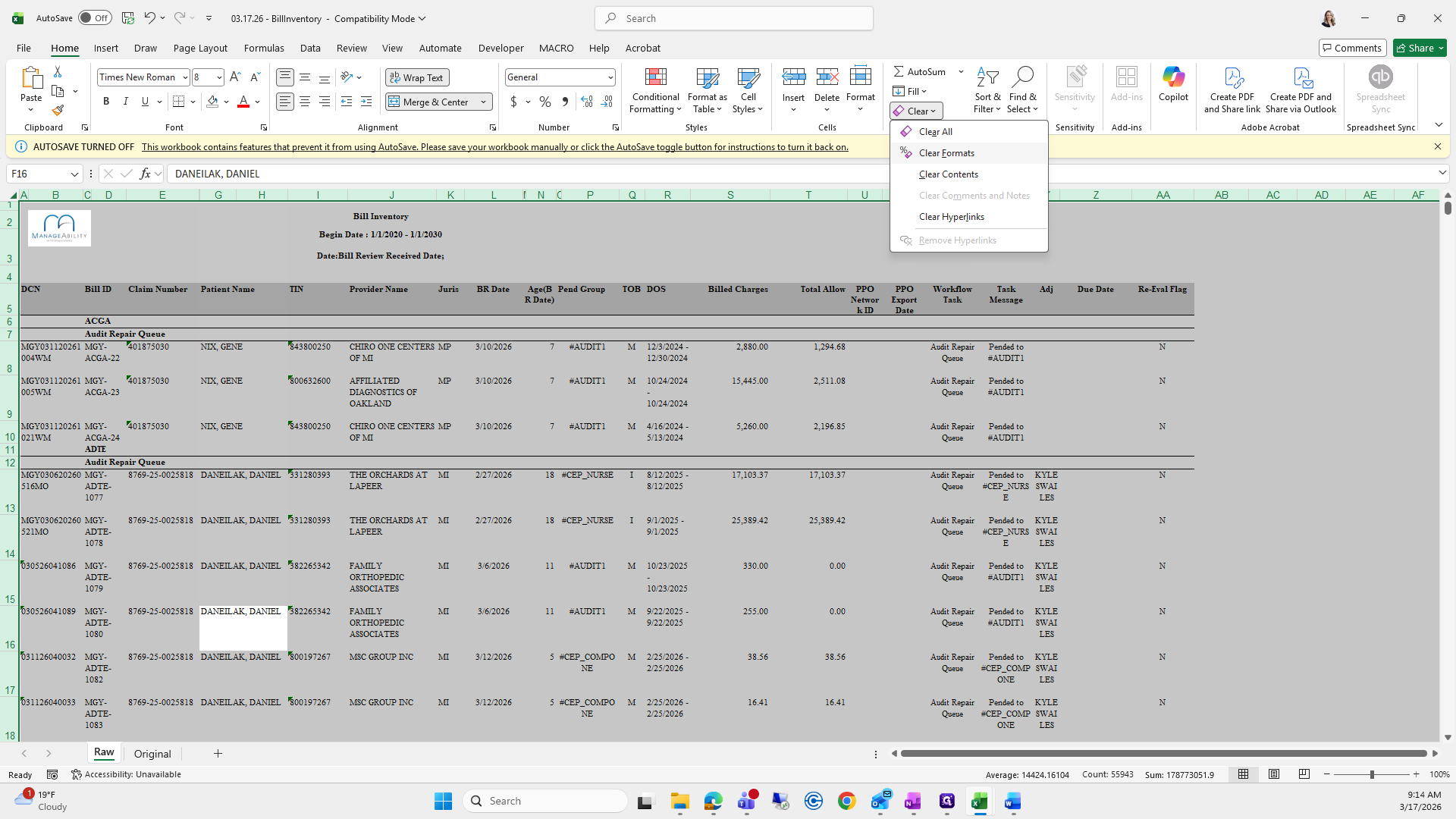
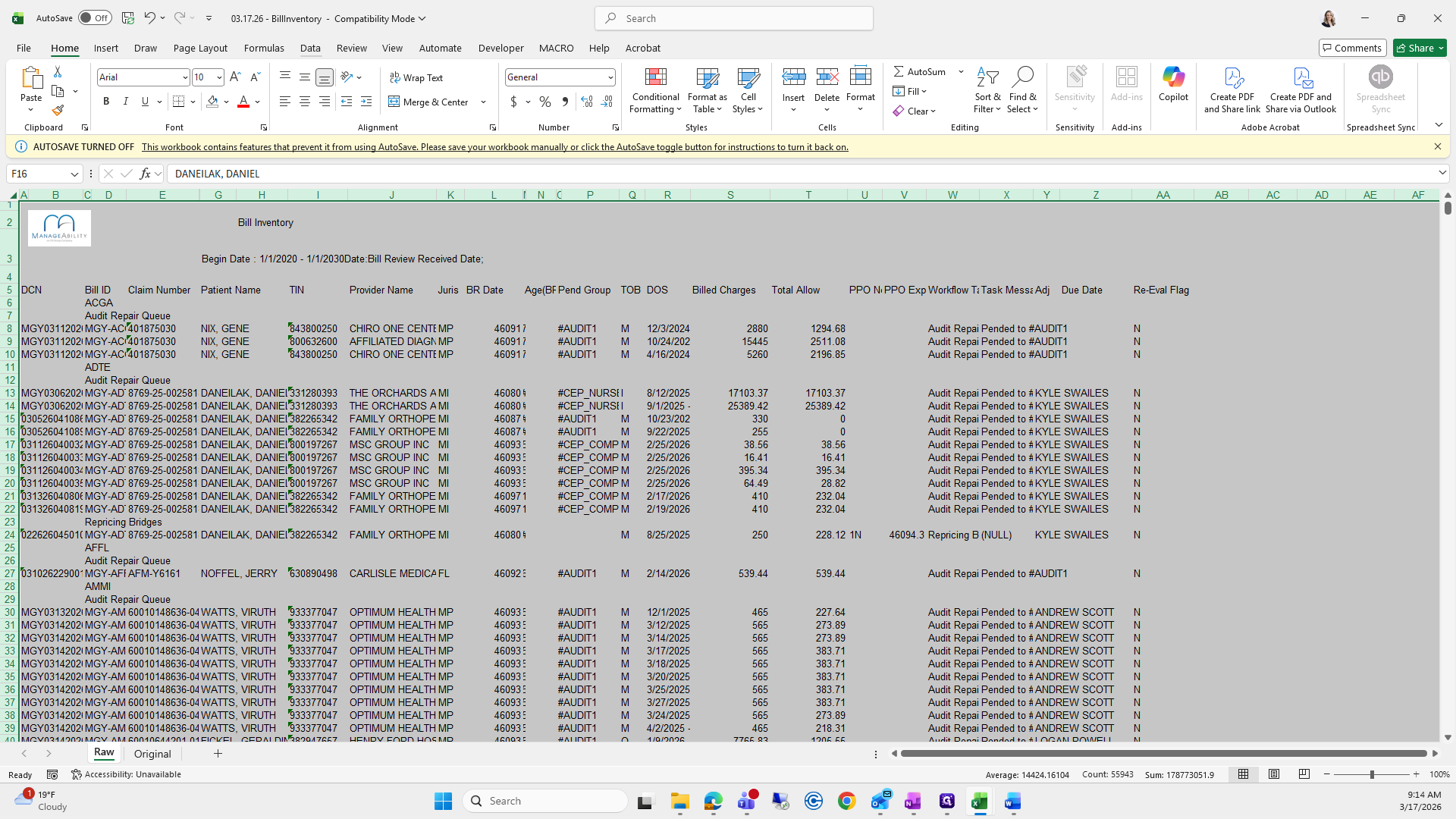
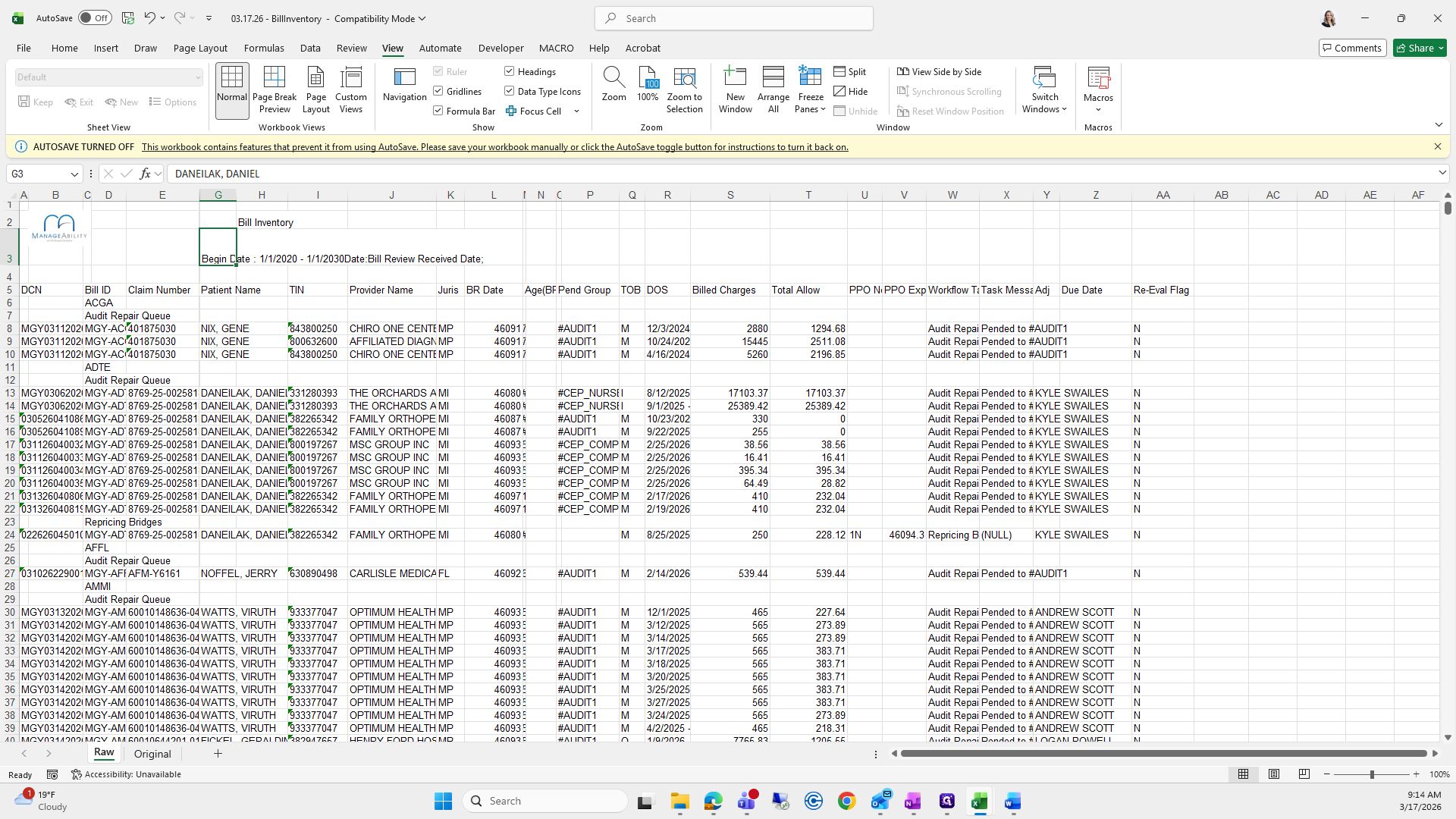
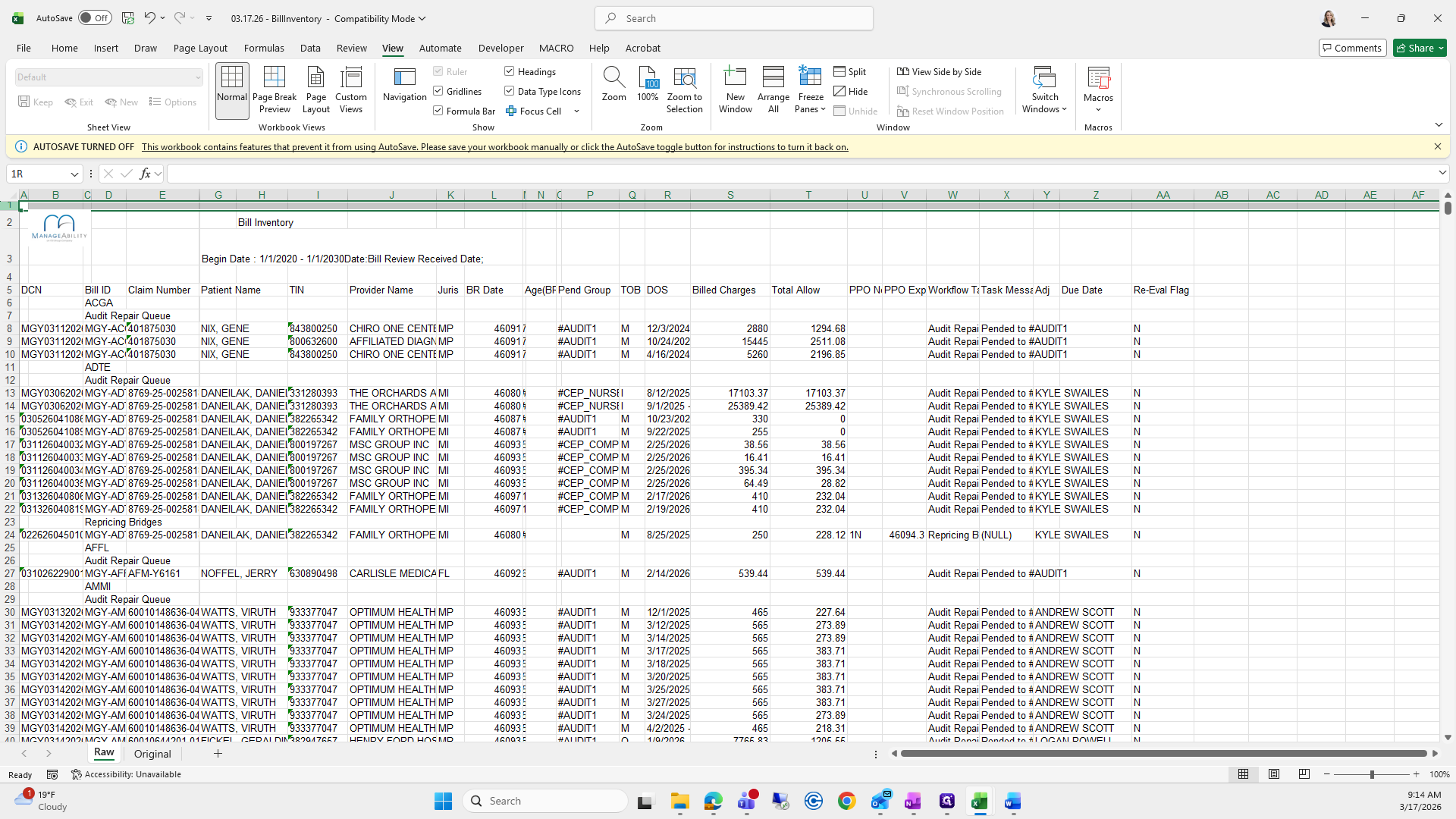
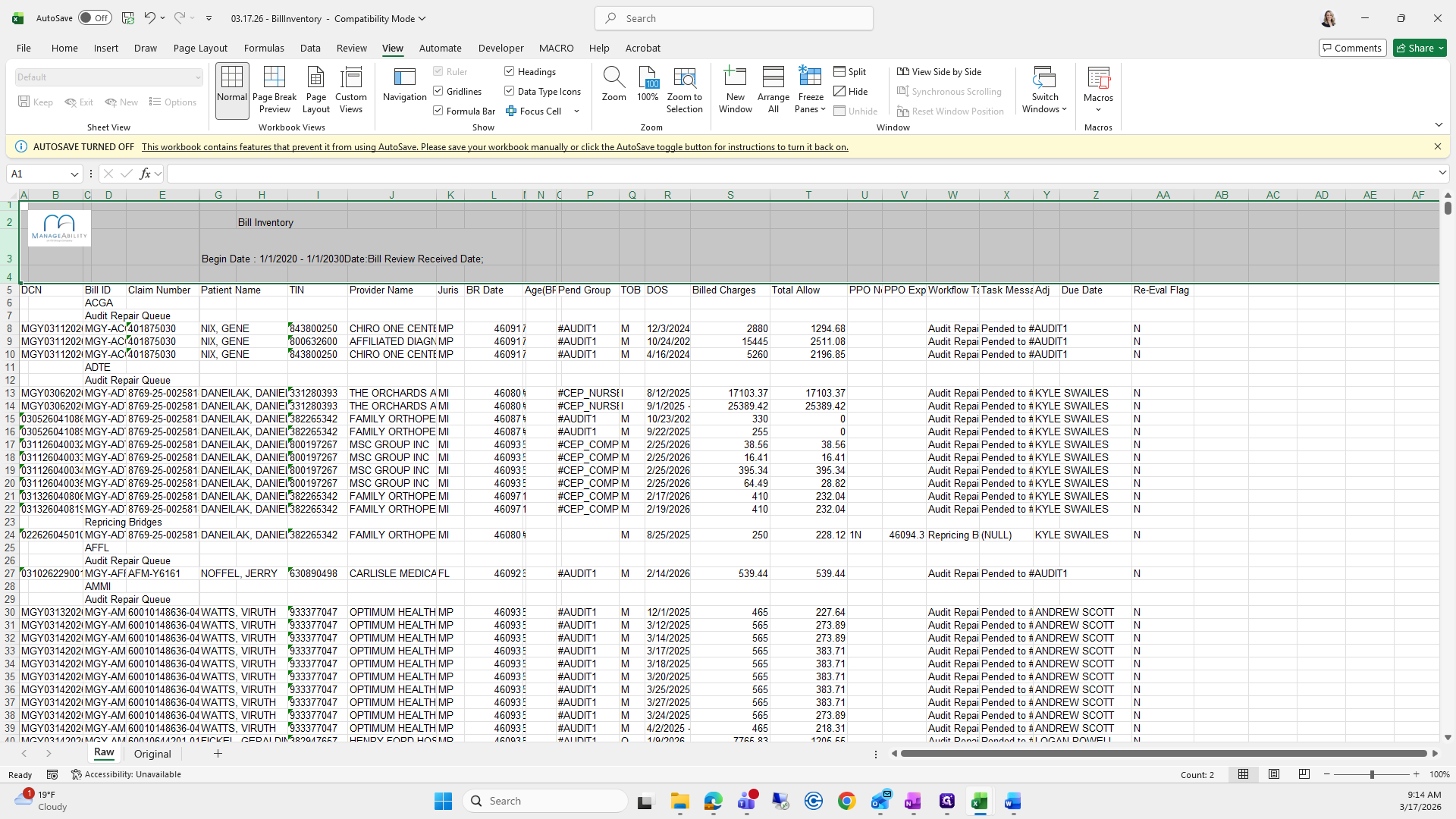
Next, I will remove rows one through four and delete them.
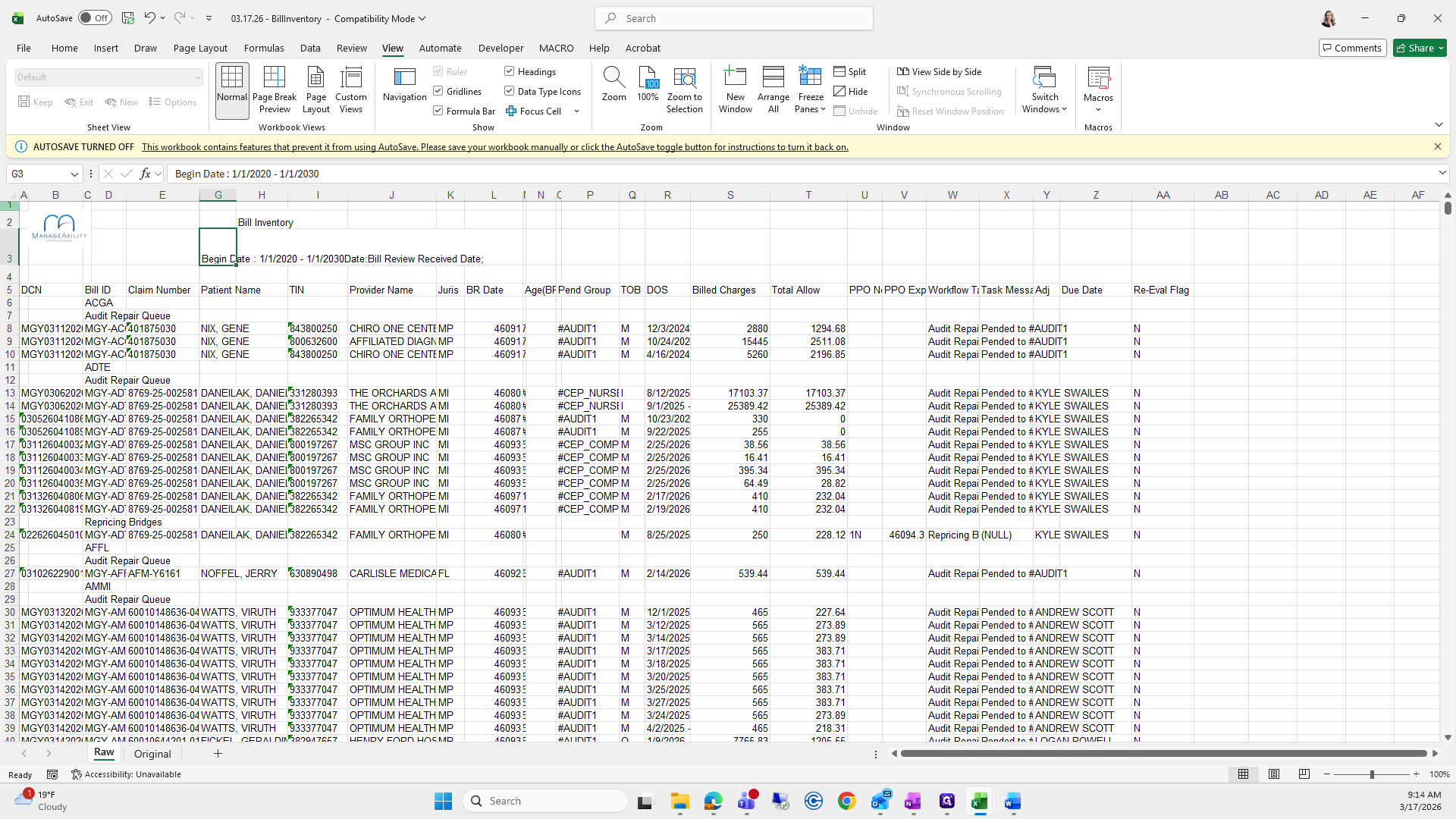
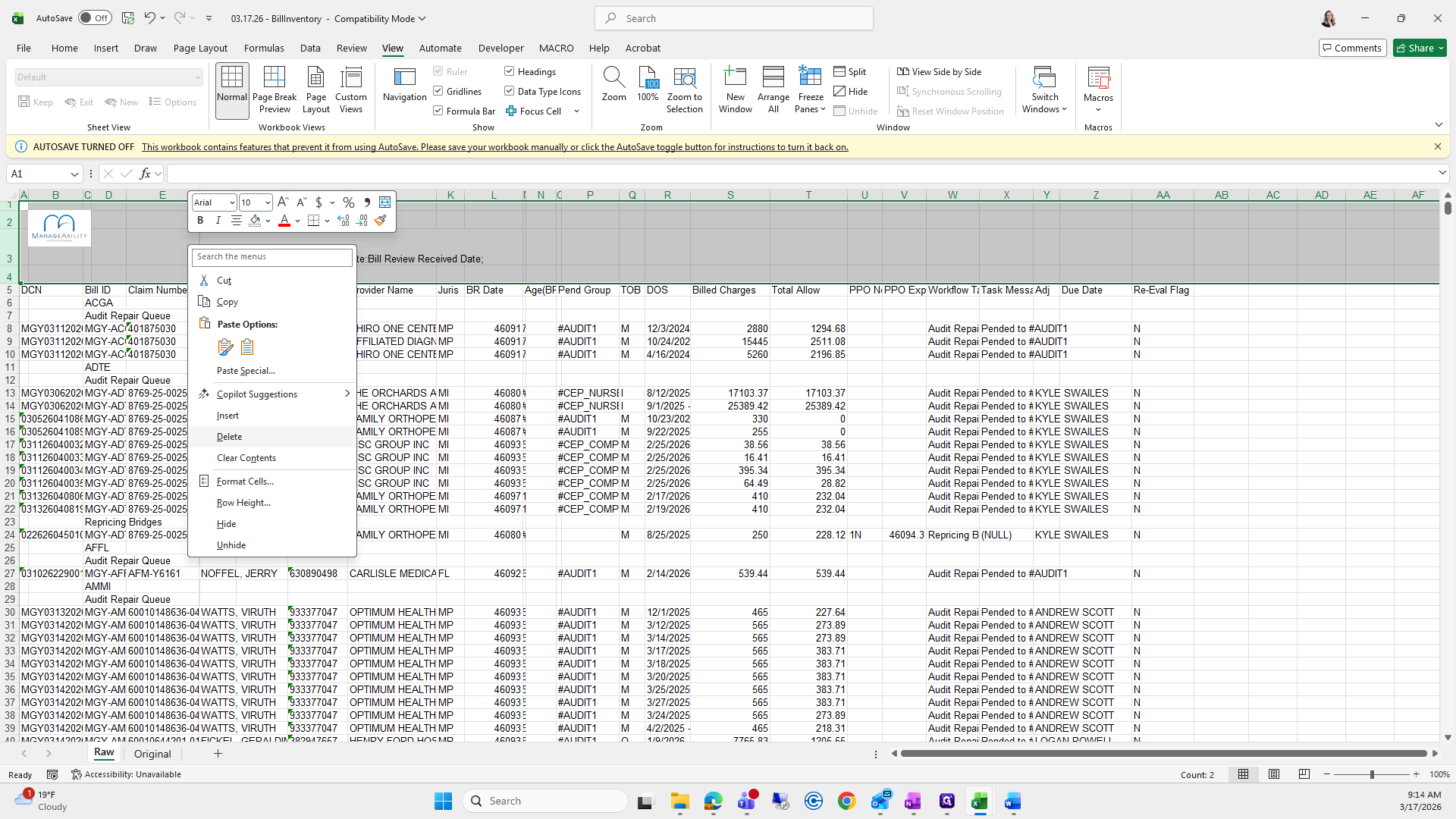
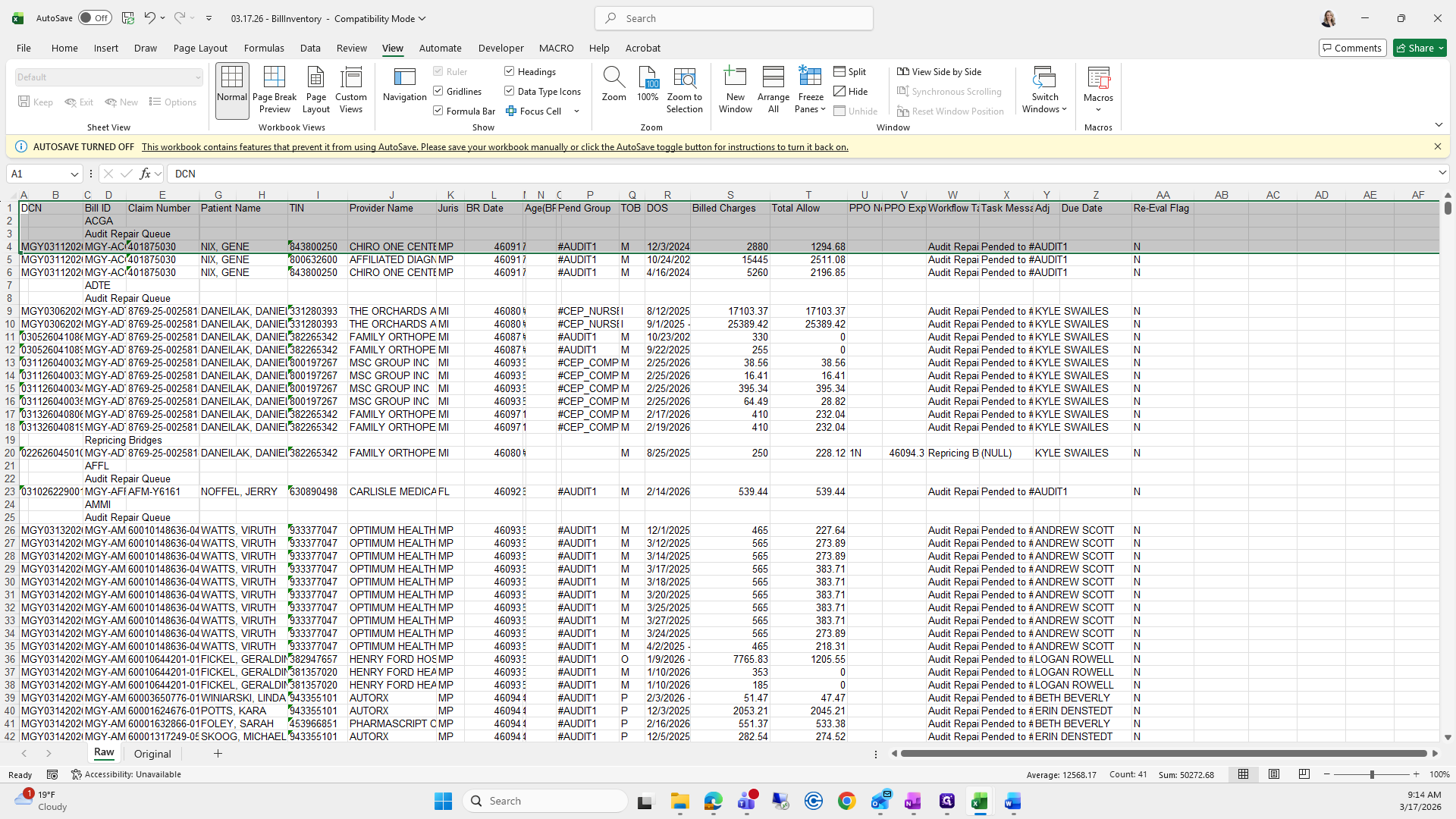
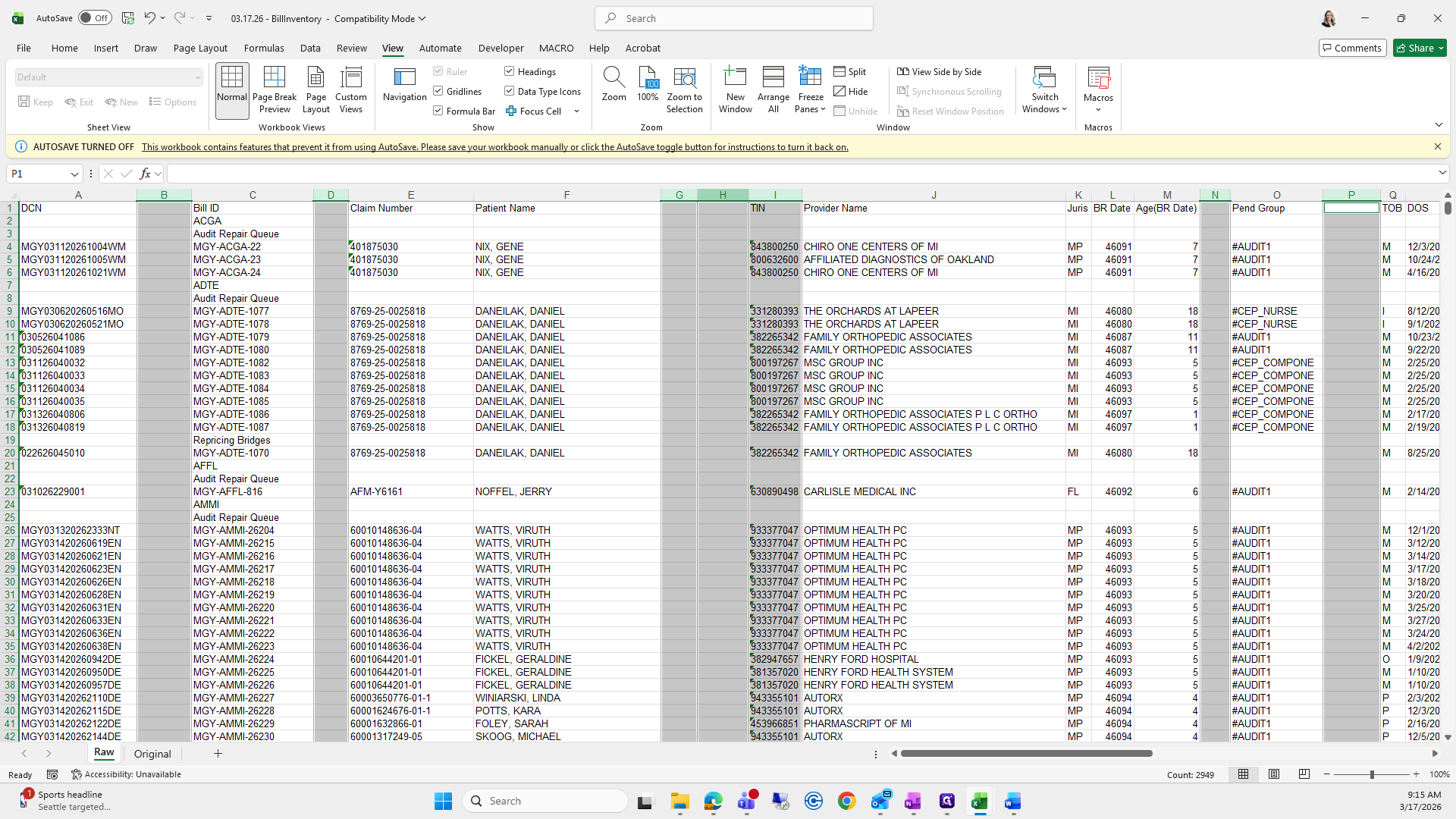
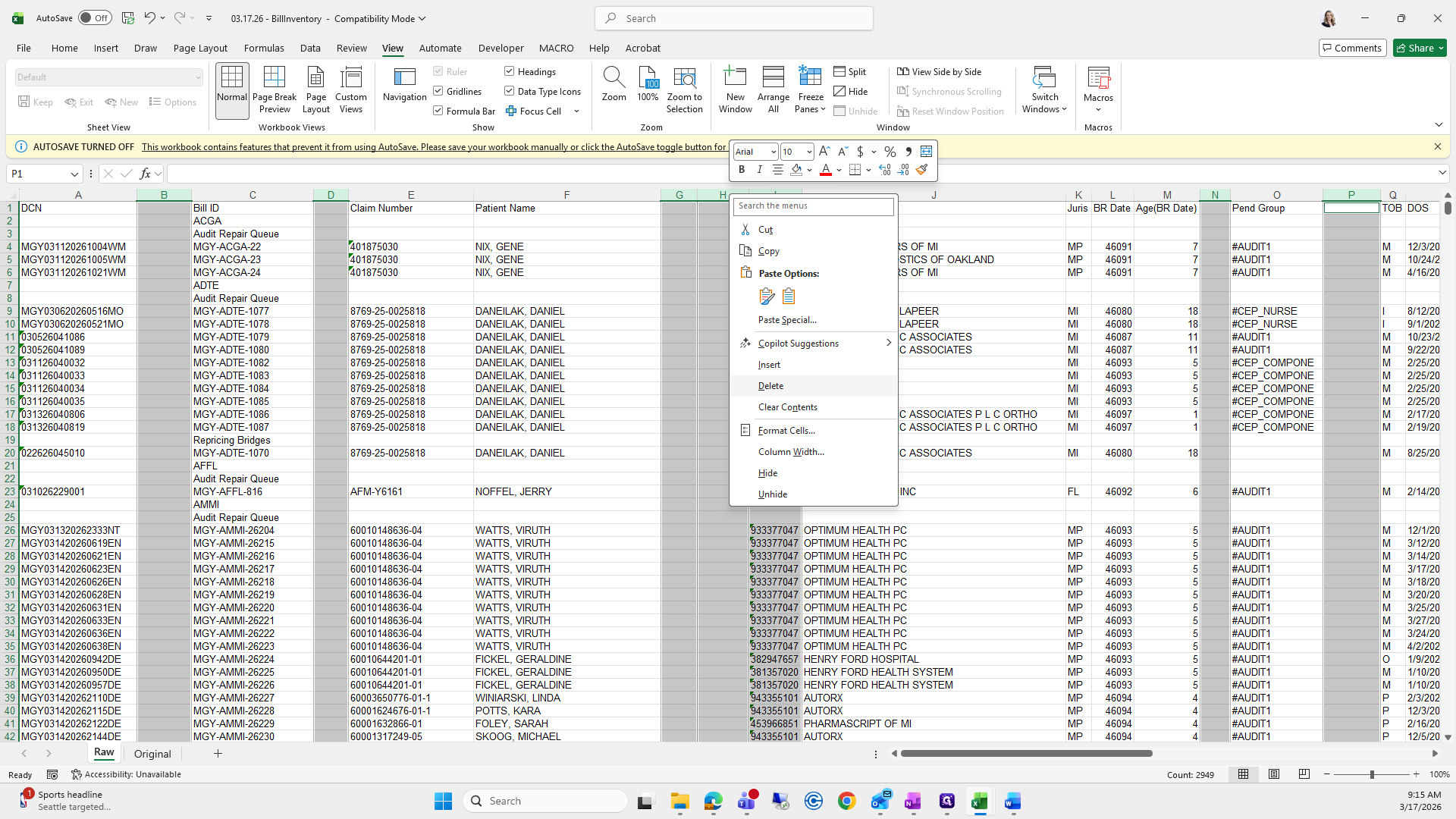
Next, select all columns and open them. Delete all blank columns: B, D, G, H, I (with the TIN number), N, and P.
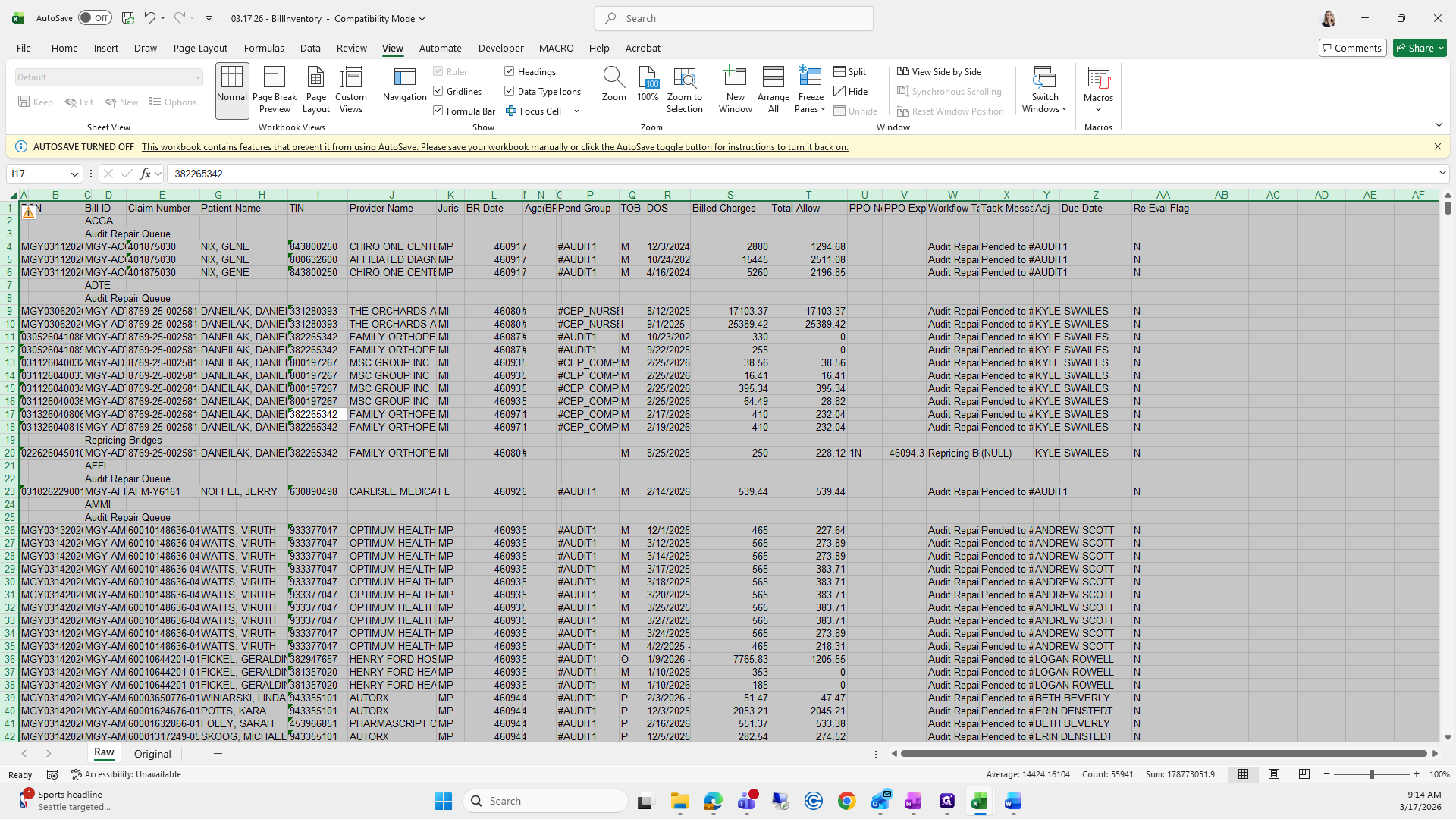
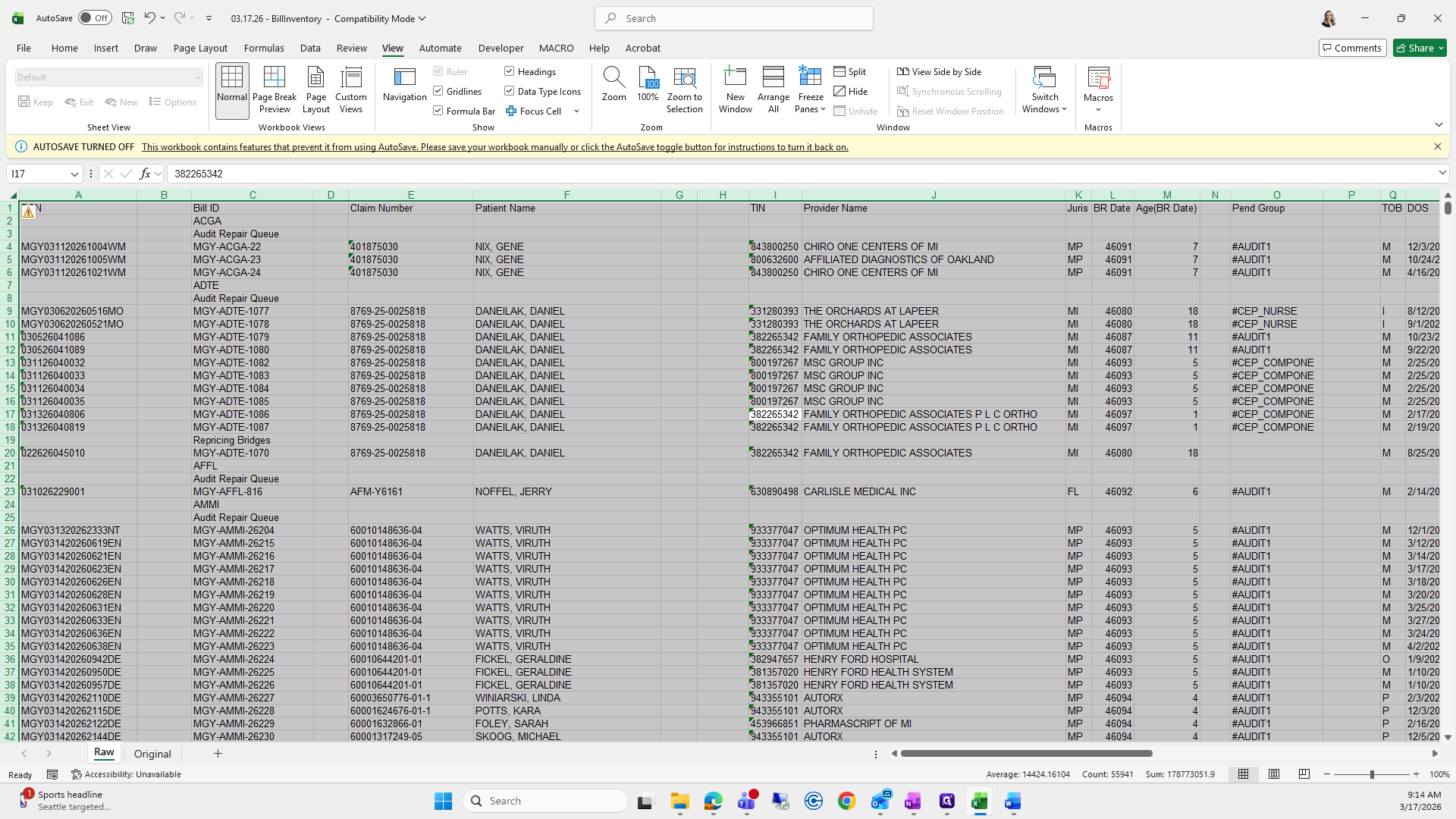
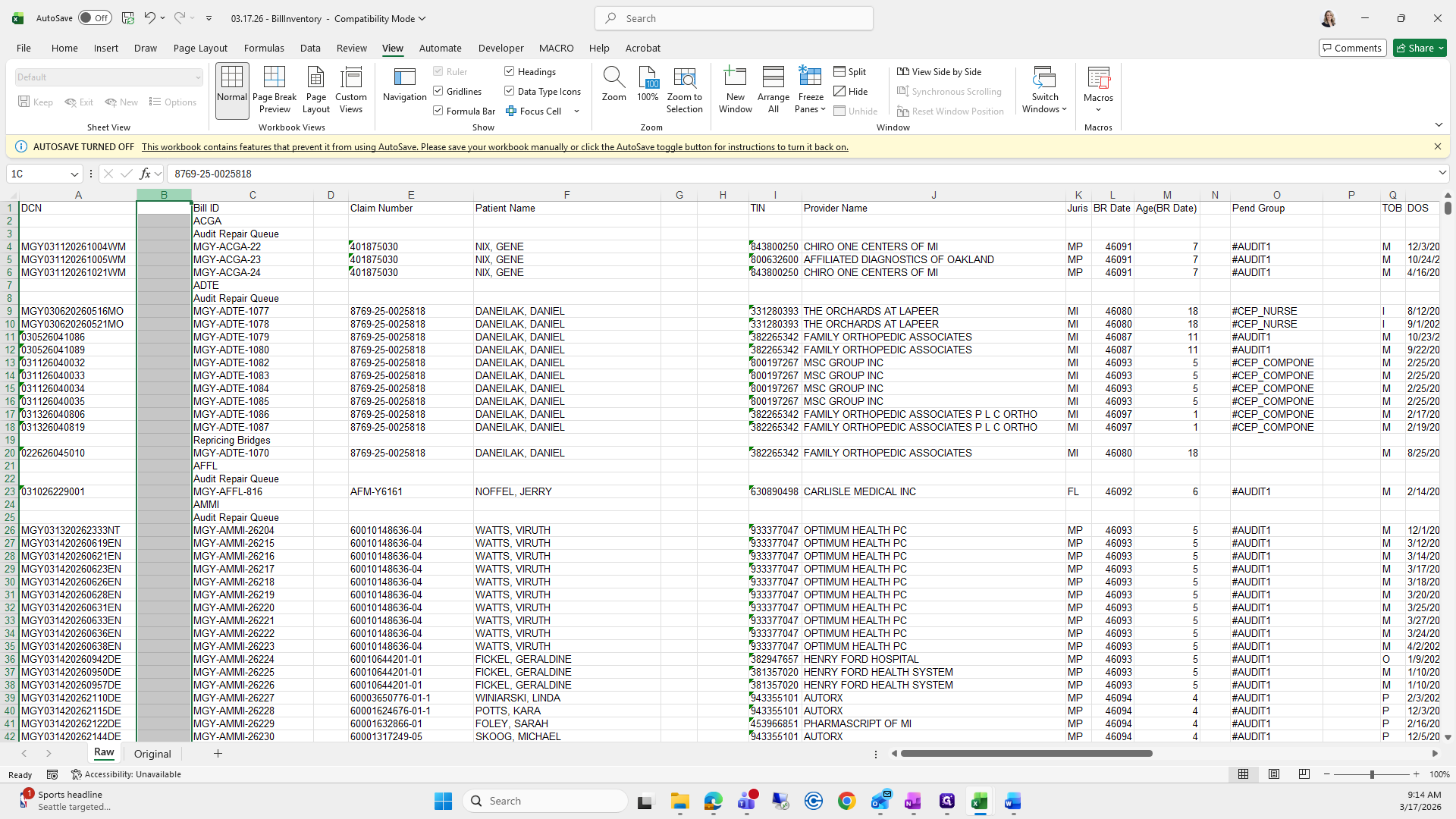
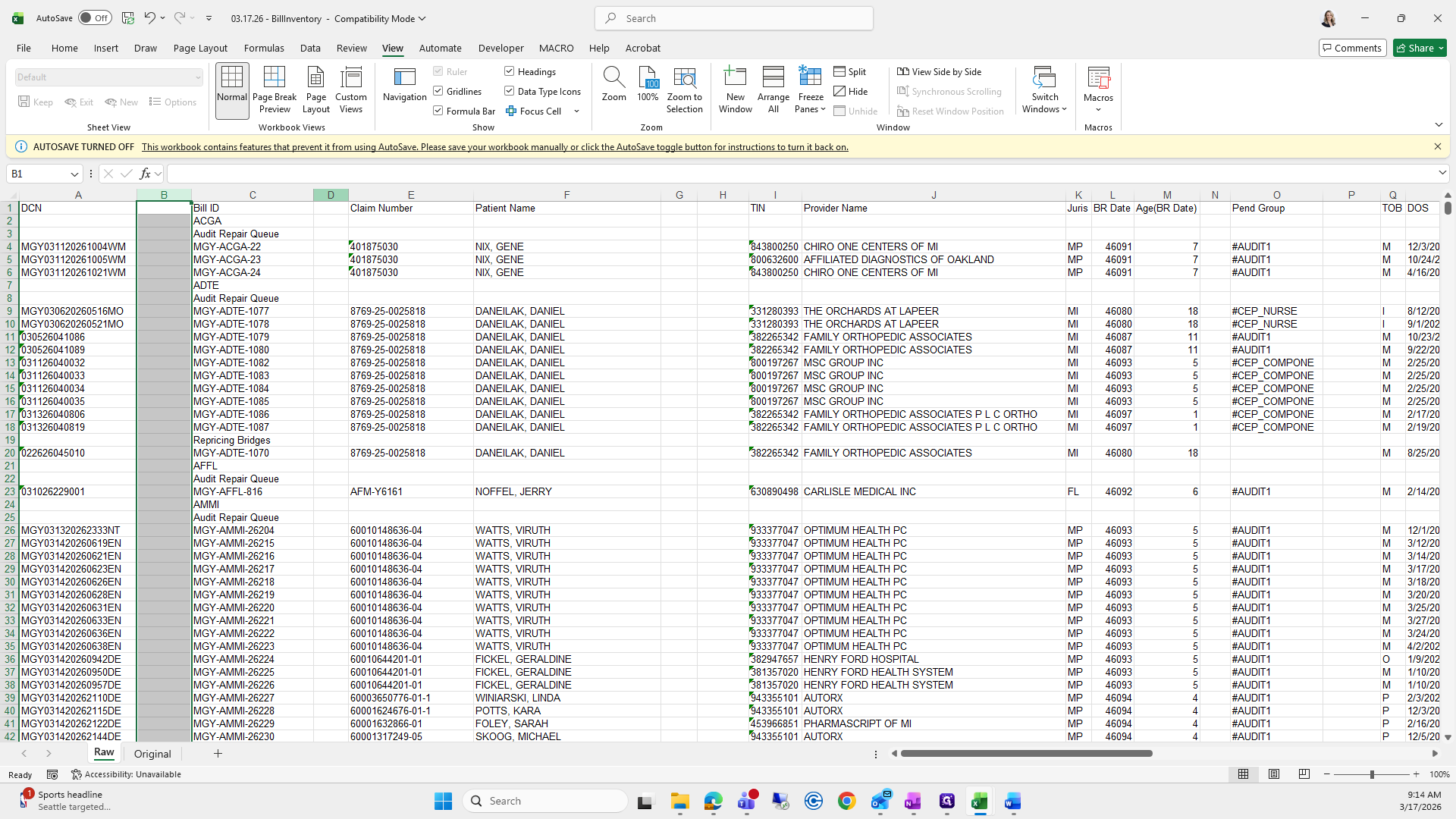
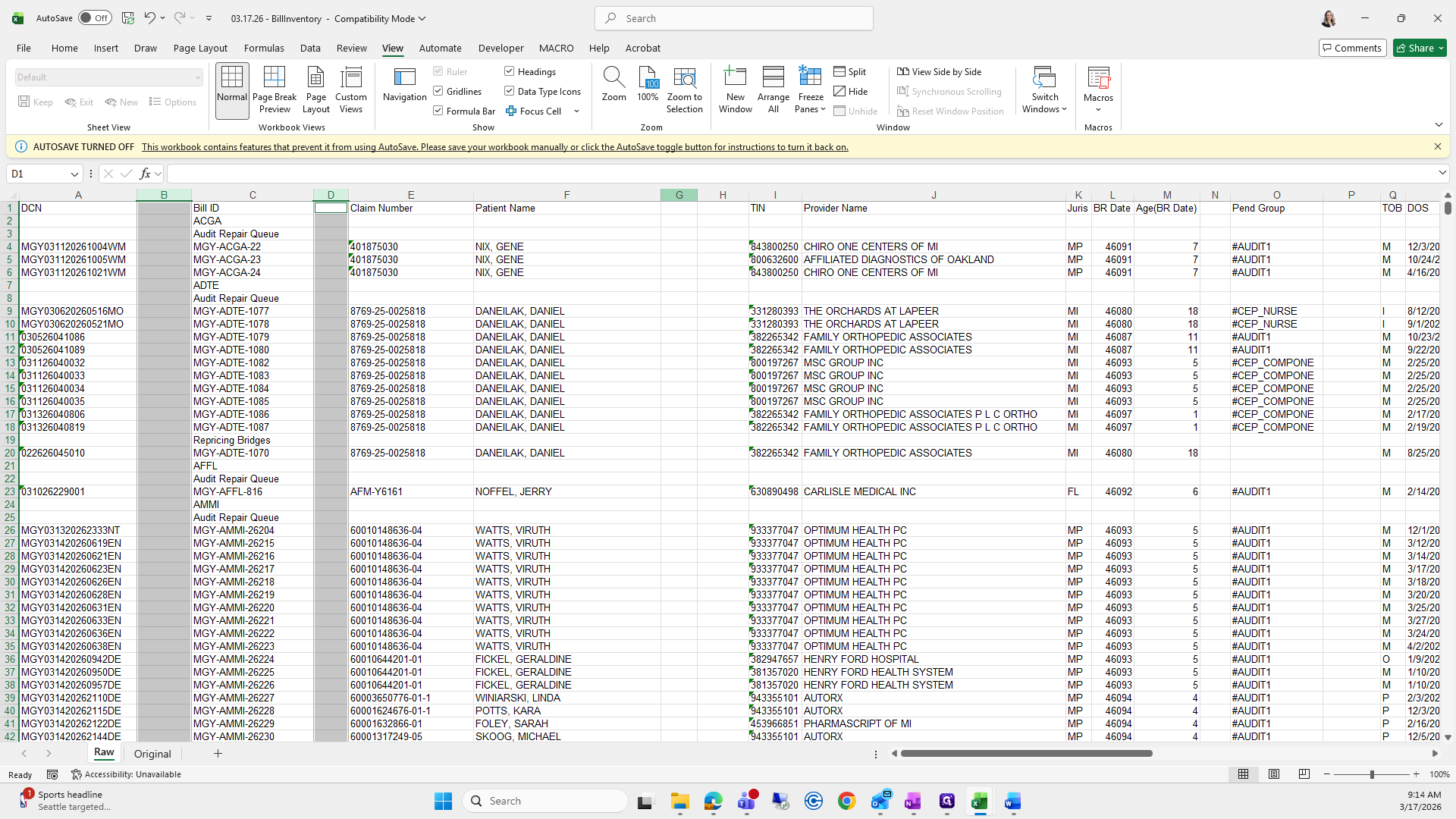
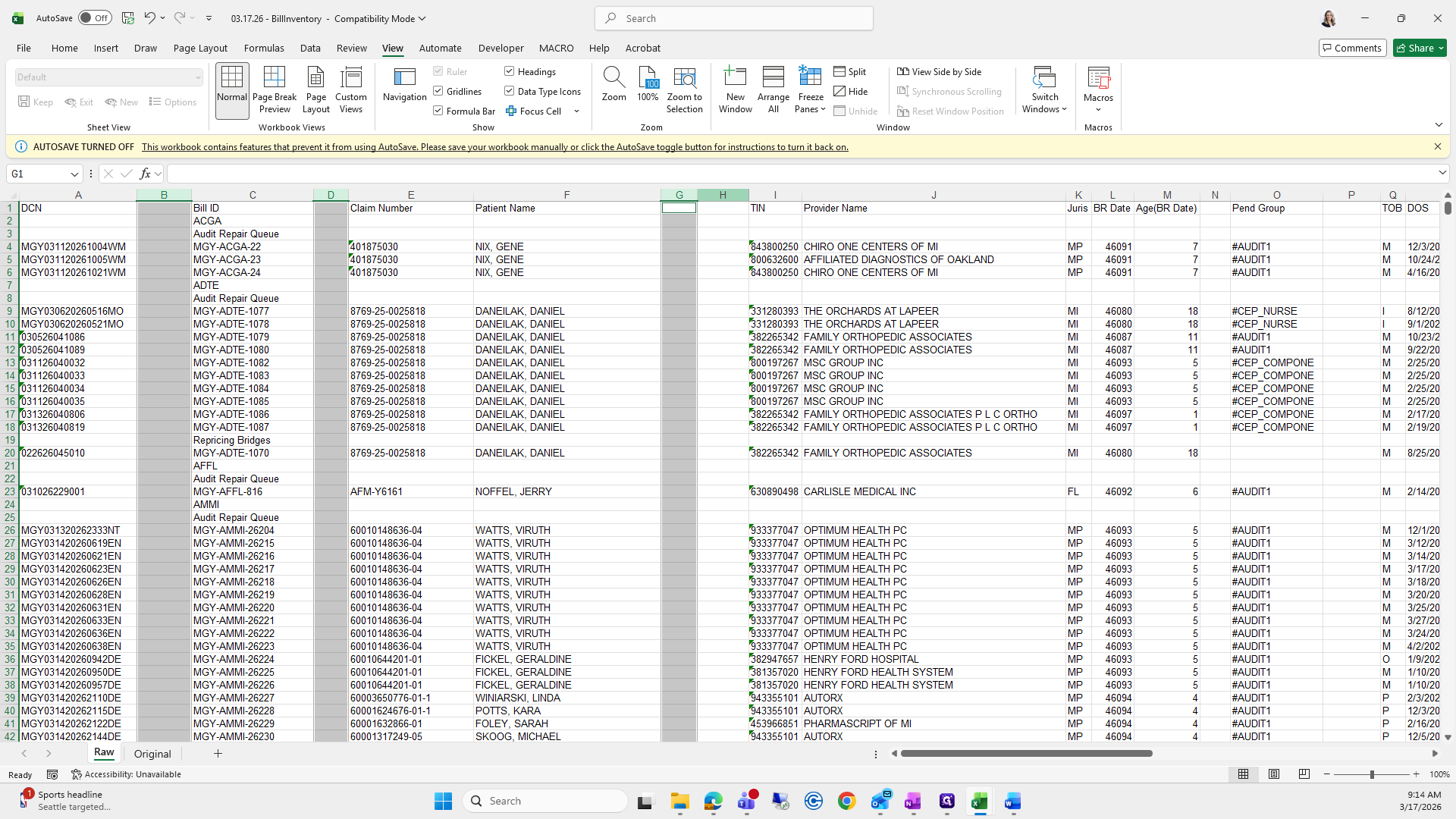
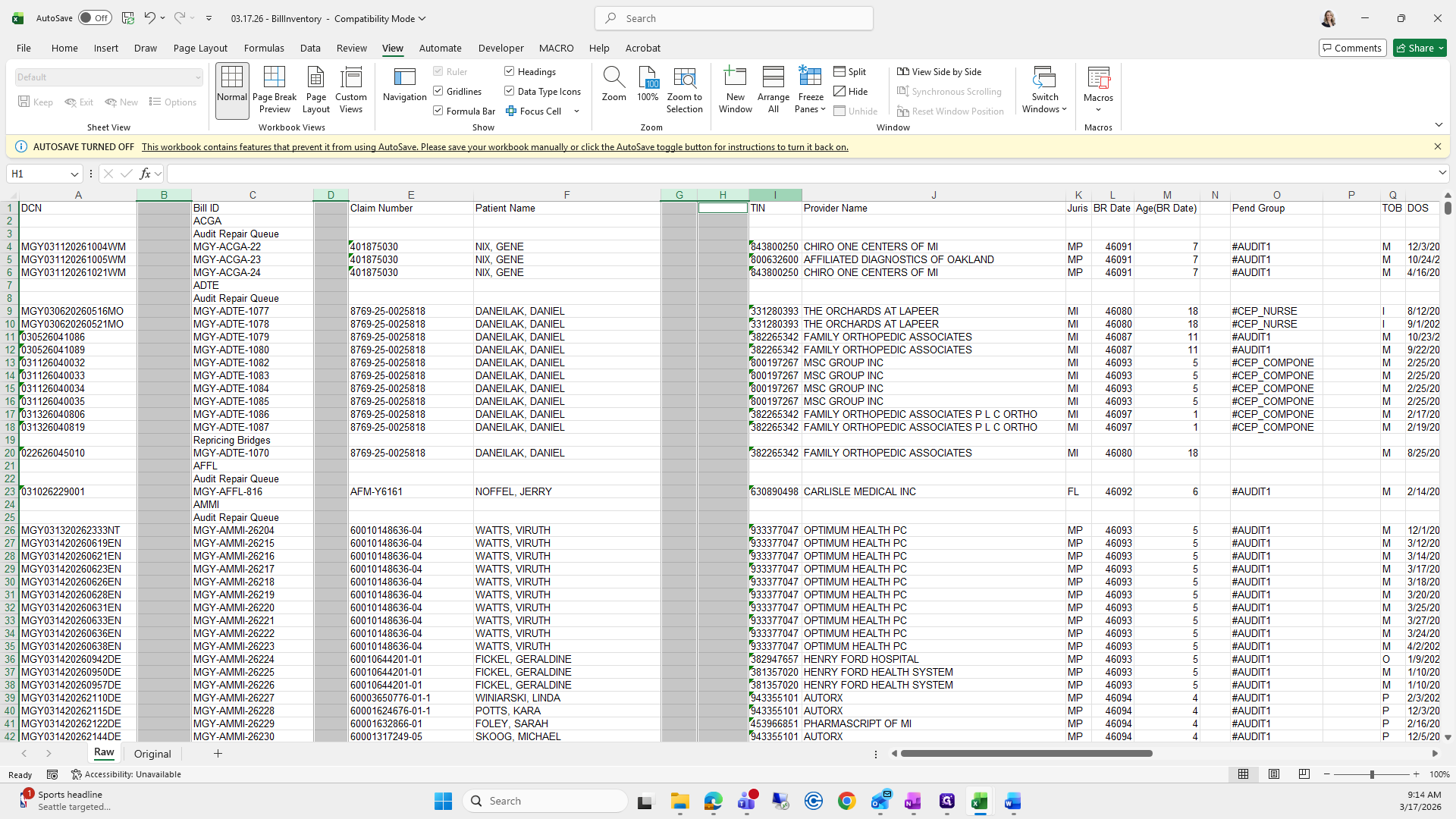
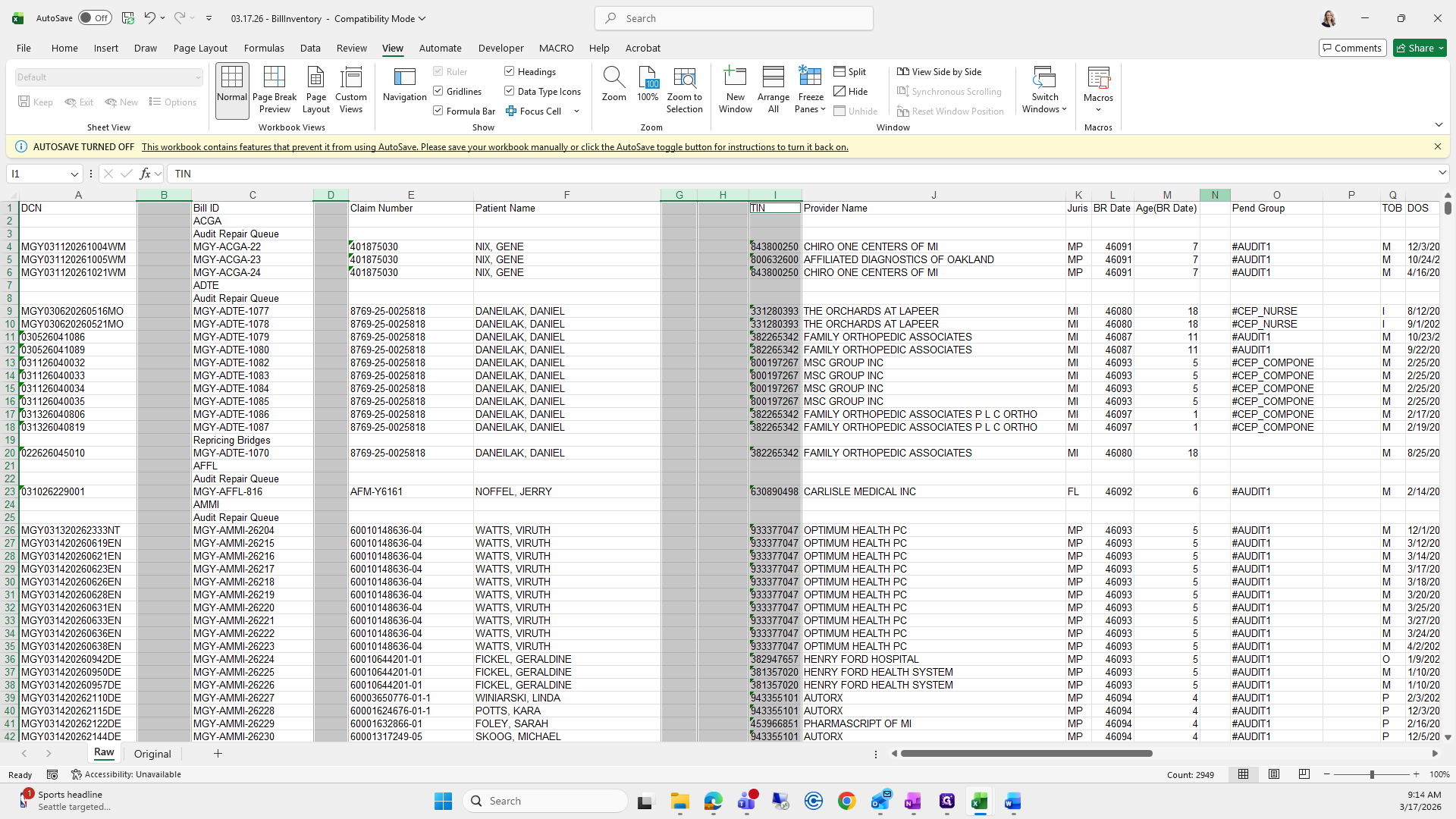
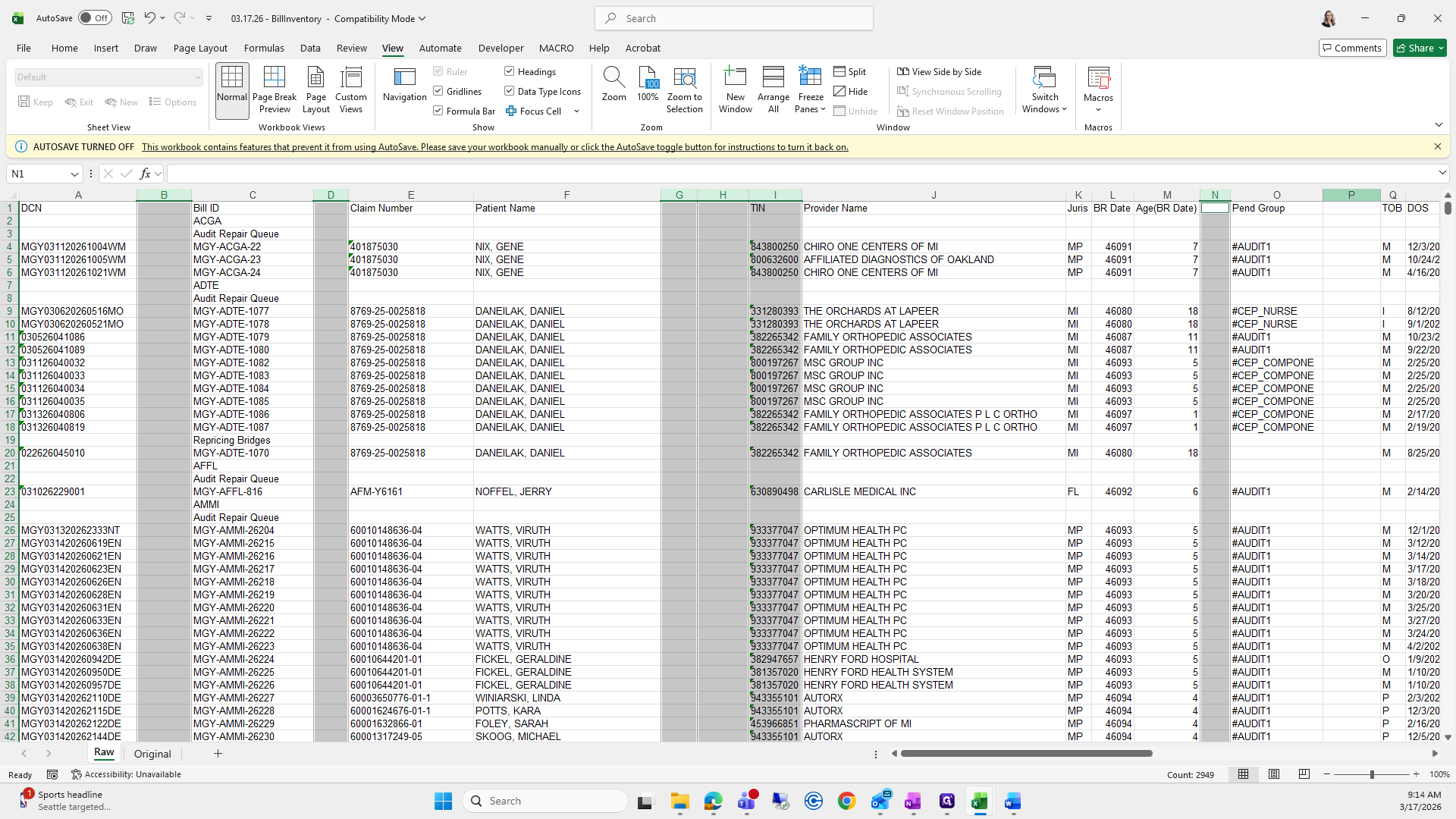
Then I right-click and delete.
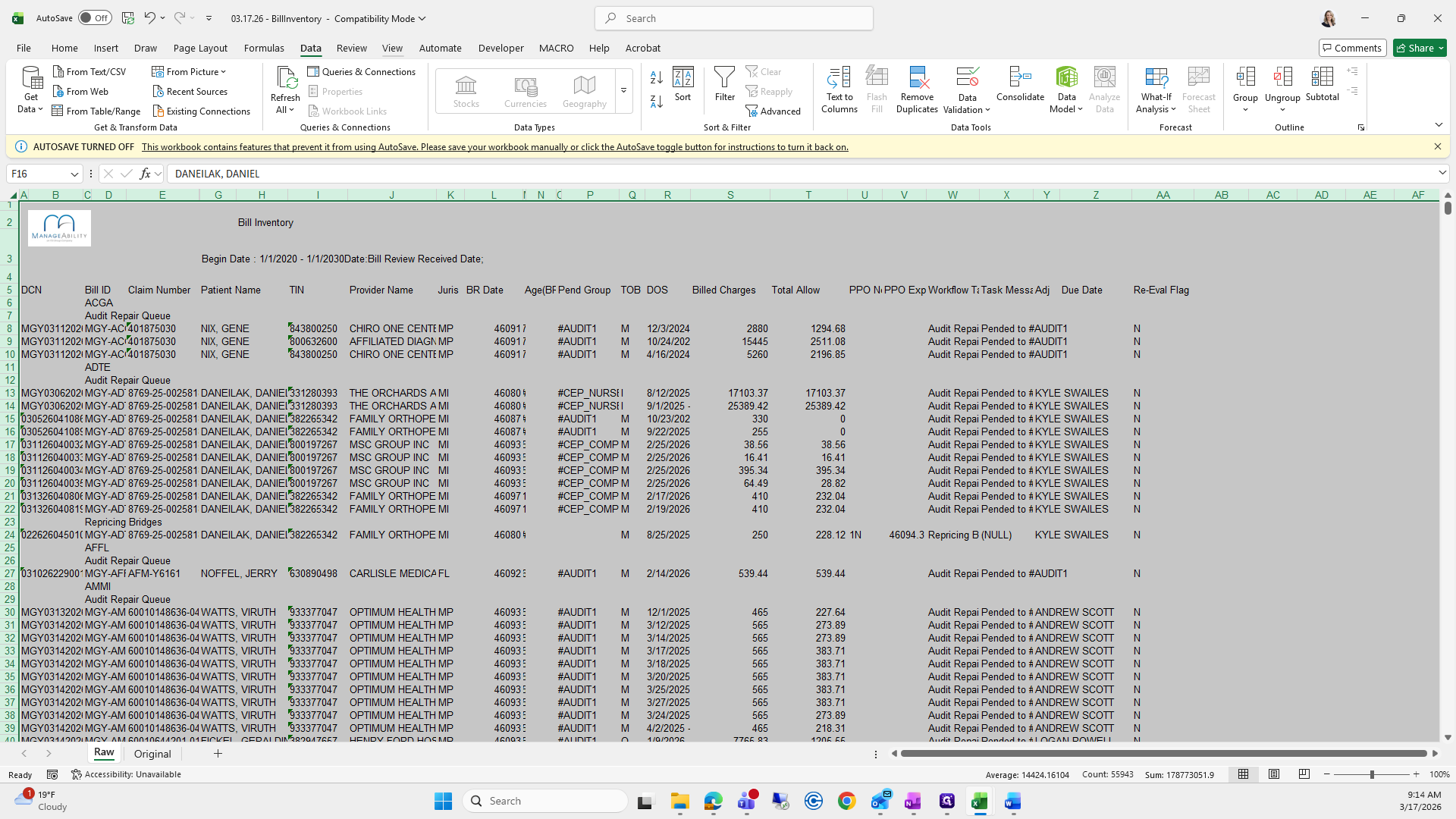
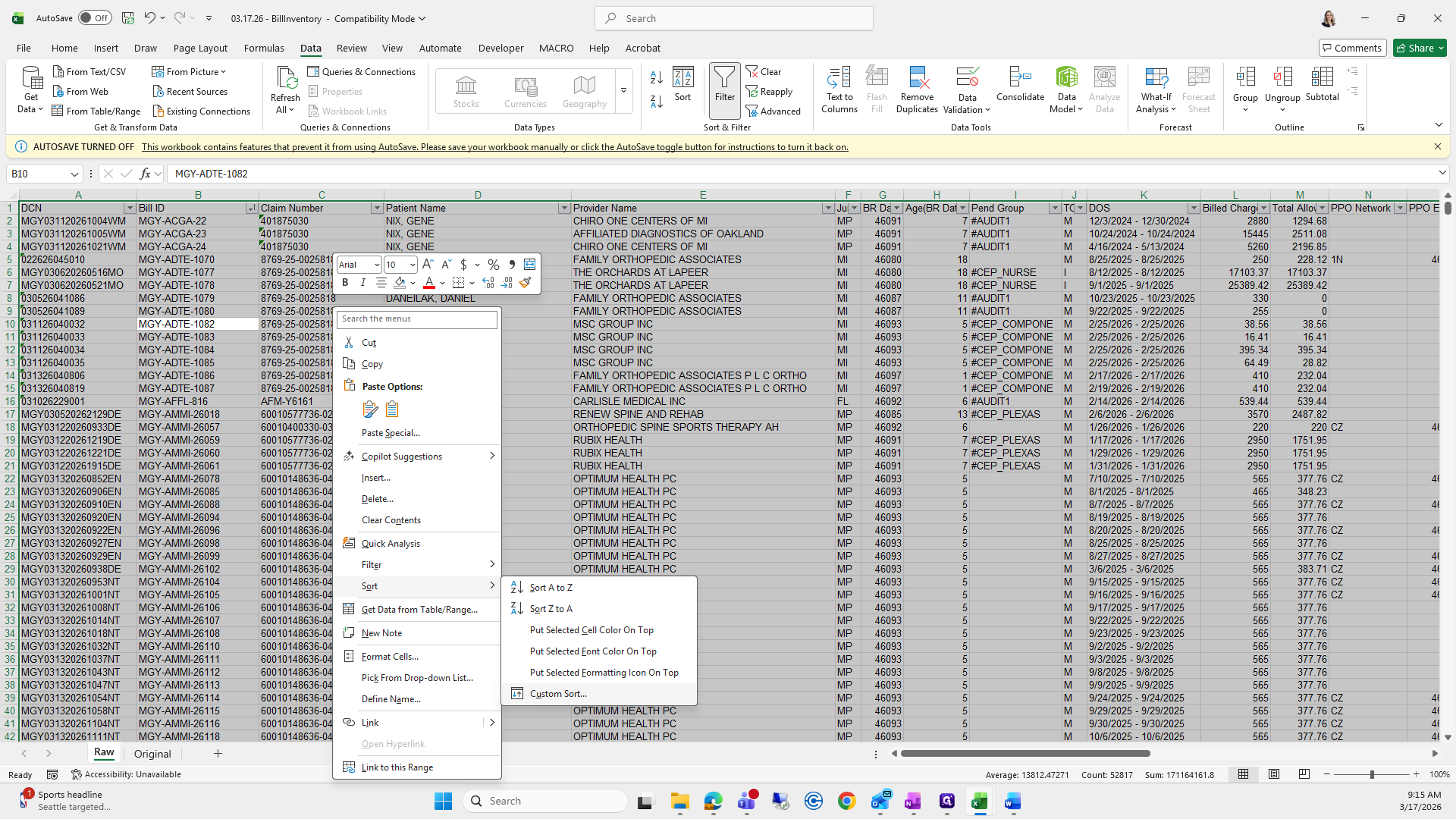
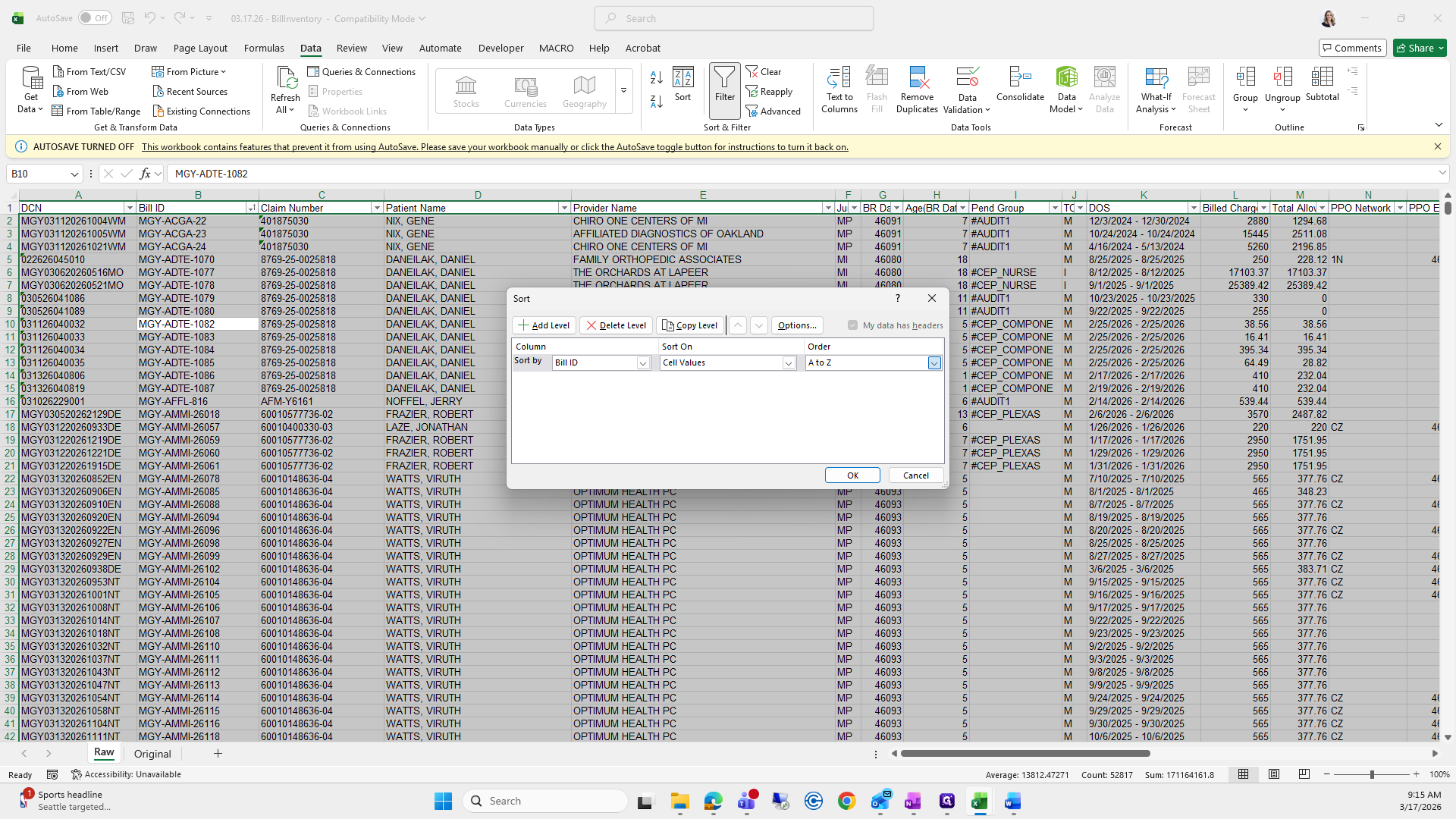
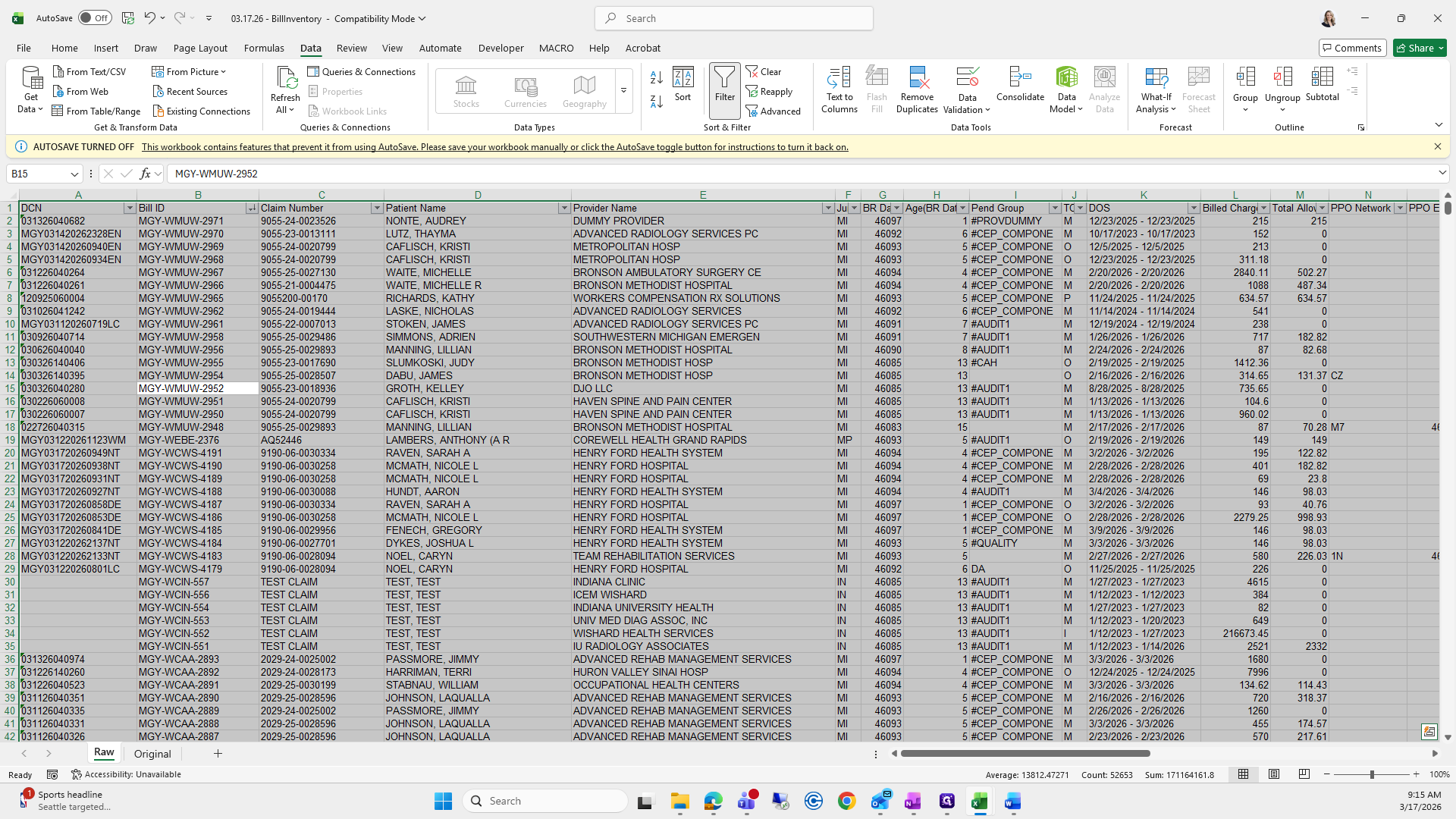
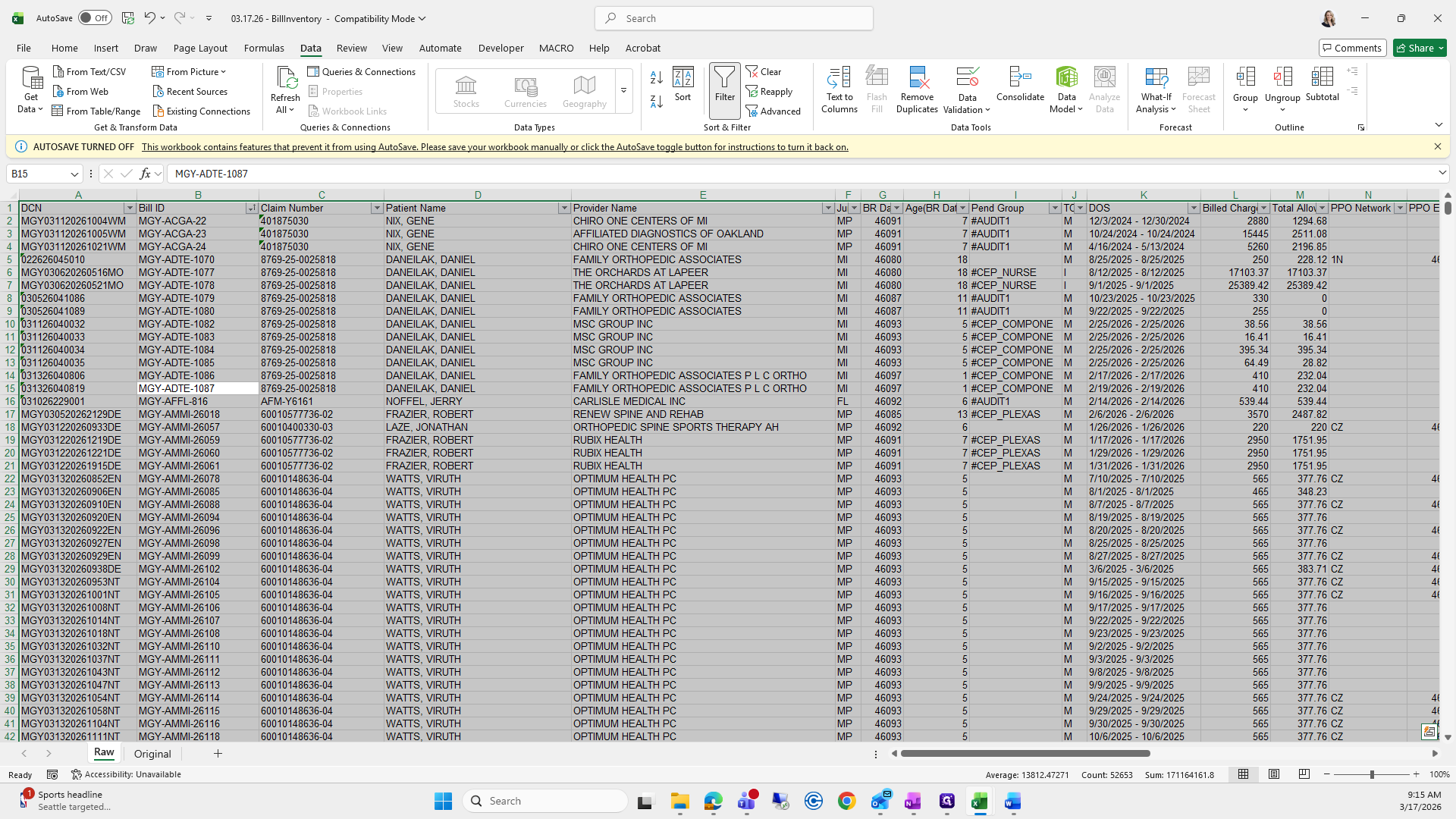
First, select all the data. Then, apply a filter and sort by bill ID. Remove all the blank rows, as they are not needed.
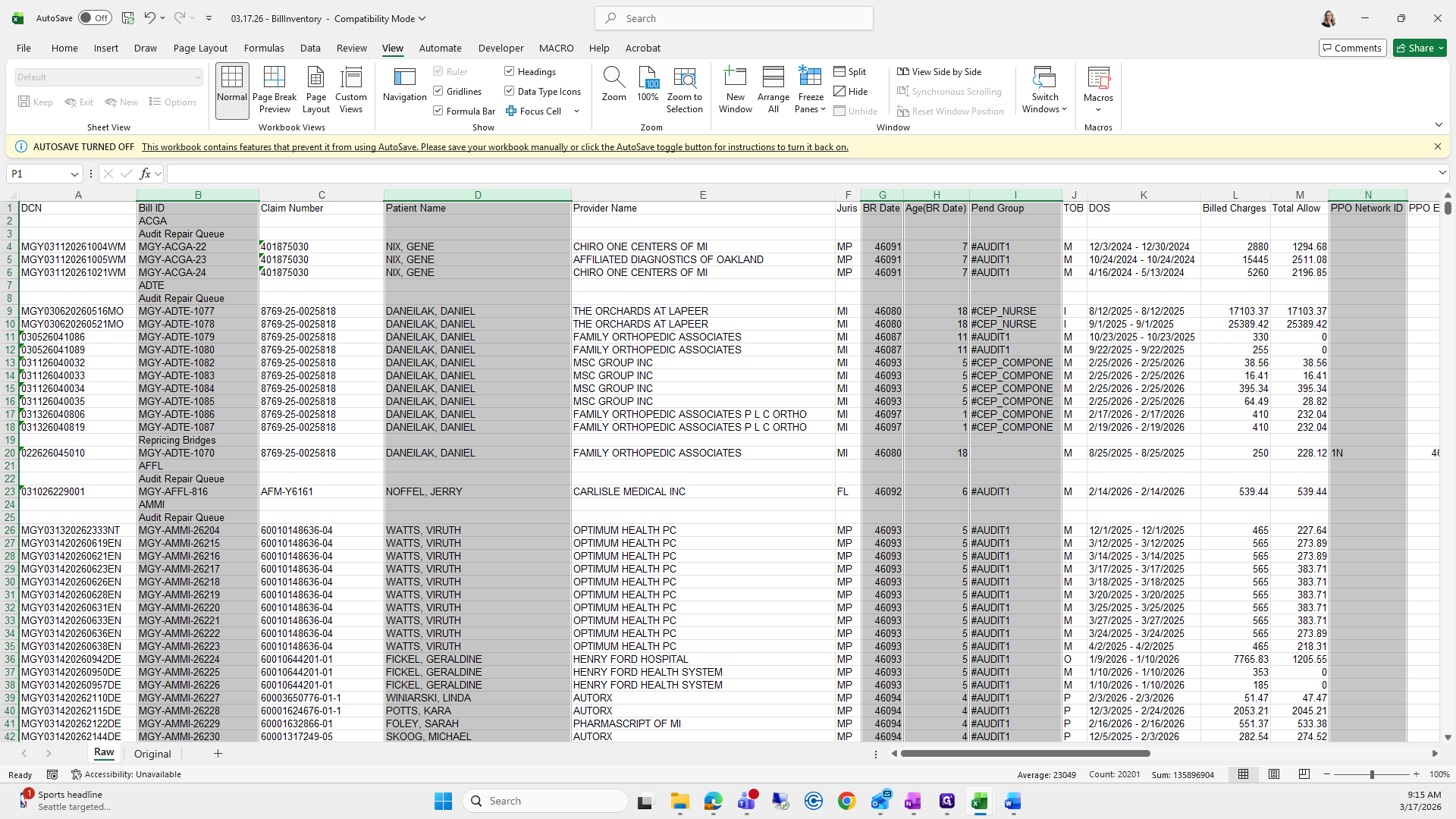
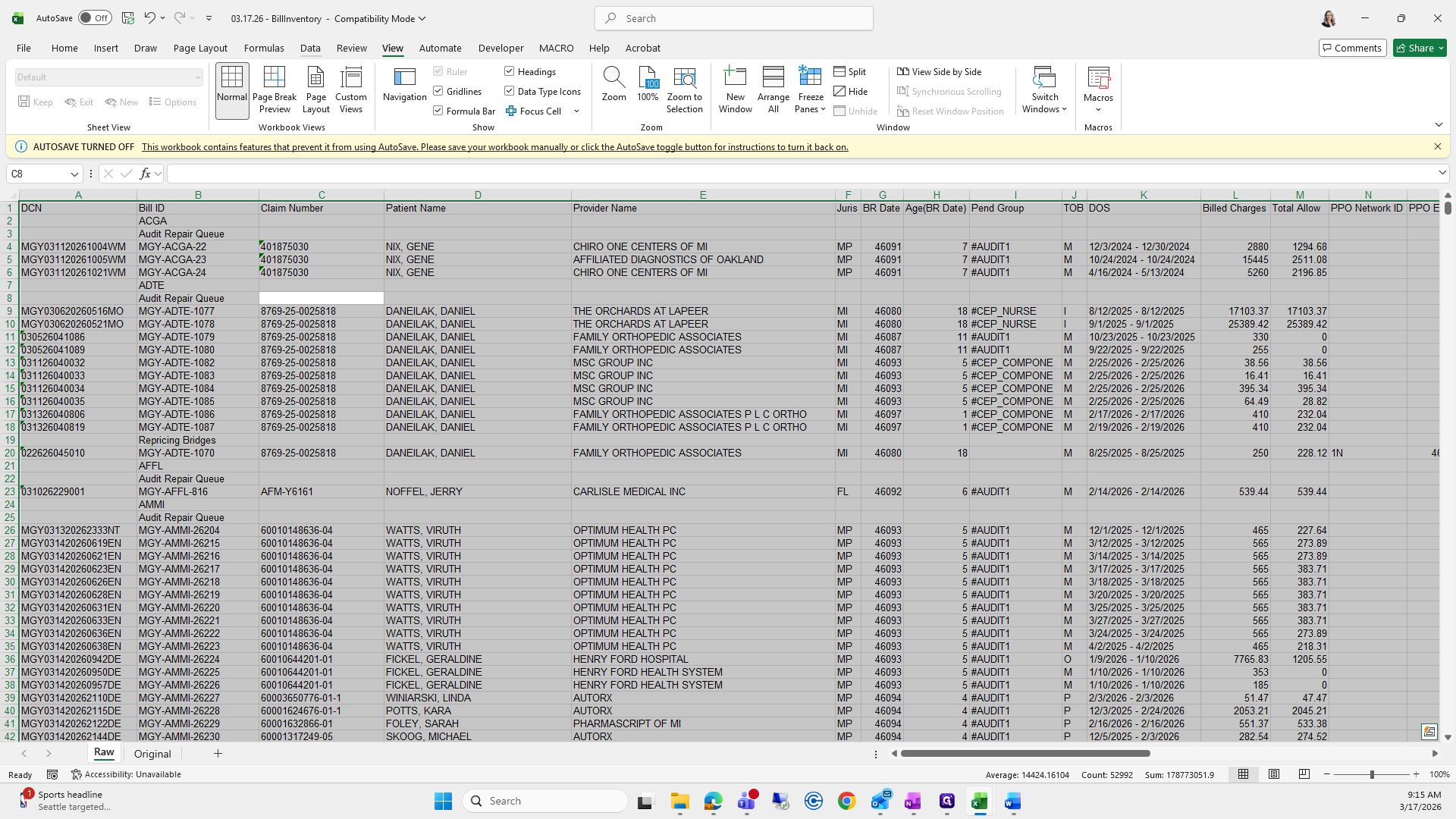
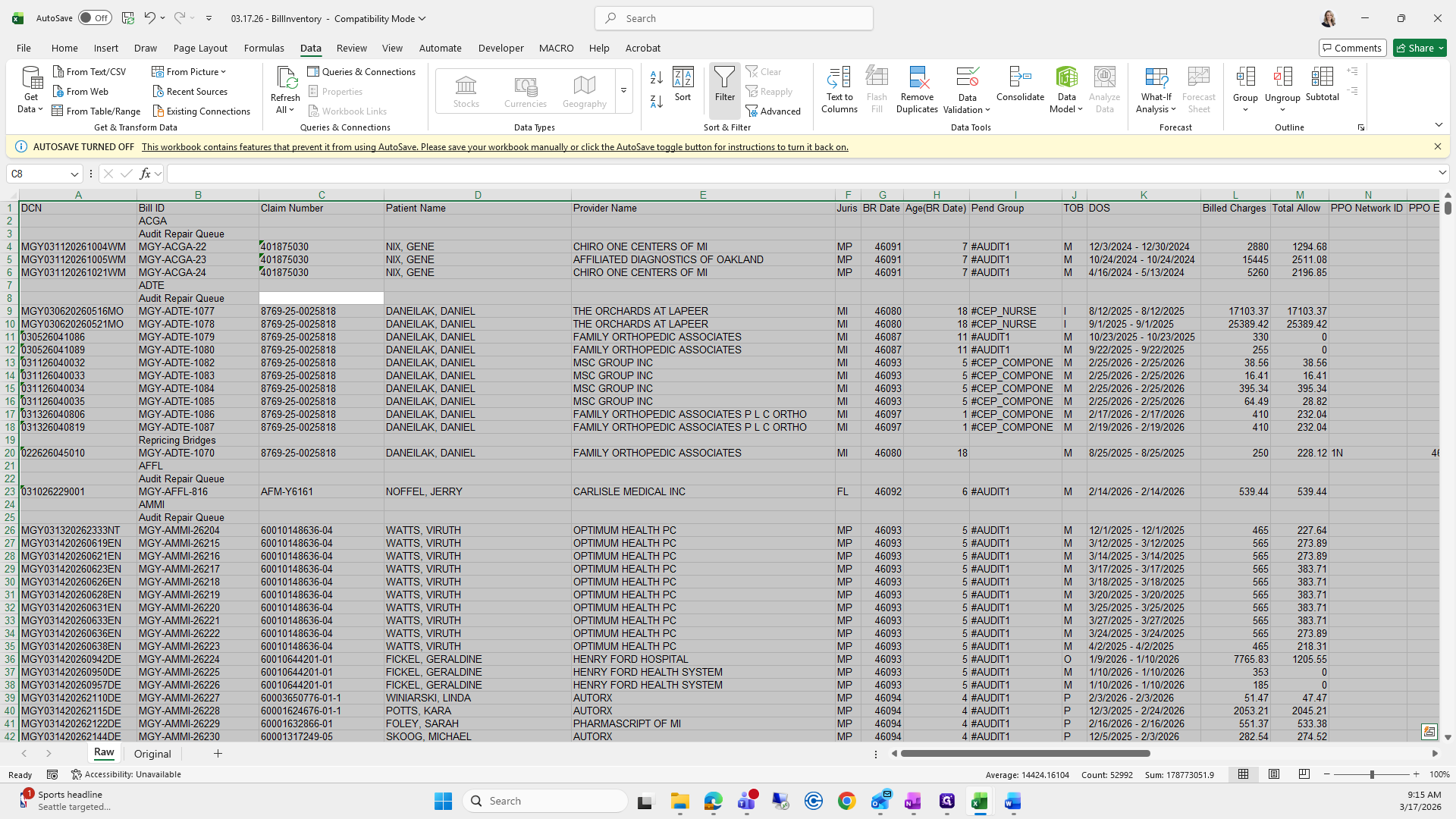
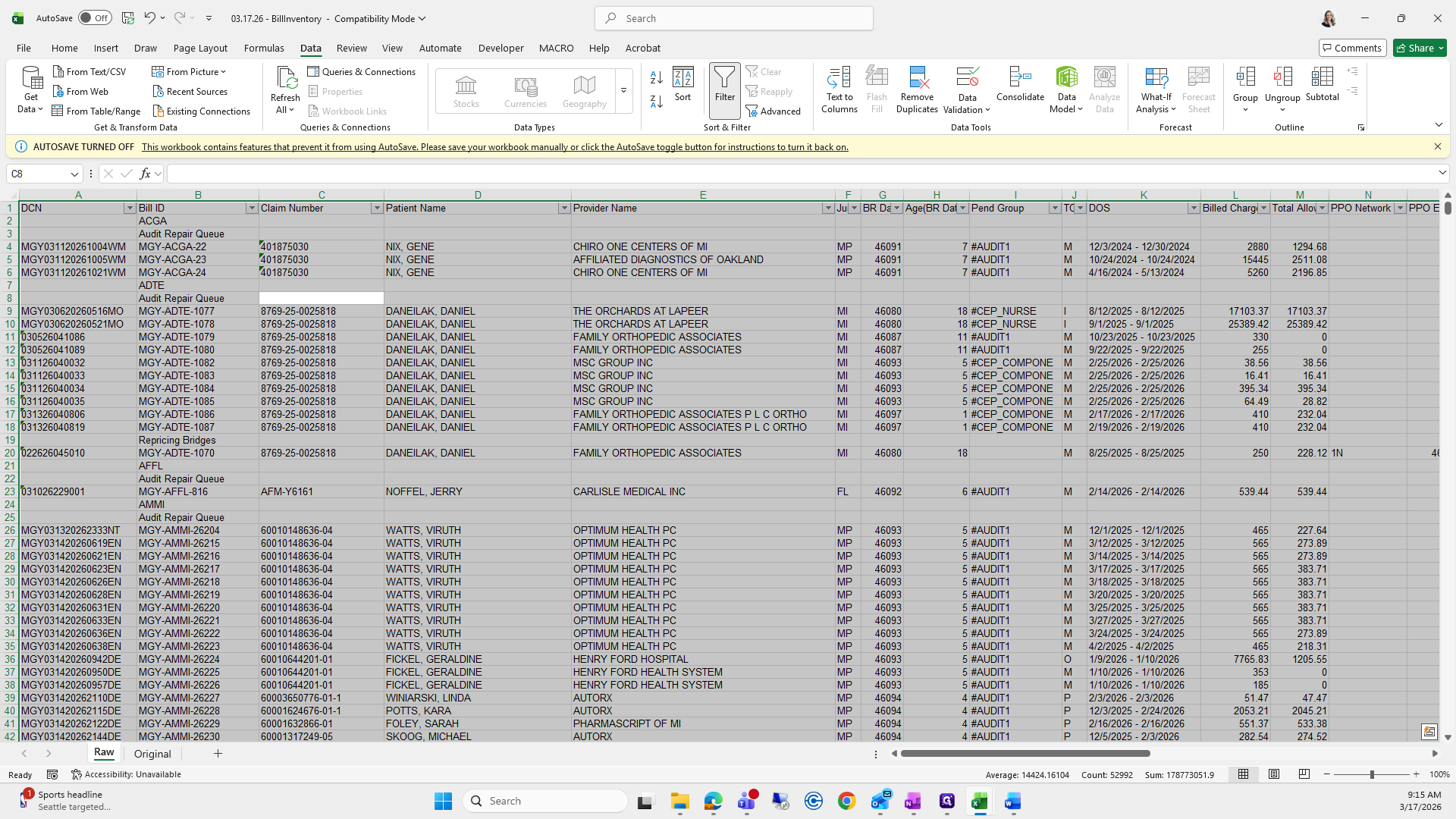
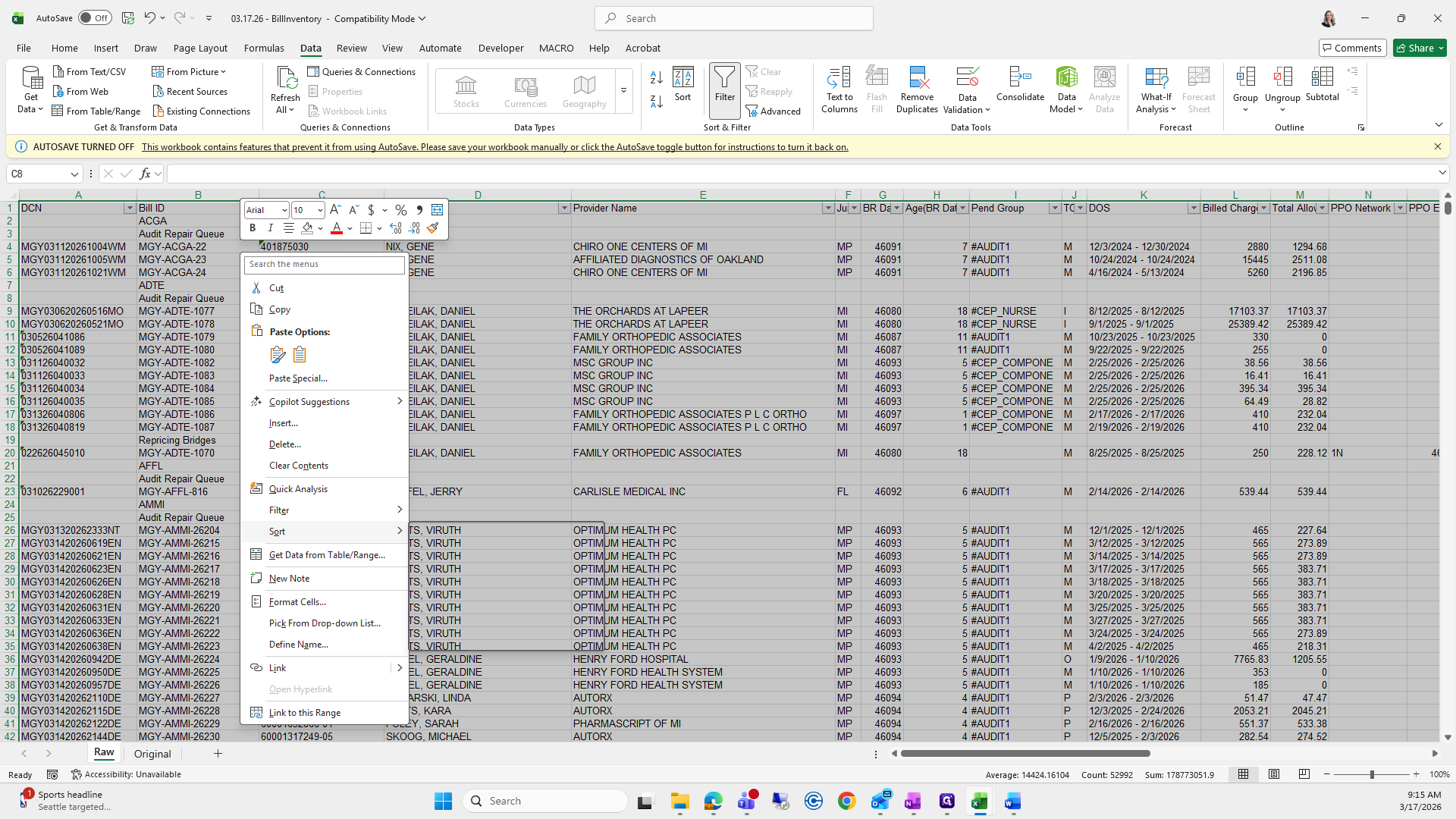
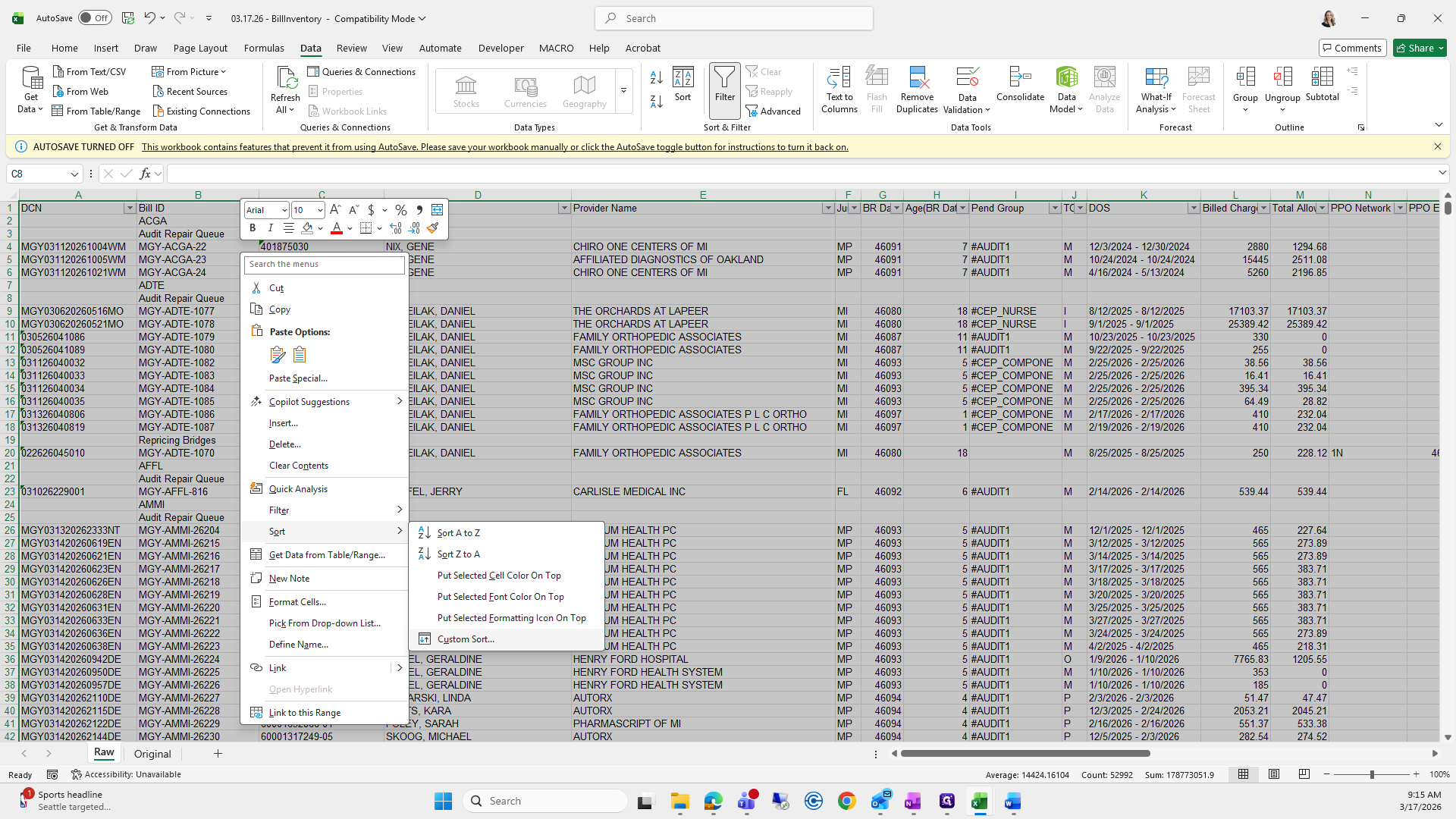
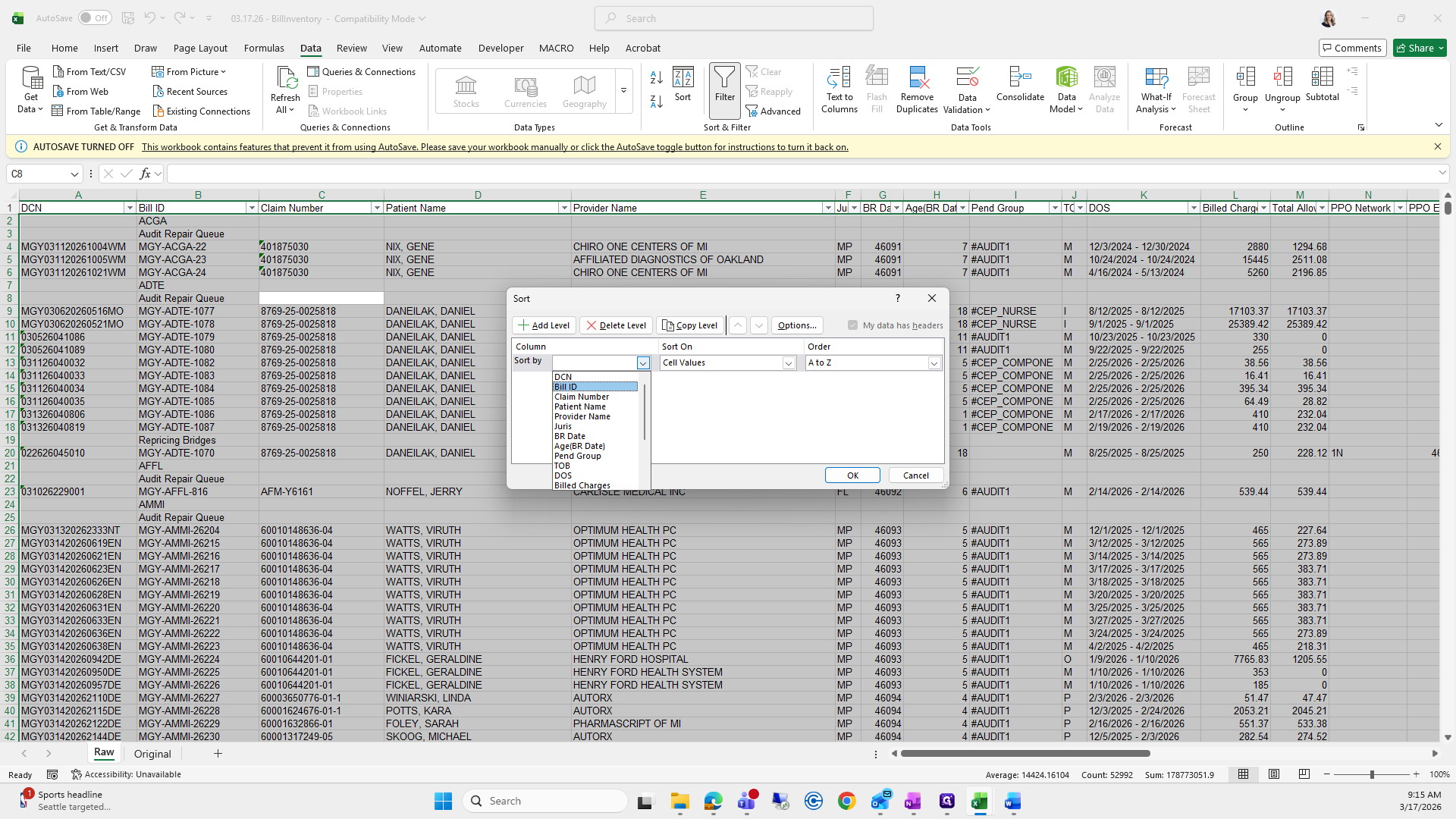
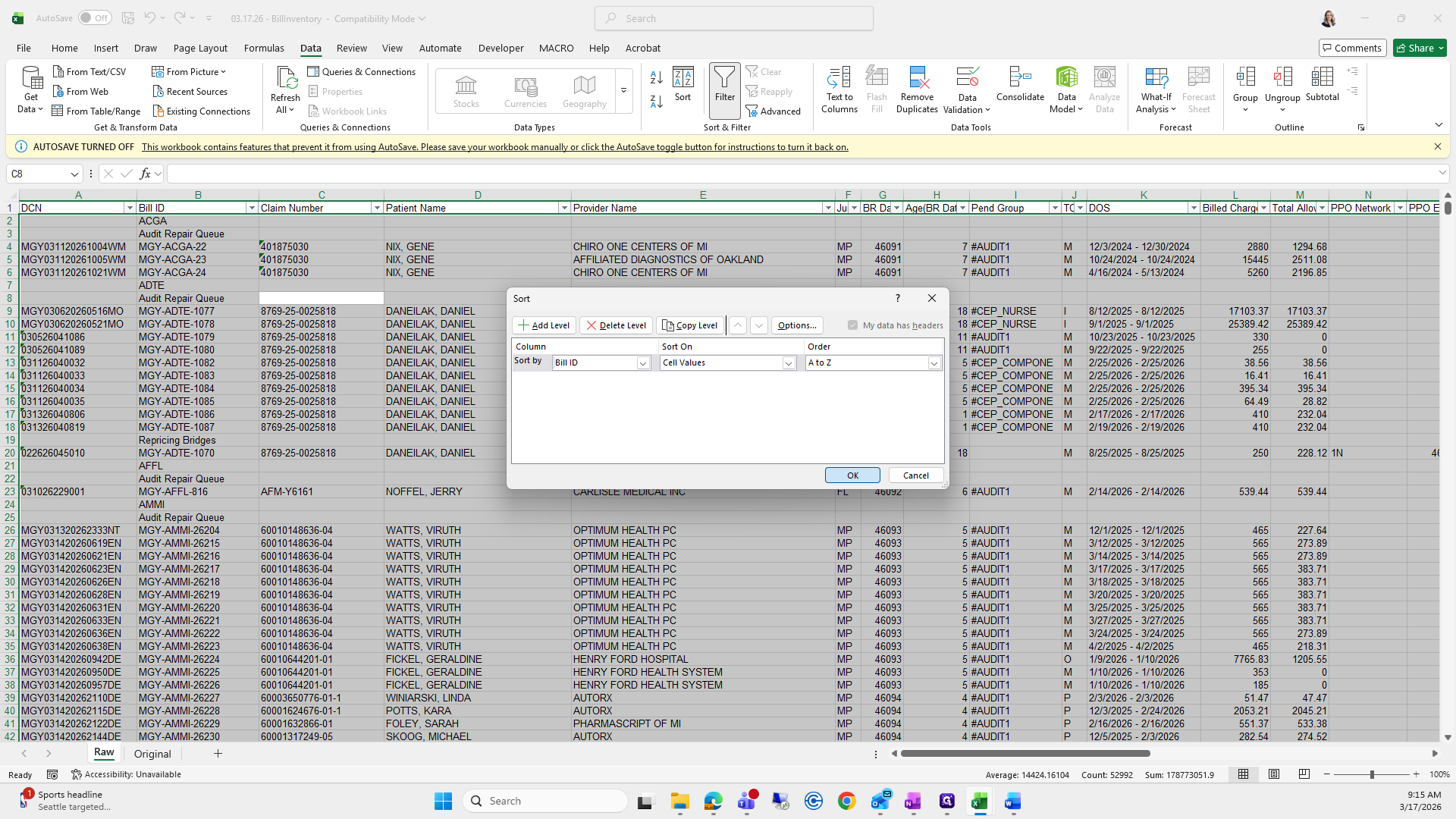
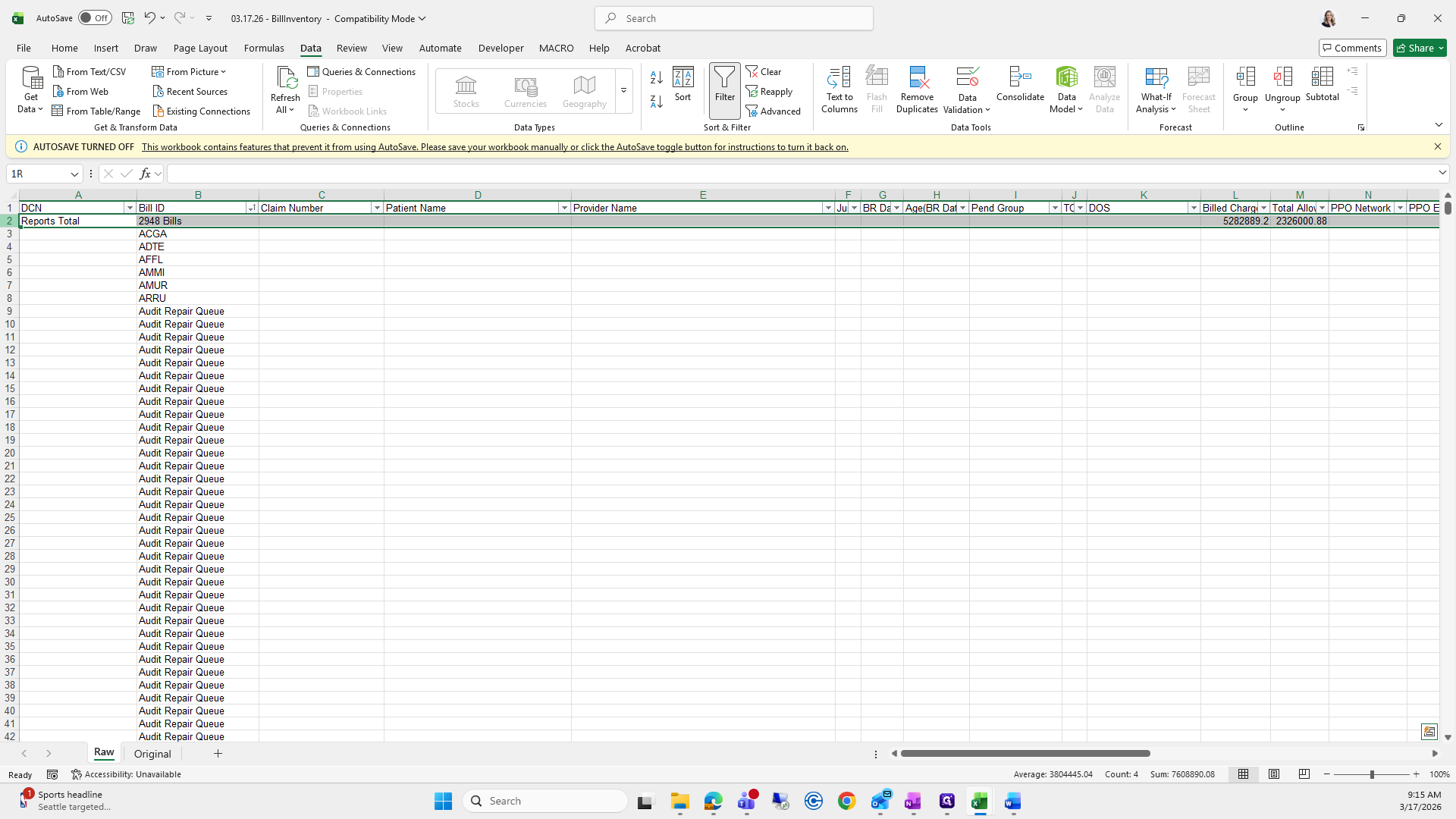
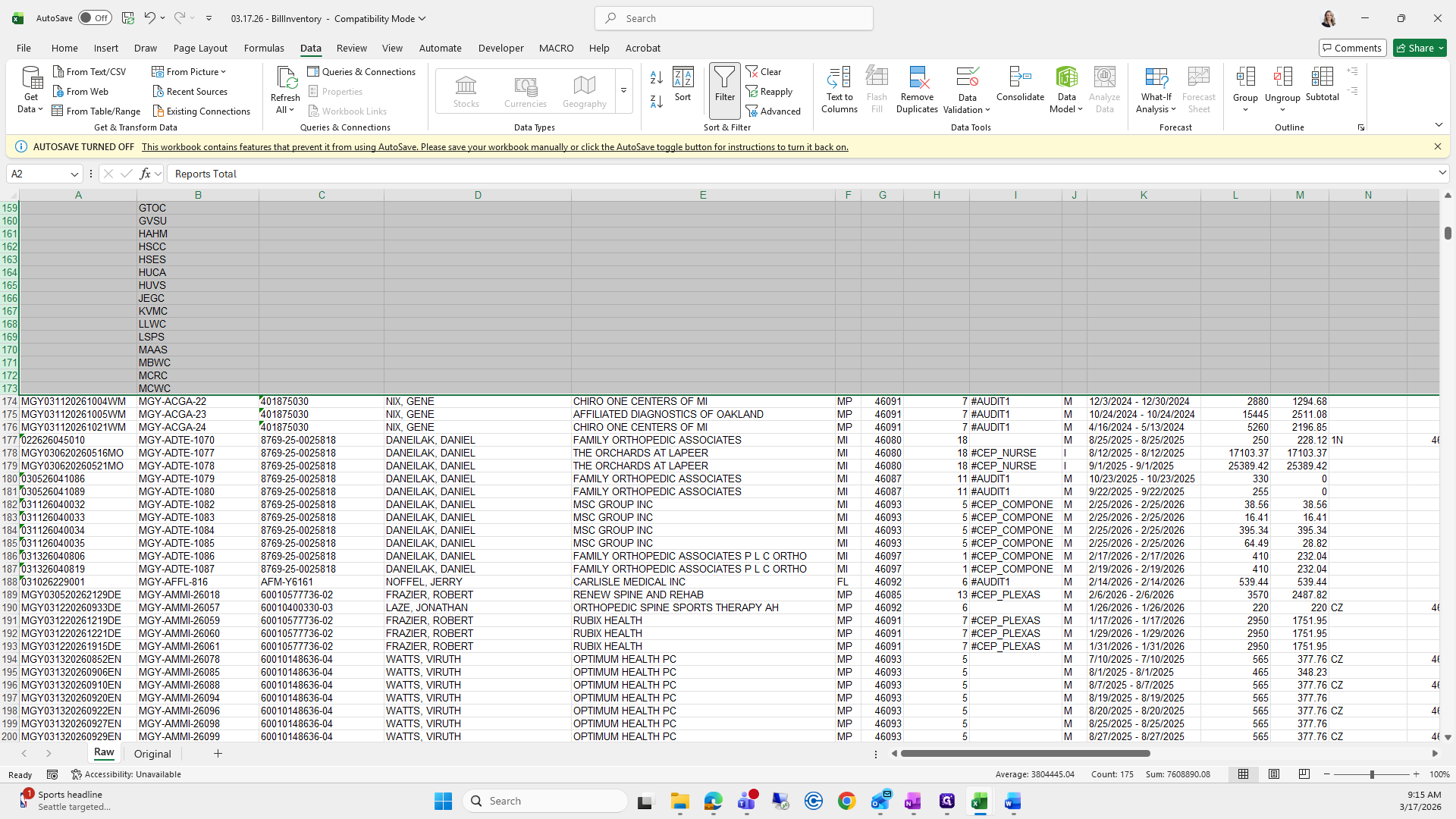
Then I will do it again.
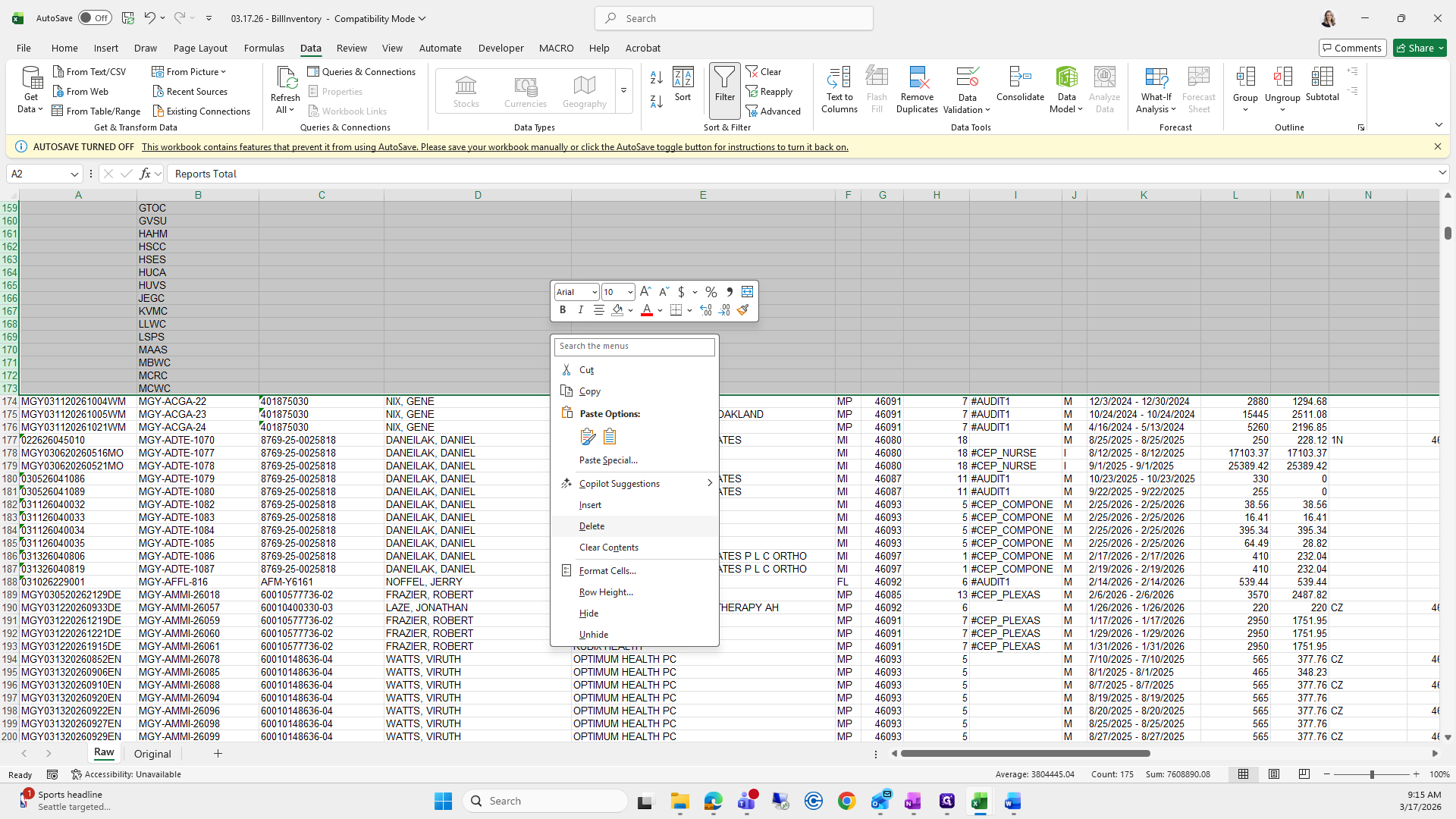
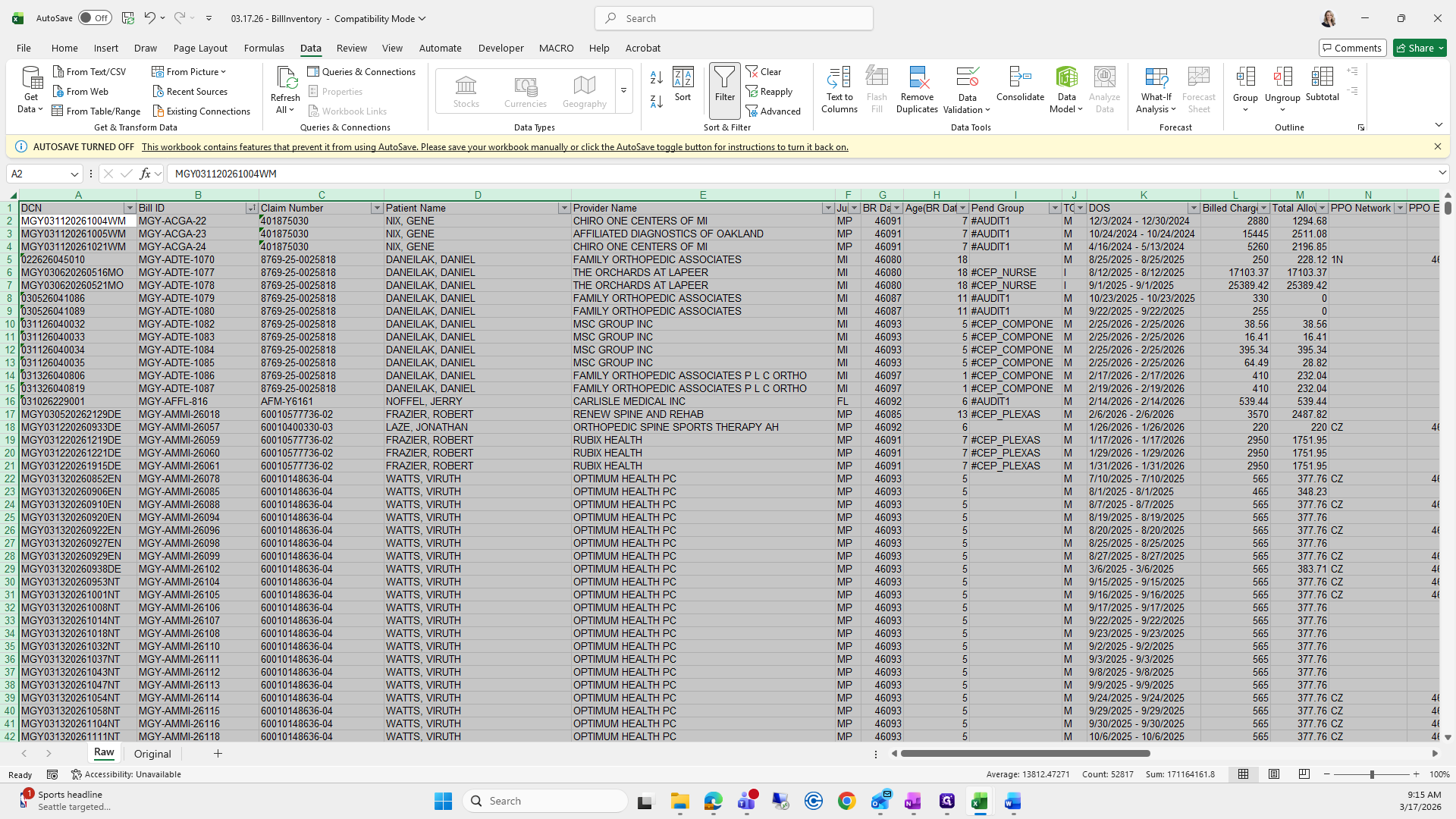
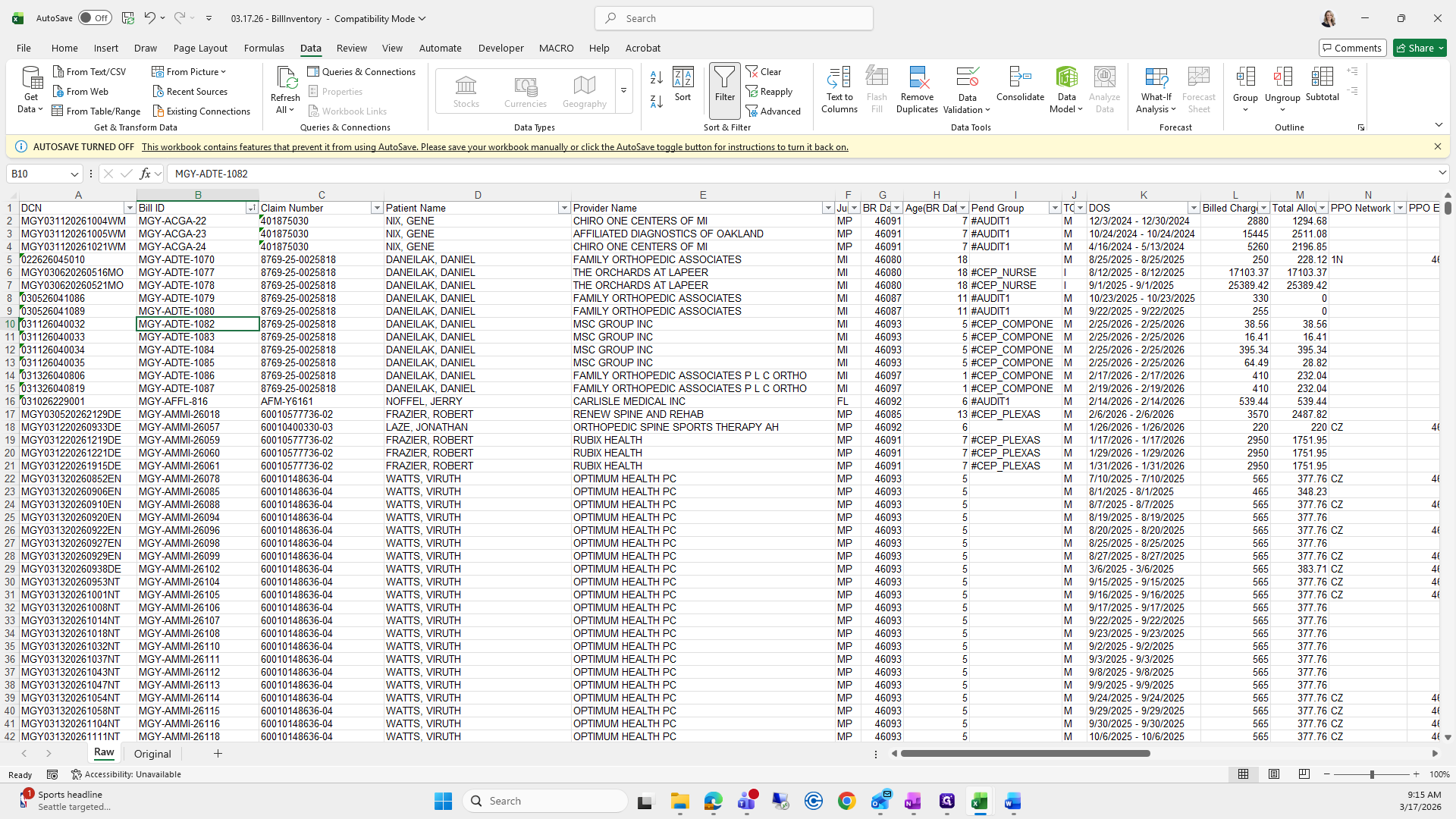
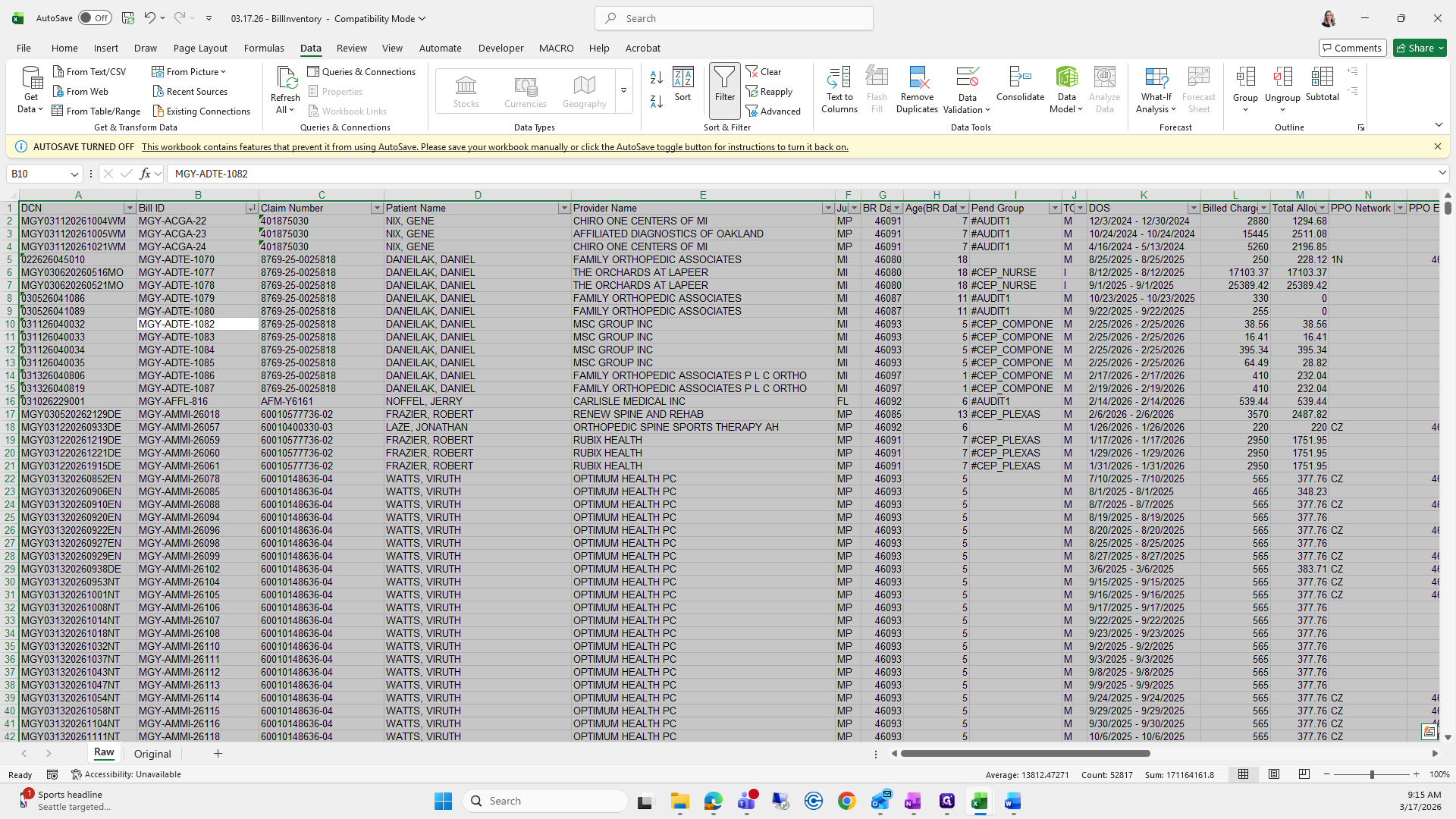
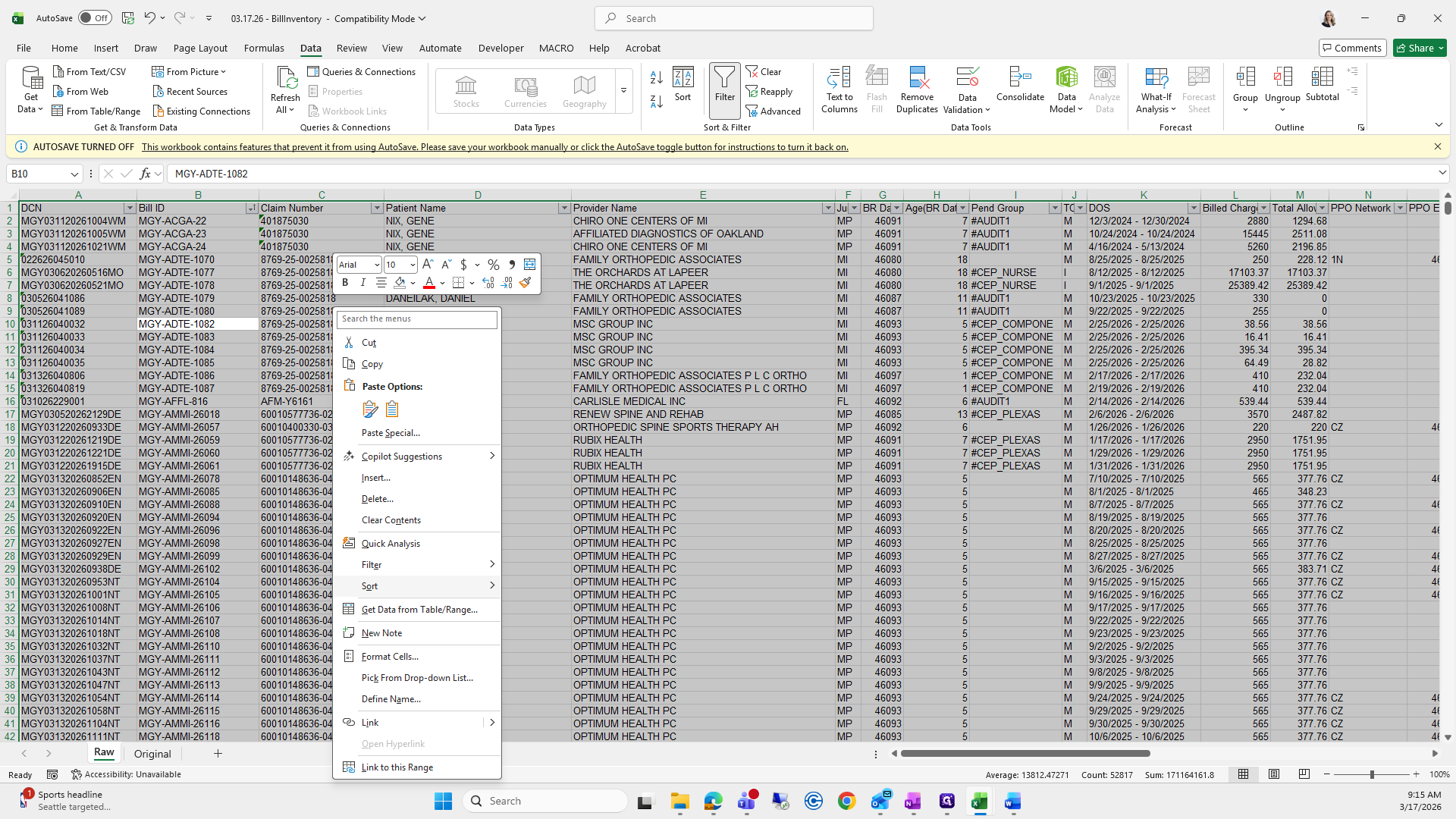
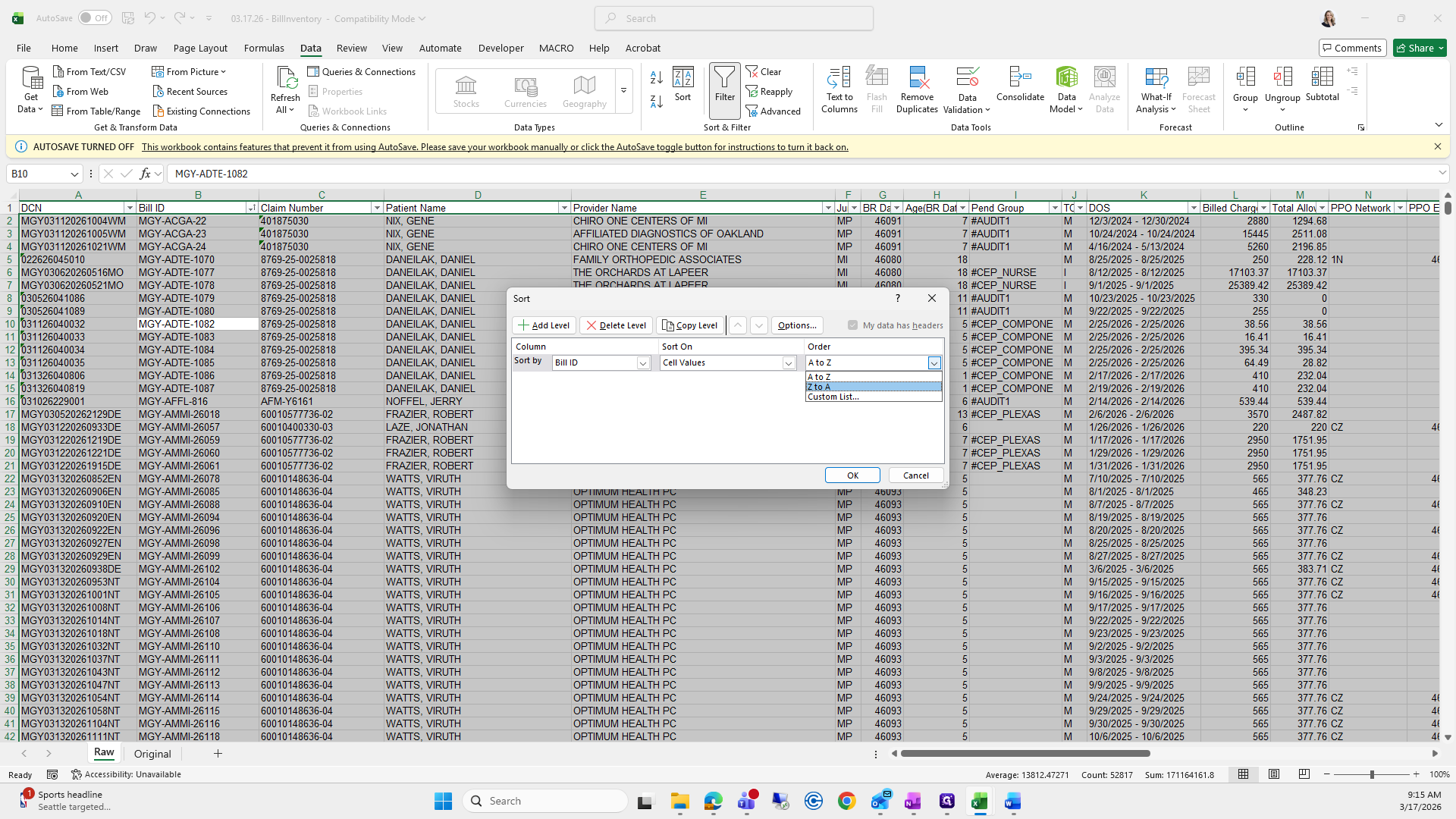
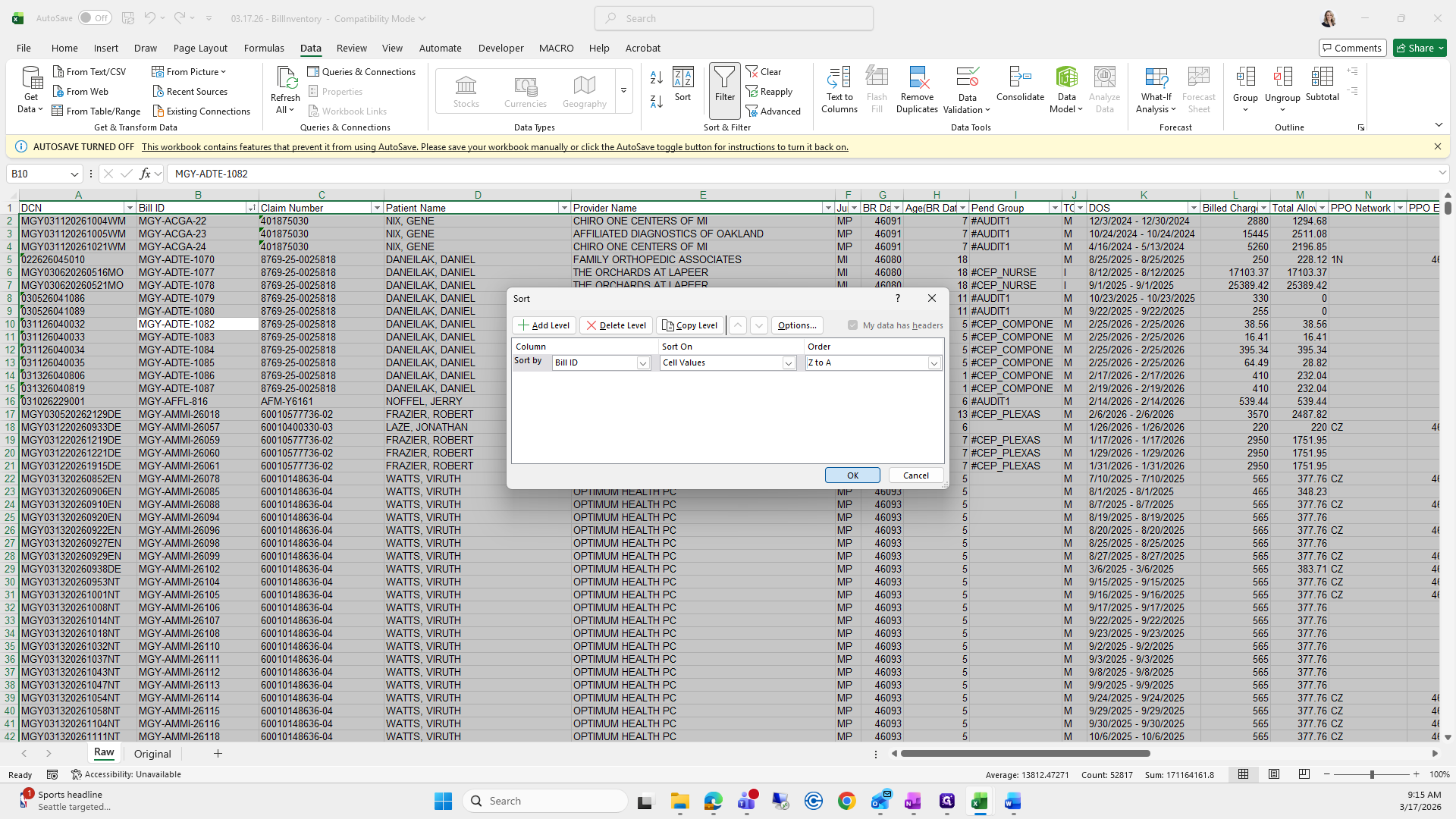
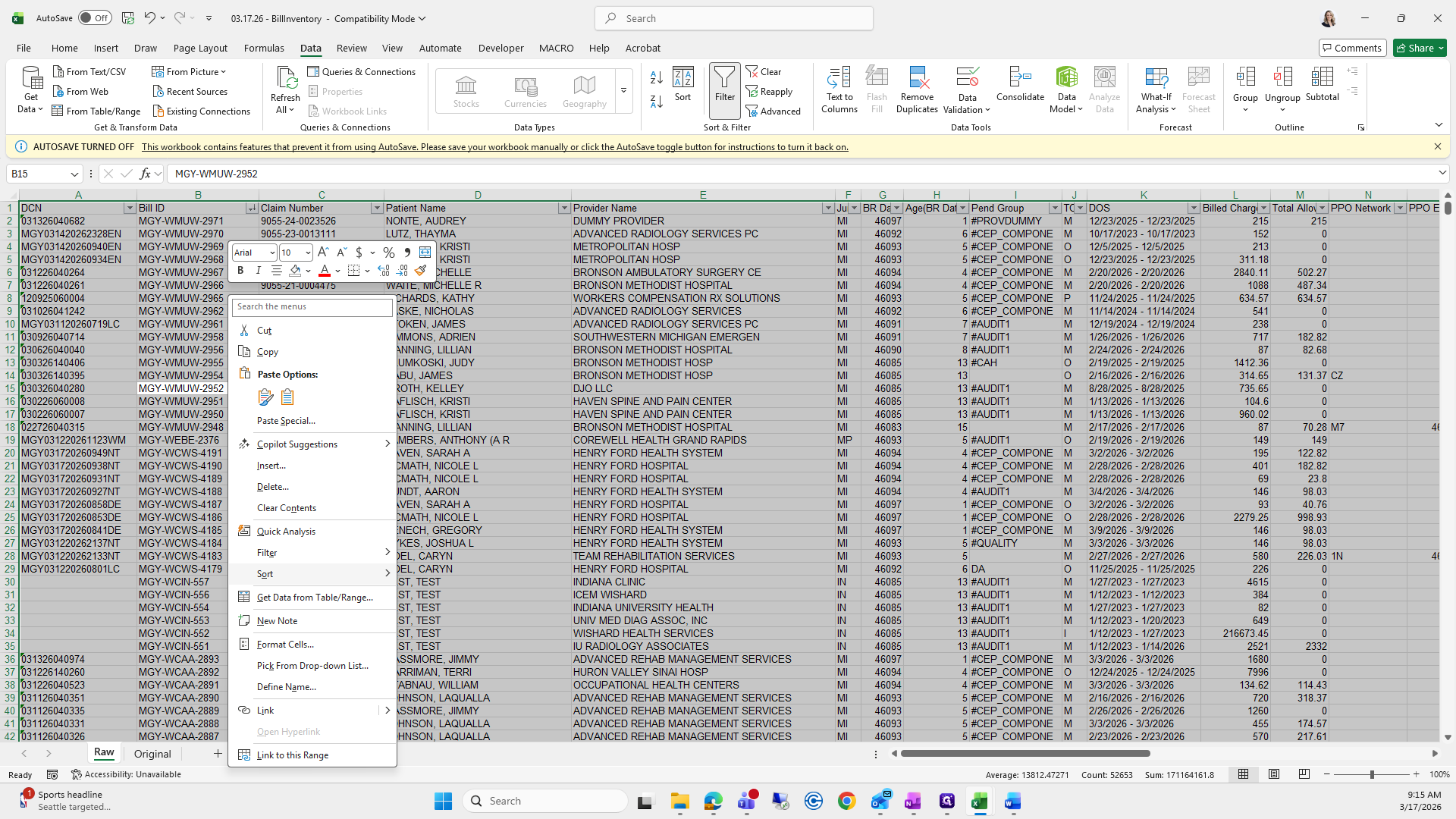
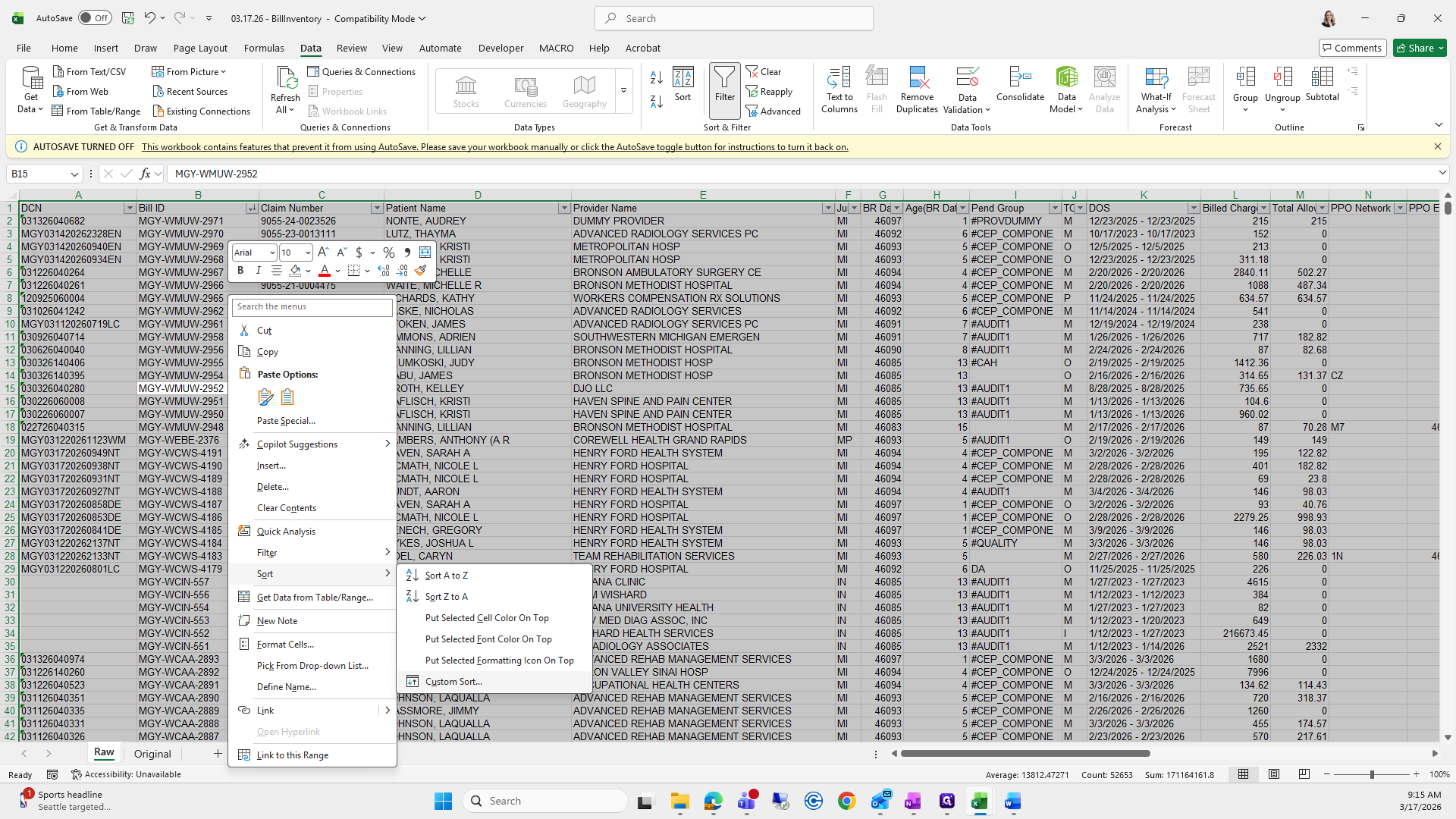
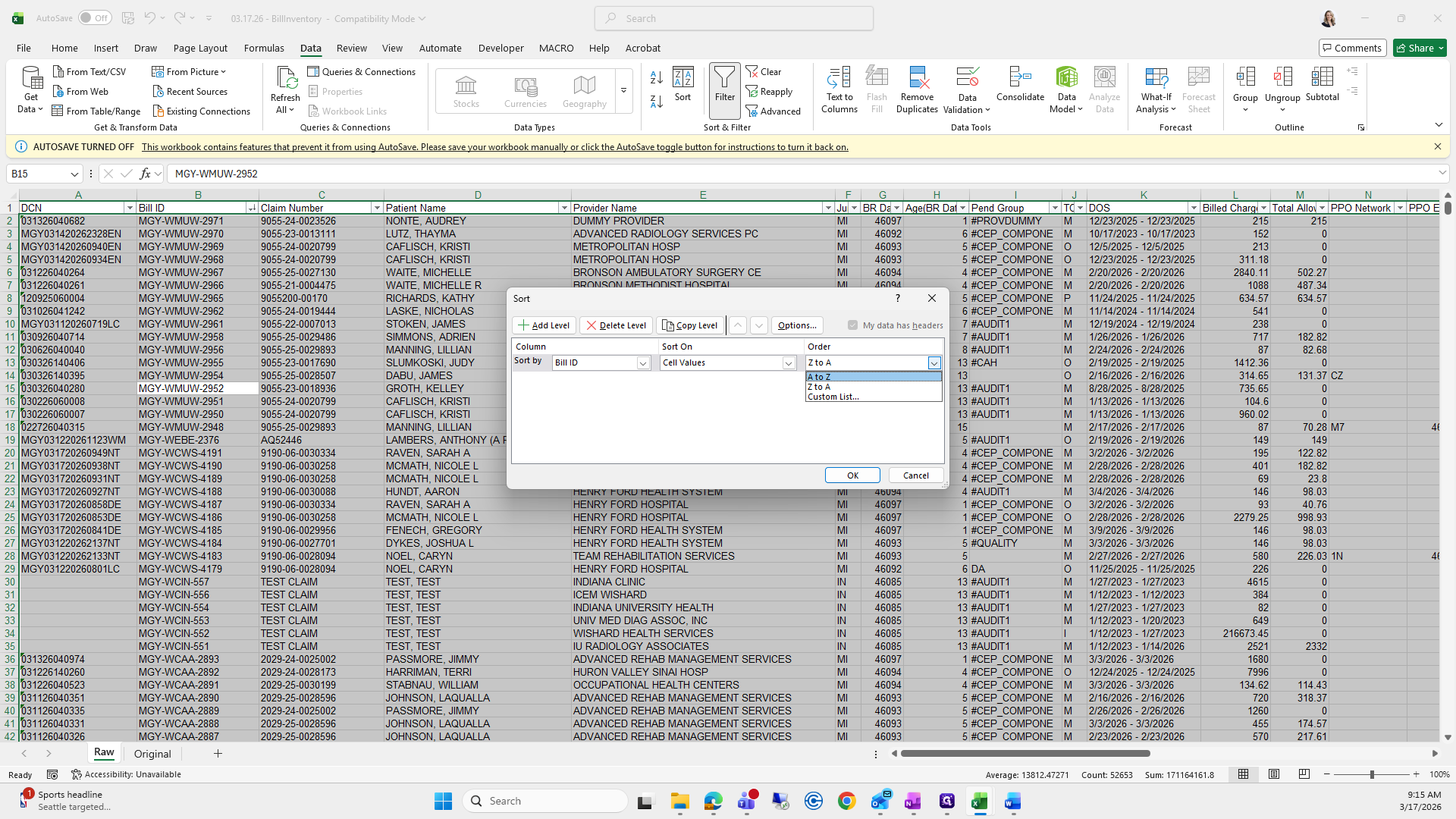
Select all and sort by bill ID, from Z to A. Remove all unnecessary items.
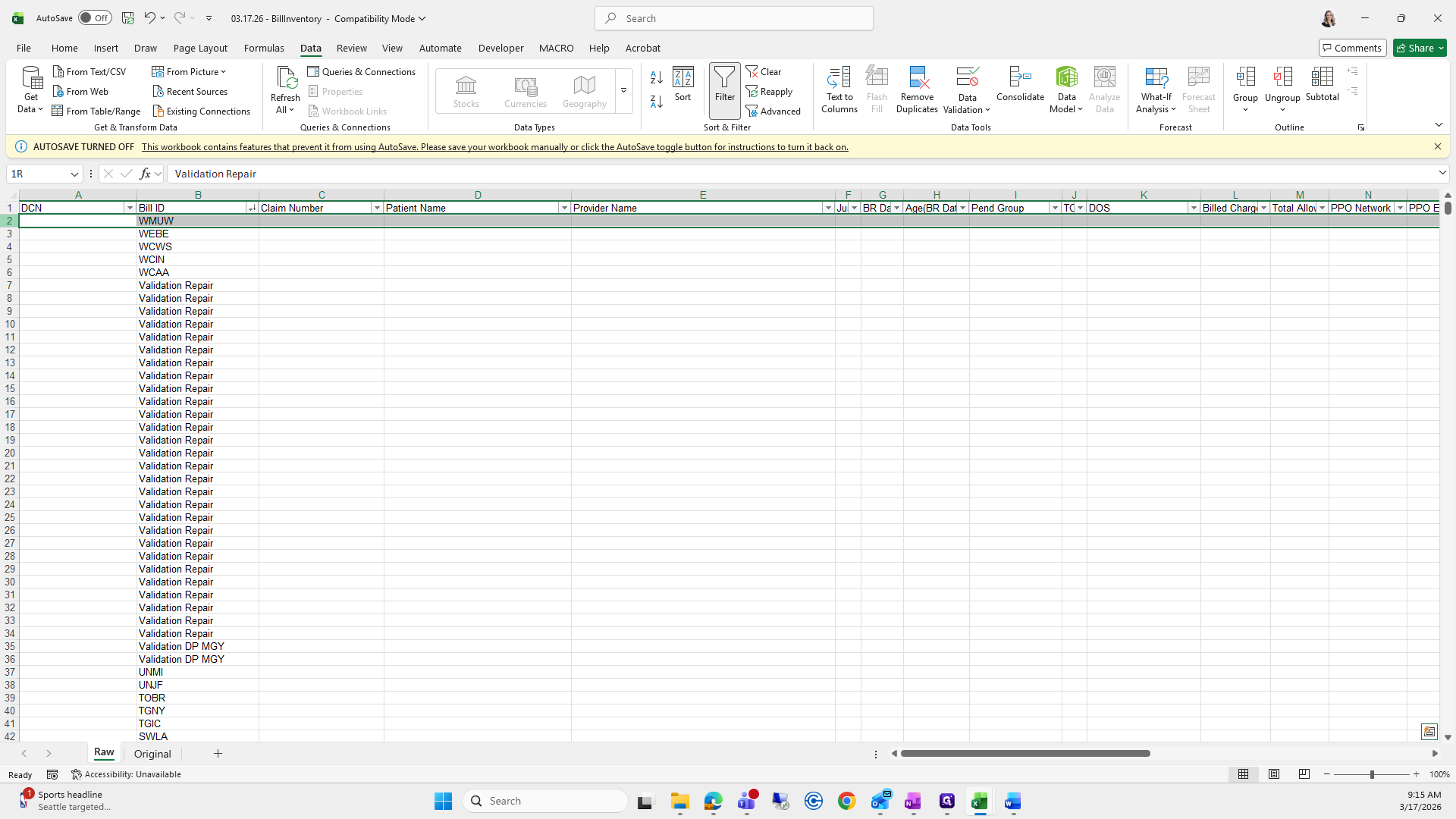
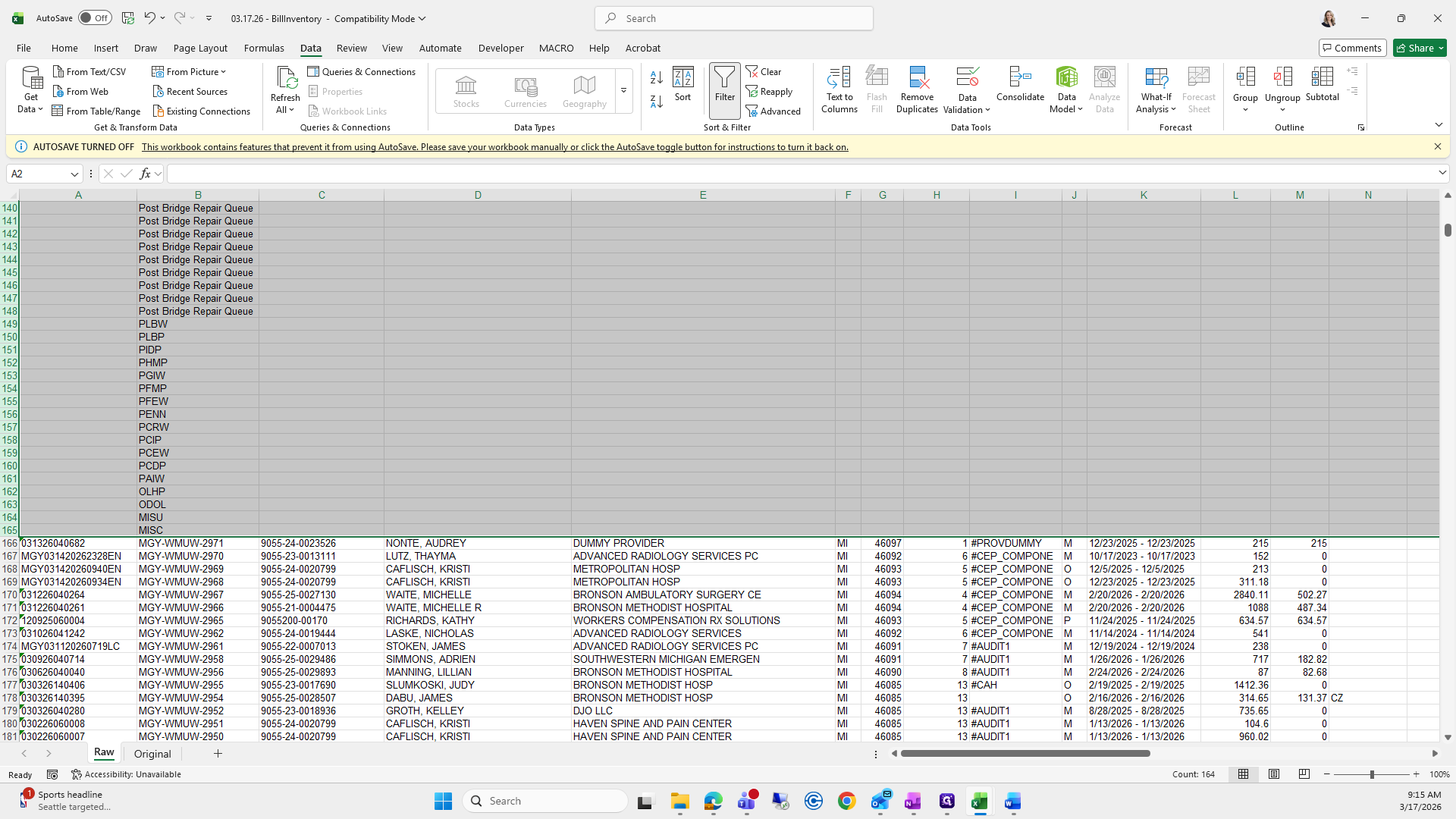
""
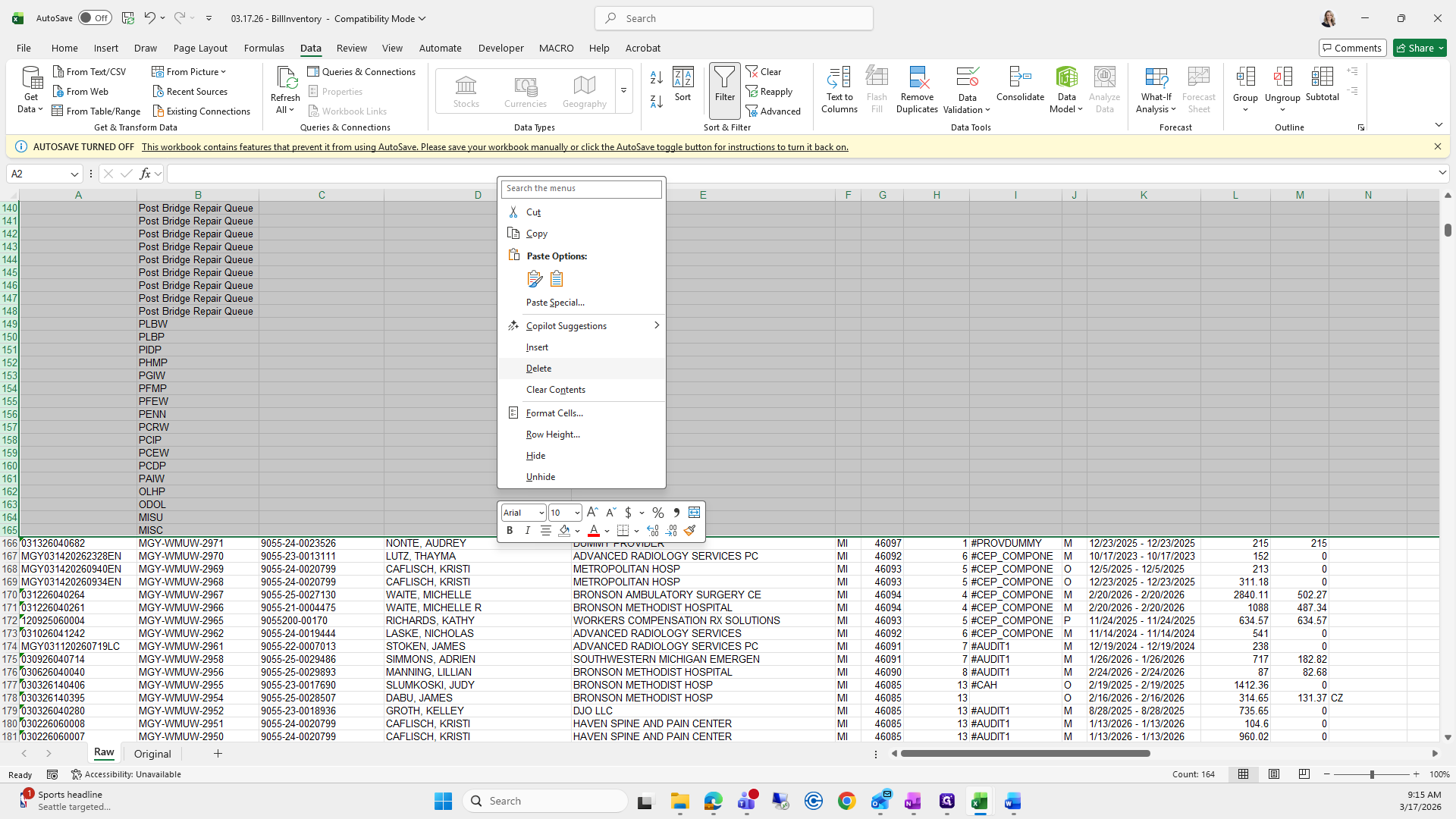
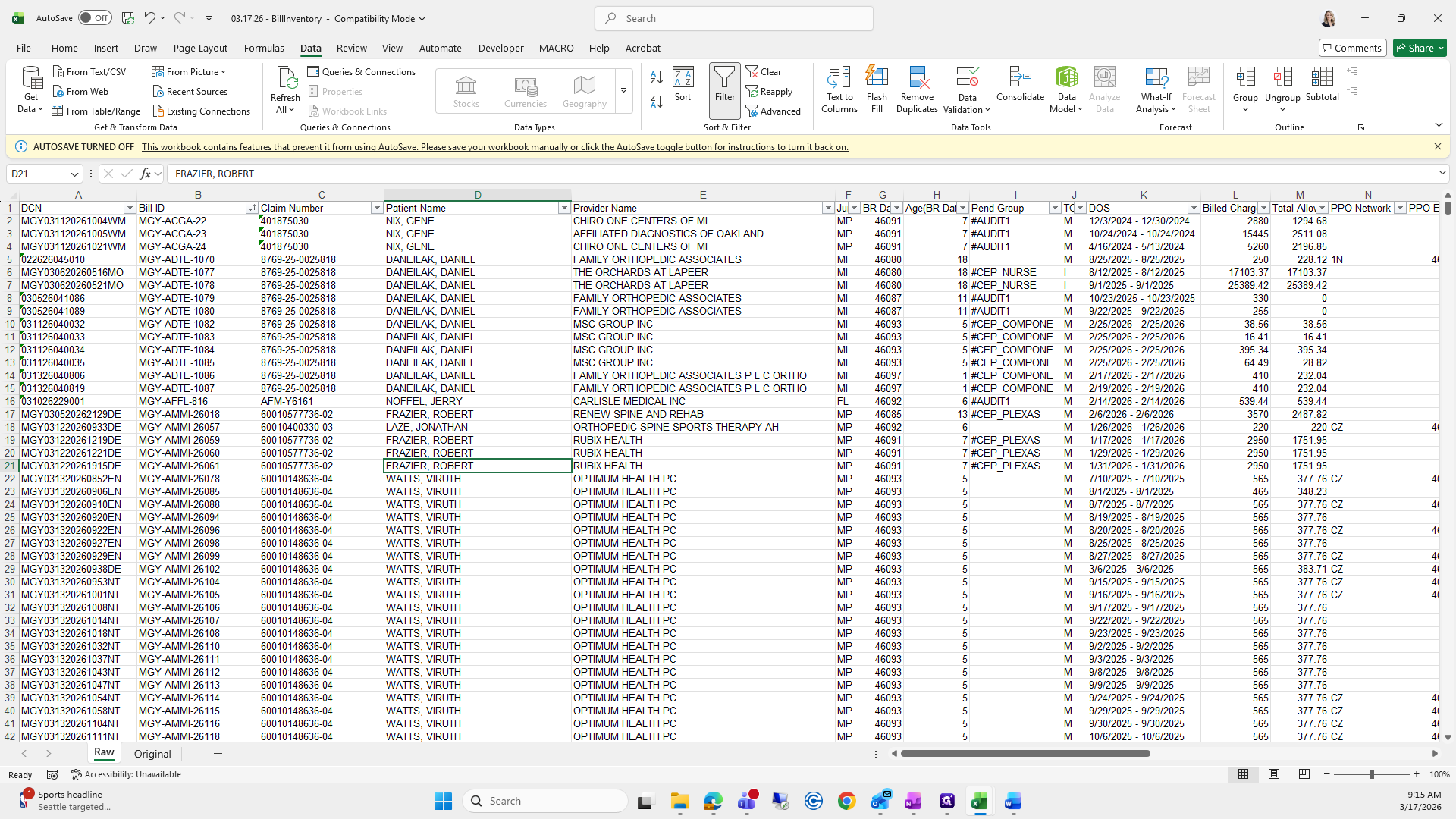
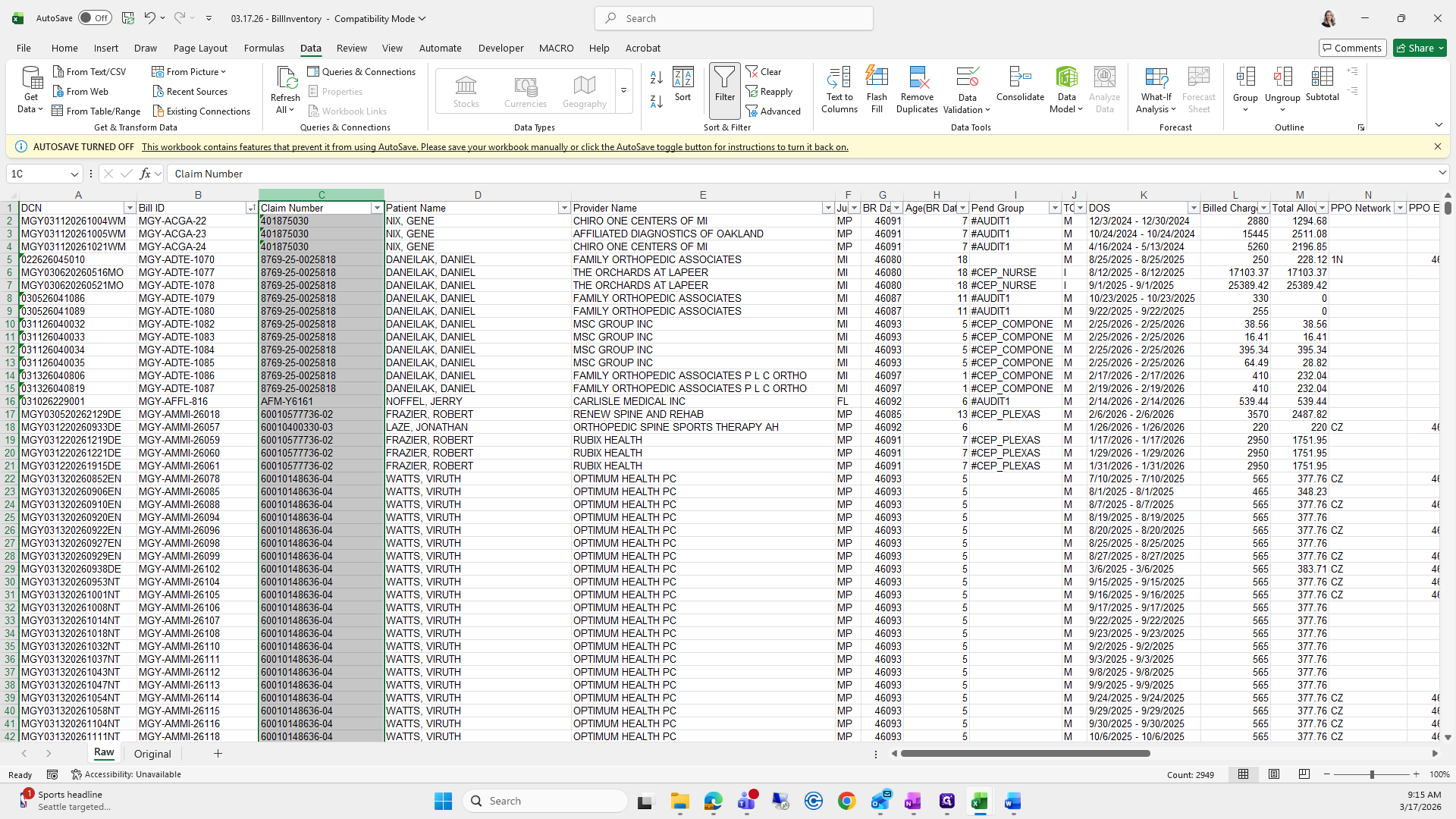
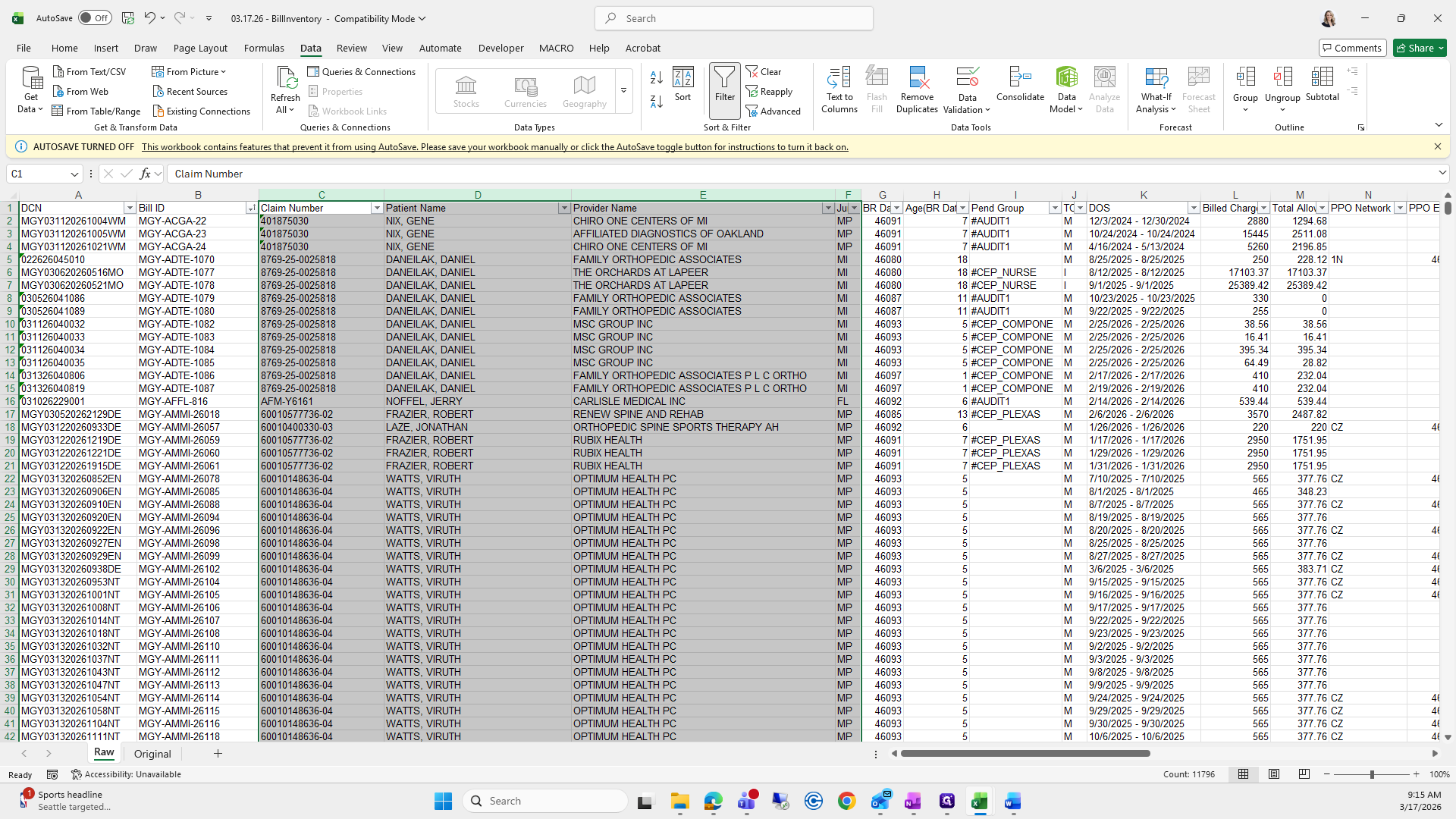
Next, sort the data from A to Z. Then, insert four new columns after column B.
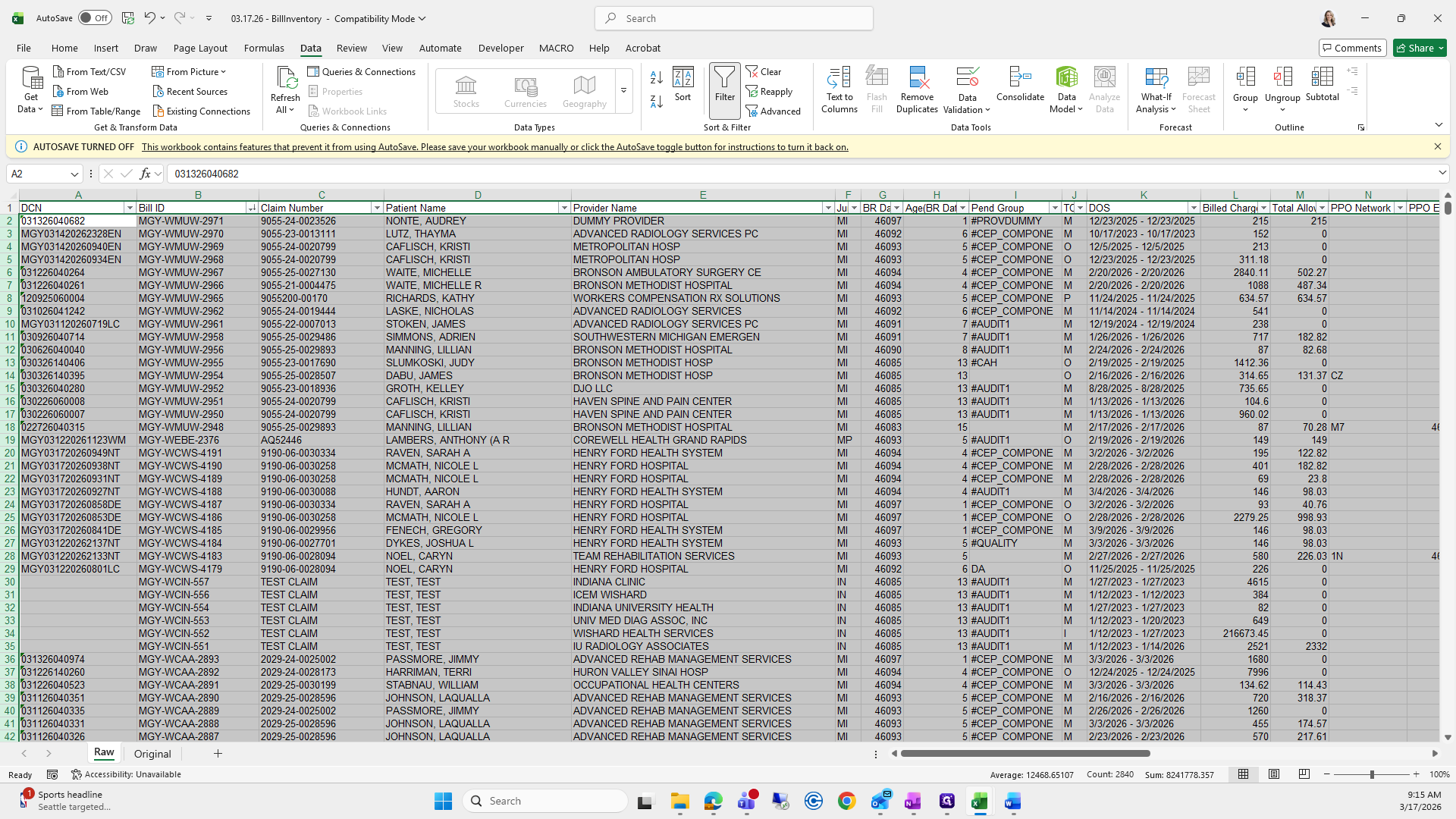
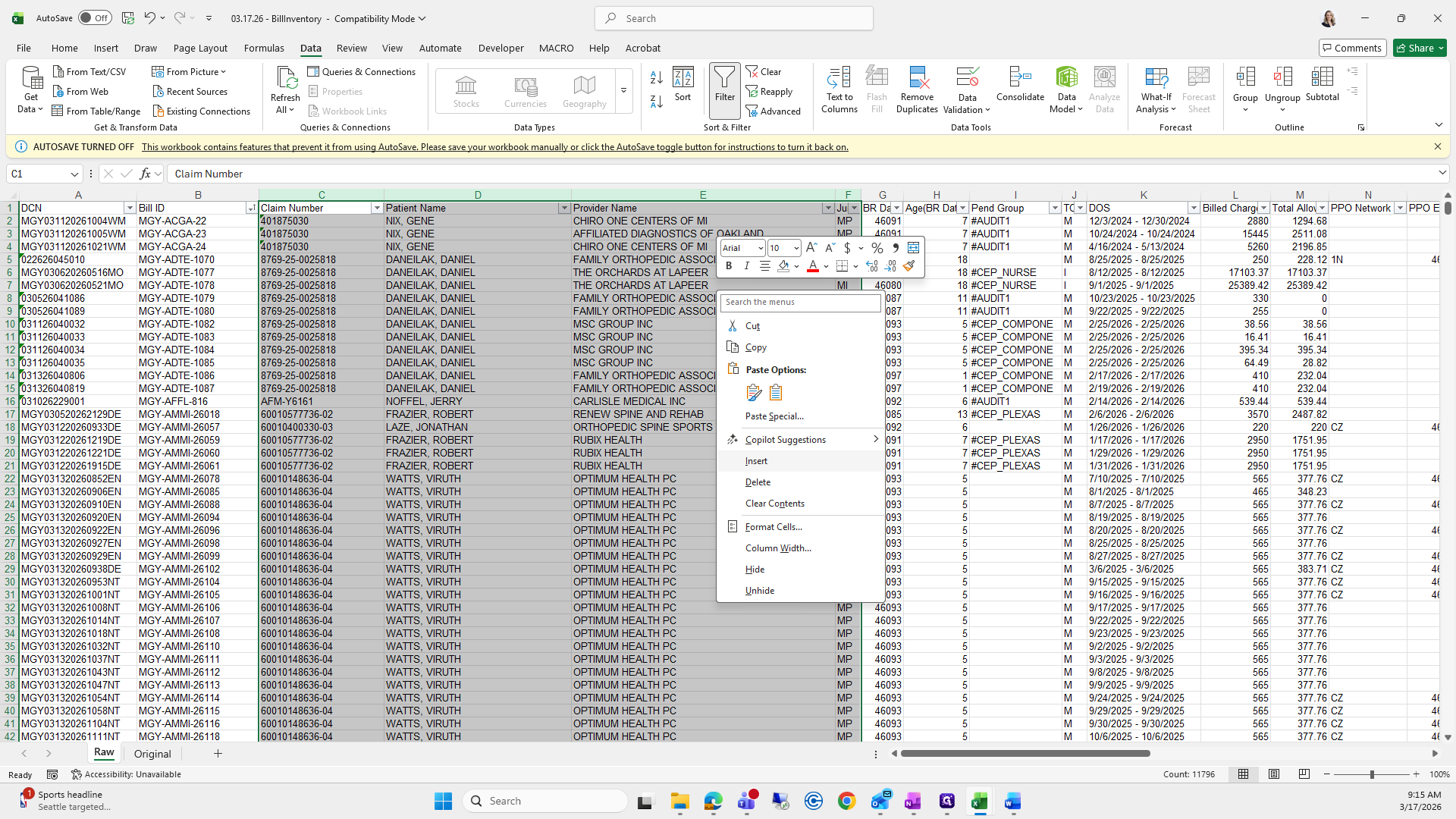
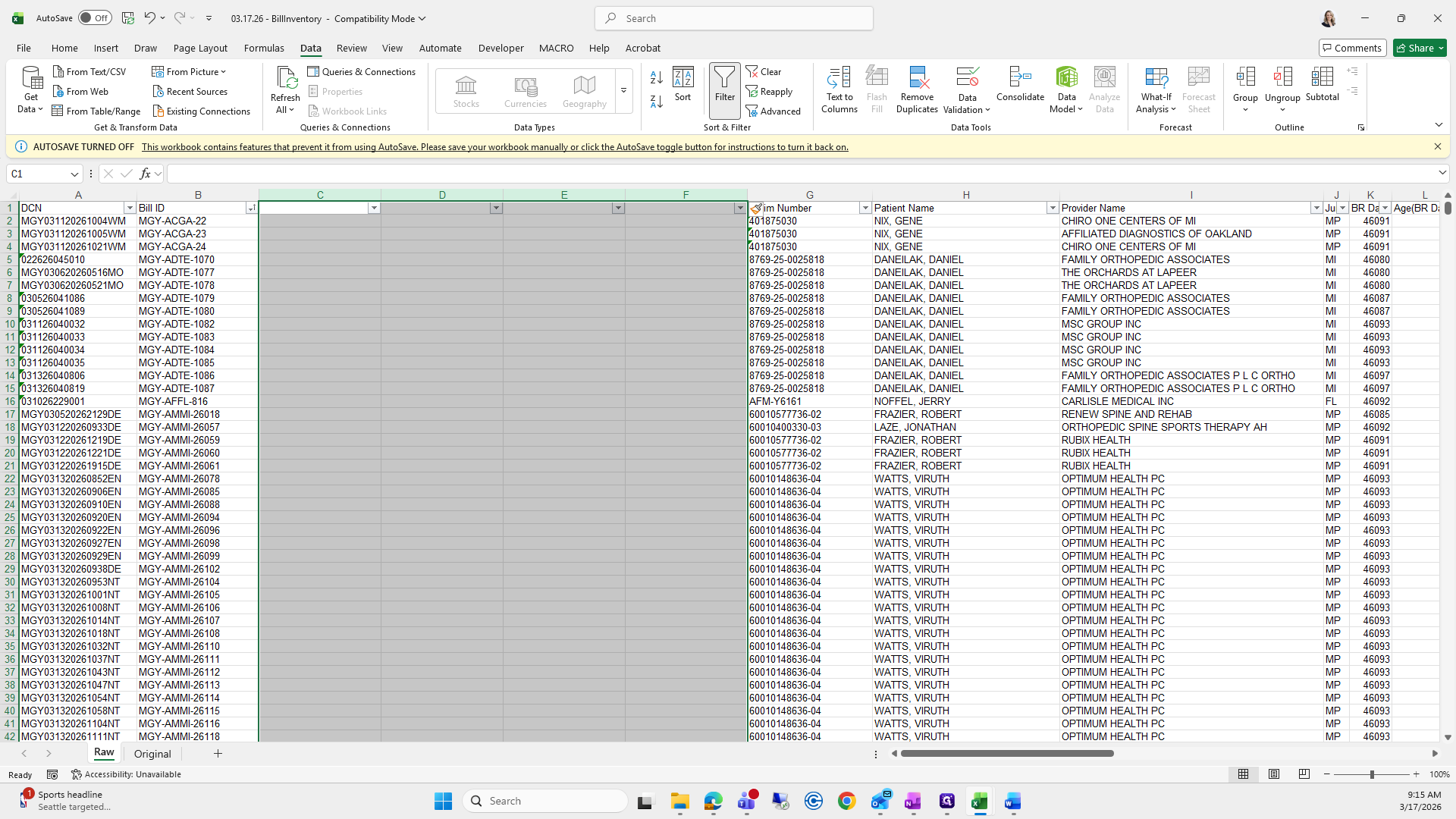
I'll stop here because our recording will end in about 10 seconds. I'll restart for the next steps in the following recording.