How to Prepare and Save a Label as a PDF
Learn step-by-step instructions on how to prepare a label, select a customer, and save the label as a PDF file. Follow this easy guide for efficient label management.
By Bismark Sam
In this guide, we'll learn how to prepare a label by selecting a customer, updating details, and saving the file as a PDF. This process helps ensure that the correct information is included and stored in the right location.
We'll cover each step from choosing the customer to saving the final document.
Let's get started
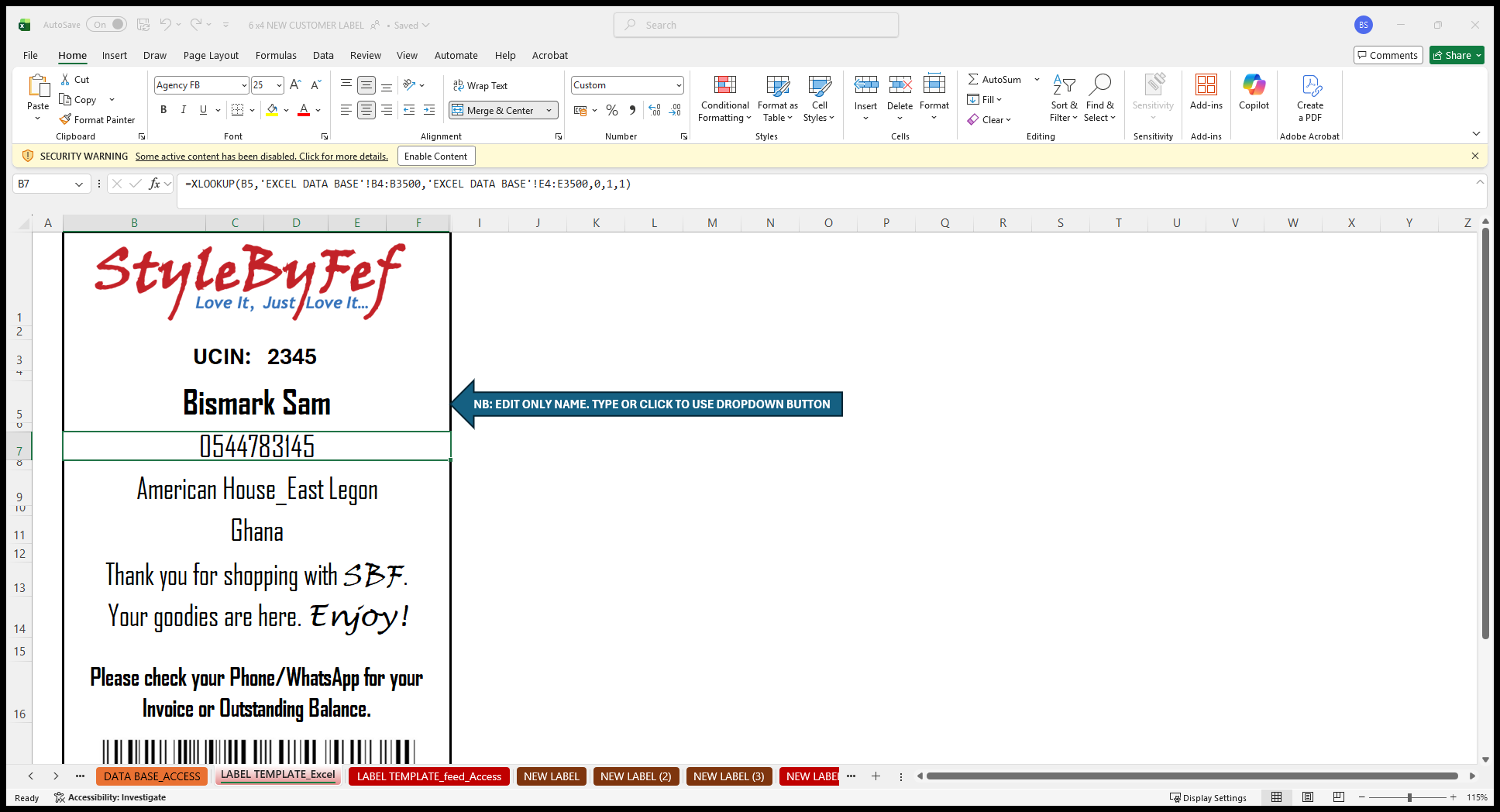
To prepare a label, identify the customer by typing their name.
1
Click here
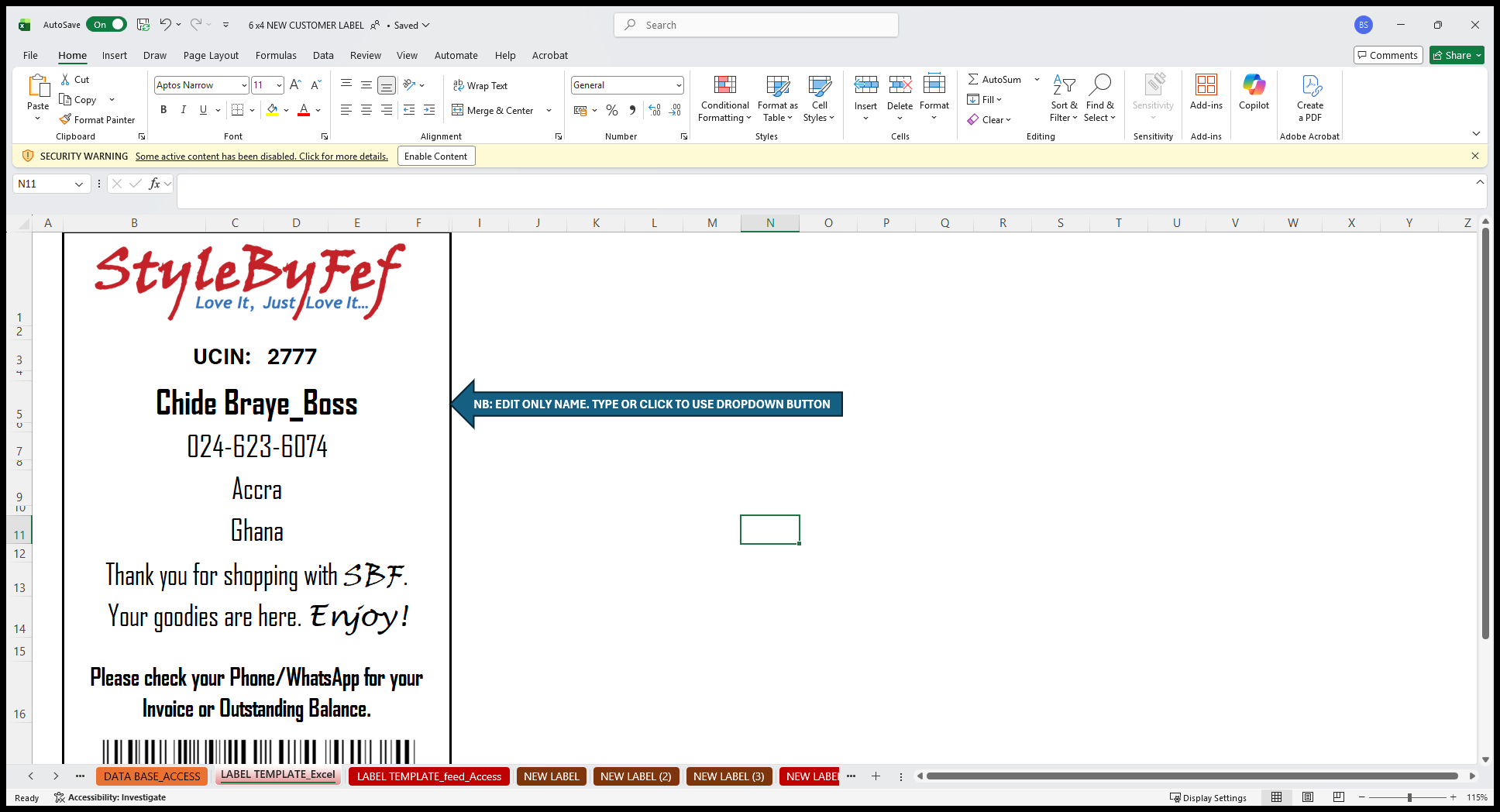
2
Click on "Braye_Boss"
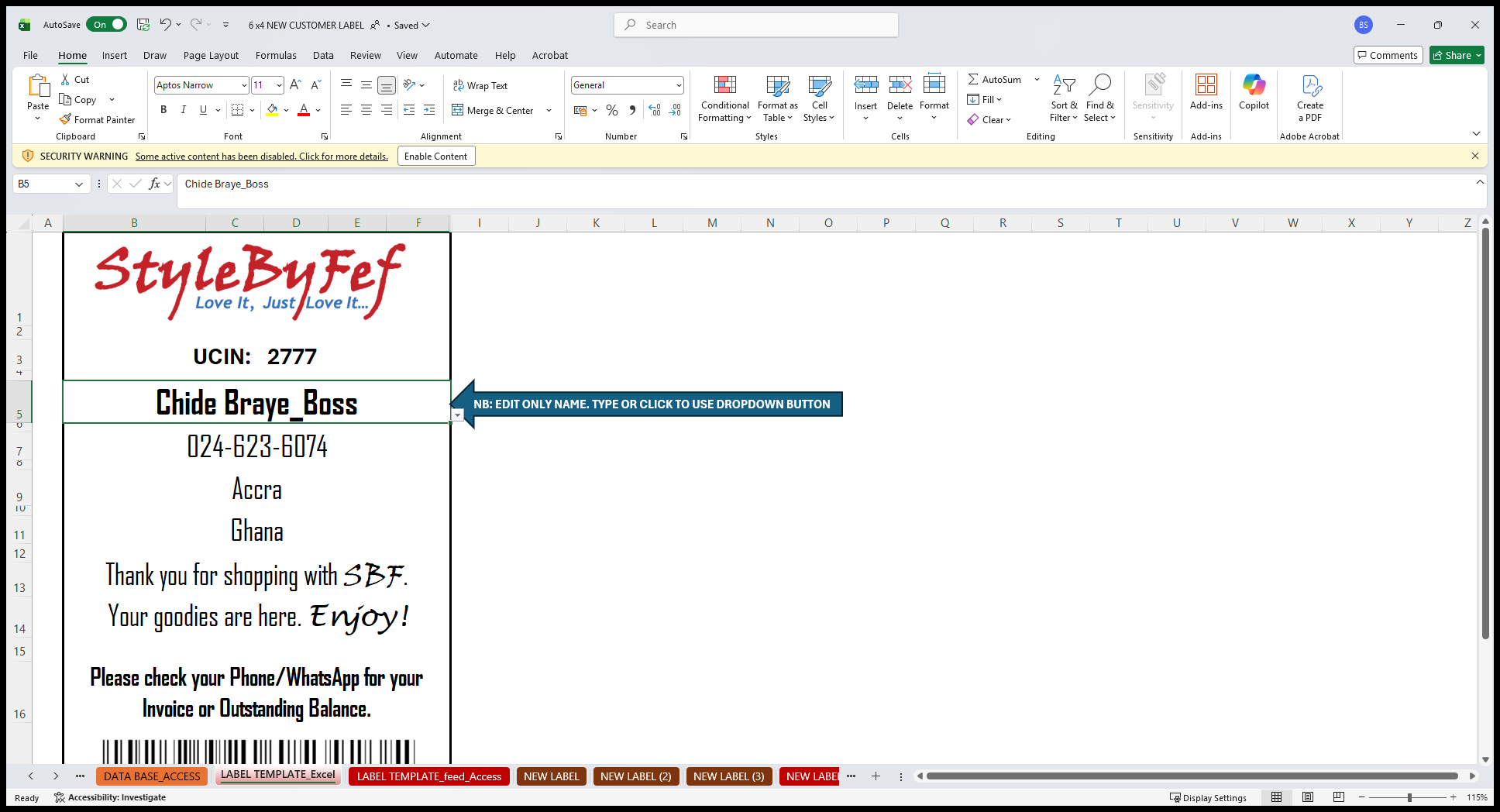
Click on the person to select them.
3
Click here
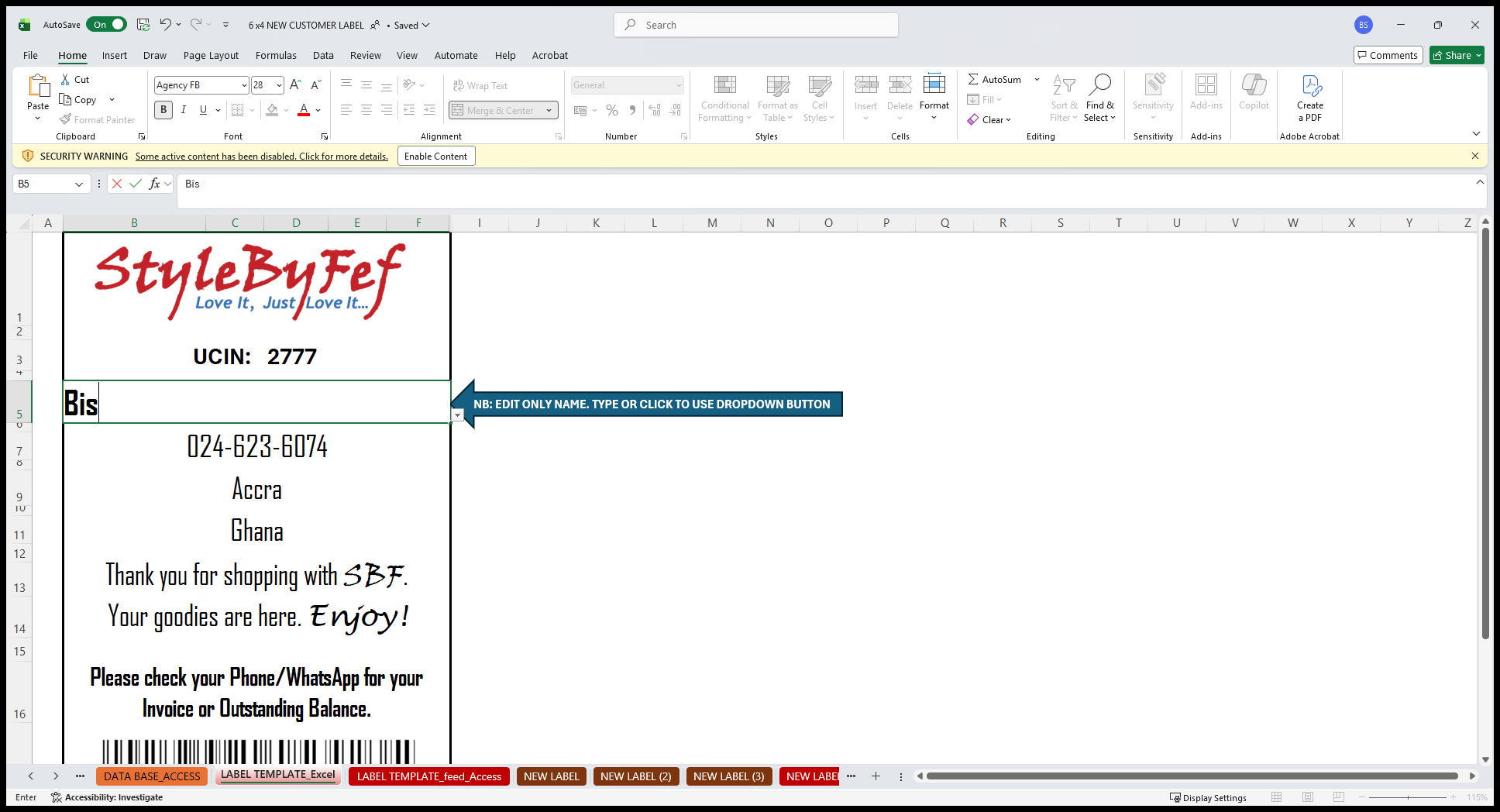
Now, the other details update automatically.
4
Click on "Bismark Sam"
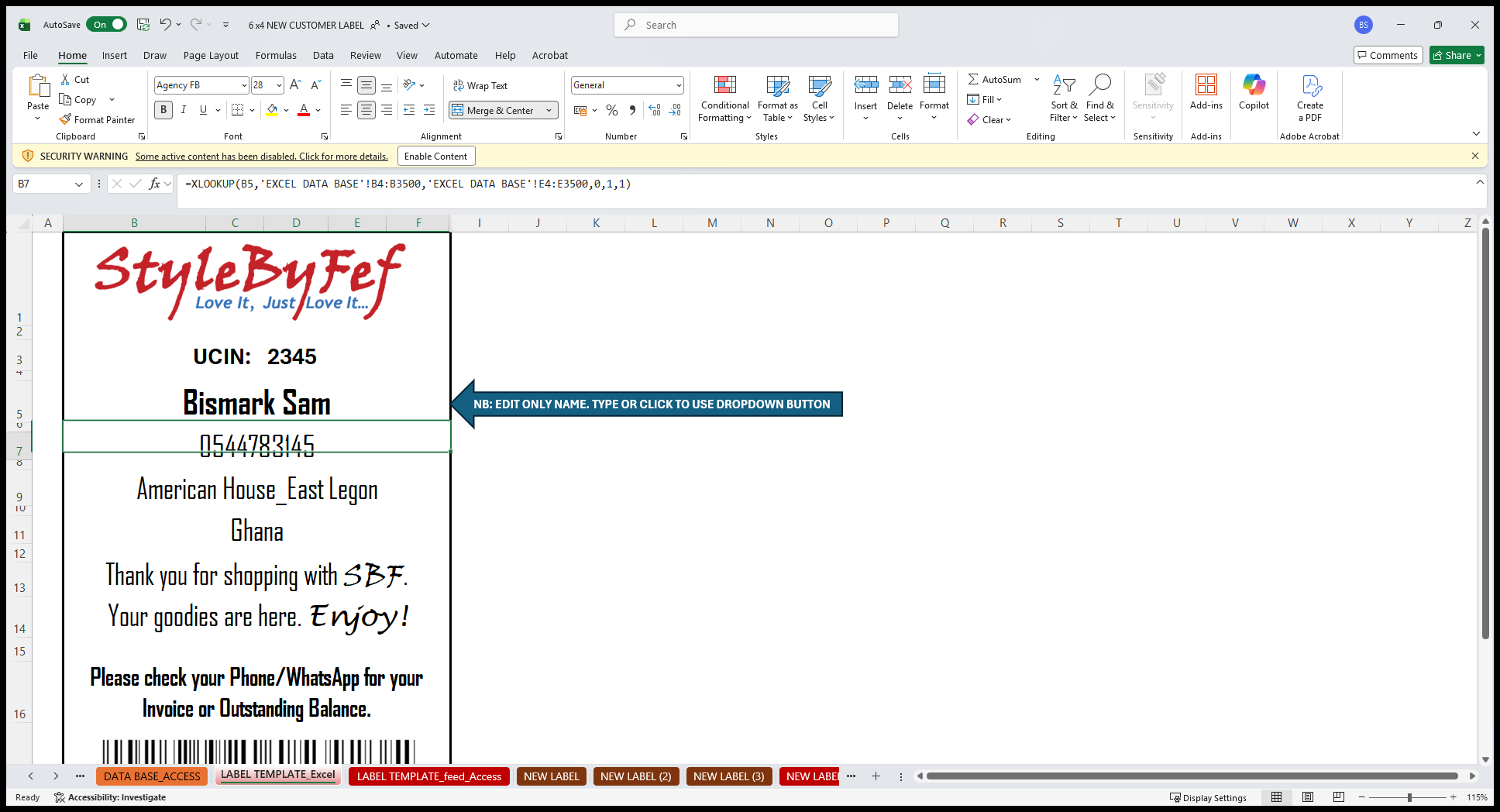
Then go to File.
5
Click here
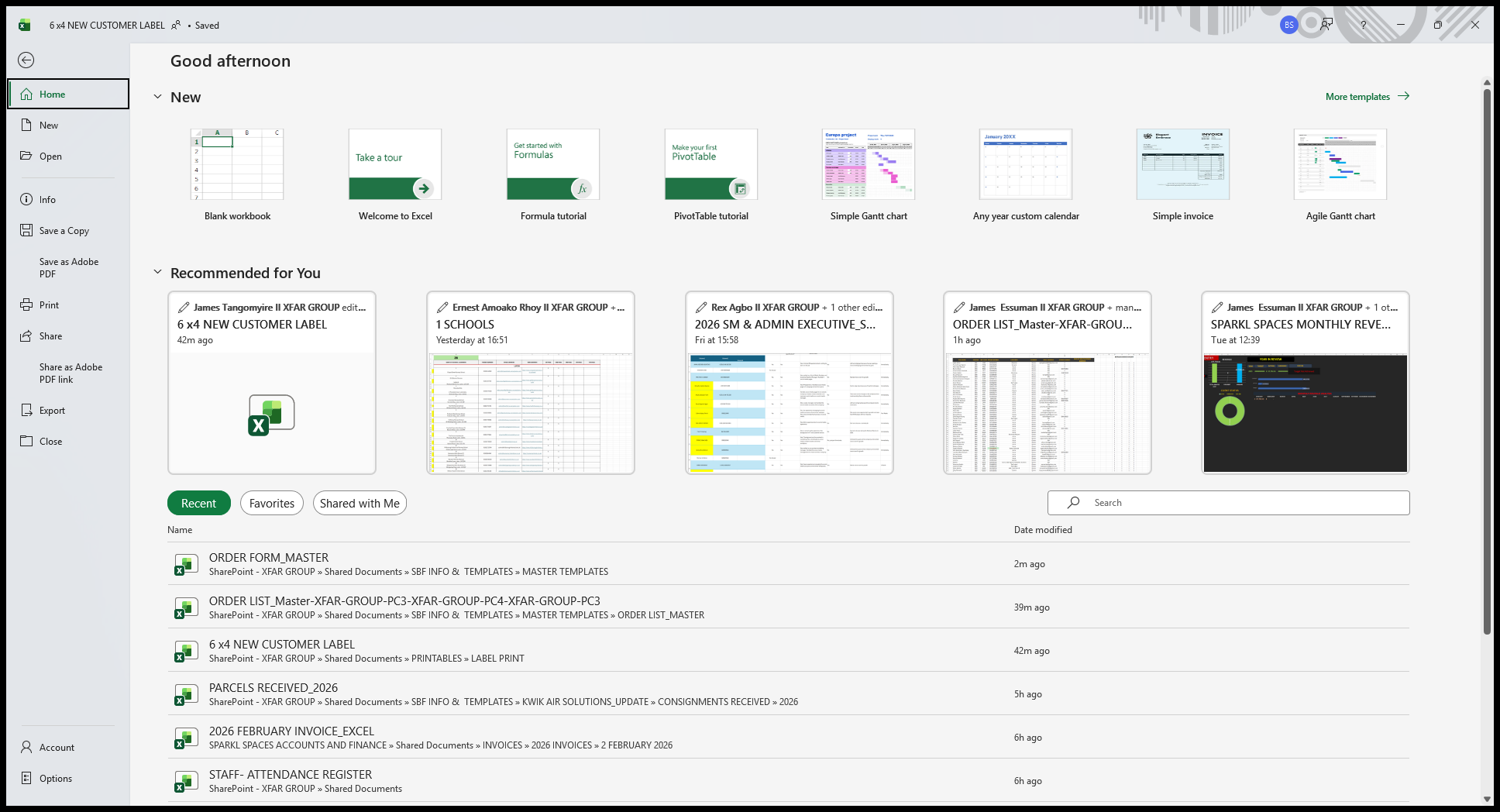
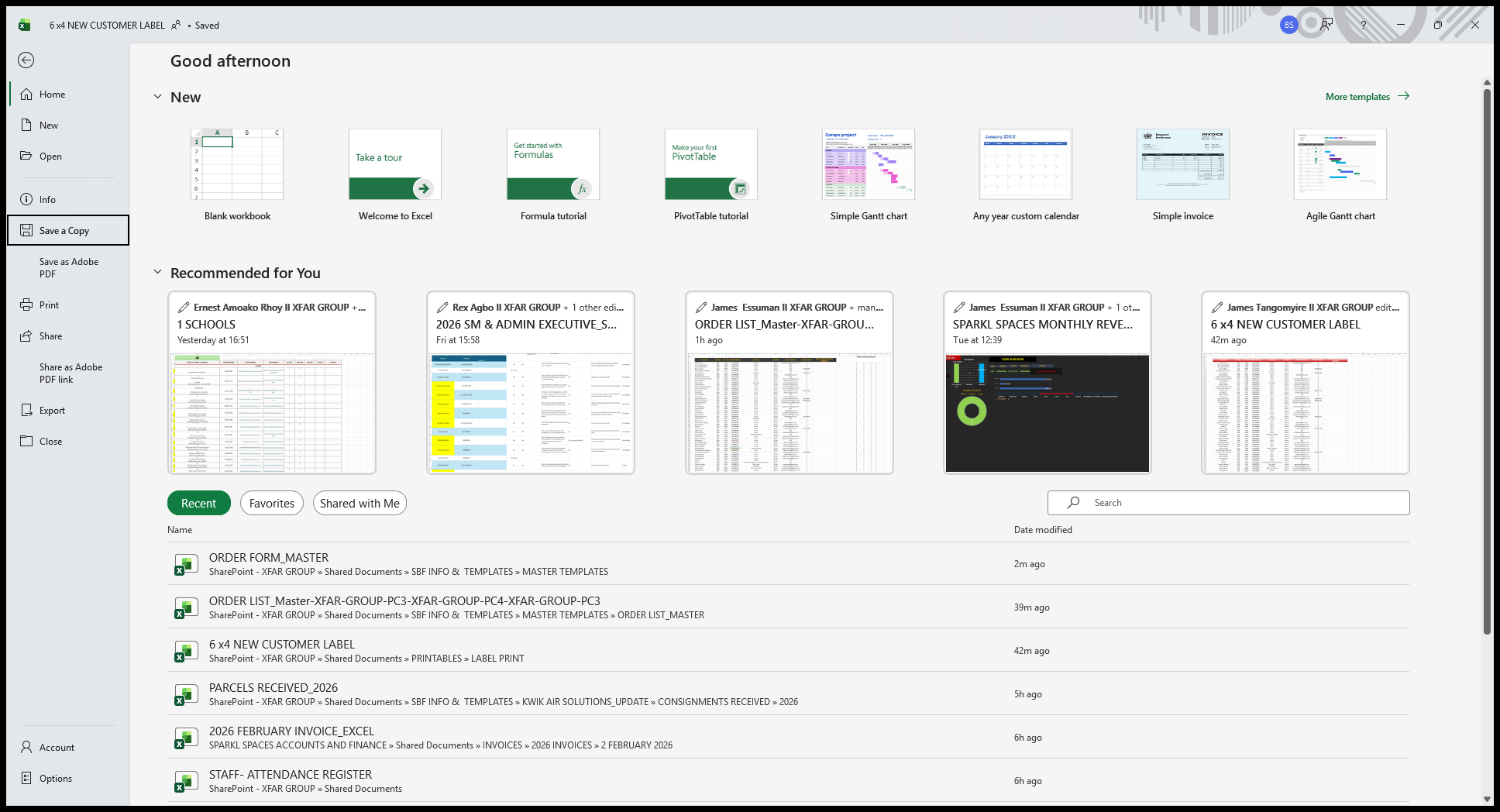
You will now go to Save a Copy.
6
Click here
7
Click here
The location for saving the copy...
8
Click on "Add a Place"
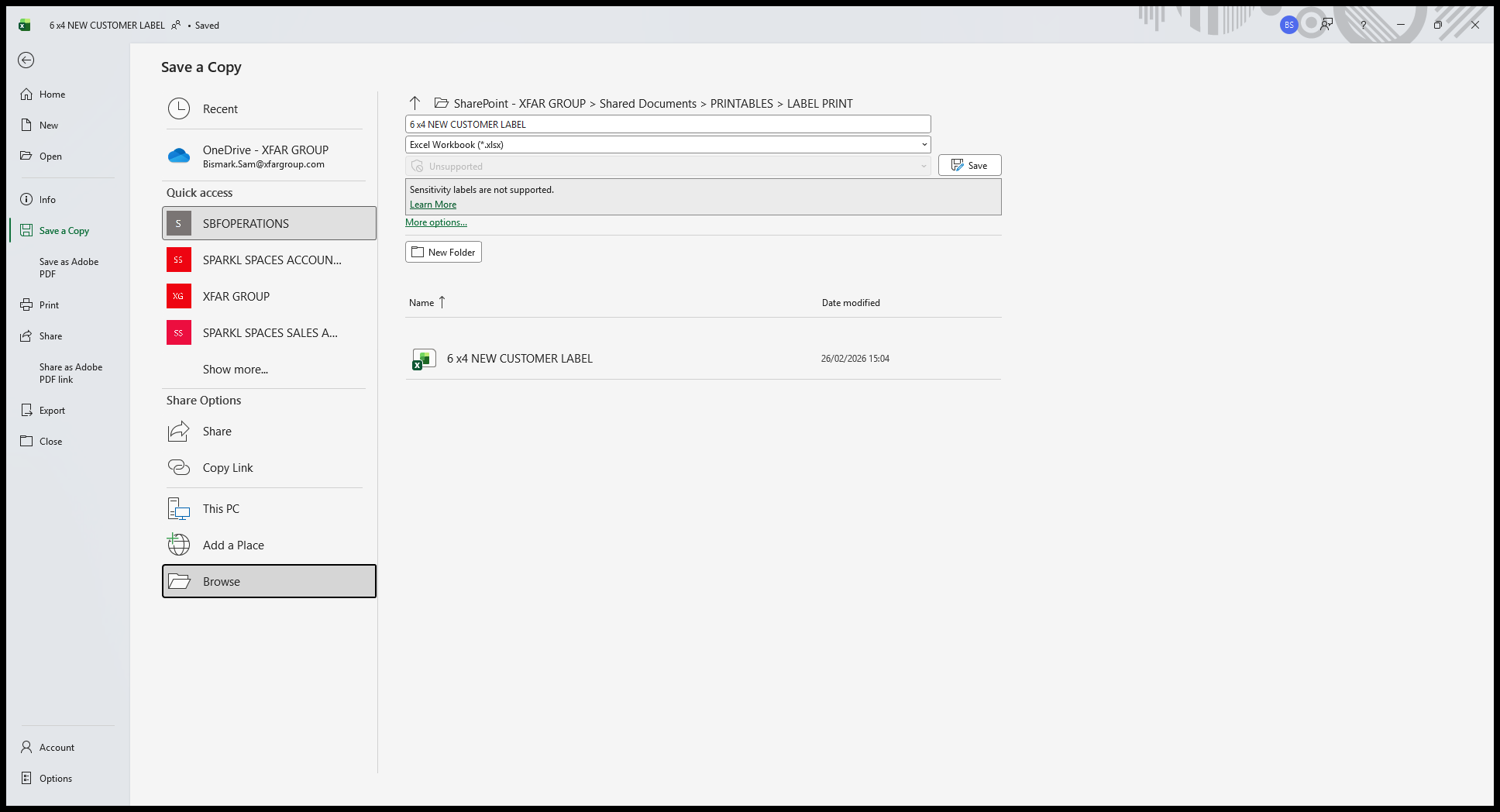
9
Double-click here
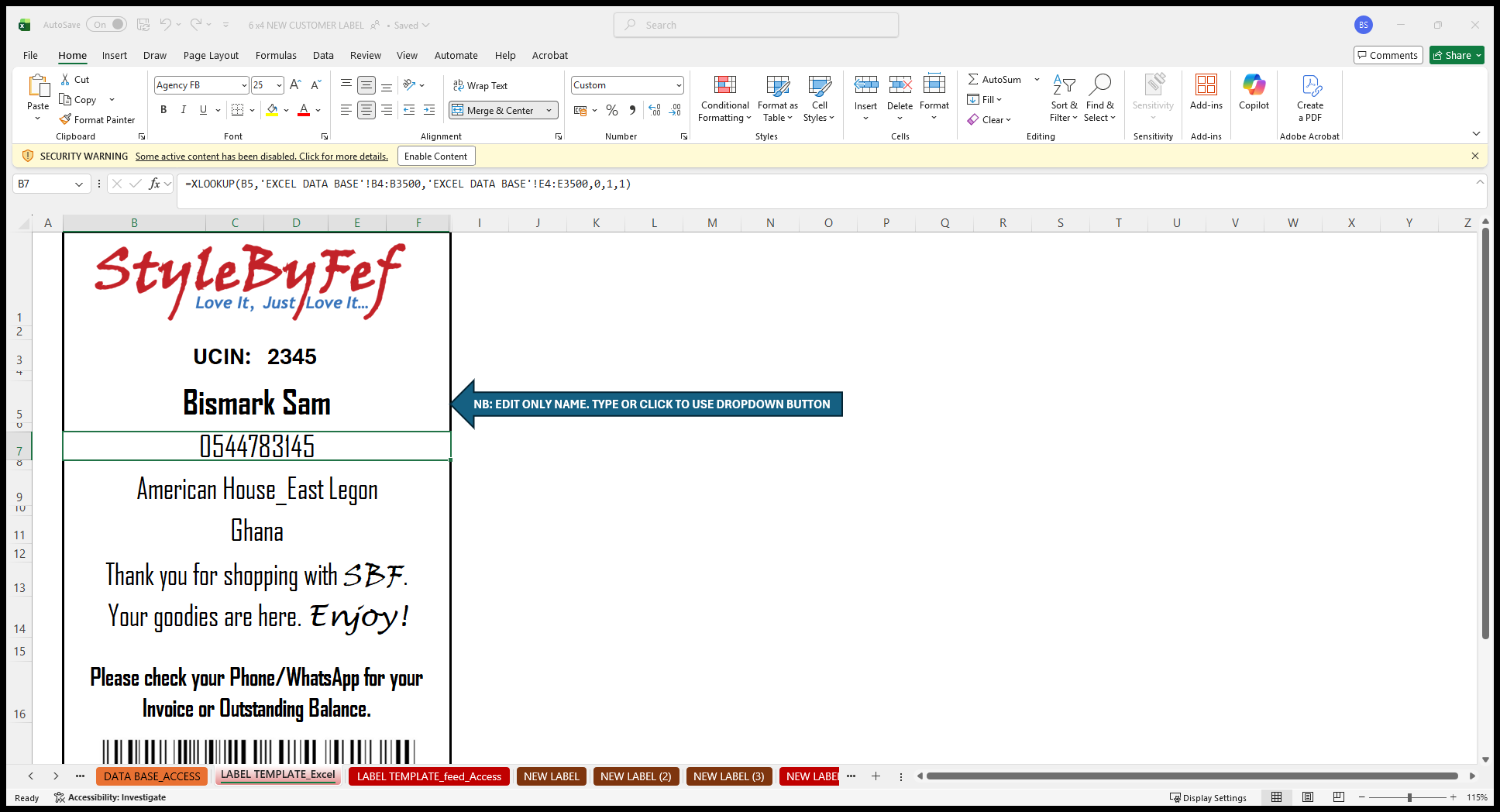
Is this location.
10
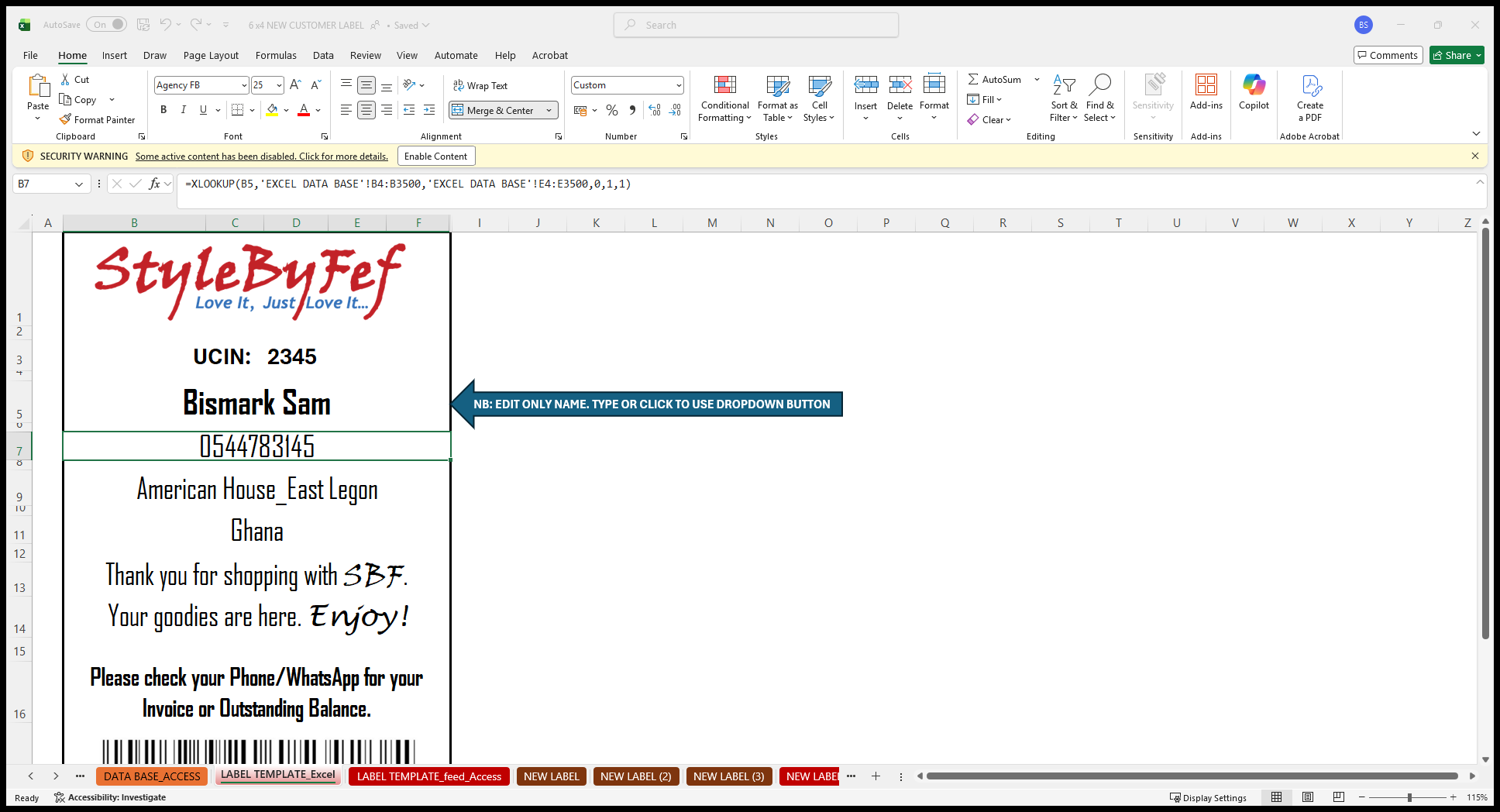
Click on "= XLOOKUP ( B5"
11
Click on "SECURITY WARNING Some active content has been disabled . Click for more details . Enable Content"
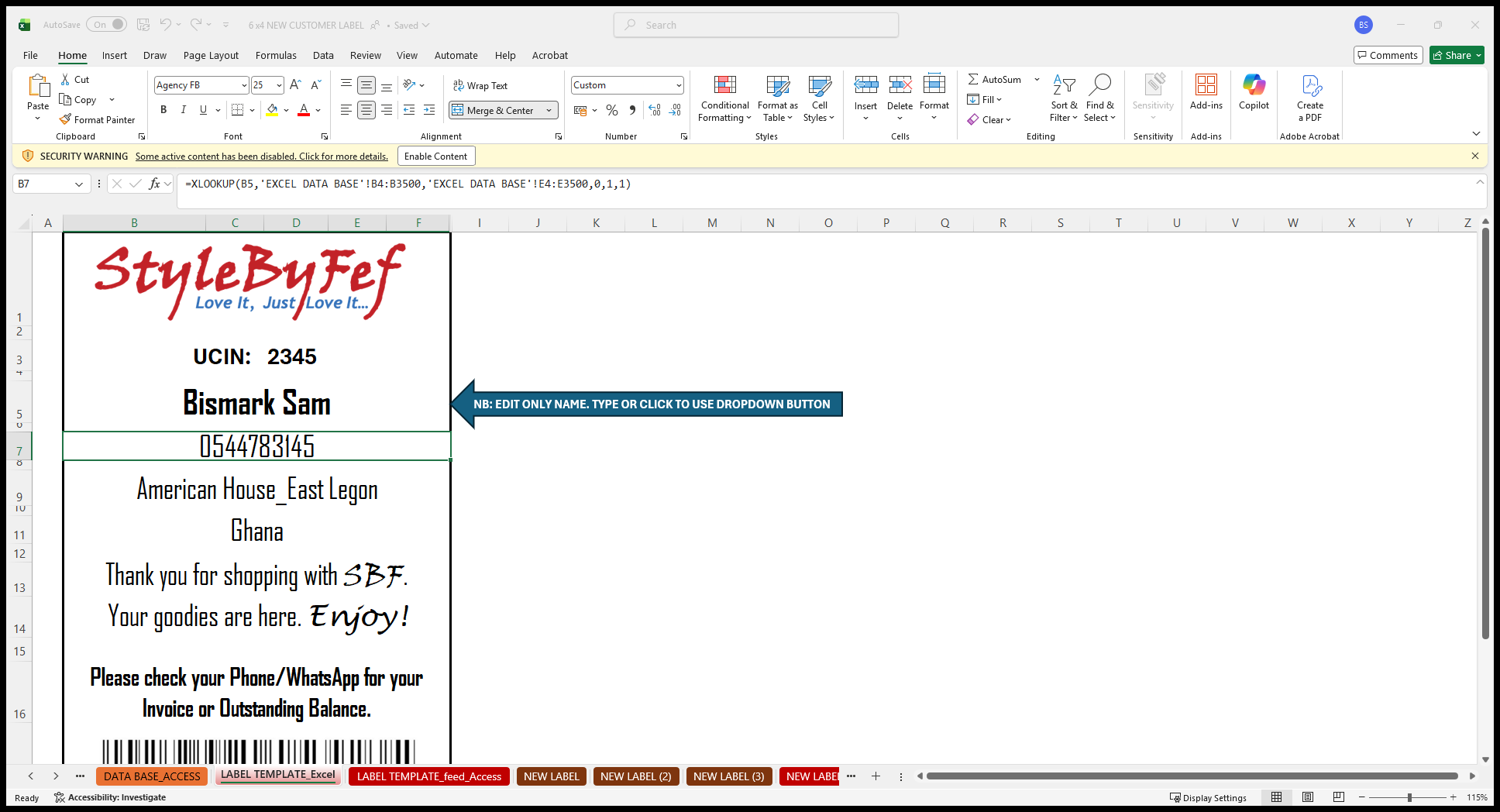
The file is in PDF format.
12
Click on "StyleBy Fef"
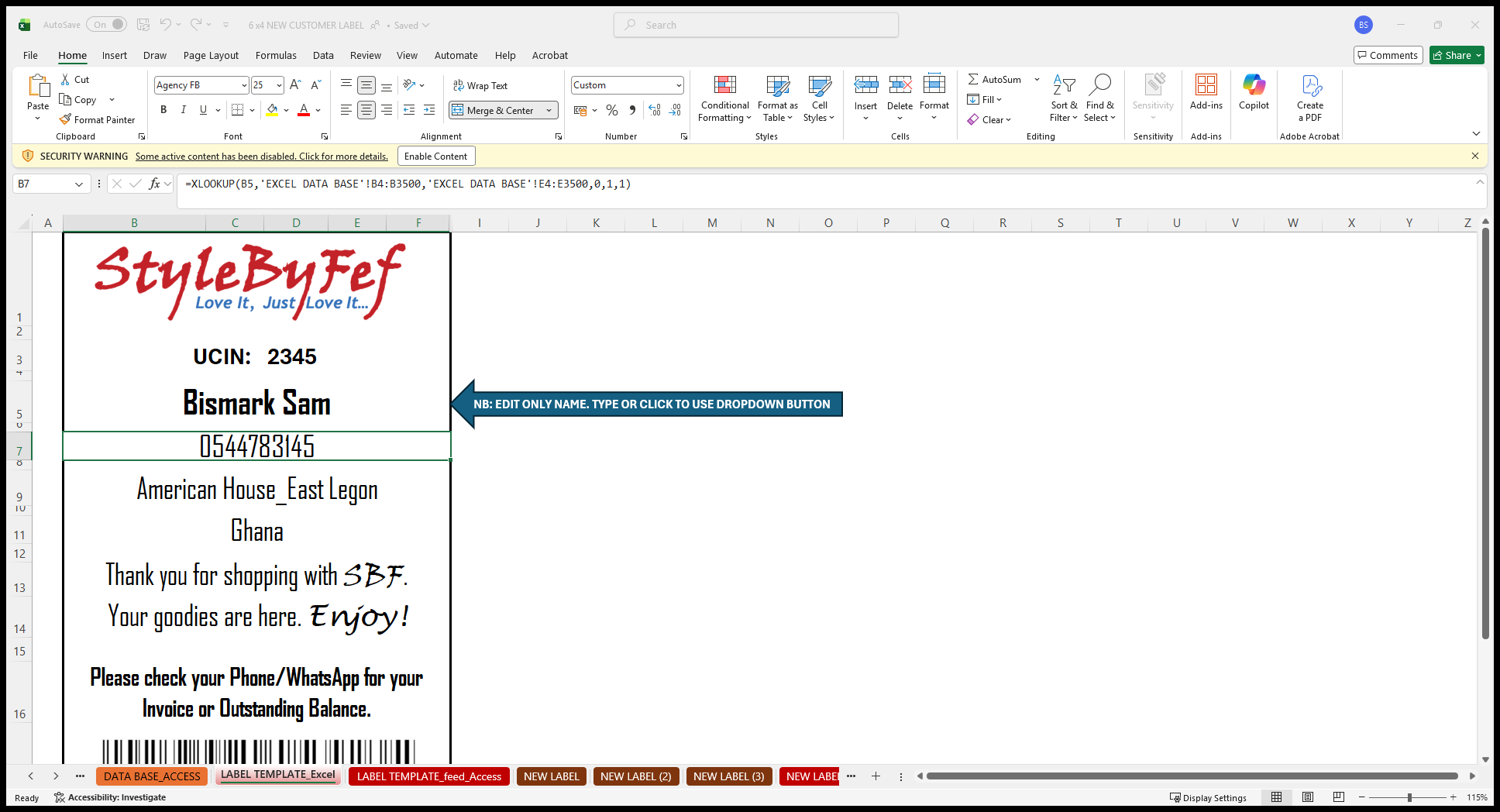
13
Click on "Your"
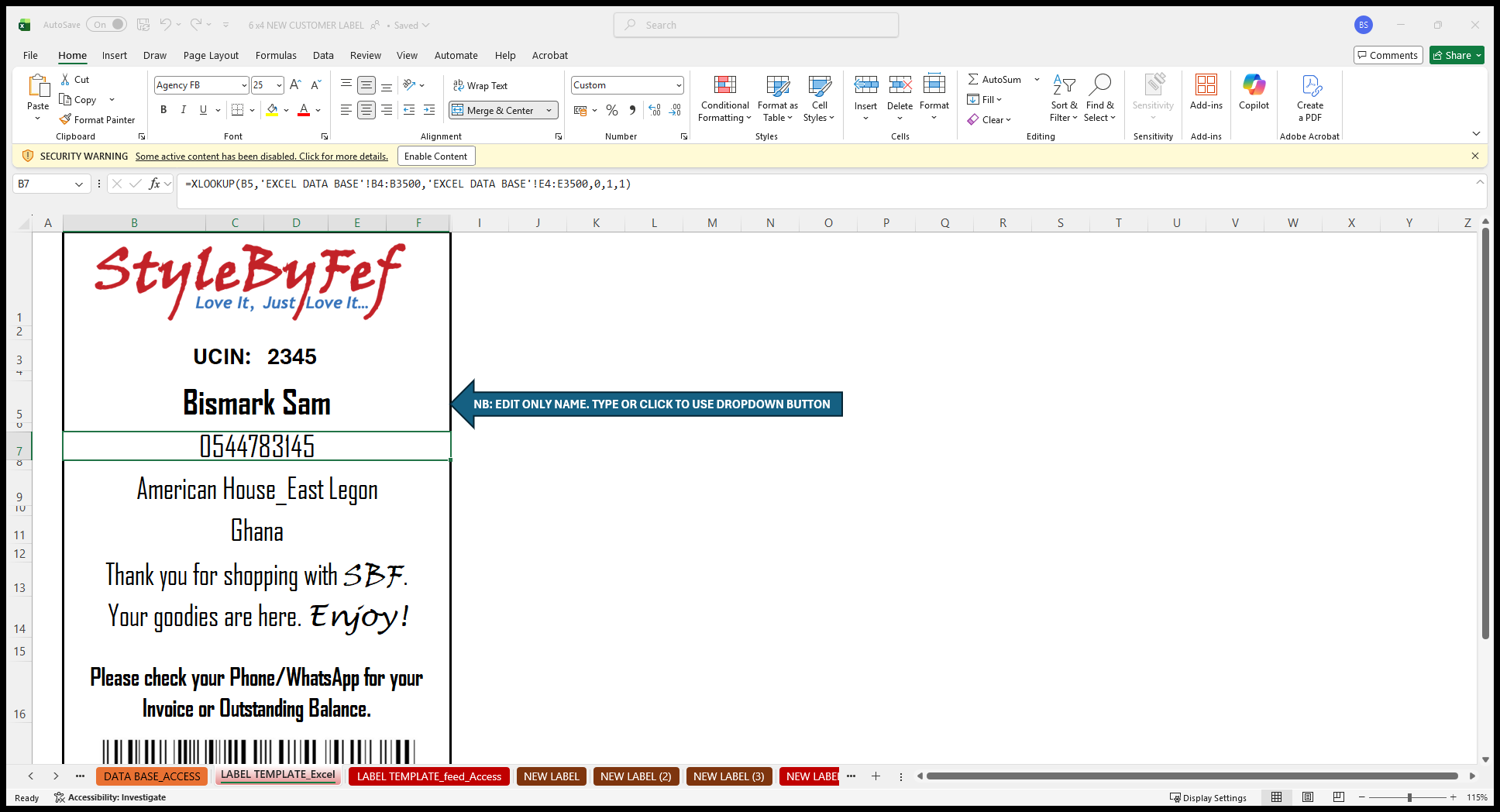
The file name...
14
Click on "StyleBy Fef"
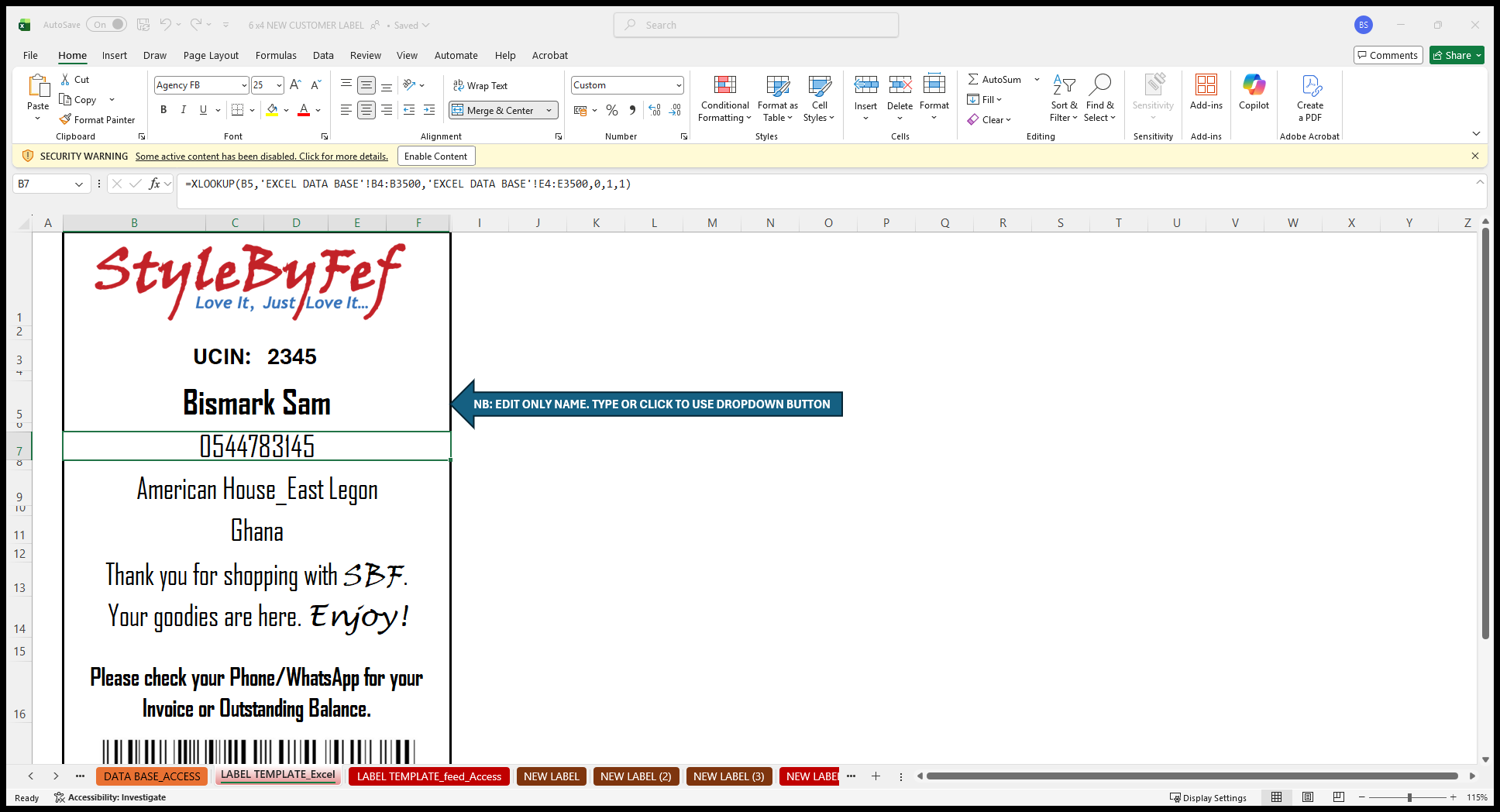
"" Then save.
15
Click here