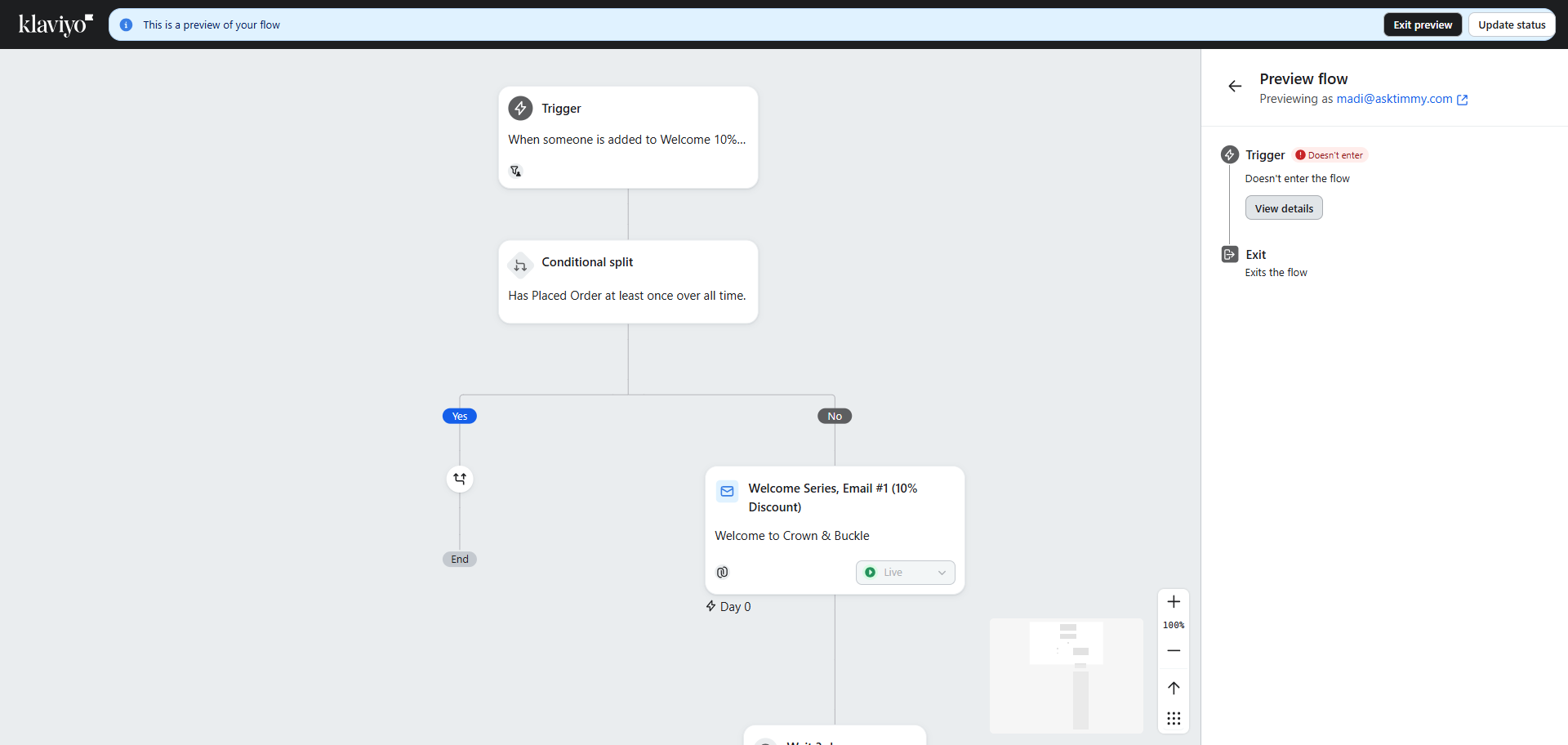
How to Preview and Troubleshoot Welcome Flow Entry Filters
Learn how to preview a Welcome Flow, enter a profile, and identify which filter is preventing entry. Step-by-step guide for troubleshooting flow filters.
By Hammad Razi
In this guide, we'll learn how to search for a Welcome Flow, select a flow, and use the preview feature to check user profiles. This process helps identify which filter is preventing a user from entering a specific room.
You will follow a series of steps to view details and understand filter restrictions.
Let's get started
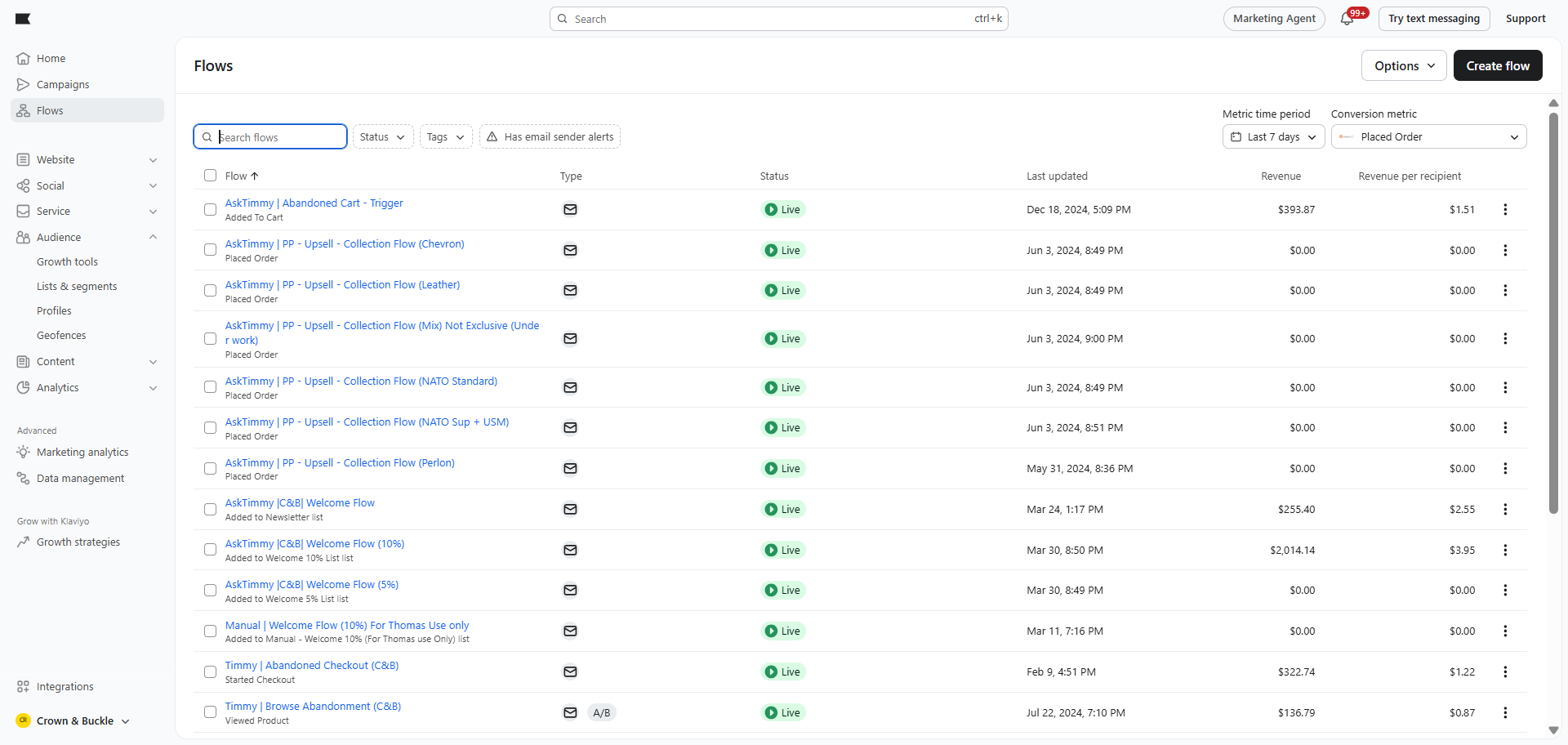
First, search for Welcome Flow.
1
Search (Welcome)
2
Click on the welcome flow you want to check
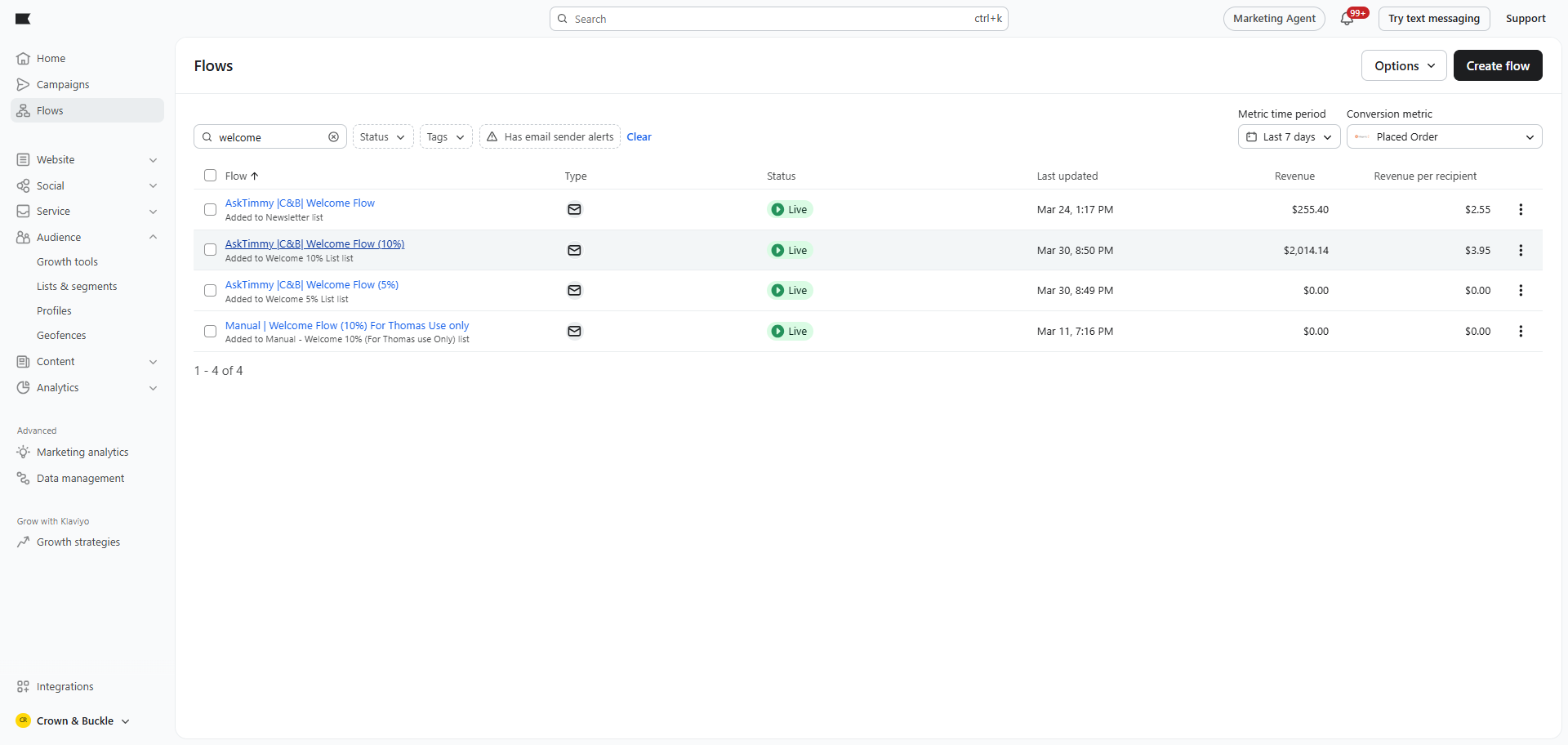
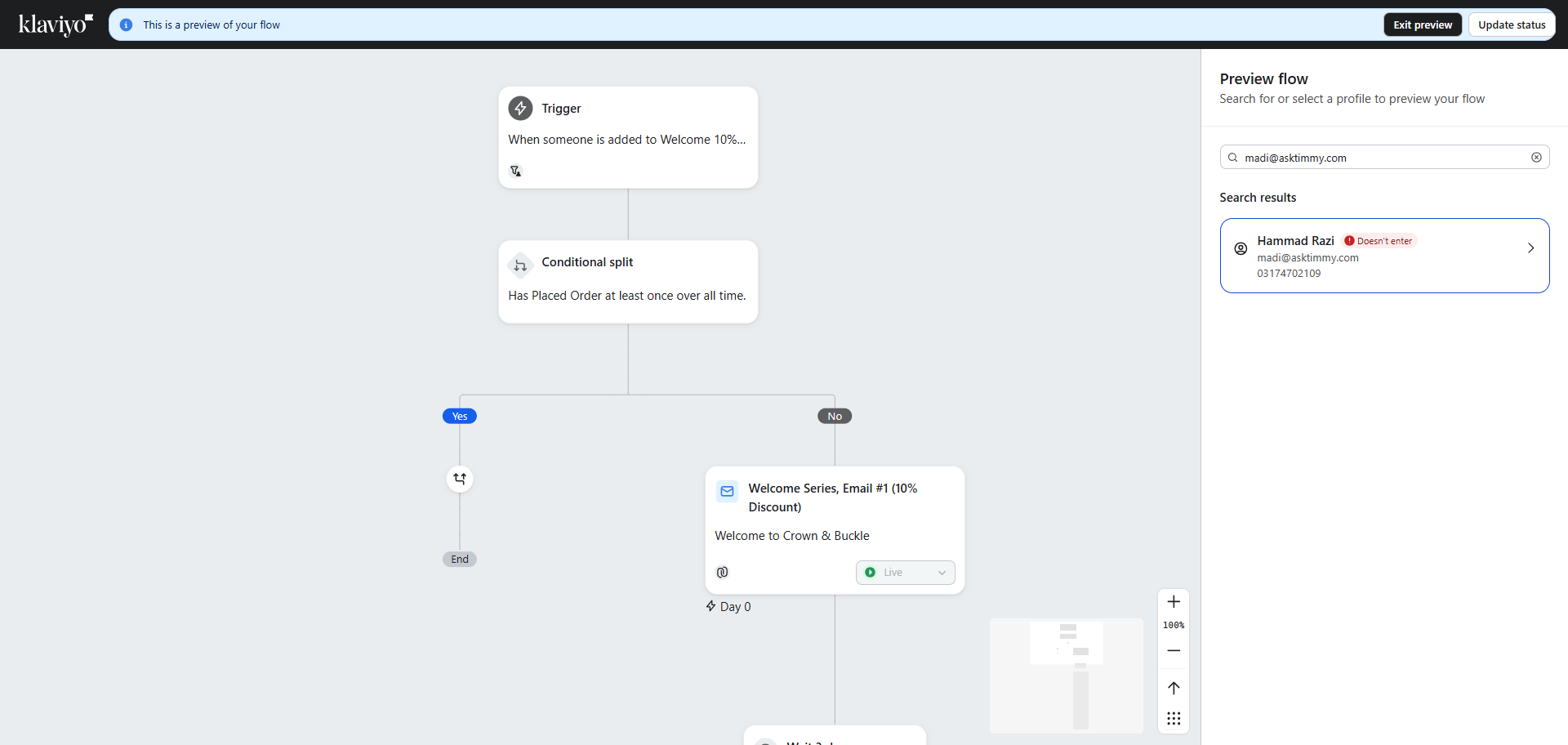
On the flow screen, search and click on preview. Paste or enter the profile here.
3
Select [Preview]
![Step #3: Select [Preview]](https://di8mn0rali2ic.cloudfront.net/uploads/b868a7fd-8a7e-4ac2-b8ab-7c947427fe4d/e5282433-3fce-41a1-8404-09f8e46772a9.png)
4
Enter / Paste email address you want to check
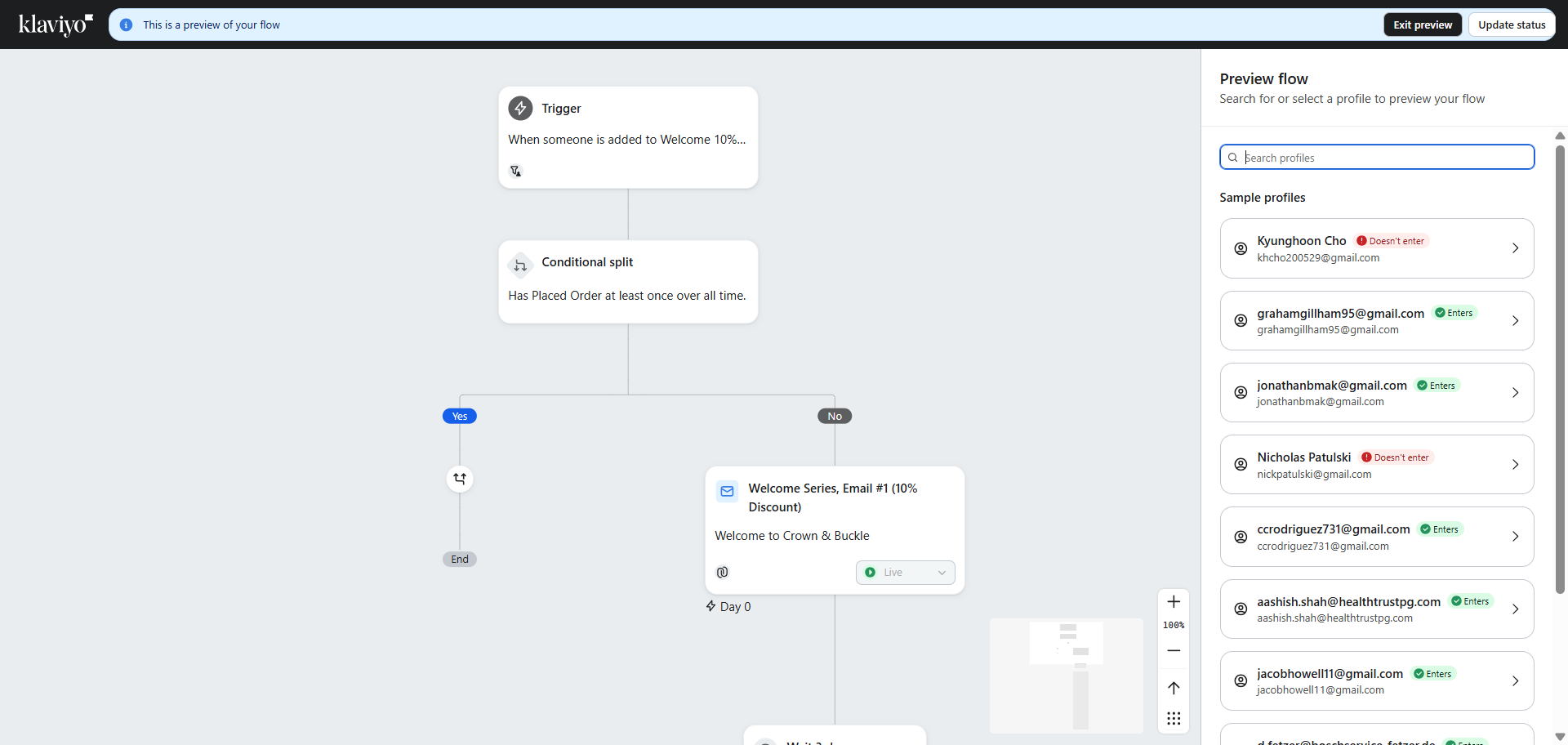
Click View Detail to see which filter is preventing them from entering the room.
5
Click here
6
click view details, it will show you which filter is blocking or Allowing them