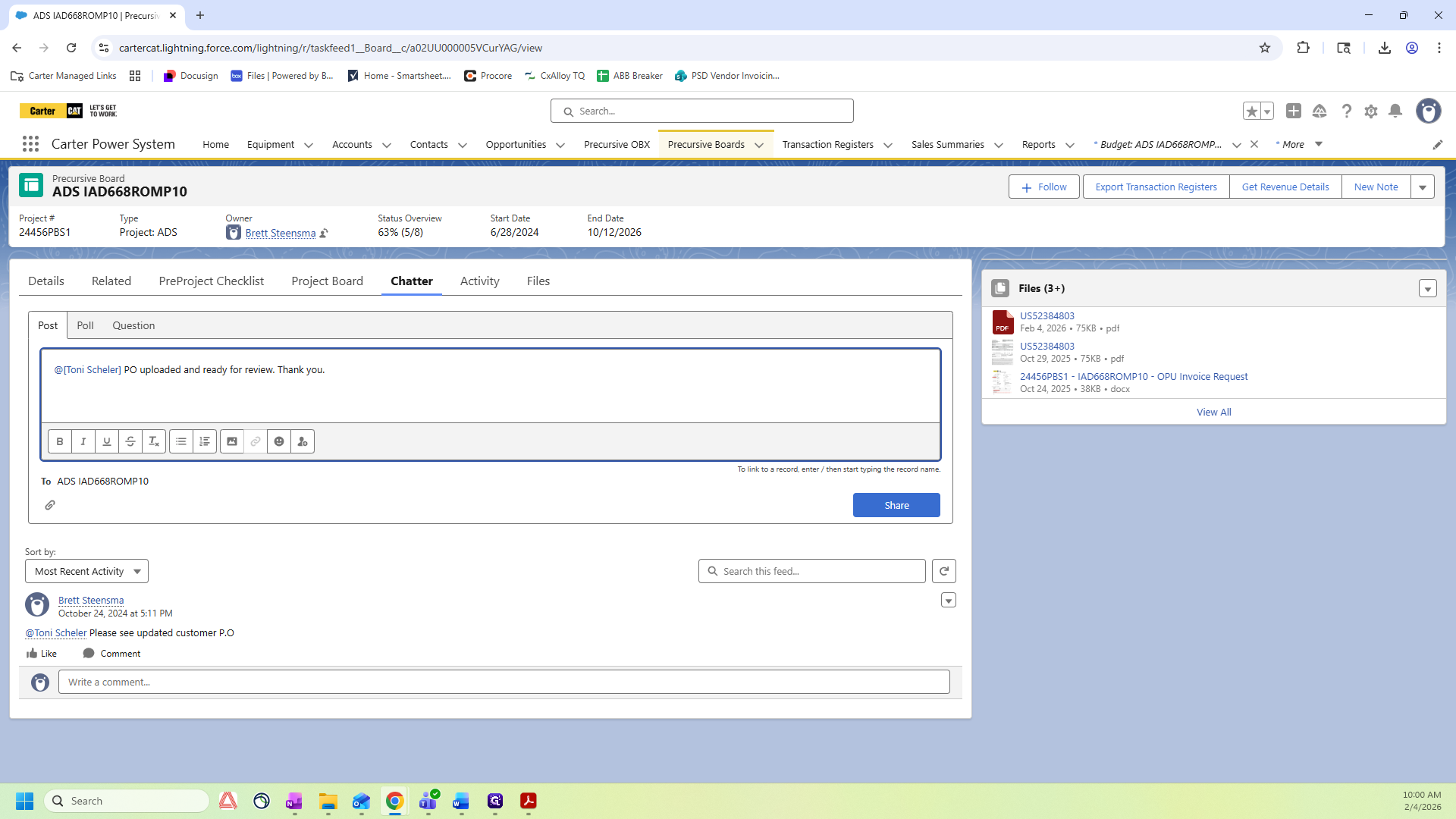
How to Process a Customer PO in Salesforce: Step-by-Step Guide
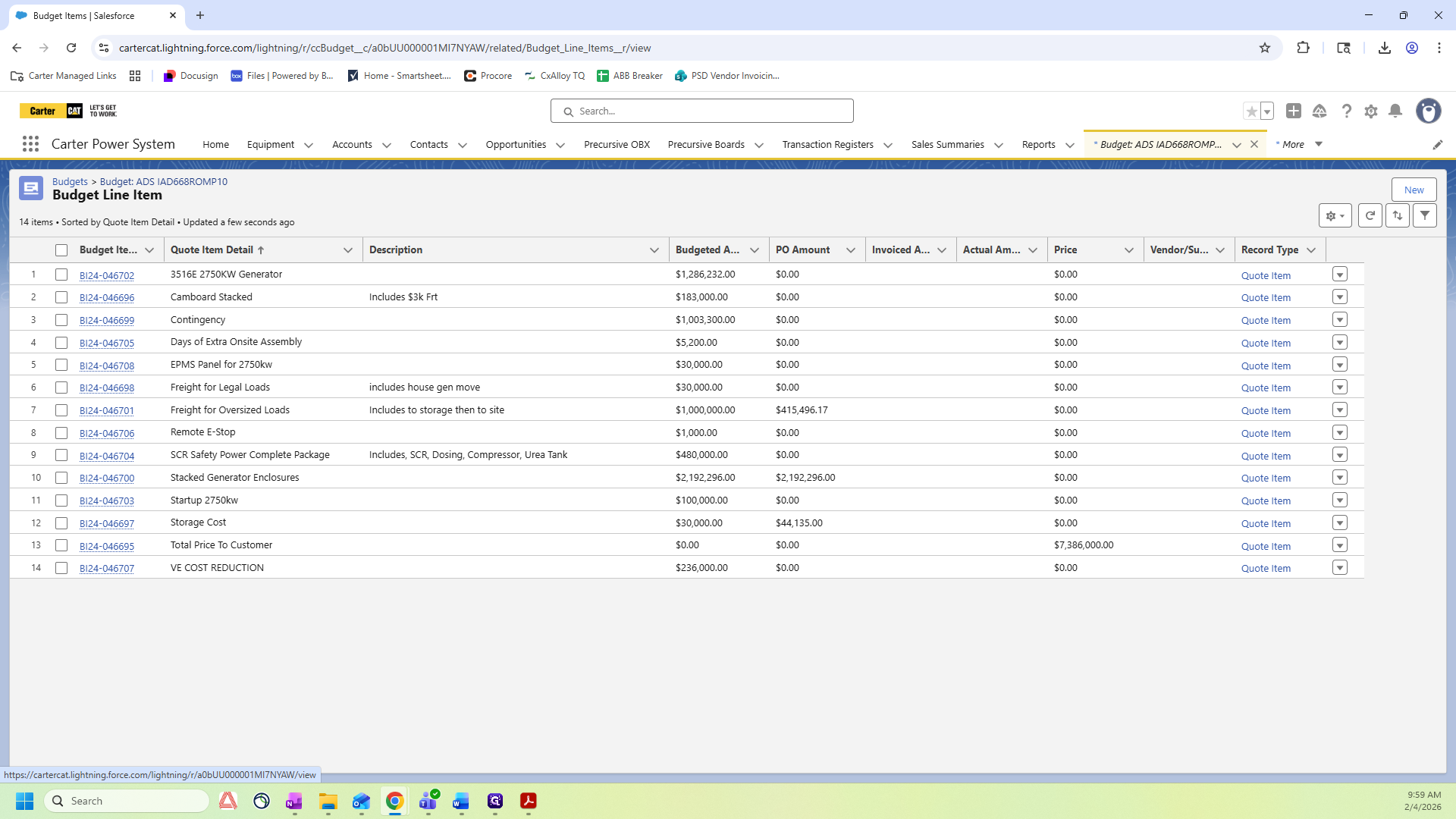
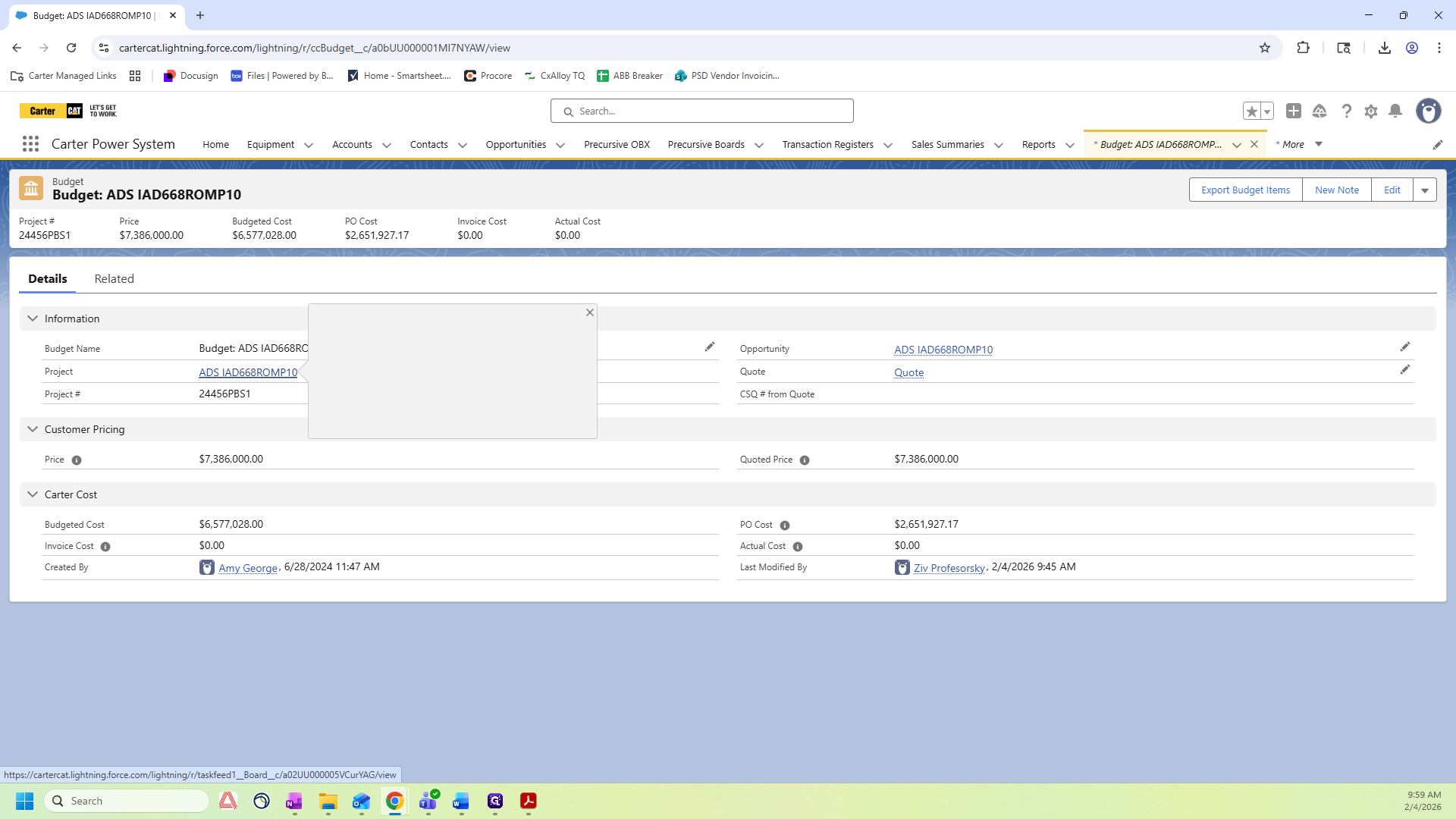
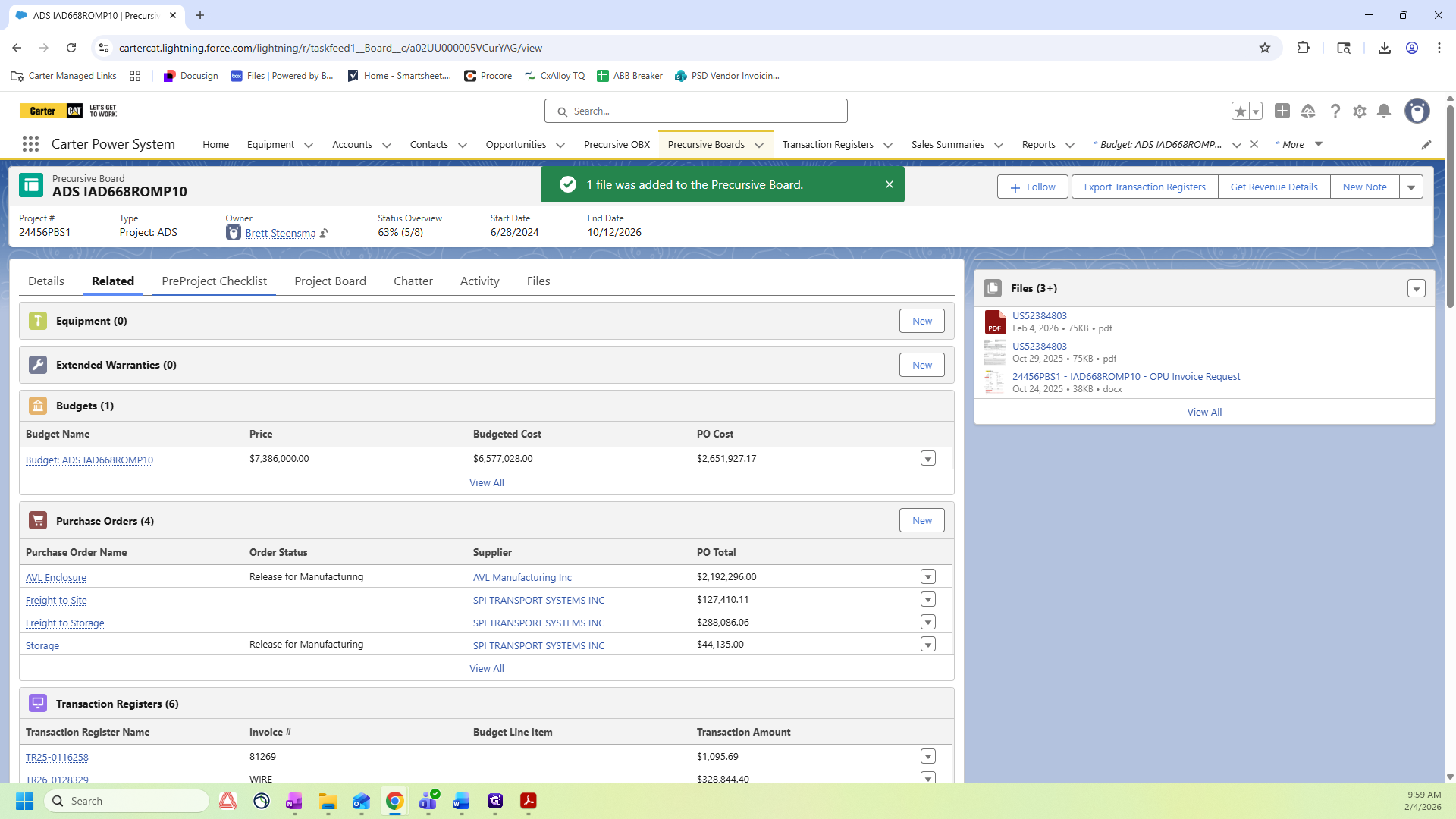
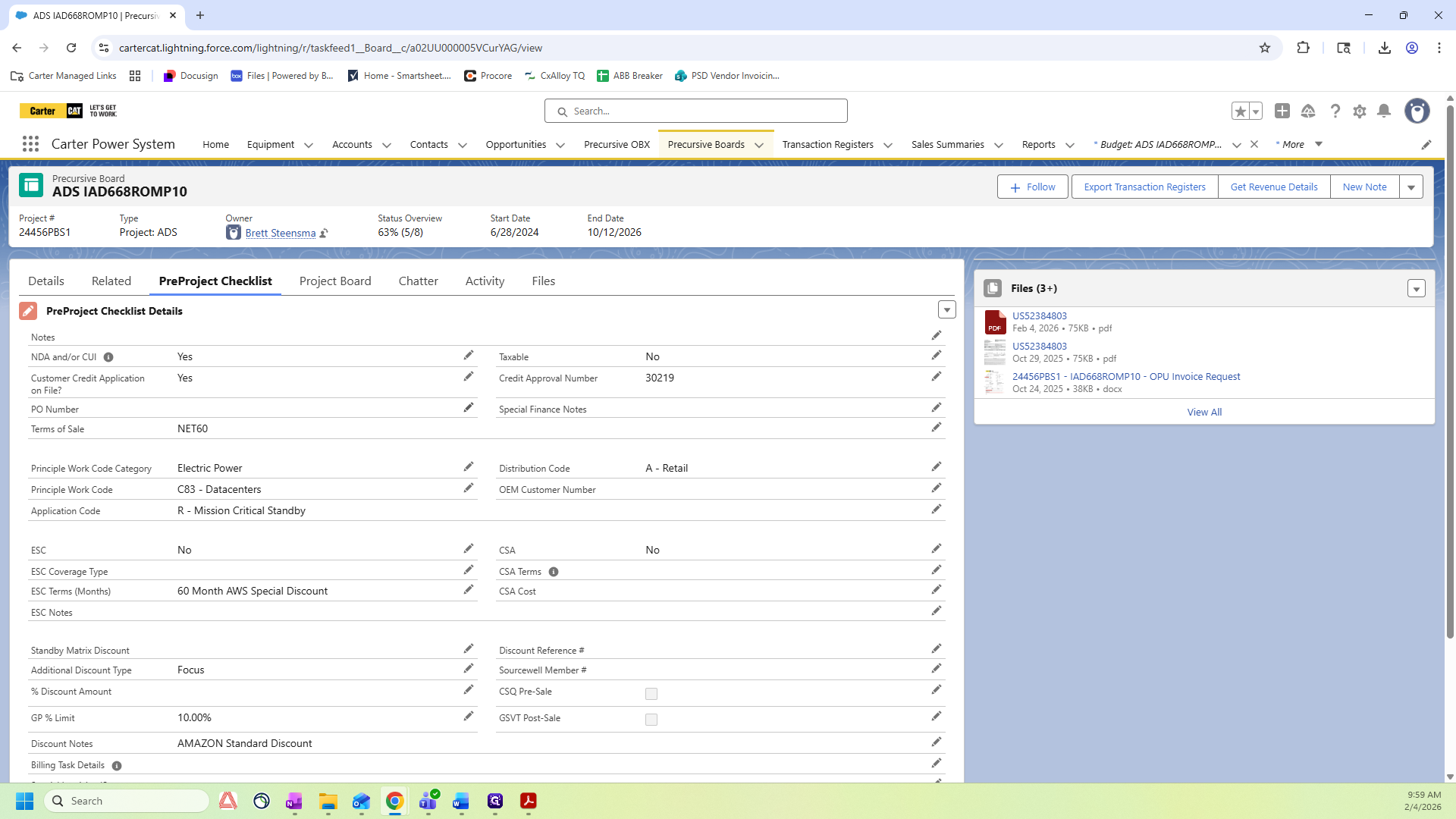
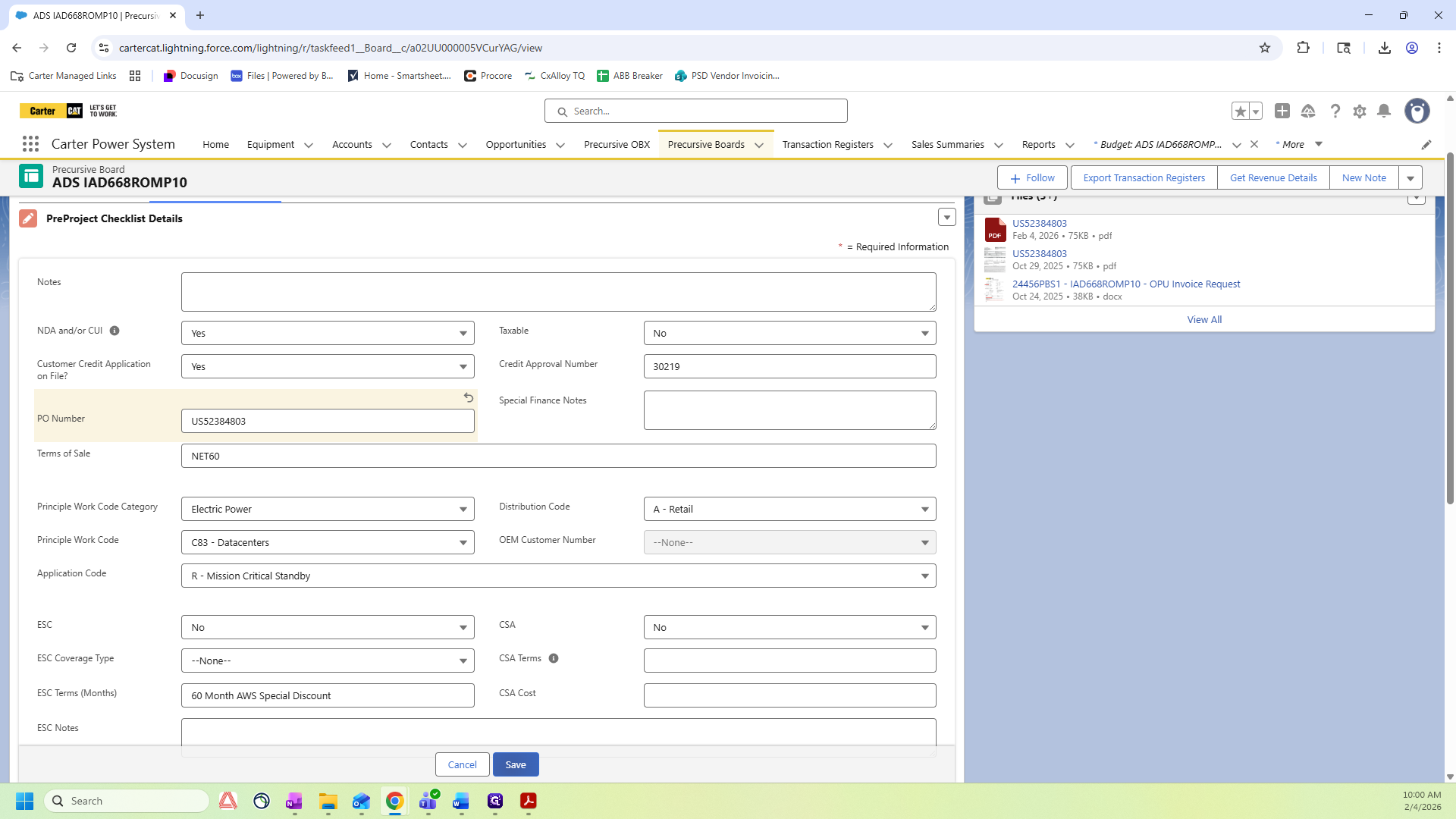
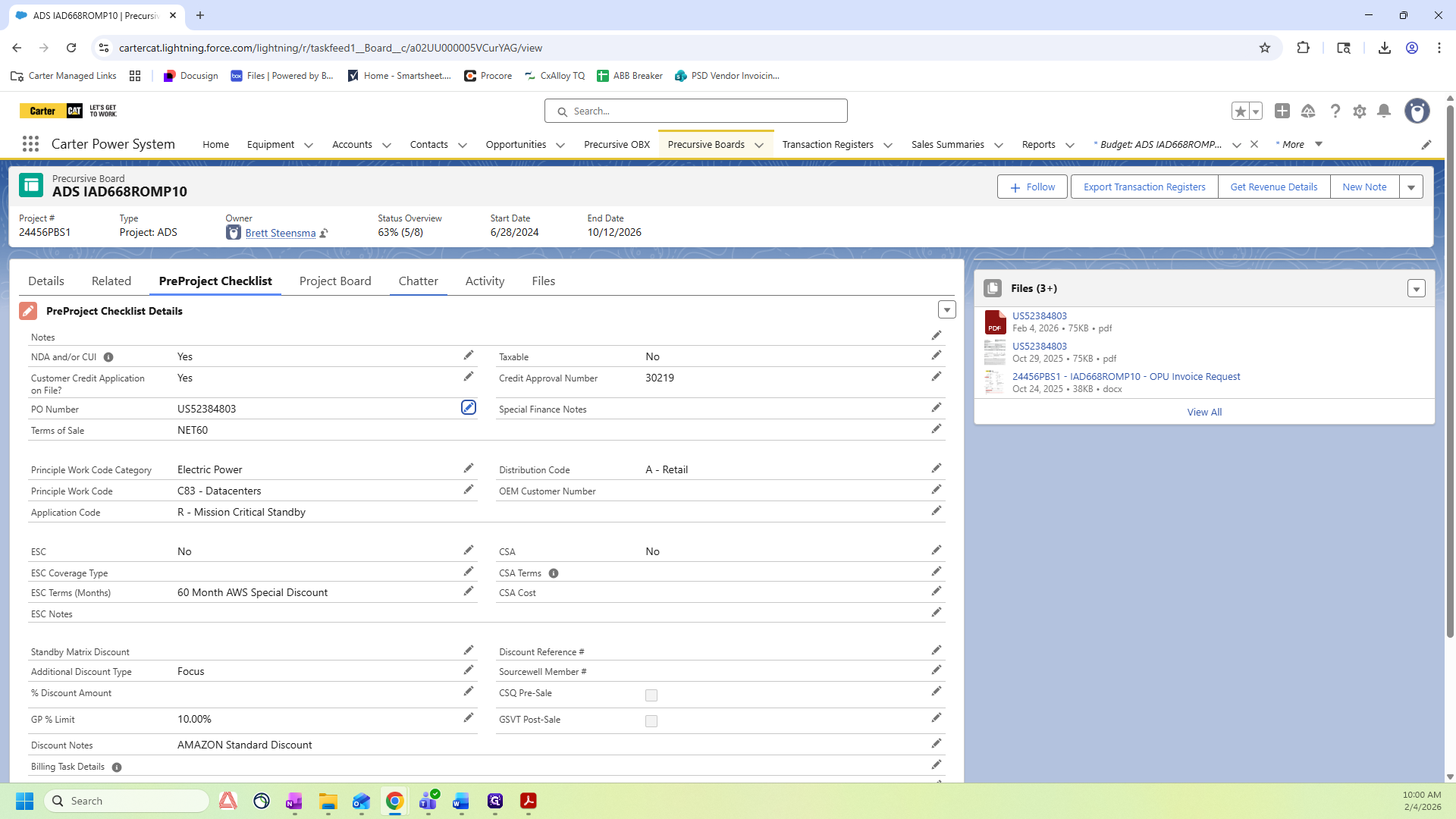
Learn the exact steps to follow when you receive a customer PO in Precursive, including budget checks(Steps 1-6), document uploads(Steps7-9), and notifying your finance manager(Steps 10-14) for seamless project management.
In this guide, we'll learn how to process a customer purchase order using your Precursive Board. We'll cover how to verify the total price, upload the PO document, update the project checklist, and notify the finance manager for review.
These steps help ensure that your project records are accurate and that your team is informed.
Let's get started
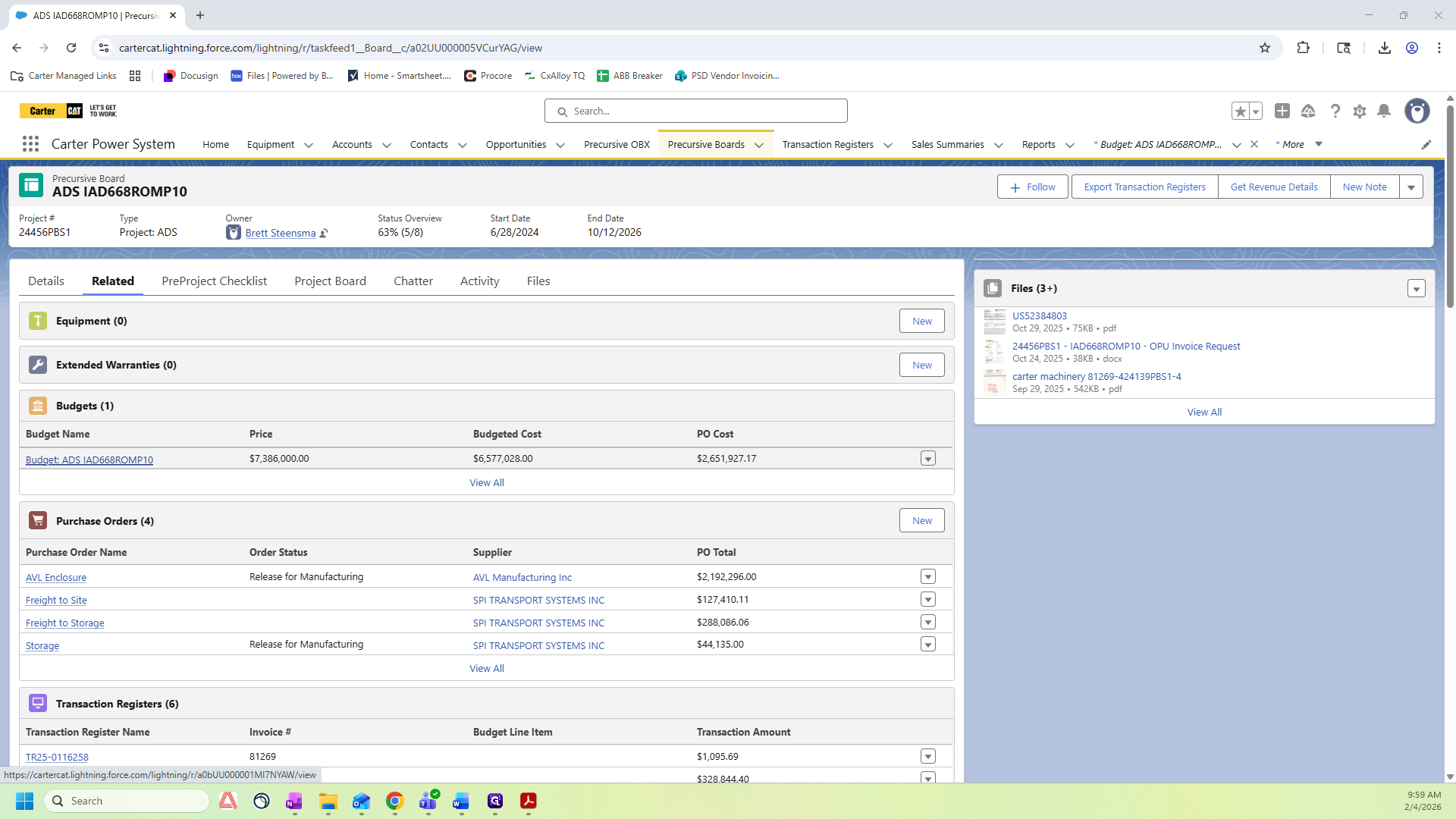
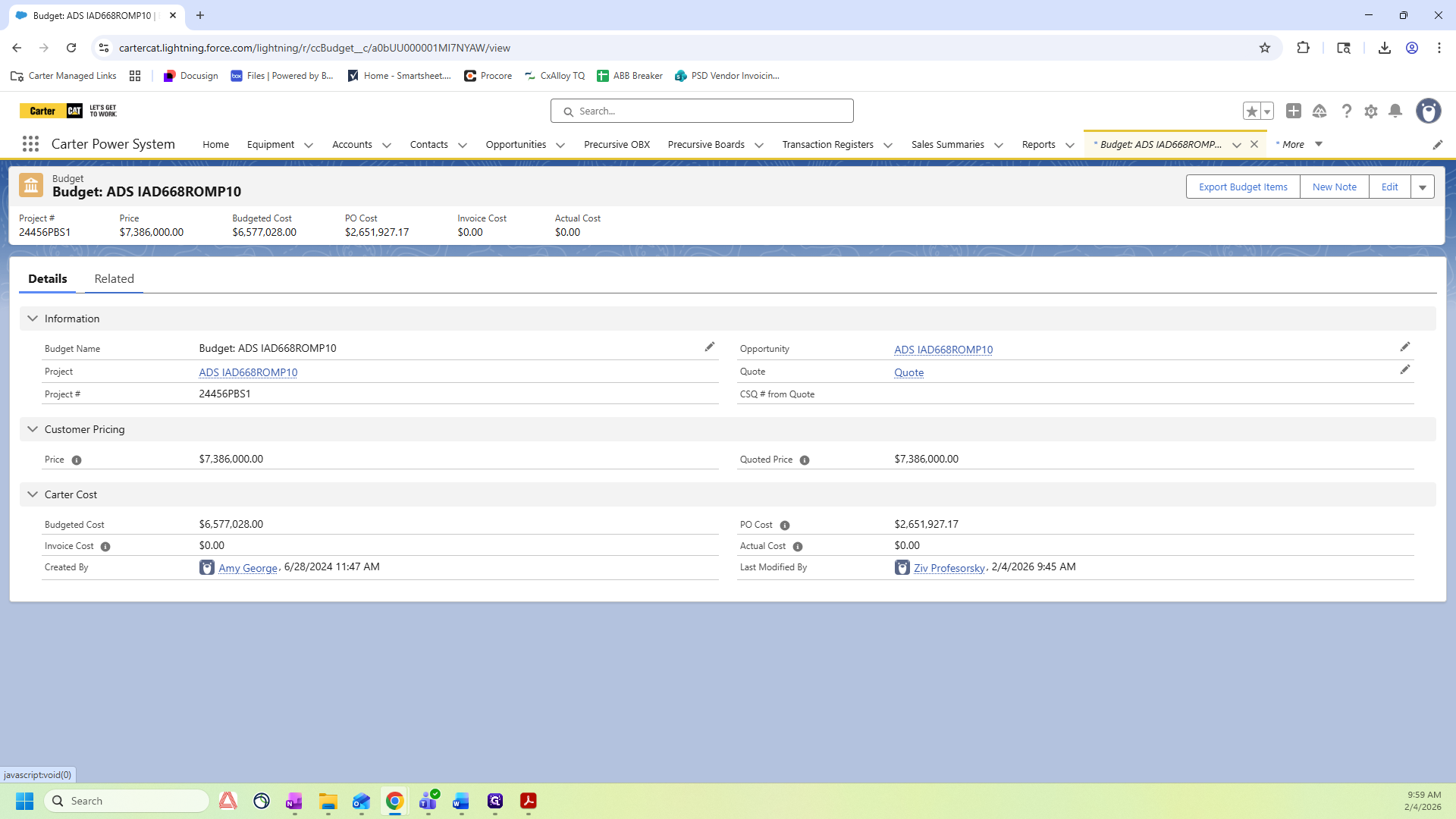
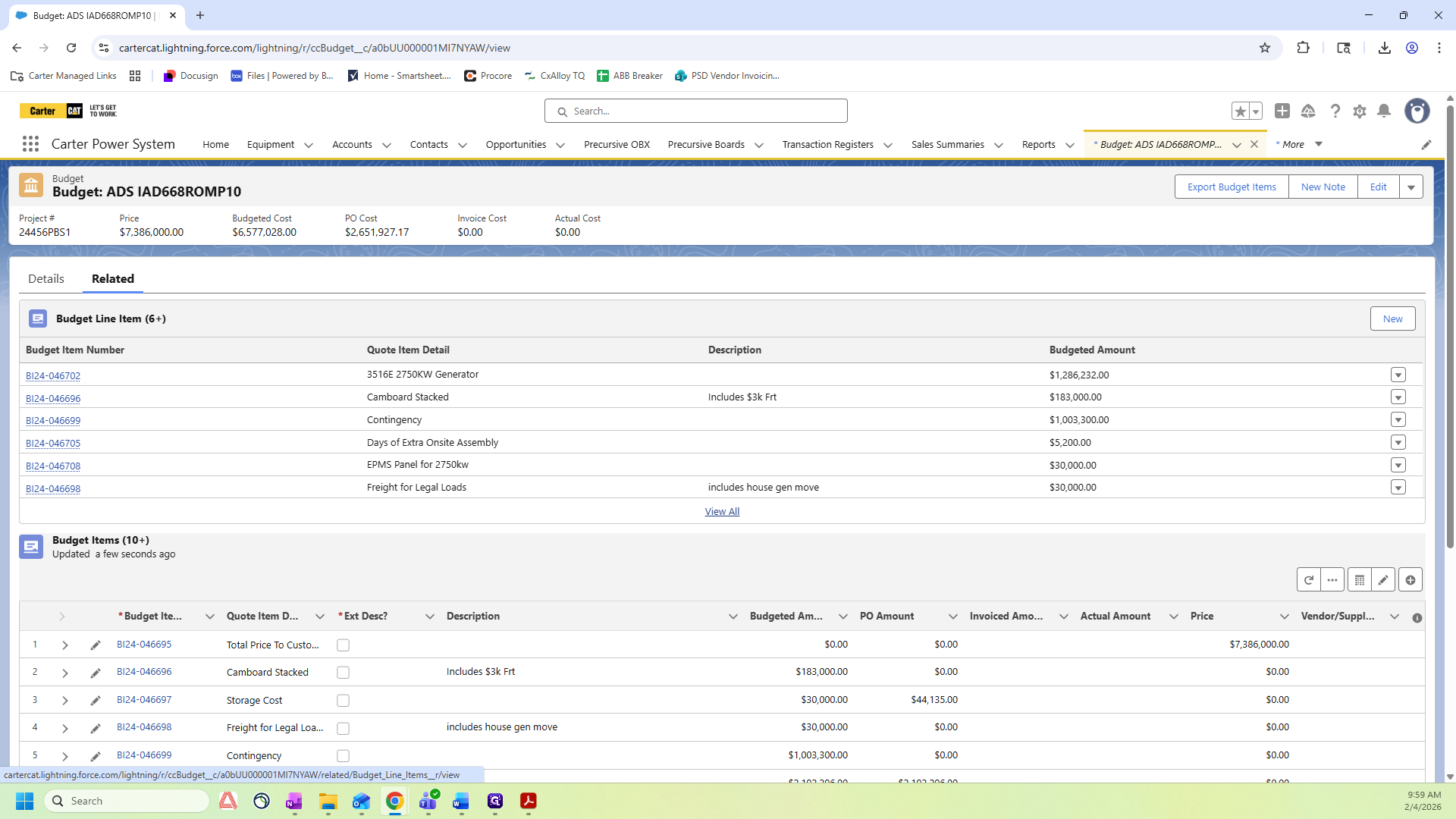
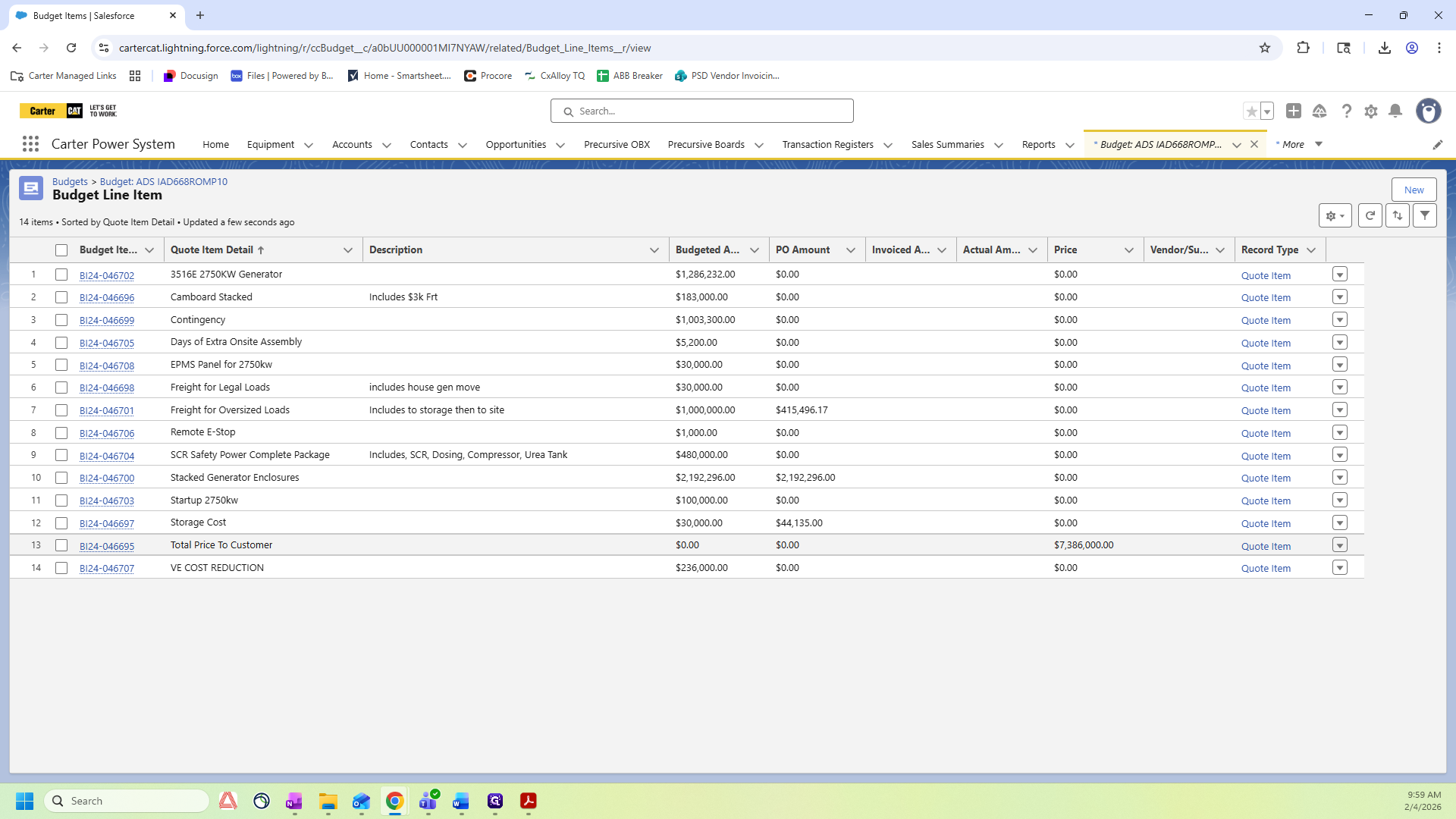
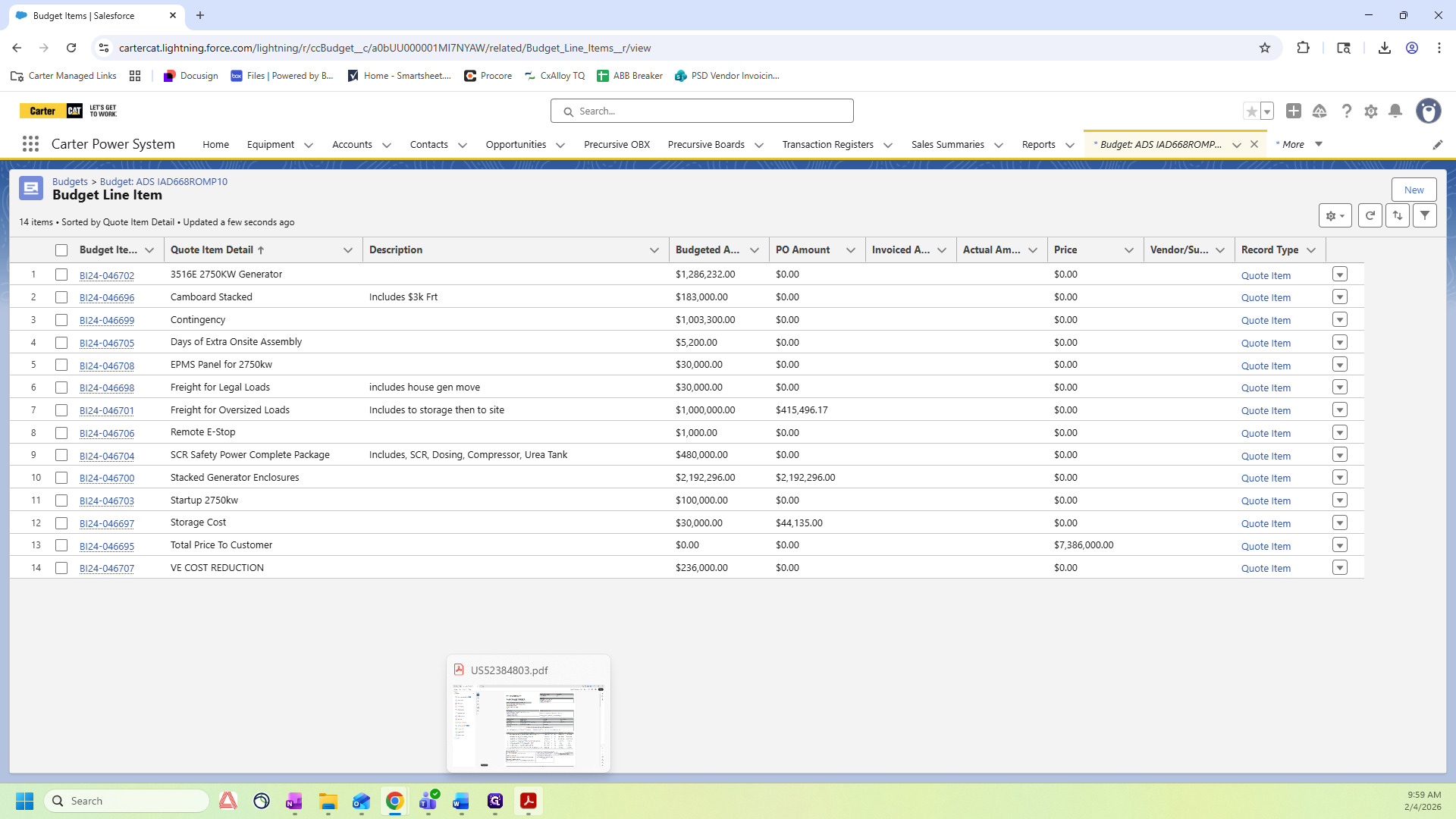
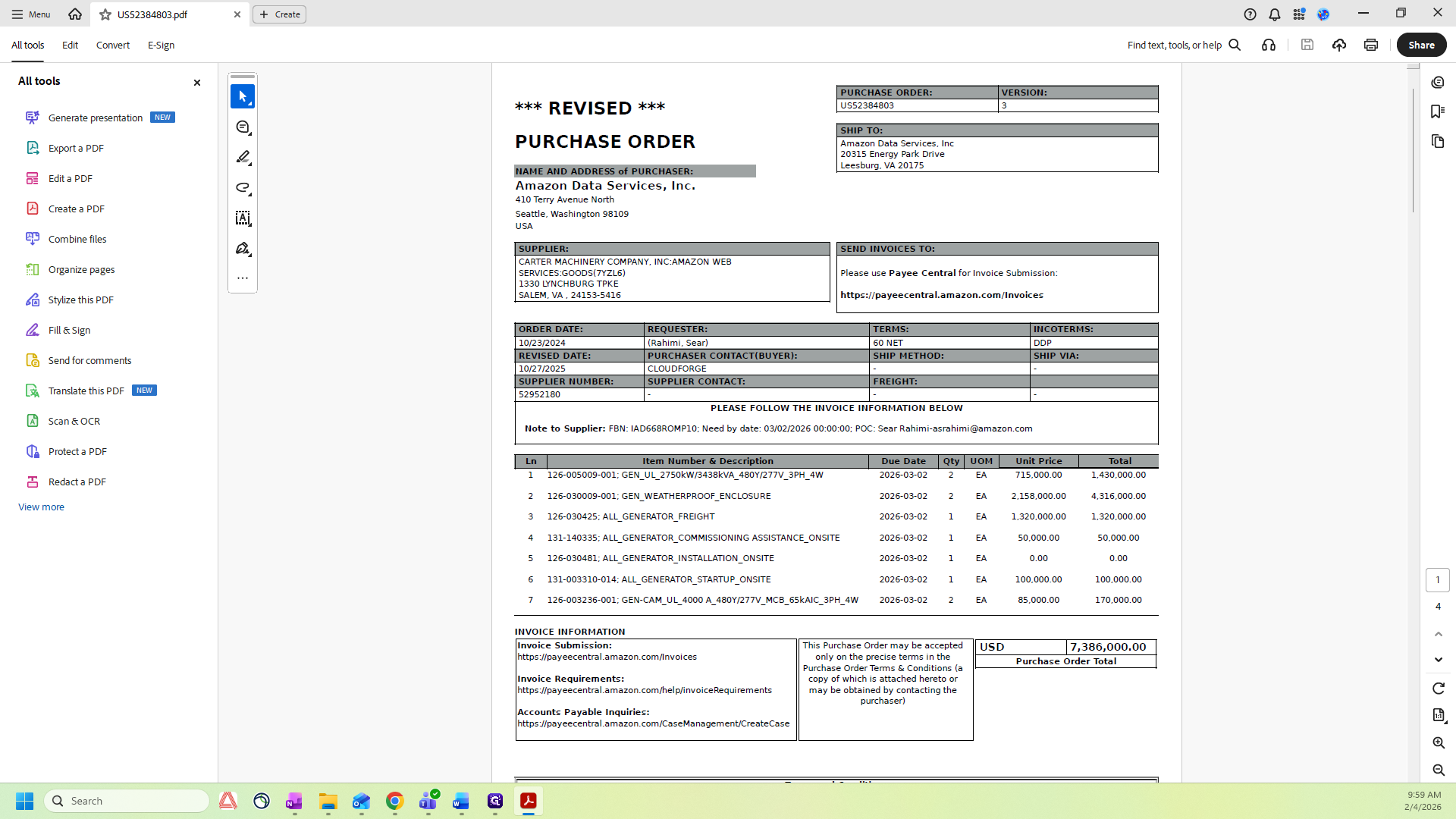
If your Salesforce budget does not match the customer PO contact the Operations Manager for further assistance.
When verifying the purchase order total, confirm the Need By Date found on the PO is 7 days before the delivery date in the budget tasks. If there are questions on finding the budget tasks, there is a separate SOP for that.
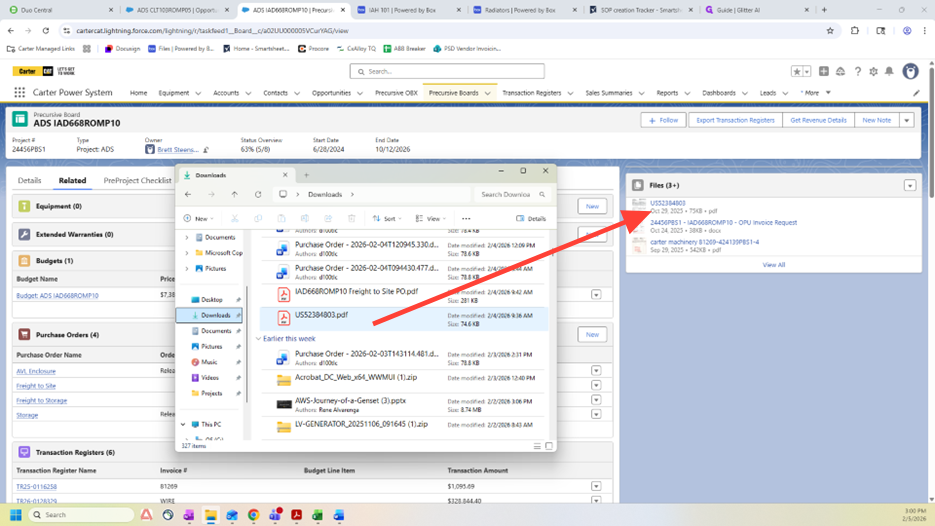
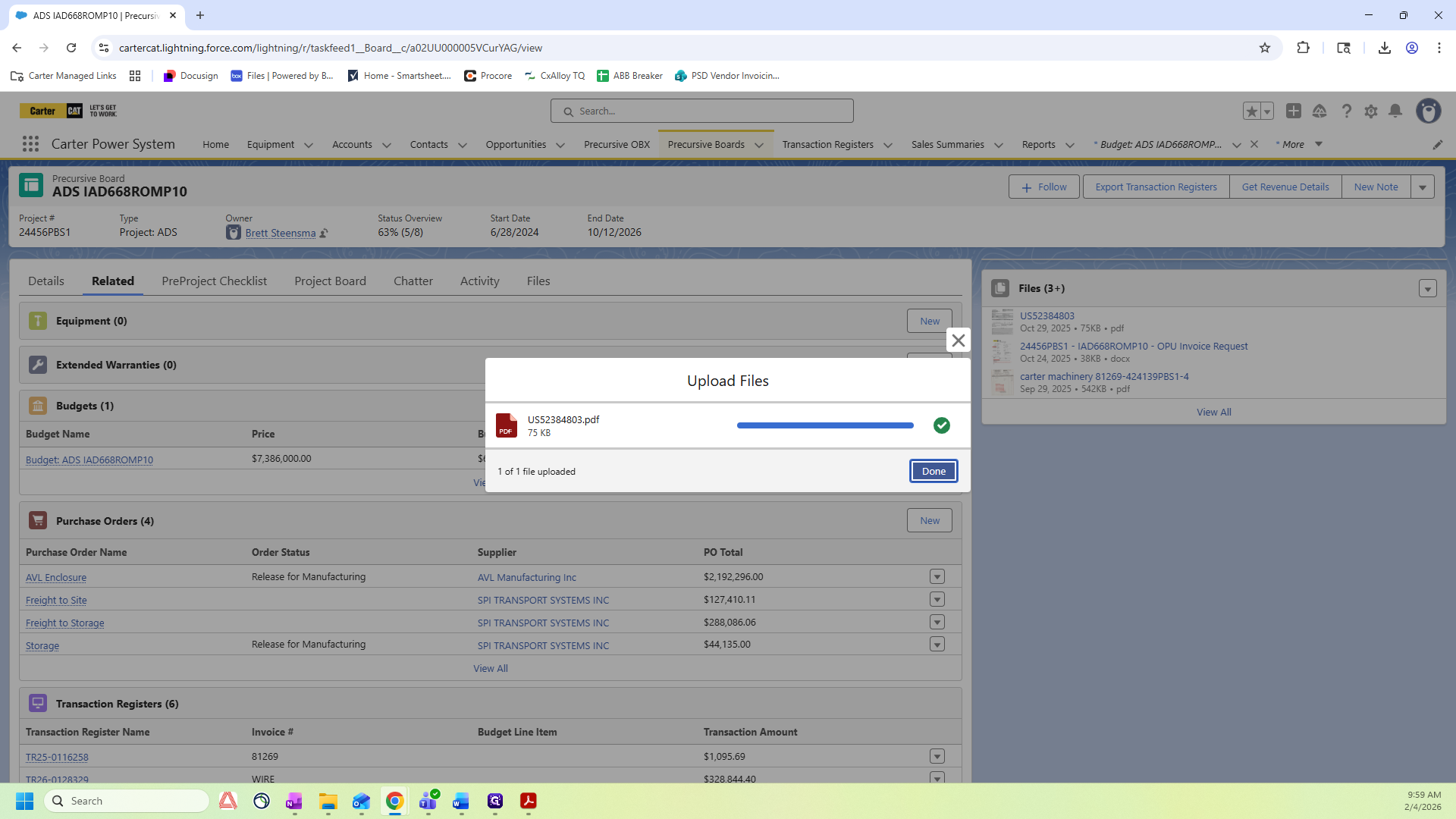
If the purchase order and Budget match, as well as the Need By Date, move on to the next steps. Steps 7-10 walk through how to attach a PDF copy of the purchase order to the Salesforce Board.