Icon

How to Process a New Potential Client Intake in Clio Grow

Learn how to add a new potential client into Clio Grow, fill out matter details, send a welcome email, and trigger an automated follow-up drip campaign.

By Donna Quinn

This guide explains how to enter a new potential client into Clio Grow and initiate their onboarding process. Completing this workflow ensures all client inquiries are tracked centrally, handled promptly, and seamlessly transitioned into your firm's automated scheduling and follow-up sequences.

This process applies to intake specialists, legal assistants, or any staff members responsible for fielding initial phone calls and routing new client inquiries into the firm's pipeline.

Start a New Intake
1
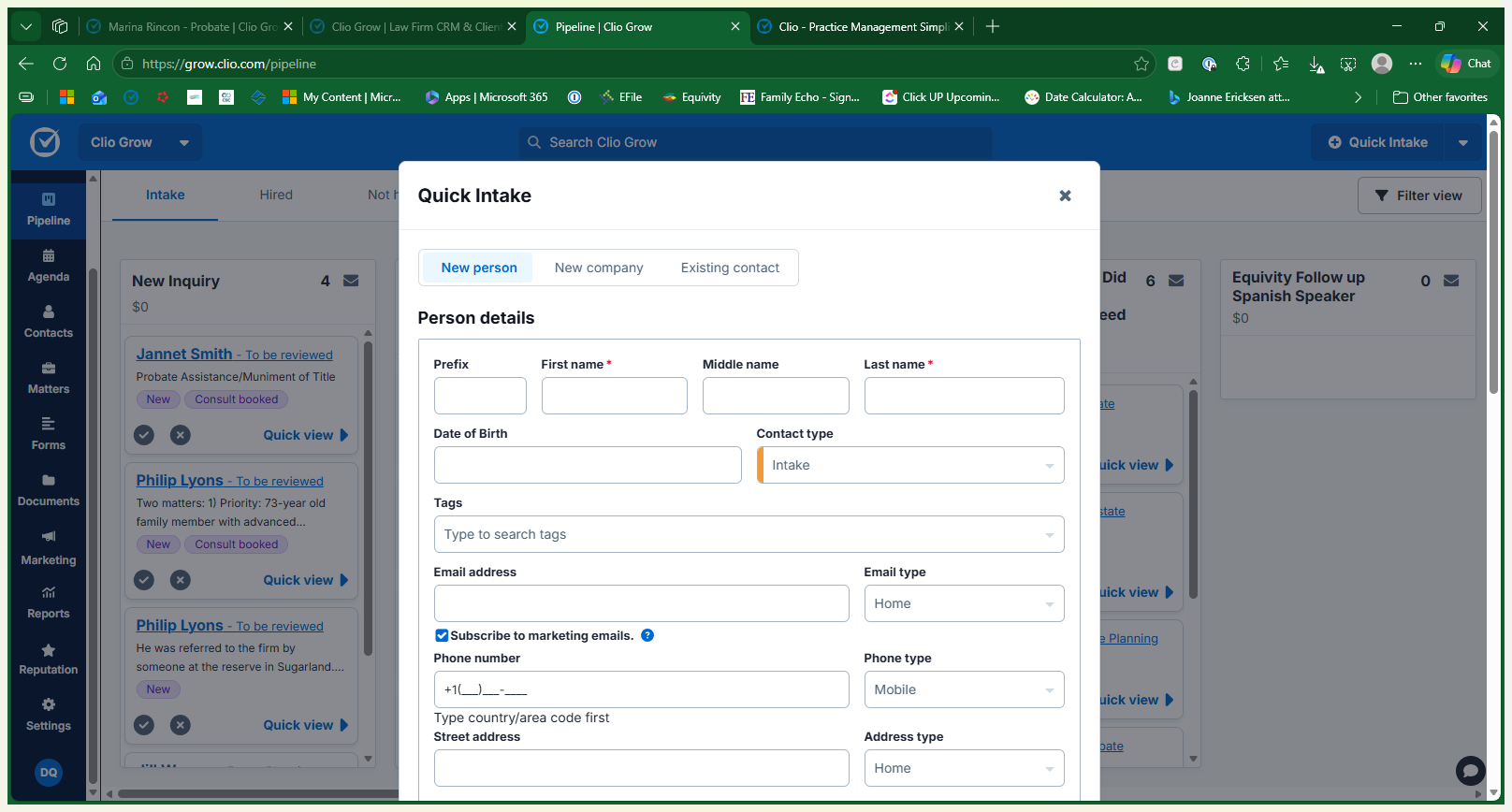
Click + Quick Intake to open the new person details form.
Step #1: Click + Quick Intake to open the new person details form.
2
Enter the prospective client's name.
Step #2: Enter the prospective client's name.

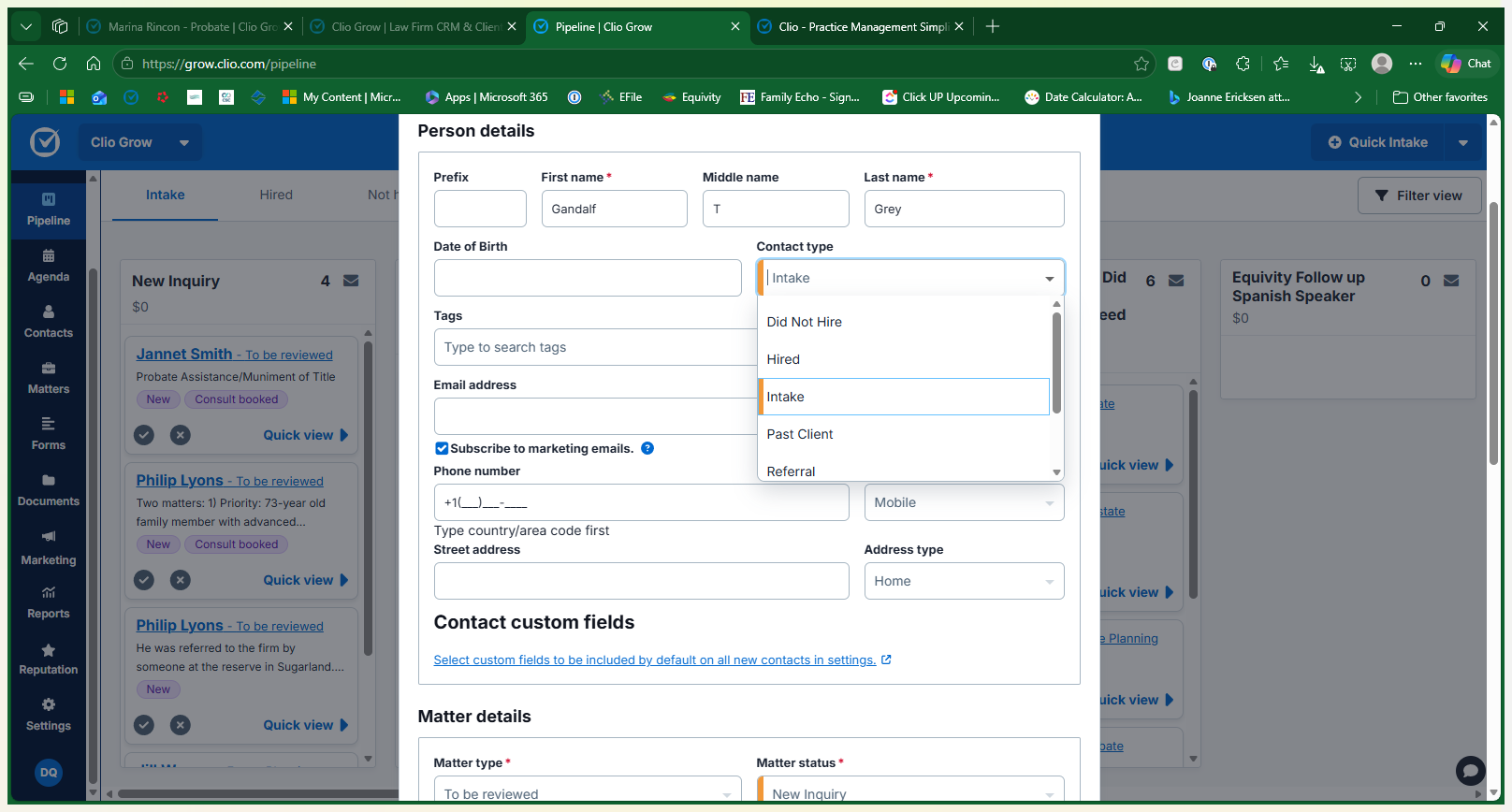
When creating a new person record, you must classify them using the Contact Type dropdown. Select the option that best fits their current relationship with the firm:

Contact Type

Description

Intake

For brand-new potential clients who are actively inquiring about services.

Hired

For clients who have already signed an agreement and retained the firm.

Did Not Hire

For leads who decided not to move forward or were disqualified.

Past Client

For individuals whom the firm has successfully represented in the past.

3
Select Intake from the Contact type dropdown menu.
Step #3: Select Intake from the Contact type dropdown menu.
4
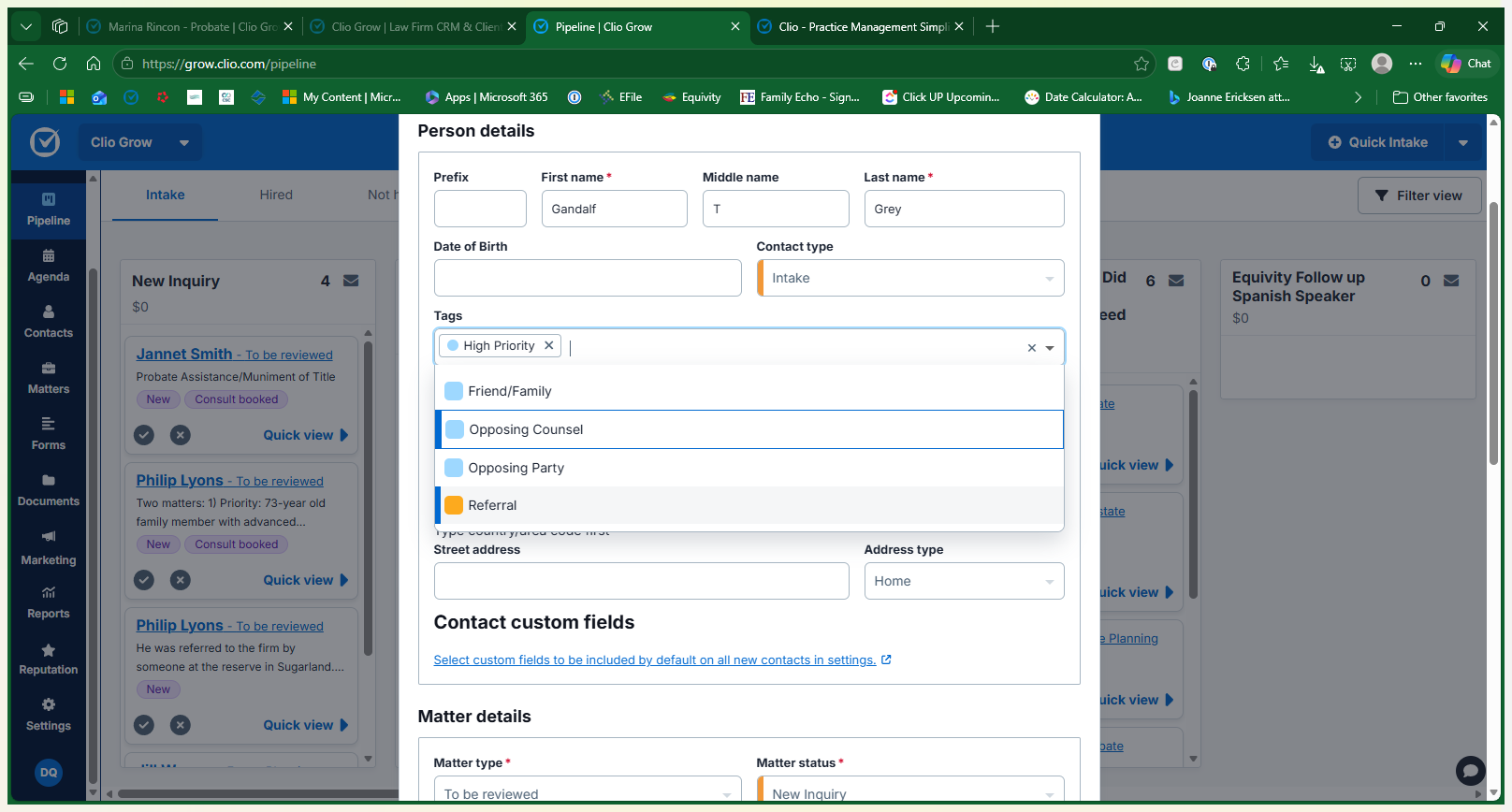
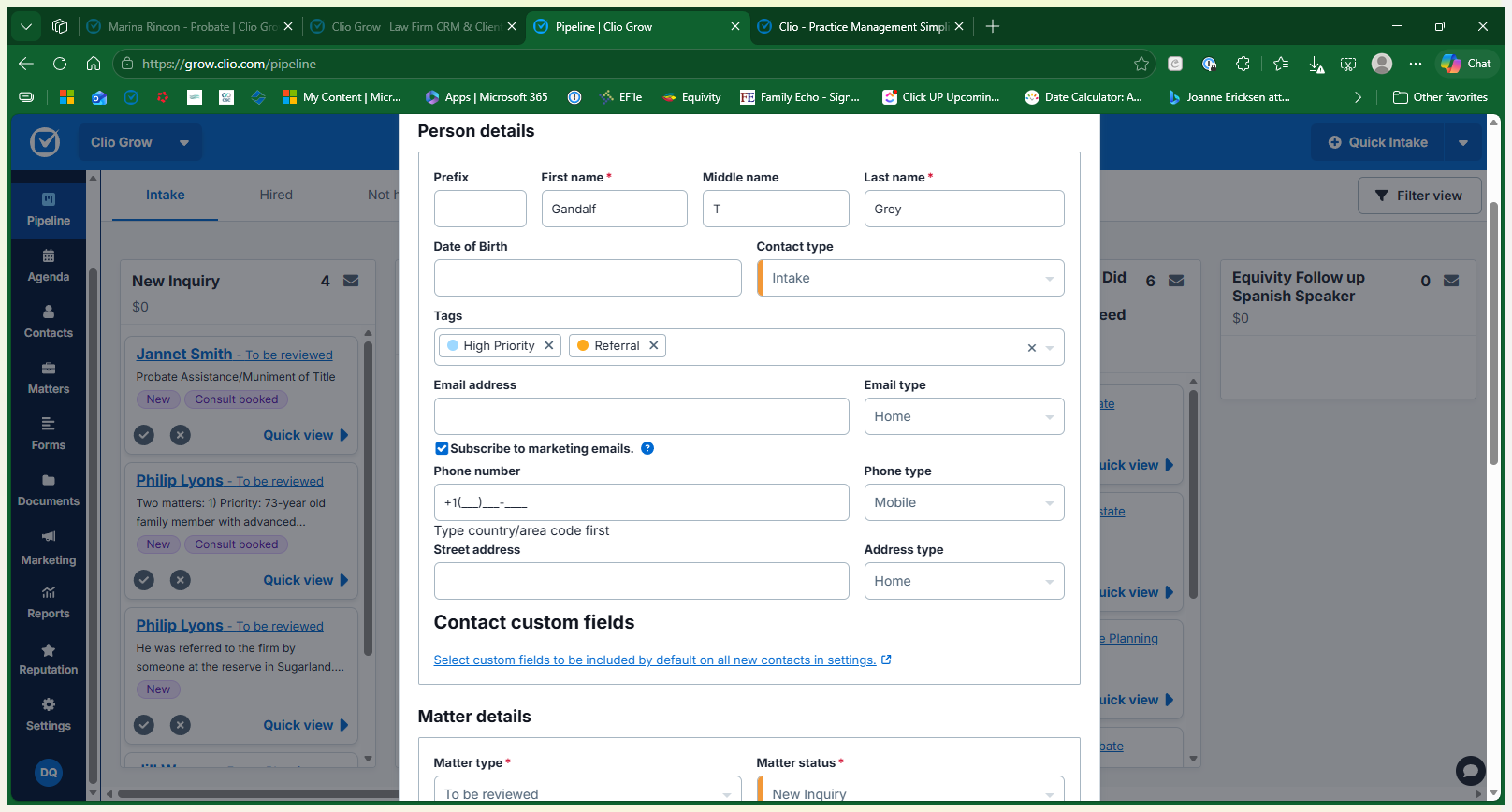
Add any relevant tags from the tags dropdown.
Step #4: Add any relevant tags from the tags dropdown.
5
Enter the client's email address and phone number.
Step #5: Enter the client's email address and phone number.
6
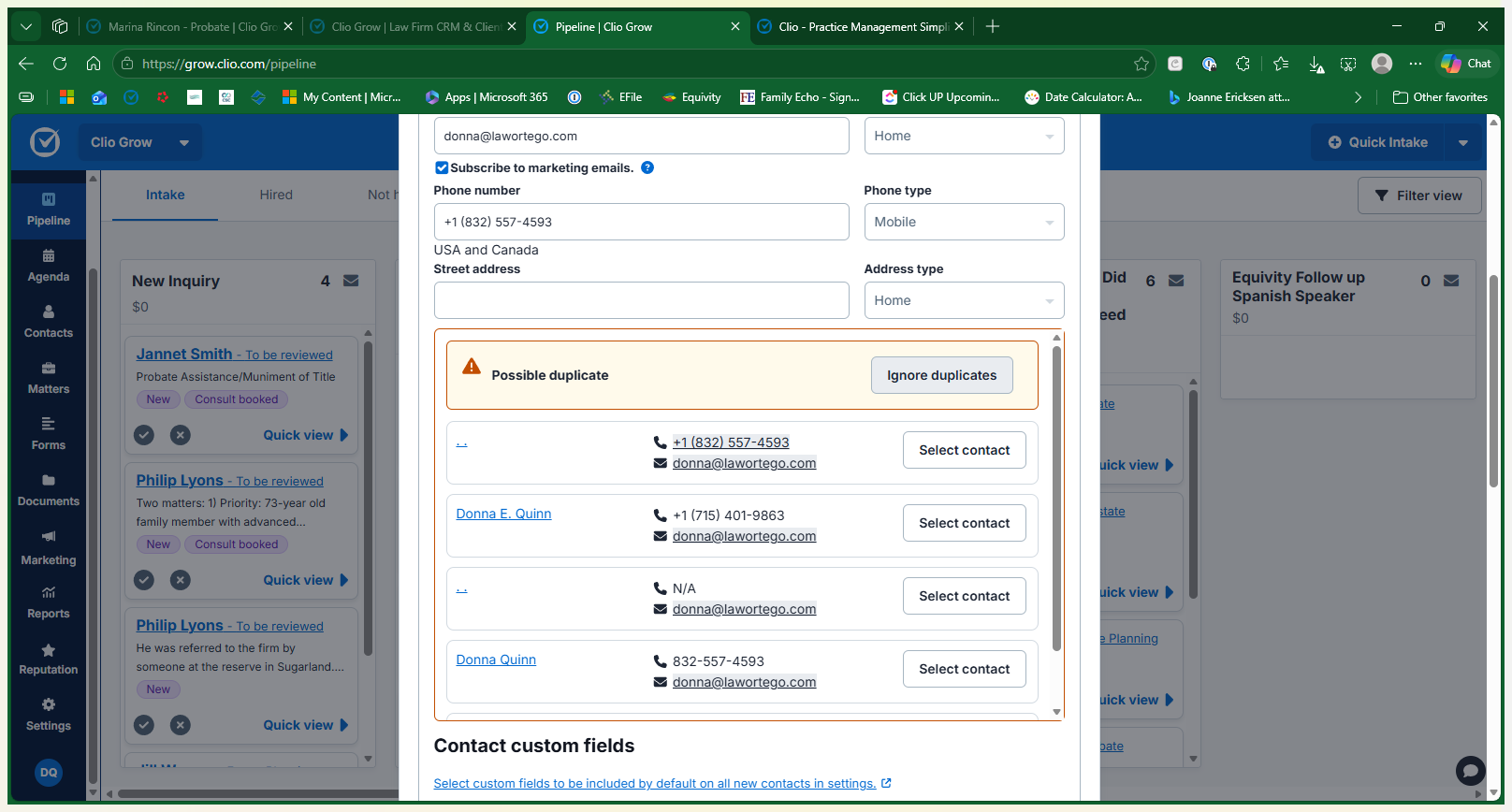
If the system flags a duplicate contact using the same email or phone but you confirm if it is a different person. In this case I used my email so click Ignore duplicates.
Step #6: If the system flags a duplicate contact using the same email or phone but you confirm if it is a different person. In this case I used my email so click Ignore duplicates.

Enter Matter Details

7
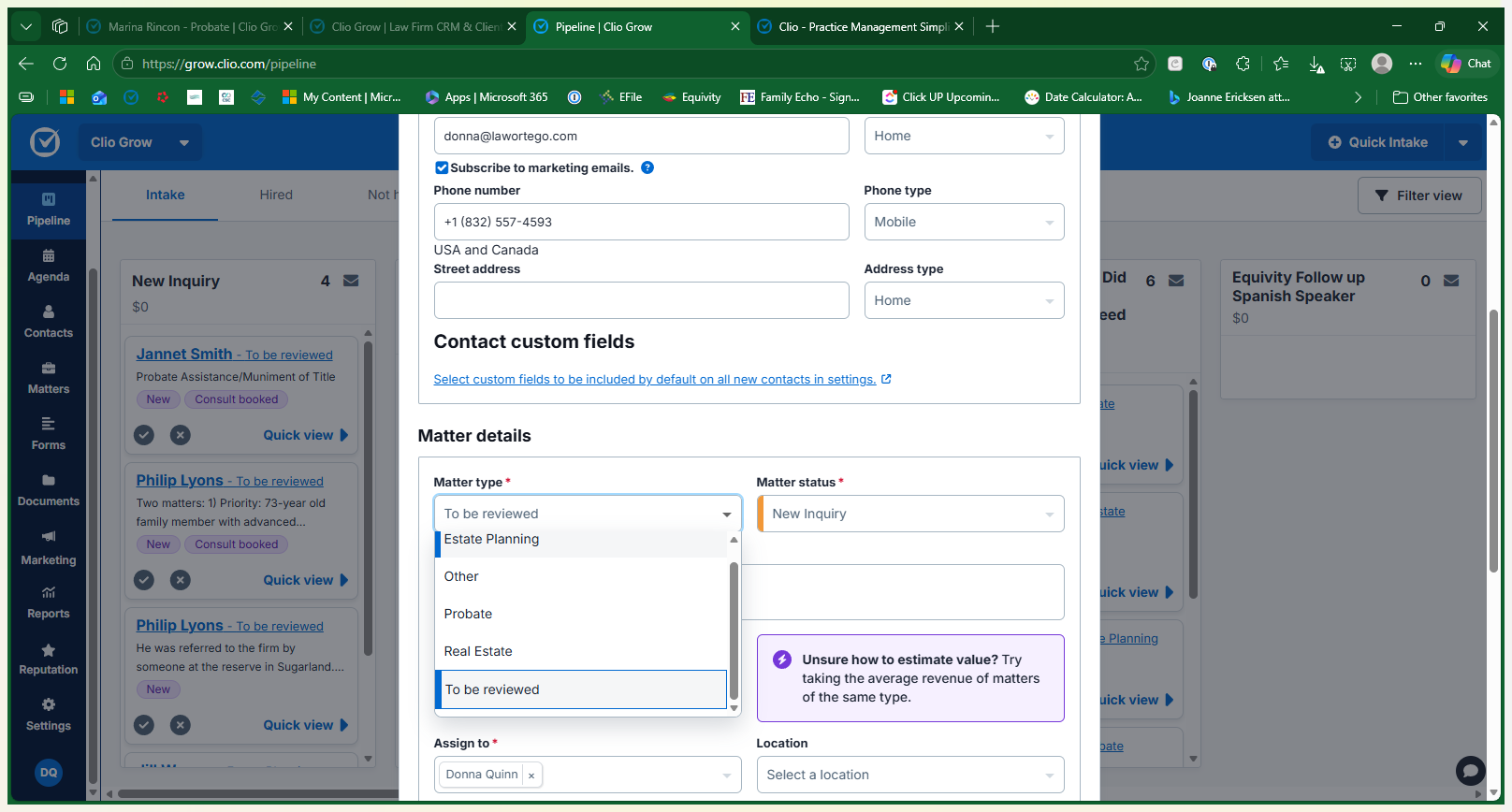
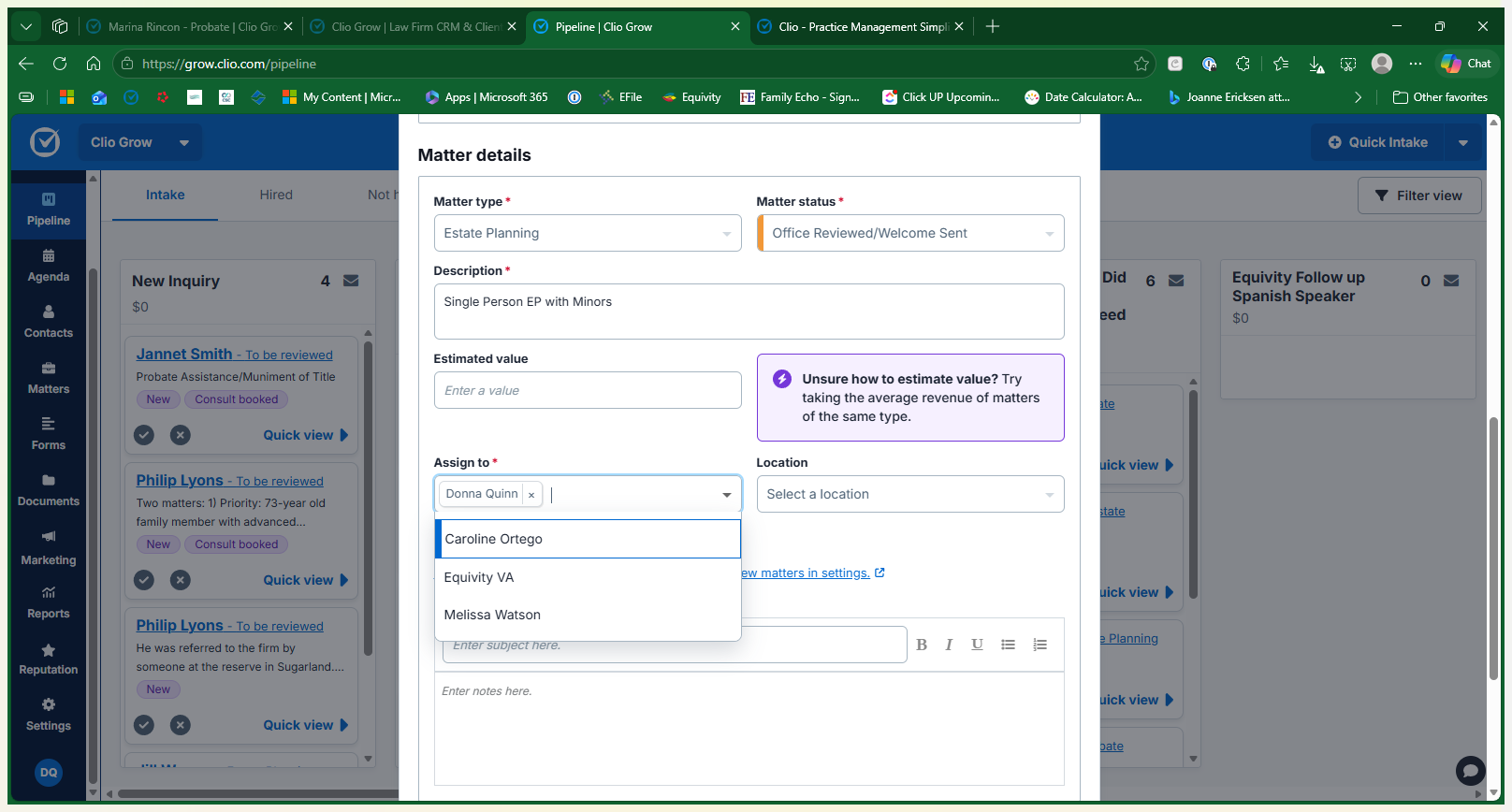
Select the relevant case category, such as Estate Planning, from the Matter type dropdown.
Step #7: Select the relevant case category, such as Estate Planning, from the Matter type dropdown.
8
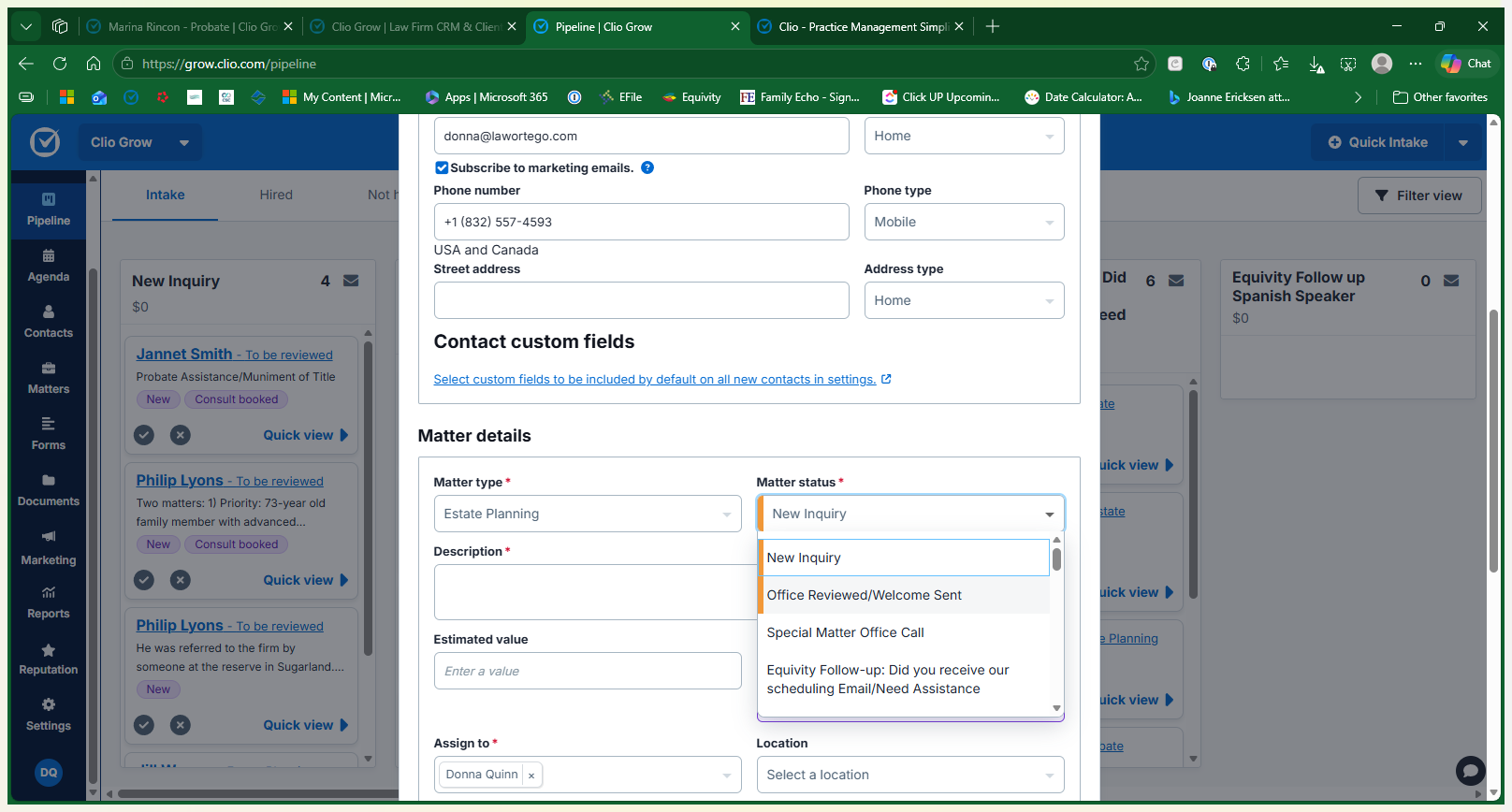
Select the appropriate status from the Matter Status dropdown, such as Office Reviewed / Welcome Sent, to accurately reflect where the client is in the intake workflow.
Step #8: Select the appropriate status from the Matter Status dropdown, such as Office Reviewed / Welcome Sent, to accurately reflect where the client is in the intake workflow.
9
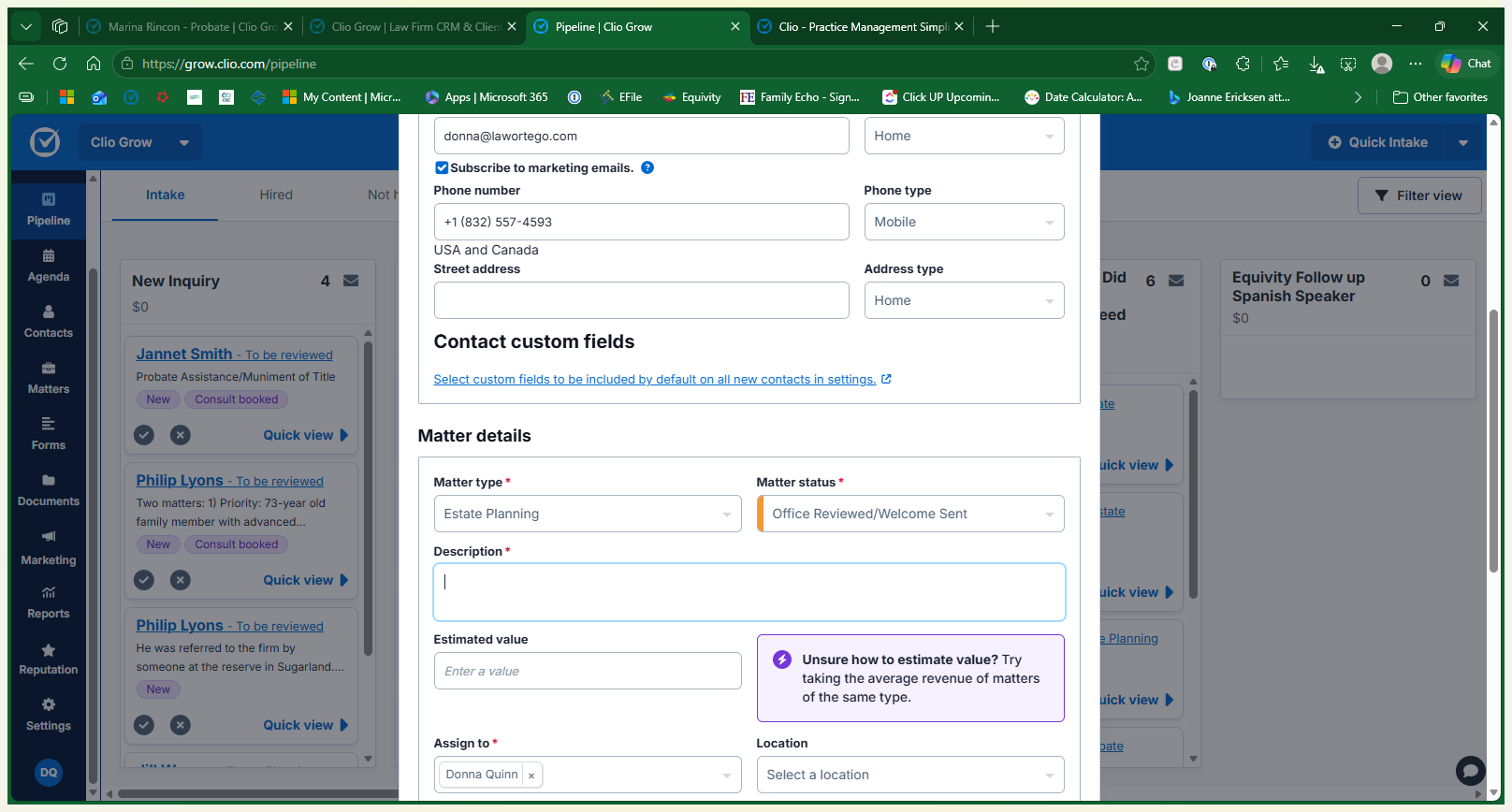
Enter a brief, concise description of what the client needs in the Description field.
Step #9: Enter a brief, concise description of what the client needs in the Description field.
10
Verify the Assign to field is assigned correctly.
Step #10: Verify the Assign to field is assigned correctly.
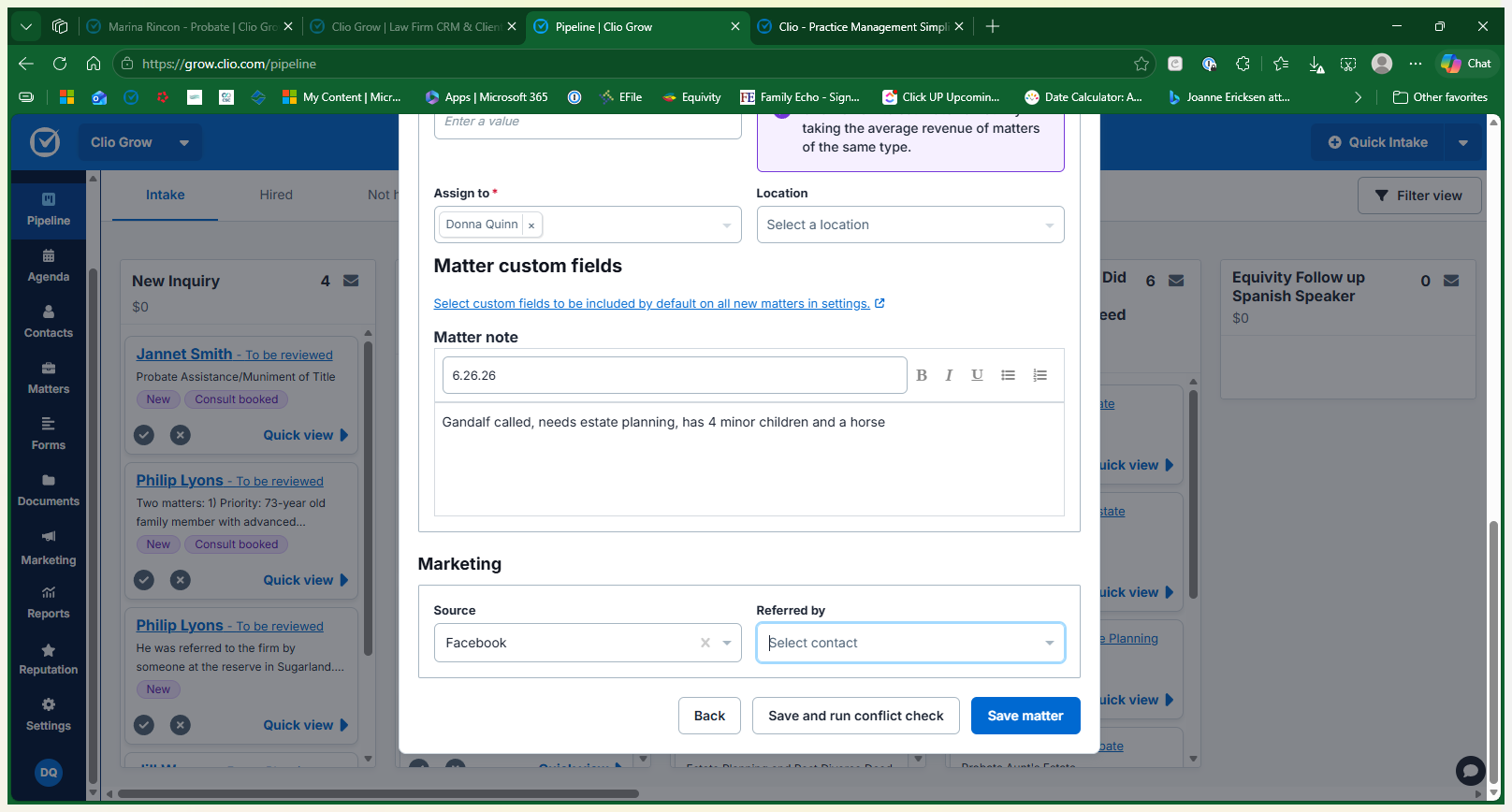
11
Log your initial call information and date in the Matter note field.
Step #11: Log your initial call information and date in the Matter note field.
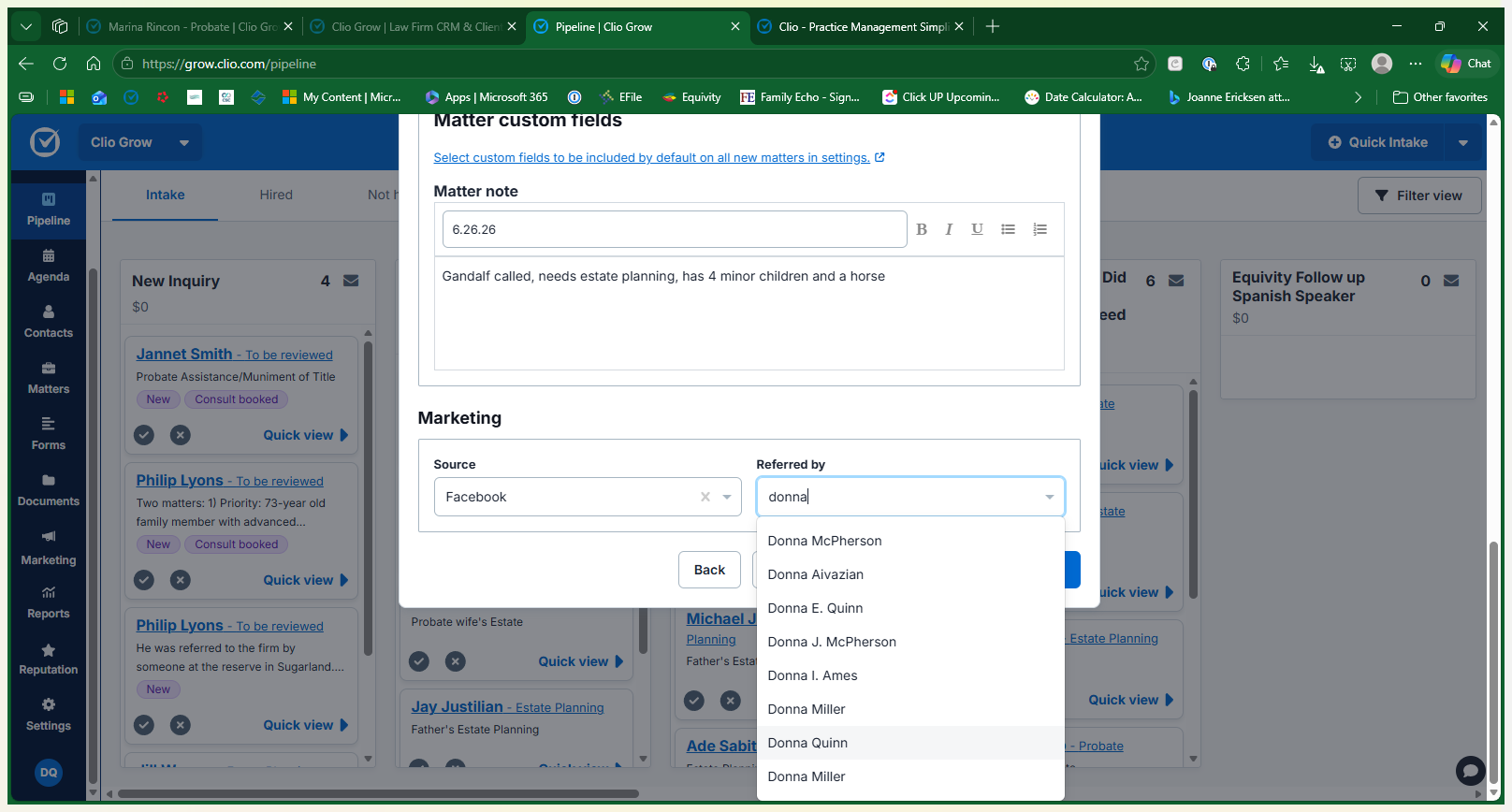
12
Select the marketing channel (e.g., Facebook) and specify the referral source's name in the Referred by field to help the firm track marketing efforts.
Step #12: Select the marketing channel (e.g., Facebook) and specify the referral source's name in the Referred by field to help the firm track marketing efforts.
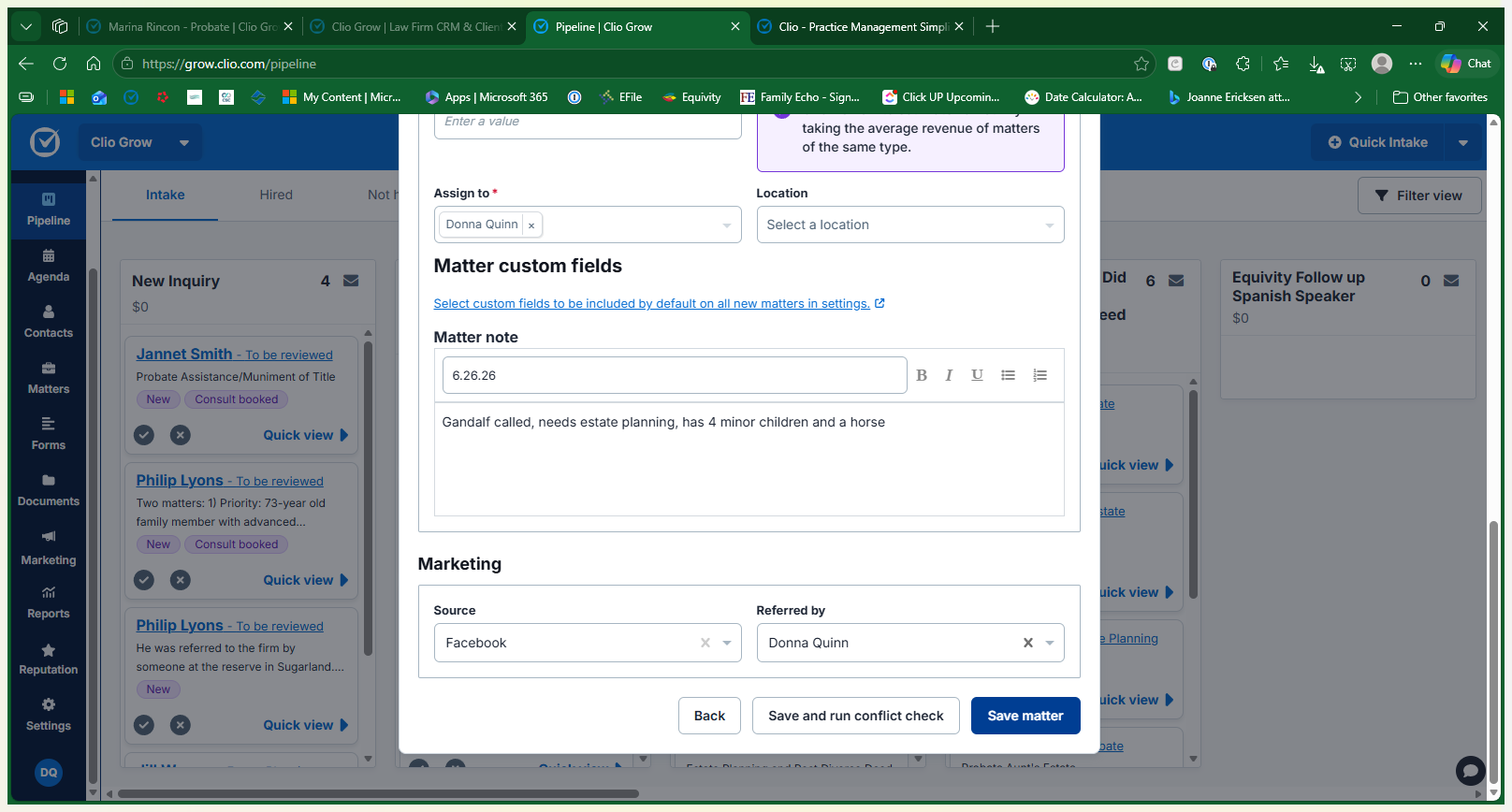
13
Click Save matter to finalize the creation of the intake record.
Step #13: Click Save matter to finalize the creation of the intake record.

Send Welcome Communications

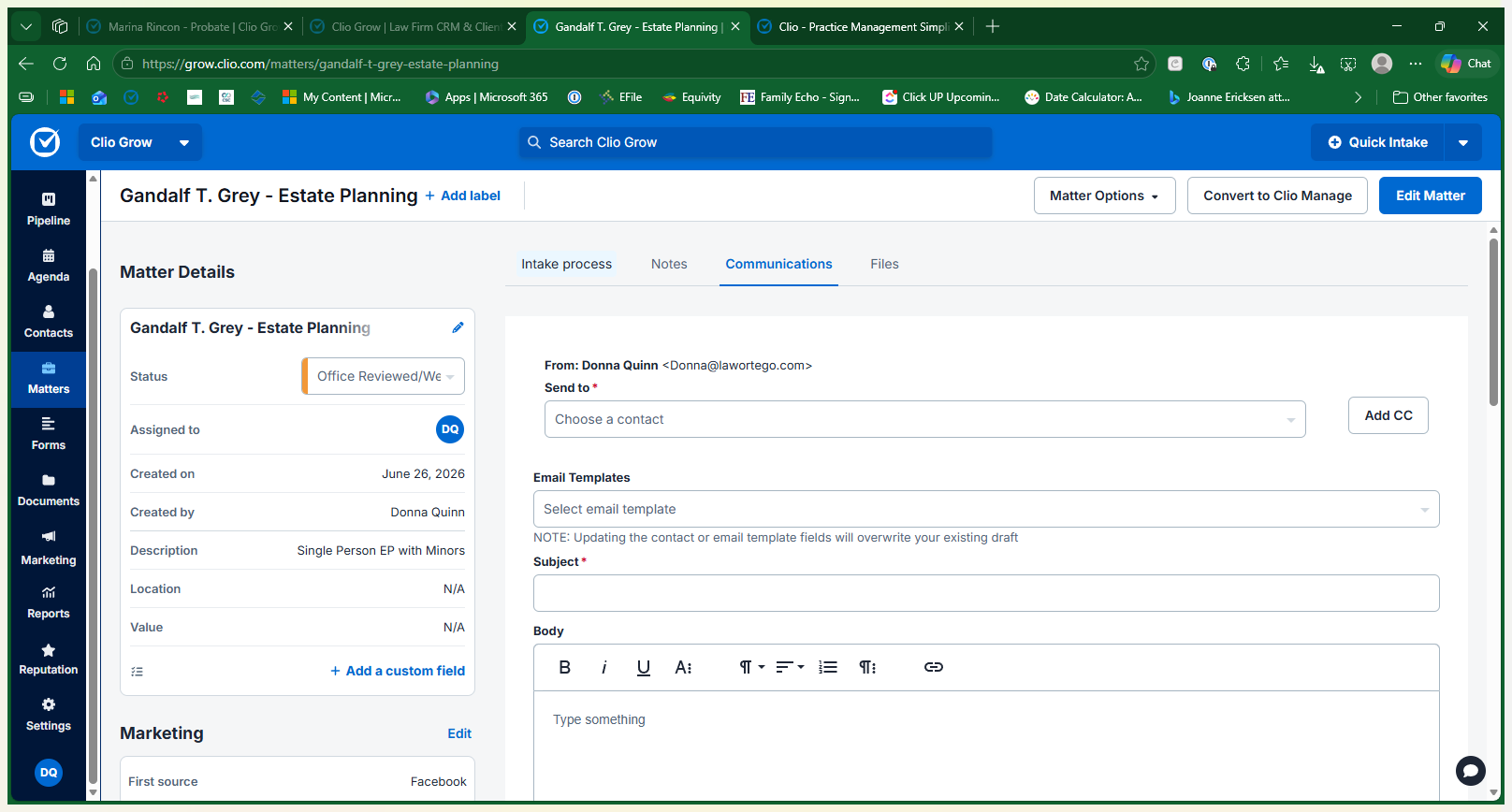
14
Navigate to the Communications tab of the newly created matter.
Step #14: Navigate to the Communications tab of the newly created matter.
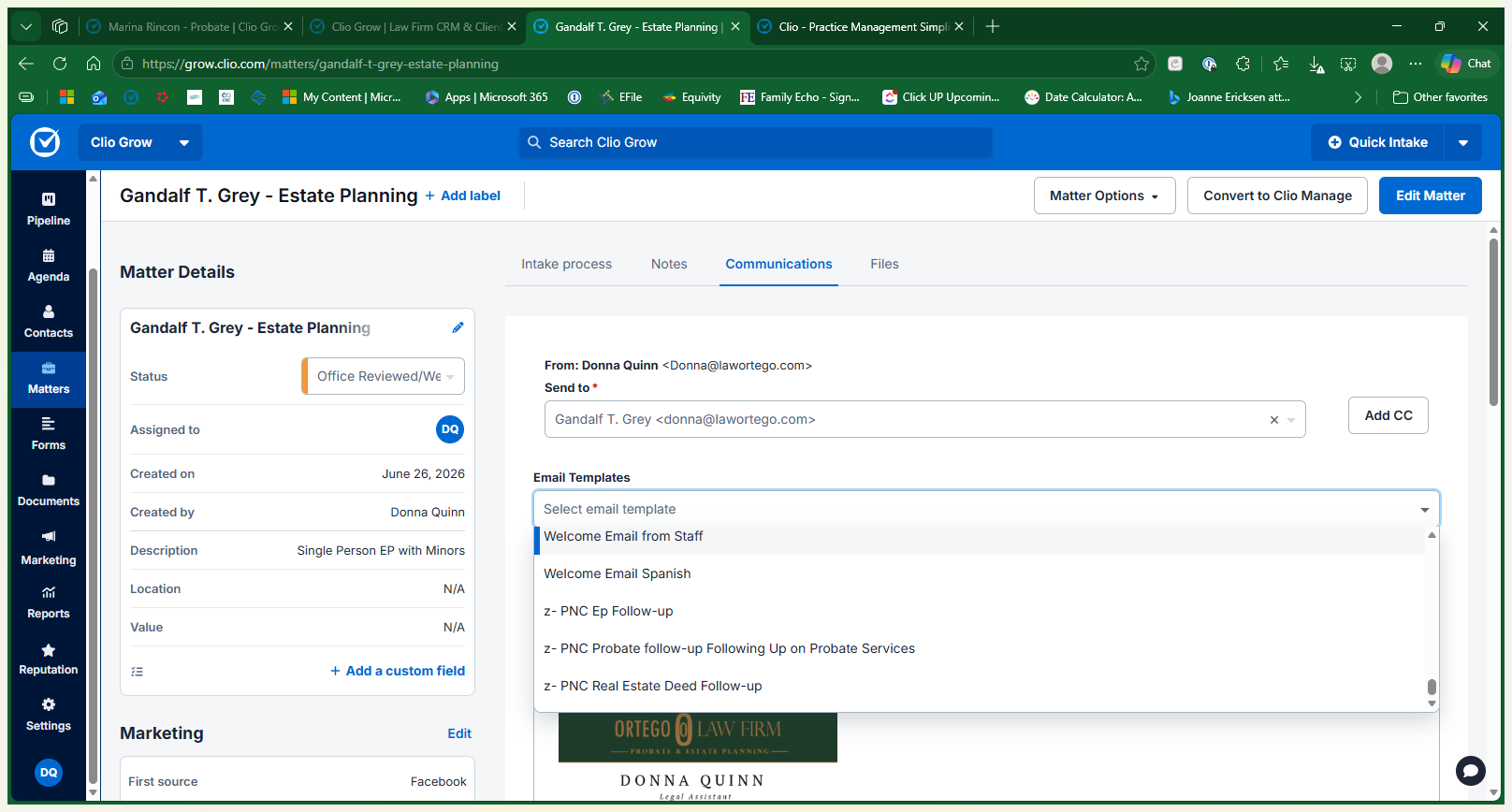
15
Select Welcome Email from Staff from the Email Templates dropdown to populate an email containing firm information and a self-scheduling link.
Step #15: Select Welcome Email from Staff from the Email Templates dropdown to populate an email containing firm information and a self-scheduling link.
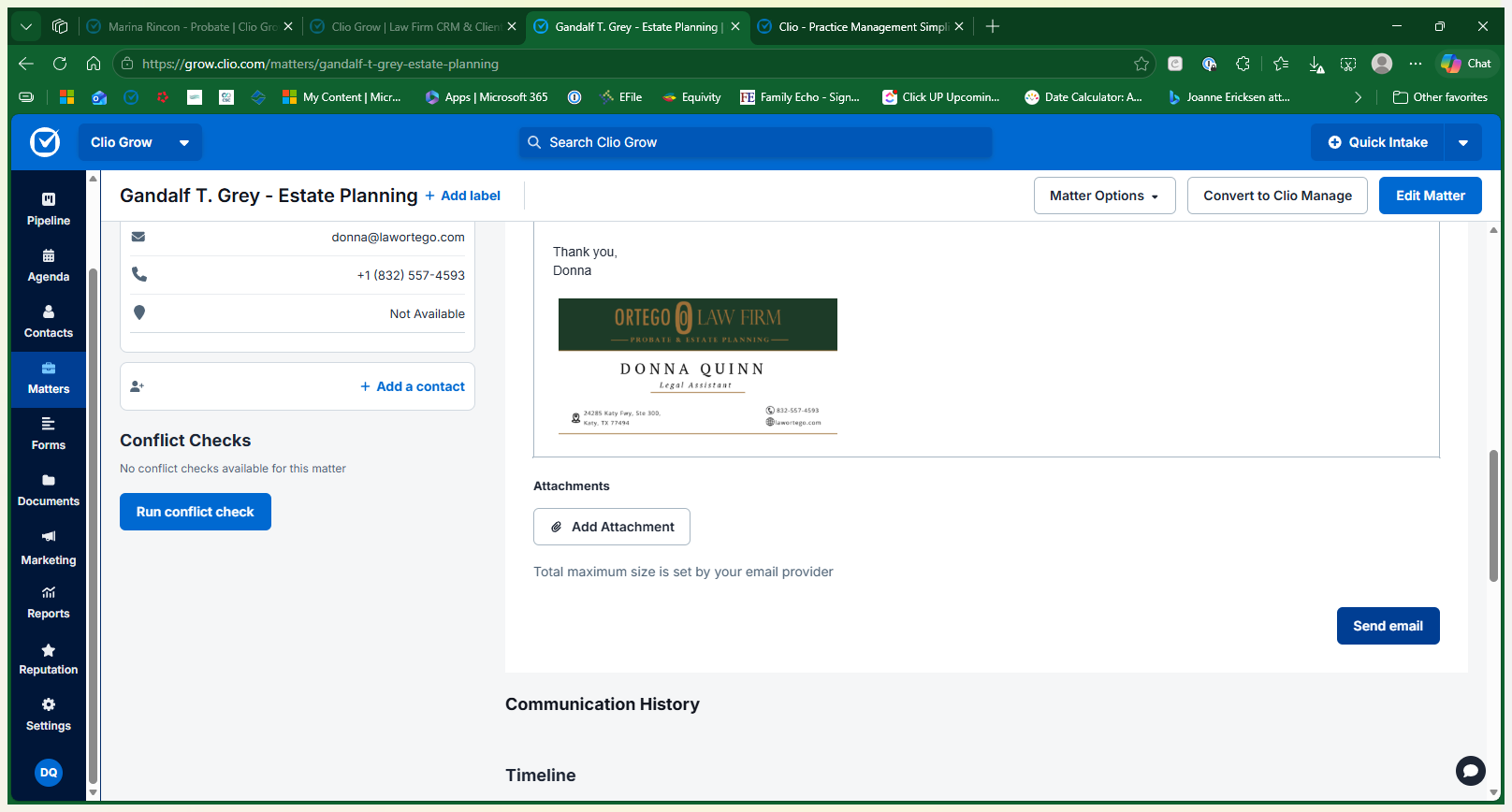
16
Click Send email to dispatch the onboarding details to the client.
Step #16: Click Send email to dispatch the onboarding details to the client.

Start the Drip Campaign

17
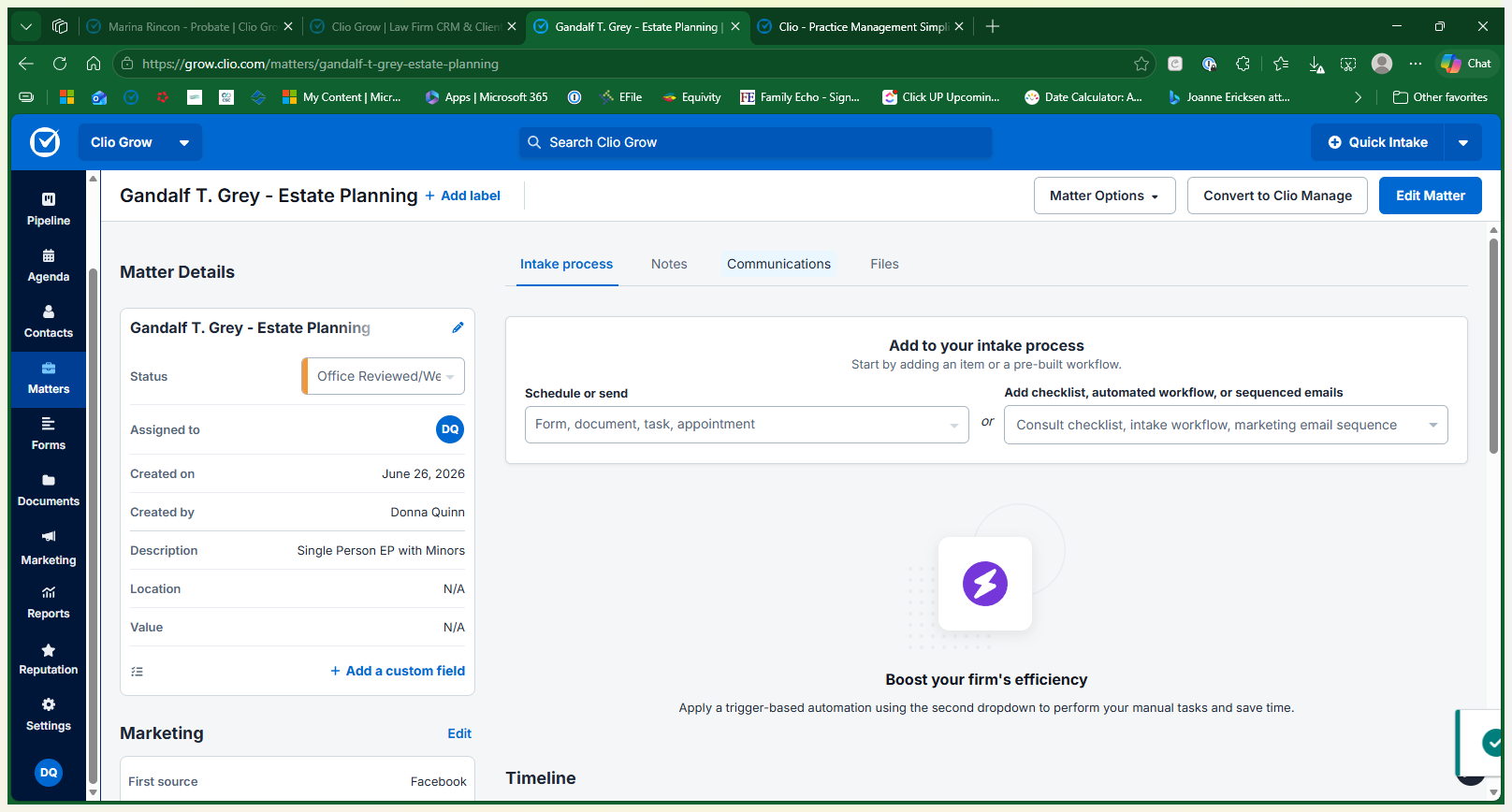
Click the Intake process tab.
Step #17: Click the Intake process tab.
18
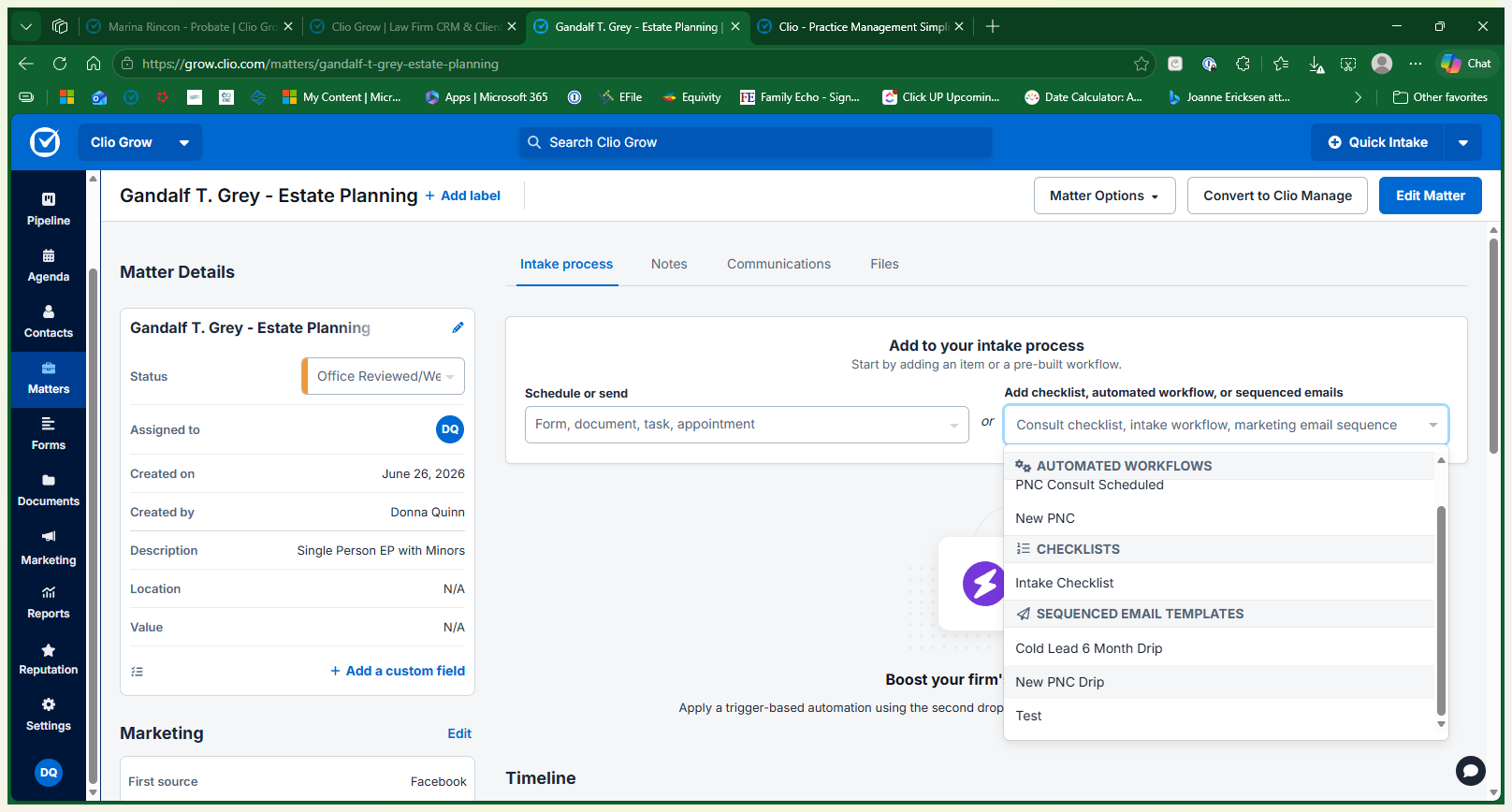
Select New PNC Drip from the Automated Workflows dropdown to queue a sequence of automated follow-up emails.
Step #18: Select New PNC Drip from the Automated Workflows dropdown to queue a sequence of automated follow-up emails.

Q: Why shouldn't I assign the matter to all staff members?

A: Assigning multiple staff members to a single matter triggers bulk notifications. Leaving it assigned only to the active handler prevents an influx of unnecessary emails in your colleagues' inboxes.

Q: What if I don't know the estimated value or location during intake?

A: You can leave those fields blank. Unless you know the information offhand, it is not required to create the matter.

Q: Why do we ask where clients heard about us?

A: Adding the marketing source or referring party helps the firm track referral channels and marketing performance on the back end.

Q: What do I do if Clio Grow warns me about duplicate contacts?

A: Verify the name, email, and phone number against existing records. If the contact is definitely a new, distinct person, click "Ignore duplicates" to proceed. If this is a repeat, navigate to that person's profile and work there.

Q: Why do we send an automated welcome email instead of scheduling the client over the phone?

A: Allowing potential clients to self-schedule online via the welcome email allows potential clients to see what the availability is and pick the open time that works with their schedule, it also saves time for staff and makes pipeline tracking much easier.

Term

Definition

Clio Grow

The legal client intake and customer relationship management (CRM) software used to track potential clients.

Matter

A specific case, legal issue, or file associated with a client.

Pipeline

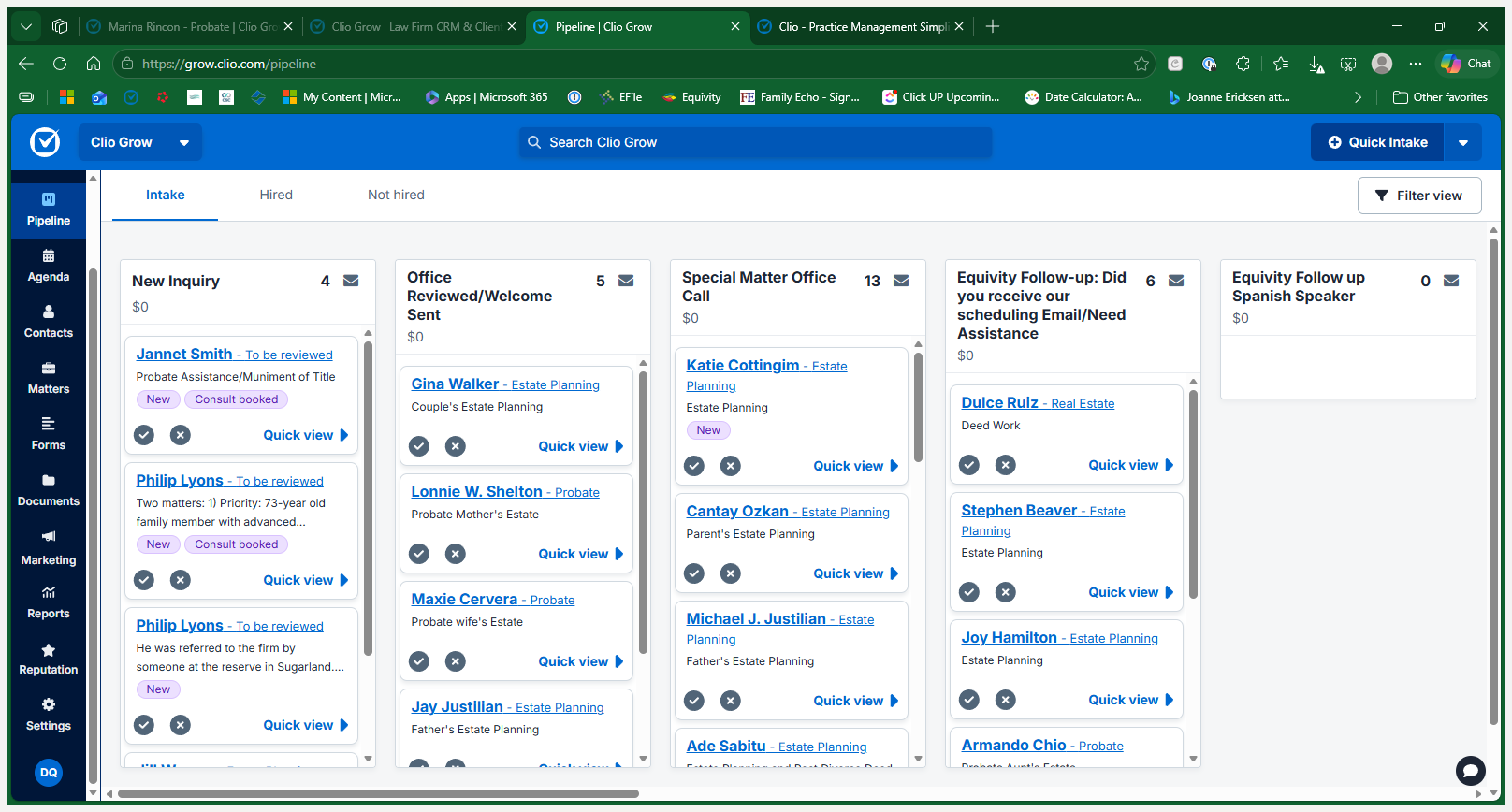
The visual dashboard where all prospective client inquiries and their current statuses are tracked.

Drip Campaign

A sequence of automated emails sent to a prospective client on a predefined schedule to encourage them to take action.

PNC

Potential New Client; an individual who has inquired about legal services but has not yet officially hired the firm.