
How to Process a Refund Using Verifone Terminal
Learn how to process a refund to the original card using the Verifone terminal without the customer being present. Step-by-step guide to manage your order overview and refund transactions efficiently.
By Christiaan
In this guide, we'll learn how to process a refund for an order originally paid with a card using the Verifone terminal. We'll explore how to navigate the order overview, create an active shopping basket, and proceed to checkout to handle the refund. Additionally, we'll cover how to select the appropriate transaction and payment type to ensure the refund is processed correctly without the customer present.
Let's get started
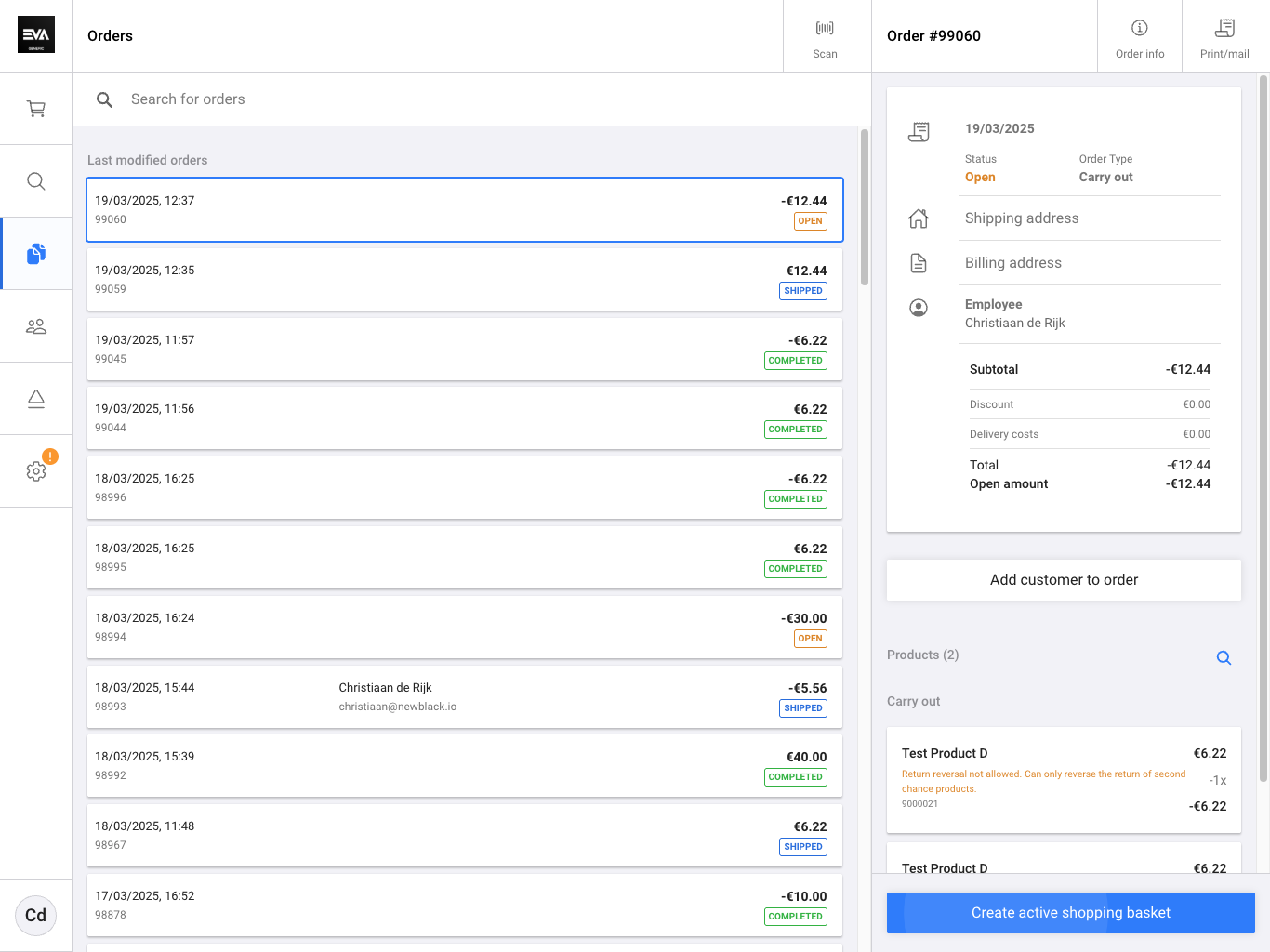
First, go to your order overview and click on your return order or the order with the pending open amount. From this screen, select "Create Active Shopping Basket."
1
Go to EVA POS App and look up your order
2
Click 'create active shopping basket' Press
3
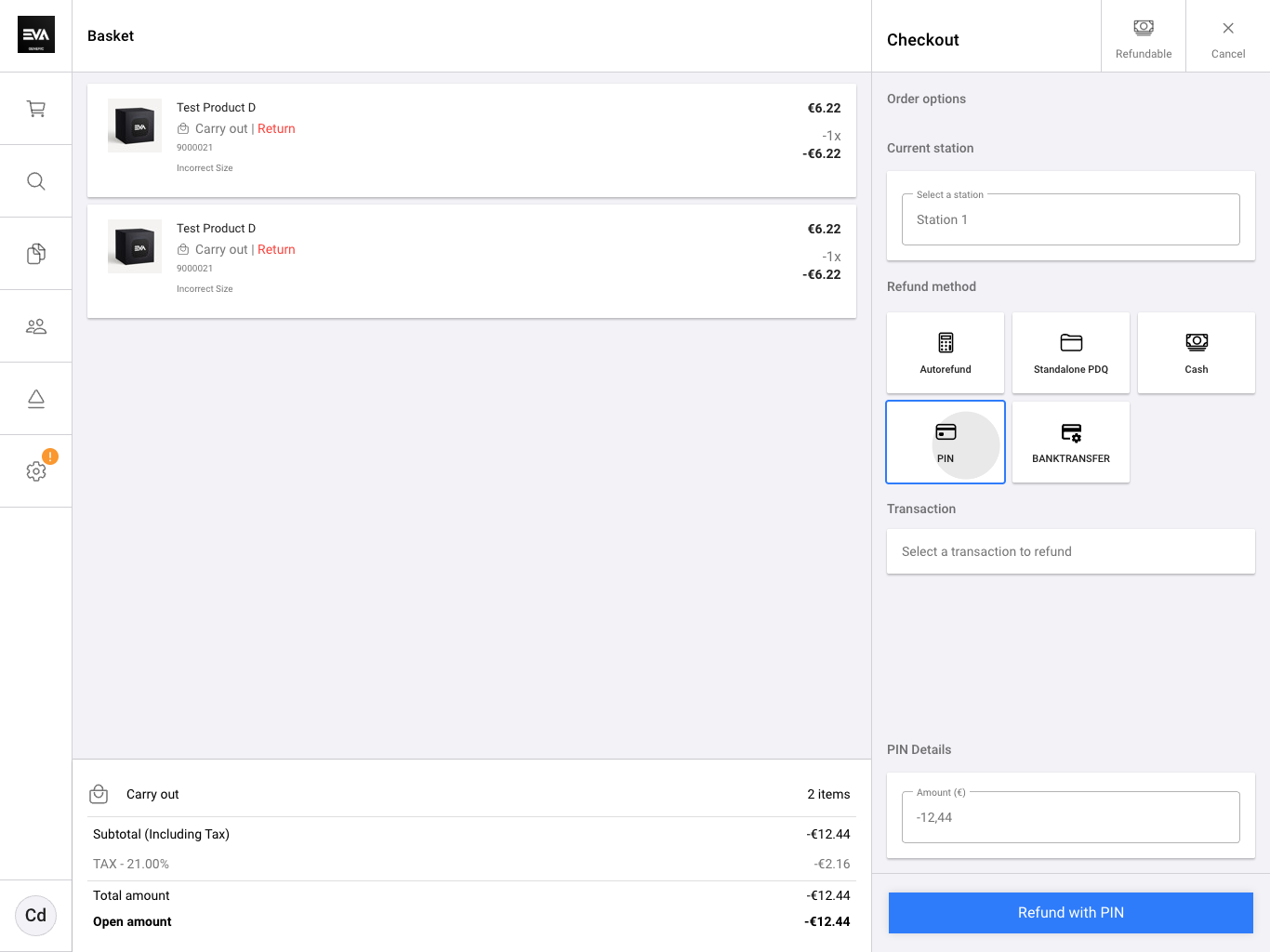
Select Debit/Credit (instead of autorefund)
4
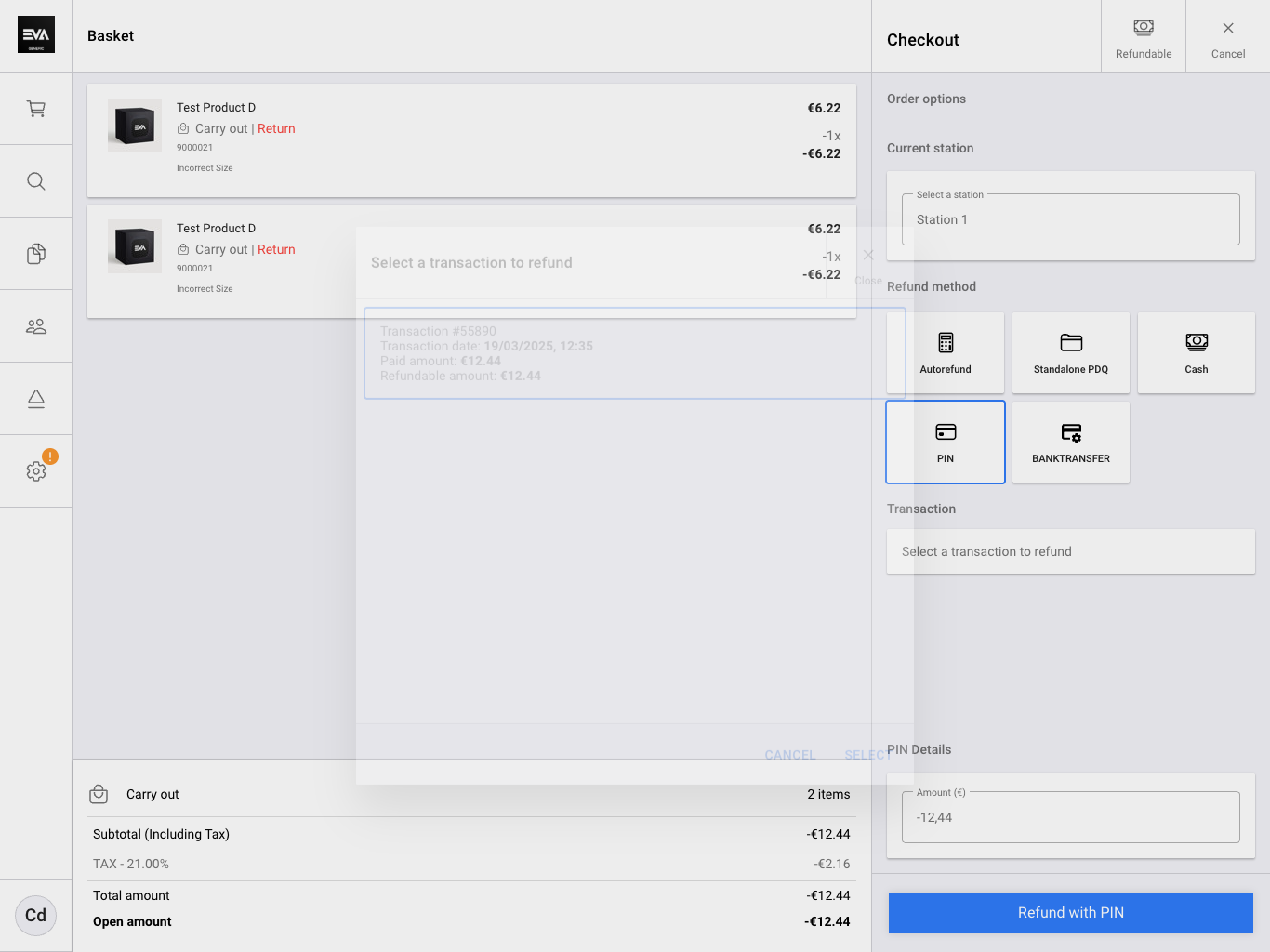
Select a transaction to refund
5
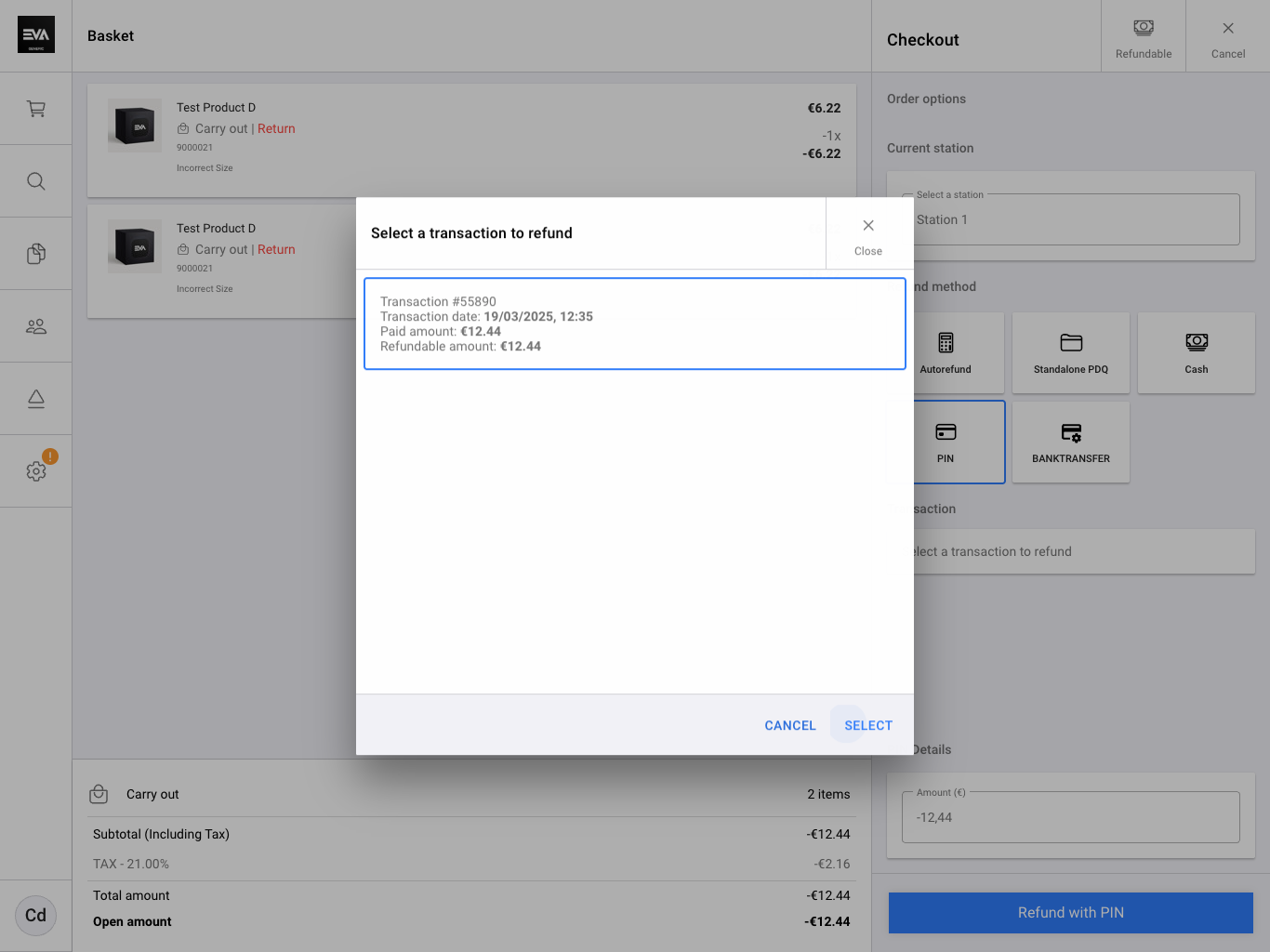
Select the right payment transaction (in most cases there will only be a single one)
6
Press Select
7
Click the refund button
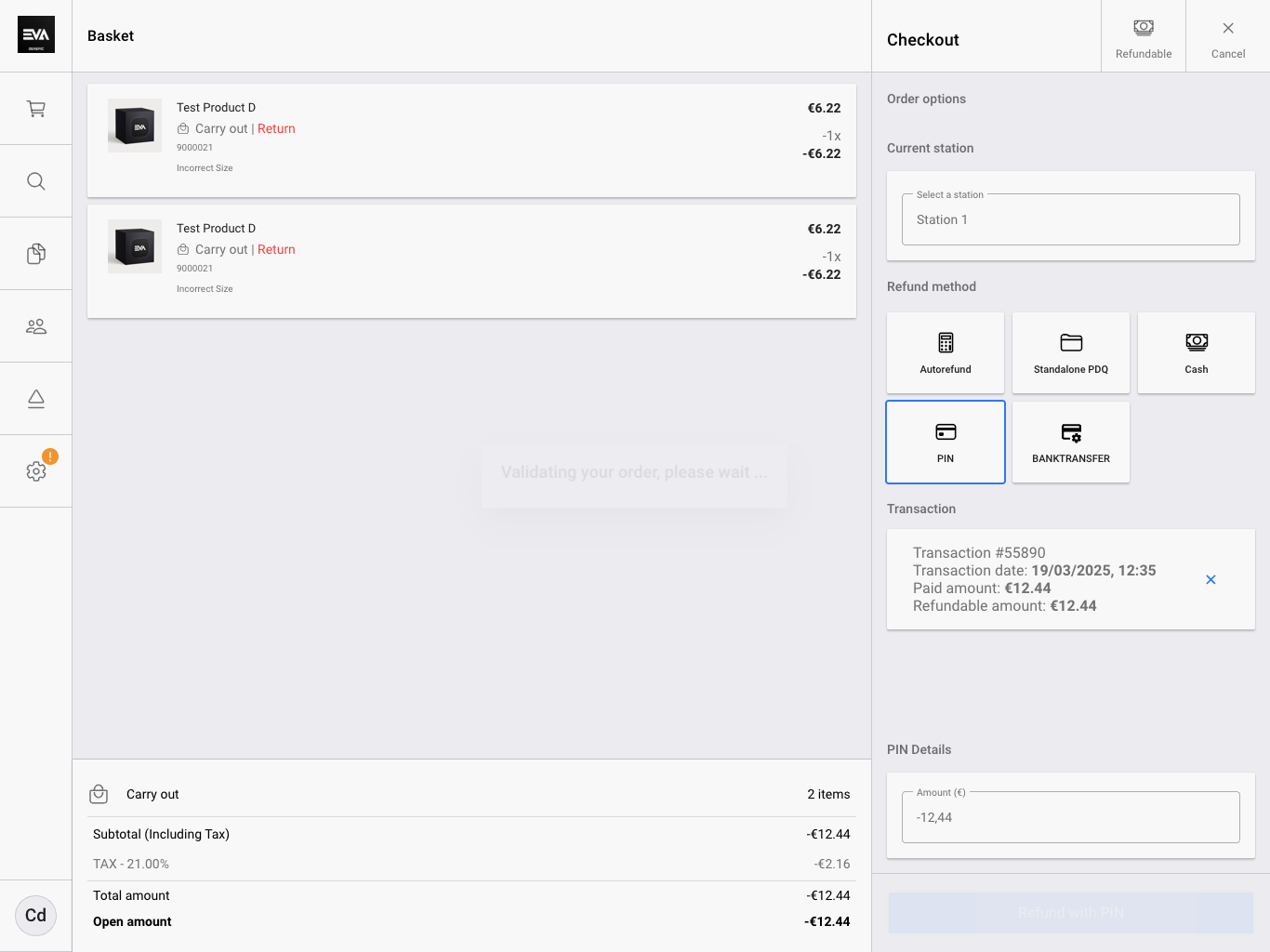
This will process a refund to the original card using the Verifone terminal without the customer needing to interact with the terminal.