
How to Process and Follow Up on an Intake Call in Blue Dot
Step-by-step guide for processing intake calls, uploading meeting recordings, managing intake notes, and sending personalized follow-up emails using Blue Dot and related tools.
In this guide, we'll learn how to process and document an intake call with a client, upload the call recording, generate a transcript, update intake notes, and send a follow-up email. This process helps keep client records organized and ensures clear communication with both clients and team members.
You'll also see how to use templates and personalize your messages for each situation.
Let's get started
All right, I'm going to do another one.
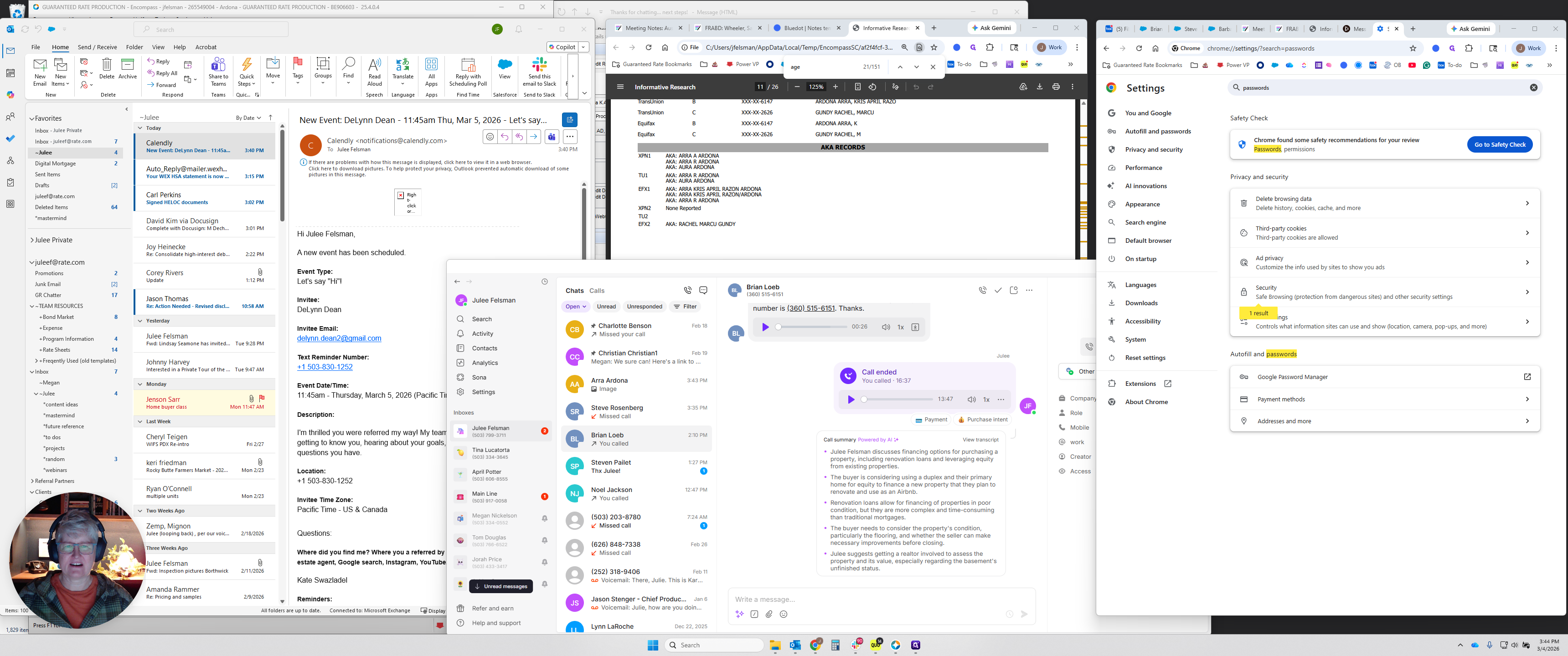
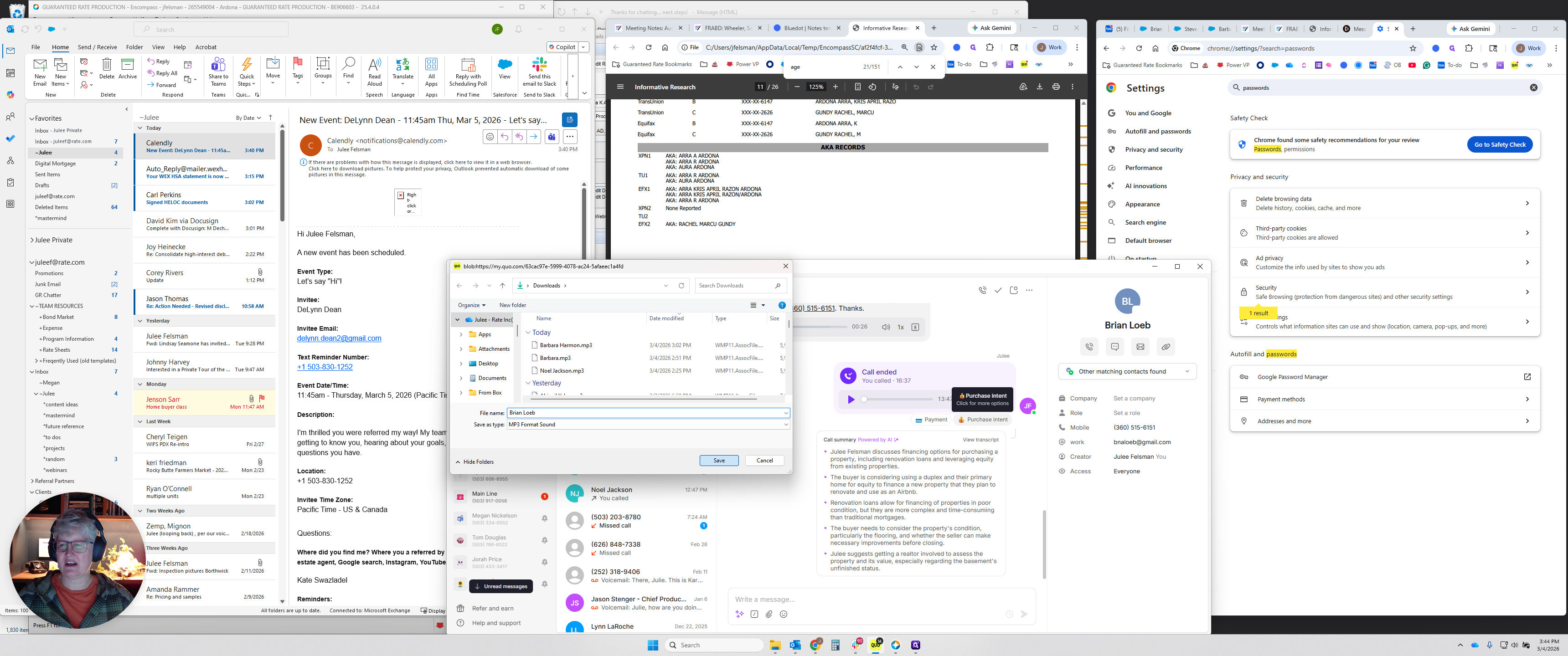
I will do this all the way through and delete what I added. Finish the intake call with Brian Loeb. Go to Call & Open Phone. Find the processed recording, click the three dots, select Download, and name the file.
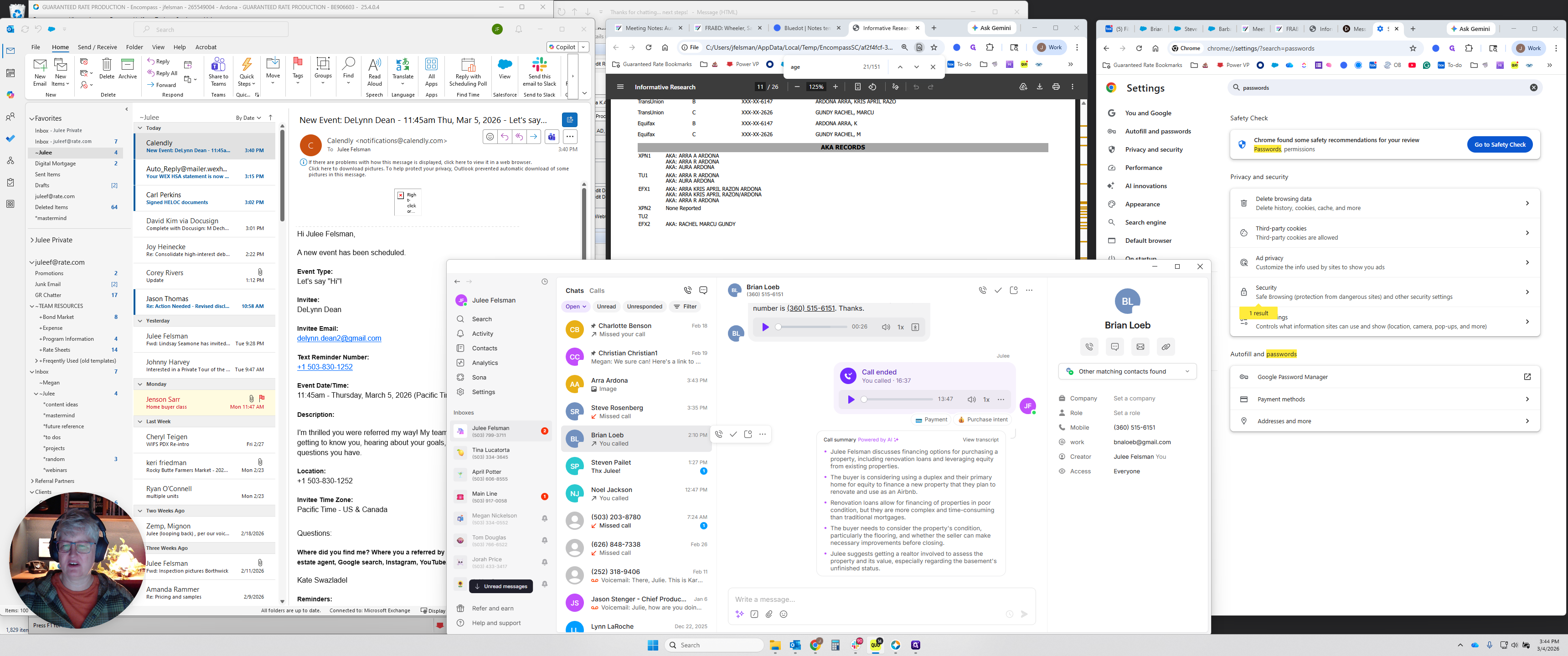
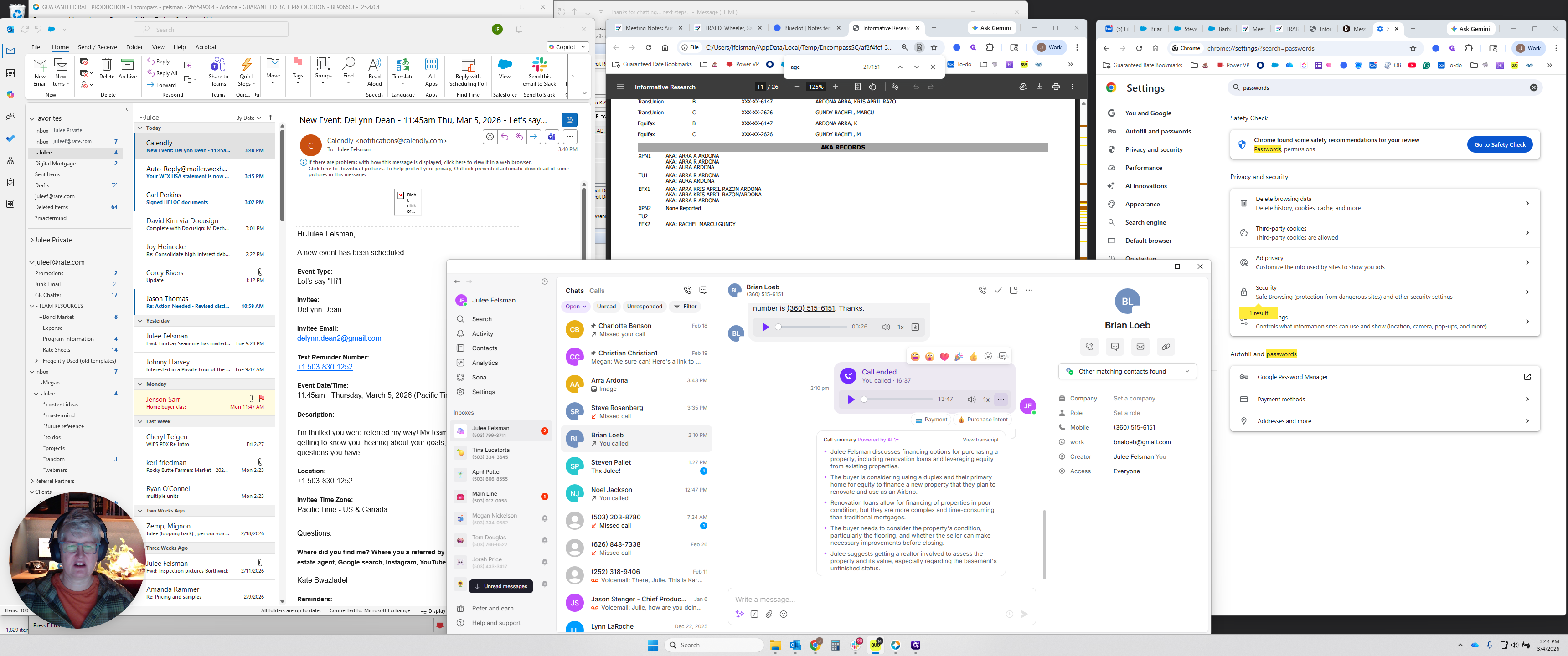
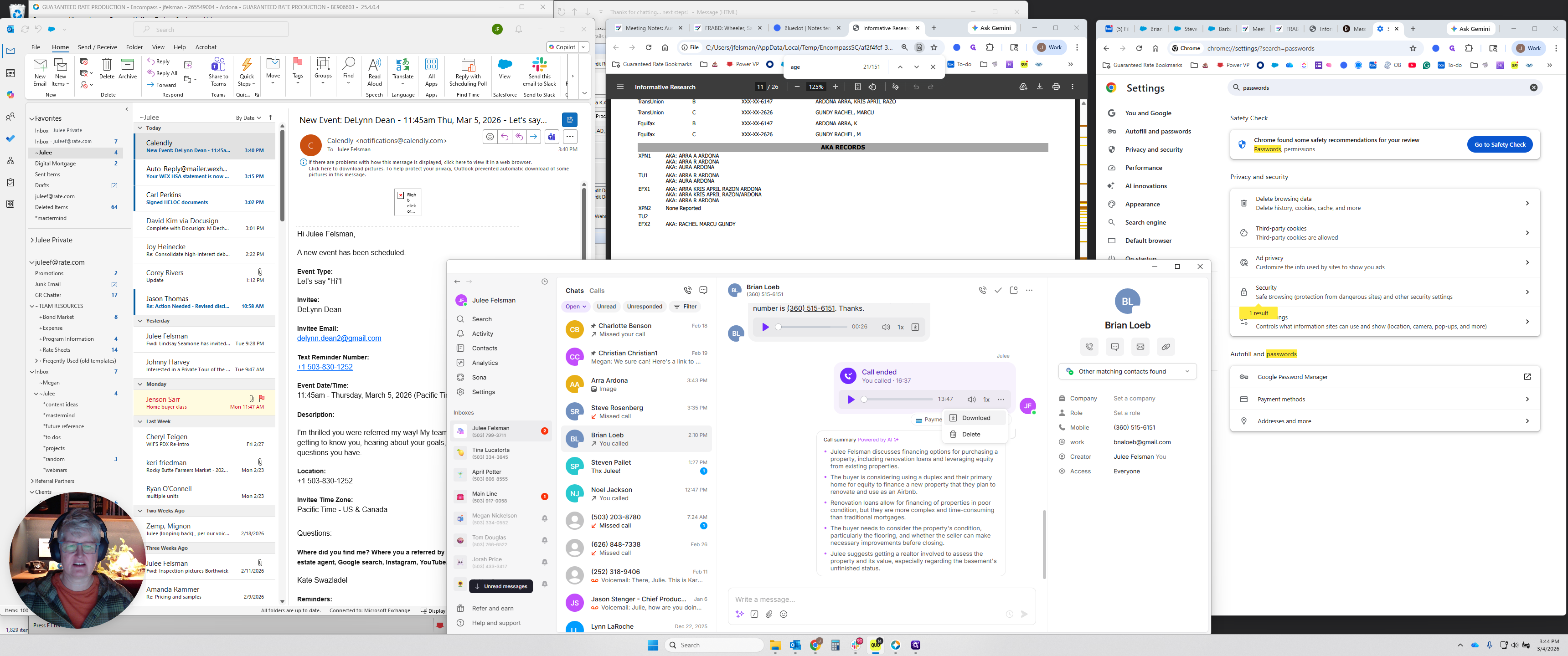
I always download it to my Downloads folder.
Then go to Blue Dot at app.blue.hq.com.
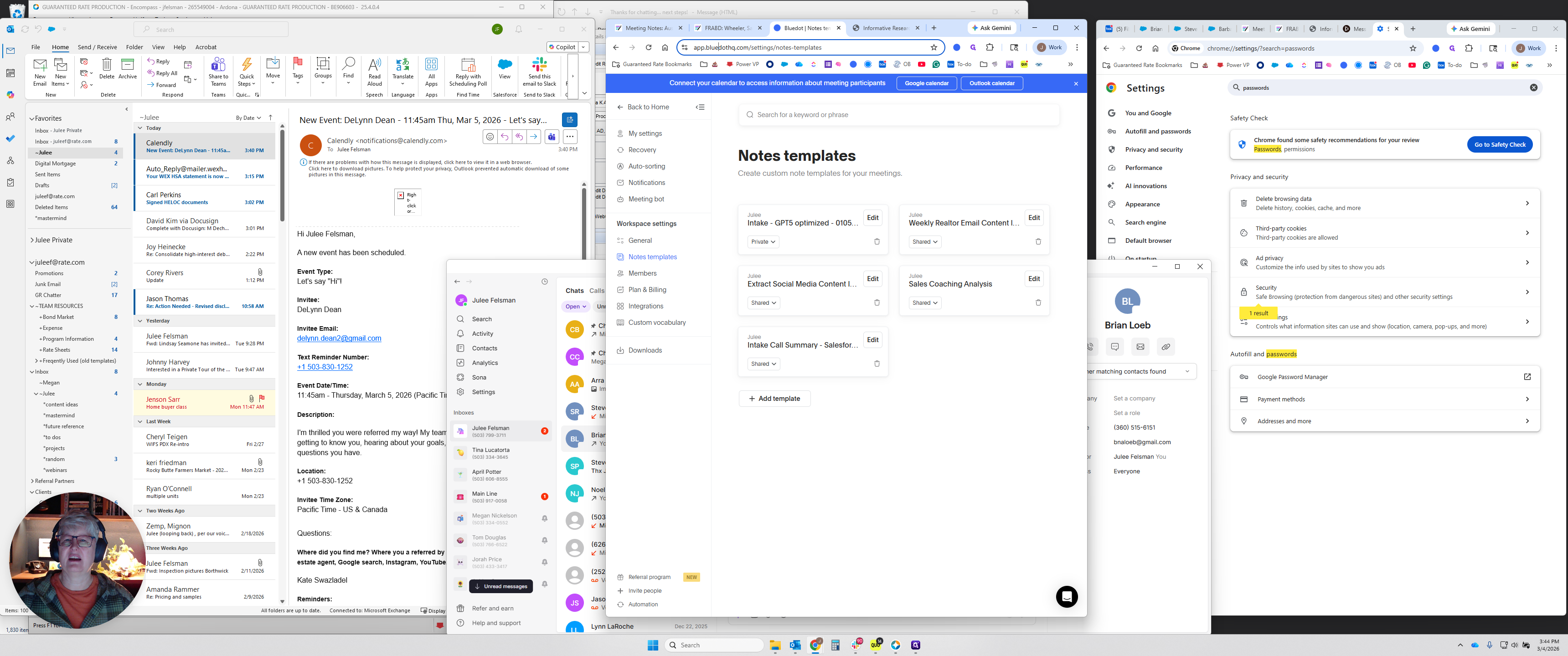
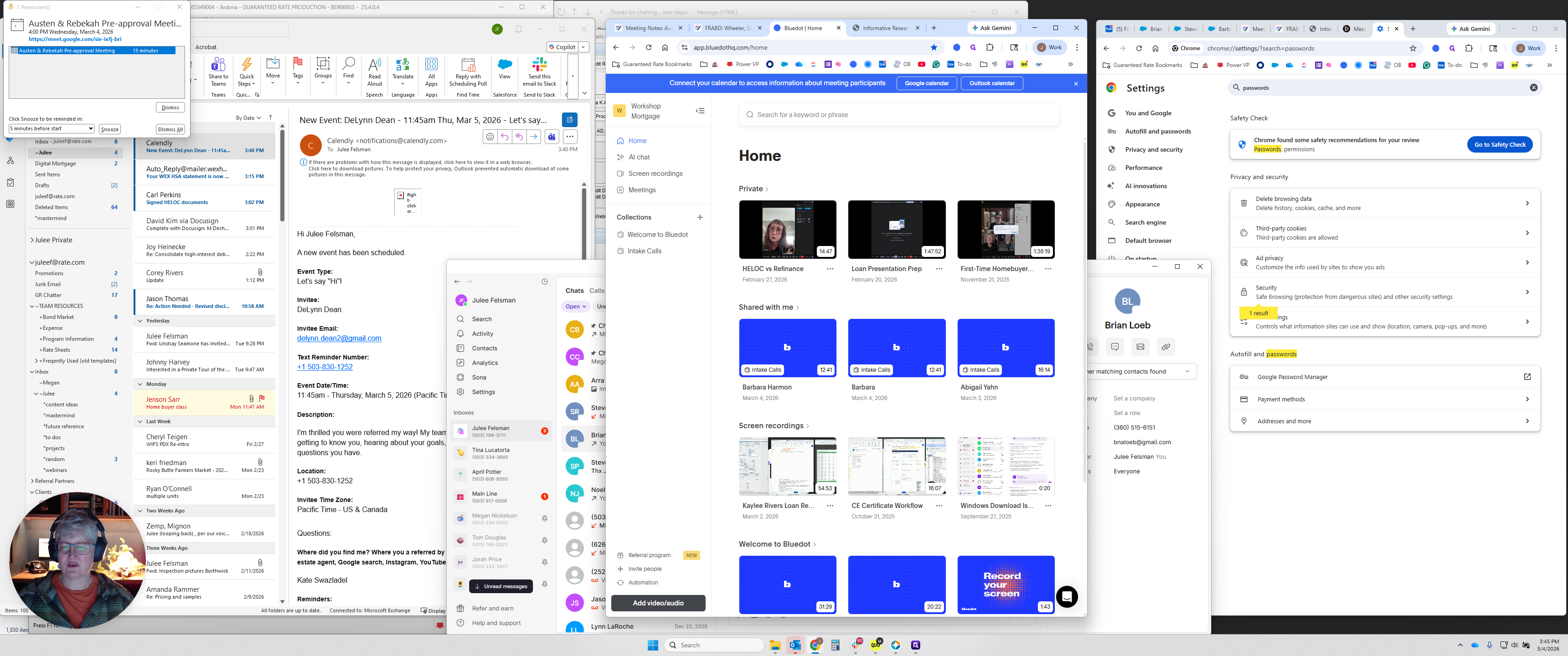
Once you are in Blue Dot, open the sidebar by clicking the hamburger icon if it is closed.
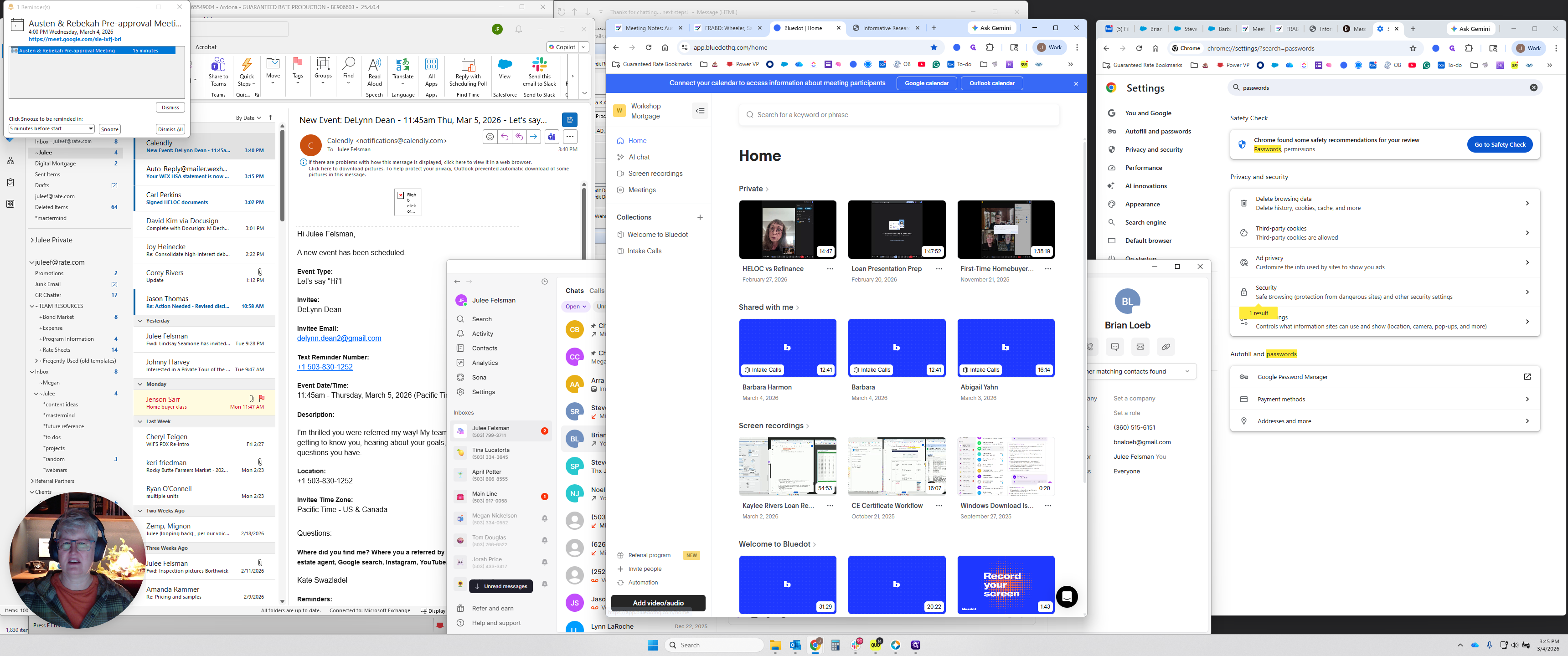
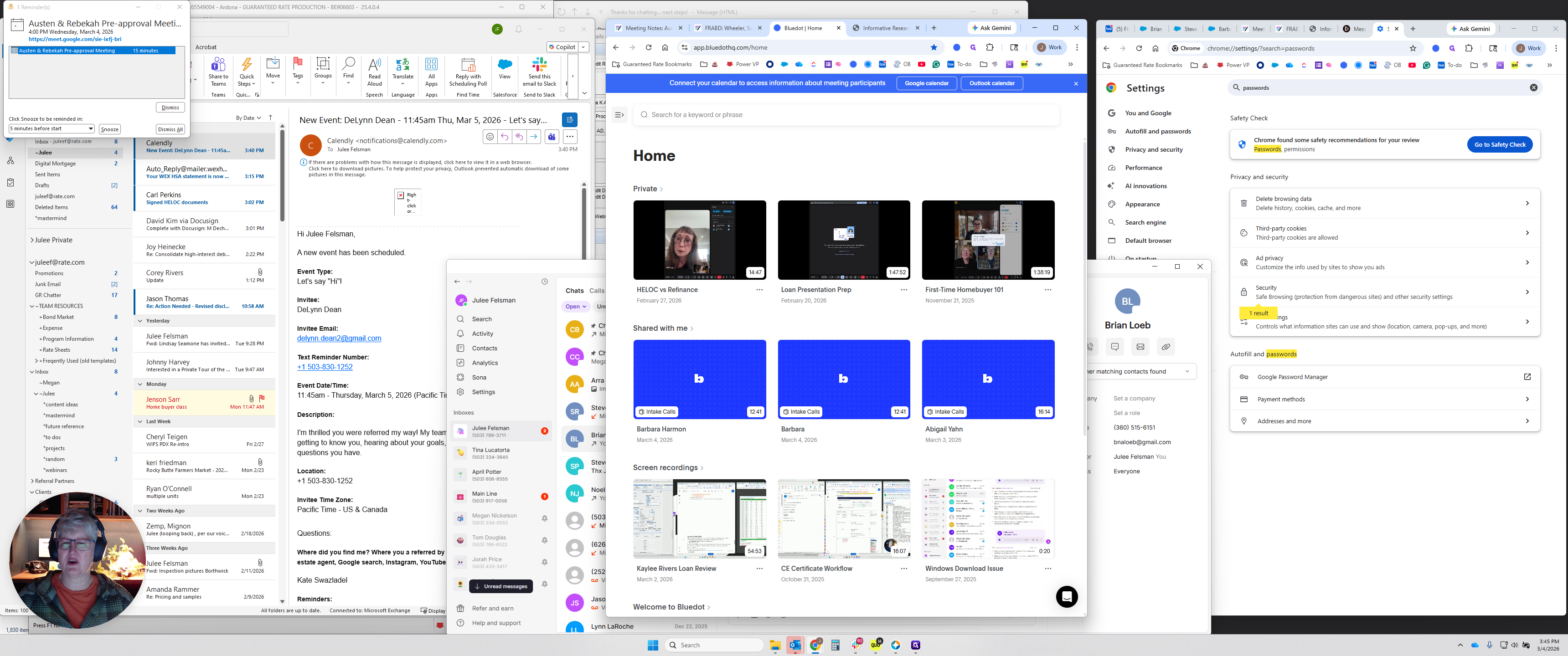
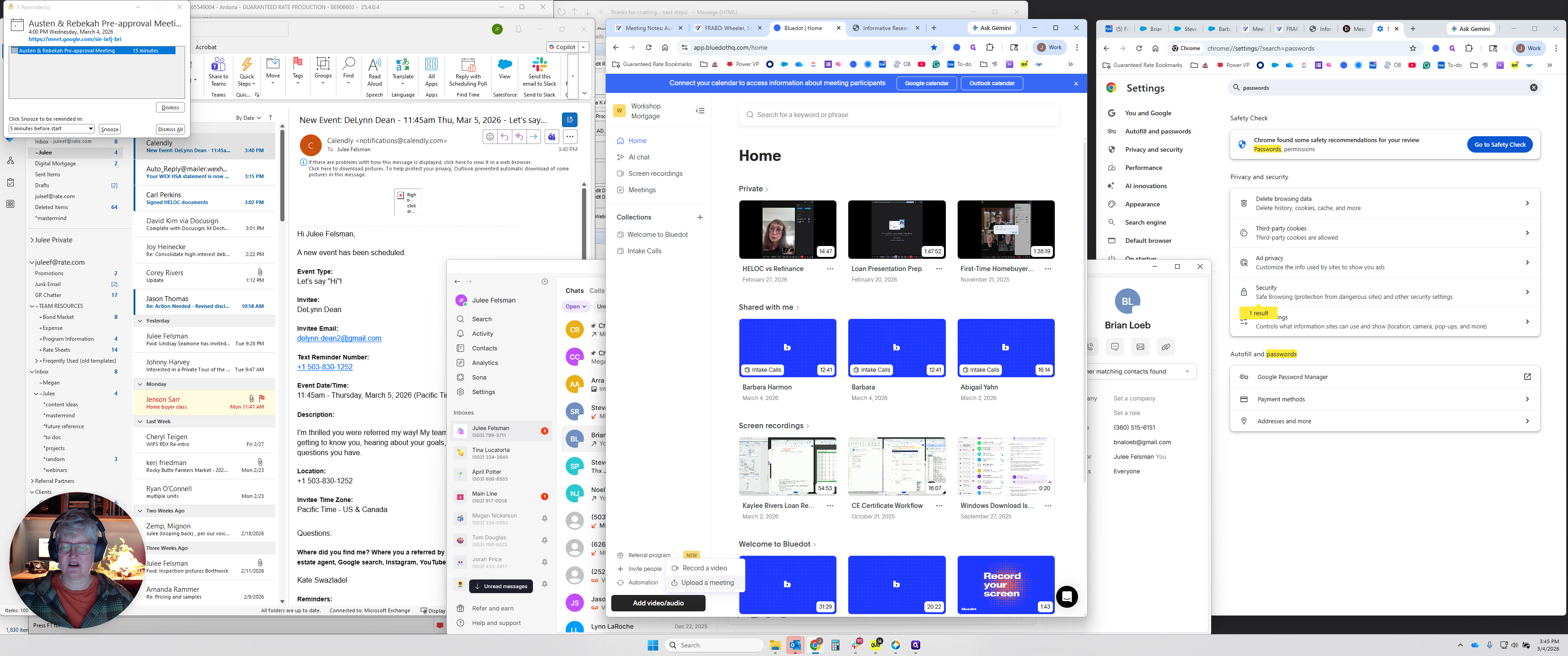
Go to Add a Video, Upload a Meeting, click Browse, and navigate to your Downloads folder.
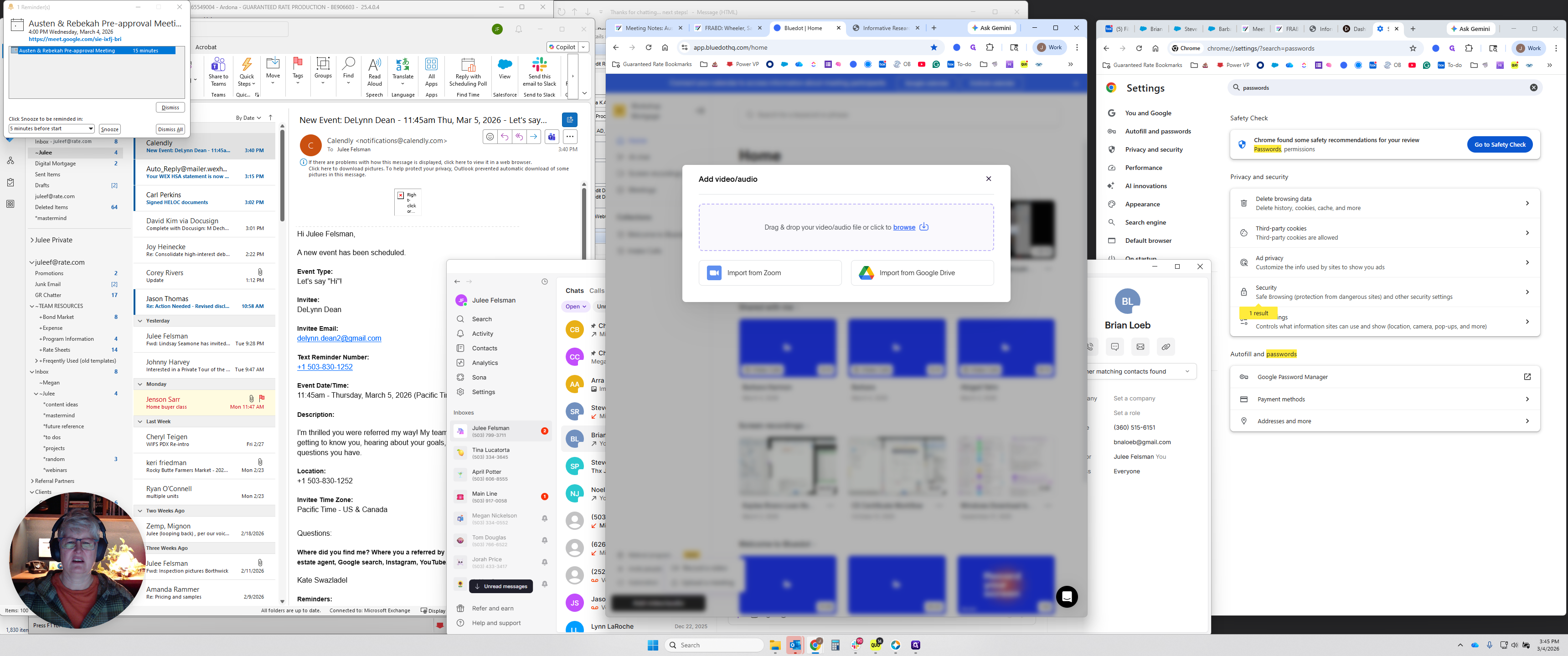
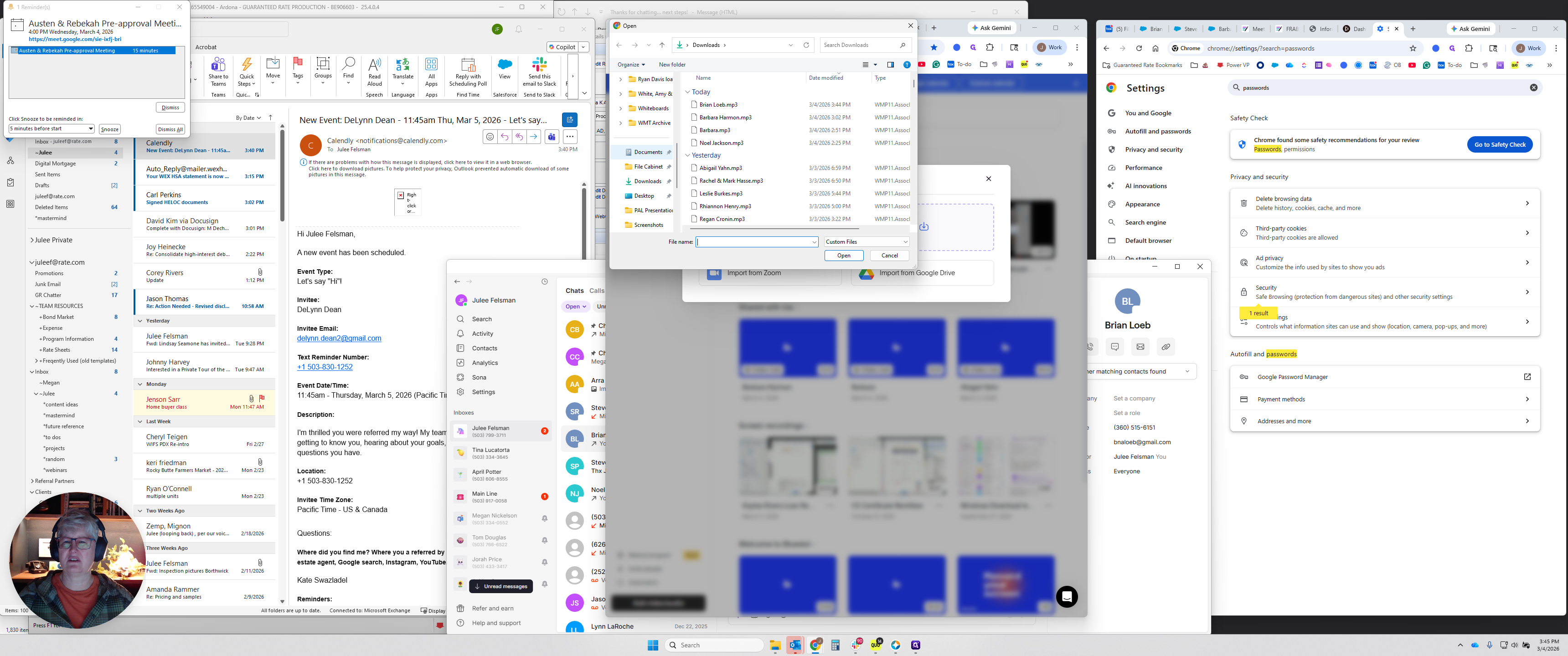
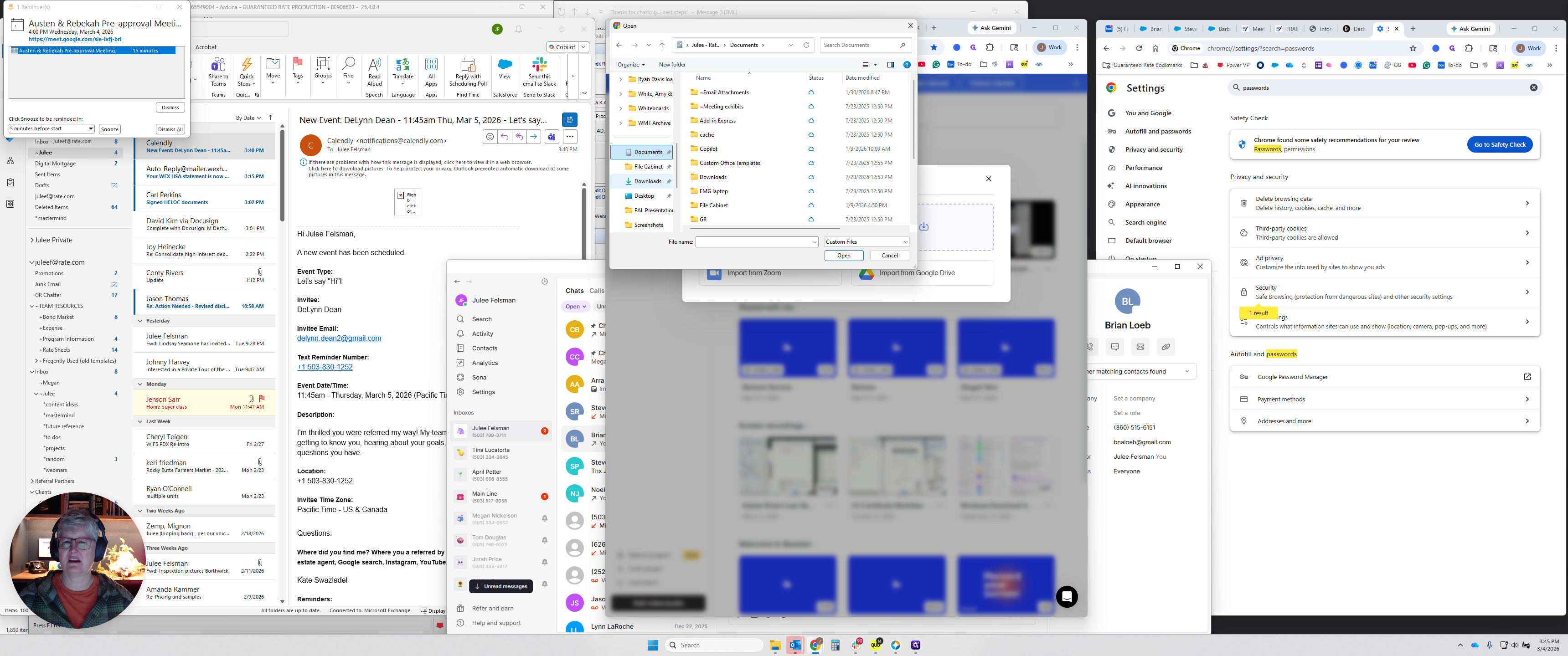
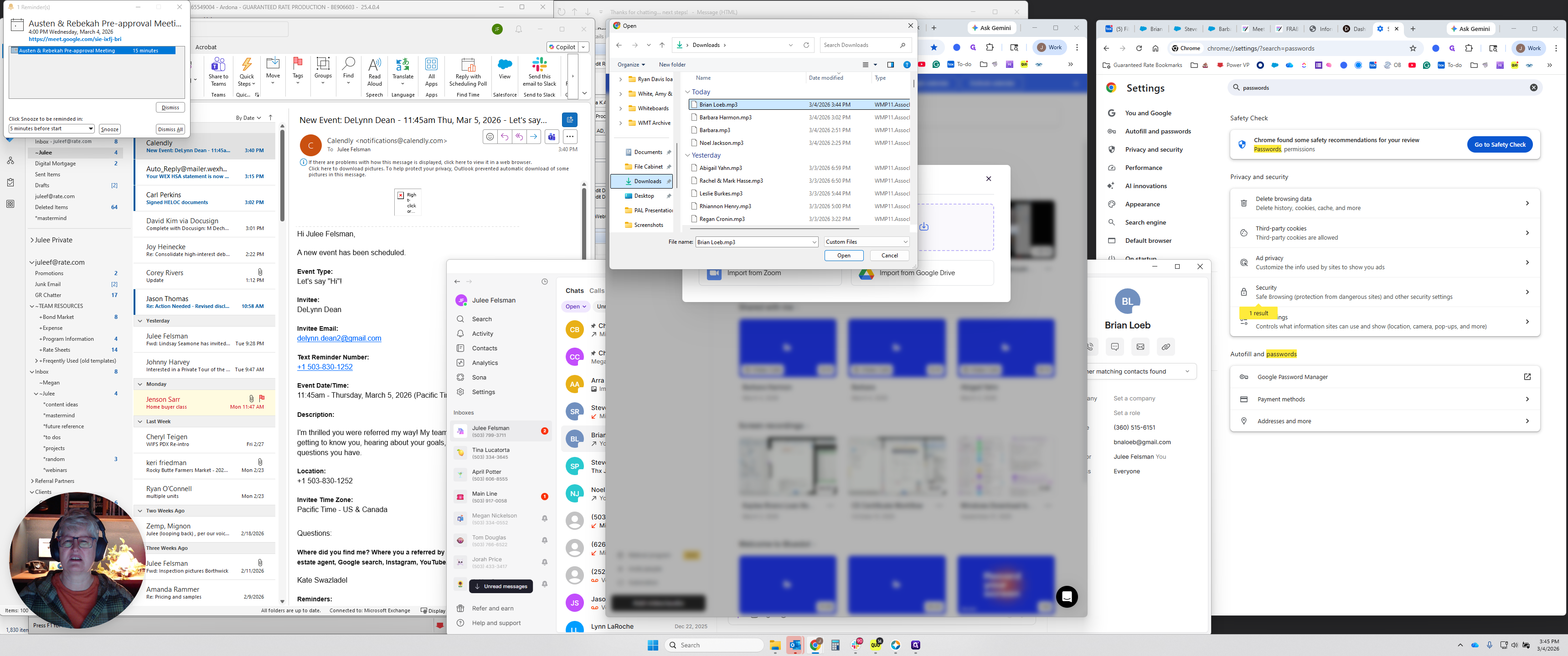
Click on the meeting, select a shared collection, choose intake calls, and then click Save.
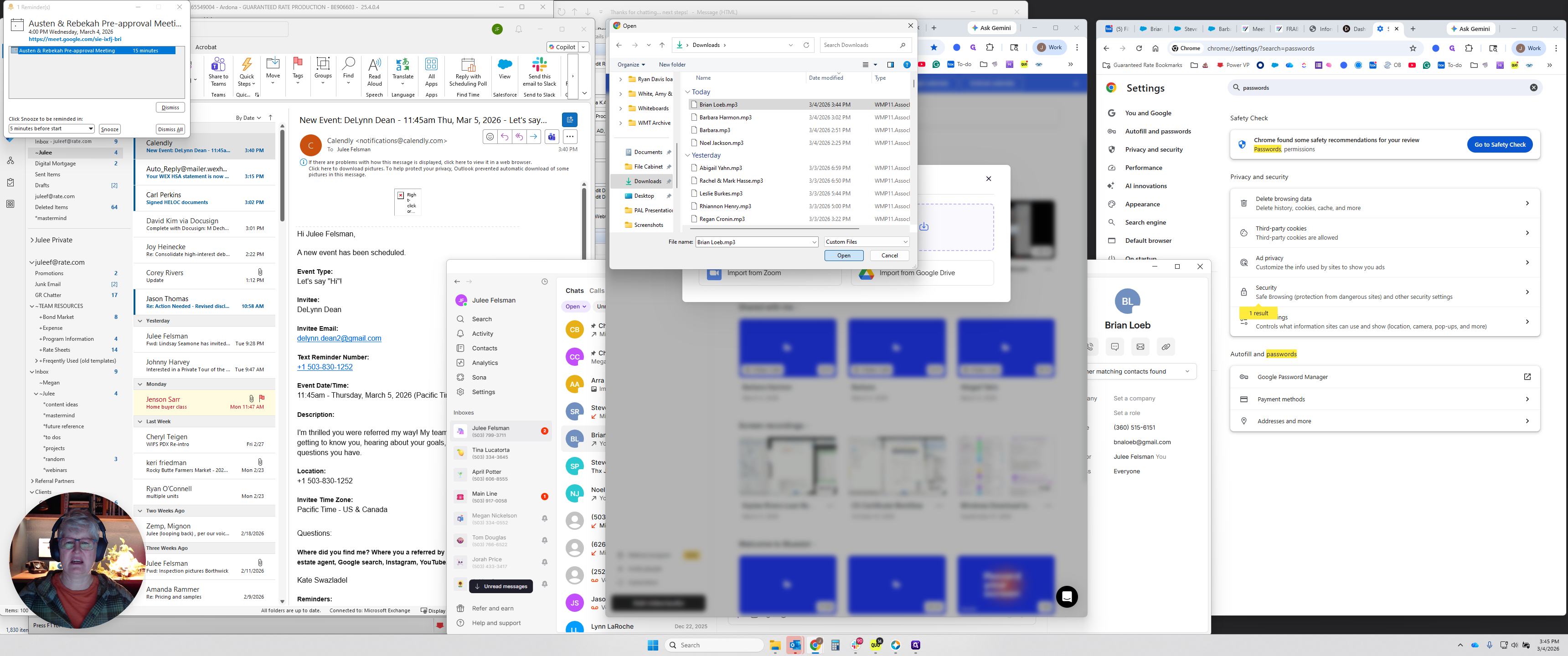
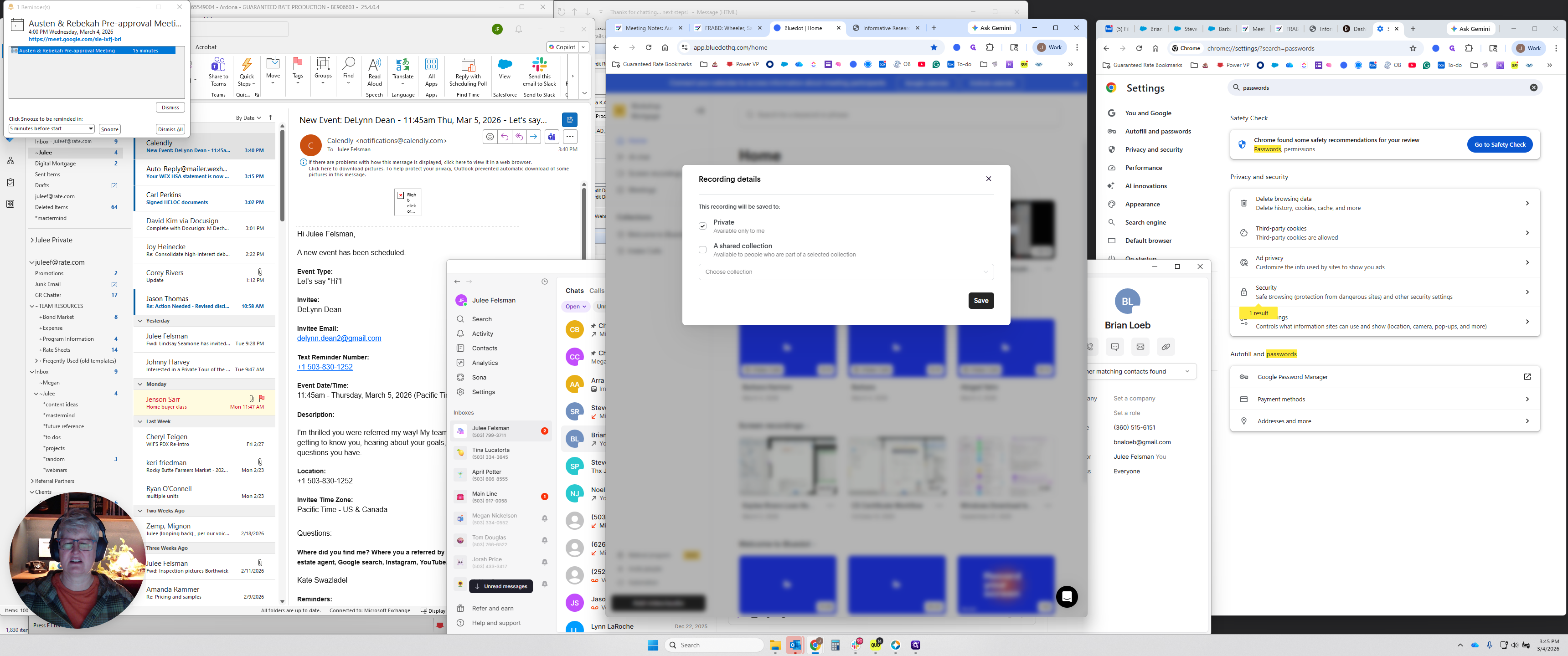
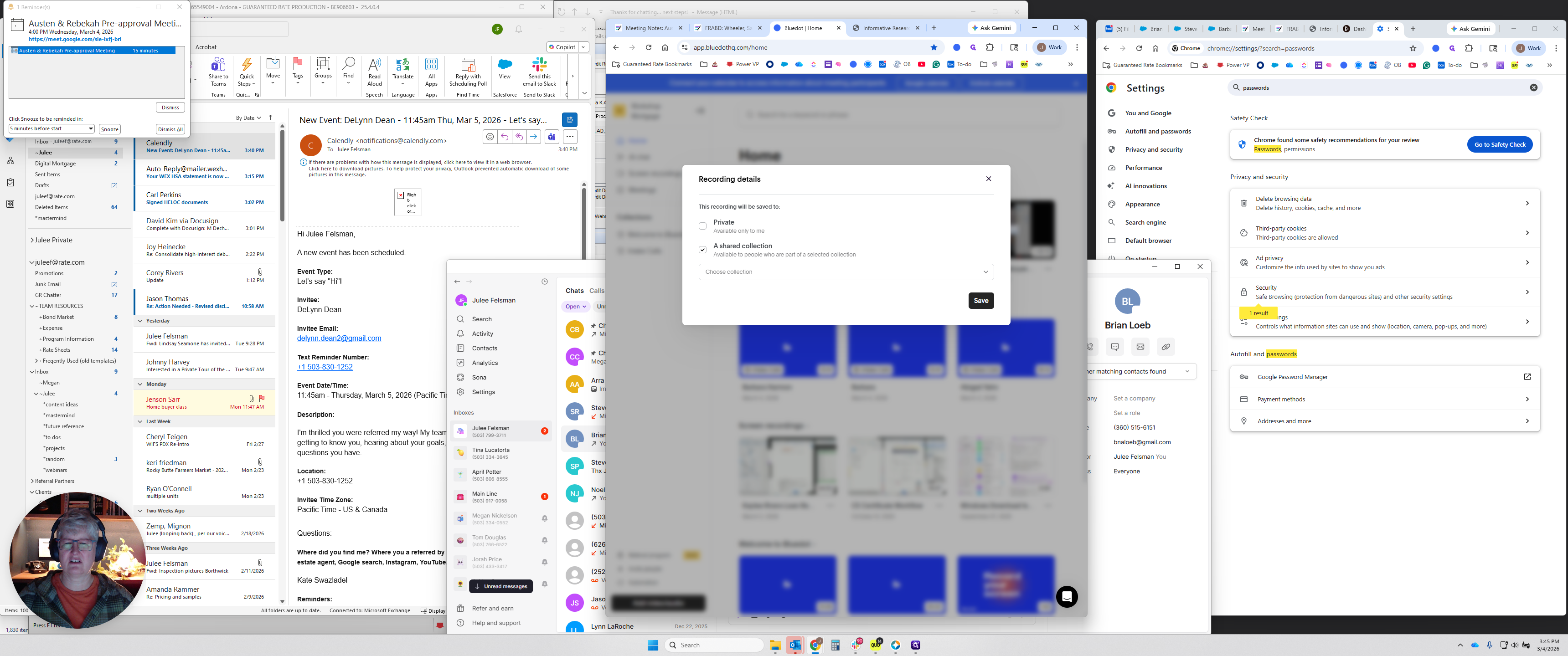
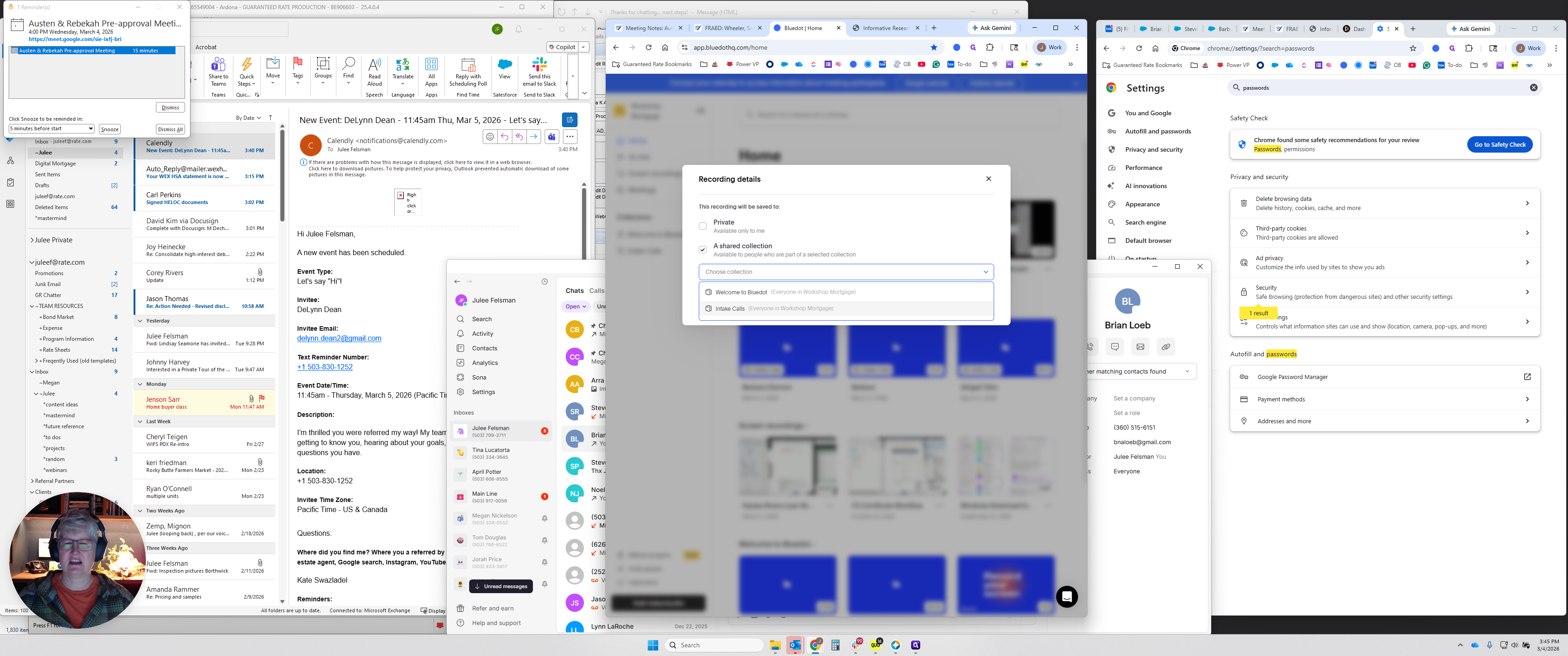
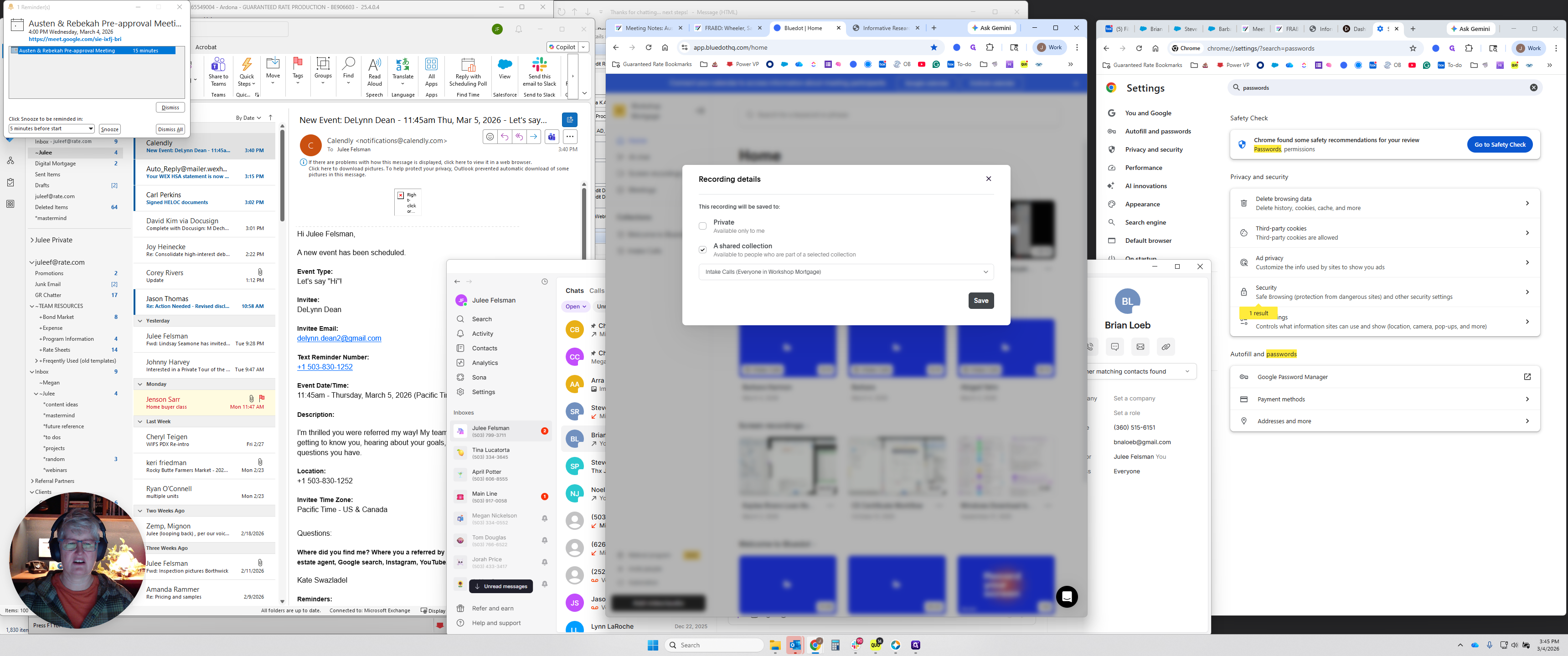
It will process. When it's done processing, you can open it. It may still take a minute to finish processing the recording.
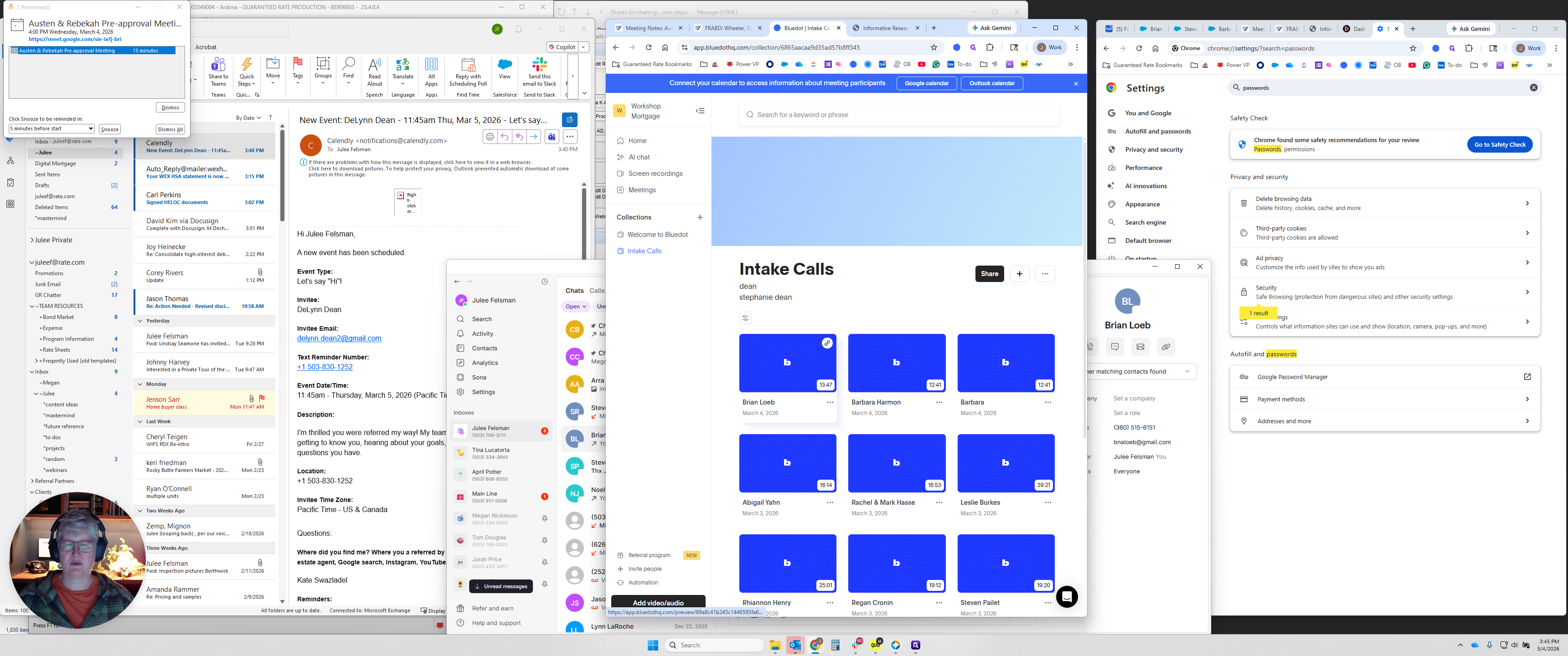
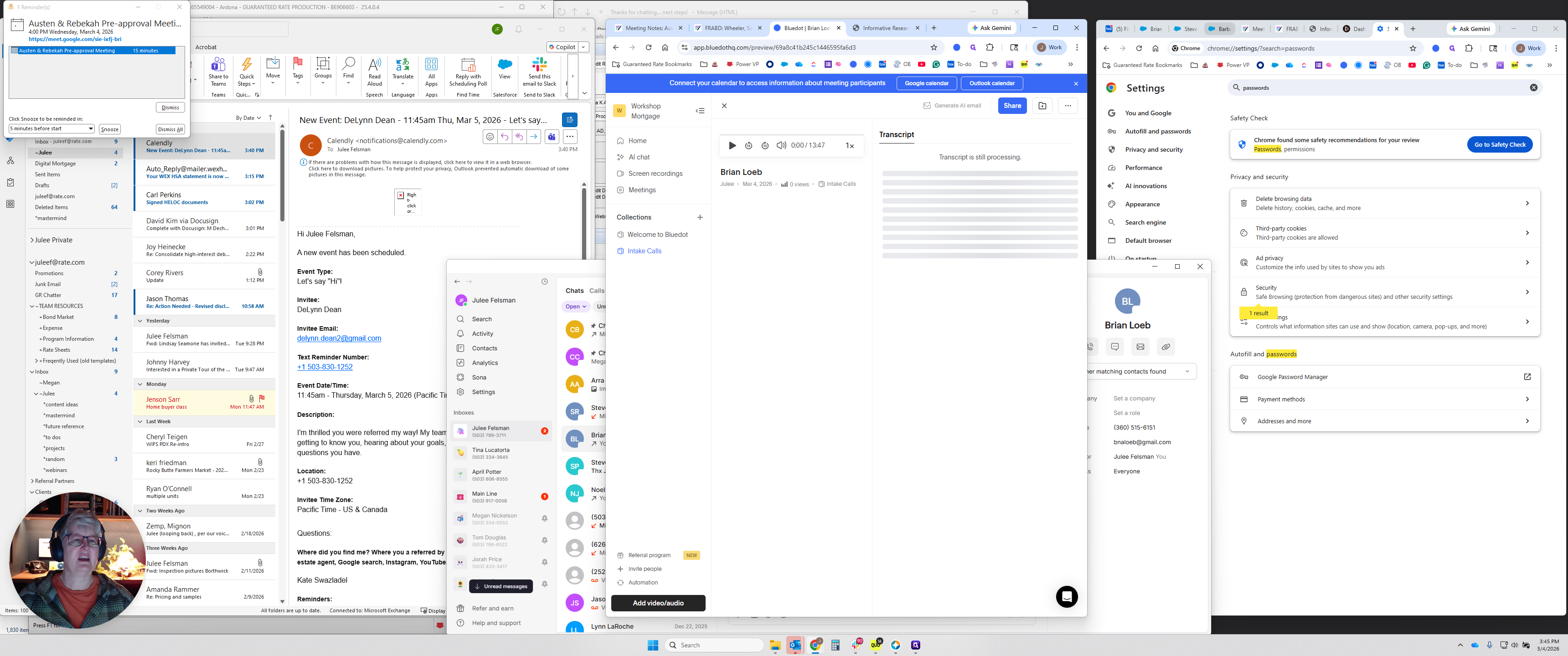
You can go to the borrower's contact record. If you spoke with them, you may have taken some notes.
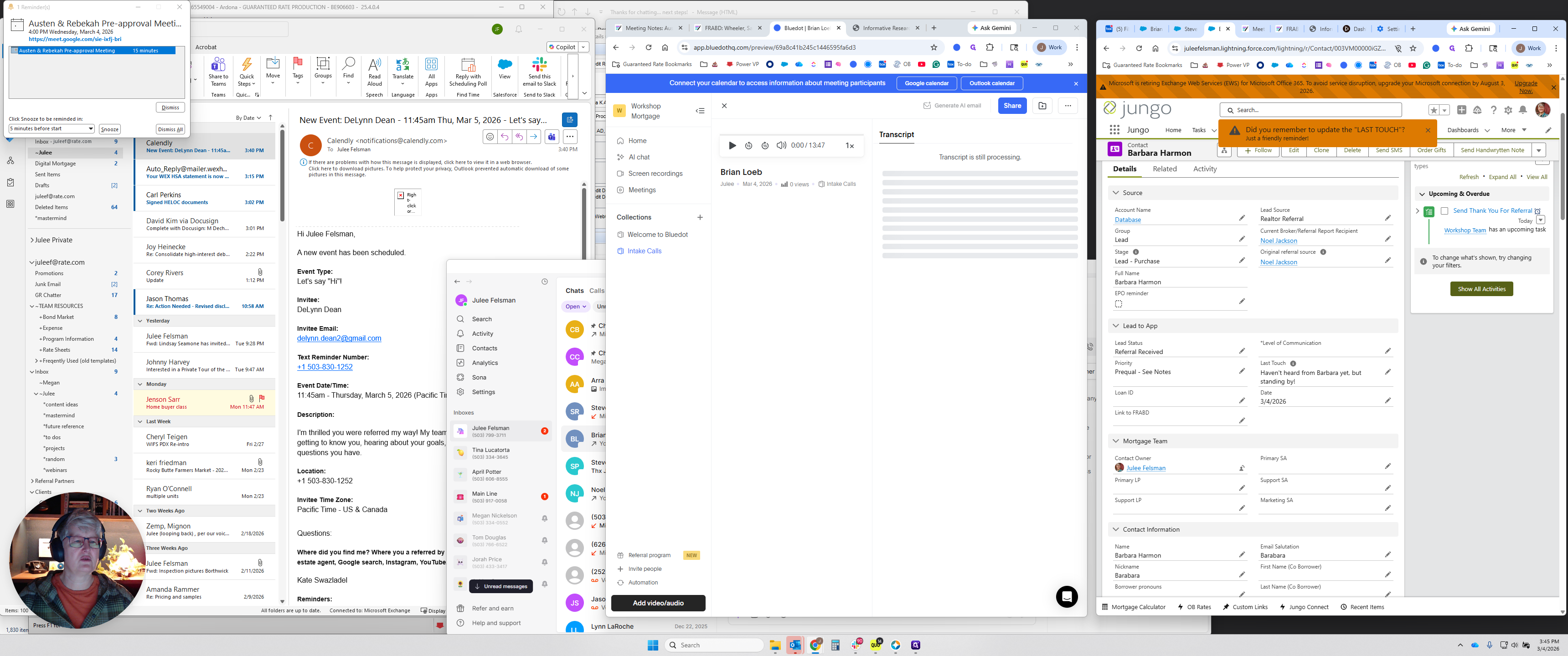
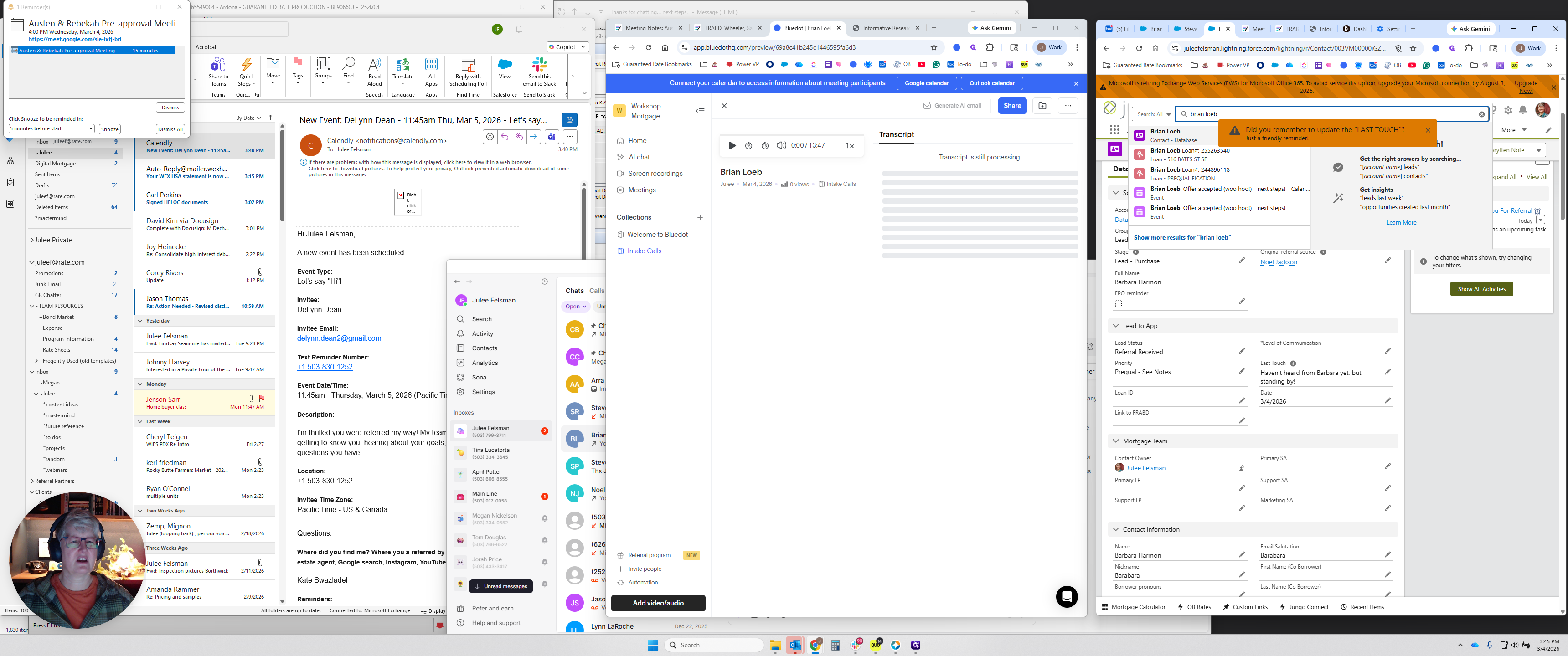
In this case, I spoke to them on the phone, so I don't have any notes.
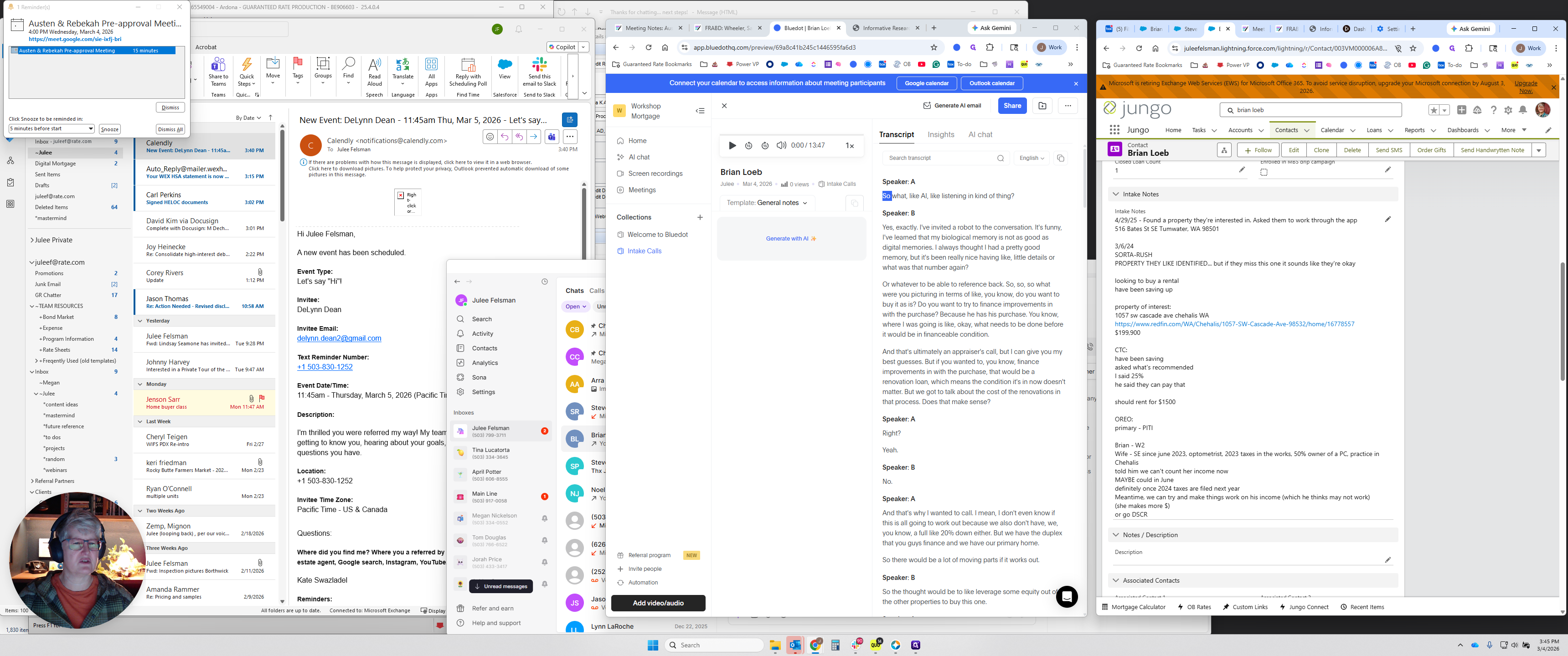
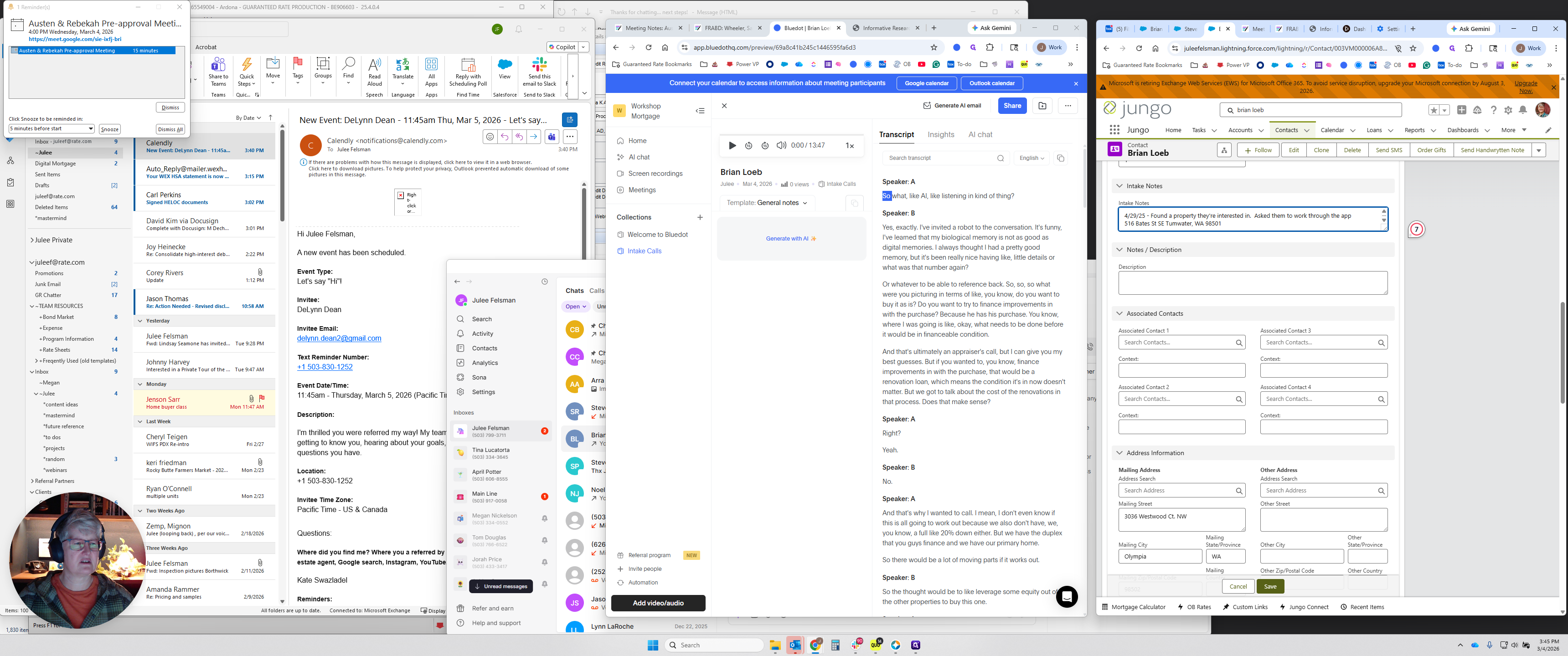
Open intake notes, enlarge the window, and press return several times to add some space.
By the time you do that, it will likely have processed and created the call transcript.
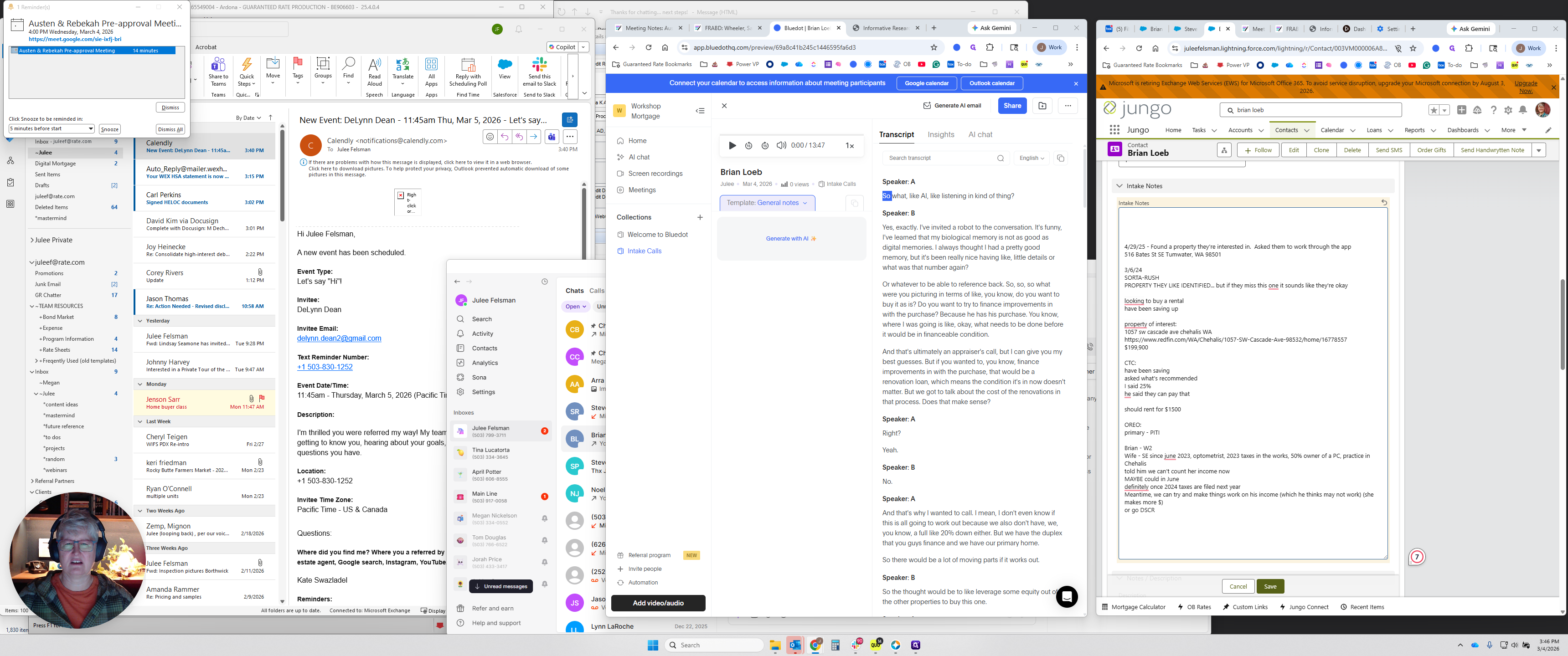
Go to Template. Scroll down until you see Intake-GPT5-Optimized. Select it and let it run.
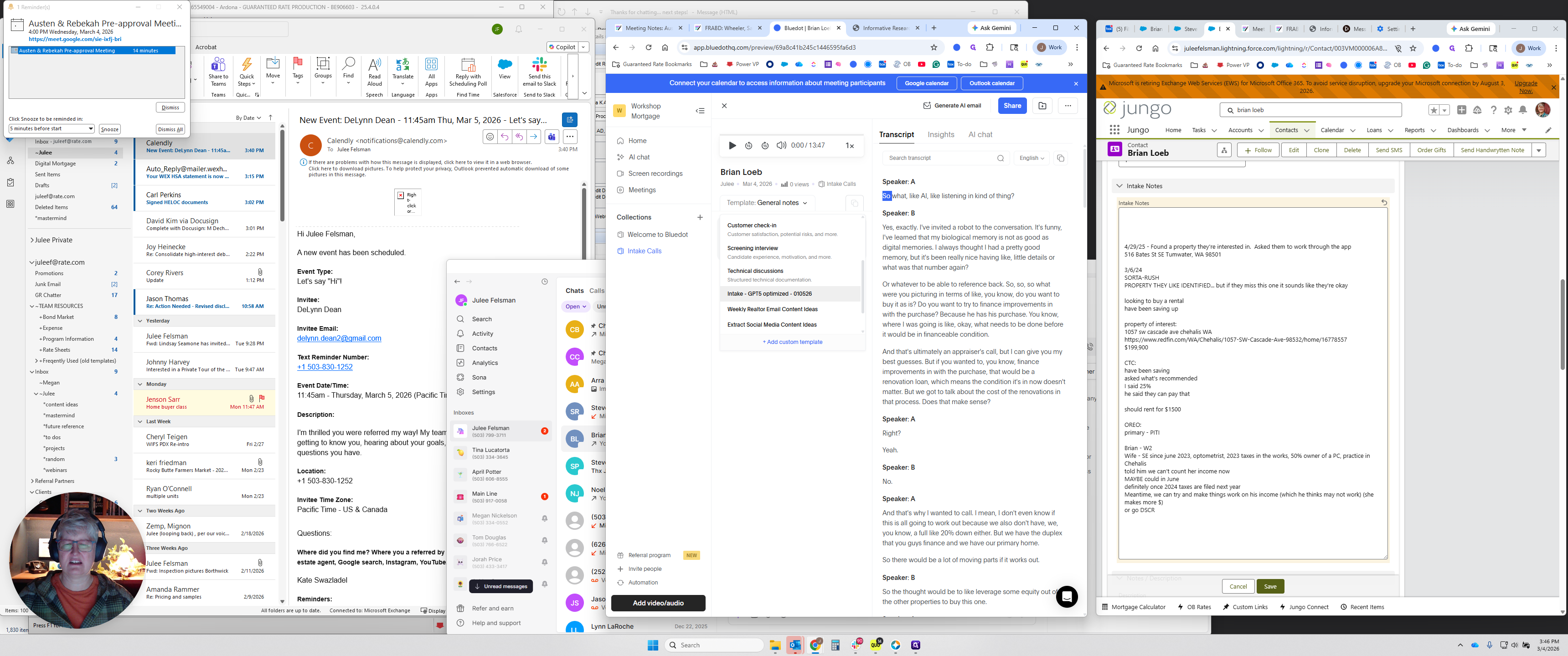
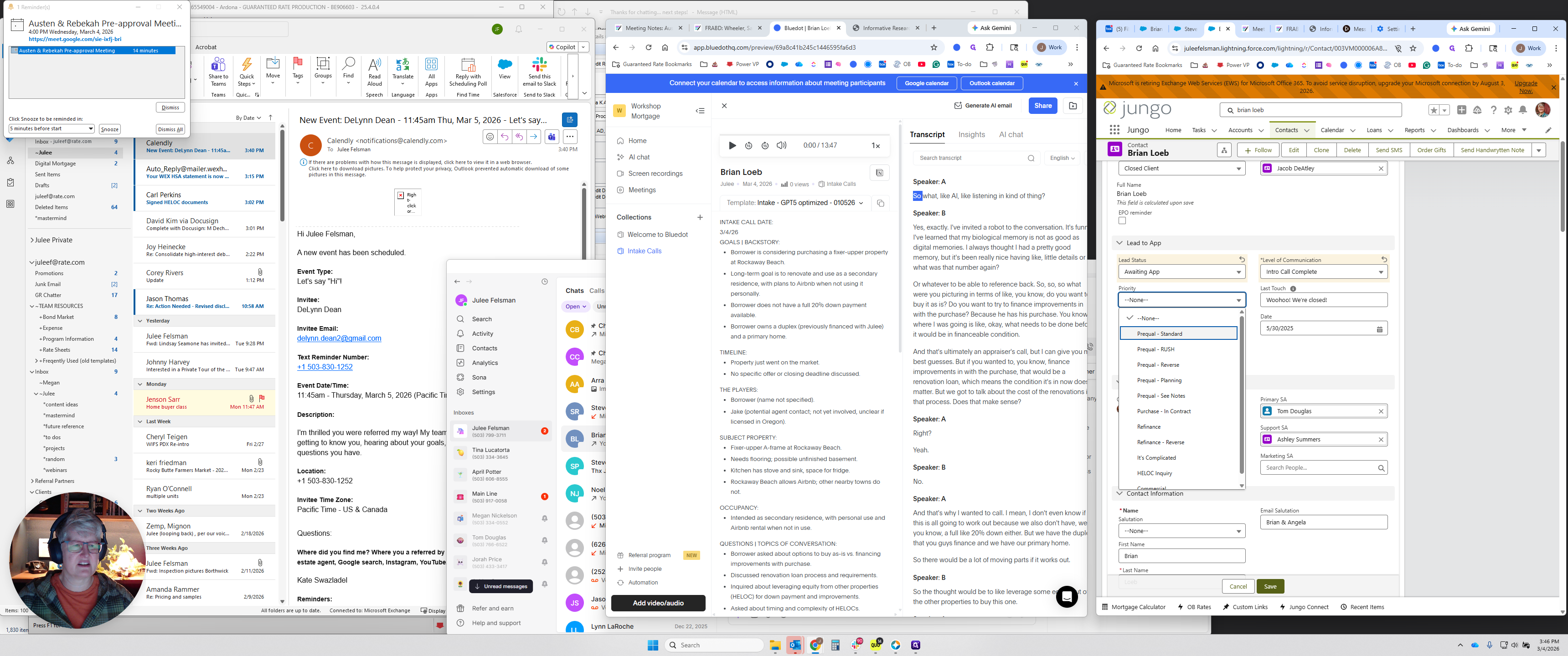
While that's running, I usually go up here and complete the Lead to Apps section.
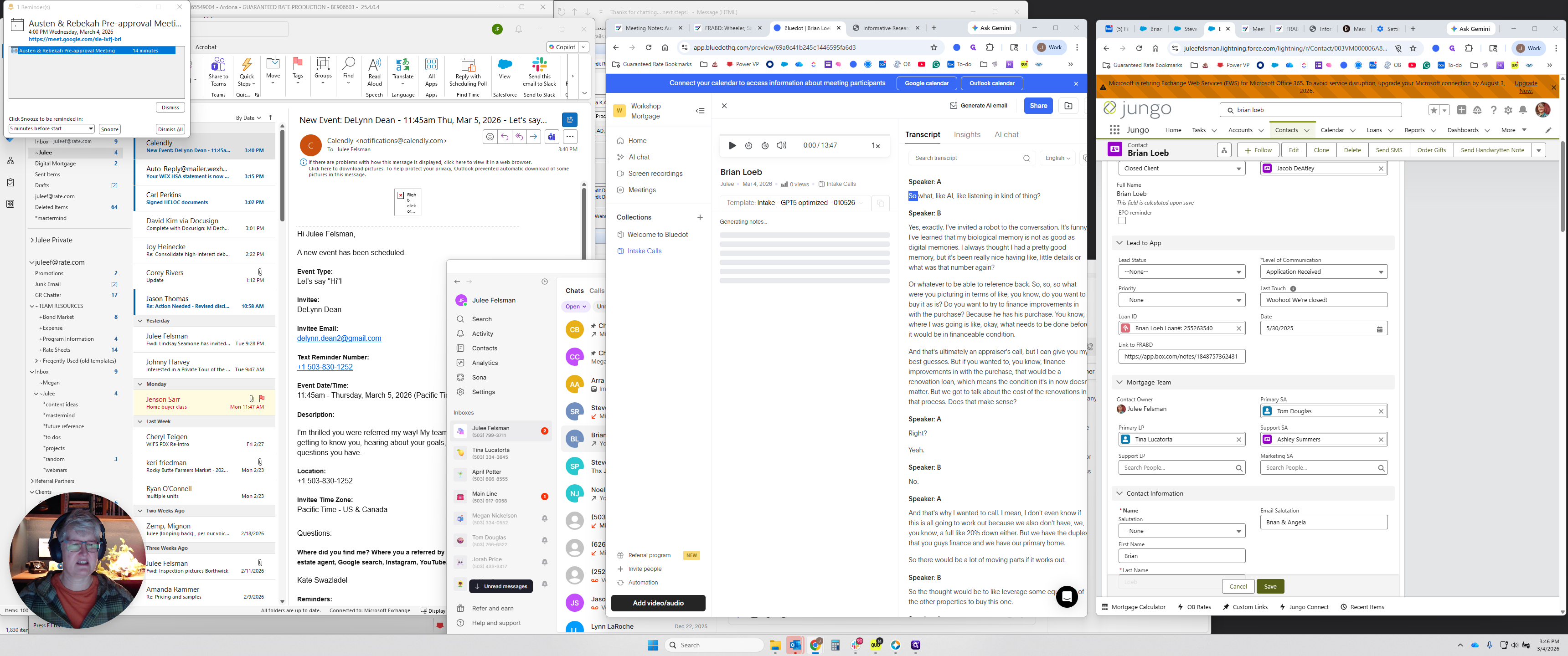
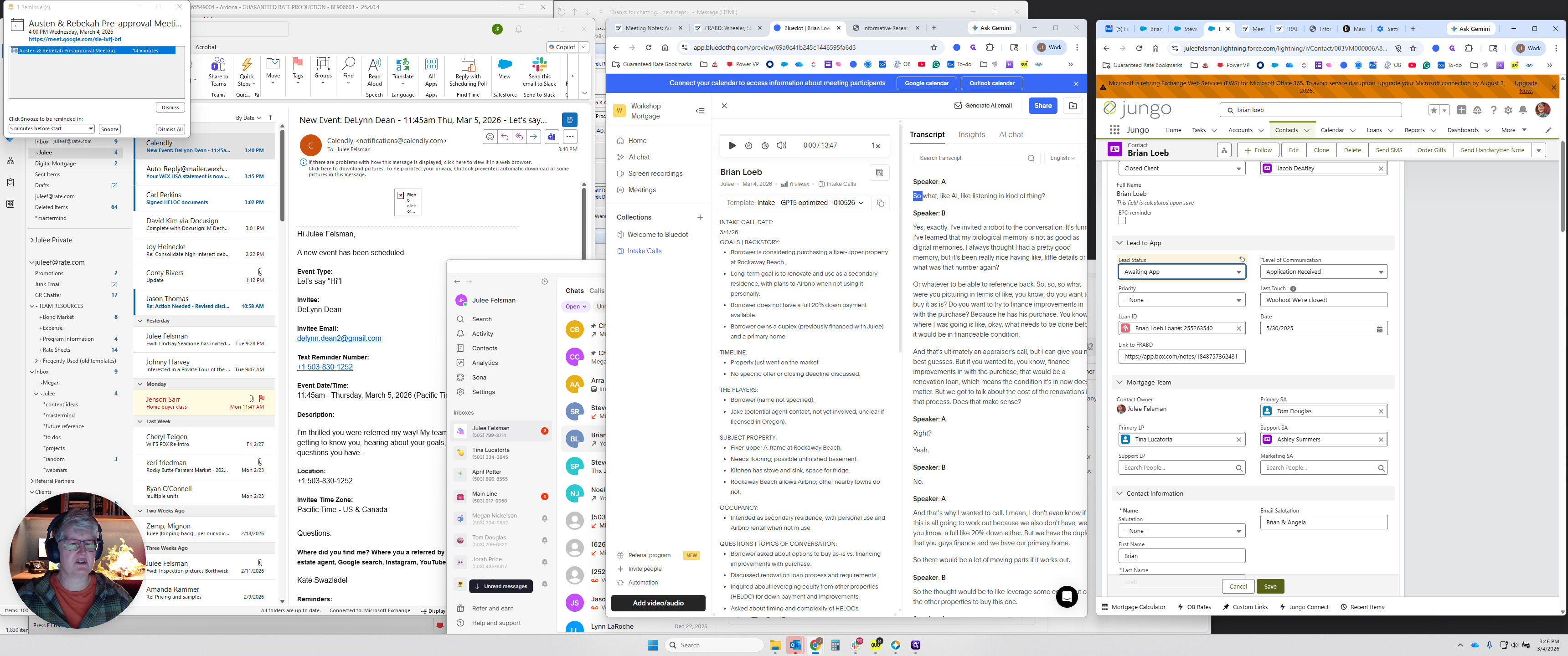
In this case, I'll say, "Contact made." Normally, I would say, "Awaiting application." I'll proceed as if he is going to apply.
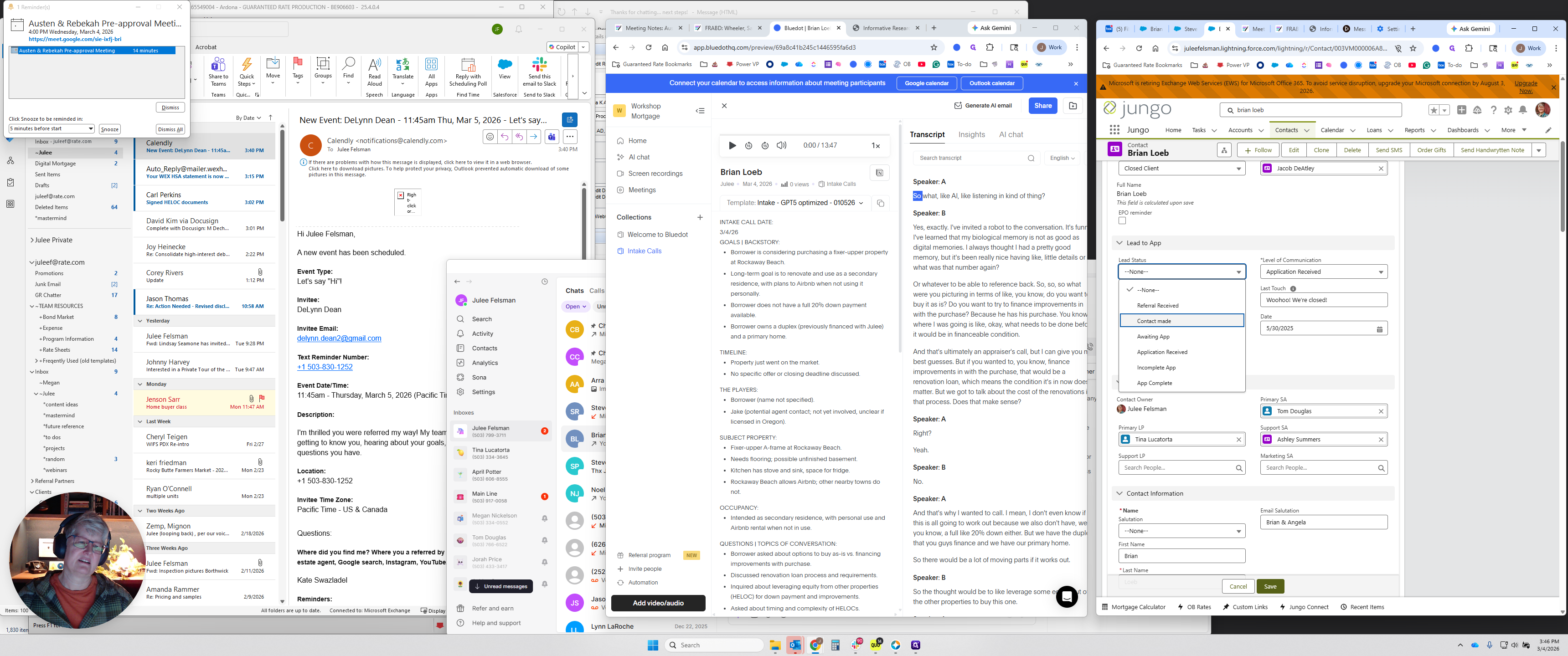
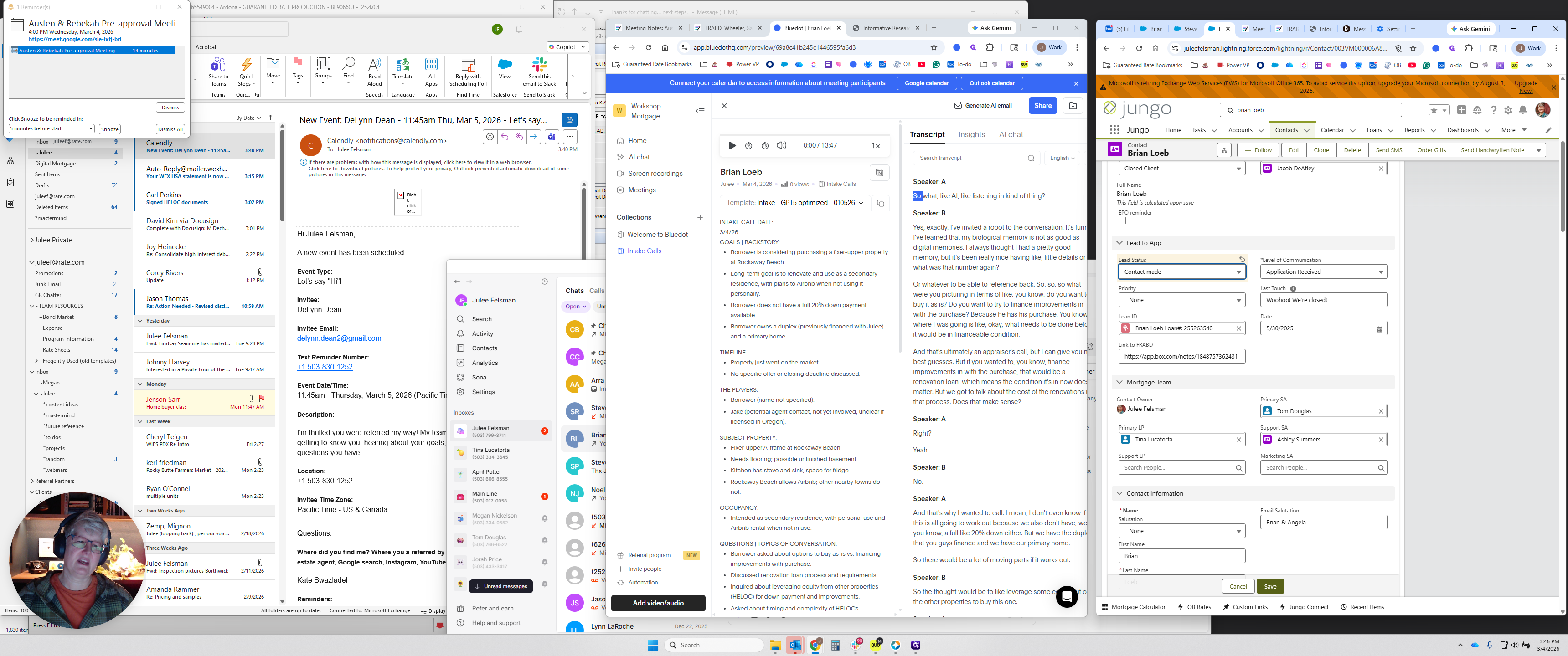
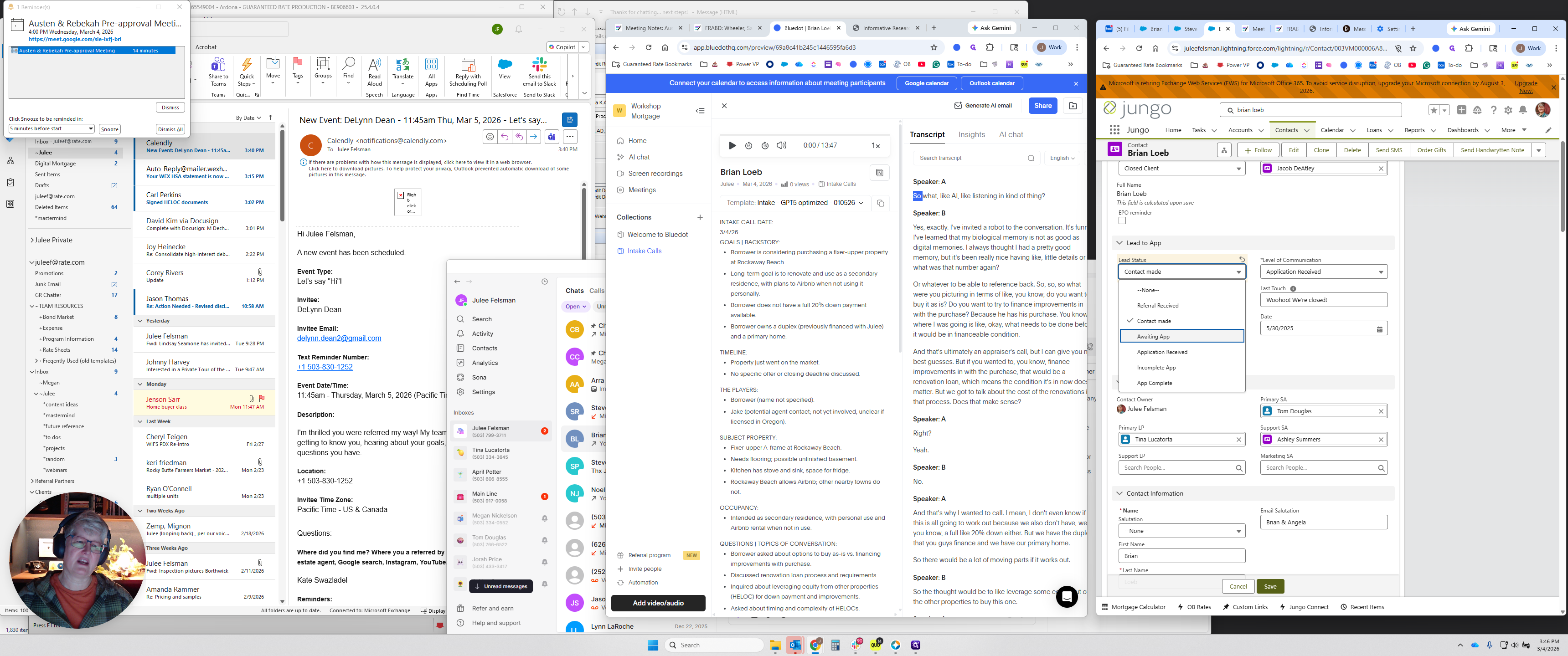
Typically, saying "Awaiting app" activates an automation. If you say "Awaiting app" and "Intro call complete," both trigger the automation. Only use these if you want us to prompt people to apply. If not, choose a different action.
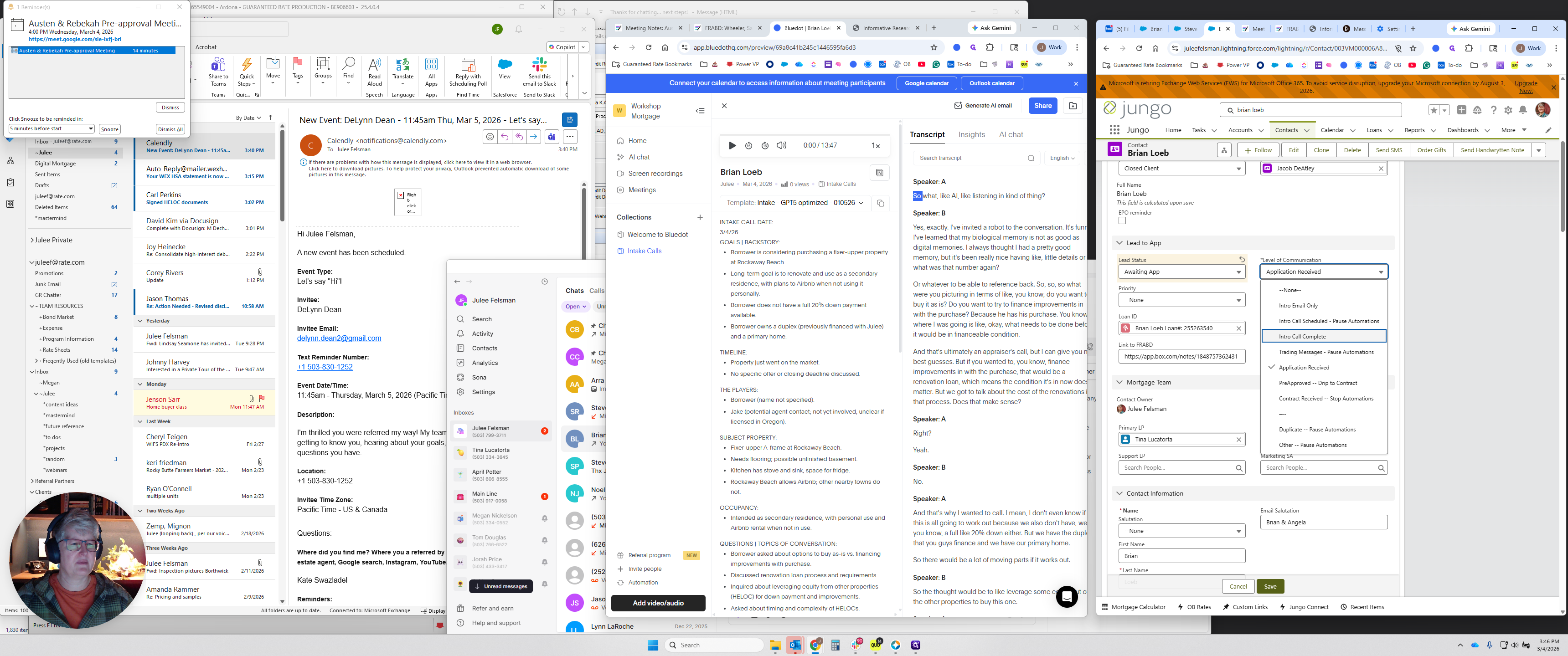
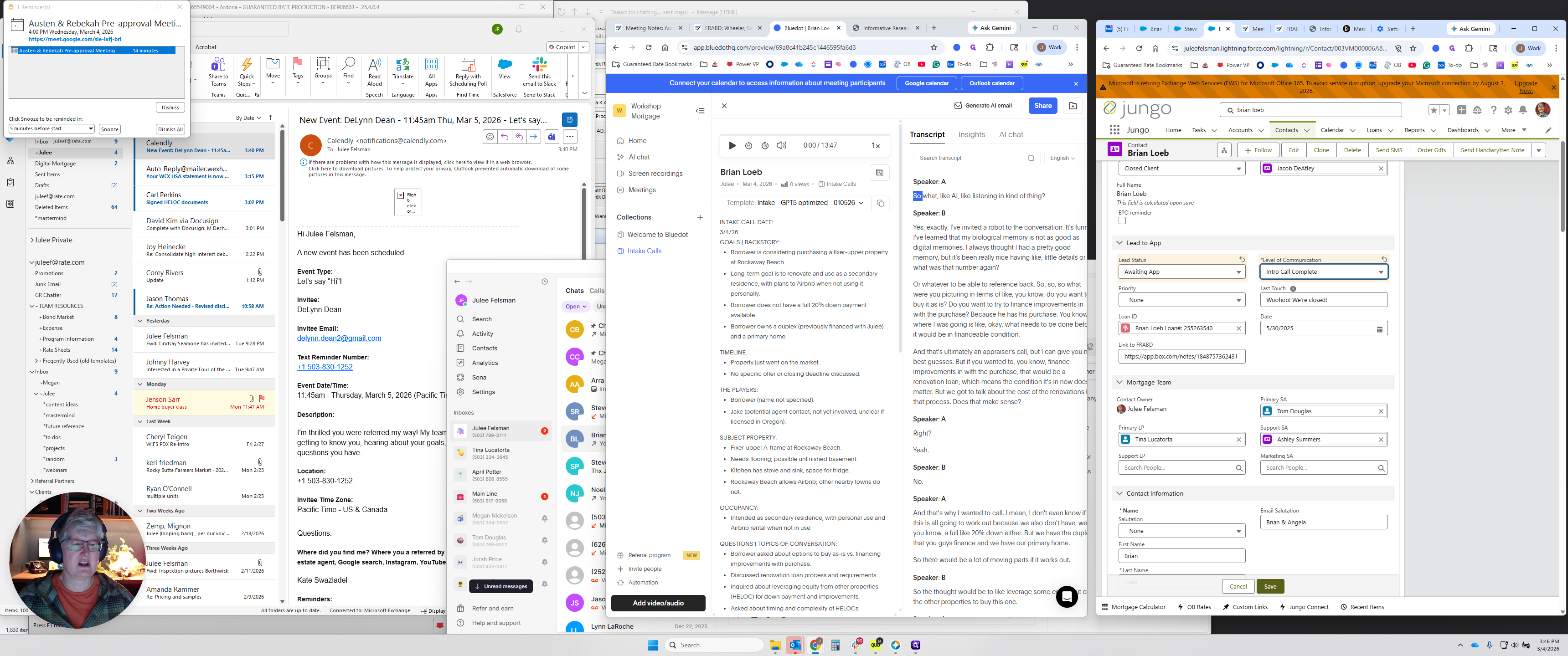
In this case, I'll say, "Standard," and note, "Chatted about a potential second home purchase in Rockaway Beach."
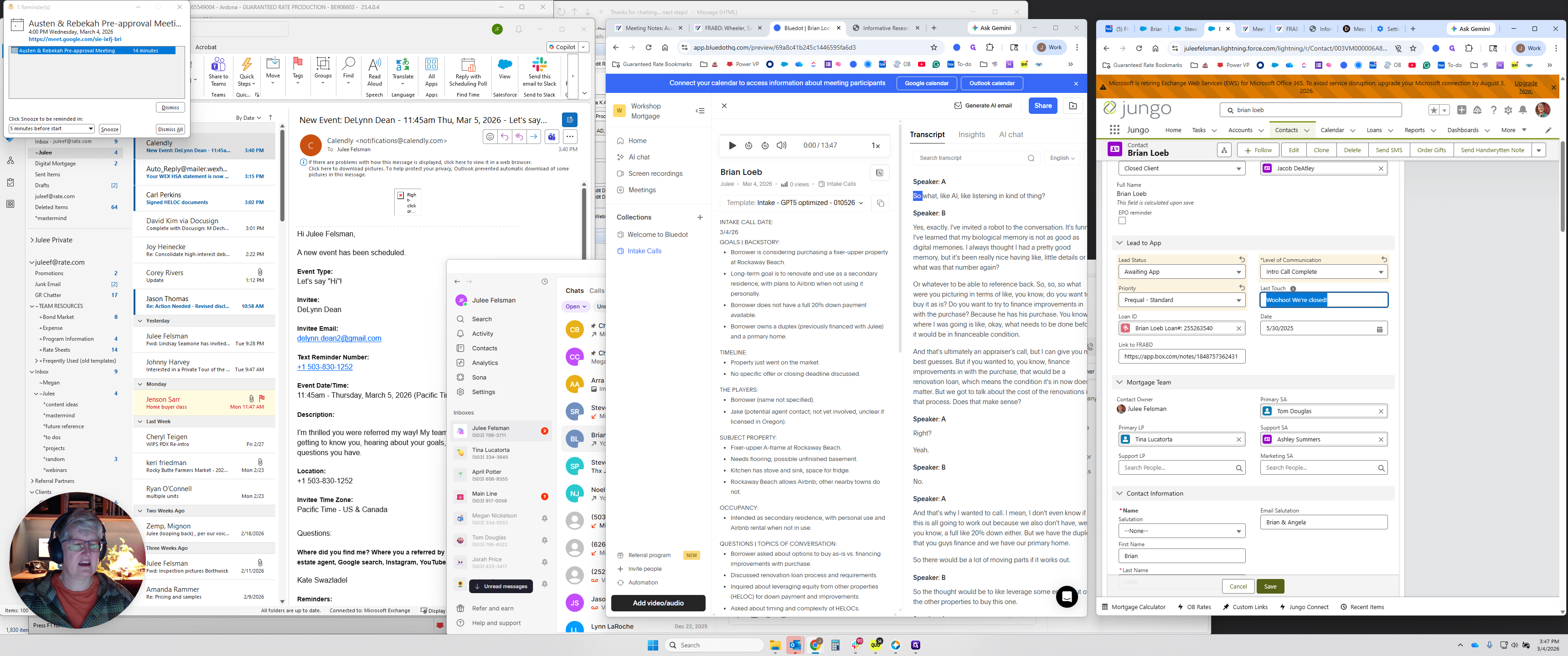
Sent the link to apply. You can include any relevant information when speaking with the real estate broker. Something the realtor would see. By the time you do that, this will likely have processed. Next to where you selected the template, there is a small tab.
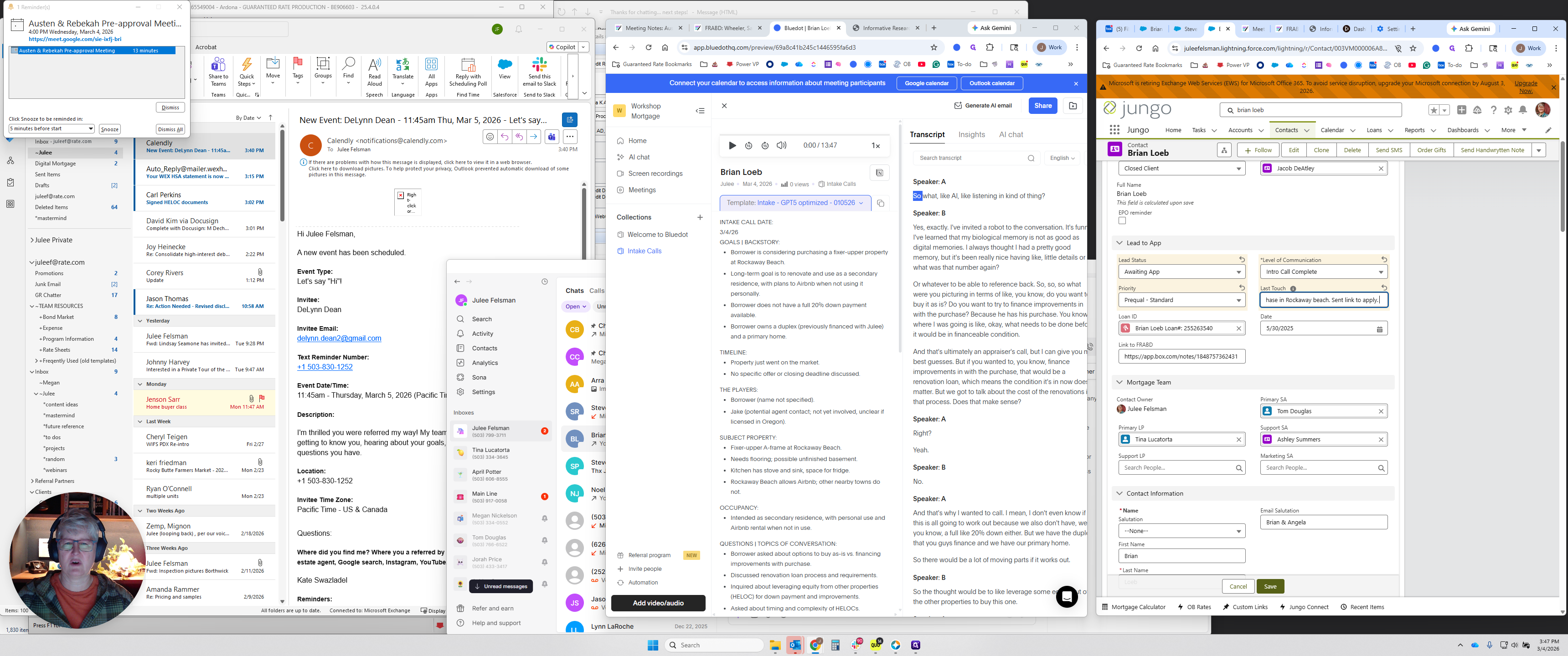
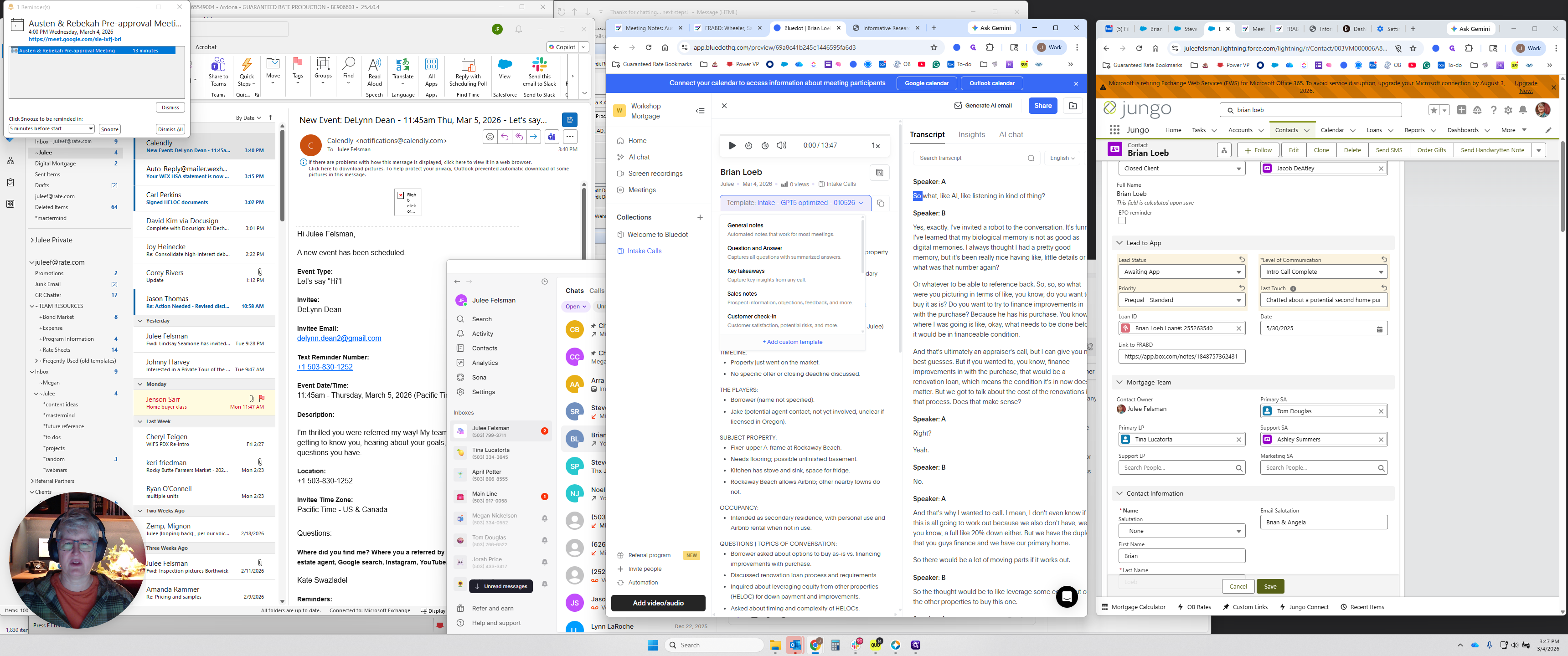
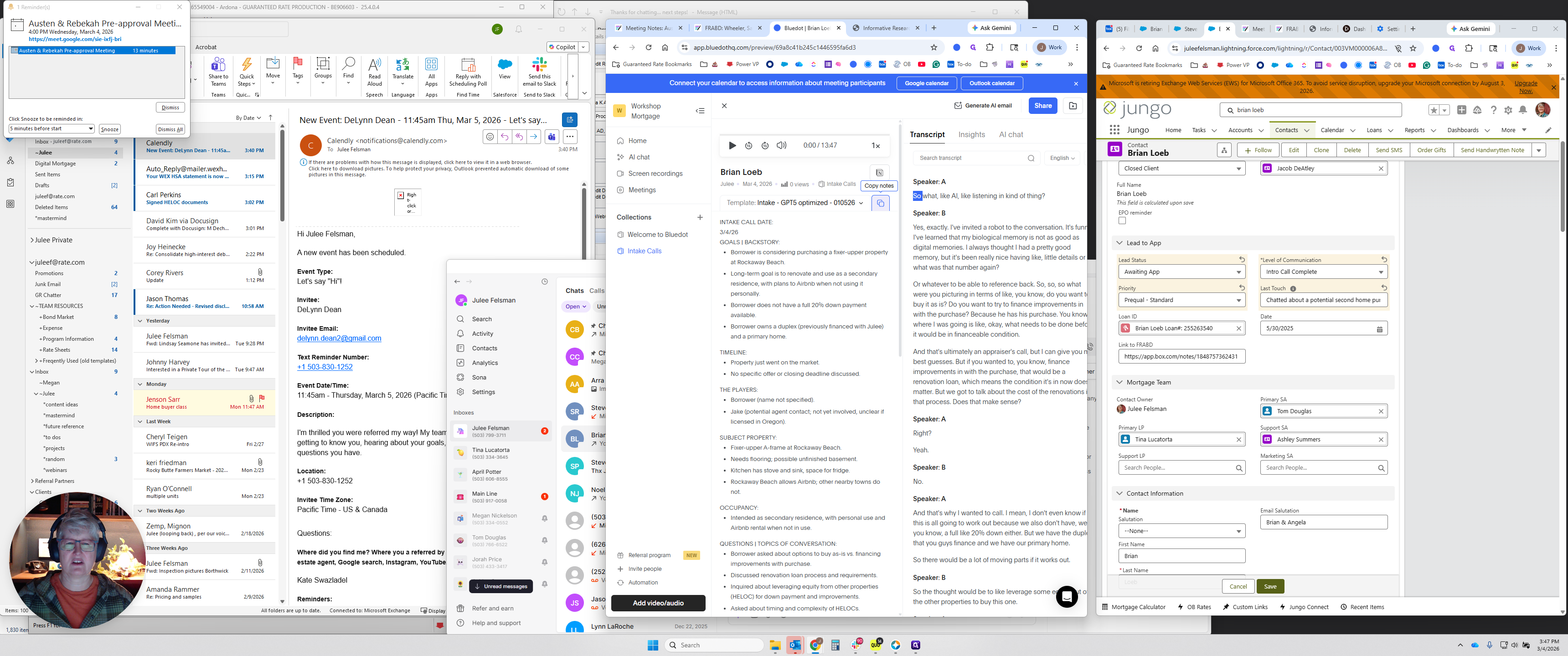
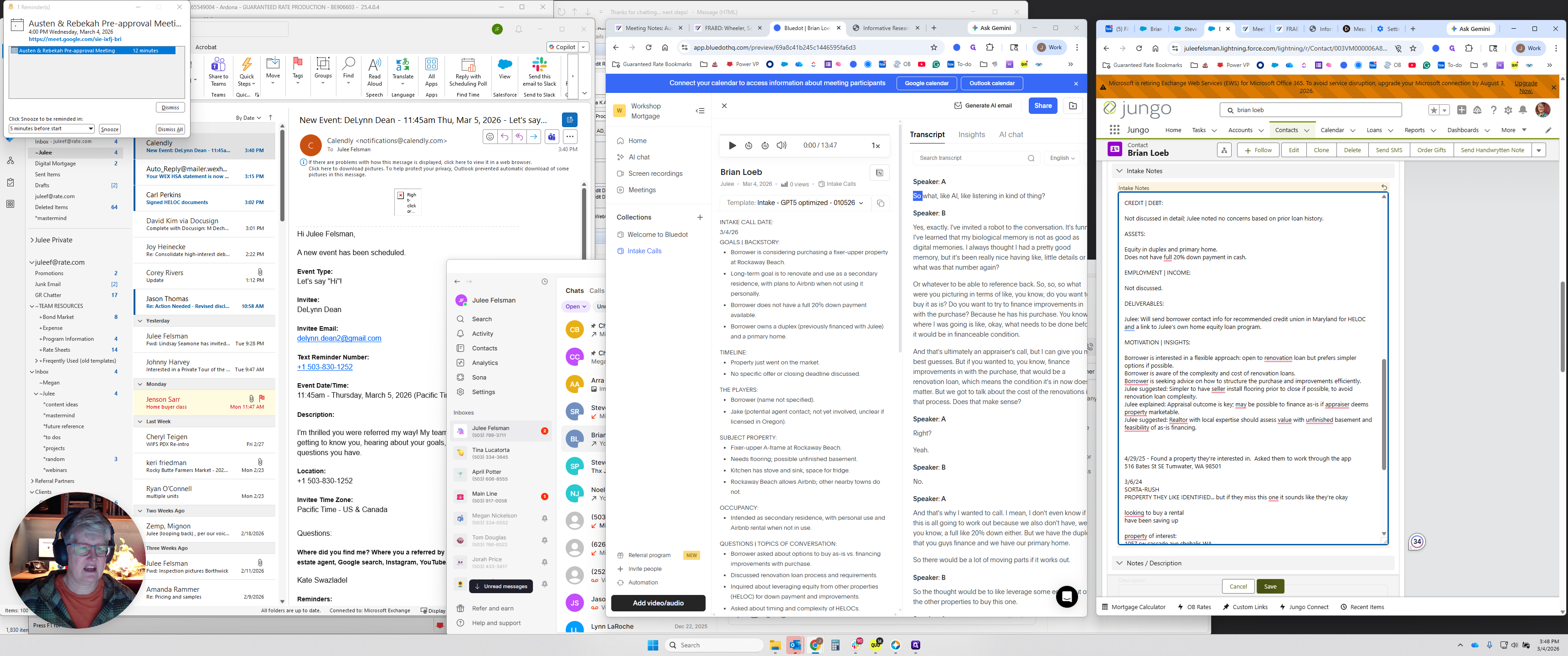
Click that to copy the note. Then, paste the note at the top of the intake notes.
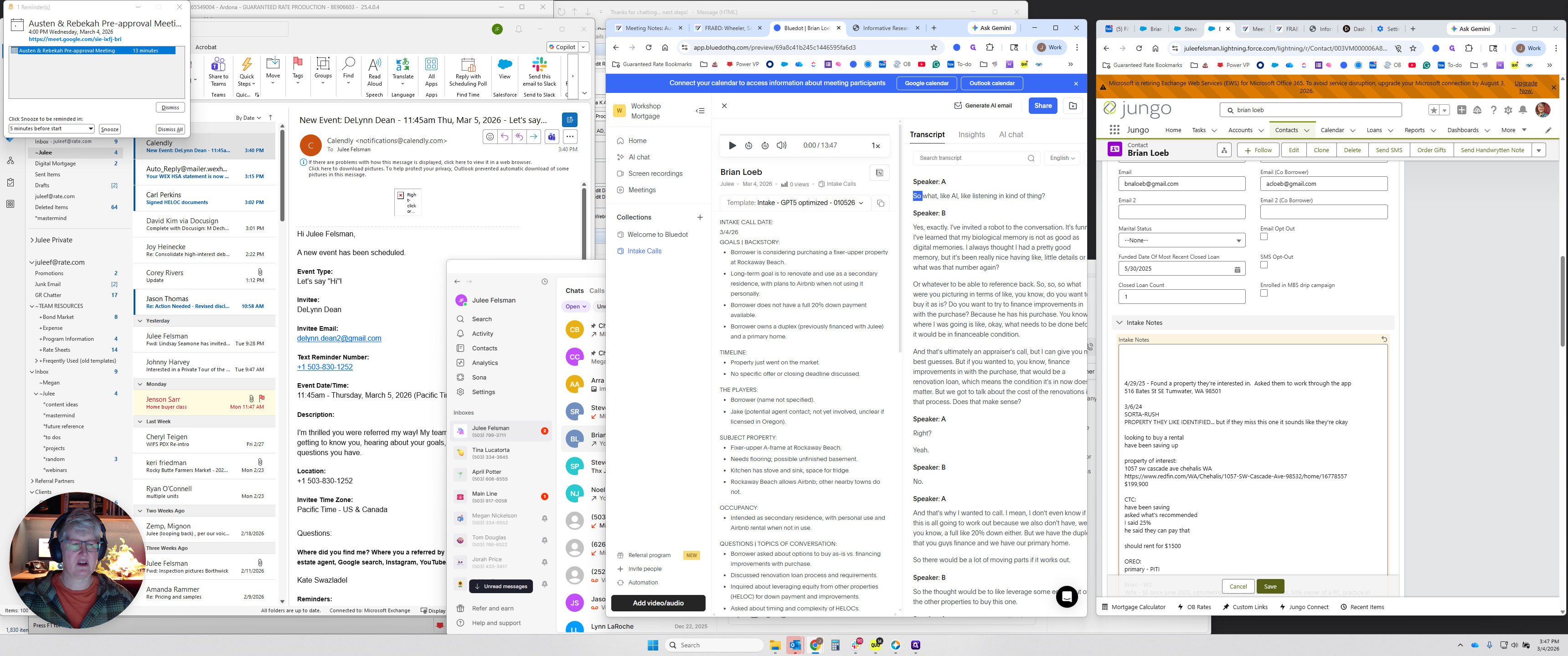
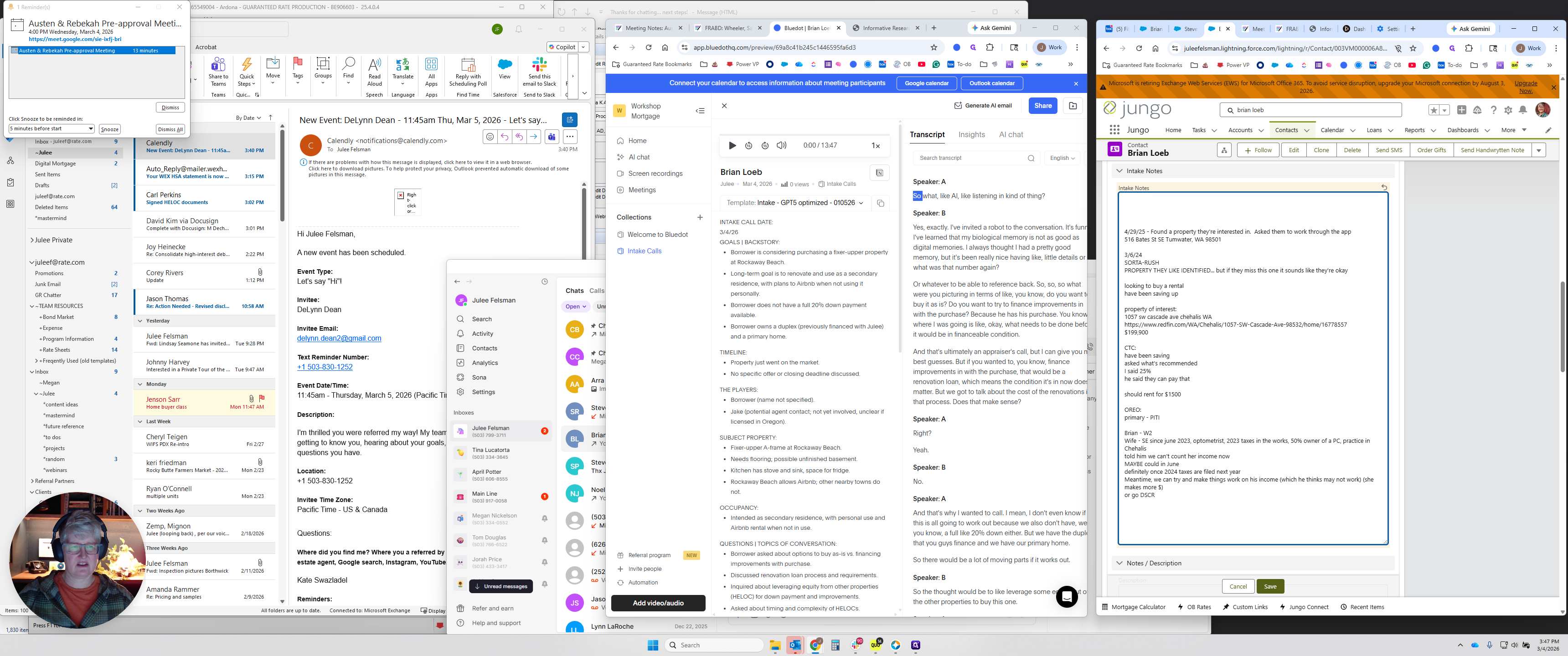
As a footnote, remember that if there is already a loan application, I am doing this in the contact record. If there is already a loan application, do not create one in the contact record. Go to the loan app and enter it in the intake notes. Most of the time, it will just have a contact record, or you are creating a contact record, so enter it there. You can skim through and make edits, changes, or add thoughts—anything you didn't mention but want to remember.
You can make any edits or changes to it, then click Save.
The last step is to email the borrower. Email the borrower by clicking on the borrower's name. If there is a co-borrower, select the co-borrower and copy the email.
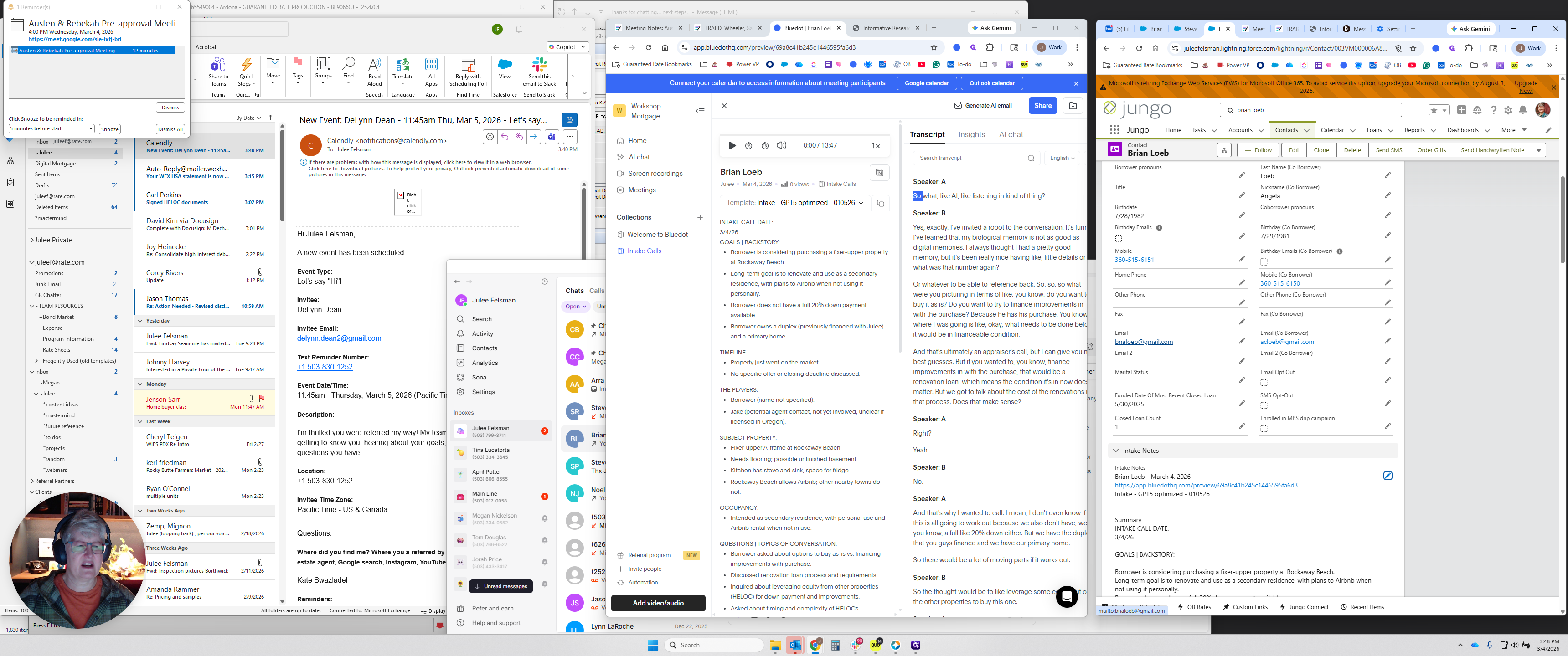
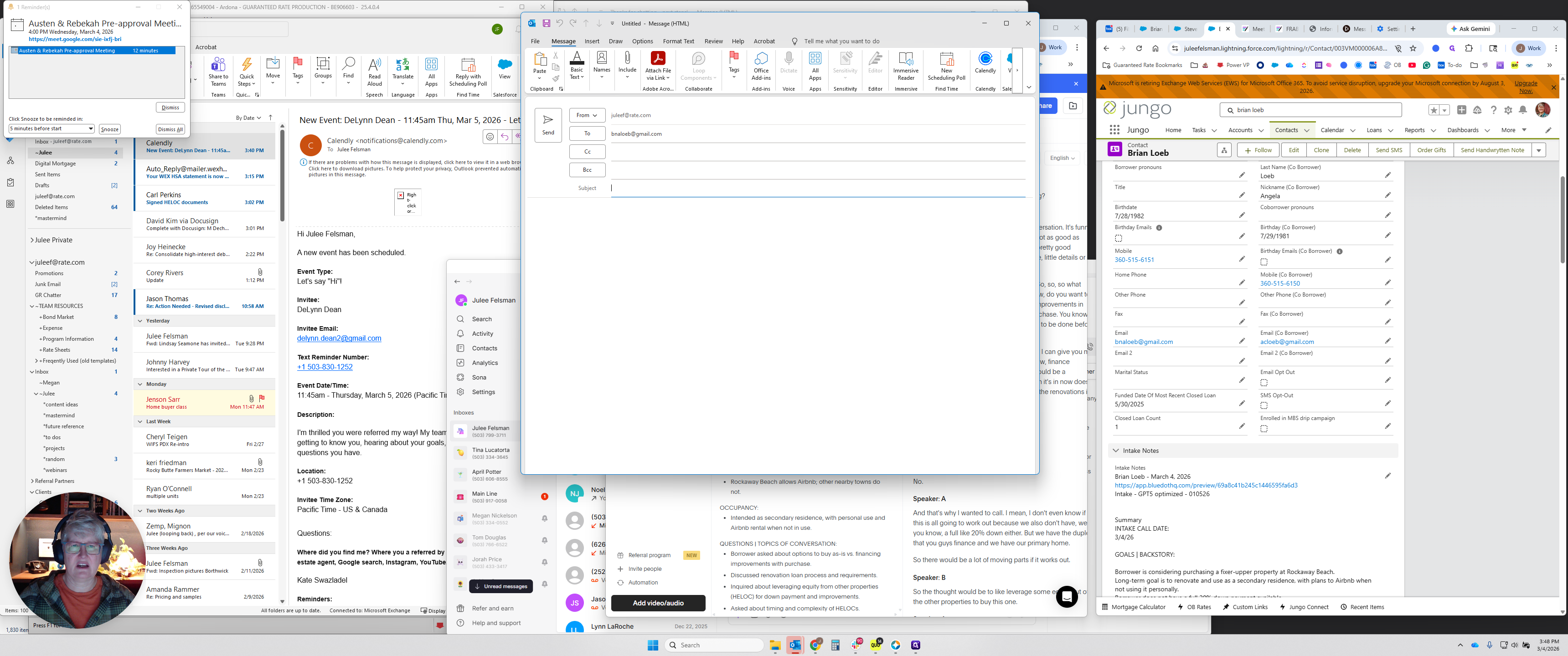
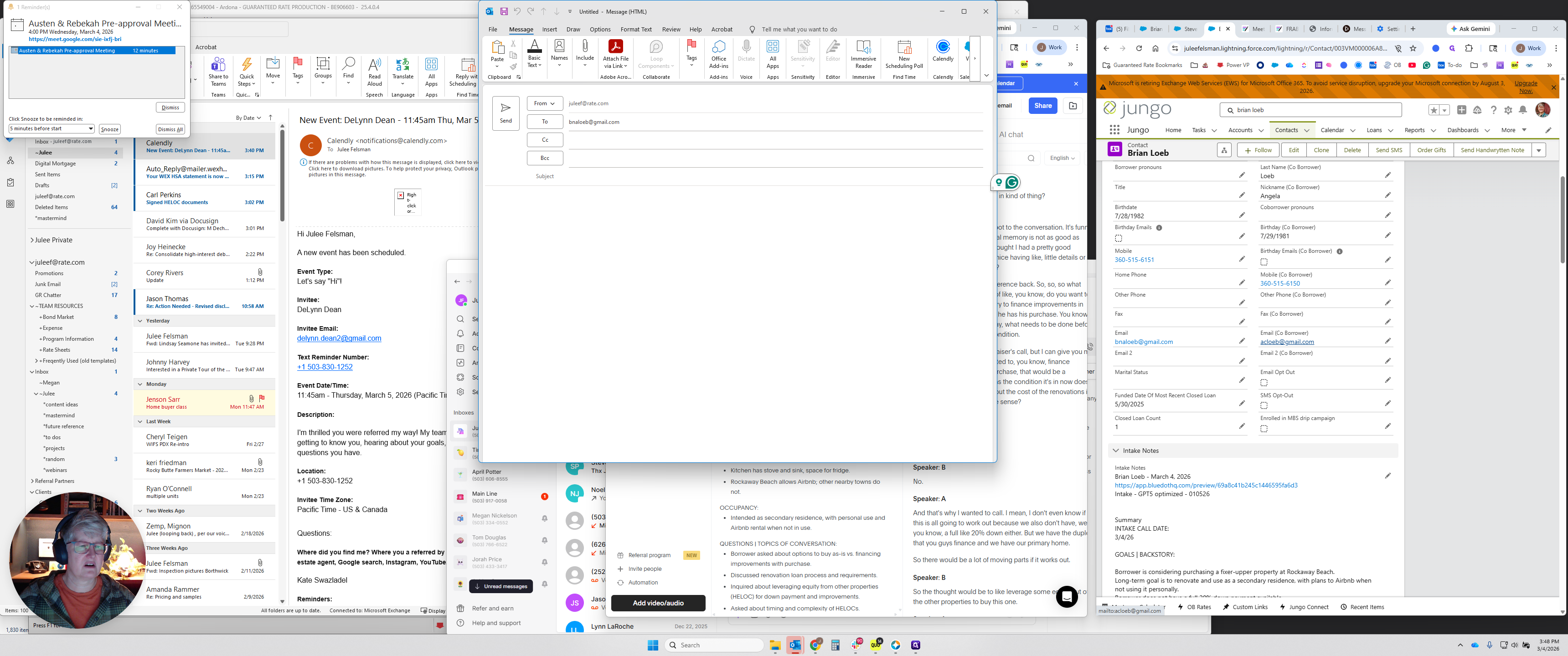
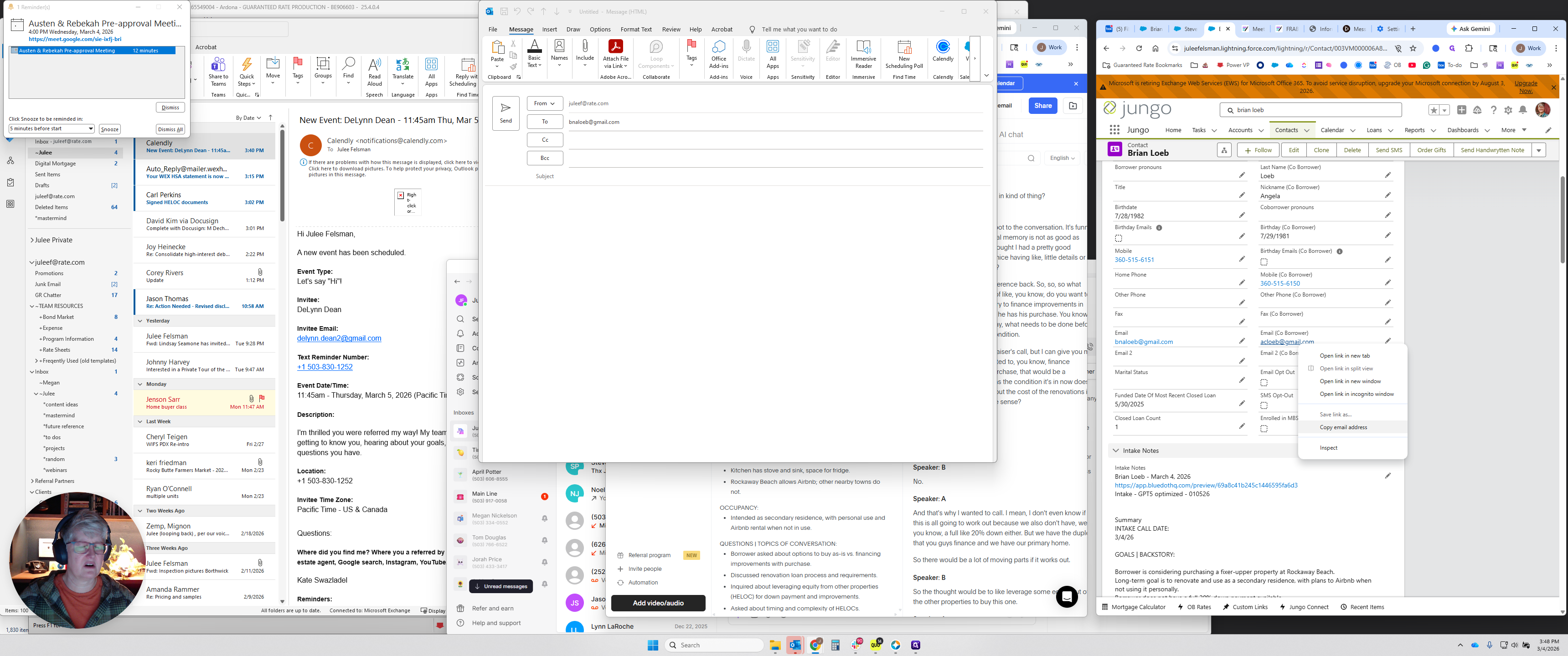
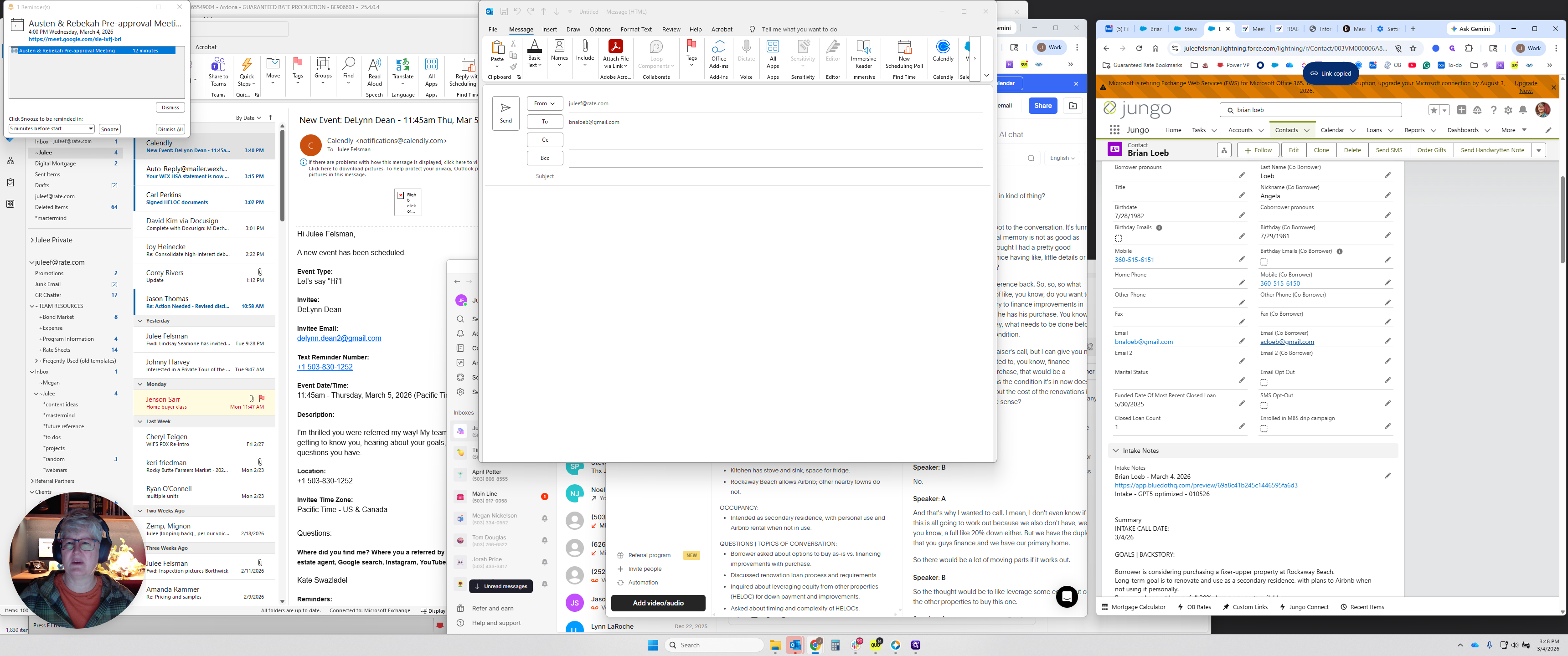
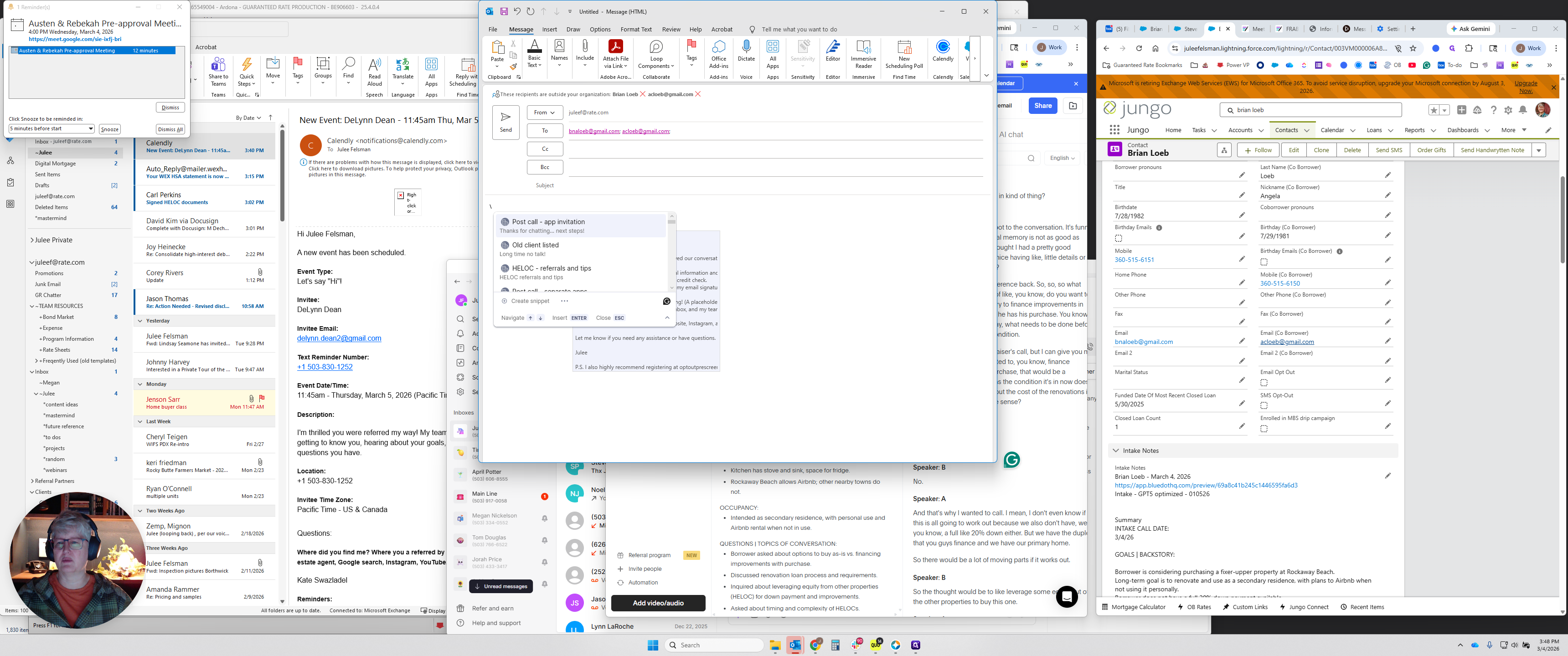
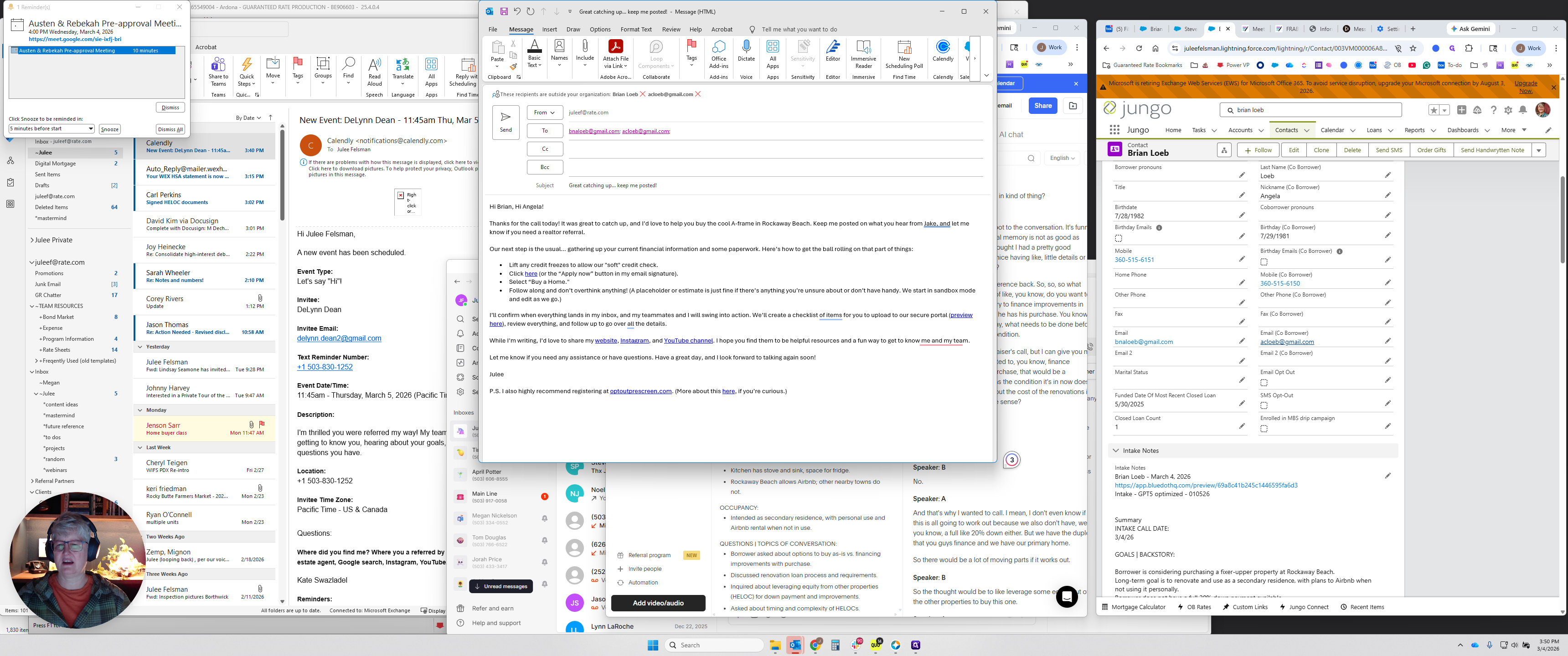
Hit backslash and look for Post-Call App Invitation.
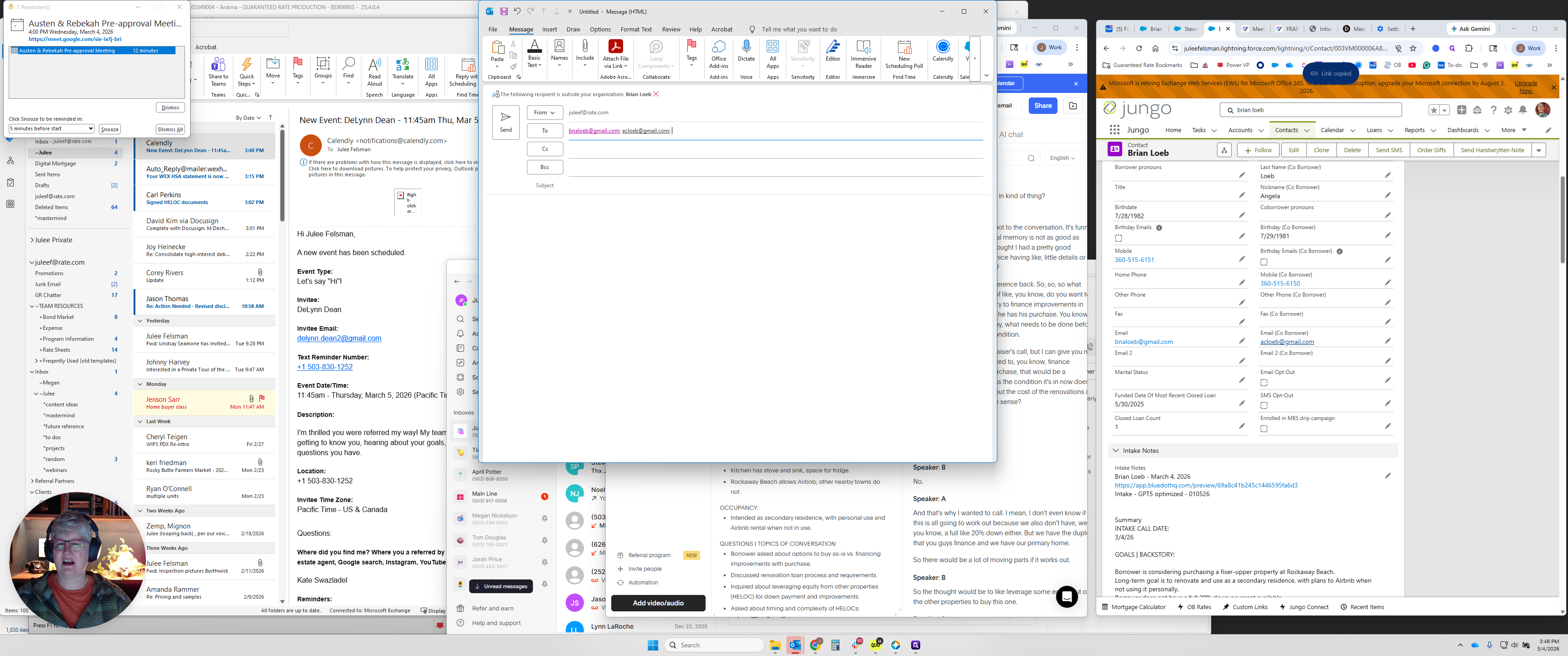
I changed the title. It used to be more cryptic because I was the only one using it.
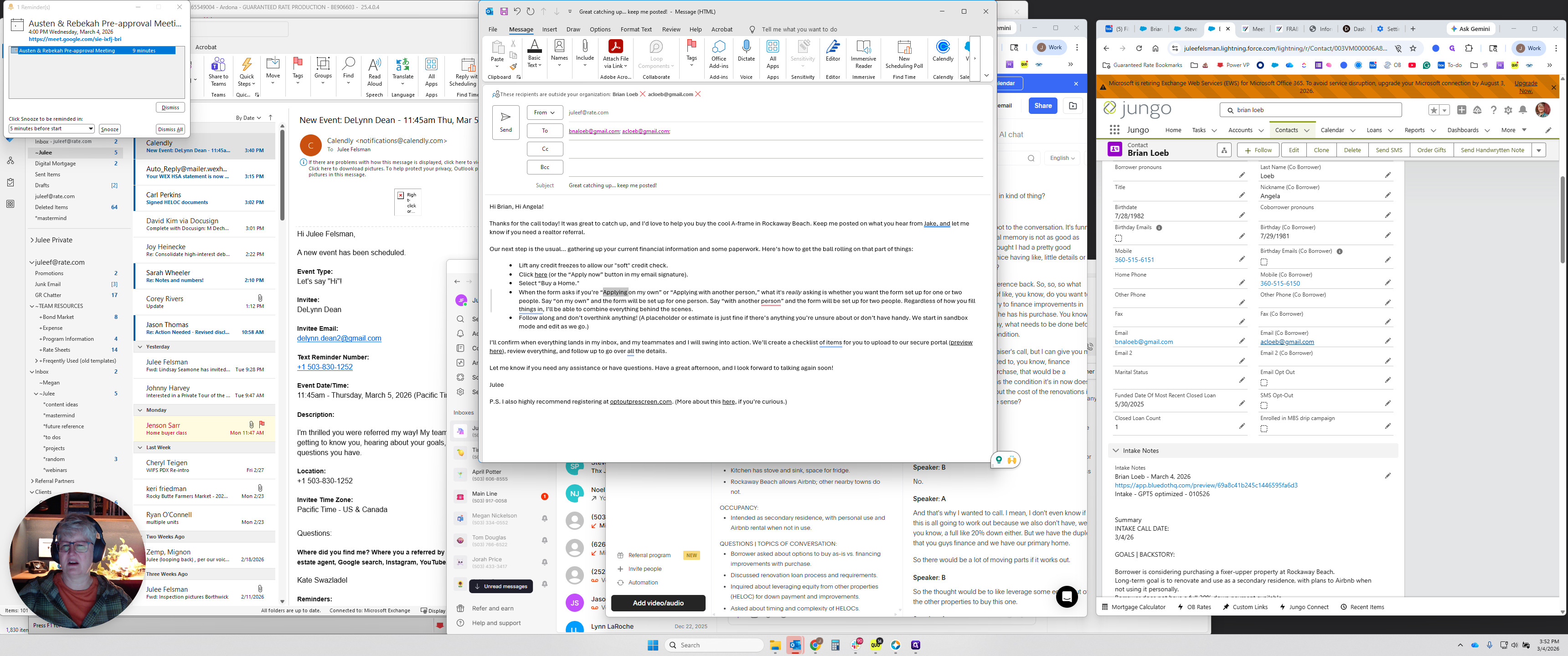
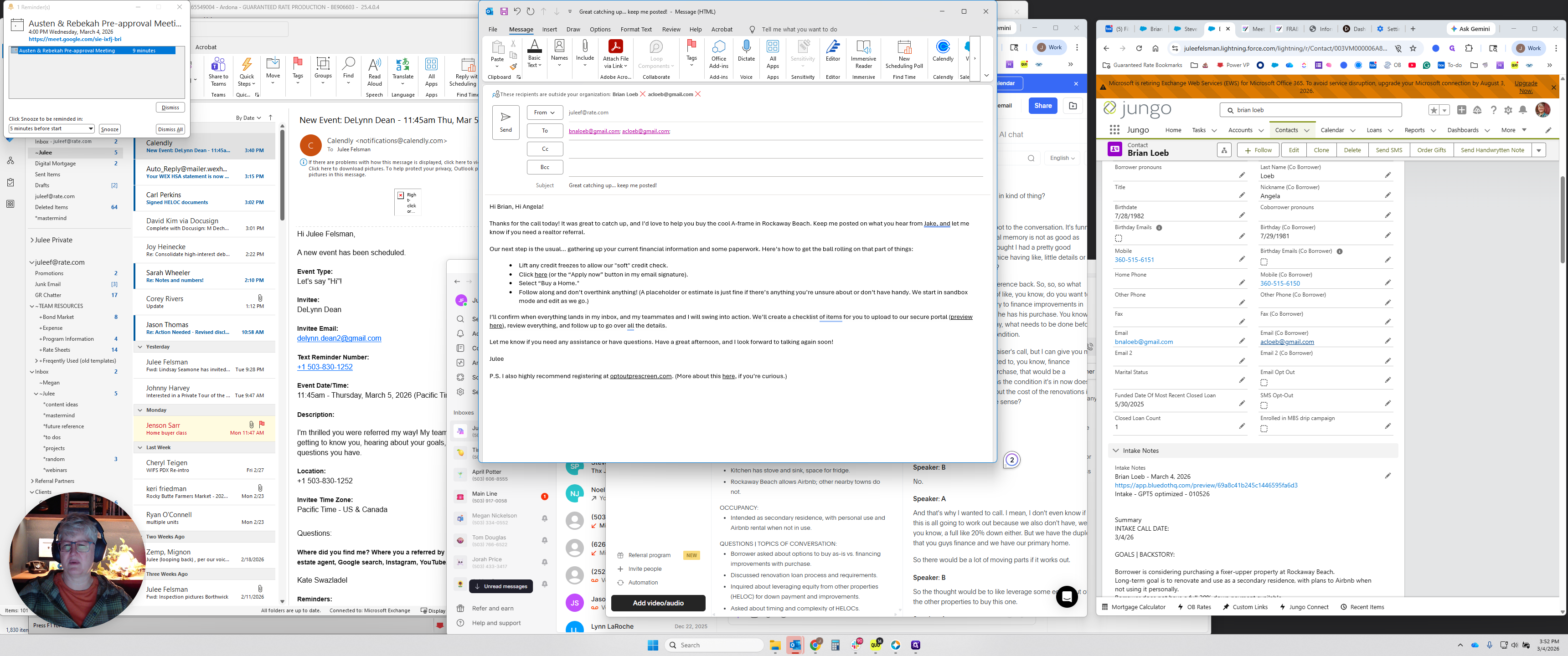
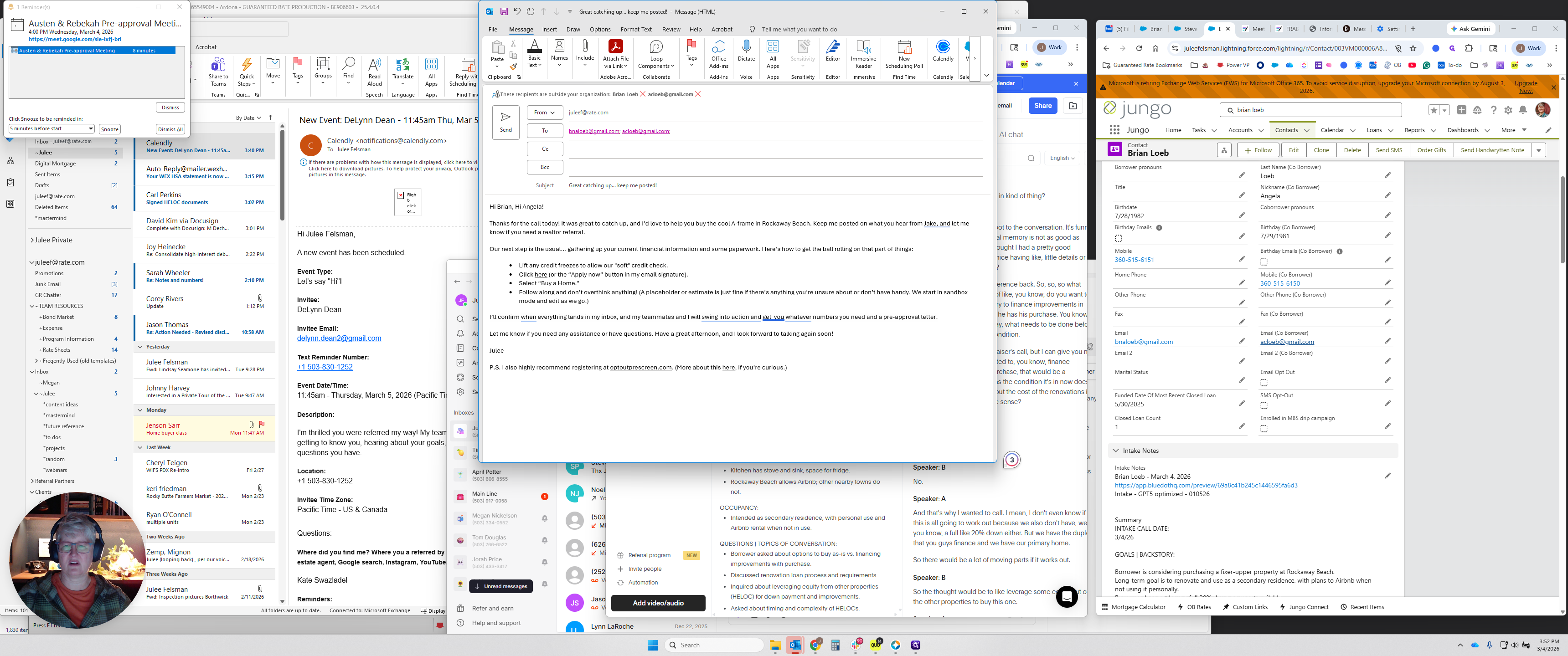
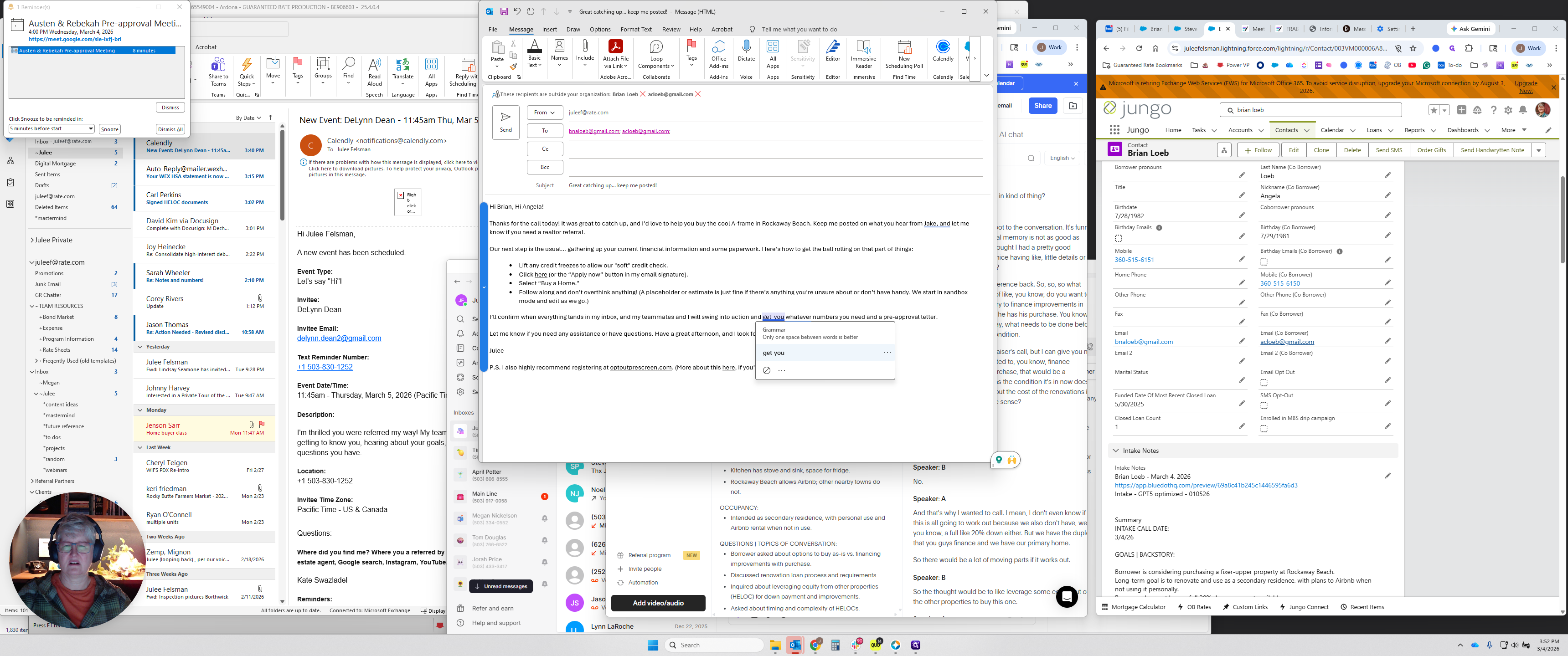
Once you select that, double-click on "Thanks for chatting - Next steps." Drag it up here and change the name to "Brian and Angela." I'm going to edit this one because they would have seen this header before, so I don't want to use all the old ones.
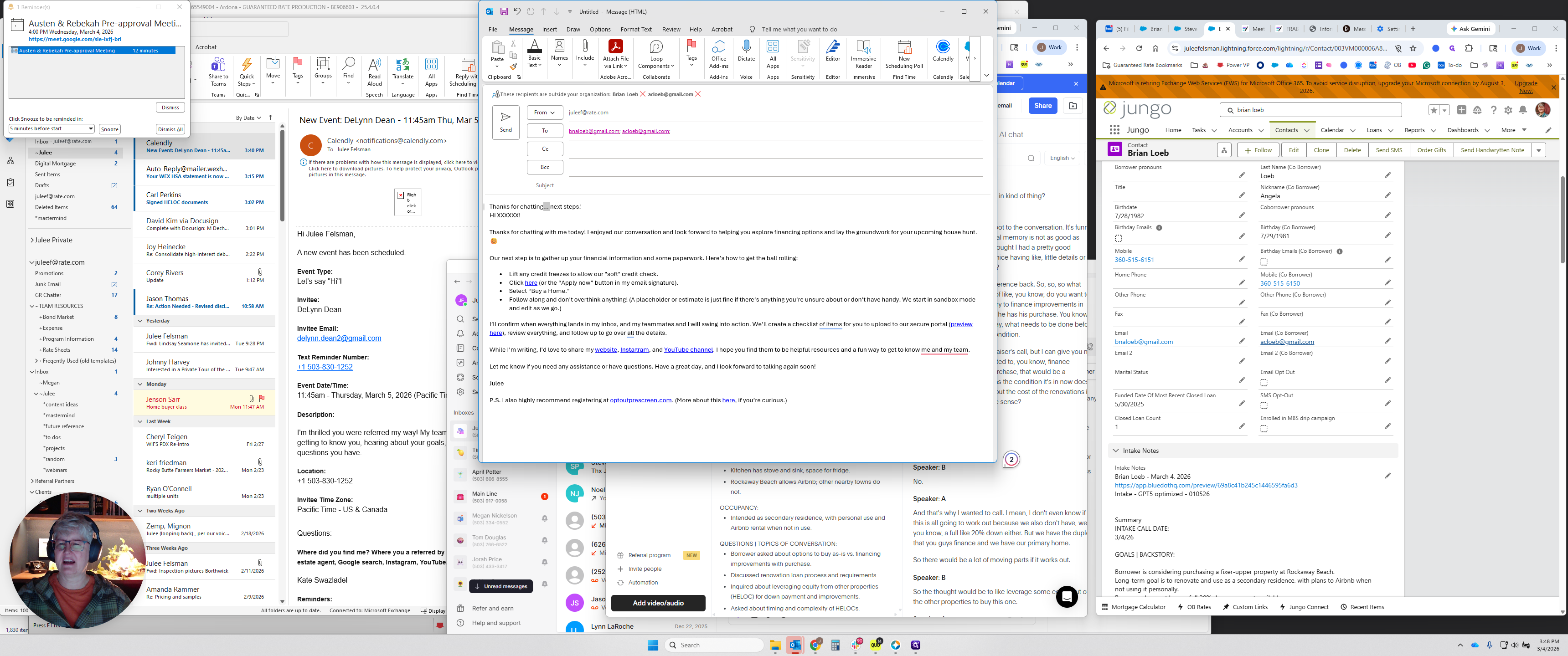
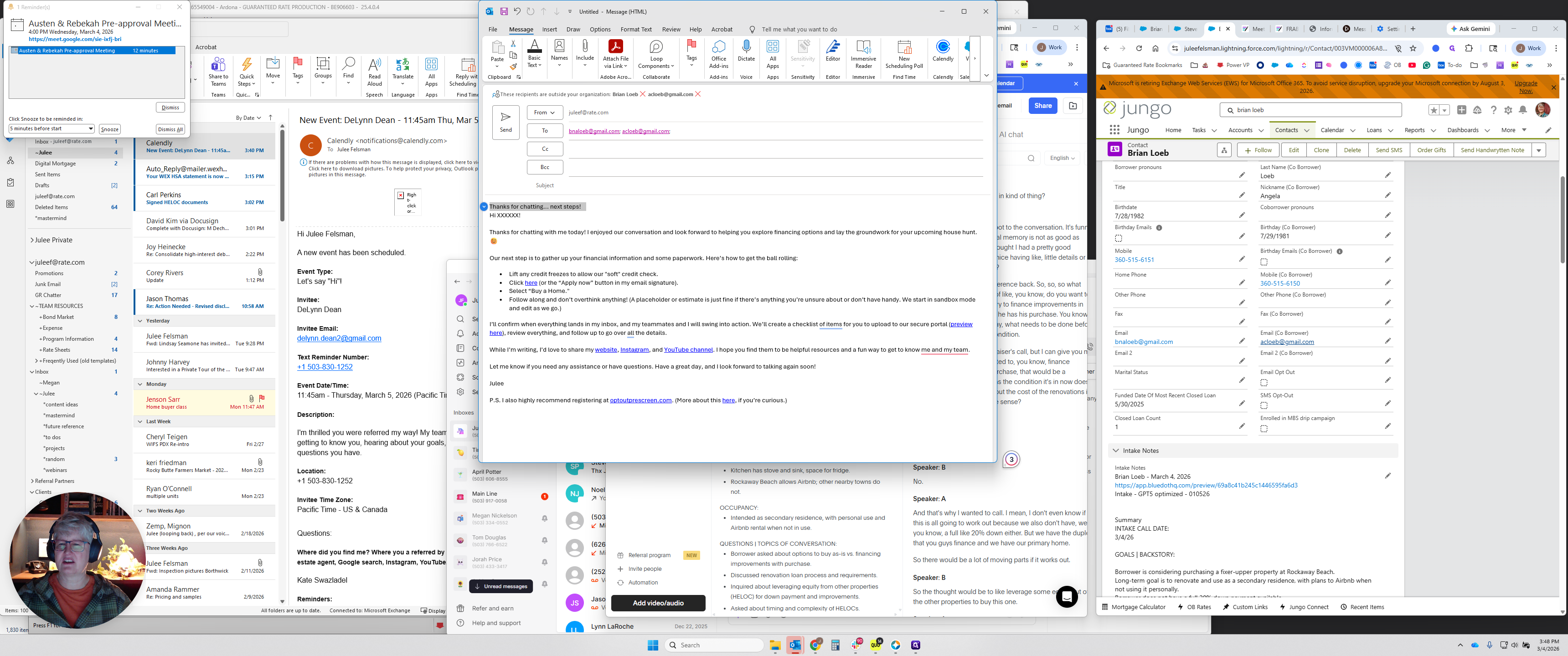
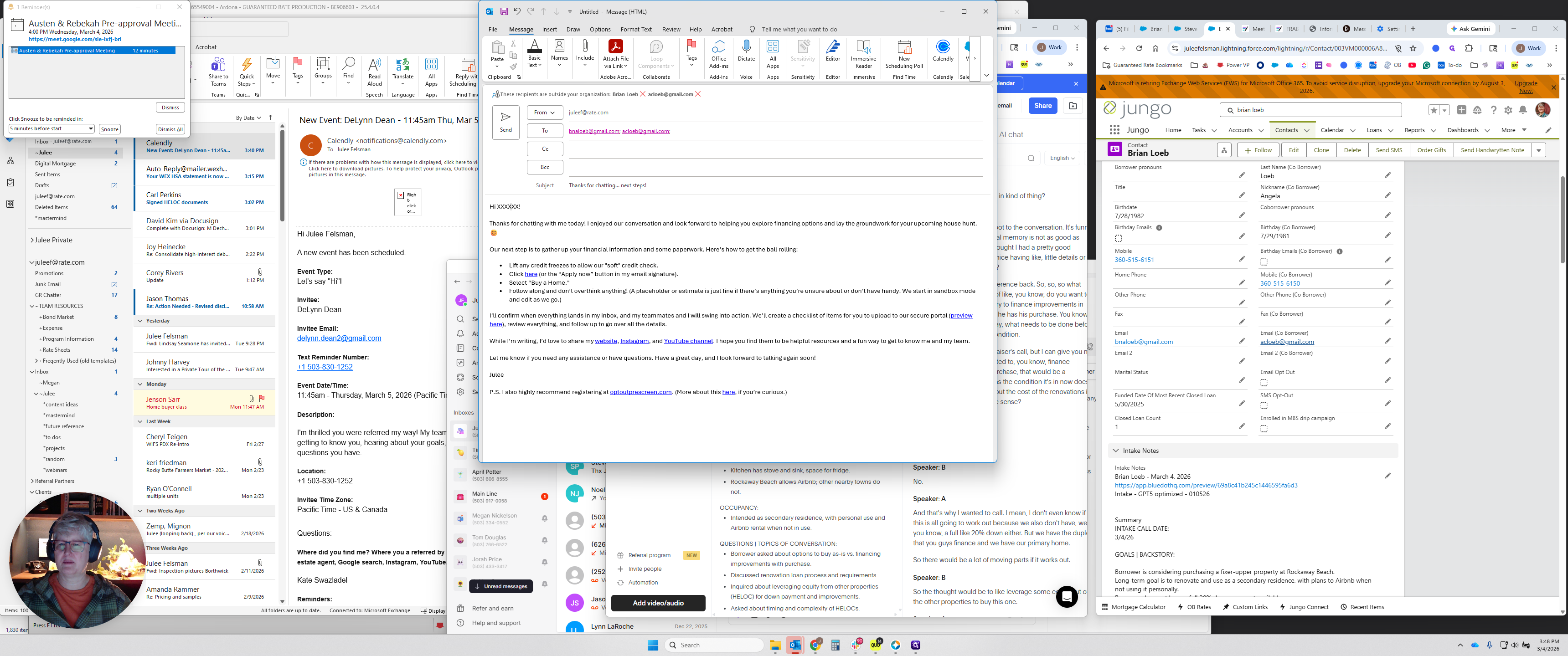
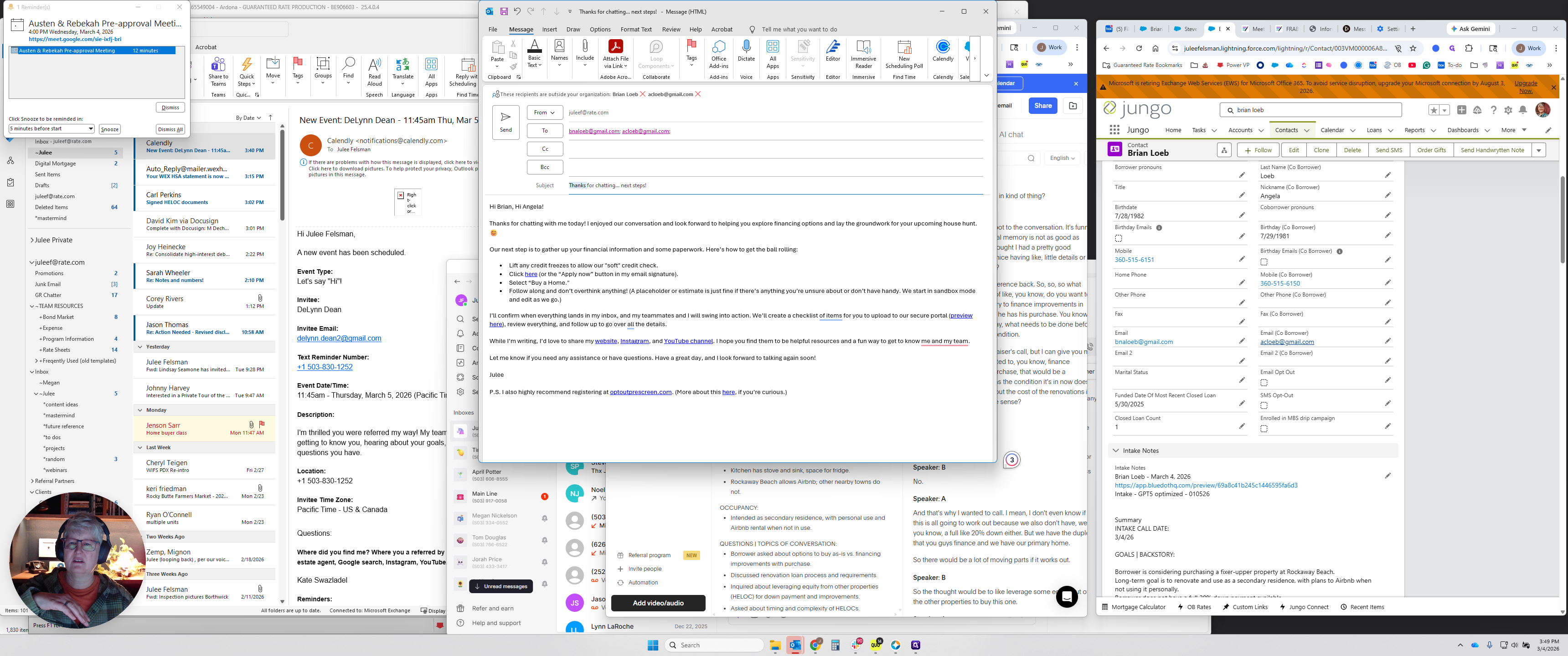
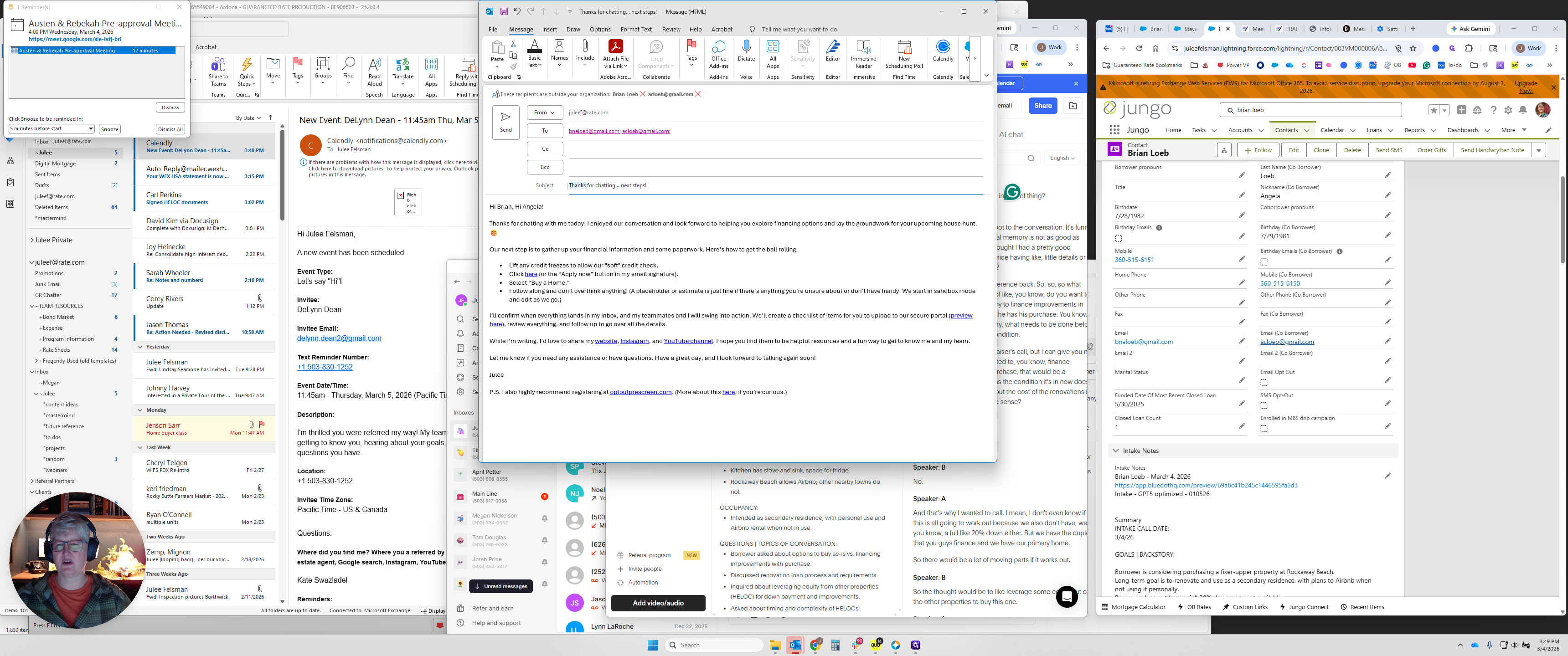
It looks like an old email template is stacking up with a new email that has the same subject line. Great catching up. Keep me posted instead of the usual subject line, but you do you.
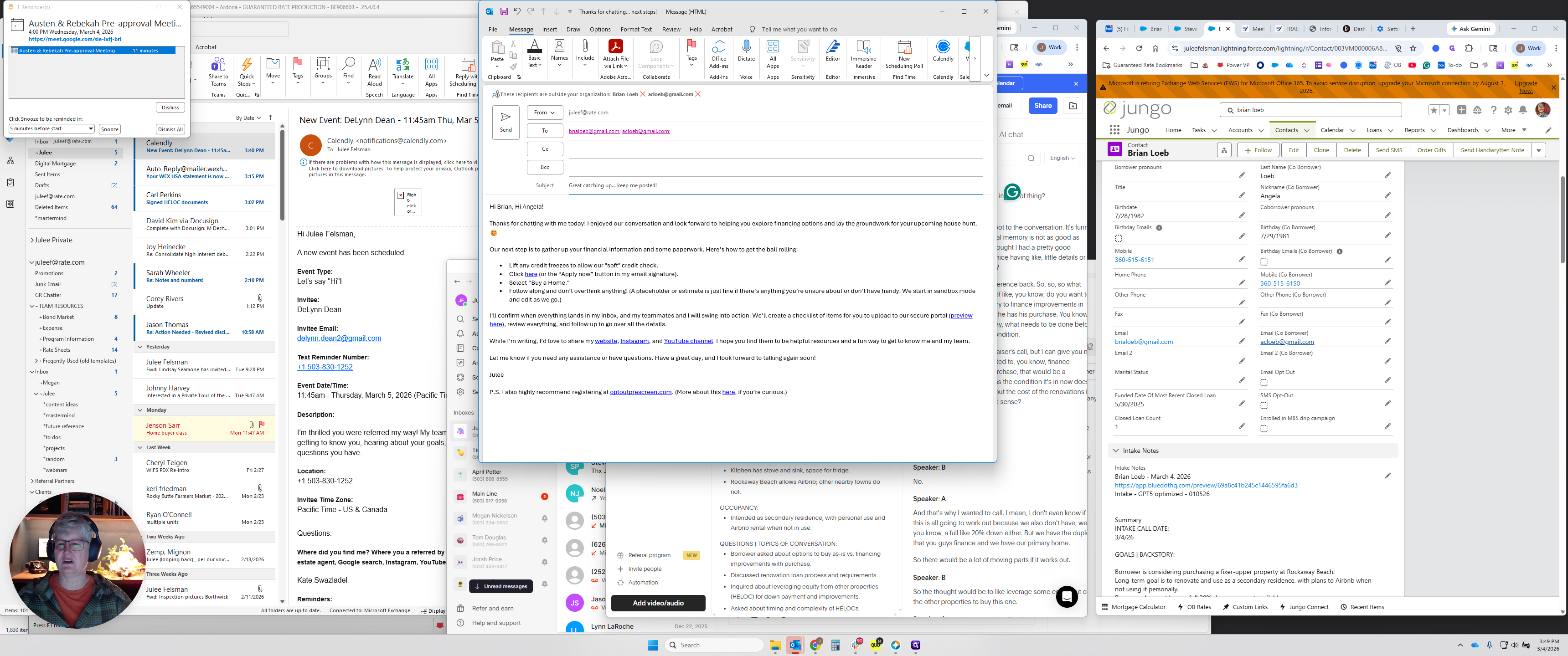
"Thanks for the call today." I always personalize this a little.
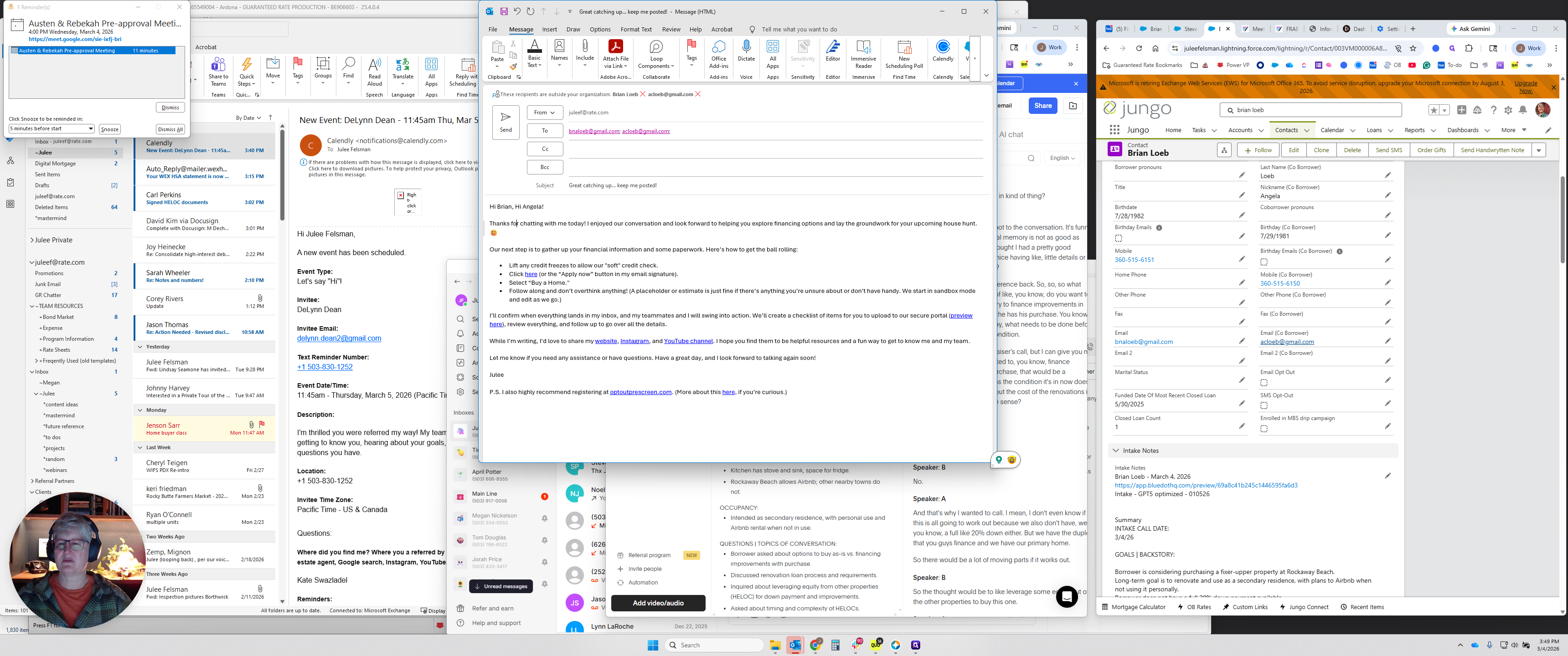
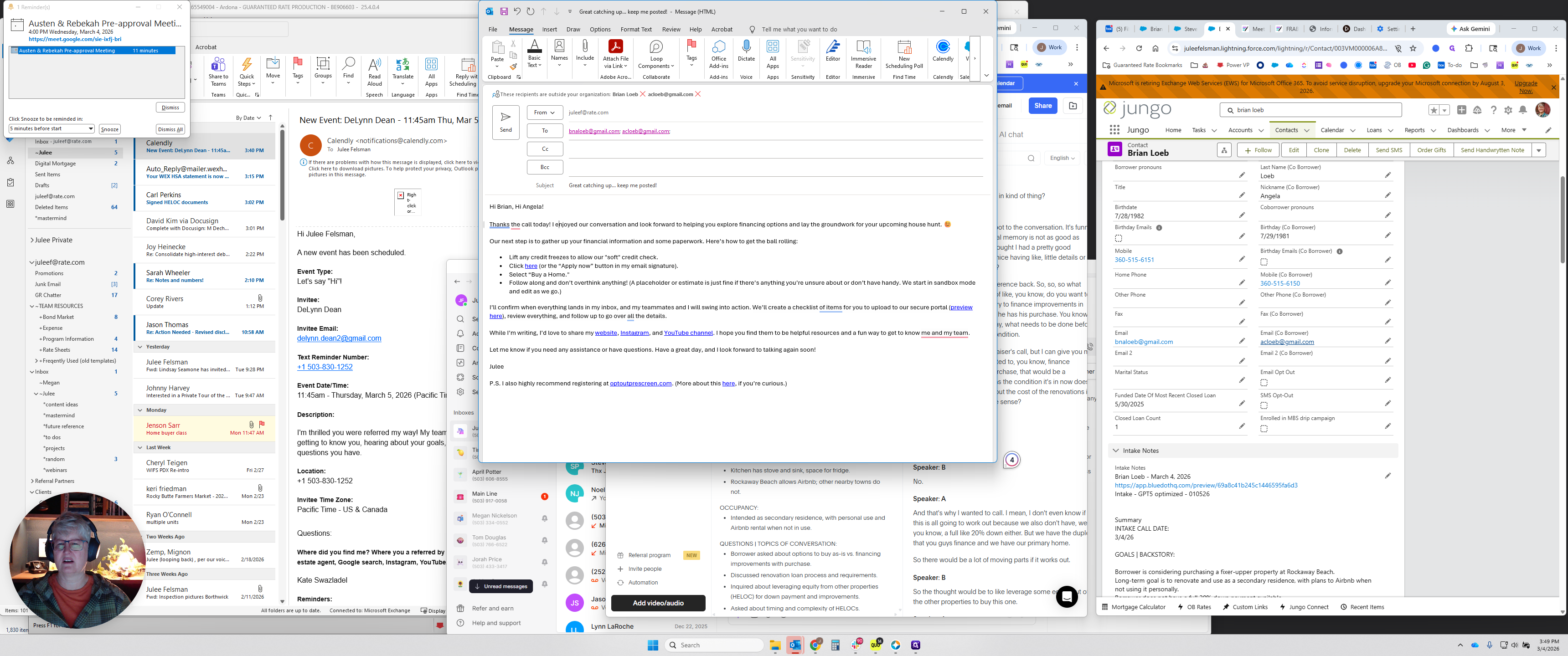
It was great to catch up. I'd love to help you buy the A-frame in Rockaway Beach.
Keep me posted on what you hear from Jake. If you need a realtor referral, let me know. This one's a little unusual, but you can use whatever you want.
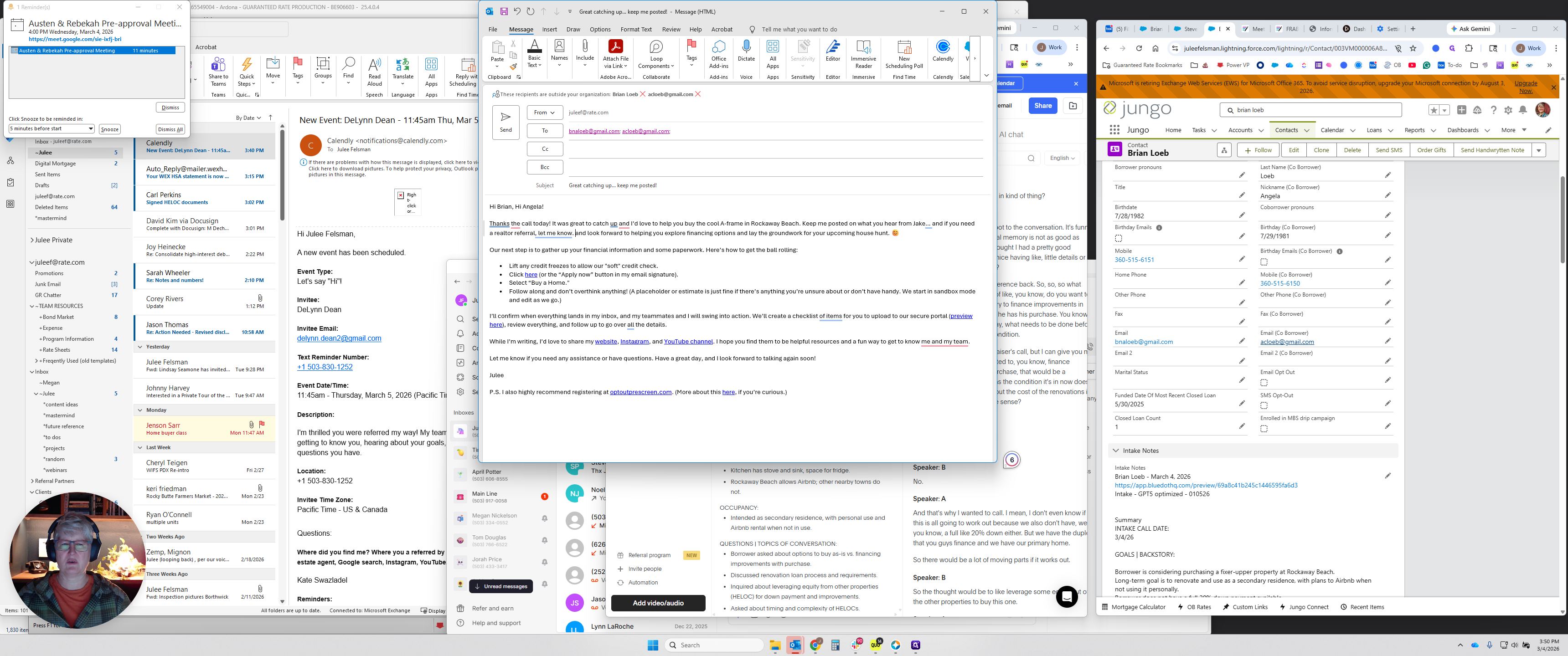
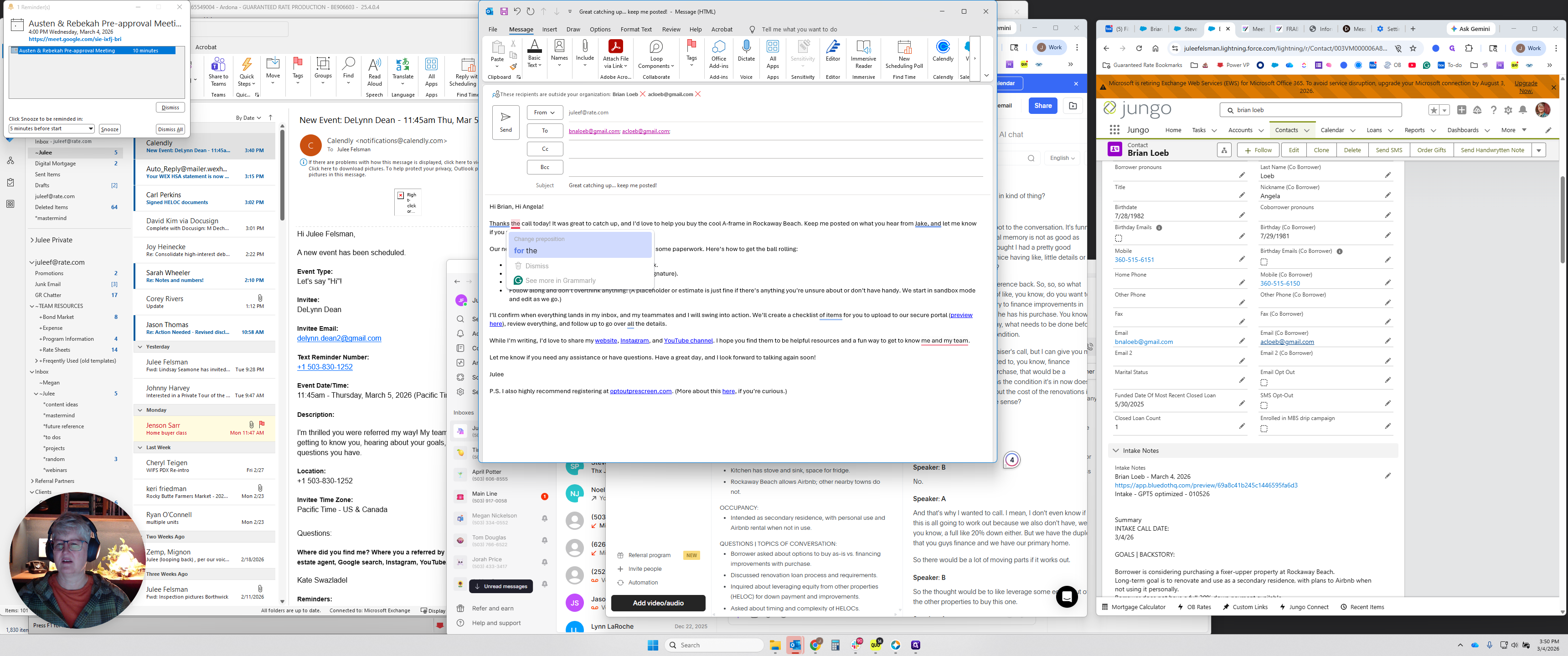
There's a template to start with or edit, and Grammarly will correct my grammar as usual.
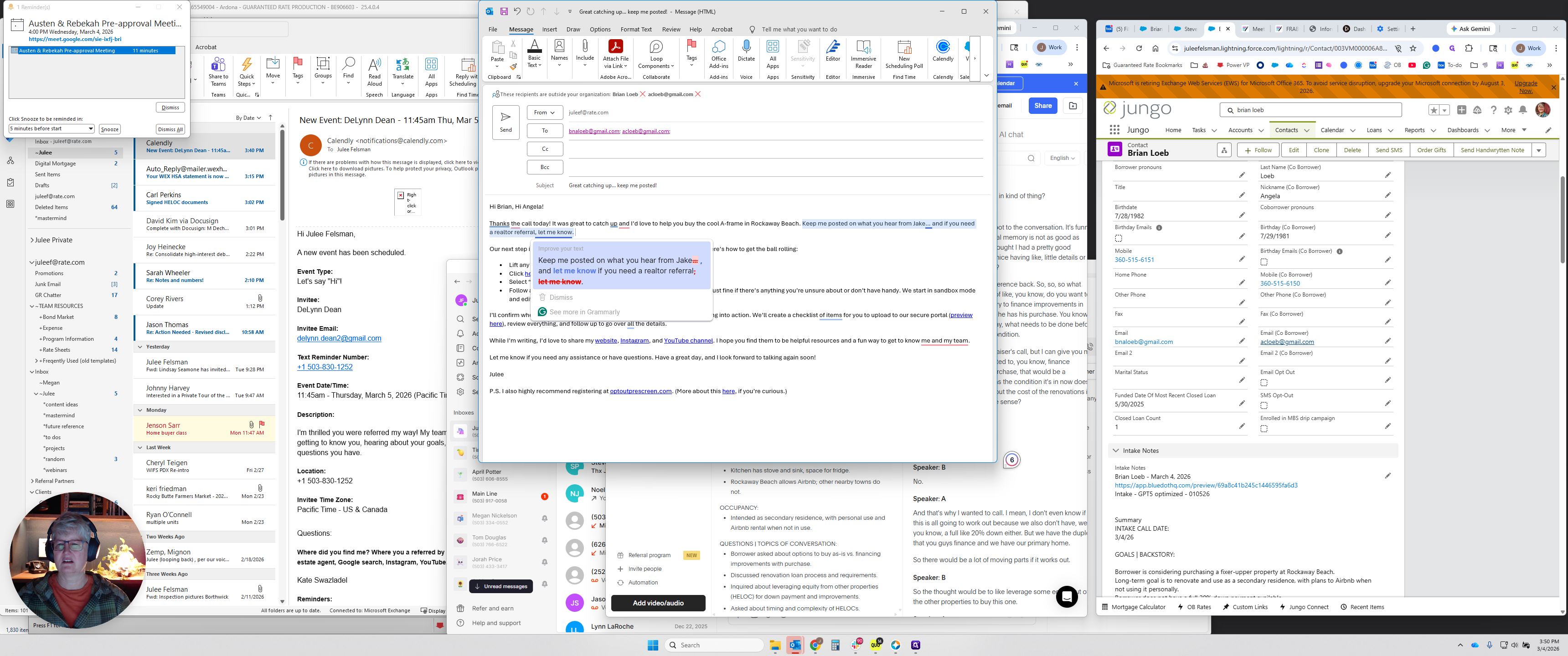
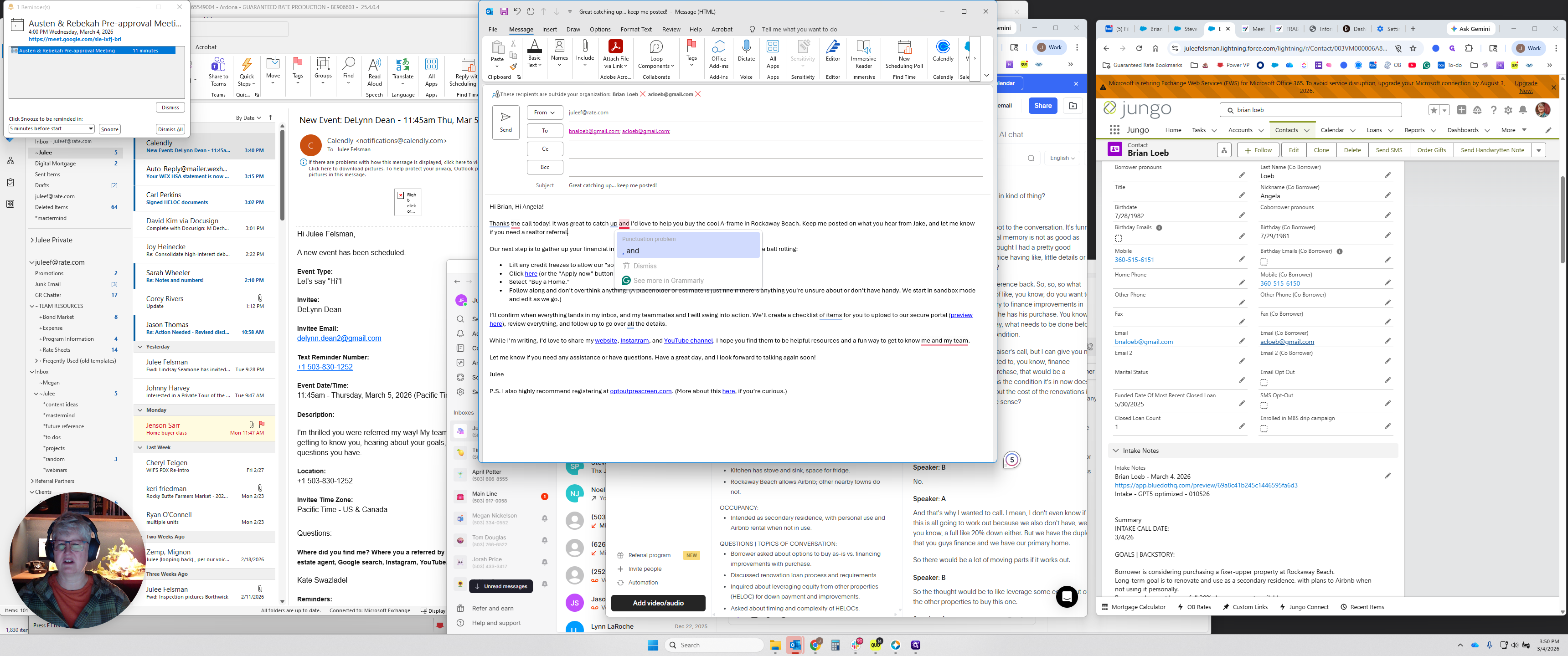
Thank you, Grammarly.
Our next step is the usual.
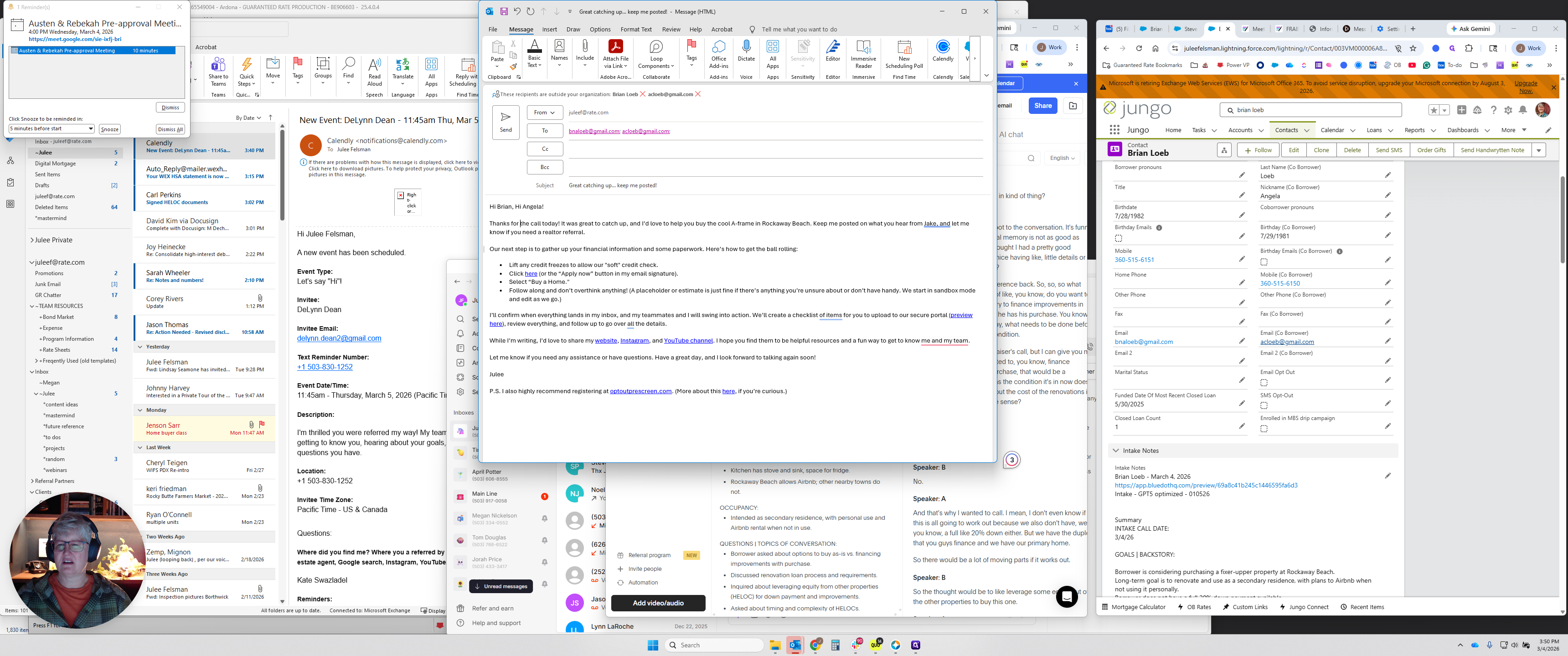
Gather your current financial information and paperwork.
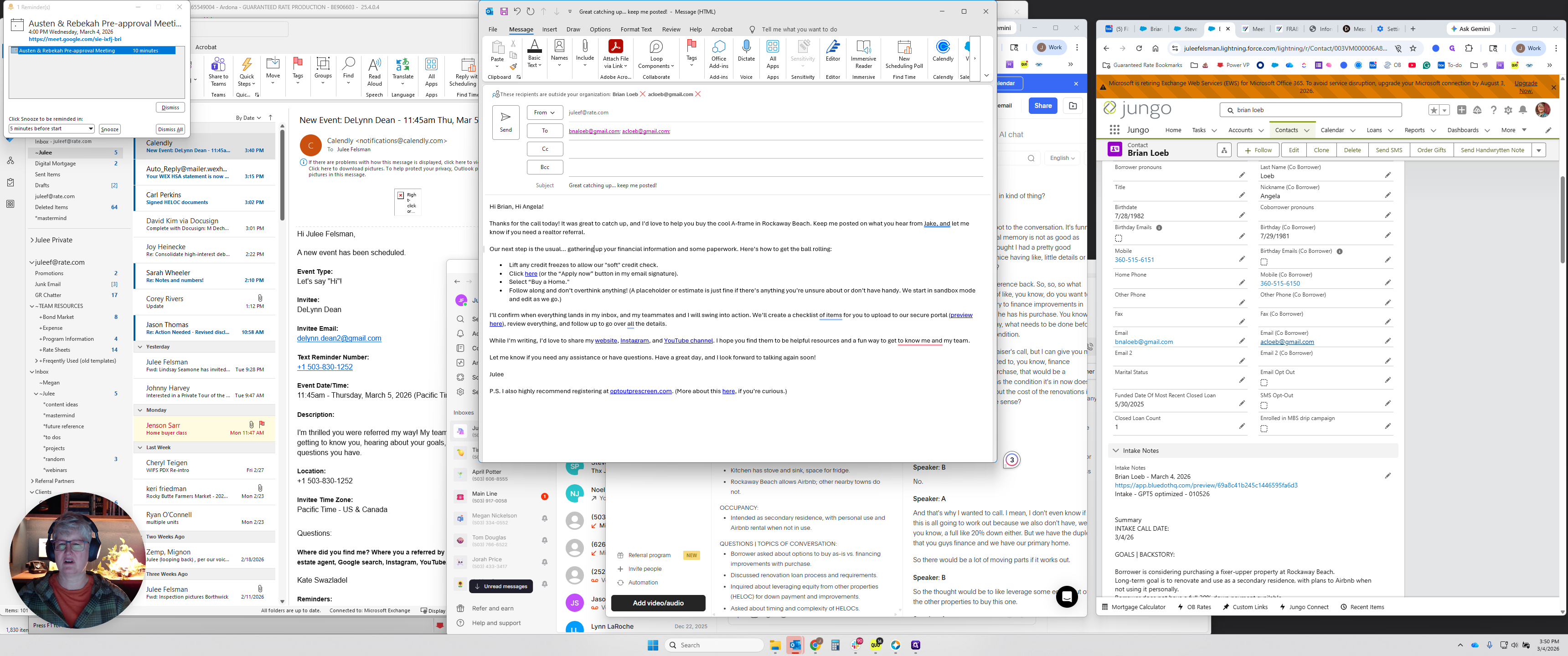
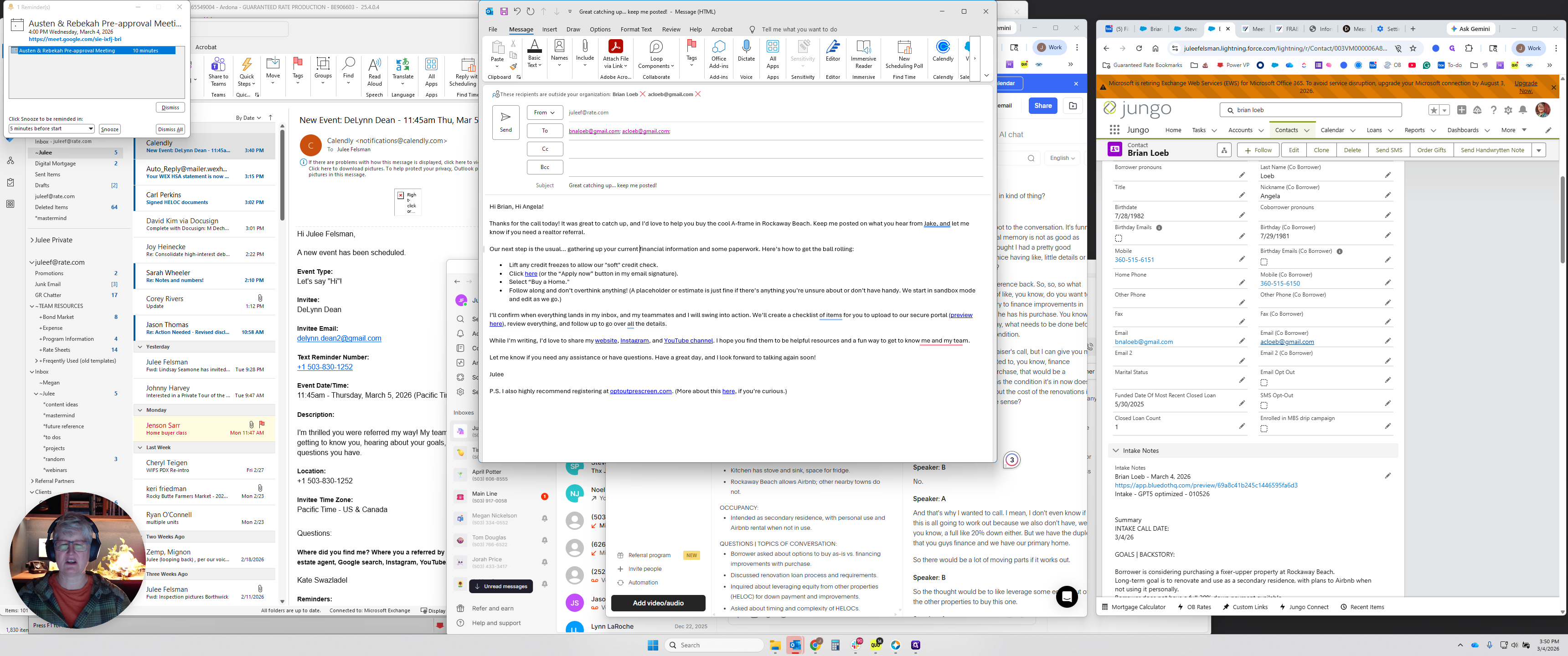
Here's how to get started on that part.
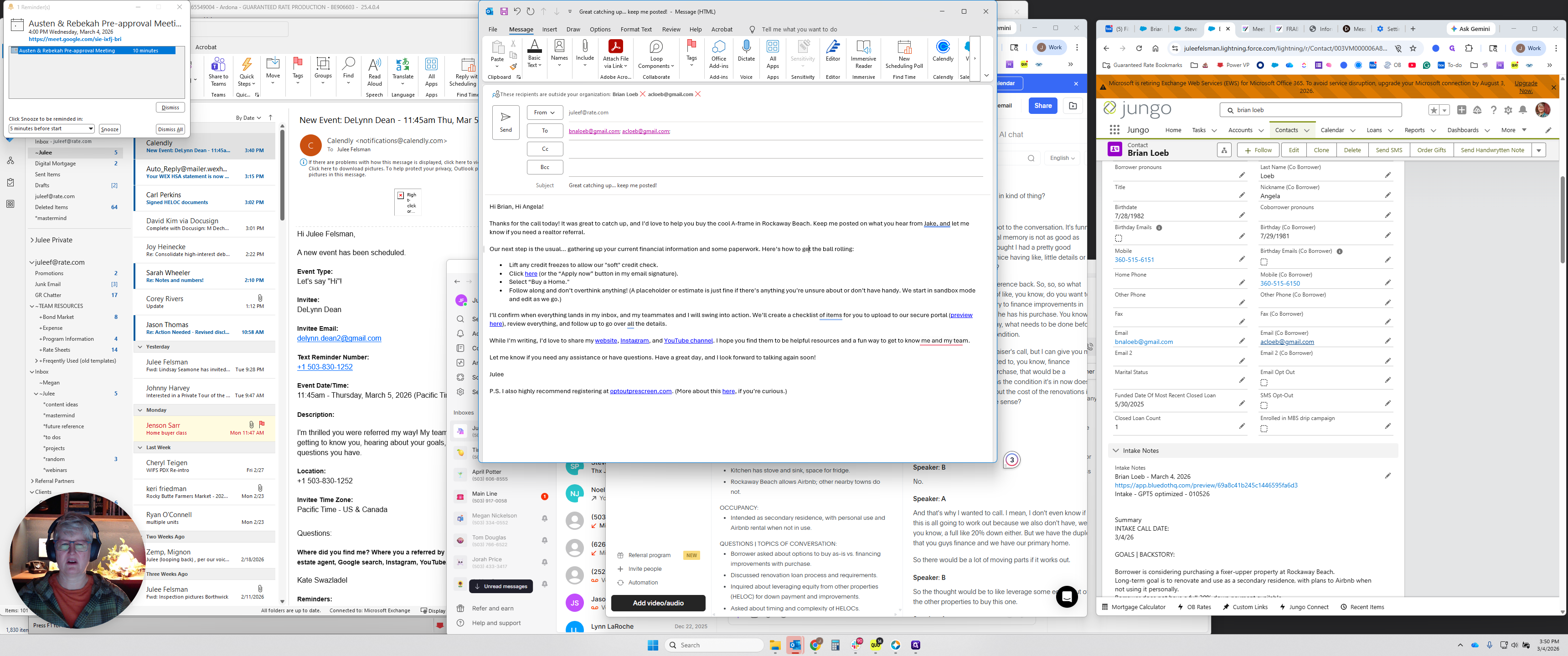
Lift credit freezes, and so on.
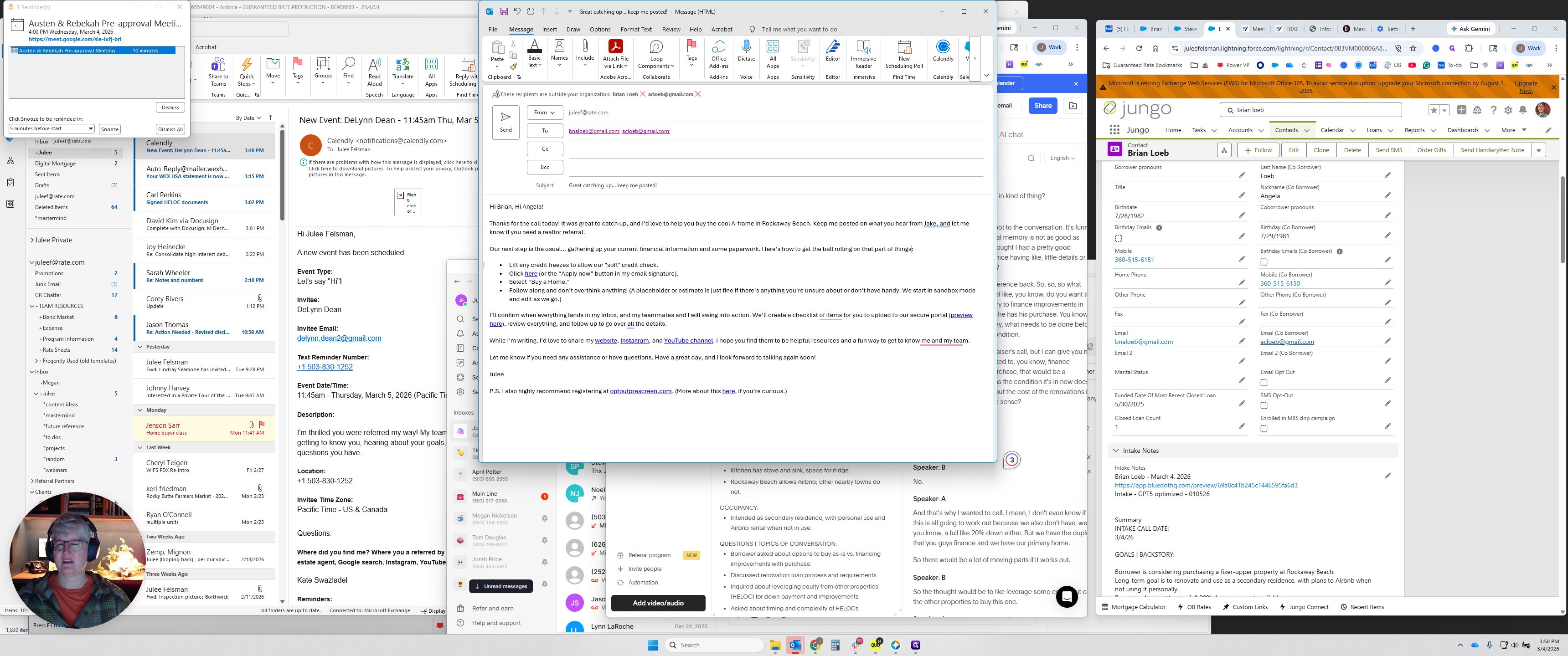
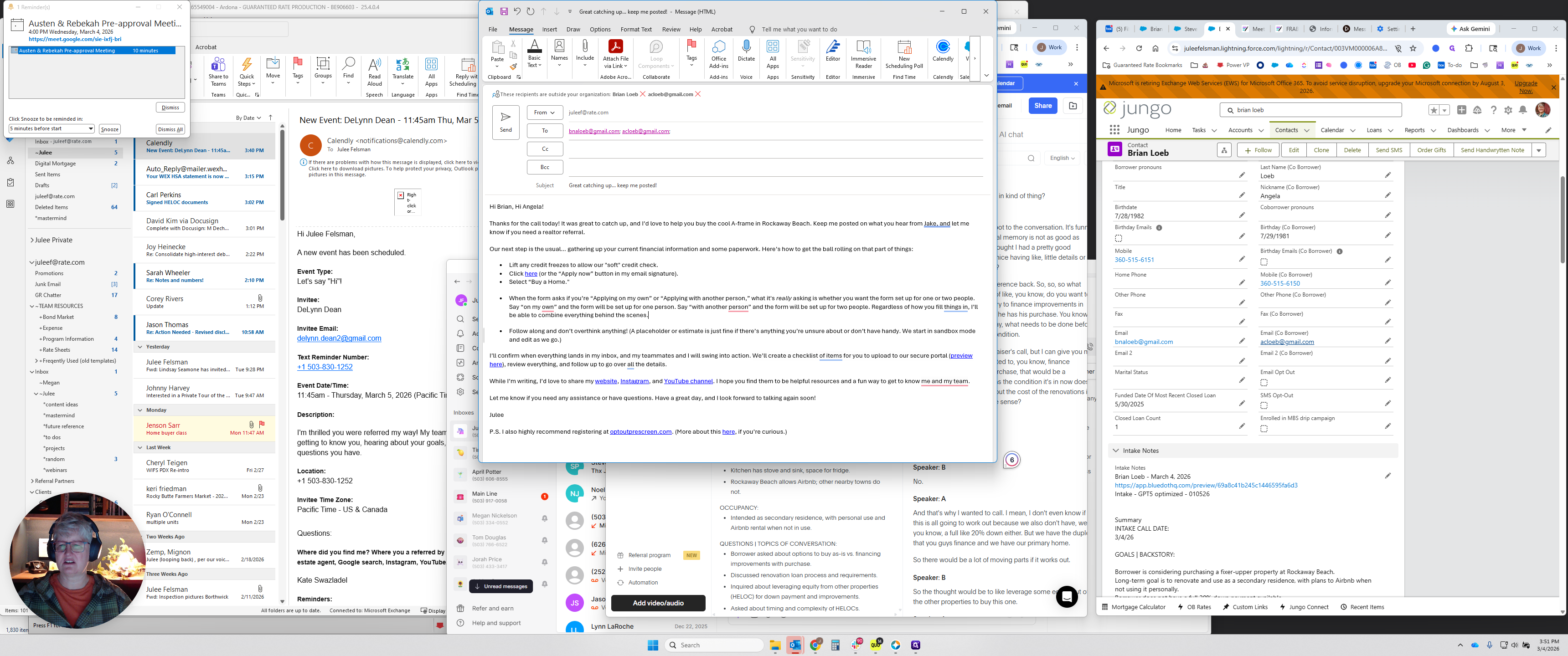
I mentioned this before: if you need to notify people about filling out an application separately, press return after "buy a home," then backspace and type "separate," "SEP," or "post-call." There's also an option that appears if the borrower asks, "Am I applying on my own?" You can edit this as needed.
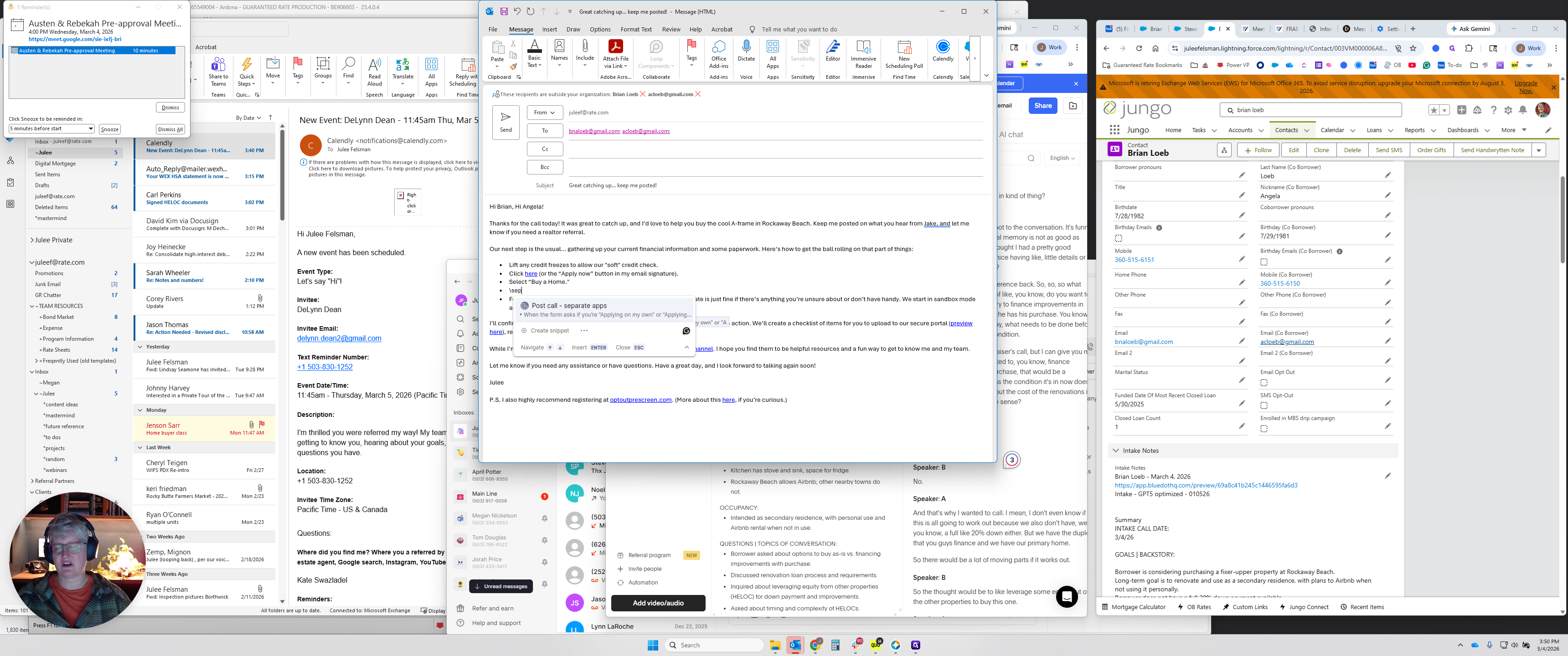
I usually add names or edit this to match the people involved.
It does strange things with the bullets, as you can see.
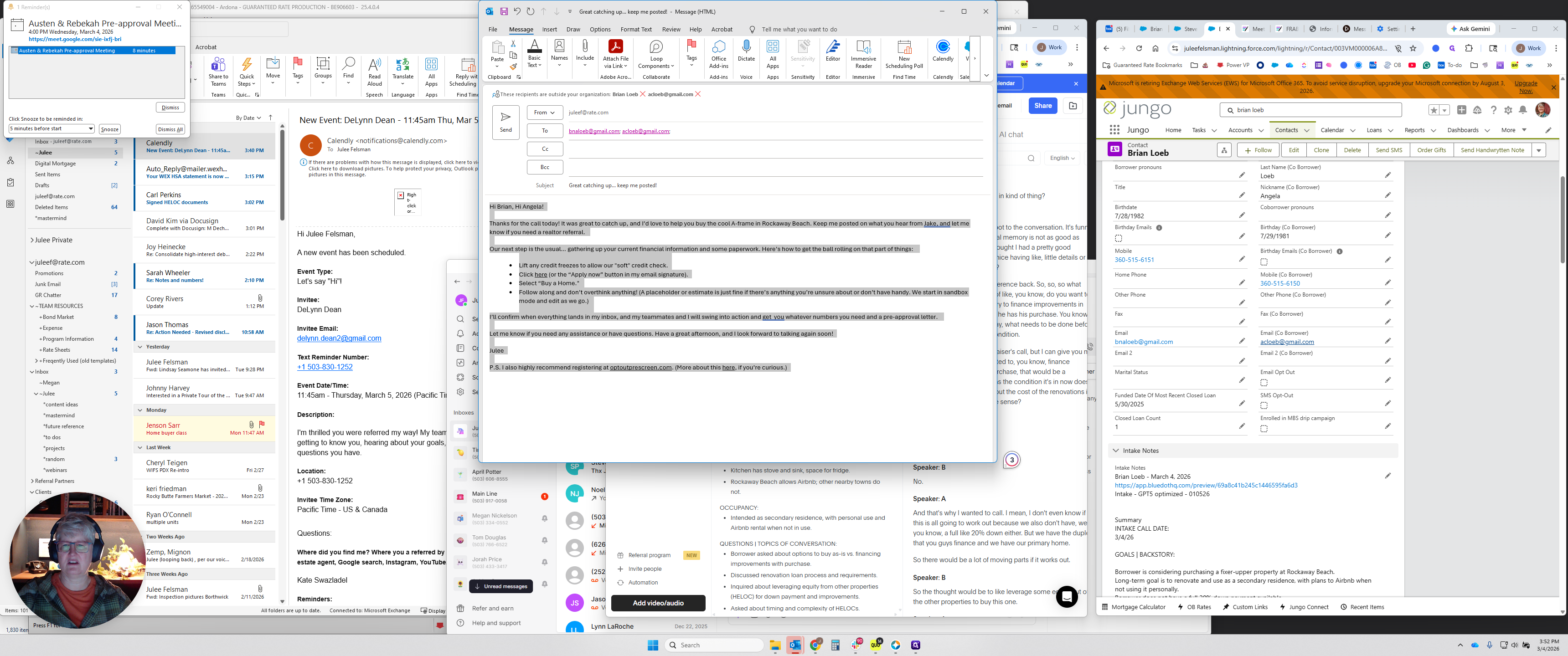
To fix that, select the text, click the bullets, and it's fixed.
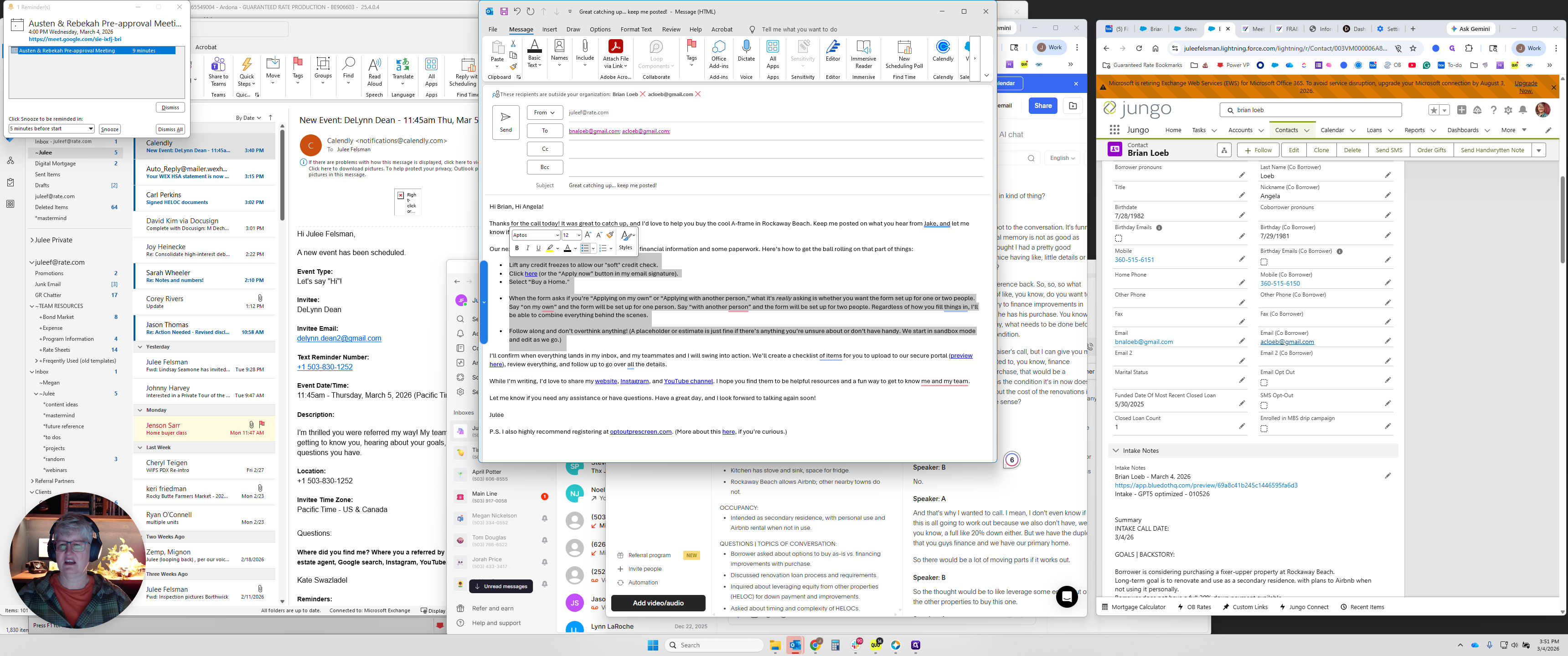
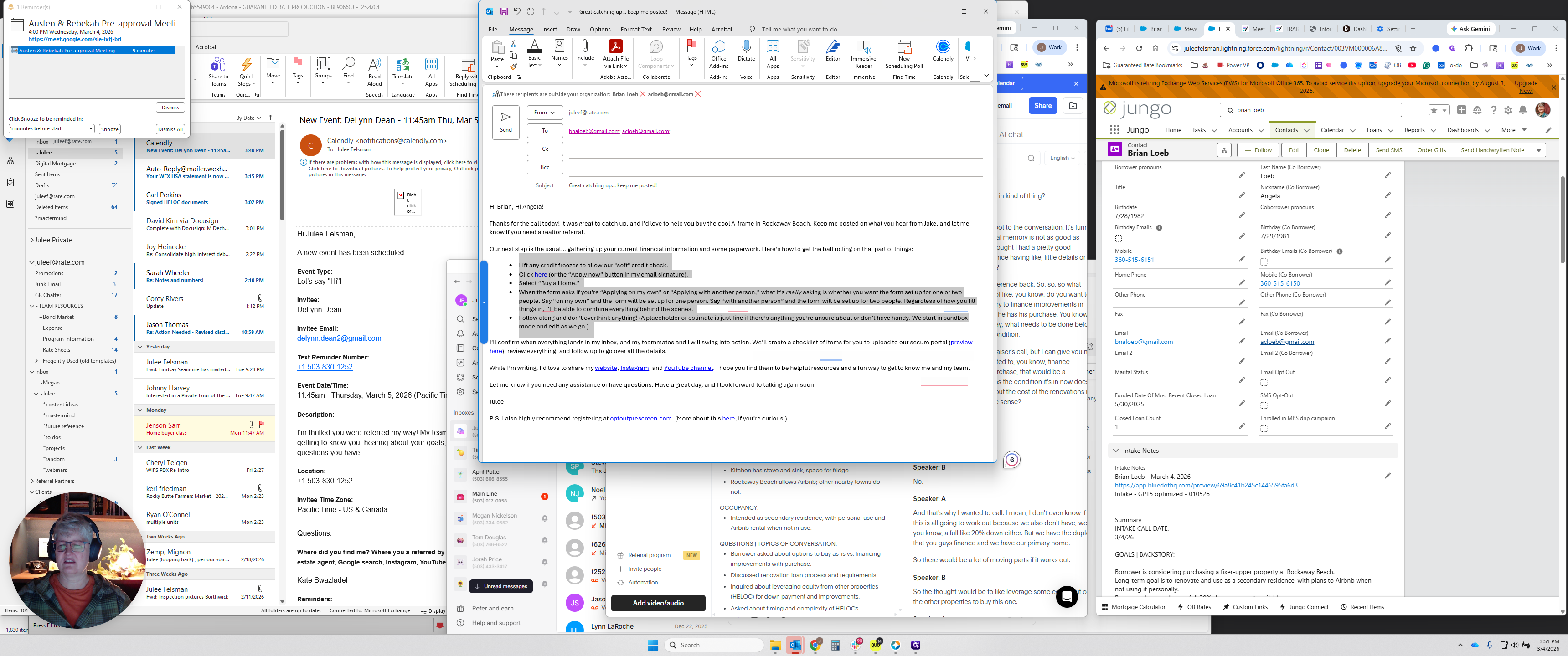
The only other personalization I do while writing is sharing my website and Instagram. If we have exchanged emails with the clients, they have already seen that. You will usually want to delete that, but you can use it as a starting point while writing. For example, you can say, "Let me know," or "Here's a link to what I said I would send you," or something similar.
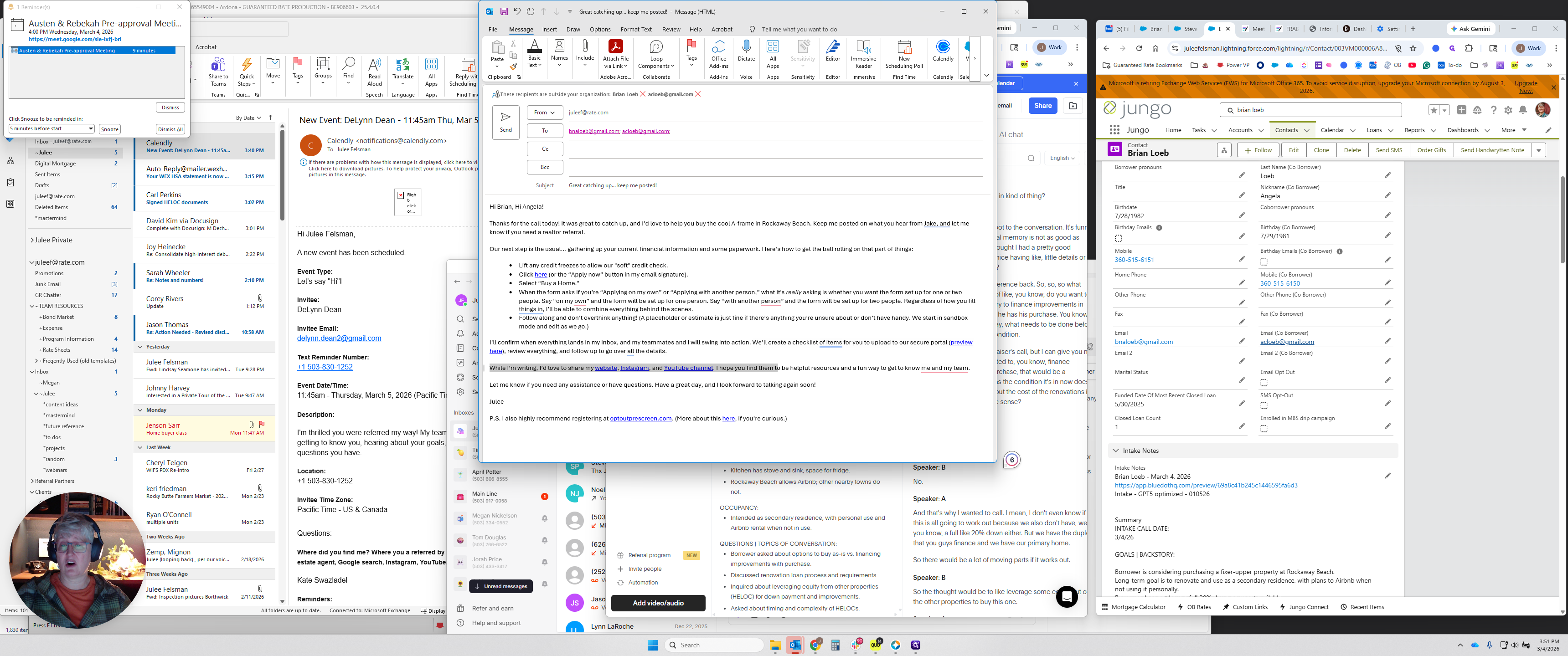
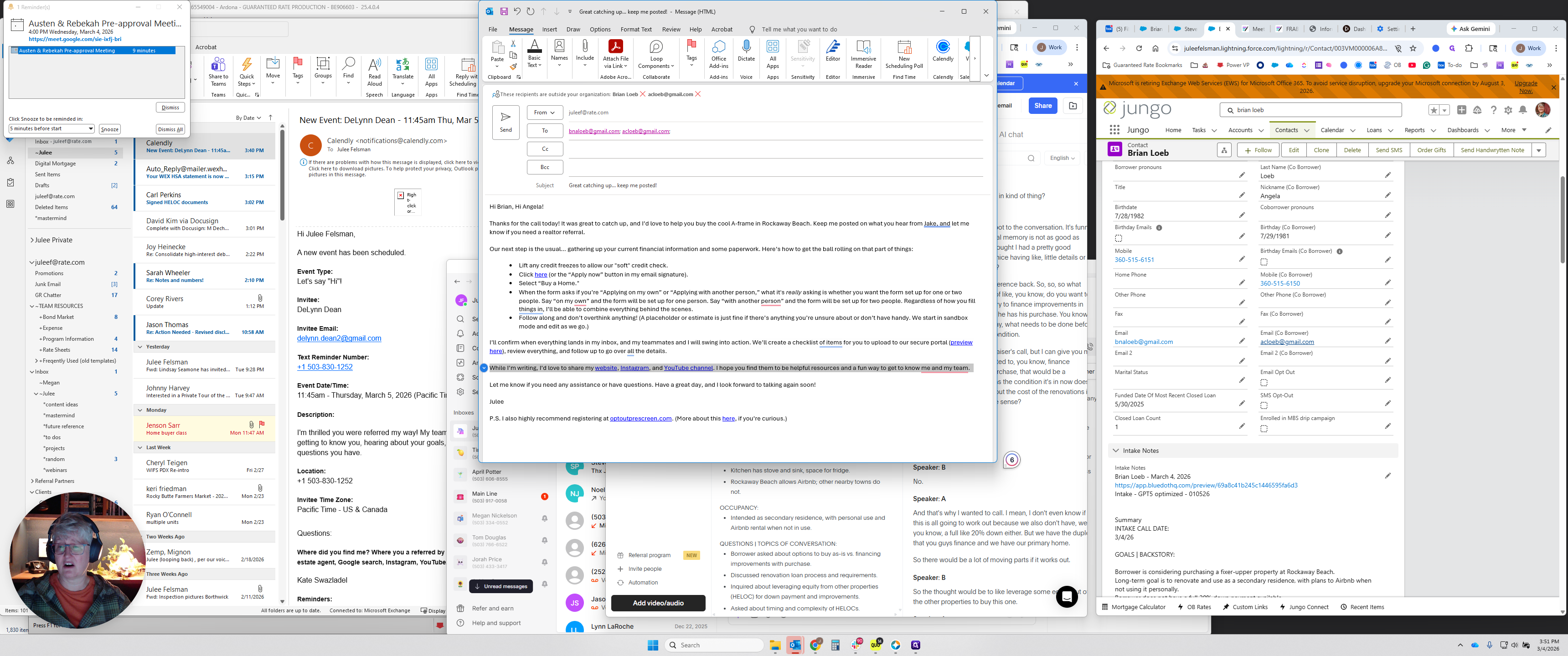
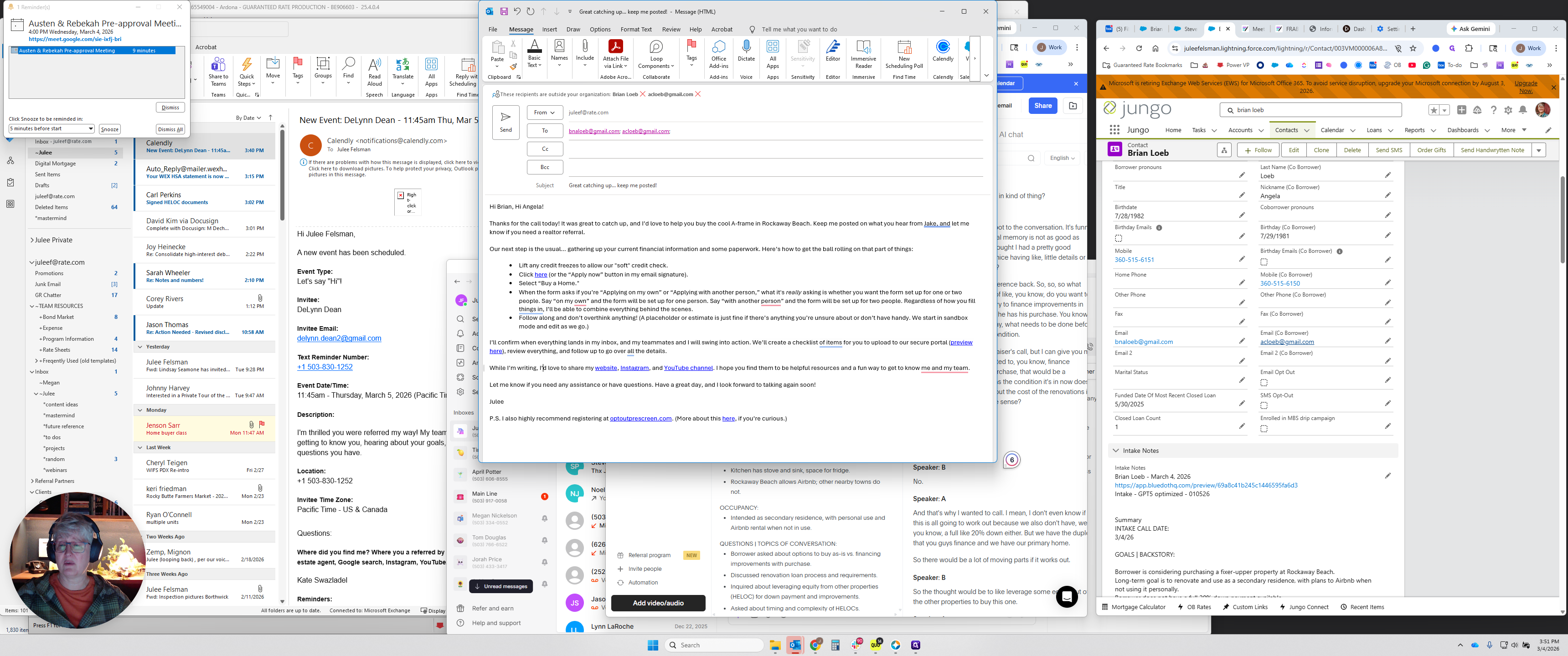
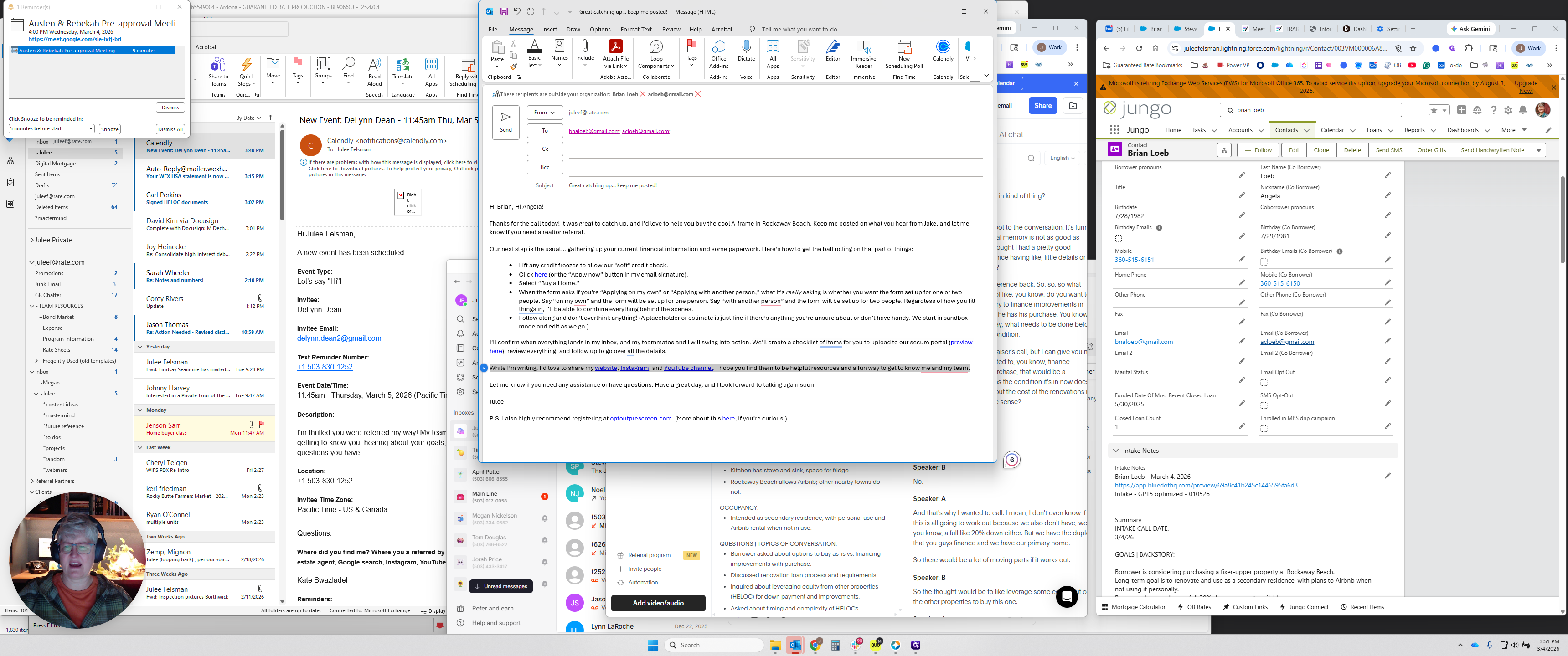
Most of the time, you will delete that. I'm tempted to remove that from the template so you don't have to remember to delete it. Have a great afternoon, weekend, day, or holiday, whatever the case may be.
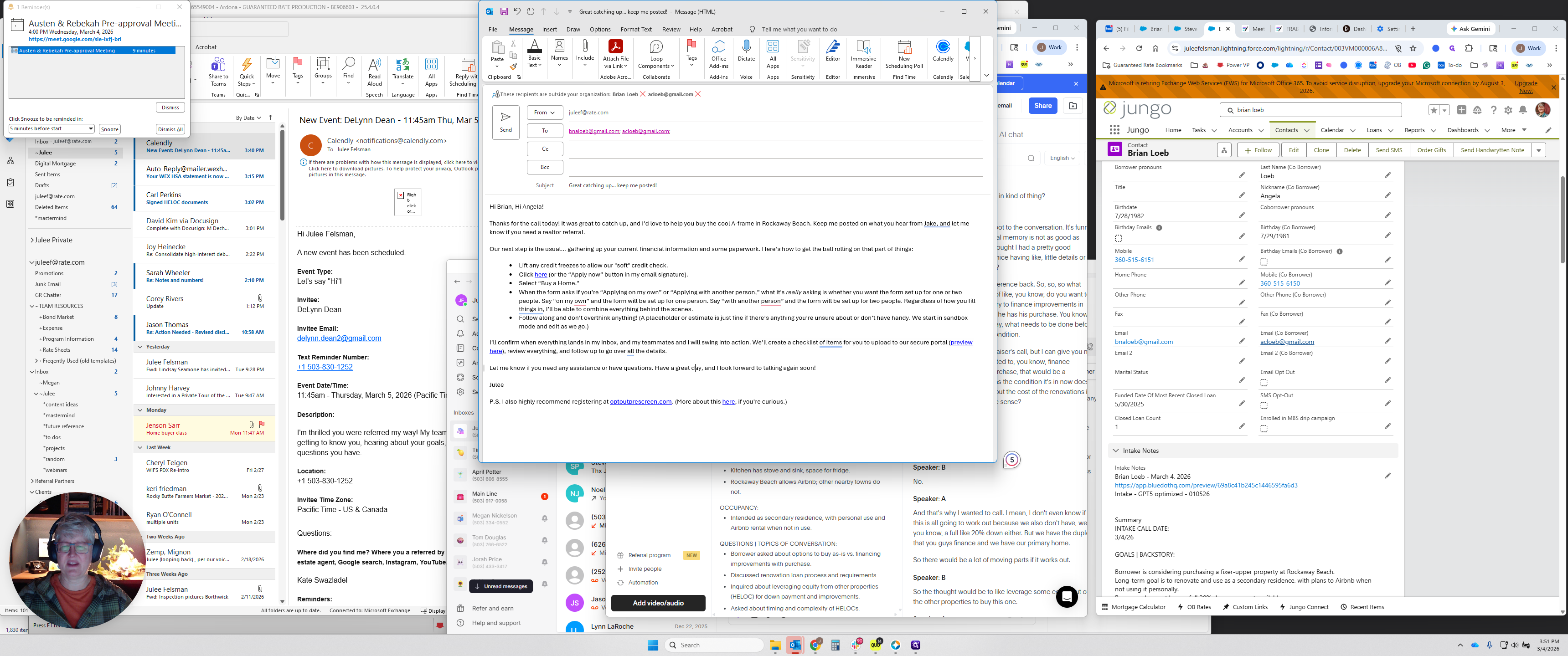
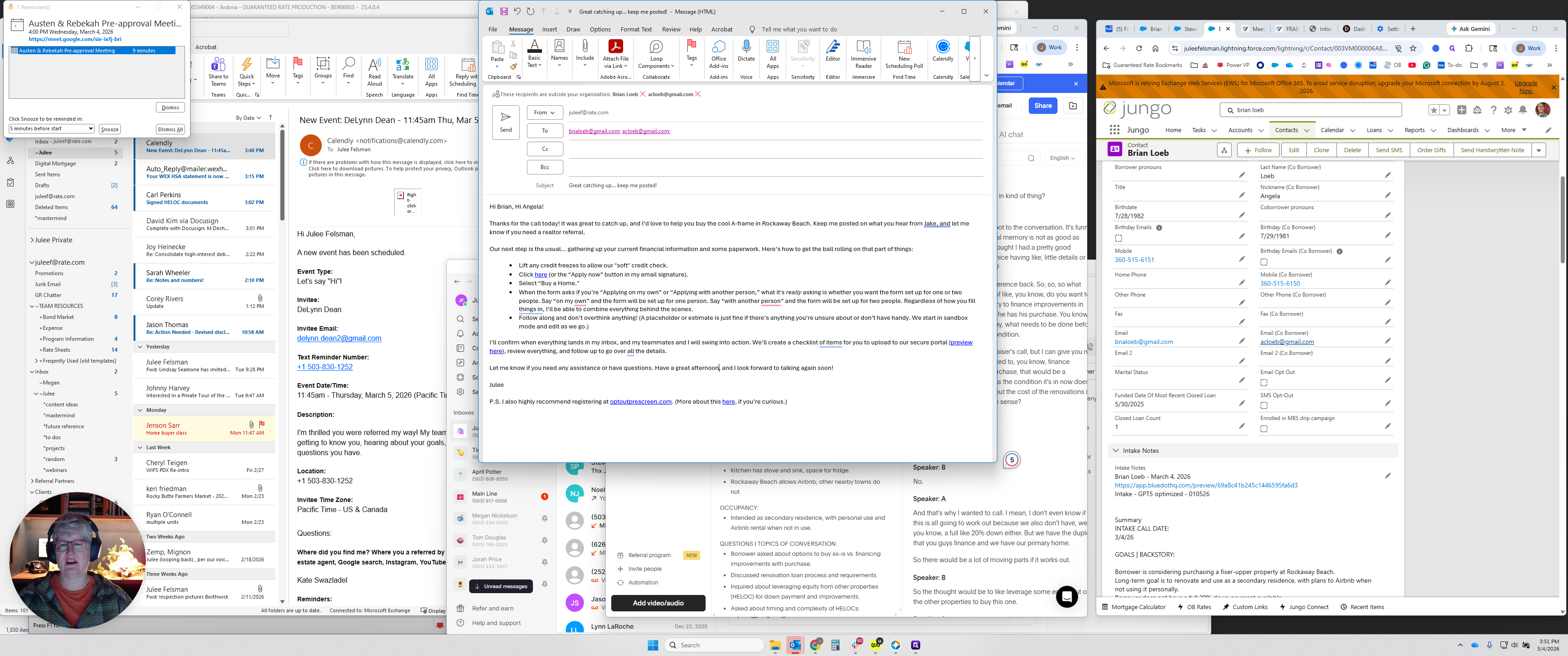
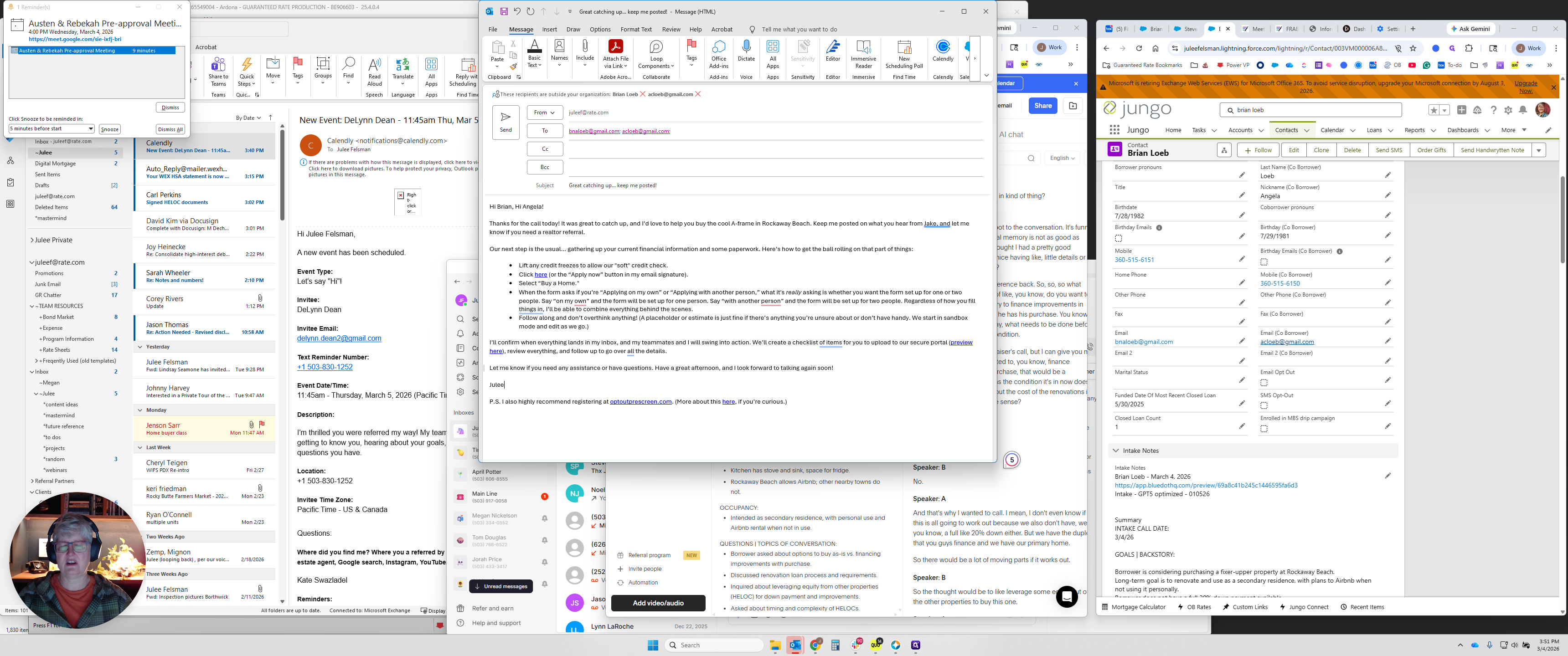
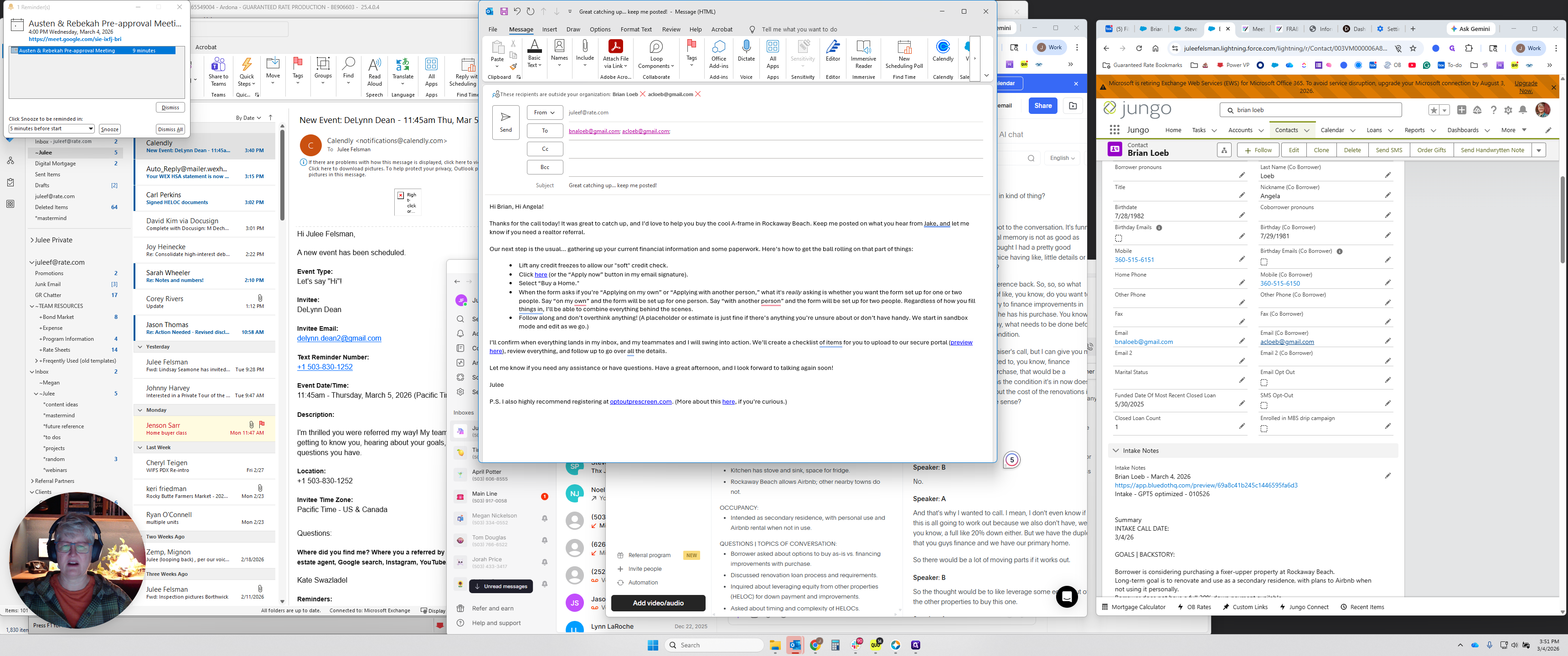
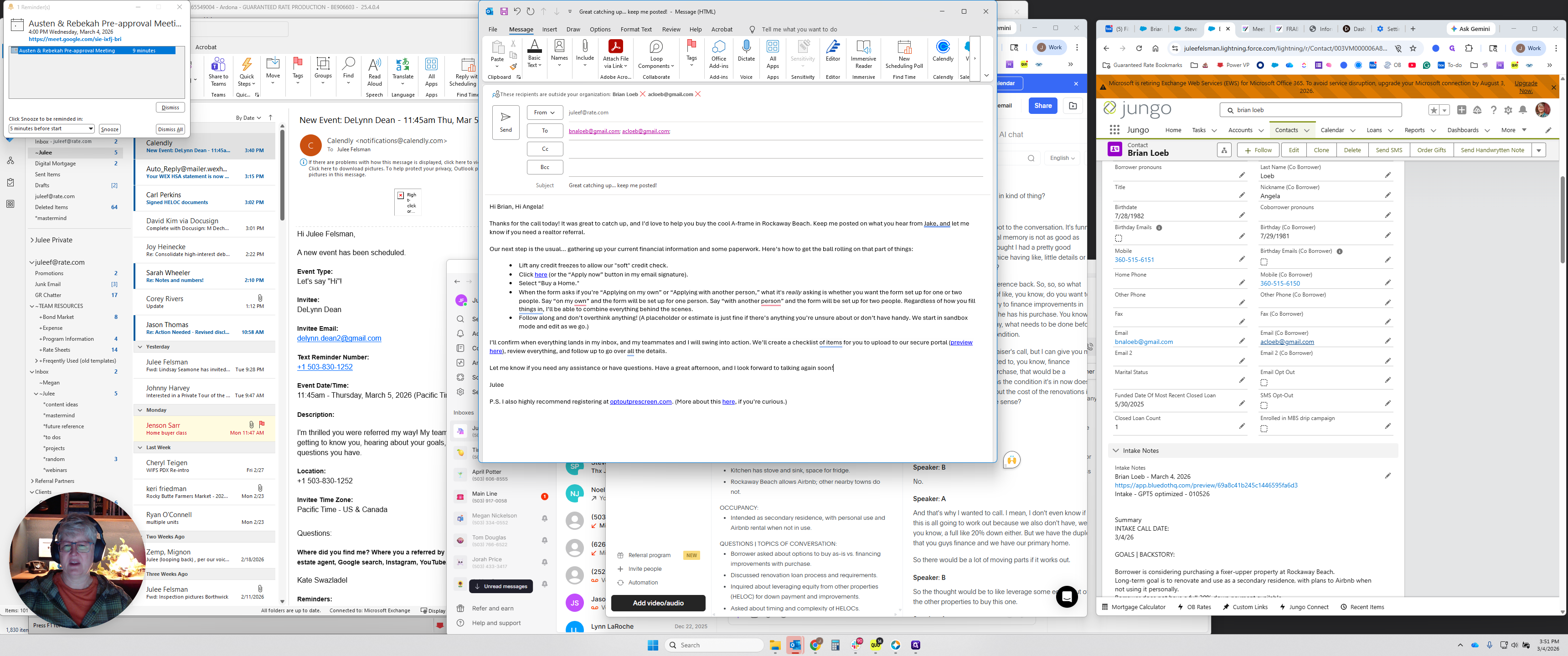
Then you can hit return. I wasn't actually going to email him, but I'll go ahead and do it.
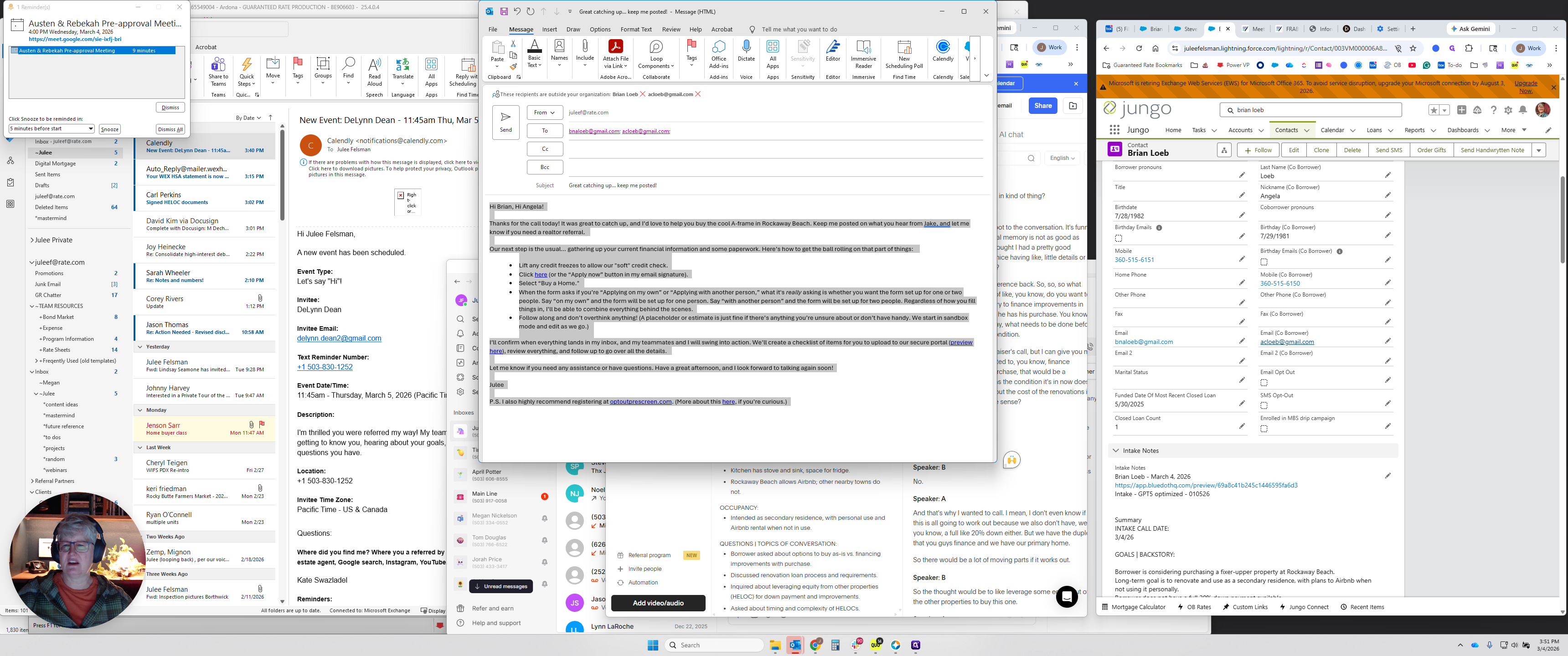
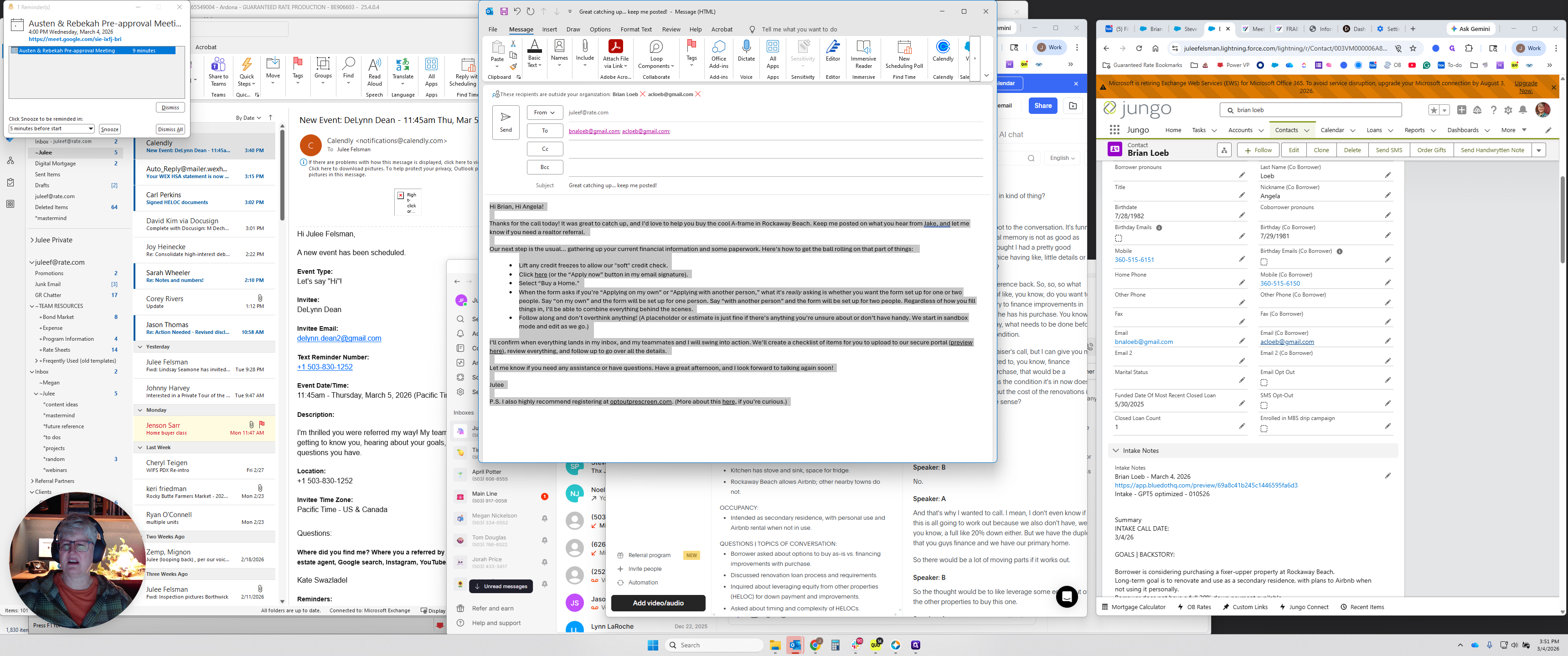
Let me remove this since it isn't applicable.
Follow along. I'll confirm everything and we'll continue.
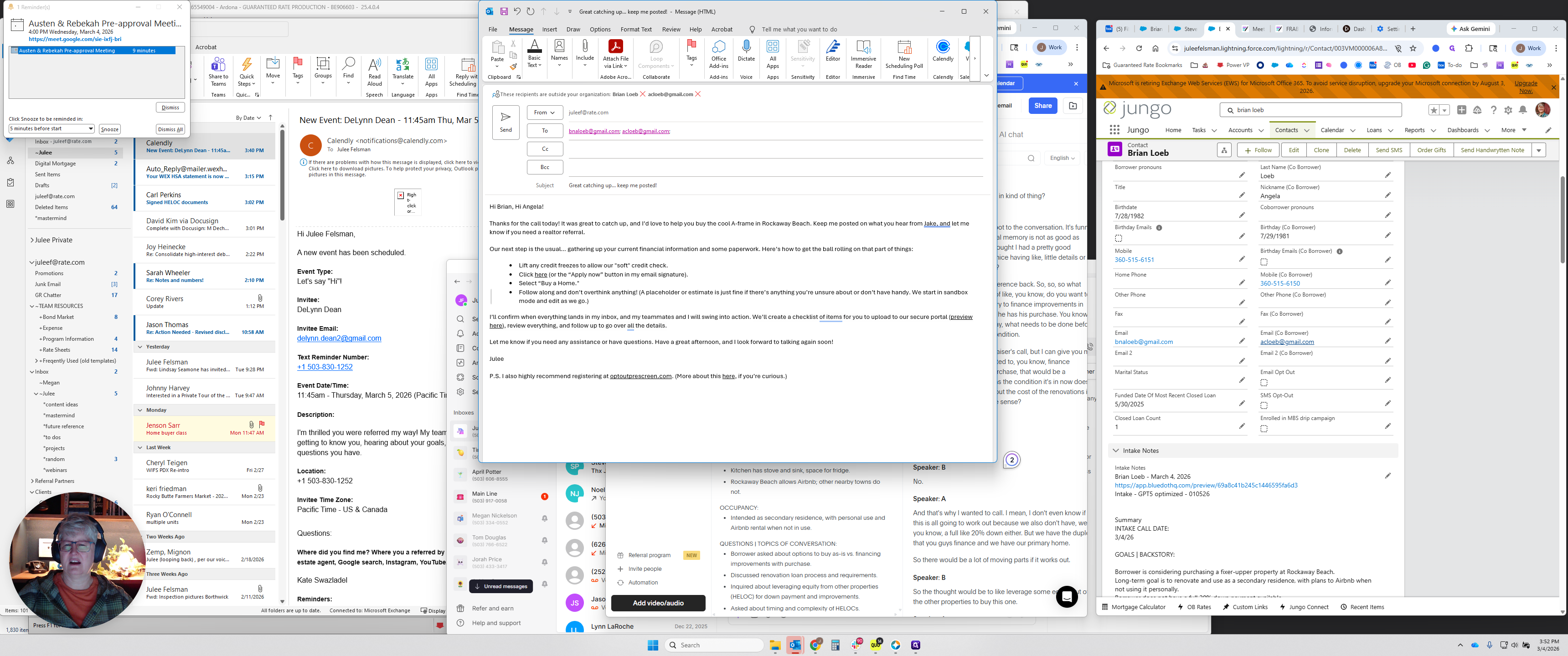
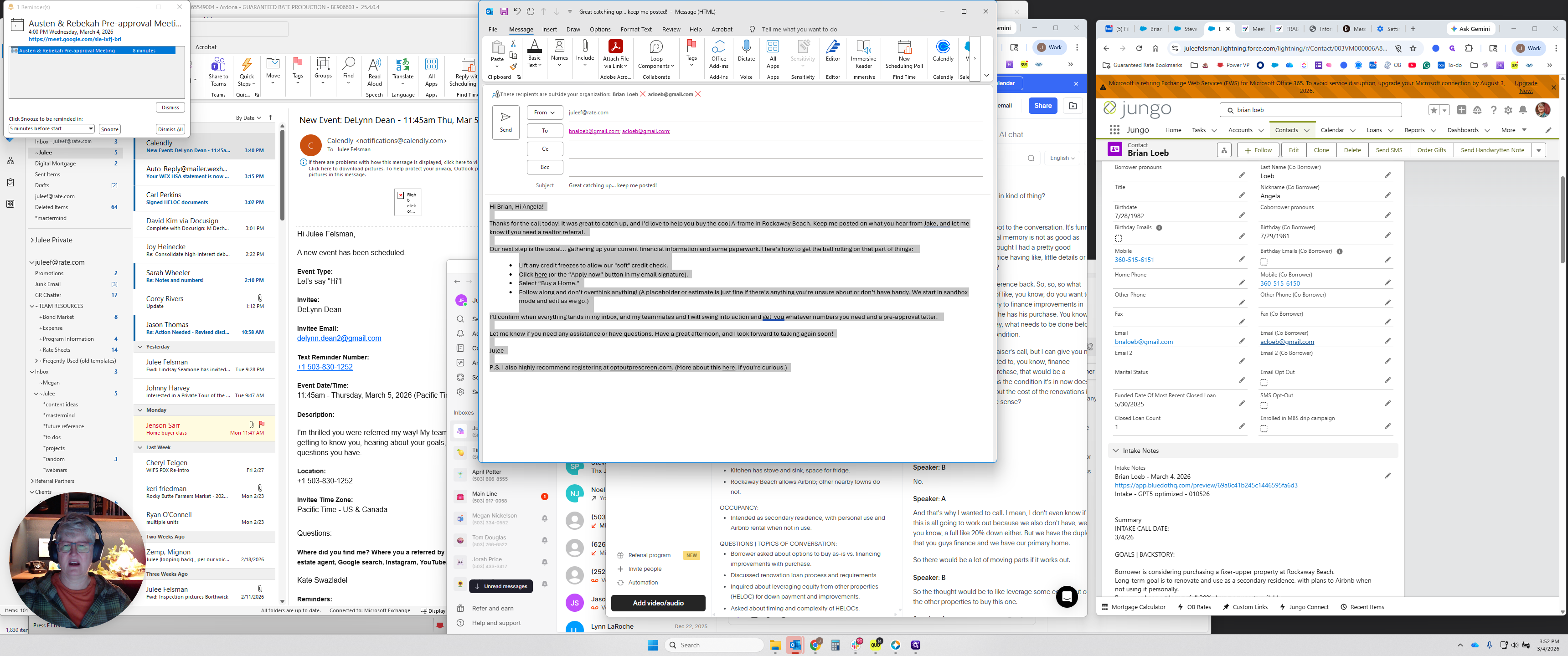
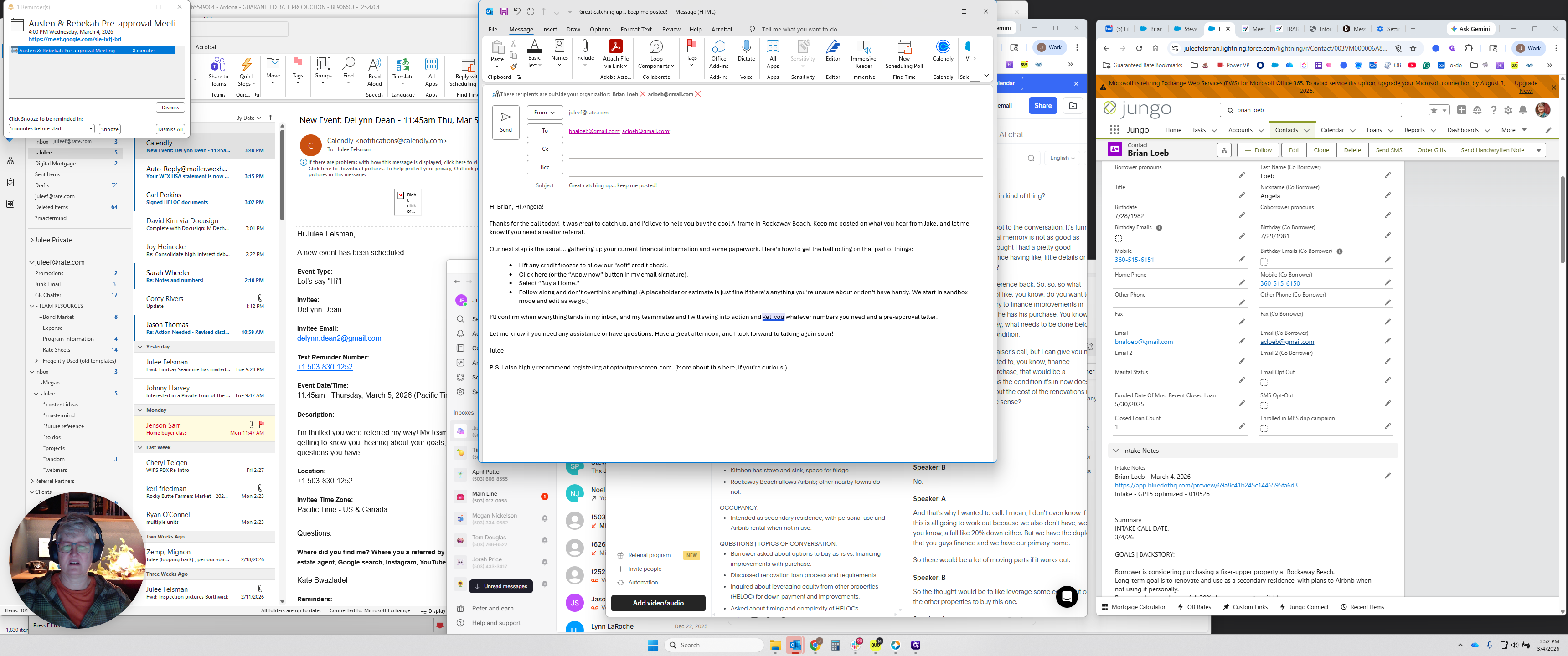
This is an old client, so I will get you the numbers you need and a pre-approval letter.
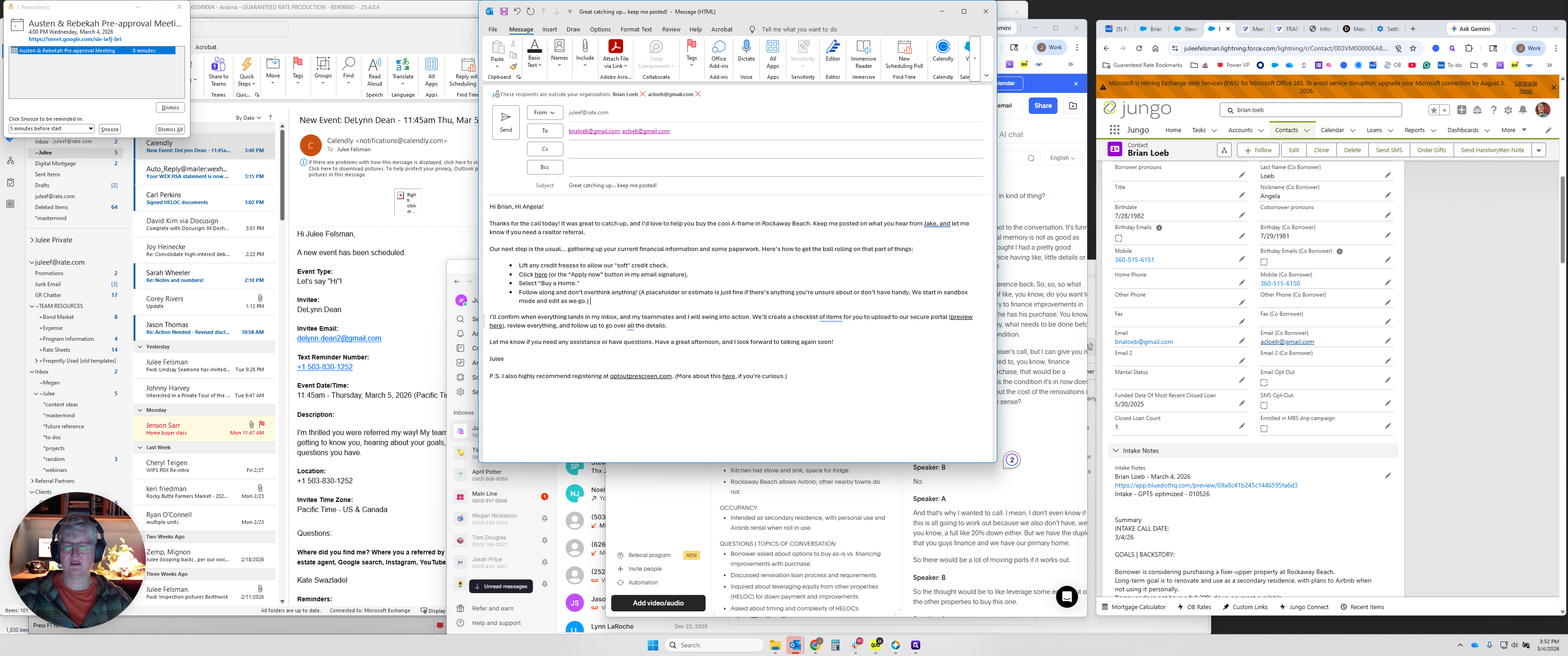
I'm editing this because it's an old client, but you get the idea.
Yeah, that's good enough.
You've got the idea.