How to Process and Reconcile Spectra Commission Reports Part 1
Learn how to download monthly Spectra commission reports, export CWI invoices from Kloudville, clean the data, and generate pivot tables for Canada and USA.
By CWI Lighting Inc
This guide explains how to process monthly Spectra commission reports and marketing incentive invoices. By following these steps, you will download the necessary financial files, export corresponding invoice data from Kloudville, clean up the exports, and use pivot tables to reconcile the final reporting amounts for both Canadian and US markets.
This procedure applies to accounting or finance team members responsible for month-end commission reconciliations. It should be performed monthly upon receiving the automated Spectra Rebate Reports.
Phase 1: Download and Organize Files
First, gather all required files from your email and organize them into a monthly folder.
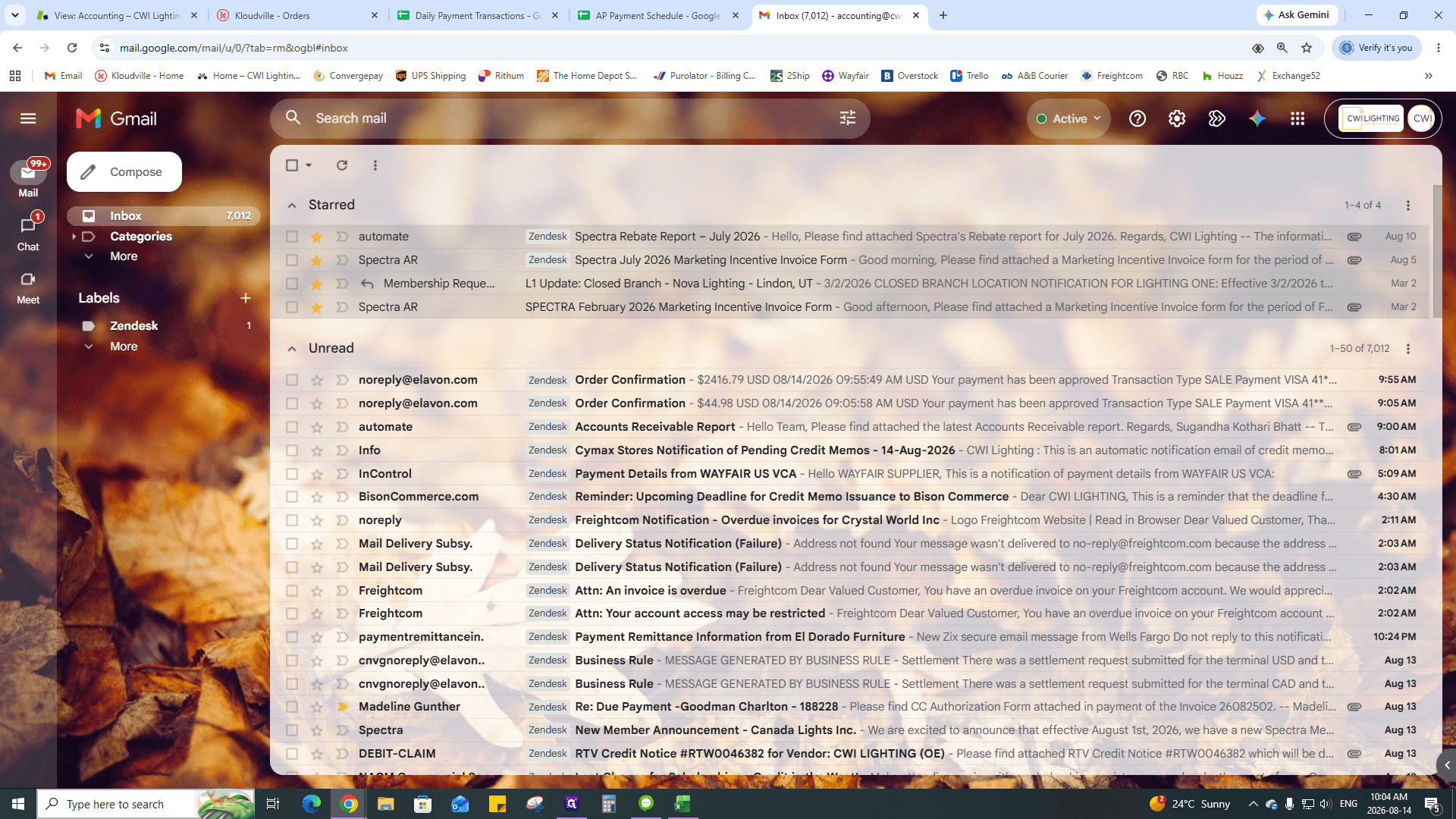
1
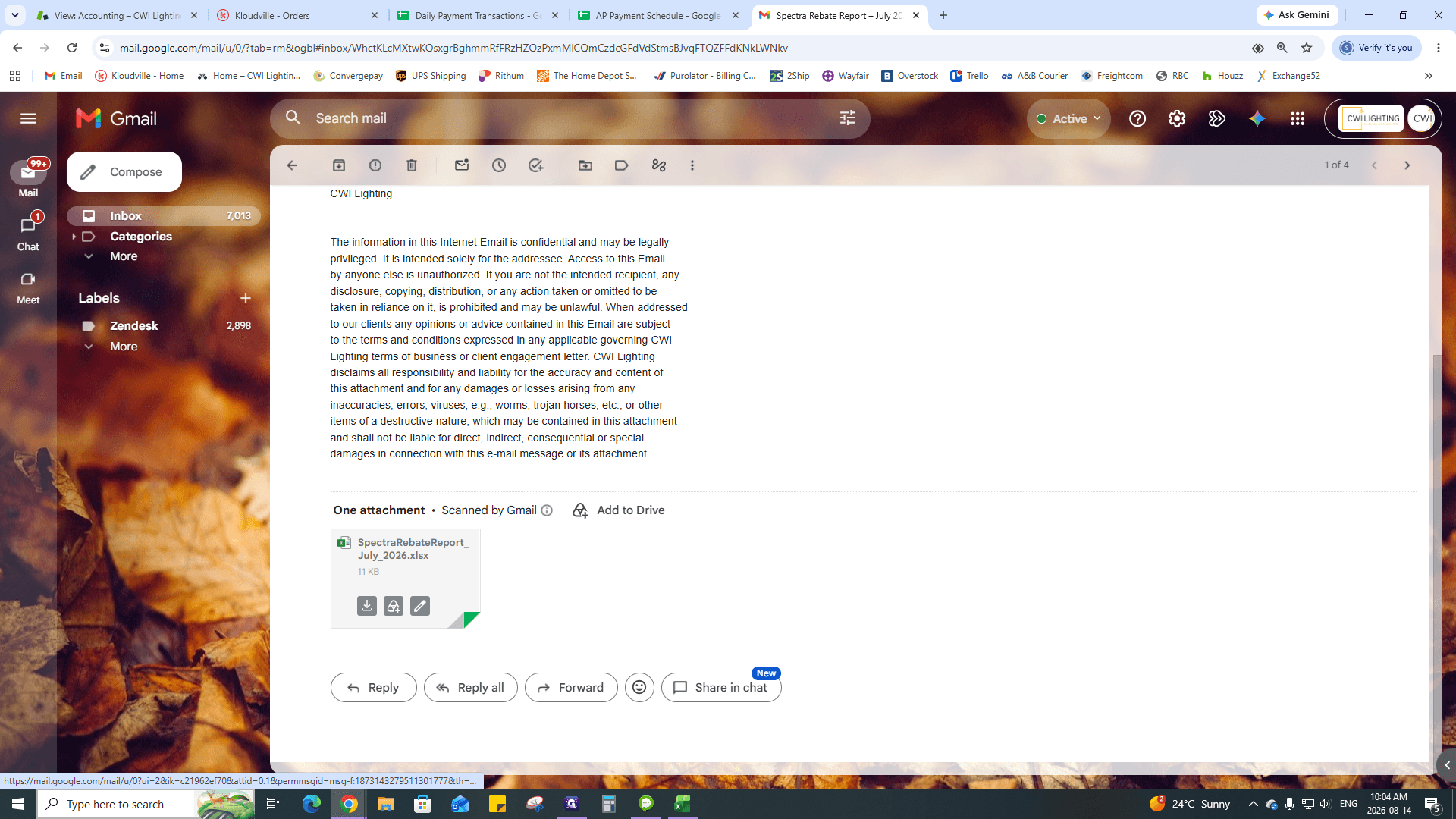
Click to open the automated accounting email containing the overdue invoices notification.
2
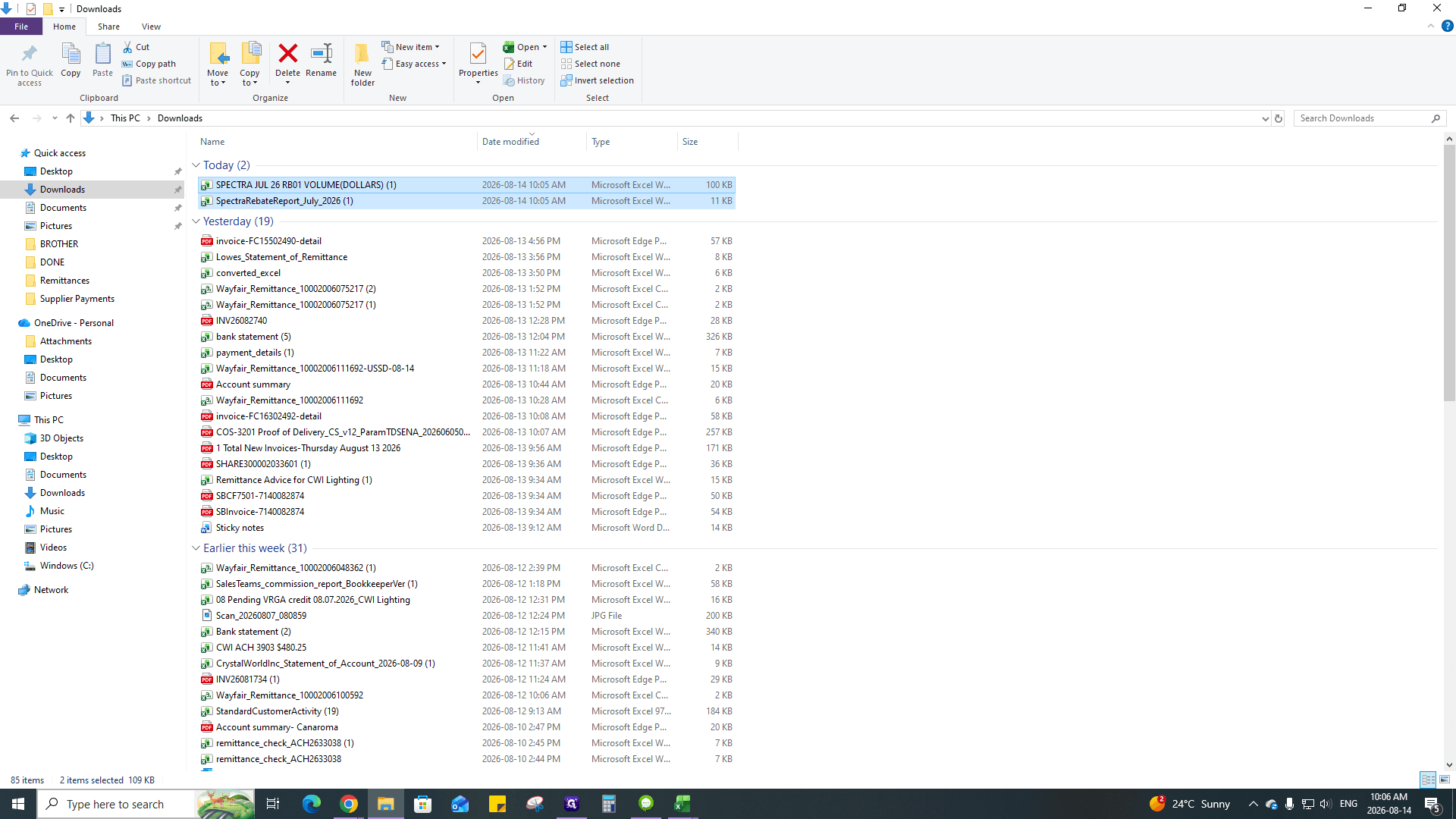
Download the attached SpectraRebateReport Excel file.
3
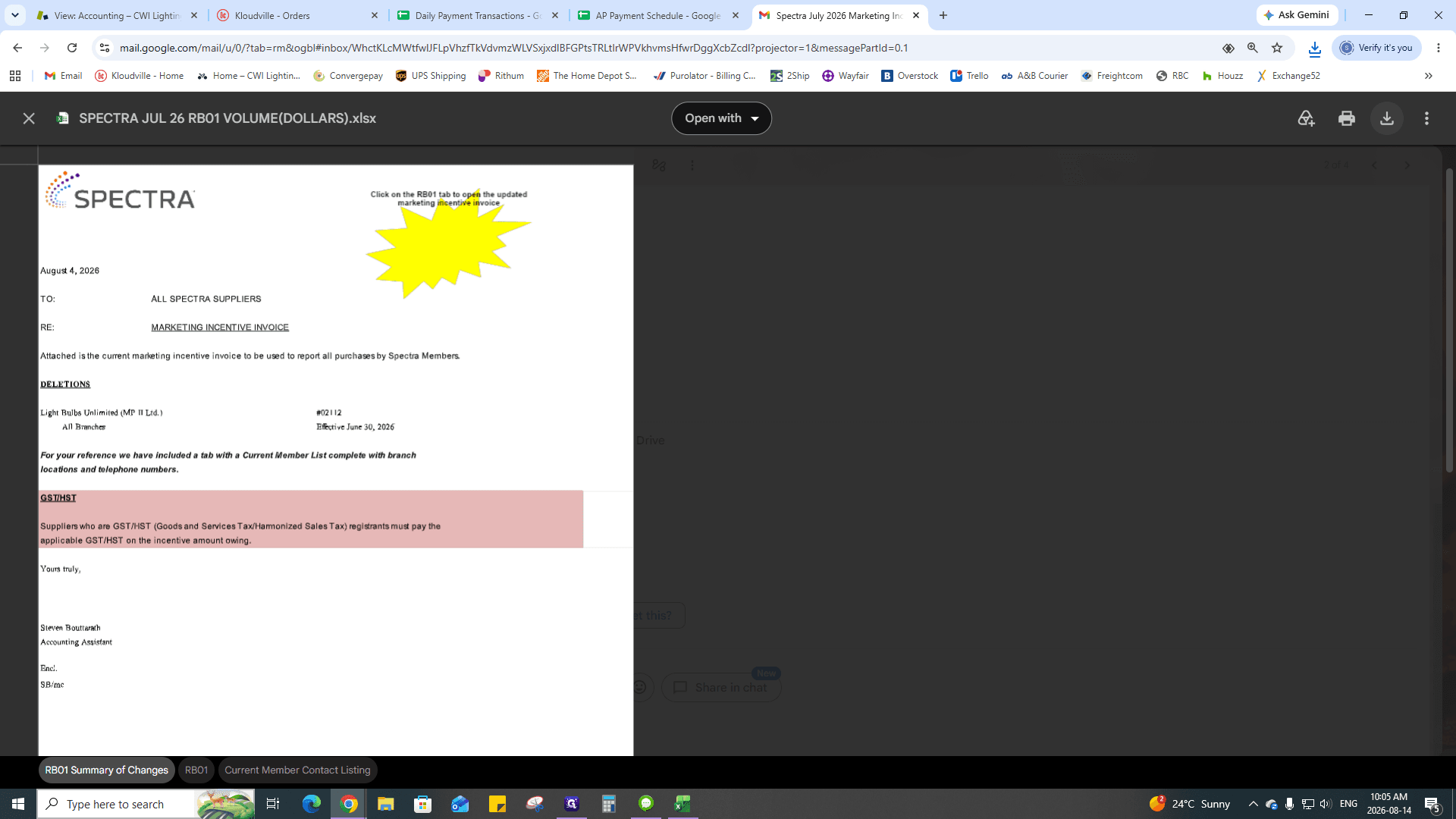
From the Spectra AR email, download the Marketing Incentive Invoice volume spreadsheet.
4
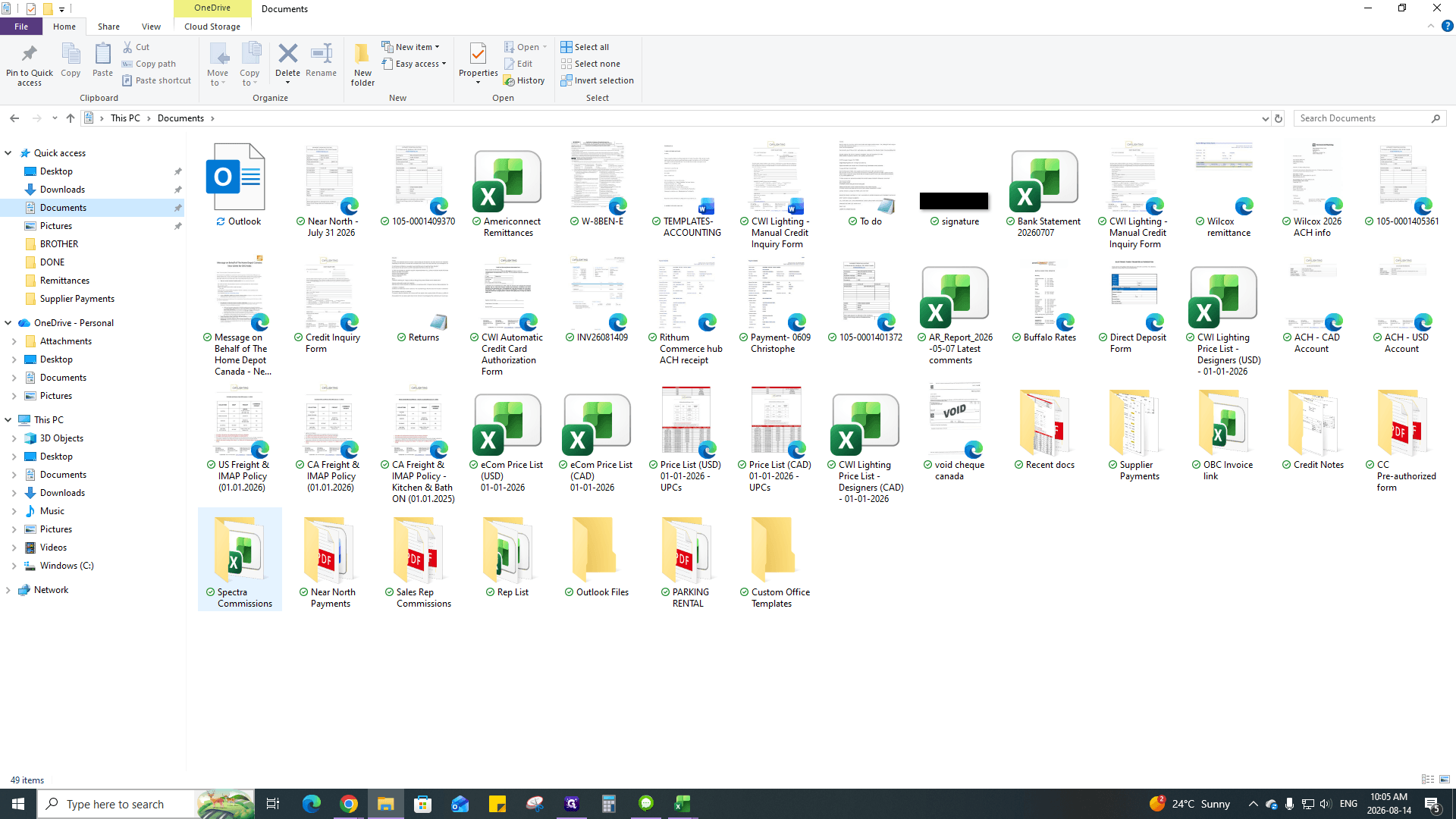
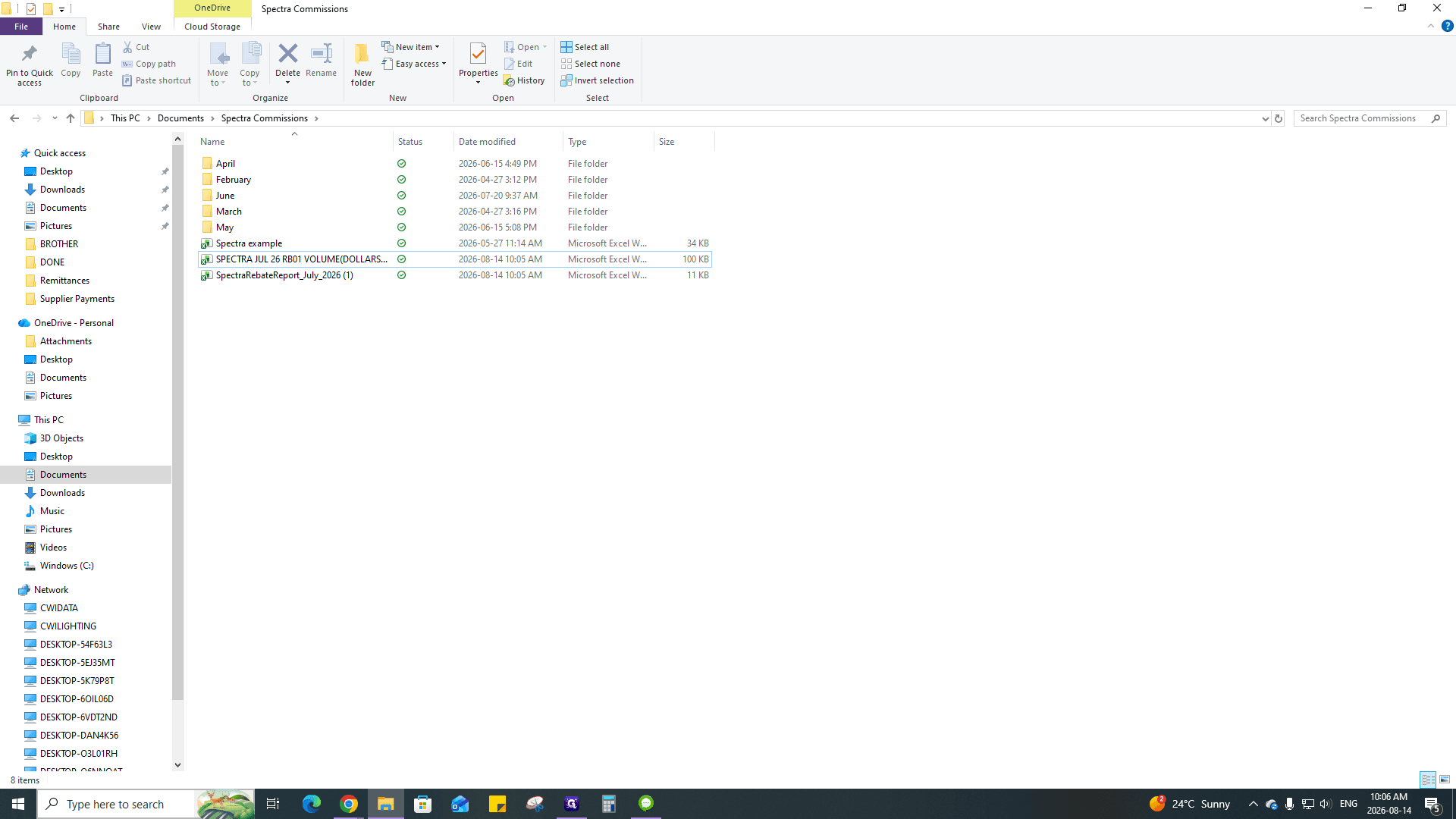
Open the Documents folder on your computer.
5
Navigate into the Spectra Commissions directory.
6
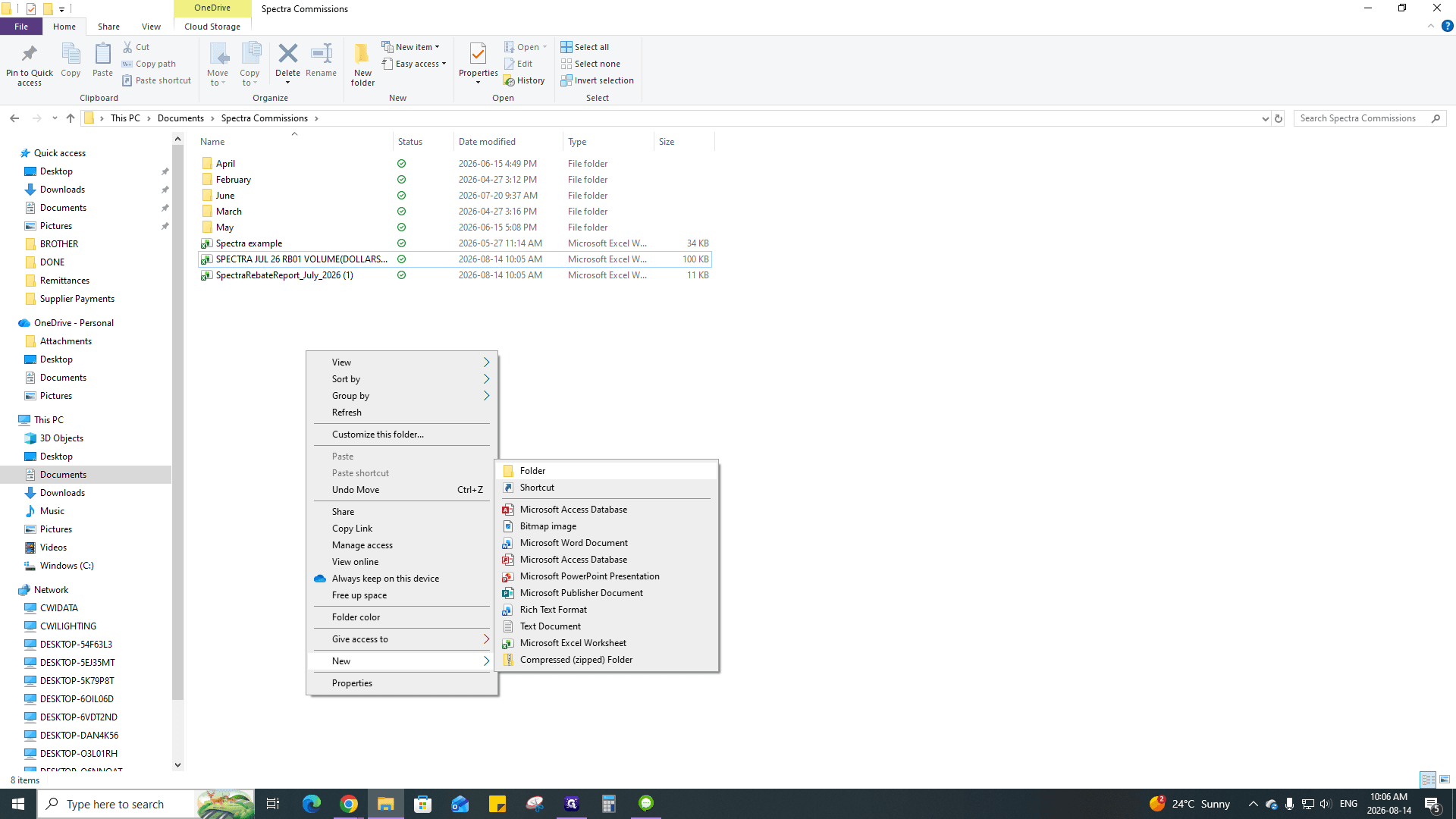
Right-click inside the directory to create a new folder.
7
Click New Folder.
8
Type the name of the current month (e.g., "July") and press Enter.
9
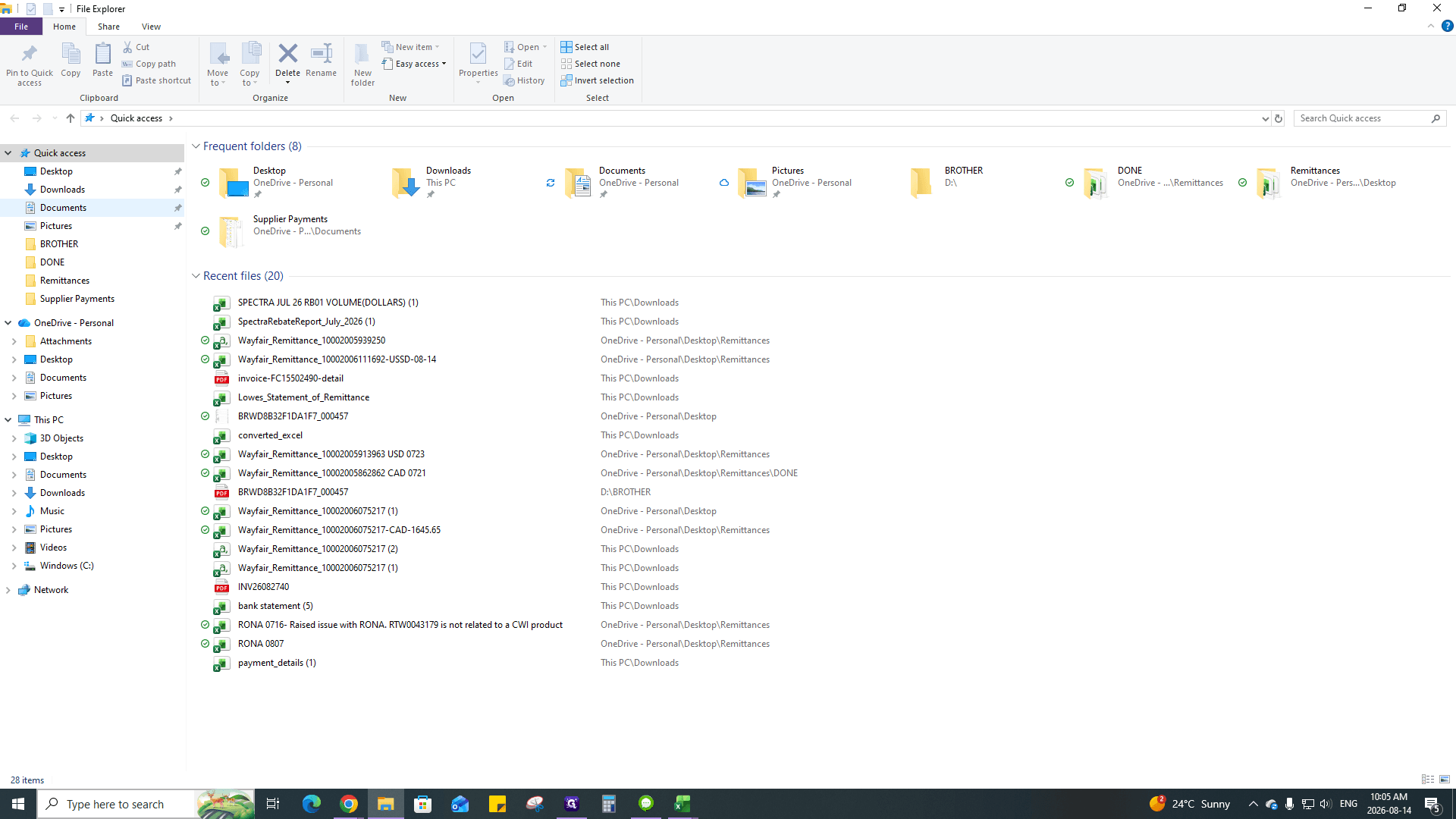
Drag the newly downloaded Excel files from your Downloads folder into this new monthly folder.
Phase 2: Export Invoices from Kloudville
Next, extract the matching month's CWI invoices from your billing management system.
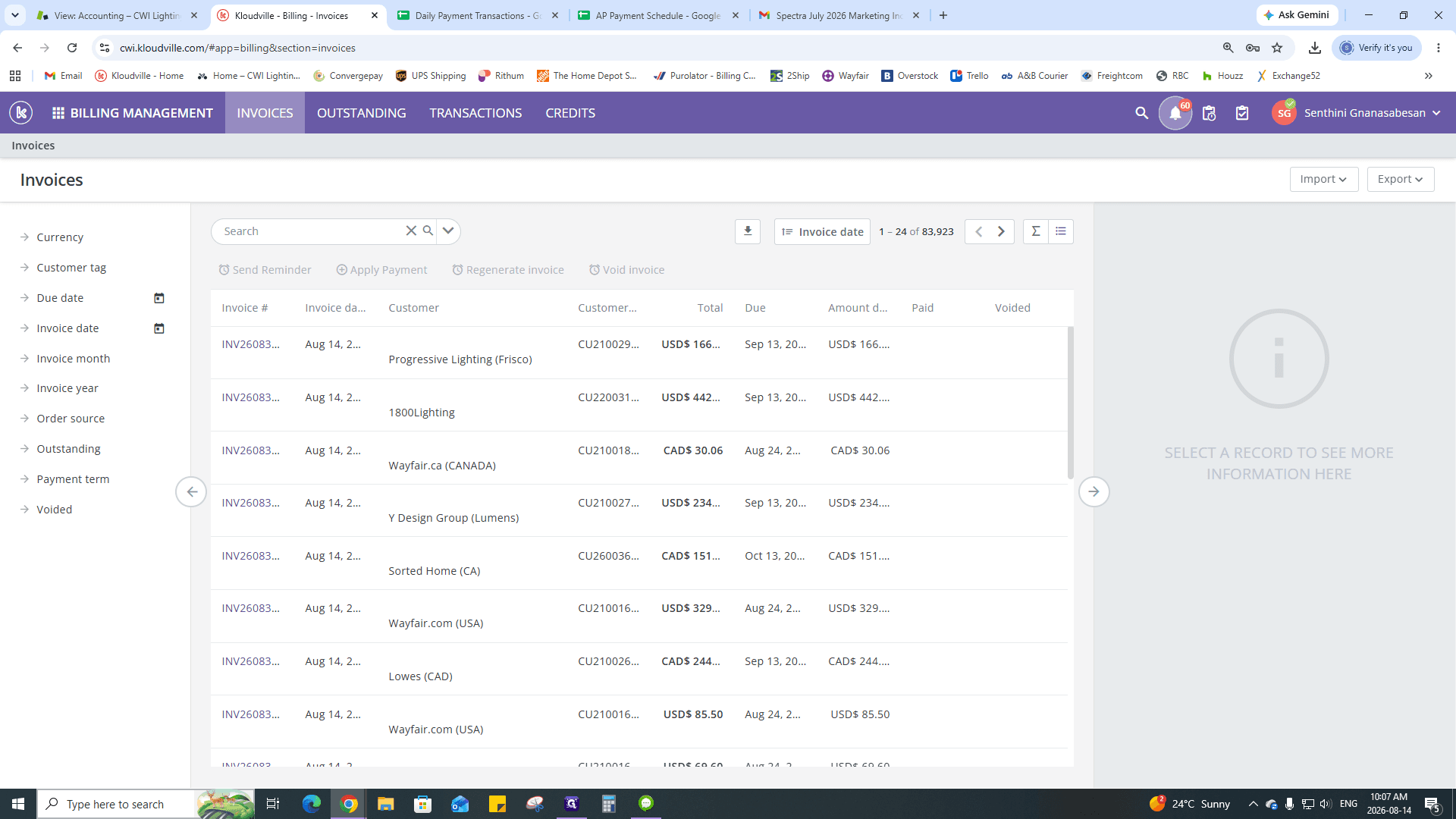
10
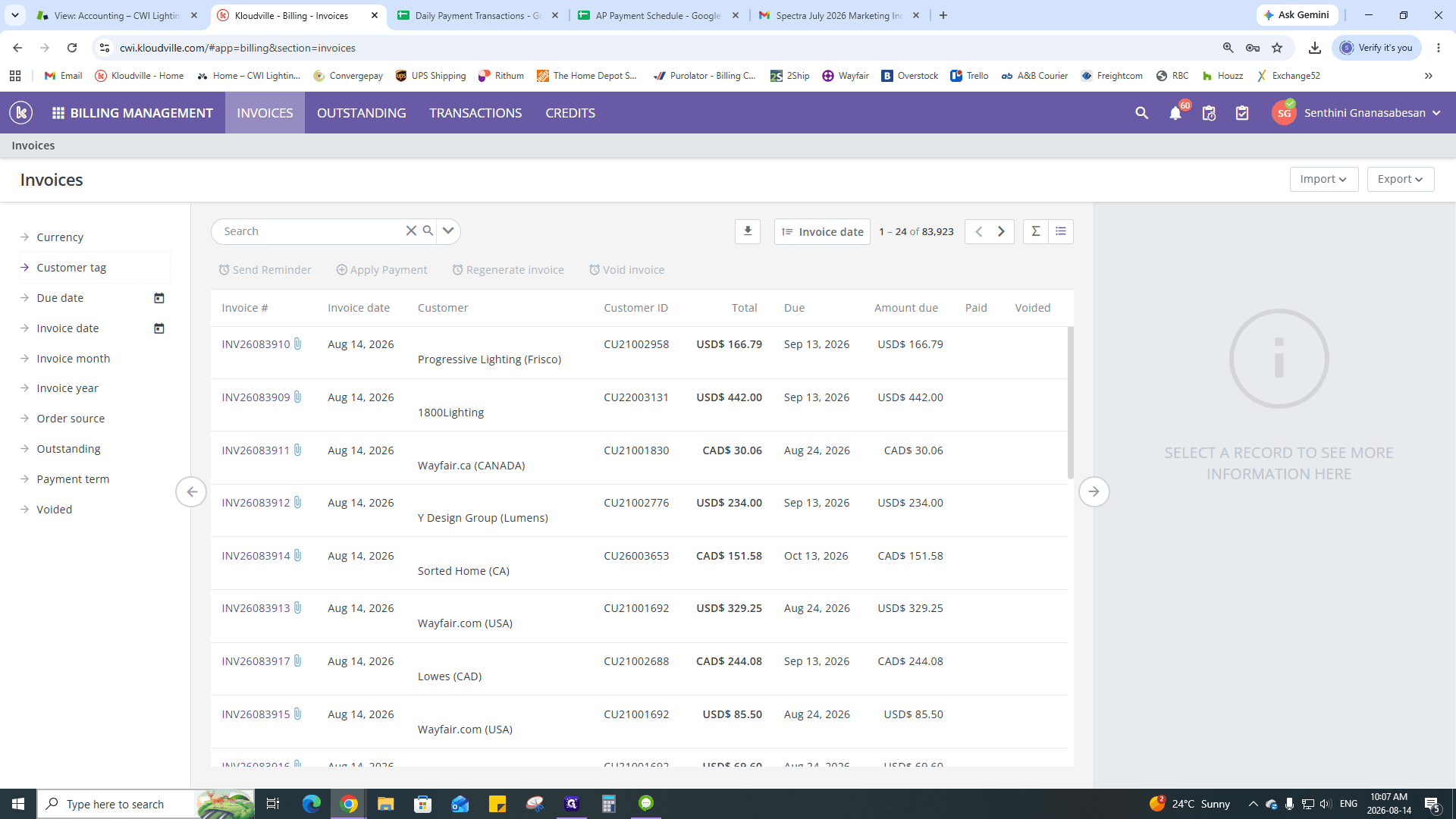
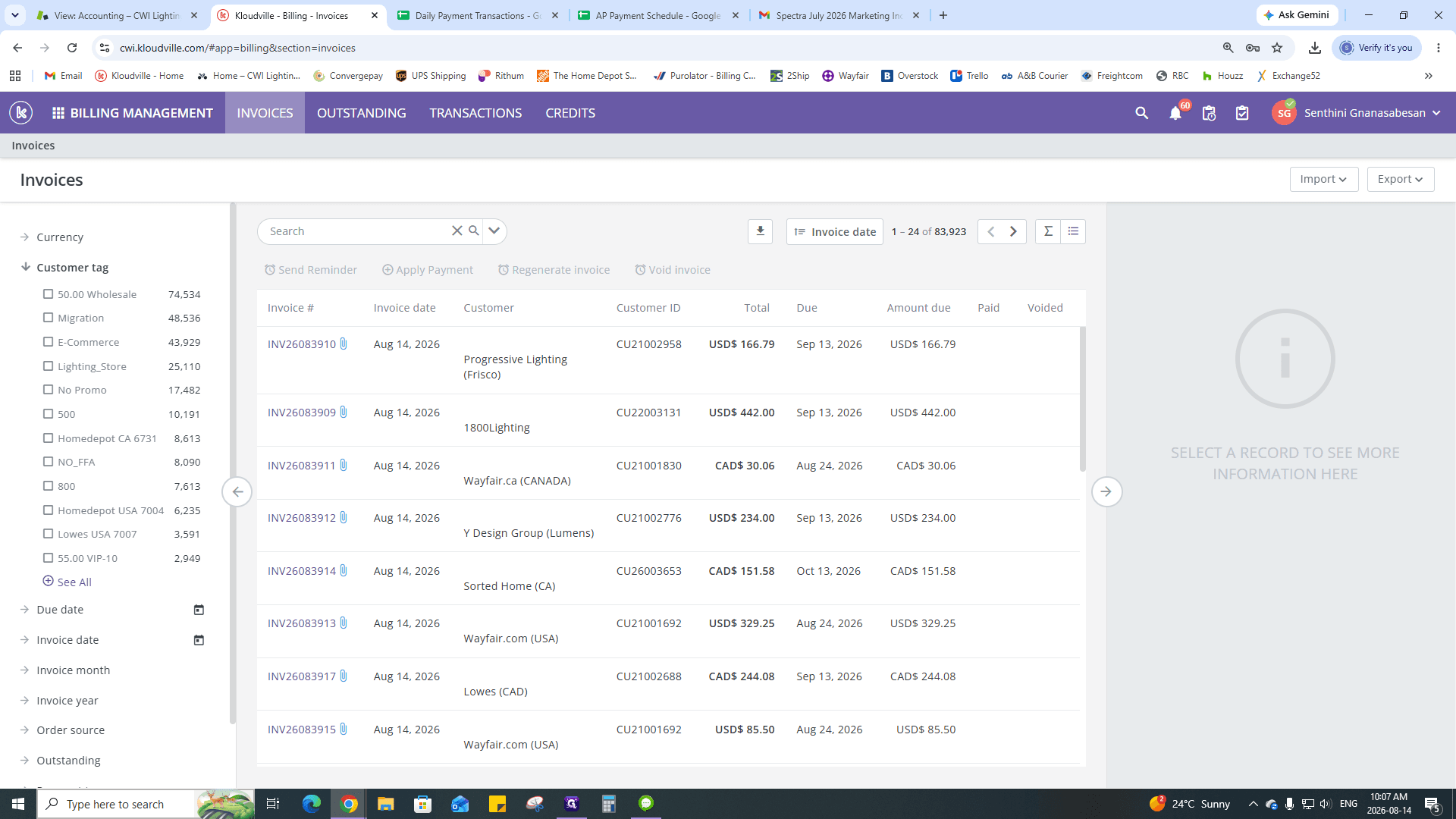
In the Kloudville billing dashboard, click INVOICES.
11
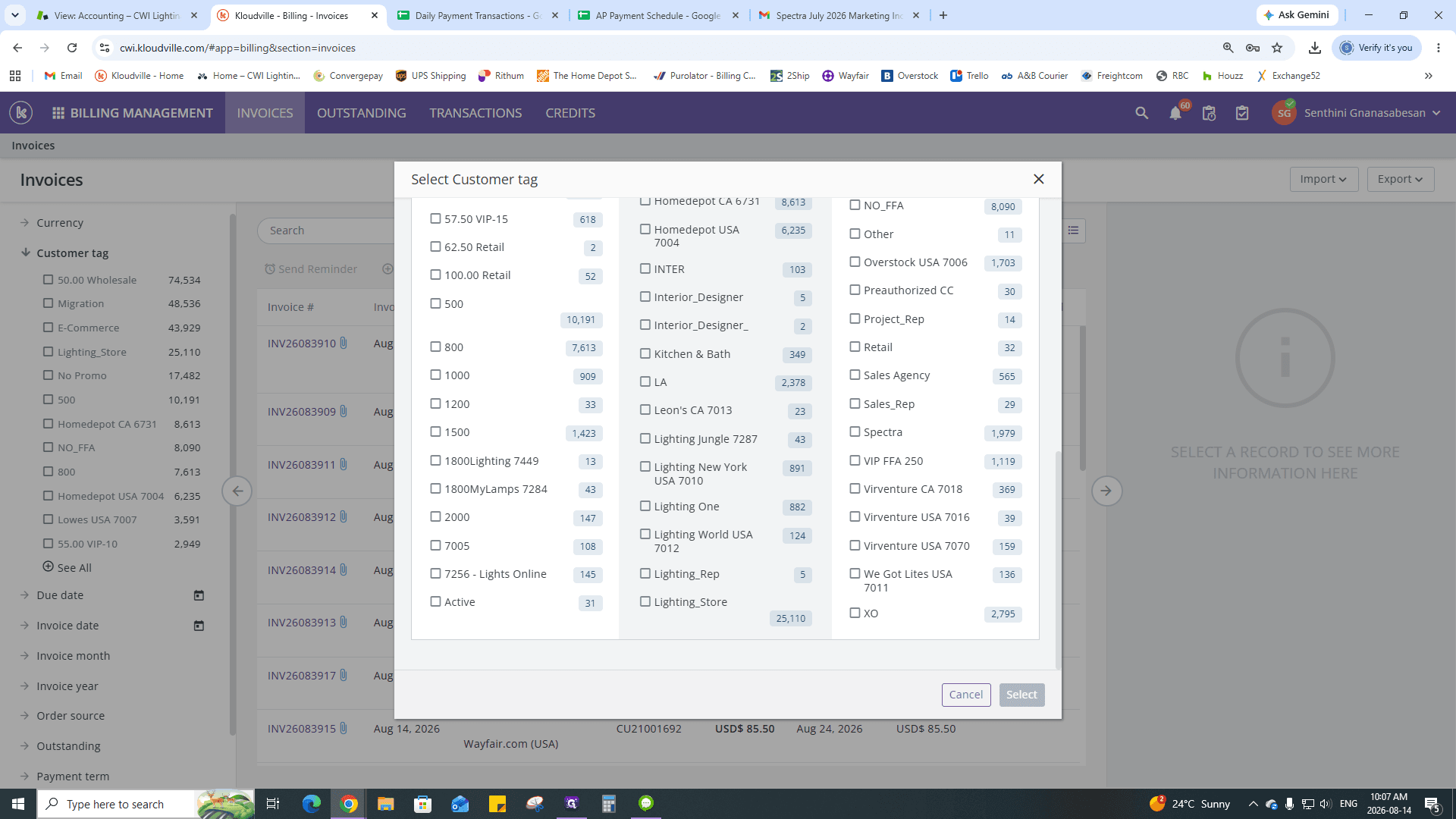
Click the Customer tag filter.
12
Click + See All to expand the list of tags.
13
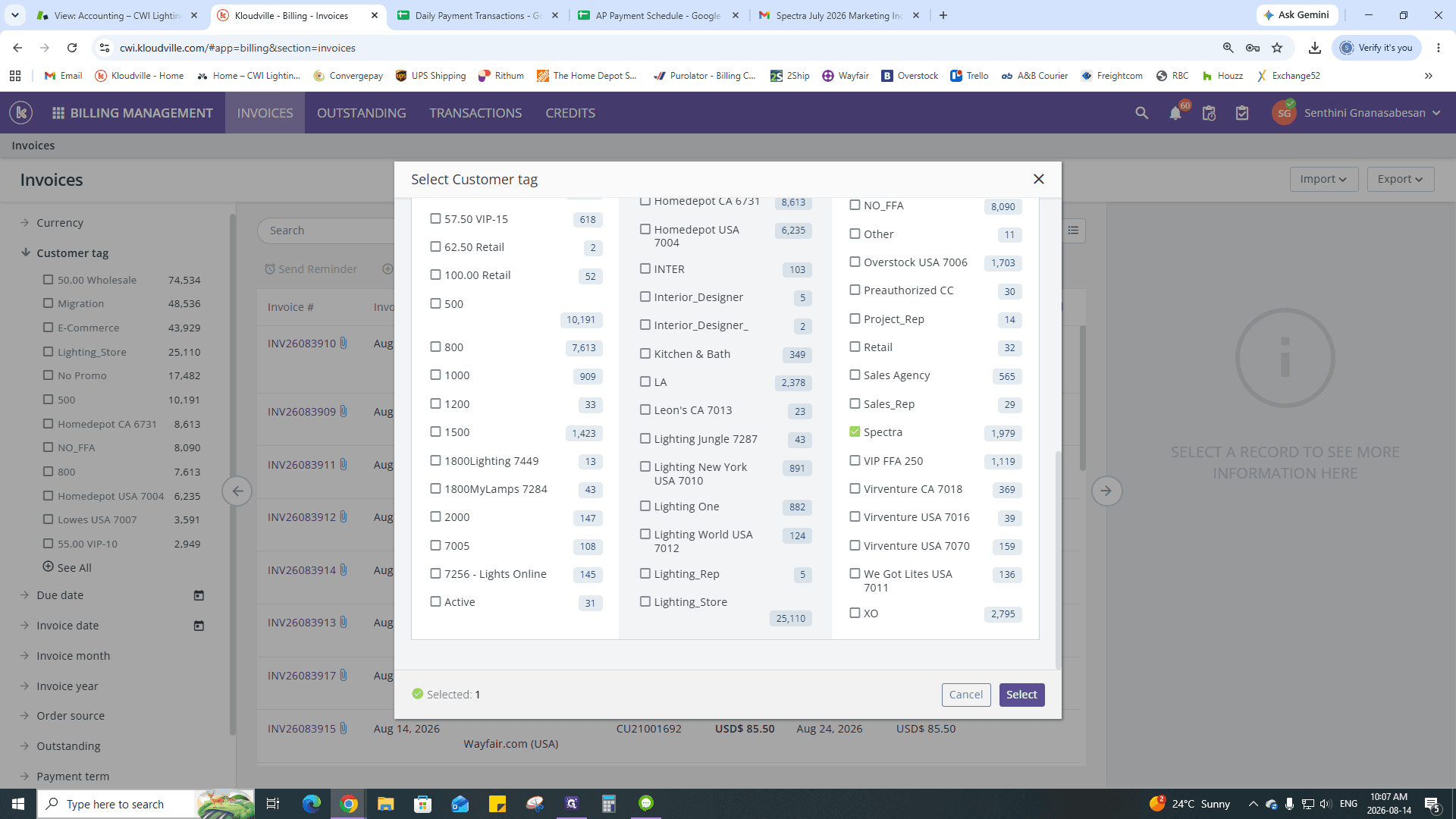
Select the Spectra checkbox.
14
Click Select to apply the tag filter.
15
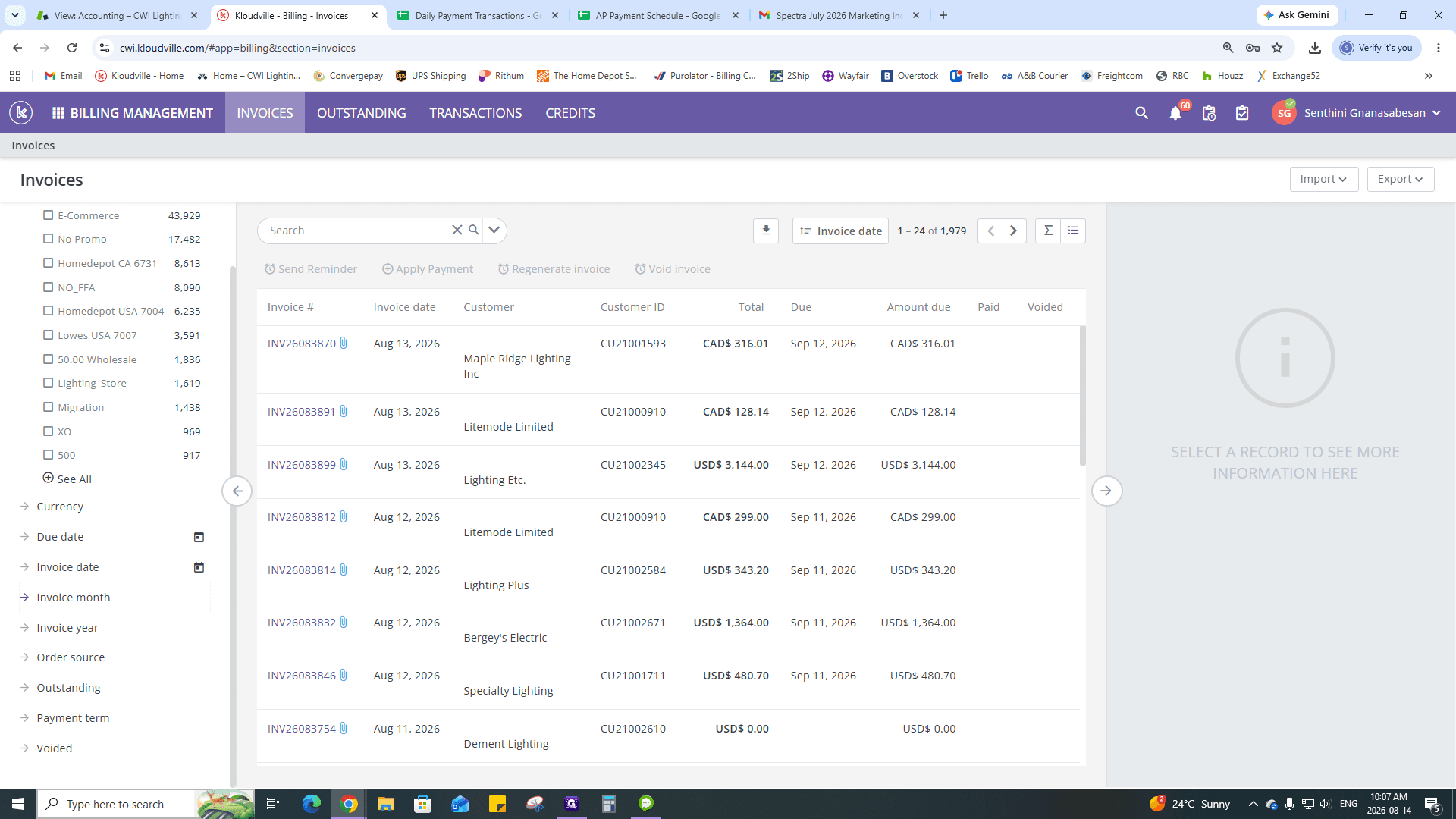
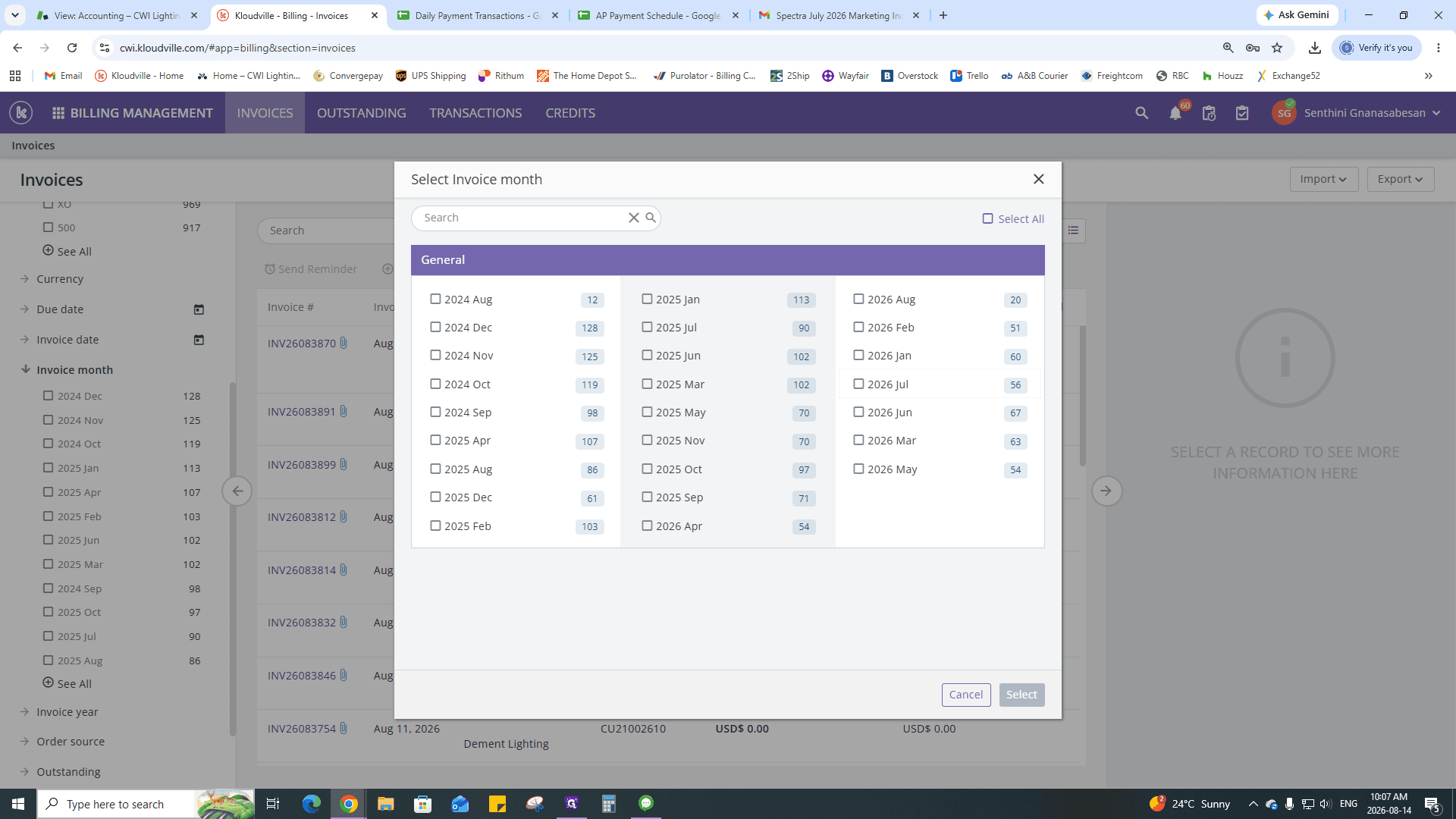
Click the Invoice month filter.
16
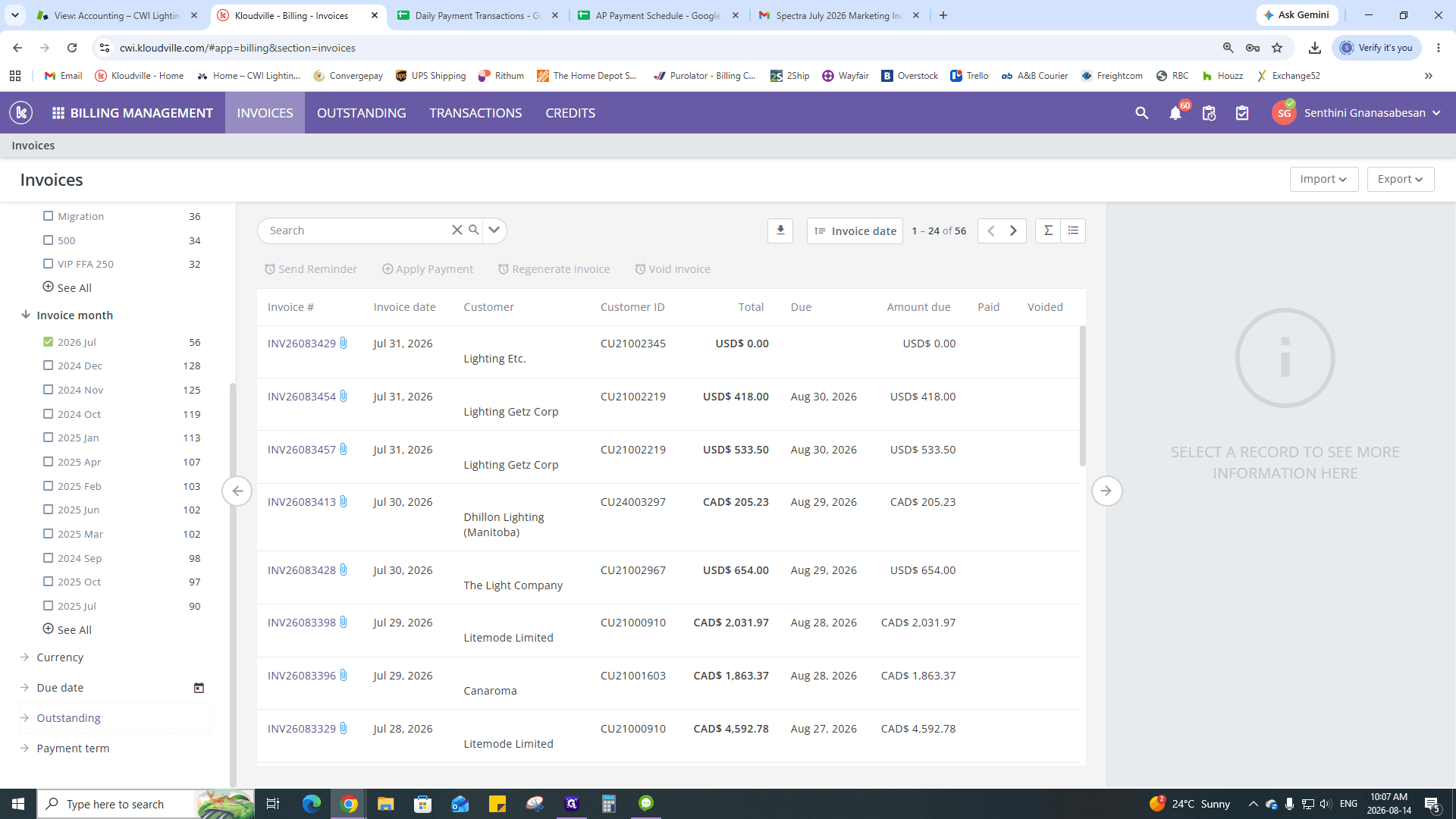
Select the checkbox for the target month (e.g., 2026 Jul).
17
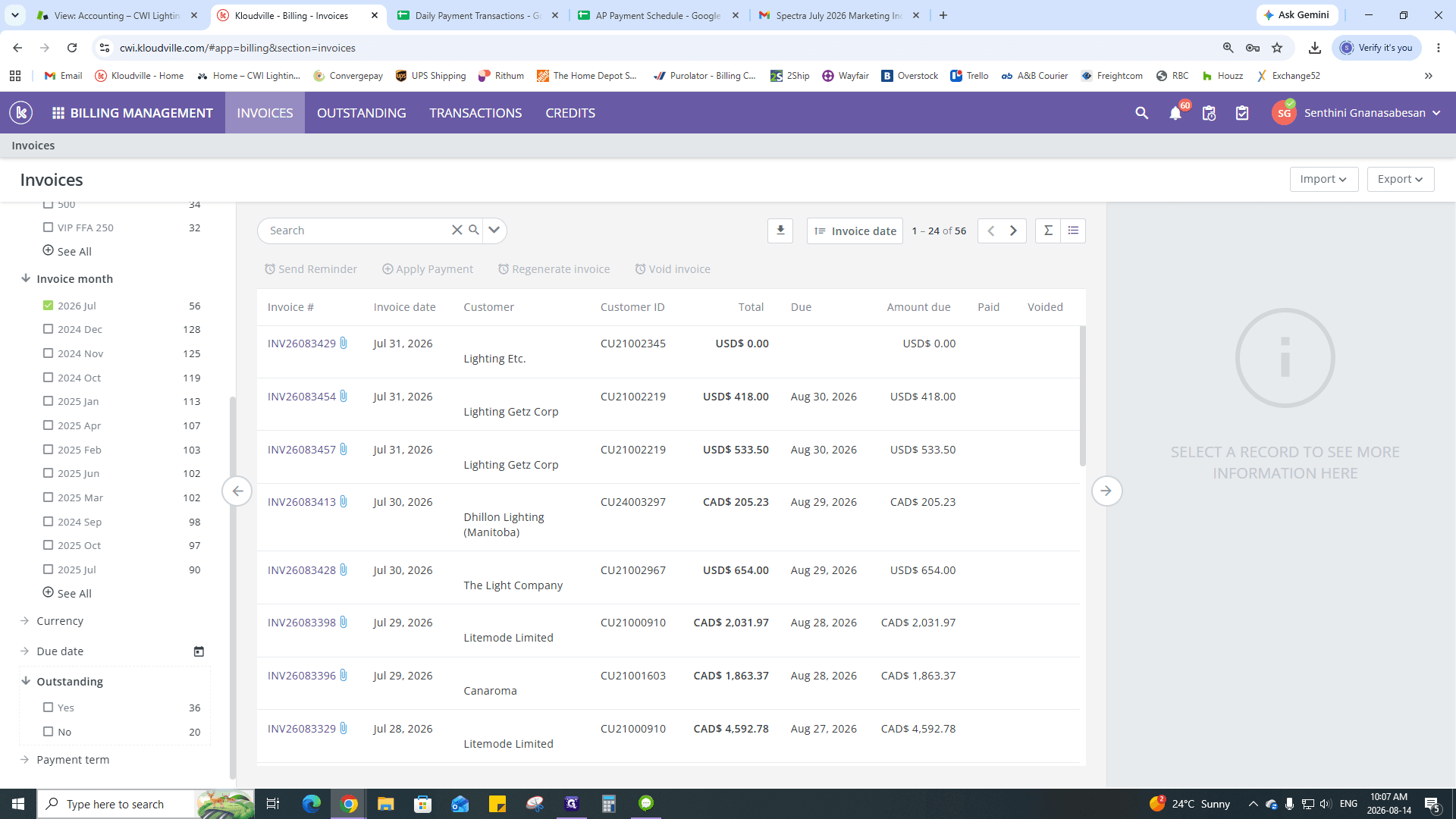
Click the Outstanding filter.
18
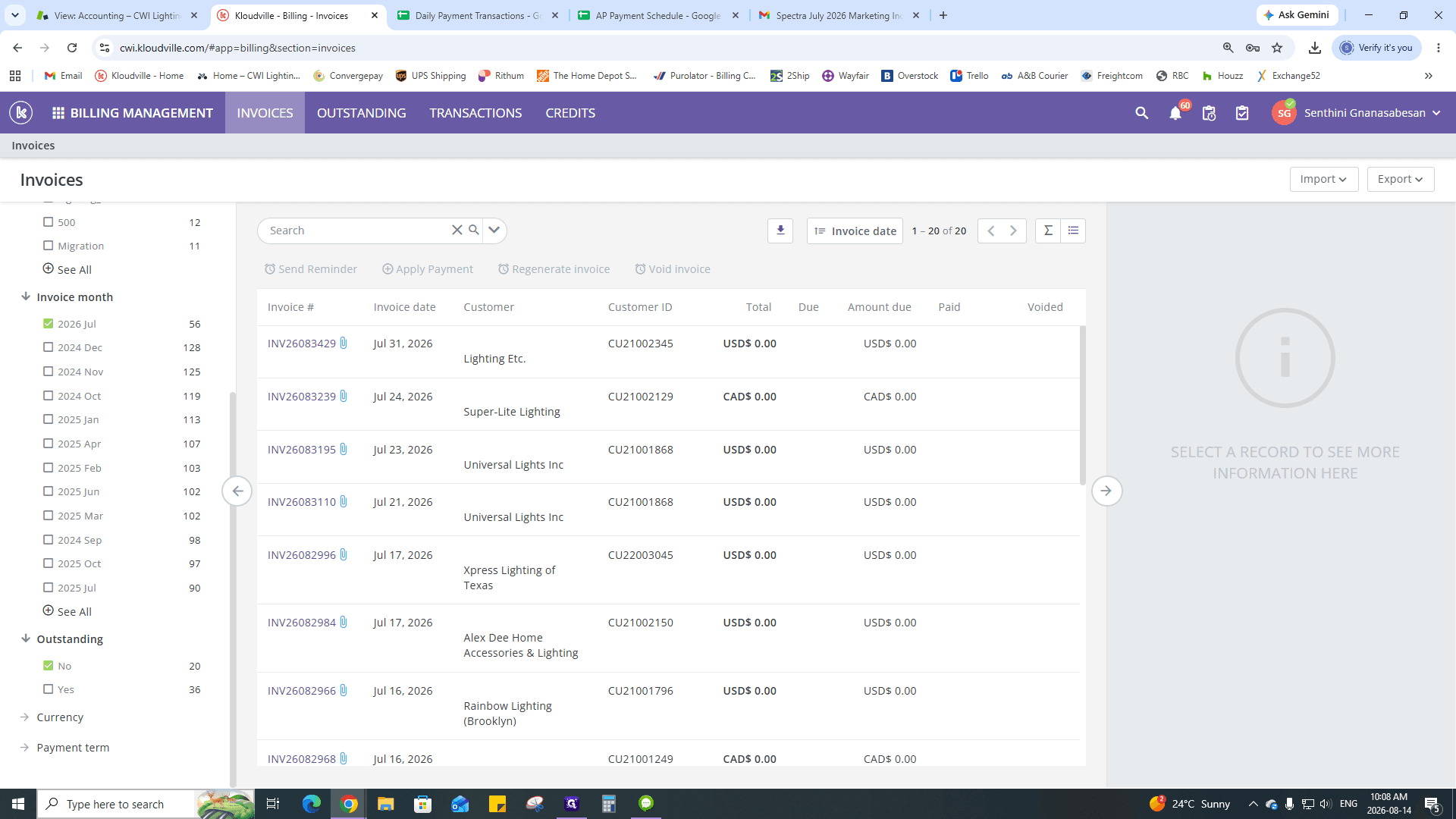
Select No so only completed transactions display.
19
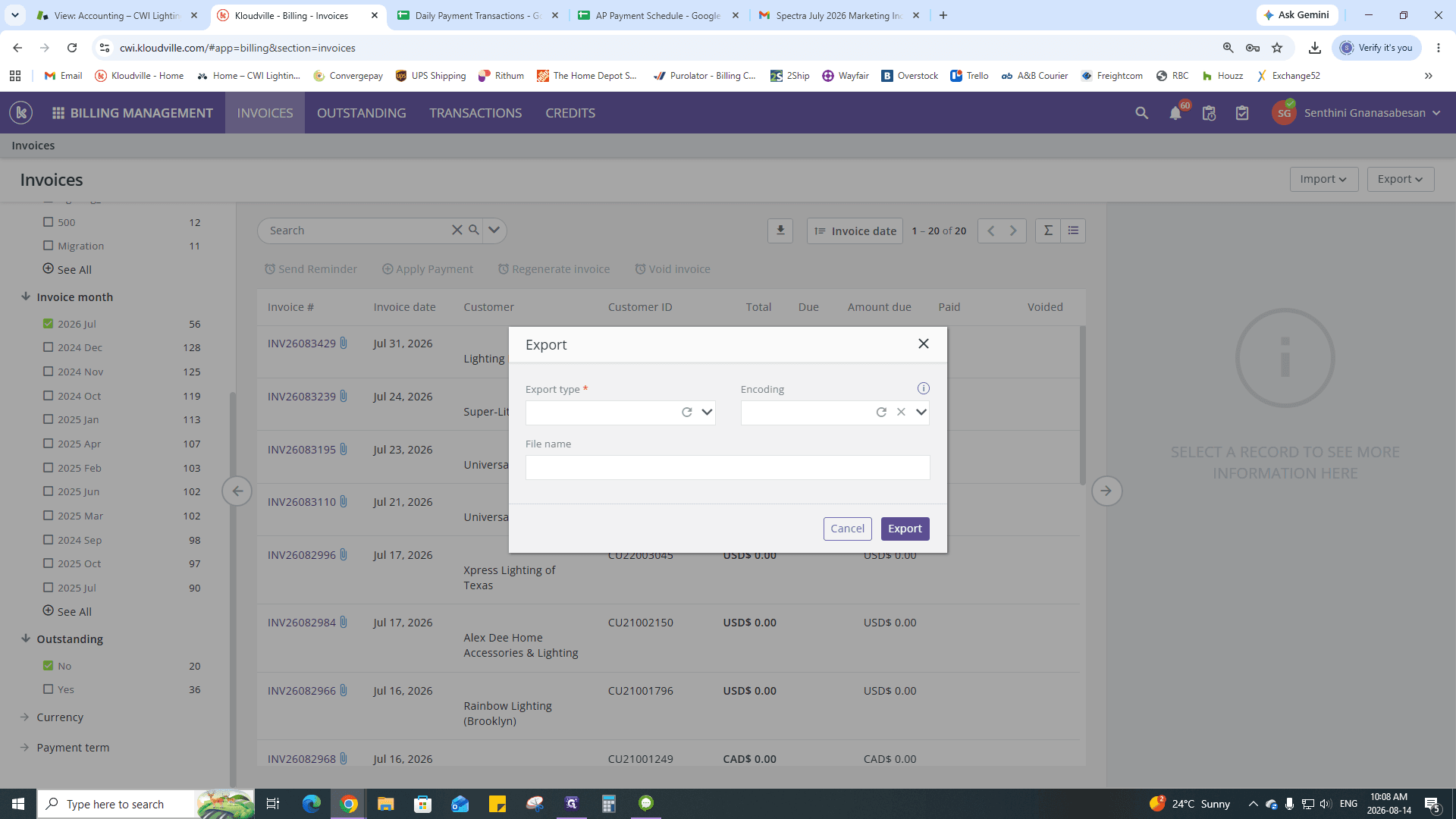
Click the + (Action) menu on the invoices table.
20
Click Export.
21
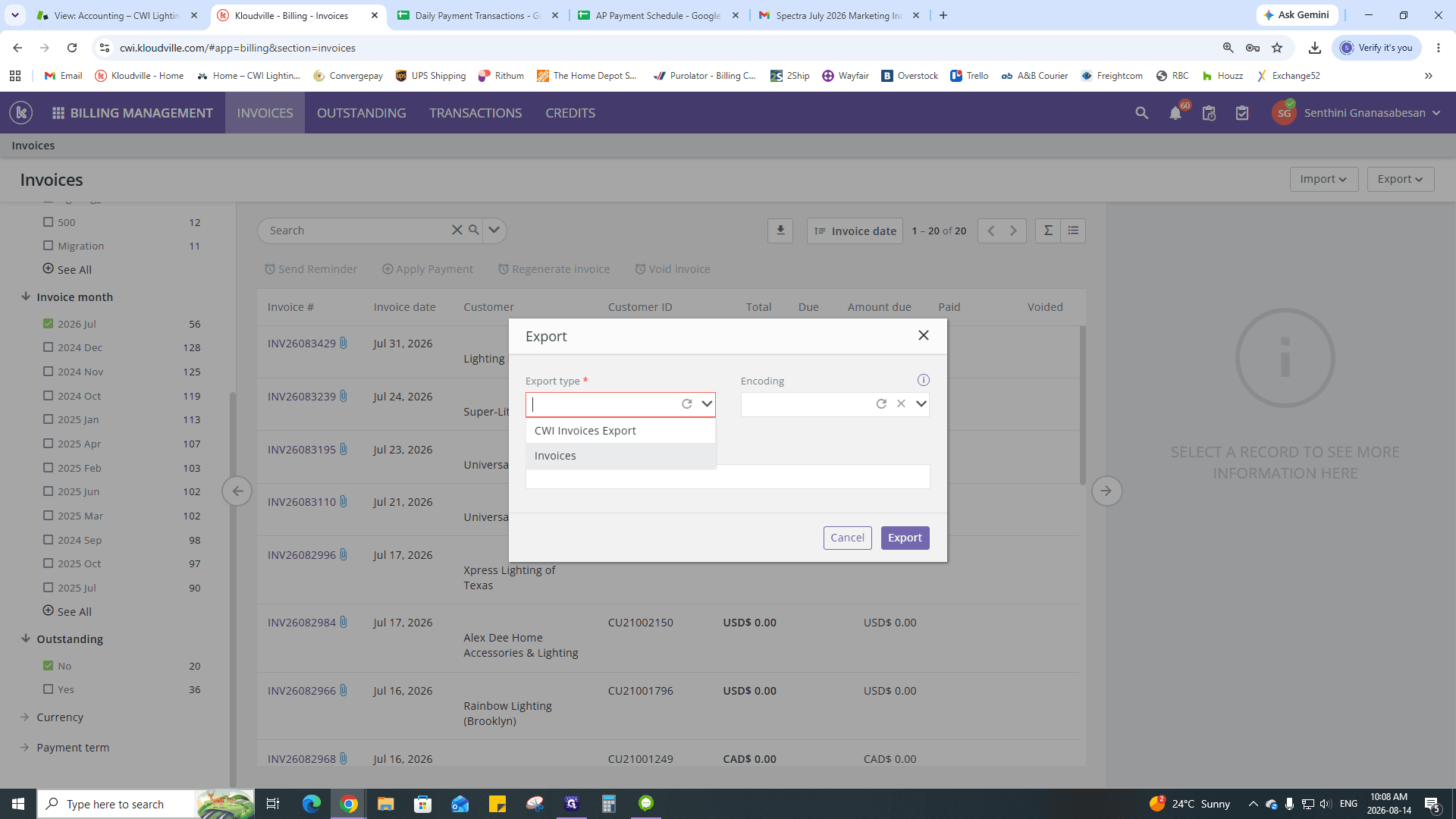
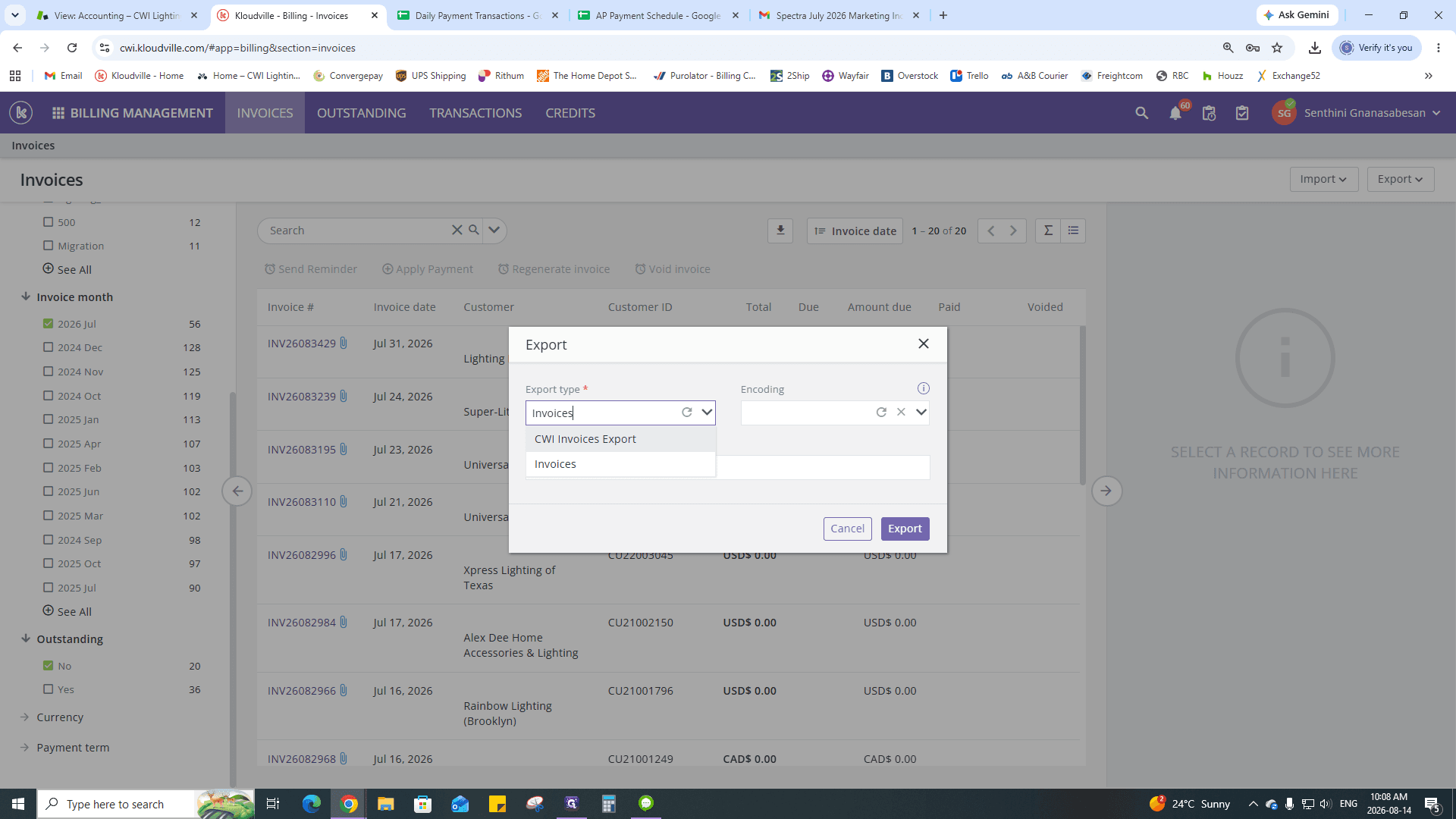
In the modal window, click the Export type dropdown.
22
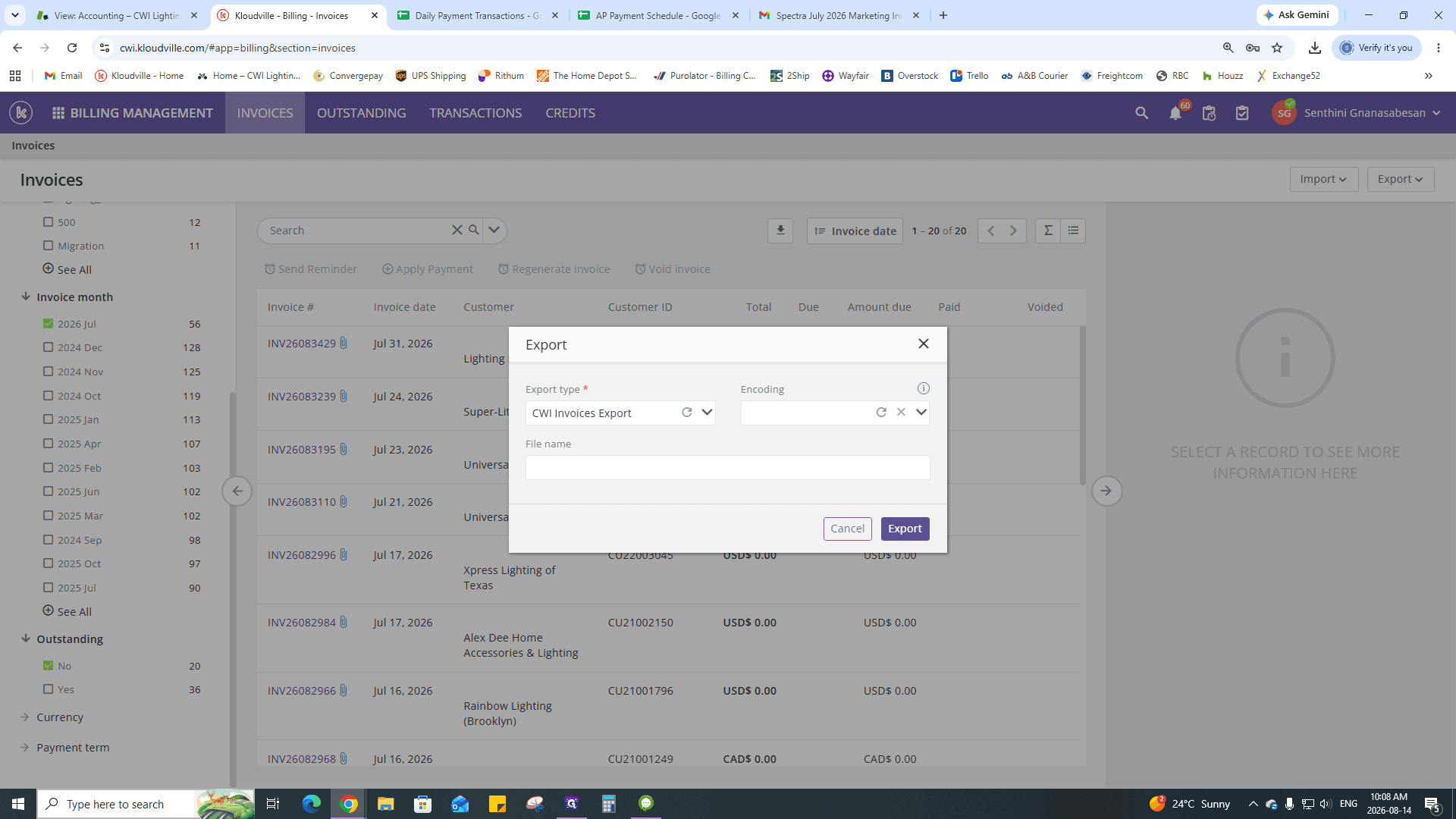
Select CWI Invoices Export.
23
Click Export to download the CSV file, then move it to your monthly folder.
Phase 3: Clean the Export Data
The raw CSV export contains many system columns you do not need. You must strip it down.
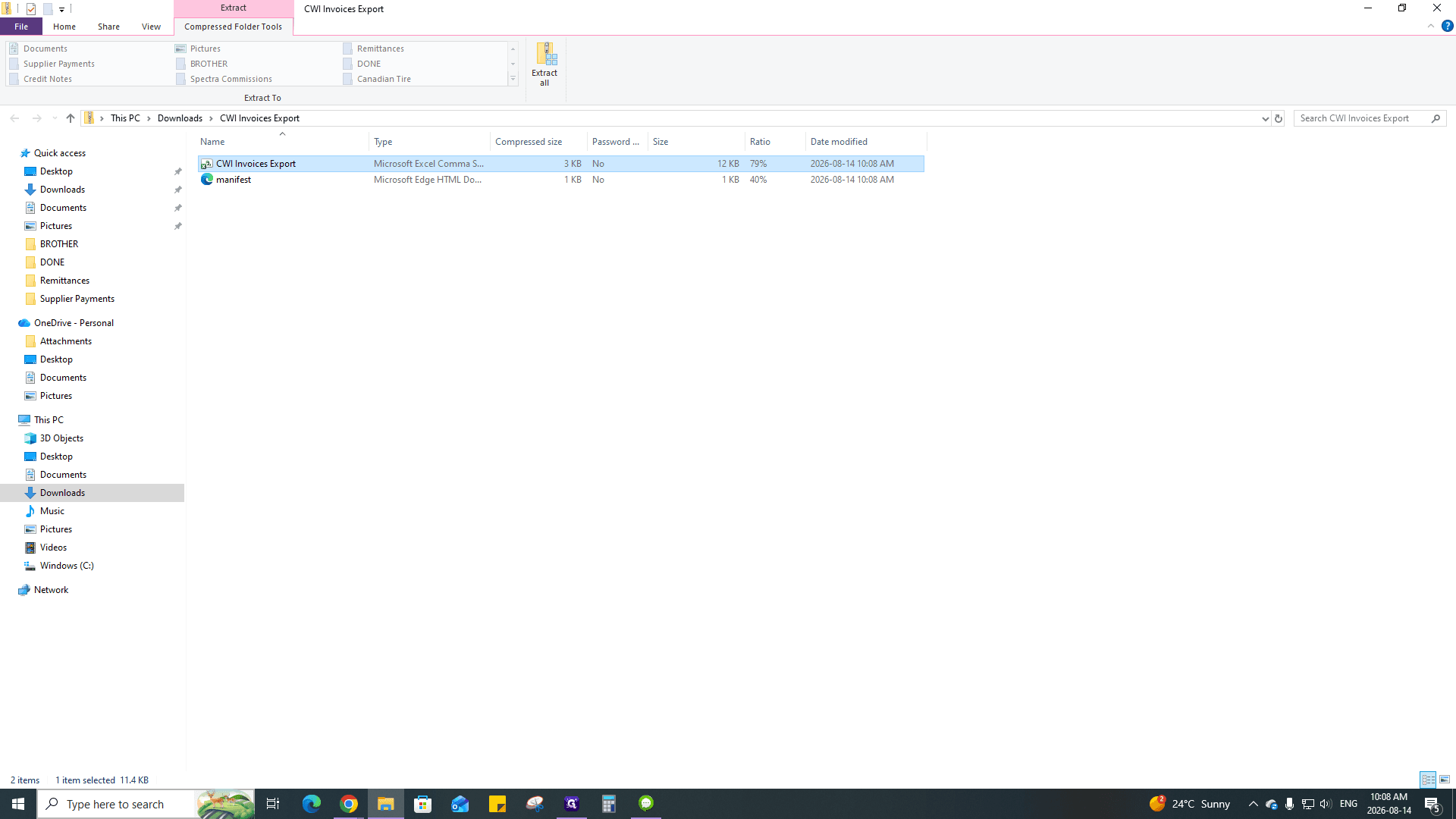
24
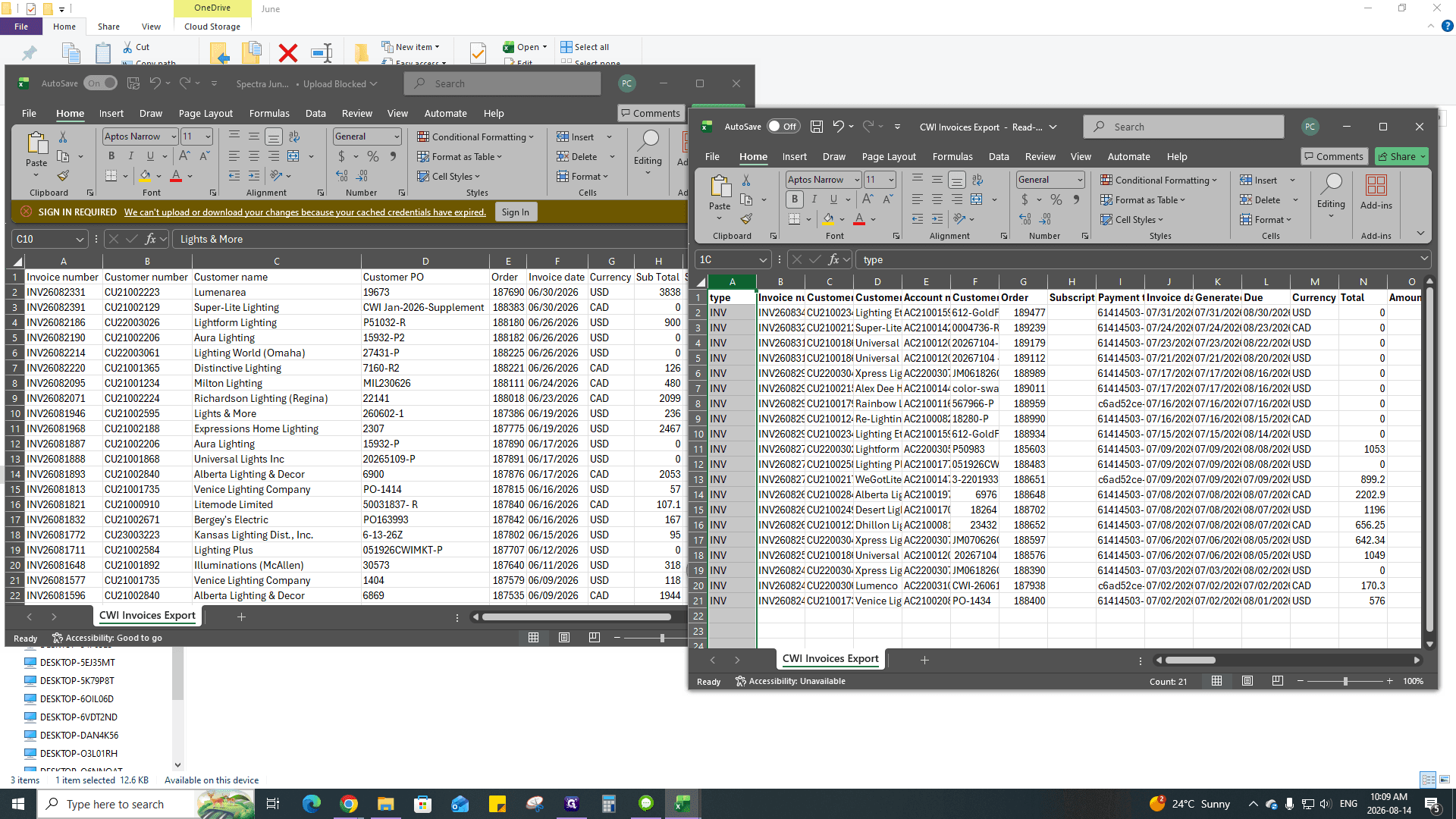
Open the CWI Invoices Export CSV in Microsoft Excel.
25
Highlight unnecessary leading columns (e.g., Columns A through C).
26
Press Ctrl + - to delete the selected columns.
You only need to retain columns mapping to Customer Name, Customer PO, Invoice Date, Subtotal, and Total Order. Delete unused columns like Tariff, unknown tax fields, shipping, etc.
27
Rename the remaining column headers for clarity (e.g., change "INV_Subtotal" to "Subtotal").
28
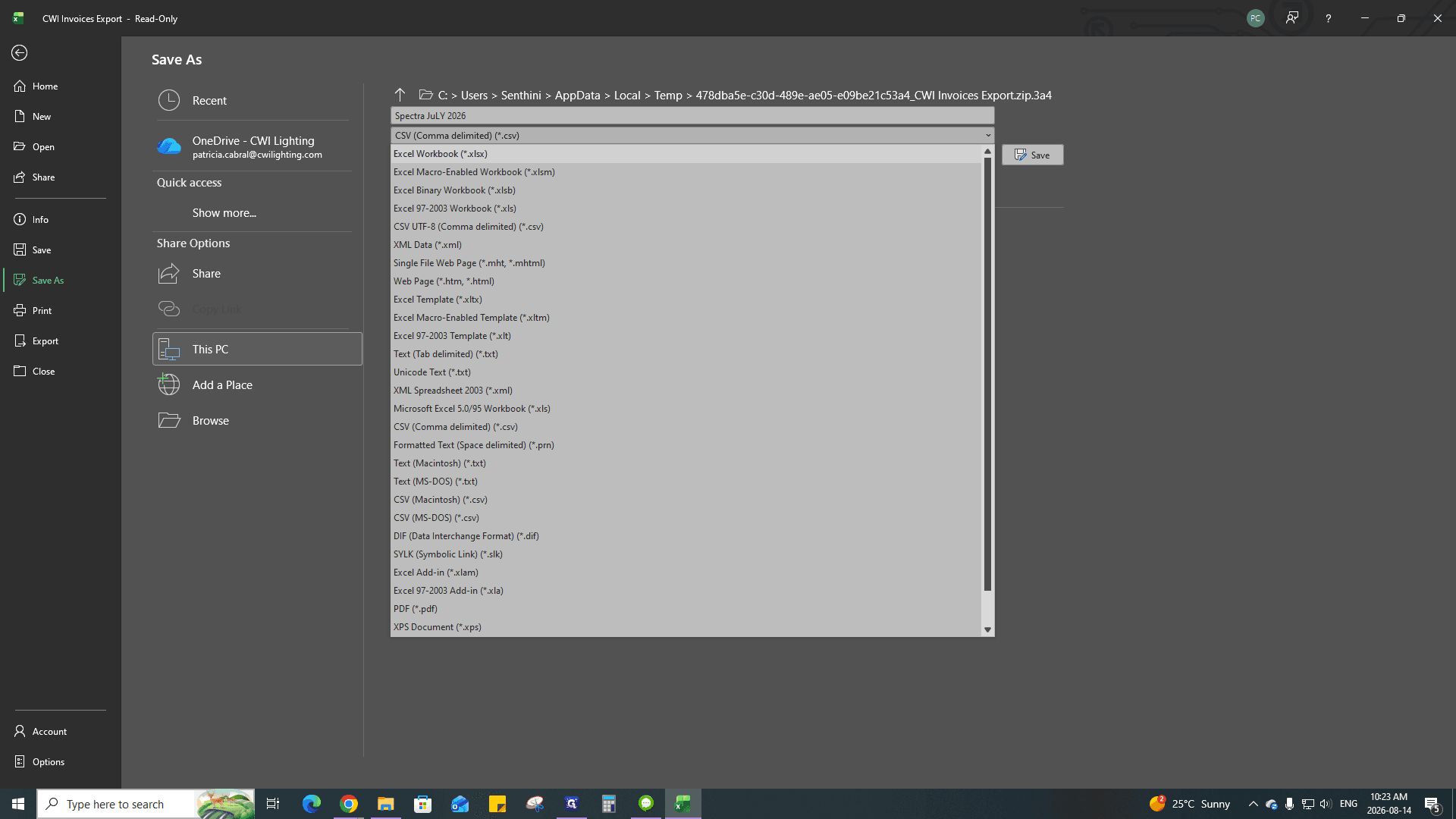
Save the file as an Excel Macro-Enabled Workbook (*.xlsm) or Excel Workbook (*.xlsx) to preserve formatting.
Phase 4: Separate Rebate Data by Country
Spectra requires commission data separated into Canadian (CAD) and United States (USD) markets.
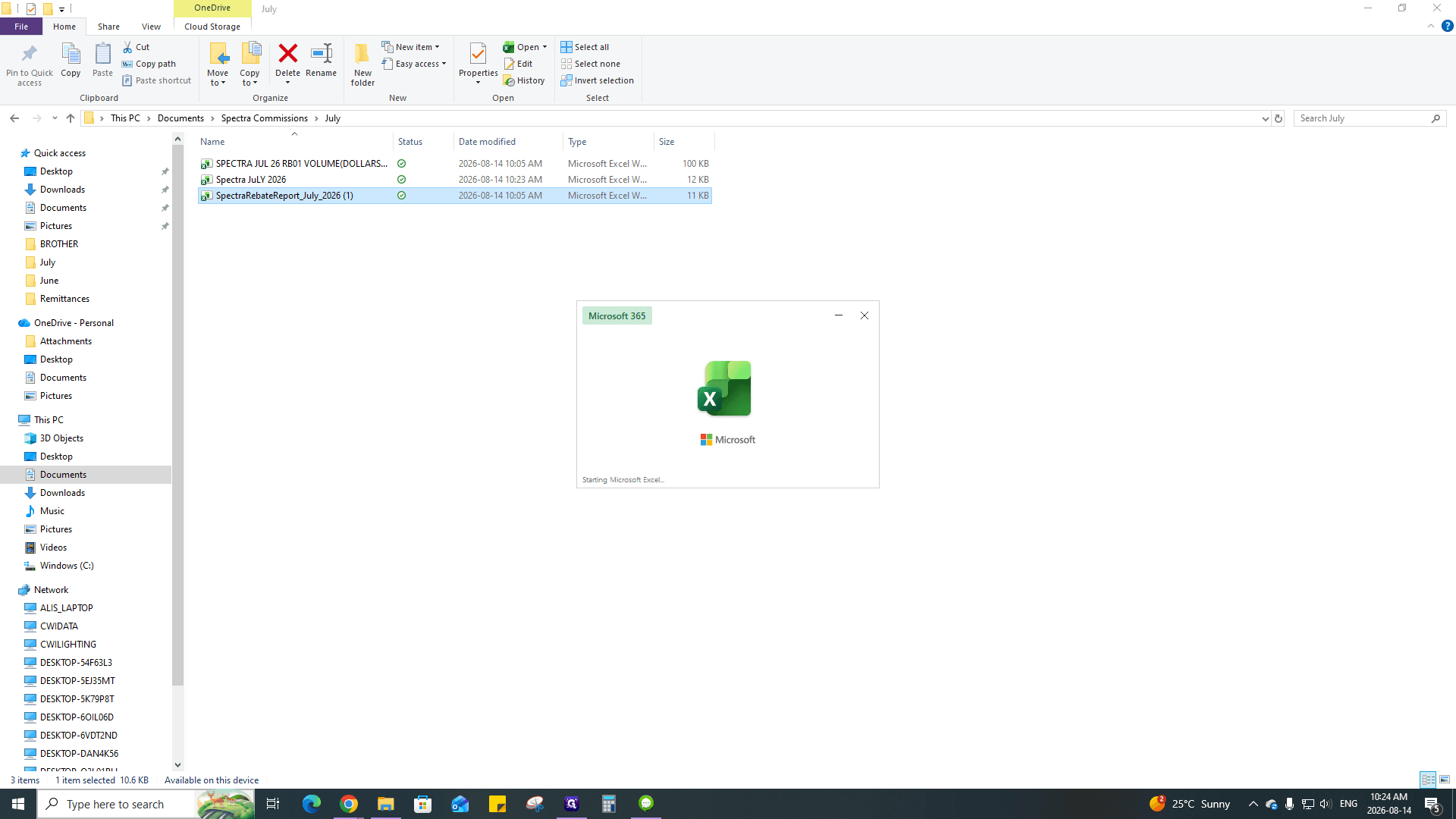
29
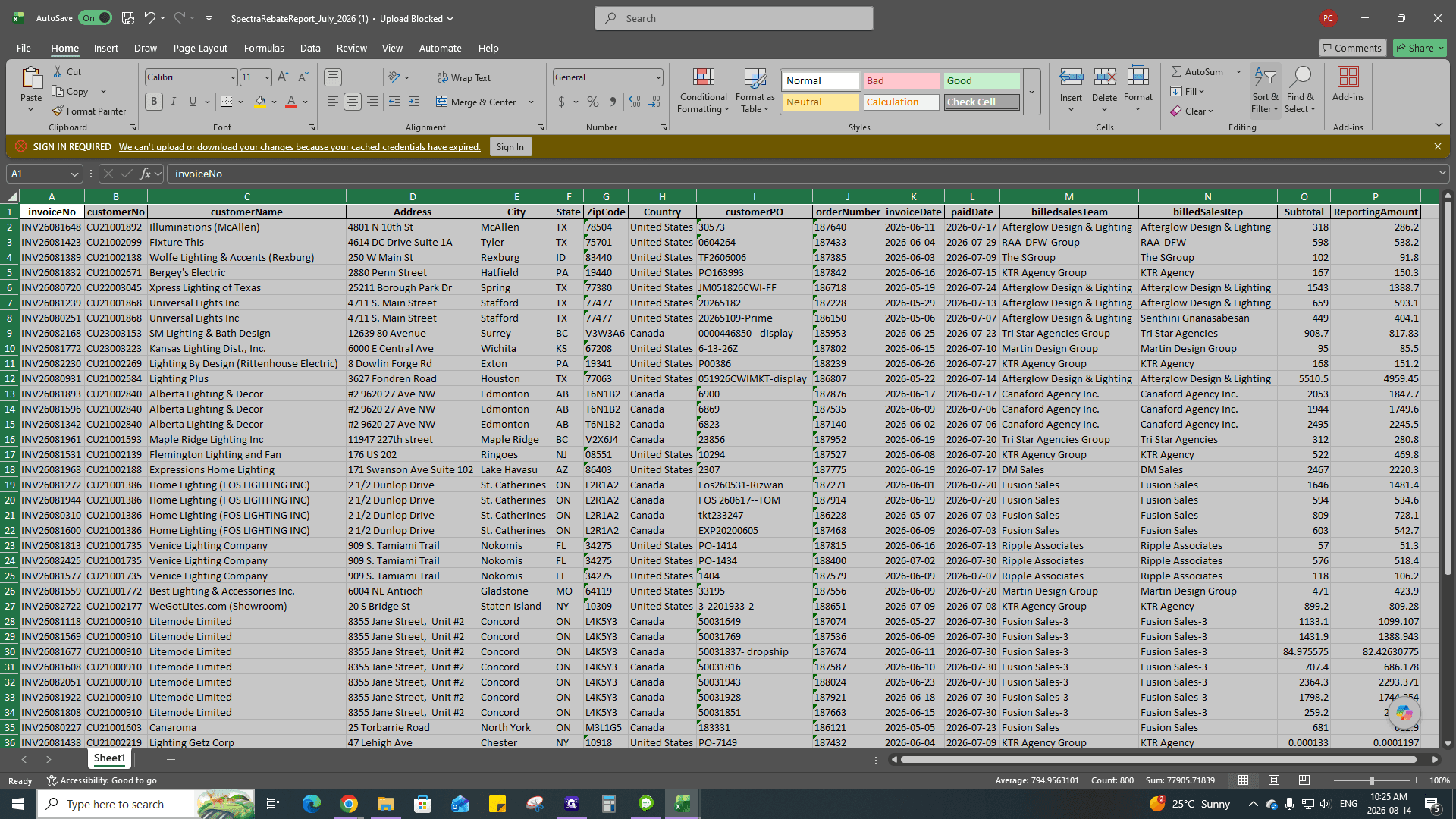
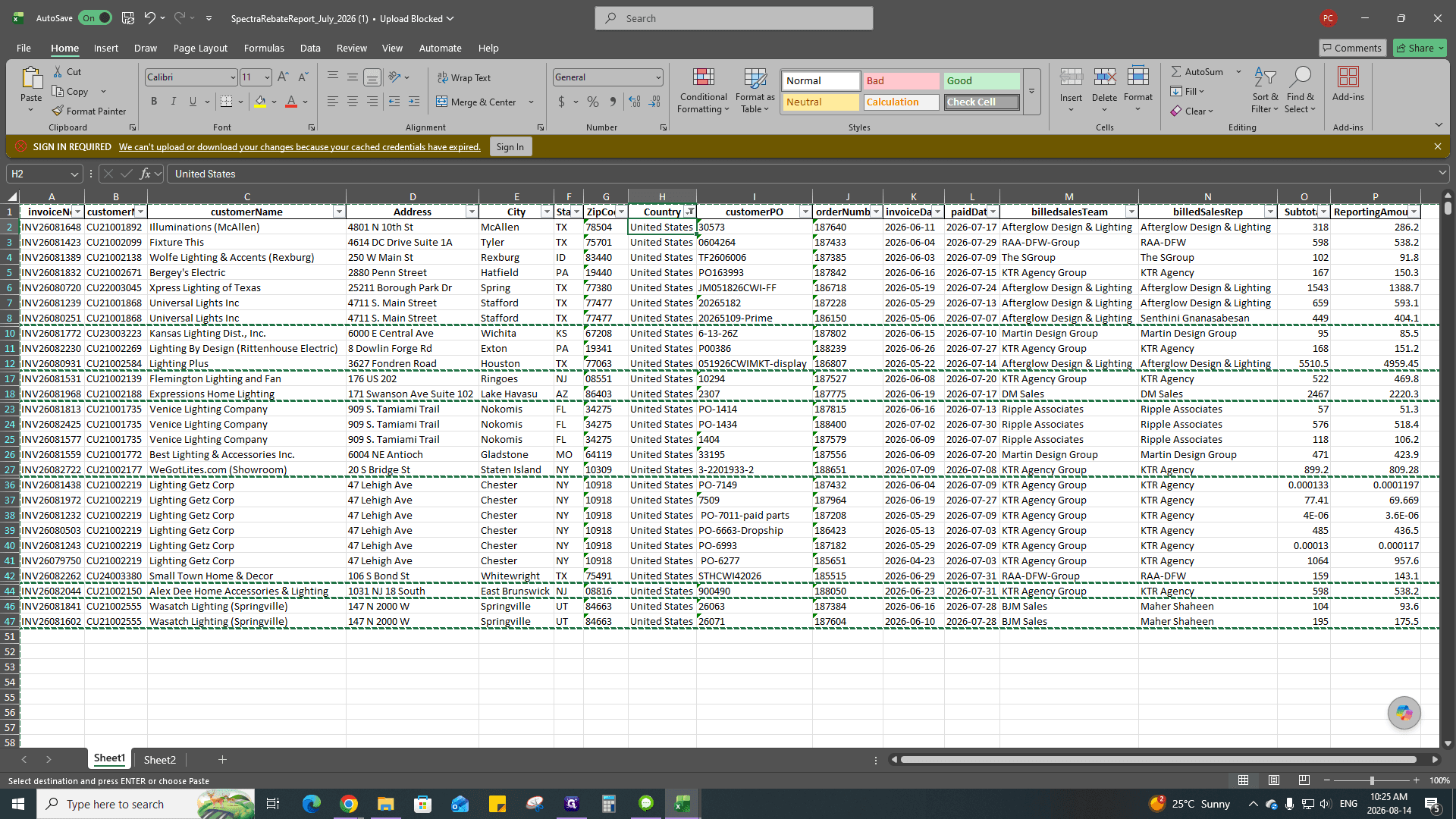
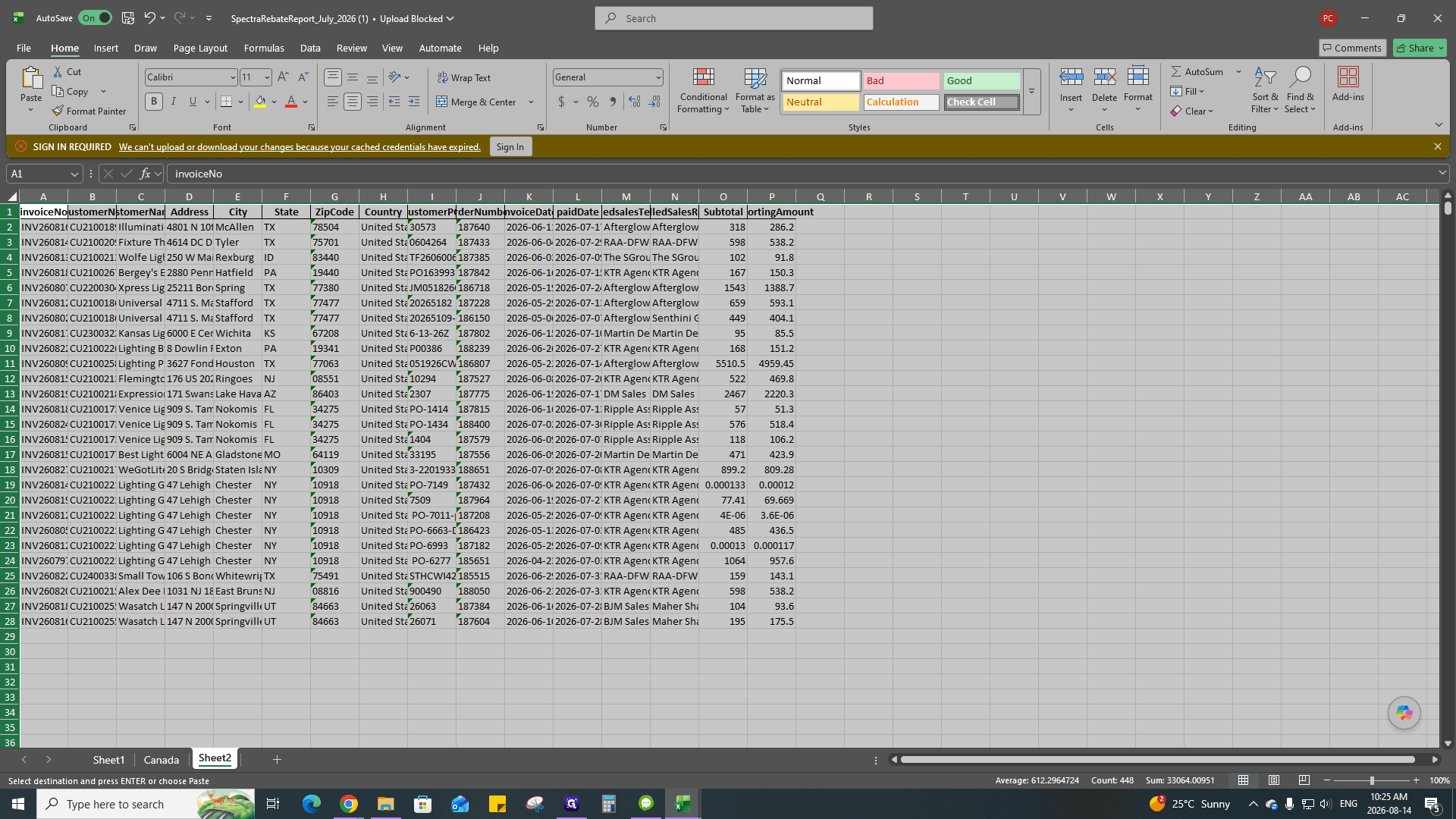
Open the downloaded SpectraRebateReport Excel file.
30
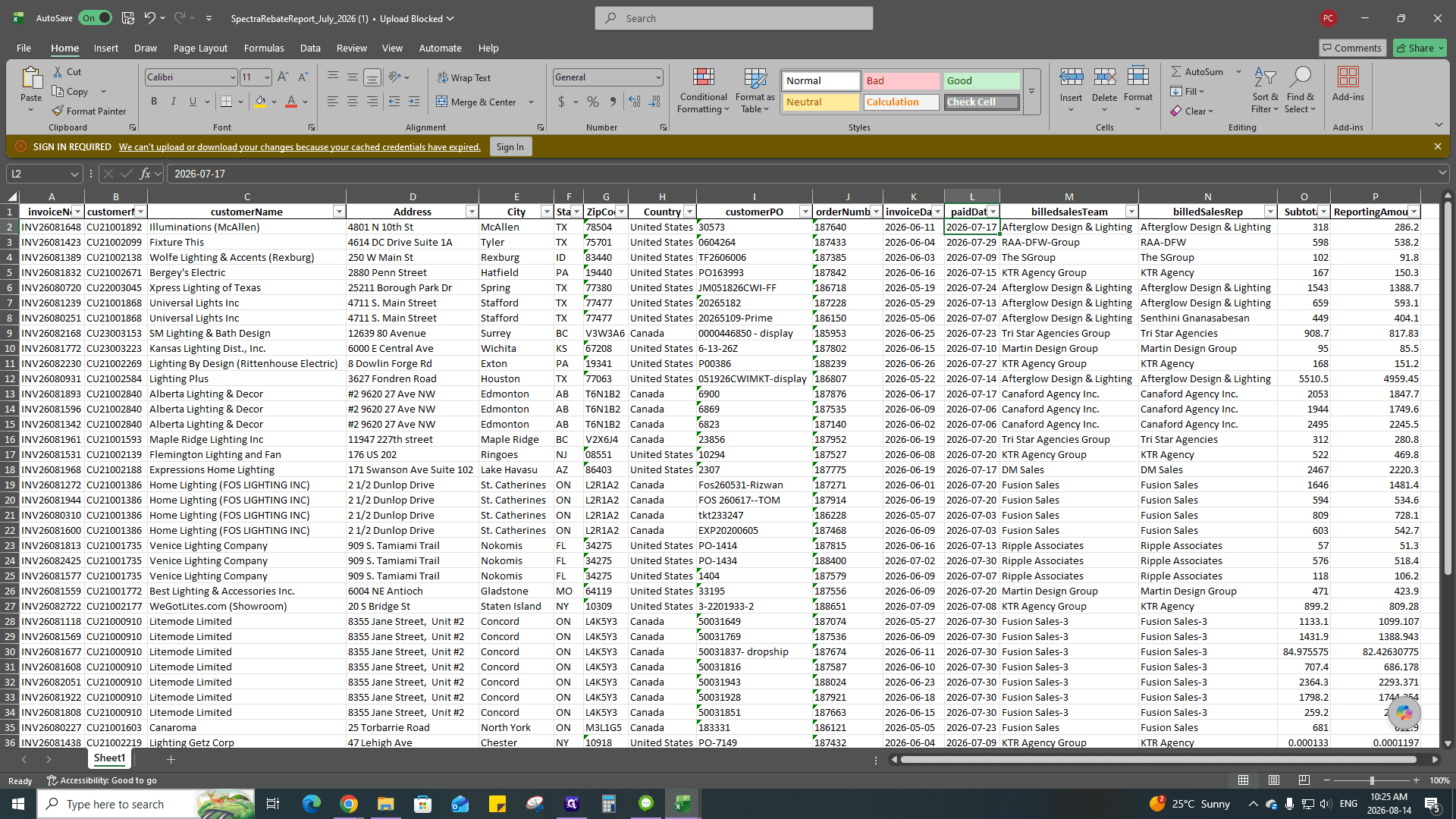
Click Filter in the Data ribbon to enable filtering on all column headers.
31
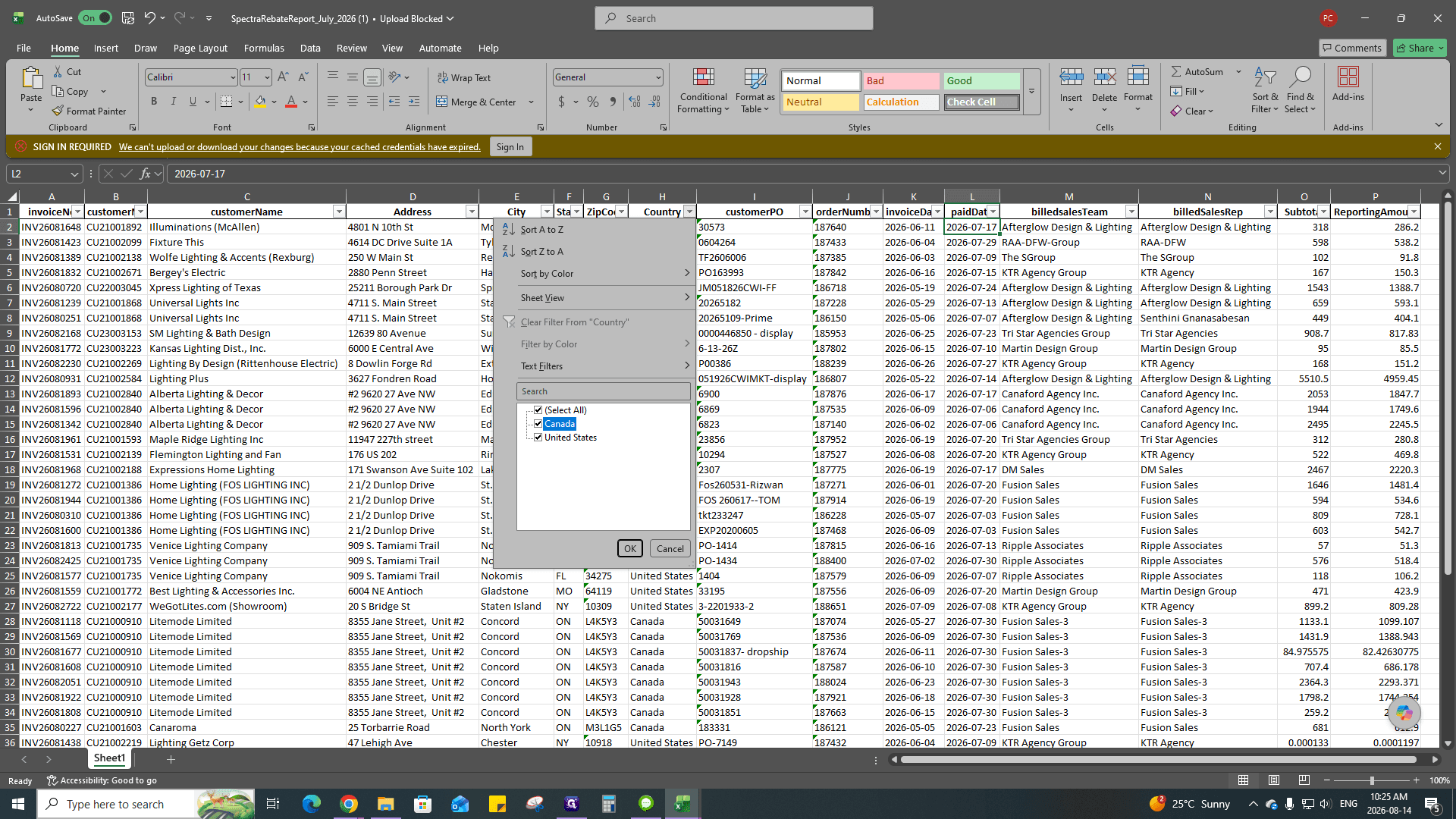
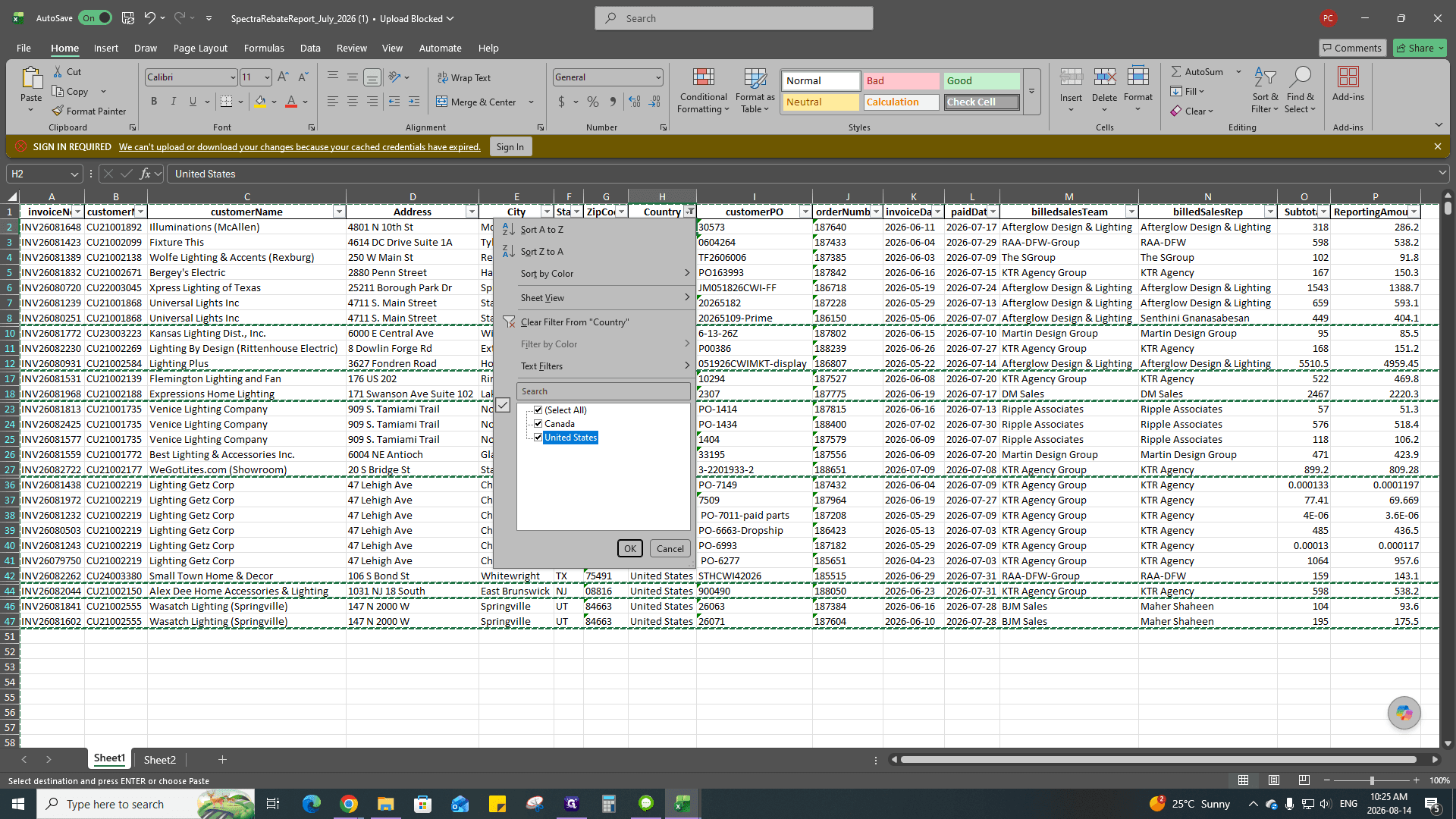
Click the filter dropdown arrow on the Country column.
32
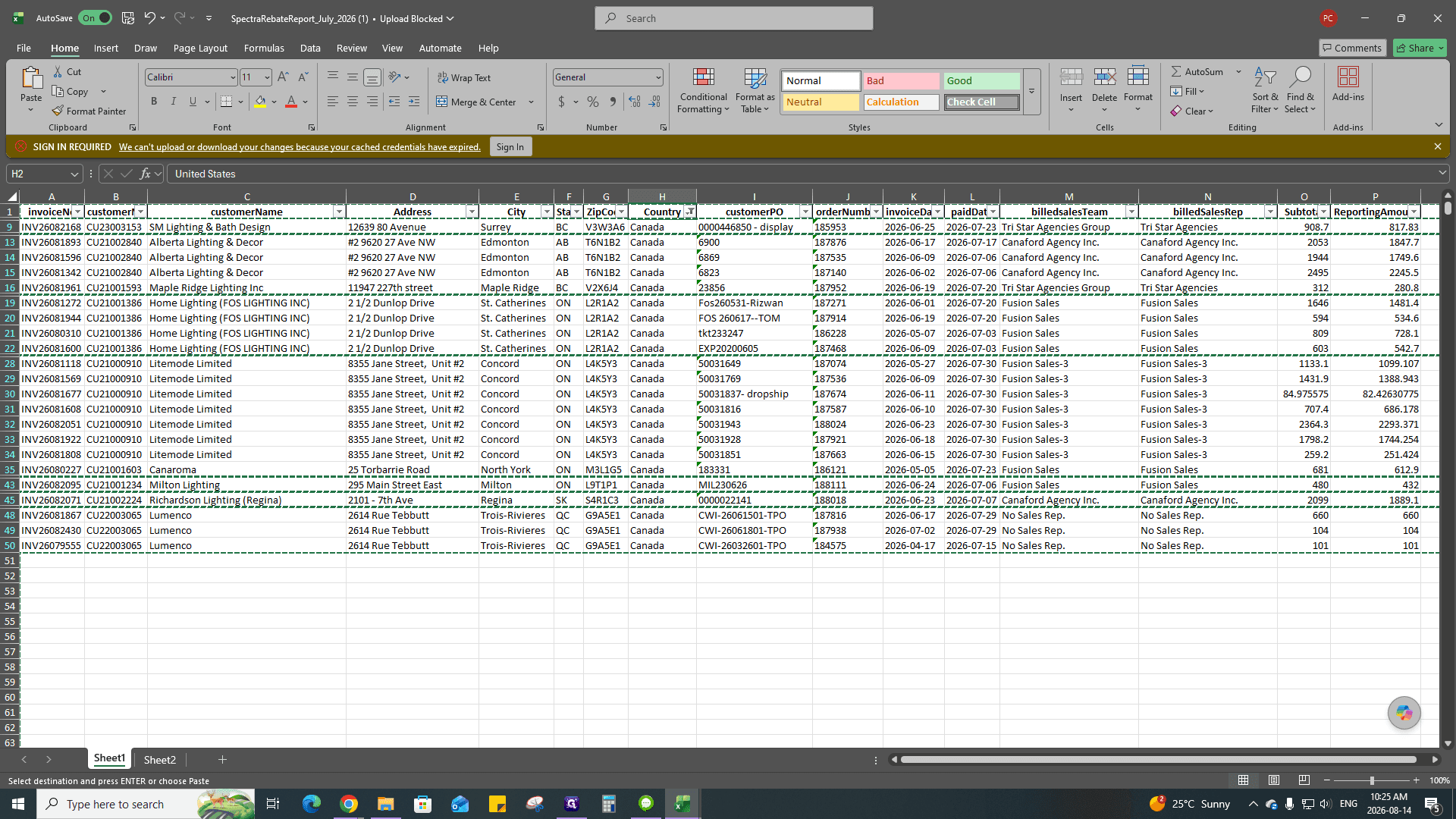
Select only Canada.
33
Click OK to apply the filter.
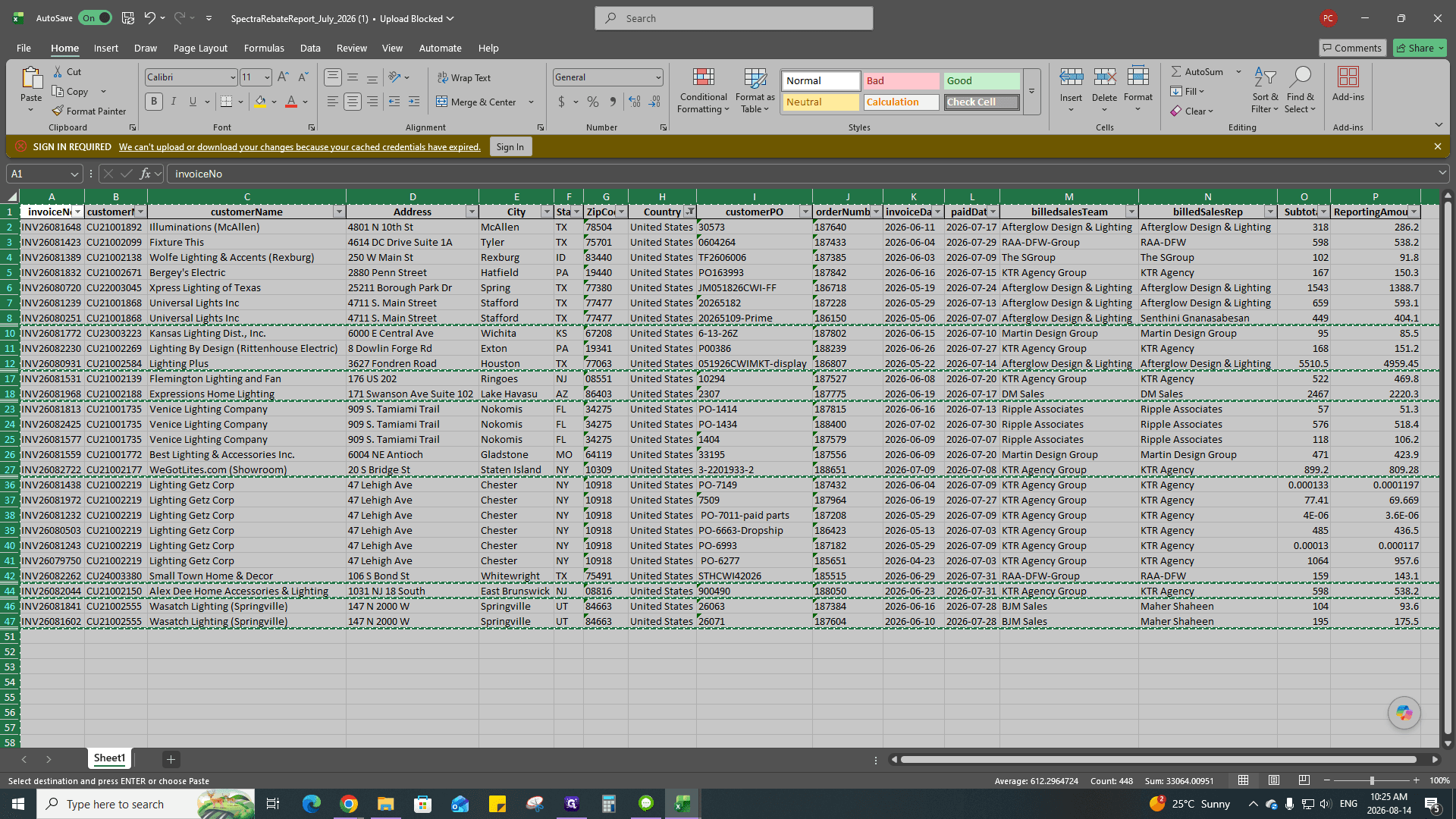
34
Select all the filtered data rows.
35
Press Ctrl + C to copy the Canadian rows.
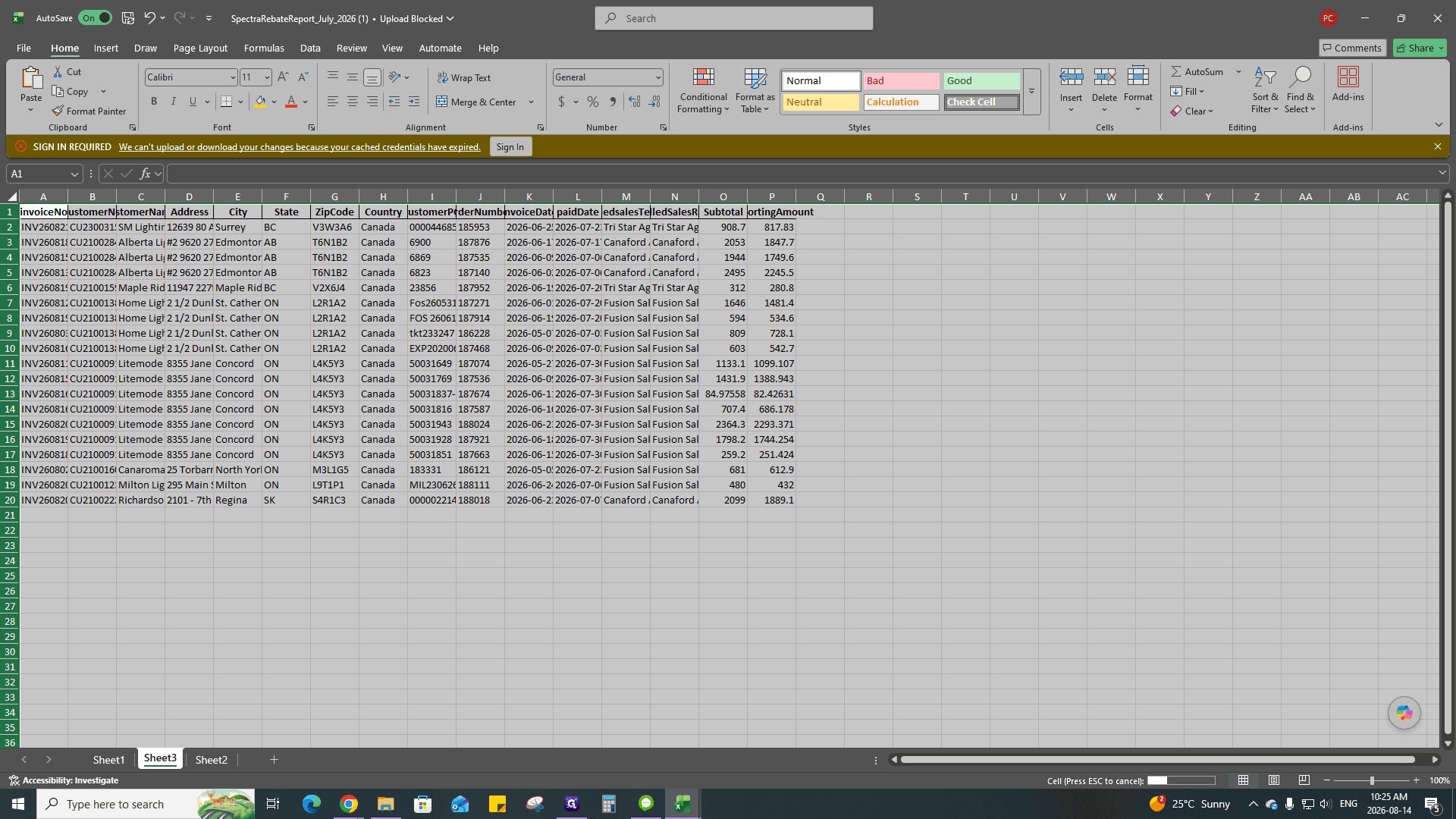
36
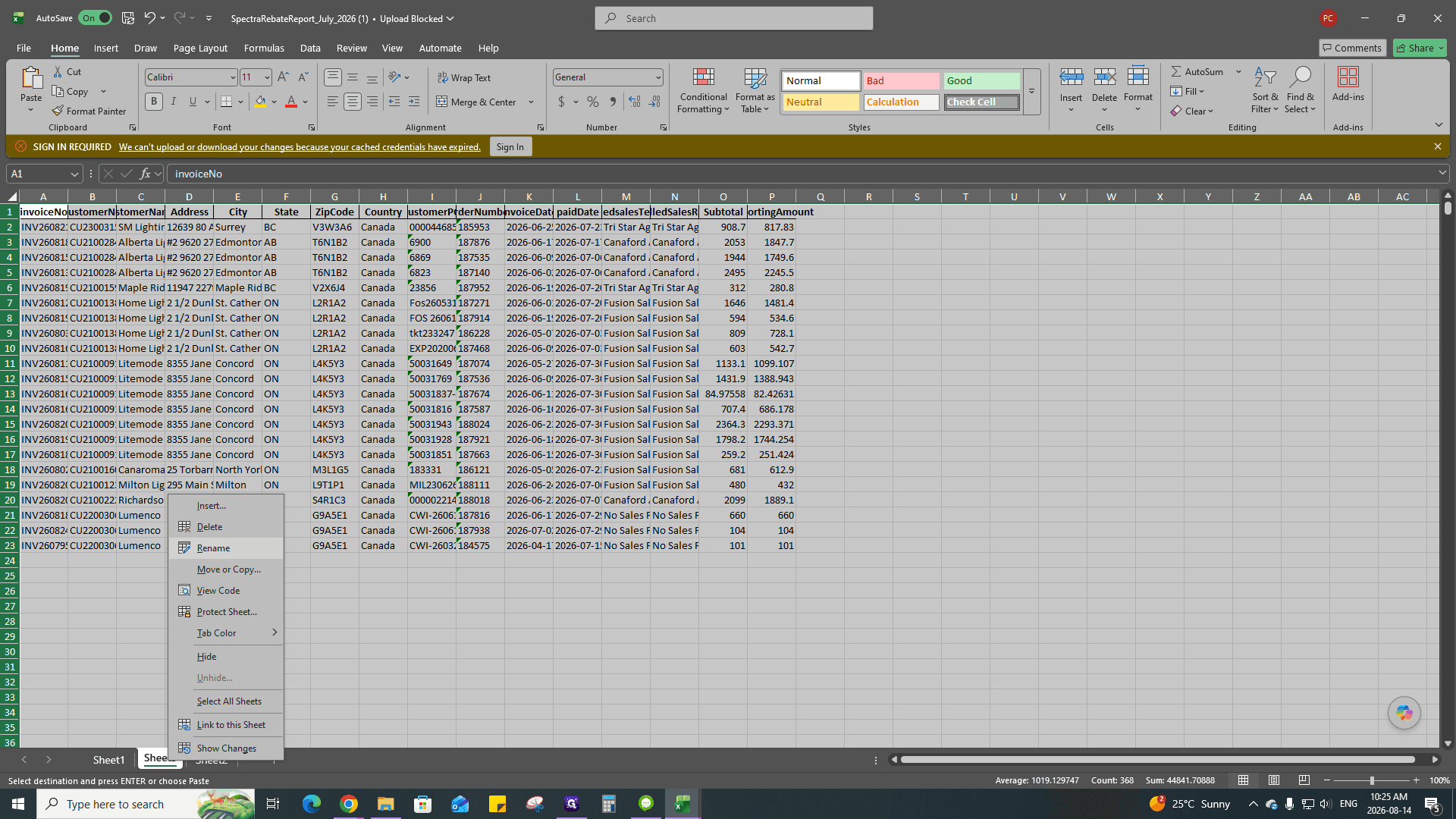
Create a new worksheet in the file.
37
Press Ctrl + V to paste the data.
38
Right-click the new sheet tab and click Rename.
39
Type Canada and press Enter.
40
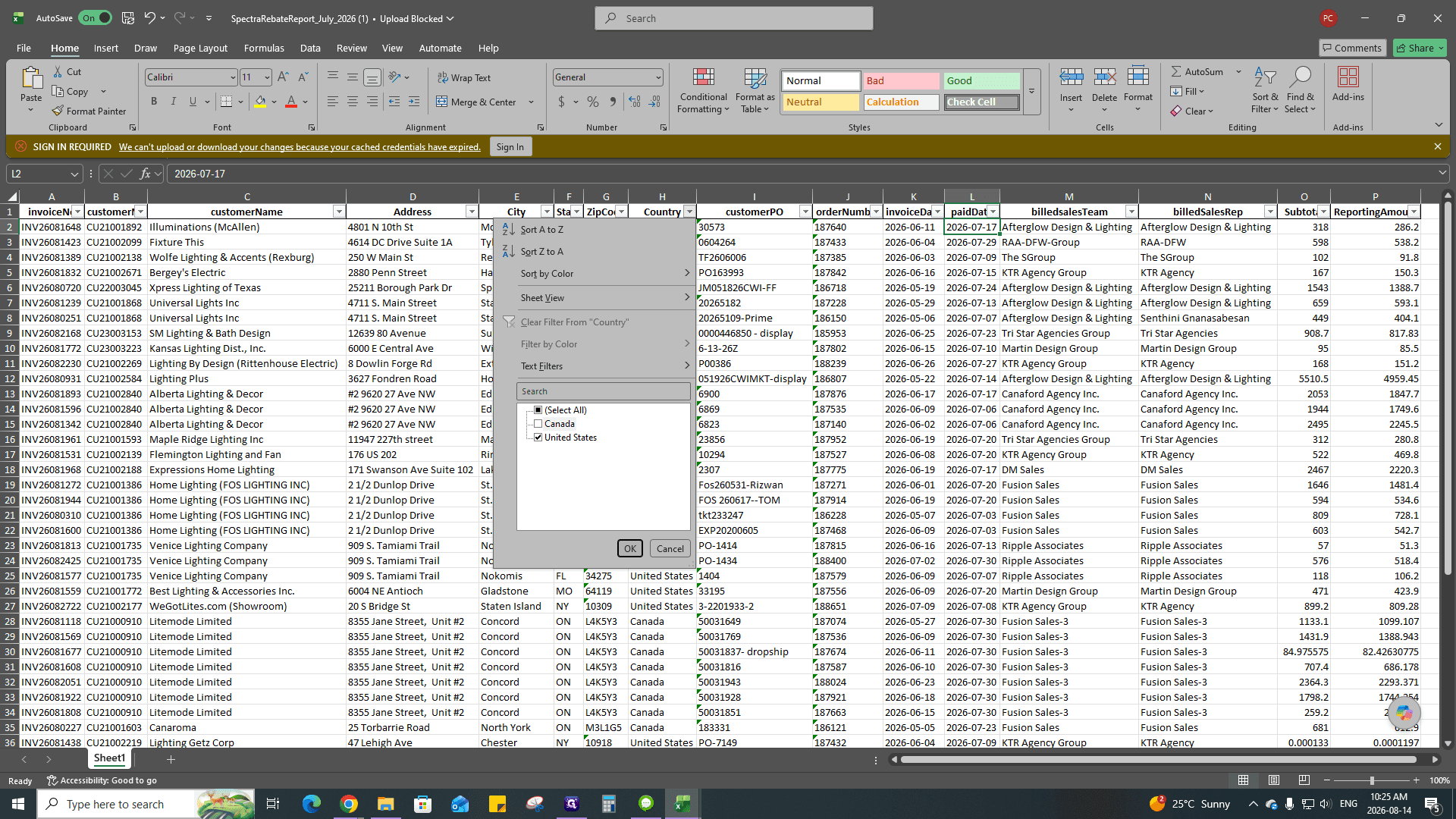
Return to the main sheet and open the Country filter again.
41
Uncheck Canada and select United States instead.
42
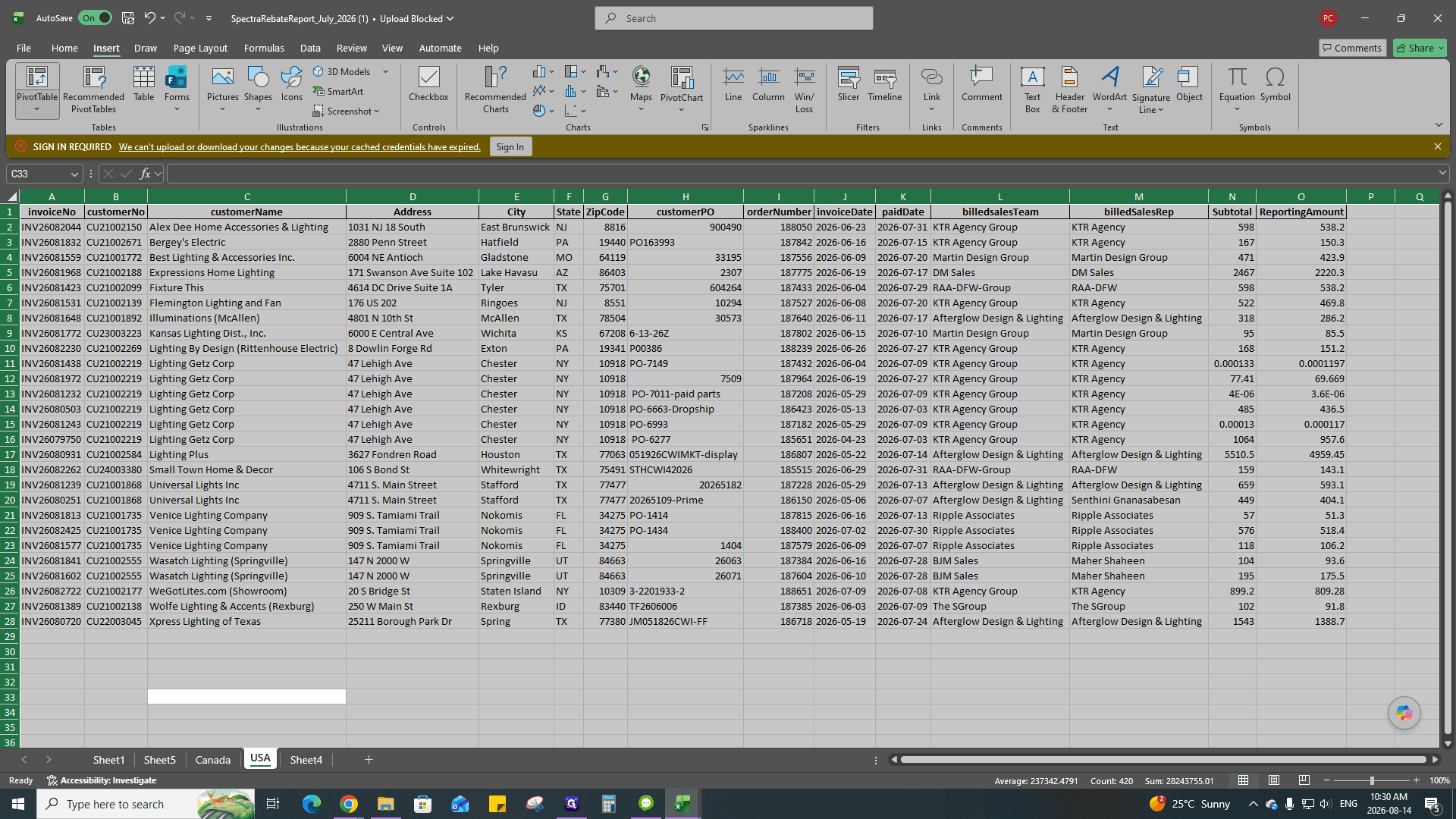
Select all the filtered US rows and press Ctrl + C.
43
Create another new worksheet, paste the data, and rename the sheet tab to USA.
Phase 5: Build Pivot Tables
Generate pivot tables to calculate the final sums for each customer in both regions.
44
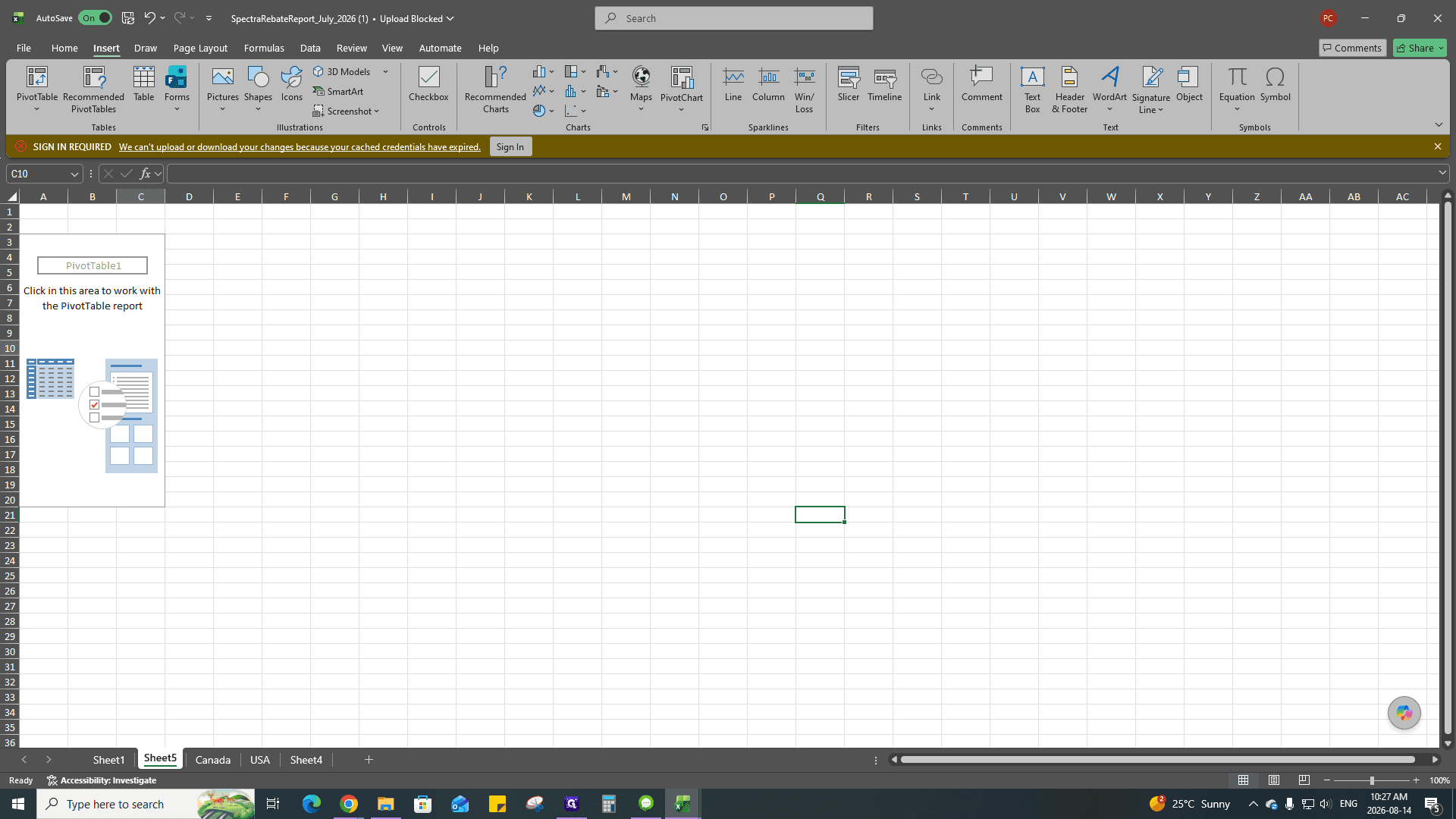
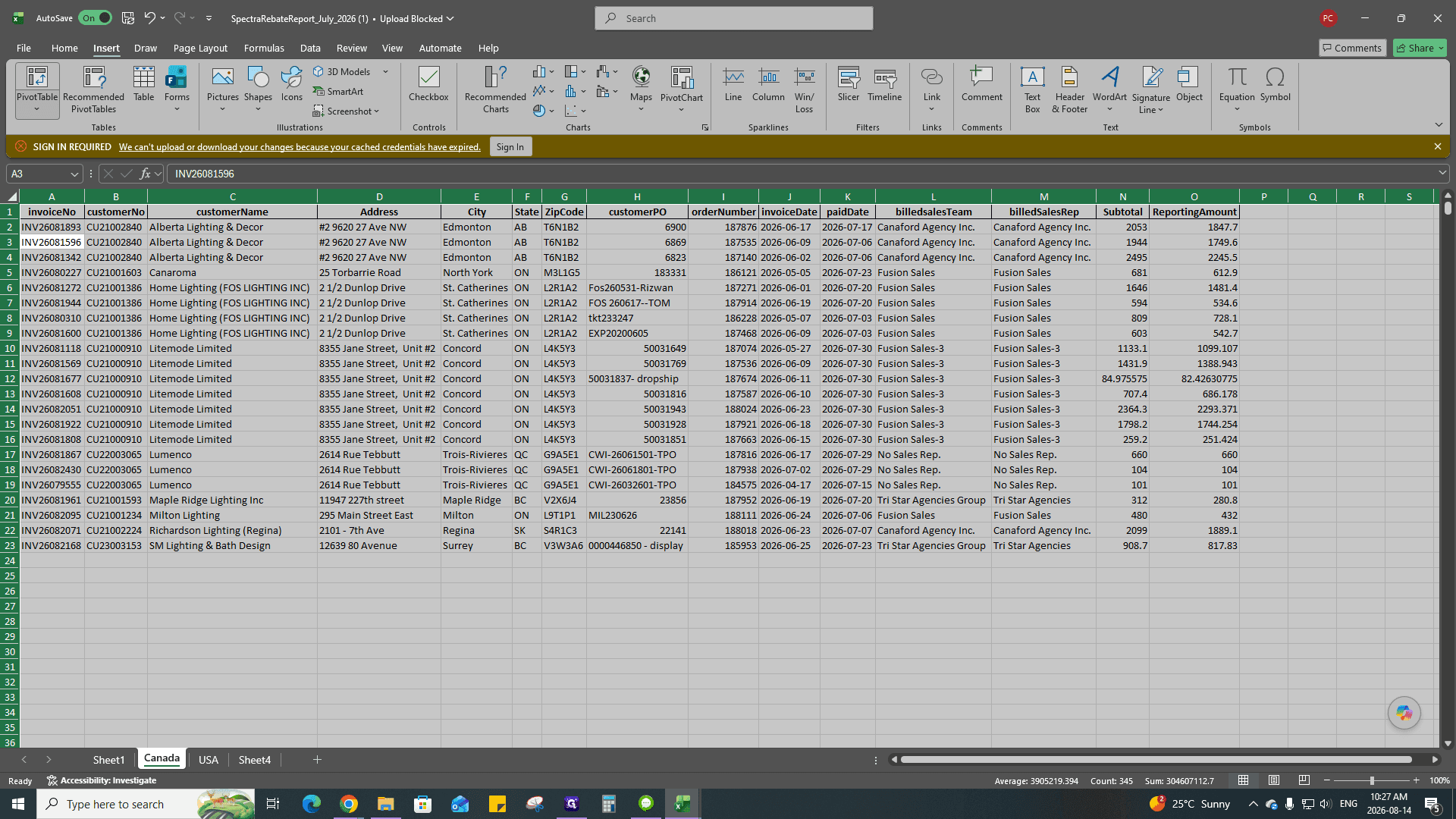
On the Canada sheet, go to the Insert tab on the ribbon.
45
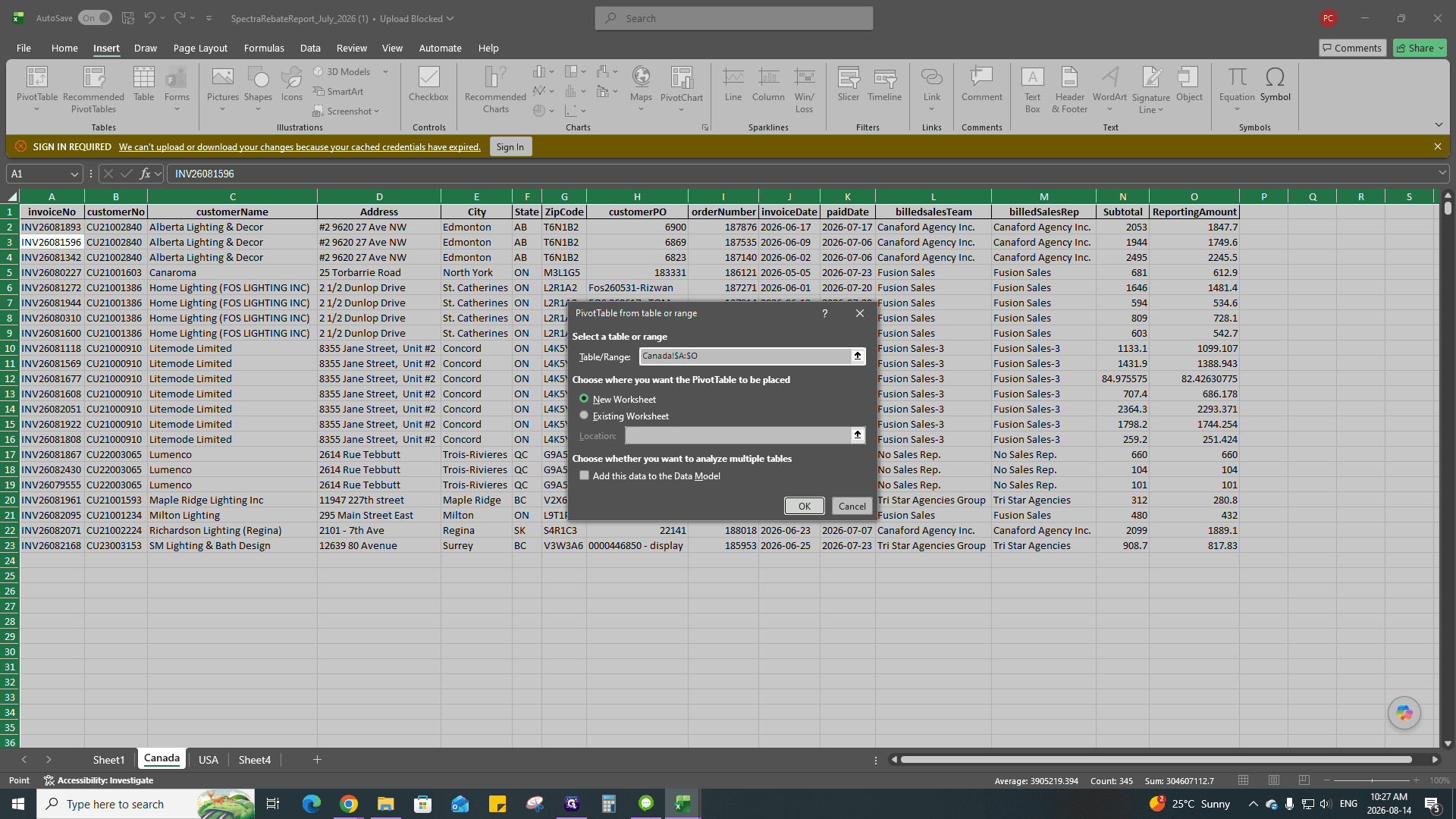
Click PivotTable.
46
Leave the default range settings and click OK to create the pivot table on a new sheet.
47
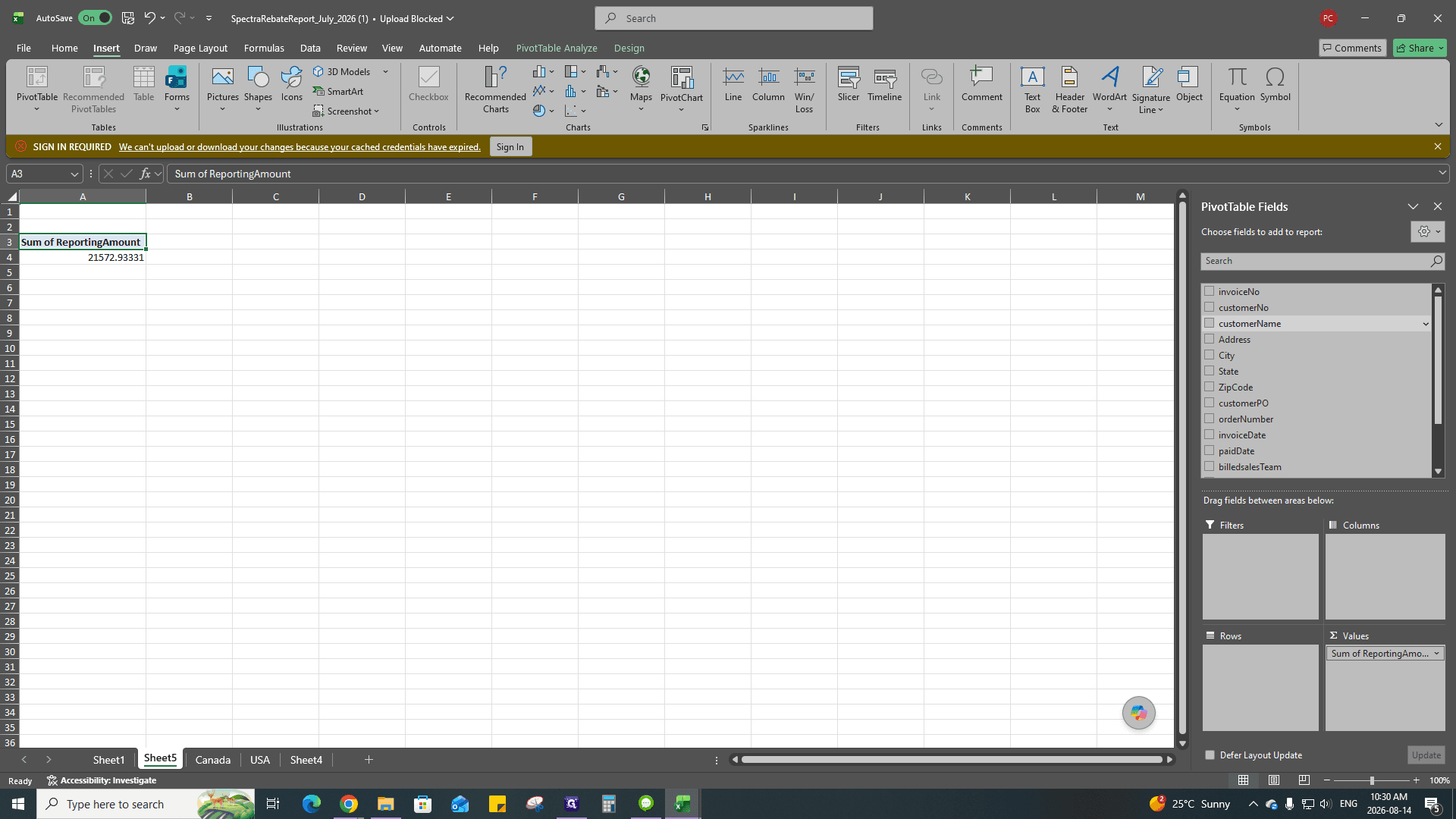
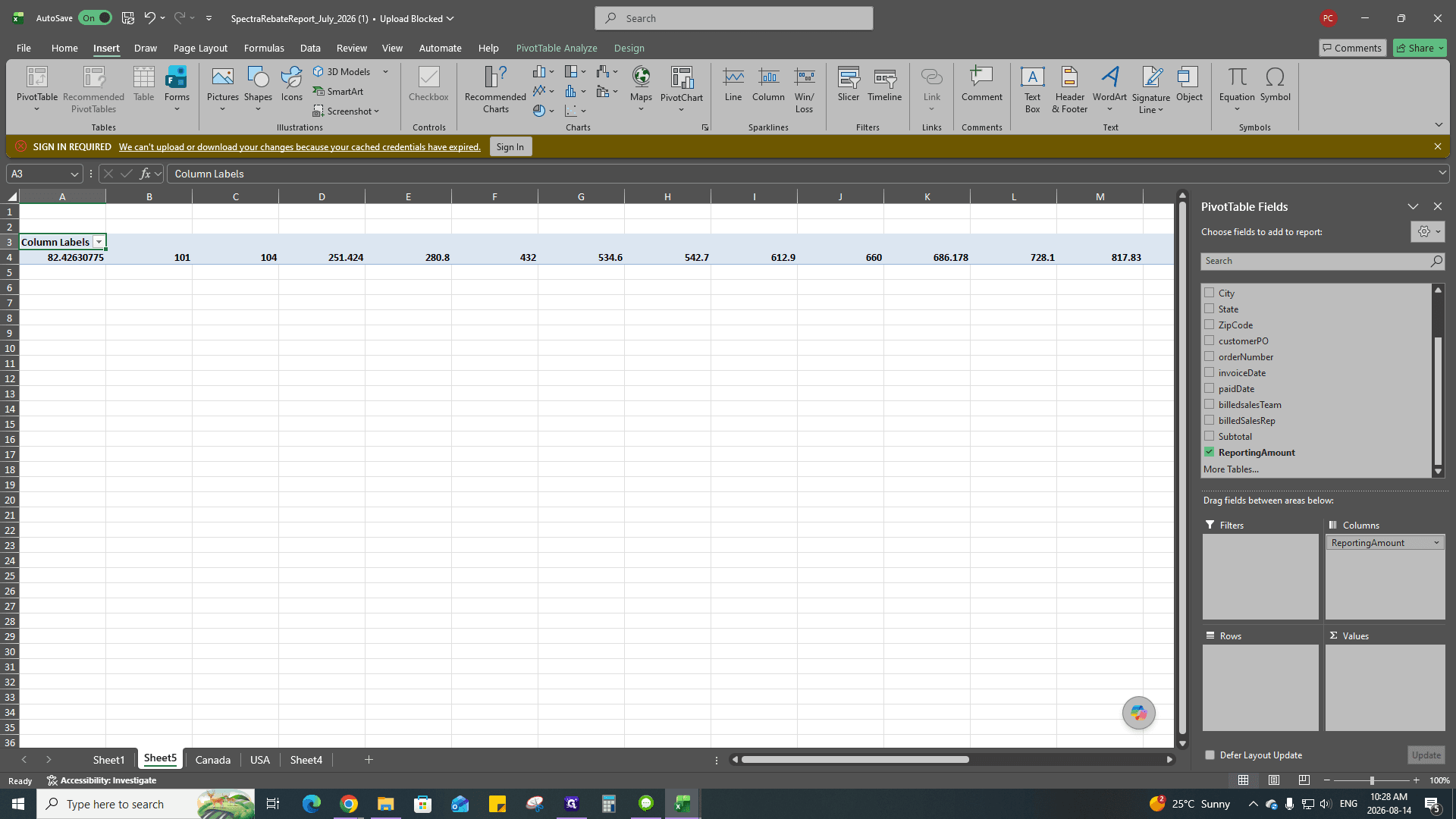
In the PivotTable Fields pane, drag customerName into the Rows area.
48
Drag ReportingAmount into the Values area to output the Sum of ReportingAmount.
49
Navigate to the USA sheet and repeat the PivotTable creation process to generate the US totals.
Phase 6: Populate the Incentive Invoice
Finally, map the pivot table sums into the formal Marketing Incentive Invoice.
50
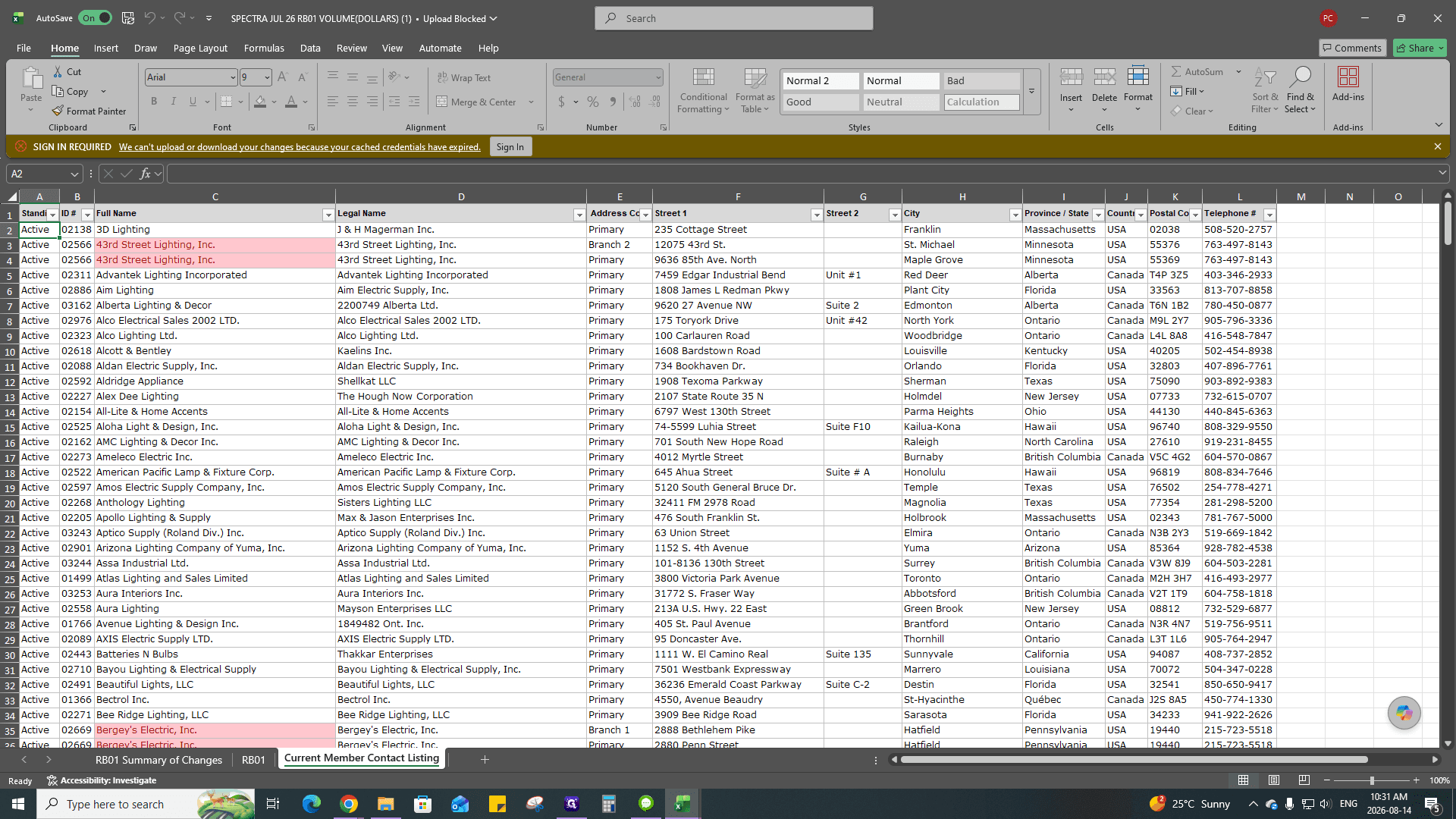
Open the Marketing Incentive Invoice Excel file.
51
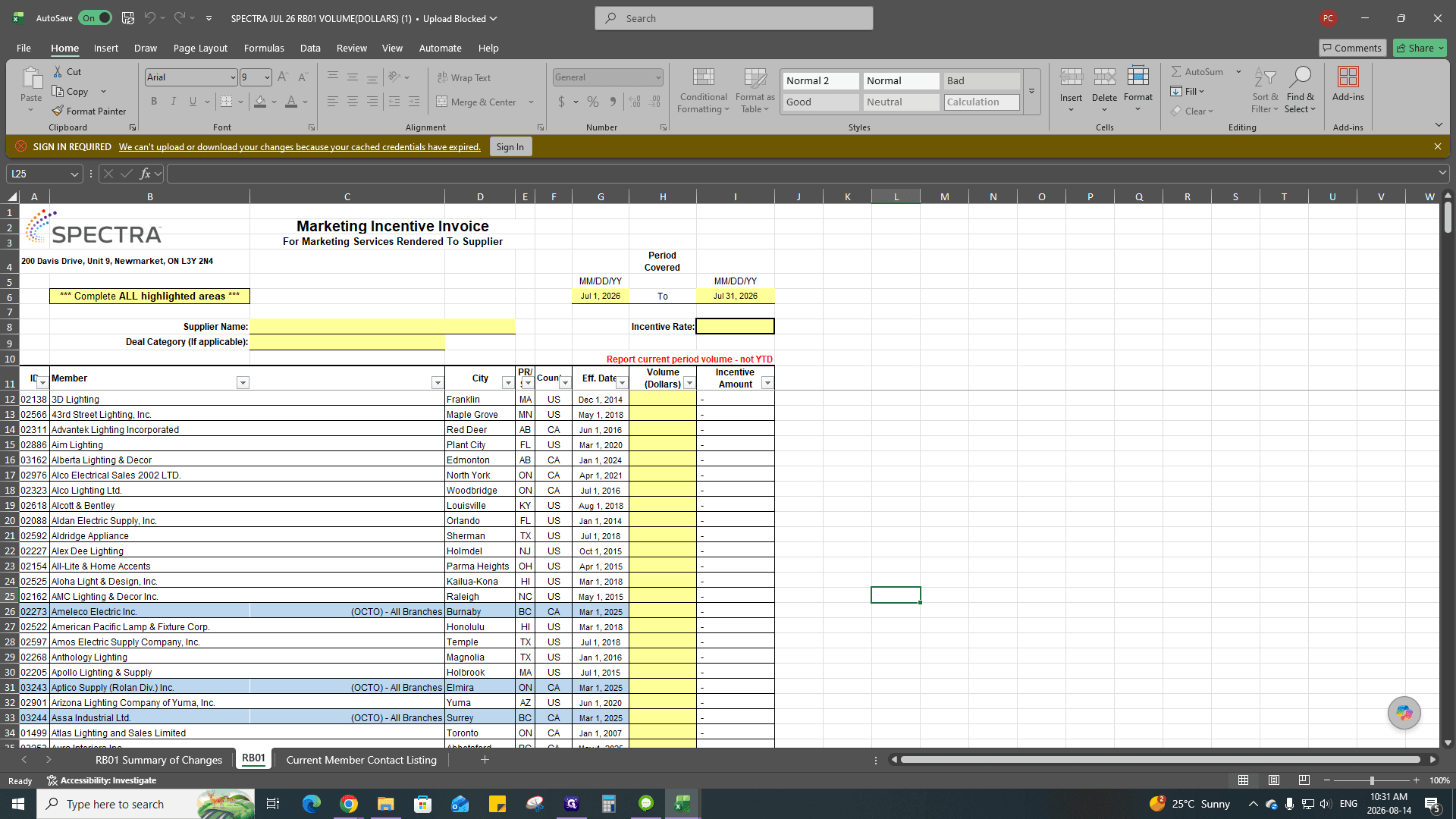
Click the RB01 tab at the bottom to access the active input sheet.
52
Using the data from your Canada and USA pivot tables, manually input the calculated totals into the Volume (Dollars) column for each corresponding member lighting company.
Q: Do I need to create a new folder for each month's reports?
A: Yes, always create a designated subfolder (e.g., "July") inside the Spectra Commissions directory to segregate the monthly data.
Q: Which columns should I keep when cleaning the CWI Invoices Export?
A: Keep Customer Name, Customer PO, Invoice Date, Subtotal, and Total columns. Delete all unnecessary columns like Tariff, unused taxes, and shipping if they don't apply.
Q: What if the pivot table data isn't separated by country?
A: You must filter the main rebate report by the "Country" column first, then copy the Canadian and US data into two separate sheets before generating pivot tables for each.
Term
Definition
Kloudville / Qubey
The billing and order management system used to track and export CWI invoices.
Spectra Rebate Report
The monthly Excel report provided by Spectra detailing supplier transactions and expected rebates.
Marketing Incentive Invoice
The final spreadsheet where volume totals (in dollars) are entered for individual member lighting companies.
Pivot Table
An Excel tool used in this process to summarize the ReportingAmount values by Customer Name.