How to Process CIS Return Emails from LKT Janitorial's Accountant
Learn how to handle CIS return emails from your accountant, including checking operative details, verifying deduction amounts, and ensuring compliance with HMRC requirements.
In this guide, we'll learn how to process emails from LKT Janitorial's accountant (Gravitate Accounting) related to monthly CIS (construction industry scheme) returns. We will cover how to review the report, check operative names, and confirm that the CIS deduction amount is correct. This will help ensure that the correct tax is reported to HMRC each month via our accountants, and that we are aware of the payment amount that will be withdrawn by direct debit by HMRC every month.
Let's get started
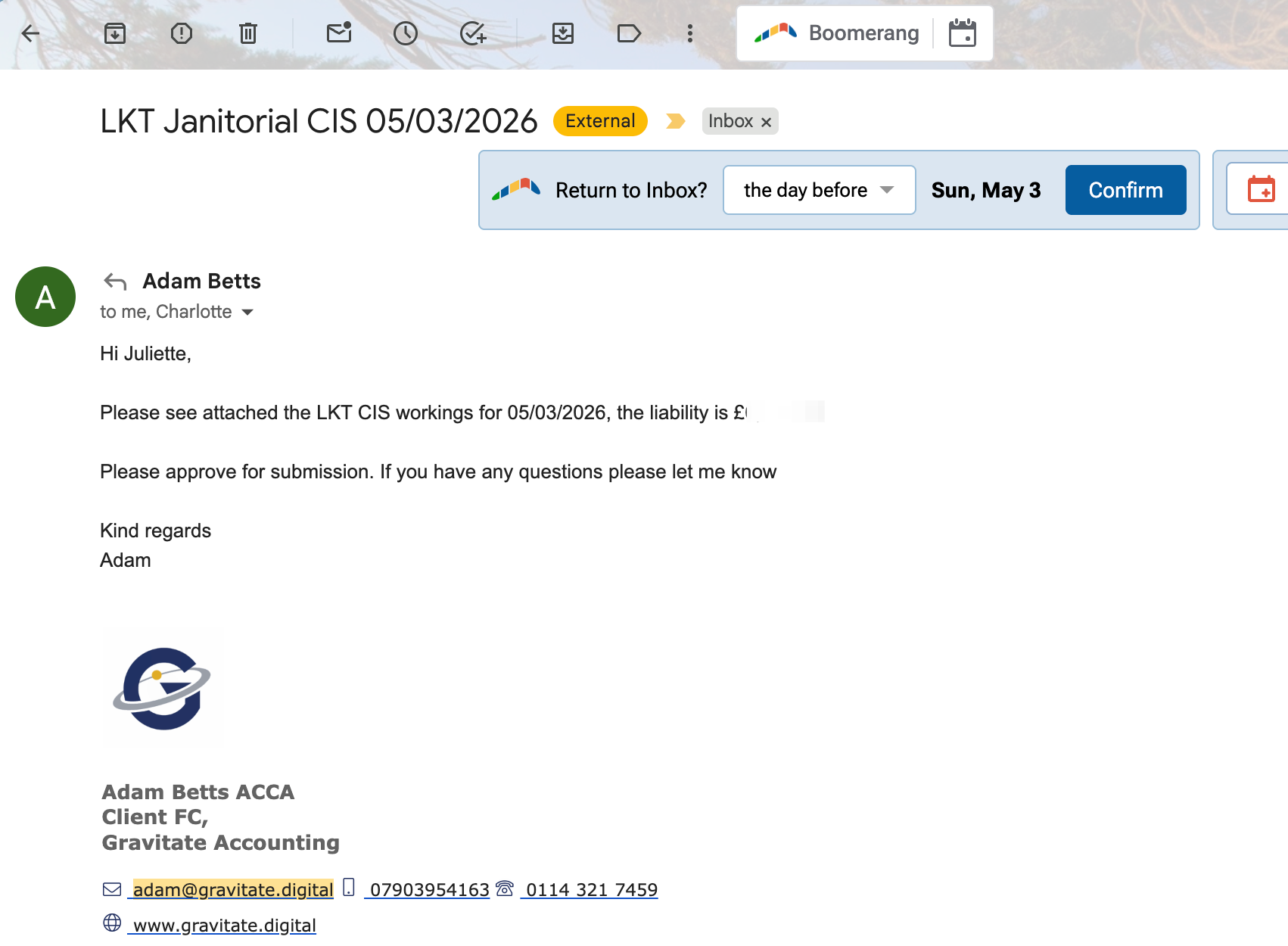
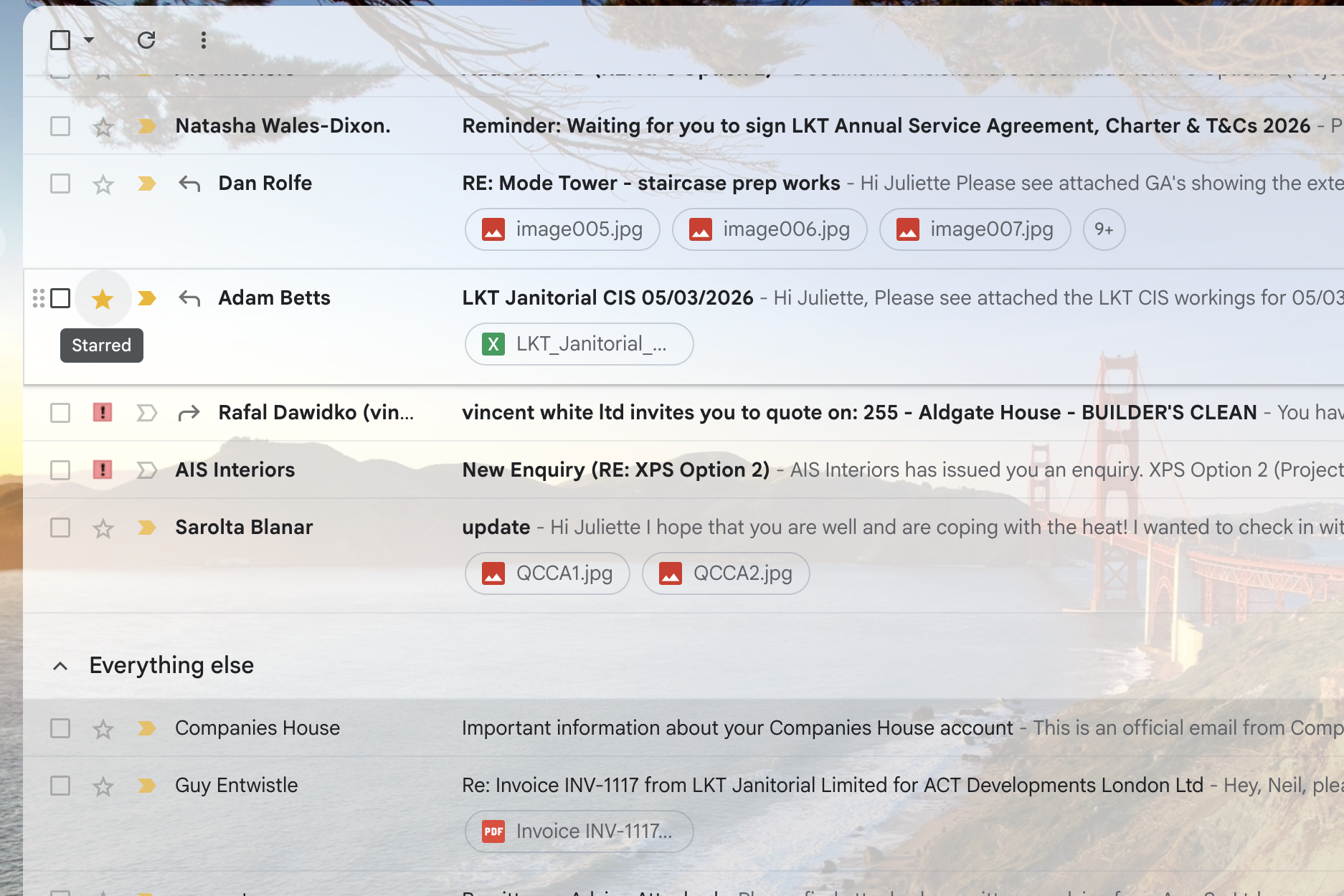
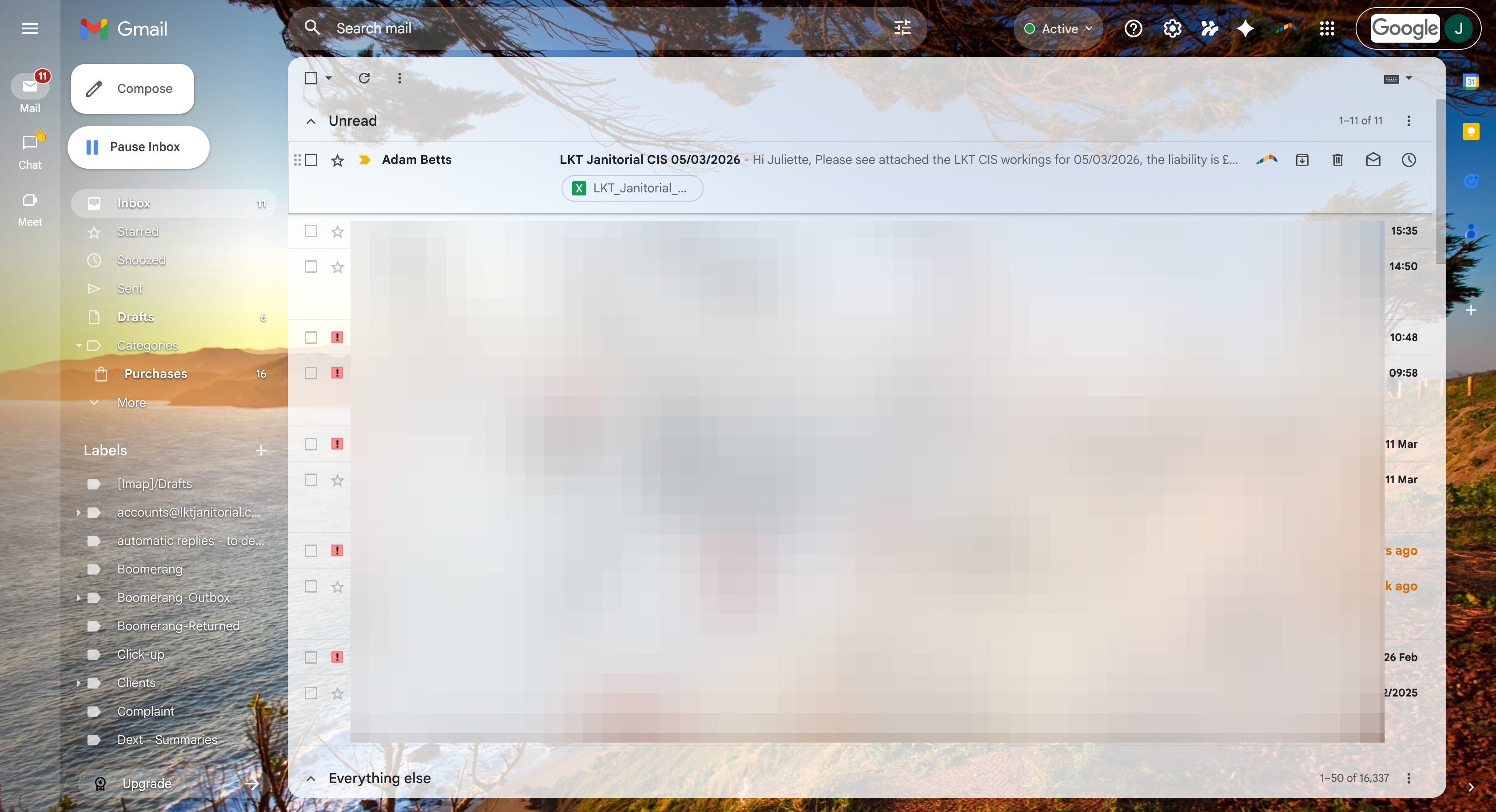
This guide explains how to process emails from LKT Janitorial's accountant (Gravitate Accounting). The email is usually from Adam Betts (adam@gravitate.digital), and the subject is usually 'LKT Janitorial CIS DD/MM/YYYY'.
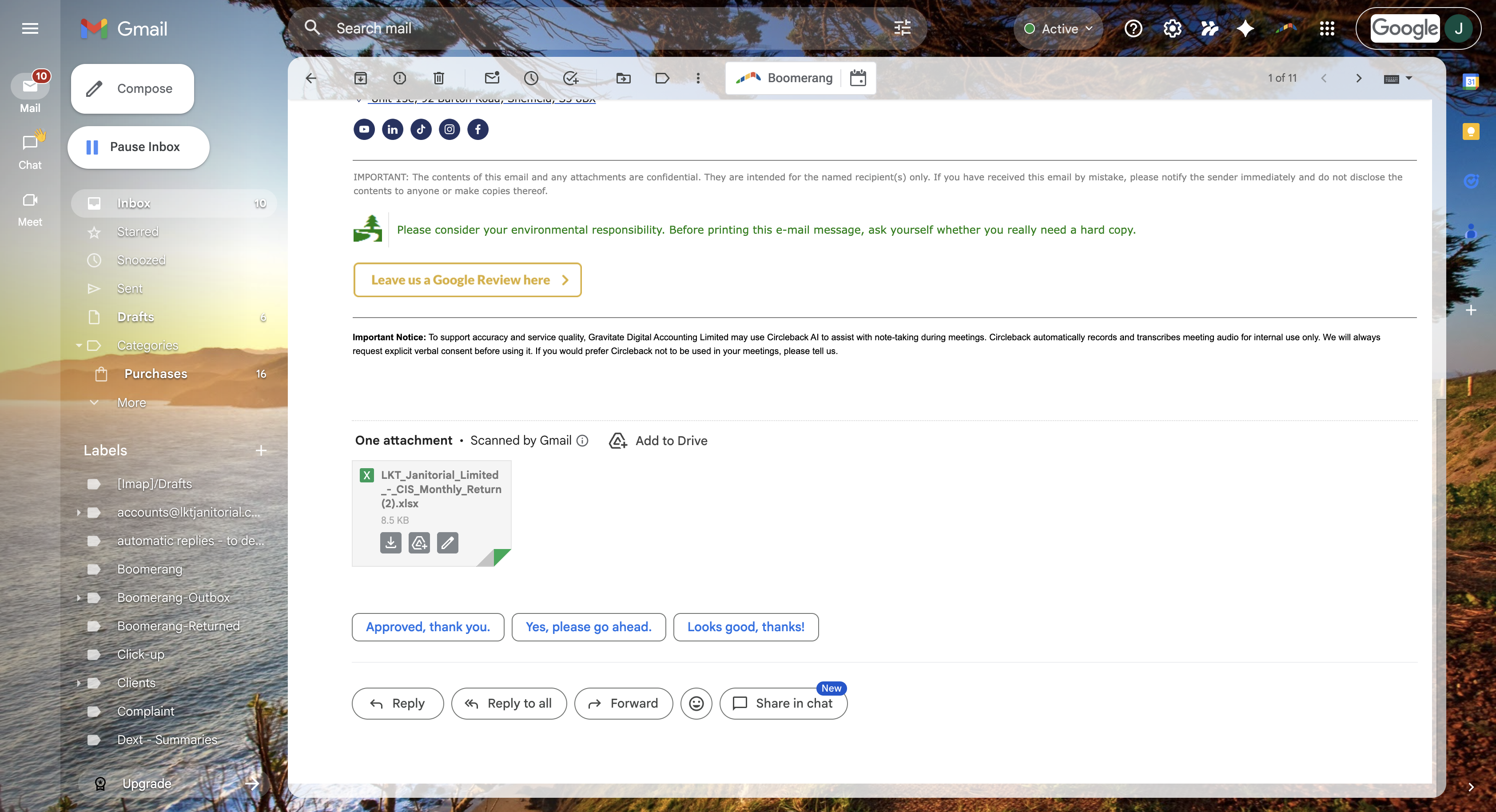
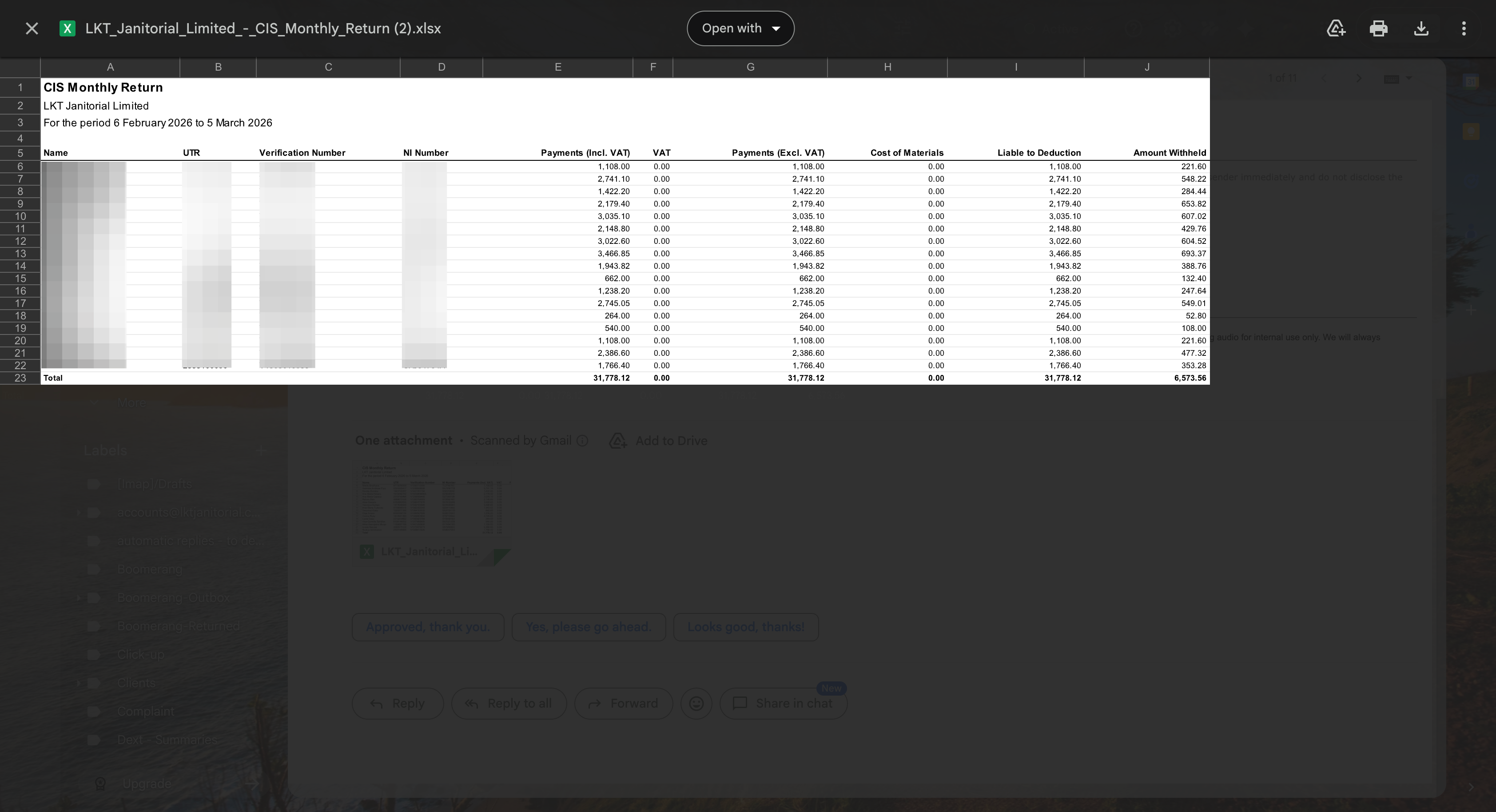
The PDF explains how much CIS deduction will be taken by HMRC, which is a tax payment that comes out once a month. The PDF is a report where you can see all the operatives names that have worked that month and the 20% tax deduction that we took from their wages to meet CIS requirements that will be paid to HMRC.
With these emails, check that all operative names are correct and familiar, and do a quick sense check to see that the deduction amount is as expected, which for CIS is a 20% deduction of their wages. Our accountant's accuracy levels are high so it's just a sense check and not an in depth assessment verified against our payroll spreadsheets.