
How to Process Out-of-Stock Items for 3PL in Shopify and Pipe17
Learn the step-by-step process for handling out-of-stock items in your 3PL workflow using Shopify and Pipe17. This guide covers order management, inventory checks, refunds, and customer notifications.
In this guide, we'll learn how to process out-of-stock items for a 3PL using Shopify and Pipe17. The objective is to identify orders with missing inventory, update the order in Shopify, and ensure the customer is refunded for any unavailable items.
This process helps keep order records accurate and maintains good customer communication.
Let's get started
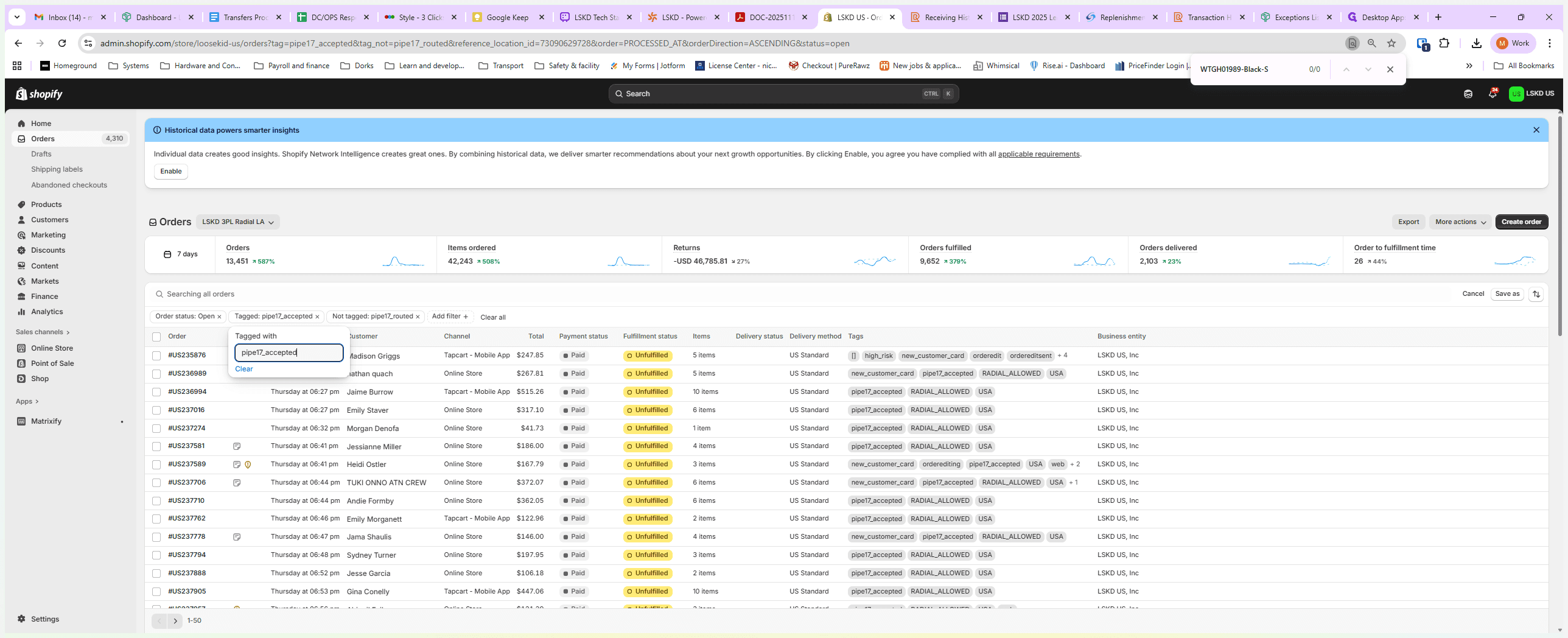
All right, team. Here is a brief guide on how to process out-of-stock items for the 3PL. First, log in to your US Shopify account. Go to Orders, then select Status and choose Open. Search for orders tagged with Pipe17_Accepted but not tagged with Pipe17_Routed.
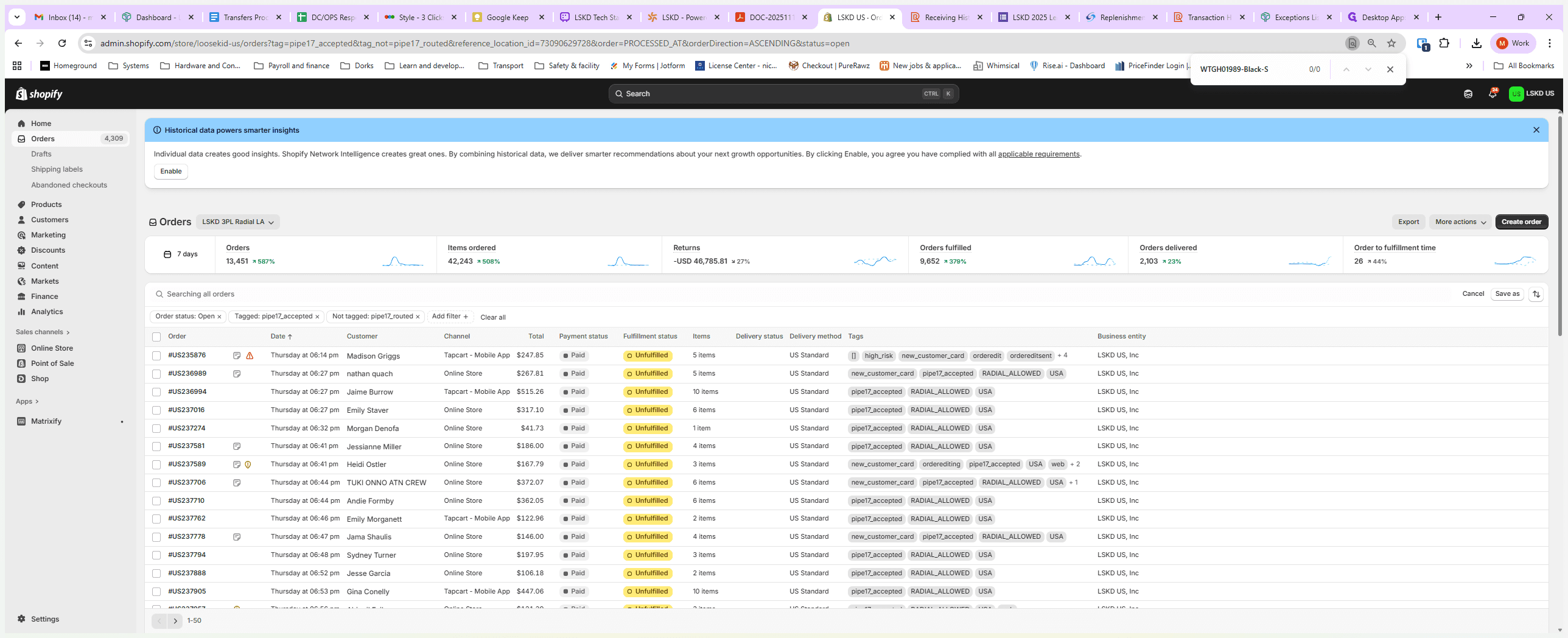
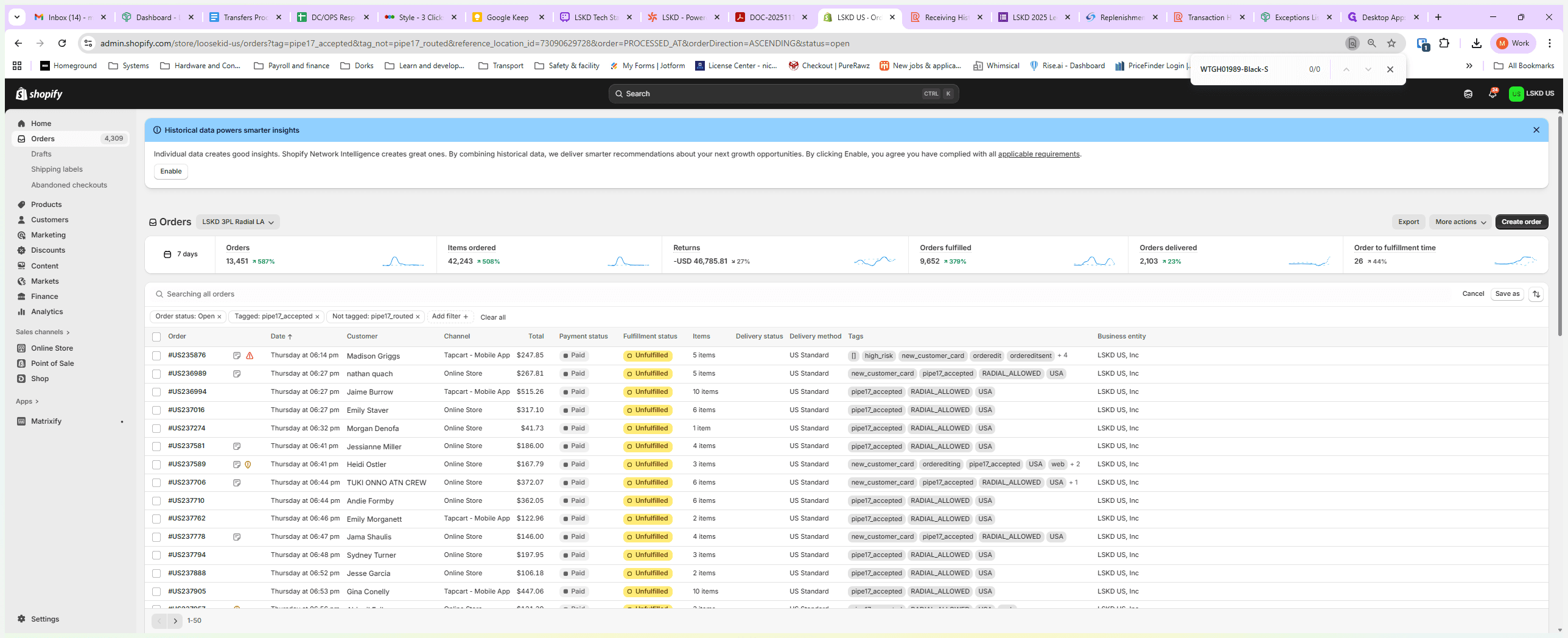
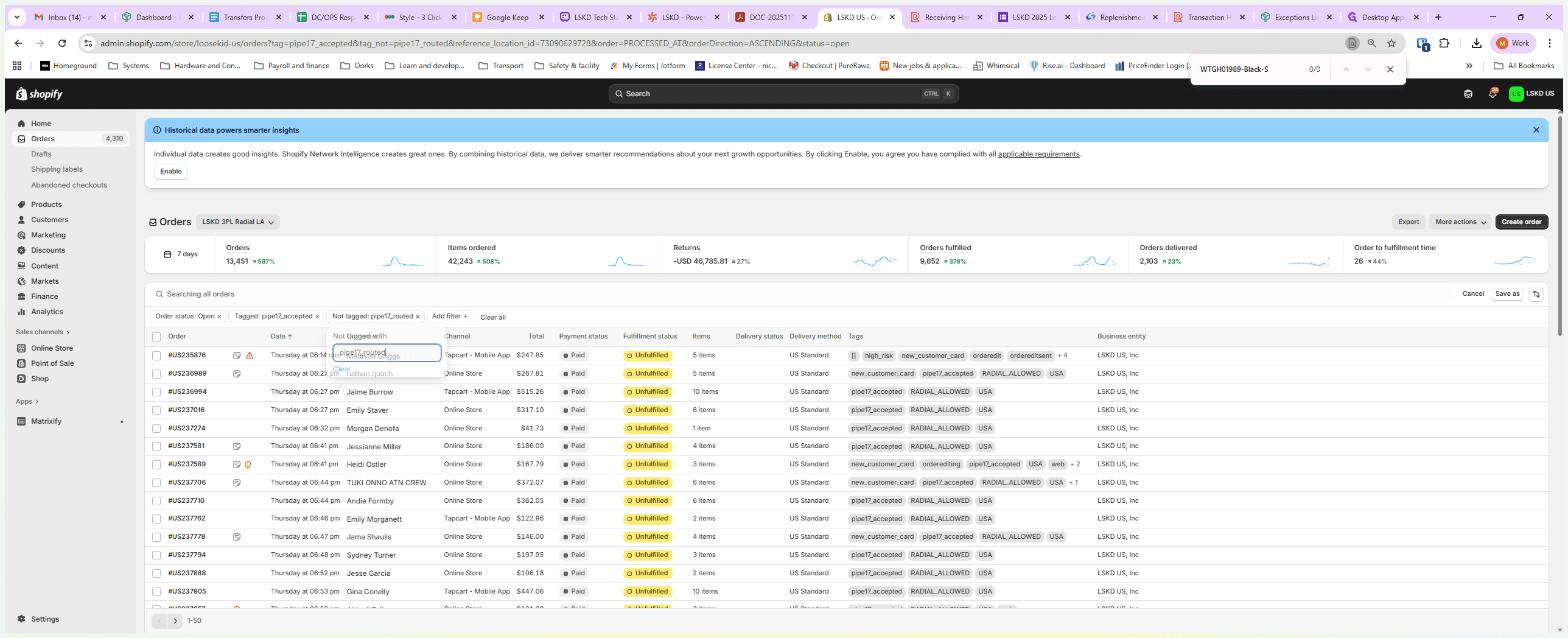
Sort by date oldest to newest
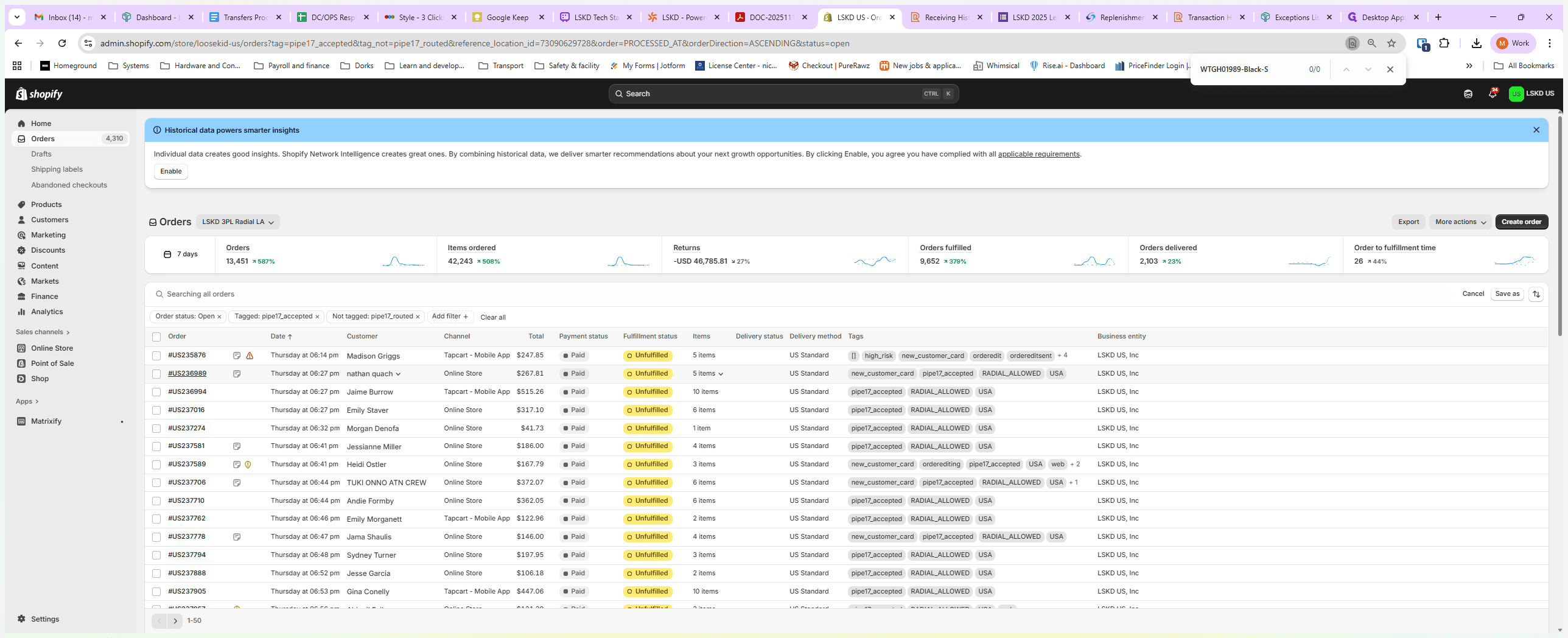
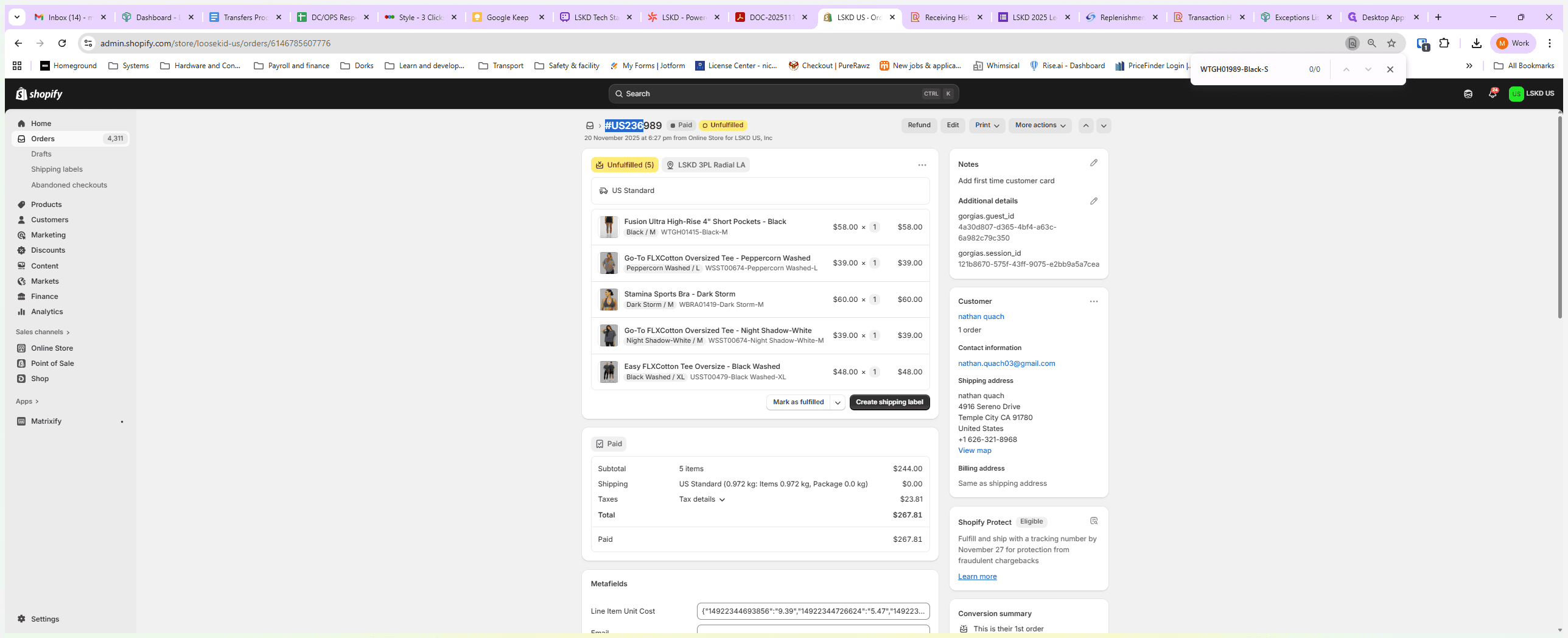
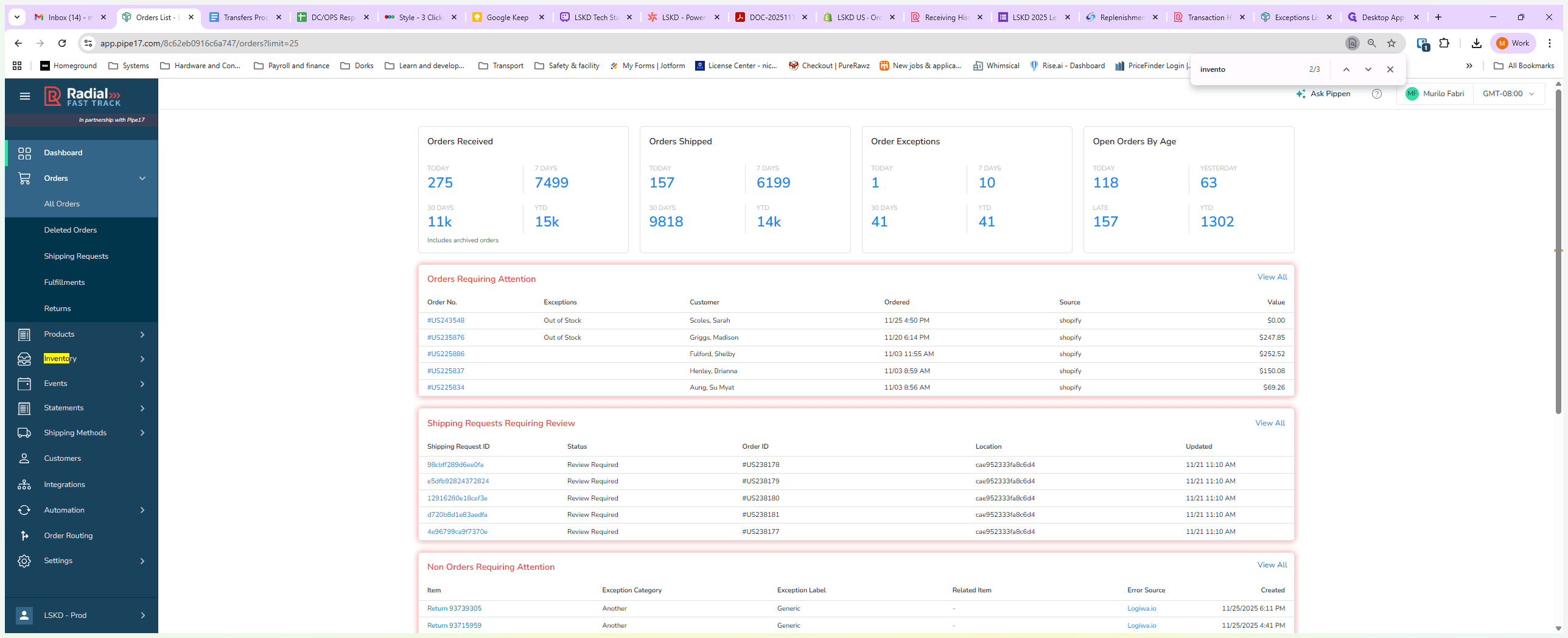
Go into the first order. You won't know what’s missing yet, so copy the order number, log in to Pipe17, and go to Orders, then All Orders.
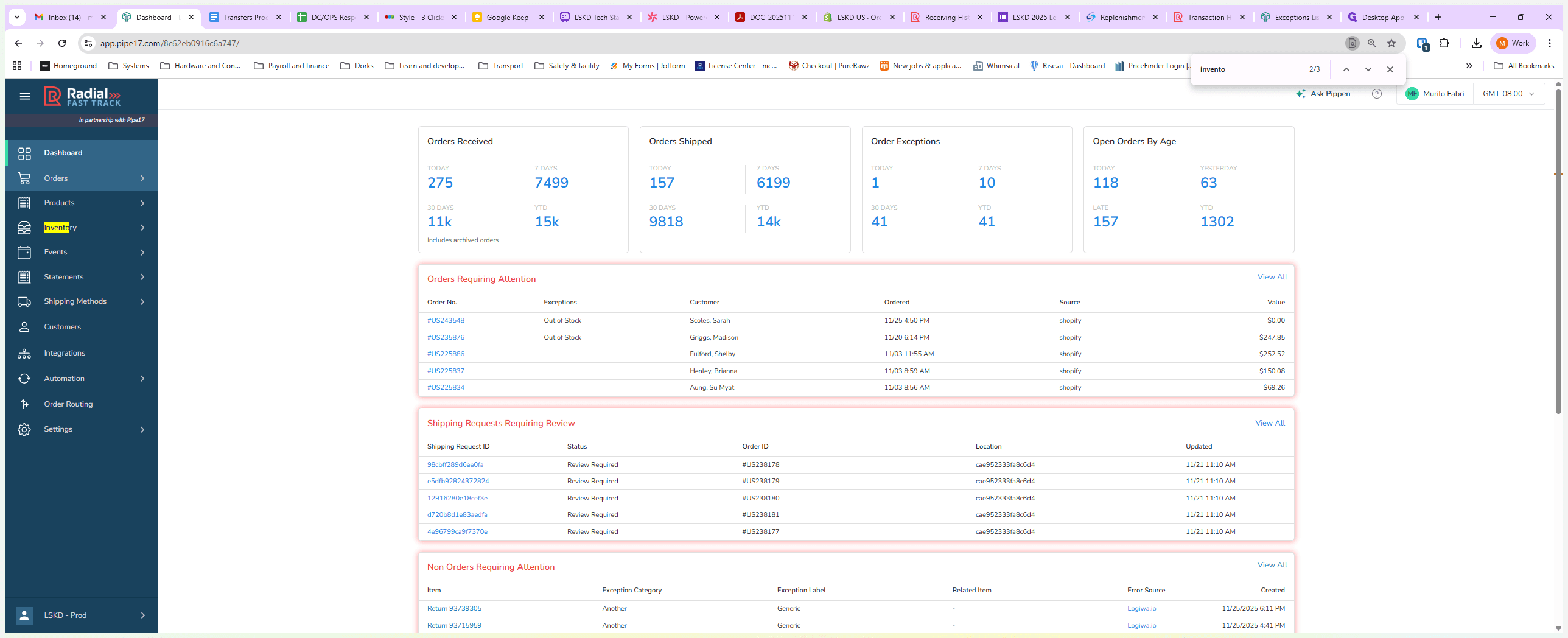
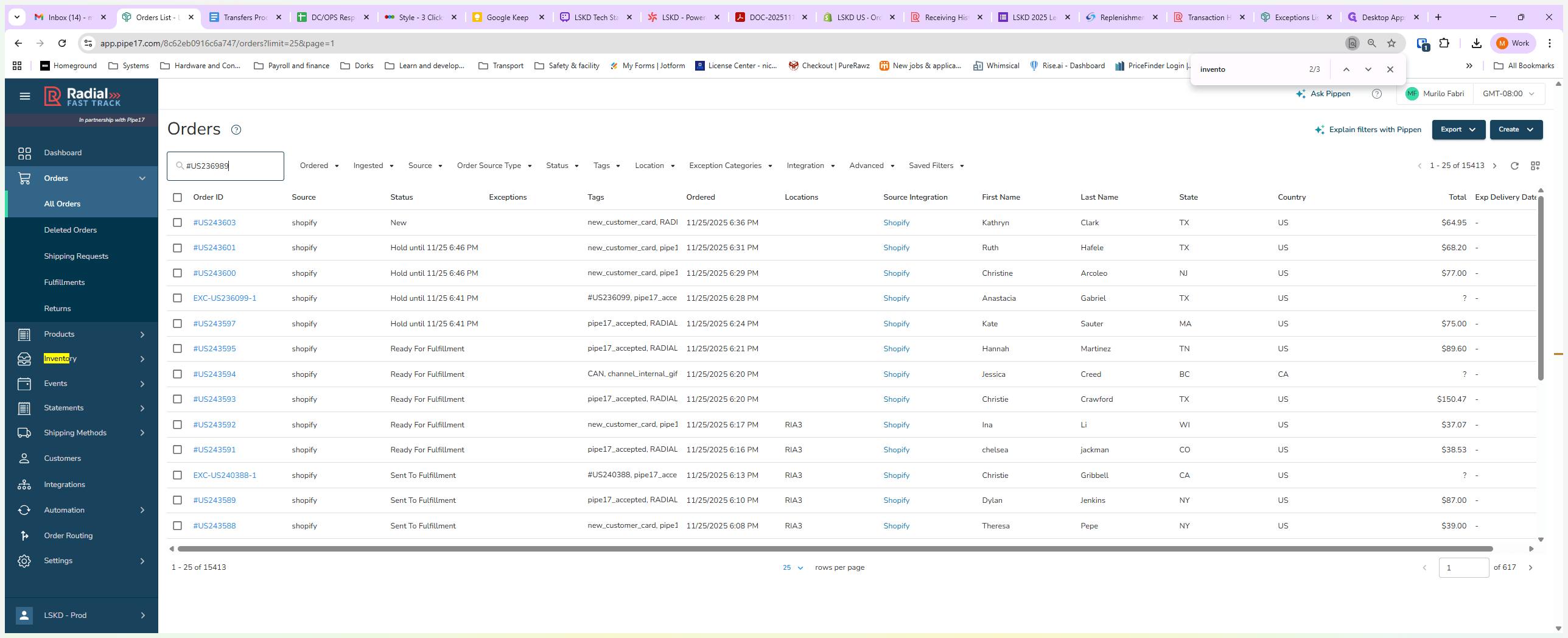
Search for the order number.
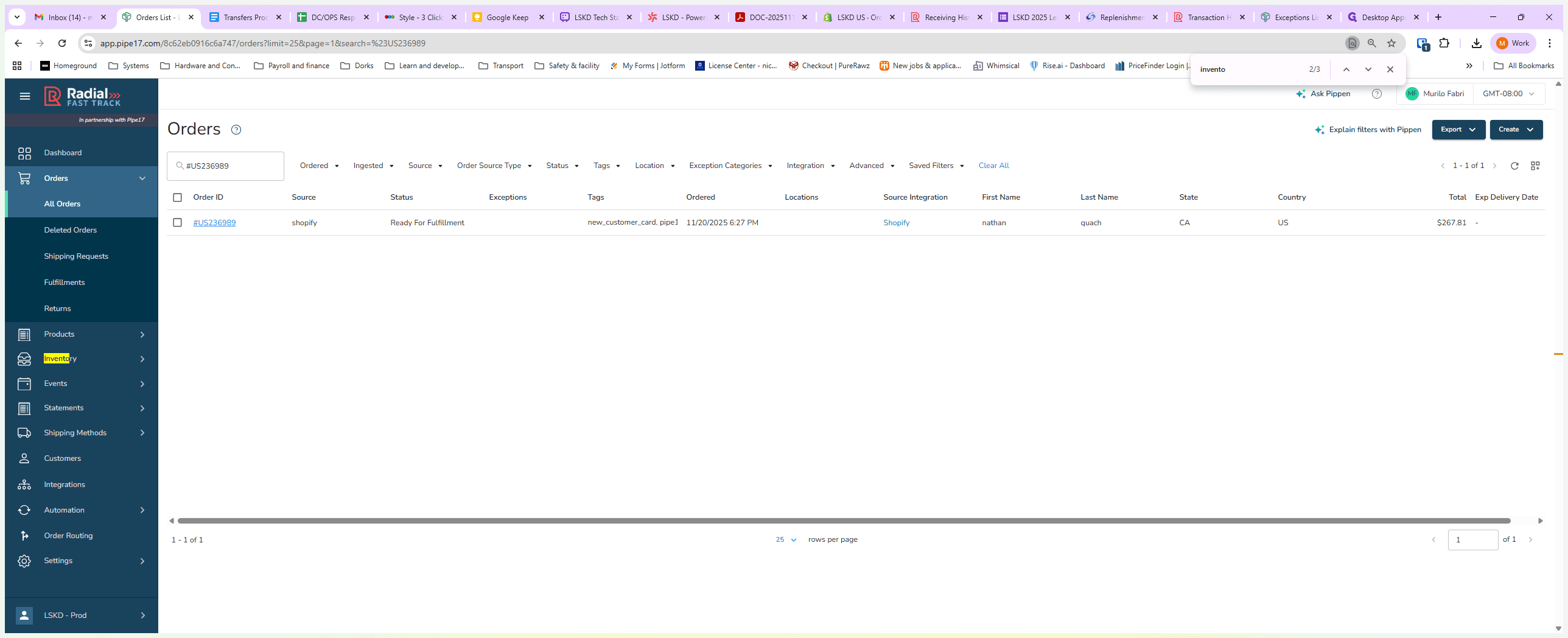
Open the order in pipe17
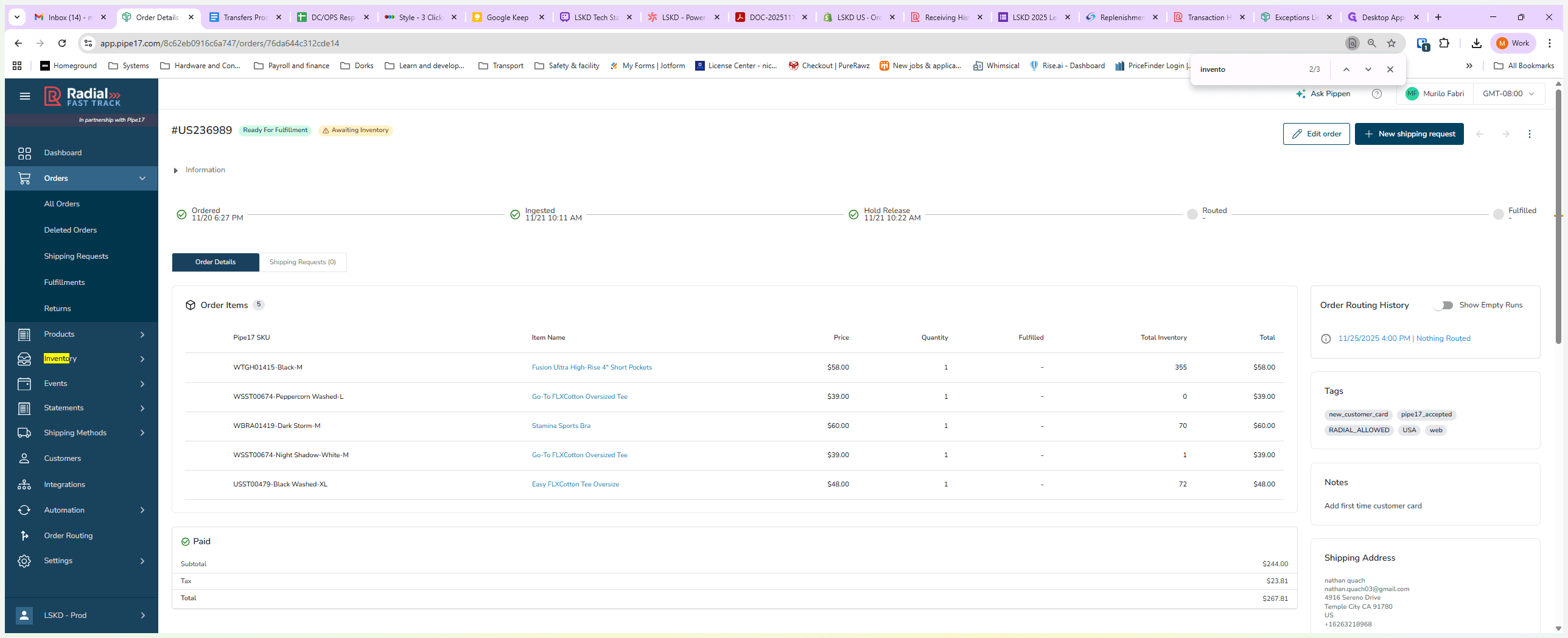
On the Order screen, you can see the quantity you have on order in the Quantity column. The total inventory available is shown in the Total Inventory Quantity column.
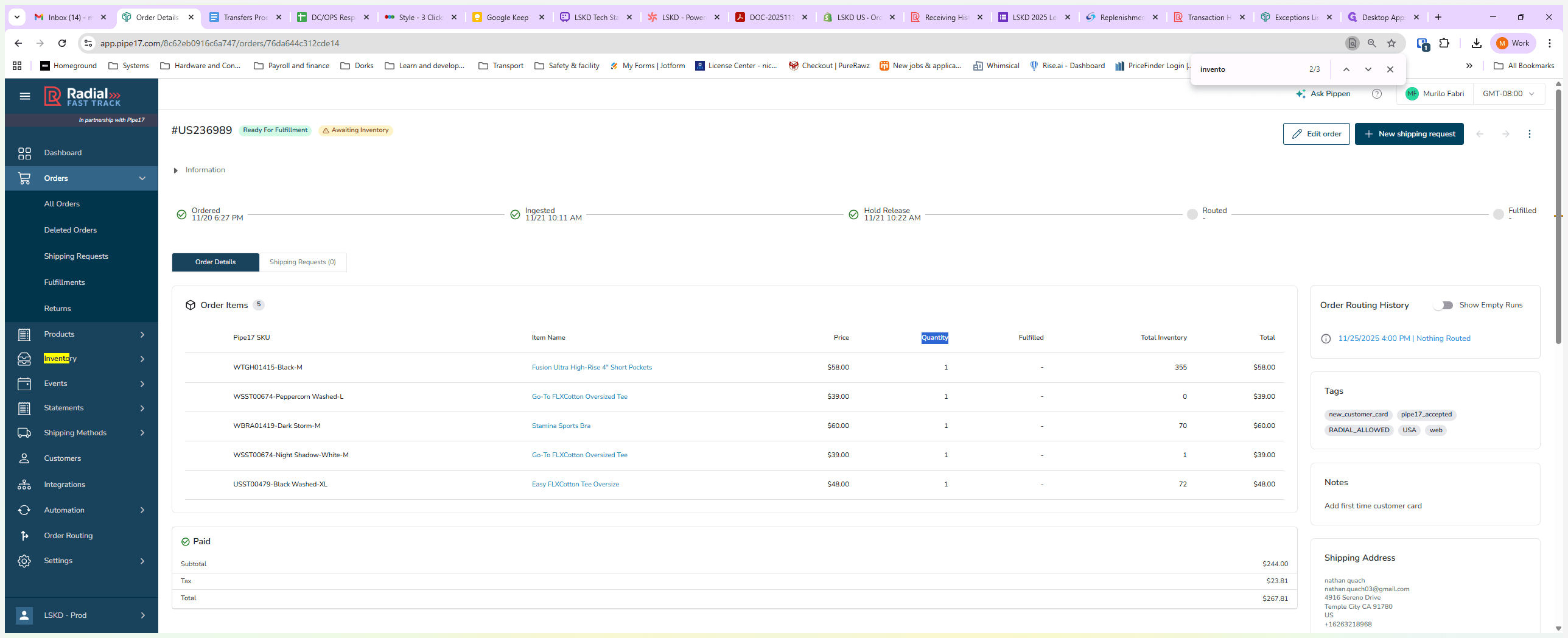
We have enough inventory for all other items on this order, but there is one item we do not have in stock.
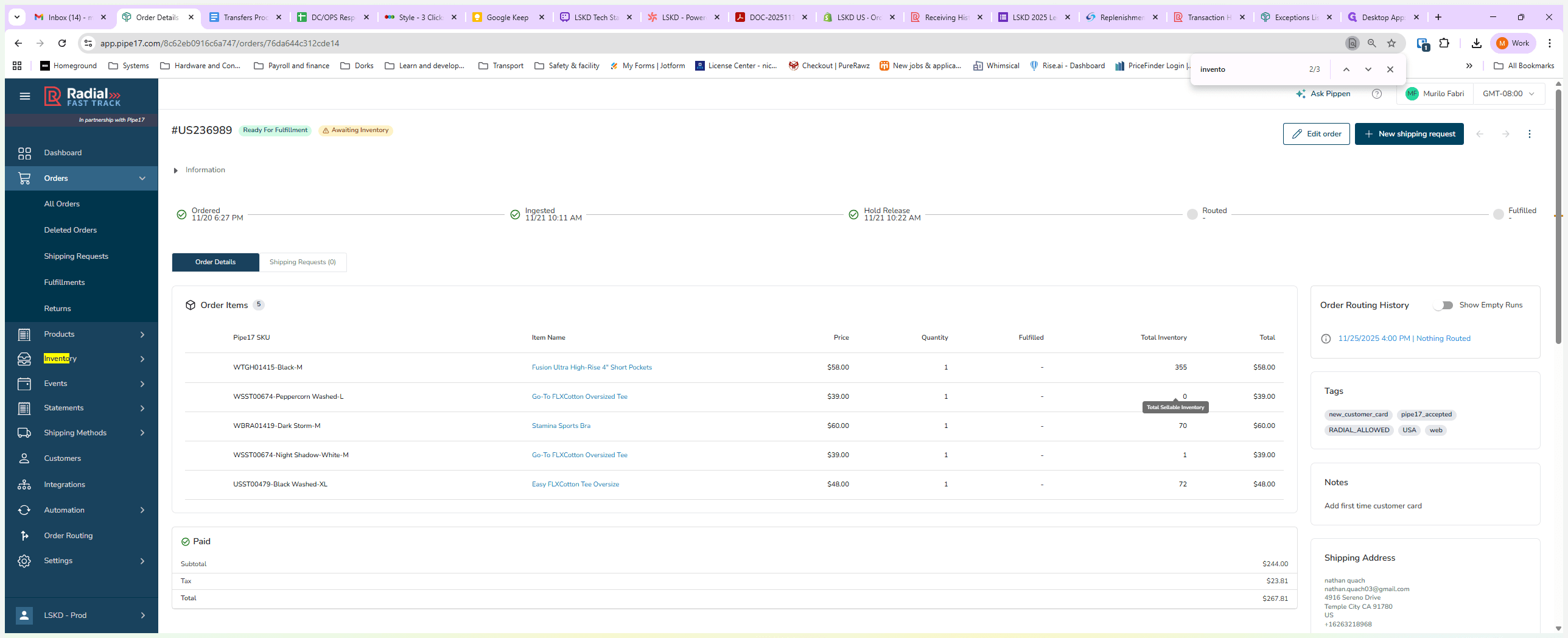
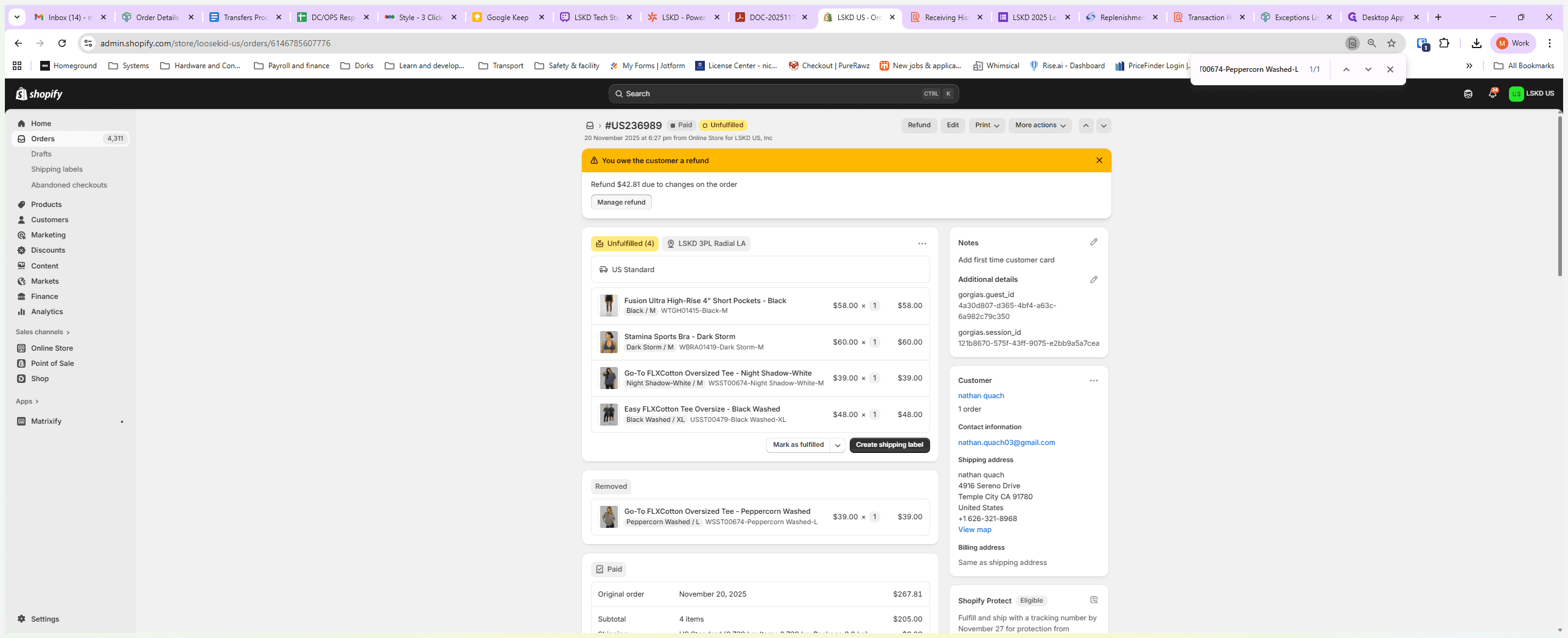
For this step, copy the SKU code, return to Shopify, and edit the order.
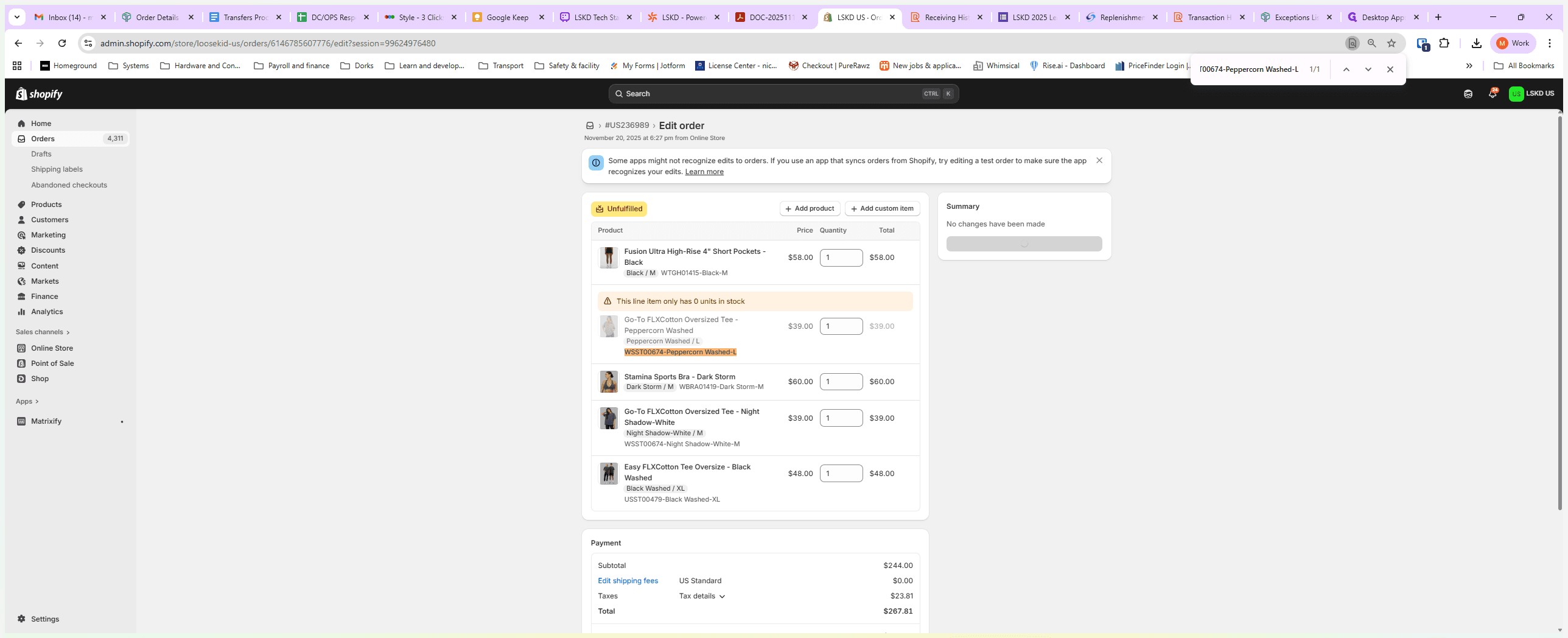
Identify the missing item (cmd+f or ctrl+f and paste SKU code), it will highlight the product in question to refund.
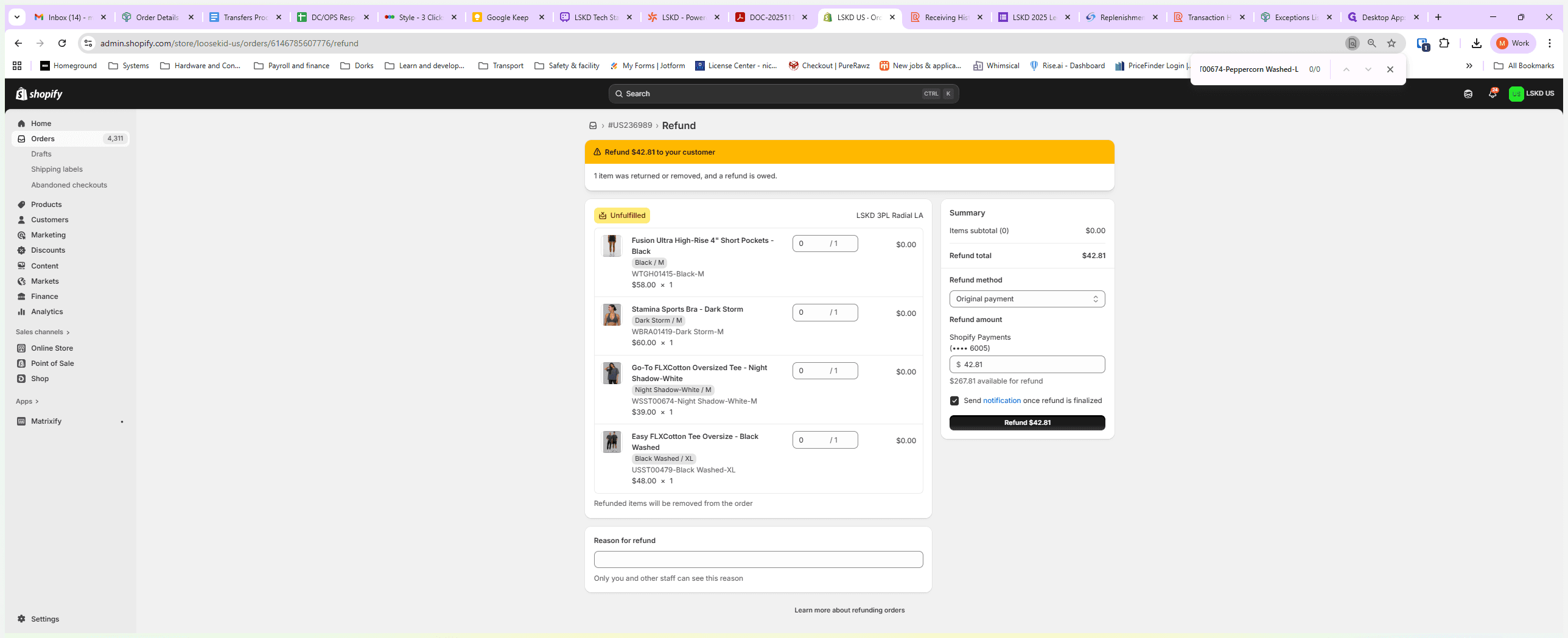
We will issue a refund, notify the customer, and update the order.
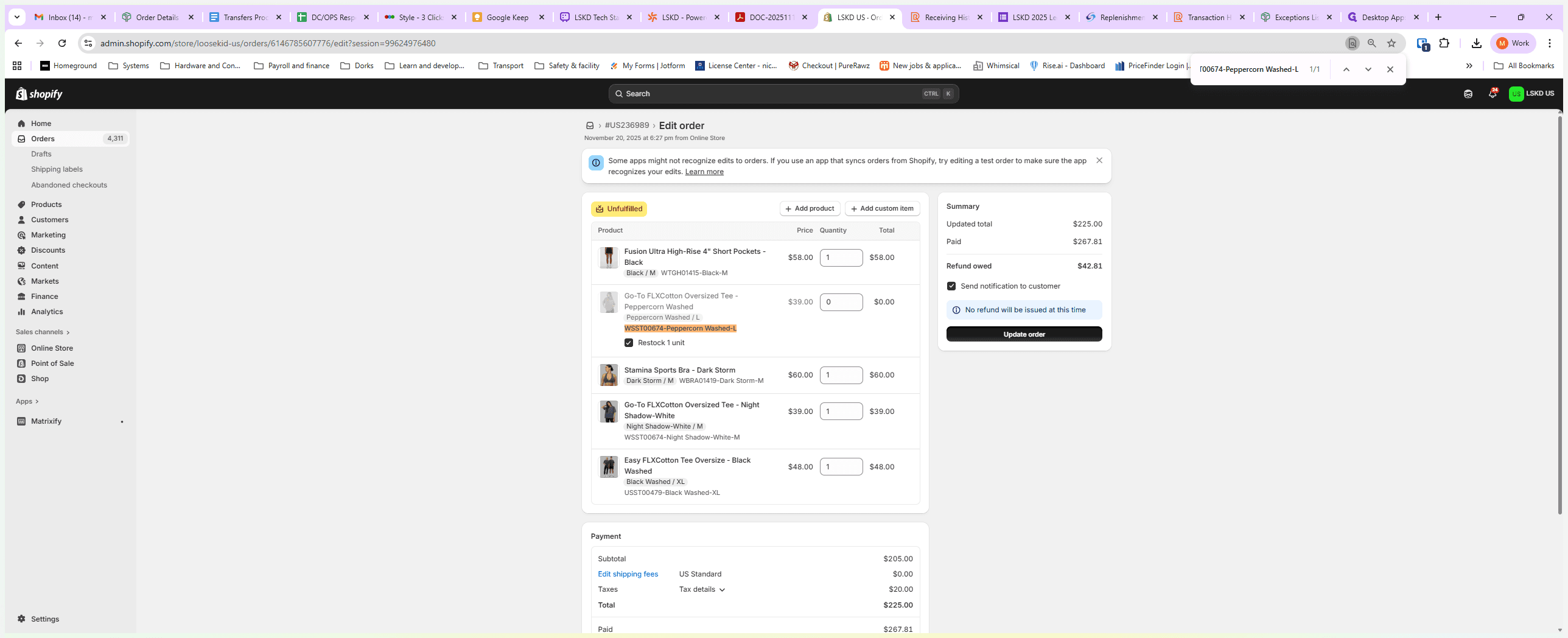
That is all you need to do for this step. Make sure we also refund the customer.
That's it.
That's it.
That's how you refund an oversold item for 3PL. This does not remove the Smartsheet process for when an item is missing from their warehouse. Those should just be actioned in shopify as they are already shorted in pipe17