How to Properly Track High-Ticket Dental Leads and Treatment Plan Values
Learn the essential steps for tracking high-ticket dental leads, entering treatment plan values, and ensuring accurate data is sent to Google for better lead quality and conversion tracking.
In this guide, we'll learn how to update and manage lead information after a consultation and treatment plan has been agreed upon. This process includes entering the correct opportunity value, adding treatment details in the notes, and moving the lead to the appropriate column. These steps help ensure accurate reporting and communication with Google about the value of each patient.
Let's get started
All right. I'll make a quick video example to show you. We have the contact and the lead entered here. Once they have had their consultation and treatment plan, and they agree to proceed, they need to be moved into the relevant column.
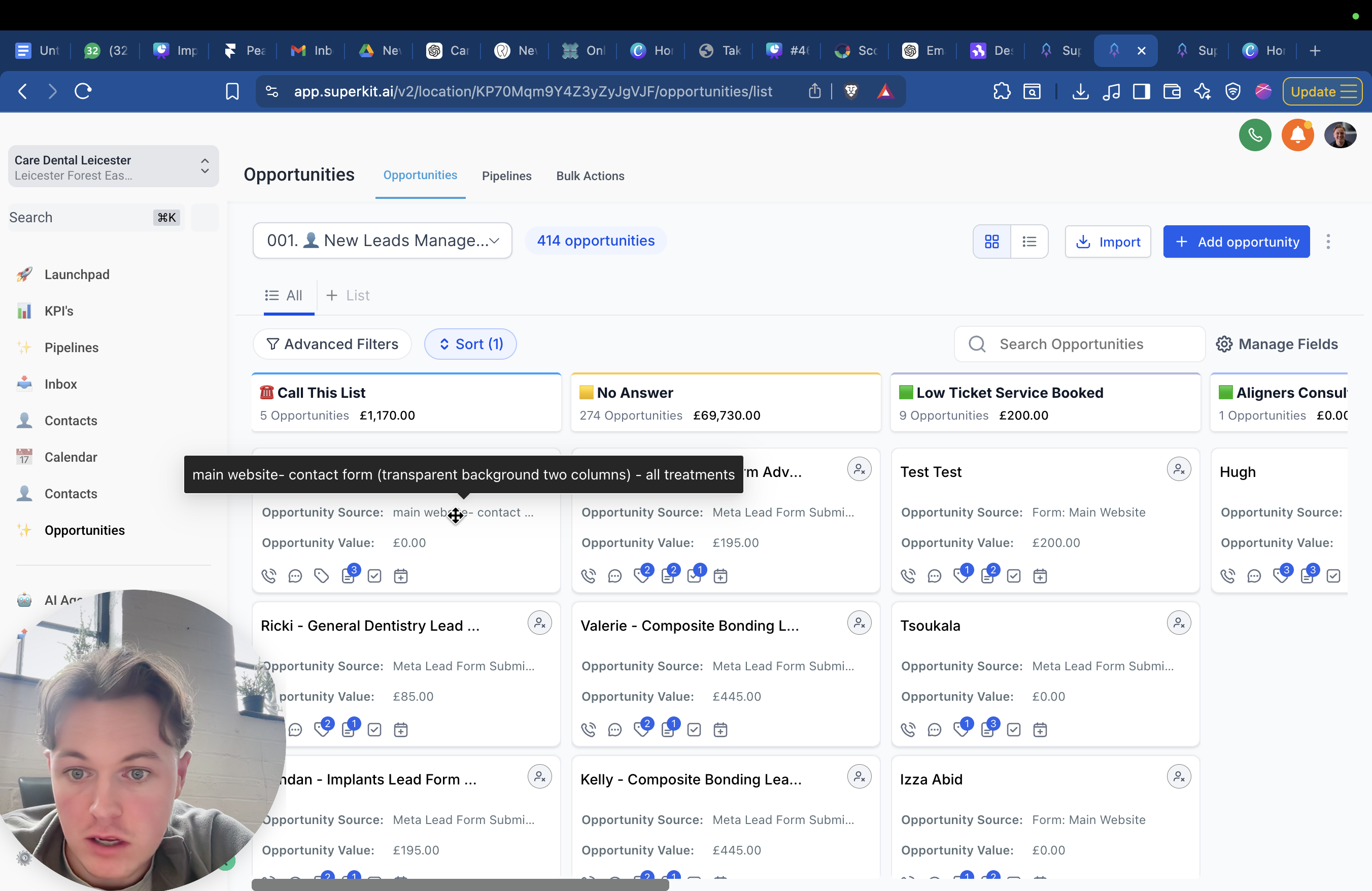
If it's implants, cosmetic procedures, or other high-ticket items. I would put them in high ticket since these are consultations. So, I'll place them in the high ticket category. Um, and then s- oh, actually no. This is good that I've done that, because what you need to do before they go into the column is the most important step. I've shared this on email and SlideShare many times. I almost forgot to do it myself.
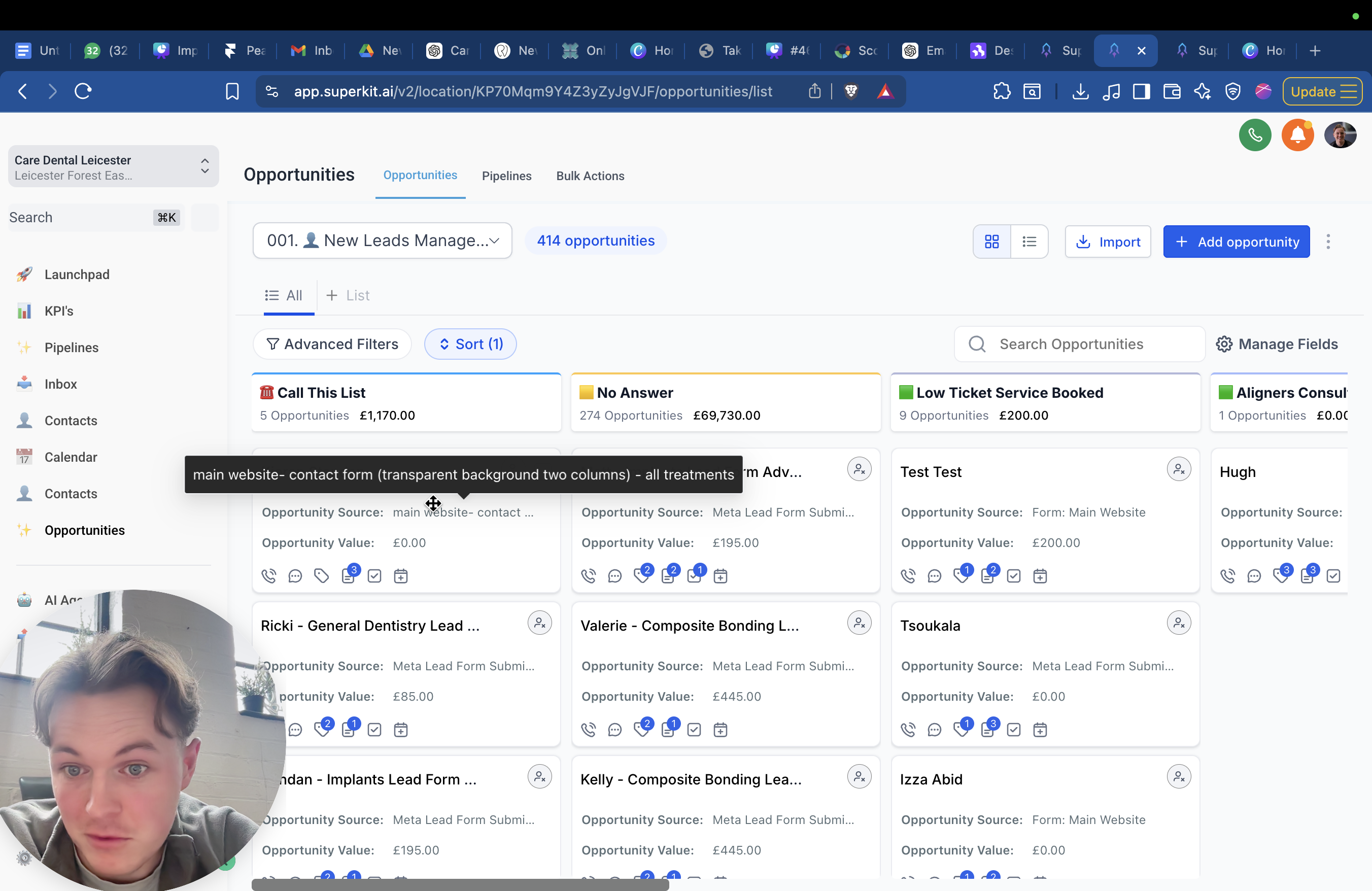
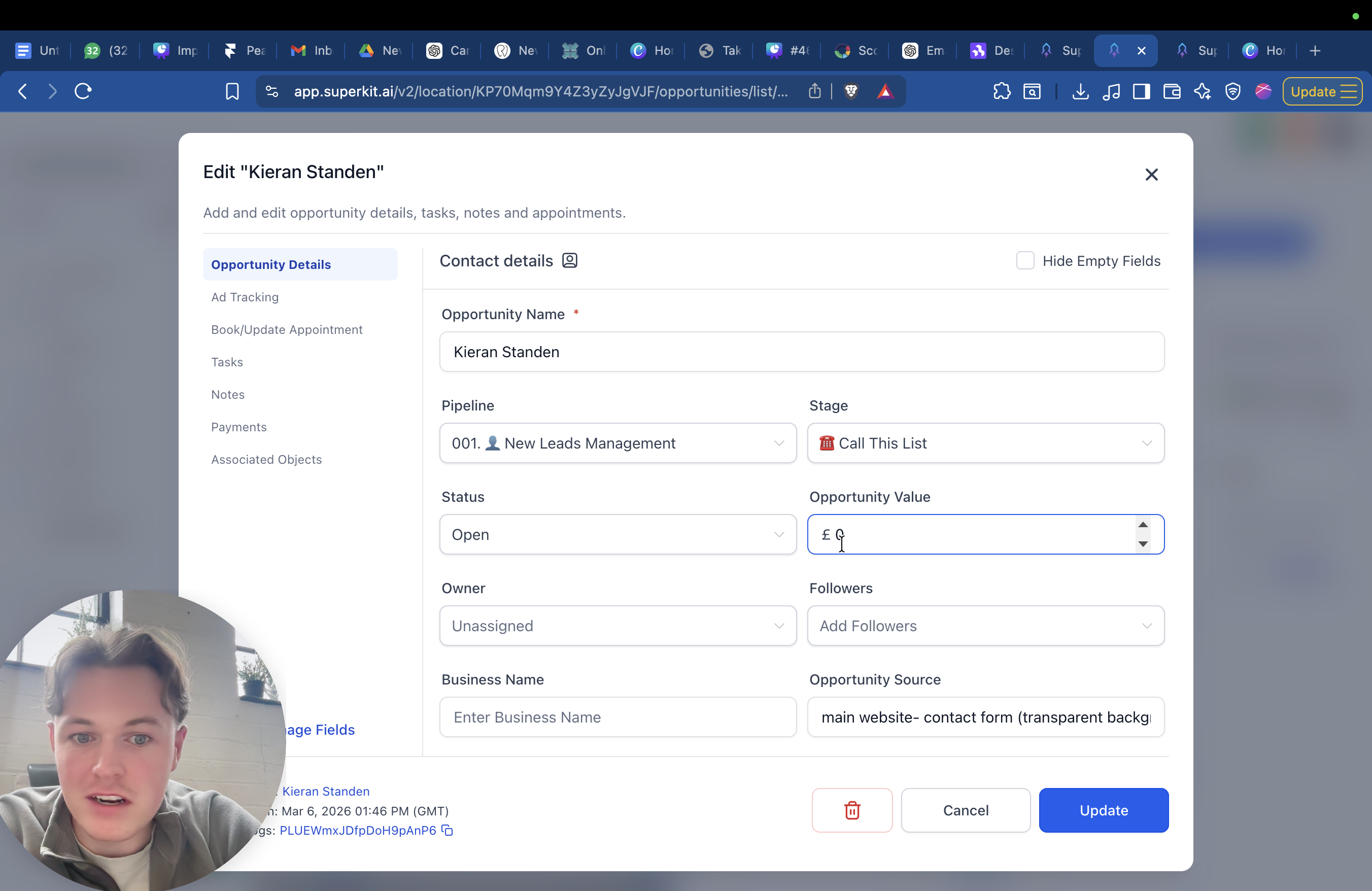
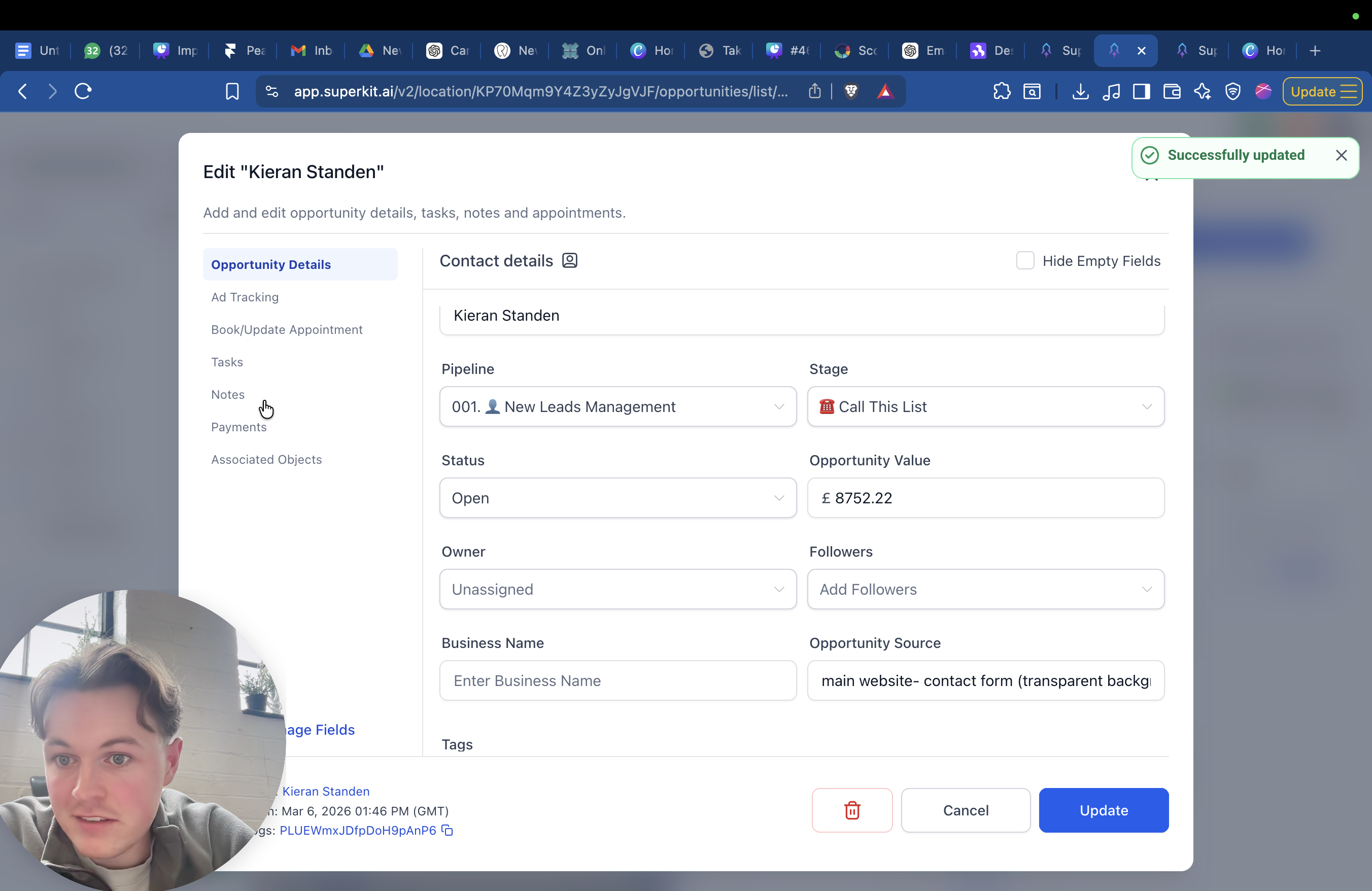
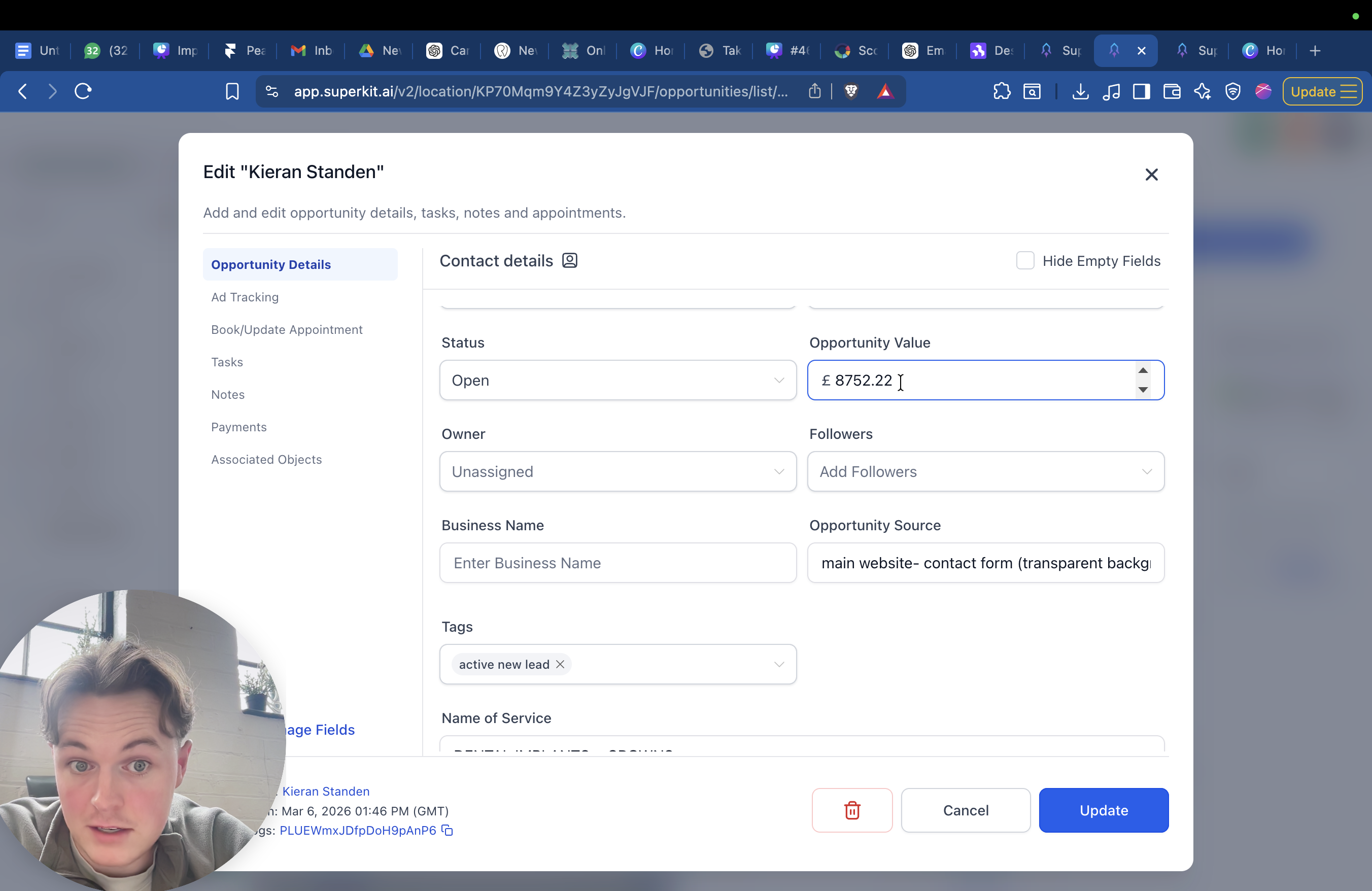
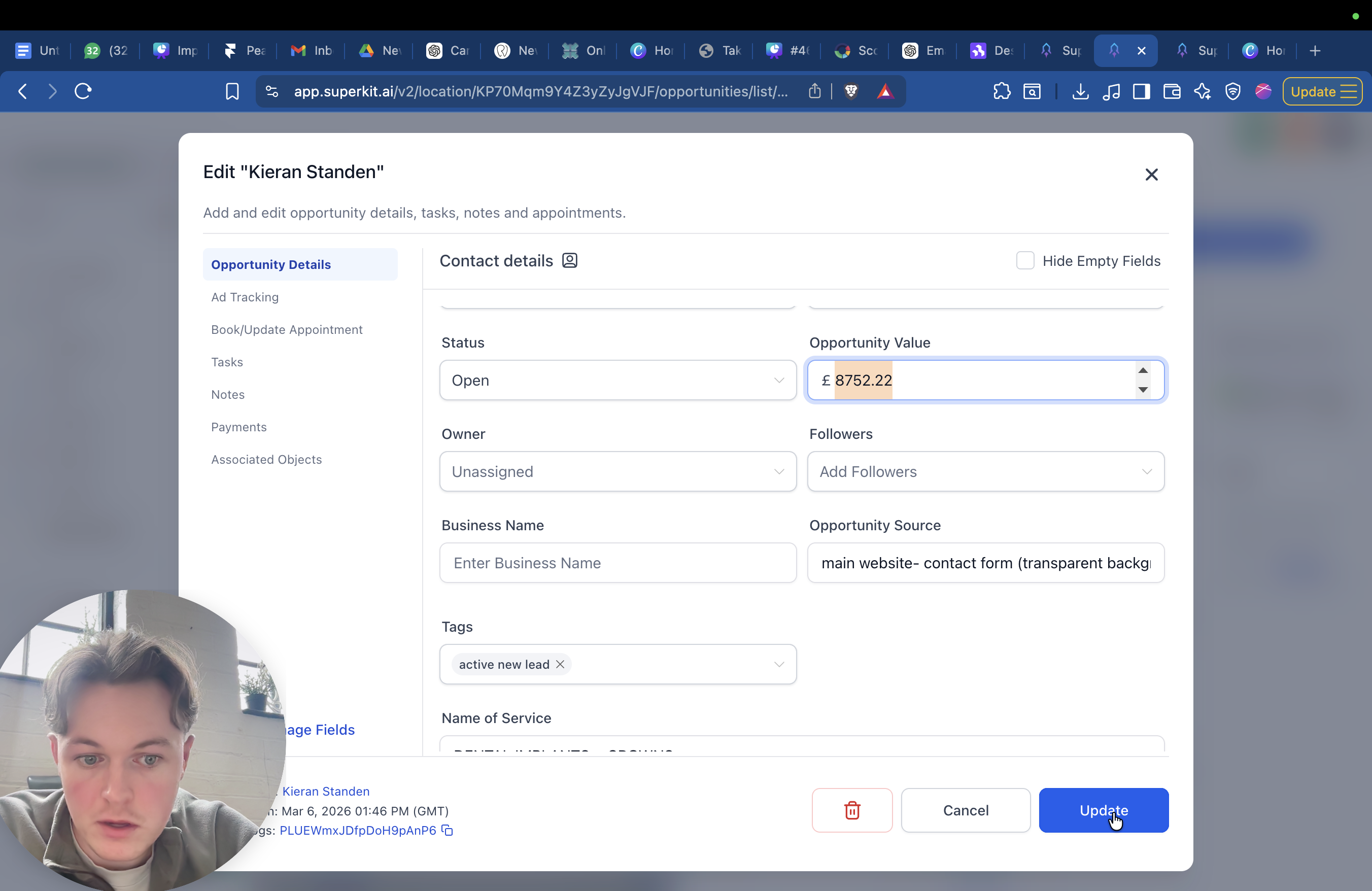
You need to enter the opportunity value.
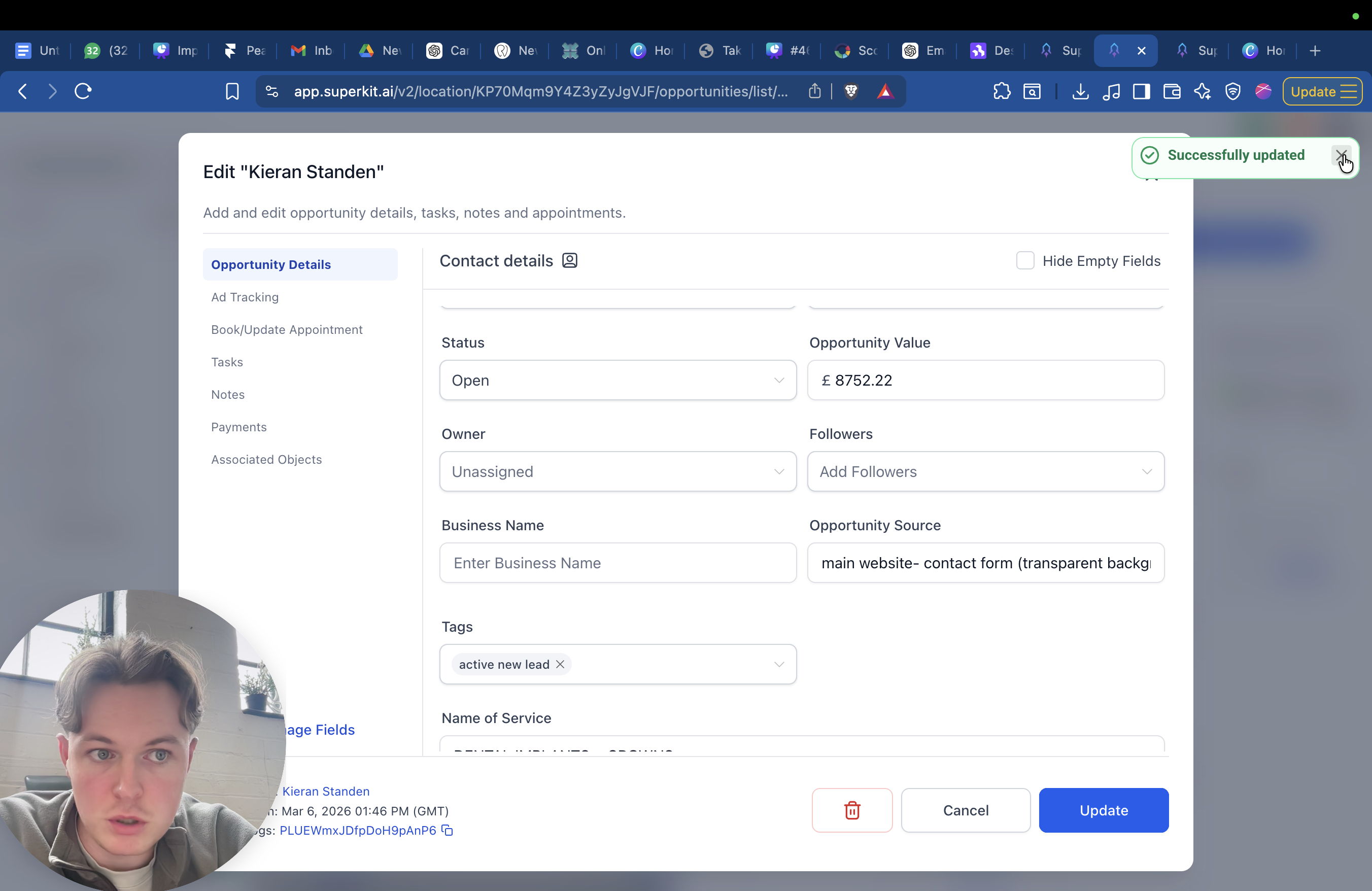
If their treatment plan includes three ceramic crowns, an implant, a root canal, or any other procedures, the total value of the treatment plan should be entered here. Let's say it's £8,752.20. Enter that amount, then click on dates.
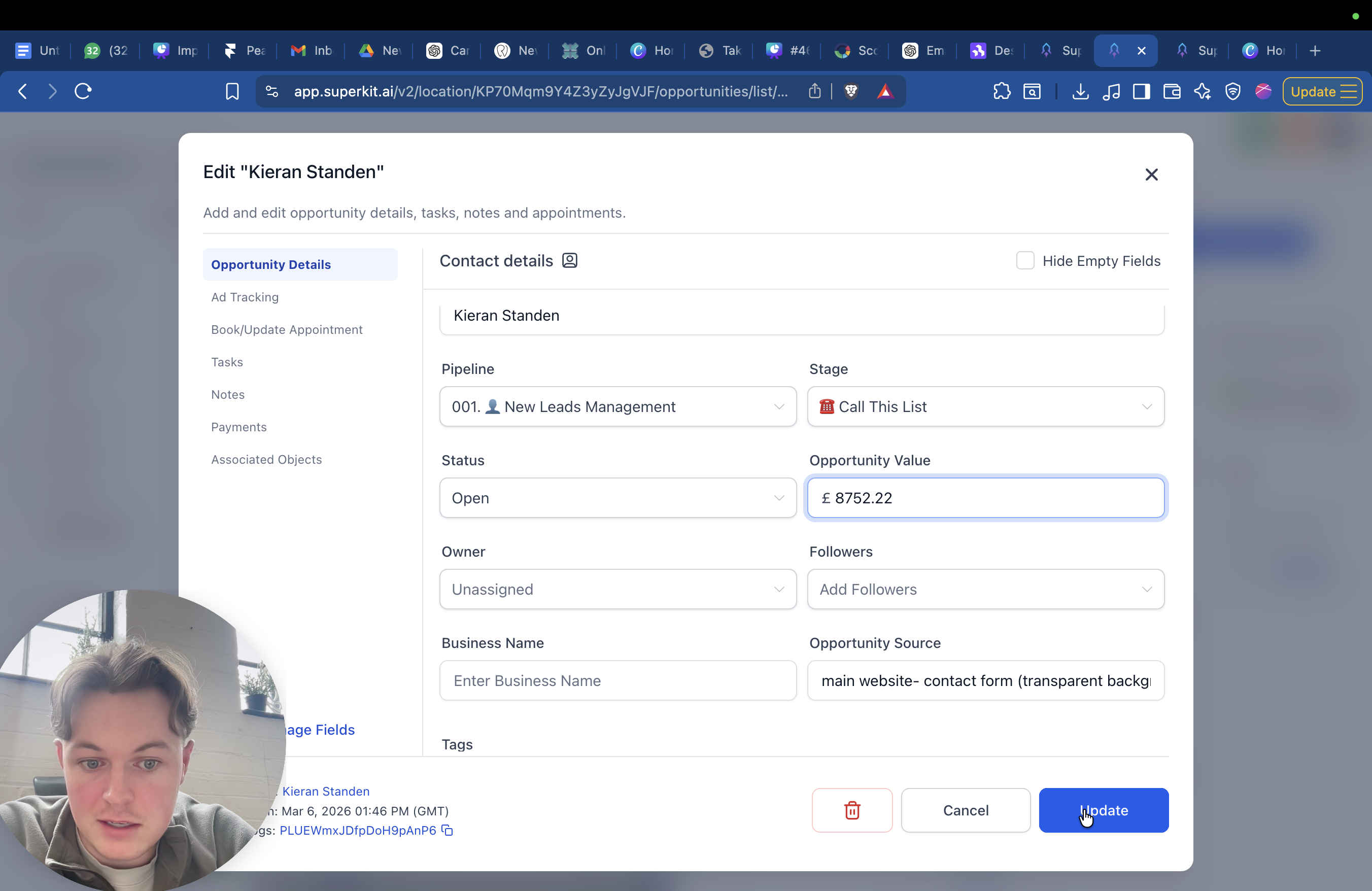
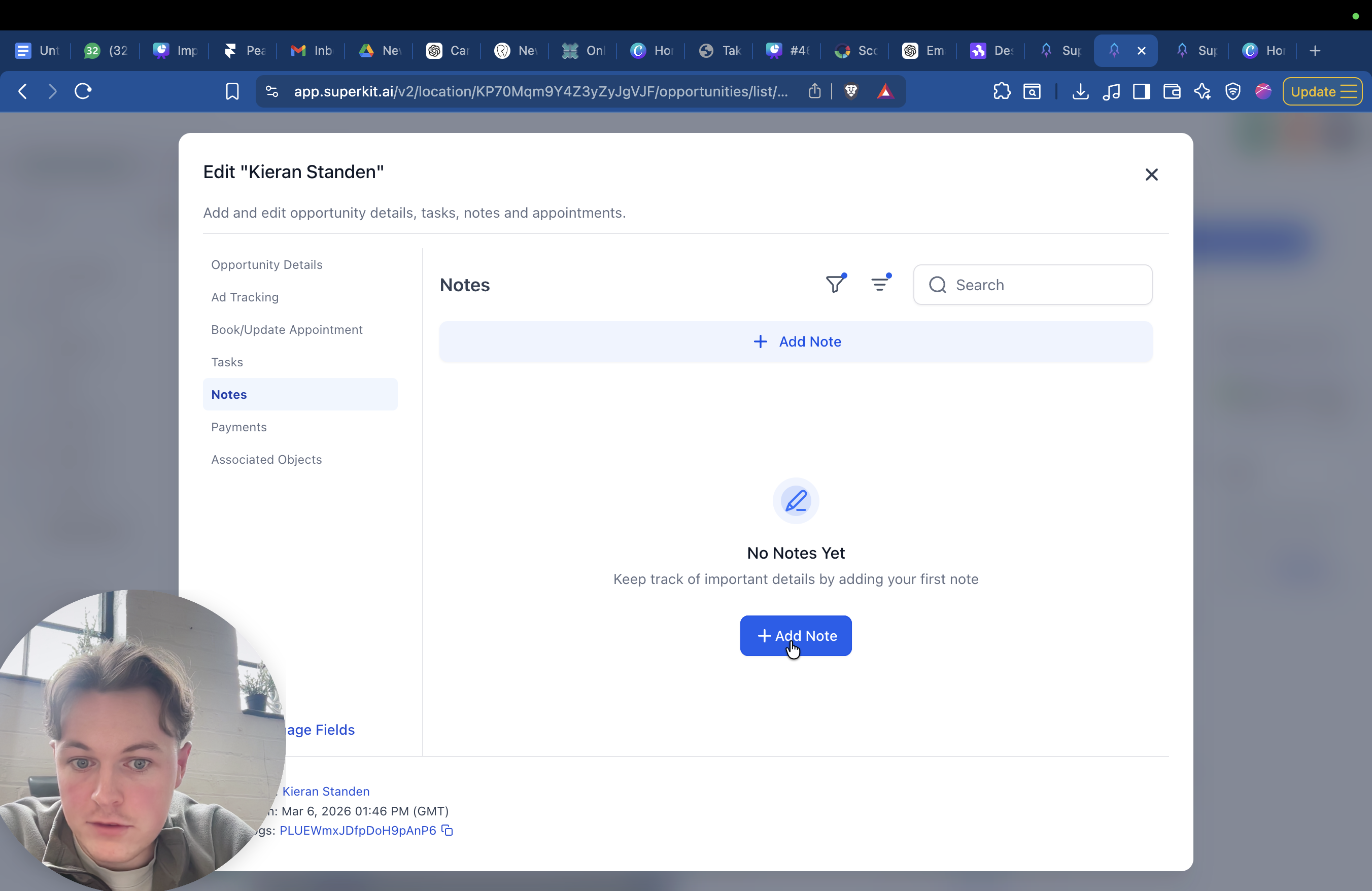
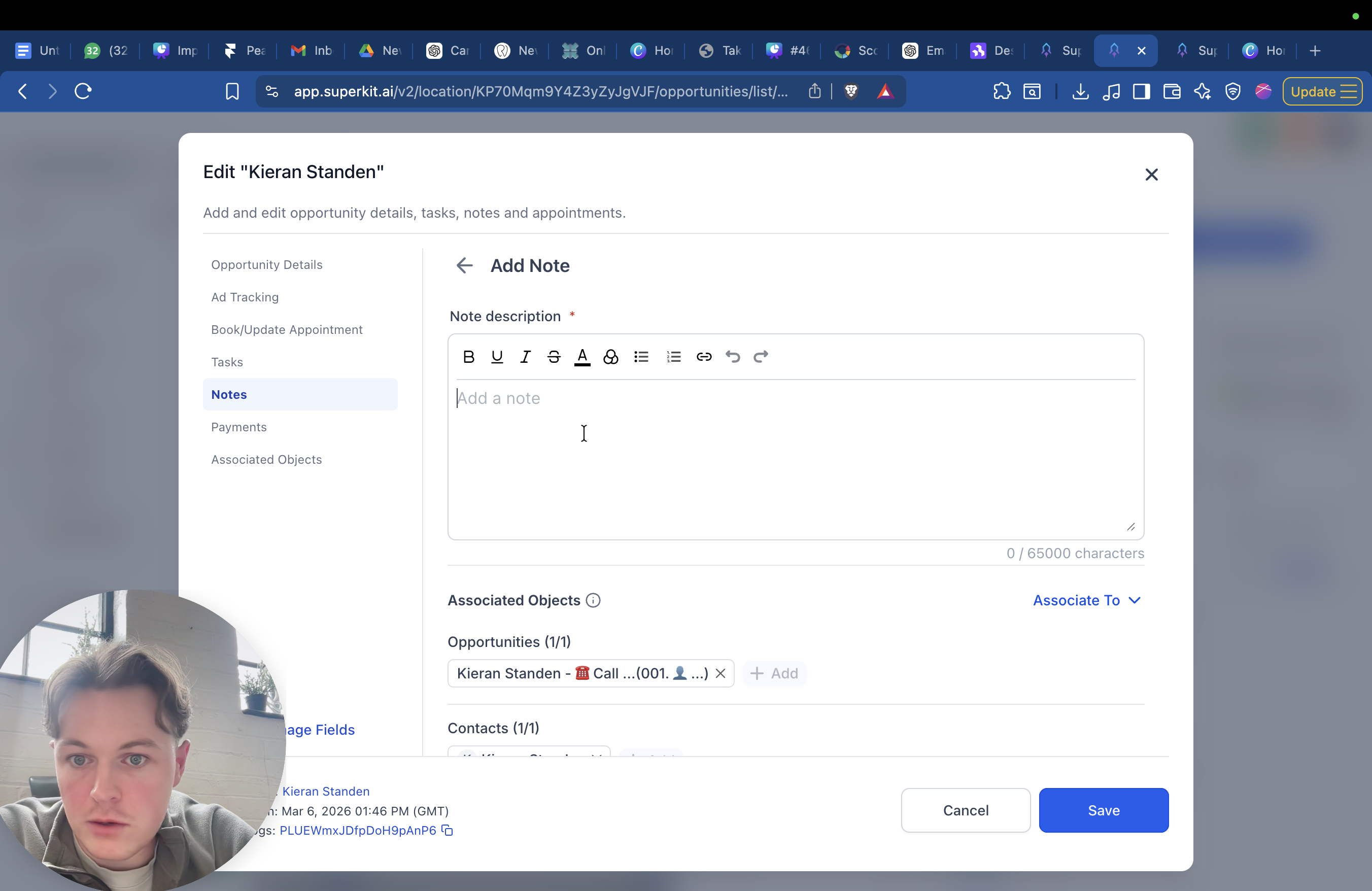
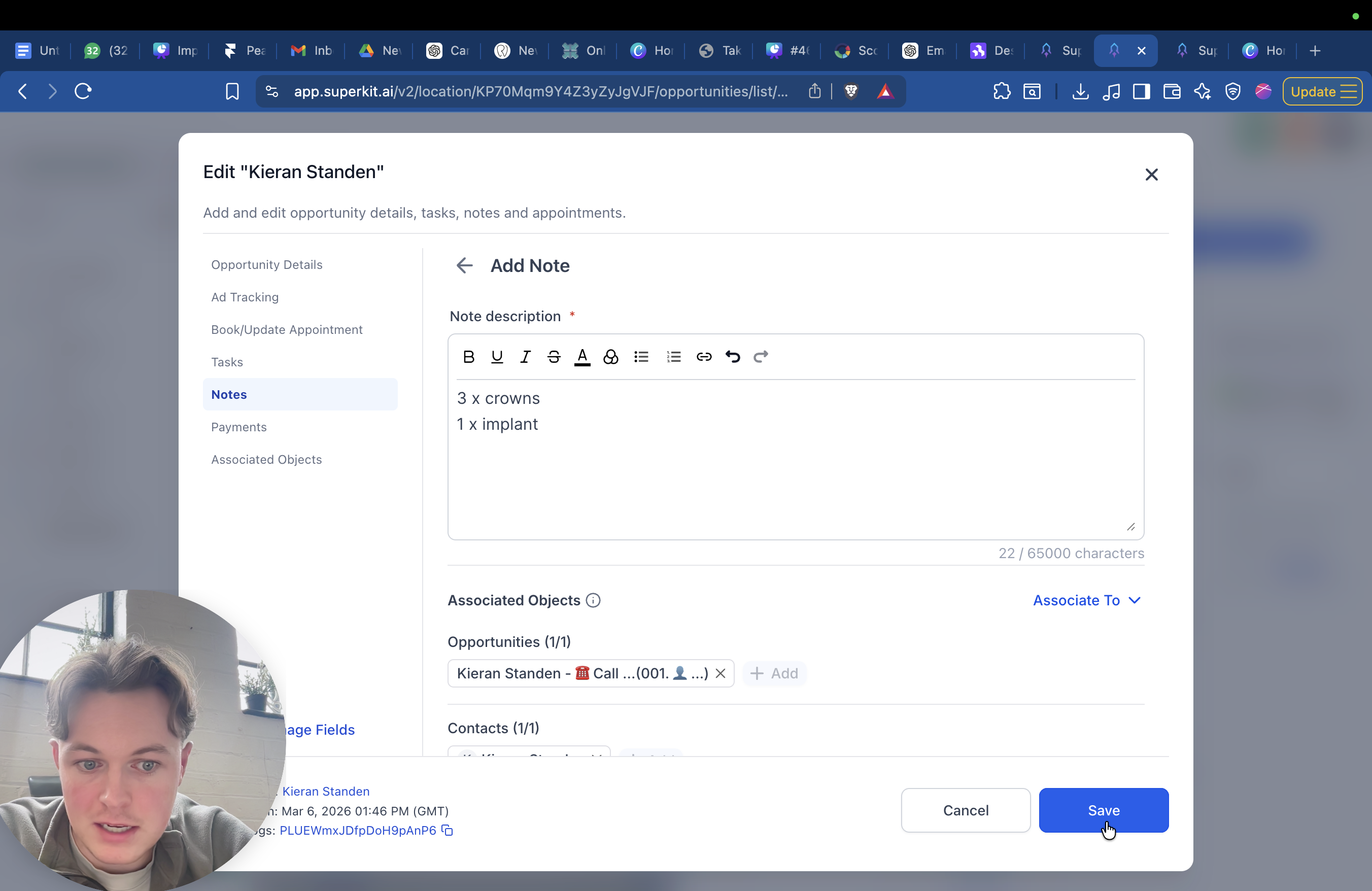
This part is optional, but in the notes, I would add something like, "Three crowns, one implant." This way, when we review it quarterly or monthly, we can see exactly what is included.
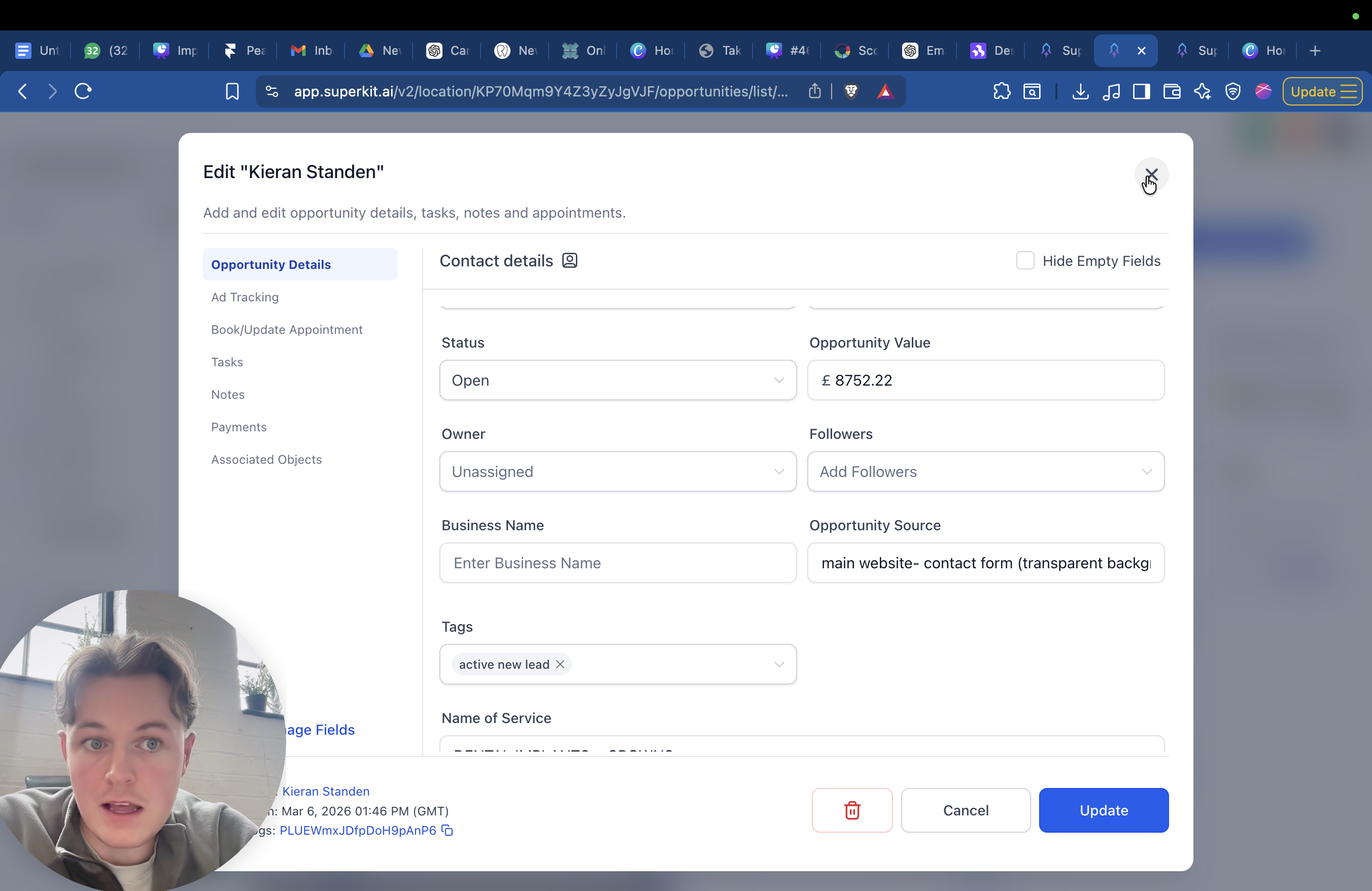
The more information we provide, the more we can give to Google. It's worth adding the notes here as well. Hit save, then discard the change if you've already done it.
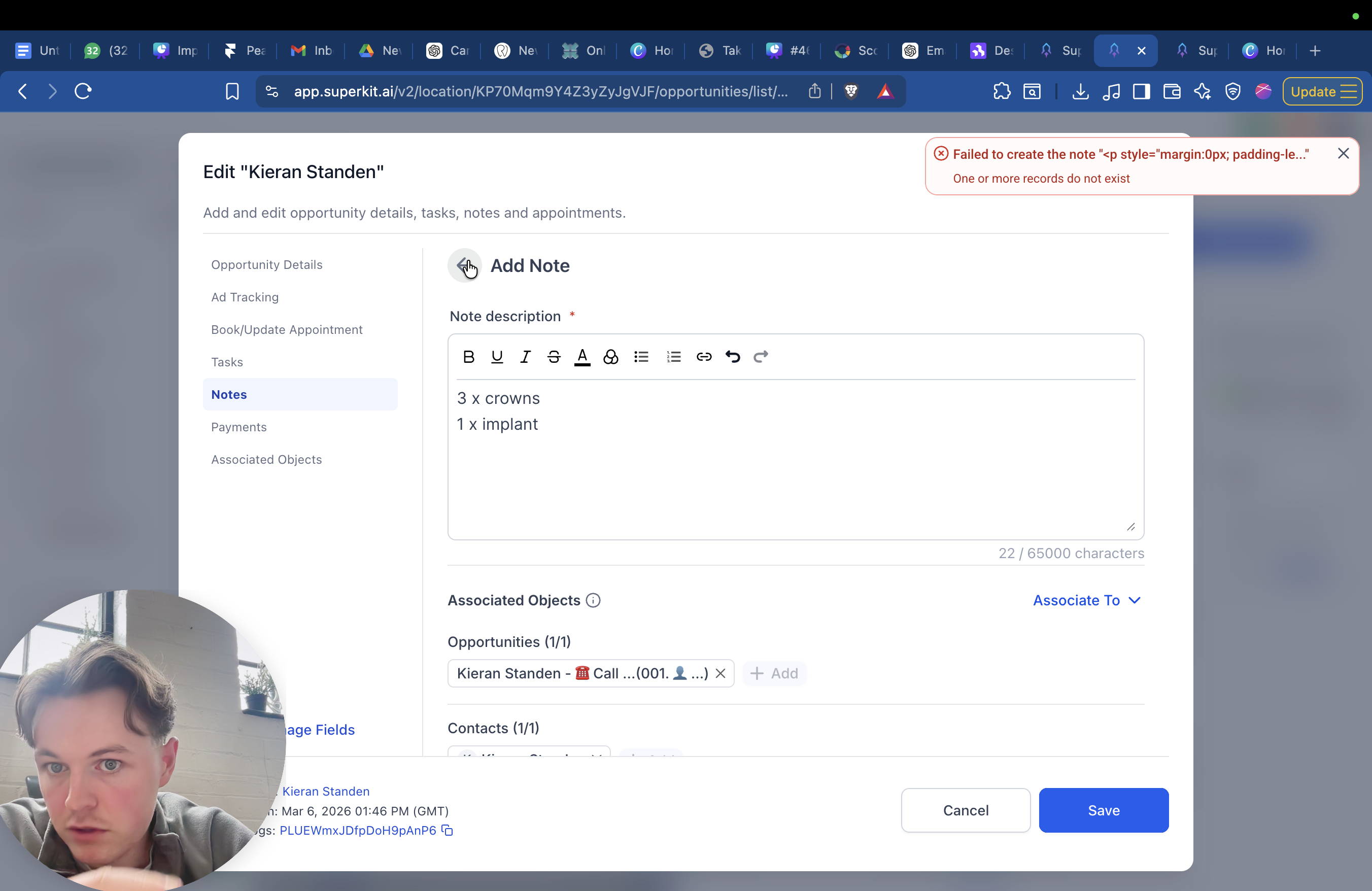
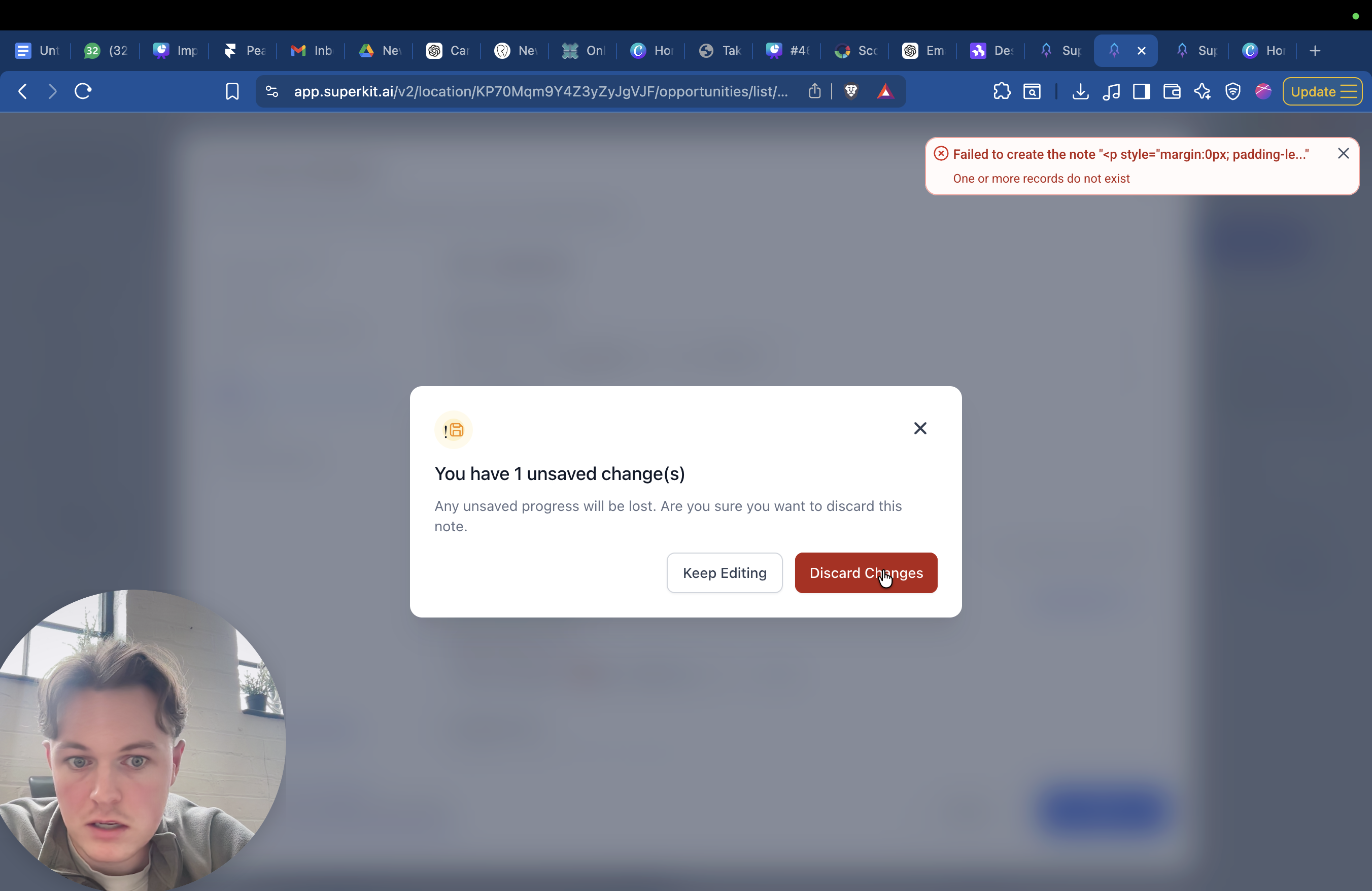
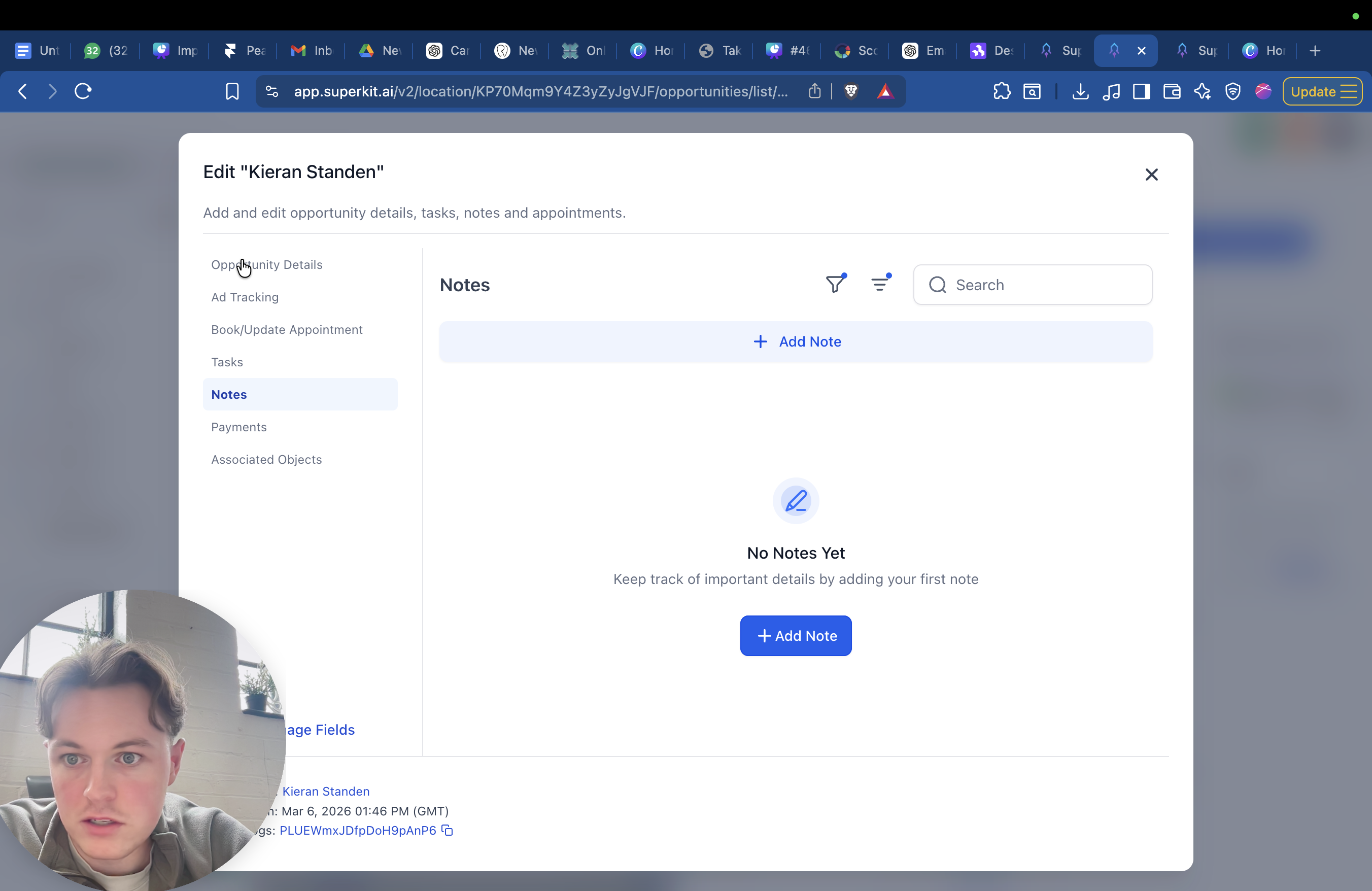
Make sure the value is entered. Double-check, because this is the most important step.
Once they are moved to the closed won column, the information is sent to Google. That cannot be reversed. If their value is zero and they've just signed up for a 10K treatment plan, you're telling Google it's a bad lead worth zero, even though they actually converted to 10,000. It will tell Google, "This converted to zero pounds, so don't send us this patient again or this type of lead again." This is not what we want. Once you've entered the value, drag them into other high tickets, for example.
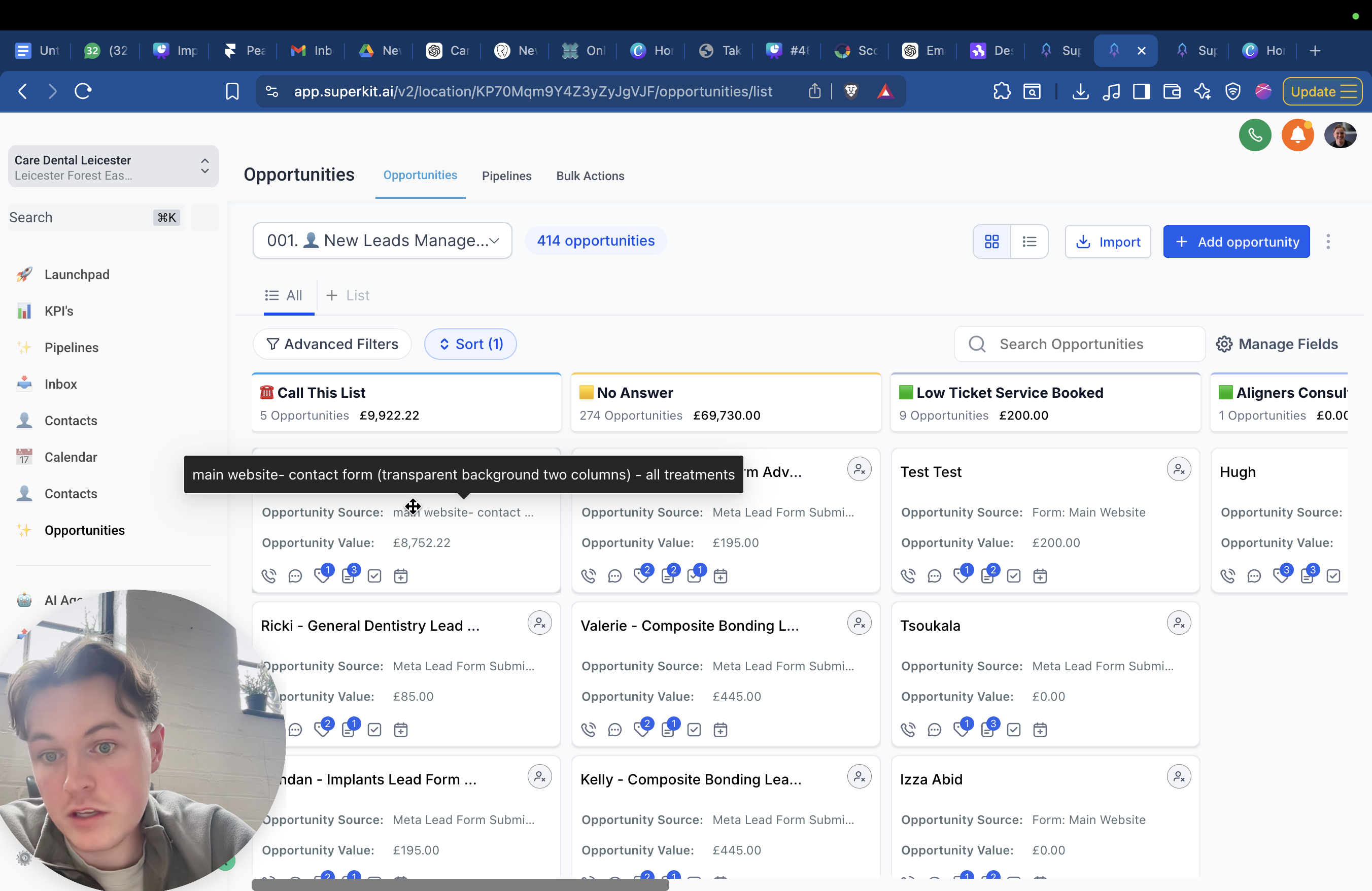
That's probably the best place to put it. Any of these four green ones here basically tell Google, "This is a good patient." That's it. Bye.