How to Pull a Property Title in LTSA: Step-by-Step Guide
Learn how to pull a property title in LTSA with this easy step-by-step guide. Find out how to search, purchase, and download property titles, parcel information, and miscellaneous notes for properties.
In this guide, we'll learn how to pull a property title using the LTSA system. This process helps you access important details like the title, parcel information, and notes for a specific property.
You will see how to search for a property, review the results, and download the necessary documents.
Let's get started
Hi, I'll show you how to pull the property title in LTSA. First, go to these searches. Then, click on "Title Search."


For the file reference, you type the property address. Let's use 244 Tahoe Ave. Then you need to enter the parcel identifier, or PID.
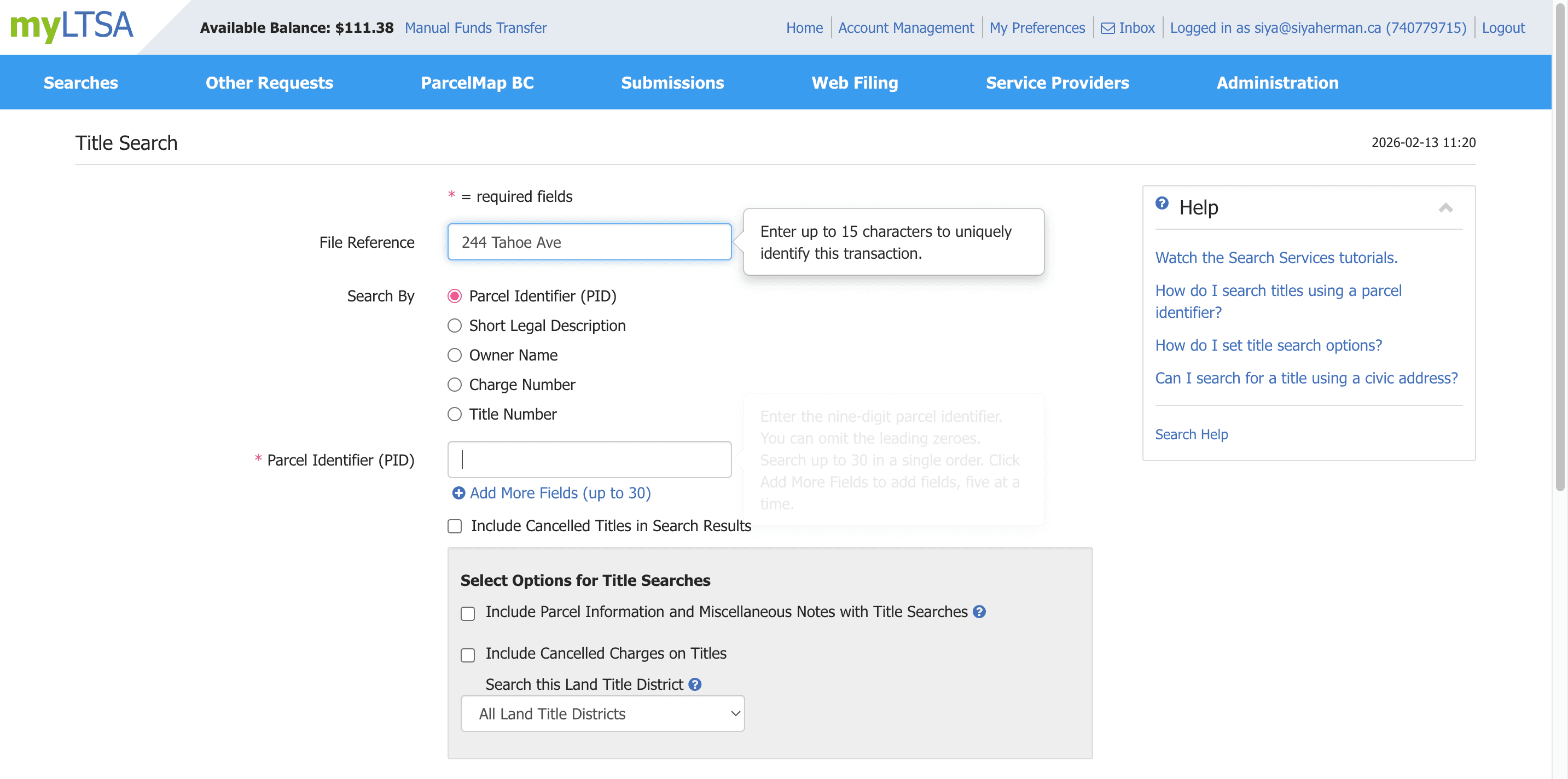
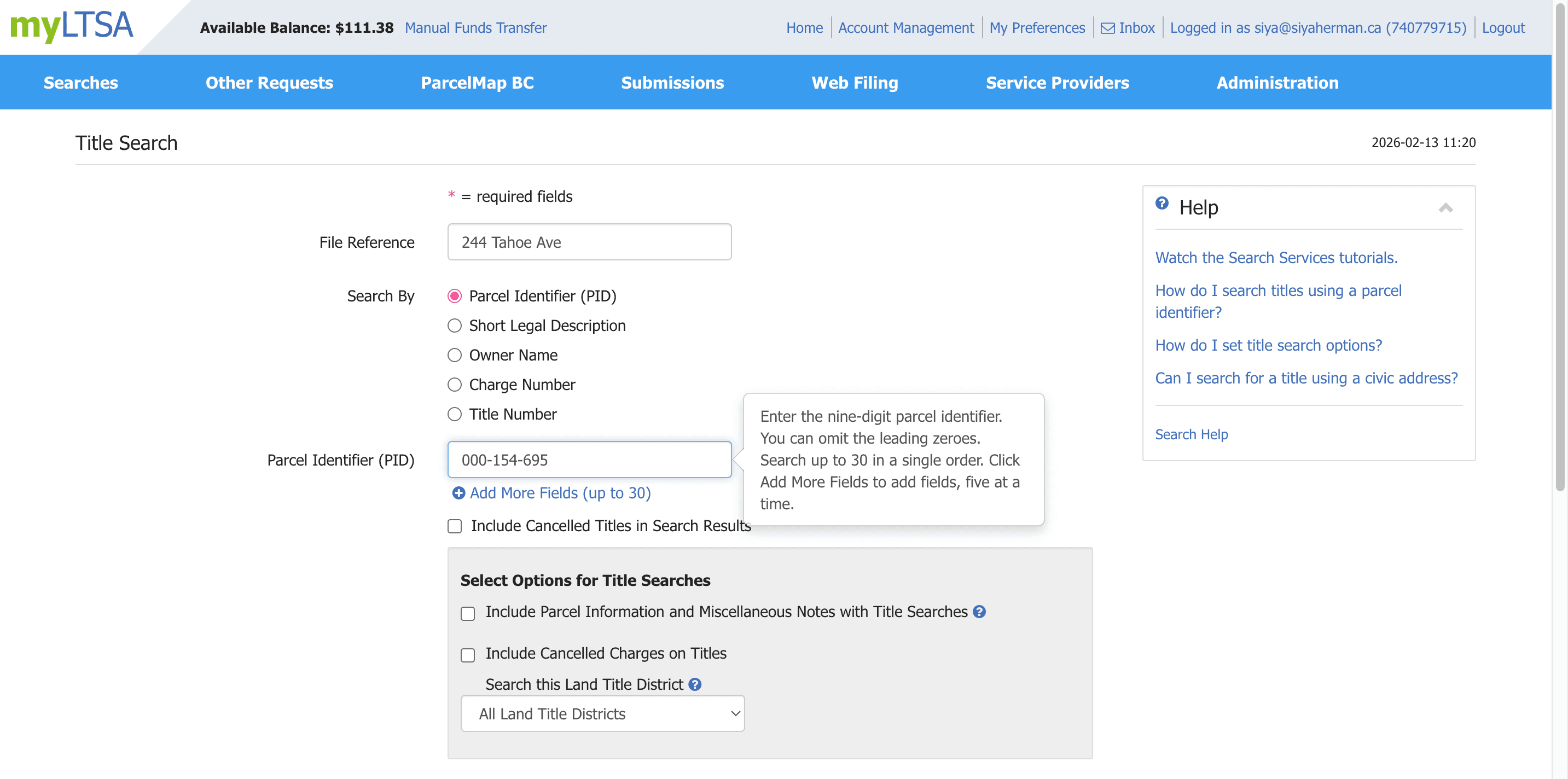
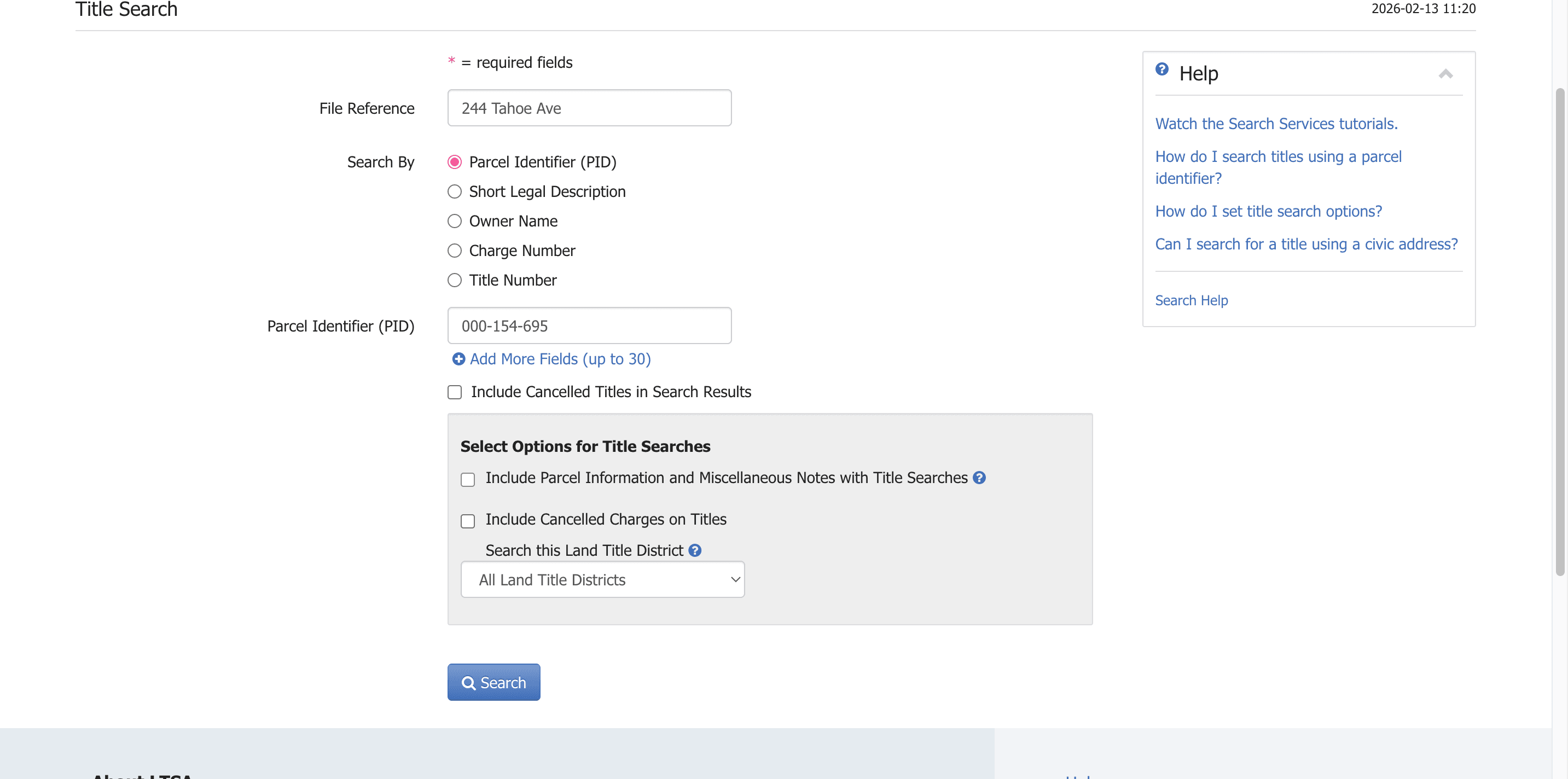
Select "Include Parcel Information" and "Miscellaneous Notes" with the title search. Then, click "Search," make your selection in the results, and click "Purchase."
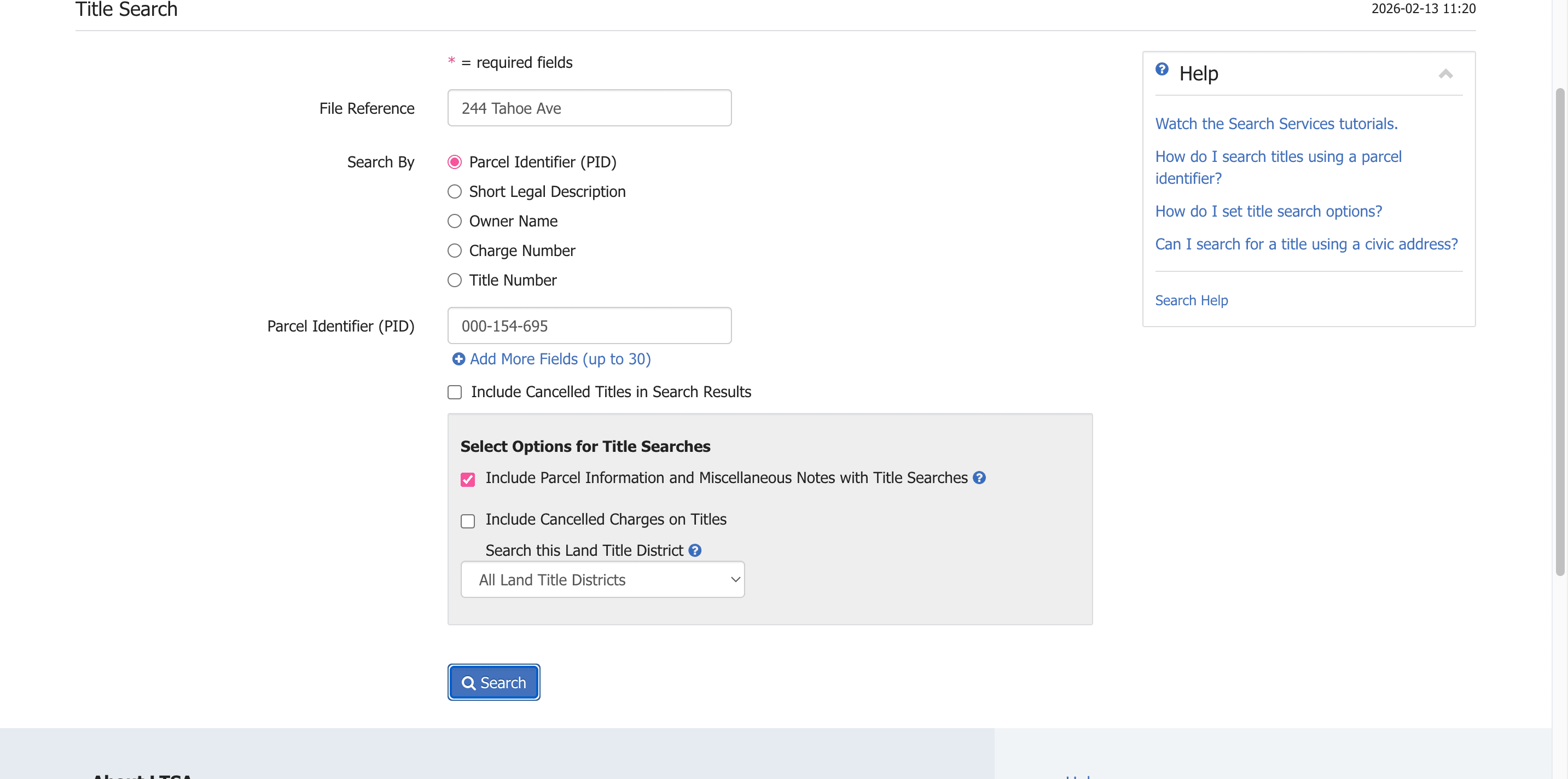
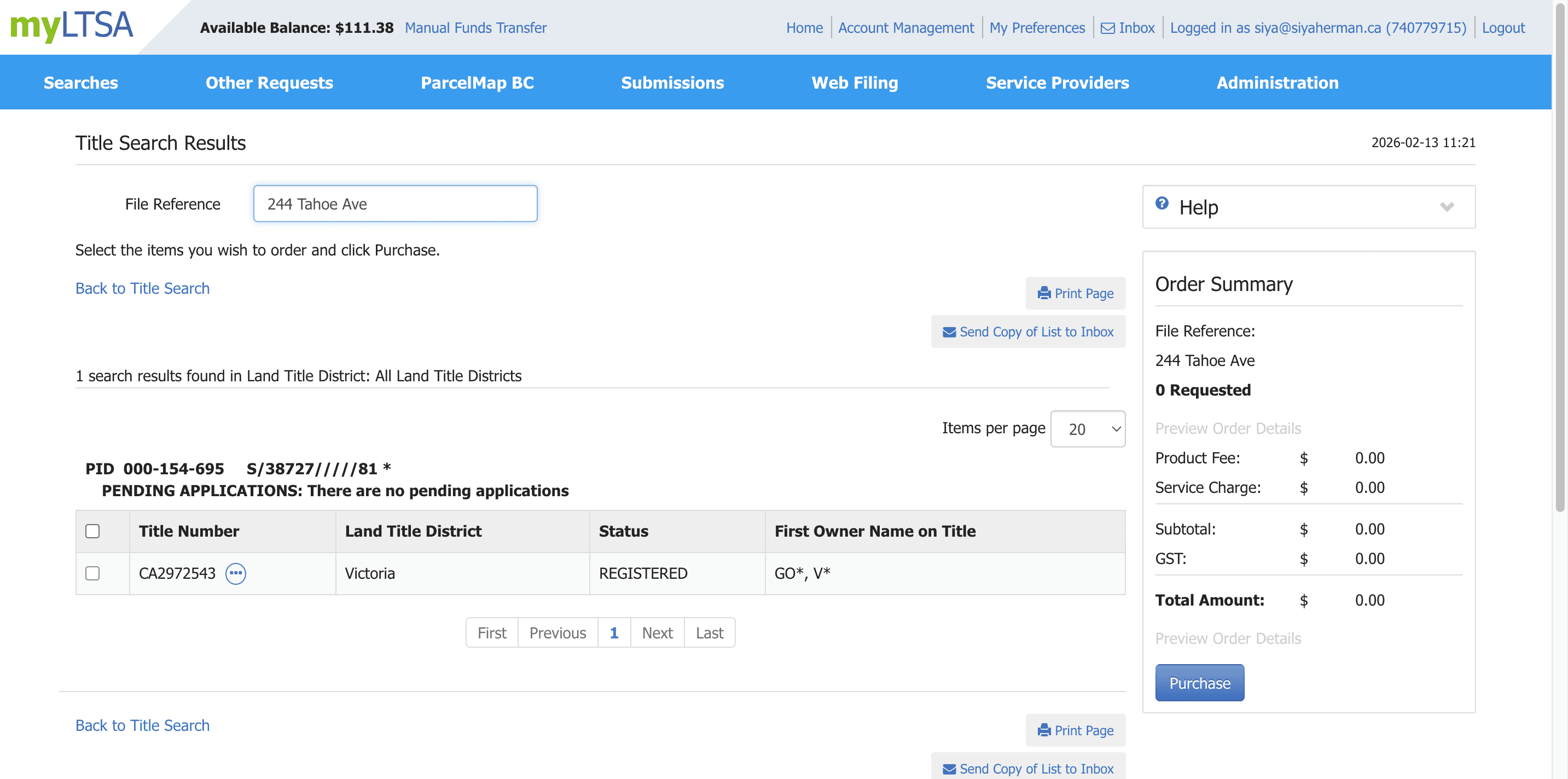
After you purchase it, the document will appear in your inbox. Let's return to the homepage.
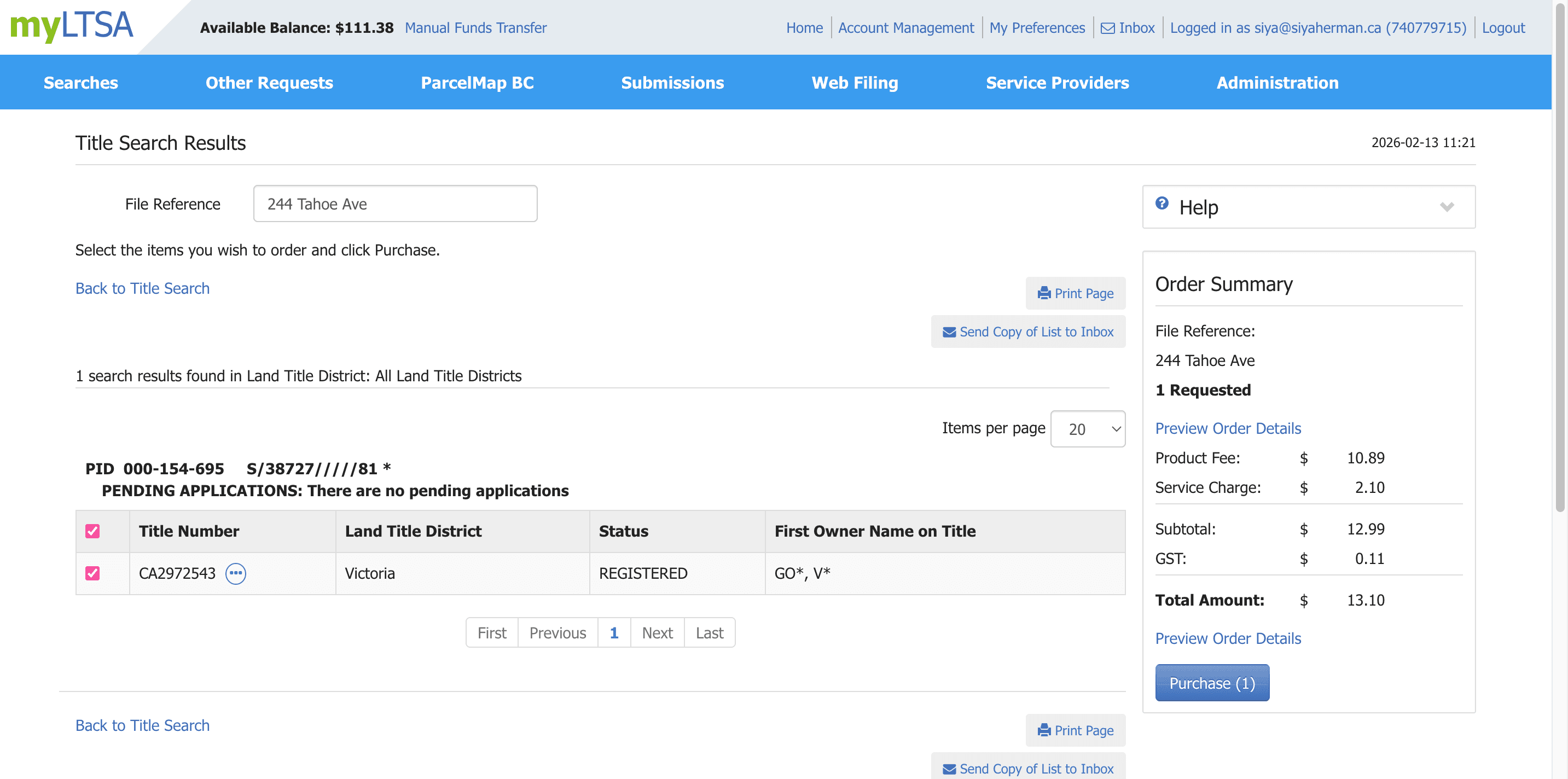
Then click "See All" in your inbox.
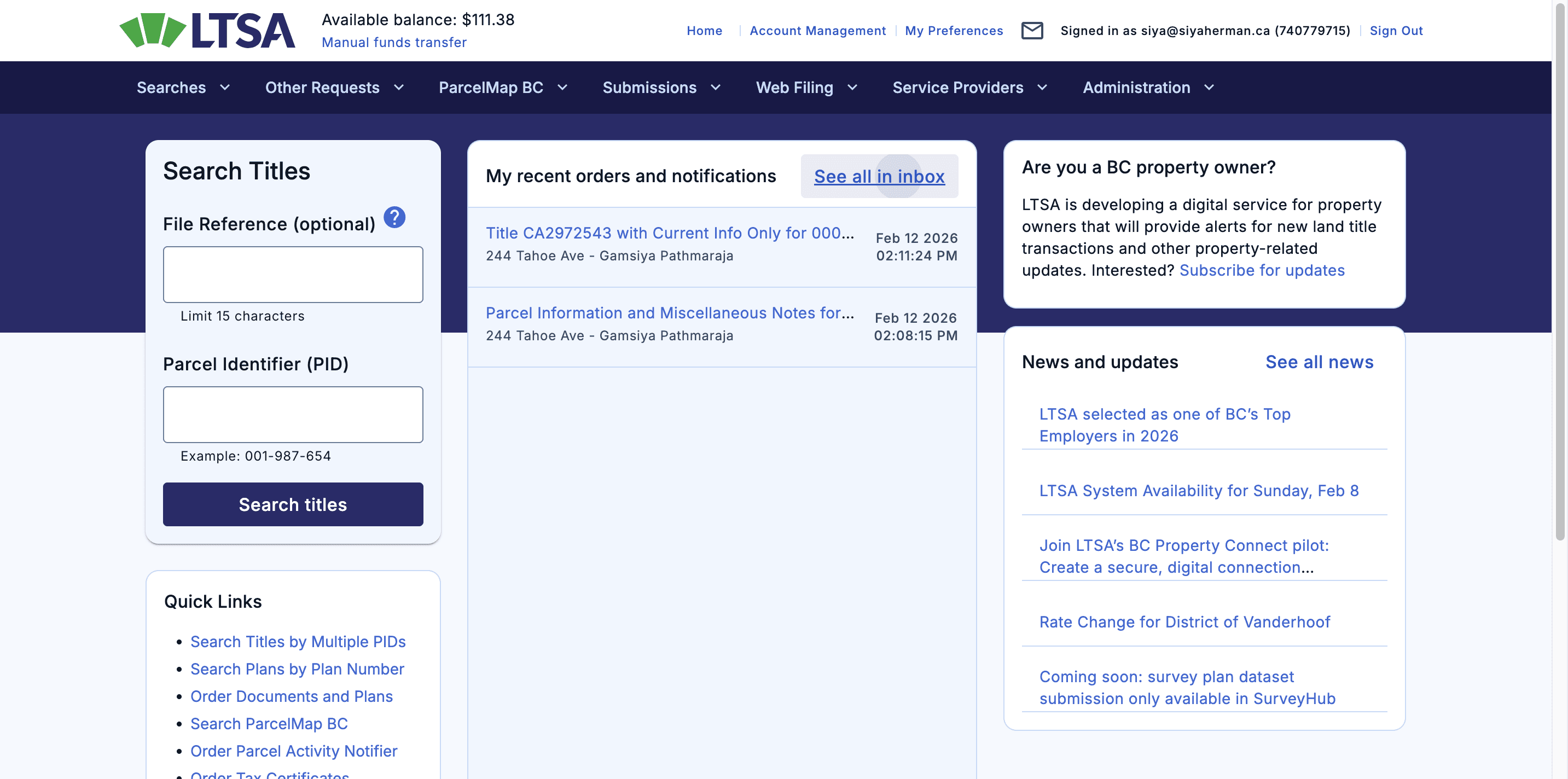
You can see the title, parcel information, and miscellaneous notes for 244 Tahoe Ave. Click here, then select the attachments.
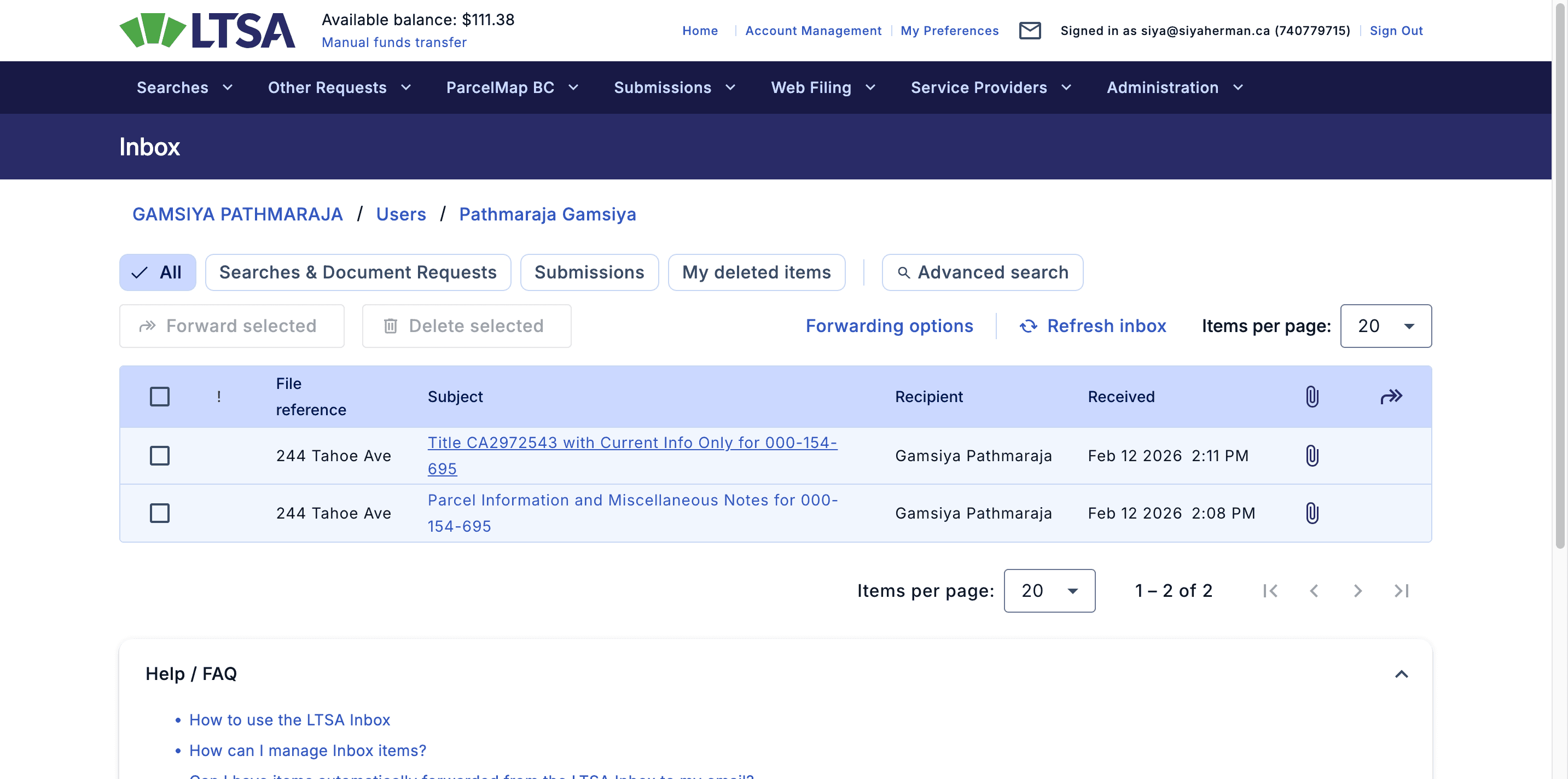
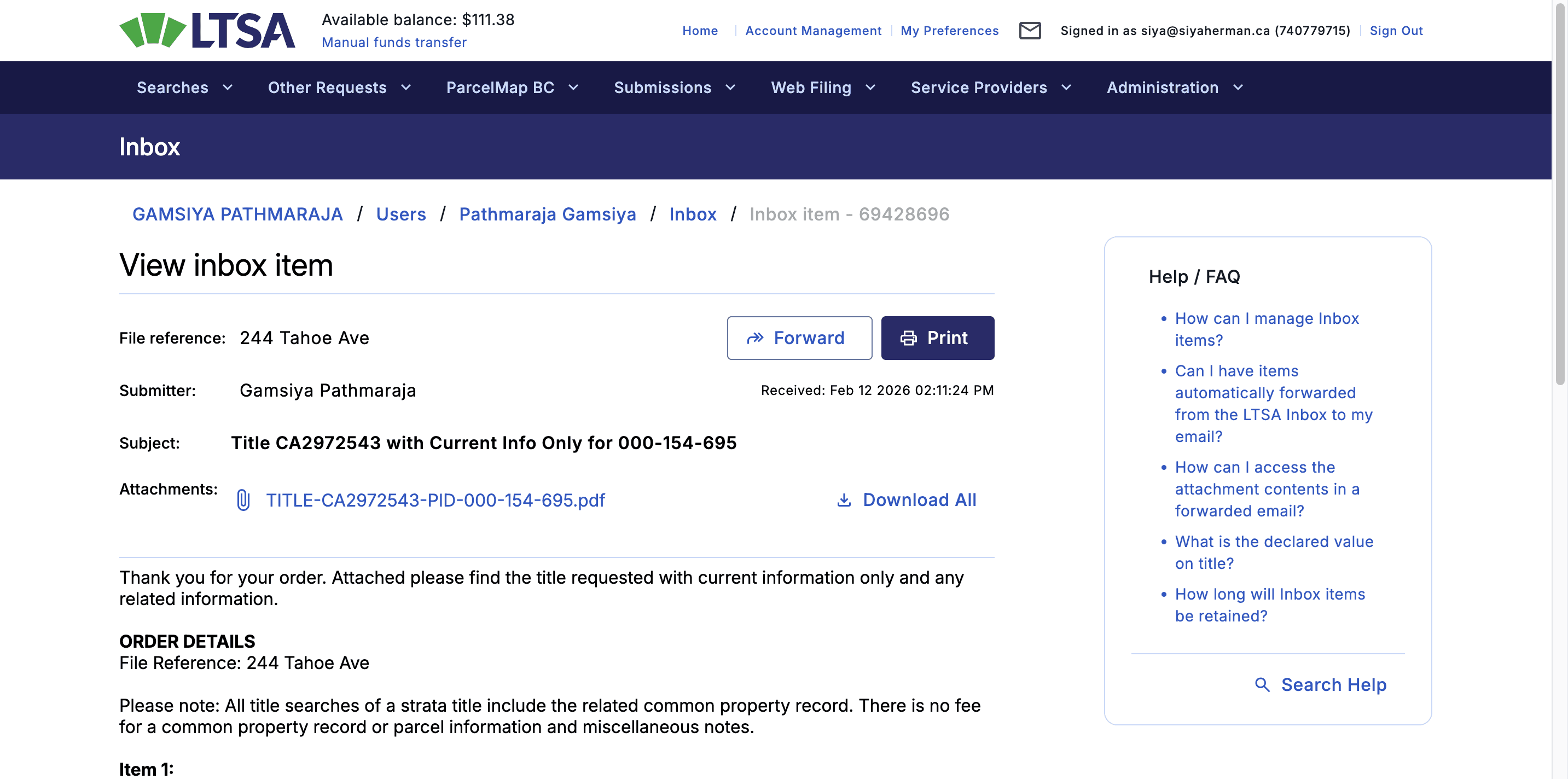
Then it will download automatically.