
How to Record a Payment That Has Already Been Made: Step-by-Step Guide
Learn how to accurately record a payment that has already been made, including updating trackers, confirming payment details, and notifying team members. Follow this step-by-step guide for ACH and check payments.
In this guide, we'll learn how to record a payment that has already been made by a client. This process involves updating several trackers, confirming payment details, and notifying the appropriate team members. We will also cover how to handle ACH payments and ensure all records are accurate.
Let's get started
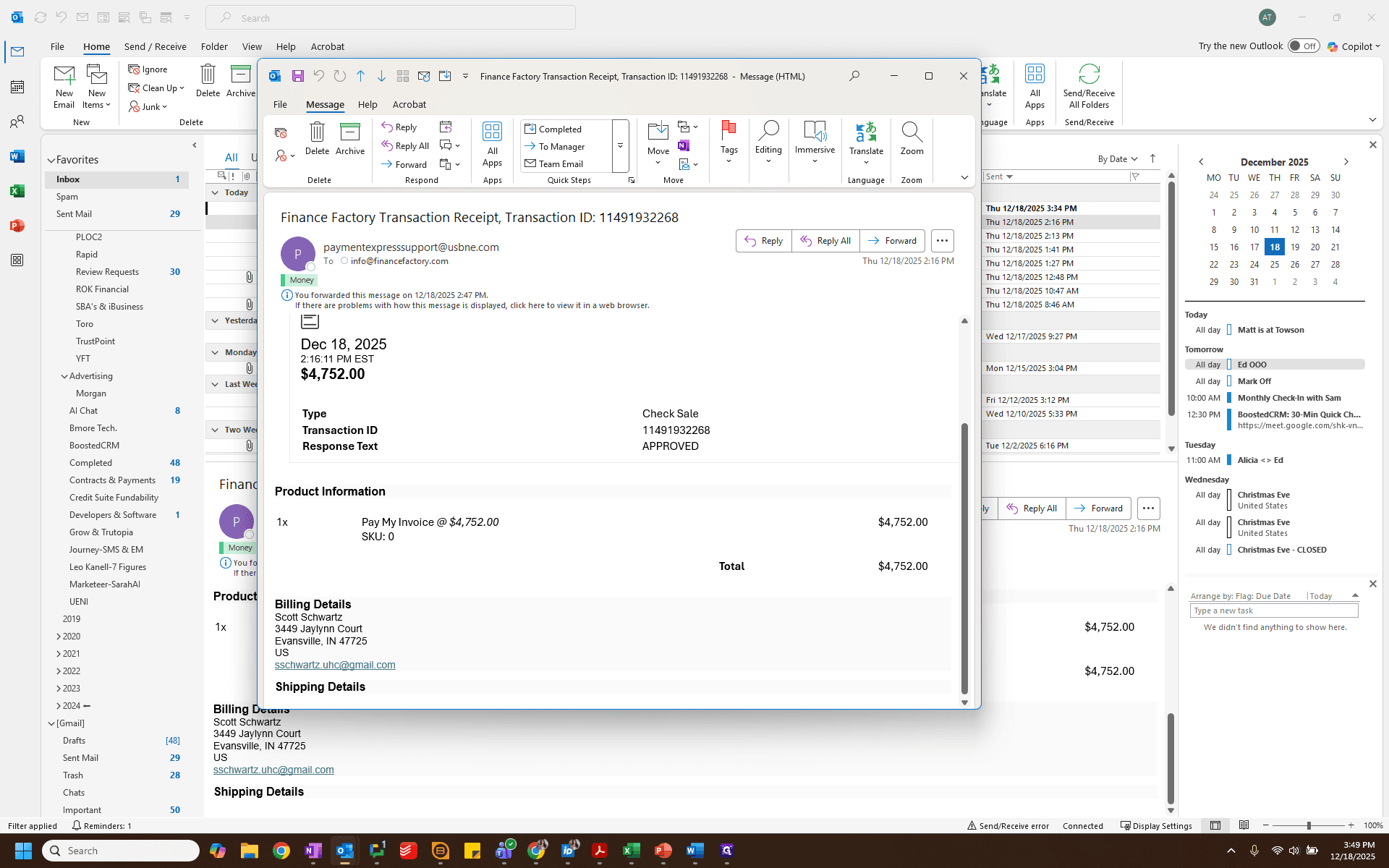
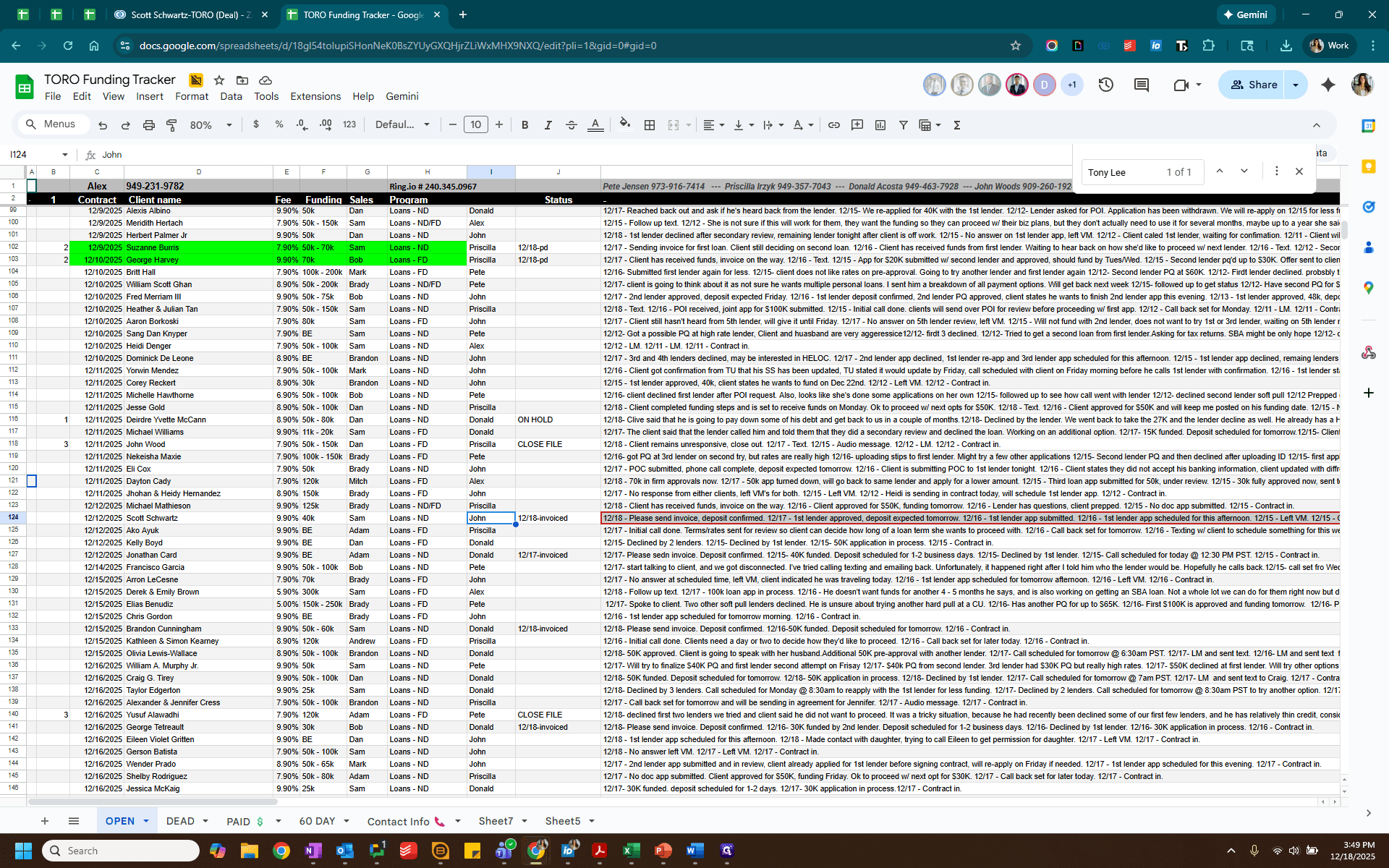
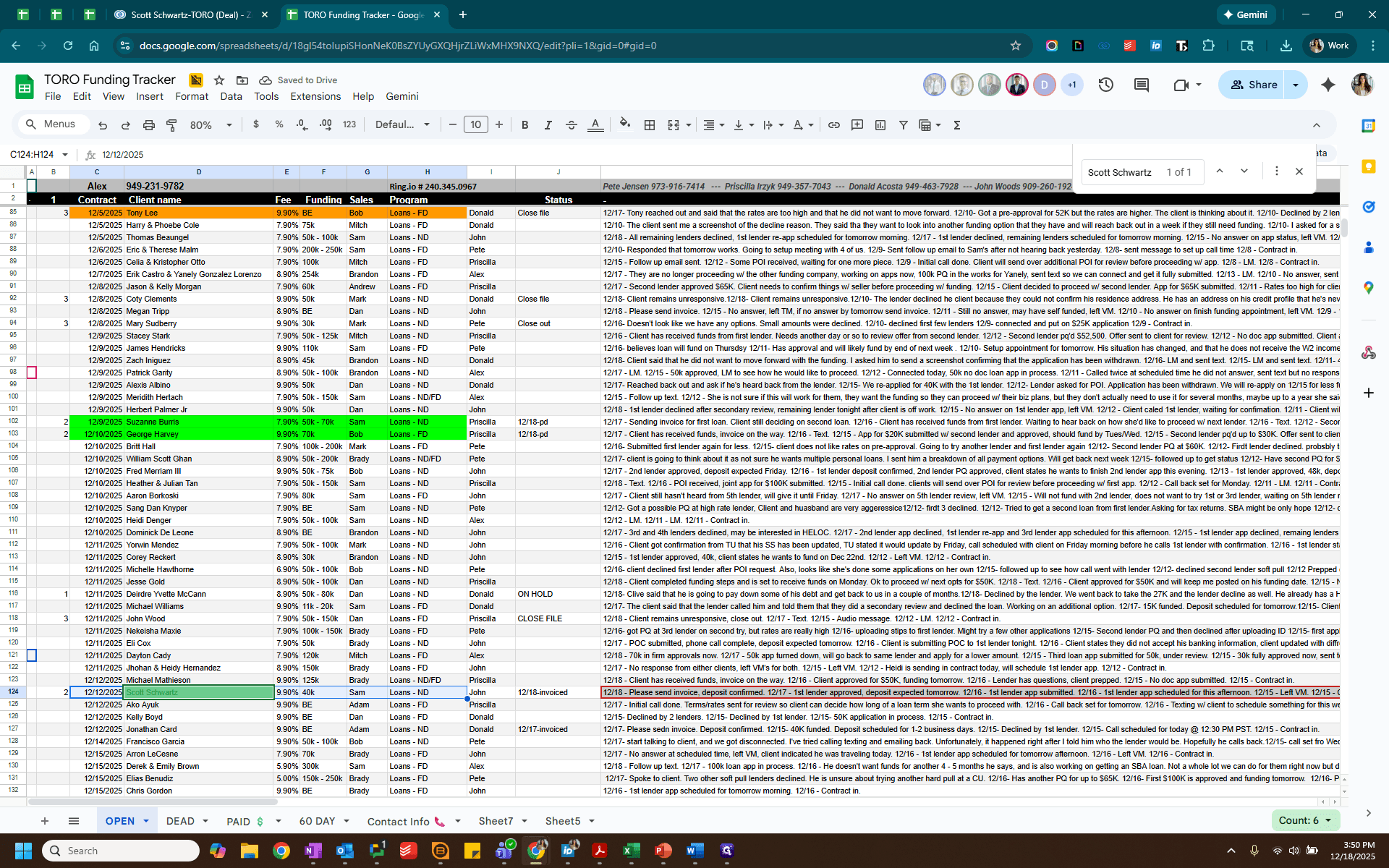
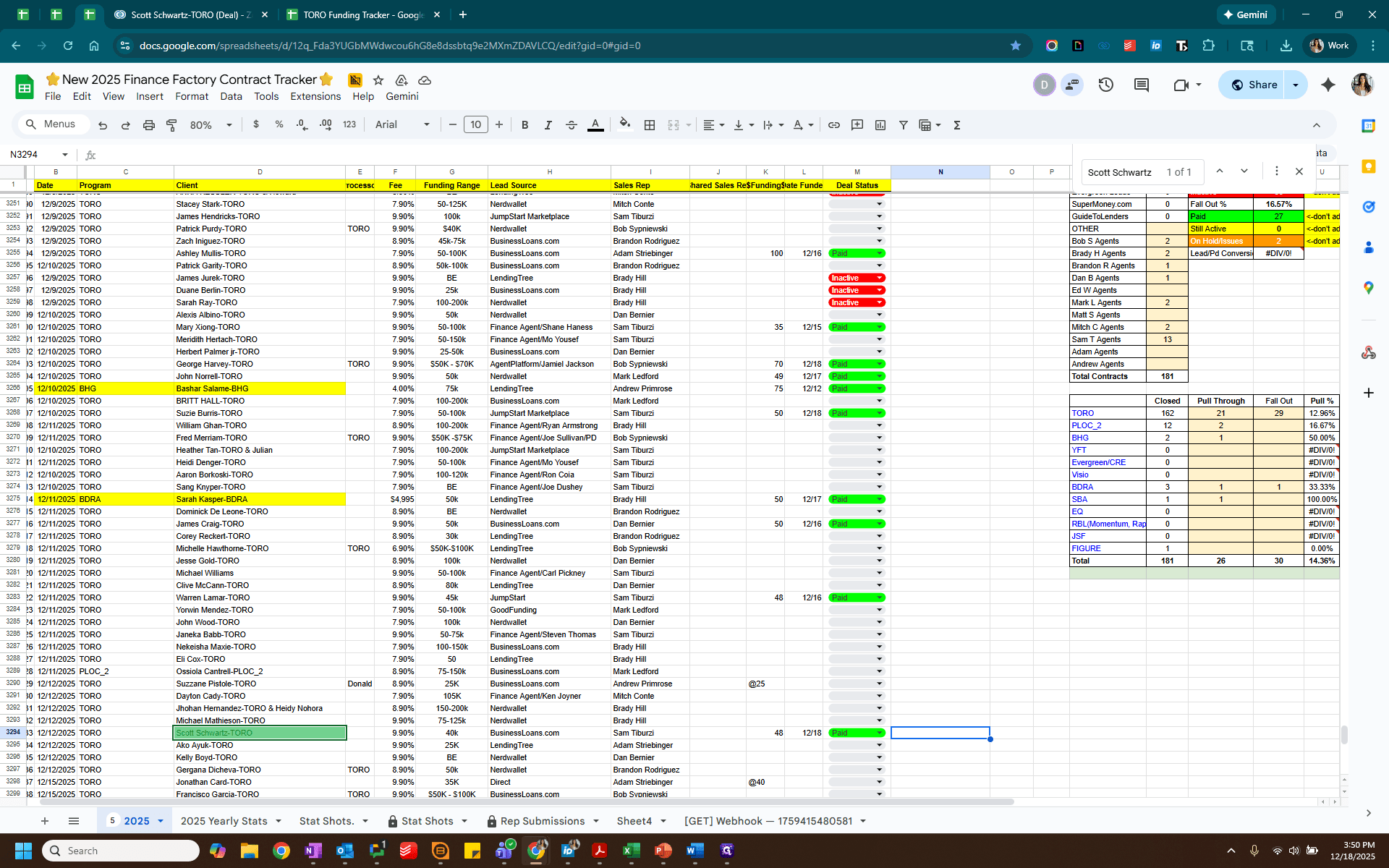
This video will show you how to record a payment that has already been made. If a client pays using the link in the invoice, you will receive an email notification. It will indicate either a check sale or a card sale, along with the client's information at the bottom. First, find the clients on the Toro tracker.
Copy and paste works very well here.
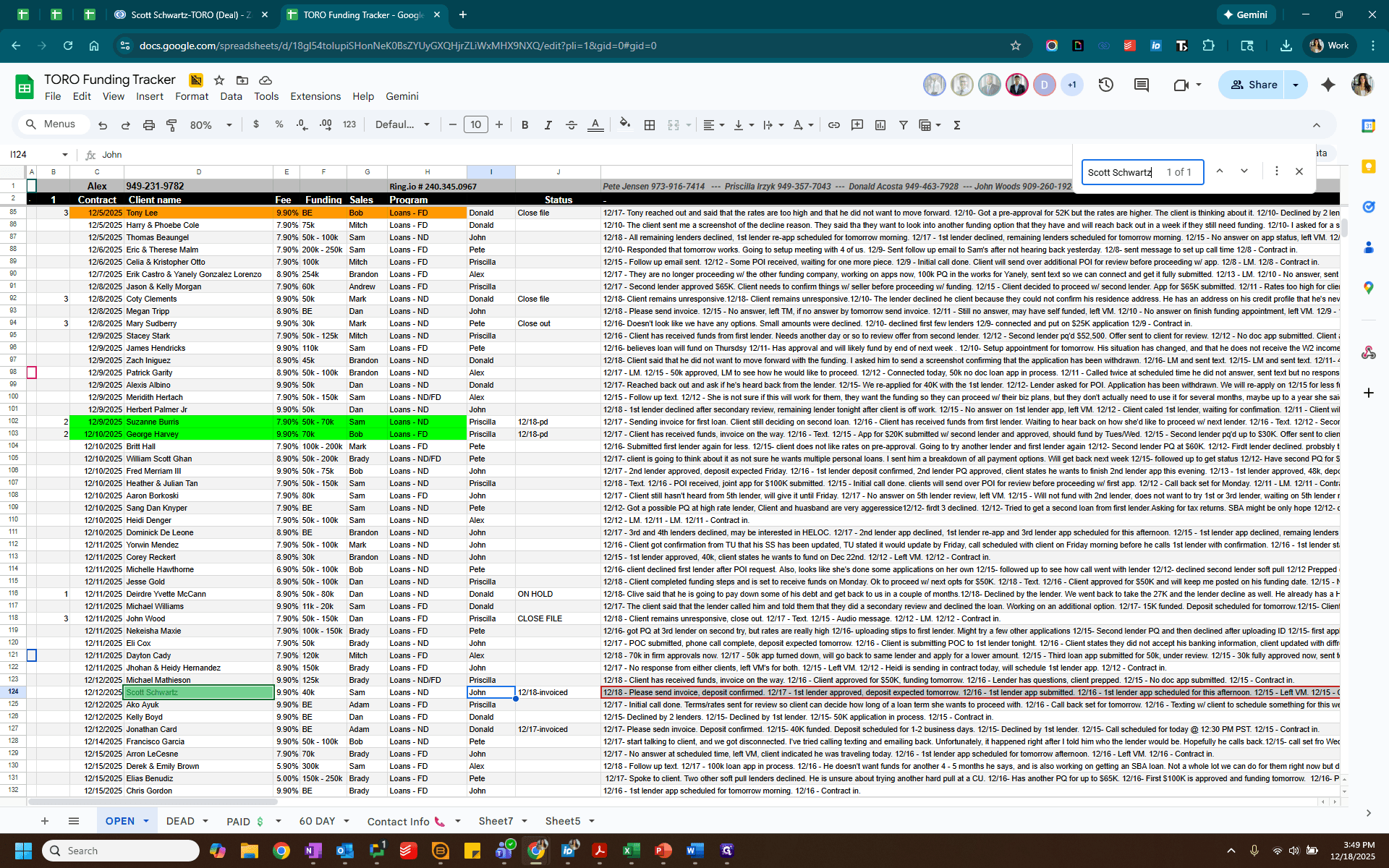
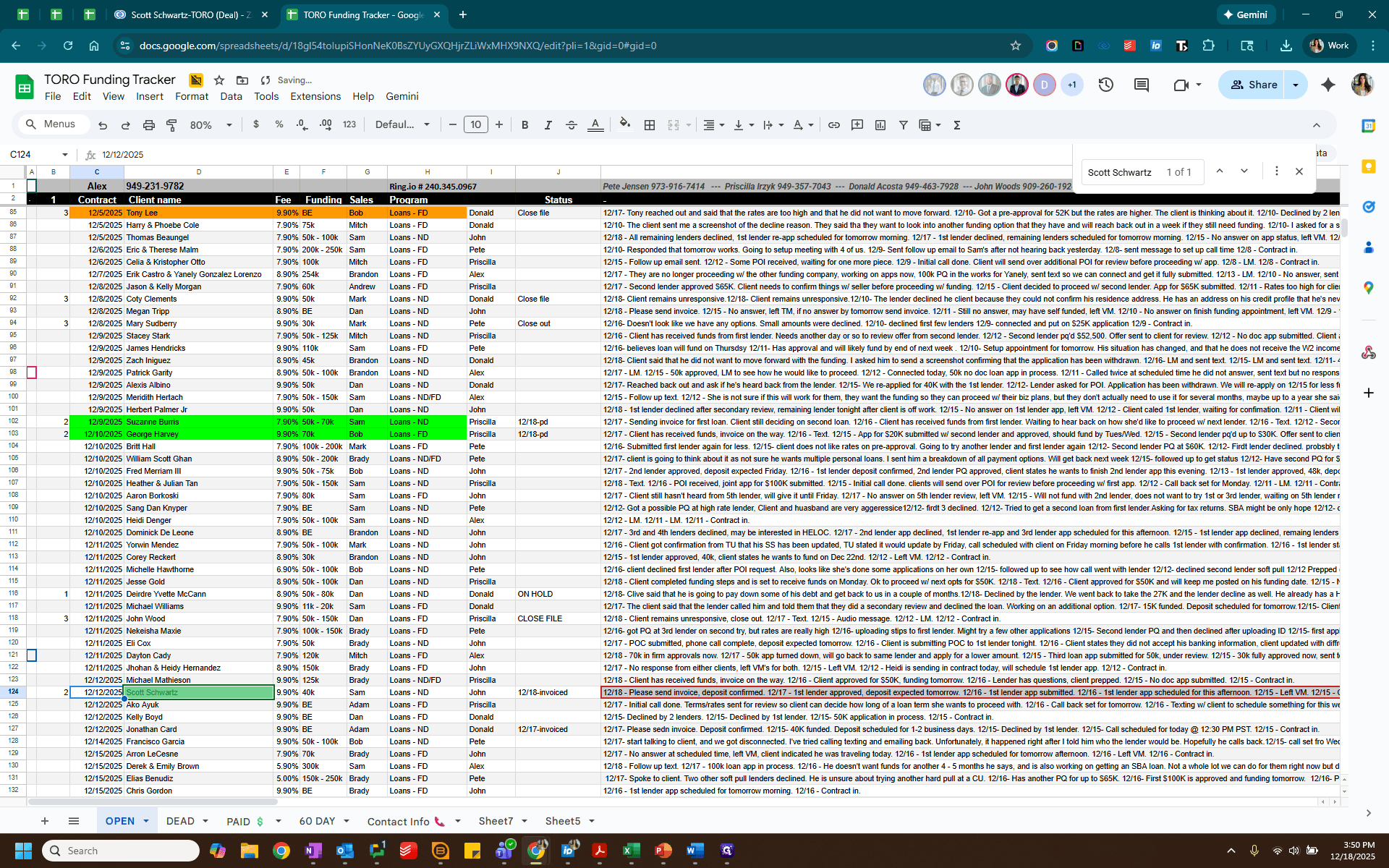
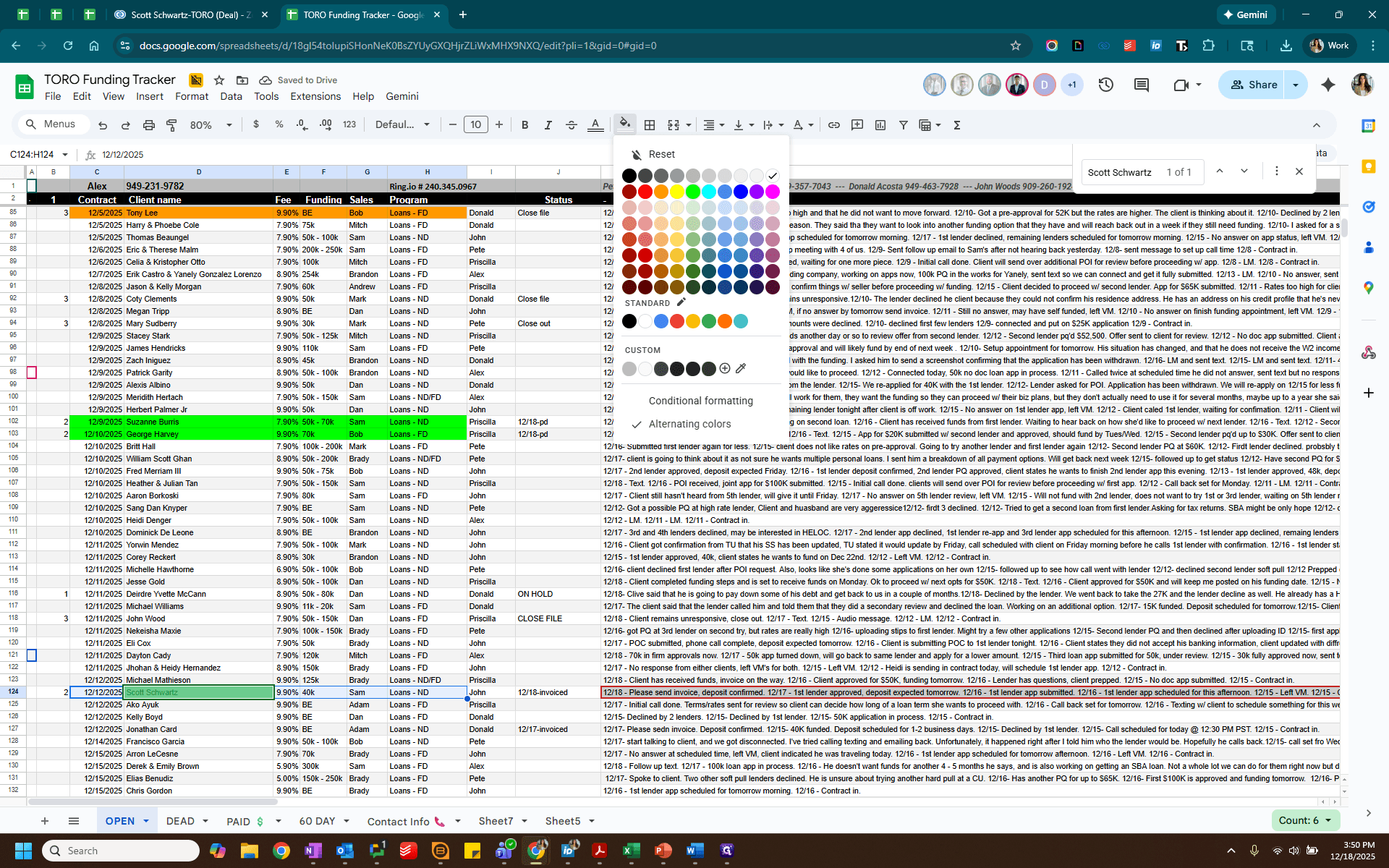
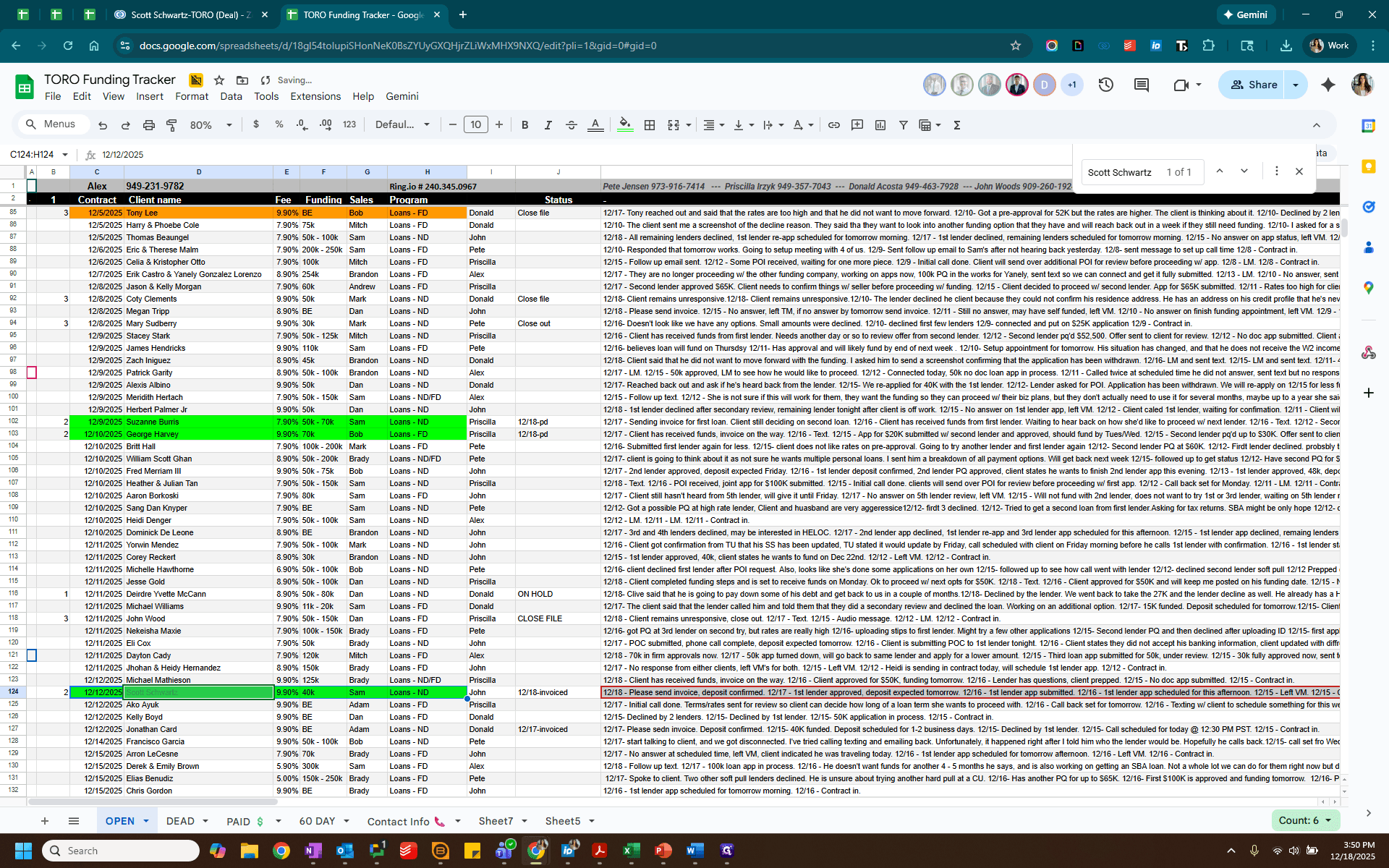
Label this as "2" for Paid. Highlight the paid client in green and change the status to "paid."
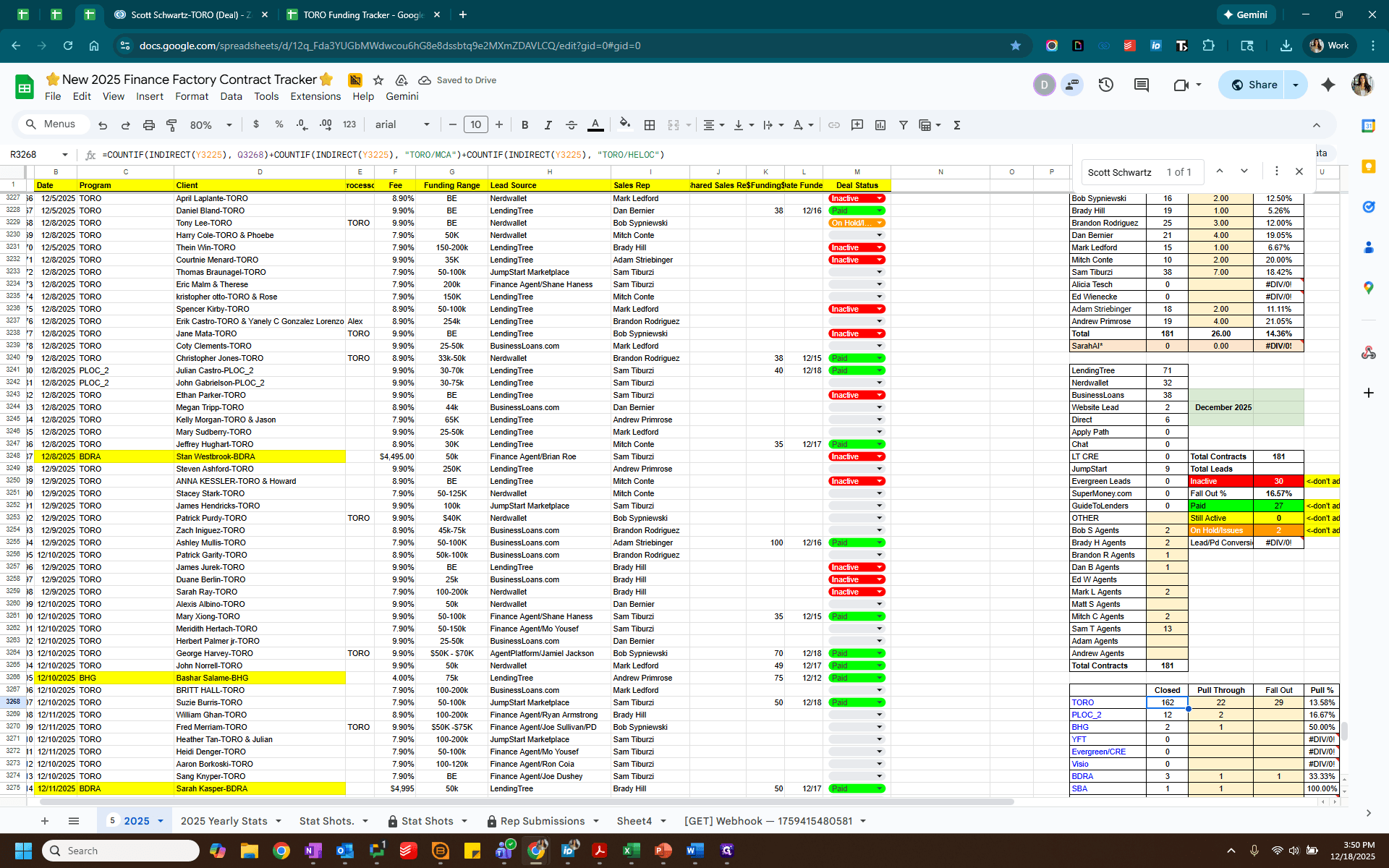
Next, we will go to the contract tracker.
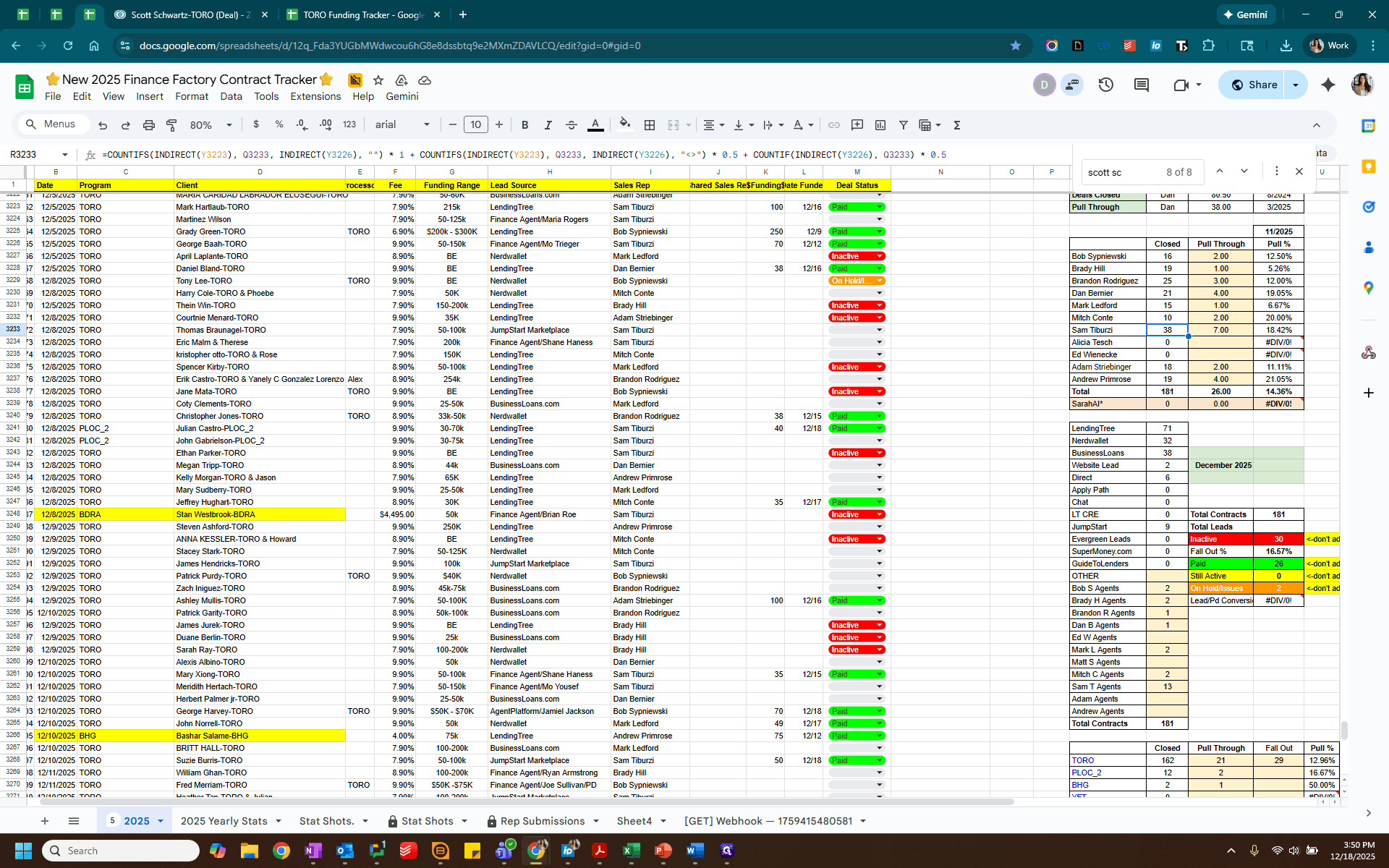
Find the same client and update the paid amount, date, and Paid columns.
Next, note the representative assigned to it, and confirm that it is for Toro.
Add a paid deal to Toro and another paid deal for the specific representative, Sam.
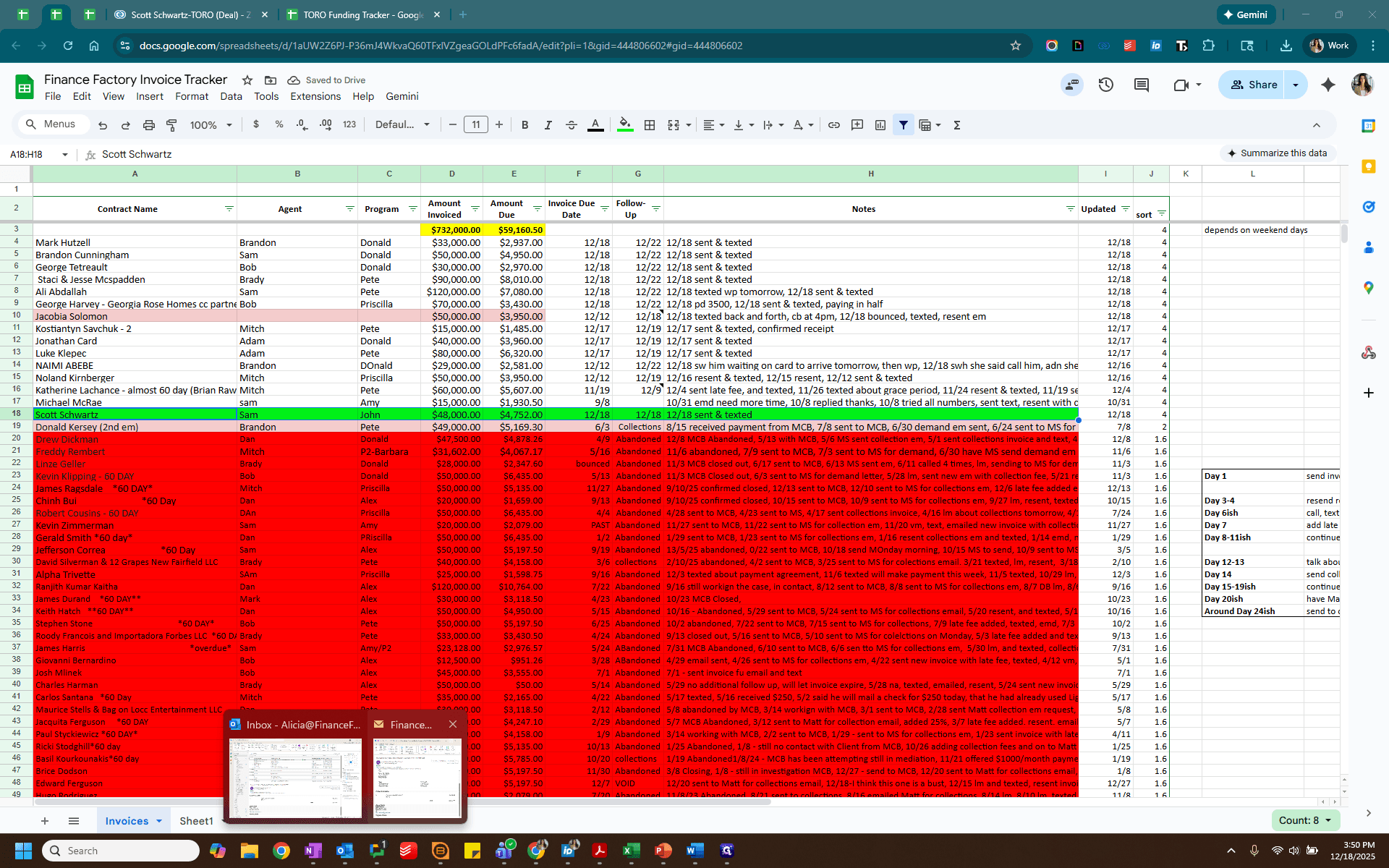
Next, open the invoice tracker and locate the client here.
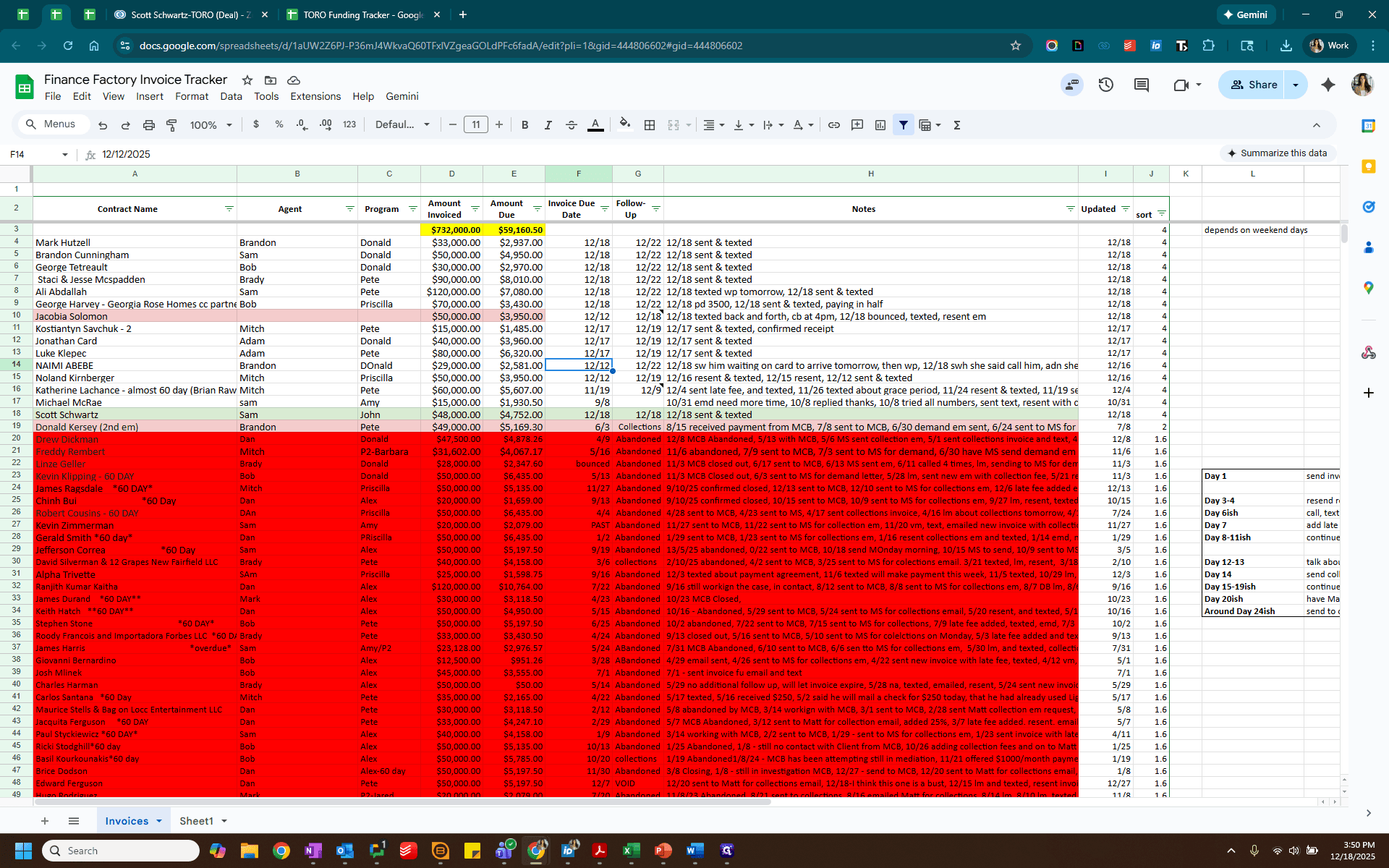
We will confirm that the payment amount of 47.52 matches the invoiced amount.
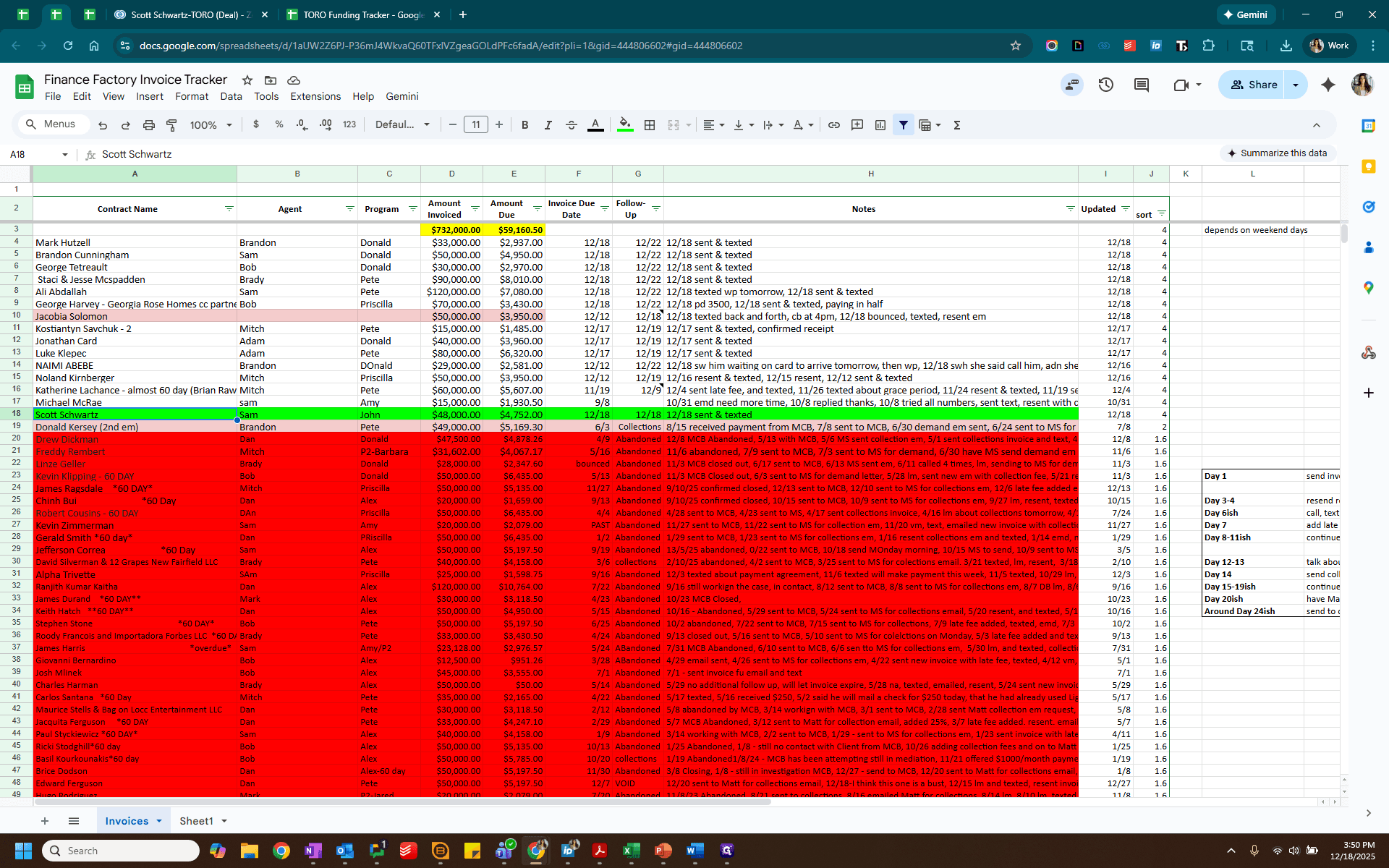
We will now forward this email to the rep, the processor, and the info email.
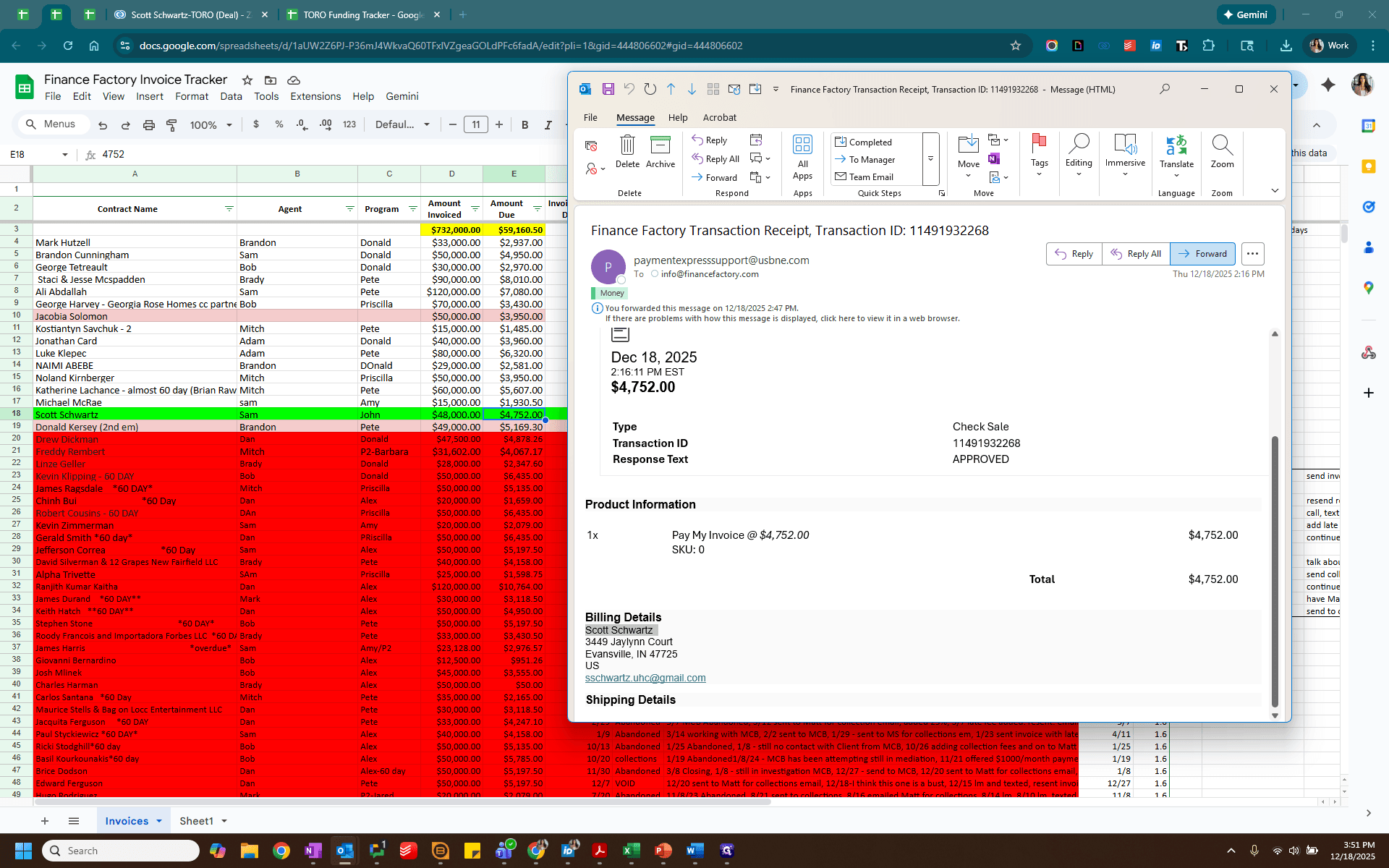
Alex is copied on all of those as well.
Make any necessary adjustments. Remember, this is an ACH payment. Then, send.
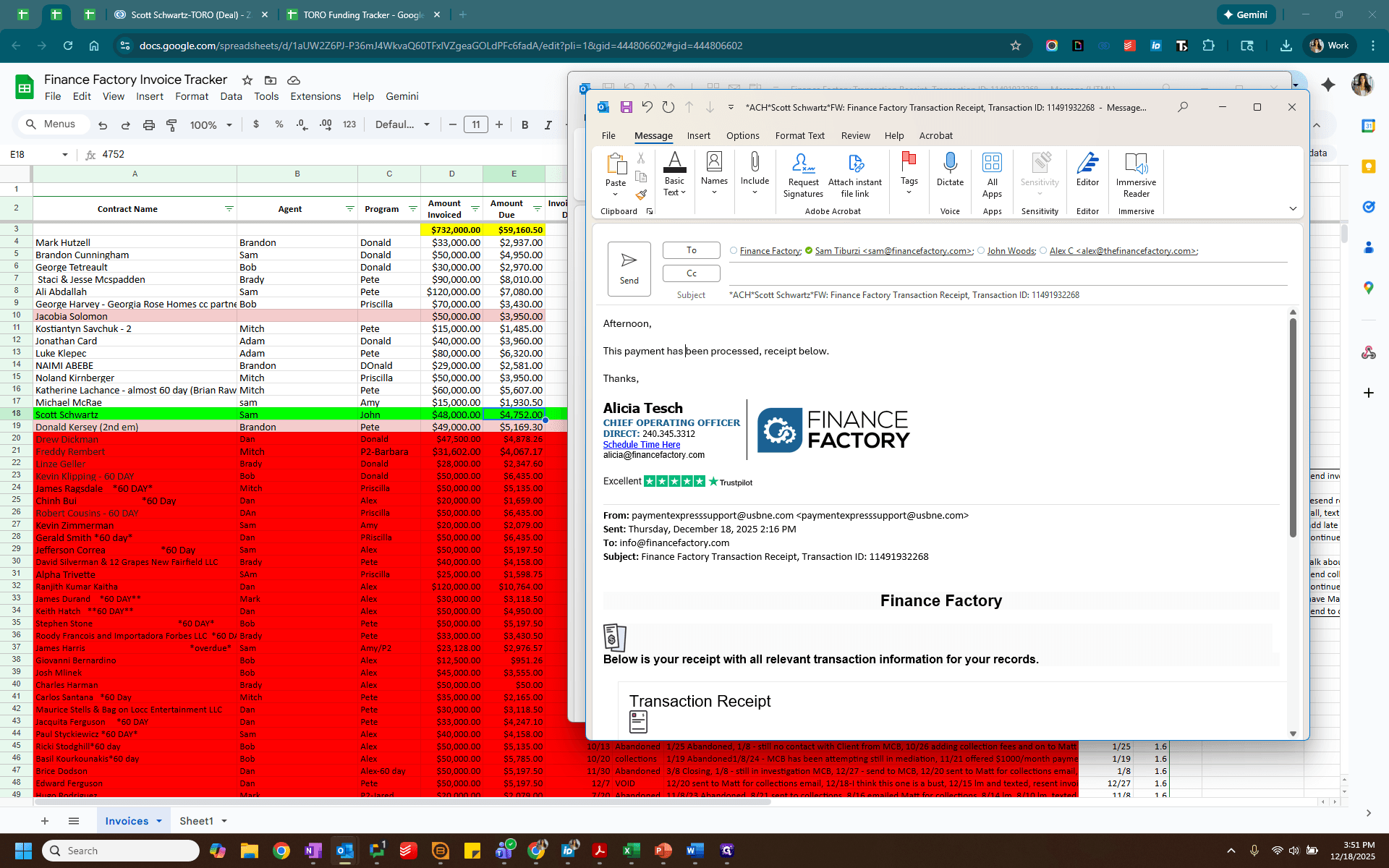
I've already sent this email, so we won't resend it.
Then, in the invoice tracker, mark this as zero and paid. Update the date if needed, but use today’s date. Then, select one.
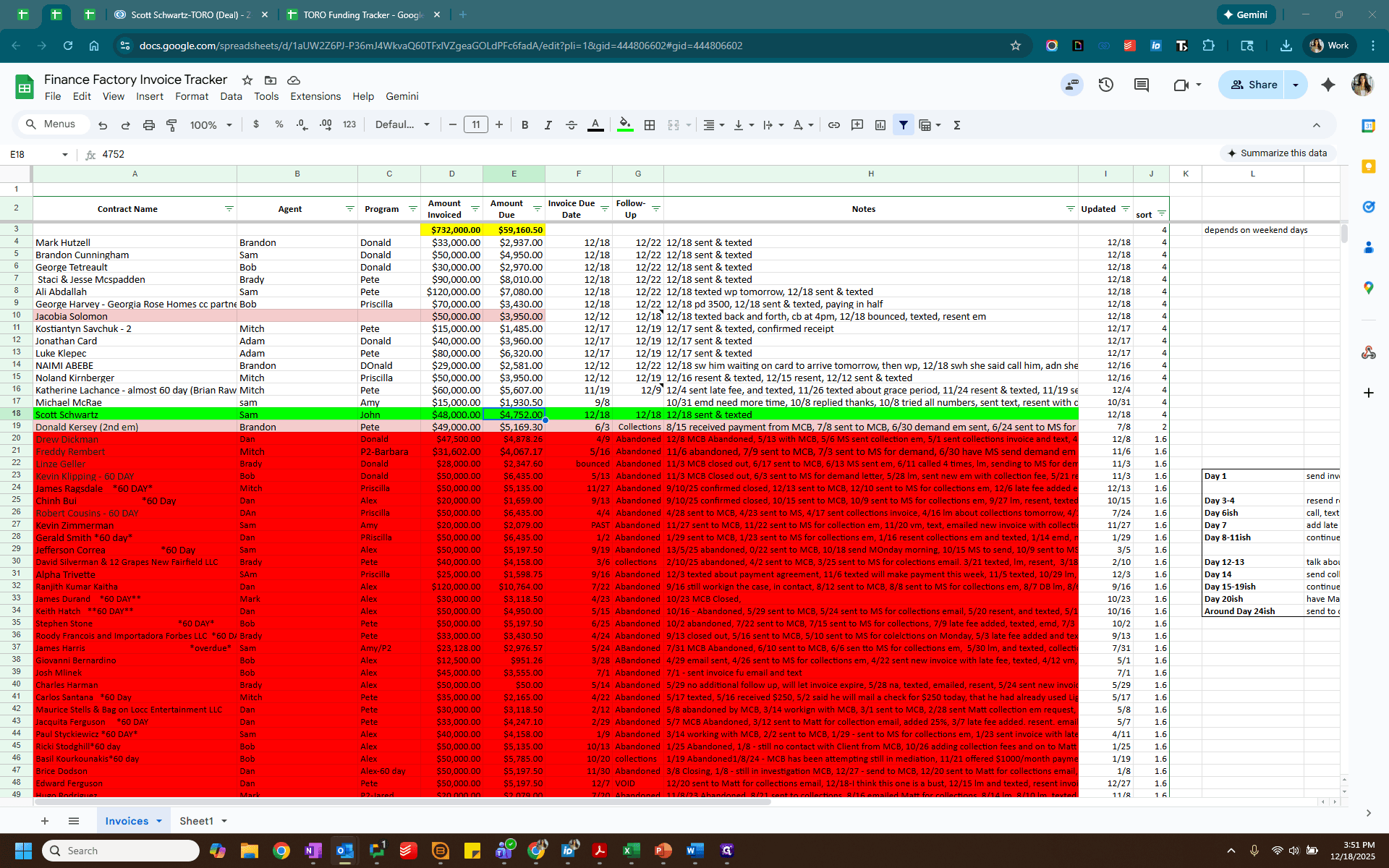
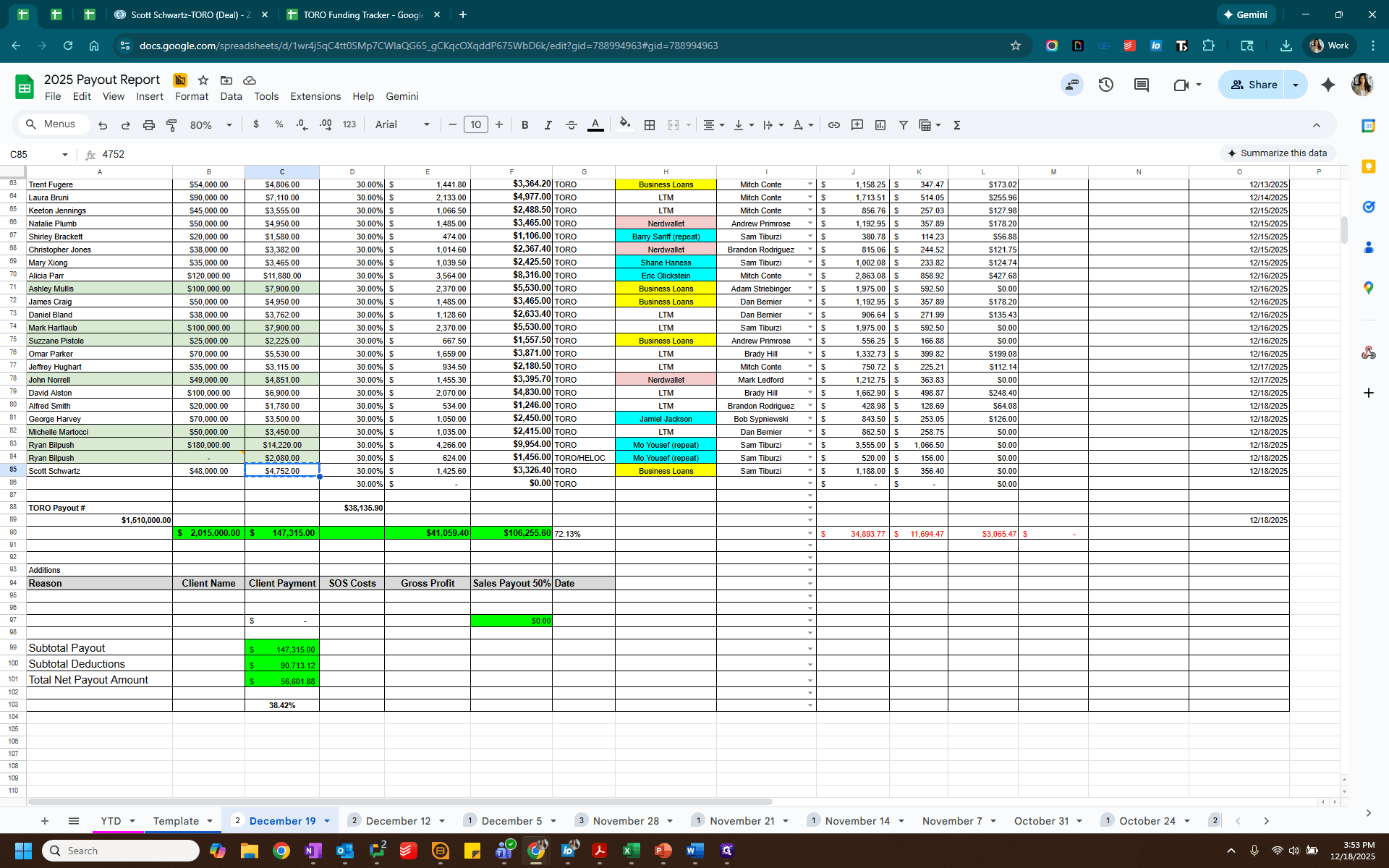
We will enter the same client into the payout tracker and add the relevant information. Client Name, invoiced amount, client payment. Add the lead source and rep.
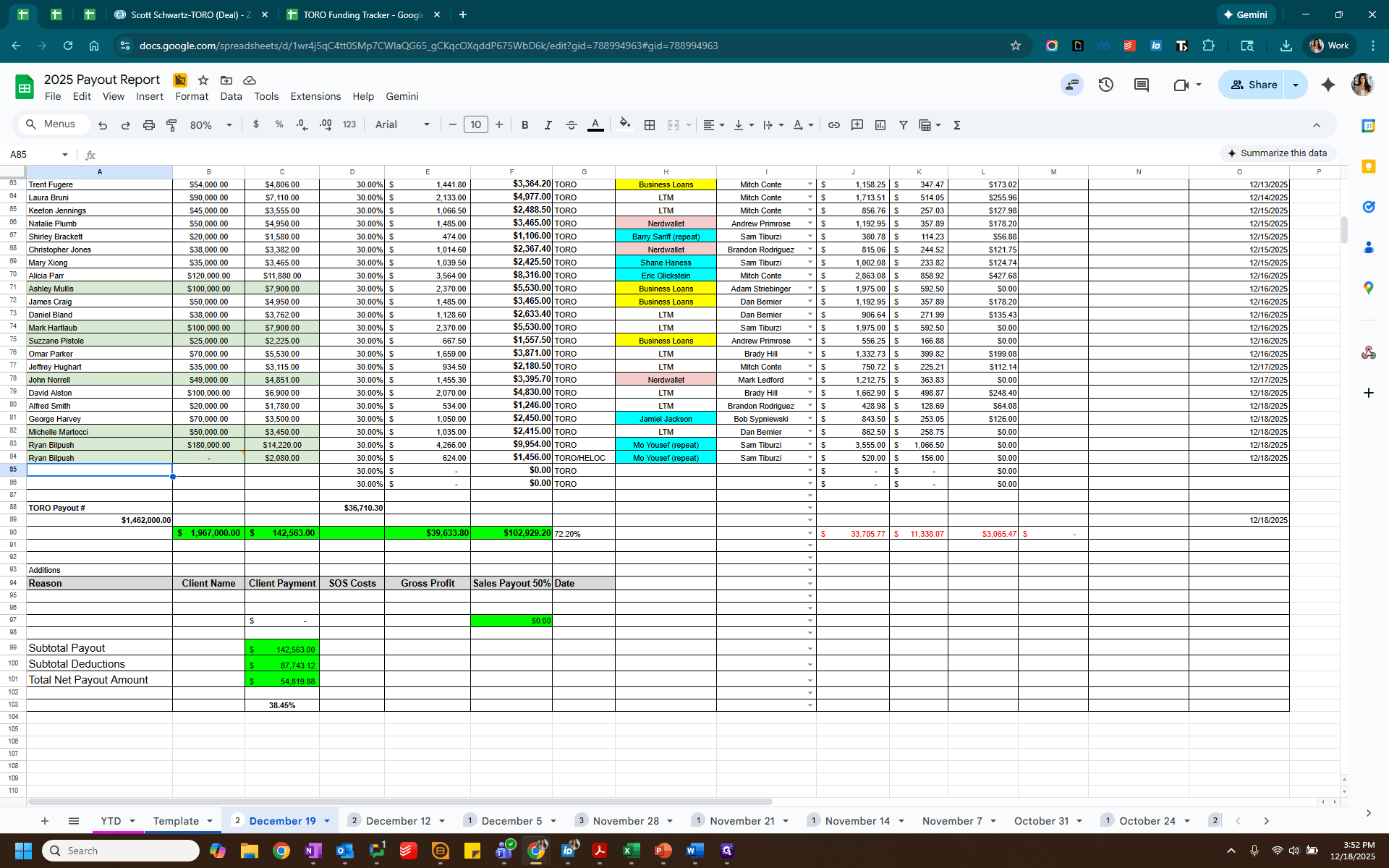
We can check the email to see the amount, which is $4752.00
We know that it is Sam. Since it was paid by check, we will delete these credit card fees. Next, we will go into Zoho to check the lead source, which is business loans, and add that information here.
We will then use the same payout information to update Zoho.
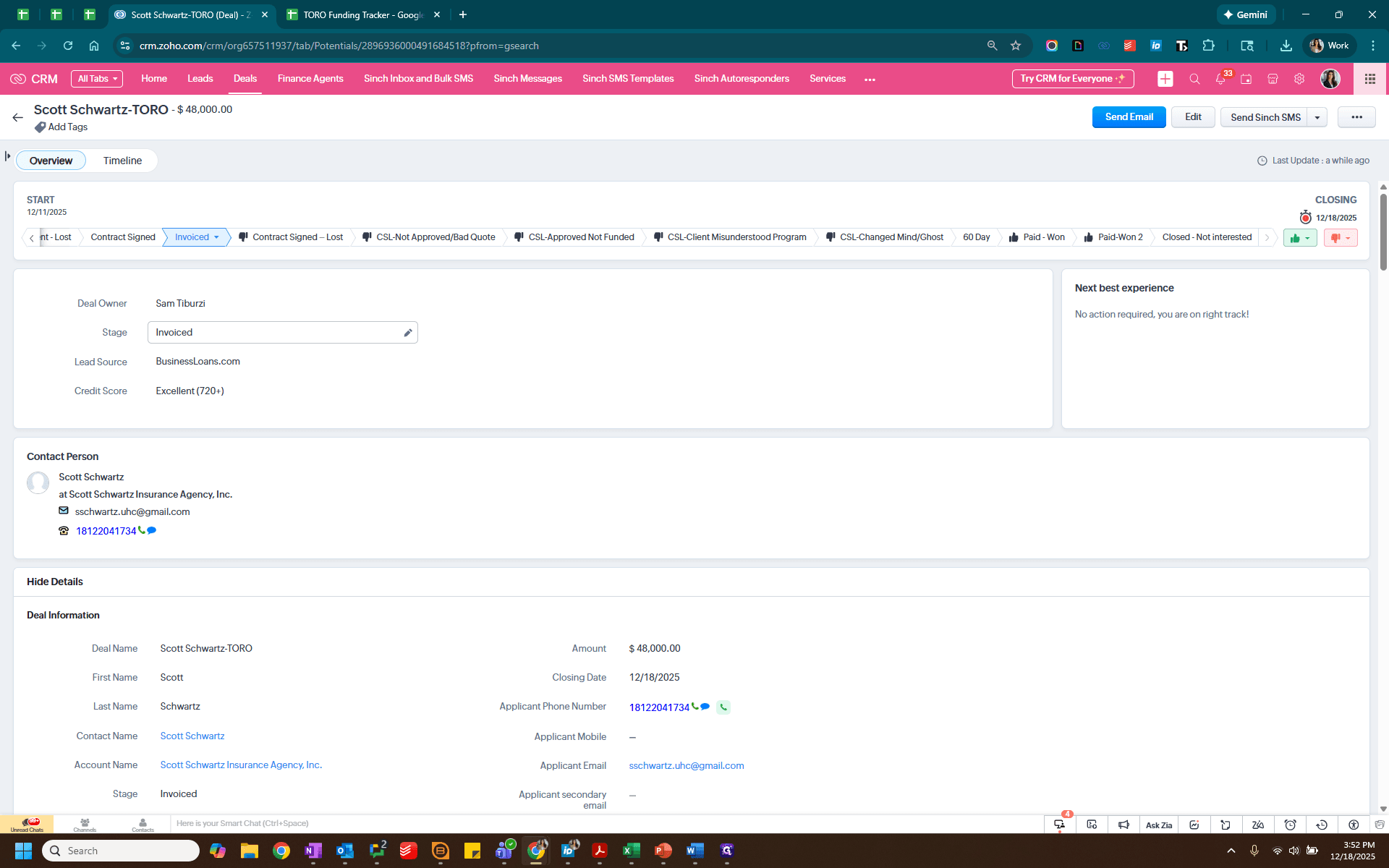
We change the lead status to "paid." We verify the amount is correct. We ensure the closing date is set to today, the date of payment.
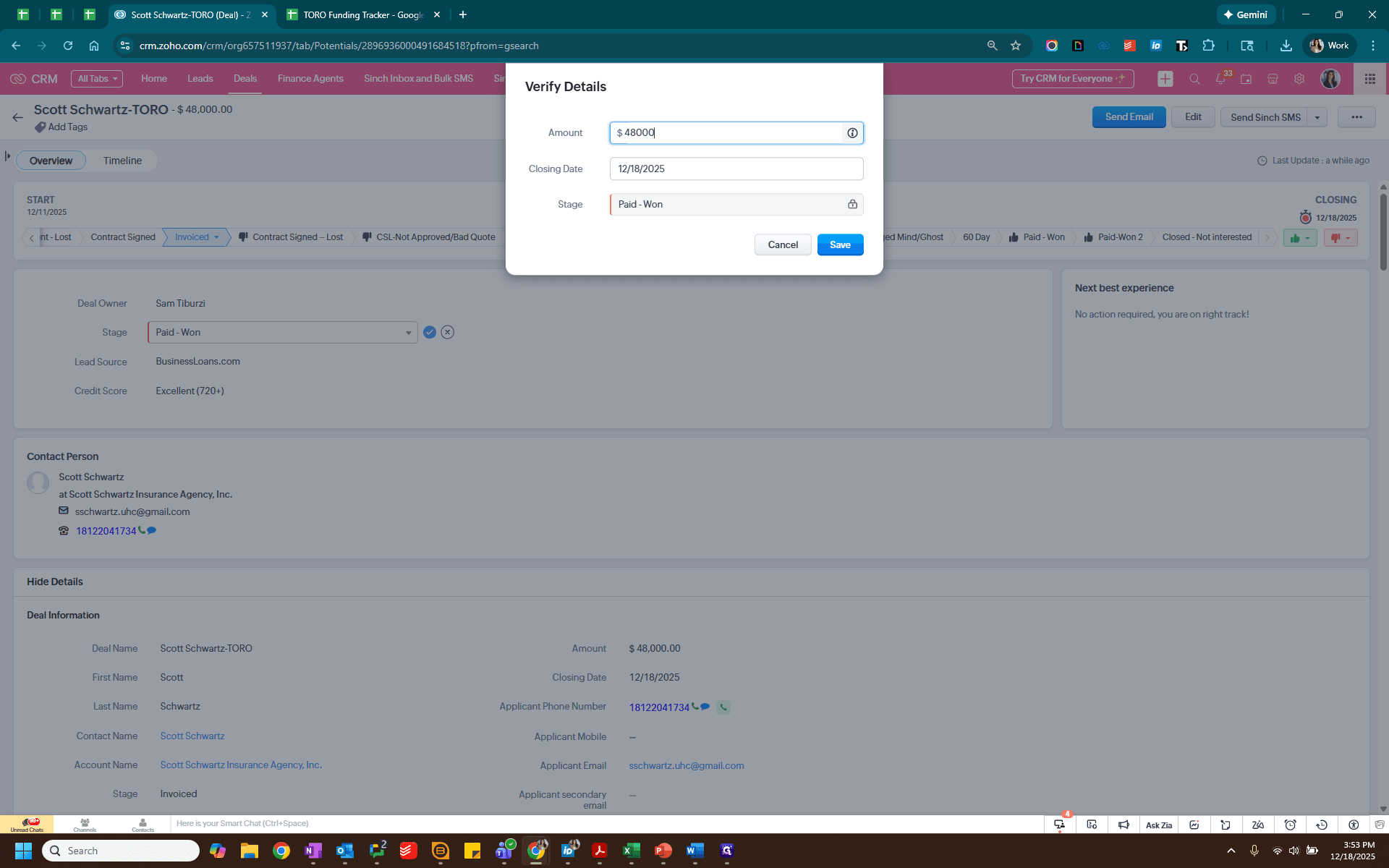
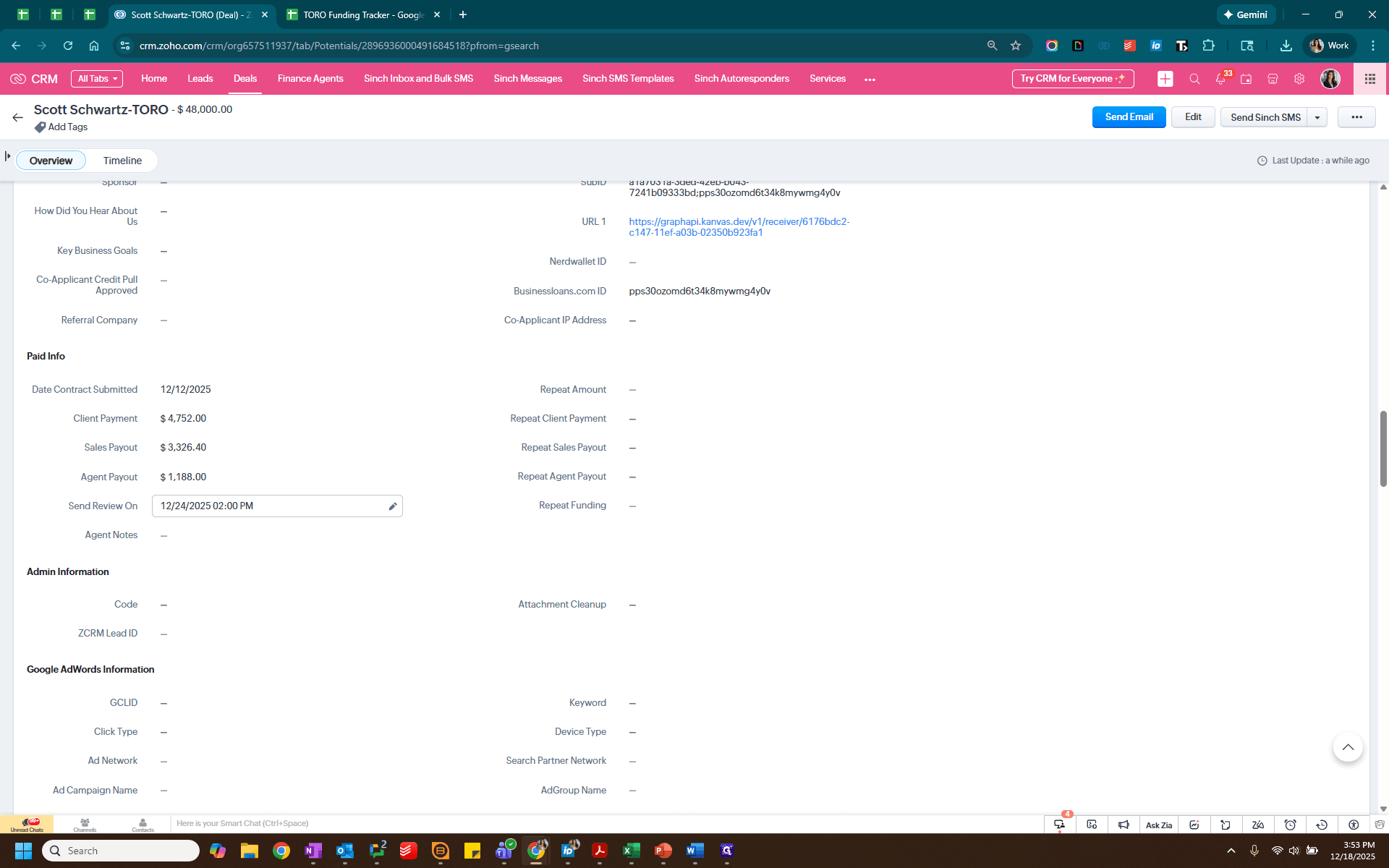
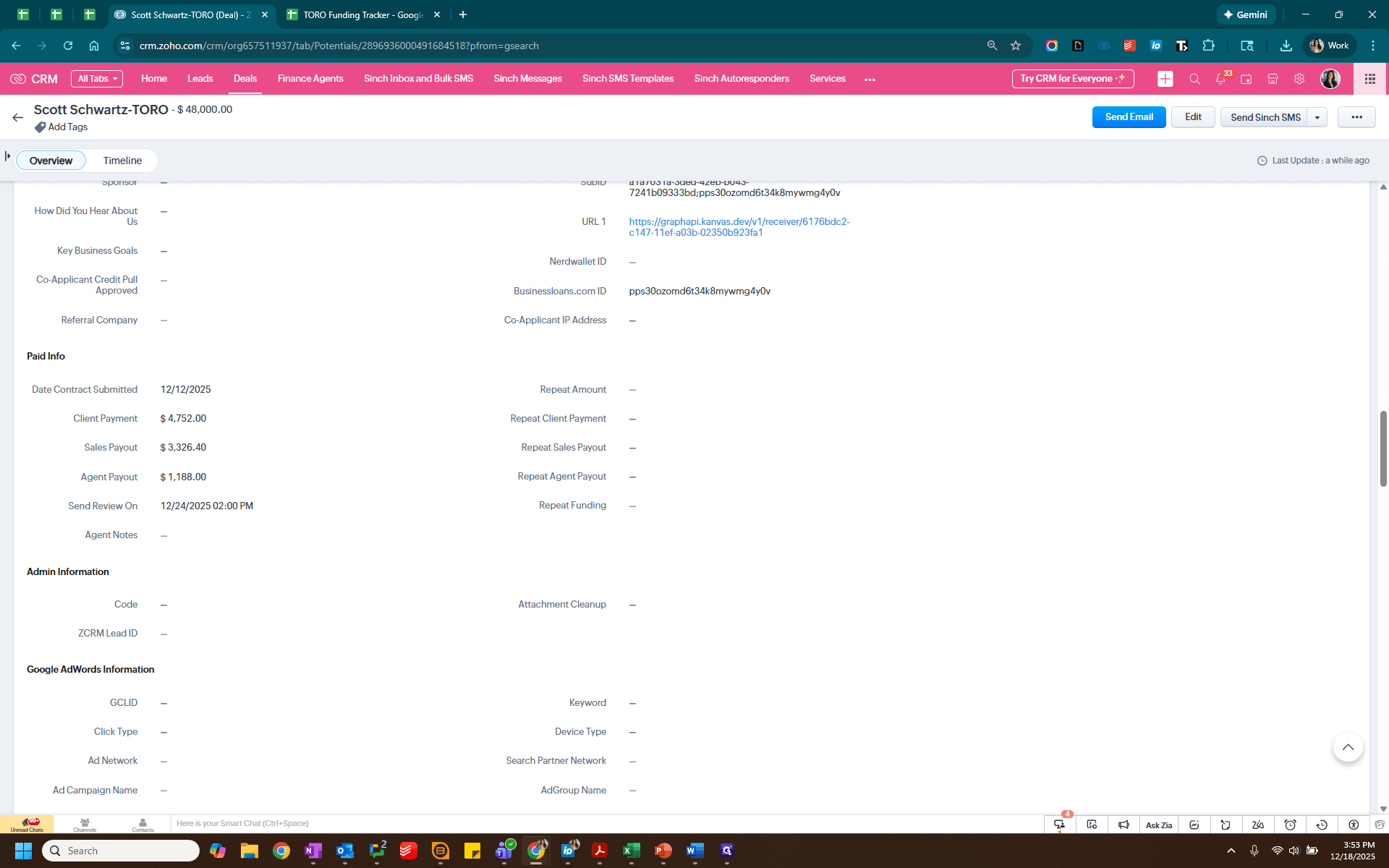
The final step is to add the client’s payment information. This information comes from the payout report. Client payment is here. Sales payout is here. Agent payout is here.
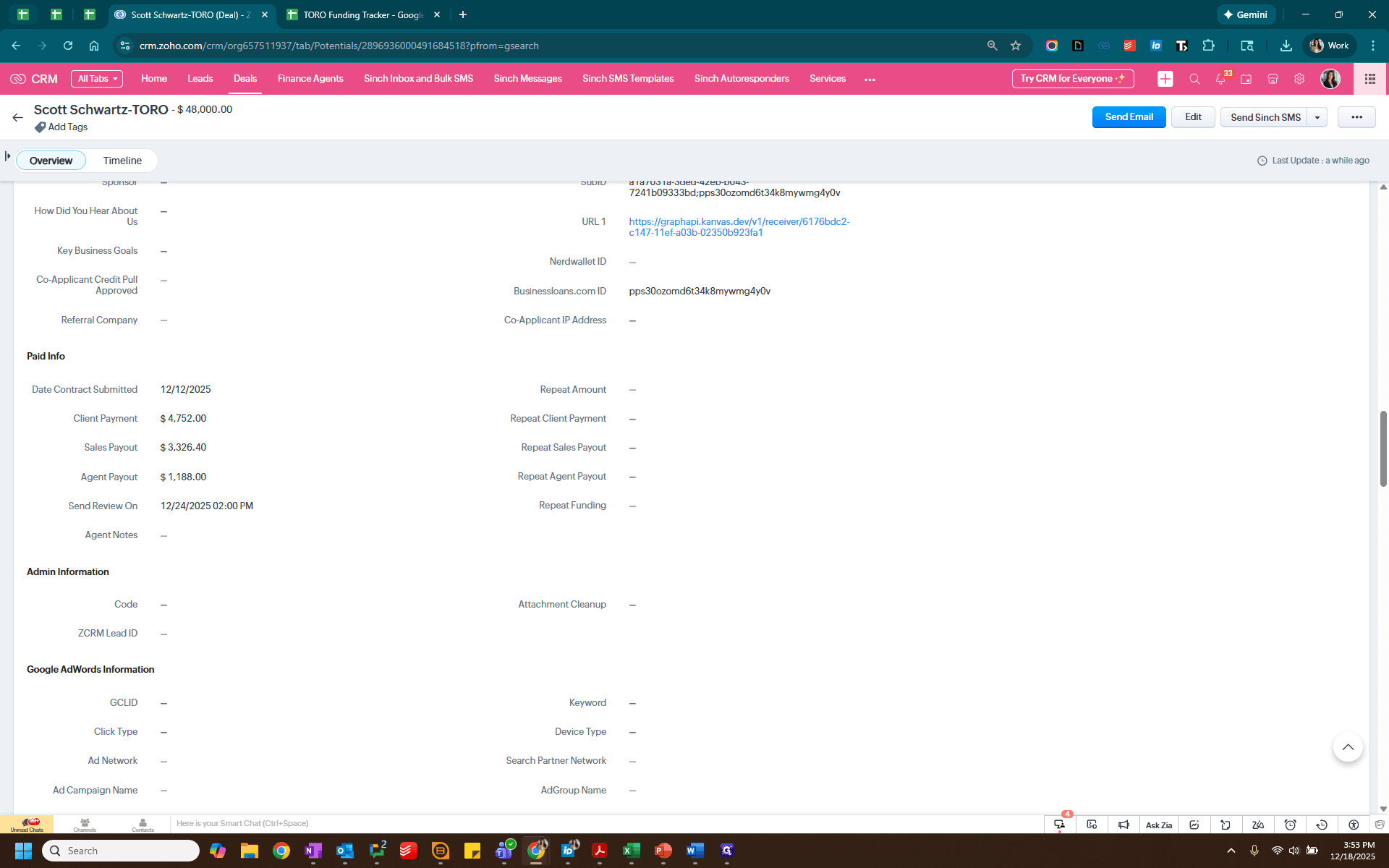
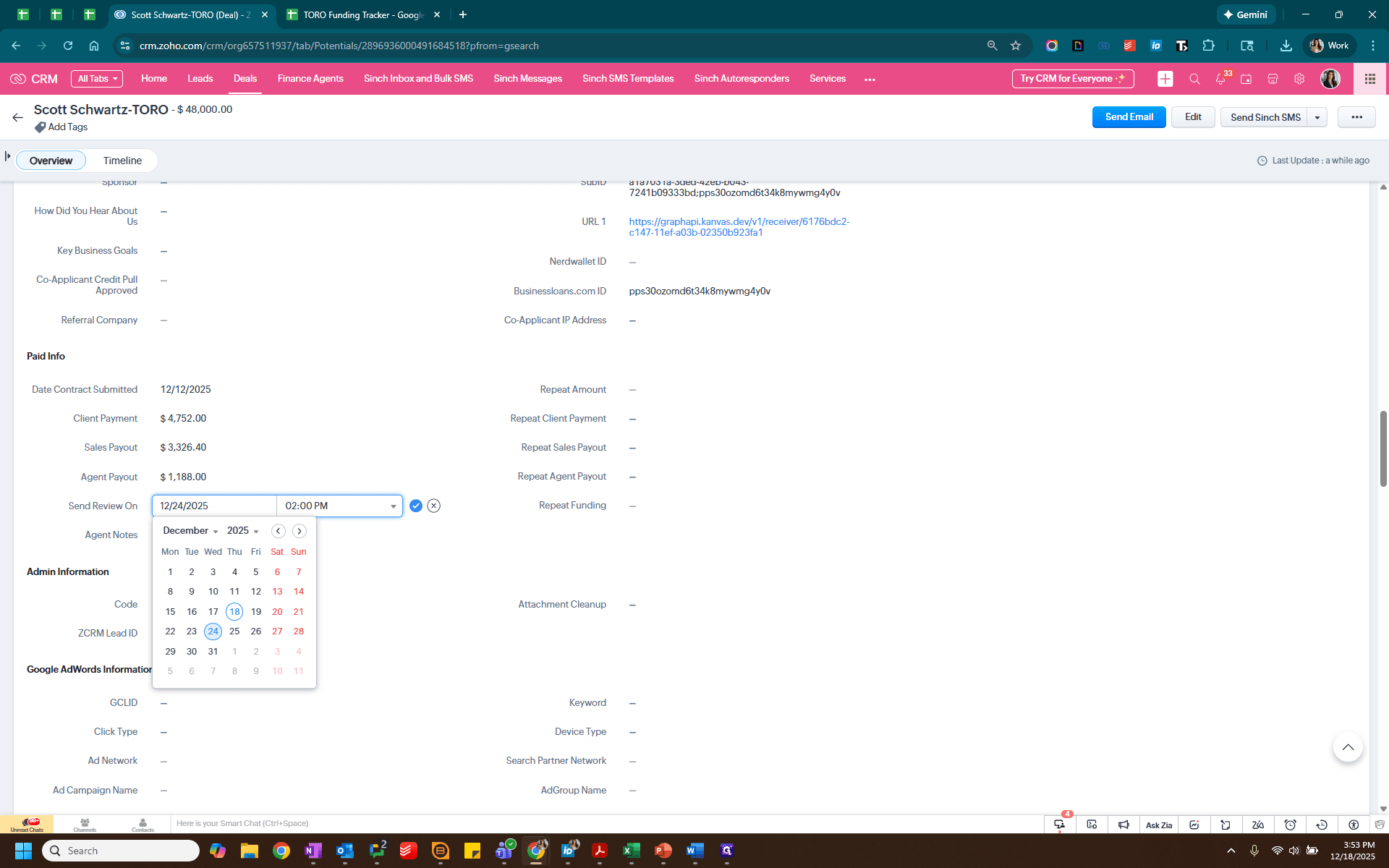
When clients pay by ACH, I ensure their review date is set at least a week after payment. This way, if there are any issues with the ACH, they won't receive a Trustpilot review request before the payment clears.
After that, send a text message confirming we have received the payment.
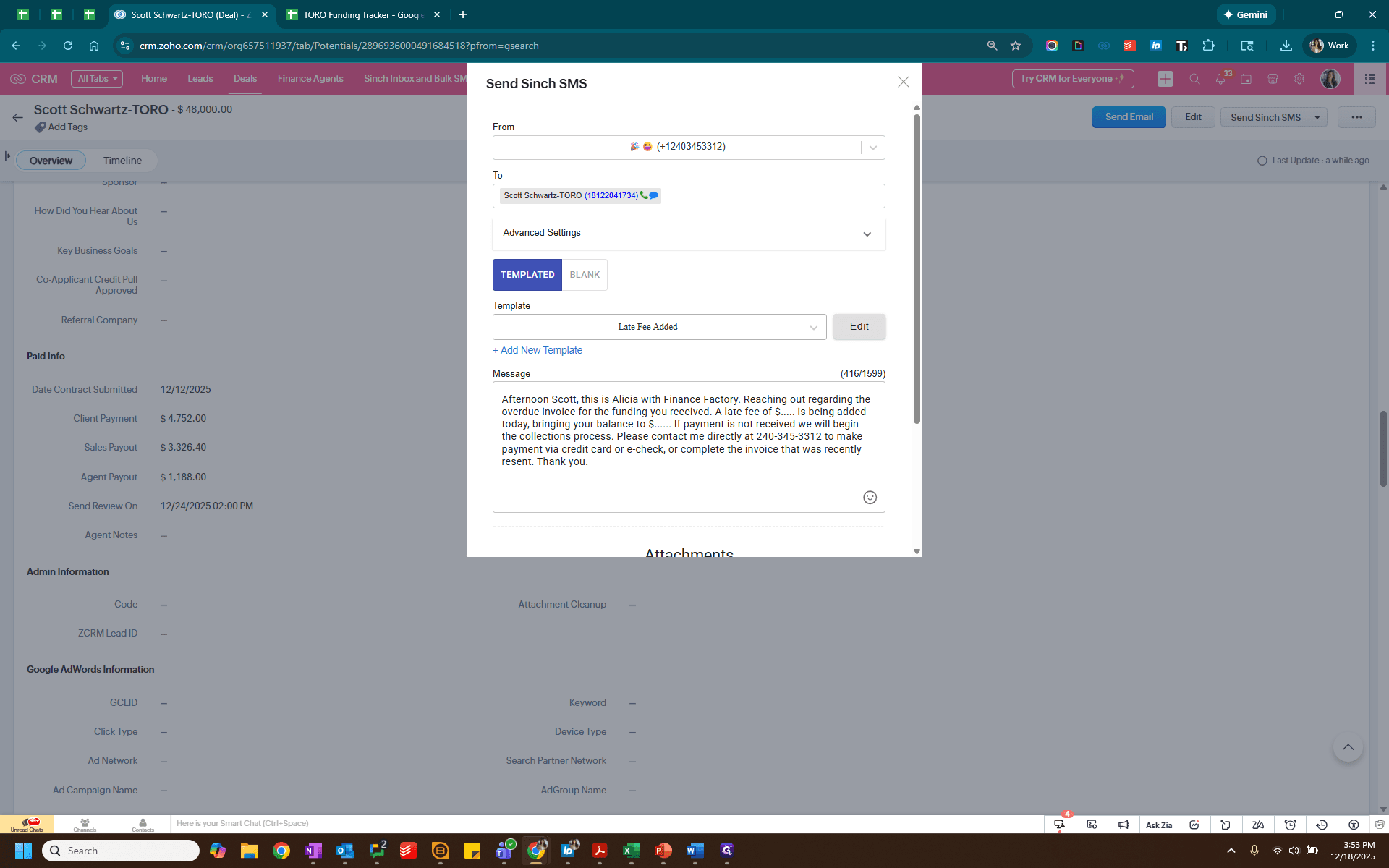
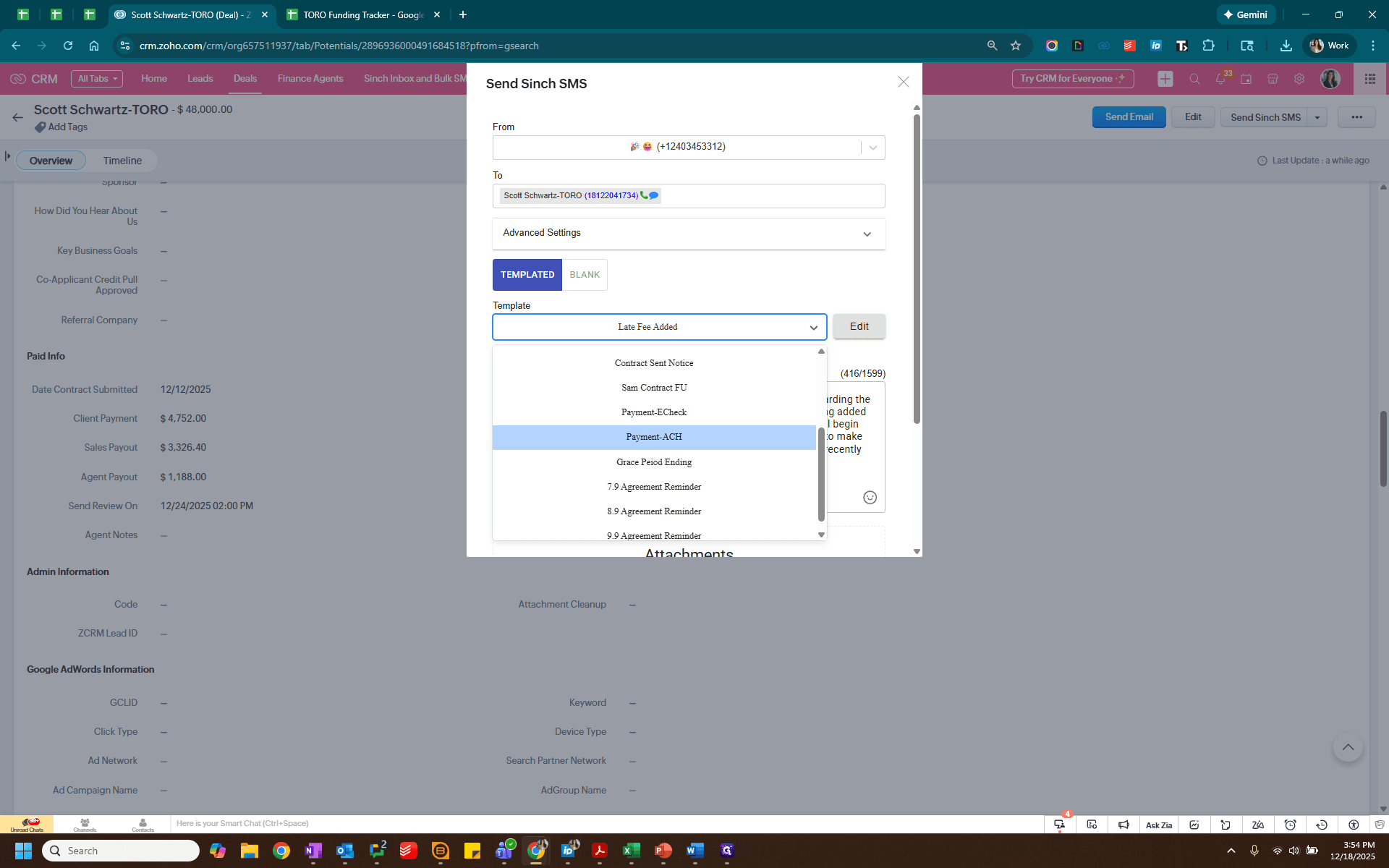
There are templates available for credit card and ACH payments here. Once we have that in place, we will send it.
That is how you log a payment that has already been made.